
E-ZY - Mobile Phone HAIER - Free user manual and instructions
Find the device manual for free E-ZY HAIER in PDF.

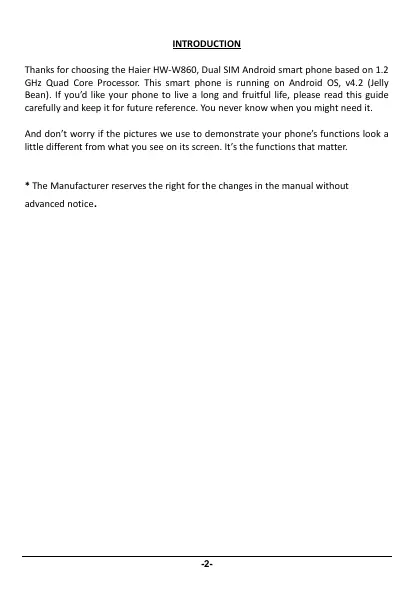

| Product type | Smartphone |
| Brand | Haier |
| Model | E-ZY (HW-W860) |
| Operating system | Android 4.2 (Jelly Bean) |
| Processor | Quad-core 1.2 GHz |
| RAM | 512 MB |
| Internal storage | 4 GB (eMMC); 2 GB available for user |
| Display | Capacitive touchscreen (estimated size 4.0 inches) |
| Camera | High Definition with LED flash (estimated resolution 5 MP) |
| Battery | Rechargeable lithium-ion (estimated capacity 1500 mAh) |
| Connectivity | Wi-Fi 802.11 b/g/n, Bluetooth, 3G/2G |
| SIM | Dual SIM (micro-SIM) |
| Weight | Approximately 120 g |
| Dimensions | Approximately 125 x 65 x 10 mm |
| SAR value (head) | 0.348 W/kg |
| SAR value (body) | 0.772 W/kg |
| Care and cleaning | Clean with a soft, dry cloth; avoid water and chemicals |
| Safety | Instructions: do not disassemble, use only original accessories, respect temperatures (0-40°C) |
| Repairability | Contact an authorized professional; any unauthorized repair voids the warranty |
| General information | CE marking, conforms to directive 93/68/EEC; mandatory WEEE recycling |
Frequently Asked Questions - E-ZY HAIER
User questions about E-ZY HAIER
0 question about this device. Answer the ones you know or ask your own.
Ask a new question about this device
Download the instructions for your Mobile Phone in PDF format for free! Find your manual E-ZY - HAIER and take your electronic device back in hand. On this page are published all the documents necessary for the use of your device. E-ZY by HAIER.
USER MANUAL E-ZY HAIER
You may use the navigation menu of your browser to search for information about the Internet.
3. Calculatrice
Android 4.2(Jelly Bean) is the Operating System for your Touch Screen Smartphone -Haier-HW-W860.
INTRODUCTION
Thanks for choosing the Haier HW-W860, Dual SIM Android smart phone based on 1.2 GHz Quad Core Processor. This smart phone is running on Android OS, v4.2 (Jelly Bean). If you'd like your phone to live a long and fruitful life, please read this guide carefully and keep it for future reference. You never know when you might need it.
And don't worry if the pictures we use to demonstrate your phone's functions look a little different from what you see on its screen. It's the functions that matter.
- The Manufacturer reserves the right for the changes in the manual without advanced notice.
Safety
1.1 Safety Precautions

Please read through the following briefings carefully, and act in accordance with these rules, so as to prevent causing any
danger or violating any law.
- Your mobile phone model has been designed to compile with applicable safety requirements for exposure to radio waves. The radio wave exposure guidelines employ a unit of measurement called Specific Absorption Rate (SAR). For mobile phones, the maximum SAR value allowed is 2.0 watts per kilogramme (W / Kg)
Maximum SAR value for this model: Maximum SAR value in the head: 0.348W / Kg Maximum SAR value in the body: 0.772W / Kg - Use cell phone when the signal strength is good. Keep your calls short or instead use headset or send a text message. This advice applies especially to children, adolescents and pregnant women.
- If you are using a Bluetooth headset device, please make sure it has a low power emitter.
- Information about the meaning of Logo WEEE (Waste Electrical and Electronic Equipment):

The WEEE logo on the product or on its box indicates that this product must not be disposed of or dumped with your other household waste. You are liable to dispose of all your electronic or electrical waste equipment by relocating over to the specified collection point for recycling of such hazardous waste. Isolated
collection and proper recovery of your electronic and electricalwaste equipment at the time of disposal will allow us to help
conserving natural resources. Moreover, proper recycling of the electronic and electrical waste equipment will ensure safety of human health and environment.
- Caution: risk of explosion if battery is replaced by an incorrect type.
- Dispose of used batteries according to the instructions.
- For pluggable equipment, the socket-outlet shall be installed near the equipment and shall be easily accessible.
1.2 Using your phone safely

On The Road
Using a phone while driving is illegal in many countries. Please follow local laws and drive safely at all times.

Near Sensitive Electronics
Don't use your phone near sensitive electronic equipment - particularly medical devices such as pacemakers - as it could cause them to malfunction. It can also interfere with the operation of fire detectors and other automatic-control equipment.
For more information about how your phone affects pacemakers or other electronic equipment, please contact the manufacturer or your local distributor.
Your phone may cause interference when used near TVs, radios or automated office equipment.

While Flying
Your phone can cause interference with aircraft equipment. So it's essential you follow airline regulations. And if airline personnel ask you to switch off your phone, or disable its wireless functions, please do as they say.

In Hospital
Your phone may interfere with the normal operation of medical equipment. Follow all hospital regulations and turn it off when you're asked to by posted warnings or medical staff.

At a Petrol Station
Don't use your phone at petrol stations. In fact, it's always best to switch off whenever you're near fuels, chemicals or explosives.

Around Water
Keep your phone away from water (or any other liquid). It's not a waterproof model.

Making Repairs
Never take your phone apart. Please leave that to the professionals. Unauthorized repairs could break the terms of your warranty.

Broken Antenna
Don't use your phone if the antenna is damaged, as it could cause injury.

Around Children
Keep your mobile out of children's reach. It should never be used as a toy and it might not be good for their health.

Original Accessories
Only use the original accessories supplied with your phone or those approved by the manufacturer. Using unapproved accessories may affect
performance, make the warranty void, break national regulations on the use of mobile phones, or even cause injury.

Near Explosives
Turn off your phone in or near areas where explosive materials are used. Always obey local laws and turn off your phone when requested.

Emergency Calls
To make an emergency call your phone must be turned on and in an area where there's network coverage. Dial the national emergency number and press 'send'. Explain exactly where you are and don't hang up until help has arrived.

Working Temperature
The working temperature for the phone is between 0 Degree and 40 Degree Celsius. Please don't use the phone outside the range. Using the phone under too high or too low temperature might cause problems.

To prevent possible hearing damage, do not listen at high levels for long periods.

Information about the meaning of marking CE: That means
that the product answers to essential requirements of the European Directive 9368/EEC applicable in the conformity assessment procedures.
2.1 Your Phone
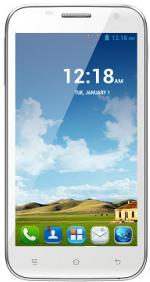
Keys/Touch Points
Power Key: To power on/off Haier W860, press and hold power key for a few seconds of your phone. When Haier W860 is ON, press the power key once to activate or deactivate the screen.
Home key ( ): Touch the key to return to the home screen. In idle screen, touch and hold the key to view recently accessed features.
Options key ( :): In standby mode, touch the key to set wallpaper, manage apps, access to system settings. Touch it to view menu options.
Back key (): Touch to go back to the previous menu.
2.2 Description Icons
| Icons | Descriptions | Icons | Descriptions |
| Shows the phone's network signal strength. | Show the phone's battery capacity. | ||
| Speaker has been activated. | You have unread SMS. | ||
| Call on hold | USB storage Turned on. | ||
| The ringing type is set on Vibration. | Flight Mode | ||
| 3G | 3G network in use. | 6 | 2G network in use. |
| You have missed calls. | A clock alarm is active. | ||
| In call | Bluetooth ON |
2.3 Inserting & Removing the Battery
Inserting the Battery
- Open the battery cover on the back of your phone.
- Align the battery's contact points with those of the phone and gently press the battery down into place.
- Replace the battery cover clicking it back into position.
Inserting the Battery
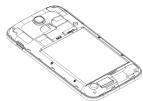
Closing the Back Cover
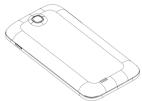
Removing the battery
- Switch off your phone.
- Open the battery cover.
- Lift the battery up and out of your phone.
Open the Back Cover
Removing the Battery
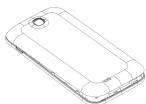
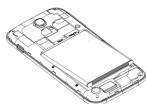
Note: The Schematics may differ from the actual product, it is just for the demonstration of function.
2.4 Charging the battery
The rechargeable Li-ion battery that comes with your phone is ready to be used, but is not charged. It is easy to do & can be done in 3 simple steps below:
- Connect the charger to your phone, and plug it into a socket.
- The battery indicator in the corner of the screen will scroll to show you it's charging.
- When fully charged, the battery indicator will stop scrolling.
- Disconnect the charger from your mobile, and unplug.
2.5 Power ON/OFF
Press the power key to power-ON/OFF the phone.
When you turn your phone on, it'll automatically check the SIM and show the following information on screen:
- Input SIM1 PIN: If you've set a PIN for your SIM1.
- Input SIM2 PIN: If you've set a PIN for your SIM2.
Note:
The PIN is supplied with your SIM. Please replace it with your own PIN code as soon as possible. Enter the wrong PIN three times, and your SIM will be locked. Then you'll need to contact your network service provider to ask for a PUK code to unlock it. It is applicable for both the SIMs if you are using 2 SIM Cards.
2.6 Enter Main Menu
In Idle mode, press the Menu key to enter the main menu on the desktop and click the Home key to return.
2.7 Enter Sub Menu
Once at the main menu, click the icon to select the submenu, press Back Key to return to the previous menu, and press the Home Screen to return to the home screen.
2.8 Use Notification Panel
As a new notification appears in the notification area, slide down in the area to view the contents of the notification.
2.9 Expand Main Interface
The main interface may extend and exceed the screen width to provide more space for newly added shortcuts and tools.
Slide your finger horizontally on the main interface to extend to the left or right area of the main interface.
2.10 Add icons on the main interface
You can long press the icon on the main menu until it's enlarged and the mobile phone vibrates, and copies the icons in the main menu to the main interface.
2.11 Move icons on the main interface
- Long press the icon on the main interface until it's enlarged and the mobile phone vibrates.
- Drag the icon to the desired position and then release it.
2.12 Delete icons on the main interface
- Long press the icon on the main interface until it's enlarged and the mobile phone vibrates.
- Drag the icon to "Remove" to delete it.
2.13 Change wallpapers
- Long press "Touch screen" to open the menu.
- Choose from "Gallery / Live Wallpapers" / "Wallpapers", and Select the wallpaper and press "Set wallpaper" to complete.
2.14 Install APK through File Manager
APK is a supported file format for the Android mobile operating system.
a)Please copy the downloaded APK file into the SD card, and then insert the SD card into the phone.
b) In Idle mode, click Main Menu to enter the main menu.
c)Click "File Manager" to enter the directory of SD card.
d)Click the APK file you wish to install, and follow the installation wizard.
e) Comment on the memory available for the user:
Your Smartphone Haier has an internal memory of 4 GB (eMMC) and 512 MB of RAM; the memory used by the operating system (OS) and the preinstalled applications is 2 GB. The memory available for the user is 2 GB.
3.1 Main Menu & Its Functions
Select to enter the main menu...
Allow you to view a list of features available in your phone
1. Clock
Allow you to set the Alarm from Clock.
2. Browser
Browse the internet. Search engine- default set as Google.
3. Calculator
Allow you to make tedious calculations quickly.
4. Calendar
View the calendar & add events.
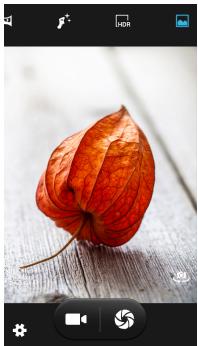
5. Camera
Allow you to click pictures anytime you want. Your Haier W860 has High Definition camera with LED Flash supporting many special features which ensures you always click good quality of pictures and stores them under the Gallery folder. In Camera, easily choose Camcorder to record Video Files.
6. Contact
To see your list of Contacts. Access phonebook through this function.
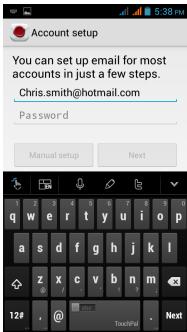
7.Email
Allows you set up your POP/IMAP email accounts.
8. Gallery
Allow you to save & view photos & videos.
9. Play Store
Log in to your Gmail account to view all the applications & download from thousands of applications available under the Google Market called Play Store.
Note:
To use this app please connect to an internet connection.
10. Messaging
Allow you to view messages sent & received as a thread.
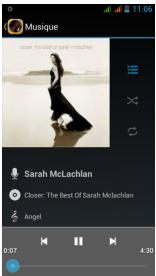
11. Music
View the list of songs available in your phone. View the artists, albums, playlists & more.
12. Phone
Allow you to make quick outgoing calls.
13. File Manager
You could install the files in APK format & also view your files.
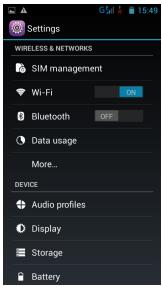
14. Settings
Modify settings under the following
Wi-Fi
- Bluetooth
Data Usage
Multi SIM Settings
Sound & Display
Storage & Battery
- Apps
- Accounts & Sync
- Location Services & Security
Language & Input - Backup & Reset
Date & Time
Accessibility
System Updates
About phone
15. SIM Toolkit
This service is provided by the operator. It provides many types of personalized message services.
16. Sound Recorder
Allows you to record sounds.
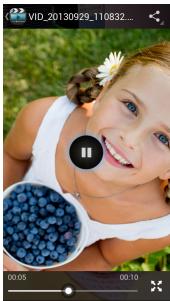
17. Videos
View from list of videos.
3.2 Wi-Fi Direct
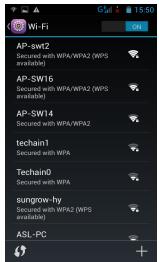
Haier W860 supports Wi-Fi Direct which allows Android later devices with the appropriate hardware to connect directly to each other via Wi-Fi without an intermediate access point. Using the APIs, you can discover and connect to other devices when each device supports Wi-Fi Direct, then communicate over a speedy connection across distances much longer than a Bluetooth connection. This is useful for applications that share data among users, such as a multiplayer game or file sharing.
a. Enter "Settings" interface . Then click "Wi-Fi direct" to access Wi-Fi direct feature. Then turn on the feature.
b. After turning on the feature click "Search" at the bottom and it will display the available devices:
c. Click "Android_7e33" (in this case specifically) and it will give you option to connect:
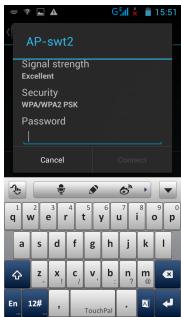
d. Click "connect" and the devices will be connected
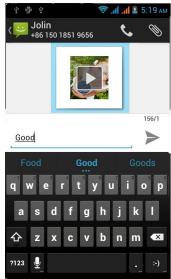
Intelligent keyboard
Haier W860 automatically corrects and suggests words as you type.
Cut, Copy and Paste
Touch and hold text content to bring up the magnifying glass, and then slide your finger to move the insertion points. Then choose to cut, copy, or paste. It is very easy to copy text from web pages, email, or text messages.
5 Maintenance
Use a dry soft cloth to wipe general dirt.
Do not use a hard cloth, benzene or thinner to wipe the phone, otherwise, the surface of the phone will be scratched or could even result in the fading of color.
6Taking Care of your Device
Your device is a product of superior design and craftsmanship and should be handled with care: The following suggestions will help you protect your phone:
Always keep the small parts of the phone away from children.
- Keep the device dry. Precipitation, humidity, and all types of liquids or moisture can contain minerals that will rust electronic circuits. If your device does get wet, remove the battery, and allow the device to dry completely before replacing it.
- Do not use or store the device in dusty, dirty areas. Its moving parts and electronic components can be damaged.
- Do not store the device in high or cold temperature. High temperatures can shorten the life of electronic devices and damage batteries.
- Do not attempt to open the device other than as instructed in this guide.
- Do not drop, knock, or shake the device. Rough handling can break internal circuit boards and fine mechanics.
- Do not use harsh chemicals, cleaning solvents, or strong detergents to clean the device. Only use a soft, clean, dry cloth to clean the surface of the device.
- Do not paint the device. Paint can clog the moving parts and prevent proper operation.
Use indoor chargers.
Haier Haier Haier Haier
Haier Haier Haier Haier
Haier Haier Haier Haier
Haier Haier Haier Haier
Haier Haier Haier Haier
Haier Haier Haier Haier
Haier Haier Haier Haier
Haier Haier Haier Haier
Haier Haier Haier Haier
Haier Haier Haier Haier
Haier Haier Haier Haier
Haier Haier Haier Haier
Haier Haier Haier Haier
Haier Haier Haier Haier
Haier Haier Haier Haier
Haier Haier Haier Haier
Haier Haier Haier Haier
Haier Haier Haier Haier
Haier Haier Haier Haier
Haier Haier Haier Haier
Haier Haier Haier Haier
Haier Haier Haier Haier
Haier Haier Haier Haier
Haier Haier Haier Haier
Haier Haier Haier Haier
Haier Haier Haier Haier
Haier Haier Haier Haier
Haier Haier Haier Haier
- Calculatrice
- INTRODUCTION
- Safety
- Safety Precautions
- Using your phone safely
- On The Road
- Near Sensitive Electronics
- While Flying
- In Hospital
- At a Petrol Station
- Around Water
- Making Repairs
- Broken Antenna
- Around Children
- Original Accessories
- Near Explosives
- Emergency Calls
- Working Temperature
- Your Phone
- Keys/Touch Points
- Description Icons
- Inserting & Removing the Battery
- Inserting the Battery
- Removing the battery
- Charging the battery
- Power ON/OFF
- Note:
- Enter Main Menu
- Enter Sub Menu
- Use Notification Panel
- Expand Main Interface
- Add icons on the main interface
- Move icons on the main interface
- Delete icons on the main interface
- Change wallpapers
- Install APK through File Manager
- Main Menu & Its Functions
- Clock
- Browser
- Calculator
- Calendar
- Camera
- Contact
- 7.Email
- Gallery
- Play Store
- Messaging
- Music
- Phone
- File Manager
- Settings
- SIM Toolkit
- Sound Recorder
- Videos
- Wi-Fi Direct
- Intelligent keyboard
- Cut, Copy and Paste
- Maintenance
- 6Taking Care of your Device
Brand : HAIER
Model : E-ZY
Category : Mobile Phone