
HD 5000 DC - Satellite receiver MEGASAT - Free user manual and instructions
Find the device manual for free HD 5000 DC MEGASAT in PDF.



| Product type | Digital satellite receiver DVB-S/DVB-S2 |
| Brand | Megasat |
| Model | HD 601 V2 (compatible with HD 5000 DC) |
| Dimensions (L x D x H) | 220 x 140 x 40 mm |
| Net weight | Approx. 525 g |
| Power supply | AC 100-240V, 50/60 Hz, max. power consumption 12 W, standby < 0.5 W |
| Satellite standards | DVB-S/DVB-S2, MPEG-2/MPEG-4/H.264 |
| Supported video resolutions | 576p, 576i, 720p, 1080i, 1080p |
| Image formats | 4:3, 16:9 with Pan & Scan or Letterbox |
| Connectivity | HDMI with upscaling, SCART (CVBS, L/R), USB 2.0, LNB F-type input |
| Main functions | Channel search, DiSEqC 1.0/1.2, USALS, Unicable 1/2 (JESS), 7-day EPG, teletext, subtitles, parental control, 8 favorite lists, channel sorting, update via USB |
| Maintenance and cleaning | Unplug before cleaning; use a soft cloth and mild detergent; do not use solvents |
| Safety | Do not open the casing; do not expose to moisture; keep ventilation slots clear; do not place objects containing liquid on the device |
| Spare parts and repairability | Contact the authorized after-sales service or dealer for any repairs |
| General information | Operating temperature: 0°C to +40°C; storage temperature: -40°C to +65°C; WEEE Reg.-Nr. DE70592344 |
Frequently Asked Questions - HD 5000 DC MEGASAT
User questions about HD 5000 DC MEGASAT
0 question about this device. Answer the ones you know or ask your own.
Ask a new question about this device
Download the instructions for your Satellite receiver in PDF format for free! Find your manual HD 5000 DC - MEGASAT and take your electronic device back in hand. On this page are published all the documents necessary for the use of your device. HD 5000 DC by MEGASAT.
USER MANUAL HD 5000 DC MEGASAT
natural_image
Exterior view of a white satellite dish labeled 'MEGASAT' with a red antenna (no additional text or symbols visible)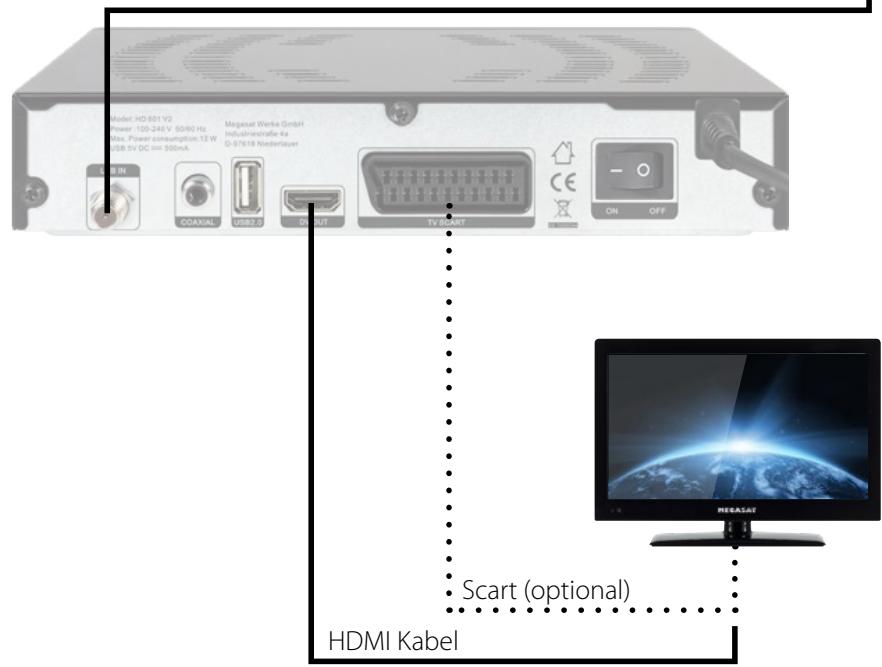
Hinweis:
Safety instructions....03
1. Reference
1.1 Genareal Features 04
1.2 Delivery....04
2. Names and key assignment
2.1 Front view 05
2.2 Rear view 05
2.3 Remote Control 06
3. Connecting the set-top box
3.1 Connecting the set-top box....07
4. Main Menu
4.1 Installation 08
4.2 Channel edit 14
4.3 Settings....17
4.4 Time settings....19
4.5 Advanced 21
4.6 Receiver Informations....22
5. Additional Information
5.1 Troubleshooting....23
5.2 Specifications.... 24
5.3 Informations 25
Safety instructions
Please read the manual thoroughly before operating the equipment. In case of incorrect or improper handling, the warranty becomes void.
Power supply: Before start please check the correct operation voltage of the power point. The operating voltage of this device is 12V DC, 1A AC 100\~240 V, 50/60Hz.
Overload: Do not overload a wall outlet, extension cord or adapter, neither use damaged power cord or touch it with wet hand as this may result in electric shock.
Liquid: The device shall not be exposed to dripping or splashing water, and that no objects filled with liquids, such as base, shall be placed on the apparatus.
Ventilation: Keep the slots on top of the receiver uncover to allow sufficient airflow to the unit. Do not expose the receiver to direct light or do not place it near a heater or in humid conditions. Do no stack other electronic equipments on top of the receiver.
Risk of suffocation: Do not let children play with films or other packaging components, there is a risk of suffocation.
Cleaning: Plug out the receiver from the wall outlet before cleaning. Clean the receiver by a soft cloth or mild solution of washing-up liquid (no solvents).
Uncover: Do not remove the cover, to reduce the risk of electric shock. Contact qualified and licensed service personnel to repair the receiver, or contact your dealer.
1. Reference
1.1 General Features
• DVB-S/DVB-S2 Satellite Compliant (MPEG-II / MPEG-IV / H.264)
• DiSEqC 1.0, 1.1, (USALS) compatible
• Unicable 1 and 2 (EN 50494/EN 50607)
• JESS certified (EN 50494/EN 50607)
- 4-digit display
• Support SCPC & MCPC receivable from C / Ku-band satellite LNB
• Universal, Single, Single S & C band wideband LNBs
- Sensitive Tuner
• PAL / NTSC conversion
- Variable aspect ratio (4:3, 16:9) with Pan Vector or Letter Box
• Output resolution: 576p & 576i, 720p, 1080i & 1080p
• To improve HDMI with Upscalefunktion to picture quality
- 8 favorite lists
• Parental Control function
- 5 types of sorting function for channels
- Screen display with full color resolution
• Teletext and subtitle support (OSD)
- 7 days EPG (Electronic Program Guide) for On-Screen Program Information
- Multilingual menu
- Multichannel order
- USB 2.0 (Mediaplayer)
1.2 Delivery
- Megasat HD 601 V2
- Remote control
- Batteries
- User manual
2. Names and key assignment
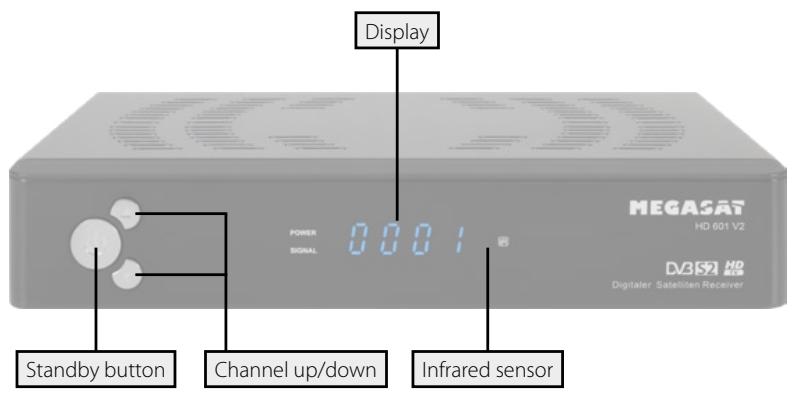
2.1 Front view
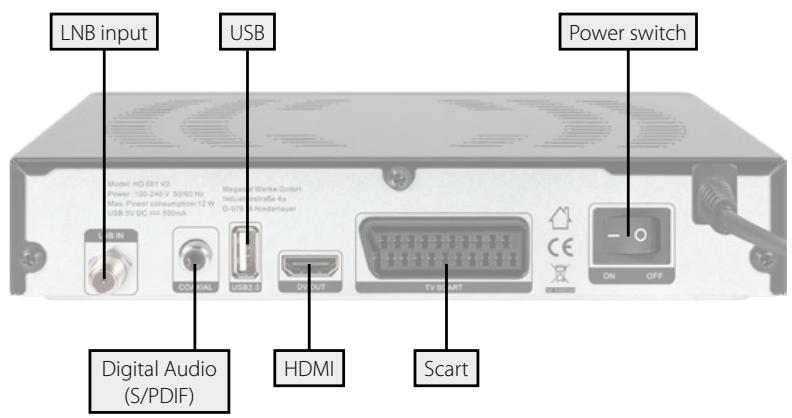
2.2 Rear view
2. Names and key assignment
2.3 Remote control
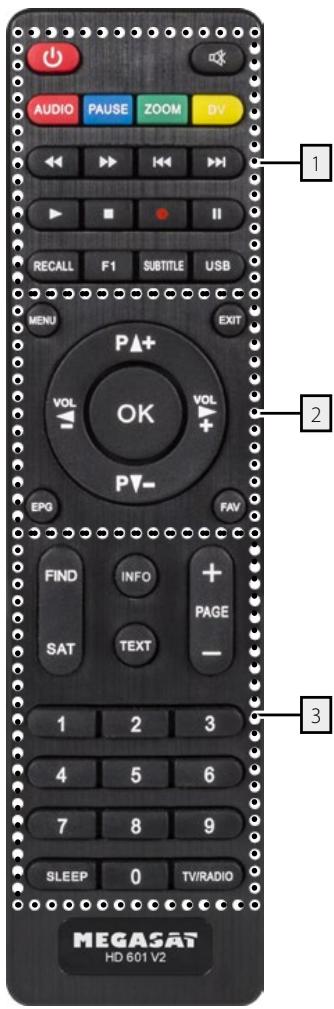
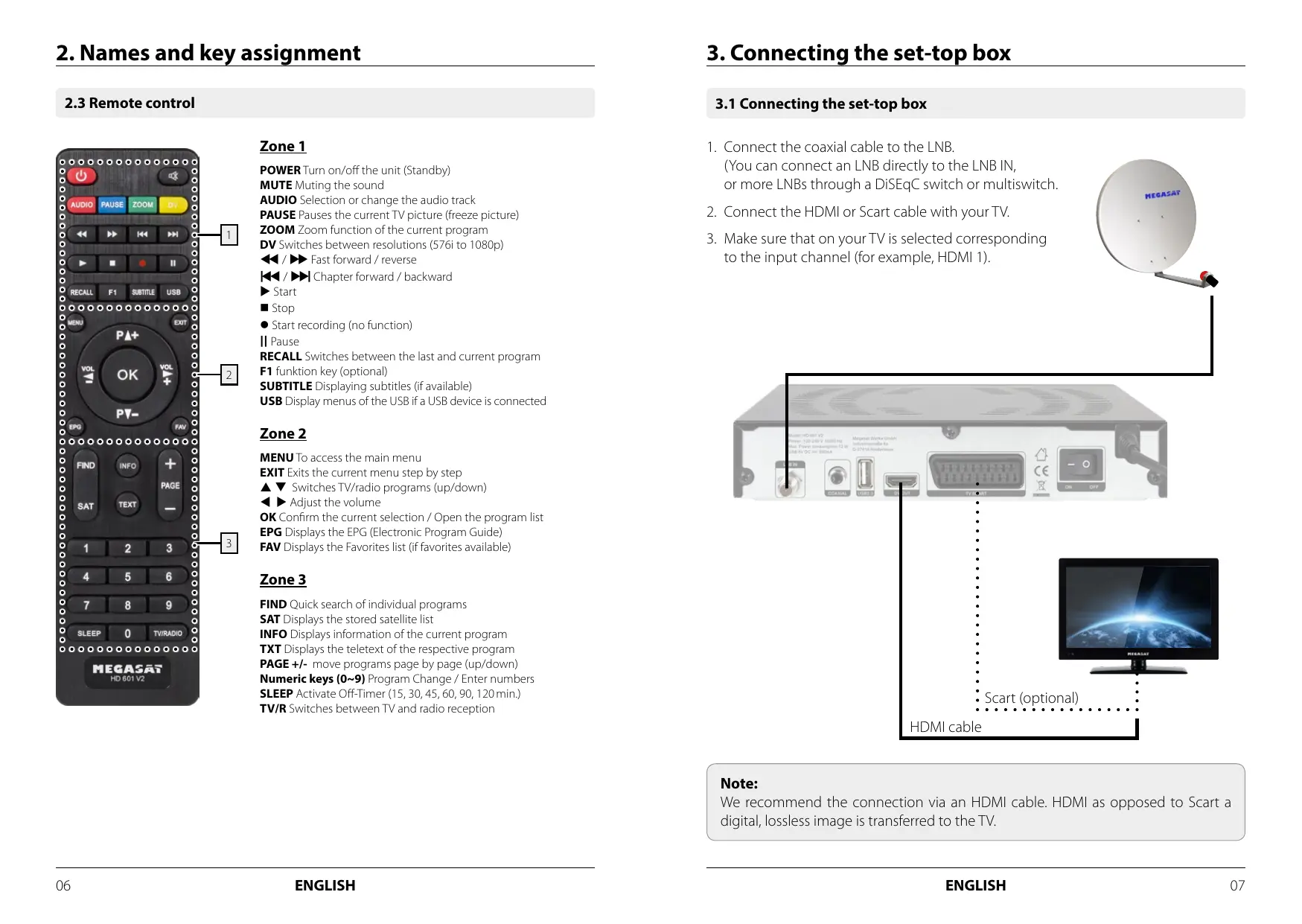
Zone 1
POWER Turn on/off the unit (Standby)
MUTE Muting the sound
AUDIO Selection or change the audio track
PAUSE Pauses the current TV picture (freeze picture)
ZOOM Zoom function of the current program
DV Switches between resolutions (576i to 1080p)
◀◀ / ▶▶ Fast forward / reverse
|◀◀ / ▶▶▶ Chapter forward / backward
▶ Start
■ Stop
- Start recording (no function)
|| Pause
RECALL Switches between the last and current program
F1 funktion key (optional)
SUBTITLE Displaying subtitles (if available)
USB Display menus of the USB if a USB device is connected
Zone 2
MENU To access the main menu
EXIT Exits the current menu step by step
▲ ▼ Switches TV/radio programs (up/down)
◀ ▶ Adjust the volume
OK Confirm the current selection / Open the program list
EPG Displays the EPG (Electronic Program Guide)
FAV Displays the Favorites list (if favorites available)
Zone 3
FIND Quick search of individual programs
SAT Displays the stored satellite list
INFO Displays information of the current program
TXT Displays the teletext of the respective program
PAGE +/- move programs page by page (up/down)
Numeric keys (0\~9) Program Change / Enter numbers
SLEEP Activate Off-Timer (15, 30, 45, 60, 90, 120 min.)
TV/R Switches between TV and radio reception
3. Connecting the set-top box
3.1 Connecting the set-top box
- Connect the coaxial cable to the LNB. (You can connect an LNB directly to the LNB IN, or more LNBs through a DiSEqC switch or multiswitch.
- Connect the HDMI or Scart cable with your TV.
- Make sure that on your TV is selected corresponding to the input channel (for example, HDMI 1).
natural_image
Exterior view of a white satellite dish with 'MEGASAT' branding and a red antenna (no additional text or symbols visible)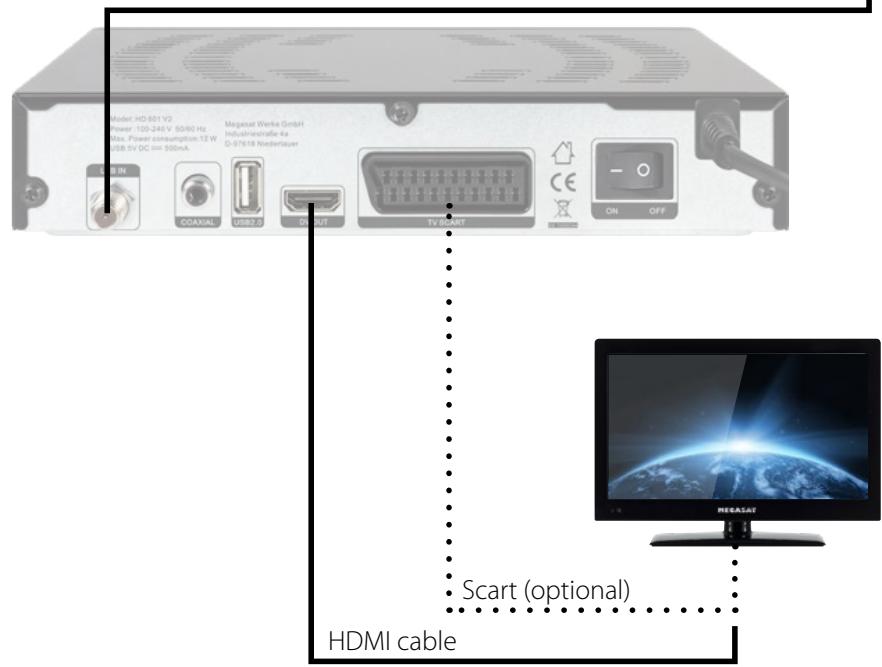
Note:
We recommend the connection via an HDMI cable. HDMI as opposed to Scart a digital, lossless image is transferred to the TV.
4. Main Menu
After connecting the receiver to other required equipment, turn on the set-top box
Press the MENU button to enter the menu.
The main menu consists of:
- Installation
- Channel edit
- Settings
- Time settings
- Advanced
- Information
Use the ◀▶ button to select your subject and press OK to confirm your selection and enter that sub menu, press EXIT button you can return to the previous menu.
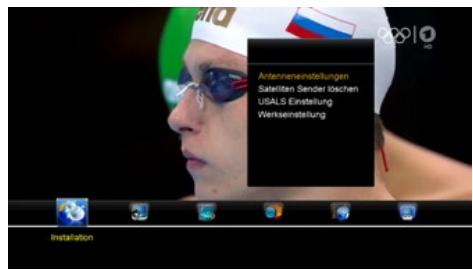
Press OK to Enter Dish setup, here you can make Satellite Scan, Satellite Edit, TP Search, TP Edit and other related Functions.
Satellite
Press the OK button to enter the list of preset satellites. Use the ▲▼ buttons to select a satellite, with the ◀▶ buttons you can at select the symbol of the bottom of the screen for editing and to the respective satellite edit.
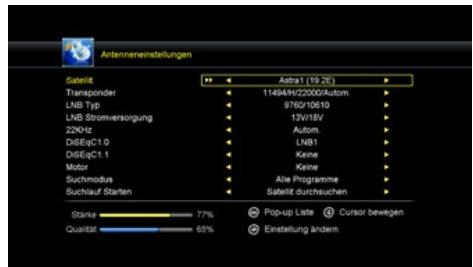
Add satellite by using the Red key. Here you can input new Satellite angle, Satellite Direction (east, west), Band (ku,c). OK to confirm the setting and this new satellite will be added to the end of the Satellite list.
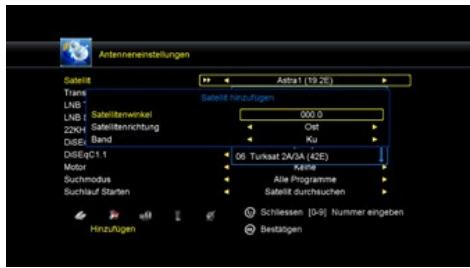
Select the satellite and press the OK button. You can now enter to move the position of the satellite in a desired position.
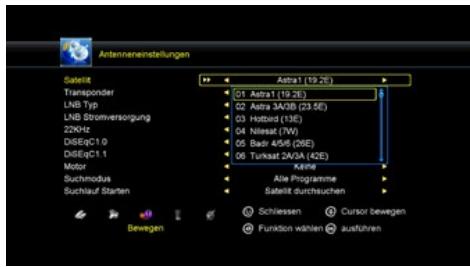
You can delete the user's satellite. Select the satellite that you want to delete from the satellite list. You will be asked to confirm whether delete the satellite or not. If you press ok key, all the channels in the selected satellite and transponder will be deleted, and the selected satellite will disappear.
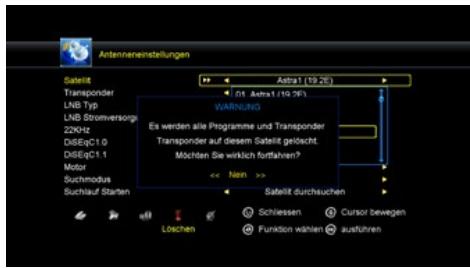
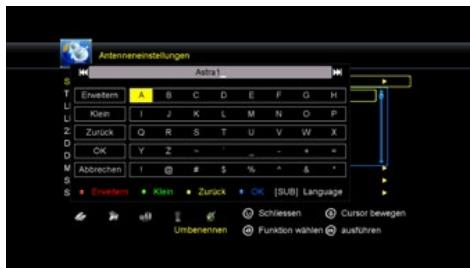
Select the satellite then press green button. You can change the satellite's name, angle, direction and band. Input the characters which you want to edit using the browser.
Press the OK button to enter the list of preset transponders. Use the ▲▼ buttons to select a transponder, with the ◀▶ buttons you can at select the symbol of the bottom of the screen for editing and to the respective transponder. The processing is performed in the same manner as the processing of the satellite.
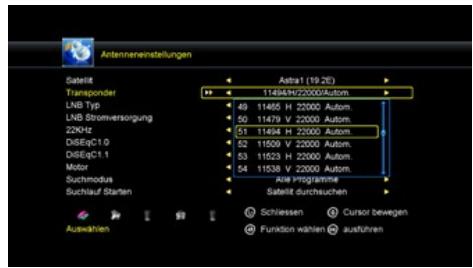
Here you need to check the LNB typ according to your antenna, set the correct frequency or define yourself. The default setting (Universal) is true in most cases.
Unicable System:
In the menu item LNB Type, you can make the settings for single-cable systems (Unicable, Unicable 2, SCD2, JESS). The set-top box is programmable for different Unicable systems. Depending on the system, up to 32 set-top box can be connected.
Unicable A/B/C (EN 50494)
This setting is suitable for Unicable systems with up to 8 users. IF programs allow you to select up to 8 different programs, each IF program being assigned a frequency. Select the desired IF program (1-8). Then select the main frequency and confirm with OK. Now enter the frequency according to your Unicable system.
SCD2 A/B/C/D/E/F/G/H (EN 50607)
This setting is suitable for Unicable 2 (JESS) systems with up to 32 users. IF programs allow you to select up to 32 programs, each IF program being assigned a frequency. Select the desired IF program (1-32). Then select the main frequency and confirm with OK. Now enter the frequency according to your Unicable system.
Use the SCD2 A/B/C/D/E/F/G/H option to control up to 8 satellites.
Note:
Basically, one uses the lowest frequency for the longest cable path to the set-top box. Note that each frequency may only be present once in your system. The frequencies depend on your single-cable system and can not be allocated as desired. IF program and IF frequency must compulsorily match your Unicable system.
4. Main Menu
LNB Power
Here you need to check the LNB power according to your antenna, set the correct frequency or define yourself. The default setting (13V/18V) is true in most cases.
22KHz
In case you are using two antennas connected to a 22KHz tone switch box. You can supply either 22KHz by setting "OFF" to select antenna.
DiSEqC 1.0 / DiSEqC 1.1
If you connect antenna to DiSEqC Switch, you need to specify the DiSEqC input to which your selected satellite have been configured.
Motor
Use the ◀▶ buttons to select the control of your motor. If you enable this option and then press OK, you can make further adjustments to the position of the mirror adjust:
Move Auto [W/E]
Press RIGHT/LEFT button, the dish will be motorized to East/West continuously, it will stop until it find the best signal.
Move Continue
Press RIGHT/LEFT button, the dish will be motorized to East/West continuously until you press LEFT/RIGHT again.
Move Step
Press RIGHT/LEFT button, the dish will be motorized to East/West by step.
Store Position
Save the current position you searched for the selected satellite.
Go to Position
Press OK button to move the dish to the stored position.
Go to Reference
Press OK button to move the dish to 0 position.
Set West Limit
Enable West limit.
Set East Limit
Enable East limit.
Disable Limit
Disable West limit and East limit.
4. Main Menu
Channel search
In this menu item you can select different search options:
- All programs
- Free programs
- HD programs
- SD programs
- TV programs
- Radio programs
- FTA TV programs
- FTA Radio Programs
Start channel search
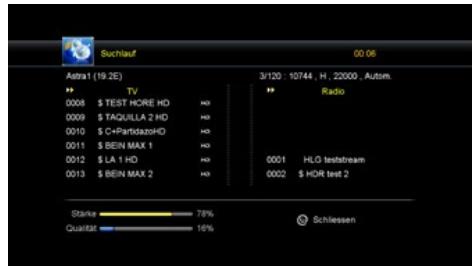
After you have set all the relevant positions in the antenna menu, you can now search for programs. You can use various search functions:
Transponder:
Just look on the selected Transponder.
Satellit:
Searches all stored transponders of the selected satellite.
Multi-Sat:
Scans all selected satellites.
Blind Scan:
Finds the satellites from all transponders, even those that are not stored in the list. This process will take some time to complete.
Multi-Transponer:
Searches for all satellites on the selected transponder.
2. Delete satellite channels
In this menu, you can delete unwanted channels lists matching the selection.
4. Main Menu
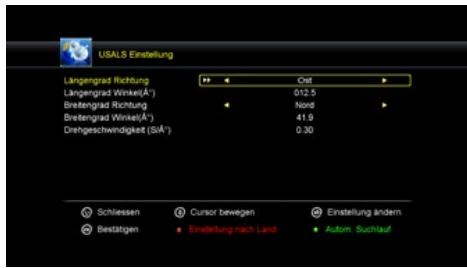
3. USALS setup
In this menu you can adjust to your USALS to operate your antenna with a motor.
Here you can delete all settings and channels and set back to factory condition. If the option is selected and confirmed with OK, you are prompted to confirm this. If you select „YES“, all data and settings are reset to the factory preset values. All the settings you have made will go irrevocably lost.
4. Main Menu
4.2 Channel edit
Here you can move programs, delete, lock, rename, replace and create favorites lists.
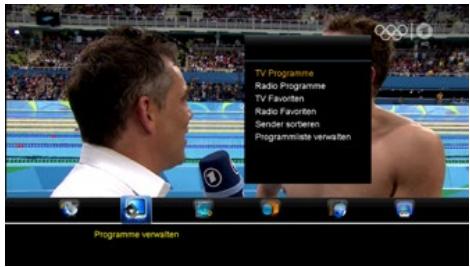
1. TV programmes
Select the menu item TV programs and confirm with OK. At the bottom of the screen there are 4 different symbols available. Use the ◀▶ buttons to select the options.
Move
Press OK to select a program you want to move. To move the program to the position you want, simply press the ▲▼ buttons until you have reached the desired position, or enter the numerical number of the desired court and then confirm with the OK button. Multiple programs to move appears simultaneously, select the program and press the blue button on the remote control. Repeat this process until all desired stations are instantly highlighted. Now select the desired program number and confirm with the OK button.
Delete
Move the cursor to the desired program, which is to be deleted and press the OK button. The selected program is marked with a cross. Repeat the process until all programs are marked to be deleted and then press the Exit button. Confirm the deletion of the programs by selecting „Yes“. If you select „No“ is deselected and no change is made.
Lock
You can lock a channel. After press OK button, you are prompted to enter a password.
4. Main Menu
Rename
Select the desired program that you want to rename. Press OK to open the editing window. Use the cursor and color keys to select the desired characters. Press OK to confirm your choice.
Exchange
You can replace a program that you select from the Channel List, with another program. Press the OK button, then you will be asked which program you want to the current interchange. Use the number keys to select the desired program number and confirm with OK.
2. Radio programs
Editing the radio programs are in accordance with the instructions of TV programs.
3. Favorites
You can sort programs into different groups, such as news, movies, music, or sports. Select at the bottom of the desired favorite group with the ◀▶ buttons. Then select the desired channel using the ▲▼ buttons and press OK. An icon appears next to the selected program. Repeat the process until all desired channels are assigned the appropriate favorite group.
Note:
To rename a favorite group, press the RED button on the remote control.
4. Favorits Radio
The create the radio favorites list is according to the instructions favorites list.
4. Main Menu
5. Sort channels
In this menu item you can choose different sorting functions:
- Alphabetically
- Transponder
- FTA / encrypted
- Standard
- Favorites
- Provider
- Service ID
6. User channel list
With this option, you can save and load your self-created channel list to the internal memory of the device.
Save channel list:
Select this option by pressing OK. Confirm with "YES" to save the current channel list at the set-top box. Select "No" to cancel the process.
Load channel list:
If you make a factory setting, or the channel list accidentally deleted, you can load the previously stored channel list from memory here.
4. Main Menu
4.3 Settings
Here you can change basic settings of the set-top box.
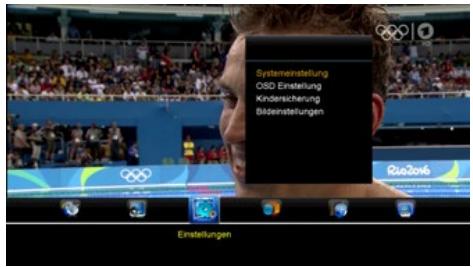
Use the ▲▼ buttons to navigate the menu. With the ◀▶ buttons you change accordingly each point according to your needs. It can be set as follows:
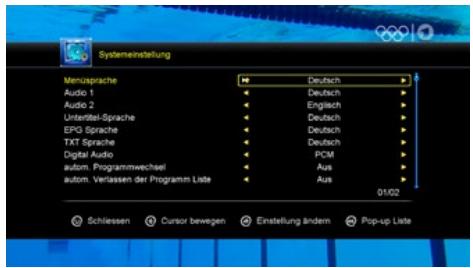
- Menu Language
- Audio 1
- Audio 2
- Subtitle language
- Subtitle function
- EPG language
- Teletext language
- Digital Audio
- Scart Ausgang
• Automatic program change
• Automatic exit the program list - Start Last Viewed program
- Low Power Standby
- Display lighting
4. Main Menu
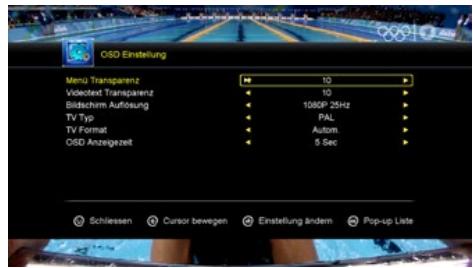
2. OSD settings
Use the ▲▼ buttons to navigate the menu. With the ◀▶ buttons you change accordingly each point according to your needs. It can be set as follows:
- Menu transparency
- Teletext transparency
- Screen resolution
• TV Typ - TV format
- OSD display time
Parental lock
Here you can assign a password to different menu items and programs to prevent children from changing the settings, or not seeing desired programs.
The first menu item „Password Lock“ activates or deactivates the complete child safety. When you activated the lock, you can select individual menus or programs with „yes“ or „no“ to enable or disable.
Picture settings
Use the ▲▼ buttons to navigate the menu. With the ◀▶ buttons you change accordingly each point according to your needs. It can be set as follows:
- Brightness
- Contrast
- Saturation
- Standard (resets the settings to the default values.)
In this menu, you can make settings by time and date, set an event or sleep timer and set the automatic shutdown of the set-top box.
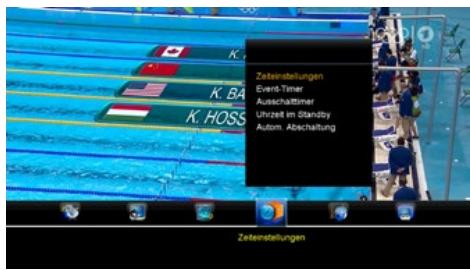
The default time is set to automatic, but it can also be entered manually. Select the time zone of your country and you will get the current time based on TDT (Time and Data Table) in the data stream of the current program.
2. Event-Timer
Here you can set the timer to access the program you have selected to determine a time. The set-top box switches automatically to the selected time on this channel. Use the color buttons to enter any settings:
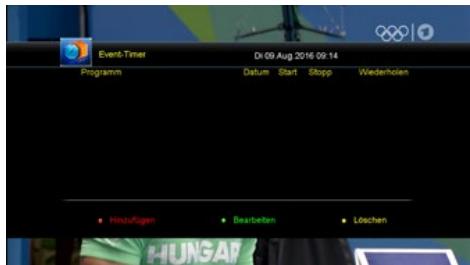
YELLOW: delete timer
4. Main Menu
3. Sleep Timer
Set the desired time after the set-top box should turn off. You can choose between 15, 30, 45, 60, 90 or 120 minutes.
4. Clock in standby
Here you can select whether the time should be displayed in the standby mode on the display. You can choose between ON (active) or OFF (inactive).
5. Automatic shut-off
Here you can set the time after the set-top box should turn off if no operation was performed on the set-top box. You can choose between 1, 2 or 3 hours.
Note:
The factory setting of the set-top box, the automatic shutdown is enabled and the set-top box switches off after 3 hours automatically if no operation was performed.
4. Main Menu
4.5 Advanced
In this menu, additional functions of the set-top box are offered.
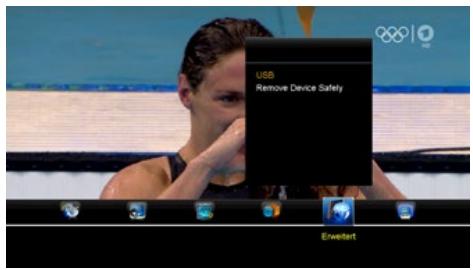
1. USB
USB menu is only active when a suitable USB device is connected.
You can limit the data that is displayed by selecting with the ◀▶ buttons at the top of one of the symbols:
• All
- Movies
- Music
- Pictures
- Software
To play a file, highlight it with the arrow keys and then press the OK button.
Note:
At a USB device following formats are supported: FAT & FAT32, NTFS
For more options on the color keys on the remote control. At the bottom of the screen there are four choices available. Then follow the information in the relevant information window.
Tools (RED)
Press the RED button to enter the tool list. Here you may rename, delete, move, copy, create a new folder, sort, and format your USB device.
Playback mode (GREEN)
Press the GREEN button to adjust settings such as repeat and slideshow interval of your photos.
Upload (YELLOW)
Press the YELLOW button to access the upload mode. Here you can copy the current settings, the channel list or both on a USB device.
4. Main Menu
If you copy the settings or the channel list on a USB device, first a window appears in which you can enter any name. Then confirm the entry and the copy operation with OK (Blue button). The copy operation will be displayed..
To moving the settings or the channel list back to the set-top box, select in USB menu the previously saved file (for example „Channels.sdx“) and confirm with OK. You will be asked if you really want to upgrade. Select YES and press OK. Select NO to abort.
Note:
Do NOT disconnect the power during the copy process!
2. Remove USB safely
Before you remove the external storage media (eg hard disk or USB stick), confirm this option with OK in order to avoid any damage to the storage medium. Then a message appears indicating that the medium was removed successfully.
4.6 Receiver Informations
See information about the software and hardware version of the receiver will be displayed:
- Model
- Hardware version
- Software version
- Software date
- Serial number
• Used channel list
• Used transponder - Used satellite
5. Additional information
5.1 Troubleshooting
You might meet abnormal working of this STB with various reasons. Check the following which may help you.
| Problem | Possible causes | What to do |
| LED on the front panel fail to light up/is not lit. | Main supply cable is not connected. | Check if the main supply cable is plugged into the power socket. |
| No picture or sound. | Satellite dish is not aiming to satellite accurately. No signal or weak signal. The LNB is faulty. The cable is faulty. | Adjust the dish. Check the signal strength indicator in one of the channels search submenus. Check the cable connections, LNB and other equipment connected to LNB & receiver, or adjust dish. Replace the LNB. Replace the cable. |
| Bad picture/blocking error | Satellite dish is not aiming to the satellite accurately. Signal too strong. Satellite dish is too small. LNB noise factor too high. The LNB is faulty. | Adjust the dish. Connect an attenuator to LNB input. Change to a larger dish. Change LNB with lower noise factor. Replace the LNB. |
| No startup menu on screen after turning on STB for the first time. | The system is connected by SCART cable and the TV is not in AV/ EXT mode. | Switch the TV to the appropriate AV input. |
| The remote control is not working. | Battery exhausted. Remote control is not aimed correctly STB is in standby mode. | Change the batteries (both). Aim the remote control at the STB. Check that nothing blocks the front panel. Check if LED indicator on the front panel is showing the time, press the power button to switch off standby mode. |
| You have forgotten your password. | Contact the dealer or Service Provider. They will help you set it up again. | |
| Poor picture quality or Less channels in scanning. | Low LNB power or signal loss in cable. | Change the LNB power to 14V/19V in Antenna setup menu. |
5. Additional information
5.2 Specifications
| Tuner & Demodulator | |
| Frequency Range | 950 MHz to 2150 MHz |
| Input Connector | F-Type, IEC 169-24, female |
| Signal Level | -25 bis -65 dBm |
| RF Impedance | 75 Ω, unbalanced |
| IF Band width | 55 MHz / 8 Hz (per 5 Msps) |
| LNB Power & Polarization | Vertical: +13V, 14V +/-5%Horizontal: +18V, 19V +/-5%max. 500 mA Overload Protection |
| LNB Tone Switch | 22 KHz +/- 2 KHz, 0.6V +/- 0.2V |
| DiSEqC Control | Version 1.0/1.2 compatibel, Tone Burst A/B |
| Demodulation | QPSK / 8PSK |
| Symbol Rate | 1~45 Ms/s / SCPC, MCPC |
| FEC Decode | 1/2, 2/3, 3/4, 5/6 and 7/8 with constraint Length K=7 |
| MPEG | |
| Transport Stream | MPEG-4/H.264, MPEG-2 ISO/IEC 13818 |
| Profile Level | MPEG-4/AVC, MPEG-2 MP@ML, MP@HL |
| Input Rate | max. 15 Mbit/s |
| Aspect Ratio | 4:3, 16:9 |
| Video Resolution | 720 x 576, 720 x 480, 1280 x 720, 1920 x 1080 |
| Audio Decoding | MPEG / MusiCam Layer I & II |
| Audio Mode | Single channel / Dual channel / Joint stereo / Stereo |
| Sampling | 32, 44.1 and 48 KHz |
| A/V and Data In/Out Connector | |
| TV SCART | CVBS, L, R out |
| LNB IF Input | F type, IEC 169-24 female |
| Power supply | |
| Input Voltage | AC 100-240V, 50/60 Hz |
| Power in use | max. 12 W |
| Power in standby | < 0,5 W |
| Protection | Separate internal fuse. Input shall have lightening Protection |
| Physical Specifications | |
| Dimensions | 220 x 140 x 40 (B/D/H) |
| Weight (net) | ca. 525 g |
| Operating Temp | 0°C - bis +40°C |
| Storage Temp | -40°C - bis +65°C |
5. Additional information
5.3 Informations
Note:
Weight and dimensions are not absolutely exact values.
Technical details can be changed at any time without prior notice.
Conformity information
Hereby declare the company Megasat Werke GmbH that the following devices is in compliance with the essential requirements and other relevant provisions of Directive 2014/30/EU and 2014/35/EU and Radio Equipment Directive 2014/53/EU:
Megasat HD 601 V2 (Art-No. 0201045)
The Declaration of Conformity for these products is located the company: Megasat Werke GmbH, Industriestraße 4a, D-97618 Niederlauer
The declaration of conformity can be downloaded from our homepage: www.megasat.tv/support/downloads
Notes

- Hinweis:
- Reference
- Names and key assignment
- Connecting the set-top box
- Main Menu
- Additional Information
- Safety instructions
- General Features
- Delivery
- Remote control
- Zone 1
- Zone 2
- Zone 3
- Connecting the set-top box
- Note:
- Satellite
- Unicable System:
- Unicable A/B/C (EN 50494)
- SCD2 A/B/C/D/E/F/G/H (EN 50607)
- LNB Power
- 22KHz
- DiSEqC 1.0 / DiSEqC 1.1
- Motor
- Move Auto [W/E]
- Move Continue
- Move Step
- Store Position
- Go to Position
- Go to Reference
- Set West Limit
- Set East Limit
- Disable Limit
- Channel search
- Start channel search
- Transponder:
- Satellit:
- Multi-Sat:
- Blind Scan:
- Multi-Transponer:
- Delete satellite channels
- USALS setup
- Channel edit
- TV programmes
- Move
- Delete
- Lock
- Rename
- Exchange
- Radio programs
- Favorites
- Favorits Radio
- Sort channels
- User channel list
- Save channel list:
- Load channel list:
- Settings
- OSD settings
- Parental lock
- Picture settings
- Event-Timer
- Sleep Timer
- Clock in standby
- Automatic shut-off
- Advanced
- USB
- Tools (RED)
- Playback mode (GREEN)
- Upload (YELLOW)
- Remove USB safely
- Receiver Informations
- Troubleshooting
- Specifications
- Informations
- Conformity information
- Megasat HD 601 V2 (Art-No. 0201045)
Brand : MEGASAT
Model : HD 5000 DC
Category : Satellite receiver