HRT 7620 - Digital TV Receiver XORO - Free user manual and instructions
Find the device manual for free HRT 7620 XORO in PDF.


| Product type | Portable DVB-T/T2 digital TV receiver |
| Brand | XORO |
| Model | HRT 7620 |
| Reception | DVB-T / DVB-T2 (DTT) |
| Battery | Built-in rechargeable |
| Power supply | 12V DC mains adapter (included) and car adapter |
| Inputs | IEC antenna, USB 2.0, MicroSD, analog AV (via adapter cable), headphone jack |
| Outputs | Internal speaker, headphone jack |
| Main functions | DTT reception, instant recording to USB/MicroSD, media player (video, audio, images), teletext, EPG, channel lists and favorites, parental lock, software update |
| Supported file formats | Not specified (USB/MicroSD up to 500 GB / 32 GB) |
| Included accessories | Remote control, batteries, mains adapter, car adapter, AV cable, telescopic DVB-T2 antenna |
| Security | Automatic shutdown after 3 hours of inactivity, overvoltage protection, password-protected parental lock |
| Maintenance | Clean with a soft, dry cloth; do not use abrasive products |
| Repairability | Do not open the casing; contact customer service for any repairs |
Frequently Asked Questions - HRT 7620 XORO
User questions about HRT 7620 XORO
0 question about this device. Answer the ones you know or ask your own.
Ask a new question about this device
Download the instructions for your Digital TV Receiver in PDF format for free! Find your manual HRT 7620 - XORO and take your electronic device back in hand. On this page are published all the documents necessary for the use of your device. HRT 7620 by XORO.
USER MANUAL HRT 7620 XORO
FREE TO CHOOSE INNOVATIONS
XORO®
PTL 700/900/1010/1012
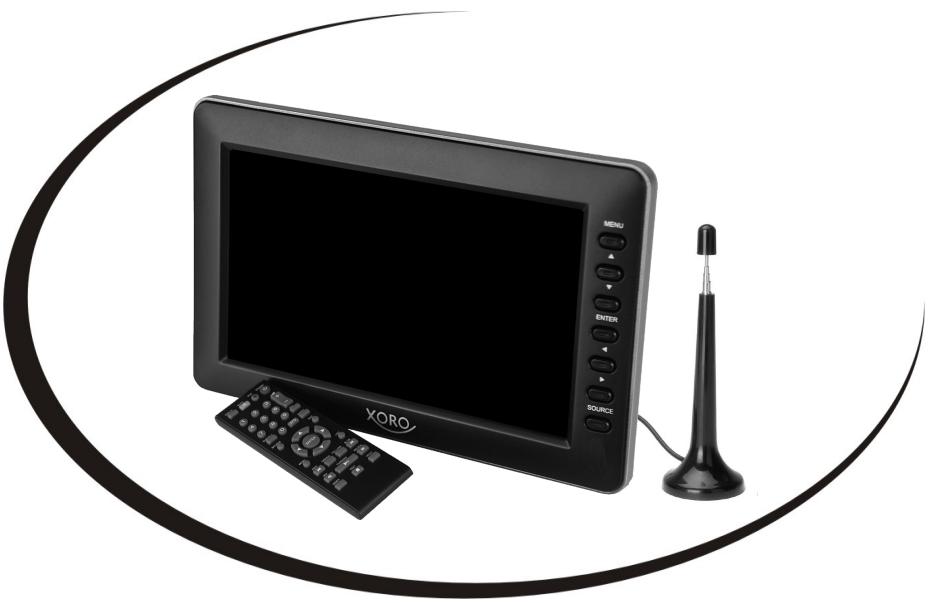
USER MANUAL (EN)
SAFETY INFORMATION
Electrical Safety, Antenna, Pixelfault 4
Power Supply, Case of Service 5
Application, USB / MicroSD, Insert Batteries 6
Recycling Information 7
EU-Declaration of Conformity 7
FIRST STEPS
Ports & Keys 8
Remote Control 9
Initial Installation, Power Supply, Antenna, Audio/Videoinput 10
Main Functions 11
Getting Started 12
Daily Operation
Program List, Favorites List, EPG 13
Instant Recording, Reminder, Timerlist 14
Main Menu, Picture Settings, Sound Settings, Time Settings 15
Functions, Subtitle, Lock. 16
Seeking Sender, Program Editor 17
Signal Source 18
Multimedia Player 19
Trouble Shooting 20
Warranty 21
Energy Use 21
The lightning flash with an arrowhead symbol within an equilateral triangle is intended to alert the user of the presence of un-insulated "dangerous voltage" within the product's enclosure that may be of sufficient magnitude to constitute a risk of electric shock to persons.
The exclamation point within an equilateral triangle is intended to alert the user of the presence of important operating and maintenance (servicing) instructions in the literature accompanying the appliance.
This device complies with part 15 of the FCC rules.
User Manual
All the safety and operating instructions should be read before the product is operated.
- Retain instructions - The safety and operating instructions should be retained for future reference.
All warnings on the product and in the operating instructions should be adhered to.
All operating and use instructions should be followed.
Antenna
The digital TV Tuner is connected with an antenna.
If you want to connect or disconnect the antenna, please switch off the device beforehand.
If you use the device in conjunction with an outdoor antenna, make sure that it is earthed according to the regulations.
If you stop using the device for a long time, unplug the antenna cable.
An outdoor antenna should not be installed near power lines or other circuits. When attaching such antennas, extreme care should be taken, as contact with such cables can be fatal.
Pixelfault
The following defined pixel faults (bright dot, dark dot, line defects and difference in light intensity) describes the maximal permitted faults, which are excluded in warranty.
Bright Dot 3
Dark Dot 6
Bright + Dark Dot 6
Operation and Installation
-
Do not place the device on an unstable surface. The device could be damaged or persons injured. Any fixings should only be installed according to the manufacturer's information or obtained from the manufacturer.
This device should not be positioned near moisture and water.
This product should be moved gently in a TV shelf with rollers. Jerky stops, uneven surfaces could cause the car to overturn.
The device must be placed at least 8 cm away from the wall.
The device must be placed at least 10 cm to the side and at least 20 cm to the ceiling / shelf arch. -
Never operate the device permanently in 4:3 mode. This could result in damage to the screen during prolonged use.
- Do not increase the volume when a quiet passage is being played. This could cause damage to the speakers when there is a loud passage.
- The openings of the housing are used for ventilation, so that the device does not overheat. These must always be kept free.
The device should not be located near sources of heat, such as Stoves, heaters are positioned.
Cigarette smoking can penetrate the screen and cause visible contamination on the screen. Damage caused by cigarette smoke is not remedied as part of the warranty.
Power Supply
The device can only be operated with the voltage described on the back. If you do not know the voltage, please ask an electrician.
To avoid overload, do not operate too many other devices at the same outlet.
- Be sure to install power cables so that no one can trip over them.
- The cable is sheathed and insulates the electricity. Please do not place any objects on the cable, as this may result in loss of the protective function. Avoid heavy loads on the cable, especially on sockets and plugs.
If you want to remove the plug from the socket, always pull on the plug and not on the cable. Otherwise the cable could break.
If you stop using the device for a long time, be sure to unplug the power cord.
- To protect the unit during a thunderstorm or when left unattended for an extended period of time, disconnect the power plug from the power outlet and the antenna cable from the aerial socket. This prevents damage due to lightning strikes.
- Do not overload electrical outlets, extension cords or other wiring, as this may result in fire or electric shock.
- No objects may be introduced into the openings of the device, as in some places electricity flows and the contact may cause fire or electric shock.
- Never remove the cover - there are no internal parts that can be repaired by the user.
- Operate the device only with the included power adapter.
Service Event
Never carry out repairs yourself, always leave this to qualified personnel. Contact the repair service for the following errors:
If the power cord is broken.
- If objects have fallen into the device or if the device has come into contact with liquids or penetrated the device.
If the device does not work despite proper use. Change only the settings described here.
If the device has been dropped and if the product has power fluctuations.
- Use only original spare parts. Incorrect replacement parts can adversely affect the performance and operational safety of the device.
SAFETY INFORMATION
Application
- Reception of digital programs via antenna (DVB-T / T2).
Play supported video, picture and music files. - Connection of compatible mass storage devices.
USB Port / MicroSD
The TV may take some time to fully read and run the storage device. Do not remove the storage device until all recordings or playbacks have finished.
The USB ports on this device are not suitable for charging devices with built-in rechargeable batteries (such as mobile phones, tablet computers, MP3 players, etc.). Observe the information on the rating plate regarding the maximum current output of the USB ports.
Notes:
- USB 2.0 mass storage up to 500 GB and MicroSD cards up to 32 GB are supported. Higher capacity storage devices can be used, but compatibility with the TV can not be guaranteed under all circumstances.
- A variety of different USB storage devices are currently being sold, and some may not meet the specifications for USB mass storage devices. If your USB storage device is not recognized by the TV, please try another USB storage device.
If a USB device is no longer detected, please perform a disk diagnostics with your computer or reformat the USB memory device. - USB devices that consume more than 500mA (0.5A) of power will violate the USB specifications and may not work properly with the TV.
Always back up all data from the memory before connecting it to the TV.
Recording HD broadcasts requires a sufficiently fast USB storage device.
Insert Batteries
- Open the battery compartment on the lower back of the remote control.
- Insert the batteries in the compartment. Please pay attention to the correct polarity (+/-) when inserting the battery.
- Slide the battery door back on (Figure).
- Always point the remote control at the sensor field (IR) of the device.
- The distance to the device should not exceed 5 meters and the operating angle should not exceed 60irc .
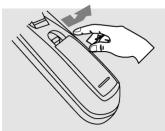
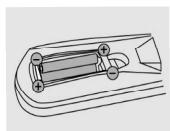
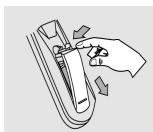
Notes:
- Remove and replace old batteries. These could leak and damage the remote control. Remove the batteries from the remote control if you are not going to use the device for a long time.
- Remove leaking battery fluid with a cloth. Avoid skin contact with the fluid. If the battery or battery fluid is swallowed, seek medical attention immediately. In case of skin / eye contact, wash out the skin / eyes and consult a doctor.
Recycling of Electronic Devices
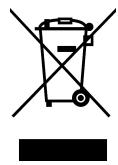
This product is designed and manufactured with high quality materials and components which can be recycled and reused. This symbol means that electrical and electronic equipment, at their end-of-life, should be disposed of separately from your household waste. Please, dispose of this equipment at your local community waste collection/ recycling centre. In the European Union there are separate collection systems for used electrical and electronic product. Please, help us to conserve the environment we live in!
Recycling of Paper and Carton
The material recycling symbol on the carton and user manual denotes that they are recyclable. Dispose them not with the normal household waste.
Recycling of Plastic Parts
The material recycling symbol on the plastic parts denotes that they are recyclable. Do not dispose them in household waste.
Green Dot
The "Grüne Punkt" denotes that the MAS Elektronik AG pays a duty to the "Society for Waste Prevention and Secondary Resource Generation".
Batteries
Every consumer is legally obliged to return batteries to a collection point in his community or in commerce so that they can be disposed of in an environmentally friendly manner. Please do not dispose of batteries with household waste.



EU-Declaration of Conformity
With the CE mark declares XORO, a registered trademark of the MAS Elektronik AG that the device meets the guidelines 2014/53/EU.
The full text of the EU Declaration of Conformity is available under the following
Internet address: http://www.xoro.de/downloads/

Package Contents
The following components are included:
TV
Remote control and batteries
- User manual
Power adapter and car power adapter
AV cable
Extensible DVB-T2 telescopic antenna
If any of these items is missing, please contact your dealer as soon as possible. Keep the original packaging in the event the unit needs to be returned to the dealer.
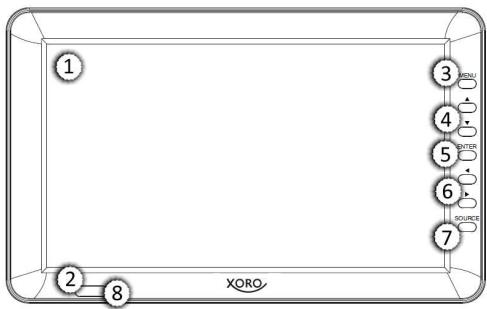
Front view
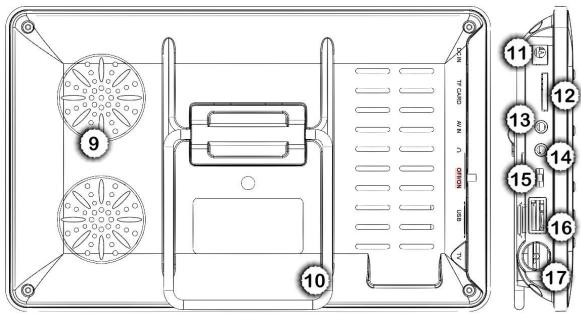
Back view
1
2
3
4
5
6
7
8
9
10
11
12
13
14
15
16
17
Display
Status LED
Blinking Red
device is charging
Red LED on
device is fully charged
GreenLEDon
device is in operating mode
Opens main menu
Toggles a channel up / down, navigates up / down
OK /Confirm
Decrease / increase volume, navigate left / right
Button to switch the signal source
Remote sensor
Speaker
Stand
Connection for the power supply
MicroSD card slot
Analog audio / video input (requires supplied adapter cable)
Earphone jack
Power switch
USB 2.0 port
IEC antenna connection
Remote Control
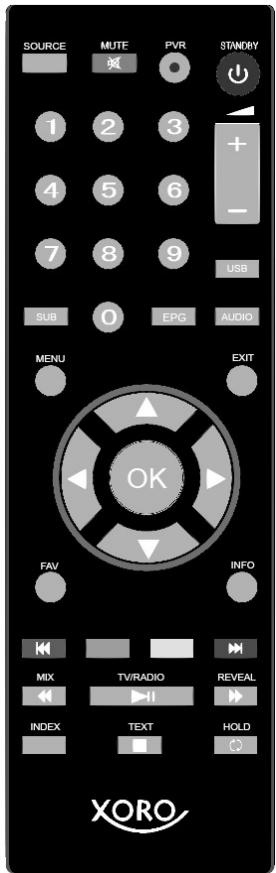
STANDBY
PVR
MUTE
SOURCE
1-9

1+/-
USB
SUB
EPG
AUDIO
MENU
EXIT
OK

V

FAV
INFO
Red Key/
Green Key
Yellow Key
Blue Taste
MIX/
TV/RADIO


REVEAL/
INDEX
TEXT/
HOLD/
To standby / switch on the device
Starts an instant recording
Mute
Choose source
Number keys
Increase / decrease the volume
Opens Mediaplayer/recordings
Subtitle menu
Open electronic program overview
Audiomenu
Opens main menu
Back
Confirm
Navigation up/down, channel next/previous
Navigation left/right,
Volume control
Opens favorites
Opens channel information
Red function key, title backward
Green function key
Yellow function key
Blue function key, title forward
Teletext display transparent, spool backward
TV/Radio switch,
Start/pause playback
Spool forward
Teletext display index / overview
Stop teletext / playback or recording
Pause teletext search / repeat
Note:
The TV / RADIO button is only active if the device has also found radio stations during station search. Currently no radio program is broadcast on DVB-T and DVB-T2! Therefore, the button may not have any function for this reason!
Always point the remote control towards the built-in remote control diode (8) so that the remote control signals can be transmitted. If necessary, change the inclination of the device to improve the remote control signals.
Installation
Make sure that the device is switched off and disconnected from the mains during installation. Only when all connections have been made, switch on the device via the mains switch.
Power Supply
Use only the supplied AC adapter to power and charge the TV. Observe the information on the rating plate of the power supply unit.
Notes:
The power supply provides a stabilized DC voltage. Operating with an unstabilized voltage can damage the device. Only the included power supply ensures safe operation and compliance with all regulations and standards.
It is possible to use the TV with the power adapter connected. The device will simultaneously charge the built-in battery during use.
Connect to the Antenna
The TV receiver is suitable for digital free-to-air TV (DVB-T / T2). Connect the cable of your antenna system or the antenna supplied with the antenna input (TV) of the device. In order to activate the integrated amplification of the supplied antenna, you must activate the 5V supply voltage for the antenna input (page 17)
With the device you can only receive free-to-air DVB-T / T2 channels.
PayTV transmitter and transmitter of the multithek (HbbTV) are not decodable with the device!
Headphone
You can connect a headphone or an external hi-fi system at the headphone output (adapter cable required). When using the connection, the internal loudspeakers of the device are switched off automatically.
Analog Audio / Video Input
The device has an analog audio / video input to use external devices such as DVD players or video cameras on the device. Use the supplied AV adapter cable to connect to external devices. After connecting, use the SOURCE button and select the "AV" source to switch to the audio / video input.
USB port / MicroSD
The device has a USB 2.0 port, as well as a MicroSD card slot for the integrated recording function or the media player. Please refer to the notes on page 6 of this manual. You can reach the USB media player by pressing the USB button on the remote control or by pressing the SOURCE button and selecting "USB". You can access the MicroSD media player by pressing the SOURCE button and selecting "MicroSD".
Basic Functions
The basic functions of the remote control are described below:
Control Pad / OK Button
Use the / buttons on the remote control to navigate the menus or the program guide or station list. To confirm your selection press the OK button.
Number Buttons
You can directly select the desired station by entering the program slot using the number buttons 0-9.
Volume / Mute
Press the MUTE button on the remote control to turn off the sound. A crossed-out speaker symbol appears. Pressing the key again activates the sound.
To adjust the volume, use the +/ - or the buttons on the remote control.
Changing Stations
To change the station, use the / buttons or the number buttons to directly enter the station number. With the OK key you reach the program list and with the FAV key you reach the favorite list of the device.
TV / Radio Switching
The TV / RADIO button on the remote control switches between the radio and TV channel list. The program list and functions are the same as the TV mode in radio mode.
Note:
The TV / RADIO button is only active if the device has also found radio stations during station search. Currently no radio program is broadcast on DVB-T and DVB-T2! Therefore, the button may not have any function for this reason!
Teletext
The TEXT button displays the teletext menu of the current station. Teletext pages are accessed by entering the page number using the number buttons 0-9. Use the / buttons to scroll forwards and backwards through the teletext. The color buttons also allow you to quickly jump to specific teletext pages depending on the sender. To exit teletext, press the TEXT button again.
Subtitle
While watching TV, press the SUB button to enter the subtitle menu. If the broadcaster offers subtit-ling, you can now activate the subtitles. Use the OK button to save your setting.
Audio Track
Press the AUDIO button to display the menu for the sound tracks of the active station. Depending on the station, you can now choose between audio tracks. Use the OK button to save your setting.
Initial Installation
When you start the device for the first time and/or restore the factory settings (Page 16), the device offers a first-time installation. Make sure your device is connected to an antenna during initial installation and has sufficient reception.
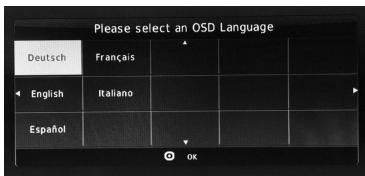
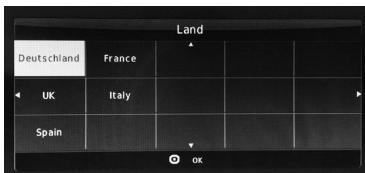
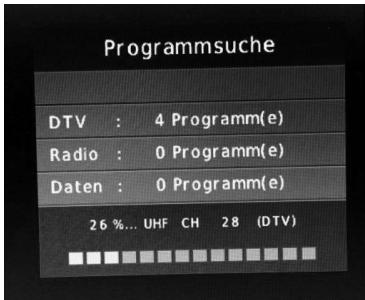
In the first window, use the navigation buttons on the remote control to select the desired language of the menu interface and confirm your setting with the OK button.
In the next window, select the country where the device is located. Confirm your selection with the OK button. The unit then starts with the automatic digital station search. During the search process, you can see how many channels the device has already found.
DTV Digital TV channels
Radio Digital Radio stations
Data sender with data information When the scan is completed, the unit will start playing the first station found and the initial installation will be complete.
You can cancel the initial installation at any time by pressing the EXIT key.
Notes:
- More extensive configuration options for station search are provided by the manual station search TV settings menu of the device (Page 17).
- Since the TV providers occasionally change station positions or new channels are switched on, it is advisable to perform a channel scan from time to time to be able to receive all available TV channels.
- As soon as you move the location of the device to another region, for example while you are on vacation, a new station search may be necessary.
Program Information
Information on the current program can be obtained by pressing the INFO button on the remote control. In addition to information such as TV program title, date and time, current time, runtime of the current program, resolution of the program (for example, 576i) and whether teletext is available, EPG information about the current program is also displayed. More detailed EPG information on individual programs can be found in the electronic program overview (page 13).

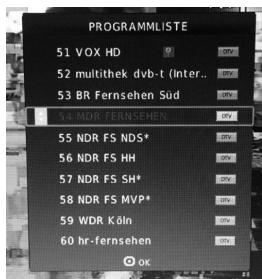
Program List
Press the OK button during the TV program list is displayed. With the navigation buttons / you can select a station within the program list and call it up with the OK button.
The program list can be edited with the program editor (page 17).
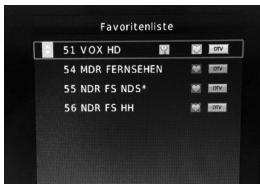
Favorites List
Press the FAV button while watching TV, the favorite list is displayed. With the navigation buttons / , you can select a station within the favorites list and call it up with the OK button.
You can edit the favorites list with the program editor (Page 17).
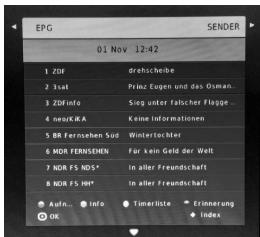
EPG (Electronic Program Guide)
Press the EPG key to display the electronic program guide (EPG). You can display the view in two variants with the INDEX button. Use the buttons to select between the station overview (SENDER) or the detail view of the selected station (DETAIL) if the uppermost field is highlighted in yellow after pressing the INDEX button.
You can now press the button in the box below, depending on the selection, set the day for the display (SENDER) or change the program for the detail view (DETAIL).
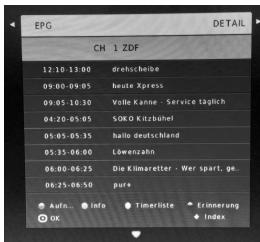
By pressing the key, you will be taken to the respective overview. Use the navigation buttons / to select an event within the view.
The following keys and functions are available:
Green button Shows information about the selected event
Yellow button Displays a list of all programmed timers (page 14)
Blue button Programs a reminder timer (page 14)
Index Changes the EPG view (see above)
OK Ends EPG and returns to the current program
Notes:
- The extent to which program information is available in the EPG depends on the particular TV station.
- You may need to switch to a station first to see its program information in the EPG views. Otherwise, you may see a "No Information" score.
Time and time zone must be set correctly. - EPG is not available for analog TV signals
DAILY OPERATION
The device offers a recording function on connected USB 2.0 data media or on a MicroSD memory card (32 GB max.). Please read the notes on page 6 of this manual!
Finished recordings can be played in the media player of the respective recording medium (page 19).
Instant Recording
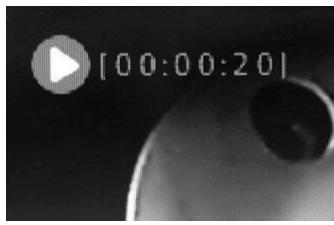
While watching TV, press the REC button and recording will start. Stop recording by pressing the button. During recording, the time left on the top left of the screen is shown for how long the recording has been in progress. You can view finished recordings in the media player of the recording medium (page 19).
Note:
Timed recordings are technically not possible with the device.
During an ongoing recording, it is technically not possible to change the station or to watch another station.
Reminder
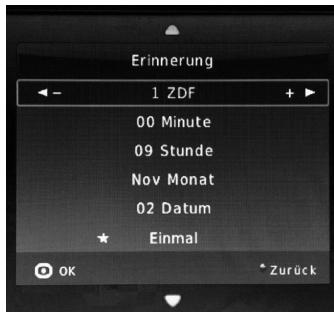
You can program a reminder timer. At the same time, the TV automatically switches on the TV set to the programmed event on time or to the stored station.
In the detailed view of the desired station, select the program to be recorded and press the blue button. In the now appearing window "Reminder", the start time of the scheduled program is taken over from the sender EPG. You can now optionally manually edit the start time. In the last menu item you can set the frequency (once, daily or weekly). With the OK key you save the reminder timer. The timer list is displayed, with an overview of all the timers stored in the device. Use EXIT to leave the timer list.
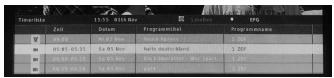
Timerlist
All memory timers stored in the device are listed in the timer list and can be deleted there if necessary. To access the timer List, press the EPG button while watching TV, followed by the yellow button. Use the / buttons to scroll between the timers. With the red button already stored timers can be deleted. Press the yellow button to return to the EPG or EXIT to return to the current program.
Notes:
The device offers no possibility to edit already programmed timers later. If you want changes, the timer must be deleted and reprogrammed with the new settings.
Main Menu
Press the MENU button to call up the main menu of the device. Here you can configure the device according to your wishes. Use the navigation buttons to select and the OK button to confirm entries. With the EXIT key you can leave the main menu at any time.
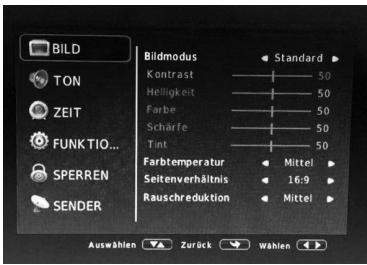
IMAGE
You can make the following settings:
Picture mode
You can use the buttons choose between predefined settings. Select the "User" option to set all the underlying settings (contrast, bright ness,...) yourself.
Color temperature
With the buttons you can choose between predefined settings. Aspect ratio for the aspect ratio (16: 9, 4: 3, Automatic ...)
Noise reduction
You can use the buttons choose between predefined image enhancement settings or disable the feature.
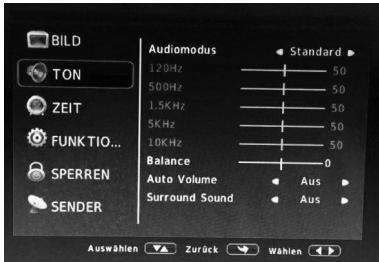
VOLUME
You can make the following settings:
Audio mode
You can use the buttons choose between predefined settings. Select the "User" option for all the setting options below set.
Balance
A balance controller serves this purpose. Set the ratio of the volume levels of the two audio channels (left / right). When this feature is enabled, the unit will equalize volume differences between TV channels to a consistent level
Auto volume
You can use the buttons choose between predefined surround settings.
Surround sound
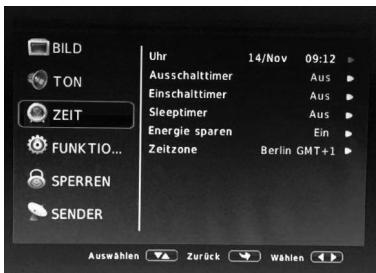
TIME
You can make the following settings:
Clock
This shows the current time and date that the device has read from the senderstream.
Off / On Timer
In this menu, you can define a time when the device will turn off automatically switched on or off. This allows you to program the device like an alarm clock.
Sleeptimer
Save energy
Here you can set a time slot in define minutes if the device is to be put into standby mode automatically, if none entries made.
According to EU directives, electrical devices must automatically switch to standby mode after 3 hours, if no entries have been made in the meantime respectively. This should save energy. In this menu you can deactivate this function.
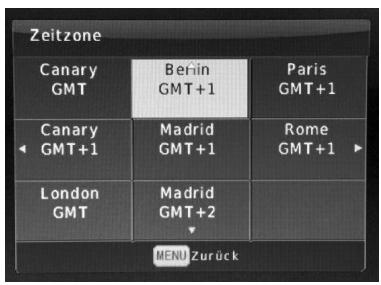
Zone
Define zone if the device has not inherited the correct time zone from the sender stream for your location. It may also be necessary to adjust the time zone manually if the change of the summer / winter time is not automatically taken over by the device or the transmitter stream.
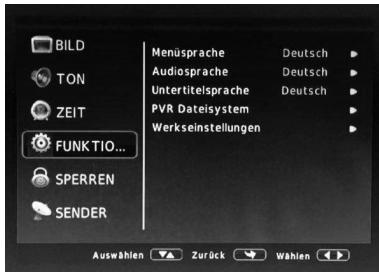
FEATURES
You can make the following settings:
Menu language In this menu, you set the
Menu language fixed.
Audio language In this menu, you specify the language of the audio track.
Subtitle language In this menu, you set the language subtitling.
PVR file system In this menu, you can check connec- ted USB data carriers and/or MicroSD cards for errors and format if necessary (only FAT32 is supported). The recording limit determines how long an instant maximum reception is.
Factory settings In this menu you can reset the device to factory settings. All settings will be with it reset and initial installation started (page 12).
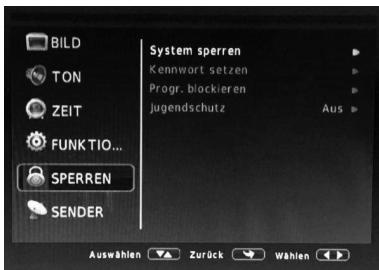
LOCK
If you change the default password of the device, lock individual programs, protect the device against modification or activate the youth protection, activate this function by entering the password.
The default password is 0000.
If the function is activated, the menu items below become active and can be adjusted according to your wishes.
Sources
Lock system
Set password
Prog. Block
Protection of minors
If the function is active, the system is protected against modification with the system password.
In this menu you can change the default password of the device according to your wishes.
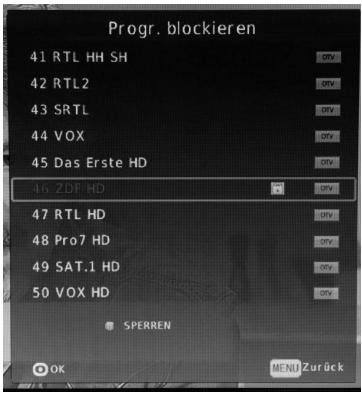
If you have this feature you can activate / deactivate individual programs in the program list with the system password.
Select the desired program and press the green button to lock / unlock.
In this menu you can set the age for the protection of minors. For the protection of minors to be active, the TV station must have a corresponding send signal to activate the lock.
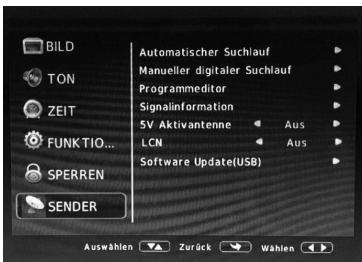
SENDER
You can make the following settings:
Automatic Search
Manual Search
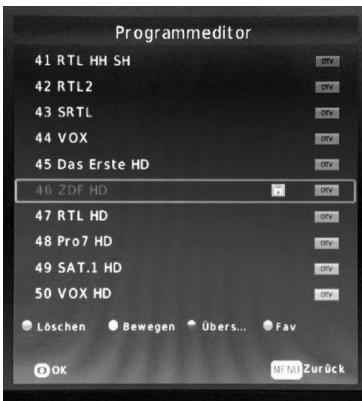
Program Editor
Starts an automatic station search (page 12)
Starts a manual transmitter retuning. This is useful if you have only individual frequencies to scan.
Starts the channel list editor of the device. With the red button you can delete individual stations of the program list, with the blue button selected stations can be skipped when zapping. With the FAV key you add the selected station to the favorites list or delete the station from the favorites list by pressing the FAV key again. Use the yellow button to highlight a station and use the / buttons to move it within the channel list. Press the OK button to save the station at the selected position.
Displays signal information about the currently active channel.
Activates the 5V supply voltage.
Activate the amplification of the supplied antenna!
Signal Information
5V Activ Antenna
LCN
If you use the logical channel to use sorting by your provider, enable this feature. Should you have problems with the sorter sorting and change your station list independently or the channel numbers are not continuous displayed, check if the LCN function is activated! Make sure that this function has been deactivated before the search, if you want to sort your station list manually!
Software Update
Starts the software update via a connected USB data carrier.
Check regularly on the product page of the device whether a software update in the download area is available for your device.
Sources
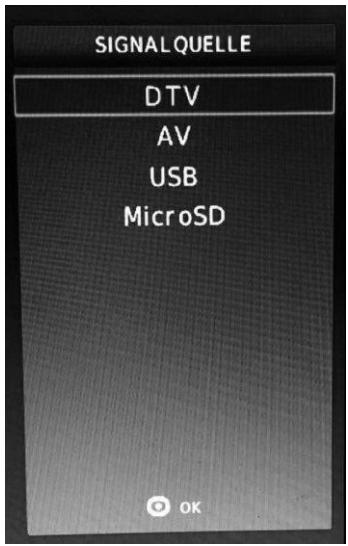
To change the source, press the SOURCE button on the remote control, use the / buttons to select the desired source and press the OK button to change.
DTV
Opens the integrated DVB-T2 tuner for digital terrestrial TV reception.
AV
If you have connected external devices via the AV-IN input of the device, select the AV signal source to display audio / video signals from the external source on the device.
USB
Opens the media player of a USB 2.0 data carrier connected to the device. Here you can also view recordings made with the device.
MicroSD
Opens the media player of a MicroSD memory card connected to the device. You can also view recordings made with the device.
The device offers you a multimedia player. Connect a USB 2.0 mass storage or MicroSD memory card to your digital media to the USB input of the device.
Press the SOURCE button on the remote control and select the signal source USB or MicroSD, depending on the medium you have connected to the device.
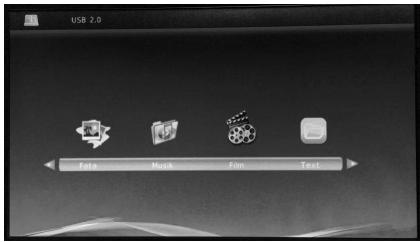
Now select the desired media type with the keys and confirm with the OK key. Now select the medium on which your media are located (is the volume C) and press the OK button again.
Note:
Recordings that you have created with the device are in the "MSTPVR" folder. This is automatically created by the device during a recording.
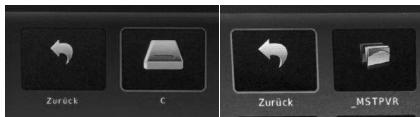
All available media will now be previewed. Navigate to a "Back" button to move to a higher directory level.
Use the navigation buttons to select a specific medium. If you stop briefly on the media file, a preview is automatically displayed. With the OK button you can start the playback of the selected file directly. With the red button you can delete individual files.
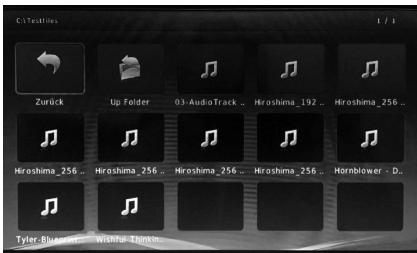
EXIT stops playback and returns to the media overview.
In full-screen mode of music playback, a toolbar is permanently displayed. When playing back pictures and videos, the function bar can be displayed with the OK button and hidden with the EXIT button.

With the / buttons you can select the individual functions and execute with the OK button. The function of each key is displayed below it when you are on the key. Thus, the operation is self-explanatory.
Pressing the EXIT button stops playback and returns to the Media Browser.
Please read the following information to find out the possible cause of a problem before contacting our customer service.
| Problem | Solution |
| Device does not turn on | Check whether the power adapter is properly connected to the power outlet. Check if the cable of the power supply is properly connected to the device. Check whether the built-in battery of the device is charged and / or charge the device before use. |
| No sound. | Check if mute is activated in the volume control (mute). Turn up the volume until you hear the sound. Check the sound settings. |
| How can I decrypt PayTV stations with the device, or watch channels of the multithek | The device is only suitable for free-to-air DVB-T2 television. For the decoding of the PayTV channels you need a certified receiver with built-in cardless access system or a Cl + slot. The device is not HbbTV suitable and therefore can not receive stations of the multithek. |
| When the USB data medium is inserted, the device will restart occasionally | If the TV restarts unexpectedly with the USB storage device inserted, the connected USB storage device requires too much inrush current and does not comply with the USB 2.0 specifications. This is a sign of incompatibility of the used disk. Use a self-powered USB 2.0 mass storage device |
| The device will restart occasionally and then display the initial installation | In the event of overvoltages or voltage fluctuations at the antenna input, the TV may respond with a restart and display the initial installation. Check your reception system for possible faults or short circuits. |
| My station list changes independently | If you have problems with the sorting of the station list and your station list changes independently or the channel numbers are not displayed continuously, check if the LCN function is activated! Make sure that this function was deactivated before the search, if you want to sort your station list independently! |
| No reception / bad reception | Not all regions allow DVB-T / T2 reception with the included antenna. Please get advice in the specialized trade. If necessary, the device can be expanded with a commercially available (active) DVB-T2 antenna with greater reception. The TV can power DVB-T / T2 antennas if enabled in the device's settings menu (page 17). Activate the integrated amplification of the antenna! For better reception, pull out the supplied telescopic antenna to its full length or change the position. |
In case the products delivered are not free from defects in material or workmanship, MAS Elektronik AG has the right to either repair or replace the defective product at its choice. MAS Elektronik AG manufactures and repairs goods using components which are new or equivalent to new in accordance with industry standards and practice. The warranty for wearing parts (e.g. rechargeable batteries) is limited to 6 months. In case the device is equipped with internal data storage (e.g. hard disc drive, Flash drive), the customer is responsible to backup his data before sending the device. MAS Elektronik AG is not liable for any data loss on returned devices. MAS Elektronik AG reserves the right to reset returned devices to factory defaults. Please note your personal settings for this reason.
MAS Elektronik AG is not liable for any accessories not belonging to original package content such as DVDs, hard disc drives, Flash storage devices, batteries, etc. This limited warranty covers the warranty requirements set by authorities in your country. This limited warranty does not cover finishes, accessories or batteries, nor does it cover damage resulting from accident, misuse, abuse, dirt, water, battery leakage, tampering, servicing performed or attempted by unauthorized service agencies. This limited warranty does not cover damages resulting from firmware upgrades. Only in case of firmware upgrades needed to add functions promised at time of purchase, such damages are covered by this limited warranty.
For a correct and frictionless completion of warranty or repairs you need a RMA No. You may obtain a RMA on the internet at www.xoro.de/service or by telephone.
Please send the device in its original packing material, all standard accessories and a copy of the invoice, a description of defect and the RMA No. to following address. Please note the RMA number clear and in large numbers on the outer package.
Contact with Customer Service:
Phone: +49 4161 800 24 24 (Mon-Fri: from 11:00 to 17:00)
eMail: support@ersservice.de
ERS GmbH Elektronik Repair Service
Weidegrund 3
21614 Buxtehude / Niedersachsen
Germany
If you have questions or problems using your device, we are happy to help you.


- XORO®
- SAFETY INFORMATION
- FIRST STEPS
- Daily Operation
- User Manual
- Antenna
- Pixelfault
- Operation and Installation
- Power Supply
- Service Event
- Application
- USB Port / MicroSD
- Notes:
- Insert Batteries
- Recycling of Electronic Devices
- Recycling of Paper and Carton
- Recycling of Plastic Parts
- Green Dot
- Batteries
- EU-Declaration of Conformity
- Package Contents
- Front view
- Back view
- Remote Control
- Note:
- Installation
- Connect to the Antenna
- Headphone
- Analog Audio / Video Input
- Basic Functions
- Control Pad / OK Button
- Number Buttons
- Volume / Mute
- Changing Stations
- TV / Radio Switching
- Teletext
- Subtitle
- Audio Track
- Initial Installation
- Program Information
- Program List
- Favorites List
- EPG (Electronic Program Guide)
- Instant Recording
- Reminder
- Timerlist
- Main Menu
- IMAGE
- VOLUME
- TIME
- Sleeptimer
- Save energy
- Zone
- FEATURES
- LOCK
- The default password is 0000.
- Sources
- SENDER
- LCN
- Software Update
- DTV
- AV
- USB
- MicroSD
- Contact with Customer Service:
Brand : XORO
Model : HRT 7620
Category : Digital TV Receiver