USER MANUAL SCANMAKER I800 PLUS MICROTEK
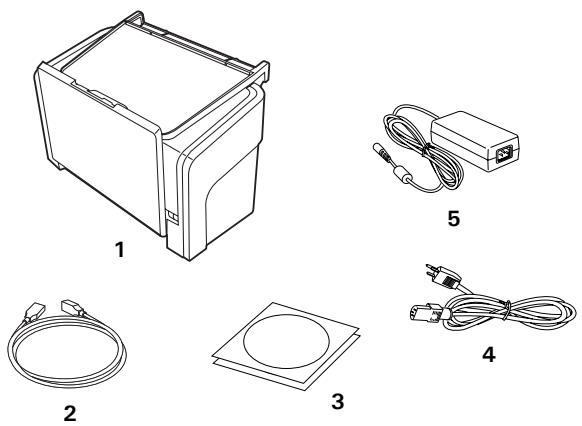
Unpack your scanner package and check for major components.
- Scanner
- Hi-Speed USB cable
- Software CDs/DVDs
- Power cord
- Power adapter

Install Software
Important: You must install software before connecting your scanner. Always close any open programs, and turn off Anti-virus utilities before installing software.
natural_image
Line drawing of a hand holding a CD inside an open refrigerator (no text or symbols)
PC:
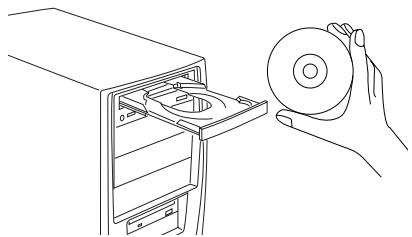
A. Place the Microtek Software CD/DVD into a drive, and follow the on-screen instructions to install the scanner driver and software.
B. Restart your computer at the end of all software installation.
NOTE: If the Microtek Software Installer screen does not come up automatically, double-click the following in succession: "My Computer"; the CD/DVD-ROM icon; then cdsetup.exe to start the installer program.
MAC:
A. Place the Microtek Software CD/DVD (ScanPotter) into a drive, and double-click the ScanPotter installer icon to install ScanPotter.
B. Install the remaining software components, then restart your computer at the end of all software installation.
NOTE: After rebooting your Macintosh, the Microtek software will attempt to locate your scanner on the system. Since this is your first install and you have not yet connected the scanner, simply ignore the message that appears and proceed to the next step.

Open Feed Tray & Output Tray
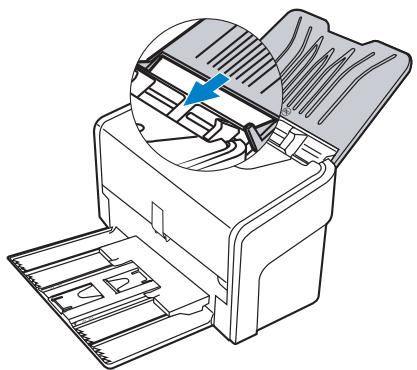
Open Feed Tray
A. Lift up the Document Feed Tray to the highest level which can be opened.
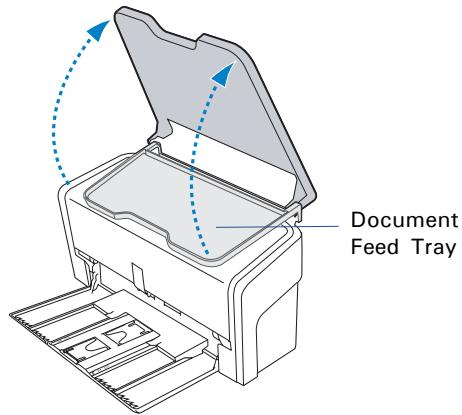
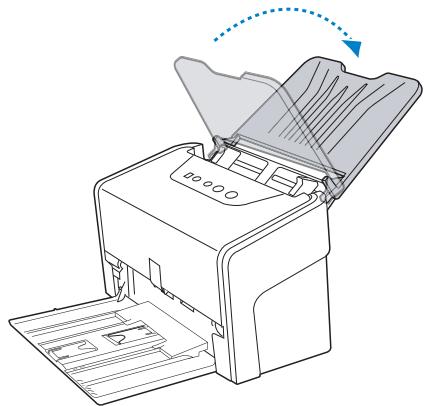
C. Tilt the Document Feed Tray backwards in the direction as the arrow shown to fully open the tray.
natural_image
Line drawing of a printer with an open lid and paper feed, showing internal structure (no text or symbols)
Open Output Tray and Paper Stabilizer
Bring down the a) Document Output Tray and b) Paper Stabilizer from the top towards the direction as shown in the graph.
B. Along the tracks of the two sides of the Document Feed Tray, slide the feed tray down until the supporters of the tray touch the bottom edge of the tracks.
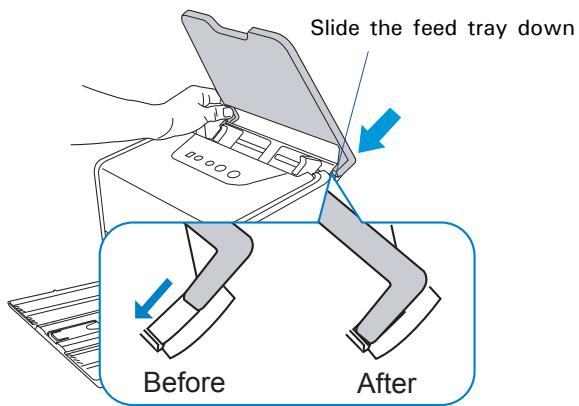
D. Along the tracks of the two sides of the Document Feed Tray, slide the feed tray down until it locks in place.
natural_image
Diagram of a printer with an open lid and internal structure, showing no text or symbols.
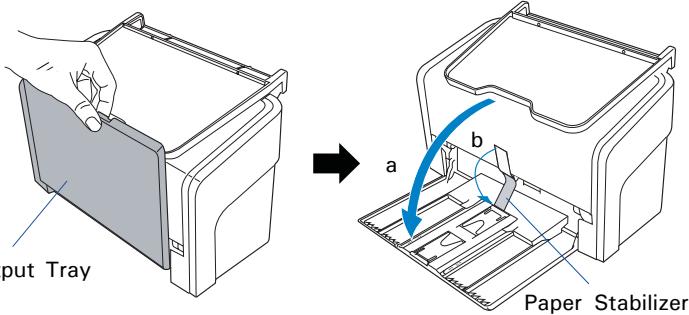
Document Output Tray

Connect Scanner
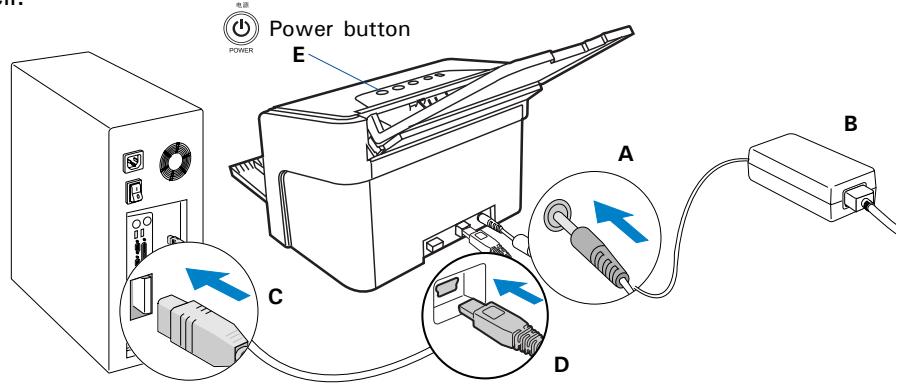
To the power adapter
A. Connect the power adapter to the back of the scanner.
B. Plug one end of the power cord into the power adapter, and plug the other end of the power cord into a wall outlet or other power source.
To the Hi-Speed USB cable
C. Connect one end of the cable to your computer.
D. Connect the other end of the cable to the scanner's USB port.
E. Press and hold the Power button ( ) until the orange LED lights on. Once the scanner is powered on, the green LED will be lighted up, and the 7-segment LED display (SSD) will also be activated as well.
The system will
detect the
scanner
automatically.
Your scanner is equipped with one Select, one Scan/Stop and one Favorite buttons, plus a LED display, used to automate a number of customized and predefined operations, such as scanning to a file, sending an image to your printer, scanning for OCR, etc. Customizing is done through the Scanner Button Settings interface in the ScanWizard DI, refer to the scanner's User's Manual for more details.
LED display:
Display the selected function button number.

选择

SELECT
快捷

FAVORITE
扫描/取消

SCAN / STOP
电源

POWER
- Select: Toggle through the numbers of predefined function buttons (F1 to F5).
- Scan/Stop: Start scan immediately or cancel a ongoing scan job.
- Favorite: Carry out the function defined to the Favorite button directly.
Position Documents
The scanner supports scanning of document in various materials, such as A4 printouts, insurance papers, legal documents, postcards, credit cards, business cards, and etc. A stack of up to 100 sheets of papers (17 to 18 lbs/63.75 to 67.5 g/m ^2 ) or 2 pieces of cards (1.3 mm/0.05") can be fed in the scanner's Document Feed Tray at one time. Paper sizes can range from 2.75" x 3.149" (70 mm x 80 mm) to 8.85" x 118" (225 mm x 3000 mm) or to 8.85" x 25" (225 mm x 635 mm) depending on the scanner you purchased.
To load a stack of documents
- Before loading the stack of papers onto the scanner's Document Feed Tray, please fan the papers and then align the top edges of the papers neatly.
- Load the stack of papers onto the scanner's Document Feed Tray, with the side to be scanned facing down and the top edge facing toward the feeder.
Push the stack of papers into the tray until the paper's edge touches the bottom edge of the feeder.
WARNING: The document feeder is not designed for scanning photos; doing so may damage your originals. Microtek accepts no responsibility for damage that may arise from misuse of equipment.
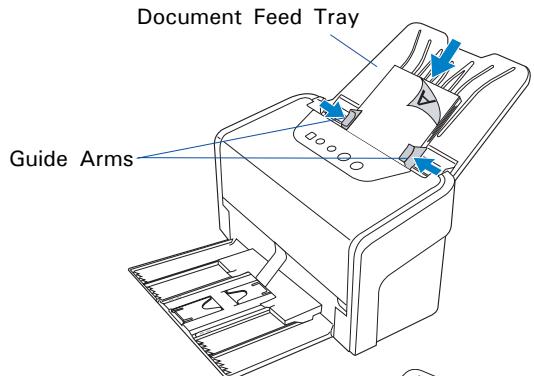
- Align the stack of originals with the center of the Document Feed Tray by sliding the two Guide Arms toward the stacked papers if needed.
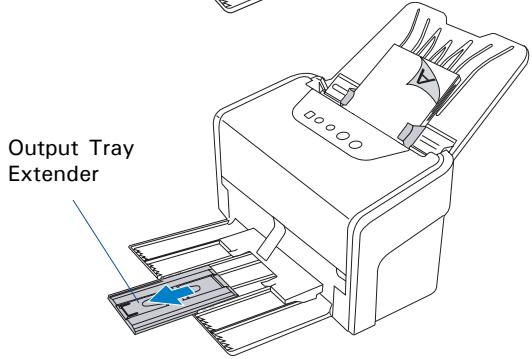
- Pull out the Output Tray Extender to carry the longer paper if needed.
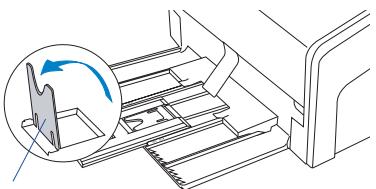
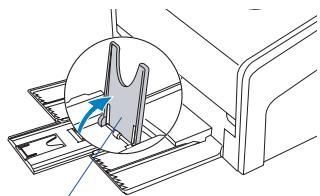
- Lift up either of two Paper Stoppers to keep a stack of output papers stay neatly and tightly inside the Document Output Tray if needed.
NOTE: For more details on how to adjust the Output Tray Extender and Paper Stoppers, Please refer to the section "Output Tray Notice" in the guide.

natural_image
Illustration showing hands folding a stack of papers into a document with a blue downward arrow (no text or symbols)
natural_image
Diagram of a printer or printer mechanism with an inset showing a rotating component (no text or symbols present)
Paper Stopper (1)
natural_image
Technical line drawing of a mechanical assembly with a magnified circular detail showing a component (no text or symbols)
Paper Stopper (2)
To Load Cards
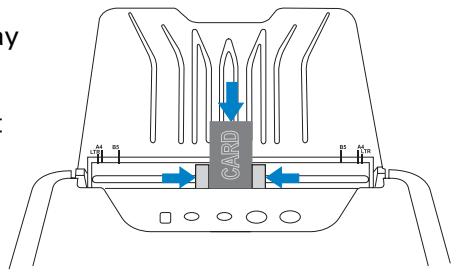
- Slide the Guide Arms toward the center of the feed tray and free up the enough space to put the card inside.
- Load and center the card onto the scanner's Document Feed Tray, with the front side facing up and the top edge directing toward the feeder.
NOTE: When the card is loaded, launch ScanWizard DI. Then, switch the Normal Scan button to the Card Scan button and click it to start your card scanning.
OutputTray Notice
The Paper Stopper is designed to prevent the paper stacks falling in a mess after they were scanned and output into the output tray. Before scanning a stack of papers, please follow the steps below to fix the Paper Stopper into the right position in the tray, in order to keep output papers stay neatly in the tray after the scan.
- Pull out the Output Tray Extender.
- Lift up either the Paper Stopper 1 or 2, depending on the length of the paper.
- Take out one piece of paper from the stacks and put it in the output tray, laying it completely flat and bringing the top or bottom edge of it into contact with the bottom of the scanner.
- Push back the Output Tray Extender until the Paper Stopper touches the edge of the paper.
Finally, load the papers to be scanned into the feed tray to start your scanning.
NOTE: The settling position for the Paper Stopper on the tray must be equivalent to the length of the paper. Incorrect positioning of the Paper Stopper will result in disorders and mess for the after-scanned outputs.
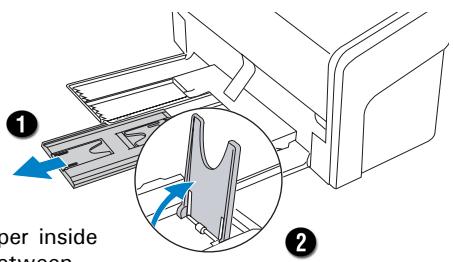
Load the paper inside the space between the stopper and the output slot of the scanner.
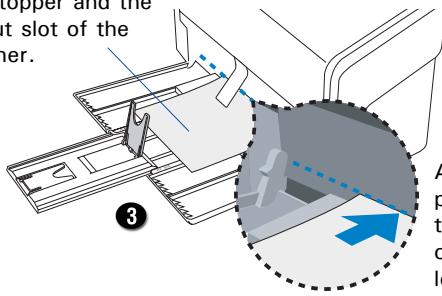
Align the paper against the side of output slot located at the bottom of the scanner.
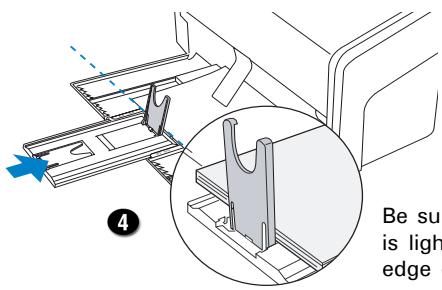
Be sure the stopper is lightly against the edge of the paper.
Basic Scanning for PC Users
- Load the documents to be scanned onto the scanner's document feed tray.
WARNING: Do not place photo paper or fragile sheets of paper on the feed tray, as doing this will damage the original photo or frail papers during the feeding process.
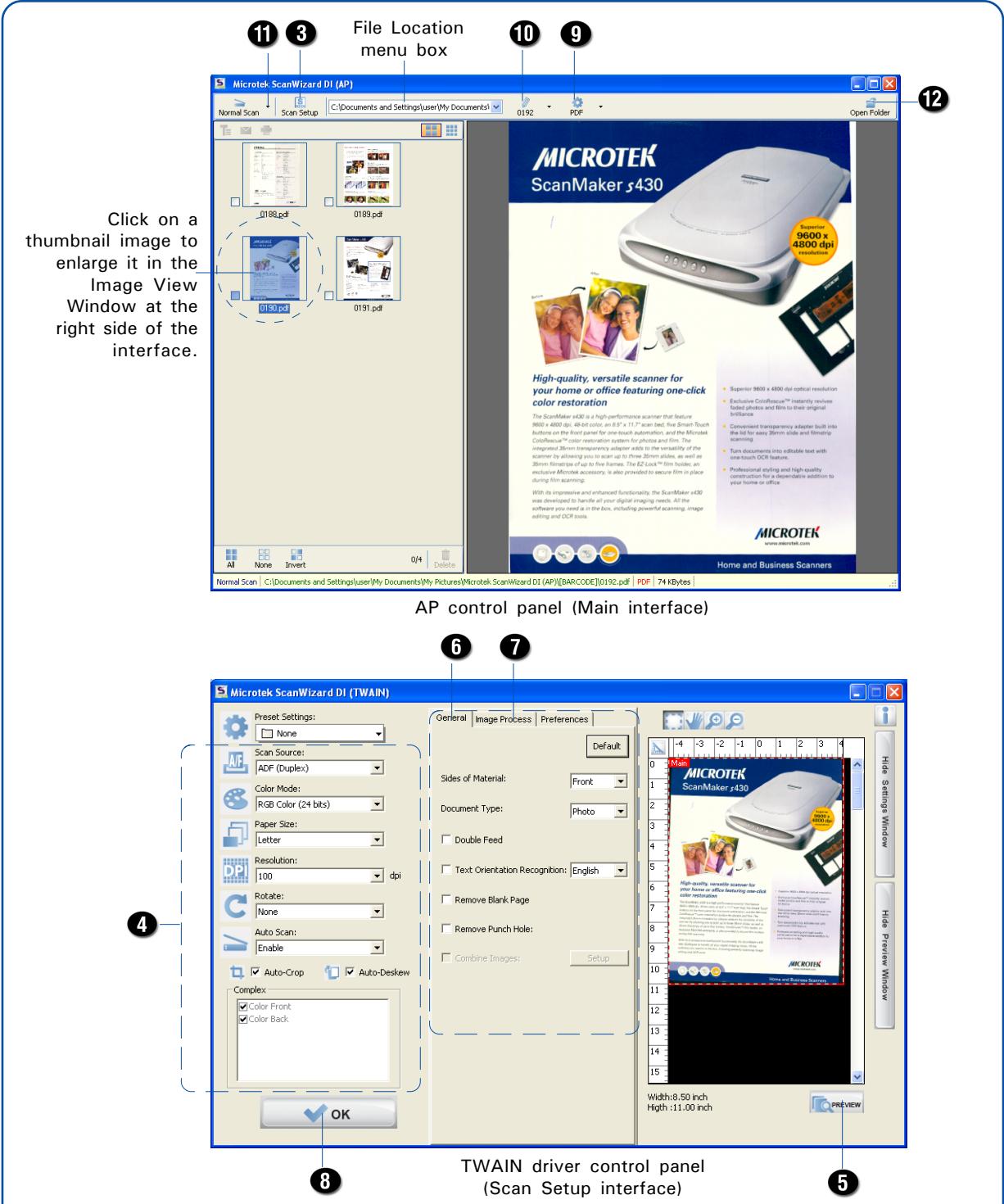
- Launch ScanWizard DI as a stand-alone program by clicking on the ScanWizard DI icon on the desktop.
- Click the Scan Setup button in the interface to activate the Scan Setup interface.
- In the Scan Setup interface, follow the steps below to specify your basic settings.
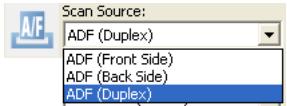
a) Select ADF (Front Side), ADF (Back Side) or ADF (Duplex) in the Scan Source as your image input device.
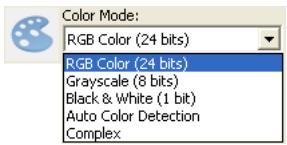
b) Select the appropriate image type in the Color Mode as your image output type.
- Select RGB Color (24 bits) to scan the image in color.
- Select Grayscale (8 bits) to scan the image in grayscale.
- Select Black & White (1 bit) to scan the image in black-and-white.
- Select Auto Color Detection to scan the image in color or non-color based on the automatic judgement and detection of the system.
- Select Complex to scan the image in color, grayscale or non-color based on the customization.
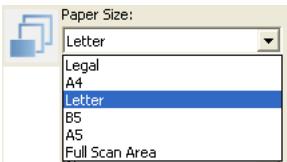
c) Select a dimension in the Paper Size as your preview image size.
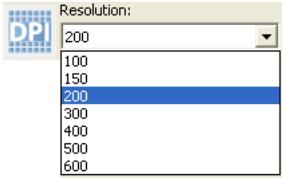
d) Select a desired resolution in the Resolution for your image output resolution.
e) If "Auto-crop" & "Auto-deskew" is selected, the scanner automatically detects the size of the original image, crops the full scan frame to fit the image, and removes unwanted black borders after the scan, as well as corrects the distorted image for proper alignment.

Auto-Crop

√ Auto-Deskew
-
Click the Preview button to perform a preliminary view of the entire image. When done, a preview image appears in the Preview window. Do not forget to put the document back on the document feed tray.
-
Go to the "General" panel by clicking the General tab in the Settings window. Specify the settings for your requirements there.
a) If necessary, specify the image settings for the front or back side of documents separately by using the Sides of Material control when Scan Source is set as "ADF (Duplex)".
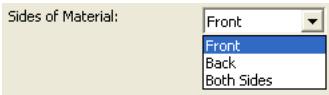
b) Select the image type in the Document Type as your input image type.
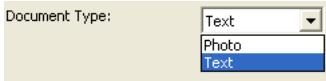
- Select Photo to scan color prints.
- Select Text to scan text.
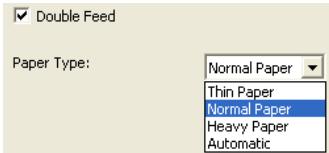
c) If necessary, check "Double Feed", then select a suitable paper thickness for the ultrasonic double-feed detection in the Paper Type options menu to prevent multiple pages from being fed together while papers are fed through the ADF.
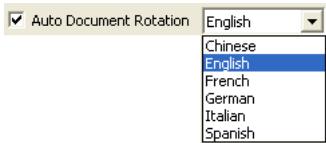
d) If necessary, check "Auto Document Rotation" to ensure the scanned images in a readable orientation. When it is checked, you can select the preferred language used as an identification in the options menu.
e) If necessary, check "Remove Blank Page" and "Remove Punch Hole" to enhance the quality of the scanned images.
- If necessary, go to the "Image Process" panel by clicking the Image Process tab in the Settings window. Use the image correction tools presented there to enhance the image quality according to your specific requirements.
- Click the OK button to close the Scan Setup interface and return to the Main interface of ScanWizard DI.
- In the Main interface, click the File Format menu button to select a file format for the scanned images.
- In the Main interface, click the File Name menu button to specify a file naming method for the scanned images.
- In the Main interface, select and click the Normal Scan button to start scanning.
When done, the scanned images will be automatically saved into the folder defined in the File Location menu box. At the same time, the scanned images will be displayed in thumbnail sizes in the Thumbnail View window and labeled with the file name and file format specified earlier.
- Click the Open Folder button to locate the scanned images if you want to view.
NOTE: For more details on other scanning scenarios applicable to your scanner, refer to the scanner's User's Manual in the Microtek Software CD/DVD.
Basic Scanning for Mac Users
- Load the documents to be scanned onto the scanner's document feed tray.
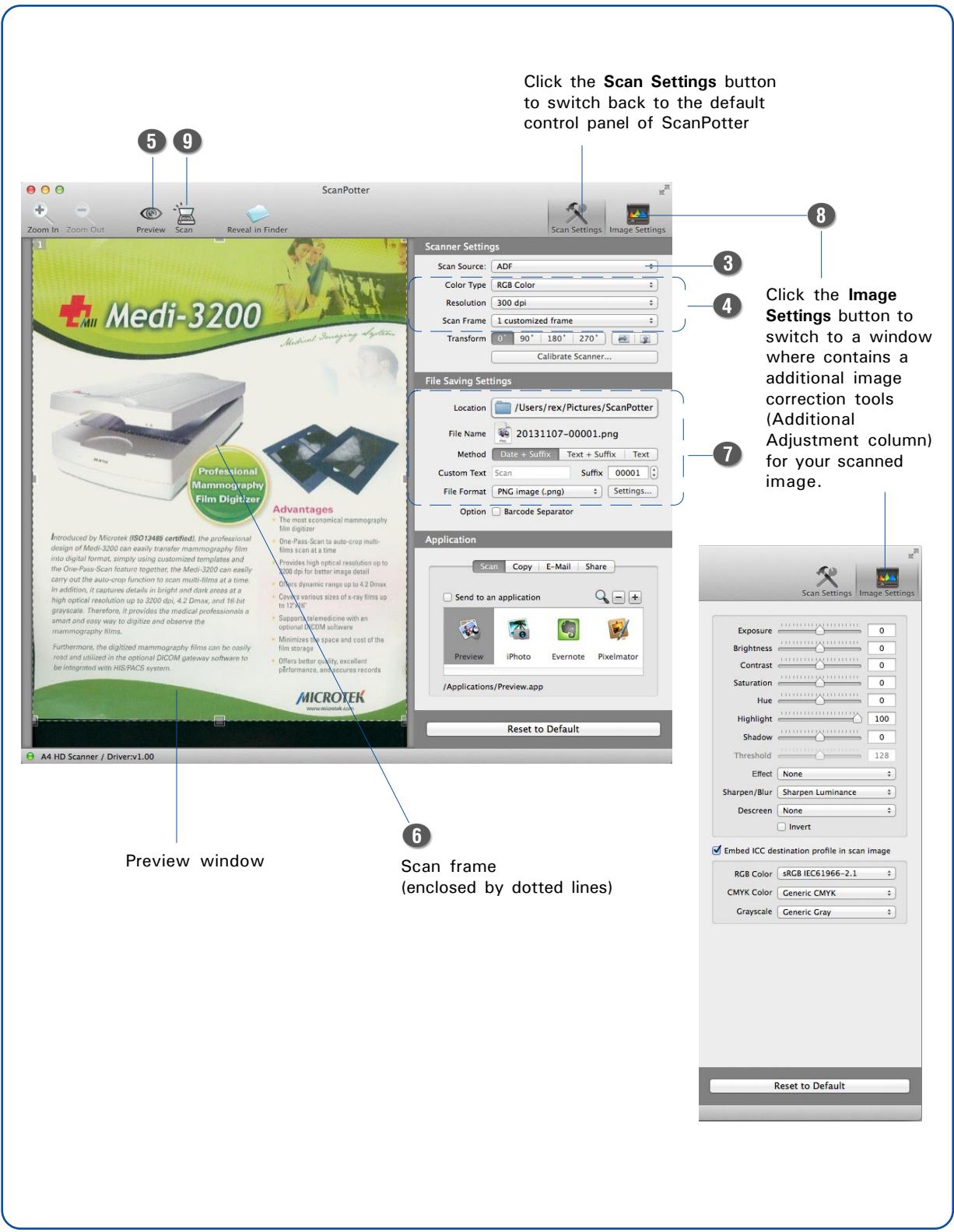
- Launch ScanPotter as a stand-alone by clicking on the program icon, or by selecting it from the application folder in your Mac OS X system.
- In the Scan Source options menu, choose ADF as your input image device.
- Specify your scanning requirements in the Scanner Settings column.
a) Select the appropriate image type (e.g., RGB Color) in the Color Type as your image output type.
- Select Color to scan the image in color.
- Select Grayscale to scan the image in grayscale.
- Select Black & White to scan the image in black-and-white.
b) Select a desired resolution in the Resolution for your image output resolution.
c) Select a dimension in the Scan Frame your preview image size.
- If necessary, click the Preview button to perform a preliminary scan of the image in the Preview window. Then, reload the document into the feed tray.
- If necessary, resize the scan frame (floating dotted rectangle) around the image by dragging on the square spots on the edge or on the corner of the scan frame to determine the final size of the actual scan.
- If necessary, specify file settings for your output image files, using the options offered in the File Saving Settings column.
- If necessary, click the Image Settings button to switch to a window in which you can use additional image correction tools to adjust image quality manually.
- Click the Scan button to start scanning.
Fixing Paper Jams
-
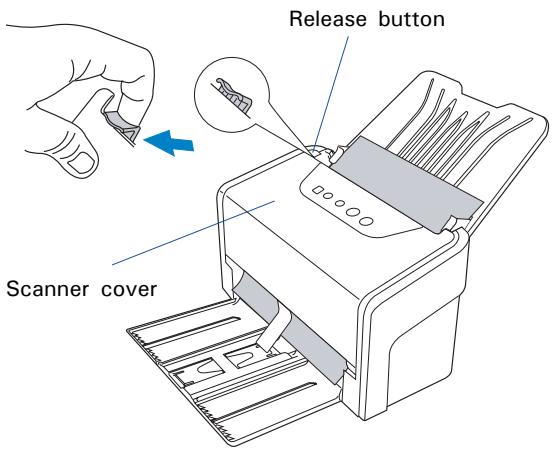
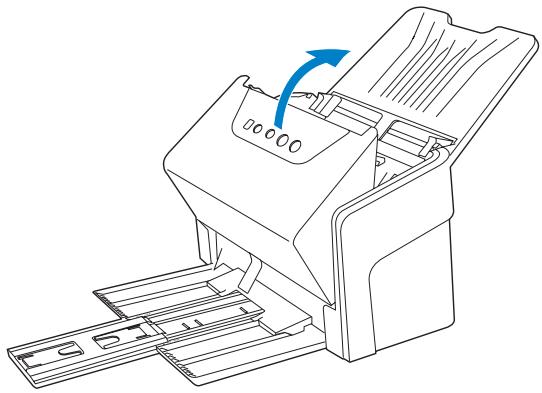
Lift up the Release button in the direction of arrow shown to open the scanner cover.
-
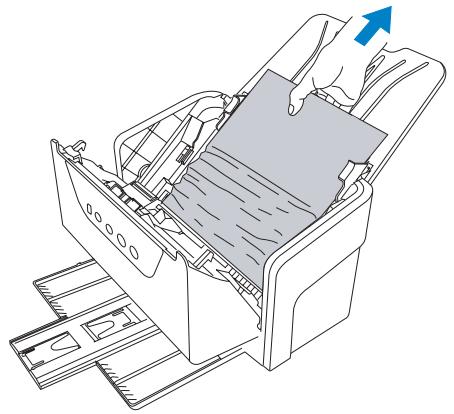
Remove the jammed paper by taking out it in an upward direction.
-
Close the scanner cover. You should hear a click sound when the scanner cover returns to its original position.
NOTE: Do not take out a jammed paper by force from the scanner when the scanner cover closes. If doing so, it may damage the rollers and cause the scanner work improperly.
natural_image
Line drawing of a printer drawer with a hand inserting a paper into the cover (no text or symbols)
natural_image
Line drawing of a printer with a blue arrow indicating rotation or movement (no text or symbols present)
Care and Cleaning
To ensure optimal performance from the your scanner, it is important to clean several critical parts of the scanner on a regular basis. Please follow the sections below to clean each part carefully.
First of all, open the scanner cover, as detailed in the “Fixing the Paper Jams” section in this guide. When the scanner cover is opened, locate the parts as you wish to clean.
Cleaning the Scanner Glass Surfaces
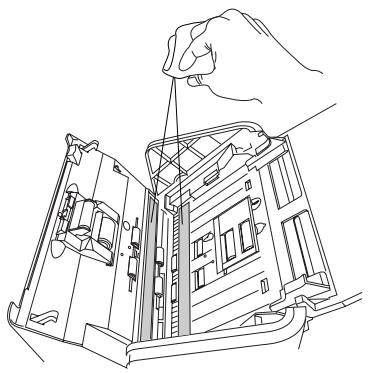
Spot two scanner glass surfaces, and then use a soft, non-abrasive and lint-free cloth to gently wipe the glass surface areas.
natural_image
Line drawing of a hand inserting a component into an open device (no text or symbols)
Cleaning the Sensors
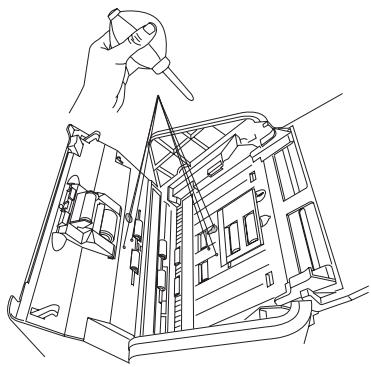
Find 4 sets of sensors (Ultrasonic Double-feed sensors, I/O sensors, and Tray sensors), and then clean the sensors with a dust blower.
natural_image
Line drawing of a mechanical assembly with a hand holding a tool, showing internal components and no text or symbols.
Cleaning the Rollers
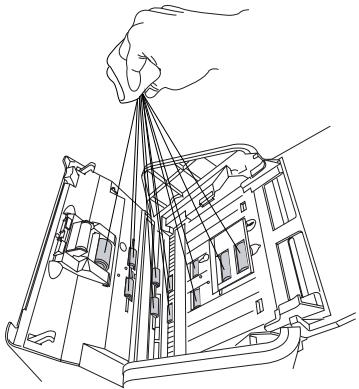
Find several groups of rollers, and then clean the rollers with a lint-free cloth or a swab moistened with alcohol (ethanol) or water.
natural_image
Line drawing of a hand lifting a suspended object into a building frame (no text or symbols)
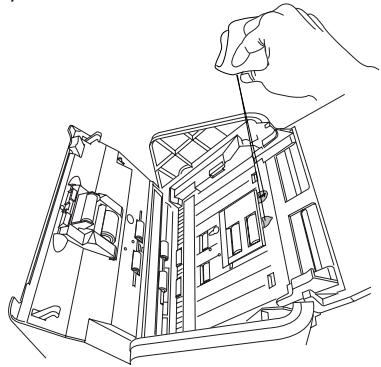
Cleaning the Recesses
Locate two recesses at the top of the roller cover, and then clean the recesses with a lint-free cloth or a swab moistened with alcohol (ethanol) or ECO cleaner.
natural_image
Line drawing of a hand inserting a component into an open device housing (no text or symbols)
NOTE:
• The recommended cleaning cycle time would be after approximately 3,000 to 5,000 scans.
- For more details on cleaning, refer to the scanner's User's Manual in the Microtek Software CD/DVD and see the "Care and Cleaning" section on pages 41 to 44.
Maintenance
After usage for a period of time, the rollers may become worn out, and problems such as document double-feed may occur. In this case, check rollers and replace them with new ones if needed.
First of all, open the scanner cover, as detailed in the “Fixing the Paper Jams” section in this guide. When the scanner cover is opened, locate the rollers as you want to change.
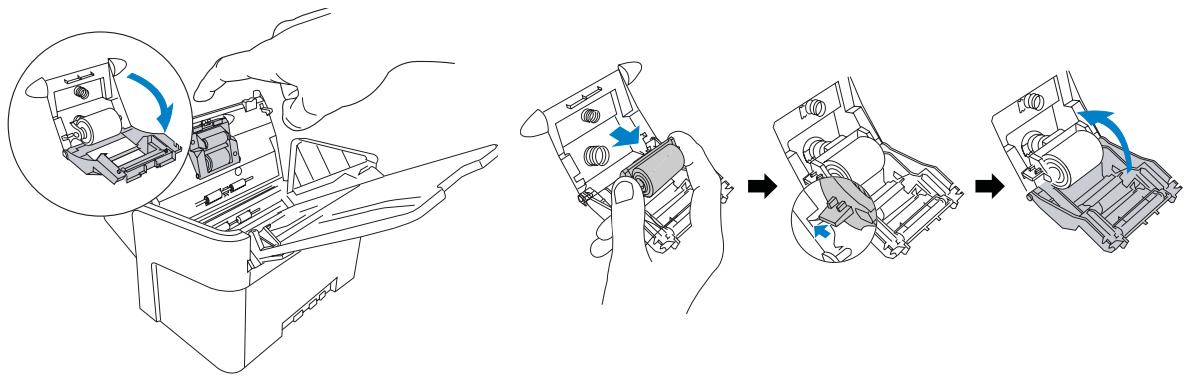
Replacing Separation Roller
Locate the Separation Roller Assembly and then pull down the cover of the roller with your finger. Take out the roller and replace it with the new one.
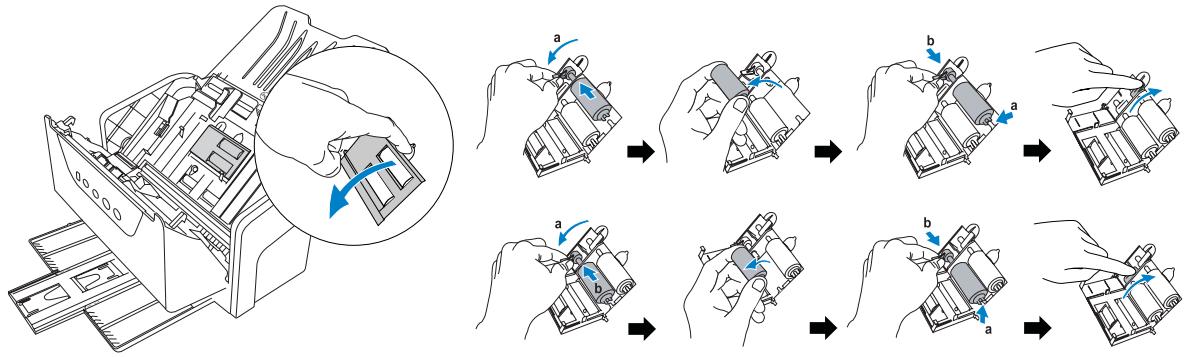
Replacing the Feed Rollers
Locate the Feed Roller Assembly and then pull down the cover of the rollers with your finger. Take out the rollers and replace them with the new ones.
NOTE:
- The recommended replacement point for the Separation Roller is approximate after 150,000 scans; for Feed Roller Assembly is around 100,000 scans.
- Please contact your local resellers for purchasing new rollers.
- For more details of replacement, refer to the scanner's User's Manual in the Microtek Software CD/DVD and see the "Maintenance" section on pages 45 to 49.
Problems?
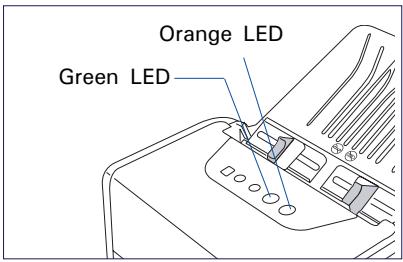
The green LED lighting (the SCAN/STOP button) indicates the status of the scanner. The orange LED lighting (the POWER button) stands for power and should always stay on steady when the scanner is on.


All On: Ready to scan.


Flashing Green: Scanning.


All Off: Scanner is off.
First, make sure that you have followed Steps 1 to 4 as described in this guide (unpack, install, connect). Then if your problem is listed here, try the suggested solution.
- No light comes on when the scanner is turned on.
Make sure your scanner is connected to your computer and plugged into a power source.
- The Add/Remove Hardware Wizard appears on your screen.
Click the "Cancel" button and close the ScanWizard DI or ScanPotter Control Panel. Disconnect the Hi-Speed USB cable from the back of your computer, and refer to the installation instructions in this guide.
- After clicking scan, a blank screen appears.
Uninstall and reinstall the ScanWizard DI or ScanPotter software.
- When trying to scan, an error message appears on your screen that reads, "Can't Find Scanners".
Make sure your scanner is connected to your computer and plugged into a power source (see Step 4).
Uninstall and reinstall the ScanWizard DI or ScanPotter software.
- When trying to scan, an error message appears on your screen that reads, "Code -206, ADF paper jam or roller failure."
Click OK first; then open the scanner cover, as illustrated in the pervious section "Fixing Paper Jams".
- If the problem is occurring from a paper jam, follow the procedures laid out in the "Fixing Paper Jams" section of this guide.
- If the problem is occurring from situations other than a paper jam, follow the procedures laid out in the "Position Documents" section.
Finally, close the scanner cover and restart scanning.
Do You Need Assistance?
Manuals
If you have additional questions and need further instruction or information, we provide electronic manuals for:
- Using your scanner (scanner's User's Manual)
- Using the ScanWizard DI or ScanPotter scanning software (Reference Manual)
To access the electronic manuals: Insert the scanner's software CD/DVD into your computer's CD/DVD-ROM drive. Next, locate and click the "Manuals" option when the software installer window appears on your screen. Finally, select and click the title of the manual you wish to view.
Missing Items
If your package is missing items, please call the Microtek Customer Service Department.
Drivers & Software Upgrades
After you finish the installation of software, if you found that the installed drivers and software cannot run your product or your computer system properly later, please go to the Microtek Download Service site at ww7.microtek.com.tw/service.php to download and install any updates you may require.
For additional information about Microtek products, please visit our website at www.microtek.com.
Power Adapter
Use only power supplies (AC/DC adapters) listed below:
| Voltage | Manufacturer | Model No. |
| AC 100V to 240V | HARD | HDAD38W101 |
NOTE: Please make sure that the electrical outlet to where the scanner will be connected is nearby and readily accessible.
Copyright © 2014 Microtek. Microtek, ScanMaker, ArtixScan, ScanWizard and ColoRescue are trademarks or registered trademarks of Microtek International, Inc. All other trademarks or registered trademarks are the property of their respective holders. Specifications, software and hardware bundles are subject to change without notice. Delivery of technical support services subject to change without notice. Not responsible for typographical errors.
MICROTEK