 ManualGo.com
NUVI 1490 - Navigation GPS GARMIN - Free user manual and instructions
Find the device manual for free NUVI 1490 GARMIN in PDF.


Download the instructions for your Navigation GPS in PDF format for free! Find your manual NUVI 1490 - GARMIN and take your electronic device back in hand. On this page are published all the documents necessary for the use of your device. NUVI 1490 by GARMIN.
USER MANUAL NUVI 1490 GARMIN
«© 2009 Garmin Lid. or its subsidiaries Garmin International, Inc. Garmin (Europe) Lid. Garmin Corporation 1200 East 151st Set Liberty House No.68 Olathe, Kansas 66062, Hounsdown Business Park, Jangshu 2nd Road, USA Southampton, Hampshire, S040 OLR UK. Shijr, Taipei County, Tel. (013) 3978200 or Tel. +44 (0) 870.S012A41 (outside the UK) Taiwan
800) 800.1020 0808 2380000 (within the UK) Tel. 886/2.2642.9199
Fax (013) 3978282 Fax +44 (0) 8708501251 Fax 886/2.2642.9099 Al rights reserved. Except as expressly provided hein, no part of his manual may be reproduced, copied, transmitted, dissemirated, downloaded or stored in any storage medium, for any purpose without te express prior written consent of Garmin. Garmin hereby grants permission to download a single copy of this manual onto a hard drive or other electronic storage medium to be viewed and to print one copy of this manual or of any revision hereto, provided that such electronic or printed copy of this manual must contain the complete text of this copyright notice and provided further that any unauthorized commercial distribution of his manual or any revision hereto is strictly prohibited. Information in his document is subject o change without notice. Garmin reserves {he right o change or improve its products and to make changes in he content without obligation to notify any person or organization of such changes or improvements. Go to the Garmin Web site (www garmin.com) for current updates and supplemental information conceming {he use and operation of his and other Garmin products. Garmin”, the Garmin logo, nüvi”, and MapSource* are trademarks of Garmin Ltd. or its subsi registered in the USA and other countries, Garmin Lock”, myGarmin”, myGarmin Agent”, ecoRoute”, cityXplorer”, and nüMaps Guarantee”"are trademarks of Garmin Ltd. or its subsidiaries. These trademarks may not be used without {he express permission of Garmin. The Bluetooth” word mark and logos are owned by the Bluetooth SIG, Inc. and any use of such name by Garmin is under license, Windows” is a registered trademark of Microsoft Corporation in the United States and/or other countries. Mac* is a registered trademark of Apple Computer, Inc. microSD" is a trademark of SanDisk or its subsidiaries, Panoramio is a trademark of Google In. April 2009 Part Number 190-01041-00 Rev. A Printed in Taiwan
- Table of Contents Making Hands-Free Phone Calls Pairing Your Phone. Receiving a Call In a Call . Accessing the Phone Men: Managing Files. Supported File Types. Connecting Your nüvi to Your Computer … Transferring Files Deleting Files … Using the Tools. Accessing the Settings … Using the Where Am 1? Page Accessing Hel Using MSN° Direct. Using the Picture Viewer Accessing My Data
- Using the World Clock Using the Calculator …… Using the Unit Converter Using ecoRoute"…. Resetting ecoRoute Data Viewing Offers . Using Traff Understanding FM TMC Adding or Renewing Traffic Subscriptions 35 Receiving Traffic Information. 35 Traffic in Your Area … Traffic on Your Route. Viewing the Traffic Map Viewing Traffic Delays . Viewing Offers Customizing the nüvi Changing the System Settings Changing the Navigation Settings. p. 38
Getting Started Getting Started Looking at Your nüvi Using the Main Menu Power button: me © mo Press to tum the nüvi on and off. a ) © Le © æo lo Were Te? Vien Map
GPS satellite strength. Bluetooth technology status. Touch to select a usage mode. Current time. Touch to change time settings. Battery status. Touch to find a destination. Touch to view the map. Touch to make a call when connected to a compatible mobile phone on some models. NOTE: Depending on your nüvi Touch to adjust the volume. model, some images and screen © Touch to use the tools such as shots could look different. settings and Help. Speaker Mini-USB connector microSD”. card slot
Getting Started Setting Up Your nüvi Before mounting the nüvi, ee the Important Safety and Product Information guide for information about laws pertaining to windshield mounting, Mounting Your nüvi .… Remove the clear plastic from the suction cup. Place the suction cup on the windshield:
2. Flip the lever back toward the windshield. Suction cup mount
3. Snap the cradle onto the suction cup arm.
4. Plug the vehicle power cable into the back of
5. Plug the other end of the vehicle power
cable into a power outlet in your vehicle. Cradle Your unit should turn on automatically if it is plugged in and the vehicle is running. Follow the on-screen instructions.
6. Fit the bottom of your nüvi into the cradle.
7. Tilt your nüvi back until it snaps into place.
8. If you are using a traffic receiver in Europe,
connect the external antenna to the traffic receiver and secure it to the windshield using : the suction cups. (Traffic receivers are included Vehicle power in some nüvi packages. See page iv.) cable
WARNING: This product contains a lithium-ion battery. To prevent damage, remove the unit from the
vehicle when exiting or store it out of direct sunligh.
1. Go outdoors to an open area,
away from tall buildings and trees.
2. Turn on your nüvi
Acquiring satellite signals can take a few minutes. The FMI bars indicate satellite strength. When at least one of the bars is green, your nüvi has acquired satellite signals. Selecting a Usage Mode Pedestrian Bicycle Automobile Your nüvi offers several usage modes for navigation methods. Routing is calculated differently based on your usage mode. For example, in Pedestrian usage mode with cityXplorer"” maps loaded, your nüvi calculates a route that uses a 1300/1400 Series Owner's Manual Getting Started combination of public transit options, such as riding a bus or subway, and walking. cityXplorer maps are not included with your nüvi. See www.garmin.com to purchase cityXplorer maps. To change your usage mode:
2. Select a mode, and touch OK.
3. Touch Yes, and follow the
on-screen instructions to configure your settings. Navigating Off Road If you are not following roadways as you navigate, use Off Road mode. Touch Tools > Settings > Navigation > Route Preference > Off Road > OK.
Getting Started Using the Power Button Press and quickly release the Power button to view additional options: + Touch #3 and 8 to adjust the screen brightness. + Touch Lock Screen to prevent accidental screen touches. + Touch Power Off to turn off your nüvi, You can also turn off the nüvi by holding the power button for approximately three seconds. Resetting Your nüvi If your nüvi stops functioning, reset your nüvi by pressing and holding the Power button. Adjusting the Volume From the Main menu, touch Volume. Touch 638 and @3 to adjust the volume. Touch the box next to Mute to mute all audio. nüvi 1200/1. Navigating the Screens + To quickly return to the Main menu, touch and hold ER. + Touch EX and EX to see more choices. Touch and hold to scroll faster. Finding Your Destination The Where To? menu provides several different categories for you to use when searching for addresses, cities, and other locations. The detailed maps loaded in your nüvi contain millions of points of interest, such as restaurants, hotels, and auto services. 1400 Series Owner's Manual
Race Fourd Forbes interaction
3. Select a subcategory.
Getting Started Navigating in Pedestrian Usage Mode Using the Itinerary Page In Pedestrian usage mode, the Itinerary page appears after you touch Go!. Select a leg of the route to view more detailed instructions, or touch Start to create a route. matins sep smtp CRETE Using the Route Options Page In Pedestrian usage mode, the Route Options page appears after you touch Go! if you have cityXplorer maps for the current metropolitan area loaded on your nüvi. See www.garmin.com to purchase cityXplorer maps.
1. Select a route from the Route
Options page to view the ltinerary page. Each route on the page offers a different combination of public transit or pedestrian options.
Getting Started Adding a Stop Taking a Detour . While navigating a route, touch 1. While navigating a route, touch > Where To?. .
2. Search for the extra stop. 2. Touch L#E or ©.
3. Touch Gol If the route you are currently taking
4. Touch Add as Via Point to is the only reasonable option, the
add this stop before your final nüvi might not calculate a detour. destination. Changing Destinations Stopping the Route : Pa 1. With a route active, touch Menu.
1. While navigating a route, touch
E > Where To?. 2. Touch Stop.
2. Search for the extra stop.
4. Touch Set as New Destination to
make this your final destination. 300/1400 Series Owner's Manual 7 nüvi
Where To? Where To? The Where To? menu provides several different categories you can use to search for locations. To learn how to perform a simple search, see page 4. Finding an Address NOTE: Depending on the version of the maps loaded on your nüvi, the button names can change and some steps could be ordered different.
1. Touch Where To? > Address.
2. Change the state, the country, or
If you know the city, touch Spell City, enter the city/postal code, and touch Done. Select the city/postal code in the list. (Not all map data provides postal code searching.)
4. Enter the number of the address,
5. Enter the street name, and touch
6. Select the correct street in the list,
7. Touch the address, if necessary.
Setting a Home Location Set your home location for the place you return to most often.
1. To set your home location, touch
Where To? > Go Home.
2. Select an option:
+ Enter your address. + Use your current location. + Choose from a list of recently found locations. Going Home To navigate home after you have set your home location, touch Where To? > Go Home. nüvi 1200/1300/1400 Series Owner's Manual
Changing Your Home Location
+ Enter your address. + Use your current location. + Choose from a list of recently found locations. Editing Your Home Location
2. Touch Edit, enter your changes,
and touch Done If you delete your home location, you can reset it by following the steps on page 8. 0/1400 Series Owner's Manual Where To? Using the Go! Page After you have selected a location to navigate to, the Go! page opens. Touch to view more information for the location. © Touch © and ©) to z00m in and out. © Touch 10 call this location when connected to phone. © Touch to save this location to your Favorites. © Touch to create a turn-by-turm route to this location. ® Touch to retum to the previous page. Touch and hold to return to the Main menu.
Where To? Providing Feedback on Points of Interest
1. On the Go! page, touch the white
box. Detailed information for the location appears.
2. Touch Feedback for the following
options: + Edit Rating—touch a circle to give the point of interest (POI) a rating from 1 to 5 stars. + Report Error—the item will be removed from future searches. Reports will be sent to Garmin when your nüvi is connected to a computer. See page 24. + Edit Phone Number—use the keyboard to change the phone number. Finding a Place by Spelling the Name Use the on-screen keyboard to spell the name of the destination you are looking for. You can also enter letters contained in the name to narrow the search.
1. Touch Where To? > Points of
Interest > Spell Name.
2. Using the on-screen keyboard,
enter letters of the name of your destination.
Using the On-Screen Keyboard When an on-screen keyboard appears, touch a letter or number to enter it.
Touch Lu.) to add a space. Touch + and +». to move the cursor (available on some nüvi models). Touch (# to delete a character. Touch and hold 1# to erase the entire entry. Touch Mode to select the keyboard language mode. Touch ÆS8 to enter special characters, such as punctuation marks. To change the keyboard layout, see page 38. nüvi 1200/1300/1400 Series Owner's Manual Where To? Searching Near Another Location
1. Touch Where To? > Near.
2. Select an option:
+ Where | Am Now—search near your current location. + A Different City—search near the city you enter. +__ARecent Destination— search near recent destination +__AFavorite Destination— select a destination from Favorites. + My Current Route—search along your active route. + My Destination—search near your current destination:
Where To? Finding Recently Found Places Your nüvi stores the last 50 of your recent finds in the Recently Found list. The most-recently viewed places appear at the top of the list. Touch Where To? > Recently Found to view your recently found items. Deleting Recently Found Places To remove all places from the Recently Found list, touch Clear > Yes. All items from the list are removed, but this does not delete the actual place from your nüvi. Using Favorites You can save places in your Favorites so you can quickly find them and create routes to them. Your home location is also stored in Favorites. nüvi 1200/ Saving Your Current Location From the Map page, touch @. Touch Save Location to save your current location. Saving Places You Find
1. From the Go! page, touch Save.
2. Touch OK. The place is saved in
Favorites. Finding Saved Places
3. Select a category. Your saved
locations are listed. Editing Saved Places . Touch Where To? > Favorites. ; Select the category and the location you want to edit.
4. Touch an item to edit:
+ Change Name—enter a new name, and touch Done. 1400 Series Owner's Manual
+ Attach Photo—select a picture that you have loaded on your nüvi or on a memory card to assign to the location. + Change Map Symbol—touch a new symbol used to mark this location on the map. + Change Phone Number— enter a phone number, and touch Done. + Change Categories—select another category for the location. + Delete—touch Yes to remove this item from the Favorites list. Finding a Place Using the Map Use the Browse Map page to view different parts of the map. Touch Where To? > Browse Map. nüvi 1200/1300/1400 Series Owner's Manual Where To? Tips for Browsing the Map + Touch the map, and drag to view different parts of the map. Touch ® and ® to zoom in and out. + Touch any object on the map. An arrow appears, pointing at the object, and a box displays information on the location. When the box displays Press for more, several POIs exist at that location. Press to see the list of POIs. + Touch Save to save this location. + Touch Go! to navigate to the location. +__Ifthe GPS simulator is on, touch Set Location to set your location to the selected location. See page
Where To? Entering Coordinates If you know the geographic coordinates of your destination, you can use your nüvi to navigate to your destination using the latitude and longitude coordinates. This can be especially helpful when geocaching.
2. Touch the coordinate you want to
3. Touch Format to select the
correct coordinate format for the type of map you are using
4. Enter the coordinates, and touch
Next. Using Photo Navigation Panoramio”" provides pictures that include location information. You can load these pictures on your nüvi or on à memory card and create routes to them.
1. Connect your nüvi to your
Iphotos to download pictures with location information.
3. Follow the instructions on the
Web site to select and load pictures.
4. Touch Where To? > Favorites >
Panoramio Photos. Pictures with location information are listed.
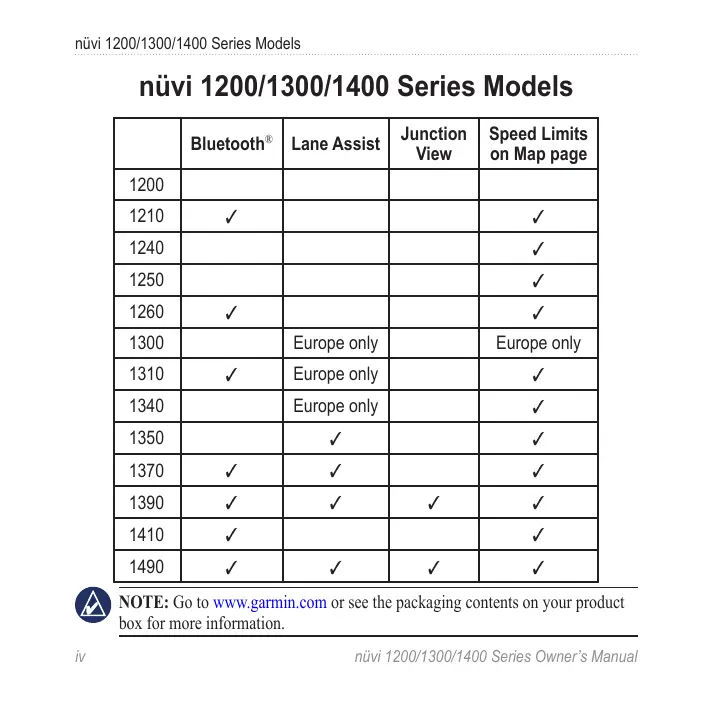
Using the Map Pages Your route is marked with a magenta line. As you travel, your nüvi guides you to your destination with voice prompts, arrows on the map, and directions at the top of the map. A checkered flag marks your destination. If you depart from the original route, your nüvi recalculates the route and provides new directions. A speed limit icon may appear as you travel on major roadways. This icon displays the current speed limit of the roadway. On some models, the turn indicator also includes Lane Assist, which tells you which lane you should be in to prepare for your next maneuver. See page iv to view a list of models that include Lane Assist. 1300/1400 Series Owner's Manual © © © © œ0e Using the Map Pages Touch to view the next turn. Touch to view the turn list. Touch to zoom in and zoom out. Touch to return to the Main menu. Touch to display a different data field. Touch to view the Where Am 1? page. Touch to view the trip computer.
Using the Map Pages Viewing the Trip Computer The trip computer displays your current speed and provides statistics about your trip. To view the trip computer, touch the Speed field on the map. NOTE: If you make frequent stops, leave the nüvi turned on so it can accurately measure elapsed time during the trip. Resetting Trip Computer Information From the map, touch the Speed field. Touch Reset > Reset Trip Data to reset the information on the trip computer.
Touch Reset > Reset Max to reset the maximum speed. Touch Reset > Reset Fuel Price to reset the fuel price. Viewing the Turn List O4 Kepleteno1635 When you are navigating a route, the turn list displays turn-by-turn instructions for your entire route and the distance between turns. Touch the text bar on the top of the map to open the turn list. Touch a turn on the list to view the next turn for that route. Touch Show Map to view the entire route on the Browse Map page. s Manual ‘s Manual
Viewing the Next Turn Page When you are navigating a route, the next turn shows the turn on the map and the distance and time left before you reach the turn. To view an upcoming turn on the map, touch the turn indicator in the top left corner of the map, or touch any turn from the turn list. nüvi ies Owner's Manual Using the Map Pages Viewing the Junction View Page On some nüvi models, the Junction View page displays a view of some upcoming junctions and in which lane you should be driving. To view the Junction View page, touch the upper-lefi corner of the Map page. To access the Junction View page from the Next Turn page, touch Junction View. See page iv to view which nüvi models include Junction View.
Using the Map Pages Using the Pedestrian Map Page In Pedestrian usage mode, your route is displayed on a two-dimensional map. The ©. ©. ® &. @. ©. and @ icons indicate the navigation method for that section of the route. For example, when you see @, board a bus at that point in the route. Touch to toggle between legs of the route. The nüvi zooms in and out on each leg of your route, but it does not automatically move to the next leg. Touch to view the route itinerary. Touch to zoom in and zoom out. Touch to recenter the map on your current location.
Making Hands-Free Phone Calls Bluetooth wireless technology is available on some nüvi models. See page iv. Bluetooth wireless technology establishes a wireless link between two devices, such as a mobile phone and your nüvi. To determine whether your mobile phone with Bluetooth technology is compatible with the nüvi, go to www.garmin.com bluetooth. The first time you use two devices together you must “pair” them by establishing a relationship using a PIN or passkey. Afier the initial pairing, the two devices can 0/1400 Series Owner's Manual Making Hands-Free Phone Calls connect automatically each time you turn them on. NOTE: You might have 10 set your mobile phone to connect 10 the nüvi automatically when it is tumed on. Pairing Your Phone To pair and connect, your phone and the nüvi must be turned on and be within 33 ft. (10 m) of each other. Initiate pairing from your nüvi or from your phone. Refer to your phone instructions. Pairing Using Your Phone Settings
3. Enable the Bluetooth component When your phone is connected to
on your phone. This might be in a your nüvi, you are ready to make menu called Settings, Bluetooth, phone calls. Touch Phone on the Connections, or Hands-free. Main menu to access the Phone
4. Initiate a search for Bluetooth menu.
5. Select the nüvi from the list of (Wen you tum on the nüvi it tries to
devices. connect to the last phone to which it was connected.
6. Enter the nüvi Bluetooth PIN
(1234) into your phone. Lu Receiving a Call When you get a call, the Incoming Call window opens. Touch Answer Pairing Using the nüvi Settings . From the Main menu, touch Tools > Settings > Bluetooth > Add {0 answer the call. Touch Ignore to
2. Enable the Bluetooth component Fe the call and stop your phone
on your phone, and enable Find rom ringing. MelDiscoverablelVisible mode. The internal microphone is in the These settings might be in a front of the nüvi; speak normally. Bluetooth, a Connections, or a Hands-free menu.
3. Touch OK on the nüvi
4. Select your phone, and touch OK.
5. Enter the nüvi Bluetooth PIN
(1234) in your phone. nüvi 1200/1300/1400 Series Owner's Manual
In a Call During a call, the 48% In Call icon appears. Touch [fi > End Call to hang up. Touch ff > Call Options for the following options: + Touch Tones—displays a keypad page so that you can use automated systems, such as voice mail. + Transfer Audio To Phone—this is helpful if you want to turn off the nüvi but remain on the call, or if you need privacy. To switch back, touch Transfer Audio To Device. +. Mute Microphone. Making Hands-Free Phone Calls Using Call Waiting When you are on à call and you receive a second call (call waiting), the Incoming Call window appears. Touch Answer to answer the call. The first call is placed on hold. Switching Between Calls
1. Touch @ > Switch To.
2. Touch End Call to hang up. This
does not disconnect the call on hold. Accessing the Phone Menu From the Main menu, touch Phone to open the Phone menu. NOTE: Depending on the screen that appears on your nüvi, the In Call icon could look different. 1300/1400 Series Owner's Manual NOTE: Not al phones support all features of the nüvi Phone menu.
Making Hands-Free Phone Calls Using Your Phone Book Each time your phone connects with the nüvi, the phone book is automatically loaded into the nüvi. It can take a few minutes for the phone book to be available. Phone book transfer is not available on all phones.
1. Touch Phone > Phone Book.
2. Touch the phone book entry
(contact) you want to call
3. Touch Call to call the contact.
Dieling a Point of Interest . Touch Phone > Points of Interest.
2. Search for the point of interest
Viewing Your Call History Each time your phone connects to the nüvi, your call history is automatically transferred to the nüvi. It can take a few minutes to transfer this data to the nüvi.
1. Touch Phone > Call History.
2. Touch a category to view those
calls. The calls are listed in chronological order. The most- recent calls are at the top of the list.
3. Touch an entry, and touch Dial.
Calling Home Enter a phone number for your home location so you can quickly call home.
Entering Your Phone Number . Touch Phone > Call Home. ; Touch Enter Phone Number to use the keypad page or Select From Phonebook (only available if your phone supports phone book transfer).
3. Touch Done > Yes. The nüvi dials
your home phone number. NOTE: To edit your home location or phone number, touch Where To? > Favorites > Home > Edit. Series Owner's Manual Making Hands-Free Phone Calls Placing Calls Using Voice Dial You can place calls by speaking the contact’s name. You might need to “train” your phone to recognize your voice dial commands. Refer to your phone instructions.
Checking the Phone Status Check the battery level and signal strength for your phone by touching Phone > Status.
Managing Files Managing Files You can store files, such as JPEG image files, in the internal memory on the nüvi or on a memory card. NOTE: The nüvi is not compatible with Windows” 95, 98, Me, Windows NT', and Mac® OS 10.3 and earlier. Supported File Types + JPEG and JPG image files: see page 27 + Maps and GPX waypoint files from MapSource*: see page 49 + GPI custom POI files from Garmin POI Loader: see page 50 Connecting Your nüvi to Your Computer When you connect your nüvi to your computer, you will see an option to install myGarmin Agent”, which
monitors your computer USB ports and allows you to easily check for available updates. See page 52 for more information.
1. Insert a memory card (optional).
Press it in until it clicks.
2. Connect the mini-USB connector
to the back of the nüvi.
3. Connect the larger end of the
cable to an available USB port on your computer. Your nüvi and memory card appear as removable drives in My Computer in Windows and as mounted volumes on Mac computers. NOTE: Some computers with multiple network drives can not display nüvi drives. See your operating system Help file to learn how to map the drives. nüvi 1200/1. 1400 Series Owner's Manual
nüvi Browse your computer for the file you want to copy. Highlight the file., and click Edit > Copy. Open the “Garmin” or memory card drive/volume. . Click Edit > Paste. The file appears in the list of files in the nüvi memory or on the memory card. . When you are finished transferring files, click > in your toolbar (system tray), or drag the volume icon to the Trash fÿ on Mac computers. . Unplug your nüvi from your computer. 0/1400 Series Owner's Manual Managing Files Deleting Files
1. Connect the nüvi to your
computer, and open the nüvi or memory card drive/volume. … Highlight the file you want to delete.
3. Press the Delete key on the
computer keyboard. CAUTION: If you do not know the purpose of a file, do not delete it. Your nüvi memory contains important system files that should not be deleted.
Using the Tools Using the Tools The Tools menu provides many features that are helpful when you are traveling. From the Main menu, touch Tools. Accessing the Settings For information about the settings, see pages 38-44. Using the Where Am 1? Page Use the Where Am 1? page to view current location information, including hospitals, police stations, and fuel. This feature is helpful if you need to tell emergency personnel your location.
2. Touch a button on the right to
view the nearest locations in that category.
3. Touch Save Location to save
your current location Accessing Help Touch Help to get information about using your nüvi. Touch Search to search help topics for a keyword. Using MSN° Direct You can only access MSN Direct content with an optional MSN Direct receiver. For more information, visit http://garmin.msndirect.com or www.garmin.com/traffic. To purchase an accessory, visit http://buy.garmin.com. nüvi 1200/1. 1400 Series Owner's Manual
For information about activating MSN Direct service or using MSN Direct, refer to the MSN Direct Owners Manual Supplement at WWW.garmin.com. Using the Picture Viewer Use the picture viewer to view pictures that you have stored in your nüvi or on a memory card.
1. Touch Tools > Picture Viewer.
+ Touch the arrows to scroll through the images.
2. Touch a picture to view a larger
image of it. + Touch à to view information on the selected picture. + Touch the map and drag to view different parts of the map. + Touch @ to hide the menu bar. 1300/1400 Series Owner's Manual Using the Tools
3. Use the scroll bar at the bottom of
the screen to change how many pictures appear on the screen. Viewing a Slide Show
1. Touch Tools > Picture Viewer >
E Each picture appears for a few moments.
2. Touch anywhere on the screen to
stop the slide show. Navigating to a Picture If a picture contains location information, you can create a route toit.
1. Touch Tools > Picture Viewer.
2. Select a picture.
Using the Tools Accessing My Data Use this tool to manage and delete your saved data, such as your Favorites.
1. Touch Tools > My Data.
2. Select an option:
+ Set Home Location + Delete Selected Favorites + Clear Trip Log + View Map Errors Using the World Clock . Touch Tools > World Clock. ; To change a listed city, touch one ofthe cities.
3. Enter a city name, and touch
4. Select the correct city, if
5. Touch World Map to view a map.
Nighttime hours are shown in the shaded area.
6. Touch to view the clocks again.
Using the Calculator Touch Tools > Caleulator to activate the calculator. Using the Unit Converter . Touch Tools > Unit Converter. ; Touch Conversion, select a type of measurement, and touch OK.
3. Touch a unit of measure that you
4. Select a unit of measure, and
touch OK. Repeat if necessary.
5. Touch the box next to the unit of
measure to enter a value.
6. Enter a value, and touch Done.
The unit is converted.
7. Touch Clear to perform another
conversion. nüvi 1200/1300/1400 Series Owner's Manual
Updating Conversion Rates You can update the currency conversion rates manually so that you are always using the most current rates.
1. Touch Tools > Unit Converter >
2. Select Currency, and touch OK.
3. Touch the currency buttons and
select the currencies you want to update.
5. Touch the boxes next to the
currencies to enter new rates.
6. Touch Save to save the new
rates. Touch Restore to use the original rates. Series Owner's Manual Using the Tools Using ecoRoute" Touch Tools > ecoRoute. The ecoRoute feature calculates your vehicle fuel economy, carbon footprint, and the fuel price of navigating to a destination, and offers tools for improving fuel efficiency. The data provided by the ecoRoute feature are estimates only. The data is not actually read from your vehicle. To receive more-accurate fuel reports for your specific vehicle and driving habits, calibrate the fuel economy. The first time you access the ecoRoute features you will be asked to enter fuel and mileage information about your vehicle.
Using the Tools Viewing the Fuel Report If you have entered your vehicle profile and the current fuel price, your nüvi calculates the average fuel economy for your vehicle, your carbon footprint, and the cost of the fuel consumed. The fuel consumption data is based on estimates for speed and acceleration for an average vehicle. Touch Tools > ecoRoute > Fuel Report. TIP: To ensure fuel data is always recorded, keep your nüvi tumed on while driving. Calibrating the Fuel Economy Calibrate the fuel economy to receive more-accurate fuel reports for your specific vehicle and driving habits. Calibrate when you fill up your fuel tank.
3. Touch EX and to enterthe
Adjusting the Fuel Price Enter fuel price information to calculate the fuel cost of routes and to calculate the fuel reports.
2. Enter the current fuel price, and
touch Done. nüvi 1200/1300/1400 Series Owner's Manual
Taking the Driving Challenge The Driving Challenge tool helps you maximize your fuel economy by scoring your driving habits. The higher your overall score for a Driving Challenge, the more fuel you could save. Touch Tools > ecoRoute > Driving Challenge > Start. Understanding Your Driving Challenge Score Touch € on the Map page to view details about your current challenge. The leaf color on the driving challenge icon changes depending on your performance in the challenge. Your overall score is the average of three scores: 1300/1400 Series Owner's Manual Using the Tools Acceleration score—gain points for gradual acceleration; lose points for rapid acceleration. Deceleration score—gain points for gradual braking; lose points for hard braking. Speed score—gain points for driving at the best speed for conserving fuel, which is 45-60 mph for most vehicles. Stopping the Driving Challenge -
Adjusting Your Vehicle Profile Touch Tools > ecoRoute > Vehicle Profile. Fuel Type—select a fuel type.
Using the Tools City Fuel Efficiency—enter the average city fuel efficiency for your vehicle. Hwy Fuel Efficiency—enter the average highway fuel efficiency for your vehicle. TIP: For best results, calibrate your fuel economy instead of adjusting the city and highway fuel efficiency here. See page 30 Viewing the Mileage Report Mileage reports provide the distance, the time, the average fuel economy, and the fuel cost of navigating to a destination. A mileage report is created for every route that you drive. If you stop a route on your nüvi, a mileage report is created for the distance you traveled.
You can view up to 20 mileage reports on your nüvi. You can also access mileage reports in the Reports folder on your nüvi drive/volume. Viewing Driving Tips Your nüvi provides driving tips to help you save fuel. Touch Tools > ecoRoute > Tips. Resetting ecoRoute Data
1. Touch Tools > ecoRoute.
2. Select the category you want to
reset, and touch Reset. nüvi 1200/1300/1400 Series Owner's Manual
Viewing Offers If your nüvi package includes a traffic receiver, you will receive location-relevant offers and coupons. Ad-based traffic information is only available in North America. The traffic receiver must be connected to external power and you must be in a coverage area to receive ad-based trafic information. When an offer appears on the screen, touch the offer to search for the nearest location related to that offer. Ifthe offer includes a coupon icon, touch the coupon icon on the Go! page to receive a coupon code. Write down this code and present it when you arrive at the location. CAUTION: Do not attempt to write down the coupon codes while driving. nüvi 1200/1300/1400 Sei Using the Tools To view a list of the offers you have received, touch Tools > Offers. To disable offers, you must disable traffic. Touch Tools > Settings > Traffic, and clear the Enable Traffic check box.
Using FM TMC Traffic Using FM TMC Traffic NOTE: Garmin is not responsible for the accuracy of the traffic information. Your nüvi can receive FM TMC (Traffic Message Channel) traffic or MSN" Direct traffic content, depending upon the traffic receiver connected to your nüvi. Your nüvi displays both types of traffic content in the same manner. For information about traffic receivers and coverage areas, go to www.garmin.com/traffic. Understanding FM TMC Traffic The FM Traffic Message Channel (TMC) traffic receiver, which is integrated in the vehicle power cable,
is included in some nüvi packages and is an optional accessory for all series models. See page iv for a list of which packages include traffic receivers. Mini-USB connector Internal antenna Power LED External antenna connector Vehicle power adapter You do not need to activate the subscription included with your FM traffic receiver. The subscription activates automatically after your nüvi acquires satellite signals while receiving traffic signals from the pay service provider. Go to www.garmin .com/traffic or www.garmin.com for more information.
Understanding MSN° Direct Traffic The MSN Direct receiver is an optional accessory for all nüvi 1200, 1300, and 1400 series models. MSN Direct receivers receive MSN Direct content, including traffic information. For information about activating MSN Direct service or using MSN Direct, refer to the MSN Direct Owners Manual Supplement at WWW.garmin.com. Adding or Renewing Traffic Subscriptions To add or renew a traffic subscription, touch Tools > Settings > Traffic. For more information, see page 43 and go to www.garmin -com/fmtraffic. 00/1400 Series Owner's Manual nüvi 1 Using FM Traffic Receiving Traffic Information To receive traffic information, the following conditions must be met: + The traffic receiver must be connected to the nüvi. + The traffic receiver and nüvi must be connected to an external power source. + The traffic receiver and nüvi must be in data range of an FM station transmitting traffic information. NOTE: Heated (metallized) windshields could degrade the performance of the trafic receiver.
Using FM Traffic Traffic in Your Area When you are receiving traffic information, a traffic icon appears in the upper-left corner of the Map page. The traffic icon changes color to indicate the severity of traffic conditions on your route or the road you are currently travelling. Color |Description |Meaning Traffic is Green |Low severity |flowing normally. ñ Traffic is Yellow Medium slightly 2 congested. Traffic is , heavily Red |High severity congested or stopped.
Traffic on Your Route When calculating your route, the nüvi examines the current traffic and automatically optimizes the route for the shortest time. If a severe traffic delay occurs on your route while you are navigating, the nüvi automatically recalculates the route. You might still be routed through trafic if no better alternative routes exist. Traffic icon If a non-severe traffic delay occurs on your route, touch the traffic icon to display a tab that shows how much time the delay has added to your route. This time is already included in your estimated arrival time. nüvi 1200/ 400 Series Owner's Manual
3. Touch the arrows to view other
traffic delays on your route, if necessary.
4. Touch Avoid to avoid the traffic
delay. Viewing the Traffic Map The traffic map shows color-coded traffic flow and delays on nearby roads.
2. Touch Show Traffic Map to view
the traffic incidents on a map. To return to the normal map from the traffic map, touch the traffic icon, and then touch Show Normal Map. nüvi ‘1400 Series Owner's Manual Using FM Traffic Viewing Traffic Delays . On the Map page, touch the traffic icon.
2. Touch Traffic Search to view a
list of traffic delays.
3. To view details, touch an item in
the list. If there is more than one delay, touch the arrows to view additional delays. Viewing Offers In North America, if your nüvi package includes an FM TMC traffic receiver, you will receive offers and coupons. Touch the offer on the screen to search for the nearest location related to that offer. CAUTION: Do not attempt to write down the coupon codes while driving. To stop receiving offers, turn off the traffic feature. See page 33.
2. Touch the setting you want to
3. Touch the button under the setting
name to change it. Changing the System Settings Touch Tools > Settings > System. GPS Simulator —turn on the simulator to turn off the GPS mode and simulate navigation, and to save battery power.
Usage Mode—specify how you will be navigating to optimize routes: Automobile, Pedestrian, or Bicycle. Keyboard—touch QWERTY for a layout similar to a computer keyboard, or touch ABCDE for an alphabetical layout (only available on the nüvi 1300 and 1400 series). Units—change units of measure to Kilometers or Miles. About—display the nüvi software version number, the unit ID number, and information on several other software features. You need this information when you update the system software or purchase additional map data (see page 50). Restore—restore the system settings. 0 Series Owner's Manual
Changing the Navigation Settings Touch Tools > Settings > Navigation. Route Preference—select a preference for calculating your route: + Faster Time—{o calculate routes that are faster to drive but can be longer in distance. + Shorter Distance—to calculate routes that are shorter in distance but can take more time to drive. + OffRoad—{o calculate point-to- point routes (without roads). + Less Fuel— to calculate routes that could use less fuel than other routes. The route calculation is based on road speeds and vehicle acceleration data for a given route. Avoidances—select the road types you want to avoid on your routes. 1300/1400 Series Owner's Manual nüvi 1 Customizing the nüvi Transit Types—select which mode of public transit you would like your nüvi to avoid when calculating routes. Available when cityXplorer maps are loaded. See page 6. Restore—restore the original navigation settings. Adjusting the Display Settings Touch Tools > Settings > Display. Color Mode—select Day for a light background, Night for a dark background, or Auto to automatically switch between the two. Screen Shot—tumn on Screen Shot mode. Touch & to take a screen shot. The picture bitmap file is saved in the screenshots folder on the nüvi drive.
Customizing the nüvi Brightness—adjust the backlight brightness level. Reducing the backlight brightness increases your battery life. Restore—restore the original display settings. Updating the Time Settings Touch Tools > Settings > Time. Select a time format—select a 12- hour, 24-hour, or UTC time format. Current Time—manually set the time on your nüvi. Select Automatic to have the nüvi set the time based on your location. Restore—restore the original time settings. Setting the Languages Touch Tools > Settings > Language. Voice Language—change the language for voice prompts. Text Language —change all on- screen text to the selected language. Changing the text language does not change the language of user-entered data or map data, such as street names. Keyboard—select the keyboard for your language. Touch Mode on any keyboard to change the keyboard language. Restore—restore the original language settings. nüvi 1200/1300/1400 Series Owner's Manual
Changing the Map Settings Touch Tools > Settings > Map. Map Detail—adjust the amount of detail shown on the map. Showing more detail can cause the map to redraw slower. Map View—select a map perspective. + Track Up—display the map in two dimensions (2D) with your direction of travel at the top. + North Up—display the map in 2D with North at the top. + 3D-—display the map in three dimensions (3D) in Track Up. NOTE: In Pedestrian usage mode, North Up is the only map view. Vehicle—touch Change to change the icon used to display your position on the map. Touch the icon you nüvi 1200/1300/1400 Series Owner's Manual Customizing the nüvi want to use, and then touch OK. Download additional vehicle icons at www.garmingarage.com. Trip Log—show or hide the log of your travels. To clear trip log, touch Tools > My Data > Clear Trip Log. Map Info—view the maps and the version of each map loaded on your nüvi. Touch a map to enable (check mark) or disable (no check mark) that map. Restore—restore the original map settings. Changing Security Settings Touch Tools > Settings > Security. Garmin Lock—turn on Garmin Lock” to lock your nüvi. Enter a 4-digit PIN, and set a security location. For more information, see page 46.
Customizing the nüvi Safe Mode—turn safe mode on or off. When your vehicle is moving, Safe mode disables all functions that require significant operator attention and could become a distraction while driving. Restore—restore the original security settings. Note that restoring the security settings will not clear your Garmin Lock PIN or security location. Setting the Bluetooth Technology Options Touch Tools > Settings > Bluetooth. Connections—touch Add > OK to pair with a phone that has Bluetooth wireless technology. See pages 19-23. Touch Change to connect with a different phone. + Drop—select the phone you want to disconnect, and touch Yes. + Remove—select the phone you want to delete from the nüvi memory, and touch Yes. Bluetooth—turn the Bluetooth component on and off. The É] Bluetooth icon appears on the Main menu if the Bluetooth component is turned on. To prevent a phone from automatically connecting, touch Disabled. Friendly Name—enter a friendly name that identifies your nüvi on devices with Bluetooth technology. Touch Done. Restore—restore the original Bluetooth settings. This does not clear the pairing information. nüvi 1200/1300/1400 Series Owner's Manual
Changing the Proximity Points Settings You must have proximity points (such as custom POIS or a safety camera database) loaded to adjust the proximity points settings. See page 50. Touch Tools > Settings > Proximity Points. Proximity Alerts —turn the alerts on or off when you approach custom POIS or safety cameras. Restore—restore the proximity points settings. Viewing Traffic Subscription Information The traffic receiver is included in some nüvi packages. Touch Tools > Settings > Traffic. nüvi ies Owner's Manual Customizing the nüvi North American Options Your FM traffic subscriptions and expiration dates are listed. Touch Add to add a subscription. Non-North America Options Current—select which provider to use. Touch Auto to use the best provider for the area, or select a specific provider to use. Find More—search for additional TMC traffic providers. To increase the search time, touch Yes to clear the provider table. Subscriptions—view your FM traffic subscriptions and expiration dates. Touch Add to add a subscription.
Customizing the nüvi Adding a Subscription You can purchase additional subscriptions or a renewal if your subscription expires. Go to www.garmin.com/fmtraffic. NOTE: You do not need to activate the subscription included with your FM traffic receiver (if it came with one). The subscription activates automatically after your nüvi acquires satellite signals while receiving traffic signals from the service provider.
1. From the Main menu, touch Tools
> Settings > Traffic.
2. For non-North American units,
touch Subscriptions > Add. For North American units, touch Add.
3. Write down the FM traffic receiver
4. Go to www.garmin.com/fmtraffic
to purchase a subscription and get a 25-character code.
5. Touch Next on the nüvi, enter the
code, and touch Done. The traffic subscription code cannot be reused. You must obtain a new code each time you renew your service. If you own multiple FM traffic receivers, you must obtain a new code for each receiver. Restoring All Settings
1. Touch Tools > Settings.
Appendix Caring for Your nüvi Your nüvi contains sensitive electronic components that can be permanently damaged if exposed to excessive shock or vibration. To minimize the risk of damage to your nüvi, avoid dropping your unit and operating it in high-shock and high- vibration environments. Cleaning the Unit The nüvi is constructed of high- quality materials and does not require user maintenance other than cleaning. Clean the outer casing of the unit (not the touchscreen) using a cloth dampened with a mild detergent solution, and then wipe it dry. Avoid chemical cleaners and solvents that can damage plastic components. Owner's Manual Appendix Cleaning the Touchscreen Clean the touchscreen with a soft, clean, lint-free cloth. Use water, isopropyl alcohol, or eyeglass cleaner, if needed. Apply the liquid to the cloth, and then gently wipe the touchscreen. Protecting Your nüvi + Do not store the nüvi where prolonged exposure to extreme temperatures can occur, because it can cause permanent damage. + Do not expose the nüvi to water. Contact with water can cause this unit to malfunction. + Although a PDA stylus can be used to operate the touchscreen, never attempt this while operating a vehicle. Never use a hard or sharp object to operate the touchscreen because damage might result.
Appendix Avoiding Theft To avoid thef, remove the unit and mount from sight when not in use. Remove the residue left on the windshield by the suction cup. + Do not keep your unit in the glove compartment. + Register your product at http://my.garmin.com. + Use the Garmin Lock feature. See below for more information. Locking Your nüvi Garmin Lock is a theft-deterrent system that locks your nüvi. Each time you turn on the nüvi, enter the PIN or drive to the security location.
3. Enter a 4-digit PIN and drive to a
security location. What is a Security Location? Your security location should be a location you return to often, such as your home. If the nüvi has satellite signals and you are at the security location, you do not need to enter the PIN. NOTE: If you forget your PIN and your security location, you must send your nüvi to Garmin to get it unlocked, You must also send a valid product registration or proof of purchase. nüvi 1200/1300/1400 Series Owner's Manual
Calibrating the Screen If the touchscreen is not responding properly, calibrate the touchscreen.
for about 30 seconds until the calibration screen appears (white screen with “Press dot”). Updating the Software .… Connect the nüvi to your computer using the mini-USB cable. The AutoPlay menu opens.
2. Double-click on & to open the
myGarmin Agent download page. If the AutoPlay menu does not open, or you are on a Mac computer, go to www.garmin .com/agent.
3. Follow the on-screen instructions.
After you have installed myGarmin Agent, you will be prompted to open myDashboard when you connect your nüvi to your computer. nüvi 300/1400 Series Owner's Manual Appendix myDashboard checks your nüvi for current software and provides additional information about your nüvi. Clearing User Data IMPORTANT: This deletes all user-entered information.
4. Hold your finger on the lower-right
corner of the nüvi screen while turning on the nüvi.
2. Keep your finger pressed until the
pop-up window appears.
3. Touch Yes to clear all user data.
All original settings are restored. Any items that you have saved are erased. Battery Information To maximize the lifetime of the battery, do not leave your nüvi in direct sunlight, and avoid prolonged exposure to excessive heat.
Appendix The Ex battery icon in the corner ofthe Main menu indicates the status of the nüvi battery. To increase the accuracy of the battery gauge, fully discharge the battery and then fully charge it. Do not unplug the nüvi until it is totally charged. Charging Your nüvi + Connect the vehicle power cable to the mini-USB connector on your nüvi and to a power outlet in your vehicle. The vehicle key may need to be turned to ON/ ACC for the nüvi to charge. + Connect an AC adapter (optional accessory) to the nüvi and a wall outlet. + Connect your nüvi to a computer using a USB cable. The USB cable is included with some nüvi series packages. The computer must be on for the nüvi to charge. Changing the Fuse CAUTION: When replacing the fuse, do not lose any of the small pieces, and ensure they are put back in the proper place. If your unit will not charge in your vehicle, you might need to replace the fuse located at the tip of the vehicle adapter.
black, round piece end piece, and . remove it 2 Siver tip
2. Remove the — Fuse
fuse (glass and silver cylinder), and replace it with a 3 À fast-blow fuse.
3. Ensure that the silver tip is placed
in the black end piece. Screw on the black end piece. nüvi 1200/1. 1400 Series Owner's Manual
Removing the nüvi and Mount To remove the nüvi from the cradle, press the tab of the cradle while tilting the nüvi forward. To remove the cradle from the mount, turn the cradle to the right or left. Apply pressure in that direction until the cradle snaps off the mount. To remove the suction cup mount from the windshield, flip the lever toward you. Pull the tab on the suction cup toward you. Mounting on Your Dashboard Use the enclosed mounting disk to mount your unit to the dashboard and comply with certain state regulations. nüvi 300/1400 Series Owner's Manual Appendix IMPORTANT: The permanent mounting adhesive is extremely difficult to remove after it is installed
1. Clean and dry the dashboard
where you are placing the disk.
2. Remove the backing from the
adhesive on the bottom of the disk.
3. Place the disk on the dashboard.
4. Remove the clear plastic cover
from the top of the disk.
5. Place the suction cup mount
on top of the disk. Flip the lever down (toward the disk). nüMaps Guarantee" To receive one free map update (if available), register your nüvi at http:/{my.garmin.com within 60 days of acquiring satellites and driving with your nüvi. You are not eligible for the free map update if you register by phone or wait longer than
Appendix 60 days after the first time you drive with your nüvi. Additional Maps You can purchase additional maps for your nüvi. To see a list of maps that are compatible with your nüvi, go to your nüvi product page on the Garmin Web site (www.garmin .com), and click the Maps tab. About GPS Satellite Signals Your nüvi must acquire GPS (Global Positioning System) satellite signals in order to navigate. If you are indoors, near tall buildings or trees, or in a parking garage, your nüvi may not acquire satellites. Go outside to an area free from tall obstructions to use your nüvi. When your nüvi has acquired satellite signals, the signal strength bars on the Main menu are green When it loses satellite signals, the bars turn red or clear MM. For more information about GPS, go to www.garmin.com/aboutGPS. Extras and Optional Accessories For more information about optional accessories, go to http:/buy.garmin com or WwW.garmin.com/extras, Or contact your Garmin dealer. Custom Points of Interest Use the POI Loader to load custom points of interest (POIs) onto your nüvi. POI databases are available from various companies on the Internet. Some custom databases contain alert information for points, such as safety cameras and school zones. nüvi 1200/
Go to www.garmin.com/extras, and click POI Loader to install the POI Loader onto your computer. For more information, refer to the POI Loader Help file. Press F1 to open the Help file. To view your Custom POIS, touch Where To? > Extras > Custom POIs. To change the proximity alert settings, touch Tools > Settings > Proximity Points > Proximity Alerts. To delete the Custom POIS from your nüvi, connect your nüvi to your computer. Open the POI folder in the nüvi drive or the memory card drive. Delete the file titled poi.gpi. Series Owner's Manual Appendix Safety Cameras Safety camera information is available in some locations. Check http://my.garmin.com for availability. For these locations, the nüvi includes the locations of hundreds of safety cameras. Your nüvi alerts you when you are approaching a safety camera and can warn you if you are driving too fast. The data is updated at least weekly, so you always have access to the most up-to-date information. You can purchase a new region or extend an existing subscription at any time. Each region that you purchase has an expiration date. CAUTION: Garmin is not responsible for the accuracy of, or the consequences of using, a custom POI or safety camera database.
Appendix Garmin Travel Guide The Garmin Travel Guide provides detailed information about places, such as restaurants and hotels. To purchase an accessory, go to http://buy.garmin.com or contact your Garmin dealer. To use the travel guide, insert the memory card into your nüvi. Touch Where To? > Extras. Touch the name of your travel guide to open it. Contact Garmin Contact Garmin Product Support if you have questions. In the USA, go to www.garmin.com/support, or contact Garmin USA by phone at (913) 397-8200 or (800) 800-1020. In the UK, contact Garmin (Europe) Ltd. by phone at 0808 2380000. In Europe, go to www.garmin.com {support and click Contact Support for in-country support information, or contact Garmin (Europe) Ltd. by phone at +44 (0) 870.8501241. Registering Your nüvi Go to http://my.garmin.com to register your nüvi. See page 24 for information about connecting your nüvi to your computer.
to install myGarmin Agent and register your nüvi. Afier you have registered your nüvi, you can subscribe to the latest Garmin online services. nüvi 1200/1300/1400 Series Owner's Manual
Specifications nüvi 1200 Series Physical size (W x H xD): 3.7 x 2.9 x 0.6 in. (9.3 * 7.5 * 1.6 cm) Weight: 4 oz. (113.4 g) Display: 3.5 in. diagonal, 320 x 240 pixels; 64K colors; bright QVGA TFT landscape display: white backlight; touchscreen Case: Not waterproof (IPXO) Operating temperature range: 32°F-140°F (0°C-60°C) Charging temperature range: 32°F-113°F (0°C-45°C) Data storage: Internal memory and optional removable microSD card. Data stored indefinitely. Computer interface: USB 2.0 full speed mass storage Operating system: Garmin nüvi 0/1400 Series Owner's Manual Appendix Charge time: Up to 4 hours Power input: Vehicle power using included vehicle power cable or AC power using an optional accessory Usage: 5 W max. Battery life: Up to 3 hours Battery type: Non-user-replaceable rechargeable lithium-ion battery GPS receiver: High-sensitivity with HotFix"" Acquisition times*: Warm: <1 second Cold: <38 second Factory Reset: <45 second #Average acquisition times for a stationary receiver with a clear view of the sky.
Appendix nüvi 1300 Series Physical size (W x H xD): 4.8 x 2.9 x 0.6 in. (12.2 * 7.5 * 1.6 cm) Weight: 5.7 oz. (161.6 g) Display: 4.3 in. diagonal, 480 x 272 pixels; 64K colors; bright WQVGA TFT landscape display; white backlight; touchscreen Case: Not waterproof (IPXO) Operating temperature range: 32F-140°F (0°C-60°C) Charging temperature range: 32°F-113°F (0°C-45°C) Data storage: Internal memory and optional removable microSD card. Data stored indefinitely. Computer interface: USB 2.0 full speed mass storage Operating system: Garmin Charge time: Up to 4 hours Power input: Vehicle power using included vehicle power cable or AC power using an optional accessory Usage: 5 W max. Battery life: Up to 3 hours Battery type: Non-user-replaceable rechargeable lithium-ion battery GPS receiver: High-sensitivity with HotFix Acquisition times*: Warm: <1 second Cold: <38 second Factory Reset: <45 second #Average acquisition times for a stationary receiver with a clear view of the sky. 1400 Series Owner's Manual
nüvi 1400 Series Physical size (W x H xD): 5.4 x 3,4 x 0.6 in. (13.7 * 8.6 * L.6 cm) Weight: 7.8 oz. (221.1 g) Display: 5.0 in. diagonal, 480 x 272 pixels; 64K colors; bright WQVGA TFT landscape display; white backlight; touchscreen Case: Not waterproof (IPXO) Operating temperature range: 32°F-140°F (0°C-60°C) Charging temperature range: 32F-L139F (0°C-45°C) Data storage: Internal memory and optional removable microSD card. Data stored indefinitely. Computer interface: USB 2.0 full speed mass storage Operating system: Garmin Charge time: Up to 4 hours Power input: Vehicle power using nüvi 0/1400 Series Owner's Manual Appendix included vehicle power cable or AC power using an optional accessory Usage: 5 W max. Battery life: Up to 3 hours Battery type: Non-user-replaceable rechargeable lithium-ion battery GPS receiver: High-sensitivity with HotFix Acquisition times*: Warm: <1 second Cold: <38 second Factory Reset: <45 second #Average acquisition times for a stationary receiver with a clear view of the sky.
Appendix Declaration of Conformity Hereby, Garmin declares that this nüvi product is in compliance with the essential requirements and other relevant provisions of Directive 1999/5/EC. To view the full Declaration of Conformity, go to the Web site for your Garmin product at www.garmin.com. Software License Agreement BY USING THE nüvi, YOU AGREE TO BE BOUND BY THE TERMS AND
CONDITIONS OF THE FOLLOWING
SOFTWARE LICENSE AGREEMENT.
PLEASE READ THIS AGREEMENT
CAREFULLY. Garmin grants you à limited license to use the sofiwrare embedded in this device (the “Software” in binary executable form in the normal operation of the product. Title, ownership rights, and intellectual property rights in and to the Sofiware remain in Garmin.
You acknowledge that the Software is the property of Garmin and is protected under the United States: of America copyright laws and international copyright treaties. You further acknowledge that the structure, organization, and code of the Software are valuable trade secrets of Garmin and that the Software in source code form remains a valuable trade secret of Garmin, You agree not to decompile, disassemble, modify, reverse assemble, reverse engineer, or reduce to human readable form the Software or any part thereof or create any derivative works based on the Software, You agree not to export or re-export the Software to any country in violation of the export control laws of the United States of America. nüvi 1200/1300/1400 Series Owner's Manual
Troubleshooting Appendix Problem/Question Solution/Answer My nüvi never gets satellite signals. Take your nüvi out of parking garages and away from tall buildings and trees. Remain stationary for several minutes. The suction cup will not stay on my windshield. Clean the suction cup and windshield with rubbing alcohol. Dry with a clean, dry cloth. Mount the suction cup as described on page 2. My nüvi does not charge in my vehicle. Check the fuse in the vehicle power cable (see page 47). Ensure the vehicle is turned on and is supplying power to the power outlet. Your nüvi can only charge between 32°F and 113°F (between 0°C and 45°C). If the nüvi is placed in direct sunlight or in a hot environment, it cannot charge. My battery does not stay charged for very long. To maximize the time between charges, turn down the backlight. Touch Tools > Settings > Display > Brightness. How do | clear all of my user data? Hold your finger on the lower-right corner of the nüvi screen while it is turning on. Keep your finger pressed until the message appears. Touch Yes to clear all user data. Owner's Manual 57
Appendix Problem/Question Solution/Answer My battery gauge does not seem accurate. Allow the unit to fully discharge, and fully charge it {without interrupting the charge cycle). The touchscreen is not responding to my touches. Calibrate the touchscreen as described on pages 44-45. How do 1 know my nüvi is in USB mass storage mode? When your nüvi is in USB mass storage mode, a picture of a nüvi connected to a computer is shown. Also, you should see two new removable disk drives listed in My Computer. My computer never senses that the nüvi is connected.
1. Unplug the USB cable from your computer.
2. Turn off the nüvi.
3. Plug the USB cable into a USB port on
your computer and into your nüvi. The nüvi automatically turns on and goes into USB mass storage mode. Ensure your nüvi is connected to a USB port and not a USB hub. nüvi 1200/
Appendix Problem/Question Solution/Answer I cannot see any new removable drives in my list of drives. If you have several network drives mapped on your computer, Windows can have trouble assigning drive letters to your nüvi drives. See your operating system Help file to learn how to map or assign drive letters. How can | find restaurants near the hotel | will be staying at in the future? Save the hotel in your Favorites. See page 12 for more information on Favorites. You can then search near the hotel for restaurants. . Touch Where To? > Ne: . Select À Favorite Destination. . Select a destination. . Touch Points of Interest > Food and Drink. . Select a category. Your nüvi searches for locations near the hotel.
6. Select a restaurant.
HDEWN = My phone will not connect to the nüvi. Ensure you have a nüvi with Bluetooth. See page iv. Touch Tools > Settings > Bluetooth. Verify that the Bluetooth field is set to Enabled. Ensure your phone is turned on and is less than 33 feet (about 10 meters) away from your nüvi. See www.garmin.com/bluetooth for more help. eries Owner's Manual
Index Index Symbols 2-D, 3-D map view 41
acceleration score 31 accessories 50, 51 additional maps 50 addresses 8 advertisements disabling 33 alarm clock 52 alerts safety camera 51 anti-thefi feature 41,46 attaching a photo to a location 13 audio version 38 avoiding road types 39 theft 46
dashboard disk 49 deceleration score 31 Declaration of Confomity
deleting all user data 47 character 11 custom POIS 51 Favorites 13 recent finds list 12 detail maps 41 detour 7 /1400 Series Owner's Manual
diacritical characters 11 display settings 39 Driving Challenge 31 driving directions 16
ecoRoutel 29-32 calibrate fuel economy Driving Challenge 31 fuel report 30 mileage report 32 tips 32 vehicle profile 29 editing saved places change categories 13 change map symbol
change name 12 change phone number extras 50-51
Favorites 12 feedback on POPS 10 files 24-25 deleting 25 supported types 24 finding places 4 by address 8 by coordinates 14 by name 10 by postal code 8 near another location recent selections 12 saved places (Favorites) 12 using photos 14-15 frce map update 49 fuel price, adjusting 30 fuel report 30 fuse, changing 48 nüvi 1200/1300/1400 Series Owner's Manual Index
Help 26 home phone number 22 setting a location 8&
recalculating routes 7 recently found locations registering 46 removing the mount 49 resetting the max speed 16 trip data 16 your nüvi 4 route options page 6 routes mode 38 offroad 39 preferences 39 simulating 38 stopping 7 nüvi 1200/1300/1400 Series Owner's Manual Index
safe mode 42 safety camera database 51 satellite signals 50 saving places you find 12 your current location 12,13 school zone database 50 screen brighiness 40 screen shots 39 search area 11 security location 46 settings 41 settings 38-43 restoring 44 setting your location 13 simulating a route 38 software license agreement 56 updating 47 version 38
For the latest free software updates (excluding map data) throughout the life of your Garmin products, visit the Garmin Web site at www.garmin.com.
GARMIN. © 2009 Garmin Ltd. or its subsidiaries Garmin International, Inc. 1200 East 151* Street, Olathe, Kansas 66062, USA Garmin (Europe) Ltd. Liberty House, Hounsdoun Business Park, Southampton, Hampshire, 5040 9LR UK Garmin Corporation No. 68, Jangshu 2 Road, Shi, Taipei County, Taiwan waigarmin.com April 2009 Part Number 190-01041-00 Rev. A Printed in Taiwan