
VOICESTATION 300 - Conference call system POLYCOM - Free user manual and instructions
Find the device manual for free VOICESTATION 300 POLYCOM in PDF.


| Product Type | Conference Phone System |
| Brand | Polycom |
| Model | VoiceStation 300 |
| Dimensions (L x W x H) | 25.4 cm x 25.4 cm x 5.1 cm |
| Weight | 0.9 kg |
| Power Supply | 24 V DC, 1 A power adapter |
| Power Consumption | 24 W maximum |
| Main Functions | Full hands-free, echo cancellation, automatic gain control, microphone mute, volume adjustment, speed dial keys |
| Number of Microphones | 3 omnidirectional microphones |
| Microphone Range | Up to 3 meters |
| Speaker | Built-in wideband speaker |
| Connection Type | Public Switched Telephone Network (PSTN) via RJ-11 jack |
| Maintenance and Cleaning | Wipe with a soft, dry cloth. Do not use abrasive cleaners or solvents. |
| Safety Instructions | Do not expose to water or moisture. Disconnect before cleaning. Use only the supplied adapter. |
| Spare Parts and Repairability | Power adapter, telephone cable. No user-serviceable parts inside. |
| General Information | Class B digital device compliant with Canadian NMB-003 and EU Directive 1999/5/EC. |
Frequently Asked Questions - VOICESTATION 300 POLYCOM
User questions about VOICESTATION 300 POLYCOM
0 question about this device. Answer the ones you know or ask your own.
Ask a new question about this device
Download the instructions for your Conference call system in PDF format for free! Find your manual VOICESTATION 300 - POLYCOM and take your electronic device back in hand. On this page are published all the documents necessary for the use of your device. VOICESTATION 300 by POLYCOM.
USER MANUAL VOICESTATION 300 POLYCOM
Introduction 3
Parts List 3
For Best Performance. 3
Installing VoiceStationTM 300 4
Using VoiceStation™ 300 5
Maintenance 8
Troubleshooting 8
Polycom Limited Warranty. 9
Limitation of Liability 9
Copyright 10
US and Canada Regulatory and Compliance Information 10
Exhibit J - Customer Information 12
Introduction
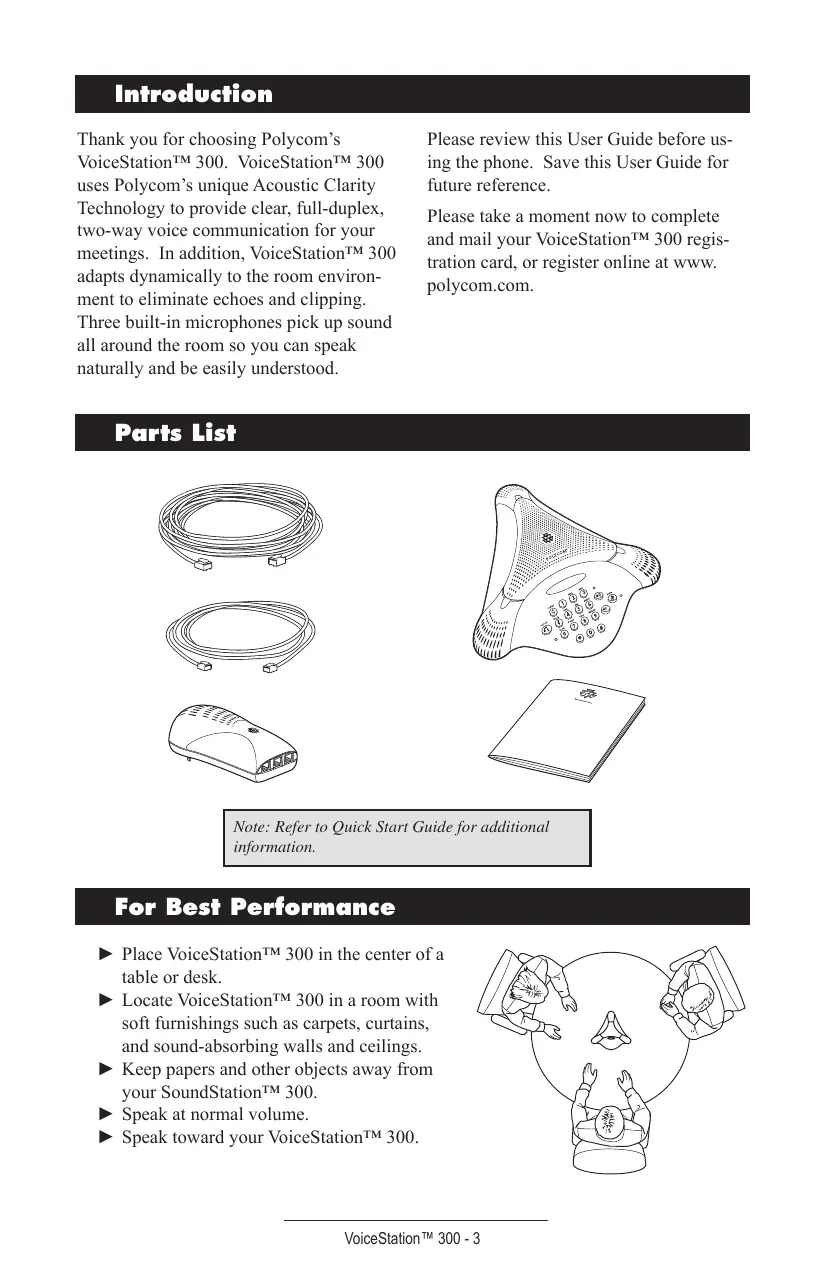
Thank you for choosing Polycom's VoiceStation™ 300. VoiceStation™ 300 uses Polycom's unique Acoustic Clarity Technology to provide clear, full-duplex, two-way voice communication for your meetings. In addition, VoiceStation™ 300 adapts dynamically to the room environment to eliminate echoes and clipping. Three built-in microphones pick up sound all around the room so you can speak naturally and be easily understood.
Please review this User Guide before using the phone. Save this User Guide for future reference.
Please take a moment now to complete and mail your VoiceStationTM 300 registration card, or register online at www.polycom.com.
Parts List
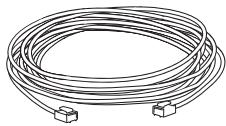
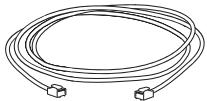
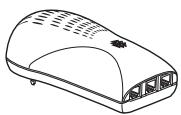
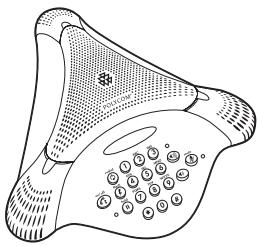

Note: Refer to Quick Start Guide for additional information.
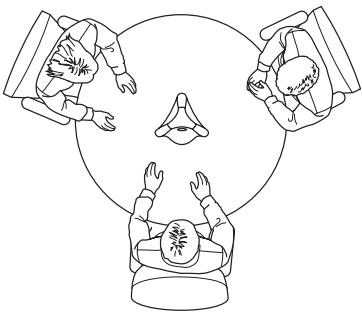
For Best Performance
Place VoiceStationTM 300 in the center of a table or desk.
- Locate VoiceStation™ 300 in a room with soft furnishings such as carpets, curtains, and sound-absorbing walls and ceilings.
- Keep papers and other objects away from your SoundStation™ 300.
Speak at normal volume.
Speak toward your VoiceStationTM 300.
Installing VoiceStation™ 300
- Connect one end of the long console cable to the bottom of the phone.
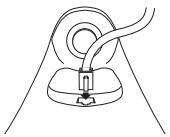
- Insert the Power Supply plug into a nearby electrical outlet.
-
Connect the other end of the long console cable to the bottom of the Power Supply. VoiceStation™ 300 will run a brief self-test, and then you will hear a tone. If you don't hear the tone, verify that the outlet is working and the power is switched on.
-
Connect the short telephone cable to the Power Supply. Your System Administrator can help you to identify a standard analog phone line.
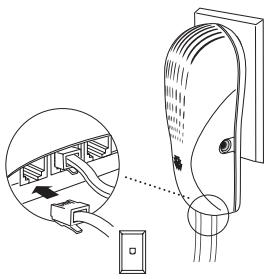
- Connect the other end of the short telephone cable to a jack wired for a standard analog phone line.
Do not plug the VoiceStationTM 300 into a digital telephone network. Doing so may damage the phone.
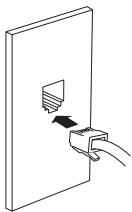
- Place VoiceStation™ 300 in the center of the room on a flat, stable surface and press the Volume Up and Volume Down buttons to adjust the Ringer.

The Ringer has three modes: High, Low, and Off. The Ringer sounds when you press the Volume buttons to indicate current status.

- When the On/Off indicator light is on, the Volume buttons control the sound level of the speaker.
-
When the On/Off indicator light is off, the Volume buttons control the ringer volume.
-
Press the On/Off button to obtain a dial tone.

If you do not hear a dial tone, you may not be connected to an analog telephone line. For assistance, contact your System Administrator.
Using VoiceStation™ 300
Keypad
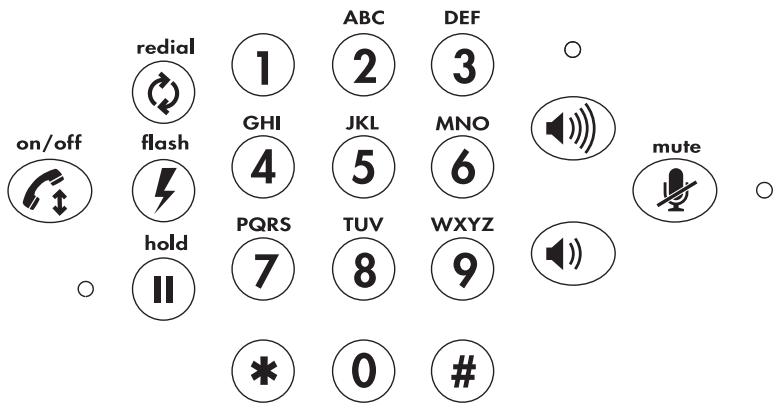
Dialing a Number
Example:

Adjust Speaker Volume


When a call is in progress, press the Volume Up or Volume Down button to adjust the sound level.
Microphone Mute

Press the Mute button to turn off the microphones and prevent the other party from hearing your conversation. The red indicator lights near the microphones will be on. The speaker is still active and you can hear the other party. Press the Mute button again to resume two-way communication. The red indicator lights will go out.
Place a call on Hold

Press the Hold button to place a call on hold. The red indicator lights near the microphones will blink. Press the Hold button again to resume two-way communication. The red indicator lights will go out.
Special Features

Your telephone system may provide special features such as Call Waiting, Conference, or Transfer which can be accessed by pressing the Special Features key. Ask your System Administrator for more information on special features available with your phone system.
End a Call

Press the On/Off button to end the call.
Record a Conversation
Plug the end of a cable with RCA-type connectors into the Aux Out jack on the Power Supply. Plug the other end of the cable into the Aux In jack of your tape recorder.
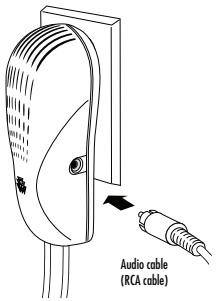
Private Conversations
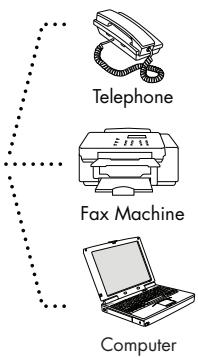
Plug a telephone into the data port on the SoundStation 300 wall module. Press the Hold button to place the call on hold, then pick up the receiver of the telephone connected to the data port. You may also connect a fax machine or computer modem to the data port.
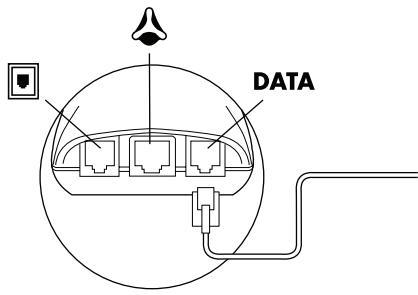
Wall Module
Data port options
Maintenance
Clean the VoiceStation™ 300 with a soft, dry cloth.
Do not use alcohol- or petroleum-based cleaners.
Troubleshooting
No Dial Tone
Check that all connections are correct and tight.
Make sure the short cable is connected to a standard analog phone line.
Try a different telephone line.
Phone Does Not Ring
Adjust the Ringer with the Volume up button.
Short Silences, Echoes, or Clipped Speech
Do not move VoiceStationTM 300 while it is in use.
- Keep your hands away from the phone during calls.
- Keep papers, cups, coffee pots, and other objects away from the phone.
At the beginning of a call, allow each speaker present to speak in turn for a few moments to enable the phone's electronics to adjust to the acoustic environment.
The other party may be using low quality equipment or a half-duplex conference bridge, in which case there is no solution.
Muffled or "In a Well"
Reception
Speak closer to the phone so that the microphones pick up your speech more accurately.
Add more sound absorbency to the room.
Excessive Noise
- Noisy equipment such as a computer or fan may make it difficult to hear the other party. Both parties should turn off noisy equipment.
Try calling again to see if a different line provides a better connection.
Physical Damage
If physical damage is severe enough that the internal parts become visible, disconnect the VoiceStation™ 300 immediately.
Do not reconnect to the network until the VoiceStationTM 300 has been repaired.
Polycom Limited Warranty
Polycom warrants to the end user that the system will be in good working order on the date Polycom or its authorized reseller delivers or installs the system, whichever is later (Warranty Date). If you notify Polycom or its Authorized Dealer within one year of the Warranty Date that the system is not in good working order, Polycom will, without charge, repair or replace, at its option, the system components that are not in good working order. Repair or replacement parts may be new or refurbished and will be provided on an exchange basis. If Polycom determines that your system cannot be repaired or replaced, Polycom will remove the system and, at your option, refund the purchase price of your system or apply the purchase price towards the purchase of another Polycom system. A summary of Polycom maintenance coverage may be obtained from Polycom by calling 1.800.451.0995 (in the continental U.S. only). If you purchased your system from a Polycom Authorized Dealer, contact your reseller for the details of the maintenance plan applicable to your system. This Polycom
limited warranty covers damage to the system caused by power surges. Polycom will not be responsible under this limited warranty for damages resulting from:
Failure to follow Polycom's installation, operation, or maintenance instructions.
Unauthorized system modification, movement, or alteration..
Unauthorized use of common carrier communication services accessed through the system.
Abuse, misuse, negligent acts or omissions of the customer and persons under the customer's control; or
Acts of third parties and acts of God.
Polycom's obligation to repair, replace, or refund, as set forth above, is your exclusive remedy. Except as specifically set forth above, Polycom, its affiliates, suppliers, and dealers make no warranties, express or implied, and specifically disclaim any warranties of merchantability or fitness for a particular purpose.
Limitations of Liability
The liability of Polycom and its affiliates and suppliers for any claims, losses, damages, or expenses from any cause whatsoever (including acts or omissions of third parties), regardless of the form of action, whether in contract, tort, or otherwise, shall not exceed the lesser of: (1) the direct damages proven; or (2) the repair cost, replacement cost, license fee, annual rental charge, or purchase price, as the case may be, of the equipment that gives rise to the claim. In no event shall Polycom and its affiliates and suppliers be liable for any incidental, special, reliance, consequential,
or indirect loss or damage arising out of or in anyway in connection with the use of the equipment. As used in this paragraph, consequential damages include, but are not limited to, the following: lost profits, lost revenues, and losses arising out of unauthorized use (or charges for such use) of common carrier telecommunications services or facilities accessed through or connected to the equipment. For personal injury caused by Polycom's negligence, Polycom's liability shall be limited to proven damages. No action or proceeding against Polycom or its affiliates or
suppliers may be commenced more than twenty-four (24) months after the cause of action accrues.
THIS PARAGRAPH SETS FORTH THE EXCLUSIVE REMEDY FOR ANY CLAIMS, LOSSES, DAMAGES OR EXPENSES ASSOCIATED WITH THE EQUIPMENT AND REGARDLESS OF A FAILURE OF ESSENTIAL PURPOSE.
Copyright
All rights reserved under International and Pan-American Copyright Conventions. No part of the contents of this manual may be copied, reproduced, or transmitted in any form or by any means, or translated into another language or format, in whole or part, without written consent of Polycom, Inc. The software contained within this product is protected by United States copyright laws and international treaty provisions. Polycom, Inc., retains title and ownership of all property rights with respect to the software within this product. You shall
not (and shall not allow any third party to) decompile, disassemble, or otherwise reverse engineer or attempt to reconstruct or discover any source code or underlying ideas or algorithms of the software by any means whatsoever. Do not remove (or allow any third party to remove) any product identification, copyright or other notices. Polycom® and the logo design are registered trademarks and VoiceStation™ 300 and Acoustic Clarity Technology™ are trademark of Polycom, Inc. in the United States, and various countries.
FCC Rules
This device complies with part 15 of the FCC Rules. Operation is subject to the following two conditions:
(1) This device may not cause harmful interference, and
(2) This device must accept any interference received, including interference that may cause undesired operation.
NOTE: This equipment has been tested and found to comply with the limits for a Class B digital device, pursuant to part 15 of the FCC Rules. These limits are designed to provide reasonable protection against harmful interference in a residential installation. This equipment generates, uses and can radiate radio frequency energy and, if not installed and used in accordance with the instructions, may cause harmful interference to radio communications. However, there is no guarantee that interference will not occur in a particular installation. If this equipment does cause harmful interference
to radio or television reception, which can be determined by turning the equipment off and on, the user is encouraged to try to correct the interference by one or more of the following measures:
Reorient or relocate the receiving antenna.
Increase the separation between the equipment and receiver.
Connect the equipment into an outlet on a circuit different from that to which the receiver is connected.
Consult the dealer or an experienced radio/TV technician for help.
In accordance with part 15 of the FCC rules, the user is cautioned that any changes or modifications not expressly approved by Polycom Inc. could void the user's authority to operate the equipment.
Canadian Department of Communications Notice
This Class [B] digital apparatus complies with Canadian ICES-003.
Ring Equivalency Number (REN)
The REN is used to determine the quantity of devices that may be connected to the telephone line. Excessive RENs on the telephone line may result in the devices not ringing in response to an incoming
call. Typically the sum of RENs should not exceed five (5.0). To be certain of the number of devices that may be connected to a line (as determined by the total RENs) contact the local telephone company.
Automatic Dialing
WHEN PROGRAMMING EMERGENCY NUMBERS AND/OR MAKING TEST CALLS TO EMERGENCY NUMBERS:
- Remain on the line and briefly explain to the dispatcher the reason for
the call.
- Perform such activities in the off-peak hours, such as early morning or late evening.
Telephone Company Connector
A FCC compliant telephone cord and modular plug is provided with this equipment. This equipment is designed to be connected to the telephone network
or premises wiring using a compatible modular jack that is Part 68 complaint. See the rest of these installation instructions for details.
Canadian Telephone Company Requirements
NOTICE: The Industry Canada label identifies certified equipment. This certification means that the equipment meets telecommunications protective, operational and safety requirements as prescribed in the appropriate Terminal Equipment Technical Requirements document(s). The Department does not guarantee the equipment will operate to the user's satisfaction.
Before installing this equipment, users should ensure that it is permissible to be connected to the facilities of the local telecommunications company. The equipment must also be installed using an acceptable method of connection. The
customer should be aware that compliance with the above conditions may not prevent degradation of service in some situations. Repairs to certified equipment should be coordinated by a representative designated by the supplier. Any repairs or alterations made by the user to this equipment, or equipment malfunctions, may give the telecommunications company cause to request the user to disconnect the equipment.
Users should ensure for their own protection that the electrical ground connections of the power utility, telephone lines and internal metallic water pipe system, if present, are connected together.
This precaution may be particularly important in rural areas.
Caution: Users should not attempt to make such connections themselves, but should contact the appropriate electric inspection authority, or electrician, as appropriate."
"NOTICE: The Ringer Equivalence Number (REN) assigned to each relevant terminal device provides an indication of the maximum number of terminals
allowed to be connected to a telephone interface. The termination on an interface may consist of any combination of devices subject only to the requirement that the sum of the Ringer Equivalence Numbers of all the devices does not exceed 5."
The term "IC:" before the certification/ registration number signifies only that the Industry Canada technical specifications were met.
Exhibit J - Customer Information
This equipment complies with Part 68 of the FCC rules and the requirements adopted by the ACTA. On the exterior of the cabinet of this equipment is a label that contains, among other information,
FCC Registration Number:
Ringer Equivalence Number (REN):
Facility Interface Code (FIC):
Service Order Code (SOC):
USOC Jack Type:
If this equipment VoiceStation™ 300 causes harm to the telephone network, the telephone company will notify you in advance that temporary discontinuance of service may be required. But if advance notice isn't practical, the telephone company will notify the customer as soon as possible. Also, you will be advised of your right to file a complaint with the FCC if you believe it is necessary.
The telephone company may make changes to its facilities, equipment, operations or procedures that could affect the operation of the equipment. If this happens, the telephone company will provide advance notice so you can make the necessary modifications to maintain uninterrupted service.
a product identifier in the format US: 2HWTE09BVOICEST. If requested, this number must be provided to the telephone company.
US: 2HWTE09BVOICEST
0.9B
02LS2
6.0Y
RJ11C
If trouble is experienced with this equipment VoiceStationTM 300, for repair or warranty information, please contact Polycom Inc.: 1-888-248-4143; 1-408-474-2067 Option 1; 4750 Willow Road, Pleasanton, CA 94588-2708, USA; or http://www.polycom.com. If the equipment is causing harm to the telephone network, the telephone company may request that you disconnect the equipment until the problem is resolved.
Connection to party line service is subject to state tariffs. (Contact the state public utility commission, public service commission or corporate commission for information.)
Portions of the software contained in this product are Copyright © 1995 - 2003, SPIRIT.
CE Mark R & TTE Directive (EU Only)
This VoiceStation™ 300 has been marked with the CE mark. This mark indicates compliance with EEC Directives 89/336/EEC, 73/23/EEC1999/5/EC. A full copy of the Declaration of Conformity can be obtained from Polycom Ltd., 270 Bath Road, Slough, Berkshire, SL1 4DX, UK.
Hereby, Polycom Ltd., declares that this VoiceStation™ 300 is in compliance with the essential requirements and other relevant provisions of Directive 1999/5/ EC.
Technical Support in the United States:
Phone: 408-526-9000 Internet: http://www.polycom.com
Polycom, Inc. 1565 Barber Lane, Milpitas, CA 95035
Phone: 408-526-9000 or toll-free in the US: 800-POLYCOM
Facsimile: 408-526-9100