
9000 - Film Scanner NIKON - Free user manual and instructions
Find the device manual for free 9000 NIKON in PDF.



| Product Type | Dedicated Film Scanner |
| Model | Nikon Super Coolscan 9000 ED |
| Supported Formats | 35mm and medium format (6x9 cm max) |
| Optical Resolution | 4000 dpi |
| Dynamic Density | 4.8 Dmax |
| Light Source | RGB LED |
| Film Processing | ICE, ROC, GEM, Digital ICE for dust and scratch removal |
| Interface | USB 2.0, FireWire (IEEE 1394) |
| Dimensions (L x D x H) | 380 x 196 x 160 mm |
| Weight | 9.3 kg |
| Power Supply | AC Adapter 100-240 V AC, 50/60 Hz |
| Power Consumption | Max 60 W |
| Included Software | Nikon Scan 4 |
| Compatible Operating System | Windows 2000/XP/Vista, Mac OS X |
| Included Accessories | 35mm film holder, medium format holder, USB cable, AC adapter |
| Maintenance and Cleaning | Clean the case with a soft, dry cloth. Use a blower for the optics. |
| Safety | Do not expose to moisture or shock. Use in a dry, stable environment. |
| Spare Parts and Repairability | The scanner contains no user-serviceable parts. Contact an authorized service center. |
| Warranty | 2 years (depending on retailer) |
Frequently Asked Questions - 9000 NIKON
User questions about 9000 NIKON
0 question about this device. Answer the ones you know or ask your own.
Ask a new question about this device
Download the instructions for your Film Scanner in PDF format for free! Find your manual 9000 - NIKON and take your electronic device back in hand. On this page are published all the documents necessary for the use of your device. 9000 by NIKON.
USER MANUAL 9000 NIKON
The documentation for this product includes the manuals listed below. Be sure to read all instructions thoroughly.
| Quick Start Guide | The Quick Start Guide provides a quick introduction to installing the Nikon Scan driver software for the scanner, inserting film, and making a simple scan. |
| User's Manual (this manual) | This User's Manual provides detailed instructions for installing and using a SUPER COOLSCAN 9000 ED film scanner. |
| Nikon Scan Reference Manual/Easy Scanning Guide (on CD) | The Nikon Scan Reference Manual provides complete information on Nikon Scan, the software used to scan images into the computer. This manual is stored on the reference CD in pdf format, and can be viewed using Adobe Acrobat Reader 4.0 or later. If necessary, Windows users can install Adobe Acrobat using the installer provided on the reference CD. For more information on installing Adobe Acrobat Reader and viewing the reference manual, see the Quick Start Guide. The Easy Scanning Guide uses animation to explain such basic scanning tasks as setting image size and resolution. See the Quick Start Guide for viewing instructions. |
| Nikon View Reference Manual (on CD) | The Nikon View Reference Manual provides complete information on using the supplied Nikon View software to view and organize images. This manual is stored on the reference CD in pdf format. |
Trademark Information
Apple, the Apple logo, Macintosh, and Mac OS are registered trademarks of Apple Computer, Inc. Finder is a trademark of Apple Computer, Inc. Microsoft and Windows are registered trademarks of Microsoft Corporation. Pentium is a trademark of Intel Corporation. Digital ICE Advanced™ is Digital ICE™, Digital ROC™, Digital GEM™ and Digital DEE™. Digital ICE™ Advanced™ are technologies developed by Applied Science Fiction. Radius, ColorMatch, and PressView are registered trademarks of miro displays, inc. Adobe and Acrobat are registered trademarks of Adobe Systems Inc. All other trade names mentioned in this manual or the other documentation provided with your Nikon product are trademarks or registered trademarks of their respective holders.
For Your Safety
To prevent damage to this Nikon product or injury to yourself or to others, read the following safety precautions in their entirety before using this equipment. Keep these safety instructions where all those who use the product will read them.
The consequences that could result from failure to observe the precautions listed in this section are indicated by the following symbols:

This icon marks warnings, information that should be read before using this Nikon product to prevent serious injury or death.

This icon marks cautions, information that should be read before using this Nikon product to prevent damage to the equipment or injury to yourself or to others.
WARNING

Do not disassemble or modify
- The interior of the device contains areas of high voltage. Removing the casing could result in fire or electric shock. Contact an authorized Nikon service representative for inspection or repair.
- Do not modify. Modification could result in fire or electric shock.

Do not touch exposed parts
Should the product break open as the result of a fall or other accident, do not touch the exposed parts. Unplug the power cable and take the product to an authorized Nikon service representative for inspection.

Unplug in the event of malfunction
- Should the equipment start to smoke or produce an unusual noise or smell, turn the device off immediately and unplug the power cable. Continued use could result in fire or electric shock. Wait for the equipment to stop smoking and then contact an authorized Nikon service representative for information on replacement or repair. Do NOT attempt repairs yourself, as this would be extremely dangerous.
- In the event of damage to the equipment, turn the device off at once and unplug the power cable, then contact an authorized Nikon service representative for information on replacement or repair. Continued use could result in fire or electric shock.

Do not use in the presence of flammable gas or dust
Failure to observe this precaution could result in explosion or fire.

Keep clear of foreign objects
Do not place vases, flowerpots, cups, cosmetics, vessels containing chemicals or water, or small metal articles on the device. Should water or another foreign object enter the equipment, unplug the power cable and contact an authorized Nikon service representative. Continued use could result in fire, electric shock, or malfunction.

Keep out of reach of children
Particular care should be taken to prevent infants from putting small parts into their mouths. Should a child swallow any part of the equipment, contact a physician immediately.

Use an appropriate power supply
The power supply must be 50/60Hz and 100 - 240VAC . The power cable must comply with the safety standards of the country of use, have SVT insulation or better, and be more than AWG18 in thickness.
At voltages over AC 125V
Use a plug rated for 250V 15A (NEMA 6-P 15)
At voltages of AC 125V or less
Use a plug rated for 125V 10A

Handling the power cable and plug
- Do not damage, modify, or forcibly tug or bend the power cable, place it under heavy objects, or expose it to heat or flame. Should the insulation be damaged and wires become exposed, contact an authorized Nikon service representative for information on replacement or repair. Failure to observe these precautions could result in fire or electric shock.
- Do not handle the plug with wet hands. Failure to observe this precaution could cause electric shock.
- Dust on or near the metal parts of the plug should be removed with a dry cloth. Continued use could result in fire.
- Do not handle the power cable or go near the equipment during thunderstorms. Failure to observe this precaution could result in electric shock.

CD-ROMs
The CD-ROMs on which the software and manuals are distributed should not be played back on audio CD equipment. Playing CD-ROMs on an audio CD player could cause hearing loss or damage the equipment.
CAUTIONS

Do not handle with wet hands
Failure to observe this precaution could result in electric shock.

Install only as directed
Failure to install the device as directed in this manual could block the vents, causing overheating and possibly fire.

Do not place on unstable or sloping surfaces
The device could fall, resulting in injury or damage. Should glass parts inside the device break as the result of a fall or other accident, care should be taken to avoid injury caused by broken glass.

Do not place heavy objects on the device
The objects or device could overbalance or fall, causing injury.

Unplug before cleaning
Turn off and unplug the device before cleaning. Failure to observe this precaution could result in injury.

Do not insert fingers in equipment
Do not insert your fingers in the device save where indicated otherwise. Failure to observe this precaution could result in injury.

Unplug when not in use
Turn off and unplug the device if it will not be used for an extended period. Failure to observe this precaution could result in fire.

Handling the power cable and plug
- Do not place the power cable in the vicinity of a stove or heater. The insulation could melt, resulting in fire or electric shock.
- Unplug the cable by pulling on the plug, never on the cable itself. Failure to observe this precaution could damage the cable, resulting in fire or electric shock.
- Do not plug the power cable into an extension cord or multi-outlet adapter, as this could cause fire or malfunction.

Ground the equipment
- The outlet into which the power cable is plugged must be grounded. Failure to ground the power supply could result in electric shock.
- Do not ground the outlet to a gas or water pipe or a dedicated telephone system earth connector. Failure to observe this precaution could result in fire or electric shock.
Notices
- No part of the manuals included with this product may be reproduced, transmitted, transcribed, stored in a retrieval system, or translated into any language in any form, by any means, without Nikon's prior written permission.
-
Nikon reserves the right to change the specifications of the hardware and software described in these manuals at any time and without prior notice.
-
Nikon will not be held liable for any damages resulting from the use of this product.
- While every effort has been made to ensure that the information in these manuals is accurate and complete, we would appreciate having any errors or omissions brought to the attention of the Nikon representative in your area (address provided separately).
Notice for customers in the U.S.A.
Federal Communications Commission (FCC) Radio Frequency Interference Statement
This equipment has been tested and found to comply with the limits for a Class B digital device, pursuant to Part 15 of the FCC rules. These limits are designed to provide reasonable protection against harmful interference in a residential installation. This equipment generates, uses, and can radiate radio frequency energy and, if not installed and used in accordance with the instructions, may cause harmful interference to radio communications. However, there is no guarantee that interference will not occur in a particular installation. If this equipment does cause harmful interference to radio or television reception, which can be determined by turning the equipment off and on, the user is encouraged to try to correct the interference by one or more of the following measures:
- Reorient or relocate the receiving antenna.
- Increase the separation between the equipment and receiver.
- Connect the equipment into an outlet on a circuit different from that to which the receiver is connected.
- Consult the dealer or an experienced radio/ television technician for help.
Nikon LS-9000 ED Tested To Comply With FCC Standards FOR HOME OR OFFICE USE
CAUTIONS
Modifications
The FCC requires the user to be notified that any changes or modifications made to this device that are not expressly approved by Nikon Corporation may void the user's authority to operate the equipment.
Interface Cables
Use the interface cables sold or provided by Nikon for your equipment. Using other interface cables may exceed the limits of Class B Part 15 of the FCC rules.
Notice for customers in the State of California
WARNING: Handling the cord on this product will expose you to lead, a chemical known to the State of California to cause birth defects or other reproductive harm. Wash hands after handling.
Nikon Inc.,
1300 Walt Whitman Road, Melville, New York
11747-3064, U.S.A.
Tel.: 631-547-4200
Notice for customers in Canada
CAUTION
This class B digital apparatus meets all requirements of the Canadian Interference Causing Equipment Regulations.
ATTENTION
Notice Concerning Prohibition of Copying or Reproduction
Note that simply being in possession of material that has been digitally copied or reproduced by means of a scanner, digital camera or other device may be punishable by law.
- Items prohibited by law from being copied or reproduced
Do not copy or reproduce paper money, coins, securities, government bonds, or local government bonds, even if such copies or reproductions are stamped "Sample."
The copying or reproduction of paper money, coins, or securities which are circulated in a foreign country is prohibited.
Unless the prior permission of the government has been obtained, the copying or reproduction of unused postage stamps or post cards issued by the government is prohibited.
The copying or reproduction of stamps issued by the government and of certified documents stipulated by law is prohibited.
- Cautions on certain copies and reproductions
The government has issued cautions on copies or reproductions of securities issued by private companies (shares, bills, checks, gift certificates, etc.), commuter passes, or coupon tickets, except when a minimum of necessary copies are to be provided for business use by a company. Also, do not copy or reproduce passports issued by the government, licenses issued by public agencies and private groups, ID cards, and tickets, such as passes and meal coupons.
- Comply with copyright notices
The copying or reproduction of copyrighted creative works such as books, music, paintings, woodcut prints, maps, drawings, movies, and photographs is governed by national and international copyright laws. Do not use this product for the purpose of making illegal copies or to infringe copyright laws.
Table of Contents
For Your Safety.
WARNING
CAUTIONS
Notices. iii
Before You Begin 1
Introduction 2
Principal Features 2
Parts of the Scanner 3
Precautions for Use 5
Setup 7
Setup and Scanning Guide 8
Installing Nikon Scan 10
Windows 10
Macintosh 15
Installing the Scanner 20
Step 1—Choose a Location. 20
Step 2—Connect the Power Cable. 21
Step 3—Connect the IEEE 1394 Cable 22
Basic Scanning 23
Step 1—Turn the Scanner On. 24
Step 2-Place Film in the Holder 25
Step 3—Open the Scan Window 30
Step 4-Insert the Holder. 32
Step 5—Choose a Film Type and Color Model 33
Step 6-Preview. 35
Step 7-Select a Crop 37
Step 8-Scan and Save 39
Step 9-Eject and Exit 41
Nikon Scan 43
The Scan Window 44
The Control Area 45
The Information Panel 46
The Preview and Scan Buttons 46
The Thumbnail Printer Tab. 47
The Preview Area 47
The Progress Window 47
The Tool Chest. 48
Optional Holders 51
FH-869M Holder for Medium-Format Slides 53
Inserting Slides 53
Removing Slides 53
FH-869G Glass-Covered Holder for Medium-Format Film 54
Inserting Film 54
Removing Film 55
FH-869GR Rotating Holder for Medium-Format Film 56
Inserting Film 56
Removing Film 57
FH-816 Holder for 16-mm Film. 58
Inserting Film 58
Removing Film 59
FH-8G1 Medical Holder 60
Inserting Slides 60
Removing Slides 60
Technical Notes 61
Maintenance 62
Troubleshooting 63
Installing the IEEE 1394 (Firewire) Interface Board 64
Updating the IEEE 1394 Drivers (Windows 98 SE Only) 65
Installing the IEEE 1394 (Firewire) Interface Board 66
66
Uninstalling Nikon Scan 70
Windows 70
Macintosh 71
Custom Install (Macintosh Only) 73
Checking Device Registration (Windows Only) 74
Specifications 76
SUPER COOLSCAN 9000 ED (LS-9000 ED) 76
Supplied Film Holders 77
Optional Film Holders 78
Index 79
Before You Begin
This chapter describes the conventions used in this manual, the names of scanner parts, and precautions for use.
Introduction 2
Parts of the Scanner 3
Precautions for Use. 5
Introduction
Thank you for your purchase of a Nikon SUPER COOLSCAN 9000 ED film scanner. Read this manual thoroughly before use, and keep it handy when using the product.
To make it easier to find the information you need, the following symbols and conventions are used:

This icon marks cautions, information that should be read before using the scanner to prevent damage to the device.

This icon marks tips, additional information that may be helpful when using the scanner.

This icon marks notes, information that should be read before using the scanner.

This icon indicates that more information is available elsewhere in this manual or in the other documentation provided.
Principal Features
- The Scan Image Enhancer automatically adjusts hue to produce images with clear contrast
- Digital ICE detects, analyzes, and automatically compensates for scratches and dust
- Digital ROC digitally restores for faded colors in old film
- Digital GEM automatically corrects for film grain, smoothing pictures taken with high-speed film
- Digital DEE reveals details in shadows of backlit and underexposed shots and increases contrast in "washed-out" areas of highlights to produce natural-looking exposure

Illustrations
The majority of illustrations showing the scanner interface are taken from Windows XP Professional. Where operations in the two operating systems differ, illustrations from Mac OS X are also used.

Terminology
In this manual, the SUPER COOLSCAN 9000 ED is sometimes referred to as the 9000 ED. Windows XP Home Edition and Windows XP Professional are jointly referred to as Windows XP, Windows Millennium Edition as Windows Me, and Windows 98 Second Edition as Windows 98 SE.

Life-Long Learning
As part of Nikon's "Life-Long Learning" commitment to ongoing product support and education, continually-updated information is available on-line at the following sites:
- For users in the U.S.A.: http://www.nikonusa.com/
- For users in Europe: http://www.europe-nikon.com/support
- For users in Asia, Oceania, the Middle East, and Africa: http://www.nikon-asia.com/
Visit these sites to keep up-to-date with the latest product information, tips, answers to frequently-asked questions (FAQs), and general advice on digital imaging and photography. Additional information may be available from the Nikon representative in your area. See the URL below for contact information:
http://www.nikon-image.com/eng/
Parts of the Scanner
Front View
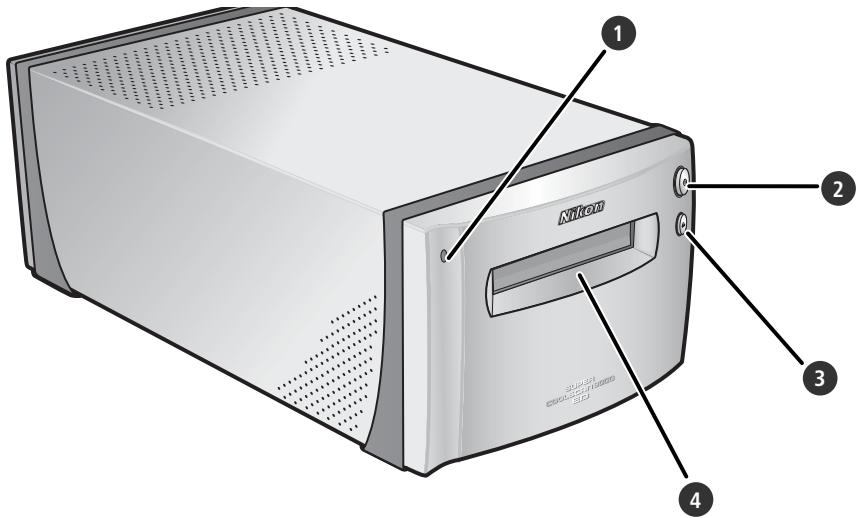
1 Status LED
Scanner status is indicated as follows:
| Status LED | Scanner status |
| On | No operations in progress. Film holders can be inserted or removed. |
| Blinks (about 1.5×/s) | Scanner busy. Do not turn scanner off or insert or remove film holders. |
| Flickers (about 5×/s) | Hardware or communications error. Turn scanner off, wait for at least 5s, and turn scanner on again. |
2 Power switch
Pressing this switch turns the scanner on and off.
3Eject button
Pressing this button ejects film holders from the scanner.
4 Holder slot
Holders for various types of film can be inserted in this slot. A flap prevents the accumulation of dust inside the scanner when the device is not in use.
Rear View
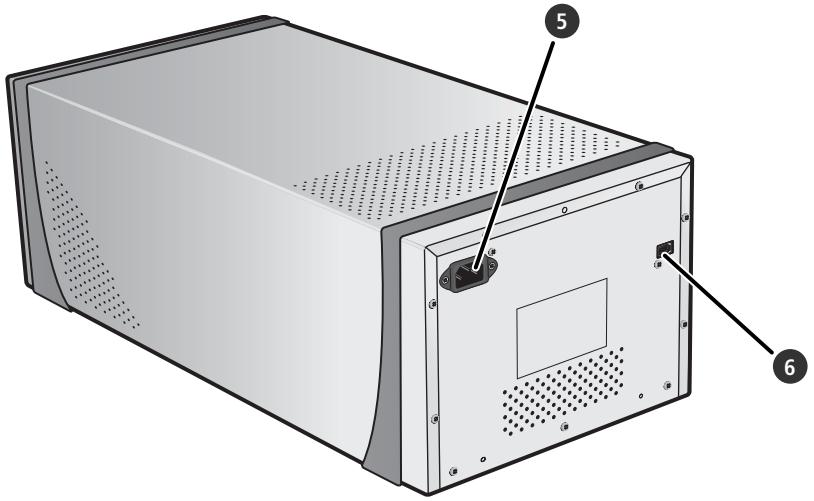
5 AC connector
The female end of the AC power cable plugs into this connector.
IEEE 1394 (Firewire) connector
The IEEE 1394 interface cable connects here.
Precautions for Use
Observe the following precautions to ensure that the scanner always produces the best possible results.
Check the status LED
- Do not turn the scanner off or insert or remove film holders while the status LED is blinking.
- Do not use other IEEE 1394 (Firewire) devices or turn them on or off while the status LED is blinking.
- Do not connect or disconnect USB or IEEE 1394 (Firewire) cables while the status LED is blinking.
- Do not operate camera control software for digital cameras connected via USB while the status LED is blinking.
When the scanner is not in use
Remove the film holder and turn the scanner off when not in use.
Connecting the scanner
- Connect the scanner directly to the computer. The scanner may not function as expected when connected to an IEEE 1394 hub or adapter.
- The scanner may not function as expected when used together with other IEEE 1394 devices. Should the scanner not function as expected, use the scanner with all other IEEE 1394 devices disconnected.
- Do not connect two or more scanners to the computer simultaneously.
Protecting film
- Before scanning film, remove dirt and dust with a blower. This will not only keep the film free of scratches but will also help prevent scanning errors and malfunctions.
- Remove fingerprints with a soft, dry cloth, being careful not to scratch the film.
- Remove film from the holder after scanning. Storing film in the holder could damage the film.
- The film base and emulsion will deteriorate if exposed to high temperatures or humidity. Be sure temperature and humidity are within the limits given below.
- Sudden changes in temperature and humidity, even when within the limits stated below, can cause condensation on the film. Check before use to ensure that no condensation is present. If condensation has occurred, leave the film out until it dries. Condensation can damage the film during insertion.
- The operating environment for the scanner is as follows:
Temperature: +10 - + 35^(+50 - + 95^)
Humidity: 20 - 60%
Setup
This chapter contains all the information needed to set up the scanner for use, including installing Nikon Scan and connecting the scanner to a computer.
Setup and Scanning Guide. 8
Installing Nikon Scan 10
Installing the Scanner. 20
Setup and Scanning Guide
This figure outlines the steps involved in installing the scanner and making a scan. Refer to the page numbers listed for more information.
Install software 10-19
Imaging application (e.g., Adobe Photoshop)
Nikon Scan 4
Nikon View


Computer
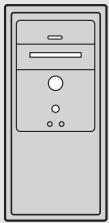
Set up the scanner (20-22)
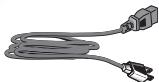
Connect the power cable
(21)
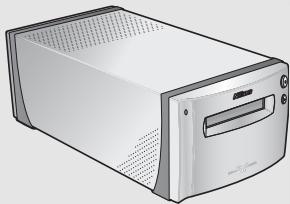
SUPER COOLSCAN 9000 ED
Connect the scanner to the computer 22
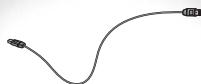
Connect the IEEE 1394
(Firewire) cable
Turn the scanner on (24)

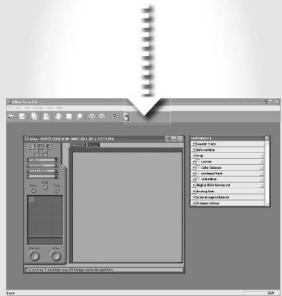
Open the scan window 30-31
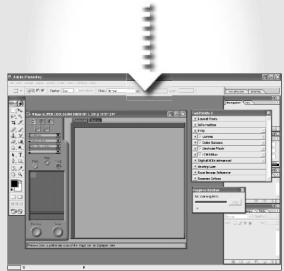
Nikon Scan can function as a "stand-alone" application to scan, process, and save images, or it can be used to scan images directly into an imaging application such as Adobe Photoshop.

Nikon Scan

Imaging application (e.g., Adobe Photoshop)
Insert film 32
Scan images (33-39)
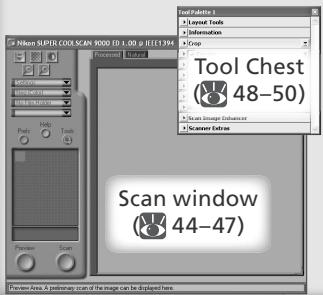
- Specify the film type and color model (34)
Preview images (35-36) - Flip and rotate images (36)
- Select the area to be scanned (37-38)
- Enhance images using the tools in the Tool Chest, including Scan Image Enhancer, Digital ICE Advanced, and curves 38, 48-50)
Scan images 39

Save images 40
After scanning, images are opened in images windows in the host application, where they can be printed or saved (40).

Organize images
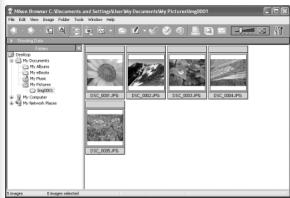
Images that have been saved to disk can be viewed and organized in Nikon View. See the Nikon View Reference Manual (on CD) for more information.
Installing Nikon Scan
Nikon Scan software (provided) is required to control the scanner. The installation instructions that follow are divided into Windows and Macintosh sections.
Windows
Turn the computer on and wait for Windows to start up. Before continuing with installation, make sure that:
The scanner is NOT connected
- No other applications (including anti-virus software) are running
- The computer satisfies the following system requirements:
| CPU | 300 MHz Pentium or better |
| OS | Preinstalled versions of Windows XP, Windows 2000 Professional, Windows Me, Windows 98 SE |
| RAM* | 128 MB or more (512 MB or more recommended) |
| Hard-disk space† | A minimum of 40 MB required for installation (200 MB or more recommended), with an additional 200 MB of free disk space available while Nikon Scan is running |
| Video resolution | 800×600 pixels or more with 16-bit color (High Color) or more |
| IEEE 1394‡ | Only OHCI-compliant boards supported |
| Miscellaneous | CD-ROM drive required for installation |
- More memory may be required depending on film type, scan size, resolution, bit depth, the number of scans performed in each session, the adapter used, and on whether Digital ROC, Digital GEM or Digital DEE is used. A system with more than the minimum amount of memory is recommended.
† More free disk space may be required depending on the film type and number of frames. Nikon recommends having as much free disk space as possible when running Nikon Scan.
If the computer is not already equipped with an IEEE 1394 (Firewire) interface, install an approved OHCI-compliant IEEE 1394 interface board or card (for a list of approved boards or cards, see the Nikon web site for your area; 2). The IEEE 1394 interface board provided with the scanner can be installed in desktop computers with an empty PCI slot 64). Note that the supplied board can not be installed in laptop computers or low-profile PCI slots.
Windows 98 SE
Before installing Nikon Scan on a computer running Windows 98 SE, be sure to update the IEEE 1394 drivers (65).
Windows XP/Windows 2000 Professional
When installing or uninstalling Nikon Scan under the above operating systems, log in as the "Computer administrator" (Windows XP) or "Administrator" (Windows 2000 Professional).
Earlier Versions of Nikon Scan
Before installing Nikon Scan 4, uninstall any earlier versions of Nikon Scan. See "Uninstalling Nikon Scan" (70).
Nikon View
For information on installing and using Nikon View, see the Nikon View Reference Manual (on CD).
1 Insert the Nikon Scan CD into the CD-ROM drive
A language-selection dialog will be displayed. Select a language and click Next.
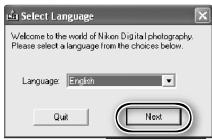
If the Language Selection Dialog Is Not Displayed
If the language selection dialog does not appear after the Nikon Scan CD is inserted:
- Double-click the My Computer icon on the desktop.
- Right click the CD-ROM drive containing the Nikon Scan CD.
- Choose AutoRun from the menu that appears.
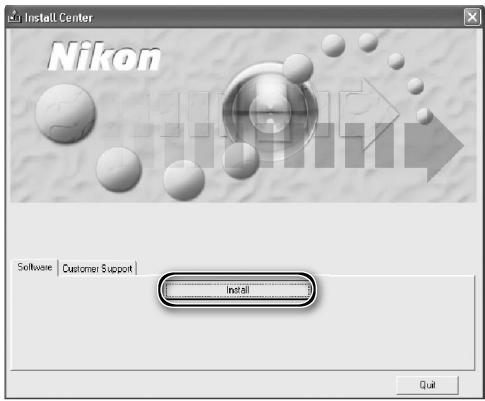
Click Install
The "Install Center" dialog will be displayed. Open the "Software" panel and click Install.
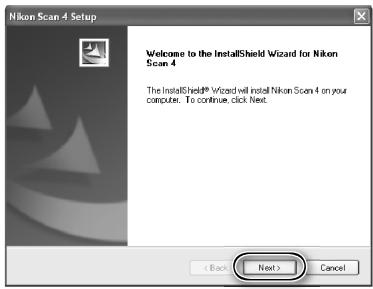
3 Click Next
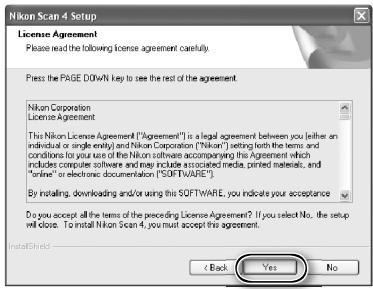
4 Read the license agreement Click Yes to accept the agreement and continue installation.
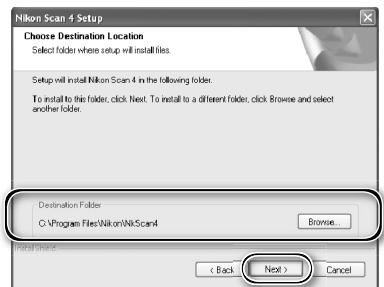
5 Choose a destination folder The default install location for Nikon Scan is displayed under "Destination Folder." To choose a different location, click Browse... and navigate to the desired folder. Click Next to install Nikon Scan to the selected folder.
6 Click Yes Click Yes to create the destination folder.
7 Select the scanner drivers Select LS-4000/8000/9000 and click Next.
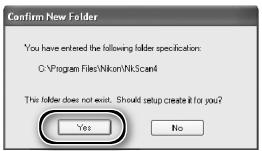
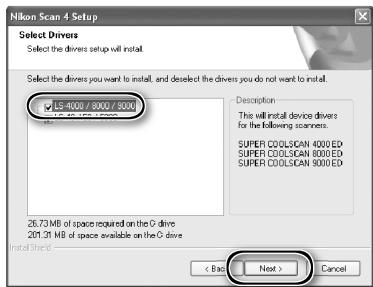
Windows 2000 Professional A "Digital Signature Not Found" dialog will be displayed twice; click Yes each time (if the LS-40/50/5000 scanner drivers were not selected, this dialog will be displayed only once).
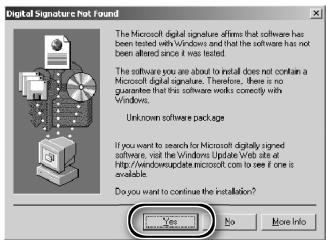
Device Registration
Windows 2000 Professional
A "Digital Signature Not Found" dialog will also be displayed the first time the scanner is connected and turned on following installation of Nikon Scan. Click Yes to register the scanner with the system.
Windows XP, Windows Me, Windows 98 SE
Once Nikon Scan has been installed, the scanner will automatically be registered with the system the first time the scanner is connected and turned on.
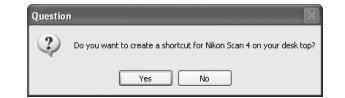
Create a shortcut (optional)
Click Yes to create a shortcut to Nikon Scan on the desktop. Click No to proceed without creating a shortcut.

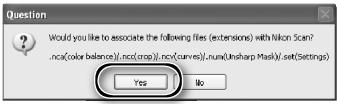
Settings File Extensions
If other Nikon imaging software is installed, the dialog shown at right will be displayed. Click Yes to associate Nikon Scan with settings file extensions such as ".nca" and ".ncv".
Click Use Wizard (recommended)
Click Use Wizard to choose an RGB color-space profile with the help of the Color Space Wizard (recommended). The selected color-space profile can be changed in the Nikon Scan "Preferences" dialog after installation.
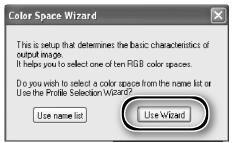
Note that choosing the correct color-space profile is very important if the scanner is used in a professional setting, for example as part of a production workflow. For more information on choosing an RGB color-space profile, see the Nikon Scan Reference Manual (on CD). Your national Nikon office may also be able to provide or recommend color management training resources.
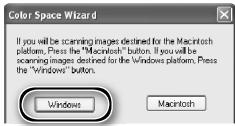
10 Click Windows
10 Clicking Use Wizard in the opening dialog of the Color Space Wizard displays a platform selection dialog. Click Windows.
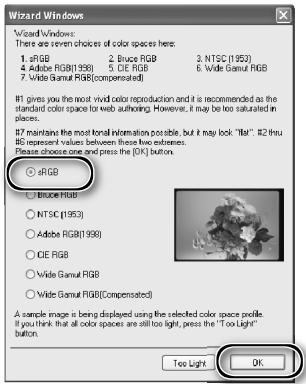
11 Select sRGB
In the Windows Color Space Wizard, select sRGB (recommended) and click OK. For more information on color-space profiles, see the Nikon Scan Reference Manual.

Windows 98 SE
If the computer displays a message stating that an IEEE 1394 update is required, click OK to continue with installation. Once installation is complete and the computer has restarted, update the IEEE 1394 drivers (65).
12 Click Finish
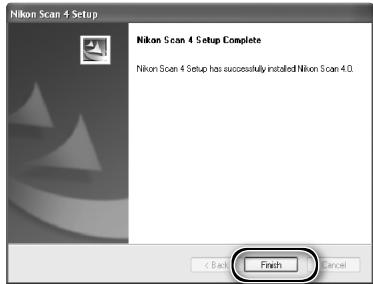
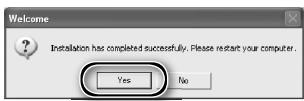
13 Restart the computer Click Yes to restart the computer. Once the computer has restarted, take a few minutes to view the ReadMe file, which may contain important information that could not be included in this manual.
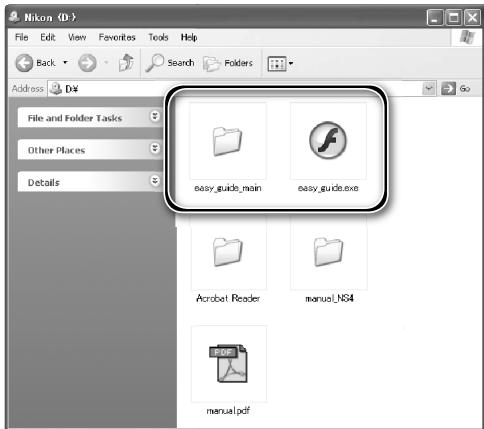
Viewing the Easy Scanning Guide (Windows)
Insert the Nikon Scan 4 Reference Manual/Easy Scanning Guide CD and double-click the easyGuide.exe icon. The Macromedia Flash Player will start and a language selection screen will be displayed; click the appropriate link to view the guide in the desired language. The Easy Scanning Guide can also be copied to the computer hard disk for ease of reference (total size: approximately 200 MB). Copy the "easy_guide_main" folder and easy_guide.exe to the desktop.
Macintosh
Turn the computer on and wait for it to start up. Before continuing with installation, make sure that:
The scanner is NOT connected
- No other applications (including anti-virus software) are running
- The computer satisfies the following system requirements:
| CPU | Power PC G3 or later (G4 or later recommended) |
| OS* | Mac OS 9 (9.1 or later), Mac OS X (10.1.5 or later) |
| RAM† | • Mac OS 9: 64 MB or more (256 MB or more recommended) • Mac OS X: 128 MB or more (512 MB or more recommended) |
| Hard-disk space‡ | A minimum of 70 MB required for installation (200 MB or more recommended), with an additional 200 MB (Mac OS 9) or 550 MB (Mac OS X) of free disk space available while Nikon Scan is running |
| Video resolution | 800×600 pixels or more with 16-bit color (thousands of colors) or more |
| Firewire | Only built-in Firewire ports supported |
| Miscellaneous | CD-ROM drive required for installation |
- For the latest information on supported versions of Mac OS, see the Nikon web site listed in this manual(32).
† More memory may be required depending on film type, scan size, resolution, bit depth, the number of scans performed in each session, the adapter used, and on whether Digital ROC, Digital GEM or Digital DEE is used. A system with more than the minimum amount of memory is recommended.
More free disk space may be required depending on the film type and number of frames. Nikon recommends having as much free disk space as possible when running Nikon Scan.
Mac OS X
Administrator privileges are required to install and uninstall Nikon Scan under Mac OS X.
Mac OS 9
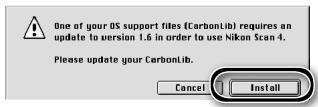
CarbonLib 1.6 or later is required to install Nikon Scan. If the installer detects an earlier version of CarbonLib, a message will be displayed. Click Install to upgrade to a new version of CarbonLib.
Earlier Versions of Nikon Scan
If the installer detects an earlier version of Nikon Scan, the dialog shown at right will be displayed. Click Yes to upgrade to Nikon Scan 4.
Nikon View
For information on installing and using Nikon View, see the Nikon View Reference Manual (on CD).
1 Insert the Nikon Scan CD into the CD-ROM drive
A Nikon Scan 4 CD icon will appear on the desktop. Double-click the icon to open the "Nikon Scan 4" window.
2 Double-click the Welcome icon in the "Nikon Scan 4" window
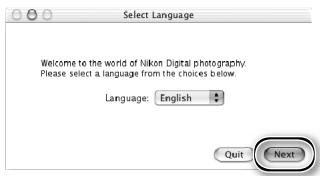
2 Choose a language
A language-selection dialog will be displayed. Select a language and click Next.
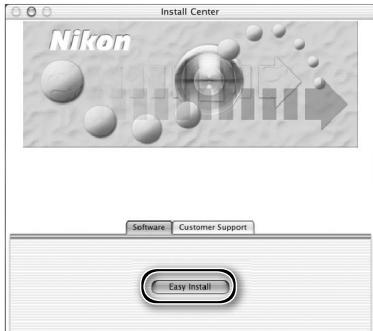
Click Easy Install
The "Install Center" dialog will be displayed. Open the "Software" panel and click Easy Install.


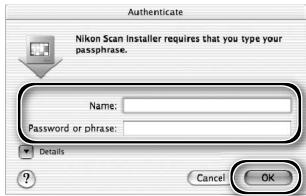
"Authentication" (Mac OS X Only)
Clicking Easy Install in the software panel displays the "Authentication" dialog shown at right. Enter the administrator name and password and click OK.
Read the license agreement
Click Accept to accept the agreement and continue installation.

6 View the "ReadMe" file
Take a few moments to read this file, which may contain important information that could not be included in this manual. Click Continue... to continue with installation.
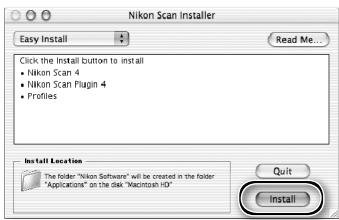
7 Click Install Click Install to begin installation.
Selecting a Plug-ins Folder (Mac OS 9)
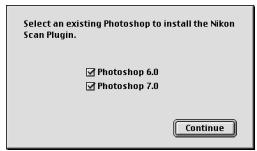
If a copy of the Nikon Scan plug-in is installed in the plug-ins folders for supported versions of Adobe Photoshop, Photoshop can be used to acquire images directly from the scanner. If more than one copy of Photoshop is installed on the computer, a list will be displayed. Select the copies of Photoshop that will be used to acquire images and click Continue to copy the Nikon Scan plug-in to the appropriate plug-ins folders.
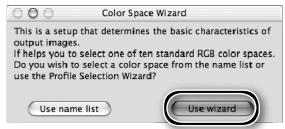
Click Use wizard (recommended)
Click Use wizard to choose an RGB color-space profile with the help of the Color Space Wizard (recommended). The selected color-space profile can be changed in the Nikon Scan "Preferences" dialog after installation.
Note that choosing the correct color-space profile is very important if the scanner is used in a professional setting, for example as part of a production workflow. For more information on choosing an RGB color-space profile, see the Nikon Scan Reference Manual (on CD). Your national Nikon office may also be able to provide or recommend color management training resources.
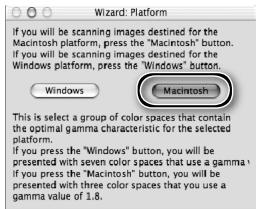
9 Click Macintosh Clicking Use wi
Clicking Use wizard in the opening dialog of the Color Space Wizard displays a platform selection dialog. Click Macintosh.
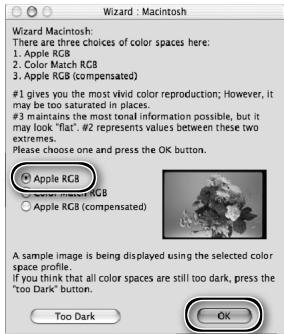
10 Select Apple RGB
In the Windows Color Space Wizard, select Apple RGB (recommended) and click OK. For more information on color-space profiles, see the Nikon Scan Reference Manual.
11 Add Nikon Scan to the Dock (Mac OS X) or create an alias (Mac OS 9)
Click Yes to add Nikon Scan to the Dock (Mac OS X) or to create an alias for Nikon Scan on the desktop (Mac OS 9). Click No to proceed without adding Nikon Scan to the Dock or creating an alias.
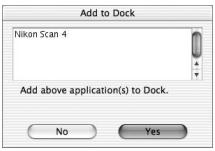
Mac OS X
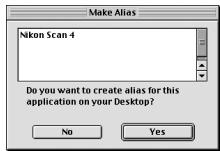
Mac OS 9
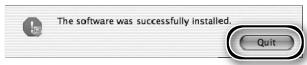
12 Click Quit
Click Quit to exit the installer.
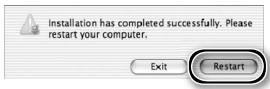
12 Restart the computer
Click Restart to restart the computer. This completes installation of Nikon Scan.

Viewing the Easy Scanning Guide (Macintosh)
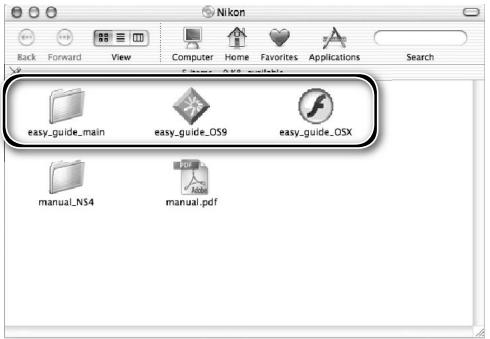
Insert the Nikon Scan 4 Reference Manual/Easy Scanning Guide CD and double-click the easy-guide OSX icon (Mac OS X) or easy_guide OSX9 icon (Mac OS 9). The Macromedia Flash Player will start and a language selection screen will be displayed; click the appropriate link to view the guide in the desired language. The Easy Scanning Guide can also be copied to the computer hard disk for ease of reference (total size: approximately 200MB). Copy the "easy_guide_main" folder and easy_guide OSX (Mac OS X) or easy_guide OSX9 (Mac OS 9) to the desktop.
Users of Mac OS X should ensure that the start-up disk is named using only letters and numbers (the default name for the start-up drive is "Macintosh HD"). The guide may not start if the volume name contains punctuation or other non-alphanumeric characters.
Installing the Scanner
Step 1—Choose a Location
Choose a flat, stable location close to the computer.
Installling the Scanner
Do NOT install the scanner where other objects would block its vents or where it would be exposed to:
- direct or reflected sunlight
- condensation or rapid temperature changes
- electromagnetic interference from other electronic devices
- temperatures over 35^ C ( 95^ F ) or below 10^ C ( 50^ F )
excessive dust - water vapor from a humidifier or similar device
- smoke
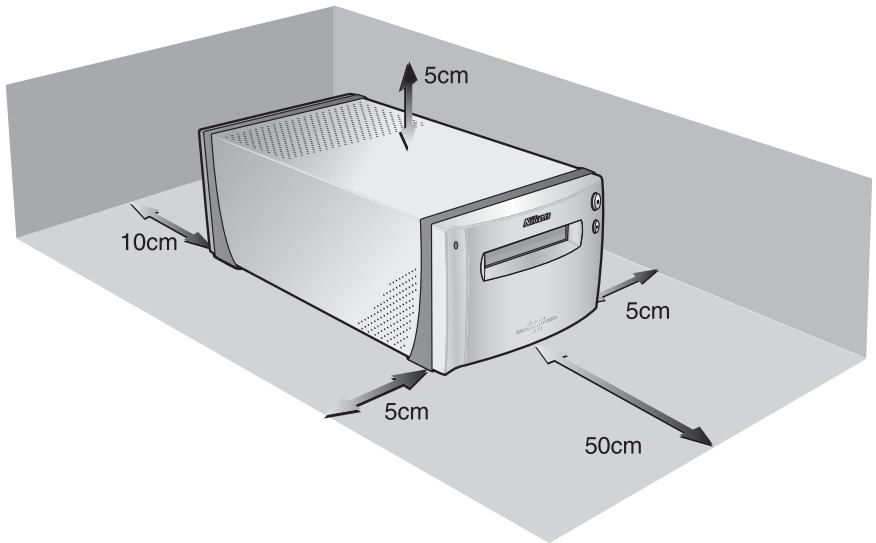
Leave at least 5cm (2^ ) clear above and on either side of the scanner, 10cm (4^ ) behind, and 50cm (20^ ) in front.
Step 2—Connect the Power Cable
1 Make sure the power switch is in the "off" position
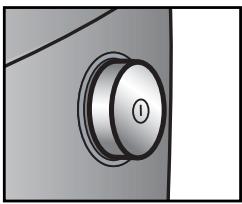
Off position
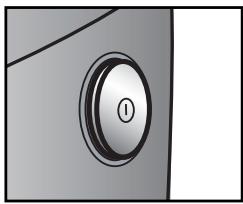
On position
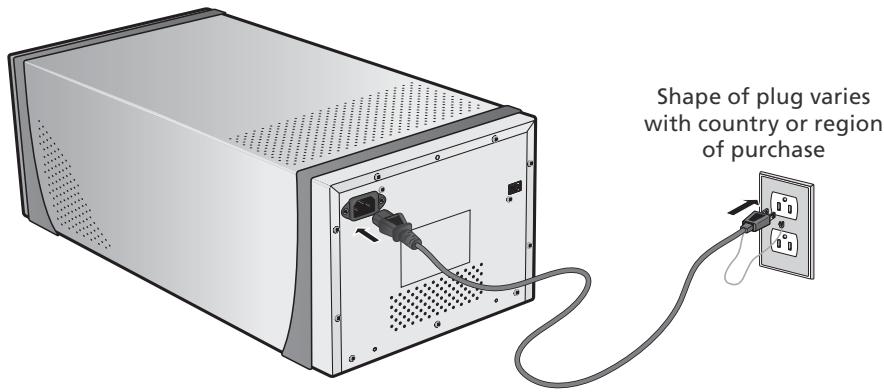
Connect the power cable
Connect the power cable as shown and plug the scanner into a general-purpose household outlet.
Step 3—Connect the IEEE 1394 Cable
1 Make sure that the scanner is off
Connect the IEEE 1394 cable
Connect the supplied IEEE 1394 cable as shown below. Connect the scanner directly to the computer; do not connect the cable via an IEEE 1394 hub or adapter.
Connecting the IEEE 1394 Cable
Connect the cable as shown. When connecting the cable to the computer, use a six-pin IEEE 1394 (Firewire) terminal like that shown in the cross-section below. Attempting to insert the connectors in another orientation or using the wrong connector could not only damage the connector, but also the scanner or computer.
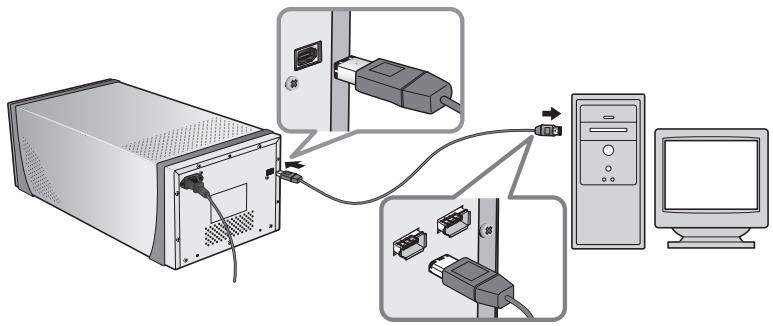
Six-Pin IEEE 1394 (Firewire) Terminal and Connector (Cross Section)
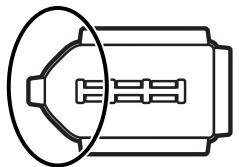
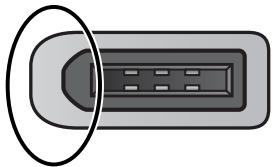
Align rounded edge of connector (circled above at right) with matching curve on scanner or computer IEEE 1394 (Firewire) terminal (above at left).
Connecting the Scanner
- Do not connect or disconnect IEEE 1394 cables while Nikon Scan is starting or after it has started.
- The scanner may not function as expected when used with other IEEE 1394 devices. Should the scanner not function as expected, use the scanner with all other IEEE 1394 devices disconnected. Do not connect two or more scanners to the computer simultaneously.
- Do not connect or disconnect USB or IEEE 1394 interface cables or operate camera control software for digital cameras connected via USB while the scanner status LED is blinking.
- After disconnecting the cable, wait a few seconds before connecting it again.
Computers with Four-Pin Connectors
The supplied IEEE 1394 cable can not be connected to computers with a four-pin DV connector. Use a cable with one six-pin and one four-pin connector or a six-to-four pin adapter.
Basic Scanning
This chapter details the steps involved in making a simple scan.
Step 1—Turn the Scanner On 24
Step 2—Place Film in the Holder 25
Step 3—Open the Scan Window 30
Step 4—Insert the Holder 32
Step 5—Choose a Film Type and Color Model ... 33
Step 6-Preview. 35
Step 7—Select a Crop 37
Step 8-Scan and Save 39
Step 9-Eject and Exit. 41
Step 1—Turn the Scanner On
Before turning on the scanner for the first time, make sure that Nikon Scan is installed on the computer and that the power and IEEE 1394 cables are connected. For information on installing Nikon Scan and connecting the cables, see "Setup" (7).
1 Turn the computer on
Turn the computer on and wait for the operating system to start up.
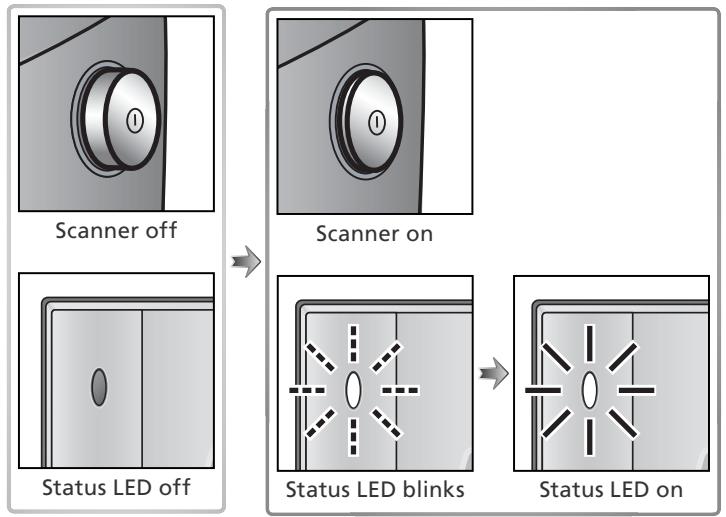
Turn the scanner on
The status LED will blink for about two minutes while the scanner initializes. The status LED will stop blinking when initialization is complete.
Windows 98 SE
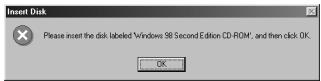
If the dialog shown at right appears the first time the scanner is connected and turned on, the IEEE 1394 driver update has not been completed. Update the IEEE 1394 drivers as described in "Updating the IEEE 1394 Drivers (Windows 98 SE Only): The 'Insert Disk' Dialog" (65).
Windows 2000 Professional
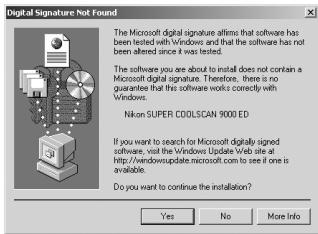
A "Digital Signature Not Found" dialog will be displayed the first time the scanner is connected and turned on following installation of Nikon Scan. Click Yes to register the scanner with Windows.
If the Status LED Flickers
If the status LED flashes quickly (about five times a second), turn the scanner off, wait at least five seconds, and turn the scanner on again. If the problem persists, see "Troubleshooting" 63.
Step 2—Place Film in the Holder
The film holders provided with the scanner can be used to scan 35-mm film, 35-mm slides, medium-format film, and 59 × 82 mm electron microscope film.
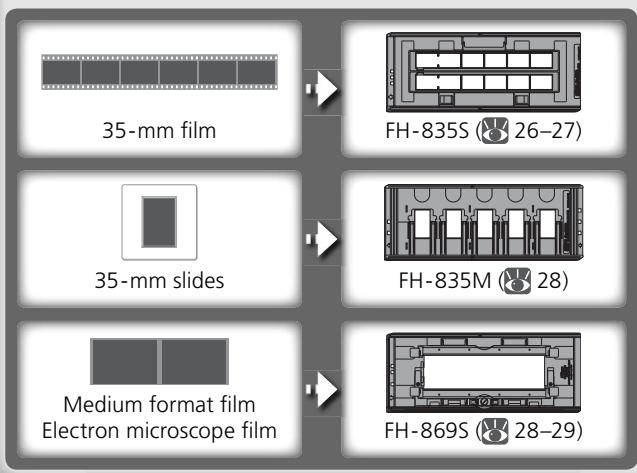
1 Choose a holder
Choose a holder appropriate to the type of film.

Film
35-mm film (in strips of up to six frames)
35-mm slides

Medium format (120/220, 2¼ or Brownie) film or 59 × 82 mm electron microscope film
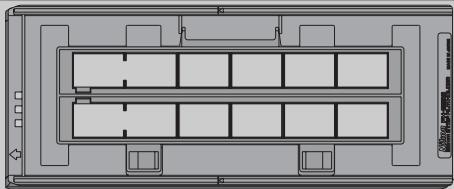
Film holder
FH-835S
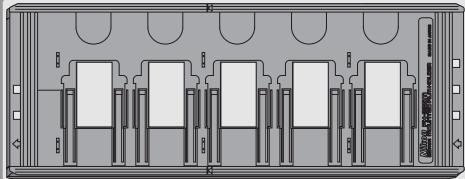
FH-835M
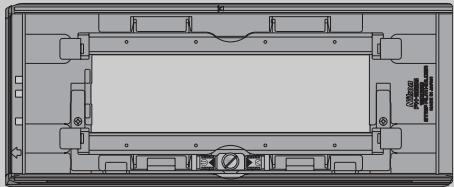
FH-869S
Caring for Holders and Film
Keep holders and film free of dust. If necessary, remove dust from holders and film with a blower before scanning. Dust on the film or holder could damage the film or affect the quality of the scanned image (5).
Optional Film Holders
Optional film holders are available for 16-mm and panorama film, medium-format slides, and glass microscope slides. For more information, see "Optional Holders" (51).
2 Place film in the holder FH-835S Holder for 35-m
The FH-835S can be used with one or two strips of 35-mm film. Each strip can be up to six frames long.
2.1 Open the holder
Insert your fingers through the holes in the bottom half of the holder and undo the latches, then open the holder.
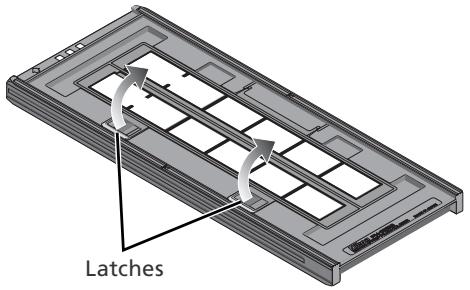
2.2 Insert film
Place film in the holder with the reflective film base up and the matte emulsion surface down.
Inserting Film
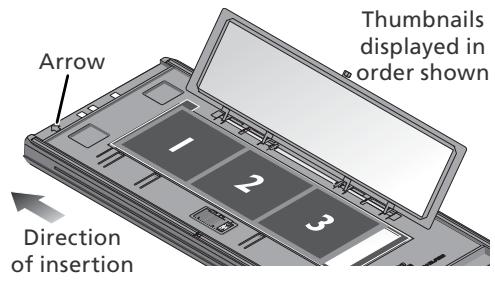
Align the first frame in each strip with an aperture at the left end of the holder. Leaving the apertures at the left end of the holder uncovered or covering them with a masking sheet could cause scanning errors or interfere with accurate color reproduction.
Use only one type of film; do not mix negatives with positive film.
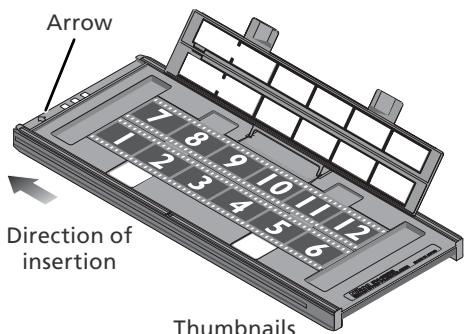
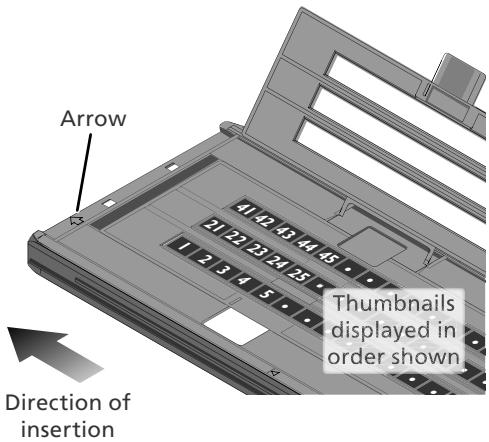
Thumbsail displayed in order shown
Inserting Film
Do not place film or masking sheets so that they protrude from the holder or overlap the film guides. Failure to observe this precaution could cause the holder to jam in the scanner.
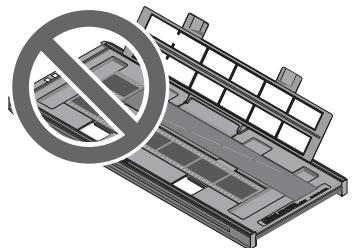
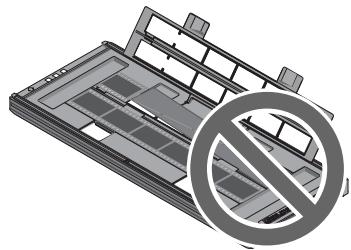
"Film Base"/"Emulsion Surface"
When film is examined under bright light, the image on the emulsion surface will be in slight relief, with bumps and hollows where the image has been developed. The opposite surface (the film base) will be reflective and smooth. Insert film with the base up.
2.3 Insert masking sheets
When scanning a single strip or strips of different lengths, place the film at the left end of the holder and cover any open apertures with the supplied masking sheets, cutting the sheet to the appropriate length if necessary. When scanning a single strip, place the film in the bottom row and the masking sheet in the top row.
When scanning two strips of equal length, place the film at the left end of each row. Masking sheets are not required.
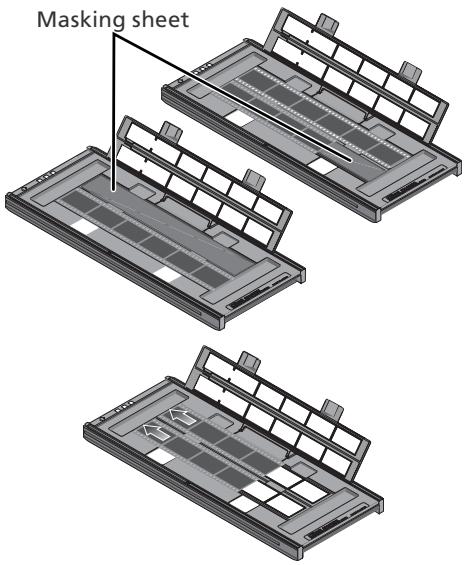
2.4 Position the film
Close the holder without latching it, and check that the film is correctly aligned. If necessary, insert a pen or other pointed object into the perforations and slide the film until the frames are aligned with the apertures. The perforations can be accessed through the cutouts at the left end of the holder.
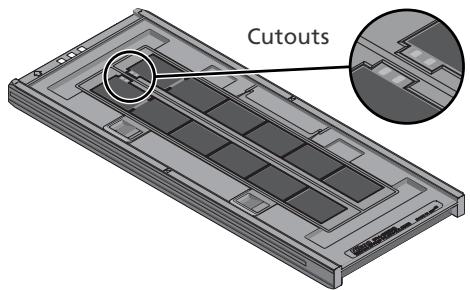
Positioning Film
Care should be taken to avoid damaging the perforations when positioning the film. Do not attempt to position the film while the holder is latched. Failure to observe this precaution could damage the film.
2.5 Latch the holder
Press the holder closed until the latches click into place. Proceed to "Step 3—Open the Scan Window" (30).
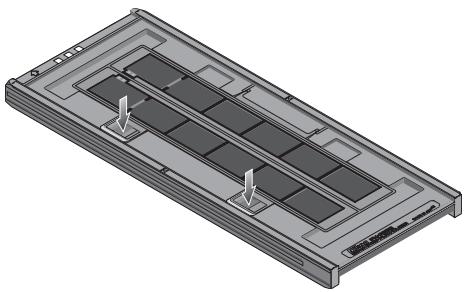
FH-835M Holder for 35-mm Slides
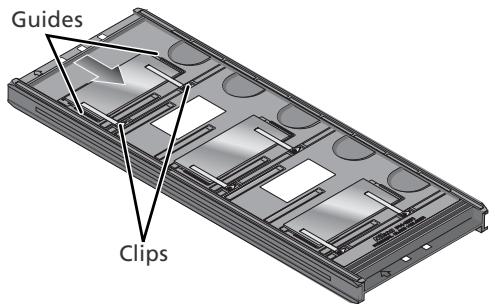
The FH-835M can be used to scan up to five 35-mm slides with mounts 1.0 - 3.2mm thick. Slide the mounts into place between the guides, short side first and with the reflective film base up (the matte emulsion surface down; 26). Stop when the slides contact the base of the clips.
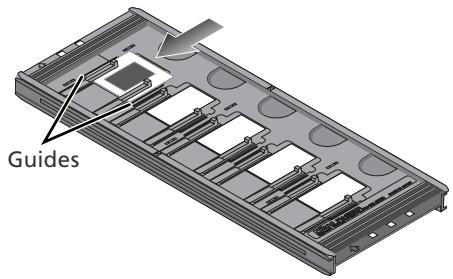
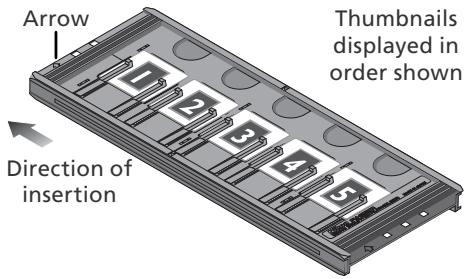
Inserting Slides
Insert slides between the guides. Forcing the slides onto the guides could damage the slides or clips and prevent the scanner from focusing correctly. To minimize resistance, try inserting slides at a slight angle.
Be sure a slide is inserted in the first slot. Leaving the aperture at the left end of the holder uncovered could cause scanning errors or interfere with accurate color reproduction.
Proceed to "Step 3—Open the Scan Window" (30).
FH-869S Holder for Medium-Format Film
The FH-869S can be used to scan medium-format (120/220, 2 14 or Brownie) film and 59 × 82 ~mm electron-microscope film. The length of the film strip that can be inserted in the holder depends on the type of film:
- 6×4.5:1-4 frames
- 6×6:1-3 frames
- 6×7-6×9:1-2 frames
2.1 Open the holder
Undo the latches and open the holder.
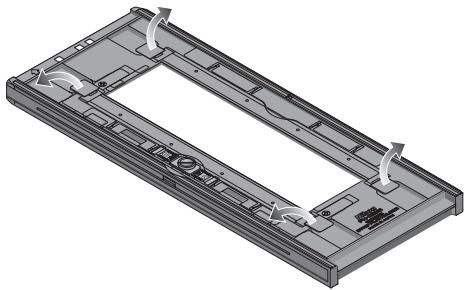
2.2 Insert film
Place film in the holder with the reflective film base up (matte emulsion surface down; 26) and with the end of the film against the stops.
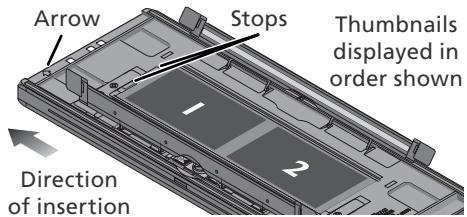

Inserting Film
Use only one type of film; do not place negatives in the holder with positive film.
Be sure the end of the film is flush with the stops. A gap between film and stop could interfere with accurate color reproduction.

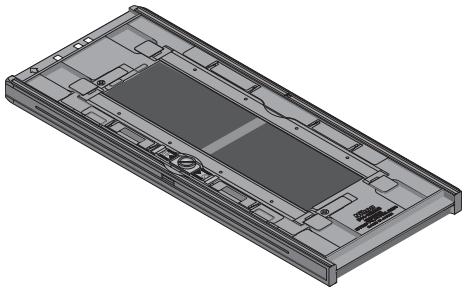
Close the holder
Close the holder, pressing the covers down until they latch.

Scanning Curled Film
Curl of 10mm or less can be removed as follows:
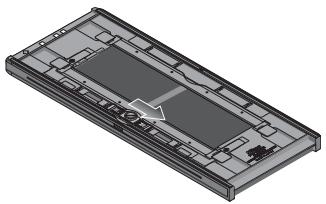
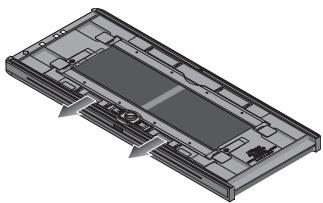
1 Unlatch the movable base
Slide the latch in the direction shown.
2 Flatten the film
Place your fingers on the grips and slide them gently outwards. Do not use force. To prevent the film from sliding out of position, press the holder cover lightly before sliding the grips.
3 Latch the movable base
Slide the latch in the direction shown.
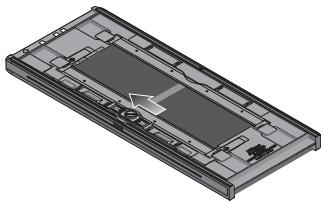
Film with a curl of more than 10mm can not be scanned in the FH-869S. Use the optional FH-869G glass-covered film holder or the optional FH-869GR glass-covered rotating film holder (54, 56).
Step 3—Open the Scan Window
The scanner is controlled from the Nikon Scan scan window.
1 Choose the application in which pictures will be displayed
After scanning, pictures can be displayed either in Nikon Scan or in a third-party application such as Adobe Photoshop. The application in which pictures will be displayed after scanning is referred to as the "host application."
| Application | Platform | Description |
| Nikon Scan | Windows | Nikon Scan used as a “stand-alone” application to scan, process, print, and save images. |
| Macintosh | ||
| Third-party application | Windows | Nikon Scan used as a TWAIN source to control the scanner from a third-party application (application must support TWAIN). Images are scanned using Nikon Scan and processed, printed, and saved in the third-party application. |
| Macintosh | Nikon Scan plug-in used to control the scanner from a third-party application (application must support Adobe Photoshop 5.0 acquire plug-ins, and a copy of the Nikon Scan plug-in must be installed in the application's plug-ins folder). Images are scanned using Nikon Scan and processed, printed, and saved in the third-party application. |
2 Open the scan window
| Application | Platform | Description | |
| Nikon Scan used as "stand-alone" application | Windows | Click the Start button and select Nikon Scan 4 from the programs list. (If a shortcut was created during installation, you can also double-click the icon on the desktop.) | Inspirals Shortcut to CAPTURE Adobe Photoshop Edit Nikon View Notepad Adobe Photoshop 5 Limited Edition All Programs Log Off Turn Off Computer |
| Macintosh (Mac OS X) | Open the Applications:Nikon Software:Nikon Scan 4 folder on the start-up disk and double-click the icon. (If Nikon Scan was added to the Dock during installation, you can also click the icon in the Dock.) | ||
| Macintosh (Mac OS 9) | Open the Nikon Software:Nikon Scan 4 folder in the folder selected at installation (the default folder is the Applications folder on the start-up disk) and double-click the icon. (If an alias was created during installation, you can also double-click the icon on the desktop.) | ||
| Third-party application | Windows | Select Nikon Scan from the application's list of "Acquire" or "Import" sources. For more information, see the documentation provided with the application. | |
| Macintosh | |||
The scan window will open.
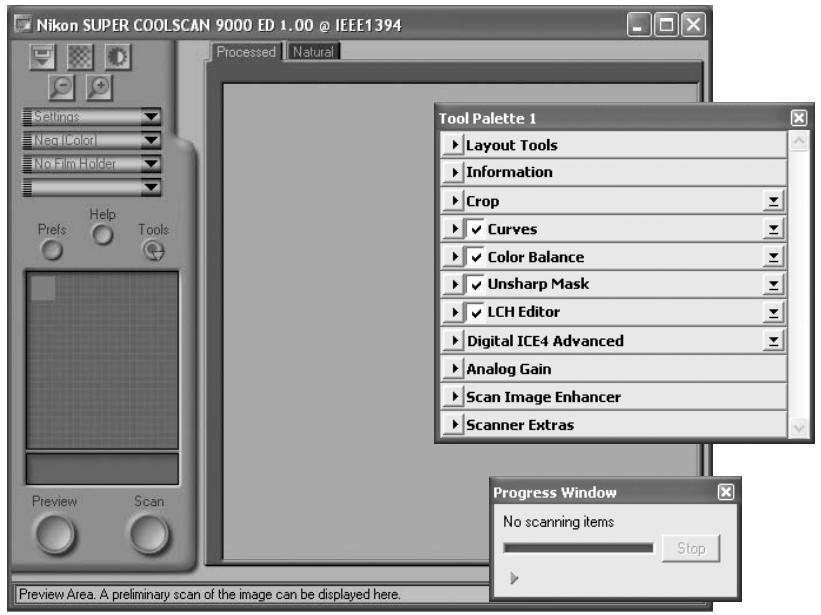
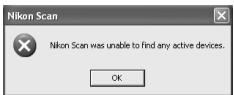
Nikon Scan Is Unable to Find Any Active Devices
If the message shown at right is displayed when the scan window opens, check that the scanner is connected and turned on and that the status LED is not flashing. If the scanner is connected to a Windows computer, check that the scanner has been registered with the Windows Device Manager (74).
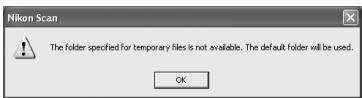
Temporary Storage (Windows Only)
If the message shown at right is displayed, click OK.
Step 4—Insert the Holder
1 Check the status LED
Make sure that the status LED is glowing steadily. Do not insert film holders while the status LED is blinking.
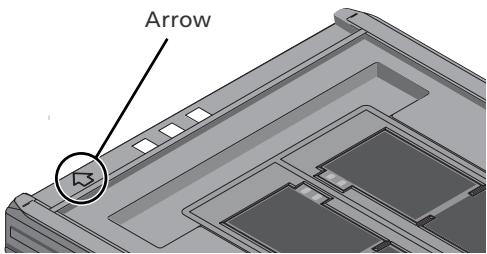
Find the arrow on the front of the holder
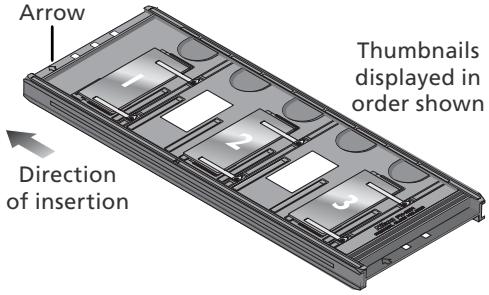
The front each holder is marked with an embossed arrow showing the direction of insertion. When the holder is inserted, the side with the arrow should face up with the arrow pointing toward the scanner.
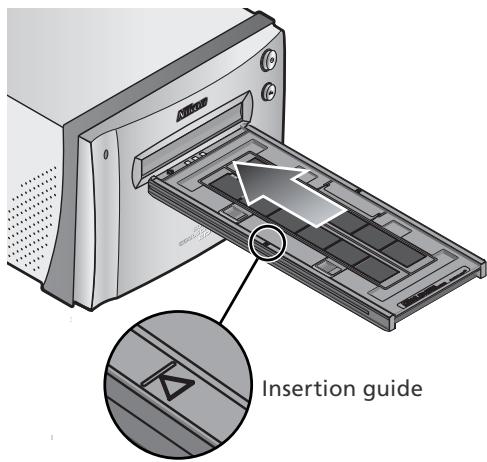
3 Insert the holder
3 Keeping the holder straight, slide the it into the holder slot with the arrow up and facing toward the scanner. Once the holder has been inserted as far as the insertion guides, the automatic loading mechanism will activate. Remove your hands from the holder when loading starts. When loading stops, the holder is in scanning position.
Inserting Holders
If the loading mechanism is does not activate, remove the holder and try again. Do not use force. Once loading has begun, do not interfere with the loading mechanism. Attempting to remove the holder during loading or otherwise interfering with the mechanism could cause scanning errors.

Calibration
The scanner is automatically calibrated at regular intervals if left on with no holder in place. Calibration will end when a holder is inserted.
Step 5—Choose a Film Type and Color Model
The steps that follow involve the controls in the Nikon Scan scan window. The names and functions of the controls in the scan window are described below.
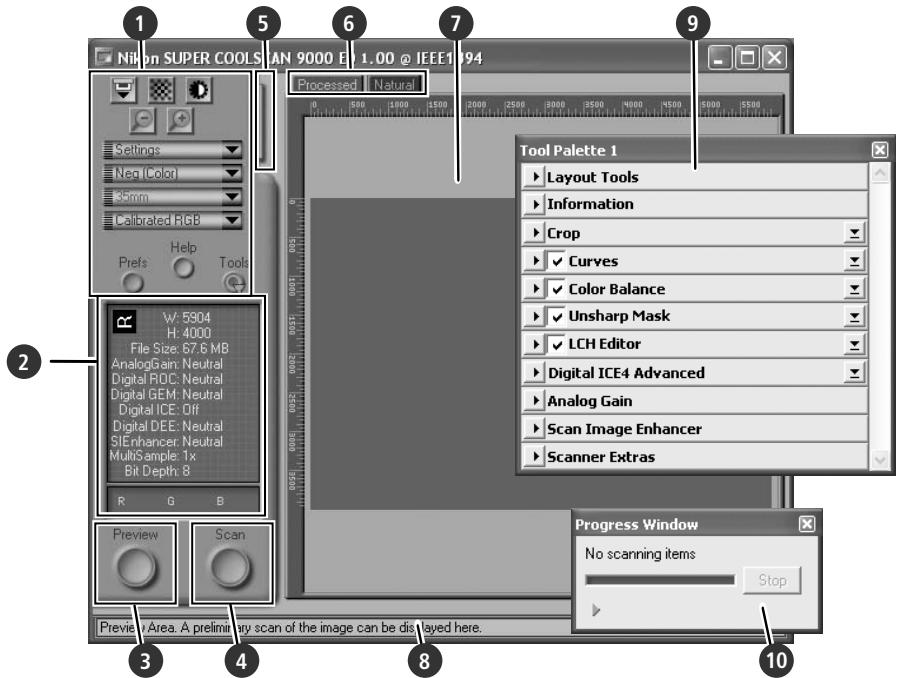
Control area (345)
Contains frequently used scanning and preview controls.
2 Information panel (46)
Lists information on current settings.
Preview button (46)
Click to view selected frames in the preview area, where they can be enhanced using the tools in the Tool Chest.
4 Scan button (46)
Click to scan the selected frames.
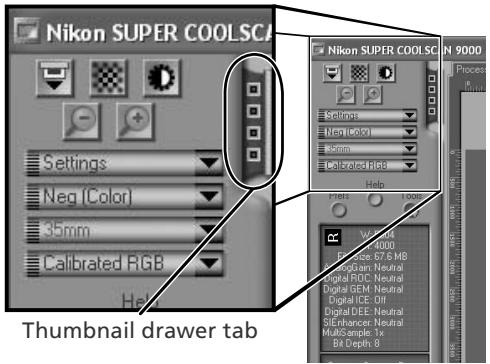
5 Thumbnail drawer tab (47)
Click to select frames to be previewed or scanned.
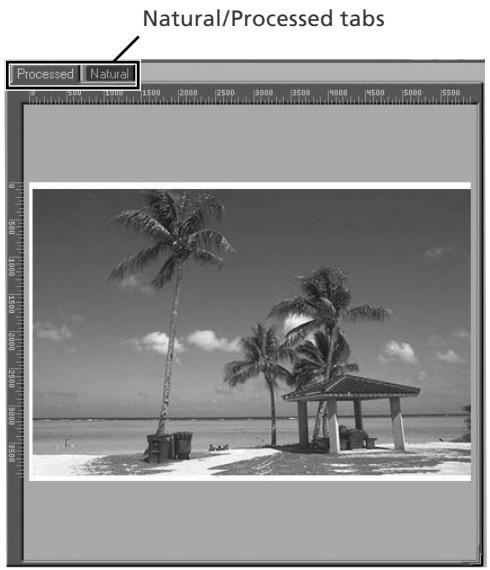
6 Processed/Natural tabs (47)
The "Processed" panel shows how the image would appear if scanned at current settings, the "Natural" panel the unmodified image. Comparing these two views can help determine whether changes to settings are having the desired effect.
Preview area 47
Provides a preview of the image prior to scanning. Any modifications to settings are visible in the "Processed" panel.
8 Interactive help
Displays a brief tip about the control under the cursor.
9 Tool Chest 48
Contains tools for changing the orientation of the image and selecting the portion to be scanned, choosing the dimensions and resolution of the scanned image, enhancing color, contrast, and sharpness, processing images to remove the effects of scratches, dust, fading, film grain, and underexposure, and controlling scanner settings.
10 Progress window (3 47)
Shows the status of current tasks and lists operations that have been or are about to be performed.
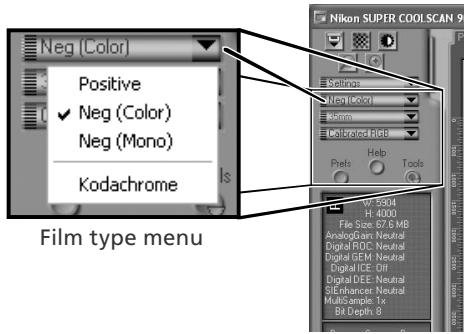
1 Choose the film type
Click the film-type menu in the scan window control area and choose a film type that matches the film being scanned.
| Option | Use with |
| Positive | Use with most makes of positive slides and reversal film. These films have a black base, and the image in each frame appears in its actual colors. |
| Neg (Color) | Use with color negatives. Color negatives can be identified by their orange-tinted base and by the fact that the colors in the images are reversed. |
| Neg (Mono) | Use with black-and-white negatives. |
| Kodachrome | Use with Kodachrome positives. |
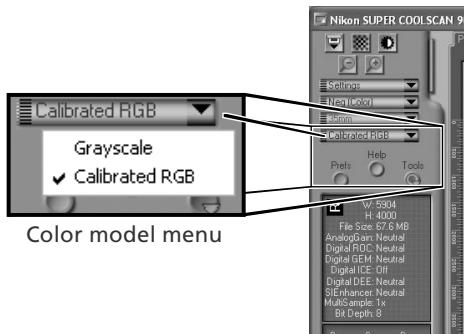
Choose a color model
Click the color-model menu in the scan window control area and choose a color model according to how the image will be used.
| Option | Description |
| Grayscale | Image scanned as grayscale data. Use when scanning images that will be printed or viewed in black-and-white. |
| Calibrated RGB | Image scanned as RGB data. Use to scan images in color. |
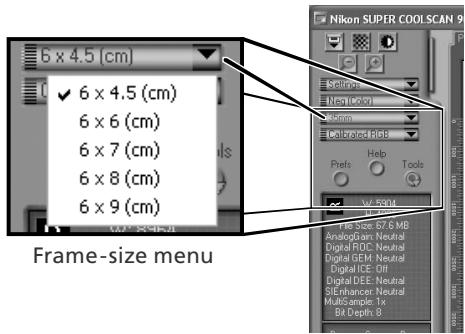
2 Select the frame size (medium-format film only)
When scanning medium-format (120/220 or Brownie) film in the FH-869S, click the frame-size menu and select the film frame size (28).
Step 6—Preview
1 Open the thumbnail drawer Click the thumbnail drawer tab.
Display thumbnails
To view the frames in the thumbnail drawer as small "thumbnail" previews, click the button. The scanner will scan the film to generate thumbnails and display them in the thumbnail drawer.
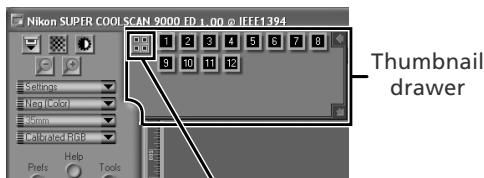
Click here to display/hide thumbnails
2 Select frames
Select the frame to be scanned by clicking the associated thumbnail or frame number (selected frames are indicated by a green border). To select multiple frames, hold down the Ctrl (Windows) or command (Macintosh) key while clicking each frame in turn, or hold down the shift key and click to select two images and all frames between them. To view frames not currently visible in the thumbnail drawer, use the scroll bar or enlarge the drawer by dragging the handle at its lower right corner.
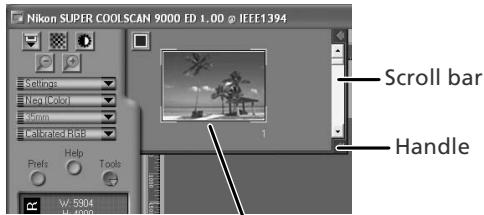
Selected frame
The Thumbnail Display
If the wrong film type or frame size is chosen when thumbnails are generated, the thumbnail display will not reflect the contents of the film. Click the button in the thumbnail drawer to hide thumbnails, and then select the correct film type or frame size. Click the button to view the new thumbnails.
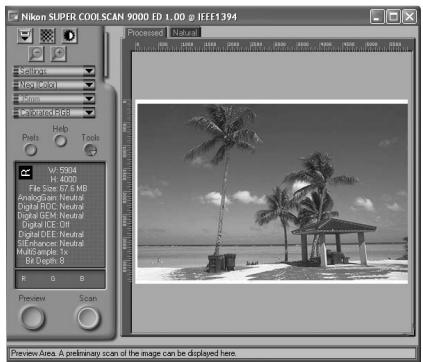
4 Click the Preview button A preview will be displayed in the preview area.
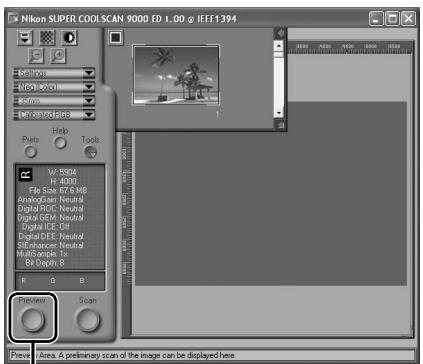

Preview button
If multiple frames are selected, additional frames can be previewed by clicking the thumbnails in the thumbnail drawer.
Rotating and Flipping Images
The Layout Tools palette in the Tool Chest 48 contains buttons for rotating and flipping images.
| Button | Function |
| → | Rotate image 90° clockwise |
| ← | Rotate image 90° counter-clockwise |
| ↔ | Flip image horizontally |
| ‡ | Flip image vertically |
Click to display Layout Tools palette
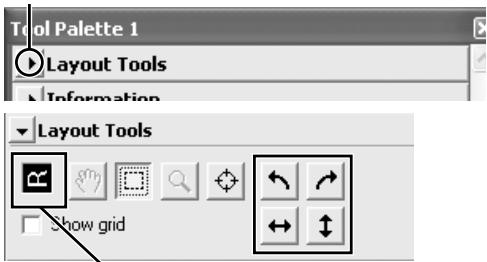
Orientation of letter "R" reflects any flips or rotations that have been performed. "R" turns red when image is flipped.
Step 7—Select a Crop
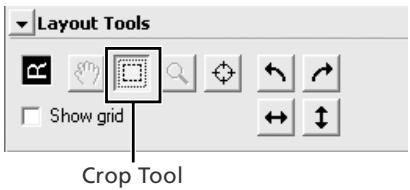
To scan only part of an image into the host application, use the Crop Tool in the Layout Tools palette to select the desired area. This selection is referred to as a "crop."
1 Open the Layout Tools palette
Click the triangle next to "Layout Tools" in the Tool Chest (if the Tool Chest is not already open, click the Tools button in the scan window and select Tool Palette 1 from the menu that appears).
2 Select the Crop Tool
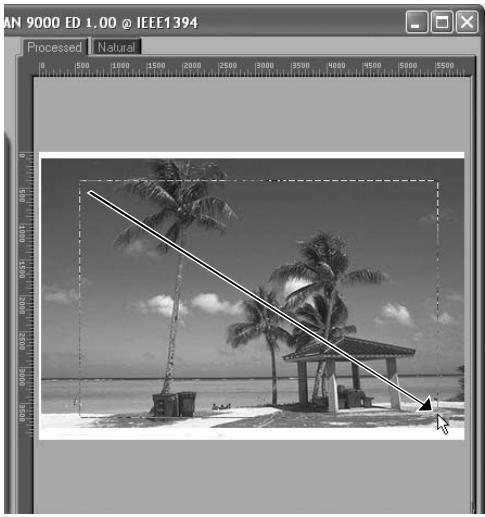
3 Select a crop To select a crop
To select a crop, drag the mouse over the image in the preview area. The borders of the crop are indicated by a dotted line. The size of the crop can be changed by dragging its borders. To change the position of the crop, place the cursor inside the selected area and drag it to a new location.
Repeat this step for the other images selected in the thumbnail drawer. To display images in the preview area, open the thumbnail drawer and click the selected thumbnails.
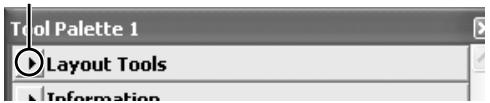
Click to display Layout Tools palette

Choosing an Output Size and Resolution
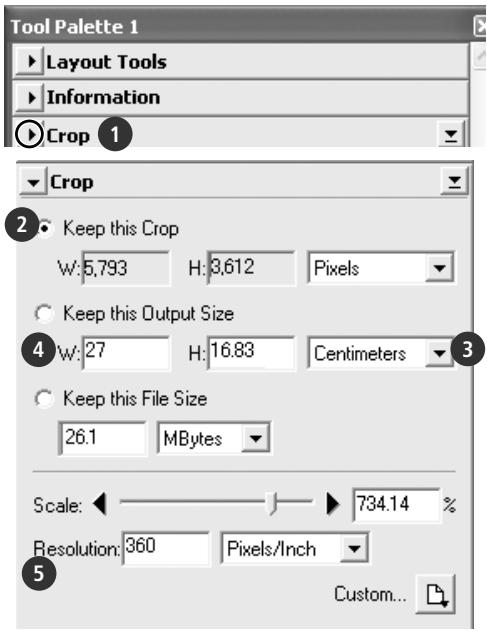
The "Crop" palette in the Tool Chest is used to specify the size and resolution of the crop when opened in the host application 30). For example, to scan an image so that it can be printed within the margins of A4 (21.0× 29.7cm) or lettersized (11^ × 8.5^ ) paper on a typical inkjet printer:
1 Click the triangle next to "Crop" in the Tool Chest to open the "Crop" palette.
2 Choose Keep this Crop and use the mouse to select a crop in the preview area 37).
3 Choose Centimeters or Inches from the output units menu.
4 Enter a value for Height or Width that will fit on A4 paper (remember to leave a margin of least 2cm / 0.79^ ). The other value will automatically be adjusted to maintain the current crop; if the result is still too large, enter a value that will fit on A4 paper.
5 Enter an output resolution of 360 pixels per inch.

Scan Bit Depth
The scan bit depth determines the maximum number of colors in the image after scanning. A choice of sixteen and eight bits is available in the "Scanner Extras" palette. For more information, see the Nikon Scan Reference Manual (on CD).

Scan Image Enhancer
The image enhancement tools in the Tool Chest can be used to enhance images before they are scanned. For example, the Scan Image Enhancer automatically adjusts brightness, contrast, and hue to produce an image that can be printed or used "as is," without further alteration (note that this will increase scanning times and may not have the desired effect on dark images). For information on the Scan Image Enhancer and the other image adjustment options and scan settings available in Nikon Scan, see "Nikon Scan" 43) or the Nikon Scan Reference Manual (on CD).

Easy Scanning Guide
The Easy Scanning Guide gives examples of how to adjust "Crop" palette settings in a variety of situations.
Step 8—Scan and Save
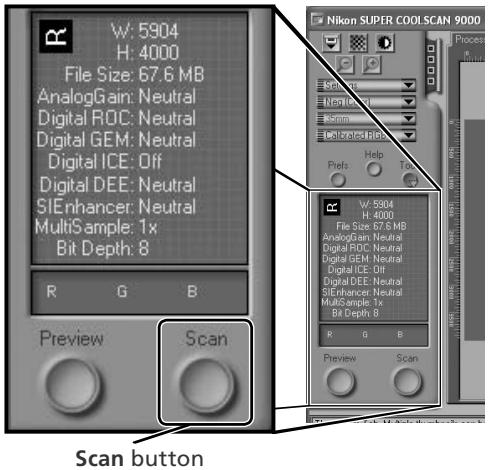
1 Click the Scan button
Click the Scan button to begin scanning the crop selected in the preview area. Progress is shown in the progress window (47).

Batch Scans
If multiple frames are selected in the thumbnail drawer 35), clicking the Scan button will display a dialog of batch scan options. Click OK to save the scanned images to disk. If Nikon Scan is being used as a "stand-alone" application, the "File Saving Options" dialog will be displayed; choose a location and file format and click OK to begin scanning. Instead of being opened in image windows, the images will be saved in the location chosen in the "File Saving Options" dialog. Proceed to Step 9, "Eject and Exit" 41).
When scanning is complete, images will be opened in image windows in the host application (single scans only). Note that the scan window may remain open "on top" of the host application window; to view the images, it may be necessary to move the scan window.
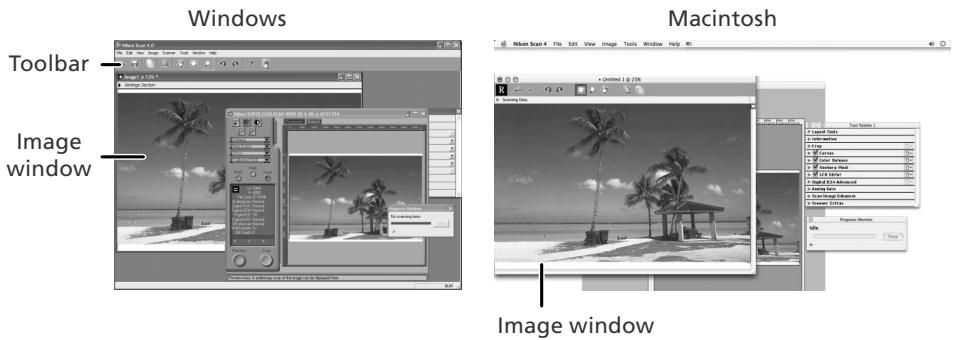
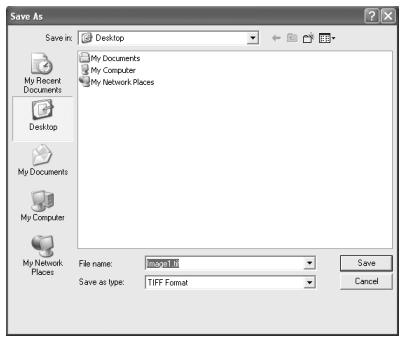
2 Select the save command To save the image in the active window, select Save or Save As... from the File menu in the host application 30). If Nikon Scan is being used as a "standalone" application under Windows, the image in the active window can also be saved by clicking the ("Save") button in the toolbar.
3 Save the image After navigating to the desired location, enter a name for the image and choose a file format. Click the Save button to save the image to disk. Repeat steps 2 and 3 until all images have been saved.
Typical "Save As" dialogs
Windows
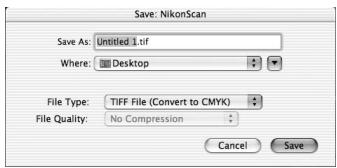
Macintosh
Printing Images
Images can be printed by selecting the print command from the File menu in the host application. If Nikon Scan is being used as a "stand-alone" application under Windows, the image in the active window can also be printed by clicking the button in the toolbar. See the Nikon Scan Reference Manual for more information.
Step 9—Eject and Exit
1 Eject the holder
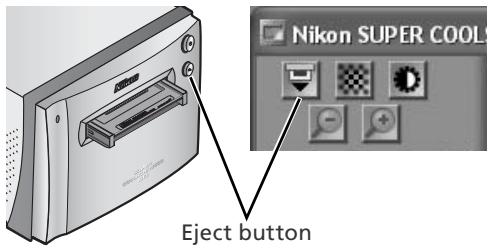
Press the eject button on the front of the scanner or click the eject button in the control area of the scan window. Ejection is complete when the status LED has stopped blinking.

Removing Holders
Wait until ejection is complete before removing the holder by hand.
Exit the host application
2 Remove the scanner from the system (Windows Me/Windows 98 SE only)
Select Exit (Windows) or Quit (Mac OS 9) from the File menu. In Mac OS X, open the application menu and choose the "Quit" option for the host application.
Windows Me
Shut down the computer and turn the power off.
Windows 98 SE
Click the "Unplug or Eject Hardware" icon in the task bar and select Stop
Nikon SUPER COOLSCAN 9000 ED
from the menu that appears. A message will be displayed stating that the scanner can be safely removed from the system; click OK.

4 Turn the scanner off
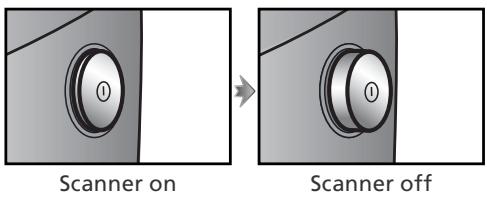
Ejecting Holders
The holder will be ejected automatically if the scanner is turned off and then on again.
5 Remove the film
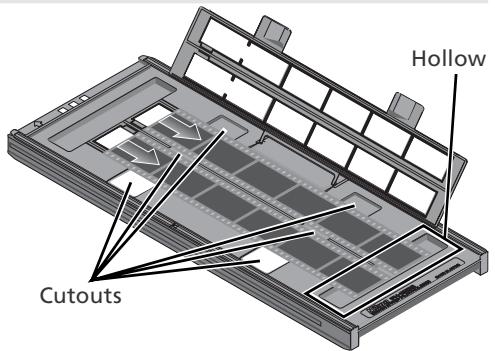
FH-835S Holder for 35-mm Film
Insert your fingers into the holes in the lower portion of the holder and undo the latches. Open the holder and use the cutouts to pick the film up by its edges. If the edges of the film are not accessible, tilt the holder to slide the film to the hollows at either end of the lower holder.
FH-835M Holder for 35-mm Slides
Slide the mounts out from under the clips that hold them in place.
Do Not Use Force
Do not use force when removing slides. Failure to observe this precaution could damage the clips holding the slides in place. Do not lift the slides up until fully removed from the clips.
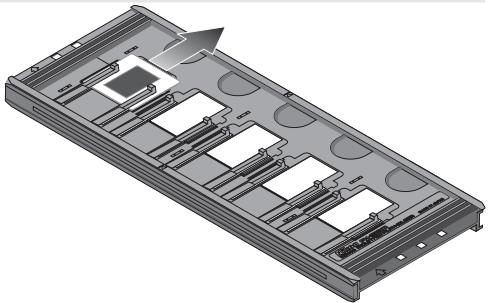
FH-869S Holder for Brownie Film
Open the cover and pick the film up by the edge at the rear of the holder.
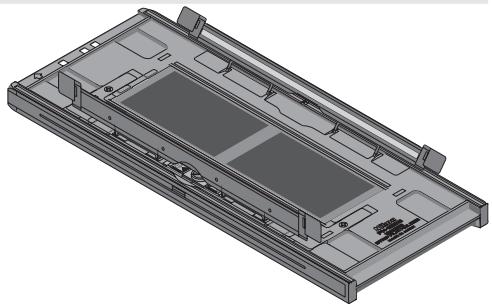
Do Not Store Film in the Holder
Leaving slides in the FH-835M for extended periods could damage the clips holding the slides in place. Film left in the FH-869S for extended periods could develop permanent indentations.
Nikon Scan
This chapter provides a brief overview of the Nikon Scan software that controls the scanner. For more information, see the Nikon Scan Reference Manual (on CD).
The Scan Window 44
The Tool Chest. 48
The Scan Window
The parts of the scan window are identified below.
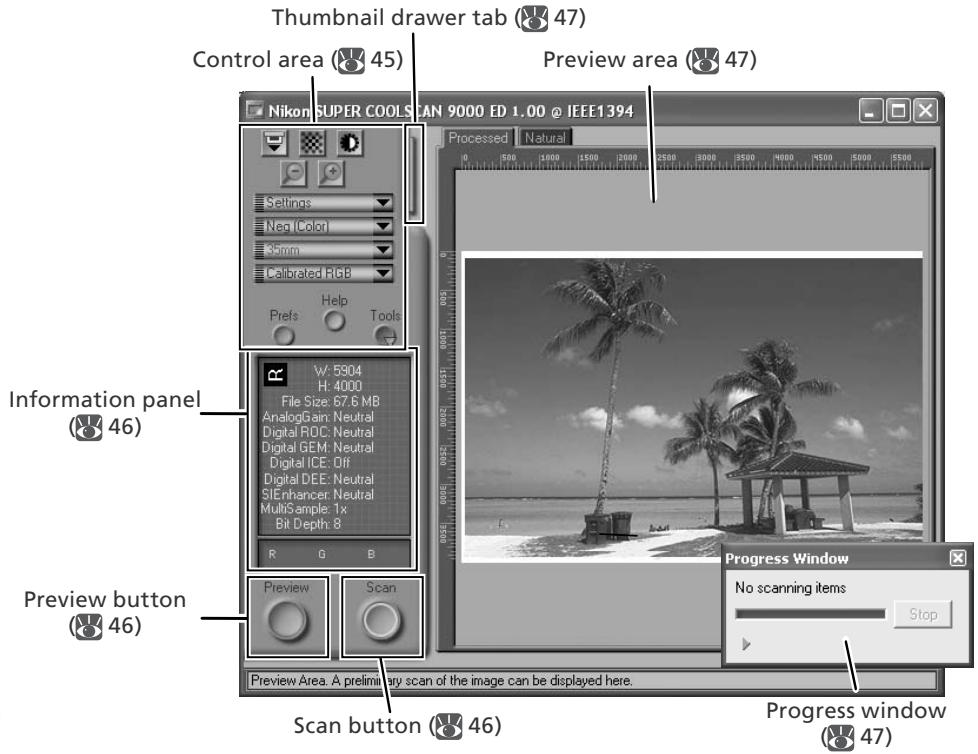
The Control Area
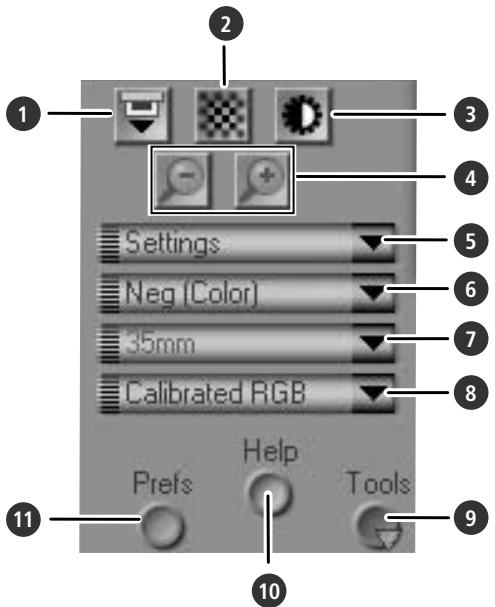
Eject button
Ejects the holder from the scanner.
2 Autofocus button
Click to focus the scanner. Control-click (Windows) or option-click (Macintosh) to select a new focus point.
3 Autoexposure button
When this button is clicked, the scanner analyzes the current image and adjusts exposure for optimal results.
4 Zoom buttons
Click to zoom in for a closer look at the portion of the image currently selected in the preview area. Click to zoom out.
5 Settings menu
Save and load settings or reset settings to default values.
6 Film type menu
Choose an option that matches the type of film being scanned: Positive for positive or reversal film, Neg (Color) for color negatives, or Neg (Mono) for black-and-white negatives. A separate Kodachrome option is available for scanning Kodachrome positives.
7 Frame size menu
Choose the frame size when scanning medium-format (120/220 or Brownie) film in the FH-869S, or optional FH-869G or FH-869GR film holders.
8 Color model menu
Choose a color model according to how the image will be processed or used.
9 Tools button
Click to open the Tool Chest or progress window.
10Help button
Click to open Nikon Scan help.
11 Prefs button
Click to open the "Preferences" dialog.
The Information Panel
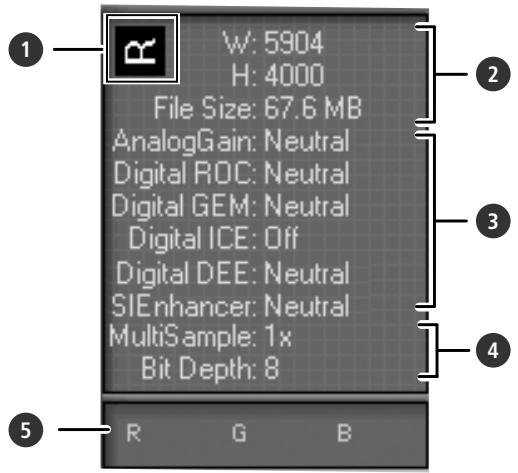
Orientation
Shows the orientation of the image in the preview area, reflecting any flips or rotations that have been performed.
2 Dimensions/file size
Lists the width and height of the current selection (in pixels) and the size of the file that would be produced if the selection were scanned at current settings.
3 Image enhancement
Shows the current status of Digital ICE Advanced and analog gain. Note that using Digital ICE Advanced can increase scanning times.
The Preview and Scan Buttons
Preview button
Click to preview the image to be scanned (if multiple frames are selected in the thumbnail drawer, a preview will be performed for each frame). Be sure to click this button after changing the film type or choosing a new value for analog gain.
4 Scanner extras
Lists the current bit depth (which determines the maximum number of colors available) and shows whether multisample scanning is in effect.
Color values
Lists the color values for the pixel under the cursor. The values for the Natural panel are listed in the top row, the values for the Processed panel in the bottom row.
Scan button
Scans the images and opens them in the host application (if multiple frames are selected in the thumbnail drawer, a scan will be performed for each frame and the resulting images will be opened in separate windows).
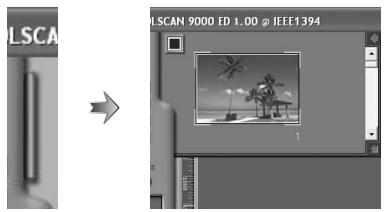
The Thumbnail Printer Tab
Click this tab to open the thumbnail drawer. If multiple frames are selected, the selected images can be scanned in a single batch. This is called a "batch scan."
The Preview Area
Selected frames are previewed in this area. Click the "Natural" and "Processed" tabs for a quick "before-and-after" comparison showing the effect of changes to settings in the Tool Chest. The "Natural" panel shows the image before processing, the "Processed" panel the image as it would appear when scanned at current settings.
The Progress Window
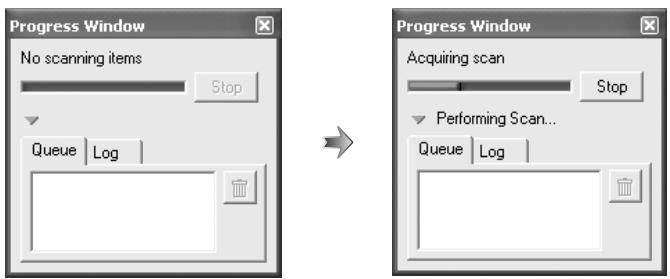
The progress of preview and scan operations is shown in this window. The current task (acquiring thumbnails, preview, or scanning) is shown at the top of the window. Tasks that have yet to be performed are listed in the "Queue" panel, completed tasks in the "Log" panel. To stop the current task, click Stop.
The Tool Chest
To display or hide the Tool Chest, click the Tools button in the control area of the scan window. For more information, see the Nikon Scan Reference Manual (on CD).
1 Layout tools
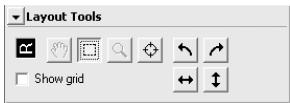
Select the portion of the image that will be scanned, choose a focus point, or rotate and flip images. Use the Zoom and Grab tools to navigate images that have been opened in Nikon Scan after scanning.
Information
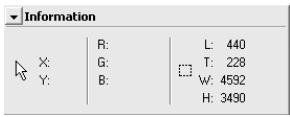
View the width and height of the current selection and the coordinates of its top left corner. The color value display shows the color of the pixel under the cursor before and after processing.
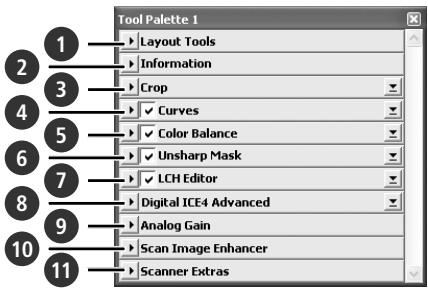
3 Crop
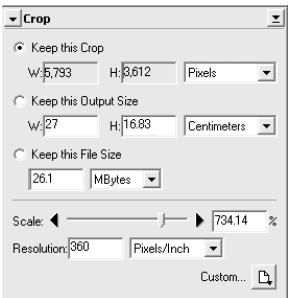
Specify the size and resolution of the image that will result when the film is scanned.
| Keep this Crop | User selects exact area to be scanned, then selects output size and resolution according to how image will be used. Best choice in most situations. |
| Keep this Output Size | User selects general area to be scanned, then enters exact output size in output size area. Choose this option when image must fit in space of known dimensions. |
| Keep this File Size | User selects general area to be scanned, then enters exact file size for final image in file size area. Choose when file size is paramount, for example when scanning images for electronic distribution. |
Enter the desired Height and/or Width in the text boxes. If Keep this Crop is selected, the remaining dimension will automatically be adjusted to maintain the current crop. If Keep this File Size is selected, the remaining dimension and the resolution will automatically be adjusted to maintain the selected file size, and the crop in the preview area will be adjusted accordingly.
4 Curves
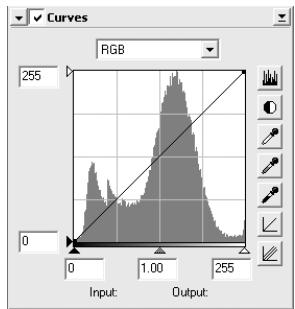
Make adjustments to brightness, contrast, and color targeted to specific portions of the tone range (for example, this tool can be used to increase brightness in shadows).
Color Balance
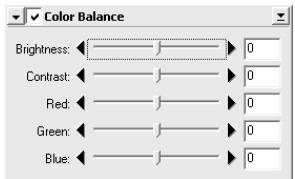
Adjust overall brightness, contrast, and color balance.
6 Unsharp Mask
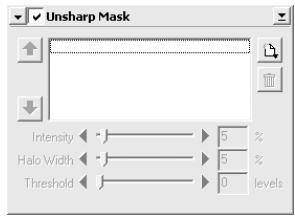
Sharpen images by making colors more distinct.
LCH Editor
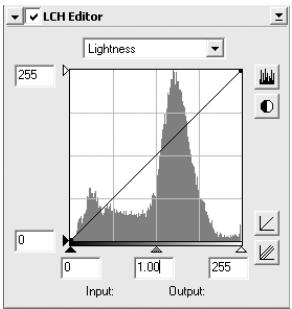
Make adjustments to brightness and contrast targeted to specific portions of the tone range, or use the hue and chroma editors for precise control of color.
Digital ICE Advanced (Digital ICE quad Advanced)
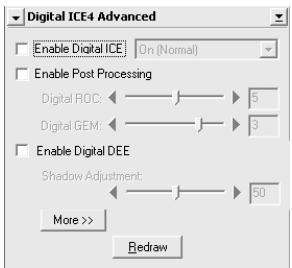
Four tools are available:
- Digital ICE: mitigate the effects of dust and scratches
- Digital ROC: restore faded colors
- Digital GEM: reduce the effects of film grain
- Digital DEE: increase detail in under- or overexposed areas of the frame
9 Analog Gain
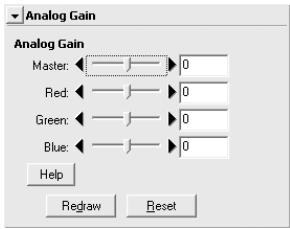
Adjust exposure values for each of the colored elements in the scanner's light source.
10 Scan Image Enhancer
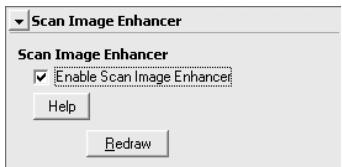
Perform automatic brightness, color, and contrast adjustment.
11 Scanner Extras
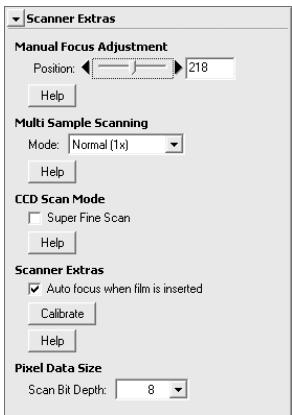
Control features specific to the type of scanner currently connected.
Multi Sample Scanning Use this feature to reduce noise.
- Scan Bit Depth
- Choose a bit depth of sixteen or eight bits.
Digital ICE
Digital ICE will not produce the desired results with monochrome film (unless developed in color).
Kodachrome Film
When scanning Kodachrome film in the 9000 ED, select Kodachrome in the film type menu.
Optional Holders
This chapter describes the optional film holders available for the SUPER COOLSCAN 9000 ED.
FH-869M Holder for Medium-Format Slides. 53
FH-869G Glass-Covered Holder for Medium-Format Film.....54
FH-869GR Rotating Holder for Medium-Format Film 56
FH-816 Holder for 16-mm Film. 58
FH-8G1 Medical Holder 60
The following optional film holders are available for the SUPER COOLSCAN 9000 ED:
| Film holder | Film | 53 |
| FH-869M 120/220 MOUNTED FILM HOLDER | 6×4.5, 6×6, 6×7, and 6×9 slides | |
| FH-869G 120/220 STRIP FILM HOLDER WITH GLASS | Medium-format (120/220, 2½ or Brownie) film and 59×82 mm film for electron microscopes | 54-55 |
| FH-869GR ROTATING 120/220 FILM HOLDER WITH GLASS | Medium-format (120/220, 2½ or Brownie) film and 59×82 mm film for electron microscopes | 56-57 |
| Panorama film | ||
| FH-816 16-MM FILM HOLDER | One to three strips of 16-mm film up to twenty frames in length | 58-59 |
| FH-8G1 MEDICAL SLIDE HOLDER | Glass microscope slides (26×72 mm) of pre-pared tissue samples | 60 |
FH-869M Holder for Medium-Format Slides
The FH-869M is used with medium-format (120/220, 214 or Brownie) slides with mounts 1.0 - 3.2 ~mm thick. It is equipped with two apertures: a smaller aperture for 6 × 4.5 or 6 × 6 slides and a larger aperture for 6 × 7 , 6 × 8 , and 6 × 9 slides.
Do Not Mix Positive and Negative Film
Do not place mounted negatives in the holder with positive slides.
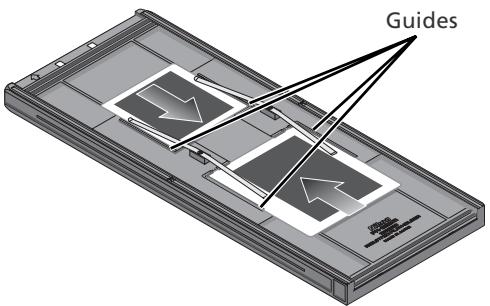
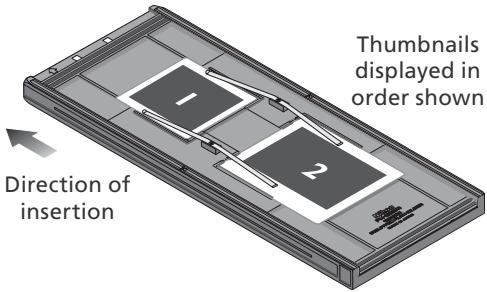
Inserting Slides
Insert the slides between the guides. The slides should be oriented to match the apertures in the holder and the reflective film base should be up 26). Stop when the slide contacts the base of the clips.
Inserting Slides
Insert slides between the guides. Forcing the slides onto the guides could damage the slides or clips and prevent the scanner from focusing correctly. To minimize resistance, try inserting slides at a slight angle.
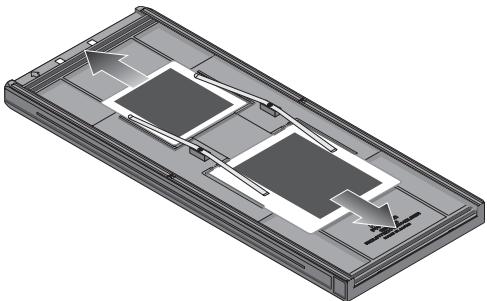
Removing Slides
Slide the mounts out from under the clips that hold them in place.
Do Not Use Force
Do not use force when removing slides. Failure to observe this precaution could damage the clips. Do not lift the slides up until fully removed from the clips.
Do Not Store Slides in the Holder
Leaving slides in the holder for extended periods could damage the clips holding the slides in place.
FH-869G Glass-Covered Holder for Medium-Format Film
The FH-869G is used to scan medium-format film (120/220, 214 or Brownie) and 59 × 82 ~mm electron-microscope film. The length of the film strip that can be scanned depends on the type of film:
-
6 × 4.5 : 1-4 frames
-
6 × 6 : 1-3 frames
-
6 × 7 - 6 × 9 : 1-2 frames
Inserting Film
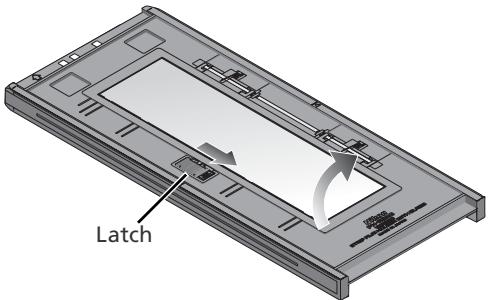
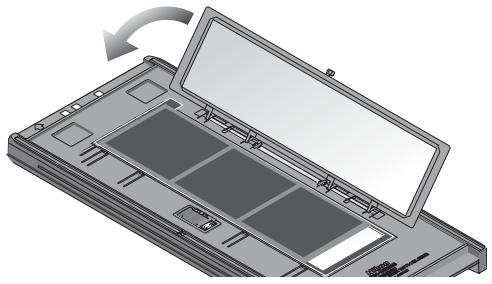
1 Open the holder
Slide the latch in the direction shown and open the holder.
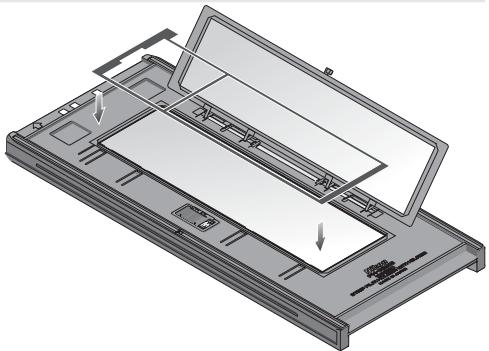
Newton's Rings
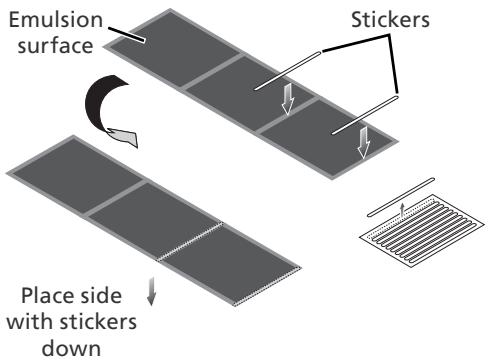
If the film is folded or twisted, Newton's rings (a radial interference pattern) may appear when the film is scanned. This can be prevented by placing a masking sheet in the holder as shown at right. The aperture at the front of the masking sheet should match the film frame size.
Place stickers between frames on the emulsion surface of the film (no sticker is required between the first two frames). The stickers can then be used to fasten the film to the masking sheet. Stickers can be reused.
Keep the Glass Clean
The inner surface of the glass cover been treated to prevent interference. Avoid leaving fingerprints or other stains on the glass.
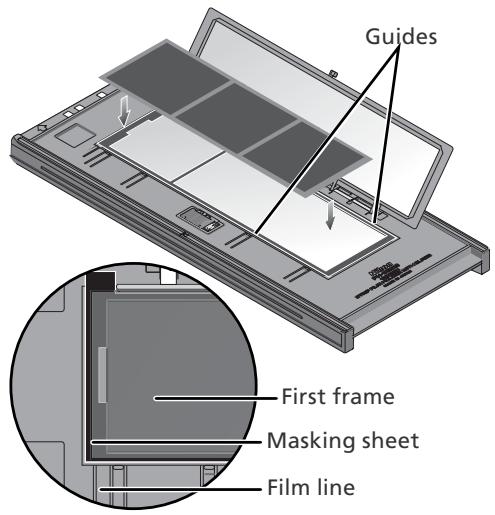
2 Insert film Place film b
Place film base up 26) between the guides with the left end of the film at the film line. If a masking sheet is used, the start of the first exposure should be aligned with the inner edge of the masking sheet. Additional film strips can be placed in the holder as space permits; place the film end-to-end, with no gaps.

Inserting Film
Use only one type of film; do not place negatives in the holder with positive film.
Be sure to align the end of the film with the film line on the holder. A gap at the leading edge of the film could interfere with accurate color reproduction.
3 Snap the holder closed
Removing Film
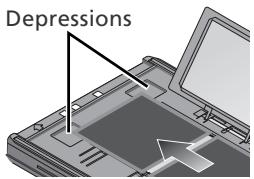
Tilt the holder to slide the film over the depressions at the front of the holder and pick the film up by its edges.
FH-869GR Rotating Holder for Medium-Format Film
The FH-869GR is used to scan medium-format film (120/220, 2% or Brownie), 59 × 82 ~mm electron-microscope film, or 24 × 65 ~mm panorama film. The angle of the holder can be adjusted by ± 5% to compensate for camera angle. When scanning medium format film, the length of the strip that can be inserted depends on the type of film:
-
6 × 4.5 : 1-4 frames
-
6 × 6: 1 - 3 frames
-
6 × 7 - 6 × 9 : 1-2 frames
Inserting Film
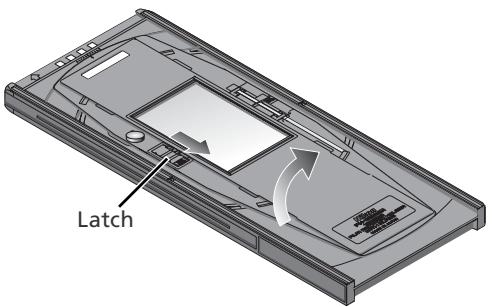
1 Open the holder
Slide the latch in the direction shown and open the holder.
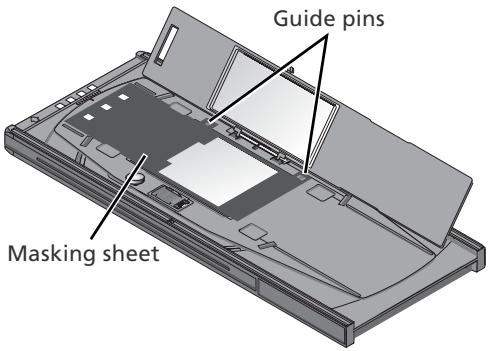
Insert a masking sheet
Align the masking sheet with the guide pins in the holder.

Use an Appropriate Mask
The mask aperture must match the film frame size. Gaps between the mask and the film could interfere with accurate color reproduction.
3 Insert film
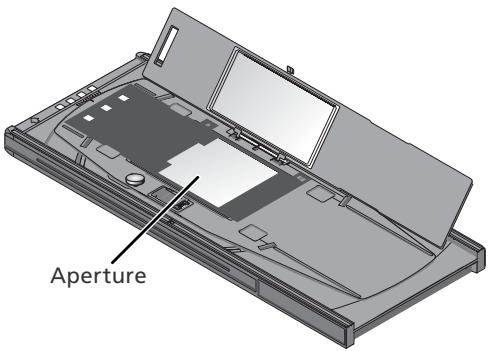
Place film on the masking sheet base up

26). Align the frame to be scanned
with the aperture in the masking sheet.
4 Snap the holder closed
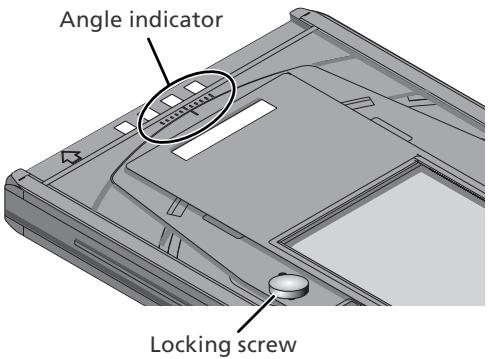
Adjust the film angle
Loosen the locking screw by rotating it counter-clockwise. Adjust the angle, using the marks on the front of the holder as a guide (each mark is equivalent to 1^ ), and then tighten the locking screw.
Removing Film
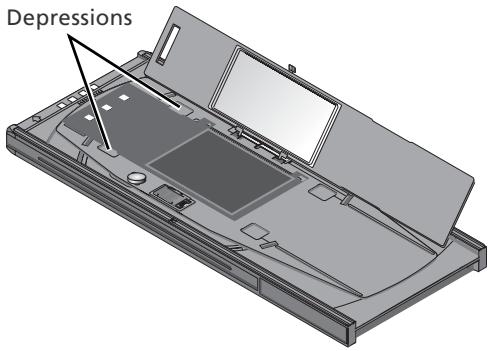
Insert your fingers in the depressions and pick the film up by its edges.
Keep the Glass Clean
The inner surface of the glass cover been treated to prevent interference. Avoid leaving fingerprints or other stains on the glass.
FH-816 Holder for 16-mm Film
The FH-816 is used to scan up to three strips of 16-mm film. Each strip can be from one to twenty frames in length.
Inserting Film
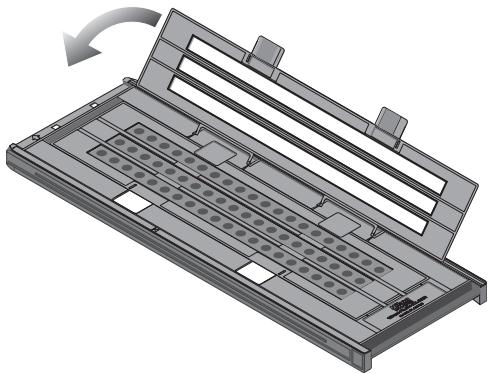
1 Open the holder
Insert your fingers through the holes in the bottom half of the holder and undo the latches, then open the holder.
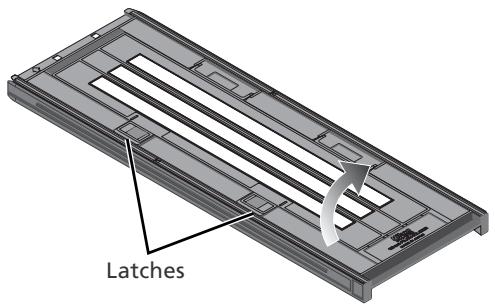
Insert film
Place film in the holder base up 26). Align the first frame in each strip with an aperture at the left end of the holder.

Use Only One Type of Film
Do not place negatives in the holder with positive film.
Inserting Film and Masking Sheets
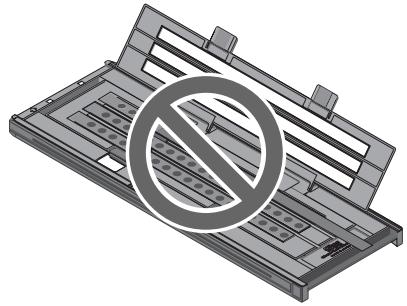
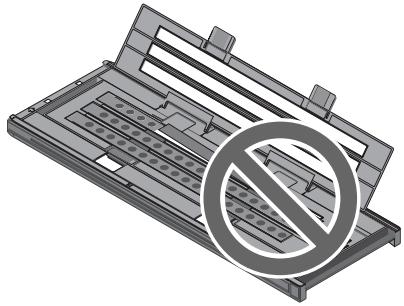
Do not place film or masking sheets so that they protrude from the holder or overlap the film guides. Failure to observe this precaution may cause the holder to jam in the scanner.
Digital ROC, Digital GEM, and Digital DEE (350)
These functions can not be used with 16-mm film.
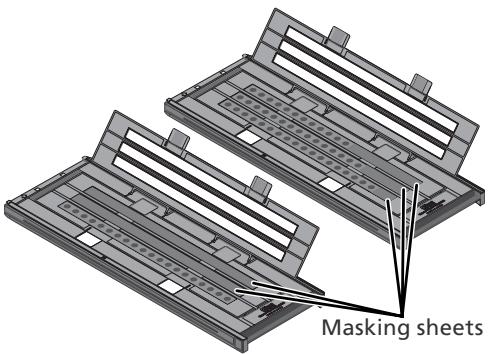
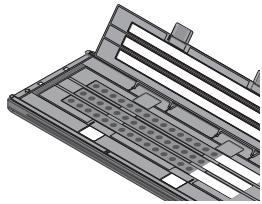
3 Insert masking sheets. When scanning one or
- When scanning one or two strips or strips of different lengths, place the film at the left end of the holder and cover any open apertures with the supplied masking sheets, cutting the sheet to the appropriate length if necessary. When scanning one or two strips, place the film in the bottom rows and the masking sheets in the top rows.
When scanning three strips of equal length, place the film at the left end of the holder. Masking sheets are not required.
Latch the holder
4 Press the holder closed until the latches click into place.
Removing Film
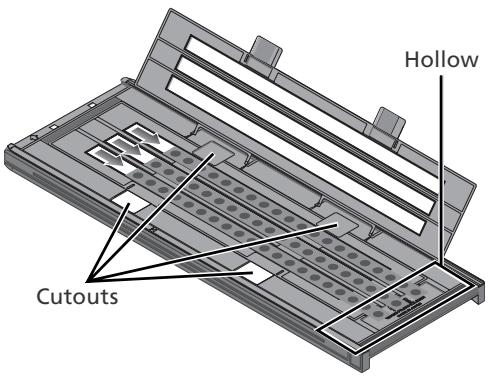
Insert your fingers into the holes in the lower portion of the holder and undo the latches. Open the holder and use the cutouts to pick the film up by its edges. If the edges of the film are not accessible, tilt the holder to slide the film to the hollow at the end of the lower holder.
FH-8G1 Medical Holder
The FH-8G1 can be used to scan up to three glass microscope slides of prepared tissue samples. Slides must be 26 × 76mm with a base 0.8 - 1.5mm thick, a cover no more than 25mm wide, 60mm long, and 0.18mm thick, and a total thickness of no more than 2mm , including adhesive.
Inserting Slides
Insert the slides cover up. Stop when the slide contacts the base of the clips.

Inserting Slides
Insert slides between the guides. Forcing the slides onto the guides could damage the slides or clips and prevent the scanner from focusing correctly. To minimize resistance, try inserting slides at a slight angle.
Removing Slides
Slide the samples out from under the clips that hold them in place.

Do Not Use Force
Do not use force when removing slides. Failure to observe this precaution could damage the clips. Do not lift the slides up until fully removed from the clips.
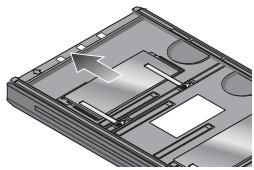

Do Not Store Slides in the Holder
Leaving slides in the holder for extended periods could damage the clips holding the slides in place.

Do Not Use Digital ICE, Digital ROC, Digital GEM, or Digital DEE (3 50)
Noise may appear in images scanned with Digital ICE, Digital ROC, Digital GEM, or Digital DEE.

Scanning 35-mm Slides
The FH-8G1 can also be used to scan 35-mm slides. Do not mix 35-mm slides with microscope slides.
Technical Notes
This chapter lists scanner specifications and provides information on maintenance, troubleshooting, and installing the supplied IEEE 1394 interface board.
Maintenance 62
Troubleshooting 63
Installing the IEEE 1394 (Firewire) Interface Board.....64
Uninstalling Nikon Scan 70
Custom Install (Macintosh Only) 73
Checking Device Registration (Windows Only) 74
Specifications 76
Maintenance
Storage
When the scanner is not in use, eject the film holder and turn the scanner off. If the device will not be used for a prolonged period, unplug the scanner and store it in a well-ventilated area where the temperature is between -10^ ( 14^ ) and +50^ ( +122^ ) and the humidity less than 60% . Do not store the scanner or holders where they would be subject to sudden temperature changes or condensation.
Cleaning
Turn the scanner off, unplug the power cable, and place the scanner on a flat, stable surface where it will not be damaged in a fall. Use a blower or a soft dry cloth to remove dust, a soft cloth lightly dampened with neutral detergent or liquid soap to remove tougher stains. Do not use alcohol or other volatile chemicals.
Transport
Before transporting the scanner:
1 Turn the scanner on and eject any film holders.
2 Press and hold the eject button until the status LED stops blinking (about three seconds). The scan mechanism will lock.
3 Turn the scanner off and disconnect the power and interface cables.
4 Repackage the scanner in the original packing materials (if the original packing materials are unavailable, use materials at least as shock resistant as the originals).
Transporting the Scanner
Nikon scanners are only certified for use in the region or country of sale. Transport or use outside the region or country of sale is at the risk and responsibility of the user.
Servicing
Nikon scanners are precision devices. We recommend that the scanner and holders be taken to an authorized Nikon service representative once every one to two years for inspection, and once every three to five years for servicing (fees are charged for these services). Frequent inspection and servicing are particularly recommended in the case of scanners used in commercial applications.
Troubleshooting
If the scanner fails to function as expected, check the problems described below before consulting the original retailer or Nikon service representative. For more information on solving the problems listed here, refer to the page numbers in the rightmost column.
| Problem | Possible cause | |
| Scanner will not turn on (status LED does not light) | • Scanner is off Turn the scanner on • Power cable is not properly connected Return the power switch to the off position and reconnect the power cable. • Outlet is not receiving power Plug another device into the outlet to determine whether the outlet is working properly. | 24 21 — |
| Status LED flickers (scanner not connected to computer, or computer off) | • Scanner hardware malfunction Turn the scanner off and disconnect it from the computer. Wait five seconds and turn the scanner on again. If the problem persists, contact a Nikon service representative. | — |
| Status LED flickers (scanner connected to computer) | • Scanner hardware malfunction or communications error Turn the scanner and computer off and disconnect the scanner. Wait five seconds and turn the scanner on again. If the status LED flickers when the scanner is turned on, a scanner hardware malfunction has occurred. Contact the original retailer or a Nikon service representative. If the status LED blinks and then glows steadily, turn the scanner off and reconnect it to the computer. After waiting five seconds, turn the scanner on and restart the computer. If the status LED flickers when the computer is restarted, try the following: • Disconnect all other devices using the same interface as the scanner • Reinstall Nikon scan • Update the IEEE 1394 device drivers (Windows only) • Update the scanner device drivers (Windows only) | 22, 41 5, 22 10-19 70-72 65-69 74-75 |
| Poor quality scans | • Film is not properly inserted in holder Eject the holder and reinsert the film. • Scanner or holder moved during scanning Do not use the scanner in locations subject to shock or vibration. Failure to observe this precaution could result in scanner malfunction. • Scan window settings require adjustment Adjust settings or use factory defaults. For more information, see the Nikon Scan Reference Manual. • Glass in optional glass-covered holder is dirty Use a blower to remove dust, a soft cloth to remove other stains. | 25-29, 41 20 33-38 — |
| Computer does not recognize scanner | • Scanner is off Turn the scanner on. • Scanner turned on with holder inserted After removing the holder, turn the scanner off and then on again. • Interface cable not correctly connected Turn the scanner off and reconnect the cable. • Computer does not meet minimum system requirements Use a system that meets the requirements. | 24 24, 41 22, 41 10, 15 |
| Problem | Possible cause | # |
| Computer does not recognize scanner (continued) | ·Other IEEE 1394 devices are connected and turned on Disconnect the other devices. If the scanner is connected via a hub, adapter, or extension cable, disconnect the scanner and reconnect it directly to the computer. If this does not solve the problem, unistall all software that uses the IEEE 1394 interface and reinstall Nikon Scan. ·Interface board is not compatible At the time of writing, operation has been confirmed only with the interface board provided with the scanner. Operation is not guaranteed with other boards or with built-in IEEE 1394 ports. Install the supplied interface board (desktop computers) or consult a Nikon service representative for information on approved IEEE 1394 interface boards or cards. ·Interface board is not correctly installed Check the documentation provided with interface board or card. ·Scanner device driver is missing or corrupted (Windows only) Check that the device driver is correctly installed. ·Nikon Scan is not correctly installed Uninstall and reinstall Nikon Scan. For more information, see the Nikon Scan Reference Manual. ·IEEE 1394 drivers require updating (Windows 98 SE only) Update the IEEE 1394 drivers. | 5, 22 10, 15, 64-69 64-69 74-75 10-18, 70-72 65 |
Installing the IEEE 1394 (Firewire) Interface Board
Users whose computer is not equipped with a compatible IEEE 1394 interface must install the supplied IEEE 1394 (Firewire) interface board (Macintosh users should note that beige G3 computers are not equipped with a built-in Firewire interface). To install the board, follow the steps below.
| Operating system | Installation | |
| Windows XP Windows 2000 Professional Windows Me | 1 Install the interface board. The board device drivers will be installed automatically when the computer is turned on. 2 Confirm that the board is correctly registered in the Windows Device Manager. | 66 66-67 |
| Windows 98 SE | 1 Update the IEEE 1394 drivers. 2 Install the interface board. 3 Install the drivers for the interface board. | 65 66 68-69 |
| Mac OS | Install the interface board. | 66 |
Computers Without an Empty Full-Sized PCI Slot
The supplied IEEE 1394 board can only be installed in a full-sized PCI slot. It can not be installed in laptop computers or in computers with a low-profile PCI slot. For information on other approved boards and PCMCIA cards, see the Nikon web site for your area (2).
Updating the IEEE 1394 Drivers (Windows 98 SE Only)
Users of Windows 98 SE must update the IEEE 1394 drivers provided with Windows before they can use the scanner. This update is required regardless of whether an IEEE 1394 interface is already installed or the user is installing an IEEE 1394 interface for the first time.
1 Insert the Nikon Scan CD
- Holding down the shift key to prevent the installer from starting automatically, insert the Nikon Scan CD into the CD-ROM drive. If the language selection dialog is displayed, click Quit.
2 Open the Nikon Scan CD in Windows Explorer
Double-click the My Computer icon. Click the icon for the Nikon Scan CD with the right mouse button and select Explore from the menu that appears.
Run the updater
Open the Microsoft folder and double-click 242975USA8 or 242975USA8.EXE. Follow the on-screen instructions to complete the update.
Restart the computer
When the dialog shown at right is displayed, remove the Nikon Scan CD from the CD-ROM drive and then click Yes to restart the computer.
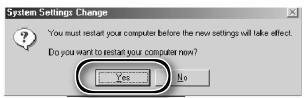
Installing the IEEE 1394 Interface Board
Once the computer has restarted, users of the supplied IEEE 1394 interface board can install the board (66) and interface device drivers (68-69).
The "Insert Disk" Dialog
If an "Insert Disk" dialog is displayed the first time the scanner is connected and turned on, the IEEE 1394 driver update has not been completed successfully. Do NOT insert the Windows 98 Second Edition CD. Make sure the CD-ROM drive is empty and click OK, then update the drivers as follows:
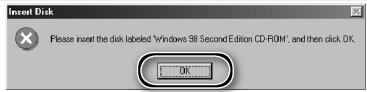
1 Click Browse...
The dialog shown at right will be displayed. Click Browse...
Locate "ntmap.sys"
Select drive "c:" from the Drives menu. In the "Folders" list, double-click first on "windows," then "system32," and finally "drivers." Confirm that "ntmap.sys" is selected in the list of files and click OK.
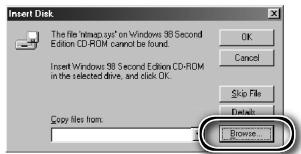
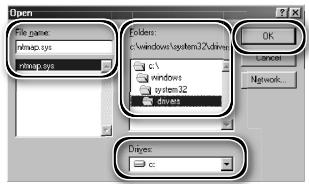
Installing the IEEE 1394 (Firewire) Interface Board
1 Turn the computer off
Turn the computer off and disconnect all cables.
Insert the IEEE 1394 (Firewire) interface board
Insert the supplied IEEE 1394 (Firewire) board as shown. For information on the location of the PCI slots and on installing PCI boards, see the documentation provided with the computer and the IEEE 1394 (Firewire) interface board.
Installing the Interface Board Do not use force. Excessive force could damage the computer or board.
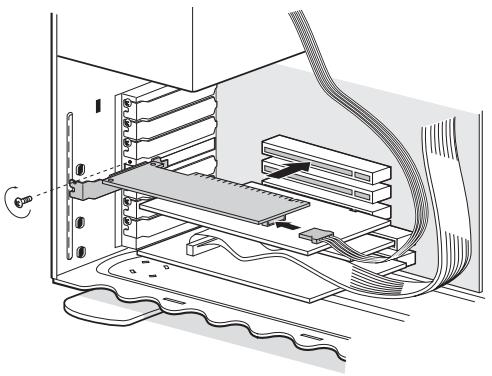
Installing the Device Drivers (Windows Only)
After installing the IEEE 1394 (Firewire) interface board, reconnect the cables and turn the computer on.
Windows XP, Windows 2000 Professional, Windows Me
Windows XP, Windows 2000 Professional
The first time the computer is powered on with the board installed under Windows XP or Windows 2000 Professional, Windows will automatically install the necessary drivers. Confirm that the drivers have been correctly installed as described on the opposite page.
Windows Me
The first time the computer is powered on with the board installed, the "Add New Hardware Wizard" will be displayed. Select Automatic search for a better driver (Recommended) and click Next to install the drivers for the IEEE 1394 interface board. When installation is complete, Windows Me will display message stating that the computer must be restarted before changes to system settings can take effect. Click Yes to restart the computer. Proceed to the next step once the computer restarts.
1 Display the "System Properties" dialog
Windows XP
Select Control Panel from the Start menu, open Performance and Maintenance, and click System.
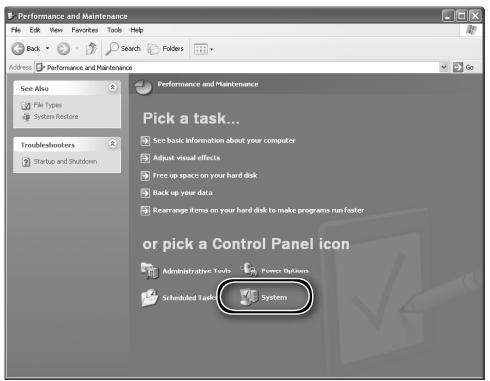
Windows 2000 Professional, Windows Me
Click the My Computer icon with the right mouse button and select Properties from the menu that appears.
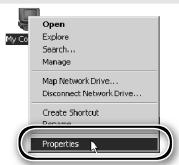
Open the Device Manager
Windows XP, Windows 2000 Professional
Open the "Hardware" panel and click the Device Manager button.
Windows Me
Click the "Device Manager" tab.
Check the IEEE 1394 host controller
Confirm that "NEC Firewarden OHCI Compliant IEEE 1394 Host Controller" is listed under "IEEE 1394 Bus host controllers" (Windows XP, Windows 2000 Professional) or "1394 Bus Controller" (Windows Me).
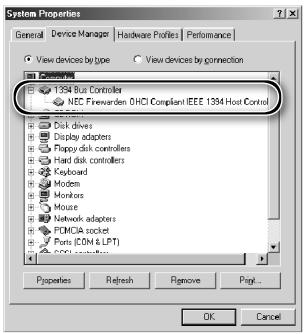
Windows 98 SE
The first time the computer is powered on with the board installed, the "Add New Hardware" wizard will be displayed.
1 Click Next
Click Next to start the "Add New Hardware" wizard.
2 Select the search option
Select the search option and click Next.
Deselect all search location options
After confirming that none of the search location options are selected, click Next.
Choose the recommended driver
4 Select The updated driver (Recommended)/NEC Firewarden OHCI Compliant IEEE 1394 Host Controller and click Next.
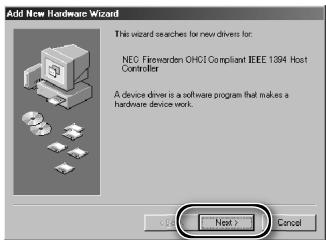
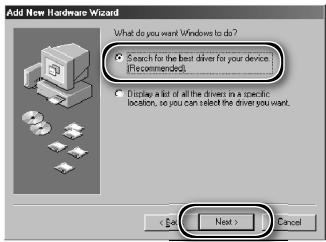
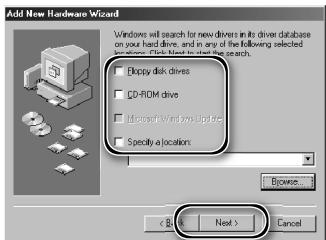
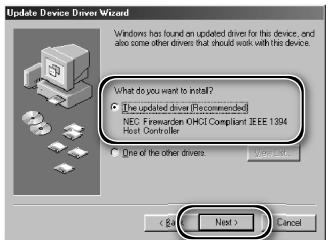
5 Click Next The dialog shown at right will be displayed. Click Next.
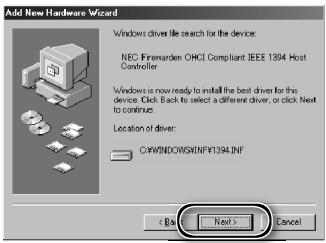
The "Insert Disk" Dialog
If the "Insert Disk" dialog is displayed, insert the Windows 98 Second Edition CD and click OK. If Windows displays a message stating that a file could not be found, enter the drive letter of the CD-ROM drive followed by "win98_se" (e.g., "d:\win98_se") in the Copy files from text box and click OK.
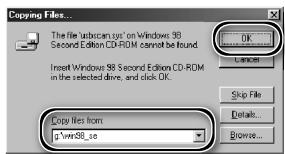
Click Finish
The dialog shown at right will be displayed. Click Finish.
7 Open the "System Properties" dialog After the computer restarts, click the My Computer icon with the right mouse button and select Properties from the menu that appears.
Check the IEEE 1394 host controller
Click the Device Manager tab and confirm that "NEC Firewarden OHCI Compliant IEEE 1394 Host Controller" is listed under "1394 Bus Controller."
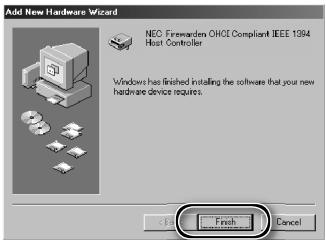
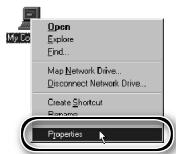
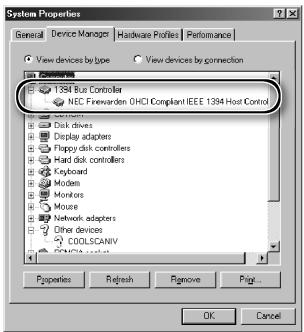
Uninstalling Nikon Scan
Before Nikon Scan can be reinstalled or a new version installed, the existing version must be removed from the computer (uninstalled). The instructions that follow are divided into Windows and Macintosh sections.
Export Settings
Before uninstalling Nikon Scan, export frequently-used scan window settings to a location outside the Nikon Scan application folder. These settings can then be loaded into the scan window once Nikon Scan has been reinstalled. For more information, see the Nikon Scan Reference Manual (on CD).
Windows
1 Select Nikon Scan 4 Uninstall Click the Start button and select Nikon Scan 4 > Nikon Scan 4 Uninstall from the program list.
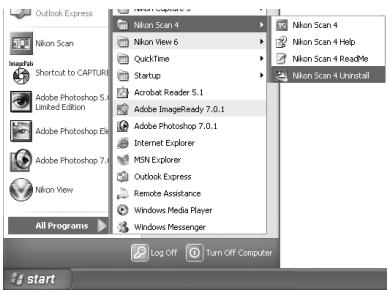
2 Begin the uninstall
The dialog shown at right will be displayed. Click OK to begin removing Nikon Scan and all of its components. If uninstallers encounters read-only files or components shared by another application, a confirmation dialog will be displayed. Read the information displayed carefully before deciding what to do with the affected components.
Click Finish
3 Click Finish to exit the uninstaller.
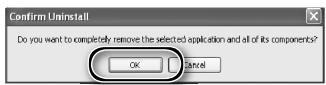
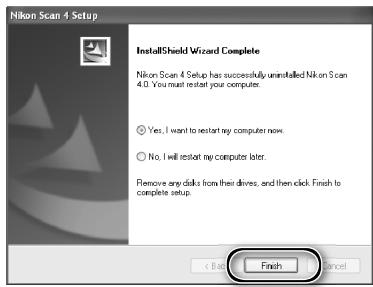
Windows XP/Windows 2000 Professional
When installing or uninstalling Nikon Scan under the above operating systems, log in as the "Computer administrator" (Windows XP) or "Administrator" (Windows 2000 Professional).
Macintosh
1 Quit all applications
Insert the Nikon Scan CD into the CD-ROM drive
A Nikon Scan 4 CD icon will appear on the desktop. Double-click the icon to open the "Nikon Scan 4" window.
3 Double-click the Welcome icon in the "Nikon Scan 4" window
Choose a language
4 A language-selection dialog will be displayed. Select a language and click Next.
Start the installer
J The "Install Center" dialog will be displayed. Open the "Software" panel and click Easy Install.
"Authentication" (Mac OS X Only)
Clicking Easy Install in the software panel displays the "Authentication" dialog shown at right. Enter the administrator name and password and click OK.
Click Accept The license agreement will be displayed. Click Accept.


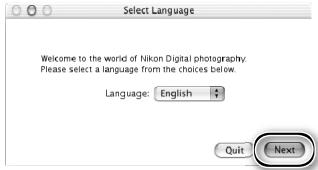
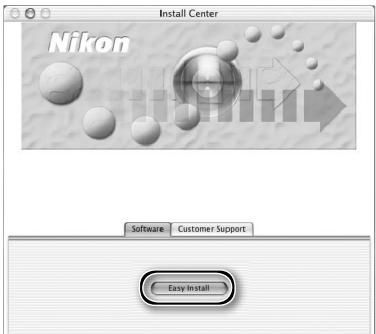
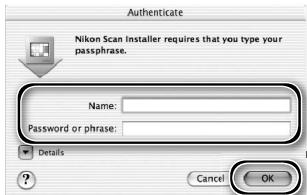
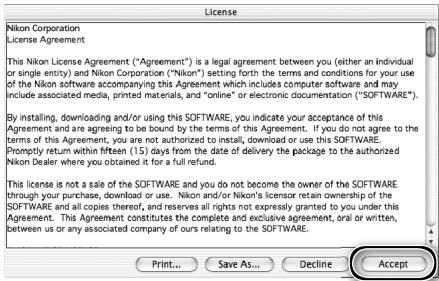
7 Click Continue...
The ReadMe file will be displayed. Click Continue... to display the "Nikon Scan Installer" dialog.
0 Select Uninstall
- Select Uninstall from the menu at the top left corner of the installer dialog and click the Uninstall button to remove Nikon Scan and its components from the computer.
Click OK
A confirmation dialog will be displayed when removal is complete. Click OK.
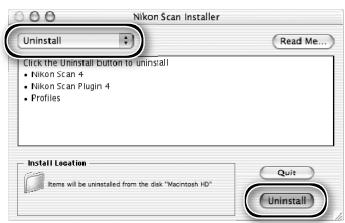

The uninstall was successful. However, some files/folders could not be deleted because they are shared by other applications, are currently in use, or contain files not installed by this install program.

Custom Install (Macintosh Only)
The Macintosh version of Nikon Scan offers a custom install option that can be used to install selected program components as described below.
1 Display the "Nikon Scan Installer" dialog
After quitting any applications that may be running, insert the Nikon Scan CD in the CD-ROM drive and display the "Nikon Scan Installer" dialog as described in steps 2-7 of the "Uninstall: Macintosh" section (71-72).
2 Select Custom Install
Select Custom Install from the menu at the top left corner of the installer dialog and select or deselect components for installation by clicking the boxes to their left.
3 Click Install
Click Install to begin installation of the selected components. Complete installation as described in steps 8-13 of "Installing Nikon Scan: Macintosh" (17-18).
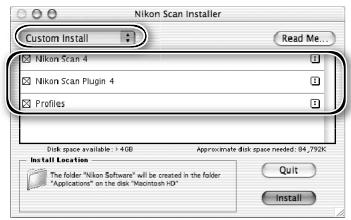
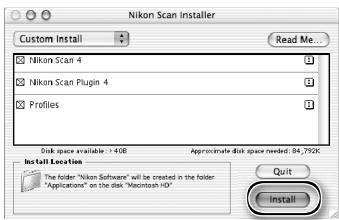
Checking Device Registration (Windows Only)
The first time the scanner is connected and turned on following installation of Nikon Scan, Windows will "register" the scanner with the Device Manager. If the computer fails to detect the scanner or the scanner does not function as expected when Nikon Scan is running, the computer may not have correctly registered the scanner. Check that the device drivers are correctly installed.
1 Make sure the scanner is connected and turned on
2 Display the "System Properties" dialog
Windows XP
Select Control Panel from the Start menu, open Performance and Maintenance, and click System.
Windows 2000 Professional
Select Settings>Control Panel from the Start menu and double-click the System icon.
Windows Me, Windows 98 SE
Select Control Panel from the Start menu and double-click the System icon.
2 Open the Device Manager
Windows XP, Windows 2000 Professional
Open the "Hardware" panel and click the Device Manager button.
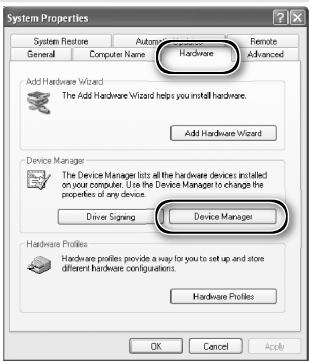
Windows Me, Windows 98 SE
Click the "Device Manager" tab.
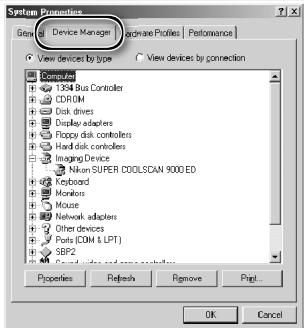
4 Check that the scanner is listed as an imaging device Click the "+" next to "Imaging devices" Device Manager
(Windows XP, Windows 2000 Professional) or "Imaging Device" (Windows Me, Windows 98 SE) and confirm that the scanner is listed.
If the Scanner Is Not Listed
If the scanner is not listed or appears next to a "!","?", or "x", the drivers have not been correctly installed. Disconnect the scanner and uninstall Nikon Scan, then reinstall Nikon Scan and reconnect the scanner.
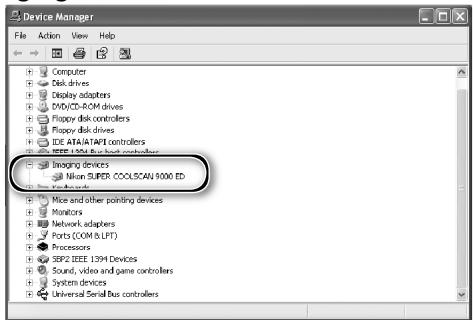
SUPER COOLSCAN 9000 ED (LS-9000 ED)
| Media | Negatives and positives, in color and monochrome | ||||||||
| 35-mm film | 1-2 strips of 1-6 frames. Up to 3 frames of 24×48mm or 24×65mm pan-orama film can be scanned with optional FH-869GR film holder. | ||||||||
| 35-mm slides | 1-5 slides with mounts 1.0-3.2 mm thick. | ||||||||
| Medium-format film | 1-4 frames (6×4.5), 1-3 frames (6×6), or 1-2 frames (6×7, 6×8, or 6×9). | ||||||||
| Medium-format slides | Slides with mounts 1.0-3.2 mm thick can be scanned with optional FH-869M film holder. | ||||||||
| 16-mm film | 1-3 strips of 1-20 frames can be scanned with optional FH-816 film holder. | ||||||||
| Glass microscope slides | 1-3 prepared glass microscope slides (26×76mm, 0.8-1.5mm thick) can be scanned with optional FH-8G1 film holder. | ||||||||
| Aperture/scan range | FH-835S | FH-835M | FH-869S, FH-869G | FH-816 | FH-8G1 | ||||
| 6×4.5 | 6×6 | 6×7 | 6×8 | 6×9 | 5.9×8.2 | ||||
| Aperture (mm) | 25.4×37.5 | 37.5×25.6 | 56.9×42.5 | 56.9×56.9 | 56.9×70.0 | 56.9×77.5 | 56.9×83.7 | 56.9×83.7 | 15.0×21.48 |
| Scan range (pixels) | 4000×5904 | 5905×4032 | 8964×6696 | 8964×8964 | 8964×11016 | 8964×12204 | 8964×13176 | 8964×13176 | 2362×3384 |
| Scanning system | Fixed optical, movable media, parallel single-pass scanning system | ||||||||
| Light source | Red, Green, Blue, and Infrared (RGBIr) LEDs; slit light source with rod and disperser | ||||||||
| Image sensor | 10,000 pixel three-line monochrome linear CCD image sensor | ||||||||
| Color separation | Performed by RGB LEDs | ||||||||
| Optical resolution | Up to 4000 pixels per inch | ||||||||
| Analog-to-digital (A/D) conversion | 16 bits per color | ||||||||
| Output | Full color or greyscale at 8 or 16 bits per channel | ||||||||
| Focus | Auto and manual | ||||||||
| Interface | IEEE 1394 | ||||||||
| Power consumption | 27W or less; 14W or less in standby mode | ||||||||
| Power supply | AC 100-240V, 50/60Hz | ||||||||
| Operating environment | +10-+35°C (+50-+95°F) at a humidity of 20-60% | ||||||||
| Size and weight | 249×498.5×202 mm/9.8"×19.6"×8.0" (W×H×D), 9kg/19.8 lb (approx.) | ||||||||
| Scanning time (Time to display image when Preview button is clicked, or when Scan button is clicked following preview. Times do not include auto focus or holder position-ing.)* | With FH-835M 35-mm slide mount holder | ||||||||
| Scan Image Enhancer | ICE | ROC | GEM | DEE | Preview | Scan | |||
| Off | Off | Off | Off | Off | 13s | 40s | |||
| On | Off | Off | Off | Off | 12s | 41s | |||
| Off | On | Off | Off | Off | 14s | 57s | |||
| Off | Off | On | Off | Off | 28s | 52s | |||
| Off | Off | Off | On | Off | 26s | 1 min 31s | |||
| Off | Off | Off | Off | On | 14s | 1 min 27s | |||
| On | On | On | On | On | 33s | 2 min 33s | |||
| With FH-869S 120/220 film holder | |||||||||
| Scan Image Enhancer | ICE | ROC | GEM | DEE | Preview | Scan | |||
| Off | Off | Off | Off | Off | 38s | 3 min 05s | |||
| On | Off | Off | Off | Off | 38s | 3 min 14s | |||
| Off | On | Off | Off | Off | 40s | 7 min 05s | |||
| Off | Off | On | Off | Off | 1 min 26s | 8 min 55s | |||
| Off | Off | Off | On | Off | 1 min 26s | 11 min 40s | |||
| Off | Off | Off | Off | On† | 38s | 2 min 20s | |||
| On | On | On | On | Off | 2 min 24s | 16min 00s | |||
- Times for positive film scanned at input resolution of 4000 dpi (2000 dpi when FH-8695 is used with Digital DEE) and bit depth of 16 bits (CMS on) using Nikon Scan 4 on Pentium 4 3.06GHz FSB 533MHz computer with 1GB RAM, Windows XP Professional, IEEE 1394 interface, and 1024 × 768 display.
† Input resolution set to 2000 dpi
Supplied Film Holders
FH-835S 35-MM STRIP FILM HOLDER
FH-835M 35-MM MOUNTED FILM HOLDER
| Film | 1–2 strips of 35-mm film, each with 1–6 frames |
| Size and weight | 130×320×17 mm/5.1″×12.6″×0.7″(W×H×D), 200 g/7.1 oz. (approx.) |
| Film | 1-5 35-mm slides with mounts 1.0-3.2 mm thick and 49.0-50.8 mm wide |
| Size and weight | 130×345×17 mm/5.1"×13.6"×0.7" (W×H×D), 180 g/6.3 oz. (approx.) |
FH-869S 120/220 STRIP FILM HOLDER
| Film | Medium-format (120/220) film, 5.9×8.2 cm electron microscope film |
| 6×4.5 | 1–4 frames |
| 6×6 | 1–3 frames |
| 6×7, 6×8, 6×9 | 1–2 frames |
| Size and weight | 130×320×17 mm/5.1″×12.6″×0.7″(W×H×D), 290g/10.2 oz. (approx.) |
Optional Film Holders
FH-869M 120/220 MOUNTED FILM HOLDER
| Film | One 6×4.5 or 6×6 slide and one 6×7, 6×8, or 6×9 slide |
| Size and weight | 130×320×17 mm/5.1″×12.6″×0.7″(W×H×D), 170g/6.0 oz. (approx.) |
FH-869G 120/220 STRIP FILM HOLDER WITH GLASS
| Film | Medium-format (120/220) film, 5.9×8.2 cm electron microscope film |
| 6×4.5 | 1-4 frames |
| 6×6 | 1-3 frames |
| 6×7, 6×8, 6×9 | 1-2 frames |
| Size and weight | 130×300×17 mm/5.1″×11.8″×0.7″(W×H×D), 300g/10.6oz. (approx.) |
FH-869GR ROTATING 120/220 STRIP FILM HOLDER WITH GLASS
| Film | Medium-format (120/220) film, 5.9×8.2 cm electron microscope film, 35-mm panorama film with frame size of 24×48 mm or 24×65 mm |
| 6×4.5 | 1-4 frames |
| 6×6 | 1-3 frames |
| 6×7, 6×8, 6×9 | 1-2 frames |
| Angle adjustment | ±5° |
| Size and weight | 130×320×17 mm/5.1″×12.6″×0.7″(W×H×D), 330g/11.6oz. (approx.) |
FH-816 16-MM STRIP FILM HOLDER
| Film | 1-3 strips of 16-mm film, each with 1-20 frames |
| Size and weight | 130 × 375 × 17 mm/5.1” × 14.8” × 0.7” (W × H × D), 250 g/8.8 oz. (approx.) |
FH-8G1 MEDICAL HOLDER
| Media | 1-3 prepared glass microscope slides |
| Slide | 26×76 mm, 0.8–1.5 mm thick |
| Slide cover | 25×60 mm with thickness of 0.18 mm or less |
| Total thickness | No more than 2 mm, including adhesive |
| Size and weight | 130×345×17 mm/5.1”×13.6”×0.7” (W×H×D), 190 g/6.7 oz. (approx.) |
Index
Symbols
2¼", see Film, medium format
16-mm, see Film, 16-mm
35-mm, see Film, 35-mm
120/220, see Film, medium for
A
Acquire plug-in, 17, 30
AdobePhotoshop,8,17,30
Analog gain, 50
Aperture, 76
Autoexposure, 45
Autofocus, 45
B
Bit depth, 38, 50
Brownie, see Film, medium format
C
Calibrated RGB, 34
Calibration, 32
Color balance, 49
Color model menu, 34, 45. See also Calibrated RGB; Grayscale.
Color-space profile, 13, 17-18
Color values, 46, 48
Control area, 33, 44, 45
Crop, 37-38, 48
Curves, 49
D
Device drivers, 12, 74-75
Digital DEE, 2, 50, 58, 60
Digital GEM, 2, 50, 58, 60
Digital ICE, 2, 50, 60
Digital ICE Advanced, 9, 50
Digital ROC, 2, 50, 58, 60
E
Eject button, 41
Nikon Scan, 41, 45
scatterer, 3, 41
Ejecting film, see Film, ejecting
Electron microscope film, see Film, electron microscope
F
File size, 48
Film, 5, 9, 25-29, 42, 52-60
16-mm, 58-59
35-mm,9,26-27 slides,9,28,60
base, 26
caring for, 5, 25
color, 34
curl, 29
ejecting, 41
electron microscope, 9, 25, 28, 52, 54, 56
emulsion surface, 26
inserting, 26-29, 53-60
Kodachrome, 34, 50
medium format, 9, 25, 28-29, 52, 54-56 slides, 52, 53
monochrome, 34
negative, 26, 29, 34, 53, 55, 58
panorama, 52, 56
positive, 26, 29, 34, 53, 55, 58
removing, 42, 53, 55, 57, 59, 60
Film holders, 9, 25-29, 51-60, 77-78 ejecting, 41
FH-816,52,58-59,76,78
FH-835M,9,25,28,76,77
FH-835S,9,25,26-27,76,77
FH-869G, 29, 52, 54-55, 76, 78
FH-869GR, 29, 52, 56-57, 78
FH-869M, 52, 53, 78
FH-869S, 9, 25, 28-29, 76, 77
FH-8G1, 52, 60, 76, 78
inserting, 32
Film type menu, 34
Firewire, see IEEE 1394
Flipping images, 9, 36, 46, 48
Frame size menu, 34
G
Grayscale, 34
H
Help button, 45
Holder slot, 3, 32
1
IEEE 1394,5,10,15,22,64-69
cable, 4, 5, 8, 22
driver update (Windows 98 SE), 10, 13, 24, 65
interface board, 10, 64-69 interface drivers, 66-69
Imaging applications, 8, 30
Image windows, 9, 39
Information palette, 48
Information panel, 33, 44, 46
Install, see Nikon Scan, installing
K
Kodachrome, see Film, Kodachrome
L
Layout Tools, 36, 48
LCH Editor, 49
M
Mac OS, 2, 15-19, 30, 41, 64, 71-73
Maintenance, 62
Medium format, see Film, medium format
Multi-sample scanning, 50
N
Natural, 33, 47
Nikon Scan,8-9,10-18,30-31 33-41,43-50,63,64,70-73.
See also Scan window
installing, 10-18 custom install, 73
plug-in, 17, 30
starting, 30-31
uninstalling, 70-72
Nikon View, 8-9, 10, 15
0
Orientation, 36, 46
Output size, 38, 48
P
Panorama film, see Film, panorama
Power switch, 3, 21, 24, 41
Power cable, 4, 21, 63 connecting, 21
Preferences, 45
Prefixs button, 45
Preview area, 36-38
Preview button, 33, 36, 44, 46
Previewing images, 9, 35-36
Printing images, 9, 40
Processed, 33, 47
Progress window, 33, 39, 44, 47
R
Resolution, 38, 48
Rotating images, 36, ,46,48
S
Saving images, 39, 40
Scan button, 33, 39, 44, 46
Scan Image Enhancer, 2, 38, 50
Scan window, 8-9, 30-31, 33-39, 44-47
Scanner extras, 50
Settings menu, 45
StatusLED,3,5,24,32,41,63
T
Thumbnail, 35
drawer, 35, 47
drawer tab, 33, 35, 44, 47
Tool Chest, 9, 33, 36, 37-38, 45, 48-50
Tool palettes, 48-50
Tools button, 37, 45
Transport, 62
TWAIN, 30
U
Uninstall, see Nikon Scan, uninstalling
Unsharp Mask, 49
USB, 5, 22
W
Windows, 10-14, 30, 41, 63, 64-69, 70, 74-75
98SE,2,10,12,13,24,41,64 65,68-69
2000 Professional, 10, 12, 24, 64, 66-67, 70, 74-75
Me, 2, 12, 41, 64, 66-67, 74-75
XP, 2, 10, 12, 64, 66-67, 70, 74-75
Z
Zoom buttons, 45