
GBU241W6 - Bluetooth Adapters IOGEAR - Free user manual and instructions
Find the device manual for free GBU241W6 IOGEAR in PDF.


| Product Type | Bluetooth USB Adapter |
| Brand | IOGEAR |
| Model | GBU241W6 |
| Bluetooth Version | Bluetooth 2.0 |
| USB Standard | USB 1.1 |
| Data Rate | Up to 2.1 Mbps |
| Wireless Range | Up to 20 meters (66 feet) |
| Bluetooth Class | Class 2 |
| Dimensions (approx.) | 20 x 15 x 8 mm |
| Weight (approx.) | 5 g |
| Power Supply | Via USB port (5 V, 100 mA max) |
| Compatible Operating Systems | Windows 2000/XP/Vista, Mac OS X v10.3.9+ |
| Main Functions | Wireless connection to Bluetooth devices (mouse, PDA, GPS, headset, printer, etc.); PAN network |
| Security | Pairing, encryption, authentication; FCC and CE compliant |
| Maintenance and Cleaning | Wipe with a dry, soft cloth. Do not use chemicals. |
| Spare Parts and Repairability | No removable parts. In case of malfunction, contact technical support. |
| Package Contents | Bluetooth USB Adapter, Installation CD, Quick Start Guide, Warranty Card |
| Warranty | Limited Warranty (see notice) |
Frequently Asked Questions - GBU241W6 IOGEAR
User questions about GBU241W6 IOGEAR
0 question about this device. Answer the ones you know or ask your own.
Ask a new question about this device
Download the instructions for your Bluetooth Adapters in PDF format for free! Find your manual GBU241W6 - IOGEAR and take your electronic device back in hand. On this page are published all the documents necessary for the use of your device. GBU241W6 by IOGEAR.
USER MANUAL GBU241W6 IOGEAR
natural_image
Blank gray image with no visible content, text, or symbolsWelcome
Thank you for purchasing one of the most feature-rich Bluetooth ^® to USB adapters available. IOGEAR's Bluetooth ^® to USB adapters are first-rate wireless connectivity accessories designed to help reduce the frustration of dealing with cable glut in your home or office. These adapters allow computers with USB connections to become Bluetooth enabled computers. They comply to Bluetooth ^® 2.0 and USB 1.1 specifications, and provide users with a 2.1Mbps data rate. They also enable wireless Personal Area Network (PAN) connectivity to Bluetooth enabled devices such as PDA's, printers, cellular phones, computers, etc.
We hope you enjoy using your IOGEAR Bluetooth ^® to USB adapter, another connectivity solution from IOGEAR.
Table of Contents
Package Contents 5
Features 6
System Requirements 7
Introduction 8
Software Installation 9
Hardware Installation 16
Installing the Bluetooth Mouse 20
Disabling Bluetooth Mouse 24
Installing a Bluetooth Enabled PDA 27
Installing a Bluetooth GPS 33
Installing a Bluetooth Headset 38
Installing a Bluetooth Stereo Headphone 42
Using a Bluetooth Stereo Headphone as 48
Headset on your PC
Installing a Bluetooth Printer Adapter 51
Technical Support 59
Federal Communications Commission 60
(FCC) Statement
CE Steatement 62
Limited Warranty 63
Contact 64
Package Contents
• 1 USB Bluetooth® Adapter
• 1 Installation CD
• 1 Quick Start Guide
• 1 Warranty/Registration Card
If any items are damaged or missing, please contact your dealer.
Features
- Eliminates cables between your computers
• Controls and communicates with Bluetooth enabled devices - Enables wireless Personal Area Network (PAN) connectivity
- Bluetooth® specification 2.0 compliant
• USB specification 1.1 compliant - Up to 20 meter (66 feet) wireless working distance for GBU241W6, up to 100 meter (330 feet) for GBU341W6
- Up to 2.1 Mbps, 3x faster than 1.2
- Small form factor makes it easy to carry and place
- Crisp, easy, and fast installation and setup
• Built-in security to assure the privacy of your communication – Pairing, Encryption, and Authentication
• Transfer data between your cell phone and PC.
• PC and Mac compatible
System Requirements
Hardware Requirement:
• Available USB port
Operating System:
• For PCs: Windows 2000/XP/Vista
• For Macs: OS X v10.3.9 or later
Introduction
IOGEAR ^® 's GBU241W6 Wireless Bluetooth ^® to USB Adapter is a class 2 device with a wireless working distance of 60 feet (20 meters), GBU341W6 is a class 1 device with a wireless working distance of 330 feet (100 meters). This device allows any computer with USB connections to become a Bluetooth enabled computer. It complies with Bluetooth ^® 2.0 and USB 1.1 specifications, and provides users with a 2.1 Mbps data transfer rate at ranges up to 66 feet for GBU241W6, and 330 feet for GBU341W6. It also enables wireless Personal Area Network (PAN) connectivity to Bluetooth enabled devices such as PDA's, printers, cellular phones, computers, etc.
The Wireless Bluetooth ^® to USB adapter is compatible with both PC and Mac. It is easy to install and use, and very portable. Another great solution from IOGEAR ^® for home and mobile networking needs.
Software Installation
Windows XP
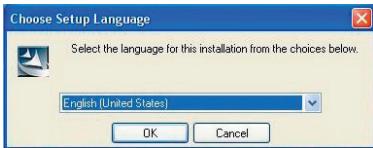
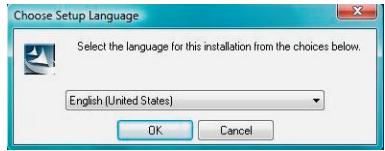
- Insert the driver CD into an available CD drive on your computer. Select the language you would like to use for the installation and click OK.
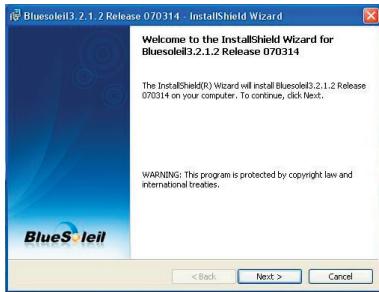
- The InstallShield Wizard for the BlueSoleil software will appear. Click Next to continue.
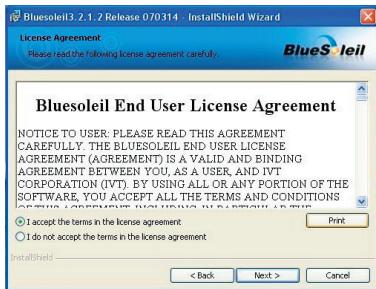
- If you agree to the terms of the license agreement, click on the "I accept the terms in the license agreement" and click Next to continue.
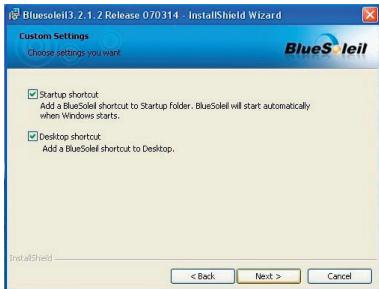
- Please choose if you want to have shortcut on Startup folder and Desktop, and then click Next to continue. (We suggest you leave it as default to avoid mistaken setting.)
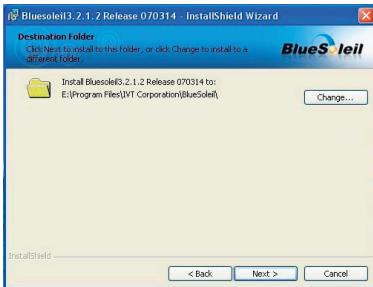
- Click Change if you would like to change the directory that the Bluetooth software is installed to. Click Next when you are ready to continue.
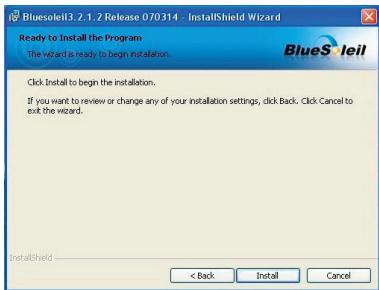
- If you have set everything correctly, simply click Install to begin the installation process. Otherwise, please click Back to review the setup.
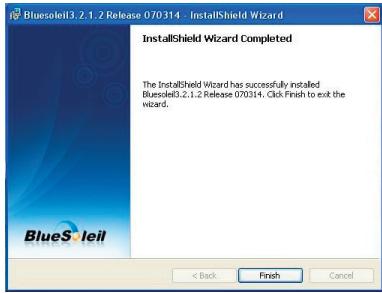
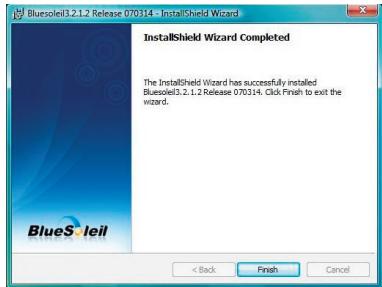
- After the BlueSoleil software has completely installed, you will need to restart your computer to begin using the software.
Windows Vista
- Insert the driver CD into an available CD drive on your computer. Select the language you would like to use for the installation and click OK.
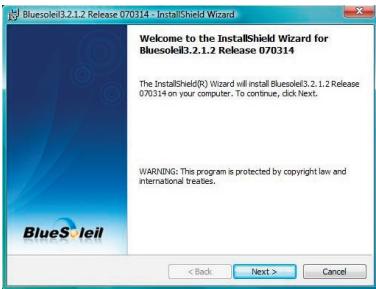
- The InstallShield Wizard for the BlueSoleil software will appear. Click Next to continue.
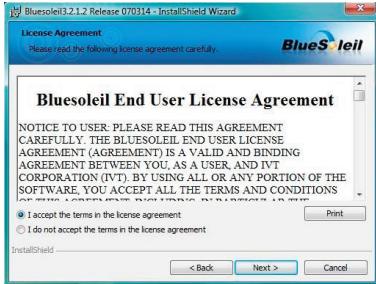
- If you agree to the terms of the license agreement, click on the "I accept the terms in the license agreement" and click Next to continue.
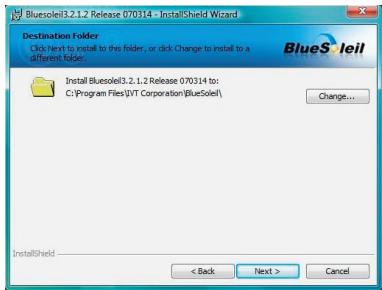
- Click Change if you would like to change the directory that the Bluetooth software is installed to. Otherwise, click Next when you are ready to continue.
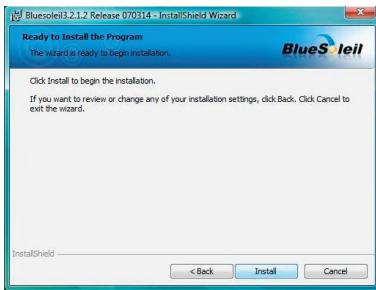
- If you have set everything correctly, simply click Install to begin the installation process. Otherwise, please click Back to review the setup.
- After the BlueSoleil software has completely installed, you will need to restart your computer to begin using the software.
Hardware Installation
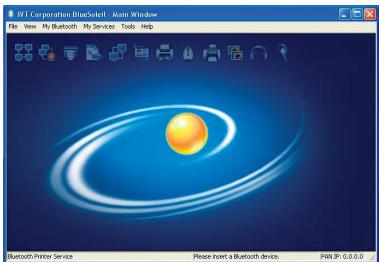
- After restarting you will be presented with the main BlueSoleil window. At the bottom of the window will be a message asking you to insert a Bluetooth device. Insert the Bluetooth® adapter into an available USB port on your computer now.
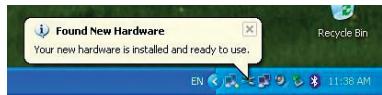
- On Windows XP, you will see a message bubble appear in the lower right corner of your screen as drivers are loaded for the Bluetooth ^® adapter.
- When the drivers have completely loaded, the BlueSoleil software will ask you for the name and type of your computer so that other Bluetooth devices can correctly identify it. Press OK when you are done entering this information.
![Welcome to Bluetooth General Please set your Bluetooth device name and device type. This information will be shown to other Bluetooth devices. Device Address: 0015/03/F 78:26 Device Name: [IGEAR] Device Type: Desktop Security: Your security level in 'Medium' now. Other Bluetooth devices must provide a Bluetooth passkey before connecting with your computer. If you do not want to have security authentication, uncheck. Use security level Medium. Use security level Medium OK](/content/2025/01/186226/images/d796a7065ae13b66fc2c544e5815ed9f6bec0b98505aeb7485dfd61d5a728d78.jpg)
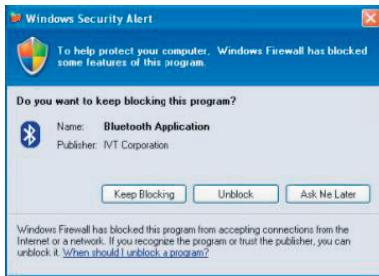
- As the Bluetooth network is established, you may see a warning from any firewall software you have installed. Make sure you unblock the BlueSoleil software or you may experience problems with networking.
Windows Vista
- After your computer is restarted, double click the BlueSoleil icon on your desktop to start the BlueSoleil software. Then you will be presented with the main BlueSoleil window. At the bottom of the window will be a message asking you to insert a Bluetooth device. Insert the Bluetooth® adapter into an available USB port on your computer now.

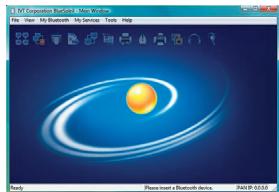
- On Windows Vista, you will see a message bubble appear in the lower right corner of your screen as drivers are loaded for the Bluetooth ^® adapter.

- When the drivers are completely loaded, the BlueSoleil software will ask you for the name and the device type of your computer so that other Bluetooth devices can correctly identify it. Press OK when you are done entering this information.
![Welcome to Bluetooth General Please set your Bluetooth device name and device type. This information will be shown to other Bluetooth devices. Device Address: 00:15:83 BF-7B:26 Device Name: [IOGEAR] Device Type: Desktop Security Your security level is 'Medium' now. Other Bluetooth devices must provide a Bluetooth passkey before connecting with your computer. If you do not want to have security authentication, uncheck. Use security level Medium. Use security level Medium OK](/content/2025/01/186226/images/1e99d0813bc3a7dd564724a25f9b0ca1c6587d57d51b8048253fc1702d026c6d.jpg)
- As the Bluetooth network is established, you may see a warning from any firewall software you have installed. Make sure you unblock the BlueSoleil software or you may experience problems with networking.
Installing the Bluetooth Mouse
Windows XP
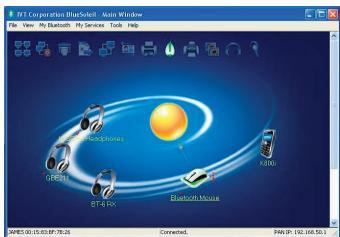
- To connect to a Bluetooth mouse, make sure the device is in discoverable mode and click the orange orb to search for nearby Bluetooth devices. If the device cannot be found, refer to your Bluetooth mouse's documentation for instructions on making it discoverable.
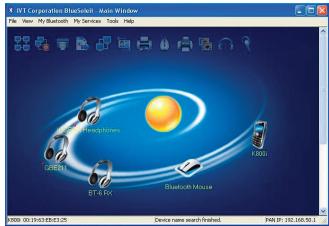
- If the device requires authentication, right-click on the Bluetooth mouse icon and choose Pair Device.
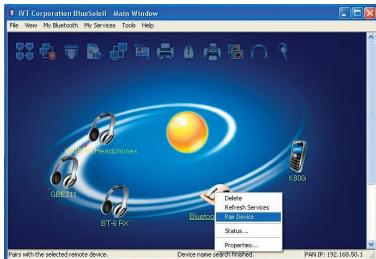
- Then enter the passkey found in the device's documentation and click Ok.
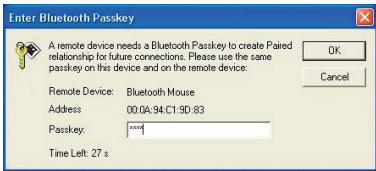
- Double-click on the mouse to discover what Bluetooth features it supports. You will see the Bluetooth Human Interface Device (HID) icon light up at the top of the BlueSoleil window. Click once on the HID icon to connect to your mouse. The icon should turn green and a link should appear between your
green and a link should appear between your mouse and the orb. If this is the first time you have used a Bluetooth mouse there will be a brief pause while drivers are loaded, but your mouse should now be ready to use. You can close the BlueSoleil window and your mouse will continue to work.
Windows Vista
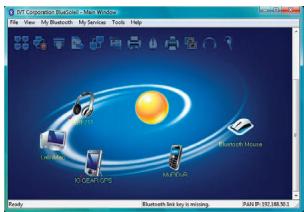
- To connect to a Bluetooth mouse, make sure the device is in discoverable mode and click the orange orb to search for nearby Bluetooth devices. If the device cannot be found, refer to your Bluetooth mouse's documentation for instructions on making it discoverable.
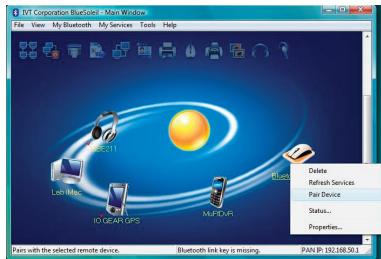
- If the device requires authentication, right-click on the Bluetooth mouse icon and choose Pair Device.
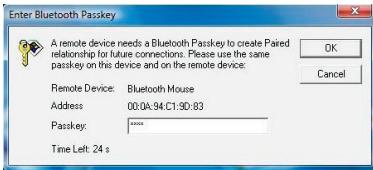
- Then enter the passkey found in the device's documentation and click Ok.
- Double-click on the mouse to discover what Bluetooth features it supports. You will see the Bluetooth Human Interface Device (HID) icon light up at the top of the BlueSoleil window. Click once on the HID icon to connect to your mouse. The icon
should turn green and a link should appear between your mouse and the orb. If this is the first time you have used a Bluetooth mouse there will be a brief pause while drivers are loaded, but your mouse should now be ready to use. You can close the BlueSoleil window and your mouse will continue to work.
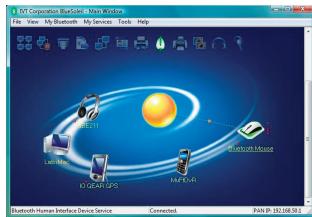
Disabling Bluetooth Mouse
Windows XP
- If you would like to stop the mouse from automatically connecting when it is turned on, you will need to "unplug" it. You can do this by pulling down the Tools menu, selecting Configurations and then Unplug HID.
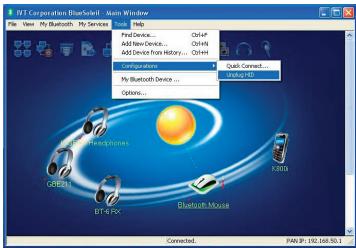
- You will see a list of any HID devices you have connected to. Select the mouse and click Unplug.
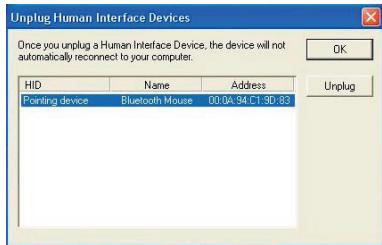
- Then you will see the Bluetooth mouse is cleared from the list, then simply click Ok to finished the unplug process.
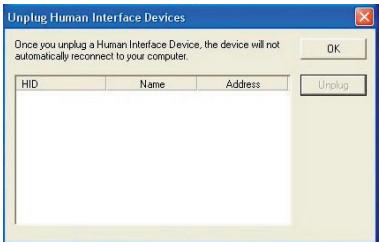
Windows Vista
- If you would like to stop the mouse from automatically connecting when it is turned on, you will need to "unplug" it. You can do this by pulling down the Tools menu, selecting Configurations and then Unplug HID.
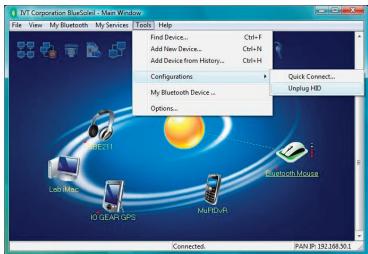
- You will see a list of any HID devices you have connected to. Select the mouse and click Unplug.
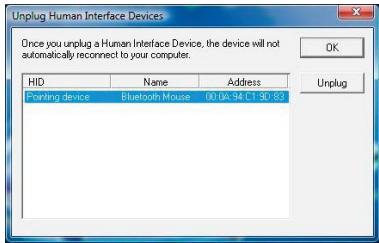
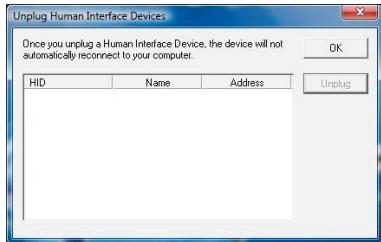
- Then you will see the Bluetooth mouse is cleared from the list, then simply click Ok to finished the unplug process.
Installing a Bluetooth Enabled PDA
Windows XP
- To connect to a PDA device, make sure the device is in discoverable mode and click the orange orb to search for nearby Bluetooth devices. If the device cannot be found, refer to your PDA's documentation for instructions on making it discoverable.
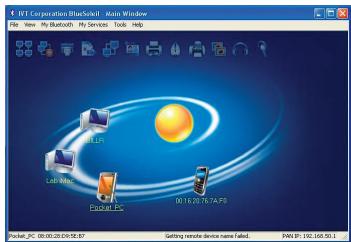
- If the device requires authentication, right-click on the PDA icon and choose Pair Device.
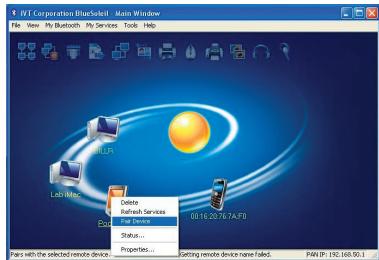
- Then enter the passkey found in the device's documentation and click Ok.
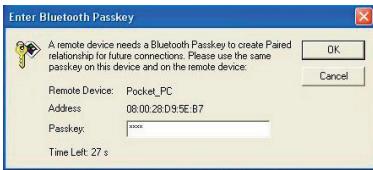
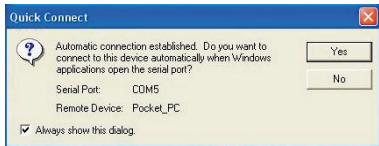
- Double-click on the PDA icon to discover what services are offered by the device. The icon for Bluetooth Serial Port should light up. Click this icon to connect to the PDA. A window will appear, showing which
COM port number has been assigned to the PDA. If your PDA software does not have an auto-detect feature, you may need to manually select the COM port number shown here in the software preferences. Click Yes to allow your PDA software to start the connection on its own.
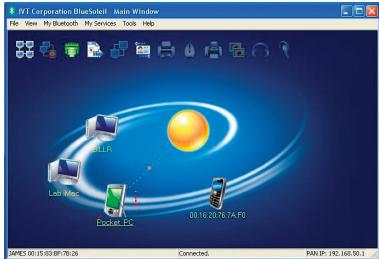
- The icon should turn green and a link should appear between your PDA and the orb.
- After the Bluetooth Serial Port Service is activated, you can now use your own PDA software (For example: Nokia PC Suite) to synchronized your PDA. Please select the same serial port number as shown on Step 4 (COM5 in this example) if your software asks you which COM port to use for synchronization.
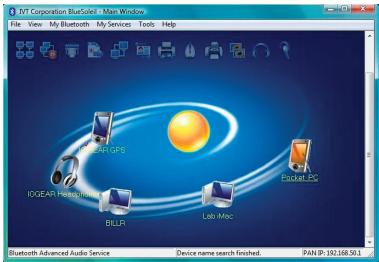
Windows Vista
- To connect to a PDA device, make sure the device is in discoverable mode and click the orange orb to search for nearby Bluetooth devices. If the device cannot be found, refer to your PDA's documentation for instructions on making it discoverable.
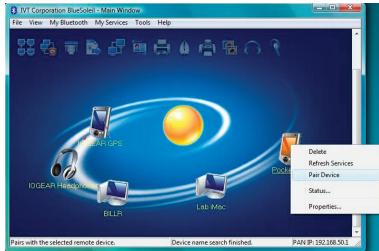
- If the device requires authentication, right-click on the PDA icon and choose Pair Device.
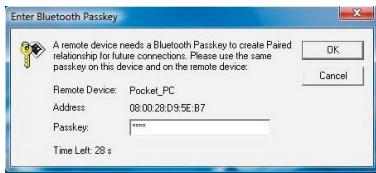
- Then enter the passkey found in the device's documentation and click Ok.
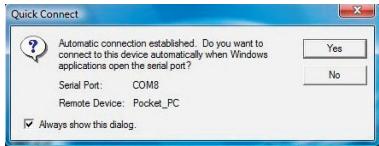
- Double-click on the PDA icon to discover what services are offered by the device. The icon for Bluetooth Serial Port should light up. Click this icon to connect to the PDA. A window will appear, showing which COM
port number has been assigned to the PDA. If your PDA software does not have an auto-detect feature, you may need to manually select the COM port number shown here in the software preferences. Click Yes to allow your PDA software to start the connection on its own.
- The icon should turn green and a link should appear between your PDA and the orb.
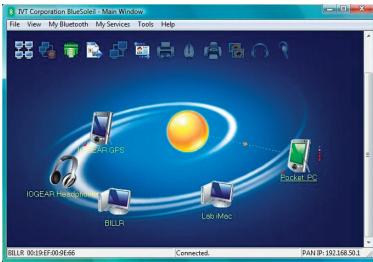
- After the Bluetooth Serial Port Service is activated, you can now use your own PDA software (For example: Nokia PC Suite) to synchronized your PDA. Please select the same serial port number as shown on Step 4 (COM8 in this example) if your software asks you which COM port to use for synchronization.
Installing a Bluetooth GPS
Windows XP
- To connect to a GPS device, make sure the device is in discoverable mode and click the orange orb to search for nearby Bluetooth devices. If the device cannot be found, refer to your GPS' documentation for instructions on making it discoverable.
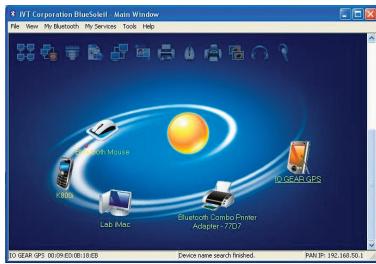
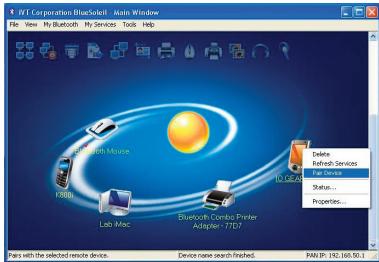
- If the device requires authentication, right-click on the GPS icon and choose Pair Device.
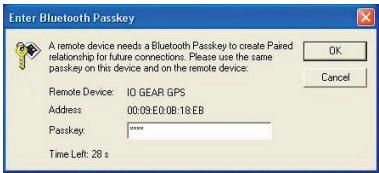
- Then enter the passkey found in the device's documentation and click Ok.
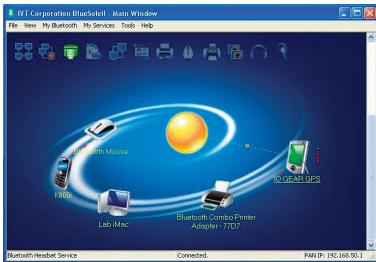
- Double-click on the GPS icon to discover what services are offered by the device. The icon for Bluetooth Serial Port should light up. Click this icon to connect to the GPS.
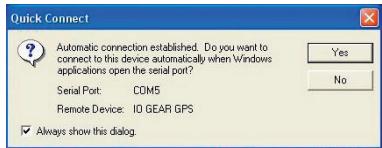
A window will appear, showing which COM port number has been assigned to the GPS. If your GPS software does not have an auto-detect feature, you may need to manually select the COM port number shown here in the software preferences. Click Yes to allow your GPS software to start the connection on its own.
- The icon should turn green and a link should appear between your GPS and the orb.
Windows Vista
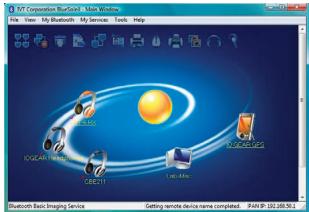
- To connect to a GPS device, make sure the device is in discoverable mode and click the orange orb to search for nearby Bluetooth devices. If the device cannot be found, refer to your GPS' documentation for instructions on making it discoverable.
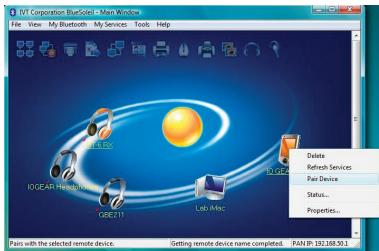
- If the device requires authentication, right-click on the GPS icon and choose Pair Device.
- Then enter the passkey found in the device's documentation and click Ok.
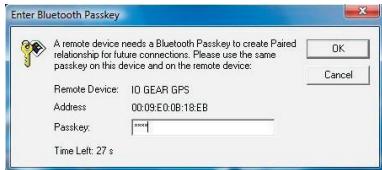
- Double-click on the GPS icon to discover what services are offered by the device. The icon for Bluetooth Serial Port should light up. Click this icon to connect to the GPS. A window will appear, showing which COM port number has been assigned to the GPS. If your GPS software does not have an auto-detect feature, you may need to manually select the COM port number shown here in the software preferences. Click Yes to allow your GPS software to start the connection on its own.
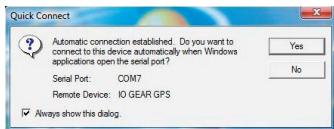
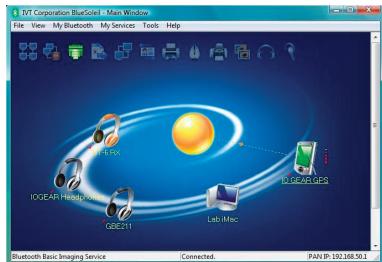
- The icon should turn green and a link should appear between your GPS and the orb.
Installing a Bluetooth Headset
Windows XP
- To connect to a Bluetooth headset, first make sure the headset has been set to discoverable mode. Refer to your headset's documentation for instructions on how to do this. Then click the orange orb at the center of the Bluetooth window to search for the headset.
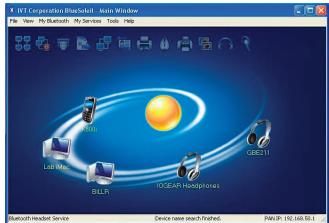
- If the headset requires authentication, right-click the headset icon and choose Pair Device.
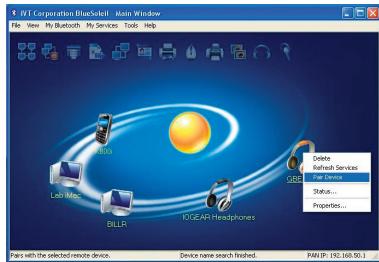
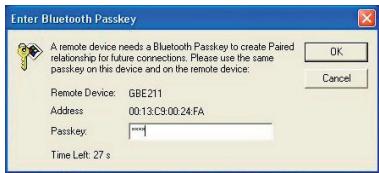
- Then enter the passkey from the headset's documentation and click OK.
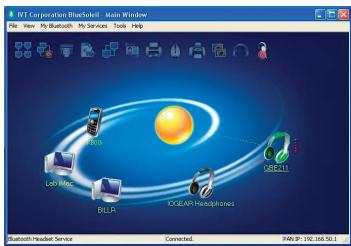
- Double-click the headset icon to discover the services it offers. The Headset service should light up at the top of the window. Click the Headset service icon to connect to the headset. The headset should ring as if
you were receiving an incoming call. A press of the button on your headset should accept the call and begin transmitting sound from your computer to the headset. The microphone on the headset should also transmit to the computer, allowing you to make voice over IP (VOIP) phone calls.
Windows Vista
- To connect to a Bluetooth headset, first make sure the headset has been set to discoverable mode. Refer to your headset's documentation for instructions on how to do this. Then click the orange orb at the center of the Bluetooth window to search for the headset.
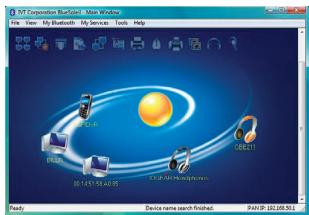
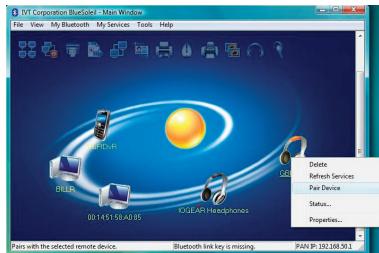
- If the headset requires authentication, right-click the headset icon and choose Pair Device.
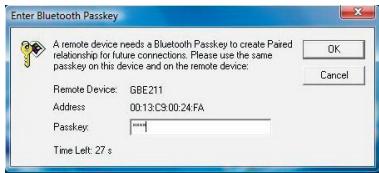
- Then enter the passkey from the headset's documentation and click OK.
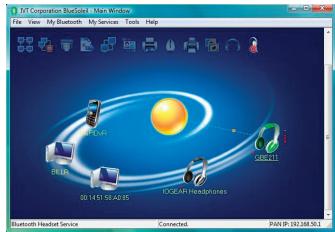
- Double-click the headset icon to discover the services it offers. The Headset service should light up at the top of the window. Click the Headset service icon to connect to the headset. The headset should ring as if
you were receiving an incoming call. A press of the button on your headset should accept the call and begin transmitting sound from your computer to the headset. The microphone on the headset should also transmit to the computer, allowing you to make voice over IP (VOIP) phone calls.
Installing a Bluetooth Stereo Headphone
Windows XP
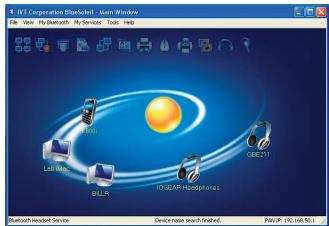
- To connect to a Bluetooth Stereo Headphone, first make sure the headphone has been set to discoverable mode. Refer to your headphone's documentation for instructions on how to do this. Then click the orange orb at the center of the Bluetooth window to search for the headphone.
- If the headphone requires authentication, right-click on the headphone icon and choose Pair Device.
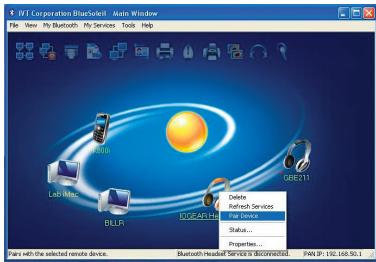
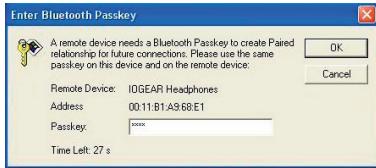
- Then enter the passkey from the headphone's documentation and click OK.
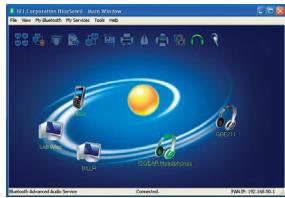
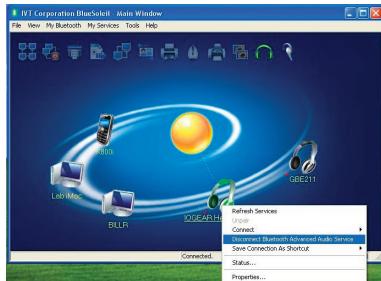
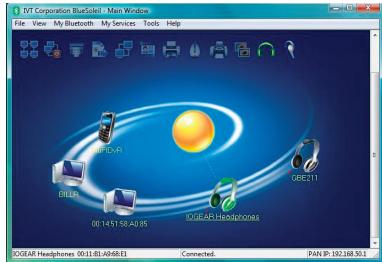
- Both Headset and Advanced Audio Service icons should light up at the top right corner of the window. Right-click on the headphone icon to discover the services it offers. Click on Bluetooth Advanced Audio Service from the selection list to connect to the headphone. Advanced Audio Service icon at the top right corner of the window should turn GREEN when the service is activated.
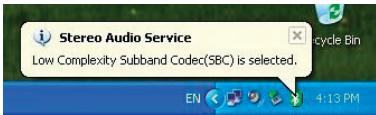
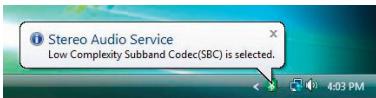
- A message dialog box will also show up at the bottom right corner of your desktop indicating SBC Codec is selected.
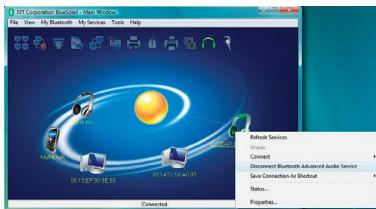
- To disconnect the Advanced Audio Service, simply right-click on the headphone icon, and select Disconnect Bluetooth Advanced Audio Service.
Windows Vista
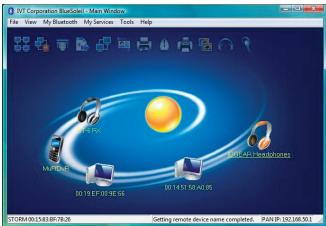
- To connect to a Bluetooth Stereo Headphone, first make sure the headphone has been set to discoverable mode. Refer to your headphone's documentation for instructions on how to do this. Then click the orange orb at the center of the Bluetooth window to search for the headphone.
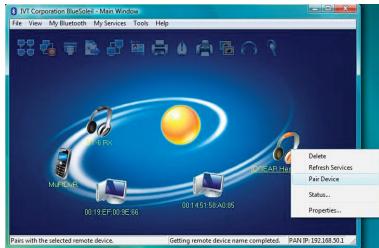
- If the headphone requires authentication, right-click on the headphone icon and choose Pair Device.
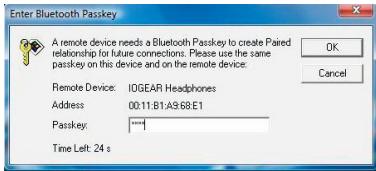
- Then enter the passkey from the headphone's documentation and click OK.
- Both Headset and Advanced Audio Service icons should light up at the top right corner of the window. Right-click on the headphone icon to discover the services it offers. Click
on Bluetooth Advanced Audio Service from the selection list to connect to the headphone. Advanced Audio Service icon at the top right corner of the window should turn GREEN when the service is activated.
- A message dialog box will also show up at the bottom right corner of your desktop indicating SBC Codec is selected.
- To disconnect the Advanced Audio Service, simply right-click on the headphone icon, and select Disconnect Bluetooth Advanced Audio Service.
Using a Bluetooth Stereo Headphone as Headset on Your PC
Windows XP
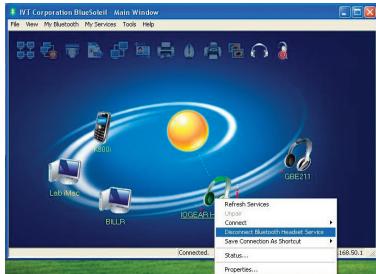
- Click on Bluetooth Headset Service from the selection list to connect to the headphone. The headphone should ring as if you were receiving an incoming call. Press on the phone button on your headphone to accept the call and begin transmitting sound from your computer to the headphone. The microphone on the headphone should also transmit to the computer, allowing you to make voice over IP (VOIP) phone calls.
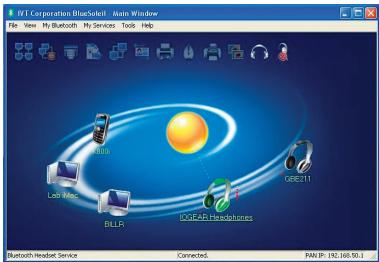
- To disconnect the Headset Service, simply right-click on the headphone icon, and select Disconnect Bluetooth Headset Service.
Windows Vista
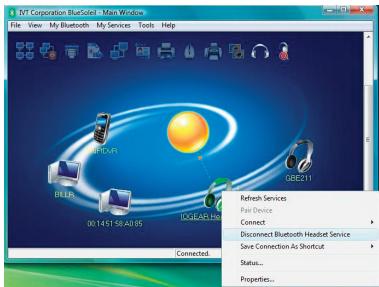
- Click on Bluetooth Headset Service from the selection list to connect to the headphone. The headphone should ring as if you were receiving an incoming call. Press on the phone button on your headphone to accept the call and begin transmitting sound from your computer to the headphone. The microphone on the headphone should also transmit to the computer, allowing you to make voice over IP (VOIP) phone calls.
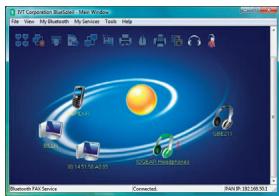
- To disconnect the Headset Service, simply right-click on the headphone icon, and select Disconnect Bluetooth Headset Service.
Installing a Bluetooth Printer Adapter
Windows XP
- To connect to a Bluetooth Printer Adapter, first make sure the adapter has been set to discoverable mode. Refer to your adapter's documentation for instructions on how to do this. Then click the orange orb at the center of the Bluetooth window to search for the adapter.
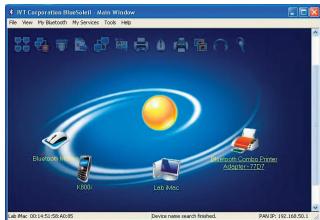
- If the adapter requires authentication, right-click on the adapter icon, then click on Pair Device.
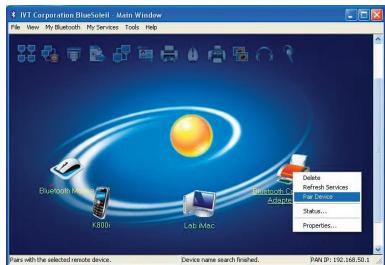
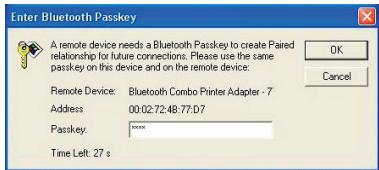
- Then enter the passkey from the adapter documentation, then click OK.
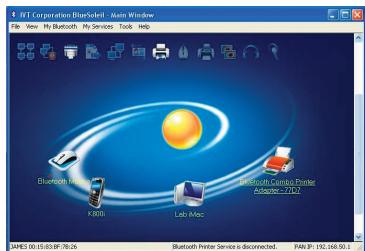
- If you have completed the pairing process or the adapter does not require authentication, double click on the adapter icon. The Bluetooth Serial Port Service and Bluetooth Printer Service should light up on the top of the window. Click on the Bluetooth Printer Service.
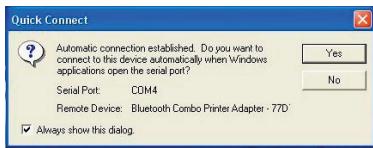
- When you are connected to the Bluetooth Printer Service, the Bluetooth Printer Service icon will turn GREEN on the top of the window. A Quick connect window will appear telling you which port to use for the Bluetooth Printer Service. Simply click YES in the Quick Connect window.
- Please follow the instruction of the dialog box showing at the bottom right corner of the desktop. Install the connected printer driver and set the print port to the designated port number.
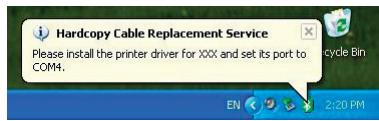
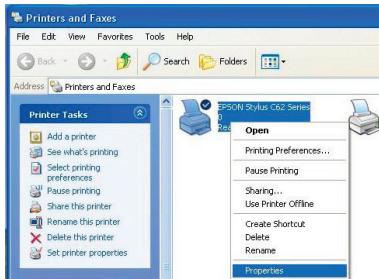
- After the printer driver is installed, please go to Start -> Control Panel -> double click on Printers and Faxes. Right-click on the printer icon and select Properties.
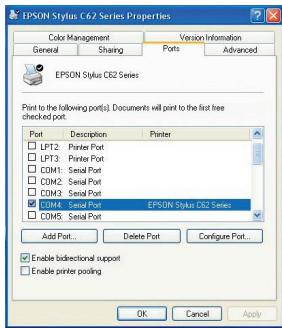
- Select Ports tab to make sure your printer is set on the correct port.
Windows Vista
- To connect to a Bluetooth Printer Adapter, first make sure the adapter has been set to discoverable mode. Refer to your adapter's documentation for instructions on how to do this. Then click the orange orb at the center of the Bluetooth window to search for the adapter.
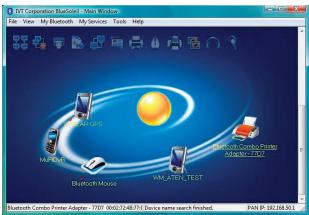
- If the adapter requires authentication, right-click on the adapter icon, then click on Pair Device.
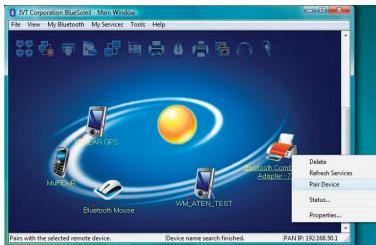
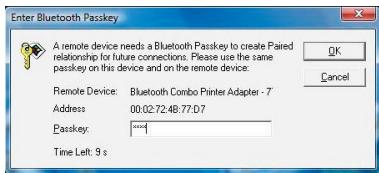
- Then enter the passkey from the adapter documentation, then click OK.
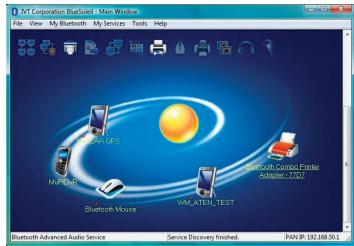
- If you have completed the pairing process or the adapter does not require authentication, double click on the adapter icon. The Bluetooth Serial Port Service and Bluetooth Printer Service should light up on the top of the window. Click on the Bluetooth Printer Service.
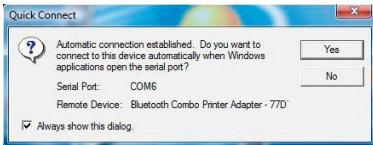
- When you are connected to the Bluetooth Printer Service, the Bluetooth Printer Service icon will turn GREEN on the top of the window. A Quick connect window will appear telling you which port to use for the Bluetooth Printer Service. Simply click YES in the Quick Connect window.
- Please follow the instruction of the dialog box showing at the bottom right corner of the desktop. Install the connected printer driver and set the print port to the designated port number.
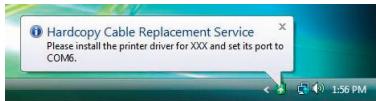
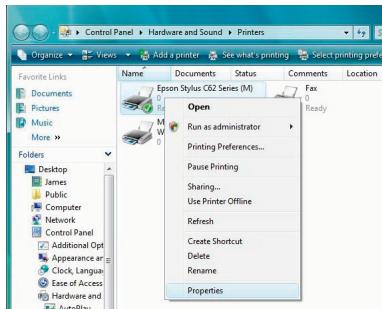
- After the printer driver is installed, please go to Start -> Control Panel -> Hardware and Sound -> Printers. Right-click on the printer icon and select Properties.
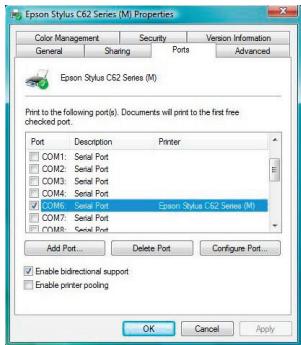
- Select Ports tab to make sure your printer is set on the correct port.
Technical Support
If you need technical support, please check out our IOGEAR Tech Info Library (TIL) at http://www.iogear.com/support for the latest tips, tricks, and troubleshooting. The TIL is designed to provide you with the latest technical information about our products. Most of the answers to your questions can be found here, so please try it out before contacting technical support.
Technical support is available Monday through Friday from 8:00 am to 5:00 pm PST by calling our toll-free number 866-9-IOGEAR (866-946-4327). International callers may need to use the number 949-453-8782. Help is also available by e-mailing us at support@iogear.com.
Federal Communications Commission (FCC) Statement
15.21
You are cautioned that changes or modifications not expressly approved by the part responsible for compliance could void the user's authority to operate the equipment.
15.105(b)
This equipment has been tested and found to comply with the limits for a Class B digital device, pursuant to part 15 of the FCC rules. These limits are designed to provide reasonable protection against harmful interference in a residential installation. This equipment generates, uses and can radiate radio frequency energy and, if not installed and used in accordance with the instructions, may cause harmful interference to radio communications. However, there is no guarantee that interference will not occur in a particular installation. If this equipment does cause harmful interference to radio or television reception, which can be determined by turning the equipment off and on, the user is encouraged to try to correct the interference by one or more of the following measures:
- Reorient or relocate the receiving antenna.
- Increase the separation between the equipment and receiver.
- Connect the equipment into an outlet on a circuit different from that to which the receiver is connected.
- Consult the dealer or an experienced radio/TV technician for help.
THIS DEVICE COMPLIES WITH PART 15 OF THE FCC RULES. OPERATION IS SUBJECT TO THE FOLLOWING TWO CONDITIONS:
- this device may not cause interference and
- this device must accept any interference, including interference that may cause undesired operation of the device.
FCC RF Radiation Exposure Statement:
This equipment complies with FCC radiation exposure limits set forth for an uncontrolled environment. End users must follow the specific operating instructions for satisfying RF exposure compliance. This transmitter must not be co-located or operating in conjunction with any other antenna or transmitter.
CE Statement
This device has been tested and found to comply with the requirements set up in the council directive on the approximation of the law of member states relating to EMC Directive 89/336/EEC, Low Voltage Directive 73/23/EEC and R&TTE Directive 99/5/EC.
Limited Warranty
IN NO EVENT SHALL THE DIRECT VENDOR'S LIABILITY FOR DIRECT, INDIRECT, SPECIAL, INCIDENTAL OR CONSEQUENTIAL DAMAGES RESULTING FROM THE USE OF THE PRODUCT, DISK, OR ITS DOCUMENTATION EXCEED THE PRICE PAID FOR THE PRODUCT.
The direct vendor makes no warranty or representation, expressed, implied, or statutory with respect to the contents or use of this documentation, and especially disclaims its quality, performance, merchantability, or fitness for any particular purpose.
The direct vendor also reserves the right to revise or update the device or documentation without obligation to notify any individual or entity of such revisions, or updates. For further inquiries please contact your direct vendor.
Contact
IOGEAR, INC.
23 Hubble
Irvine, CA 92618
P 949.453.8782
F 949.453.8785
Visit us at: www.iogear.com
©2007 IOGEAR. All Rights Reserved. PKG-M0418
IOGEAR, the IOGEAR logo, MiniView, VSE are trademarks or registered trademarks of IOGEAR, Inc. Microsoft and Windows are registered trademarks of Microsoft Corporation. IBM is a registered trademark of International Business Machines, Inc. Macintosh, G3/G4 and iMac are registered trademarks of Apple Computer, Inc. IOGEAR makes no warranty of any kind with regards to the information presented in this document. All information furnished here is for informational purposes only and is subject to change without notice. IOGEAR, Inc. assumes no responsibility for any inaccuracies or errors that may appear in this document.

natural_image
Cartoon character with green leaf-like head and green outfit, standing on a light green background (no text or symbols)About Us

FUN
IOGEAR offers connectivity solutions that are innovative, fun, and stylish, helping people enjoy daily life using our high technology products.

GREEN
IOGEAR is an environmentally conscious company that emphasizes the importance of conserving natural resources. The use of our technology solutions helps reduce electronic waste.

HEALTH
IOGEAR supports healthy and fit lifestyles. By integrating products with the latest scientific developments, IOGEAR's solutions enhance the life of end-users.
- Welcome
- Table of Contents
- Package Contents
- Features
- System Requirements
- Hardware Requirement:
- Operating System:
- Introduction
- Software Installation
- Windows XP
- Windows Vista
- Hardware Installation
- Installing the Bluetooth Mouse
- Disabling Bluetooth Mouse
- Installing a Bluetooth Enabled PDA
- Installing a Bluetooth GPS
- Installing a Bluetooth Headset
- Installing a Bluetooth Stereo Headphone
- Using a Bluetooth Stereo Headphone as Headset on Your PC
- Installing a Bluetooth Printer Adapter
- Technical Support
- Federal Communications Commission (FCC) Statement
- 15.21
- 15.105(b)
- THIS DEVICE COMPLIES WITH PART 15 OF THE FCC RULES. OPERATION IS SUBJECT TO THE FOLLOWING TWO CONDITIONS:
- FCC RF Radiation Exposure Statement:
- CE Statement
- Limited Warranty
- Contact
- IOGEAR, INC.
- About Us
- FUN
- GREEN
- HEALTH
Brand : IOGEAR
Model : GBU241W6
Category : Bluetooth Adapters