
ANTI-VIRUS 2011 - Security Software KASPERSKY LAB - Free user manual and instructions
Find the device manual for free ANTI-VIRUS 2011 KASPERSKY LAB in PDF.


| Product type | Antivirus security software |
| Version | 11.0 (2011) |
| Publisher | Kaspersky Lab ZAO, Russia |
| Supported operating systems | Microsoft Windows XP SP2+, Windows Vista, Windows 7 (32 and 64 bit) |
| Required processor | 800 MHz (XP) or 1 GHz (Vista/7) |
| Required RAM | 512 MB (XP), 1 GB (Vista/7 32 bit), 2 GB (Vista/7 64 bit) |
| Required disk space | 480 MB |
| Internet connection required | Yes (for activation and updates) |
| Required browser | Microsoft Internet Explorer 6.0 or higher |
| License type | Commercial or trial (30 days) |
| Activation | By activation code (25 characters) or license file |
| Main features | Real-time protection (files, mail, web, instant messaging), proactive detection, anti-phishing, vulnerability analysis, quarantine, gaming mode, energy saving |
| Protection modules | File Anti-Virus, Mail Anti-Virus, Web Anti-Virus, IM Anti-Virus, Proactive Defense, System Watcher, Network Monitor |
| Update | Automatic (signature bases and modules), manual and scheduled update possible |
| Interface | Main window, system tray icon, Windows gadget, browser and email client plug-ins |
| Available languages | Multilingual (including French) |
| Technical support | Phone and online support, knowledge base, forum, My Kaspersky account |
| Maintenance and cleanup | Regular database updates, scheduled scanning, quarantine and temporary file cleanup |
| Security | Protection against viruses, worms, Trojans, spyware, rootkits, phishing; application self-defense, protection against unauthorized modifications |
| Spare parts and repairability | Reinstallation via installer, backup and restore settings, repair tool, rescue disk |
| General information | User manual in PDF format included, available for download on Kaspersky website |
Frequently Asked Questions - ANTI-VIRUS 2011 KASPERSKY LAB
User questions about ANTI-VIRUS 2011 KASPERSKY LAB
0 question about this device. Answer the ones you know or ask your own.
Ask a new question about this device
Download the instructions for your Security Software in PDF format for free! Find your manual ANTI-VIRUS 2011 - KASPERSKY LAB and take your electronic device back in hand. On this page are published all the documents necessary for the use of your device. ANTI-VIRUS 2011 by KASPERSKY LAB.
USER MANUAL ANTI-VIRUS 2011 KASPERSKY LAB
Kaspersky Anti-Virus 2011
USERGUIDE
APPLICATION VERSION: 11.0

Dear User!
Thank you for choosing our product. We hope that this document will be useful to you and provide answers for most of your questions that may arise.
Warning! This document is the property of Kaspersky Lab ZAO (herein also referred to as Kaspersky Lab): all rights to this document are reserved by the copyright laws of the Russian Federation, and by international treaties. Illegal reproduction and distribution of this document or parts thereof result in civil, administrative or criminal liability pursuant to the laws of the Russian Federation.
Any type of reproduction or distribution of any materials, including translations, is allowed only with the written permission of Kaspersky Lab.
This document and graphic images related to it may be used exclusively for informational, non-commercial, and personal purposes.
This document may be amended without additional notification. You can find the latest version of this document at the Kaspersky Lab website, at http://www.kaspersky.com/docs.
Kaspersky Lab assumes no liability for the content, quality, relevance, or accuracy of any materials used in this document for which the rights are held by third parties, or for any potential damages associated with the use of such documents.
This document involves the registered trademarks and service marks which are the property of their respective owners.
Document revision date: 04/30/2010
© 1997-2010 Kaspersky Lab ZAO. All Rights Reserved.
http://www.kaspersky.com
http://support.kaspersky.com
CONTENT
KASPERSKY LAB END USER LICENSE AGREEMENT 9
ABOUT THIS GUIDE 16
In this document 16
Document conventions 17
ADDITIONAL SOURCES OF INFORMATION 19
Sources of information for independent research 19
Discussing Kaspersky Lab applications on the web forum 20
Contacting the Sales Department 20
Contacting Documentation development group 20
KASPERSKY ANTI-VIRUS 2011 21
What's new 21
Ensuring your computer protection 21
Distribution kit 23
Service for registered users 23
Hardware and software requirements 24
INSTALLING THE APPLICATION 25
Installation procedure 25
Step 1. Searching for a newer version of the application 26
Step 2. Making sure the system meets the installation requirements 26
Step 3. Choosing the type of installation 27
Step 4. Reviewing the license agreement 27
Step 5. Kaspersky Security Network Data Collection Statement 27
Step 6. Searching for incompatible applications 27
Step 7. Selecting the destination folder 28
Step 8. Preparing installation 28
Step 9. Installing 28
Step 10. Activating the application 29
Step 11. Registering a user 29
Step 12. Completing the activation 30
Step 13. Closing the Wizard. 30
Getting started 30
Removing the application 30
Step 1. Saving data for repeated use 31
Step 2. Confirmation of application removal 31
Step 3. Removing the application. Completing removal 31
MANAGINGLICENSE 32
About End User License Agreement 32
out license 32
out activation code 33
Viewing license information 34
APPLICATION INTERFACE 35
Notification area icon 35
Context menu 36
Kaspersky Anti-Virus main window 37
Notification windows 39
Application settings window 40
Kaspersky Gadget 41
STARTING AND STOPPING THE APPLICATION 42
Enabling and disabling automatic launch 42
Starting and stopping the application manually 42
COMPUTER PROTECTION STATUS 43
Diagnostics and elimination of problems in your computer protection 43
Enabling and disabling protection 45
Pausing and resuming protection 46
SOLVING TYPICAL TASKS 47
How to activate the application 48
How to purchase or renew license 49
What to do when the application's notifications appear 49
How to update application databases 50
How to scan critical areas of your computer for viruses 50
How to scan an object (file, folder, disk drive) for viruses 51
How to perform full scan of your computer for viruses 52
Scanning computer for vulnerabilities 52
How to protect your personal data against theft 53
Protection against phishing 53
Virtual keyboard. 54
What to do if you suspect an object of being infected with a virus 55
What to do if you suspect your computer of being infected 56
How to restore an object deleted or disinfected by the application 57
How to create and use Rescue Disk. 57
Creating the rescue disk 58
Starting the computer from the rescue disk 60
Where to view the report on the application's operation 60
How to restore application default settings 61
How to import the application settings to Kaspersky Anti-Virus installed on another computer 61
How to switch from Kaspersky Anti-Virus to Kaspersky Internet Security 62
Switching to the commercial version 63
Temporarily switching to the trial version 63
How to use Kaspersky Gadget 65
ADVANCED APPLICATION SETTINGS 67
Selecting protection mode 68
Computer scan 68
Virus scan 68
Vulnerability Scan. 75
Update 75
Selecting an update source 76
Selecting the update server region 77
Updating from a local folder 77
Creating the update startup schedule 78
Rolling back the last update 79
Scanning Quarantine after update 79
Using the proxy server 79
Running updates under a different user account 80
File Anti-Virus 80
Enabling and disabling File Anti-Virus 81
Automatically pausing File Anti-Virus 81
Creating a protection scope 82
Changing and restoring security level 83
Selecting scan mode 83
Using heuristic analysis 83
Selecting the scan technology 84
Changing actions to be performed on detected objects 84
Scan of compound files 84
Scan optimization. 85
Mail Anti-Virus 86
Enabling and disabling Mail Anti-Virus 87
Creating a protection scope 87
Changing and restoring security level 88
Using heuristic analysis 88
Changing actions to be performed on detected objects 89
Attachment filtering 89
Scan of compound files 89
Email scanning in Microsoft Office Outlook 90
Email scanning in The Bat! 90
Web Anti-Virus 91
Enabling and disabling Web Anti-Virus 92
Selecting the Web Anti-Virus security level 93
Changing actions to be performed on dangerous objects 93
Checking URLs using the databases of suspicious and phishing addresses 93
Using heuristic analysis 94
Blocking dangerous scripts 95
Scan optimization. 95
Kaspersky URL advisor 95
Creating a list of trusted addresses 96
Restoring Web Anti-Virus default settings 97
IM Anti-Virus 97
Enabling and disabling IM Anti-Virus 98
Creating a protection scope 98
Selecting the scan method 98
Proactive Defense 99
Enabling and disabling Proactive Defense 99
Creating a group of trusted applications 99
Using the dangerous activity list. 100
Changing the dangerous activity monitoring rule 100
System Watcher 100
Enabling / disabling System Watcher 101
Using patterns of dangerous activity (BSS) 101
Rolling back a malicious program's actions 102
Network protection 102
Scanning encrypted connections 103
Network Monitor 105
Configuring the proxy server 105
Creating a list of monitored ports 106
Trusted zone. 106
Creating a list of trusted applications 107
Creating the exclusion rules 108
Performance and compatibility with other applications 108
Selecting detectable threat categories 109
Advanced disinfection technology 109
Distributing computer resources when scanning for viruses 110
Running tasks on idle computer 110
Application settings in full-screen mode. Gaming profile 111
Battery saving 111
Kaspersky Anti-Virus Self-Defense 111
Enabling / disabling Self-Defense 112
Protection against external control 112
Quarantine and Backup storage 112
Storing quarantine and backup objects 113
Working with quarantined objects 113
Additional tools for better protection of your computer 115
Eliminating activity traces 115
Browser configuration 117
Rolling back the changes, made by the wizards 118
Reports 119
Creating a report for the selected component 119
Managing data display on the screen 120
Data filtering. 121
Events search 121
Saving a report to file 122
Storing reports 122
Clearing application reports 123
Logging non-critical events 123
Configuring the reminder of report availability 123
Application appearance 124
Application skin 124
Active interface elements 124
News Agent 124
Notifications 125
Enabling and disabling notifications 126
Configuring the notification method 126
Participating in the Kaspersky Security Network 127
VALIDATING KASPERSKY ANTI-VIRUS SETTINGS 128
Test "virus" EICAR and its modifications 128
Testing the HTTP traffic protection 130
Testing the SMTP traffic protection 130
Validating File Anti-Virus settings 130
Validating virus scan task settings 131
Validating Anti-Spam settings 131
CONTACTING THE TECHNICAL SUPPORT SERVICE 132
My Kaspersky Account 132
Technical support by phone 133
Creating a system state report 133
Creating a trace file 134
Sending data files 134
Executing AVZ script 135
APPENDIX 137
Subscription statuses 137
Kaspersky Anti-Virus notification list 138
Notifications in any protection mode 138
Notifications in interactive protection mode 143
Working with the application from the command line 150
Activating the application 152
Starting the application 152
Stopping the application 153
Managing application components and tasks 153
Virus scan 155
Updating the application 157
Rolling back the last update 158
Exporting protection settings 158
Importing protection settings 159
Creating a trace file 159
Viewing Help 160
Return codes of the command line 160
GLOSSARY 161
KASPERSKY LAB. 170
INFORMATION ABOUT THIRD-PARTY CODE 171
Program code 171
AGG 2.4 173
ADOBE ABI-SAFE CONTAINERS 1.0 174
BOOST 1.39.0 174
BZIP2/LIBBZIP2 1.0.5 174
CONVERTUTF 175
CURL 7.19.4 175
DEELX-REGULAREXPRESSIONENGINE1.2 176
EXPAT 1.2, 2.0.1 176
FASTSCRIPT 1.90 176
FDLIBM 5.3 176
FLEX: THE FAST LEXICAL ANALYZER 2.5.4 177
FMT.H. 177
GDTOA 177
GECKO SDK 1.8, 1.9, 1.9.1 178
ICU4C 4.0.1 186
INFO-ZIP 5.51 186
JSON4LUA 0.9.30 187
LIBGD 2.0.35 187
LIBJPEG 6B. 188
LIBM (lrint.c v 1.4, lrintf.c,v 1.5) 189
LIBPNG 1.2.8, 1.2.9, 1.2.42 189
LIBUNGIF 3.0 191
LIBXDR 191
LREXLIB 2.4 192
LUA 5.1.4 192
LZMALIB 4.43 193
MD5.H. 193
MD5.H. 193
MD5-CC 1.02 194
OPENSSL 0.9.8K 194
PCRE 7.7, 7.9 196
SHA1.C 1.2 197
STLPORT 5.2.1 198
SVCCTL.IDL 198
TINYXML 2.5.3 198
VISUALSTUDIOCRTSOURCECODE8.0 198
WINDOWS TEMPLATE LIBRARY 8.0 198
ZLIB 1.0.4, 1.0.8, 1.2.2, 1.2.3 203
Development tools 203
MS DDK 4.0, 2000 203
MS WDK 6000, 6001, 6002 203
WINDOWS INSTALLER XML (WIX) TOOLSET 3.0 203
Distributed program code 208
GRUB4DOS 0.4.4-2009-10-16 (FILE GRLDR) 208
GRUBINST 1.1 212
Other information 219
INDEX 221
KASPERSKY LAB END USER LICENSE AGREEMENT
IMPORTANT LEGAL NOTICE TO ALL USERS: CAREFULLY READ THE FOLLOWING LEGAL AGREEMENT BEFORE YOU START USING THE SOFTWARE.
BY CLICKING THE ACCEPT BUTTON IN THE LICENSE AGREEMENT WINDOW OR BY ENTERING CORRESPONDING SYMBOL(-S) YOU CONSENT TO BE BOUND BY THE TERMS AND CONDITIONS OF THIS AGREEMENT. SUCH ACTION IS A SYMBOL OF YOUR SIGNATURE AND YOU ARE CONSENTING TO BE BOUND BY AND ARE BECOMING A PARTY TO THIS AGREEMENT AND AGREE THAT THIS AGREEMENT IS ENFORCEABLE LIKE ANY WRITTEN NEGOTIATED AGREEMENT SIGNED BY YOU. IF YOU DO NOT AGREE TO ALL OF THE TERMS AND CONDITIONS OF THIS AGREEMENT, CANCEL THE INSTALLATION OF THE SOFTWARE AND DO NOT INSTALL THE SOFTWARE.
AFTER Clicking THE ACCEPT BUTTON IN THE LICENSE AGREEMENT WINDOW OR AFTER ENTERING CORRESPONDING SYMBOL(-S) YOU HAVE THE RIGHT TO USE THE SOFTWARE IN ACCORDANCE WITH THE TERMS AND CONDITIONS OF THIS AGREEMENT.
1. Definitions
1.1 Software means software including any Updates and related materials.
1.2 Rightholder (owner of all rights, whether exclusive or otherwise to the Software) means Kaspersky Lab ZAO, a company incorporated according to the laws of the Russian Federation.
1.3 Computer(s) means hardware(s), including personal computers, laptops, workstations, personal digital assistants, 'smart phones', hand-held devices, or other electronic devices for which the Software was designed where the Software will be installed and/or used.
1.4 End User (You/Your) means individual(s) installing or using the Software on his or her own behalf or who is legally using a copy of the Software; or, if the Software is being downloaded or installed on behalf of an organization, such as an employer, "You" further means the organization for which the Software is downloaded or installed and it is represented hereby that such organization has authorized the person accepting this agreement to do so on its behalf. For purposes hereof the term "organization," without limitation, includes any partnership, limited liability company, corporation, association, joint stock company, trust, joint venture, labor organization, unincorporated organization, or governmental authority.
1.5 Partner(s) means organizations or individual(s), who distributes the Software based on an agreement and license with the Rightholder.
1.6 Update(s) means all upgrades, revisions, patches, enhancements, fixes, modifications, copies, additions or maintenance packs etc.
1.7 User Manual means user manual, administrator guide, reference book and related explanatory or other materials.
2. Grant of License
2.1 The Rightholder hereby grants You a non-exclusive license to store, load, install, execute, and display (to "use") the Software on a specified number of Computers in order to assist in protecting Your Computer on which the Software is installed, from threats described in the User Manual, according to the all technical requirements described in the User Manual and according to the terms and conditions of this Agreement (the "License") and you accept this License:
Trial Version. If you have received, downloaded and/or installed a trial version of the Software and are hereby granted an evaluation license for the Software, you may use the Software only for evaluation purposes and only during the single applicable evaluation period, unless otherwise indicated, from the date of the initial installation. Any use of the Software for other purposes or beyond the applicable evaluation period is strictly prohibited.
Multiple Environment Software; Multiple Language Software; Dual Media Software; Multiple Copies; Bundles. If you use different versions of the Software or different language editions of the Software, if you receive the Software on multiple media, if you otherwise receive multiple copies of the Software, or if you received the Software bundled with other software, the total permitted number of your Computers on which all versions of the Software are installed shall correspond to the number of computers specified in licenses you have obtained from the Rightholder provided that unless the licensing terms provide otherwise, each acquired license entitles you to install and use the Software on such a number of Computer(s) as is specified in Clauses 2.2 and 2.3.
2.2 If the Software was acquired on a physical medium You have the right to use the Software for protection of such a number of Computer(s) as is specified on the Software package.
2.3 If the Software was acquired via the Internet You have the right to use the Software for protection of such a number of Computers that was specified when You acquired the License to the Software.
2.4 You have the right to make a copy of the Software solely for back-up purposes and only to replace the legally owned copy if such copy is lost, destroyed or becomes unusable. This back-up copy cannot be used for other purposes and must be destroyed when you lose the right to use the Software or when Your license expires or is terminated for any other reason according to the legislation in force in the country of your principal residence or in the country where You are using the Software.
2.5 You can transfer the non-exclusive license to use the Software to other individuals within the scope of the license granted from the Rightholder to You provided that the recipient agrees to be bound by all the terms and conditions of this Agreement and substitute you in full in the license granted from the Rightholder. In case You fully transfer the rights granted from the Rightholder to use the Software You must destroy all copies of the Software including the back-up copy. If You are a recipient of a transferred license You must agree to abide by all the terms and conditions of this Agreement. If You do not agree to be bound by all the terms and conditions of this Agreement, You may not install and/or use the Software. You also agree as the recipient of a transferred license that You do not have any additional or better rights than what the original End User who acquired the Software from the Rightholder, did.
2.6 From the time of the Software activation or after license key file installation (with the exception of a trial version of the Software) You have the right to receive the following services for the defined period specified on the Software package (if the Software was acquired on a physical medium) or specified during acquisition (if the Software was acquired via the Internet):
- Updates of the Software via the Internet when and as the Rightholder publishes them on its website or through other online services. Any Updates that you may receive become part of the Software and the terms and conditions of this Agreement apply to them;
- Technical Support via the Internet and Technical Support telephone hotline.
3. Activation and Term
3.1 If You modify Your Computer or make changes to other vendors' software installed on it, You may be required by the Rightholder to repeat activation of the Software or license key file installation. The Rightholder reserves the right to use any means and verification procedures to verify the validity of the License and/or legality of a copy of the Software installed and/or used on Your Computer.
3.2 If the Software was acquired on a physical medium, the Software can be used, upon your acceptance of this Agreement, for the period that is specified on the package commencing upon acceptance of this Agreement.
3.3 If the Software was acquired via the Internet, the Software can be used, upon your acceptance of this Agreement, for the period that was specified during acquisition.
3.4 You have the right to use a trial version of the Software as provided in Clause 2.1 without any charge for the single applicable evaluation period (30 days) from the time of the Software activation according to this Agreement provided that the trial version does not entitle You Updates and Technical support via the Internet and Technical support telephone hotline. If Rightholder sets another duration for the single applicable evaluation period You will be informed via notification.
3.5 Your License to Use the Software is limited to the period of time as specified in Clauses 3.2 or 3.3 (as applicable) and the remaining period can be viewed via means described in User Manual.
3.6 If You have acquired the Software that is intended to be used on more than one Computer then Your License to Use the Software is limited to the period of time starting from the date of activation of the Software or license key file installation on the first Computer.
3.7 Without prejudice to any other remedy in law or in equity that the Rightholder may have, in the event of any breach by You of any of the terms and conditions of this Agreement, the Rightholder shall at any time without notice to You be entitled to terminate this License to use the Software without refunding the purchase price or any part thereof.
3.8 You agree that in using the Software and in using any report or information derived as a result of using this Software, you will comply with all applicable international, national, state, regional and local laws and regulations, including, without limitation, privacy, copyright, export control and obscenity law.
3.9 Except as otherwise specifically provided herein, you may not transfer or assign any of the rights granted to you under this Agreement or any of your obligations pursuant hereto.
3.10 The Rightholder reserves the right to limit the possibility of activation outside the region in which the Software was acquired from the Rightholder and/or its Partners.
3.11 If You have acquired the Software with activation code valid for language localization of the Software of that region in which it was acquired from the Rightholder or its Partners, You cannot activate the Software with applying the activation code intended for other language localization.
3.12 In case of limitations specified in Clauses 3.10 and 3.11 information about these limitations is stated on package and/or website of the Rightholder and/or its Partners.
4. Technical Support
4.1 The Technical Support described in Clause 2.6 of this Agreement is provided to You when the latest Update of the Software is installed (except for a trial version of the Software).
Technical support service: http://support.kaspersky.com
5. Information Collection
5.1 Having agreed with the terms and conditions of this Agreement You consent to provide information to the Rightholder about executable files and their checksums to improve Your security protection level.
In order to improve security awareness about new threats and their sources and in order to improve Your security protection level the Rightholder, with your consent, that has been explicitly confirmed in the Kaspersky Security Network Data Collection Statement, is expressly entitled to receive such information. You can deactivate the Kaspersky Security Network service during installation. Also, You can activate and deactivate the Kaspersky Security Network service at any time in the Software options page.
You further acknowledge and agree that any information gathered by Rightholder can be used to track and publish reports on security risk trends in the Rightholder's sole and exclusive discretion.
5.3 The Software does not process any personally identifiable data and does not combine the processing data with any personal information.
5.4 If you do not wish for the information collected by the Software to be sent to the Rightholder, You should not activate and/or de-activate the Kaspersky Security Network service.
6. Limitations
6.1 You shall not emulate, clone, rent, lend, lease, sell, modify, decompile, or reverse engineer the Software or disassemble or create derivative works based on the Software or any portion thereof with the sole exception of a non-waivable right granted to You by applicable legislation, and you shall not otherwise reduce any part of the Software to human readable form or transfer the licensed Software, or any subset of the licensed Software, nor permit any third party
to do so, except to the extent the foregoing restriction is expressly prohibited by applicable law. Neither Software's binary code nor source may be used or reverse engineered to re-create the program algorithm, which is proprietary. All rights not expressly granted herein are reserved by Rightholder and/or its suppliers, as applicable. Any such unauthorized use of the Software shall result in immediate and automatic termination of this Agreement and the License granted hereunder and may result in criminal and/or civil prosecution against You.
6.2 You shall not transfer the rights to use the Software to any third party except as set forth in Clause 2.5 of this Agreement.
6.3 You shall not provide the activation code and/or license key file to third parties or allow third parties access to the activation code and/or license key which are deemed confidential data of Rightholder and you shall exercise reasonable care in protecting the activation code and/or license key in confidence provided that you can transfer the activation code and/or license key to third parties as set forth in Clause 2.5 of this Agreement.
6.4 You shall not rent, lease or lend the Software to any third party.
6.5 You shall not use the Software in the creation of data or software used for detection, blocking or treating threats described in the User Manual.
6.6 The Rightholder has the right to block the key file or to terminate Your License to use the Software in the event You breach any of the terms and conditions of this Agreement and without any refund to You.
6.7 f You are using the trial version of the Software You do not have the right to receive the Technical Support specified in Clause 4 of this Agreement and You don't have the right to transfer the license or the rights to use the Software to any third party.
7. Limited Warranty and Disclaimer
7.1 The Rightholder guarantees that the Software will substantially perform according to the specifications and descriptions set forth in the User Manual provided however that such limited warranty shall not apply to the following: (w) Your Computer's deficiencies and related infringement for which Rightholder's expressly disclaims any warranty responsibility; (x) malfunctions, defects, or failures resulting from misuse; abuse; accident; neglect; improper installation, operation or maintenance; theft; vandalism; acts of God; acts of terrorism; power failures or surges; casualty; alteration, non-permitted modification, or repairs by any party other than Rightholder; or any other third parties' or Your actions or causes beyond Rightholder's reasonable control; (y) any defect not made known by You to Rightholder as soon as practical after the defect first appears; and (z) incompatibility caused by hardware and/or software components installed on Your Computer.
7.2 You acknowledge, accept and agree that no software is error free and You are advised to back-up the Computer, with frequency and reliability suitable for You.
7.3 The Rightholder does not provide any guarantee that the Software will work correctly in case of violations of the terms described in the User Manual or in this Agreement.
7.4 The Rightholder does not guarantee that the Software will work correctly if You do not regularly download Updates specified in Clause 2.6 of this Agreement.
7.5 The Rightholder does not guarantee protection from the threats described in the User Manual after the expiration of the period specified in Clauses 3.2 or 3.3 of this Agreement or after the License to use the Software is terminated for any reason.
7.6 THE SOFTWARE IS PROVIDED "AS IS" AND THE Rightholder MAKES NO REPRESENTATION AND GIVES NO WARRANTY AS TO ITS USE OR PERFORMANCE. EXCEPT FOR ANY WARRANTY, CONDITION, REPRESENTATION OR TERM THE EXTENT TO WHICH CANNOT BE EXCUSED OR LIMITED BY APPLICABLE LAW THE Rightholder AND ITS PARTNERS MAKE NO WARRANTY, CONDITION, REPRESENTATION, OR TERM (EXPRESSED OR IMPLIED, WHETHER BY STATUTE, COMMON LAW, CUSTOM, USAGE OR OTHERWISE) AS TO ANY MATTER INCLUDING, WITHOUT LIMITATION, NONINFRINGEMENT OF THIRD PARTY RIGHTS, MERCHANTABILITY, SATISFACTORY QUALITY, INTEGRATION, OR APPLICABILITY FOR A PARTICULAR PURPOSE. YOU ASSUME ALL FAULTS, AND THE ENTIRE RISK AS TO PERFORMANCE AND RESPONSIBILITY FOR SELECTING THE SOFTWARE TO ACHIEVE YOUR INTENDED RESULTS, AND FOR THE INSTALLATION OF, USE OF, AND RESULTS OBTAINED FROM THE SOFTWARE. WITHOUT LIMITING THE FOREGOING PROVISIONS, THE Rightholder MAKES NO REPRESENTATION AND GIVES NO WARRANTY THAT THE SOFTWARE WILL BE
ERROR-FREE OR FREE FROM INTERRUPTIONS OR OTHER FAILURES OR THAT THE SOFTWARE WILL MEET ANY OR ALL YOUR REQUIREMENTS WHEHER OR NOT DISCLOSED TO THE RighthOLDER.
8. Exclusion and Limitation of Liability
8.1 TO THE MAXIMUM EXTENT PERMITTED BY APPLICABLE LAW, IN NO EVENT SHALL THE Rightholder OR ITS PARTNERS BE LIABLE FOR ANY SPECIAL, INCIDENTAL, PUNITIVE, INDIRECT, OR CONSEQUENTIAL DAMAGES WHATSOEVER (INCLUDING, BUT NOT LIMITED TO, DAMAGES FOR LOSS OF PROFITS OR CONFIDENTIAL OR OTHER INFORMATION, FOR BUSINESS INTERRUPTION, FOR LOSS OF PRIVACY, FOR CORRUCTION, DAMAGE AND LOSS OF DATA OR PROGRAMS, FOR FAILURE TO MEET ANY DUTY INCLUDING ANY STATUTORY DUTY, DUTY OF GOOD FAITH OR DUTY OF REASONABLE CARE, FOR NEGLIGENCE, FOR ECONOMIC LOSS, AND FOR ANY OTHER PECUNIARY OR OTHER LOSS WHATSOEVER) ARISING OUT OF OR IN ANY WAY RELATED TO THE USE OF OR INABILITY TO USE THE SOFTWARE, THE PROVISION OF OR FAILURE TO PROVIDE SUPPORT OR OTHER SERVICES, INFORMATION, SOFTWARE, AND RELATED CONTENT THROUGH THE SOFTWARE OR OTHERWISE ARISING OUT OF THE USE OF THE SOFTWARE, OR OTHERWISE UNDER OR IN CONNECTION WITH ANY PROVISION OF THIS AGREEMENT, OR ARISING OUT OF ANY BREACH OF CONTRACT OR ANY TORT (INCLUDING NEGLIGENCE, MISREPRESENTATION, ANY STRICT LIABILITY OBLIGATION OR DUTY), OR ANY BREACH OF STATUTORY DUTY, OR ANY BREACH OF WARRANTY OF THE Rightholder OR ANY OF ITS PARTNERS, EVEN IF THE Rightholder OR ANY PARTNER HAS BEEN ADVISED OF THE POSSIBILITY OF SUCH DAMAGES.
YOU AGREE THAT IN THE EVENT THE RighthOLDER AND/OR ITS PARTNERS ARE FOUND LIABILE, THE LIABILITY OF THE RighthOLDER AND/OR ITS PARTNERS SHALL BE LIMITED BY THE COSTS OF THE SOFTWARE. IN NO CASE SHALL THE LIABILITY OF THE RighthOLDER AND/OR ITS PARTNERS EXCEED THE FEES PAID FOR THE SOFTWARE TO THE RighthOLDER OR THE PARTNER (AS MAY BE APPLICABLE).
NOTHING IN THIS AGREEMENT EXCULES OR LIMITS ANY CLAIM FOR DEATH AND PERSONAL INJURY. FURTHER IN THE EVENT ANY DISCLAIMER, EXCLUSION OR LIMITATION IN THIS AGREEMENT CANNOT BE EXLuded OR LIMITED ACCORDING TO APPLICABLE LAW THEN ONLY SUCH WARRANTY, EXCLUSION OR LIMITATION SHALL NOT APPLY TO YOU AND YOU CONTINUE TO BE BOUND BY ALL THE REMAINING DISCLAIMERS, EXCLUSIONS AND LIMITATIONS.
9. GNU and Other Third Party Licenses
9.1 The Software may include some software programs that are licensed (or sublicensed) to the user under the GNU General Public License (GPL) or other similar free software licenses which, among other rights, permit the user to copy, modify and redistribute certain programs, or portions thereof, and have access to the source code ("Open Source Software"). If such licenses require that for any software, which is distributed to someone in an executable binary format, that the source code also be made available to those users, then the source code should be made available by sending the request to source@kaspersky.com or the source code is supplied with the Software. If any Open Source Software licenses require that the Rightholder provide rights to use, copy or modify an Open Source Software program that are broader than the rights granted in this Agreement, then such rights shall take precedence over the rights and restrictions herein.
10. Intellectual Property Ownership
10.1 You agree that the Software and the authorship, systems, ideas, methods of operation, documentation and other information contained in the Software, are proprietary intellectual property and/or the valuable trade secrets of the Rightholder or its partners and that the Rightholder and its partners, as applicable, are protected by civil and criminal law, and by the law of copyright, trade secret, trademark and patent of the Russian Federation, European Union and the United States, as well as other countries and international treaties. This Agreement does not grant to You any rights to the intellectual property including any the Trademarks or Service Marks of the Rightholder and/or its partners ("Trademarks"). You may use the Trademarks only insofar as to identify printed output produced by the Software in accordance with accepted trademark practice, including identification of the Trademark owner's name. Such use of any Trademark does not give you any rights of ownership in that Trademark. The Rightholder and/or its partners own and retain all right, title, and interest in and to the Software, including without limitation any error corrections, enhancements, Updates or other modifications to the Software, whether made by the Rightholder or any third party, and all copyrights,
patents, trade secret rights, trademarks, and other intellectual property rights therein. Your possession, installation or use of the Software does not transfer to you any title to the intellectual property in the Software, and you will not acquire any rights to the Software except as expressly set forth in this Agreement. All copies of the Software made hereunder must contain the same proprietary notices that appear on and in the Software. Except as stated herein, this Agreement does not grant you any intellectual property rights in the Software and you acknowledge that the License, as further defined herein, granted under this Agreement only provides you with a right of limited use under the terms and conditions of this Agreement. Rightholder reserves all rights not expressly granted to you in this Agreement.
10.2 You agree not to modify or alter the Software in any way. You may not remove or alter any copyright notices or other proprietary notices on any copies of the Software.
11. Governing Law; Arbitration
11.1 This Agreement will be governed by and construed in accordance with the laws of the Russian Federation without reference to conflicts of law rules and principles. This Agreement shall not be governed by the United Nations Convention on Contracts for the International Sale of Goods, the application of which is expressly excluded. Any dispute arising out of the interpretation or application of the terms of this Agreement or any breach thereof shall, unless it is settled by direct negotiation, be settled by in the Tribunal of International Commercial Arbitration at the Russian Federation Chamber of Commerce and Industry in Moscow, the Russian Federation. Any award rendered by the arbitrator shall be final and binding on the parties and any judgment on such arbitration award may be enforced in any court of competent jurisdiction. Nothing in this Section 11 shall prevent a Party from seeking or obtaining equitable relief from a court of competent jurisdiction, whether before, during or after arbitration proceedings.
12. Period for Bringing Actions
12.1 No action, regardless of form, arising out of the transactions under this Agreement, may be brought by either party hereto more than one (1) year after the cause of action has occurred, or was discovered to have occurred, except that an action for infringement of intellectual property rights may be brought within the maximum applicable statutory period.
13. Entire Agreement; Severability; No Waiver
13.1 This Agreement is the entire agreement between you and Rightholder and supersedes any other prior agreements, proposals, communications or advertising, oral or written, with respect to the Software or to subject matter of this Agreement. You acknowledge that you have read this Agreement, understand it and agree to be bound by its terms. If any provision of this Agreement is found by a court of competent jurisdiction to be invalid, void, or unenforceable for any reason, in whole or in part, such provision will be more narrowly construed so that it becomes legal and enforceable, and the entire Agreement will not fail on account thereof and the balance of the Agreement will continue in full force and effect to the maximum extent permitted by law or equity while preserving, to the fullest extent possible, its original intent. No waiver of any provision or condition herein shall be valid unless in writing and signed by you and an authorized representative of Rightholder provided that no waiver of any breach of any provisions of this Agreement will constitute a waiver of any prior, concurrent or subsequent breach. Rightholder's failure to insist upon or enforce strict performance of any provision of this Agreement or any right shall not be construed as a waiver of any such provision or right.
14. Rightholder Contact Information
Should you have any questions concerning this Agreement, or if you desire to contact the Rightholder for any reason, please contact our Customer Service Department at:
Kaspersky Lab ZAO, 10 build. 1, 1ST Volokolamsky Proezd
Moscow, 123060
Russian Federation
Tel: +7-495-797-8700
Fax: +7-495-645-7939
E-mail: info@kaspersky.com
Web site: www.kaspersky.com
© 1997-2010 Kaspersky Lab ZAO. All Rights Reserved. The Software and any accompanying documentation are copyrighted and protected by copyright laws and international copyright treaties, as well as other intellectual property laws and treaties.
ABOUT THIS GUIDE
This document is the Guide on installing, configuring and operating Kaspersky Anti-Virus 2011 application (hereinafter referred to as Kaspersky Anti-Virus). The document is designed for a wide audience. The application users should be able to operate a personal computer at a basic level: to be familiar with the Microsoft Windows operating system interface and navigation within it, and to know how to use popular emailing and Internet programs, for example, Microsoft Office Outlook and Microsoft Internet Explorer.
The aim of the document:
to help the users to install the application on the computer on their own, activate it and configure with regard to user's tasks;
to provide a quick search of the information on application related issues;
to provide alternate sources of information about the application and the methods of getting technical support.
IN THIS SECTION:
In this document 16
Document conventions 17
IN THIS DOCUMENT
This document contains the following sections:
Additional sources of information
This section contains a description of data on the sources of additional information regarding the application, Internet resources to discuss the application, share ideas, ask questions and receive answers.
Kaspersky Anti-Virus 2011
This section contains the description of the application's new features, and brief information on its components and functionality. It reveals the function of the each part of the package supplied and a range of services available to registered users of the application. The section contains hardware and software requirements which the computer should meet to have Kaspersky Anti-Virus installed on it.
Installing the application
This section contains instructions that will help you install the application on the computer and perform its initial configuration. This section also describes the application uninstall procedure.
Managing license
This section contains information regarding the basic concepts used in the context of the application licensing. From this section you will also learn about the automatic prolonging of the license and where to view information regarding the current license.
Application interface
This section contains description of the basic GUI components of the application: icon and context menu, main application window, settings window, and notification windows.
Starting and stopping the application
This section contains information regarding the application's starting and shutdown.
Computer protection status
This section contains information about how to know whether your computer is protected at the moment, or if its security is under threat, as well as how to eliminate emerging threats. In this section, you also can find information about enabling, disabling, and pausing protection when working with Kaspersky Anti-Virus.
Solving typical tasks
This section contains instructions for the basic tasks encountered by most users when working with the application.
Advanced application settings
This section provides detailed information about each application component and describes the operation and configuration algorithms for each component.
Checking the consistency of the application settings
This section contains recommendations in how to check if the application components run correctly.
Contacting the Technical Support Service
This section contains recommendations with respect to making contact with Kaspersky Lab from My Kaspersky Account on the Technical Support Service website and over phone.
Appendix
This section includes reference information which complements the document text.
Glossary
This section contains the list of terms used in the document and their definitions.
DOCUMENT CONVENTIONS
Document conventions described in the table below are used in this Guide.
Table 1. Document conventions
| SAMPLE TEXT | DOCUMENT CONVENTIONS DESCRIPTION |
| Please note that... | Warnings are highlighted in red and enclosed in frames.Warnings contain important information, for example, related to computer operations critical to its safety. |
| It is recommended to use... | Notes are enclosed in frames. Notes contain additional and reference information. |
| Example: ... | Examples are given in section, on a yellow background, and under the header "Example". |
| Update means... | New terms are marked by italics. |
| ALT+F4 | Names of keyboard keys are marked by semi-bold font and capital letters. Names of the keys along with a "plus" sign means use of a key combination. |
| Enable | Names of interface components, for example, input fields, menu commands, buttons, etc., are marked by semi-bold font. |
| To configure a task schedule: | Instructions are marked by the arrow symbol. Instructions' introductory phrases are in italics. |
| help | Texts in the command line or texts of messages displayed on the screen have a special font. |
| <IP address of your computer> | The variables are put in angle brackets. Instead of a variable its corresponding value is placed in every case, and the angle brackets are omitted. |
ADDITIONAL SOURCES OF INFORMATION
If you have any questions regarding choosing, purchasing, installing or using Kaspersky Anti-Virus, various sources of information are available at your convenience. You can choose the most suitable information source, depending on the question level of importance and urgency.
IN THIS SECTION:
Sources of information for independent research 19
Discussing Kaspersky Lab applications on the web forum 20
Contacting the Sales Department 20
Contacting Documentation development group 20
SOURCES OF INFORMATION FOR INDEPENDENT RESEARCH
Kaspersky Lab provides the following sources of information about the application:
- application page at the Kaspersky Lab website;
- application page at the Technical Support Service website (in the Knowledge Base);
- service page of FastTrack Support;
help system.
Application page at the Kaspersky Lab website
This page (http://www.kaspersky.com/kaspersky_anti-virus) provides you with general information on the application, its features and options.
Application page at the Technical Support Service website (Knowledge Base)
On this page (http://support.kaspersky.com/kav2011) you will find the articles created by Technical Support Service specialists.
These articles contain useful information, recommendations and FAQs on purchasing, installing and using the application. They are sorted by subject, for example, Managing the license, Configuring Update, or Eliminating operation failures. The articles may provide answers to the questions that concern not only this application but the other Kaspersky Lab products as well. The articles may also contain news from the Technical Support Service.
FastTrack Support service
On this service page, you can find the database of FAQs with answers regarding the application's operation. To use this service, you need an Internet connection.
To go to the service page, in the main application window, click the Support link and in the window that opens click the FastTrack Support button.
Help system
The application installation package includes the full and context help file. It contains information about how to manage computer protection (view protection status, scan various computer areas for viruses, and execute other
tasks). The full help and context help file provides you with information about all windows of the application, listing and describing the settings and tasks related to each of them.
To open the help file, click the Help button in the required window, or press the F1 key.
DISCUSSING KAspersky Lab APPLICATIONS ON THE WEB FORUM
If your question does not require an urgent answer, you can discuss it with Kaspersky Lab's specialists and other users in our forum at http://forum.kaspersky.com.
In this forum you can view existing topics, leave your comments, create new topics or use the search engine.
CONTACTING THE SALES DEPARTMENT
If you have any questions about selecting or purchasing Kaspersky Anti-Virus or extending your license, you can contact the Sales Department http://www.kaspersky.com/contacts.
You can also send your questions to the Sales Department by email at sales@kaspersky.com.
CONTACTING DOCUMENTATION DEVELOPMENT GROUP
If you have any questions regarding documentation, have found a mistake or you want to leave feedback, you can contact the Technical documentation development group. To contact the Documentation development group, send an email to docfeedback@kaspersky.com. Please use "Kaspersky Help Feedback: Kaspersky Anti-Virus" as the subject of your message.
KASPERSKY ANTI-VIRUS 2011
This section contains the description of the application's new features, and brief information on its components and functionality. It reveals the function of the each part of the package supplied and a range of services available to registered users of the application. The section contains hardware and software requirements which the computer should meet to have Kaspersky Anti-Virus installed on it.
IN THIS SECTION:
What's new. 21
Ensuring your computer protection 21
Distribution kit. 23
Service for registered users 23
Hardware and software requirements 24
WHAT'S NEW
The following innovations have been introduced in Kaspersky Anti-Virus:
- New protection component of the System Watcher (see page 100) provides monitoring of applications activity in the system and provides detailed information to other protection components. Due to the recoverable history of the applications activity, the component can roll back results of a malicious application's actions when such malicious actions are detected by various protection components.
- With the help of the Idle Scan (see page 110) module the computer may be scanned for viruses while you are not working on it, then scanning will stop when you return to work. This allows you to perform a scan regularly and at the same time prevents the reduction of the computer running speed when you need it.
- When Kaspersky Anti-Virus is installed on your computer, you can temporarily switch to Kaspersky Internet Security to assess its features. You can also purchase a license for further use of the application. You will not have to install Kaspersky Internet Security apart from Kaspersky Anti-Virus.
ENSURING YOUR COMPUTER PROTECTION
Kaspersky Anti-Virus provides comprehensive protection of your computer against known and unknown threats, network and intruder attacks, spam and other unwanted information.
Every type of threat is handled by a separate security component (see the description of components further in this section). Components can be enabled or disabled independently of one another and configured accordingly.
In addition to constant protection provided by the security components, we recommend regularly scanning your computer for viruses. This is necessary in order to rule out the possibility of spreading malicious programs that have not been discovered by security components, for example, because the security level was set to low or for other reasons.
To keep Kaspersky Anti-Virus up-to-date, you should update the databases and application modules used by the application. The application is updated automatically by default. However, you can always update the bases and software modules manually, if necessary.
Certain specific tasks that need to be performed occasionally can be performed with the help of advanced tools and wizards (see section "Additional tools for better protection of your computer" on page 115), such as configuring Microsoft Internet Explorer or erasing the traces of user activity in the system.
Protection components
The following protection components provide protection for your computer in real time:
File Anti-Virus
File Anti-Virus prevents infection of the computer's file system. The components starts at startup of the operating system, continuously remains in the computer's RAM, and scans all files being opened, saved, or launched on your computer and all connected drives. Kaspersky Anti-Virus intercepts each attempt to access a file and scans the file for known viruses. The file can only be processed further if the file is not infected or is successfully treated by the application. If a file cannot be disinfected for any reason, it will be deleted. A copy of the file will be saved in the backup, or moved to the quarantine.
Mail Anti-Virus
Mail Anti-Virus scans incoming and outgoing email messages on your computer. The email is available to the addressee only if it does not contain dangerous objects.
Web Anti-Virus
Web Anti-Virus intercepts and blocks scripts on websites if they pose a threat. All HTTP traffic is also subject to a thorough monitoring. Additionally, the component blocks access to malicious websites.
IM Anti-Virus
IM Anti-Virus ensures the safe use of Internet pagers. The component protects information that comes to your computer via IM protocols. IM Anti-Virus ensures safe operation of various applications for instant messaging.
Proactive Defense
Proactive Defense allows detection of a new malicious program before it can perform its malicious activity. The component's operation is based on monitoring and analyzing the behavior of all applications installed on your computer. Depending on the actions being performed, Kaspersky Anti-Virus makes a decision whether each application is potentially dangerous or not. So your computer is protected not only from known viruses, but from new ones as well that have not yet been discovered.
Anti-Phishing
A component integrated in Web Anti-Virus and IM Anti-Virus, which allows checking web addresses if they are included in the list of phishing and suspicious web addresses.
There are three groups of objects protected by the application components:
- Files, identity data, user names and passwords, information about banking cards, etc. These files are protected by File Anti-Virus and Proactive Defense.
- Applications installed on your computer and operating system objects. These files are protected by Mail Anti-Virus, Web Anti-Virus, IM Anti-Virus, and Proactive Defense.
- Online activity: using e-payment systems, email protection against spam and viruses etc. These files are protected by Mail Anti-Virus, Web Anti-Virus, IM Anti-Virus, and Anti-Phishing.
Grouping of components depending on the objects that they protect is graphically illustrated in the Protection Center section of the main application window (see section "Kaspersky Anti-Virus main window" on page 37).
DISTRIBUTION KIT
You can purchase the boxed version of Kaspersky Anti-Virus from our resellers, or purchase it online from Internet shops, such as the eStore section of http://www.kaspersky.com.
If you buy the boxed version of the program, the package will include:
- A sealed envelope with the installation CD containing the program files and documentation in PDF format.
- Documentation in printed form, notably Quick Start Guide and User's Guide documents (depending on the region).
License Agreement (depending on the region).
Activation card containing an activation code (depending on the region).
Read the EULA through carefully (see section "About End User License Agreement" on page 32)!
If you do not agree with the terms of the EULA, you can return your boxed product to the reseller from whom you purchased it and be reimbursed the amount you paid for the program, provided that the envelope containing the installation disk is still sealed.
By opening the sealed installation disk, you accept all the terms of the EULA.
Before breaking the seal on the installation disk envelope, carefully read through the EULA.
If you buy Kaspersky Anti-Virus from eStore, you will download the product from the Kaspersky Lab website; the present User Guide is included with the installation package. You will be sent an activation code by email after your payment has been received.
SERVICE FOR REGISTERED USERS
Kaspersky Lab offers legal users a set of services that allow increasing efficiency of the application use.
When you purchase the license, you become a registered user, which entitles you to benefit from the following services:
hourly updating application databases and providing new product versions;
- consulting on how to install, configure, and use the product - by phone or in the Personal Cabinet;
notifying of new software products released by Kaspersky Lab and new viruses emerging all over the world. This service is provided to the users who have subscribed to Kaspersky Lab's news delivery on the Technical Support Service website (http://support.kaspersky.com/subscribe).
Consulting on issues related to functioning and use of operating systems, third-party software, and various technologies are not provided.
HARDWARE AND SOFTWARE REQUIREMENTS
For a proper functioning of Kaspersky Anti-Virus, a computer should meet certain requirements.
General requirements:
480 MB free disk space.
CD / DVD-ROM(to install Kaspersky Anti-Virus from the setup CD).
- Internet connection (to update databases and application modules).
Microsoft Internet Explorer 6.0 or higher.
Microsoft Windows Installer 2.0.
Requirements for Microsoft Windows XP Home Edition (Service Pack 2 or higher), Microsoft Windows XP Professional (Service Pack 2 or higher), Microsoft Windows XP Professional x64 Edition (Service Pack 2 or higher):
Intel Pentium 800 MHz 32-bit (x86) / 64-bit (x64) processor or higher (or a compatible equivalent);
512 MB free RAM.
Requirements for Microsoft Windows Vista Home Basic, Microsoft Windows Vista Home Premium, Microsoft Windows Vista Business, Microsoft Windows Vista Enterprise, Microsoft Windows Vista Ultimate, Microsoft Windows 7 Starter, Microsoft Windows 7 Home Basic, Microsoft Windows 7 Home Premium, Microsoft Windows 7 Professional, Microsoft Windows 7 Ultimate:
Intel Pentium 1 GHz 32-bit (x86) / 64-bit (x64) processor or higher (or a compatible equivalent);
1GB free RAM (32-bit); 2 GB free RAM (64-bit).
Requirements for netbooks:
Intel Atom 1.33 MHz (Z520) processor or a compatible equivalent.
Intel GMA950 video card with video RAM more than 64 MB (or a compatible equivalent).
- Screen size not less than 10.1".
- Microsoft Windows XP Home Edition or higher.
INSTALLING THE APPLICATION
This section contains instructions that will help you install the application on the computer and perform its initial configuration. This section also describes the application uninstall procedure.
IN THIS SECTION:
Installation procedure 25
Getting started 30
Removing the application 30
INSTALLATION PROCEDURE
Kaspersky Anti-Virus installation is performed on your computer in interactive mode using the Installation Wizard.
The wizard consists of a series of screens (steps) navigated using the Back and Next buttons. To close the wizard once it completes its work, use the Finish button. To stop the wizard at any stage, use the Cancel button.
When Kaspersky Anti-Virus is installed on your computer, you can temporarily switch to Kaspersky Internet Security to assess its features. You can also purchase a license for further use of the application. You will not have to install Kaspersky Internet Security apart from Kaspersky Anti-Virus.
If the application is going to protect more than one computer, it should be installed on all computers in the same way. Remember that in this case, according to the license agreement, the license term begins from the date of the first activation. If you activate the application to protect a second and subsequent computers, the license validity period will be reduced by the number of days that has passed from the date of the first activation. Therefore, the license term will expire for all installed copies of the application simultaneously.
To install Kaspersky Anti-Virus on your computer,
run the setup file (a file with the *.exe extension) on the CD containing the product.
The process of installing Kaspersky Anti-Virus from an installation package downloaded from the Internet is identical to that from the installation CD.
IN THIS SECTION:
Step 1. Finding a newer version of the application 26
Step 2. Making sure the system meets the installation requirements 26
Step 3. Choosing the type of installation 27
Step 4. Reviewing the license agreement 27
Step 5. Kaspersky Security Network Data Collection Statement 27
Step 6. Searching for incompatible applications 27
Step 7. Selecting the destination folder 28
Step 8.Preparing installation 28
Step 9. Installing 28
Step 10. Activating the application 29
Step 11. Registering a user 29
Step 12. Completing the activation 30
Step 13. Closing the Wizard 30
STEP 1. SEARCHING FOR A NEWER VERSION OF THE APPLICATION
Before setup, the installer checks Kaspersky Lab update servers for a newer version of Kaspersky Anti-Virus.
If it finds no newer product versions on the update servers of Kaspersky Lab, the setup wizard for the current version will be started.
If the update servers offer a newer version of Kaspersky Anti-Virus, you will see a prompt to download and install it on the computer. If you cancel downloading the new version, the setup wizard for the current version will be started. If you decide to install the newer version, product distribution files will be downloaded to your computer and the setup wizard for that new version will be started automatically. For further description of the installation procedure for the newer version please refer to its corresponding documentation.
STEP 2. MAKING SURE THE SYSTEM MEETS THE INSTALLATION REQUIREMENTS
Before installing Kaspersky Anti-Virus on your computer, the installer checks the operating system and service packs to make sure they meet the software requirements for product installation (see section "Hardware and software requirements" on page 24). In addition, the installer checks the presence of required software and the credentials necessary to install applications.
If any condition is not observed, a corresponding notification will be displayed. In that case you are advised to install the required software and use the Windows Update service to download and apply the necessary service packs before installing the product of Kaspersky Lab.
At this step, the application searches for Kaspersky Lab applications that may lead to conflicts when used together with Kaspersky Anti-Virus. If such applications are found, you are offered to remove them manually.
If an earlier version of Kaspersky Anti-Virus or Kaspersky Internet Security is found, all data that can be used by Kaspersky Anti-Virus 2011 (activation information, application settings, etc.) will be saved and used when installing the application.
STEP 3. CHOOSING THE TYPE OF INSTALLATION
At this stage, you can select the most suitable way of installing Kaspersky Anti-Virus:
- Standard installation. If you choose this option (the Change installation settings box is unchecked), the application will be fully installed on your computer with protection settings recommended by Kaspersky Lab experts.
- Custom installation. In this case (the Change installation settings box is checked) you will be offered to specify the destination folder to install the application to (see section "Step 7. Selecting the destination folder" on page 28), and disable the installation process protection, if required (see section "Step 8. Preparing installation" on page 28).
To proceed with the installation, click Next.
STEP 4. REVIEWING THE LICENSE AGREEMENT
At this stage you should review the license agreement made between you and Kaspersky Lab.
Read the agreement carefully and signify your consent by clicking the I Agree button. The installation will continue.
To cancel the installation, click the Cancel button.
STEP 5. KAspersky Security Network Data Collection STATEMENT
At this stage you will be offered to participate in Kaspersky Security Network. Participation in the program involves sending information about new threats detected on your computer, running applications, and downloaded signed applications to Kaspersky Lab, along with the unique ID assigned to your copy of Kaspersky Anti-Virus and your system information. We guarantee that none of your personal data will be sent.
Review the text of the Kaspersky Security Network Data Collection Statement. If you agree with all points of the statement, check the box I accept the terms of participation in Kaspersky Security Network.
Click the Next button if you carry out the custom installation (see section "Step 3. Choosing the type of installation" on page 27). When carrying out the standard installation, click the Install button. Installation will continue.
STEP 6. SEARCHING FOR INCOMPATIBLE APPLICATIONS
At this step, the applications checks if any applications incompatible with Kaspersky Anti-Virus are installed on your computer.
If no such applications are found, the Wizard automatically proceeds to the next step.
If any incompatible applications are detected, they are displayed in a list on the screen, and you are offered to remove them automatically or manually. While removing incompatible applications, you will need to reboot your operating system, after which installation of Kaspersky Anti-Virus will continue automatically.
To proceed with the installation, click Next.
STEP 7. SELECTING THE DESTINATION FOLDER
This step of the Installation Wizard is only available if the custom installation is selected. (see section "Step 3. Choosing the type of installation" on page 27). In standard installation, this step is omitted and the application is installed to the default folder.
At this stage, you are offered to select the folder into which Kaspersky Anti-Virus should be installed. The following path is set by default:
-
To install Kaspersky Anti-Virus into a different folder, specify the path to it in the entry field, or click the Browse button and select a folder in the window that opens.
The path to the installation folder cannot be longer than 200 characters or contain special characters \, I, ?, :, *, ", >, < and |.
To find out if there is enough disk space on your computer to install the application, click the Disk button. In the window that opens you can view the disk space information. To close the window, click OK.
To proceed with the installation, click Next in the wizard window.
STEP 8. PREPARED INSTALLATION
This step of the Installation Wizard is only available if the custom installation is selected. (see section "Step 3. Choosing the type of installation" on page 27). In standard installation, this step is skipped.
Since your computer may be infected with malicious programs that may impact installation of Kaspersky Anti-Virus, the installation process should be protected.
By default, installation process protection is enabled – the Protect the installation process box is checked in the Wizard window.
You are advised to uncheck this box if the application cannot be installed (for example, when performing remote installation using Windows Remote Desktop). Enabled protection may be the reason.
In this case, you should interrupt installation, restart it, check the Change installation settings box at the Choosing the type of installation step (see section "Step 3. Choosing the type of installation" on page 27), and, when reaching the Preparing installation step, uncheck the Protect the installation process box.
To proceed with the installation, click Install.
When installing the application on a computer running under Microsoft Windows XP, active network connections are terminated. The majority of terminated connections is restored after a pause.
STEP 9. INSTALLING
Installation of the application takes some time. Wait for it to complete.
Once the installation is complete, the Wizard will proceed automatically to the next step.
If an installation error occurs, being caused by malicious programs that prevent anti-virus applications from being installed on your computer, the Installation Wizard offers you to download a special tool for neutralizing infection named Kaspersky Virus Removal Tool utility.
If you agree to install the utility tool, the Installation Wizard downloads it from Kaspersky Lab servers, after which installation of the utility starts automatically. If the Wizard cannot download the utility, you will be offered to download it on your own by clicking the link provided.
After you finish working with the utility, you should delete it and restart installation of Kaspersky Anti-Virus.
STEP 10. ACTIVATING THE APPLICATION
Activation is a procedure of activating a license that allows you to use a fully functional version of the application until the license expires.
You will need an Internet connection to activate the application.
You can select any of the following options when activating Kaspersky Anti-Virus:
- Activate commercial license. Select this option and enter the activation code (see section "About activation code" on page 33) if you have purchased a commercial version of the application.
If you enter the activation code for Kaspersky Internet Security in the entry field, upon the completion of the activation a procedure will start that allows to switch to Kaspersky Internet Security.
- Activate trial license. Use this activation option if you want to install the trial version of the application before making the decision to purchase a commercial version. You will be able to use the fully-functional version of the application for the duration of a term limited by the license for the trial version of the application. When the license expires, it cannot be activated for a second time.
- Activate later. If you choose this option, the Kaspersky Anti-Virus activation stage is skipped. The application will be installed on your computer with all of its functions, except updates, available. You will only be able to update anti-virus databases and modules of Kaspersky Anti-Virus once after installation. The Activate later option is only available at the first start of the Activation Wizard, immediately after installing the application.
If Kaspersky Anti-Virus has been installed and then removed with activation information saved, this step is skipped. In this case the wizard will automatically retrieve information about the existing license and proceed to the final stage of activation (see section "Step 12. Completing the activation" on page 30).
STEP 11. REGISTERING A USER
This step is only available when activation the commercial version of the application. When activating the trial version, this step is skipped.
You need to register in order to be able to contact Kaspersky Lab Technical Support Service in the future. Unregistered users receive only minimal support.
If you agree to register, specify your registration data in the corresponding fields and click the Next button.
STEP 12. COMPLETING THE ACTIVATION
The Wizard informs you that Kaspersky Anti-Virus has been successfully activated. Additionally, information about the license is provided: license type (commercial or trial), date of expiry, and number of hosts for the license.
If you have activated the subscription, information about the subscription status (see section "Subscription statuses" on page 137) is displayed instead of the license expiration date.
Click the Next button in order to continue the work of the Wizard.
STEP 13. CLOSING THE WIZARD
The last window of the Wizard informs you of the successful completion of application installation. To run Kaspersky Anti-Virus, make sure that the Run Kaspersky Anti-Virus box is checked, and click the Finish button.
In some cases, you may need to reboot your operating system. If the Run Kaspersky Anti-Virus box is checked, the application will be automatically run after you reboot your operating system.
If you have unchecked the box before closing the Wizard, you should run the application manually (see section "Starting and stopping the application manually" on page 42).
GETTING STARTED
The application is ready to be used after installation. To ensure proper protection of your computer, we recommend performing the following immediately after installation and configuration:
- Update application databases (see section "How to update application databases" on page 50).
- Scan your computer for viruses (see section "viruses" on page 52) and vulnerabilities (see section "Scanning computer for vulnerabilities" on page 52).
- Check the protection status of your computer (on page 43) and eliminate problems in protection if necessary (see section "Diagnostics and elimination of problems in your computer protection" on page 43).
REMOVING THE APPLICATION
After Kaspersky Anti-Virus is uninstalled, your computer and personal data are unprotected.
You can uninstall Kaspersky Anti-Virus using the Installation Wizard.
To start the Wizard:
- In the Start menu select Programs → Kaspersky Anti-Virus 2011 → Repair or Remove.
- In the window that opens, click the Remove button.
IN THIS SECTION:
Step 1. Saving data for repeated use 31
Step 2. Confirmation of application removal 31
Step 3. Removing the application. Completing removal 31
STEP 1. SAVING DATA FOR REPEATED USE
At this point you can specify which of the data used by the application you want to retain for repeated use during the next installation of the application (e.g., a newer version of the application).
By default, the application is removed from the computer entirely.
To save data for repeated use, perform the following:
- Select Save application objects.
-
Check boxes opposite the data types you want to save:
-
Activation data – data that eliminates the need to activate the application in the future by automatically using the current license as long as it does not expire by the time of the next installation.
- Anti-Spam databases – bases containing signatures of spam messages downloaded and saved by the application.
- Backup and Quarantine files – files checked by the application and placed into backup storage or quarantine.
- Operational settings of the application - values of the application settings selected while configuring it.
- iSwift and iChecker data – files which contain information about the objects that have been already scanned for viruses.
- Safe Run shared folder data – files saved by the application working in a safe environment in a special folder that is also accessible in the normal environment.
STEP 2. CONFIRMATION OF APPLICATION REMOVAL
Since removing the application threatens the security of the computer and your personal data, you will be asked to confirm your intention to remove the application. To do so, click the Remove button.
To stop removing the application at any time, you can cancel this operation by clicking the Cancel button.
STEP 3. REMOVIDING THE APPLICATION. COMPLETING REMOVAL
At this step, the wizard removes the application from your computer. Wait until removal is complete.
When removing the application, your operating system may require reboot. If you cancel immediate reboot, completion of the removal procedure will be postponed until the operating system is rebooted, or the computer is turned off and then restarted.
MANAGING LICENSE
This section contains information regarding the basic concepts used in the context of the application licensing. From this section you will also learn about the automatic prolonging of the license and where to view information regarding the current license.
IN THIS SECTION:
About End User License Agreement 32
About license 32
About activation code 33
Viewing license information 34
ABOUT END USER LICENSE AGREEMENT
End User License Agreement - is an agreement between natural or legal person lawfully in possession of a copy of an application. The EULA is included in each Kaspersky Lab application. It contains a detailed description of rights and Kaspersky Anti-Virus usage restrictions.
According to the EULA, when you purchase and install a Kaspersky Lab application, you get a perpetual right to possess its copy.
ABOUT LICENSE
License is a right to use Kaspersky Anti-Virus and the related additional services offered by Kaspersky Lab or its partners.
Each license has an expiration date and a type.
License term - a period during which the additional services are offered:
- technical support;
- update databases and application modules.
The services provided depend on the license type.
The following license types are provided:
- Trial - a free license with a limited validity period, for example, 30 days, offered to get familiar with Kaspersky Anti-Virus.
A trial license can be used only once and cannot be used after the commercial license!
A trial license is supplied with the trial version of the application. If a trial license is activated, you can contact the Technical Support Service only for application activation or purchasing a commercial license. As soon as the trial license expires, all Kaspersky Anti-Virus features become disabled. To continue using the application, you should activate it (see section "How to activate the application" on page 48).
- Commercial - a commercial license with limited validity period (for example, one year), offered at Kaspersky Anti-Virus's purchase. One license can cover several computers.
If a commercial license is activated, all application features and additional services are available.
As soon as a commercial license expires, Kaspersky Anti-Virus remains a full-featured application, but the anti-virus databases are not updated. You can still scan your computer for viruses and use the protection components, but only using the databases that you had when the license expired. Two weeks before the expiration date, the application will notify you about this event so you could renew the license in advance (see section "How to purchase or renew license" on page 49).
- Commercial with an update subscription and commercial with an update and protection subscription – a paid-for license with flexible management: you can suspend and resume the subscription, extend its validity period in the automatic mode, cancel the subscription. A license with subscription is distributed by service providers. You can manage the subscription from the user personal cabinet on the website of service provider.
The validity period of a subscription can be limited (for example, one year) or unlimited. If a subscription with a limited validity period is activated, you should renew it on your own when it expires. A subscription with unlimited validity period is extended automatically subject to timely prepayment to the provider.
If the subscription term is limited, upon its expiration you will be offered a grace period for subscription renewal, during which application will run in the full-featured mode.
If the subscription is renewed, upon grace period expiration Kaspersky Anti-Virus ceases to update the application databases (for license with update subscription) and stops performing computer protection or executing scan tasks (for license with protection subscription).
When using the subscription, you will not be able to use another activation code to renew the license. This action becomes available only after subscription expiration date.
If you have already had an activated license with a limited term at the time of subscription activation, it is substituted with the subscription license. To cancel the subscription, contact the service provider from whom you purchased Kaspersky Anti-Virus.
Depending on the subscription provider, the set of available actions to take on the subscription (see section "Subscription statuses" on page 137) may vary. Also, the grace period when subscription renewal is available, is not provided by default.
ABOUT ACTIVATION CODE
Activation code is a code supplied with a Kaspersky Anti-Virus commercial license. This code is required for application activation.
The activation code represents a sequence of Latin characters and digits divided by hyphens into four groups of five symbols without spaces. For example, 11111-11111-11111-11111.
If you purchase the application in an online shop, the activation code is sent by email. If you purchase the application in a box (retail version), the activation code is printed on the inner face of the disk envelope cover or under the protective layer of the sticker on the inner face of the box containing the installation disk.
VIEWING LICENSE INFORMATION
To view information about the active license:
- Open the main application window.
- Click the License button in the bottom part of the window to open the License management window.
In this window, you can start the application activation (see section "How to activate the application" on page 48), purchase a new license, or renew your current one (see section "How to purchase or renew license" on page 49).
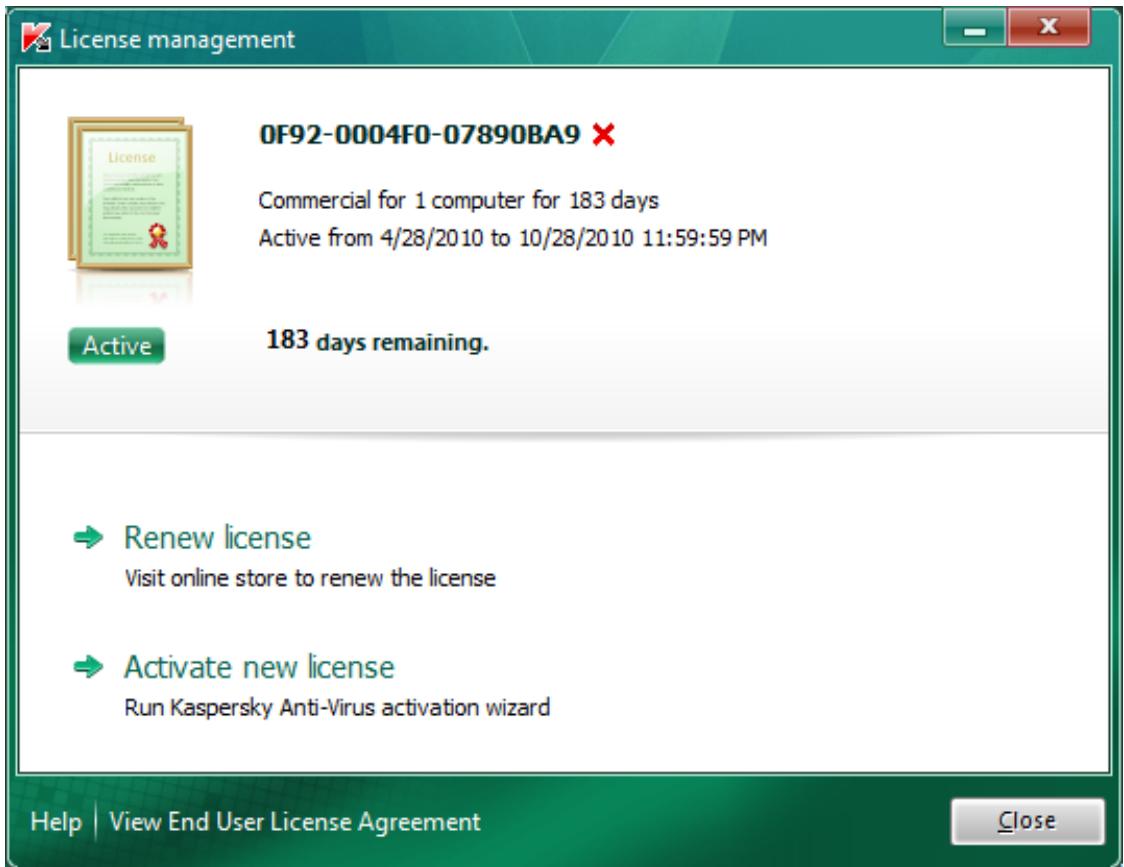
Figure 1. The License management window
APPLICATION INTERFACE
Kaspersky Anti-Virus has a fairly simple and easy-to-use interface. This section discusses its basic features in detail.
Kaspersky Anti-Virus includes extension components (plug-ins) for Microsoft Office Outlook, Microsoft Outlook Express, The Bat!, Thunderbird, Mozilla Firefox, Microsoft Internet Explorer and Microsoft Windows Explorer. The plug-ins expand the functionality of the host applications, providing access to the configuration of product components within their interface.
IN THIS SECTION:
Notification area icon. 35
Context menu 36
Kaspersky Anti-Virus main window 37
39
Application settings window 40
Kaspersky Gadget. 41
NOTIFICATION AREA ICON
Immediately after installing Kaspersky Anti-Virus, the application icon appears in the Microsoft Windows taskbar notification area.
In the Microsoft Windows 7 operating system by default the application icon is hidden, but you can display it to access the application easier (see the operating system documentation).
The icon has the following basic purposes:
It is an indicator of the application's operation.
It provides access to the context menu, main application window and the news window.
Indication of the application activity
This icon is an indicator of the application's operation. It also reflects the protection status and shows a number of basic functions performed by the application at the moment:

scanning email message;

scanning web traffic;

-
updating databases and application modules;
-
computer should be rebooted to apply updates;
- a failure occurred in the operation of some application component.
By default the icon is animated: for example, during the email message scan a miniature letter symbol is pulsating against the application icon; when update is in progress there is a revolving symbol of a globe. You can deactivate animation (see section "Active interface elements" on page 124).
When the animation is disabled the icon can take on the following appearances:
K (colored symbol) – all or certain protection components are activated;
(Black-and-white symbol) - all protection components are disabled.
Access to the context menu and application windows
You can use the icon to open the context menu (on page 36) and the main application window (see section "Kaspersky Anti-Virus main window" on page 37).
To open the context menu,
roll over the icon with the mouse pointer and right-click the area.
To open the main application window,
roll over the icon with the mouse pointer and left-click the area.
If news from Kaspersky Lab is available, the icon appears in the Microsoft Windows taskbar notification area. Double-click this icon to open News Agent window (see section "News Agent" on page 124).
CONTEXT MENU
You can run basic protection tasks from the context menu.
The Kaspersky Anti-Virus menu contains the following items:
Virtual Keyboard - displays the Virtual Keyboard.
Kaspersky Anti-Virus - opens the main application window.
- Pause protection / Resume protection – temporarily turns off / on the real-time protection components. This menu item does not affect the application's updates, or the execution of virus scans.
- Setting - opens the application settings window.
- About - opens a window containing information about the application.
- News - opens the news agent window (see section "News Agent" on page 124). This menu item is displayed if there are unread news.
- Exit - close Kaspersky Anti-Virus (when this item is selected, the application is unloaded from the computer's RAM).
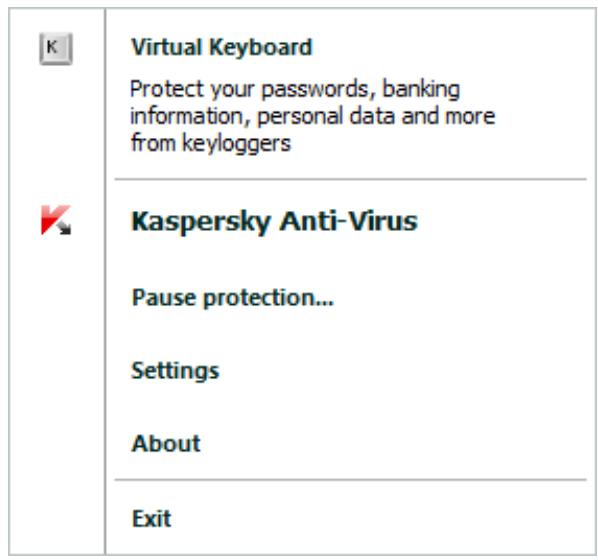
Figure 2. Context menu
If a virus scan or update task is running at the moment you open the context menu, its name as well as its progress status (percentage complete) is displayed in the context menu. When you select a menu item with the name of a task, you can switch to the main window with a report of current task run results.
To open the context menu,
roll over the application icon in the taskbar notification area with the pointer and right-click it with the mouse.
In the Microsoft Windows 7 operating system by default the application icon is hidden, but you can display it to access the application easier (see the operating system documentation).
KASPERSKY ANTI-VIRUS MAIN WINDOW
The main application window contains interface elements that provide access to all the main features of the application.
The main window can be divided into three parts:
- The top part of the window contains the protection status indicator which informs you of the current condition of your computer's protection.

Figure 3. Current computer protection status
There are three possible values of protection status: each of them is indicated with a certain color. Green indicates that your computer's protection is at the correct level, while yellow and red indicate that there are various security threats. In addition to malicious programs, threats include obsolete application databases, disabled protection components, the selection of minimum protection settings etc.
Security threats must be eliminated as they appear (see section "Diagnostics and elimination of problems in your computer protection" on page 43).
- The left part of the window allows you to quickly switch to the main application features: enabling and disabling protection components, running virus scan tasks, updating databases and program modules, etc.
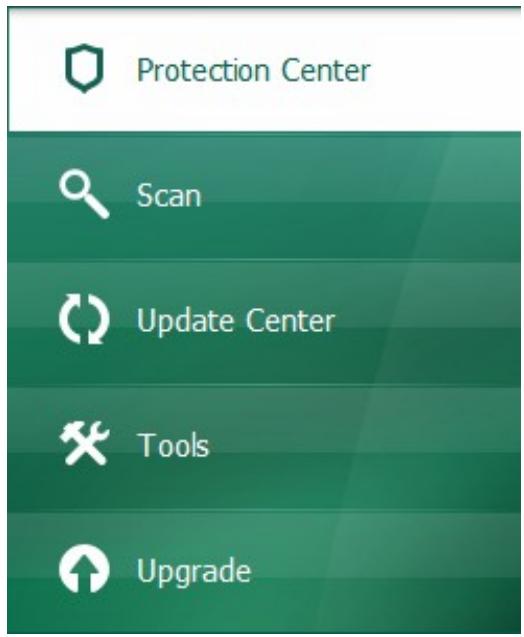
Figure 4. Left part of the main window
- The right part of the window contains information about the application function selected in the left part, and allows configuring its settings, provides tools for executing virus scan tasks, retrieving updates etc.
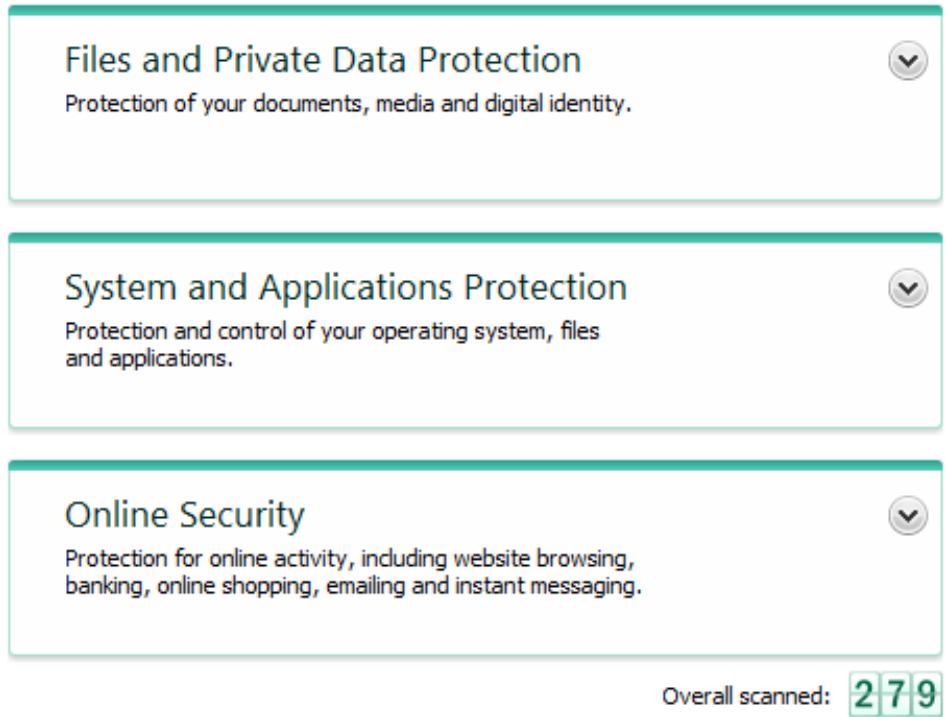
Figure 5. Right part of the main window
You can also use the following buttons and links:
- Settings - to open the application settings window.
- Quarantine - to start working with quarantined objects.
- Reports - switch to the application operation report in diagram format.
- News - switch to viewing news in the News Agent window (see section "News Agent" on page 124). This link is displayed after the application receives the first piece of news.
Help - to view the Kaspersky Anti-Virus help system. - My Kaspersky Account – to enter the user's personal account at the Technical Support Service website (see section "My Kaspersky Account" on page 132).
- Support - to open the window containing information about the system and links to Kaspersky Lab's information resources (Technical Support Service website, forum).
License - Kaspersky Anti-Virus activation, license renewal.
You can change the appearance of Kaspersky Anti-Virus using alternate skins (see section "Application appearance" on page 124).
To open the main application window, perform one of the following actions:
- roll over the application icon in the taskbar notification area with the pointer and left-click it with the mouse.
In the Microsoft Windows 7 operating system by default the application icon is hidden, but you can display it to access the application easier (see the operating system documentation).
- select Kaspersky Anti-Virus from the context menu (see section "Context menu" on page 36);
- click the Kaspersky Anti-Virus icon in the Kaspersky Gadget interface (only for Microsoft Windows Vista and Microsoft Windows 7).
NOTIFICATIONWINDOWS
If events occur during the Kaspersky Anti-Virus operation, special notifications are displayed on the screen, as pop-up messages above the application icon's in the Microsoft Windows taskbar notification area.
Depending on how critical the event is for computer security, you might receive the following types of notifications:
- Critical notifications – inform you of events of crucial importance from the viewpoint of computer security: for example, detection of a malicious object or dangerous activity in the system. If such notification is displayed, you should immediately make a decision on further actions. The notification window of this type is red.
- Important notifications – inform you of events which are potentially important from the viewpoint of computer security: for example, detection of a potentially infected object or suspicious activity in the system. If such notification is displayed, you should make a decision on how dangerous the detected object or process is, and choose your further actions. The notification window of this type is yellow.
Information notifications - inform you of non-critical events. The notification window of this type is green.
APPLICATION SETTINGS WINDOW
The Kaspersky Anti-Virus settings window is designed for configuring the entire application, individual protection components, scan and update tasks, and for running other advanced configuration tasks (see section "Advanced application settings" on page 67).
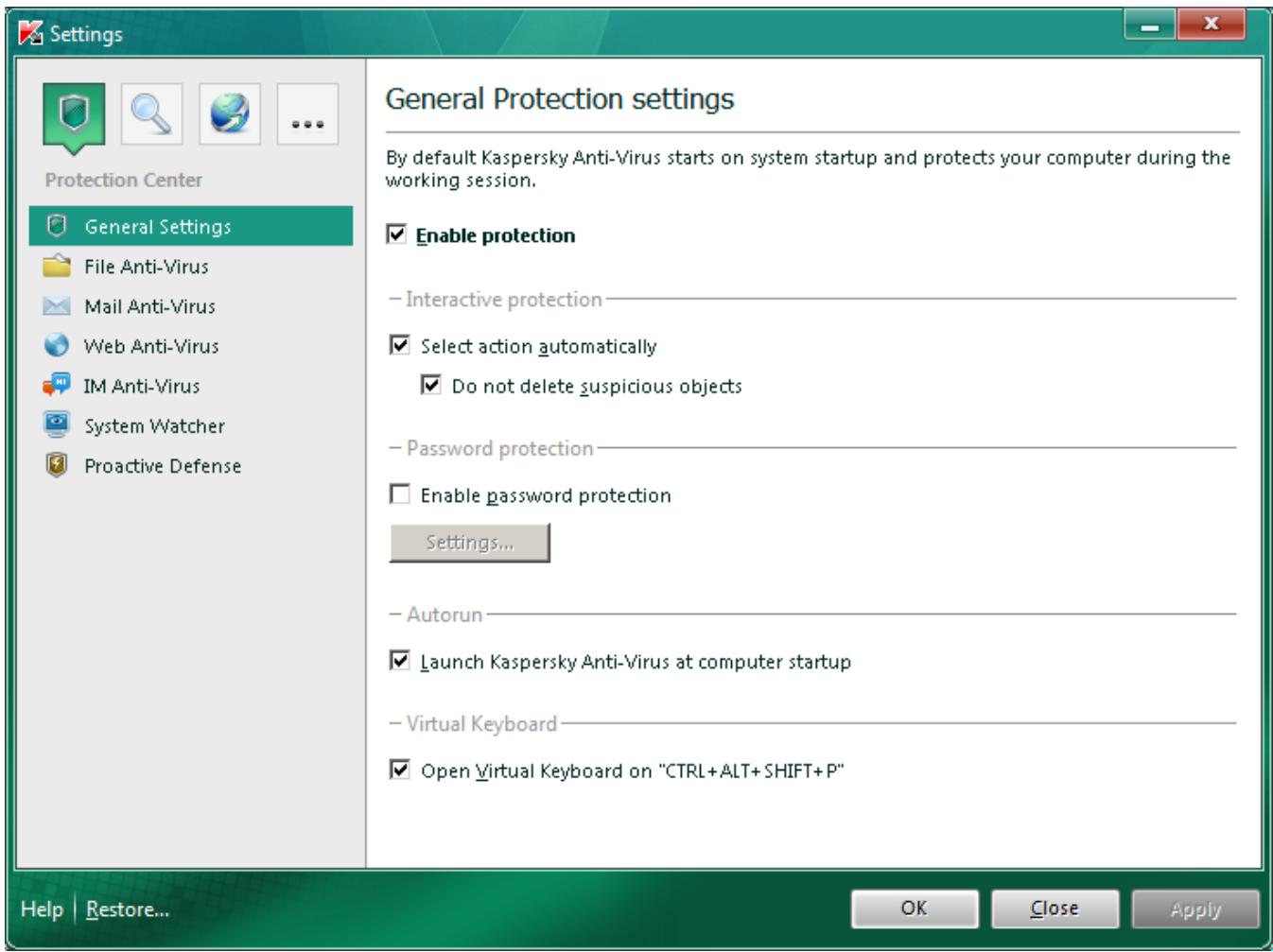
Figure 6. Application settings window
The application settings window consists of two parts:
- in the left part of the window you can choose the application component, task or another item that should be configured;
- the right part of the window contains the controls that you can use to configure the item selected in the left part of the window.
The components, tasks and other parts in the left part of the window are combined in the following sections:

- Protection Center;

- Scan;

- Update Center;

- Advanced Settings.
To open the settings window, perform one of the following actions:
- click the Settings link in the top part of the main application window (see section "Kaspersky Anti-Virus main window" on page 37);
- select Settings from the context menu (see section "Context menu" on page 36);
- click the button with the Settings icon in the Kaspersky Gadget interface (only for Microsoft Windows Vista and Microsoft Windows 7). The option of option of opening the settings window should be assigned to the button (see section "How to use Kaspersky Gadget" on page 65).
To select the required section in the configuration window,
click the icon corresponding to the section in the top left part of the window (see picture above).
KASPERSKY GADGET
When using Kaspersky Anti-Virus on a computer running under Microsoft Windows Vista or Microsoft Windows 7, you can also use the Kaspersky Gadget.
Gadget is designed for quick access to the main features of the application: protection status indication, virus scan of objects, application operation reports, etc.
After you install Kaspersky Anti-Virus on a computer running under Microsoft Windows 7, the gadget appears on your desktop automatically. After you install the application on a computer running under Microsoft Windows Vista, you should add the gadget to Microsoft Windows Sidebar manually (see the operating system documentation).
Figure 7. Kaspersky Gadget
STARTING AND STOPPING THE APPLICATION
After Kaspersky Anti-Virus is installed, it starts automatically. The application is launched automatically each time the operating system starts.
IN THIS SECTION:
Enabling and disabling automatic launch 42
Starting and stopping the application manually 42
ENABLING AND DISABLING AUTOMATIC LAUNCH
Automatic launch of the application means that Kaspersky Anti-Virus launches after the operating system startup. This is the default start mode.
To disable or enable automatic launch of the application:
- Open the application settings window.
- In the left part of the window, in the Protection Center section, select the General Settings subsection.
- To disable automatic launch of the application, uncheck the Launch Kaspersky Anti-Virus at computer startup box in the Autorun section in the right part of the window. To enable automatic launch of the application, check this box.
STARTING AND STOPPING THE APPLICATION MANUALLY
Kaspersky Lab specialists do not recommend you to stop Kaspersky Anti-Virus, as in this case your computer and personal data's protection will be at risk. If disabling protection is really necessary, you are advised to pause your computer's protection for a specified period without exiting the application.
Kaspersky Anti-Virus should be started manually if you have disabled automatic launch of the application (see section "Enabling and disabling automatic launch" on page 42).
To launch the application manually,
in the Start menu select Programs → Kaspersky Anti-Virus 2011 → Kaspersky Anti-Virus 2011.
To exit the application,
right-click to open the context menu of the application icon in the taskbar notification area and select Exit.
In the Microsoft Windows 7 operating system by default the application icon is hidden, but you can display it to access the application easier (see the operating system documentation).
COMPUTER PROTECTION STATUS
This section contains information about how to know whether your computer is protected at the moment, or if its security is under threat, as well as how to eliminate emerging threats. In this section, you also can find information about enabling, disabling, and pausing protection when working with Kaspersky Anti-Virus.
IN THIS SECTION:
Diagnostics and elimination of problems in your computer protection 43
Enabling and disabling protection 45
46
DIAGNOSTICS AND ELIMINATION OF PROBLEMS IN YOUR COMPUTER PROTECTION
Problems with computer protection are indicated by the computer protection status indicator located in the top part of the main application window (see section "Kaspersky Anti-Virus main window" on page 37). The indicator changes color depending upon the host protection status: green means that the computer is protected, yellow indicates protection-related problems, red alerts of serious threats to computer security. You are advised to fix immediately the problems and security threats.

Figure 8. Current computer protection status
Clicking the indicator icon in the main application window opens the Protection state window (see the figure below) containing detailed information about the status of computer protection and troubleshooting suggestions for the detected problems and threats.
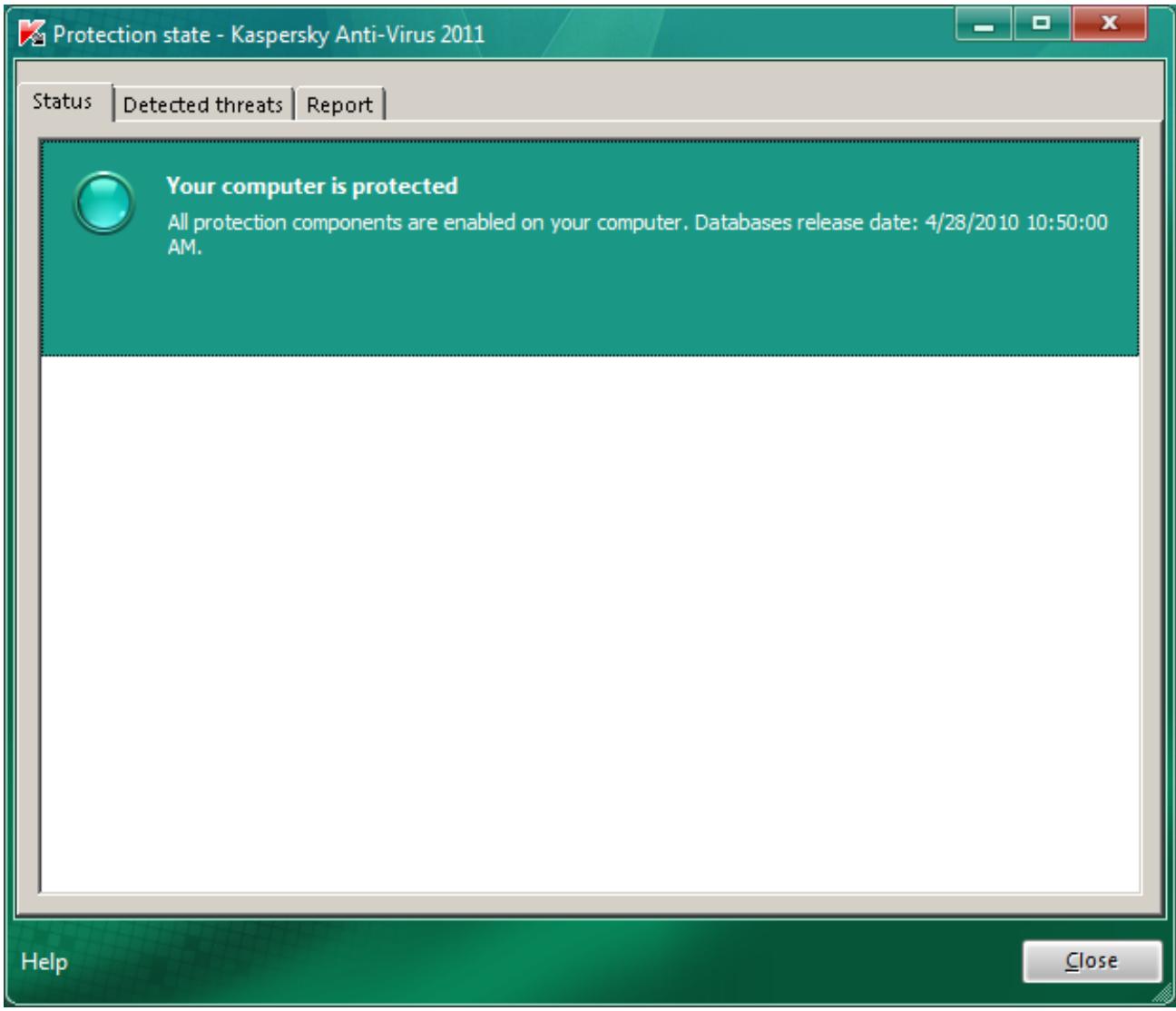
Figure 9. Resolving security problems
The Status tab of the Protection state window lists the protection-related problems including those caused by deviations from the normal product operation mode (e.g., outdated databases). To address the issues, the product offers the following options as further steps:
- Eliminate immediately. Clicking the corresponding buttons will take you to the appropriate problem solution. This is the recommended action.
- Postpone elimination. If, for whatever reason, immediate elimination of the problem is not possible, you can postpone this action and return to it later. To do so, click the Hide message button.
Note that postponing the elimination is not available for serious problems. Such problems include, for example, malicious objects that were not disinfected, crashes of one or several components, or corruption of program files.
To display in the common list the notifications hidden earlier, check the box Show hidden messages, which appears in the bottom part of the tab when there are hidden messages.
You can use the Detected threats tab to view the list of revealed malware and riskware and select the operation which will be performed over the objects (e.g., move to Quarantine). To select an operation, use the controls above the list and the context menu for the listed records.
On the Report tab you can review the application activity reports (see section "Where to view the report on the application's operation" on page 60).
ENABLING AND DISABLING PROTECTION
By default, Kaspersky Anti-Virus is launched when the operating system loads and protects your computer until it is switched off. All protection components are running.
You can completely or partially disable protection provided by Kaspersky Anti-Virus.
The Kaspersky Lab specialists strongly recommend that you do not disable protection, since this may lead to an infection of your computer and data loss. If it is really necessary, we recommend that you pause protection for the required period of time (see section "Pausing and resuming protection" on page 46).
When protection is disabled, all its components become inactive.
This is indicated by the following signs:
- inactive (gray) application icon in the taskbar notification area (see section "Notification area icon" on page 35);
- red color of the security indicator in the upper part of the main application window.
In this case, protection is discussed in the context of the protection components. Disabling or pausing protection components does not effect the performance of virus scan tasks and Kaspersky Anti-Virus updates.
You can completely enable or disable protection in the application settings window (see section "Application settings window" on page 40). You can enable or disable individual application components either in the settings window, or in the main application window (see section "Kaspersky Anti-Virus main window" on page 37).
To completely enable or disable protection:
- Open the application settings window.
- In the left part of the window, select the Protection Center section, General Settings subsection.
- Uncheck the Enable protection box if you need to disable protection. Check this box if you need to enable protection.
To enable or disable a protection component in the settings window:
- Open the application settings window.
- In the left part of the window, in the Protection Center section, select the component that should be enabled or disabled.
- In the right part of the window, uncheck the Enable
box if you need to disable this component. Check this box if you need to enable the component.
To enable or disable a protection component in the main application window:
- Open the main application window and select the Protection Center section.
-
In the left part of the window, left-click the section that comprises the component being enabled or disabled.
-
Open the action selection menu by clicking the button with the name of the component on it. Select Enable
if you need to enable this component, or select Disable if you need to disable it.
When enabling a component, the icon on its left goes green, when disabling it, the icon goes grey.
PAUSING AND RESUMING PROTECTION
Pausing protection means temporarily disabling all protection components for a certain period of time.
As a result of temporarily disabling protection, all protection components are paused.
This is indicated by the following signs:
- inactive (gray) application icon in the taskbar notification area (see section "Notification area icon" on page 35);
- red color of the security indicator in the upper part of the main application window.
In this case, protection is discussed in the context of the protection components. Disabling or pausing protection components does not affect the performance of virus scan tasks and Kaspersky Anti-Virus updates.
If network connections were established at the same time as the protection was paused, a notification about termination of such connections is displayed.
When working on a computer running under Microsoft Windows Vista or Microsoft Windows 7, you can pause protection using Kaspersky Gadget. To do this, Kaspersky Gadget should be configured so that the option of opening the reports window would be assigned to one of its buttons (see section "How to use Kaspersky Gadget" on page 65).
To pause the protection of your computer:
-
Open the Pause protection window using one of the following methods:
-
select Pause protection from the context menu of the application icon (see section "Context menu" on page 36);
-
click the button with the Pause protection icon in the Kaspersky Gadget interface (only for Microsoft Windows Vista and Microsoft Windows 7).
-
In the Pause protection window, select the time interval after which the protection should be resumed:
-
Pause for the specified time - protection will be enabled after the time interval specified in the field below.
- Pause until reboot - protection will be enabled after the application is restarted or the operating system is rebooted (provided that automatic application launch is enabled (see section "Enabling and disabling automatic launch" on page 42)).
- Pause - protection will only be enabled when you decide to resume it (please see further).
To resume computer protection,
select Resume protection from the context menu of the application icon (see section "Context menu" on page 36).
You can use this method to resume computer protection when the Pause option has been selected, or when you have chosen to Pause for the specified time or Pause until reboot.
SOLVING TYPICAL TASKS
This section contains instructions for the basic tasks encountered by most users when working with the application.
IN THIS SECTION:
How to activate the application 48
How to purchase or renew license 49
What to do when the application's notifications appear 49
How to update application databases 50
How to scan critical areas of your computer for viruses 50
How to scan an object (file, folder, disk drive) for viruses 51
How to perform full scan of your computer for viruses 52
Scanning computer for vulnerabilities 52
How to protect your personal data against theft 53
What to do if you suspect an object of being infected with a virus 55
What to do if you suspect your computer of being infected 56
How to restore an object deleted or disinfected by the application 57
How to create and use Rescue Disk 57
Where to view the report on the application's operation 60
How to restore application default settings 61
How to import the application settings to Kaspersky Anti-Virus installed on another computer 61
How to switch from Kaspersky Anti-Virus to Kaspersky Internet Security 62
How to use Kaspersky Gadget 65
HOW TO ACTIVATE THE APPLICATION
Activation is a procedure of activating a license that allows you to use a fully functional version of the application until the license expires.
If you have not activated the application during installation, you can do so later. You are reminded of the need to activate the application by notifications that Kaspersky Anti-Virus displays in the taskbar notification area.
To run the Kaspersky Anti-Virus Activation Wizard, perform one of the following actions:
- Click the Please activate the application link in the Kaspersky Anti-Virus notification window that appears in the taskbar notification area.
- Click the License link in the bottom part of the main application window. In the License management window that opens, click the Activate new license button.
Let us review the steps of the wizard in more detail.
Step 1. Selection of the license type and entry of the activation code
Make sure you have selected Activate commercial license in the Activation Wizard window, enter the activation code (see section "About activation code" on page 33) in the corresponding field, and click the Next button.
Step 2. Requesting for activation
At the first step, the Wizard sends a request to the activation server to obtain permission for activation of the commercial version of the application. If the request is sent successfully, the Wizard automatically proceeds to the next step.
Step 3. Entry of registration data
User registration is necessary for the user to be able to contact the Support Service. Unregistered users receive only minimal support.
Specify your registration data and click the Next button.
Step 4. Activation
At this step, the Wizard connects with the activation server in order to finish the application activation and user registration after which the Wizard automatically proceeds to the next window.
Step 5. Closing the Wizard
This window displays information on the results of activation: type of license used and license expiry date.
Click the Finish button to close the Wizard.
HOW TO PURCHASE OR RENEW LICENSE
If you have installed Kaspersky Anti-Virus without a license, you can purchase one after installation. When your license expires, you can renew it. When purchasing or renewing a license, you receive an activation code that you should use to activate the application (see section "How to activate the application" on page 48).
To purchase a license:
- Open the main application window.
- Click the Purchase license button in the bottom part of the window.
The eStore web page opens where you can purchase a license.
To renew a license:
- Open the main application window and click the License link in the bottom part of the main window.
The License management window opens.
- Click the Renew license button.
The license renewal center web page opens where you can renew your license.
WHAT TO DO WHEN THE APPLICATION'S NOTIFICATIONS APPEAR
Application's notifications that appear in the taskbar notification area inform you of events occurring in the application's operation and requiring your attention. Depending on how critical the event is, you may receive the following types of notifications:
- Critical notifications – inform you of events of crucial importance from the viewpoint of computer security: for example, detection of a malicious object or dangerous activity in the system. If such notification is displayed, you should immediately make a decision on further actions. The notification window of this type is red.
- Important notifications – inform you of events which are potentially important from the viewpoint of computer security: for example, detection of a potentially infected object or suspicious activity in the system. If such notification is displayed, you should make a decision on how dangerous the detected object or process is, and choose your further actions. The notification window of this type is yellow.
Information notifications - inform you of non-critical events. The notification window of this type is green.
If such notification is displayed on the screen, you should select one of the suggested options. Optimum option is the one recommended by Kaspersky Lab experts by default.
HOW TO UPDATE APPLICATION DATABASES
By default, Kaspersky Anti-Virus automatically checks for updates on Kaspersky Lab's update servers. If the server contains new updates, Kaspersky Anti-Virus downloads and installs them in the background. You can start Kaspersky Anti-Virus update at any time.
To download updates from Kaspersky Lab servers, you should have an Internet connection established.
To start Kaspersky Anti-Virus update from the main application window:
- Open the main application window and select the Update Center section in the left part of the window.
- Click the Run Update button in the right part of the window.
Update information is displayed in the Update Center section of the main application window, as well as in the application icon context menu.
HOW TO SCAN CRITICAL AREAS OF YOUR COMPUTER FOR VIRUSES
Scan of critical areas consists of scanning the objects which are loaded at startup of the operating system, scanning the system memory, boot sectors of the disk drive, and the objects that have been added by the user (see section "Creating a list of objects to scan" on page 71).
You can start the scan of critical areas using one of the following methods:
using the shortcut created earlier (see page 75);
from the main application window (see section "Kaspersky Anti-Virus main window" on page 37).
To start the scan using a shortcut:
- Open the Microsoft Windows Explorer window and go to the folder where you have created the shortcut.
- Double-click the shortcut to start scan.
The task progress will be displayed in the Kaspersky Anti-Virus main window, in the Scan section, in the Critical Areas Scan window that opens by clicking the Critical Areas Scan is in progress subsection in the Scan section of the main window when scan is in progress; it is also displayed in the context menu of the application icon.
To start scan from the main application window:
- Open the main application window and select the Scan section in the left part of the window.
- In the right part of the main application window, click the Run Critical Areas Scan button.
The task progress will be displayed in the Kaspersky Anti-Virus main window, in the Scan section, in the Critical Areas Scan window that opens by clicking the Critical Areas Scan is in progress subsection in the Scan section of the main window when scan is in progress; it is also displayed in the context menu of the application icon.
HOW TO SCAN AN OBJECT (FILE, FOLDER, DISK DRIVE) FOR VIRUSES
You can use the following methods to scan an object for viruses:
using the context menu of the object;
from the main application window (see section "Kaspersky Anti-Virus main window" on page 37);
using the Kaspersky Anti-Virus gadget (only for Microsoft Windows Vista and Microsoft Windows 7).
To start a virus scan task from the object context menu:
- Open Microsoft Windows Explorer and go to the folder with the object that should be scanned.
- Right-click to open the context menu of the object (see figure below) and select Scan for Viruses.
The process and the results of the task will be displayed in the Virus Scan window that opens.
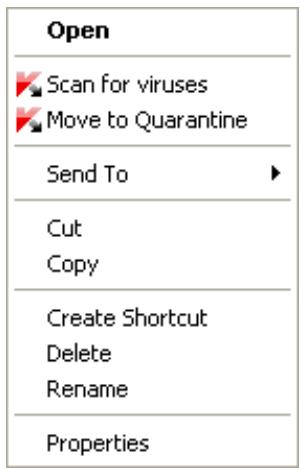
Figure 10. Context menu of an object in Microsoft Windows
To start scanning an object from the main application window:
- Open the main application window and select the Scan section in the left part of the window.
-
Specify the object to scan, using one of the following methods:
-
Click the select link in the right part of the window to open the Custom Scan window, and check the boxes next to the folders and drives that you need to scan. If the window display no objects to scan, open the Select object to scan window by clicking the Add link, and select objects to scan.
- Drag an object to scan into the dedicated area of the main window (see figure below).
Task run progress is displayed in the Virus Scan window that opens.

Figure 11. Window area into which you should drag an object to scan
To scan an object for viruses using the gadget,
drag the object to scan onto the gadget.
Task run progress is displayed in the Virus Scan window that opens.
HOW TO PERFORM FULL SCAN OF YOUR COMPUTER FOR VIRUSES
You can start full scan for viruses using one of the following methods:
using the shortcut created earlier (see page 75);
from the main application window (see section "Kaspersky Anti-Virus main window" on page 37).
To start the full scan using a shortcut:
- Open the Microsoft Windows Explorer window and go to the folder where you have created the shortcut
- Double-click the shortcut to start scan.
The task progress will be displayed in the Kaspersky Anti-Virus main window, in the Scan section, in the Full Scan window that you can open by clicking the Full Scan is in progress section in the Scan section of the main window when scanning, and in the context menu of the application icon.
To start full scan from the main application window:
- Open the main application window and select the Scan section in the left part of the window.
- In the right part of the window, click the Run Full Scan button.
The task progress will be displayed in the Kaspersky Anti-Virus main window, in the Scan section, in the Full Scan window that you can open by clicking the Full Scan is in progress section in the Scan section of the main window when scanning, and in the context menu of the application icon.
SCANNING COMPUTER FOR VULNERABILITIES
Vulnerabilities are unprotected portions of software code which intruders may deliberately use for their purposes, for example, to copy data used in unprotected applications. Scanning your computer for vulnerabilities helps you to reveal any such weak points in your computer. You are advised to eliminate the detected vulnerabilities.
You can use the following methods to scan the system for vulnerabilities:
from the main application window (see section "Kaspersky Anti-Virus main window" on page 37);
using the shortcut created earlier.
To start the task using a shortcut:
- Open the Microsoft Windows Explorer window and go to the folder where you have created the shortcut.
- Double-click the shortcut to start the task scanning the system for vulnerabilities.
The task progress is displayed in the main application window.
To start the task from the application window:
- Open the main application window and select the Tools section in the left part of the window.
- Click the button Vulnerability Scan in the right part of the window.
- In the displayed Vulnerability Scan window, click the button Run Vulnerability Scan in the upper part of the window.
The task progress is displayed in the Finish field. To stop the task, click the Vulnerability Scan is in progress button in the top part of the window.
HOW TO PROTECT YOUR PERSONAL DATA AGAINST THEFT
With Kaspersky Anti-Virus, you can protect your personal data against theft, such as:
- passwords, usernames, and other registration data;
numbers of accounts and banking cards.
Kaspersky Anti-Virus includes components and tools that allow you to protect your personal data against theft attempts committed by hackers using such methods as phishing and interception of data entered at the keyboard.
Protection against phishing is ensured by Anti-Phishing implemented in the Web Anti-Virus and IM Anti-Virus components.
Protection against interception of data entered at the keyboard is ensured by the use of Virtual Keyboard.
IN THIS SECTION:
Protection against phishing 53
Virtual keyboard. 54
PROTECTION AGAINST PHISHING
Phishing is a type of online fraud that involves tricking users into disclosing their credit card numbers, PIN codes and other personal details with the objective of stealing funds.
Phishing often targets online banking users. Criminals create an exact copy of the website of a chosen bank and send emails to customers on behalf of this bank. They claim that a malfunction or replacement of online banking system software has resulted in the loss of user details, necessitating the user to confirm or modify such details on the bank's website. Users click the link that takes them to the fake website, enter their details, which then end up in the hands of criminals.
Protection against phishing is ensured by Anti-Phishing implemented in the Web Anti-Virus and IM Anti-Virus components. Enable these components to ensure comprehensive protection against phishing.
To enable components providing protection against phishing:
- Open the main application window and select the Protection Center section in the left part of the window.
- In the right part of the window, left-click to open the Online Security section.
- Open the menu for selecting an action on the component by clicking the Anti-Phishing button and select Enable Anti-Phishing item from the menu.
This action enables Anti-Phishing and all components that it makes part of.
VIRTUAL KEYBOARD.
When working on your computer, instances frequently occur when entering your personal data, or username and password is required. That happens, for example, during account registration on web sites, web shopping or Internet banking.
There is a risk that this personal information is intercepted using hardware keyboard interceptors or keyloggers, which are programs that register keystrokes.
The Virtual Keyboard tool prevents the interception of data entered via the keyboard.
The Virtual Keyboard cannot protect your personal data if the website requiring the entry of such data has been hacked, because in this case the information is obtained directly by the intruders.
Many of the applications classified as spyware have the function of making screenshots which then are transferred to an intruder for further analysis and for stealing the user's personal data. Virtual Keyboard prevents the personal data being entered from being intercepted with the use of screenshots.
Virtual Keyboard only prevents the interception of privacy data when working with Microsoft Internet Explorer and Mozilla Firefox browsers.
Before you start using the Virtual Keyboard, please learn its peculiarities:
- Before entering data from the Virtual Keyboard, make sure using the mouse pointer that the appropriate entry field is selected.
- You can press the Virtual Keyboard buttons with the mouse.
- Unlike real keyboards, there is no way to press two keys simultaneously on the Virtual Keyboard. Therefore, to use combinations of keys (e.g., ALT+F4), you have to press the fist key (e.g., ALT), then the next key (e.g., F4), and then press the first key again. Second key press acts like key release on a real keyboard.
- Input language for the Virtual Keyboard is toggled using the CTRL+SHIFT key combination (the SHIFT key should be pressed using the right mouse button) or CTRL+LEFT ALT (the LEFT ALT key should be pressed using the right mouse button) depending upon the specified settings.
You can open the Virtual Keyboard in the following ways:
from the context menu of the application icon;
from the window of Microsoft Internet Explorer or Mozilla Firefox;
using keyboard shortcut.
To open the Virtual Keyboard from the context menu of the application icon,
select the Virtual Keyboard item from the context menu of the application icon.
To open the Virtual Keyboard from the main application window:
- Open the main application window and select the Safe Run section in the left part of the window.
- Select the Virtual Keyboard section in the right part of the window.
To open the Virtual Keyboard for the browser's window,
click the K Virtual Keyboard button in the toolbar of Microsoft Internet Explorer or Mozilla Firefox.
To open the Virtual Keyboard using computer keyboard,
use the following key combination: CTRL+ALT+SHIFT+P.
WHAT TO DO IF YOU SUSPECT AN OBJECT OF BEING INFECTED WITH A VIRUS
If you suspect an object of being infected, first scan it using Kaspersky Anti-Virus (see section "How to scan an object (file, folder, disk drive) for viruses" on page 51).
If the application reports after scan that the object is not infected, though you think it is, you can do the following:
- Move the object to Quarantine. Quarantined objects are stored in archives so they pose no threat to your computer. After the databases are updated, Kaspersky Anti-Virus will probably be able to clearly identify and eliminate the threat.
- Send the object to Virus Lab. Virus Lab specialists scan the object. If it turns out to be infected with a virus, they immediately add the description of the new virus into the databases that will be downloaded by the application with an update (see section "How to update application databases" on page 50).
You can move an object to Quarantine using one of the two methods:
using the Move to Quarantine link in the Protection state window;
using the context menu of the object.
To move an object to Quarantine from the Protection state window:
- Open the main application window.
- Click the Quarantine link in the top part of the main window to open the Protection state window on the Detected threats tab.
- Click the Move to Quarantine link located over the list of threats.
- In the window that opens, select the object that you want to move to Quarantine.
To move an object to Quarantine using the context menu:
- Open Microsoft Windows Explorer and go to the folder with the object that you want to move to Quarantine.
- Right-click to open the context menu of the object and select Move to Quarantine.
To send an object to Virus Lab:
- Go to the Virus Lab request page (http://support.kaspersky.com/virlab/helpdesk.html).
- Follow the instructions on this page to send your request.
WHAT TO DO IF YOU SUSPECT YOUR COMPUTER OF BEING INFECTED
If you suspect infection of your computer, use the System Restore Wizard neutralizing the consequences of malicious activity in the system. Kaspersky Lab recommends that you run the Wizard after the computer has been disinfected to make sure that all threats and damage caused by infections have been fixed.
The Wizard checks whether there are any changes to the system, such as: access to the network is blocked, known format file extensions are changed, the toolbar is blocked, etc. Such damage can have various causes. The latter may include the activity of malicious programs, incorrect system configuration, system failures or even incorrect operation of system optimization applications.
After the review is complete, the Wizard analyzes the information to evaluate whether there is system damage which requires immediate attention. Based on the review, a list of actions necessary to eliminate the problems is generated. The Wizard groups these actions by categories based on the severity of the problems detected.
The wizard consists of a series of screens (steps) navigated using the Back and Next buttons. To close the wizard once it completes its work, use the Finish button. To stop the wizard at any stage, use the Cancel button.
To start the System Restore Wizard:
- Open the main application window and select the Tools section in the left part of the window.
- In the right part of the window click the System Restore button.
Detailed discussion of the wizard steps.
Step 1. Starting system restore
Make sure that the wizard option to Search for problems caused by malware activity is selected and click Next.
Step 2. Problems search
The Wizard will search for the problems and damage, which should be fixed. Once the search is complete, the Wizard will proceed automatically to the next step.
Step 3. Selecting the troubleshooting actions
All damage found during the previous step is grouped on the basis of the type of danger it poses. For each group of damage, Kaspersky Lab recommends a sequence of actions to repair the damage. There are three groups of actions:
- Strongly recommended actions eliminate problems posing a serious security threat. You are advised to perform all actions in this group.
- Recommended actions eliminate problems presenting a potential threat. You are advised to perform all actions in this group as well.
Additional actions repair system damage which does not pose a current threat, but may pose a danger to the computer's security in the future.
To view the actions within a group, click the ^+ icon to the left of the group name.
To make the Wizard perform a certain action, check the box to the left of the corresponding action name. By default, the Wizard performs all recommended and strongly recommended actions. If you do not wish to perform a certain action, uncheck the box next to it.
Unchecking the boxes selected by default is strongly discouraged because doing so will leave your computer vulnerable.
Having defined the set of actions, which the Wizard will perform, click Next.
Step 4. Eliminating problems
The Wizard will perform the actions selected during the previous step. The elimination of problems may take some time. Once the troubleshooting is complete, the Wizard will proceed automatically to the next step.
Step 5. Closing the Wizard
Click the Finish button to close the Wizard.
HOW TO RESTORE AN OBJECT DELETED OR DISINFECTED BY THE APPLICATION
Kaspersky Lab recommends that you avoid restoring deleted and disinfected objects since they may pose threats to your computer.
If you want to restore a deleted or disinfected object, you can use a backup copy of it which has been created by the application when scanning the object.
To restore an object that has been deleted or disinfected by the application:
- Open the main application window.
- Click the Quarantine link in the top part of the main window to open the Protection state window on the Detected threats tab.
- Select neutralized object to display by clicking the Neutralized link located over the list of threats.
The list of disinfected and deleted objects will be displayed on the Detected threats tab. Objects are grouped with regard for their statuses. To display the list of objects in a group, click the + icon located to the left of the group header.
- Right-click to open the context menu of the object that you want to restore, and select Restore.
HOW TO CREATE AND USE RESCUE DISK
We recommend that you create Rescue Disk after you have installed and configured Kaspersky Anti-Virus, scanned your computer, and made sure that it was not infected. You will further be able to use Rescue Disk for scanning and disinfecting infected computers that cannot be disinfected using other methods (e.g., with anti-virus applications).
IN THIS SECTION:
Creating the rescue disk 58
Starting the computer from the rescue disk 60
CREATING THE RESCUE DISK
Creating the rescue disk means the creation of a disk image (ISO file) with up-to-date anti-virus databases and configuration files.
The source disk image serving as a base for new file creation can be downloaded from Kaspersky Lab server or copied from a local source.
You can create Rescue Disk using the Rescue Disk Creation Wizard. The rescued file created by the Wizard is saved on the hard drive of your computer:
- in Microsoft Windows XP – in the following folder: Documents and Settings\All UsersApplication Data\Kaspersky Lab\AVP11\Data\Rdisk\;
- in Microsoft Windows Vista and Microsoft Windows 7 – in the following folder: ProgramData\Kaspersky Lab\AVP11\Data\Rdisk.
The wizard consists of a series of screens (steps) navigated using the Back and Next buttons. To close the wizard once it completes its work, use the Finish button. To stop the wizard at any stage, use the Cancel button.
To start the Rescue Disk Creation Wizard:
- Open the main application window and select the Tools section in the left part of the window.
- In the right part of the window click the Rescue Disk button.
Detailed discussion of the wizard steps.
Step 1. Searching for an existing disk image
If the Wizard has found a rescue disk image file created earlier in the dedicated folder (see above), you can check the Use existing ISO image box to use this file as the original disk image and proceed to the Updating image file step (see below). Uncheck this box if you do not want to use the disk image that has been found, and the Wizard proceeds to the Select disk image source window.
If the Wizard cannot find any ISO file, this step is skipped, and the Wizard proceeds to the Select disk image source window.
Step 2. Selecting the disk image source
If you have checked the Use existing ISO image box in the first wizard window, then this step will be skipped.
At this step, you should select the image file source from the list of options:
- Select Copy ISO image from local or network drive if you already have a rescue disk or an image prepared for it and stored on your computer or on a local network resource.
- Select the Download ISO image from Kaspersky Lab server option if you do not have an image file, and you want to download it from Kaspersky Lab server (file size is about 100 MB).
Step 3. Copying (downloading) disk image
If you have checked the Use existing ISO image box in the first wizard window, then this step will be skipped.
If you have selected the option of copying the image from a local source at the previous step (Copy ISO image from local or network drive), you should specify the path to the ISO file at this current step. To do so, click the Browse button. After you have specified the path to the file, click the Next button. The progress of disk image copying is displayed in the Wizard window.
If you have selected Download ISO image from Kaspersky Lab server, the progress of disk image downloading is displayed immediately.
When copying or downloading the ISO image is completed, the Wizard automatically proceeds to the next step.
Step 4. Updating image file
File update procedure includes:
- update of anti-virus databases;
- update of configuration files.
Configuration files determine the possibility of starting the computer from a removable disk or CD / DVD written using a rescue disk image provided by the wizard.
When updating anti-virus databases, those distributed at the last update of Kaspersky Anti-Virus are used. If the databases are obsolete, it is recommended to update and restart the rescue disk creation wizard.
To begin updating the ISO file, click the Next button. The progress of updating displays in the wizard window.
Step 5. Recording the image on a data medium
In this window, the Wizard informs you of a successful creation of Rescue Disk and offers you to record it on a data medium.
Specify a data medium to record the ISO image:
- Select Record to CD / DVD to record the image on a CD / DVD.
You will be offered to specify the CD / DVD on which the image should be recorded. After that, the ISO image will be recorded on this CD / DVD. Recording process may take some time, please wait until it is completed.
- Select the Record to USB flash drive option to record the image on a removable drive.
Kaspersky Lab recommends that you do not record the ISO image on devices which are not designed specifically for data storage, such as smartphones, cellphones, PDAs, and MP3 players. Recording ISO images on these devices may lead to their incorrect functioning in the future.
You will be offered to specify the removable drive on which the image should be recorded. After that, the image will be recorded on this removable drive. Recording process may take some time, please wait until it is completed.
- Select the Do not record option to cancel recording the image that you have created on a data medium.
In this case, the folder with the disk image file that you have created will open.
Step 6. Closing the Wizard
To finish with the Wizard, click the Finish button. You can use the disk that you have created for further loading the computer (see page 60).
STARTING THE COMPUTER FROM THE RESCUE DISK
If the operating system cannot be started as a result of a virus attack, use the rescue disk.
To boot the operating system, you should use a CD / DVD or removable drive with the rescue disk image (.iso) file recorded on it (see section "Creating the rescue disk" on page 58).
Loading a computer from a removable drive cannot be performed in any conditions. In particular, this mode is not supported by some obsolete computer models. Before shutting down your computer for further booting from a removable drive, make sure that this operation can be performed.
To boot your computer from the Rescue Disk:
- In your BIOS settings enable the start up priority to be from the CD / DVD or removable drive(for detailed information please refer to the documentation for your computer's motherboard).
- Insert a CD / DVD with the rescue disk image into the CD/DVD drive of an infected computer or connect a removable drive to it.
- Restart your computer.
For detailed information about the use of the Rescue Disk, please refer to the Kaspersky Rescue Disk User Guide.
Kaspersky Anti-Virus creates operation reports for each component. Using a report, you can find out, for example, how many malicious objects (such as viruses and Trojan programs) have been detected and eliminated by the application during the specified period, how many times the application has been updated during the same period, how many spam messages have been detected, and many other characteristics.
When working on a computer running under Microsoft Windows Vista or Microsoft Windows 7, you can open reports using Kaspersky Gadget. To do this, Kaspersky Gadget should be configured so that the option of opening the reports window would be assigned to one of its buttons (see section "How to use Kaspersky Gadget" on page 65).
To view the application operation report:
-
Open the Protection state window on the Report tab using one of the following methods:
-
click the Reports link in the top part of the main application window;
- click the button with the Reports icon in the Kaspersky Gadget interface (only for Microsoft Windows Vista and Microsoft Windows 7).
The Report tab displays application operation reports in diagram format.
- If you want to view a detailed application operation report (for example, a report representing the operation of each component), click the Detailed report button in the bottom part of the Report tab.
The Detailed report window opens where data are represented in a table. For a convenient view of reports, you can select various options of entry sorting.
HOW TO RESTORE APPLICATION DEFAULT SETTINGS
You can always restore the settings of Kaspersky Anti-Virus which are recommended by Kaspersky Lab and considered optimal. The settings can be restored using the Application Configuration Wizard.
When the Wizard completes its operations, the Recommended security level is set for all protection components. While restoring the settings, you will also be offered to define which settings should or should not be kept for which components together with restoring the recommended security level.
To restore protection settings:
- Open the application settings window.
-
Run the Application Configuration Wizard using one of the following methods:
-
click the Restore link in the bottom part of the window;
- in the left part of the window, select the Advanced Settings section, Manage Settings subsection, and click the Restore button in the Restore default settings section.
Detailed discussion of the wizard steps.
Step 1. Starting the Wizard
Click the Next button in order to continue the work of the Wizard.
Step 2. Selecting settings to save
This window of the Wizard shows which Kaspersky Anti-Virus components have settings that are different from the default value, because they were changed by the user. If special settings have been created for any of the components, they will also be shown in the window.
Check the boxes for the settings that you want to save and click the Next button.
Step 3. Finishing restoration
To finish with the Wizard, click the Finish button.
HOW TO IMPORT THE APPLICATION SETTINGS TO KAspersky Anti-Virus INSTALLED ON ANOTHER COMPUTER
Having configured the product, you can apply its settings in Kaspersky Anti-Virus installed on another computer. Consequently, the application will be configured identically on both computers. This is a helpful feature when, for example, Kaspersky Anti-Virus is installed on your home computer and in your office.
Application settings are stored in a special configuration file, which you can transfer to another computer. To do this:
- Perform the Export procedure - save the application settings to a configuration file.
- Move the file you have saved to another computer (for example, send it by email or use a removable data medium).
- Perform the Import procedure - apply the settings from the configuration file to the application installed on another computer.
To export the current settings of Kaspersky Anti-Virus:
- Open the application settings window.
- Select the Manage Settings section in the left part of the window.
- In the Restore default settings section, click the Save button.
- In the window that opens enter the name of the configuration file and the path where it should be saved.
To import the application's settings from a saved configuration file:
- Open the application settings window.
- Select the Manage Settings section in the left part of the window.
- In the Restore default settings section, click the Load button.
- In the window that opens, select a file that you wish to import the Kaspersky Anti-Virus settings from.
HOW TO SWITCH FROM KASPERSKY ANTI-VIRUS TO KASPERSKY INTERNET SECURITY
Kaspersky Internet Security is an application designed to ensure comprehensive protection of your computer. It is very similar to Kaspersky Anti-Virus, however featuring a range of advanced options implemented in the following modules and features:
Application Control;
Parental Control;
- Firewall;
Network Attack Blocker;
- Geo Filter;
- Blocking access to dangerous websites;
Network Monitor;
Anti-Spam;
Anti-Banner;
- Eliminating activity traces;
- Safe Run section.
You can temporarily switch to the trial version of Kaspersky Internet Security to get acquainted with its features, or immediately proceed to using the commercial version of the application.
If a license with subscription is activated (see section "Subscription statuses" on page 137), temporary switch to the trial version of Kaspersky Internet Security is not available.
IN THIS SECTION:
Switching to the commercial version 63
Temporarily switching to the trial version 63
SWITCHING TO THE COMMERCIAL VERSION
If you want to switch to the commercial version of Kaspersky Internet Security, you do not have to install the application. All you need is an activation code for the commercial version of the application that you can use to activate it (see section "How to activate the application" on page 48). You can obtain an activation code if you already have the commercial license.
To purchase the commercial license for Kaspersky Internet Security:
- Open the main application window and select the Upgrade section in the left part of the window.
- Click the Buy Now button.
When done, you are redirected to the eStore website where you can purchase the commercial license for Kaspersky Internet Security.
TEMPORARILY SWITCHING TO THE TRIAL VERSION
You can temporarily switch to Kaspersky Internet Security to assess its features. You can also purchase a license for further use of the application.
If a license with subscription is activated (see section "Subscription statuses" on page 137), temporary switch to the trial version of Kaspersky Internet Security is not available, and the Upgrade section in the main application window is not active.
To temporarily switch to Kaspersky Internet Security:
- Open the main application window and select the Upgrade section in the left part of the window.
- Click the Try Now button.
The Configuration Wizard then starts in protection upgrade mode.
Detailed discussion of the wizard steps.
Step 1. Request for activation of the trial version of Kaspersky Internet Security
At the first step, the Wizard sends a request to the activation server to obtain permission for activation of the trial version of Kaspersky Internet Security. If the request is sent successfully, the Wizard automatically proceeds to the next step.
Step 2. Starting to deploy protection
At this step, the Wizard displays the message that notifies you of upgrade readiness. To proceed with the Wizard, click the Next button.
Step 3. Removing incompatible applications
At this step, the Wizard checks if any applications incompatible with Kaspersky Internet Security are installed on your computer. If no such applications are detected, the Wizard automatically proceeds to the next step. If such applications are detected, the Wizard groups them in a list, displays it in the window, and offers you to remove them.
After the incompatible applications are deleted, you may need to restart your operating system. After you restart the application, the Wizard starts automatically and the protection upgrade will continue.
Step 4. Upgrading protection
At this step, upgrade modules are being connected, which may take some time. Once the process is complete, the Wizard will proceed automatically to the next step.
Step 5. Restarting the application
At the final step of upgrading application, you need to restart the application. To do this, click the Finish button on the Wizard window.
Step 6. Completing the activation
After you restart the application, the Wizard starts automatically. When the trial version of Kaspersky Internet Security is successfully activated, the Wizard window displays information about the time period during which you can use the trial version.
Step 7. Analyzing the system
At this stage, information about Microsoft Windows applications is collected. These applications are added to the list of trusted applications which have no restrictions imposed on the actions they perform in respect of the system.
Once the analysis is complete, the Wizard will proceed automatically to the next step.
Step 8. Completing upgrade
To finish with the Wizard, click the Finish button.
Expiration of the trial period of Kaspersky Internet Security
When the trial period of Kaspersky Internet Security expires, all protection components stop functioning. The application notifies you of this event.
Click the Fix it button in the main application window to select a scenario of further actions in the Activation Wizard window that opens:
- Return to the use of Kaspersky Anti-Virus in standard mode if you have a valid commercial license.
Purchase the commercial license for Kaspersky Internet Security or Kaspersky Anti-Virus and then activate the application (see section "How to activate the application" on page 48).
You cannot temporarily switch to Kaspersky Internet Security for a second time.
HOW TO USE KASPERSKY GADGET
When using Kaspersky Anti-Virus on a computer running under Microsoft Windows Vista or Microsoft Windows 7, you can also use Kaspersky Gadget.
After you install Kaspersky Anti-Virus on a computer running under Microsoft Windows 7, the gadget appears on your desktop automatically. After you install the application on a computer running under Microsoft Windows Vista, you should add the gadget to Microsoft Windows Sidebar manually (see the operating system documentation).
Gadget color indicator displays your computer protection status in the same manner as the protection status indicator in the main application window does (see section "Kaspersky Anti-Virus main window" on page 37). Green indicates that your computer is duly protected, while yellow indicates that there are protection problems, and red indicates that your computer's security is at serious risk. Grey color indicates that the application is stopped.
Gadget's appearance allows you to monitor update download: when updating databases and application modules is in progress, a spinning globe icon appears in the center of the gadget.
You can use the gadget to perform the following main tasks:
run the application if it has been stopped;
open the main application window;
- scan specified objects for viruses;
open the news window.
To run the application using the gadget,
click the Enable icon located in the center of the gadget.
To open the main application window using the gadget,
click the Kaspersky Anti-Virus icon located in the center of the gadget.
To scan an object for viruses using the gadget,
drag the object to scan onto the gadget.
Task run progress is displayed in the Virus Scan window that opens.
To open the news window using the gadget,
click the icon which is displayed in the center of the gadget when a piece of news is released.
Configuring the gadget
You can configure the gadget so that you can use its buttons to initiate the following actions:
edit the application settings;
view application reports;
view information about network activity (Network Monitor);
pause protection.
Additionally, you can change gadget's appearance by selecting another skin for it.
To configure the gadget:
- Open the gadget settings window by clicking the icon that appears in the right top corner of the gadget block if you roll over it with the mouse pointer.
- From the Left icon and Right icon dropdown lists, select the actions that should be performed when clicking the left and the right buttons of the gadget.
- Select a skin for the gadget by clicking the 4 buttons.
- Click the OK button to save the changes that you have made.
ADVANCED APPLICATION SETTINGS
This section provides detailed information about each application component and describes the operation and configuration algorithms for each component.
To adjust the advanced application settings, open the settings window using one of the following methods:
- click the Settings link in the top part of the main application window;
- select Settings from the context menu of the application icon.
IN THIS SECTION:
Selecting protection mode 68
Computer scan 68
Update. 75
File Anti-Virus 80
Mail Anti-Virus 86
Web Anti-Virus 91
IM Anti-Virus 97
Proactive Defense 99
System Watcher 100
Network protection 102
Trusted zone 106
Performance and compatibility with other applications 108
Kaspersky Anti-Virus Self-Defense 111
Quarantine and Backup storage 112
Additional tools for better protection of your computer 115
Reports. 119
Application appearance 124
Notifications 125
Participating in the Kaspersky Security Network 127
SELECTING PROTECTION MODE
By default, Kaspersky Anti-Virus runs in automatic protection mode. In this mode the application automatically applies actions recommended by Kaspersky Lab in response to dangerous events. If you wish Kaspersky Anti-Virus to notify you of all hazardous and suspicious events in the system and to allow to decide which of the actions offered by the application should be applied, you can enable interactive protection mode.
To select protection mode:
- Open the application settings window.
-
In the left part of the window, in the Protection Center section, select the General Settings subsection.
-
In the Interactive protection section check or uncheck the boxes depending on the selected protection mode:
to enable interactive protection mode, uncheck the Select action automatically;
to enable automatic protection mode, check the Select action automatically.
If you do not want Kaspersky Anti-Virus to delete suspicious objects when running in automatic mode, check the Do not delete suspicious objects box.
COMPUTER SCAN
Scanning the computer for viruses and vulnerabilities is one of the most important tasks in ensuring the computer's security. It is necessary to scan your computer for viruses on a regular basis in order to rule out the possibility of spreading malicious programs that have not been discovered by security components, for example, because the security level was set to low or for other reasons.
Vulnerability scan performs the diagnostics of operating system and detects software features that can be used by intruders to spread malicious objects and obtain access to personal information.
The following sections contain detailed information about scan tasks features and configuration, security levels, scan methods, and scan technologies.
IN THIS SECTION:
Virus scan 68
Vulnerability Scan. 75
VIRUS SCAN
Kaspersky Anti-Virus comprises the following tasks to scan objects for viruses:
- Custom Scan. Scan of objects selected by the user. You can scan any object of the computer's file system from the following list: system memory, objects loaded on startup, system backup, email databases, hard drives, removable storage media and network drives.
- Full Scan. A thorough scan of the entire system. The following objects are scanned by default: system memory, objects loaded on startup, system backup, email databases, hard drives, removable storage media and network drives.
Critical Areas Scan. Virus scan of operating system startup objects.
The Full Scan and the Critical Areas Scan tasks have their peculiarities. For these tasks, it is not recommended to edit the lists of objects to scan.
Each scan task is performed in the specified area and can be started according to the schedule created. Each scan task is characterized with a security level (combination of settings that impact the depth of the scan). By default, the mode of using application's database records to search for threats is always enabled. You can also apply various scan methods and technologies (see page 72).
After the virus scan task starts, its progress is displayed under the name of the task in the Scan section of the Kaspersky Anti-Virus main window.
If a threat is detected, Kaspersky Anti-Virus assigns one of the following statuses to the found object:
malicious program (such as a virus or Trojan);
- potentially infected (suspicious) status if the scan cannot determine whether the object is infected or not. The file may contain a sequence of code appropriate for viruses, or modified code from a known virus.
The application displays a notification about detected threat and performs the assigned action. You can change actions to be performed on detected threat.
If you work in automatic mode (see section "Selecting protection mode" on page 68), Kaspersky Anti-Virus will automatically apply the action recommended by Kaspersky Lab specialists when dangerous objects are detected. For malicious objects this action is Disinfect. Delete if disinfection fails, for suspicious objects - Move to Quarantine.
Before attempting to disinfect or delete an infected object, Kaspersky Anti-Virus creates a backup copy for subsequent restoration or disinfection. Suspicious (potentially infected) objects are quarantined. You can enable the auto scan for quarantined objects after each update.
Information on the scan results and events, which have occurred during the execution of the task, is logged in a Kaspersky Anti-Virus report.
IN THIS SECTION:
Changing and restoring security level 70
Creating the scan startup schedule 70
Creating a list of objects to scan 71
Selecting the scan method 71
Selecting the scan technology 72
Changing actions to be performed on detected objects 72
Running scan under a different user account 72
Changing the type of objects to scan 73
Scan of compound files 73
Scan optimization 74
74
Creating a task shortcut 75
CHANGING AND RESTORING SECURITY LEVEL
Depending on your current needs, you can select one of the preset security levels, or modify the scan settings manually.
When configuring scan task settings, you can always restore the recommended ones. They are considered optimal, recommended by Kaspersky Lab, and grouped in the Recommended security level.
To change the defined security level, perform the following actions:
- Open the application settings window.
- In the left part of the window, in the Scan section, select the required task (Full Scan, Critical Areas Scan, or Custom Scan).
- In the Security level section, set the required security level for the task selected, or click the Settings button to modify scan settings manually.
If you modify the settings manually, the name of the security level will change to Custom.
To restore the default scan settings:
- Open the application settings window.
- In the left part of the window, in the Scan section, select the required task (Full Scan, Critical Areas Scan, or Custom Scan).
- In the Security level section, click the Default level button for the task selected.
CREATING THE SCAN STARTUP SCHEDULE
You can create a schedule to automatically start virus scan tasks: specify task run frequency, start time (if necessary), and advanced settings.
If it is not possible to start the task for any reason (for example, the computer was not on at that time), you can configure the skipped task to start automatically as soon as it becomes possible. You can automatically pause the scan when a screenshot is inactive or the computer is unlocked. This functionality postpones the launch until the user has finished working on the computer. The scan will then not take up system resources during the work.
Special Idle Scan mode (see section "Running tasks on idle computer" on page 110) allows you to start scan of the system memory, system partition, and startup objects when your computer is idle.
To modify a schedule for scan tasks:
- Open the application settings window.
- In the left part of the window, select the required task in the Scan (Full Scan, Critical Areas Scan, Custom Scan, or Vulnerability Scan) section.
- In the Run mode section, click the Settings button for the task selected.
- In the window that opens, on the Run mode tab select the required startup mode in the Schedule section.
To enable automatic launch of skipped task:
- Open the application settings window.
-
In the left part of the window, select the required task in the Scan (Full Scan, Critical Areas Scan, Custom Scan, or Vulnerability Scan) section.
-
In the Run mode section, click the Settings button for the task selected.
- In the window that opens, on the Run mode tab, in the Schedule section, check the Run skipped tasks box.
To launch scans only when the computer is not being used:
- Open the application settings window.
- In the left part of the window, select the required task in the Scan (Full Scan, Critical Areas Scan, Custom Scan, or Vulnerability Scan) section.
- In the Run mode section, click the Settings button for the task selected.
- In the window that opens, on the Run mode tab, in the Schedule section, check the Pause scheduled scan when screenshot is inactive and computer is unlocked box.
CREATING A LIST OF OBJECTS TO SCAN
Each virus scan task has its own default list of objects. These objects may include items in the computer's file system, such as logical drives and email databases, or other types of objects such as network drives. You can edit this list.
If the scan scope is empty, or it contains no selected objects, a scan task cannot be started.
To create a list of objects for an object scan task:
- Open the main application window.
- In the left part of the window, select the Scan section.
- In the right part of the window click the select link to open the list of objects for scanning.
- In the displayed Custom Scan window, click the Add link to open the object addition dialog.
- In the Select object to scan window that opens, select the required object and click the Add button. Click the OK button after you have added all the objects you need. To exclude any objects from the list of objects to be scanned, uncheck the boxes next to them.
You can also drag files to be scanned directly into a marked area located in the Scan section.
To create the list of objects for quick scan or full scan tasks:
- Open the application settings window.
- In the left part of the window, in the Scan section, select the Full Scan or Critical Areas Scan task.
- In the Scan scope section, click the Settings button for the task selected.
- In the
: scan scope window that opens, create the list using the Add, Configure, Delete links. To exclude any objects from the list of objects to be scanned, uncheck the boxes next to them.
Objects which appear on the list by default cannot be edited or deleted.
SELECTING THE SCAN METHOD
During virus scan, signature analysis is always used: Kaspersky Anti-Virus compares the object found with the database records.
You can use the additional scan methods to increase the scan efficiency: heuristic analysis (analysis of the actions and object performs within the system) and rootkit scan (tools that can hide malicious programs in your operating system).
To specify which scan method to use:
- Open the application settings window.
- In the left part of the window, in the Scan section, select the required task (Full Scan, Critical Areas Scan, or Custom Scan).
- In the Security level section, click the Settings button for the task selected.
- In the window that opens, on the Additional tab, in the Scan methods section, select the required values for the settings.
SELECTING THE SCAN TECHNOLOGY
In addition to the scan methods you can use special technologies, allowing you to increase the virus scan speed by excluding the files that have not been modified since they were last scanned.
To enable the object scan technologies:
- Open the application settings window.
- In the left part of the window, in the Scan section, select the required task (Full Scan, Critical Areas Scan, or Custom Scan).
- In the Security level section, click the Settings button for the task selected.
- In the window that opens, on the Additional tab, in the Scan technologies section, select the required values.
CHANGING ACTIONS TO BE PERFORMED ON DETECTED OBJECTS
If infected or potentially infected objects are detected, the application performs the specified action.
To change the action to be performed on detected objects:
- Open the application settings window.
- In the left part of the window, in the Scan section, select the required task (Full Scan, Critical Areas Scan, or Custom Scan).
- In the right part of the window, select in the Action on threat detection section the required option.
RUNNING SCAN UNDER A DIFFERENT USER ACCOUNT
By default, the scan tasks are run under your system account. However, you may need to run task under a different user account. You can specify an account to be used by the application when performing a scan task.
To start the scan under a different user's account:
- Open the application settings window.
- In the left part of the window, select the required task in the Scan (Full Scan, Critical Areas Scan, Custom Scan, or Vulnerability Scan) section.
-
In the Run mode section, click the Settings button for the task selected.
-
In the window that opens, on the Run mode tab, in the User account section, check the Run task as box. Specify the user name and password.
CHANGING THE TYPE OF OBJECTS TO SCAN
When specifying the type of objects to scan, you establish which file formats and sizes will be scanned for viruses when the selected scan task runs.
When selecting file types please remember the following:
- Probability of malicious code penetrating several file formats (such as .txt) and its further activation is quite low. At the same time, there are formats that contain or may contain an executable code (such as .exe, .dll, .doc). The risk of penetrating and activating malicious code in such files is quite high.
- The intruder can send a virus to your computer in an executable file renamed as txt file. If you have selected the scan of files by extension, such a file is skipped by the scan. If the scan of files by format is selected, then, regardless of the extension, File Anti-Virus will analyze the file header, and reveal that the file is an .exe file. Such a file would be thoroughly scanned for viruses.
To change the type of scanned objects:
- Open the application settings window.
- In the left part of the window, in the Scan section, select the required task (Full Scan, Critical Areas Scan, or Custom Scan).
- In the Security level section, click the Settings button for the task selected.
- In the window that opens, on the Scope tab, in the File types section, select the required option.
SCAN OF COMPOUND FILES
A common method of concealing viruses is to embed them into compound files: archives, databases, etc. To detect viruses that are hidden in this way a compound file should be unpacked, which can significantly lower the scan speed.
For each type of compound file, you can select to scan either all files or only new ones. To make your selection, click the link next to the name of the object. It changes its value when you left-click on it. If you select the scan new and changed files only scan mode (see page 74), you will not be able to select the links allowing you to scan all or new only files.
You can restrict the maximum size of the compound file being scanned. Compound files larger than the specified value will not be scanned.
When large files are extracted from archives, they will be scanned even if the Do not unpack large compound files box is checked.
To modify the list of scanned compound files:
- Open the application settings window.
- In the left part of the window, in the Scan section, select the required task (Full Scan, Critical Areas Scan, or Custom Scan).
- In the Security level section, click the Settings button for the task selected.
- In the window that opens, on the Scope tab, in the Scan of compound files section, select the required types of compound files to be scanned.
In order to set the maximum size of compound files to be scanned:
-
Open the application settings window.
-
In the left part of the window, in the Scan section, select the required task (Full Scan, Critical Areas Scan, or Custom Scan).
- In the Security level section, click the Settings button for the task selected.
- In the window that opens, on the Scope tab, in the Scan of compound files section, click the Additional button.
- In the Compound files window that opens, check the Do not unpack large compound files box and specify the maximum file size.
SCAN OPTIMIZATION
You can reduce the scan time and speed up Kaspersky Anti-Virus. This can be achieved by scanning only new files and those files that have altered since the last time they were scanned. This mode applies both to simple and compound files.
You can also set a restriction on scan duration for a file. Once the specified time period has elapsed, the file will be excluded from the current scan.
To scan only new and changed files:
- Open the application settings window.
- In the left part of the window, in the Scan section, select the required task (Full Scan, Critical Areas Scan, or Custom Scan).
- In the Security level section, click the Settings button for the task selected.
- In the window that opens, on the Scope tab, in the Scan optimization section, check the √ Scan only new and changed files box.
To set a restriction on scan duration:
- Open the application settings window.
- In the left part of the window, in the Scan section, select the required task (Full Scan, Critical Areas Scan, or Custom Scan).
- In the Security level section, click the Settings button for the task selected.
- In the window that opens, on the Scope tab, in the Scan optimization section, check the Skip files scanned longer than box and specify the scan duration for a file.
SCANNING REMOVABLE DRIVES ON CONNECTION
Nowadays, malicious objects using operating systems' vulnerabilities to replicate via networks and removable media have become increasingly widespread. Kaspersky Anti-Virus allows to scan removable drives when connecting them to the computer.
To configure scanning of removable media at connection:
- Open the application settings window.
- In the left part of the window, in the Scan section, select General Settings.
- In the Scan removable drives on connection section, select the action and define the maximum size of a drive to scan in the field below, if necessary.
CREATING A TASK SHORTCUT
The application provides the option of creating shortcuts for a quick start of full, quick and vulnerability scan tasks. This can start the required scan without opening the main application window or the context menu.
To create a shortcut to start a scan:
- Open the application settings window.
- In the left part of the window, in the Scan section, select General Settings.
- In the right part of the window, in the Scan tasks quick run section, click the Create shortcut button next to the name of the required task (Critical Areas Scan, Full Scan, or Vulnerability Scan).
- Specify the path for saving a shortcut and its name in the window that opens. By default, the shortcut is created with the name of a task in the My Computer folder of the current computer user.
VULNERABILITY SCAN.
Vulnerabilities of the operating system could be caused by programming or engineering mistakes, unreliable passwords, malicious programs' activity, and so on. When scanning for vulnerabilities, the application analyzes the system, searches for anomalies and damaged settings of the operating system and web browser, looks for vulnerable services and takes other security-related precautions.
The diagnostics may take some time. When it is complete, found problems are analyzed from the perspective of a possible threat to the system.
After the vulnerability scan task start (see page 52), its progress is displayed in the Vulnerability Scan window, in the Finish field. Vulnerabilities detected when scanning the system and applications, are displayed in the same window, on the System vulnerabilities and Vulnerable applications tabs.
When searching for threats, information on the results is logged in a Kaspersky Anti-Virus report.
As with virus scan tasks, you can set a start schedule for a vulnerability scan task, create a list of objects to scan (see page 71), specify an account (see section "Running scan under a different user account" on page 72) and create a shortcut for quick start of a task. By default, the applications already installed on the computer are selected as scan objects.
UPDATE
Updating databases and program modules of Kaspersky Anti-Virus ensures the up-to-date protection status to your computer. New viruses, Trojans, and other types of malware appear worldwide on a daily basis. Kaspersky Anti-Virus databases contain information about threats and ways of eliminating them so regular application update is required for ensuring your computer's security and timely detecting new threats.
Regular update requires an active license for application usage. Without a license, you will only be able to update the application once.
Application update downloads and installs the following updates on your computer:
Kaspersky Anti-Virus databases.
The protection of information is based on databases which contain signatures of threats and network attacks, and the methods used to fight them. Protection components use these databases to search for and disinfect dangerous objects on your computer. The databases are supplemented every hour with records of new threats. Therefore, you are advised to update them on a regular basis.
In addition to the Kaspersky Anti-Virus databases, the network drivers that enable the application's components to intercept network traffic are updated.
Application modules.
In addition to the Kaspersky Anti-Virus databases, you can also update the program modules. The update packages fix Kaspersky Anti-Virus's vulnerabilities, and supplement or improve the existing functionality.
The main update source of Kaspersky Anti-Virus are special Kaspersky Lab update servers. While updating Kaspersky Anti-Virus, you can copy database and program module updates received from Kaspersky Lab servers into a local folder, providing access to other networked computers. This saves Internet traffic.
You can also modify automatic update startup settings.
Your computer should be connected to the Internet for successful downloading of updates from our servers. By default, the Internet connection settings are determined automatically. If you use a proxy server, you may need to adjust the connection settings.
When performing updates (see page 105), the application modules and databases on your computer are compared with the up-to-date version at the update source. If your current databases and modules differ from those in the actual version of the application, the lacking portion of updates will be installed on your computer.
If the databases are outdated, the update package may be large, which may cause additional Internet traffic (up to several dozen MB).
Prior to updating the databases, Kaspersky Anti-Virus creates backup copies of them if you want to roll back to the previous version of databases.
Information about the current condition of Kaspersky Anti-Virus databases is displayed in the Update section of the main application window.
Information on the update results and events, which have occurred during the execution of the update task, is logged in a Kaspersky Anti-Virus report.
IN THIS SECTION:
Selecting an update source 76
Selecting the update server region 77
Updating from a local folder 77
Creating the update startup schedule 78
Rolling back the last update 79
79
Using the proxy server 79
Running updates under a different user account. 80
SELECTING AN UPDATE SOURCE
The update source is a resource containing updates for databases and application modules of Kaspersky Anti-Virus. You can specify HTTP/FTP servers, local and network folders as update sources.
The main update sources are Kaspersky Lab update servers where database updates and application module updates for all Kaspersky Lab products are stored.
If you do not have access to Kaspersky Lab's update servers (for example, the access to the Internet is restricted), you can call the Kaspersky Lab headquarters (http://www.kaspersky.ru/contacts) to request contact information of Kaspersky Lab partners who can provide you with updates on removable media.
When ordering updates on removable media, please specify whether you also require updates for the application modules.
By default, the list of update sources contains only Kaspersky Lab's update servers. If several resources are selected as update sources, Kaspersky Anti-Virus tries to connect to them one after another, starting from the top of the list, and retrieves the updates from the first available source.
If you select a resource outside the LAN as an update source, you must have an Internet connection to update.
To choose an update source:
- Open the application settings window.
- In the left part of the window, in the Update Center section, select the Update Settings component.
- Click the Settings button in the Update source section.
- In the window that opens, on the Source tab, open the selection window by clicking the Add link.
- In the Select update source window that opens, select the folder that contains the updates, or enter an address in the Source field to specify the server from which the updates should be downloaded.
SELECTING THE UPDATE SERVER REGION
If you use Kaspersky Lab servers as the update source, you can select the optimal server location when downloading updates. Kaspersky Lab servers are located in several countries.
Using the closest Kaspersky Lab update server allows you to reduce the time period required for receiving updates and increase the operation performance speed. By default, the application uses information about the current region from the operating system's registry. You can select the region manually.
To select the server region:
- Open the application settings window.
- In the left part of the window, in the Update Center section, select the Update Settings component.
- Click the Settings button in the Update source section.
- In the window that opens, on the Source tab, in the Regional settings section, select the Select from the list option, and then select the country nearest to your current location from the dropdown list.
To save Internet traffic, you can configure update of Kaspersky Anti-Virus from a local folder when updating the application on networked computers. If done, one of the networked computers receives an update package from Kaspersky Lab servers or from another web resource that contains the required set of updates. The received updates are copied into a shared folder. Other networked computers access this folder to receive updates for Kaspersky Anti-Virus.
To enable updates distribution mode:
- Open the application settings window.
- In the left part of the window, in the Update Center section, select the Update Settings component.
- Check the Copy updates to folder box in the Additional section and specify the path to a public folder where all downloaded updates are copied in the field below. You can also select a folder by clicking the Browse button.
To enable updating the application on a specified computer from the shared folder you have selected:
- Open the application settings window.
- In the left part of the window, in the Update Center section, select the Update Settings component.
- Click the Settings button in the Update source section.
- In the window that opens, on the Source tab, open the selection window by clicking the Add link.
- In the Select update source window that opens, select a folder or enter the full path to it in the Source field.
- Uncheck the Kaspersky Lab's update servers box on the Source tab.
CREATING THE UPDATE STARTUP SCHEDULE
You can create a schedule to automatically start an update task: specify task run frequency, start time (if necessary), and advanced settings.
If it is not possible to start the task for any reason (for example, the computer was not on at that time), you can configure the skipped task to start automatically as soon as it becomes possible.
You can also postpone automatic startup of the task after the application is started. Note that all scheduled tasks will be run only after the specified time interval elapses since the startup of Kaspersky Anti-Virus.
Special Idle Scan mode (see section "Running tasks on idle computer" on page 110) allows you to start automatic updates when your computer is idle.
To configure the update task startup schedule:
- Open the application settings window.
- In the left part of the window, in the Update Center section, select the Update Settings component.
- Click the Settings button in the Run mode section.
- In the window that opens, on the Run mode tab select the required startup mode in the Schedule section.
To enable automatic launch of skipped task:
- Open the application settings window.
- In the left part of the window, in the Update Center section, select the Update Settings component.
- Click the Settings button in the Run mode section.
- In the window that opens, on the Run mode tab, in the Schedule section, check the Run skipped tasks box.
To postpone task run after the application startup:
- Open the application settings window.
- In the left part of the window, in the Update Center section, select the Update Settings component.
- Click the Settings button in the Run mode section.
- In the window that opens, on the Run mode tab, in the Schedule section, check the☑ Postpone running after application startup for box and specify the time interval for which task run should be postponed.
After first update of Kaspersky Anti-Virus databases and program modules, the option of rolling back to the previous databases becomes available.
At the start of the update process, Kaspersky Anti-Virus creates a backup copy of the current databases and application modules. If necessary, you can restore the previous databases. Update rollback feature may be useful in case a new version of the databases contain an invalid signature that makes Kaspersky Anti-Virus block a safe application.
In the event of Kaspersky Anti-Virus database corruption, it is recommended to run the update task to download a valid set of databases for up-to-date protection.
To roll back to the previous database version:
- Open the main application window.
- Select the Update Center section in the left part of the window.
- Click the Roll back to previous databases button in the right part of the window.
SCANNING QUARANTINE AFTER UPDATE
If the application has scanned an object and has not found out what malicious programs have infected it, the object is quarantined. After the next database update, the product may be able to recognize the threat unambiguously and neutralize it. You can enable the auto scan for quarantined objects after each update.
For this reason, the application scans quarantined objects after each update. Scanning may change their status. Some objects can then be restored to the previous locations, and you will be able to continue working with them.
To enable scanning quarantined files after update:
- Open the application settings window.
- In the left part of the window, in the Update Center section, select the Update Settings component.
- Check the Rescan Quarantine after update box in the Additional section.
USING THE PROXY SERVER
If you use a proxy server for Internet connection, you should reconfigure it for proper update of Kaspersky Anti-Virus.
To configure the proxy server:
- Open the application settings window.
-
In the left part of the window, in the Update section, select the Update Settings component.
-
Click the Settings button in the Update source section.
- In the window that opens, on the Source tab, click the Proxy server button.
- Configure the proxy server settings in the Proxy server settings window that opens.
RUNNING UPDATES UNDER A DIFFERENT USER ACCOUNT
By default, the update procedure is run under your system account. However, Kaspersky Anti-Virus can update from a source for which you have no access rights (for example, from a network folder containing updates) or authorized proxy user credentials. You can run Kaspersky Anti-Virus updates on behalf of the user account that has such rights.
To start the update under a different user's account:
- Open the application settings window.
- In the left part of the window, in the Update Center section, select the Update Settings component.
- Click the Settings button in the Run mode section.
- In the window that opens, on the Run mode tab, in the User account section, check the Run task as box. Specify the user name and password.
FILE ANTI-VIRUS
File Anti-Virus prevents infection of the computer's file system. The components start at startup of the operating system, continuously remains in the computer's RAM, and scans all files being opened, saved, or launched on your computer and all connected drives.
You can create the protection scope and set the security level (collection of settings that determine the scan's thoroughness).
When the user or a program attempts to access a protected file, File Anti-Virus checks if the iChecker and iSwift databases contain information about this file, and makes a decision on whether the file should be scanned or not.
By default, the mode of using application's database records to search for threats is always enabled. Additionally, you can apply heuristic analysis (see page 83) and various scan technologies (see page 84).
If a threat is detected, Kaspersky Anti-Virus assigns one of the following statuses to the found object:
malicious program (such as a virus or Trojan);
- potentially infected (suspicious) status if the scan cannot determine whether the object is infected or not. The file may contain a sequence of code appropriate for viruses, or modified code from a known virus.
The application displays a notification about detected threat and performs the assigned action. You can change actions to be performed on detected threat.
If you work in automatic mode (see section "Selecting protection mode" on page 68), Kaspersky Anti-Virus will automatically apply the action recommended by Kaspersky Lab specialists when dangerous objects are detected. For malicious objects this action is Disinfect. Delete if disinfection fails, for suspicious objects - Move to Quarantine.
Before attempting to disinfect or delete an infected object, Kaspersky Anti-Virus creates a backup copy for subsequent restoration or disinfection. Suspicious (potentially infected) objects are quarantined. You can enable the auto scan for quarantined objects after each update.
IN THIS SECTION:
Enabling and disabling File Anti-Virus 81
Automatically pausing File Anti-Virus 81
Creating a protection scope 82
Changing and restoring security level 83
Selecting scan mode 83
Using heuristic analysis 83
Selecting the scan technology. 84
Changing actions to be performed on detected objects 84
Scan of compound files 84
Scan optimization 85
ENABLING AND DISABLING FILE ANTI-VIRUS
By default, File Anti-Virus is enabled, functioning in normal mode. You can disable File Anti-Virus, if necessary.
To disable File Anti-Virus:
- Open the application settings window.
- In the left part of the window, in the Protection Center section, select the File Anti-Virus component.
- Uncheck the Enable File Anti-Virus box in the right part of the window.
AUTOMATICALLY PAUSING FILE ANTI-VIRUS
When carrying out resource-intensive works, you can pause File Anti-Virus. To reduce workload and ensure quick access to objects, you can configure automatic pausing of the component at a specified time or when handling specified programs.
Pausing File Anti-Virus when it conflicts with some programs is an emergency operation! If any conflicts arise when working with the component, please contact Kaspersky Lab Technical Support Service (http://support.kaspersky.com). The support specialists will help you resolve the simultaneous operation of Kaspersky Anti-Virus with other applications on your computer.
To pause the component at a specified time:
- Open the application settings window.
- In the left part of the window, in the Protection Center section, select the File Anti-Virus component.
- Click the Settings button in the Security level section in the right part of the window.
-
In the window that opens, on the Additional tab, in the Pause task section, check the ✔ By schedule box and click the Schedule button.
-
In the Pause task window, specify the time (in 24-hour hh:mm format) for which protection will be paused (Pause task at and Resume task at fields).
To pause the component when running specified applications:
- Open the application settings window.
- In the left part of the window, in the Protection Center section, select the File Anti-Virus component.
- Click the Settings button in the Security level section in the right part of the window.
- In the window that opens, on the Additional tab, in the Pause task section, check the At application startup box and click the Select button.
- In the Applications window create a list of applications which pause the component when running.
CREATING A PROTECTION SCOPE
Protection scope is the location of objects being scanned and the types of files to be scanned. By default, Kaspersky Anti-Virus only scans infectable files stored on any hard, network, or removable drive.
You can expand or restrict the protection scope by adding / removing objects to be scanned or changing the type of files to be scanned. For example, you can only select EXE files run from network drives to be scanned.
When selecting file types please remember the following:
- Probability of malicious code penetrating several file formats (such as .txt) and its further activation is quite low. At the same time, there are formats that contain or may contain an executable code (such as .exe, .dll, .doc). The risk of penetrating and activating malicious code in such files is quite high.
- The intruder can send a virus to your computer in an executable file renamed as txt file. If you have selected the scan of files by extension, such a file is skipped by the scan. If the scan of files by format is selected, then, regardless of the extension, File Anti-Virus will analyze the file header, and reveal that the file is an .exe file. Such a file would be thoroughly scanned for viruses.
To edit the object scan list:
- Open the application settings window.
- In the left part of the window, in the Protection Center section, select the File Anti-Virus component.
- Click the Settings button in the right part of the window.
- In the window that opens, on the General tab, in the Protection scope section, open the object selection window by clicking the Add link.
- In the Select object to scan window, select an object and click the Add button.
- After you have added all required objects, click the OK button in the Select object to scan window.
- To remove an object from the scan list, uncheck the box next to it.
To change the type of scanned objects:
- Open the application settings window.
- In the left part of the window, in the Protection Center section, select the File Anti-Virus component.
- Click the Settings button in the right part of the window.
- In the window that opens, on the General tab, in the File types section, select the required settings.
CHANGING AND RESTORING SECURITY LEVEL
Depending on your actual needs, you can select one of the preset file/memory security levels or configure File Anti-Virus on your own.
When configuring File Anti-Virus, you can always roll back to the recommended settings. These settings are considered optimal, recommended by Kaspersky Lab, and grouped in the Recommended security level.
To change the current file and memory security level:
- Open the application settings window.
- In the left part of the window, in the Protection Center section, select the File Anti-Virus component.
- In the right part of the window, in the Security level section, set the required security level, or click the Settings button to modify the settings manually.
If you modify the settings manually, the name of the security level will change to Custom.
To restore the default protection settings:
- Open the application settings window.
- In the left part of the window, in the Protection Center section, select the File Anti-Virus component.
- Click the Default level button in the Security level section in the right part of the window.
SELECTING SCAN MODE
The scan mode is the condition which triggers File Anti-Virus into activity. The default setting for Kaspersky Anti-Virus is smart mode, which determines if the object is subject to scanning on the basis of the actions performed in respect of it. For example, when working with a Microsoft Office document, Kaspersky Anti-Virus scans the file when it is first opened and last closed. Intermediate operations that overwrite the file do not cause it to be scanned.
You can change the object scan mode. The scan mode should be selected depending on the files you work with most of the time.
To change the object scan mode:
- Open the application settings window.
- In the left part of the window, in the Protection Center section, select the File Anti-Virus component.
- Click the Settings button in the Security level section in the right part of the window.
- In the window that opens on the Additional tab, in the Scan mode section, select the required mode.
USING HEURISTIC ANALYSIS
During File Anti-Virus operation, signature analysis is always used: Kaspersky Anti-Virus compares the object found with the database records.
To improve protection efficiency, you can use the heuristic analysis (i.e., analysis of activity that an object performs in the system). This analysis allows detecting new malicious objects which are not yet described in the databases.
To enable the heuristic analysis:
- Open the application settings window.
- In the left part of the window, in the Protection Center section, select the File Anti-Virus component.
- Click the Settings button in the Security level section in the right part of the window.
- In the window that opens, on the Performance tab, in the Scan methods section, check the Heuristic analysis box and specify the detail level for the scan.
SELECTING THE SCAN TECHNOLOGY
In addition to the heuristic analysis you can use special technologies, allowing an increase in the objects scan speed by excluding the files that have not been modified since they were last scanned.
To enable the object scan technologies:
- Open the application settings window.
- In the left part of the window, in the Protection Center section, select the File Anti-Virus component.
- Click the Settings button in the Security level section in the right part of the window.
- In the window that opens, on the Additional tab, in the Scan technologies section, select the required values.
CHANGING ACTIONS TO BE PERFORMED ON DETECTED OBJECTS
If infected or potentially infected objects are detected, the application performs the specified action.
To change the specified action to be performed on detected objects:
- Open the application settings window.
- In the left part of the window, in the Protection Center section, select the File Anti-Virus component.
- In the right part of the window, select in the Action on threat detection section the required option.
SCAN OF COMPOUND FILES
A common method of concealing viruses is to embed them into compound files: archives, databases, etc. To detect viruses that are hidden in this way a compound file should be unpacked, which can significantly lower the scan speed.
For each type of compound file, you can select to scan either all files or only new ones. To make your selection, click the link next to the name of the object. It changes its value when you left-click on it. If you select the scan new and changed files only scan mode (see page 85), you will not be able to select the links allowing you to scan all or new only files.
By default, Kaspersky Anti-Virus only scans embedded OLE objects.
When large compound files are scanned, their preliminary unpacking may take a long period of time. This period can be reduced by enabling unpacking of compound files in background mode if they exceed the specified file size. If a malicious object is detected while working with such a file, Kaspersky Anti-Virus will notify you about it.
You can restrict the maximum size of the compound file being scanned. Compound files larger than the specified value will not be scanned.
When large files are extracted from archives, they will be scanned even if the ✔ Do not unpack large compound files
box is checked.
To modify the list of scanned compound files:
- Open the application settings window.
- In the left part of the window, in the Protection Center section, select the File Anti-Virus component.
- Click the Settings button in the Security level section in the right part of the window.
- In the window that opens, on the Performance tab, in the Scan of compound files section, select the required type of compound files to be scanned.
In order to set the maximum size of compound files to be scanned:
- Open the application settings window.
- In the left part of the window, in the Protection Center section, select the File Anti-Virus component.
- Click the Settings button in the Security level section in the right part of the window.
- In the window that opens, on the Performance tab, in the Scan of compound files section, click the Additional button.
- In the Compound files window, check the Do not unpack large compound files box and specify the maximum file size.
To unpack large-sized compound files in background mode:
- Open the application settings window.
- In the left part of the window, in the Protection Center section, select the File Anti-Virus component.
- Click the Settings button in the Security level section in the right part of the window.
- In the window that opens, on the Performance tab, in the Scan of compound files section, click the Additional button.
- In the Compound files window, check the Extract compound files in the background box and specify the minimum file size.
SCAN OPTIMIZATION
You can reduce the scan time and speed up Kaspersky Anti-Virus. This can be achieved by scanning only new files and those files that have altered since the last time they were scanned. This mode applies both to simple and compound files.
To scan only new and changed files:
- Open the application settings window.
- In the left part of the window, in the Protection Center section, select the File Anti-Virus component.
- Click the Settings button in the right part of the window.
- In the window that opens, on the Performance tab, in the Scan optimization section, check the Scan only new and changed files box.
MAIL ANTI-VIRUS
Mail Anti-Virus scans incoming and outgoing messages for malicious objects. It loads when the operating system launches and runs continually, scanning all email sent or received on the POP3, SMTP, IMAP, MAPI and NNTP protocols, as well as on secure connections (SSL) for POP3 and IMAP.
The indicator of the component's operation is the application icon in the taskbar notification area, which looks like whenever an email message is being scanned.
You can specify the types of messages which should be scanned and select the security level (see page 88) (configuration settings affecting the scan intensity).
The application intercepts each message that the user sends or receives and parses it into basic components: message header, body, attachments. Message body and attachments (including attached OLE objects) are scanned for the presence of threats.
By default, the mode of using application's database records to search for threats is always enabled. In addition, you can enable heuristic analysis. Furthermore, you can enable filtering of attachments (see page 89), which allows automatic renaming or deletion of specified file types.
If a threat is detected, Kaspersky Anti-Virus assigns one of the following statuses to the found object:
malicious program (such as a virus or Trojan);
- potentially infected (suspicious) status if the scan cannot determine whether the object is infected or not. The file may contain a sequence of code appropriate for viruses, or modified code from a known virus.
The application blocks a message, displays a notification about detected threat and performs the assigned action. You can change actions to be performed on detected threat (see section "Changing actions to be performed on detected objects" on page 89).
If you work in automatic mode (see section "Selecting protection mode" on page 68), Kaspersky Anti-Virus will automatically apply the action recommended by Kaspersky Lab specialists when dangerous objects are detected. For malicious objects this action is Disinfect. Delete if disinfection fails, for suspicious objects - Move to Quarantine.
Before attempting to disinfect or delete an infected object, Kaspersky Anti-Virus creates a backup copy for subsequent restoration or disinfection. Suspicious (potentially infected) objects are quarantined. You can enable the auto scan for quarantined objects after each update.
After the email message is successfully disinfected, it returns to the user. If the disinfection fails, the infected object is deleted from the message. After the virus scan, a special text is inserted in the subject line of the email, stating that the email was processed by Kaspersky Anti-Virus.
An integrated plug-in is provided for Microsoft Office Outlook (see section "Email scanning in Microsoft Office Outlook" on page 90) that allows you to fine-tune the email client.
If you use The Bat!, Kaspersky Anti-Virus can be used in conjunction with other anti-virus applications. At that, the email traffic processing rules (see section "Email scanning in The Bat!" on page 90) are configured directly in The Bat! and override the application's email protection settings.
When working with other mail programs, including Microsoft Outlook Express/Windows Mail, Mozilla Thunderbird, Eudora, and Incredimail, the Mail Anti-Virus component scans email on SMTP, POP3, IMAP, and NNTP protocols.
Note that when working with the Thunderbird mail client, email messages transferred via IMAP will not be scanned for viruses if any filters moving messages from the Inbox folder are used.
IN THIS SECTION:
Enabling and disabling Mail Anti-Virus 87
Creating a protection scope 87
Changing and restoring security level 88
Using heuristic analysis 88
Changing actions to be performed on detected objects 89
Attachment filtering 89
Scan of compound files 89
Email scanning in Microsoft Office Outlook 90
Email scanning in The Bat! 90
ENABLING AND DISABLING MAIL ANTI-VIRUS
By default, Mail Anti-Virus is enabled, functioning in normal mode. You can disable Mail Anti-Virus, if necessary.
To disable Mail Anti-Virus:
- Open the application settings window.
- In the left part of the window, in the Protection Center section, select the Mail Anti-Virus component.
- In the right part of the window, uncheck the Enable Mail Anti-Virus box.
CREATING A PROTECTION SCOPE
Protection scope is understood as the type of messages to be scanned. By default, Kaspersky Anti-Virus scans both incoming and outgoing emails.
If you have selected scan only incoming messages, you are advised to scan outgoing email when you first begin using Kaspersky Anti-Virus since it is likely that there are worms on your computer which will distribute themselves via email. This will avoid unpleasant situations caused by unmonitored mass emailing of infected emails from your computer.
The protection scope also includes the settings used to integrate the Mail Anti-Virus component into the system, and the protocols to be scanned. By default, the Mail Anti-Virus component is integrated into the Microsoft Office Outlook and The Bat! email client applications.
To disable scans of outgoing emails:
- Open the application settings window.
- In the left part of the window, in the Protection Center section, select the Mail Anti-Virus component.
- Click the Settings button in the right part of the window.
- Use the General tab of the displayed window to select in the Protection scope section the option Incoming messages only.
To select the protocols to scan and the settings to integrate Mail Anti-Virus into the system:
- Open the application settings window.
- In the left part of the window, in the Protection Center section, select the Mail Anti-Virus component.
- Click the Settings button in the right part of the window.
- In the window that opens, on the Additional tab, in the Connectivity section select the required settings.
CHANGING AND RESTORING SECURITY LEVEL
Depending on your actual needs, you can select one of the preset file/memory security levels or configure File Anti-Virus on your own.
Kaspersky Lab advises you not to configure Mail Anti-Virus settings on your own. In most cases, it is enough to select a different security level.
When configuring File Anti-Virus, you can always roll back to the recommended values. These settings are considered optimal, recommended by Kaspersky Lab, and grouped in the Recommended security level.
To change the preset email security level:
- Open the application settings window.
- In the left part of the window, in the Protection Center section, select the Mail Anti-Virus component.
- In the right part of the window, in the Security level section, set the required security level, or click the Settings button to modify the settings manually.
If you modify the settings manually, the name of the security level will change to Custom.
To restore default mail protection settings:
- Open the application settings window.
- In the left part of the window, in the Protection Center section, select the Mail Anti-Virus component.
- Click the Default level button in the Security level section in the right part of the window.
USING HEURISTIC ANALYSIS
During Mail Anti-Virus operation, signature analysis is always used: Kaspersky Anti-Virus compares the object found with the database records.
To improve protection efficiency, you can use the heuristic analysis (i.e., analysis of activity that an object performs in the system). This analysis allows detecting new malicious objects which are not yet described in the databases.
- Open the application settings window.
- In the left part of the window, in the Protection Center section, select the Mail Anti-Virus component.
- Click the Settings button in the right part of the window.
- In the window that opens, on the General tab, in the Scan methods section, check the Heuristic analysis box and specify the detail level for the scan.
CHANGING ACTIONS TO BE PERFORMED ON DETECTED OBJECTS
If infected or potentially infected objects are detected, the application performs the specified action.
To change the specified action to be performed on detected objects:
- Open the application settings window.
- In the left part of the window, in the Protection Center section, select the Mail Anti-Virus component.
- In the right part of the window, select in the Action on threat detection section the required option.
ATTACHMENT FILTERING
Malware is most often distributed in mail as objects attached to messages. To protect your computer, for example, from automatic launch of attached files, you can enable filtering of attachments, which can automatically rename or delete files of specified types.
To enable filtering of attachments:
- Open the application settings window.
- In the left part of the window, in the Protection Center section, select the Mail Anti-Virus component.
- Click the Settings button in the right part of the window.
- Use the Attachment filter tab of the displayed window to select the filtering mode for attachments. When you select either of the last two modes, the list of file types (extensions) will become enabled; there you can select the required types or add a mask to select a new type.
To add a new type mask to the list, click the Add link to open the Input file name mask window and enter the necessary information.
SCAN OF COMPOUND FILES
A common method of concealing viruses is to embed them into compound files: archives, databases, etc. To detect viruses that are hidden in this way a compound file should be unpacked, which can significantly lower the scan speed.
You can enable or disable the scan of attached archives and limit the maximum size of archives to be scanned.
If your computer is not protected by any local network software (you access the Internet directly without a proxy server or a firewall), it is not recommended to disable the scanning of attached archives.
To configure the settings for the scan of compound files:
- Open the application settings window.
- In the left part of the window, in the Protection Center section, select the Mail Anti-Virus component.
- Click the Settings button in the right part of the window.
- Use the General tab in the displayed window to define necessary settings.
EMAIL SCANNING IN MICROSOFT OFFICE OUTLOOK
If you are using Microsoft Office Outlook as your mail client, you may modify additional settings for scanning your mail for viruses.
When installing Kaspersky Anti-Virus, a special plug-in is installed in Microsoft Office Outlook. It allows you to configure Mail Anti-Virus settings quickly, and determine when email messages are scanned for dangerous objects.
The plug-in comes in the form of Email protection tab located in the Tools → Options menu.
To define the proper time for mail scanning, perform the following steps:
- Open the main Microsoft Outlook application window.
- Select Tools → Options from the application menu.
- Use the Email protection tab to select necessary settings.
EMAIL SCANNING IN THE BAT!
Actions in respect of infected email objects in The Bat! are defined using the application's own tools.
Mail Anti-Virus settings determining if incoming and outgoing messages should be scanned, which actions should be performed in respect of dangerous objects in email, and which exclusions should apply, are ignored. The only thing that The Bat! takes into account is the scanning of attached archives.
The email protection settings extend to all the anti-virus components installed on the computer that support working with the Bat!.
Note that incoming email messages are first scanned by Mail Anti-Virus and only after that – by the plug-in of The Bat!. If a malicious object is detected, you will receive a notification from Kaspersky Anti-Virus. If you select the Disinfect (Delete) action in the notification window of Mail Anti-Virus, actions aimed at eliminating the threat are performed by Mail Anti-Virus. If you select the Ignore option in the notification window, the object will be disinfected by the plug-in of The Bat!. When sending email messages, they are first scanned by the plug-in and then - by Mail Anti-Virus.
You have to define the following criteria:
which mail stream (incoming, outgoing) should be scanned;
- when the mail objects should be scanned (when opening a message, before saving to disk);
- what actions are performed by the mail client if dangerous objects are detected in email messages. For example, you could select:
- Attempt to disinfect infected parts – if this option is selected, the attempt is made to disinfect the infected object; if it cannot be disinfected, the object remains in the message.
- Delete infected parts – if this option is selected, the dangerous object in the message is deleted regardless of whether it is infected or suspected to be infected.
By default, The Bat! places all infected email objects in Quarantine without attempting to disinfect them.
The Bat! does not give special headers to emails containing dangerous objects.
To set up email protection rules in The Bat!
-
Open the main The Bat! window.
-
Select the Settings item from the Properties menu of the mail client.
- Select the Virus protection object from the settings tree.
WEB ANTI-VIRUS
Whenever you use the Internet, the information stored on your computer becomes subject to the risk of infection from dangerous programs. These can infiltrate your computer while you are downloading free software, or browsing known safe websites, which have been subject to hacker attacks before you have gone on them. Moreover, network worms can penetrate your computer before you open a webpage or download a file just because your computer is connected to the Internet.
The Web Anti-Virus component is designed to ensure security while using the Internet. It protects your computer against data coming in via the HTTP and HTTPS protocols, and also prevents dangerous scripts from being executed on the computer.
Web protection monitors the data stream that passes only through the ports included in the monitored port list. A list of ports that are most commonly used for data transfer is included in the Kaspersky Anti-Virus distribution kit. If you use any ports that are not included in this list, add them into the list of monitored ports (see section "Creating a list of monitored ports" on page 106) to ensure protection of data streams being directed via them.
A collection of settings called the security level defines how the data stream will be scanned (see section "Selecting the Web Anti-Virus security level" on page 93). If Web Anti-Virus detects a threat, it will perform the assigned action.
Kaspersky Lab advises you not to configure Web Anti-Virus settings on your own. In most cases, it is enough to select an appropriate security level.
Component operation algorithm
Web Anti-Virus protects the data reaching your computer and transferred from it over HTTP and HTTPS, and prevents hazardous scripts from running on the computer. By default, scan of secure connections (via HTTPS) is disabled, you can enable and configure it (see section "Scanning encrypted connections" on page 103).
Data is protected using the following algorithm:
- Each web page or file that is accessed by the user or an application via the HTTP or HTTPS protocols, is intercepted and analyzed for malicious code by Web Anti-Virus. Malicious objects are detected using both Kaspersky Anti-Virus databases and the heuristic algorithm. The database contains descriptions of all the malicious programs known to date and methods for neutralizing them. The heuristic algorithm can detect new viruses that have not yet been entered in the database.
-
After the analysis, you have the following courses of action available:
-
If a web page or an object accessed by the user contains malicious code, access to them is blocked. A notification is displayed that the object or page being requested is infected.
- If the file or web page does not contain malicious code, the program immediately grants the user access to it.
Scripts are scanned according to the following algorithm:
- Each script run is intercepted by Web Anti-Virus and is analyzed for malicious code.
- If the script contains malicious code, Web Anti-Virus blocks this script and informs the user of it with a special pop-up message.
- If no malicious code is discovered in the script, it is run.
Web Anti-Virus intercepts only scripts using the Microsoft Windows Script Host functionality.
IN THIS SECTION:
Enabling and disabling Web Anti-Virus 92
Selecting the Web Anti-Virus security level 93
Changing actions to be performed on dangerous objects 93
Checking URLs using the databases of suspicious and phishing addresses 93
Using heuristic analysis 94
Blocking dangerous scripts 95
Scan optimization 95
Kaspersky URL advisor. 95
Creating a list of trusted addresses 96
Restoring Web Anti-Virus default settings 97
ENABLING AND DISABLING WEB ANTI-VIRUS
There are two ways to enable or disable the component:
- from the main application window (see section "Kaspersky Anti-Virus main window" on page 37);
from the settings window (see section "Application settings window" on page 40).
To enable or disable Web Anti-Virus in the main window, perform the following steps:
- Open the main application window and select the Protection Center section in the left part of the window.
- In the right part of the window, left-click to open the Online Security or the System and Applications Protection section.
- Open the menu for selecting an action on the component by clicking the Web Anti-Virus button and select Enable Web Anti-Virus (if the component should be enabled) or Disable Web Anti-Virus (if it should be disabled).
When enabling a component, the icon on its left goes green, when disabling it, the icon goes grey.
To enable or disable Anti-Spam in the settings window:
- Open the application settings window.
- In the left part of the window, in the Protection Center section, select the Web Anti-Virus component.
- Check the Enable Web Anti-Virus box in the right part of the window, if the component should be enabled. Uncheck the box if the component should be disabled.
SELECTING THE WEB ANTI-VIRUS SECURITY LEVEL
The security level is defined as a preset configuration of the Web Anti-Virus settings providing for a certain level of protection for the data received and transmitted over HTTP and HTTPS. Kaspersky Lab specialists distinguish three security levels:
- High level provides maximum protection necessary while working in dangerous environment.
- Recommended level provides optimal protection recommended in most cases.
- Low level allows maximum performance.
The user should decide which level to select according to the working conditions and the current situation.
To select one of the preset security levels, perform the following steps:
- Open the application settings window.
- In the left part of the window, in the Protection Center section, select the Web Anti-Virus component.
- Use the slider in the right part of the window to choose the required security level.
If none of the preset levels satisfies your requirements, you can configure the Web Anti-Virus, for example, modify the level of scanning intensity during heuristic analysis. Such configuration will change the security level name to Custom.
If you need to revert again to a preset security level, simply restore the default settings of the component (see section "Restoring Web Anti-Virus default settings" on page 97).
CHANGING ACTIONS TO BE PERFORMED ON DANGEROUS OBJECTS
Once analysis of an HTTP object shows that it contains malicious code, the response by the Web Anti-Virus component depends on the action you have selected.
Web Anti-Virus always blocks actions by dangerous scripts and issues messages that inform the user of the action taken. The action on a dangerous script cannot be changed – the only available modification is disabling scan of scripts (see section "Blocking dangerous scripts" on page 95).
If you are working in automatic mode, then Kaspersky Anti-Virus automatically applies the action recommended by Kaspersky Lab's specialists when dangerous objects are detected.
To select the action to be performed on detected objects:
- Open the application settings window.
- In the left part of the window, in the Protection Center section, select the Web Anti-Virus component.
- In the Action on threat detection section in the right part of the window, choose the action, which the application should perform with the discovered dangerous object.
CHECKING URLs USING THE DATABASES OF SUSPICIOUS AND
PHISHING ADDRESSES
Web Anti-Virus can scan HTTP traffic for viruses and also check URLs to make sure they are not present in the lists of suspicious or phishing web addresses.
Checking the links if they are included in the list of phishing addresses allows avoiding phishing attacks, which look like email messages from would-be financial institutions and contain links to the websites of these organizations. The message text convinces the reader to click the link and enter confidential information in the window that follows, for
example, a credit card number or a login and password for an Internet banking site where financial operations may be carried out. A phishing attack can be disguised, for example, as a letter from your bank with a link to its official website. By clicking the link, you go to an exact copy of the bank's website and can even see the real address in the browser, even though you are actually on a counterfeit site. From this point forward, all your actions on the site are tracked and can be used to steal your money.
The lists of phishing URLs are included with the Kaspersky Anti-Virus delivery set. Since links to phishing web sites may be received not only in email, but also from other sources, such as ICQ messages, Web Anti-Virus monitors attempts to access a phishing web site on the level of HTTP traffic and blocks access to such locations.
To configure Web Anti-Virus to check URLs against the databases of suspicious and phishing web addresses, perform the following steps:
- Open the application settings window.
- In the left part of the window, in the Protection Center section, select the Web Anti-Virus component.
- Click the Settings button in the right part of the window.
The Web Anti-Virus window opens.
- In the Scan methods section of the General tab, make sure that the boxes Check if URLs are listed in the database of suspicious URLs and Check if URLs are listed in the database of phishing URLs are selected.
USING HEURISTIC ANALYSIS
Heuristic analysis is a special inspection method. It is used to analyze the activity of an object within the host system. If that activity is typical of harmful objects, then such object will be recognized as malicious or suspicious with sufficient probability even if the dangerous code in it is yet unknown to the anti-virus analysts.
You can select the level of heuristic analysis intensity:
- light scan - a quick check;
- deep scan - a thorough check taking more time;
medium scan - an optimal combination of scanning speed and depth suitable in most cases.
If heuristic analysis reveals a malicious object, Kaspersky Anti-Virus will notify you about that and suggest appropriate handling for the detected object.
Heuristic analysis is enabled by default, the intensity level is set to medium scan.
To enable heuristic analysis and define its intensity level or disable it, perform the following steps:
- Open the application settings window.
- In the left part of the window, in the Protection Center section, select the Web Anti-Virus component.
- Click the Settings button in the right part of the window.
The Web Anti-Virus window opens.
- To enable heuristic analysis, go to the General tab and check in the Scan methods section the Heuristic analysis box. Use the slider below to define the necessary scanning intensity level. Uncheck the box Heuristic analysis if that scanning method should not be used.
Web Anti-Virus can scan all scripts processed in Microsoft Internet Explorer, as well as any other WSH scripts (JavaScript, Visual Basic Script, etc.) launched when the user works on the computer. If a script presents a threat to your computer, it will be blocked.
In order for Web Anti-Virus to scan and block scripts:
- Open the application settings window.
- In the left part of the window, in the Protection Center section, select the Web Anti-Virus component.
- Click the Settings button in the right part of the window.
The Web Anti-Virus window opens.
- Make sure that the Block dangerous scripts in Microsoft Internet Explorer box is checked on the General tab in the Additional section.
SCAN OPTIMIZATION
To detect malicious code more efficiently, Web Anti-Virus caches fragments of objects downloaded from the Internet. When using this method, Web Anti-Virus only scans an object after it has been completely downloaded. The object is then scanned for viruses and returned to the user for work or blocked, depending on the scan results.
Caching objects increases object processing time, and hence the time before the application returns objects to the user. Caching can cause problems when downloading or processing large objects, as the connection with the HTTP client may time out.
To solve this problem, we suggest limiting the caching time for the object fragments downloaded from the Internet. When a specified period of time expires, the user will receive the downloaded part of the object without scanning, and once the object is fully copied, it will be scanned in full. This allows reducing the time needed to transfer the object to the user and eliminating the disconnection problem. The Internet security level will not be reduced in that case.
Removing the limit of caching time results in improved efficiency of anti-virus scan though causing a slight slowdown of access to the object.
To set a time limit for fragment buffering or remove it:
- Open the application settings window.
- In the left part of the window, in the Protection Center section, select the Web Anti-Virus component.
- Click the Settings button in the right part of the window.
The Web Anti-Virus window opens.
- To restrict the traffic scanning duration, on the General tab check in the Additional section the Limit traffic caching time to optimize scan box. Uncheck the box, if you need to cancel the restriction.
Kaspersky Anti-Virus includes the URL scanning module managed by Web Anti-Virus. This module is built into Microsoft Internet Explorer and Mozilla Firefox browsers as a plug-in.
This module checks if links located on the webpage belong to the list of suspicious and phishing web addresses. You can create a list of web addresses whose content will not be checked for the presence of suspicious or phishing URLs, or a list of web sites whose content must be scanned. You can also completely exclude scan of URLs.
The below-listed options of Kaspersky URL advisor configuration can be selected not only in the application settings window but also in the advisor module settings window that you open from your web browser.
To create a list of websites whose content will not be scanned for the presence of suspicious or phishing URLs:
- Open the application settings window.
- In the left part of the window, in the Protection Center section, select the Web Anti-Virus component.
- Click the Settings button in the right part of the window.
The Web Anti-Virus window opens.
- On the Safe Surf tab in the Kaspersky URL Advisor section, select the On all web pages except the exclusions option and click the Exclusions button.
- Use the displayed Exclusions window to create the list of web sites whose content will not be scanned for the presence of suspicious or phishing URLs.
To create a list of websites whose content must be scanned for the presence of suspicious or phishing URLs:
- Open the application settings window.
- In the left part of the window, in the Protection Center section, select the Web Anti-Virus component.
- Click the Settings button in the right part of the window.
The Web Anti-Virus window opens.
- On the Safe Surf tab in the Kaspersky URL advisor section, select the On the selected web pages option and click the Select button.
- Use the displayed Checked URLs window to create the list of web addresses whose content must be checked for the presence of suspicious or phishing URLs.
If you want no URLs to be checked by the advisor:
- Open the application settings window.
- In the left part of the window, in the Protection Center section, select the Web Anti-Virus component.
- Click the Settings button in the right part of the window.
The Web Anti-Virus window opens.
- On the Safe Surf tab in the Kaspersky URL advisor section, select the Do not check URLs option.
To open the Kaspersky URL advisor settings window from your web browser,
click the button with the Kaspersky Anti-Virus icon on the browser toolbar.
CREATING A LIST OF TRUSTED ADDRESSES
You can create a list of web addresses whose content you unconditionally trust. Web Anti-Virus will not analyze data from those addresses for dangerous objects. This option may be useful, for instance, when Web Anti-Virus interferes with downloading a particular file from a known website.
To create the list of trusted web addresses:
-
Open the application settings window.
-
In the left part of the window, in the Protection Center section, select the Web Anti-Virus component.
- Click the Settings button in the right part of the window.
The Web Anti-Virus window opens.
- On the Trusted URLs tab, check the box Do not scan HTTP traffic from trusted URLs and create the list of addresses providing trusted content.
If you need to exclude an address from the trusted list temporarily, you do not have to delete it – unchecking its box to the left will produce the necessary effect.
RESTORING WEB ANTI-VIRUS DEFAULT SETTINGS
If you are not satisfied with the reconfigured behavior of Web Anti-Virus, you can restore the component configuration advised by Kaspersky Lab. These settings are combined in the Recommended security level.
To restore default Web Anti-Virus settings:
- Open the application settings window.
- In the left part of the window, in the Protection Center section, select the Web Anti-Virus component.
- Click the Default level button in the Security level section in the right part of the window.
Security level will be set to Recommended.
IM ANTI-VIRUS
IM Anti-Virus scans the traffic of instant messaging clients (the so-called Internet pagers).
IM messages may contain links to suspicious web sites and to the web sites deliberately used by hackers to organize phishing attacks. Malicious programs use IM clients to send spam messages and links to the programs (or the programs themselves), which steal users' ID numbers and passwords.
Kaspersky Anti-Virus ensures safe operation of various instant messaging applications, including ICQ, MSN, AIM, Yahoo! Messenger, Jabber, Google Talk, Mail.Ru Agent and IRC.
Some IM clients, such as Yahoo! Messenger and Google Talk use a secure connection. To scan the traffic generated by those programs, you have to enable scanning for secure connections (see page 103).
IM Anti-Virus intercepts the messages checking them for the presence of dangerous objects or URLs. You can select the types of messages (see page 98) to scan and various scanning methods.
If threats are detected in a message, IM Anti-Virus substitutes this message with a warning message for the user.
Files transferred via IM clients are scanned by the File Anti-Virus component when attempts are made to save them.
IN THIS SECTION:
Enabling and disabling IM Anti-Virus 98
Creating a protection scope 98
Selecting the scan method 98
ENABLING AND DISABLING IM ANTI-VIRUS
By default, IM Anti-Virus is enabled, functioning in normal mode. You can disable IM Anti-Virus, if necessary.
To disable IM Anti-Virus:
- Open the application settings window.
- In the left part of the window, in the Protection Center section, select the IM Anti-Virus component.
- In the right part of the window, uncheck the Enable IM Anti-Virus box.
CREATING A PROTECTION SCOPE
Protection scope is understood as the type of messages to be scanned. By default, Kaspersky Anti-Virus scans both incoming and outgoing emails. If you are sure that messages sent by you cannot contain any dangerous objects, you may disable the scan of outgoing traffic.
To disable the scan of outgoing messages:
- Open the application settings window.
- In the left part of the window, in the Protection Center section, select the IM Anti-Virus component.
- In the right part of the window, in the Protection scope section, select the Incoming messages only option.
SELECTING THE SCAN METHOD
Scan methods consist of scanning the URLs in IM clients' messages to know if they are included in the list of suspicious web addresses and / or in the list of phishing web addresses.
To improve protection efficiency, you can use the heuristic analysis (i.e., analysis of activity that an object performs in the system). This analysis allows detecting new malicious objects which are not yet described in the databases. When using heuristic analysis, any script included in an IM client's message is executed in a protected environment. If this script's activity is typical of malicious objects, the object is likely to be classed as malicious or suspicious. By default, heuristic analysis is enabled.
To scan links in the messages using the database of suspicious web addresses:
- Open the application settings window.
- In the left part of the window, in the Protection Center section, select the IM Anti-Virus component.
- In the right part of the window, in the Scan methods section, check the Check if URLs are listed in the database of suspicious URLs box.
To scan links in the messages using the database of phishing web addresses:
- Open the application settings window.
- In the left part of the window, in the Protection Center section, select the IM Anti-Virus component.
- In the right part of the window, in the Scan methods section, check the Check if URLs are listed in the database of phishing URLs box.
To enable the heuristic analysis:
- Open the application settings window.
-
In the left part of the window, in the Protection Center section, select the IM Anti-Virus component.
-
In the right part of the window, in the Scan methods section, check the Heuristic analysis box and define the necessary scanning intensity level.
PROACTIVE DEFENSE
Proactive Defense ensures protection against new threats which are not yet included in Kaspersky Anti-Virus databases.
The preventative technologies provided by Proactive Defense neutralize new threats before they harm your computer. In contrast with responsive technologies, which analyze code based on records in Kaspersky Anti-Virus databases, preventative technologies recognize a new threat on your computer by the sequence of actions executed by a program. If, as a result of activity analysis, the sequence of an application's actions arouses suspicion, Kaspersky Anti-Virus blocks the activity of this application.
For example, when actions such as a program copying itself to network resources, the startup folder and the system registry are detected, it is highly likely that this program is a worm. Hazardous sequences of actions also include attempts to modify the HOSTS file, hidden installation of drivers, etc. You can turn off monitoring (see page 100) for any hazardous activity or edit the rules of monitoring (see page 100) for it.
You can create a group of trusted applications (see page 99) for Proactive Defense. If done, you will not be notified of activities of these applications.
If your computer runs under Microsoft Windows XP Professional x64 Edition, Microsoft Windows Vista, Microsoft Windows Vista x64, Microsoft Windows 7, or Microsoft Windows 7 x64, control will not apply to each event. This is due to specific features of these operating systems. For example, control will not apply in full volume to the sending data through trusted applications, and suspicious system activities.
IN THIS SECTION:
Enabling and disabling Proactive Defense 99
Creating a group of trusted applications 99
Using the dangerous activity list 100
Changing the dangerous activity monitoring rule 100
ENABLING AND DISABLING PROACTIVE DEFENSE
By default, Proactive Defense is enabled, functioning in optimum mode. You can disable Proactive Defense, if required.
To disable Proactive Defense:
- Open the application settings window.
- In the left part of the window, in the Protection Center section, select the Proactive Defense component.
- In the right part of the window, uncheck the Enable Proactive Defense box.
CREATING A GROUP OF TRUSTED APPLICATIONS
You can create a group of trusted applications; Proactive Defense will not monitor their activity. By default, the list of trusted applications includes applications with verified digital signature and applications from Kaspersky Security Network database.
To change the settings of the trusted applications group, perform the following steps:
- Open the application settings window.
- In the left part of the window, in the Protection Center section, select the Proactive Defense component.
- In the right part of the window, in the Trusted applications section, check the boxes next to the required settings.
USING THE DANGEROUS ACTIVITY LIST
The list of actions typical of dangerous activity cannot be edited. You can turn off monitoring for one dangerous activity or another.
To turn off monitoring for one dangerous activity or another:
- Open the application settings window.
- In the left part of the window, in the Protection Center section, select the Proactive Defense component.
- Click the Settings button in the right part of the window.
- In the Proactive Defense window that opens, uncheck the box next to the type of the activity which you do not want to be monitored.
CHANGING THE DANGEROUS ACTIVITY MONITORING RULE
Applications' actions classified as dangerous activity cannot be edited. You can perform the following actions:
- turn off monitoring for any activity (see page 100);
- create an exclusion list (see page 108), by listing applications the activities of which you do not consider dangerous;
edit the rule that Proactive Defense uses when it detects dangerous activity;
To edit Proactive Defense rule:
- Open the application settings window.
- In the left part of the window, in the Protection Center section, select the Proactive Defense component.
- Click the Settings button in the right part of the window.
- In the Proactive Defense window that opens, in the Event column, select the required event for which you want to edit the rule.
- Configure the settings for the selected event using the links in the Rule description section. For example:
a. click the link with the preset action and, in the Select action window that opens, select the required action;
b. click the On / Off link to indicate that a report on task execution should be created.
SYSTEM WATCHER
System Watcher collects data about applications actions on your computer and provides information to other components for improved protection.
If saving applications' activity logs is enabled, System Watcher allows you to roll back actions performed by malicious programs (see page 102). Rolling back actions after malicious activity is detected in the system can be initiated either by the System Watcher component based on patterns of dangerous activity (see section "Using patterns of dangerous activity (BSS)" on page 101), or by Proactive Defense, and during virus scan task run or File Anti-Virus operation (see page 80).
The component's response to matching between applications' actions and patterns of dangerous activity, and rollback of malicious programs' actions depend on Kaspersky Anti-Virus' operation mode.
If suspicious actions are detected in the system, Kaspersky Anti-Virus protection components can request Activity monitor for additional information. When Kaspersky Anti-Virus runs in interactive mode, you can view the event data collected by the System Watcher component in a dangerous activity report, which helps you make a decision when selecting actions in the notification window. When the component detects a potentially dangerous program, the link to the Activity monitor's report is displayed in the top part of the notification window (see page140), prompting for action.
IN THIS SECTION:
Enabling / disabling System Watcher 101
Using patterns of dangerous activity (BSS) 101
Rolling back a malicious program's actions 102
ENABLING / DISABLING SYSTEM WATCHER
By default, System Watcher is enabled, running in a mode that depends on the current mode of Kaspersky Anti-Virus – automatic or interactive.
You are advised to avoid disabling the component, except for emergency cases, since this inevitably impacts efficiency of Proactive Defense and other protection components operation that may request the data collected by Activity monitor in order to identify the potential threat detected.
To disable System Watcher:
- Open the application settings window.
- In the left part of the window, in the Protection Center section, select the System Watcher component.
- In the right part of the window, uncheck the Enable System Watcher box.
USING PATTERNS OF DANGEROUS ACTIVITY (BSS)
Patterns of dangerous activity (BSS - Behavior Stream Signatures) contain sequences of actions typical of applications classified as dangerous. If an application's activity matches a pattern of dangerous activity, Kaspersky Anti-Virus performs the specified action.
When Kaspersky Anti-Virus is updated, patterns of activity used by System Watcher are supplied with new ones on-the-fly for up-to-date and reliable protection.
By default, when Kaspersky Anti-Virus runs in automatic mode, if an application's activity matches a pattern of dangerous activity, System Watcher moves this application to Quarantine. When running in interactive mode (see page 68), System Watcher prompts the user for action. You can specify the action that the component should perform when an application's activity matches a pattern of dangerous activity.
In addition to exact matching between applications' activities and patterns of dangerous activity, System Watcher also detects actions that partly match patterns of dangerous activity, being considered suspicious based on the heuristic analysis. If suspicious activity is detected, System Watcher prompts the user for action regardless of the operation mode.
To select the action that the component should perform if an application's activity matches a pattern of dangerous activity:
- Open the application settings window.
- In the left part of the window, in the Protection Center section, select the System Watcher component.
- In the right part of the window, in the Heuristic analysis section, check the Use updatable patterns of dangerous activity (BSS) box.
- Click Select action and then specify the required action on the dropdown list.
ROLLING BACK A MALICIOUS PROGRAM'S ACTIONS
You can use the product feature for rolling back the actions performed by malware in the system. To enable a roll-back, System Watcher the history of program activity.
By default, Kaspersky Anti-Virus automatically rolls back actions when protection components detect malicious activity. When running in interactive mode (see page 68), System Watcher prompts the user for action. You can specify the operation which should be performed whenever malicious activity is detected.
The procedure of rolling back malware operations affects a strictly defined set of data. It causes no negative consequences for the operating system or data integrity on your computer.
To configure rollback of malware operations, perform the following steps:
- Open the application settings window.
- In the left part of the window, in the Protection Center section, select the System Watcher component.
- In the right part of the window, in the Applications activity log section check the Save activity log box.
- Click Select action and then specify the required action on the dropdown list.
NETWORK PROTECTION
Various tools and settings of Kaspersky Anti-Virus together ensure security and control of your network activities.
The sections below provide detailed information about scan of secure connections, Network Monitor, proxy server settings, and monitoring of network ports.
IN THIS SECTION:
Scanning encrypted connections 103
Network Monitor 105
Configuring the proxy server 105
Creating a list of monitored ports 106
SCANNING ENCLOSED CONNECTIONS
Connecting using the SSL / TLS protocols protects data exchange channel on the Internet. The SSL / TLS protocols allows identifying the parties exchanging data using electronic certificates, encoding the data being transferred, and ensuring their integrity during the transfer.
These features of the protocol are used by hackers to spread malicious programs, since most antivirus applications do not scan SSL / TLS traffic.
Kaspersky Anti-Virus scans encrypted connections using a Kaspersky Lab's certificate. This certificate will always be used to check whether the connection is secure.
Further traffic scans via the SSL protocol are performed using the installed Kaspersky Lab's certificate. If an invalid certificate is detected when connecting to the server (for example, if the certificate is replaced by an intruder), a notification will pop up containing a suggestion to either accept or reject the certificate, or view information about it. If the application works in automatic mode, the connection using an invalid certificate will be terminated without any notification.
The automatic installation of the certificate will only be available in Microsoft Internet Explorer. You can use the Certificate Installation Wizard to install a certificate to scan encrypted connections in semi-interactive mode in Microsoft Internet Explorer, Mozilla Firefox (if it is not launched) and Google Chrome, as well as to get instructions on installing Kaspersky Lab's certificate for Opera.
To enable encrypted connections scan and install the Kaspersky Lab certificate:
- Open the application settings window.
- In the left part of the window, in the Advanced Settings section, select the Network component.
- In the window that opens check the Scan encrypted connections box. When you first enable this setting, the Certificate Installation Wizard starts automatically.
- If the wizard does not start, click the Install Certificate button. This will start a wizard with instructions to follow for a successful installation of the Kaspersky Lab certificate.
IN THIS SECTION:
Scanning encrypted connections in Mozilla Firefox 103
Scanning encrypted connections in Opera 104
SCANNING ENCLOSED CONNECTIONS IN MOZILLA FIREFOX
Mozilla Firefox browser does not use Microsoft Windows certificate storage. To scan SSL connections when using Firefox, you should install the Kaspersky Lab's certificate manually.
You can use the Certificate Installation Wizard, if the browser is not launched.
To install the Kaspersky Lab's certificate manually:
- In the browser's menu, select the Tools → Settings item.
- In the window that opens, select the Additional section.
- In the Certificates section, select the Security tab and click the Viewing certificates button.
-
In the window that opens, select the Certification Centers tab and click the Restore button.
-
In the window that opens, select Kaspersky Lab's certificate file. The path to Kaspersky Lab's certificate file is as follows: %AllUsersProfile%Application Data\Kaspersky Lab\AVP11\Data\Cert (fake) Kaspersky AntiVirus personal root certificate.cer.
- In the window that opens, check the boxes to select the actions that should be scanned with the certificate installed. To view information about the certificate, click the View button.
To install the Kaspersky Lab certificate for Mozilla Firefox version 3.x:
- In the browser's menu, select the Tools → Settings item.
- In the window that opens, select the Additional section.
- On the Encryption tab, click the Viewing certificates button.
- In the window that opens, select the Certification Centers tab and click the Import button.
- In the window that opens, select Kaspersky Lab's certificate file. The path to Kaspersky Lab's certificate file is as follows: %AllUsersProfile%Application Data\Kaspersky Lab\AVP11\Data\Cert (fake) Kaspersky AntiVirus personal root certificate.cer.
- In the window that opens, check the boxes to select the actions that should be scanned with the certificate installed. To view information about the certificate, click the View button.
If your computer runs under Microsoft Windows Vista or Microsoft Windows 7, the path to Kaspersky Lab's certificate file is as follows: %AllUsersProfile%\Kaspersky Lab\AVP11\Data\Cert (fake) Kaspersky Anti-Virus personal root certificate.cer.
SCANNING ENCRYPTED CONNECTIONS IN OPERA
Opera browser does not use Microsoft Windows certificate storage. To scan SSL connections when using Opera, you should install Kaspersky Lab's certificate manually.
To install the Kaspersky Lab certificate:
- In the browser's menu, select the Tools → Settings item.
- In the window that opens, select the Additional section.
- In the left part of the window, select the Security tab and click the Manage Certificates button.
- In the window that opens, select the Vendors tab and click the Import button.
- In the window that opens, select Kaspersky Lab's certificate file. The path to Kaspersky Lab's certificate file is as follows: %AllUsersProfile%Application Data\Kaspersky Lab\AVP11\Data\Cert (fake) Kaspersky AntiVirus personal root certificate.cer.
- In the window that opens, click the Install button. Kaspersky Lab's certificate is installed. To view information about the certificate, and to select actions for which the certificate will be used, select the certificate in the list and click the View button.
To install the Kaspersky Lab's certificate for Opera version 9.x:
- In the browser's menu, select the Tools → Settings item.
- In the window that opens, select the Additional section.
- In the left part of the window, select the Security tab and click the Manage Certificates button.
-
In the window that opens, select the Certification Centers tab and click the Import button.
-
In the window that opens, select Kaspersky Lab's certificate file. The path to Kaspersky Lab's certificate file is as follows: %AllUsersProfile%Application Data\Kaspersky Lab\VP11\Data\Cert(\fake)Kaspersky Anti-Virus personal root certificate.cer.
- In the window that opens, click the Install button. Kaspersky Lab's certificate is installed.
If your computer runs under Microsoft Windows Vista or Microsoft Windows 7, the path to Kaspersky Lab's certificate file is as follows: %AllUsersProfile%\Kaspersky Lab\AVP11\Data\Cert (fake) Kaspersky Anti-Virus personal root certificate.cer.
NETWORK MONITOR
Network Monitor is a tool used to view information about network activities in real time.
To start Network Monitor:
- Open the main application window and select the Protection Center section.
- In the right part of the window, left-click to open the Online Security list of components.
- Click the Network Monitor link.
Information about network activity is displayed in the Network Monitor window that opens.
When working on a computer running under Microsoft Windows Vista or Microsoft Windows 7, you can run Network Monitor using Kaspersky Gadget. To do this, Kaspersky Gadget should be configured so that the option of opening the Network Monitor window would be assigned to one of its buttons (see section "How to use Kaspersky Gadget" on page 65).
To run Network Monitor using Gadget,
click the button with the Network Monitor icon in the Kaspersky Gadget interface.
Information about network activity is displayed in the Network Monitor window that opens.
CONFIGURING THE PROXY SERVER
If the computer's Internet connection is established via a proxy server, you may need to edit its connection settings. Kaspersky Anti-Virus uses these settings for certain protection components, as well as for updating the databases and application modules.
If your network includes a proxy server using a non-standard port, you should add the port number to the list of monitored ports (see section "Creating a list of monitored ports" on page 106).
To configure the proxy server:
- Open the application settings window.
- In the left part of the window, in the Advanced Settings section, select the Network component.
- In the Proxy server section, click the Proxy server settings button.
- In the Proxy server settings window that opens, alter the proxy server settings.
CREATING A LIST OF MONITORED PORTS
Such protection components as Mail Anti-Virus, Web Anti-Virus (on page 91), and IM Anti-Virus monitor data streams transferred via specific protocols and passing specified open TCP ports on your computer. Thus, for example, Mail Anti-Virus analyzes information transferred via the SMTP protocol, and Web Anti-Virus analyzes HTTP packets.
You can enable monitoring all or just the selected network ports. If you configure the product to monitor the selected ports, you can specify the list of applications, for which all ports will be monitored.
To add a port to the list of monitored ports:
- Open the application settings window.
- In the left part of the window, in the Advanced Settings section, select the Network component.
- In the Monitored ports section, click the Select button.
- In the displayed Network ports window click the Add link and open the network port addition dialog.
- Enter the necessary information in the displayed Network port window.
To exclude a port from the list of monitored ports:
- Open the application settings window.
- In the left part of the window, in the Advanced Settings section, select the Network component.
- In the Monitored ports section, click the Select button.
- In the Network ports window that opens, uncheck the box next to the port's description.
To create the list of applications for which you wish to monitor all ports:
- Open the application settings window.
- In the left part of the window, in the Advanced Settings section, select the Network component.
- In the Monitored ports section, click the Select button.
- In the Network ports window that opens, check the Monitor all ports for specified applications box and click the Add link in the section below to open the menu.
- In the menu that opens, select an application. When selecting the Browse item, a window opens in which you should specify the path to an executable file. When selecting the Applications item, the list of applications currently running opens.
- In the Application window that opens, enter the description for the application selected.
TRUSTED ZONE
Trusted zone is the user-created list of objects which should not be controlled by the application. In other words, it is a set of exclusions from the protection scope of Kaspersky Anti-Virus.
Trusted zone is created based on the list of trusted applications (see section "Creating a list of trusted applications" on page 107) and exclusion rules (see section "Creating the exclusion rules" on page 108), with regard for the features of the objects being processed and the applications installed on the computer. Including objects into the trusted zone may be required if, for example, Kaspersky Anti-Virus blocks access to an object or application although you are assured that this object / application is absolutely harmless.
For example, if you think objects being used by Microsoft Windows Notepad to be harmless and require no scan, thus trusting this application, add Notepad into the list of trusted applications to exclude scan of objects being used by this process.
Some actions classified as dangerous may be stated as safe by a number of applications. Thus, applications that automatically toggle keyboard layouts, such as Punto Switcher, regularly intercept text being entered on your keyboard. To take into account the specifics of such applications and disable the monitoring of their activity, you are advised to add them to the list of trusted applications.
When an application is added into the list of trusted ones, its file and network activities (including suspicious ones) become uncontrolled. So do its attempts to access the system registry. At the same time, the executable file and the trusted application's process is scanned for viruses as they were before. To completely exclude an application from the scan, you should use exclusion rules.
Excluding trusted applications from the scan allows to avoid problems of the application's compatibility with other programs (e.g. the problems of double scanning of network traffic of a third-party computer by Kaspersky Anti-Virus and by another anti-virus application), as well as increase the computer's performance rate which is critical when using server applications.
In its turn, exclusion rules of trusted zone ensure secure work with riskware. Riskware per se does not have malicious features but it may be used as an auxiliary component of a malicious application. This category includes remote administration applications, IRC clients, FTP servers, various utility tools for halting or concealing processes, keyloggers, password hacking programs, dialers, and others. Such applications may be blocked by Kaspersky Anti-Virus. To avoid blockage, you can configure exclusion rules.
Exclusion rule - is a set of conditions which determine that an object should not be scanned by Kaspersky Anti-Virus. In any other case, the object is scanned by all protection components according to their respective protection settings.
Exclusion rules of the trusted zone may be used by several application components, such as File Anti-Virus, Mail AntiVirus, Web Anti-Virus (see section "Web Anti-Virus" on page 91), or when running virus scan tasks.
IN THIS SECTION:
Creating a list of trusted applications 107
Creating the exclusion rules 108
CREATING A LIST OF TRUSTED APPLICATIONS
By default, Kaspersky Anti-Virus scans objects being opened, run, or saved by any program process, and monitors the activity of all applications and the network traffic they create. When you add an application to the list of trusted ones, Kaspersky Anti-Virus excludes it from scan.
To add an application to the trusted list:
- Open the application settings window.
- In the left part of the window, in the Advanced Settings section, select the Threats and Exclusions subsection.
- In the Exclusions section, click the Settings button.
- In the window that opens, on the Trusted applications tab, open the application selection menu by clicking the Add link.
- In the menu that opens, select an application from the Applications list, or select Browse to specify the path to the executable files of the required application.
- In the Exclusions for applications window that opens, check the boxes for the application's types of activity that should be excluded from scan.
You can change a trusted application or delete one from the list using the corresponding links in the bottom part of it. To remove an application from the list without its actual deletion, uncheck the box next to its name.
CREATING THE EXCLUSION RULES
If you are using software, which Kaspersky Anti-Virus recognizes as riskware, you can configure exclusion rules for such applications.
To create an exclusion rule:
- Open the application settings window.
- In the left part of the window, in the Advanced Settings section, select the Threats and Exclusions subsection.
- In the Exclusions section, click the Settings button.
- Click the Add link on the Exclusion rules tab in the displayed window.
- In the Exclusion rule window that opens, edit the exclusion rule settings.
PERFORMANCE AND COMPATIBILITY WITH OTHER APPLICATIONS
Performance of Kaspersky Anti-Virus is implied as the range of detectable threats as well as energy consumption and resource intensity.
Kaspersky Anti-Virus allows you to flexibly configure the protection scope and select various types of threats (see section "Selecting detectable threat categories" on page 109) that the application should detect.
Energy consumption has a great importance for portable computers. Scanning computers for viruses and updating Kaspersky Anti-Virus databases often require significant amounts of resources. Special laptop mode of Kaspersky AntiVirus (see page 111) allows you to automatically postpone scheduled scan and update tasks when using batteries, thus saving battery charge, while Idle Scan mode (see section "Running tasks on idle computer" on page 110) allows you to run resource-intensive tasks when your computer is not in use.
Consuming the computer's resources by Kaspersky Anti-Virus may impact other applications' performance. To solve problems of joint operations with increased load of the CPU and disk subsystems, Kaspersky Anti-Virus may pause scan tasks and concede resources to other applications (see page 110) running on your computer.
In Gaming profile mode, the application automatically disables display of notifications of Kaspersky Anti-Virus' activity with other applications running in full-screen mode.
In case of an active infection in the system, the advanced disinfection procedure requires restarting your computer, which may also impact other applications' performance. If necessary, you can disable the advanced disinfection technology (see page 109) to avoid an unwanted restart of your computer.
IN THIS SECTION:
Selecting detectable threat categories 109
Advanced disinfection technology 109
Distributing computer resources when scanning for viruses 110
Running tasks on idle computer 110
Application settings in full-screen mode. Gaming profile 111
Battery saving 111
SELECTING DETECTABLE THREAT CATEGORIES
Threats detected by Kaspersky Anti-Virus are divided into categories by various attributes. The application always detects viruses, Trojan programs, and malicious utility tools. These programs can do significant harm to your computer. To provide more security to your computer, you can enlarge the list of threats to be detected by enabling the control of various potentially dangerous programs.
To select the detectable threat categories:
- Open the application settings window.
- In the left part of the window, in the Advanced Settings section, select the Threats and Exclusions subsection.
- In the right part of the window, in the Threats section click the Settings button.
- In the Threats window that opens, check the boxes for the categories of threats that should be detected.
ADVANCED DISINFECTION TECHNOLOGY
Today's malicious programs can invade the lowest levels of an operating system which makes them practically impossible to delete. If a malicious activity is detected within the system, Kaspersky Anti-Virus offers you to carry out a special advanced disinfection procedure which allows eliminating the threat and deleting it from the computer.
After this procedure, you will need to restart your computer. After restarting your computer, you are advised to run full virus scan (see section "How to perform full scan of your computer for viruses" on page 52).
To make Kaspersky Anti-Virus start the advanced disinfection procedure:
- Open the application settings window.
- In the left part of the window, in the Advanced Settings section, select the Compatibility subsection.
- Check the Enable Advanced Disinfection technology box.
DISTRIBUTING COMPUTER RESOURCES WHEN SCANNING FOR VIRUSES
Virus scan tasks may be postponed to limit the load on the central processing unit (CPU) and disk storage subsystems.
Executing scan tasks increases the load on the CPU and disk subsystems, thus slowing down other applications. By default, if such a situation arises, Kaspersky Anti-Virus pauses virus scan tasks and releases system resources for the user's applications.
However, there is a number of applications which start immediately when CPU resources become available, and run in the background. For the scan not to depend on the performance of those applications, system resources should not be conceded to them.
Note that this setting can be configured individually for every scan task. In this case, the configuration for a specific task has a higher priority.
In order to postpone the execution of scan tasks by Kaspersky Anti-Virus if it slows down other applications:
- Open the application settings window.
- In the left part of the window, in the Advanced Settings section, select the Compatibility subsection.
- Check the Concede resources to other applications box.
RUNNING TASKS ON IDLE COMPUTER
The special Idle Scan mode is designed for the optimization of the load on computer resources. If this mode is enabled, all resource-intensive tasks are only run when you do not use your computer.
If your computer is battery-powered, no tasks are run when the computer is idle.
When the computer is idle, the following tasks can be run:
- automatic update of anti-virus databases and program modules;
- scan of system memory, startup objects, and system partition.
Idle Scan tasks are launched if the computer has been blocked by the user, or if the screensaver is displayed on the screen for at least 5 minutes.
The first stage of Idle Scan is checking if databases and program modules have up-to-date status. If an update is required after scan, the automatic update task starts. At the second stage, the application checks the date and time of the last run of Idle Scan. If Idle Scan has not been run at all, or has been run at least 7 days ago, or has been interrupted, then the application runs the scan task for the system memory, startup objects, and system registry.
When the user returns to his or her work, Idle Scan mode terminates automatically. Note that the application remembers the stage at which the scan has been interrupted to resume the scan from this stage in the future.
If running Idle Scan tasks has been interrupted while downloading an update package, the update will start from the beginning next time.
To enable Idle Scan mode:
- Open the application settings window.
- In the left part of the window, in the Scan section, select the General Settings subsection.
- In the right part of the window, check the Perform idle scan box.
APPLICATION SETTINGS IN FULL-SCREEN MODE. GAMING PROFILE
Some applications (especially video games) running in full-screen mode are poorly compatible with some features of Kaspersky Anti-Virus: for example, pop-up notifications are really annoying in this mode. Those applications often require significant system resources, so running some tasks of Kaspersky Anti-Virus may slow down their performance.
To avoid disabling notifications manually and pausing tasks every time you run full-screen applications, Kaspersky AntiVirus provides the option of temporarily editing the settings using the gaming profile. When the Gaming Profile is active, switching to full-screen mode automatically changes the settings of all product components to ensure optimal system functioning in that mode. Upon exit from the full-screen mode, product settings return to the initial values used before entering the full-screen mode.
To enable the gaming profile, perform the following tasks:
- Open the application settings window.
- In the left part of the window, in the Advanced Settings section, select the Gaming Profile subsection.
- Check the box Use Gaming Profile and specify in the Profile options section below the necessary gaming profile settings.
BATTERY SAVING
To save power on a portable computer, virus scan and scheduled update tasks can be postponed. If necessary, you can update Kaspersky Anti-Virus, or start a virus scan manually.
To enable the power conservation mode and extend battery life:
- Open the application settings window.
- In the left part of the window, in the Advanced Settings section, select the Battery Saving subsection.
- In the right part of the window, check the box Disable scheduled scans while running on battery power.
KASPERSKY ANTI-VIRUS SELF-DEFENSE
Because Kaspersky Anti-Virus ensures your computer protection against malware, malicious programs penetrating into your computer attempt to block Kaspersky Anti-Virus or even delete the application from your computer.
Stable performance of your computer's security system is ensured by features of self-defense and protection against remote access implemented in Kaspersky Anti-Virus.
Kaspersky Anti-Virus self-defense prevents modification and deletion of own files on the hard disk, processes in the memory, and entries in the system registry. Protection against remote access allows you to block all attempts to remotely control application services.
On computers running under 64-bit operating systems and Microsoft Windows Vista, Kaspersky Anti-Virus self-defense is only available for preventing the application's own files on local drives and system registry records from being modified or deleted.
IN THIS SECTION:
Enabling / disabling Self-Defense 112
Protection against external control 112
ENABLING / DISABLING SELF-DEFENSE
By default, Kaspersky Anti-Virus self-defense is enabled. You can disable self-defense, if necessary.
To disable Kaspersky Anti-Virus Self-Defense:
- Open the application settings window.
- In the left part of the window, in the Advanced Settings section, select the Self-Defense subsection.
- In the right part of the window, uncheck the Enable Self-Defense box.
PROTECTION AGAINST EXTERNAL CONTROL
By default, protection against external control is enabled. You can disable protection, if necessary.
Frequent are situations when remote administration programs (such as RemoteAdmin) are needed while using the remote access protection. To ensure performance of these applications, you should add them to the list of trusted applications (see section "Creating a list of trusted applications" on page 107) and enable the Do not monitor application activity setting for them.
To disable protection against external control:
- Open the application settings window.
- In the left part of the window, in the Advanced Settings section, select the Self-Defense subsection.
- In the External control section, uncheck the Disable external service control box.
QUARANTINE AND BACKUP STORAGE
Quarantine is a special repository that stores the objects possibly infected with viruses. Potentially infected objects are objects that are suspected of being infected with viruses or their modifications.
A potentially infected object can be detected and quarantined by File Anti-Virus, Mail Anti-Virus, Proactive Defense or in the course of a virus scan.
Objects are quarantined in the following cases:
- Object code resembles a known but partially modified threat, or has malware-like structure but is not registered in the database. In this case objects are moved to Quarantine after heuristic analysis performed by the File Anti-Virus, Mail Anti-Virus or during anti-virus scan. Heuristic analysis rarely causes false alarms.
- The sequence of operations performed by an object looks suspicious. In this case objects are moved to Quarantine after the analysis of their behavior by Proactive Defense component.
When you place an object in Quarantine, it is moved, not copied: the object is deleted from the disk or email, and saved in the Quarantine folder. Files in Quarantine are saved in a special format and are not dangerous.
Backup storage is designed for storing backup copies of infected objects that could not been disinfected immediately after detection.
It is possible that after the next databases update, Kaspersky Anti-Virus will be able to identify the threat unambiguously and neutralize it. Due to this fact, the application scans quarantine objects after each update (see page 79).
IN THIS SECTION:
Storing quarantine and backup objects 113
Working with quarantined objects 113
STORING QUARANTINE AND BACKUP OBJECTS
The default maximum storage duration for objects is 30 days. Then the objects will be deleted. You can cancel the time-based restriction or change the maximum objects storage duration.
Additionally, you can specify maximum size of Quarantine and Backup. If the maximum size value is reached, the content of Quarantine and Backup is changed with new objects. By default, the maximum size restriction is disabled.
To modify the object maximum storage time:
- Open the application settings window.
- In the left part of the window, in the Advanced Settings section, select the Reports and Storages subsection.
- In the right part of the window, in the Storing Quarantine and Backup objects section check the box Store objects no longer than and specify maximum storage duration for quarantined objects.
To configure the maximum Quarantine and Backup size:
- Open the application settings window.
- In the left part of the window, in the Advanced Settings section, select the Reports and Storages subsection.
- In the right part of the window, in the Storing Quarantine and Backup objects section check the box Maximum size and specify the maximum Quarantine and Backup size.
WORKING WITH QUARANTINED OBJECTS
Quarantine of Kaspersky Anti-Virus allows you to perform the following operations:
- quarantine the files that you suspect of being infected;
- scan and disinfect all potentially infected quarantined objects using the current Kaspersky Anti-Virus database;
- restore files to a specified folder to source folders from which they were moved to quarantine (by default);
- delete any quarantined object or group of objects;
- send quarantined objects to Kaspersky Lab for analysis.
You can move an object to Quarantine using one of the two methods:
using the Move to Quarantine link in the Protection state window;
using the context menu of the object.
To move an object to Quarantine from the Protection state window:
-
Open the main application window.
-
Click the Quarantine link in the top part of the main window to open the Protection state window on the Detected threats tab.
- Click the Move to Quarantine link located over the list of threats.
- In the window that opens, select the object that you want to move to Quarantine.
To move an object to Quarantine using the context menu:
- Open the Microsoft Windows Explorer window and go to the folder with the object that you want to move to Quarantine.
- Right-click to open the context menu of the object and select Move to Quarantine.
To scan a quarantined object:
- Open the main application window.
- Click the Quarantine link in the top part of the window and open the quarantine window.
- In the window that opens, on the Detected threats tab select the object that needs to be scanned.
- Right-click the required files to open the context menu and select Scan.
To disinfect all quarantined objects:
- Open the main application window.
- Click the Quarantine link in the top part of the window and open the quarantine window.
- In the window that opens, on the Detected threats tab click the Disinfect all button.
To restore a quarantined object:
- Open the main application window.
- Click the Quarantine link in the top part of the window and open the quarantine window.
- In the window that opens, on the Detected threats tab select the object that needs to be restored.
- Right-click the required files to open the context menu and select Restore.
To remove quarantined objects:
- Open the main application window.
- Click the Quarantine link in the top part of the window and open the quarantine window.
- In the window that opens, on the Detected threats tab select the object that needs to be removed.
- Right-click the required object to open the context menu and select Delete from the list.
To send a quarantined object to Kaspersky Lab for analysis:
- Open the main application window.
- Click the Quarantine link in the top part of the window and open the quarantine window.
- In the window that opens, on the Detected threats tab select the object that needs to be sent for analysis.
- Right-click the required object to open the context menu and select Send.
ADDITIONAL TOOLS FOR BETTER PROTECTION OF YOUR COMPUTER
The following wizards and tools included with Kaspersky Anti-Virus are used to resolve specific issues concerning your computer's security:
- Rescue Disk Creation Wizard is designed to create the Rescue Disk that allows you to restore the system operability after a virus attack by booting the computer up from removable media. Rescue disk should be used when the infection is at such a level that it is deemed impossible to disinfect the computer using anti-virus applications or malware removal utilities.
- Privacy Cleaner Wizard is designed for searching and eliminating traces of a user's activities in the system, and the operating system's settings which allow the gathering of information about user activities.
- System Restore Wizard is designed to eliminate system damage and traces of malware objects in the system.
- Browser Configuration Wizard - designed to analyze and adjust the settings of Microsoft Internet Explorer in order to eliminate its potential vulnerabilities.
Vulnerability Scan is designed for diagnostics of vulnerabilities in the operating system and installed applications in order to detect security breaches, which may be exploited by intruders.
All the problems found by the Wizards (except the Rescue Disk Creation Wizard) are presented in groups, based on the type of danger they pose for operating system. Kaspersky Lab offers a set of actions for each group of problems which help eliminate vulnerabilities and weak points in the system's settings. Three groups of problems and, respectively, three groups of actions on them, when detected, are distinguished:
Strongly recommended actions will help eliminate problems posing a serious security threat. You are advised to perform in time all the actions in this group to eliminate the threat.
- Recommended actions help eliminate problems posing a potential threat. You are advised to perform all actions in this group as well to provide the optimal level of protection.
Additional actions help repair system damages which do not pose a current threat but may threaten your computer's security in the future. Performing these actions ensures comprehensive protection of your computer. However, in some cases, they may lead to deletion of user settings (such as cookies).
IN THIS SECTION:
Eliminating activity traces 115
Browser configuration 117
Rolling back the changes, made by the wizards 118
ELIMINATING ACTIVITY TRACES
When working with the computer, a user's actions are registered in the system. Saved data include the search queries entered by users and visited web sites, launched programs, opened and saved files, Microsoft Windows system event log, temporary files, etc.
All these sources of information about the user's activity may contain confidential data (including passwords) and may become available to intruders for analysis. Frequently, the user has insufficient knowledge to prevent information being stolen from these sources.
Kaspersky Anti-Virus includes the Privacy Cleaner Wizard. This Wizard searches for traces of user activities in the system as well as for operation system settings, which contribute to the storing of information about user activity.
Please keep in mind that the data related to user activity in the system are accumulated all the time. The launch of any file, or the opening of any document is logged. The Microsoft Windows system log registers many events occurring in the system. For this reason, repeated running of the Privacy Cleaner Wizard may detect activity traces which were not cleaned up by the previous run of the Wizard. Some files, for example the Microsoft Windows log file, may be in use by the system while the Wizard is attempting to delete them. In order to delete these files, the Wizard will suggest that you restart the system. However, during the restart, these files may be re-created and detected again as activity traces.
The wizard consists of a series of screens (steps) navigated using the Back and Next buttons. To close the wizard once it completes its work, use the Finish button. To stop the wizard at any stage, use the Cancel button.
To start the Privacy Cleaner Wizard:
- Open the main application window and select the Tools section in the left part of the window.
- In the right part of the window, click the Privacy Cleaner button.
Detailed discussion of the wizard steps.
Step 1. Starting the Wizard
Make sure the option Perform user's activity traces diagnostics is selected and click Next to start the wizard.
Step 2. Searching for activity traces
This Wizard searches for traces of malware activities in your computer. The scan may take some time. Once the search is complete, the Wizard will proceed automatically to the next step.
Step 3. Selecting the Privacy Cleaner actions
When the search is complete, the Wizard displays the detected activity traces and actions suggested to eliminate them. The Wizard activity report is displayed as a list (see section "Additional tools for better protection of your computer" on page 115).
To view the actions within a group, click the ^+ icon to the left of the group name.
To make the Wizard perform a certain action, check the box to the left of the corresponding action name. By default, the Wizard performs all recommended and strongly recommended actions. If you do not wish to perform a certain action, uncheck the box next to it.
Unchecking the boxes selected by default is strongly discouraged because doing so will leave your computer vulnerable.
Having defined the set of actions, which the Wizard will perform, click Next.
Step 4. Eliminating activity traces
The Wizard will perform the actions selected during the previous step. The elimination of activity traces may take some time. To clean up certain activity traces, computer restart may be required; the Wizard will notify you about that.
Once the clean-up is complete, the Wizard will proceed automatically to the next step.
Step 5. Closing the Wizard
If you wish to clean up the traces of users' activity automatically whenever Kaspersky Anti-Virus closes, check the Clean activity traces every time on Kaspersky Anti-Virus exit box at the last step of the Wizard. If you plan to remove the activity traces manually using the Wizard, do not check this box.
Click the Finish button to close the Wizard.
BROWSER CONFIGURATION
Microsoft Internet Explorer browser requires in certain cases special analysis and configuring since some setting values selected by the user or set by default may cause security problems.
Here are some examples of the objects and parameters used in the browser and how they are associated with potential security threats:
- Microsoft Internet Explorer cache. The cache stores data downloaded from the Internet, which allows not to download them next time. This allows you to reduce the amount of time spent for loading web pages and save Internet traffic. In addition to that, the cache contains confidential data, from which a history of websites visited by the user can also be obtained. Some malware objects also scan the cache while scanning the disk, and intruders can obtain, for example, the user's email addresses. You are advised to clear the cache every time you close your browser to improve the protection.
- Displaying extensions for files of known formats. To edit file names conveniently you can disable showing their extensions. Nevertheless, it is sometimes useful to see the file extension. File names of many malicious objects contain combinations of symbols imitating an additional file extension before the real one (e.g., example.txt.com). If the real file extension is not displayed, users can see just the file name part with the imitated extension and so they can identify a malicious object as a harmless file. To improve protection, you are advised to enable the display of files of known formats.
- The list of trusted sites. For some websites to run correctly, you should add them to the list of trusted sites. At the same time, malicious objects can add to this list links to websites created by intruders.
Note that some settings may lead to problems with displaying certain websites (for example if they use ActiveX controls). This problem can be solved by adding these websites to the trusted zone.
Browser analysis and configuration are performed in the Browser Configuration Wizard. The wizard checks whether the latest browser updates are installed and makes sure that the current browser settings do not make the system vulnerable to malicious exploits. Once the Wizard is complete, a report is generated which can be sent to Kaspersky Lab for analysis.
The wizard consists of a series of screens (steps) navigated using the Back and Next buttons. To close the wizard once it completes its work, use the Finish button. To stop the wizard at any stage, use the Cancel button.
Close all Microsoft Internet Explorer windows before starting the diagnostics.
To start the Browser Configuration Wizard:
- Open the main application window and select the Tools section in the left part of the window.
- Click the Browser Configuration button in the right part of the window.
Detailed discussion of the wizard steps.
Step 1. Starting the Wizard
Make sure the option Perform diagnostics for Microsoft Internet Explorer is selected and click Next to start the wizard.
Step 2. Microsoft Internet Explorer settings analysis
The Wizard analyzes the settings of Microsoft Internet Explorer. Searching the browser settings for problems may take some time. Once the search is complete, the Wizard will proceed automatically to the next step.
Step 3. Selecting actions to configure the browser
The problems detected at the previous step are grouped based on the degree of danger they pose to the system (see section "Additional tools for better protection of your computer" on page 115).
To view the actions within a group, click the ^+ icon to the left of the group name.
To make the Wizard perform a certain action, check the box to the left of the corresponding action name. By default, the Wizard performs all recommended and strongly recommended actions. If you do not wish to perform a certain action, uncheck the box next to it.
Unchecking the boxes selected by default is strongly discouraged because doing so will leave your computer vulnerable.
Having defined the set of actions, which the Wizard will perform, click Next.
Step 4. Browser configuration
The Wizard will perform the actions selected during the previous step. Browser configuration may take some time. Once configuring is complete, the Wizard proceeds automatically to the next step.
Step 5. Closing the Wizard
Click the Finish button to close the Wizard.
Some changes made at startup of the Privacy Cleaner Wizard (see section "Eliminating activity traces" on page 115), System Restore Wizard (see section "What to do if you suspect your computer of being infected" on page 56), Browser Configuration Wizard (see section "Browser configuration" on page 117), can be rolled back (cancelled).
To roll back the changes, start the respective wizard as follows:
- Open the main application window and select the Tools section in the left part of the window.
-
In the right part of the window, click one of the following buttons:
-
Privacy Cleaner - to start Privacy Cleaner Wizard;
- System Restore - to start System Restore Wizard;
- Browser Configuration - to start Browser Configuration Wizard.
Let us take a closer look at the wizards' steps when rolling back changes.
Step 1. Starting the Wizard
Select Roll back changes and click the Next button.
Step 2. Changes search
The Wizard searches for the changes that it has made earlier and that can be rolled back. Once the search is complete, the Wizard will proceed automatically to the next step.
Step 3. Selecting changes to roll back
At this step, a report of detected changes is provided. The report is displayed as a list that includes the wizard's actions which can be rolled back.
To make the wizard roll back an action taken earlier, check the box located to the left of the action's name.
After you have created the set of actions to roll back, click the Next button.
Step 4. Changes rollback
The wizard rolls back the actions selected at the previous step. When the changes rollback is completed, the wizard automatically proceeds to the next step.
Step 5. Closing the Wizard
Click the Finish button to close the Wizard.
REPORTS
Events that occur during the operation of the protection components or when the Kaspersky Anti-Virus tasks are run, are logged in reports. You can create a detailed report for each protection component or task and configure display of data (see section "Managing data display on the screen" on page 120) in the most convenient form. Additionally, you can filter data (see section "Data filtering" on page 121) as well as use search (see section "Events search" on page 121) through all events included in the report.
You can save report data (see section "Saving a report into a file" on page 122) in a text file, if necessary. You can also clear the reports (see section "Clearing application reports" on page 123) containing the data which are no longer useful, and adjust the settings for creating (see section "Logging non-critical events" on page 123) and storing (see section "Storing reports" on page 122) reports.
IN THIS SECTION:
Creating a report for the selected component 119
Managing data display on the screen 120
Data filtering 121
Events search 121
Saving a report to file 122
Storing reports. 122
Clearing application reports 123
Logging non-critical events. 123
Configuring the reminder of report availability 123
CREATING A REPORT FOR THE SELECTED COMPONENT
You can obtain a complete report about events which occurred during the operation of each of the Kaspersky Anti-Virus components or during execution of its tasks.
In order to create a report on a certain component or a task, perform the following steps:
- Open the main application window.
-
Click the Reports link in the upper part of the window to open the reports window.
-
In the window that opens, on the Report tab, click the Detailed report button.
- In the left part of the Detailed report window that opens, select the component or task, for which a report should be created. When selecting the Protection Center item, a report is created for all protection components.
MANAGING DATA DISPLAY ON THE SCREEN
To work with the reports conveniently, you can manage how the data is displayed on the screen: group events by various parameters, select the report period, sort events by column or by importance and also hide columns.
To select a reported period, perform the following steps:
- Open the main application window.
- Click the Reports link in the upper part of the window to open the reports window.
- In the window that opens, on the Report tab, click the Detailed report button.
- In the right part of the Detailed report window that opens select from the Period dropdown list the length of the reported period.
- Click the buttons to select the appropriate report period.
To group events, perform the following periods:
- Open the main application window.
- Click the Reports link in the upper part of the window to open the reports window.
- In the window that opens, on the Report tab, click the Detailed report button.
- In the right part of the Detailed report window that opens click the View button and select the grouping method from the corresponding dropdown list.
To sort events by importance, perform the following steps:
- Open the main application window.
- Click the Reports link in the upper part of the window to open the reports window.
- In the window that opens, on the Report tab, click the Detailed report button.
- In the right part of the Detailed report window that opens, click the event type icon (A), to show / hide the events of this type.
To sort data by value in a certain column, perform the following steps:
- Open the main application window.
- Click the Reports link in the upper part of the window to open the reports window.
- In the window that opens, on the Report tab, click the Detailed report button.
- In the right part of the Detailed report window that opens right-click the necessary column header to open its context menu and select in it Sort descending or Sort ascending.
Column header will display an arrow indicating the sorting order.
In order to hide / show table columns:
- Open the main application window.
- Click the Reports link in the upper part of the window to open the reports window.
- In the window that opens, on the Report tab, click the Detailed report button.
- In the right part of the Detailed report window that opens, right-click the table header to open its context menu. To hide certain table columns, uncheck their corresponding boxes in the context menu.
DATA FILTERING
You can filter events in the reports of Kaspersky Anti-Virus by one or several values in the report columns and also define complex data filtering conditions.
To filter events by the values, perform the following steps:
- Open the main application window.
- Click the Reports link in the upper part of the window to open the reports window.
- In the window that opens, on the Report tab, click the Detailed report button.
- In the right part of the Detailed report window that opens, move the mouse pointer to the upper left corner of the column header and click it to open the filter menu.
- Select in the filter menu the value, which should be used to filter data.
- Repeat the procedure for another column, if necessary.
To specify a complex filtering condition, perform the following steps:
- Open the main application window.
- Click the Reports link in the upper part of the window to open the reports window.
- In the window that opens, on the Report tab, click the Detailed report button.
- In the right part of the Detailed report window that opens, right-click the appropriate report column to display the context menu for it and select Filter.
- In the Custom filter window that opens, specify the filtration conditions:
a. Define the query limits in the right part of the window.
b. In the left part of the window select from the Condition dropdown list the necessary query condition (e.g., is greater or less, equals or does not equal the value specified as the query limit).
c. If necessary, add the second condition using logical conjunction (logical AND) or disjunction (logical OR) operations. If you wish your data query to satisfy both specified conditions, select AND. If only one of the two conditions is required, select OR.
EVENTS SEARCH
You can search a report for the necessary event using a keyword in the search line or special search window.
To find an event using the search line, perform the following steps:
-
Open the main application window.
-
Click the Reports link in the upper part of the window to open the reports window.
- In the window that opens, on the Report tab, click the Detailed report button.
- Enter the keyword in the search line in the right part of the Detailed report window that opens.
To find an event using the search window, perform the following steps:
- Open the main application window.
- Click the Reports link in the upper part of the window to open the reports window.
- In the window that opens, on the Report tab, click the Detailed report button.
- In the right part of the Detailed report window that opens, right-click the appropriate column header to display the context menu for it and select Search.
- Specify the search criteria in the Search window that opens:
a. Enter in the String field the search keyword.
b. Select in the Column dropdown list the name of the column which should be searched for the defined keyword.
c. If necessary, check the boxes for additional search settings.
- Click the Find next button.
SAVING A REPORT TO FILE
The report obtained can be saved to a text file.
In order to save the report to file, perform the following actions:
- Open the main application window.
- Click the Reports link in the upper part of the window to open the reports window.
- In the window that opens, on the Report tab, click the Detailed report button.
- In the Detailed report window that opens create the required report and click the Save button.
- In the window that opens select a folder into which you wish to save the report file, and enter the file name.
STORING REPORTS
The default maximum report storage duration is 30 days. Then the reports will be deleted. You can cancel the time-based restriction or change the maximum report storage duration.
Besides, you can also define the maximum report file size. By default, the maximum size is 1024 MB. Once the maximum size has been reached, the content of the file is replaced with new records. You can cancel any limits imposed on the report's size, or enter another value.
To modify the report maximum storage time:
- Open the application settings window.
-
In the left part of the window, in the Advanced Settings section, select the Reports and Storages subsection.
-
In the right part of the window, in the Storing reports section, check the Store reports no longer than box and specify maximum storage period for reports.
To configure the maximum report file size, perform the following steps:
- Open the application settings window.
- In the left part of the window, in the Advanced Settings section, select the Reports and Storages subsection.
- In the Storing reports section in the right part of the window, check the box Maximum file size and specify maximum size for a report file.
CLEARING APPLICATION REPORTS
You can clear the reports containing data that you need no longer.
To clear reports:
- Open the application settings window.
- In the left part of the window, in the Advanced Settings section, select the Reports and Storages subsection.
- In the right part of the window, in the Clear reports section click the Clear button.
- In the Clearing reports window that opens, check the boxes for the reports you wish to clear.
LOGGING NON-CRITICAL EVENTS
By default, the product does not add to its reports non-critical events, registry and file system events. You can add such records to the protection reports.
To include an entry into a log of non-critical events:
- Open the application settings window.
- In the left part of the window, in the Advanced Settings section, select the Reports and Storages subsection.
- In the right part of the window, check the Log non-critical events box.
CONFIGURING THE REMINDER OF REPORT AVAILABILITY
You can create a schedule, according to which Kaspersky Anti-Virus reminds you about report readiness.
To create a schedule:
- Open the main application window.
- Click the Reports link in the upper part of the window to open the reports window.
- In the window that opens, on the Report tab, check the Notify about the report box and open the schedule settings window by clicking the link with the time setting.
- In the Report schedule window that opens, specify the schedule settings.
APPLICATION APPEARANCE
You can change the appearance of Kaspersky Anti-Virus using alternate skins. Also, the use of various active interface elements can be configured (such as the application icon in the Microsoft Windows taskbar notification area, or pop-up messages).
IN THIS SECTION:
Application skin 124
Active interface elements 124
News Agent 124
APPLICATION SKIN
All colors, fonts, icons and texts used in Kaspersky Anti-Virus' interface can be modified. You can create your own skins for the application, or localize application interface in another language.
To use another application skin:
- Open the application settings window.
- In the left part of the window, in the Advanced Settings section, select the Appearance subsection.
- Check the Use alternative skin box in the Skins section to activate a skin. Specify the folder with the skin settings in the entry field or click the Browse button to find this directory.
ACTIVE INTERFACE ELEMENTS
You can configure the display of active interface elements: for instance, notification windows, Kaspersky Anti-Virus icon in the taskbar.
To configure active interface elements:
- Open the application settings window.
- In the left part of the window, in the Advanced Settings section, select the Appearance subsection.
- In the Icon in the taskbar notification area section, check or uncheck the required boxes.
NEWS AGENT
Using News Agent, Kaspersky Lab informs you of all important events related to Kaspersky Anti-Virus and protection against computer threats in whole.
The application notifies you of the latest news by displaying a pop-up message in the taskbar notification area. In this case, the application icon changes its shape (see below). Information about the number of unread news items is also displayed in the main application window. In the context menu of the application icon, the News item appears; meanwhile, a news icon appears in the interface of Kaspersky Anti-Virus Gadget.
If you do not want to receive news, you can use one of the following methods to disable news delivery:
from the News Agent window (only if any unread news are available);
from the application settings window.
To view the news, open the News Agent window using one of the following methods:
- click the taskbar notification area icon;
- select News from the context menu of the application icon;
- click the Read news link in the pop-up news message;
- click the News link in the main application window;
- click the icon which is displayed in the center of Gadget when a piece of news appears (only for Microsoft Windows Vista and Microsoft Windows 7).
The above-listed methods of opening the News Agent window are only operable if any unread news are available.
To disable news delivery from the News Agent window:
- Open from the News Agent window (see instructions above).
- Uncheck the I want to receive news from Kaspersky Lab box.
To disable news delivery from the application settings window:
- Open the application settings window.
- In the left part of the window, in the Advanced Settings section, select the Appearance subsection.
- In the Icon in the taskbar notification area section, uncheck the Enable news notifications box.
NOTIFICATIONS
By default, when Kaspersky Anti-Virus runtime events occur, special notification messages are displayed. Depending on how critical the event is for computer security, you may receive the following types of notifications:
- Critical notifications – inform you of events of crucial importance from the viewpoint of computer security: for example, detection of a malicious object or dangerous activity in the system. If such notification is displayed, you should immediately make a decision on further actions. The notification window of this type is red.
- Important notifications – inform you of events which are potentially important from the viewpoint of computer security: for example, detection of a potentially infected object or suspicious activity in the system. If such notification is displayed, you should make a decision on how dangerous the detected object or process is, and choose your further actions. The notification window of this type is yellow.
Information notifications - inform you of non-critical events. The notification window of this type is green.
Notifications contain the following information:
- Brief description of an event (suspicious activity, new network, alert, virus, etc.) is displayed in the header of the message.
Detailed information about the cause of notification (name of the application that has caused the event, name of the detected threat, settings of the detected network connection, etc.) is displayed in the event description section. - Possible options for the action depend on the event type, for example: Disinfect, Delete, Skip – if a virus was detected, Allow, Block – in case of the application's request to obtain rights for executing potentially harmful actions.
You can select methods of notification (see section "Configuring the notification method" on page 126) of events or disable notifications (see section "Enabling and disabling notifications" on page 126).
The complete list of notifications is included in the Appendix section herein.
IN THIS SECTION:
Enabling and disabling notifications 126
Configuring the notification method 126
ENABLING AND DISABLING NOTIFICATIONS
By default, Kaspersky Anti-Virus displays event notifications on the screen. You can disable the delivery of notifications.
Even if the notification delivery is disabled, information about events occurring in Kaspersky Anti-Virus's operation will be recorded in the report on the application's operation.
To disable notification delivery:
- Open the application settings window.
- In the left part of the window, in the Advanced Settings section, select the Notifications subsection.
- In the right part of the window, uncheck the Enable events notifications box.
CONFIGURING THE NOTIFICATION METHOD
The product supports various methods of notification about occurring events:
- pop-up messages in the system taskbar notification area;
audio messages; - email messages.
By default, all notifications are accompanied with a sound signal. Microsoft Windows sound scheme is used as the source of sound effects. You can modify the current scheme or disable sounds.
If notifications are to be delivered by email, edit the delivery settings.
To disable sound notifications:
- Open the application settings window.
- In the left part of the window, in the Advanced Settings section, select the Notifications subsection.
- In the right part of the window, uncheck the box Enable sound notifications.
To modify the sound scheme used with notifications, perform the following steps:
- Open the application settings window.
- In the left part of the window, in the Advanced Settings section, select the Notifications subsection.
- In the right part of the window, check the Use Windows Default sound scheme box and edit the scheme in your operating system.
If the box is unchecked, the sound scheme from previous application versions is used.
To modify the email settings for notification delivering:
- Open the application settings window.
- In the left part of the window, in the Advanced Settings section, select the Notifications subsection.
- In the right part of the window, check the box Enable email notifications and click the Settings button.
- In the Email notification settings window that opens, specify the delivery settings.
PARTICIPATING IN THE KASPERSKY SECURITY NETWORK
A great number of new threats appear worldwide on a daily basis. You can join Kaspersky Security Network to speed up the collection of statistical data on types and sources of new threats and help develop methods to neutralize them.
Kaspersky Security Network (KSN) is an infrastructure of online services that provides access to the online Knowledge Base of Kaspersky Lab which contains information about reputation of files, web resources, and software. Using data from Kaspersky Security Network ensures an increased response time of Kaspersky Anti-Virus when encountering new types of threats, improves performance of some protection components, and reduces risk of false positives.
If you participate in Kaspersky Security Network, certain statistics collected by Kaspersky Anti-Virus on your computer are automatically sent to Kaspersky Lab.
No personal user data is collected, processed or stored.
Participating in the Kaspersky Security Network is voluntary. You should make your decision on participation while installing Kaspersky Anti-Virus; however, you can change it any time later.
To enable Kaspersky Security Network:
- Open the application settings window.
- In the left part of the window, in the Advanced Settings section, select the Feedback subsection.
- In the right part of the window, check the I agree to participate in Kaspersky Security Network box.
VALIDATING KASPERSKY ANTI-VIRUS SETTINGS
After Kaspersky Anti-Virus has been installed and configured, you can verify if the application is configured correctly, using a test "virus" and its modifications. A separate test is required for each protection component / protocol.
IN THIS SECTION:
Test "virus" EICAR and its modifications 128
Testing the HTTP traffic protection 130
Testing the SMTP traffic protection 130
Validating File Anti-Virus settings 130
Validating virus scan task settings 131
Validating Anti-Spam settings 131
TEST "VIRUS" EICAR AND ITS MODIFICATIONS
This test "virus" has been specially developed by EICAR (The European Institute for Computer Antivirus Research) for testing anti-virus products.
The test "virus" IS NOT a real virus, because it does not contain code that can harm your computer. However, most anti-virus products identify EICAR as a virus.
Never use real viruses to test the operation of an anti-virus product!
You can download this test "virus" from the EICAR's official website at http://www.eicar.org/anti_virus_test_file.htm.
Before downloading the file, you should pause anti-virus protection (see section "Pausing and resuming protection" on page 46) because otherwise the application would identify and process the anti_virus_test_file.htm file as an infected object transferred via HTTP.
The application identifies the file downloaded from the EICAR website as an infected object containing a virus that cannot be disinfected and performs the actions specified for this type of object.
You can also modify the standard test "virus" to verify the operation of the application. To modify the "virus", change the content of the standard test "virus" by adding one of the prefixes to it (see table below). To modify the test "virus", you can use any text or hypertext editor, such as Microsoft Notepad or UltraEdit32.
First column of the table (see below) contains the prefixes, which should be added at the beginning of the standard test "virus" to create its modifications. The second column lists all possible statuses assigned to the object, based on the results of the scan by the application. The third column indicates how the application processes objects with the specified status. Please note that the actions performed in respect of the objects are determined by the application's settings.
Once you have added a prefix to the test "virus" save the resulting file under a name reflecting the "virus" modification, for example, having added the DELE- prefix, save the file as eicar_dele.com.
Make sure you have resumed anti-virus protection after downloading the test "virus" and creating its modifications.
Table 2. Modifications of the test virus
| Prefix | Object status | Object processing information |
| No prefix, standard test "virus". | Infected Object contains code of a known virus. You cannot disinfect the object. | The application identifies the object as a non-disinfectable virus. An error occurs while attempting to disinfect the object; the action performed is that specified for non-disinfectable objects. |
| CORR- | Corrupted. | The application could access the object but could not scan it because it is corrupted (for example, the file structure is corrupted, or the file format is invalid). You can find the information that the object has been processed in the report on the application's operation. |
| WARN- | Suspicious The object contains code of an unknown virus. You cannot disinfect the object. | The object has been considered suspicious. At the time of detection, the application databases contain no description of the procedure for disinfecting this object. You will be notified when an object of this type is detected. |
| SUSP- | Suspicious The object contains modified code of a known virus. You cannot disinfect the object. | The application detected a partial correspondence of a section of object code with a section of code of a known virus. At the time of detection, the application databases contain no description of the procedure for disinfecting this object. You will be notified when an object of this type is detected. |
| ERRO- | Scan error. | An error occurred during the scan of an object. The application could not access the object, since the integrity of the object has been breached (for example, no end to a multivolume archive) or there is no connection to it (if the object is scanned on a network resource). You can find the information that the object has been processed in the report on the application's operation. |
| CURE- | Infected Object contains code of a known virus. Disinfectable. | Object contains a virus that can be disinfected. The application disinfects the object; the text of the virus body is replaced with the word CURE. You will be notified when an object of this type is detected. |
| DELE- | Infected Object contains code of a known virus. You cannot disinfect the object. | The application identifies the object as a non-disinfectable virus. An error occurs while attempting to disinfect the object; the action performed is that specified for non-disinfectable objects. You will be notified when an object of this type is detected. |
TESTING THE HTTP TRAFFIC PROTECTION
In order to verify that viruses are successfully detected in a data stream transferred via the HTTP protocol:
try to download this test "virus" from the EICAR's official website at http://www.eicar.org/anti_virus_test_file.htm.
When the computer attempts to download the test "virus", Kaspersky Anti-Virus detects the object, identifies it as an infected object that cannot be disinfected, and performs the action specified in the HTTP traffic scan settings for objects with this status. By default, when you attempt to download the test "virus", the connection with the website is terminated and the browser displays a message indicating that the object is infected with the EICAR-Test-File virus.
TESTING THE SMTP TRAFFIC PROTECTION
In order to detect viruses in data streams transferred using SMTP protocol, you must use an email system that uses this protocol to transfer data.
You are advised to check virus detection in different parts of outgoing mail: in message body and in attachments. Please use the EICAR test "virus" file for testing (see section "Test "virus" EICAR and its modifications" on page 128).
To test virus detection in the stream of data transferred over SMTP, perform the following steps:
- Create a Plain text format message using an email client installed on your computer.
A message that contains a test virus is not scanned if it is created in RTF or HTML format!
-
Depending upon the message part, in which the application should detect a virus, perform the following steps:
-
to check virus detection in message body, add the standard or modified EICAR test "virus" text to the message beginning;
to check virus detection in attachments, attach to the message a file containing the EICAR test "virus". -
Send the message to the administrator.
The application detected the object, identifies it as infected, and blocks the message.
VALIDATING FILE ANTI-VIRUS SETTINGS
In order to verify that the File Anti-Virus configuration is correct:
- Create a folder on the disk. Copy the test "virus" downloaded from the official EICAR website (http://www.eicar.org/anti_virus_test_file.htm) into this folder as well as all the test "virus" modifications you created.
- Allow all events to be logged so the report file retains data on corrupted objects or objects skipped due to errors.
- Run the test "virus" or one of its modified versions.
The File Anti-Virus intercepts the call to execute the file, scans it, and performs the action specified in the settings for objects of that status. By selecting different actions to be performed with the detected object, you can perform a full check of the component's operation.
You can view information about the results of the File Anti-Virus operation in the report about the component's operation.
VALIDATING VIRUS SCAN TASK SETTINGS
In order to verify that the virus scan task is correctly configured:
- Create a folder on the disk. Copy the test "virus" downloaded from the official EICAR website (http://www.eicar.org/anti_virus_test_file.htm) into this folder as well as all the test "virus" modifications you created.
- Create a new virus scan task and select the folder containing the set of test "viruses" as the object to scan.
- Allow all events to be logged so the report file retains data on corrupted objects and objects not scanned because of errors.
- Run the virus scan task.
When the scan task is running, the actions specified in the task settings are performed as suspicious or infected objects are detected. By selecting different actions to be performed with the detected object, you can perform a full check of the component's operation.
You can view all information about the virus scan task actions in the report on the component's operation.
VALIDATING ANTI-SPAM SETTINGS
You can use a test message identified as SPAM to test the anti-spam protection.
The body of the test message must contain the following line:
Spam is bad do not send it
When this message is received on the computer, Kaspersky Anti-Virus scans it, assigns it the "spam" status, and performs the action specified for objects of this type.
CONTACTING THE TECHNICAL SUPPORT SERVICE
If problems occur during Kaspersky Anti-Virus operation, first of all check if the method for solving them is described in the documentation, help, Knowledge Base on the Kaspersky Lab Technical Support website, or on the User Forum.
If you cannot find a solution to your problem, please contact Kaspersky Lab Technical Support Service in one of the following ways:
- send a query with the help of the Personal Cabinet at the Technical Support Service website;
make a phone call.
Technical Support Service specialists will answer any of your questions about installing, activating and using the application. They will help you to eliminate the consequences of malware activities if your computer has been infected.
Before contacting the Technical Support Service, please read the Support rules for Kaspersky Lab's products (http://support.kaspersky.com/support/rules).
When you contact the Technical Support Service, service specialists may ask you to compile a report of system condition and a trace file to send them to the Technical Support Service. After Technical Support Service specialists analyze the data you have sent, they can create an AVZ script for you to help eliminate your problems.
IN THIS SECTION:
My Kaspersky Account 132
Technical support by phone 133
Creating a system state report 133
Creating a trace file 134
Sending data files. 134
Executing AVZ script 135
MY KASPERSKY ACCOUNT
My Kaspersky Account - your personal section at the Technical Support Service website. Using My Kaspersky Account, you can perform the following actions:
contact Technical Support Service and Virus Lab;
- contact the Technical Support Service without using the email;
- track your requests' status in real time;
view a detailed history of your requests to the Technical Support Service.
To log in the My Kaspersky Account, use one of the following options:
- click the My Kaspersky Account link in the Kaspersky Anti-Virus main window;
- in the address bar of your browser, type https://my.kaspersky.com.
If you do not have an account yet, you can register on the My Kaspersky Account registration page https://my.kaspersky.com/ru/registration. Enter your email address and a password to log in My Kaspersky Account. To send a request concerning Kaspersky Anti-Virus usage, you will be asked to enter an activation code.
Note that some requests should not be addressed to the Technical Support Service, but to the Kaspersky Virus Lab. These are requests of the following types:
- unknown malicious program – you suspect an object of being malicious while Kaspersky Anti-Virus does not classify it that way;
false alarm - Kaspersky Anti-Virus classifies a file as virus, yet you are sure that the file is healthy; - description of the malicious program - you want to get a description of a specified virus.
To send a request to Virus Lab, you don't need to enter an activation code.
You do not need to be a registered user of My Kaspersky Account to be able to send requests to Virus Lab from the page with request form (http://support.kaspersky.com/virlab/helpdesk.html).
TECHNICAL SUPPORT BY PHONE
If you encounter a problem, which requires an urgent help, you can call your nearest Technical Support office. Before contacting Russian-speaking (http://support.kaspersky.ru/support/support_local) or international (http://support.kaspersky.com/support/international) technical support specialists, please collect the information (http://support.kaspersky.com/support/details) about your computer and anti-virus software installed on it. This will allow our specialists to help you more quickly.
CREATING A SYSTEM STATE REPORT
When solving your problems, Kaspersky Lab's Technical Support Service specialists may require a report about the system status. This report contains detailed information about running processes, loaded modules and drivers, Microsoft Internet Explorer and Microsoft Windows Explorer plug-ins, open ports, detected suspicious objects, etc.
When a system state report is created, no personal user information is collected.
To create a system state report:
- Open the main application window (see section "Kaspersky Anti-Virus main window" on page 37).
- Use link Support at the bottom of the main window to open the Support window, then follow the link Traces.
- In the Information for Technical Support Service window that opens, click the Create system state report button.
The system state report is created in HTML and XML formats and is saved in sysinfo.zip archive. Once the information gathering process is complete, you can view the report.
To view the report:
- Open the main application window (see section "Kaspersky Anti-Virus main window" on page 37).
- Use link Support at the bottom of the main window to open the Support window, then follow the link Traces.
- In the Information for Technical Support Service window that opens, click the View button.
- Open the sysinfo.zip archive, which contains report files.
CREATING A TRACE FILE
After installing Kaspersky Anti-Virus, some failures in the operating system or in the operation of individual applications may occur. The most likely cause is a conflict between Kaspersky Anti-Virus and the software installed on your computer, or with the drivers of your computer components. You may be asked to create a tracing file for Kaspersky Lab's Technical Support Service specialists to successfully resolve your problem.
To create the trace file:
- Open the main application window (see section "Kaspersky Anti-Virus main window" on page 37).
- Use link Support at the bottom of the main window to open the Support window, then follow the link Traces.
- In the Information for Technical Support Service window that opens specify the tracing level from the expandable list in Tracing section.
It is recommended to clarify the required tracing level by a Technical Support Service specialist. If no indications from Technical Support Service are available, you are advised to set the tracing level to 500.
- To start the tracing process, click the Enable button.
- Reconstruct the situation when the problem occurs.
- To stop the tracing process, click the Disable button.
You can switch to uploading tracing results (see section "Sending data files" on page 134) to a Kaspersky Lab's server.
SENDING DATA FILES
After you have created the trace files and the system state report, you have to send them to Kaspersky Lab's Technical Support Service experts.
You will need a request number to upload data files to the Technical Support Service server. This number is available in your Personal Cabinet on the Technical Support Service website if your request is active.
In order to upload the data files to the Technical Support Service server:
- Open the main application window (see section "Kaspersky Anti-Virus main window" on page 37).
- Use link Support at the bottom of the main window to open the Support window, then follow the link Traces.
- In the Information for Technical Support Service window that opens, in the Actions section, click the Upload information for Technical Support Service to the server button.
Uploading information for Technical Support Service to the server window will open.
- Check the boxes next to the trace files you wish to send to the Technical Support Service and click the Send button.
The Request number will open.
- Specify the number assigned to your request by contacting the Technical Support Service through the Personal Cabinet, and click OK button.
The selected data files are packed and sent to the Technical Support Service server.
If by any reason it is impossible to contact the Technical Support Service, the data files can be stored on your computer and later sent from the Personal Cabinet.
In order to save data files to the disk:
- Open the main application window (see section "Kaspersky Anti-Virus main window" on page 37).
- Use link Support at the bottom of the main window to open the Support window, then follow the link Traces.
- In the Information for Technical Support Service window that opens, in the Actions section, click the Upload information for Technical Support Service to the server button.
Uploading information for Technical Support Service to the server window will open.
- Check the boxes next to the trace files you wish to send to the Technical Support Service and click the Send button.
Request number input window will open.
- Click the Cancel button, and in the window that opens confirm saving files to disc by clicking Yes.
Archive saving window will open. - Specify the archive name and confirm saving.
The created archive can be sent to the Technical Support Service from the Personal Cabinet.
EXECUTING AVZ SCRIPT
Kaspersky Lab experts will analyze your problem using the trace files and the system state report. The outcome of the analysis is a sequence of actions aimed at eliminating the problems detected. The list of such actions can be rather long.
To simplify the procedure, AVZ scripts are used. An AVZ script is a set of instructions that allow editing of registry keys, quarantine of files, searching for classes of files and potentially quarantine files related to them, block UserMode and KernelMode interceptors, etc.
To run the scripts, the application includes an AVZ script execution wizard.
The wizard consists of a series of screens (steps) navigated using the Back and Next buttons. To close the wizard once it completes its work, use the Finish button. To stop the wizard at any stage, use the Cancel button.
You are advised not to change the text of an AVZ script received from Kaspersky Lab experts. If problems occur during script execution, please contact Technical Support Service.
To start the Wizard:
- Open the main application window (see section "Kaspersky Anti-Virus main window" on page 37).
- Use link Support at the bottom of the main window to open the Support window, then follow the link Traces.
- In the Information for Technical Support Service window that opens, click the Execute AVZ script button.
If the script successfully executes, the wizard closes. If an error occurs during script execution, the wizard displays a corresponding error message.
APPENDIX
This section includes reference information which complements the document text.
IN THIS SECTION:
Subscription statuses 137
Kaspersky Anti-Virus notification list 138
Working with the application from the command line 150
SUBSCRIPTION STATUS
The following options are used to designate the subscription status:
- Being defined. Your request to activate the subscription has not yet been processed (some time is required for processing the request at the server). Kaspersky Anti-Virus works in a full-functional mode. If after a certain period of time the subscription request has not been processed, you will receive notification that the subscription status update has not been performed. In this case the application databases will not be updated any longer (for license with update subscription), and neither will computer protection be performed (for license with protection and update subscription).
- Activated. The subscription has been activated with no fixed term, or for a certain period of time (subscription expiry date is defined).
- Renewed. The subscription has been renewed with no fixed term, or for a certain period of time.
- Error. An error occurred when updating the subscription status.
- Expired. Grace period. Subscription expired, or status renewal term expired. If the status renewal term has expired, update the subscription status manually. If the subscription has expired, you can renew it, by contacting the online store from which you had purchased Kaspersky Anti-Virus. To use a different activation code, you should first delete the key file for the subscription you are currently using.
- Expired. Grace period expired. Subscription expired, or grace period for license renewal expired. Please contact the subscription provider to purchase a new subscription, or to renew the existing one.
If the subscription validity period has elapsed as well as the grace period during which license can be renewed (subscription status - Expired) Kaspersky Anti-Virus will notify you about it and will stop its attempts to renew license automatically. For license with update subscription the functionality of the application will retain except for the databases update feature. For license with protection and update subscription the application databases will not be updated, computer protection will not be performed and scan tasks will not be executed.
- Subscription cancellation. You canceled subscription to automatic license renewal.
An update is required. Subscription status has not been updated at the proper time for whatever reason.
If the subscription has not been renewed in time (for example, the computer was turned off when license renewal was available), you can update its status manually in the license management window (see section "Viewing license information" on page 34). Until the moment of subscription renewal, Kaspersky Anti-Virus ceases to update the application databases (for license with update subscription) and stops performing computer protection or executing scan tasks (for license with protection subscription).
- Suspended. Subscription to automatic license renewal has been suspended.
- Resumed. Subscription has been resumed.
KASPERSKY ANTI-VIRUS NOTIFICATION LIST
This section contains the list of notifications that may be displayed on the screen by Kaspersky Anti-Virus.
IN THIS SECTION:
Notifications in any protection mode 138
Notifications in interactive protection mode 143
NOTIFICATIONS IN ANY PROTECTION MODE
This section contains the list of notifications that may be displayed on the screen both in automatic protection mode and in interactive protection mode (see section "Selecting protection mode" on page 68). If you want to view all available notifications, switch to interactive protection mode. In this case, not only notifications described in this section will be displayed on the screen but also those displayed in interactive protection mode only (see section "Notifications in interactive protection mode" on page 143).
IN THIS SECTION:
Special treatment required 138
Removable drive connected 139
New network detected 139
Untrusted certificate detected 140
Potentially dangerous application detected 140
New product version released 141
Technical update released 141
Technical update downloaded 141
Downloaded technical update not installed 142
When you detect a threat that is currently active in the system (for example, a malicious process in RAM or in startup objects), a notification pops up prompting you to carry out a special advanced disinfection procedure.
The notification provides the following information:
- Threat description.
Type of threat and name of the malicious object as listed in the Kaspersky Lab Virus Encyclopedia.
The ① icon is displayed next to the name of the malicious object. Click it to open the window with information about the object. Clicking the www.securelist.com/en/ link in this window allows you to go to the Virus Encyclopedia website and obtain more detailed information about the threat posed by the object.
- File name of the malicious object, including the path to it.
You are asked to select one of the following actions:
- Yes, disinfect with reboot - perform the special disinfection procedure.
Kaspersky Lab specialists strongly recommend that you select this option. However, note that the operating system reboots after the disinfection procedure is completed, so you are advised to save the results of current activity and close all applications before starting this procedure. While the disinfection procedure is running, email clients or operating system registry editing sessions cannot be started. After restarting your computer, you are advised to run a full virus scan.
- Do not run - the detected object or process will be processed according to the selected action.
To apply the selected action any time such event re-occurs, check the Apply to all objects box.
REMOVABLE DRIVE CONNECTED
When a removable drive is connected to the computer, the notification appears on the screen. You are asked to select one of the following actions:
- Quick Scan - scan only files stored on the removable drive that can pose a potential threat.
Full Scan - scan all files stored on the removable drive. - Do not scan - do not scan the removable drive.
To apply the selected action to all removable drives that may be connected in the future, check the Always perform in such cases box.
NEW NETWORK DETECTED
Every time your computer connects to a new zone (i.e. network), a notification pops up.
The top part of the notification provides information about the network:
network adapter used for network connection;
network type (for example, "wireless");
name of the network.
The lower part of the window requests you to assign a status to the zone, and network activity is allowed on the basis of that status:
- Yes, it is a trusted network. It is only recommended to apply this status to zones that in your opinion are absolutely safe where your computer is not subject to attacks and attempts to gain access to your data.
- Local network. This status is recommended for zones with an average risk factor (for example, corporate LANs).
- No, it is a public network. A high-risk network in which your computer is in danger of any possible type of threat. It is recommended selecting this status for networks not protected by any anti-virus applications, firewalls, filters etc. When you select this status, the program ensures maximum security for this zone.
UNTRUSTED CERTIFICATE DETECTED
A security check for connection via the SSL protocol is performed using the installed certificate. If an invalid certificate is detected when the connection to the server is attempted (for example, if the certificate is replaced by an intruder), a notification is displayed on screen.
The notification provides the following information:
- description of the threat;
- link for viewing the certificate;
probable causes of the error;
URL of the web resource.
You are asked to make a decision if the network connection should be established with the untrusted certificate:
- Yes, accept the untrusted certificate - proceed with connecting to the web resource.
- Reject certificate – interrupt the connection with the website.
POTENTIALLY DANGEROUS APPLICATION DETECTED
When Activity monitor detects an application whose behavior is similar to that of malware, a notification is displayed on the screen.
The notification provides the following information:
- Threat description.
Type and name of the potentially dangerous application.
The ① icon is displayed next to the name of the application. Click it to open the window with information about the application.
ID of the process and name of the application file, including the path to it.
- Link to the window with the application emergence log.
You can select one of the following actions:
- Quarantine - close the application, move the application file to Quarantine where it poses no threat to your computer's security.
With further scans of Quarantine, the status of the object may change. For example, the object may be identified as infected and can be processed using an updated database. Otherwise, the object could be assigned the not infected status, and then restored.
If you manually move to Quarantine a file that turns out to be not infected at the next scan, its status changes to OK only if the file has been scanned for three days after it had been moved to Quarantine, or later.
- Terminate - interrupt the application from running.
- Allow - allows the application to run.
- Add to exclusions - allow the application to perform such actions any time in the future.
NEW PRODUCT VERSION RELEASED
When a new version of Kaspersky Anti-Virus is released, becoming available for downloading from Kaspersky Lab servers, a notification is displayed on the screen.
The notification provides the following information:
- link to the window with detailed information about the newly released version of the application;
size of the installation package.
You are asked to select one of the following actions:
Yes, download - download the installation package of the new application version into the selected folder.
- No - cancel the installation package download.
If you do not want the notification of the new application version to be displayed on the screen in the future, check the Do not inform of this update box.
TECHNICAL UPDATE RELEASED
When a technical update of Kaspersky Anti-Virus is released, becoming available for downloading from Kaspersky Lab servers, a notification is displayed on the screen.
The notification provides the following information:
number of the application version installed on your computer;
number of the application version after the expected technical update;
- link to the window with detailed information about the technical update;
size of the update file.
You are asked to select one of the following actions:
- Yes, download - download the update file into the selected folder.
- No - cancel the update download. This option is available if the Do not inform of this update box is checked (see below).
- No, remind later - cancel the immediate download and receive a notification of update later. This option is available if the Do not inform of this update box is unchecked (see below).
If you do not want this notification to be displayed on the screen in the future, check the Do not inform of this update box.
TECHNICAL UPDATE DOWNLOADED
When downloading the technical update of Kaspersky Anti-Virus from Kaspersky Lab servers is completed, a notification is displayed on the screen.
The notification provides the following information:
number of the application version after the technical update;
- link to the update file.
You are asked to select one of the following actions:
- Yes, install - install the update.
After the update is installed, you need to reboot your operating system.
Postpone installation - cancel installation to perform it later.
DOWNSLADED TECHNICAL UPDATE NOT INSTALLED
If a technical update of Kaspersky Anti-Virus has been downloaded but not installed on your computer, a notification is displayed on the screen.
The notification provides the following information:
number of the application version after the technical update;
- link to the update file.
You are asked to select one of the following actions:
- Yes, install - install the update.
After the update is installed, you need to reboot your operating system.
Postpone installation - cancel installation to perform it later.
If you do not want the notification of this update to be displayed on the screen in the future, check the Do not ask until new version is available box.
NOTIFICATIONS IN INTERACTIVE PROTECTION MODE
This section contains a list of notifications displayed only when the application runs in interactive protection mode (see section "Selecting protection mode" on page 68). If you do not want such notifications to be displayed on the screen, switch protection into automatic mode. In this case, notifications displayed in any protection mode (see section "Notifications in any protection mode" on page 138) will only be displayed.
IN THIS SECTION:
Network activity of an application has been detected 143
Malicious object detected 144
Vulnerability detected 145
Dangerous activity detected in the system 145
Rolling back the changes made by a dangerous application 146
Malicious application detected 146
Suspicious / malicious link detected 147
Dangerous object detected in traffic 147
Attempt to access a phishing website detected. 147
Attempt to access the system registry detected 148
Suspicious object detected 148
Object cannot be disinfected 149
Hidden process detected 150
NETWORK ACTIVITY OF AN APPLICATION HAS BEEN DETECTED
If network activity of an application is detected (default option for the applications included in the Low Restricted or High Restricted groups), a notification is displayed on screen.
The notification is displayed if Kaspersky Anti-Virus runs in interactive mode (see section "Selecting protection mode" on page 68), and if no packet rule has been created for the application whose network activity had been detected.
The notification contains the following information:
name of the application and brief description of the connection that it initiates;
- information about the connection (connection type, local and remote port, address to which the connection is established);
- application run sequence.
You are asked to select one of the following actions:
- Allow now.
- Block now.
- Create a rule. If you select this option, the Firewall window opens in which you can create a rule that would define network activity of the application.
You can block or allow network activity of the application using one of the following methods:
- Perform action once. To do this, select Allow now or Block now action.
- Apply an action to the session of the application whose network activity has been detected. To do this, select Allow now or Block now, and check the Apply to current application session box.
- Apply the action selected for the application to all sessions. To do this, select Allow now or Block now action, and check the Apply always.
- Create a rule to regulate the application's network activity. To do this, select Create a rule action.
MALICIOUS OBJECT DETECTED
If File Anti-Virus, Mail Anti-Virus, or a virus scan detects malicious code, a notification pops up.
The notification provides the following information:
- Threat description.
Type of threat and name of the malicious object as listed in the Kaspersky Lab Virus Encyclopedia.
The ① icon is displayed next to the name of the malicious object. Click it to open the window with information about the object. Clicking the www.securelist.com/en/ link in this window allows you to go to the Virus Encyclopedia website and obtain more detailed information about the threat posed by the object.
- File name of the malicious object, including the path to it.
You are asked to select one of the following responses to the object:
- Disinfect - attempt to disinfect the malicious object. Before treatment, a backup copy is made of the object in case the necessity arises to restore it or a portrait of its infection.
- Delete - delete malicious object. Before deleting, a backup copy of the object is created in case the necessity arises to restore it or a portrait of its infection.
- Skip / Block - block access to the object, but perform no actions in respect of it; simply record information about it in a report.
You can later return to skipped malicious objects in the report window. However, you cannot postpone the processing of objects detected in emails.
To apply the selected action to all objects with the same status that have been detected during the current session of a protection component or task, check the Apply to all objects box. The current session is the time from when the component is started until it is disabled or the application is restarted or the time from beginning a virus scan until it is complete.
VULNERABILITY DETECTED
If a vulnerability is detected when running a virus scan task, a notification is displayed on the screen.
It contains the following information:
- Descriptions of the vulnerability.
- The name of the vulnerability as listed in the Kaspersky Lab Virus Encyclopedia.
The ⑥ icon is displayed next to the name. Click it to open the window with information about the vulnerability. Clicking the www.securelist.com/en/ in the window allows you to go to the Virus Encyclopedia website and obtain more detailed information about the vulnerability.
- File name of the vulnerable object, including the path to it.
You are asked to select one of the following responses to the object:
- Yes, fix - eliminate the vulnerability.
- Ignore - take no actions on the vulnerable object.
DANGEROUS ACTIVITY DETECTED IN THE SYSTEM
When Proactive Defense detects dangerous application activity on your system, a notification pops up.
The notification contains the following information:
- Threat description.
Type of threat and name of the malicious object as listed in the Kaspersky Lab Virus Encyclopedia.
The ① icon is displayed next to the name of the malicious object. Click it to open the window with information about the object. Clicking the www.securelist.com/en/ link in this window allows you to go to the Virus Encyclopedia website and obtain more detailed information about the threat posed by the object.
ID of the process and name of the application file, including the path to it.
You can select one of the following actions:
- Quarantine - close the application, move the application file to Quarantine where it poses no threat to your computer's security.
With further scans of Quarantine, the status of the object may change. For example, the object may be identified as infected and can be processed using an updated database. Otherwise, the object could be assigned the not infected status, and then restored.
If you manually move to Quarantine a file that turns out to be not infected at the next scan, its status changes to OK only if the file has been scanned for three days after it had been moved to Quarantine, or later.
- Terminate - interrupt the application from running.
- Allow - allows the application to run.
To apply the selected action to all objects with the same status detected in the current session of Proactive Defense operation, check the Apply to all box. The current session is the time since the moment the component was started until the moment it was closed or the application was restarted.
If you are sure that the program detected is not dangerous, we recommend adding it to the trusted zone to avoid Kaspersky Anti-Virus making repeat false positives when detecting it.
When running of a potentially dangerous application finishes, you are advised to roll back (cancel) the changes that it has made in the system. In this case, a notification with a request for changes rollback is displayed on the screen.
The notification provides the following information:
- Request for rollback of the changes made by a potentially dangerous application.
Type and name of the application.
The icon is displayed next to the name of the application. Click it to open the window with information about the application.
ID of the process and name of the application file, including the path to it.
You can select one of the following actions:
- Yes, roll back - attempt to roll back the changes made by the application.
- Skip - cancel changes rollback.
MALICIOUS APPLICATION DETECTED
When System Watcher detects an application whose behavior completely matches the activities of malicious applications, a notification is displayed on the screen.
The notification provides the following information:
- Threat description.
Type and name of the malicious application.
The ⑥ icon is displayed next to the name of the application. Click it to open the window with information about the application.
ID of the process and name of the application file, including the path to it.
- Link to the window with the application emergence log.
You can select one of the following actions:
- Quarantine - close the application, move the application file to Quarantine where it poses no threat to your computer's security.
With further scans of Quarantine, the status of the object may change. For example, the object may be identified as infected and can be processed using an updated database. Otherwise, the object could be assigned the not infected status, and then restored.
If you manually move to Quarantine a file that turns out to be not infected at the next scan, its status changes to OK only if the file has been scanned for three days after it had been moved to Quarantine, or later.
- Terminate - interrupt the application from running.
- Allow - allows the application to run.
SUSPICIOUS / MALICIOUS LINK DETECTED
When Kaspersky Anti-Virus detects an attempt to go to a website with a suspicious or malicious content, a special notification is displayed on the screen.
The notification provides the following information:
- description of the threat;
name of the application (browser) using which the website is loaded; - URL of the website or web page with a suspicious or malicious content.
You can select one of the following actions:
- Allow - continues the website download.
- Block - blocks the website download.
To apply the selected action to all websites with the same status detected in the current session of the protection component, check the Apply to all objects box. The current session is the time since the moment the component was started until the moment it was closed or the application was restarted.
DANGEROUS OBJECT DETECTED IN TRAFFIC
When Web Anti-Virus detects a malicious object in traffic, a special notification pops up on screen.
The notification contains the following information:
Description of the threat or the actions performed by the application.
Name of the application which performs the action.
- Type of threat and name of the malicious object as listed in the Kaspersky Lab Virus Encyclopedia.
The ① icon is displayed next to the name of the malicious object. Click it to open the window with information about the object. Clicking the www.securelist.com/en/ link in this window allows you to go to the Virus Encyclopedia website and obtain more detailed information about the threat posed by the object.
- Object location (URL).
You are asked to select one of the following responses to the object:
- Allow - continue the object download.
- Block - block the object download from the web resource.
To apply the selected action to all objects with the same status detected during the current session of a protection component or task, check the Apply to all objects box. The current session is the time from when the component is started until it is disabled or the application is restarted or the time from beginning a virus scan until it is complete.
ATTEMPT TO ACCESS A PHISHING WEBSITE DETECTED
When Kaspersky Anti-Virus detects an attempt to access a website that belongs or may belong to the phishing ones, a special notification is displayed on the screen.
The notification provides the following information:
- description of the threat;
URL of the website.
You are asked to select one of the following actions:
- Allow - continues the website download.
- Block - blocks the website download.
To apply the selected action to all websites with the same status detected in the current session of Kaspersky Anti-Virus, check the Apply to all objects box. The current session is the time since the moment the component was started until the moment it was closed or the application was restarted.
ATTEMPT TO ACCESS THE SYSTEM REGISTRY DETECTED
When Proactive Defense detects an attempt to access system registry keys, a notification pops up.
The notification provides the following information:
the registry key being accessed;
- name of the file of the process that initiated the attempt to access the registry keys, including the path to it.
You are asked to select one of the following actions:
- Allow - allows the execution of the dangerous action once;
- Block - blocks the dangerous action once.
To perform the action you have selected automatically every time this activity is initiated on your computer, check the Create a rule box.
If you are sure that any activity by the application that attempted to access system registry keys is not dangerous, add the application to the trusted application list.
SUSPICIOUS OBJECT DETECTED
If File Anti-Virus, Mail Anti-Virus, or a virus scan detects an object containing code from an unknown virus or modified code of a known virus, a notification pops up.
The notification provides the following information:
- Threat description.
Type of threat and name of the malicious object as listed in the Kaspersky Lab Virus Encyclopedia.
The ① icon is displayed next to the name of the malicious object. Click it to open the window with information about the object. Clicking the www.securelist.com/en/ link in this window allows you to go to the Virus Encyclopedia website and obtain more detailed information about the threat posed by the object.
- File name of the malicious object, including the path to it.
You are asked to select one of the following responses to the object:
Quarantine - move the object to Quarantine where it will pose no threat to your computer.
With further scans of Quarantine, the status of the object may change. For example, the object may be identified as infected and can be processed using an updated database. Otherwise, the object could be assigned the not infected status, and then restored.
If you manually move to Quarantine a file that turns out to be not infected at the next scan, its status changes to OK only if the file has been scanned for three days after it had been moved to Quarantine, or later.
- Delete - delete malicious object. Before deleting, a backup copy of the object is created in case the necessity arises to restore it or a portrait of its infection.
- Skip / Block - block access to the object, but perform no actions in respect of it; simply record information about it in a report.
You can later return to skipped malicious objects in the report window. However, you cannot postpone the processing of objects detected in emails.
To apply the selected action to all objects with the same status that have been detected during the current session of a protection component or task, check the Apply to all objects box. The current session is the time from when the component is started until it is disabled or the application is restarted or the time from beginning a virus scan until it is complete.
If you are sure that the object detected it is not malicious, we recommend adding it to the trusted zone to avoid the program from making repeat false positives when you use the object.
OBJECT CANNOT BE DISINFECTED
In some cases, a malicious object cannot be disinfected: for example, if the file is so corrupted that the application is unable to remove malicious code from it and restore its integrity. The treatment procedure cannot be applied to several types of dangerous objects, such as Trojans. In this case, a notification is displayed on the screen.
The notification provides the following information:
- Threat description.
- Type of threat and name of the malicious object as listed in the Kaspersky Lab Virus Encyclopedia.
The ① icon is displayed next to the name of the malicious object. Click it to open the window with information about the object. Clicking the www.securelist.com/en/ link in this window allows you to go to the Virus Encyclopedia website and obtain more detailed information about the threat posed by the object.
- File name of the malicious object, including the path to it.
You are asked to select one of the following responses to the object:
- Delete - delete malicious object. Before deleting, a backup copy of the object is created in case the necessity arises to restore it or a portrait of its infection.
- Skip / Block - block access to the object, but perform no actions in respect of it; simply record information about it in a report.
You can later return to skipped malicious objects in the report window. However, you cannot postpone the processing of objects detected in emails.
To apply the selected action to all objects with the same status that have been detected during the current session of a protection component or task, check the Apply to all objects box. The current session is the time from when the component is started until it is disabled or the application is restarted or the time from beginning a virus scan until it is complete.
HIDDEN PROCESS DETECTED
If Proactive Defense detects a hidden process in the system, a notification is displayed on the screen.
The notification provides the following information:
- Threat description.
- Type and name of threat as listed in the Kaspersky Lab Virus Encyclopedia.
The ① icon is displayed next to the name. Click it to open the window with information about the threat. Clicking the www.securelist.com/en/ in the window allows you to go to the Virus Encyclopedia website and obtain more detailed information about the threat.
Name of the process file, including the path to it.
You are asked to select one of the following actions:
- Quarantine - close the process, move the process file to Quarantine where it poses no threat to your computer's security.
With further scans of Quarantine, the status of the object may change. For example, the object may be identified as infected and can be processed using an updated database. Otherwise, the object could be assigned the not infected status, and then restored.
If you manually move to Quarantine a file that turns out to be not infected at the next scan, its status changes to OK only if the file has been scanned for three days after it had been moved to Quarantine, or later.
- Terminate - interrupt the process.
- Allow - allows the execution of the process.
To apply the selected action to all hidden processes with the same status detected in the current session of Proactive Defense operation, check the Apply to all box. The current session is the time since the moment the component was started until the moment it was closed or the application was restarted.
If you are sure that the process detected is not dangerous, we recommend adding it to the trusted zone to avoid Kaspersky Anti-Virus making repeat false positives when detecting it.
WORKING WITH THE APPLICATION FROM THE COMMAND
LINE
You can work with Kaspersky Anti-Virus using the command line. The capability is provided to perform the following operations:
- activate the application;
start and stop the application; - start and stop application components;
start and stop the tasks; - obtain information on the current status of components and tasks as well as their statistics;
-
start and stop virus scan tasks;
-
scan selected objects;
- update databases and software modules, roll back updates;
- export and import security settings;
open help files using the command line syntax in general and for individual commands.
Command prompt syntax:
avp.com
You should access the application from the command line from the application installation folder, or by specifying the full path to avp.com.
The list of commands used to control the application and its components is provided in the table below.
| START | Starts a component or a task. |
| STOP | Stops a component or a task. The command can only be executed if the password assigned via the Kaspersky Anti-Virus interface is entered. |
| STATUS | Displays the current component or task status on screen. |
| STATISTICS | Displays statistics for the component or task on screen. |
| HELP | Displays the list of commands and command syntax information. |
| SCAN | Object scan for viruses. |
| UPDATE | Starts the application update. |
| ROLLBACK | Rolls back to the last Kaspersky Anti-Virus update made. The command can only be executed if the password assigned via the application interface is entered. |
| EXIT | Closes the application. The command can only be executed if the password assigned via the application interface is entered. |
| IMPORT | Import application protection settings. The command can only be executed if the password assigned via the Kaspersky Anti-Virus interface is entered. |
| EXPORT | Exports application protection settings. |
Each command requires its own specific set of settings.
IN THIS SECTION:
Activating the application 152
Starting the application 152
Stopping the application 153
Managing application components and tasks 153
Virus scan 155
Updating the application 157
Rolling back the last update 158
Exporting protection settings 158
Importing protection settings 159
Creating a trace file 159
Viewing Help 160
Return codes of the command line 160
ACTIVATING THE APPLICATION
You can activate Kaspersky Anti-Virus using a key file.
Command syntax:
avp.com ADDKEY
The table below describes the settings of command performance.
Application key file name with a *.key extension
Example:
avp.com ADDKEY 1AA111A1.key
STARTING THE APPLICATION
Command syntax:
avp.com
STOPPING THE APPLICATION
Command syntax:
avp.com EXIT /password=
Parameters description is provided in table below.
Application password specified in the interface
Note that this command is not accepted without a password.
MANAGING APPLICATION COMPONENTS AND TASKS
Command syntax:
avp.com <command> <profile|task_name> [/R[A]:<report_file>]
avp.com STOP <profile|task_name> /password=<your_password> [/R[A]:<report_file>]
Descriptions of commands and settings are given in the table below.
| <command> | You can manage Kaspersky Anti-Virus components and tasks from the command prompt with the following commands: START - start a protection component or a task. STOP - stop a protection component or a task. STATUS - display the current status of a protection component or a task. STATISTICS - output statistics to the screen for a protection component or a task. Note that the STOP command will not be accepted without a password. |
| <profile|task_name> | You can specify any protection component of Kaspersky Anti-Virus, component module, on-demand scan or update task as the value for the <profile> setting (the standard values used by the application are shown in the table below). You can specify the name of any on-demand scan or update task as the value for the <task_name> setting. |
| <your_password> | Application password specified in the interface. |
| /R[A]:<report_file> | /R: <report_file> - log only important events in the report. /RA: <report_file> - log all events in the report. You can use an absolute or relative path to the file. If the setting is not defined, scan results are displayed on screen, and all events are shown. |
In the
| RTP | All protection components. The avp.com START RTP command runs all the protection components if the protection has been completely disabled. If the component has been disabled using the STOP command from the command prompt, it is not launched by the avp.com START RTP command. In order to start it, you should execute the avp.com START <profile> command, with the name of the specific protection component entered for <profile>. For example, avp.com START FM. |
| pdm | Proactive Defense. |
| FM | File Anti-Virus. |
| EM | Mail Anti-Virus. |
| WM | Web Anti-Virus. Values for Web Anti-Virus subcomponents: https://scan(HTT) - scan HTTP traffic; sc - scan scripts. |
| IM | IM Anti-Virus. |
| Updater | Update. |
| Rollback | Rolling back the last update. |
| Scan_My_Computer | Computer scan. |
| Scan Objects | Custom Scan. |
| Scan_Qarantine | Quarantine scan. |
| Scan_StartUP (STARTUP) | Scanning startup objects. |
| Scan_Vulnerabilities (SECURITY) | Vulnerability Scan. |
Components and tasks started from the command prompt are run with the settings configured in the application interface.
Examples:
To enable File Anti-Virus, enter the following command:
avp.com START FM
To stop computer scan, enter the following command:
avp.com STOP Scan_My_Computer /password=
VIRUS SCAN
Starting a scan of a certain area for viruses and processing malicious objects from the command prompt generally looks as follows:
avp.com SCAN [<object scanned>] [<action>] [<file types>] [<exclusions>] [<configuration file>] [<report settings>] [<advanced settings>]
To scan objects, you can also use the tasks created in the application by starting the one you need from the command line. The task will be run with the settings specified in the Kaspersky Anti-Virus interface.
Parameters description is provided in table below.
<table><tr><td colspan="2"><object to scan> - this parameter gives the list of objects that are scanned for malicious code.
The parameter may include several space-separated values from the list provided.</td></tr><tr><td><files></td><td>List of paths to the files and folders to be scanned.
You can enter an absolute or relative path to the file. Items on the list are separated by a space.
Comments:
• If the object name contains a space, it must be placed in quotation marks.
• If reference is made to a specific folder, all files in this folder are scanned.</td></tr><tr><td>/MEMORY</td><td>RAM objects.</td></tr><tr><td>/STARTUP</td><td>Startup objects.</td></tr><tr><td>/MAIL</td><td>Mailboxes.</td></tr><tr><td>/REMDRIVES</td><td>All removable media drives.</td></tr><tr><td>/FIXDRIVES</td><td>All internal drives.</td></tr><tr><td>/NETDRIVES</td><td>All network drives.</td></tr><tr><td>/QUARANTINE</td><td>Quarantined objects.</td></tr><tr><td>/ALL</td><td>Full computer scan.</td></tr><tr><td>/@:<filelist.List></td><td>Path to a file containing a list of objects and catalogs to be scanned. You can enter an absolute or relative path to the file with the list. The path must be placed without quotation marks even if it contains a space.
File with the list of objects should be in a text format. Each scan object should be listed on a separate line.
You are advised to specify absolute paths to scan objects in the file. When specifying a relative path, you specify the path relative to the executable file of an application, not relative to the file with the list of scan objects.</td></tr><tr><td colspan="2"><action> - this parameter determines what action will be taken with malicious objects detected during the scan. If this parameter has not been defined, the default action is the one with the value for /i8.
If you work in automatic mode, Kaspersky Anti-Virus will automatically apply the action recommended by Kaspersky Lab's specialists when dangerous objects are detected. An action which corresponds to the <action> parameter value is ignored.</td></tr><tr><td>/i0</td><td>Take no action in respect of the object; record information about it in the report.</td></tr><tr><td>/i1</td><td>Treat infected objects and if disinfection is impossible, skip.</td></tr><tr><td>/i2</td><td>Treat infected objects, and if disinfection fails, delete. Do not delete infected objects from compound objects. Delete infected compound objects with executable headers (sfx archives) (this is the default setting).</td></tr><tr><td>/i3</td><td>Treat infected objects and if disinfection fails, delete. Delete all compound objects completely if infected parts cannot be deleted.</td></tr><tr><td>/i4</td><td>Delete infected objects. Delete all compound objects completely if the infected parts cannot be deleted.</td></tr><tr><td>/i8</td><td>Prompt the user for action if an infected object is detected.</td></tr><tr><td>/i9</td><td>Prompt the user for action at the end of the scan.</td></tr><tr><td colspan="2"><file types> - this parameter defines the file types that are subject to an anti-virus scan. By default, if this parameter is not defined, only infected files by contents are scanned.</td></tr><tr><td>/fe</td><td>Scan only infected files by extension.</td></tr><tr><td>/fi</td><td>Scan only infected files by contents.</td></tr><tr><td>/fa</td><td>Scan all files.</td></tr><tr><td colspan="2"><exclusions> - this parameter defines objects that are excluded from the scan.The parameter may include several space-separated values from the list provided.</td></tr><tr><td>-e:a</td><td>Do not scan archives.</td></tr><tr><td>-e:b</td><td>Do not scan email databases.</td></tr><tr><td>-e:m</td><td>Do not scan plain text emails.</td></tr><tr><td>-e:<filemask></td><td>Do not scan objects, which match the mask.</td></tr><tr><td>-e:<seconds></td><td>Skip objects that are scanned for longer than the time specified in the <seconds> parameter.</td></tr><tr><td>-es:<size></td><td>Skip objects with size (in MB) exceeding the value specified in the <size> setting.This setting is only available for compound files (such as archives).</td></tr><tr><td colspan="2"><configuration file> - defines the path to the configuration file that contains the application settings for the scan.The configuration file is in text format and contains the set of command line parameters for the anti-virus scan.You can enter an absolute or relative path to the file. If this parameter is not defined, the values set in the application interface are used.</td></tr><tr><td>/C:<file_name></td><td>Use the settings' values specified in the <file_name> configuration file.</td></tr><tr><td colspan="2"><report settings> - this parameter determines the format of the report on scan results.You can use an absolute or relative path to the file. If the setting is not defined, scan results are displayed on screen, and all events are shown.</td></tr><tr><td>/R:<report_file></td><td>Log important events in this file only.</td></tr><tr><td>/RA:<report_file></td><td>Log all events in this file.</td></tr><tr><td colspan="2"><advanced settings> - settings that define the use of anti-virus scanning technologies.</td></tr><tr><td>/iChecker=<on|off></td><td>Enable / disable the use of iChecker technology.</td></tr><tr><td>/iSwift=<on|off></td><td>Enable / disable the use of iSwift technology.</td></tr></table>
<h1 id="examples-2">Examples:</h1>
Start a scan of memory, Startup programs, mailboxes, the directories My Documents and Program Files and the file test.exe:
avp.com SCAN /MEMORY /STARTUP /MAIL "C:\Documents and Settings\All Users\My Documents" "C:\Program Files" "C:\Downloads\test.exe"
- Scan the objects listed in the file object2scan.txt, using the configuration file scan_settings.txt for the job. Use the scan_settings.txt configuration file. When the scan is complete, create a report to log all events:
avp.com SCAN /MEMORY/@:objects2scan.txt /C:scan_settings.txt /RA:scan.log
A sample configuration file:
/MEMORY @:objects2scan.txt /C:scan_settings.txt /RA:scan.log
<h1 id="updating-the-application">UPDATING THE APPLICATION</h1>
The syntax for updating the modules of Kaspersky Anti-Virus and application databases from the command line is as follows:
```txt
avp.com UPDATE [<update_source>] [/R[A]:<report_file>] [/C:<file_name>]
Parameters description is provided in table below.
| <update_source> | HTTP or FTP server or network folder for downloading updates. The value for the parameter may be in the form of a full path to an update source or a URL. If a path is not selected, the update source will be taken from the application update settings. |
| /R[A]:<report_file> | /R:<report_file> – log only important events in the report. /RA:<report_file> – log all events in the report. You can use an absolute or relative path to the file. If the setting is not defined, scan results are displayed on the screen, and all events are shown. |
| /C:<file_name> | Path to the configuration file that contains the Kaspersky Anti-Virus update settings. A configuration file is a file in plain text format containing a list of command-line parameters for an application update. You can enter an absolute or relative path to the file. If this parameter is not defined, the values for the settings in the application interface are used. |
Examples:
Update application databases and record all events in a report:
avp.com UPDATE /RA:avbases_upd.txt
Update the Kaspersky Anti-Virus modules using the settings of the updateapp.ini configuration file:
avp.com UPDATE /C:updateapp.ini
A sample configuration file:
"ftp://my_server/kav updates" /RA:avbasesupd.txt
Parameters description is provided in table below.
| /R[A]:<report_file> | /R:<report_file> – log only important events in the report. /RA:<report_file> – log all events in the report. You can use an absolute or relative path to the file. If the setting is not defined, scan results are displayed on the screen, and all events are shown. |
| <your_password> | Application password specified in the interface. |
Note that this command is not accepted without a password.
Example:
avp.com ROLLBACK /RA:rollback.txt /password=
EXPORTING PROTECTION SETTINGS
Command syntax:
avp.com EXPORT
The table below describes the settings of command performance.
| <profile> | Component or task with the settings being exported. For the <profile> setting, you can use any value listed in the "Managing application components and tasks" Help section. |
| <filename> | Path to the file into which the Kaspersky Anti-Virus settings are exported. An absolute or a relative path may be specified. The configuration file is saved in binary format (DAT), if no other format is specified, or it is not specified at all; it can be used later to export application settings onto other computers. The configuration file can also be saved as a text file. To do so, type the .txt extension in the file name. Note that you cannot import protection settings from a text file. This file can only be used to specify the main settings for Kaspersky Anti-Virus operation. |
Example:
avp.com EXPORT RTP c:\settings.dat
IMPORTING PROTECTION SETTINGS
Command syntax:
avp.com IMPORT
The table below describes the settings of command performance.
| <filename> | Path to the file from which the Kaspersky Anti-Virus settings are imported. An absolute or a relative path may be specified. |
| <your_password> | Kaspersky Anti-Virus password specified in the application interface. Security parameters can only be imported from a binary file. |
Note that this command is not accepted without a password.
Example:
avp.com IMPORT c:\settings.dat /password=
CREATING A TRACE FILE
Creation of a trace file may be required in case of problems in Kaspersky Anti-Virus operation. This will help Technical Support Service specialists to diagnose problems more accurately.
We only recommend creating trace files for troubleshooting a specific problem. Regularly enabling traces may slow down your computer and fill up your hard drive.
Command syntax:
avp.com TRACE [file] [on|off] [
Parameters description is provided in table below.
| [on|off] | Enable / disable trace file creation. |
| [file] | Output trace to file. |
| <trace_level> | This value can be a value from 0 (minimum level, only critical messages) to 700 (maximum level, all messages).Technical Support will tell you what trace level you need when you contact Technical Support. If the level is not specified, we recommend setting the value to 500. |
Examples:
To disable trace file creation:
avp.com TRACE file off
To create a trace file to be sent to Technical Support with a maximum trace level of 500:
avp.com TRACE file on 500
VIEWING HELP
The following command is used to view help about the command line syntax:
avp.com [ /? | HELP ]
You can use one of the following commands to view help information about the syntax of a specific command:
avp.com <command> /?
avp.com HELP <command>
RETURN CODES OF THE COMMAND LINE
This section describes the return codes of the command line (see table below). The general codes may be returned by any command from the command line. The return codes include general codes as well as codes specific to a certain type of task.
| GENERAL RETURN CODES | |
| 0 | Operation completed successfully |
| 1 | Invalid setting value |
| 2 | Unknown error |
| 3 | Task completion error |
| 4 | Task cancelled |
| VIRUS SCAN TASK RETURN CODES | |
| 101 | All dangerous objects processed |
| 102 | Hazardous objects detected |
GLOSSARY
A
ACTIVATING THE APPLICATION
The application activation procedure consists of entering an activation code and obtaining a key which allows the application to determine if the user has sufficient rights to use it, and to find out the license expiration date.
ACTIVE LICENSE
The license currently used for the operation of a Kaspersky Lab application. The license defines the expiration date for full functionality and the license policy for the application. The application cannot have more than one license with the active status.
ADDITIONAL LICENSE
A license that has been added for the operation of Kaspersky Lab application but has not been activated. The additional license enters into effect when the active license expires.
ADMINISTRATION SERVER CERTIFICATE
Certificate which allows Administration server authentication when connecting the Administration console to it and when exchanging data with users' computers. Administration server certificate is created at the installation of the Administration server, and is stored in the Cert subfolder of the application installation folder.
ALTERNATE NTFS STREAMS
NTFS data streams (alternate data streams) designed to contain additional attributes or file information.
Each file in an NTFS file system is a set of streams. One of them contains the file content that one is able to view after opening the file, other streams (called alternate) are designed to contain meta information and ensure, for example, NTFS compatibility with other systems, such as an older file system by Macintosh called Hierarchical File System (HFS). Streams can be created, deleted, stored apart, renamed, and even run as a process.
Alternate streams can be used by intruders to transfer data secretly, or to steal them from a computer.
APPLICATION MODULES
Files included in the Kaspersky Lab installation package responsible for performing its main tasks. A particular executable module corresponds to each type of the task performed by the application (real-time protection, on-demand scan, updates). By running a full scan of your computer from the main window, you initiate the execution of this task's module.
APPLICATION SETTINGS
Application settings which are common for all task types, regulating the application's operation as a whole, such as application performance settings, report settings, backup storage settings.
ARCHIVE
File "containing" one or several other objects which may also be archives.
AVAILABLE UPDATES
A set of updates for Kaspersky Lab application modules including critical updates accumulated over a certain period of time and changes to the application's architecture.
B
BASE OF SUSPICIOUS WEB ADDRESSES
List of web addresses, whose content can be considered to be potentially dangerous. The list is created by Kaspersky Lab specialists. It is regularly updated and is included in the Kaspersky Lab application package.
BLACK LIST OF KEY FILES
A database containing information on blacklisted Kaspersky Lab key files. Black list file content is updated together with the product databases.
BLOCKING THE OBJECT
Denying access to an object from external applications. A blocked object cannot be read, executed, changed, or deleted.
BOOT-VIRUS
A virus that infects the boot sectors of a computer's hard drive. The virus forces the system to load it into memory during reboot and to direct control to the virus code instead of the original boot loader code.
C
COMPRESED FILE
An archive file that contains a decompression program and instructions for the operating system for executing.
D
DANGEROUS OBJECT
Object containing a virus. You are advised not to access these objects, because it may result in an infection of your computer. Once an infected object is detected, we recommend that you disinfect it using one of Kaspersky Lab's applications, or delete it if disinfection is not possible.
DATABASE OF PHISHING WEB ADDRESSES
List of web addresses, which are defined as phishing by Kaspersky Lab specialists. The database is regularly updated and part of the Kaspersky Lab application.
DATABASE UPDATES
One of the functions performed by a Kaspersky Lab application that enables it to keep protection current. In doing so, the databases are downloaded from the Kaspersky Lab update servers onto the computer and are automatically connected to the application.
DATABASES
Databases created by Kaspersky Lab's experts and containing a detailed description of all current threats to computer security as well as methods used for their detection and disinfection. These databases are constantly updated by Kaspersky Lab as new threats appear. In order to achieve a higher quality of threat detection we recommend that you copy databases from Kaspersky Lab's update servers on a regular basis.
DELETING AN OBJECT
The method of processing objects which ends in it being physically deleted from its original location (hard drive, folder, network resource). We recommend that this method be applied to dangerous objects which, for whatever reason, cannot be disinfected.
DISINFECTING OBJECTS ON START
A method of processing infected objects that are being used by other applications at the moment of disinfection. Consists of creating a copy of the infected object, disinfecting the copy created, and replacing the original, infected object with the disinfected copy after the next system restart.
DISK BOOT SECTOR
A boot sector is a particular area on a computer's hard drive, floppy, or other data storage device. It contains information on the disc's file system and a boot loader program that is responsible for starting the operating system.
There exist a number of viruses that infect boot sectors, which are thus called boot viruses. The Kaspersky Lab application allows scanning boot sectors for viruses and disinfecting them if an infection is found.
DOMAIN NAME SERVICE (DNS)
Distributed system for converting the name of a host (a computer or other network device) to an IP address. DNS functions in TCP/IP networks. Particularly, DNS can also store and process reverse requests, by determining the name of a host by its IP address (PTR record). Resolution of DNS names is usually carried out by network applications, not by users.
DUAL-HOMED GATEWAY
Computer equipped with two network adapters (each of which is connected to different networks) transferring data from one network to the other.
E
EVENT SEVERITY LEVEL
Description of the event, logged during the operation of the Kaspersky Lab application. There exist four severity levels:
Critical event.
Functional failure.
Warning.
Information message.
Events of the same type may have different severity levels, depending on the situation when the event occurred.
EXCLUSION
Exclusion is an object excluded from the scan by Kaspersky Lab application. You can exclude files of certain formats, file masks, a certain area (for example, a folder or a program), application processes, or objects by threat type, according to the Virus Encyclopedia classification from the scan. Each task can be assigned a set of exclusions.
F
FALSEALARM
Situation when Kaspersky Lab's application considers a non-infected object as infected due to its code similar to that of a virus.
FILE MASK
Representation of a file name and extension using wildcards. The two standard wildcards used in file masks are * and ?, where * represents any number of characters and ? stands for any single character. Using these wildcards, you can represent any file. Note that the name and extension are always separated by a period.
H
HARDWARE PORT
Socket on a hardware component of a computer in which a cable or a plug can be connected (LPT port, serial port, USB port).
HEADER
The information in the beginning of a file or a message, which is comprised of low-level data on file (or message) status and processing. In particular, the email message header contains such data as information about the sender and recipient, and the date.
HEURISTIC ANALYZER
Threat detection technology for threats that cannot be detected using Anti-Virus databases. It allows detecting objects suspected of being infected with an unknown virus or a new modification of known viruses.
The use of a heuristic analyzer detects up to 92% of threats. This mechanism is fairly effective and very rarely leads to false positives.
Files detected by the heuristic analyzer are considered suspicious.
1
ICHECKER TECHNOLOGY
iChecker is a technology that increases the speed of anti-virus scans by excluding objects that have remained unchanged since their last scan, provided that the scan parameters (the anti-virus database and settings) have not changed. The information for each file is stored in a special database. This technology is used in both real-time protection and on-demand scan modes.
For example, you have an archive scanned by Kaspersky Lab application and assigned the not infected status. The next time the application will skip this archive, unless it has been altered or the scan settings have been changed. If you altered the archive content by adding a new object to it, modified the scan settings or updated the anti-virus database, the archive is re-scanned.
Limitations of iChecker technology:
this technology does not work with large-size files, since it is faster to scan a file than check whether it was modified since it was last scanned;
the technology supports a limited number of formats (exe, dll, Ink, ttf, inf, sys, com, chm, zip, rar).
INCOMPATIBLE APPLICATION
An antivirus application from a third-party developer or a Kaspersky Lab application that does not support management through Kaspersky Anti-Virus.
INFECTABLE OBJECT
An object which, due to its structure or format, can be used by intruders as a "container" to store and distribute a malicious object. As a rule, they are executable files, for example, files with the .com, .exe, .dll extensions, etc. The risk of activating malicious code in such files is fairly high.
INFECTED OBJECT
Object containing a malicious code. It is detected when a section of the object's code completely matches a section of the code of a known threat. Kaspersky Lab does not recommend using such objects since they may infect your computer.
INPUT/OUTPUT PORT
Serves in processors (such as Intel) for exchanging data with hardware components. The input/output port is associated with a certain hardware component, and allows applications to address it for data exchange.
INSTALLATION WITH A STARTUP SCENARIO
Method of remote installation of Kaspersky Lab's applications which allows assigning the startup of remote installation task to an individual user account (or to several user accounts). Registering a user in a domain leads to an attempt to install the application on the client computer on which the user has been registered. This method is recommended for installing the applications on computers running under Microsoft Windows 98 / Me operating systems.
INTERCEPTOR
Subcomponent of the application responsible for scanning specific types of email. The set of interceptors specific to your installation depends on what role or what combination of roles the application is being deployed for.
INTERNET PROTOCOL (IP)
The basic protocol for the Internet, used without change since the time of its development in 1974. It performs basic operations in transmitting data from one computer to another and serves as the foundation for higher-level protocols like TCP and UDP. It manages connection and error processing. Technologies such as NAT and masking make it possible to hide a large number of private networks using a small number of IP addresses (or even one address), which make it possible to respond to the demands of the constantly growing Internet using the relatively restricted IPv4 address space.
K
KASPERSKY LAB'S UPDATE SERVERS
A list of Kaspersky Lab's HTTP and FTP servers from which the application downloads databases and module updates to your computer.
KASPERSKY SECURITY NETWORK
Kaspersky Security Network (KSN) is an infrastructure of online services that provides access to the online Knowledge Base of Kaspersky Lab which contains information about reputation of files, web resources, and software. Using data from Kaspersky Security Network ensures an increased response time of Kaspersky Anti-Virus when encountering new types of threats, improves performance of some protection components, and reduces risk of false positives.
KEYFILE
File with the .key extension, which is your personal "key", necessary for working with the Kaspersky Lab application. A key file is included with the product if you purchased it from Kaspersky Lab distributors or is emailed to you if you purchased the product online.
L
LICENSE VALIDITY PERIOD
Period of time during which you are able to use all features of your Kaspersky Lab application. The license validity period generally runs for one calendar year from the date of installation. After the license expires, the application has reduced functionality. You will not be able to update the application databases.
LIST OF ALLOWED URLs
List of masks and addresses of web resources, the accessing of which is not blocked by the Kaspersky Lab application. The list of addresses is created by the user during application settings configuration.
LIST OF ALLOWED SENDERS
(as well as "White" list of addresses)
The list of email addresses which send the messages that should not be scanned by Kaspersky Lab application.
LIST OF BLOCKED URLs
List of masks and addresses of web resources, access to which is blocked by the Kaspersky Lab application. The list of addresses is created by the user during application settings configuration.
(also "Black" list of addresses)
The list of email addresses which send messages that should be blocked by the Kaspersky Lab application, regardless of their content.
LIST OF CHECKED WEB ADDRESSES
List of masks and addresses of web resources, which are mandatorily scanned for malicious objects by the Kaspersky Lab application.
M
MAIL DATABASES
Databases containing emails in a special format and saved on your computer. Each incoming/outgoing email is placed in the mail database after it is received/sent. These databases are scanned during a full computer scan.
Incoming and outgoing emails at the time that they are sent and received are analyzed for viruses in real time if real-time protection is enabled.
MESSAGE DELETION
Method of processing an email message that contains spam signs, at which the message is physically removed. It is advised to apply this method to messages which unambiguously contain spam. Before deleting a message, a copy of it is saved in the backup (unless this option is disabled).
MONITORED OBJECT
A file transferred via HTTP, FTP, or SMTP protocols across the firewall and sent to a Kaspersky Lab application to be scanned.
MOVING OBJECTS TO QUARANTINE
A method of processing a potentially infected object by blocking access to the file and moving it from its original location to the Quarantine folder, where the object is saved in encrypted form, which rules out the threat of infection.
N
NETWORK PORT
TCP and UDP parameter that determines the destination of data packets in IP format that are transmitted to a host over a network and makes it possible for various programs running on a single host to receive data independently of each other. Each program processes data received via a certain port (this is sometimes referred to as the program "listening" to that port).
For some common network protocols, there are usually standard port numbers (for example, web servers usually receive HTTP requests on TCP port 80); however, generally, a program can use any protocol on any port. Possible values: 1 to 65535.
NOTIFICATION TEMPLATE
Template based on which a notification of infected objects detected by the scan, is generated. Notification template includes a combination of settings regulating the mode of notification, the way of spreading, and the text of messages to be sent.
0
OLE OBJECT
An attached object or an object embedded into another file. Kaspersky Lab application allows scanning OLE objects for viruses. For example, if you insert a Microsoft Office Excel table into a Microsoft Office Word document, the table is scanned as an OLE object.
OBJECT DISINFECTION
The method used for processing infected objects that results in complete or partial recovery of data, or the decision that the objects cannot be disinfected. Objects are disinfected using the database records. Part of the data may be lost during disinfection.
OBSCENEMESSAGE
Email message containing offensive language.
P
PHISHING
Kind of Internet fraud which consists in sending email messages with the purpose of stealing confidential information - as a rule, various financial data.
POTENTIALLY INFECTED OBJECT
An object that contains modified code of a known virus or code that resembles code of a virus, but is not yet known to Kaspersky Lab. Potentially infected files are detected using heuristic analyzer.
PROTECTION STATUS
The current status of protection, summarizing the degree of security of the computer.
PROTOCOL
Clearly defined and standardized set of rules governing the interaction between a client and a server. Well-known protocols and the services associated with them include HTTP (WWW), FTP, and NNTP (news).
PROXYSERVER
Computer network service which allows users to make indirect requests to other network services. First, a user connects to a proxy server and requests a resource (e.g., a file) located on another server. Then, the proxy server either connects to the specified server and obtains the resource from it, or returns the resource from its own cache (in case if the proxy has its own cache). In some cases, a user's request or a server's response can be modified by the proxy server for certain purposes.
Q
QUARANTINE
A certain folder, where all possibly infected objects are placed, which were detected during scans or by real-time protection.
R
REAL-TIME PROTECTION
The application's operating mode under which objects are scanned for the presence of malicious code in real time.
The application intercepts all attempts to open any object (read, write, or execute) and scans the object for threats. Uninfected objects are passed on to the user; objects containing threats or suspected of containing them are processed pursuant to the task settings (they are disinfected, deleted or quarantined).
RECOMMENDED LEVEL
Level of security based on application settings recommended by Kaspersky Lab experts to provide the optimal level of protection for your computer. This level is set to be used by default.
RESTORATION
Moving an original object from Quarantine or Backup to the folder where it was originally found before being moved to Quarantine, disinfected, or deleted, or to a different folder specified by the user.
s
SOCKS
Proxy server protocol that allows establishing a point-to-point connection between computers in the internal and external networks.
SCRIPT
A small computer program or an independent part of a program (function) which, as a rule, has been developed to execute a small specific task. It is most often used with programs embedded into hypertext. Scripts are run, for example, when you open a certain website.
If real-time protection is enabled, the application tracks the scripts launching, intercepts and scans them for viruses. Depending on the results of the scan, you may block or allow the execution of a script.
SECURITY LEVEL
The security level is defined as a pre-set component configuration.
SPAM
Unsolicited mass email mailings, most often including advertising messages.
STARTUP OBJECTS
The set of programs needed to start and correctly operate the operating system and software installed on your computer. These objects are executed every time the operating system is started. There are viruses capable of infecting such objects specifically, which may lead to, for example, blocking your access to the operating system.
SUBNET MASK
Subnet mask (also known as netmask) and network address determine the addresses of computers on a network.
SUSPICIOUSMESSAGE
Message that cannot be unambiguously considered spam, but it seems suspicious when scanned (e.g., certain types of mailings and advertising messages).
SUSPICIOUS OBJECT
An object that contains modified code of a known virus or code that resembles code of a virus, but is not yet known to Kaspersky Lab. Suspicious objects are detected using the heuristic analyzer.
T
TASK
Functions performed by Kaspersky Lab's application are implemented as tasks, such as: Real-time file protection, Full computer scan, Database update.
TASK SETTINGS
Application settings which are specific for each task type.
THREAT RATING
Rate of how dangerous an application is for the operating system. The rating is calculated based on heuristic analysis; it allows you to detect activity typical of malware. The lower the threat rating is, the more actions the application will be allowed to perform in the system.
TRAFFIC SCAN
A real-time scan using information from the latest version of the databases for objects transmitted via all protocols (for example, HTTP, FTP, etc.).
TRUSTED PROCESS
Application process whose file operations are not monitored by Kaspersky Lab's application in real-time protection mode. In other words, no objects run, open, or saved by the trusted process are scanned.
U
UNKNOWN VIRUS
A new virus about which there is no information in the databases. Generally unknown viruses are detected by the application in objects using the heuristic analyzer, and those objects are classified as potentially infected.
UPDATE
The procedure of replacing/adding new files (databases or application modules) retrieved from the Kaspersky Lab update servers.
UPDATE PACKAGE
File package for updating the software. It is downloaded from the Internet and installed on your computer.
URGENTUPDATES
Critical updates to Kaspersky Lab application modules.
V
VIRUS ACTIVITY THRESHOLD
The maximum permissible level of a specific type of event over a limited time period that, when exceeded, is considered to be excessive virus activity and a threat of a virus outbreak. This feature is significant during virus outbreaks and enables an administrator to react in a timely fashion to threats of virus outbreaks that arise.
VIRUS OUTBREAK
A series of deliberate attempts to infect a computer with a virus.
VIRUS OUTBREAK COUNTER
Template based on which a notification of virus outbreak threat is generated. Virus outbreak counter includes a combination of settings which determine the virus activity threshold, the way of spreading, and the text in messages to be sent.
KASPERSKY LAB
Kaspersky Lab was founded in 1997. Today it is the leading developer of a wide range of high-performance information security software products, including anti-virus, anti-spam and anti-hacking systems.
Kaspersky Lab is an international company. Headquartered in the Russian Federation, the company has offices in the United Kingdom, France, Germany, Japan, the Benelux countries, China, Poland, Romania and the USA (California). A new company office, the European Anti-Virus Research Centre, has recently been established in France. Kaspersky Lab's partner network includes over 500 companies worldwide.
Today, Kaspersky Lab employs over a thousand highly qualified specialists, including 10 MBA degree holders and 16 PhD degree holders. All Kaspersky Lab's senior anti-virus experts are members of the Computer Anti-Virus Researchers Organization (CARO).
Our company's most valuable assets are the unique knowledge and collective expertise accumulated during fourteen years of continuous battle against computer viruses. A thorough analysis of computer virus activities enables the company's specialists to anticipate trends in the development of malware, and to provide our users with timely protection against new types of attacks. This advantage is the basis of Kaspersky Lab's products and services. The company's products remain one step ahead of other vendors in delivering comprehensive anti-virus coverage to our clients.
Years of hard work have made the company one of the top anti-virus software developers. Kaspersky Lab was the first to develop many of the modern standards for anti-virus software. The company's flagship product, Kaspersky Anti-Virus®, reliably protects all types of computer systems against virus attacks, including workstations, file servers, mail systems, firewalls, Internet gateways and hand-held computers. Its easy-to-use management tools maximize the automation of anti-virus protection for computers and corporate networks. A large number of developers worldwide use the Kaspersky Anti-Virus kernel in their products, including Nokia ICG (USA), Aladdin (Israel), Sybari (USA), G Data (Germany), Deerfield (USA), Alt-N (USA), Microworld (India), and BorderWare (Canada).
Kaspersky Lab's customers enjoy a wide range of additional services that ensure both stable operation of the company's products, and full compliance with their specific business requirements. We design, implement and support corporate anti-virus systems. Kaspersky Lab's anti-virus database is updated every hour. The company provides its customers with 24-hour technical support service in several languages.
If you have any questions, comments, or suggestions, you can contact us through our dealers, or at Kaspersky Lab directly. We will be glad to assist you, by phone or email, with any matters related to our products. You will receive full and comprehensive answers to all your questions.
Kaspersky Lab official site: http://www.kaspersky.com
Virus Encyclopedia: http://www.viruslist.com
Anti-Virus Lab: newvirus@kaspersky.com
(only for sending suspicious objects in archives)
http://support.kaspersky.ru/virlab/helpdesk.html?LANG en
(for sending requests to virus analysts)
Kaspersky Lab web forum: http://forum.kaspersky.com
INFORMATION ABOUT THIRD-PARTY CODE
Third-party code was used during the application development.
IN THIS SECTION:
Program code 171
Development tools 203
Distributed program code 208
Other information 219
PROGRAM CODE
Third-party program code was used during the application development.
IN THIS SECTION:
AGG 2.4 173
ADOBE ABI-SAFE CONTAINERS 1.0 174
BOOST 1.39.0 174
BZIP2/LIBBZIP2 1.0.5 174
CONVERTUTF 175
CURL 7.19.4 175
DEELX-REGULAREXPRESSIONENGINE1.2 176
EXPAT 1.2, 2.0.1 176
FASTSCRIPT 1.90 176
FDLIBM 5.3 176
FLEX: THE FAST LEXICAL ANALYZER 2.5.4 177
FMT.H 177
GDTOA 177
GECKO SDK 1.8, 1.9, 1.9.1 178
ICU4C 4.0.1 186
INFO-ZIP 5.51 186
JSON4LUA 0.9.30 187
LIBGD 2.0.35 187
LIBJPEG 6B 188
LIBM (lrint.c v 1.4, lrintf.c,v 1.5) 189
LIBPNG 1.2.8, 1.2.9, 1.2.42 189
LIBUNGIF 3.0 191
LIBXDR 191
LREXLIB 2.4 192
LUA 5.1.4 192
LZMALIB 4.43 193
MD5.H 193
MD5.H 193
MD5-CC 1.02 194
OPENSSL 0.9.8K 194
PCRE 7.7, 7.9 196
SHA1.C 1.2 197
STLPORT 5.2.1 198
SVCCTL.IDL 198
TINYXML 2.5.3 198
VISUALSTUDIOCRTSOURCECODE8.0 198
WINDOWS TEMPLATE LIBRARY 8.0 198
ZLIB 1.0.4, 1.0.8, 1.2.2, 1.2.3 203
AGG 2.4
Copyright (C) 2002-2005 Maxim Shemanarev (McSeem)
Anti-Grain Geometry has dual licensing model. The Modified BSD License was first added in version v2.4 just for convenience. It is a simple, permissive non-copyleft free software license, compatible with the GNU GPL. It's well proven and recognizable. See http://www.fsf.org/licenses/licenses/index.html#ModifiedBSD for details.
Note that the Modified BSD license DOES NOT restrict your rights if you choose the Anti-Grain Geometry Public License.
Anti-Grain Geometry Public License
Anti-Grain Geometry - Version 2.4
Copyright (C) 2002-2005 Maxim Shemanarev (McSeem)
Permission to copy, use, modify, sell and distribute this software is granted provided this copyright notice appears in all copies. This software is provided "as is" without express or implied warranty, and with no claim as to its suitability for any purpose.
Modified BSD License
Anti-Grain Geometry - Version 2.4
Copyright (C) 2002-2005 Maxim Shemanarev (McSeem)
Redistribution and use in source and binary forms, with or without modification, are permitted provided that the following conditions are met:
- Redistributions of source code must retain the above copyright notice, this list of conditions and the following disclaimer.
- Redistributions in binary form must reproduce the above copyright notice, this list of conditions and the following disclaimer in the documentation and/or other materials provided with the distribution.
- The name of the author may not be used to endorse or promote products derived from this software without specific prior written permission.
THIS SOFTWARE IS PROVIDED BY THE AUTHOR "AS IS" AND ANY EXPRESS OR IMPLIED WARRANTY, INCLUDING, BUT NOT LIMITED TO, THE IMPLIED WARRANTYES OF MERCHANTABILITY AND FITNESS FOR A PARTICULAR PURPOSE ARE DISCLAIMED. IN NO EVENT SHALL THE AUTHOR BE LIABLE FOR ANY DIRECT, INDIRECT, INCIDENTAL, SPECIAL, EXEMPLARY, OR CONSEQUENTIAL DAMAGES (INCLUDING, BUT NOT LIMITED TO, PROCEDURE OF SUBSTITUTE GOODS OR SERVICES; LOSS OF USE, DATA, OR PROFITS; OR BUSINESS INTERRUPTION) HOWEVER CAUSED AND ON ANY THEORY OF LIABILITY, WHETHER IN CONTRACT, STRICT LIABILITY, OR TORT (INCLUDING NEGLIGENCE OR OTHERWISE) ARISING IN ANY WAY OUT OF THE USE OF THIS SOFTWARE, EVEN IF ADVISED OF THE POSSIBILITY OF SUCH DAMAGE.
ADOBE ABI-SAFE CONTAINERS 1.0
Copyright (C) 2005, Adobe Systems Incorporated
Permission is hereby granted, free of charge, to any person obtaining a copy of this software and associated documentation files (the "Software"), to deal in the Software without restriction, including without limitation the rights to use, copy, modify, merge, publish, distribute, sublicense, and/or sell copies of the Software, and to permit persons to whom the Software is furnished to do so, subject to the following conditions:
The above copyright notice and this permission notice shall be included in all copies or substantial portions of the Software.
THE SOFTWARE IS PROVIDED "AS IS", WITHOUT WARRANTY OF ANY KIND, EXPRESS OR IMPLIED, INCLUDING BUT NOT LIMITED TO THE WARRANTY OF MERCHANTABILITY, FITNESS FOR A PARTICULAR PURPOSE AND NONINFRINGEMENT. IN NO EVEN SHALL THE AUTHORS OR COPYRIGHT HOLDERS BE LIABLE FOR ANY CLAIM, DAMAGES OR OTHER LIABILITY, WHETHER IN AN ACTION OF CONTRACT, TORT OR OTHERWISE, ARISING FROM, OUT OF OR IN CONNECTION WITH THE SOFTWARE OR THE USE OR OTHER DEALINGS IN THE SOFTWARE.
BOOST 1.39.0
Copyright (C) 2008, Beman Dawes
Boost Software License - Version 1.0 - August 17th, 2003
Permission is hereby granted, free of charge, to any person or organization obtaining a copy of the software and accompanying documentation covered by this license (the "Software") to use, reproduce, display, distribute, execute, and transmit the Software, and to prepare derivative works of the Software, and to permit third-parties to whom the Software is furnished to do so, all subject to the following:
The copyright notices in the Software and this entire statement, including the above license grant, this restriction and the following disclaimer, must be included in all copies of the Software, in whole or in part, and all derivative works of the Software, unless such copies or derivative works are solely in the form of machine-executable object code generated by a source language processor.
THE SOFTWARE IS PROVIDED "AS IS", WITHOUT WARRANTY OF ANY KIND, EXPRESS OR IMPLIED, INCLUDING BUT NOT LIMITED TO THE WARRANTY OF MERCHANTABILITY, FITNESS FOR A PARTICULAR PURPOSE, TITLE AND NON-INFRINGEMENT. IN NO EVENT SHALL THE COPYRIGHT HOLDERS OR ANYONE DISTRIBUTING THE SOFTWARE BE LIABLE FOR ANY DAMAGES OR OTHER LIABILITY, WHETHER IN CONTRACT, TORT OR OTHERWISE, ARISING FROM, OUT OF OR IN CONNECTION WITH THE SOFTWARE OR THE USE OR OTHER DEALINGS IN THE SOFTWARE.
BZIP2/LIBBZIP2 1.0.5
Copyright (C) 1996-2007 Julian R Seward.
This program, "bzip2", the associated library "libbbzip2", and all documentation, are copyright (C) 1996-2007 Julian R Seward. All rights reserved.
Redistribution and use in source and binary forms, with or without modification, are permitted provided that the following conditions are met:
- Redistributions of source code must retain the above copyright notice, this list of conditions and the following disclaimer.
- The origin of this software must not be misrepresented; you must not claim that you wrote the original software. If you use this software in a product, an acknowledgment in the product documentation would be appreciated but is not required.
- Altered source versions must be plainly marked as such, and must not be misrepresented as being the original software.
- The name of the author may not be used to endorse or promote products derived from this software without specific prior written permission.
THIS SOFTWARE IS PROVIDED BY THE AUTHOR "AS IS" AND ANY EXPRESS OR IMPLIED WARRANTY, INCLUDING, BUT NOT LIMITED TO, THE IMPLIED WARRANTYES OF MERCHANTABILITY AND FITNESS FOR A PARTICULAR PURPOSE ARE DISCLAIMED. IN NO EVENT SHALL THE AUTHOR BE LIABLE FOR ANY DIRECT, INDIRECT, INCIDENTAL, SPECIAL, EXEMPLARY, OR CONSEQUENTIAL DAMAGES (INCLUDING, BUT NOT LIMITED TO, PROCEDURE OF SUBSTITUTE GOODS OR SERVICES; LOSS OF USE, DATA, OR PROFITS; OR BUSINESS INTERRUPTION) HOWEVER CAUSED AND ON ANY THEORY OF LIABILITY, WHETHER IN CONTRACT, STRICT LIABILITY, OR TORT (INCLUDING NEGLIGENCE OR OTHERWISE) ARISING IN ANY WAY OUT OF THE USE OF THIS SOFTWARE, EVEN IF ADVISED OF THE POSSIBILITY OF SUCH DAMAGE.
Julian Seward, jseward@bzip.org
bzip2/libbbzip2 version 1.0.5 of 10 December 2007
CONVERTUTF
Copyright (C) 2001-2004, Unicode, Inc
Disclaimer
This source code is provided as is by Unicode, Inc. No claims are made as to fitness for any particular purpose. No warranties of any kind are expressed or implied. The recipient agrees to determine applicability of information provided. If this file has been purchased on magnetic or optical media from Unicode, Inc., the sole remedy for any claim will be exchange of defective media within 90 days of receipt.
Limitations on Rights to Redistribute This Code Unicode, Inc. hereby grants the right to freely use the information supplied in this file in the creation of products supporting the Unicode Standard, and to make copies of this file in any form for internal or external distribution as long as this notice remains attached.
CURL 7.19.4
Copyright (C) 1996-2009, Daniel Stenberg
COPYRIGHT AND PERMISSION NOTICE
Copyright (c) 1996 - 2009, Daniel Stenberg, daniel@haxx.se.
All rights reserved.
Permission to use, copy, modify, and distribute this software for any purpose with or without fee is hereby granted, provided that the above copyright notice and this permission notice appear in all copies.
THE SOFTWARE IS PROVIDED "AS IS", WITHOUT WARRANTY OF ANY KIND, EXPRESS OR IMPLIED, INCLUDING BUT NOT LIMITED TO THE WARRANTY OF MERCHANTABILITY, FITNESS FOR A PARTICULAR PURPOSE AND NONINFRINGEMENT OF THIRD PARTY RIGHTS. IN NO EVENT SHALL THE AUTHORS OR COPYRIGHT HOLDERS BE LIABLE FOR ANY CLAIM, DAMAGES OR OTHER LIABILITY, WHETHER IN AN ACTION OF CONTRACT, TORT OR OTHERWISE, ARISING FROM, OUT OF OR IN CONNECTION WITH THE SOFTWARE OR THE USE OR OTHER DEALINGS IN THE SOFTWARE.
Except as contained in this notice, the name of a copyright holder shall not be used in advertising or otherwise to promote the sale, use or other dealings in this Software without prior written authorization of the copyright holder.
DEELX - REGULAR EXPRESSION ENGINE 1.2
Copyright (C) 2006, RegExLab.com
http://www.regexlab.com/deelx/
EXPAT 1.2, 2.0.1
Copyright (C) 1998, 1999, 2000, Thai Open Source Software Center Ltd and Clark Cooper
Copyright (C) 2001, 2002, 2003, 2004, 2005, 2006, Expat maintainers
Permission is hereby granted, free of charge, to any person obtaining a copy of this software and associated documentation files (the "Software"), to deal in the Software without restriction, including without limitation the rights to use, copy, modify, merge, publish, distribute, sublicense, and/or sell copies of the Software, and to permit persons to whom the Software is furnished to do so, subject to the following conditions:
The above copyright notice and this permission notice shall be included in all copies or substantial portions of the Software.
THE SOFTWARE IS PROVIDED "AS IS", WITHOUT WARRANTY OF ANY KIND, EXPRESS OR IMPLIED, INCLUDING BUT NOT LIMITED TO THE WARRANTY OF MERCHANTABILITY, FITNESS FOR A PARTICULAR PURPOSE AND NONINFRINGEMENT. IN NO EVENT SHALL THE AUTHORS OR COPYRIGHT HOLDERS BE LIABLE FOR ANY CLAIM, DAMAGES OR OTHER LIABILITY, WHETHER IN AN ACTION OF CONTRACT, TORT OR OTHERWISE, ARISING FROM, OUT OF OR IN CONNECTION WITH THE SOFTWARE OR THE USE OR OTHER DEALINGS IN THE SOFTWARE.
FASTSCRIPT 1.90
Copyright (C) Fast Reports Inc
FDLIBM 5.3
Copyright (C) 2004, Sun Microsystems, Inc
Permission to use, copy, modify, and distribute this software is freely granted, provided that this notice is preserved.
FLEX: THE FAST LEXICAL ANALYZER 2.5.4
Copyright (C) 1990, The Regents of the University of California
This code is derived from software contributed to Berkeley by Vern Paxson.
The United States Government has rights in this work pursuant to contract no. DE-AC03-76SF00098 between the United States Department of Energy and the University of California.
Redistribution and use in source and binary forms with or without modification are permitted provided that: (1) source distributions retain this entire copyright notice and comment, and (2) distributions including binaries display the following acknowledgement: "This product includes software developed by the University of California, Berkeley and its contributors" in the documentation or other materials provided with the distribution and in all advertising materials mentioning features or use of this software. Neither the name of the University nor the names of its contributors may be used to endorse or promote products derived from this software without specific prior written permission.
THIS SOFTWARE IS PROVIDED "AS IS" AND WITHOUT ANY EXPRESS OR IMPLIED WARRANTY, INCLUDING, WITHOUT LIMITATION, THE IMPLIED WARRANTY OF MERCHANTABILITY AND FITNESS FOR A PARTICULAR PURPOSE.
FMT.H
Copyright (C) 2002, Lucent Technologies
Permission to use, copy, modify, and distribute this software for any purpose without fee is hereby granted, provided that this entire notice is included in all copies of any software which is or includes a copy or modification of this software and in all copies of the supporting documentation for such software.
THIS SOFTWARE IS BEING PROVIDED "AS IS", WITHOUT ANY EXPRESS OR IMPLIED WARRANTY. IN PARTICULAR, NEITHER THE AUTHORS NOR LUCENT TECHNOLOGIES MAKE ANY REPRESENTATION OR WARRANTY OF ANY KIND CONCERNING THE MERCHANTABILITY OF THIS SOFTWARE OR ITS FITNESS FOR ANY PARTICULAR PURPOSE.
GDTOA
Copyright (C) 1998-2002, Lucent Technologies
Copyright (C) 2004, 2005, 2009, David M. Gay
Copyright (C) 1998-2002, Lucent Technologies
Permission to use, copy, modify, and distribute this software and its documentation for any purpose and without fee is hereby granted, provided that the above copyright notice appear in all copies and that both that the copyright notice and this permission notice and warranty disclaimer appear in supporting documentation, and that the name of Lucent or any of its entities not be used in advertising or publicity pertaining to distribution of the software without specific, written prior permission.
LUCENT DISCLAIMS ALL WARRANTYES WITH REGARD TO THIS SOFTWARE, INCLUDING ALL IMPLIED WARRANTYES OF MERCHANTABILITY AND FITNESS. IN NO EVENT SHALL LUCENT OR ANY OF ITS ENTITIES BE LIABLE FOR ANY SPECIAL, INDIRECT OR CONSEQUENTIAL DAMAGES OR ANY DAMAGES WHATSOEVER RESULTING FROM LOSS OF USE, DATA OR PROFITS, WHETHER IN AN ACTION OF CONTRACT, NEGLIGENCE
OR OTHER TORTIOUS ACTION, ARISING OUT OF OR IN CONNECTION WITH THE USE OR PERFORMANCE OF THIS SOFTWARE.
Copyright (C) 2004, 2005, 2009 David M. Gay
Permission to use, copy, modify, and distribute this software and its
documentation for any purpose and without fee is hereby granted, provided that the above copyright notice appear in all copies and that both that the copyright notice and this permission notice and warranty disclaimer appear in supporting documentation, and that the name of the author or any of his current or former employers not be used in advertising or publicity pertaining to distribution of the software without specific, written prior permission.
THE AUTHOR DISCLAIMS ALL WARRANTYES WITH REGARD TO THIS SOFTWARE, INCLUDING ALL IMPLIED WARRANTYES OF MERCHANTABILITY AND FITNESS. IN NO EVENT SHALL THE AUTHOR OR ANY OF HIS CURRENT OR FORMER EMPLOYERS BE LIABLE FOR ANY SPECIAL, INDIRECT OR CONSEQUENTIAL DAMAGES OR ANY DAMAGES WHATSOEVER RESULTING FROM LOSS OF USE, DATA OR PROFITS, WHETHER IN AN ACTION OF CONTRACT, NEGLIGENCE OR OTHER TORTIOUS ACTION, ARISING OUT OF OR IN CONNECTION WITH THE USE OR PERFORMANCE OF THIS SOFTWARE.
GECKO SDK 1.8, 1.9, 1.9.1
Copyright (C) Mozilla Foundation
Mozilla Public License Version 1.1
- Definitions.
1.0.1. "Commercial Use" means distribution or otherwise making the Covered Code available to a third party.
1.1. "Contributor" means each entity that creates or contributes to the creation of Modifications.
1.2. "Contributor Version" means the combination of the Original Code, prior Modifications used by a Contributor, and the Modifications made by that particular Contributor.
1.3. "Covered Code" means the Original Code or Modifications or the combination of the Original Code and Modifications, in each case including portions thereof.
1.4. "Electronic Distribution Mechanism" means a mechanism generally accepted in the software development community for the electronic transfer of data.
1.5. "Executable" means Covered Code in any form other than Source Code.
1.6. "Initial Developer" means the individual or entity identified as the Initial Developer in the Source Code notice required by Exhibit A.
1.7. "Larger Work" means a work which combines Covered Code or portions thereof with code not governed by the terms of this License.
1.8. "License" means this document.
1.8.1. "Licensable" means having the right to grant, to the maximum extent possible, whether at the time of the initial grant or subsequently acquired, any and all of the rights conveyed herein.
1.9. "Modifications" means any addition to or deletion from the substance or structure of either the Original Code or any previous Modifications. When Covered Code is released as a series of files, a Modification is:
Any addition to or deletion from the contents of a file containing Original Code or previous Modifications.
Any new file that contains any part of the Original Code or previous Modifications.
1.10. "Original Code" means Source Code of computer software code which is described in the Source Code notice required by Exhibit A as Original Code, and which, at the time of its release under this License is not already Covered Code governed by this License.
1.10.1. "Patent Claims" means any patent claim(s), now owned or hereafter acquired, including without limitation, method, process, and apparatus claims, in any patent Licensable by grantor.
1.11. "Source Code" means the preferred form of the Covered Code for making modifications to it, including all modules it contains, plus any associated interface definition files, scripts used to control compilation and installation of an Executable, or source code differential comparisons against either the Original Code or another well known, available Covered Code of the Contributor's choice. The Source Code can be in a compressed or archival form, provided the appropriate decompression or de-archiving software is widely available for no charge.
1.12. "You" (or "Your") means an individual or a legal entity exercising rights under, and complying with all of the terms of, this License or a future version of this License issued under Section 6.1. For legal entities, "You" includes any entity which controls, is controlled by, or is under common control with You. For purposes of this definition, "control" means (a) the power, direct or indirect, to cause the direction or management of such entity, whether by contract or otherwise, or (b) ownership of more than fifty percent (50%) of the outstanding shares or beneficial ownership of such entity.
2. Source Code License.
2.1. The Initial Developer Grant.
The Initial Developer hereby grants You a world-wide, royalty-free, non-exclusive license, subject to third party intellectual property claims: under intellectual property rights (other than patent or trademark) Licensable by Initial Developer to use, reproduce, modify, display, perform, sublicense and distribute the Original Code (or portions thereof) with or without Modifications, and/or as part of a Larger Work; and under Patents Claims infringed by the making, using or selling of Original Code, to make, have made, use, practice, sell, and offer for sale, and/or otherwise dispose of the Original Code (or portions thereof).
the licenses granted in this Section 2.1 (a) and (b) are effective on the date Initial Developer first distributes Original Code under the terms of this License.
Notwithstanding Section 2.1 (b) above, no patent license is granted: 1) for code that You delete from the Original Code; 2) separate from the Original Code; or 3) for infringements caused by: i) the modification of the Original Code or ii) the combination of the Original Code with other software or devices.
2.2. Contributor Grant.
Subject to third party intellectual property claims, each Contributor hereby grants You a world-wide, royalty-free, non-exclusive license under intellectual property rights (other than patent or trademark) Licensable by Contributor, to use, reproduce, modify, display, perform, sublicense and distribute the Modifications created by such Contributor (or portions thereof) either on an unmodified basis, with other Modifications, as Covered Code and/or as part of a Larger Work; and under Patent Claims infringed by the making, using, or selling of Modifications made by that Contributor either alone and/or in combination with its Contributor Version (or portions of such combination), to make, use, sell, offer for sale, have made, and/or otherwise dispose of: 1) Modifications made by that Contributor (or portions thereof); and 2) the combination of Modifications made by that Contributor with its Contributor Version (or portions of such combination).
the licenses granted in Sections 2.2 (a) and 2.2 (b) are effective on the date Contributor first makes Commercial Use of the Covered Code.
Notwithstanding Section 2.2 (b) above, no patent license is granted: 1) for any code that Contributor has deleted from the Contributor Version; 2) separate from the Contributor Version; 3) for infringements caused by: i) third party modifications of Contributor Version or ii) the combination of Modifications made by that Contributor with other software (except as part of the Contributor Version) or other devices; or 4) under Patent Claims infringed by Covered Code in the absence of Modifications made by that Contributor.
3. Distribution Obligations.
3.1. Application of License.
The Modifications which You create or to which You contribute are governed by the terms of this License, including without limitation Section 2.2. The Source Code version of Covered Code may be distributed only under the terms of this
License or a future version of this License released under Section 6.1, and You must include a copy of this License with every copy of the Source Code You distribute. You may not offer or impose any terms on any Source Code version that alters or restricts the applicable version of this License or the recipients' rights hereunder. However, You may include an additional document offering the additional rights described in Section 3.5.
3.2. Availability of Source Code.
Any Modification which You create or to which You contribute must be made available in Source Code form under the terms of this License either on the same media as an Executable version or via an accepted Electronic Distribution Mechanism to anyone to whom you made an Executable version available; and if made available via Electronic Distribution Mechanism, must remain available for at least twelve (12) months after the date it initially became available, or at least six (6) months after a subsequent version of that particular Modification has been made available to such recipients. You are responsible for ensuring that the Source Code version remains available even if the Electronic Distribution Mechanism is maintained by a third party.
3.3. Description of Modifications.
You must cause all Covered Code to which You contribute to contain a file documenting the changes You made to create that Covered Code and the date of any change. You must include a prominent statement that the Modification is derived, directly or indirectly, from Original Code provided by the Initial Developer and including the name of the Initial Developer in (a) the Source Code, and (b) in any notice in an Executable version or related documentation in which You describe the origin or ownership of the Covered Code.
3.4. Intellectual Property Matters
(a) Third Party Claims
If Contributor has knowledge that a license under a third party's intellectual property rights is required to exercise the rights granted by such Contributor under Sections 2.1 or 2.2, Contributor must include a text file with the Source Code distribution titled "LEGAL" which describes the claim and the party making the claim in sufficient detail that a recipient will know whom to contact. If Contributor obtains such knowledge after the Modification is made available as described in Section 3.2, Contributor shall promptly modify the LEGAL file in all copies Contributor makes available thereafter and shall take other steps (such as notifying appropriate mailing lists or newsgroups) reasonably calculated to inform those who received the Covered Code that new knowledge has been obtained.
(b) Contributor APIs
If Contributor's Modifications include an application programming interface and Contributor has knowledge of patent licenses which are reasonably necessary to implement that API, Contributor must also include this information in the legal file.
(c) Representations.
Contributor represents that, except as disclosed pursuant to Section 3.4 (a) above, Contributor believes that Contributor's Modifications are Contributor's original creation(s) and/or Contributor has sufficient rights to grant the rights conveyed by this License.
3.5. Required Notices.
You must duplicate the notice in Exhibit A in each file of the Source Code. If it is not possible to put such notice in a particular Source Code file due to its structure, then You must include such notice in a location (such as a relevant directory) where a user would be likely to look for such a notice. If You created one or more Modification(s) You may add your name as a Contributor to the notice described in Exhibit A. You must also duplicate this License in any documentation for the Source Code where You describe recipients' rights or ownership rights relating to Covered Code. You may choose to offer, and to charge a fee for, warranty, support, indemnity or liability obligations to one or more recipients of Covered Code. However, You may do so only on Your own behalf, and not on behalf of the Initial Developer or any Contributor. You must make it absolutely clear than any such warranty, support, indemnity or liability obligation is offered by You alone, and You hereby agree to indemnify the Initial Developer and every Contributor for any liability incurred by the Initial Developer or such Contributor as a result of warranty, support, indemnity or liability terms You offer.
3.6. Distribution of Executable Versions.
You may distribute Covered Code in Executable form only if the requirements of Sections 3.1, 3.2, 3.3, 3.4 and 3.5 have been met for that Covered Code, and if You include a notice stating that the Source Code version of the Covered Code is available under the terms of this License, including a description of how and where You have fulfilled the obligations of
Section 3.2. The notice must be conspicuously included in any notice in an Executable version, related documentation or collateral in which You describe recipients' rights relating to the Covered Code. You may distribute the Executable version of Covered Code or ownership rights under a license of Your choice, which may contain terms different from this License, provided that You are in compliance with the terms of this License and that the license for the Executable version does not attempt to limit or alter the recipient's rights in the Source Code version from the rights set forth in this License. If You distribute the Executable version under a different license You must make it absolutely clear that any terms which differ from this License are offered by You alone, not by the Initial Developer or any Contributor. You hereby agree to indemnify the Initial Developer and every Contributor for any liability incurred by the Initial Developer or such Contributor as a result of any such terms You offer.
3.7. Larger Works.
You may create a Larger Work by combining Covered Code with other code not governed by the terms of this License and distribute the Larger Work as a single product. In such a case, You must make sure the requirements of this License are fulfilled for the Covered Code.
4. Inability to Comply Due to Statute or Regulation.
If it is impossible for You to comply with any of the terms of this License with respect to some or all of the Covered Code due to statute, judicial order, or regulation then You must: (a) comply with the terms of this License to the maximum extent possible; and (b) describe the limitations and the code they affect. Such description must be included in the legal file described in Section 3.4 and must be included with all distributions of the Source Code. Except to the extent prohibited by statute or regulation, such description must be sufficiently detailed for a recipient of ordinary skill to be able to understand it.
5. Application of this License.
This License applies to code to which the Initial Developer has attached the notice in Exhibit A and to related Covered Code.
6. Versions of the License.
6.1. New Versions
Netscape Communications Corporation ("Netscape") may publish revised and/or new versions of the License from time to time. Each version will be given a distinguishing version number.
6.2. Effect of New Versions
Once Covered Code has been published under a particular version of the License, You may always continue to use it under the terms of that version. You may also choose to use such Covered Code under the terms of any subsequent version of the License published by Netscape. No one other than Netscape has the right to modify the terms applicable to Covered Code created under this License.
6.3. Derivative Works
If You create or use a modified version of this License (which you may only do in order to apply it to code which is not already Covered Code governed by this License), You must (a) rename Your license so that the phrases "Mozilla", "MOZILLAPL", "MOZPL", "Netscape", "MPL", "NPL" or any confusingly similar phrase do not appear in your license (except to note that your license differs from this License) and (b) otherwise make it clear that Your version of the license contains terms which differ from the Mozilla Public License and Netscape Public License. (Filling in the name of the Initial Developer, Original Code or Contributor in the notice described in Exhibit A shall not of themselves be deemed to be modifications of this License.)
7. Disclaimer of warranty
Covered code is provided under this license on an "as is" basis, without warranty of any kind, either expressed or implied, including, without limitation, warranties that the covered code is free of defects, merchantable, fit for a particular purpose or non-infringing. The entire risk as to the quality and performance of the covered code is with you. Should any covered code prove defective in any respect, you (not the initial developer or any other contributor) assume the cost of any necessary servicing, repair or correction. This disclaimer of warranty constitutes an essential part of this license. No use of any covered code is authorized hereunder except under this disclaimer.
8. Termination
8.1. This License and the rights granted hereunder will terminate automatically if You fail to comply with terms herein and fail to cure such breach within 30 days of becoming aware of the breach. All licenses to the Covered Code which are properly granted shall survive any termination of this License. Provisions which, by their nature, must remain in effect beyond the termination of this License shall survive.
8.2. If You initiate litigation by asserting a patent infringement claim (excluding declaratory judgment actions) against Initial Developer or a Contributor (the Initial Developer or Contributor against whom You file such action is referred to as "Participant") alleging that:
such Participant's Contributor Version directly or indirectly infringes any patent, then any and all rights granted by such Participant to You under Sections 2.1 and/or 2.2 of this License shall, upon 60 days notice from Participant terminate prospectively, unless if within 60 days after receipt of notice You either: (i) agree in writing to pay Participant a mutually agreeable reasonable royalty for Your past and future use of Modifications made by such Participant, or (ii) withdraw Your litigation claim with respect to the Contributor Version against such Participant. If within 60 days of notice, a reasonable royalty and payment arrangement are not mutually agreed upon in writing by the parties or the litigation claim is not withdrawn, the rights granted by Participant to You under Sections 2.1 and/or 2.2 automatically terminate at the expiration of the 60 day notice period specified above.
any software, hardware, or device, other than such Participant's Contributor Version, directly or indirectly infringes any patent, then any rights granted to You by such Participant under Sections 2.1(b) and 2.2(b) are revoked effective as of the date You first made, used, sold, distributed, or had made, Modifications made by that Participant.
8.3. If You assert a patent infringement claim against Participant alleging that such Participant's Contributor Version directly or indirectly infringes any patent where such claim is resolved (such as by license or settlement) prior to the initiation of patent infringement litigation, then the reasonable value of the licenses granted by such Participant under Sections 2.1 or 2.2 shall be taken into account in determining the amount or value of any payment or license.
8.4. In the event of termination under Sections 8.1 or 8.2 above, all end user license agreements (excluding distributors and resellers) which have been validly granted by You or any distributor hereunder prior to termination shall survive termination.
9. Limitation of liability
Under no circumstances and under no legal theory, whether tort (including negligence), contract, or otherwise, shall you, the initial developer, any other contributor, or any distributor of covered code, or any supplier of any of such parties, be liable to any person for any indirect, special, incidental, or consequential damages of any character including, without limitation, damages for loss of goodwill, work stoppage, computer failure or malfunction, or any and all other commercial damages or losses, even if such party shall have been informed of the possibility of such damages. This limitation of liability shall not apply to liability for death or personal injury resulting from such party's negligence to the extent applicable law prohibits such limitation. Some jurisdictions do not allow the exclusion or limitation of incidental or consequential damages, so this exclusion and limitation may not apply to you.
10. U.S. government end users
The Covered Code is a "commercial item," as that term is defined in 48 C.F.R. 2.101 (Oct. 1995), consisting of "commercial computer software" and "commercial computer software documentation," as such terms are used in 48 C.F.R. 12.212 (Sept. 1995). Consistent with 48 C.F.R. 12.212 and 48 C.F.R. 227.7202-1 through 227.7202-4 (June 1995), all U.S. Government End Users acquire Covered Code with only those rights set forth herein.
11. Miscellaneous
This License represents the complete agreement concerning subject matter hereof. If any provision of this License is held to be unenforceable, such provision shall be reformed only to the extent necessary to make it enforceable. This License shall be governed by California law provisions (except to the extent applicable law, if any, provides otherwise), excluding its conflict-of-law provisions. With respect to disputes in which at least one party is a citizen of, or an entity chartered or registered to do business in the United States of America, any litigation relating to this License shall be subject to the jurisdiction of the Federal Courts of the Northern District of California, with venue lying in Santa Clara County, California, with the losing party responsible for costs, including without limitation, court costs and reasonable attorneys' fees and expenses. The application of the United Nations Convention on Contracts for the International Sale of Goods is expressly excluded. Any law or regulation which provides that the language of a contract shall be construed against the drafter shall not apply to this License.
12. Responsibility for claims
As between Initial Developer and the Contributors, each party is responsible for claims and damages arising, directly or indirectly, out of its utilization of rights under this License and You agree to work with Initial Developer and Contributors to distribute such responsibility on an equitable basis. Nothing herein is intended or shall be deemed to constitute any admission of liability.
13. Multiple-licensed code
Initial Developer may designate portions of the Covered Code as "Multiple-Licensed". "Multiple-Licensed" means that the Initial Developer permits you to utilize portions of the Covered Code under Your choice of the MPL or the alternative licenses, if any, specified by the Initial Developer in the file described in Exhibit A.
Exhibit A - Mozilla Public License.
"The contents of this file are subject to the Mozilla Public License
Version 1.1 (the "License"); you may not use this file except in
compliance with the License. You may obtain a copy of the License at
http://www.mozilla.org/MPL/
Software distributed under the License is distributed on an "AS IS"
basis, WITHOUT WARRANTY OF ANY KIND, either express or implied. See the
License for the specific language governing rights and limitations
under the License.
The Original Code is
The Initial Developer of the Original Code is
Portions created by are Copyright (C)
All Rights Reserved.
Contributor(s):
Alternatively, the contents of this file may be used under the terms
of the license (the "License"), in which case the
provisions of [ ] License are applicable instead of those
above. If you wish to allow use of your version of this file only
under the terms of the [ ] License and not to allow others to use
your version of this file under the MPL, indicate your decision by
deleting the provisions above and replace them with the notice and
other provisions required by the [ ] License. If you do not delete
the provisions above, a recipient may use your version of this file
under either the MPL or the [License."
NOTE: The text of this Exhibit A may differ slightly from the text of the notices in the Source Code files of the Original Code. You should use the text of this Exhibit A rather than the text found in the Original Code Source Code for Your Modifications.
AMENDMENTS
The Netscape Public License Version 1.1 ("NPL") consists of the Mozilla Public License Version 1.1 with the following Amendments,
including Exhibit A-Netscape Public License. Files identified with "Exhibit A-Netscape Public License" are governed by the Netscape
Public License Version 1.1.
Additional Terms applicable to the Netscape Public License.
I. Effect.
These additional terms described in this Netscape Public License -- Amendments shall apply to the Mozilla Communicator
client code and to all Covered Code under this License.
II. "Netscape's Branded Code" means Covered Code that Netscape distributes and/or permits others to distribute under one or more trademark(s) which are controlled by Netscape but which are not licensed for use under this License.
III. Netscape and logo.
This License does not grant any rights to use the trademarks "Netscape", the "Netscape N and horizon" logo or the "Netscape
lighthouse" logo, "Netcenter", "Gecko", "Java" or "JavaScript", "Smart Browsing" even if such marks are included in the Original
Code or Modifications.
IV. Inability to Comply Due to Contractual Obligation.
Prior to licensing the Original Code under this License, Netscape has licensed third party code for use in Netscape's Branded Code.
To the extent that Netscape is limited contractually from making such third party code available under this License, Netscape may
choose to reintegrate such code into Covered Code without being required to distribute such code in Source Code form, even if
such code would otherwise be considered "Modifications" under this License.
V. Use of Modifications and Covered Code by Initial Developer.
V.1. In General.
The obligations of Section 3 apply to Netscape, except to the extent specified in this Amendment, Section V.2 and V.3.
V.2. Other Products.
Netscape may include Covered Code in products other than the Netscape's Branded Code which are released by Netscape during the two (2) years following the release date of the Original Code, without such additional products becoming subject to the terms of this License, and may license such additional products on different terms from those contained in this License.
V.3. Alternative Licensing.
Netscape may license the Source Code of Netscape's Branded Code, including Modifications incorporated therein, without such Netscape Branded Code becoming subject to the terms of this License, and may license such Netscape Branded Code on different terms from those contained in this License.
VI. Litigation.
Notwithstanding the limitations of Section 11 above, the provisions regarding litigation in Section 11(a), (b) and (c) of the License shall apply to all disputes relating to this License.
EXHIBIT A-Netscape Public License.
"The contents of this file are subject to the Netscape Public
License Version 1.1 (the "License"); you may not use this file
except in compliance with the License. You may obtain a copy of
the License at http://www.mozilla.org/NPL/
Software distributed under the License is distributed on an "AS
IS" basis, WITHOUT WARRANTY OF ANY KIND, either express or
implied. See the License for the specific language governing
rights and limitations under the License.
The Original Code is Mozilla Communicator client code, released
March 31, 1998.
The Initial Developer of the Original Code is Netscape
Communications Corporation. Portions created by Netscape are
Copyright (C) 1998-1999 Netscape Communications Corporation. All
Rights Reserved.
Contributor(s):
Alternatively, the contents of this file may be used under the
terms of the license (the ["License"), in which case
the provisions of [ ] License are applicable instead of
those above. If you wish to allow use of your version of this
file only under the terms of the [License and not to allow
others to use your version of this file under the NPL, indicate
your decision by deleting the provisions above and replace them
with the notice and other provisions required by the [ ]
License. If you do not delete the provisions above, a recipient
may use your version of this file under either the NPL or the
License."
ICU4C 4.0.1
Copyright (C) 1995-2008, International Business Machines Corporation and others
Permission is hereby granted, free of charge, to any person obtaining a copy of this software and associated documentation files (the "Software"), to deal in the Software without restriction, including without limitation the rights to use, copy, modify, merge, publish, distribute, and/or sell copies of the Software, and to permit persons to whom the Software is furnished to do so, provided that the above copyright notice(s) and this permission notice appear in all copies of the Software and that both the above copyright notice(s) and this permission notice appear in supporting documentation.
THE SOFTWARE IS PROVIDED "AS IS", WITHOUT WARRANTY OF ANY KIND, EXPRESS OR IMPLIED, INCLUDING BUT NOT LIMITED TO THE WARRANTY OF MERCHANTABILITY, FITNESS FOR A PARTICULAR PURPOSE AND NONINFRINGEMENT OF THIRD PARTY RIGHTS. IN NO EVENT SHALL THE COPYRIGHT HOLDER OR HOLDERS INCLUDED IN THIS NOTICE BE LIABLE FOR ANY CLAIM, OR ANY SPECIAL INDIRECT OR CONSEQUENTIAL DAMAGES, OR ANY DAMAGES WHATSOEVER RESULTING FROM LOSS OF USE, DATA OR PROFITS, WHETHER IN AN ACTION OF CONTRACT, NEGLIGENCE OR OTHER TORTIOUS ACTION, ARISING OUT OF OR IN CONNECTION WITH THE USE OR PERFORMANCE OF THIS SOFTWARE.
Except as contained in this notice, the name of a copyright holder shall not be used in advertising or otherwise to promote the sale, use or other dealings in this Software without prior written authorization of the copyright holder.
INFO-ZIP 5.51
Copyright (C) 1990-2007, Info-ZIP
For the purposes of this copyright and license, "Info-ZIP" is defined as the following set of individuals:
Mark Adler, John Bush, Karl Davis, Harald Denker, Jean-Michel Dubois, Jean-Ioup Gailly, Hunter Goatley, Ed Gordon, Ian Gorman, Chris Herborth, Dirk Haase, Greg Hartwig, Robert Heath, Jonathan Hudson, Paul Kienitz, David Kirschbaum, Johnny Lee, Onno van der Linden, Igor Mandrichenko, Steve P. Miller, Sergio Monesi, Keith Owens, George Petrov, Greg Roelofs, Kai Uwe Rommel, Steve Salisbury, Dave Smith, Steven M. Schweda, Christian Spieler, Cosmin Truta, Antoine Verheijen, Paul von Behren, Rich Wales, Mike White.
This software is provided "as is", without warranty of any kind, express or implied. In no event shall Info-ZIP or its contributors be held liable for any direct, indirect, incidental, special or consequential damages arising out of the use of or inability to use this software.
Permission is granted to anyone to use this software for any purpose, including commercial applications, and to alter it and redistribute it freely, subject to the above disclaimer and the following restrictions:
- Redistributions of source code (in whole or in part) must retain the above copyright notice, definition, disclaimer, and this list of conditions.
- Redistributions in binary form (compiled executables and libraries) must reproduce the above copyright notice, definition, disclaimer, and this list of conditions in documentation and/or other materials provided with the distribution. The sole exception to this condition is redistribution of a standard UnZipSFX binary (including
SFXWiz) as part of a self-extracting archive; that is permitted without inclusion of this license, as long as the normal SFX banner has not been removed from the binary or disabled.
- Altered versions--including, but not limited to, ports to new operating systems, existing ports with new graphical interfaces, versions with modified or added functionality, and dynamic, shared, or static library versions not from Info-ZIP--must be plainly marked as such and must not be misrepresented as being the original source or, if binaries, compiled from the original source. Such altered versions also must not be misrepresented as being Info-ZIP releases--including, but not limited to, labeling of the altered versions with the names "Info-ZIP" (or any variation thereof, including, but not limited to, different capitalizations), "Pocket UnZip," "WiZ" or "MacZip" without the explicit permission of Info-ZIP. Such altered versions are further prohibited from misrepresentative use of the Zip-Bugs or Info-ZIP e-mail addresses or the Info-ZIP URL(s), such as to imply Info-ZIP will provide support for the altered versions.
- Info-ZIP retains the right to use the names "Info-ZIP," "Zip," "UnZip," "UnZipSFX," "WiZ," "Pocket UnZip," "Pocket Zip," and "MacZip" for its own source and binary releases.
JSON4LUA 0.9.30
Copyright (C) 2009, Craig Mason-Jones
Permission is hereby granted, free of charge, to any person obtaining a copy of this software and associated documentation files (the "Software"), to deal in the Software without restriction, including without limitation the rights to use, copy, modify, merge, publish, distribute, sublicense, and/or sell copies of the Software, and to permit persons to whom the Software is furnished to do so, subject to the following conditions:
The above copyright notice and this permission notice shall be included in all copies or substantial portions of the Software.
THE SOFTWARE IS PROVIDED "AS IS", WITHOUT WARRANTY OF ANY KIND, EXPRESS OR IMPLIED, INCLUDING BUT NOT LIMITED TO THE WARRANTY OF MERCHANTABILITY, FITNESS FOR A PARTICULAR PURPOSE AND NONINFRINGEMENT. IN NO EVENT SHALL THE AUTHORS OR COPYRIGHT HOLDERS BE LIABLE FOR ANY CLAIM, DAMAGES OR OTHER LIABILITY, WHETHER IN AN ACTION OF CONTRACT, TORT OR OTHERWISE, ARISING FROM, OUT OF OR IN CONNECTION WITH THE SOFTWARE OR THE USE OR OTHER DEALINGS IN THE SOFTWARE.
LIBGD 2.0.35
Portions copyright 1994, 1995, 1996, 1997, 1998, 1999, 2000, 2001, 2002 by Cold Spring Harbor Laboratory. Funded under Grant
P41-RR02188 by the National Institutes of Health.
Portions copyright 1996, 1997, 1998, 1999, 2000, 2001, 2002 by Boutell.Com, Inc.
Portions relating to GD2 format copyright 1999, 2000, 2001, 2002 Philip Warner.
Portions relating to PNG copyright 1999, 2000, 2001, 2002 Greg Roelofs.
Portions relating to gdttf.c copyright 1999, 2000, 2001, 2002 John Ellison (ellson@lucent.com).
Portions relating to gdft.c copyright 2001, 2002 John Ellison (ellson@lucent.com).
Portions copyright 2000, 2001, 2002, 2003, 2004, 2005, 2006, 2007 Pierre-Alain Joye (pierre@libgd.org).
Portions relating to JPEG and to color quantization copyright 2000, 2001, 2002, Doug Becker and copyright (C) 1994, 1995, 1996, 1997, 1998, 1999, 2000, 2001, 2002, Thomas G. Lane. This software is based in part on the work of the Independent JPEG Group. See the file README-JPEG.TXT for more information.
Portions relating to WBMP copyright 2000, 2001, 2002 Maurice Szmurlo and Johan Van den Brande.
Permission has been granted to copy, distribute and modify gd in any context without fee, including a commercial application, provided that this notice is present in user-accessible supporting documentation.
This does not affect your ownership of the derived work itself, and the intent is to assure proper credit for the authors of gd, not to interfere with your productive use of gd. If you have questions, ask. "Derived works" includes all programs that utilize the library. Credit must be given in user-accessible documentation.
This software is provided "AS IS." The copyright holders disclaim all warranties, either express or implied, including but not limited to implied warranties of merchantability and fitness for a particular purpose, with respect to this code and accompanying documentation.
Although their code does not appear in gd, the authors wish to thank David Koblas, David Rowley, and Hutchison Avenue Software Corporation for their prior contributions.
LIBJPEG 6B
Copyright (C) 1991-2009, Thomas G. Lane, Guido Vollbeding
LEGAL ISSUES
In plain English:
- We don't promise that this software works. (But if you find any bugs, please let us know!)
- You can use this software for whatever you want. You don't have to pay us.
- You may not pretend that you wrote this software. If you use it in a program, you must acknowledge somewhere in your documentation that you've used the IJG code.
In legalese:
The authors make NO WARRANTY or representation, either express or implied, with respect to this software, its quality, accuracy, merchantability, or fitness for a particular purpose. This software is provided "AS IS", and you, its user, assume the entire risk as to its quality and accuracy.
This software is copyright (C) 1991-2009, Thomas G. Lane, Guido Vollbeding.
All Rights Reserved except as specified below.
Permission is hereby granted to use, copy, modify, and distribute this software (or portions thereof) for any purpose, without fee, subject to these conditions:
(1) If any part of the source code for this software is distributed, then this README file must be included, with this copyright and no-warranty notice unaltered; and any additions, deletions, or changes to the original files must be clearly indicated in accompanying documentation.
(2) If only executable code is distributed, then the accompanying documentation must state that "this software is based in part on the work of the Independent JPEG Group".
(3) Permission for use of this software is granted only if the user accepts full responsibility for any undesirable consequences; the authors accept NO LIABILITY for damages of any kind.
These conditions apply to any software derived from or based on the IJG code, not just to the unmodified library. If you use our work, you ought to acknowledge us.
Permission is NOT granted for the use of any IJG author's name or company name in advertising or publicity relating to this software or products derived from it. This software may be referred to only as "the Independent JPEG Group's software".
We specifically permit and encourage the use of this software as the basis of commercial products, provided that all warranty or liability claims are assumed by the product vendor.
ansi2knr.c is included in this distribution by permission of L. Peter Deutsch, sole proprietor of its copyright holder, Aladdin Enterprises of Menlo Park, CA.
ansi2knr.c is NOT covered by the above copyright and conditions, but instead by the usual distribution terms of the Free Software Foundation; principally, that you must include source code if you redistribute it. (See the file ansi2knr.c for full details.) However, since ansi2knr.c is not needed as part of any program generated from the IJG code, this does not limit you more than the foregoing paragraphs do.
The Unix configuration script "configure" was produced with GNU Autoconf. It is copyright by the Free Software Foundation but is freely distributable.
The same holds for its supporting scripts (config.guess, config.sub, ltmain.sh). Another support script, install-sh, is copyright by X Consortium but is also freely distributable.
The IJG distribution formerly included code to read and write GIF files.
To avoid entanglement with the Unisys LZW patent, GIF reading support has been removed altogether, and the GIF writer has been simplified to produce "uncompressed GIFs". This technique does not use the LZW algorithm; the resulting GIF files are larger than usual, but are readable by all standard GIF decoders.
We are required to state that "The Graphics Interchange Format(c) is the Copyright property of CompuServe Incorporated. GIF(sm) is a Service Mark property of CompuServe Incorporated."
LIBM (LRINT.C V 1.4, LINTF.C,V 1.5)
Copyright (C) 2004, Matthias Drochner
Redistribution and use in source and binary forms, with or without modification, are permitted provided that the following conditions are met:
- Redistributions of source code must retain the above copyright notice, this list of conditions and the following disclaimer.
- Redistributions in binary form must reproduce the above copyright notice, this list of conditions and the following disclaimer in the documentation and/or other materials provided with the distribution.
THIS SOFTWARE IS PROVIDED BY THE AUTHOR AND COLNTRIBUTORS "AS IS" AND ANY EXPRESS OR IMplied WARRANTIES, INCLUDING, BUT NOT LIMITED TO, THE IMPLIED WARRANTY OF MERCHANTABILITY AND FITNESS FOR A PARTICULAR PURPOSE ARE DISCLAIMED. IN NO EVENT SHALL THE AUTHOR OR COLNTRIBUTORS BE LIABLE FOR ANY DIRECT, INDIRECT, INCIDENTAL, SPECIAL, EXEMPLARY, OR CONSEQUENTIAL DAMAGES (INCLUDING, BUT NOT LIMITED TO, PROCEDURE OF SUBSTITUTE GOODS OR SERVICES; LOSS OF USE, DATA, OR PROFITS; OR BUSINESS INTERRUPTION) HOWEVER CAUSED AND ON ANY THEORY OF LIABILITY, WHETHER IN CONTRACT, STRICT LIABILITY, OR TORT (INCLUDING NEGLIGENCE OR OTHERWISE) ARISING IN ANY WAY OUT OF THE USE OF THIS SOFTWARE, EVEN IF ADVISED OF THE POSSIBILITY OF SUCH DAMAGE.
LIBPNG 1.2.8, 1.2.9, 1.2.42
Copyright (C) 2004, 2006-2009, Glenn Randers-Pehrson
COPYRIGHT NOTICE, DISCLAIMER, and LICENSE:
If you modify libpng you may insert additional notices immediately following this sentence.
This code is released under the libpng license.
libpng versions 1.2.6, August 15, 2004, through 1.2.42, January 3, 2010, are Copyright (c) 2004, 2006-2009 Glenn Randers-Pehrson, and are distributed according to the same disclaimer and license as libpng-1.2.5 with the following individual added to the list of Contributing Authors
Cosmin Truta
libpng versions 1.0.7, July 1, 2000, through 1.2.5 - October 3, 2002, are Copyright (c) 2000-2002 Glenn Randers-Pehrson, and are distributed according to the same disclaimer and license as libpng-1.0.6 with the following individuals added to the list of Contributing Authors
Simon-Pierre Cadieux
Eric S. Raymond
Gilles Vollant
and with the following additions to the disclaimer:
There is no warranty against interference with your enjoyment of the library or against infringement. There is no warranty that our efforts or the library will fulfill any of your particular purposes or needs. This library is provided with all faults, and the entire risk of satisfactory quality, performance, accuracy, and effort is with the user.
libpng versions 0.97, January 1998, through 1.0.6, March 20, 2000, are Copyright (c) 1998, 1999 Glenn Randers-Pehrson, and are distributed according to the same disclaimer and license as libpng-0.96, with the following individuals added to the list of Contributing Authors:
Tom Lane
Glenn Randers-Pehrson
Willem van Schaik
libpng versions 0.89, June 1996, through 0.96, May 1997, are Copyright (c) 1996, 1997 Andreas Dilger Distributed according to the same disclaimer and license as libpng-0.88,
with the following individuals added to the list of Contributing Authors:
John Bowler
Kevin Bracey
Sam Bushell
Magnus Holmgren
Greg Roelofs
Tom Tanner
libpng versions 0.5, May 1995, through 0.88, January 1996, are Copyright (c) 1995, 1996 Guy Eric Schalnat, Group 42, Inc.
For the purposes of this copyright and license, "Contributing Authors" is defined as the following set of individuals:
Andreas Dilger
Dave Martindale
Guy Eric Schalnat
Paul Schmidt
Tim Wegner
The PNG Reference Library is supplied "AS IS". The Contributing Authors and Group 42, Inc. disclaim all warranties, expressed or implied, including, without limitation, the warranties of merchantability and of fitness for any purpose. The Contributing Authors and Group 42, Inc. assume no liability for direct, indirect, incidental, special, exemplary, or consequential damages, which may result from the use of the PNG Reference Library, even if advised of the possibility of such damage.
Permission is hereby granted to use, copy, modify, and distribute this source code, or portions thereof, for any purpose, without fee, subject to the following restrictions:
- The origin of this source code must not be misrepresented.
- Altered versions must be plainly marked as such and must not be misrepresented as being the original source.
- This Copyright notice may not be removed or altered from any source or altered source distribution.
The Contributing Authors and Group 42, Inc. specifically permit, without fee, and encourage the use of this source code as a component to supporting the PNG file format in commercial products. If you use this source code in a product, acknowledgment is not required but would be appreciated.
A "png_get_copyright" function is available, for convenient use in "about" boxes and the like:
printf("%s",png_get)."copyright(NULL));
Also, the PNG logo (in PNG format, of course) is supplied in the files "pngbar.png" and "pngbar.jpg (88x31) and "pngnow.png" (98x31).
Libpng is OSI Certified Open Source Software. OSI Certified Open Source is a certification mark of the Open Source Initiative.
LIBUNGIF 3.0
Copyright (C) 1997, Eric S. Raymond
Permission is hereby granted, free of charge, to any person obtaining a copy of this software and associated documentation files (the "Software"), to deal in the Software without restriction, including without limitation the rights to use, copy, modify, merge, publish, distribute, sublicense, and/or sell copies of the Software, and to permit persons to whom the Software is furnished to do so, subject to the following conditions:
The above copyright notice and this permission notice shall be included in all copies or substantial portions of the Software.
THE SOFTWARE IS PROVIDED "AS IS", WITHOUT WARRANTY OF ANY KIND, EXPRESS OR IMPLIED, INCLUDING BUT NOT LIMITED TO THE WARRANTY OF MERCHANTABILITY, FITNESS FOR A PARTICULAR PURPOSE AND NONINFRINGEMENT. IN NO EVENT SHALL THE AUTHORS OR COPYRIGHT HOLDERS BE LIABLE FOR ANY CLAIM, DAMAGES OR OTHER LIABILITY, WHETHER IN AN ACTION OF CONTRACT, TORT OR OTHERWISE, ARISING FROM, OUT OF OR IN CONNECTION WITH THE SOFTWARE OR THE USE OR OTHER DEALINGS IN THE SOFTWARE.
LIBXDR
Copyright (C) Sun Microsystems, Inc
Sun RPC is a product of Sun Microsystems, Inc. and is provided for unrestricted use provided that this legend is included on all tape media and as a part of the software program in whole or part.
Users may copy or modify Sun RPC without charge, but are not authorized to license or distribute it to anyone else except as part of a product or program developed by the user.
SUN RPC IS PROVIDED AS IS WITH NO WARRANTYES OF ANY KIND INCLUDING THE WARRANTYES OF DESIGN, MERCHANTIBILITY AND FITNESS FOR A PARTICULAR PURPOSE, OR ARISING FROM A COURSE OF DEALING, USAGE OR TRADE PRACTICE.
Sun RPC is provided with no support and without any obligation on the part of Sun Microsystems, Inc. to assist in its use, correction, modification or enhancement.
SUN MICROSYSTEMS, INC. SHALL HAVE NO LIABILITY WITH RESPECT TO THE INFRINGEMENT OF COPYRIGHTS, TRADE SECRETS OR ANY PATENTS BY SUN RPC OR ANY PART THEREOF.
In no event will Sun Microsystems, Inc. be liable for any lost revenue or profits or other special, indirect and consequential damages, even if Sun has been advised of the possibility of such damages.
Sun Microsystems, Inc.
2550 Garcia Avenue
Mountain View, California 94043
LREXLIB 2.4
Copyright (C) 2000-2008, Reuben Thomas Copyright (C) 2004-2008, Shmuel Zeigerman
Permission is hereby granted, free of charge, to any person obtaining a copy of this software and associated documentation files (the "Software"), to deal in the Software without restriction, including without limitation the rights to use, copy, modify, merge, publish, distribute, sublicense, and/or sell copies of the Software, and to permit persons to whom the Software is furnished to do so, subject to the following conditions:
The above copyright notice and this permission notice shall be included in all copies or substantial portions of the Software.
THE SOFTWARE IS PROVIDED "AS IS", WITHOUT WARRANTY OF ANY KIND, EXPRESS OR IMPLIED, INCLUDING BUT NOT LIMITED TO THE WARRANTY OF MERCHANTABILITY, FITNESS FOR A PARTICULAR PURPOSE AND NONINFRINGEMENT. IN NO EVENT SHALL THE AUTHORS OR COPYRIGHT HOLDERS BE LIABLE FOR ANY CLAIM, DAMAGES OR OTHER LIABILITY, WHETHER IN AN ACTION OF CONTRACT, TORT OR OTHERWISE, ARISING FROM, OUT OF OR IN CONNECTION WITH THE SOFTWARE OR THE USE OR OTHER DEALINGS IN THE SOFTWARE.
LUA 5.1.4
Copyright (C) 1994-2008, Lua.org, PUC-Rio
Lua License
Lua is licensed under the terms of the MIT license reproduced below.
This means that Lua is free software and can be used for both academic and commercial purposes at absolutely no cost.
For details and rationale, see http://www.lua.org/licenses.html.
Copyright (C) 1994-2008 Lua.org, PUC-Rio.
Permission is hereby granted, free of charge, to any person obtaining a copy of this software and associated documentation files (the "Software"), to deal in the Software without restriction, including without limitation the rights to use, copy, modify, merge, publish, distribute, sublicense, and/or sell copies of the Software, and to permit persons to whom the Software is furnished to do so, subject to the following conditions:
The above copyright notice and this permission notice shall be included in all copies or substantial portions of the Software.
THE SOFTWARE IS PROVIDED "AS IS", WITHOUT WARRANTY OF ANY KIND, EXPRESS OR IMPLIED, INCLUDING BUT NOT LIMITED TO THE WARRANTY OF MERCHANTABILITY, FITNESS FOR A PARTICULAR PURPOSE AND NONINFRINGEMENT. IN NO EVENT SHALL THE AUTHORS OR COPYRIGHT HOLDERS BE LIABLE FOR ANY CLAIM, DAMAGES OR OTHER LIABILITY, WHETHER IN AN ACTION OF CONTRACT, TORT OR OTHERWISE, ARISING FROM, OUT OF OR IN CONNECTION WITH THE SOFTWARE OR THE USE OR OTHER DEALINGS IN THE SOFTWARE.
LZMALIB 4.43
MD5.H
Copyright (C) 1999, Aladdin Enterprises
This software is provided "as-is", without any express or implied warranty. In no event will the authors be held liable for any damages arising from the use of this software.
Permission is granted to anyone to use this software for any purpose, including commercial applications, and to alter it and redistribute it freely, subject to the following restrictions:
- The origin of this software must not be misrepresented; you must not claim that you wrote the original software. If you use this software in a product, an acknowledgment in the product documentation would be appreciated but is not required.
- Altered source versions must be plainly marked as such, and must not be misrepresented as being the original software.
- This notice may not be removed or altered from any source distribution.
L. Peter Deutsch (ghost@aladdin.com)
MD5.H
Copyright (C) 1990, RSA Data Security, Inc
License to copy and use this software is granted provided that it is identified as the "RSA Data Security, Inc. MD5 Message-Digest Algorithm" in all material mentioning or referencing this software or this function.
License is also granted to make and use derivative works provided that such works are identified as "derived from the RSA Data Security, Inc. MD5 Message-Digest Algorithm" in all material mentioning or referencing the derived work.
RSA Data Security, Inc. makes no representations concerning either the merchantability of this software or the suitability of this software for any particular purpose. It is provided "as is" without express or implied warranty of any kind.
These notices must be retained in any copies of any part of this documentation and/or software.
MD5-CC 1.02
Copyright (C) 1991-1992, RSA Data Security, Inc
Copyright (C) 1995, Mordechai T. Abzug
This software contains a C++/object oriented translation and modification of MD5 (version 1.02) by Mordechai T. Abzug. Translation and modification (c) 1995 by Mordechai T. Abzug
Copyright 1991-1992 RSA Data Security, Inc.
The MD5 algorithm is defined in RFC 1321. This implementation is derived from the reference C code in RFC 1321 which is covered by the following copyright statement:
Copyright (C) 1991-2, RSA Data Security, Inc. Created 1991. All rights reserved.
License to copy and use this software is granted provided that it is identified as the "RSA Data Security, Inc. MD5 Message-Digest Algorithm" in all material mentioning or referencing this software or this function.
License is also granted to make and use derivative works provided that such works are identified as "derived from the RSA Data Security, Inc. MD5 Message-Digest Algorithm" in all material mentioning or referencing the derived work.
RSA Data Security, Inc. makes no representations concerning either the merchantability of this software or the suitability of this software for any particular purpose. It is provided "as is" without express or implied warranty of any kind.
These notices must be retained in any copies of any part of this documentation and/or software.
OPENSSL 0.9.8K
Copyright (C) 1998-2008, The OpensSL Project
LICENSE ISSUES
The OpenssL toolkit stays under a dual license, i.e. both the conditions of the OpenssL License and the original SLeay license apply to the toolkit. See below for the actual license texts. Actually both licenses are BSD-style Open Source licenses. In case of any license issues related to OpenssL please contact openssl-core@openssl.org.
OpenSSL License
Copyright (c) 1998-2008 The OpenSSL Project. All rights reserved.
Redistribution and use in source and binary forms, with or without modification, are permitted provided that the following conditions are met:
- Redistributions of source code must retain the above copyright notice, this list of conditions and the following disclaimer.
- Redistributions in binary form must reproduce the above copyright notice, this list of conditions and the following disclaimer in the documentation and/or other materials provided with the distribution.
- All advertising materials mentioning features or use of this software must display the following acknowledgment: "This product includes software developed by the OpenSSL Project
for use in the OpenSSL Toolkit. (http://www.openssll.org/) 4. The names "OpenSSL Toolkit" and "OpenSSL Project" must not be used to endorse or promote products derived from this software without prior written permission. For written permission, please contact openssll-core@openssll.org.
5. Products derived from this software may not be called "OpenSSL" nor may "OpenSSL" appear in their names without prior written permission of the OpenSSL Project.
6. Redistributions of any form whatsoever must retain the following acknowledgment:
"This product includes software developed by the OpenSSL Project for use in the OpenSSL Toolkit (http://www.openss.org/)
THIS SOFTWARE IS PROVIDED BY THE OpensSL PROJECT "AS IS" AND ANY EXPRESSED OR IMPLIED WARRANTY, INCLUDING, BUT NOT LIMITED TO, THE IMPLIED WARRANTYES OF MERCHANTABILITY AND FITNESS FOR A PARTICULAR PURPOSE ARE DISCLAIMED. IN NO EVENT SHALL THE OpensSL PROJECT OR ITS CONTRIBUTORS BE LIABLE FOR ANY DIRECT, INDIRECT, INCIDENTAL, SPECIAL, EXEMPLARY, OR CONSEQUENTIAL DAMAGES (INCLUDING, BUT NOT LIMITED TO, PROCEDURE OF SUBSTITUTE GOODS OR SERVICES; LOSS OF USE, DATA, OR PROFITS; OR BUSINESS INTERRUsION) HOWEVER CAUSED AND ON ANY THEORY OF LIABILITY, WHETHER IN CONTRACT, STRICT LIABILITY, OR TORT (INCLUDING NEGLIGENCE OR OTHERWISE) ASING IN ANY WAY OUT OF THE USE OF THIS SOFTWARE, EVEN IF ADVISED OF THE POSSIBILITY OF SUCH DAMAGE.
This product includes cryptographic software written by Eric Young (eay@cryptsoft.com). This product includes software written by Tim Hudson (tjh@cryptsoft.com).
Original SSLeay License
Copyright (C) 1995-1998 Eric Young (eay@cryptsoft.com)
All rights reserved.
This package is an SSL implementation written by Eric Young (eay@cryptsoft.com).
The implementation was written so as to conform with Netscapes SSL.
This library is free for commercial and non-commercial use as long as the following conditions are aheared to. The following conditions apply to all code found in this distribution, be it the RC4, RSA, Ihash, DES, etc., code; not just the SSL code. The SSL documentation included with this distribution is covered by the same copyright terms except that the holder is Tim Hudson (tjh@cryptsoft.com).
Copyright remains Eric Young's, and as such any Copyright notices in the code are not to be removed. If this package is used in a product, Eric Young should be given attribution as the author of the parts of the library used.
This can be in the form of a textual message at program startup or in documentation (online or textual) provided with the package.
Redistribution and use in source and binary forms, with or without modification, are permitted provided that the following conditions are met:
- Redistributions of source code must retain the copyright notice, this list of conditions and the following disclaimer.
- Redistributions in binary form must reproduce the above copyright notice, this list of conditions and the following disclaimer in the documentation and/or other materials provided with the distribution.
- All advertising materials mentioning features or use of this software must display the following acknowledgement:
"This product includes cryptographic software written by Eric Young (eay@cryptsoft.com)"
The word 'cryptographic' can be left out if the rouines from the library being used are not cryptographic related :-).
- If you include any Windows specific code (or a derivative thereof) from the apps directory (application code) you must include an acknowledgement: "This product includes software written by Tim Hudson (tih@cryptsoft.com)"
THIS SOFTWARE IS PROVIDED BY ERIC YOUNG "AS IS" AND ANY EXPRESS OR IMPLIED WARRANTY, INCLUDING, BUT NOT LIMITED TO, THE IMPLIED WARRANTYES OF MERCHANTABILITY AND FITNESS FOR A PARTICULAR PURPOSE ARE DISCLAIMED. IN NO EVENT SHALL THE AUTHOR OR COLNTRIBUTORS BE LIABLE FOR ANY DIRECT, INDIRECT, INCIDENTAL, SPECIAL, EXEMPLARY, OR CONSEQUENTIAL DAMAGES (INCLUDING, BUT NOT LIMITED TO, PROCEDUREMENT OF SUBSTITUTE GOODS OR SERVICES; LOSS OF USE, DATA, OR PROFITS; OR BUSINESS INTERRUPTION) HOWEVER CAUSED AND ON ANY THEORY OF LIABILITY, WHETHER IN CONTRACT, STRICT LIABILITY, OR TORT (INCLUDING NEGLIGENCE OR OTHERWISE) ASING IN ANY WAY OUT OF THE USE OF THIS SOFTWARE, EVEN IF ADVISED OF THE POSSIBILITY OF SUCH DAMAGE.
The license and distribution terms for any publicly available version or derivative of this code cannot be changed. i.e. this code cannot simply be copied and put under another distribution license [including the GNU Public License.]
PCRE 7.7, 7.9
Copyright (C) 1997-2009, University of Cambridge
Copyright (C) 2007-2008, Google Inc
PCRE LICENCE
PCRE is a library of functions to support regular expressions whose syntax and semantics are as close as possible to those of the Perl 5 language.
Release 7 of PCRE is distributed under the terms of the "BSD" licence, as specified below. The documentation for PCRE, supplied in the "doc" directory, is distributed under the same terms as the software itself.
The basic library functions are written in C and are freestanding. Also included in the distribution is a set of C++ wrapper functions.
THE BASIC LIBRARY FUNCTIONS
Written by: Philip Hazel
Email local part: ph10
Email domain: cam.ac.uk
University of Cambridge Computing Service,
Cambridge, England.
Copyright (c) 1997-2009 University of Cambridge
All rights reserved.
THE C++ WRAPPER FUNCTIONS
Contributed by: Google Inc.
Copyright (c) 2007-2008, Google Inc.
All rights reserved.
THE "BSD" LICENCE
Redistribution and use in source and binary forms, with or without modification, are permitted provided that the following conditions are met:
- Redistributions of source code must retain the above copyright notice, this list of conditions and the following disclaimer.
- Redistributions in binary form must reproduce the above copyright notice, this list of conditions and the following disclaimer in the documentation and/or other materials provided with the distribution.
- Neither the name of the University of Cambridge nor the name of Google Inc. nor the names of their contributors may be used to endorse or promote products derived from this software without specific prior written permission.
THIS SOFTWARE IS PROVIDED BY THE COPYRIGHT HOLDERS AND COLNTRIBUTORS "AS IS" AND ANY EXPRESS OR IMPLIED WARRANTY, INCLUDING, BUT NOT LIMITED TO, THE IMPLIED WARRANTY OF MERCHANTABILITY AND FITNESS FOR A PARTICULAR PURPOSE ARE DISCLAIMED. IN NO EVENT SHALL THE COPYRIGHT OWNER OR COLNTRIBUTORS BE LIABLE FOR ANY DIRECT, INDIRECT, INCIDENTAL, SPECIAL, EXEMPLARY, OR CONSEQUENTIAL DAMAGES (INCLUDING, BUT NOT LIMITED TO, PROCEDURE OF SUBSTITUTE GOODSOR SERVICES;LOSS OF USE,DATA,OR PROFITS;OR BUSINESS INTERRUPTION) HOWEVER CAUSED AND ON ANY THEORY OF LIABILITY, WHETHER IN CONTRACT, STRICT LIABILITY, OR TORT (INCLUDING NEGLIGENCE OR OTHERWISE)ARISING IN ANY WAY OUT OF THE USE OF THIS SOFTWARE, EVEN IF ADVISED OF THE POSSIBILITY OF SUCH DAMAGE.
End
SHA1.C 1.2
Author Steve Reid (steve@edmweb.com)
Public Domain
STLPORT 5.2.1
Copyright (C) 1994, Hewlett-Packard Company
Copyright (C) 1996-1999, Silicon Graphics Computer Systems, Inc.
Copyright (C) 1997, Moscow Center for SPARC Technology
Copyright (C) 1999-2003, Boris Fomitchev
This material is provided "as is", with absolutely no warranty expressed or implied. Any use is at your own risk.
Permission to use or copy this software for any purpose is hereby granted without fee, provided the above notices are retained on all copies. Permission to modify the code and to distribute modified code is granted, provided the above notices are retained, and a notice that the code was modified is included with the above copyright notice.
SVCCTL.IDL
Copyright (C) 2010, Microsoft Corporation
TINYXML 2.5.3
Copyright (C) 2000-2006, Lee Thomason
Original code (2.0 and earlier) copyright (c) 2000-2006 Lee Thomason (www.grinningizard.com)
This software is provided "as-is", without any express or implied warranty. In no event will the authors be held liable for any damages arising from the use of this software.
Permission is granted to anyone to use this software for any purpose, including commercial applications, and to alter it and redistribute it freely, subject to the following restrictions:
- The origin of this software must not be misrepresented; you must not claim that you wrote the original software. If you use this software in a product, an acknowledgment in the product documentation would be appreciated but is not required.
- Altered source versions must be plainly marked as such, and must not be misrepresented as being the original software.
- This notice may not be removed or altered from any source distribution.
VISUAL STUDIO CRT SOURCE CODE 8.0
Copyright (C) Microsoft Corporation
WINDOWS TEMPLATE LIBRARY 8.0
Copyright (C) Microsoft Corporation
Common Public License Version 1.0
THE ACCOMPANYING PROGRAM IS PROVIDED UNDER THE TERMS OF THIS COMMON PUBLIC LICENSE ("AGREEMENT"). ANY USE, REPRODUCTION OR DISTRIBUTION OF THE PROGRAM CONSTITUTES RECIPIENT'S ACCEPTANCE OF THIS AGREEMENT.
- DEFINITIONS
"Contribution" means:
a) in the case of the initial Contributor, the initial code and documentation distributed under this Agreement, and
b) in the case of each subsequent Contributor:
i) changes to the Program, and
ii) additions to the Program;
where such changes and/or additions to the Program originate from and are distributed by that particular Contributor. A Contribution 'originates' from a Contributor if it was added to the Program by such Contributor itself or anyone acting on such Contributor's behalf. Contributions do not include additions to the Program which: (i) are separate modules of software distributed in conjunction with the Program under their own license agreement, and (ii) are not derivative works of the Program.
"Contributor" means any person or entity that distributes the Program.
"Licensed Patents" mean patent claims licensable by a Contributor which are necessarily infringed by the use or sale of its Contribution alone or when combined with the Program.
"Program" means the Contributions distributed in accordance with this Agreement.
"Recipient" means anyone who receives the Program under this Agreement, including all Contributors.
2. GRANT OF RIGHTS
a) Subject to the terms of this Agreement, each Contributor hereby grants Recipient a non-exclusive, worldwide, royalty-free copyright license to reproduce, prepare derivative works of, publicly display, publicly perform, distribute and sublicense the Contribution of such Contributor, if any, and such derivative works, in source code and object code form.
b) Subject to the terms of this Agreement, each Contributor hereby grants Recipient a non-exclusive, worldwide, royalty-free patent license under Licensed Patents to make, use, sell, offer to sell, import and otherwise transfer the Contribution of such Contributor, if any, in source code and object code form. This patent license shall apply to the combination of the Contribution and the Program if, at the time the Contribution is added by the Contributor, such addition of the Contribution causes such combination to be covered by the Licensed Patents. The patent license shall not apply to any other combinations which include the Contribution. No hardware per se is licensed hereunder.
c) Recipient understands that although each Contributor grants the licenses to its Contributions set forth herein, no assurances are provided by any Contributor that the Program does not infringe the patent or other intellectual property rights of any other entity. Each Contributor disclaims any liability to Recipient for claims brought by any other entity based on infringement of intellectual property rights or otherwise. As a condition to exercising the rights and licenses granted hereunder, each Recipient hereby assumes sole responsibility to secure any other intellectual property rights needed, if any. For example, if a third party patent license is required to allow Recipient to distribute the Program, it is Recipient's responsibility to acquire that license before distributing the Program.
d) Each Contributor represents that to its knowledge it has sufficient copyright rights in its Contribution, if any, to grant the copyright license set forth in this Agreement.
3. REQUIREMENTS
A Contributor may choose to distribute the Program in object code form under its own license agreement, provided that:
a) it complies with the terms and conditions of this Agreement; and
b) its license agreement:
i) effectively disclaims on behalf of all Contributors all warranties and conditions, express and implied, including warranties or conditions of title and non-infringement, and implied warranties or conditions of merchantability and fitness for a particular purpose;
ii) effectively excludes on behalf of all Contributors all liability for damages, including direct, indirect, special, incidental and consequential damages, such as lost profits;
iii) states that any provisions which differ from this Agreement are offered by that Contributor alone and not by any other party; and
iv) states that source code for the Program is available from such Contributor, and informs licensees how to obtain it in a reasonable manner on or through a medium customarily used for software exchange.
When the Program is made available in source code form:
a) it must be made available under this Agreement; and
b) a copy of this Agreement must be included with each copy of the Program.
Contributors may not remove or alter any copyright notices contained within the Program.
Each Contributor must identify itself as the originator of its Contribution, if any, in a manner that reasonably allows subsequent Recipients to identify the originator of the Contribution.
4.COMMERCIAL DISTRIBUTION
Commercial distributors of software may accept certain responsibilities with respect to end users, business partners and the like. While this license is intended to facilitate the commercial use of the Program, the Contributor who includes the Program in a commercial product offering should do so in a manner which does not create potential liability for other Contributors. Therefore, if a Contributor includes the Program in a commercial product offering, such Contributor ("Commercial Contributor") hereby agrees to defend and indemnify every other Contributor ("Indemnified Contributor") against any losses, damages and costs (collectively "Losses") arising from claims, lawsuits and other legal actions brought by a third party against the Indemnified Contributor to the extent caused by the acts or omissions of such Commercial Contributor in connection with its distribution of the Program in a commercial product offering. The obligations in this section do not apply to any claims or Losses relating to any actual or alleged intellectual property infringement. In order to qualify, an Indemnified Contributor must: a) promptly notify the Commercial Contributor in writing of such claim, and b) allow the Commercial Contributor to control, and cooperate with the Commercial Contributor in, the defense and any related settlement negotiations. The Indemnified Contributor may participate in any such claim at its own expense.
For example, a Contributor might include the Program in a commercial product offering, Product X. That Contributor is then a Commercial Contributor. If that Commercial Contributor then makes performance claims, or offers warranties related to Product X, those performance claims and warranties are such Commercial Contributor's responsibility alone. Under this section, the Commercial Contributor would have to defend claims against the other Contributors related to those performance claims and warranties, and if a court requires any other Contributor to pay any damages as a result, the Commercial Contributor must pay those damages.
5. NO WARRANTY
EXCEPT AS EXPRESSLY SET FORTH IN THIS AGREEMENT, THE PROGRAM IS PROVIDED ON AN "AS IS" BASIS, WITHOUT WARRANTYES OR CONDITIONS OF ANY KIND, EITHER EXPRESS OR IMPLIED INCLUDING, WITHOUT LIMITATION, ANY WARRANTYES OR CONDITIONS OF TITLE, NON-INFRINGEMENT, MERCHANTABILITY OR FITNESS FOR A PARTICULAR PURPOSE. Each Recipient is solely responsible for determining the appropriateness of using and distributing the Program and assumes all risks associated with its exercise of rights under this Agreement,
including but not limited to the risks and costs of program errors, compliance with applicable laws, damage to or loss of data, programs or equipment, and unavailability or interruption of operations.
6. DISCLAIMER OF LIABILITY
EXCEPT AS EXPRESSLY SET FORTH IN THIS AGREEMENT, NEITHER RECIPIENT NOR ANY CONTRIBUTORS SHALL HAVE ANY LIABILITY FOR ANY DIRECT, INDIRECT, INCIDENTAL, SPECIAL, EXEMPLARY, OR CONSEQUENTIAL DAMAGES (INCLUDING WITHOUT LIMITATION LOST PROFITS), HOWEVER CAUSED AND ON ANY THEORY OF LIABILITY, WHETHER IN CONTRACT, STRICT LIABILITY, OR TORT (INCLUDING NEGLIGENCE OR OTHERWISE) ARISING IN ANY WAY OUT OF THE USE OR DISTRIBUTION OF THE PROGRAM OR THE EXERCISE OF ANY RIGHTS GRANTED HEREUNDER, EVEN IF ADVISED OF THE POSSIBILITY OF SUCH DAMAGES.
7. GENERAL
If any provision of this Agreement is invalid or unenforceable under applicable law, it shall not affect the validity or enforceability of the remainder of the terms of this Agreement, and without further action by the parties hereto, such provision shall be reformed to the minimum extent necessary to make such provision valid and enforceable.
If Recipient institutes patent litigation against a Contributor with respect to a patent applicable to software (including a cross-claim or counterclaim in a lawsuit), then any patent licenses granted by that Contributor to such Recipient under this Agreement shall terminate as of the date such litigation is filed. In addition, if Recipient institutes patent litigation against any entity (including a cross-claim or counterclaim in a lawsuit) alleging that the Program itself (excluding combinations of the Program with other software or hardware) infringes such Recipient's patent(s), then such Recipient's rights granted under Section 2(b) shall terminate as of the date such litigation is filed.
All Recipient's rights under this Agreement shall terminate if it fails to comply with any of the material terms or conditions of this Agreement and does not cure such failure in a reasonable period of time after becoming aware of such noncompliance. If all Recipient's rights under this Agreement terminate, Recipient agrees to cease use and distribution of the Program as soon as reasonably practicable. However, Recipient's obligations under this Agreement and any licenses granted by Recipient relating to the Program shall continue and survive.
Everyone is permitted to copy and distribute copies of this Agreement, but in order to avoid inconsistency the Agreement is copyrighted and may only be modified in the following manner. The Agreement Steward reserves the right to publish new versions (including revisions) of this Agreement from time to time. No one other than the Agreement Steward has the right to modify this Agreement. IBM is the initial Agreement Steward. IBM may assign the responsibility to serve as the Agreement Steward to a suitable separate entity. Each new version of the Agreement will be given a distinguishing version number. The Program (including Contributions) may always be distributed subject to the version of the Agreement under which it was received. In addition, after a new version of the Agreement is published, Contributor may elect to distribute the Program (including its Contributions) under the new version. Except as expressly stated in Sections 2(a) and 2(b) above, Recipient receives no rights or licenses to the intellectual property of any Contributor under this Agreement, whether expressly, by implication, estoppel or otherwise. All rights in the Program not expressly granted under this Agreement are reserved.
This Agreement is governed by the laws of the State of New York and the intellectual property laws of the United States of America. No party to this Agreement will bring a legal action under this Agreement more than one year after the cause of action arose. Each party waives its rights to a jury trial in any resulting litigation.
ZLIB 1.0.4, 1.0.8, 1.2.2, 1.2.3
Copyright (C) 1995-2010, Jean-Ioup Gailly and Mark Adler
This software is provided "as-is", without any express or implied warranty. In no event will the authors be held liable for any damages arising from the use of this software.
Permission is granted to anyone to use this software for any purpose, including commercial applications, and to alter it and redistribute it freely, subject to the following restrictions:
- The origin of this software must not be misrepresented; you must not claim that you wrote the original software. If you use this software in a product, an acknowledgment in the product documentation would be appreciated but is not required.
- Altered source versions must be plainly marked as such, and must not be misrepresented as being the original software.
- This notice may not be removed or altered from any source distribution.
Jean-Ioup Gailly
Mark Adler
DEVELOPMENT TOOLS
Third-party development tools and other resources were used during the application development.
IN THIS SECTION:
MS DDK 4.0, 2000 203
MS WDK 6000, 6001, 6002 203
WINDOWS INSTALLER XML (WIX) TOOLSET 3.0 203
MS DDK 4.0, 2000
Copyright (C) Microsoft Corporation
MS WDK 6000, 6001, 6002
Copyright (C) 2001-2007, Microsoft Corporation
WINDOWS INSTALLER XML (WIX) TOOLSET 3.0
Copyright (C) Microsoft Corporation
Common Public License Version 1.0
THE ACCOMPANYING PROGRAM IS PROVIDED UNDER THE TERMS OF THIS COMMON PUBLIC LICENSE ("AGREEMENT"). ANY USE, REPRODUCTION OR DISTRIBUTION OF THE PROGRAM CONSTITUTES RECIPIENT'S ACCEPTANCE OF THIS AGREEMENT.
- DEFINITIONS
"Contribution" means:
a) in the case of the initial Contributor, the initial code and documentation distributed under this Agreement, and
b) in the case of each subsequent Contributor:
i) changes to the Program, and
ii) additions to the Program;
where such changes and/or additions to the Program originate from and are distributed by that particular Contributor. A Contribution 'originates' from a Contributor if it was added to the Program by such Contributor itself or anyone acting on such Contributor's behalf. Contributions do not include additions to the Program which: (i) are separate modules of software distributed in conjunction with the Program under their own license agreement, and (ii) are not derivative works of the Program.
"Contributor" means any person or entity that distributes the Program.
"Licensed Patents" mean patent claims licensable by a Contributor which are necessarily infringed by the use or sale of its Contribution alone or when combined with the Program.
"Program" means the Contributions distributed in accordance with this Agreement.
"Recipient" means anyone who receives the Program under this Agreement, including all Contributors.
2. GRANT OF RIGHTS
a) Subject to the terms of this Agreement, each Contributor hereby grants Recipient a non-exclusive, worldwide, royalty-free copyright license to reproduce, prepare derivative works of, publicly display, publicly perform, distribute and sublicense the Contribution of such Contributor, if any, and such derivative works, in source code and object code form.
b) Subject to the terms of this Agreement, each Contributor hereby grants Recipient a non-exclusive, worldwide, royalty-free patent license under Licensed Patents to make, use, sell, offer to sell, import and otherwise transfer the Contribution of such Contributor, if any, in source code and object code form. This patent license shall apply to the combination of the Contribution and the Program if, at the time the Contribution is added by the Contributor, such addition of the Contribution causes such combination to be covered by the Licensed Patents. The patent license shall not apply to any other combinations which include the Contribution. No hardware per se is licensed hereunder.
c) Recipient understands that although each Contributor grants the licenses to its Contributions set forth herein, no assurances are provided by any Contributor that the Program does not infringe the patent or other intellectual property rights of any other entity. Each Contributor disclaims any liability to Recipient for claims brought by any other entity based on infringement of intellectual property rights or otherwise. As a condition to exercising the rights and licenses granted hereunder, each Recipient hereby assumes sole responsibility to secure any other intellectual property rights needed, if any. For example, if a third party patent license is required to allow Recipient to distribute the Program, it is Recipient's responsibility to acquire that license before distributing the Program.
d) Each Contributor represents that to its knowledge it has sufficient copyright rights in its Contribution, if any, to grant the copyright license set forth in this Agreement.
3. REQUIREMENTS
A Contributor may choose to distribute the Program in object code form under its own license agreement, provided that:
a) it complies with the terms and conditions of this Agreement; and
b) its license agreement:
i) effectively disclaims on behalf of all Contributors all warranties and conditions, express and implied, including warranties or conditions of title and non-infringement, and implied warranties or conditions of merchantability and fitness for a particular purpose;
ii) effectively excludes on behalf of all Contributors all liability for damages, including direct, indirect, special, incidental and consequential damages, such as lost profits;
iii) states that any provisions which differ from this Agreement are offered by that Contributor alone and not by any other party; and
iv) states that source code for the Program is available from such Contributor, and informs licensees how to obtain it in a reasonable manner on or through a medium customarily used for software exchange.
When the Program is made available in source code form:
a) it must be made available under this Agreement; and
b) a copy of this Agreement must be included with each copy of the Program.
Contributors may not remove or alter any copyright notices contained within the Program.
Each Contributor must identify itself as the originator of its Contribution, if any, in a manner that reasonably allows subsequent Recipients to identify the originator of the Contribution.
4.COMMERCIAL DISTRIBUTION
Commercial distributors of software may accept certain responsibilities with respect to end users, business partners and the like. While this license is intended to facilitate the commercial use of the Program, the Contributor who includes the Program in a commercial product offering should do so in a manner which does not create potential liability for other Contributors. Therefore, if a Contributor includes the Program in a commercial product offering, such Contributor ("Commercial Contributor") hereby agrees to defend and indemnify every other Contributor ("Indemnified Contributor") against any losses, damages and costs (collectively "Losses") arising from claims, lawsuits and other legal actions brought by a third party against the Indemnified Contributor to the extent caused by the acts or omissions of such Commercial Contributor in connection with its distribution of the Program in a commercial product offering. The obligations in this section do not apply to any claims or Losses relating to any actual or alleged intellectual property infringement. In order to qualify, an Indemnified Contributor must: a) promptly notify the Commercial Contributor in writing of such claim, and b) allow the Commercial Contributor to control, and cooperate with the Commercial Contributor in, the defense and any related settlement negotiations. The Indemnified Contributor may participate in any such claim at its own expense.
For example, a Contributor might include the Program in a commercial product offering, Product X. That Contributor is then a Commercial Contributor. If that Commercial Contributor then makes performance claims, or offers warranties related to Product X, those performance claims and warranties are such Commercial Contributor's responsibility alone. Under this section, the Commercial Contributor would have to defend claims against the other Contributors related to those performance claims and warranties, and if a court requires any other Contributor to pay any damages as a result, the Commercial Contributor must pay those damages.
5. NO WARRANTY
EXCEPT AS EXPRESSLY SET FORTH IN THIS AGREEMENT, THE PROGRAM IS PROVIDED ON AN "AS IS" BASIS, WITHOUT WARRANTYES OR CONDITIONS OF ANY KIND, EITHER EXPRESS OR IMPLIED INCLUDING, WITHOUT LIMITATION, ANY WARRANTYES OR CONDITIONS OF TITLE, NON-INFRINGEMENT, MERCHANTABILITY OR FITNESS FOR A PARTICULAR PURPOSE. Each Recipient is solely responsible for determining the appropriateness of using and distributing the Program and assumes all risks associated with its exercise of rights under this Agreement,
including but not limited to the risks and costs of program errors, compliance with applicable laws, damage to or loss of data, programs or equipment, and unavailability or interruption of operations.
6. DISCLAIMER OF LIABILITY
EXCEPT AS EXPRESSLY SET FORTH IN THIS AGREEMENT, NEITHER RECIPIENT NOR ANY CONTRIBUTORS SHALL HAVE ANY LIABILITY FOR ANY DIRECT, INDIRECT, INCIDENTAL, SPECIAL, EXEMPLARY, OR CONSEQUENTIAL DAMAGES (INCLUDING WITHOUT LIMITATION LOST PROFITS), HOWEVER CAUSED AND ON ANY THEORY OF LIABILITY, WHETHER IN CONTRACT, STRICT LIABILITY, OR TORT (INCLUDING NEGLIGENCE OR OTHERWISE) ARISING IN ANY WAY OUT OF THE USE OR DISTRIBUTION OF THE PROGRAM OR THE EXERCISE OF ANY RIGHTS GRANTED HEREUNDER, EVEN IF ADVISED OF THE POSSIBILITY OF SUCH DAMAGES.
7. GENERAL
If any provision of this Agreement is invalid or unenforceable under applicable law, it shall not affect the validity or enforceability of the remainder of the terms of this Agreement, and without further action by the parties hereto, such provision shall be reformed to the minimum extent necessary to make such provision valid and enforceable.
If Recipient institutes patent litigation against a Contributor with respect to a patent applicable to software (including a cross-claim or counterclaim in a lawsuit), then any patent licenses granted by that Contributor to such Recipient under this Agreement shall terminate as of the date such litigation is filed. In addition, if Recipient institutes patent litigation against any entity (including a cross-claim or counterclaim in a lawsuit) alleging that the Program itself (excluding combinations of the Program with other software or hardware) infringes such Recipient's patent(s), then such Recipient's rights granted under Section 2(b) shall terminate as of the date such litigation is filed.
All Recipient's rights under this Agreement shall terminate if it fails to comply with any of the material terms or conditions of this Agreement and does not cure such failure in a reasonable period of time after becoming aware of such noncompliance. If all Recipient's rights under this Agreement terminate, Recipient agrees to cease use and distribution of the Program as soon as reasonably practicable. However, Recipient's obligations under this Agreement and any licenses granted by Recipient relating to the Program shall continue and survive.
Everyone is permitted to copy and distribute copies of this Agreement, but in order to avoid inconsistency the Agreement is copyrighted and may only be modified in the following manner. The Agreement Steward reserves the right to publish new versions (including revisions) of this Agreement from time to time. No one other than the Agreement Steward has the right to modify this Agreement. IBM is the initial Agreement Steward. IBM may assign the responsibility to serve as the Agreement Steward to a suitable separate entity. Each new version of the Agreement will be given a distinguishing version number. The Program (including Contributions) may always be distributed subject to the version of the Agreement under which it was received. In addition, after a new version of the Agreement is published, Contributor may elect to distribute the Program (including its Contributions) under the new version. Except as expressly stated in Sections 2(a) and 2(b) above, Recipient receives no rights or licenses to the intellectual property of any Contributor under this Agreement, whether expressly, by implication, estoppel or otherwise. All rights in the Program not expressly granted under this Agreement are reserved.
This Agreement is governed by the laws of the State of New York and the intellectual property laws of the United States of America. No party to this Agreement will bring a legal action under this Agreement more than one year after the cause of action arose. Each party waives its rights to a jury trial in any resulting litigation.
DISTRIBUTED PROGRAM CODE
Independent third-party program code is distributed within the application in original or binary format without any changes.
IN THIS SECTION:
GRUB4DOS 0.4.4-2009-10-16 (FILE GRLDR) 208
GRUBINST 1.1 212
GRUB4DOS 0.4.4-2009-10-16 (FILE GRLDR)
Copyright (C) 1999, 2000, 2001, 2002, 2004, 2005 Free Software Foundation, Inc
GNU GENERAL PUBLIC LICENSE
Version 2, June 1991
Copyright (C) 1989, 1991 Free Software Foundation, Inc.
51 Franklin Street, Fifth Floor, Boston, MA 02110-1301, USA
Everyone is permitted to copy and distribute verbatim copies of this license document, but changing it is not allowed.
Preamble
The licenses for most software are designed to take away your freedom to share and change it. By contrast, the GNU General Public License is intended to guarantee your freedom to share and change free software--to make sure the software is free for all its users. This General Public License applies to most of the Free Software Foundation's software and to any other program whose authors commit to using it. (Some other Free Software Foundation software is covered by the GNU Lesser General Public License instead.) You can apply it to your programs, too.
When we speak of free software, we are referring to freedom, not price. Our General Public Licenses are designed to make sure that you have the freedom to distribute copies of free software (and charge for this service if you wish), that you receive source code or can get it if you want it, that you can change the software or use pieces of it in new free programs; and that you know you can do these things.
To protect your rights, we need to make restrictions that forbid anyone to deny you these rights or to ask you to surrender the rights. These restrictions translate to certain responsibilities for you if you distribute copies of the software, or if you modify it.
For example, if you distribute copies of such a program, whether gratis or for a fee, you must give the recipients all the rights that you have. You must make sure that they, too, receive or can get the source code. And you must show them these terms so they know their rights.
We protect your rights with two steps: (1) copyright the software, and (2) offer you this license which gives you legal permission to copy, distribute and/or modify the software.
Also, for each author's protection and ours, we want to make certain that everyone understands that there is no warranty for this free software. If the software is modified by someone else and passed on, we want its recipients to know that what they have is not the original, so that any problems introduced by others will not reflect on the original authors' reputations.
Finally, any free program is threatened constantly by software patents. We wish to avoid the danger that redistributors of a free program will individually obtain patent licenses, in effect making the program proprietary. To prevent this, we have made it clear that any patent must be licensed for everyone's free use or not licensed at all.
The precise terms and conditions for copying, distribution and modification follow.
TERMS AND CONDITIONS FOR COPYING, DISTRIBUTION AND MODIFICATION
- This License applies to any program or other work which contains a notice placed by the copyright holder saying it may be distributed under the terms of this General Public License. The "Program", below, refers to any such program or work, and a "work based on the Program" means either the Program or any derivative work under copyright law: that is to say, a work containing the Program or a portion of it, either verbatim or with modifications and/or translated into another language. (Hereinafter, translation is included without limitation in the term "modification".) Each licensee is addressed as "you".
Activities other than copying, distribution and modification are not covered by this License; they are outside its scope. The act of running the Program is not restricted, and the output from the Program is covered only if its contents constitute a work based on the Program (independent of having been made by running the Program). Whether that is true depends on what the Program does.
- You may copy and distribute verbatim copies of the Program's source code as you receive it, in any medium, provided that you conspicuously and appropriately publish on each copy an appropriate copyright notice and disclaimer of warranty; keep intact all the notices that refer to this License and to the absence of any warranty; and give any other recipients of the Program a copy of this License along with the Program.
You may charge a fee for the physical act of transferring a copy, and you may at your option offer warranty protection in exchange for a fee. - You may modify your copy or copies of the Program or any portion of it, thus forming a work based on the Program, and copy and distribute such modifications or work under the terms of Section 1 above, provided that you also meet all of these conditions:
a) You must cause the modified files to carry prominent notices stating that you changed the files and the date of any change.
b) You must cause any work that you distribute or publish, that in whole or in part contains or is derived from the Program or any part thereof, to be licensed as a whole at no charge to all third parties under the terms of this License.
c) If the modified program normally reads commands interactively when run, you must cause it, when started running for such interactive use in the most ordinary way, to print or display an announcement including an appropriate copyright notice and a notice that there is no warranty (or else, saying that you provide a warranty) and that users may redistribute the program under these conditions, and telling the user how to view a copy of this License. (Exception: if the Program itself is interactive but does not normally print such an announcement, your work based on the Program is not required to print an announcement.)
These requirements apply to the modified work as a whole. If identifiable sections of that work are not derived from the Program, and can be reasonably considered independent and separate works in themselves, then this License, and its terms, do not apply to those sections when you distribute them as separate works. But when you distribute the same sections as part of a whole which is a work based on the Program, the distribution of the whole must be on the terms of this License, whose permissions for other licensees extend to the entire whole, and thus to each and every part regardless of who wrote it.
Thus, it is not the intent of this section to claim rights or contest your rights to work written entirely by you; rather, the intent is to exercise the right to control the distribution of derivative or collective works based on the Program.
In addition, mere aggregation of another work not based on the Program with the Program (or with a work based on the Program) on a volume of a storage or distribution medium does not bring the other work under the scope of this License. - You may copy and distribute the Program (or a work based on it, under Section 2) in object code or executable form under the terms of Sections 1 and 2 above provided that you also do one of the following:
a) Accompany it with the complete corresponding machine-readable source code, which must be distributed under the terms of Sections 1 and 2 above on a medium customarily used for software interchange; or,
b) Accompany it with a written offer, valid for at least three years, to give any third party, for a charge no more than your cost of physically performing source distribution, a complete machine-readable copy of the corresponding source code, to be distributed under the terms of Sections 1 and 2 above on a medium customarily used for software interchange; or,
c) Accompany it with the information you received as to the offer to distribute corresponding source code. (This alternative is allowed only for noncommercial distribution and only if you received the program in object code or executable form with such an offer, in accord with Subsection b above.)
The source code for a work means the preferred form of the work for making modifications to it. For an executable work, complete source code means all the source code for all modules it contains, plus any associated interface definition files, plus the scripts used to control compilation and installation of the executable. However, as a special exception, the source code distributed need not include anything that is normally distributed (in either source or binary form) with the major components (compiler, kernel, and so on) of the operating system on which the executable runs, unless that component itself accompanies the executable.
If distribution of executable or object code is made by offering access to copy from a designated place, then offering equivalent access to copy the source code from the same place counts as distribution of the source code, even though third parties are not compelled to copy the source along with the object code.
-
You may not copy, modify, sublicense, or distribute the Program except as expressly provided under this License. Any attempt otherwise to copy, modify, sublicense or distribute the Program is void, and will automatically terminate your rights under this License. However, parties who have received copies, or rights, from you under this License will not have their licenses terminated so long as such parties remain in full compliance.
-
You are not required to accept this License, since you have not signed it. However, nothing else grants you permission to modify or distribute the Program or its derivative works. These actions are prohibited by law if you do not accept this License. Therefore, by modifying or distributing the Program (or any work based on the Program), you indicate your acceptance of this License to do so, and all its terms and conditions for copying, distributing or modifying the Program or works based on it.
-
Each time you redistribute the Program (or any work based on the Program), the recipient automatically receives a license from the original licensor to copy, distribute or modify the Program subject to these terms and conditions. You may not impose any further restrictions on the recipients' exercise of the rights granted herein. You are not responsible for enforcing compliance by third parties to this License.
-
If, as a consequence of a court judgment or allegation of patent infringement or for any other reason (not limited to patent issues), conditions are imposed on you (whether by court order, agreement or otherwise) that contradict the conditions of this License, they do not excuse you from the conditions of this License. If you cannot distribute so as to satisfy simultaneously your obligations under this License and any other pertinent obligations, then as a consequence you may not distribute the Program at all. For example, if a patent license would not permit royalty-free redistribution of the Program by all those who receive copies directly or indirectly through you, then the only way you could satisfy both it and this License would be to refrain entirely from distribution of the Program.
If any portion of this section is held invalid or unenforceable under any particular circumstance, the balance of the section is intended to apply and the section as a whole is intended to apply in other circumstances.
It is not the purpose of this section to induce you to infringe any patents or other property right claims or to contest validity of any such claims; this section has the sole purpose of protecting the integrity of the free software distribution system, which is implemented by public license practices. Many people have made generous contributions to the wide range of software distributed through that system in reliance on consistent application of that system; it is up to the author/donor to decide if he or she is willing to distribute software through any other system and a licensee cannot impose that choice.
This section is intended to make thoroughly clear what is believed to be a consequence of the rest of this License.
-
If the distribution and/or use of the Program is restricted in certain countries either by patents or by copyrighted interfaces, the original copyright holder who places the Program under this License may add an explicit geographical distribution limitation excluding those countries, so that distribution is permitted only in or among countries not thus excluded. In such case, this License incorporates the limitation as if written in the body of this License.
-
The Free Software Foundation may publish revised and/or new versions of the General Public License from time to time. Such new versions will be similar in spirit to the present version, but may differ in detail to address new problems or concerns.
Each version is given a distinguishing version number. If the Program specifies a version number of this License which applies to it and "any later version", you have the option of following the terms and conditions either of that version or of any later version published by the Free Software Foundation. If the Program does not specify a version number of this License, you may choose any version ever published by the Free Software Foundation.
- If you wish to incorporate parts of the Program into other free programs whose distribution conditions are different, write to the author to ask for permission. For software which is copyrighted by the Free Software Foundation, write to the Free Software Foundation; we sometimes make exceptions for this. Our decision will be guided by the two goals of preserving the free status of all derivatives of our free software and of promoting the sharing and reuse of software generally.
NO WARRANTY
- BECAUSE THE PROGRAM IS LICENSED FREE OF CHARGE, THERE IS NO WARRANTY FOR THE PROGRAM, TO THE EXTENT PERMITTED BY APPLICABLE LAW. EXCEPT WHEN OTHERWISE STATED IN WRITING THE COPYRIGHT HOLDERS AND/OR OTHER PARTIES PROVIDE THE PROGRAM "AS IS" WITHOUT WARRANTY OF ANY KIND, Either EXPRESSED OR IMPLIED, INCLUDING, BUT NOT LIMITED TO, THE IMPLIED WARRANTYES OF MERCHANTABILITY AND FITNESS FOR A PARTICULAR PURPOSE. THE ENTIRE RISK AS TO THE QUALITY AND PERFORMANCE OF THE PROGRAM IS WITH YOU. SHOULD THE PROGRAM PROVE DEFECTIVE, YOU ASSUME THE COST OF ALL NECESSARY SERVICING, REPAIR OR CORRECTION.
- IN NO EVENT UNLESS REQUIRED BY APPLICABLE LAW OR AGREED TO IN WRITING WILL ANY COPYRIGHT HOLDER, OR ANY OTHER PARTY WHO MAY MODIFY AND/OR REDISTRIBUTE THE PROGRAM AS PERMITTED ABOVE, BE LIABLE TO YOU FOR DAMAGES, INCLUDING ANY GENERAL, SPECIAL, INCIDENTAL OR CONSEQUENTIAL DAMAGES ARISING OUT OF THE USE OR INABILITY TO USE THE PROGRAM (INCLUDING BUT NOT LIMITED TO LOSS OF DATA OR DATA BEING RENDERED INACCURATE OR LOSSES SUSTAINED BY YOU OR THIRD PARTIES OR A FAILURE OF THE PROGRAM TO OPERATE WITH ANY OTHER PROGRAMS), EVEN IF SUCH HOLDER OR OTHER PARTY HAS BEEN ADVISED OF THE POSSIBILITY OF SUCH DAMAGES.
END OF TERMS AND CONDITIONS
How to Apply These Terms to Your New Programs
If you develop a new program, and you want it to be of the greatest possible use to the public, the best way to achieve this is to make it free software which everyone can redistribute and change under these terms.
To do so, attach the following notices to the program. It is safest to attach them to the start of each source file to most effectively convey the exclusion of warranty; and each file should have at least the "copyright" line and a pointer to where the full notice is found.
one line to give the program's name and an idea of what it does.
Copyright (C) yyyy name of author
This program is free software; you can redistribute it and/or modify it under the terms of the GNU General Public License as published by the Free Software Foundation; either version 2 of the License, or (at your option) any later version.
This program is distributed in the hope that it will be useful, but WITHOUT ANY WARRANTY; without even the implied warranty of MERCHANTABILITY or FITNESS FOR A PARTICULAR PURPOSE. See the GNU General Public License for more details.
You should have received a copy of the GNU General Public License along with this program; if not, write to the Free Software Foundation, Inc., 51 Franklin Street, Fifth Floor, Boston, MA 02110-1301, USA.
Also add information on how to contact you by electronic and paper mail.
If the program is interactive, make it output a short notice like this when it starts in an interactive mode:
Gnomovision version 69, Copyright (C) year name of author
Gnomovision comes with ABSOLUTELY NO WARRANTY; for details type show w'. This is free software, and you are welcome to redistribute it under certain conditions; typeshow c' for details.
The hypothetical commands show w' andshow c' should show the appropriate parts of the General Public License. Of course, the commands you use may be called something other than show w' andshow c'; they could even be mouse-clicks or menu items--whatever suits your program.
You should also get your employer (if you work as a programmer) or your school, if any, to sign a "copyright disclaimer" for the program, if necessary. Here is a sample; alter the names:
Yoyodyne, Inc., hereby disclaims all copyright interest in the program `Gnomovation'
(which makes passes at compilers) written by James Hacker.
signature of Ty Coon, 1 April 1989
Ty Coon, President of Vice
This General Public License does not permit incorporating your program into proprietary programs. If your program is a subroutine library, you may consider it more useful to permit linking proprietary applications with the library. If this is what you want to do, use the GNU Lesser General Public License instead of this License.
GRUBINST 1.1
Copyright (C) 2007, Bean (bean123ch@gmail.com)
GNU GENERAL PUBLIC LICENSE
Version 3, 29 June 2007
Copyright © 2007 Free Software Foundation, Inc. http://fsf.org/
Everyone is permitted to copy and distribute verbatim copies of this license document, but changing it is not allowed.
Preamble
The GNU General Public License is a free, copyleft license for software and other kinds of works.
The licenses for most software and other practical works are designed to take away your freedom to share and change the works. By contrast, the GNU General Public License is intended to guarantee your freedom to share and change all versions of a program--to make sure it remains free software for all its users. We, the Free Software Foundation, use the GNU General Public License for most of our software; it applies also to any other work released this way by its authors. You can apply it to your programs, too.
When we speak of free software, we are referring to freedom, not price. Our General Public Licenses are designed to make sure that you have the freedom to distribute copies of free software (and charge for them if you wish), that you receive source code or can get it if you want it, that you can change the software or use pieces of it in new free programs, and that you know you can do these things.
To protect your rights, we need to prevent others from denying you these rights or asking you to surrender the rights. Therefore, you have certain responsibilities if you distribute copies of the software, or if you modify it: responsibilities to respect the freedom of others.
For example, if you distribute copies of such a program, whether gratis or for a fee, you must pass on to the recipients the same freedoms that you received. You must make sure that they, too, receive or can get the source code. And you must show them these terms so they know their rights.
Developers that use the GNU GPL protect your rights with two steps: (1) assert copyright on the software, and (2) offer you this License giving you legal permission to copy, distribute and/or modify it.
For the developers' and authors' protection, the GPL clearly explains that there is no warranty for this free software. For both users' and authors' sake, the GPL requires that modified versions be marked as changed, so that their problems will not be attributed erroneously to authors of previous versions.
Some devices are designed to deny users access to install or run modified versions of the software inside them, although the manufacturer can do so. This is fundamentally incompatible with the aim of protecting users' freedom to change the software. The systematic pattern of such abuse occurs in the area of products for individuals to use, which is precisely where it is most unacceptable. Therefore, we have designed this version of the GPL to prohibit the practice for those
products. If such problems arise substantially in other domains, we stand ready to extend this provision to those domains in future versions of the GPL, as needed to protect the freedom of users.
Finally, every program is threatened constantly by software patents. States should not allow patents to restrict development and use of software on general-purpose computers, but in those that do, we wish to avoid the special danger that patents applied to a free program could make it effectively proprietary. To prevent this, the GPL assures that patents cannot be used to render the program non-free.
The precise terms and conditions for copying, distribution and modification follow.
TERMS AND CONDITIONS
- Definitions.
"This License" refers to version 3 of the GNU General Public License.
"Copyright" also means copyright-like laws that apply to other kinds of works, such as semiconductor masks.
"The Program" refers to any copyrightable work licensed under this License. Each licensee is addressed as "you". "Licensees" and "recipients" may be individuals or organizations.
To "modify" a work means to copy from or adapt all or part of the work in a fashion requiring copyright permission, other than the making of an exact copy. The resulting work is called a "modified version" of the earlier work or a work "based on" the earlier work.
A "covered work" means either the unmodified Program or a work based on the Program.
To "propagate" a work means to do anything with it that, without permission, would make you directly or secondarily liable for infringement under applicable copyright law, except executing it on a computer or modifying a private copy. Propagation includes copying, distribution (with or without modification), making available to the public, and in some countries other activities as well.
To "convey" a work means any kind of propagation that enables other parties to make or receive copies. Mere interaction with a user through a computer network, with no transfer of a copy, is not conveying.
An interactive user interface displays "Appropriate Legal Notices" to the extent that it includes a convenient and prominently visible feature that (1) displays an appropriate copyright notice, and (2) tells the user that there is no warranty for the work (except to the extent that warranties are provided), that licensees may convey the work under this License, and how to view a copy of this License. If the interface presents a list of user commands or options, such as a menu, a prominent item in the list meets this criterion.
- Source Code.
The "source code" for a work means the preferred form of the work for making modifications to it. "Object code" means any non-source form of a work.
A "Standard Interface" means an interface that either is an official standard defined by a recognized standards body, or, in the case of interfaces specified for a particular programming language, one that is widely used among developers working in that language.
The "System Libraries" of an executable work include anything, other than the work as a whole, that (a) is included in the normal form of packaging a Major Component, but which is not part of that Major Component, and (b) serves only to enable use of the work with that Major Component, or to implement a Standard Interface for which an implementation is available to the public in source code form. A "Major Component", in this context, means a major essential component (kernel, window system, and so on) of the specific operating system (if any) on which the executable work runs, or a compiler used to produce the work, or an object code interpreter used to run it.
The "Corresponding Source" for a work in object code form means all the source code needed to generate, install, and (for an executable work) run the object code and to modify the work, including scripts to control those activities. However, it does not include the work's System Libraries, or general-purpose tools or generally available free programs which are used unmodified in performing those activities but which are not part of the work. For example, Corresponding Source includes interface definition files associated with source files for the work, and the source code for shared libraries and dynamically linked subprograms that the work is specifically designed to require, such as by intimate data communication or control flow between those subprograms and other parts of the work.
The Corresponding Source need not include anything that users can regenerate automatically from other parts of the Corresponding Source.
The Corresponding Source for a work in source code form is that same work.
2. Basic Permissions.
All rights granted under this License are granted for the term of copyright on the Program, and are irrevocable provided the stated conditions are met. This License explicitly affirms your unlimited permission to run the unmodified Program. The output from running a covered work is covered by this License only if the output, given its content, constitutes a covered work. This License acknowledges your rights of fair use or other equivalent, as provided by copyright law.
You may make, run and propagate covered works that you do not convey, without conditions so long as your license otherwise remains in force. You may convey covered works to others for the sole purpose of having them make modifications exclusively for you, or provide you with facilities for running those works, provided that you comply with the terms of this License in conveying all material for which you do not control copyright. Those thus making or running the covered works for you must do so exclusively on your behalf, under your direction and control, on terms that prohibit them from making any copies of your copyrighted material outside their relationship with you.
Conveying under any other circumstances is permitted solely under the conditions stated below. Sublicensing is not allowed; section 10 makes it unnecessary.
- Protecting Users' Legal Rights From Anti-Circumvention Law.
No covered work shall be deemed part of an effective technological measure under any applicable law fulfilling obligations under article 11 of the WIPO copyright treaty adopted on 20 December 1996, or similar laws prohibiting or restricting circumvention of such measures.
When you convey a covered work, you waive any legal power to forbid circumvention of technological measures to the extent such circumvention is effected by exercising rights under this License with respect to the covered work, and you disclaim any intention to limit operation or modification of the work as a means of enforcing, against the work's users, your or third parties' legal rights to forbid circumvention of technological measures.
4. Conveying Verbatim Copies.
You may convey verbatim copies of the Program's source code as you receive it, in any medium, provided that you conspicuously and appropriately publish on each copy an appropriate copyright notice; keep intact all notices stating that this License and any non-permissive terms added in accord with section 7 apply to the code; keep intact all notices of the absence of any warranty; and give all recipients a copy of this License along with the Program.
You may charge any price or no price for each copy that you convey, and you may offer support or warranty protection for a fee.
5. Conveying Modified Source Versions.
You may convey a work based on the Program, or the modifications to produce it from the Program, in the form of source code under the terms of section 4, provided that you also meet all of these conditions:
a) The work must carry prominent notices stating that you modified it, and giving a relevant date.
b) The work must carry prominent notices stating that it is released under this License and any conditions added under section 7. This requirement modifies the requirement in section 4 to "keep intact all notices".
c) You must license the entire work, as a whole, under this License to anyone who comes into possession of a copy. This License will therefore apply, along with any applicable section 7 additional terms, to the whole of the work, and all its parts, regardless of how they are packaged. This License gives no permission to license the work in any other way, but it does not invalidate such permission if you have separately received it.
d) If the work has interactive user interfaces, each must display Appropriate Legal Notices; however, if the Program has interactive interfaces that do not display Appropriate Legal Notices, your work need not make them do so.
A compilation of a covered work with other separate and independent works, which are not by their nature extensions of the covered work, and which are not combined with it such as to form a larger program, in or on a volume of a storage or distribution medium, is called an "aggregate" if the compilation and its resulting copyright are not used to limit the access
or legal rights of the compilation's users beyond what the individual works permit. Inclusion of a covered work in an aggregate does not cause this License to apply to the other parts of the aggregate.
6. Conveying Non-Source Forms.
You may convey a covered work in object code form under the terms of sections 4 and 5, provided that you also convey the machine-readable Corresponding Source under the terms of this License, in one of these ways:
a) Convey the object code in, or embodied in, a physical product (including a physical distribution medium), accompanied by the Corresponding Source fixed on a durable physical medium customarily used for software interchange.
b) Convey the object code in, or embodied in, a physical product (including a physical distribution medium), accompanied by a written offer, valid for at least three years and valid for as long as you offer spare parts or customer support for that product model, to give anyone who possesses the object code either (1) a copy of the Corresponding Source for all the software in the product that is covered by this License, on a durable physical medium customarily used for software interchange, for a price no more than your reasonable cost of physically performing this conveying of source, or (2) access to copy the Corresponding Source from a network server at no charge.
c) Convey individual copies of the object code with a copy of the written offer to provide the Corresponding Source. This alternative is allowed only occasionally and noncommercially, and only if you received the object code with such an offer, in accord with subsection 6b.
d) Convey the object code by offering access from a designated place (gratis or for a charge), and offer equivalent access to the Corresponding Source in the same way through the same place at no further charge. You need not require recipients to copy the Corresponding Source along with the object code. If the place to copy the object code is a network server, the Corresponding Source may be on a different server (operated by you or a third party) that supports equivalent copying facilities, provided you maintain clear directions next to the object code saying where to find the Corresponding Source. Regardless of what server hosts the Corresponding Source, you remain obligated to ensure that it is available for as long as needed to satisfy these requirements.
e) Convey the object code using peer-to-peer transmission, provided you inform other peers where the object code and Corresponding Source of the work are being offered to the general public at no charge under subsection 6d.
A separable portion of the object code, whose source code is excluded from the Corresponding Source as a System Library, need not be included in conveying the object code work.
A "User Product" is either (1) a "consumer product", which means any tangible personal property which is normally used for personal, family, or household purposes, or (2) anything designed or sold for incorporation into a dwelling. In determining whether a product is a consumer product, doubtful cases shall be resolved in favor of coverage. For a particular product received by a particular user, "normally used" refers to a typical or common use of that class of product, regardless of the status of the particular user or of the way in which the particular user actually uses, or expects or is expected to use, the product. A product is a consumer product regardless of whether the product has substantial commercial, industrial or non-consumer uses, unless such uses represent the only significant mode of use of the product.
"Installation Information" for a User Product means any methods, procedures, authorization keys, or other information required to install and execute modified versions of a covered work in that User Product from a modified version of its Corresponding Source. The information must suffice to ensure that the continued functioning of the modified object code is in no case prevented or interfered with solely because modification has been made.
If you convey an object code work under this section in, or with, or specifically for use in, a User Product, and the conveying occurs as part of a transaction in which the right of possession and use of the User Product is transferred to the recipient in perpetuity or for a fixed term (regardless of how the transaction is characterized), the Corresponding Source conveyed under this section must be accompanied by the Installation Information. But this requirement does not apply if neither you nor any third party retains the ability to install modified object code on the User Product (for example, the work has been installed in ROM).
The requirement to provide Installation Information does not include a requirement to continue to provide support service, warranty, or updates for a work that has been modified or installed by the recipient, or for the User Product in which it has been modified or installed. Access to a network may be denied when the modification itself materially and adversely affects the operation of the network or violates the rules and protocols for communication across the network.
Corresponding Source conveyed, and Installation Information provided, in accord with this section must be in a format that is publicly documented (and with an implementation available to the public in source code form), and must require no special password or key for unpacking, reading or copying.
7. Additional Terms.
"Additional permissions" are terms that supplement the terms of this License by making exceptions from one or more of its conditions. Additional permissions that are applicable to the entire Program shall be treated as though they were included in this License, to the extent that they are valid under applicable law. If additional permissions apply only to part of the Program, that part may be used separately under those permissions, but the entire Program remains governed by this License without regard to the additional permissions.
When you convey a copy of a covered work, you may at your option remove any additional permissions from that copy, or from any part of it. (Additional permissions may be written to require their own removal in certain cases when you modify the work.) You may place additional permissions on material, added by you to a covered work, for which you have or can give appropriate copyright permission.
Notwithstanding any other provision of this License, for material you add to a covered work, you may (if authorized by the copyright holders of that material) supplement the terms of this License with terms:
a) Disclaiming warranty or limiting liability differently from the terms of sections 15 and 16 of this License; or
b) Requiring preservation of specified reasonable legal notices or author attributions in that material or in the Appropriate Legal Notices displayed by works containing it; or
c) Prohibiting misrepresentation of the origin of that material, or requiring that modified versions of such material be marked in reasonable ways as different from the original version; or
d) Limiting the use for publicity purposes of names of licensors or authors of the material; or
e) Declining to grant rights under trademark law for use of some trade names, trademarks, or service marks; or
f) Requiring indemnification of licensors and authors of that material by anyone who conveys the material (or modified versions of it) with contractual assumptions of liability to the recipient, for any liability that these contractual assumptions directly impose on those licensors and authors.
All other non-permissive additional terms are considered "further restrictions" within the meaning of section 10. If the Program as you received it, or any part of it, contains a notice stating that it is governed by this License along with a term that is a further restriction, you may remove that term. If a license document contains a further restriction but permits relicensing or conveying under this License, you may add to a covered work material governed by the terms of that license document, provided that the further restriction does not survive such relicensing or conveying.
If you add terms to a covered work in accord with this section, you must place, in the relevant source files, a statement of the additional terms that apply to those files, or a notice indicating where to find the applicable terms.
Additional terms, permissive or non-permissive, may be stated in the form of a separately written license, or stated as exceptions; the above requirements apply either way.
8. Termination.
You may not propagate or modify a covered work except as expressly provided under this License. Any attempt otherwise to propagate or modify it is void, and will automatically terminate your rights under this License (including any patent licenses granted under the third paragraph of section 11).
However, if you cease all violation of this License, then your license from a particular copyright holder is reinstated (a) provisionally, unless and until the copyright holder explicitly and finally terminates your license, and (b) permanently, if the copyright holder fails to notify you of the violation by some reasonable means prior to 60 days after the cessation.
Moreover, your license from a particular copyright holder is reinstated permanently if the copyright holder notifies you of the violation by some reasonable means, this is the first time you have received notice of violation of this License (for any work) from that copyright holder, and you cure the violation prior to 30 days after your receipt of the notice.
Termination of your rights under this section does not terminate the licenses of parties who have received copies or rights from you under this License. If your rights have been terminated and not permanently reinstated, you do not qualify to receive new licenses for the same material under section 10.
- Acceptance Not Required for Having Copies.
You are not required to accept this License in order to receive or run a copy of the Program. Ancillary propagation of a covered work occurring solely as a consequence of using peer-to-peer transmission to receive a copy likewise does not require acceptance. However, nothing other than this License grants you permission to propagate or modify any covered work. These actions infringe copyright if you do not accept this License. Therefore, by modifying or propagating a covered work, you indicate your acceptance of this License to do so.
10. Automatic Licensing of Downstream Recipients.
Each time you convey a covered work, the recipient automatically receives a license from the original licensors, to run, modify and propagate that work, subject to this License. You are not responsible for enforcing compliance by third parties with this License.
An "entity transaction" is a transaction transferring control of an organization, or substantially all assets of one, or subdividing an organization, or merging organizations. If propagation of a covered work results from an entity transaction, each party to that transaction who receives a copy of the work also receives whatever licenses to the work the party's predecessor in interest had or could give under the previous paragraph, plus a right to possession of the Corresponding Source of the work from the predecessor in interest, if the predecessor has it or can get it with reasonable efforts.
You may not impose any further restrictions on the exercise of the rights granted or affirmed under this License. For example, you may not impose a license fee, royalty, or other charge for exercise of rights granted under this License, and you may not initiate litigation (including a cross-claim or counterclaim in a lawsuit) alleging that any patent claim is infringed by making, using, selling, offering for sale, or importing the Program or any portion of it.
11. Patents.
A "contributor" is a copyright holder who authorizes use under this License of the Program or a work on which the Program is based. The work thus licensed is called the contributor's "contributor version".
A contributor's "essential patent claims" are all patent claims owned or controlled by the contributor, whether already acquired or hereafter acquired, that would be infringed by some manner, permitted by this License, of making, using, or selling its contributor version, but do not include claims that would be infringed only as a consequence of further modification of the contributor version. For purposes of this definition, "control" includes the right to grant patent subLICENSEs in a manner consistent with the requirements of this License.
Each contributor grants you a non-exclusive, worldwide, royalty-free patent license under the contributor's essential patent claims, to make, use, sell, offer for sale, import and otherwise run, modify and propagate the contents of its contributor version.
In the following three paragraphs, a "patent license" is any express agreement or commitment, however denominated, not to enforce a patent (such as an express permission to practice a patent or covenant not to sue for patent infringement). To "grant" such a patent license to a party means to make such an agreement or commitment not to enforce a patent against the party.
If you convey a covered work, knowingly relying on a patent license, and the Corresponding Source of the work is not available for anyone to copy, free of charge and under the terms of this License, through a publicly available network server or other readily accessible means, then you must either (1) cause the Corresponding Source to be so available, or (2) arrange to deprive yourself of the benefit of the patent license for this particular work, or (3) arrange, in a manner consistent with the requirements of this License, to extend the patent license to downstream recipients. "Knowingly relying" means you have actual knowledge that, but for the patent license, your conveying the covered work in a country, or your recipient's use of the covered work in a country, would infringe one or more identifiable patents in that country that you have reason to believe are valid.
If, pursuant to or in connection with a single transaction or arrangement, you convey, or propagate by procuring conveyance of, a covered work, and grant a patent license to some of the parties receiving the covered work authorizing them to use, propagate, modify or convey a specific copy of the covered work, then the patent license you grant is automatically extended to all recipients of the covered work and works based on it.
A patent license is "discriminatory" if it does not include within the scope of its coverage, prohibits the exercise of, or is conditioned on the non-exercise of one or more of the rights that are specifically granted under this License. You may not convey a covered work if you are a party to an arrangement with a third party that is in the business of distributing software, under which you make payment to the third party based on the extent of your activity of conveying the work, and under which the third party grants, to any of the parties who would receive the covered work from you, a discriminatory patent license (a) in connection with copies of the covered work conveyed by you (or copies made from those copies), or (b) primarily for and in connection with specific products or compilations that contain the covered work, unless you entered into that arrangement, or that patent license was granted, prior to 28 March 2007.
Nothing in this License shall be construed as excluding or limiting any implied license or other defenses to infringement that may otherwise be available to you under applicable patent law.
12. No Surrender of Others' Freedom.
If conditions are imposed on you (whether by court order, agreement or otherwise) that contradict the conditions of this License, they do not excuse you from the conditions of this License. If you cannot convey a covered work so as to satisfy simultaneously your obligations under this License and any other pertinent obligations, then as a consequence you may not convey it at all. For example, if you agree to terms that obligate you to collect a royalty for further conveying from those to whom you convey the Program, the only way you could satisfy both those terms and this License would be to refrain entirely from conveying the Program.
13. Use with the GNU Affero General Public License.
Notwithstanding any other provision of this License, you have permission to link or combine any covered work with a work licensed under version 3 of the GNU Affero General Public License into a single combined work, and to convey the resulting work. The terms of this License will continue to apply to the part which is the covered work, but the special requirements of the GNU Affero General Public License, section 13, concerning interaction through a network will apply to the combination as such.
14. Revised Versions of this License.
The Free Software Foundation may publish revised and/or new versions of the GNU General Public License from time to time. Such new versions will be similar in spirit to the present version, but may differ in detail to address new problems or concerns.
Each version is given a distinguishing version number. If the Program specifies that a certain numbered version of the GNU General Public License "or any later version" applies to it, you have the option of following the terms and conditions either of that numbered version or of any later version published by the Free Software Foundation. If the Program does not specify a version number of the GNU General Public License, you may choose any version ever published by the Free Software Foundation.
If the Program specifies that a proxy can decide which future versions of the GNU General Public License can be used, that proxy's public statement of acceptance of a version permanently authorizes you to choose that version for the Program.
Later license versions may give you additional or different permissions. However, no additional obligations are imposed on any author or copyright holder as a result of your choosing to follow a later version.
15. Disclaimer of Warranty.
THERE IS NO WARRANTY FOR THE PROGRAM, TO THE EXTENT PERMITTED BY APPLICABLE LAW. EXCEPT WHEN OTHERWISE STATED IN WRITING THE COPYRIGHT HOLDERS AND/OR OTHER PARTIES PROVIDE THE PROGRAM "AS IS" WITHOUT WARRANTY OF ANY KIND, EITHER EXPRESSED OR IMPLIED, INCLUDING, BUT NOT LIMITED TO, THE IMPLIED WARRANTYES OF MERCHANTABILITY AND FITNESS FOR A PARTICULAR PURPOSE. THE ENTIRE RISK AS TO THE QUALITY AND PERFORMANCE OF THE PROGRAM IS WITH YOU. SHOULD THE PROGRAM PROVE DEFECTIVE, YOU ASSUME THE COST OF ALL NECESSARY SERVICING, REPAIR OR CORRECTION.
16. Limitation of Liability.
IN NO EVENT UNLESS REQUIRED BY APPLICABLE LAW OR AGREED TO IN WRITING WILL ANY COPYRIGHT HOLDER, OR ANY OTHER PARTY WHO MODIFIES AND/OR CONVEYS THE PROGRAM AS PERMITTED ABOVE, BE LIABLE TO YOU FOR DAMAGES, INCLUDING ANY GENERAL, SPECIAL, INCIDENTAL OR CONSEQUENTIAL DAMAGES ARISING OUT OF THE USE OR INABILITY TO USE THE PROGRAM (INCLUDING BUT NOT LIMITED TO LOSS OF DATA OR DATA BEING RENDERED INACCURATE OR LOSSES SUSTAINED BY YOU OR THIRD PARTIES OR A FAILURE OF THE PROGRAM TO OPERATE WITH ANY OTHER PROGRAMS), EVEN IF SUCH HOLDER OR OTHER PARTY HAS BEEN ADVISED OF THE POSSIBILITY OF SUCH DAMAGES.
17. Interpretation of Sections 15 and 16.
If the disclaimer of warranty and limitation of liability provided above cannot be given local legal effect according to their terms, reviewing courts shall apply local law that most closely approximates an absolute waiver of all civil liability in connection with the Program, unless a warranty or assumption of liability accompanies a copy of the Program in return for a fee.
END OF TERMS AND CONDITIONS
How to Apply These Terms to Your New Programs
If you develop a new program, and you want it to be of the greatest possible use to the public, the best way to achieve this is to make it free software which everyone can redistribute and change under these terms.
To do so, attach the following notices to the program. It is safest to attach them to the start of each source file to most effectively state the exclusion of warranty; and each file should have at least the "copyright" line and a pointer to where the full notice is found.
Copyright (C)
This program is free software: you can redistribute it and/or modify it under the terms of the GNU General Public License as published by the Free Software Foundation, either version 3 of the License, or (at your option) any later version.
This program is distributed in the hope that it will be useful, but WITHOUT ANY WARRANTY; without even the implied warranty of MERCHANTABILITY or FITNESS FOR A PARTICULAR PURPOSE. See the GNU General Public License for more details.
You should have received a copy of the GNU General Public License along with this program. If not, see http://www.gnu.org/licenses/.
Also add information on how to contact you by electronic and paper mail.
If the program does terminal interaction, make it output a short notice like this when it starts in an interactive mode:
This program comes with ABSOLUTELY NO WARRANTY; for details type `show w'.
This is free software, and you are welcome to redistribute it
under certain conditions; type "show c" for details.
The hypothetical commands "show w" and "show c" should show the appropriate parts of the General Public License. Of course, your program's commands might be different; for a GUI interface, you would use an "about box".
You should also get your employer (if you work as a programmer) or school, if any, to sign a "copyright disclaimer" for the program, if necessary. For more information on this, and how to apply and follow the GNU GPL, see http://www.gnu.org/licenses/.
The GNU General Public License does not permit incorporating your program into proprietary programs. If your program is a subroutine library, you may consider it more useful to permit linking proprietary applications with the library. If this is what you want to do, use the GNU Lesser General Public License instead of this License. But first, please read http://www.gnu.org/philosophy/why-not-lgpl.html.
OTHER INFORMATION
Additional information about third-party code.
Agava-C program library, developed by OOO "R-Alpha", is used to check digital signature.
The Software may include some software programs that are licensed (or sublicense) to the user under the GNU General Public License (GPL) or other similar free software licenses which, among other rights, permit the user to copy, modify and redistribute certain programs, or portions thereof, and have access to the source code ("Open Source Software"). If such licenses require that for any software, which is distributed to someone in an executable binary format, that the source code also be made available to those users, then the source code should be made available by sending the request to source@kaspersky.com or the source code is supplied with the Software.
Crypto C program library, developed by OOO "CryptoEx", http://www.cryptoex.ru, is used to check digital signature.
INDEX
A
Application Self-Defense 111
B
Browser configuration. 117
C
Computer performance 110
Context menu 36
D
Database of phishing web addresses IM Anti-Virus 98 Web Anti-Virus. 93
Disabling / enabling real-time protection 45
F
File Anti-Virus heuristic analysis 83
pausing 81
protection scope 82
response to a threat 84
scan mode 83
scan of compound files 84
scan optimization 85
scan technology 84
security level 83
H
Heuristic analysis File Anti-Virus 83
Mail Anti-Virus .88
Web Anti-Virus.94
1
IM Anti-Virus database of phishing web addresses 98
protection scope 98
K
Kaspersky URL advisor Web Anti-Virus. 95
M
Mail Anti-Virus
attachment filtering 89
heuristic analysis . 88
protection scope . 87
response to a threat. 89
scan of compound files .. 89
security level.. 88
Main application window 37
N
Network
encrypted connections 103
monitored ports. 106
Network Monitor 105
P
Proactive Defense
dangerous activity list 100
dangerous activity monitoring rule 100
group of trusted applications 99
Protection scope
File Anti-Virus 82
IM Anti-Virus 98
Mail Anti-Virus 87
Web Anti-Virus. 96
Q
Quarantine 112
Quarantine and Backup storage 112
R
Reports
events search 121
filtering 121
saving to file 122
selecting a component or a task 119
Rescue disk 57
Response to a threat
File Anti-Virus 84
Mail Anti-Virus 89
virus scan 72
Web Anti-Virus. 93
S
Scan
account 72
action on a detected object 72
automatic startup of a skipped task 70
scan of compound files 73
scan optimization 74
scan technologies 72
schedule 70
security level 70
starting the task 50
type of objects to scan 73
vulnerability scan 75
Schedule
update 78
virus scan 70
Security level
File Anti-Virus 83
Mail Anti-Virus 88
Web Anti-Virus 93
T
Taskbar notification area icon 35
Trusted zone
exclusion rules 108
trusted applications 107
U
Update
regional settings 77
rolling back the last update 79
update source 76
using a proxy server 79
Updating from a local folder 77
V
Virtual keyboard. 54
W
Web Anti-Virus
database of phishing web addresses 93
heuristic analysis 94
Kaspersky URL advisor 95
protection scope 96
response to a threat. 93
Safe Surf. 95
scan optimization 95
security level 93
- KASPERSKY ANTI-VIRUS 2011
- USERGUIDE
- CONTENT
- KASPERSKY LAB END USER LICENSE AGREEMENT 9
- ABOUT THIS GUIDE 16
- ADDITIONAL SOURCES OF INFORMATION 19
- KASPERSKY ANTI-VIRUS 2011 21
- INSTALLING THE APPLICATION 25
- GETTING STARTED 30
- REMOVING THE APPLICATION 30
- MANAGINGLICENSE 32
- APPLICATION INTERFACE 35
- STARTING AND STOPPING THE APPLICATION 42
- COMPUTER PROTECTION STATUS 43
- SOLVING TYPICAL TASKS 47
- SCANNING COMPUTER FOR VULNERABILITIES 52
- HOW TO PROTECT YOUR PERSONAL DATA AGAINST THEFT 53
- WHAT TO DO IF YOU SUSPECT AN OBJECT OF BEING INFECTED WITH A VIRUS 55
- HOW TO CREATE AND USE RESCUE DISK. 57
- WHERE TO VIEW THE REPORT ON THE APPLICATION'S OPERATION 60
- HOW TO SWITCH FROM KASPERSKY ANTI-VIRUS TO KASPERSKY INTERNET SECURITY 62
- HOW TO USE KASPERSKY GADGET 65
- ADVANCED APPLICATION SETTINGS 67
- UPDATE 75
- CONTACTING THE TECHNICAL SUPPORT SERVICE 132
- APPENDIX 137
- GLOSSARY 161
- KASPERSKY LAB. 170
- INFORMATION ABOUT THIRD-PARTY CODE 171
- KASPERSKY LAB END USER LICENSE AGREEMENT
- DEFINITIONS
- GRANT OF LICENSE
- ACTIVATION AND TERM
- TECHNICAL SUPPORT
- INFORMATION COLLECTION
- LIMITATIONS
- LIMITED WARRANTY AND DISCLAIMER
- EXCLUSION AND LIMITATION OF LIABILITY
- GNU AND OTHER THIRD PARTY LICENSES
- INTELLECTUAL PROPERTY OWNERSHIP
- GOVERNING LAW; ARBITRATION
- PERIOD FOR BRINGING ACTIONS
- ENTIRE AGREEMENT; SEVERABILITY; NO WAIVER
- RIGHTHOLDER CONTACT INFORMATION
- ABOUT THIS GUIDE
- IN THIS SECTION
- IN THIS DOCUMENT
- ADDITIONAL SOURCES OF INFORMATION
- INSTALLING THE APPLICATION
- MANAGING LICENSE
- APPLICATION INTERFACE
- STARTING AND STOPPING THE APPLICATION
- COMPUTER PROTECTION STATUS
- SOLVING TYPICAL TASKS
- ADVANCED APPLICATION SETTINGS
- CHECKING THE CONSISTENCY OF THE APPLICATION SETTINGS
- CONTACTING THE TECHNICAL SUPPORT SERVICE
- APPENDIX
- GLOSSARY
- DOCUMENT CONVENTIONS
- SOURCES OF INFORMATION FOR INDEPENDENT RESEARCH
- APPLICATION PAGE AT THE KASPERSKY LAB WEBSITE
- APPLICATION PAGE AT THE TECHNICAL SUPPORT SERVICE WEBSITE (KNOWLEDGE BASE)
- FASTTRACK SUPPORT SERVICE
- HELP SYSTEM
- DISCUSSING KASPERSKY LAB APPLICATIONS ON THE WEB FORUM
- CONTACTING THE SALES DEPARTMENT
- CONTACTING DOCUMENTATION DEVELOPMENT GROUP
- WHAT'S NEW
- ENSURING YOUR COMPUTER PROTECTION
- PROTECTION COMPONENTS
- DISTRIBUTION KIT
- SERVICE FOR REGISTERED USERS
- HARDWARE AND SOFTWARE REQUIREMENTS
- INSTALLATION PROCEDURE
- STEP 1. SEARCHING FOR A NEWER VERSION OF THE APPLICATION
- STEP 2. MAKING SURE THE SYSTEM MEETS THE INSTALLATION REQUIREMENTS
- STEP 3. CHOOSING THE TYPE OF INSTALLATION
- STEP 4. REVIEWING THE LICENSE AGREEMENT
- STEP 5. KASPERSKY SECURITY NETWORK DATA COLLECTION STATEMENT
- STEP 6. SEARCHING FOR INCOMPATIBLE APPLICATIONS
- STEP 7. SELECTING THE DESTINATION FOLDER
- STEP 8. PREPARED INSTALLATION
- STEP 9. INSTALLING
- STEP 10. ACTIVATING THE APPLICATION
- STEP 11. REGISTERING A USER
- STEP 12. COMPLETING THE ACTIVATION
- STEP 13. CLOSING THE WIZARD
- GETTING STARTED
- REMOVING THE APPLICATION
- STEP 1. SAVING DATA FOR REPEATED USE
- STEP 2. CONFIRMATION OF APPLICATION REMOVAL
- STEP 3. REMOVIDING THE APPLICATION. COMPLETING REMOVAL
- ABOUT END USER LICENSE AGREEMENT
- ABOUT LICENSE
- ABOUT ACTIVATION CODE
- VIEWING LICENSE INFORMATION
- NOTIFICATION AREA ICON
- INDICATION OF THE APPLICATION ACTIVITY
- ACCESS TO THE CONTEXT MENU AND APPLICATION WINDOWS
- CONTEXT MENU
- KASPERSKY ANTI-VIRUS MAIN WINDOW
- NOTIFICATIONWINDOWS
- APPLICATION SETTINGS WINDOW
- KASPERSKY GADGET
- ENABLING AND DISABLING AUTOMATIC LAUNCH
- STARTING AND STOPPING THE APPLICATION MANUALLY
- DIAGNOSTICS AND ELIMINATION OF PROBLEMS IN YOUR COMPUTER PROTECTION
- ENABLING AND DISABLING PROTECTION
- PAUSING AND RESUMING PROTECTION
- HOW TO ACTIVATE THE APPLICATION
- STEP 1. SELECTION OF THE LICENSE TYPE AND ENTRY OF THE ACTIVATION CODE
- STEP 2. REQUESTING FOR ACTIVATION
- STEP 3. ENTRY OF REGISTRATION DATA
- STEP 4. ACTIVATION
- STEP 5. CLOSING THE WIZARD
- HOW TO PURCHASE OR RENEW LICENSE
- WHAT TO DO WHEN THE APPLICATION'S NOTIFICATIONS APPEAR
- HOW TO UPDATE APPLICATION DATABASES
- HOW TO SCAN CRITICAL AREAS OF YOUR COMPUTER FOR VIRUSES
- HOW TO SCAN AN OBJECT (FILE, FOLDER, DISK DRIVE) FOR VIRUSES
- HOW TO PERFORM FULL SCAN OF YOUR COMPUTER FOR VIRUSES
- SCANNING COMPUTER FOR VULNERABILITIES
- HOW TO PROTECT YOUR PERSONAL DATA AGAINST THEFT
- PROTECTION AGAINST PHISHING
- VIRTUAL KEYBOARD
- WHAT TO DO IF YOU SUSPECT AN OBJECT OF BEING INFECTED WITH A VIRUS
- WHAT TO DO IF YOU SUSPECT YOUR COMPUTER OF BEING INFECTED
- STEP 1. STARTING SYSTEM RESTORE
- STEP 2. PROBLEMS SEARCH
- STEP 3. SELECTING THE TROUBLESHOOTING ACTIONS
- STEP 4. ELIMINATING PROBLEMS
- HOW TO RESTORE AN OBJECT DELETED OR DISINFECTED BY THE APPLICATION
- HOW TO CREATE AND USE RESCUE DISK
- CREATING THE RESCUE DISK
- STEP 1. SEARCHING FOR AN EXISTING DISK IMAGE
- STEP 2. SELECTING THE DISK IMAGE SOURCE
- STEP 3. COPYING (DOWNLOADING) DISK IMAGE
- STEP 4. UPDATING IMAGE FILE
- STEP 5. RECORDING THE IMAGE ON A DATA MEDIUM
- STEP 6. CLOSING THE WIZARD
- STARTING THE COMPUTER FROM THE RESCUE DISK
- HOW TO RESTORE APPLICATION DEFAULT SETTINGS
- STEP 1. STARTING THE WIZARD
- STEP 2. SELECTING SETTINGS TO SAVE
- STEP 3. FINISHING RESTORATION
- HOW TO IMPORT THE APPLICATION SETTINGS TO KASPERSKY ANTI-VIRUS INSTALLED ON ANOTHER COMPUTER
- HOW TO SWITCH FROM KASPERSKY ANTI-VIRUS TO KASPERSKY INTERNET SECURITY
- SWITCHING TO THE COMMERCIAL VERSION
- TEMPORARILY SWITCHING TO THE TRIAL VERSION
- STEP 1. REQUEST FOR ACTIVATION OF THE TRIAL VERSION OF KASPERSKY INTERNET SECURITY
- STEP 2. STARTING TO DEPLOY PROTECTION
- STEP 3. REMOVING INCOMPATIBLE APPLICATIONS
- STEP 4. UPGRADING PROTECTION
- STEP 5. RESTARTING THE APPLICATION
- STEP 6. COMPLETING THE ACTIVATION
- STEP 7. ANALYZING THE SYSTEM
- STEP 8. COMPLETING UPGRADE
- EXPIRATION OF THE TRIAL PERIOD OF KASPERSKY INTERNET SECURITY
- HOW TO USE KASPERSKY GADGET
- CONFIGURING THE GADGET
- TO CONFIGURE THE GADGET
- SELECTING PROTECTION MODE
- TO SELECT PROTECTION MODE
- COMPUTER SCAN
- VIRUS SCAN
- CHANGING AND RESTORING SECURITY LEVEL
- CREATING THE SCAN STARTUP SCHEDULE
- CREATING A LIST OF OBJECTS TO SCAN
- SELECTING THE SCAN METHOD
- SELECTING THE SCAN TECHNOLOGY
- CHANGING ACTIONS TO BE PERFORMED ON DETECTED OBJECTS
- RUNNING SCAN UNDER A DIFFERENT USER ACCOUNT
- CHANGING THE TYPE OF OBJECTS TO SCAN
- SCAN OF COMPOUND FILES
- SCAN OPTIMIZATION
- SCANNING REMOVABLE DRIVES ON CONNECTION
- CREATING A TASK SHORTCUT
- VULNERABILITY SCAN
- UPDATE
- SELECTING AN UPDATE SOURCE
- SELECTING THE UPDATE SERVER REGION
- CREATING THE UPDATE STARTUP SCHEDULE
- SCANNING QUARANTINE AFTER UPDATE
- USING THE PROXY SERVER
- RUNNING UPDATES UNDER A DIFFERENT USER ACCOUNT
- FILE ANTI-VIRUS
- ENABLING AND DISABLING FILE ANTI-VIRUS
- AUTOMATICALLY PAUSING FILE ANTI-VIRUS
- CREATING A PROTECTION SCOPE
- SELECTING SCAN MODE
- USING HEURISTIC ANALYSIS
- BOX IS CHECKED
- MAIL ANTI-VIRUS
- ENABLING AND DISABLING MAIL ANTI-VIRUS
- ATTACHMENT FILTERING
- EMAIL SCANNING IN MICROSOFT OFFICE OUTLOOK
- EMAIL SCANNING IN THE BAT
- WEB ANTI-VIRUS
- COMPONENT OPERATION ALGORITHM
- ENABLING AND DISABLING WEB ANTI-VIRUS
- SELECTING THE WEB ANTI-VIRUS SECURITY LEVEL
- CHANGING ACTIONS TO BE PERFORMED ON DANGEROUS OBJECTS
- CHECKING URLS USING THE DATABASES OF SUSPICIOUS AND
- PHISHING ADDRESSES
- CREATING A LIST OF TRUSTED ADDRESSES
- RESTORING WEB ANTI-VIRUS DEFAULT SETTINGS
- IM ANTI-VIRUS
- ENABLING AND DISABLING IM ANTI-VIRUS
- PROACTIVE DEFENSE
- ENABLING AND DISABLING PROACTIVE DEFENSE
- CREATING A GROUP OF TRUSTED APPLICATIONS
- USING THE DANGEROUS ACTIVITY LIST
- CHANGING THE DANGEROUS ACTIVITY MONITORING RULE
- SYSTEM WATCHER
- ENABLING / DISABLING SYSTEM WATCHER
- TO DISABLE SYSTEM WATCHER
- USING PATTERNS OF DANGEROUS ACTIVITY (BSS)
- ROLLING BACK A MALICIOUS PROGRAM'S ACTIONS
- NETWORK PROTECTION
- SCANNING ENCLOSED CONNECTIONS
- SCANNING ENCLOSED CONNECTIONS IN MOZILLA FIREFOX
- SCANNING ENCRYPTED CONNECTIONS IN OPERA
- NETWORK MONITOR
- TO START NETWORK MONITOR
- TO RUN NETWORK MONITOR USING GADGET
- CONFIGURING THE PROXY SERVER
- TO CONFIGURE THE PROXY SERVER
- CREATING A LIST OF MONITORED PORTS
- TRUSTED ZONE
- CREATING A LIST OF TRUSTED APPLICATIONS
- CREATING THE EXCLUSION RULES
- TO CREATE AN EXCLUSION RULE
- PERFORMANCE AND COMPATIBILITY WITH OTHER APPLICATIONS
- SELECTING DETECTABLE THREAT CATEGORIES
- ADVANCED DISINFECTION TECHNOLOGY
- DISTRIBUTING COMPUTER RESOURCES WHEN SCANNING FOR VIRUSES
- RUNNING TASKS ON IDLE COMPUTER
- APPLICATION SETTINGS IN FULL-SCREEN MODE. GAMING PROFILE
- BATTERY SAVING
- KASPERSKY ANTI-VIRUS SELF-DEFENSE
- ENABLING / DISABLING SELF-DEFENSE
- PROTECTION AGAINST EXTERNAL CONTROL
- QUARANTINE AND BACKUP STORAGE
- STORING QUARANTINE AND BACKUP OBJECTS
- WORKING WITH QUARANTINED OBJECTS
- ADDITIONAL TOOLS FOR BETTER PROTECTION OF YOUR COMPUTER
- ELIMINATING ACTIVITY TRACES
- STEP 2. SEARCHING FOR ACTIVITY TRACES
- STEP 3. SELECTING THE PRIVACY CLEANER ACTIONS
- STEP 4. ELIMINATING ACTIVITY TRACES
- BROWSER CONFIGURATION
- STEP 2. MICROSOFT INTERNET EXPLORER SETTINGS ANALYSIS
- STEP 3. SELECTING ACTIONS TO CONFIGURE THE BROWSER
- STEP 4. BROWSER CONFIGURATION
- STEP 2. CHANGES SEARCH
- STEP 3. SELECTING CHANGES TO ROLL BACK
- STEP 4. CHANGES ROLLBACK
- REPORTS
- CREATING A REPORT FOR THE SELECTED COMPONENT
- MANAGING DATA DISPLAY ON THE SCREEN
- DATA FILTERING
- EVENTS SEARCH
- SAVING A REPORT TO FILE
- STORING REPORTS
- CLEARING APPLICATION REPORTS
- LOGGING NON-CRITICAL EVENTS
- CONFIGURING THE REMINDER OF REPORT AVAILABILITY
- APPLICATION APPEARANCE
- APPLICATION SKIN
- ACTIVE INTERFACE ELEMENTS
- NEWS AGENT
- NOTIFICATIONS
- ENABLING AND DISABLING NOTIFICATIONS
- CONFIGURING THE NOTIFICATION METHOD
- PARTICIPATING IN THE KASPERSKY SECURITY NETWORK
- VALIDATING KASPERSKY ANTI-VIRUS SETTINGS
- TEST "VIRUS" EICAR AND ITS MODIFICATIONS
- TESTING THE HTTP TRAFFIC PROTECTION
- TESTING THE SMTP TRAFFIC PROTECTION
- VALIDATING FILE ANTI-VIRUS SETTINGS
- VALIDATING VIRUS SCAN TASK SETTINGS
- VALIDATING ANTI-SPAM SETTINGS
- MY KASPERSKY ACCOUNT
- TECHNICAL SUPPORT BY PHONE
- CREATING A SYSTEM STATE REPORT
- TO VIEW THE REPORT
- CREATING A TRACE FILE
- TO CREATE THE TRACE FILE
- SENDING DATA FILES
- IN ORDER TO UPLOAD THE DATA FILES TO THE TECHNICAL SUPPORT SERVICE SERVER
- EXECUTING AVZ SCRIPT
- TO START THE WIZARD
- SUBSCRIPTION STATUS
- KASPERSKY ANTI-VIRUS NOTIFICATION LIST
- NOTIFICATIONS IN ANY PROTECTION MODE
- REMOVABLE DRIVE CONNECTED
- NEW NETWORK DETECTED
- UNTRUSTED CERTIFICATE DETECTED
- POTENTIALLY DANGEROUS APPLICATION DETECTED
- NEW PRODUCT VERSION RELEASED
- TECHNICAL UPDATE RELEASED
- TECHNICAL UPDATE DOWNLOADED
- DOWNSLADED TECHNICAL UPDATE NOT INSTALLED
- NOTIFICATIONS IN INTERACTIVE PROTECTION MODE
- NETWORK ACTIVITY OF AN APPLICATION HAS BEEN DETECTED
- MALICIOUS OBJECT DETECTED
- VULNERABILITY DETECTED
- DANGEROUS ACTIVITY DETECTED IN THE SYSTEM
- MALICIOUS APPLICATION DETECTED
- SUSPICIOUS / MALICIOUS LINK DETECTED
- DANGEROUS OBJECT DETECTED IN TRAFFIC
- ATTEMPT TO ACCESS A PHISHING WEBSITE DETECTED
- ATTEMPT TO ACCESS THE SYSTEM REGISTRY DETECTED
- SUSPICIOUS OBJECT DETECTED
- OBJECT CANNOT BE DISINFECTED
- HIDDEN PROCESS DETECTED
- WORKING WITH THE APPLICATION FROM THE COMMAND
- LINE
- ACTIVATING THE APPLICATION
- STARTING THE APPLICATION
- STOPPING THE APPLICATION
- MANAGING APPLICATION COMPONENTS AND TASKS
- EXAMPLES
- EXAMPLE
- EXPORTING PROTECTION SETTINGS
- IMPORTING PROTECTION SETTINGS
- VIEWING HELP
- RETURN CODES OF THE COMMAND LINE
- A
- ACTIVE LICENSE
- ADDITIONAL LICENSE
- ADMINISTRATION SERVER CERTIFICATE
- ALTERNATE NTFS STREAMS
- APPLICATION MODULES
- APPLICATION SETTINGS
- ARCHIVE
- AVAILABLE UPDATES
- B
- BASE OF SUSPICIOUS WEB ADDRESSES
- BLACK LIST OF KEY FILES
- BLOCKING THE OBJECT
- BOOT-VIRUS
- C
- COMPRESED FILE
- D
- DANGEROUS OBJECT
- DATABASE OF PHISHING WEB ADDRESSES
- DATABASE UPDATES
- DATABASES
- DELETING AN OBJECT
- DISINFECTING OBJECTS ON START
- DISK BOOT SECTOR
- DOMAIN NAME SERVICE (DNS)
- DUAL-HOMED GATEWAY
- E
- EVENT SEVERITY LEVEL
- EXCLUSION
- F
- FALSEALARM
- FILE MASK
- H
- HARDWARE PORT
- HEADER
- HEURISTIC ANALYZER
- 1
- ICHECKER TECHNOLOGY
- INCOMPATIBLE APPLICATION
- INFECTABLE OBJECT
- INFECTED OBJECT
- INPUT/OUTPUT PORT
- INSTALLATION WITH A STARTUP SCENARIO
- INTERCEPTOR
- INTERNET PROTOCOL (IP)
- K
- KASPERSKY LAB'S UPDATE SERVERS
- KASPERSKY SECURITY NETWORK
- KEYFILE
- L
- LICENSE VALIDITY PERIOD
- LIST OF ALLOWED URLS
- LIST OF ALLOWED SENDERS
- LIST OF BLOCKED URLS
- LIST OF CHECKED WEB ADDRESSES
- M
- MAIL DATABASES
- MESSAGE DELETION
- MONITORED OBJECT
- MOVING OBJECTS TO QUARANTINE
- N
- NETWORK PORT
- NOTIFICATION TEMPLATE
- 0
- OLE OBJECT
- OBJECT DISINFECTION
- OBSCENEMESSAGE
- P
- PHISHING
- POTENTIALLY INFECTED OBJECT
- PROTECTION STATUS
- PROTOCOL
- PROXYSERVER
- Q
- QUARANTINE
- R
- REAL-TIME PROTECTION
- RECOMMENDED LEVEL
- RESTORATION
- S
- SOCKS
- SCRIPT
- SECURITY LEVEL
- SPAM
- STARTUP OBJECTS
- SUBNET MASK
- SUSPICIOUSMESSAGE
- SUSPICIOUS OBJECT
- T
- TASK
- TASK SETTINGS
- THREAT RATING
- TRAFFIC SCAN
- TRUSTED PROCESS
- U
- UNKNOWN VIRUS
- UPDATE PACKAGE
- URGENTUPDATES
- V
- VIRUS ACTIVITY THRESHOLD
- VIRUS OUTBREAK
- VIRUS OUTBREAK COUNTER
- KASPERSKY LAB
- INFORMATION ABOUT THIRD-PARTY CODE
- PROGRAM CODE
- AGG 2.4
- COPYRIGHT (C) 2002-2005 MAXIM SHEMANAREV (MCSEEM)
- ADOBE ABI-SAFE CONTAINERS 1.0
- BOOST 1.39.0
- BZIP2/LIBBZIP2 1.0.5
- CONVERTUTF
- DISCLAIMER
- CURL 7.19.4
- DEELX - REGULAR EXPRESSION ENGINE 1.2
- EXPAT 1.2, 2.0.1
- FASTSCRIPT 1.90
- FDLIBM 5.3
- FLEX: THE FAST LEXICAL ANALYZER 2.5.4
- FMT.H
- GDTOA
- GECKO SDK 1.8, 1.9, 1.9.1
- SOURCE CODE LICENSE
- THE INITIAL DEVELOPER GRANT
- CONTRIBUTOR GRANT
- DISTRIBUTION OBLIGATIONS
- APPLICATION OF LICENSE
- AVAILABILITY OF SOURCE CODE
- DESCRIPTION OF MODIFICATIONS
- INTELLECTUAL PROPERTY MATTERS
- THIRD PARTY CLAIMS
- CONTRIBUTOR APIS
- REPRESENTATIONS
- REQUIRED NOTICES
- DISTRIBUTION OF EXECUTABLE VERSIONS
- LARGER WORKS
- INABILITY TO COMPLY DUE TO STATUTE OR REGULATION
- APPLICATION OF THIS LICENSE
- VERSIONS OF THE LICENSE
- NEW VERSIONS
- EFFECT OF NEW VERSIONS
- DERIVATIVE WORKS
- DISCLAIMER OF WARRANTY
- TERMINATION
- LIMITATION OF LIABILITY
- U.S. GOVERNMENT END USERS
- MISCELLANEOUS
- RESPONSIBILITY FOR CLAIMS
- MULTIPLE-LICENSED CODE
- AMENDMENTS
- V.2. OTHER PRODUCTS
- V.3. ALTERNATIVE LICENSING
- LITIGATION
- ICU4C 4.0.1
- INFO-ZIP 5.51
- JSON4LUA 0.9.30
- LIBGD 2.0.35
- LIBJPEG 6B
- LIBM (LRINT.C V 1.4, LINTF.C,V 1.5)
- LIBPNG 1.2.8, 1.2.9, 1.2.42
- LIBUNGIF 3.0
- LIBXDR
- LREXLIB 2.4
- LUA 5.1.4
- LZMALIB 4.43
- MD5.H
- MD5-CC 1.02
- OPENSSL 0.9.8K
- PCRE 7.7, 7.9
- PCRE LICENCE
- THE BASIC LIBRARY FUNCTIONS
- SHA1.C 1.2
- STLPORT 5.2.1
- SVCCTL.IDL
- TINYXML 2.5.3
- VISUAL STUDIO CRT SOURCE CODE 8.0
- WINDOWS TEMPLATE LIBRARY 8.0
- REQUIREMENTS
- 4.COMMERCIAL DISTRIBUTION
- NO WARRANTY
- DISCLAIMER OF LIABILITY
- GENERAL
- ZLIB 1.0.4, 1.0.8, 1.2.2, 1.2.3
- DEVELOPMENT TOOLS
- MS DDK 4.0, 2000
- MS WDK 6000, 6001, 6002
- WINDOWS INSTALLER XML (WIX) TOOLSET 3.0
- DISTRIBUTED PROGRAM CODE
- GRUB4DOS 0.4.4-2009-10-16 (FILE GRLDR)
- PREAMBLE
- TERMS AND CONDITIONS FOR COPYING, DISTRIBUTION AND MODIFICATION
- END OF TERMS AND CONDITIONS
- GRUBINST 1.1
- BASIC PERMISSIONS
- CONVEYING VERBATIM COPIES
- CONVEYING MODIFIED SOURCE VERSIONS
- CONVEYING NON-SOURCE FORMS
- ADDITIONAL TERMS
- AUTOMATIC LICENSING OF DOWNSTREAM RECIPIENTS
- PATENTS
- NO SURRENDER OF OTHERS' FREEDOM
- USE WITH THE GNU AFFERO GENERAL PUBLIC LICENSE
- REVISED VERSIONS OF THIS LICENSE
- INTERPRETATION OF SECTIONS 15 AND 16
- OTHER INFORMATION
- INDEX
- NETWORK
- PROTECTION SCOPE
- RESPONSE TO A THREAT
- SCAN
- SCHEDULE
- W
Brand : KASPERSKY LAB
Model : ANTI-VIRUS 2011
Category : Security Software