ONLINE BACKUP 2.1 - Online Backup F-SECURE - Free user manual and instructions
Find the device manual for free ONLINE BACKUP 2.1 F-SECURE in PDF.


| Product Type | Online backup software |
| Brand | F-SECURE |
| Model | ONLINE BACKUP 2.1 |
| Main features | Automatic file backup, access via web interface, viewing, downloading, music and photo playback |
| Supported operating systems | Windows Vista, Windows XP, Windows 7 |
| Supported browsers | Internet Explorer 6 and 7, Mozilla Firefox 2 and 3, Safari 3 |
| Minimum system requirements | Java JVM version 1.5 or higher |
| Web interface access | http://backup.f-secure.com (Europe, Africa, Asia, Australia) or http://backup.f-secureusa.com (Americas) |
| Password recovery | By email via the "Forgot password" link |
| File deletion | Performed from the local program; configurable deletion delay (15, 30, or 45 days) |
| Supported file formats | Office files (download), music, photos, videos (playback) |
| Available languages | French, English, German, Spanish, etc. |
| Dimensions (software) | Not applicable |
| Weight (software) | Not applicable |
| Power supply | Not applicable |
| Maintenance and cleaning | Update via F-Secure website; no physical cleaning |
| Security | Secure HTTPS connection; encrypted backup |
| Spare parts and repairability | F-Secure technical support; no spare parts |
| General information | Web interface user guide included |
Frequently Asked Questions - ONLINE BACKUP 2.1 F-SECURE
User questions about ONLINE BACKUP 2.1 F-SECURE
0 question about this device. Answer the ones you know or ask your own.
Ask a new question about this device
Download the instructions for your Online Backup in PDF format for free! Find your manual ONLINE BACKUP 2.1 - F-SECURE and take your electronic device back in hand. On this page are published all the documents necessary for the use of your device. ONLINE BACKUP 2.1 by F-SECURE.
USER MANUAL ONLINE BACKUP 2.1 F-SECURE
Web User Interface Help
F-Secure Online Backup 2.1
F-Secure Online Backup web interface help 2
Introduction 2
What is F-Secure Online Backup web interface? 2
How to access F-Secure Online Backup web interface 2
Accessing F-Secure Online Backup web interface 2
What if I cannot access the F-Secure Online Backup web interface? 3
Recovering your password 3
Using the web interface 4
Viewing files 4
Downloading files. 5
Playing music in the web interface 5
Deleting backed-up files 6
F-Secure Online Backup web interface help
Introduction
This guide describes F-Secure Online Backup web interface and explains how you can use it.
What is F-Secure Online Backup web interface?
Through the F-Secure Online Backup web interface, you can safely view, play, and download the backed up files in any location with any computer.
Backing up the files is done by the F-Secure Online Backup program. You can view and download everything that is being backed up through the F-Secure Online Backup web interface. Using the F-Secure Online Backup web interface, you can also play music, photo and video files.
How to access F-Secure Online Backup web interface
You can access F-Secure Online Backup web interface in two ways.
Accessing F-Secure Online Backup web interface
You can access F-Secure Online Backup web interface through your browser or from the Windows Start menu.
To access the F-Secure Online Backup web interface:
- Do one of the following:
。Enter the following web address to your browser:
- For customers who purchased the program from our business partners or from F-Secure eStore in Europe, Africa, Asia or Australia (http://www.f-secure.com/estore/), please go to http://backup.f-secure.com.
- For customers who purchased the program from our business partners or from F-Secure eStore in North, Central or South America
(http://www.f-secureusa.com/estore/), please go to http://backup.f-secureusa.com.
Note: If you are not sure of the appropriate web address, please contact F-Secure support.
On the computer that has the program installed, open the Windows Start menu:
In Windows Vista:
a. Open the Start Menu.
b. Select All Programs.
c. Click F-Secure Online Backup > F-Secure Online Backup > F-Secure Online Backup on the Web.
In Windows XP:
a. Click Start > Programs > F-Secure Online Backup > F-Secure Online Backup > F-Secure Online Backup on the Web.
In Windows 7:
a. Open the Start Menu.
b. Select All Programs.
c. Click F-Secure Online Backup > F-Secure Online Backup > F-Secure Online Backup on the Web.
Note: You can access the web interface with the same login name and password that you used in the F-Secure Online Backup program.
- Do the following to log in to the web interface:
Enter the login name
Enter your password
Click Ok.
Note: Currently, you cannot change your login name or password. You can, however, add another e-mail address to which you want to receive the weekly reports.
What if I cannot access the F-Secure Online Backup web interface?
If you cannot access the F-Secure Online Backup web interface, check that you entered a correct URL and that you are using the right login name and password.
You must enter the same login name and password that you used when you registered to the F-Secure Online Backup program.
To be able to access the login page and the portal, you must have Java support (the minimum required version of Java Virtual Machine is v. 1.5) turned on in your web browser. To find out about your current Java-status and to get a free download, please visit www.java.com
Recovering your password
If you have forgotten your password, you can recover it through the Forgot your password link.
To recover your password:
- Open the F-Secure Online Backup program and look for the e-mail address that was used during the installation. You can find the e-mail address at the lower left corner of the Backup tab.
- When you have found the e-mail address, enter of one the following addresses to open the F-Secure Online Backup web interface:
For customers who purchased the program from our business partners or from F-Secure eStore in Europe, Africa, Asia or Australia ( http://www.f-secure.com/estore/), please go to http://backup.f-secure.com.
For customers who purchased the program from our business partners or from F-Secure eStore in North, Central or South America (http://www.f-secureusa.com/estore/), please go to http://backup.f-secureusa.com
If you are not sure of the appropriate web address, please contact F-Secure support.
- Click Forgot your password?.
- In the window that opens, enter your e-mail address.
You will receive an e-mail message that includes your password.
Note: The Forgot your password? option is available also when you install the program.
Using the web interface
Through the F-Secure Online Backup web interface, you can view, download and play the backed up files.
The fully supported browsers for accessing, viewing and playing the backed up files are Internet Explorer v. 6 and 7, Mozilla Firefox v. 2 and 3, and Safari v. 3.
Note: The minimum version requirement for Java (JVM) is v.1.5.
Viewing files
You can view the files and folders that you have backed up from your computer by file type on the My backups tab.
The toolbar on the My backups tab has options by which you can view, sort and select the files that you have backed up from your computer. If you have files in a non-default location on your computer, for example, if your music files are not saved in the My music folder (in Windows OS), you can browse those files in My other files.
In the View-selection, you can select to view the files either in List or Thumbnail mode.
To view files:
- In the My backups tab, from the toolbar, select one of the viewing modes:
List mode
o Thumbnail mode
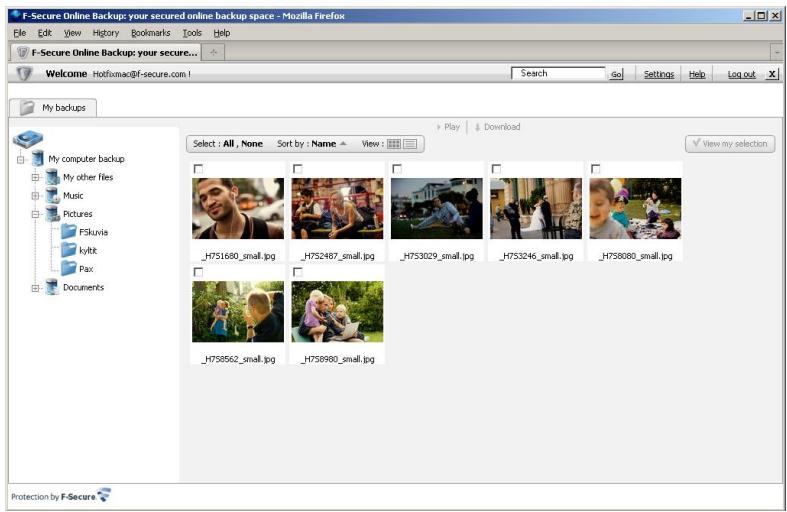
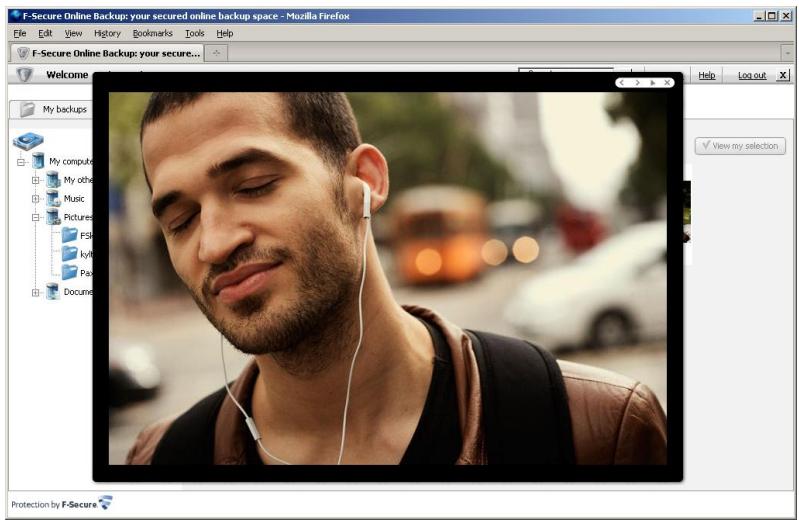
- In the Thumbnail mode, click a picture to open it in a slide show view in a Media Player. You can browse the pictures by using the navigation buttons in the upper right corner of the slide show window.
Downloading files
In the F-Secure Online Backup web interface, you can download the files or folders that you have backed up.
Note: You can only download Office files through the web interface. You cannot view them in the Media player.
To download files:
- In the My Backups tab, select the files or folders that you want to download.
- In the My Backups toolbar, click Download. The program compresses the selected. The compression may take a few minutes, depending on the amount of the selected files.
- In the window that opens, select to either open or save the compressed file.
Playing music in the web interface
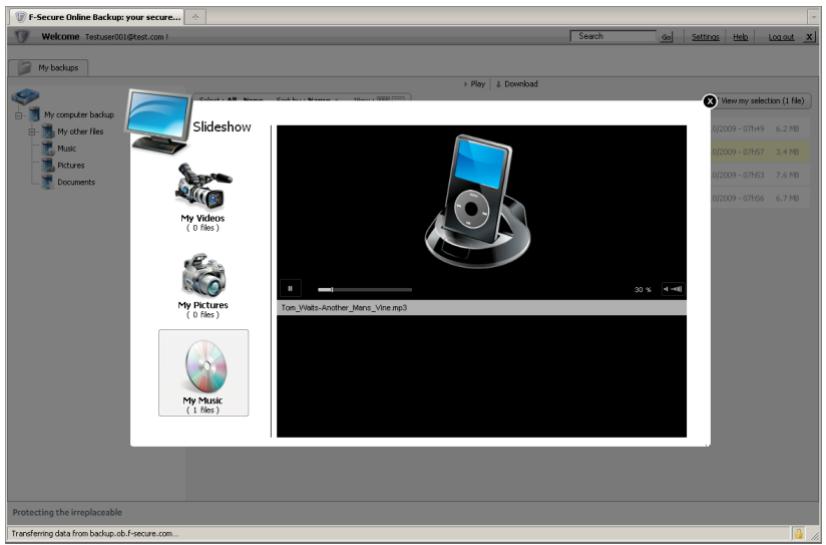
If you have backed up music files, you can play them in F-Secure Online Backup web interface.
To play your backed-up music files:
- From the Music folder or your C-drive, select the songs or albums that you want to play.
- Click Play. The Multi-media player opens. If you selected several music files, you can change on the fly the song that you are playing.
Deleting backed-up files
You cannot delete files or folders directly from the web interface.
The web interface shows the files that you have backed up from your computer. You can delete files through the F-Secure Online Backup program on your computer.
After you have deleted a file or folder from your computer, it is deleted from the backup and the web interface immediately or within the set period (15, 30, or 45 days).

- WEB USER INTERFACE HELP
- F-SECURE ONLINE BACKUP WEB INTERFACE HELP 2
- INTRODUCTION 2
- HOW TO ACCESS F-SECURE ONLINE BACKUP WEB INTERFACE 2
- USING THE WEB INTERFACE 4
- F-SECURE ONLINE BACKUP WEB INTERFACE HELP
- INTRODUCTION
- WHAT IS F-SECURE ONLINE BACKUP WEB INTERFACE
- HOW TO ACCESS F-SECURE ONLINE BACKUP WEB INTERFACE
- ACCESSING F-SECURE ONLINE BACKUP WEB INTERFACE
- WHAT IF I CANNOT ACCESS THE F-SECURE ONLINE BACKUP WEB INTERFACE
- RECOVERING YOUR PASSWORD
- USING THE WEB INTERFACE
- VIEWING FILES
- DOWNLOADING FILES
- TO DOWNLOAD FILES
- PLAYING MUSIC IN THE WEB INTERFACE
- DELETING BACKED-UP FILES
Brand : F-SECURE
Model : ONLINE BACKUP 2.1
Category : Online Backup