
1200U - To scan AVISION - Free user manual and instructions
Find the device manual for free 1200U AVISION in PDF.


User questions about 1200U AVISION
0 question about this device. Answer the ones you know or ask your own.
Ask a new question about this device
Download the instructions for your To scan in PDF format for free! Find your manual 1200U - AVISION and take your electronic device back in hand. On this page are published all the documents necessary for the use of your device. 1200U by AVISION.
USER MANUAL 1200U AVISION
Doc. No.250-0224-E Rev. 1.0
iVina, Inc.
Trademarks
All brands and product names in this manual are trademarks of their respective holders.
Copyright
All rights reserved. No part of this publication may be reproduced, transmitted, transcribed, stored in a retrieval system, or translated into any language or computer language, in any form or by any means, electronic, mechanical, magnetic, optical, chemical, manual, or otherwise, without the prior written permission of iVina Inc.
Material scanned by this product may be protected by governmental laws and other regulations, such as copyright laws, the customer is solely responsible for complying with all such laws and regulations.
Warranty
The information contained in this document is subject to change without notice.
ivina makes no warranty of any kind with regard to this material, including, but not limited to, the implied warranties of fitness for a particular purpose.
ivina shall not be liable for errors contained herein or for incidental or consequential damages in connection with the furnishing, performance, or use of this material.
FCC Radio Frequency Interference Statement
This equipment has been tested and found to comply with the limits for a class B digital device, pursuant to Part 15 of the FCC rules. These limits are designed to provide reasonable protection against harmful interference in a residential installation. This equipment generates, uses, and can radiate radio frequency energy and, if not installed and used in accordance with the instruction manual, may cause harmful interference to radio communication. However, there is no guarantee that interference will not occur in a particular installation. If this equipment does cause harmful interference to radio or television reception, which can be determined by turning the equipment off and on, the user is encouraged to try to correct the interference by one or more of the following measures:
Reorient or relocate the receiving antenna.
Increase the separation between the equipment and receiver.
- Connect the equipment into an outlet on a circuit different from that to which the receiver is connected.
- Consult the dealer or an experienced radio/TV technician for help.
FCC CAUTION: To assure continued compliance, (example - use only shield interface cables when connecting to computer or peripheral devices). Any changes or modifications not expressly approved by the manufacture of this device could void the user's authority to operate the equipment. This device complies with Part 15 of the FCC Rules. Operation is subject to the following two conditions: (1) This device may not cause harmful interference, and (2) this device must accept any interference received, including interference that may cause undesired operation.
Responsible Party: iVina INC. 732 Sussex Place, Milpitas, CA 95035, USA
Telephone No.: +1 (510) 368-8889
EC Declaration of Conformity
Manufacturer's Name: iVina Inc.
Manufacturer's Address: 732 Sussex Place, Milpitas, CA 95035, USA
declare that the product
Model Number : iVina 1200U
conforms to the following Product Specifications:
Emission: EN 50081-1 (1992)
EN 55022 (Class B) (1994) (Conducted/Radiated)
EN 61000-3-2 (Hormonics)(1996)
EN 61000-3-3(Flicker) (1995)
Immunity: EN50082-1 (1992)
IEC 1000-4-2 (ESD) (1995)
IEC 1000-4-3 (RS) (1995)
IEC 1000-4-4 (EFT/Burst) (1995)
IEC 1000-4-5 (SURGE) (1995)
Safety: Low Voltage Directive 73/23/EEC
Compliance: UL, C-UL, TUV/GS
4.BUton DESCRIPTION AND SETTING 4-1
4.1 INTRODUCTION OF BUTTONS 4-1
4.1.1 COPY BUTTON 4-1
4.1.2 OCR BUTTON 4-1
4.1.3 SCAN BUTTON 4-1
4.1.4 E-MAIL BUTTON 4-1
4.2 SETTING UP BUTTON PREFERENCES 4-2
5. WORKING WITH PUSH BUTTONS 5-1
5.1 MAKING THE FIRST COPY AS A COPIER 5-1
5.2 MAKING AN ORIGINAL TEXT EDITABLE 5-3
5.3 SCANNING AN ORIGINAL TO AN IMAGE-EDITING APPLICATION 5-4
5.4 SCANNING AN ORIGINAL TO THE E-MAIL APPLICATION, OUTLOOK EXPRESS 5-5
6.SCANNING WITHOUT THE BUTTONS 6-1
6.1 STARTING THE FIRST SCAN FROM A PLUG-IN APPLICATION 6-1
6.1.1 DETERMINING OPTICAL RESOLUTION 6-2
6.1.2 SELECTING A PROPER IMAGE TYPE 6-3
6.1.3 ENHANCING YOUR IMAGE 6-5
6.1.4 SPECIAL FUNCTIONS 6-8
6.1.5 IMAGE- VIEWING TOOL 6-11
6.1.6 OTHER TOOLS 6-12
6.1.7 STARTING FINAL SCAN 6-13
7.CARE AND MAINTENANCE 7-1
7.1 CLEANING 7-1
8.TROUBLESHOOTING 8-1
8.1 FREQUENTLY ASKED QUESTIONS 8-1
8.2 TECHNICAL SERVICE 8-2
9.SPECIFICATIONS 9-1
9.1 MODEL: IVINA 1200U 9-1
INDEX
1. INTRODUCTION
Congratulations on your purchase of the iVina color image scanner with buttons. Thanks to all of praising responses throughout the world, iVina Inc. honorably launches a USB-compatible bottoned scanner, iVina 1200U.
ivina 1200U is a new flatbed scanner with four large and evident push buttons at the front. These buttons feature one-step operation, which makes scanning intuitive, quick, and virtually user friendly.
To ensure the optimum performance of the scanner, please take a few minutes to read through this manual before you install and operate the scanner. The manual contains valuable information of how to unpack, install, operate, and maintain the scanner properly. Figure 1-1 in below shows how the scanner is packed. Please check if all items are included. If there is any item missing or damaged, please contact your nearest dealer immediately for replacement.
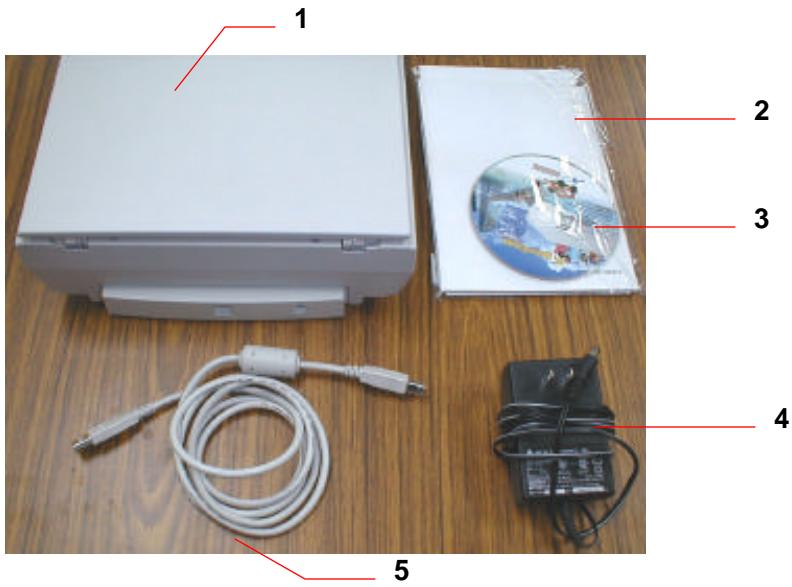
Figure 1-1 Scanner Packaging
- Scanner main unit
- Quick Guide
- Bundled CD
- Power adaptor
- USB cable
Note: When unpacking the scanner, retain the packing material and shipping box in case you may transport the scanner in the future.
2.1 PRECAUTIONS
Keep the scanner out of direct sunlight. Direct exposure to the sun or excessive heat may cause damage to the unit.
Do not install the scanner in a humid or dusty place.
Be sure to use the proper AC power source.
Place the scanner securely on an even, flat surface. Tilted or uneven surfaces may cause mechanical problems.
Keep the shipping box and the material in case you may need to ship the scanner again.
2.2 UNLOCKING YOUR SCANNER
To protect the scanning unit from damage during transportation, a lock switch is designed at the back of the scanner to keep the scanning unit from moving. To unlock the scanner, move the lock switch up as shown in Fig. 2-1.
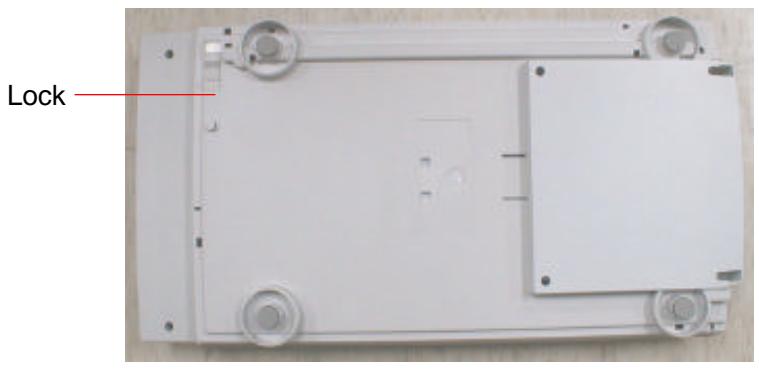
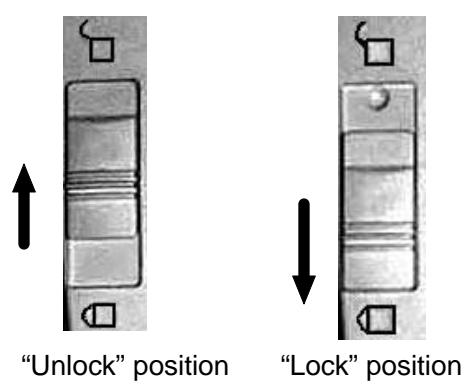
Figure 2-1 Unlocking the Scanner
Note: When you need to transport the scanner, be sure to move the lock switch to the "lock position"; otherwise, unexpected damage should cause the scanner malfunction and void the warranty.
2.3 CONNECTING THE CABLES
Connecting to an iMac as shown in Figure 2-3
- Plug the small end of the power adaptor into the power jack on the back of the scanner, and insert the other end to a power outlet.
- Locate a USB port on your computer or its accessories. Suppose you intend to connect to a USB keyboard.
- Connect the rectangular end of USB cable to the USB port of your computer, and the other square end to the USB port on the back of the scanner.
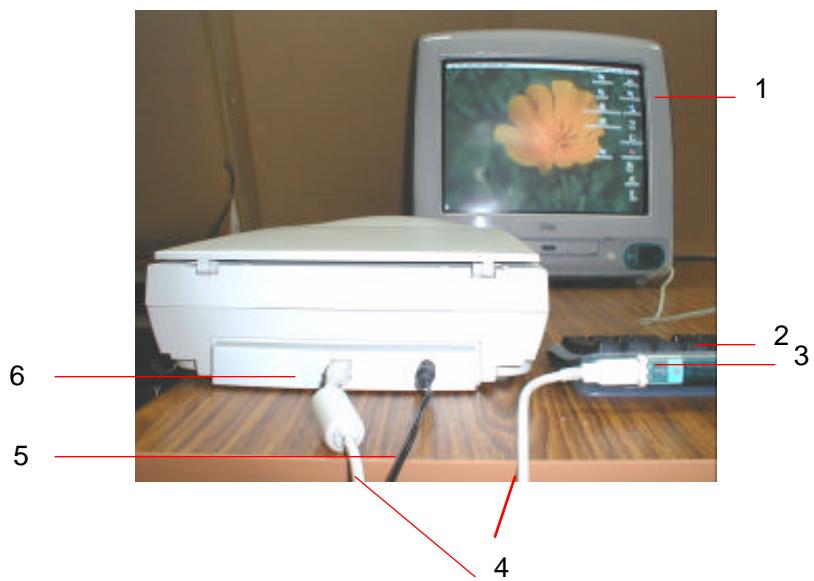
Figure 2-2 Cable connection
- iMac computer
- USB keyboard
- USB connector
- USB cable
- Power cable
- USB scanner connector
2.4 PLACING AN ORIGINAL
Open the document cover and then place your original face down on the document glass as shown in Fig. 2-3. Make sure to align the upper right corner of an original to the alignment mark.
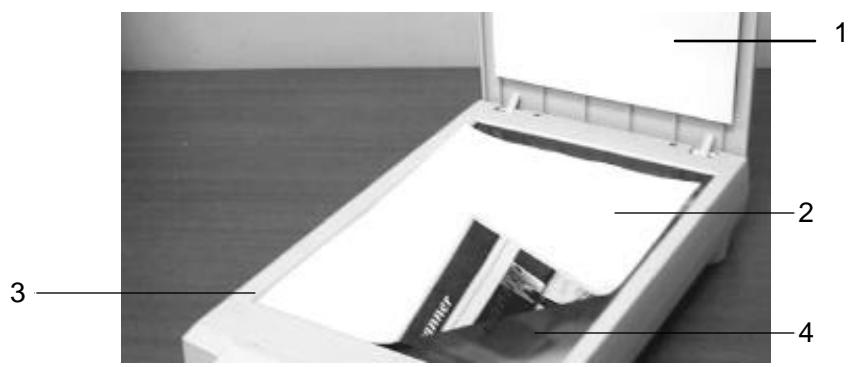
Figure 2-3 Placing the original
- Document cover
- Original document
- Alignment mark
- Document glass
3.1 MINIMUM SYSTEM REQUIREMENT
iMac or new Power Macintosh G3 (with USB port)
OS 8.5.1 or later version
3.2 THE SOFTWARE INSTALLATION PROCEDURES ARE DEPICTED AS FOLLOWS:
Please first install the scanner driver as well as the necessary software applications to your computer then connect iVina 1200U to your computer to ensure a successful installation. Before installation , please :
-
Close all the applications including the anti-virus program.
-
Insert the bundled CD into your CD-ROM drive, when the icon of iVina 1200U CD appears on screen, click it to get the main window of iVina 1200U CD. This main window contains major files including iVina Installer, Install TextBridge 3.0, ReadMe, iVina 1200U user's manual, PageManager, and iMac Updates, as shown in Fig. 3-1. At this moment, studying "Read Me" before continuing would be recommended.
- If your operating system is not Mac OS 8.5.1 or above, please double-click iMac Updates to install all the necessary update software including iMac Firmware, iMac update, Mac OS 8.5.1, or your iVina 1200U may not work properly.
- Double click the "iVina Installer" icon, and then iVina Installer dialog box appears as shown in Fig. 3-2.
- Click "Easy Install" icon, drag it to the hard drive, to which you want to install the scanner driver. Another dialog box for plug-in will appear as shown in Fig. 3-3. Tick the desired application items in the dialog box(Suppose Photoshop is ticked) and click "Install" button to install the scanner "plug-in" driver.
- Restart your computer when the "Restart" message is displayed. Congratulations! Your installation of the scanner driver is completed now.
After successfully installing the driver of iVina 1200U, you may find a folder, called "Button Manager", which is an interface for a user to set up his or her preferences of the four buttons. Referring to how to use Button Manager, see Section 4.2 in the manual.
Note: To ensure a successful installation, if you need to update the scanner driver, please first disconnect the USB cable of your scanner and then install the most update scanner driver on your computer. Restart your computer and reconnect the USB cable to your computer.
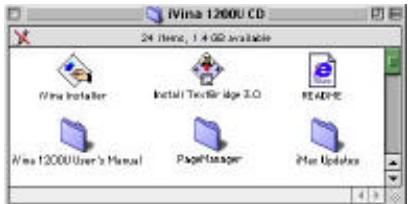
Figure 3-1 iVina 1200U CD Window
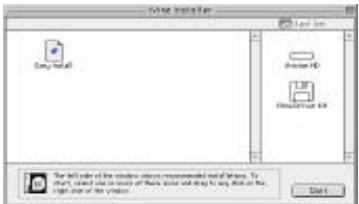
Figure 3-2 iVina Installer Dialog box
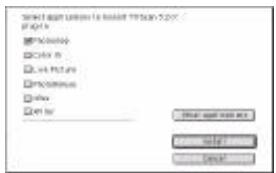
Figure 3-3 Dialog box for Plug-in
3.3 INSTALLING BUNDLED APPLICATIONS, TEXTBRIDGE OCR & PAGE MANAGER:
- Insert the bundled CD into CD-ROM drive on your computer.
- Click the icon of iVina 1200U CD to get the CD main window including iVina Installer, Install TextBridge 3.0, ReadMe, iVina 1200U user's manual, PageManager, and iMac Updates.
(A) Installation of Textbridge OCR Application Software:
- Double-click the icon of "Install Textbridge 3.0", and then textbridge Installer with six languages appears.
- Select one of the six languages for the installer, and then follow the on-screen instructions to complete the Textbridge OCR application software installation.
(B) Installation of Optional Application Software PageManager :
- First, click the PageManager icon in the main window.
- After the PageManager window pops up with eight languages, click one of the eight languages.
- Double-click " Presto! PageManager Disk 1", and then " Presto! PageManager Installer".
-
Follow the on-screen instructions to complete the Presto! PageManager installation.
-
Installation of the two applications is now completed respectively.
4.1 INTRODUCTION OF BUTTONS
iVina 1200U features four push buttons at the front. Each function of the four buttons is described respectively in the following sections.
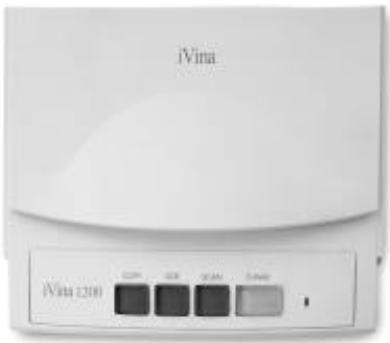
Figure 4-1 Button Outlook
4.1.1 COPY BUTTON
With just one click of the Copy button, you can get an immediately copy for your scanned image directly from your printer.
4.1.2 OCR BUTTON
With just one touch of the OCR button, you can scan your text document to your OCR software application. (For example, the bundled TextBridge 3.0)
4.1.3 SCAN BUTTON
One touch of the Scan button is to allow you to scan your image directly into an image-editing application.
4.1.4 E-MAIL BUTTON
Pressing the E-mail button is to enable you to easily send the scanned image file through the preset E-mail application, Outlook Express.
4.2 SETTING UP BUTTON PREFERENCES
After opening "Button Manager" icon from the Button-Manager folder on the computer screen, a button-setting window emerges on the screen as shown below.
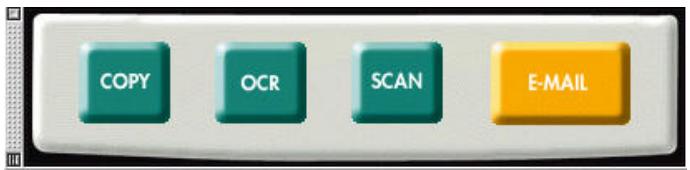
Figure 4-2
Click each of the four buttons to set up individual preferences. Now, suppose the copy button is clicked first. And then, the copy setting sheet comes out as shown below.
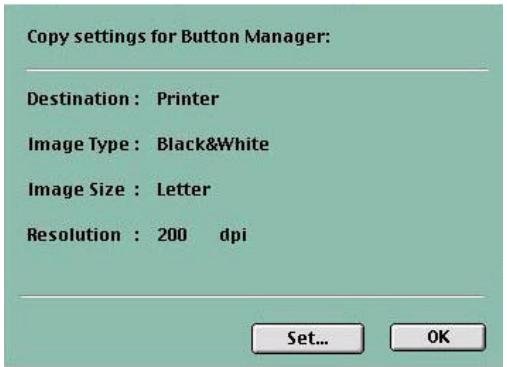
Figure 4-3
Click the Set button to get a copy setting dialog as shown
in below, in which you could choose your various desired settings.
An iVina copier is available as if you could make copies from a real copier by selecting
"printed by iVina Copier" inside the dialog check box. When the desired setting selections are done, click "OK" button.
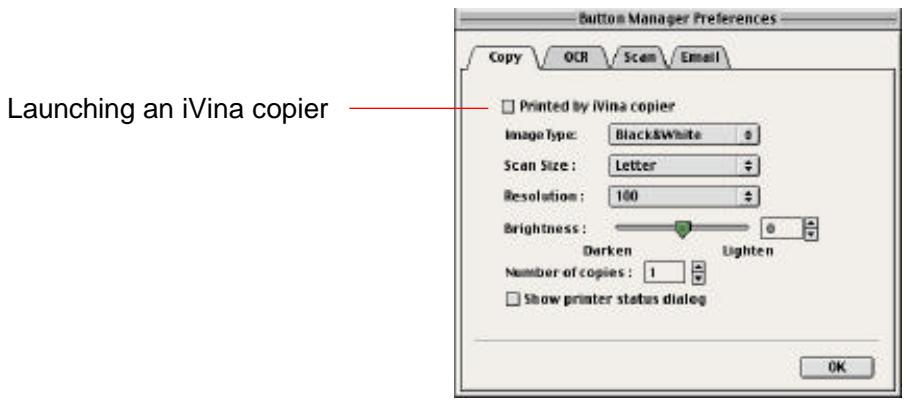
Figure 4-4
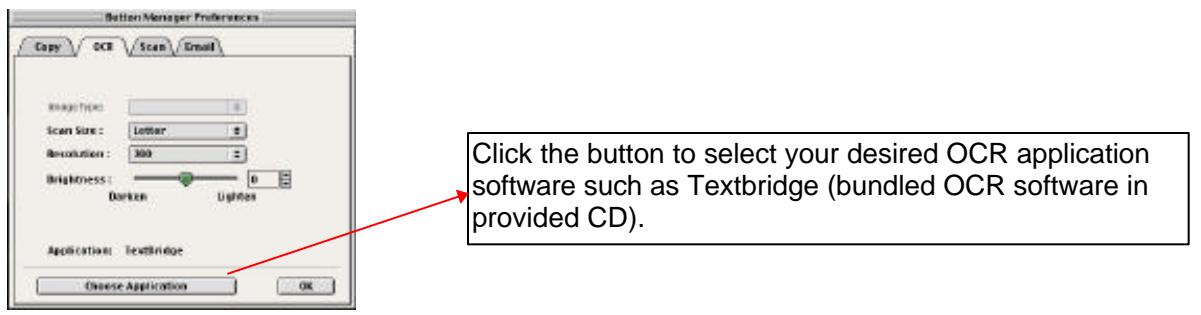
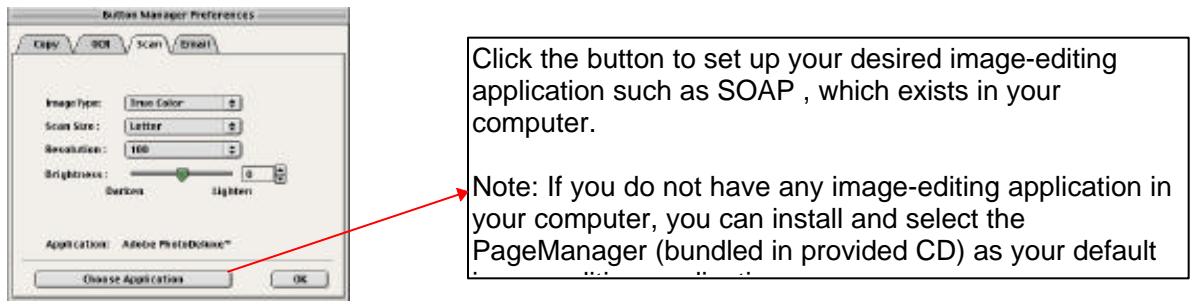
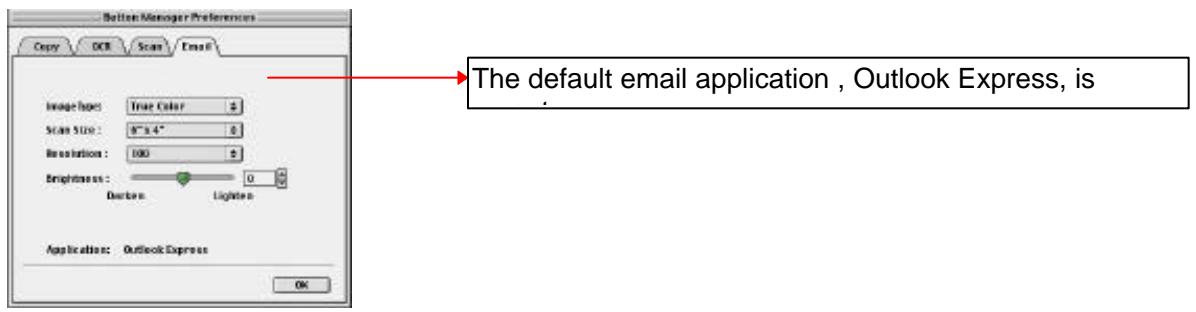
In similar ways, you could respectively get OCR, Photo, and E-mail dialogs as shown below, and choosing a designated application for each is the initial necessary step before doing other individual desired settings (See the following directions).
OCR button Setting:
Scan button setting:
E-mail button Setting:
Note:
(1) Here are the manufacturer default settings of Image type, Scan size, and Resolution.
| Setting | Copy | OCR | Scan | |
| Image Type | Black & white | Black & white | True Color | True color |
| Scan Size | Letter | Letter | Letter | 6"x4" |
| Resolution | 100 dpi | 300 dpi | 100 dpi | 100 dpi |
(2) After installing "Button Manager" application, the Button Manager will be automatically launched with the button setting dialog poping up on screen whenever you restart your iMac or unplug and replug the scanner USB cable. To close the Button Manager, simply click the square button at the lower left corner.
This section provides the operation steps with illustrations to show you how to make the best use of the scanner buttons in making a copy, converting a text to being editable, transferring a photo image to an image-editing application, and attaching an original material to a document-managing application.
5.1 MAKING THE FIRST COPY AS A COPIER
- Place an original face-down on the document glass.
Choose one of the two options of step 2 :
- Press the Copy push button. The scanning message is first displayed, and then in a second copying is done through a printer designated.
Or
- If the function of "printed by iVina Copier" was previously ticked or selected in the Copy preference dialog box, after pressing the Copy button, the iVina Copier window, as shown below, will be displayed to allow you to access and operate a variety of copy features just like a normal copier.
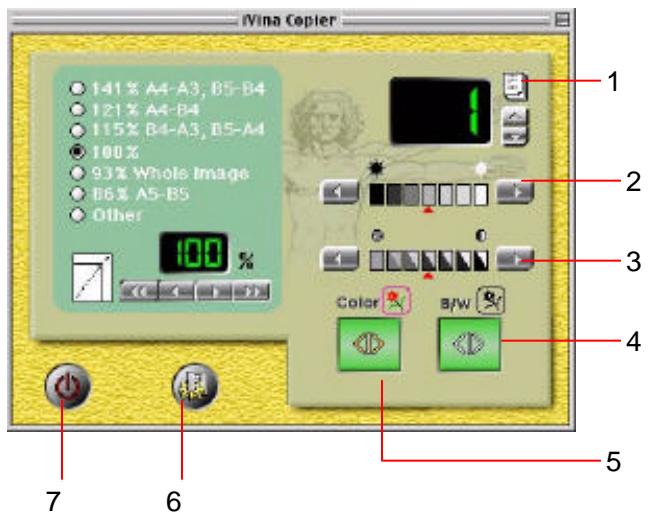
Figure 5-1 iVina Copier window
- Copy count
- Brightness
- Contrast
- Start Black & White copy
- Start Color copy
-
Preferences
7.Exit -
Press the Preference button to display the Preference dialog box as shown below. The Preference dialog box allows you to preset the resolution value, paper size, image mode, and Desscreen function.
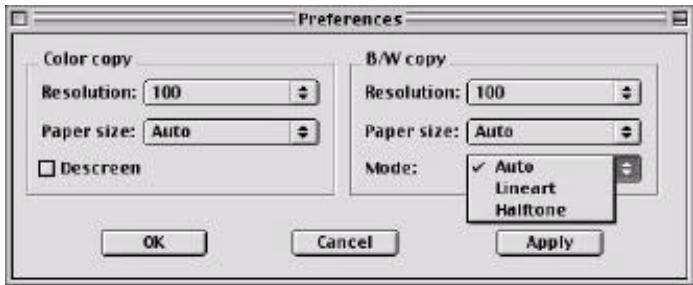
Figure 5-2 Copier preferences dialog box
Paper Size: Included are Max., Letter, A4, B5, A5, and Auto , among which the Auto is a great function to automatically crop a scanned image to fit a paper supply even if your original is not aligned near the alignment mark. This is particularly useful if your printer comes with fit-to-page feature.
Mode: Included are Auto, Lineart, Halftone, among which the Auto here is an optimized mode to reach the most harmonious mixture of text and picture, no matter whether the original is a text, photo, or photo/text mixture content. Referring to the detailed information of Lineart and Halftone, see Section 6.1.3 in the manual.
Resolution & Descreen: See section 6.1.2 and section 6.1.3 for the detailed descriptions of Resolution and Desscreen.
5.2 MAKING AN ORIGINAL TEXT EDITABLE
- Place your original on the document glass.
- Press the OCR button. The scanning message is displayed and then you can send scanned document into TextBridge OCR to convert your original text to an editable one. After saving this editable text file, you could open and edit it in a word processor. Regarding the detailed operation of this installed OCR application, see the relevant on-line help on it. The figure below is a converted sample result shown on a word processor for your reference.
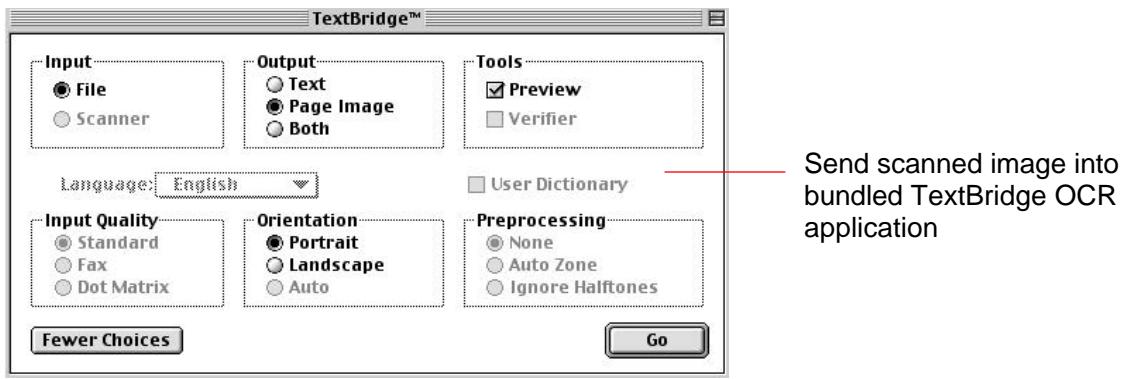
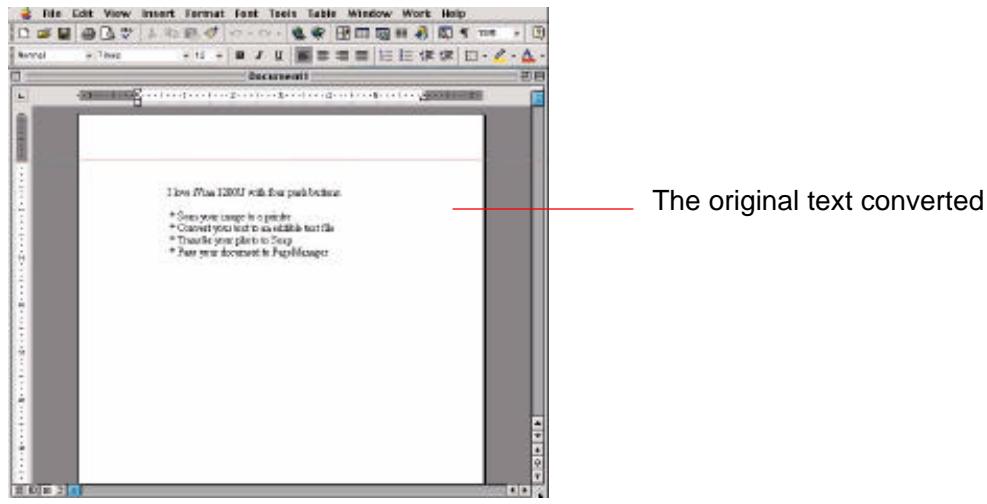
Figure 5-3 Scanning text in OCR button
5.3 SCANNING AN ORIGINAL TO AN IMAGE-EDITING APPLICATION
- Place your original on the document glass.
- Press the Scan button. The scanning message is displayed and within a few seconds, your original image is scanned and sent into your selected image-edining application previously set up in the scan button setting dialog box.
Note: You can select your existed image-editing application software (such as SOAP, Photoshop etc.) as your Scan button function destination application. If you do not have any image-editing application in your computer, you can install and select the PageManager (bundled in provided CD) as your default image-editing application.
5.4 SCANNING AN ORIGINAL TO THE E-MAIL APPLICATION , OUTLOOK EXPRESS
- Place your original on the document glass.
- Press the E-mail button. The scanning message is displayed and within a few seconds, your original image is scanned to the Outlook Express application for you to easily send the E-mail.
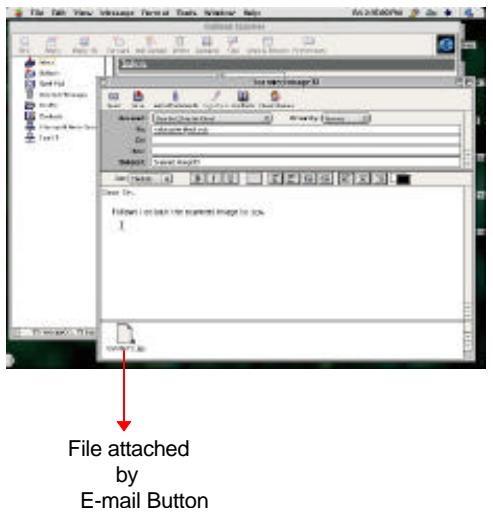
Figure 5-5 Outlook Express window
ivina 1200U allows you to operate the scanner from within a plug-in software application like Photoshop. As the scanner driver is not a stand-alone software, it is started from within a Photoshop plug-in compliant software application and then the scanner driver is able to scan and load the image to your computer. The command to start the scanner driver may vary due to different software applications. To check the correct command, please refer to the user manual of the relevant software application.
6.1 STARTING THE FIRST SCAN FROM AN APPLICATION
- Start such a plug-in application as Adobe PhotoShop, Soap, and so on. From File menu of the application started, choose Import command.
- Select MrScan X.x.x from the submenu of Import.
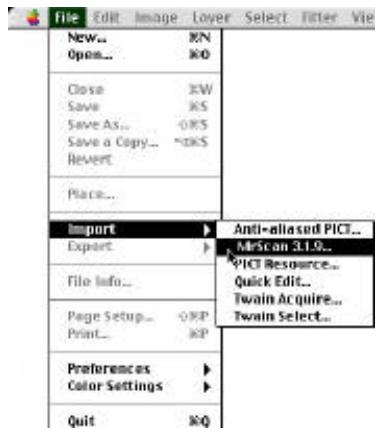
Figure 6-1
- The Mac Plug-in user interface will pop up on the screen.
(There are two user interfaces for you to choose. One is for a professional usage, called Expert.
The other is for a beginner usage, called Easy. You could always switch these two user interfaces simply by pressing their respective icon in their interfaces.)
- Place the document upside down on the document glass.
- Click the Preview or Scan button to preview or scan your document or image.
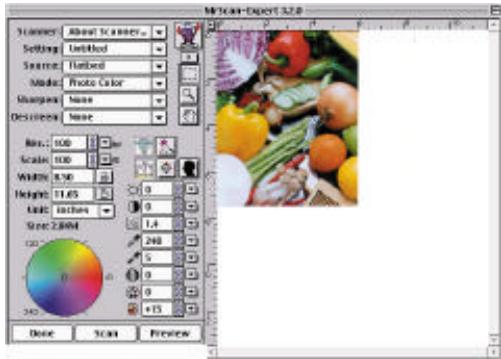
Figure 6-2 Mac Plug-in user interface
6.1.1 DETERMINING OPTICAL RESOLUTION
A good control of the resolution results in a satisfactory detail of an image scanned. The resolution is measured by dot per inch(dpi). Normally, the greater the dpi value, the higher the resolution and the bigger the image file size. Be aware that the greater resolution takes more time, memory and disk space; therefore, up to a certain degree of dpi, the resolution will not be visually improved. And on the contrary, it makes your files more unmanageable.
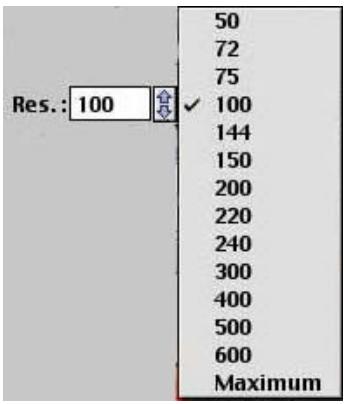
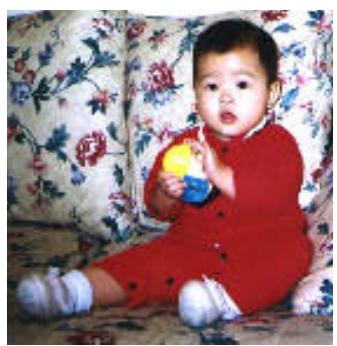
Resolution: 50 dpi
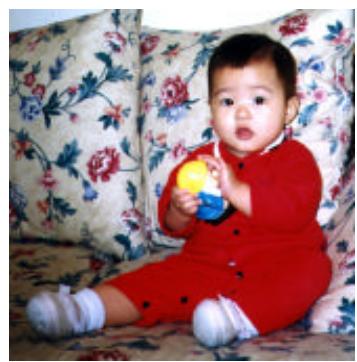
Resolution: 100 dpi
Figure 6-3 Resolution Control
Tips:
- For your information, an A4 size color image scanned at 300 dpi at True Color mode consumes approximately 25 MB of disk space. A higher resolution (usually means over 600 dpi) is recommended only when you need to scan a small area at True Color mode.
- You can also refer to the following table to choose a proper resolution while applying your image to other application.
| Scanner Settings Application | Image Type | Resolution (dpi) |
| File, Fax, E-mail Your Document | LineArt | 200 |
| View, Copy, Edit Your Color Picture | True Color | 100 |
| OCR* Your Document | LineArt | 300 |
*OCR: Stands for Optical Character Recognition, the process to convert an image to a text format.
6.1.2 SELECTING A PROPER IMAGE TYPE
There are five types of image modes for you to make your target picture as vivid as possible. Depending on the image complexity and paper quality of an original, a user may utilize these image modes to retouch a scanned image to be as ideal as he/she prefers. Please see Figure 6-4 below and the detailed introductions of each image mode followed.
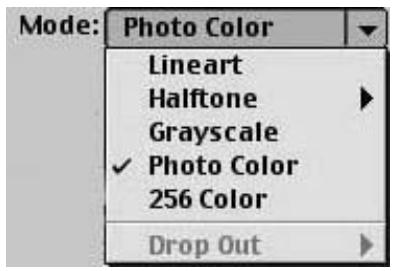
Figure 6-4 Image Type
Each of the five image types is described as follows:
Line art
LineArt presents the image in black and white only and there are no intermediate shades of gray in between. That means each pixel of the image is 100% black or 100% white. LineArt is the best choice of image type if you want to scan text, pen or ink drawing. Since only 1-bit of black or white information is required for each pixel^* , the disk space required for saving lineArt image is only about 1/24 of that required to save 24-bit true color images.

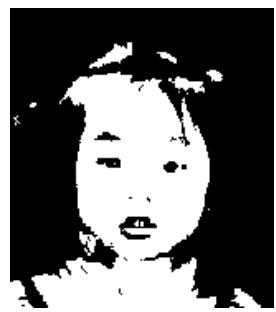
Figure 6-5 Lineart Image
*Pixel: A combination of two words: picture and element, a pixel is a single dot on a computer display or in a digital image.
Halftone
In addition to the black and white display, Halftone simulates gray scale by using different size of dots. Particularly when you view the image at a certain distance, it looks very closely like a gray image yet it consumes the least disk space. Halftone is the picture that we usually see in newspapers or magazines. Since Halftone is one type of black and white image, the disk space required to save a halftone image is 1/24 of that required to save a 24-bit true color image.
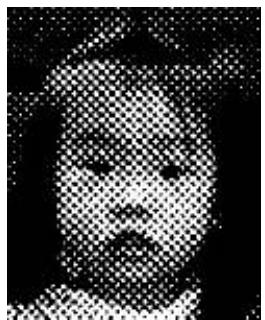
Figure 6-6 Halftone Image
Gray (4096 levels gray scale/Internally)
Usually, a single-channel image consists of at least 8-bit or 256 levels of shades of gray in an image. However, AV620CS Plus with 12 bits produces a Gray image with 4096 shades of gray between pure black and pure white. Gray is the best choice of image if you wish to scan a black and white photograph. With 12 bits of color information per pixel, the disk space required to save a gray image is eight times more than lineArt and 1/3 of that required to save a 24-bit true color image.

Figure 6-7 Gray Image
256 Colors
The 256 colors image provides 256 levels of color hues. The disk space required to save an image in 256 colors is 1/3 of that required to save a 24-bit true color image.

Figure 6-8 256-Color Image
True Color
A 36-bit Color image consists of three 12-bit color channels. The red, green, and blue channels are mixed together to create a combination of one billion (2^36) colors which give a more true-to-life quality to the image. True Color is the best choice if you want to scan a color photo.

Figure 6-9 True-Color Image
6.1.3 ENHANCING YOUR IMAGE
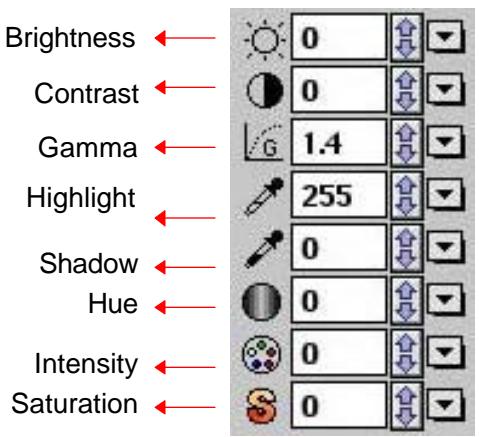
Figure 6-10 Image Enhancement
Brightness: Adjusts the lightness or darkness of an image. The higher the value, the brighter the image.
Decrease your Brightness
Normal
Increase your Brightness



Figure 6-11 Brightness Adjustment
Contrast: Adjusts the range between the darkest and the lightest shades in the image. The higher the contrast, the bigger the different gray scales.

Decrease your Contrast
Normal


Increase your Contrast
Figure 6-12 Contrast Adjustment
Gamma: Adjusts the midtone of the image without losing details of the lightest and the darkest areas.
Gamma Value: 1.0
Gamma Value: 1.4
Gamma Value: 2.0



Figure 6-13 Gamma Adjustment
Highlight/Shadow:
Highlight refers to the lightest point in a scanned image while shadow refers to the darkest point. Using Highlight and Shadow tool together allow you to extend the range of color and reveal more details in a gray or color image.

Highlight: 255/Shadow: 0(Normal)
Highlight: 210/Shadow:10

Highlight: 255/Shadow: 50

Highlight: 200/Shadow:0

Figure 6-14 Shadow Adjustment
Hue: Adjusts the hue up to 360S by clicking your desired color on the Color wheel or clicking the up or down arrow button. (Note the level of intensity for the color will be changed simultaneously when the hue adjustment is made).
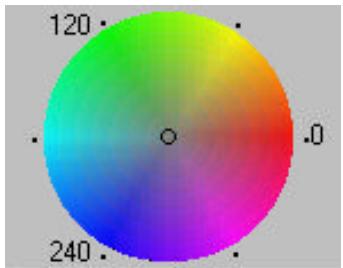
Figure 6-15 The Color Wheel
Intensity: Adjusts the color strength by clicking the Up or Down arrow button.
Saturation: Adjusts the saturation level for the color by clicking the Up or Down arrow button. The level of saturation decides if the color is pale or rich.
6.1.4 SPECIAL FUNCTIONS
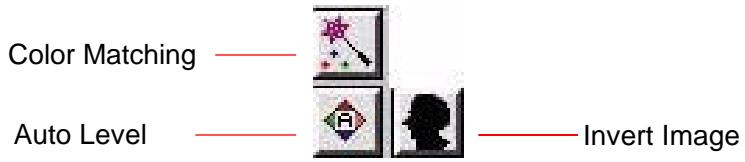
Figure 6-16 Function Button
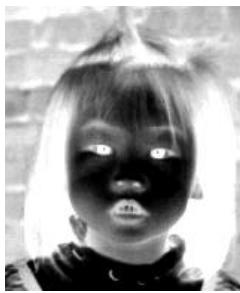
Invert Image: The invert command reverses the brightness and the color in the image. For color images, each pixel will be changed into its complementary color at the command of Invert.

Original
After Invert
Figure 6-17 Invert Effect
Color Matching:
Adjusts the color quality of the image so that it comes close to that of the original. This function uses default parameters to adjust the image.

Before Color Matching

After Color Matching
Figure 6-18 Color Match
Auto Level:

Automatically adjusts the highlight and shadow areas of the scanned image to give it an optimal effect.

Before Auto Level
After Auto Level

Figure 6-19 Auto Level
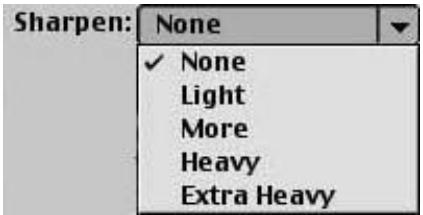
Sharpen: Sharpens the scanned image. Look for more selections under this item.

Original

Extra Heavy
Figure 6-20 Sharpening Image
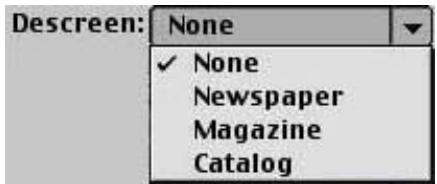
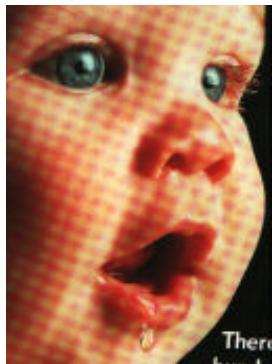
Descreen: Eliminates the moiré patterns* commonly found in printed matter.
After Descreen
Before Descreen

Figure 6-21 Descreening Image
*Moire pattern: An undesirable pattern in a color printing resulting from incorrect screen angle of overprinting halftone.
6.1.5 IMAGE- VIEWING TOOL
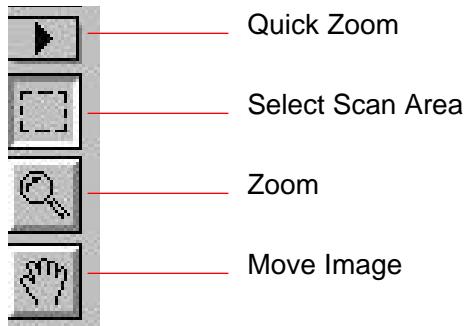
Figure 6-22 Button of image-viewing tools
Quick Zoom: Provide frequently used magnification ratios (1x, 2x, 4x, 8x, or view the whole image) to perform a quick enlargement of your preview image.
Select Scan Area:
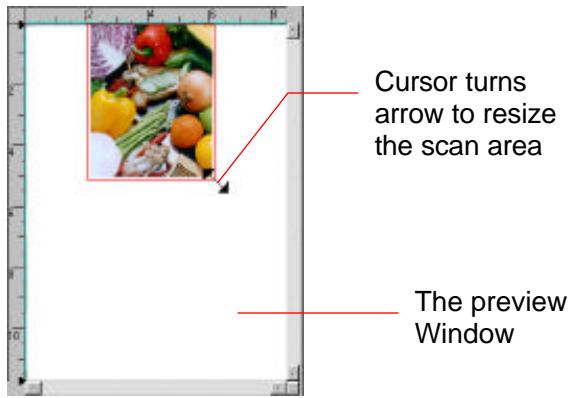
Select your desired scan area. (Click the button and place your cursor at the preview area. The cursor turns a cross sign. Hold your left mouse button to create your scan area. Release mouse button when the area has been successfully selected.)
Zoom: Click and place your cursor on the preview area. The cursor will turn a zoom sign to enlarge or reduce(press the Alt key) your preview image.
Move Image: Click and place your cursor anywhere on the preview area. The cursor now turns a hand sign to allow you to move the preview image to view a specific portion clearly. (This function is only available after the preview image has been enlarged.)
6.1.6 OTHER TOOLS
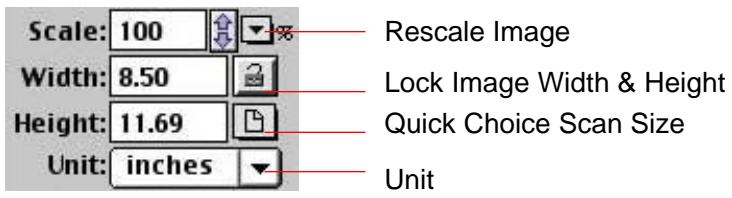
Figure 6-23
Scale: Enlarge or reduce your image in a pre-set proportion (from 50% to 800% ).
Width: Display current image width.
Height: Display current image height.
Unit: A reminder of the measuring system in use. By clicking on the abbreviation you can change the measuring system.
Lock Image Width & Height:
Fixes your output width and height despite of the scan size you have selected. Note the scale value will be changed automatically when you apply this function, resizing your selected area at the same time.
Quick Choice Scan Size:
Provides frequently used scan size options including Business Card, 5"x 3", 6"x 4", Letter, Legal, B5, A5, A4, A3, or your current scan area to perform an immediate selection of your scan size.
6.1.7 STARTING FINAL SCAN

Preview: Previews your image to allocate the area to be scanned.
Scan: Scans the area with the parameters you have set.
Done: Cancelsthecurrentjob.
As shown in the figure below, in the Preview window, you can define the area to be scanned by dragging the cursor auxiliary lines with the mouse.
7. CARE AND MAINTENANCE
7.1 CLEANING
There are times the document glass is contaminated with dusk or toner particles. To ensure quality scanning result, please wipe the document glass occasionally.
To clean the document glass,
- Open the document cover as shown in Figure 7-1.
- Dip a soft clean cloth with isopropyl alcohol(95%). And gently wipe the document glass until the dusty particles are thoroughly removed.
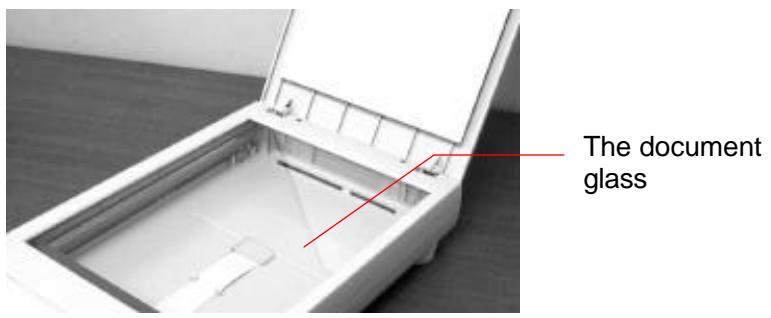
Figure 7-1 Cleaning the document glass
8.1 FREQUENTLY ASKED QUESTIONS
Question: When the scanner is powered on, it makes noises and won't stand ready.
Answer: There are two possibilities:
1) You might fail to push the scanner shipping lock to its "use" position. If this is the case, pull the scanner status switch to its "use" position first.
2) The scanner is not placed on an even, flat desktop surface. This may cause the scanner to malfunction.
Question: The scanner is powered on, but the lamp does not light up.
Answer: The lamp is probably out of order. Contact your local dealer or distributor to replace the lamp. For your information, the average life time of the lamp is about 15,000 hours and the operating temperature for the scanner is between 10^(50^) and 40^(104^) .
Question: While scanning, the scanner often makes noises, or it scans back and forth.
Answer: Usually this means the memory of your computer is not enough or the speed of your CPU too slow. Please try to increase your memory to at least 32M.
Question: Why is it that the scanned image always comes out to be too dark?
Answer: 1) Modify the Gamma setting to 1.8 2.2 for your monitor and, when printing, set the Gamma setting to 2.2 for your printer.
2) Adjust the Brightness setting from the user interface to get a brighter image.
Question: The scanner works well except for the line art image. The lines in the image seem to be much thicker than the original one.
Answer: Increase the Brightness or adjust the Threshold setting to improve line art image.
8.2 TECHNICAL SERVICE
Technical support for iVina scanner is provided at iVina Technical Assistance Center. Before contact with us, please prepare the following information.
Scanner serial & revision number (located on the bottom of the scanner)
Hardware configuration (e.g., your host type, RAM size, free disk space, etc.)
The name and version of your software application
The version of your scanner driver.
Please contact us at:
ivina Inc.
Address: 6815 Mowry Ave. Newark CA 94560, USA
Telephone number: +1 (510) 739-2369
Fax number: +1 (510) 739-6060
All specifications are subject to change without notice.
9.1 MODEL: iVina 1200U
Scanner Type:
System Supported:
Optical Resolution:
Maximum Resolution:
Scanning Modes:
Document Size:
Interface:
Power Source:
Power Consumption:
Dimensions: (WxDxH):
Weight:
Flatbed Scanner with four buttons
iMac & B/W G3 with USB port
600 dpi * 1200 dpi (H*V)
9600 dpi
Black & White mode
Halftone mode
Error diffusion
Grayscale(12 bits scanning/8 bits output)
Color(36 bits scanning/24 bits output)
8.5" x 11.7"(WxH)
USB
100Vac~240Vac, 50~60Hz, external
12 watts(12Vdc, 1A)
470x260x100(mm)
2.9kg(6.3lbs)
INDEX
2
256 colors, 6-4
A
alignment mark, 2-4
Auto, 5-5
Auto Crop, 5-5
Auto Level, 6-9
B
Brightness, 6-5
C
Color Matching, 6-8
Color Wheel, 6-7, 6-8, 6-9, 6-10, 6-11
Contrast, 6-6
Copier window, 5-4
Copy preferences dialog, 5-4, 5-5
Custom function, 4-1
D
Descreen, 6-10
G
Gamma, 6-6
Gray, 6-4
H
Halftone, 6-4
Highlight, 6-7
hue, 6-7
I
Image Control, 6-5
Image Type, 6-2
LineArt, Halftone, Gray, 256 Colors, True Colors, 6-3
Intensity, 6-7
Invert, 6-8
L
LineArt, 6-3
Linking scanned image to your Designated Application, 5-7, 5-8
lock switch, 2-2
M
Making your First Copy, 5-4
MGI PhotoSuite SE, 5-7, 5-8
moire patterns, 6-10
0
OCR, 6-2
OCR(Optical character recognition) function, 4-1
R
resolution, 6-2
S
Saturation, 6-7
Scaling, 6-12
Scan Size
Max.,Letter,A4,B5,A5,Auto Crop,5-5
Scanning your Text, 5-6
Shadow, 6-7
Sharpen, 6-9
T
TrueColor,6-5
U
Unit, 6-12