
SOLO MINI - Compact audio system ARCAM - Free user manual and instructions
Find the device manual for free SOLO MINI ARCAM in PDF.


| Product type | Compact audio system |
| Brand and model | Arcam Solo Mini |
| Dimensions (W x D x H) | 230 mm x 350 mm x 90 mm |
| Net weight | 5.31 kg |
| Packaged weight | 6.7 kg |
| Power supply | 100–230 V AC depending on region (50/60 Hz) |
| Standby power consumption (clock mode) | 4 W |
| Operating power consumption | 80 W (typical), 250 W (max) |
| Amplifier output power | 2 x 25 W RMS into 8 Ω (1 kHz, 0.1% THD+N) |
| CD player | Slot-in, compatible with CD audio, CD-R/RW (MP3/WMA) |
| Radio tuner | DAB/DAB+ (depending on version), FM, AM |
| Audio inputs | 4 x analog (RCA), 1 x front line (3.5 mm mini-jack), USB (front), iPod (via optional rDock/rLead) |
| Audio outputs | Headphone (3.5 mm mini-jack), preamp (RCA), tape (RCA), speakers (binding posts) |
| Special features | Sleep timer, alarm (4 settings), bass/treble/balance controls, repeat/random mode for CD/USB |
| Cleaning | Soft lint-free cloth, no chemical solvents |
| Safety | Do not expose to water, do not block ventilation, use only with specified mains supply |
| Repairability | Do not attempt repairs yourself; contact authorized dealer |
| Warranty | 2 years parts and labor |
| Included accessories | Manual, remote control (batteries included), power cord, antennas (DAB telescopic, FM dipole, AM loop depending on version) |
Frequently Asked Questions - SOLO MINI ARCAM
User questions about SOLO MINI ARCAM
0 question about this device. Answer the ones you know or ask your own.
Ask a new question about this device
Download the instructions for your Compact audio system in PDF format for free! Find your manual SOLO MINI - ARCAM and take your electronic device back in hand. On this page are published all the documents necessary for the use of your device. SOLO MINI by ARCAM.
USER MANUAL SOLO MINI ARCAM
CAUTION: To reduce the risk of electric shock, do not remove cover (or back). No user serviceable parts inside. Refer servicing to qualified service personnel.

WARNING: To reduce the risk of fire or electric shock, do not expose this apparatus to rain or moisture.
The lightning flash with an arrowhead symbol within an equilateral triangle, is intended to alert the user to the presence of uninsulated 'dangerous voltage' within the product's enclosure that may be of sufficient magnitude to constitute a risk of electric shock to persons.
The exclamation point within an equilateral triangle is intended to alert the user to the presence of important operating and maintenance (servicing) instructions in the literature accompanying the product.
CAUTION: In Canada and the USA, to prevent electric shock, match the wide blade of the plug to the wide slot in the socket and insert the plug fully into the socket.
Class II product

This equipment is a Class II or double insulated electrical appliance. It has been designed in such a way that it does not require a safety connection to electrical earth ('ground' in the U.S.).
Many of these items are common sense precautions but, for your own safety and to ensure that you do not damage the unit, we recommend that you read them.
Important safety instructions
This product is designed and manufactured to meet strict quality and safety standards. However, you should be aware of the following installation and operation precautions.
I. Take heed of warnings and instructions
You should read all the safety and operating instructions before operating this equipment. Retain this handbook for future reference and adhere to all warnings in the handbook or on the equipment.
2.Water and moisture
The presence of electricity near water can be dangerous. Do not use the equipment near water - for example next to a bathtub, washbowl, kitchen sink, in a wet basement or near a swimming pool, etc.
3. Object or liquid entry
Take care that objects do not fall and liquids are not spilled into the enclosure through any openings. Liquid-filled objects such as vases should not be placed on the equipment.
4. Placing the equipment
Only use a rack or shelf that is stable and strong enough to support the weight of this equipment.
5.Ventilation
Do not place the equipment on a bed, sofa, rug or similar soft surface, or in an enclosed bookcase or cabinet, since ventilation may be impeded. We recommend a minimum distance of 50mm around the sides and top of the equipment to provide adequate ventilation.
5. Heat
Locate the equipment away from naked flames or heat-producing appliances such as radiators, stoves or other appliances that produce heat.
6. Climate
The equipment has been designed for use in moderate climates and in domestic situations.
8. Cleaning
Unplug the unit from the mains supply before cleaning.
The case should normally only require a wipe with a soft, lint-free cloth. Do not use chemical solvents for cleaning.
We do not advise the use of furniture cleaning sprays or polishes as they can cause indelible white marks.
9. Power sources
Only connect the equipment to a power supply of the type described in the operating instructions or as marked on the equipment.
The primary method of isolating Solo Mini from the mains supply is to use the switch on the rear of the unit. Solo Mini must be installed in a manner that makes disconnection possible.
10. Power-cord protection
Power supply cords should be routed so that they are not likely to be walked on or pinched by items placed upon or against them. Pay particular attention to the point where they exit from the equipment.
I I. Power lines
Locate any outdoor antenna/aerial away from power lines.
12. Non-use periods
If the equipment is not being used for an extended period, we recommend that you unplug the power cord of the equipment from the outlet, to save power.
13.Abnormal smell
If an abnormal smell or smoke is detected from the equipment, turn the power off immediately and unplug the equipment from the wall outlet. Contact your dealer and do not reconnect the equipment.
14. Servicing
You should not attempt to service the equipment.
Contact your dealer to arrange servicing.
15. Damage requiring service
The equipment should be serviced by qualified service personnel when:
A. the power-supply cord or the plug has been damaged, or
B. objects have fallen, or liquid has spilled into the equipment, or
C. the equipment has been exposed to rain, or
D. the equipment does not appear to operate normally or exhibits a marked change in performance, or
E. the equipment has been dropped or the enclosure damaged.
Safety compliance
This equipment has been designed to meet the IEC/EN 60065 international electrical safety standard.
This device complies with Part 15 of the FCC Rules. Operation is subject to the following two conditions: (1) This device may not cause harmful interference, and (2) this device must accept any interference received, including interference that may cause undesired operation.
WARNING:
Due to the mains switch being located on the rear panel, the apparatus must be located in an open area without anything obstructing access to the mains switch.
Mains plug/appliance coupler is used to disconnect device and it shall remain readily operable.
Correct Disposal of this product
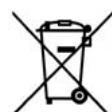
This marking indicates that this product should not be disposed with other household waste throughout the EU.
To prevent possible harm to the environment or human health from uncontrolled waste disposal and to conserve material resources, this product
should be recycled responsibly.
To dispose of your product, please use your local return and collection systems or contact the retailer where the product was purchased.
welcome…
... and thank you for purchasing the Arcam Solo Mini music system.
Arcam has been producing high-quality audio components for nearly thirty years. During that time we have amassed a wealth of knowledge on both the design and construction of audio components in order to give the best sound performance for the price. The design of Solo Mini is a distillation of this knowledge into a compact and easy-to-use package that is intended to give you years of listening enjoyment while taking just a few minutes to learn how to use.
This handbook is intended to give you a detailed guide to using the Solo Mini music system. It starts by giving advice on installation, moves on to describe how to use the product and finishes with additional information on the more advanced features. Use the contents list shown on the right to guide you to the section of interest.
We hope that your Solo Mini music system will give you years of trouble-free operation. In the unlikely event of any fault, or if you simply require further information about Arcam products, our network of dealers will be happy to help you. Further information can be found on the Arcam web-site at www.arcam.co.uk.
The Solo Mini development team
Continual improvement policy
Arcam has a policy of continual improvement for its products. This means that designs and specifications are subject to change without notice.
Contents
safety guidelines. E2
Important safety instructions.. E-2
Safety compliance. E-2
welcome. E-3
overview .E4
top panel/ front panel. E5
rear panel. E-6
positioning .E7
Positioning the unit. E-7
Power. E-7
Thermal protection. E-7
Interconnect cables.. .E-7
speakers. E-8
Speaker installation. E-8
Connecting speakers. E-8
other inputs. E-9
iPod connection.. E-9
USB connection.. E-9
radio. E-10
Which radio aerial? E-10
playing sounds. E-12
Playing a CD. E-12
Listening to radio. E-12
DAB. E-13
AM/FM. E-13
Playing tracks from a USB memory device....E-13
remote control. E-14
Inserting batteries into the remote control...E-14
Using the remote control. E-14
system menu E-16
Configuring the listening settings. E-16
clock/alarm. E-17
Setting the clock. E-17
Setting alarms.. E-18
technical specification. E-19
product guarantee. E-20
Worldwide Guarantee. E-20
Claims under guarantee. E-20
Problems? E-20
On-line registration. E-20

Solo Mini represents a new dimension in experiencing music.
Using the most advanced digital processing chipset and A/D conversion technology, together with near silent slot-loading CD transport, Solo Mini brings the performance normally associated with high-fidelity separates to a new audience of style-conscious music lovers. The resulting sound is simply world class, and all the more astonishing because of Solo Mini's compact size.
Arcam developed the world's first DAB radio and the clarity of reception will bring hours of musical enjoyment from DAB, FM or AM (market dependent).
Music from iPod® can be seamlessly integrated using Arcam's rDock or rLead. Solo Mini takes over the control and amplification with iPod text appearing on the front panel display of the unit.
The Solo remote control supplied with Solo Mini is simple to use and able to control the sound from a range of sources, from CD, radio, television, iPod/Tape or a games console.
At last a compact but powerful two-channel sound system with a level of performance that will bring your music to life.
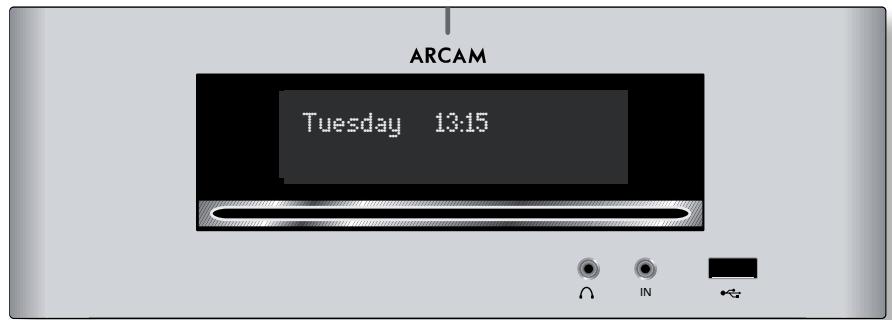
top panel/front panel
/△ (Stop/Eject)
Press the / button once to stop a disc playing. Press again to eject a stopped disc. When playing a CD, pressing and holding
/ also ejects a disc.
Skip back/forward
To skip tracks on a CD, press or When skipping back, the first button press takes you to the beginning of the current track. Pressing the button again takes you to the start of the previous track.
When the source is Radio (DAB, FM or AM), the buttons cycle through station presets.
When the System menu is active, the buttons are also used to step through option settings (see page 16).
Source
Press the SOURCE button to cycle through the available signal sources.
In Clock mode, pressing the
SOURCE button switches Solo Mini on.
SOURCE
A
1
时
1
+
时
+
时
1
Front panel display
This is a vacuum fluorescent display with variable brightness.
CD input slot
Gently insert a CD (label-side up) into this slot and allow the disc to be drawn in by motorised rollers. If 'CD AutoPlay' is enabled, the CD plays immediately (see page 16.)
Do not insert 80~mm mini CDs or any non-standard sized discs.
M
(1)
m = 311
-
告
output
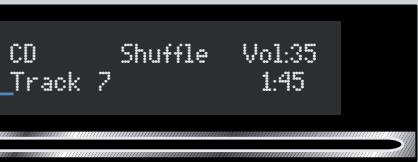
This 3.5mm stereo jack socket accepts headphones with an impedance between 32 and 600 . Sound to the speakers is muted when headphones are used.
Line-level input
This is a stereo analogue input, connected via a stereo 3.5mm jack plug. It is suitable for audio sources such as a portable tape player; MP3 player or games console.
USB input
The USB socket is suitable for an MP3 player or for playing files contained on a USB memory device.
rear panel
Analogue inputs
Solo Mini provides four pairs of analogue inputs, allowing connection of other stereo sources (e.g. a games console, AV, iPod/Tape, or TV). All four inputs have the same characteristics – the labels below the inputs give suggested uses.
To connect a device to an input on the rear of Solo Mini, use a stereo phono cable of a suitable length. We advise you to use high-quality interconnect cables wherever possible to ensure the best possible sound quality.
RS232 control
This is used for controlling an iPod (see page 9), or for control via a remote computer.
Antennae inputs
These inputs can be used with the aerials provided (DAB, if fitted, has a telescopic aerial, FM a wire aerial, and AM a loop aerial). In weak signal areas, external aerials of the correct type may be required for optimal reception.
Speaker outputs
Connect your Muso speakers here!
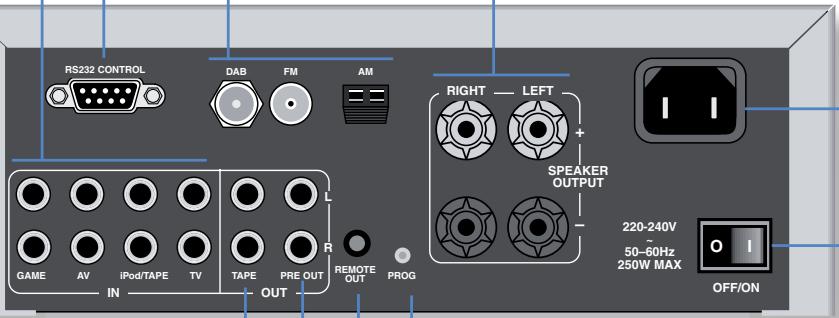
Tape output
This is the output to be used for connecting to an audio recorder or for a second room system. It should be connected by Phono-Phono (RCA) cables to the amplifier in the second room.
Preamp output
If you require more power than Solo Mini's 25W per channel, you can connect an external power amplifier. Connect the PRE OUT sockets to the input sockets of your power amplifier; then connect your speakers to the power amplifier's speaker terminals.
This output may also be used to provide a signal for a self-powered Low Frequency Effects speaker (a subwoofer). Arcam's Logo speaker ideally matches the design and output characteristics of Solo Mini.
Programmer switch
This is an override switch that allows an Arcam dealer to install software upgrades. The user should not access this facility.
Remote output
This output carries all signals from the front-panel remote-control receiver. This can be used to route remote-control commands to other equipment (potentially in different locations). For example, amplifier commands could be received by Solo Mini, then routed to a power amplifier in a remote location using this output connector.
Controlling an iPod
Music or podcasts from your iPod can be fully integrated with your system using Arcam's rDock or rLead.These accessory units use the RS232 CONTROL and IPOD/TAPE connectors to take over the control and amplification, with iPod text appearing on the front panel display of Solo Mini.
Information on connecting and using an iPod with the Solo remote is given in the rDock or rLead quick start guide supplied with these accessory units, but see 'iPod connection' in the connectivity section of this manual.
Mains power input
100V, 115V or 230V AC, depending on shipping region
Mains switch
This is the main Off/On switch, though it is usual to place the unit in low-power 'Clock mode' when not in use.
Connecting a record deck
Solo Mini is not fitted with a phono pre-amplifier. If you wish to connect a record deck to Solo Mini, then you'll need an external pre-amplifier. Please contact your dealer for further information and recommendations on the best option for you.
positioning
Positioning the unit
Place Solo Mini on a level, firm surface, avoiding direct sunlight and sources of heat or damp.
- Do not place Solo Mini on top of a power amplifier or other source of heat.
- Do not place Solo Mini in an enclosed space such as a bookcase or closed cabinet unless there is good provision for ventilation. Solo Mini is designed to run warm during normal operation.
- Do not place any other component or item on top of Solo Mini as this may obstruct airflow around and through the unit, causing Solo Mini to overheat.
- Do not obstruct the vents in the top, bottom, or sides of Solo Mini.
Make sure the remote-control receiver on the left-hand side of the display is unobstructed, otherwise the remote control will not work reliably.
Power
Solo Mini is supplied with a moulded mains plug already fitted to the lead. Check that the plug supplied fits your supply - should you require a new mains lead, please contact your Arcam dealer.
Push the IEC plug end of the power cable into the socket on the back of Solo Mini, making sure that it is pushed in firmly. Plug the other end of the cable into your mains socket and, if necessary, switch the socket on.
Solo Mini is fitted with a power switch on the rear panel, below the power inlet: make sure that this is switched on.
Solo Mini is fitted with a transformer designed to accept the mains voltage in the region that the product was shipped to. If your mains supply voltage does not match the specification printed on the rear panel, or you wish to take the unit to a region with a different mains voltage, or the mains plug is incorrect, please contact your Arcam dealer.
Thermal protection
Make sure that the unit receives adequate ventilation at all times (see 'Positioning the unit').
If Solo Mini gets too hot, an 'Over Temperature' warning is shown on the front panel and the unit shuts down to protect itself. You can restart Solo Mini after it has cooled for 15 minutes without power.
Interconnect cables
We recommend the use of high-quality screened cables that are designed for the particular application. All cables should be kept as short as is practically possible.
To avoid unwanted noise in the audio signals, make sure that the mains power-supply cabling is kept as far away as possible from your audio cables.

Speaker installation
The advice given here is a general guideline for setting up speakers. Refer to the documentation supplied with your speakers for more precise positioning and installation information.
Room acoustics
Your room's shape and how it is furnished will affect the sound you hear. For instance, too many bare surfaces can cause reflections that may add harshness to the sound. Carpets, wall-hangings and curtains can all help.
If you have a choice of listening rooms, avoid one that is perfectly square or has one dimension exactly twice another. Such a room can aggravate resonances that colour the sound.
The closer you place a speaker to corners and the intersection of wall and floor or wall and ceiling, the stronger the bass output, which may over-emphasise the bass. Moving a speaker just a few inches can sometimes make a big difference.
Speaker setup
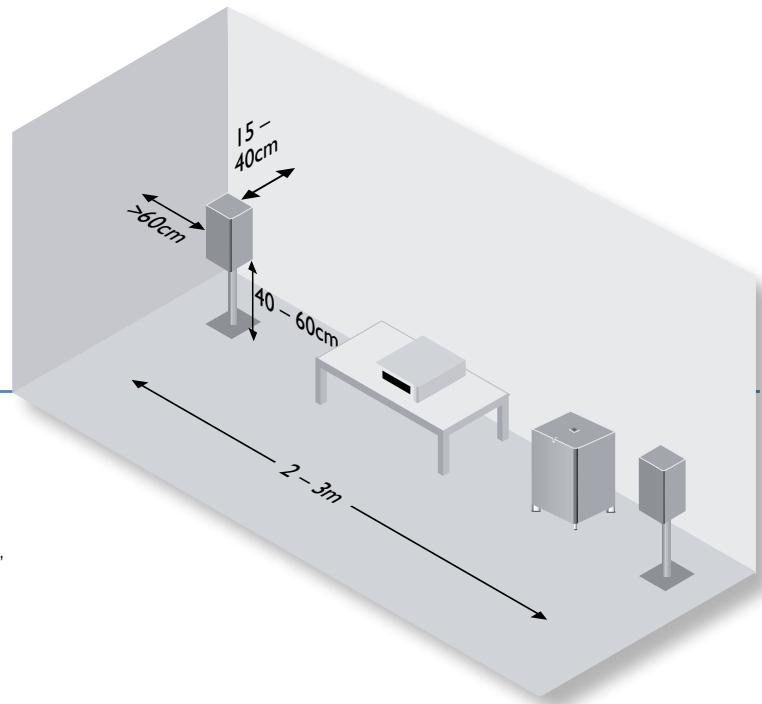
Proper speaker placement is the key to the sound from your speakers. As a rough guide, speakers should be placed on rigid stands at about 15cms from the rear wall and at least 60cms from any side wall. Speakers should never be placed on the floor (unless they are floor-standing speakers), or in corners. The speaker drivers should be about ear-level height when seated. If possible, centre your seating area between the speakers.
The final sound will depend on the acoustics of the listening room and experimenting with speaker positioning is very worthwhile.
Speaker stands
The more firmly a speaker is held, the better it will sound. We recommend the use of rigid metal stands of 40-60cms height. Properly damped types that do not 'ring' when tapped with a pencil (either by virtue of construction, or because they are filled with dry silver sand) will bring out the best in a speaker. Ensure that the stands and/or speakers do not wobble.
Arcam can supply specially designed floor stands for Muso (and other bookshelf-sized) speakers. Arcam's adjustable wall-fixing brackets are a very practical alternative. Ask your dealer for details.
Connecting speakers
Solo Mini is designed to drive a pair of full-bandwidth speakers, rated between 4 and 8 ohms. Arcam Muso speakers ideally complement the performance and design values of Solo Mini, but other high quality speaker units will also give good results.
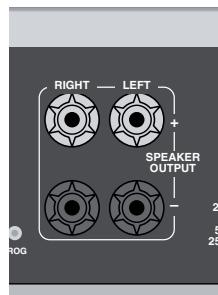
Solo Mini is fitted with speaker terminals that can accept either 4mm banana plugs, spade terminals or bare wires. To connect the speakers, unscrew the corresponding terminals on the back of Solo Mini, insert the speaker wires (or spades) and screw the terminals back up. Make sure that the red (positive/+) terminal of the speaker is connected to the red (positive/+) terminal on the back panel, and the black (negative/-) terminal of the speaker is connected to the black (negative/-) terminal on the back panel.
It is important that no stray strands of wire from these connections are allowed to touch another cable or the product casing. Failure to ensure this can cause a short circuit and damage your Solo Mini.
Do not over-tighten the loudspeaker terminals, or use a wrench, pliers, etc., as this could damage the terminals and this would not be covered under warranty.
Speaker cables
The speakers should be connected to the amplifier using good-quality, high-purity, copper cables. Solid core cables, or those with surface-only conductors, are particularly suitable. Bell wire and very cheap speaker cables should be avoided - they are a false
economy and can significantly degrade the sound quality.
The cable runs to the two speakers should be of roughly equal length and yet as short as practicable. Connections to the speaker terminals should always be tight, whether using bare wires or spade connectors, but do not use tools such as pliers, wrenches or spanners to tighten the connectors as these may cause damage to the terminals.
other inputs
USB connection
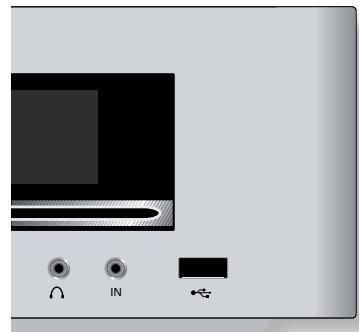
MP3 and WMA files may be played from a flash memory USB device or an MP3 player connected to this front panel input.
Press the top panel SOURCE button to cycle through the available signal sources and select USB, or press the remote control FRONT button twice.
Connect the storage device and navigate through the folders and files with the remote control selection keys to choose a track, then press on the remote control (or / on the top panel) to play the track (see page 13).

Solo Mini supplies a nominal 5V at 500mA , but not all USB devices can be guaranteed to work with the unit due to the lack of standardisation of USB devices on the market. USB hard disc drives are not supported by this connection.
Note that USB devices are physically vulnerable when connected. Take care not to knock or dislodge the device from its socket.
iPod connection
The combination of Solo Mini and Arcam's rDock (or rLead) provides a great platform for your iPod.
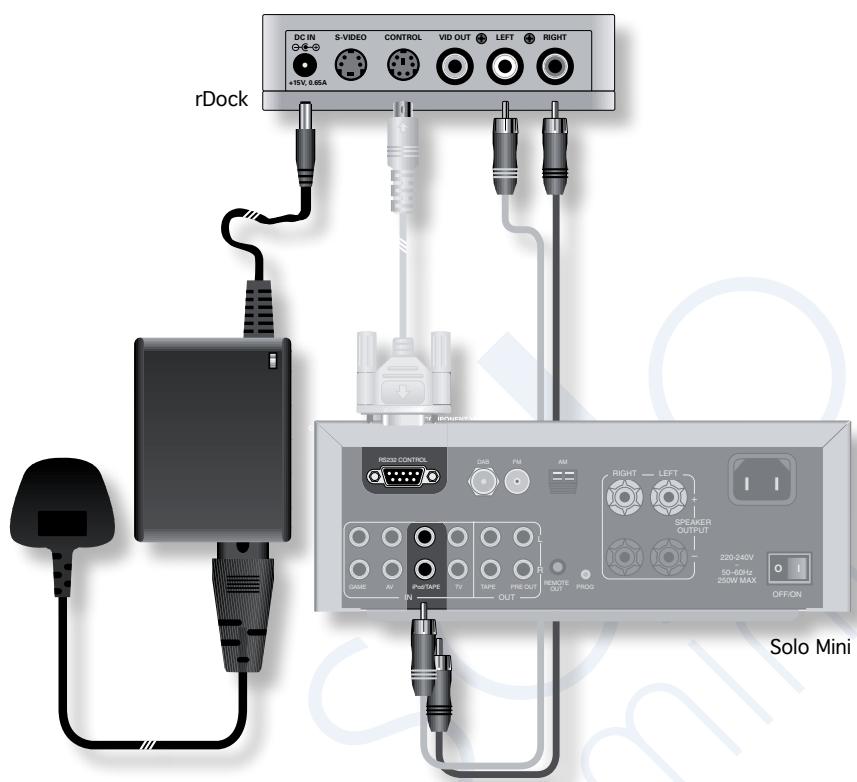
Connect the rDock as shown, power on the rDock, slot in your iPod and select iPod as the source.
Navigating through music and podcasts on your iPod is simple using the Solo remote, with text appearing on the Solo Mini display.
More information is given in the rDock quick start guide or (rLead quick start guide) supplied with these accessory units.
Which radio aerial?
Your Solo Mini is capable of superb radio reception, but only if it is receiving a good quality transmission signal.
Solo Mini is fitted with an AM/FM receiver module and an optional DAB receiver, depending on the region where it was sold. The type of aerial you need depends on your listening preferences and the local conditions.
Try the aerials supplied with your unit. If you are in a medium to strong signal area, these should be adequate for good reception; if not, you should contact your local Arcam dealer or an aerial installation expert for advice.
DAB
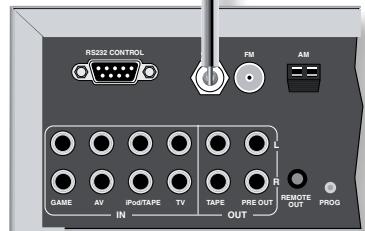
If the transmission signal is reasonably strong in your area then the supplied telescopic aerial should be all you need. When installed and receiving DAB, check the signal strength by pressing the remote control's INFO button until the signal bar graph is displayed.
I. Attach the telescopic aerial to the screw connector labelled 'DAB' on the rear of the unit.
2. With the aerial pointing upwards, fasten the screw no more than finger-tight (do not use a spanner or wrench).
3. Adjust the length of the aerial for optimum reception. A fully extended aerial is likely to be best for Band III transmissions. You may find that a short extension is best for L-Band transmissions.
Radio interference
Solo Mini is an audio device containing microprocessors and other digital electronics. It has been designed to very high standards of electromagnetic compatibility.
If Solo Mini causes interference to radio or television reception (which can be determined by switching Solo Mini off and on), the following measures should be taken:
Re-orient the receiving antenna or route the antenna cable of the affected receiver as far as possible from Solo Mini and its cabling.
Relocate the receiver with respect to Solo Mini.
Connect the receiver and Solo Mini to different mains outlets.
If the problem persists, please contact your Arcam dealer.
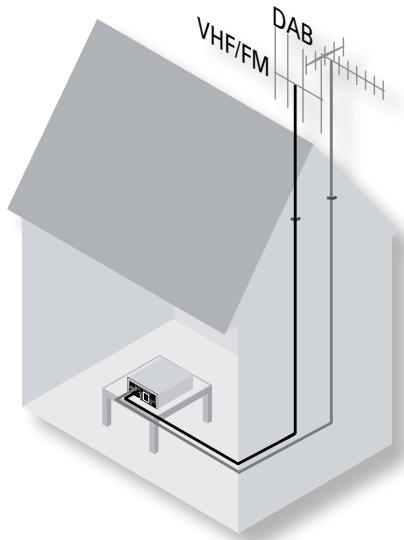
In weak signal areas, a high-gain, externally-mounted or roof-mounted aerial is desirable in order to receive the highest number of services.
In Band III transmission areas (such as the UK), use a multi-element Yagi aerial with the elements mounted vertically, as the transmissions are vertically polarised. If you are close to more than one transmitter, use an omnidirectional or folded dipole aerial.
If the DAB services in your area are transmitted on L-band, then ask your dealer for advice for the best aerial to use.
FM
An FM aerial is required to receive VHF radio signals.
In strong signal areas, the supplied FM wire aerial can be used with reasonable results.
Connect the supplied aerial to the centre terminal of the FM coaxial connector input on the rear panel of the unit. Experiment with the position of the aerial to get the best reception.
In weak signal areas, or for optimal FM radio reception, a roof- or loft-mounted aerial is advised as this will give superior reception.
In some areas, cable radio may be available or, in an apartment building, a distributed aerial system may be installed. In either of these cases you should have sockets in your home marked FM or VHF (do not use those marked TV); these should be connected to the FM coaxial connector on the rear of Solo Mini.
AM
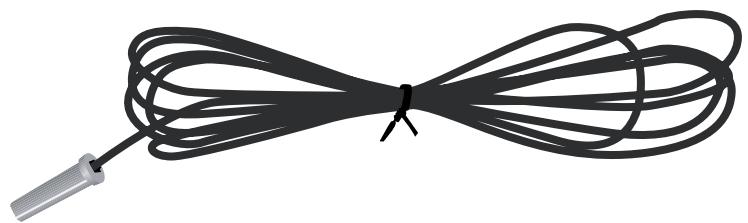
An AM aerial is required to receive AM/medium wave radio signals, so a simple loop aerial is supplied as an accessory. Follow the assembly instructions in the adjacent diagram.
Make sure that the aerial is positioned well away from Solo Mini itself, TVs, computers and other sources of RF 'noise'. Rotate the aerial to discover which position gives the best reception.
In weak signal areas, or when Solo Mini is in use inside a steel-framed building (such as an apartment building), a wire between 3 and 5 metres long can be used to strengthen reception. Mount this high up outside the building (if possible) and connect one end of this wire to the 'AM' part of AM aerial input, in addition to the loop aerial supplied (do not disconnect the AM loop aerial).
Assembling the AM loop aerial
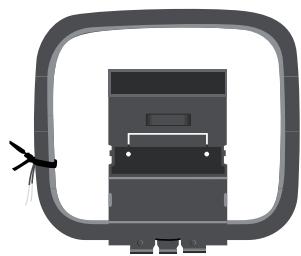
1. Release the tie-wrap and unwind the twisted lead. Fold the plastic stand forward through the loop frame.
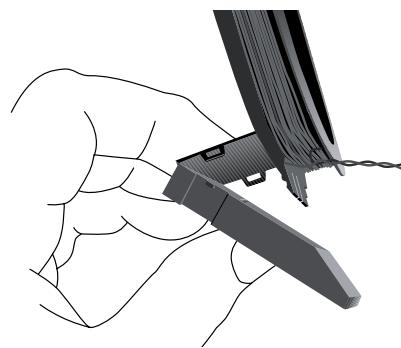
2. Push the tab into the open slot in the base of the stand. Press until the tab clicks home.
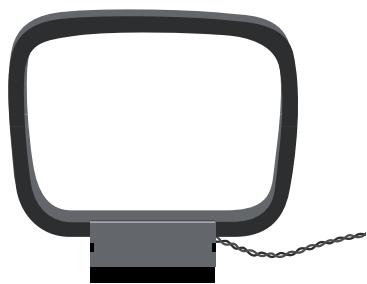
3. Connect the lead wires to the AM socket at the rear of Solo Mini (the wires are not polarised). Rotate the aerial's stand until you obtain the best reception.
playing sounds
Playing a CD
With Solo Mini switched on (blue light showing), gently insert a CD (label-side up) into the disc slot on the front panel. Allow the disc to be drawn in by the motorised rollers.
If 'CD AutoPlay' is enabled, the CD plays immediately; if disabled, the CD waits for a command from the remote or top panel. ('CD AutoPlay' is set in the system menu - see page 16.)
In addition to audio CDs, Solo Mini can play MP3 and WMA audio files on a CD-R or CD-RW.
Basic operation
Press / (remote: ) to start playback.
To directly access a track, press the track number on the numeric keypad of the remote.
Press /II on the top panel or II on the remote control to pause playback.To resume playback, press /II on the top panel or on the handset.
Press the / button on the top panel or on the remote control to stop playback.
To eject a disc, press on the remote control, or press the / button on the top panel.
Skipping tracks
To skip a track forwards or back, press or .
When skipping back, the first button press takes you to the beginning of the current track. Pressing the button again takes you to the start of the previous track.
Repeat and Shuffle play
To change the play mode, use the MODE button on the remote control.
Press MODE again to cycle through the various repeat and shuffle options.
CD Play modes
| CD | Default play mode. |
| Disc tracks are played back in sequential order. |
| Rpt Disc | Repeat disc. |
| All tracks on the CD are played in order. | |
| After the last track has finished, playback restarts from the first track. |
| Rpt Trk | Repeat track. |
| Playback of the current track is repeated until cancelled. |
| Shuffle | Shuffle all. |
| The tracks on the CD are played in a random order. |
| Rpt Shuf | Repeat shuffle. |
| All the tracks on the CD are played in a random order. After every track on the CD has been played once, playback restarts from the first track. |
Listening to radio
Switching on the radio
Press the FM or DAB/AM button on the remote-control to cycle between tuner inputs.
Alternatively, press SOURCE until the radio type that you wish to listen to (DAB, FM or AM) is displayed on the front panel.
Tune mode and Preset mode
The MODE button toggles between the two ways of selecting a station: Tune mode and Preset mode.
In Tune mode, you can step through the frequency of the FM or AM band, either manually or automatically (see below) using the or buttons on the remote control. Found DAB stations are cycled through in sequence in Tune mode.
In Preset mode, you can cycle through stations that have been saved as presets, either sequentially (using the or buttons on the remote control, or or on the top panel); press OK to confirm in each case. Or you can go straight to a particular preset station by pressing its number key on the remote.
Setting station presets
Solo Mini provides for 30 FM station presets, 30 AM station presets and 10 DAB station presets.
To store a preset, first tune to the radio station you wish to store. To store the station into one of the presets 1-9, press and hold the appropriately numbered button on the remote control until the 'Saved to Preset nn' message is displayed.
An alternative method, giving access to presets 10-30, is to press MENU to enter the system menu (see page 16). Navigate through the menu until 'Store Preset' is displayed. At this point, use the and buttons on the remote control (or on the top panel) to select the preset number you wish to use for the currently tuned station. Press OK to confirm and the 'Saved to Preset nn' message is displayed..
Note that saving a radio station into an already occupied preset will cause it to be overwritten by the new one.
Your presets are retained when Solo Mini is disconnected from the power supply.
DAB
DAB Setup
The first time you select DAB as the source on a new Solo Mini, you are prompted to scan for new stations. Make sure you have an aerial installed, and confirm with OK. Found stations are added automatically to a list of available stations when the scan is complete.
You can scan for new stations at any time after the initial scan. Select DAB as the source, then press the MENU button. Navigate through the menu options (see page 16) until 'DAB Setup' is displayed. There are two options under this menu item - 'Scan' and 'Erase settings'.
Selecting 'Scan' adds new DAB stations to the list of available stations, but stations that are no longer transmitted are not erased. Over time, or if you change location, this may lead to you having a number of stations in your list that cannot actually be received. In this case, select 'Erase settings', then perform a new scan; when the scan is complete, only stations that are currently receivable are shown.
AM/FM
Tune mode: Manual tuning
Press the l or l buttons on the remote control (or l or l on the top panel) for less than one second to select the desired tuning frequency. Manual tuning is useful for tuning to a known frequency, or if you are trying to select a station that is too weak to capture by automatic tuning.
Tune mode:Automatic tuning
Press the or buttons on the remote control (or or on the top panel) for longer than one second to engage automatic tuning. Solo Mini searches for a radio station signal of sufficient strength, then stops. To skip to the next station, press one of the buttons again. Automatic tuning is available for both FM and AM.
Playing tracks from a USB memory device
Press the FRONT button on the remote control two times. Alternatively, press the top panel SOURCE button until 'USB' is shown as the source.
USB
VOL:35
Connect USB device
Plug the USB memory device holding the audio tracks into the USB socket on the front panel. Solo Mini can play MP3 or WMA file formats.
Browsing music
Navigation through the audio tracks held on the device depends on how the audio files have been organised into folders and files. We recommend a fairly 'flat' organisation, to simplify navigation.
Typically, there may be folders for 'Genre' (Classical, Rock, Jazz, etc.), 'Artists' or 'Albums'. Files that are not stored inside a folder (i.e. 'loose' audio files) are treated as though they were placed in a folder entitled 'Songs'.
To navigate through folders, use the or buttons on the remote control (or or on the top panel). To select a folder to browse, press OK on the remote control.
USB Device
Absolution
Once a folder containing audio files is selected, you can navigate through the files using the the or buttons on the remote control (or or on the top panel). Song titles and Album titles (i.e. enclosing folder names) are normally displayed.
Absolution
1.Intro
Playing music
Press on the remote control (or / on the top panel) to start playing the track.
The display shows the track title (scrolling if necessary) with the elapsed time and volume setting. You can toggle the information displayed by pressing the INFO button. To skip a track, use the buttons on the remote control or top panel.
USB
8.Hysteria
VOL:35
00:17
Repeat and Shuffle play
To change the play mode, use the MODE button on the remote control.
Press MODE again to cycle through the various repeat and shuffle options.
USB RPT ALL
VOL.35
8.Hysteria
01:42
In the example above, 'Repeat all' play mode is shown. The USB play modes available are listed in the following table:
USB Play modes
USB
Default play mode.
Tracks are played back in sequential order.
US
Repeat all.
ALL
All tracks on the USB device are played in order. After the last track has finished, playback restarts from the first track on the device.
US
Repeat folder.
FDR
Tracks in the current folder are played in order. After the last track in the folder has finished, playback restarts from the first track in the folder.
US
Repeat track.
TRK
Playback of the current track is repeated until cancelled.
US
Shuffle all.
ALL
Tracks on the device are played in random order.
US
Repeat folder shuffle.
SHF
Tracks in the current folder are played in a random order. After every track in the folder has been played once, playback restarts from the first track.
US
Repeat all shuffle.
SHF
All the tracks on the USB device are played in a random order. After every track on the device has been played once, playback restarts from the first track.
Disconnecting a USB device
To disconnect a USB device from Solo Mini, either put Solo Mini into Clock mode, or select a different source using the remote control (or the SOURCE button on the top panel). After a short delay to allow any read operation to conclude, the USB device may be safely removed from the front panel.
remote control

Inserting batteries into the remote control
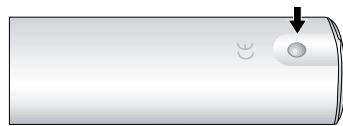
- Open the battery compartment by pressing the button on the back of the remote control.
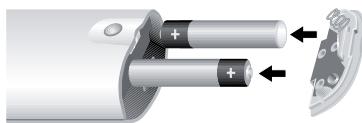
- Insert two AAA' batteries into the battery compartment, following the polarity indications given inside the compartment itself.
- Push the battery cover back into position.
Using the remote control
Please keep in mind the following when using the remote control:
Ensure that there are no obstacles between the remote control and the remote sensor on Solo Mini. The remote has a range of about seven meters.
Remote operation may become unreliable if strong sunlight or fluorescent light is shining on the remote sensor of Solo Mini.
Replace the batteries when you notice a reduction in the operating range of the remote control.
General Solo Mini commands
| ○ | Switches Solo between Clock mode and On. |
| DISP | Cycles the brightness of the front-panel display.The brightness for clock mode may be set to a different value from the normal power on mode. |
| Source selection | Press the appropriate button to select the audio source you would like to hear: CD, FM, DAB/AM, FRONT, TV, AV, GAME or TAPE.Where DAB is fitted, press DAB/AM twice to select AM.Press FRONT twice to select USB. |
| →, ➔ | Adjusts the amplifier volume. |
| ▲, ◆ -3, +4 and OK | The ▲ and ◆ keys are used to navigate the System menu, ◆ and ➔ to adjust the settings, together with the OK button (see pages 16). |
| × | Press once to mute the speaker and pre-amp outputs of Solo Mini. Press for a second time (or adjust the volume) to unmute the unit. |
| MENU | In 'Clock mode' (red light), the MENU button enters the Alarm setting menu (see page 18). In 'Power on' mode (blue light) MENU enters the System menu (see page 16). Press the MENU button for a second time to leave the menu. |
CD commands (source is CD)
(Play) Start the playback of a CD.
(Stop) Stop the playback of a CD.
(Pause) Pause the playback of a CD. Press again (or press play) to re-start playback.
(Shift/Scan forwards) Press and release to skip to the beginning of the next track. Press and hold the button to scan forwards.
( Skip/Scan backwards) Press and release to skip back to the start of the current track. Press and release again to skip to the start of the previous track. Press and hold the button to scan backwards.
(Eject) Press to eject a CD.
1-9,0 Number keys for track selection - Press the number of the track that you want to hear. To select a track greater than 9, press and hold the first digit of the track (e.g. 1) until 'I-' is shown, then press the second digit.
INFO Toggles the track time display from a count-up to a count-down timer.
MODE Press the MODE button to cycle through the repeat/shuffle modes for CD playback (Repeat disc, Repeat track, Shuffle and Repeat shuffle).
When listening to music, the A and keys are used to increase or decrease the track number played.
Radio commands (source is FM, DAB or AM)
1-9,0 Number keys for selecting a preset station. To select a station preset greater than 9, press and hold the first digit of the preset (e.g. 1) until '1-' is shown, then press the second digit.
A, In Preset mode, these keys step through A. valid station presets.
In Tune mode and with an FM or AM source, these keys step up or step down through frequency. Press and hold one of these keys to search for stations by scanning up or scanning down through the frequency band.
INFO For FM sources, displays the RDS station name and RDS text (if available), signal strength and frequency.
For DAB sources, cycles between scrolling text, programme type, bit rate and signal strength.
MODE Toggles between Preset mode and Tune mode.
iPod commands (source is iPod)
TAPE, OK Select 'iPod' as source, confirm with OK.
Navigate through top-level iPod menus: Artists, Albums, Genres, Songs, Composers, Audiobooks, Podcasts, Make Selection and Playlists.
OK or + Select a menu item, or play an item if at the bottom level.
Navigates up one level in the menu structure
, Navigate within a selected item.
Play selected item.
Stop playback.
Pause playback.
INFO Cycles through different information displays of the item currently playing.
MODE Press the MODE button to cycle through the iPod play modes: Repeat Track,Repeat All, Shuffle Songs,Shuffle Albums and Shuffle Songs Repeat All.
USB device commands (source is USB)
FRONT, Select 'USB Device' as source.

Navigate through levels of folders/sound files on USB Device.

Select a menu item, or play an item if at the bottom level.

Navigates up one level in the menu structure

Navigate within a selected iteml.

Play selected item.

Stop playback.

Pause playback.

Skip one item forward, back

Cycles through different information displays of the item currently playing.

Press the MODE button to cycle through the USB play modes:
Repeat All, Repeat Folder, Repeat Track, Shuffle All, Repeat Shuffle Foldr, and Repeat Shuffle All.
system menu
Configuring the listening settings
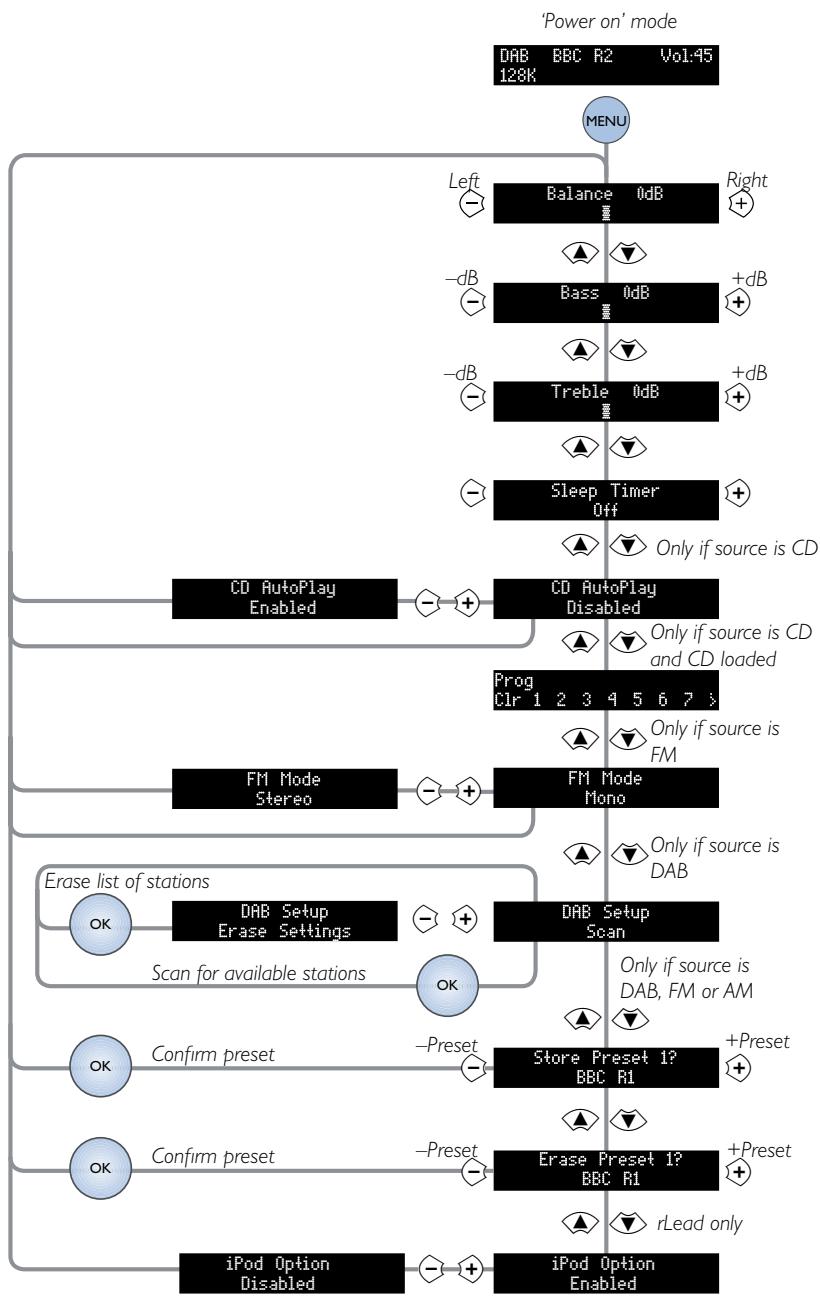
Solo Mini allows you to adjust listening settings to suit your taste, and to customise various system features. Use the adjacent diagram to navigate through the items available.
With the unit switched on (blue light showing), press MENU on the remote control. Now use the and keys on the remote to move down and up the settings available. The and keys on the remote are used to adjust particular settings.
To leave the menu at any time, press MENU again.
Balance
Balance allows you to increase the volume of one channel (left or right) relative to the other. Altering the balance may help to restore the stereo image for an off-centre listening position.
Bass
This setting increases or decreases the lower frequency components of your music.
Treble
This setting changes the relative volume of the higher frequency components of your music.
Sleep Timer
This timer allows you to specify a listening period, after which the volume fades into the (silent) clock mode. (See page 17)
CDAutoPlay
(Appplies only if source is CD.)
This setting controls the handling of a CD inserted into the front slot. If enabled, the CD plays immediately; if disabled, the CD waits for a command from the remote or top panel.
Prog
(Applies only if source is CD and a CD is loaded.)
This feature allows you to programme the playing order of CD tracks. Scroll left or right to highlight any of the available tracks and press OK to transfer it to the playback sequence.
FM Mode
(Appplies only if source is FM.)
In some weak signal areas, switching the FM tuner to 'Mono' can be of benefit, as mono requires a much lower signal strength to produce acceptable results. If the signal strength in your area is good, leave FM Mode in 'Stereo'.
DAB Setup
(Appplies only if source is DAB.)
Selecting 'Scan' (confirm with OK) causes Solo Mini to search for new DAB stations. Found stations are added automatically to the list of available stations.
Scanning for new stations does not erase stations that are no longer transmitted – over time, or if you change location, this may lead to you having stations in your list that cannot be received. In this case, select 'Erase settings' (confirm with OK), then perform a new scan. When the scan is complete, only stations that are currently available in your area are shown.
Store/Erase Preset
This allows you to store a radio station that you have tuned in to as a numbered preset (confirm with OK). The station can then be retrieved by pressing the preset number on the remote.
In the same way, you can erase a particular numbered preset (confirm with OK).
iPod Option
(Appplies to TAPE input with rLead connected)
This allows you to Enable or Disable control of an iPod when connected via an Arcam rLead (for rDock, this feature is automatic).
clock/ alarm
Setting the clock
When Solo Mini is in clock mode (POWER light showing red), press MENU to set the clock or alarms.
Use the and buttons on the remote control to select the item to change, then use the and buttons to change the value.
For example, after pressing MENU to enter the clock/ alarm setting menu, pressing up and down will change between setting the clock and setting one of the alarms.
Time synchronization
For DAB radio with time synchronization set to 'Auto', the clock will be synchronized to the broadcast time when DAB radio is selected each day. The default value is 'Man' (manual clock setting).
As clock synchronization is periodic, it is recommended that the clock is set manually at times of daylight saving changes - especially if you need to use the alarm feature!
Sleep timer
This timer allows you to specify a listening period, after which the volume fades into the (silent) Clock mode. The period can be set in 5-minute intervals, up to 120 minutes (2 hours).
To set the sleep timer, press the MENU key on the remote control to access the System menu (see page 16).
Setting the front panel clock
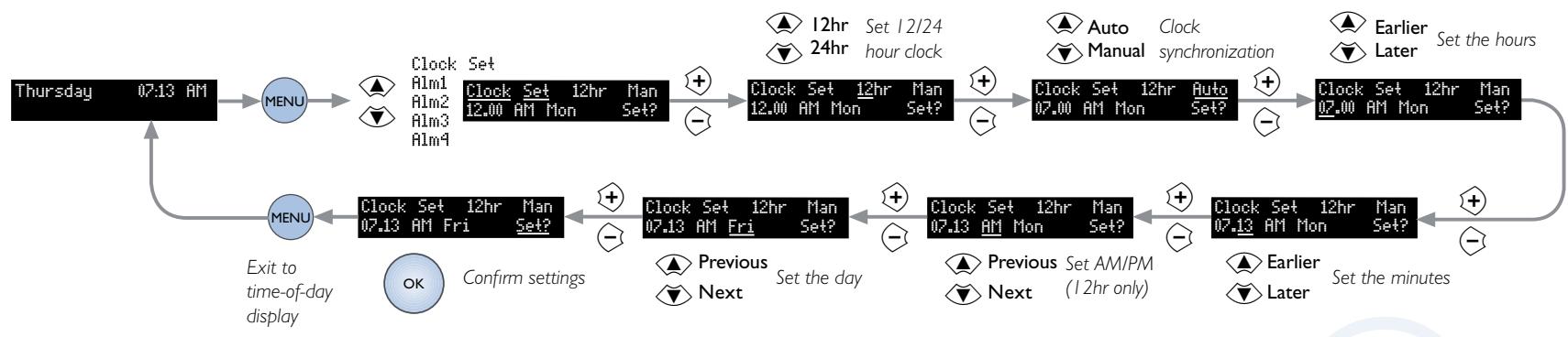
The procedure is shown on the diagram above, but the instructions are:
I. Power off the unit, using the top panel POWER button, or the remote control button. The light next to the top panel POWER button glows red, showing that the unit is in Clock mode.
2. Press the remote control MENU button once.
3. Press once to enter the Clock Set screen.
4. Press to highlight 12HR or 24HR; toggle with the cursor keys.
5. Press to move to the hours; adjust with the cursor keys.
6. Press to move to the minutes; adjust with the cursor keys.
7. Press to move to set the day, adjust with the cursor keys.
8. Press to move to Set? and confirm with OK.
Press the (power) button to save and exit the menu.
Retaining clock settings
If Solo Mini is turned off at the mains supply, clock settings are retained for approximately four days. In Clock mode, clock settings are retained indefinitely.
Setting alarms
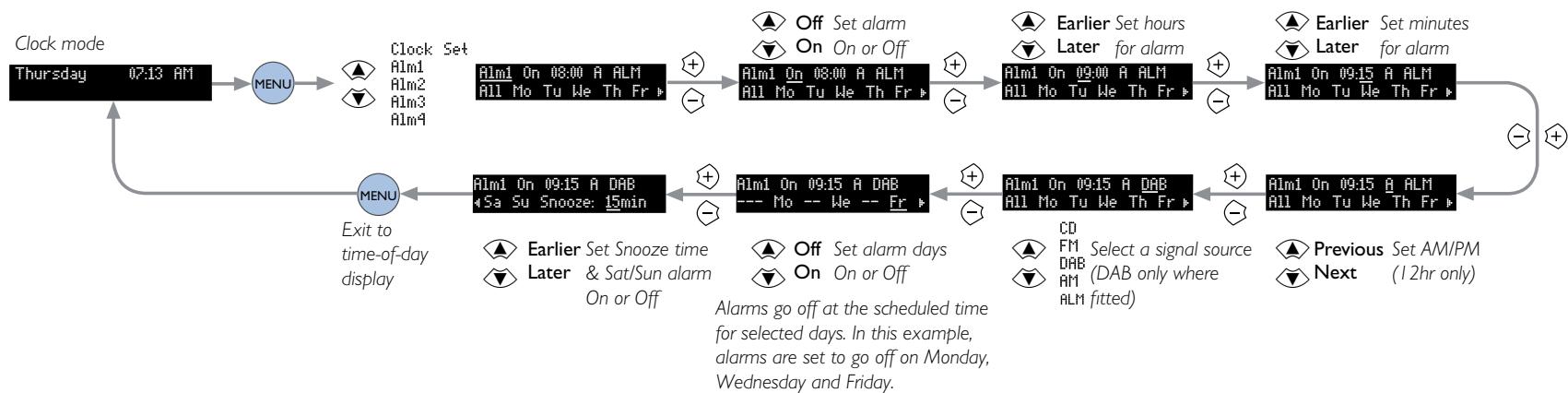
Solo Mini allows up to four different alarms to be set. In this way, different users of Solo Mini can have their personal alarm settings, or you could set up different alarms for different circumstances (work and holiday periods, for example).
Alarms can be set to be active or disabled by pressing 1 to 4 on the remote control. The respective alarms are toggled on or off.
Stopping or pausing an alarm
To enter 'snooze' mode, press the power button on the front-panel or remote control; the alarm will resound after the set delay. To cancel the 'snooze' alarm, press the power button a second time.
Alternatively, press a source button on the remote control (or the SOURCE button on the top panel) to stop the alarm and switch Solo Mini to On mode.
Alarm timing
Remember to set the time-of-day on the clock, otherwise alarms will not work!
technical specification
Pre-amplifier
| Inputs | |
| Maximum input level | 2.5Vrms |
| Input impedance | 47kΩ |
| Signal/noise ratio | 105dB |
| Co-axial outputs | |
| Maximum output level | 2.5Vrms |
| Output impedance | 500Ω |
Amplifier
| Continuous power output, per channel, 80kHz measurement bandwidth | |
| Both channels, 8Ω, 1kHz | 25Wrms, 0.1%THD+n |
| Distortion, both channels 8Ω, 80% power; 1kHz | 0.036% THD+n |
CD playback
| DAC | Wolfson 24-bit multilevel Delta-Sigma DAC |
| Frequency response (±0.5dB) | 20Hz–20kHz |
DAB receiver (where fitted)
| RF tuning range | 174–240MHz (Band III) 1452–1490MHz (L-band) |
| Number of DAB presets | 10 |
| Sensitivity (typical) | -98dBm (VHF measurement to EN50248) |
| Input impedance | 50Ω |
| Audio data rate (maximum) | 256kbits/s MPEG layer II, protection level 3 |
FM receiver
| RF tuning range | 87.5–108MHz (Europe and USA) |
| 77.5–108MHz (Japan) | |
| Number of FM presets | 30 |
| Sensitivity (typical) | 2μV |
| Signal/noise ratio (at 200mV) | 58dB |
| Distortion (THD at 200mV) | 0.5% |
AM receiver
| RF tuning range | 522-1710kHz, in steps of 9kHz (UK) |
| 530-1710kHz, in steps of 10kHz (USA) | |
| 531-1629kHz, in steps of 9kHz (Japan) | |
| Number of AM presets | 30 |
| Signal/noise ratio (at 200mV) | 40dB |
| Distortion (THD at 30% modulation) | 1.5% |
General
| Supply voltage* | 100V, 115V or 230V AC, depending on shipping region |
| Power consumption | Clock mode 4W Operational 80W (typical), 250W (maximum) |
| Size (W × D × H) | W230mm × D350mm × H90mm |
| Weight (net) | 5.31kg |
| Weight (packed) | 6.7kg |
| Supplied accessories | Mains lead Solo remote control handset and two AAA batteries Instruction manual and registration card DAB/FM model: DAB Telescopic aerial, FM dipole aerial and AM loop aerial, AM/FM model: FM dipole aerial and AM loop aerial |
- In Japan, the supply voltage is 100V, 50-60Hz.
E&OE. All specification values are typical unless otherwise stated.
product guarantee
Worldwide Guarantee
This entitles you to have the unit repaired free of charge, during the first two years after purchase, at any authorised Arcam distributor provided that it was originally purchased from an authorised Arcam dealer or distributor. The manufacturer can take no responsibility for defects arising from accident, misuse, abuse, wear and tear, neglect or through unauthorised adjustment and/or repair; neither can they accept responsibility for damage or loss occurring during transit to or from the person claiming under the guarantee.
The warranty covers:
Parts and labour costs for two years from the purchase date. After two years you must pay for both parts and labour costs. The warranty does not cover transportation costs at any time.
Claims under guarantee
This equipment should be packed in the original packing and returned to the dealer from whom it was purchased, or failing this, directly to the Arcam distributor in the country of residence.
It should be sent carriage prepaid by a reputable carrier – not by post. No responsibility can be accepted for the unit whilst in transit to the dealer or distributor and customers are therefore advised to insure the unit against loss or damage whilst in transit.
For further details contact Arcam at:
Arcam Customer Support Department,
Pembroke Avenue,Waterbeach,CAMBRIDGE, CB25 9QR, England
or www.arcam.co.uk.
Problems?
If your Arcam dealer is unable to answer any query regarding this or any other Arcam product please contact Arcam Customer Support at the above address and we will do our best to help you.
On-line registration
You can register your product on-line at www.arcam.co.uk.
ARCAM
SH201
Issue
- Class II product
- Important safety instructions
- Take heed of warnings and instructions
- 2.Water and moisture
- Object or liquid entry
- Placing the equipment
- 5.Ventilation
- Heat
- Climate
- Cleaning
- Power sources
- Power-cord protection
- I I. Power lines
- Non-use periods
- 13.Abnormal smell
- Servicing
- Damage requiring service
- Safety compliance
- WARNING:
- Correct Disposal of this product
- welcome…
- The Solo Mini development team
- Continual improvement policy
- Contents
- top panel/front panel
- /△ (Stop/Eject)
- Skip back/forward
- Source
- Front panel display
- CD input slot
- M
- output
- Line-level input
- USB input
- rear panel
- Analogue inputs
- RS232 control
- Antennae inputs
- Speaker outputs
- Tape output
- Preamp output
- Programmer switch
- Remote output
- Controlling an iPod
- Mains power input
- Mains switch
- Connecting a record deck
- positioning
- Positioning the unit
- Power
- Thermal protection
- Interconnect cables
- Speaker installation
- Room acoustics
- Speaker setup
- Speaker stands
- Connecting speakers
- Speaker cables
- other inputs
- USB connection
- iPod connection
- Which radio aerial?
- DAB
- Radio interference
- FM
- AM
- playing sounds
- Playing a CD
- Basic operation
- Skipping tracks
- Repeat and Shuffle play
- CD Play modes
- Listening to radio
- Switching on the radio
- Tune mode and Preset mode
- Setting station presets
- DAB Setup
- AM/FM
- Tune mode: Manual tuning
- Tune mode:Automatic tuning
- Playing tracks from a USB memory device
- Browsing music
- Playing music
- USB Play modes
- Disconnecting a USB device
- remote control
- Inserting batteries into the remote control
- Using the remote control
- CD commands (source is CD)
- Radio commands (source is FM, DAB or AM)
- iPod commands (source is iPod)
- USB device commands (source is USB)
- system menu
- Configuring the listening settings
- Balance
- Bass
- Treble
- Sleep Timer
- CDAutoPlay
- Prog
- FM Mode
- Store/Erase Preset
- iPod Option
- clock/ alarm
- Setting the clock
- Time synchronization
- Setting the front panel clock
- Retaining clock settings
- Setting alarms
- Stopping or pausing an alarm
- Alarm timing
- technical specification
- product guarantee
- Worldwide Guarantee
- The warranty covers:
- Claims under guarantee
- Problems?
- On-line registration
- ARCAM
Brand : ARCAM
Model : SOLO MINI
Category : Compact audio system