
MAPTRAX GPS352 - Gps UNIDEN - Free user manual and instructions
Find the device manual for free MAPTRAX GPS352 UNIDEN in PDF.


| Product Type | GPS Navigation for Vehicle |
| Brand | UNIDEN |
| Model | MAPTRAX GPS352 |
| Power Supply | DC 12V via cigarette lighter adapter |
| Battery | Rechargeable Lithium-Ion, average battery life of 3 hours |
| Display | Color touchscreen (unspecified) |
| Preloaded Maps | United States and Canada |
| Voice Guidance | Human voice in French, English, Spanish |
| Points of Interest | More than 2 million preloaded |
| Route Memory | 25 custom routes, 10 waypoints per route, 50 recent destinations, 50 favorites |
| Features | Fast recalculation, 2D/3D view, breadcrumb trails, speed alerts, route demonstration |
| Languages | French, English, Spanish (display and voice) |
| Connectivity | 3.5 mm headphone jack, connector for external antenna |
| Included Accessories | Flexible mounting arm, DC power cable, mounting disc, manual CD, quick reference guide |
| Maintenance and Cleaning | Clean the touchscreen with a soft cloth and water; do not use ammonia |
| Safety | Do not use while driving; check legality of windshield mounting according to state laws |
| Warranty | 1 year limited (parts and labor) |
Frequently Asked Questions - MAPTRAX GPS352 UNIDEN
User questions about MAPTRAX GPS352 UNIDEN
0 question about this device. Answer the ones you know or ask your own.
Ask a new question about this device
Download the instructions for your Gps in PDF format for free! Find your manual MAPTRAX GPS352 - UNIDEN and take your electronic device back in hand. On this page are published all the documents necessary for the use of your device. MAPTRAX GPS352 by UNIDEN.
USER MANUAL MAPTRAX GPS352 UNIDEN
GPS352 Owner's Manual
Table of Contents
Introduction 3
Features. 3
Important Vehicle and Product Safety Information. 3
Getting Started. 4
What's Included 4
The Parts of the GPS Device 5
Installing the GPS Device in Your Vehicle 7
Using the Interface 9
Using the Main Menu Screen. 9
Using the Map Screen 10
Changing the Map View. 11
Changing the Map Options 12
Creating a Route. 14
Entering an Address as Your Destination 15
Reading the Route Screen. 17
Route Information and Current Route Options 18
Running a Route Demo 19
Using Other Destinations for Routing 20
Using the Quick Find Feature 22
Using the Mark Menu 24
Working With Waypoints 25
Changing the Route Guidance Options 26
Changing the Default Route Options 26
Customizing Your GPS Device 27
Changing the Language 27
Changing the Voice Prompts 27
Entering Your Home Location 28
Entering the Date and Time. 28
Customizing Your Display 29
Setting Up Speed Alerts 30
Accessories 31
Using an External Antenna 31
Using a Headset 31
Maintenance. 32
Updating Maps and Software 32
Battery Information 32
Troubleshooting 32
Using the GPS Status Screen. 33
One Year Limited Warranty. 34
Copyright Information 35
Declarations of Conformity and Compliance 35
Introduction
Congratulations on your purchase of Uniden's MAPTRAX GPS352 navigation device. This manual contains important information on how to safely use your GPS device in your vehicle. Please read this manual carefully and follow all safety instructions.
Visit our web site at www.uniden.com to download updated maps, order accessories, or get answers to any questions about your GPS device.
Features
The MAPTRAX navigation device receives signals from Global Positioning Satellites (GPS) and uses these signals and the advanced navigation software from Space Machine to plot a route from your current location to your chosen destination.
The GPS352 offers
- Fast signal acquisition
- Accurate, detailed maps covering all of the US and Canada
- Turn-by-turn guidance with true human voice technology
- Fast recalculation of routes
- 2 million pre-programmed points of interest
- Three different navigation views (2 map and 1 full arrow)
- Memory for 25 custom routes, 10 waypoints per route, 50 recently-used locations, and 50 favorite locations
- A breadcrumbs feature to track your current route
Important Vehicle and
Product Safety Information
Before using your MAPTRAX GPS device, be sure you review and understand the following information.
- This device is not a substitute for common sense and careful driving. Always comply with all traffic laws of the state and city in which you are driving.
- Do not allow the GPS device to be a distraction to safe driving. What you see through your windshield is more important than what you see on the LCD screen.
- Do not attempt to input locations, change routing options, or reconfigure your GPS device while driving. Park your car or ask a passenger to operate the GPS device for you.
- Some states, such as California and Minnesota, prohibit mounting any mobile electronics device on the windshield of your vehicle. Before mounting your GPS device, check to see if your state (and any state you plan to travel to) have regulations governing how devices can be installed in vehicles.
- Never leave the MAPTRAX in plain sight in an unattended vehicle.
- Remove the device from your vehicle to avoid prolonged exposure to extremes of temperature and moisture.
- Dense overhead trees, tunnels, and certain types of metallic window tinting may temporarily disrupt the connection to the satellites.
Getting Started
What's Included
Check the contents of the box and make sure you have all of the following items. If any items are damaged or missing, please contact our customer service department (see back page).
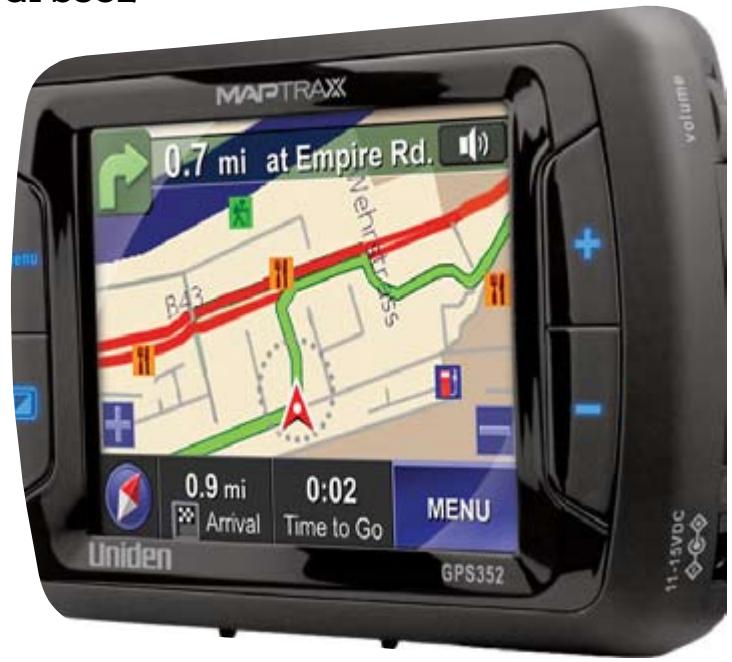
GPS352
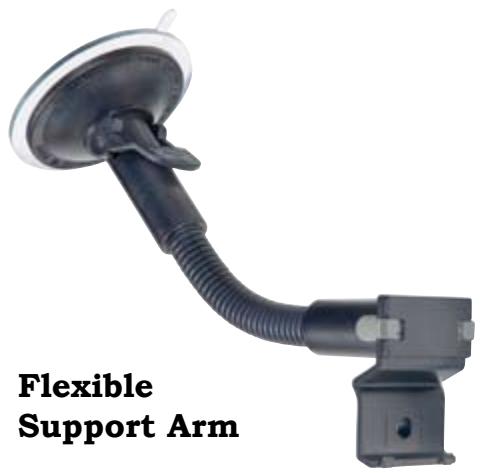
Flexible Support Arm
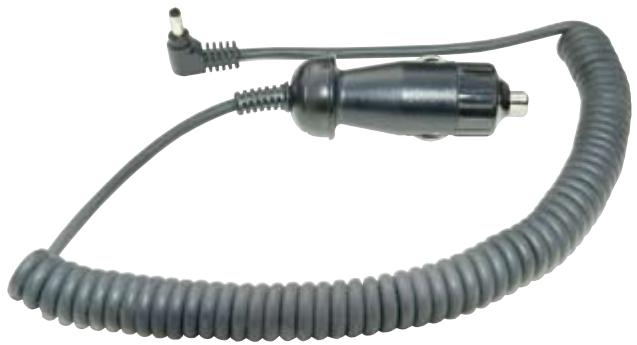
DC Power Cord
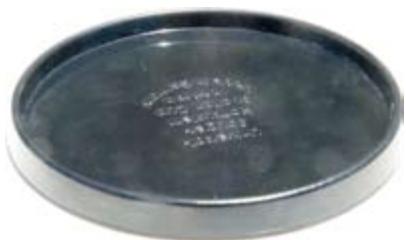
Surface Mount Disk
Owner's Manual CD
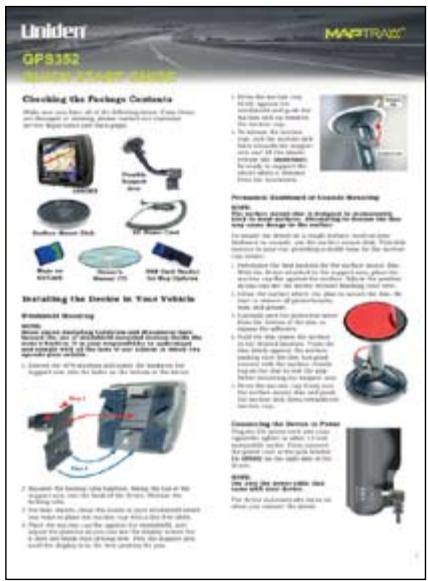
Quick Reference Guide
The Parts of the GPS Device
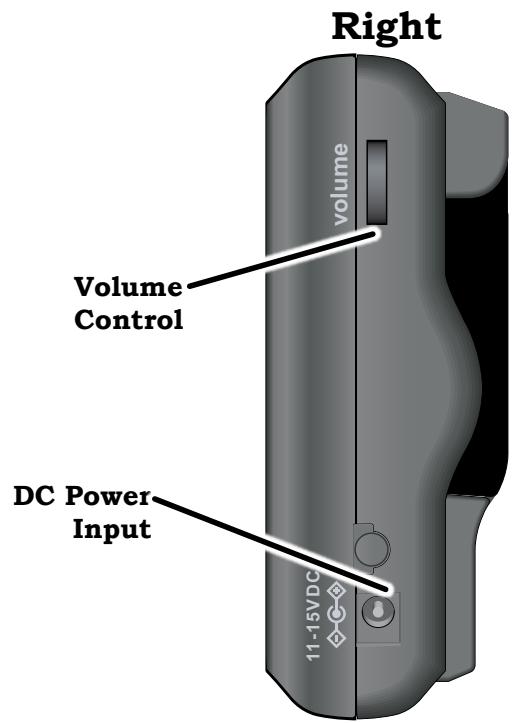
See the pictures below and on the following page for the parts of the GPS402 that you will use on a regular basis.
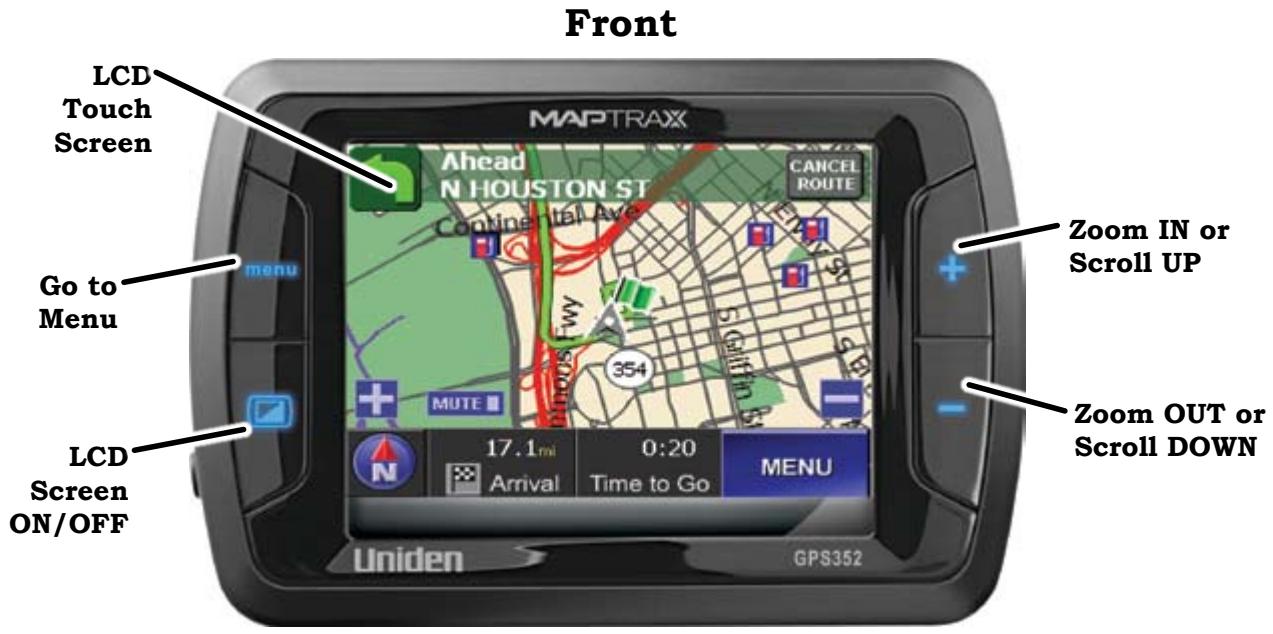
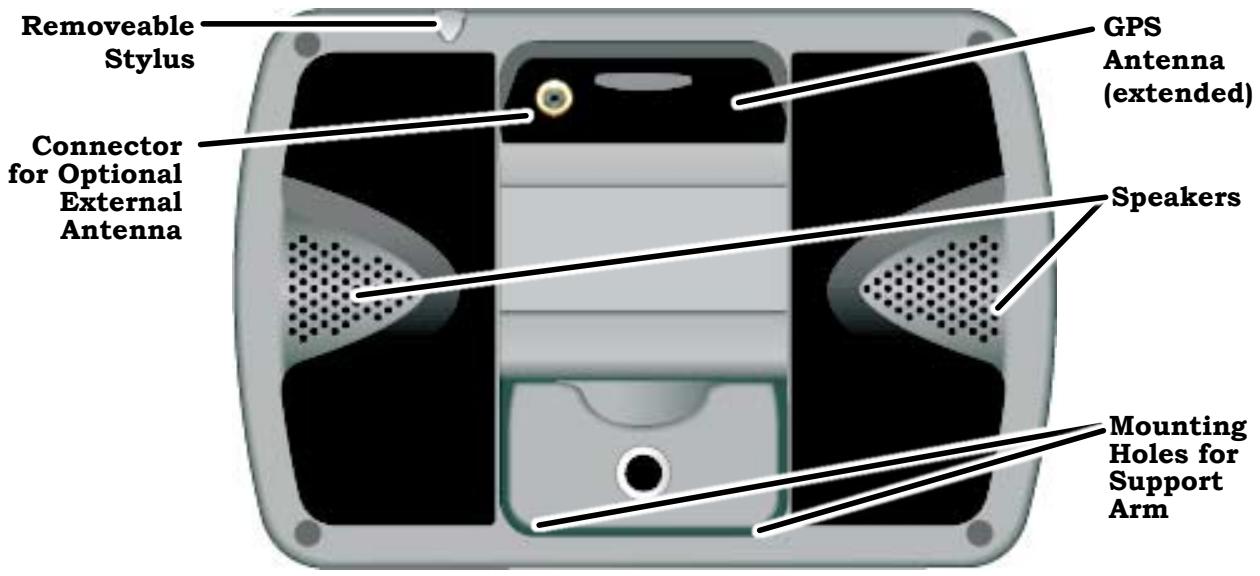
Back
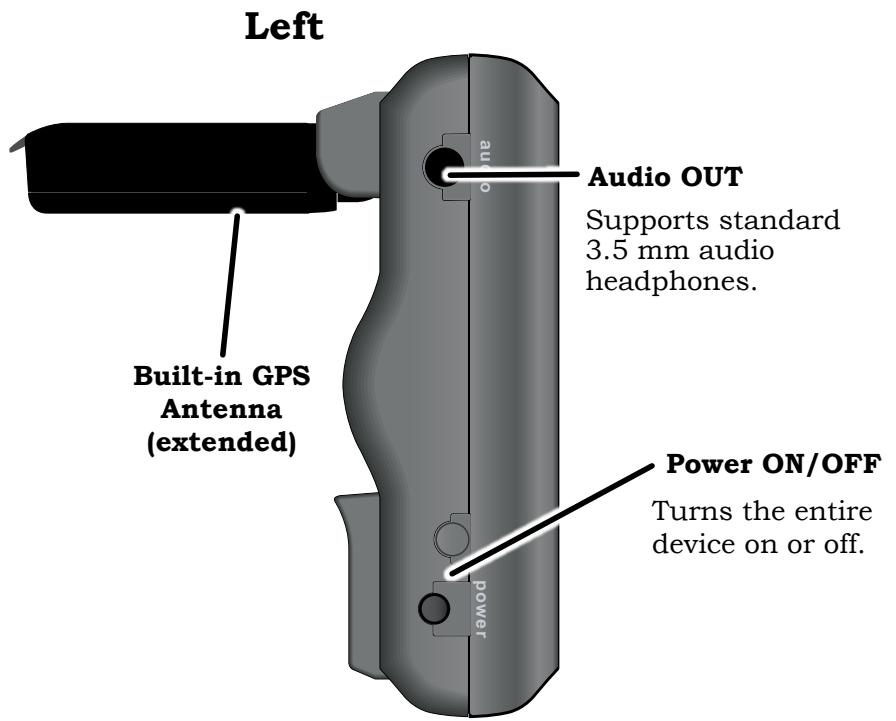
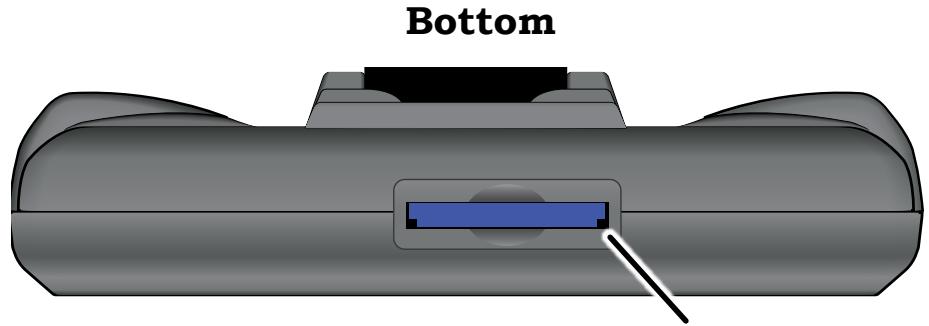
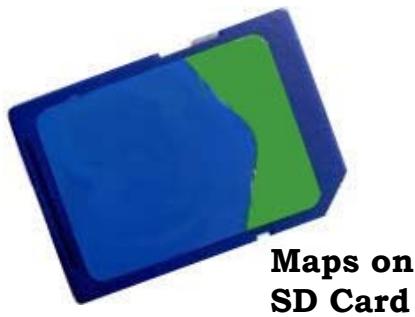
SD Card
The SD Card must be installed for the mapping features to operate properly.
Installing the GPS Device in Your Vehicle
Windshield Mounting
When you install the device for the first time, attach the device to the support arm before attaching the arm to your vehicle windshield.
Note: Before attaching the suction cup, clean the inside of your windshield with a standard window cleaner and a lint-free cloth.
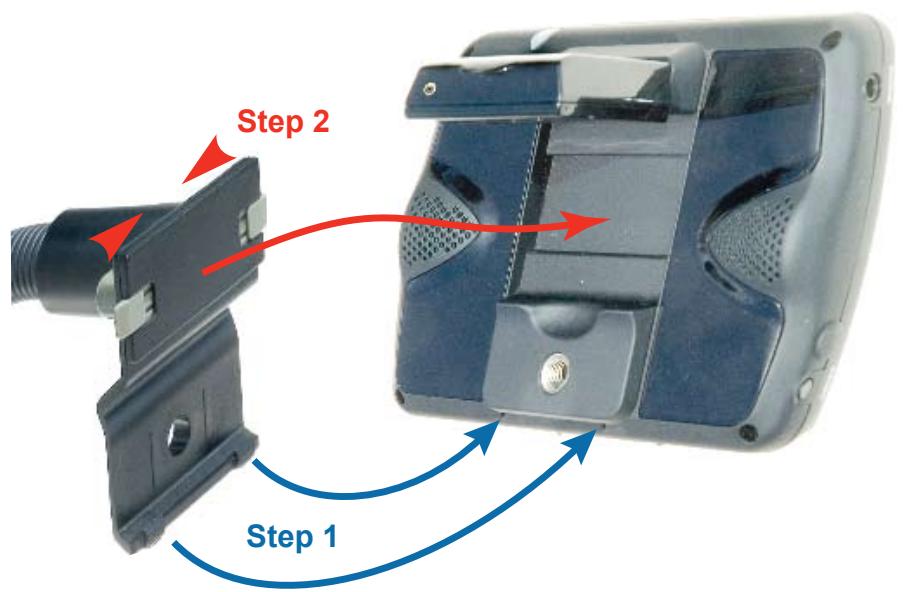
- Extend the GPS antenna and insert the hooks on the support arm into the holes on the bottom of the Device.
- Squeeze the locking tabs together. Swing the top of the support arm into the back of the device. Release the locking tabs.
-
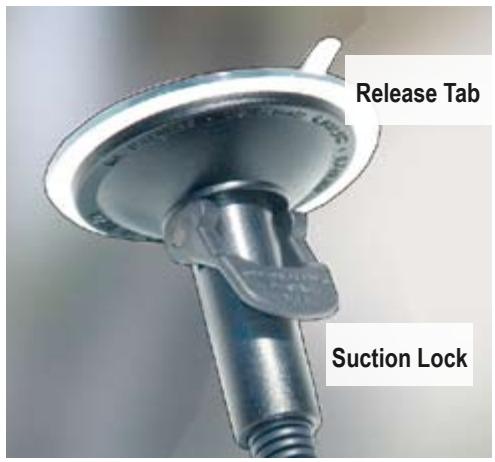
Place the suction cup flat against the windshield, and adjust the position so you can easily see the display screen but your driving view is not obstructed. Flex the goose-neck support arm until the display is in the right position.
-
Press the suction cup firmly against the windshield and push the suction lock up towards the suction cup. To release the suction cup, pull the lock back towards the support arm and lift the plastic tab. Important: be ready to support the device when it releases from the windshield.
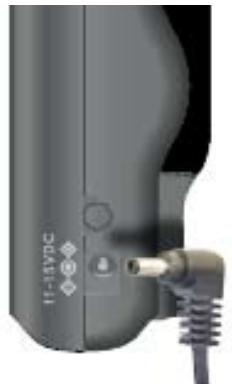
- Connect the DC power cord to the 11-15VDC jack. Then, insert the cigarrette-lighter plug into a standard 12-volt outlet. The device automatically turns on when you connect the power.
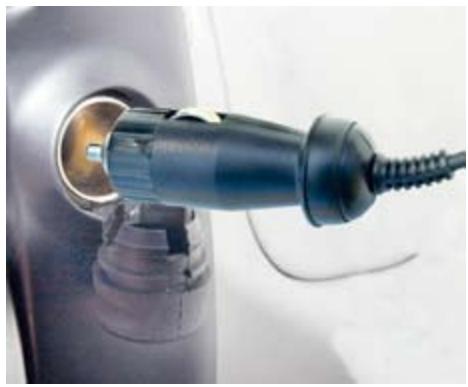
NOTE: Some states (including California and Minnesota) have banned the use of windshield-mounted devices inside the state's borders. It is your responsibility to understand and comply with all the laws of any state(s) in which you operate your vehicle.
Permanent Dashboard or Console Mounting
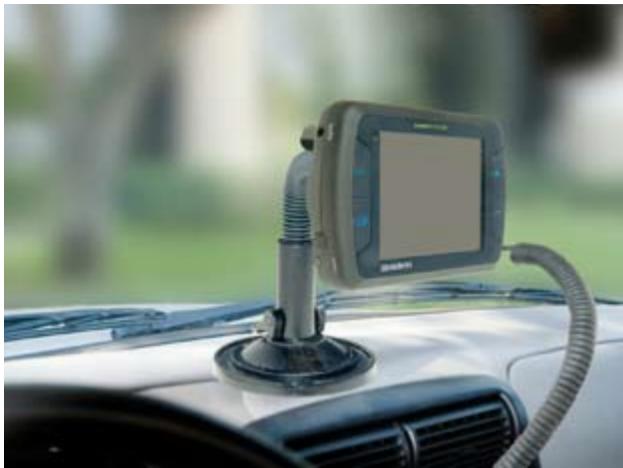
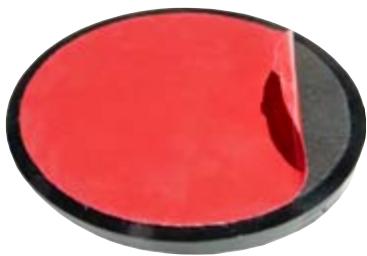
NOTE: The surface mount disc is designed to permanently stick to most surfaces. Attempting to remove the disc may cause damage to the surface. Be certain you have the disc in the desired location before exposing the adhesive.
To mount the device on a rough surface, such as your dasboard or console, use the surface mount disk that came with your device. This disk permanently mounts in your car and provides a stable base for the suction cup mount.
-
Determine the best location for the surface mount disc. Attach the device to the support arm. Place the suction cup flat against the surface, and adjust the position so you can easily see the display screen but your driving view is not obstructed.
-
Clean the surface where you plan to mount the disc. Be sure to remove all protectorants, wax, and grease.
-
Carefully peel the protective sheet from the bottom of the surface mount disc to expose the adhesive.
-
Position the disc above the surface in the desired location, Press the disc firmly against the surface, making sure that all parts of the disc have good contact with the surface to test the adhesive before more
-
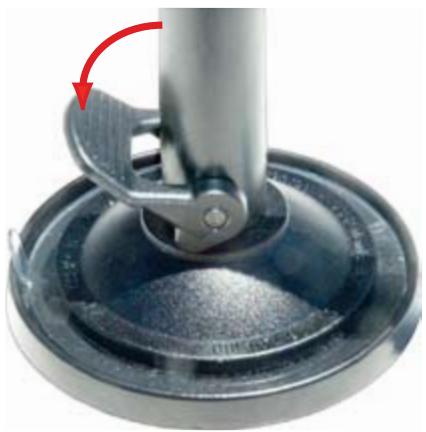
Press the suction cup firmly into the surface mount disc and push the suction lock downwards towards the suction cup.
-
To release the suction cup, pull the lock back towards the support arm and lift the plastic tab. Important: be ready to support the device when it releases from the windshield.
-
Connect the DC power cord to the 11-15VDC jack. Then, insert the cigarrette-lighter plug into a standard 12-volt outlet. The device automatically turns on when you connect the power.
Using the Interface
Using the Main Menu Screen
When the device first powers on, it displays the menu screen. To select any item on any screen, simply tap the item with your finger or the removeable stylus.
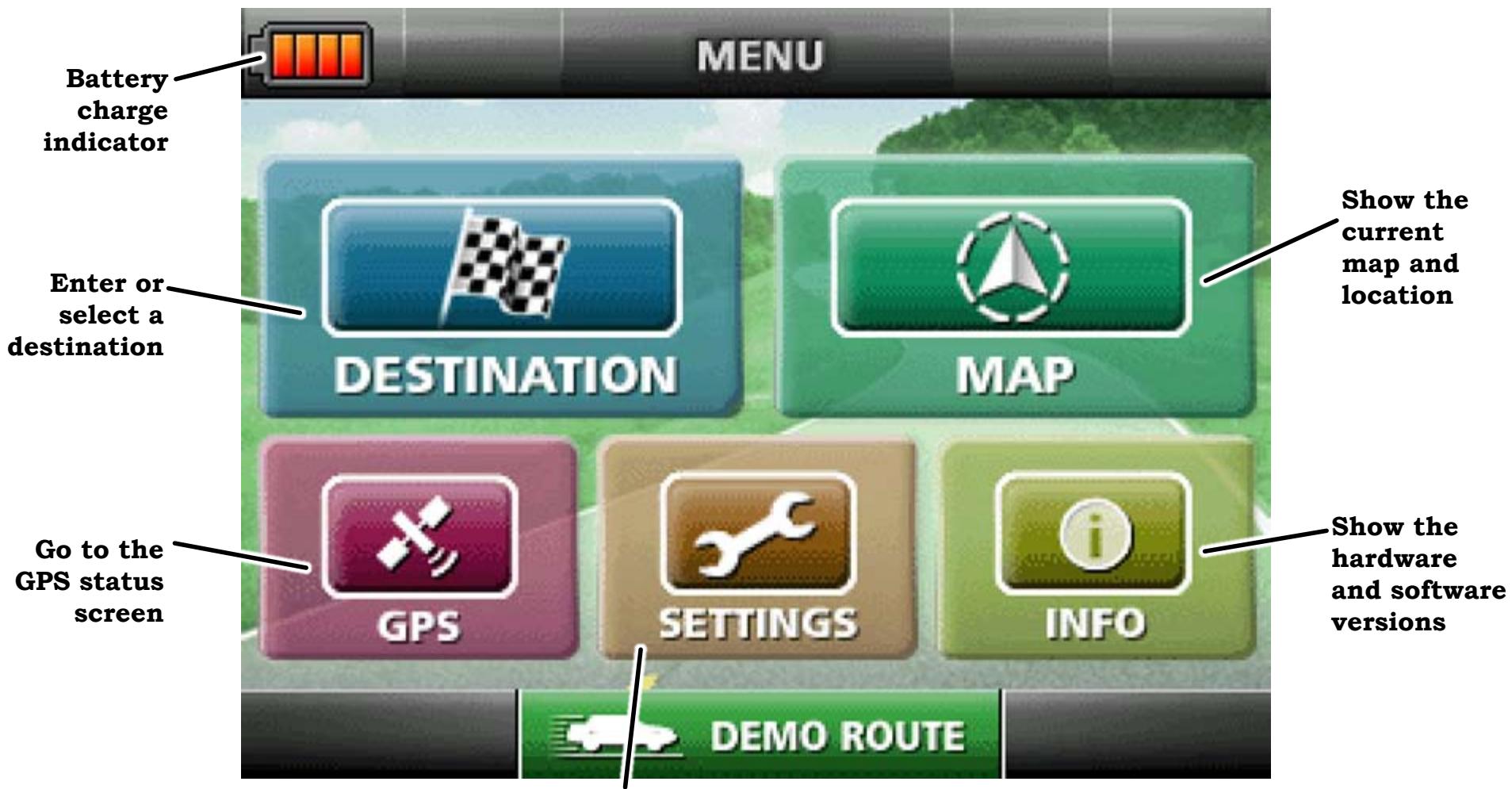
Change the device setup and user information.
Using the Map Screen
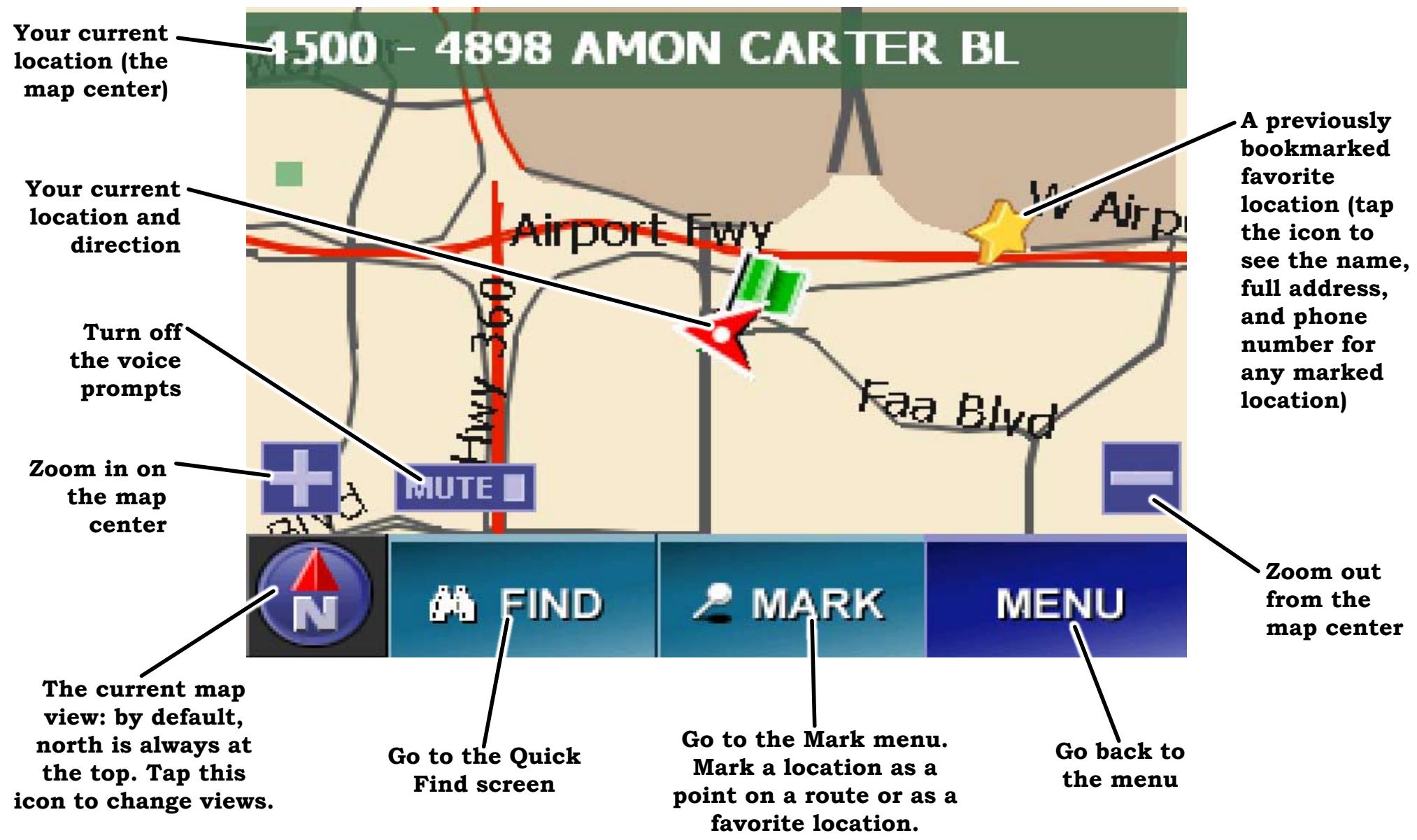
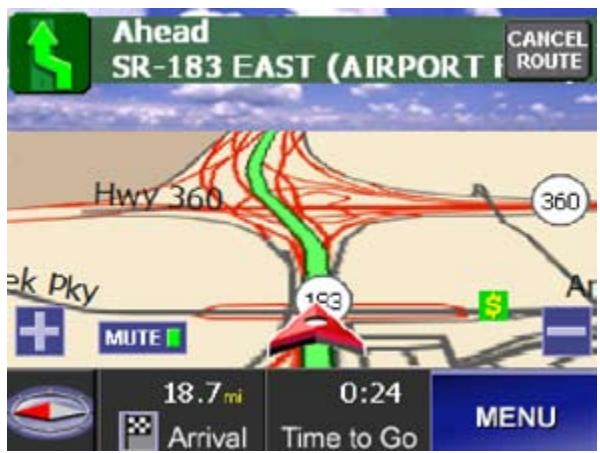
As soon as the device acquires a valid satellite signal, it switches to the Map screen. You will probably use this screen the most, so be sure you are familiar with its layout, icons, and options. The arrow in the center of the screen shows your current position. If the arrow is red, it means the device has a valid GPS lock on your current position; if the arrow is gray, the device does not have a lock on your position. (See Troubleshooting if you have difficulty achieving a lock.)
Changing the Map View
Zooming In and Out
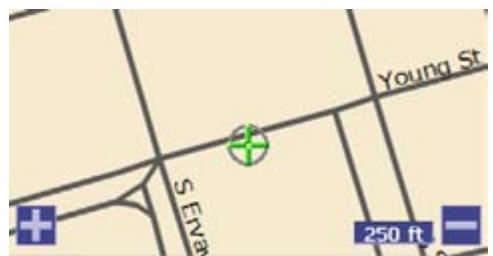
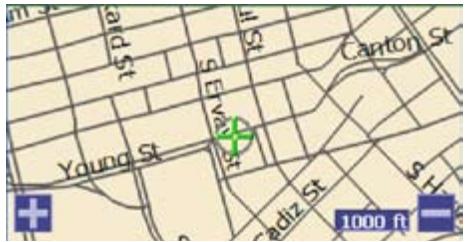
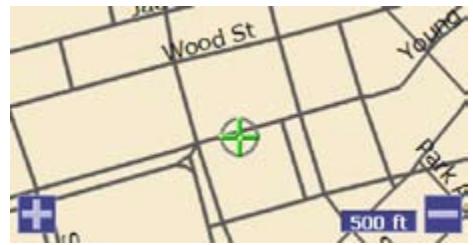
The device has 8 zoom levels. One-half inch on the screen can equal 8 miles, 4 miles, 2 miles, 1 mile, 1/2 mile, 1000 feet, 500 feet, or 250 feet. Tap the plus button to zoom in to the next level and the minus button to zoom out. Each time you zoom, the scale appears in the lower right corner of the map.

Changing Heading and Compass Direction
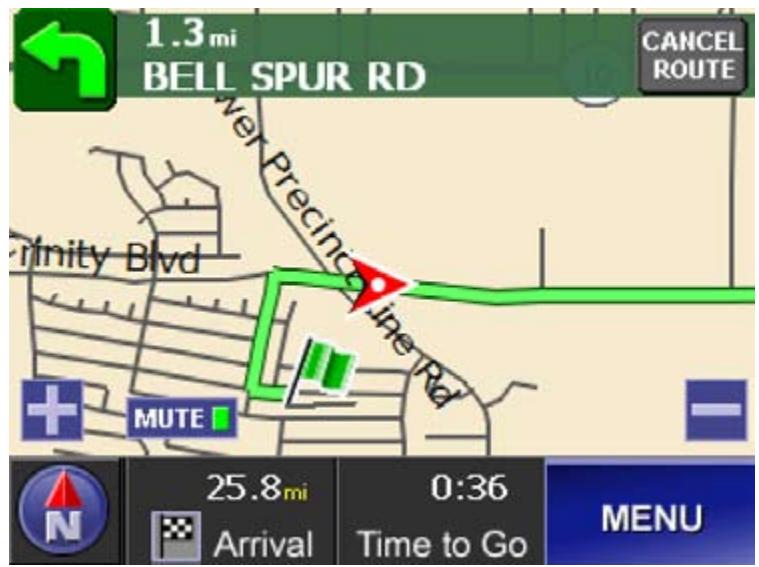
The map screen normally shows north always at the top of the map and turns the arrow that shows what direction you are traveling:
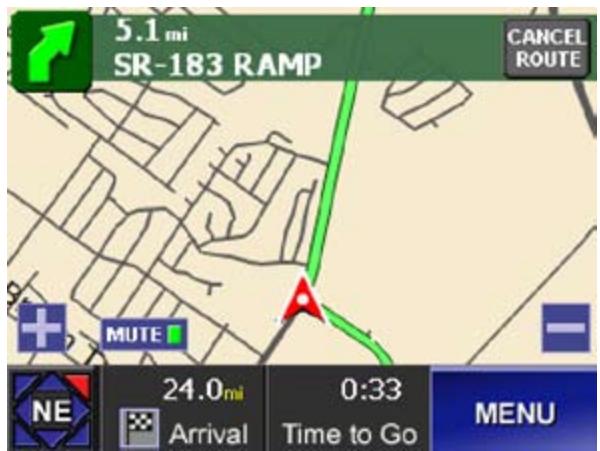
You can set the view so that the direction you are heading is always at the top of the map, and the map itself turns.
Tap the compass icon in the bottom left corner of the map to change the heading direction. When you set the map to show your heading at the top, the compass icon changes to show you the actual direction of your heading.
Using the Three-Dimensional View
Another map view is the three-dimensional view. In 3D view, your heading is always towards the top of the screen.
Tap the compass icon in the bottom left corner of the map. In 3D view, the compass icon points toward north, wherever that appears on the screen.
Changing the Map Options
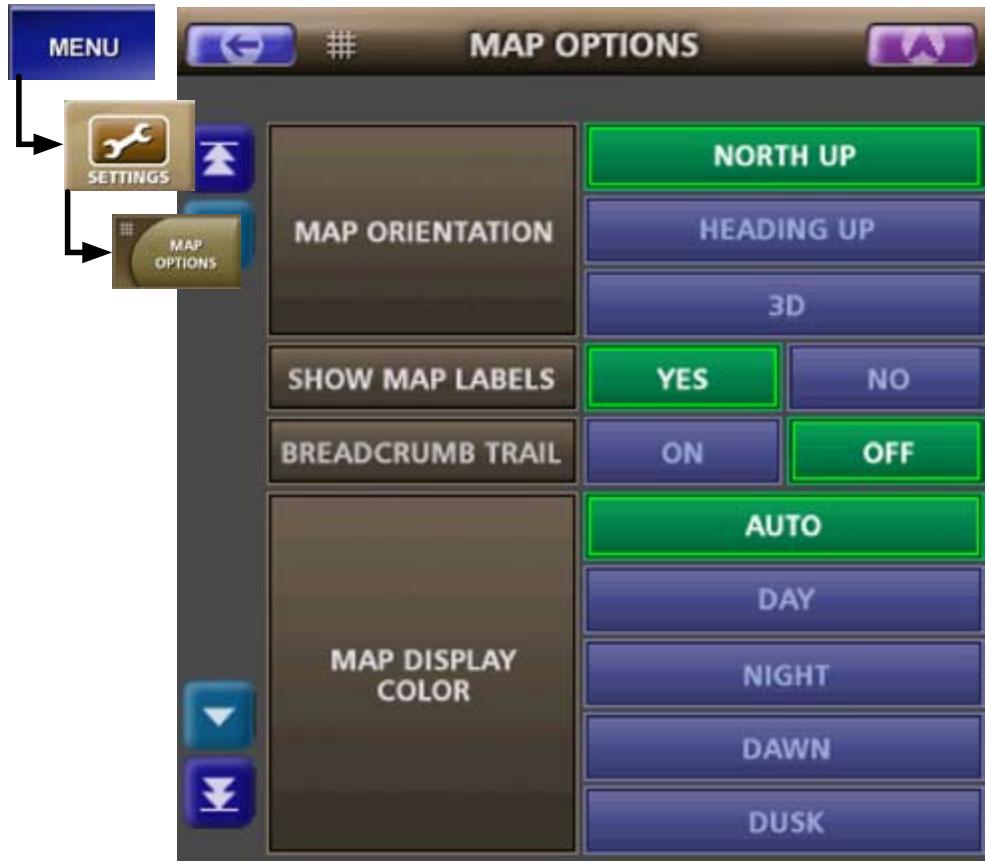
To change the default map view and display options, from the Menu screen choose Setting and then Map Options. This opens the Map Options screen:
Setting the Default Map View
Select the Map Orientation you want to use as the default view: north at the top of the map, your heading direction at the top of the map, or the 3D view.
Showing Map Labels for Streets and Roads
Select Yes to turn on the labels for streets or roads on the map. Labels for smaller streets will only show when the map is zoomed in.
Adjusting the Map Colors
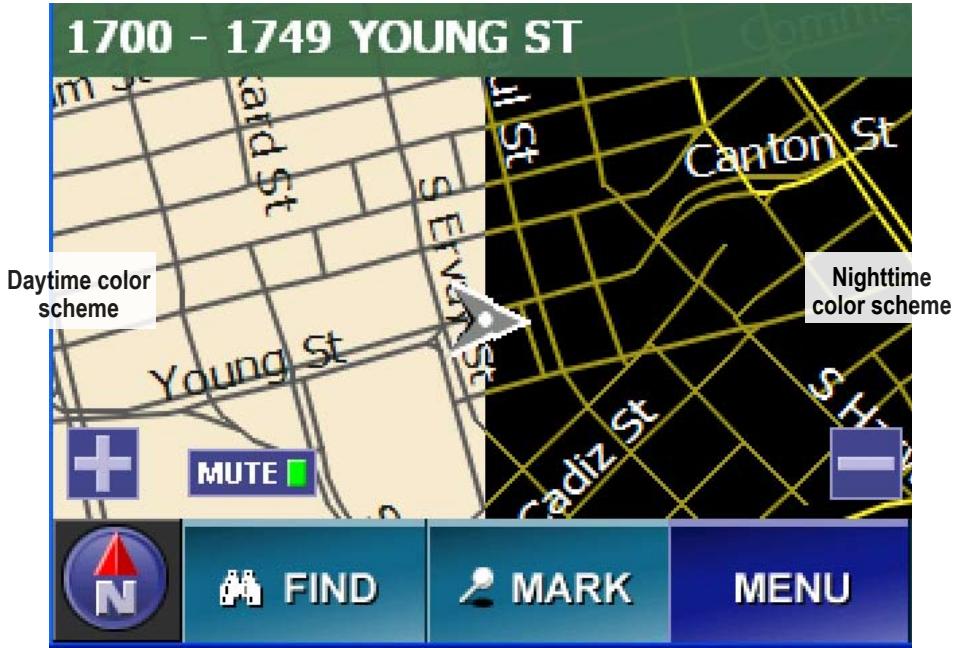
The Map Display Color automatically adjusts as the ambient light level changes from day to night. You can set the map to remain one single color; choose the color scene designed for Day, Night, Dawn, or Dusk viewing.
Showing a BREADCRumb Trail
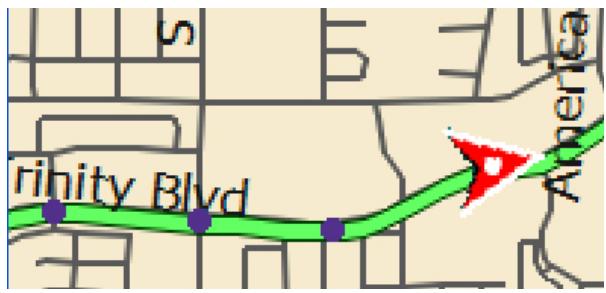
As you drive, the device can leave a trail of markers or "breadcrumbs" so you can retrace your route. This is useful if you are off-road or in an area where roads
have changed since the latest map update.
Showing Points of Interest on the Map
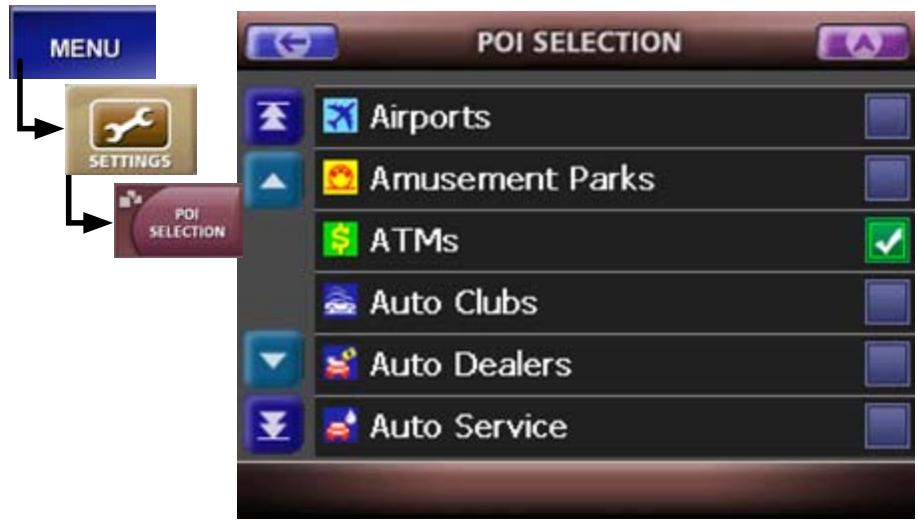
You can show icons for different points of interest on the map, so you can always see when you are close to one.
- From the Menu screen, choose Settings and then POI Selection. This opens the POI Selection screen:
-
Tap the check box beside a category to show those icons on the map screen. Selected categories are shown in green with a white check mark.
-
Tap the back arrow to return to the previous screen or the map icon to go back to the map screen.
- When you return to the map screen, any selected points of interest within the boundaries of the map are marked with the appropriate icon.
- To remove the points of interest icons from the
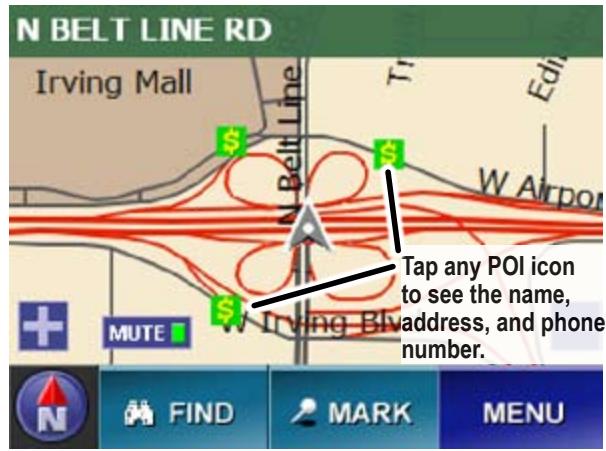
map, go back to the POI Selection screen. Clear the check box beside the icons you do not want to see.
Moving the Map Center
You can change the center of the map by tapping on the map screen. The map recenters and places a crosshairs icon on the location you tapped. To create a route to the location marked by the crosshairs, tap the route button.
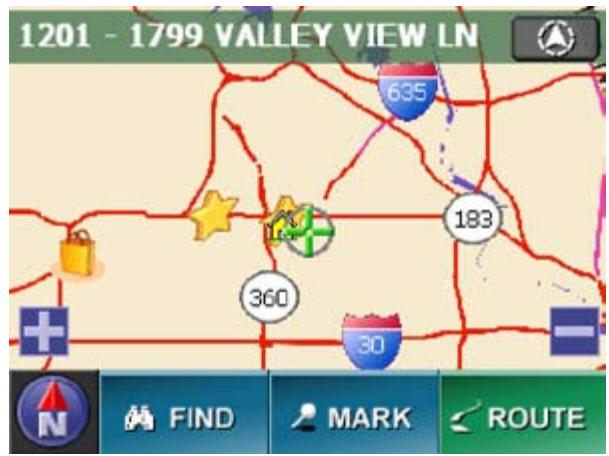
For more information on routing, see the section on Creating A Route on the next page.
Creating a Route
You can plot a detailed route, including turn by turn directions, to any destination you choose. If you miss a turn or go off the route, the device can automatically recalculate the route from your current location. You can create and save 25 custom routes. To create a route, from the Menu screen, select Destination; this opens the Set Destination screen:
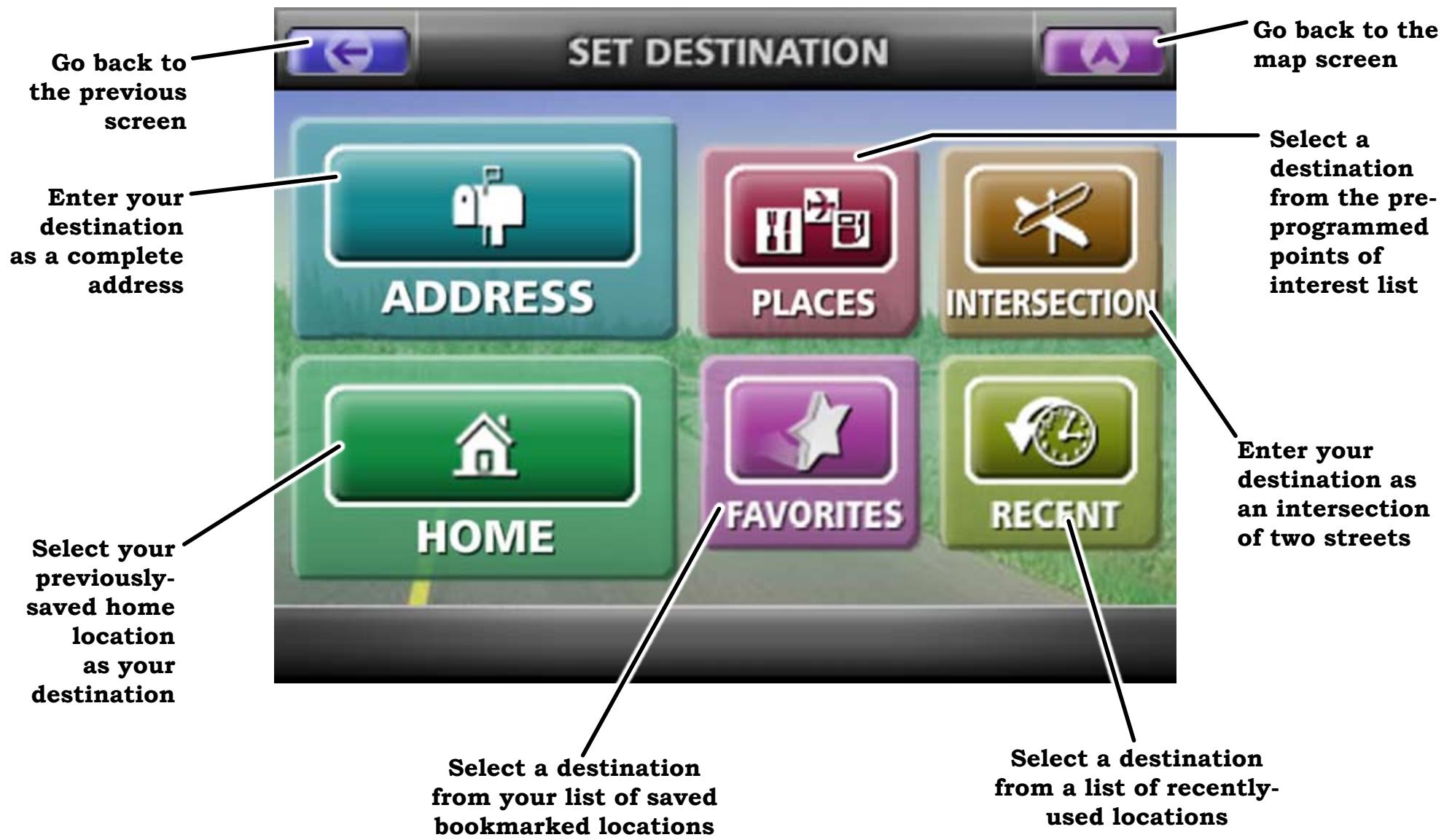
Entering an Address as Your Destination
You can plot a route to any address in the US or Canada. Follow the steps below to enter address as your route destination:
- From the Menu screen, select Destination and then choose Address. This opens the address entry interface. The first time you enter an address, the device goes to the Select a State screen:
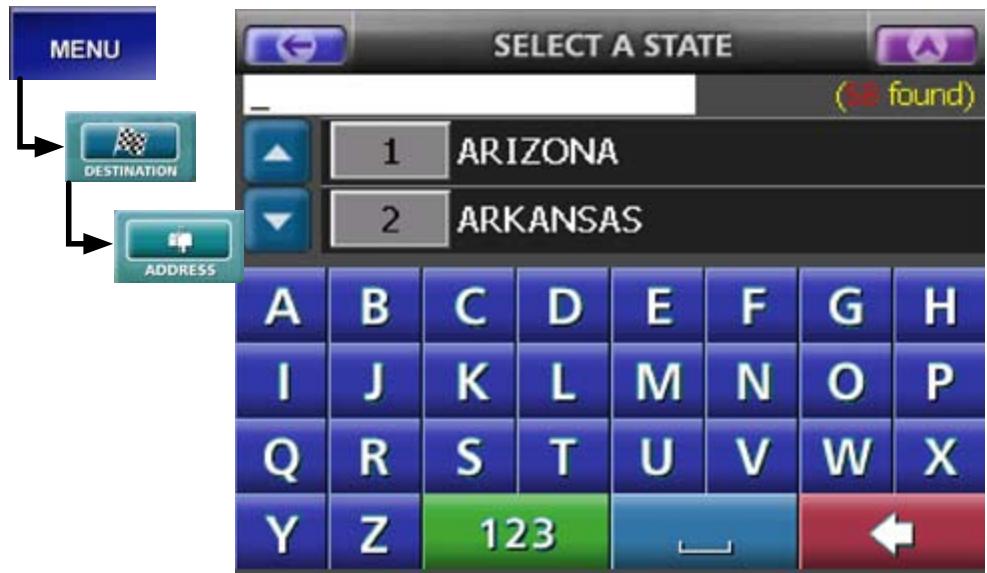
- Select the state your destination is in. Use the up and down arrows to scroll through the list or enter the name of the state from the alphabet keypad. (As you enter letters, the display jumps to the states that start with those letters.) Tap anywhere on the line to select a listed state. Tap the red backspace key in the bottom right corner of the screen to delete letters.
Note: Larger states may be divided into regions, e.g. Texas Central, Texas East, etc.
- Once you select a state or region, the Find Address screen opens with the last state you selected already loaded. (To change the state, select Change to go back to the Select a State screen):
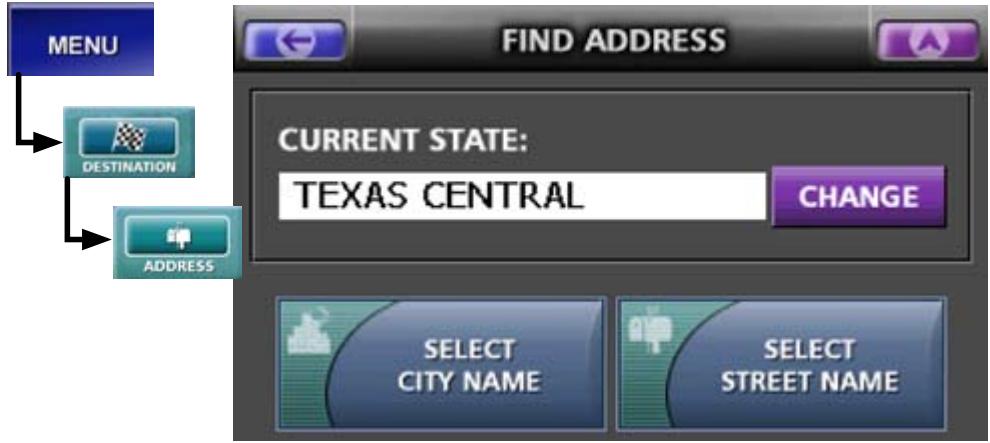
- Choose Select a City Name, or skip the city step and select a street from all the cities in the region (the street search is faster if you select a city first). Both of these screens use the same interface:
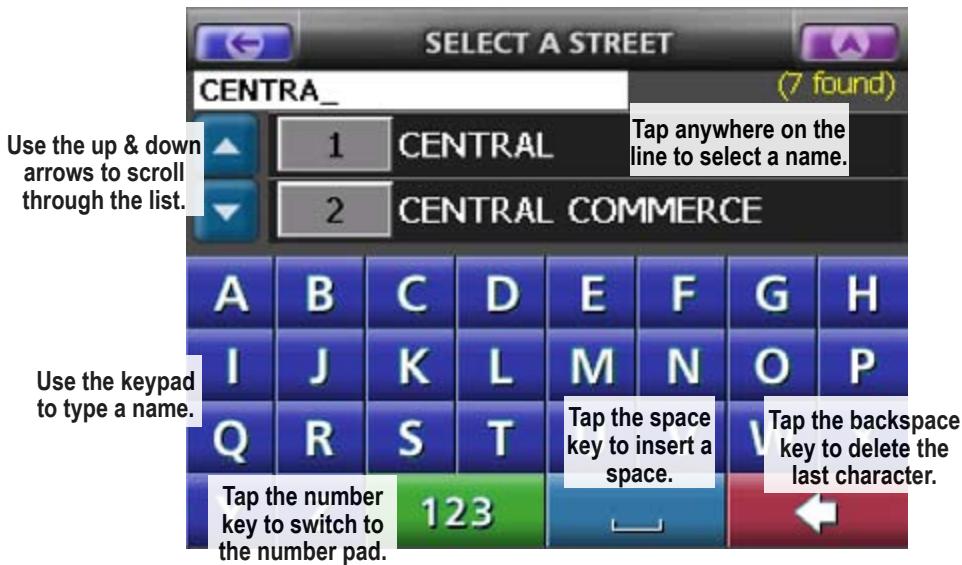
- After you select a street, the Enter a House Number screen appears. This screen is almost the same as the Select a Street and Select A City screens, but it starts with the number pad instead of the alphabet keypad and has an OK button in the top right hand corner:
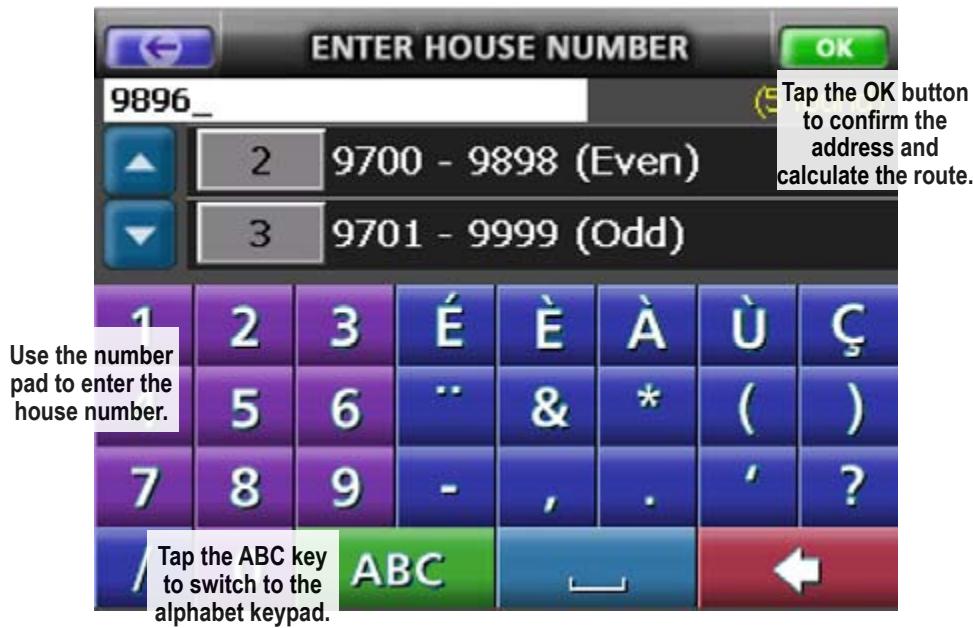
- Enter the exact house number and tap OK, or select the range of addresses that includes the address you want.
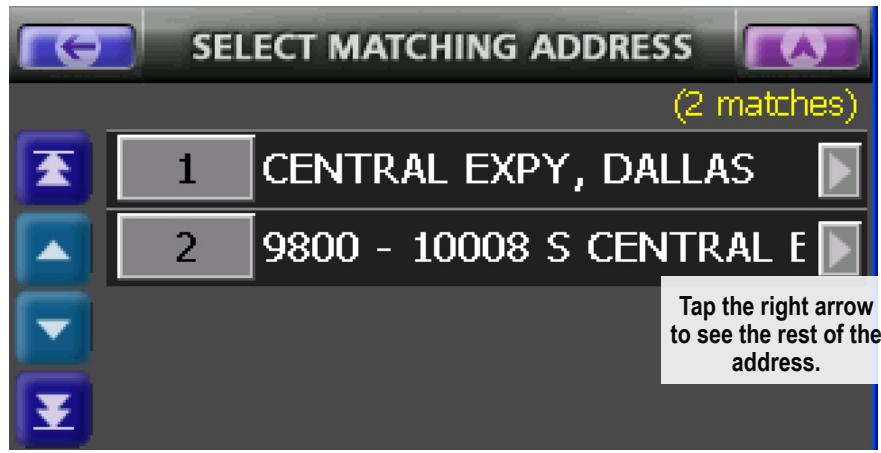
If there is more than one possible match for the address (for example, if a street has separate north and south addresses), the Select Matching Address screen appears. Use the up and down arrows to scroll through the list, and tap the line that contains the address closest matching your desired destination. If the address is too long for the screen, tap the right arrow beside the address to see the rest of the address.
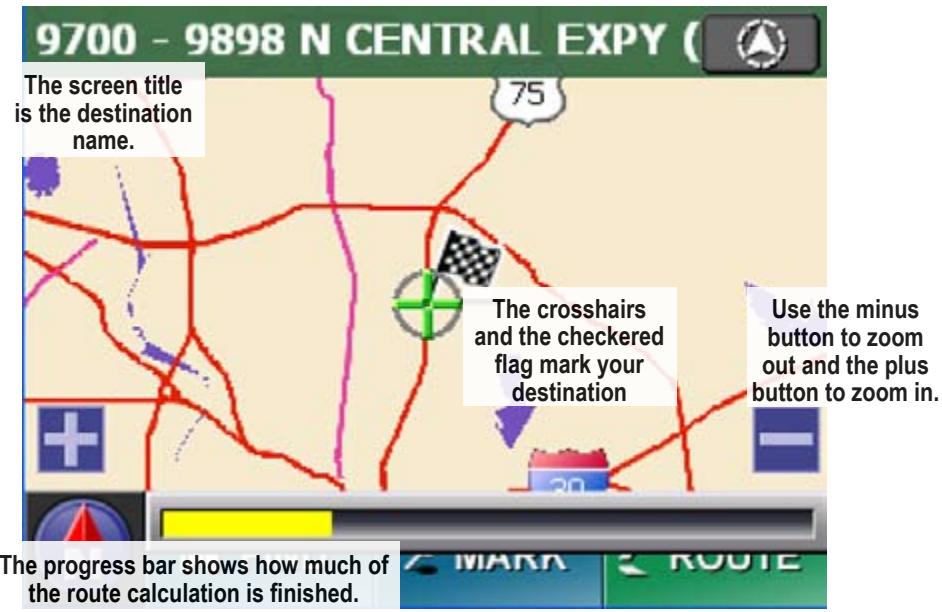
- After you enter the house number, the device calculates a route from your current location to this address. It may take a few seconds to load the detailed map data and calculate the route; during this time you'll see the following progress screen:
Reading the Route Screen
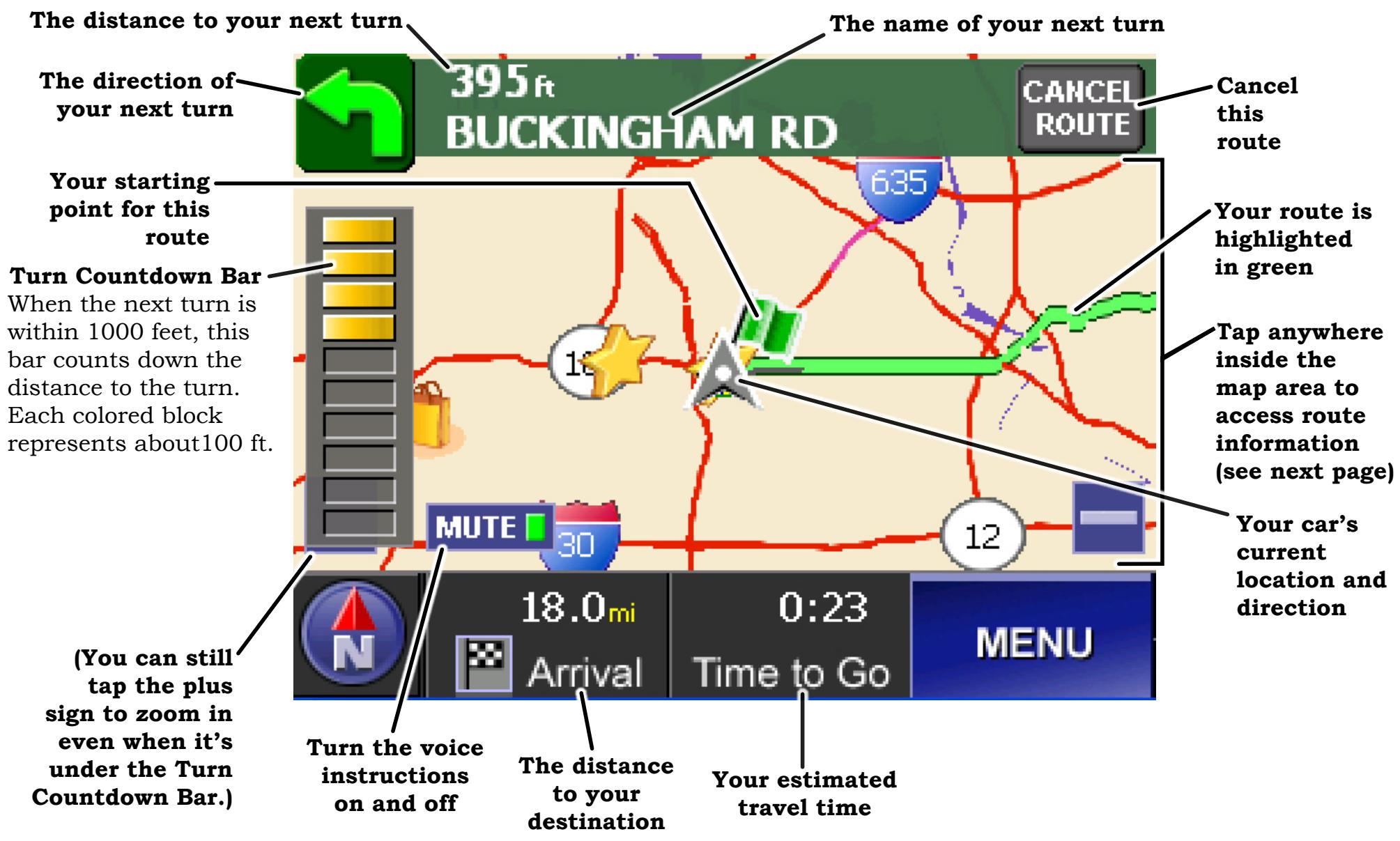
Once your route is calculated, the device displays the route screen. The route screen is based on the Map Screen, with the following additional information (all the controls on the Map Screen funtion the same way on the Route screen):
Route Information and Current Route Options
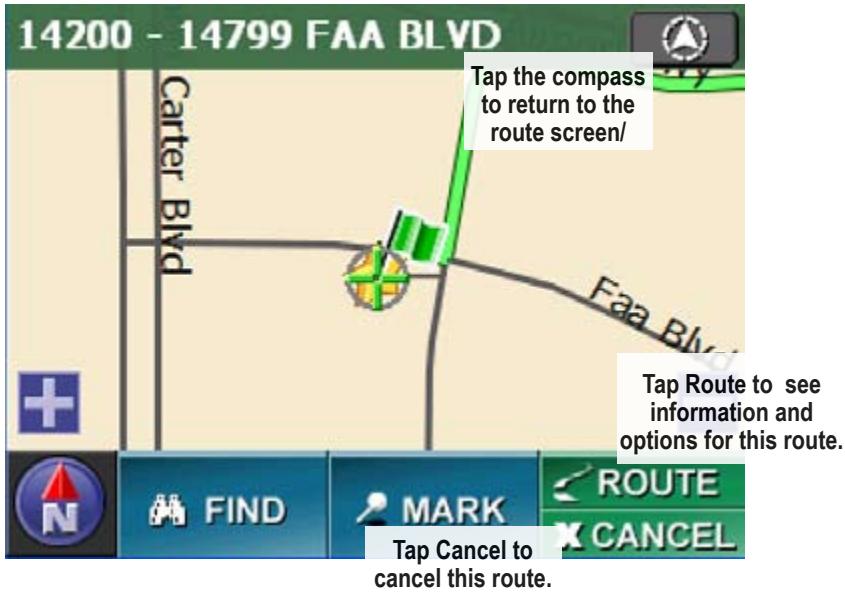
From the route screen, tap anywhere inside the map area to show the route information button:
- Tap the Route button to open the pop-up options:
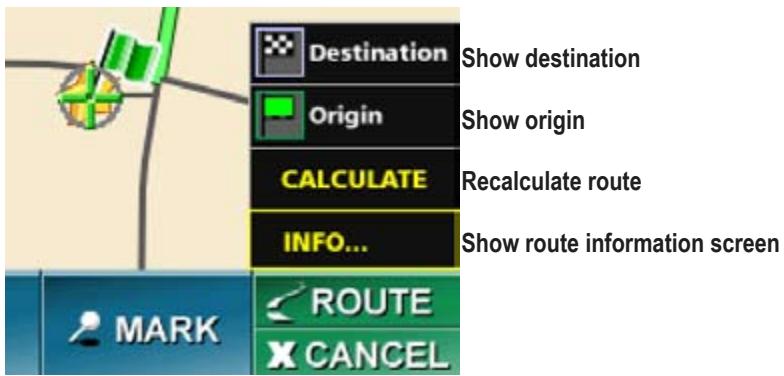
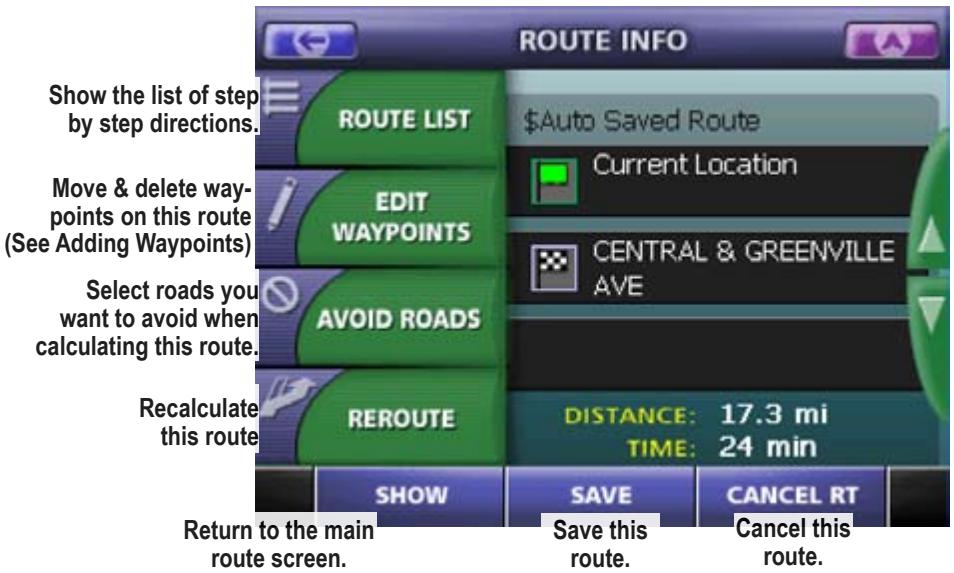
- Select Info to open the Route Information screen:
Saving a Route
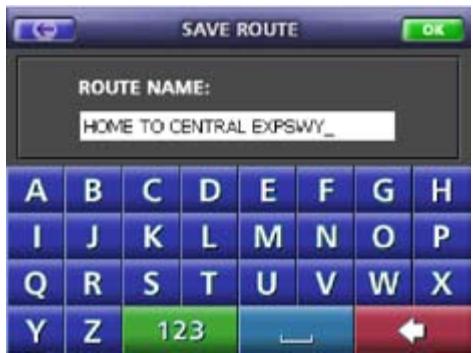
To save the current route, tap the Save button. The Save Route screen prompts you to enter a route name. The name can be up to 24 characters, including spaces. Tap OK when you are finished.
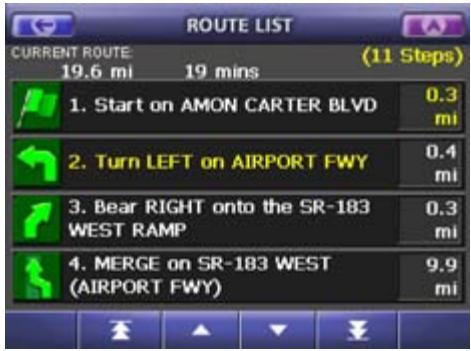
View the List of Directions To see the list of turn-byturn directions, select Route List. The Route List screen shows you how many steps are in the route and the distance between each step. Use the arrow buttons to scroll up and down the list.
Avoiding Certain Roads
If you prefer not to use specific roads for this particular route, select Avoid Roads. The Avoid Roads screen lists the all the roads and turn-by-turn steps used by the route:
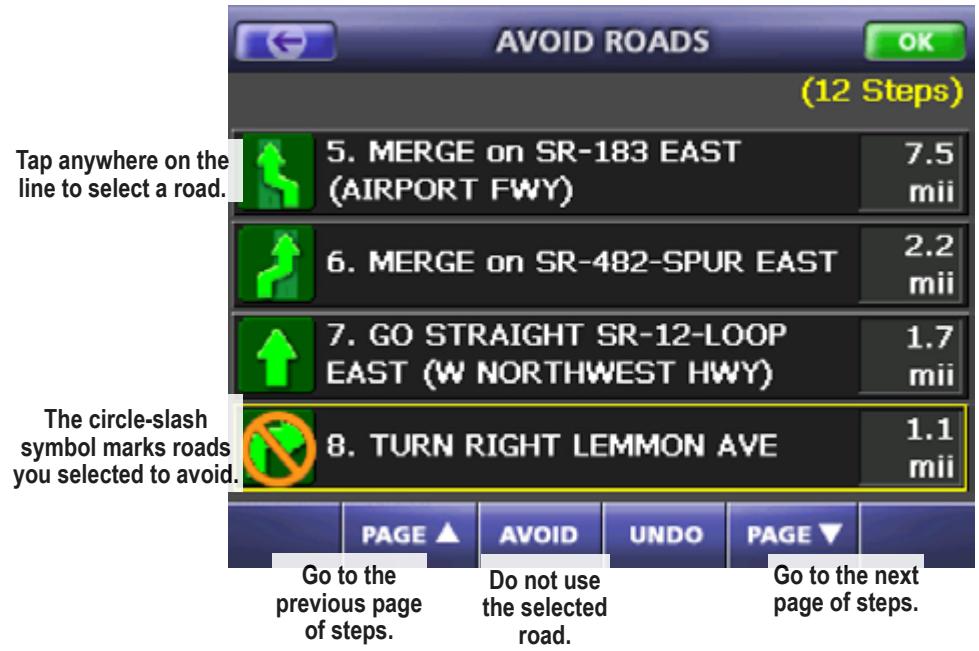
- Tap anywhere on a line to select a road, then tap the Avoid button to remove the selected road from the calculations for this route only. (No other route will be affected)
- Any roads you've selected to avoid have the circle-slash symbol on the line. To clear the symbol and include the selected road in the route, tap the Undo button.
- Select OK to recalculate the route without using the blocked roads.
- If you want to add the avoided roads back into the route, cancel the route and recreate it.
Note: If you want to avoid certain types of roads (freeways, tollways, etc.) for all future routes, use the Route Options screen (see page 26).
Running a Route Demo
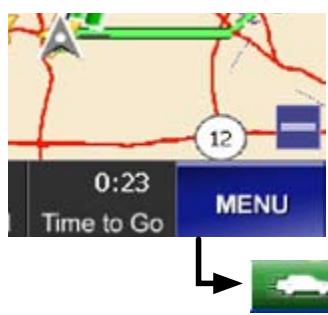
The device can show you an animated "practice run" of the route at a faster speed:
-
From the Route screen, tap the Menu button.
-
On the main menu screen, tap the Demo Route button. The device will run a quick animation of the entire route. When it's finished, the animation will automatically restart.
-
To stop the route demo, tap the Menu button on the Route screen.

STOP DEMO
- On the main menu screen, the Demo Route
button has changed to Stop Demo. Tap the Stop Demo button to end the animated demo.
Note: Do not use the Cancel Route button to stop the demo. Cancel Route will cancel the entire route, not just the animated demo.
Using Other Destinations for Routing
Entering an Intersection as the Destination
Entering an intersection is very similar to address entry:
- From the Menu screen, select Destination and then choose Intersection. This opens the Find Intersection screen (The last state you entered is pre-loaded. To change the state, select Change.):
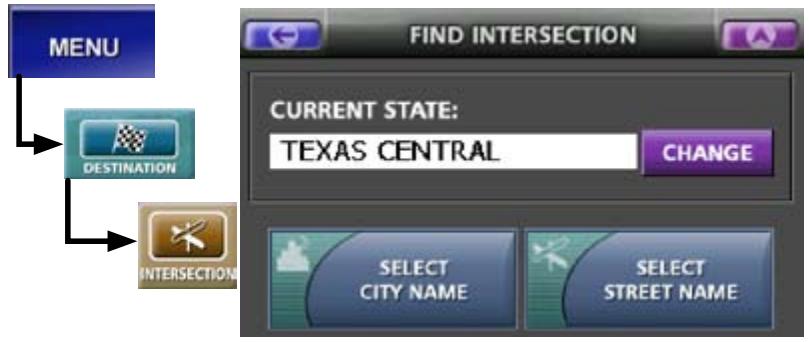
- Choose Select City Name or Select Street name. Both screens are the same as entering an address (see page 15).
- After you select a street, the Cross Street screen appears:
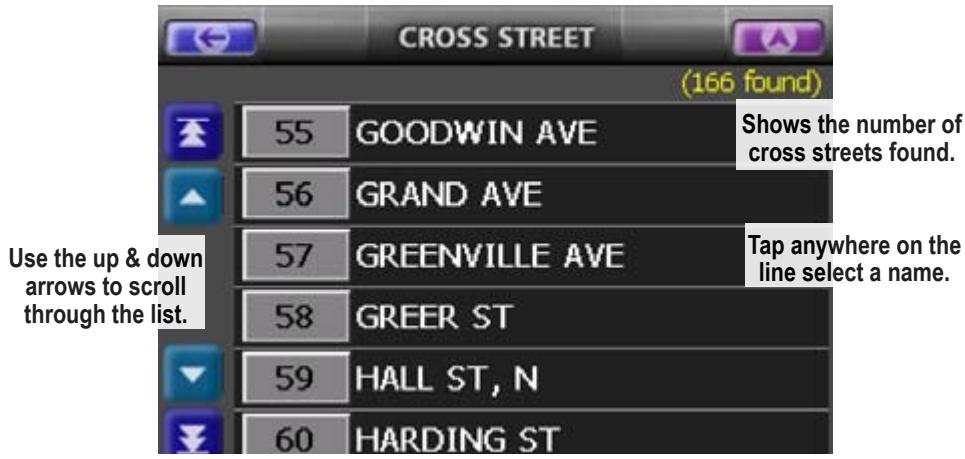
- After you select the cross street, the device calculates a route from your current location to this intersection. It may take a few seconds to calculate the route and display the Route screen (see Reading the Route screen on page 16).
Selecting Your Home Location as the Destination
If you enter a home location, you can always find your way home with just a few taps on the screen. From the Menu screen, select Destination and choose Home. The
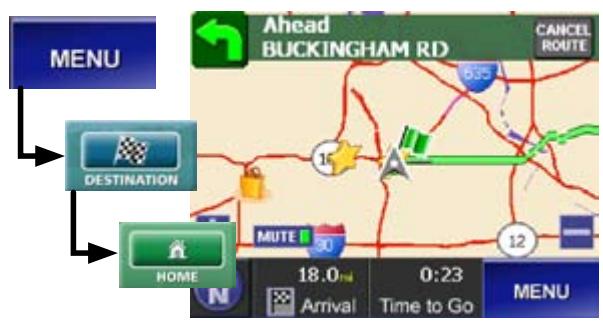
device calculates the route and displays the route screen.
If you have not entered a home location, the Home icon on the destination screen is locked out. See page 28 for information on entering a home location.
Selecting a Recent Destination
The device saves the most recent 50 destinations; you can quickly plot a route to any of these recent destinations. From the Menu screen, select Destination and choose Recent.
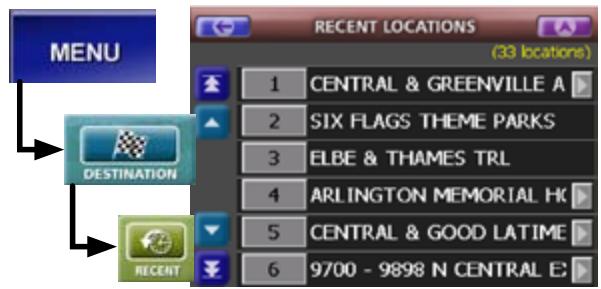
When the Recent Locations screen displays, select the destination from the list. The device calculates the route and displays the route screen.
Selecting a Pre-Programmed Place as a Destination
The device has over 2 million pre-loaded locations-- including airports, landmarks, hospitals, and hotels--that you can use as destinations. To use a pre-programmed place as a route destination, follow the steps below.
- From the Menu screen, select Destination and choose Places. This opens the Select a Place Category screen:
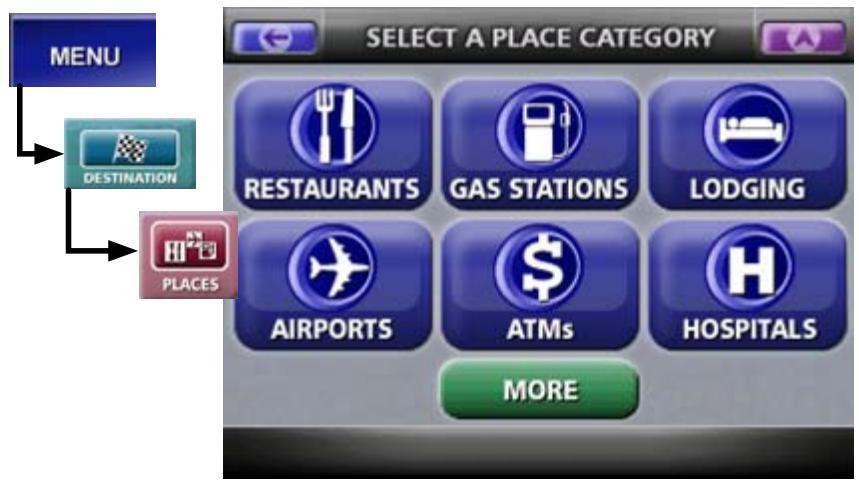
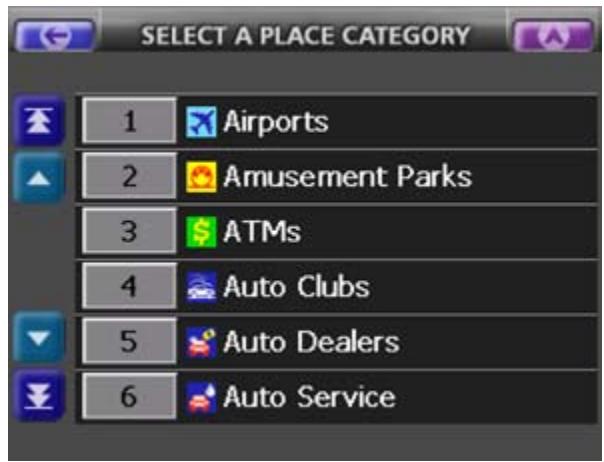
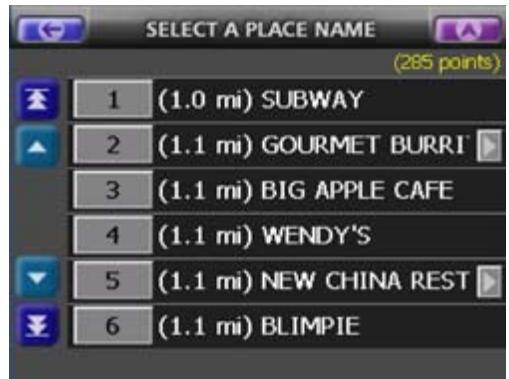
- Select one of the six popular categories or More to see all available place categories. Tap anywhere on the line to select a category. This opens the Select Search Method screen.
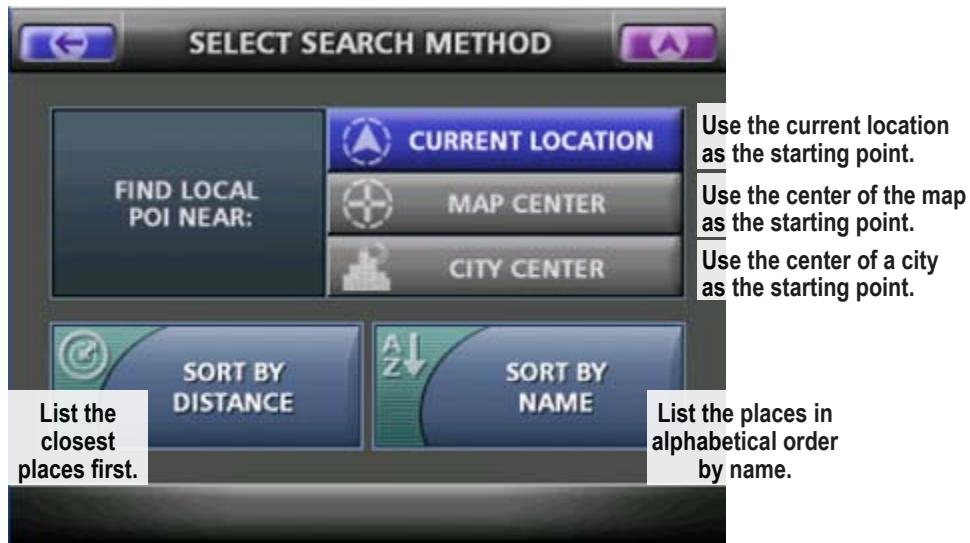
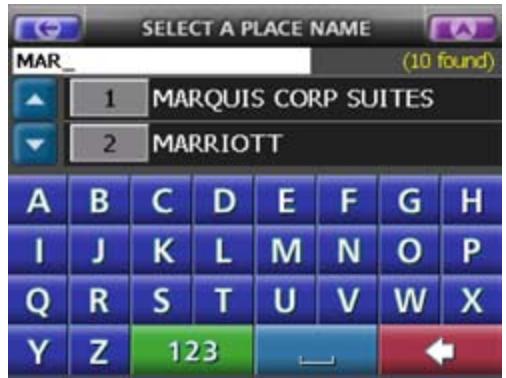
- Choose whether you want to start from your current location, the map center, or a city center. Then choose whether to list the places by name (alphabetical) or by distance (closest to furthest). If you choose alphabetical, you can enter letters from the keypad to narrow down the list.
Note: If you select City Center, the device prompts you to enter a state and city before displaying the Select a Place Name screen.
Using the Quick Find Feature
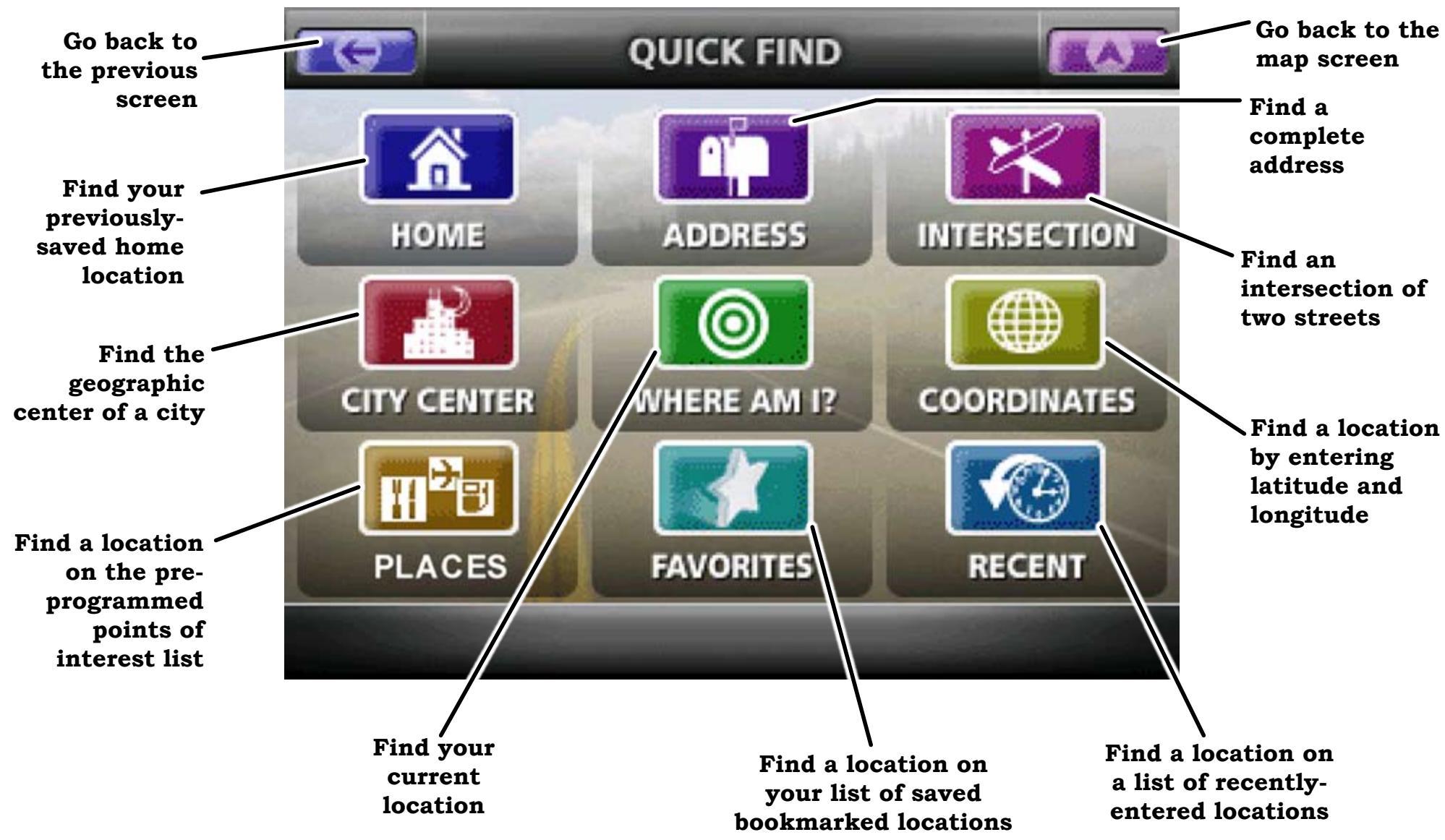
The Quick Find feature lets you find a location and gives you several options for that location. From the main map or main route screen, choose Find. This opens the Quick Find screen. The Quick Find screen is almost the same as the Set Destination screen, but the Quick Find screen add the City Center, Where Am I? and Coordinates options are added:
Finding a City Center
To find the geographical center of any city in the US and Canada, tap the Find button and then select City Center. The device prompts you to select a state and city, then it centers the map on the center of the city you select.
Using Where Am I
To center the map on your current location, tap the Find button and then select Where Am I?.
Finding Coordinates
To find a location by the exact longitude and latitude coordinates, tap the Find button and then select Coordinates. This opens the Enter Coordinates screen.
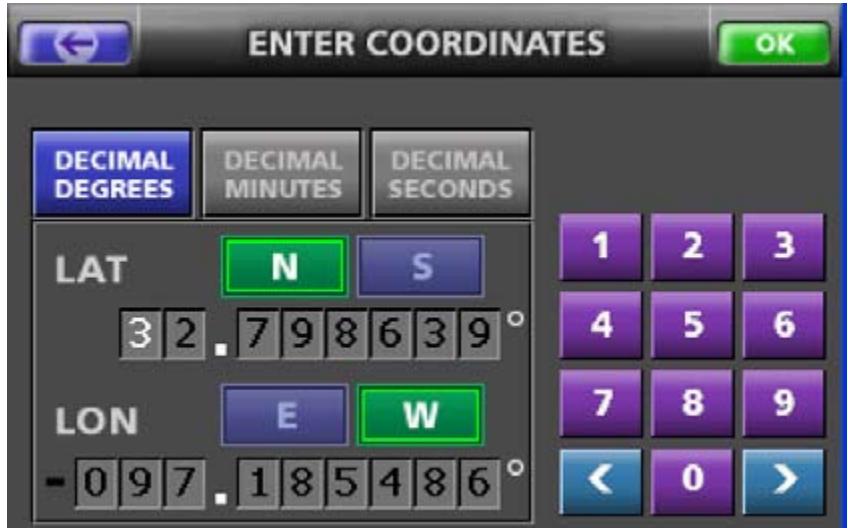
- Select the format you wish to use. Choose from decimal degrees (the default), decimal minutes (ex. 32^ 42.1593' ) or decimal seconds (ex. 32^ 42' 19.5214'' ).
-
Select N for north latitude and S for south latitude.
-
Use the number keypad to enter the latitude. The digit you are entering appears in reversed out type. To move to the next digit, use the right arrow key. Use the left arrow key to move to the previous digit. (The device deactivates any digits that would produce an invalid entry.)
- When you enter the final latitude digit, the cursor jumps to longitude. Select E for east longitude and W for west longitude.
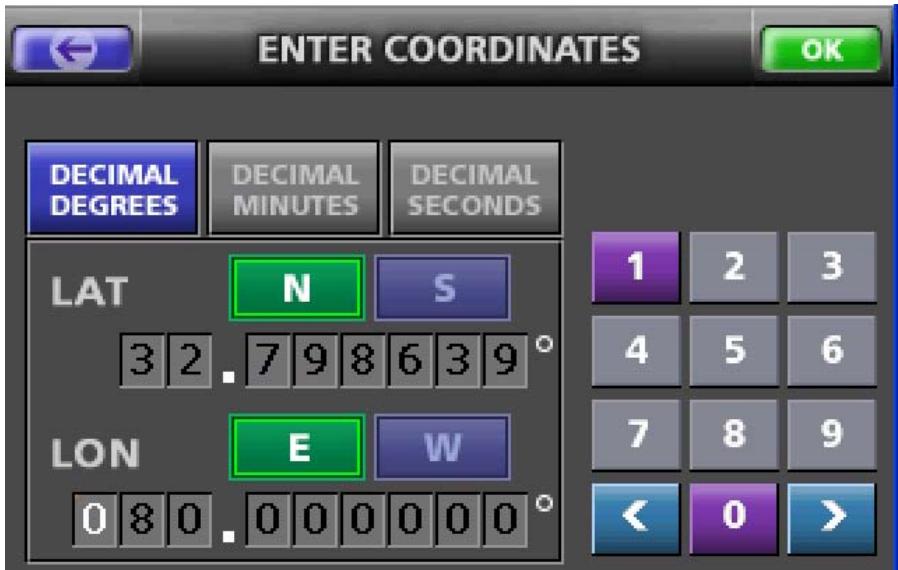
- Use the number keypad to enter the longitude, and tap OK when you are finished. The map centers on these coordinates.
Using the Mark Menu
When the map displays a Quick Find location, it shows the Mark menu on the right side of the screen. Choose whether to mark the found location as the destination of a route, as the origin of a route, or as a waypoint along a route. Tap the Go button to calculate a route to the found location.
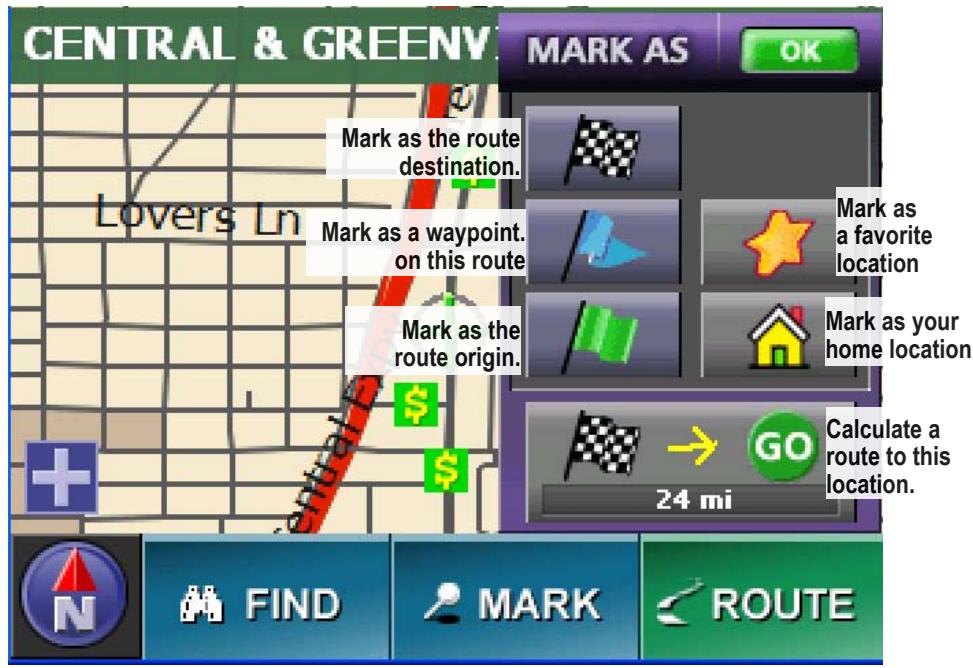
Marking Locations from the Map Screen
To mark your current position, tap the Mark button from the map screen.
To mark another position on the map, tap on the map screen to center the map on the desired location; the location is marked with the crosshairs icon and the location name appears at the top of the screen. Then, tap the Mark button to mark the current map center.
Adding Favorites
From the Mark menu, choose the Star icon to mark this location as a favorite place. Enter a name and select an icon for this favorite, then tap the OK button to save it.
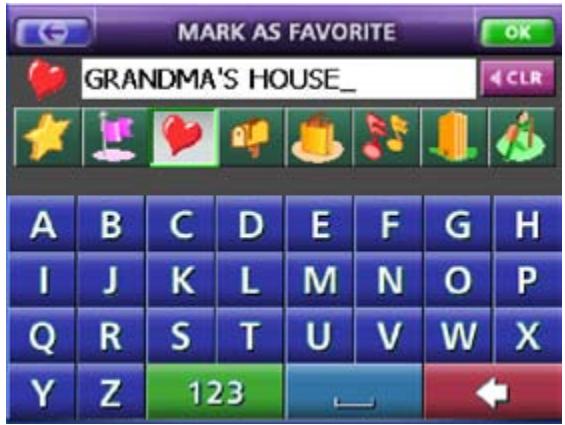
Creating a Route to a Favorite Place
To use a favorite place as a route destination, from the Menu screen, select Settings. Then choose User Data and select Stored Favorites.
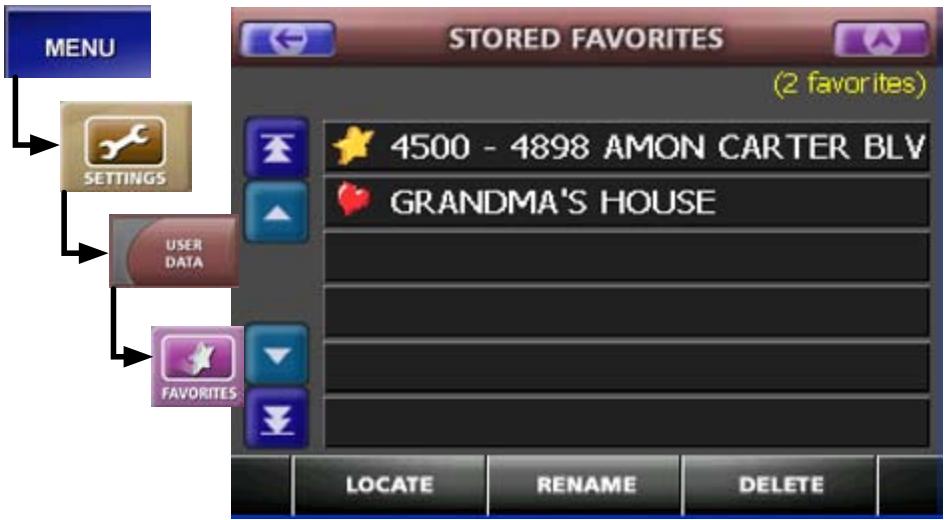
Use this screen to change the name or delete a favorite place. Select Locate to find this favorite on the map, and then use the mark menu to calculate a route.
Working With Waypoints
A waypoint is an intermediate stopping point or side trip during a longer route. For instance, you can create a route to another city and add waypoints along the way to stop for gasoline, get something to eat, or spend the night. You can have up to 10 waypoints for each route.
Use the Quick Find feature or the Mark menu to add a waypoint to a route.
Adding a Waypoint
On the Mark menu, select the blue flag to add the location currently at map center as the final waypoint in this route, just before the destination. The screen displays the number of waypoints in the current route.
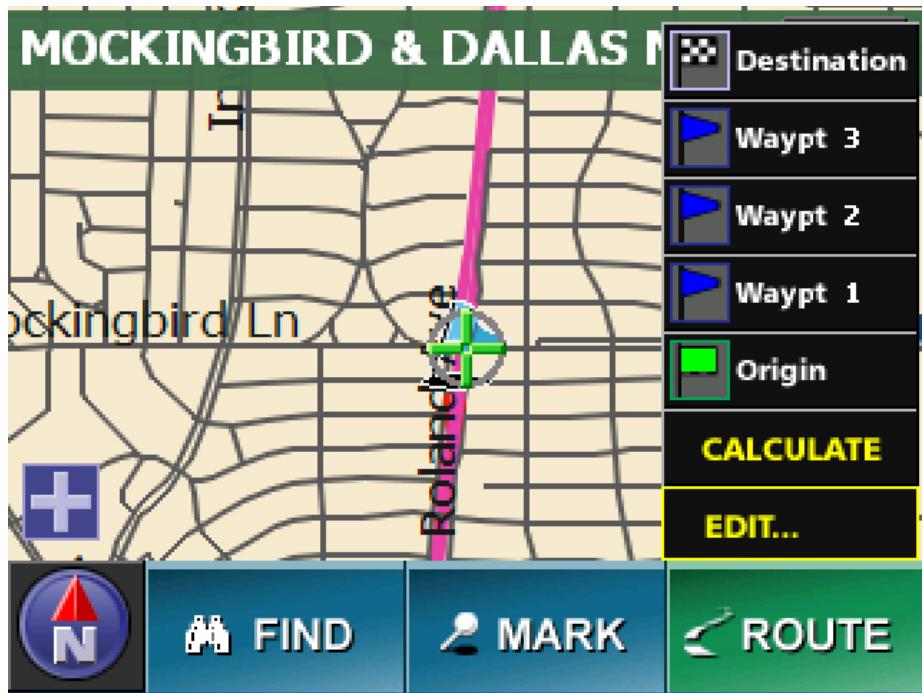
Editing and Deleting Waypoints
To change the order of the waypoints or to delete waypoints, from the route screen, tap the Route button and then select Edit. This opens the Edit Waypoints screen.
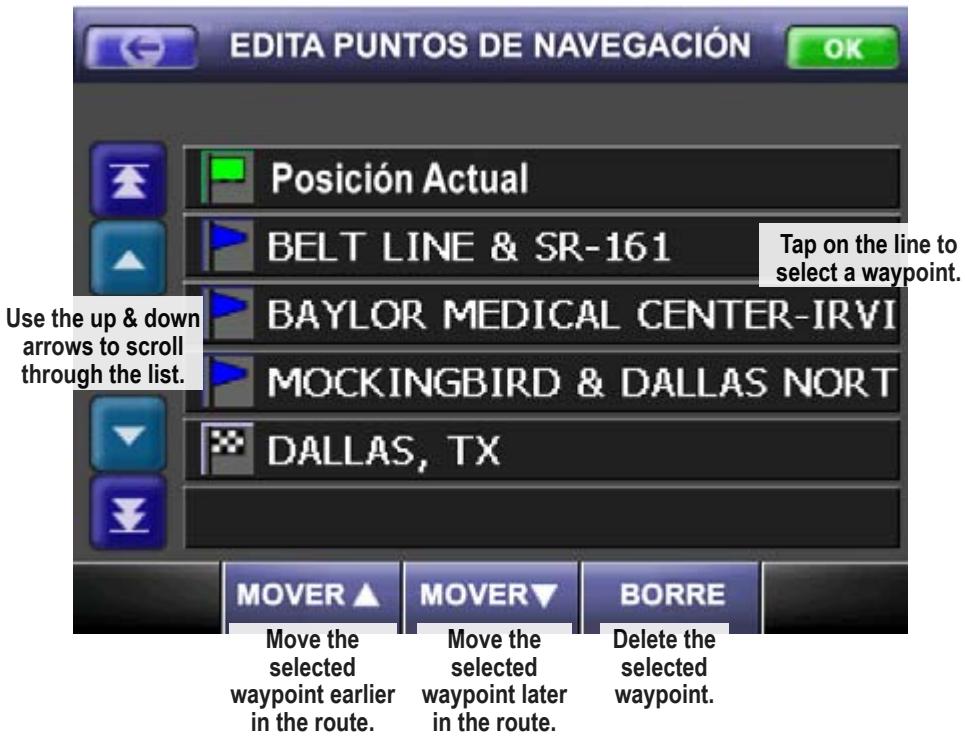
The Edit Waypoints screen shows the waypoints for the route in the order you will stop at them. Move a waypoint up the list to stop at it first; move a waypoint down the list to stop at it later. Tap the OK button to save your changes and recalculate the route.
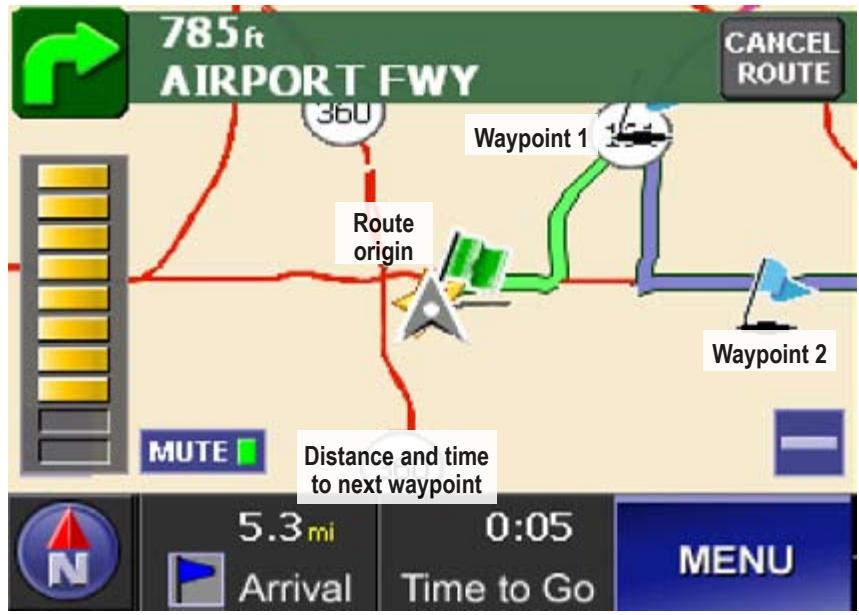
The revised route screen shows you all waypoints within the border of the map. Each section of the route appears in a different color. The bottom of the route screen shows the distance and time to your next waypoint; tap this area to show the distance and time to destination:
Changing the Route Guidance Options
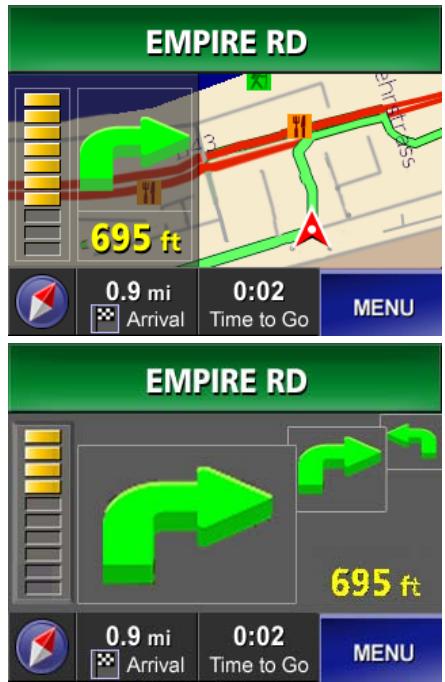
You can change how the route screen shows the next turn and whether the route recalculates when you deviate from the route.
- From the Menu screen, select Settings then Guidance Options.
- Guide View Display: choose the display you want to use: mini arrow (the default route screen), split screen (top) or full guide (bottom).
- Auto Reroute: choose whether you want the route to recalculate if you go off route.
Changing the Default Route Options
You can change the options used for all routes.
- From the Menu screen, select Settings and then Route Options. This opens the Route Options screen.
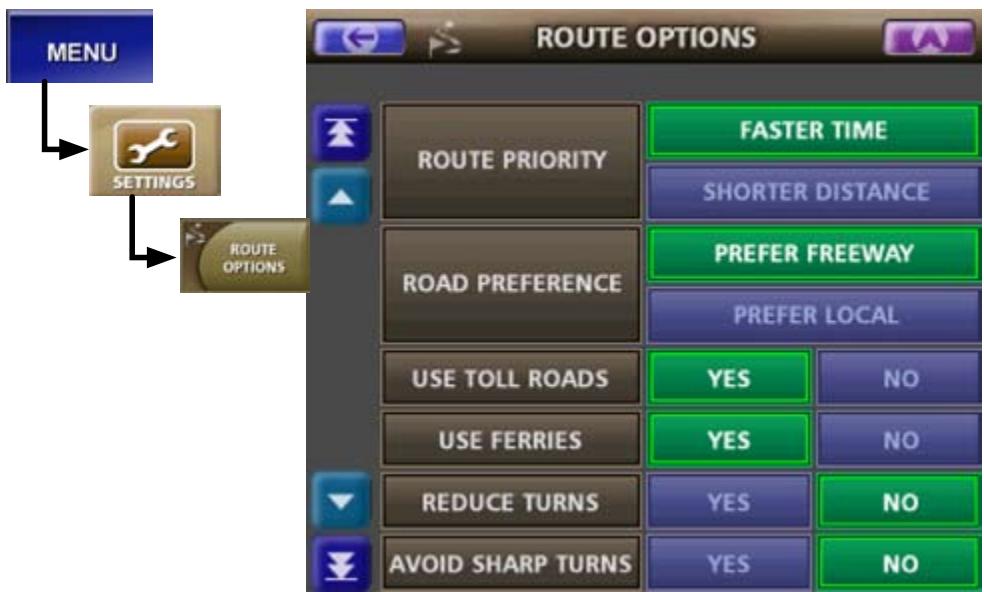
- Route Priority: choose whether you prefer routes with the fastest travel time or the shortest travel distance.
- Road Preference: choose whether you want routes to use more freeways or to avoid freeways in favor of local roads.
- Use Toll Roads and Use Ferries: select whether you want routes to avoid toll roads and ferries when possible.
- Reduce Turns and Avoid Sharp Turns: select whether you want routes with fewer turns and no sharp turns.
Customizing Your GPS Device
Changing the Language
The device supports English, Spanish, and French in both the display and the voice prompts. Follow the steps below to change the language:
- From the Menu screen, select Settings.
- On the Settings screen, select Language Selection. This opens the Language Selection screen:
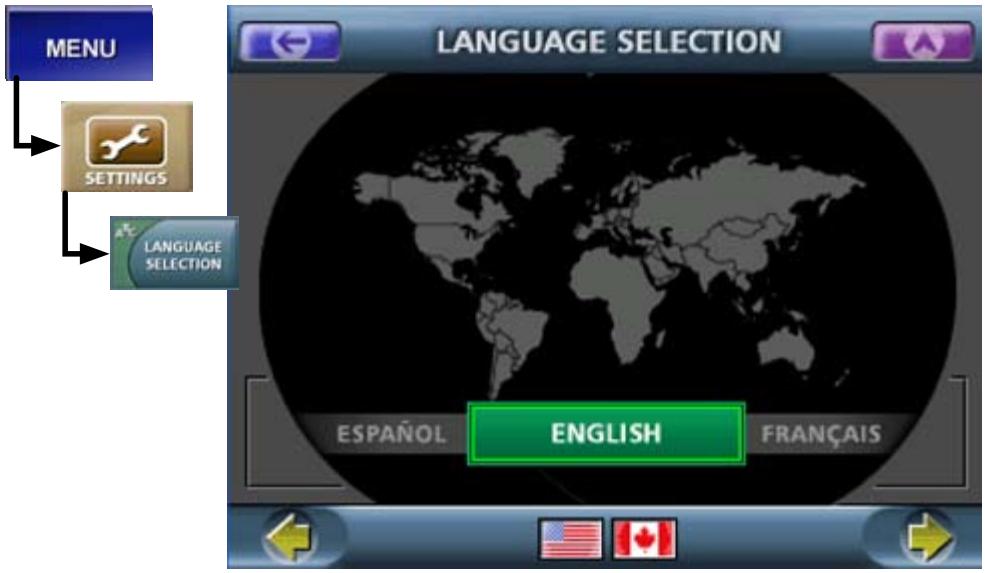
- Tap the left arrow to select Espanol (Spanish) or the right arrow to select Francais (French).
- Tap the Back arrow to go back to the Settings screen. The display changes to the new language.
Changing the Voice Prompts
- To change the voice prompts, from the Settings screen, select Voice Selection. This opens the Voice Selection screen:
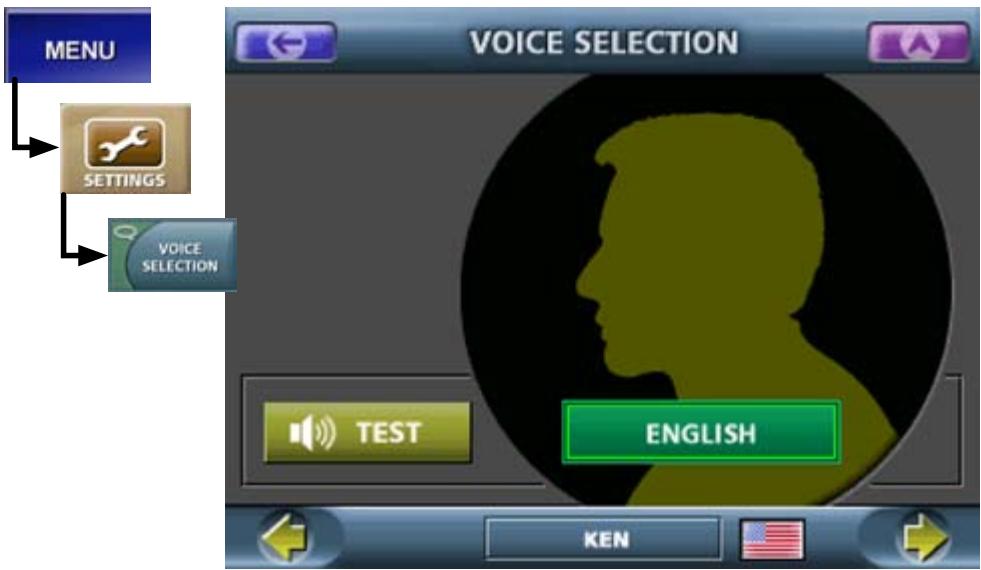
- Use the right and left arrows to see the available voices in all languages. Tap Test to hear a sample of the voice.
- Tap the Back arrow to go back to the Settings screen. The voice prompts change to the new selection.
Entering Your Home Location
If you enter an address as your home location, the device will automatically create a route from your current location back home with just two taps on the screen. Follow the steps below to enter your home location:
1.From the Menu screen,select Settings.
2. On the Settings screen, select User Data and then Home Location. This opens the Home Location screen:
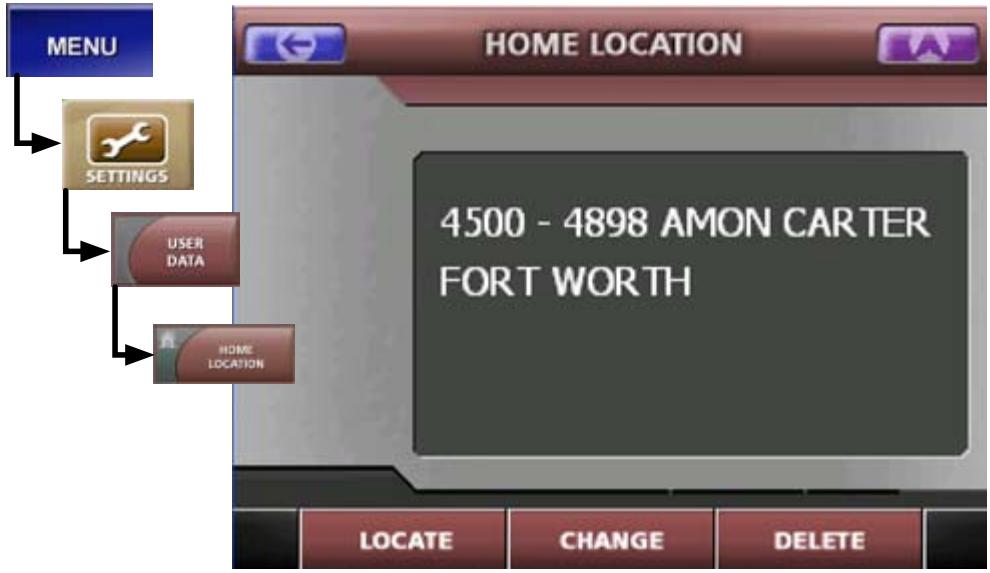
- Select Change to enter a new Home Location, Delete to clear your home location, or Locate to see your home location on the map scren.
- Tap the Back arrow to go back to the User Data screen.
Entering the Date and Time
1.From the Menu screen,select Settings.
2. On the Settings screen, select System Setup and then Time Setup. This opens the Time Setup Screen:
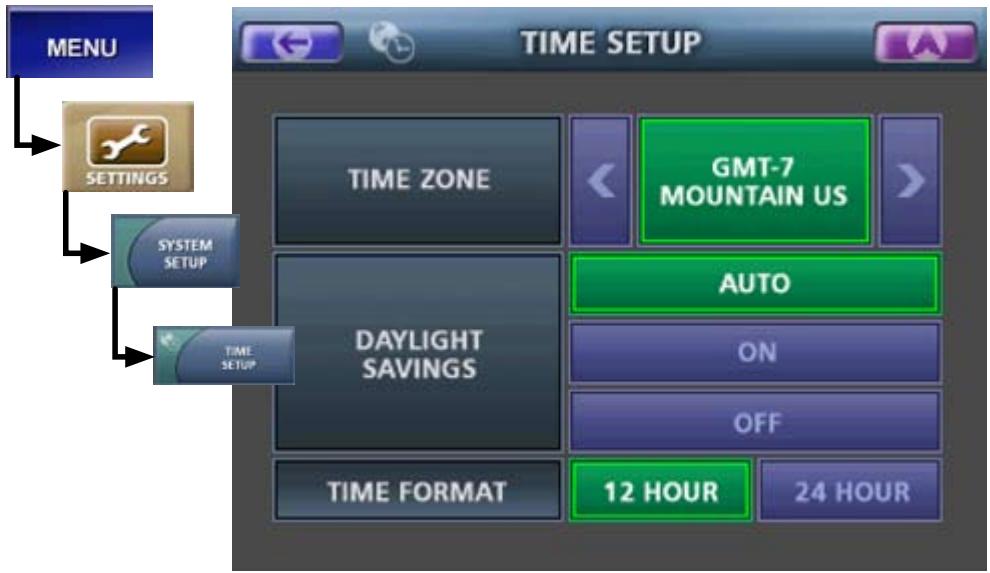
- Use the left and right arrows to select the Time Zone you will be operating the device in.
- Choose whether to turn Daylight Savings Time on, turn it off, or let the device automatically adjust for daylight savings time.
- Choose a 12-Hour or 24-Hour time format.
- Tap the Back arrow to go back to the System Setup screen.
Customizing Your Display
- From the Menu screen, select Settings.
- On the Settings screen, select System Setup and then Display Setup. This opens the Display Setup Screen:
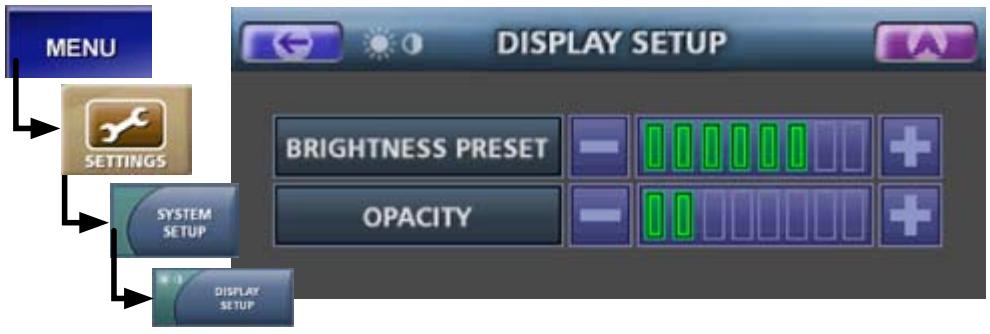
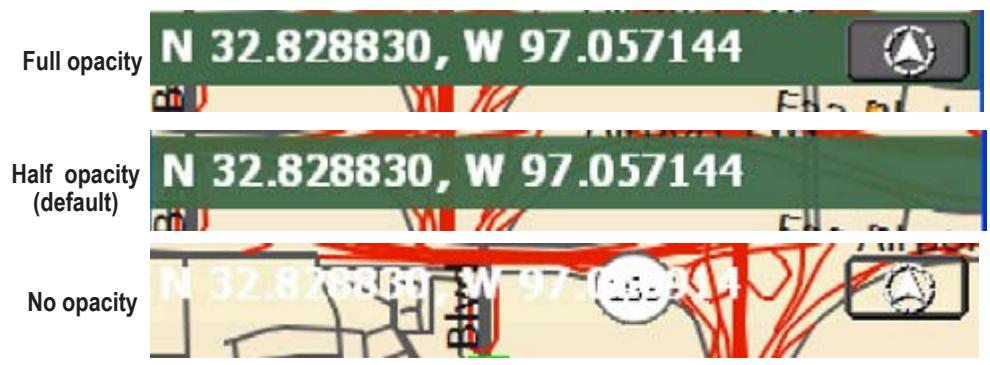
- Choose the default settings for screen brightness and opacity. Opacity controls the transparency of the information band at the top of the map screen:
- Tap the Back arrow to return to the System Setup screen. Then select Units Setup to open the Units Setup screen:
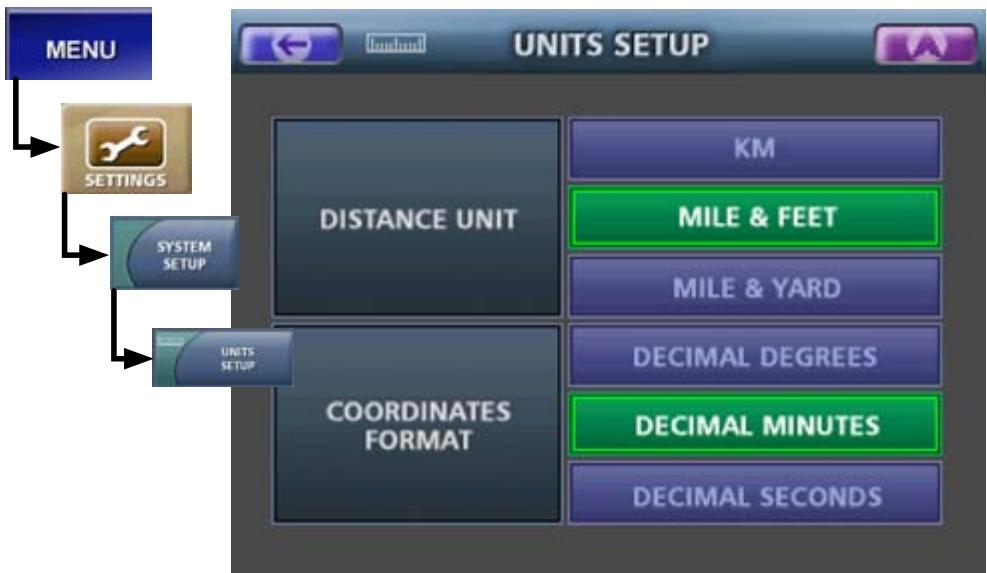
- Choose the units you want to use for distance. Select kilometers (KM), a combination of miles for long distances and feet for distances less than half a mile, or a combination of miles and yards.
- Choose the format you want to use for latitude and longitude coordinates. Select one of the following formats:
| Decimal Degrees | 32.833694° |
| Decimal Minutes | 32° 50.022' |
| Decimal Seconds | 32° 50' 01.3" |
- Tap the Back arrow to go back to the System Setup screen.
Setting Up Speed Alerts
The device can sound an alert if you exceed a given speed for a designated amount of time. You can activate alerts if you exceed a particular road's speed limit or if you exceed an overall maximum speed. Follow the steps below to set up alerts:
- From the Menu screen, select Settings.
- On the Settings screen, select System Setup and then Speed Calibration. This opens the Speed Calibration screen:
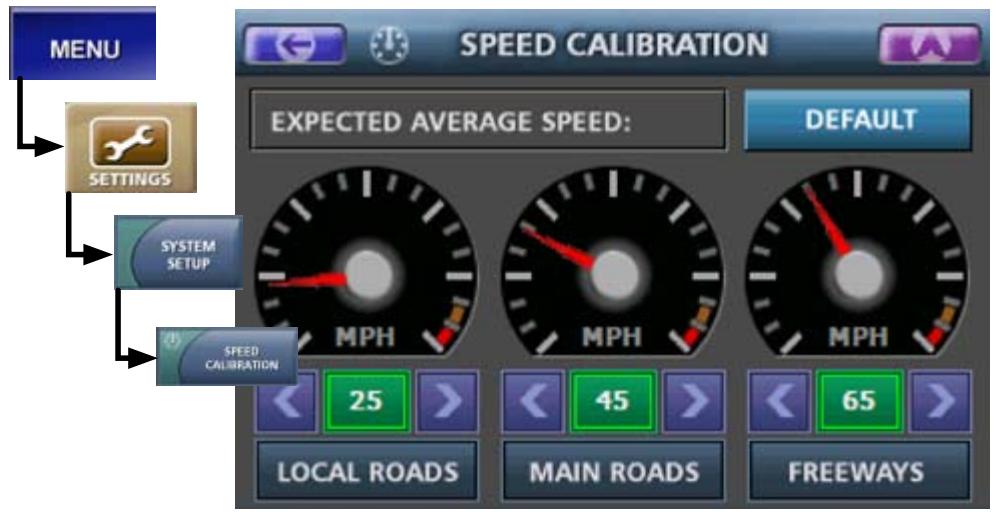
- Use the left and right arrow keys to set the default speed for each type of road. The speeds are set in increments of 5 MPH.
- Tap the Back arrow twice to go back to the Settings screen.
- To activate an alert when you exceed an overall maximum speed, select Alerts Setup and then Max Speed Alert. This opens the Max Speed Alert Screen:
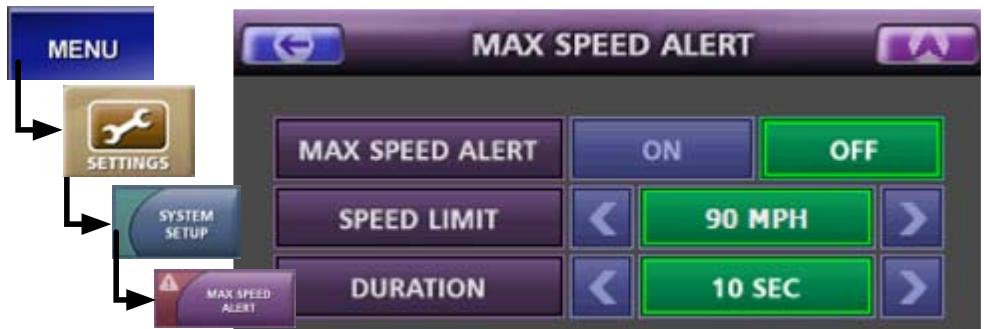
- Use the left and right arrows to set the overall maximum speed limit in 5 MPH increments.
- Use the left and right arrows to set the duration (the number of seconds you can exceed the maximum speed) before the device sounds the alert; set the duration in 5-second increments.
- Select On to activate the Max Speed Alert, and then tap the Back arrow to return to Alerts Setup screen.
- To activate an alert when you exceed the speed limits on the Speed Calibration screen, select Auto Speed Alert:
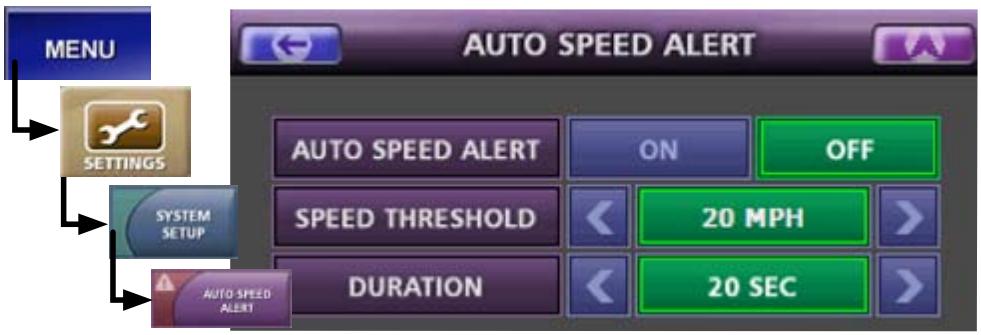
Use the left and right arrows to set the speed threshold (how many miles per hour you can drive above the speed limit) and the duration. Select On to activate the Max Speed Alert, and then tap the Back arrow to return to Alerts Setup screen.
Accessories
Using an External Antenna
Like any radio signal, your GPS signal reception may experience interference from tunnels, freeway "canyons", and competing radio signals; some reflective metallic window tinting can also interfere with signal reception. If you have difficulty getting or maintaining a GPS signal lock in your area, consider using an external antenna.
A magnetic mount external antenna is available from Uniden's online store. This antenna has a magnetic base to mount to the outside of your car without damaging your car's finish.
- Clean a the area of your vehicle where you want to mount the antenna.
Carefully lower the module until the magnet holds it on the car. Note: You should
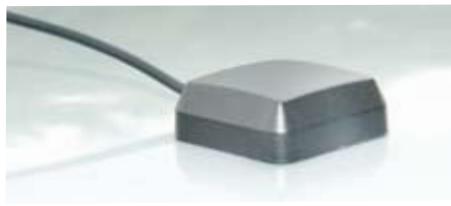
remove the antenna before going through a car wash.
- Route the cable from the antenna to the inside of your vehicle. Make sure the cable does not interfere with safe driving.
- Remove the device from its support cradle.
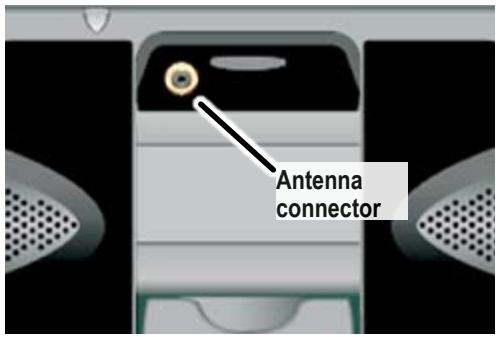
- Insert the external antenna cable into the connector on the back of the hinged antenna.
- Return the device to its support crade.
Using a Headset
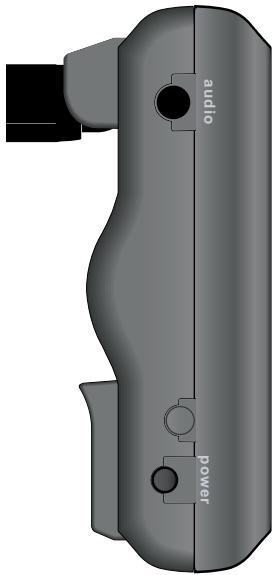
Your device supports a standard 3.5 mm audio headset. To use a headset, turn the device volume all the way down. Then, insert the headset connector into the audio jack on the left side of the device. Put your headset on and adjust the volume to the desired level.
Maintenance
Updating Maps and Software
Updated maps are available for additional cost through www.uniden.com. Instructions on how to update the software are available at the website.
Battery Information
This equipment contains a rechargeable Lithium Ion battery. With normal use, the battery charge should last an average of 3 hours. For optimum battery life and performance:
- Do not store the device in temperatures below -4^ (-20^) or above +140^ (+60^) .
- Do not expose the battery to temperatures above +140^ (+60^) ; this may cause the battery to rupture or fail.
- Do not leave the device in direct sunlight for long periods of time
- Only use the DC adapter cord supplied with the product to charge the battery. Using another charger or connector may damage the device or create a fire hazard.
The battery is not user-servicable. Do not attempt to remove the battery from the device; this may void your warranty.
In case of exposure to the cell contents, wash the affected area thoroughly, and seek medical attention.
- Lithium Ion batteries must be recycled or disposed of properly. Lithium Ion batteries may explode if disposed of in a fire.
- If you plan to dispose of the device, please return the entire product to Uniden for proper battery recycling.
Troubleshooting
Below is list of common problems with GPS devices and how to solve them.
Can't Get a GPS Signal Lock
- Check to see if you are in an area with radio interference or signal blockage. If your cell phone or an AM/FM radio have difficulty, your GPS device might have trouble getting a clear signal also. If you regularly travel to "dead spots" or to areas with heavy radio interference, consider trying an external antenna to increase the receiver power.
- Some cars use metallic tinting on the windows which can interfere with radio signals. If your windows are tinted, try stepping outside the car with your GPS device or holding it out the window. Once it achieves a signal lock, the GPS device will usually be able to maintain the lock back inside the vehicle.
Out of Memory
- Delete old routes or recently entered locations that you don't use anymore.
Screen is blurry and hard to read
- Dirt and oils from your fingers can stay on the touchscreen. Periodically clean the touch screen with a lint free cloth dampened with water only. If the screen remains dirty, try a mild soap solution or a cleaning spray designed for electronics. Do not use ammonia on the screen, and never immerse the device in water.
Can't find a location on the map
- Newer addresses may not have existed when the map software was created. Check www.uniden.com for the latest maps.
Using the GPS Status Screen
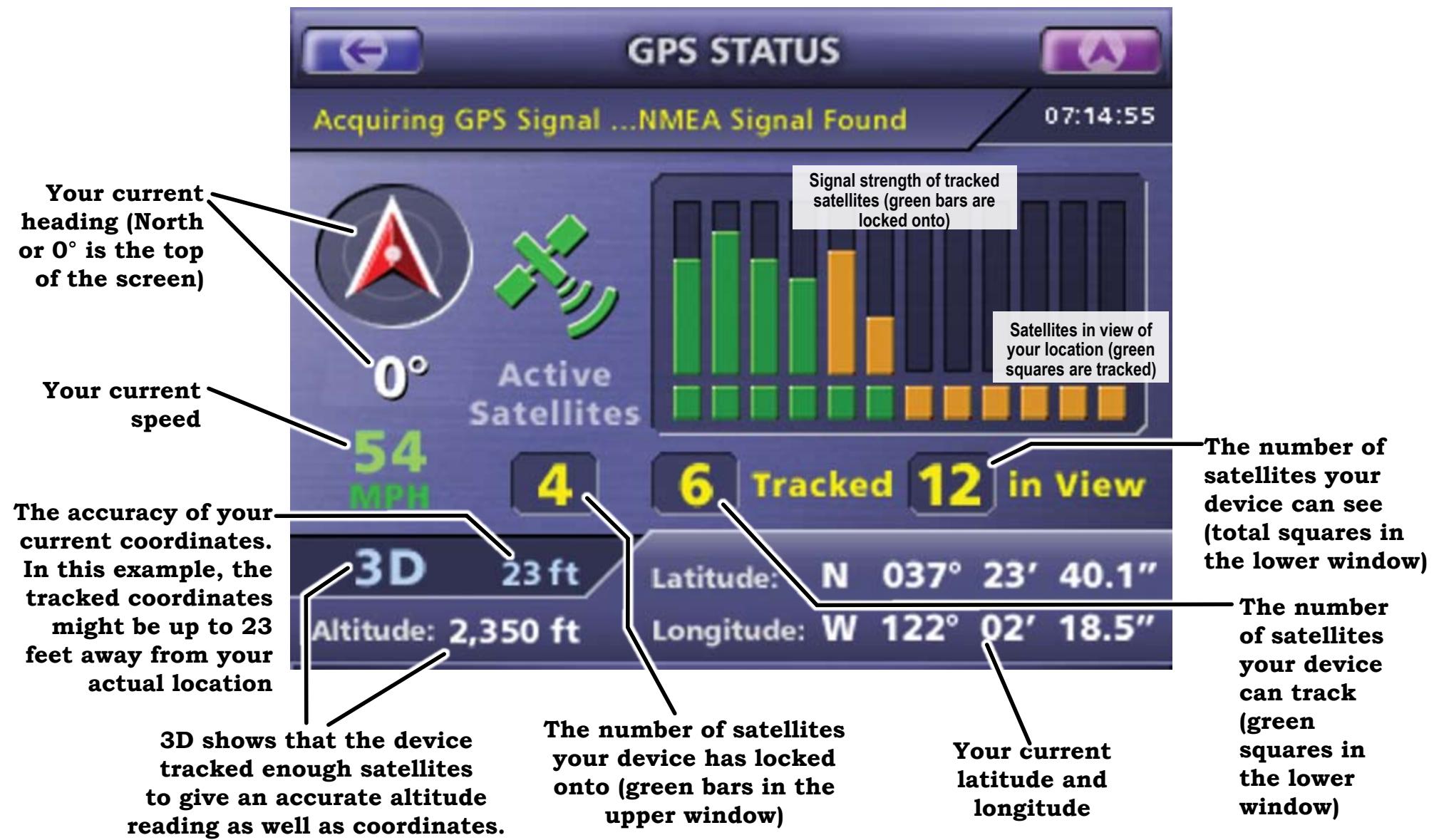
The GPS status screen shows details about your device's reception of the GPS satellite signals. You should only need to check this screen if you are having trouble getting a signal lock.
One Year Limited Warranty
Important: Evidence of original purchase is required for warranty service. WARRANTYOR: UNIDEN AMERICA CORPORATION ("Uniden") ELEMENTS OF WARRANTY: Uniden warrants, for one year, to the original retail owner, this Uniden Product to be free from defects in materials and craftsmanship with only the limitations or exclusions set out below.
WARRANTY DURATION: This warranty to the original user shall terminate and be of no further effect 12 months after the date of original retail sale. The warranty is invalid if the Product is (A) damaged or not maintained as reasonable or necessary, (B) modified, altered, or used as part of any conversion kits, subassemblies, or any configurations not sold by Uniden, (C) improperly installed, (D) serviced or repaired by someone other than an authorized Uniden service center for a defect or malfunction covered by this warranty, (E) used in any conjunction with equipment or parts or as part of any system not manufactured by Uniden, or (F) installed or programmed by anyone other than as detailed by the owner's manual for this product.
STATEMENT OF REMEDY: In the event that the product does not conform to this warranty at any time while this warranty is in effect, warrantor will either, at its option, repair or replace the defective device and return it to you without charge for parts, service, or any other cost (except shipping and handling) incurred by warrantor or its representatives in connection with the performance of this warranty. Warrantor, at its option, may replace the device with a new or refurbished device. THE LIMITED WARRANTY SET FORTH ABOVE IS THE SOLE AND ENTIRE WARRANTY PERTAINING TO THE PRODUCT AND
IS IN LIEU OF AND EXCULES ALL OTHER WARRANTYES OF ANY NATURE WHATSOEVER, WHETHER EXPRESS, IMPLIED OR ARISING BY OPERATION OF LAW, INCLUDING, BUT NOT LIMITED TO ANY IMPLIED WARRANTYES OF MERCHANTABILITY OR FITNESS FOR A PARTICULAR PURPOSE. THIS WARRANTY DOES NOT COVER OR PROVIDE FOR THE REIMBURSEMENT OR PAYMENT OF INCIDENTAL OR CONSEQUENTIAL DAMAGES. Some states do not allow this exclusion or limitation of incidental or consequential damages so the above limitation or exclusion may not apply to you.
NOTE: THERE ARE NO USER SERVICABLE PARTS IN THIS PRODUCT. ANY ATTEMPT TO DISSASEMBLE THE PRODUCT WILL Void YOUR WARRANTY.
LEGAL REMEDIES: This warranty gives you specific legal rights, and you may also have other rights which vary from state to state. This warranty is void outside the United States of America and Canada. PROCEDURE FOR OBTAINING PERFORMANCE OF WARRANTY: If, after following the instructions in the owner's manual you are certain that the Product is defective, pack the Product carefully (preferably in its original packaging). The Product should include all parts and accessories originally packaged with the Product. Include evidence of original purchase and a note describing the defect that has caused you to return it. The Product should be shipped freight prepaid, by traceable means, to warrantor at:
Uniden America Service
4700 Amon Carter Blvd.
Fort Worth, TX 76155
Copyright Information
- This documentation is based on the most up-to-date information available at the time of production. The product, the documentation, the data base, and the navigation software are subject to change without notice.
- Any updates to this manual will be posted at www.uniden. com and may be downloaded at no charge.
- You may print copies of this manual for your personal use. You may not print any part of the manual for distribution or other commercial purpose without permission from Uniden.
- You may not transfer the contents of this CD onto any other portable media for the purpose of distribution.
This manual is copyrighted by Uniden America Corporation, Ft. Worth, TX. - Navigation software and screen design is copyrighted by Space Machine, Inc., Sunnyvale, CA.
- All logos and trademarks used in the media documentation are copyrighted by their respective owners.
MAPTRAX™ is a trademark of Uniden America Corporation.
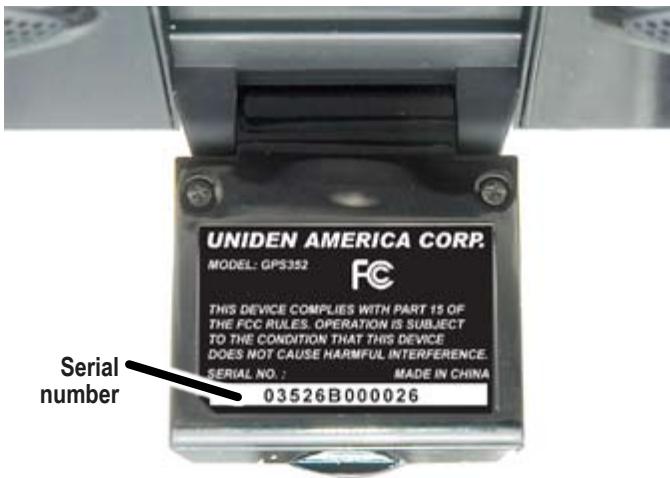
Note: We recommend that you record the serial number of your GPS device in a safe, convenient place. The serial number is helpful when contacting customer service or if the device is ever stolen, when contacting the police or your insurance company. The serial number is located on the underside of the folding GPS antenna.
Declarations of Conformity and Compliance
Trade Name: Uniden
- Model No.: GPS352
- Responsible Party: Uniden America Corporation 4700 Amon Carter Blvd. Fort Worth, TX 76155, U.S.A. Phone (817) 858-3300 www.uniden.com
- This device complies with Part 15 of the FCC Rules. Operation is subject to the following two conditions: (1) This device may not cause harmful interference, and (2) this device must accept any interference received, including interference that may cause undesired operation.
- This Class B digital apparatus complies with Canadian ICES-003.
- GPS352 Owner's Manual
- Table of Contents
- Introduction 3
- Getting Started. 4
- Using the Interface 9
- Creating a Route. 14
- Customizing Your GPS Device 27
- Accessories 31
- Maintenance. 32
- One Year Limited Warranty. 34
- Introduction
- Features
- Important Vehicle and
- Product Safety Information
- Getting Started
- What's Included
- The Parts of the GPS Device
- Installing the GPS Device in Your Vehicle
- Windshield Mounting
- Permanent Dashboard or Console Mounting
- Using the Interface
- Using the Main Menu Screen
- Using the Map Screen
- Changing the Map View
- Changing the Map Options
- Setting the Default Map View
- Showing Map Labels for Streets and Roads
- Adjusting the Map Colors
- Showing a BREADCRumb Trail
- Showing Points of Interest on the Map
- Moving the Map Center
- Creating a Route
- Entering an Address as Your Destination
- Reading the Route Screen
- Route Information and Current Route Options
- Saving a Route
- Avoiding Certain Roads
- Running a Route Demo
- Using Other Destinations for Routing
- Using the Quick Find Feature
- Finding a City Center
- Using Where Am I
- Finding Coordinates
- Using the Mark Menu
- Working With Waypoints
- Adding a Waypoint
- Editing and Deleting Waypoints
- Changing the Route Guidance Options
- Changing the Default Route Options
- Customizing Your GPS Device
- Changing the Language
- Changing the Voice Prompts
- Entering Your Home Location
- Entering the Date and Time
- Customizing Your Display
- Setting Up Speed Alerts
- Accessories
- Using an External Antenna
- remove the antenna before going through a car wash.
- Using a Headset
- Maintenance
- Updating Maps and Software
- Battery Information
- Troubleshooting
- Can't Get a GPS Signal Lock
- Out of Memory
- Screen is blurry and hard to read
- Can't find a location on the map
- Using the GPS Status Screen
- One Year Limited Warranty
- NOTE: THERE ARE NO USER SERVICABLE PARTS IN THIS PRODUCT. ANY ATTEMPT TO DISSASEMBLE THE PRODUCT WILL Void YOUR WARRANTY.
- Copyright Information
- Declarations of Conformity and Compliance
Brand : UNIDEN
Model : MAPTRAX GPS352
Category : Gps