
RDV-985 - Audio Amplifier ROTEL - Free user manual and instructions
Find the device manual for free RDV-985 ROTEL in PDF.


| Product type | DVD player |
| Brand | ROTEL |
| Model | RDV-985 |
| Dimensions (W x H x D) | 435 x 112 x 338 mm |
| Weight | 4.7 kg |
| Power supply | AC 120V/60Hz (USA) or AC 230V/50Hz (Europe) |
| Power consumption | 21 W (operating), 2 W (standby) |
| Compatible disc formats | DVD Video, Video CD, SVCD, CD Audio |
| Video outputs | Composite (RCA), S-Video, Component (Y/Pb/Pr) |
| Audio outputs | Stereo analog (RCA), Optical digital |
| Special features | Multi-angle, zoom, parental lock, language selection, VSS (Virtual Surround Sound), multi-image display (Strobe), Digest |
| Screen saver | Yes, multiple modes (MODE1, MODE2, DIMMER, OFF) |
| Remote control | RR-DV91 with ability to program TV codes |
| Security | Parental lock with password (default 8888) |
| Maintenance and cleaning | Clean the casing with a dry, soft cloth. For discs, wipe from the center outward with a soft cloth. |
| Spare parts and repairability | Contact an authorized ROTEL service center for any repairs |
| General information | Manufactured by Rotel Co. Ltd., Japan. Warranty and support through regional offices. |
Frequently Asked Questions - RDV-985 ROTEL
User questions about RDV-985 ROTEL
0 question about this device. Answer the ones you know or ask your own.
Ask a new question about this device
Download the instructions for your Audio Amplifier in PDF format for free! Find your manual RDV-985 - ROTEL and take your electronic device back in hand. On this page are published all the documents necessary for the use of your device. RDV-985 by ROTEL.
USER MANUAL RDV-985 ROTEL
Appendix A: Table of languages and their abbreviations
When you select the subtitle language or sound, the languages shown below are displayed as abbreviations. To select the desired language, select the abbreviation corresponding the language you want to.
AA Afar
AB Abkhazian
AF Afrikaans
AM Ameharic
AR Arabic
AS Assamese
AY Aymara
AZ Azerbaijani
BA Bashkir
BE Byelorussian
BG Bulgarian
BH Bihari
BI Bislama
BN Bengali, Bangla
BO Tibetan
BR Breton
CA Catalan
CO Corsican
CS Czech
CY Welsh
DA Danish
DZ Bhutani
EL Greek
EO Esperanto
ET Estonian
EU Basque
FA Persian
FI Finnish
FJ Fiji
FO Faroese
FY Frisian
GA Irish
GD Scots Gaelic
GL Galician
GN Guarani
GU Gujarati
HA Hausa
HI Hindi
HR Croatian
HU Hungarian
HY Armenian
IA Interlingua
IE Interlingue
IK Inupiak
IN Indonesian
IS Icelandic
IW Hebrew
JI Yiddish
JW Javanese
KA Georgian
KK Kazakh
KL Greenlandic
KM Cambodian
KN Kannada
KO Korean (KOR)
KS Kashmir
KU Kurdish
KY Kirghiz
LA Latin
LN Lingala
LO Laothian
LT Lithuanian
LV Latvian, Lettish
MG Malagasy
MI Maori
MK Macedonian
ML Malayalam
MN Mongolian
MO Moldavian
MR Marathi
MS Malay (MAY)
MT Maltese
MY Burmese
NA Nauru
NE Nepali
NL Dutch
NO Norwegian
OC Occitan
OM (Afan) Oromo
OR Oriya
PA Panjabi
PL Polish
PS Pashto, Pushto
PT Portuguese
QU Quechua
RM Rhaeto-Romance
RN Kirundi
RO Rumanian
RU Russian
RW Kinyarwanda
SA Sanskrit
SD Sindhi
SG Sangho
SH Serbo-Croatian
SI Singhalese
SK Slovak
SL Slovenian
SM Samoan
SN Shona
SO Somali
SQ Albanian
SR Serbian
SS Siswati
ST Sesotho
SU Sundanese
SV Swedish
SW Swahili
TA Tamil
TE Telugu
TG Tajik
TH Thai
TI Tigrinya
TK Turkmen
TL Tagalog
TN Setswana
TO Tonga
TR Turkish
TS Tsonga
TT Tata
TW Twi
UK Ukrainian
UR Urdu
UZ Uzbek
VI Vietnamese
VO Volapuk
WO Wolof
XH Xhosa
YO Yoruba
ZU Zulu
Contents
About Rotel 5
About This Manual 5
About the RDV-985 5
Precautions 6
Audio/Video Connections 6
Connecting the Power Cord 9
RR-DV91 Remote Control 9
On Screen Displays 10
Screen Saver 11
On Screen Icons 11
About discs 12
Using Numeric Buttons 12
Getting Started 12
Disc Play Basics 13
Advanced Operations 14
SpecialPlaybackFeatures 16
Changing the Track Order 17
Repeat Play 18
Multiple Angle Viewing 19
Subtitle Language Selection 20
Audio Language Selection 21
Selecting Picture Quality 21
Using 3D PHONIC /
Virtual Surround Sound 22
Time Display Functions 22
Setting Preferences 23
Parental Lock Feature 25
Care and Handling of Discs 26
Troubleshooting 27
Appendix A: Table of languages
and their abbreviations 28
Specifications 29
About Rotel
A family whose passionate interest in music led them to manufacture high fidelity components of uncompromising quality founded Rotel over 30 years ago. Over the years that passion has remained undiminished and has expanded to include the goal of providing exceptional equipment for audio/video systems as well as dedicated audio systems.
The engineers work as a close team, listening to, and fine tuning each new product until it reaches their exacting performance standards. They are free to choose components from around the world in order to make that product the best they can.
Rotel's reputation for excellence has been earned through hundreds of good reviews and awards from the most respected reviewers in the industry. Their comments keep the company true to its goal - to supply equipment that provides exceptional performance, reliability and affordability.
All of us at Rotel thank you for buying this product and hope it will bring you many hours of enjoyment.
About This Manual
Throughout this manual the controls and components of the RDV-985 are identified with numbers and letters in dark gray circles and squares.
Numbers in circles such as ⑨ identify items on the RR-DV91 remote control. (To help you remember this think of “round equals remote”.)
Numbers in squares such as 9 identify items on the front and rear panel of the unit.
Letters in squares such as identify items in the front panel display window.
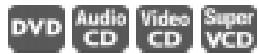
In the operation section of the manual some function descriptions apply only to certain kinds of discs. The types of discs to which the information applies are indicated with symbols such as
About the RDV-985
Thank you for purchasing the Rotel RDV-985. It will provide years of enjoyment when used in a high-quality home theater system.
The RDV-985 is one of the most flexible components you can add to your audio/video system. In addition to DVD Video disks, the RDV-985 can play Video and audio CD disks. It provides a full range of operating features and control functions.
Strobe function
The unit can display nine continuous still pictures on the TV screen.
Digest function
You can select the desired title from the opening scenes displayed on the TV screen.
Angle function*
You can select a desired angle from multiple camera angles recorded on the DVD disc.
Zoom function
You can view scenes close-up.
Parental lock*
You can restrict the playback of DVD discs with scenes which you do not want your child to see, such as adult or violent films.
Theater position
You can select the picture character according to the lighting of your room.
High quality digital sound
You can enjoy high quality sound with Dolby Digital or Linear-PCM.
Surround function*
The unit is compatible with Dolby Digital surround and DTS surround.
VSS function
You can enjoy surround sound with your 2-channel system.
Multi-language subtitles and sound*
You can select a subtitle or sound language from those recorded on the DVD disc.
On-screen display
User-friendly on-screen displays allow you to operate the unit easily.
- Functions only with DVD discs.
RDV-985 DVD Player
6
Precautions
Please read this manual carefully. In addition to basic installation and operating instructions, it provides valuable information on various system configurations as well as general information that will help you get the most from your system. Please contact your authorized Rotel dealer for answers to any questions you might have. In addition, all of us at Rotel welcome your questions and comments.
Save the RDV-985 shipping carton and all enclosed packing material for future use. Shipping or moving the RDV-985 in anything other than the original packing material may result in severe damage.
Be sure to keep the original sales receipt. It is your best record of the date of purchase, which you will need in the event warranty service is ever required.
Placement
Place the RDV-985 on a surface that is level, dry and neither too hot nor too cold (between 5^ and 35^ , 41^ and 95^ ). Do not place the unit where it will be exposed to direct sunlight. Avoid locations that are dusty. Do not place the unit too close to the television set. Do not place the RDV-985 where it will be exposed to vibrations, such as near a subwoofer. To ensure proper ventilation observe the minimum clearance specifications listed in the safety information on page 2.
Audio/Video Connections
NOTE: Do not plug in the power cable until all audio/video signal connections are complete. Do not change any audio/video cable connections until the RDV-985 has been unplugged from the power outlet.
Carefully read the instructions supplied with the component you are going to connect to the RDV-985 to be sure they are compatible. If you have questions, contact your authorized Rotel dealer.
NTSC/PAL Switch 15
Set the NTSC/PAL switch to the proper setting for your TV. Television systems in North America use the NTSC standard.
NOTE: Connect VIDEO OUT of the unit directly to the video input of your TV. Connecting VIDEO OUT to a TV via a VCR may result in unacceptable video quality because many discs are copy-protected.
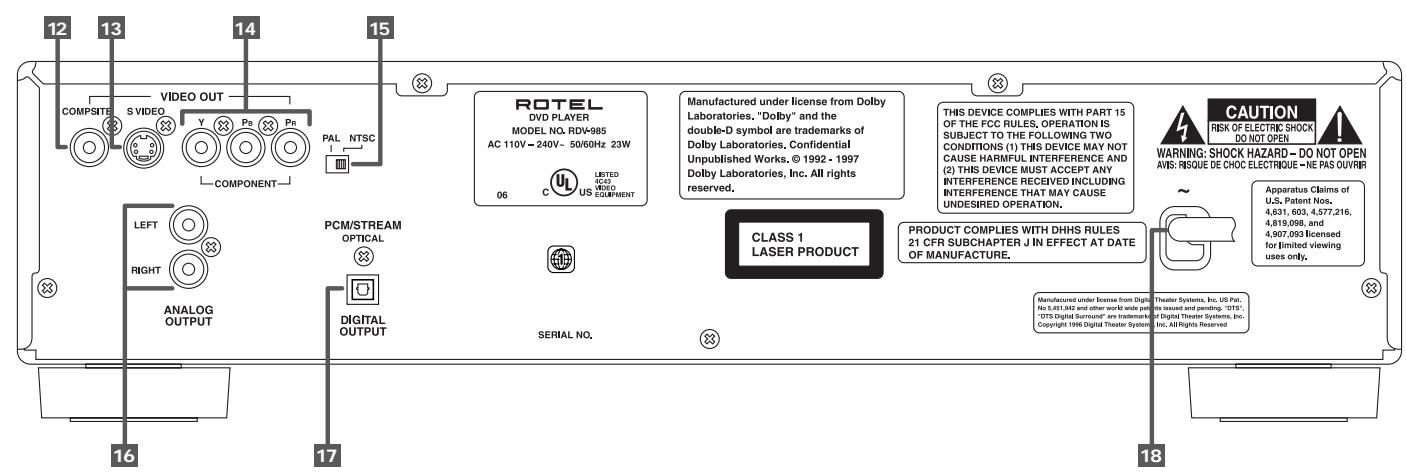
Figure 4: Rear Panel Connections
VIDEO OUT jack
Outputs a composite video signal.
15 NTSC/PAL Output Switch
Switches the video output signal between NTSC and PAL formats.
17 DIGITAL OUT jack (OPTICAL)
Outputs digital audio signals. Only an optical connector is provided.
13 S-VIDEO OUT jack
Outputs an S-video signal.
16 AUDIO OUT jacks (LEFT/RIGHT)
Outputs stereo analog audio signals.
18 AC power cord)
Connects to the wall outlet.
14 COMPONENTVIDEOOUTjacks (Y/PB/PR)
Outputs component video signals.
27
Troubleshooting
What appears to be a malfunction may not always be serious. Please go through the following list before requesting service.
| Symptom | Possible case | Remedy |
| Power does not come on. | Power plug is not inserted securely. | Plug in securely. |
| Remote control does not work. | Too far from the unit. | More closer to the unit. |
| The tip of the remote unit is not pointed in the right direction. | Point the infrared light-emitting window toward the remote sensor on the front panel. | |
| Batteries are exhausted. | Replace the batteries with new ones. | |
| Battery polarity is incorrect. | Take out the batteries and insert them again in the correct direction. | |
| No picture is displayed on the monitor. | Connection of video cable is incorrect. | Connect the cable correctly. |
| Input selection of TV is incorrect. | Select correctly. | |
| Disc is not playable. | Use a playable disc. (See page 11.) | |
| Picture is noisy. | The unit is connected to a VCR directly and the copyguard function is activated. | Connect the unit so that the picture signal flows directly to the TV. |
| No audio is reproduced. | Connection is incorrect. | Check the connections. |
| Input selection of amplifier is incorrect. | Select correctly. | |
| No audio is reproduced when playing back a DVD disc recorded with 96-kHz, linear PCM audio. | The audio signal derives from the unit's DIGITAL OUT. | Use the AUDIO OUT when playing back such discs. |
| Sound is distorted or noise is generated. | Disc is dirty. | Wipe the disc surface. |
| Picture is garbled. | The screen saver mode is set to MODE 1, and the screen saver function is activated. | Set the screen saver mode to the other mode. |
| Picture does not fit the television screen. | MONITOR TYPE is not correctly set. | Select monitor type correctly. (See page 24.) |
| Television is not correctly set. | Set the television correctly. | |
| Operation is not possible. | Microcomputer malfunctions due to lightning or static electricity. | Turn off the power and unplug the power cord, then connect the power cord again. |
| Moisture condensation occurs by a sudden change of temperature or humidity. | Turn off the power, then turn it on a few hours later. |
RDV-985 DVD Player
26
Changing the Parental Lock Settings
While a DVD is stopped or no disc is loaded press the ENTER button 22 while holding down the SHIFT button 15. The Parental Lock display screen appears.
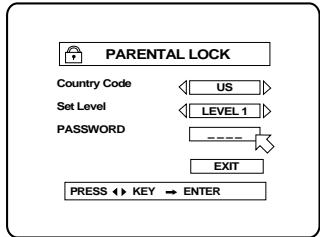
Enter your current 4-digit password using the numeric buttons (0 to 9) ① and press EN- TER ② . If you enter the wrong password, "WRONG! RETRY....." appears on the TV screen, and you cannot go to next step.
Use the Cursor Buttons / to move [Set Level], then use Cursor Buttons / to select the parental lock level. Press ENTER.
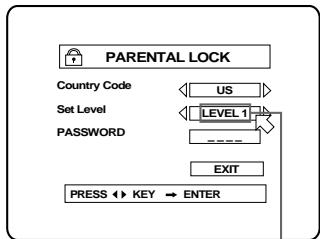
Selected Level
Enter your new 4-digit password using the numeric buttons (0 to 9) and press ENTER. The new setting is effective.
NOTE: When you enter the wrong password more than 3 times in step 2 above, moves to [EXIT] automatically and CURSOR / does not work.
If you forget your password enter "8888."
Temporarily Release Parental Lock
When you set Parental Lock at a low level, some discs may not be played back at all. When you insert such a disc and try to play it, the Parental Lock on-screen display appears on the TV screen, and the unit will ask you whether you want the parental lock to be temporarily released or not.
Use the Cursor Buttons / to move to [Temporary], then use Cursor Buttons / to select [YES] or [NO], then press ENTER.
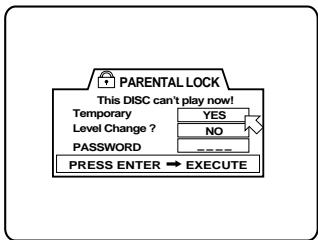
If you select [YES], moves to the PASSWORD field. When selecting [NO], press the OPEN/CLOSE button or to remove the disc.
Enter your 4-digit password using the numeric buttons (0 to 9) ① . If you enter the wrong password,
After you enter the correct password, the Parental Lock is released, and the RDV-985 starts playing the disc.
NOTE: If you enter the wrong password more than 3 times, move to [NO] automatically and the Cursor Buttons do not work.
Care and Handling of Discs
How to Handle Discs
When handling a disc, do not touch its surface.
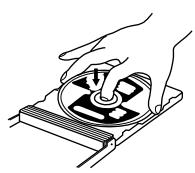
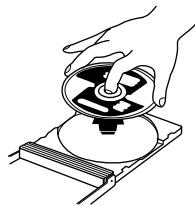
Since discs are made of plastic, they are easily damaged. If a disc gets dirty, dusty, scratched or warped, the images and sound will not be picked up correctly. A damaged disc may cause the player to malfunction.
Label side
Do not damage the label side, stick paper to or use any adhesive on its surface.
Storage
Make sure that discs are kept in their cases. If discs are piled on top of one another without their protective cases, they can be damaged. Do not put discs in a location where they may be exposed to direct sunlight, or in a place where the humidity or temperature is high. Avoid leaving discs in your car!
Maintenance of discs
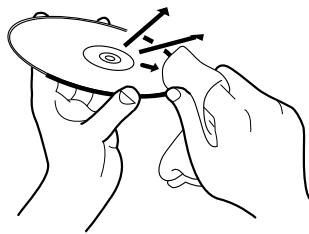
If there are fingerprints or other dirt adhering to a disc, wipe with a soft dry cloth, moving from the center outwards. If a disc is difficult to clean, wipe with a cloth moistened with water. Never use record cleaners, petroleum products, alcohol or any anti-static agents.
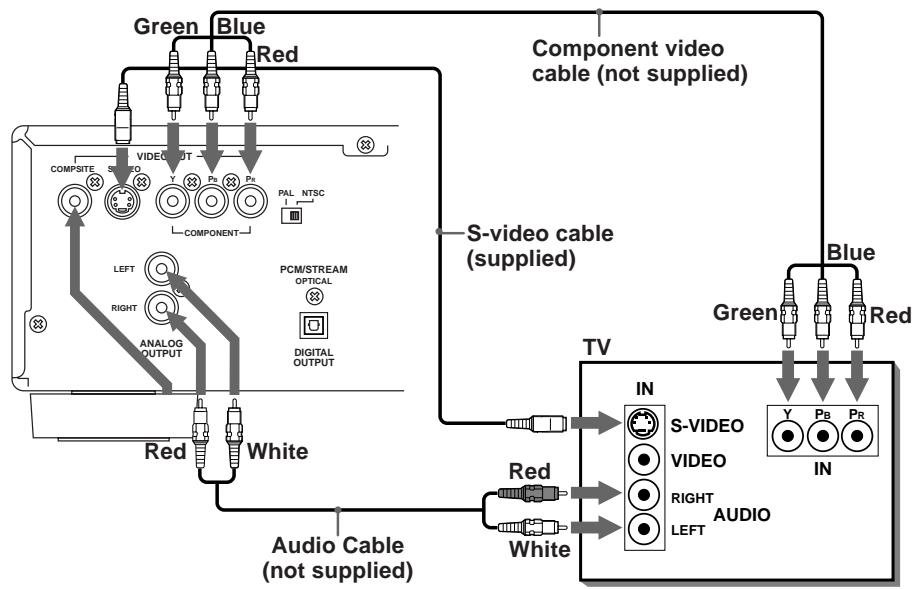
Composite Input TV Connection
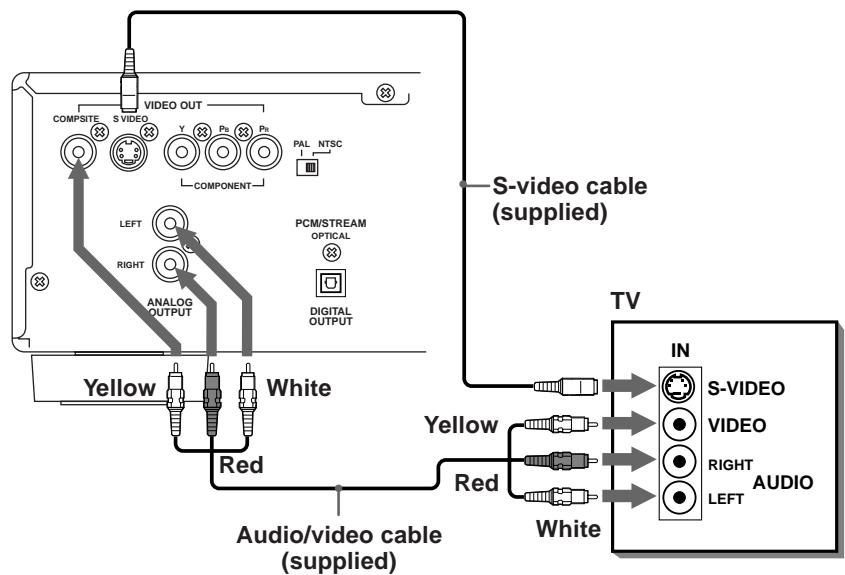
Connect the COMPOSITE VIDEO 12 output to the composite video input of your TV. Connect the ANALOG AUDIO 16 outputs to the audio inputs of your TV. A cable for these connections is supplied.
If your TV has a single monaural audio input instead of a pair of stereo inputs, you need to use a "Y" cable adapter to connect the two output channels of the RDV-985 to the single input.
You can improve the sound quality of the system by connecting the audio outputs to a separate hi-fi audio system. (See the following section.)
If your TV has an S-video input, you should connect it with the S-VIDEO output of RDV-985 using the supplied S-video cable in addition to the standard video cables. This will produce better picture quality.
Component Input TV Connection
If your TV has component video signal input jacks you will get better video performance by using the COMPONENT Video 14 output jacks of the RDV-985. The required cable is not provided. Be sure to connect the "Y" output to the "Y" input, "P_B" output to the "P_B" input, and the "P_R" output to the "P_R" input.
If your TV has an S-video input, you should connect it with the S-VIDEO output of RDV-985 using the supplied S-video cable in addition to the standard video cables. This will produce better picture quality.
NOTE: If you do not connect the S-Video cable between the two components some functions of your TV may not work.
You can improve the sound quality of the system by connecting the audio outputs to a separate hi-fi audio system. (See the following section.)
NOTE: The component signal inputs on some TV's have BNC type connectors. (BNC connectors are coaxial connectors that have keyed locking collars.) In such instances adapters or a special cable may be needed.
English
RDV-985 DVD Player
8
Connecting to Audio
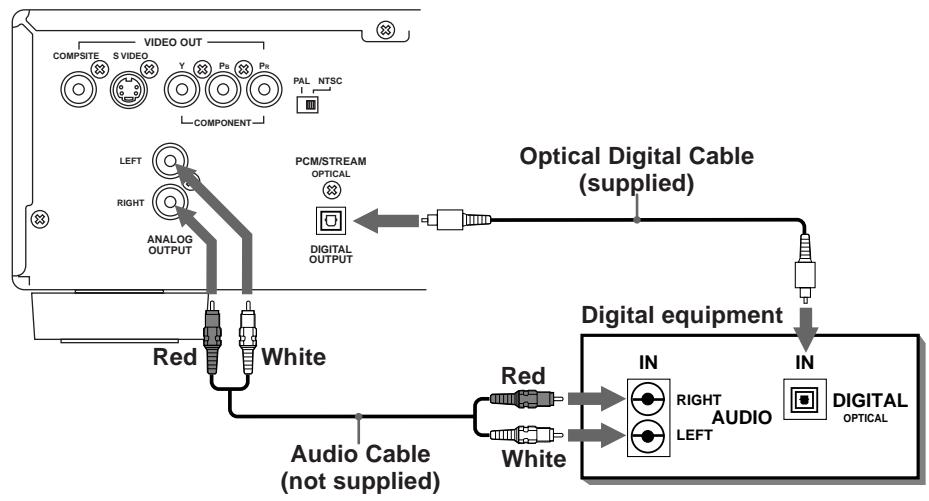
Equipment with a Digital Input
You can enhance the sound quality by connecting the DIGITAL OUTPUT (optical) of the RDV-985 to the digital input of an amplifier, DAT or MD by using an optional digital cable. The digital stereo audio signal from a disc is directly transferred. If you connect the unit to a Dolby Digital or DTS decoder or an amplifier with built-in decoder by using an optional digital cable, you can enjoy high-quality surround sound.
When you make the digital connection, also make the analog connection, because, depending on the disc type, no audio may be reproduced from the DIGITAL OUTPUT.
NOTE: When you connect the unit's DIGITAL OUT to digital audio equipment, before using, make the "DIGITAL AUDIO OUTPUT" setting in the "PREFERENCE 2" on-screen display correct for the digital sound processor. If the "DIGITAL AUDIO OUTPUT" is not set correctly, loud noise may be generated from speakers, possibly damaging them. See "DIGITAL AUDIO OUTPUT" on page 24.
With the digital connection, the unit's settings for COMPRESSION and DOWN MIX are disabled. Settings for these items must be made from the decoder.
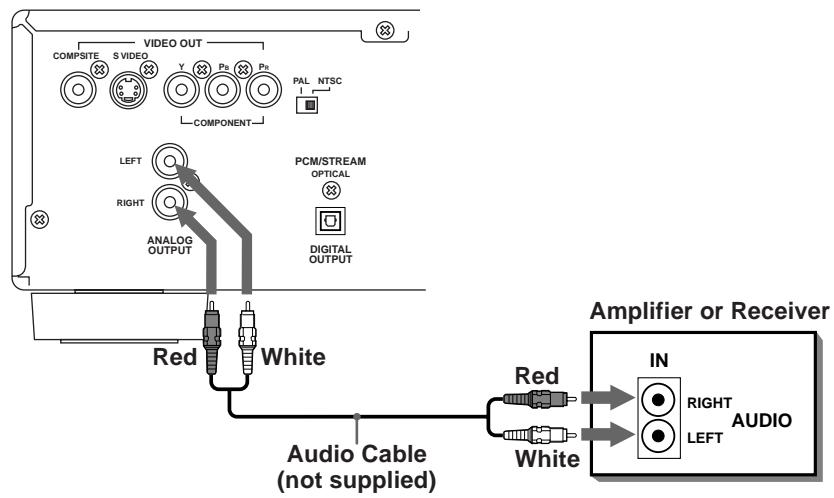
Connecting to an Audio Amplifier or Receiver
You will get better sound quality if you connect the audio outputs of the RDV-985 to a high quality amplifier or receiver and use component loudspeakers, rather than those built in to the television.
Connect the ANALOG OUTPUTS 16 of the RDV-985 to any high level input (such as AUX, DVD, CD, etc.) of an amplifier or receiver.
Screen Saver
A television monitor screen may be "burned out" if the same picture is displayed for a long time. To prevent this, the RDV-985 automatically activates the screen saver function if the same picture, such as an on-screen display or menu, is displayed for over 5 minutes.

Use the Cursor Buttons to change the SCREEN Saver setting.
MODE 1
The "screen saver" picture appears and scrolls.
MODE 2
The "screen saver" picture appears and does not scroll.
DIMMER
The current picture gets dark.
OFF
The screen saver function is off.
When the screen saver mode is set to DIMMER, the display window on the front panel also gets dark (FL Dimmer). To return to normal brightness, set to another mode.
The TV screen may be garbled when you set the screen saver mode to MODE 1. In this case, set to another mode.
NOTE: The screen of a projector or projection TV is easily burned out if a static picture is displayed for a long time. Be careful not to allow the monitor screen to be burned out when you set the screen saver mode to OFF.
Auto Standby
When the unit is in stop mode for more than 30 minutes or 60 minutes, the unit enters standby mode automatically.
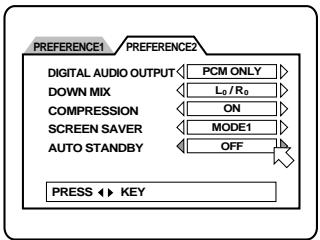
Use the Cursor Buttons / to change the AUTO STANDBY setting.
60
Time is set to 60 minutes.
30
Time is set to 30 minutes.
OFF
The auto standby function is off.
Parental Lock Feature
This function restricts playback of DVD discs which contain violent (and other) scenes according to the level set by the user. For example, if a movie which includes violent scenes supports the parental lock feature, such scenes which you do not want to let children view can be cut or replaced with other scenes.
4. Setting Parental Lock for the First Time
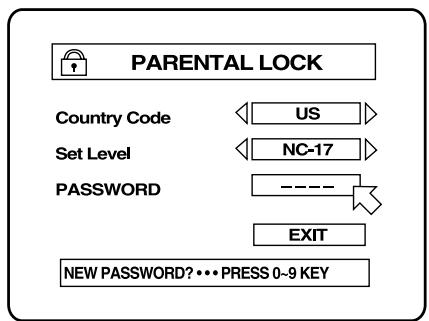
While a DVD is stopped or no disc is loaded press the ENTER button 22 while holding down the SHIFT button 15. The Parental Lock display screen appears.
Use the Cursor Buttons / to move to [Password]. Enter "8888" with the Numeric Buttons 13. Press ENTER.
Use the Cursor Buttons / to move to
[Country Code]. Then use Cursor Buttons to select "US". Press ENTER.
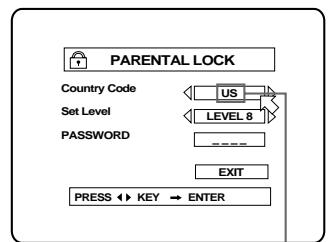
Country Code
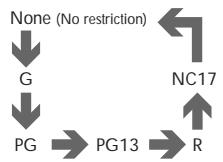
Use the Cursor Buttons / to move [Set Level]. Then use Cursor Buttons to select the parental lock level. Each time you press Cursor the level changes as follows:
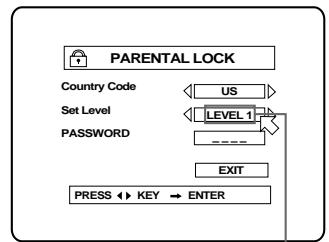
Selected Level
"G" is the lowest rating. Discs rated higher than the level you select are restricted. Press ENTER.
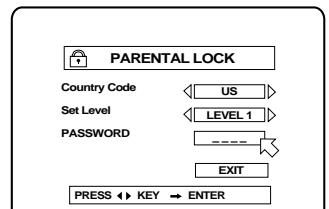
Enter your 4 digit password using the Numeric Buttons 0-9 13. Press ENTER. The parental level and password are set.
RDV-985 DVD Player
24
On Screen Guide
The RDV-985 can display "on-screen guide" icons or characters on the picture. These include the Multi-Angle icon, the Subtitle icon
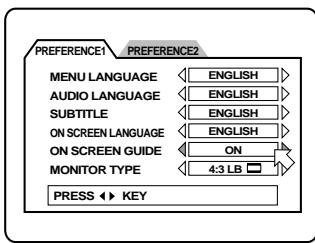
Use the Cursor Buttons to turn the guide display on or off.
Monitor Type
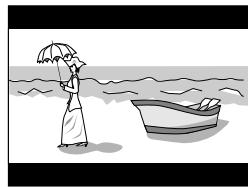
You can select the monitor type to match your TV when you playback DVD discs recorded for wide screen televisions.
4:3 LB (Letter Box Conversion) When you connect a normal TV to the unit and play a wide picture recorded on a DVD disc, the picture is
displayed with bands across the upper and lower portions of the screen.
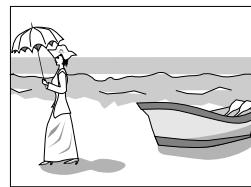
4:3 PS (Pan scan Conversion) When you connect a normal TV to the unit and play a wide picture recorded on a DVD disc, a portion of the picture is automatically cut off from the left and right sides of the image. Depending on the disc, it may not be possible to playback in this
mode. In this case, the picture is played back as in 4:3 LB mode.
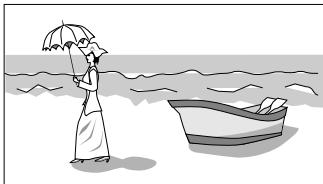
16:9 WIDE (Wide Television screen) When you connect a wide-screen TV unit.
Preference 2 Screen Options
Digital Audio Output
To connect the unit's digital output to an external device equipped with a digital input, this item must be set correctly.
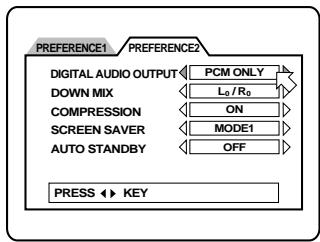
PCM ONLY
When you connect the DIGITAL OUT jack 17 of the unit with the linear PCM digital input of other audio equipment.
STREAM/PCM
When you connect to the digital input of an amplifier with built-in DTS, Dolby Digital, and MPEG audio decoder.
DOLBY DIGITAL/PCM
When you connect to the digital input of a Dolby Digital decoder, or an amplifier with built-in Dolby Digital decoder
The table below shows the relationship between types of playback discs and output signals.
| Playback discs | Output | ||
| STREAM/PCM | DOLBY DIGITAL/PCM | PCM ONLY | |
| DVD with 48-kHz, 16-bit linear PCM | 48-kHz, 16-bit linear PCM | ← | ← |
| DVD with 48-kHz, 20/24-bit linear PCM | 48-kHz, 20-bit linear PCM | ← | ← |
| DVD with 96-kHz, linear PCM | No output | ← | ← |
| DVD with DTS | DTS bitstream | No output | ← |
| DVD with Dolby Digital | Dolby Digital bitstream | ← | 48-kHz, 16-bit linear PCM |
| DVD with MPEG audio | MPEG bitstream | 48-kHz, 16-bit linear PCM | ← |
| Video CD SVCD | 44.1-kHz, 16-bit linear PCM | ← | ← |
| Audio CD | 44.1-kHz, 16-bit linear PCM | ← | ← |
| Audio CD with DTS | DTS bitstream | ← | ← |
NOTE: The RDV-985 does not provide the DTS decoding function. When playing a DVD or Audio CD disc with DTS, use a DTS decoder to get correct signals from your speakers. Never use the unit's analog output jacks, which output incorrect signals that may damage your speakers.
If you connect the analog outputs and digital outputs simultaneously, be sure to select the source of the amplifier correctly, or set the level control of the amplifier connected to the analog outputs to minimum.
Down Mix
By setting DOWN MIX correctly, you can get the optimum stereo mix for your audio system from DVD discs recorded with Dolby Digital surround multichannel audio.
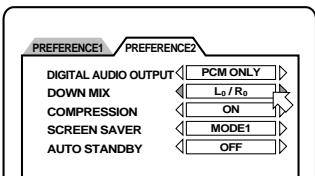
Use the Cursor Buttons / to change the DOWN MIX setting.
Lt/Rt (Dolby Digital disc only)
For monitoring the unit's 2-channel audio output signals via a Dolby Pro Logic decoder.
Lo/Ro
For monitoring the unit's 2-channel audio output signals via a TV or an amplifier with no built-in Dolby Pro Logic decoder. Also for recording DVD audio to a cassette tape, MD, etc.
The DOWN MIX function does not work when the 3D PHONIC (VSS) function is activated.
Compression
You can compress the dynamic range of the sound if needed. Using this function, you can listen to sound at low volumes easily.
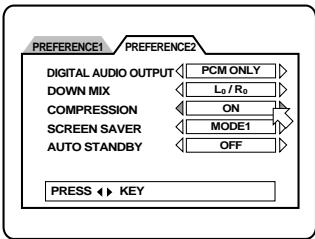
Use the Cursor Buttons / to turn compression on or off. When set to ON the audio dynamic range compressed. When set to OFF audio is played back as it was recorded.
The Compression function works only when playing back a disc recorded with DOLBY DIGITAL 1CH or 2CH. The setting is not effective for other discs. The Compression function does not work when the 3D PHONIC (VSS) function is activated.
English
Connecting the Power Cord
When all the connections have been made, insert the power plug into the wall outlet firmly. The STANDBY indicator lights and setup is complete. Observe the following precautions.
- Disconnect the power cord if you are not going to use the unit for a long time.
- Disconnect the power cord before cleaning the unit.
- Disconnect the power cord before moving the unit.
- Do not connect or disconnect the power cord with wet hands.
- Do not pull the power cord when disconnecting it, as this may damage the cord and cause fire, electric shock, or other accidents.
- Do not damage, alter, twist, or pull the power cord, as this may cause fire, electric shock, or other accidents.
- Contact a dealer and get a new power cord if the cord is damaged. A damaged cord may cause fire, electric shock, or other accidents.
- Do not put anything heavy, or the unit, on the power cord, as this may cause fire, electric shock, or other accidents.
RR-DV91 Remote Control
Installing the Batteries
The battery compartment is located on the back of the remote control unit.
1 Press down on the point shown by the arrow at the top of the compartment cover, and pull up the cover to open the compartment.
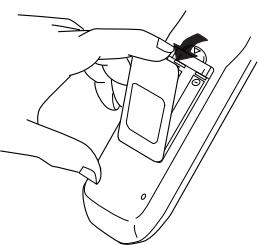
2 Place the two accessory R6P (SUM-3)/ AA(15F) batteries in the remote control according to the polarity markings (^+ + ^+ and
“-” inside the compartment and on the batteries.
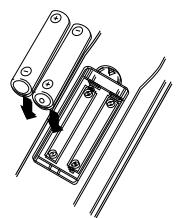
3 Place the cover over the compartment, and press down lightly.
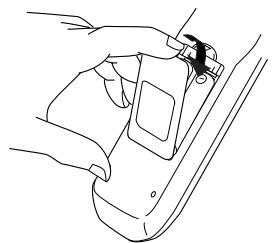
The batteries will last about six months with normal use. If the functions of the remote control become erratic, replace the batteries.
Precautions for the safe use of batteries
Observe the following precautions for the safe use of batteries. If they are used improperly their life will be shortened, they may burst or their contents may leak.
- Remove the batteries from the remote control if it is not going to be used for a long period of time.
- Remove dead batteries and dispose of them properly.
- Never leave dead batteries lying around, take them apart, mix them with other refuse, or throw them into an incinerator.
- Never touch liquid that has leaked out of a battery.
- Do not mix new and old batteries, or batteries of different types, when replacing them.
Programming the RR-DV91 Remote to Control a TV
You can operate your TV from the remote control unit. The remote must first be programmed to operate your TV set.
1 Press and hold down the TV/VIDEO ⑭ button. Then enter the manufacturer code of your TV listed below by using the nu-
meric buttons (0 - 9) ① . Do not release TV/VIDEO. Keep holding it until the next step is completed. (Example: To enter code "01" press and release the "0" button, then press and release the "1" button.
2 Press the STOP button, then release the TV/VIDEO button.
| No. | Manufacturer | No. | Manufacturer |
| 01 | JVC | 15 | Ferguson |
| 02 | Panasonic | 16 | Philips |
| 03 | Sony | 17 | Grundig |
| 04 | Sharp | 18 | JTT |
| 05 | Toshiba | 19 | Miver |
| 06 | Mitsubishi | 20 | Finlux |
| 07 | Hitachi | 21 | Nokia |
| 08 | Sanyo | 22 | NEC |
| 09 | Funai | 23 | Jinxing/Peony |
| 10 | Aiwa | 24 | Peony |
| 11 | Daewoo | 25 | Peony/Changhong |
| 12 | Samsung | 26 | Konka |
| 13 | LG (Goldstar) | 27 | Peijin/Noblex |
| 14 | Thomson | 28 | TCL |
3 Test the program setting by pressing the TV POWER 17 button to see if it turns you set on. If there is more than one code listed for the manufacturer of your TV, try them one by one until you succeed.
Remote Control TV Operation
The following buttons can be used for operating the TV (The numbers in brackets are those shown on figure 3 on page 4.)
TV POWER 17
Turns the TV on or off.
TV CH 29
Changes the TV channels.
TV VOL 28
Adjusts the TV volume.
0-9 (Numeric Buttons) 13
Selects the TV channels (while holding down the SHIFT button). Note: For some TVs, pressing
+10 while holding down SHIFT functions as the "RETURN," and pressing "10" while holding down SHIFT functions as the - / - - button.
TV/VIDEO 14
Switches input mode (either TV or VIDEO).
RDV-985 DVD Player
10
On Screen Displays
The unit provides several on-screen displays as shown below for choosing preferences for initial settings and functions which are not frequently used.
To Access On-Screen Displays
Press ON SCREEN 23. (Note that operation for accessing the "PARENTAL LOCK" on screen displays is different.) The display that appears depends on whether or not a disc is loaded and what kind of disc (DVD, CD, etc.) it is.
On-Screen Display Operation
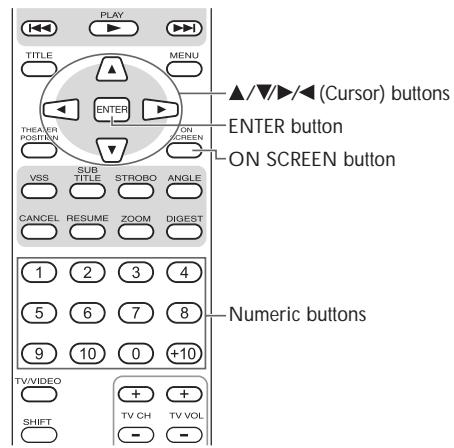
appears at the on-screen display. You can move using / / / cursor buttons to select items you want to work with.
With an item like 1 / 3 you can change the setting by using the / 7 cursor buttons when is on the item.
To operate on-screen items such as REPEAT place the on the item and press ENTER 22.
The information in the on-screen display message box changes depending on the function selected with the
Numbers are entered using the NUMERIC BUTTONS 13.
Some functions are operated by pressing EN-TER 22 after you have made a selection with the or with the numeric buttons.
Pressing the ON SCREEN 23 button again exits the on-screen display.
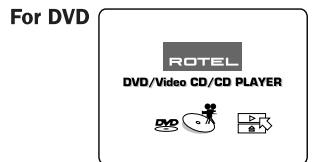
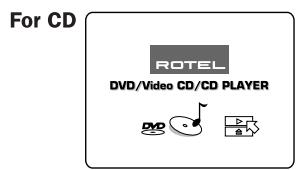
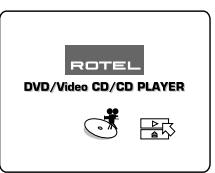
Start Up Displays
A Start Up display appears automatically (without pressing the ON SCREEN 23 button) in some conditions.
The display shown below appears when the RDV-985 is turned on with no disc loaded.
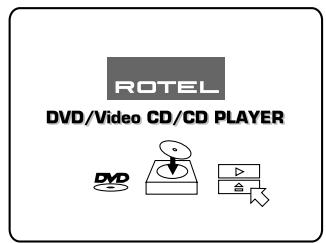
Other types of opening displays will appear when a disc is loaded when the RDV-985 is turned on.
For Video CD/SVCD
PREFERENCE displays
To show the PREFERENCE display press the ON SCREEN button when no disc is loaded, or a DVD disc is loaded and play has been stopped. Preference Display 1 appears.
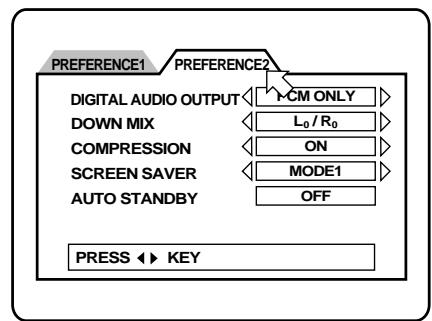
To switch between Preference Display 1 and Preference Display 2 use the / buttons to move the
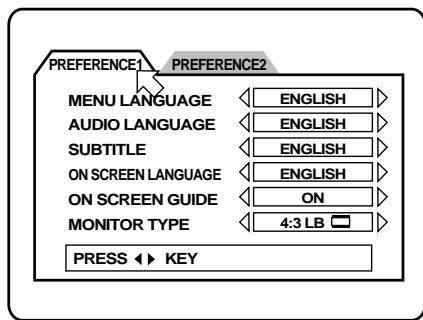
To select the various options on the Preference Displays use the / 7 buttons to move the. Then use the / buttons to change the settings.
For more information on Preferences see page 23.
PARENTAL LOCK display
You can set the parental lock from this display. To access the PARENTAL LOCK display press the ENTER button while holding down the SHIFT button.
For more information see page 23.
Setting Preferences
The Preference selection function allows you to set a number of options including language preferences, on screen icon display, screen aspect ratios, digital audio functions, analog audio functions, screen saver options and auto standby settings.
Using the Preferences Display
While a DVD disc is loaded but not playing, or while no disc is loaded, press the ON SCREEN button 23. The Preference display appears on the screen. The Preference display consists of two "pages". When you access the display "Preference 1" is always selected. Use the Cursor Buttons / 7 to move to switch between the two pages.
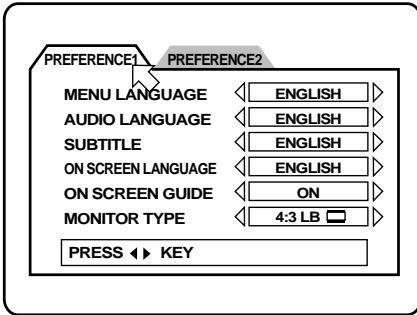
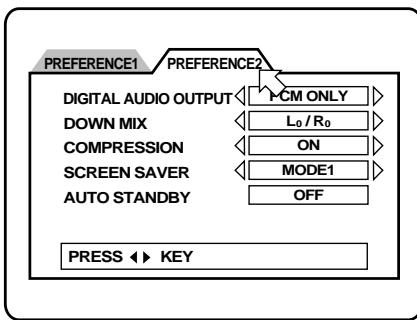
Use the Cursor Buttons / to select the item you want to adjust.
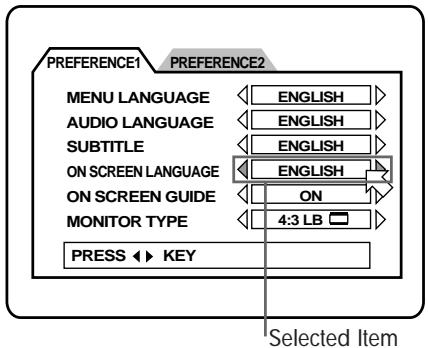
Use the Cursor Buttons to change the preference settings.
23
To return to the normal screen press the ON SCREEN button again. See the following sections for details about the various settings.
Preference 1 Screen Options
Menu Language
You can select a different menu language if it is contained on the disc.
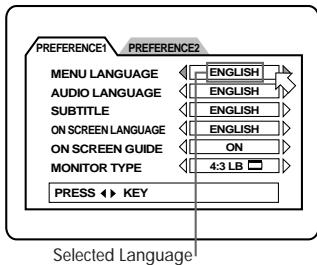
Each time you press CURSOR button, the language setting changes in the following order:
ENGLISH SPANISH FRENCH CHINESE GERMAN ITALIAN JAPANESE [Language Code AA to ZU]. See "Table of languages and their abbreviations" at the end of this manual.
Pressing CURSOR changes the language setting in the reverse order. If the selected language is not recorded, the disc's default display language is displayed.
Audio Language
You can select a different menu language if it is contained on the disc.
Each time you press CURSOR button, the language setting changes in the following order:
ENGLISH SPANISH FRENCH CHINESE GERMAN ITALIAN JAPANESE [Language Code AA to ZU]. See "Table of languages and their abbreviations" at the end of this manual.
Pressing CURSOR changes the language setting in the reverse order of the above. If the selected language is not recorded, the disc's default audio language is played.
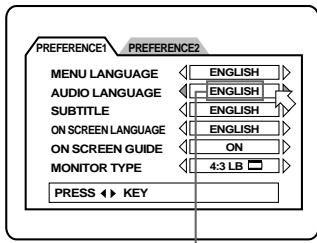
Selected Language
Subtitle Language
You can select a different subtitle language when it is contained on the disc.
Each time you press CURSOR , the language setting changes in the following order:
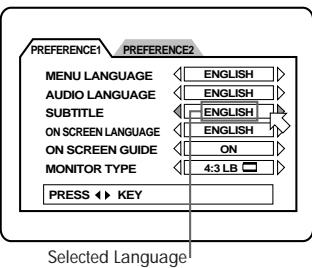
ENGLISH SPANISH FRENCH CHINESE GERMAN ITALIAN JAPANESE
[Language Code AA to ZU]. See "Table of languages and their abbreviations" at the end of this manual.
Pressing CURSOR changes the language setting in the reverse order. If the selected language is not recorded, the disc's default subtitle language is displayed.
On Screen Language
You can select the on screen display language.
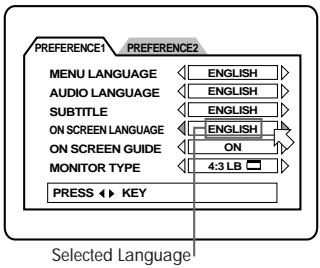
Each time you press the Cursor Buttons the language changes in the sequence illustrated below.
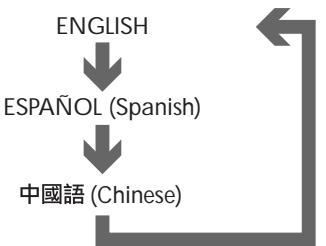
| English |
| Spanish |
| Chinese |
The 3D PHONIC button activates the Virtual Surround Sound (VSS) system. This feature produces a simulated surround sound effect through an audio system connected to the RDV-985.
While a disc is playing press the 3D PHONIC (VSS) button ⑨ . A window appears on the screen showing the currently selected setting.
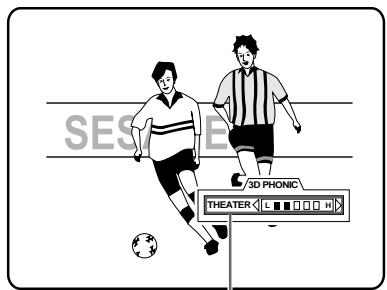
Selected Mode and Setting
Each time you press the 3D PHONIC (VSS) button the next mode is selected. The available modes are ACTION, DRAMA, THEATER and OFF. (When playing a DVD disc recorded in Dolby Digital with more than 2 channels, the "ACTION" mode option does not appear.)
Use the Cursor Buttons to adjust the level of surround sound effect. The level is indicated by the bar graph on the display. Pressing the button increases the level of the surround sound effect; pressing the decreases the level of the effect.
Press the ENTER button 22 to turn off the 3D PHONIC (VSS) on screen display. The display screen turns off automatically if no adjustments are made over a 10 second span of time.
NOTES: The 3D PHONIC (VSS) system provides the proper decoding when playing discs recorded in the Dolby Surround or Dolby Digital 5.1-Channel format.
It also works when playing discs that are not recorded with the two Dolby encoding system mentioned above, but produces a synthesized surround sound effect.
The 3D PHONIC (VSS) system does not affect the DTS or Dolby Digital bitstream signal from the DIGITAL OUT jack.
The 3D PHONIC (VSS) system will not effect the sound output of a DVD disc be recorded in Linear PCM, no matter how the operating controls are set.
When you set the 3D PHONIC (VSS) function to on, the DOWN MIX and COMPRESSION settings in the PREFERENCE 2 display are disabled.
Time Display Functions

When using audio or video CD discs various modes of time display can be shown on the front panel Multi-Information Display and in the on-screen display.
While an audio CD is playing or stopped, or when a video CD is stopped, press the ON SCREEN button 23. The on screen display appears on the TV screen.
Use the Cursor Buttons / to move to [TIME SELECT].
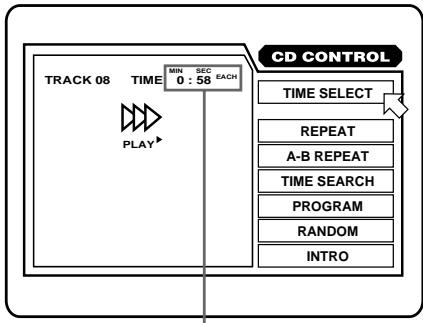
Audio CD Time Display
Time Display
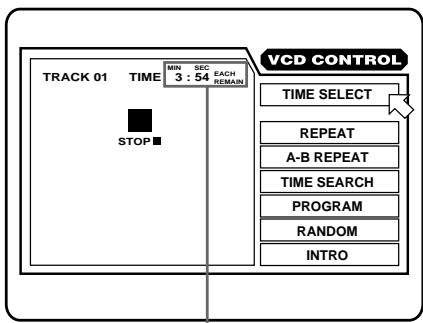
Video CD/SVCD Time Display
Time Display
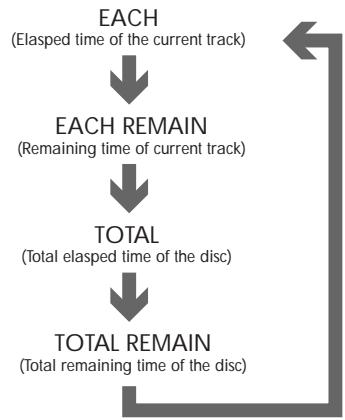
Press ENTER 22. Each time you press EN-TER the time mode changes in the sequence illustrated below.
During playback (for audio CD):
While stopped:
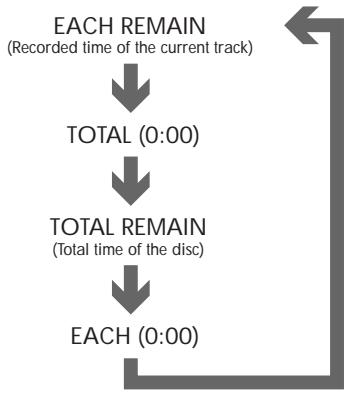
When you select "EACH REMAIN" while stopped you can change the track by pressing or 5.
DVD CONTROL display
You can select and set various options and functions for DVD playback. To access the DVD CONTROL screen press ON SCREEN while a DVD disc is playing. This display appears only during DVD playback.
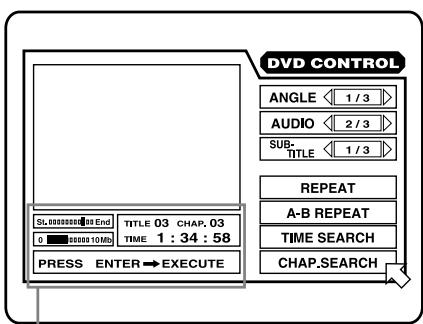
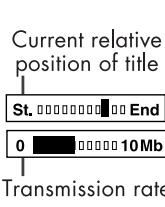
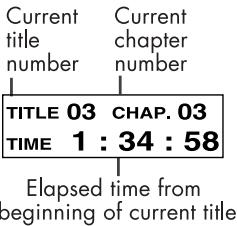
Display Details
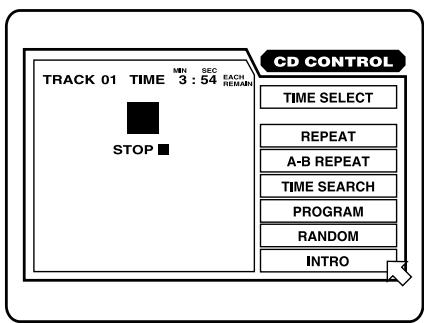
CD CONTROL display
You can select and set various options and functions for CD playback. To access the DVD CONTROL screen press ON SCREEN while a CD is playing. This display appears only during CD playback.
VCD CONTROL display (for Video CD and SVCD)
When a Video CD or SVCD disc is stopped, a display similar to the CD CONTROL display appears. During Video CD playback, the display shown below appears.
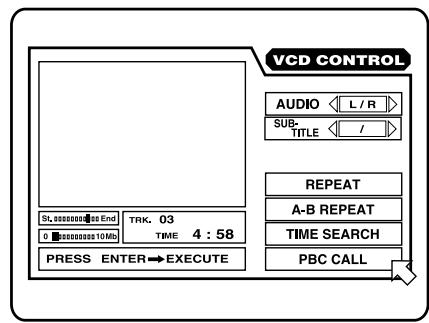
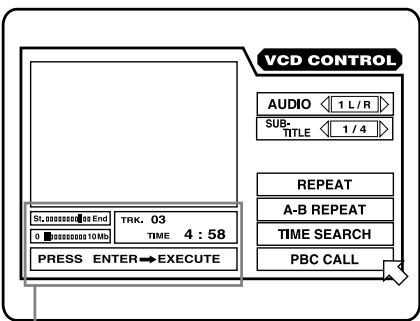
During SVCD playback, the display shown below appears.
Display Details
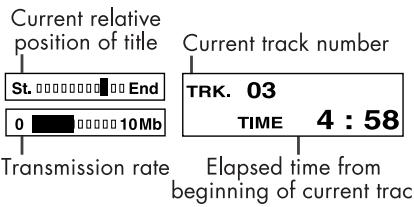
To display the VCD CONTROL display, press ON SCREEN 23 when a Video CD is loaded.
Screen Saver
A television monitor screen may "burn in" an image if a picture that does not change is displayed for a long time. To prevent this, the unit activates the screen saver function if a picture, such as an on-screen display or menu, is displayed for over 5 minutes.

Pressing any button on the unit or the remote control unit will release the screen saver function and return to the previous display.
You can select one of several screen saver modes. See page 25 for more information.
On Screen Icons
During DVD playback, you may see icons displayed over the picture. These have the following meanings.
- Is displayed at the beginning of a scene recorded from multiple angles. For more information see page 19.
- Is displayed at the beginning of a scene recorded with multiple audio languages. For more information see page 21.
- Is displayed at the beginning of a scene recorded with multiple subtitle languages. For more information see page 20.
You can set the unit not to display on-screen icons above via the preference settings described on page 24.
About Invalid Operation Icon
If you try to do an operation that is not allowed, or select an option that is not available, appears on your television screen. Operations are occasionally unacceptable even if is not displayed. Note that some operations may not be accepted. For example, some discs may not allow rapid advance/ reverse or slow-motion playback.
RDV-985 DVD Player
12
About discs
Playable Disc Types
This unit can play the following types of discs:
DVD Video

VIDEO
Video CD


SVCD


Audio CD

DIGITAL AUDIO
All DVD players and DVD discs have a Region Code number. This unit only can play back DVD discs whose Region Code numbers include the unit's Region Code, which is indicated on the region code symbol on the rear panel.
Examples of playable DVD discs for a unit with Region Code "1"


NOTE: With some DVD and Video CD discs, you may not be able to control them according to the instructions described in this manual, because of the contents of the disc.
Non-Playable Discs
DVD-ROM, DVD-RAM, DVD Audio, DVD-R, DVD-RW, CD-R, CD-ROM, PHOTO CD, CD-RW, CD-EXTRA, CD-G, CD-TEXT
This unit can play back audio recorded on CD-G, CD-EXTRA and CD-TEXT discs.
NOTE: Playing back discs listed as "Nonplayable discs" in the table above may generate noise and damage speakers.
DVD Disc Structure
A DVD disc is comprised of "titles," while an Audio CD, Video CD or SVCD is comprised of "tracks." Each title may be divided into some "chapters." For example, if a DVD disc contains some movies, each movie may have its own title number, and each movie may be divided into some chapters. In a DVD karaoke disc, each song usually has its own title number and does not have chapters.
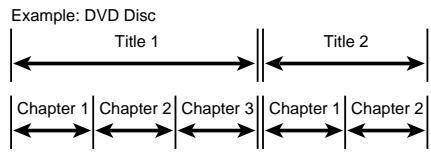
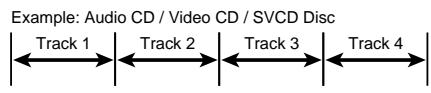
Using Numeric Buttons 13
Selecting Track/Title Numbers
To select a number between "1" and "10" press the corresponding button for the number. To select a number higher than 10 use the "+" button.
Examples:
To select 13 +10 3
To select 34 +10 +10 +10 4
To select 40 +10 +10 +10 10
Entering a Time or Chapter Number
The method for entering a time for Time search or chapter number for Chapter search is different from above. See the corresponding sections in this manual for the details.
To select a TV channel.
Press the corresponding numeric buttons (between 0 and 9) while holding down the SHIFT button.
Getting Started
Most of the time you will be operating the RDV-985 with the RR-DV91 remote control. The front cover of this manual folds out so you can see the control identification diagram on page 4 while reading the operating information on the following pages.
Power On/Off
Press DVD ON/OFF 18 on the remote or the STANDBY 1 button on the front panel.
You can also turn on the unit by pressing the PLAY button on the front panel or the Remote control 20. If a disc is loaded the RDV-985 will start playing. If a disc is not loaded, the disc tray opens.
You can also turn on the unit by pressing the OPEN/CLOSE button on the front panel or the remote control 2. In this case, the disc tray opens.
NOTE: When you turn off the RDV-985 it is not disconnected from the AC power source. It goes into a standby state. In this state, the unit consumes a very small quantity of power.
Loading Discs
Press the OPEN/CLOSE button on the front panel or the remote control 2 . Place a disc in the disc tray with the label side up.
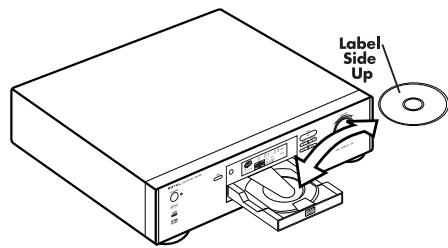
Press one of the OPEN/CLOSE buttons to close the tray.
You can also open and close the disc tray from the opening on-screen display. Use the CURSOR 7 buttons / to move to 合, then press ENTER.
NOTE: When loading a disc in the tray, be sure to center the disc in the tray recess. Otherwise, the disc may be damaged when the tray is closed, and the disc may not be removed from the unit. Do not use any stabilizer when playing back a disc.
Audio Language Selection
You can choose the audio language of video discs recorded with multiple language tracks movies, or play a karaoke disc with or without the vocal track.
While a disc is playing press the ON SCREEN button 23. Use the Cursor Buttons / 7 to move to [AUDIO].
DVD Language Select DisplayTotal
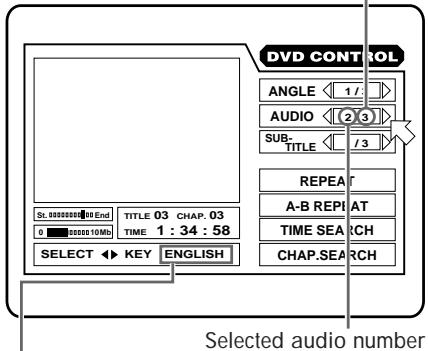
Selected audio language
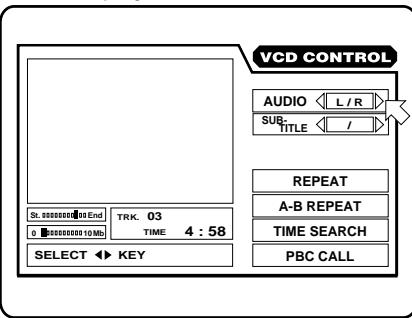
VCD Language Select Display (SVCD display is similar)
Use the Cursor Buttons to select the audio language or sound track.
For DVD Discs
Pressing the Cursor Buttons cycles among the audio languages or sound tracks recorded on the disc.
Example:
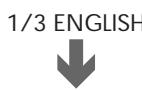

2/3 FRENCH
3/3 SPANISH
If appears on the screen you cannot select the audio track
21
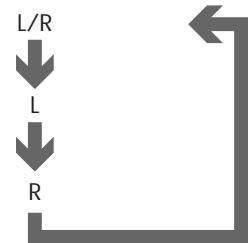
For Video CD Discs
Pressing the Cursor Buttons cycles among the audio languages on the disc.
Example:
For CVCD Discs
Pressing the Cursor Buttons cycles among the audio languages on the disc.
Example:
Selecting Picture Quality
You can select the quality of the image from among four options. You may prefer one setting over another depending on the type of programming, picture tone or personal preferences.
While a disc is playing press the THEATER POSITION button 8. A window such as 1 will appear on the screen. Each time you press the THEATER POSITION button again the next option is selected. The available options are 1, 2, 3 and OFF. OFF is the normal setting. Selecting a higher number tones down the picture quality.
An SVCD disc has a pair of stereo channels; Sound 1 and Sound 2. In the above options, "1" indicates "Sound 1", while "2" indicates "Sound 2".
Some SVCD discs may not contain audio on Sound 2. When playing back such a disc, no audio is reproduced by selecting “2 L/R”, “2 L” or “2 R” above.
To turn off the on screen display press the ON SCREEN button 23.
RDV-985 DVD Player
20
Selecting a Scene Angle From the Angle Display List
While the disc is playing press and hold ANGLE 25 for more than 1 second. Up to nine camera angles recorded on a disc appear on the TV screen.
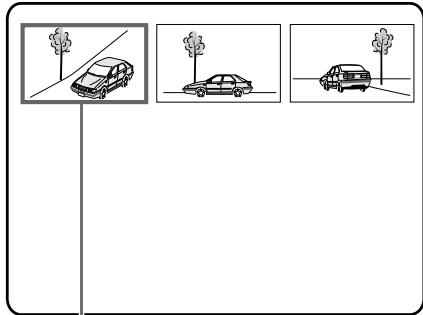
Selected Scene Angle
Use the Cursor Buttons / / / 7 to select a scene angle. Press ENTER ② 2 2 . The selected angle appears on the TV screen.
When selecting a scene angle the sound is muted.
If appears when you try to select a scene angle it indicates the current scene is not recorded with multiple angles.
Subtitle Language Selection
For DVD and SVCD discs, you can select the subtitle language, as well as the audio language/sound included on a disc. For Video CD discs, you can select from the available audio channel(s).
Selecting the Subtitle Language with the Remote Control SUBTITLE Button
While the disc is playing press the SUBTITLE button 10. If the disc is recorded with sub-. titles the symbol appears on the screen along with selection options. Use the Cursor Buttons / to select a subtitle option. About 10 seconds after the last subtitle selection is made the selection display is turned off.
Selecting the Subtitle Language with the On Screen Display
Press the ON SCREEN button 23. The on-screen display appears on the TV screen.
DVD Subtitle Selection Display (SVCD display is similar)
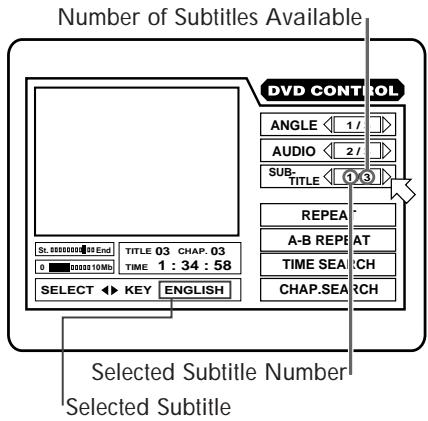
Use the Cursor Buttons to select a subtitle option.
For DVD Discs
Use the / to cycle among the subtitles recorded on the disc.
Example:
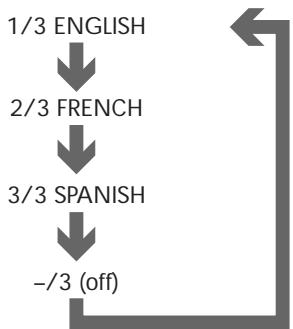
The selected language may be abbreviated on the TV screen. See "Appendix A: Table of languages and their abbreviations" in this manual.
If appears on the screen you cannot select the subtitle.
For SVCD Discs
Using the Cursor Buttons t/u cycle among four subtitles channels, even if subtitles are not recorded on the disc.
Example:
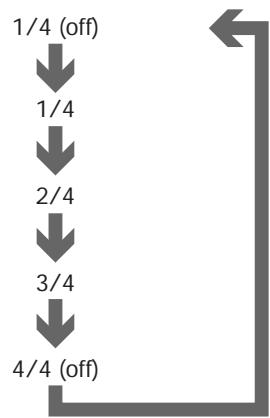
An SVCD disc can have up to four subtitles recorder on it. If no subtitles are recorded on the channel selected, subtitles will not appear on the screen.
Disc Play Basics
Playing a Disc
Press the (PLAY) button on the remote control 20 or on the front panel 7 The disc starts playing from the beginning
With Video CD and SVCD discs with PBC control or some DVD discs, the menu display may appear on the TV screen after pressing PLAY. In such a case, select an item to be played back from the menu.
With some DVD discs playback starts automatically after a disc is loaded.
Stopping Disc Play
Press the (STOP) button on the remote control or on the front panel
Pausing Disc Play
Press the PAUSE) button on the remote control 19 or on the front panel To resume disc play at the point where it was paused press the (PLAY) button on the remote control 20 or on the front panel
Forward or Reverse Scanning
When a disc is playing you can quickly scan forward or backward while monitoring the output of the disc.
Using the Remote Control
Press the or button 3. The button scans forward. The button scans backward. Each time you press the button, forward or reverse playback speed increases. To return to normal playback, press (PLAY) 20.
Using the Front Panel Shuttle Knob Turn the SHUTTLE knob to the right to scan forward. Turn the knob to the left to scan backward. The playback speed changes according to the amount you turn the shuttle knob.
13
Skipping to the Beginning of a Song or Scene
You can skip to the beginning of another chapter, title, or track. Whether or not the disc can be playing when you use this feature depends on the type of disc.
DVD Discs During playback Audio CD: During playback or while stopped Video CD/SVCD: During playback without PBC func
Using the Remote Control
Press the or button 5. Press the button once to skip forward to the next chapter, title, or track. Press the button repeatedly to skip forward more than one chapter, title, or track. Press the button once to skip back to the beginning of the chapter, title, or track that is playing. Press the button repeatedly to skip back to the beginning of a previous chapter, title, or track.
Using the Front Panel Buttons
Press the or button 10 on the front panel. These buttons work the same way as those on the remote control.
NOTE: When you play a Video CD or SVCD disc with the PBC function or a DVD disc, the unit may not always skip to the beginning of the title or chapter or track.
ResumePlaybackFunction
The RDV-985 can store a location on a disc. It can then return to the location and resume playback at a later time.
To Store a Location on a Disc
While a disc is playing press the RESUME button 12 on the remote control. The current location on the disc is stored and the Resume indicator E appears in the display window. If a disc location had previously been stored, the new location replaces it. Once a location is stored, it remains stored until it is replaced by a new location, or the disc is removed.
A disc location can also be stored by pressing the DVD ON/OFF button on the remote control 18 or the STANDBY button on the front panel 1.
Resuming Playback at a
Stored Location
While the RDV-985 is on with play stopped press the RESUME button 12 on the remote control. Playback is resumed at the stored location. If the RDV-985 is in standby mode press the RESUME button on the remote control. The unit will turn on and resume playback at the stored location.
NOTE: When you store a location while playing a Video CD or SVCD disc with PBC function, playback may resume at a point slightly earlier than the location you stored.
RDV-985 DVD Player

Advanced Operations
Selecting a Scene From a Menu

DVD discs generally have menus which show the disc contents. These menus contains various items such as titles of a movie, names of songs, or artist information, which can be displayed on the TV screen. You can locate a desired scene by using the menu. 7 Insert the DVD disc.
Press the TITLE button 6 or MENU button 21 The menu appears on the TV screen.
Use the CURSOR buttons / / / to select a desired item, then press ENTER. The RDV-985 starts playing the selected item.
With some discs, you can also select items by entering the corresponding number using the Numeric Buttons 13. This may cause the RDV-985 to automatically start playing the selected item.
About menus
Normally, a DVD disc which contains more than one title will have a "title" menu which is displayed when you press the TITLE button. Some DVD discs may also have a different menu which appears by pressing the MENU button. See the instructions of each DVD disc for its particular menu.
NOTE: When appears on the TV screen when you press TITLE button it indicates the disc does not have a menu listing the titles. When appears on the TV screen when you press MENU button it indicates the disc does not have a menu.
Selecting a Scene From the Menu of a Video CD with PBC (Playback Control)
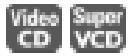
Some Video CD and SVCD discs are compatible with the PBC ("PlayBack Control") function. A Video CD or SVCD disc recorded with PBC has menus which list the items recorded on the disc. You can select specific items by using this menu.
When the menu appears on the TV screen while playing a disc with PBC, use the Numeric Buttons 13 to select the number of the desired item. (See page 12 for information about how to use the numeric buttons.) Playback starts from the selected item.
You can return to the menu by pressing the RETURN button 1.
When "Next" or "Previous" appears on the TV screen, usually you can press or to go to the next page or previous page. (The method of the operation may be different depending on the disc.)
To activate the PBC function when a PBC-compatible Video CD or SVCD disc is being played back without the PBC function, press STOP then press PLAY 20.
You can also activate the PBC function using the on-screen display. Press the ON SCREEN button 23. Use the Cursor Buttons 7 ▲/▼ buttons to move to [PBC CALL], then press ENTER 22.
If you want to play a PBC-compatible Video CD or SVCD disc without activating the PBC function, start playback by using the numeric buttons instead of the PLAY button. See the next section.
Selecting a Scene or Track With the Numeric Buttons
You can select a scene or track by number usingthe Numeric Buttons 13 . Whether or not thedisc can be playing when you start to selectthe track or scene depends on the type of disc .
DVD Discs: Play is stopped
Audio CD: During playback or while stopped
Video CD/SVCD: During playback without PBC function or while stopped
Use the numeric buttons to select the title or track number. (See page 12 for information about how to use the numeric buttons.) The selected title or track number appears in the indicator F in the front panel display window on the front panel. The selected track begins playing.
NOTES: If the symbol appears on the screen when you make a selection with the numeric buttons the selected track is not on the disc.
This function does not work with Video CD/SVCD playback with PBC function.
Repeat Play of a Specified Part of a Disc
While playing a disc, press ON SCREEN 23. The on-screen display appears on the TV screen.
Use the Cursor Buttons / to move to [REPEAT]. Then press ENTER at the beginning of the part you want to repeat (point A). The color of [A-B REPEAT] changes.
Press ENTER at the end of the part you want to repeat (point B). The RDV-985 locates "A" and starts repeat playback between "A" and "B."
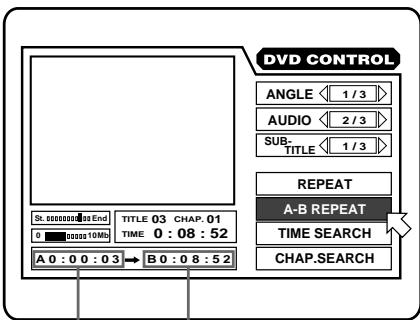
DVD A/B Repeat Play
Point A Point B
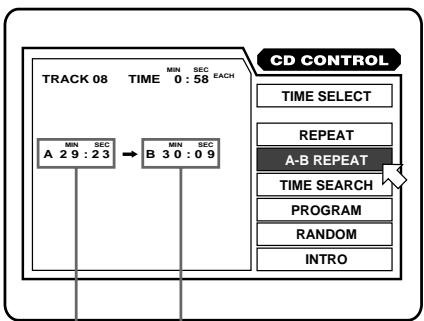
Audio CD A/B Repeat Play
Point A Point B
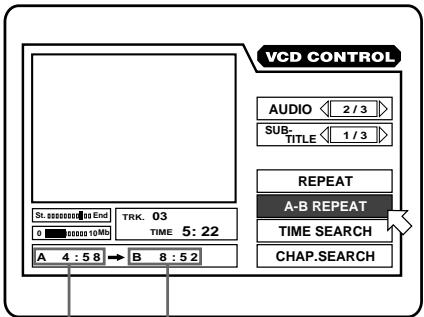
Video CD/SVCD A/B Repeat Play
Point A Point B

To quit A-B repeat playback press STOP 4. The RDV-985 stops playback and quits A-B repeat mode.
During playback, pressing ENTER 22 when points to [A-B REPEAT] quits A-B repeat mode and continues playback.
To turn off the on-screen display press ON SCREEN 23.
If appears when ENTER is pressed during DVD, you cannot repeat the selected portion because of the disc contents.
Intro Scan
You can sample the tracks of an Audio CD, Video CD or SVCD, playing back the first 10 seconds of each track.
While disc play is stopped press ON SCREEN 23. The on-screen display appears on the TV screen.
Use the Cursor Buttons / to move to [INTRO].
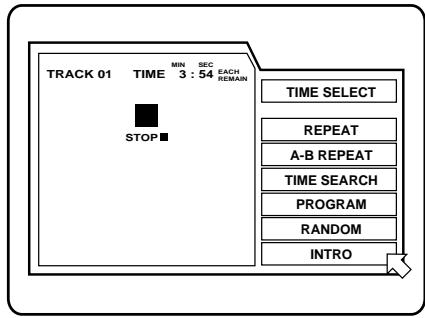
Audio CD Intro Scan (Video CD/SVCD screen in similar)
Press ENTER. The first 10 seconds of each track on the disc are played in order from the first track. When all tracks have been played once, INTRO scan mode quits.
To quit INTRO scan press STOP 4. The RDV-985 stops and quits INTRO scan mode.
During playback, pressing ENTER 22 when points to [INTRO] quits Intro scan mode and continues playback.x
Multiple Angle Viewing

Some DVD discs contains "multi-angle" parts, where multiple cameras were used to shoot the same scene from different angles. You can select one of these viewing angles from the normal screen or on-screen display.
At the beginning of a "multi-angle" scene, appears on the TV screen.
Selecting a Scene Angle From the Normal Screen
While the disc is playing press ANGLE ② 5 . Then press ANGLE again, or the Cursor Buttons 4 / 7 > 7 . Each time you press one of these buttons the scene angle changes.
Selecting a Scene Angle From the Normal Screen
While playing a disc, press ON SCREEN 23. The on-screen display appears on the TV screen.
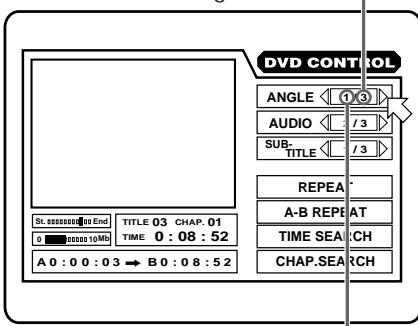
Number of Angles Available
Currently Selected Angle
Use the Cursor Buttons switch from one angle to another.
To turn off the on-screen display press the ON SCREEN button 23.
If appears when you try to select a scene angle it indicates the current scene is not recorded with multiple angles.
RDV-985 DVD Player
18
Random Track Playback
While disc play is stopped press the ON SCREEN button 23. The on-screen display appears on the TV screen.
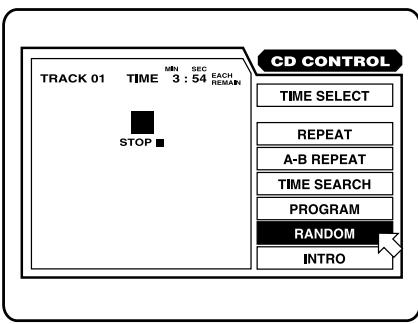
Audio CD Random Play
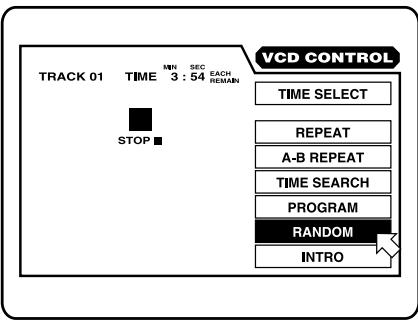
Video CD/SVCD Random Play
Use the Cursor Buttons / to move to [RANDOM] and press ENTER 22. The color of [RANDOM] changes.
When all tracks have been played once, random play ends. The same track will not be played back more than once during random play.
To quit random playback press STOP 4. The RDV-985 stops playback and quits random mode.
During Audio CD playback, pressing ENTER when points to [RANDOM] on the on screen display stops random play. The disc continues to play the remaining tracks on the disc in their normal order.
Repeat Play
You can repeatedly play the current title or chapter (for DVD), or current or all tracks (for Audio/Video CD/SVCD). You can also repeatedly play a specific part of a title, chapter or track.
Repeat Play of the Current Title, Chapter or Track, or All Tracks
While playing a DVD or Audio CD, or while playing a Video CD/SVCD without the PBC function, press ON SCREEN 23. The on-screen display appears on the TV screen.
Use the Cursor Buttons / to move to [REPEAT], then press the ENTER button 22. Each time you press ENTER, the repeat mode changes as follows:
For DVD: the current title or chapter will be repeated.
For Audio CD/Video CD/SVCD: the current track or all tracks is/are played repeatedly.
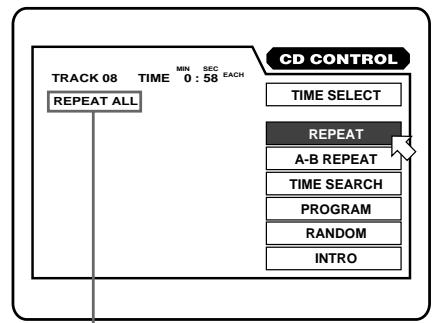
Audio CD Repeat Play
Selected Repeat Mode
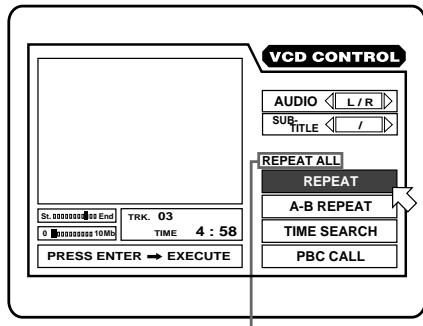
Video CD/SVCD Repeat Play
Selected Repeat Mode
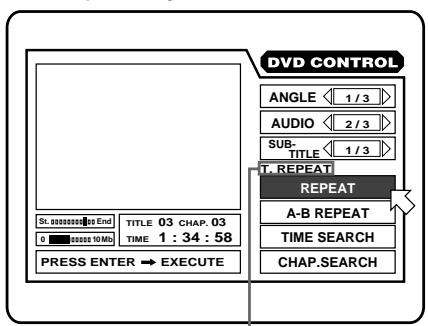
DVD Repeat Play
Selected Repeat Mode
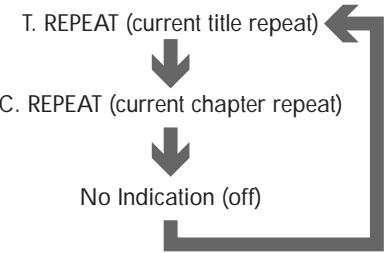
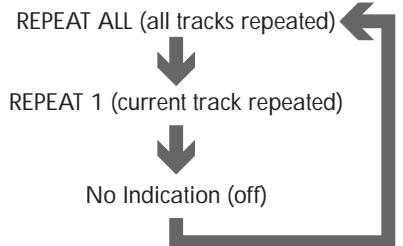
To stop repeat playback press STOP 4. When a DVD disc is loaded, the RDV-985 stops playback and quits repeat mode. When an Audio, Video CD or SVCD is set, the RDV-985 stops playback but remains in repeat mode.
To quit repeat playback when points at [REPEAT], press ENTER repeatedly until [REPEAT] returns to its original color.
To turn off the on-screen display press ON SCREEN 23.
If appears when ENTER is pressed during DVD/SVCD play, you cannot repeat the title or chapter because of the disc contents.
DVD Chapter Search

If the current title of a DVD disc being played is divided into chapters, you can skip to an other chapter using the on-screen display.
While the disc is playing press the ON SCREEN
23 button. The on-screen display appears on the TV screen.
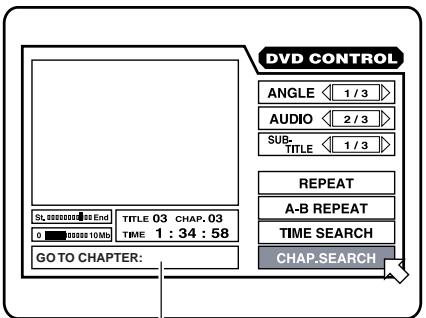
Message Area
Use the CURSOR buttons / to move to [CHAP.SEARCH], then press ENTER 22. "GO TO CHAPTER" appears in the message area and the color of [CHAP.SEARCH] changes.
Use the Numeric Buttons (0 - 9) ① to enter a chapter number. The selected chapter number will appear in the message area. Press the ENTER button ② . The RDV-985 starts playing the selected chapter.
The "10" and "+" buttons are not used in this function.
Example:
To select chapter number 8:
Press "8" → ENTER.
To select chapter number 37:
Press "3" → "7" → ENTER.
With some discs the RDV-985 will automatically start playing after you enter the chapter number.
To return to the regular screen press the ON SCREEN button again.
NOTE: If the symbol appears when you press ENTER you have selected a chapter that is not on the disc, or chapter search does not work on the disc.
15
Time Search


With the TIME SEARCH function you can specify the place on the disc you play. (Note that some DVD discs do not contain time information, and the TIME SEARCH function cannot be used.)
Whether or not the disc can be playing when you use the TIME SEARCH function depends on the type of disc.
DVD Discs: During playback
Audio CD: During playback or while stopped
Video CD/SVCD: During playback without PBC function
Press the ON SCREEN 23 button. The on-screen display appears on the TV screen.
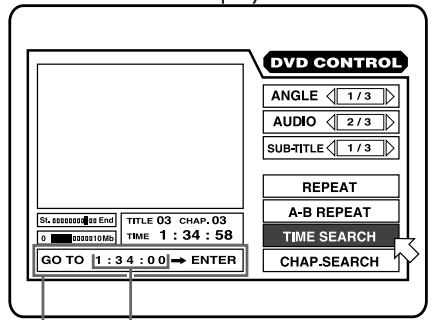
DVD Time Search Display
Message Selected (Video CD and SVCD Area Time displays are similar)

Audio CD Time Search Display
Message Selected
Area Time
Use the numeric buttons (0 - 9) ① to enter the time. The specified time appears in the message area. Press the ENTER button ②
The RDV-985 starts playback at the selected time.
The "10" and "+" buttons are not used in this function.
You can specify the time in hour/minute/second format for DVD discs, and in minute/second format for Audio, Video CD and SVCD discs.
Example (for DVD):
To playback from 2(H):34(M):00(S)
GOTO_::Press“2"
GO TO 2:: Press "3"
GOTO2:3:_Press“4"
GOTO2:34:_Press“ENTER"
It is not necessary to specify the "seconds" part of the time you want to select, although you may if you wish.
If you make a mistake when enter a time selection digit, use the Cursor Buttons to re-enter a new number.
Example - to change 2:35 to 2:34:
GO TO 2:35:_Press t
GO TO 2:35:_Press“4"
GO TO 2:34:Press“ENTER"
To return to the regular display press ON SCREEN 23
NOTE: If the symbol appears the time you have selected is not contained on the disc, or the time search function does not work on the disc.
Also note that the time search function does not work during Video CD/SVCD playback with the PBC function.
Use the CURSOR buttons / to move to [TIME SEARCH], then press ENTER 22.
"GO TO" appears in the message area. The color of [TIME SEARCH] changes.
RDV-985 DVD Player
16
Selecting a Scene From the Digest Display
The RDV-985 can display the opening scene of each title on a DVD or each track of a Video CD/SVCD. You can then select a title or track.
Whether or not the disc can be playing when you use the DIGEST function depends on the type of disc.
DVD Discs: While stopped
Video CD/SVCD: During playback
without PBC function
Press the DIGEST button 26. The opening scene of each title or track appears on the TV screen. Up to nine opening scenes can be displayed. If the scene you want is not in the first nine, press 5 to display the next nine scenes. You may also press to display the previous nine scenes.
Use the Cursor Buttons / / / to move the highlighting box to the scene you want. Then press ENTER 22. The selected scene will begin playing.
When you press DIGEST while playing a DVD that has more than one chapter, the RDV-985 displays the opening scene of each chapter. You can then select the desired chapter. The procedure for selecting a chapter is the same as for selecting a scene.
NOTE: With some discs, depending on the content, it may take some time until all the scenes appear on the screen.
Special Playback Features
The RDV-985 provides several special picture playback functions including Frame-by-Frame, Strobe, Slow-motion and Zoom.
Frame-by-Frame Viewing
While a disc is playing press PAUSE 19. A still picture of the frame that was playing when you pressed the button is shown on the screen. Each time you press PAUSE again the still picture advances to the next frame. Press PLAY 20 to return to the normal playback mode.
Multiple Still Frame ("Strobe") Viewing
While a disc is playing press PAUSE 19. A still picture of the frame that was playing when you pressed the button is shown on the screen. Then press STROBE 24. Nine consecutive still frames are shown.
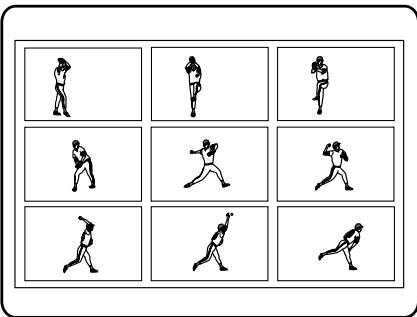
Press the PAUSE button to show the next nine frames. To resume normal play the STROBE button again.
Options
Pressing and holding PAUSE for more than 1 second also activates the Strobe function. If you press STROBE during playback, nine still pictures also appear but they advance in real time.
Slow Motion Playback Using the Remote Control
While a disc is playing press PAUSE 19. A still picture of the frame that was playing when you pressed the button is shown on the screen. Then press the or button 3. To play forward slow-motion, press. To play reverse slow-motion (for DVD discs only), press . The first time you press one of the button the RDV-985 plays the slowest speed (1/32). Each time you press the button again, the playback speed increases.
To return to normal play press PLAY 20. To pause slow motion play press PAUSE 19.
Using the Front Panel Shuttle Control
While a disc is playing press PAUSE A still picture of the frame that was playing when you pressed the button is shown on the screen. To play forward slow-motion, turn the SHUTTLE control to the right. To play reverse slow-motion (for DVD discs only), turn it to the left. The more you turn the knob, the more the slow-motion speed increases.
To return to normal play press PLAY 20. To pause slow motion play press PAUSE 19.
NOTE: Sound is muted during slow motion playback
Zoom In Feature
While a disc is playing or while paused press the ZOOM button 27. "ZOOM" appears on the TV screen and the center part of the image on the screen is enlarged to twice normal size.
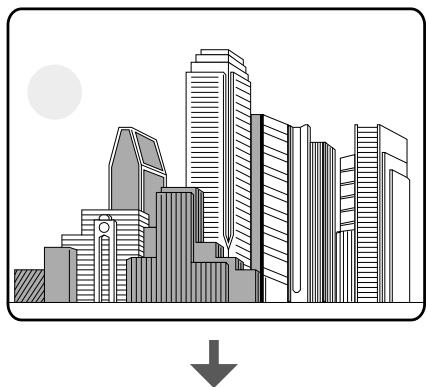
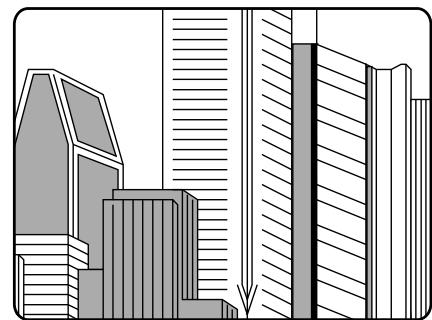
You can use the Cursor Buttons / / / to move the part of the enlarged scene you can see to a different area.
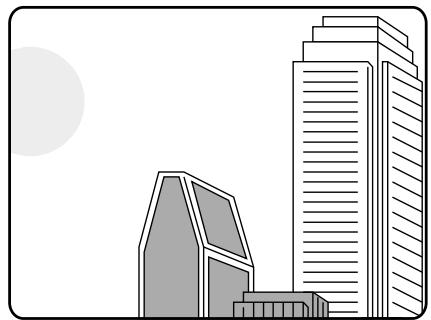
The Pause, Frame-by-Frame Viewing and Slow Motion Playback features work as previously described while the Zoom feature is being used.
To return to normal playback press the ZOOM button again.
NOTE: When using the Zoom in feature with some discs the picture may be garbled or noisy.
17
Changing the Track Order
You can program the RDV-985 to play tracks on a Audio CD, Video CD or SVCD in a specific order or in random order.
Programming For Playback in a Specified Order
While disc play is stopped press the ON SCREEN button 23. The on-screen display appears on the TV screen.
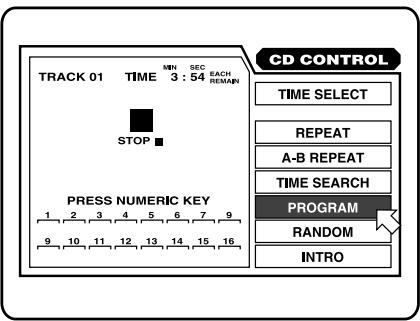
Audio CD Programming Display
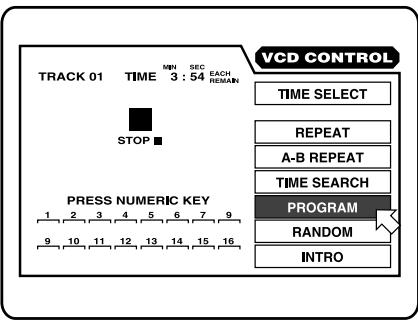
Video CD/SVCD Programming Display
Use the Cursor Buttons / to move to [PROGRAM] and press ENTER 22. The color of [PROGRAM] changes.
Select the tracks in the desired order using the Numeric Buttons 13. Up to 16 tracks can be programmed. You may select the same track more than once.
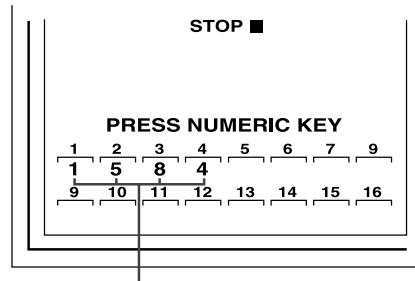
Selected Track Numbers
If you make a mistake press the CANCEL button 11. The last track programmed is erased.
Press PLAY 20 to begin playing the programmed tracks. When all of the programmed tracks have finished playback, the RDV-985 stops. The selected tracks remain programmed.
To Clear the Programmed Tracks
Press STOP to stop playback, then press STOP again. All the programmed tracks are erased.
To Quit Program Playback
Press ENTER 22 when points to [PROGRAM] on the on screen display. [PROGRAM] returns to its original color.
(When playing back a Video CD or SVCD, you have to press STOP and then press ON SCREEN to display the on-screen display.)
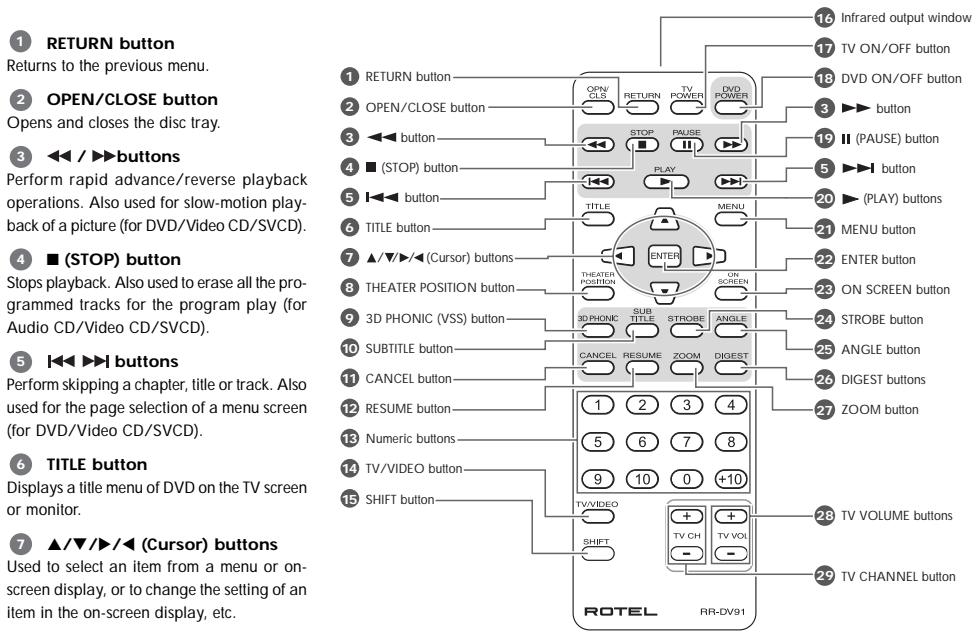
Figure 1: RR-DV91 Remote Control
THEATER POSITION button
Selects a picture character from 4 settings
VSS button
Produces a simulated surround effect.

SUBTITLE button
Turns subtitles on or off.

CANCEL button
Cancels the previous settings.
12 RESUME button
Stores the location to resume playback from later.
13 Nume
Mainly used to select a title/track number, or a TV channel. Also used to enter a time for the Time search and a chapter number for the Chapter search.

TV/VIDEO button
Switches the TV input mode
15 SHIFT button
When pressing and holding this button, the numeric keys (0 -9) select the TV channels. Also used to display the PARENTAL LOCK display.
16 Infrared signal-emitting window Point this window toward the remote sensor on the front panel when pressing buttons.
17 TV ON/OFF button
Turns the TV on or off
DVD ON/OFF button
Turns the unit on or off (standby).
19II (PAUSE) button
Pauses playback.
20 (PLAY) button
Starts playback. Also used as a SELECT but not for PBC of Video CDs/SVCDs.
21 MENU button (for DVD)
Displays a DVD menu on the TV screen or monitor.
22 ENTER button
Executes the selected item in a menu or on-screen display when pressing the button.
23 ON SCREEN button
Displays an on-screen display of the unit on the TV screen or monitor.
24 STROBE button
Displays nine continuous still pictures.
25 ANGLE button (for DVD)
Changes camera angles during playback of a DVD containing multiple camera angles.
26 DIGEST button (for DVD/Video CD/SVCD)
Displays beginning scenes of each title, chapter, or track on the TV screen.
ZOOM button (for DVD/Video CD/SVCD)
Zoom-in for a close-up view of the scene
23TV VOL buttons
Adjust the TV volume.
29 TV CH buttons
Change the TV channels.
RDV-985 DVD Player
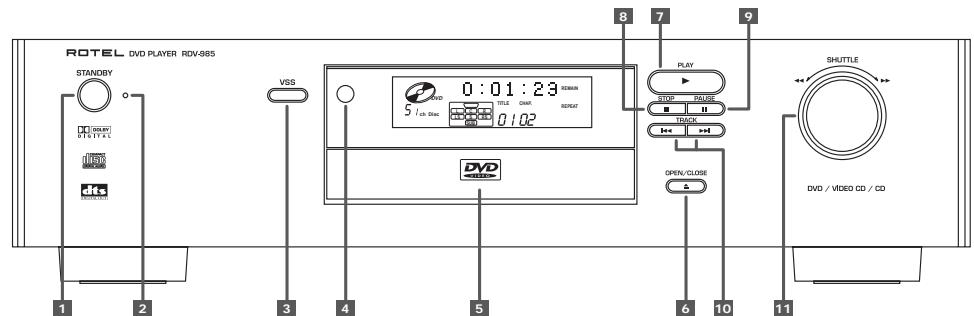
Figure 2: Front Panel Controls
1 POWER button
Turns the unit on or off (standby)
2 STANDBY indicator
Lights when the power cord is connected and the unit is on standby. When the unit is turned on, the STANDBY indicator goes off.
3VSS button
Produces a simulated surround effect
Remote sensor
Receives the signal from the remote control unit.
5 Disc tray
Used to load discs.
6 (OPEN/CLOSE) button
Opens and closes the disc tray
7 (PLAY) button
Starts playback. Also, used as a SELECT button for PBC of Video CDs.
8 (STOP) button
Stops playback
II (PAUSE) button
Pauses playback.
10 (SKIP) buttons
Performs skipping a chapter, title or track. Also used for the page selection of a menu screen (for DVD).
11 SHUTTLE knob
Performs rapid advance/reverse playback operations. Also used for slow-motion playback of a picture (for DVD/Video CD).
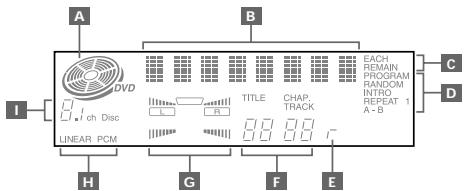
Figure 3: Display Window Indicators and Functions
A Disc Indicator
Lights when a disc is in the unit. When a DVD disc is in the unit "DVD" also appears.
B Multi-Information Display
Displays time and status information.
Time Selection Indicator
Shows which time display mode is selected.
D Function Indicator
Lights when one of the programmable play functions is selected
E Resume Indicator
Lights when a location on the disk has been stored. Play can be resumed at the stored location
Chapter, Title, Track Indicator
Displays chapter, title, or track number.
G Speaker Indicator
lights during disc playback when signals are output from the video output jacks.
≥slant lights when the VSS function is turned on.
H Linear PCM Indicator
Lights only when the playback disc contains linear PCM data. This indicator also lights when an Audio CD is placed in the unit.
Channel Indicator
Displays the currently selected audio playback format.

Specifications
General
Readable Discs:
Super Video CD
Video Format
Video Output
VIDEO OUT (pin jack):
S-VIDEO OUT (S jack)
Horizontal Resolution
Signal to Noise Ratio:
Audio Output
ANALOG OUT (pin jac)
DIGITAL OUT (optical):
Audio Characteristics
Frequency Response:
kHz):
DVD (sampling frequency 48
kHz): 2 Hz to 22 kHz
DVD (sampling frequency 96
kHz):
Dynamic Range:
16 bit: More than 100 dB
20 bit: More than 108 dB
24 bit: More than 108 dB
Wow and Flutter
Unmeasurable (less than ± 0.002%
Total Harmonic Distortion:
Less than 0.002%
Physical
Power Requirements:
Hz
USA Version: AC 120V, 60
European Version: AC 230V, 50
H2
21 W (POWER ON), 2 W (STANDBY)
Weight
4.7 kg (10.4 lbs)
Dimensions (× × )
435× 112× 338mm
17_3 / 16× 4_7 / 16× 13_5 / 16 inch
- Specifications and appearance subject to change without prior notice.

ROTEL
The Rotel Co. Ltd.
10-10 Shinsen-Cho
Shibuya-Ku
Tokyo 150-0045
Japan
Phone: +81 3-5458-5325
Fax: +81 3-5458-5310
Rotel of America
54 Concord Street
North Reading, MA 01864-2699
USA
Phone: +1 978-664-3820
Fax: +1 978-664-4109
Rotel Europe
Meadow Road
1 Worthing, West Sussex BN11 2RX
England
Phone: +44 (0)1903 524 813
Fax: +44 (0)1903 524 831
Rotel Deutschland
Kleine Heide 12
This symbol is to alert the user to the presence of uninsulated dangerous voltages inside the product's enclosure that may constitute a risk of electric shock

This symbol is to alert the user to important operating and maintenance (service) instructions in this manual and literature accompanying the product,
WARNING!
To reduce the risk of electrical shock, fires, etc.:
- Do not remove screws, covers or cabinet.
- Do not expose the unit to rain or moisture
- Do not touch the power cord or plug with wet hands.
Caution - POWER Button Operation
The POWER buttons on the front panel and the remote control switches the unit between "On" and "Standby" modes. They do not disconnect the power mains. The power cord must be unplugged from the wall to shut power off completely.
Caution: Proper Ventilation
To avoid the risk of electric shock and fire and to protect from damage, observe the following minimum clearance requirements:
Front No obstr
Sides 1^1 / 4^n /30mm minimum clearanc
Top 2^ / 50mm minimum clearance
Back 6" / 150mm minimum clearance
Bottom No obstructions, place on a level surface
WARNING: There are no user serviceable parts in
side. Refer all servicing to qualified service personnel.
WARNING: To reduce the risk of fire or electric shock, do not expose the unit to moisture or water. Do not allow foreign objects to get into the enclosure. If the unit is exposed to moisture, or a foreign object gets into the enclosure, immediately disconnect the power cord from the wall. Take the unit to a qualified service person for inspection and necessary repairs.
Read all the instructions before connecting or operating the component. Keep this manual so you can refer to these safety instructions.
Heed all warnings and safety information in these instructions and on the product itself. Follow all operating instructions.
Clean the enclosure only with a dry cloth or a vacuum cleaner.
You must allow adequate unobstructed clearance around the unit. Do not place the unit on a bed, sofa, rug, or similar surface that could block the ventilation slots. If the component is placed in a bookcase or cabinet, there must be ventilation of the cabinet to allow proper cooling.
Keep the component away from radiators, heat registers, stoves, or any other appliance that produces heat.
The unit must be connected to a power supply only of the type and voltage specified on the rear panel of the unit.
Connect the component to the power outlet only with the supplied power supply cable or an exact equivalent. Do not modify the supplied cable in any way. Do not attempt to defeat grounding and/or polarization provisions. Do not use extension cords
Do not route the power cord where it will be crushed, pinched, bent at severe angles, exposed to heat, or damaged in any way. Pay particular attention to the power cord at the plug and where it exits the back of the unit.
The power cord should be unplugged from the wall outlet if the unit is to be left unused for a long period of time.
Immediately stop using the component and have it inspected and/or serviced by a qualified service agency if:
- The power supply cord or plug has been damaged
- Objects have fallen or liquid has been spilled into the unit.
The unit has been exposed to rain.
The unit shows signs of improper operation
The unit has been dropped or damaged in any way
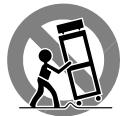
Place the unit on a fixed, level surface strong enough to support its weight. Do not place it on a moveable cart that could tip over.
For U.S.A.
This equipment has been tested and found to comply with the limits for a Class B digital device, pursuant to part 15 of the FCC Rules. These limits are designed to provide reasonable protection against harmful interference in a residential installation.
This equipment gene rates, uses and can radiate radio frequency energy and, if not installed and used in accordance with the instructions, may cause harmful interference to radio communications. However, there is no guarantee that interference will not occur in a particular installation. If this equipment does cause harmful interference to radio or television reception, which can be determined by turning the equipment off and on, the user is encouraged to try to correct the interference by one or more of the following measures:
Reorient or relocate the receiving antenna.
Increase the separation between the equipment and receiver. Connect the equipment into an outlet on a circuit different from that to which the receiver is connected.
Consult the dealer or an experienced radio/TV technician for help.
IMPORTANT FOR LASER PRODUCTS
- CLASS 1 LASER PRODUCT
- DANGER: Visible laser radiation when open and interlock failed or bypassed. Avoid direct exposure to beam.
- CAUTION: Do not open the top cover. There are no user serviceable parts inside the player; leave all servicing to qualified service personnel.
REPRODUCTION OF LABELS
- Classification label, placed on rear enclosure.
- Warning label, placed inside unit.
| CAUTION | - LASER RAOYING WHEN OPEN, DONG STAREN NTO DEAM. |
| ATTENTION | - RAYMONBMENT LASER EN CAS D'OUVERTURE, NE PASSE RAGGERD SANS IN FASCAUE. |
| VORSCHIT | - LASERSTRAHUNG, WENB ABEZOKING GEOFFENET, MIDN IN DEN STRAHL BUDKEN. |
| ADVVARSL | - LASERSTRAHING VED ABNING, SE KEKE IN I STRALEN. |
| ADVVARSL | - LASERSTRAHING MAR DEKELI, APNES, STRIK KEKE INI STRALEN. |
| VARING | - LASERSTRAHING MAR DENNA DEL AR OPPNAD, STRRAE JIN IN I STRALEN. |
| VARO | AVIATTAESA OLET ALTTIMA LASERSEATYILLE, ALA TUGTUA GATESESEN. |
| 注意 | - 当打开这里会出现激光, 请不要直视激光。 |
| 注意 | - ご本文をくレフーを支出いたします。 レフーを贈予のはんだ资源共享お願いいたします。 |
- Appendix A: Table of languages and their abbreviations
- Contents
- About Rotel
- About This Manual
- About the RDV-985
- Strobe function
- Digest function
- Angle function*
- Zoom function
- Parental lock*
- Theater position
- High quality digital sound
- Surround function*
- VSS function
- Multi-language subtitles and sound*
- On-screen display
- RDV-985 DVD Player
- Precautions
- Placement
- Audio/Video Connections
- NTSC/PAL Switch 15
- VIDEO OUT jack
- NTSC/PAL Output Switch
- DIGITAL OUT jack (OPTICAL)
- S-VIDEO OUT jack
- AUDIO OUT jacks (LEFT/RIGHT)
- AC power cord)
- COMPONENTVIDEOOUTjacks (Y/PB/PR)
- Troubleshooting
- Changing the Parental Lock Settings
- Temporarily Release Parental Lock
- Care and Handling of Discs
- How to Handle Discs
- Label side
- Storage
- Maintenance of discs
- Composite Input TV Connection
- Component Input TV Connection
- Connecting to Audio
- Connecting to an Audio Amplifier or Receiver
- Screen Saver
- MODE 1
- MODE 2
- DIMMER
- OFF
- Auto Standby
- 60
- 30
- Parental Lock Feature
- Setting Parental Lock for the First Time
- On Screen Guide
- Monitor Type
- Digital Audio Output
- Down Mix
- Compression
- English
- Connecting the Power Cord
- RR-DV91 Remote Control
- Installing the Batteries
- Precautions for the safe use of batteries
- Programming the RR-DV91 Remote to Control a TV
- Remote Control TV Operation
- On Screen Displays
- To Access On-Screen Displays
- On-Screen Display Operation
- Start Up Displays
- PREFERENCE displays
- PARENTAL LOCK display
- Setting Preferences
- Using the Preferences Display
- Preference 1 Screen Options
- Menu Language
- Audio Language
- Subtitle Language
- On Screen Language
- Time Display Functions
- DVD CONTROL display
- CD CONTROL display
- VCD CONTROL display (for Video CD and SVCD)
- On Screen Icons
- About Invalid Operation Icon
- About discs
- Using Numeric Buttons 13
- Getting Started
- Audio Language Selection
- Selecting Picture Quality
- Subtitle Language Selection
- Disc Play Basics
- Advanced Operations
- Selecting a Scene From a Menu
- About menus
- Intro Scan
- Multiple Angle Viewing
- Selecting a Scene Angle From the Normal Screen
- Random Track Playback
- Repeat Play
- DVD Chapter Search
- Time Search
- Special Playback Features
- Frame-by-Frame Viewing
- Multiple Still Frame ("Strobe") Viewing
- Options
- Slow Motion Playback Using the Remote Control
- Using the Front Panel Shuttle Control
- Zoom In Feature
- Changing the Track Order
- Programming For Playback in a Specified Order
- To Clear the Programmed Tracks
- To Quit Program Playback
- THEATER POSITION button
- VSS button
- SUBTITLE button
- CANCEL button
- RESUME button
- Nume
- TV/VIDEO button
- SHIFT button
- TV ON/OFF button
- DVD ON/OFF button
- 19II (PAUSE) button
- (PLAY) button
- MENU button (for DVD)
- ENTER button
- ON SCREEN button
- STROBE button
- ANGLE button (for DVD)
- DIGEST button (for DVD/Video CD/SVCD)
- ZOOM button (for DVD/Video CD/SVCD)
- 23TV VOL buttons
- TV CH buttons
- POWER button
- STANDBY indicator
- 3VSS button
- Remote sensor
- Disc tray
- (OPEN/CLOSE) button
- (PLAY) button
- (STOP) button
- II (PAUSE) button
- (SKIP) buttons
- SHUTTLE knob
- A Disc Indicator
- B Multi-Information Display
- Time Selection Indicator
- D Function Indicator
- E Resume Indicator
- Chapter, Title, Track Indicator
- G Speaker Indicator
- H Linear PCM Indicator
- Channel Indicator
- Specifications
- Readable Discs:
- Video Format
- Video Output
- VIDEO OUT (pin jack):
- S-VIDEO OUT (S jack)
- Horizontal Resolution
- Signal to Noise Ratio:
- Audio Output
- ANALOG OUT (pin jac)
- DIGITAL OUT (optical):
- Audio Characteristics
- Frequency Response:
- Dynamic Range:
- Wow and Flutter
- Total Harmonic Distortion:
- Physical
- Power Requirements:
- Weight
- Dimensions (W× H× D)
- ROTEL
- WARNING!
- Caution - POWER Button Operation
- Caution: Proper Ventilation
- For U.S.A.
- IMPORTANT FOR LASER PRODUCTS
- REPRODUCTION OF LABELS
Brand : ROTEL
Model : RDV-985
Category : Audio Amplifier