
E100 - Digital audio player IRIVER - Free user manual and instructions
Find the device manual for free E100 IRIVER in PDF.


User questions about E100 IRIVER
0 question about this device. Answer the ones you know or ask your own.
Ask a new question about this device
Download the instructions for your Digital audio player in PDF format for free! Find your manual E100 - IRIVER and take your electronic device back in hand. On this page are published all the documents necessary for the use of your device. E100 by IRIVER.
USER MANUAL E100 IRIVER
Locating the Controls 5
LCD Display 6
Installing iriver plus 3 8
Basic Operations
Turning the Product on/off 10
Menu selection 11
Using HOLD and RESET 12
Connecting Products 13
Using the Product
Music 20
Videos 23
Pictures 25
Texts 27
FM Radio 29
Recordings 31
File Manager 32
Settings 33
Other Information
iriver plus 3 Using the
Product 36
Copyrights/Certification/
Trademarks/Limited
Liability 40
Safety Instructions 41
Troubleshooting 44
iriver
E100

01 Getting Started
Components 4
Locating the Controls 5
LCD Display 6
Installing iriver plus 3 8
Getting Started
Components
Components are subject to change without notice and may vary from images shown.
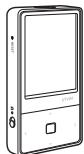
E100
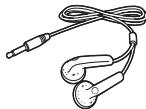
Earphones
Quick Start Guide & Warranty Card

Installation CD & Manual
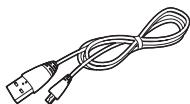
USB cable
Getting Started
Locating the Controls
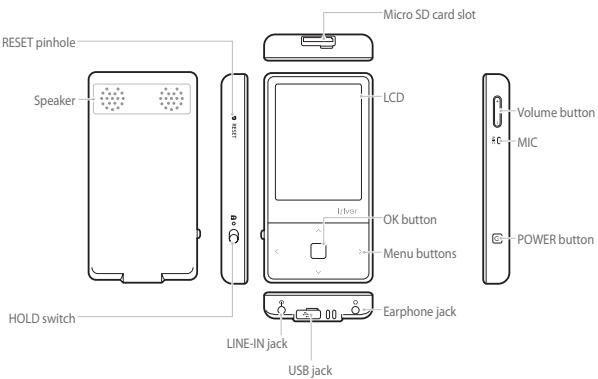
Getting Started
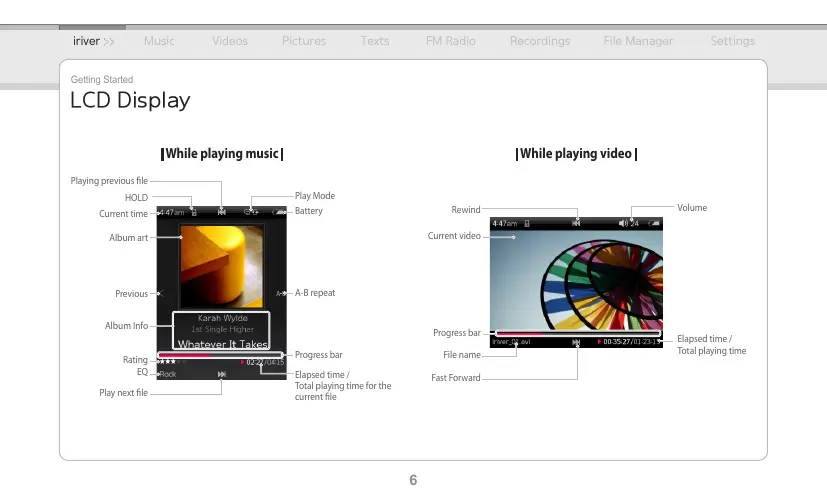
LCD Display
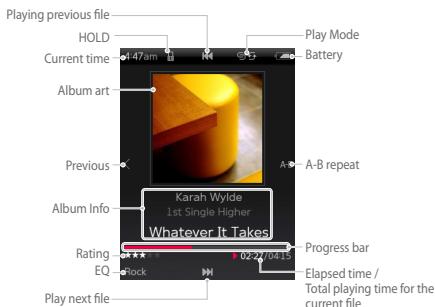
While playing music
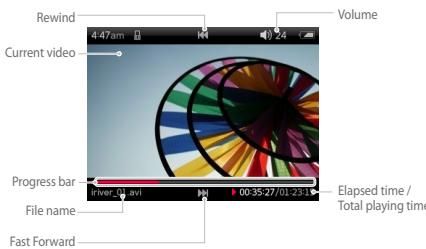
While playing video
Getting Started
LCD Display
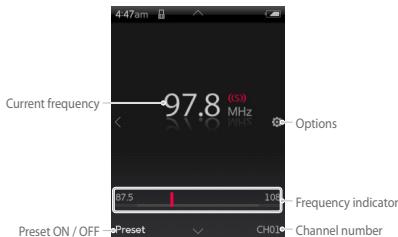
FM Radio
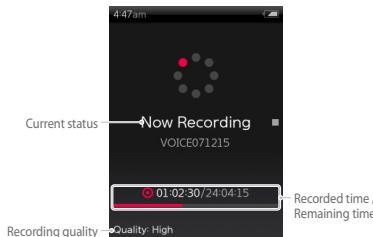
While recording voice
Getting Started
Installing iriver plus 3
iriver plus 3 is an integrated software application that efficiently manages music, video, and picture files.
iriver plus 3 gives you freedom to transfer music, video and picture files from PC to the device.
- Insert the installation CD into your PC to display the installation process screen.
- Select iriver plus 3 and click the Install button.
Complete the installation process by following the on-screen instructions.
Notice.
Minimum requirements for using iriver plus 3
Windows® 2000/XP
- Intel® Pentium® II 233 MHz or higher processor speed
- 64 MB or greater memory
- 30 MB or greater hard disk space
- 16-bit enabled speaker and sound card
Microsoft Internet Explorer version 6.0 or later - SVGA or high resolution monitor (1024x768 resolution or greater)
Windows® Vista (Windows® Vista only supports the 32-bit version and does not support the 64-bit version.)
- Intel® Pentium® II 800MHz or higher processor speed
- 512 MB or greater memory
- 20 GB or greater hard disk space
- 16-bit enabled speaker and sound card
Microsoft Internet Explorer version 6.0 or later - SVGA or high resolution monitor (1024x768 resolution or greater)
For more information on using iriver plus 3, refer to pages 36 - 39.

02 Basic Operations
Turning the Product on/off 10
Menu selection 11
Using HOLD and RESET 12
Connecting Products
- Connecting Earphones to the E100 13
- Charging the product 13
- Inserting / Removing the micro SD card 14
Recommended micro SD card types 15 - Connecting the E100 to your PC 16
- Copying files / folders to the product 17
- Deleting files / folders from the product 17
- Disconnecting the E100 from your PC 18
Basic Operations
Turning the Product on/off
Turning on the product
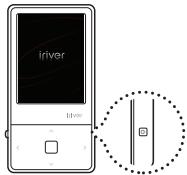
- Press and hold the button on the product to turn it on.
Turning off the product
- Press and hold the button on the product to turn it off.
Notice.
This product has an automatic power saving function to save battery power. Based on the settings in power save mode, the product will be automatically turned off after a pre-determined period without operation. For more information on setting this mode, refer to Settings > Timer > Auto Power off. (Refer to page 33.)
Basic Operations
Menu selection
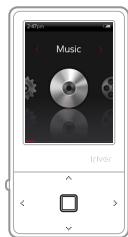
- In the main menu, press the / button to select the menu.
- Press and hold the button to display the main menu from any operation screen.
Basic Operations
Using HOLD and RESET
Using HOLD
- Slide the HOLD switch to the direction of arrow as shown below to lock the product.
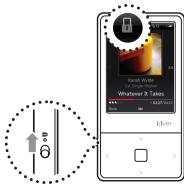
- Slide the HOLD switch the opposite direction to unlock the product.
Using RESET
- If the player stops and does not respond to any commands, press the RESET pinhole.
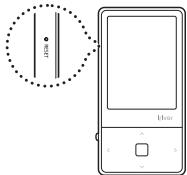
Notice.
Performing RESET does not delete the date / time settings and data in the integrated memory.
Basic Operations
Connecting Products
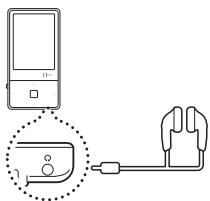
Connecting Earphones to the E100
- Connect earphones to the telephone jack.
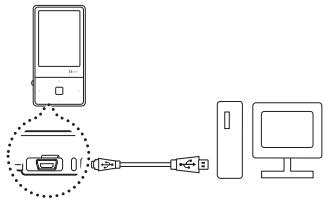
Charging the product
- Turn on your PC and connect the E100 to it using the USB cable provided.
Notice.
- While the product is connected to a PC using the USB cable, the integrated battery will be charged automatically.
- Do not use any USB cable other than the one included with the product. It may cause a malfunction.
- Check if the E100 is connected to a high-power USB 2.0 port. Some low-power USB ports built into certain peripheral devices, such as some types of keyboards and USB hubs without integrated power may not provide enough power to charge.
- While the PC is switched to standby mode, the product may not be charged.
Charge the product only at room temperature. The product may not be charged in extreme hot or cold temperatures. - The charging time might be extended if you use the product while charging.
Basic Operations
Connecting Products
Inserting / Removing the micro SD card
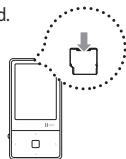
- Open the cover of micro SD card after turning off the product.
-
Insert and slightly press a micro SD card in the direction as shown below.
-
Press again to remove the micro SD card.
Notice.
- Be sure to insert / remove a micro SD card only after turning off the product.
- Do not use excessive power to insert a micro SD card.
- This can cause product malfunction or damage the micro SD card.
- Do not remove a micro SD card while in use.
- This can cause a deletion of data, product malfunction or damage micro SD card.
- Do not insert or remove a micro SD card repeatedly.
If you insert a micro SD card improperly, it can cause product malfunction or cause the card to jam.
Basic Operations
Connecting Products
Recommended micro SD card types
Manufacturer: SanDisk
Notice
Using improper type of micro SD card may cause product malfunction.
Transfer speed of micro SD card is variable depending on your PC.
Always backup valuable data first since formatting the micro SD card will delete all data on it.
- Do not turn off the product or remove a micro SD card while it is being formatted. This can cause a malfunction of the product and damage the micro SD card.
It is recommended to format a micro SD card as a FAT32 system in case its size is over 2 GB.
If a micro SD card has already been formatted by the product, reset the product after disconnecting the USB cable and connect the cable again.
Format the micro SD card if it is not detected or causes a malfunction.
The micro SD card is not included with the product. (Optional item)
The E100 supports micro SD cards up to 4 GB.
Basic Operations
Connecting Products
Connecting the E100 to your PC
- Press and hold the button on the product to turn it on.
- Turn on your PC and connect the E100 to it using the USB cable provided.
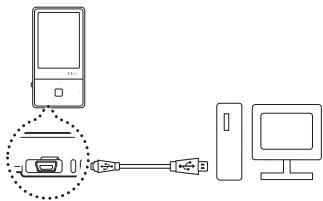
- If properly connected, the LCD will display as below.
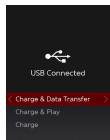
- Charge & Data Transfer : The product is currently being charged and data is being transferred.
- Charge & Play: The product is currently being charged and a file is being played.
Charge:The product is currently being charged.
Basic Operations
Connecting Products (Using as a removable disk)
Copying files / folders to the product
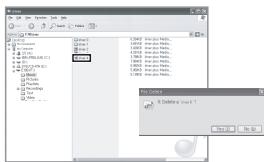
- Select the desired files / folders in your PC and drag & drop to the drive which appears as the product.
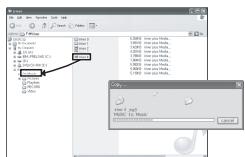
- Deleting files / folders from the product
- After selecting the desired file / folder, right-click with your mouse and select Delete.
- Click Yes in the Confirm File Delete / Confirm Folder Delete popup window to delete the file / folder.
Notice.
Always connect the USB cable properly.
While transferring data using the USB cable, never disconnect it or turn off the power to protect your data from loss or damage.
Basic Operations
Connecting Products
Disconnecting the E100 from your PCI
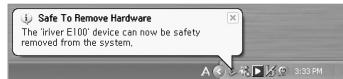
- Click the icon on the taskbar to disconnect the product using the Safely Remove Hardware menu.

- Click the [Stop] button to confirm disconnection.
Notice.
- The icon on the taskbar may be hidden in some operating systems. Click Show hidden icons to display the hidden icon.
The Safely Remove Hardware function may not be available while using some applications such as Windows Explorer or Windows Media Player. Close all applications first before performing the Safely Remove Hardware.
If the Safely Remove Hardware is not performed properly, try again after a few minutes. If the product is removed without observing the above process, data in the product might be damaged.

03 Using the Product
Music
- Selecting Music 20
-Playing Music 20
Additional Features 21
Videos
- Selecting Video 23
-Playing Video 23
Additional Features 24
Pictures
- Selecting Pictures 25
Viewing Picture 25
Additional Features 26
Texts
- Selecting Text 27
Viewing Text 27
Additional Features 28
FM Radio
- Listening to FM Radio 29
- Scanning FM Radio
Station 29
Additional Features 30
Recordings
- Recording 31
- Additional Features 31
File Manager
Browsing Device 32
- Deleting File 32
Settings
- Selecting Setting 33
- Date & Time 33
Display 33 - Timer 33
- Advanced 34
Using the Product
Music
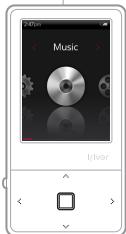
Selecting Music
- In the main menu, press the · ,· button to select Music and press the button.
- Press the / button to select the item and press the or button.
- Press the / button to select the file and press the or button.
Playing Music
- Press the +/- button to control the volume.
- Press the button to pause or resume.
- While playing, press the / button to play the previous / next music.
While playing, press and hold the / button to play fast forward or reverse. - Press the button while playing to select the beginning (A) point. Press it again to select the end (B) point. The designated section between A and B will be played. Press the button again to deactivate the repeat playback.
- While playing, press the × button to return to the previous menu.
Notice.
Supported file formats: MP3, WMA, OGG, FLAC, ASF
- In the Music mode, only music files in the Music folder will be displayed. To play other music files in any other folder, use the File Manager mode.
- You can manage your own playlist using iriver plus 3.
- When a micro SD card is inserted, you can display the file (folder) list by selecting Internal Memory / External Memory.
Using the Product
Music
Additional Features Press and hold the button to display the Options screen.
Play Mode
Selects the play mode which decides the playing order.
- Normal: Deactivates the play mode.
- Repeat: Repeats all files.
- Repeat One: Repeats one file.
- Shuffle: Randomly plays files in the current DB.
- Shuffle + Repeat: Randomly repeats files in the current DB.
- Select EQ
Selects the EQ to be used for playing music.
- Setup Sound
Sets the sound effect.
- Custom EQ: Changes levels of each frequency range to create your own equalization.
- SRS WOW HD: Sets the levels of 3D sound effect.
- SRS: Customizes the SRS 3D sound effects.
- TruBass: Customizes the bass sound level
- Focus: Sets sound clarity.
- WOW: Sets the proper boost level according to earphone type.
Definition: Produces sharper and clearer sound. - Fade-In: Volume increases gradually when playback starts.
Notice.
To avoid sound distortion, do not set the levels of Custom EQ and SRS WOW HD to high.
Using the Product
Music
Replay times
Sets the number of times for A-B repeat.
Repeat Interval
Sets the interval for A-B repeat.
Scan Speed
Sets the speed of fast forward and reverse.
Rate
Classifies your favorite music by star ratings.
AddBookmark
Bookmarks a specific point of time.
- Delete File
Deletes the selected file.
Information
Displays information for the selected file.
Using the Product
Videos
Press the 4 direction buttons based on the direction of LCD.
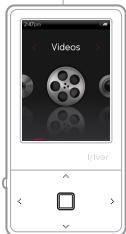
Selecting Video
- In the main menu, press the · ,· button to select Videos and press the button.
- Press the / button to select the item and press the or 串 button.
- Press the / button to select the file and press th or button to play it.
Playing Video
- Press the +/- button to control the volume.
Press the button to pause or resume.
Press and hold the / button to play fast forward or reverse. - While playing, press the × button to return to the previous menu.
Notice.
Supported file formats: AVI, WMV
- In the Videos mode, only video files in the Video folder will be displayed. To play other video files in any other folder, use the File Manager mode.
Max. playing time is variable depending on video type.
- When a micro SD card is inserted, you can display the video list by selecting Videos > Dir List > Internal Memory / External Memory.
- Be sure to use iriver plus 3 when transferring video files. Otherwise, unexpected errors occur during video playback.
If there is a caption file (.smi), you can encode it together with video file using iriver plus 3. (Be sure to match both names of video and caption files.)
Using the Product
Videos
Additional Features Press and hold the button to display the Options screen.
Scan Speed
Sets the speed of fast forward and reverse.
Sequential Play
Plays files with related names in sequential order.
AddBookmark
Bookmarks a specific point of time
Delete File
Deletes the selected file.
Information
Displays information for the selected file.
Using the Product
Pictures
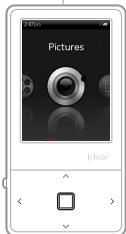
Selecting Pictures
- In the main menu, press the / button to select Pictures and press the button.
- Press the / button to select the item and press the or button.
Play All Displays all pictures in the product.
Dir List Selects image file internal or external memory.
Picture Playlists Displays picture playlists made in iriver plus 3.
- Press the / button to select the file and press the
or button to display the picture on the screen.
Viewing Picture
- While playing pictures, press the button to start / pause a slide show.
- While playing, press the / button to play the previous / next picture.
- While playing, press the × button to return to the previous menu.
Notice...
Supported file formats:JPG,BMP,PNG,GIF (Some file types may not be fully compatible.)
- In the Pictures mode, only picture files in the Picture folder will be displayed. To play other picture files in any other folder, use the File Manager mode.
When a micro SD card is inserted, you can display the picture list by selecting Pictures > Dir List > Internal Memory / External Memory.
- Be sure to use iriver plus 3 when you transfer image file.
- Otherwise, unexpected errors might occur during image playback.
Using the Product
Pictures
Additional Features
Press and hold the 三 button to display the Options screen.
Image Delay
Selects the amount of time each picture is displayed on the screen during a slide show.
- Rotate
Sets the direction of displayed image.
Zoom
Enlarges the selected picture.
-
Press the button to return to the original size.
-
Delete File
Deletes the selected file.
Information
Displays information for the selected file.
Notice.
The Additional Features screen is deactivated during a slide show.
Using the Product
Texts
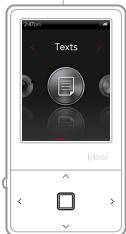
Selecting Text
- In the main menu, press the · ,· button to select Texts and press the button.
- Press the / button to select the item and press the or button.
Dir List Selects text file from internal or external memory.
Bookmark List Displays the list of bookmarks.
- Press the / button to select the file and press the or button to display the text on the screen.
Viewing Text
- Press the button to start or stop the automatic scroll function.
- Press the / button to scroll up or down.
- While playing, press the × button to return to the previous menu.
Notice..
Supported file formats: TXT (You cannot open the file over 10 MB.)
- In the Texts mode, only text files in the Text folder will be displayed. To play other text files in any other folder, use the File Manager mode.
When a micro SD card is inserted, you can display the text list by selecting Texts > Dir List > Internal Memory / External Memory.
Using the Product
Texts
Additional Features Press and hold the button to display the Options screen.
- Skip to
Press / to skip the amount of text based on the designated percentage.
Auto Scroll Speed
Sets the scroll speed.
- Font Size
Selects font size.
AddBookmark
Bookmarks a specific point in the file.
- Delete File
Deletes the selected file.
Notice.
The Additional Features screen is deactivated when the automatic scroll function is activated.
Using the Product
FM Radio
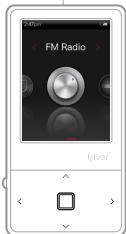
Listening to FM Radio
- In the main menu, press the / / button to select FM Radio and press the button.
- Press the / button to select the FM radio station.
Scanning FM Radio Station
Press the / button to move to the next / previous frequency.
- Press the button to activate the preset and press the 32 button to move to the available next / previous frequency.
- Press the button to activate the preset and press the / button to move to the next / previous channel.
- While playing, press the × button to return to the previous menu.
Notice.
The earphone cord functions as an antenna during radio reception.
Using the Product
FM Radio
Additional Features
Press and hold the 三 button to display the Options screen.
Record
Records the FM radio which you are listening to.
- Press the button to start / stop recording.
FM Recording Quality
Sets the recording quality of radio broadcasting.
- Save Preset / Delete Preset
Saves / deletes the current frequency to / from preset channel.
Auto Preset
Automatically scans and stores frequencies to the channels.
- Up to 20 channels can be stored.
Notice.
- You cannot control the volume while recording FM radio.
If the remaining memory space or power is insufficient, recording will be automatically stopped. -
The file size per minute varies with recording quality.
Low: Approximately 480 K / Middle: Approximately 720 K / High: Approximately 960 K -
Preset List
Displays saved channel list.
- Press the / button to select the channel and press the button to listen to it.
Tuner Region
Sets the frequency range based on local standards.
-Korea/US:87.5-108.0MHz
- Japan: 76.0 - 108.0MHz
- Europe: 87.50 - 108.00 MHz
The recorded file will be saved in the Recordings/FM Radio folder in the following format: TUNERYYMMDDXXX.wma (YY:Year, MM:Month, DD:Day, XXX:Sequential number)
Using the Product
Recordings
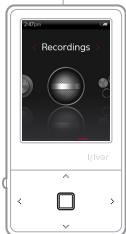
Recording
- In the main menu, press the · ,· button to select Recordings and press the button.
- Press the button to select the item and press the or button. External Mic Records sound using external microphone. Internal Mic Records sound using internal microphone. Line-in Records sound from the external device connected to the LINE-IN terminal.
- In recording standby screen, press the button to start recording. Press again to pause recording.
- Press the button to stop recording.
Additional Features
In recording standby mode, press and hold the button to display the Options screen.
Recording Quality
Sets the quality of recordings.
Notice..
- You cannot control the volume while recording.
If the remaining memory space or power is insufficient, recording will be automatically stopped. - The file size per minute varies with recording quality.
- Low: Approximately 480 K / Middle: Approximately 720 K / High: Approximately 960 K
The recorded file will be saved in the following format: (YY:Year,MM:MonthDD:Day,XXX:Sequential number) External Mic:[Recordings > Voice] EXMCYYMMDDXXX.wma Internal Mic:[Recordings > Voice] VOICEYMMMDXXX.wma Line-in:[Recordings > Line-In] AUDIOYIMMDDXXX.wma
Using the Product
File Manager You can manually check and play various media saved in the iriver E100.
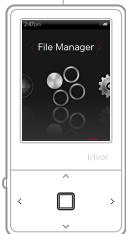
Browsing Device
- In the main menu, press the / button to select File Manager and press the button.
- Press the / button to select the memory and press the or button.
Internal Memory Displays file / folder lists saved in internal memory.
External Memory Displays file / folder lists saved in external memory.
- In file folder) list, press the / button to select the previous / next file (folder).
- Press the or button to move to the subfolder or play the selected file.
- Press the button to move to the upper folder.
| 删除 File |
- After selecting the file, press and hold the button.
Notice.
- When the micro card is inserted, an external memory is displayed.
Using the Product
Settings
The iriver E100 supports customizable configurations.
The menu configurations are subject to change with different firmware versions.
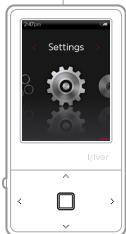
Selecting Setting
- In the main menu, press the · ,· button to select Settings and press the button.
- Press the / button to select the item and press the or button.
- Press the / , / button to select the sub-item and press the or button.
Date & Time
-
Sets the current date and time
-
button:Moves among fields.
- / 空 button: Sets the value of each field.
Display
- Backlight
Sets the amount of time to keep the backlight ON. - Brightness
Changes LCD display brightness.
Timer
Auto Power off
Automatically turns the power off after a pre-determined period without operation.
Sleep
Automatically turns the power off after a predetermined time.
Using the Product
Settings
|Advanced|
Language
Selects preferred language.
- Connection Type
Selects PC file transfer type.
MSC(UMS): Using river plus 3, transfers files via an MSC connection.
* Mass Storage Class (MSC) is a traditional UMS type.
- MTP: Using Windows Media Player 11, transfers files via an MTP connection.
Format Internal Memory
Deletes all data saved in internal memory.
Format External Memory
Deletes all data saved in external memory.
System Information
Displays system information of the product.
- Reset All Settings
Resetsthe product to the factory setting.
Notice.
- It is necessary to backup all valuable files before formatting, since deleted files cannot be recovered. (iriver recommends formatting the memory using the E100.)
Always check remaining battery power before you start formatting.

04 Other Information
iver plus 3 Using the Product
- Adding Media to Library 36
- Ripping Songs from a CD 36
- Transferring Media to the iriver E100 37
Supported File Formats 38
- Initializing Disk 39
- Upgrading Firmware 39
Copyrights/Certification/Trademarks/
Limited Liability 40
Safety Instructions 41
Troubleshooting 44
Other Information
iriver plus 3 Using the Product To connect the product to iriver plus 3, select Settings > Advanced > Connection type and set to MSC (UMS).
Adding Media to Library
- When you run iriver plus 3 for the first time, the Add Media Wizard will start.
- Follow the on-screen instructions on the PC to add media files such as music and pictures to the library.
Ripping Songs from a CD
- Insert an audio CD into the CD drive and run iriver plus 3.
- In iriver plus 3, select the checkbox from Music > CD Drive and click CD Ripping in bottom left.
- After ripping a song, select the All Music to check whether the ripped song has been added to the library.
Other Information
river plus 3 Using the Product
Transferring Media to the iriver E100
iver plus 3 Using the Product
- Connect the product to the USB jack of your PC using the USB cable and run iriver plus 3.
- Select the checkbox beside the file to transfer and click
- The selected file starts to transfer and the progress status is displayed in the Status window on bottom left.
- Now you can find the selected music in your library.
Using Windows Explorer
- Connect the product to the USB jack of your PC using the USB cable.
- Copy the contents to proper folders as below.
Text: iriver E100/Text
Music:iriver E100/Music
Pictures: iriver E100/Pictures
Videos:iriverE100/Video
Other Information
river plus 3 Using the Product
Supported File Formats
| Type | Extension | Format | Type | Extension | Format | |
| Music | MP3 | 8~320Kbps | Video | AVI | Video | MPEG4 SP (Simple Profile), less than 30 frames/sec, 2 Mbps |
| WMA | ||||||
| OGG | Q1~Q10 | Resolution | QVGA(320X240) | |||
| ASF | ||||||
| FLAC | FLAC0~FLAC8 | |||||
| Text | TXT | Unicode text, local code text | Audio | Supports MP3 up to 320 Kbps and recommends 44.1 KHz, CBR | ||
| Picture | JPG | Baseline JPG (Progressive JPG is not supported.) | WMV | Video | WMV9 SP, less than 30 frames/sec. 768 Kbps | |
| BMP | Resolution | QVGA(320X240) | ||||
| PNG | ||||||
| GIF | Audio | Supports WMA up to 320 Kbps | ||||
Other Information
river plus 3 Using the Product
Initializing Disk
- Connect the product to the USB jack of your PC using the USB cable and run iriver plus 3.
- Select Tools > Portable Device > Initialize Disk and click Start when the initialization confirmation message appears.
- The initialization process is completed and the product is disconnected from your PC.
Notice.
- You need to backup the necessary files before initialization, since formatted files cannot be recovered.
Upgrading Firmware
- After connecting the product to the USB jack of your PC using the USB cable, run iriver plus 3. The PC should be connected to the internet.
- Select Tools > Portable Device > Firmware Upgrade and complete the upgrade process by following the on-screen instructions.
Notice.
- Do not disconnect the product from PC while downloading the firmware upgrade file. Once the download is completed, disconnect the cable to activate the firmware upgrade.
If the latest version of the firmware is already installed, the message to confirm the latest version appears. - Messages regarding any available firmware updates will appear automatically when you connect the product to your PC.
Other Information
Copyrights/Certification/Trademarks/Limited Liability
Copyrights
iriver Limited holds all rights for the patent, trademark, literary property and intellectual property related to this manual.
You may not copy or reproduce any part of this manual unless authorized by iriver Limited. You may be subject to criminal penalties for illegal use of any part of this manual. Software, audio and video including intellectual property are protected by copyright and international laws.
Reproduction or distribution of contents created with this product is the responsibility of the user.
The companies, institutions, products, people and events used in examples are for demonstration purposes only. Their appearance in this manual does not imply any affiliation between iriver and other parties. Users are responsible for observing all copyrights and intellectual property laws.
© 1999~2008 iriver Limited. All rights reserved.
Certification
MIC, FCC, CE
Class B Digital Device (Residential Communication Device). This equipment has been tested and found to comply with the limits for a Class B digital device, pursuant to Part 15 of the FCC Rules. These limits are designed to provide reasonable protection against harmful interference in a residential installation.
Trademarks
Windows 2000, Windows XP, Windows Vista and Windows Media Player are the registered trademarks of Microsoft Corp.

SOS is a trademark of SRS Labs, Inc.
WOW HD technology is incorporated under license from SRS Labs, Inc.
Limited Liability
Neither the manufacturer, importers nor dealers are responsible for any accidental damage, including bodily injury or any damages resulting from misuse or inappropriate operation on behalf of the user. The information on this manual is prepared with the current player specifications. The manufacturer, iriver Limited, shall routinely add new features to the product and may continuously apply new technologies hereafter. All standards may be changed at any time without prior notice.
Other Information
Safety Instructions
Product Safety
- Do not display the same image on the screen for an extended amount of time since this may cause a ghosting effect.
- Do not place objects such as coins or hair pins inside the product. This may cause malfunction.
- Do not place heavy objects on the product. This may cause damage and malfunction.
- Do not expose the player to sources of moisture such as water, beverages, chemicals, cosmetics, and so on. This may cause damage and malfunction.
- Keep away from harsh environments including humid, dusty, and smoky areas. This may cause malfunction.
-
Keep out of direct sunlight and extreme heat and cold. This may cause malfunction.
-
Do not keep the product close to magnetic substance such as magnets, TVs, monitors, or speaker. This may cause malfunction.
- Never dismantle, repair, or rebuild your player without authorization. This may cause damage and malfunction.
- Do not clean with chemicals or detergents. This may cause malfunction.
Other Information
Safety Instructions
- Do not drop or subject the device to impact.
This may cause damage and malfunction.
- Do not press more than two buttons simultaneously.
This may cause damage and malfunction.
- Do not disconnect the USB cable while transferring data.
This may cause malfunction.
- Try when possible to connect the product to the rear USB port in your PC.
In some custom- assembled PCs, improper USB port may cause malfunction.
- Do not connect any device or object other than earphones to the Earphone jack.
This may cause damage and malfunction.
Other Information
Safety Instructions
Other
- Do not use headphones / earphones while cycling, driving, or operating any motorized vehicle. This is dangerous and might be illegal in some areas.
- Do not use the product while in motion, such as while driving, walking, or mountain climbing. This may cause injury.
- Use the product in a safe place to avoid accidents. This may cause injury.
Always be careful to steer clear of nearby objects if you use the product while in motion. This may cause injury. - It is not recommended to use the product during electrical storms. This may cause injury.
-
Do not bend the antenna with excessive force to avoid damage. This may cause injury.
-
Keep the antenna away from electric sources such as power outlets. This may cause injury.
- Reduce volume or stop using the player if you experience ringing in your ears. This may cause injury.
- Do not listen to music via headphones/earphones at high volume for a long time. This may cause injury.
- Do not use headphones / earphones at high volume. This may cause injury.
- Keep headphone/earphone cords under control in order to avoid getting caught on nearby objects. This may cause injury.
- Do not sleep with headphones / earphones in the ears.
- Do not use headphones / earphones for excessive periods of time.
This may cause injury.
Other Information
Troubleshooting
Please check out!
The player will not power on!
- Check whether the battery is charged or not. Charge the product using the USB cable and then check again.
- Insert a thin and pointed object (such as a straightened paper clip) into the reset pinhole to reset the device.
The product cannot be charged after connecting power.
- Check whether the USB cable is firmly connected.
The LCD display turns off frequently.
- To save power consumption, the LCD is designed to be turned off after a designated period of time. Set this amount of time in Settings > Display > Backlight.
- The product cannot be connected properly using the USB cable.
- Check whether the USB cable is firmly connected.
Poor radio reception with heavy interference!
- Check whether the earphones jack is dirty.
- Check whether the earphones are connected.
- Adjust the position of the player and earphones.
- Turn off any nearby electronic equipment to avoid potential interference.
No sound during playback!
- Check whether the volume is set to "0".
- Check whether the earphone plug or connection jack is dirty.
- Check whether the music file is corrupted.
Other Information
Troubleshooting
The memory space has changed after formatting.
- The memory space may be changed depending on the operating system.
The start-up time is too long.
- Check whether too many files are stored in the product. It is recommended to store up to 1,000 music files and 2000 picture files.