
MP3-DJ520 - Mp3 player GENIUS - Free user manual and instructions
Find the device manual for free MP3-DJ520 GENIUS in PDF.


| Product Type | MP3 Player |
| Brand | GENIUS |
| Model | MP3-DJ520 |
| Supported Audio Formats | MP3, WMA |
| Voice Recording | Yes, WAV (high quality) and ACT (long duration) formats |
| FM Radio | Yes, band 87.5-108 MHz (standard) or 76-92 MHz (Japan) |
| Lyric Display | Yes, LRC files |
| Equalizer | Normal, Rock, Pop, Jazz, Classic, Soft, DBB |
| Repeat Modes | Normal, Repeat One, Folder, Repeat Folder, Repeat All, Random, Intro |
| Playback Speed Control | From -8 to +8 (MP3 files only) |
| A-B Repeat | Yes, with adjustable number of repetitions (1-10) and interval (1-10 seconds) |
| File Capacity | Up to 512 files (ideal), maximum 99 per folder |
| Directories | Up to 10 levels (root + 9 subfolders) |
| Connectors | USB Mini B, 3.5 mm headphone jack |
| Power Supply | Via USB port (built-in rechargeable battery) |
| Backlight | 0 to 30 seconds |
| Screen Contrast | 0 to 16 |
| Interface Languages | 11 languages (including French, English, German, Spanish, etc.) |
| Auto Power Off | Yes, adjustable |
| Dimensions | Not specified in the manual |
Frequently Asked Questions - MP3-DJ520 GENIUS
User questions about MP3-DJ520 GENIUS
0 question about this device. Answer the ones you know or ask your own.
Ask a new question about this device
Download the instructions for your Mp3 player in PDF format for free! Find your manual MP3-DJ520 - GENIUS and take your electronic device back in hand. On this page are published all the documents necessary for the use of your device. MP3-DJ520 by GENIUS.
USER MANUAL MP3-DJ520 GENIUS
- Introduction 2
- Basic operation 2
- Operation 3
3.1 Music mode 3
3.2 Record mode. 8
3.3 Voice mode 9
3.4 FM mode 10
3.5 System setting 10
3.6 Exit 12
4.Troubleshooting 12
1. Introduction
1.1. Buttons
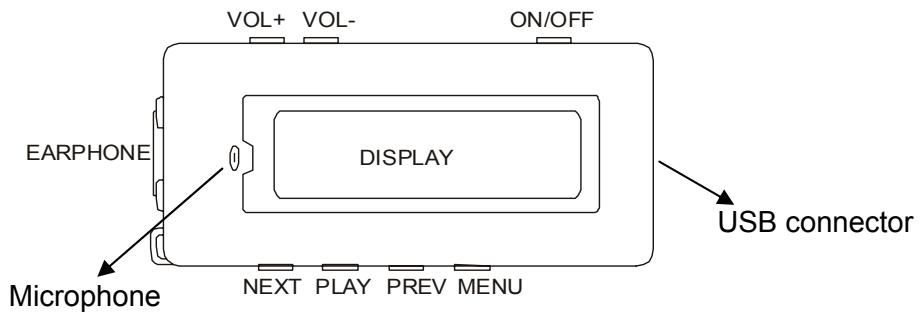
1.2. Button, switch and port
There are seven buttons on this MP3 player:
ON/OFF: Power on /Power off
- PLAY/PAUSE/STOP: Power on (long press); play; pause; confirm; stop; power off (long press).
- PREV: Last song (short press) or fast backward (long press).
- NEXT: Next song (short press) or fast forward (long press).
- MENU: Menu
VOL+: Volume
VOL: Volume

Note: there are three ways to press the buttons "short press", "long press" and "press and hold".
- Short press: press the button less than 2 seconds.
- Long press: press the button longer than 2 seconds and less than 5 seconds.
Hold: press the button and hold it.
1.3. PORT
- USB: standard Mini B USB port.
- Earphone Jack: standard earphone jack (both jacks can plug the earphone)
1.4. Record:
- Microphone: record through here.
2. Basic operation
2.1. Power on/off
Push the Power key to the left, then press PLAY key more than two seconds to turn on the player.
2.2. Function Choice
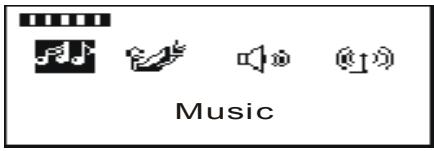
Under the main menu, short press the "NEXT" key or "PREV" key to choose each mode or setting, then short press "MENU" key to get into the relative mode. The display will show the contents accordingly.
Music Record Voice FM Setting Exit.
3. Operation
3.1. MUSIC mode
Under MUSIC mode, the system can play MP3 and WMA files, and support lyric display. (ID3 flag)
3.1.1. Display
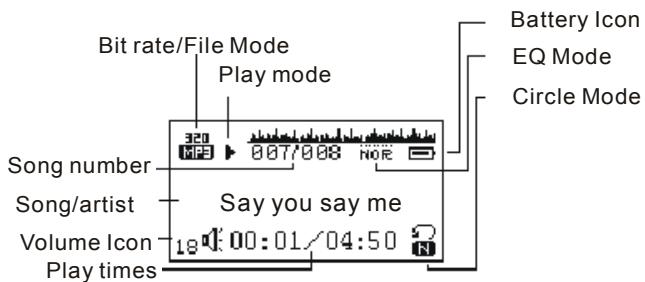
If the song playing has a lyric file, the system will display the lyrics automatically.
3.1.2. MUSIC play mode
3.1.2.1. Basic function
Under MUSIC mode standby condition, short press the "PLAY" key to play the music as follows:
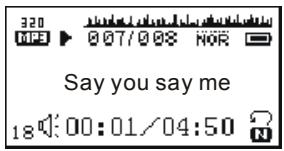
Under MUSIC mode:
Short press the "PLAY" key to pause playing.
Long press the "PLAY" key to stop playing. If you press and hold the key, it will enter into power saving mode.
Press and hold the "NEXT" key or "PREV" key, it will fast forward or fast reverse in the same song.
Short press the "NEXT" key or "PREV" key, it will turn to the previous or next song.
Short press the "VOL" key, it will enter into volume adjustment mode.
Long press the "VOL" key, it will adjust the volume by stage.
Short press the "MENU" key, it will enter into MUSIC setting.
| Play list |
| Artists |
| Album |
| Genre |
| Composers |
| License info |
| Local folder |
| Delete file |
| Delete all |
| Exit |
Long press "MENU" key, it will enter into main menu.
3.1.2.2. Volume adjustment:
To enter volume adjustment mode, short press the "NEXT" key or "PREV" key to adjust the playing volume, the volume display will change accordingly. It can be short press (step by step), or long press (continuously)
3.1.2. 3. MUSIC setting
Under MUSIC mode, short press the "MENU" key to enter into the MUSIC setting, the display as follows:
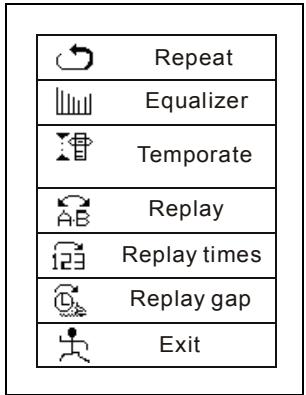
Repeat setting:
To choose repeat mode setting; short press the "NEXT" key or "PREV" key to select the repeat mode: Normal, Repeat One, Folder, Repeat Folder, Repeat All, Random and Intro.
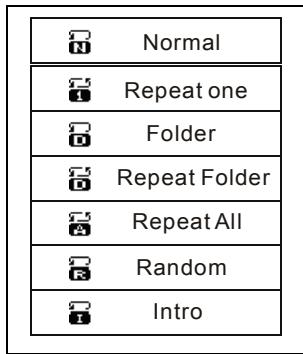
Normal: After finishing playing the music under the current menu, it will play the music under the next menu continuously until it finishes playing all files.
Repeat One: Play one song repeatedly.
Folder: Play all music inside the folder.
Repeat Folder: Play all music inside the folder repeatedly.
Repeat All: Play all music repeatedly.
Random: Play all music under the current folder randomly.
Intro: Play the first 10 sec. of all music under the current file sequentially.
Equalizer setting:
To choose sound effect setting mode, short press the "NEXT" or "PREV" key to enter into repeat setting and select EQ mode: Nor (Normal)/Rock/POP/Jazz/Classic/Soft/DBB. Press "Play" to confirm the setting.
- Tempo rate setting:
To choose play speed setting: press the "NEXT" or "PREV" key to select play speed. It is from +8 to -8, +8 is the fast speed, -8 is the slowest speed, 0 is the normal speed. (Only MP3 format file has this function.)
Replay setting:
Under A-B repeat, short press the "NEXT" key to setup "A" (Press "Next", A will flash, then press again, B will flash. Press again, A-B setup are complete) and "B" segment. After setup, press "NEXT" key and it will replay the section.
Replay times setting:
Repeat frequency decides the A-B repeat times to exit the repeat function. You can choose from 1 to 10.
Replay gap setting:
Repeat interval decides the pause time between this time and next time. (Unit: Second). This rate is from 1 to 10 seconds.
Exit:
Return to the current play condition.
3.1.3. MUSIC pause mode
MUSIC pause mode, as follows;
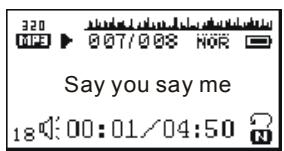
Short press the "PLAY" key, then continue to play.
Long press the "PLAY" key, stop playing. If you press and hold the key, it will enter into power saving mode.
Long press "MENU" key to exit to the main menu.
3.1.4. MUSIC stop mode
Under stop mode, if the standby time is over 30 seconds (it depends on the pre-set time), the player will turn off automatically, or long press "PLAY" key to power off and save power as follows:
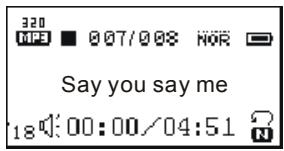
3.1.4.1. Basic function
Short press the "PLAY" key and start to play songs.
Hold the "PLAY" key to enter into power saving mode.
Short press the "NEXT/PREV" key to enter into last/next file.
Short press the "VOL" key to enter into volume adjustment mode.
Long press the " NEXT/PREV" key for fast forward or fast reverse.
Long press "MENU" key to exit to the main menu.
3.1.4.2. Delete MUSIC:
Under MUSIC pause mode, short press the "Menu" key to enter into delete sub-menu as shown:
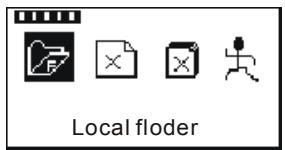
Choose "DELETE FILE" and press the "MENU" key:
Press the "PREV/NEXT" key to select "YES", then short press the "MENU" key to confirm delete.
The operation of delete all is the same as delete one. After the system deletes the song, it will return back to MUSIC standby mode. Choose "MAIN MENU", select the file catalog you need, select "EXIT", and return back to MUSIC standby mode.
3.1.5. Lyric display
If the song has a lyric file, it will display the lyrics automatically when playing the song. After entering into the lyric play interface, the system will play the current song continuously. It will also display the matched lyric according to the song play progress. When finished playing, it will go to the next song play function according to the setting. If the next song has a lyric file, it will stay in the lyric display interface; otherwise, it will return back to normal display interface.
3.1.5.1.Interface description
English lyric: When one word has to split into another line; it has to use “-” to connect last and next lines.
But, if the word has two letters, it will display on the next line directly.
Chinese lyric: LRC
Note: If there is half Chinese character, it will go to the next line directly.
3.1.5.2. Lyric display function
The MP3 player supports 其 ^ 其 LRC" lyric file, it will execute the lyric display simultaneously. Just make sure the lyric file and the song file have the same file name.
Example:
Song file name is: sky.mp3 Lyric file name is: sky.lrc
3.1.6. Directory function
- Only supports root directory and first level sub-directory.
- For single disk, MP3 supports the directory maximum amount is 10 units (only for the MP3 file directory), and the mark is 0, 1...9, 0 is the root directory, 1 is the first level sub-directory, 9 is the ninth sub-directory.
The sequence of the directory is the sequence in the sub-directory.
Each directory supports the maximum amount of MP3 files of 99 units. The files' sequence is based on the sequence in the directory.
- It does not make a difference where you enter "MUSIC" from (any interface), it is always the stop interface. The current song must be returned back to the last song when you exit "MUSIC"; the current catalog must be returned back to the last catalog when you exit.
When the returned song does not exist (the catalog also does not exist), it will transfer to the first file of the current catalog; if the returned catalog does not exist, if will transfer to the first file of the next catalog
3.1.7. Trouble shooting
It will pause playing if an reading error appears during playing.
The system will show a notice when invalid songs are played.
Un-format flash:
The system will show "uniform" after turning on the player if the flash had not been formatted, or the flash data has been damaged due to wrong operation. At this moment, the user can turn off the player, then, use the low-end format function in the player to do the format or connect to the PC to do the complete format. Note: the "MENU" key does not work under this condition.
No music file:
If there is no music file in this player, it will show no file.
3.2. Record Mode (REC)
3.2.1. Interface description
Under the main menu, choose "record selection" function, then, enter into the "REC" mode selection; the display appears as shown:
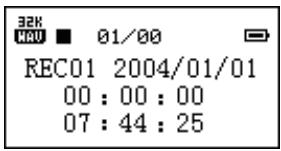
Under REC standby condition, short press the "MENU" key to enter into record selection sub-menu.
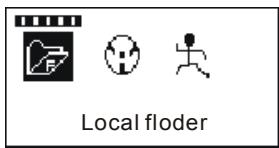
"Main menu "choose the file directory you want to enter into.
" Record selection " choose the record format you want.
"Exit " return back to REC standby condition.
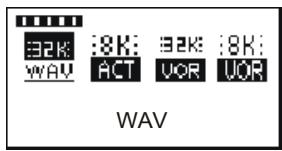
There are four types of record modes, "High quality record", "Long time record", "High quality sound control", and "Long time sound control".
High quality record: The record time is shortest, but the record quality is better.
Long time record: record with longer time, but the record quality is lower.
High quality sound control: WAV format (Sound control record, it will pause recording if there is no sound.)
Long time sound control: ACT format.
3.2.2. Mode of REC:
Under record standby condition, short press the "PLAY" key, the record will start, the display appears as shown:
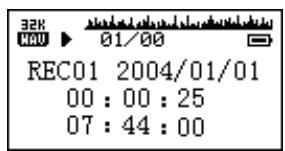
Short press the "PLAY" key: pause recording.
Long press the "PLAY" key: stop recording and save. If you press and hold the key, you enter into power off and power saving mode.
Long press the "MENU" key: save the current record file and return back to the main menu.
3.2.3. Abnormal display of REC mode
- Record file is full
When recording file reaches 99 units or the flash space is full, it will show this notice. At this moment, you must delete some MP3 songs or other recording files for more space to continue recording.
Total files are full
This player can save maximum 512 files (ideal amount), and the maximum amount is relative with the file name. (Usually, it will be less than 512) The system will judge if it reaches the maximum amount automatically; if so, the recording will be stopped. You must delete some MP3 songs or other recording files for more space to continue recording.
- Disk space is full
When the disk has no more space to save the record files, the system will show "disk full". You must delete some MP3 songs or other recording files for more space to continue recording.
- Disk error
If the disk has an error area, the system will find the area and save the current record file, then show "Disk error". You need to do low-end format to avoid this error. (Note: It is possible to have disk error if you use the low end format to format the player.) We do not recommend you use low-end format when formatting the MP3 player.
3.3. VOICE mode
3.3.1. Interface description
Choose "record play" under the main menu for this display to appear:
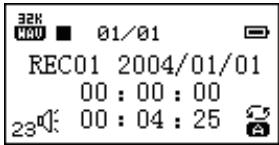
3.3.2. Record play mode
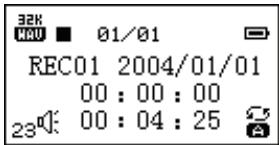
Under stop mode, if the standby time is over the pre-set power off time, the player will enter into power off and power saving mode.
Short press the "NEXT" or "PREV" key to select the play file forward or reverse.
Short press the "PLAY" key to start to play the record file.
Long press the "PLAY" key to enter into power off and saving mode.
Long press the "NEXT" or "PREV" key to go to the last or next directory.
Short press the "MENU" key to enter into delete VOICE file mode.
Long press the "MENU" key to exit to the main menu.
3.3.3. Delete VOICE file mode
Please refer to the 3.1.2.3.MUSIC setting.
3.3.4. VOICE mode error display
No record file
It will show this notice if the player doesn't have a record file or record file has been deleted.
No such file
The record file name has a format, if you change the record file name, the player can't find the record file according to the rule. It will show this notice when the file name can't match under play mode.
- Illegal file
When the record file is damaged or the file is not a record file, the player can't play the file and it will show the notice.

Attention: For the WAV file play, the player can only play WAV format with recording file from his player. It cannot play WAV files copied from a PC.
3.4 FM mode
Under the main menu, select the FM station and enter into the FM mode.
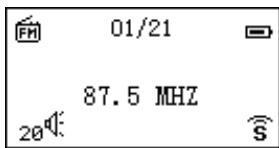
“ ” sign means stereo sound
“01/21 “means there are 21 radio stations, current station is the first station. “87.5MHZ” means the current radio station. (The pre-set FM station can be up to 30 stations.)
"20 sign means volume level.
Press the "MENU" key: enter into FM setting.
-
Save station: save current station.
-
Auto search: search station automatically under valid channels.
- Frequency mode: search station frequency manually.
- Station mode: choose the pre-set station manually.
- Delete station: delete current station.
- Delete all: delete all saved stations.
- Usual channel: Frequency can be from 87.5Mhz~108.0MHz.
- Japanese channel: Frequency can be from 76.0MHz~92.0MHz.
- High quality record: record current station contests as record file.
- Exit: exit current mode.
3.5 System setting
Choose system setting under the main menu. The display appears as shown:
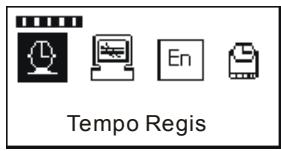
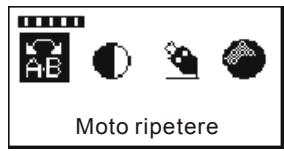
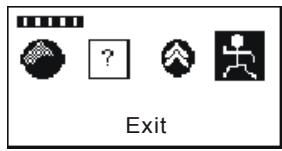
Short press the "MENU" key to enter into each mode. Long press the "MENU" key to return back to the main menu.
3.5.1. Record time
In this mode, you can modify the record time. The system default is 2004-1-1 01:01:00
Short press the "VOL+ key, the year starts blinking, press the "PREV/NEXT" key to modify the year.
Other settings are the same as the year setting.
Short press the "MENU" to exit the menu.
3.5.2 Backlight time
Short press the "MENU" key to enter the menu, then short press the "PREV/NEXT" key to select the backlight time. You can choose from 0 to 30 seconds. Short press the "MENU" key to exit the menu.
3.5.3 Language setting
Select language under this mode.
There are 11 languages available. TW/CN/Por/Rus/Eng/Fre/Pol/Ita/Ger/Dut/Spa
3.5.4 Power off setting
Select auto power saving mode and sleep mode.
Refer to Backlight time setting.
Note: Sleep mode is only valid once when it is been set. It will auto delete the setting when you power off the player. If you need this function, please reset again.
3.5.5 Repeat setting
Choose manual mode and auto mode.
"Manual mode": A-B repeat can't auto split the sentence, only can set the interval point manually.
"Auto mode" means: A-B repeat can auto split the sentence. (Only can use English without music.)
3.5.6 Contrast adjustment
Set the contrast under this mode.
The contrast can be from 0 to 16.
3.5.7 Online mode
Multi driver : You can format the mp3 player to two section. One section can be Encrypted. The other one was normal.
Normal only : The disk was normal as USB disk.
Encrypted only :The disk had been encrypted if you choose this function.
3.5.8 Memory information
Shows the memory capacity and the percentage of space that has been used.
3.5.9 Firmware version
User can check the current firmware version for the player.
3.5.10 DRM Time
System Timing refers to DRM timing.
Press MODE to set the DRM time, press Vol+ key till YEAR flashes, press PREV/NEXT to adjust the year, then press MENU to confirm. Other adjustments follow the same steps.
If you want to reset the DRM clock (not for power-off reason), and if the new time is earlier than the preset time, the system will give you a notice: Adjust clock anti-clockwise Three seconds later it displays Some License may be disabled! Then it runs into clock confirming interface. If the new time is later the preset, the system will show this notice: DRM Time License affected playing right! 3 seconds later it runs into clock confirming interface.
DRM clock confirmation
The display shows as:
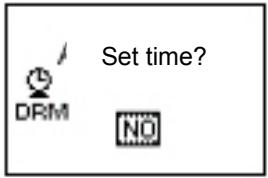
Press PREV or NEXT key to select YES or NO.
Press MENU key to confirm.
3.5.12 Exit
Exit to "MUSIC" mode.
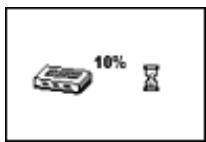
When finishing a download licensed song and removing the USB cable, the Media database and License will begin to be loaded to the MP3 automatically.
Loading:
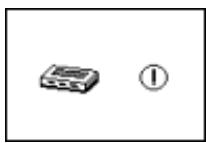
Loading finished and License renewed:
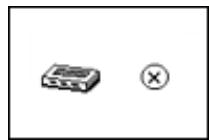
Loading failure:
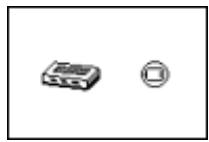
Battery low:
You do not need to do anything if the units display as above.
Note: When finishing the above steps, please set the DRM time in the SYSTEM SETTING of the Main menu.
Warning: To operate DRM10.0, OS is required: Windows XP + Server Pack 1, Windows Media Player 10.3646 (WMP10) or above.
Download: WMP10 adopts MTP(Media Transfer Protocol) to download licensed music from website. And Synchronize the music to the MP3 player.
3.6 Exit
Exit to "MUSIC" mode.
4. Troubleshooting
| No power | ● Check if the power switch has been turned on ● Check if it is powered on |
| No sound from earphones | ● Make sure that the volume is not at 0 position. ● Make sure that the microphone is free of connection problem. ● Ensure that the microphone is clean. ● Damaged MP3 songs may generate different levels of noise or even disable music play. Make sure that the files are complete. |
| Abnormal text on the screen | ● Make sure that you select the correct language. |
| Poor reception effect for FM | ● Adjust the position of the earphones and player. ● Switch off power devices nearby. ● The earphones may serve as an antenna. |
| Not allowing normal download of music | ● Check if the USB connection cable is damaged. ● Is the driver properly installed? ● Check if the memory is full. |
- Introduction
- Buttons
- Button, switch and port
- PORT
- Record:
- Basic operation
- Power on/off
- Function Choice
- Operation
- MUSIC mode
- Display
- MUSIC play mode
- Basic function
- Volume adjustment:
- 3. MUSIC setting
- Repeat setting:
- Equalizer setting:
- - Tempo rate setting:
- Replay setting:
- Replay times setting:
- Replay gap setting:
- Exit:
- MUSIC pause mode
- MUSIC stop mode
- Basic function
- Delete MUSIC:
- Lyric display
- 3.1.5.1.Interface description
- Lyric display function
- Directory function
- Trouble shooting
- Record Mode (REC)
- Interface description
- Mode of REC:
- Abnormal display of REC mode
- - Record file is full
- Total files are full
- - Disk space is full
- - Disk error
- VOICE mode
- Interface description
- Record play mode
- Delete VOICE file mode
- VOICE mode error display
- FM mode
- System setting
- Record time
- Backlight time
- Language setting
- Power off setting
- Repeat setting
- Contrast adjustment
- Online mode
- Memory information
- Firmware version
- DRM Time
- Exit
- Exit
- Troubleshooting
Brand : GENIUS
Model : MP3-DJ520
Category : Mp3 player