
7650 - Laptop COMPAQ - Free user manual and instructions
Find the device manual for free 7650 COMPAQ in PDF.


| Brand | COMPAQ |
| Model | 7650 |
| Product type | Laptop |
| Dimensions (L x W x H) | 33 x 27 x 3.8 cm |
| Weight | 3.2 kg |
| Processor | Intel Pentium III 800 MHz |
| RAM | 256 MB expandable to 512 MB |
| Hard drive | 20 GB |
| Screen | 14.1-inch TFT, resolution 1024 x 768 |
| Connectivity | 1 USB port, 1 VGA port, 1 serial port, 1 parallel port, 56k modem, 10/100 Ethernet |
| Operating system | Microsoft Windows 98 SE or Windows 2000 |
| Battery | Lithium-ion, battery life about 2 hours |
| Power supply | AC adapter 19 V DC, 2.1 A |
| Main functions | Word processing, Internet browsing, email, basic multimedia |
| Care and cleaning | Use a soft cloth slightly damp; do not use solvents |
| Safety | Adequate ventilation required; do not block air vents |
| Spare parts and repairability | RAM, hard drive and battery user-replaceable |
| General information | Serial number on label under device; online user guides available |
Frequently Asked Questions - 7650 COMPAQ
User questions about 7650 COMPAQ
0 question about this device. Answer the ones you know or ask your own.
Ask a new question about this device
Download the instructions for your Laptop in PDF format for free! Find your manual 7650 - COMPAQ and take your electronic device back in hand. On this page are published all the documents necessary for the use of your device. 7650 by COMPAQ.
USER MANUAL 7650 COMPAQ
This guide provides information on setting up the monitor, installing drivers, using the on-screen display menu, troubleshooting, regulatory notices, and technical specifications.
Copyright 2004, 2006, 2007 Hewlett-Packard Development Company, L.P. The information contained herein is subject to change without notice.
Microsoft, MS-DOS, Windows, and Windows NT are trademarks of Microsoft Corporation in the U.S. and other countries.
Intel, Pentium, Intel Inside, and Celeron are trademarks of Intel Corporation in the U.S. and other countries.
Adobe, Acrobat, and Acrobat Reader are trademarks or registered trademarks of Adobe Systems Incorporated.
The only warranties for HP products and services are set forth in the express warranty statements accompanying such products and services. Nothing herein should be construed as constituting an additional warranty. HP shall not be liable for technical or editorial errors or omissions contained herein.
This document contains proprietary information that is protected by copyright. No part of this document may be photocopied, reproduced, or translated to another language without the prior written consent of Hewlett-Packard Company.

WARNING: Text set off in this manner indicates that failure to follow directions could result in bodily harm or loss of life.

CAUTION: Text set off in this manner indicates that failure to follow directions could result in damage to equipment or loss of information.
User Guide
75, 705, 7540, 7600 and 7650 Series CRT Monitors
Sixth Edition (August 2007)
Document Part Number: 368239-006
Contents
1 Product Features
2 Safety and Maintenance Guidelines
Safety Guidelines. 2-1
Power Requirements 2-1
Important Safety Information 2-1
Maintenance Guidelines. 2-2
3 Setting Up the Monitor
Attaching the Monitor Base. 3-1
Removing the Monitor Base 3-2
Connecting the Cables 3-2
Connecting the Speakers (Available with Select Models) 3-4
Tall Speakers with Base 3-4
Short Speakers. 3-6
USB Speakers 3-7
Plugging Headphones into the Computer 3-8
4 Operating the Monitor
Software and Utilities. 4-1
The Information File 4-1
The Image Color Matching File 4-2
Installing the .INF and .ICM Files 4-2
Installing from the CD. 4-2
Downloading from the Worldwide Web. 4-3
Front Panel Controls 4-4
On-Screen Display 4-5
On-Screen Display Functions 4-6
Monitor Messages 4-8
No Signal Message 4-8
Out of Frequency Range Message. 4-9
Using the Energy Saver Mode 4-10
A Troubleshooting
Solving Common Problems. A-1
Using the Worldwide Web. A-4
Preparing to Call Technical Support A-4
B Technical Specifications
75 and 7540 Series
Curved CRT Monitors. B-1
705 and 7600 Series
Flat CRT Monitors. B-3
7650 Series Flat CRT Monitors. B-5
C Agency Regulatory Notices
Federal Communications Commission Notice. .C-1
Modifications. C-2
Cables C-2
Declaration of Conformity for Products Marked with FCC
Logo, United States Only. C-2
Canadian Notice. C-3
Avis Canadien C-3
European Union Regulatory Notice. C-3
Disposal of Waste Equipment by Users in Private Household in the European Union. C-4
Japanese Notice C-4
Korean Notice C-5
Power Cord Set Requirements. C-5
Japanese Power Cord Requirements. C-6
Product Features
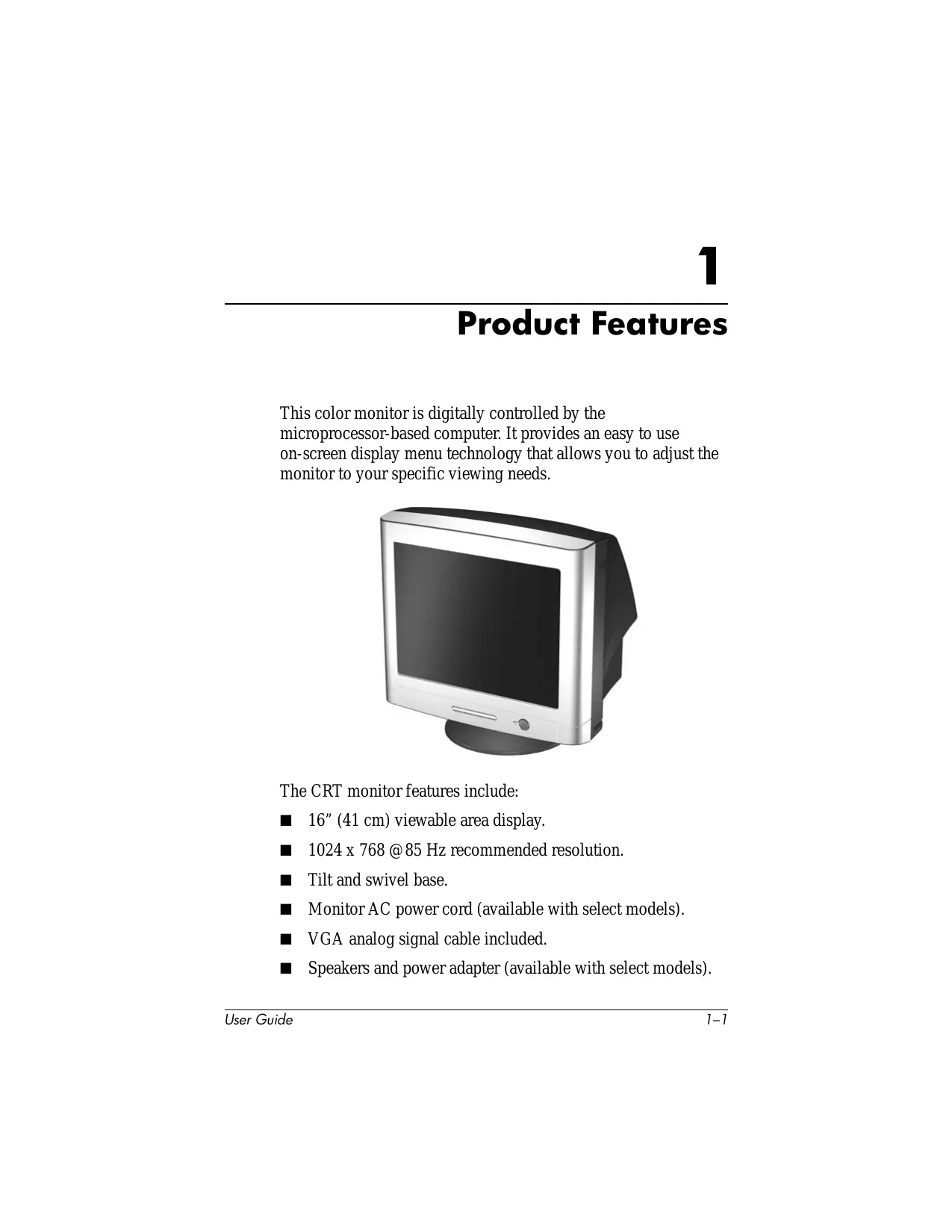
This color monitor is digitally controlled by the microprocessor-based computer. It provides an easy to use on-screen display menu technology that allows you to adjust the monitor to your specific viewing needs.
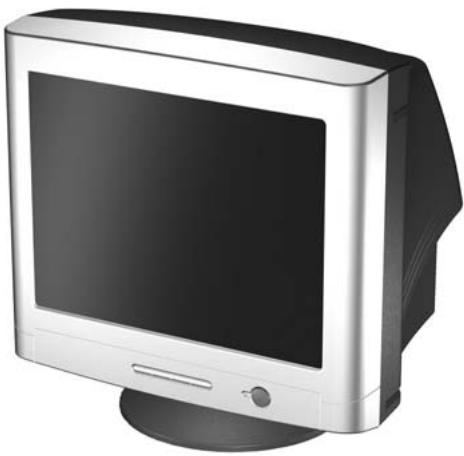
The CRT monitor features include:
16" (41 cm) viewable area display.
1024 x 768 @85 Hz recommended resolution.
Tilt and swivel base.
Monitor AC power cord (available with select models).
VGA analog signal cable included.
- Speakers and power adapter (available with select models).
Plug and play capability if supported by your system.
- On-screen display (OSD) adjustments for ease of setup and screen optimization; allows you to adjust all elements of the screen image.
Energy Saver feature to meet requirements for reduced power consumption.
Compliant with the following regulated specifications:
European Union CE Directive
Swedish MPR II (available with select models)
Swedish TCO '03 (available with select models)
User documentation
Safety and Maintenance Guidelines
Safety Guidelines
Power Requirements
A power cord is included with your monitor. If another cord is used, use only a power source and connection appropriate for this monitor. For information on the correct power cord set to use with your monitor, refer to the "Power Cord Set Requirements" section in Appendix C.
Important Safety Information

WARNING: To reduce the risk of electric shock or damage to your equipment, do not disable the power cord grounding feature. This equipment is designed to be connected to a grounded (earthed) power outlet that is easily accessible to the operator. The grounding plug is an important safety feature.

WARNING: For your safety, be sure that the power outlet you plug the power cord into is easily accessible and located as close to the equipment as possible. When you need to disconnect the power to the equipment, unplug the power cord from the power outlet by grasping the plug firmly. Never pull on the cord.

CAUTION: For the protection of your monitor, as well as your computer, connect all power cords for your computer and its peripheral devices (such as a monitor, printer, scanner) to some form of surge protection device such as a power strip or Uninterruptible Power Supply (UPS). Not all power strips provide surge protection; the power strips must be specifically labeled as having this ability. Use a power strip whose manufacturer offers a Damage Replacement Policy so you can replace your equipment if surge protection fails.
Maintenance Guidelines
To enhance the performance and extend the life of your monitor, follow these guidelines:
- Do not open your monitor cabinet or attempt to service this product yourself. If your monitor is not operating properly, or has been dropped or damaged, first unplug from power outlet, then contact your Hewlett-Packard authorized dealer, reseller, or service provider.
Adjust only those controls that are discussed in the operating instructions. - Place your monitor at least 3 inches (76 mm) away from walls or other enclosures.
Use only a power source and connection appropriate for this monitor, as indicated on the label/back plate of the monitor.
■ Be sure the total ampere rating of the products connected to the outlet does not exceed the current rating of the electrical outlet, and the total ampere rating of the products connected to the cord does not exceed the rating of the cord. Look on the power label to determine the ampere rating (AMPS or A) for each device.
Install your monitor near an outlet that you can easily reach. Disconnect the monitor by grasping the plug firmly and pulling it from the outlet. Never disconnect the monitor by pulling the cord.
Turn your monitor off when not in use. You can substantially increase the life of your monitor by using a screen saver program and turning off the monitor when not in use.
- Unplug your monitor from the wall outlet before cleaning. Do not use liquid cleaners or aerosol cleaners. Use a damp cloth for cleaning. If the screen requires additional cleaning, use an antistatic CRT screen cleaner.

CAUTION: Do not use benzene, thinner, ammonia, or any other volatile substances to clean your monitor or the screen. These chemicals may damage the cabinet finish as well as the screen.
- Slots and openings in the cabinet are provided for ventilation. These openings must not be blocked or covered. Never push objects of any kind into cabinet slots or other openings.
- Do not place plants on top of your monitor. Water or dirt from the plant may get into the vents.
Do not drop your monitor or place it on an unstable surface. - Do not allow anything to rest on the power cord. Do not walk on the cord.
-
Keep your monitor in a well-ventilated area, away from excessive light, heat or moisture. Keep your monitor away from high-capacity transformers, electric motors, and other devices with strong magnetic fields.
In a two-monitor system, place your monitors as far apart from one another as possible to lessen interference between them. -
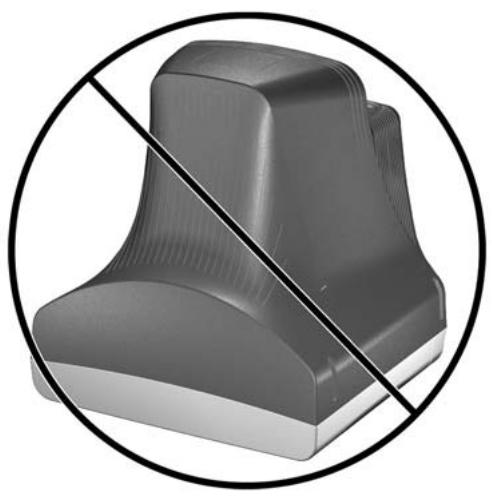
Do not place the monitor face down. Damage could result to the front panel controls or the monitor screen.
Setting Up the Monitor
Attaching the Monitor Base
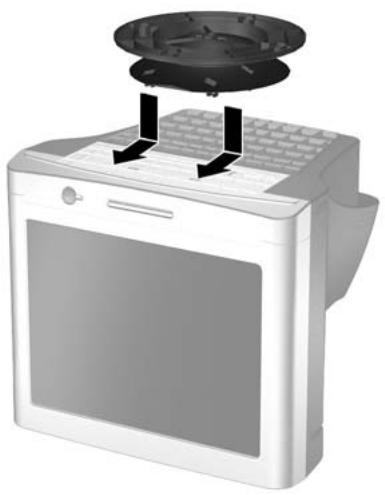
- Carefully position the monitor bottom side up.
- Align the hooks on the base with the sockets on the bottom of the monitor and attach the base.
- Push the base toward the front of the monitor until it stops.
Removing the Monitor Base
In the event that you need to disassemble the base from the monitor, position the monitor bottom side up and follow these instructions:
- If you must remove the base attachment, release the catch and slide the base toward the back of the monitor.
- Lift the base up and away from the monitor.
Connecting the Cables
Before setting up the monitor, place it in a convenient, well-ventilated location near the computer.
- Turn off the power to the computer and other peripheral devices.
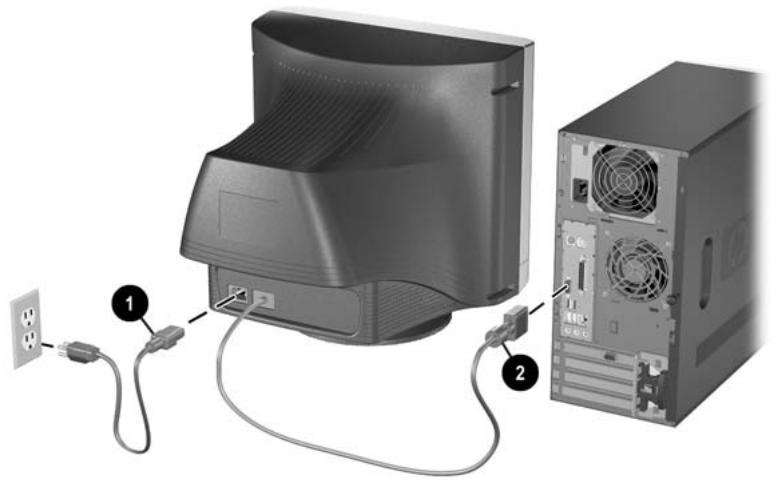
- Connect the power cord ① to the back of the monitor, then connect the power cord to a power outlet.
- Connect the video cable (blue connector) ② from the back of the monitor to the blue 15-pin connector on the back of the computer. Tighten the cable screws to secure the cable to the connector.

CAUTION: To avoid damaging the video cable, ensure that the cable aligns with the 15-pin connector. Do not force the cable onto the connector.
- Power on the computer and monitor.

If the monitor fails to function properly, refer to Appendix A, "Troubleshooting."
- If necessary, adjust the front panel monitor controls according to your personal preference. See Chapter 4, "Front Panel Controls" for detailed information.
The monitor installation is now complete.
Connecting the Speakers (Available with Select Models)
Several speaker models are available with select monitors. Refer to the steps below for the speaker model included with your monitor.
Tall Speakers with Base
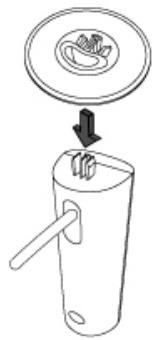
- If the speakers and bases are not assembled, attach them by turning each speaker bottom side up. With the opening in the base toward the rear of the speaker, align the key slot on the base with the center tab on the speaker, and then lower the base onto the speaker.
-
Place the speaker set near the monitor so that the speaker with the controls is on the right side when you view the monitor from the front.
-
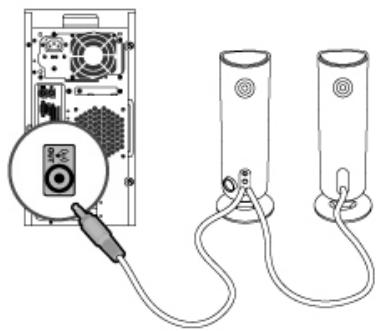
Attach the green connector from the control speaker to the green port on the back of the computer.
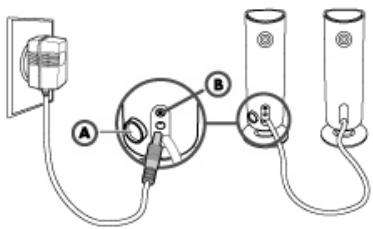
- Attach the speaker power adapter cable to the connector on the back of the control speaker, and then plug the AC adapter into an electrical outlet.
- Use the control knob A to turn on the speakers and adjust volume.
- If you are using a subwoofer, insert the subwoofer audio plug into the speaker's subwoofer connector B.
- As needed, connect headphones to the headphone jack connector (not shown) on the right control speaker.
Short Speakers
- Place the speaker set near the monitor so that the speaker with the controls is on the right side when you view the monitor from the front.
- Attach the speaker power adapter cable to the black connector on the back of the control speaker, then connect the AC adapter into an electrical wall outlet.
- Attach the green connector from the control speaker to the green port on the back of the computer.
- Turn on the speakers and adjust the volume using the knob on the side of the control speaker.
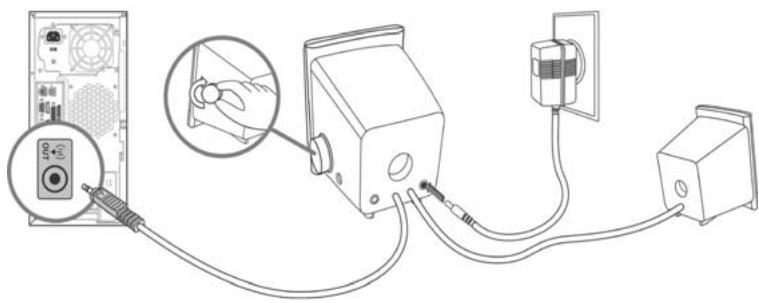
USB Speakers
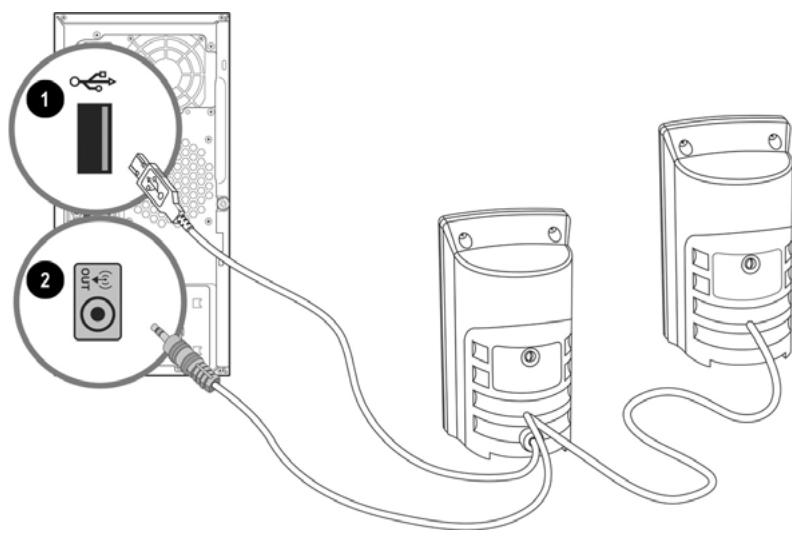
- Place the speaker set near the monitor so that the speaker with the controls is on the right side when you view the monitor from the front.
- Plug the USB cable ① on the control speaker into a USB port on the computer.
- If available, plug the green connector (audio connector) 2 on the control speaker into the green port on the computer.

The audio cable is available with select speaker models.
Plugging Headphones into the Computer
To use headphones, if your speaker does not have a headphone port, plug them into the connector on the back of the computer labeled Out, Line Out or Speaker. You may need to disconnect the speakers to connect the headphones.
Operating the Monitor
Software and Utilities
Select monitor models will include a CD that contains two files you can install on your computer:
an.INF (Information) file
an. ICM (Image Color Matching) file
Adobe Acrobat Reader is supplied on this CD and can be installed from the menu.

If the monitor does not include a CD, the .INF and .ICM files can be downloaded from the HP monitors support Web site. See "Downloading from the Worldwide Web" in this chapter.
The Information File
The .INF file enables the computer to communicate with the monitor and use all the monitor features. The INF file defines monitor resources used by Microsoft Windows operating systems to ensure monitor compatibility with the computer's graphics adapter.
This monitor is Windows Plug and Play compatible and the monitor will work correctly without installing the .INF file. Monitor Plug and Play compatibility requires that the computer's graphic card is VESA DDC2 compliant and that the monitor connects directly to the graphics card. Plug and Play does not
work through separate BNC type connectors or through distribution buffers/boxes. You may need to install the .INF file if these conditions are not met.
The Image Color Matching File
The .ICM file provides accurate color representation. The .ICM files are data files that are used in conjunction with graphics programs to provide consistent color matching from monitor screen to printer, or from scanner to monitor screen. The .ICM file contains a monitor color system profile. This file is activated from within graphics programs that support this feature.

The ICM color profile is written in accordance with the International Color Consortium (ICC) Profile Format specification.
Installing the .INF and .ICM Files
After you determine that you need to update, you can install the .INF and .ICM files from the CD or download them.
Installing from the CD
To install the .INF and .ICM files on the computer from the CD:
- Insert the CD in the computer CD-ROM drive. The CD menu displays.
- View the "INF and ICM Readme" file.
- Select "Install INF and ICM Files."
- Follow the on-screen instructions.
-
After the INF software has been installed, restart Windows.
-
Ensure that the proper resolution and refresh rates appear in the Windows Display control panel.

You may need to install the digitally signed monitor .INF and .ICM files manually from the CD in the event of an installation error. Refer to the INF and ICM Readme file on the CD.
Downloading from the Worldwide Web
To download the latest version of .INF and .ICM files from the HP monitors support Web site:
- Refer to http://www_hp.com/support and select your country region.
- Follow the links for your monitor to the support page and download page.
- Ensure your system meets the requirements.
- Download the software by following the instructions.
Front Panel Controls
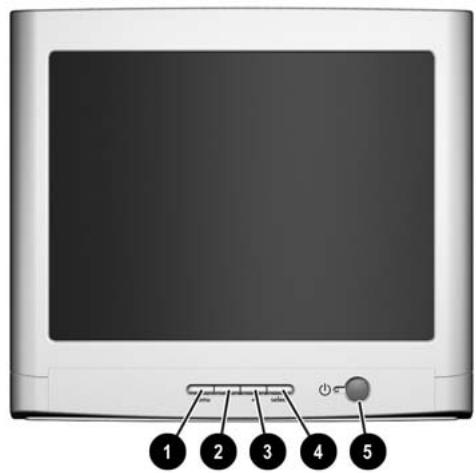
| Item | Icon | Name | Function |
| 1 | menu | menu | Launches on-screen displays and exits the menus and On-Screen Display. |
| 2 | - | Left Adjustment | Moves backward through menu options or decreases adjustment levels. |
| 3 | + | Right Adjustment | Moves forward through menu options or increases adjustment levels. |
| 4 | select | select | Selects function and adjustment levels in the OSD menu |
| 5 | Power/LED | Controls power to the monitor. The LED on the power button indicates the state of the monitor. | |
| The icon for the power/LED varies on select models. |
On-Screen Display
The On-Screen Display (OSD) adjusts the screen image based on your viewing preferences. To access the OSD, do the following:
- If the monitor is not already on, press the power button to turn on the monitor.
- Press the menu button to display the On-Screen Display menu. A screen similar to this one appears. For a description of the icons that appear on the screen, see "On-Screen Display Functions" later in this chapter.
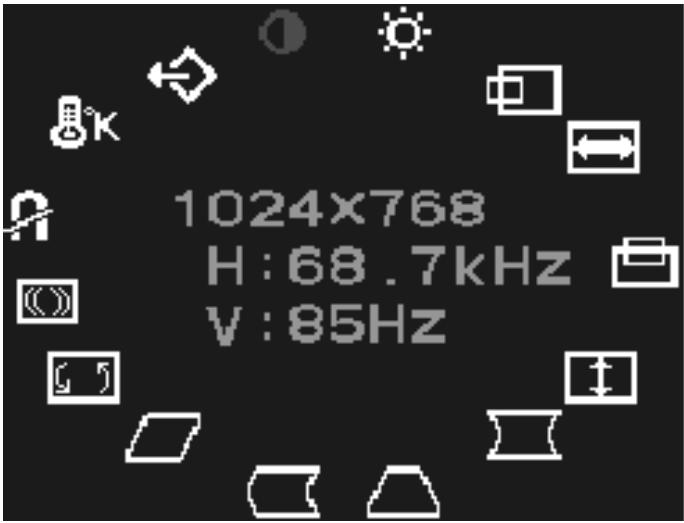
- To move to a function, press the Right-Adjustment or Left-Adjustment button on the front panel of your monitor until the function is highlighted.
-
Press the select button on the monitor to choose the function.
-
The adjustment window displays. Press the Right-Adjustment or Left-Adjustment buttons to increase (Right) or decrease (Left) the level of adjustment.
- Press select to save the new adjustment.
- To exit the On-Screen Display, press the menu button once.
On-Screen Display Functions
Use the Right-Adjustment and Left-Adjustment buttons found on the front control panel of the monitor to adjust the on-screen display functions in the following table.
On-Screen Display Icons and Functions
| Icon | Function | Description |
| Contrast | Right-Adjustment increases the contrast and Left-Adjustment decreases the contrast. | |
| Brightness | Right-Adjustment increases the brightness and Left-Adjustment decreases the brightness. | |
| Horizontal Position | Right-Adjustment moves the image to the right and Left-Adjustment moves the image to the left. | |
| Horizontal Size | Right-Adjustment increases the horizontal size and Left-Adjustment decreases the horizontal size. | |
| Vertical Position | Right-Adjustment moves the image up and Left-Adjustment moves the image down. | |
| Vertical Size | Right-Adjustment increases the vertical size and Left-Adjustment decreases the vertical size. | |
| Pincushion | Right-Adjustment makes the image sides convex and Left-Adjustment makes the image concave. | |
| Trapezoid | Right-Adjustment adjusts the image so the top is larger and Left-Adjustment adjusts the image so that the bottom is larger. | |
| Pin Balance | Right-Adjustment moves the top and bottom of the image to the right and Left-Adjustment moves the top and bottom of the image to the left. | |
| Parallelo-gram | This control corrects the tilted vertical edges of the image on both sides of the screen that are in the same direction. | |
| Tilt (Rotation) | Right-Adjustment tilts the sides of the image to the right and Left-Adjustment tilts the sides of the image to the left. | |
| Moire | Right-Adjustment increases the Moire correction and Left-Adjustment decreases the Moire correction. | |
| Degauss | This control demagnetizes the screen to reduce color impurities. It is recommended that you not degauss more than once within a 30-minute period of time. | |
| Color Temp | Right-Adjustment selects the color temperature to the right and Left-Adjustment selects the color temperature to the left. | |
| Reset | This control resets the monitor to factory default values. |
Monitor Messages
No Signal Message
NO SIGNAL


CHECKVIDEO CABLE?
If a No Signal message displays on the monitor screen, check to be sure the video cable is properly connected and ensure that the computer is powered on.
Out of Frequency Range Message
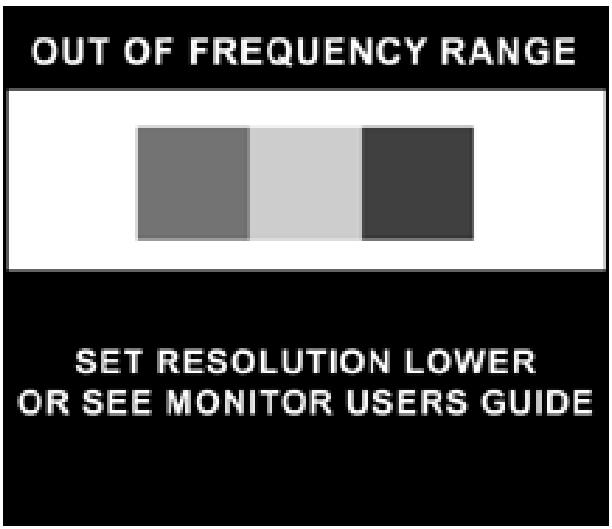
If an Out of Frequency Range message displays on the monitor screen, the video resolution and/or refresh rate are set higher than the levels the monitor supports.
To change the video resolution or refresh rate on the monitor:
- Restart the computer.
- Enter Safe Mode on the computer. Refer to the computer's operating system Help for instructions on entering Safe Mode.
- Change the display settings to a supported setting (see "Technical Specifications").
- Restart the computer so that the new settings take effect.
Using the Energy Saver Mode
The monitor is designed to meet requirements for reduced power consumption. Using a combination of hardware and software functions, this energy-saving feature allows the computer to control the monitor's power consumption and reduce the monitor's power state when not in use.
Power Management Status
| State | LED Color | Power Consumption | Description |
| On | Green | < 75 watts | Normal Operation |
| Sleep | Amber | < 4 watts | Monitor screen is blank. High voltage is off. Heater voltage is off. There is a brief warm-up period before returning to full power mode. |

The monitor's energy saver feature works only when the monitor is connected to a computer that also has energy saver features.
The Energy Saver utility, with its energy saving features, is available with all Microsoft Windows operating systems. Some features are also available in DOS. Refer to the computer's user guide for instructions on setting energy saver features (also referred to as power management features).
Troubleshooting
Solving Common Problems
The following table lists possible problems, the possible cause of each problem, and the recommended solutions.
| Problem | Possible Cause | Solution |
| Screen is blank. | Power cord is disconnected. | Connect the power cord. |
| Power switch is off. | Turn on power. | |
| Video cable is improperly connected. | Connect video cable properly. | |
| Screen blanking utility is active. | Depress any key on the keyboard or move the mouse. | |
| Image appears blurred, indistinct, or too dark. | Brightness and contrast are too low. | Press the menu button to access the On-Screen Display. Select the Brightness and/or Contrast icons to adjust as needed. |
| Color is abnormal. | A magnetic object may be nearby. | Move the object farther away. |
| Monitor may have been moved or inadvertently bumped. | Press the menu button to access the On-Screen Display. Select Degauss to activate. Hewlett-Packard suggests you not degauss more than once within a 30-minute period of time. | |
| Image is too large or too small. | Horizontal width may need adjustment. | Press the menu button to access the On-Screen Display. Select Horizontal Size to adjust as needed. |
| Vertical height may need adjustment. | Press the menu button to access the On-Screen Display. Select Vertical Size to adjust as needed. | |
| Image is not centered. | Horizontal position may need adjustment. | Press the menu button to access the On-Screen Display. Select Horizontal Position to adjust as needed. |
| Vertical position may need adjustment. | Press the menu button to access the On-Screen Display. Select Vertical Position to adjust as needed. | |
| “No Signal” is displayed on screen. | Monitor video cable is disconnected. | Connect the 15-pin monitor video cable to the computer. Be sure that the computer power is on. |
| “Out of Frequency” is displayed on screen. | Video resolution and/or refresh rate are set higher than what your monitor supports. | Restart your computer and enter Safe Mode. Change your settings to a supported setting (see “Technical Specifications”). Restart your computer so that the new settings take effect. |
| Monitor is overheating. | There is not enough air space to allow proper ventilation. | Leave at least 3 inches (76 mm) of ventilation space around the monitor, and do not place objects on top of the monitor. |
Using the Worldwide Web
Before contacting customer services, refer to the support Web site at: http://www.hp.com/support.
Preparing to Call Technical Support
If you cannot solve a problem using the troubleshooting tips in this section, you may need to call technical support. Have the following information available when you call:
The monitor
Monitor model number
Serial number for the monitor
Purchase date on invoice
Conditions under which the problem occurred
Error messages received
Hardware configuration
Hardware and software you are using
Technical Specifications

All performance specifications are provided by the component manufacturers. Performance specifications represent the highest specification of all HP's component manufacturers' typical level specifications for performance and actual performance may vary either higher or lower.
75 and 7540 Series Curved CRT Monitors
| Screen Size | Viewable screen size 16" (41 cm) Anti-Glare Coating |
| Dot Pitch | 0.28 mm (diagonal) |
| Display Area Default | 234 x 312 (mm) typical |
| Display Colors | Infinite |
| Display Resolutions | Refresh Rates |
| 640 x 480 | 60 Hz |
| 640 x 480 | 75 Hz |
| 640 x 480 | 85 Hz |
| 720 x 400 | 70 Hz |
| 800 x 600 | 75 Hz |
| 800 x 600 | 85 Hz |
| 1024 x 768 | 75 Hz |
| 1024 x 768 | 85 Hz (preferred user resolution) |
| 1280 x 1024 | 60 Hz (maximum resolution) |
| Synchronization (Horizontal) | 30 to 70 KHz |
| Synchronization (Vertical) | 50 to 160 Hz |
| Max Pixel Clock | 110 MHz Max. |
| Input Signal | Video RGB Analog Sync. TTL Separate |
| Video Cable | 15-pin D-sub connector |
| Power Input Voltage Frequency | 100 to 240V AC 50 ±3 to 60 ±3 Hz |
| Inrush Current | 30 amps @ 120V AC 60 amps @ 220V AC |
| Power Consumption | 75 W (Max.) |
| Dimension (W x H x D) Unpacked w/attached base | 16.2 x 16.2 x 17 inches (maximum) 410 x 410 x 430 mm (maximum) |
| Weight | 38 lb Max. 17 kg Max. |
| Operating Temperature | 50°F to 95°F 10°C to 35°C |
| Storage Temperature | -22°F to 140°F -30°C to 60°C |
| Humidity | 20% to 80% (non-condensing) |
| Altitude | Up to 10,000 ft./3048 meters |
| TCO Requirements | Select models meet TCO'03 |
| MPRII | Select models meet MPRII |
| Plug and Play | Yes |
705 and 7600 Series Flat CRT Monitors
| Screen Size | Viewable screen size 16" (41 cm) |
| Dot Pitch | 0.25 to 0.28 mm (variable) |
| Display Area Default | 234 x 312 (mm) typical |
| Display Colors | Infinite |
| Display Resolutions | Refresh Rates |
| 640 x 480 | 60 Hz |
| 640 x 480 | 75 Hz |
| 640 x 480 | 85 Hz |
| 720 x 400 | 70 Hz |
| 800 x 600 | 75 Hz |
| 800 x 600 | 85 Hz |
| 1024 x 768 | 75 Hz |
| 1024 x 768 | 85 Hz (preferred user resolution) |
| 1280 x 1024 | 60 Hz (maximum resolution) |
| Synchronization (Horizontal) | 30 to 70 KHz |
| Synchronization (Vertical) | 50 to 160 Hz |
| Max Pixel Clock | 110 MHz Max. |
| Input Signal | Video RGB Analog Sync. TTL Separate |
| Video Cable | 15-pin D-sub connector |
| Power Input Voltage Frequency | 100 to 240V AC 50 ±3 to 60 ±3 Hz |
| Inrush Current | 30 amps @ 120V AC 60 amps @ 220V AC |
| Power Consumption | 75 W (Max.) |
| Dimension (W x H x D) Unpacked w/attached base | 16.2 x 16.2 x 17 inches (maximum) 410 x 410 x 430 mm (maximum) |
| Weight | 38 lb Max. |
| 17 kg Max. | |
| Operating Temperature | 50° F to 95° F |
| 10°C to 35°C | |
| Storage Temperature | -22° F to 140° F |
| -30°C to 60°C | |
| Humidity | 20% to 80% (non-condensing) |
| Altitude | Up to 10,000 ft./3048 meters |
| TCO Requirements | Select models meet TCO’03 |
| MPRII | Select models meet MPRII |
| Plug and Play | Yes |
7650 Series Flat CRT Monitors
| Screen Size | Viewable screen size 16" (40.6 cm) Anti-Glare Coating |
| Dot Pitch | 0.25 to 0.28 mm (variable) |
| Display Area Default | 234 x 312 (mm) typical |
| Display Colors | Infinite |
| Display Resolutions | Refresh Rates |
| 640 x 480 | 60 Hz |
| 640 x 480 | 75 Hz |
| 640 x 480 | 85 Hz |
| 720 x 400 | 70 Hz |
| 800 x 600 | 75 Hz |
| 800 x 600 | 85 Hz |
| 1024 x 768 | 75 Hz |
| 1024 x 768 | 85 Hz (preferred user resolution) |
| 1280 x 1024 | 75 Hz |
| 1600 x 1200 | 65 Hz (maximum resolution) |
| Synchronization (Horizontal) | 30 to 86 KHz |
| Synchronization (Vertical) | 50 to 160 Hz |
| Max Pixel Clock | 180 MHz Max. |
| Input Signal | Video RGB Analog Sync. TTL Separate |
| Video Cable | 15-pin D-sub connector |
| Power Input Voltage | 100 to 240V AC |
| Frequency | 50 ±3 to 60 ±3 Hz |
| Inrush Current | 30 amps @ 120V AC |
| 60 amps @ 220V AC | |
| Power Consumption | 75 W (Max.) |
| Dimension (W x H x D) | 16.2 x 16.2 x 17 inches (maximum) |
| Unpacked w/attached base | 410 x 410 x 430 mm (maximum) |
| Weight | 38 lb Max. |
| 17 kg Max. | |
| Operating Temperature | 50° F to 95° F |
| 10°C to 35°C | |
| Storage Temperature | -22° F to 140° F |
| -30°C to 60°C | |
| Humidity | 20% to 80% (non-condensing) |
| Altitude | Up to 10,000 ft./3048 meters |
| TCO Requirements | Select models meet TCO'03 |
| MPRII | Select models meet MPRII |
| Plug and Play | Yes |
Agency Regulatory Notices
Federal Communications Commission Notice
This equipment has been tested and found to comply with the limits for a Class B digital device, pursuant to Part 15 of the FCC Rules. These limits are designed to provide reasonable protection against harmful interference in a residential installation. This equipment generates, uses, and can radiate radio frequency energy and, if not installed and used in accordance with the instructions, may cause harmful interference to radio communications. However, there is no guarantee that interference will not occur in a particular installation. If this equipment does cause harmful interference to radio or television reception, which can be determined by turning the equipment off and on, the user is encouraged to try to correct the interference by one or more of the following measures:
Reorient or relocate the receiving antenna.
Increase the separation between the equipment and the receiver.
- Connect the equipment into an outlet on a circuit different from that to which the receiver is connected.
■ Consult the dealer or an experienced radio or television technician for help.
Modifications
The FCC requires the user to be notified that any changes or modifications made to this device that are not expressly approved by Hewlett Packard Company may void the user's authority to operate the equipment.
Cables
Connections to this device must be made with shielded cables with metallic RFI/EMI connector hoods to maintain compliance with FCC Rules and Regulations.
Declaration of Conformity for Products Marked with FCC Logo, United States Only
This device complies with Part 15 of the FCC Rules. Operation is subject to the following two conditions: (1) this device may not cause harmful interference, and (2) this device must accept any interference received, including interference that may cause undesired operation.
For questions regarding your product, contact:
Hewlett Packard Company
P. O. Box 692000, Mail Stop 530113
Houston, Texas 77269-2000
Or, call 1-800-HP-INVENT (1-800 474-6836)
For questions regarding this FCC declaration, contact:
Hewlett Packard Company
P. O. Box 692000, Mail Stop 510101
Houston, Texas 77269-2000
Or, call (281) 514-3333
To identify this product, refer to the Part, Series, or Model number found on the product.
Canadian Notice
This Class B digital apparatus meets all requirements of the Canadian Interference-Causing Equipment Regulations.
Avis Canadian
European Union Regulatory Notice
This product complies with the following EU Directives:
Low Voltage Directive 2006/95/EC
EMC Directive 2004/108/EC
Compliance with these directives implies conformity to applicable harmonized European standards (European Norms) which are listed on the EU Declaration of Conformity issued by Hewlett-Packard for this product or product family.
This compliance is indicated by the following conformity marking placed on the product:
CE
This marking is valid for non-Telecom products and EU harmonized Telecom products (e.g. Bluetooth)
CE
XXXX*
#
This marking is valid for EU non-harmonized Telecom products.
*Notified body number (used only if applicable - refer to the product label)
Hewlett-Packard GmbH, HQ-TRE, Herrenberger Strasse 140, 71043 Boeblingen, Germany
Disposal of Waste Equipment by Users in Private Household in the European Union

m = 311
This symbol on the product or on its packaging indicates that this product must not be disposed of with your other household waste. Instead, it is your responsibility to dispose of your waste equipment by handing it over to a designated collection point for the recycling of waste electrical and electronic equipment. The separate collection and recycling of your waste equipment at the time
of disposal will help to conserve natural resources and ensure that it is recycled in a manner that protects human health and the environment. For more information about where you can drop off your waste equipment for recycling, please contact your local city office, your household waste disposal service or the shop where you purchased the product.
Japanese Notice
Power Cord Set Requirements
The monitor power supply is provided with Automatic Line Switching (ALS). This feature allows the monitor to operate on input voltages between 100-120V or 200-240V.
The power cord set (flexible cord or wall plug) received with the monitor meets the requirements for use in the country where you purchased the equipment.
If you need to obtain a power cord for a different country, you should purchase a power cord that is approved for use in that country.
The power cord must be rated for the product and for the voltage and current marked on the product's electrical ratings label. The voltage and current rating of the cord should be greater than the voltage and current rating marked on the product. In addition, the cross-sectional area of the wire must be a minimum of 0.75mm^2 or 18AWG, and the length of the cord must be between 6 feet (1.8m) and 12 feet (3.6m) . If you have questions about the type of power cord to use, contact your HP authorized service provider.
A power cord should be routed so that it is not likely to be walked on or pinched by items placed upon it or against it. Particular attention should be paid to the plug, electrical outlet, and the point where the cord exits from the product.
Japanese Power Cord Requirements
For use in Japan, use only the power cord received with this product.

CAUTION: Do not use the power cord received with this product on any other products.

- User Guide
- Contents
- Product Features
- Safety and Maintenance Guidelines
- Setting Up the Monitor
- Operating the Monitor
- A Troubleshooting
- B Technical Specifications
- C Agency Regulatory Notices
- Product Features
- Safety and Maintenance Guidelines
- Safety Guidelines
- Power Requirements
- Important Safety Information
- Maintenance Guidelines
- Setting Up the Monitor
- Attaching the Monitor Base
- Removing the Monitor Base
- Connecting the Cables
- Connecting the Speakers (Available with Select Models)
- Tall Speakers with Base
- Short Speakers
- USB Speakers
- Plugging Headphones into the Computer
- Operating the Monitor
- Software and Utilities
- The Information File
- The Image Color Matching File
- Installing the .INF and .ICM Files
- Installing from the CD
- Downloading from the Worldwide Web
- Front Panel Controls
- On-Screen Display
- On-Screen Display Functions
- Monitor Messages
- No Signal Message
- Out of Frequency Range Message
- Using the Energy Saver Mode
- Troubleshooting
- Solving Common Problems
- Using the Worldwide Web
- Preparing to Call Technical Support
- Technical Specifications
- Agency Regulatory Notices
- Federal Communications Commission Notice
- Modifications
- Cables
- Declaration of Conformity for Products Marked with FCC Logo, United States Only
- Canadian Notice
- Avis Canadian
- European Union Regulatory Notice
- CE
- XXXX*
- #
- Disposal of Waste Equipment by Users in Private Household in the European Union
- Japanese Notice
- Power Cord Set Requirements
- Japanese Power Cord Requirements
Brand : COMPAQ
Model : 7650
Category : Laptop