
1040 - Laptop COMPAQ - Free user manual and instructions
Find the device manual for free 1040 COMPAQ in PDF.


| Product type | Laptop |
| Brand | COMPAQ |
| Model | 1040 |
| Dimensions (W x D x H) | 30 cm x 25 cm x 4 cm |
| Weight | 2.5 kg |
| Power supply | AC adapter 100-240 V, 50/60 Hz |
| Power consumption | 60 W (max) |
| Operating system | Microsoft Windows 98 |
| Processor | Intel Pentium II, 300 MHz |
| RAM memory | 64 MB (expandable to 256 MB) |
| Hard drive | 6 GB |
| Display | 14-inch TFT, resolution 1024x768 |
| Connectivity | 56k V.90 modem, Ethernet 10/100, 2 USB ports |
| Battery | Lithium-ion, approximately 2 hours of battery life |
| Maintenance and cleaning | Clean with a soft, dry cloth. Do not use abrasive products. |
| Safety | Compliant with FCC Part 68 and Industry Canada standards. REN number: 0.5B. |
| Spare parts and repairability | Parts available from COMPAQ authorized service. Professional repair recommended. |
| Certifications | Class B (Canada), FCC Part 15 |
Frequently Asked Questions - 1040 COMPAQ
User questions about 1040 COMPAQ
0 question about this device. Answer the ones you know or ask your own.
Ask a new question about this device
Download the instructions for your Laptop in PDF format for free! Find your manual 1040 - COMPAQ and take your electronic device back in hand. On this page are published all the documents necessary for the use of your device. 1040 by COMPAQ.
USER MANUAL 1040 COMPAQ
HP 1040/1050 Fax series User Guide
Part number: Q7270-90102
First edition: 10/2004
Copyright 2004 Hewlett-Packard Development Company, L.P.
The information contained herein is subject to change without notice. No part of the document may be photocopied, reproduced, or translated to another language without the prior written consent of Hewlett-Packard Company.
Notice
The only warranties for HP products and services are set forth in the express warranty statements accompanying such products and services. Nothing herein should be construed as constituting and additional warranty. HP shall not be liable for technical or editorial errors or omissions contained herein.
The Hewlett-Packard Company shall not be liable for incidental or consequential damages in connection with, or arising out of the furnishing, performance, or use of this document and program material which it describes.
Note: Regulatory information can be found in the Specification section of this guide.

It is not lawful in many places to make copies of the following items. When in doubt, check with a legal representative first.
Governmental paper or documents
Passports
- Immigration papers
- Selective service papers
- Identification badges, cards or insignias
Governmental stamps:
- Postage stamps
-
Food stamps
-
Checks or drafts drawn on Governmental agencies
- Paper currency, traveler's checks, or money orders
Certificates of deposit
Copyrighted works
Safety information
WARNING! To prevent fire or shock hazard, do not expose this product to rain or any type of moisture.
Always follow basic safety precautions when using this product to reduce risk of injury from fire or electric shock.
WARNING! Potential shock hazard
- Read and understand all instructions in the setup poster.
- Telephone lines can develop hazardous voltages. To avoid electrical shock, do not touch the contacts on the end of the cord, or any of the sockets on the HP Fax. Replace damaged cords immediately.
- Never install telephone wiring during a lightening storm.
- Use only a grounded electrical outlet when connecting the device to a power source. If you do not know whether the outlet is grounded, check with a qualified electrician.
- Observe all warnings and instructions marked on the product.
- Unplug this product from wall outlets and telephone jacks before cleaning.
- Do not install or use this product near water or when you are wet.
- Install the product securely on a stable surface.
- Install the product in a protected location where no one can step on or trip over the line cord, and where the line cord will not be damaged.
- If the product does not operate normally, see the Troubleshooting section of this user guide.
- No operator-serviceable parts inside. Refer servicing to qualified service personnel.
- Use in a well ventilated area.
Contents
1 Quick start
Load paper 1
Load documents to fax or copy 2
Send a fax 2
Receive a fax 3
Make a copy 3
Make a telephone call 4
2 HP Fax basics
The HP Fax 1040/1050 6
Parts of the HP Fax 6
Control Panel of HP FAX 7
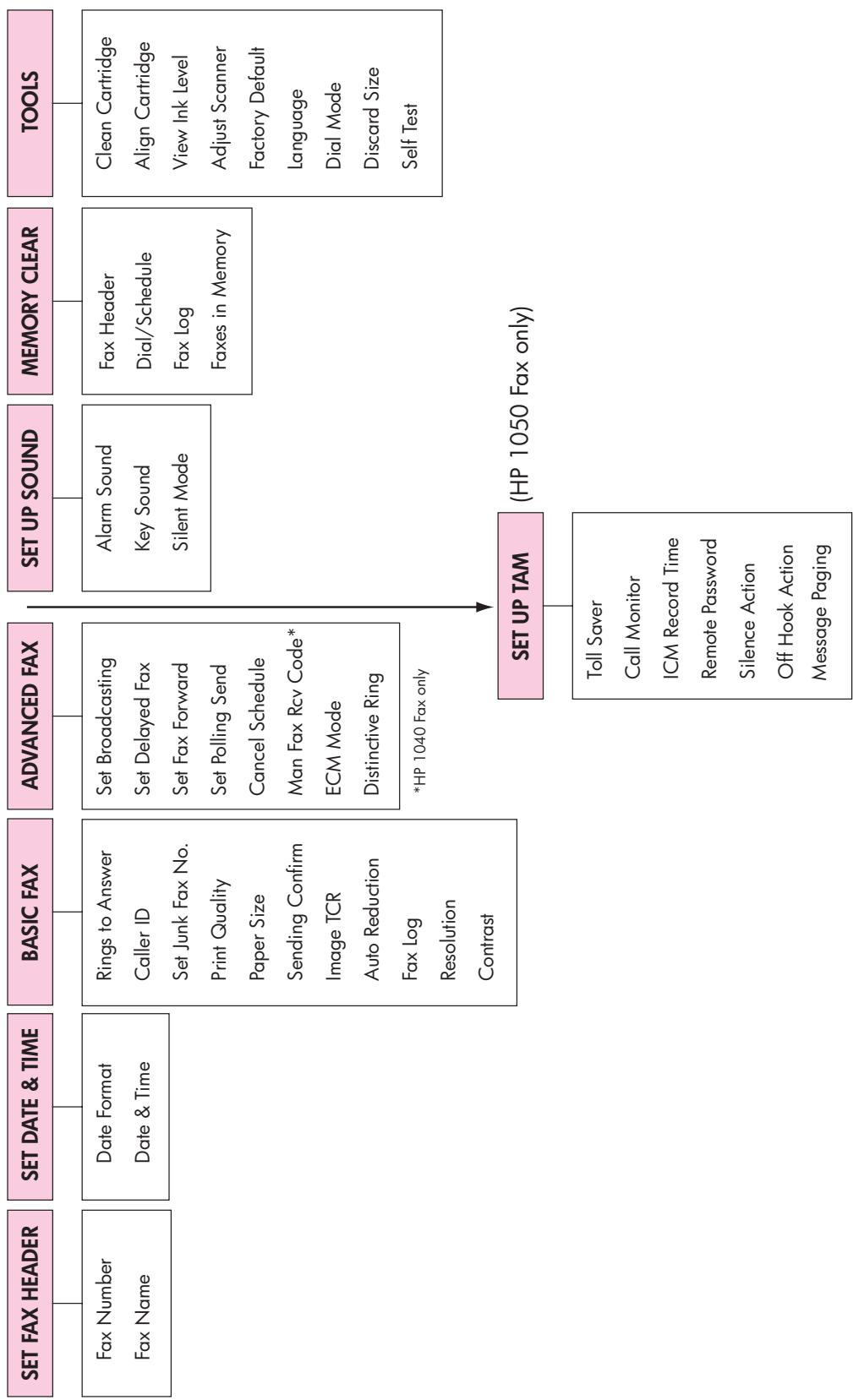
The menus 12
Overview of menu options 13
BASIC FAX menu 13
ADVANCED FAX menu 14
SET UP SOUND menu 15
TOOLS menu 15
SETUP TAMmenu15
Loudspeaker—HP 1040 Fax 16
Speakerphone—HP 1050 Fax 16
Navigate the menus 17
Ready mode 17
Menu buttons 17
Enter dates, times, text, and telephone numbers 18
Most text fields 18
Fax header telephone number 19
Speed dialing 21
Store a number in the phone book 21
Print the phone book 22
Dial from the phone book 22
One-touch dialing 22
Speed dialing 22
Phone book dialing 22
Paper types and sizes 23
Document types and sizes 23
Set document resolution and contrast for a single copy 24
Adjust volume 25
Ringer volume 25
Speaker volume 25
Automatic fax redial 26
Receiving via an extension telephone (HP 1040 Fax only) 26
3 Additional features
Set rings to answer 27
Use Caller ID 28
Turn Caller ID on 28
See who called with Caller ID 28
Print a list of Caller ID numbers 28
Block junk fax numbers 28
Add a junk fax number 28
Delete a number 29
Scan & Fax Mode 29
Image TCR 29
Distinctive ring (DRPD) 30
Step 1—Teach the HP Fax the ring pattern 30
Step 2—Set up distinctive ring (DRPD) answer mode 31
Answer/receive mode 31
HP1040 Fax 31
HP1050 Fax 32
4 Digital message center (HP 1050 Fax only)
Turn on the message center 35
Record your greeting 36
Play your greeting 36
Screen or monitor your calls 37
Announcement only 37
Play back messages 37
Play back new messages only 37
Play back all messages 37
Skip or repeat messages 37
Repeating a message or skipping backwards 37
Skipping a message 38
Erase messages 38
Erase selected messages 38
Erase all messages in memory 38
Remote Access 39
Remote Password 39
Access the message center 39
Toll Saver 40
Message paging 41
Setup message paging 41
Receive a message page 41
Record a conversation 41
5 Advanced faxing
Broadcasting 43
Delayed fax 44
Polling 45
Setting send polling 45
Polling another fax to receive 46
To cancel the scheduled job 46
Forward taxes 47
6 Feature reference
Set the date and time 49
Turn on and off sounds 49
Alarm sounds 49
Key sounds 50
Silent mode 50
Set the fax header information 50
Print reports 51
Automatic reports 51
Reports you can print 51
Reprinting faxes 52
Clearing memory 53
Loudspeaker—HP 1040 Fax 53
Speakerphone—HP 1050 Fax 53
Redial a number in memory 54
7 Care and maintenance
Print cartridge information 55
View ink level 55
Print the self test 56
Replace the print cartridge 56
Clear jammed documents and paper 58
Document jams during transmission 58
To clear document jam: 58
Paper jams during printing 58
If the paper is jammed in the printing area 58
If the paper is jammed in the paper feed area 59
Maintain the print cartridge 59
Clean the print cartridge nozzles 59
Wipe the print nozzles and contacts 59
Clean the nozzles 59
Clean the cartridge carrier contacts 60
Clean the document scanner area 61
Adjust the scanner 63
LCD error messages 63
Troubleshooting 66
Fax problems 66
Print quality problems 68
Digital Message Center problems 69
69
8 Specifications and regulatory information
Paper types and sizes 71
Document types and sizes 71
Acceptable documents 71
Print cartridge 72
Product specifications 72
A sample of ITU #1 test chart (reduced to 60.5% ) 74
Environmental product stewardship program 75
Regulatory notices 76
Declaration of conformity 78
Use Hewlett-Packard support services 79
Hewlett-Packard LIMITED WARRANTY STATEMENT 80
1 Quick start
This chapter gives you a quick introduction to the basic functions of your new fax machine. Please refer to the later chapters for detailed instructions.
1 The "arrow buttons" located under the Menu button on the control panel are designated by in the instructions.
Load paper
You can load up to 50 sheets of plain paper in the input tray. Before loading the paper, make sure the paper size is set correctly in the BASIC FAX menu. For more information, see Paper Size on page 13.
The HP Fax is designed to work with a variety of plain papers (cotton bond 75-90 g/ m² (20-24 lb.)) in A4, Letter, and Legal sizes.
TIP: Some papers have a side that's been conditioned for printing. The "print side" is indicated on the paper's packaging. Always load with the print side facing you.
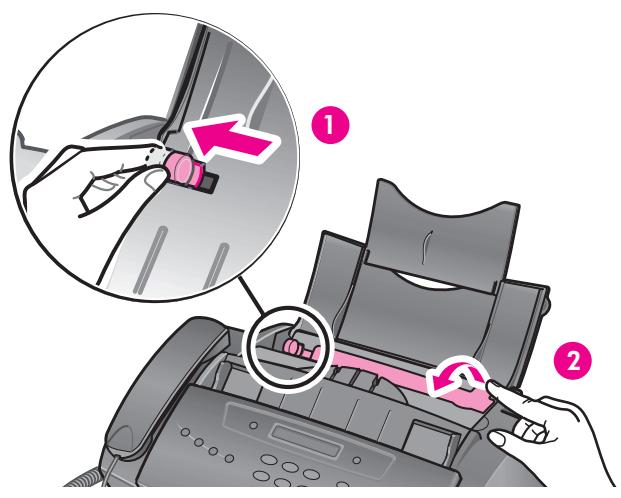
1 Slide the Paper Guide to Ltr or A4 paper width. Be sure not to bind the paper stack.
2 Pull the Paper Tray Cover toward you to open it.
NOTE: You must open the Paper Tray Cover to properly insert the paper.
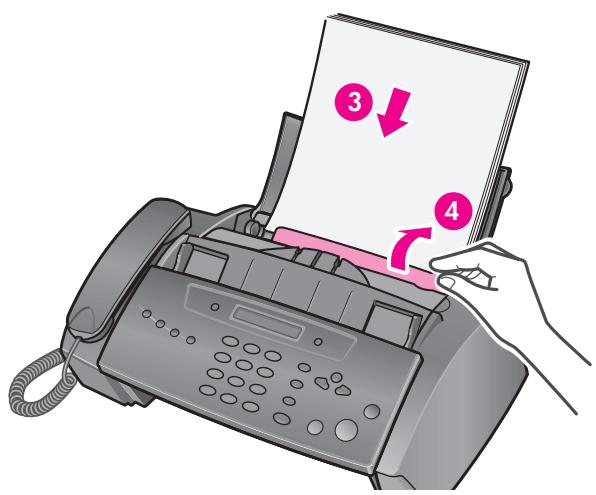
3 Fan, neatly stack, then insert up to 50 sheets of paper with the print side facing you.
4 Push the Paper Tray Cover back into place.
Load documents to fax or copy
You can load up to 10 pages in the document feeder. Load the documents face down (printed side toward the machine).
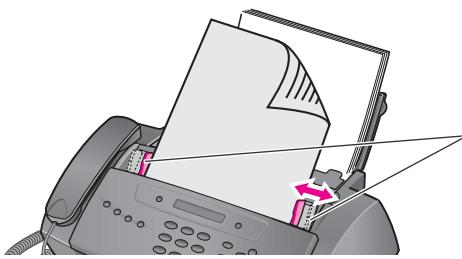
Adjust guides to document width.
Send a fax
- Place the document to be sent (up to 10 pages) in the document feeder.
-
Dial the number by using one of these methods:
-
Entering the number and pressing Start/Enter.
- Lifting the handset, entering the number, and pressing Start/Enter.
- Using the Loudspeaker or Speakerphone button to listen as you dial, then pressing Start/Enter.
- Pressing and holding a One Touch button. For more information, see One-touch dialing on page 24.
- Pressing the Speed Dial button, entering a speed dial code and pressing Start/Enter. For more information, see Dial from the phone book on page 24.
NOTE: One touch and speed dial codes must have been previously programmed. For more information, see Store a number in the phone book on page 23.
Receive a fax
How taxes are received depends on how the Answer Mode/Receive Mode is set. For more information, see Set rings to answer on page 27.
FAX or TAM answer mode
The fax machine will answer the telephone, automatically detect fax tones, and receive a fax.
TIP: If you answer the telephone and hear fax tones, press the Start/Enter button to receive the fax.
AUTO answer mode
In AUTO mode the telephone rings for a certain number of rings (see Set rings to answer on page 27), then switches to FAX receiving.
TEL answer mode
If the answer Mode is set to TEL, you must manually receive taxes.
- Answer the telephone.
- If you hear fax tones, press the Start/Enter button.
- Once you hear fax tones from both machines (this may take several seconds), you should hang up the telephone.
Make a copy
You can make multiple copies of a 10 page document.
Single copy—default settings
- Turn the page face down and insert it into the document feeder.
- Press Copy twice.
Multiple copies or copies with options/settings
- Turn the page face down and insert it into the document feeder.
- Press Copy.
Number of Copies then 01 [01-50] will display.
TIP: The maximum number of copies depends on the model you purchased.
- If you want more than one copy, use the phone pad to enter the number of copies.
-
Press Copy to start copying or press Start/Enter to go to the next option. Zoom Rate then 97% will display.
-
Press to select the reduction or enlargement percentage you want (50-125).
TIP: The maximum enlargement percent depends on the model you purchased. - Press Copy to start copying or press Start/Enter to go to the next option.
Collate then Off will display.
- Press to select on if you want the copies collated.
If Collate is Off, pressing either Copy or Start/Enter will start copying.
- If Collate is on, press Copy to start copying or press Start/Enter to go to the next option.
Print Order then Normal will display.
- Press to select Reverse if you want the last page printed first.
Printing the copies in reverse order will cause the first page to be on top when the copy is complete.
- Pressing either Copy or Start/Enter will start copying.
Make a telephone call
Use one of the following methods:
Pick up the handset and dial the number.
- Press and hold a One Touch number. This turns on the speaker. When you are connected, pick up the handset (HP 1050 Fax does not have to pick up handset since it has a speakerphone.) For more information, see One-touch dialing on page 24.
- Press the Speed Dial button, enter a speed dial code and press Start/Enter. This turns on the speaker. When you are connected, pick up the handset (HP 1050 Fax does not have to pick up handset as it has a speakerphone.) For more information, see Dial from the phone book on page 24.
HP 1050 Fax: Press the Speakerphone button and dial the number.
NOTE: One touch and speed dial codes must have already been entered before you can use them. For more information, see Store a number in the phone book on page 23.
2 HP Fax basics
This chapter lists the basic features of your new HP Fax and introduces you to the machine. For detailed instructions, refer to the later chapters.
The HP Fax features
The HP Fax offers the following features:
100 page fax memory
50 page paper tray
10 page document feeder
- Scan & Fax capability: Scan the entire document into memory before sending (see page 29).
80 to 100 (depends on model) speed dialing locations (including 10 One-Touch speed dials) (see page 23).
- Distinctive Ring (DRPD) capability: Multiple numbers on the same phone line that are differentiated by ring pattern (this feature only is available in certain areas) (see page 30).
- Broadcasting: Send the same document to multiple destinations (see page 43).
- Fax forwarding: Forward documents to another fax machine (see page 47).
- Delayed fax: Send the document at a later time (see page 44).
- Send/Receive Polling: Retrieve a waiting fax or hold a fax to be picked up (see page 45).
- Caller ID (see page 28).
Last 10 number redial (see page 54).
- Junk fax blocking (with Caller ID) (see page 28).
- Reports to help you manage your work (see page 51).
The HP 1050 Fax only
The HP 1050 Fax also offers a Digital Message Center with these features:
30 minutes of incoming message memory
30 second greeting
- Message paging: Calls you when you have received a message.
Remote access
Toll saver
- Speakerphone
The HP Fax 1040/1050
Parts of the HP Fax
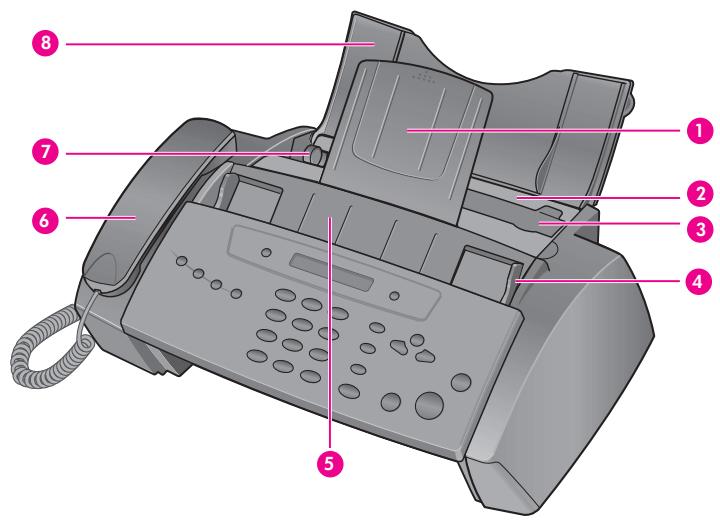
Figure 2-1 Front view
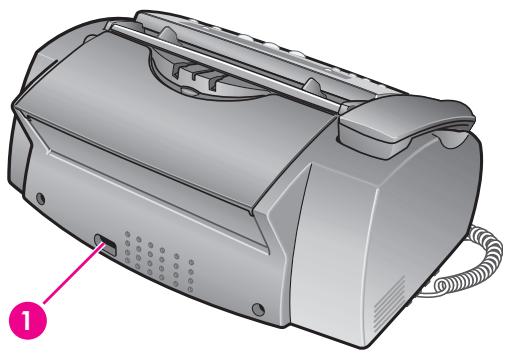
Figure 2-2 Rear view
1 Document support
2 Paper tray
3 Paper tray cover
4 Document guide
5 Document feeder
6 Handset
7 Paper guide
8 Paper support
1 Power cord socket
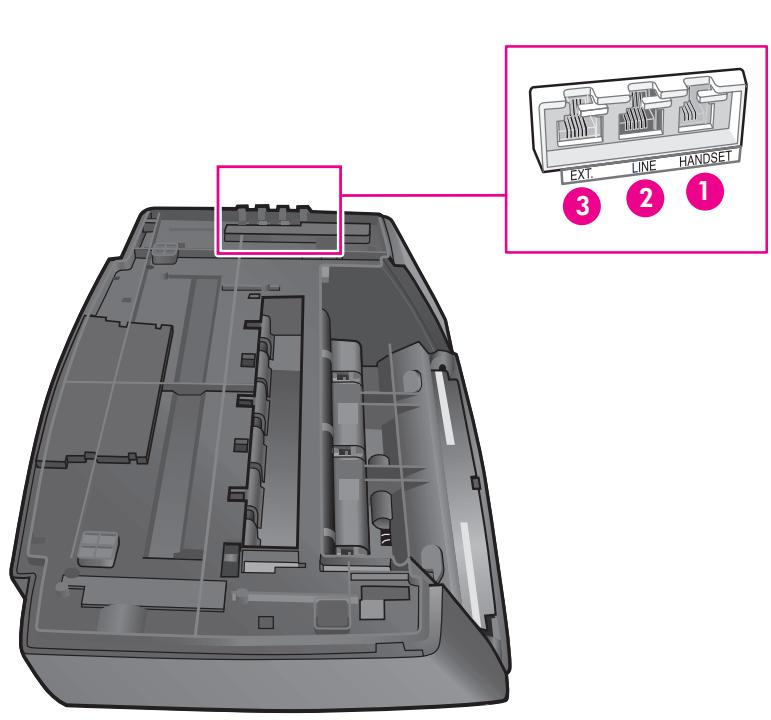
Figure 2-3 Bottom view
1 Connect handset to the HANDSET port.
2 Connect telephone line to the LINE port.
3 HP 1040 only: Connect answering machine or extension phone to the EXT. port.
Control Panel of HP FAX
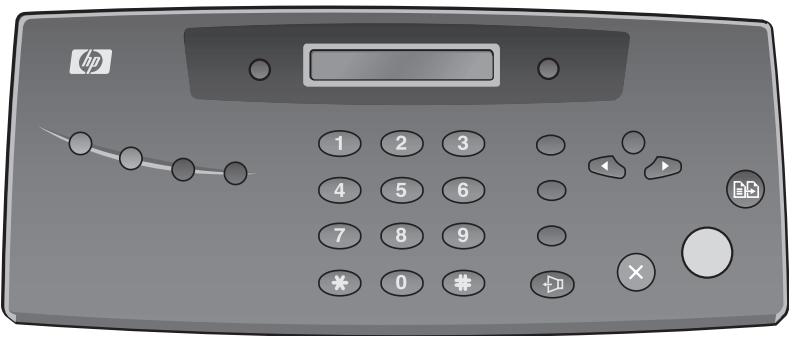
Figure 2-4 Control panel of HP 1040 Fax
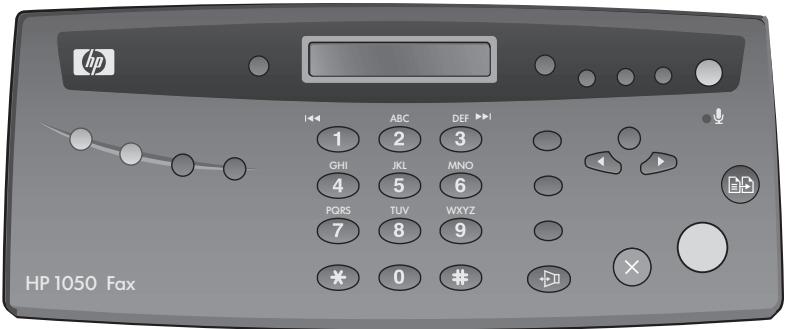
Figure 2-5 Control panel of HP 1050 Fax
Figure 2-6 HP 1040 & HP 1050 Fax control panel—Left side
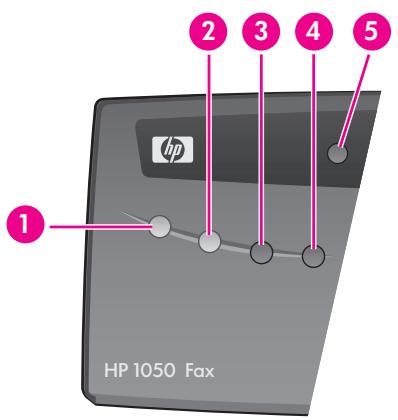
1 Scan & Fax Mode: When Scan & Fax mode is turned on, the device scans all pages before starting to send the fax. The button is lit when Scan & Fax Mode is turned on.
2 Silent Mode: Will mute most sounds made by the device. To do this automatically at certain hours, See Adjust volume on page 28 for instructions on using the menu. The button is lit when Silent Mode is turned on.
3 Report/Help: Prints status reports or the Help file, which will provide information on using your HP Fax.
4 Access Cartridge: Moves the print cartridge to the center so it can easily be replaced.
5 Resolution: Improves the clarity of a document that you are faxing or copying.
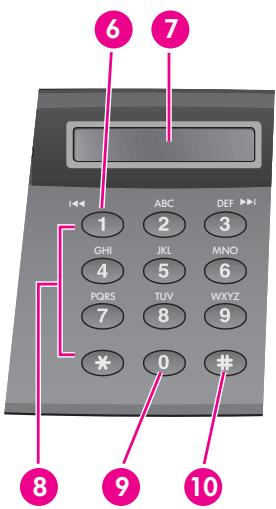
Figure 2-7 HP 1040 & HP 1050 Fax control panel—Middle
6 Space: [The 1 key]. Enters a space between words when entering a name in a text field.
7 Display: Displays menu items and messages from the HP Fax.
8 Key pad: Dials telephone and fax numbers and enters letters and symbols in text fields. The phone key pad is also used for one-touch dialing.
9 Symbols: [The 0 key]. Used to enter special characters when entering a name in a text field.
10 Speed Dial: [The # key]. Stores and dials 80 or 100 (varies by model) telephone/fax numbers.
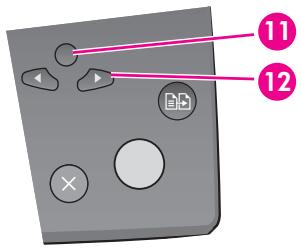
Figure 2-8 HP 1040 & HP 1050 Fax control panel—Right side upper
11 Menu: Displays the options available for your HP Fax.
12 Scroll/Volume:
- When you are entering numbers or text, moves the cursor to the digit or character to be edited.
- When Menu has been pressed, displays the next and previous menu options. Referred to as the arrow keys in text and are designated by: .
- When no other button has been pressed, adjusts the ringer volume.
- If the handset is off hook, adjusts the handset volume.
- When Loudspeaker or Speakerphone has been pressed, adjusts the speaker volume.
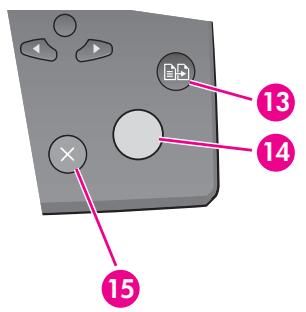
Figure 2-9 HP 1040 & HP 1050 Fax control panel—Right side lower
13 Copy:
- Press twice to copy a document with the default copy settings.
- Press once then set options. Press Start/Enter between options. Press Copy to copy the document.
14 Start/Enter:
- Starts a fax or printing a report.
- Accepts the selection shown in the display.
15 Cancel:
- In a Menu, stops an operation and returns to Ready mode.
-
When entering text or numbers:
-
Press once to backspace delete numbers or letters when editing.
- Hold down to delete entire field.
- Press again after holding down to return to Ready mode.
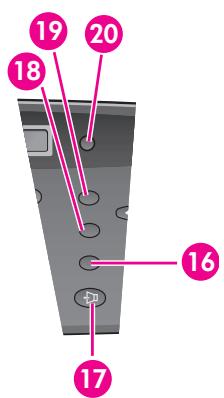
Figure 2-10 HP 1040 Fax only control panel—Right middle
16 Mute/Search:
- Mutes the telephone during a telephone call.
- Search for a number stored in memory.
17 Loudspeaker: Allows you to listen to the telephone while dialing or accessing voice mail without lifting the handset. Allows you to listen only. There is no speakerphone capability.
18 Redial/Pause:
- Automatically redials the last number or allows you to select one of the last 10 numbers to radial.
- Adds a pause while entering a speed dial number.
19 R or Flash: Switches between telephone functions; for example, call waiting. Contact your local telephone company for information. The name of this button varies by country.
20 Ans. Mode/Contrast:
- When no document is loaded, pressing this button changes the Answer Mode. See Answer/receive mode on page 31.
- When a document is loaded, pressing this button changes the contrast for faxing and copying.

Figure 2-11 HP 1050 Fax only control panel—Right middle
16 Mute/Search:
- Mutes the telephone during a telephone call.
- Search for a number stored in memory.
17 Speakerphone: The HP 1050 provides a fully functional speaker phone.
18 Redial/Pause:
- Automatically redials the last number or allows you to select one of the last 10 numbers to radial.
- Adds a pause while entering a speed dial number.
19 R or Flash: Switches between telephone functions; for example, call waiting. Contact your local telephone company for information. The name of this button varies by country.
- When no document is loaded, pressing this button changes the Receive Mode. See Answer/receive mode on page 31.
- When a document is loaded, pressing this button changes the contrast for faxing and copying.
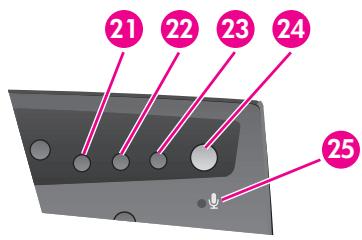
Figure 2-12 HP 1050 Fax only control panel—Upper right
21 Greeting: Press and hold to record the greeting for the Digital Messaging Center. Press again to stop the recording.
22 Play/Rec: Use to play answering machine messages or to record messages.
23 Erase:
- Press during a message to delete that message.
- Press and hold to delete all messages.
24 Answer: Turns the answering machine on and off.
Button is lit when the answering machine is on.
25 Microphone: This icon shows the location of the microphone used for the Speakerphone and to record the answering machine greeting.
The menus
Overview of menu options
Your fax machine has settings that you can change. To find out how the options are currently set, print the System Data report (see Print reports on page 51.)
To change these settings, see Navigate the menus on page 17.
The tables below show the options for a menu in the left column and their setting choices in the right column.
BASIC FAX menu
| Option | Settings |
| Rings To Answer | You can select the number of rings before answering an incoming call. If you are using your machine as both a telephone and a fax machine (AUTO or TAM mode), we suggest you set the ring count to at least 4 (HP 1040) or 2 (HP 1050 with Toll Saver turned on) to give you time to answer. The number of rings can be 2 to 7. |
| Caller ID | You can see the number of the person calling you. Before using this feature, Caller ID service must be installed on your telephone line by the telephone company. The settings are On, On w/ Junk Fax, and Off. For more information, see Use Caller ID on page 28. |
| Set Junk Fax No. | If you have Caller ID set to On w/ Junk Fax, you can block faxes from particular numbers. You must have received a fax from that number to block it. Even though you have added junk fax numbers, if you turned off the Caller ID option above, the Junk Fax protection will be removed. The settings are Add and Delete. |
| Print Quality | Allows you to set the print quality to Normal or Draft. |
| Paper Size | A4, Letter and Legal are the paper sizes you can use to receive faxes and copy. |
| Sending Confirm | A confirmation report shows whether the transmission was successful or not, how many pages were sent, etc. ON: prints a confirmation report automatically each time you send a fax. OFF: never prints a confirmation report (You can print one manually using the Report/Help button (see Print reports on page 51). ERROR: prints only when an error occurs. Note that this report can include the Image TCR (see Image TCR on page 29). |
| Image TCR | Image TCR prints a sending confirm page with a miniature image of the first page of the fax. |
| Auto Reduction | When receiving a document as long as or longer than the paper loaded, the machine can reduce the data to fit your paper. If the fax machine cannot fit the data into one page with the feature enabled, the data is divided and printed in actual size on two or more sheets. The settings are On and Off. |
| Fax Log | The Fax Log shows the specific information concerning transmission or reception activities, the time and date of most recent 40 transmissions or receptions. The settings are On and Off. |
| Resolution | Sets the default resolution when copying and faxing. The settings are: Standard, Fine, and Superfine. For more information, see Set document resolution and contrast for a single copy on page 26. |
| Contrast | Sets the default contrast when copying and faxing. The settings are: Normal, Lighten, Photo, and Darken. For more information, see Set document resolution and contrast for a single copy on page 26. |
ADVANCED FAX menu
| Option | Settings |
| Set Broadcasting | Allows you to send a fax to several fax numbers at once. |
| Set Delayed Fax | Allows you to set up a fax to be sent at any time in the next 24 hours. |
| Set Fax Forward | Allows you to forward incoming faxes to another fax number. |
| Set Polling Send | Allows you to set a fax to be polled by another machine. |
| Cancel Schedule | Cancels all scheduled faxes. |
| Man Fax Rcv Code (HP 1040 only) | The Manual Fax Receive Code allows you to start receiving a fax from an extension phone. If you pick up the extension phone and hear a fax tone, enter the code and the fax will start receiving. You cannot change the * * , just the number between them. The code can be 0 to 9. |
| ECM Mode | Error correction mode compensates for poor line quality and ensures accurate, error-free transmission with any other ECM-equipped facsimile machine. If the line quality is poor, transmission time may be increased when ECM is enabled. The settings are On and Off. |
| Distinctive Ring | Distinctive ring (DRPD—distinctive ring pattern detection) is a service provided by some telephone companies that assigns two phone numbers to one phone line, each of which makes your phone ring differently. If you subscribe to this service, you can program your machine to learn one phone number and distinctive ring for incoming faxes. For more information, see Distinctive ring (DRPD) on page 30. |
SET UP SOUND menu
| Option | Settings |
| Silent Mode | You can turn off sounds the machine makes either manually or on a daily schedule (for example, to turn off the sounds after work hours and overnight). Manual: To turn off and on the sounds, use the Silent Mode button on the control panel. Daily: Enter a start and end time. Use the 1 and 2 keys to switch between AM and PM. |
TOOLS menu
| Option | Settings |
| Clean Cartridge | Cleans the print cartridge to improve print quality. |
| Align Cartridge | Aligns the print cartridge to improve print quality. |
| View Ink Level | Allows you to see the estimated level of ink remaining in the cartridge. |
| Adjust Scanner | Use only if you have dropped the fax machine. |
| Factory Default | Returns all settings to factory defaults. |
| Language | There are three languages you can use for display and reports: English, Spanish, and French. |
| Dial Mode | Set the dialing mode to the type of the exchange to which you are connected: Tone or Pulse. |
| Discard Size | If you turn the Automatic Reduction option off, you can set the fax machine to discard any excess image at the bottom of the page when receiving a document as long as or longer than the paper loaded in your machine. If the incoming fax is out of the margin you have set, it will be printed on two sheets of paper. The Discard Size can be 00 to 30 mm. |
| Self Test | Prints a self test to allow you to troubleshoot problems. |
SET UP TAM menu
| Option | Settings |
| Toll Saver | Adds 2 rings to the rings to answer setting unless a message has been received. |
| Call Monitor | Allows you to screen calls. |
| ICM Record Time | Adjusts the amount of time a caller has to record a message. |
| Remote Password | Sets the password for retrieving your messages from another phone. |
| Silence Action | Tells the machine what to do when it detects silence after answering. The settings are: Disconnect, Receive Fax, and Record Silence. |
| Off-Hook Action | Tells the machine what to do when the incoming call leaves the phone off the hook. The settings are: Disconnect and Record Off-Hook |
| Message Paging | The device will call you and give you a message when you have a new voice message. You can then use your remote password to retrieve it. |
Loudspeaker—HP 1040 Fax
You do not need to pick up the handset to make a phone call. When dialing, just press the Loudspeaker button and enter the numbers. When your party answers, pick up the handset to talk to them. This feature is especially useful for checking voicemail messages.
NOTE: Your HP 1040 Fax does not have speakerphone capabilities. The loudspeaker enables you to hear calls but you must speak using the handset.
TIP: If you want to share the conversation with somebody beside you, pick up the handset and press Loudspeaker. The line is still connected and everybody can listen to the conversation.
While you are using Loudspeaker, do not place the handset beside the speaker, as this may result in howling.
Speakerphone—HP 1050 Fax
The HP 1050 Fax has full speakerphone capabilities. You never have to lift the handset if you do not want to. Press Speakerphone to make and receive calls as well as listening to your answering machine messages.
While you are using the Speakerphone, do not place the handset beside the speaker, as this may result in howling.
Navigate the menus
Ready mode
Whenever the HP Fax is ready for faxing and copying (called Ready mode), it will display the date, time, and answer mode. For example, OCT-05 02:23PM FX
Menu buttons
Use the Menu buttons to navigate the menu items.
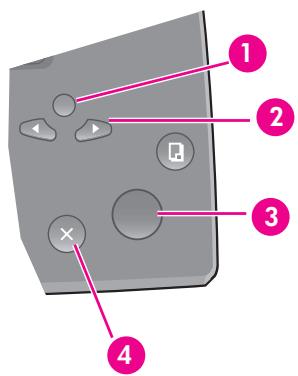
1 Press the Menu button to access the menu system.
2 Use the buttons to scroll through the options on a particular level.
3 Press Start/Enter to select a particular menu option.
4 Press Cancel to return to Ready mode.
Example To change the default Resolution setting to Fine, you would take the following steps.
- Press the Menu button repeatedly until BASIC FAX displays.
- Press Start/Enter.
Rings to Answer will display.
- Use the to scroll until Resolution displays.
- Press Start/Enter.
Standard will display.
- Use the to scroll until Fine displays.
- Press Start/Enter.
- Press Cancel to return to Ready mode.
Enter dates, times, text, and telephone numbers
Use these buttons when menu items ask you to enter dates, time or text.
- If the date format seems unfamiliar, check that you selected the correct one for your country when setting up your HP Fax (see Set the date and time on page 49).
- Some items on the display will show up with the blinking cursor under the item to change. Simply press the key for the new character or number or use the to move to the one you want to change.
- To enter a pause in a telephone number, press Redial/Pause. A P will appear in the display. Press the button multiple times for a longer pause.
- When entering text, press the phone pad button repeatedly to scroll through the characters. Use the following table for reference.
Most text fields
The letters and numbers scroll as shown next to each button for text fields such as the phone book. Press the 2 to display an A and wait briefly for the cursor to advance before pressing 3 to select D. If you want a B, press 2 twice in rapid succession.
Table 2-1 Keys to enter text and numbers
| Key | Produces |
| 1 | "space 1" |
| 2 | A B C 2 |
| 3 | D E F 3 |
| 4 | G H I 4 |
| 5 | J K L 5 |
| 6 | M N O 6 |
| 7 | P Q R S 7 |
| 8 | T U V 8 |
| 9 | W X Y Z 9 |
| 0 | + -, .'/* # & ( ) 0 |
| * | nothing if text field, use the 0 key to enter * |
| # | nothing if text field, use the 0 key to enter # |
For example, to enter 'Jacque & Baja, Inc.' follow these steps.
| Press | Result |
| 5, 2, 222, 77, 88, 33 | 'JACQUE' will display. |
| 1 | Enters a space. |
| 0000000000 | ' & ' will display. |
| 1 | Enters a space. |
| 22, 2, 5, 2 | 'BAJA' will display. |
| 000 | ', ' will display. |
| 444, 66, 222 | 'INC' will display |
| 0000 | '. ' will display. |
Fax header telephone number
For most telephone numbers you can only enter the numbers (for example, 1234567890). For the fax header that prints on all your faxes (see Set the fax header information on page 50), you can enter some punctuation in the number.
To punctuate the telephone number in the fax header, use these keys.
Table 2-2 Keys to punctuate the fax header telephone number
| Key | Produces |
| 1 | “space” 1 |
| * | () |
| # | - |
For example, to enter '123) 456-7890' follow these steps.
| Press | Result |
| * | ‘(’ will display. |
| ①①, ②, ③ | ‘123’ will display. |
| ** | ‘)’ will display. |
| ① | Enters a space. |
| 4, 5, 6 | ‘456’ will display. |
| # | ‘- ‘will display. |
| 7, 8, 9, 0 | ‘7890’ will display |
Speed dialing
Your HP Fax has a built-in phone book that allows you to enter up to 80 or 100 (varies by model) names and numbers for faxing or telephone use. Once entered, you can dial the number by any of these methods.
One-Touch (first 10 numbers)
- Speed dial code
- Searching the phone book
All numbers must be stored in the phone book before use.
Store a number in the phone book
Once in the phone book these numbers can be dialed using one touch buttons, speed dial codes, or by searching the phone book.
- Hold the Speed Dial button for about two seconds.
The display shows Speed [00-80]>##.
NOTE: The number of available speed dial codes varies by model.
- Enter a two-digit number and press Start/Enter.
Numbers from 00 to 09 will be used for One-Touch dialing, and the numbers 10 and up will be used for Speed dialing.
-
Enter the telephone/fax number you want to store (up to 40 digits) and press Start/Enter.
-
If you want a pause between numbers (for example, when entering an access code where you need to wait for a second dial tone), press Redial/Pause. A P appears in the display. For a longer pause, simply press Redial/Pause again.
-
If you make a mistake while entering a number, use to move the cursor under the digit, then enter the correct digit.
-
Cancel will backspace delete in the field.
-
Holding down Cancel will clear the whole field.
-
Enter the name (up to 20 characters) and press Start/Enter.
If you do not want a name, just skip this step by pressing Start/Enter.
TIP: If you have subscribed to a Caller ID service, we recommend that you enter a name.
- Press Cancel to exit.
Print the phone book
- Press Report/Help.
- Press until Phonebook displays and press Start/Enter.
Dial from the phone book
Dialing works the same for both faxes and telephone calls. If a document is loaded, the HP Fax sends the fax.
One-touch dialing
Press and hold the number (0 through 9) on the phone pad.
You can refer to the number assigned to each code by printing the phone book. See Print the phone book on page 22.
TIP: You can also dial these numbers using the speed dial code as described below.
Speed dialing
- Press Speed Dial.
- Enter a two-digit speed dial code.
You can refer to the number assigned to each code by printing the phone book. See Print the phone book on page 22.
- Press Start/Enter.
Phone book dialing
You can search the entire phone book to find the number you want to dial.
Search sequentially through the phone book
- Press Mute/Search.
- Press to move upward or downward through the directory until you find the number you want.
- When the number you want appears in the display, press Start/Enter to dial.
Search for a particular first letter
- Press Mute/Search.
-
Press the phone pad button labelled with the letter you want to find.
-
For example, if you want to find the name 'NEW YORK', press the 6 button, which is labelled with 'MNO'.
- The machine finds the closest entry.
-
If the machine cannot find a name that begins with the given letter, the machine shows the message Not Found.
-
When the name and number you want appears in the display, press Start/Enter.
Paper types and sizes
The HP Fax is designed to work optimally with plain paper (cotton bond: 20 lb., 75 g/m²) in the following sizes: A4, Letter, and Legal.
TIP: Some papers have a side that's been conditioned for printing. The print side is usually indicated on the paper's packaging. Always load with the print side facing you.
You can load up to 50 sheets of paper in the paper tray. Satisfactory print and receive quality can be obtained with many types of plain paper. Since the quality of plain paper varies widely, test the print quality before buying large quantities of paper. Your machine uses a variety of papers including:
Copier paper
Bond paper
Dual-purpose paper
Because all paper varies in physical characteristics, you can receive mixed results from different packages of paper even though the packages contain the same type of paper. If you encounter undesirable results, try the other side of the paper, a different type, or another package of the same kind of paper.
Do not use the following types of paper with your machine:
Continuous form feed paper
Synthetic paper (Tyvek®, etc.)
Thermal paper
Multi-sheet forms and documents
Chemically treated paper (pressure-sensitive paper, carbon-coated paper, etc.)
Coated (glossy, photo, etc.)
- Papers with raised, embossed lettering
Document types and sizes
Acceptable document size depends on whether you are faxing a single sheet or multiple pages.
The minimum document size is 148mm (5.8 in.) wide by 128mm (5 in.) long.
The maximum size is 216mm (8.5 in.) wide by 356 mm (14 in.) long.
Follow these tips to ensure worry-free faxing.
- Be sure that your document is dry and free of staples, paper clips, and other foreign objects.
-
For more information on what kind of paper you can use for documents, see Acceptable documents on page 71.
-
If you are sending more than one sheet, make sure the bottom sheet enters first. Insert the sheets with a slight push to ensure smooth feeding.
For multiple sheets, all pages of the document must be the same size and paper type. - If you are loading pages that are unusually thick or thin, feed one sheet at a time. If the document does not feed correctly, open the control panel, remove the document, and try loading it again.
DO NOT try to send documents that are:
wet
covered with wet ink or paste
- wrinkled, curled, or folded
too thin (less than 0.07 mm (0.18 in.) thick—onionskin, airmail paper, etc.)
too thick (more than 0.15mm (0.38 in.) thick-index cards, file folders)
chemically processed (pressure-sensitive paper, carbon-coated paper, etc.)
coated (glossy, etc.)
too small or short (such as a label, voucher, etc.)
made of cloth or metal
To send these documents, use an office copier to make a photocopy first, and then send the copy.
Set document resolution and contrast for a single copy
Document resolution and contrast are set in the same manner for both faxes and copies. For most faxes and copies, default settings will work well.
If you need to send/copy a document with unusual contrast characteristics, including photographs, you can adjust the resolution and contrast for that document using the control panel buttons.
TIP: You can also change the default settings for all documents using the menu. See BASIC FAX menu on page 13.
We recommend you use documents printed using a high quality printer, felt tip pen, black ink, or typewriter. The paper should be white or very light, and of normal weight, not cardboard or onionskin.
Blue lines on a ruled pad don't fax well. For more information on the types of paper you can use for documents, see Document types and sizes on page 23.
NOTE: You must set the resolution and contrast before dialing the number.
- Turn the page face down and insert it into the document feeder. For more information, see Load documents to fax or copy on page 2.
-
Press Resolution repeatedly to select the option you want.
-
STANDARD works well for printed or typewritten originals with normal-sized characters.
- FINE is good for documents containing a lot of detail.
- SUPER FINE works well for documents containing extremely fine detail; for example, a map or engineering drawing. SUPER FINE only works if the remote machine also has the SUPER FINE feature.
TIP: SUPER FINE mode is not used when sending documents scanned into memory (i.e., Broadcasting and Delayed Fax). If you are sending document using one of these methods, SUPER FINE will be changed back to FINE even though you selected SUPER FINE.
If the Scan & Fax Mode light is on and SUPER FINE is chosen, the fax will be sent as if the light were off.
-
Press Ans.Mode/Contrast or Rcv.Mode/Contrast repeatedly to select the option you want.
-
NORMAL works well for normal handwritten, typed, or printed documents.
LIGHTEN works with very dark print. - DARKEN works with light print or faint pencil markings.
-
PHOTO is used when faxing photographs or other documents containing color or gray shades. When Photo is chosen, the resolution is automatically set to FINE.
-
Dial the number and press Start/Enter or press Copy.
When sending/copying is finished, resolution/contrast automatically returns to default.
Adjust volume
You can adjust the volume level for both the ringer and the speaker.
Ringer volume
Press when the fax is in Ready mode to adjust the volume of the ringer.
- Whenever you press the button, it will increase or decrease the volume.
- The volume 0 indicates that the machine will not ring when a call is received.
Speaker volume
- Press Loudspeaker (HP 1040) or Speakerphone (HP 1050).
- Then press to adjust the volume of the speaker.
Automatic fax redial
When you send a fax, if the number you have dialed is busy or there is no answer, the machine will attempt to redial the number every three minutes up to two times.
Before redialing, the display shows To redial now, press Start/Enter.
If you want to redial the number immediately, press Start/Enter.
Or, press Cancel to stop redialing and the machine returns to Ready mode.
Receiving via an extension telephone (HP 1040 Fax only)
If you have an extension phone on the same line as your HP Fax you can remotely start receiving a fax.
- Answer the call on the extension phone.
-
Press 9 (manual fax receive code) in sequence when you hear a fax tone.
-
Your fax machine detects the code and starts to receive the document.
-
The code is preset at the factory. You cannot change the asterisks but you can select any number between 0 and 9. For more information, see ADVANCED FAX menu on page 14.
-
Hang up the phone when your fax machine starts to receive.
3 Additional features
This chapter contains information on additional features you may want to set or change for your HP Fax.
- Rings to answer: Sets the number of rings before the HP Fax answers the phone.
- Caller ID: If you subscribe to Caller ID through your local phone company, you can use it with your HP Fax.
- Block Junk Faxes: In conjunction with Caller ID, you can block certain numbers from sending you a fax.
- Scan & Fax Mode:
- Image TCR
- Distinctive Ring
- Answer/Receive mode: Determines how the HP Fax responds to incoming calls.
1 The "arrow buttons" located under the Menu button on the control panel are designated by in the instructions.
Set rings to answer
You can select the number of rings that will occur before the fax answers an incoming call. If you are using your machine as both a telephone and a fax machine, we suggest you set the ring count to at least 4 to give you time to answer.
TIP: HP 1050 Fax: The Toll Saver function for the Digital Message Center interacts with Rings to Answer. See Toll Saver on page 40. If you have the HP 1050 Fax and have Toll Saver turned on, set the Rings to Answer to 2.
- Press Menu repeatedly until BASIC FAX displays and press Start/Enter.
Rings to Answer will display.
- Press Start/Enter.
- Enter the number of rings you want (2-7) and press Start/Enter.
The HP Fax rings the set number of times and then answers. It then produces a different sounding ring to alert you to which type of call is incoming.
-
The additional ring may occur once for a fax call
-
The additional ring occurs 5 times for a voice call. After the 5 additional rings, the answering machine will answer.
Use Caller ID
Many countries have the Caller ID system that enables the receiver to view the numbers or names of callers. Once you have subscribed to Caller ID services through your local phone company, your machine can display caller information.
Turn Caller ID on
- Press Menu repeatedly until BASIC FAX displays and press Start/Enter.
- Use the to scroll to Caller ID and press Start/Enter.
- Use the to scroll to the desired option and press Start/Enter.
On: Activates the Caller ID feature.
- On w/ Junk Fax: Activates Caller ID and ignores any fax registered as a junk fax (see Block junk fax numbers on page 28).
- Off: Deactivates the Caller ID feature.
See who called with Caller ID
This function allows you to see who has called. You cannot dial these numbers.
- Hold Redial/Pause for about two seconds.
- Press until Caller ID displays and press Start/Enter.
- Scroll through the numbers by pressing
Print a list of Caller ID numbers
- Press Report/Help.
- Press until Caller ID displays and press Start/Enter.
Block junk fax numbers
If you subscribe to Caller ID through your local phone company, you can block future taxes from numbers on the Caller ID List. Before using this feature, you must set the Caller ID option to On w/ Junk Fax (see Use Caller ID on page 28.)
Add a junk fax number
- Press Menu repeatedly until BASIC FAX appears and press Start/Enter.
- Press until Set Junk Fax No. displays and press Start/Enter.
- Press until Add displays and press Start/Enter.
The machine shows the first Caller ID number.
- Press to find the Caller ID number you want to register as a junk fax and press Start/Enter.
You can enter up to 20 numbers. Numbers which have already been entered as a junk number are marked by * at the end of the display.
Delete a number
- Press Menu repeatedly until BASIC FAX appears and press Start/Enter.
- Press until Set Junk Fax No. displays and press Start/Enter.
- Press until Delete displays and press Start/Enter.
The machine shows the first junk number.
- Press to scroll to the junk fax number you want to delete and press Start/Enter.
Scan & Fax Mode
Scan & Fax Mode causes the HP Fax to scan all the pages of the fax into memory before starting to send. This is useful for situations where the fax you are calling might be busy and need to be redialed. Several options automatically use Scan & Fax Mode; for example, Delayed Fax. You can also turn Scan & Fax Mode on for all tasks.
Press the Scan & Fax button.
Scan & Fax Mode is on when the button is lit.
Image TCR
Image TCR (transmission confirmation report) is a valuable tool for keeping records of faxes you send. It prints a Sending Confirm page with a miniaturized image of the first page of the fax on it. See the following example.
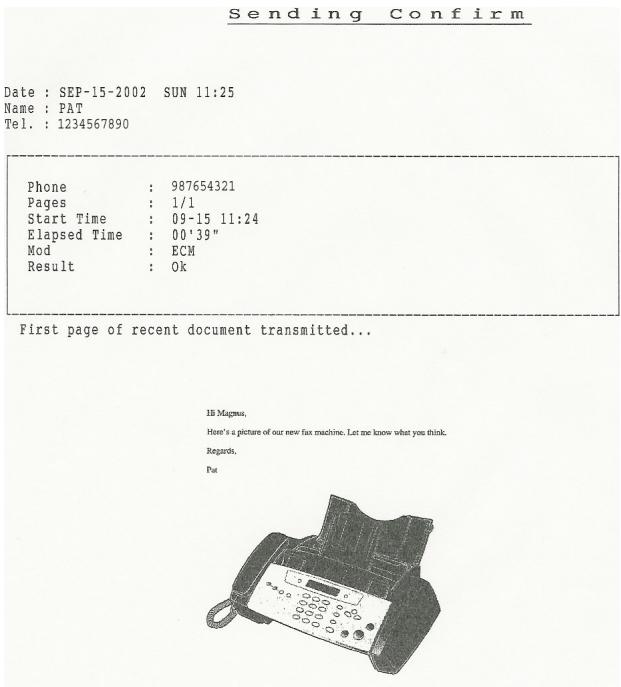
To use image TCR, the Scan & Fax Mode light must be on (press the button if necessary) and you must set these Menu options to On: Image TCR and Sending Confirm. See Scan & Fax Mode on page 29. Follow these instructions to set the menu options:
- Press the Menu button repeatedly until BASIC FAX displays and press Start/Enter.
- Use the buttons to scroll to Sending Confirm and press Start/Enter.
- Use the buttons to select on and press Start/Enter.
- Use the buttons to scroll to Image TCR and press Start/Enter.
- Use the buttons to select on and press Start/Enter.
- Press Cancel to return to Ready mode.
TIP: Image TCR is unavailable if the resolution is set to Super Fine.
Distinctive ring (DRPD)
Distinctive ring or distinctive ring pattern detection (DRPD) is a service offered by some telephone companies. When you subscribe to this service through your local phone company, you have different ring patterns; such as double ring and triple ring, that allow you to have different telephone numbers on one physical line. Your HP Fax works with distinctive ring service.
Use Distinctive Ring to set your HP Fax to answer one of your phone numbers as a fax only line. The phone number (ring pattern) that you teach the HP Fax will be answered as if the machine is in FAX mode. All other numbers on the same line will be answered if they are in AUTO mode (HP 1040 Fax) or TAM mode (HP 1050 Fax).
NOTE: HP 1050 Fax: If you use Distinctive Ring to establish one of your numbers as a fax only line you must turn the Answering Machine on or the HP Fax will not answer the phone on the other numbers. If you do not want to use the answering machine, do not set up distinctive ring with your HP Fax.
If you have this service follow both of these instructions in this order to set it up and use it.
Step 1—Teach the HP Fax the ring pattern
The HP Fax will learn the ring pattern when you call it from another telephone or fax machine.
- Be ready to call the fax machine.
- Press Menu repeatedly until ADVANCED FAX displays and press Start/Enter.
- Use to scroll through the options until Distinctive Ring displays and press Start/Enter.
Call this fax from another fax machine... Waiting Ring... will display.
- Call the HP Fax.
DRPD OK will display when the pattern has been learned and the HP Fax will return to Ready mode.
Step 2—Set up distinctive ring (DRPD) answer mode
Once you have activated distinctive ring, it becomes one of the answering modes you can select by pressing the Ans.Mode/Contrast or Rcv.Mode/Contrast button.
Press Ans.Mode/Contrast or Rcv.Mode/Contrast repeatedly until DRPD Mode appears in the display.
- In Ready mode, DR appears in the right hand corner of the display.
- Now, the HP Fax will manage calls and faxes as if it were set to AUTO mode (see AUTO mode on page 32.)
TIP: Distinctive ring must be set up again if you reassign your fax number or connect the machine to another telephone line. Once set up again (that is, the fax machine has learned the ring pattern and the answering mode is correctly set), you should test the fax machine by calling the fax number and another number on the same line. The machine should respond appropriately to a call placed to the fax number with fax tones, and to a normal telephone call with the expected ring pattern.
Answer/receive mode
How the product receives taxes depends on the answer/receive mode you chose when you set up the product. You can send taxes in any answer/receive mode. The answer/ receive mode setting determines how the device answers the incoming call and varies between the models.
HP1040 Fax
| How are you going to use your HP Fax? | Read about… |
| Fax machine with few or no voice calls. | FAX mode |
| Telephone and fax machine without an external answering machine connected. | AUTO mode |
| As a fax machine with an external answering machine. | TAM mode |
| Using Distinctive Ring (DRPD) service to set up a separate telephone number for your fax on the same physical line as your other numbers. | See Distinctive ring (DRPD) on page 30. |
| Telephone with few or no fax calls. | TEL mode |
- When no document is loaded, press the Ans.Mode/Contrast button until the desired option displays.
FAX mode
- In Ready mode, FX appears in the right hand corner of the display.
- When you get a call, the machine answers and receives the fax automatically. When reception is complete, the machine returns to Ready mode.
If you want to change the number of rings before it answers, see Set rings to answer on page 27.
AUTO mode
- In Ready mode, AU appears in the right hand corner of the display.
- When a call comes in, the machine answers it. If a fax is being sent, the device receives the fax. If the machine does not sense a fax signal, it will ring 5 times in a different tone to tell you it may be a regular telephone call. If you do not pick up the handset it will try again to receive a fax after several more rings.
If you want to change the number of rings before it answers, see Set rings to answer on page 27.
TAM mode
You must have an answering machine attached to the EXT line socket located on the bottom of your HP Fax.
- In Ready mode, TM appears in the right hand corner of the display.
- When a call comes in, the answering machine answers and listens. If it detects fax tones, it receives the fax; otherwise, it records the caller's message.
If you have set your machine to TAM Mode and your answering machine is switched off or the answering machine is not connected directly to your fax machine, the machine will automatically attempt to receive a fax after several rings.
If your answering machine allows you to set the number of rings before it answers the telephone, set the answering machine to answer an incoming call in less than 4 rings. -
When your answering machine answers an incoming call, it records a fax tone until it realizes a fax is coming through. Due to this, your answering machine may tell you a voice message has been left, even when it is actually a fax.
-
TEL mode
-
In Ready mode, TL appears in the right hand corner of the display.
Automatic fax reception is turned off. You can receive a fax only by lifting the handset and pressing Start/Enter.
HP1050 Fax
| How are you going to use your HP Fax? | Read about… |
| • Telephone and fax with the integrated answering machine in the Digital Message Center. | TAM |
| • Telephone and fax machine without the answering machine. | AUTO mode |
| How are you going to use your HP Fax? | Read about... |
| • Fax machine with few or no voice calls. | FAX mode |
| • Using Distinctive Ring (DRPD) service to set up a separate telephone number for your HP Fax on the same physical line as your other numbers. | See Distinctive ring (DRPD) on page 30. |
| • Telephone with few or no fax calls | TEL mode |
When no document is loaded, press the Rcv.Mode/Contrast button until AUTO, FAX, or TEL displays. If you are going to use the answering machine, we recommend setting the Receive mode to AUTO.
NOTE: If you want to use Distinctive Ring service from your phone company, set it up and select it using the Rcv.Mode/Contrast button before turning on the answering machine. See "Distinctive ring (DRPD)" on page 30.
AUTO mode
- In Ready mode, AU appears in the right hand corner of the display.
- When a call comes in, the machine answers it. If a fax is being sent, the device receives the fax. If the HP Fax does not sense a fax signal, it will ring in a different tone to tell you it may be a regular telephone call. If you do not pick up the handset it will again attempt to receive the fax after several more rings. If a greeting has been recorded the HP 1050 Fax will turn on the answering machine and attempt to record a message.
If you want to change the number of rings before it answers, see Set rings to answer on page 27.
| FAX mode | In Ready mode, FX appears in the right hand corner of the display. When you get a call, the machine answers after the second ring, and receives the fax automatically. When reception is complete, the machine returns to Ready mode. If you want to change the number of rings before it answers, see Set rings to answer on page 27. |
| TEL mode | In Ready mode, TL appears in the right hand corner of the display. Automatic fax reception is turned off. You can receive a fax only by lifting the handset and pressing Start/Enter. |
| TAM mode | In Ready mode, TM appears in the right hand corner of the display whenever the Digital Message Center is turned on (The Answer button will be lit.) When a call comes in, the answering machine answers and records the caller's message if they leave one. If the machine detects a fax signal, it goes into receive mode. When your answering machine answers an incoming call, it records a fax tone until it realizes a fax is coming through. Due to this, your answering machine may tell you a voice message has been left, even when it is actually a fax. |
Press the Answer button. The button will light up. When the Answer button is on, TAM mode overrides any mode that was set with the Rcv.Mode/Contrast button.
4 Digital message center (HP 1050 Fax only)
Your HP Fax has a built-in digital messaging center that gives you full message capabilities.
- 30 minutes of digital message recording (includes incoming message and greeting)
- Default incoming message (ICM) length is 60 seconds
In case of a power outage, your messages in memory will be retained for 30 minutes - Announcement only setting (play the greeting without recording messages)
Automatic paging to a forwarding number when you receive a message. - Remote access to your messages and many message center features
1 The "arrow buttons" located under the Menu button on the control panel are designated by in the instructions.
Turn on the message center
NOTE: You cannot turn on the message center until you record a greeting. See "Record your greeting" on page 36.
If the message center is not turned on and the Receive mode is set to AUTO, the message center will automatically turn on and record a message (as long as a greeting has been recorded.)
Press the Answer button to turn on the Digital Message Center.
The Answer button lights up.
TM appears in the display.
Record your greeting
The greeting is an outgoing message (OGM) or announcement that plays whenever a call comes in and the device is in TAM mode (the Answer button is lit and TM is displayed).
Your greeting can be between 3 and 30 seconds in length.
- Press and hold the Greeting button until you hear a beep.
- When Record displays on the control panel, speak into the microphone to record your greeting.
The seconds are counted off on the display while you are recording.
NOTE: You cannot use the handset to record your greeting. You must use the microphone.
TIP: You should be about 12 in. (30 cm) from the microphone when speaking.
- Press the Greeting button again to end the recording.
Your greeting will play back.
Play your greeting
The greeting plays whenever the message center takes a call or when the answering machine is turned on. You can also play it at any time.
Press the Greeting button.
The display shows the date and time the greeting was recorded and counts down the seconds as it is played.
Screen or monitor your calls
The HP Fax allows you listen to messages being recorded so you can decide whether to answer them. To monitor your calls, you must turn call monitoring on in the menu.
- Press the Menu button repeatedly until SET UP TAM displays and press Start/Enter.
- Press until Call Monitor displays and press Start/Enter.
- Press until on displays and press Start/Enter.
When call monitoring is turned on, you will hear the person recording the message. If you pick up the handset or press Speakerphone, the device stops recording and you can speak directly to the caller.
Announcement only
You can set your HP Fax to play a greeting without recording any messages; for example, you might want to announce store hours and location.
- Press Menu repeatedly until SET UP TAM displays and press Start/Enter.
- Press until ICM Record Time displays and press Start/Enter.
- Press until 0sec displays and press Start/Enter.
Play back messages
When you have new messages, the Answer button flashes and the number of messages is shown on the display. If you have messages that you have previously listened to but not erased, they will be shown also. For example, New: 1 Old: 3 indicates that there are a total of 4 messages on the device—3 of them have been listened to previously and 1 is a new message.
Play back new messages only
Press Play/Record.
The time the message was recorded displays briefly. While the message is being played, the number of seconds is counted down in the display.
Play back all messages
Press and hold Play/Record until you hear a beep.
- The device plays all the messages in memory in the order they were received.
- Press Cancel to stop playing messages before they have all played.
Skip or repeat messages
is the 1 key and is the 3 key on the keypad.
Repeating a message or skipping backwards
Press while listening to the message.
- Pressing once replays this message.
- Pressing repeatedly skips back to previous messages.
Skipping a message
Press while listening to the message.
- Pressing once skips this message.
- Pressing repeatedly skips further messages.
- Pressing while the last message is playing will return the device to Ready mode.
Erase messages
Messages are not erased when you listen to them. If you do not periodically erase messages, the memory will become full. If the memory becomes full, the HP Fax will disconnect the current caller and fail to answer the phone until memory is made available by erasing messages.
Erase selected messages
CAUTION: Once you have erased a message, there is no way to recover it.
Press Erase while the message is playing.
The message is erased and Erasing... is displayed.
Erase all messages in memory
CAUTION: Once you have erased the messages, there is no way to recover them.
- Press Erase when no message is playing.
Erase all MSG.? will display.
- Press Start/Enter to erase all the messages.
The messages are erased and Erasing... is displayed.
Press Cancel to save the messages and return to Ready mode.
Remote Access
You can access your messages and many of the message center functions from any Touch Tone phone.
Remote Password
To use the remote access functions, you will need to use the Remote Password. The default remote password is #139#. You can change the numbers, but the 3-digit password must start and end with #:
Follow these instructions to change the remote password.
- Press Menu repeatedly until SET UP TAM displays and press Start/Enter.
- Press until Remote Password displays and press Start/Enter.
139# will display.
- Change the numbers as desired and press Start/Enter.
Access the message center
- Call the HP Fax from a Touch Tone phone.
- Enter your remote password when the device answers the phone.
You will hear 2 short beeps when the password is accepted.
3. Enter the remote command you want to use. Refer to the table below for a list of commands.
TIP: You must enter a command within 15 seconds or the HP Fax will disconnect the line.
4. Press #0 to end the remote session.
NOTE: If you do not enter #0, it may take several minutes for the HP Fax to disconnect and release the phone line.
Table 4-1 Remote access commands
| Code | Function |
| #0 | Exits remote access. |
| #1 | Skipping to the previous message. |
| #2 | Plays back new messages. After each message is played, press * to hear the next one. The HP Fax beeps twice at the end of the messages. If you call in and there are no new messages, it beeps 4 times. |
Table 4-1 Remote access commands
| Code | Function |
| #3 | Skipping to the next message. |
| #4 | Allows you to change the Greeting. After entering the command, speak into the handset. Press # when you are done. The device will play the Greeting for you so you can confirm the recording. |
| #5 | Plays back all the messages (old and new) one by one. After each message is played, press * to hear the next message. |
| #6 | Replays the current message. |
| #7 | Erases the current message and plays the next one. |
| #8 | Turns the message center on and off. When you turn it on, the Greeting is played. |
| #9 | Erases all the messages. The device will beep twice when it's done. |
| * | Plays the next message if entered the #5 or #2 command. |
Toll Saver
Toll Saver allows you to tell whether or not there are new messages before the message center answers the phone. This feature allows you to hang up before incurring phone charges.
When Toll Saver is on and there are no new messages, the HP Fax adds two rings to the Rings to Answer setting. For example, if Rings to Answer is set to 4, the device will ring 6 times before answering if there are no new messages. (See Set rings to answer on page 27.)
Follow these instructions to turn Toll Saver on and off.
- Press Menu repeatedly until SET UP TAM displays and press Start/Enter.
- Press until Toll Saver displays and press Start/Enter.
- Press until on displays and press Start/Enter.
Message paging
If you are out of the office, you can have the HP Fax call you when you receive a new message.
TIP: You should only turn paging on if you are going to be gone. There is a delay between receiving the message and the paging message going out. If you happen to answer an incoming call at the time the paging message is being sent, it will override your incoming call.
To use message paging follow these steps.
Set up message paging
- Press Menu repeatedly until SET UP TAM displays and press Start/Enter.
- Press until Message Paging displays and press Start/Enter.
- Press until on displays and press Start/Enter.
- Enter the telephone number you want called (for example, your mobile number) and press Start/Enter.
The device will ask you to record (or if you want to change) the Paging Greeting. The paging greeting will be played to you when you answer the phone at the forwarded number.
- Press Start/Enter and speak into the microphone to create or change a Paging Greeting. When you are finished speaking, press Greeting to end the message.
Press Cancel to keep an existing paging greeting.
Receive a message page
When you answer the phone, your paging greeting will play repeatedly to let you know that you have a message. You can then enter your password and use the remote access codes to listen to your message.
See Remote Access on page 39 to learn how to access the message.
Record a conversation
NOTE: In many jurisdictions, there are legal issues surrounding the recording of telephone conversations. Verify your laws with your local legal authority.
If you are using the speakerphone, you can record a conversation up to 15 minutes in length. The recorded message will be treated as an incoming message.
- Press Play/Record to start recording.
- Press Cancel to end the recording.
5 Advanced faxing
In this chapter, you will learn how to use the advanced fax features of your machine.
1 The "arrow buttons" located under the Menu button on the control panel are designated by in the instructions.
Broadcasting
With Broadcasting you can have your HP Fax send your fax to up to 15 (HP 1040 Fax) or 20 (HP 1050 Fax) fax numbers at once. The documents are automatically erased from memory when Broadcasting is finished.
- Turn the document face down and feed it into the machine.
- Press Menu repeated until ADVANCED FAX displays and press Start/Enter.
- Select Set Broadcasting by pressing and press Start/Enter.
-
Enter the fax number.
-
You can press Speed Dial and enter a speed dial code.
TIP: One touch buttons do not work in this area, you must use their speed dial code instead.
-
You can enter 15 or 20 (depending on model) fax numbers into one job.
-
Press Start/Enter when the correct number appears in the display.
-
If you have more destinations, select Y by using and press Start/Enter when asked Another? Y/N and repeat steps from 4.
-
If you have finished entering all the numbers, answer N and press Start/Enter.
-
Press Start/Enter.
The document will be scanned into memory before transmission.
Delayed fax
You can set your machine to send a fax any time in the next 24 hours. For example, it is usually cheaper to send a fax at night because telephone rates are lower than they are during the day. To cancel a scheduled fax, see To cancel the scheduled job on page 46.
- Turn the document face down and feed it into the machine.
- Press Menu repeatedly until ADVANCED FAX appears and press Start/Enter.
- Select Set Delayed Fax by pressing and press Start/Enter.
-
Enter the fax number.
-
You can press Speed Dial and enter a speed dial code.
TIP: One touch buttons do not work in this area, you must use their speed dial code instead.
-
You can enter 15 or 20 (depending on model) fax numbers into one job.
-
Press Start/Enter when the number appears in the display.
-
If you have more destinations, select Y by using and press Start/Enter when asked Another? Y/N and repeat steps from 4.
-
If you have finished entering all the numbers, answer and press Start/Enter.
-
Enter the name if you want to name the transmission.
If not, skip this step.
- Press Start/Enter.
- Enter the time (in the next 24 hours) for the transmission to start.
- Press Start/Enter when the time appears correctly in the display.
The document will be scanned into memory before transmission and be sent at the programmed time.
Polling
Polling enables you to set up a document so it can be retrieved at a later time. For example, you can place the document in your machine, and the other party can retrieve it when they are in the office or when their calling rates are lower.
Setting send polling
You can program your fax machine to send a document when it is requested by a remote fax machine.
NOTE: Your HP Fax allows you to set one poll job at a time and it can be retrieved once.
- Turn the document face down and feed it into the machine.
- Press Menu repeatedly until ADVANCED FAX appears and press Start/Enter.
- Select Set Polling Send by pressing and press Start/Enter. Poll Code [0000] will display.
-
Enter the poll code you want to use for this document and press Start/Enter.
-
The poll code is preset to 0000, which means that the receiver does not need to enter a poll code to receive the document.
- The poll code is not static. You enter a new one for each document.
- The poll code is used to prevent your document from being retrieved by an unauthorized caller.
- Your machine starts scanning the document(s) into memory and shows POLLING SEND in the display. If the answer mode was TEL, the machine changes it to FAX mode automatically.
- When it is polled, the page in memory will be deleted automatically. To cancel Send Polling, see To cancel the scheduled job on page 46.
Polling another fax to receive
You can dial another fax machine that has a document waiting and request it to be sent to your fax machine.
- Dial the telephone number of the remote machine that is ready to be polled.
TIP: One touch buttons do not work in this area, you must use their speed dial code instead. - Press Menu when you hear a fax tone from the remote machine.
The display shows To poll documents press Start/Enter.
- Press Start/Enter.
- Enter the other fax's Poll Code to retrieve the document, and press Start/Enter.
NOTE: If the other fax machine does not have a poll code, enter 0000.
The HP Fax receives and prints the polled document.
NOTE: Not all fax machines have polling capability, and polling incompatibility sometimes occurs between fax machines made by different manufacturers.
To cancel the scheduled job
All scheduled jobs remain in memory after they have been set. To make more memory available, cancel unnecessary scheduled jobs.
- Press Menu repeatedly ADVANCED FAX appears and press Start/Enter.
- Select Cancel Schedule by pressing and press Start/Enter.
- Select the scheduled job you want to cancel by pressing
- Press Start/Enter to cancel the selected schedule.
Forward taxes
While you are away from your home or office, you do not have to miss important taxes. Your machine can forward any taxes it receives to a fax machine at your current location, and if you choose, it can print a copy for you to review when you get back as well.
A Sending Confirm report will print for every fax that is forwarded.
- Press Menu repeatedly until ADVANCED FAX appears and press Start/Enter.
- Select Set Fax Forward by pressing and press Start/Enter.
-
Use to select the option you want and press Start/Enter.
-
Off: disables fax forwarding
- Forward: forwards a fax to your new location
-
Forward & Print: prints a fax and also forwards it to your new location
-
If you selected Forward or Forward & Print, Tel: will display.
a. Enter the fax number and press Start/Enter.
Start Date&Time will display.
b. Press Start/Enter.
The current date and time will display.
c. Enter the start time and press Start/Enter.
End Date&Time will display.
d. Press Start/Enter.
e. Enter the end time and press Start/Enter.
- The machine returns to Ready mode and FW will appear in the display at the start time and every fax will be forwarded to your new location till the end time.
HP 1040: During forwarding time, the answer mode temporarily changes to FX. - HP 1050: During forwarding time, the answer mode continues to say FW. The machine will receive and forward faxes and answer and record voice messages.
TIP: HP 1050: This procedure only forwards faxes, if you also want to be notified about voice messages, see "Message paging" on page 41.
6 Feature reference
This chapter contains instructions for other features of the HP Fax that you may want to use from time to time.
1 The "arrow buttons" located under the Menu button on the control panel are designated by in the instructions.
Set the date and time
The current date and time are shown in the display when the machine is on and ready for use (Ready mode). The date and time will be printed on all faxes you send.
- Press Menu.
- Press to choose SET DATE & TIME and press Start/Enter.
- Press Start/Enter when the display shows Date Format.
- Press to select either Europe (day month year) or USA (month day year) and press Start/Enter.
- Press Start/Enter when the display shows Date & Time.
- Set the date and time. You can move the cursor by pressing
- Press Start/Enter when the date and time are correct. 1-AM 2-PM will display.
- Press 1 or 2.
Turn on and off sounds
You can turn on and off the sounds the HP Fax makes.
Alarm sounds
Alarm sounds include the fax tones and beeps.
- Press Menu repeatedly until SET UP SOUND appears and press Start/Enter.
- Press to select Alarm Sound and press Start/Enter.
- Select on or off and press Start/Enter.
Key sounds
The Key sounds are the beeps the keys make.
- Press Menu repeatedly until SET UP SOUND appears and press Start/Enter.
- Press to select Key Sounds and press Start/Enter.
- Select on or off and press Start/Enter.
Silent mode
You can turn the sounds of the HP Fax (including ringing) on and off using the control panel button. You can also set all sounds to turn off on a daily schedule; for example, turn all the sounds off between 8 pm and 8 am.
- Press Menu repeatedly until SET UP SOUND appears and press Start/Enter.
- Press to select Silent Mode and press Start/Enter.
- Select Daily and press Start/Enter.
From:12A To:11P will display.
- Enter a start time and an end time and press Start/Enter.
TIP: To switch between am (A) and pm (P), use the 1 key for am and the 2 key for pm.
Set the fax header information
This information is required by law in many countries. The fax header prints your name and fax number on the top of every fax you send.
- Press Menu repeatedly until SET FAX HEADER displays and press Start/Enter.
- Press Start/Enter when the display shows Fax Number.
-
Enter the fax number to which your machine is connected.
-
You can enter up to 20 digits, and include special characters (space, plus sign, etc.) For more information, see Fax header telephone number on page 19.
To enter a space, press 1 twice. -
To enter parentheses ( ), press * multiple times until you see the symbol you want.
To enter hyphen -, press #.
If you enter a wrong number, use to move to the number and correct it. -
Press Start/Enter when finished.
- Press Start/Enter when the display shows Fax Name.
-
Enter the fax name (up to 40 characters) by using the number keypad.
-
You can include special characters (space, plus sign, etc.). For more information, see Enter dates, times, text, and telephone numbers on page 18.
-
Press Start/Enter when the name in the display is correct.
Print reports
Your fax machine can print many reports for your use.
Automatic reports
These reports print automatically.
| Report name | Content |
| Multi-Communication | This report prints automatically if you have faxed documents to more than one location by using Broadcasting. |
| Power Fail Report | If you have a scheduled job (such as, delayed fax and send poll) and there is a power failure, this report is printed automatically when power is restored. |
Reports you can print
You can print these reports whenever you need to. Some of these reports can be set to print automatically also.
- Press Report/Help.
- Choose the report you want by using
- Press Start/Enter when the desired report is displayed.
- The selected report will be printed. The available reports are shown below:
| Report name | Content |
| Help List | This report covers the machine's basic functions and commands. It can also be used as a quick reference guide. |
| Sent Journal Received Journal | These reports show information concerning the transmission and reception activities. They can be printed on command. Or if the machine is set to do so, they will automatically print after every 40 transmissions or receptions. For more information, see Fax Log under the “BASIC FAX menu” on page 13 |
| Phonebook | This report shows all of the numbers currently stored in the fax machine's memory as One-Touch Dial and Speed Dial. |
| Sending Confirm | This report shows the fax number, the number of pages, elapsed time of the operation, the communication mode, and the communication results. To set up your machine to automatically print, see Sending Confirm under the “BASIC FAX menu” on page 13 |
| Schedule Inform | This report shows the document currently stored for Delayed FAX and Send Polling along with the fax number, starting time and type of scheduled event. |
| System Data | This report shows the current settings of your HP Fax. After you have changed any setting, print this report to check your changes. |
| Caller ID | If Caller ID is turned on, this report shows the most recent 30 callers who have called your machine. The report will be empty if you don’t have Caller ID turned on. |
| Junk Fax | This report shows the telephone numbers that are marked as a junk fax to be blocked. |
| TAM Status | HP 1050: This report shows you the status of the message center. |
| Print Fax | Your machine stores fax data into memory as far as the memory is available and lets you print it at later time. For more information, see Reprinting faxes on page 52. |
Reprinting taxes
You may sometimes need to reprint a received fax. Your machine stores the most recently received faxes in memory (approximately 100 pages). As this memory is filled, old faxes that have been printed will be erased to make room for new faxes.
NOTE: HP 1040 Fax: Unplugging the fax machine power cord and plugging it back in again clears the memory including all unprinted or unsent faxes. A power outage also clears the fax machine memory.
NOTE: HP 1050 Fax: The device has 30 minutes of backup memory. If the power is off longer than that, the faxes will be cleared.
1. Press Report/Help.
-
Press to choose Print Fax and press Start/Enter.
-
If there are only old faxes, the machine will automatically print all of them and return to Ready mode without moving to the next step.
- If there are no faxes in memory, the machine will inform you by displaying Memory Empty.
-
If there are both old faxes and unprinted faxes in memory, the machine will go to step 3.
-
Select between Print New Fax or Reprint Old Fax and press Start/Enter.
-
Print New Fax: The machine prints all new faxes which have never been printed.
- Reprint Old Fax: The machine prints all faxes regardless of new or old.
Clearing memory
You can selectively clear information stored in your machine's memory.
- Press Menu repeatedly until MEMORY CLEAR appears, and press Start/Enter. The display shows the type of information you can clear from memory.
- Select what you want to delete by pressing and press Start/Enter.
- Select Y and press Start/Enter when the machine asks if you are sure. The types of information you can clear are:
| Item | It will |
| Fax Header | Delete the name and phone number from your fax header information. |
| Dial/Schedule | Clear the stored numbers in the phone book. In addition, all the scheduled jobs are also cancelled. |
| Fax Log | Clear all records of transmissions and receptions. |
| Faxes in Memory | Clears all faxes in memory. |
Loudspeaker—HP 1040 Fax
You do not need to pick up the handset to make a phone call. When dialing, just press the Loudspeaker button and enter the numbers. When your party answers, pick up the handset to talk to them. This feature is especially useful for checking voicemail messages.
NOTE: Your HP 1040 Fax does not have speakerphone capabilities. The loudspeaker enables you to hear calls but you must speak using the handset.
TIP: If you want to share the conversation with somebody beside you, pick up the handset and press Loudspeaker. The line is still connected and everybody can listen to the conversation.
While you are using Loudspeaker, do not place the handset beside the speaker, as this may result in howling.
Speakerphone—HP 1050 Fax
The HP 1050 Fax has full speakerphone capabilities. Press Speakerphone to make and receive calls as well as listening to your answering machine messages.
While you are using Speakerphone, do not place the handset beside the speaker, as this may result in howling.
Redial a number in memory
These steps allow you to dial one of the last 10 numbers called that is in memory.
- Hold Redial/Pause for about two seconds.
2 Press until Recent Numbers displays and press Start/Enter.
3 Press to find the number you want to dial.
4 Press Start/Enter when the correct number appears.
If a document is loaded, the machine automatically begins to send.
7 Care and maintenance
This chapter contains information about changing print cartridges, maintaining your HP Fax, the menu settings, error messages, and troubleshooting.
Print cartridge information
The print cartridge life is very sensitive to the content of received faxes or copies you make. To increase its life, we recommend you follow the instructions below:
Always use the HP 20 (C6614) ink cartridge.
NOTE: Your HP Fax was shipped with a starter ink cartridge. Replace it with the HP 20 cartridge.
DO NOT unpack the cartridge until you are ready to use it.
- Store it in the same environment as the fax machine.
- If you have unpacked the cartridge but are not using it, store it in an airtight plastic bag.
DO NOT leave it exposed for an extended period.
- DO NOT refill the cartridge. The warranty will not cover damage caused by using refilled cartridges.
View ink level
When using the 28ml print cartridge, your machine allows you to check the amount of ink remaining. To view the current ink level:
- Press Menu repeatedly until TOOLS appears and press Start/Enter.
- Scroll to View Ink Level by pressing and press Start/Enter.
The machine displays a fractional number. For examples, 1/8 means that ink is low and you need to replace the cartridge. 8/8 means that a new cartridge is installed.
NOTE: If the HP Fax is low on ink (ink level is 1/8), new faxes that come in will not be printed. They will be stored in memory. You must manually print the faxes from memory (see Reprinting faxes on page 52.) until you replace the ink cartridge (see Replace the print cartridge on page 56.).
TIP: If memory become full before the print cartridge is replaced, the HP Fax will stop answering the phone. Be sure to print the faxes out of memory regularly if you do not immediately replace the ink cartridge.
Print the self test
When you want to test if the machine is working correctly, you can check it by printing the self test.
- Press Menu repeatedly until TOOLS appears and press Start/Enter.
- Scroll to Self Test by pressing and press Start/Enter.
The machine runs self test and prints a report which shows the current status of the machine.
Replace the print cartridge
When you notice that the print becomes light or ink low or when install new ink cartridge appears in the display, replace the print cartridge. The part number for replacement cartridges is HP 20.
- Take out a cartridge from its packaging and carefully remove the tape covering the printhead.
Hold the cartridge by the colored top or black areas only. Do not touch the copper area. - Press the Access Cartridge button on the control panel.
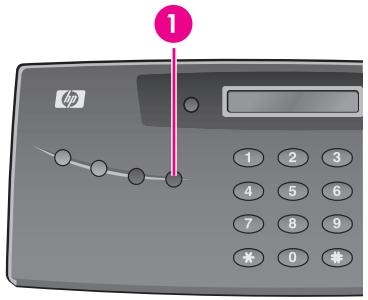
1 Access Cartridge
The cartridge carrier moves to the install position.
- Open the control panel and cartridge compartment cover (it will click and remain open).
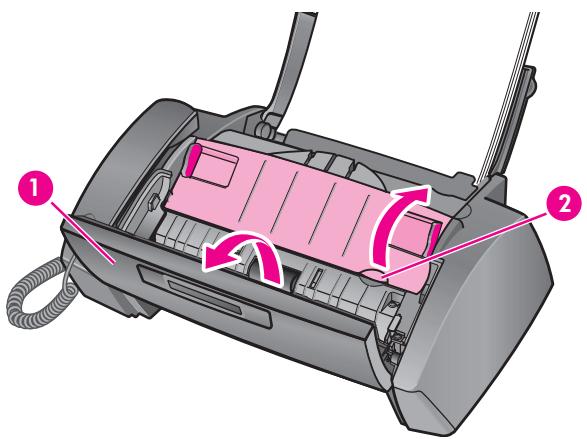
1 Control panel
2 Cartridge compartment cover
- Pull the cartridge toward you and remove it.
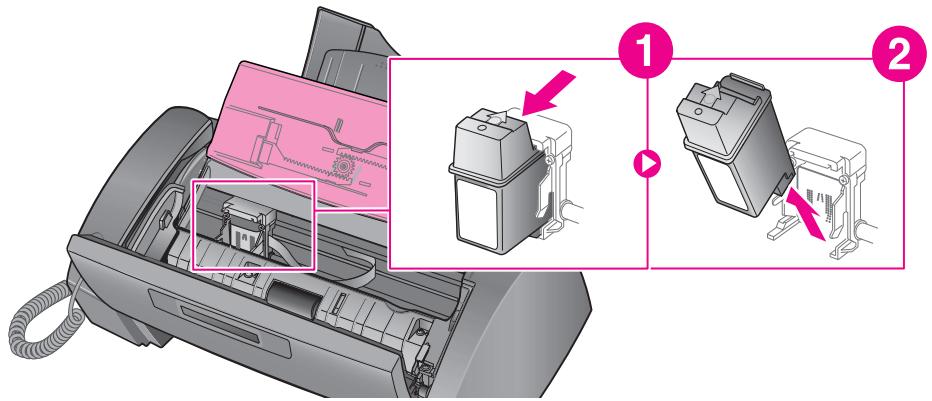
3 To load the cartridge insert the cartridge as shown below. When the cartridge is pushed to the back of the cartridge carrier, push the top of the cartridge until it clicks into place.
If the cartridge moves loosely in the carrier, it has not clicked into place. Repeat this step.
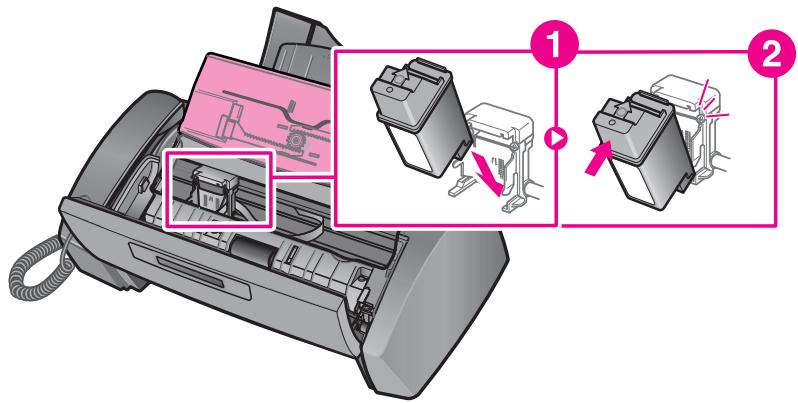
-
Close the cartridge compartment cover and control panel.
-
Press Start/Enter.
-
Press 1 for new cartridge, or 2 for the old one.
-
When you put in a new cartridge, you must choose 1:New
- When you put in a used cartridge, choose 2:Used. This helps you to check the correct amount of ink you have left.
TIP: If you mix up several used cartridges, it is not possible to check the correct amount of remaining ink. Once you have put in a new cartridge, use it until it is completely exhausted.
Clear jammed documents and paper
Document jams during transmission
If a document jams during transmission or copying, Remove jammed document appears in the display. DO NOT pull the document out of the slot. Doing so could harm your machine.
To clear document jam:
- Open the control panel.
- Carefully remove the jammed document.
- Close the control panel firmly until it clicks into place.
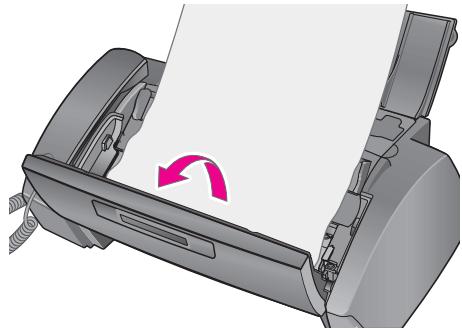
Paper jams during printing
If the fax paper jams while you are receiving or printing, Remove jammed paper and press Cancel appears in the message.
If the paper is jammed in the printing area
- Remove the jammed paper by pulling it out smoothly in the direction of the arrow as shown.
If the paper tears when it is being removed check to ensure that no small pieces have been left inside the machine.
- Press Cancel.
- If this was a fax, reprint the fax. For more information, see Reprinting taxes on page 52.
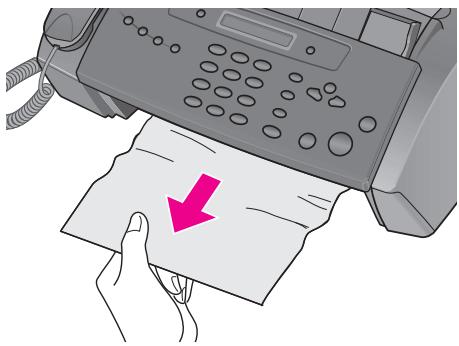
If the paper is jammed in the paper feed area
- Remove the jammed paper as shown.
If the paper tears when it is being removed check to ensure that no small pieces have been left inside the machine.
- Reload new paper with the print side facing toward you.
- Press Cancel when finished.
- If this was a fax, reprint the fax. For more information, see Reprinting taxes on page 52.
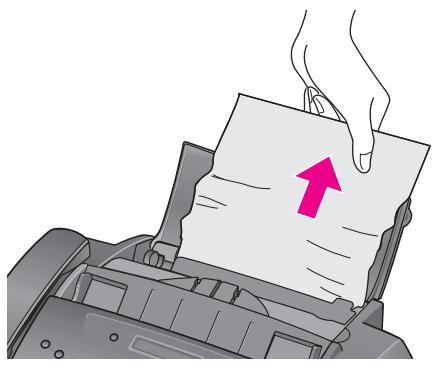
Maintain the print cartridge
To maintain good printing quality, we recommend you occasionally maintain the print cartridge and its associated parts:
Clean the print cartridge nozzles
If characters are not printing completely or white streaks appear in your text, you may have clogged nozzles. Clean the print cartridge as described below:
- Press Menu repeatedly until TOOLS appears and press Start/Enter.
- Scroll to Clean Cartridge by pressing and press Start/Enter.
-
Examine the printed test pattern.
-
If print quality does not improve, reinstall the cartridge and repeat these steps.
- If the line is still broken, wipe the nozzles and contacts. For more information, see Wipe the print nozzles and contacts on page 59.
Wipe the print nozzles and contacts
If cleaning the print cartridge nozzles as discussed above does not help and you are certain the cartridge has plenty of ink, the problem may be caused by dried ink on the print cartridge nozzles and contacts or the print cartridge carrier contacts. Follow these two sets of instructions for manual cleaning.
Clean the nozzles
- Press Access Cartridge.
- Open the control panel and cartridge compartment cover and remove the cartridge. See Replace the print cartridge on page 56.
-
Gently blot and wipe the contacts and nozzles dry.
-
Use a clean cloth dampened with water to gently clean the entire copper-colored area, including the nozzles and contacts.
- To dissolve any dried ink, hold the damp cloth against the nozzles for about three seconds.
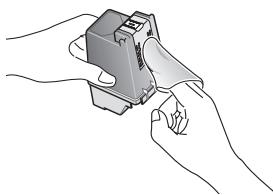
- Reinstall the cartridge and close the cover and panel.
If you spend a long time cleaning the cartridge, the cartridge carrier may have moved back to the original position. If so, press Access Cartridge again to move the carrier to the install position.
- Press Start/Enter.
- Press 1 for new cartridge or 2 for the old one.
Clean the cartridge carrier contacts
Before cleaning these parts, there should be no scheduled job such as delayed fax, send polling, or faxes received into memory.
CAUTION: Once you have unplugged the power cord from the machine, all data in memory will be lost.
- Press Access Cartridge.
- Open the control panel and cartridge compartment cover and remove the cartridge. See Replace the print cartridge on page 56.
- Remove the print cartridge.
- Unplug the power cord from the electrical outlet of the rear of the machine.
WARNING! Shock Hazard. Be sure to unplug the power cord before proceeding.
- Clean the cartridge carrier contacts with clean and cotton swab.
- Plug in the power cord and reinstall the cartridge.
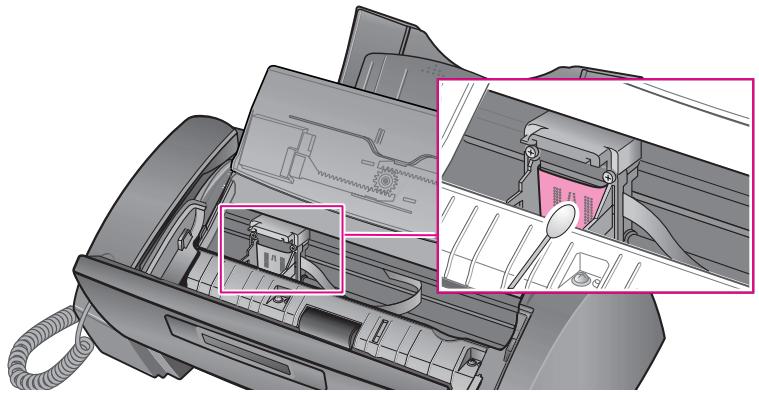
Clean the document scanner area
To keep your machine working properly, occasionally clean the white roller, document feeder rubber piece, and the scanning glass. If they are dirty, documents sent to another fax machine will not be clear.
CAUTION: When you turn the power off to clean the scanner, documents stored in memory will be lost.
- Open the control panel.
- Remove the white roller.
a. At the right-hand end of the white roller there is a bushing that is secured with a small tab.
b. Push the tab slightly inward, then rotate towards you. Then pull up the right-hand end of the roller to remove it.
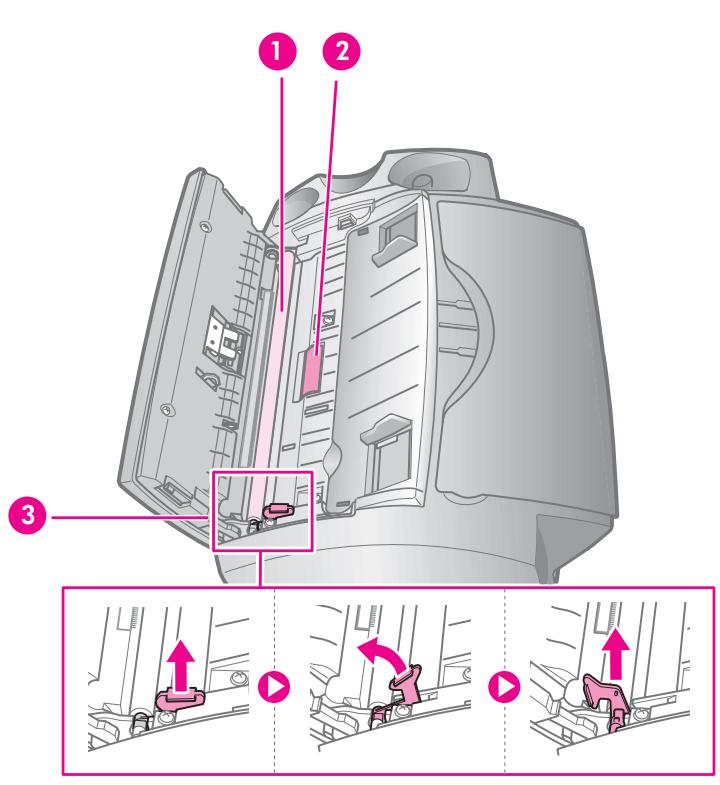
1 White roller
2 Drive roller
3 White roller latch
-
Wipe the white roller surface and the driver roller surface with a soft cloth dampened with water.
-
Clean the document feeder rubber piece at the back of the control panel.
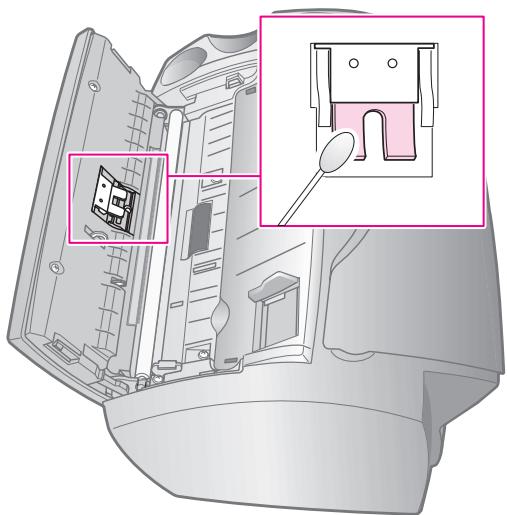
-
Carefully wipe the scanning glass with a soft, dry, lint free cloth.
-
If the glass is very dirty, first wipe it with a slightly dampened cloth, then with a dry one.
- Be careful not to scratch the glass surface.
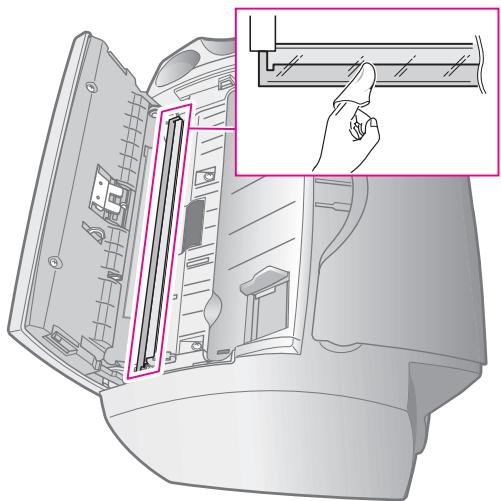
- Replace the roller in reverse order, and then close the control panel firmly until it clicks into place.
Adjust the scanner
The scanner is adjusted at the factory. If, however, you drop your machine while moving it, we recommend you adjust scanner.
- Press Menu repeatedly until TOOLS appears and press Start/Enter.
- Scroll to Adjust Scanner by pressing and press Start/Enter.
-
Load a plain WHITE sheet of paper (no writing or graphics) into the document feeder and press Start/Enter.
-
The machine starts to scan the document to adjust the scanner.
- Printing quality may be unexpectedly worse if you do not use a plain WHITE paper for the adjustment.
LCD error messages
These are the error message that may display along with solutions for you.
| Display | Status/Solution |
| Adjust scanner first in TOOLS menu | Adjust the scanner to fix this problem as described in Adjust the scanner on page 63. |
| Check white paper document and try again | You must use plain, white paper when adjusting the scanner. See Adjust the scanner on page 63. |
| Clean white roller, glass and try again | For more information, see Clean the document scanner area on page 61. |
| Duplicated with [Speed No.xx] | The same number has already been registered into another speed dial code. |
| Exceeded Job Memory Cancel scheduled job and try again | The broadcasting and delayed fax can hold 20 jobs in total. Cancel a scheduled job and try again. |
| Ink Low. Install new ink cartridge | The print cartridge is low or has run out of ink. To install a new print cartridge, see Replace the print cartridge on page 56. Although this message is displayed, you can make a copy or print a report. Incoming faxes will be stored in memory. You must manually print them, see Reprinting faxes on page 52. |
| Install ink cartridge | Print cartridge is not installed or improperly installed. |
| Install mono ink cartridge | The print cartridge should be installed to copy, print a report or receive a fax. |
| Job Not Assigned | You attempted to cancel a scheduled job but no jobs are scheduled. |
| Junk Fax Empty | You attempted to delete a junk fax number when there is no junk fax number. |
| Junk Fax Full | The machine can hold only 20 junk fax numbers. |
| Load Document | You must load a document before preceding. |
| Memory Full | Memory has become full while receiving a fax. It will not answer the telephone until memory has been cleared. Print any faxes stored in memory and, if necessary, clear scheduled jobs. See Reprinting faxes on page 52 and see Clearing memory on page 53. |
| Memory FullPress Start/Enterto continue | Memory has become full while scanning a document. Press Start/Enter to send or copy the scanned pages only. To cancel the job press Cancel and try again when memory becomes available, or split the new document into smaller parts. See Clearing memory on page 53. |
| Memory ReceivedInk Low. Installnew ink cartridge | The machine has data stored in memory. Replace the print cartridge with new one in order to print the faxes. |
| Memory ReceivedLoad paper andpress Start/Enter | Load paper and press Start/Enter. There might be a jam. Clear the jam as described in Paper jams during printing on page 58. |
| Memory ReceivedInstall inkcartridge | There is no print cartridge in the machine. Install a print cartridge. |
| New Fax Received | The machine is low on ink and has received faxes into memory. You must replace the print cartridge (see Replace the print cartridge on page 56.) and reprint the faxes from memory (see Reprinting faxes on page 52.). |
| No answer fromremote fax | The other machine has not answered after all radial attempts to send a fax. |
| No CID Number | The machine could not detect the CID (Caller ID) number. |
| No Dial Number | There is no number in the radial memory. |
| Not Found | The number you are searching for does not exist in memory. |
| Number alreadyregistered | The number you are trying to enter already exists in the phone book or junk fax list. |
| Number Not Assigned | There is no number assigned to this One-Touch or two-digit Speed number. |
| Poll Code Error | The remote user entered the wrong poll code. |
| Poll job exists already | You have already programmed a polling send. Cancel scheduled job and try again. |
| Polling Error Check remote site | The machine you want to poll is not ready to answer your poll. Check with the other person. |
| Remove jammed document | The document you are sending has jammed in the document feeder. To clear the document jam, see Document jams during transmission on page 58. You tried to copy or fax a document which is longer than 390 mm (15.4 in.). |
| System Busy Try again later | The fax machine is busy doing something else. |
| To redial now, press Start/Enter | The machine is waiting (three minutes) to automatically redial the fax number that was busy or did not answer. |
Troubleshooting
Your problem may be listed in "LCD error messages" on page 63. The chart below shows other problems you can solve yourself. For problems you cannot resolve here, see Use Hewlett-Packard support services on page 79.
Fax problems
| Problem | Solution |
| The machine is not working, there is no display, and the buttons are not working. | Unplug the power cord and plug it in again. Check that your socket is live. |
| No dial tone. | Check that the phone line is connected properly to the port in the bottom of the fax. Unplug and replug it. Make sure it clicks. Check the phone socket in the wall by plugging in another phone. |
| Someone calls and gets a busy signal even though the fax is not busy. | This may rarely occur if the answer mode is set to AUTO, a voice call comes in and is hung up without being answered, and another call is immediately received. In AUTO mode the machine goes back to fax receive mode if the voice call is not answered. The line will appear busy until the machine resets. |
| The numbers stored in memory do not dial correctly. | Make sure the numbers are programmed correctly. To print a Phone book list, see Print reports on page 51. |
| The document does not feed into the machine. | Be sure the document is not wrinkled, and you are putting it in correctly. Check that the document is the right size and not too thick or too thin. See Document types and sizes on page 71. |
| You cannot receive faxes automatically. | Check if TEL appears on the right side of the display. In TEL mode, you cannot receive a fax automatically. Be sure the handset is seated on the cradle properly. If the ink is low, the fax will stop printing faxes. Replace the print cartridge. If the fax memory is full, the fax will stop answering the phone. Load paper and print the faxes in memory to clear out the memory. |
| The machine cannot receive faxes manually. | Do not hang up the handset before pressing Start/Enter to receive a fax. |
| The machine does not send anything. | Check that the document is loaded face down. Send should appear in the display after it dials. Check if the machine to which you are sending can receive your fax. |
| You cannot poll another machine. | The fax machine you are polling may be using a poll code (password). |
| The fax you received has blank bits on it. | The machine sending to you may be faulty. A noisy phone line can cause line errors. Check your machine by making a copy. |
| Spots or lines missing from the fax you receive. | Check if the print cartridge is ok by making a copy. See Maintain the print cartridge on page 59. Check with the telephone company to see if your phone line is noisy. |
| You are receiving poor quality copies. | The fax machine sending to you may have a dirty scan glass. Also, check with the telephone company to see if your phone line is noisy. |
| Some of the words on the fax you received appear stretched. | The machine sending to you had a temporary document jam. |
| Your machine does not make copies. | Make sure your document is loaded face down. |
| There are lines on copies or documents you send. | Check your scan glass for marks and clean it (see Clean the document scanner area on page 61.) |
| The machine dials a number, but fails to make a connection with a remote fax machine. | The remote fax machine may be turned off or unable to answer incoming calls. Speak with the other fax operator to solve the problem. |
| You cannot store a document in memory. | There may not be enough memory available to hold the document you want to store. If the display shows a Memory Full message, do the following until you can store your document in memory: Print all unprinted faxes in memory (see Reprinting faxes on page 52.) Delete unneeded polling faxes, broadcast faxes, or delayed faxes (see To cancel the scheduled job on page 46.) |
| Blank areas appear at the bottom of each page or on continuation pages, with only a small strip of material printed at the top. | You may have selected the wrong paper size setting. To select the proper paper size, see Paper Size on page 13. |
| Image TCR is not working | You have the resolution set to SUPER FINE. Set the resolution to FINE. |
Print quality problems
| Problem | Solution |
| Light or blurred characters. | Check ink level as described in View ink level on page 55. To install a new print cartridge, see Replace the print cartridge on page 56. Make sure the print cartridge is installed correctly. To clean the print cartridge, see Maintain the print cartridge on page 59. |
| Smudged or dark characters. | Make sure the paper is straight and unwrinkled. Let ink dry before handling the paper. To clean the print cartridge, see Maintain the print cartridge on page 59. |
| Characters with white lines. | If Ink Low. Install new ink cartridge is displayed, install a new print cartridge as described in Replace the print cartridge on page 56. Remove and reinstall the print cartridge. Clean the print cartridge (see Maintain the print cartridge on page 59.) |
| Improperly formed or misaligned characters. | Clean the print cartridge (see Clean the print cartridge nozzles on page 59.) |
| Abnormal black horizontal lines | Clean the cartridge carrier (see Clean the cartridge carrier contacts on page 60.) |
Paper feeding problems
| Problem | Solution |
| Paper is jammed during printing. | Clear paper jam as described in Paper jams during printing on page 58. |
| Paper sticks together. | • Make sure you have fewer than 50 sheets in the paper tray. • Humid conditions may cause some paper to stick together. Take the paper out and fan the pages and replace. |
| Paper fails to feed. | Remove any obstructions inside the printer. |
| Multiple sheets of paper feed. | When loading paper, do not force the paper down into the printer. If multiple sheets have caused a paper jam, clear the paper jam. (see Paper jams during printing on page 58.) |
| Paper skews or buckles in the paper tray. | The paper tray can hold up to 50 sheets. Make sure the paper guides do not cause the paper to bow. When loading paper, do not force it down into the machine. |
Digital Message Center problems
| Problem | Solution |
| Paging message repeats | This is normal. The message repeats to give you time to enter the access code to retrieve your message. |
| Attempts to receive fax even when message center is turned off. | This is normal. The fax machine will attempt to receive a fax after several rings. |
| Does not record my messages. | The memory is full. Erase some messages to free up memory for more. |
| Paging message overrides phone calls when I happen to be home. | You should only turn paging on when you are not going to answer the phone. There is a delay between recording the message and the paging message going out. If you happen to answer an incoming call when the paging message is dialing out, it will override your incoming call. |
8 Specifications and regulatory information
This chapter contains product and supplies specifications, ordering information, and regulatory statements.
Paper types and sizes
The HP Fax is designed to work optimally with plain cotton bond paper.
The following paper sizes and weight can be used with your machine:
| Paper size | Dimensions | Paper weight |
| A4 | 210mm x 297mm (8.3in x 11.7in) | 75 – 90g/m2 |
| Letter | 216mm x 279mm (8.5in x 11.0in) | (20 – 24lbs) |
| Legal | 216mm x 356mm (8.5in x 14.0in) |
Document types and sizes
You can insert a document that is up to 10 pages long in the document feeder.
Acceptable documents
| Single sheet | 2 or more sheets | ||
| Document size | Max | 216mm (W) x 356mm (L)a8.5in (W) x 14in (L) | |
| Min. | 148mm (W) x 128mm (L)5.8in (W) x 5in (L) | ||
| Effective scanning width | 210mm8.27in | ||
| Number of sheets which can be loaded at a time | - | Up to 10 | |
| Thickness of document | 0.07mm – 0.15mm0.018in – 0.038in | 0.075mm – 0.12mm0.019in – 0.03in | |
| Paper quality | Uncoated on both sides | ||
a. When sending a document that is longer than A4 (297 mm/11.69 in.), you must immediately take out each sheet as soon as it has been scanned. Otherwise, the document may jam.
Print cartridge
The HP Fax uses the following print cartridge.

HP 20 black inkjet print cartridge C6614
Product specifications
The specifications are subject to change without notice.
| Item | Specification | |
| Type of unit | Inkjet Desktop Facsimile Transceiver | |
| Communication System | Public Switched Telephone Network (PSTN) and PABX | |
| Compatibility | ITU Group3 | |
| Compression scheme | MH, MR, MMR | |
| Modem speed | 14400/12000/9600/7200/4800/2400bps | |
| Scanning method | CIS (Contact Image Sensor) | |
| Input document size | 8.5 inches (216 mm) | |
| Effective scanning width | 8.27 inches (210 mm) | |
| Effective recording width | 8 inches (203 mm) | |
| Power consumption | Standby: 4.9Wh Printing Mode: Maximum 15 Wh | |
| Voltage | 110 – 127~ | |
| Frequency | 50 – 60 Hz | |
| Current | 500 mA | |
| Temperature range | 50°F to 95°F (10°C to 35°C) | |
| Humidity range | 20 to 80% RH (non-condensing) | |
| Dimension (W x D x H) | 365 x 275 x 160 mm (14.4 x 10.8 x 6.3 in.) (all trays folded) 365 x 340 x 270 mm (14.4 x 13.4 x 10.6 in.) (all trays extended) | |
| Item | Specification | |
| Weight | 3.5 Kg (7.7 lb) (including handset) | |
| Power source | See Rating Label attached on the back of the machine. | |
| Resolution | Copy | Standard/Fine: 300 x 300 dpi Super Fine/Photo: 600 x 300 dpi |
| Faxing | Standard: 98 x 203 dpi Fine: 196 x 203 dpi Super Fine: 392 x 203 dpi | |
| Speed dials | 80 (HP 1040) or 100 (HP 1050) | |
| ECM mode | YES | |
| Grey scale | 64 levels | |
| User memory capacity | 1 Mbyte (capable of 100 pages at ITU#1 test chart (2.5% coverage on A4) | |
| Ink Cartridge Part Number | HP 20 (28ml) (C6614) | |
A sample of ITU #1 test chart (reduced to 60.5% )

THE SLEREXE COMPANY LIMITED
SAPORS LANE - BOOLE - DORSET - BH 258 ER
TELEPHONE BOOLE (945 13) 51617 - TELEX 123456
Our Ref. 350/PJC/EAC
18th January, 1972.
Dr. P.N. Cundall
Mining Surveys Ltd.,
Holroyd Road,
Reading,
Berks.
Dear Pete,
Permit me to introduce you to the facility of facsimile transmission.
In facsimile a photocell is caused to perform a raster scan over the subject copy. The variations of print density on the document cause the photocell to generate an analogous electrical video signal. The signal is used to modulate a carrier, which is transmitted to a remote destination over a radio or cable communications line.
At the remote terminal, demodulation reconstructs the video signal, which is use dot modulate the density of print produced by a printing device. This device is scanning in a raster scan synchronised with that at the transmitting terminal. As a result, a facsimile copy of the subject document is produced.
Probably you have uses for this facility in your organisation.
Yours Sincerely,

P.J. CROSS
Group Leader - Facsimile Research
Registered in England:
Registered Office: 60 Vicars
No. 2038
Lane, Ilford, Essex.
Environmental product stewardship program
Protecting the environment
Hewlett-Packard Company is committed to providing quality products in an environmentally sound manner. This product has been designed with several attributes to minimize impacts on our environment. For more information, visit HP Commitment to the Environment website at:
http://www.hp.com/go/environment
Ozone production
This product generates no appreciable ozone gas (O_3)
Energy consumption
Energy usage drops significantly while in ENERGY STAR® mode, which saves natural resources, and saves money without affecting the high performance of this product. This product qualifies for ENERGY STAR, which is a voluntary program established to encourage the development of energy-efficient office products.

ENERGY STAR is a U.S. registered service mark of the U.S. EPA. As an ENERGY STAR partner, HP has determined that this product meets ENERGY STAR guidelines for energy efficiency. For more information on ENERGY STAR guidelines, go to the following website:
http://www.energystar.gov
Paper use
This product is suited for the use of recycled paper according to DIN 19309.
Plastics
Plastic parts over 25 grams are marked according to international standards that enhance the ability to identify plastics for recycling purposes at the end of the product's life.
Material safety data sheets
Material Safety Data Sheets (MSDS) can be obtained from the HP web site at:
http://www.hp.com/go/msds.
Customers without Internet access should contact their local HP Customer Care Center.
Recycling program
HP offers an increasing number of product return and recycling programs in many countries, as well as partnering with some of the largest electronic recycling centers throughout the world. HP also conserves resources by refurbishing and reselling some of its most popular products.
This HP product contains the following materials that may require special handling at end-of-life:
- Mercury in the fluorescent lamp in the scanner (<2 mg)
- Lead in the solder
A lithium battery
This product contains a small Lithium battery that must be removed and disposed of properly at the end of the product's useful life. The battery is located on the main circuit board.
-Battery Part Number: Panasonic CR2032
-Battery Material: Lithium
-Battery Type:Button/Coin Cell Battery
-Quantity Per Product:1
-Weight: approximately 3 grams
Lithium Type: Solid
-Battery Manufacturer: Panasonic of Japan
Regulatory notices
The HP Fax meetings product requirements from regulatory agencies in your country/region.
Regulatory model identification number
For regulatory identification purposes, your product is assigned a Regulatory MOdel Number. The Regulatory Model Number for your product is SDGOB0403-01 or SDGOB0403-02. This regulatory number should not be confused with the marketing name (HP 1040/1050 Fax series) or product number (Q7200 series).
Notice to users of the U.S. telephone network: FCC requirements
This equipment complies with FCC rules, Part 68. On this equipment is a label that contains, among other information, the FCC Registration Number and Ringer Equivalent Number (REN) for this equipment. If requested, provide this information to your telephone company.
An FCC compliant telephone cord and modular plug is provided with this equipment. This equipment is designed to be connected to the telephone network or premises wiring using a compatible modular jack which is Part 68 compliant. This equipment connects to the telephone network through the following standard network interface jack: USOC RJ-11C.
The REN is useful to determine the quantity of devices you may connect to your telephone line and still have all of those devices ring when your number is called. Too many devices on one line may result in failure to ring in response to an incoming call. In most, but not all, areas the sum of the RENs of all devices should not exceed five (5). To be certain of the number of devices you may connect to your line, as determined by the REN, you should call your local telephone company to determine the maximum REN for your calling area.
If this equipment causes harm to the telephone network, your telephone company may discontinue your service temporarily. If possible, they will notify you in advance. If advance notice is not practical, you will be notified as soon as possible. You will also be advised of your right to file a complaint with the FCC. Your telephone company may make changes in its facilities, equipment, operations, or procedures that could affect the proper operation of your equipment. If they do, you will be given advance notice so you will have the opportunity to maintain uninterrupted service.
If you experience trouble with this equipment, please contact the manufacturer, or look elsewhere in this manual, for warranty or repair information. Your telephone company may ask you to disconnect this equipment from the network until the problem has been corrected or until you are sure that the equipment is not malfunctioning.
This equipment may not be used on coin service provided by the telephone company. Connection to party lines is subject to state tariffs. Contact your state's public utility commission, public service commission, or corporation commission for more information.
This equipment includes automatic dialing capability. When programming and/or making test calls to emergency numbers:
- Remain on the line and explain to the dispatcher the reason for the call.
- Perform such activities in the off-peak hours, such as early morning or late evening.
Note: This equipment is hearing aid compatible.
The Telephone Consumer Protection Act of 1991 makes it unlawful for any person to use a computer or other electronic device, including fax machines, to send any message unless such message clearly contains in a margin at the top or bottom of each transmitted page or on the first page of transmission, the date and time it is sent and an identification of the business, other entity, or other individual sending the message and the telephone number of the sending machine or such business, other entity, or individual. (The telephone number provided may not be a 900 number or any other number for which charges exceed local or long-distance transmission charges.) In order to program this information into your fax machine, you should complete the steps described in the software.
FCC statement
The United States Federal Communications Commission (in 47 CFR 15.105) has specified that the following notice be brought to the attention of users of this product.
Declaration of Conformity: This equipment has been tested and found to comply with the limits for a Class B digital device, pursuant to part 15 of the FCC Rules. Operation is subject to the following two conditions: (1) this device may not cause harmful interference, and (2) this device must accept any interference received, including interference that may cause undesired operation. Class B limits are designed to provide reasonable protection
against harmful interference in a residential installation. This equipment generates, uses, and can radiate radio frequency energy, and, if not installed and used in accordance with the instructions, may cause harmful interference to radio communications. However, there is no guarantee that interference will not occur in a particular installation. If this equipment does cause harmful interference to radio or television reception, which can be determined by turning the equipment off and on, the user is encouraged to try to correct the interference by one or more of the following measures:
- Reorient the receiving antenna.
- Increase the separation between the equipment and the receiver.
- Connect the equipment into an outlet on a circuit different from that to which the receiver is connected.
- Consult the dealer or an experienced radio/TV technician for help.
For more information contact the Product Regulations Manager, Hewlett-Packard Company, San Diego, 858-655-4100.
The user may find the following booklet prepared by the Federal Communications Commission helpful: How to Identify and Resolve Radio-TV Interference Problems. This booklet is available from the U.S. Government Printing Office, Washington DC, 20402. Stock No. 004-000-00345-4.
CAUTION Pursuant to Part 15.21 of the FCC Rules, any changes or modifications to this equipment not expressly approved by the Hewlett-Packard Company, may cause harmful interference and void the FCC authorization to operate this equipment.
This equipment meets the applicable Industry Canada Terminal Equipment Technical Specifications. This is confirmed by the registration number. The abbreviation IC before the registration number signifies that registration was performed based on a Declaration of Conformity indicating that Industry Canada technical specifications were met. It does not imply that Industry Canada approved the equipment.
Users should ensure for their own protection that the electrical ground connections of the power utility, telephone lines and internal metallic water pipe system, if present, are connected together. This precaution may be particularly important in rural areas.
The Ringer Equivalence Number (REN) assigned to each terminal device provides an indication of the maximum number of terminals allowed to be connected to a telephone interface. The termination on an interface may consist of any combination of devices subject only to the requirement that the sum of the Ringer Equivalence Numbers of all the devices does not exceed 5.
The REN for this product is 0.5B, based on FCC Part 68 test results.
This digital apparatus does not exceed the Class B limits for radio noise emissions from the digital apparatus set out in the Radio Interference Regulations of the Canadian Department of Communications.
For non-European customers
This product is approved for use only in the country in which it was purchased. Local country laws may prohibit the use of this product outside the country of purchase. It is strictly forbidden by law in virtually every country to connect nonapproved telecommunications equipment (fax machines) to public telephone networks.
Declaration of conformity

DECLARATION OF CONFORMITY
according to ISO/IEC Guide 22 and EN 45014
Manufacturer's Name:
Hewlett-Packard
Company
Manufacturer's Address:
16399 West Bernardo Drive
declares, that the product
San Diego CA 92127, USA
Regulatory Model Number :
SDGOB-0403-01, -02
Product Name:
HP Fax 1040 (Q7270A) Series (-01)
HP Fax 1050 (Q7278A) Series (-02)
Model Number(s):
(-01) Q7270A, Q7271A, Q7272A, Q7273A, Q7274A
(-02) Q7278A, Q7279A, Q7280A, and Q7281A
conforms to the following Product Specifications:
Safety:
UL1950/CSA22.2 No.950, 3^rd Ed.:1995
NOM-019-SCFI: 1998
EMC:
FCC Part 15 - Class B
Telecom:
ICES-003, Issue 2
NOM-151-SCT1-1999
Supplementary
Information:
1) This product was tested in a typical configuration.
12 August 2004
Date
Steve Smith
Hardware Test and Regulations Manager
Use Hewlett-Packard support services
www.hp.com/support
If you are unable to find the answer you need in the printed documentation supplied with your product or on the web, you can contact one of the HP support services listed in the following pages. If a support service number is not listed for your country, contact your nearest authorized HP dealer for help.
Before calling customer support
1 Make sure that
- Your unit is plugged in and turned on.
- The correct print cartridge is installed properly.
- The recommended paper is loaded in the input tray.
2 Reset your unit by unplugging it and plugging it in again.
3 If you need to speak to an HP Customer Support Representative:
- Have your serial number ready.
- Print a Self-Test Report.
- Be prepared to discuss your problem in detail.
4 Be near your unit when you call.
Prepare your unit for shipment
If you are requested to send in your unit for service, do the following:
- Remove the print cartridge and place it in an airtight bag so it will not dry out. Do not send the print cartridge with the unit unless asked to do so.
- If you do not have the original packing material, you can request a replacement package set from HP Customer Support. Shipping damage caused by improper packaging is not covered under the warranty.
- Include these items in the box:
A brief description of the symptoms (sample prints are helpful).
- A copy of your sales slip or proof of purchase (to establish the warranty period)
- Your name, address, and telephone number where you can be reached during the day.
| Country/region | HP technical support |
| U.S. during warranty* | 1-800-HP-INVENT |
| Canada during warranty | 1-800-HP-INVENT |
| Canada post warranty (per call charge) | (877) 621-4722 |
| Mexico | 01-800-472-6684 |
| Mexico (Mexico City) | 5258 9922 |
- U.S. phone support is available in both English and Spanish 24 hours a day, 7 days a week (days and hours of support may change without notice).
Hewlett-Packard LIMITED WARRANTY STATEMENT
| HP Product | Duration of limited warranty |
| Fax | 1 year |
| Print cartridge | Until the HP ink is depleted of the “end of warranty” date printed on the cartridge has been reached, whichever occurs first. This warranty does not cover HP ink products that have been refilled, remanufactured, refurbished, misused, or tampered with. |
Extent of limited warranty
Hewlett-Packard ("HP") warrants to the end-user customer that the HP products specified above will be free from defects in material and workmanship for the duration specified above, which duration begins on the date of purchase by the customer.
For each software product, HP's limited warranty applies only to a failure to execute programming instructions. HP does not warrant that the operation of any product shall be uninterrupted or error free.
HP's limited warranty covers only those defects which arise as a result of normal use of the product, and does not cover any other problems, including those which arise as a result of (a) Improper maintenance or modification, (b) Software, accessories, media, or supplies not provided or supported by HP, (c) Operation outside the product's specifications, or (d) Unauthorized modification or misuse.
For HP printing products, the use of a non-HP ink cartridge or a refilled ink cartridge does not affect either the warranty to the customer or any HP support contract with the customer. However, if product failure or damage is attributable to the use of a non-HP or refilled ink cartridge, HP will charge its standard labor and materials charges to service the product for the failure or damage.
If HP receives, during the applicable warranty period, notice of a defect in any product, HP shall either repair or replace the defective Product, at HP's option.
If HP is unable to repair or replace, as applicable, a defective product which is covered by HP's warranty, HP shall, within a reasonable time after being notified of the defect, refund the purchase price for the Product.
HP shall have no obligation to repair, replace, or refund until the customer returns the defective product to HP.
Any replacement product may be either new or like-new, provided that it has functionality at least equal to that of the Product being replaced.
HP products may contain remanufactured parts, components, or materials equivalent to new in performance.
HP's Limited Warranty Statement is valid in any country/region where the covered HP product is distributed by HP. Contracts for additional warranty services, such as on-site service, may be available from any authorized HP service facility in countries where the product is distributed by HP or by an authorized importer.
Limitations of warranty
TO THE EXTENT ALLOWED BY LOCAL LAW, NEITHER HP NOR ITS THIRD PARTY SUPPLIERS MAKE ANY OTHER WARRANTY OR CONDITION OF ANY KIND, WHETHER EXPRESS OR IMPLIED WARRANTYES OR CONDITIONS OF MERCHANTABILITY, SATISFACTORY QUALITY, AND FITNESS FOR A PARTICULAR PURPOSE.
Limitation of liability
To the extent allowed by local law, the remedies provided in this Warranty Statement are the customer's sole and exclusive remedies.
TO THE EXTENT ALLOWED BY LOCAL LAW, EXCEPT FOR THE OBLIGATIONS SPECIFICALLY SET FORTH IN THIS WARRANTY STATEMENT, IN NO EVENT SHALL HP OR ITS THIRD PARTY SUPPLIERS BE LIABLE FOR DIRECT, INDIRECT, SPECIAL, INCIDENTAL, OR CONSEQUENTIAL DAMAGES, WHETHER BASED ON CONTRACT, TORT, OR ANY OTHER LEGAL THEORY AND WHETHER ADVISED OF THE POSSIBILITY OF SUCH DAMAGES.
Local law
This Warranty Statement gives the customer specific legal rights. The customer may also have other rights which vary from state to state in the United States, from province to province in Canada, and from country to country elsewhere in the world.
To the extent this Warranty Statement is inconsistent with local law, this Warranty Statement shall be deemed modified to be consistent with such local law. Under such local law, certain disclaimers and limitations of this Statement may not apply to the customer. For example, some states in the United States, as well as some governments outside the United States (including provinces in Canada), may:
Preclude the disclaimers and limitations in this Warranty Statement from limiting the statutory rights of a consumer (e.g., the United Kingdom):
- Otherwise restrict the ability of a manufacturer to enforce such disclaimers or limitations: or
- Grant the Customer additional warranty rights, specify the duration of implied warranties which the manufacturer cannot disclaim, or not allow limitations on the duration of implied warranties.
Complete the following information. It is necessary for contacts with the selling dealer or Hewlett-Packard Company:
Date of Purchase:
Serial Number:
Index
A
Access Cartridge
button 8, 56
alarm sounds 49
align cartridge
menu 15
announcement only 37
Ans.Mode/Contrast
button 10
Answer
button 11
answer mode 31
answer ring pattern detection 30
answering machine
calling 39
password 39
remote access 39
turning on 35
arrow buttons 1
AUTO mode 33
auto reduction
menu 13
automatic fax redial 26
B
block junk faxes 28
bottom view 7
broadcasting 43
menu 14
broadcastingfaxes 43
button
Loudspeaker 10
buttons
Access Cartridge 8
Ans.Mode/Contrast 10
Answer 11
Cancel 10
control panel 7
Copy 10
Erase 11
Flash 10, 11
Greeting 11
Menu 9
Mute/Search 10, 11
Play/Rec. 11
R 10, 11
Rcv.Mode/Contrast 11
Redial/Pause 10, 11
Report/Help 8
Resolution 8
Scan & Fax Mode 8
Scroll/Volume 9
Silent Mode 8
Space 9
Speakerphone 11
Speed Dial 9
Start/Enter 10
Symbols 9
C
call monitor
menu 15
call screening 37
Caller ID 28
junkfaxes 28
list 28
report 52
turning on 28
Caller ID menu 13
calling the answering machine 39
Cancel
button 10
cancel schedule
menu 14
cancelling a scheduled job 46
cartridge
cleaning 59
maintenance 55
part number 73
replacing 56
changing language 15
clean cartridge
menu 15
cleaning the fax 61
clearing jams
document 58
clearing memory 53
clearing paper jams 58
contrast 24
default 14
menu 14
control panel 7
control panel buttons 7
copies
collate 3
making 3
multiple 3
options 3
reduce or enlarge 3
Copy
button 10
copy
collate 3
number of copies 3
print order 3
zoom 3
D
date and time 49
date, setting 49
dates 18
delayed fax 14, 44
dial mode
menu 15
dialing
automatic fax redial 26
discard size
(see also auto reduction) 15
menu 15
distinctive ring 30
menu 14
distribution list. See broadcasting faxes
document feeder
number of pages 5
document jams 58
documents
load 2
number of pages 2
DRPD 30
E
ECM mode 73
menu 14
entering 18
Erase
button 11
erasing
all messages 38
selected messages 38
error messages 63
EXT. port 7
extension phone
fax receiving 26
F
factory default
menu 15
faxforwarding 14
fax header 50
fax log
menu 14
fax memory
number of pages 5
FAX mode 32, 34
fax name 50
fax number 50
fax problems 66
fax receiving 3
fax tones. See sounds
faxes
reprinting 52
faxing
color documents 25
photographs 25
Flash
button 10, 11
forwarding
faxes 14, 47
message paging 41
voice notification 16
front panel 7
front view 6
G
getting help 79
Greeting
button 11
greeting
length of 36
playing 36
recording 36
greeting only 37
H
HANDSET port 7
help 79
help list 51
HP Fax
parts of 6
HP support 79
1
ICM Record Time
menu 15
image TCR 29
menu 13
incoming messages
length of 15
ink cartridge
maintenance 59
part number 55, 72
replacing 56
ink level 15
cartridge 55
ITU #1 chart 74
J
jams
clearing paper 58
document 58
paper 58
journal 14
junk fax
blocking 28
report 52
junkfaxes 13
K
key sounds 50
keypad
buttons 9
L
language 15
menu 15
LINE port 7
loading documents 2
loading paper 1
Loudspeaker
button 10
loudspeaker 16, 53
M
making a copy 3
man fax rcv code, HP 1040
menu 14
memory
clearing 53
Menu
button 9
menu
BASIC FAX, options 13
picture 12
using 17
menu setting
language 15
message
backup 35
message center
password 39
remote access 39
turning on 35
message length 35
message paging 41
menu 16
message time 35
messages
displayed 63
erasing 38
playing 37
skipping 37
Microphone 11
monitor calls 37
Mute/Search
button 10, 11
O
one-touch
dialling 22
out of ink 15
out of paper. See reprinting faxes
P
paging
messages 41
paper
loading 1
not recommended 23
number of sheets 2
size 23
type 23
paper jams 58,68
paper size 71
menu 13
paper tray
capacity 5
part number
ink cartridge 72
pause 21
phone book 21, 51
dialing 22
print 22
searching 22
photo
faxing 25
Play/Rec
button 11
polling 14, 45
receive 46
send 45
ports
location of 7
print cartridge
ink level 55
maintenance 59
part number 55, 72
replacing 56
print fax 52
print quality
menu 13
self test 56
print quality problems 68
pulse dialing 15
R
R
button 10, 11
Rcv.Mode/Contrast
button 11
ready mode 17
rear view 6
receive mode 32
received journal 51
receivingfaxes31,32
recording
conversation 41
greeting 36
Redial/Pause
button 10, 11
redialing
automatic fax redial 26
redial a number in memory 54
regulatory information 76
regulatory notices
Canadian statement 77
notice to users in Canada 77
remote access 39
remote password
menu 16
Report/Help
button 8
reports 51
Caller ID 52
junk fax 52
phone book 51
printing faxes 52
received journal 51
schedule inform 51
sending confirm 51
sent journal 51
system data 52
TAM status 52
reprinting faxes 52
Resolution
button 8
resolution 24
default 14
menu 14
ring pattern detection 14, 30
ring volume 25
rings to answer 27, 32
menu 13
rings to answer. See also toll saver
S
Scan & Fax 29
Scan & Fax Mode
button 8
scatter adjustment 63
scanner area
cleaning 61
schedule a fax 44
schedule inform 51
scheduled fax 14
scheduled faxes 51
scheduled job
cancelling 46
scheduled jobs
cancelling 14
screen calls 15, 37
Scroll/Volume
buttons 9
see answer mode 3
self test 56
menu 15
sending confirm 51
image TCR 13
menu 13
sent journal 51
set broadcasting
menu 14
set delayed fax
menu 14
set fax forward
menu 14
set junk fax no
menu 13
set polling send
menu 14
setting
date 49
time 49
setting date and time 49
setting fax number 50
Silent Mode
button 8
silent mode
daily 50
daily schedule 15
menu 15
sounds
alarm 49
keys 50
on and off 49
Space
button 9
speaker volume 25
Speakerphone
button 11
speakerphone 16, 53
Speed Dial
button 9
speed dial
dialing 22
programming 21
using 21
speed dials
number of 5
Start/Enter
button 10
supplies
print cartridge 55
Symbols
button 9
system data 52
T
TAM mode 32, 34
TAM status report 52
TEL mode 32, 34
telephone
dialing 4
telephone numbers
entering 18
text
entering 18
time, setting 49
toll saver 40
menu 15
tone dialing 15
troubleshooting
fax problems 66
messages 63
paper feeding 68
print quality 68
U
unwantedfaxes 13
V
view ink level
menu 15
volume
ring 25
speaker 25
W
warranty 80

- HP 1040/1050 Fax series User Guide
- Notice
- Safety information
- WARNING! To prevent fire or shock hazard, do not expose this product to rain or any type of moisture.
- WARNING! Potential shock hazard
- Contents
- Quick start
- HP Fax basics
- Additional features
- Digital message center (HP 1050 Fax only)
- Advanced faxing
- Feature reference
- Care and maintenance
- Specifications and regulatory information
- Load paper
- Load documents to fax or copy
- Send a fax
- Receive a fax
- FAX or TAM answer mode
- AUTO answer mode
- TEL answer mode
- Make a copy
- Single copy—default settings
- Multiple copies or copies with options/settings
- Make a telephone call
- The HP Fax features
- The HP 1050 Fax only
- The HP Fax 1040/1050
- Parts of the HP Fax
- Control Panel of HP FAX
- Copy:
- Start/Enter:
- Cancel:
- Mute/Search:
- Redial/Pause:
- Ans. Mode/Contrast:
- Erase:
- Overview of menu options
- BASIC FAX menu
- Loudspeaker—HP 1040 Fax
- Speakerphone—HP 1050 Fax
- Navigate the menus
- Ready mode
- Menu buttons
- Enter dates, times, text, and telephone numbers
- Most text fields
- Fax header telephone number
- Speed dialing
- Store a number in the phone book
- Print the phone book
- Dial from the phone book
- One-touch dialing
- Phone book dialing
- Search sequentially through the phone book
- Search for a particular first letter
- Paper types and sizes
- Document types and sizes
- DO NOT try to send documents that are:
- Set document resolution and contrast for a single copy
- Adjust volume
- Ringer volume
- Speaker volume
- Automatic fax redial
- Receiving via an extension telephone (HP 1040 Fax only)
- Set rings to answer
- Use Caller ID
- Turn Caller ID on
- See who called with Caller ID
- Print a list of Caller ID numbers
- Block junk fax numbers
- Add a junk fax number
- Delete a number
- Scan & Fax Mode
- Image TCR
- Distinctive ring (DRPD)
- Step 1—Teach the HP Fax the ring pattern
- Step 2—Set up distinctive ring (DRPD) answer mode
- Answer/receive mode
- Turn on the message center
- Record your greeting
- Play your greeting
- Screen or monitor your calls
- Announcement only
- Play back messages
- Play back new messages only
- Play back all messages
- Skip or repeat messages
- Repeating a message or skipping backwards
- Skipping a message
- Erase messages
- Erase selected messages
- Erase all messages in memory
- Remote Access
- Remote Password
- Access the message center
- Toll Saver
- Message paging
- Set up message paging
- Receive a message page
- Record a conversation
- Broadcasting
- Delayed fax
- Polling
- Setting send polling
- Polling another fax to receive
- To cancel the scheduled job
- Forward taxes
- Set the date and time
- Turn on and off sounds
- Alarm sounds
- Key sounds
- Silent mode
- Set the fax header information
- Print reports
- Automatic reports
- Reports you can print
- Reprinting taxes
- Press Report/Help.
- Clearing memory
- Redial a number in memory
- Print cartridge information
- View ink level
- Print the self test
- Replace the print cartridge
- Clear jammed documents and paper
- Document jams during transmission
- Paper jams during printing
- Maintain the print cartridge
- Clean the print cartridge nozzles
- Wipe the print nozzles and contacts
- Clean the nozzles
- Clean the cartridge carrier contacts
- Clean the document scanner area
- Adjust the scanner
- LCD error messages
- Troubleshooting
- Acceptable documents
- Print cartridge
- HP 20 black inkjet print cartridge C6614
- Product specifications
- A sample of ITU #1 test chart (reduced to 60.5\% )
- THE SLEREXE COMPANY LIMITED
- Environmental product stewardship program
- Protecting the environment
- Ozone production
- Energy consumption
- Paper use
- Plastics
- Material safety data sheets
- Recycling program
- Regulatory notices
- Regulatory model identification number
- Notice to users of the U.S. telephone network: FCC requirements
- FCC statement
- For non-European customers
- Declaration of conformity
- conforms to the following Product Specifications:
- Use Hewlett-Packard support services
- www.hp.com/support
- Before calling customer support
- Make sure that
- Prepare your unit for shipment
- Hewlett-Packard LIMITED WARRANTY STATEMENT
- Extent of limited warranty
- Limitations of warranty
- Limitation of liability
- Local law
- Index
- A
- B
- C
- D
- E
- F
- G
- H
- 1
- R
- S
- T
- U
- V
- W
Brand : COMPAQ
Model : 1040
Category : Laptop