
215 - Laptop COMPAQ - Free user manual and instructions
Find the device manual for free 215 COMPAQ in PDF.


| Product Type | Laptop |
| Brand | COMPAQ |
| Model | 215 |
| Dimensions (L x W x H) | 327 x 269 x 38 mm |
| Weight | 2.5 kg |
| Power supply | 90W AC adapter |
| Processor | Intel Celeron |
| RAM | 128 MB (expandable to 256 MB) |
| Hard drive | 20 GB |
| Screen | 15-inch TFT |
| Screen resolution | 1024 x 768 pixels |
| Optical drive | CD-ROM |
| Connectivity | 2 USB ports, VGA port, Ethernet port, 56K modem |
| Battery | Li-Ion, battery life about 2 hours |
| Operating system | Microsoft Windows 98 or Windows ME |
| Care and cleaning | Clean with a soft, dry cloth. Do not use solvents. |
| Safety | Do not block ventilation openings. Use only the provided adapter. |
| Spare parts and repairability | Battery, adapter, keyboard, hard drive, memory module: user-replaceable. |
| General information | Class B digital device compliant with Canadian standards. |
Frequently Asked Questions - 215 COMPAQ
User questions about 215 COMPAQ
0 question about this device. Answer the ones you know or ask your own.
Ask a new question about this device
Download the instructions for your Laptop in PDF format for free! Find your manual 215 - COMPAQ and take your electronic device back in hand. On this page are published all the documents necessary for the use of your device. 215 by COMPAQ.
USER MANUAL 215 COMPAQ
Trademark and Copyright Information
Copyright 2000 Hewlett-Packard Company
All rights are reserved. No part of this document may be photocopied, reproduced, or translated to another language without the prior written consent of Hewlett-Packard Company.
The information contained in this document is subject to change without notice. Hewlett-Packard shall not be liable for errors contained herein or for consequential damages in connection with the furnishing, performance, or use of this material.
HP, the HP logo, and PhotoSmart are property of Hewlett-Packard Company.
Microsoft and Windows are registered trademarks of Microsoft Corporation.
CompactFlash, CF, and the CF logo are trademarks of the CompactFlash Association (CFA).
Other brands and their products are trademarks or registered trademarks of their respective holders.
Contents
Chapter 1: Getting Started 5
Product Overview 5
Camera Description 6
Quick Setup 7
Chapter 2: Taking Photos 11
Using Instant Review 12
Using the Image LCD as a Viewfinder 14
Tips for Taking the Best Photos 15
Chapter 3: Adjusting the Camera Settings 17
Changing the Photo Quality 17
Using the Flash 19
Using the Focus 20
Using the Self-timer 21
Using the Digital Zoom 22
Setting the Date and Time 23
Changing the Language 24
Chapter 4: Reviewing Photos 25
Viewing Your Photos 25
Deleting Your Photos 26
Magnifying Your Photos 28
Locking and Unlocking Your Photos 29
Personalizing Your Welcome Screen 30
Chapter 5: Sharing and Printing Photos 31
System Requirements 31
Installing the Software 32
Connecting the Camera to Your PC 32
Downloading Photos to Your PC 34
Chapter 6: CompactFlash Memory Card 37
Installing and Removing Memory Cards 37
Determining if a Memory Card is Full 39
Formattig a Memory Card 40
Chapter 7: Powering Your Camera 41
Determining if the Batteries Need to be Changed 41
Battery Life 42
Replacing the Batteries 43
Using an AC Power Adapter (recommended) 44
Chapter 8: Care, Maintenance and Safety 47
Camera 47
AC Power Adapter 48
Batteries 48
Memory Cards 48
Cleaning the Camera and Lens 49
Camera Specifications 50
Chapter 9: Troubleshooting and Assistance 51
Problems and Solutions 51
Getting Assistance 57
ArcSoft Software Support 61
Appendix A: Reference 63
Checking the Camera's Status 63
Capture Mode Menu 67
Playback Mode Menu 68
Appendix B: Regulatory and Warranty Information 69
Regulatory Notices 69
Hewlett-Packard Limited Warranty Statement 71
Hewlett-Packard Year 2000 Warranty for Consumer Products Distributed Through Authorized Resellers 74
Index 75
Chapter 1: Getting Started
Product Overview
Your simple-to-use HP PhotoSmart 215 digital camera takes high-quality photos that you can print or share with family and friends on the Internet or via email. It comes with software for editing, storing, and printing your photos. Your camera includes the following features:
1.3 MP resolution
- Economical "digital film" (removable CompactFlash memory card)
Automatic focus
- Point and shoot user interface
- Image LCD for previewing and reviewing photos
Automatic exposure - Integrated flash with red-eye reduction
Self-timer
Digital zoom
Camera Description
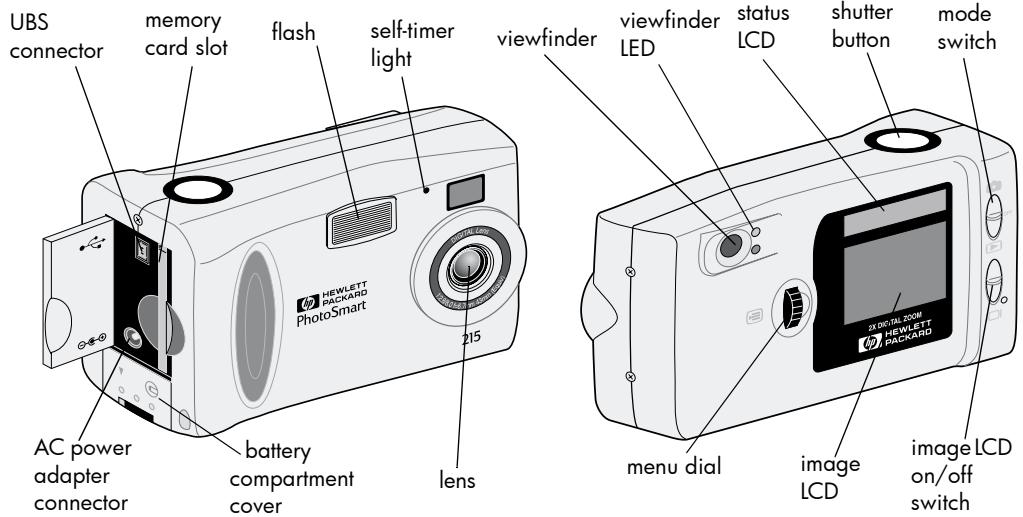
The following illustrations show the front, back, and sides of the HP PhotoSmart 215 digital camera.
Quick Setup
Setting up the HP PhotoSmart 215 digital camera is quick and easy—follow these steps and you'll be ready to take photos.
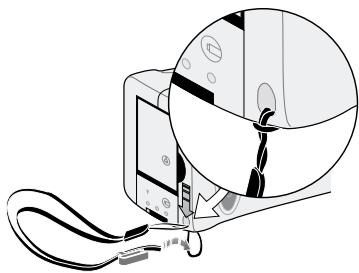
Step 1: Attach the Wrist Strap
- Using the wrist strap included in the box with your camera, thread the short loop through the wrist strap attachment. You might need to use a paper clip to pull the end of the loop through.
- Pull the strap through the loop, then pull the knot tight.
Note: Use the clip attached to the wrist strap to remove the memory card.
Step 2: Install the Batteries
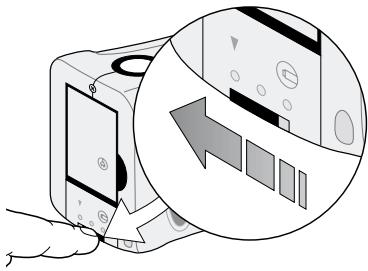
- Unlock and open the battery compartment.
- Insert the 4 AA batteries (supplied), making sure the + / - electrodes match the indicators on the inside of the camera's battery compartment.
For details on changing batteries and recommended battery types, see "Chapter 7: Powering Your Camera" on page 41.
Step 3: Choose the Camera Language
The Language menu automatically displays when the camera is turned on for the first time. For details on changing the language after the quick setup, see "Changing the Language" on page 24.
- Slide the mode switch up to the camera icon to turn the camera on. The Language menu displays.
- Turn the menu dial to select a language, then press the menu dial.
Step 4: Set the Camera Date and Time
After setting the Language, the camera prompts you to enter the current date and time. For details on setting the date and time after the quick setup, see "Setting the Date and Time" on page 23.
- Turn the menu dial to select the date or the time, then press the menu dial.
- Change the month, date, year, hour and minute by turning the menu dial. Press the menu dial to move to a new field.
Note: You can also change the date and time format. Select the current date format located above the date to select the MM/DD/YYYY, DD/MM/YYYY or YYYY/MM/DD format. Select the current time format to set the time on a 12 or 24 hour clock.
- When you are finished, turn the menu dial to select Exit, then press the menu dial.
Chapter 2: Taking Photos
- Slide the mode switch up to the camera icon to turn the camera on.
Note: After you turn the camera on, the Flash charges. Once the flash icon on the status LCD stops blinking, the camera is ready to take a photo.
-
Adjust the camera settings as needed.
-
You can change the photo quality, flash or focus setting or use the self-timer or digital zoom. See "Chapter 3: Adjusting the Camera Settings" on page 17 for details.
- Frame your subject in the viewfinder.
- Press the shutter button half way down to allow the camera to focus and adjust the exposure.
- When you see the green light next to the viewfinder, press the shutter button all the way down to take the photo.
Your photo appears on the image LCD while it is saved to the CompactFlash memory card. If you want to immediately delete the photo while it is being saved, press the menu dial.
Using Instant Review
Your photo displays on the image LCD immediately after it is taken—this is called Instant Review. Instant Review is on by default. During Instant Review, you can choose to delete a photo before it saves to the memory card. If you do not wish to review your photos immediately after taking them, turn off Instant Review.
Note: For details on reviewing your photos after they are stored, see "Chapter 4: Reviewing Photos" on page 25.
To use Instant Review:
- Take a photo.
The photo displays automatically on the image LCD for your review.
- To delete the photo, press the menu dial.
If you do not delete the photo, the camera saves the photo to the memory card and turns off the image LCD.
To turn Instant Review off:
- Slide the mode switch up to the camera icon.
- Press the menu dial to display the Capture menu on the image LCD.
- Turn the menu dial to highlight the Set Up icon, then press the menu dial.
- Turn the menu dial to select Instant Review, then press the menu dial.
- Turn the menu dial to select Off, then press the menu dial.
Your photos will be stored to the CompactFlash memory card without being shown on the image LCD.
Using the Image LCD as a Viewfinder
Instead of framing your photo through the viewfinder, you can use the image LCD. To optimally frame your photo, use the image LCD when you are taking photos using Macro or Digital Zoom. For more information on Macro, see "Using the Focus" on page 20. For more information on Digital Zoom, see "Using the Digital Zoom" on page 22.
To frame your photo using the image LCD:
- Slide the mode switch up to the camera icon.
- Slide the image LCD switch up to turn the image LCD on.
- Point the camera at your subject and preview the photo on the image LCD.
- Press the shutter button half way to allow the camera to focus and adjust the exposure. When you see the green light next to the viewfinder, you are ready to take your photo.
- When the subject is optimally framed, press the shutter button all the way down to take the photo.
Note: For faster flash recharging time and extended battery life, use the viewfinder to frame your photos.
Tips for Taking the Best Photos
- Practice using the camera to get used to the timing before taking important photos. The camera takes about a second to focus when you press the shutter button half way down. After the camera has focused, be sure to push the shutter button all the way down until you hear the shutter click, indicating the photo has been taken.
- Avoid having the sun directly overhead or behind your subject. The best photos are taken with the sun to your back or side. If the sun is behind your subject, use the Fill Flash setting, see "Using the Flash" on page 19.
- Keep the subject within the flash range, 2 feet to 8 feet (.6m to 2.5m), if there is low light.
- Avoid taking flash photos in front of reflective objects like mirrors or glass to prevent hot spots in your photos.
- Clean the lens and LCD screens occasionally with a soft, lint-free cloth. Do not use cleaning solutions or chemically treated tissues.
- Although the HP PhotoSmart 215 digital camera has an electronic Auto Focus system, some conditions may cause the camera to focus improperly. Some examples are in the following table.
| Subject | Examples |
| Black or very dark objects | Dark clothing |
| Objects that have no distinct or consistent form | Fountains, waterfalls, waves, smoke, flame, fireworks, a subject in mist or fog |
| Glossy and reflective surfaces | Glass, mirrors, automobiles |
| Multiple or flickering light sources | Neon signs, fluorescent lamps, television images, sun rays through trees |
| Rapidly moving objects | Baseballs, hummingbirds, race cars |
| Non-solid objects | Wire netting or fencing, latticework |
| Conditions involving low-light | Sunsets, candlelight |
To take a photo of these types of subjects, focus on something near your subject and press the shutter button half way down. When the green light appears, reaim your camera at your intended subject and press the shutter button all the way down. You can also try a different angle or change the lighting on your subject.
Chapter 3: Adjusting the Camera Settings
The HP PhotoSmart 215 digital camera has default settings that take great photos in most indoor and outdoor locations. To adjust the camera settings, use the Capture menu on the image LCD.
Changing the Photo Quality
Adjusting the photo quality setting changes the quality of the photo and determines how many photos can be stored on the CompactFlash memory card. To store the most photos, set the photo quality to basic. You can use different photo quality settings for different photos on the same memory card.
The current photo quality setting is indicated by an icon on the status LCD.
| □ | Basic The most memory-efficient photo quality setting. Use this setting for photos you plan to send via email, place on the Internet, use for screen savers or wallpaper, or print up to 3x5 inches (7.6x12.7mm). |
| □ | Fine Produces high-quality photos and requires less memory than Super Fine. Use this setting for photos you plan to store on your disk or in a database, or print up to 5x7 inch (12.7x17.8mm) prints. This is the default setting. |
| □ | Super Fine Produces the highest-quality photos and uses the most memory per picture. Use this setting for taking photos you plan to enlarge. |
Note: Because photo quality affects the number of photos that can be stored on a memory card, the number of available photos changes as you change the photo quality.
To change the photo quality:
- Slide the mode switch up to the camera icon.
- Press the menu dial to display the Capture menu on the image LCD.
- Turn the menu dial to highlight the current Photo Quality icon, then press the menu dial.
- Turn the menu dial to highlight a Photo Quality setting, then press the menu dial.
Note: The Photo Quality setting is retained until it is changed, even if the camera is turned off.
Using the Flash
When the camera is turned on, the flash setting defaults to Auto Flash. The flash setting is indicated by an icon on the status LCD:
| AUTO | Auto Flash The camera determines the need for a flash based on lighting conditions. | AUTO | Auto Flash with Red-eye reduction Minimizes the occurrence of red-eye in photos of people or animals. The flash goes off twice—once to condition the subject's eyes for the flash, and a second time to take the photo. |
| Flash Off Set the flash to Off when you want to be sure the flash is not used. | FILL | Fill Flash Set the flash to Fill when the lighting for the entire photo is sufficient, but the lighting for the subject is not, as in a backlighting situation. |
To adjust the flash:
- Slide the mode switch up to the camera icon.
- Press the menu dial to display the Capture menu on the image LCD.
- Turn the menu dial to highlight the current Flash icon, then press the menu dial.
- Turn the menu dial to highlight a Flash setting, then press the menu dial.
Using the Focus
The HP PhotoSmart 215 digital camera default setting is Auto Focus. You can change the camera setting to Macro for a subject that is very close to the camera. The focus setting is indicated by an icon on the status LCD.
| AF | Auto Focus The camera will automatically focus on the subject in the center of the viewfinder from 2 feet (.6m) to infinity. |
| Macro For use on subjects that are within 4 inches to 3 feet (10cm to 1m) of the camera lens. | |
To change the focus setting:
- Slide the mode switch up to the camera icon.
- Press the menu dial to display the Capture menu on the image LCD.
- Turn the menu dial to highlight the current Focus icon, then press the menu dial.
- Turn the menu dial to highlight the Macro or Auto Focus icon, then press the menu dial.
Note: The focus setting is retained until it is changed or the camera is turned off.
Using the Self-timer
Use the self-timer to photograph yourself or take a posed group photo. The default setting is Self-timer OFF. When on, the Self-timer ON icon shows on the status LCD.
To use the self-timer:
- Slide the mode switch up to the camera icon.
- Attach the camera to a tripod or place it on a firm surface at an appropriate distance and height from the subject.
- Press the menu dial to display the Capture menu on the image LCD.
- Turn the menu dial to highlight the Self-timer OFF icon, then press the menu dial.
- Turn the menu dial to highlight the Self-timer ON icon, then press the menu dial.
- Frame your subject in the viewfinder.
- Press and release the shutter button. The self-timer light starts blinking. After 10 seconds, the photo is taken.
Note: The self-timer turns off after the photo is taken. To turn it off before you press the shutter button, select the Self-timer OFF icon in the Capture menu.

Using the Digital Zoom
The HP PhotoSmart 215 digital camera includes a digital zoom so you can make a subject appear closer. When the digital zoom is on, the image LCD turns on to help you frame your subject. When the digital zoom is on, photos are captured at 640 × 480 resolution.
To set the digital zoom:
- Slide the mode switch up to the camera icon.
- Press the menu dial to display the Capture menu on the image LCD.
- Turn the menu dial to highlight the Digital Zoom icon, then press the menu dial.
- Turn the menu dial to highlight the Digital Zoom ON icon, then press the menu dial.
To turn off the digital zoom:
- Follow steps 1-3 above.
- Turn the menu dial to highlight the Digital Zoom OFF icon, then press the menu dial.

Setting the Date and Time
You can change the date and time setting at any time through the Set Up menu. If the camera has not had battery power for more than five minutes, the Date & Time menu automatically displays the next time the camera is turned on.
To change the date and time:
- Slide the mode switch up to the camera icon.
- Press the menu dial to display the Capture menu on the image LCD.
- Turn the menu dial to highlight the Set Up icon, then press the menu dial.
- Turn the menu dial to select Date & Time, then press the menu dial.
- Turn the menu dial to select the date or the time, then press the menu dial.
Note: You can change the way the date and time are displayed by selecting the date and time format located above the current date and time. The date can display in a MM/DD/YYYY, DD/MM/YYYY or YYYY/MM/ DD format. The time can be set on a 12 or 24 hour clock.
- Change the month, date, year, hour and minute by turning the menu dial. Press the menu dial to move to a new field.
- Turn the menu dial to Exit, and press the menu dial to return to the Set Up menu.

Changing the Language
With the HP PhotoSmart 215 digital camera you can change the language of the camera menus.
To change the language:

- Slide the mode switch up to the camera icon.
- Press the menu dial to display the Capture menu on the image LCD.
- Turn the menu dial to highlight the Set Up icon, then press the menu dial.
- Turn the menu dial to select Language (third menu item), then press the menu dial.
- Turn the menu dial to select a language, then press the menu dial.
- Turn the menu dial to Exit, and press the menu dial to return to the Set Up menu.
Chapter 4: Reviewing Photos
After you have taken some photos and they are stored on the CompactFlash memory card, you can view them using the image LCD. While viewing your photos, you can delete, magnify, and lock your photos and change the welcome screen.
Tip: To preserve battery life, connect an HP-approved AC power adapter while using the image LCD to review your photos.
Viewing Your Photos
You can view photos one at a time or view multiple photos (photbnails) on the image LCD.
To view photos one at a time:
- Slide the mode switch down to the playback icon. The last photo taken or reviewed displays on the image LCD.
- Turn the menu dial to scroll through your photos.
To view thumbnails of your photos:
- Slide the mode switch down to the playback icon. The last photo taken or reviewed displays on the image LCD.
- Press the menu dial to access the Review menu.
- Turn the menu dial to highlight the Thumbs nails icon, then press the menu dial. A set of thumbnail images displays.
- Turn the menu dial to scroll through the thumbnails. A frame marks the selected photo.
- Press the menu dial to exit thumbnail view and display the selected photo in full view.
Deleting Your Photos
While reviewing your photos, you can delete individual photos or all of the unlocked photos stored on the CompactFlash memory card. For details on locking and unlocking your photos, see "Locking and Unlocking Your Photos" on page 29.
To delete photos from the memory card:
Caution: Once a photo is deleted from the CompactFlash memory card, it cannot be retrieved.
- Slide the mode switch down to the playback icon. The last photo taken or reviewed displays on the image LCD.
- Turn the menu dial to select a photo to delete.
- Press the menu dial to access the Review menu.
- Turn the menu dial to highlight the Delete icon, then press the menu dial.
-
Turn the menu dial to select a delete option, then press the menu dial.
-
Current deletes only the photo that is being displayed.
All deletes all unlocked photos on the CompactFlash memory card. -
Exit returns to Review mode without deleting any photos.
-
If you selected All, select Yes to confirm.

Magnifying Your Photos
You can enlarge an image to see more detail while viewing it on the image LCD.
To magnify a photo:
- Slide the mode switch down to the playback icon. The last photo taken or reviewed displays on the image LCD.
- Turn the menu dial to select the photo to magnify.
- Press the menu dial to access the Review menu.
- Turn the menu dial to highlight the Magnify icon, then press the menu dial. The center of the photo is displayed at a magnification of 2X.
- Turn the menu dial to scroll the image vertically. To scroll the image horizontally, press the menu dial and select Scroll Left/Right.
- To return to full view, press the menu dial and select Zoom Out.

Locking and Unlocking Your Photos
You can prevent photos from being accidentally deleted by locking them.
Note: To delete all photos off a memory card, including locked photos, format your CompactFlash memory card. See " Formatting a Memory Card" on page 40 for more information.
To lock or unlock a photo:
- Slide the mode dial down to the playback icon. The last photo taken or reviewed displays on the image LCD.
- Turn the menu dial to select a photo to lock or unlock.
- Press the menu dial to access the Review menu.
- Turn the menu dial to highlight the Lock/Unlock icon, then press the menu dial.
-
Turn the menu dial to select a lock option:
-
Lock/Unlock Current locks or unlocks the current photo.
- Lock All locks all photos on the CompactFlash memory card.
-
Unlock All unlocks all photos on the CompactFlash memory card.
-
If you selected Lock All or Unlock All, select Yes to confirm.

Personalizing Your Welcome Screen
The "Welcome Screen" is the image that appears when you turn on your camera. You can change it to a photo of your choice.
To personalize your welcome screen:
- Slide the mode switch down to the playback icon. The last photo taken or reviewed displays on the image LCD.
- Turn the menu dial to select the photo to be used as the welcome screen.
- Press the menu dial to access the Review menu.

- Turn the menu dial to highlight the Welcome Screen icon, then press the menu dial.
- From the menu, select Use This Photo.
Chapter 5: Sharing and Printing Photos
Once you have taken some photos, you can download them to your computer to print, send via email or use for greeting cards, calendars and other projects.
System Requirements
| Processor | 166 MHz Pentium or equivalent |
| Memory (RAM) | 32 MB RAM or more |
| Free hard disk space | 150 MB |
| Video display | 800x600, 16-bit or higher |
| CD-ROM | 4x or better |
| Operating system | Windows 98, Windows 2000 or Windows Me |
| Port | USB |
Installing the Software
- Insert the Photolmpression CD into your computer's CD-ROM drive. The installation window automatically appears.
Note: If the installation window doesn't appear, use Windows Explorer to locate your CD-ROM drive, then double-click the file setup.exe.
- Follow the instructions on the screen to install the software.
Connecting the Camera to Your PC
Tip: To preserve battery life, connect an AC power adapter while downloading photos to your PC. For more information on AC adapters see "Using an AC Power Adapter (recommended)" on page 44.
- Install the software. See previous page for more information.
-
Connect the camera to your computer with the cable provided.
-
Plug the large end of the PC connection cable into the PC USB port.
- Plug the small end of the cable into the camera. The USB icons on the memory card door and the cable should face one another.
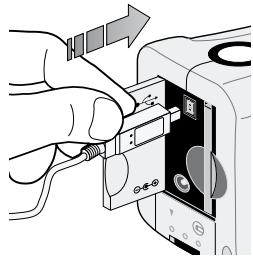
- Download your photos. See the following page for details.
Tip: If you have a computer (such as a laptop) that has a PCMCIA slot, you can read photos directly from the CompactFlash memory card using a PCMCIA adapter. See the adapter manufacturer's instructions for details. When you use a PCMCIA adapter, the Photolmpression software reads the memory card as an additional disk.
Downloading Photos to Your PC
- Connect the camera to the computer and turn the camera on. The Photolmpression software automatically starts.
Note: If the Photolmpression software does not start, reconnect the cable to the camera. If it still fails to start, click on the Photolmpression icon on your desktop.
- Click the flashing Acquire button.
- Select an album to put your photos in. You can select the default album, create a new album by typing a new name, or select an existing album.
Note: The software will save your photos to the following location unless specified:
c:\My Documents\My Pictures\"album name"\
Thumbnails from the camera display in the dialog box.
Note: Photos are not saved to your hard drive until after the next step.
- Download the photos to your computer:
To get every photo from the camera, click Get All Photos From Camera.
- To get selected photos from the camera, select the photos to transfer and click Get Selected Photos From Camera.
Note: To delete photos from the camera after they are saved on your computer, select Delete All Photos from Camera after you download.
- Close the dialog box.
The photos appear in the Photo Album.
Chapter 6: CompactFlash Memory Card
The "film" used in the HP PhotoSmart 215 digital camera is a removable, reusable CompactFlash memory card. Once a photo is taken, it is stored on the memory card until you delete it or the card is formatted.
Use only CompactFlash Association (CFA) certified type I memory cards with the HP PhotoSmart 215 digital camera. These cards are manufactured by several vendors and are available in a variety of capacities. Hewlett-Packard does not support the use of non-certified memory cards.

For information on supported CompactFlash memory cards, go to the HP PhotoSmart Web site, www.hp.com/photosmart, and click "Technical Support". To purchase a new CompactFlash memory card, go to www. hpshopping.com (selected countries/ regions) or your local computer store.
Installing and Removing Memory Cards
Before you install a new CompactFlash memory card, make sure it is compatible with the HP PhotoSmart 215 digital camera.
To remove a memory card:
Caution: Before you remove a memory card from the camera, turn the camera off and wait for the status LCD to go blank. If the camera is saving a photo, wait until the photo has been saved before removing the CompactFlash memory card.
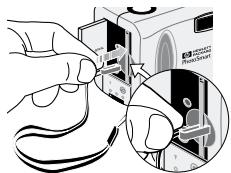
- Attach the clip on the wrist strap to the memory card. Check that the clip is gripping the card.
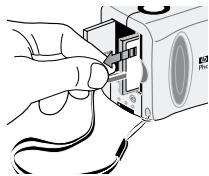
- Pull with the clip to remove the card.
To install a new memory card:
- Open the memory card compartment door.
-
If there is a card already in the camera, remove the existing card.
-
Insert the new memory card so the side with pin-holes is placed into the camera first and the front of the card faces the image LCD.
- Gently push the memory card all the way into the camera.
- Close the memory card door.
To make sure the memory card is correctly installed:
- Slide the mode switch up to the camera icon to turn the camera on.

If the CompactFlash Memory Card icon on the status LCD is blinking, there is a problem with the memory card. See "Chapter 9: Troubleshooting and Assistance" on page 51.
Determining if a Memory Card is Full
A CompactFlash memory card is full when the camera's status LCD indicates there are zero photos available to be taken and the CompactFlash memory card icon blinks.
The photo quality setting determines the number of photos the memory card can hold. To increase the amount of photos you can store on the memory card, reduce the photo quality setting. See "Changing the Photo Quality" on page 17.
Formatting a Memory Card
Most CompactFlash memory cards are already formatted when you buy them. However, if you buy a memory card that has not been formatted, you need to format it before you can use it in the camera. If you insert a new, formatted card in the camera and it doesn't work, try re-formating it—it may have been formatted improperly. Also re-format cards that you previously used in a different camera, to optimize them for use with the HP PhotoSmart 215 digital camera.
Caution: Formatting erases all photos or files from the card, including those that are locked.
To format a memory card:
- Slide the mode switch up to the camera icon to turn the camera on.
- Press the menu dial to display the Capture menu.
- Turn the menu dial to highlight the Set Up icon, then press the menu dial.
- Turn the menu dial to select Reformat CF, then press the menu dial.
Note: To cancel the formatting, select No, then press the menu dial.
- Turn the menu dial to select Yes, then press the menu dial.

Chapter 7: Powering Your Camera
The HP PhotoSmart 215 digital camera can be powered by batteries or an HP approved AC power adapter. For convenience, use the batteries when you are taking photos. To preserve battery power, use an AC adapter (purchase separately) when you are reviewing photos on the image LCD for an extended period of time, or when you are transferring photos from the camera to your computer.
Determining if the Batteries Need to be Changed
The battery icon on the camera's status LCD indicates the battery level. There are three levels of battery charge: Full, Partially-charged, and Low/Empty. If the battery icon shows that the battery is Low/Empty, it is time to replace the batteries. A blinking Low/Empty battery appears when the battery is too low to take a picture.
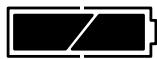
Full
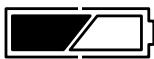
Partially-charged
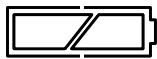
Low/Empty
60-100% photo taking power
10-60% photo taking power
0-10% photo taking power
Caution: Do not use rechargeable batteries with your HP PhotoSmart 215 digital camera.
The life of the batteries depends on several factors. These include:
- The type of batteries you use. For longer battery life, use batteries that are designed for use in digital cameras and other electronic devices.
How often you use the image LCD
How often you use the flash
The number of photos you take - Whether you use an AC adapter for power when the camera is connected to the computer
- Temperature conditions (colder temperatures result in shorter battery life when the camera is operating)
To preserve battery life:
- Use an AC power adapter that HP has approved for use with the HP PhotoSmart 215 digital camera.
-
Turn off the digital camera between photos.
-
Limit your use of the image LCD, except when using an HP approved AC power adapter.
Replacing the Batteries
To insert new batteries:
- Make sure the mode switch is in the Off position.
- Open the battery compartment.
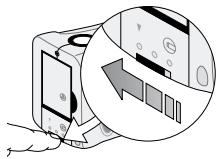
- Unlock the battery compartment by sliding the lever to the unlock icon.
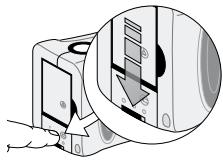
- To open the battery compartment, slide the cover down and lift it up.
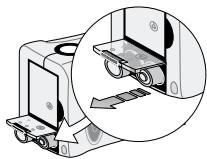
- Remove all of the old batteries.
Caution: Replace all four batteries at the same time. Do not replace them individually. Always follow instructions on the battery package when handling batteries.
- Insert four new batteries, making sure the +/- electrodes are facing the proper direction (see the diagram on the inside of the battery compartment).
- Replace the battery compartment cover by pressing it down over the batteries while sliding it up.
- Lock the battery compartment by sliding the lever to the lock icon.
Using an AC Power Adapter (recommended)
To extend the life of your batteries, use an AC power adapter as your power source when you connect your camera to a computer or when using the image LCD for an extended period of time. Only use an AC power adapter that HP has approved for use with the HP PhotoSmart 215 digital camera.
Caution: Use of any other adapter voids your warranty and may damage your camera.
AC power adapters are available from www.hpshopping.com (selected countries/ regions). For AC adapter specifications, refer to HP's PhotoSmart Web site at www_hp.com/photosmart.
Note: An AC power adapter provides power to the camera. It does not recharge the batteries.
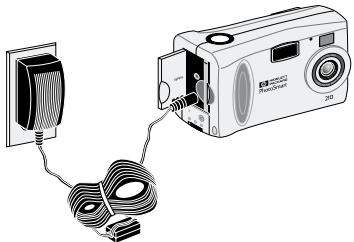
To connect an AC power adapter:
- Plug the adapter into a power source (such as a wall outlet or power strip).
- Connect the round end of the adapter cable to the camera.
Note: If you want to use battery power, disconnect the AC power adapter from the power source and the camera. If the AC power adapter is connected to the camera, even if it is not connected to a power source, the camera cannot draw battery power.
Chapter 8: Care, Maintenance and Safety
For years of trouble-free use, follow these simple tips to care for your camera and camera accessories.
Camera
- To avoid the risk of electric shock, do not disassemble the camera or expose the camera to excessive moisture. Disassembling any part of the camera voids your warranty.
- Do not leave the camera in the sun or in a very warm location (glove compartment, trunk, etc.) for long periods.
- The camera is designed to operate within the temperature range of 0 to 40 degrees Celsius (32 to 104 degrees Fahrenheit). Operation of the camera outside the temperature range can result in poor quality photos or camera malfunctions.
- If you move the camera from a cold to a warm location or from a warm to cold location, always allow the camera several minutes to adjust to the current ambient temperature before you use it.
AC Power Adapter
- Use an AC power adapter that HP has approved for use with the HP PhotoSmart 215 digital camera.
Caution: Use of any other adapter voids your warranty and may damage your camera.
Batteries
Before installing batteries, turn the camera off.
- Replace all the batteries at the same time. Do not replace the batteries individually.
- Only use batteries that are in good condition. Batteries that show signs of leakage, corrosion or swelling should not be installed in the camera.
Memory Cards
- To avoid erasing data from a memory card or damaging it, do not expose memory cards to heat, moisture, or static electricity.
Before removing or installing a memory card, turn the camera off.
Cleaning the Camera and Lens
- Use a dry, soft, lint-free cloth, to gently wipe fingerprints and dust from the lens, viewfinder and status and image LCDs.
- Wipe the outside surfaces of the camera with a clean, dry cloth. Never use a rough cloth or abrasive cleaners that can scratch the camera.
Camera Specifications
| Resolution | 1.3 MegaPixel (Super Fine and Fine photo quality settings: 1200x1600 pixels; Basic photo quality setting: 640x480 pixels) |
| Memory Card | CompactFlash Type 1; all storage sizes supported (4MB card supplied) |
| Lens System | f/2.8; 6.68mm (43.4mm equivalent) |
| Zoom | 2x digital zoom |
| Aperature | f/2.8-f/8 |
| Shutter speed | 1/750 to 1/3 seconds |
| Focus | Normal: 2 feet to infinity (60cm to infinity) Macro: 4 inches to 3 feet (10cm to 1m) |
| Sensitivity | ISO 100 |
| Self-timer | 10 second delay |
| Flash | Built-in flash with range of 2 to 8 feet (.6m to 2.5m) Modes: Auto, Auto with Red-eye reduction, On and Off |
| LCD | 1.8 inch color LCD with 61,600 pixels |
| Power | 4 AA batteries (included) or AC power adapter (optional) |
| Interfaces | USB to PC, standard tripod mount |
Chapter 9: Troubleshooting and Assistance
If you have a problem using your HP PhotoSmart 215 digital camera, first review this section. If you cannot find the solution to your problem here, see "Getting Assistance" on page 57.
Problems and Solutions
| Problem | Possible Cause | Solution |
| The camera won't turn on. | The camera powered off. | Slide the mode switch to the OFF position and then turn the camera back on. |
| The batteries are low. | Replace the batteries. | |
| The AC power adapter is connected to the camera, but not to a power source. | Plug the AC power adapter into the wall. When you have an AC adapter connected to the camera, the camera cannot draw battery power even if the adapter is not connected to a power source. If you want to use battery power, disconnect the AC adapter. | |
| The camera needs to be reset. | Turn the camera off and then on again. Remove the batteries and reinstall them. Or, if you are using an AC power adapter, unplug the adapter from the camera and then plug it in again. | |
| When I press the Shutter button, nothing happens. | The flash is recharging. | Wait until the flash icon on the status LCD stops flashing before taking another photo. |
| You are in Review mode | Slide the mode switch up to the camera icon. | |
| The camera is still saving the last photo you took. | Wait until the photo is saved to the memory card, then take a photo. | |
| The memory card is full. | Install a new memory card or make room on the current card by deleting or downloading photos, or selecting a lower photo quality setting. | |
| The memory card is damaged or is not formatted. | Format the memory card or replace it with a new, formatted card. | |
| The camera is connected to a computer. | To take a photo, disconnect the camera from the computer. | |
| The camera powered off. | Slide the mode switch down to the OFF position and then back up to the camera icon. | |
| When I press the Shutter button half way down, a green blinking light appears next to the viewfinder. | The flash is turned off and there is not enough light. | Use the flash. |
| The date and/or time is wrong. | The batteries were dead or removed from the camera for more than five minutes. | Reset the date and time. To avoid losing date and time information, replace low batteries promptly. |
| When I connect the camera to my computer, the software says it can't find the camera. | The camera is not connected to the computer properly. | Make sure the USB cable is firmly connected at both ends and the cable is connected directly to a working USB port. The connection may not work if connected to a USB hub. |
| The camera is turned off. | Slide the mode switch down to the playback icon to turn the camera on. | |
| The batteries are low. | Replace the batteries or use an AC power adapter. | |
| A conflicting software application may be open. | Exit from all programs while you are using the ArcSoft Photolmpression software. | |
| The drivers and software are not properly installed. | Disconnect the camera from the computer. Uninstall and reinstall the software. Reconnect the camera | |
| I get a Still Images Service Error message when I plug in my camera. | There is an operating systems error. | Click OK or Cancel in the error message and reconnect the USB cable. If you still get the message after reconnecting two times, restart your computer |
| I can't delete a photo. | The photo is locked. | Unlock the photo. |
| My photo turned out blurry. | The subject moved while you were taking the photo. | For sharp focus, if possible, ask the subject to stay still. |
| You moved the camera while you were taking the photo. | Hold the camera steady as you press the shutter button. | |
| Your subject was too close to the camera lens. | The camera's Auto Focus range is 2 feet (60cm) from the front of the lens to infinity. For a clear, sharp image, make sure your subject is not closer than 2 feet (60cm) or use the Macro mode. | |
| Your subject was not in the center of the frame. | The camera focuses on the object in the center of the frame. For best results, compose your photo with your subject in the center of the frame. Point the camera at a subject in the center of the photo and press the shutter button half way down until the green light appears. Re-aim your camera at your intended subject and press the shutter button all the way down. | |
| My photo turned out too dark. | There was not enough light. The flash was on, but the subject was too far away. | Wait for natural lighting conditions to improve or use the flash to illuminate your subject. The flash can only illuminate objects that are within 2–8ft. (.6–2.5 m) of the camera. Make sure your subject is within range of the flash when you take the photo. |
| The subject in the center of the photo was very light. | The camera sets the exposure based on the object in the center of the frame. If the surrounding area is darker than the subject, the photo will be underexposed. Point the camera at a dark subject in the center of the photo and press the shutter button half way down until the green light appears. Re-aim your camera at your intended subject and press the shutter button all the way down. | |
| My photo turned out too bright. | The flash provided too much light. You were too close to the subject. There was too much light provided by a natural or artificial source other than the flash. | Change the flash setting to Auto or Off. Set the flash to Off and take the photo again. Try taking the photo from a different angle. Avoid pointing the camera directly toward a bright light or reflective surface on a sunny day. Use the Fill Flash setting if there is light behind your subject. |
| The number of photos remaining did not change after I took my photo. | The number is an approximation of how many photos with that photo quality can be stored. | This is normal camera behavior. To verify that your photo was saved, review your photos. If instant review is off, turn it on. |
| The camera does not recognize the CompactFlash memory card. | The card is inserted incorrectly. | Take the memory card out and reinsert it so the side with the pin holes is placed into the camera first and the front of the card faces the image LCD. |
| The card is not inserted all the way. | Push the memory card in until it is completely inserted. | |
| The card is not certified by the CompactFlash Association. | Use a type I CFA certified card. For information about supported CompactFlash memory cards, see the HP PhotoSmart Web site at: www_hp.com/photosmart. |
Getting Assistance
To help ensure trouble-free performance, your HP PhotoSmart
215 digital camera comes with award-winning HP Customer
Care. Whether you have a question or a request for repair, HP
Customer Care makes it fast and easy to get the assistance you need.

HP Customer Care
Help us help you better
If you encounter a problem or question, we'd like to ask you to do a few things before you call. Please take a minute to walk through the steps below before you contact HP. It will help us make your support experience the best it can be!
- Record your HP product serial number, model number, and purchase date below. Your HP Customer Care service technician will need this information.
Model No.: 215 digital camera
Serial No.: (on the bottom of your camera)
Purchase Date:
- Consult the Troubleshooting and Assistance section of this guide. There, we outline corrective steps that solve most problems you might have while operating your camera.
- Visit one of our HP Customer Care Web sites. Most of the answers you need are as close as your computer screen! See "Using HP Customer Care online resources" below for specific information on how to connect.
- Organize your questions and note error messages, if any, that are displayed on the status LCD. The more complete a picture you can provide, the faster we can help.
Using HP Customer Care online resources
Click your way to a great solution! The HP PhotoSmart Web site, www.hp.com/ photosmart, is a great place to start for answers to questions about your HP products. You'll get instant access to helpful tips and tricks, downloadable drivers, and the latest product and software updates—24 hours a day, 7 days a week. All at no charge to you.
You can also visit the HP Customer Care Community Forums and support site at www.hp.com/go/support. Here you can share in the great ideas and smart suggestions HP service technicians and fellow users offer. If you can't find the answer you're looking for, post your own question, then check back later for ideas and suggestions.
Contacting HP Customer Care by phone
Like most HP customers, you'll probably never need to call us. But if you do, you'll be connected to a service technician who specializes in your product and can help you find the answers you need.
See the list on the next page for the HP Customer Care Center phone number in your country/region. If your country/region is not listed, contact your local HP office.
HP Customer Care phone numbers
| Australia | + 61 3 8877 8000 | Hungary | +36 (0)1 382 1111 |
| Austria | + 43 (0)7114 201080 | Ireland | + 353 (0)1 662 5525 |
| Belgium (Dutch) | + 32 (0)2 626 8806 | Italy | + 39 02 264 10350 |
| Belgium (French) | + 32 (0)2 626 8807 | Japan | 03 3335 8333 |
| Canada | 905-206-4663 | Korea (Seoul) | +82 (2) 3270 0700 |
| Czech Republic | + 42 (0)2 61 30 73 10 | Korea (outside Seoul) | 080-999-0700 |
| Denmark | + 45 39 29 4099 | Malaysia | +60 (3) 295 2566 |
| Finland | + 358 (0)203 47 288 | Malaysia (Penang) | 1 300 88 00 28 |
| France | + 33 (0)1 43 62 34 34 | Netherlands | + 31 (0)20 606 8751 |
| Germany | + 49 (0)1 8052 58 143 | New Zealand | +64 (9) 356 6640 |
| Greece | + 30 (0)1 619 64 11 | Norway | + 47 22 11 6299 |
| Hong Kong | 800 96 7729 | Portugal | + 351 21 3176333 |
| Russia (Moscow) | + 7 095 797 3520 | Sweden | + 46 (0)8 619 2170 |
| Russia (St. Petersburg) | +7 812 346 7997 | Switzerland | + 41 (0)848 80 11 11 |
| Taiwan | +66 (2) 661 4000 | ||
| Singapore | +65 272 5300 | United Kingdom | + 44 (0)207 512 52 02 |
| Spain | + 34 902 321 123 | U.S. | 208-376-3686 |
ArcSoft Software Support
For help with your ArcSoft Photolpression Software, visit the ArcSoft Web site at www.arcsoft.com. The technical support section of the Web site offers an online manual for the software, answers to commonly asked questions, troubleshooting tips, and ideas. You can also email a technician for assistance at support@arcsoft.com or call 510-440-9901 (Monday through Friday, 8:30 a.m. to 5:30 p.m, Pacific time).
Appendix A: Reference
Checking the Camera's Status
The status LCD is located above the image LCD on the back of the camera. In Capture and Review modes the status LCD displays information about the camera, the settings that are selected, and any problems.
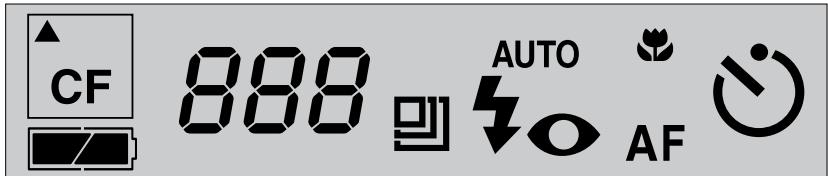
The following messages may appear on the status LCD:
| Icon | Status | Meaning |
| CF | Blinking CF Card | The card is full, corrupt, missing or being written to. |
| □ | Basic Photo Quality | Indicates the current photo quality setting is set at Basic. 640x480 resolution. |
| □ | Fine Photo Quality | Indicates the current photo quality setting is set at Fine. 1280x960 resolution, medium compression. |
| □ | Super Fine Photo Quality | Indicates the current photo quality setting is set at Super Fine. 1280x960 resolution, low compression. |
| □ | Full Battery | The battery is new. |
| □ | Partially-charged Battery | The battery has been used. |
| Low/Empty Battery | The battery needs to be replaced. | |
| 24 | Photos Remaining | Displays the approximate number of photos available to be taken at the current photo quality level. The number will not always change after a photo is taken. |
| PC | PC Connect | Indicates the camera is connected to a PC. |
| AUTO | Auto Flash | Indicates the Flash is set to Auto. The Auto Flash icon blinks when the flash is charging. |
| AUTO | Auto Flash with Red-eye Reduction | Indicates the Flash is set to Auto Flash with red-eye reduction. |
| FILL | Flash OFF | Indicates the Flash is set to Off. |
| Fill Flash | Indicates the Flash is set to Fill. Set the flash to Fill when the lighting for the entire photo is sufficient, but the lighting for the subject is not, as in a backlighting situation. | |
| AF | Auto Focus | Indicates the current Focus is set to Auto. Focus range is 2 feet (.6m) to infinity. |
| Macro | Indicates the current Focus is set to Macro. Macro range is 4 inches to 3 feet (10cm to 1m). | |
| Self-timer ON | Indicates the Self-Timer is on. | |
| Self-timer OFF | Indicates the Self-Timer is off. |
Capture Mode Menu
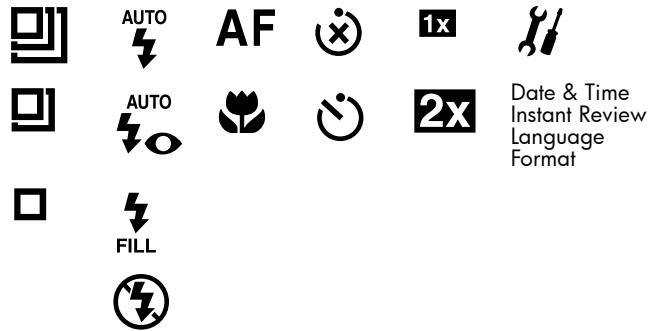
To get to the Capture menu, slide the mode switch up to the camera icon and press the menu dial. In Capture mode, you can change the settings for taking photos. For more information about changing settings, see "Chapter 3: Adjusting the Camera Settings" on page 17. The following are the menu items available in the Capture menu:
Playback Mode Menu
To get to the Playback menu, slide the mode switch down to the playback icon. In Playback mode, you can delete, review, magnify and lock your photos, set your welcome screen and change the camera's setup. For more information about reviewing your photos, see "Chapter 4: Reviewing Photos" on page 25. The following are the menu items available in the playback menu:


Appendix B: Regulatory and Warranty Information Regulatory Notices
U.S.A.
This device complies with Part 15 of the FCC rules. Operation is subject to the following two conditions: (1) this device may not cause harmful interference, and (2) this device must accept any interference received, including interference that may cause undesired operation.
This product contains mercury. Disposal of these materials may be regulated due to environmental considerations. For disposal or recycling information, please contact your local authorities.
Canada
This Class B digital apparatus meets all requirements of the Canadian Interference-Causing Equipment Regulations.
Hewlett-Packard Limited Warranty Statement
| HP Product | Duration of Limited Warranty |
| HP PhotoSmart digital camera | 1 year |
| CompactFlash memory card | 1 year |
| ArcSoft Photolmpression Software | 90 days |
| Accessories | 90 days |
A. Extent of Limited Warranty
- Hewlett-Packard (HP) warrants to the end-user customer that the HP products specified above are free of defects in material and workmanship for the duration specified above, which duration begins on the date of purchase by the customer.
- For software products, HP's limited warranty applies only to a failure to execute programming instructions. HP does not warrant that the operation of any product are uninterrupted or error free.
- HP's limited warranty covers only those defects which arise as a result of normal use of the product, and does not cover any other problems, including those which arise as a result of:
a. Improper maintenance or modification;
b. Software, media, parts, or supplies not provided or supported by HP; or
c. Operation outside the product's specifications.
- For HP printer products, the use of a non-HP ink cartridge or a refilled ink cartridge does not affect
either the warranty to the customer or any HP support contract with the customer. However, if printer failure or damage is attributable to the use of a non-HP or refilled ink cartridge, HP will charge its standard time and materials charges to service the printer for the particular failure or damage.
- If HP receives, during the applicable warranty period, notice of a defect in any product which is covered by HP's warranty, HP shall either repair or replace the defective product, at HP's option.
- If HP is unable to repair or replace, as applicable, a defective product which is covered by HP's warranty, HP shall, within a reasonable time after being notified of the defect, refund the purchase price for the product.
- HP shall have no obligation to repair, replace, or refund until the customer returns the defective product to HP.
- Any replacement product may be either new or like-new, provided that it has functionality at least equal to that of the product being replaced.
- HP products may contain remanufactured parts, components, or materials equivalent to new in performance.
- HP's limited warranty is valid in any country where the covered HP product is distributed by HP. Contracts for additional warranty services may also be available from any authorized HP service facility in countries where the product is distributed by HP or by an authorized importer.
B. Limitations of Warranty
- TO THE EXTENT ALLOWED BY LOCAL LAW, NEITHER HP NOR ITS THIRD PARTY SUPPLIERS MAKE ANY OTHER WARRANTY OR CONDITION OF ANY KIND, WHETHER EXPRESS OR IMPLIED, WITH RESPECT TO THE HP PRODUCTS, AND SPECIFICALLY DISCLAIM THE IMPLIED WARRANTY OR CONDITIONS OF MERCHANTABILITY, SATISFACTORY QUALITY, AND FITNESS FOR A
PARTICULAR PURPOSE.
C. Limitations of Liability
- To the extent allowed by local law, the remedies provided in this Warranty Statement are the customer's sole and exclusive remedies.
- TO THE EXTENT ALLOWED BY LOCAL LAW, EXCEPT FOR THE OBLIGATIONS SPECIFICALLY SET FORTH IN THIS WARRANTY STATEMENT, IN NO EVENT SHALL HP OR ITS THIRD PARTY SUPPLIERS BE LIABLE FOR DIRECT, INDIRECT, SPECIAL, INCIDENTAL, OR CONSEQUENTIAL DAMAGES, WHETHER BASED ON CONTRACT, TORT, OR ANY OTHER LEGAL THEORY AND WHETHER ADVISED OF THE POSSIBILITY OF SUCH DAMAGES.
D. Local Law
-
This Warranty Statement gives the customer specific legal rights. The customer may also have other rights which vary from state to state in the United States, from province to province in Canada, and from country to country elsewhere in the world.
-
To the extent that this Warranty Statement is inconsistent with local law, this Warranty Statement shall be deemed modified to be consistent with such local law. Under such local law, certain disclaimers and limitations of this Warranty Statement may not apply to the customer. For example, some states in the United States, as well as some governments outside the United States (including provinces in Canada), may:
a. Preclude the disclaimers and limitations in this Warranty Statement from limiting the statutory rights of a consumer (e.g. the United Kingdom);
b. Otherwise restrict the ability of a manufacturer to enforce such disclaimers or limitations; or
c. Grant the customer additional warranty rights, specify the duration of implied warranties which the manufacturer cannot disclaim, or not allow limitations on the duration of implied warranties.
- FOR CONSUMER TRANSACTIONS IN AUSTRALIA AND NEW ZEALAND, THE TERMS IN THIS WARRANTY STATEMENT, EXCEPT TO THE EXTENT LAWFULLY PERMITTED, DO NOT EXCLUDE, RESTRICT, OR MODIFY, AND ARE IN ADDITION TO, THE MANDATORY STATUTORY RIGHTS APPLICABLE TO THE SALE OF THE HP PRODUCTS TO SUCH CUSTOMERS.
Hewlett-Packard Year 2000 Warranty for Consumer Products Distributed Through Authorized Resellers
Subject to all of the terms and limitations of the HP Limited Warranty Statement provided with this HP Product, HP warrants that this HP Product will be able to accurately process date data (including, but not limited to, calculating, comparing, and sequencing) from, into, and between the twentieth and twenty-first centuries, and the years 1999 and 2000, including leap year calculations, when used in accordance with the Product documentation provided by HP (including any instructions for installing patches or upgrades), provided that all other products (e.g. hardware, software, firmware) used in combination with such HP Product(s) properly exchange date data with it. The duration of the Year 2000 warranty extends through January 31, 2001.
Index
A
AC Power Adapter
care, maintenance and safety 48
connecting 45
using 44
Adapter
AC 44
PCMCIA 33
ArcSoft
software support 61
Assistance 57
B
Batteries 41
care, maintenance and safety 48
icons 41
life of 42
replacing 43
C
Camera
care, maintenance and saftey 47
cleaning 49
connecting to PC 32
description 6
features 5
language 8
safety information 69
specifications 50
status LCD 63
warranty 71
Camera Settings
Adjusting 17
digital zoom 22
flash 19
Focus 20
language 24
CompactFlash Memory Cards 37
Connecting
ac power adapter 45
camera to PC 32
D
Deleting Photos 26
Digital Zoom 22
setting 22
turning off 22
Downloading
photos 34
F
Flash
adjusting 19
icons 19
Focus
adjusting 20
Formatting memory cards 40
G
Getting Assistance 57
H
HP Photolpression Software
downloading photos 34
installing 32
warranty 71
1
Installing
batteries 43
memory card 37
software 32
Instant Review
turning off 13
using 12
L
Language
changing 24
choosing at first power-on 8
Lens
cleaning 49
Locking, photos 29
M
Magnifying, photos 28
Memory Cards 37
care, maintenance and safety 48
formatting 40
installing 37
removing 38
hp photosmart 215 digital camera user's guide
P
PCMCIA adapter 33
Photo LCD 14
Photo Quality, changing 18
Photos
deleting 26 downloading 34
lock/unlock 29
magnifying 28
printing 31
reviewing 25
sharing 31
taking 11
thumbnails 26
tips 15
viewing 25
Printing, photos 31
Problems and Solutions 51
R Removing memory cards 38 Reviewing Photos 25
S
Safety information 69
Setup, quick 7
Sharing, photos 31
Software downloading photos 34 installing 32 warranty 71
Specifications camera 50
Status LCD 63
System Requirements 31
T
Taking a photo 11
Thumbs nails 26
Tips for taking photos 15
Troubleshooting 51
U Unlocking, photos 29
V Viewing photos 25
W
Warranty 71
year 2000 74
Welcome Logo, personalizing 30
Wrist strap, attaching 7
Y
Year 2000 warranty 74
Z
Zoom, digital 22

printed on recycled paper
printed in Singapore 9/00
www.hp.com/photosmart
©2000 Hewlett-Packard Company

C8890-90029

i n v e n t

- Trademark and Copyright Information
- Contents
- Chapter 1: Getting Started 5
- Chapter 2: Taking Photos 11
- Chapter 3: Adjusting the Camera Settings 17
- Chapter 4: Reviewing Photos 25
- Chapter 5: Sharing and Printing Photos 31
- Chapter 6: CompactFlash Memory Card 37
- Chapter 7: Powering Your Camera 41
- Chapter 8: Care, Maintenance and Safety 47
- Chapter 9: Troubleshooting and Assistance 51
- Appendix A: Reference 63
- Appendix B: Regulatory and Warranty Information 69
- Index 75
- Chapter 1: Getting Started
- Product Overview
- Camera Description
- Quick Setup
- Step 1: Attach the Wrist Strap
- Step 2: Install the Batteries
- Step 3: Choose the Camera Language
- Step 4: Set the Camera Date and Time
- Chapter 2: Taking Photos
- Using Instant Review
- To use Instant Review:
- To turn Instant Review off:
- Using the Image LCD as a Viewfinder
- To frame your photo using the image LCD:
- Tips for Taking the Best Photos
- Chapter 3: Adjusting the Camera Settings
- Changing the Photo Quality
- To change the photo quality:
- Using the Flash
- To adjust the flash:
- Using the Focus
- To change the focus setting:
- Using the Self-timer
- To use the self-timer:
- Using the Digital Zoom
- To set the digital zoom:
- To turn off the digital zoom:
- Setting the Date and Time
- To change the date and time:
- Changing the Language
- To change the language:
- Chapter 4: Reviewing Photos
- Viewing Your Photos
- To view photos one at a time:
- To view thumbnails of your photos:
- Deleting Your Photos
- To delete photos from the memory card:
- Caution: Once a photo is deleted from the CompactFlash memory card, it cannot be retrieved.
- Magnifying Your Photos
- To magnify a photo:
- Locking and Unlocking Your Photos
- To lock or unlock a photo:
- Personalizing Your Welcome Screen
- To personalize your welcome screen:
- Chapter 5: Sharing and Printing Photos
- System Requirements
- Installing the Software
- Connecting the Camera to Your PC
- Downloading Photos to Your PC
- Chapter 6: CompactFlash Memory Card
- Installing and Removing Memory Cards
- To remove a memory card:
- To install a new memory card:
- To make sure the memory card is correctly installed:
- Determining if a Memory Card is Full
- Formatting a Memory Card
- To format a memory card:
- Chapter 7: Powering Your Camera
- Determining if the Batteries Need to be Changed
- Caution: Do not use rechargeable batteries with your HP PhotoSmart 215 digital camera.
- To preserve battery life:
- Replacing the Batteries
- To insert new batteries:
- Caution: Replace all four batteries at the same time. Do not replace them individually. Always follow instructions on the battery package when handling batteries.
- Using an AC Power Adapter (recommended)
- Caution: Use of any other adapter voids your warranty and may damage your camera.
- To connect an AC power adapter:
- Chapter 8: Care, Maintenance and Safety
- Camera
- AC Power Adapter
- Batteries
- Memory Cards
- Cleaning the Camera and Lens
- Camera Specifications
- Chapter 9: Troubleshooting and Assistance
- Problems and Solutions
- Getting Assistance
- Help us help you better
- Using HP Customer Care online resources
- Contacting HP Customer Care by phone
- HP Customer Care phone numbers
- ArcSoft Software Support
- Appendix A: Reference
- Checking the Camera's Status
- The following messages may appear on the status LCD:
- Capture Mode Menu
- Playback Mode Menu
- Appendix B: Regulatory and Warranty Information Regulatory Notices
- U.S.A.
- Canada
- Hewlett-Packard Limited Warranty Statement
- Extent of Limited Warranty
- Limitations of Warranty
- Limitations of Liability
- Local Law
- Hewlett-Packard Year 2000 Warranty for Consumer Products Distributed Through Authorized Resellers
- Index
- A
- B
- C
- D
- F
- G
- H
- 1
- L
- M
- W
- Y
- Z
Brand : COMPAQ
Model : 215
Category : Laptop