
TUNGSTEN 2 VERSAMAIL 2.5 - PDA PALM - Free user manual and instructions
Find the device manual for free TUNGSTEN 2 VERSAMAIL 2.5 PALM in PDF.


| Product type | Personal digital assistant (PDA) |
| Brand | Palm |
| Model | Tungsten T2 (VersaMail 2.5 built-in) |
| Operating system | Palm OS 5.0 |
| Processor | Texas Instruments OMAP 1510 (200 MHz) |
| RAM | 32 MB (expandable via SD card) |
| Display | Color TFT display 320 x 320 pixels, 65,536 colors |
| Internal storage | 32 MB (28 MB usable) |
| Connectivity | Bluetooth, infrared (IrDA), USB (sync) |
| Memory card slot | 1 x Secure Digital (SD/MMC) |
| Power | Rechargeable lithium-ion battery (1000 mAh, 3.7 V) |
| Battery life | Approximately 6 days normal use, 8 hours intensive use |
| Dimensions (L x W x H) | 102 x 76 x 15 mm |
| Weight | 156 g (with battery) |
| Main features | Calendar, contacts, tasks, notes, calculator, media player, email client (VersaMail 2.5), PC synchronization |
| Pre-installed applications | Date Book, Address Book, To Do List, Memo Pad, VersaMail, HotSync Manager, Palm Desktop |
| Care and cleaning | Clean with a soft, slightly damp cloth (water without solvent). Protect from moisture and extreme temperatures. |
| Security | System password protection, optional data encryption |
| Spare parts and repairability | Battery is replaceable (type SP10). Other parts not officially available, repair not recommended without expertise. |
| General information | Device from the Tungsten line, released in 2003. Compatible with standard Palm accessories (sync cradle, parts, etc.). |
Frequently Asked Questions - TUNGSTEN 2 VERSAMAIL 2.5 PALM
User questions about TUNGSTEN 2 VERSAMAIL 2.5 PALM
0 question about this device. Answer the ones you know or ask your own.
Ask a new question about this device
Download the instructions for your PDA in PDF format for free! Find your manual TUNGSTEN 2 VERSAMAIL 2.5 - PALM and take your electronic device back in hand. On this page are published all the documents necessary for the use of your device. TUNGSTEN 2 VERSAMAIL 2.5 by PALM.
USER MANUAL TUNGSTEN 2 VERSAMAIL 2.5 PALM
© 2003 Palm, Inc. All rights reserved. Graffiti, HotSync, MultiMail, the Palm logo, PalmModem, and Palm OS are registered trademarks, and Palm, VersaMail, and Zire are trademarks of Palm, Inc. Palm, Inc. uses the Bluetooth trademark under express license from Bluetooth SIG, Inc., U.S.A. All other brands are trademarks or registered trademarks of their respective owners.
Disclaimer and Limitation of Liability
Palm, Inc. assumes no responsibility for any damage or loss resulting from the use of this handbook.
Palm assumes no responsibility for any loss or claims by third parties which may arise through the use of this software. Palm, Inc. assumes no responsibility for any damage or loss caused by deletion of data as a result of malfunction, dead battery, or repairs. Be sure to make backup copies of all important data on other media to protect against data loss.
IMPORTANT Please read the End User Software License Agreement with this product before using the accompanying software program(s). Using any part of the software indicates that you accept the terms of the End User Software License Agreement.
Contents
About This Book 1
Chapter 1: Getting Started with Palm™ VersaMail™ Personal E-mail Software 3
Palm VersaMail application features 3
Installing the VersaMail application 4
Synchronizing an existing username 6
Upgrading a MultiMail or VersaMail database 6
Chapter 2: Setting Up and Managing E-mail Accounts 7
Account and connection types 7
Network e-mail account prerequisites 8
Using an ISP 10
Using a corporate e-mail account 10
VPNs 11
Creating a network e-mail account 11
Entering the account username and password 13
Entering the name of the outgoing and incoming mail server 13
Setting mail retrieval options for a POP or IMAP account 15
Setting outgoing mail options 16
Adding a signature 17
Setting advanced outgoing mail options 18
Testing your new account 18
Creating a synchronize-only account 19
Entering the account username and password 20
Entering the name of the outgoing and incoming mail server 21
Setting mail retrieval options for a POP or IMAP account 22
Setting outgoing mail options 24
Adding a signature 25
Setting advanced outgoing mail options 25
Configuring your synchronize-only account 26
Editing e-mail accounts 26
Changing the account username and password 27
Editing the names of the outgoing and incoming mail servers 28
Editing mail retrieval options for a POP or IMAP account 29
Editing outgoing mail options 31
Editing a signature 31
Editing advanced outgoing mail options 32
Deleting an e-mail account 33
Selecting a different service for a given e-mail account 34
Chapter 3: Getting, Sending, and Managing E-mail 37
Getting e-mail 37
Choosing the e-mail account and displaying the Inbox 37
Getting e-mail by subject or getting the entire message 38
Auto get mail with notification 40
Scheduling auto get mail 41
Auto get notifications 43
Setting notification options 44
Viewing and using the Reminders screen 46
Auto get mail retries 47
Resource issues with auto get mail 48
Inbox icons in the VersaMail application 48
Reading e-mail 49
Viewing other folders 51
Managing display options in the folder's list view 51
Moving e-mail between folders 56
Creating and editing mail folders 59
Creating and sending new e-mail 60
Addressing a message by typing the address 61
Addressing a message using Address Book 63
Using Smart Addressing to address a message 63
Composing and sending e-mail 65
Send retry 66
Outbox icons in the VersaMail application 68
Completing drafts 68
Attaching a personal signature 69
Forwarding e-mail 69
Replying to e-mail 71
Working with URLs 73
Working with attachments 73
Downloading attachments to your handheld 74
Attaching files from a handheld application 79
Attaching files from an expansion card 81
Forwarding an attachment 83
Deleting messages 84
Emptying the trash 87
Marking messages as read or unread 88
Setting preferences for getting and deleting e-mail 90
Adding or updating an Address Book entry directly from a message 92
Chapter 4: Synchronizing E-mail Between the Handheld and the Desktop 93
Configuring an account in HotSync Manager 93
Setting synchronization options and account settings 94
Account information screens 105
Palm VersaMail HotSync Conduit shortcuts 106
Verifying handheld account settings before synchronizing accounts . . . 106
Configuring Microsoft Outlook 107
Configuring Microsoft Outlook Express 107
Configuring Eudora 108
Converting attached files 108
Synchronizing an account 110
Synchronizing multiple accounts 112
Using SSL with the conduit 112
Chapter 5: Going Beyond the Basics 113
Managing mail filters 113
Creating mail filters 114
Turning filters on and off 116
Editing or deleting a filter 117
Setting network and connection preferences 118
Setting network preferences 118
Setting connection preferences 124
Managing mail settings 126
Adding APOP to an account 134
Adding ESMTP to an account 136
Setting advanced account preferences 137
Cutting and copying text from an e-mail message for use in other applications 139
Using the command bar 140
Changing e-mail header details 141
Backingupmaildatabases 143
Wireless IMAP folder synchronization 143
Using Secure Sockets Layer (SSL) 145
Appendix A: Five-way Navigation in Palm™ VersaMail™ Personal E-mail Software 147
Appendix B: Keyboard Shortcuts in Palm™ VersaMail™ Personal E-mail Software 151
Appendix C: Frequently Asked Questions 153
Index 155
About This Book
With Palm™ VersaMail™ personal e-mail software, you can send, receive, and manage e-mail on your handheld. The Palm™ VersaMail™ 2.5 Personal E-mail Software Handbook shows you how to install the VersaMail application, describes the various mail accounts, and explains how to use the many e-mail features in the VersaMail application.
This book assumes that you know how to use the basic functions of your Palm™ handheld, such as the basic applications and HotSync® Manager. For more information about using your Palm handheld, consult the documentation that came with the handheld.
NOTE The appearance of icons varies slightly among different handheld models. The icons on your handheld (for example, the Icons or the Home icon) may look different from the icons shown in this book
Getting Started with Palm™ VersaMail™ Personal E-mail Software
With Palm™ VersaMail™ personal e-mail software, you can send, receive, and manage e-mail on your handheld. This chapter describes how to set up different types of e-mail accounts and explains how to use the many e-mail features in the VersaMail application.
The VersaMail application version 2.5 is the newest offering in the line of Palm™ personal e-mail software applications. Formerly known as MultiMail® software, the VersaMail 2.5 application contains new features that make sending and receiving e-mail messages and managing e-mail accounts easier than ever.
This chapter describes the following:
An overview of the VersaMail 2.5 application's features
Instruction for installing the VersaMail application
Instruction for synchronizing an existing username
- Instruction for upgrading an existing MultiMail or VersaMail database for use with the VersaMail 2.5 application
Palm VersaMail application features
Key features of the VersaMail 2.5 application include the following:
Enhanced use of color, fonts, styles, and user-selected display options
Basic HTML formatting display for e-mail messages received in HTML format
- Increased number of file types supported for being sent and received as attachments
Scheduled retrieval of new e-mail, with notification
Improved message-addressing capabilities
Enhanced security
Support for five-way navigation on handhelds that have a five-way navigator
Plug-in keyboard support
Installing the VersaMail application
You will need the following to install the VersaMail application:
A Palm handheld running Palm OS® version 4.1 or later
750 kilobytes (KB) of RAM available on your handheld
A Pentium-class computer running Windows 98/2000/NT 4.0/XP or a Mac computer running OS X
Some Palm™ handheld users can install the VersaMail application from the Software Essentials CD-ROM included with your handheld. Users of other handhelds should download the VersaMail application from the web. Steps for each type of installation procedure follow.
To install the VersaMail application from the CD-ROM:
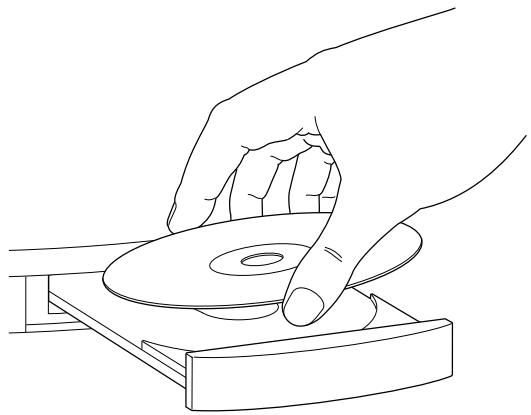
- Insert the Software Essentials CD-ROM that came with your handheld into your computer's CD-ROM drive and follow the onscreen instructions.
- Connect the handheld to the cradle/cable, and then press the HotSync® button G .
The HotSync operation updates the VersaMail application files on your handheld.
-
Tap the VersaMail icon in the Applications Launcher after the HotSync operation has finished.
-
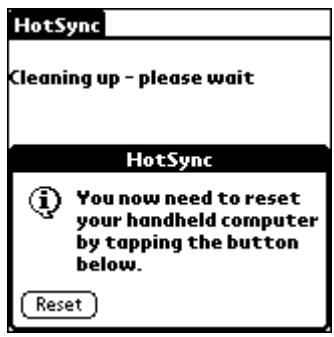
Tap Reset.
To download and install the VersaMail application from the web:
- Go to the website from which you are purchasing the software and follow the instructions for downloading the software.
- In Windows Explorer, locate and double-click the versamail-[language].exe file, where [language] is the language you want to use.
- Click Next, and then click Next again.
- Connect the handheld to the cradle/cable, and then click Next.
The HotSync operation updates the VersaMail application files on your handheld.

- Tap the VersaMail icon in the Applications Launcher on the handheld after the HotSync operation has finished.
- Tap Yes to update the files on your handheld.
NOTE You cannot continue using the VersaMail application until you tap Yes.
7. Tap Reset.
Synchronizing an existing username
If you plan to synchronize your handheld with an existing username by performing a HotSync operation, you must do so before you enter your e-mail account information in the VersaMail application. If you enter the e-mail account information first and then synchronize your handheld to an existing username, the e-mail account information you entered is overwritten.
Upgrading a MultiMail or VersaMail database
If you have previously used a Palm personal e-mail application such as MultiMail SE or MultiMail Deluxe, or used version 2.0 of the VersaMail application, you can upgrade your e-mail database for use with the VersaMail 2.5 application.
To upgrade an existing e-mail database for use with the VersaMail application:
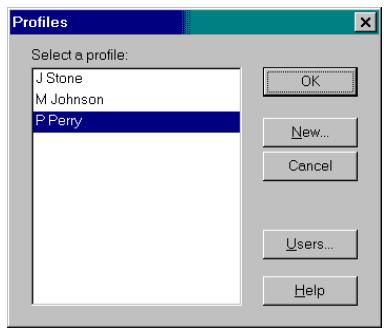
- Perform a HotSync operation with a user profile that contains the existing e-mail database. To do so, press the HotSync button , and then select a profile that contains an e-mail database from the displayed list of users.
- Tap the VersaMail icon in the Applications Launcher on the handheld.
- Tap Yes to accept the upgrade.
Setting Up and Managing E-mail Accounts
With Palm™ VersaMail™ personal e-mail software, you can access e-mail accounts from providers such as Earthlink or Yahoo. You may also access your corporate e-mail with the appropriate mail server configuration.
You can add up to eight e-mail accounts on your handheld by setting up a connection to an e-mail service provider or synchronizing to a desktop e-mail application. For example, if you have a Yahoo e-mail account with POP access, you can create a new account in the VersaMail application and name that new account Yahoo, so that you can send and receive e-mail on your handheld using your Yahoo account.
This chapter describes the following:
Account and connection types
Getting ready to set up e-mail accounts
Setting up and configuring e-mail accounts
■ Editing e-mail accounts
- Deleting e-mail accounts
Account and connection types
Two types of e-mail accounts are supported:
Network: You can send and receive e-mail directly to and from your handheld by connecting with an e-mail service provider.
- Synchronize Only (Windows computers only): You can download, view, and manage e-mail between the handheld and a desktop e-mail application, such as Microsoft Outlook, by performing a HotSync® operation using the cradle/cable. You can't send and receive messages wirelessly or with a modem for an account of this type.
Using a network account, you can set up or access an e-mail account using any of the following connection methods:
- Palm™ Bluetooth™ Card or other Bluetooth card product (sold separately) attached through the expansion card slot connection to a mobile phone or local access point that is enabled with Bluetooth technology.
NOTE Not all handheld models support the use of a Bluetooth card. See the electronic handbook that came with your handheld for information.
- PalmModem® accessory (sold separately)
External modem sled, for example, an 802.11b sled (sold separately)
Infrared (IR) port on the handheld to infrared port on a mobile phone - Direct connection to a mobile phone by means of a physical cable
- Handheld cradle connected to your desktop (Windows users only)
Network e-mail account prerequisites
Before you can set up a network e-mail account, you must do the following:
- Establish the e-mail account with an e-mail service provider. Common providers include Internet service providers (ISPs) such as Earthlink and Prodigy. A provider can also be a wireless GSM or GPRS carrier such as VoiceStream, Cingular, or Vodafone.
- Configure the service connection settings for this account on your handheld using your handheld's Network Preferences and Connection Preferences screens. See "Setting network and connection preferences" in Chapter 5 for more information.
You must also have the appropriate prerequisite for the type of connection you want to make, as follows.
| Connection Type | Prerequisite |
| High-speed GPRS | Palm Bluetooth Card and mobile phone enabled with Bluetooth technology. Active GPRS service ordered from your wireless carrier. Not all handheld models support use of a Bluetooth card. See the electronic handbook that came with your handheld for information. |
| GSM dial-up | Palm Bluetooth Card and mobile phone enabled with Bluetooth technology. Active wireless service with a GSM carrier. If you are using GPRS, the same carrier generally provides both GSM and GPRS service. Note that some GSM carriers require you to order a special data service (separate from voice service) to make a network connection. Not all handheld models support use of a Bluetooth card. See the electronic handbook that came with your handheld for information. |
| Connection using a PalmModem® accessory | PalmModem accessory |
| External modem sled | Wireless modem accessory |
| IR to IR phone | IR-enabled mobile phone |
| Direct connection to a phone by means of a physical cable | Connector cable and mobile phone |
| Handheld cradle connected to desktop | Handheld cradle and cable (Windows users only) |
Using an ISP
If you are setting up a new e-mail account and have a well-known ISP such as Earthlink or Mindspring, many of the required settings during the account setup are automatically configured.
For other ISPs, you need the following information:
The protocol used for incoming mail, such as POP or IMAP
The name of the incoming mail server
The name of the outgoing mail (SMTP) server
- Whether your e-mail account requires any security, such as SSL, APOP, or ESMTP
- Your e-mail address and password
The login script (if any) that you need for connecting to your ISP or mail server
NOTE Information about your e-mail account is available from the e-mail provider. Depending on the type of e-mail service you have, you may be able to access this information by going to the e-mail provider's web site or by contacting the provider's customer support.
Using a corporate e-mail account
If you want to access e-mail on your handheld using your corporate e-mail account, you create this account on your handheld in exactly the same way as any other account (see "Network e-mail account prerequisites" earlier in this chapter), with one exception: For a corporate e-mail account, you may need to set up a virtual private network (VPN). See "VPNs" later in this chapter for information.
The following considerations apply when you set up a corporate e-mail account
| Username and password | These might be your Windows NT or Windows 2000 username and password, your Lotus Notes ID username and password, or something else. Check with your company's server administrator to obtain the correct username and password. The VersaMail 2.5 application provides strong 128-bit AES encryption for your password. |
| Protocol | Most corporate mail servers use the IMAP protocol for retrieving mail. In rare cases your company server may use the POP protocol. Check with your company's server administrator to verify the protocol. |
| Incoming and outgoing mail server settings | Check with your company’s server administrator to obtain these settings. |
See "Creating a network e-mail account" later in this chapter for how to enter your username, password, protocol, and incoming and outgoing server settings when you set up your corporate e-mail account.
With a corporate e-mail account, you can access the following types of mail servers, among others:
Microsoft Exchange
Lotus Domino
Sun iPlanet
VPNs
If you want to access e-mail on your handheld using your corporate e-mail account, you may need to set up a virtual private network (VPN) on your handheld. A VPN enables you to log in to your corporate mail server through the company's firewall (security layer). Without a VPN, you cannot "break through" the firewall to gain access to the mail server.
You need to set up a VPN to access corporate e-mail in either of the following two situations:
- Your company's wireless local area network (LAN) is located outside the firewall.
- Your company's wireless LAN is located inside the firewall, but you are trying to access the network from outside the firewall (for example, from a public location or at home).
NOTE Check with your company's server administrator to see if a VPN is required to access the corporate network.
See the electronic handbook that came with your handheld for instructions on setting up a VPN on your handheld.
NOTE You cannot use auto get mail with notification or auto send retry of e-mail with accounts that use a VPN connection. See "Auto get mail with notification" and "Send retry" in Chapter 3 for information.
Creating a network e-mail account
You create a new account in account setup, which guides you through the process.
To create a network e-mail account:
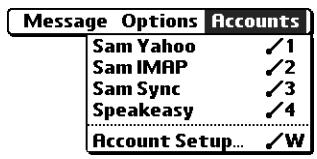
- Tap the Menu icon
-
Tap Accounts.
-
Select Account Setup.
- Tap New.

- Enter the following:
Account Name Enter a descriptive name for the account, such as "My Yahoo."
Mail Service Tap the Mail Service pick list and select the provider to which you are connecting. Select Other if your ISP is not listed.
Protocol Tap the Protocol pick list and select POP or IMAP. (Most e-mail providers use the POP protocol.)
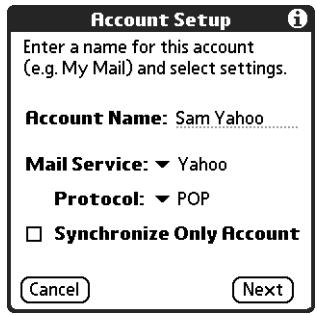
If the VersaMail application knows the protocol for the mail service you selected, it displays the correct protocol.
- Tap Next.
Entering the account username and password
In the next part of the VersaMail Account Setup, you enter the username and password for this account. The VersaMail 2.5 application provides strong 128-bit AES encryption for your password.
To enter the account username and password:
- Enter the username you use to access your e-mail. This is generally the part of your e-mail address appearing before the @ symbol; it is usually not your entire e-mail address.
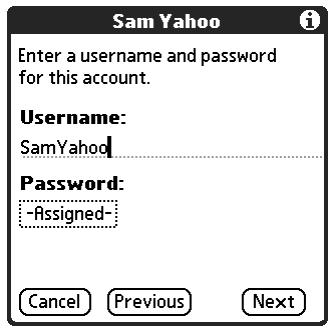
- Tap the Password box, and then enter your password.
- Tap OK. The Password box displays the word "Assigned" to indicate that a password has been entered.
- Tap Next.
Entering the name of the outgoing and incoming mail server
You need to verify your e-mail address for the account you are accessing, as well as enter the names of the outgoing and incoming mail servers.
To enter mail server settings:
- If you chose a preconfigured service from the Mail Services pick list on the Account Setup screen, the e-mail address field is completed automatically, based on the username and mail service you entered. Check the address to verify that it is correct, and edit it if necessary.
If you chose Other from the Mail Services pick list on the Account Setup screen, enter the e-mail address for your account.
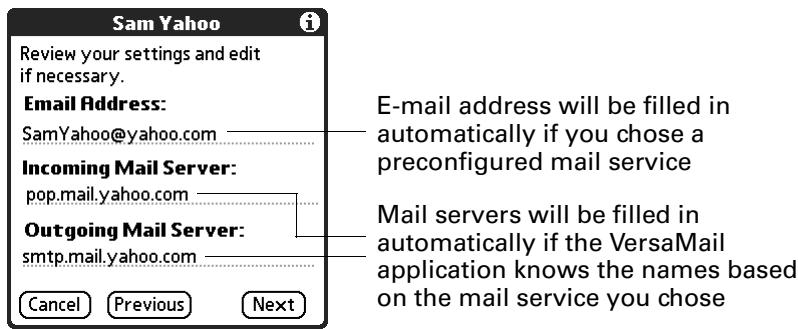
- Enter the name of your incoming (POP) mail server, such as pop.mail.yahoo.com.
If the VersaMail application knows the incoming mail server name based on the mail service you selected, the correct server name is displayed.
- Enter the name of your outgoing (SMTP) mail server, such as smtp.mail.yahoo.com.
If the VersaMail application knows the outgoing mail server name based on the mail service you selected, the correct server name is displayed.
-
Tap Next.
-
Do one of the following:
-
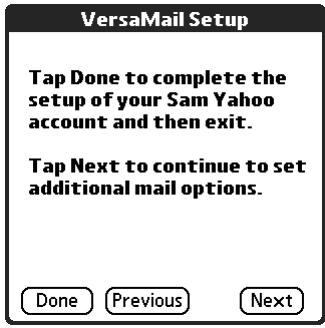
To accept these mail options and begin using the VersaMail application, tap Done. This takes you to the Inbox of the account you set up. See Chapter 3 for information on getting and sending e-mail.
- To set up additional mail options, tap Next. Continue with the next set of procedures.
Setting mail retrieval options for a POP or IMAP account
The next VersaMail Setup screen displays different options, depending on whether your mail service uses a POP or an IMAP protocol.
To set mail retrieval server options for a POP or IMAP account:
- (Optional) Select any of the following:
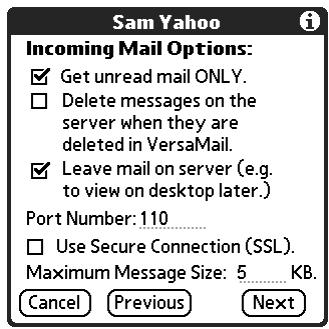
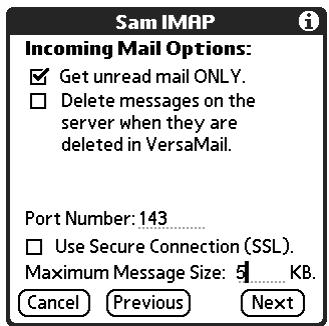
Get unread mail
NOTE The POP protocol does not support retrieval of unread mail only from the server. If you have a POP e-mail account, the VersaMail application downloads all messages from the server regardless of whether you have read them (for example, on your desktop or on the web), and regardless of whether this check box is selected.
For IMAP accounts, select Get unread mail ONLY to download only unread mail to your handheld. If you don't choose this option and you tap Get & Send, all of your e-mail messages on your provider's mail server are downloaded to your Inbox, including messages you have already read. To get all mail (including mail you have already read) and not just unread mail, deselect Get unread mail ONLY.
Delete messages on server
To delete messages on your provider's mail server when they are deleted in the VersaMail application, select the Delete messages on the server when they are deleted in VersaMail check box.
Leave mail on server (POP account only)
To get e-mail on your handheld but also leave it on the server so you can view it later on your desktop, select the Leave mail on server check box. For example, if you create an account to receive e-mail from your Yahoo account and select this option, your old Yahoo e-mail is still visible the next time you visit Yahoo.com to access your Yahoo e-mail Inbox.
Port Number
The port number setting defaults to 110 for POP and to 143 for IMAP servers. You need to change the port number if you choose to retrieve incoming mail over a secure connection (see the next bullet item). If you are not sure about the correct port number, check with your mail server administrator.
Use Secure Connection
To retrieve incoming mail over a secure (Secure Sockets Layer, or SSL) connection, select the Use Secure Connection check box. See "Using Secure Sockets Layer (SSL)" in Chapter 5 for information on SSL.
Maximum Message Size
To limit the maximum size of an incoming e-mail message, enter the size in kilobytes (KB) for Maximum Message Size. The maximum size of an incoming message is 5KB by default, but you can enter a smaller size. The maximum message size that you can retrieve is 60KB for the body text and 2MB total, including attachments.
POP accounts
Sam Yahoo
Incoming Mail Options
Get unread mail ONLY.
Delete messages on the server when they are deleted in VersaMail.
Leave mail on server (e.g. to view on desktop later.)
Port Number: 110
Use Secure Connection (SSL).
Maximum Message Size: 5 KB.

Previous
Next
IMAP accounts

Sam IMAP
Incoming Mail Options:
Get unread mail ONLY.
Delete messages on the server when they are deleted in VersaMail.
Port Number: 143
Use Secure Connection (SSL).
Maximum Message Size: 5 KB.

Previous
Next
2. Tap Next.
Setting outgoing mail options
Outgoing mail options are the same for POP and IMAP accounts.
To set outgoing mail options:
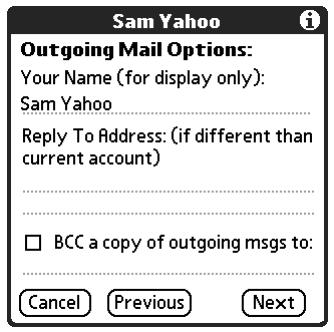
- (Optional) Do any of the following:
Display Name
Enter the name you want to appear on your outgoing messages, such as "Joe Smith."
Reply To Address
Enter the e-mail address that you want recipients to see and reply to on your e-mail messages, only if this is different from the e-mail address from which you are sending the message. For example, if you are sending a message from me@yahoo.com but you want recipients to reply to me@earthlink.net, enter the reply-to address here. Reply To Address makes it look as though the e-mail came from the address you entered.
BCC
Select the BCC check box to send a blind copy of any e-mail message you send to another e-mail address. The blind copy e-mail address is not seen by the other recipients of the message. For example, if you want a copy of all messages you send from your handheld to be sent to your corporate e-mail account, enter that e-mail address.
2. Tap Next.
Adding a signature
If you want, you can add a signature to each e-mail message you send. For example, you can enter your name and telephone number so that they appear on each message you send.
To add a personal signature:
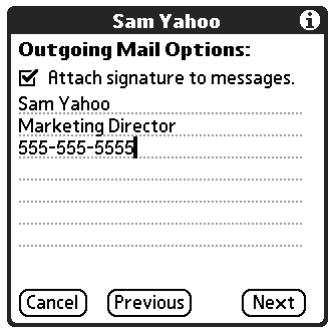
- Tap the Attach Signature to messages check box, and then enter the text of the signature.
This signature is attached to all your outgoing e-mail.
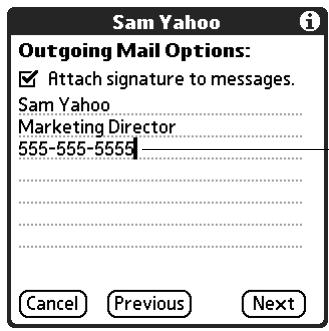
Signature lines appear only if check box is selected
2. Tap Next.
Setting advanced outgoing mail options
You can set additional outgoing mail options.
To set advanced outgoing mail options:
- (Optional) Select any of the following:
Port Number
The default is 25, the port number most SMTP servers use. If you are not sure about the correct port number, check with your mail server administrator.
Authentication
Select the My server requires authentication (ESMTP) if the outgoing server (SMTP) requires authentication. Check with your system administrator before selecting this option. See "Adding ESMTP to an account" in Chapter 5 for information. If you select this option, username and password fields appear. These fields are already filled in based on the account information you entered previously. In most cases the information displayed is correct; however, occasionally your authentication username and/or password is different from your account username or password. Check with your e-mail service provider for authentication username and password information.
If you need to enter new information, enter a username and/or tap the Password box and enter a password, and then tap OK.
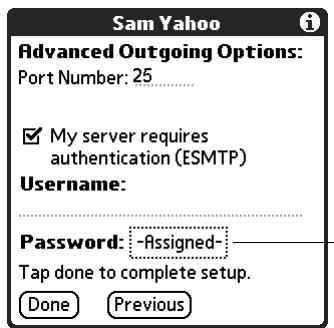
Username and Password fields appear only if ESMTP check box is selected
2. Tap Done.
Testing your new account
After you finish setting up a new e-mail account, the Inbox of the account you just created is displayed. You can test whether the e-mail account is set up and working properly by tapping Get Mail. See "Getting e-mail by subject or getting the entire message" in Chapter 3 for more information.
Creating a synchronize-only account
NOTE You must be using a Windows computer to use a synchronize-only account.
A synchronize-only e-mail account enables you to download, view, and manage e-mail between the handheld and a desktop e-mail application, such as Microsoft Outlook, by performing a HotSync operation by means of the cradle/cable. You can't send and receive messages wirelessly or with a modem for any account of this type.
To create a synchronize-only e-mail account:
- Tap the Menu icon +
- Tap Accounts.
- Select Account Setup.
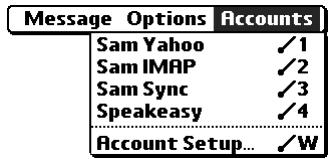
- Tap New.
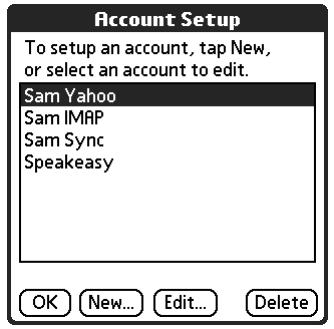
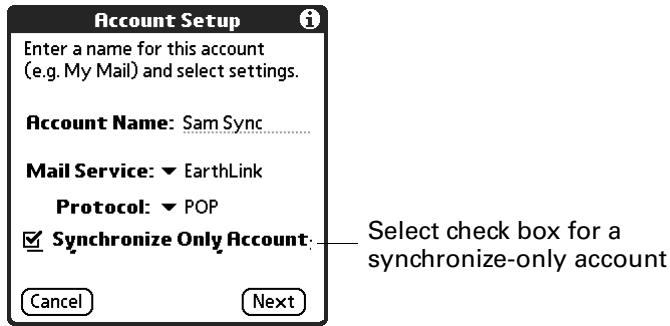
- Do the following:
Account Name Enter a descriptive name for this account, such as "My Yahoo."
Mail Service Tap the Mail Service pick list and select the provider to which you are connecting. Select Other if your ISP is not listed.
Protocol Tap the Protocol pick list and select POP or IMAP. (Most mail providers use the POP protocol.)
If the VersaMail application knows the protocol for the mail service you selected, it displays the correct protocol.
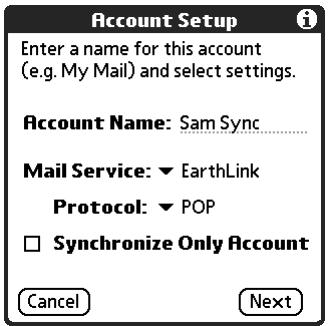
- On the same screen, select the Synchronize Only Account check box.
- Tap Next.
Entering the account username and password
In the next part of the VersaMail Account Setup, you enter the username and password for this account. The VersaMail 2.5 application provides strong 128-bit AES encryption for your password.
To enter the account username and password:
- Enter the username you use to access your e-mail. This is generally the part of your e-mail address appearing before the @ symbol; it is usually not your entire e-mail address.
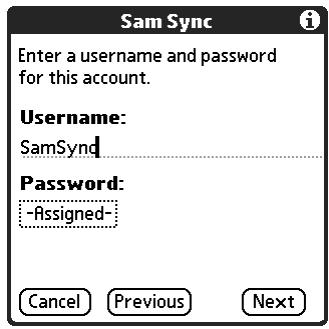
- Tap the Password box, and then enter your password.
- Tap OK. The Password box displays the word "Assigned" to indicate that a password has been entered.
- Tap Next.
Entering the name of the outgoing and incoming mail server
You need to enter your e-mail address for the account you are accessing, as well as the names of the outgoing and incoming mail servers.
To enter mail server settings:
- If you chose a preconfigured service from the Mail Services pick list on the Account Setup screen, the e-mail address field is completed automatically, based on the username and mail service you entered. Check the address to verify that it is correct, and edit it if necessary.
If you chose Other from the Mail Services pick list on the Account Setup screen, enter the e-mail address for your account.
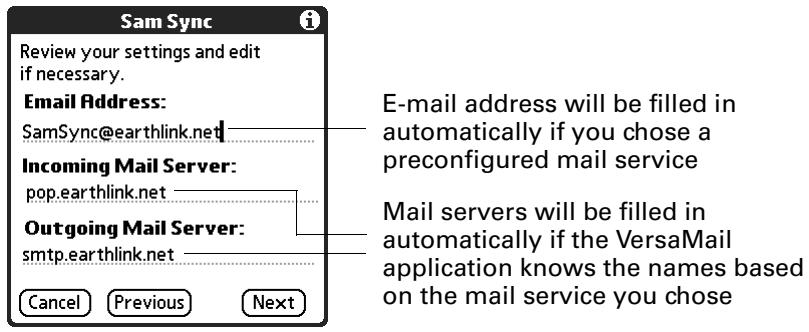
- Enter the name of your incoming (POP) mail server, such as pop.mail.yahoo.com.
If the VersaMail application knows the incoming mail server name based on the mail service you selected, the correct server name is displayed.
- Enter the name of your outgoing (SMTP) mail server, such as smtp.mail.yahoo.com.
If the VersaMail application knows the outgoing mail server name based on the mail service you selected, the correct server name is displayed.
-
Tap Next.
-
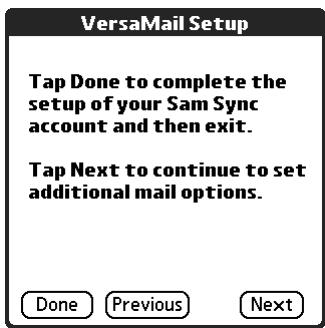
Do one of the following:
-
To accept these mail options and begin using the VersaMail application, tap Done. After you finish setting up a synchronize-only e-mail account, you need to configure this account on your desktop. See "Configuring an account in HotSync Manager" in Chapter 4 for information. You will not be able to synchronize e-mail between your handheld and your desktop until you configure the account on your desktop.
- To set up additional mail options, tap Next. Continue with the next set of procedures.
Setting mail retrieval options for a POP or IMAP account
The next VersaMail Setup screen displays different options, depending on whether your mail service uses a POP or an IMAP protocol.
To set mail retrieval server options for a POP or IMAP account:
- (Optional) Select any of the following:
Get unread mail
NOTE The POP protocol does not support retrieval of unread mail only from the server. If you have a POP e-mail account, the VersaMail application downloads all messages from the server regardless of whether you have read them (for example, on your desktop or on the web), and regardless of whether this check box is selected.
For IMAP accounts, select Get unread mail ONLY to download only unread mail to your handheld. If you don't choose this option and you tap Get & Send, all your e-mail messages on your provider's mail server are downloaded to your Inbox, including messages you have already read. To get all mail (including mail you have already read) and not just unread mail, deselect Get unread mail ONLY.
Delete messages on server
To delete messages on your provider's mail server when they are deleted in the VersaMail application, select the Delete messages on the server when they are deleted in VersaMail check box.
| Leave mail on server (POP account only) | To get e-mail on your handheld but also leave it on the server so you can view it later on your desktop, select the Leave mail on server check box. For example, if you create an account to receive e-mail from your Yahoo account and select this option, your old Yahoo e-mail is still visible the next time you visit Yahoo.com to access your Yahoo e-mail Inbox. |
| Port Number | The port number setting defaults to 110 for POP and to 143 for IMAP servers. You need to change the port number if you choose to retrieve incoming mail over a secure connection (see the next bullet item). If you are not sure about the correct port number, check with your mail server administrator. |
| Use Secure Connection | To retrieve incoming mail over a secure (Secure Sockets Layer, or SSL) connection, select the Use Secure Connection check box. See “Using Secure Sockets Layer (SSL)” in Chapter 5 for information on SSL. |
| Maximum Message Size | To limit the maximum size of an incoming e-mail message, enter the size in kilobytes (KB) for Maximum Message Size. The maximum size of an incoming message is 5KB by default, but you can enter a smaller size. The maximum message size that you can retrieve is 60KB for the body text and 2MB total, including attachments. |
POP accounts
IMAP accounts
- Tap Next.
Setting outgoing mail options
Outgoing mail options are the same for POP and IMAP accounts.
To set outgoing mail options:
- (Optional) Enter or select any of the following:
Display Name Enter the name you want to appear on your outgoing messages, such as "Joe Smith."
Reply To Address Enter the e-mail address that you want recipients to see and reply to on your e-mail messages, only if this is different from the e-mail address from which you are sending the message. For example, if you are sending a message from "me@yahoo.com" but you want recipients to reply to "me@earthlink.net," enter the reply-to address here. Reply To Address makes it look as though the e-mail came from the address you entered.
BCC Select the BCC check box to send a blind copy of any e-mail message you send to another e-mail address. The blind copy e-mail address is not seen by the other recipients of the message. For example, if you want a copy of all messages you send from your handheld to be sent to your corporate e-mail account, enter that e-mail address.

- Tap Next.
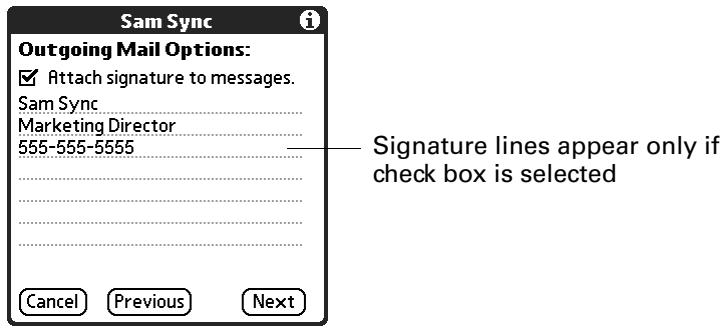
Adding a signature
If you want, you can add a signature to each e-mail message you send. For example, you can enter your name and telephone number so that they appear on each message you send.
To add a personal signature:
- Tap the Attach Signature to messages check box, and then enter the text of the signature.
This signature is attached to all your outgoing e-mail.
2. Tap OK.
Setting advanced outgoing mail options
You can set additional outgoing mail options.
To set advanced outgoing mail options:
- (Optional) Select any of the following:
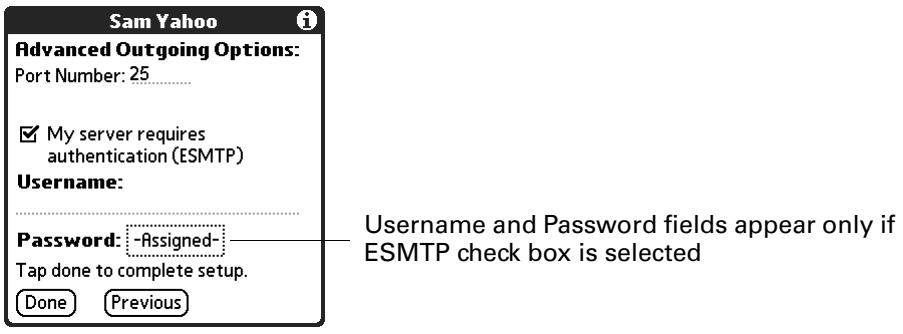
Port Number
The default is 25, the port number most SMTP servers use. If you are not sure about the correct port number, check with your mail server administrator.
Authentication
Select the My server requires authentication (ESMTP) if the outgoing server (SMTP) requires authentication. Check with your system administrator before selecting this option. See "Adding ESMTP to an account" in Chapter 5 for information. If you select this option, username and password fields appear. These fields are already filled in based on the account information you entered previously. In most cases the information displayed is correct; however, occasionally your authentication username and/or password is different from your account username or password. Check with your e-mail service provider for authentication username and password information.
If you need to enter new information, enter a username and/or tap the Password box and enter a password, and then tap OK.
- Tap Done.
Configuring your synchronize-only account
After you finish setting up a synchronize-only e-mail account, you need to configure this account on your desktop. See "Configuring an account in HotSync Manager" in Chapter 4 for information. You will not be able to synchronize e-mail between your handheld and your desktop until you configure the account on your desktop.
Editing e-mail accounts
From time to time, you may need to edit information about one of the e-mail accounts you set up.
To select the account to edit:
- Tap the Menu icon .
- Select Accounts.
- Select Account Setup.
- Tap the name of the account that you want to edit, and then tap Edit.
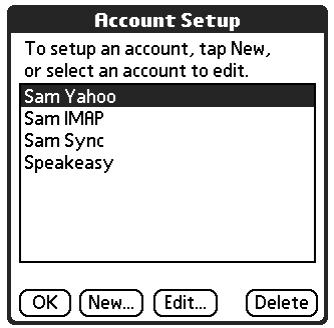
To edit an account:
- On the Account Setup screen, change any of the following:
Account Name Enter a descriptive name for this account, such as "My Yahoo."
Mail Service Tap the Mail Service pick list and select the provider to which you are connecting. Select Other if your ISP is not listed.
Protocol Tap the Protocol pick list and select POP or IMAP. (Most mail providers use the POP protocol.)
If the VersaMail application knows the protocol for the mail service you selected, it displays the correct protocol.
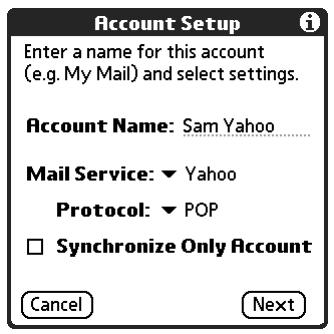
2. Tap Next.
Changing the account username and password
In the next part of the VersaMail account setup, you can change the username and/or password for this account. The VersaMail 2.5 application provides strong encryption for your password.
To edit the account username and password:
- (Optional) Enter a new username for accessing your e-mail. This is generally the part of your e-mail address appearing before the @ symbol; it is usually not your entire e-mail address.
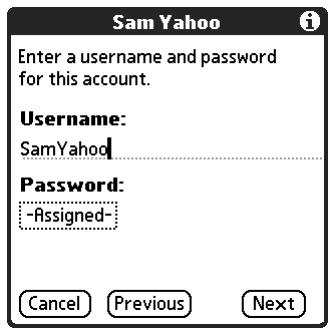
- (Optional) Tap the Password box, and then enter a new password. The Password box displays the word "Assigned" to indicate that a password has been entered.
- Tap OK. The Password box displays the word "Assigned" to indicate that a password has been entered.
- Tap Next.
Editing the names of the outgoing and incoming mail servers
If your e-mail address or the names of the outgoing and incoming mail servers have changed or have been entered incorrectly, you can edit the address or the server names.
To edit mail server settings:
- (Optional) Enter a new e-mail address for the account you are accessing, such as "examplename@yahoo.com."
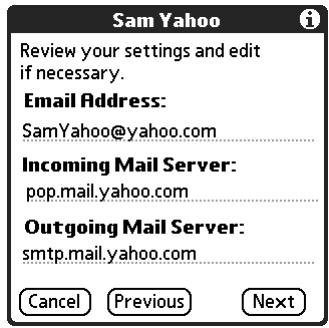
- (Optional) Enter the new or correct name of your incoming (POP) mail server, such as pop.mail.yahoo.com.
If the VersaMail application knows the incoming mail server name based on the mail service you selected, the correct server name is displayed.
- (Optional) Enter the new or correct name of your outgoing (SMTP) mail server, such assmtp.mail.yahoo.com.
If the VersaMail application knows the outgoing mail server name based on the mail service you selected, the correct server name is displayed.
-
Tap Next.
-
Do one of the following:
-
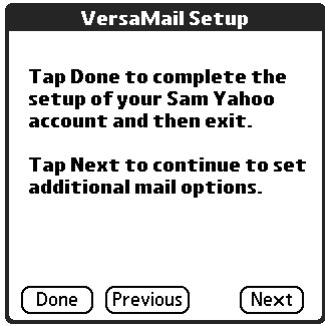
To accept these mail options and begin using the VersaMail application, tap Done. This takes you to the Inbox of the account you set up. See Chapter 3 for information on getting and sending e-mail.
- To edit additional mail options, tap Next. Continue with the next set of procedures.
Editing mail retrieval options for a POP or IMAP account
The next VersaMail Setup screen displays different options, depending on whether your mail service uses a POP or an IMAP protocol.
To edit mail retrieval server options for a POP or IMAP account:
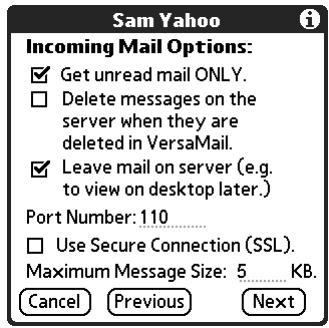
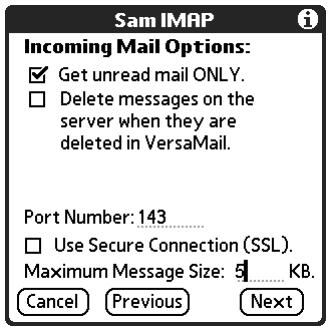
- (Optional) Change any of the following:
Get unread mail
NOTE The POP protocol does not support retrieval of unread mail only from the server. If you have a POP e-mail account, the VersaMail application downloads all messages from the server regardless of whether you have read them (for example, on your desktop or on the web), and regardless of whether this check box is selected.
For IMAP accounts, select Get unread mail ONLY to download only unread mail to your handheld. If you don't choose this option and you tap Get & Send, all your e-mail messages on your provider's mail server are downloaded to your Inbox, including messages you have already read. To get all mail (including mail you have already read) and not just unread mail, deselect Get unread mail ONLY.
Delete messages on server
To delete messages on your provider's mail server when they are deleted in the VersaMail application, select the Delete messages on the server when they are deleted in VersaMail check box.
| Leave mail on server (POP account only) | To get e-mail on your handheld but also leave it on the server so you can view it later on your desktop, select the Leave mail on server check box. For example, if you create an account to receive e-mail from your Yahoo account and select this option, your old Yahoo e-mail is still visible the next time you visit Yahoo.com to access your Yahoo e-mail Inbox. |
| Port Number | The port number setting defaults to 110 for POP and to 143 for IMAP servers. You need to change the port number if you choose to retrieve incoming mail over a secure connection (see the next bullet item). If you are not sure about the correct port number, check with your mail server administrator. |
| Use Secure Connection | To retrieve incoming mail over a secure (Secure Sockets Layer, or SSL) connection, select the Use Secure Connection check box. See “Using Secure Sockets Layer (SSL)” in Chapter 5 for information on SSL. |
| Maximum Message Size | To limit the maximum size of an incoming e-mail message, enter the size in kilobytes (KB) for Maximum Message Size. The maximum size of an incoming message is 5KB by default, but you can enter a smaller size. The maximum message size that you can retrieve is 60KB for the body text and 2MB total, including attachments. |
POP accounts
IMAP accounts
- Tap Next.
Editing outgoing mail options
Outgoing mail options are the same for POP and IMAP accounts.
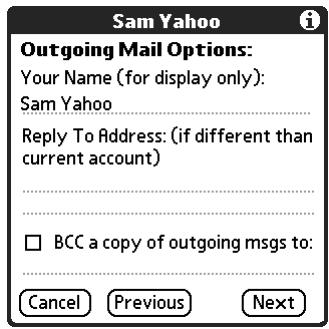
To edit outgoing mail options:
- (Optional) Change any of the following:
Display Name Enter the name you want to appear on your outgoing messages, such as "Joe Smith."
Reply To Address Enter the e-mail address that you want recipients to see and reply to on your e-mail messages, only if this is different from the e-mail address from which you are sending the message. For example, if you are sending a message from me@yahoo.com but you want recipients to reply to me@earthlink.net, enter the reply-to address here. Reply To Address makes it look as though the e-mail came from the address you entered.
BCC Select the BCC check box to send a blind copy of any e-mail message you send to another e-mail address. The blind copy e-mail address is not seen by the other recipients of the message. For example, if you want a copy of all messages you send from your handheld to be sent to your corporate e-mail account, enter that e-mail address.
2. Tap Next.
Editing a signature
If you added a signature to the e-mail messages you send, you can edit the signature. For example, you can change your name or the telephone number that appears in each message you send.
To edit a personal signature:
- (Optional) To add a signature, select the Attach Signature to messages check box, and then enter the text of the signature.
To edit an existing signature name, phone number, and so on, edit the information on the signature lines.
To remove a signature, deselect the Attach Signature to messages check box.
This signature is attached to all your outgoing e-mail.
2. Tap Next.
Editing advanced outgoing mail options
You can change additional outgoing mail options.
To edit advanced outgoing mail options:
- (Optional) Change either of the following:
Port Number
The default is 25, the port number most SMTP servers use. If you are not sure about the correct port number, check with your mail server administrator.
Authentication
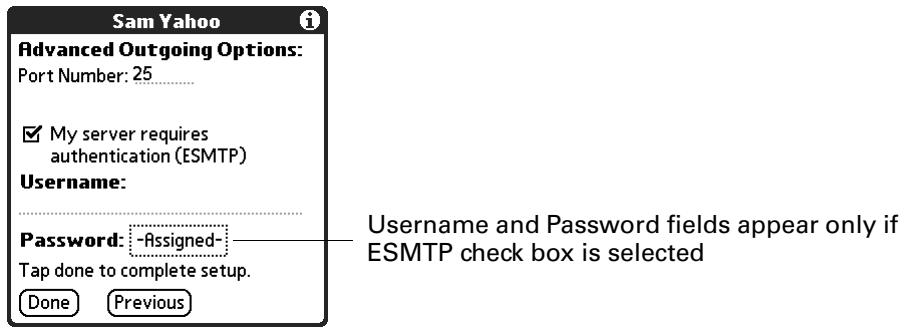
Select the My server requires authentication (ESMTP) if the outgoing server (SMTP) requires authentication. Check with your system administrator before selecting this option. See "Adding ESMTP to an account" in Chapter 5 for information. If you select this option, username and password fields appear. These fields are already filled in based on the account information you entered previously. In most cases the information displayed is correct; however, occasionally your authentication username and/or password is different from your account username or password. Check with your e-mail service provider for authentication username and password information.
If you need to enter new information, enter a username and/or tap the Password box and enter a password, and then tap OK.
- Tap OK.
Deleting an e-mail account
When you delete an account in the VersaMail application, the account is removed from your handheld. The account still exists on the server. For example, deleting your Yahoo account from the VersaMail application deletes only the account from your handheld. Your e-mail account still exists at Yahoo.com.
NOTE You can delete all but one of your e-mail accounts; you must have at least one account.
To delete an account:
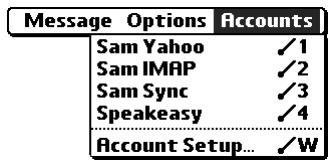
- Tap the Menu icon
- Select Accounts.
- Select Account Setup.
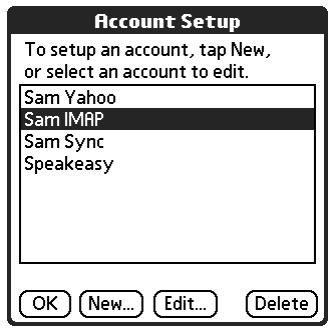
- Tap the name of the account you want to delete, and then tap Delete.
- Tap Yes in the Delete Confirmation dialog box to delete the account and all associated e-mail messages.
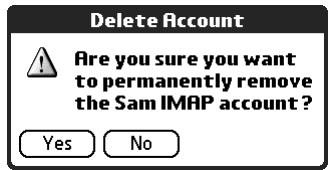
- Tap OK.
After you perform the next HotSync operation, the memory associated with an account and its messages is released.
Selecting a different service for a given e-mail account
When you set up connections on your handheld (on the Connection Preferences screen), you pair each connection with a network service (on the Network Preferences screen) and then select one of these services to be the default for all network activity (sending and receiving e-mail, surfing the web, and so on) on your handheld. By default, the VersaMail application uses this service for sending and receiving messages for all e-mail accounts you set up. See "Setting network and connection preferences" in Chapter 5 for information on setting up the default service for your handheld.
However, for any given e-mail account, you have the option of switching to a different service for use with that account only. For example, the default service you have selected for your handheld may be called Modem and may use a PalmModem accessory (sold separately) to make a dial-up connection to your e-mail service provider. You may also have set up an e-mail account called My Earthlink, which connects using the Modem service by default. However, if you travel into a location at which you cannot use your PalmModem accessory, you may want to switch your My Earthlink account to the service called Bluetooth Card, which connects to your e-mail service provider using a Palm Bluetooth Card (sold separately) inserted into your handheld's expansion card slot.
To set up a service for a given e-mail account (different from the default service for your handheld):
- From the Inbox of the account you want to switch, tap Get Mail.
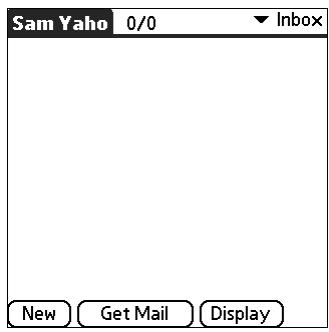
2. Tap Details.

- Tap the Always connect using check box. A pick list of available services appears. The currently used connection is displayed by default.
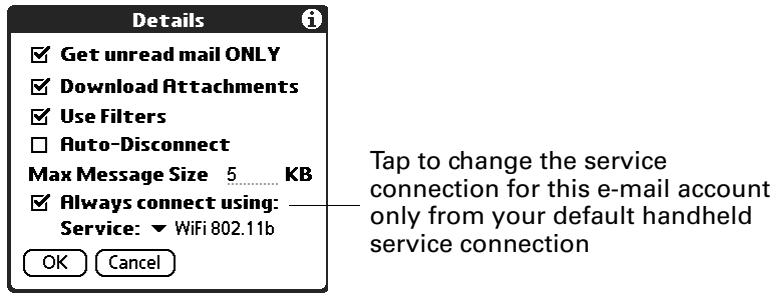
- Select the connection you want to switch to from the Service pick list.
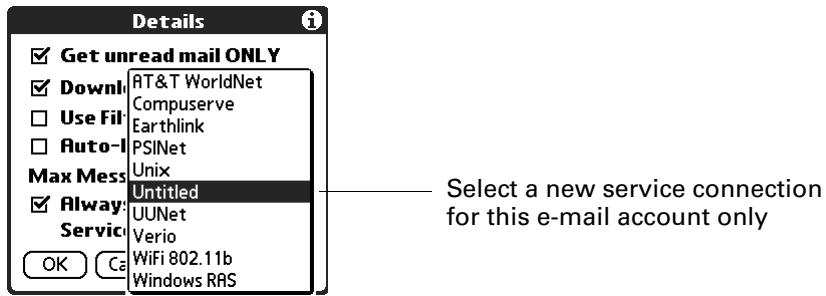
- Tap OK, and then tap OK again. If there is an existing service connection, it is disconnected and the new connection is initiated. The VersaMail application sends and checks for any new e-mail using the new connection.
When you exit the VersaMail application, the new service disconnects (unless you are using the default service for your handheld). When you reopen the application, the e-mail account you selected (My Earthlink in this example) continues to connect using the new connection (Earthlink GPRS in this example) until you either select a new service or deselect the Always connect using check box. If you deselect the Always connect using check box, the e-mail account (My Earthlink) connects using the default handheld service (My VPN in this example).
The Always connect using check box changes the connection service for the selected e-mail account only. You must follow the preceding procedure for each e-mail account whose connection you want to switch from the default connection on your handheld.
Getting, Sending, and Managing E-mail
Getting and sending e-mail on your handheld is easy and can help you keep your business and personal life organized. You can manage the messages in your e-mail accounts by moving messages between folders, deleting old e-mail messages individually or in groups, and marking messages as read or unread.
This chapter explains how to do the following:
Get and send e-mail for your e-mail accounts
View and send e-mail attachments, such as text or Microsoft Word documents, wirelessly
Getting e-mail
You can get e-mail subjects only—the message size, author, and subject—or you can get entire messages immediately. If you choose to get message subjects only and want to read a full message, you can get more of the message. If you choose to get the entire message, the body text of the message will be downloaded up to the maximum message size you select. See "Reading e-mail" later in this chapter for information.
Choosing the e-mail account and displaying the Inbox
To view the e-mail in an account, you must switch to that account and then get the e-mail. For example, if you want to collect and view the e-mail from your Yahoo account, you switch to the account created to retrieve e-mail from your Yahoo account.
To display an account and its Inbox:
- In your Inbox or on another folder screen, Tap the Menu icon
- Select Accounts.
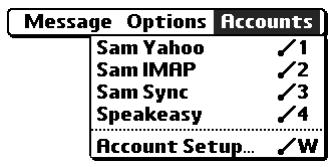
- Tap the name of the account you want from the list.
TIP For handhelds that have a VersaMail™ button, you can also press this button repeatedly to scroll through the accounts you have configured in the VersaMail application until you get to the account you want.
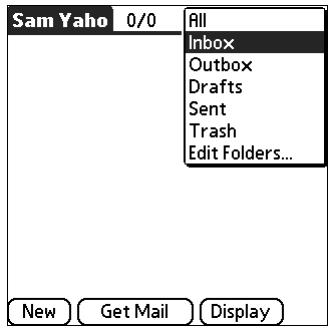
- Tap the folders pick list, and tap Inbox if the Inbox is not displayed.
Getting e-mail by subject or getting the entire message
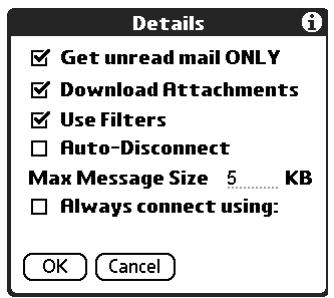
When you get e-mail messages, you can choose to get the subject only or to get the entire message. You can also use the Details dialog box to select options for getting unread e-mail only, downloading attachments, using filters, and more.
To get e-mail messages:
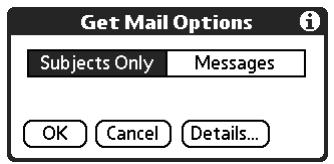
- Tap Get Mail.
If you have e-mail stored in your Outbox, tap Get & Send.
- In the Get Mail dialog box, tap Subjects Only to download subjects only, or tap Messages to download entire messages.
TIP You can deactivate the Get Mail dialog box by using VersaMail Preferences. See "Setting preferences for getting and deleting e-mail" later in this chapter.
- (Optional) Tap Details and select options for retrieving unread e-mail, downloading attachments, using filters, auto-disconnect, maximum download size, and default connection type for this account. Tap OK.
NOTE See "Creating mail filters" in Chapter 5 for more information about filters. See "Setting advanced account preferences" in Chapter 5 for information on the auto-disconnect feature. See "Selecting a different service for a given e-mail account" in Chapter 2 for information on setting a default connection type.
- (Optional) For IMAP accounts, you have the option of synchronizing IMAP folders from the Get Mail dialog box. See "Wireless IMAP folder synchronization" in Chapter 5 for information.
NOTE The maximum size of an incoming message is 5KB by default.
- Tap OK.
- (Optional) If you are retrieving mail using a VPN connection, you may be asked to enter the username and password you use to log in to the VPN. If so, enter the username and password. See "VPNs" in Chapter 2 for more information.
- The Getting Messages dialog box shows updates as your e-mail is downloaded.
When the Getting Messages dialog box disappears, another dialog box appears and displays the number of new e-mail messages.
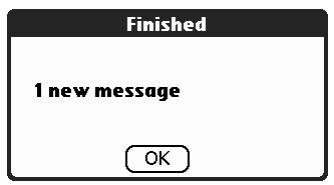
8. Tap OK.
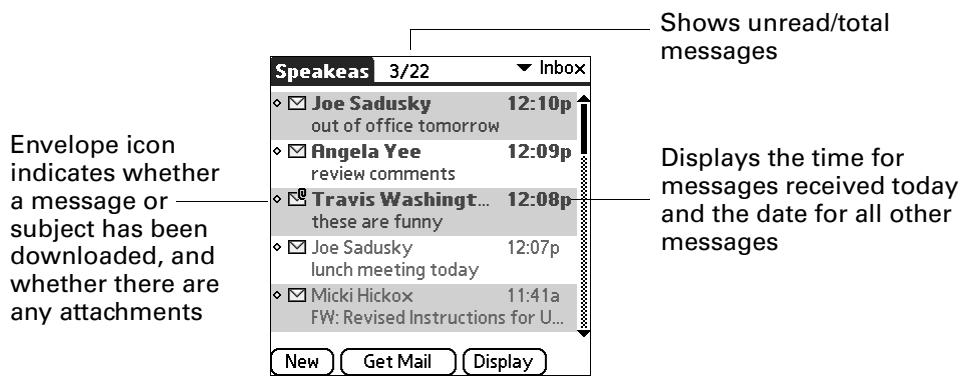
A list of your e-mail appears in the Inbox.
Auto get mail with notification
You can set up the VersaMail application to automatically search for new mail on a regular schedule for a given e-mail account. The auto get mail feature automatically retrieves new messages and downloads them to your handheld, without needing to tap Get Mail.
If auto get downloads any new messages, your handheld notifies you by blinking an indicator light, beeping, or vibrating. The handheld also displays a visual list of notifications, called the Reminders screen.
The auto get feature downloads the first 3KB of each message. If a message is larger than 3KB, tap the More button on the message screen to download and view the entire message.
Auto get mail recognizes any filter criteria you have set up for downloading messages to your handheld. See "Managing mail filters" in Chapter 5 for information. Any messages that do not meet the filter criteria are not downloaded during an auto get. To retrieve messages that do not conform to filter criteria, perform a manual get with all filters turned off.
If auto get is occurring and you turn your handheld off or the connection to your e-mail service provider is disconnected, the auto get fails. If you are attempting an auto get over a network from a public location, you must be in range of a network access point for the auto get to work.
Scheduling auto get mail
When setting up a schedule, you select the interval for retrieving mail, the start and end times for retrieving mail, and the days on which scheduled e-mail retrieval should take place.
You can set up different schedules for each of your e-mail accounts, but you can set up only one schedule for a given account. For example, if you set up a schedule for mail retrieval on weekdays for your Yahoo account, you cannot set up a separate schedule for weekends on the same account.
If more than one scheduled auto get takes place at the same time (for example, for two separate e-mail accounts), the retrievals take place in the following order:
Any past-due auto get (for example, a retry of an earlier failed auto get)
Current retrievals according to the order of e-mail accounts (#1, #2, and so on)
NOTE The auto get feature is not supported for VPN or SSL connections. It is also not supported if you have configured the security preferences on your handheld to encrypt databases on the handheld. For some nonsupported connection types, the Options menu does not display the auto get mail option; for others, if you try to set up an auto get schedule, an error message appears.
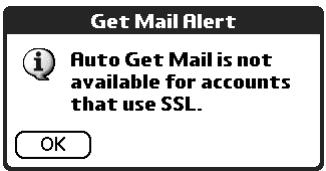
To set up a scheduled auto get mail:
- On the message screen, Tap the Menu icon
- Select Options.
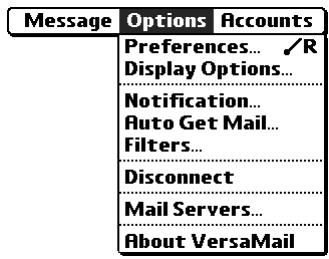
-
Select Auto Get Mail.
-
Select the Get mail automatically check box.
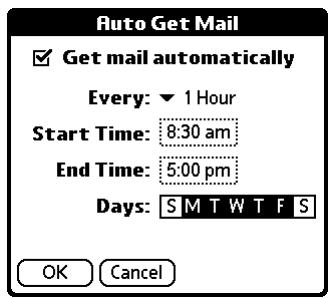
- Set schedule options:
Interval
Tap the Every pick list and select the time interval, from 15 minutes to 12 hours. See "Resource issues with auto get mail" later in this chapter for information on setting the interval.
Start Time
Tap the Start Time box, tap to enter the start time hour and minute, and tap to enter AM or PM. Then tap OK.
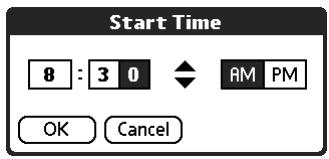
End Time
Tap the End Time box, tap to enter the end time hour and minute, and tap to enter AM or PM. Then tap OK.
Days
Tap the days you want the schedule to be active. You can choose any number of days, but you can set up only one schedule for each e-mail account.
-
Tap OK.
-
(Optional) Tap Get Mail. You should perform a manual Get Mail after setting up a scheduled auto get. This ensures that only new messages are retrieved during auto get.
TIP Alternately, if you have configured an e-mail account to synchronize messages between your handheld and your desktop, you can perform a HotSync® operation after setting up a scheduled auto get to ensure that only new messages will be retrieved during auto get. See Chapter 4 for configuration information.
Auto Get Mail

To activate the schedule, tap Get Mail
Or, perform a Hot Sync operation now, using the VersaMail conduit with accounts active

Get Mail
Auto get notifications
The auto get mail feature provides three types of alerts during and after message retrieval:
Depending on the connection type, a series of status messages may appear during the auto get connection and mail retrieval process.
- You can choose to have your handheld alert you when a new message arrives in your account. The beep or alert sound your hear is called a notification. Your handheld also notifies you of a new message's arrival by blinking an indicator light or vibrating if certain preferences are selected. For more information see "Making your handheld buzz or blink when you get new e-mail" later in this chapter.
NOTE You must select the Notification option to have your handheld notify you when new messages are received. See the next section, "Setting notification options," for more information.
- If auto get discovers and downloads new messages for an e-mail account, a notification appears in the Reminders screen, displaying the account name and the number of new messages. If auto get is scheduled for more than one account, a separate notification appears for each account. See "Viewing and using the Reminders screen" later in this chapter.
3:53 pm Reminders
IMAP mail account You have 18 new messages
□ Yahoo mail account You have 27 new messages

Done Snooze

Clear All
Setting notification options
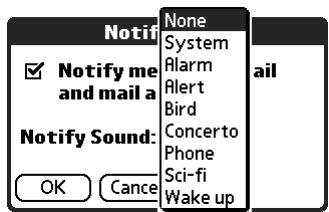
You can turn the notification sound on or off to notify you when new e-mail arrives. You can choose from a variety of sounds, such as birds, bumble bees, or simply an alarm.
To set notification options:
- From the Inbox or another folder screen, tap the Menu icon .
- Tap Options.
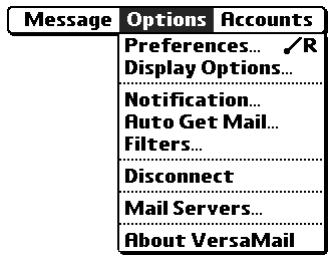
- Tap Notification.
- Tap the Notify me of new mail and mail alerts check box.
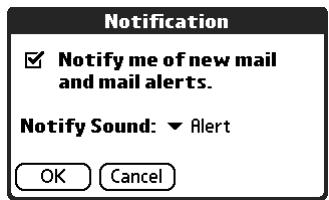
- Tap the Notify Sound pick list and select a sound. The handheld plays a brief demonstration of the sound.
NOTE If you have installed a custom sound on your handheld, it appears on the Notify Sound pick list.
- Tap OK.
You can follow these procedure steps to change the notification sound or to turn the sound on or off at any time.
Making your handheld buzz or blink when you get new e-mail
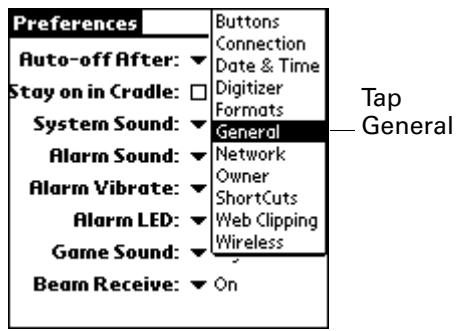
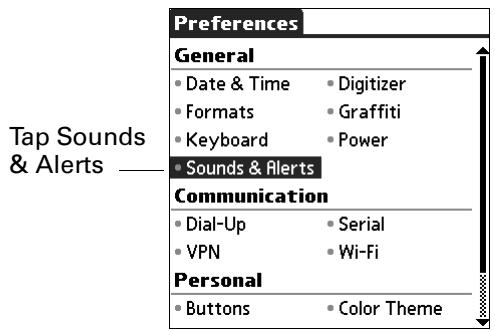
In addition to setting a notification sound, you can also choose to have your handheld's indicator light blink or to have your handheld vibrate when you receive new e-mail. You select how your handheld notifies you of new e-mail in your handheld's General preferences.
To make your handheld buzz or blink when you get new e-mail:
- Tap the Home icon .
- Tap the Prefix icon
-
Depending on your handheld model, do one of the following:
-
Tap the Preferences pick list in the upper-right corner, and then tap General.
- Tap Sounds & Alerts.
-
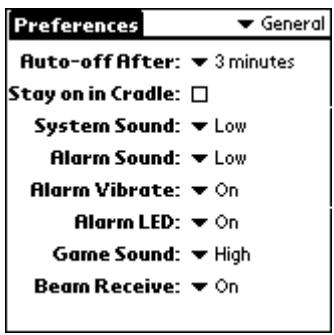
Do any of the following:
-
To change the volume of the Alarm Sound, tap the Alarm Sound pick list and select Low, Medium, High, or Off.
- To change whether or not the handheld indicator light blinks when you receive new e-mail, tap the Alarm LED pick list and select On or Off.
- To change whether or not the handheld vibrates when you receive new e-mail, tap the Alarm Vibrate pick list and select On or Off.
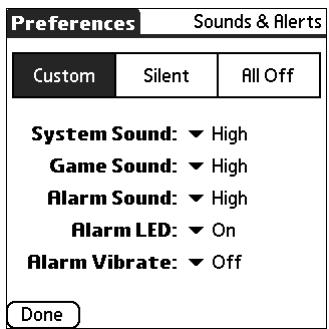
- Depending on your handheld model, tap the VersaMail icon in the Applications Launcher or tap Done.
Viewing and using the Reminders screen
Your handheld displays a Reminders screen that shows summary information about new e-mail messages and alerts from other applications, such as alerts to remind you of Date Book appointments.
To view the Reminders screen:
- Tap the blinking asterisk in the upper-left corner of any screen.
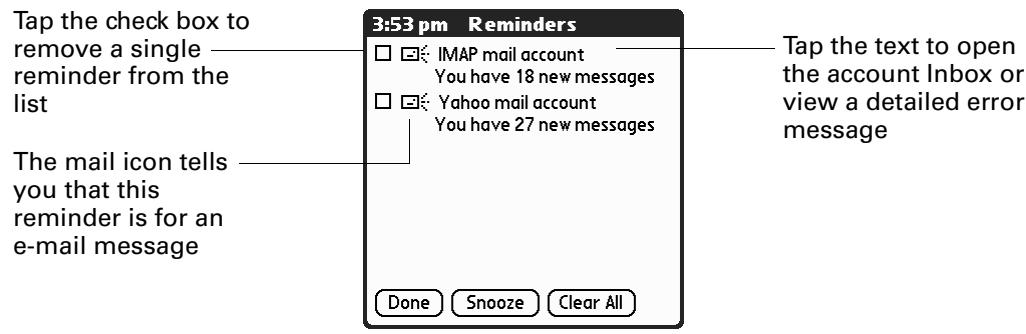
If you set up a scheduled auto get mail and you receive new e-mail messages, they are downloaded into the Inbox. As you work with e-mail messages in the Inbox, the Reminders screen doesn't display a reminder for any new messages that arrive, because the messages are already displayed in the Inbox.
NOTE A broken envelope icon appears next to a message when an auto get mail or automatic send retry fails.
To respond to the reminders, do one of the following:
- Tap the check box to clear a reminder from the list.
- Tap the reminder (either the mail icon or the text description) to go to the Inbox of that account or to read a detailed error message.
- Tap Done to close the Reminders screen and return to whatever you were doing on your handheld before the Reminders screen appeared.
- Tap Clear All to dismiss all reminders in the Reminders screen.
When a notification appears in the Reminders screen, tap the notification to go to the Inbox of that account, or launch the VersaMail application and go to that account. Once you view a message in the Inbox it is removed from the Reminders screen notification, even if you do not open the message. Auto get then starts at the next scheduled interval, with the Reminders screen counter reset to 1.
If you do not view the Inbox of the selected account and another scheduled e-mail retrieval takes place and finds new messages, the Reminders screen adds the number of new messages to the notification for that account. For example, if scheduled auto get #1 finds two new messages and, before you view the Inbox, scheduled auto get #2 takes place and finds three more new messages, the Reminders screen notification indicates five new messages for that account.
If auto get discovers new messages but then fails for any reason, a notification appears in the Reminders screen, displaying the account name and an error message.
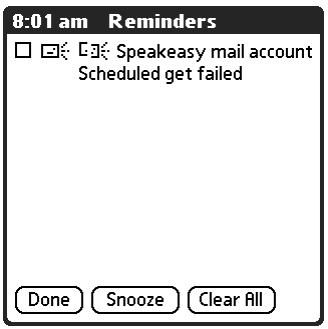
You can tap the error message or open the VersaMail application to that account for more detailed information on the failed auto get.
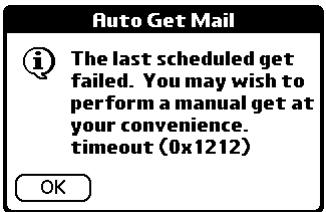
If auto get discovers no new messages for an account, no notifications appear in the Reminders screen for that account.
The Reminders screen displays only the most recent notification for an account. For example, if one scheduled auto get failed but the next one succeeded and downloaded two new messages, the Reminders screen would first display the error message but would display the number of messages retrieved after the successful retrieval.
Reminders screen notifications are specific for each account. For example, if auto get fails for one account but succeeds in downloading new messages for a separate account, the Reminders screen displays an error message for the first account and a message indicating the number of messages downloaded for the second account.
Auto get mail retries
If the interval for a scheduled auto get is set at "Every 1 hour" or less frequently and an auto get fails for any reason, the VersaMail application continues attempting to retrieve e-mail at 30-minute intervals until either the next scheduled auto get occurs or the end time for scheduled e-mail retrieval is reached. If the interval is set for more frequently than one hour and an auto get fails, the VersaMail application waits until the next scheduled auto get.
Resource issues with auto get mail
If you use the auto get mail feature, you should be aware of the following potential resource constraints:
Decreased battery life
If you set the auto get interval for more frequently than once per hour, you may drain your handheld's battery charge more quickly, and thus need to recharge the battery more frequently.
Increased monthly charges
If your e-mail service provider is a wireless provider such as Cingular or T-Mobile that charges a fee for data transactions, using the auto get feature can substantially add to your monthly charges. This issue is especially noticeable for POP accounts, because the size of the IDs used to locate POP account messages is much larger (and thus POP messages take longer to download) than for IMAP accounts.
NOTE If you primarily retrieve messages over your company's network, monthly charges should not be an issue.
If you set the auto get mail interval for more frequently than once per hour, an alert message appears.
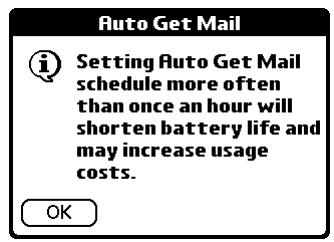
To minimize resource concerns, set your interval for e-mail auto get to no more frequently than once per hour.
Inbox icons in the VersaMail application
The icons to the left of a message in the Inbox indicate the message's status.

Only the subject header information is downloaded.

Part or all of the message text is downloaded.

Part or all of the message text and attachment information is downloaded.
Reading e-mail
To read e-mail, tap the e-mail message in the Inbox or the folder where the message is located.
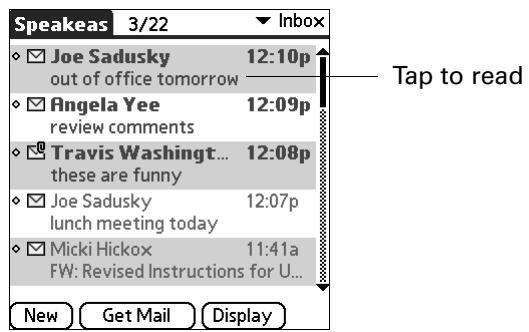
To read a message:
- Tap the message you want to read.
For handhelds with a navigator: Press Select on the navigator to highlight the first message displayed on the screen, and then press Up or Down to scroll one message at a time to the message you want to read.
- Tap the message again to open it.
For handhelds with a navigator: Press Select to open the message.
- After reading the message, press Select to close the message.
If you chose to get messages by subjects only, tap the More button to view the body of the e-mail message, plus any attachments, up to the maximum message size you select. If the downloaded message exceeds your maximum message size, only a partial message is displayed. Tap the More button to view the entire message. See "Getting e-mail by subject or getting the entire message" earlier in this chapter.
If you chose to get entire messages, the body of the e-mail message is displayed. However, if the downloaded message exceeds your maximum message size, only a partial message is displayed. Tap the More button to view the entire message.
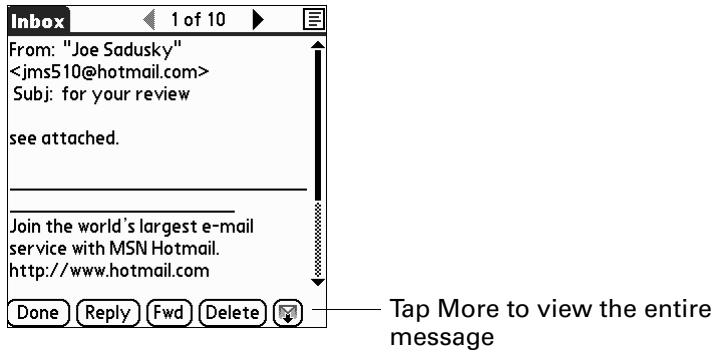
Plain text and HTML e-mail
By default, the VersaMail application is set to receive mail in HTML format. This means that any e-mail messages sent as HTML will be displayed on your handheld with basic HTML formatting intact, including the following:
Boldface
Italics
Underlining
Colored words
Bullet lists
Numbered lists
Line breaks
Most formatting not displayed is stripped of its HTML tags and shown as plain text. For certain types of graphic images (for example, JPEG or GIF files), the graphic may be displayed as a URL in the body of the e-mail message. If you have the correct type of browser installed as the default on your handheld, you can tap the URL to open the graphic image. See "Working with URLs" later in this chapter for more information.
When you set the VersaMail application to receive e-mail messages as HTML, any messages sent as plain text will be displayed as plain text only. You can also set the application to receive all messages as plain text only, regardless of the format in which they were sent. If you choose this option, only the text of any messages sent in HTML format will be displayed.
NOTE The VersaMail application sends all messages as plain text only, with all HTML tags stripped, even if you are forwarding or replying to a message that was originally received as HTML.
To select whether to receive e-mail messages in HTML or in plain text format:
- Tap the Menu icon .
- Tap Options.
- Select Preferences.
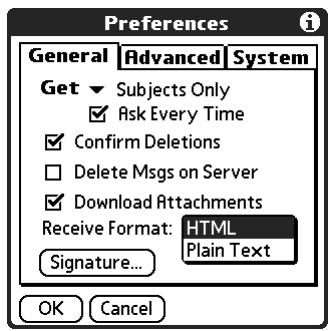
- Tap the Receive Format pick list and select HTML or Plain Text. The default is HTML.
- Tap OK.
Viewing other folders
When you get new e-mail, it appears in the account's Inbox folder. You can move an e-mail message from one folder to another and then view it in the destination folder.
To view other folders:
- Tap the folders pick list in the upper-right corner of the screen.
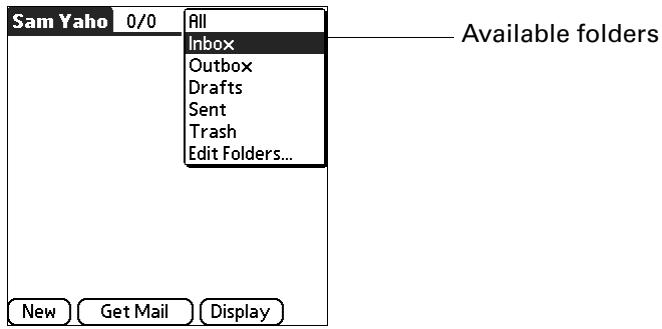
- Tap the folder you want to view.
Managing display options in the folder's list view
You can customize the way in which messages appear in the list view of your mail folders. The options you choose apply to all folders.
The display that options you can customize, and the default settings, are as follows:
| Option | Default |
| Sort by | Date |
| Sort order | Descend |
| Summary view | Two-line view |
| Summary view columns | Sender, Date, Subject |
| Font | Palm 9 |
| Unread message color | Black |
| Read message color | Black |
To change the sort order:
- Tap Display.
- Tap the Sort by pick list, and then tap the column name.
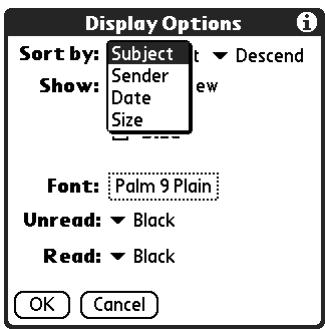
- Tap Descend or Ascend to change the sort order.
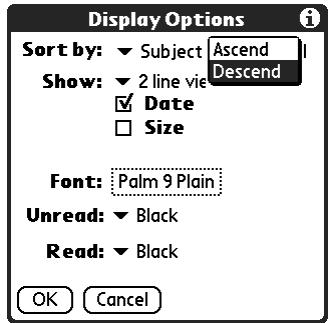
- Tap OK.
To select a one-line or two-line view:
- Tap Display.
- Tap the Show pick list, and then tap the view you want.
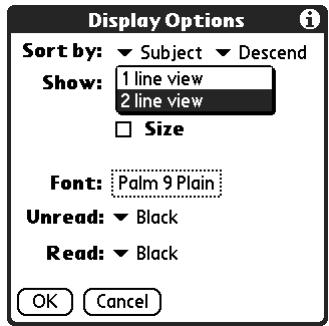
- Tap OK.
To display or hide a column in a folder's list view:
- Tap Display.
- Tap the check box for each column that you want to show. The column options will change depending on whether you choose a one-line or a two-line view.
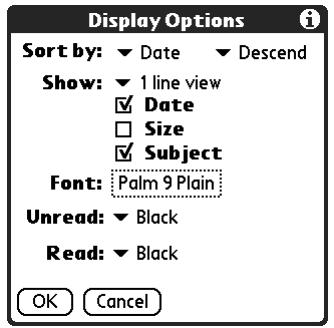
NOTE If you select Date, the Date column displays the message time for any messages received today—that is, any message received after 12:01 A.M. Otherwise, the Date column shows the date the message was received.
- Tap OK.
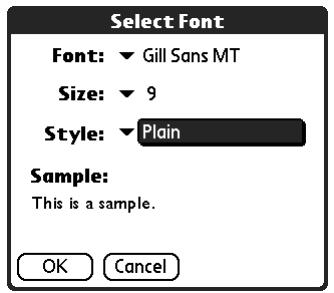
To change the font:
- Tap Display.
- Tap in the Font field.
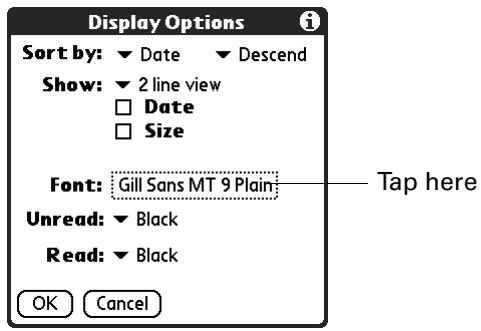
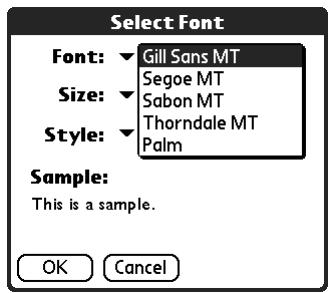
- Tap the Font pick list and select the font you want.
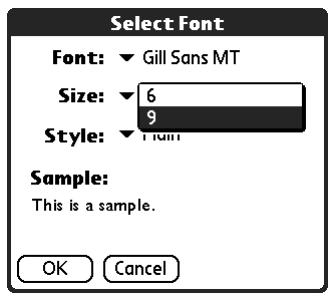
- Tap the Size pick list and select the font size you want.
- Tap the Style pick list and select the font style you want.
- Tap OK.
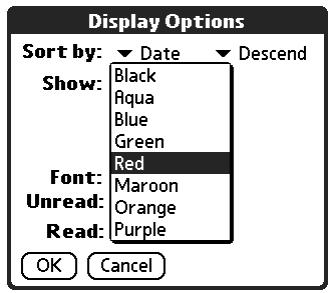
To select colors for read and unread mail:
- Tap Display.
- Tap the Unread pick list, and then tap the color you want to use to display unread messages.
- Tap the Read pick list, and then tap the color you want to use to display read messages.
- Tap OK.
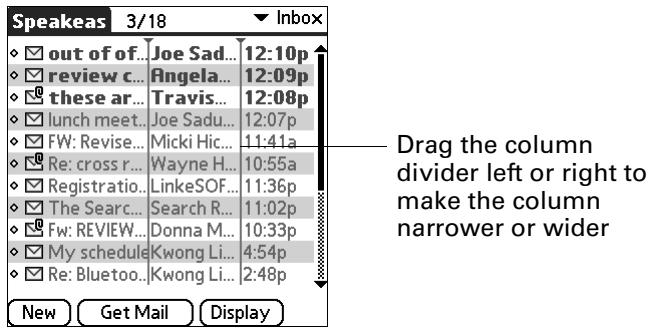
In the list view itself, you can also change the size of the columns.
To change the size of a column in the folder's list view:
NOTE Changing column size is available for one-line message view only.
- Tap and hold the stylus on the column divider.
- Drag the column divider to change the width of the column.
You can also change the font within an individual message. This change affects the font of all messages you compose.
To change the font of a composed message:
- On the message screen, tap the Menu icon
- Select Options.
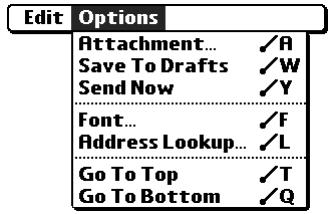
- Tap Font.
- Tap the Font pick list and select the font you want.

- Tap the Size pick list and select the font size you want.
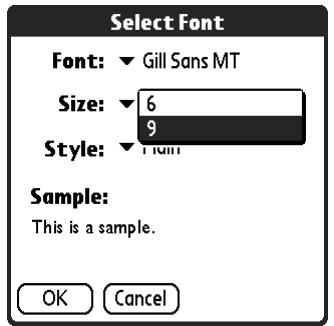
- Tap the Style pick list and select the font style you want.
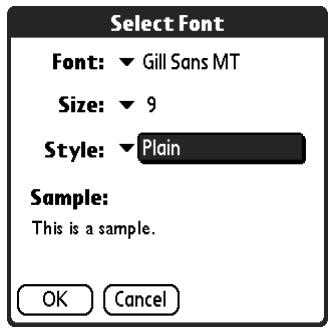
- Tap OK.
Moving e-mail between folders
You can move one or more e-mail messages between folders.
To move one e-mail message:
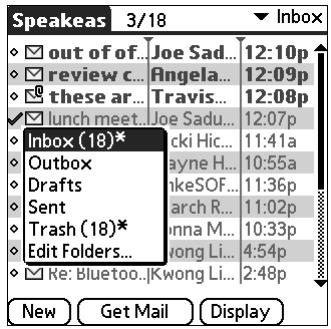
- Tap the folders pick list in the upper-right corner of the screen, and then tap the folder name.
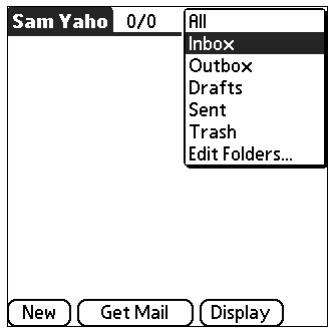
- Tap the icon to the left of the message, and then tap Move To from the pop-up menu.
For handhelds with a navigator: With the message highlighted, press Right on the navigator to open the Message menu, press Down to move to the Move To option, and then press Select to select this option.
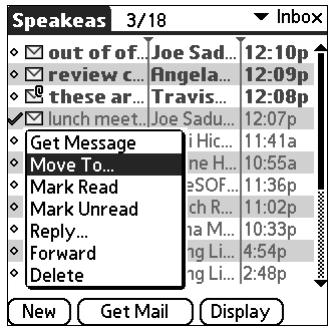
The folders pick list appears.
- Tap the folder you want.
For handhelds with a navigator: Press Up or Down on the navigator to move to the folder you want, and then press Select to select the folder.
TIP You can also move a single e-mail message from within the body of the message by making the Command stroke in the Graffiti® 2 writing area, tapping the folder icon, and selecting the destination folder from the pick list. See "Using the command bar" in Chapter 5 for more information on the command bar.
To move multiple e-mail messages:
-
Tap the folder that contains the e-mail messages you want to move.
-
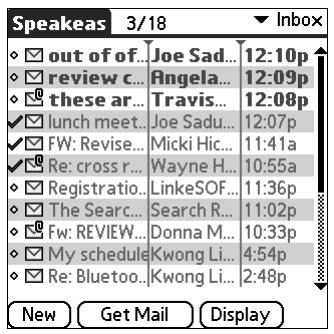
Select the messages by tapping to the left of each message icon.
TIP To select a group of adjacent messages, drag the stylus to the left of the message icons.
A checkmark appears next to each selected message.
-
Do either of the following:
-
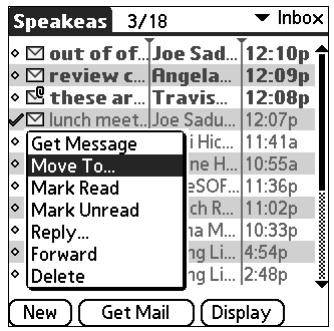
Tap the Menu icon , and then tap Move To.
- Tap a message icon next to a selected message, and then tap Move To on the pick list.
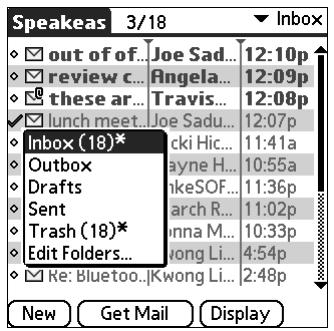
- Tap the folders pick list, and select a destination folder.
- Tap OK.
Creating and editing mail folders
You can also create new folders so that you can store e-mail messages by subject, person, or project. The VersaMail application has certain existing folders, such as Inbox, Outbox, Drafts, and Trash.
The procedure for creating and editing folders varies slightly between POP and IMAP e-mail accounts, as described in the following procedure.
To create and edit e-mail folders:
- Tap the folders pick list in the upper-right corner of the screen, and then tap Edit Folders.
- On the Edit Folders or Edit IMAP Folders screen, select any of the following:
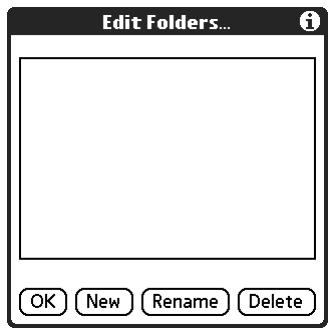
POP accounts

IMAP accounts
- To create a new folder, tap New, and then enter the new folder name. For IMAP accounts only, select the check box if you also want to create the folder on the server. When finished, tap OK.
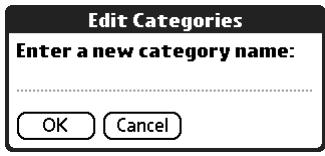
POP accounts
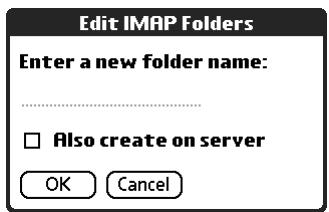
IMAP accounts
- To rename a folder, tap the folder name from the list on the screen, tap Rename, and then enter the new folder name. For IMAP accounts only, select the check box if you also want to rename the folder on the server. When finished, tap OK.
POP accounts
Edit Categories
Enter a new category name:
Favorites
OK
Cancel
IMAP accounts
Edit IMAP Folders
Enter a new folder name:
Favorites
□ Also rename on server

Cancel
- To delete a folder, tap the folder name from the list on the screen, and then tap Delete. For IMAP accounts only, select the check box if you also want to delete the folder on the server, and then tap OK. For POP accounts, the folder will be deleted immediately and you will not see a confirmation screen.
Edit IMAP Folders
Are you sure you want to
permanently delete folder
"Favorites"? This action cannot be
undone.

Also delete on server

Cancel
Delete confirmation
appears for IMAP
accounts only
Creating and sending new e-mail
When you create a new e-mail message, you can enter the person's e-mail address or use the Lookup screen to find a particular address.
To create a new e-mail message:
- Tap New.
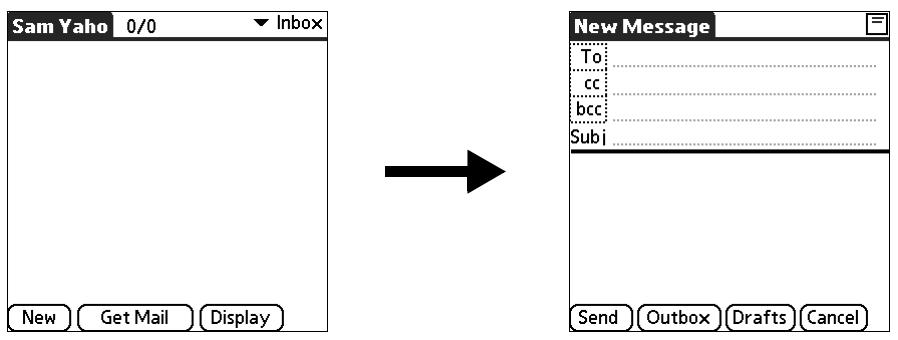
- Enter the recipient's name using one of the methods described in the next procedures.
NOTE When you address a message to several recipients, you do not see all the recipients on the To list because the list is truncated on the To line. If you tap the To field, a dialog box shows all recipients for the current message.
Addressing a message by typing the address
You can address a message by entering the complete address.
To enter the address:
- In the New Message screen, tap or navigate to the To field and enter the address, and then tap Done.
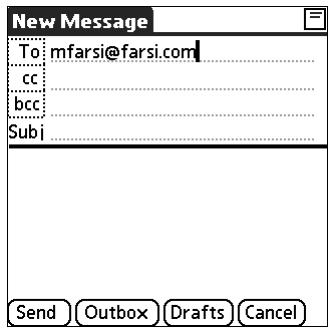
For multiple recipients, type a semicolon (;) and then a space between recipient names. The To field expands to two lines during address entry for addresses longer than the one-line display.
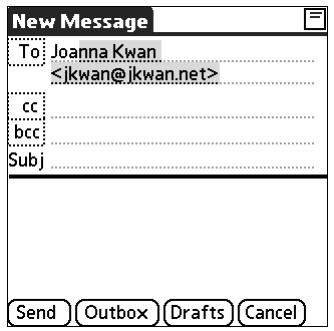
After address entry, addresses longer than one line are shown on a single line with an ellipsis symbol to the right of the address line.
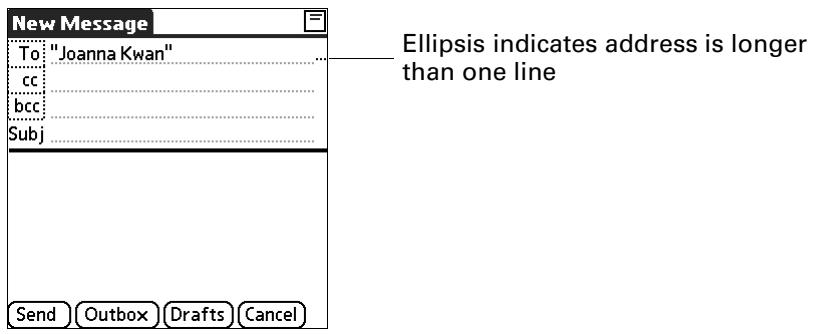
Alternatively, in the New Message screen, tap To and enter the address on the Recipient List screen, and then tap Done. Use the shortcut buttons at the bottom of the screen for quick address entry.
For multiple recipients, type a semicolon (;) or tap the semicolon button at the bottom of the screen, and then type a space between recipient names.
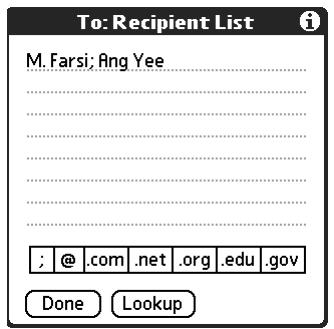
NOTE If you enter a comma instead of a semicolon, it is automatically changed to a semicolon. If you enter a space with no punctuation between names, semicolons are not inserted and the e-mail message is improperly addressed.
If you want to edit an e-mail address that is longer than the line provided in the New Message screen, tap the To field and edit the address.
- To send copies, tap cc: or bcc: and enter the recipient's address.
Copies (cc:) allow recipients to see the addresses of the other recipients, but addresses in the blind copies (bcc:) field are hidden from all other recipients.
TIP To automatically fill in the address as you type, see "Using Smart Addressing to address a message" later in this chapter.
Addressing a message using Address Book
You can enter a recipient's address by using the Lookup screen to select the address. The names and addresses in the Lookup screen come from Address Book.
To use an address from Address Book:
- In the New Message screen, tap To.
- On the Recipient List screen, tap Lookup.
- On the Address Lookup screen, tap the address you want, and then tap Add.
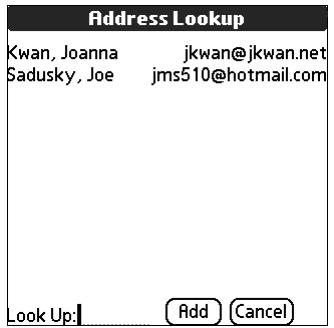
- (Optional) Repeat steps 2 and 3 for each address you want to add.
- To enter an address in the cc: or bcc: field, tap the field name and follow the steps given for the To field.
Using Smart Addressing to address a message
Smart Addressing types ahead and completes a recognized e-mail address. Smart Addressing automatically fills in fields when the recipient's name and e-mail address are in your Address Book.
By default, Smart Addressing is selected in VersaMail Preferences.
To use Smart Addressing to address a message:
- In the To field, start entering the person's name, such as Joe Smith.
Once the name is recognized from your Address Book, the name and e-mail address are automatically completed on the recipient list. For example, if you have a Joe Smith and a Joan Smith in your Address Book (and no other names starting with J), once you type "Joe," the entry "Joe Smith" is completed with the correct e-mail address.
- If Smart Addressing recognizes more than one name for the typed entry, or if the recognized name has more than one e-mail address associated with it, all of the names or e-mail addresses are displayed. Navigate or tap to select the name/e-mail address you want.
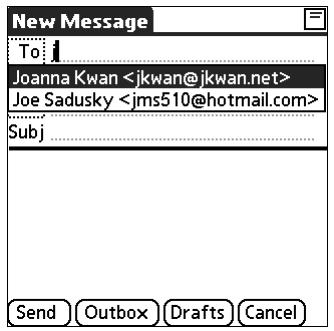
- Tap Done.
Turning Smart Addressing on or off
You can turn Smart Addressing on or off in VersaMail Preferences. By default, Smart Addressing is turned on.
To turn Smart Addressing on or off in VersaMail Preferences:
- In the Inbox, tap the Menu icon .
- Tap Options.
- Select Preferences.
- Tap Advanced.
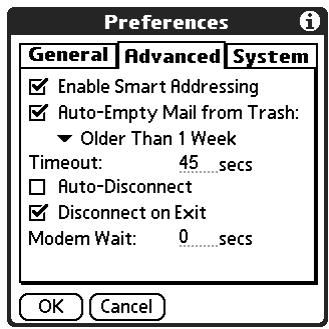
- Tap the Enable Smart Addressing check box if it is not selected. A checkmark means it is turned on.
- Tap OK.
Composing and sending e-mail
After you enter your recipient addresses, you can compose the rest of the e-mail message.
To compose the rest of the e-mail and send it:
- Tap the Subject field and enter the subject of your e-mail.
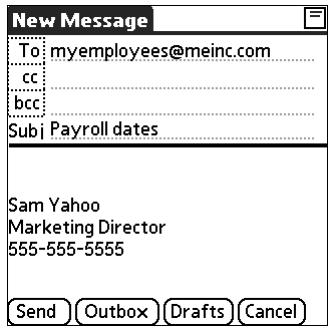
- Tap the area below the Subject line and enter the text of your e-mail.
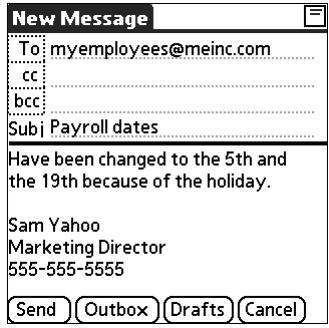
To access the editing features available on the Edit menu, tap the Menu icon . The first character of each sentence is automatically capitalized for you.
- (Optional) Tap the Options menu and select Add Attachments. See "Attaching files from a handheld application" later in this chapter.
- Tap one of the following to send the e-mail:
Send Sends the e-mail immediately.
Outbox Stores e-mail in the Outbox so you can compose e-mail offline and then send all e-mail during one connection with the server. To send your e-mail later, tap Get & Send. A connection is made to the mail server, and all the e-mail in the Outbox is delivered.
TIP You can also tap Drafts to save this message in the Drafts folder rather than send it.
Send retry
When you tap Send on the message menu, the VersaMail application automatically attempts to send the message. If the send attempt fails for any reason (for example, your handheld is out of range, or the application cannot connect to the mail server), you can choose to have the application move the message to the Outbox and continue to try to send the message at 30-minute intervals, a maximum of three times.
If you put a message in the Outbox, you must perform a manual send to send the message on the first attempt. The VersaMail application attempts automatic send retry only after a manual send attempt fails.
NOTE Automatic send retry occurs only if you tap Send to send the message manually. It does not work if you tap Get & Send.
To select automatic send retry:
- Tap Yes in the dialog box notifying you that manual send has failed.
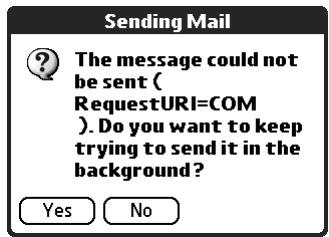
If automatic send retry succeeds on any attempt, the message is moved to the Sent folder.
NOTE Automatic send retry of e-mail is not supported for VPN or SSL connections, or for accounts for which your ISP requires you to log in to the mail server before sending mail. It is also not supported if you have configured the security preferences on your handheld to encrypt databases on the handheld.
Send retry notifications
If automatic send retry fails after the third attempt, a notification appears in the Reminders screen. A separate notification appears for each e-mail account for which a send retry has failed.
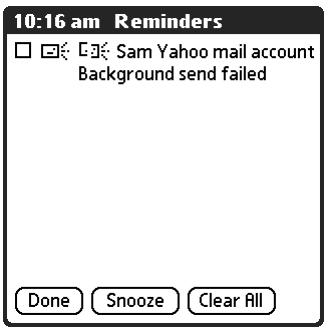
Tap the notification or open the account in the VersaMail application to view a detailed error message.
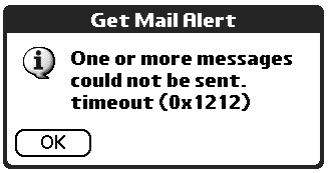
Viewing the error message deletes the notification from the Reminders screen. The Reminders screen shows only the most recent notification for a given e-mail account, no matter how many automatic send retries have been attempted for that account.
If automatic send retry fails after the third attempt, you must send the message manually.
NOTE If you perform a soft reset or a HotSync operation during automatic send retry, the retry cancels. You must manually send any messages in the Outbox after the soft reset.
Modifying messages in the Outbox
A message in the Outbox waiting for the next automatic send retry can be edited, moved, or deleted. However, if you edit the message, you will need to perform a manual send in order to send the message. If the manual send fails, you can choose to store the message in the Outbox to await the next automatic send retry.
During automatic send retry, any message that the VersaMail application is attempting to send is in a locked state and cannot be edited, moved, or deleted. If you try to modify a message in the locked state, an error message appears.
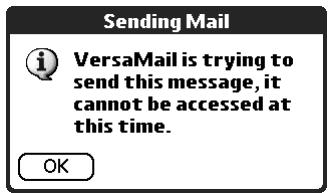
If a send retry fails after the third attempt, the message is stored in the Outbox in the error state. You can send the message again manually, or edit, move, or delete the message. However, if you edit the message, you will need to perform a manual send in order to send the message. If the manual send fails, you can choose to store the message in the Outbox to await the next automatic send retry.
See the next section, "Outbox icons in the VersaMail application," for icons that indicate messages awaiting the next automatic send retry as well as messages in the locked and error state.
Outbox icons in the VersaMail application
The icons to the left of a message in the Outbox indicate the message's status.

Message is waiting either to be manually sent or to be sent during the next send retry. You can edit, move, or delete a message in this state.

Send retry is currently in process; you cannot edit, move, or delete a message in this state.

Third automatic send retry has failed. You must manually send a message in this state.
Completing drafts
If you are composing an e-mail message and you exit the VersaMail application before tapping Outbox, Send, or Cancel, the e-mail automatically moves to the Drafts folder. To finish editing the e-mail, tap the folders pick list and select Drafts. Select the e-mail you want to complete or edit, and tap Edit. You can also delete the e-mail in the Drafts folder.
Attaching a personal signature
You can include a personal signature, such as your name, e-mail address, and telephone number, with each e-mail you send.
To create a personal signature:
- In the Inbox, tap the Menu icon l
- Tap Options.
- Select Preferences.
- Tap Signature.
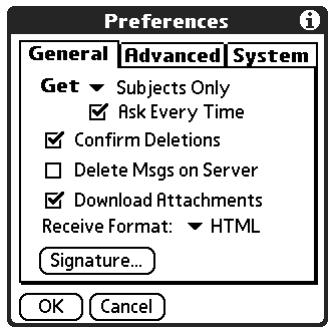
- Tap the Attach Signature check box to select it.
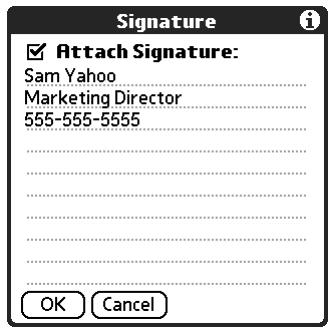
- Enter your signature information.
- Tap OK.
Forwarding e-mail
You can quickly forward e-mail messages from any folder other than the Outbox folder.
To forward e-mail:
- Tap the folders pick list and select the folder that contains the e-mail.
-
Tap the e-mail message to display it.
-
Tap the Forward button.
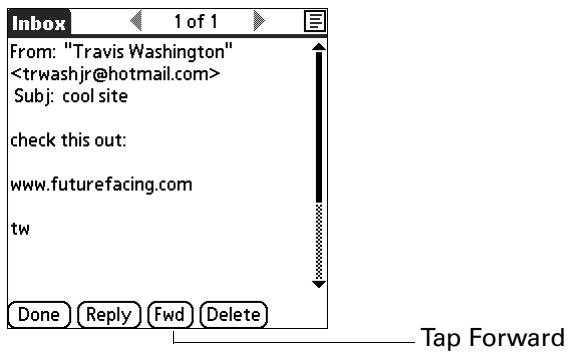
-
Tap To.
-
On the Recipient List screen, enter or look up the recipient address. See the procedure for creating new e-mail earlier in this chapter for more information on addressing messages.
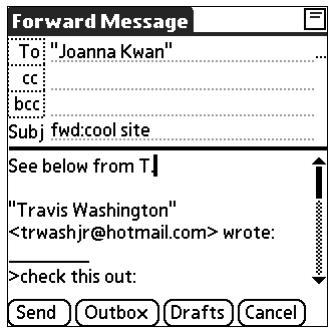
- (Optional) Enter some text describing the forwarded message.
- Tap Send to send the message, or tap Outbox to store it in the Outbox.
NOTE Forwarded messages are always sent as text only, even if you received the original message in HTML format.
Replying to e-mail
You can reply to an e-mail message as you are reading it, or start the reply when viewing messages in the folders list view.
To reply to an e-mail message that you are reading:
-
Tap the message you want to reply to.
-
Tap Reply.
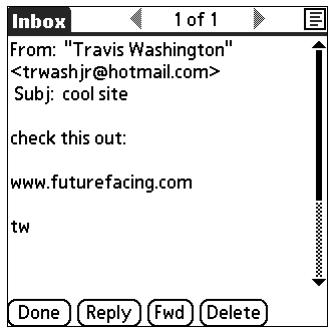
- In the Reply Options dialog box, select options for replying to the sender only or to all e-mail recipients, and for including original message text.
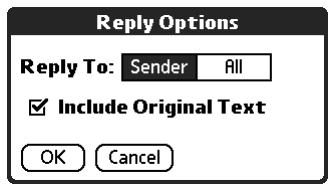
-
Tap OK.
-
Enter a reply.
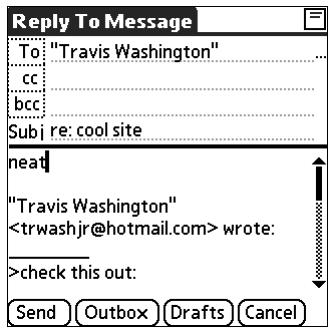
- Tap Send to send the message now, or tap Outbox to send it later.
NOTE Replies are always sent as text only, even if you received the original message in HTML format.
To reply to an e-mail message from the folders list:
- Tap the folders pick list and select the folder, such as Inbox or Drafts, that contains the message.
For handhelds with a navigator: On the message screen, tap the folder name in the upper-left corner to open the message menus, and then press Right on the navigator to move to and open the Options menu.
- Tap the envelope icon next to the message, and then select Reply from the pick list.
For handhelds with a navigator: Press Down on the navigator to move to the Reply option, and then press Select to select this option.
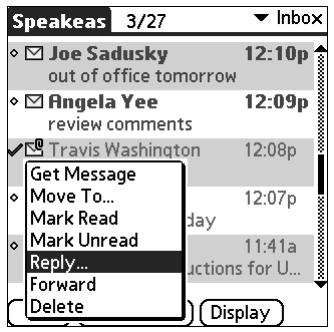
- In the Reply Options dialog box, select options for replying to the sender only or to all e-mail recipients, and for including original message text.
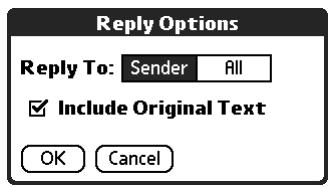
-
Tap OK. The e-mail is addressed.
-
Enter a reply.
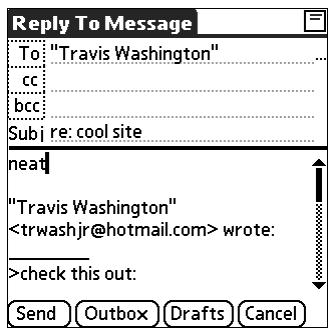
- Tap Send to send the message now, or tap Outbox to send it later.
NOTE Replies are always sent as text only, even if you received the original message in HTML format.
Working with URLs
You can tap a URL in a received message to view the web page or file associated with the URL. Tapping the URL opens a browser window (using the default browser on your handheld) to view the page or file. This feature works only with certain types of browsers; if you do not have the right type of browser installed on your handheld and set as the default, you cannot open URLs in e-mail messages.
You can also tap an embedded e-mail address to open a new message screen with the address in the To field.
Depending on whether the received message is displayed in HTML or plain text format, URLs and e-mail addresses appear in slightly different forms, as follows:
HTML URLs and e-mail addresses appear as blue underlined text.
Plain text
URLs appear as any text beginning with "http:///" or "www." You cannot view the page or file associated with a URL that does not begin with "http:///" or "www" in a plain text message.
E-mail addresses appear in the form
"username@mailservice.com" (or other three-letter extension such as .net, .org, and so on).
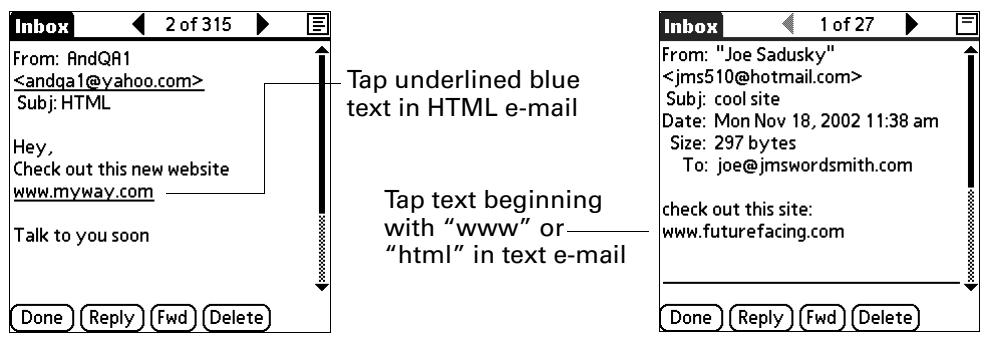
Working with attachments
You can easily download, view, and send attachments with e-mail messages.
Downloading attachments to your handheld
At times e-mail contains attached files, such as Microsoft Word or text files, that you want to view or install on your handheld. You can download and work with the following attached files:
vCard (.vcf) This is an address.
vCal (.vcs) This is usually a calendar appointment or a To Do task.
Text (.txt) This is usually a memo or another plain text file.
HTML (.html or .htm) Usually a web page or a formatted text file. Your handheld displays HTML attachments with full formatting intact.
Microsoft Word (.doc) The formatting is stripped and the text of most Microsoft Word documents is shown.
JPEG (.jpg), bitmap (.bmp), and TIFF (.tif) tiles These are graphics files. You can download these files and view them using the PalmTM Photos application on your handheld if your handheld comes with this application. For other handhelds, your handheld may contain a viewer that allows other applications to pass it a file for viewing. For example, your handheld may contain an image viewer that allows another application to pass it a JPEG attachment for viewing. You do not need to do anything different in the steps for downloading and viewing attachments; if your handheld contains such a viewer, the attachment is automatically opened. If your handheld does not contain such a viewer, you cannot view the attachment.
Other application files For other types of application files, your handheld may contain a viewer that allows other applications to pass it a file for viewing. For example, your handheld may contain an image viewer that allows another application to pass it a GIF attachment for viewing. You do not need to do anything different in the steps for downloading and viewing attachments; if your handheld contains such a viewer, the attachment is automatically opened. If your handheld does not contain such a viewer, you cannot view the attachment. Among the file types that may be supported are GIF, MP3, and AAC files.
PRC (.prc) This is a Palm OS® application that you can install and run on your handheld.
PDB (.pdb) This is a file that works with specific Palm OS applications.
Among the types of attachments you can receive are the following handheld application files:
Address Book entries
Date Book appointments
To Do list items
Text memos
You can also save downloaded files to an expansion card. See "Saving attachments to an expansion card" later in this chapter for information.
NOTE The maximum message size that you can retrieve is 60KB for the body text and 2MB total, including attachments. If the attachment is too large, it cannot be downloaded to the handheld.
To download an attachment:
- In the Inbox, tap the message with the attachment.
A paper clip icon appears on the message's icon if the message has an attachment that has been downloaded.
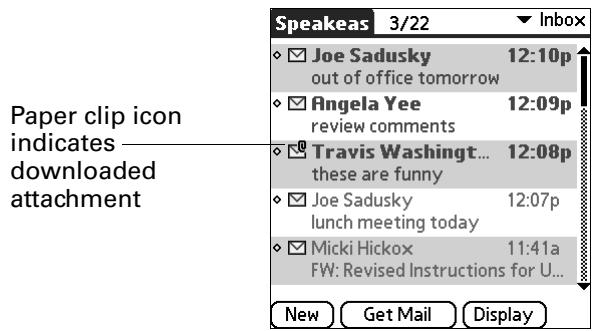
If you choose to get messages by subject only, you must tap More for each downloaded message in order to view the body of the e-mail message plus any attachments, up to the maximum message size. If the downloaded message (either body text alone or body text plus any attachments) exceeds your maximum message size, you see a message showing that the message and/or attachments were too large and asking if you would like to continue downloading them.
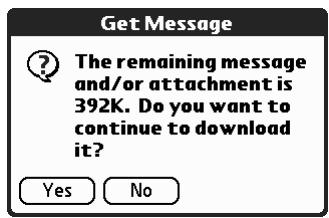
For example, if the maximum message size is 5KB and you download a body of 2KB, then any attachment under 3KB is also downloaded, and any attachment over 3KB is not. See "Downloading large attachments" later in this chapter.
- Click the red paper clip icon in the upper-right corner. If the attachment is not downloaded, a paper clip icon will not appear even though the message was sent with an attachment. You must download the attachment for the paper clip icon to appear.
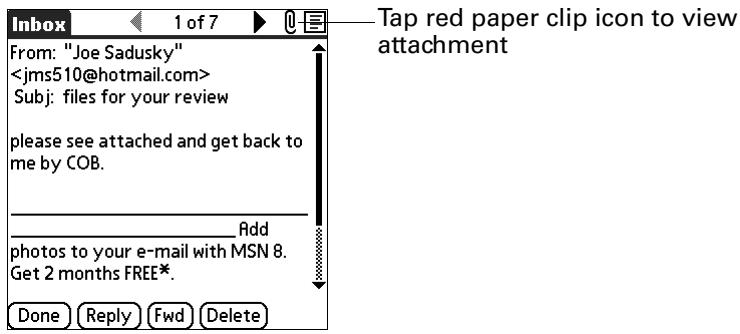
- Your options for working with a downloaded attachment vary according to the file type.
| Type | Action |
| Viewable file: text, Word doc, To Do task, HTML, graphic, and so on | Tap the name of the attachment you want to view, and then tap View. If there are multiple viewers registered on your handheld for the attachment file type, either use the default viewer shown or select a viewer from the list. For example, if you have two photo viewing applications on your handheld and you select a photo attachment on the list, the Viewer pick list appears containing the names of the photo viewing applications. Tap the pick list and select the application you want to use to view the photo attachment. If there is only one viewer registered for the attachment file type, the viewer is shown without a list. |
| Palm OS application or database file (.prc or .pdb) | Tap the name of the attachment you want, and then tap Install. The file is installed automatically. |
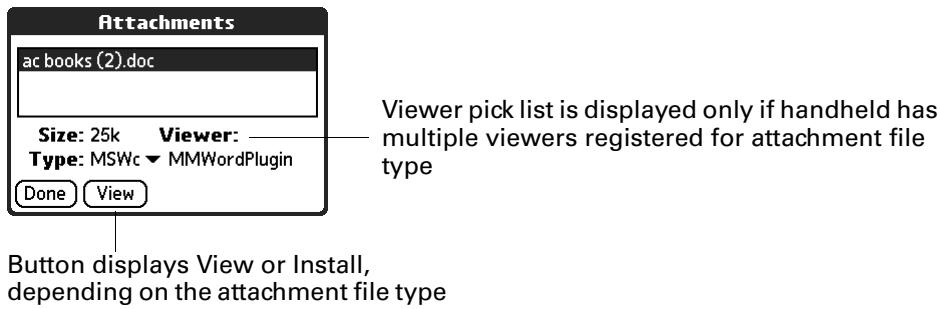
- When you have finished viewing or installing the attachment, tap Done. This returns you to the Attachments dialog box, where you can select another attachment if you want to.
If there is no Done button on the attachment screen, tap the VersaMail icon in the Applications Launcher to return to the Inbox of the account you were in.
- When you have finished viewing or installing all attachments, tap Done in the Attachments dialog box. This returns you to the Message screen.
Downloading large attachments
Downloading and viewing a message with a single attachment that exceeds your maximum message size, or a message with multiple attachments whose total size exceeds your maximum message size, requires some extra steps.
To determine if a message has an attachment or multiple attachments that exceed the maximum message size:
In the Inbox, tap the message title.
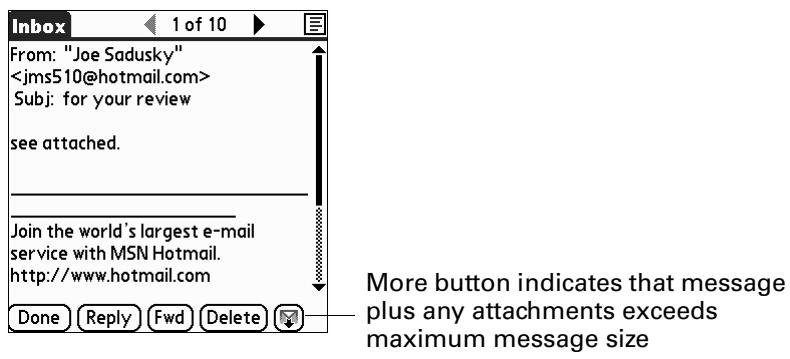
If the message plus attachments exceeds the maximum message size, the More button appears on the Message screen. In the case of multiple attachments, if some of the attachments were downloaded completely, you see both the red paper clip icon (indicating fully downloaded attachments) and the More button (indicating incompletely downloaded attachments).
To download a single attachment that exceeds the maximum message size:
- Tap the More button.
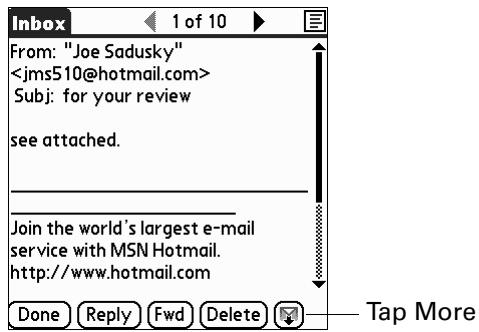
- Tap No to stop downloading and return to the Message screen.
Tap Yes to continue downloading the entire message with attachment.
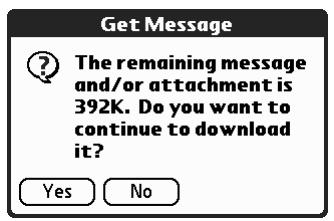
- (Optional) Tap Cancel to stop downloading and return to the Message screen.
When downloading is complete, the red paper clip icon appears and the More button is no longer displayed. Follow the procedure for viewing an attachment presented earlier in this chapter.
To download multiple attachments whose total size exceeds the maximum message size:
- Tap the red paper clip icon.
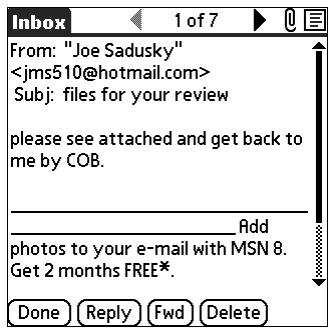
-
Select one of the following:
-
To return to the Message screen, tap Cancel.
- To view any fully downloaded attachments without continuing to download additional attachments, tap No. Follow the procedure for viewing an attachment presented earlier in this chapter.
- To continue downloading all messages, tap Yes.
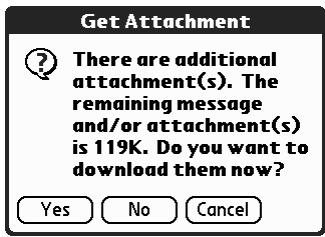
- (Optional) Tap Cancel to stop downloading and return to the Message screen.
When downloading is complete, the Attachments dialog box appears, showing all downloaded messages. Follow the procedure for viewing an attachment presented earlier in this chapter.
Saving attachments to an expansion card
If you have purchased an expansion card that provides extra memory, you can save downloaded attachments to the expansion card.
To save an attachment to an expansion card:
- Insert the expansion card into the slot on your handheld.
- Follow the procedure for downloading attachments described earlier in this chapter.
- On the Attachments screen, tap Save To Card.
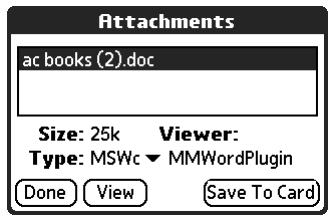
- Tap OK.
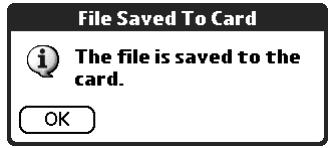
Attaching files from a handheld application
You can attach files on your handheld to e-mail messages you send. For example, you can attach files from the various handheld applications, such as any Date Book appointment (.vcs), To Do List tasks (.vcs), or text memos (.txt).
NOTE The maximum size message you can send is 60KB for the body text and 2MB total, including attachments. The maximum number of attachments for any e-mail message is ten, regardless of the attachments' total size.
You can attach the following types of files from a handheld application:
vCard (.vcf)
vCal (.vcs)
Memo/Text (.txt)
PRC (.prc)
PDB (.pdb)
To attach a file from a handheld application:
- In the Inbox, tap the Menu icon + .
- Tap Options.
- Tap Attachment.
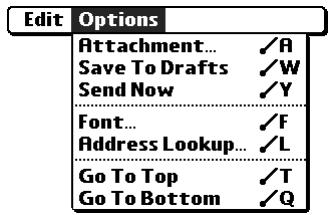
- Tap the Type pick list and select the file type.
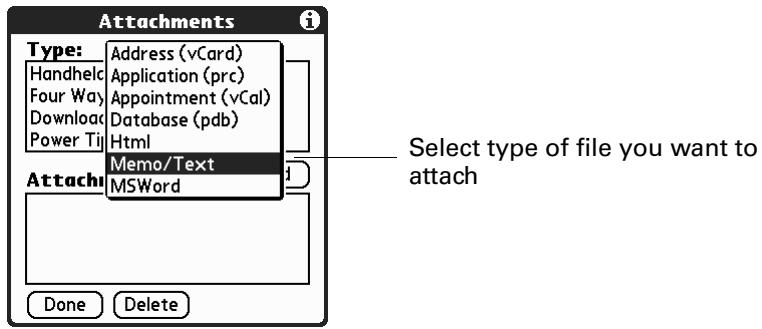
All files of the selected type appear in the Type box. For example, if you select Appointments (vCal), tap Date Book to see a list of appointments from a particular date that you can attach, or tap To Do to see To Do List tasks.
- Tap the file that you want to attach, and then tap Add.
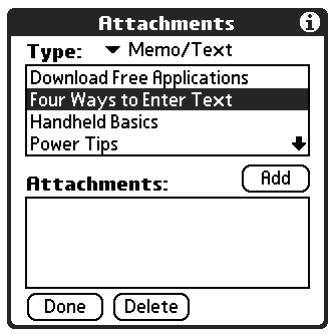
The selected file appears in the Attachments box.
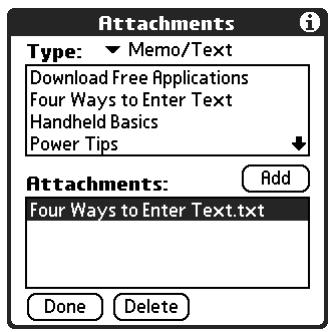
- Repeat steps 2 and 3 for each attachment you want to add, and then tap Done.
TIP To delete an attachment from an e-mail message, tap the attached file in the Attachments box and then tap Delete.
- Tap Send or Outbox.
Attaching files from an expansion card
If you have purchased an expansion card and have saved files to the card, you can attach files from the card to an e-mail message you are sending. The types of files you can attach from an expansion card include the following:
Word docs
HTML files
JPEG and GIF graphics files
MP3 and WAV audio files
Any other file type
To attach a file from an expansion card:
- Insert the expansion card into the slot on your handheld.
- On the New Message screen, tap the Menu icon
- Tap Options.
- Tap Attachment.
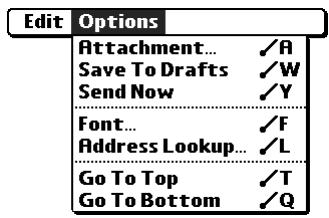
- Tap the From pick list and select Files on Card.
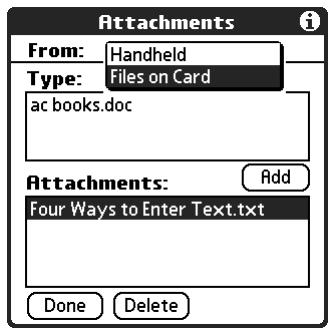
- Tap the Type pick list and select the file type.
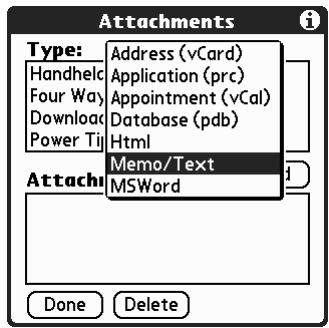
Only file types that correspond to the types of files on the card will be displayed on the list. For example, if the card contains only Word docs and Address Book entries, only the file types "doc" and "vCard" will be listed. You can select a particular file type, or select All Files to view all files on the card.
- Tap the file that you want to attach, and then tap Add.
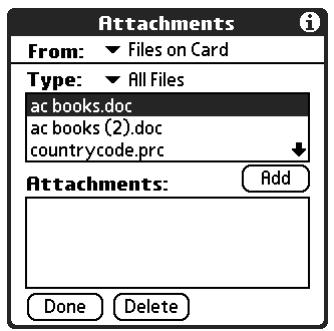
The selected file appears in the Attachments box.
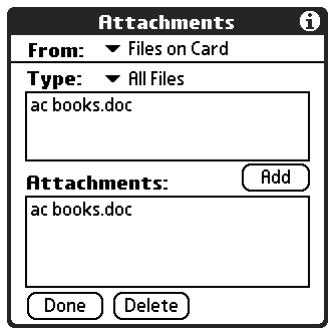
- Repeat steps 6 and 7 for each attachment you want to add, and then tap Done.
TIP To delete an attachment from an e-mail message, tap the attached file in the Attachments box and then tap Delete.
- Tap Send or Outbox.
Forwarding an attachment
You can include an attachment on any message you forward, up to the maximum message size.
To forward a message with an attachment:
- Tap the folders pick list and select the folder that contains the e-mail.
- Tap the e-mail message to display it.
- Tap the Forward button.
- Tap To. On the Recipient List screen, enter or look up the recipient address. See "Creating and sending new e-mail" earlier in this chapter for more information on addressing messages.
- Follow the procedure for attaching files presented earlier in this chapter.
Deleting messages
You can delete one or more e-mail messages from any folder. For example, you can delete old messages in the Inbox or messages that you were working on in the Drafts folder. When you delete a message, it is placed in the Trash folder. See "Emptying the trash" later in this chapter.
To delete messages on the server when you empty the trash on your handheld, you can select the Delete Messages on Server setting in VersaMail Preferences. If you don't periodically empty the trash and delete messages on the server, any incoming e-mail may "bounce" back to the sender. See "Setting preferences for getting and deleting e-mail" later in this chapter.
To delete one or more messages:
- Tap the folders pick list and select the folder that contains the message you want to delete.
- Do one of the following:
| Item to delete | Action |
| One message | Tap the bullet next to the message's icon. |
| Multiple messages | Tap the bullet next to the icon of each message that you want to delete. |
| A group of adjacent messages | Drag the stylus along the left of the message icons. To select another group, lift the stylus and select the next group of messages. |
-
Do one of the following:
-
Tap the message icon next to a selected e-mail message, and then tap Delete.
- Tap the Menu icon , and then tap Delete.
- For handhelds with a navigator: Press Right on the navigator to move to and open the Message menu, press Down to move to the Delete option, and then press Select to delete the message.
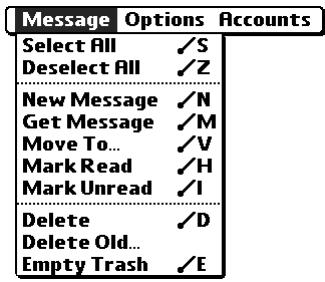
-
Tap OK.
-
(Optional) Tap Also delete message(s) on server if you want to delete the message from the server now.
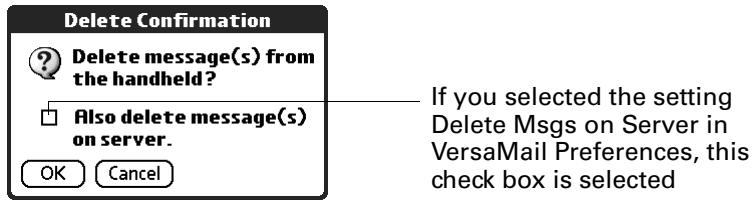
The selected messages move to the Trash folder and are deleted from your handheld when you empty the trash. If you set the preference to automatically empty the trash, the messages are deleted when the trash is emptied. By default, the trash auto-empties all deleted e-mail older than one week. See "Emptying the trash" later in this chapter for more information.
IMPORTANT If you delete a message on the server, you cannot retrieve it and view it again later.
To delete messages before a certain date:
- In the Inbox, tap the Menu icon .
- Tap Delete Old from the Message menu.
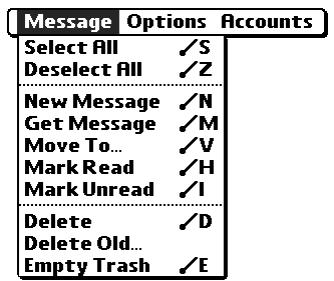
- Tap the Folder pick list and select the folder that contains the messages you want to delete.
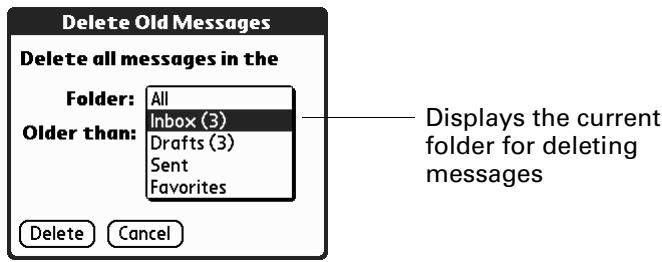
- Tap the Older than pick list, and then tap One Week, One Month, or Choose Date.
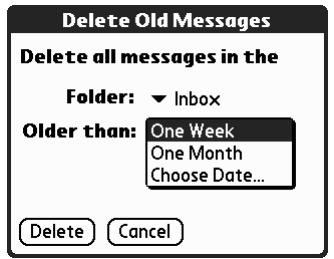
If you tap Choose Date, you can select a date from the calendar.
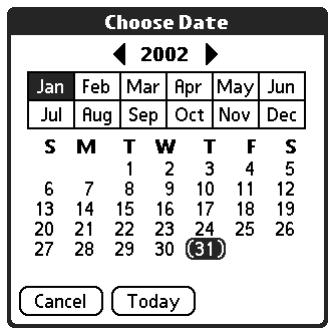
Tap a date to select it, or tap Today
- Tap Delete.
- (Optional) Tap Also delete message(s) on server if you want to delete the message from the server now.
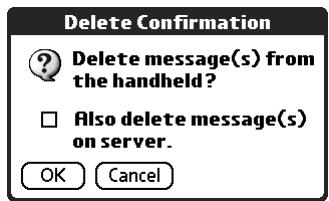
- Tap OK.
Emptying the trash
Deleted e-mail accumulates in the Trash folder and takes up space on your handheld. To increase memory, you should empty the trash regularly. If you want to automatically empty the trash, you can set a preference to empty the trash immediately or empty any e-mail older than a certain number of days.
To empty the trash:
- In the Inbox, tap the Menu icon .
- Tap Emptytrash from the Message menu.
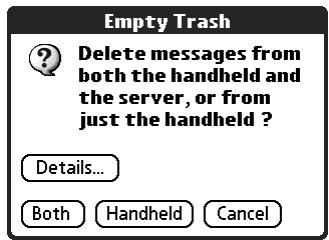
NOTE If Auto-Empty Mail from Trash is selected in VersaMail Preferences, a message asks if you want to delete the trash.
- (Optional) Tap Details to see how many messages are in the trash and whether the messages are set to be deleted on the server.
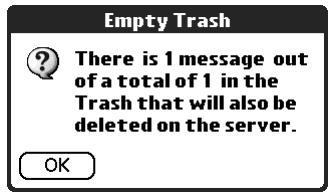
- If you want to delete messages from the handheld as well as from the server, tap Both. A message asks if you want to update the server now.
To delete the message from only the handheld now, tap Handheld.
NOTE Many e-mail providers, such as Yahoo, have size restrictions for mail storage. If your mailbox on the server becomes full, messages are returned to the senders.
To have the trash emptied automatically:
- In the Inbox, tap the Menu icon 0 .
- Tap Options.
- Tap Preferences.
4. Tap Advanced.
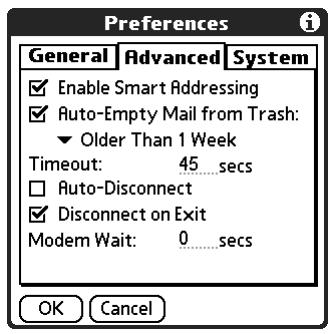
By default, Auto-Empty Mail from Trash is selected, and the time interval is set at Older Than 1 Week.
-
Tap the pick list, and select how often you want the e-mail messages automatically emptied from the trash.
-
Immediately.
- Older Than 1 Day.
- Older Than 3 Days.
- Older Than 1 Week.
- Older Than 1 Month.
6. Tap OK.
Marking messages as read or unread
You can mark messages as read or unread. When you tap a message to read it, it is automatically marked as read.
NOTE Because POP servers do not support the read or unread message feature, the message is in bold or regular typeface for POP accounts on the handheld, but you can't connect with the server to change the message state.
To mark messages as read or unread:
- Tap the folders pick list and select the folder you want.
- Tap the icon next to the message you want to mark.
3. Tap Mark Read or tap Mark Unread.
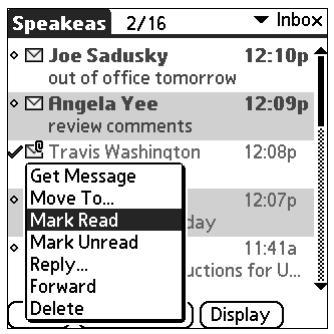
TIP To mark multiple messages, tap the bullets next to the messages you want, tap the Menu icon , and then select Mark Read or Mark Unread.
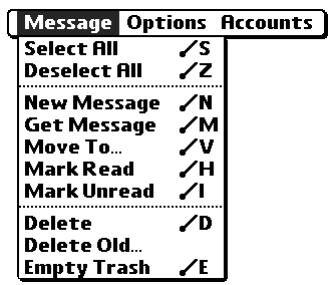
- For IMAP accounts only: Tap Handheld to mark the messages as read or unread on your handheld. Tap Both to mark the messages on both the handheld and the server.
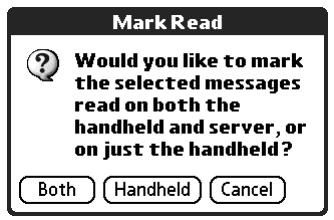
If you tap Both, this message appears.
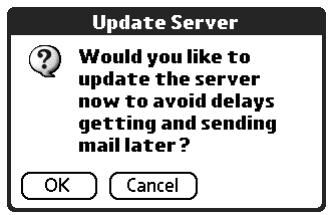
Tap OK to connect with the server and immediately mark the messages as read or unread on the server. This action also processes any other pending actions on the server, such as messages not yet deleted.
Tap Cancel if you want the messages marked during the next HotSync operation or the next time you connect to the server.
NOTE Because POP servers do not support the read or unread message feature, the message is in bold or regular typeface for POP accounts on the handheld, but you can't connect with the server to change the message state.
Read messages appear in plain text; unread messages appear in bold text.
Setting preferences for getting and deleting e-mail
VersaMail Preferences determine how the VersaMail application gets, sends, and deletes e-mail.
To set e-mail preferences:
- Tap the Menu icon
- Tap Options.
- Tap Preferences.
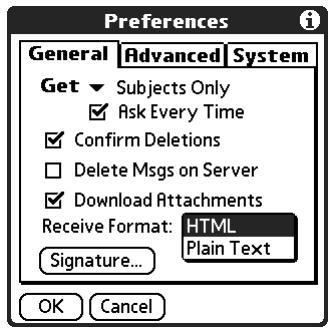
4. Select preferences:
Get Enables you to retrieve the subject only or the entire message.
Ask Every Time Displays a dialog box for choosing subjects only or entire messages each time you retrieve e-mail. If deselected, messages are retrieved according to the option you select in the Get pick list.
Confirm Deletions Displays a confirmation dialog before deleting e-mail.
Delete Messages on Server If selected, automatically deletes messages on the server that you have deleted on your handheld. If not selected, you will be asked each time you delete messages on your handheld whether you want to also delete them on the server. Because mailboxes on the server usually have size restrictions, we recommend periodically deleting messages on the server.
Download Attachments Causes files attached to e-mail to be automatically downloaded to your handheld. Attachments that exceed the maximum message size cannot be downloaded. See "Working with attachments" earlier in this chapter for more information.
Receive Format Enables you to retrieve messages in HTML format or in plain text format. If you choose HTML, any messages sent to you in HTML format will be displayed with basic HTML formatting intact. Other messages will be displayed as plain text. If you choose Plain Text, all messages will be displayed as plain text, regardless of the format in which they were sent. Default setting is HTML.
See "Working with URLs" earlier in this chapter for more information on receiving e-mail in HTML format.
Signature Enables you to attach a default signature to all your outgoing messages. See "Attaching a personal signature" earlier in this chapter for more information.
Adding or updating an Address Book entry directly from a message
You can add or update an e-mail address in the Address Book directly from the body of a received e-mail message.
To add a new Address Book entry:
- On the Message screen, tap the Menu icon .
- Tap Options.
- Tap Add to Address Book.
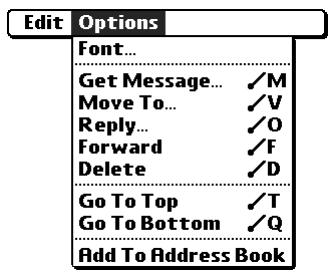
A dialog box appears with the "From" address displayed. If a Display Name exists for this Address Book entry, the Last name and First name fields show the display name.
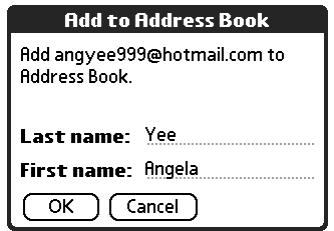
- (Optional) If the Last name and First name fields are blank, enter the first and last name associated with the "From" e-mail address.
- Tap OK to add the e-mail address to the Address Book, and then tap OK in the confirmation dialog box.
You can also update an existing Address Book entry with a new e-mail address, or create a second Address Book entry for a name that has an existing record. The procedure is the same as for adding a new Address Book entry. If you tap Add to Address Book from the body of an e-mail message and a record already exists for the recipient name, you are prompted either to update the e-mail address for the recipient or to create a new record for the recipient.
Synchronizing E-mail Between the Handheld and the Desktop
IMPORTANT You must have a Windows computer to synchronize e-mail between your handheld and your computer.
To manage your e-mail on your desktop as well as on your handheld, you can synchronize an e-mail account on the handheld with an e-mail application on the desktop. You can use many popular e-mail applications, called clients, such as Microsoft Outlook, Eudora, Lotus Notes, Outlook Express, or any other e-mail clients that use MAPI.
This chapter describes the following:
Starting the Palm™ VersaMail™ HotSync® Conduit
- Configuring and activating accounts in the HotSync Manager
Synchronizing e-mail on the handheld with a desktop e-mail application
- Converting attached files using attachment conversion plug-ins
Configuring an account in HotSync Manager
Before synchronizing an e-mail account, you configure the account's settings in the Palm VersaMail HotSync Conduit. The settings have to be specified only once unless you need to make changes.
To start Palm VersaMail HotSync Conduit:
- Click the HotSync Manager icon in the Windows system tray.
-
Select Custom.
-
Select VersaMail in the Conduit list.
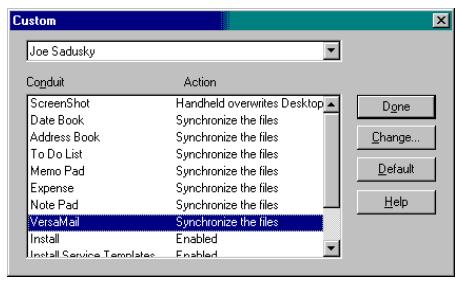
-
Click Change.
-
Select Synchronize Active Accounts.
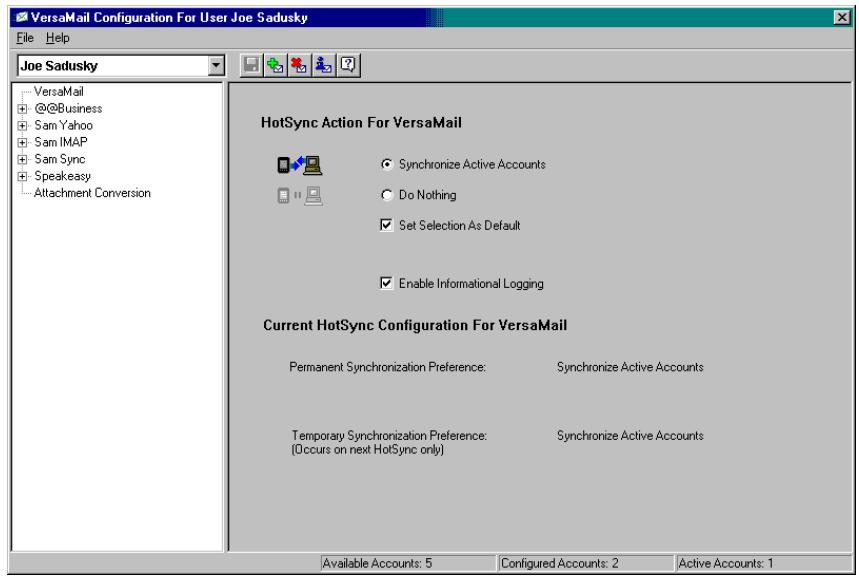
-
(Optional) Select the check box Enable Informational Logging if you want the HotSync log to record information, such as errors encountered, about the conduit during a HotSync operation.
-
(Optional) Select the check box Set Selection As Default to make the current settings the default settings for all accounts.
Setting synchronization options and account settings
Next, you must configure each e-mail account's general synchronization settings. For example, if you created an Earthlink e-mail account on the handheld and want to synchronize that with the desktop, set the synchronization options for the Earthlink account. During a HotSync operation, the Earthlink account on the handheld and the e-mail application specified in the conduit are synchronized.
To configure an account and set the synchronization options:
- On the VersaMail Configuration For User ... screen, click the plus sign to the left of the account you want to configure.
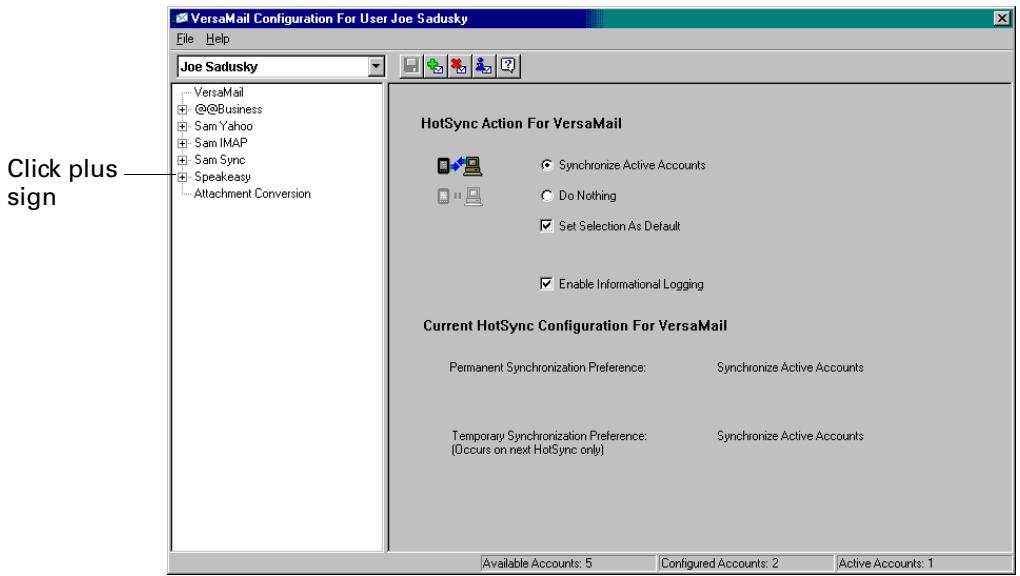
- Under the account name, click Mail Client Sync Setup.
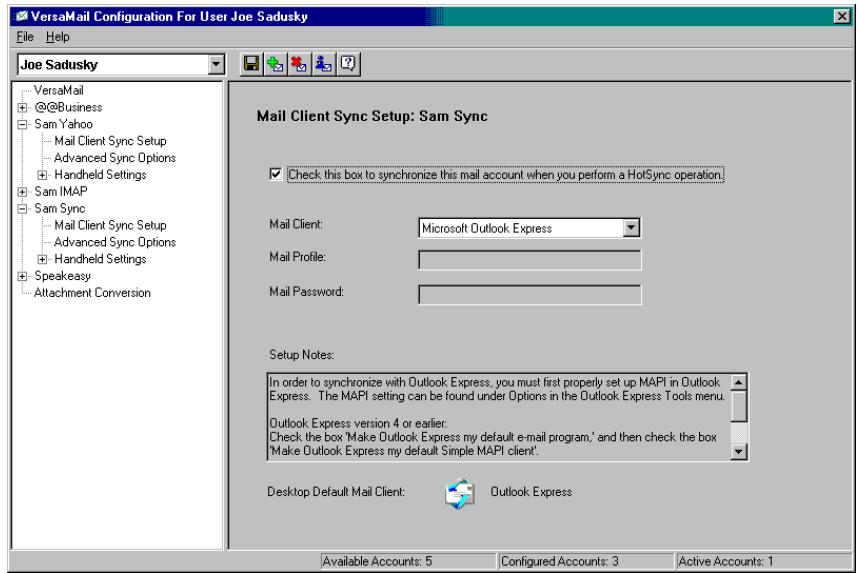
-
Select the option Check this box to synchronize this mail account when you perform a HotSync operation; otherwise, the account cannot be synchronized.
-
Click the Mail Client pick list and select the desktop e-mail application you will use to synchronize the selected account with your handheld. For each application, additional setup information is displayed in the Setup Notes box. See the following table for additional setup information for each client.
TIP If your e-mail application is compatible with Extended MAPI, try Microsoft Exchange 5.0 or later as a choice for the Mail Client option. If your e-mail application is compatible with Simple MAPI (SMAPI), try Microsoft Outlook Express as a choice for the Mail Client option. Although Netscape uses SAPI, Netscape is not supported.
(Optional) If prompted, enter profile and password information for the client you selected.
IMPORTANT You must select the synchronize check box and select a mail client in order to synchronize the account between your desktop and your handheld.
| Mail Client | Action |
| Microsoft Exchange 5.0 or later | Select a MAPI profile to access the mail server. The conduit displays any existing MAPI profiles in the list. Enter your password for Exchange. |
| Microsoft Outlook 97 or later | Select the MAPI profile to access the mail server. The conduit checks for any existing MAPI profiles and displays them in the list. Enter your password for Outlook. See “Configuring Microsoft Outlook” later in this chapter for the changes you need to make in Outlook. |
| Microsoft Outlook Express 5.5 or later | If you select Microsoft Outlook Express, enter the password for your e-mail account. See “Configuring Microsoft Outlook Express” later in this chapter for details. |
Mail Client Action
Lotus Notes
Enter your Lotus Notes ID and password. Click Browse if you need to locate your Notes ID.
If you want to synchronize to a local mail file instead of a server mail file, select the Synchronize to local (replicated) mail file check box. (Check box appears only if you select Lotus Notes as your mail client.) You must do all of the following in order to synchronize to a local mail file:
Replicate the server mail file to the desktop.
Make sure the replicated mail file is in the Notes data directory.
If you have performed a custom Notes installation and have replicated the server mail file to another directory on your desktop, make sure that it is the path found in the notes.ini file.
Eudora 5.0 or later
See "Configuring Eudora" later in this chapter for more information about the settings to set in Eudora.
Direct POP connection to server
Select this option to synchronize an account by connecting directly with a POP server. You must enter the information about the server in the VersaMail application on your handheld when you create the e-mail account to access the server. You will enter information about the incoming (POP) server, the outgoing (SMTP) server, your e-mail username, your password, and your e-mail address. You can change these settings under Handheld Settings in the conduit; see the procedure for selecting handheld synchronization settings later in this chapter.
During the HotSync operation, the conduit reads the settings you selected. If the settings do not exist or all server information is wrong, an error is reported in the HotSync.log file. However, if the incoming server (POP) is correct, the Inbox is synchronized if the option to synchronize the Inbox is selected. If the outgoing server (SMTP) is correct, the Outbox is synchronized (send e-mail) if you selected the option to synchronize the Outbox. If neither is correct, then nothing happens.
Mail Client Action
| If you want to synchronize e-mail for an account that requires APOP authentication, you must select the option to use APOP on your handheld. See “Adding APOP to an account” in Chapter 5 for details. If you want to synchronize e-mail for an account that requires ESMTP authentication (for example, Yahoo accounts require ESMTP authentication), you must select the option to use ESMTP on your handheld. See “Adding ESMTP to an account” in Chapter 5 for details. The conduit does not support SSL for accounts set up as direct POP. | |
| Direct IMAP connection to server | Select this option to synchronize an account by connecting directly with an IMAP server. You must enter the information about the server in the VersaMail application on your handheld when you create the e-mail account to access the server. You will enter information about the incoming (IMAP) server, the outgoing (SMTP) server, your e-mail username, your password, and your e-mail address. You can change these settings under Handheld Settings in the conduit; see the procedure for selecting handheld synchronization settings later in this chapter. During the HotSync operation, the conduit reads the settings you selected. If the settings do not exist or all server information is wrong, an error is reported in the HotSync.log file. However, if the incoming server (IMAP) is correct, the Inbox is synchronized if the option to synchronize the Inbox is selected. If the outgoing server (SMTP) is correct, the Outbox is synchronized (send e-mail) if you selected the option to synchronize the Outbox. If neither is correct, then nothing happens. If you want to synchronize e-mail for an account that requires ESMTP authentication (for example, Yahoo accounts require ESMTP authentication), you must select the option to use ESMTP on your handheld. See “Adding ESMTP to an account” in Chapter 5 for details. The conduit does not support SSL for accounts set up as direct IMAP. |
| Other e-mail applications | Select Microsoft Exchange 5.0 or later as a choice for the Mail Client option if your e-mail application is compatible with extended MAPI. If your e-mail application is compatible with SAPI, select Microsoft Outlook Express as a choice for the Mail Client option. |
NOTE A profile contains configuration information, such as the location of incoming e-mail, your personal address book, and other information services that you can use. The profile may be MS Exchange Settings, your name, or something different. For more information on profiles, see your e-mail application's documentation.
- Under the account name, click Advanced Sync Options.
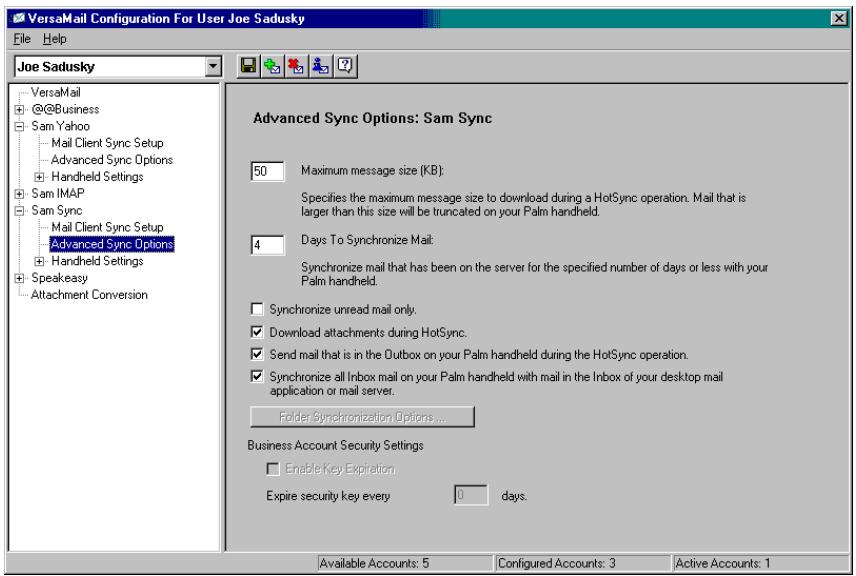
- Enter the synchronization options you want:
Maximum message size (KB)
Enter the maximum message size from 1 to 2048KB. If the message exceeds the maximum size, the conduit truncates the message. For example, the maximum message size might be 50KB, and the message might have the following:
Message header: 1KB
Body: 20KB
■ Attachment: 140KB
- Attachment: 220KB
In this case the conduit puts the message header, body, and attachment 2—totaling 41KB—on the handheld. Attachment 1 is removed because adding it to the message causes the message to exceed the maximum.
| Days To Synchronize Mail | Set how many days of e-mail, between 0 and 999, that e-mail should be synchronized. A value of 0 synchronizes all e-mail in the Inbox during the next HotSync operation. For other values, the conduit synchronizes e-mail for today and the number of days preceding today. For example, if you enter a value of 2, e-mail is synchronized for today and yesterday, but if you enter 3, e-mail is synchronized for today, yesterday, and the day before. |
| Synchronize unread mail only | Select whether to synchronize all e-mail between your desktop and your handheld, or unread e-mail only. By default, the check box is unselected, meaning that all e-mail will be synchronized. |
| Download attachments | Select whether to download attachments during synchronization. By default, the check box is selected; if deselected, only the body text of any message containing an attachment will be downloaded to your handheld during synchronization. |
| Send e-mail from Outbox | Select the check box to send any e-mail in the handheld’s Outbox during the next HotSync operation. |
| Synchronize incoming e-mail | Select the check box to synchronize the Inbox during the next HotSync operation. |
- (Optional) If you chose Microsoft Outlook, Microsoft Exchange, Lotus Notes, or Direct IMAP as your mail client, click Folder Synchronization Options.
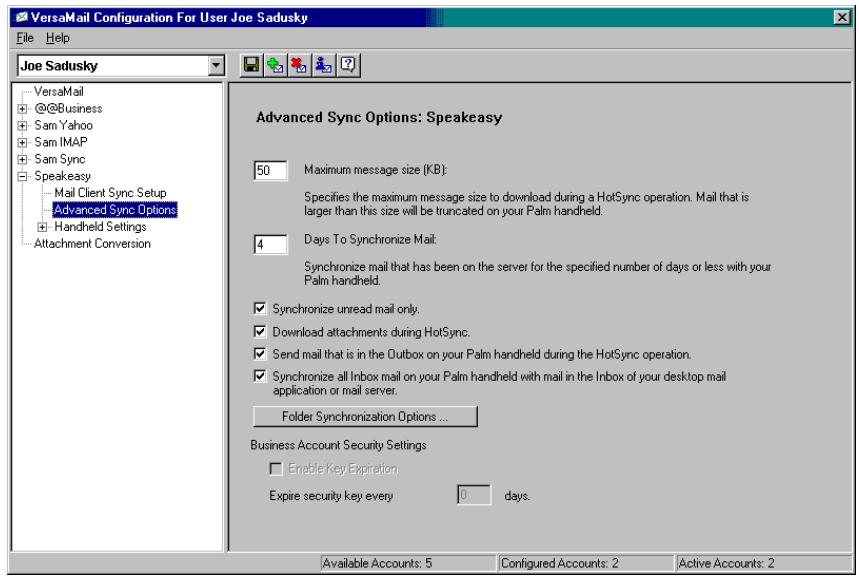
Set folder synchronization options as follows:
a. Click the name of the folder you want.
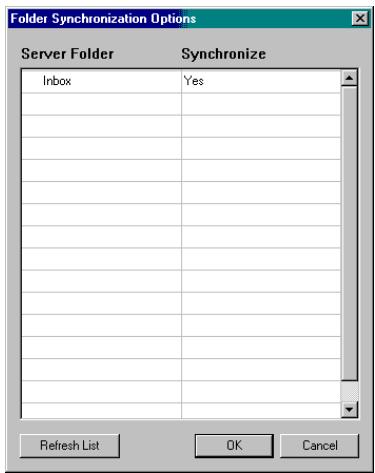
b. Click in the Synchronize column to the right of the folder name.
c. Click the arrow to open the drop-down list, and click Yes or No to synchronize the folder or not.
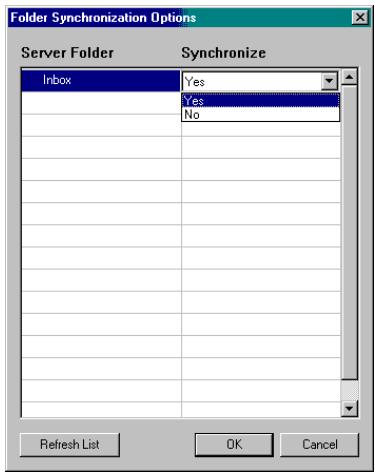
8. Click OK.
You can now set synchronization options for your handheld for the selected account.
To set handheld synchronization settings:
- Under the selected account name, click the plus sign to the left of Handheld Settings.
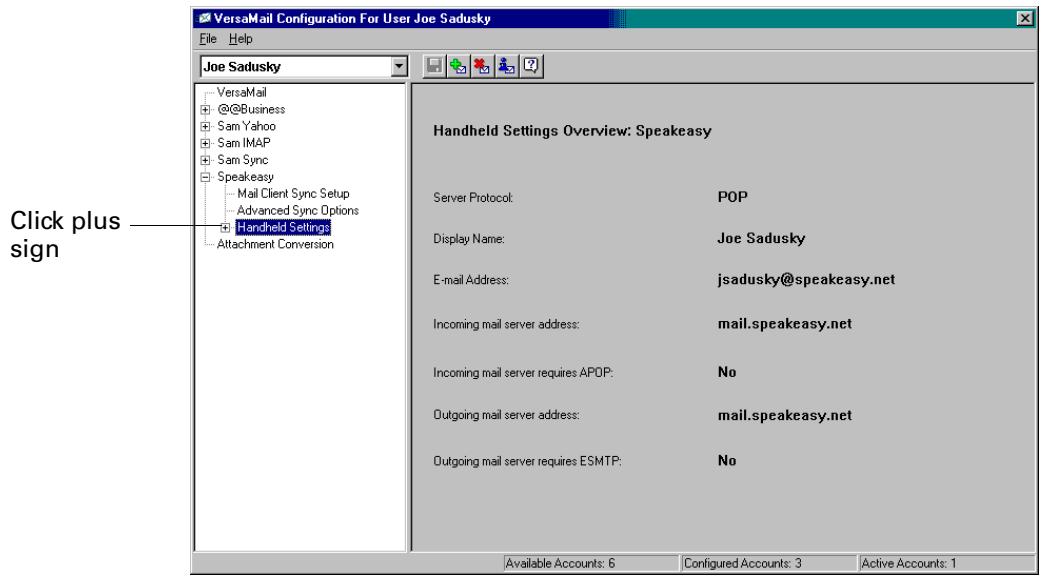
2. Click Account Information.
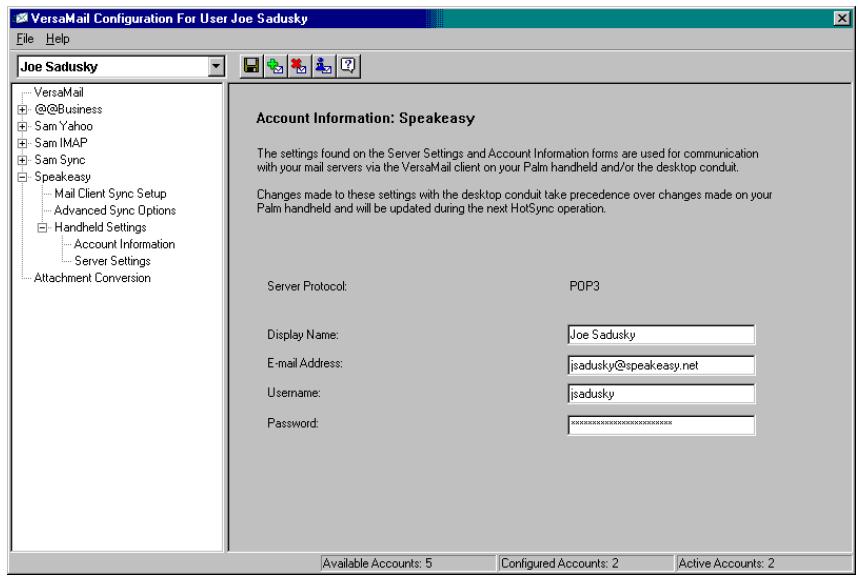
- If you are using an account that is already configured on your handheld, the account information will already be entered. If not, enter the following:
NOTE You do not need to fill in these fields if the account is a synchronize-only account and the mail client is not Direct POP or Direct IMAP.
Display Name Enter the name you want to appear on your outgoing messages, such as "Joe Smith."
E-mail Address Enter the e-mail address of the account you are accessing, such as exemplame@yahoo.com.
Username Enter the username you use to access your e-mail. This is generally the part of your e-mail address appearing before the @ symbol; it is usually not your entire e-mail address.
Password Enter the password for this account.
- Under Handheld Settings, click Server Settings.
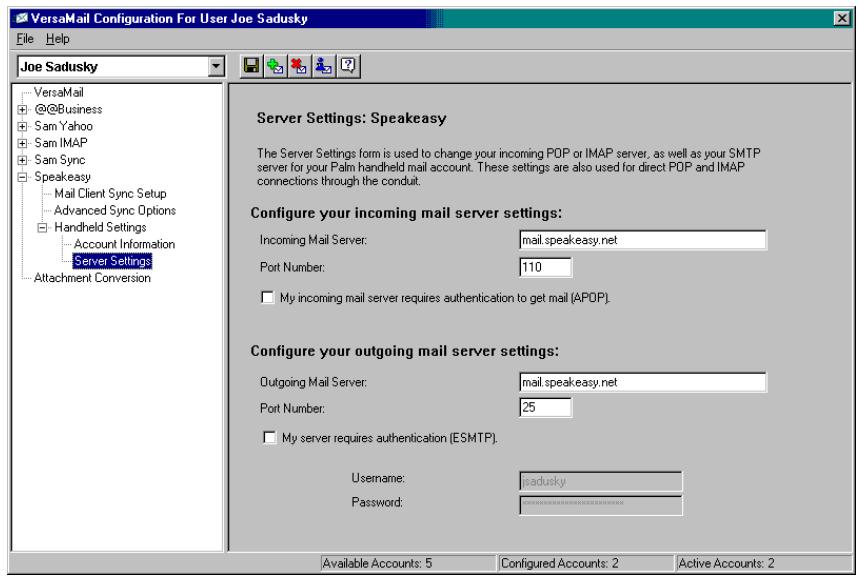
- If you are using an account that is already configured on your handheld, the account information will already be entered. If not, enter the following:
NOTE You do not need to fill in these fields if the account is a synchronize-only account and the mail client is not Direct POP or Direct IMAP.
| Incoming Mail Server | Enter the name of your incoming (POP) mail server, such as pop.mail.yahoo.com. |
| Incoming Mail Server Port Number | The default is 110 for POP and 143 for IMAP servers. If you are not sure about the correct port number, check with your mail server administrator. |
| Whether this account requires APOP authentication (POP accounts only) | Selecting this check box encrypts your username and password when traveling over the network. Some services require APOP to work properly, while others do not work properly if APOP is used. If you aren’t sure if your ISP or web e-mail provider supports APOP, check with your e-mail provider. See “Adding APOP to an account” in Chapter 5. |
| Outgoing Mail Server | Enter the name of your outgoing (SMTP) mail server, such as smtp.mail.yahoo.com. |
| Outgoing Mail Server Port Number | The default is 25, the port number most SMTP servers use. If you are not sure about the correct port number, check with your mail server administrator. |
| Whether this account requires ESMTP authentication | Select the My server requires authentication (ESMTP) if the outgoing server (SMTP) requires authentication. Check with your system administrator before selecting this option. See “Adding ESMTP to an account” in Chapter 5 for information. If you select this option, username and password fields appear. These fields are already filled in based on the account information you entered previously. In most cases the information displayed is correct; however, occasionally your authentication username and/or password is different from your account username or password. Check with your e-mail service provider for authentication username and password information. |
| If you need to enter new information, enter a username and/or tap the Password box and enter a password, and then tap OK. |
- Click the Save icon on the toolbar to save the settings for this account.
Account information screens
Two screens in the Palm VersaMail HotSync Conduit provide summary information on your accounts:
- The Account Overview screen indicates whether the account is active; whether the account has been synchronized and, if so, the last synchronization date; the mail client for this account; and whether the mail client and/or the incoming mail server has been changed since the last HotSync operation.
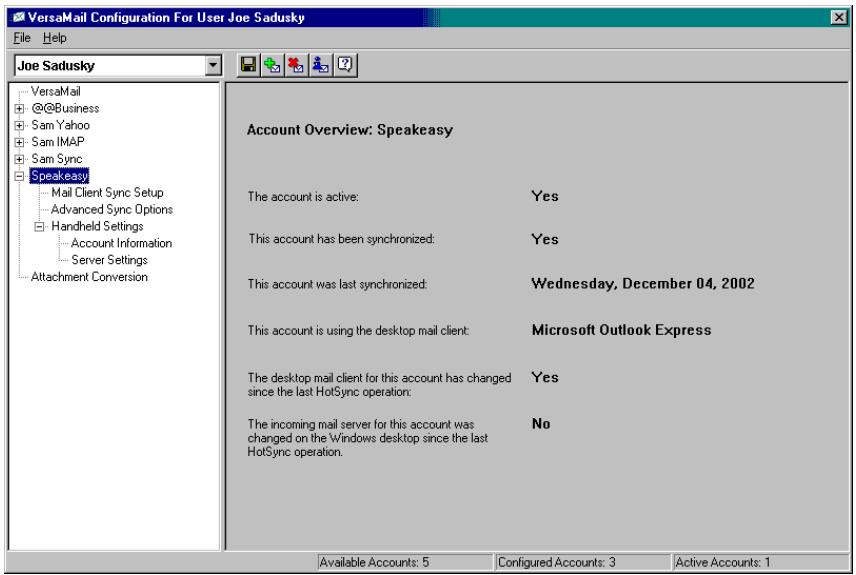
- The Handheld Settings Overview screen lists the server protocol, display name, e-mail address, incoming and outgoing mail server addresses, and whether APOP or ESMTP authentication is required.
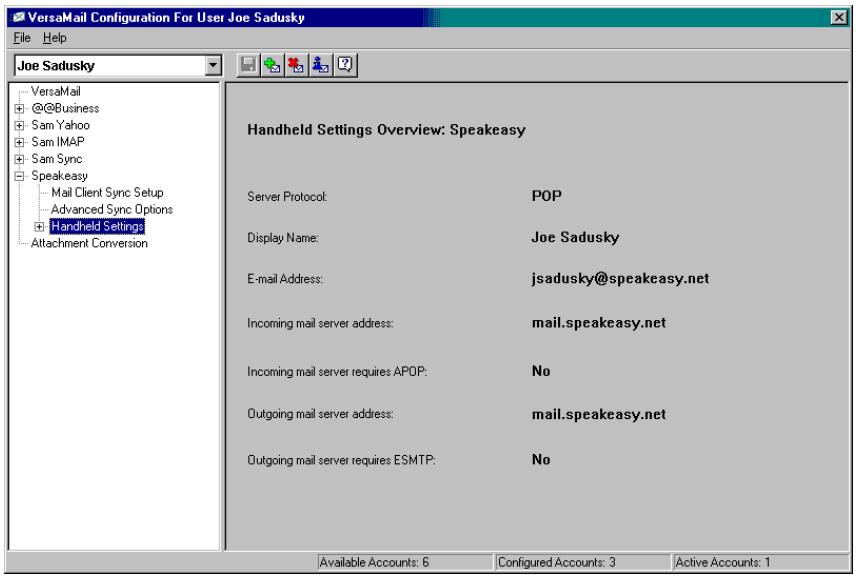
To view the Account Overview screen:
- Click the selected account name.
To view the Handheld Settings Overview screen:
Under the selected account name, click Handheld Settings.
Palm VersaMail HotSync Conduit shortcuts
You can use the icons in the toolbar to perform certain tasks quickly, such as saving account configuration settings.
| Icon | Action |
| Save account settings. Saves any changes you have made to an account. | |
| Add a new account. You are prompted to enter the account name and protocol. | |
| Delete an account. You are prompted to select the account to delete from a drop-down list. | |
| Quick Account Reference. Lists all accounts and shows whether they are active and the date they were last synchronized. | |
| Help. Displays the Help window with complete online help. |
Verifying handheld account settings before synchronizing accounts
Certain settings you configure on your handheld for a given e-mail account must be set correctly for the synchronization process as well. Before configuring an e-mail client on your desktop for synchronization, be sure to verify the following settings on your handheld:
- APOP, ESMTP, and SSL: If you want to synchronize e-mail for an account that requires either APOP or ESMTP authentication (for example, Yahoo accounts require ESMTP authentication) or a secure (SSL) connection for incoming mail, you must select the option to use APOP, ESMTP, or a secure connection on your handheld. See "Adding APOP to an account," "Adding ESMTP to an account," and "Using Secure Sockets Layer (SSL)" in Chapter 5 for details.
■ Mail filters: Any mail filters you have configured for a given e-mail account on your handheld also apply during the synchronization process. For example, if you have set filters to accept only e-mail containing the subject words "Current Software Project," only those same messages are synchronized between your desktop and your handheld. Be sure to turn mail filters off if you want to synchronize all messages between your desktop and your handheld. See "Turning filters on and off" in Chapter 5 for details.
Configuring Microsoft Outlook
You can synchronize Microsoft Outlook 97/98/2000/XP with a VersaMail e-mail account, but you must set Microsoft Outlook as the default e-mail handler. You must check your username and password.
To configure Microsoft Outlook:
- In the Control Panel, click Internet Options.
NOTE For Windows XP, click Network and Internet Connections, and then click Internet Options.
- Click the Programs tab.
- Select Microsoft Outlook as the default e-mail program.
- Click OK.
NOTE Make sure your username and password are set up correctly within Microsoft Outlook.
Configuring Microsoft Outlook Express
You can synchronize a VersaMail e-mail account with Microsoft Outlook Express 5.5 or 6.0, but you must set Outlook Express as the default e-mail handler.
NOTE Make sure your username and password are set up correctly within Outlook Express.
To configure Outlook Express:
- In the Control Panel, click Internet Options.
NOTE For Windows XP, click Network and Internet Connections, and then click Internet Options.
- Click the Programs tab.
- Select Outlook Express as the default e-mail program.
- Click OK.
TIP You can also make Outlook Express the default e-mail handler within the e-mail application. From the Tools menu, select Options. Click the General tab, and then click Make Default.
Configuring Eudora
If you are using Eudora as your e-mail application, you must set up MAPI in Eudora.
To set up MAPI in Eudora:
-
From the Eudora Tools menu, select Options.
-
Do one of the following:
-
If Eudora is the only e-mail application that you use, select Always as the MAPI setting.
-
If you use more than one e-mail application, select When Eudora is running as the MAPI setting.
-
Ensure that your username and password are set up correctly within Eudora. This information is needed to log in to Eudora to retrieve and synchronize your e-mail.
IMPORTANT Eudora must be running in order for you to perform a HotSync operation. The VersaMail application synchronizes with your Dominant Personality in Eudora 5.1 or later.
Converting attached files
You can use attachment conversion plug-ins to convert attached files that you are sending or receiving. Documents To Go plug-ins are automatically configured; however, you must install Documents To Go version 5 on your desktop computer and on your handheld for attachments to be converted properly. Some handhelds include version 5 of Documents to Go on the Software Essentials CD-ROM. See the Documents To Go Getting Started Manual for more information. If your handheld did not come with version 5 of Document To Go, you must go to www.dataviz.com to purchase and download this software.
When you receive a message with an attachment on your handheld, the file is converted to the DataViz format on the handheld when you perform a HotSync operation. You can then read and edit the file in Documents To Go on the handheld.
In the Palm VersaMail HotSync Conduit, you can turn off DataViz Documents To Go plug-ins or select other plug-ins.
To turn off attachment conversion plug-ins:
- Click the HotSync Manager icon in the Windows system tray.
-
Select Custom.
-
Select VersaMail in the Conduit list.
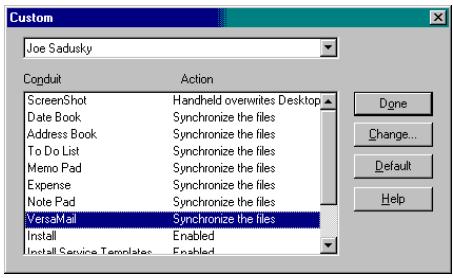
- Click Attachment Conversion.
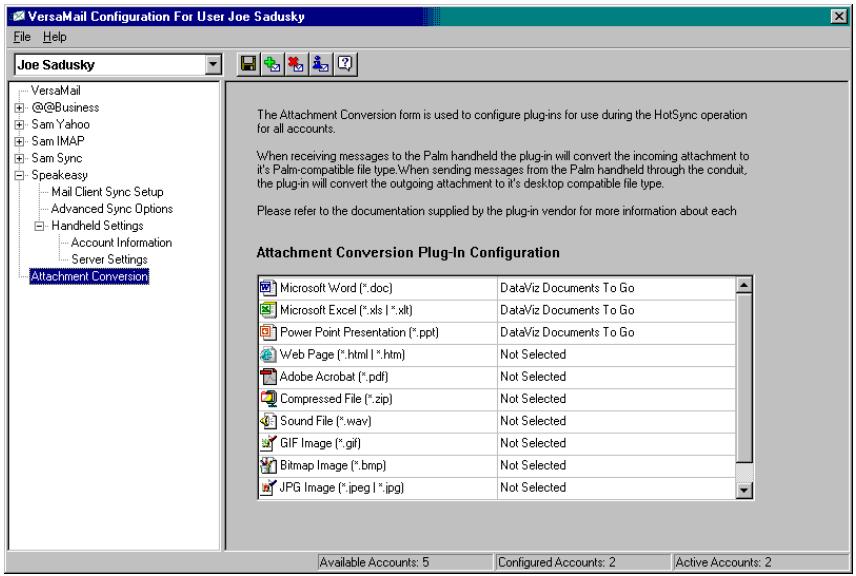
Plug-in types are listed in the left column. If the plug-in is selected, the right column shows the name of the company supplying the plug-in. If a plug-in is not selected, the right column reads Not Selected.
NOTE The drop-down lists in the right column display only the companies currently supplying plug-ins for a particular type. If more than one company supplies a plug-in of a particular type (for example, Word doc), then multiple company names appear on the list. If no company is currently supplying a plug-in of a particular type, then the only option that appears on the list is Not Selected.
5. Do one of the following:
Item
Action
To deselect a plug-in
Click the right column next to the plug-in type name, and then select Not Selected from the drop-down list.
To select a plug-in
Click the right column next to the plug-in type name, and then select the name of the company supplying the plug-in from the drop-down list.
To change the company supplying a plug-in of a particular type
Click the right column next to the plug-in type name, and then select the name of the company you want to supply the plug-in from the drop-down list.
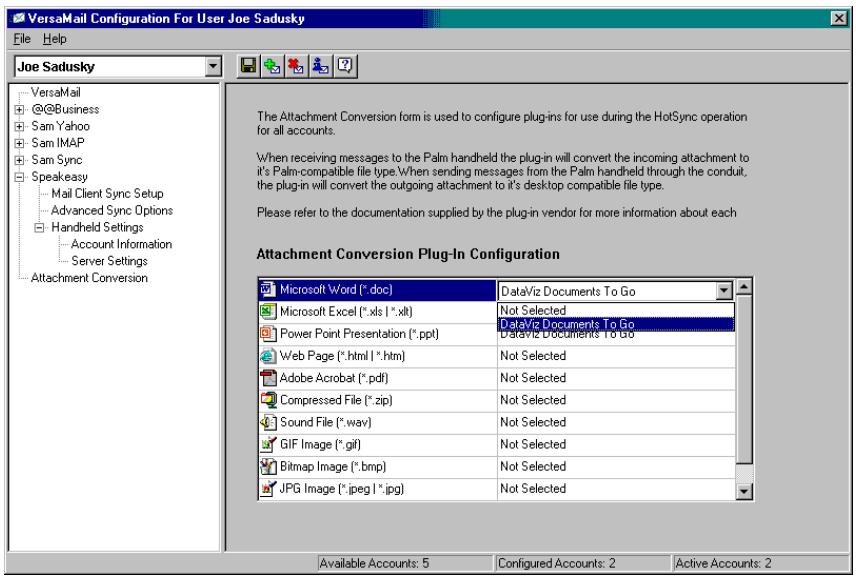
6. Click save.
Synchronizing an account
To synchronize accounts, you must set the HotSync action for the VersaMail application in the HotSync Manager. You can, however, exclude e-mail accounts from a HotSync operation.
TIP If you don't want an account synchronized, deselect the check box Select this check box to synchronize this e-mail account when you perform a HotSync operation.
To select which accounts are synchronized during a HotSync operation:
- Click the HotSync Manager icon in the Windows system tray.
-
Select Custom.
-
Select VersaMail in the Conduit list.
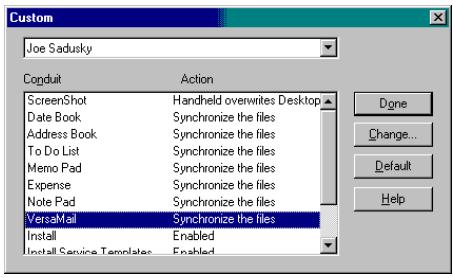
- Click Change.
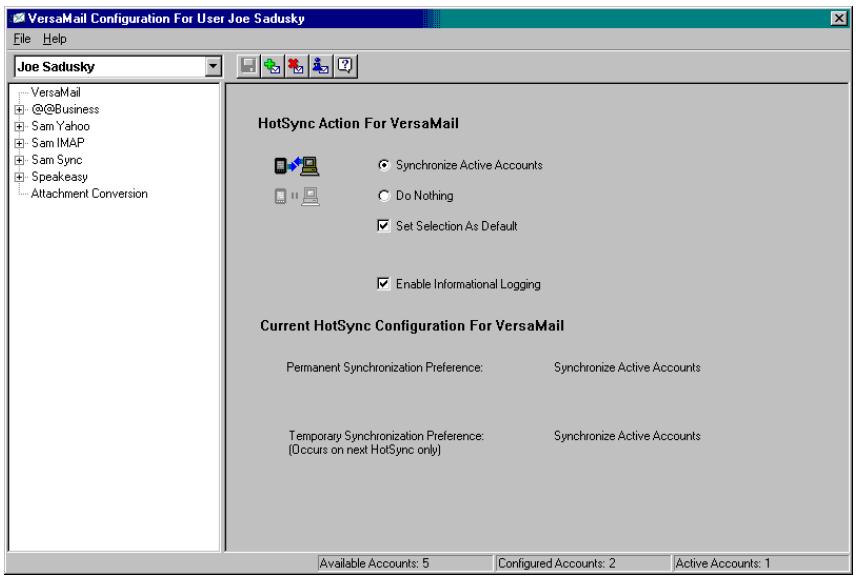
- Select one of the following:
Synchronize Active Accounts
Select this option to include active accounts in the next HotSync operation. For an account to be synchronized, you must have selected the option Check this box to synchronize this mail account when you perform a HotSync operation.
Do Nothing
Select this option to exclude e-mail accounts from the next HotSync operation.
- (Optional) Select Set Selection As Default to apply the options you selected to all subsequent HotSync operations. Otherwise, the settings apply to the next HotSync operation only.
- Click OK.
- Perform a HotSync operation.
Synchronizing multiple accounts
You can synchronize more than one account during the same HotSync operation.
NOTE If you want to synchronize both a Microsoft Outlook and a Microsoft Outlook Express account, you must have Microsoft Outlook set as the default e-mail client on the desktop.
The maximum number of accounts you can synchronize are as follows:
1 Simple MAPI account (for example, an account set up using Outlook Express or Eudora)
1 Extended MAPI account (for example, an account set up using Outlook)
1 Lotus Notes account
5 combined direct POP or direct IMAP accounts
If you attempt to synchronize more than the limit for a particular type of account during a HotSync operation, you will receive an alert prompting you to deactivate any accounts over the allowed number.
Using SSL with the conduit
When you set up an e-mail account, you can choose to use a secure connection (Secure Sockets Layer, or SSL) for sending and receiving e-mail messages. The Palm VersaMail HotSync Conduit supports SSL when synchronizing with an e-mail account only if that account uses one of the following desktop e-mail applications (mail clients):
Outlook
Outlook Express
Eudora
The conduit does not support SSL for accounts set up as direct POP or direct IMAP or for Microsoft Exchange or Lotus Notes accounts.
Going Beyond the Basics
You use many Palm™ VersaMail™ personal e-mail software features, such as getting and sending e-mail, daily. Other features are used less frequently but are especially valuable in certain situations. For example, filtering e-mail is helpful if you are traveling and want to receive messages only from certain people or about specific subjects. Filters and other special features are discussed in this chapter.
This section describes the following:
- Creating and using filters to determine which e-mail you actually view
- Setting network and connection preferences on your handheld
Managing mail settings
Adding APOP to an account
Adding ESMTP to an account
Setting advanced account preferences - Cutting and copying text from an e-mail message for use in other applications
Using the command bar
Viewing e-mail header details - Backing up your mail databases
Synchronizing IMAP folders wirelessly
Using Secure Sockets Layer (SSL)
Managing mail filters
Filters provide efficient ways to manage e-mail retrieval and storage. When you tap Get Mail or Get & Send, filters determine which e-mail messages are downloaded to your handheld and in which folder the downloaded messages are stored.
For example, you may want to file e-mail about sales meetings in a Sales folder. You can create a filter that automates this action, so that whenever you receive e-mail about sales meetings, it is immediately sent to the Sales folder, which you created on the filters screen.
Creating mail filters
To create a mail filter, you select various criteria, such as To, From, and Contains. This information makes up the filter statement.
For example, if you want stock quotes from your online brokerage service sent to a folder you created called Finance, you can filter those e-mail messages and store them in the Finance folder. The filter statement, which is displayed in the Filter Editor, is shown in the following figure.
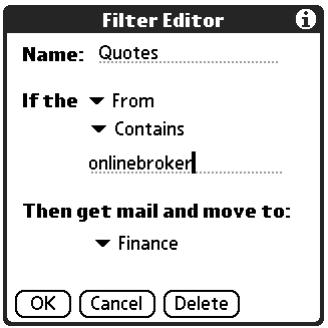
IMPORTANT If you create a filter, only messages that meet the filter criteria are downloaded to your handheld. You do not see any other messages that have been sent to you, even in your Inbox. To avoid this, you must set up two filters as described in the following procedure. Using the example above, the first filter would have all mail containing "onlinebroker" in the "From" field moved to the "Finance" folder. For the second filter, you should specify that all mail NOT containing "onlinebroker" in the "From" field should be moved to the Inbox (or other folder you designate). If you do not create this second filter, then only messages containing "onlinebroker" in the "From" field are downloaded to your handheld.
To create a filter:
- From the Inbox or another folder, tap the Menu icon .
- Select Options, and then tap Filters.
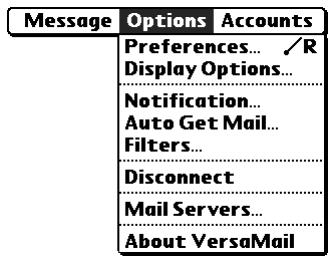
- Tap New.
- Enter a short description of the filter in the Name field.
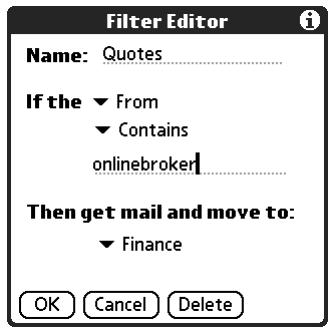
- Use the If the pick lists to create criteria for the filter.
The three pick lists and the edit line combine to create a statement that identifies the type of e-mail and where you want the e-mail stored. For example, a filter might read, "If the [Subject] [Contains] sales meeting, Then get mail and move to [Sales]." When you use this filter to sort incoming e-mail, any e-mail containing sales meeting in the subject line is filed in the Sales folder.
To pick list Select the message header field with the information contained in the edit line: To, From, Subject, cc, Date, Size. For example, you might select Date to download only messages that are less than a certain number of days old.
Contains pick list Select a filter action: Contains, Starts with, Does NOT Contain.
Edit line Enter the text that must be found in the header field. For example, if you want to sort e-mail with the subject Sales, enter "Sales." If you enter more than one criteria, separate each with a comma—for example, Sales, New York.
Then get mail and move to pick list Select the folder or mailbox into which you want your filtered e-mail to go. You can also create a new folder for storing the incoming e-mail. Tap Edit Folders, and then create a new folder or delete or rename existing ones.
6. Tap OK.
The filter appears in the Filters list.
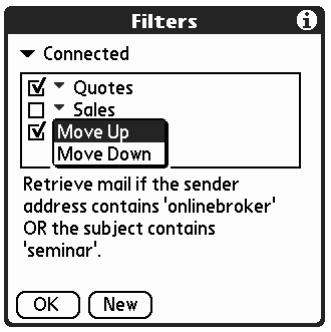
Selected filters execute in the order in which they appear on the list. Move filters up and down the list to ensure that they execute in the correct order.
NOTE Filters created on the handheld also apply to e-mail synchronization. See "Synchronizing an account" in Chapter 4 for more information.
Turning filters on and off
By default, a filter that is turned on or selected affects all subsequent downloads of e-mail until you deselect it. More than one filter can be in effect at once. Before you download e-mail, be sure to turn on the filters you want and turn off those you don't want.
To turn a filter on or off:
- Tap the Menu icon .
- Tap Options, and then tap Filters.
The Filters dialog box appears with the filters you created.
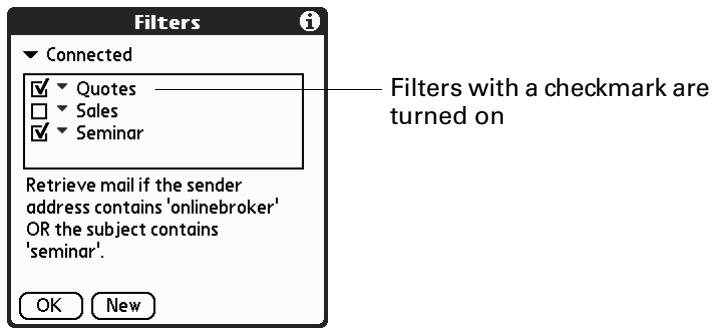
- Tap the pick list in the upper-left corner, and select Connected or Synchronize.
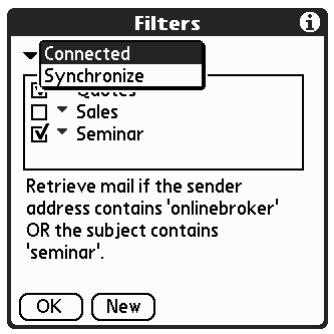
- Connected applies a filter to messages downloaded to your handheld over a modem or other connection to an e-mail service provider.
-
Synchronize applies a filter to messages downloaded to your handheld during a HotSync® operation.
-
Tap the filter check boxes to select the filters you want to use for subsequent e-mail transactions.
IMPORTANT If you deselect a filter listed under Connected, be sure that the filter is deselected also under Synchronize.
- Tap OK.
Editing or deleting a filter
You can edit a filter to change its name or the criteria in the filter.
To edit or delete a filter:
- Tap the Menu icon .
- Tap Options, and then tap Filters.
- Tap the name of the filter.
-
Do one of the following:
-
To edit the filter, revise your entry in the Name field and/or your selections in the pick lists, and revise the text in the edit line. Tap OK.
-
To delete the filter, tap Delete, and then tap Yes to confirm the deletion.
-
Tap OK.
Setting network and connection preferences
If you want to send and receive e-mail through any type of account other than a synchronize-only account—for example, using a Palm™ Bluetooth Card, PalmModem® accessory (sold separately), an 802.11 sled, or an IR connection to an IR phone—you will need to set network and connection preferences for your e-mail account to work properly. After setting preferences, see Chapter 2 for information on setting up your e-mail account.
Setting network preferences
To do any type of network activity from your handheld (using the VersaMail application, surfing the web, and so on), you must make a connection with an e-mail service provider (for example, an ISP or a wireless carrier). Each connection is categorized on your handheld as a "service," and each service contains all the appropriate settings for that connection.
You can create or access as many services on your handheld as you choose; however, you must select one service to be the default for all network activity from your handheld.
You have three options in setting up a service:
- Select an existing service that is preconfigured on your handheld, and use all the preconfigured settings.
- Select an existing service that is preconfigured on your handheld, but edit one or more settings.
Create a new service and customize all settings.
To select or create a service:
- Tap the Home icon O .
- Tap the Prefix icon .
-
Depending on your handheld model, do one of the following:
-
Tap the Preferences pick list in the upper-right corner, and then tap Network.
- Tap Dial-Up.
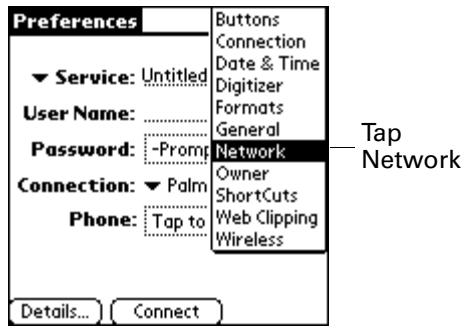
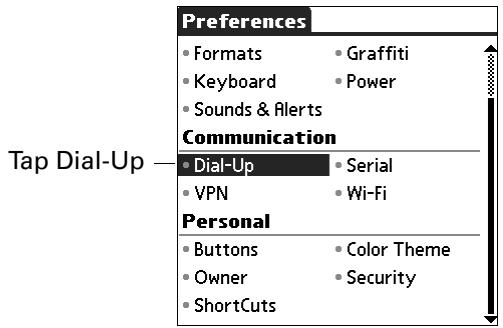
4. Do one of the following:
- To use a preconfigured service, tap the Service pick list, and then tap the service name.
- To create a new service or to use a service that does not appear on the list, tap the Menu icon and then select New.
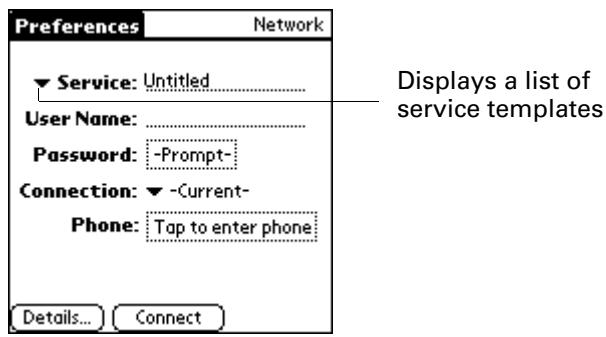
If you select a preconfigured service, some or all settings on the Network Preferences screen are filled in by default. You may need to enter some settings as explained in the following procedures.
If you create a new service, you need to enter all the settings for that service as explained in the following procedures.
Entering a username
The User Name setting identifies the name you use when you log in to your e-mail service provider. Although this field can contain multiple lines of text, only two lines appear on the screen.
To enter a username:
- On the Preferences screen, tap the User Name field and enter your username.
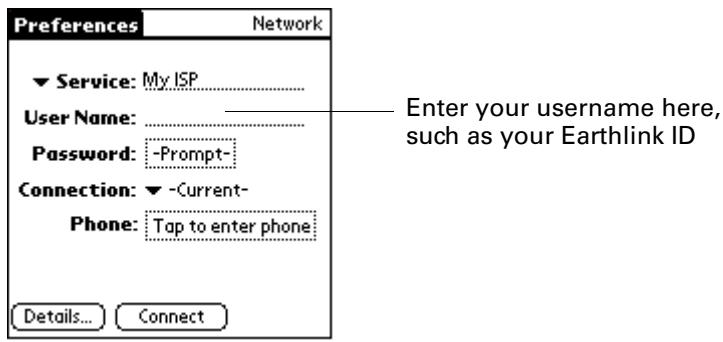
Entering a password
The Password box identifies the password you use to log in to your e-mail service provider. Your entry in this field determines whether your handheld prompts you to enter a password each time you log in to your service provider.
If you do not enter a password, your handheld displays the word "Prompt" in this field, and you must enter a password each time you log in to your e-mail service provider.
If you enter a password, your handheld displays the word "Assigned" in this field, and you aren't asked for your password during the login procedure.
If you are concerned about security, select the Prompt option and do not enter a password.
To enter a password:
- On the Preferences screen, tap the Password field.
- Enter the password you use to log in to your e-mail service provider.
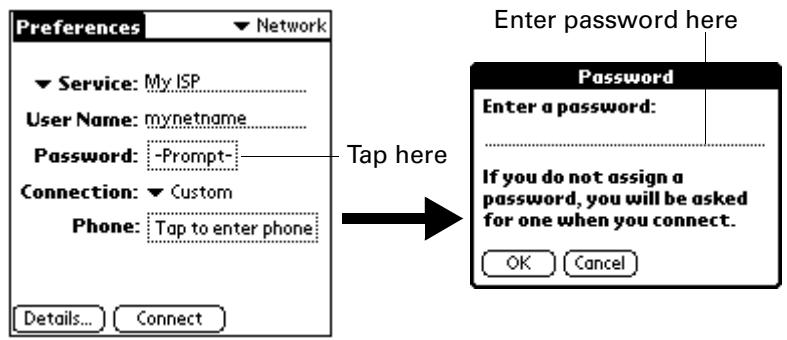
3. Tap OK.
The Password field is updated to display the word "Assigned."
Selecting a connection
The Connection field on the Network Preferences screen enables you to select the default method you want to use to connect to your ISP or to a dial-in server. As with services, your handheld includes a number of preconfigured connection types that contain default settings. You can choose one of the preconfigured connection types, edit an existing connection type, or create a new connection type. See "Setting connection preferences" later in this chapter for information about creating and configuring connection settings.
To select a connection:
- On the Preferences screen, tap the Connection pick list.
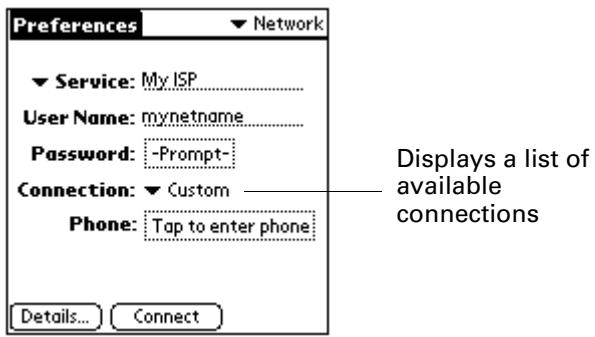
- Tap the connection you want to use, or tap Edit Connections to edit an existing connection or to create a new connection. See "Setting connection preferences" later in this chapter for more information.
Adding telephone settings
If the connection type you selected requires a phone (for example, if you are using a PalmModem accessory, sold separately), the Phone field appears. When you select the Phone field, your handheld opens a dialog box in which you define the telephone number you use to connect with your ISP or dial-in server. In addition, you can also define a prefix, disable call waiting, and give special instructions for using a calling card.
To enter your server phone number:
- On the Preferences screen, tap the Phone field.
- On the Phone Setup screen, enter the phone number for your ISP or dial-in server.
For example, if you dial 555-555-5555 to log in to your Earthlink ISP account, enter that phone number.
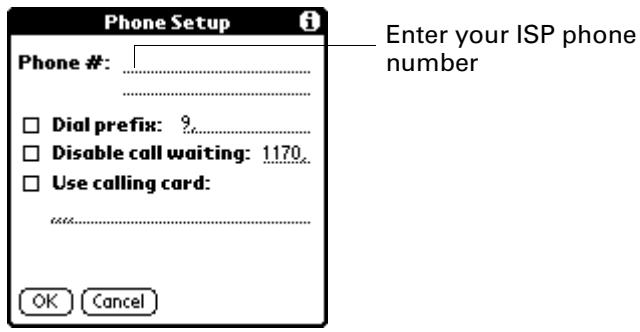
- If you need to enter a prefix or to disable call waiting, skip to those procedures. Otherwise, tap OK.
Entering a prefix
A prefix is a number that you dial before the telephone number to access an outside line. For example, many offices require that you dial "9" before you dial a number outside the building.
To enter a prefix:
- On the Phone Setup screen, tap the Dial Prefix check box to select it.
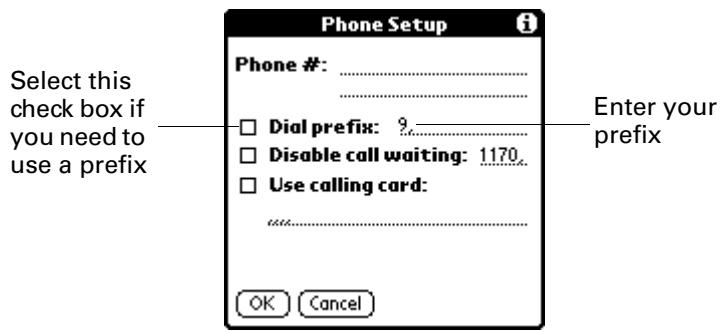
- Enter the prefix.
- Tap OK.
Disabling call waiting
Call waiting can cause your session to terminate if you receive a call while you are connected. If you connect to your ISP using a modem connected to a telephone that has call waiting, you need to disable this feature before logging in to your ISP or dial-in server.
To disable call waiting:
- On the Phone Setup screen, tap the Disable call waiting check box to select it.
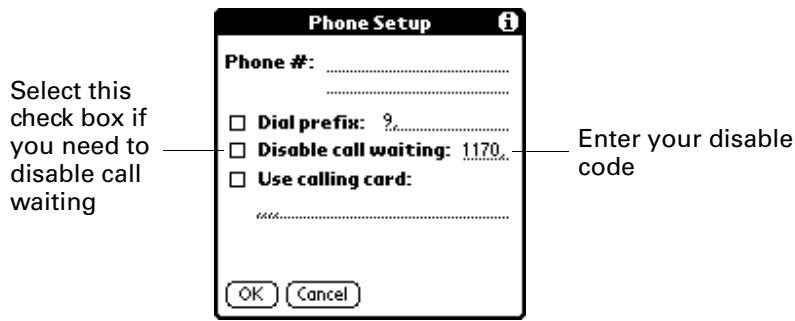
- On the Disable call waiting line, enter the code to disable call waiting.
Each telephone company assigns a code to disable call waiting. Contact your local telephone company for the appropriate code.
- Tap OK.
Using a calling card
You can use your calling card when dialing your ISP or dial-in server. Keep in mind that there is usually a delay before you enter your calling card number. When you define your calling card number, you need to add commas at the beginning to compensate for this delay. Each comma delays transmission of your calling card number for two seconds.
To use a calling card:
- On the Phone Setup screen, tap the Use calling card check box.
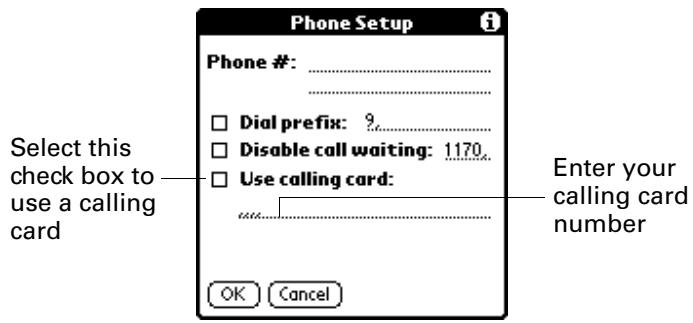
- Enter your calling card number on the Use calling card line.
NOTE The Phone Setup dialog box works correctly for AT&T and Sprint long-distance calling card services. However, because MCI works differently, MCI customers need to put the calling card number in the Phone # field and put the phone number in the Use calling card field.
TIP It's a good idea to add at least three commas before your calling card number to compensate for the cue delay.
- Tap OK.
Setting a service as the default connection for your handheld
Once you have configured all the service connection settings on the Network Preferences panel (or have accepted default settings for a preconfigured service), tap Connect to make this service the default for your handheld. The service you choose becomes the default connection for all network activity with your handheld, including sending and receiving e-mail, accessing the web, and so on.
For a given e-mail account, you can choose to use a different service from your default. For example, your default service might be Earthlink by means of a Bluetooth Card inserted into the expansion slot on your handheld, but you might want to use Yahoo by means of the PalmModem accessory for your Yahoo e-mail account. See "Selecting a different service for a given e-mail account" in Chapter 2 for details.
Setting connection preferences
The Network Preferences screen enables you to use a preconfigured connection type for each service you select or create. You can also choose to edit the settings of a preconfigured connection type or to create a new connection type. Use the Connection Preferences screen either to perform either of these tasks.
The list of preconfigured connection types varies according to the software that has been installed on your handheld. Also, the steps necessary for editing a connection type vary according to the type. For example, if a modem connection appears on the list, you need only to specify the phone setup (and connection type, if required) to complete the configuration.
The following are examples of the custom connection types you can create:
PC by means of cradle/cable: A local HotSync connection—the direct connection between your handheld and your desktop computer. Your handheld is connected by its universal connector to the cradle/cable, and the cradle/cable is attached by its cable to a USB port of your desktop computer. (If you are using the optional serial cradle/cable, the cradle attaches by its cable to a serial [COM] port of your computer.)
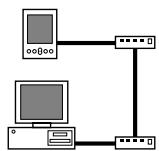
Modem by means of universal connector: A connection between your handheld's universal connector and a modem for dialing in to a modem that is part of your desktop computer or laptop.
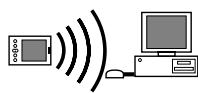
PC by means of infrared: A connection between the infrared (IR) port of your handheld and the IR device of your desktop computer or laptop.
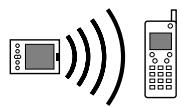
Modem by means of infrared: A connection between the IR port of your handheld and a modem. The modem can be attached to or within a mobile phone or other device containing an IR port. (Some IR phones contain modems.)
Editing connections
The following sample procedure shows you how to edit the IR-to-phone connection to adjust the communication speed; you can similarly edit other connections or settings or create a custom connection.
To edit the IR-to-phone connection:
- Tap the Home icon ③.
-
Tap the Prefix icon 串
-
Depending on your handheld model, do one of the following:
-
Tap the Preferences pick list in the upper-right corner, and then tap Connection.
- Tap Serial.
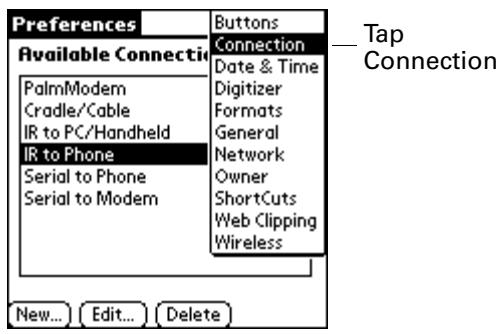
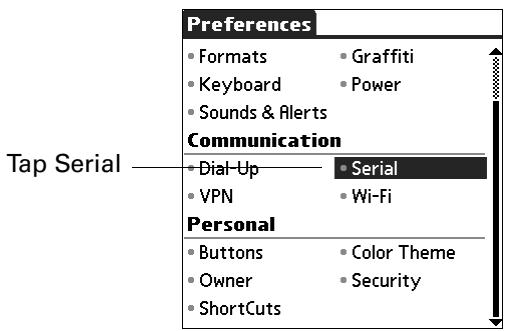
- Select IR to Phone and tap Edit.
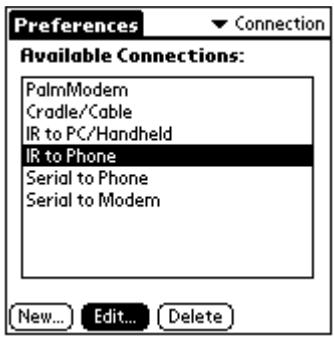
- Tap Details.
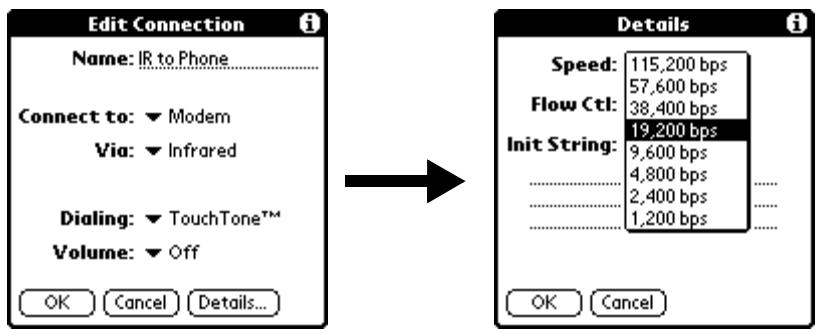
- Tap the Speed pick list and select the appropriate speed.
- Enter the initialization string supplied by the documentation for the modem attached to your mobile phone, if necessary.
- Tap OK, and then tap OK again to save the configuration.
After you create the configuration, you need to perform a HotSync operation to synchronize configuration settings on your desktop computer.
Managing mail settings
You can configure advanced mail settings such as server information, incoming and outgoing mail server options, and more, for each e-mail account.
To select the account whose settings you want to manage:
- In your Inbox or on another folder screen, tap the Menu icon
- Select Options.
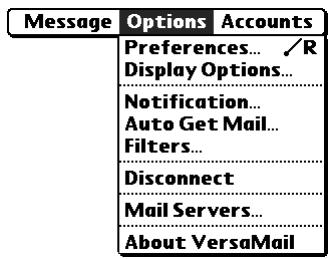
- Select Mail Servers.
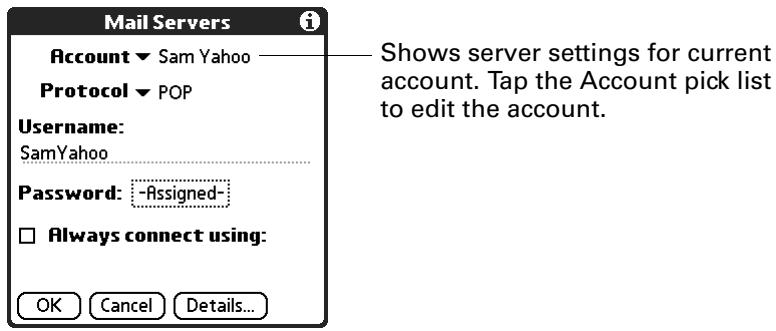
- Tap the Account pick list, and then tap Edit Accounts.
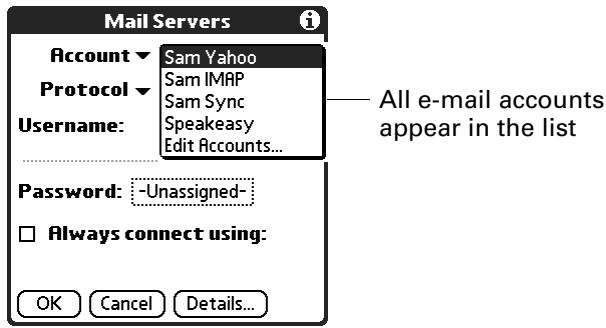
- Tap the name of the account whose settings you want to manage, and then tap OK.
To change the protocol type:
- On the Server Settings screen, tap the Protocol pick list, and then tap POP or IMAP.
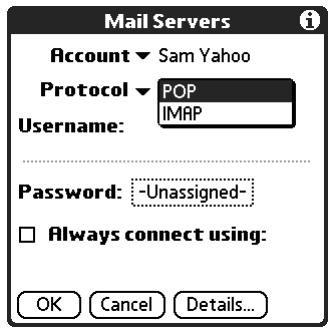
2. Tap OK.
To change your username or password:
- On the Server Settings screen, enter a new username.
Your username is typically the first part of your e-mail address, which appears before the @ symbol.
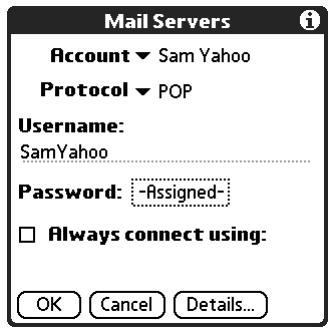
-
Tap the Password box, and enter a new password in the Password Entry dialog box. The VersaMail 2.5 application provides strong encryption for your password.
-
Tap OK.
To set a default service for this account (different from the default service for your handheld):
- On the Server Settings screen, tap the Always Connect Using check box.
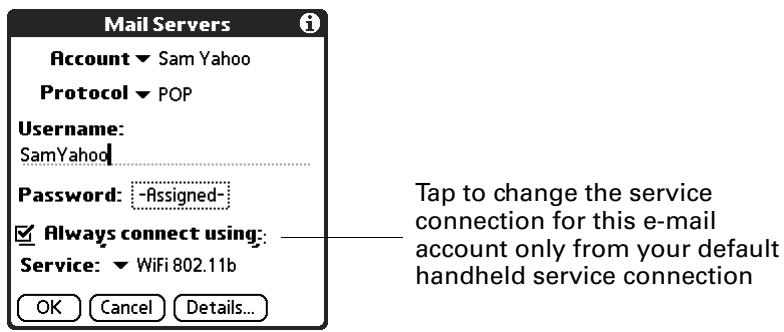
- Tap the connection type you want from the Services pick list.
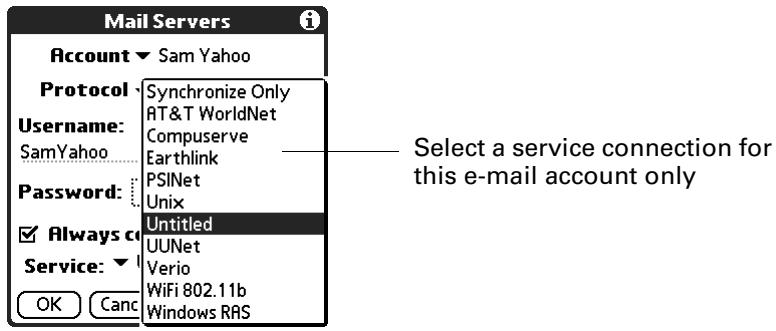
- Tap OK.
NOTE Select this option only if you want a given e-mail account to use a different service from the default service you set for your handheld. For example, the default service you have selected for your handheld may be called Modem and may use a PalmModem accessory (sold separately) to make a dial-up connection to your e-mail service provider. You may also have set up an e-mail account called My Earthlink, which connects using the Modem service by default. However, if you travel into a location at which you cannot use your PalmModem accessory, you may want to switch your My Earthlink account to the service called Bluetooth Card, which connects to your e-mail service provider using a Palm™ Bluetooth Card (sold separately) inserted into your handheld's expansion card slot.
See "Setting network and connection preferences" earlier in this chapter for information on setting connection types and selecting a default service for your handheld. See "Selecting a different service for a given e-mail account" in Chapter 2 for details on using a different service for a specific e-mail account.
To change e-mail address/mail server settings:
- On the Server Settings screen, tap Details.
- Tap the Options pick list and select Address/Servers.
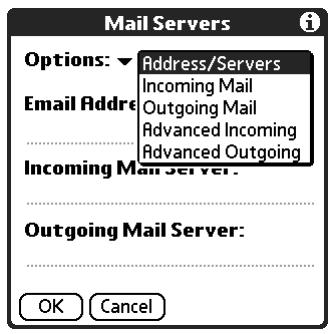
- Edit any of the following:
Email address Enter the e-mail address of the account you are accessing, such as exemplame@yahoo.com.
Incoming mail server Enter the name of your incoming (POP) mail server, such as pop.mail.yahoo.com.
Outgoing mail server Enter the name of your outgoing (SMTP) mail server, such as smtp.mail.yahoo.com.
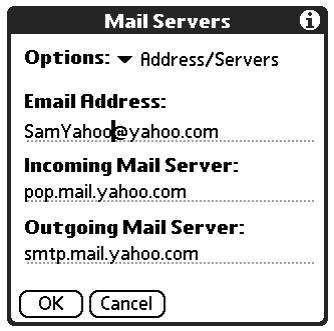
- Tap OK.
To change incoming mail server settings:
- On the Server Settings screen, tap Details.
- Tap the Options pick list and select Incoming Mail.
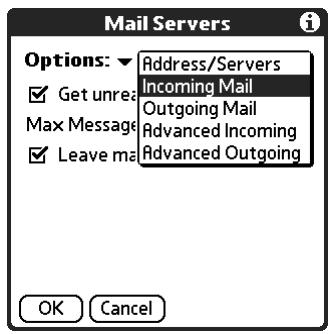
- Select or enter one of the following:
Get unread mail ONLY
NOTE The POP protocol does not support retrieval of unread mail only from the server. If you have a POP e-mail account, the VersaMail application downloads all messages from the server regardless of whether you have read them (for example, on your desktop or on the web), and regardless of whether this check box is selected.
For IMAP accounts, retrieves unread e-mail only. To get all e-mail and not just unread e-mail, deselect Get unread mail ONLY.
Leave mail on server (POP only)
Leaves e-mail that you receive on the handheld on the server also.
Maximum Message Size
Shows the maximum message size that you can receive.
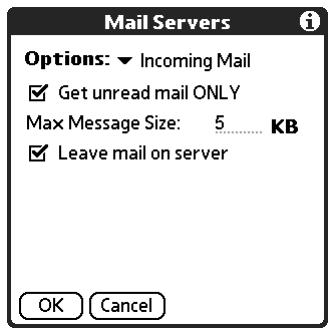
- Tap OK.
To set additional incoming mail options:
- On the Server Settings screen, tap Details.
- Tap the Options pick list and select Advanced Incoming.
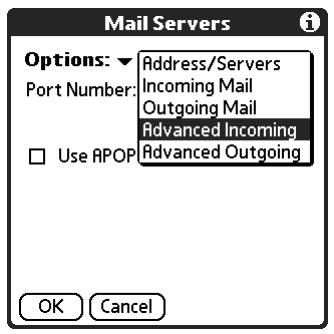
- The incoming mail options are different depending on the connection type you selected and the server protocol—POP or IMAP.
POP accounts
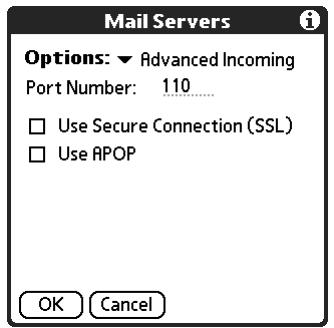
IMAP accounts
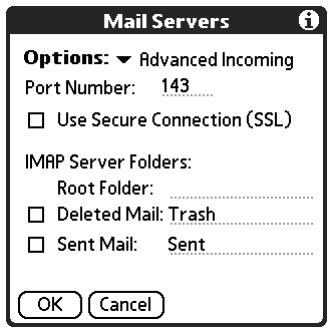
Port Number
Defaults to 110 for POP and to 143 for IMAP servers. If you are not sure about the correct port number, check with your mail server administrator.
Secure Connection
Retrieves incoming mail over a secure (Secure Sockets Layer, or SSL) connection. See "Using Secure Sockets Layer (SSL)" later in this chapter for information on SSL.
Use APOP (POP only)
Encrypted your username and password when traveling over the network. Some services require APOP to work properly, while others do not work properly if APOP is used. If you aren't sure if your ISP or web e-mail provider supports APOP, check with your e-mail provider. See "Adding APOP to an account" later in this chapter.
Root Folder (IMAP) Defines the root folder on your IMAP server. only
Deleted Mail (IMAP only)
Stores deleted e-mail in the folder you specify on the server. This field is case sensitive, so spell the folder name exactly as it is on the server. For example, if your Deleted Mail folder is calledTrash on the server, you must enterTrash in this space.
Sent Mail (IMAP only)
Shows the name of your Sent Mail folder on the server. This field is case sensitive, and the folder name should be spelled exactly as it is on the server.
If you are using the Palm™ VersaMail HotSync Conduit and have an IMAP account, you must configure the outgoing mail settings to send mail.
To set outgoing mail server (SMTP) settings:
- On the Server Settings screen, tap Details.
- Tap the Options pick list and select Outgoing Mail.
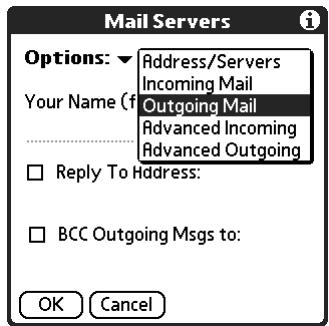
- Enter any of the following:
Display Name
Enter the name you want to appear on your outgoing messages, such as "Joe Smith."
Reply To Address
Enter the e-mail address that you want recipients to see and reply to on your e-mail messages, only if it is different from the e-mail address from which you are sending the message. For example, if you are sending a message from me@yahoo.com but you want recipients to reply to me@earthlink.net, enter the reply-to address here. Reply To Address makes it look like the e-mail came from the address you entered.
BCC
Select the BCC check box to send a blind copy of any e-mail message you send to another e-mail address. The blind copy e-mail address is not seen by the other recipients of the message. For example, if you want a copy of all messages you send from your handheld to be sent to your desktop e-mail account, enter that e-mail address.
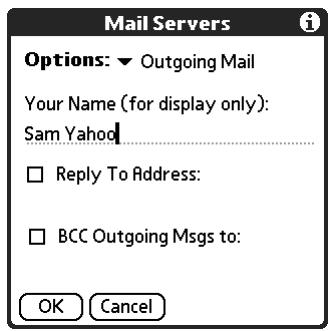
- Tap OK.
To set additional outgoing mail options:
- On the Server Settings screen, tap Details.
- Tap the Options pick list and select Advanced Outgoing.
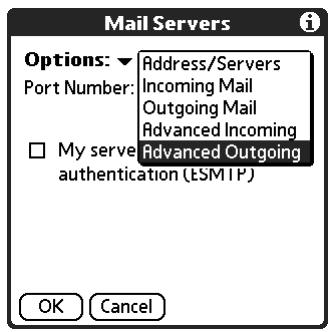
3. Set additional options for outgoing e-mail:
Port Number
The default is 25, the port number most SMTP servers use. If you are not sure about the correct port number, check with your mail server administrator.
My server requires authentication (ESMTP)
Select the My server requires authentication (ESMTP) if the outgoing server (SMTP) requires authentication. Check with your system administrator before selecting this option. See "Adding ESMTP to an account" later in this chapter for information. If you select this option, username and password fields appear. These fields are already filled in based on the account information you entered previously. In most cases the information displayed is correct; however, occasionally your authentication username and/or password is different from your account username or password. Check with your e-mail service provider for authentication username and password information.
If you need to enter new information, enter a username and/or tap the Password box and enter a password, and then tap OK.
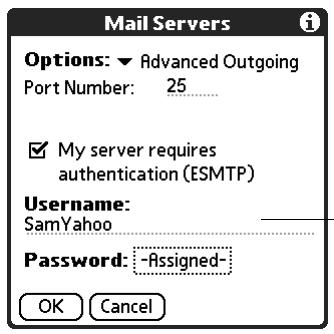
Username and Password fields appear only if ESMTP check box is selected
4. Tap OK twice.
Adding APOP to an account
To encrypt your username and password when they are traveling over the network, some services require APOP to work properly, while others do not work properly if APOP is used. If you aren't sure if your ISP or web e-mail provider supports APOP, check with your e-mail provider.
NOTE APOP works only with accounts that use the POP protocol.
To edit an account and add APOP:
- In your Inbox or on another folder screen, tap the Menu icon .
- Select Options.
- Select Mail Servers.
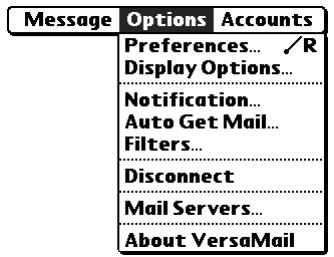
- Tap the Account pick list and select Edit Accounts.
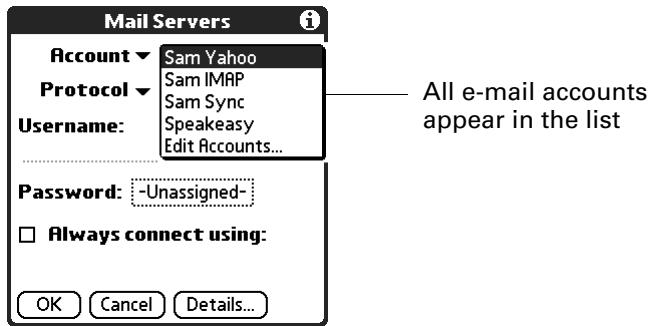
- Tap the name of the account you want to change, and then tap OK.
- On the Server Settings screen, tap Details.
- Tap the Options pick list and select Advanced Incoming.
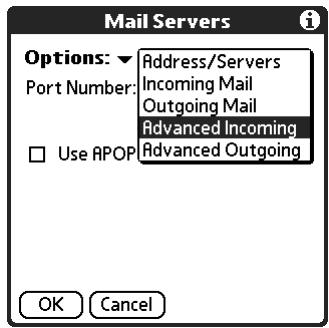
- Select the Use APOP check box.
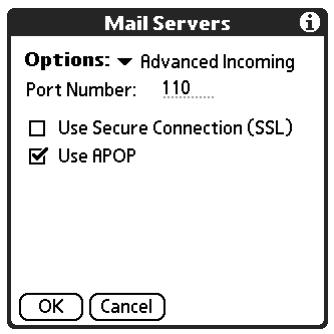
- Tap OK.
Adding ESMTP to an account
Some services require ESMTP authentication to validate your username and password on a given SMTP server. If you aren't sure if your ISP or web e-mail provider supports ESMTP, check with your e-mail provider.
To edit an account and add ESMTP:
- In your Inbox or on another folder screen, tap the Menu icon .
- Select Options.
- Select Mail Servers.
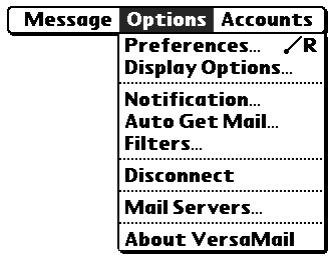
- Tap the Account pick list and select Edit Accounts.
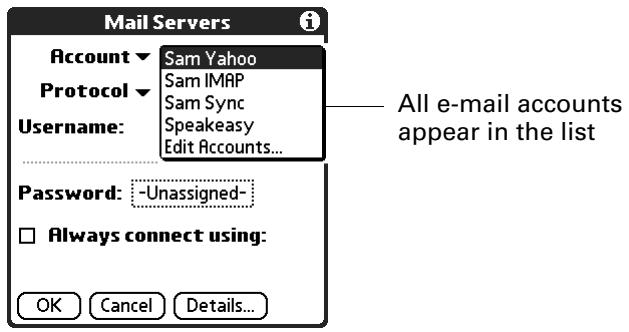
-
Tap the name of the account you want to change, and then tap OK.
-
On the Server Settings screen, tap Details.
- Tap the Options pick list and select Advanced Outgoing.
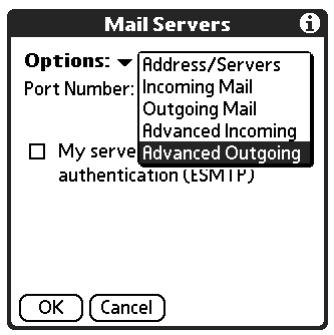
- Select the My server requires authentication (ESMTP) if the outgoing server (SMTP) requires authentication. Check with your system administrator before selecting this option. If you select this option, username and password fields appear. These fields are already filled in based on the account information you entered previously. In most cases the information displayed is correct; however, occasionally your authentication username and/or password is different from your account username or password. Check with your e-mail service provider for authentication username and password information.
If you need to enter new information, enter a username and/or tap the Password box and enter a password, and then tap OK.
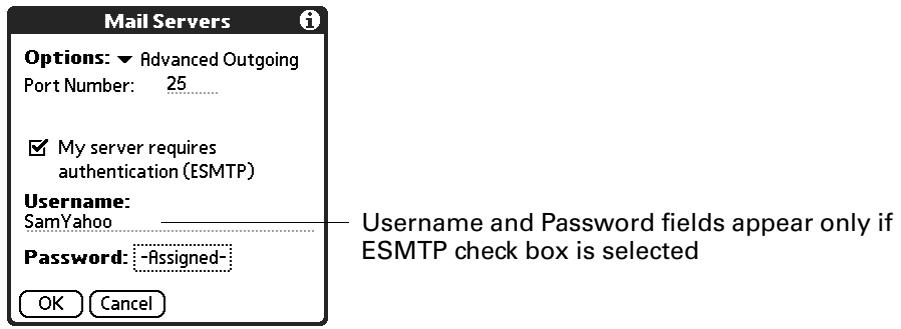
- Tap OK.
Setting advanced account preferences
You can set advanced preferences for each e-mail account. Any preferences you set are account-specific; they apply only to the account you are currently in.
To set advanced account preferences:
- In your Inbox or on another folder screen, tap the Menu icon .
- Tap Options.
- Select Preferences.
4. Tap Advanced.
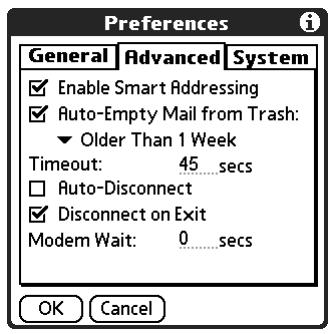
5. Select any of the following preferences:
| Enable Smart Addressing | Types ahead and completes a recognized e-mail address. See “Creating and sending new e-mail” in Chapter 3 for more information. |
| Auto-Empty Mail fromtrash | Determines how often e-mail messages in the trash are automatically deleted. See “Emptying the trash” in Chapter 3 for more information. |
| Timeout | Sets the number of seconds to try to connect before timing out. This value can be any number greater than 0 seconds, however, if you set the number too low, your connection attempt may time out before you make a connection with the e-mail service provider. The default setting is 45 seconds. To change, tap the Timefield and enter a new value. |
| AutoDisconnect | Automatically disconnects your remote connections after each command. Each command you perform initiates a new call to your ISP. This setting is not recommended if you plan to perform multiple e-mail transactions in a short amount of time. |
Disconnect on Exit
Disconnects the connection to your e-mail service provider only after you leave the VersaMail application. This feature is an alternative to Auto-Disconnect. This option keeps your connection active while you perform multiple transactions in the VersaMail application, but automatically disconnects when you move on to a different application on your handheld. If this option is not selected, you must manually disconnect from your ISP.
Modem Wait
Displays the number of seconds that the modem uses to initialize itself. If you have a modem, tap and enter a number of seconds for the wait. The typical setting for a wireless modem is 3, and the typical setting for most normal modems is 0.
Cutting and copying text from an e-mail message for use in other applications
You can copy any text from an e-mail message, either from one you have composed or have read or from an attachment you have downloaded and opened (such as a Word doc), for use elsewhere in the VersaMail application or in another application. Text you can select and copy includes:
A name
An e-mail address
Body text of an e-mail message or a downloaded attachment
To copy and paste text from an e-mail message:
- Select the text by dragging the stylus over it.
- Tap the Menu icon
- Tap Edit and select Copy.
To paste the text elsewhere in the VersaMail application or in another application:
- Go to the new location, and tap the Menu icon .
- Tap Edit and select Paste.
You can also cut or copy text from a Word document that you download as an attachment and view on your handheld. You can then paste this text in another part of the same Word document, in another Word document, or in another application on your handheld.
To cut/copy and paste text from within a Word document:
- Select the text by dragging the stylus over it.
- Tap the Menu icon .
- Tap Edit and select Cut or Copy.
- To paste the text in another location, go to the new location, tap the Menu icon , tap Edit, and select Paste.
Using the command bar
The command bar provides shortcuts for performing numerous tasks. The options presented in the command bar may change, depending on which screen is displayed in the application. For example, if you are viewing a message in the Inbox, the command bar gives you the option of quickly moving the message to another folder. See "Moving e-mail between folders" in Chapter 3.
To access the command bar on your handheld:
- Enter the command bar stroke in the Graffiti® 2 writing area.
For each type of screen in the VersaMail application, the command bar offers various options.
| View | Options |
| List (Inbox, Outbox, and so on, showing list of messages) | Select all messages. |
| Deselect all messages. | |
| A Change display font (toggles between large and small font). | |
| Delete messages from the handheld; icon appears only if you have previously selected at least one message. | |
| Empty the trash; icon appears only if you have previously deleted at least one message. | |
| Reading a message | Delete message from the handheld. |
| Move message to a different folder; select folder from pick list. | |
| A Change display font (toggles between large and small font). | |
| Composing a message | @ Insert the @ symbol into a recipient's e-mail address. |
| @ Add attachment. | |
| Undoes last action; icon appears in command bar only if you have previously performed one of the actions above or any of the cut/copy/paste functions described below. | |
| Reading or composing a message | % Cuts selected text. |
| Copies selected text. | |
| Pastes selected text. |
Changing e-mail header details
When viewing a message in any folder, you can change the view of the message header. The e-mail header options are as follows:
- Short header: Shows sender's name or address (From field) and subject line (Subj field).
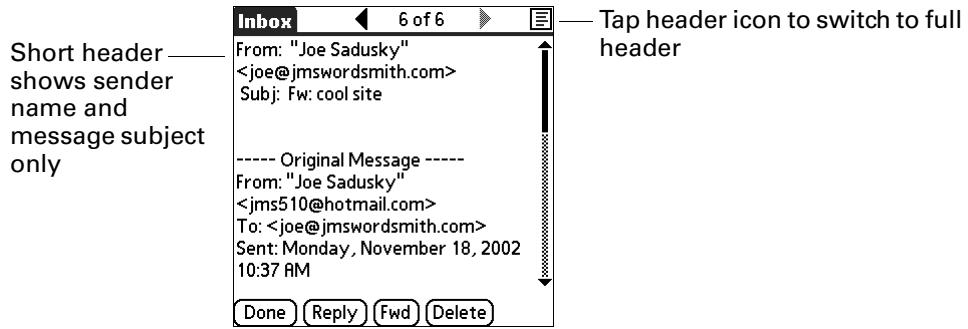
Full header: Shows the following:
- Sender's name or e-mail address (From field)
- Subject line (Subj field)
- Date message was composed, sent, or received (Date field)
- Size of message including any attachments (Size field)
- Recipient's name or e-mail address (To field)
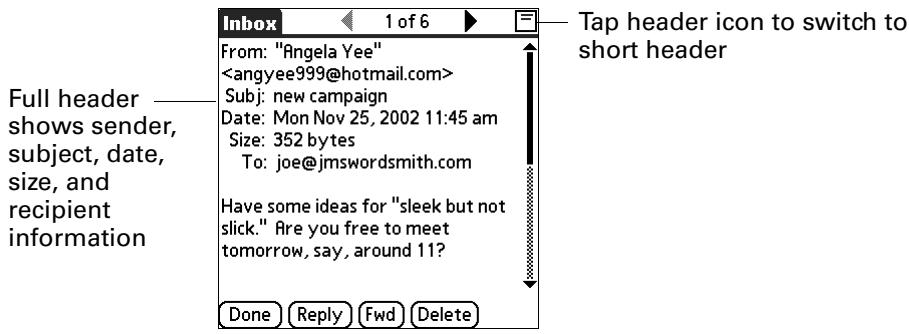
You can also switch between a short header and a full header for a message you are composing. Short header shows the To and Subject fields only; full header shows the To, cc:, bcc:, and Subject fields.
Message short header
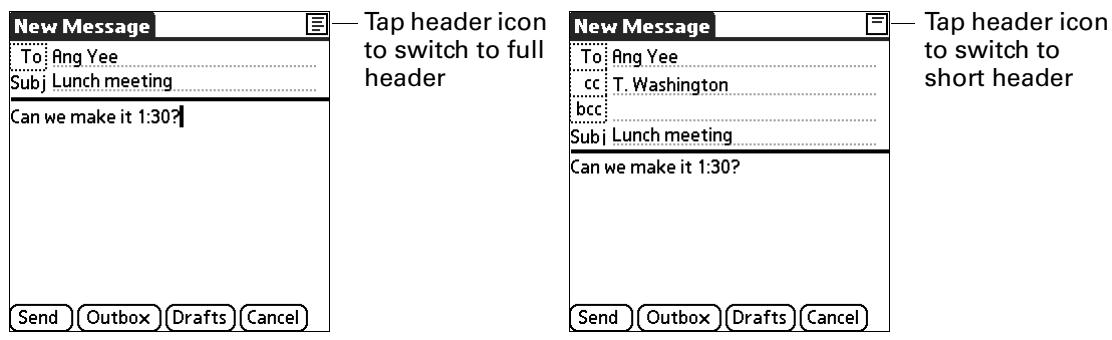
To switch between short header and full header view:
- Tap the header icon in the upper-right corner of the message screen.
Backing up mail databases
In most cases your e-mail is on your server, so you do not need to back up your e-mail database from your handheld. If you want to make sure you have a current copy of all your e-mail, you can back up all the e-mail databases from the handheld.
To back up the e-mail database:
- Tap the Menu icon .
- Tap Options.
- Tap Preferences.
- Tap System.
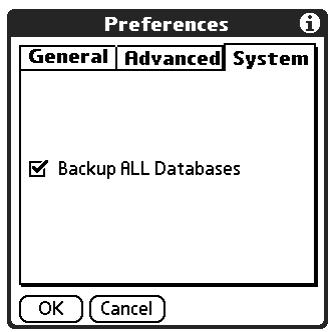
- Tap Backup ALL Databases to select it.
NOTE If you don't select this option, HotSync operations are faster.
- Tap OK.
Wireless IMAP folder synchronization
If you create an IMAP folder in an account on your handheld that matches a folder on the mail server, you can wirelessly synchronize e-mail messages that you move into or out of the IMAP folder, or delete in the folder.
When you synchronize a folder, any e-mail messages in the selected folder on the mail server will be downloaded to the same folder on your handheld. Any messages moved out of the selected folder on your handheld or deleted on your handheld will be moved or deleted in the folder on the mail server.
Depending on how you have set up IMAP folders on your handheld and/or the mail server, you may have to perform some steps before you can wirelessly synchronize e-mail messages between your handheld and the server, as follows:
- If you need to create a folder on both your handheld and the server, see "Creating and editing mail folders" in Chapter 3. Be sure to select the Also create on server check box as described in that section, After creating the folders, continue with the following procedures for synchronizing IMAP folders.
- If there is a folder on the mail server but you need to create it on your handheld, see "Creating and editing mail folders" in Chapter 3. You do not need to select the Also create on server check box as described in that section. After creating the folder, continue with the following procedures for synchronizing IMAP folders.
If you have a folder on your handheld that matches a folder on the mail server, continue with the following procedures for synchronizing IMAP folders.
You can synchronize server folders either during a Get Mail operation or from a menu.
NOTE You can synchronize folders whose names are up to 16 characters in length. You can synchronize up to 11 custom folders you create, in addition to the default folders Inbox, Outbox, Drafts, Sent, and Trash.
To wirelessly synchronize handheld/email server IMAP folders during a Get Mail operation:
- From within an IMAP e-mail account, tap Get Mail.
- Select the Sync IMAP Folders check box, and then tap OK.
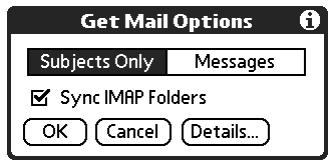
- Select the check box next to each folder you want to synchronize. You can select more than one folder.
- (Optional) The Subjects Only check box is selected or deselected based on the preference you set for getting mail. Select or deselect the check box to change this preference for the IMAP e-mail account only.
- (Optional) Select the Use Filters check box to apply any filters you have created to the IMAP e-mail account. See "Managing mail filters" earlier in this chapter for information.
- Tap OK.
To wirelessly synchronize handheld/email server IMAP folders from the Options menu:
- In your Inbox or on another folder screen of an IMAP e-mail account, tap the Menu icon 5 .
- Select Options.
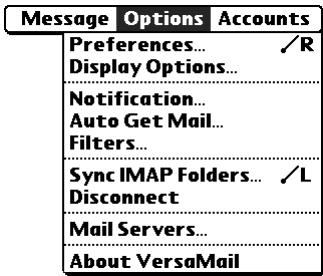
- Select Sync IMAP Folders.
- From the pick list, select the folders you want to synchronize either by tapping the folder name or by using the navigator, as shown in the following table.
| Button | Action |
| Select | If no folder is selected, the Select button highlights the first visible folder on the list. If a folder is selected, the Select button toggles the check box between selected and deselected. |
| Up or Down | If a folder is selected, use Up and Down to scroll up or down one folder on the list. If no folder is selected, use Up and Down to scroll up or down one page. |
| Left | If a folder is selected, deselects the folder. No function if no folder is selected. |
| Right | No function. |
A connection is made to your e-mail service provider to update the server with changes from your handheld, and to have your handheld updated with changes from the server.
Using Secure Sockets Layer (SSL)
Secure Sockets Layer (SSL) is a protocol designed to ensure that data you receive from a network or the Internet is secure and authentic. The VersaMail application uses SSL to help guarantee the secure transmission of e-mail messages that you receive. When you set up an account in the VersaMail application, you are given the option of selecting SSL for incoming mail. See Chapter 2 for instructions.
The VersaMail application supports SSL for incoming mail only; for example, if AT&T is your e-mail service provider, you can receive messages over a secure (SSL) connection. You cannot send messages over a secure connection. However, there is a way that you can make it appear as though messages are being sent over a secure connection.
To send messages so that they appear to have been sent over a secure connection:
- Set your outgoing mail (SMTP) server to the correct server for your e-mail account. See "Entering the name of the outgoing and incoming mail server" in Chapter 2 for information on entering the outgoing mail server.
- Set the reply-to address to an e-mail address from an e-mail service provider that supports sending messages over a secure connection (for example, AT&T). See "Setting outgoing mail options" in Chapter 2 for information on entering a reply-to address.
If you set up an account that uses an SSL connection on Outlook, Outlook Express, or Eudora, then SSL is supported in the Palm VersaMail HotSync Conduit when you synchronize with that account as well.
NOTE You cannot use auto get mail with notification or scheduled sending retry of e-mail with accounts that use an SSL connection. See "Auto get mail with notification" and "Send retry" in Chapter 3 for information.
Five-way Navigation in Palm™ VersaMail™ Personal E-mail Software
NOTE The information in this appendix applies to handhelds with a 5-way navigator only.
If your handheld contains a 5-way navigator, you can use the navigator for numerous applications supported by the handheld. This appendix contains a summary of five-way navigation controls specific to Palm™ VersaMail™ personal e-mail software. See the electronic handbook that came with your handheld for general five-way navigation information.
| View | Selection | Navigation | Function |
| Main List (Inbox or other folder list) | No message selected | Up/Down | Scrolls between messages in list. |
| Select | Highlights the first message in the list. | ||
| Right | No function. | ||
| Left | No function. | ||
| Message selected | Select | Opens messages for viewing. | |
| Right | Displays pop-up menu that normally appears when you click on the e-mail icon for each message. | ||
| Left | Deselects the highlighted message. | ||
| Compose New Message | N/A | Up/Down | In To, cc, bcc, and Subject fields: Tabs to the next/previous field. In message body text: Scrolls the text viewed on the text list. |
| Select | No function. | ||
| Right | In To, cc, bcc, and Subject fields: Moves to the next character. In message body text: No function. | ||
| Left | In To, cc, bcc, and Subject fields: Moves to previous character. In message body text: No function. | ||
| Read Message | N/A | Up/Down | Scrolls the message text. |
| Select | Returns you to list view. | ||
| Right | Displays the next message. If you are viewing the last message, returns you to the folder list view. | ||
| Left | Displays the previous message. If you are viewing the first message in the folder, returns you to the folder list view. |
When you return to the list view ( Inbox or other folder) after viewing a message, the message you were viewing may or may not be selected in the list, according to the following:
If you pressed Select to view the message, the message will be highlighted on the list when you return to the list view.
If you used the stylus or pressed Right or Left to view the message, it will not be highlighted when you return to the list view. If you press Select, the first message in the list will be selected.
The following sample procedure shows how to use the navigator to read and delete a message.
To read and delete a message:
- Press Up or Down on the navigator to scroll to the message you want to read.
- Press Select to select the message, and then press Select again to open the message.
- After reading the message, press Select to close the message.
- (Optional) The cursor should remain on the selected message. If not, press Up or Down to scroll to the message, and press Select to select the message.
- Press Right to open the pop-up menu.
- Press Down to scroll to Delete Message.
- Press Select to delete the message.
- Press Select to confirm that you want to delete the message.
Keyboard Shortcuts in Palm™ VersaMail™ Personal E-mail Software
You may purchase an optional add-on keyboard for use with your handheld. With this keyboard, you can use shortcuts to perform many tasks in various handheld applications. The following table summarizes the keyboard shortcuts specific to Palm™ VersaMail™ personal e-mail software.
To use a keyboard shortcut:
- Press Command √
- Press the letter of the shortcut.
| ShortCut | Feature |
| C | Copy |
| D | Delete |
| E | Emptytrash |
| F | Forward Message |
| H | Mark Read |
| I | Mark Unread |
| K | Keyboard |
| L | Address Lookup |
| M | Get Message |
| N | Create New Message |
| O | Reply to Message |
| P | Paste |
| Q | Go to Bottom |
| R | Preferences ... |
| S | Select All |
| T | Go to Top |
| U | Undo |
| V | Move To ... |
| W | Save to Draft |
| X | Cut |
| Y | Send |
| Z | Deselect All |
| Press & hold Mail | Get & Send |
Frequently Asked Questions
If you encounter a problem with your Palm™ VersaMail™ personal e-mail software, do not call technical support until you have reviewed the frequently asked questions in this appendix and you have also reviewed the following:
This handbook
The electronic handbook that came with your handheld
The Palm Knowledge Library, accessible at www.palm.com/support in the Support section
If you are still having problems, contact technical support. To assist in the timely resolution of your problems, please have the following information available prior to calling:
The protocol used for incoming mail, such as POP or IMAP
The name of the incoming mail server
The name of the outgoing mail (SMTP) server
- Whether your e-mail account requires any security, such as SSL, APOP, or ESMTP
- Your e-mail address and password
The login script (if any) that you need for connecting to your ISP or mail server
Depending on the type of e-mail service you have, you may be able to access this information by going to the e-mail provider's web site or by contacting the provider's customer support.
For technical support contact information, see the Customer Support card that comes with your handheld, or go to www.palm.com/support.
Problem
I am having problems accessing my account.
Solution
Occasionally you may experience problems using an e-mail account after you set it up. Be sure to follow the account setup procedures in Chapter 2. If you followed the procedure and are experiencing problems using the account, verify that the account complies with your e-mail provider's requirements by following these steps:
Verify both your password and your username for your e-mail account.
If you are connecting using an external modem device such as a PalmModem® accessory, verify that you have an account with an ISP and are able to dial in over a voice phone line.
If you are connecting using a mobile phone through either a cable or the IR port on your handheld, verify that you have either a data-enabled GSM or a high-speed GPRS account with your wireless service provider.
- Some wireless service providers require you to be on their network to use your e-mail account. If this is the case, be sure to use your provider's network as the connection type for the account.
- Some wireless service providers have other requirements specific to their service. For example, Yahoo! requires you to set up POP mail forwarding for your Yahoo! account in order to download e-mail messages to your handheld. Check with your service provider to see if any provider-specific requirements exist.
Service provider settings frequently change. If your e-mail account was working, but you are currently experiencing problems, check with your service provider to see if any of the account settings have changed.
I am having difficulty sending and receiving mail using a synchronize-only account.
Make sure you have chosen the same settings for the account on both your handheld and your desktop. For example, if the account is set up on the handheld to use the POP protocol, check the HotSync® manager on the desktop to make sure that POP is selected as the protocol for that account.
A
Account. See E-mail account
Address Book
adding e-mail address from 63
adding entry from e-mail 92
using to address e-mail 63
Addressing e-mail
displaying another address 17, 24, 31, 133
message 61-64
usingSmartAddressing63
Advanced preferences 88
Alarm sound 45
Alerting for new mail 44
APOP
adding to an account 131, 134, 136
and synchronization 97
requirement 10, 130, 153
Attaching a signature to messages 17, 25, 32
Attachments 38, 73-83
adding 79-81
attaching files from an expansion card 81
attaching files from applications 79
downloading 91
downloading large 77-79
forwarding 83
icon for 48
saving to expansion card 79
selecting plug-ins 109
sending 65
using Documents To Go 108-110
viewing 74-77
Auto get
notification options 44
Reminders screen 46
VPN connections 41
Auto get mail 40
notifications 43
scheduling 41
Automatic sending of messages.
See Send retry
B
Background sending of messages. See Send retry
Backing up e-mail databases 143
Bcc field 61
See also Blind copies
Beep for new mail 43
Blind copies 17, 24, 25, 31, 32, 62, 133
Blinking asterisk 46
Broken envelope icon 46
Business e-mail account 10
C
Callwaiting,disabling122
Calling card, using in phone settings 123
Cc field 62
Clearing reminders 46
Command bar 140
Conduit
account information screens 105
shortcuts 106
SSL and 112
synchronizing multiple accounts 112
Connection preferences, setting 118-125
Connection type, selecting for network 120
Connection types
changing in account 127
GPRS, prerequisite for 9
GSM, prerequisite for 9
modem sled, prerequisite for 9
network connection 7
PalmModem accessory, prerequisite for 9
synchronize-only connection 7
Corporate e-mail account 10
D
Database, upgrading a MultiMail database 6
Databases, backing up 143
Date Book appointments, viewing reminders 46
Deleting
e-mail 84-86,132
filters 117
mail in the trash 87
old messages 85
Disabling call waiting 122
Disconnecting a modem 138
Documents To Go, converting attachments 108-110
Download message size 16, 23, 30
Downloading attachments 48
Drafts
creating 59
saving 65,68
E
E-mail account
advanced preferences 137
alert for new mail 44
APOP setting 131
auto get mail 40
before setting up 8
buzzing or blinking for new mail 45
changing e-mail address 129
changing mail server settings 130
changing protocol type 127
changing username and password 127
checking for new messages 37
color selection 54
corporate 10
creating a synchronize-only account 19-26
creating new 11-16, 22-23
default mail service 34-35, 128
deleting accounts 33-34
display options 51
displaying Inbox 37
editing 32, 33
editing accounts 26-134
folder on server 132
font selection 53
icons 48
incoming and outgoing server 13, 21, 28
leaving mail on server 15, 22, 29, 130
managing mail settings 126
maximum message size 16, 23, 30
notification option 43
notification options 44
outgoing mail server 132
password 13,20,27
problems with 153
reading messages 37
synchronization options 94-99
synchronizing 94,110-111
troubleshooting 153
username 13,20,27
Envelope icon 48
Error log 94
ESMTP
adding to an account 136
security 10, 134, 153
Eudora, configuring for e-mail 108
Extended MAPI 96
F
Files
converting attachments 108-110
error log 94
Filters
creating 113-116
deleting 117
editing 117
examples of 116
turning on and off 116-117
Folders
creating new 59
viewing other 51
Forwarding 69
Forwarding e-mail 69
G
General preferences 45
Getting e-mail
checking for new messages 38
getting entire messages 38
getting subjects only 38
GPRS, prerequisite for connection 9
GSM, prerequisite for connection 9
H
Handheld
alarm 45
blinking 45
buzzing 45
system requirements 4
vibrating 45
HotSync
starting Manager 93
synchronize active accounts 94
synchronizing e-mail 111
HotSync Manager
operations using cradle 124
operations using IR port 124-125
HTML e-mail messages 73
1
Icons
broken envelope 46
for e-mail messages 48, 68
HotSync Manager 93
paperclip 48
VersaMail e-mail 48
IMAP
adding an account 12, 20, 27
ESMTP synchronization in 98
root mailbox 132
server options 15, 22, 29
synchronize an account 98
wireless folder synchronization 143
Inbox
display options 51
Reminders screen and 46
synchronizing 100
viewing mail 37
Incoming mail server 13, 20, 21, 27, 28
changing 130
Infrared 118
connections 124
HotSync operations 125
Initialization string 125
Installing
VersaMail 4-6
IR to Phone connection 124
IrCOMM 124
ISP
login script 10, 153
password 120
phone number 121
requirements for 8
requiring APOP 131, 134, 136
requiring ESMTP 136
K
Keyboard shortcuts 151
L
Logging informational errors 94
Login script 10, 153
Lotus Notes, selecting as mail client 97
M
Mail server settings, changing 130
Mail service, default service for e-mail account 34-35, 128
Mail settings
changing e-mail address 129
changing mail server settings 130
changing protocol type 127
changing username and password 127
managing 126
Mailbox, adding new 11
Marking messages unread/read 88
Maximum message size
incoming e-mail 16,23,30
POP and IMAP server 130
Messages
adding Address Book entry from e-mail 92
backing up databases 143
checking for new messages 38
color selection for read and unread 54
copying and pasting text 139
creating new 60
days to synchronize 100
deleting on handheld 84-86
deleting on server 132
display options 51
emptying trash 87-88
filters for 113-114
font selection 53
forwarding 69
getting on desktop 94-99
header details 141
HTML format 73
marking read and unread 88-90
modifying during send retry 68
personal signature 69, 91
plain text format 73
replying to 71-72
saving 85
saving drafts 68
send retry 66
SSL and 145
URLs in 73
Microsoft Exchange 5.0 96
Microsoft Outlook Express
configuring for e-mail 107
selecting as mail client 96
Microsoft Outlook, synchronizing with 96
Modem
auto-disconnect 138
initialization string 125
initializing 139
timeout 138
Modem sled, prerequisite for connection 9
Multiple addressees 62

Navigator
in VersaMail 146
Navigator, using 147
Netscape 96
Network
password 120
phone settings 121
selecting connection 120
username 119
Network connection 7
connection methods 8
GPRS, prerequisite for 9
GSM, prerequisite for 9
modem sled, prerequisite for 9
PalmModem accessory, prerequisite for 9
Network preferences, setting 118-125
New messages, composing 65

Old messages, deleting 84
Outbox 59
storing e-mail 65
synchronizing 100
Outgoing server, settings 13, 21, 28, 132

PalmModem accessory, prerequisite for connection 9
Paperclipicon48
Password 13,20,27
changing 127
editing in account 26
network 120
Phone number
call waiting 122
ISP 121
prefix 122
using a calling card 123
Phone settings for ISP or dial-in server 121-123
Plug-ins 109
POP accounts, APOP synchronization in 97
POP3 accounts 15, 22, 29
adding an account 12, 20, 27
Port number 131, 134
Preferences
advanced account 137
connection 118-125
deleting e-mail 90
getting mail 90
mail databases 143
network 118-125
Trash 88
Profile 99
Protocol, changing type 127
R
Read messages, marking 88
Reading e-mail 37-49
Reminders screen
auto get mail and 43
send retry and 67
types of reminders 46
using 46
viewing 46
Replying to e-mail 71
S
Saving
e-mail databases 143
e-mail messages 85
Secure Sockets Layer 145
Send retry 66
modifying messages during 68
notifications 67
VPN connections 66
Sending, e-mail 65
Server
deleting messages on 87, 91
sent mail folder 132
Settings. See Connection Preferences and
Network Preferences
Signature 17, 25, 32
attaching personal 69, 91
SMAPI (Simple MAPI) 96
Smart Addressing
turning on 64
using 63
SMTP settings 132
Sound, alarm on handheld 45
SSL. See Secure Sockets Layer
Synchronize-only account, creating 19-26
Synchronize-only connection 7
Synchronizing an existing username 6
Synchronizing e-mail 110-111
account information screens 105
active accounts 111
e-mail applications for 96
HotSync operation 94
logging errors 94
setting how many days 100
shortcuts 106
SSL and 112
synchronizing multiple accounts 112
turn off synchronization 111
Synchronizing IMAP folders 143
T
Technical support 153
Text, copying and pasting in e-mail 139
To Do List tasks, viewing reminders 46
To field 62
Trash 87
automatically emptying 88
creating other folders 59
emptying deleted e-mail 87-88
setting frequency in preferences 88
U
Universal connector 124
Unread mail 15,22,29,130
Unread messages, marking 88
Upgrading a MultiMail database 6
URLs, in messages 73
Username 13,20,27
changing 127
editing in account 26
entering 127
for ISP 119
network 119
V
Vibrate alarm 45
W
Web addresses. See URLs
Wirelessmodem118,139
- Disclaimer and limitation of liability
- Contents
- About this book 1
- Chapter 1: getting started with Palm™ versamail™ personal e-mail software 3
- Chapter 2: setting up and managing e-mail accounts 7
- Chapter 3: getting, sending, and managing e-mail 37
- Chapter 4: synchronizing e-mail between the handheld and the desktop 93
- Chapter 5: going beyond the basics 113
- About this book
- Getting started with Palm™ versamail™ personal e-mail software
- Palm versamail application features
- Installing the versamail application
- To install the versamail application from the cd-rom
- Tap reset
- Synchronizing an existing username
- Upgrading a multimail or versamail database
- To upgrade an existing e-mail database for use with the versamail application
- Setting up and managing e-mail accounts
- Account and connection types
- Network e-mail account prerequisites
- Using an isp
- Using a corporate e-mail account
- Vpns
- Creating a network e-mail account
- To create a network e-mail account
- Entering the account username and password
- To enter the account username and password
- Entering the name of the outgoing and incoming mail server
- To enter mail server settings
- Setting mail retrieval options for a pop or imap account
- To set mail retrieval server options for a pop or imap account
- Get unread mail
- Delete messages on server
- Leave mail on server (pop account only)
- Port number
- Use secure connection
- Maximum message size
- Pop accounts
- Sam yahoo
- Incoming mail options
- Imap accounts
- Sam imap
- Incoming mail options
- Tap next
- Setting outgoing mail options
- Display name
- Reply to address
- Bcc
- Adding a signature
- To add a personal signature
- Setting advanced outgoing mail options
- To set advanced outgoing mail options
- Authentication
- Tap done
- Testing your new account
- Creating a synchronize-only account
- To create a synchronize-only e-mail account
- To set outgoing mail options
- Tap ok
- Configuring your synchronize-only account
- Editing e-mail accounts
- To select the account to edit
- To edit an account
- Changing the account username and password
- To edit the account username and password
- Editing the names of the outgoing and incoming mail servers
- To edit mail server settings
- Editing mail retrieval options for a pop or imap account
- Editing outgoing mail options
- To edit outgoing mail options
- Editing a signature
- To edit a personal signature
- Editing advanced outgoing mail options
- Deleting an e-mail account
- To delete an account
- Selecting a different service for a given e-mail account
- Tap details
- Getting, sending, and managing e-mail
- Getting e-mail
- Choosing the e-mail account and displaying the inbox
- To display an account and its inbox
- Getting e-mail by subject or getting the entire message
- To get e-mail messages
- Tap ok
- Auto get mail with notification
- Scheduling auto get mail
- Interval
- Start time
- End time
- Days
- Auto get mail
- Auto get notifications
- 3:53 pm reminders
- Setting notification options
- To set notification options
- Making your handheld buzz or blink when you get new e-mail
- To make your handheld buzz or blink when you get new e-mail
- Viewing and using the reminders screen
- To view the reminders screen
- Auto get mail retries
- Resource issues with auto get mail
- Decreased battery life
- Increased monthly charges
- Inbox icons in the versamail application
- Reading e-mail
- To read a message
- Plain text and html e-mail
- Viewing other folders
- To view other folders
- Managing display options in the folder's list view
- To change the sort order
- To display or hide a column in a folder's list view
- To select colors for read and unread mail
- Moving e-mail between folders
- To move one e-mail message
- To move multiple e-mail messages
- Creating and editing mail folders
- To create and edit e-mail folders
- Edit categories
- Edit imap folders
- Creating and sending new e-mail
- To create a new e-mail message
- Addressing a message by typing the address
- To enter the address
- Addressing a message using address book
- To use an address from address book
- Using smart addressing to address a message
- To use smart addressing to address a message
- Turning smart addressing on or off
- Composing and sending e-mail
- To compose the rest of the e-mail and send it
- Send retry
- Send retry notifications
- Modifying messages in the outbox
- Outbox icons in the versamail application
- Completing drafts
- Attaching a personal signature
- To create a personal signature
- Forwarding e-mail
- To forward e-mail
- Replying to e-mail
- To reply to an e-mail message from the folders list
- Working with urls
- Plain text
- Working with attachments
- Downloading attachments to your handheld
- To download an attachment
- Downloading large attachments
- Saving attachments to an expansion card
- To save an attachment to an expansion card
- Attaching files from a handheld application
- Attaching files from an expansion card
- To attach a file from an expansion card
- Forwarding an attachment
- To forward a message with an attachment
- Deleting messages
- To delete one or more messages
- Emptying the trash
- To empty the trash
- To have the trash emptied automatically
- Tap advanced
- Tap ok
- Marking messages as read or unread
- Tap mark read or tap mark unread
- Setting preferences for getting and deleting e-mail
- Select preferences
- Adding or updating an address book entry directly from a message
- To add a new address book entry
- Synchronizing e-mail between the handheld and the desktop
- Configuring an account in hotsync manager
- To start Palm versamail hotsync conduit
- Setting synchronization options and account settings
- To configure an account and set the synchronization options
- Mail client action
- Lotus notes
- Eudora 5.0 or later
- Direct pop connection to server
- Maximum message size (kb)
- Click ok
- To set handheld synchronization settings
- Click account information
- Account information screens
- Palm versamail hotsync conduit shortcuts
- Verifying handheld account settings before synchronizing accounts
- Configuring microsoft outlook
- To configure microsoft outlook
- Configuring microsoft outlook express
- To configure outlook express
- Configuring eudora
- To set up mapi in eudora
- Converting attached files
- To turn off attachment conversion plug-ins
- Do one of the following
- Item
- Action
- To deselect a plug-in
- To select a plug-in
- Click save
- Synchronizing an account
- Synchronize active accounts
- Do nothing
- Synchronizing multiple accounts
- Using ssl with the conduit
- Going beyond the basics
- Managing mail filters
- Creating mail filters
- To create a filter
- Turning filters on and off
- To turn a filter on or off
- Editing or deleting a filter
- Setting network and connection preferences
- Setting network preferences
- To select or create a service
- Do one of the following
- Entering a username
- To enter a username
- Entering a password
- To enter a password
- Tap ok
- Selecting a connection
- To select a connection
- Adding telephone settings
- To enter your server phone number
- Entering a prefix
- To enter a prefix
- Disabling call waiting
- To disable call waiting
- Using a calling card
- To use a calling card
- Setting a service as the default connection for your handheld
- Setting connection preferences
- Editing connections
- To edit the ir-to-phone connection
- Managing mail settings
- To change the protocol type
- To change your username or password
- To change e-mail address/mail server settings
- To change incoming mail server settings
- Get unread mail only
- Leave mail on server (pop only)
- To set additional incoming mail options
- Secure connection
- Use apop (pop only)
- To set outgoing mail server (smtp) settings
- Set additional options for outgoing e-mail
- My server requires authentication (esmtp)
- Tap ok twice
- Adding apop to an account
- To edit an account and add apop
- Adding esmtp to an account
- Setting advanced account preferences
- Select any of the following preferences
- Disconnect on exit
- Modem wait
- Cutting and copying text from an e-mail message for use in other applications
- To copy and paste text from an e-mail message
- To paste the text elsewhere in the versamail application or in another application
- To cut/copy and paste text from within a word document
- Using the command bar
- To access the command bar on your handheld
- Changing e-mail header details
- Full header: shows the following
- Message short header
- To switch between short header and full header view
- Backing up mail databases
- Wireless imap folder synchronization
- To wirelessly synchronize handheld/email server imap folders from the options menu
- Using secure sockets layer (ssl)
- Five-way navigation in Palm™ versamail™ personal e-mail software
- To read and delete a message
- Keyboard shortcuts in Palm™ versamail™ personal e-mail software
- To use a keyboard shortcut
- Frequently asked questions
- Problem
- Solution
- A
- B
- C
- D
- E
- F
- G
- H
- 1
- K
- L
- M
- R
- S
- T
- U
- V
- W
Brand : PALM
Model : TUNGSTEN 2 VERSAMAIL 2.5
Category : PDA