
SCALA RIDER Q2 - Motorcycle intercom CARDO - Free user manual and instructions
Find the device manual for free SCALA RIDER Q2 CARDO in PDF.



| Product Type | Bluetooth motorcycle intercom |
| Brand | Cardo |
| Model | Scala Rider Q2 |
| Bluetooth Version | Bluetooth 2.0 |
| Intercom range | Up to 500 m (open terrain) |
| Phone range | Up to 10 m |
| Power supply | Rechargeable lithium-ion battery |
| Initial charging time | 5 hours |
| Charge indicator | Red light on during charging, off when fully charged |
| Standby time | Not specified, estimated 1 week |
| Main functions | Motorcycle-to-motorcycle intercom, hands-free phone kit, FM receiver, MP3 connectivity, GPS guidance |
| FM receiver | Built-in, 6 preset stations |
| MP3 input | Jack plug on helmet clip |
| Automatic Gain Control (AGC) | Yes, adjusts volume according to ambient noise |
| Water resistance | Splash-resistant (light rain, snow) |
| Helmet attachment | Clip with back plate, optional adhesive mount |
| Package contents | 1 earpiece, clip, wall charger, MP3 cable, screws, Velcros, cloth, pouch |
| Support | Cardo website, email, phone (USA/Canada +1-800-488-0363) |
| Warranty | Not specified, see Cardo website |
Frequently Asked Questions - SCALA RIDER Q2 CARDO
User questions about SCALA RIDER Q2 CARDO
0 question about this device. Answer the ones you know or ask your own.
Ask a new question about this device
Download the instructions for your Motorcycle intercom in PDF format for free! Find your manual SCALA RIDER Q2 - CARDO and take your electronic device back in hand. On this page are published all the documents necessary for the use of your device. SCALA RIDER Q2 by CARDO.
USER MANUAL SCALA RIDER Q2 CARDO
© Cardo Systems, Inc.
The Bluetooth ^® word mark and logos are owned by the Bluetooth SIG, Inc. and any use of such marks by Cardo Systems, Inc. is under license.
Other trademarks and trade names are those of their respective owners.
INTRODUCTION
Congratulations, and thank you for choosing the scala rider Q2 Bluetooth® Headset for bikers. This Manual will help you operate the headset, but you should first familiarize yourself with the Bluetooth functionality of your cellular phone and/or GPS device before using the scala rider Q2.
The retail box of the scala rider Q2 contains one headset unit. When paired with another scala rider Q2, the headsets can be used as an Intercom at a range of up to 1,640 ft (500m), subject to terrain and external conditions.
The scala rider Q2 offers the following uses:
- Bluetooth headset for mobile phone communication, supporting headset* and Handsfree* profiles (10m range)
- Bike-to-Bike Intercom Communication with another Q2 unit (up to 1,640 ft. / 500 m range) in Full Duplex** mode [purchased separately]
- Turn-by-Turn GPS Navigation instructions and Streaming Audio from compatible Bluetooth devices
- FM Radio – built in FM radio receiver with six preset stations
- MP3 Connectivity – Listen to your MP3 player while riding
The scala rider Q2 can establish an audio connection with one Bluetooth device at a time. Please read the section "Using the Headset" to see how you can switch the audio connection between the paired devices.
CONTENTS OF RETAIL BOX
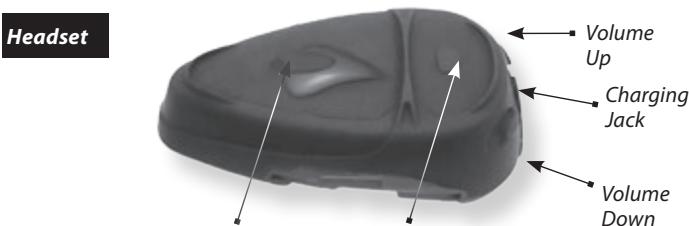
CTRL - Control Button
• Power On, Power Off
- Answer/End Call
MC - Multi-Connection
• Radio On/Off/change stations
- Initiate/Terminate Buddy Intercom call with Primary or Secondary Buddy
Helmet Clamp
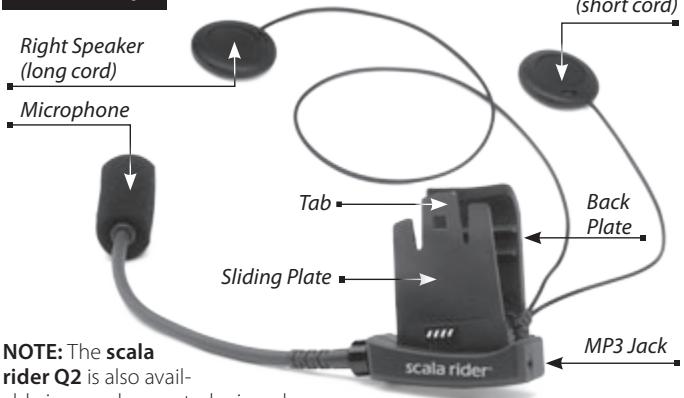
rider Q2 is also available in a cord-mounted microphone version to better fit certain full-faced helmets with tight chin sections.
| Wall Charger |  | |
| Allen Wrench |  | |
| Velcro Pads |  | |
| MP3 Cable |  | |
| MP3 Cable Holder |  | |
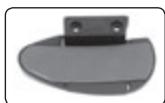
| Glue Plate |  | |
| Pre-moistened Towelette | ||
| Carry-Pouch |  | |
| Microphone Sponges | ||
| Flat sponge for full-face helmets and round sponge for other helmet types | ||
| User Guide, including Warranty and Registration form | ||
IMPORTANT:
The scala rider Q2 is a water-resistant device, designed for use under moderate rain or snow conditions. However, the headset is not waterproof and should not be used under severe weather conditions.
The cover tongue protecting the Charging Jack should be kept tightly closed at all times to prevent moisture from entering the device.
BEFORE USING (CHARGING THE HEADSET)
Make sure that the headset is fully charged for at least five hours before initial use.
- Connect the wall charger to the headset's Charging Jack (located between the two Volume Buttons).
- While charging, the Red Light turns on (it may take up to 15 seconds until the Red Light turns on). When charging is complete, the Red Light will turn off.
SET UP AND CONFIGURATION
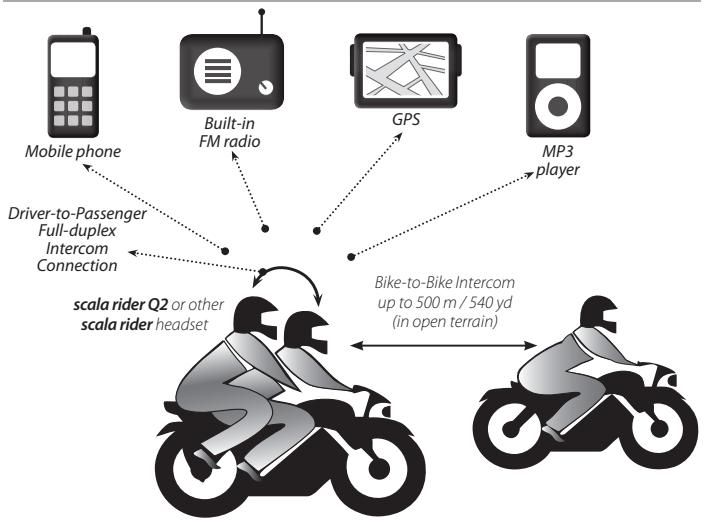
flowchart
graph TD
    A["Mobile phone"] --> B["Driver-to-Passenger Full-duplex Intercom Connection"]
    C["Built-in FM radio"] --> B
    D["GPS"] --> B
    E["MP3 player"] --> B
    B --> F["scala rider Q2 or other scala rider headset"]
    F --> G["Bike-to-Bike Intercom up to 500 m / 540 yd (in open terrain)"]
STEP 1
SET UP FOR BIKE-TO-BIKE INTERCOM: PAIRING
The scala rider Q2 can be paired with up to two other headsets for Intercom communication, referred to in this guide as:
Primary Buddy
and
Secondary Buddy
Pairing is a one time process. Once the headsets are paired during this Setup Procedure, they will remain paired and automatically recognize each other whenever they are within range.
NOTE: The scala rider Q2 allows you to speak via Intercom to one Buddy headset at a time.
PRIMARY BUDDY PAIRING (requires two scala rider Q2 headsets)
- If either headset is turned OFF, turn it ON by pressing and holding the CTRL Button until the Blue Light flashes three times.
- Make sure that both headsets are now flashing slowly in Blue.
- Pick up one headset and simultaneously press and hold the CTRL Button and MC Button for at least six seconds until the Red Light begins flashing rapidly, indicating it is in Intercom Pairing mode.
- Repeat Step 3 again for the second scala rider Q2 headset. Both headsets should now be flashing rapidly in Red.
- Within a few seconds, both headsets will show a solid Red light for two seconds, and then begin flashing slowly in Blue.
NOTE: If the Pairing process is not completed within one minute the headset will return to Standby mode.
SECONDARY BUDDY PAIRING (requires three scala rider Q2 headsets)
Once you have paired the Main scala rider Q2 to the Primary Buddy headset, repeat the procedure above to pair the Main scala rider Q2 to the Secondary Buddy headset.
NOTE: The Main scala rider Q2 is able to communicate with either the Primary Buddy or the Secondary Buddy. The Primary Buddy and Secondary Buddy are not able to communicate directly via Intercom.
NOTE: If the Pairing process is not completed within one minute the headset will return to Standby mode.
STEP 2 (Optional)
SET UP FOR RIDER-TO-PASSENGER INTERCOM: PAIRING
There are two ways that the scala rider Q2 can be used for Driver-to-Passenger communication.
A. Both Rider and Passenger are using scala rider Q2 headsets.
To Pair the two headsets, follow the Steps listed in the section above titled PRIMARY BUDDY PAIRING (2 bikers).
B. The Rider is using a scala rider Q2 and the Passenger is using an earlier scala rider headset (i.e. a scala rider Solo™, a scala rider FM™ or a scala rider TeamSet™ Driver unit headset).
To Pair the two headsets:
- Starting with the earlier scala rider headset turned OFF, press and hold the CTRL button until the Red/Blue lights begin rapidly alternating.
- Starting with the scala rider Q2 turned ON, simultaneously press and hold the CTRL Button and MC Button for six seconds until the Red light begins flashing rapidly, indicating it is in Intercom Pairing mode.
- Within a few seconds, the scala rider Q2 will show a solid Red light for two seconds, and then begin flashing slowly in Blue.
NOTE: If the Pairing process is not completed within one minute the headset will return to Standby mode.
NOTE: When using an earlier scala rider headset as a Passenger headset, Voice Connect Intercom can be initiated only by the scala rider Q2 headset. Manual Connect Intercom can be initiated from either headset by pressing the MC button for scala rider Q2 and CTRL button for any earlier scala rider headset.
RESET INTERCOM PAIRING
You can delete all of the headset's Intercom pairings at any time.
- Place the scala rider Q2 into Intercom Pairing mode following the instructions in the PRIMARY BUDDY PAIRING section above.
- Once the Red Light begins flashing rapidly, press and hold Volume up for three seconds.
- The Red and Blue Lights will flash five times, confirming that the Reset Pairing was successful.
STEP 3
SET UP FOR MOBILE PHONE CALLS: PAIRING
If you have a Bluetooth enabled mobile phone and would like to make and receive phone calls using the scala rider Q2, you must first pair your headset to the mobile phone.
NOTE: If you have a compatible Bluetooth GPS device you wish to use with the scala rider Q2, please skip this step, and continue ahead to STEP 4: SET UP FOR BLUETOOTH GPS DEVICE.
Pairing is a one time process. Once the headset is paired to a specific mobile phone during this Setup Procedure, they will remain paired and automatically recognize each other whenever they are within range. If the connection between the phone and headset is lost, tap the CTRL button to reconnect the devices.
TO PAIR THE SCALA RIDER Q2 TO A BLUETOOTH MOBILE PHONE
- Turn on your phone and make sure its Bluetooth function is activated.
- With the scala rider Q2 headset turned ON, press and hold the CTRL Button for at least six seconds until the Red and Blue Lights begin rapidly alternating.
- Search for Bluetooth devices on your phone by following the
phone's instructions. Please consult your phone's User Manual for more information.
- After a few seconds the phone will list the scala-rider Q2 as a discovered device. Select it and follow your phone's instructions to accept the pairing.
- When prompted enter 0000 (four zeros) as your PIN or passkey.
- Your phone will confirm that pairing has succeeded and the headset will begin flashing slowly in Blue.
NOTE: If the Pairing process is not completed within two minutes the headset will return to Standby mode.
With some mobile phones, you may need to tap the CTRL button to connect the headset to the phone after pairing is complete. The scala rider Q2 headset will automatically connect to the last phone connected to the headset.
STEP 4
SET UP FOR BLUETOOTH GPS DEVICE: PAIRING
If you have a Bluetooth enabled GPS device and would like to transmit navigation instructions and sounds from the GPS device through the headset's speakers, you must first pair your headset to the GPS device.
NOTE: Not all Bluetooth enabled GPS devices allow connections to Bluetooth headsets like the scala rider Q2. Please consult your GPS device's User Manual for more information.
TO PAIR THE SCALA RIDER Q2 TO A BLUETOOTH GPS DEVICE:
- Turn on your GPS device.
-
With the scala rider Q2 headset turned ON, press and hold the CTRL Button for at least six seconds until the Red and Blue Lights begin rapidly alternating.
-
Search for Bluetooth headsets on your GPS device by following the device's instructions. Please consult your GPS device's User Manual for more information.
- If your GPS device prompts for a PIN or Passkey enter 0000 (four zeros).
- Your GPS device will confirm that pairing has succeeded. The headset will begin flashing slowly in Blue.
- If you wish to use a Bluetooth mobile phone to make and receive calls through the headset, you must now pair your mobile phone to your GPS device by following your GPS and/or mobile phone's instructions.
NOTE: If the Pairing process is not completed within two minutes the headset will return to Standby mode.
GETTING STARTED
ATTACHING THE CLAMP ON THE HELMET
The Helmet Clamp must be attached to the left side of the helmet. Once attached, the headset unit can be mounted or released from the Helmet Clamp at any time. If you wish to connect your MP3 player to your headset, please refer first to the assembly instructions listed in section: USING THE MP3 PLAYER WITH YOUR HEADSET.
There are two methods that can be used in order to attach the Clamp onto the helmet:
Standard Method: Recommended for most helmet types.
Glue Plate Method: Recommended for helmets to which the standard method cannot be applied, using the Glue Plate included in the box.
Standard Method
- Use the enclosed Allen Wrench to loosen the two screws on the Back Plate.
- Slide the Back Plate between the internal padding and the external shell of the helmet.
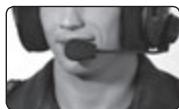
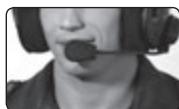
- Adjust the clamp's location so that the microphone is located opposite your mouth and then tighten the screws. You may need to reposition the Clamp repeatedly until you identify the best spot. The microphone must be positioned vertically and not horizontally.
natural_image
Close-up of a person wearing a headset and headset microphone (no visible text or symbols)If you have purchased a helmet clamp version with the corded microphone, please refer to section ATTACHING THE CORDED MICROPHONE CLAMP ON A FULL-FACED HELMET.
Glue Plate Method
You have the option to glue the Helmet Clamp onto your helmet, when the above standard method cannot be used, or in case you prefer to secure the Helmet Clamp with adhesive glue. This option has been successfully used for a range of high end helmets.
NOTE: While we have no reason to believe that the gluing option might negatively affect any helmet, Cardo does not assume any responsibility to that affect, irrespective of its nature and circumstances. The Glue Plate is offered as a free option that you may choose to use at your own risk and subject to renouncement of any future claims.
Caution: This process can be done only once!
- Use the enclosed Allen Wrench to remove both Allen screws and release the Helmet Clamp's back plate.
- Determine the location on the helmet where the Helmet Clamp must be attached.
- Adjust the Helmet Clamp's location on the Helmet so that the
microphone is located opposite your mouth. You may need to reposition the Clamp repeatedly until you identify the best spot. The
natural_image
Close-up of a person wearing a headset and headset, no visible text or symbolsmicrophone must be positioned vertically and not horizontally (Be sure to clean the selected area prior to the gluing process).
- Use the pre-moistened Towelette to clean the helmet area where you want to install the Glue Plate. Allow to dry thoroughly.
- Peel the foil cover from the Glue Plates' adhesive pad.
- Place the Glue Plate into position according to #3. Press firmly 15 seconds on all 3 parts of the Glue Plate.
- The adhesive pad bonds to full strength over the next 24 hours. Therefore it is recommended to not use the headset during this 24 hour period.
- Fasten the Clamp to the Glue Plate using the Allen screws that were previously removed.
If you have purchased a helmet clamp version with the corded microphone, please proceed as follows:
ATTACHING THE CORDED MICROPHONE CLAMP ON A FULL-FACED HELMET
If you are using the corded microphone version, you must first make sure
your helmet clamp is attached to your helmet as described in previous section (ATTACHING THE CLAMP ON THE HELMET). Clean the exact spot on the internal padding of the helmet, opposite your mouth, where the microphone will be placed and proceed as follows.
natural_image
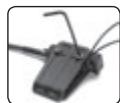
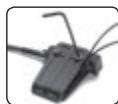
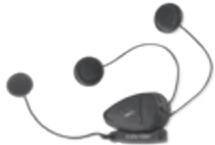
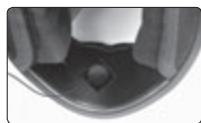
Black and white illustration of a handheld electronic device with earbuds and connectors (no text or symbols)a. Peel the foil cover from the adhesive Velcro pad and place the Velcro pad on the chosen location opposite your mouth.
b. Attach the microphone to the Velcro, as shown in photo.
c. When done, tighten the screws of the clamp
natural_image
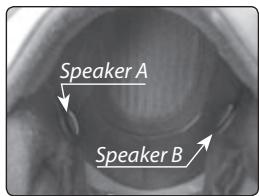
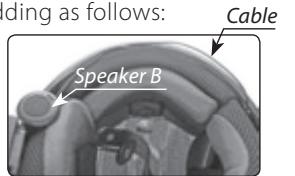
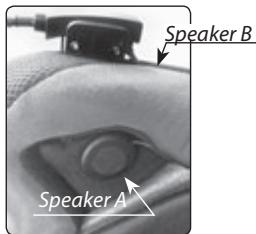
Close-up of a metallic mechanical component with a central hole (no visible text or symbols)Attach the speakers to the Velcro inside your helmet opposite your ears (short speaker cord for the left ear [A] and the long speaker cord [B] for the right ear). You may want to use the supplied Velcro pad. Using two speakers inside the helmet may be prohibited in certain jurisdictions. If this is the case, you should tuck away the long corded speaker underneath the helmet padding as follows: Cable
Lead the speaker cord [B] alongside the rim of the padding to the right side and then back to the left side, near speaker [A]. Then place the speaker [B] underneath the padding.
ATTACHING AND REMOVING THE HEADSET FROM THE HELMET CLAMP
ATTACHING:
Slide the headset downwards along the sliding panel until a clicking sound indicates that the headset is locked in place.
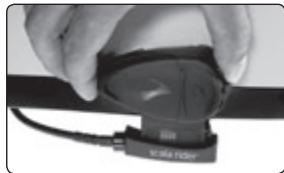
natural_image
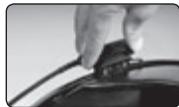
Close-up of a hand holding a small electronic device with a black connector, next to a cable (no visible text or symbols)REMOVING:
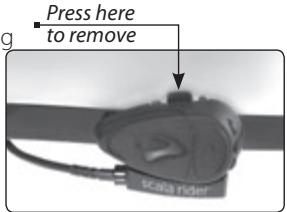
Your headset can be removed for charging and storage by pressing your finger gently against the tab and sliding the headset up with the other hand.
We recommend that you remove the headset from the helmet when not in use.
USING THE HEADSET
GENERAL USAGE
| GENERAL FUNCTIONS | |
| DESIRED RESULT: | REQUIRED ACTION: |
| Turn on the headset | Press the CTRL Button steadily for at least three seconds |
| Turn off the headset | Press the CTRL Button steadily for at least three seconds |
| Increase the volume | Short press the Volume Up Button |
| Decrease the volume | Short press the Volume Down Button |
AGC (Automatic Gain Control): In addition to manual Volume Control, the scala rider Q2 will automatically increase and reduce its volume according to ambient noise and driving speed.
AUDIO SOURCES AND PRIORITIES
The different Audio Sources that are connected to the scala rider Q2 are prioritized as follows:
Highest 1. Mobile phone Audio / GPS device (Incoming/outgoing calls, GPS audio and navigation instructions)
2. Primary Buddy Audio and Secondary Buddy Audio
3. FM Radio
Lowest 4. MP3 Connectivity
A high priority Audio Source will always interrupt any lower priority Audio Source.
i.e. Mobile phone call interrupts Intercom call Intercom call interrupts FM Radio
USING THE INTERCOM
Making Intercom calls
To start a Buddy Intercom call with the Primary Buddy while the headset is on Standby you can either:
VOICE CONNECT:
Start talking
A Buddy Intercom call will be established and stay on until both sides are quiet for 30 seconds.

MC BUTTON CONNECT:
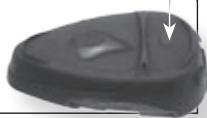
Single tap the MC Button
A Buddy Intercom call will be established. To end the Buddy Intercom call, single tap the MC Button again.
To start a Buddy Intercom call with the Secondary Buddy while the headset is on Standby:
MC BUTTON CONNECT:
Double tap the MC Button
A Buddy Intercom call will be established. To end the Buddy Intercom call, double tap the MC Button again.
MC Button
natural_image
Close-up of a black plastic object with a white arrow pointing to a small feature (no text or symbols visible)NOTE: When using a scala rider Headset (not a Q2 version) as a Passenger headset, Voice Connect Intercom can be initiated only by the scala rider Q2 headset. Manual Connect Intercom can be initiated from either headset.
Failed Connection: On the scala rider Q2, if you attempt to start a Buddy Intercom call with a Buddy that is already on a Phone/GPS/Intercom call, you will hear a double beep indicating the Buddy is busy.
Reconnecting the Intercom: If the scala rider Q2 and its Intercom Buddy headset go out of range and disconnect from each other, the scala rider Q2 will automatically try to reconnect to its Intercom Buddy for five minutes.
You can manually reconnect at any time by pressing the MC Button (single tap for Primary Buddy and double tap for Secondary Buddy).
Receiving Intercom calls
If you are not speaking with any one, once the other party tries to initiate a Buddy Intercom call, the call will begin immediately.
TROUBLESHOOTING THE INTERCOM:
First, make sure your microphone is located properly in front of the center of your mouth.
The scala rider Q2 is designed for use in loud environments. Please make sure to test the Intercom functionality in a LOUD environment, such as next to an idling motorcycle.
Please also verify that the headsets were paired together properly by following the instructions in the relevant Setup sections.
Setting Voice Connect Intercom preference (Primary vs. Secondary Buddy)
The headset's Voice Connect feature allows you to start a Buddy Intercom call by simply speaking into the microphone. You can define which of the two Buddy headsets you wish to connect to when using Voice Connect Intercom.
NOTE: The Primary Buddy has priority by default.
To toggle the Voice Connect Intercom between Primary and Secondary Buddy:
Press and hold the Volume Up Button for three seconds and you will hear a beep:
- One beep – Voice Connect set to Primary Buddy
- Two beeps – Voice Connect set to Secondary Buddy
Enable/Disable Voice Connect feature
Press and hold the Volume Up and Down Buttons simultaneously until you hear a beep. The default status is Voice Connect enabled.
NOTE: The Enable/Disable Voice Connect feature affects the Intercom functionality only.
MAKING AND RECEIVING MOBILE PHONE CALLS
| PHONE FUNCTIONS | |
| Answer a call | Short press the CTRL Button or speak loudly any word of your choice during an incoming call. |
| Reject a call | Short press the MC Button or remain silent for 15 seconds during an incoming call. |
| Terminate a call | Short press the CTRL Button to end a call. |
| Voice Dial | During Standby, short press the CTRL Button and state the name of the person you wish to call. This feature is supported only by mobile phones that support the Voice Dial feature. |
| Redial | Press and hold the Volume Down Button for three seconds during Standby. |
NOTE: If your Bluetooth mobile phone is paired to a Bluetooth GPS device, not directly to the scala rider Q2, some of the above Phone functions may not be compatible.
When the headset is on an active phone call, any Buddy Intercom call request will be rejected automatically.
Once the phone call audio link drops, you can initiate and accept Buddy Intercom calls.
STATUS LIGHT STATES
| None | Headset is off |
| Alternating Red/blue flashes | Mobile phone/GPS Pairing mode |
| Rapid Red flashes | Intercom Pairing mode |
| 1 blue flash every 3 seconds | Standby – No call is in progress |
| 2 blue flashes every 3 seconds | Call being initiated or in progress / FM Radio ON |
| 1 red flash every 3 seconds | Battery is low |
| 2 red flashes every 3 seconds | Call being initiated or in progress / FM Radio ON and battery is low |
| Solid red | Headset is being charged |
WORKING WITH THE FM RADIO
Your headset is equipped with a high-quality FM Radio receiver. This section explains how to enjoy the functions of the FM Radio.
The scala rider Q2 enables you to listen to FM Radio while you are not receiving audio from another audio source.
While listening to the radio, you do not have to worry about missing any calls, as the headset automatically mutes the FM Radio and switches to Bluetooth headset operation when an incoming call is received, or when you decide to initiate a call. When the conversation is over, the headset automatically tunes back in to the FM Radio.
Turning the FM Radio On
While no call is on the headset (either mobile phone call or Intercom
call), press and hold the MC Button on your headset for three seconds to turn on the radio. The radio tunes in to the last radio station you were listening to. With some phones you should wait a few seconds after ending a call before turning on the Radio.
Turning the FM Radio Off
While the radio is turned on, press and hold the MC button for three seconds to turn the Radio off.
Switching Preset FM Radio Station
There are six pre-set Radio stations available on your scala rider Q2. While the Radio is on, tap the MC Button to cycle between saved stations.
Searching for a New FM Radio Station
While the Radio is on, press and hold the Volume Up or Volume Down Button for three seconds or until you hear the next station on your headset.
Pressing Volume Up will search upwards (higher frequency). Pressing Volume Down will search downwards (lower frequency). Once a station is found, searching stops and you can hear the station.
To save this station, refer to the following section.
To continue searching, press the Volume Up or Volume Down Button again for three seconds.
You may still continue to listen to the current unsaved station. Pressing the MC Button in this case will switch to the next saved station.
Saving an FM Radio Station
The FM Radio is equipped with a memory capacity of six stations.
- Select the station you wish to replace by tapping the MC button until you find the station you want to replace.
- Search for a new station as described above.
- Tap the MC Button within 20 seconds of finding the station to save the current station.
If you don't save the station, the Radio will exit search mode without saving the current station. You can still continue to listen to the current unsaved station. Tapping the MC Button in this case will move to the next saved station.
USING THE MP3 PLAYER WITH YOUR HEADSET

Your scala rider Q2 headset can be connected to an MP3 player device by plugging it to the Helmet Clamp's jack with the MP3 cable.
At your option, you may further secure the MP3 cable by using the MP3 cable holder. For this purpose please proceed as follows:
-
Use the enclosed Allen Wrench to remove both Allen screws from Helmet clamp and release the clamp's back plate.
-
Place the MP3 cable holder on the helmet clamp. Both pins on the MP3 cable holder should be fixed into corresponding indentations on clam
-
Place the Back Plate on top of the MP3 cable holder and secure all parts together using the Allen screws that were previously removed, as shown in photo.
-
Attach the clamp and headset onto your helmet as described previously in section "ATTACHING THE CLAMP ON THE HELMET".
-
Attach the speakers to your helmet as described in section "POSITIONING THE SPEAKERS".
-
Connect the MP3 cable to your MP3 player device's jack and the other side to the helmet Clamp's jack, inserting the cable through the MP3 cable holder.
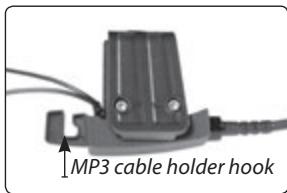
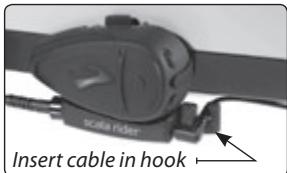
Make sure that the cable plug clicks into place.
- Tuck the MP3 cable into the hook of the MP3 cable holder.
- In order to use your MP3 player, power on the headset to have it on Standby mode, flashing slowly in Blue.
NOTE: Operate the MP3 Player device by using its buttons (FF/REW/PLAY/PAUSE).
Volume can only be adjusted through the MP3 Player.
Any other audio connection will automatically mute the MP3 Player. The audio signal will return only when headset is once again in Standby mode.
SUPPORT
For additional information please visit our website at
www.cardosystems.com
FAQ: www.cardosystems.com/support/faq
or contact us at:
support@cardosystems.com
Phone: USA and Canada – +1-800-488-0363
International – +4989 450 36819
NOTICES
Federal Communications Commission (FCC) Statement
15.21
You are cautioned that changes or modifications not expressly approved by the part responsible for compliance could void the user's authority to operate the equipment.
15.105(b)
This equipment has been tested and found to comply with the limits for a Class B digital device, pursuant to part 15 of the FCC rules. These limits are designed to provide reasonable protection against harmful interference in a residential installation. This equipment generates, uses and can radiate radio frequency energy and, if not installed and used in accordance with the instructions, may cause harmful interference to radio communications. However, there is no guarantee that
interference will not occur in a particular installation. If this equipment does cause harmful interference to radio or television reception, which can be determined by turning the equipment off and on, the user is encouraged to try to correct the interference by one or more of the following measures:
- Reorient or relocate the receiving antenna.
- Increase the separation between the equipment and receiver.
- Connect the equipment into an outlet on a circuit different from that to which the receiver is connected.
- Consult the dealer or an experienced radio/TV technician for help.
Operation is subject to the following two conditions:
1) this device may not cause interference and
2) this device must accept any interference, including interference that may cause undesired operation of the device.
FCC RF Radiation Exposure Statement:
This equipment complies with FCC radiation exposure limits set forth for an uncontrolled environment. End users must follow the specific operating instructions for satisfying RF exposure compliance. This transmitter must not be co-located or operating in conjunction with any other antenna or transmitter.
Industry Canada (IC) Statement
15.21
You are cautioned that changes or modifications not expressly approved by the part responsible for compliance could void the user's authority to operate the equipment.
15.105(b)
This equipment has been tested and found to comply with the limits for a Class B digital device, pursuant to part 15 of the IC rules. These limits are designed to provide reasonable protection against harmful interference in a residential installation. This equipment generates, uses and can radiate radio frequency energy and, if not installed and used in accordance with the instructions, may cause harmful interference to radio communications. However, there is no guarantee that interference will not occur in a particular installation. If this equipment does cause harmful interference to radio or television reception, which can be determined by turning the equipment off and on, the user is encouraged to try to correct the interference by one or more of the following measures:
- Reorient or relocate the receiving antenna.
-
Increase the separation between the equipment and receiver.
-
Connect the equipment into an outlet on a circuit different from that to which the receiver is connected.
- Consult the dealer or an experienced radio/TV technician for help.
Operation is subject to the following two conditions:
1) this device may not cause interference and
2) this device must accept any interference, including interference that may cause undesired operation of the device.
IC RF Radiation Exposure Statement:
This equipment complies with IC radiation exposure limits set forth for an uncontrolled environment. End users must follow the specific operating instructions for satisfying RF exposure compliance. This transmitter must not be co-located or operating in conjunction with any other antenna or transmitter.
European CE Notice
The scala rider Q2™ headset (the "Product") is in conformity with the following essential requirements of Council Directive 1999/5/EC (referred to as R&TTE Directive): Articles 3.1a, 3.1.b and 3.2. The Product is manufactured in accordance with Annex II of the above directive.
Declaration of Conformity (DOC)
The scala rider Q2™ headset is compliant with and adopts the Bluetooth® Specification 2.0 and has successfully passed all interoperability tests that are specified in the Bluetooth® specification. However, interoperability between the device and other Bluetooth®-enabled products is not guaranteed.
WAIVER AND GENERAL RELEASE
By using the scala rider Q2 you will waive substantial legal rights including the right to sue. Please read the following carefully before using the device. If you do not accept all terms of this agreement, you should immediately return the product for a full refund. By using the headset you agree to be bound to this agreement and forfeit the right to sue.
Using a communication device while riding a motorcycle, scooter, moped, ATV, quad-bike or any other vehicle or equipment, whether on land, water or air (jointly referred to as "Vehicle") requires your complete and undivided attention. Cardo Systems, Inc., including its Officers, Directors, Affiliates, Parent Company, Representatives, Agents, Contractors, Sponsors, Employees, Suppliers and Resellers (jointly referred to as the "Company" or "Cardo") strongly advises you to take all necessary precautions and remain alert to the traffic, weather and road conditions if you choose to use the scalar rider Q2 headset, including all derivative models irrespective of its commercial name or branding (the "Device"), and stop your Vehicle on the roadside prior to initiating or receiving calls. Any publications, advertisements, announcements or similar notes that refer to using the Device while riding a Vehicle are solely intended to address
its technical capabilities and should not be misconstrued as if encouraging users to operate the Device while actively involved in traffic.
By way of purchasing this Device and not returning it for a full refund (see below), you are irrevocably releasing, indemnifying from any liability, loss, claim and expense (including attorneys fees) and holding Cardo harmless for any bodily injuries, harm or death as well as losses or damages in goods, to any Vehicles including your own, or to any property or asset that belong to you or to third parties, any of which may result from using the Device under any circumstances or conditions and irrespective of jurisdiction. Cardo will not be responsible for any physical damages, irrespective of reasons, conditions or circumstances, including malfunctioning of the Device, and all risks associated with operating it rest solely and entirely with the user of this Device, irrespective of whether the Device is used by the original purchaser or any third party.
Cardo hereby notifies you that using this Device may also be in contravention to local, federal, state or national laws or regulations, and that any use of the Device is entirely at your sole risk and responsibility.
- You, your heirs, legal representatives, successors or assigns, hereby voluntarily and forever release, discharge, indemnify and hold harmless Cardo from any and all litigation, claims, debts, demands, actions and liability which may arise, directly or indirectly, from using the Device for any distress, pain, suffering, discomfort, loss, injury, death, damages to or in respect to any person or property however caused, WHETHER ARISING FROM THE NEGLIGENCE OR OTHERWISE, and which may hereafter accrue to you on some future date as a result of said use, to the fullest extent permitted by law.
- You fully understand and assume the risks in using the Device, including risk of negligent acts or omissions by others.
- You confirm that you are physically capable to use the Device and that you have no medical conditions or needs that may infringe upon your abilities to do so in a safe manner. You confirm that you are at least eighteen (18) years of age and that you have been advised of the risks associated with the use of the Device. You further confirm that you will not consume any alcohol that may affect your alertness or any mind-altering substance, and will not carry, use or consume these substances before or during the use of the Device.
- You fully acknowledge our warnings and understand that: (a) risks and dangers exist in using the Device while in traffic, including but not limited to injury or illness, strains, fractures, partial and/or total paralysis, death or other ailments that could cause serious disability; (b) these risks and dangers may be caused by the negligence of the manufacturers or its agents or any third party involved in designing or manufacturing the Device; (c) these risks and dangers may arise from foreseeable or unforeseeable
causes. You hereby assume all risks and dangers and all responsibility for any losses and/or damages, whether caused in whole or in part by the negligence or other conduct of others, including the Company.
- You confirm that you have read this release of liability and fully understand its terms and that you have given up substantial rights by not returning the Device for a full refund (see refund option below).
Disclaimer of Warranty
CARDO DISCLAIMS ALL EXPRESS AND IMPLIED WARRANTIES WITH REGARD TO THE ENCLOSED DEVICE, INCLUDING WITHOUT LIMITATION ANY IMPLIED WARRANTIES OF MERCHANTABILITY, FITNESS FOR A PARTICULAR PURPOSE, AND NON-INFRINGEMENT. THE DEVICE AND ITS ACCESSORIES ARE PROVIDED "AS IS" AND "AS AVAILABLE" WITHOUT WARRANTY OF ANY KIND BEYOND THOSE ASSUMED IN THE ENCLOSED MANUAL.
Limitation of Liability
IN NO EVENT SHALL CARDO BE LIABLE FOR ANY SPECIAL, INDIRECT, PUNITIVE, INCIDENTAL, EXEMPLARY OR CONSEQUENTIAL DAMAGES, OR ANY DAMAGES WHATSOEVER RESULTING FROM THE USE OF THE DEVICE, WHETHER BASED ON BREACH OF CONTRACT, TORT (INCLUDING NEGLIGENCE), PRODUCT LIABILITY OR OTHERWISE, EVEN IF ADVISED OF THE POSSIBILITY OF SUCH DAMAGES. YOU ACKNOWLEDGE AND AGREE THAT THE LIMITATIONS SET FORTH ABOVE ARE FUNDAMENTAL ELEMENTS OF THIS AGREEMENT AND THE DEVICE WOULD NOT BE PROVIDED TO YOU ABSENT SUCH LIMITATIONS. SOME STATE STATUTES MIGHT APPLY REGARDING LIMITATION OF LIABILITY.
RETURN FOR FULL REFUND
IF YOU ARE UNWILLING TO ACCEPT AND AGREE TO THE ABOVE CONDITIONS, YOU MAY RETURN THIS DEVICE TO THE STORE FOR A FULL REFUND, PROVIDED THAT YOU DO SO NO LATER THAN 7 BUSINESS DAYS FOLLOWING THE PURCHASE OF THE DEVICE (proof of purchase required) AND SUBJECT TO THE RETAIL BOX AND ALL ACCESSORIES BEING COMPLETE AND INTACT. WHEN DOING SO, PLEASE REFER TO THIS SECTION. BY NOT RETURNING THE DEVICE FOR REFUND WITHIN THE PERIOD PROVIDED, YOU ARE EXPLICITLY IN AGREEMENT WITH THE ABOVE, AND RENOUNCE ALL RIGHTS TO FUTURE CLAIMS AND DEMANDS AGAINST CARDO AS DEFINED ABOVE.
www.cardosystems.com
- INTRODUCTION
- CONTENTS OF RETAIL BOX
- IMPORTANT:
- BEFORE USING (CHARGING THE HEADSET)
- STEP 1
- SET UP FOR BIKE-TO-BIKE INTERCOM: PAIRING
- PRIMARY BUDDY PAIRING (requires two scala rider Q2 headsets)
- SECONDARY BUDDY PAIRING (requires three scala rider Q2 headsets)
- STEP 2 (Optional)
- SET UP FOR RIDER-TO-PASSENGER INTERCOM: PAIRING
- To Pair the two headsets:
- RESET INTERCOM PAIRING
- STEP 3
- SET UP FOR MOBILE PHONE CALLS: PAIRING
- TO PAIR THE SCALA RIDER Q2 TO A BLUETOOTH MOBILE PHONE
- STEP 4
- SET UP FOR BLUETOOTH GPS DEVICE: PAIRING
- TO PAIR THE SCALA RIDER Q2 TO A BLUETOOTH GPS DEVICE:
- GETTING STARTED
- ATTACHING THE CLAMP ON THE HELMET
- Standard Method
- Glue Plate Method
- Caution: This process can be done only once!
- ATTACHING THE CORDED MICROPHONE CLAMP ON A FULL-FACED HELMET
- ATTACHING AND REMOVING THE HEADSET FROM THE HELMET CLAMP
- ATTACHING:
- REMOVING:
- USING THE HEADSET
- AUDIO SOURCES AND PRIORITIES
- USING THE INTERCOM
- Making Intercom calls
- VOICE CONNECT:
- Start talking
- MC BUTTON CONNECT:
- Single tap the MC Button
- Double tap the MC Button
- Receiving Intercom calls
- TROUBLESHOOTING THE INTERCOM:
- Setting Voice Connect Intercom preference (Primary vs. Secondary Buddy)
- Enable/Disable Voice Connect feature
- WORKING WITH THE FM RADIO
- Turning the FM Radio On
- Turning the FM Radio Off
- Switching Preset FM Radio Station
- Searching for a New FM Radio Station
- Saving an FM Radio Station
- USING THE MP3 PLAYER WITH YOUR HEADSET
- SUPPORT
- NOTICES
- Federal Communications Commission (FCC) Statement
- Operation is subject to the following two conditions:
- IC RF Radiation Exposure Statement:
- European CE Notice
- Declaration of Conformity (DOC)
- WAIVER AND GENERAL RELEASE
- Disclaimer of Warranty
- Limitation of Liability
- RETURN FOR FULL REFUND
Brand : CARDO
Model : SCALA RIDER Q2
Category : Motorcycle intercom