DMS-500 / DMS-550 / DMS-600 (guide rapide app) - Audio device Cary Audio - Free user manual and instructions
Find the device manual for free DMS-500 / DMS-550 / DMS-600 (guide rapide app) Cary Audio in PDF.


| Product type | Network player / audiophile DAC |
| Brand | Cary Audio |
| Model | DMS-500/550/600 (application guide) |
| Dimensions (W x H x D) | 430 x 100 x 380 mm (estimated) |
| Weight | 12 kg (estimated) |
| Power supply | 100-240 V AC, 50/60 Hz (estimated) |
| Main functions | Network playback, USB, SD, PC Share, Media Server, AirPlay, Phoneshare |
| Sampling frequencies | Input 44.1 kHz, oversampling up to 96 kHz (frequency converter) |
| Built-in DAC | Yes, with sampling frequency converter |
| Display | Screen with brightness adjustment (LO, MID, HIGH, OFF) |
| Control | Mobile app iOS/Android (Cary Audio DMS App) |
| Network connectivity | Ethernet / Wi-Fi (estimated) |
| Audio inputs | USB, SD card, network |
| Audio outputs | Analog XLR/RCA, digital (estimated) |
| Wireless streaming | AirPlay (iOS), Phoneshare (Android) |
| Server compatibility | DLNA, JRiver, Twonky, Foobar, network storage |
| Maintenance | Clean with a soft dry cloth; do not use abrasive products |
| Safety | Unplug before cleaning; do not expose to moisture |
| Spare parts | Remote control, power cable (estimated) |
| Repairability | Have any repairs carried out by an approved technician |
| Included accessories | Quick start guide, mobile app |
| Warranty | 2 years (estimated) |
Frequently Asked Questions - DMS-500 / DMS-550 / DMS-600 (guide rapide app) Cary Audio
User questions about DMS-500 / DMS-550 / DMS-600 (guide rapide app) Cary Audio
0 question about this device. Answer the ones you know or ask your own.
Ask a new question about this device
Download the instructions for your Audio device in PDF format for free! Find your manual DMS-500 / DMS-550 / DMS-600 (guide rapide app) - Cary Audio and take your electronic device back in hand. On this page are published all the documents necessary for the use of your device. DMS-500 / DMS-550 / DMS-600 (guide rapide app) by Cary Audio.
USER MANUAL DMS-500 / DMS-550 / DMS-600 (guide rapide app) Cary Audio
QUICK TIP GUIDE
FOR DMS-500/550/600 APP
The bulk of the guide addresses the control and streaming of network, USB/SD sources as most other features are self-explanatory. Please note that the look or style of some features may vary slightly on the iOS version as this guide shows on an Android device.
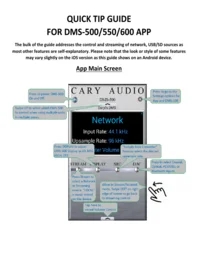
App Main Screen

Network Input Screen
For this guide, we have focused mostly on the Network or Streaming screens as they are a bit more involved. USB, SD Card, and Internet Music inputs function similarly and are easy to navigate once you are familiar with Network Inputs.
You may have also noticed an Input called “PHONESHARE” that can be accessed from the main app screen STREAM button or from the SOURCE button in the streaming screen. Phoneshare is similar to AirPlay for Android phones or tablets that you are using to control the DMS-500/550/600. Therefore, any music stored on the Android device can be streamed to the DMS-500/550/600 over network. For iOS devices the DMS-500/550/600 supports Airplay.

PC Share, USB/SD Home
Media Server Home
Note that the Home Screen category list is different for PC Share, USB/SD Mode vs. Server Mode. This is because severs use the folder hierarchy from the server as opposed to a preset selection as with PC Share/USB/SD. Simply select “Folders” to see the expanded selection when using servers.

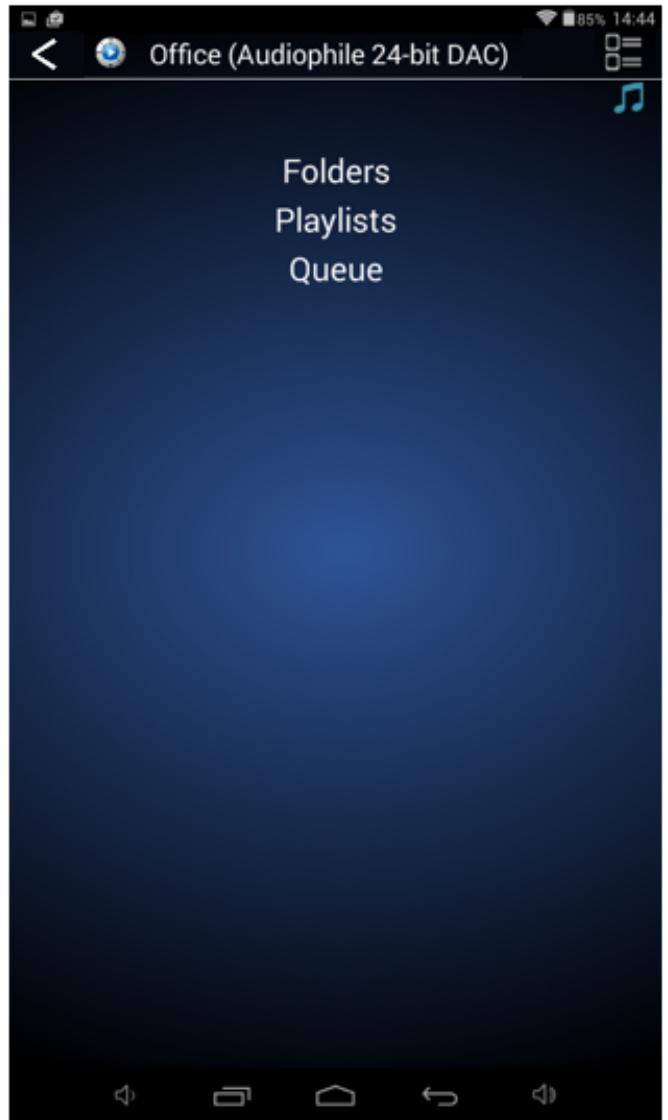
PC SHARE & USB/SD
Artist, Album, and Track Screen
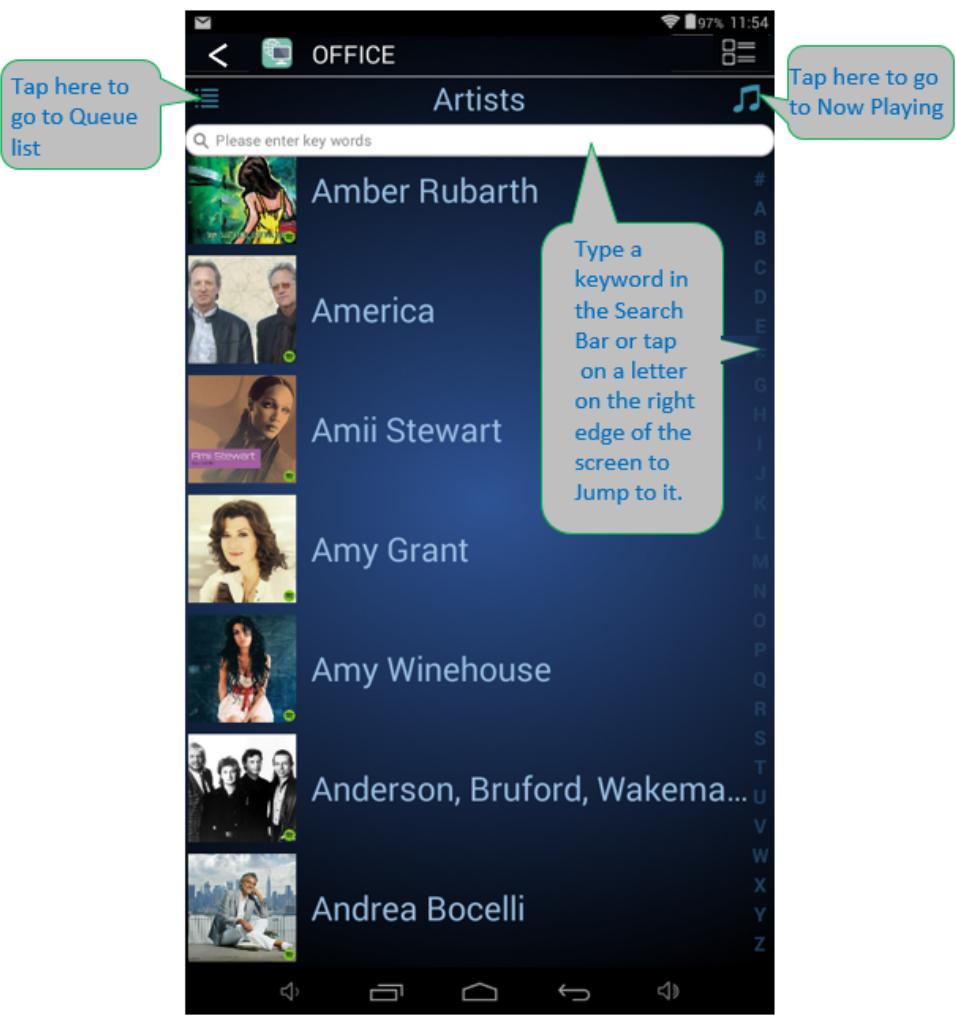
Swipe LEFT on any Artist, Album, or Track (Tracks only for Media Server sources) to quickly Add it to the Queue.

Touch and hold on any selection for more choices such as; Replace Queue, Add to a Playlist, or Add to a new Playlist.

Server Mode
Artist, Album, and Track Screen

(DMS-500/550/600 Firmware v1.26 or earlier can only add songs or folders of which only have songs within them to the Queue when using a server. Please upgrade to v1.27 to added Queue functionality with servers)
Swipe LEFT on Tracks only (or Media Server sources) to quickly Add it to the Queue.

Touch and hold on any Track for more choices such as; Replace Queue, Add to a Playlist, or Add to a new Playlist.

Playlist Screen

Queue Screen

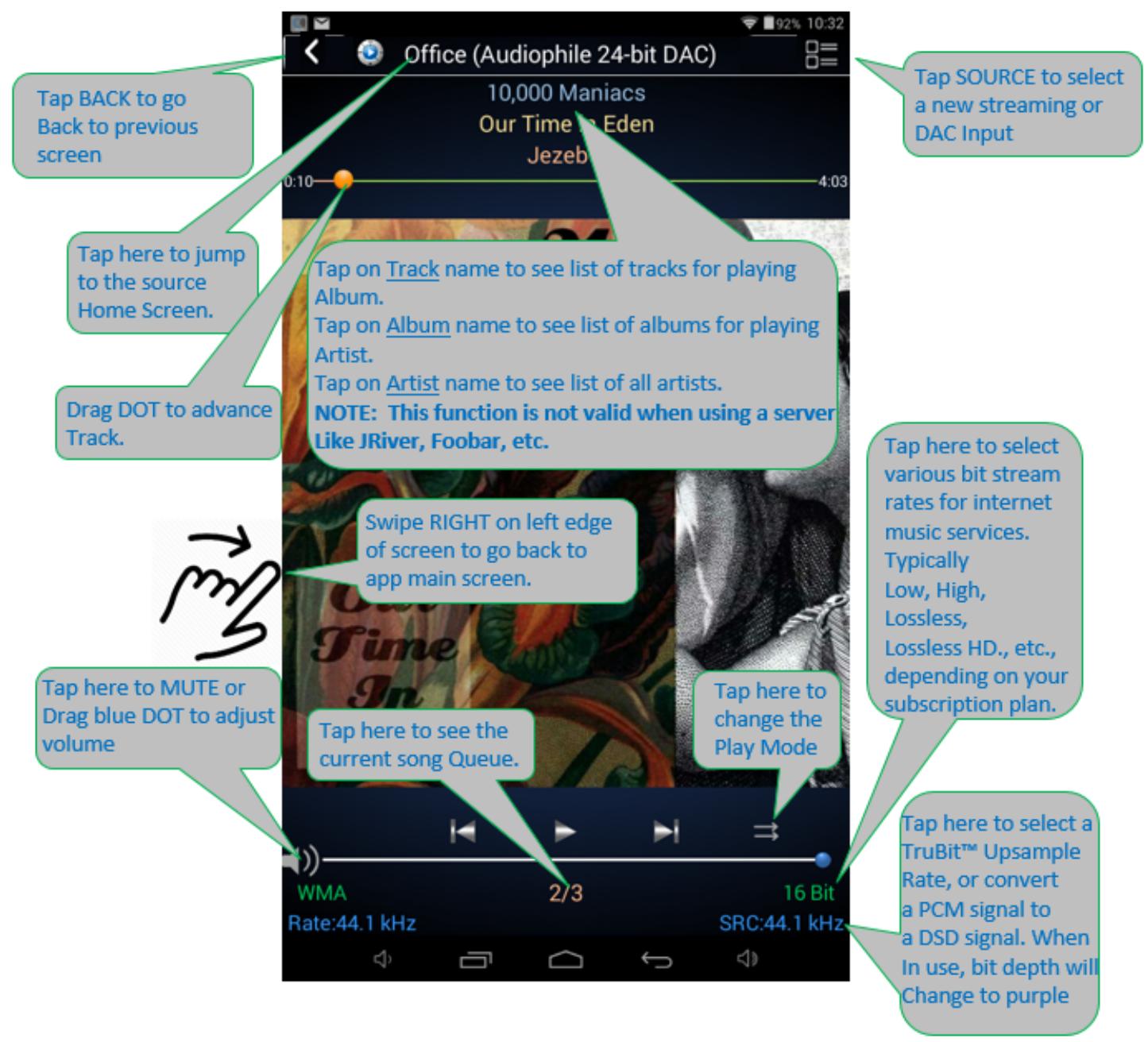
Now Playing Screen
Brand : Cary Audio
Model : DMS-500 / DMS-550 / DMS-600 (guide rapide app)
Category : Audio device