UPLOAD 08 - Software Chauvet Professional - Free user manual and instructions
Find the device manual for free UPLOAD 08 Chauvet Professional in PDF.


| Type of Product | Firmware Uploader/Updater for lighting fixtures |
| Brand | Chauvet Professional |
| Model | UPLOAD 08 |
| Category | Software / Firmware Update Interface |
| Interface | USB to DMX adapter |
| Connectivity | USB (to PC) and DMX (to fixtures) |
| Maximum Daisy-Chained Fixtures | 10 identical products |
| Compatible Series | Chauvet Rogue and Maverick series |
| Firmware Update Modes | Standard upload and Force Upload mode |
| LED Indicator | Yes, indicates flashing/status |
| Operating System | Windows XP or higher |
| Required Software | Upload08.exe (v4.5.2 or higher) |
| Required Framework | Microsoft .NET Framework |
| Driver Requirement | Silicon Labs CP210x VCP driver |
| Port Configuration | Set COM port to COM129 |
| Power Supply | USB powered, 5V DC |
| Approximate Dimensions | 50 x 25 x 10 mm |
| Approximate Weight | 50 g |
| Included Accessories | USB cable, installation software |
| Maintenance & Cleaning | Clean connectors with a dry cloth; store in a dry place |
| Safety Precaution | Keep away from moisture; use only in dry environments |
| Repairability | No user-serviceable parts; contact Chauvet support |
| General Information | Free user manual available in PDF; software instructions included |
Frequently Asked Questions - UPLOAD 08 Chauvet Professional
User questions about UPLOAD 08 Chauvet Professional
0 question about this device. Answer the ones you know or ask your own.
Ask a new question about this device
Download the instructions for your Software in PDF format for free! Find your manual UPLOAD 08 - Chauvet Professional and take your electronic device back in hand. On this page are published all the documents necessary for the use of your device. UPLOAD 08 by Chauvet Professional.
USER MANUAL UPLOAD 08 Chauvet Professional
UPLOAD 08
INSTRUCTIONS
The UPLOAD 08 updates the firmware of most Maverick and Rogue products through the DMX port.
(See https://www.chauvetprofessional.com/products/mr-upload)
Before You Begin
- Uninstall previous version of software.
- Install Microsoft .NET Framework if not already installed.
- Go to the downloads page on https://www.silabs.com/developers/usb-to-uart-bridge-vcp-drivers and download then install the CP210x Windows Drivers.
Installation
PART 1
Preliminary preparations.
- Install UPLOAD 08 Setup (version 4.5.2 or higher) to a Windows PC (Windows XP or higher).
- Plug the UPLOAD 08 into the PC with the included USB cable.
PART 2
Define the COM port of the UPLOAD 08.
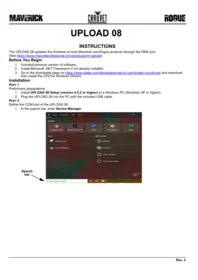
- In the search bar, enter Device Manager.

- Select Device Manager, then open the Ports (COM & LPT) drop-down menu. The UPLOAD 08 will appear as Silicon Labs CP210x USB to UART Bridge (COM#). The COM port is indicated in the parentheses.

- Right click over Silicon Labs CP210x and select Properties.

- Once the window is open, select Port Settings. From port settings select Advanced.

- Change COM port to COM129.

PART 3
Set up the software.
- Run Upload08.exe. A window will appear, instructing you to unplug and replug the uploader.

- When the uploader is replugged a counter will begin. Wait until the countdown completes to continue.

- Click Open, and select the CL or CHL File to upload.
PART 4
Connect and upload to the product or products.
- Connect up to 10 of the same product to be updated together in a DMX daisy chain.
- Power on all products.
- Follow on-screen directions to upload products.
PART 5
If a product or products are not uploading, try Force Upload mode.
- Power off the product. Do not disconnect it from the UPLOAD 08.
- Ensure that the LED indicator on the UPLOAD 08 is flashing.
- Ensure the CL or CHL file to be uploaded to the product is selected.
- Click the Force Upload button and follow on-screen directions.
- If the problem persists, contact Chauvet Customer Service.

Compatible Products
• ROGUE OUTCAST 1 BEAMWASH
• ROGUE R1 BEAMWASH
- ROGUE R1 FX-B
• ROGUE R1 HYBRID
- ROGUE R1 WASH
• ROGUE R1X SPOT
• ROGUE R1X WASH
- ROGUE R2 WASH
- ROGUE R2X BEAM
• ROGUE R2X SPOT
• ROGUE R2X WASH
• ROGUE R2X WASH VW
- ROGUE R3 BEAM
- ROGUE R3 SPOT
- ROGUE R3 WASH
• ROGUE R3X WASH
• MAVERICK FORCE 1 SPOT
• MAVERICK FORCE 2 PROFILE
• MAVERICK FORCE S PROFILE
• MAVERICK FORCE S SPOT
• MAVERICK MK PYXIS
• MAVERICK MK1 HYBRID
• MAVERICK MK1 SPOT
• MAVERICK MK2 PROFILE
• MAVERICK MK2 SPOT
• MAVERICK MK2 WASH
• MAVERICK MK3 PROFILE
• MAVERICK MK3 PROFILE CX
• MAVERICK MK3 SPOT
• MAVERICK MK3 WASH
• MAVERICK STORM 1 SPOT
• MAVERICK STORM 1 WASH



Brand : Chauvet Professional
Model : UPLOAD 08
Category : Software