
WPG-350 - Wireless Presentation Adapter VIEWSONIC - Free user manual and instructions
Find the device manual for free WPG-350 VIEWSONIC in PDF.


| Product Type | Wireless Presentation Adapter |
| Brand | ViewSonic |
| Model | WPG-350 |
| Dimensions (L x W x H) | 140 x 80 x 25 mm |
| Weight | 150 g |
| Power Supply | USB 5V |
| Power Consumption | 5 W |
| Maximum Resolution | 1920 x 1080 (Full HD) |
| Wireless Connectivity | Wi-Fi 802.11 a/b/g/n/ac |
| Output Ports | HDMI |
| Supported Protocols | Miracast, AirPlay, DLNA |
| Key Features | Wireless screen mirroring, mobile presentation |
| Simultaneous Users | Up to 4 |
| Wireless Security | WPA2 |
| Maintenance and Cleaning | Soft dry cloth |
| Operating Temperature | 0 to 40 °C |
| Operating Humidity | 10 to 90% non-condensing |
| Package Contents | Adapter, HDMI cable, quick start guide |
| Country of Origin | China |
| Warranty | 2 years |
Frequently Asked Questions - WPG-350 VIEWSONIC
User questions about WPG-350 VIEWSONIC
0 question about this device. Answer the ones you know or ask your own.
Ask a new question about this device
Download the instructions for your Wireless Presentation Adapter in PDF format for free! Find your manual WPG-350 - VIEWSONIC and take your electronic device back in hand. On this page are published all the documents necessary for the use of your device. WPG-350 by VIEWSONIC.
USER MANUAL WPG-350 VIEWSONIC
Wireless Presentation Gateway
-User Guide
- Guide de l'utilisateur
- Bedienungsanleitung
- Guía del usuario
- РуховOSTВО NOЛьЗOBаТелЯ
- 使用手册 (繁體)
- 使用手册(简体)
Compliance Information
FCC Statement
This device complies with part 15 of FCC Rules. Operation is subject to the following two conditions: (1) this device may not cause harmful interference, and (2) this device must accept any interference received, including interference that may cause undesired operation.
This equipment has been tested and found to comply with the limits for a Class B digital device, pursuant to part 15 of the FCC Rules. These limits are designed to provide reasonable protection against harmful interference in a residential installation. This equipment generates, uses, and can radiate radio frequency energy, and if not installed and used in accordance with the instructions, may cause harmful interference to radio communications. However, there is no guarantee that interference will not occur in a particular installation. If this equipment does cause harmful interference to radio or television reception, which can be determined by turning the equipment off and on, the user is encouraged to try to correct the interference by one or more of the following measures:
Reorient or relocate the receiving antenna.
- Increase the separation between the equipment and receiver.
- Connect the equipment into an outlet on a circuit different from that to which the receiver is connected.
- Consult the dealer or an experienced radio/TV technician for help.
Warning: You are cautioned that changes or modifications not expressly approved by the party responsible for compliance could void your authority to operate the equipment.
For Canada
CE Conformity for European Countries

The device complies with the EMC Directive 2004/108/EC and Low Voltage Directive 2006/95/EC.
Following information is only for EU-member states:
The mark is in compliance with the Waste Electrical and Electronic Equipment Directive 2002/96/EC (WEEE).
The mark indicates the requirement NOT to dispose the equipment including any spent or discarded batteries or accumulators as unsorted municipal waste, but use the return and collection systems available.

If the batteries, accumulators and button cells included with this equipment, display the chemical symbol Hg , Cd, or Pb, then it means that the battery has a heavy metal content of more than 0.0005% Mercury or more than, 0.002% Cadmium, or more than 0.004% Lead.

FCC Radiation Exposure Statement
This equipment should be installed and operated with minimum distance 20cm between the radiator & your body.
This wireless module device complies with part 15 of FCC Rules. Operation is subject to the following two conditions: (1) this device may not cause harmful interference, and (2) this device must accept any interference received, including interference that may cause undesired operation.
Industry Canada Notice
This wireless module device complies with Canadian RSS-210. To prevent radio interference to the licensed service, this device is intended to be operated indoors and away from windows to provide maximum shielding. Equipment (or its transmitting antenna) that is installed outdoors is subject to licensing. The installer of this radio equipment must ensure that the antenna is located or pointed such that it does not emit RF field in excess of Health Canada limits for the general population; consult Safety Code 6, obtainable from Health Canada's web site www.hc-sc.gc.ca/rpb.
R&TTE Compliance Statement C E
This wireless module device complies with the Essential Requirements of the R&TTE Directive of the European Union (1999/5/EC). This equipment meets the following conformance standards:
ETSI EN 300 328V1.7.1 (2006)
EN 301 489-01 V1.6.1 (2005)
EN 301 489-17 V1.2.1 (2002)
EN 62311 (2008)
Notified Countries: Germany, UK, Netherlands, Belgium, Sweden, Denmark, Finland, France, Italy, Spain, Austria, Ireland, Portugal, Greece, Luxembourg, Estonia, Latvia, Lithuania, Czech Republic, Slovakia, Slovenia, Hungary, Poland and Malta.
Declaration of RoHS Compliance
This product has been designed and manufactured in compliance with Directive 2002/95/EC of the European Parliament and the Council on restriction of the use of certain hazardous substances in electrical and electronic equipment (RoHS Directive) and is deemed to comply with the maximum concentration values issued by the European Technical Adaptation Committee (TAC) as shown below:
| Substance | Proposed Maximum Concentration | Actual Concentration |
| Lead (Pb) | 0.1% | < 0.1% |
| Mercury (Hg) | 0.1% | < 0.1% |
| Cadmium (Cd) | 0.01% | < 0.01% |
| Hexavalent Chromium (Cr6+) | 0.1% | < 0.1% |
| Polybrominated biphenyls (PBB) | 0.1% | < 0.1% |
| Polybrominated diphenyl ethers (PBDE) | 0.1% | < 0.1% |
Certain components of products as stated above are exempted under the Annex of the RoHS Directives as noted below:
Examples of exempted components are:
- Mercury in compact fluorescent lamps not exceeding 5mg per lamp and in other lamps not specifically mentioned in the Annex of RoHS Directive.
- Lead in glass of cathode ray tubes, electronic components, fluorescent tubes, and electronic ceramic parts (e.g. piezoelectronic devices).
- Lead in high temperature type solders (i.e. lead-based alloys containing 85% by weight or more lead).
- Lead as an alloting element in steel containing up to 0.35% lead by weight, aluminium containing up to 0.4% lead by weight and as a cooper alloy containing up to 4% lead by weight.
Copyright Information
Copyright © ViewSonic® Corporation, 2009. All rights reserved.
Macintosh and Power Macintosh are registered trademarks of Apple Inc.
Microsoft, Windows, Windows NT, and the Windows logo are registered trademarks of Microsoft Corporation in the United States and other countries.
ViewSonic, the three birds logo, OnView, ViewMatch, and ViewMeter are registered trademarks of ViewSonic Corporation.
VESA is a registered trademark of the Video Electronics Standards Association. DPMS and DDC are trademarks of VESA.
PS/2, VGA and XGA are registered trademarks of International Business Machines Corporation. Disclaimer: ViewSonic Corporation shall not be liable for technical or editorial errors or omissions contained herein; nor for incidental or consequential damages resulting from furnishing this material, or the performance or use of this product.
In the interest of continuing product improvement, ViewSonic Corporation reserves the right to change product specifications without notice. Information in this document may change without notice.
No part of this document may be copied, reproduced, or transmitted by any means, for any purpose without prior written permission from ViewSonic Corporation.
Product Registration
To meet your future needs, and to receive any additional product information as it becomes available, please register your product on the Internet at: www.viewsonic.com. The ViewSonic® Wizard CD-ROM also provides an opportunity for you to print the registration form, which you may mail or fax to ViewSonic.
| For Your Records | |
| Product Name: | WPG-350 |
| ViewSonic Wireless Presentation Gateway | |
| Model Number: | VS12526 |
| Document Number: | WPG-350_UG_ENG Rev. 1A 06-22-09 |
| Serial Number: | |
| Purchase Date: | |

The lamp in this product contains mercury.
Please dispose of in accordance with local, state or federal laws.
Table of Contents
Chapter I Product Introduction 4
1-1 Package Contents 4
1-2 Requirements 5
1-3 Highlights 6
1-4 Part Names 7
1-5 Initial Setup 8
1-5 Initial Setup 9
Chapter II Using WPG 11
Chapter II Using WPG 12
2-1 Check the IP address of WPG 12
2-2 Connect to WPG by wireless network 13
2-3 Manual Network Connection Setting 14
2-3-1 Windows XP IP address setup: 15
2-3-2 Windows Vista IP address setup: 16
2-3-3 Macintosh IP address setup: 17
Chapter III Using Application Software (PC Version) 18
3-1 Download and Install Application Software 18
3-2 Launch Application Software and Login 21
3-2-1 Use icon on application software 22
3-2-2 Menu List 23
3-3 Video playback (PC Version) 24
3-4 Quarter Split Screen 25
Chapter IV Using Application Software (MAC Version) 26
4-1 Download and Install Application Software 26
4-2 Launch Application Software and Login (MAC Version) 27
4-2-1 Use icon on application software 28
4-2-2 Menu List 29
4-3 Video playback 30
4-4 Quarter Split Screen (MAC Version) 31
Chapter V Configure WPG 32
5-1 Conference Control 32
5-2 Connect to Web Configuration Menu 34
5-3 Status & Info 35
5-4 Network Settings 35
5-5 Wireless Settings 37
5-5-1 'Basic' Settings 37
5-5-2 'Advanced' Settings 39
5-5-3 'Security' Settings 40
5-5-4 WPS' Settings 45
5-6 Projection Setting 47
5-7 Password Setting 48
5-8 Configuration Tools 49
5-8-1 Configuration Tools 49
5-8-2 Firmware Upgrade 50
5-9 Restart 51
5-10Logout 53
Chapter VI Appendix 54
6-1 Hardware Specification 54
6-2 Troubleshooting 56
Important Safety Instructions
- Do not place the product near water or in humid and / or hot environment, like bathroom or kitchen. Please refer to the specification of the environment.
- This product is designed to be used indoor.
- Avoid swallowing any parts, components, or accessory of this product.
- If this product is dropped into water when it's powered on, DO NOT ATTEMPT TO RETRIEVE BACK BY YOURSELF! Switch the electrical power switch off first, and call a qualified electrical technician for help.
- If to hang this product, please make sure placement is properly secured. Misplacement would cause falling and damage this product and injury to people!
- Do not drag any connected cord with force; the terminal and cord will be damaged.
- Only use dry cloth with water to clean this product; do not use alcohol or other chemical solution to clean this product.
- Do not repair, disassemble, or modify the product; if the product is not working properly, please contact the dealer of purchase.
- Do not put the product and / or A/C adapter directly on paper, cloth, or other flammable materials. After hours of use, this product will become hot, and may cause flammable materials placed under it to burn.
- Do not cover the product with cloth or any material; the product will become overheat and cause malfunction, even cause fire.
- When the product is powered on, do not connect or disconnect any connection cable.
- If not using the product for a long time, please unplug A/C adapter from wall socket, and remove the battery inside remote controller.
Chapter I Product Introduction
Congratulations on your purchase of ViewSonic Wireless Presentation Gateway WPG-350. This section introduces you to the WPG-350 (referred to as the WPG in this user guide).
1-1 Package Contents
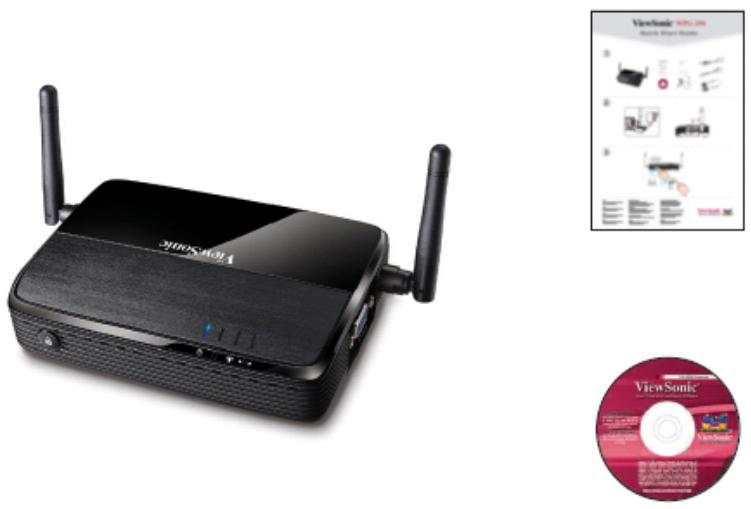
(1) WPG-350
(2) AC adapter
(3) Remote controller
(4) IR receiver extension cord
(5) AC adapter extension cord
(6) VGA cord
(7) Quick Installation Guide
(8) Software CD-ROM
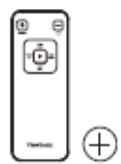
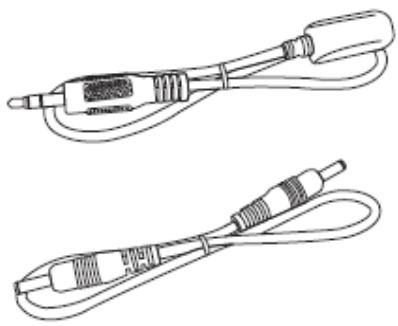
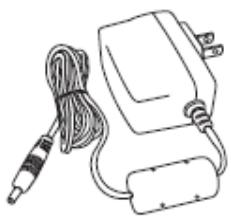
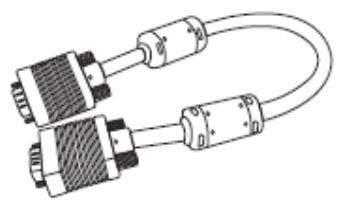
1-2 Requirements
| PC CPU Speed | Intel Pentium 4/1.5 GHz or higher (Recommend Intel Core 2 Duo CPU For Video Playback Mode) |
| Memory | 512 MB of RAM or higher (Recommend 1GB of RAM For Video Playback Mode) |
| Operating System | Windows XP 32 bit or above (Recommend Windows XP 32 bit) MAC OS X 10.4 and 10.5 (Both PowerPC / Intel Version) |
| Network | 100Mbps Wired Fast Ethernet / 11Mbps 802.11b wireless Ethernet (Recommend 54Mbps 802.11g wireless Ethernet) |
1-3 Highlights
Thanks again for choosing the product. This product allows multiple users to connect to the same projector by wired or wireless network and avoiding the hassle of using VGA cable.
Features
- 802.11 b/g/n Wireless compatibility.
- Supports both Wireless and Ethernet connectivity
- VGA connections
- Conference control
- Supports multiple users at the same time with Quarter split screen
- WPS (Wi-Fi Protected Setup)
- Output Resolution: 1024x768 or 800x600.
- Upgrade software via the Internet.
- Network security.
- Presentation remote
- Video capture, to capture screen image for projection*
*This function will be available in Q4, 2009 via upgrade through Internet.
1-4 Part Names
Front View
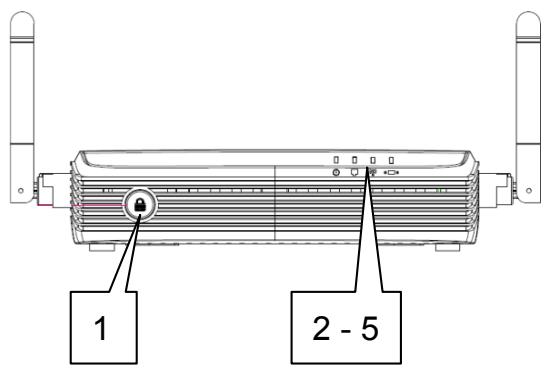
Back View
| Item No. | Description |
| 1 | WPS: Single Click when the device is ON. Turn On: Single Click when the device is OFF. |
| 2 | ‘POWER’ LED |
| 3 | ‘LAN’ LED |
| 4 | ‘WIRELESS’ LED |
| 5 | ‘PC IN’ LED |
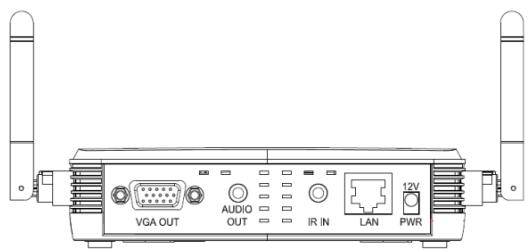
Side View
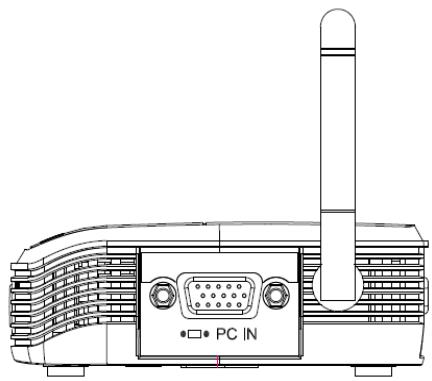
| Name | Description |
| 12V | Connect to A/C adapter / ViewSonic projector's D/C power outlet |
| LAN | 10/100Mbps fast Ethernet port |
| IR IN | Connect to IR receiver |
| Audio Out | Stereo audio output |
| VGA OUT | VGA video output |
| Antenna | Receives wireless signal. |
| Name | Description |
| PC IN | Connect to computer's VGA output port |
Note:
1) WPS stands for Wi-Fi Protected Setup.
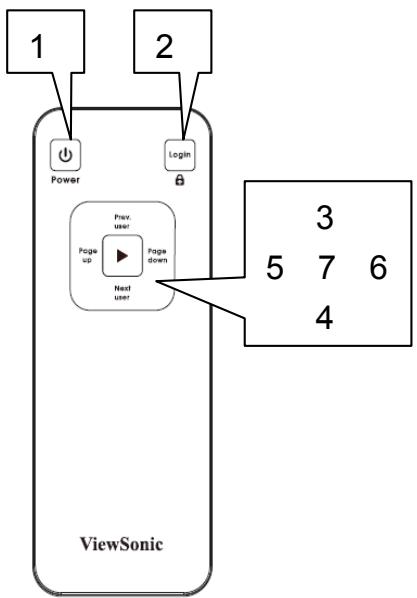
Remote Controller
| Item No. | Description |
| 1 Power | Stand-by mode on/off |
| 2 Login | Show user list: Single Click. |
| 2 | WPS: Press and hold for 3 seconds. |
| 3 Prev.user | Move up to select user for presentation |
| 4 Next user | Move down to select user for presentation |
| 5 Page up | Go to previous page |
| 6 Page down | Go to next page |
| 7 Confirm | Confirm selected user for presentation |
| 8 Battery Lid | Press battery lid and push it downward by your thumb to open battery compartment |
| 9 IR LED | Infrared signal transmitter |
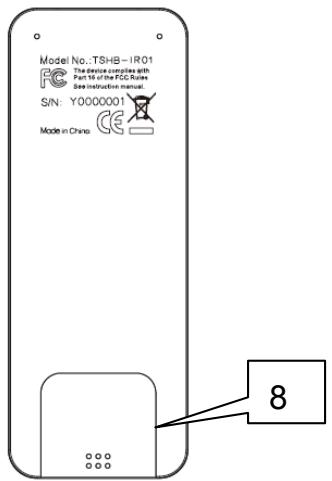
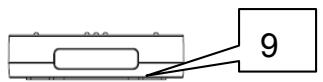
Note:
1) Remote controller effective distance is 7 meters. This distance will be shortened in some environments, or when the battery is low.
2) If there's strong light source near WPG and/or remote controller, remote controller may not be able to function properly.
1-5 Initial Setup
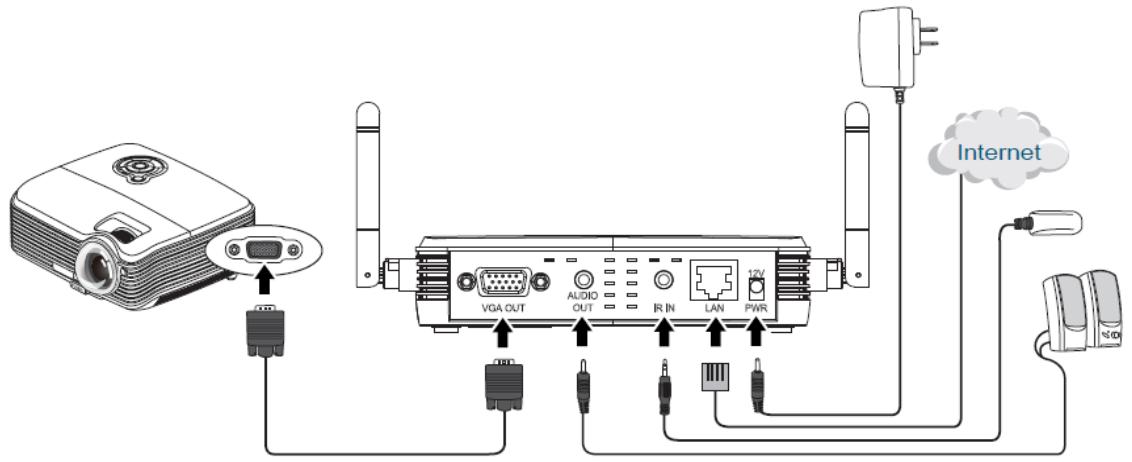
Connection Overview
Step-by-step setup instructions
| Connect one end of the VGA cable to the external display, and the other to WPG VGA-out port locates at back. | |
| Connect the Ethernet cable to the LAN port | |
| Connect audio cable to WPG Audio-out Port locate at the back, and the other end to an external amplifier / speaker. | |
| Connect the IR receiver extending cable to 'IR IN' port located at the back of WPG, and place the IR receiver at a place where you can point the remote controller to it easily | |
| Adjust the antennas so they are perpendicular to the ground. | |
| Connect the A/C power adapter to the electrical outlet on the wall. | |
| Connect A/C power adapter to the power jack labeled as '12V' at the back of WPG. | |
| To fix the product placement, please use two wall mount holes located at the back of the product. | |
| ViewSonic® | If you can see this start screen display on projector, indicates WPG-350 is working and all connection cables are correctly connected. |
Note:
DO NOT USE VELCRO STICKER ALONE TO FIX THE PRODUCT ON THE WALL!
Chapter II Using WPG
2-1 Check the IP address of WPG
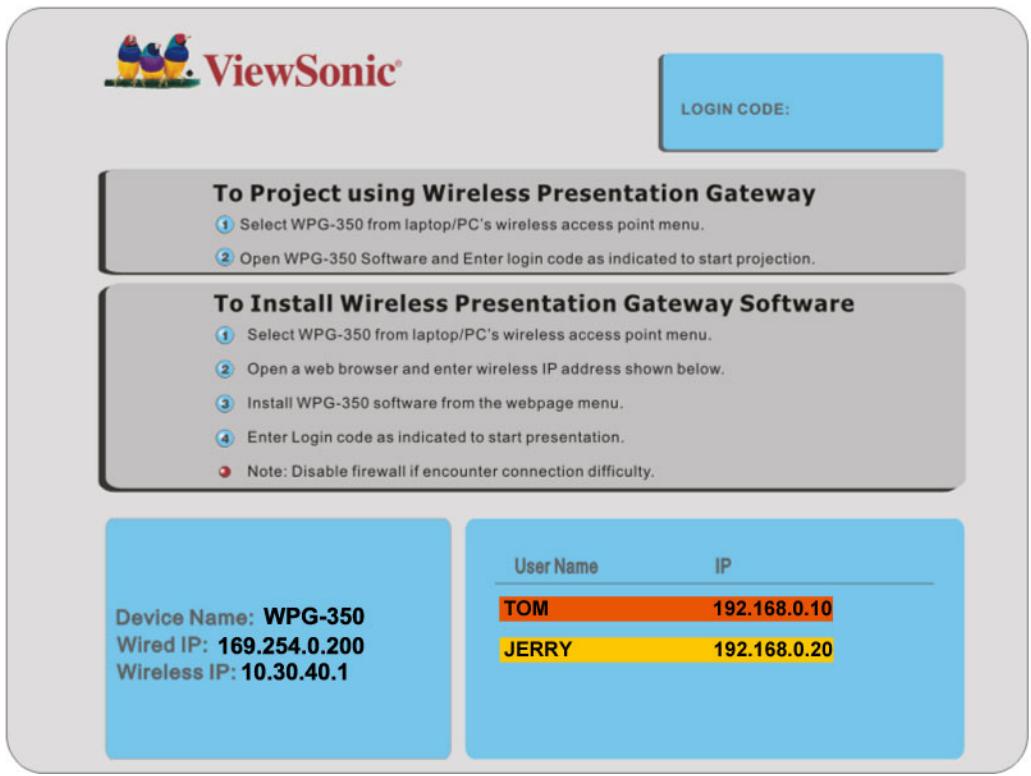
When WPG is powered on, check the connected display, you can find the IP address and login code Instruction Page:
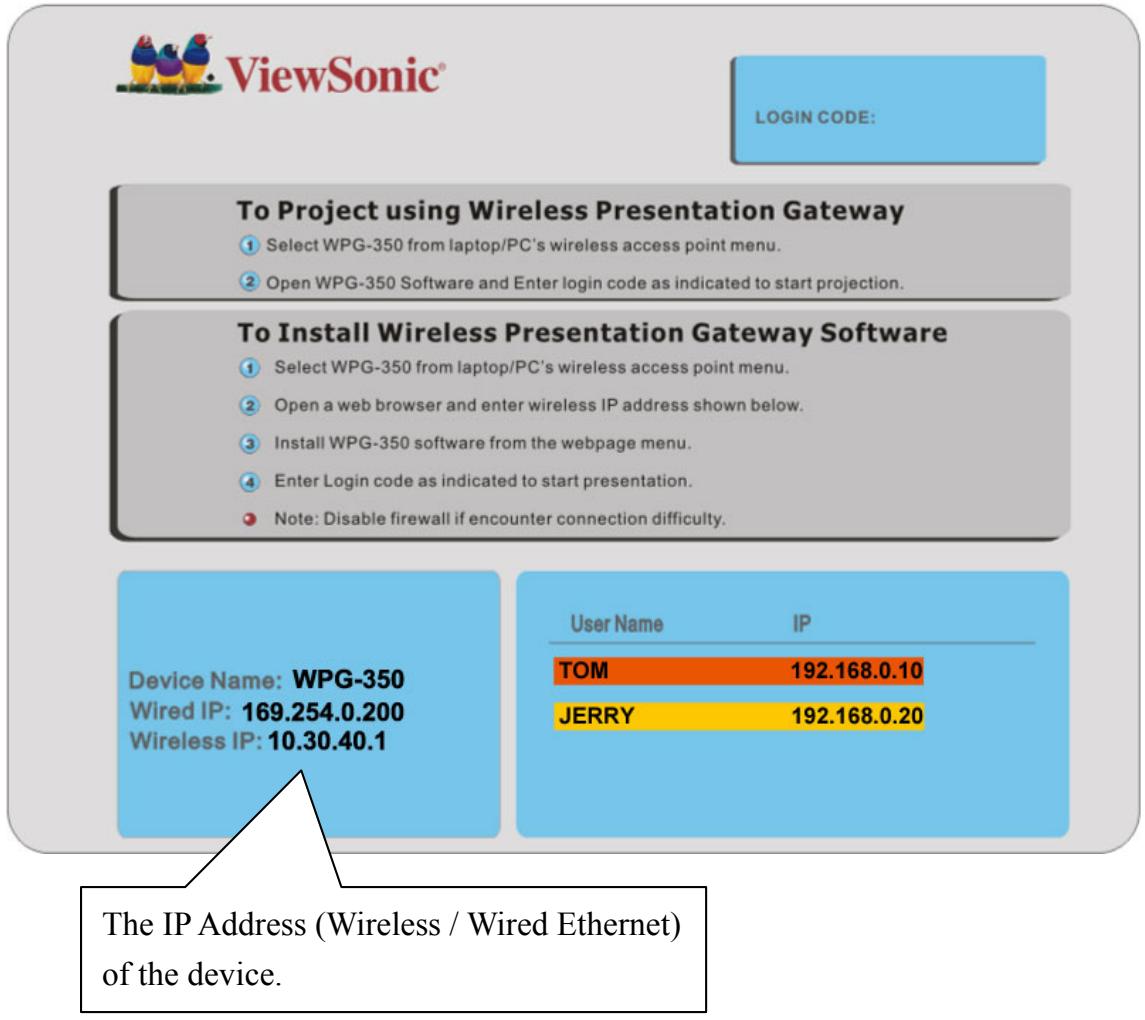
You can connect to WPG by the IP address of the connection type you're using (wired / wireless).
2-2 Connect to WPG by wireless network
Use your computer's Wireless Network Connection window to access an available wireless network. Select the device from the list. Click Connect. The default device name is WPG-350.
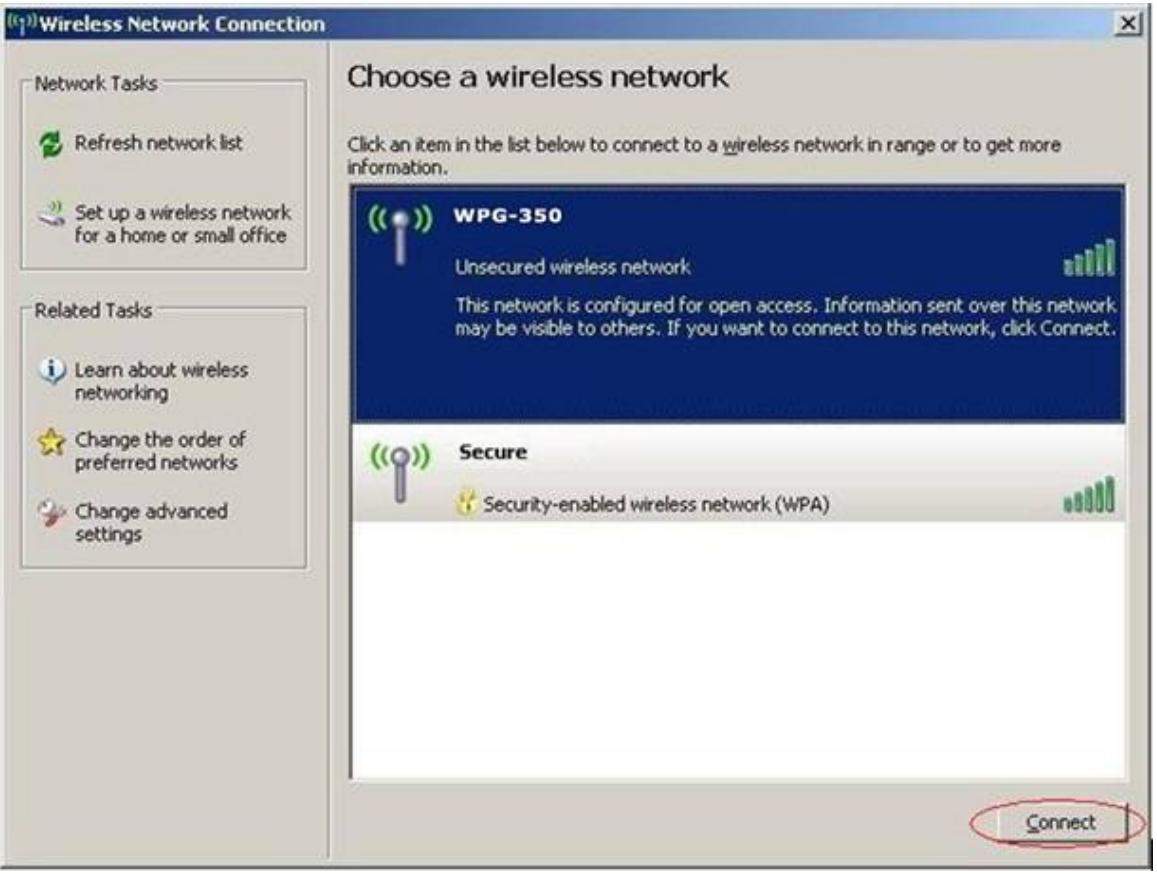

Note: If using a wireless client other than Windows, the screen above may look differently. For more details, see your PC user guide.
2-3 Manual Network Connection Setting
If there's no DHCP server available on your LAN, please follow the following instructions to set the IP address of the computer.
If the operating system of your computer is....
Windows XP - please go to section 2-3-1
Windows Vista - please go to section 2-3-2
Macintosh - please go to section 2-5-4
2-3-1 Windows XP IP address setup:
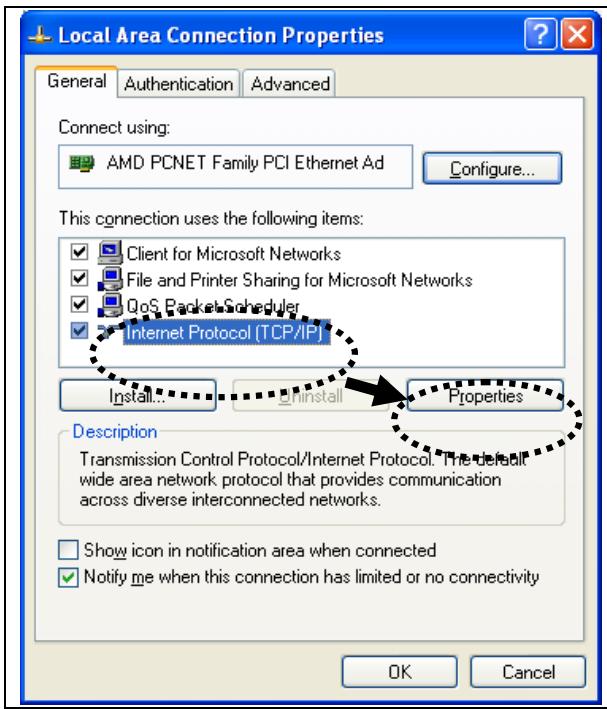
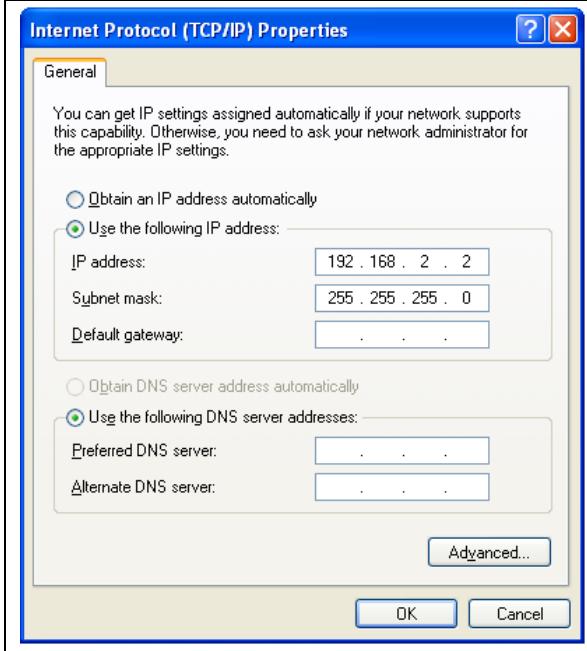
Click 'Start' from windows toolbar locate at bottom, open control panel, then select Network and Internet Connections, click Network Connections, and then double-click Local Area Connection, Local Area Connection Status window will appear, and then click 'Properties'
Select 'Use the following IP address', then input the following settings in respective field:
IP address: 192.168.0.x (where x is an integer greater or less than 200, if there's more than one computer need to use this WPG on the same network, each computer should use an unique number)
Subnet Mask: 255.255.255.0
Click 'OK' when finish.
2-3-2 Windows Vista IP address setup:
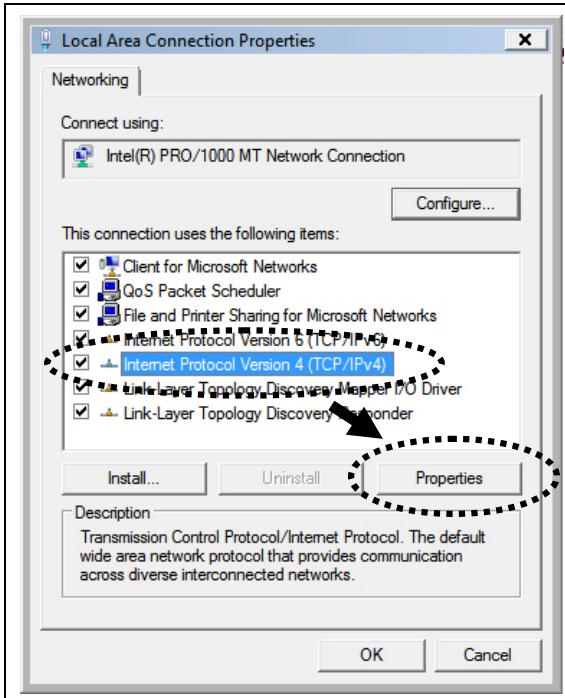
Click 'Start' from windows toolbar locate at bottom to select control panel. Click View Network Status and Tasks, then click Manage Network Connections. Right-click Local Area Netwrok, then select 'Properties'. Local Area Connection Properties window will appear, select 'Internet Protocol Version 4 (TCP / Ipv4), and then click 'Properties'
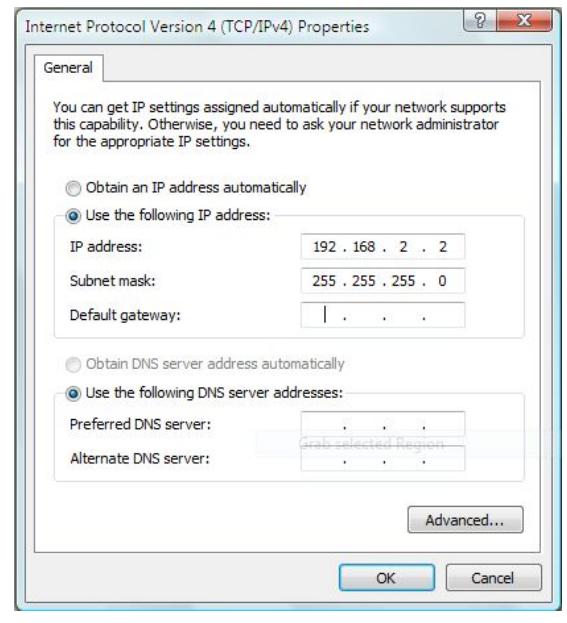
Select 'Use the following IP address', then input the following settings in respective field:
IP address: 192.168.0.x (where x is an integer greater or less than 200, if there's more than one computer need to use this WPG on the same network, every computer should use an unique number)
Subnet Mask: 255.255.255.0
Click 'OK' when finish.
2-3-3 Macintosh IP address setup:
| System Preferences Show All Appearance Bluetooth MobileMe System Accounts DivX | Select 'System Preferences', and double-click 'Network'. |
| Network Show All Location: Automatic Ethernet Connected AirPort Connected Bluetooth Not Connected FireWire Not Connected USB Et...et (en2) Not Connected | Select 'Manually' in 'Configure' field, then input the following settings in respective field: IP address: 192.168.0.x (where x is an integer greater or less than 200, if there's more than one computer need to use this WPG on the same network, every computer should use an unique number) IP address: 192.168.0.x (where x is an integer greater or less than 200, if there's more than one computer need to use this WPG on the same network, every computer should use an unique number) IP address: 192.168.0.x (where x is an integer greater or less than 200, if there's more than one computer need to use this WPG on the Same network, every computer should use an unique number) IP address: 192.168.0.x (where x is an integer greater or less than 200, if there's more than one computer need to use this WPG on the same network, every computer should use an unique number) IP address: 192.168.0.x (where x is an integer greater or less than 200, if there's more than a single device connected to this device) IP address: 192.168.0.x (where x is an integer greater or less than a single device) IP address: 192.168.0.x (where x is an integer greater or less than a single device) IP address: 192.168.0.x (where x is an integer greater or less than a single device) IP address: 192.168.0.x (where x is an integer greater or less than a single device) IP address: 192.168.0+x Status: Connected Ethernet is currently active and has the IP address 192.168.2.61. Configure: Manually IP Address: 192.168.2.61 Subnet Mask: 255.255.255.0 Router: 192.168.2.8 DNS Server: 168.95.1.1 Search Domains: Advanced...? |
Chapter III Using Application Software (PC Version)
3-1 Download and Install Application Software
Before any computer can use the WPG, application software must be installed first. Please follow instructions to download and install WPG application software:
| about:blank - Microsoft Internet Explorer File Edit View Favorites Tools Help Back Search Address http://192.168.94.11 Go Links ViewSonic Wireless Presentation Gateway Download Conference Control Administrator Login Please download the application software for your Operation System. For Windows For MAC | Use the web browser to connect to the IP address shown on WPG (Wireless / Wired IP address) WPG's IP address is shown at the Instruction page. |
| File Download - Security Warning Do you want to run or save this file? Name: WPG-350 Setup.msi Type: Windows Installer Package, 3.90 MB From: 192.168.94.110 Run Save Cancel | Click 'For Windows' button to download application software. |
| While files from the Internet can be useful, this file type can potentially harm your computer. If you do not trust the source, do not run or save this software. What's the risk? | A window is prompted, to execute, please check "run", or "save" to save application software for future usage. |
| 76% of WPG-350 Setup.msi Completed | Please be patient when your computer is downloading application software: |
| Opening: WPG-350 Setup.msi from 192.168.94.110 Estimated time left: 2 sec (2.82 MB of 3.90 MB copied) Download to: Temporary Folder Transfer rate: 545 KB/Sec √ Close this dialog box when download completes Open Open Folder Cancel | |
| Internet Explorer - Security Warning The publisher could not be verified. Are you sure you want to run this software? Name: WPG-350%20Setup.msi Publisher: Unknown Publisher Run Don't Run This file does not have a valid digital signature that verifies its publisher. You should only run software from publishers you trust. How can I decide what software to run? | After application software download is complete, click 'Run'. |
| WPG-350 Welcome to the WPG-350 Setup Wizard The installer will guide you through the steps required to install WPG-350 on your computer. WARNING: This computer program is protected by copyright law and international treaties. Unauthorized duplication or distribution of this program, or any portion of it, may result in severe civil or criminal penalties, and will be prosecuted to the maximum extent possible under the law. Cancel Back Next > | Click 'Next' to continue. |
| WPG-350 Welcome to the WPG-350 Setup Wizard The installer will guide you through the steps required to install WPG-350 on your computer. WARNING: This computer program is protected by copyright law and international treaties. Unauthorized duplication or distribution of this program, or any portion of it, may result in severe civil or criminal penalties, and will be prosecuted to the maximum extent possible under the law. Cancel Back Next > | A new icon will appear. |
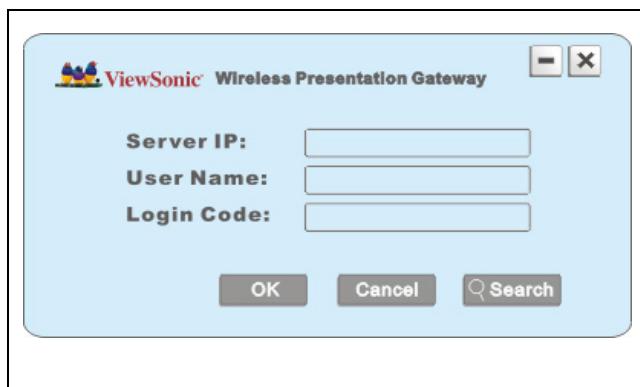
Double click the icon to launch login window, 'Server IP' will be determined automatically, please input a user name (login window uses your computer's name by default), and input login code as displayed on upper-right of WPG-350's display.
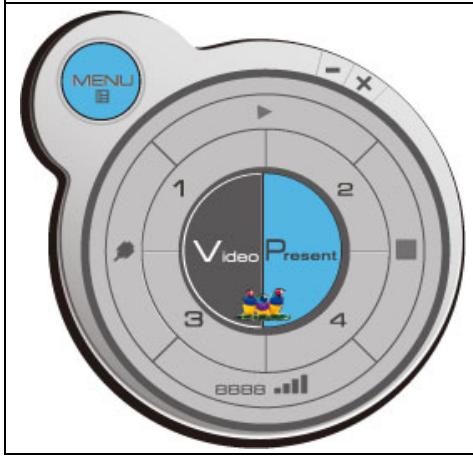
If login code is correct, application software will appear.
3-2 Launch Application Software and Login
Double-click on application software to launch WPG's application software.
Application software will search for WPG connected to local area network when it starts, WPG's device name will be displayed at 'Server IP' field:
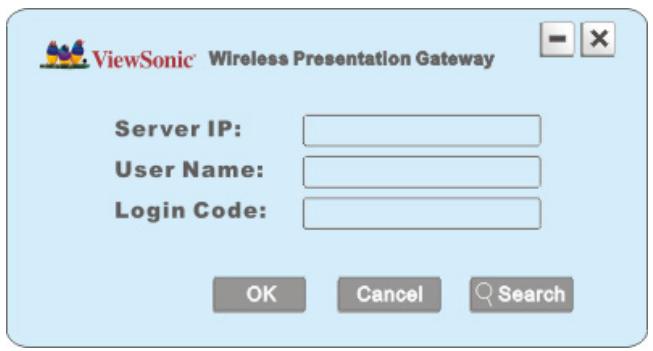
Please input a unique user name (used to identify each WPG user and should not be the same as other users) in 'User Name' field, and input the login code as shown on WPG's Instruction page. When you're ready, click 'OK' button to continue.
Application software will use your computer's name as user name. You can use this name, or input any user name in 'User Name' field, and input the login code as shown on WPG's Instruction page. When you're ready, click 'OK' button to continue.
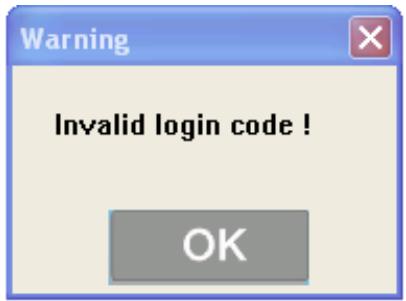
Login code must match with the one display on WPG's Instruction page, else following message would appear. Click "OK" to enter the login code again.
3-2-1 Use icon on application software
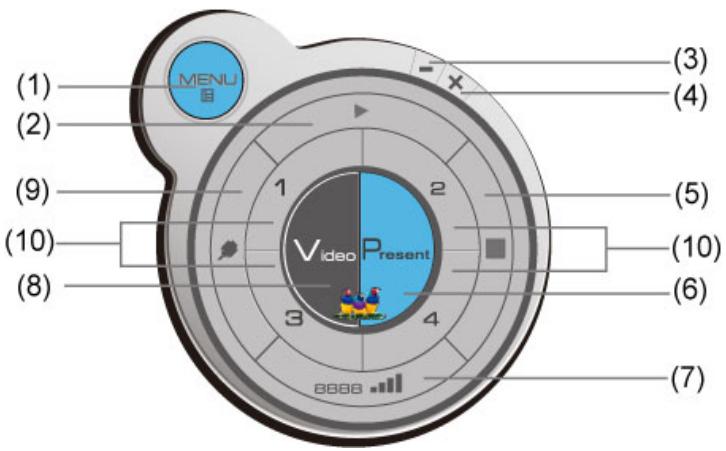
| No. | Name | Function Description |
| 1 | Menu | Access menu list. |
| 2 | Play / Pause | Start / pause presentation. When pausing a progressing presentation, the displaying image will freeze; press play button again to resume |
| 3 | Minimize | Minimizes Application Software window |
| 4 | Close | Closes Application Software window |
| 5 | Stop | Stop a progressing presentation |
| 6 | Present | Switches to present mode |
| 7 | Login code / Signal | Displays login code (4-digit number) and wireless signal strength |
| 8 | Video playback | Starts video playback mode |
| 9 | VGA switch | Switch display source (display the image from your computer's display or from ‘VGA IN’ connector) |
| 10 | ‘1’ to ‘4’ | Quarter split display control. Click number 1 to 4 to start / stop presentation of corresponding quarter split display area. |
| 1 2 | ||
| 3 4 |
3-2-2 Menu List
Besides the buttons, you can also click 'Menu' button to access menu list.
| Item Name | Function Description |
| Administrator | Go to ‘ADMIN’ page of web menu |
| Open File | Open a video file for video playback (in video playback mode) |
| Status | System / IP Address: check the system status and the IP address of WPG.Signal Status: check the status of wireless connection.About: check the version of application software: |
| Control | VGA1: Displays your computer’s display content on projectorVGA2: Display ‘VGA IN’ port’s display content on projectorSearch**: Automatically select an active content sourceThe content source being used currently will have a check mark in front of it. |
| Log Out | Stop using application software and logout. |
| Play / Projection | Play: start presentationPause: Pause presentationStop: stop a progressing presentationBlank: blank displaying image (all black)Repeat: Repeat video playback (in video playback mode)Minimize: minimizes application software |
| Display | Display: Show the name / SSID of WPGOutput resolution: changes display resolution and you can check “Follow Desktop” to equivalent to output based on original user desktop resolution setting.The resolution being used currently will have a check mark in front of it. |
| Exit | Close menu list |
3-3 Video playback (PC Version)
When you click 'Video' button in application software, the user interface will change and look as follow:
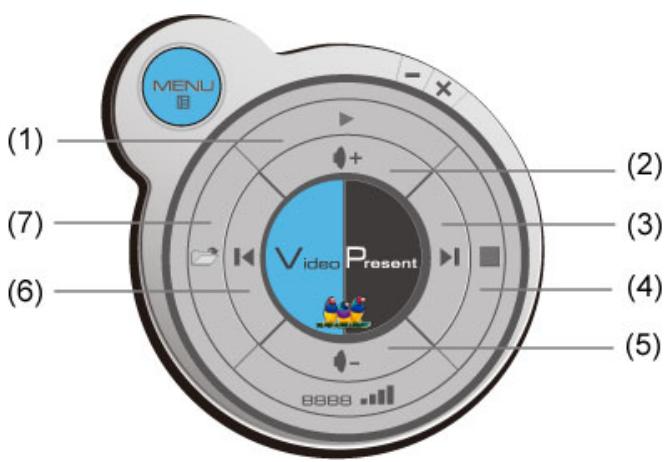
| No. | Description |
| 1 | Playback / Pause |
| 2 | Volume up |
| 3 | Fast forward (for 10 seconds) |
| 4 | Stop video play |
| 5 | Volume down |
| 6 | Rewind (for 10 seconds) |
| 7 | Open video file |
To start video playback:
- Click 'Video' button
- Click (7) to open video file.
- Video will start playing automatically.
- Click (4) to stop playing video.
3-4 Quarter Split Screen
When there is more than one presenter, you can use this function to display up to 4 presenter's content to present on display screen simultaneously.
To use Quarter Split Function, please login to WPG, and select a key (1 to 4) to present:
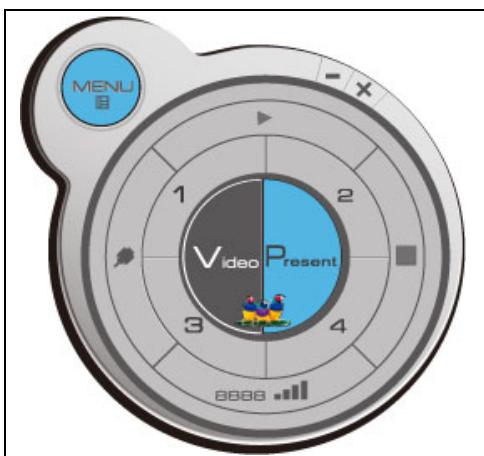
Number 1 to 4 correspond to different area of display screen:
| 1 | 2 |
| 3 | 4 |
When you click a number, your content will be displayed in corresponding Quarter-Split display area
To show content in full-screen mode, simply click 'Play' button; to resume to Quarter-Split display, simply click number key 1 to 4.
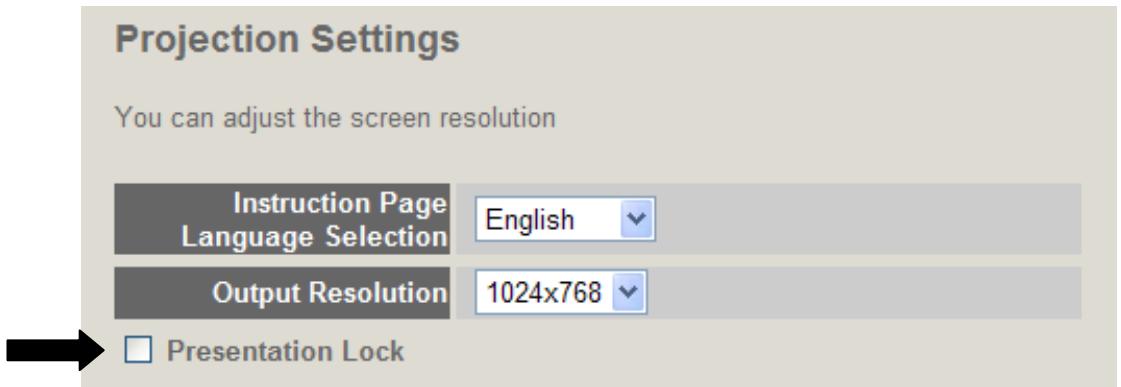
NOTE: When 'Presentation Lock' is checked, no one will be able to interrupt a progressing presentation.
Chapter IV Using Application Software (MAC Version)
4-1 Download and Install Application Software
Before any computer can use the WPG, application software must be installed first. Please follow instructions to download and install WPG application software:
| about:blank - Microsoft Internet Explorer File Edit View Favorites Tools Help Back Search Add back http://192.168.94.11 Go Links WPG's IP address is shown at the Instruction page. | Use safari or IE web browser to connect to the IP address shown on WPG (Wireless / Wired IP address) WPG's IP address is shown at the Instruction page. |
| ViewSonic Wireless Presentation Gateway Download Conference Control Administrator Logs Please download the application software for your Operation System. For Windows For MAC | Click 'For MAC' button to download application software. |
| WPG 350 Setup.dmg | Double-click application software icon to launch application software. |
| Wireless Presentation Gateway ViewSonic Wireless Presentation Gateway Server IP: Login Code: OK Cancel Search | You'll see application software now. ‘Server IP' will be determined automatically, please input a user name (login window uses your computer's name by default), and input login code as displayed on upper-right of WPG-350's display. |
| Wireless Presentation Gateway 1 2 3 4 888 .ml ViewSonic Menu Video Present | If login code is correct, application software will appear. |
4-2 Launch Application Software and Login (MAC Version)
Double-click on application software to launch WPG's application software.
Application software will search for WPG connected to local area network when it starts, WPG's device name will be displayed at 'Server IP' field:
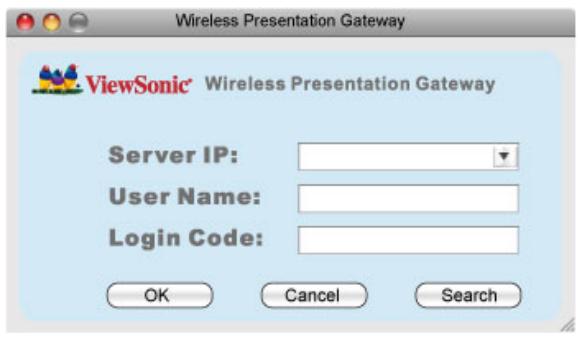
Please input a unique user name (used to identify each WPG user and should not be the same as other users) in 'User Name' field, and input the login code as shown on WPG's Instruction page. When you're ready, click 'OK' button to continue.
Application software will use your computer's name as user name. You can use this name, or input any user name in 'User Name' field, and input the login code as shown on WPG's Instruction page. When you're ready, click 'OK' button to continue.
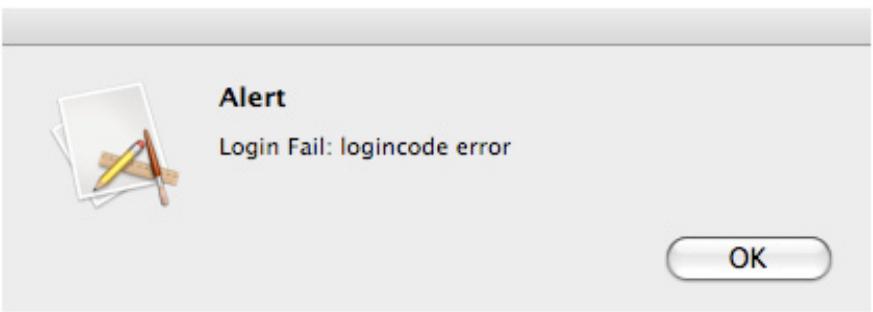
Login code must match with the one display on WPG's Instruction page, else following message would appear. Click "OK" to enter the login code again.
4-2-1 Use icon on application software
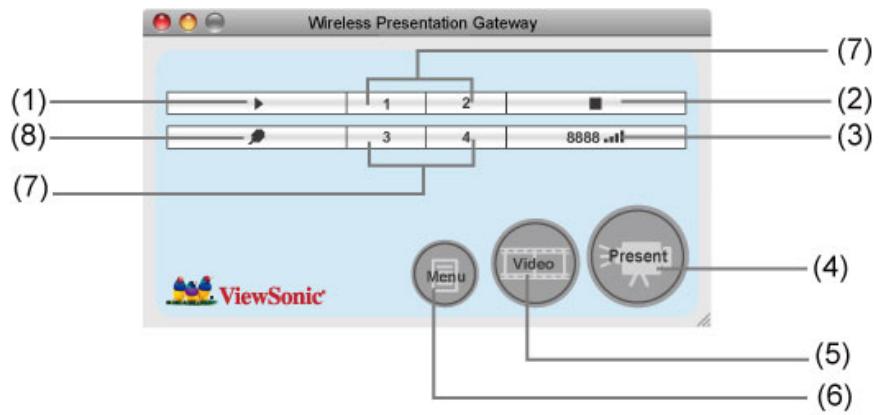
| No. | Name | Function Description |
| 1 | Play / Pause | Start / pause presentation. When pausing a progressing presentation, the displaying image will freeze; press play button again to resume |
| 2 | Stop | Stop a progressing presentation |
| 3 | Login code / Signal | Displays login code (4-digit number) and wireless signal strength |
| 4 | Present | Switches to present mode |
| 5 | Video playback | Starts video playback mode |
| 6 | Menu | Access menu list |
| 7 | ‘1’ to ‘4’ | Quarter split display control. Click number 1 to 4 to start / stop presentation of corresponding quarter split display area. |
| 1 2 | ||
| 3 4 | ||
| 8 | VGA Switch | Switch display source (display the image from your computer's display or from ‘VGA IN’ connector) |
4-2-2 Menu List
Besides the buttons, you can also click 'Menu' button to access menu list.
| Item Name | Function Description |
| Administrator | Go to ‘ADMIN’ page of web menu |
| Open File | Open a video file for video playback (in video playback mode) |
| Status | System / IP Address: check the system status and the IP address of WPG.Signal Status: check the status of wireless connection.About: check the version of application software: |
| Control | VGA1: Displays your computer’s display content on projectorVGA2: Display ‘VGA IN’ port’s display content on projectorSearch**: Automatically select an active content sourceThe content source being used currently will have a check mark in front of it. |
| Log Out | Stop using application software and logout. |
| Play / Projection | Play: start presentationPause: stop presentationStop: stop a progressing presentationBlank: blank displaying image (all black)Repeat: Repeat video playback (in video playback mode)Minimize: minimizes application software |
| Display | Display: Show the name / SSID of WPG.Changereresolution: changes display resolution.The resolution being used currently will have a check mark in front of it. |
| Exit | Close menu list |
4-3 Video playback
When you click 'Video' button in application software, the user interface will change and look as follow:
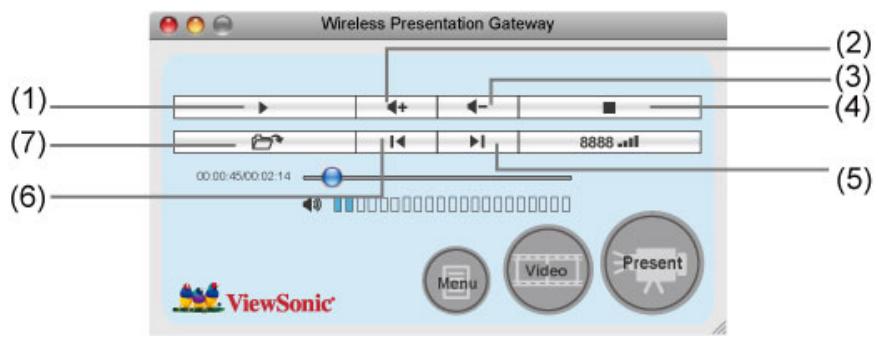
| No. | Description |
| 1 | Playback / Pause |
| 2 | Volume up |
| 3 | Volume down |
| 4 | Stop video play |
| 5 | Fast forward (for 10 seconds) |
| 6 | Rewind (for 10 seconds) |
| 7 | Open video file |
To start video playback:
- Click 'Video' button
- Click (7) to open video file.
- Video will start playing automatically.
- Click (4) to stop playing video.
4-4 Quarter Split Screen (MAC Version)
When there is more than one presenter, you can use this function to display up to 4 presenter's content to present on display screen simultaneously.
To use Quarter Split Function, please login to WPG, and select a key (1 to 4) to present:
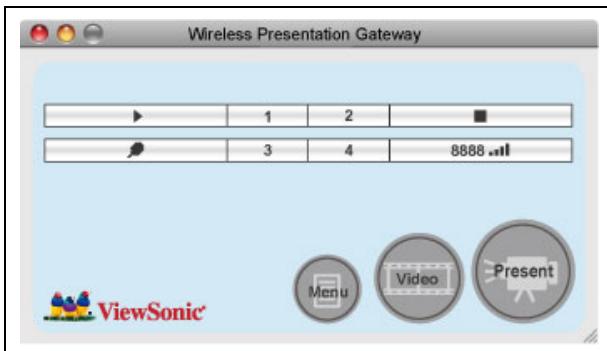
Number 1 to 4 correspond to different area of display screen:
| 1 | 2 |
| 3 | 4 |
When you click a number, your content will be displayed in corresponding Quarter-Split display area
To show content in full-screen mode, simply click 'Play' button; to resume to Quarter-Split display, simply click number key 1 to 4.
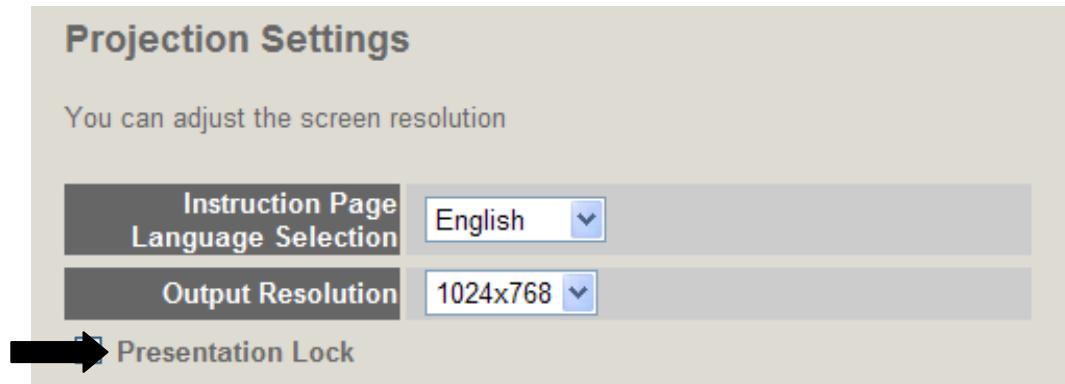
NOTE: When 'Presentation Lock' is checked, no one will be able to interrupt a progressing presentation.
Chapter V Configure WPG
5-1 Conference Control
When there is more than one presentation login to WPG, you can control the content from different presenter via Conference Control webpage.
| about:blank - Microsoft Internet Explorer | Use the web browser to connect to the IP address of WPG (Wireless / Wired IP address). WPG's IP address can be found at the lower-left corner of Instruction page (refer to chapter 2-1). | ||||
| File Edit View Favorites Tools Help | |||||
| Back Search | |||||
| Address http://192.168.94.11 Go Links | |||||
| ViewSonic Download Conference Control Administrator Login | Click 'Conference Control' from WPG's web user interface. | ||||
| User list : | All users currently logged in will be displayed here. To select a user's display content in certain area of Quarter-Split Display, click number 1 to 4; to display in full-screen, click button of the presenting user. To stop a progressing presentation, click | ||||
| Action | Name | IP Address | Status | Connection time | |
| 1 2 3 4 | User 1 | 192.168.2.59 | Queued | 00:00:42 | |
| 1 2 3 4 | User 2 | 192.168.2.51 | Queued | 00:00:29 | |
To select user by remote controller:
When there is more than one connected application software, you can also use remote controller to select one of them to display the content (same as 'Conference control' function described in last chapter). Press 'Login' button on remote control.
You can use 'Prev.' and 'Next' button on the remote controller to move the bar, then click button to select the presenting user.
5-2 Connect to Web Configuration Menu
| about:blank - Microsoft Internet Explorer File Edit View Favorites Tools Help Back Search Address http://192.168.94.11 Go Links | Use the web browser to connect to the IP address of WPG (Wireless / Wired IP address). WPG's IP address can be found at the lower-left corner of Instruction page (refer to chapter 2-1). |
| ViewSonic Download Conference Control Administrator Login | Click 'Administrator Login' link on the left. |
| Connect to 169.254.0.200 | Please input 'admin' as username. For 1sttime login you don't have to input password, just click 'OK' to continue. You can change password after login. If you set password before, please input password in 'Password' field. |
| User name: Password: Remember my password OK Cancel |
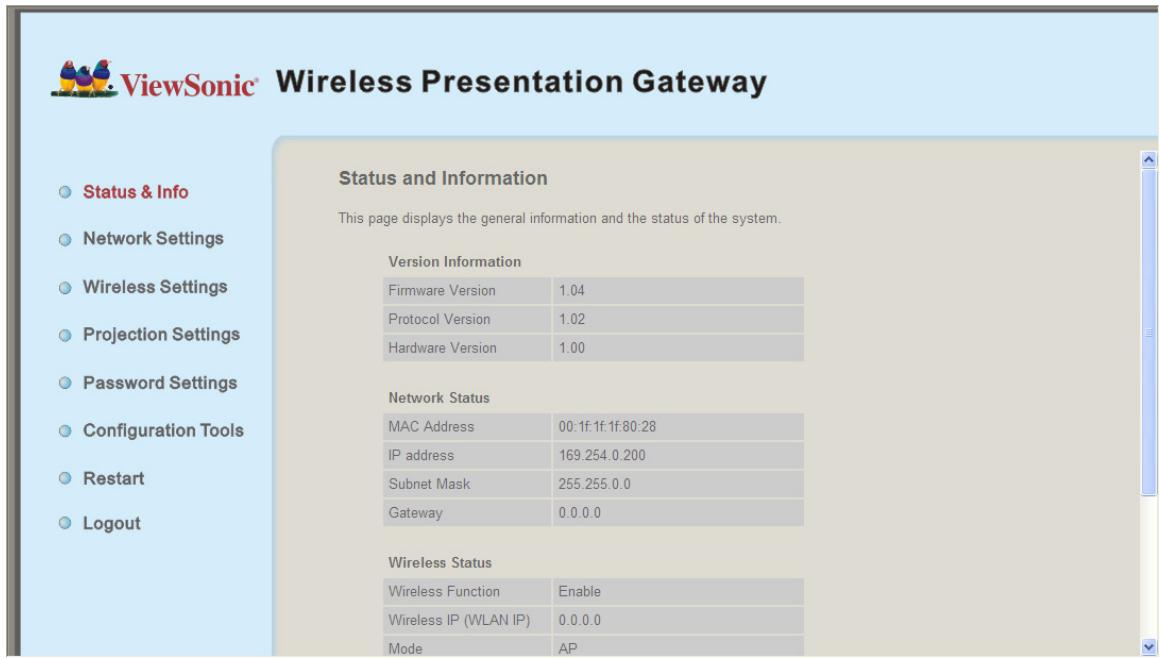
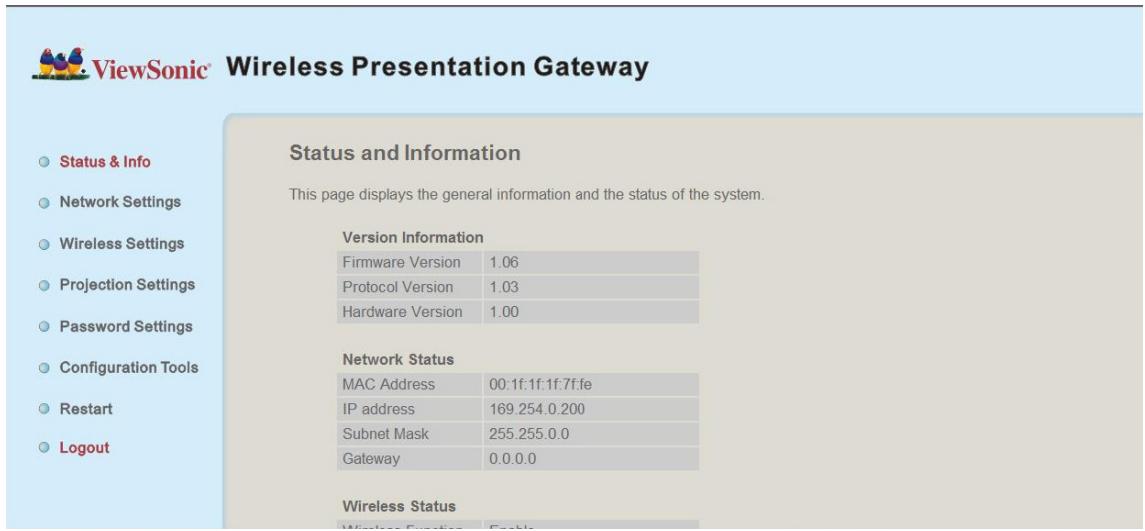
5-3 Status & Info
Displays system information, like system software version and IP address. Many useful information can be obtained here when you need help about system configuration and firmware upgrade.
5-4 Network Settings

Displays and configures the network settings.
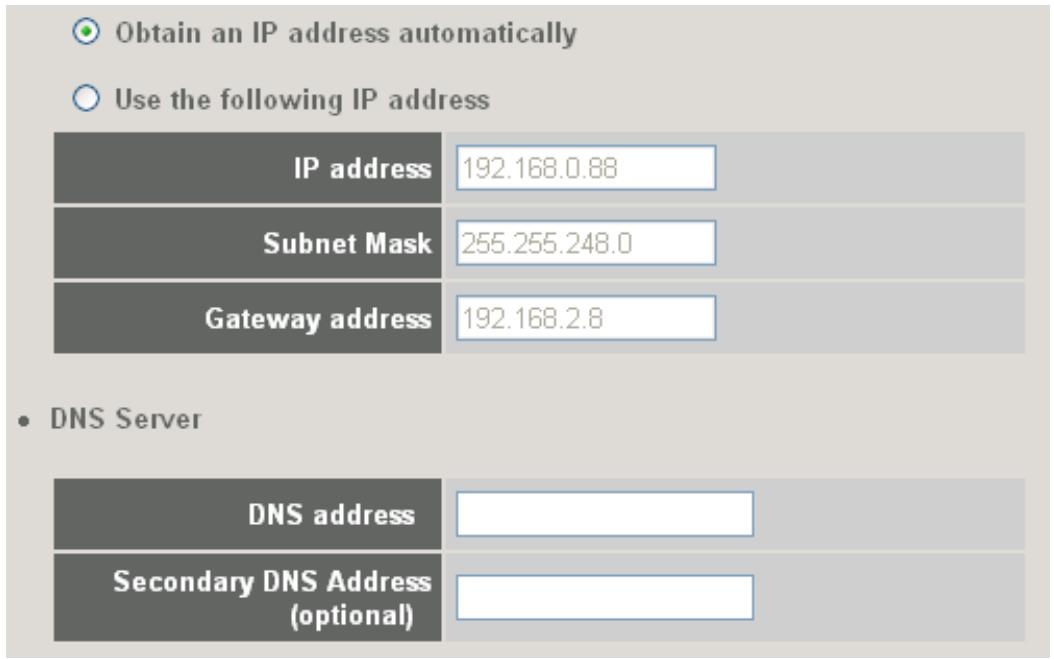
| Item | Description |
| Obtain an IP address automatically | WPG will obtain an IP address from DHCP server automatically. |
| Use the following IP address | Set WPG IP address manually. Fill the fields below to setup IP address. |
| DNS Server | Please input the IP address of the DNS (Domain Name Service) server. |
Click 'Apply' button to save the settings.
NOTE: When the configuration settings are changed, you must restart the network connection. You can restart the network connection by clicking "Restart" on the web configuration menu.
5-5 Wireless Settings
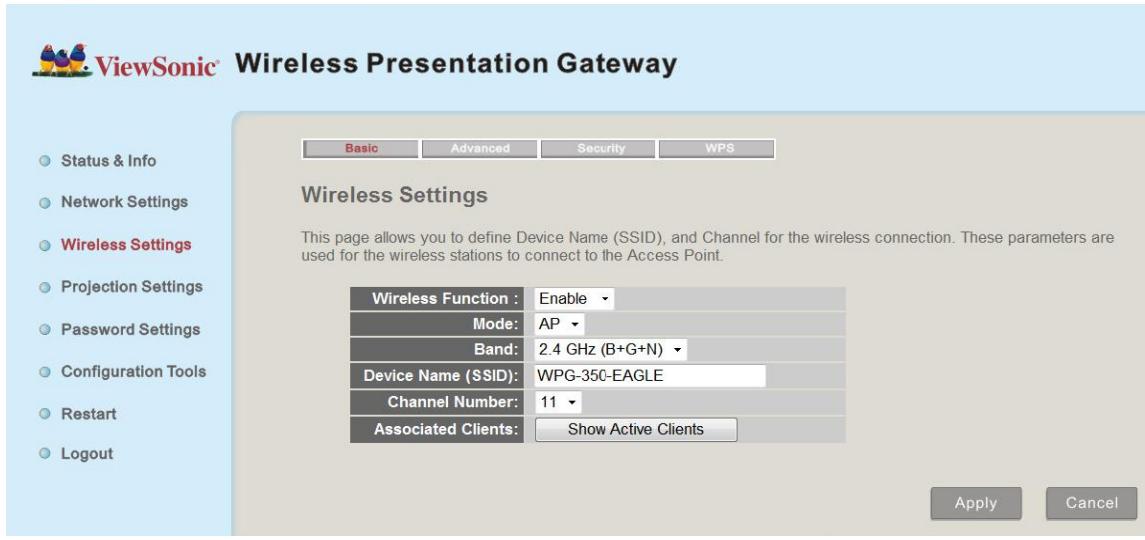
Configures wireless network settings.
5-5-1 'Basic' Settings
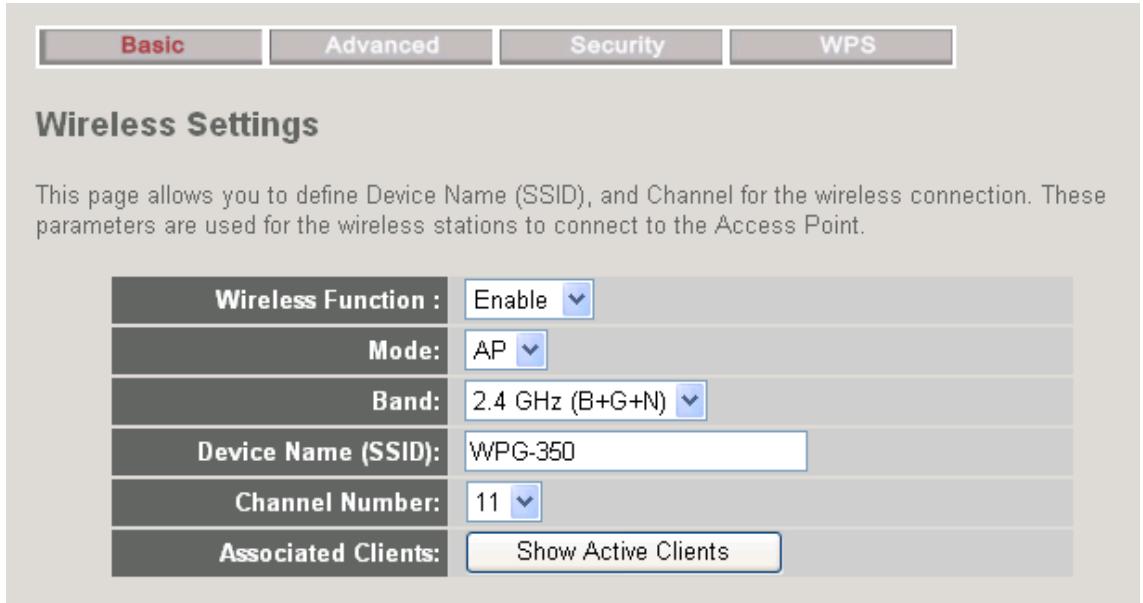
Displays and configures the wireless settings.
| Item | Description |
| Wireless Function | Select 'Enable' to enable wireless network function; 'Disable' to disable it. |
| Mode | Select wireless mode. Only AP (Access Point) mode is supported. |
| Band | Select the wireless band. Available options are:2.4GHz (B) - 802.11b clients only.2.4GHz (N) - 802.11 Draft-n clients only.2.4GHz (B+G) - 802.11b and 802.11n clients.2.4GHz (G) - 802.11g clients only.2.4GHz (B+G+N) - 802.11b, 802.11g, and 802.11n clients. |
| Device Name(SSID) | Input the Device Name of presentation gateway here.Default is 'WPG-350". |
| Channel Number | Select the wireless channel number: 1 to 13. (1 to 11 in certain version of product) |
| Associated Client | Shows all connected wireless clients (wired clients will not be displayed here). |
Click 'Apply' button to save the settings.
NOTE: When the configuration settings are changed, you must restart the network connection. You can restart the network connection by clicking "Restart" on the web configuration menu.
5-5-2 'Advanced' Settings
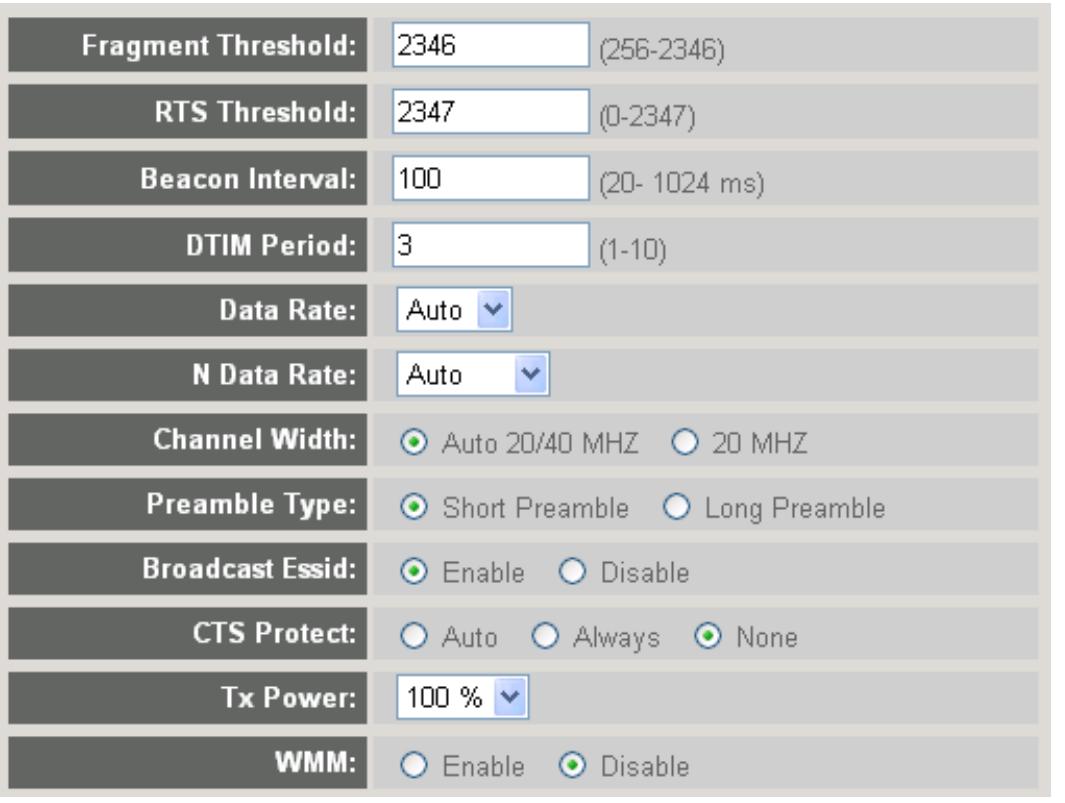
Display and configures the advanced settings.
| Item | Description |
| Fragment Threshold | Set the Fragment threshold of wireless radio. Default value is 2346. |
| RTS Threshold | Set the RTS threshold of wireless radio. Default value is 2347. |
| Beacon Interval | Set the beacon interval of wireless radio. Default value is 100. |
| DTIM Period | Set the DTIM period of wireless radio. Default value is 3. |
| Data Rate | Change data transfer rate. Default value is ‘Auto’ and it’s recommended to use default setting. |
| N Data Rate | Same as above, but only for 802.11n clients. |
| Channel Width | Set channel width of wireless radio. Default setting is ‘Auto 20/40 MHz’. |
| Preamble Type | Set the type of preamble of wireless radio, Default setting is ‘Short Preamble’. |
| Broadcast Device Name (SSID) | Decide if the product will broadcast its own device name or not. You can hide the device name of this product (set the option to ‘Disable’) |
| CTS Protect | Enable to reduce the chance of radio signal collisions between 802.11b and 802.11g wireless access points. It’s recommended to set this option to ‘Auto’ or ‘Always’. |
| Tx Power | You can set the output power of wireless radio. |
| Turbo Mode | Enhances the data transfer rate of network. Default setting is “Enable”. |
| WMM | Wi-Fi MultiMedia Quality of Service is a set of features for Wi-Fi networks that improve the user experience for audio, video, and voice applications by prioritizing data traffic. Default setting is “Disable”. |
Click 'Apply' button to save the settings.
NOTE: When the configuration settings are changed, you must restart the network connection. You can restart the network connection by clicking "Restart" on the main menu.
5-5-3 'Security' Settings
5-5-3-1 Encryption: Disabled
Disables wireless encryption. Other people may intercept the content of presentation if wireless data is not encrypted, and this will allow everyone to connect to this product, unless 802.1x authentication is enabled.
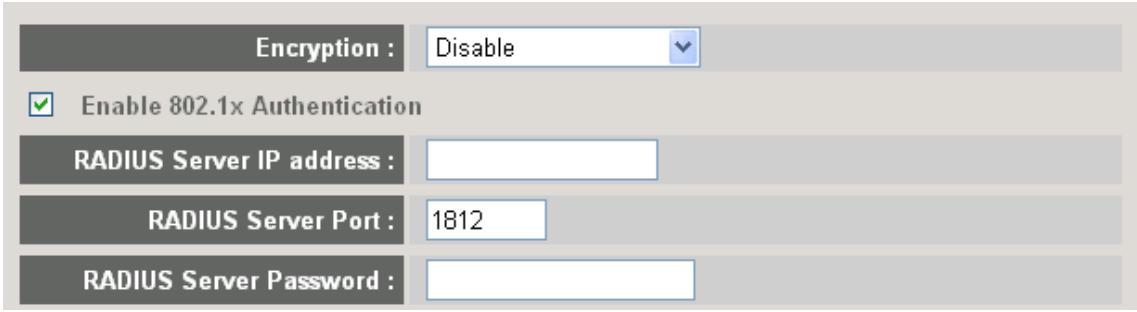
Display and configures the encryption settings.
| Item | Description |
| Enable 802.1xAuthentication | Check this box to enable 802.1x authentication. |
| RADIUS Server IP address | IP address of RADIUS authentication server here. |
| RADIUS Server Port | Port number of radius server here. |
| RADIUS Server Password | Password of radius server. |
Click 'Apply' button to save the settings.
NOTE: When the configuration settings are changed, you must restart the network connection. You can restart the network connection by clicking "Restart" on the main menu.
5-5-3-2 Encryption: WEP
Enable WEP encryption. Wireless clients must support WEP encryption and know the encryption key you set here.
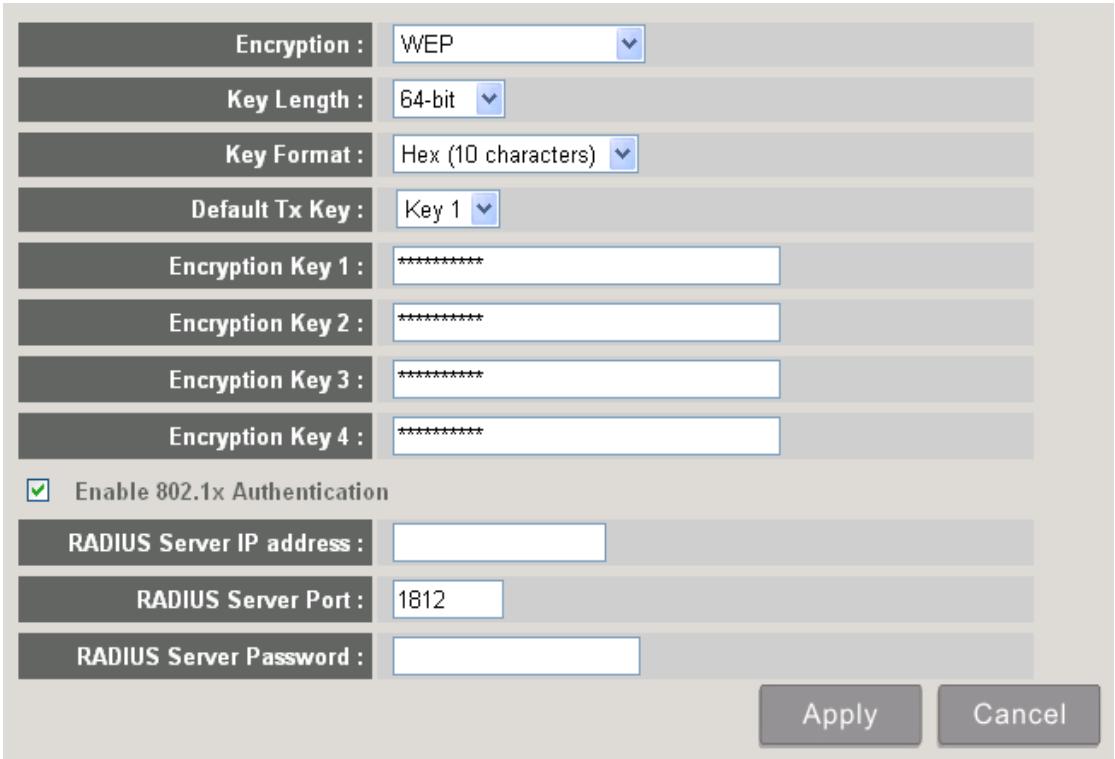
Display and configures the encryption settings.
| Item | Description |
| Key Length | Select WEP key length (64 bit or 128 bit), longer WEP key provides better security. Recommend to select ‘128-bit’ for better security. |
| Key Format | Select key format: ASCII or Hex.ASCII: 5 characters (64 bit key length) / 13 characters (128 bit key length)HEX: 10 characters (64 bit key length) / 26 characters (128 bit key length) |
| Default Tx Key | You can set up to four sets of WEP key and decide which key is being used by default here. Default setting is ‘1’ |
| Encryption Key 1 to 4 | Input WEP key characters here. Use any alphanumeric characters (0-9, a-z, and A-Z) if you select ‘ASCII’ key format, and use characters 0-9, a-f, and A-F for HEX |
| Enable 802.1xAuthentication | Enables 802.1x authentication. You don’t have to check this box if you don’t have 802.1x authentication server. |
| RADIUS Server IP | IP address of RADIUS authentication server. |
| address | |
| RADIUS Server Port | Port number of radius server, from 1 to 65535. Default setting is 1812. |
| RADIUS Server Password | Password of radius server, up to 64 characters. |
Click 'Apply' button to save the settings.
NOTE: When the configuration settings are changed, you must restart the network connection. You can restart the network connection by clicking "Restart" on the main menu.
5-5-3-3 Encryption: WPA pre-shared key
Enable WEP encryption. Wireless clients must support WPA encryption and know the encryption passphrase you set here.
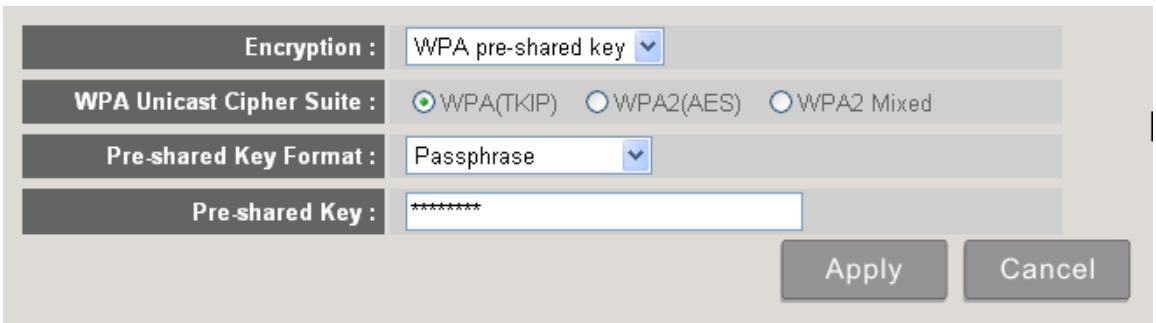
Display and configures the encryption settings.
| Item | Description |
| WPA Unicast Cipher Suite | Select the type of WPA cipher suite. Select 'WPA (TKIP) for maximum compatibility and WPA2 (AES) / WPA2 Mixed for better security. |
| Pre-shared Key Format | Select the type of pre-shared key: Passphrase or HEX characters. |
| Pre-shared Key | Input WPA Passphrase here.Passphrase: 8 or more alphanumeric characters, up to 63 charactersHex: 64 characters (0-9, a-f, and A-F) |
Click 'Apply' button to save the settings.
NOTE: When the configuration settings are changed, you must restart the network connection. You can restart the network connection by clicking "Restart" on the main menu.
5-5-3-4 Encryption: WPA RADIUS
Enable WPA encryption with RADIUS authentication support. The client must support WPA encryption and you need to provide the setting of RADIUS server here.
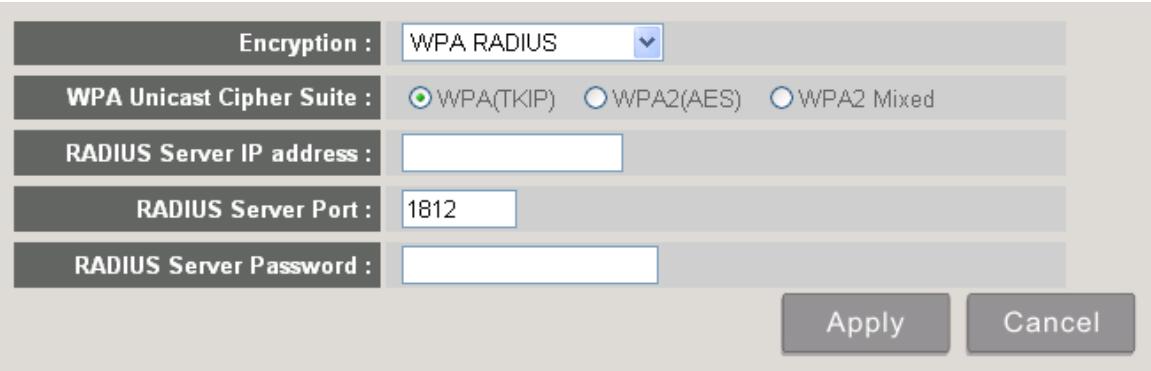
Display and configures the encryption settings.
| Item | Description |
| WPA Unicast Cipher Suite | Select the type of WPA cipher suite. Select ‘WPA (TKIP) for maximum compatibility and WPA2 (AES) / WPA2 Mixed for better security. |
| RADIUS Server IP address | IP address of your Radius authentication server. |
| RADIUS Server Port | Port number of your Radius authentication server. Default setting is 1812. |
| RADIUS Server Password | Password of your Radius authentication. |
Click 'Apply' button to save the settings.
NOTE: When the configuration settings are changed, you must restart the network connection. You can restart the network connection by clicking "Restart" on the main menu.
5-5-4 'WPS' Settings
In this menu, you can use WPS (Wi-Fi Protected Setup) to setup secure wireless connections quickly and easily with WPS-compatible wireless clients.
Enable WPS
Wi-Fi Protected Setup Information
| WPS Status: | Configured |
| Self PinCode: | 0 |
| Device Name (SSID) | WPG-350 |
| Authentication Mode | Disable |
| Passphrase Key |
Device Configure

Display and configures the WPS setting.
| Item | Description |
| Enable WPS | Check this box to enable WPS functionality; uncheck to disable WPS. |
| WPS Status | Displays WPS configuration status: Configured (WPS ready), or Unconfigured. If you set wireless security as described in previous section already, WPS status will be ‘Configured’. |
| Self PinCode | Displays WPS self pin code. This code will be used when pin-style WPS pairing mode is being used, and WPS wireless clients will need to know this code. |
| Device Name (SSID) | Displays the device name of this WPG. |
| Authentication Mode | Displays current wireless authentication mode. |
| Passphrase Key | Here uses asterisk mark (*) to show WPA passphrase key. |
| Config Mode | Select WPS configuration mode: ‘Registrar’ and |
| ‘Enrollee’. Default and recommend setting: Registrar. | |
| Configure via Push Button | Click “Start PBC” to handshake with other device with WPS function. |
| NOTE 1: When WPG is in ‘Registrar mode’, another wireless device must set to ‘Enrollee’ mode; and vice versa. | |
| NOTE 2: When no WPS connection is established within 2 minutes, this mode will be turned off. | |
| NOTE 3: You can also press ‘WPS’ button located on the front of wireless presentation gateway to enter WPS mode, too. | |
| Configure via Client PinCode | Input the PIN code (up to 8 characters) of the WPS-enabled device here, then click ‘Start PIN’ button, then WPG will establish connection with it automatically. |
5-6 Projection Setting
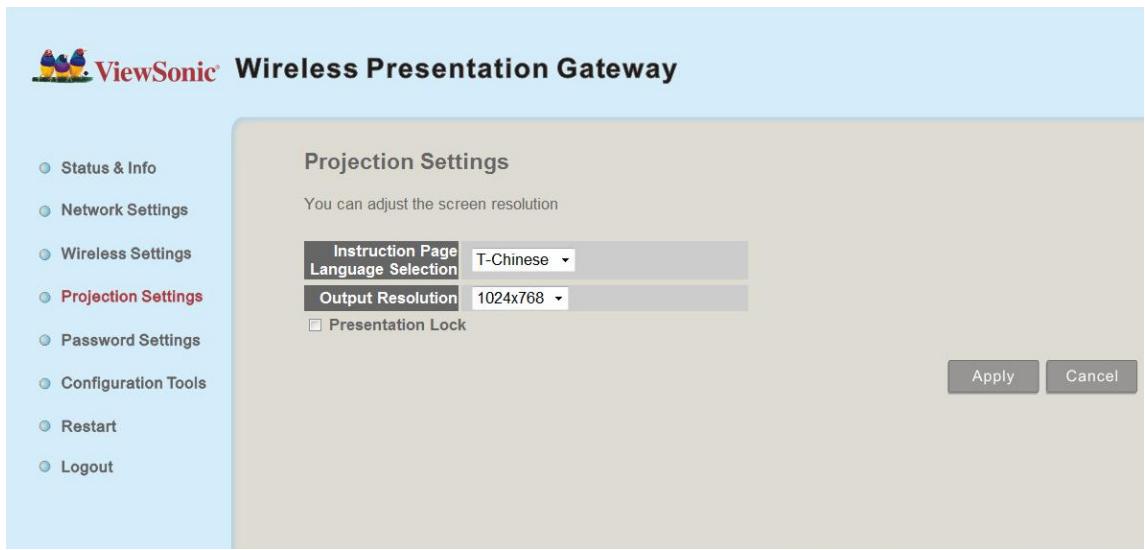
Displays and configures the projection setting.
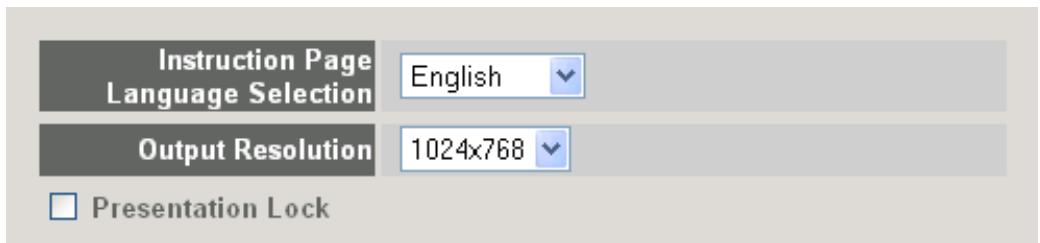
| Item | Description |
| Instruction Page Language Selection | Select the displaying language. |
| Output Resolution | Select output resolution for projection. |
| Presentation lock | Check this box to prevent other users to interrupt current presentation. |
Click 'Apply' button to save the settings.
NOTE: When the configuration settings are changed, you must restart the network connection. You can restart the network connection by clicking "Restart" on the main menu.
5-7 Password Setting
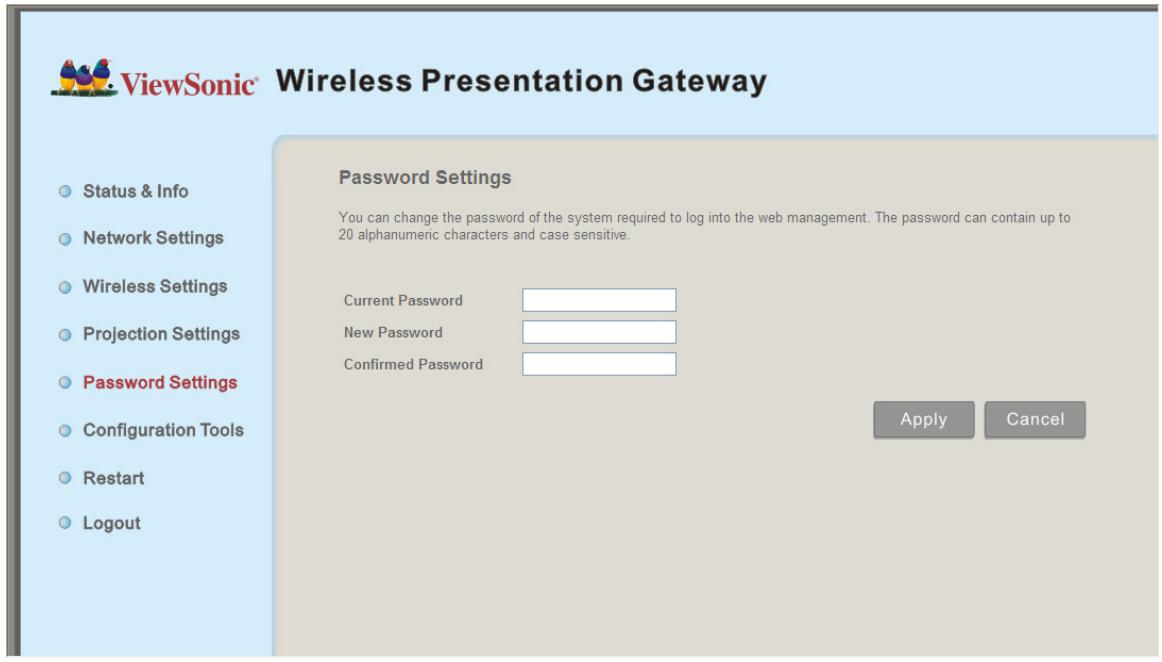
Displays and configures the password setting.
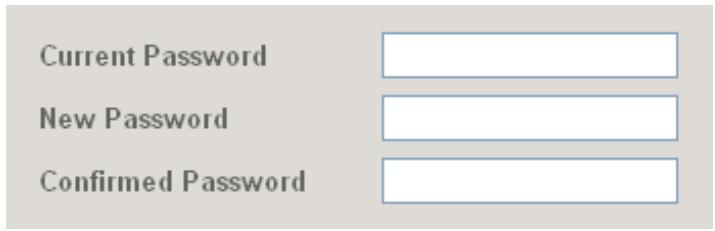
| Item | Description |
| Current Password | Input current password here. |
| New Password / Confirmed Password | New Password: Enter new password. Confirmed Password: Confirmed the new entered password. |
Click 'Apply' button to save the settings.
NOTE: When the configuration settings are changed, you must restart the network connection. You can restart the network connection by clicking "Restart" on the main menu.
5-8 Configuration Tools
5-8-1 Configuration Tools
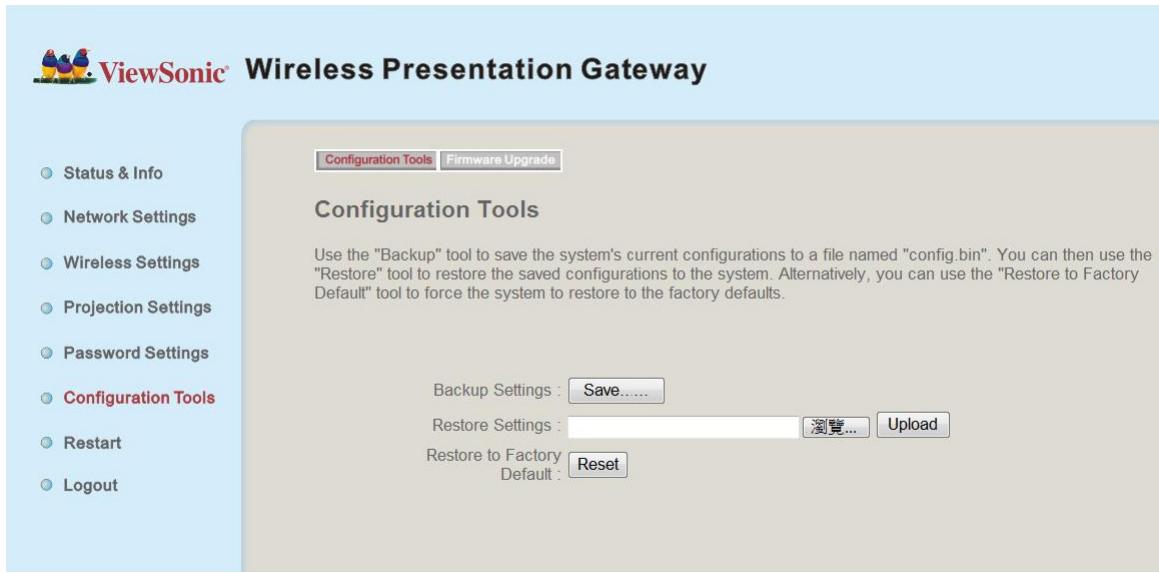
Allows you to backup / restore the setting of WPG.
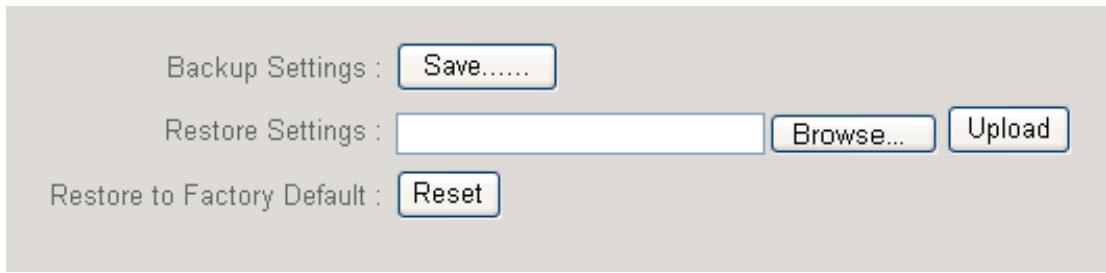
Displays and configures the configuration tools.
| Item | Description |
| Backup Settings | Click ‘Save...’ button to save wireless presentation gateway's current setting as a file and store it on your computer. |
| Restore Settings | Click ‘Browse...’ button to select a previously-saved configuration file stored in your computer's folder. |
| Reset | Reset all settings of wireless presentation gateway back to factory default settings. |
5-8-2 Firmware Upgrade
Upgrade the firmware of this WPG.

Auto

Manual
CheckNow
If WPG connects to Internet and you wish it to upgrade firmware automatically, select 'Auto'; WPG will download latest firmware and upgrade automatically.
Note: it's recommended to use wired Ethernet connection to perform firmware upgrade.
When firmware is upgrading, you'll see the following message:
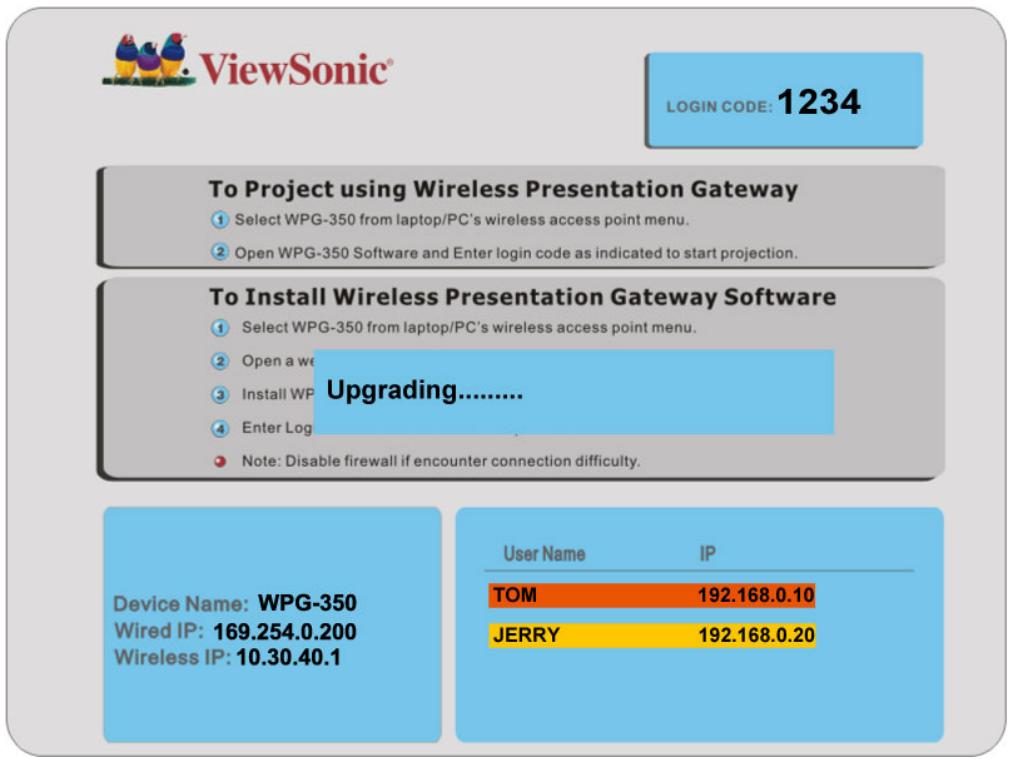
WPG will restart automatically after upgrade is complete, please be patient.
5-9 Restart
Restart WPG when the device is not working properly or to apply changes made on web configuration menu.
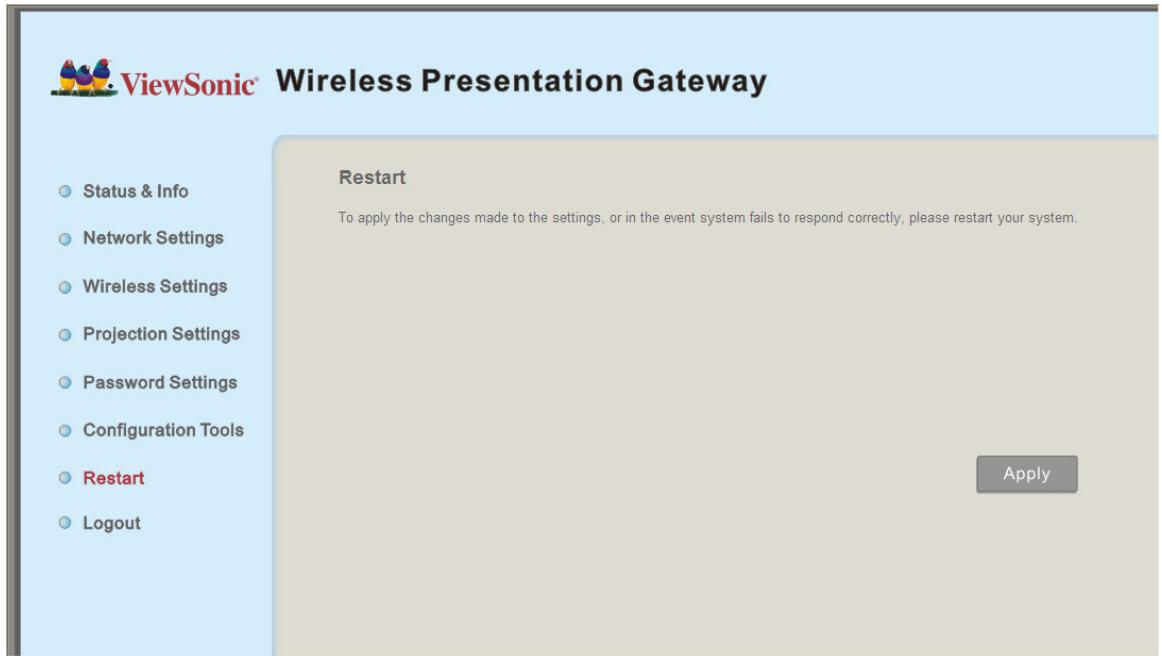
Note: Restart takes about 60 seconds.
Restart
To apply the changes made to the settings, or in the event system fails to respond correctly, please restart your system.
Apply
Click 'Apply' to restart the WPG.
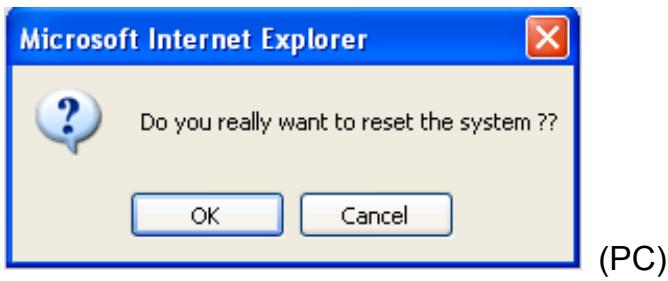
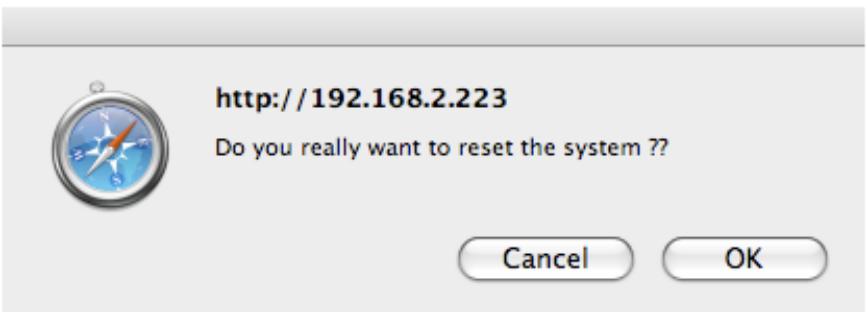
(MAC)
Click 'OK' to restart the WPG, or click 'Cancel' to abort.
5-10Logout
If you wish to logout from web configuration menu, click 'Logout'.
Chapter VI Appendix
6-1 Hardware Specification
| Product name | WPG-350 |
| Power Supply | External power supply (12V DC, 1A) |
| Dimensions | 133.4 x 92.4 x 31.08mm |
| Weight | 200g |
| Connectivity | VGA Connector : VGA OUT ---- D-sub 15 pin mini x 1(Black) x 1 PC IN ----D-sub 15 pin mini x1(Blue) x 1 |
| Audio Output Interface: 3.5mm jack x 1 | |
| Wired Network Interface : 10/100Mbps auto-sensing/auto-cross-over Ethernet port x 1 | |
| Wireless Network Interface : Built-in 802.11b/g/n | |
| Output Resolution | 1024 x 768, 800x600 |
| Environmental Requirements | Operating Temperature: 0 ~ 40°C |
| Operating Humidity: 5 ~ 85%, non-condensing | |
| Storage Temperature: 0 ~ 50°C | |
| Storage Humidity: 5 ~ 85%, non-condensing | |
| Operating System | Supported OS : 1. Windows XP 32/63-bit (SP2 or higher) 2. Windows Vista 32/63-bit (SP1 or higher) 3. MAC OS 10.4 / 10.5 (Both Power PC / Intel Version) |
| Supported Web browsers : 1. Microsoft Internet Explorer 6.0 (SP2) or higher 2. Mozilla's Firefox 3.0 or later 3. Safari | |
| Approvals | CE, FCC, IC, UL/cUL, NCC, C-TICK, RoHS-compliant |
| Software | Wireless Presentation Gateway software application |
| Support Format | Support Format (For Windows) | ||
| Category | Format | ||
| Video | Audio* | ||
| AVI | MPEG4 | PCM, ADPCM | |
| H.261 | |||
| H.263 | |||
| Microsoft MPEG-4 v1/v2 | |||
| MPG | MPEG1 | ||
| MPEG | MPEG1 | ||
| ISO | MPEG1 | ||
| MKV | MPEG4 | ||
| WMV | WMV7** | WMVA1**, WMVA2** | |
| ASF | WMV8** | ||
| * Audio: Does not support AAC and MP3 | |||
| ** Supported by Windows Media Player 10 or above | |||
| Support Format (For MAC) | |||
| Category | Format | ||
| Video | Audio* | ||
| AVI | MPEG4 | PCM, ADPCM | |
| * Audio: Does not support AAC and MP3 | |||
6-2 Troubleshooting
Scenario: Can't connect to wireless presentation gateway
Solution:
-
Check the LED lights located at the front of WPG. If 'Power' LED does not light, do the following check:
-
Check the connection of A/C adapter, and if the electrical outlet you used with A/C adapter is functioning properly.
-
Press 'Power' button on remote controller to see if 'Power' LED lights now.
-
Check the network connection.
- Make sure you connected to correct IP address.
- If you're using wireless network, make sure you connected to correct device.
- If you're using wireless network, check the WEP / WPA password.
Scenario: Remote controller does not work
Solution: 1. Replace the battery of remote controller with a new one (CR-2032 lithium battery).
- Please point the IR transmitter (located at the top of remote controller) to the IR receiver of WPG.
- Make sure the IR receiver of WPG (labeled as 'Remote') is not blocked by any object.
- If there's strong / fluorescent light source near IR transmitter / receiver, remote controller may not be able to function properly.
-
If the distance between IR transmitter / receiver is longer than 7 meters, remote controller may not working properly.
-
Make sure the IR extending cable is correctly inserted to 'IR IN' jack at the back of WPG, not 'AUDIO OUT' jack.
Scenario: No image displayed on WPG's display
Solution:
- Check the connection between video display and WPG.
- Make sure the video display you're using supports the video output mode you selected (in VGA mode).
- Make sure the video display is switched on.
Scenario: I hear noise when WPG is operating.
Solution: If you smell something strange or even see smoke come out from WPG, unplug the A/C adapter (if possible), and return the WPG back to dealer of purchase immediately.
Customer Support
For technical support or product service, see the table below or contact your reseller.
Note : You will need the product serial number.
| Country/Region | Web Site | T=Telephone F=Fax | |
| Australia/New Zealand | www.viewsonic.com.au | AUS=1800 880 818 NZ=0800 008 822 | service@au.viewsonic.com |
| Canada | www.viewsonic.com | T (Toll-Free)= 1-866-463-4775 T (Toll)= 1-424-233-2533 F= 1-909-468-1202 | service.ca@viewsonic.com |
| Europe/Middle East/Baltic countries/North Africa | www.viewsoniceurope.com | Contact your reseller | |
| Hong Kong | www.hk.viewsonic.com | T= 852 3102 2900 | service@hk.viewsonic.com |
| India | www.in.viewsonic.com | T= 1800 11 9999 | service@in.viewsonic.com |
| Korea | www.kr.viewsonic.com | T= 080 265 9080 | service@kr.viewsonic.com |
| Latin America (Argentina) | www.viewsonic.com/la/ | T= 0800 666 0194 | soporte@viewsonic.com |
| Latin America (Brazil) | www.viewsonic.com/la/ | T= 0800 891 6984 | soporte@viewsonic.com |
| Latin America (Chile) | www.viewsonic.com/la/ | T= 800 440 303 | soporte@viewsonic.com |
| Latin America (Columbia) | www.viewsonic.com/la/ | T= 01 800 915 6588 | soporte@viewsonic.com |
| Latin America (Mexico) | www.viewsonic.com/la/ | T= 001 800 514 6518 | soporte@viewsonic.com |
| Renta y Datos, 29 SUR 721, COL. LA PAZ, 72160 PUEBLA, PUE. Tel: 01.222.891.55.77 CON 10 LINEAS Electroser, Av Reforma No. 403Gx39 y 41, 97000 Merida, Yucatan. Tel: 01.999.925.19.16 Other places please refer to http://www.viewsonic.com/la/soporte/index.htm#Mexico | |||
| Latin America (Peru) | www.viewsonic.com/la/ | T= 0800 53458 | soporte@viewsonic.com |
| Macau | www.hk.viewsonic.com | T= 853 700 303 | service@hk.viewsonic.com |
| Puerto Rico & Virgin Islands | www.viewsonic.com | T= 1-800-688-6688 (English) T= 1-866-379-1304 (Spanish) F= 1-909-468-1202 | service.us@viewsonic.com soporte@viewsonic.com |
| Singapore/Malaysia/Thailand | www.ap.viewsonic.com | T= 65 6461 6044 | service@sg.viewsonic.com |
| South Africa | www.viewsoniceurope.com | www.viewsoniceurope.com/uk/Support/Calldesk.htm | |
| United Kingdom | www.viewsoniceurope.com/uk/ | www.viewsoniceurope.com/uk/Support/Calldesk.htm | |
| United States | www.viewsonic.com | T (Toll-Free)= 1-800-688-6688 T (Toll)= 1-424-233-2530 F= 1-909-468-1202 | service.us@viewsonic.com |
LIMITED WARRANTY
Please go to the Customer Support table in this guide for the ViewSonic website in your region to get warranty information.
- Wireless Presentation Gateway
- Compliance Information
- FCC Statement
- For Canada
- CE Conformity for European Countries
- Following information is only for EU-member states:
- FCC Radiation Exposure Statement
- Industry Canada Notice
- R&TTE Compliance Statement C E
- Declaration of RoHS Compliance
- Copyright Information
- Product Registration
- Table of Contents
- Chapter I Product Introduction 4
- Chapter II Using WPG 11
- Chapter II Using WPG 12
- Chapter III Using Application Software (PC Version) 18
- Chapter IV Using Application Software (MAC Version) 26
- Chapter V Configure WPG 32
- Important Safety Instructions
- Chapter I Product Introduction
- 1-1 Package Contents
- 1-2 Requirements
- 1-3 Highlights
- Features
- 1-4 Part Names
- Front View
- Back View
- Side View
- Note:
- 1-5 Initial Setup
- Chapter II Using WPG
- 2-1 Check the IP address of WPG
- 2-2 Connect to WPG by wireless network
- 2-3 Manual Network Connection Setting
- 2-3-1 Windows XP IP address setup:
- 2-3-2 Windows Vista IP address setup:
- 2-3-3 Macintosh IP address setup:
- Chapter III Using Application Software (PC Version)
- 3-1 Download and Install Application Software
- 3-2 Launch Application Software and Login
- 3-2-1 Use icon on application software
- 3-2-2 Menu List
- 3-3 Video playback (PC Version)
- 3-4 Quarter Split Screen
- Chapter IV Using Application Software (MAC Version)
- 4-1 Download and Install Application Software
- 4-2 Launch Application Software and Login (MAC Version)
- 4-2-1 Use icon on application software
- 4-2-2 Menu List
- 4-3 Video playback
- To start video playback:
- 4-4 Quarter Split Screen (MAC Version)
- Chapter V Configure WPG
- 5-1 Conference Control
- 5-2 Connect to Web Configuration Menu
- 5-3 Status & Info
- 5-4 Network Settings
- 5-5 Wireless Settings
- 5-5-1 'Basic' Settings
- 5-5-2 'Advanced' Settings
- Display and configures the advanced settings.
- 5-5-3 'Security' Settings
- 5-5-3-1 Encryption: Disabled
- 5-5-3-2 Encryption: WEP
- 5-5-3-3 Encryption: WPA pre-shared key
- 5-5-3-4 Encryption: WPA RADIUS
- 5-5-4 'WPS' Settings
- Enable WPS
- Wi-Fi Protected Setup Information
- Device Configure
- 5-6 Projection Setting
- 5-7 Password Setting
- 5-8 Configuration Tools
- 5-8-1 Configuration Tools
- 5-8-2 Firmware Upgrade
- 5-9 Restart
- Restart
- 5-10Logout
- Chapter VI Appendix
- 6-1 Hardware Specification
- 6-2 Troubleshooting
- Solution:
- Customer Support
- LIMITED WARRANTY
Brand : VIEWSONIC
Model : WPG-350
Category : Wireless Presentation Adapter