
VPC220 - All-in-one computer VIEWSONIC - Free user manual and instructions
Find the device manual for free VPC220 VIEWSONIC in PDF.


| Product type | All-in-one computer |
| Brand | ViewSonic |
| Model | VPC220 |
| Screen size | 21.5 inches (approx. 54.6 cm) |
| Screen resolution | 1920 x 1080 pixels (Full HD) |
| Processor | Intel Core i3 (variable generation) |
| RAM memory | 4 GB (expandable) |
| Storage | 500 GB hard drive or 120 GB SSD |
| Operating system | Windows 10 Home (pre-installed) |
| Connectivity | Wi-Fi 802.11 b/g/n, Bluetooth 4.0, Ethernet RJ45 |
| Ports | USB 3.0 (x4), HDMI (input), headphone/microphone jack |
| Dimensions (W x H x D) | 53.0 x 38.0 x 5.5 cm |
| Weight | 6.0 kg |
| Power supply | 100-240 V AC, 50/60 Hz, 65 W adapter |
| Main functions | Internet browsing, office work, multimedia, video conferencing |
| Maintenance and cleaning | Wipe with a soft, dry cloth; do not use liquid products |
| Safety | Do not open the casing; unplug before cleaning; use a grounded outlet |
| Spare parts and repairability | Contact ViewSonic after-sales service or an authorized repairer |
| General information | Energy Star certified, compliant with WEEE directive |
Frequently Asked Questions - VPC220 VIEWSONIC
User questions about VPC220 VIEWSONIC
0 question about this device. Answer the ones you know or ask your own.
Ask a new question about this device
Download the instructions for your All-in-one computer in PDF format for free! Find your manual VPC220 - VIEWSONIC and take your electronic device back in hand. On this page are published all the documents necessary for the use of your device. VPC220 by VIEWSONIC.
USER MANUAL VPC220 VIEWSONIC
VPC220 All-in-One PC
-User Guide
- Guide de l'utilisateur
- Guía del usuario
- РуховOSTBO пльь3OBаТеля
- Kullanici kilavuzu
Compliance Information
For U.S.A.
This device complies with part 15 of FCC Rules. Operation is subject to the following two conditions: (1) this device may not cause harmful interference, and (2) this device must accept any interference received, including interference that may cause undesired operation.
This equipment has been tested and found to comply with the limits for a Class B digital device, pursuant to part 15 of the FCC Rules. These limits are designed to provide reasonable protection against harmful interference in a residential installation.
This equipment generates, uses, and can radiate radio frequency energy, and if not installed and used in accordance with the instructions, may cause harmful interference to radio communications. However, there is no guarantee that interference will not occur in a particular installation. If this equipment does cause harmful interference to radio or television reception, which can be determined by turning the equipment off and on, the user is encouraged to try to correct the interference by one or more of the following measures:
- Reorient or relocate the receiving antenna.
- Increase the separation between the equipment and receiver.
- Connect the equipment into an outlet on a circuit different from that to which the receiver is connected.
- Consult the dealer or an experienced radio/TV technician for help.
Warning: You are cautioned that changes or modifications not expressly approved by the party responsible for compliance could void your authority to operate the equipment.
For Canada
FCC Radiation Exposure Statement
This equipment should be installed and operated with minimum distance 20cm between the radiator & your body.
This wireless module device complies with part 15 of FCC Rules. Operation is subject to the following two conditions: (1) this device may not cause harmful interference, and (2) this device must accept any interference received, including interference that may cause undesired operation.
Industry Canada Notice
This wireless module device complies with Canadian RSS-210. To prevent radio interference to the licensed service, this device is intended to be operated indoors and away from windows to provide maximum shielding. Equipment (or its transmitting antenna) that is installed outdoors is subject to licensing. The installer of this radio equipment must ensure that the antenna is located or pointed such that it does not emit RF field in excess of Health Canada limits for the general population; consult Safety Code 6, obtainable from Health Canada's web site www.hc-sc.gc.ca/rpb.
ENERGY STAR® information
The computer complies with the ENERGY STAR® requirements of less than 15 min of user inactivity for the display and less than 30 min of inactivity for the computer.
Move the mouse or click any button on the keyboard to wake the computer from Sleep mode.
Important Safety Instructions
- Read these instructions completely before using the equipment.
- Keep these instructions in a safe place.
- Heed all warnings.
- Follow all instructions.
- Do not use this equipment near water. Warning: To reduce the risk of fire or electric shock, do not expose this apparatus to rain or moisture.
- Clean with a soft, dry cloth.
- Do not block any ventilation openings. Install the equipment in accordance with the manufacturer's instructions.
- Do not install near any heat sources such as radiators, heat registers, stoves, or other devices (including amplifiers) that produce heat.
- Do not attempt to circumvent the safety provisions of the polarized or grounding-type plug. A polarized plug has two blades with one wider than the other. A grounding type plug has two blades and a third grounding prong. The wide blade and the third prong are provided for your safety. If the plug does not fit into your outlet, consult an electrician for replacement of the outlet.
- Protect the power cord from being tread upon or pinched, particularly at the plug, and the point where if emerges from the equipment. Be sure that the power outlet is located near the equipment so that it is easily accessible.
- Only use attachments/accessories specified by the manufacturer.
- Use only with the cart, stand, tripod, bracket, or table specified by the manufacturer, or sold with the equipment. When a cart is used, use caution when moving the cart/equipment combination to avoid injury from tipping over.
- Unplug this equipment when it will be unused for long periods of time.
- Refer all servicing to qualified service personnel. Service is required when the unit has been damaged in any way, such as: if the power-supply cord or plug is damaged, if liquid is spilled onto or objects fall into the unit, if the unit is exposed to rain or moisture, or if the unit does not operate normally or has been dropped.
- Risk of explosion if battery is replaced by an incorrect type. Dispos of used batteries according to the instructions.
Declaration of RoHS Compliance
This product has been designed and manufactured in compliance with Directive 2002/95/EC of the European Parliament and the Council on restriction of the use of certain hazardous substances in electrical and electronic equipment (RoHS Directive) and is deemed to comply with the maximum concentration values issued by the European Technical Adaptation Committee (TAC) as shown below:
| Substance | Proposed Maximum Concentration | Actual Concentration |
| Lead (Pb) | 0,1% | < 0,1% |
| Mercury (Hg) | 0,1% | < 0,1% |
| Cadmium (Cd) | 0,01% | < 0,01% |
| Hexavalent Chromium (Cr6+) | 0,1% | < 0,1% |
| Polybrominated biphenyls (PBB) | 0,1% | < 0,1% |
| Polybrominated diphenyl ethers (PBDE) | 0,1% | < 0,1% |
Certain components of products as stated above are exempted under the Annex of the RoHS Directives as noted below:
Examples of exempted components are:
- Mercury in compact fluorescent lamps not exceeding 5 mg per lamp and in other lamps not specifically mentioned in the Annex of RoHS Directive.
- Lead in glass of cathode ray tubes, electronic components, fluorescent tubes, and electronic ceramic parts (e.g. piezoelectronic devices).
- Lead in high temperature type solders (i.e. lead-based alloys containing 85% by weight or more lead).
- Lead as an allotting element in steel containing up to 0.35% lead by weight, aluminium containing up to 0.4% lead by weight and as a cooper alloy containing up to 4% lead by weight.
Copyright Information
Copyright © ViewSonic Corporation, 2010. All rights reserved.
Microsoft®, Windows®, Windows NT®, and the Windows® logo are registered trademarks of Microsoft® Corporation in the United States and other countries.
ViewSonic®, the three birds logo, OnView®, ViewMatch™, and ViewMeter® are registered trademarks of ViewSonic® Corporation.
Intel®, Pentium®, and Atom™ are registered trademarks of Intel Corporation.
Award® is a registered trademark of Phoenix Technologies Ltd.
AMI® is a registered trademark of American Megatrends Inc.
ENERGY STAR® is a registered trademark of the U.S. Environmental Protection Agency (EPA).
As an ENERGY STAR® partner, ViewSonic Corporation has determined that this product meets the ENERGY STAR® guidelines for energy efficiency.
Disclaimer: ViewSonic® Corporation shall not be liable for technical or editorial errors or omissions contained herein; nor for incidental or consequential damages resulting from furnishing this material, or the performance or use of this product.
In the interest of continuing product improvement, ViewSonic® Corporation reserves the right to change product specifications without notice. Information in this document may change without notice.
No part of this document may be copied, reproduced, or transmitted by any means, for any purpose without prior written permission from ViewSonic® Corporation.
Product Registration
To meet your future needs, and to receive any additional product information as it becomes available, please register your product on the Internet at: www.viewsonic.com. The ViewSonic® Wizard CD-ROM also provides an opportunity for you to print the registration form, which you may mail or fax to ViewSonic®.
| For Your Records | |
| Product Name: | VPC220 ViewSonic All-in-One PC |
| Model Number: | VS13426 |
| Document Number: | VPC220-1_UG_ENG Rev. 1A 07-06-10 |
| Serial Number: | ___________ |
| Purchase Date: | ___________ |
Product disposal at end of product life
The lamp in this product contains mercury. Please dispose of in accordance with local, state or federal laws.
ViewSonic® is concerned about the preservation of our environment. Please dispose of this product properly at the end of its useful life. For the recycling information, please refer to our website:
- USA: www.viewsonic.com/company/green/recycle-program/
- Europe: www.viewsoniceurope.com/uk/support/recycling-information/
- Taiwan: recycle.epa.gov.tw
Table of Contents
Getting Started 1
Package Contents 1
System Overview 2
Safety and Comfort Tips 5
Having Good Work Habits 6
Setting Up Your Computer 7
Connecting External Devices 7
Connecting USB Devices 7
Connecting Communication Devices 8
Connecting Video Equipment 9
Connecting External Display Devices 10
Connecting Audio Components 11
Connecting the Power Supply 12
Using the Card Reader 12
Using the Optical Disk Drive 13
Using the TV Tuner (Select model) 14
Overview of the Remote Controller 14
Starting the TV Tuner 16
System Operations 19
Connecting to Internet 19
Connecting to LAN 19
Connecting to Wireless LAN 22
Adjusting LCD Screen Resolution 25
Using the Touch Screen (Optional) 26
Calibrating the Screen 26
Using the On-Screen Keyboard 27
Handwriting Mode 27
Power Management 28
Using the Power Plan 28
Using the Power Saving Mode 29
BIOS Setup Utility 30
Using BIOS Setup 30
EnteringBIOS Setup 30
BIOS Action Keys 30
BIOS Setup Menu 31
Main Menu 31
Advanced Menu 32
Boot Menu 36
Security Menu 38
Exit Menu 40
System Recovery 42
When to Use System Recovery 42
Running ViewSonic Recovery Manager 42
Specifications 45
Troubleshooting 47
Getting Started
Congratulations on your purchase of this All-In-One PC! This All-in-One PC is an inclusive desktop PC that is designed for quick installation and easy use without taking up much desk space. With its built-in components, it is flexible yet economical, providing users with maximum computing experience without compromising system performance.
Package Contents
Your package comes with the following items. If any of them are missing, please contact your retailer.
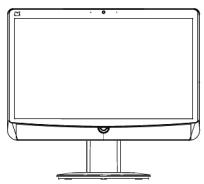
All-in-One PC
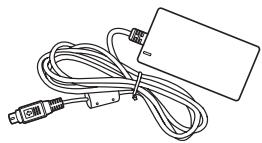
Power adapter
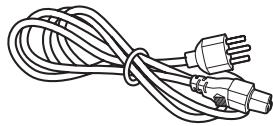
Power cord
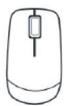
Mouse (optional)
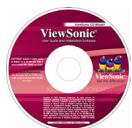
Driver & UG disc
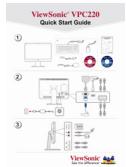
Quick Start Guide
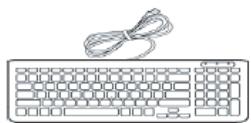
Keyboard (optional)
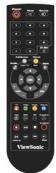
Remote Control (optional)
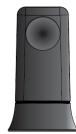
USB IR Receiver (Optional)
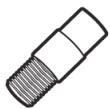
F socket coaxial TV plug (optional)
System Overview
Front view
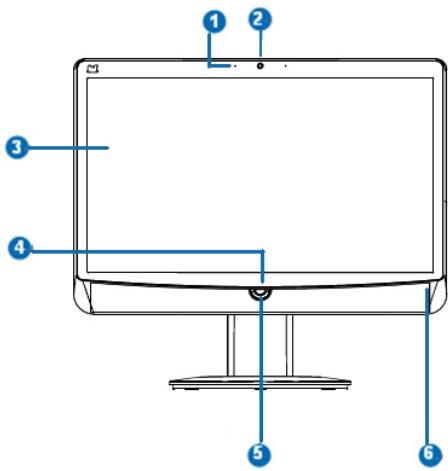
| No. | Item | Description |
| 1 | Microphone | Use for chatting and other interactive applications. |
| 2 | Webcam | Use for taking pictures, recording videos, and video conferencing. |
| 3 | Touch Screen (select model) | Touch the screen to select objects and perform other tasks. |
| 4 | Power Button | Press to power on / off the device. |
| 5 | Brightness Control Button | 1. Select HDMI-in & PC input signal when plug cable to VPC220. 2. Press these button(+/-) to adjust the LCD screen brightness |
| 6 | LED (wireless / HDD) | The LED turns blue when the corresponding function is enabled |
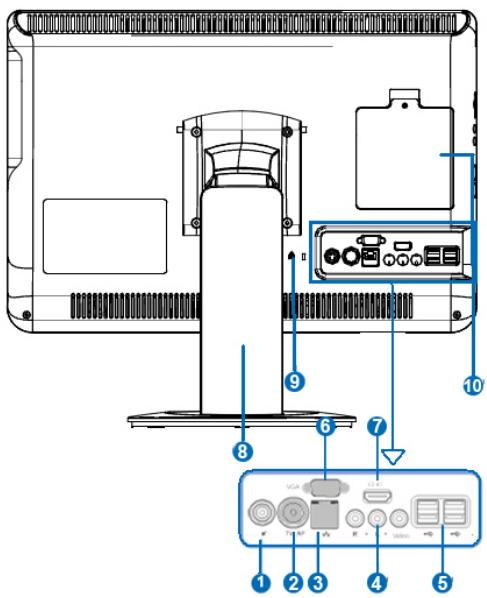
| No. | Item | Description |
| 1 | DC-IN connector | Use to connect the power adapter |
| 2 | PAL Antenna Connector (Select model) | Use to connect TV Antenna. |
| 3 | RJ45 / LAN connector | Connect a LAN cable for network connection. |
| 4 | RCA Jack (Select model) | For audio/video input Red: Right audio channel White: Left audio channel Yellow: Video |
| 5 | USB connectors | Connect USB devices such as a mouse, keyboard, printer, scanner, and other peripherals. |
| 6 | VGA-out | Connect a VGA cable to external display device. |
| 7 | HDMI-in | Connect an HDMI digital video device. |
| 8 | Stand | Holds the All-in-One PC in place. |
| 9 | Kensington lock | Use to physically lock the All-In-One PC to protect against theft. The lock is sold separately; contact your retailer. |
| 10 | Memory compartment | Contains and protects the memory modules. |
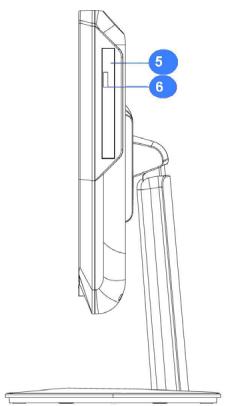
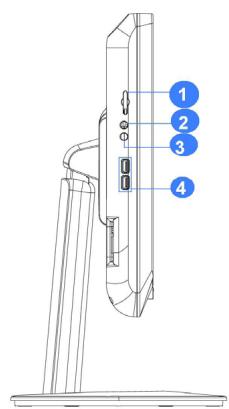
| No. | Item | Description |
| 1 | Card reader Slot | Supports memory cards including XD, SD, MS, MS Pro, or MMC cards. |
| 2 | Microphone Connector | Connect an external microphone. |
| 3 | Headphone connector | Connect speakers or headphones. |
| 4 | USB connector | Connect USB devices such as a mouse, keyboard, printer, and other peripherals. |
| 5 | Optical disk Drive | Plays or records DVD or CD disc. |
| 6 | Eject button | Press to eject the tray from the disc drive. |
Safety and Comfort Tips
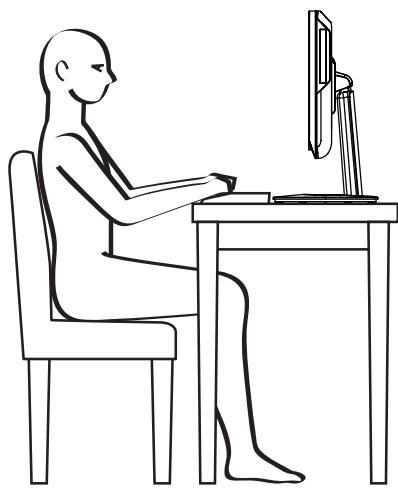
This device is designed to be a complete plug-and-play system and easy to use without taking up much desk space. However, choosing a good workspace is important if you have to work with your computer for a long period of time.
- Your work area should have enough illumination.
- Choose the proper desk and chair and adjust their height to fit your posture when operating.
- When sitting on the chair, adjust the chair's back (if available) to support your back comfortably.
- Place your feet flat and naturally on the floor, so that your knees and elbows have the proper position (about 90-degree angle) when operating.
- Put your hands on the desk naturally to support your wrists.
- Adjust the angle/position of the LCD panel to have an optimal view.
- Avoid using your computer in a space which may cause you discomfort (such as on a bed).
- The computer is an electrical device, please treat it with great care to avoid personal injury.
Having Good Work Habits
Having good work habits is important if you have to work with your computer for long periods of time; otherwise, it may cause discomfort or injury to you.
When working with your computer, it is better to divide your work periods and to take frequent short breaks.
During the short breaks, do the following relaxing exercises:
- At regular, 10-minute intervals, lift up your eyes and look straight ahead at least 5 meters away.
- Do some stretching exercises.
- Change your work position frequently without neglecting good back posture.
- Take frequent breaks to relieve any numbness in legs or arms.
Setting Up Your Computer
This chapter will guide you in installing necessary and additional components to maximize the system performance of your All-in-One PC.
Connecting External Devices
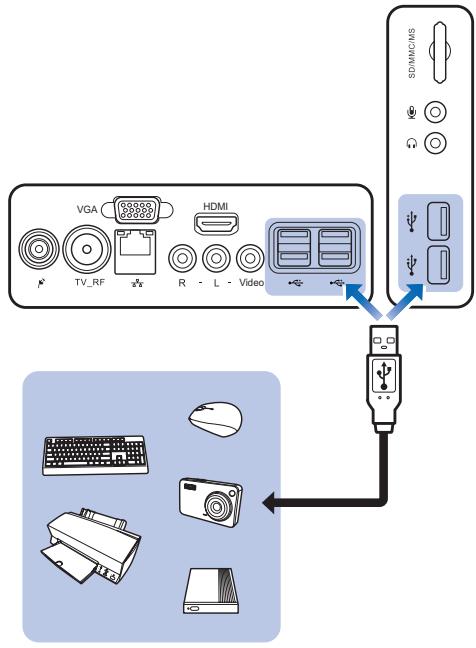
The I/O (input/output) ports on the device allow you to connect peripheral devices. All devices listed here are for reference only.
Connecting USB Devices
This computer provides USB ports for connecting various USB devices, such as mouse, keyboard, digital camera, printer, and external storage device. To connect these devices, connect the devices to the computer, and then install the drivers if necessary. This computer is capable to auto detect the USB devices installed, and if there is no detection of the devices, please manually enable the USB devices by going to Start > Control Panel > Hardware and Sound > Add a device to add the new device.
Connecting Communication Devices
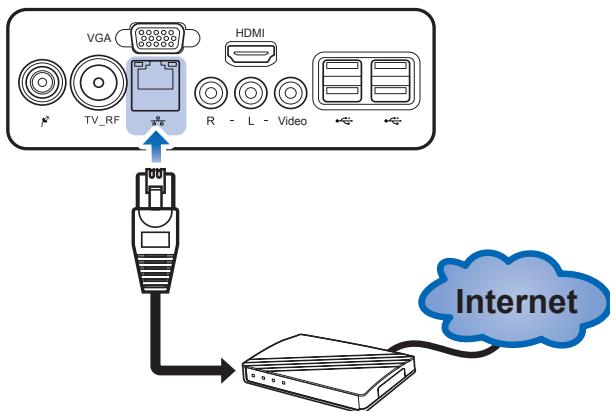
Using the LAN
The RJ-45 connector of the computer allows you to connect the LAN (local area network) devices, such as a hub, switch and gateway, to build a network connection. For more instructions or detailed steps on connecting to the LAN, please ask your MIS staff or network manager for help.
Using the Wireless LAN
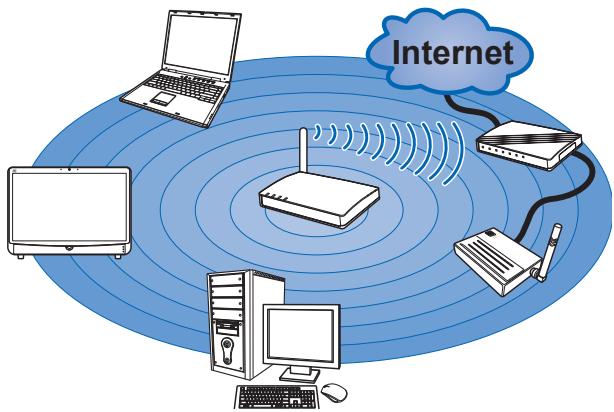
This computer is equipped with wireless LAN module that supports the IEEE 802.11 standard to achieve high speed data transmission. This allows users to move around within a broad coverage area and still be connected to the network. For more instructions or detailed steps on connecting to the wireless LAN, please ask your MIS staff or network manager for help.
Connecting Video Equipment
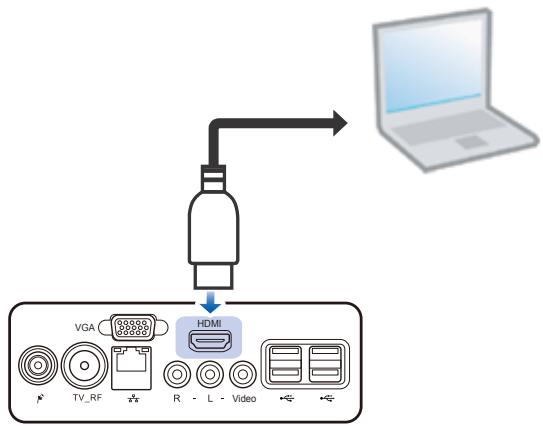
Connect an HDMI digital video device using an HDMI cable (not included with purchase).
Select the signal source
Follow below steps while you are inserting the HDMI cable:
- The input signal select On-Screen Display (OSD) menu will display automatically.
- Press control button to choose PC or HDMI, the signal source will switch after 2 sec.
- Conversely if you don't choose a signal source, the OSD menu will automatically disappear after 2 sec.
You can adjust the brightness by pressing the Brightness control buttons on the front side of the computer.
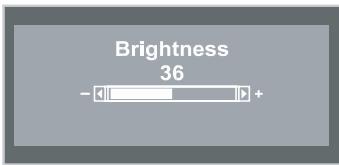
To increase the brightness, press +.
To decrease the brightness, press -
Connecting External Display Devices
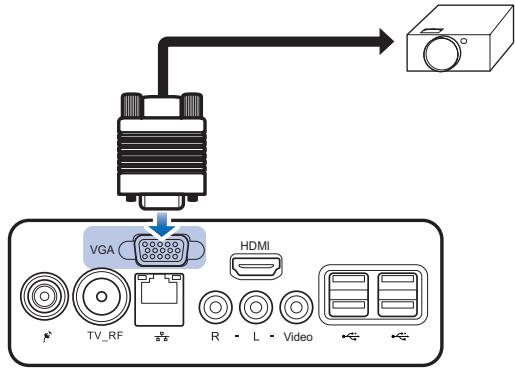
Connect an external monitor or other standard VGA-compatible device (such as projector, television, etc) using a VGA cable (not included with purchase).
Connecting Audio Components
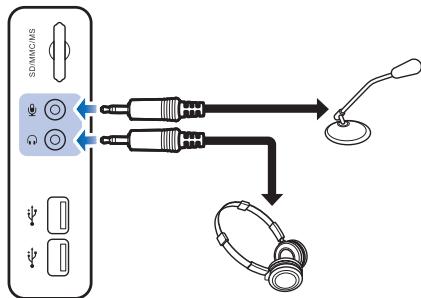
Connecting to Headset
Plug the stereo headphone cable into the headphone connector of your computer.
Connecting a Microphone
Plug the microphone cable into the microphone connector of your computer.
Tilting the Screen
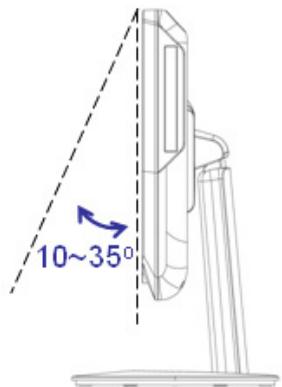
- Place the computer on a stable surface, such as a table.
- Pull the bottom of the screen outwards, the screen can be tilted about 10^ 35^ to suit your preference.
Connecting the Power Supply
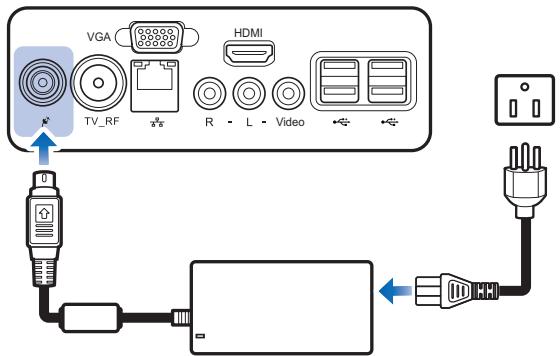
- Connect the power adapter to the DC-IN connector of the computer.
- Connect the power cord to the power adapter.
- Plug the power cord into an electrical outlet.
Note
- When disconnecting the power, always unplug the power cord from the electrical outlet first. Use the cord's head to unplug, never pull the cable.
Using the Card Reader
The card reader supports SD, MMC, MS, and XD memory cards.
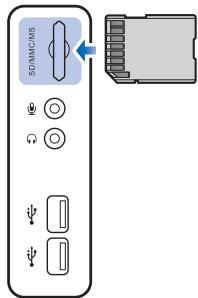
Inserting a memory card
- Insert the card into the memory card slot.
- Push gently until the card clicks into place.
Removing a memory card
- Push the card gently to eject it.
- Pull the card out from the slot.
Note
- Before removing a memory card, use the configuration utility on the taskbar to stop the memory card operation. Failure to do so may result in data loss.
Using the Optical Disk Drive
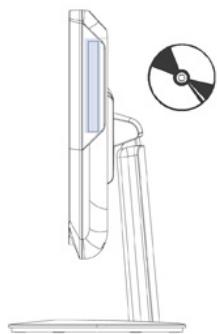
- Press the Eject button on the drive.
- Gently pull out the disc tray.
- With the label side facing forward, place the disc in the center of the disc tray.
- Gently push the disc tray back into the disk slot.
- The optical disc drive indicator is on and your computer will start to read the disc you just inserted.
Note
- Do not remove the disc while the computer is still reading or playing it.
Using the TV Tuner (Select model)
The TV Tuner includes the IR receiver, Remoter Controller and an application ViewSonic.
Overview of the Remote Controller
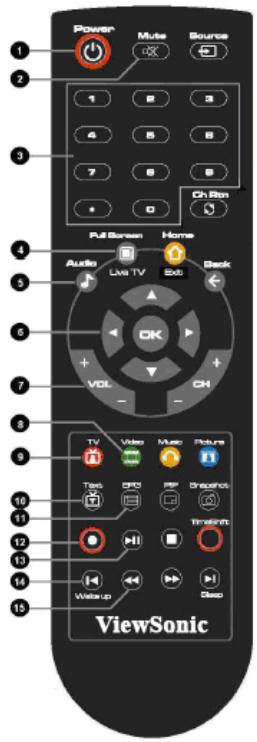
| No. | Description |
| 1 | Turn on/off the application |
| 2 | Turn on/off the sound. |
| 3 | Use numeric button to select a channel |
| 4 | Display TV full screen |
| 5 | Change between available audio modes |
| 6 | Main Screen: Use the arrow button to navigate all on-screen items. Use OK to confirm the selection PIP Mode: Change size or position of the selected screen by the arrow button |
| 7 | Volume up/ Volume down |
| 8 | Main Screen: A shortcut to the main menu – “Video” Teletext Mode: Jump to the teletext page of the corresponding color according to this button |
| 9 | Main screen: A shortcut to the main menu –“TV” Teletext Mode: Jump to the teletext page of the corresponding color according to this button |
| 10 | View Teletext / Close caption information |
| 11 | View EPG information. ( the function is only for digital TV) |
| 12 | Record the current program |
| 13 | Play the selected file and freeze the playback temporarily |
| 14 | Go to the previous item in the playlist. |
| 15 | Move backwards in interval |
Starting the TV Tuner
Running for the first time
When you run for the first time, a setup wizard will automatically appear and take you through all necessary setting step by step. You can just follow the dialog box to complete the setting easily. IF you want to re-configure all the settings again, go to the main page and select
Select General Run Wizard Again
TV
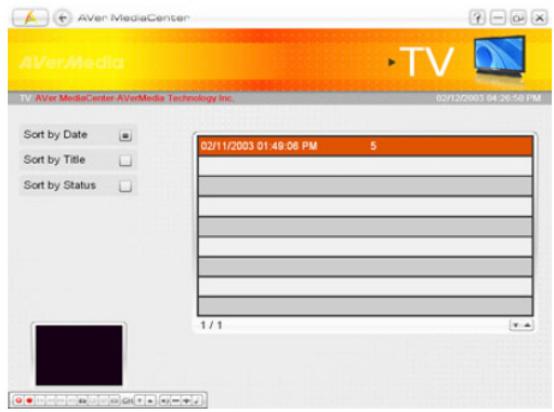
Under the TV main menu, you can enjoy watching TV, record your favorite program and so on.
Selecting and Watching Live TV
In the TV page, you can see a preview TV window. To switch the preview mode to the full-screen mode, to select Live.
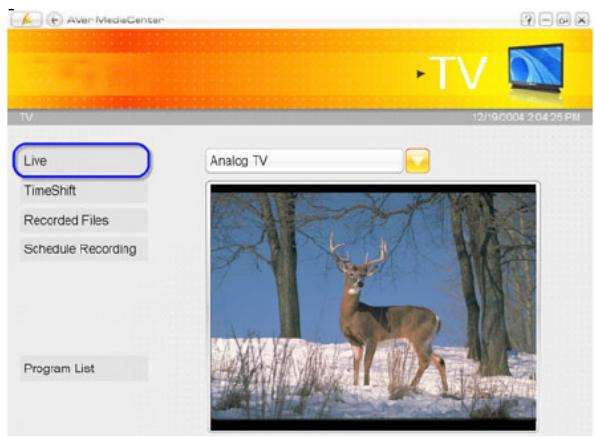
You can use remote control, numeric keypad or select Program List to choose TV channels you want.
Capturing Image
While you watch TV or record video from your PC monitor, you can use the application to capture images for your document, presentation or web page.
-
Select TV.
-
Press on the remote control or select on the control panel to capture a image.
When watching TV, Select to record a program immediately, and then select to stop. To play it,
- Select TV Recorded Files.
- Chose desired file.
- Select Play.
- Double click the small TV monitor to switch to the full-screen.
Video
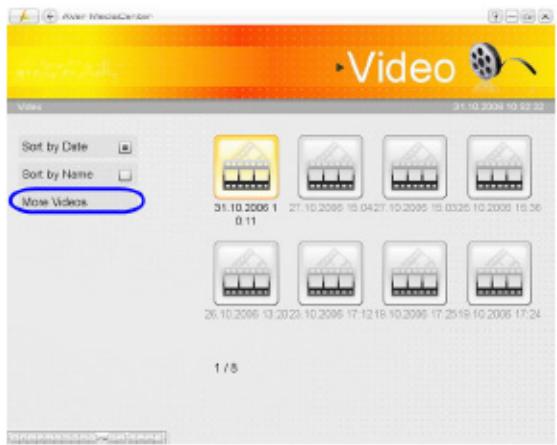
You can view recorded video or other video files.
Playing Video files
- Select Video.
- Select video file in the list or select More Videos to choose other folders.
Music
Playing Music
- Select Music Add Music and then select the desired folder.
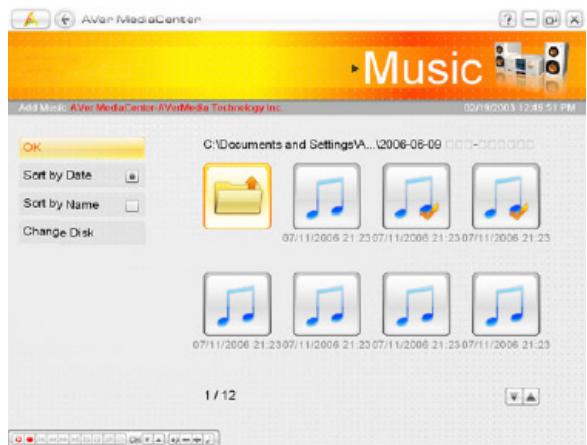
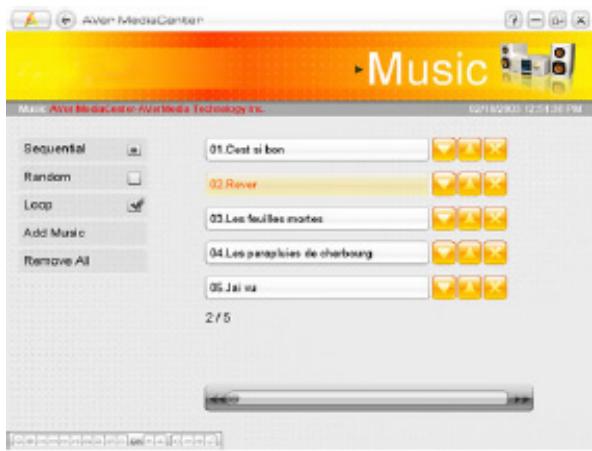
- Choose the tracks you wish to play and then select OK to go back.
- Then you can see the added file displayed.
System Operations
This chapter provides you with the basic information on system operations such as network settings, adjusting LCD screen and resolution, using the touch screen, and power management.
Connecting to Internet
Connecting to LAN
- Plug one end of the network cable to the LAN connector at the rear of your computer.
- Connect the other end to a network hub or a wall socket.
- Press the Power button to turn on the computer.
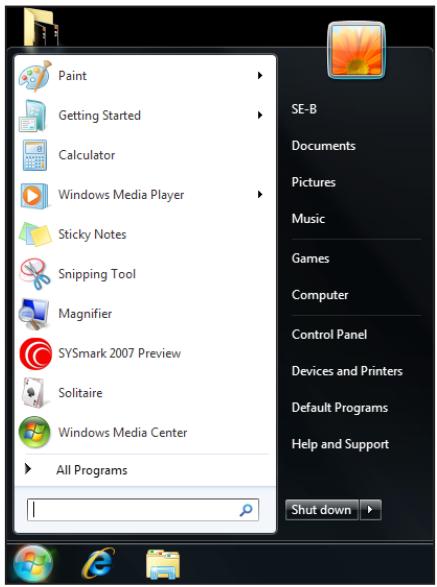
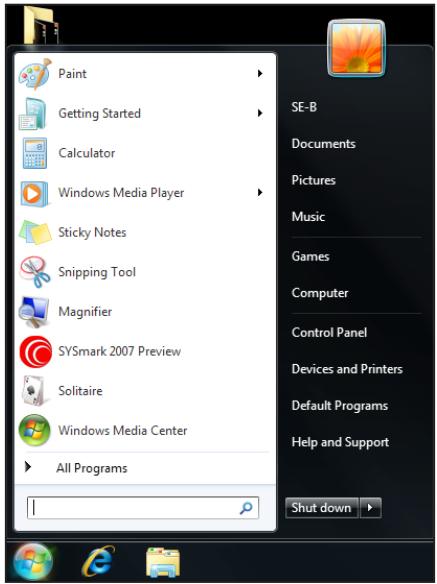
- Click Start > Control Panel.
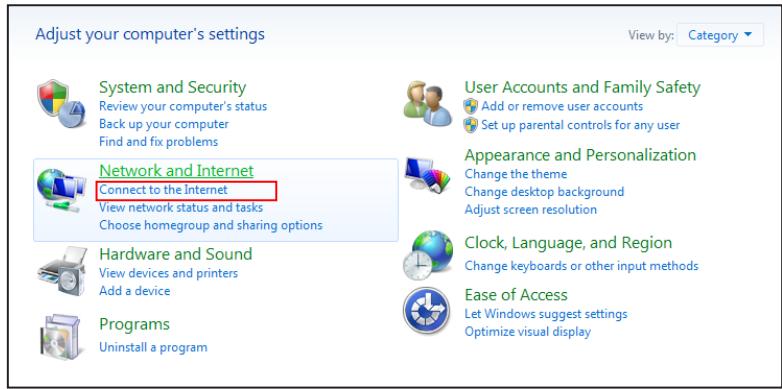
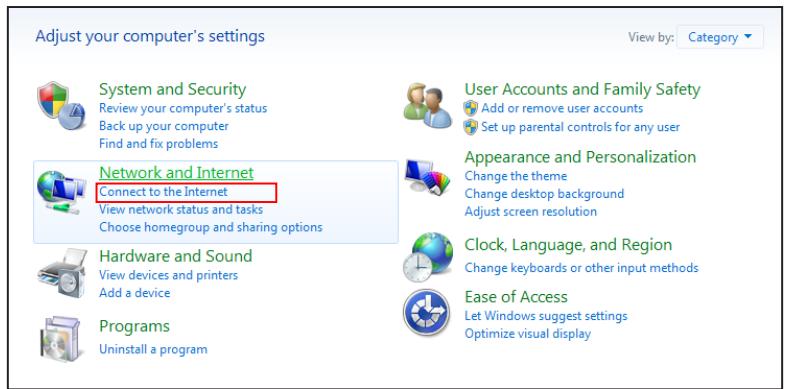
5. Select Network and Internet > Connect to the Internet.
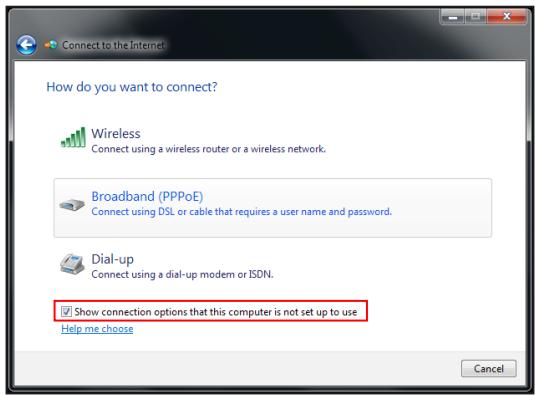
6. Check Show connection options that this computer is not set up to use, and select Broadband (PPPoE).
- Enter the information for your Internet service provider (ISP). For details on the required data, contact your internet service provider.
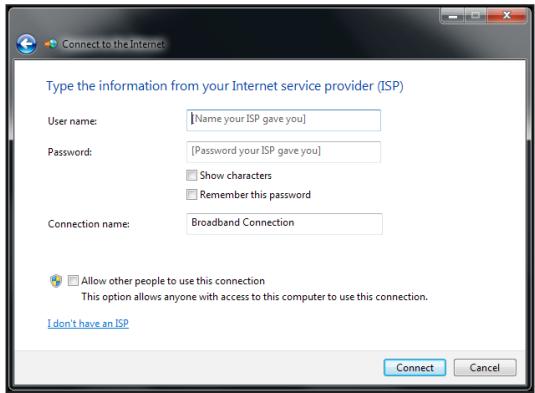
- To establish a LAN connection, click Connect.
Connecting to Wireless LAN
- Press the Power button to turn on the computer.
- Click Start > Control Panel.
3. Select Network and Internet > Connect to the Internet.
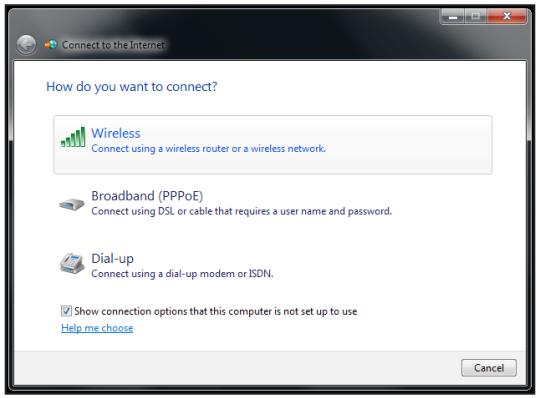
4. Select Wireless.
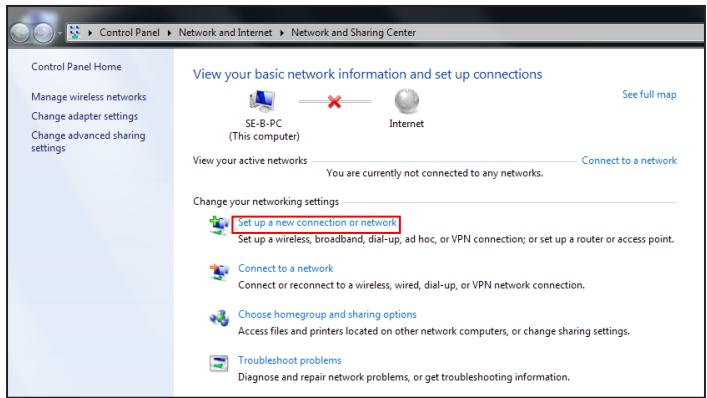
- If the WLAN connection are available, the computer displays a list of available WLAN connection, and select a connection from the list. Otherwise, select Open Network and Sharing Center to establish a new connection.
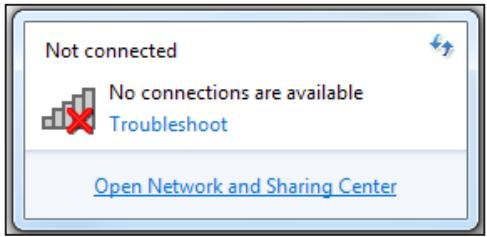
- Select Set up a new connection or network.
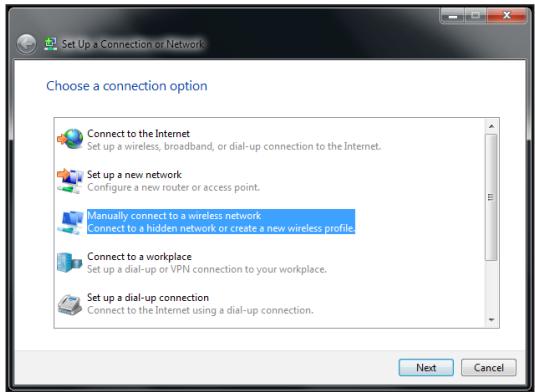
- Select Manually connect to a wireless network, and click Next.
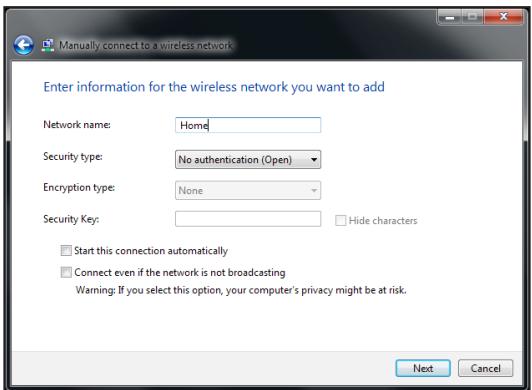
- Enter the information for the wireless network.
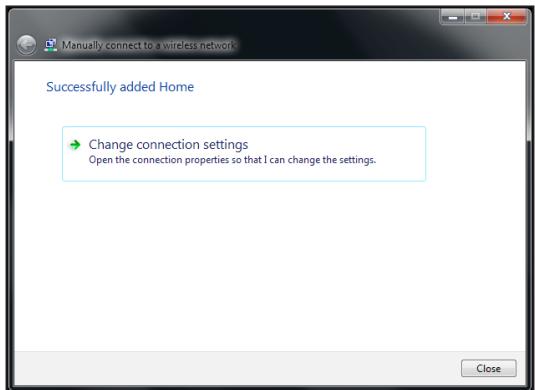
- The new WLAN connection is now completed, and click Close. To change the WLAN settings, click Change connection settings.
Adjusting LCD Screen Resolution
- Click Start > Control Panel.
- Select Appearance and Personalization > Adjust screen resolution.
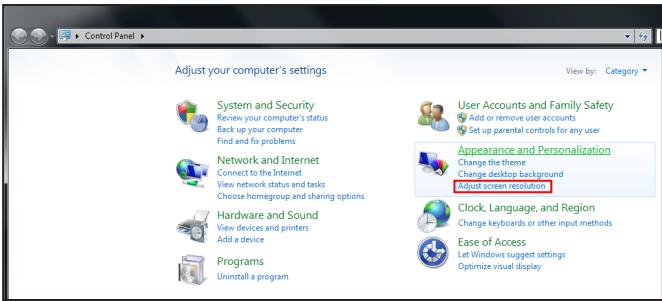
- Select the desired resolution setting.
Click on the pull-down menu to see more options.
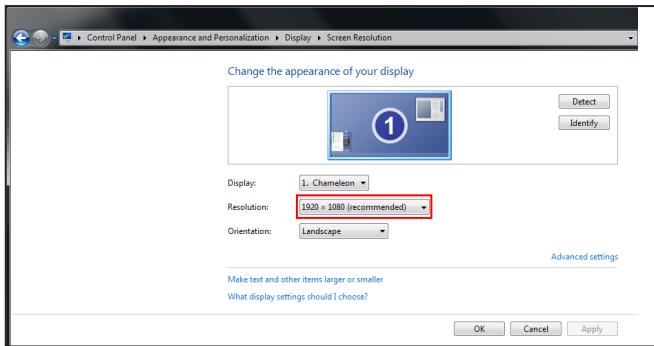
- Click OK.
Using the Touch Screen (Optional)
Calibrating the Screen
To ensure touch accuracy, calibrate the screen.
- Click Start > Control Panel.
- Select Harware and Sound > Calibrate the screen for pen or touch input.
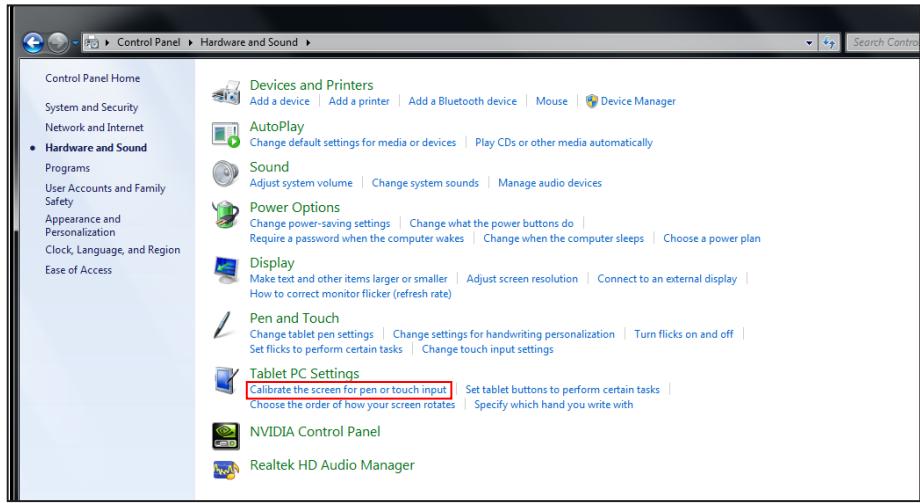
3. Click Calibrate.
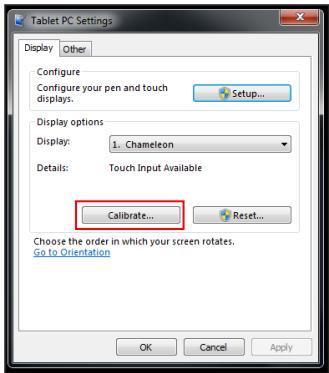
- Follow the on-screen instructions to complete screen calibration.
Using the On-Screen Keyboard
Click the icon on the taskbar to activate the on-screen keyboard.
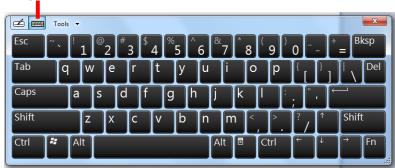
Keyboard icon
Standard keyboard
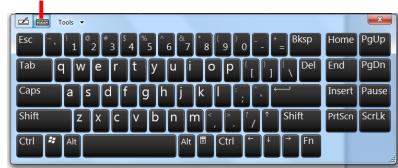
Handwriting icon
Expanded keyboard
- Tap the keys on the keyboard just as you would on a hardware keyboard.
- To toggle between standard and expanded keyboard, click Tools > Show expanded keyboard.
- When keys are pressed, the on-screen keyboard predicts the word as you type. Word suggestions appear on top of the keyboard. Click a word to select it.
- To enter text by handwriting, click the Handwriting icon. To go back to keyboard mode, click
Handwriting Mode
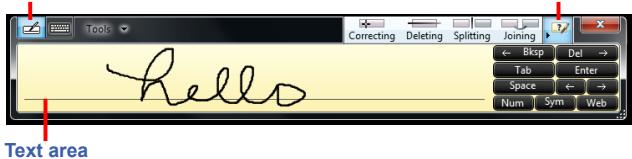
Handwriting icon
Click to hide/show Help icons.
Write your text on the text area. The typed word is displayed.
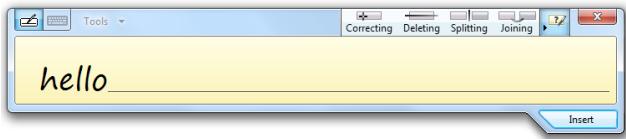
- Click Insert to accept the recognized word and insert it in the document.
To modify the word, follow the visual instructions on help. Click any of the following icons to view the instructions. - To enter text per character, click Tools > Write character by character. To write by word, click Tools > Write in freehand style.
- For other options, click Tools.
Power Management
Using the Power Plan
To improve energy efficiency, you can use the power plan to reduce the amount of power your computer uses, maximize the performance, or balance the two.
- Click Start > Control Panel.
- Select System and Security > Power Options.
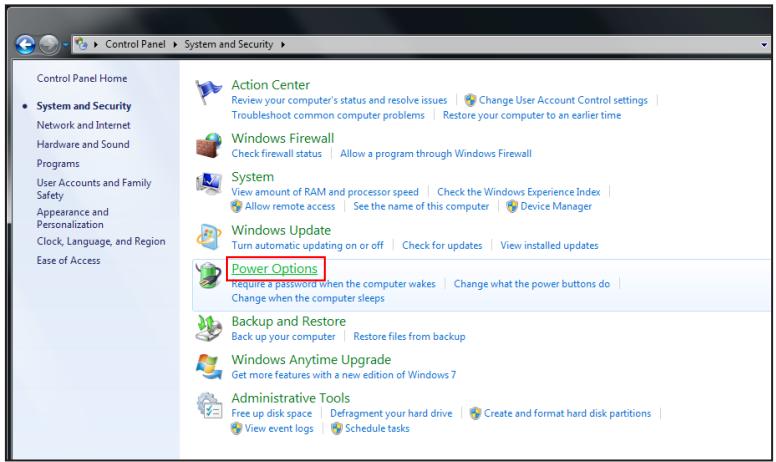
3. Select a power plan.
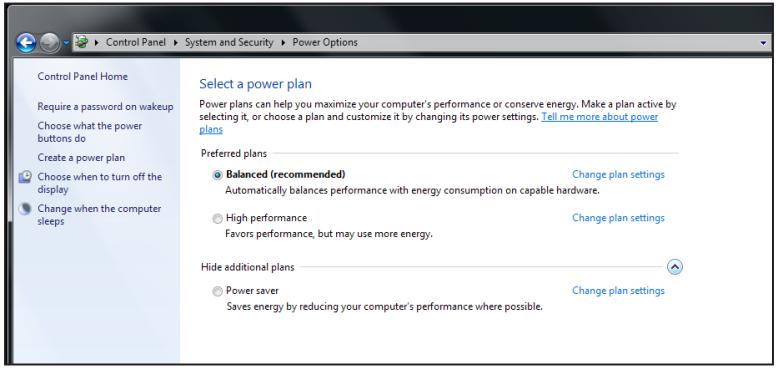
- To adjust the selected power plan settings, click Change plan settings.
Using the Power Saving Mode
When you are not using the computer, turn off the computer or set the computer to enter sleep mode.
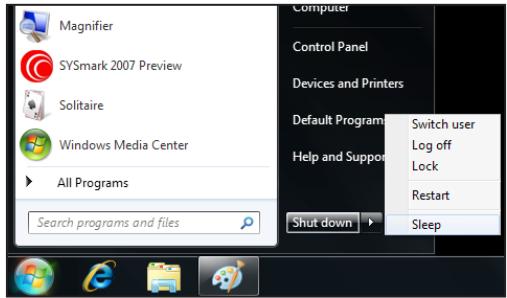
To wake up the computer from sleep mode, do one of the following:
- Press the Power button.
- Move the mouse.
- Press any key on the keyboard.

Energy Saving Tip:
- If the computer is left idle for a period of time, press the Power button to turn off the LCD screen, or set the computer to enter sleep mode.
- Set the Windows power plan to "power saver". See "Using the Power Plan" on page 32.
Install energy-efficiency PC software to manage energy consumption. - Disconnect the power plug from the AC outlet if the device is not being used for a long period of time.
BIOS Setup Utility
BIOS Setup Utility is a program for the BIOS (Basic Input/Output System) setting of the computer which identifies the types of installed devices and establishes special features. This chapter guides you on how to use the BIOS Setup Utility.
Using BIOS Setup
You many need to run the BIOS Setup when:
- An error message appears on the screen during the system booting up and is requested to run SETUP.
- You want to change the default setting for customized features.
- You want to restore the factory default settings.
Entering BIOS Setup
After powering on the system, press the Delete button to enter the BIOS Setup screen.
Note
- A keyboard is required to access and make selections in the BIOS Setup Utility. Be sure that the keyboard is properly installed before you turn on your All-In-One PC.
- If you wish to enter the BIOS Setup after the Windows operation system starts up, you have to restart the All-in-One PC and follow the same procedure above.
BIOS Action Keys
| Function Key | Description |
| <ESC> | Return to the previous menu or exit the BIOS setup while saving changes. |
| <Enter> | Display the sub-menu. |
| <F1> | Display the Help screen. |
| <F7> | Discard changes. |
| <F8> | Load Failsafe defaults. |
| <F9> | Load the Optimal defaults. |
| <F10> | Save changes and reboot the computer. |
| Tab | Select the next field. |
| <> | Select the previous value/setting within a field. |
| <++> | Select the next value/setting within a field. |
| <Home> or <End> | Move the cursor to the top/bottom of the window. |
| <PgUp> or <PgDn> | Move the cursor to the next/previous page. |
BIOS Setup Menu
The BIOS Setup Utility is divided into five menu categories: Main, Advanced, Boot, Security, and Exit. Use the left and right arrow keys to select tags to enter the other menus.
Inside the menu window are the sub-menus. Highlighted items denote that the submenu options can be changed. Use the up and down arrow keys to move through the sub-menu.
| BIOS SETUP UTILITY | ||||
| Main | Advanced | Boot | Security | Exit |
| System Overview | ||||
| AMBIOSVersion :20A40000Build Date:10/19/09 | ||||
| ProcessorGenuine Intel(R) CPU @ 1.66GHz | ||||
| System MemorySize :1014MB | ||||
| System Time[03:52:39] | ||||
| System Date[Fri 09/25/2009] | ||||
| ← Select Screen↑↓ Select Item+ Change FieldTab Select FieldF1 General HelpF10 Save and ExitESC Exit | ||||
Main Menu
Displays the system overview information about BIOS version, CPU features, memory size and setting of system time and date.
Advanced Menu
View and configure CPU, IDE, USB, power, chipset, and hardware health settings.
Note
- If you are not familiar with these settings, it is recommended to use the default configuration for the Advanced Menu options. Setting the wrong values may cause the system to malfunction.
CPU Configuration
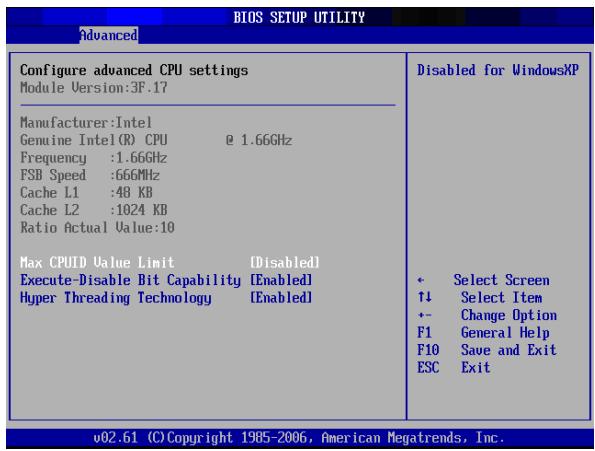
The CPU Configuration displays your All-in-One PC's CPU specification, such as the module version, manufacturer, frequency, speed among others. This submenu allows you to enable or disable the following settings:
Max CPUID Value Limit: It is recommended that you leave it at the default setting of Disabled. You should only enable it if you intend to use the Intel Pentium 4 processor with Hyper-Threading Technology with an operating system that does not support it.
Execute Disable Bit Capability: Help prevent certain classes of malicious buffer overflow attacks when combined with a supporting operating system.
Hyper Threading Technology: Hyper Threading Technology provides faster response time and improves system performance. With Hyper Threading Technology:
- You can run demanding applications simultaneously without slowing down system response time. For example, you can run multimedia applications or play the latest games and still perform a virus scan in the background.
- You can have faster Internet applications.
- It is compatible with 32-bit applications and also ready for the future 64-bit technology.
IDE Configuration
The IDE Configuration displays the status of IDE devices installed in your All- in-One PC. When the system starts up, BIOS automatically detects the connected IDE devices.
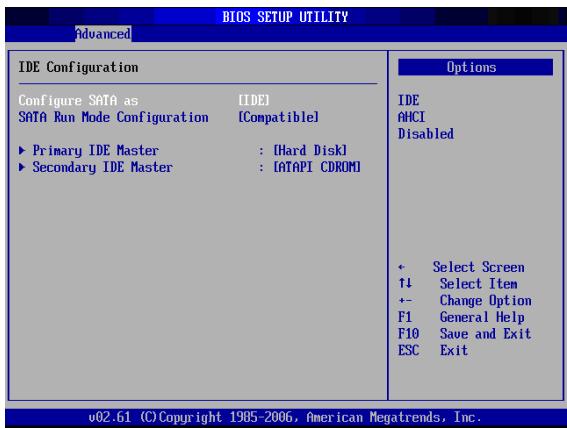
Select Primary IDE Master and press [Enter] to launch the SATA Primary IDE Master settings screen.
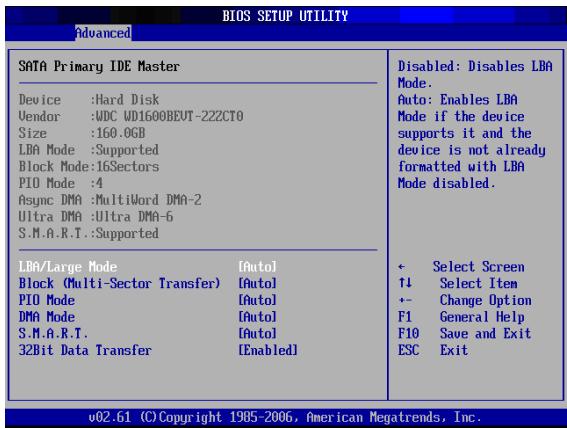
Note
- If you are not familiar with these configurations, it is recommended to allow BIOS to auto detect the devices. Do not manually change these settings to ensure system performance.
USB Configuration
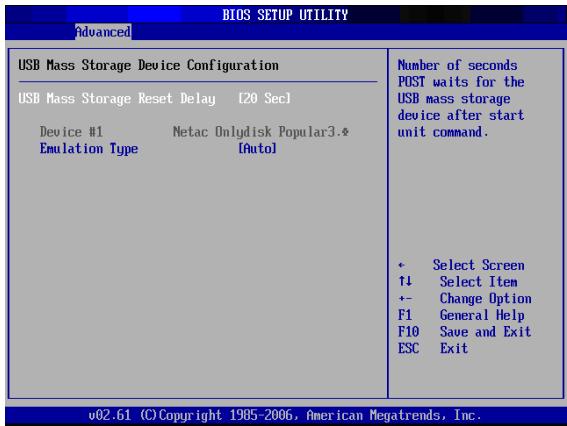
The USB Configuration sub-menu allows you to configure the USB Configuration and USB Mass Storage Device settings.

Select USB Mass Storage Device Configuration and press [Enter] to launch the USB Mass Storage Device Configuration screen.
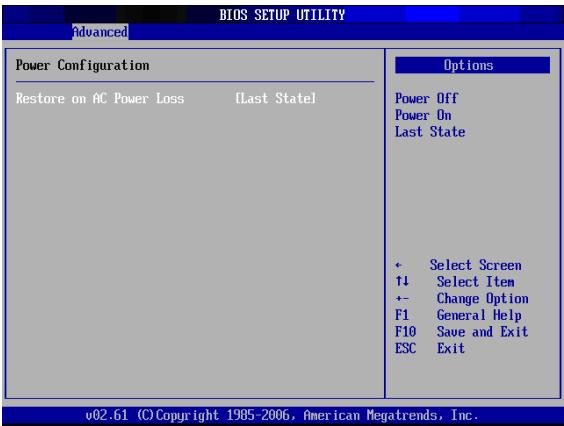
Power Configuration
The Power Configuration sub-menu allows you to configure the mode to restore on AC power loss.
Chipset Configuration
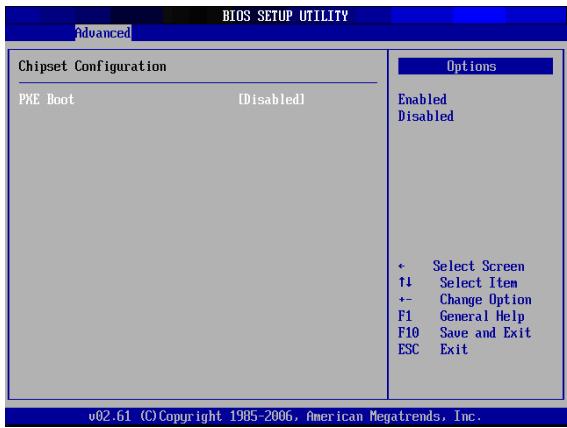
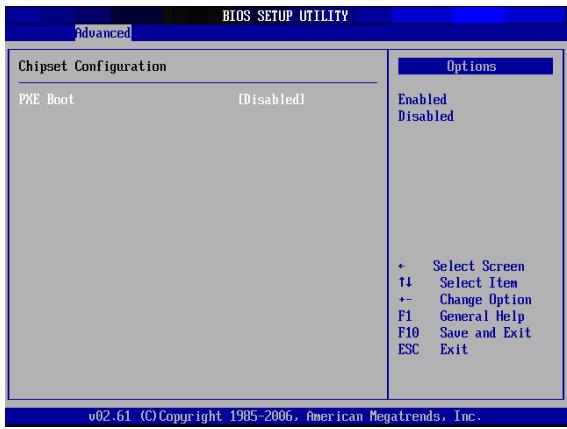
The Chipset Configuration sub-menu allows you to enable or disable PXE booting.
Hardware Health Configuration
This sub-menu displays the hardware condition of your All-in-One PC.
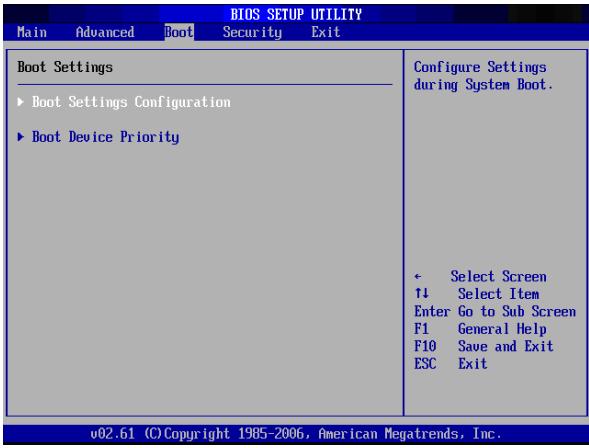
Boot Menu
Set up boot type and boot sequence.
Note
- The available sub-menu options may vary depending on the installed devices on your All-in-One PC.
Boot Settings Configuration
With this sub-menu, you can configure the type of system boot to execute.
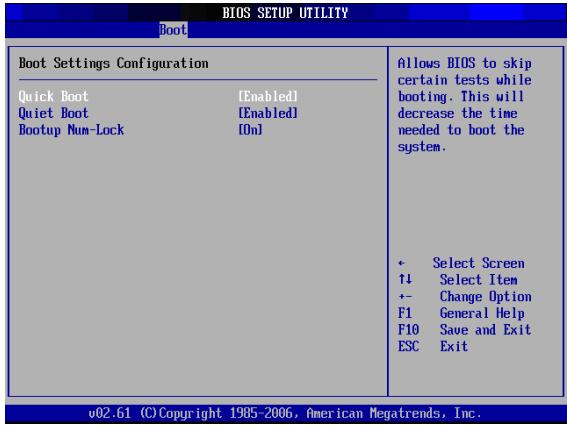
- Quick Boot: Enable Quick Boot to allow BIOS to skip certain tests while booting. This will decrease the time needed to boot the system.
- Quiet Boot: When disabled, the normal POST (Power On Self Test) messages are displayed when the system boots up. When enabled, ViewSonic logo is displayed instead.
- Bootup Num-Lock: Turn the "Power-on state for Numlock" on or off.
Boot Device Priority
With this sub-menu, you can specify the boot priority sequence from the available devices.
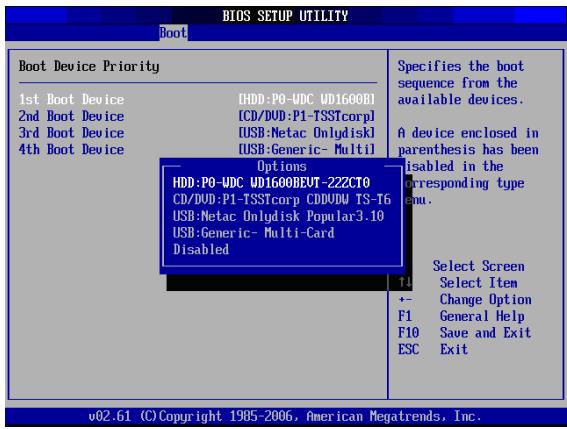
To change the specified device, press [Enter] to select an available device from the list.
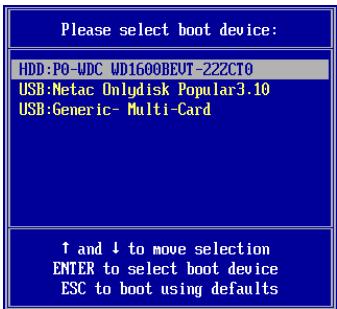
Boot Menu
When the ViewSonic® logo appears, quickly press the F11 button on the keyboard. Then you will enter Boot Menu. It allows you to select the boot device.
Security Menu
Install or clear Supervisor's and user's password settings.
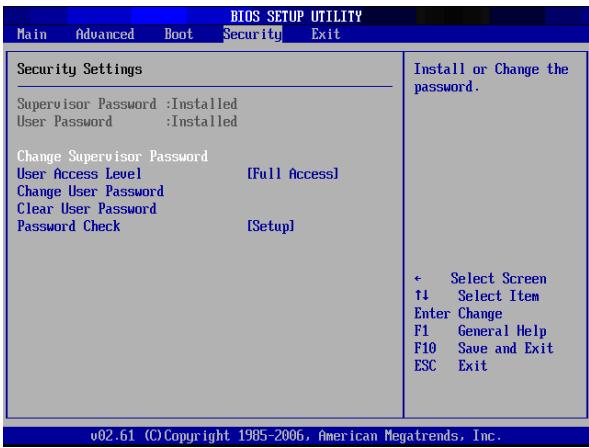

- Available options on the menu screen may vary depending on the type of passwords set.
Supervisor Password
The Supervisor can access and change setup utilities. He/she can also define the limitation of user access.
To set or change the supervisor password:
- Select Change Supervisor Password.
- Type the password, then press [Enter]. A password can have up to six alphanumeric characters and/or numbers.
- Re-type the password to confirm, then press [Enter].
Once the Supervisor password is set, you can change the User Access Level. The access level options are:
- Full Access: Users can access and change all BIOS settings.
- Limited: Users are only allowed to change basic settings such as date and time.
- No Access: Users cannot access the BIOS Setup Utility.
- View Only: Users can view the BIOS Setup Utility but cannot change the settings.
User Password
Set the User Password under this setting. Note that Supervisor Password allows the user to enter and change the settings of the setup menu; User Password only allows the user to enter the setup menu, but do not have the right to make any changes.
To set or change the user password:
- Select Change User Password.
- Type the password, then press [Enter]. A password can have up to six alphanumeric characters and/or numbers.
- Re-type the password to confirm, then press [Enter].
The Access level defined by the Supervisor determines the users' setup utility access.
Password Check
When a Supervisor or User password has been set, the Password Check option will be available in the Security Menu. With this option, you can configure when the system will prompt you for the password:
- Setup: You are required to enter the password every time you access the BIOS Setup Utility.
- Always: You are required to enter the password on every system boot.
Clear the Password
To delete the Supervisor Password:
- Select Change Supervisor Password.
- When prompted to enter the new password, just press [Enter].
- A message will appear to confirm password is uninstalled. Press [Enter].
To delete the User Password:
- Select Clear User Password.
- A message will appear to confirm clearing of password, select Ok then press [Enter].
Note
- Once you have set the Supervisor Password, you cannot start your All-in-One PC without entering the password. Be sure not to forget the password. Write down your password and keep it safe and private from other people.
Exit Menu
Save or discard the changes before leaving the BIOS Setup Menu.
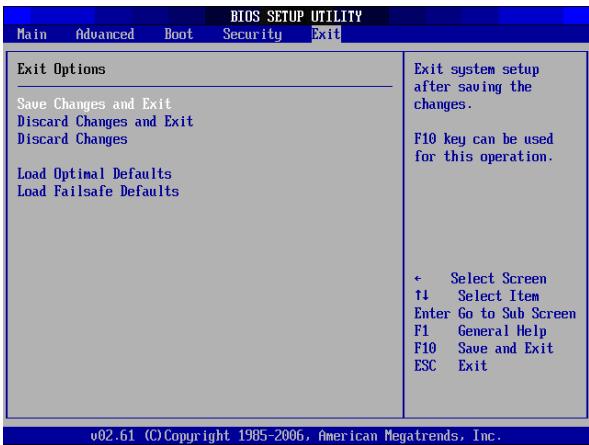
There are five types of Exit options:
- Save Changes and Exit
Select this option to save modified settings and exit BIOS.
Discard Changes and Exit
Select this option to exit BIOS without saving the modified settings.
Discard Changes
Select this option to discard any changes.
- Load Optimal Defaults
Select this option to load optimal default values.
- Load Failsafe Defaults
Select this option to load failsafe default values.
To perform an option, do the following:
- Select an item.
- Press [Enter]. A confirmation message appears.
- Select Ok to proceed or Cancel to cancel the operation.
System Recovery
This chapter provides you with the basic information on the system recovery that enables users to restore the system to its default settings. This function is useful in the event of a system failure or when you forget the system passwords.
When to Use System Recovery
You need to run system recovery:
- In the event of a system or hardware failure.
- You need to restore the system back to its default settings.
- You forgot the system password.
System recovery will format the hard disk and restore the system to its default settings. However all files and other data on the drive "C:" will be deleted.
Running ViewSonic Recovery Manager
Your All-in-One PC uses ViewSonic Recovery Manager for system recovery functions.
To run ViewSonic Recovery Manager, follow the steps below:
- Turn on the All-in-One PC.
The system boots up and the ViewSonic logo appears. - When the screen displays "F3...", quickly press the F3 button on the keyboard.

Note
- If Windows operating system starts up before you press F3 and you still wish to run System Recovery, restart the All-in-One PC then follow the same above procedures.
The "ViewSonic Recovery System" window appears.
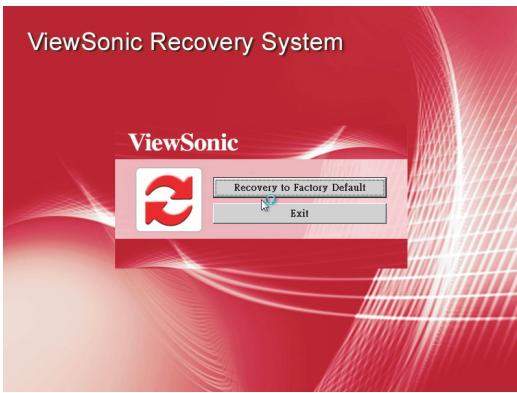
3. Click Recover to Factory Default.

All files and setting will be reset and lost on this computer. Are you sure to continue?
YES
NO
4. Click Yes.
Another confirmation message appears on the screen.

Please sure to continue again?
YES
NO
5. Click Yes.
A message appears on the screen.

Be sure to connect your AC power adapter and don't turn off when Windows set up is running. OK
JER SYSTEM 2007 V.10
6. Click OK.
System recovery is initiated.
- After the system has been restored, the following window appears.

Operator System:
Windows 7
Elapsed Time :
0 min 0 sec
Time Left :
50 min 0 sec
Progress :
Initial all drives...
- Click OK to restart your All-in-One PC.

ViewSonic
RECOVER SYSTEM
Recovery Windows 7 has been Finished.
Please press 'OK' and restart your system.
OK
- After restarting, the Windows Setup Wizard appears to help you configure basic settings.
- Follow the on-screen instructions to complete setup and start using your All-in-One PC.
Specifications
| Feature | Specifications |
| Processor | Intel Pentium® Series Processors power level up to 65Watts TDP supported Intel Socket LGA 775 |
| Main Chipset | Intel® G41 Express Chipset, consisting of: Intel® 82G41 Graphics and Memory Controller Hub (GMCH) Intel® 82801GB I/O Controller Hub (ICH7) |
| Display Chipset | Support for Windows 7 DirectX computer 3D Technology DirectX 10.1 and Shadier Model 4.0 OGL 3.0 nVidia Ageia PhysX technology LVDS Dual Link resolution up to 1920 x 1200 per link VGA support up to 2048 x 1536 resolution at 85Hz refresh rate Video Engine VP4 embedded (MPEG-2, MPEG-4 part 2, H.264, VCI, DivX3.11) |
| Memory | DDR3 SO-DIMM Support (1.5V I/O voltage) Dual channel DDR3 Memory controller integrated into the MCH 800/1066 Un-buffered Non-ECC DDR3 memory Two channels with 1 DIMM per channel Maximum memory support up to 4GB 256MB, 512MB, 1GB, 2GB DDR3 SDRAM memory technologies Supports configurations defined in the JEDEC DDR3 SO-DIMM specification only |
| Display | 56cm/22" (21.5" viewable") TFT LCD 56cm/22" (21.5" viewable") Multi-Touch LED-backlit LCD (Select model) HD+ (1920 x 1080 pixels) |
| Communications | LAN: Atheros OS AR8151 GbE LAN Controller Wireless LAN: Through Mini PCI-E WLAN module |
| Stereo Speakers | Two 4 Ohm 3.0 Watt Stereo |
| Webcam | ·Web camera 1.3M (through USB ports module) |
| Storage | ·Hard Disk: 9 cm/ 3.5", SATA-II ·Card Reader: 4-in-1 (SD, MMC, xD and MS) ·Optical Disk Drive: Slimtype Super AllWrite Drive |
| Built-in Card | ·TV-Tuner card (Mini PCI-E, Select Mode) ·WLAN module card (Mini PCI-E) |
| Input / Output | ·One DC jack on the rear ·Four USB 2.0 ports on the rear ·TV cable and AV IN ports on the rear (Select model) ·One GbE RJ45 LAN port on the rear ·One VGA port on the rear ·One HDMI IN on the rear ·Two USB 2.0 ports on the side ·4-in-1 card reader on the side ·Microphone and Headphone ports on the side ·RF KB/MS module ·Multi Touch Panel (Select model) |
| Power Supply | ·130/135 Watts AC/DC adapter ·Input: AC100-240V~, 50-60Hz ·Output: 19.5V, 6.7A or 6.9A |
| Dimensions (W x H x D) | 513 (W) x 452 (H) x 250 (D) mm 20.2" (W) x 17.8" (H) x 9.84" (D) |
| Weight | ·20.16 lbs (9.15 kg) |
Troubleshooting
This chapter contains a list of common problems that you might experience when using your computer, and techniques to try and overcome the problem. If you need additional help, contact Customer Support.
My All-in-One PC does not start.
- Check that the All-in-One PC is connected to an electrical outlet and it is turned on.
- Check that the power cord and all cables are connected firmly.
When I turn on my computer, the message "Operating system not found" appears or Windows does not start
- Check if there is a non-bootable CD inside the optical disk drive. If there is a non-bootable CD in the drive, remove the CD then restart the computer.
- Check boot settings in the BIOS Setup Utility, see Chapter 4.
My LCD does not display anything
- Check that the All-in-One PC is connected to an electrical outlet and it is turned on
- The All-in-One PC may be in Standby mode. Press any key to activate the display.
My computer "locks up"
- Try restarting the All-in-One PC. On the Windows taskbar, click Start > Turn Off Computer > Restart.
- Press the power switch.
- If your computer locks up while playing a DVD-ROM/CD-ROM, stop the DVDROM/CD-ROM, and restart the computer by pressing Ctrl+Alt+Delete.
I cannot play a CD-ROM
- Make sure the label of the CD-ROM is facing up.
- If the CD-ROM requires software, make sure the software is installed according to the program's instructions.
- Moisture condensation may have occurred. Leave the computer for at least 1 hour while the computer is turned on.
Clean the CD-ROM. - Check the speaker volume.
I cannot play a DVD-ROM
- If a region code warning appears when you are using the DVD player, it could be that the DVD-ROM you are trying to play is incompatible with the DVD-ROM drive in your All-in-One PC. The region code is listed on the disc's packaging.
- If you hear audio but cannot see video, your computer's video resolution may be set too high. For best results, change the display settings, click Start >Control Panel > Settings.
- If you see video but cannot hear audio, check all of the following: Make sure your DVD player's mute setting is off. Check the master volume setting in the audio Mixer.
- Check that the drivers are installed properly, click Start > Control Panel >System> Device Manager.
- A dirty or damaged disc may cause the computer to "hang" while it tries to read the disc. If necessary, reboot the computer, remove the disc, and then check that it is not dirty or damaged.
My speakers have no sound
- Check the master volume setting in the audio Mixer.
- If you are using an application that has its own volume control, check that the volume is turned up.
- If you have connected an audio cable to the Headphone connector, disconnect the cable.
My internet connection has problems
- Have your phone company check that your phone line is free from any line noise.
- If your problem is fax-related, check that there are no problems with the fax machine and that it is compatible with fax modems.
- If you are having a problem connecting with your Internet Service Provider(ISP), check that the ISP is not experiencing technical problems, or If you have a second phone line available, try connecting the modem to that line.
- Check the ADSL settings and connection and make sure All-in-One PC is properly configured for Internet access.
- The wireless LAN data transfer speed is affected by distance and obstructions between devices and access points. To maximize the data transfer speed, please choose an access point that is closest to your All-in-One PC.
Customer Support
For technical support or product service, see the table below or contact your reseller. NOTE: You will need the product serial number.
| Country/Region | Website | T = Telephone F = FAX | |
| Australia/New Zealand | www.viewsonic.com.au | AUS= 1800 880 818 NZ= 0800 008 822 | service@au.viewsonic.com |
| Canada | www.viewsonic.com | T (Toll-Free)= 1-866-463-4775 T (Toll)= 1-424-233-2533 F= 1-909-468-3757 | service.ca@viewsonic.com |
| Europe | www.viewsoniceurope. com | www.viewsoniceurope.com/uk/Support/Calldesk.htm | |
| Hong Kong | www.hk.viewsonic.com | T= 852 3102 2900 | service@hk.viewsonic.com |
| India | www.in.viewsonic.com | T= 1800 11 9999 | service@in.viewsonic.com |
| Ireland (Eire) | www.viewsoniceurope. com/uk/ | www.viewsoniceurope.com/ uk/support/call-desk/ | service_ie@viewsoniceurope.com |
| Korea | www.kr.viewsonic.com | T= 080 333 2131 | service@kr.viewsonic.com |
| Latin America (Argentina) | www.viewsonic.com/la/ | T= 0800-4441185 | soporte@viewsonic.com |
| Latin America (Chile) | www.viewsonic.com/la/ | T= 1230-020-7975 | soporte@viewsonic.com |
| Latin America (Columbia) | www.viewsonic.com/la/ | T= 01800-9-157235 | soporte@viewsonic.com |
| Latin America (Mexico) | www.viewsonic.com/la/ | T= 001-8882328722 | soporte@viewsonic.com |
| Renta y Datos, 29 SUR 721, COL. LA PAZ, 72160 PUEBLA, PUE. Tel: 01.222.891.55.77 CON 10 LINEAS Electroser, Av Reforma No. 403Gx39 y 41, 97000 Mérida, Yucatán. Tel: 01.999.925.19.16 Other places please refer to http://www.viewsonic.com/la/soporte/index.htm#Mexico | |||
| Latin America (Peru) | www.viewsonic.com/la/ | T= 0800-54565 | soporte@viewsonic.com |
| Macau | www.hk.viewsonic.com | T= 853 2870 0303 | service@hk.viewsonic.com |
| Middle East | ap.viewsonic.com/me/ | Contact your reseller | service@ap.viewsonic.com |
| Puerto Rico & Virgin Islands | www.viewsonic.com | T= 1-800-688-6688 (English) T= 1-866-379-1304 (Spanish) F= 1-909-468-3757 | service.us@viewsonic.com soporte@viewsonic.com |
| Singapore/Malaysia/ Thailand | www.ap.viewsonic.com | T= 65 6461 6044 | service@sg.viewsonic.com |
| South Africa | ap.viewsonic.com/za/ | Contact your reseller | service@ap.viewsonic.com |
| United Kingdom | www.viewsoniceurope. com/uk/ | www.viewsoniceurope.com/ uk/support/call-desk/ | service_gb@viewsoniceurope.com |
| United States | www.viewsonic.com | T (Toll-Free)= 1-800-688-6688 T (Toll)= 1-424-233-2530 F= 1-909-468-3757 | service.us@viewsonic.com |
Limited Warranty
VIEWSONIC® ALL-IN-ONE PC
What the warranty covers:
ViewSonic warrants its products to be free from defects in material and workmanship during the warranty period. If a product proves to be defective in material or workmanship during the warranty period, ViewSonic will, at its sole option, repair or replace the product with a similar product. Replacement Product or parts may include remanufactured or refurbished parts or components. The replacement unit will be covered by the balance of the time remaining on the customer's original limited warranty. ViewSonic provides no warranty for the third-party software included with the product or installed by the customer.
How long the warranty is effective:
ViewSonic VPC products are warranted for (1) year from the first consumer purchase for parts and labor.
User is responsible for the back up of any data before returning the unit for service. ViewSonic is not responsible for any data lost.
Who the warranty protects:
This warranty is valid only for the first consumer purchaser.
What the warranty does not cover:
- Any product on which the serial number has been defaced, modified or removed.
- Damage, deterioration or malfunction resulting from:
a. Accident, misuse, neglect, fire, water, lightning, or other acts of nature, unauthorized product modification, or failure to follow instructions supplied with the product.
b. Any damage of the product due to shipment.
c. Removal or installation of the product.
d. Causes external to the product, such as electrical power fluctuations or failure.
e. Use of supplies or parts not meeting ViewSonic's specifications.
f. Normal wear and tear.
g. Any other cause which does not relate to a product defect.
- Any product exhibiting a condition commonly known as "image burn-in" which results when a static image is displayed on the product for an extended period of time.
- Removal, installation, one way transportation, insurance, and set-up service charges.
4.3: ViewSonic All-in-One PC Warranty
Page 1 of 2
AIO PC_LW01 Rev. 1a 02-11-09
How to get service:
- For information about receiving service under warranty, contact ViewSonic Customer Support (Please refer to Customer Support page). You will need to provide your product's serial number.
- To obtain warranty service, you will be required to provide (a) the original dated sales slip, (b) your name, (c) your address, (d) a description of the problem, and (e) the serial number of the product.
- Take or ship the product freight prepaid in the original container to an authorized ViewSonic service center or ViewSonic.
- For additional information or the name of the nearest ViewSonic service center, contact ViewSonic.
Limitation of implied warranties:
There are no warranties, express or implied, which extend beyond the description contained herein including the implied warranty of merchantability and fitness for a particular purpose.
Exclusion of damages:
ViewSonic's liability is limited to the cost of repair or replacement of the product. ViewSonic shall not be liable for:
- Damage to other property caused by any defects in the product, damages based upon inconvenience, loss of use of the product, loss of time, loss of profits, loss of business opportunity, loss of goodwill, interference with business relationships, or other commercial loss, even if advised of the possibility of such damages.
- Any other damages, whether incidental, consequential or otherwise.
- Any claim against the customer by any other party.
- Repair or attempted repair by anyone not authorized by ViewSonic.
Effect of state law:
This warranty gives you specific legal rights, and you may also have other rights which vary from state to state. Some states do not allow limitations on implied warranties and/or do not allow the exclusion of incidental or consequential damages, so the above limitations and exclusions may not apply to you.
Sales outside the U.S.A. and Canada:
For warranty information and service on ViewSonic products sold outside of the U.S.A. and Canada, contact ViewSonic or your local ViewSonic dealer.
The warranty period for this product in mainland China (Hong Kong, Macao and Taiwan Excluded) is subject to the terms and conditions of the Maintenance Guarantee Card.
For users in Europe and Russia, full details of warranty provided can be found in www.viewsoniceurope.com under Support/Warranty Information.
- Compliance Information
- For U.S.A.
- For Canada
- FCC Radiation Exposure Statement
- Industry Canada Notice
- ENERGY STAR® information
- Important Safety Instructions
- Declaration of RoHS Compliance
- Copyright Information
- Product Registration
- Product disposal at end of product life
- Table of Contents
- Getting Started
- Package Contents
- System Overview
- Front view
- Safety and Comfort Tips
- Having Good Work Habits
- Setting Up Your Computer
- Connecting External Devices
- Connecting USB Devices
- Connecting Communication Devices
- Using the LAN
- Using the Wireless LAN
- Connecting Video Equipment
- Select the signal source
- Connecting External Display Devices
- Connecting Audio Components
- Connecting to Headset
- Connecting a Microphone
- Tilting the Screen
- Connecting the Power Supply
- Note
- Using the Card Reader
- Inserting a memory card
- Removing a memory card
- Using the Optical Disk Drive
- Using the TV Tuner (Select model)
- Overview of the Remote Controller
- Starting the TV Tuner
- Running for the first time
- TV
- Selecting and Watching Live TV
- Capturing Image
- Video
- Playing Video files
- Music
- Playing Music
- System Operations
- Connecting to Internet
- Connecting to LAN
- Select Network and Internet > Connect to the Internet.
- Check Show connection options that this computer is not set up to use, and select Broadband (PPPoE).
- Connecting to Wireless LAN
- Select Network and Internet > Connect to the Internet.
- Select Wireless.
- Adjusting LCD Screen Resolution
- Using the Touch Screen (Optional)
- Calibrating the Screen
- Click Calibrate.
- Using the On-Screen Keyboard
- Handwriting Mode
- Power Management
- Using the Power Plan
- Select a power plan.
- Using the Power Saving Mode
- Energy Saving Tip:
- BIOS Setup Utility
- Using BIOS Setup
- Entering BIOS Setup
- BIOS Action Keys
- BIOS Setup Menu
- Main Menu
- Advanced Menu
- CPU Configuration
- IDE Configuration
- USB Configuration
- Power Configuration
- Chipset Configuration
- Hardware Health Configuration
- Boot Menu
- Boot Settings Configuration
- Boot Device Priority
- Security Menu
- Supervisor Password
- User Password
- Password Check
- Clear the Password
- Exit Menu
- System Recovery
- When to Use System Recovery
- Running ViewSonic Recovery Manager
- Click Recover to Factory Default.
- Click Yes.
- Click Yes.
- Click OK.
- Specifications
- Troubleshooting
- My All-in-One PC does not start.
- When I turn on my computer, the message "Operating system not found" appears or Windows does not start
- My LCD does not display anything
- My computer "locks up"
- I cannot play a CD-ROM
- I cannot play a DVD-ROM
- My speakers have no sound
- My internet connection has problems
- Customer Support
- Limited Warranty
- VIEWSONIC® ALL-IN-ONE PC
- What the warranty covers:
- How long the warranty is effective:
- Who the warranty protects:
- What the warranty does not cover:
- How to get service:
- Limitation of implied warranties:
- Exclusion of damages:
- Effect of state law:
- Sales outside the U.S.A. and Canada:
Brand : VIEWSONIC
Model : VPC220
Category : All-in-one computer