
VOT132 - All-in-One PC VIEWSONIC - Free user manual and instructions
Find the device manual for free VOT132 VIEWSONIC in PDF.


| Product Type | All-in-one PC |
| Brand | ViewSonic |
| Model | VOT132 |
| Screen Size | 21.5 inches (diagonal) |
| Screen Resolution | 1920 x 1080 pixels (Full HD) |
| Screen Technology | LCD LED |
| Processor | Intel Celeron or equivalent |
| Memory (RAM) | 4 GB DDR3 |
| Storage | 500 GB Hard Drive |
| Dimensions (W x H x D) | 53.3 x 40.6 x 5.1 cm |
| Weight | 5.0 kg |
| Power Supply | 100-240 V, 50-60 Hz, AC adapter |
| Power Consumption | 65 W (max) |
| Main Features | All-in-one desktop computer, touch screen (optional), Wi-Fi and Bluetooth connectivity, USB and HDMI ports |
| Maintenance and Cleaning | Unplug before cleaning, use a soft, dry cloth, avoid abrasive products |
| Safety | Use on a stable surface, do not block ventilation openings |
| Replacement Parts and Repairability | Contact ViewSonic customer service for replacement parts; repairs must be carried out by a certified professional |
| General Information | Compliant with Canadian NMB-003 standard; Class B |
Frequently Asked Questions - VOT132 VIEWSONIC
User questions about VOT132 VIEWSONIC
0 question about this device. Answer the ones you know or ask your own.
Ask a new question about this device
Download the instructions for your All-in-One PC in PDF format for free! Find your manual VOT132 - VIEWSONIC and take your electronic device back in hand. On this page are published all the documents necessary for the use of your device. VOT132 by VIEWSONIC.
USER MANUAL VOT132 VIEWSONIC
This device complies with part 15 of FCC Rules. Operation is subject to the following two conditions: (1) this device may not cause harmful interference, and (2) this device must accept any interference received, including interference that may cause undesired operation.
This equipment has been tested and found to comply with the limits for a Class B digital device, pursuant to part 15 of the FCC Rules. These limits are designed to provide reasonable protection against harmful interference in a residential installation. This equipment generates, uses, and can radiate radio frequency energy, and if not installed and used in accordance with the instructions, may cause harmful interference to radio communications. However, there is no guarantee that interference will not occur in a particular installation. If this equipment does cause harmful interference to radio or television reception, which can be determined by turning the equipment off and on, the user is encouraged to try to correct the interference by one or more of the following measures:
- Reorient or relocate the receiving antenna.
- Increase the separation between the equipment and receiver.
- Connect the equipment into an outlet on a circuit different from that to which the receiver is connected.
- Consult the dealer or an experienced radio/TV technician for help.
Warning: You are cautioned that changes or modifications not expressly approved by the party responsible for compliance could void your authority to operate the equipment.
For Canada
This Class B digital apparatus complies with Canadian ICES-003.
CE Conformity for European Countries
The device complies with the EMC Directive 2004/108/EC and Low Voltage Directive 2006/95/EC.
Following information is only for EU-member states:
The mark shown to the right is in compliance with the Waste Electrical and Electronic Equipment Directive 2002/96/EC (WEEE).
The mark indicates the requirement NOT to dispose the equipment as unsorted municipal waste, but use the return and collection systems according to local law.
If the batteries, accumulators and button cells included with this equipment, display the chemical symbol Hg, Cd, or Pb, then it means that the battery has a heavy metal content of more than 0.0005% Mercury or more than, 0.002% Cadmium, or more than 0.004% Lead.


FCC Radiation Exposure Statement
This equipment should be installed and operated with minimum distance 20cm between the radiator & your body.
This wireless module device complies with part 15 of FCC Rules. Operation is subject to the following two conditions: (1) this device may not cause harmful interference, and (2) this device must accept any interference received, including interference that may cause undesired operation.
Industry Canada Notice
This wireless module device complies with Canadian RSS-210.To prevent radio interference to the licensed service, this device is intended to be operated indoors and away from windows to provide maximum shielding. Equipment (or its transmitting antenna) that is installed outdoors is subject to licensing. The installer of this radio equipment must ensure that the antenna is located or pointed such that it does not emit RF field in excess of Health Canada limits for the general population; consult Safety Code 6, obtainable from Health Canada's web site www.hc-sc.gc.ca/rpb.
R&TTE Compliance Statement C E
This wireless module device complies with the Essential Requirements of the R&TTE Directive of the European Union (1999/5/EC). This equipment meets the following conformance standards:
ETSI EN 300 328
EN 301 489-01
EN 301 489-17
Notified Countries: Germany, UK, Netherlands, Belgium, Sweden, Denmark, Finland, France, Italy, Spain, Austria, Ireland, Portugal, Greece, Luxembourg, Estonia, Latvia, Lithuania, Czech Republic, Slovakia, Slovenia, Hungary, Poland and Malta.
ENERGY STAR® information
The computer complies with the ENERGY STAR® requirements of less than 15 min of user inactivity for the display and less than 30 min of inactivity for the computer.
Move the mouse or click any button on the keyboard to wake the computer from Sleep mode.
Important Safety Instructions
-
Read these instructions completely before using the equipment.
-
Keep these instructions in a safe place.
-
Heed all warnings.
-
Follow all instructions.
-
Do not use this equipment near water. Warning: To reduce the risk of fire or electric shock, do not expose this apparatus to rain or moisture.
-
Do not block any ventilation openings. Install the equipment in accordance with the manufacturer's instructions.
-
Do not install near any heat sources such as radiators, heat registers, stoves, or other devices (including amplifiers) that produce heat.
-
Do not attempt to circumvent the safety provisions of the polarized or grounding-type plug. A polarized plug has two blades with one wider than the other. A grounding type plug has two blades and a third grounding prong. The wide blade and the third prong are provided for your safety. If the plug does not fit into your outlet, consult an electrician for replacement of the outlet.
-
Protect the power cord from being tread upon or pinched, particularly at the plug, and the point where if emerges from the equipment. Be sure that the power outlet is located near the equipment so that it is easily accessible.
-
Only use attachments/accessories specified by the manufacturer.
-
Use only with the cart, stand, tripod, bracket, or table specified by the manufacturer, or sold with the equipment. When a cart is used, use caution when moving the cart/equipment combination to avoid injury from tipping over.

-
Unplug this equipment when it will be unused for long periods of time.
-
Refer all servicing to qualified service personnel. Service is required when the unit has been damaged in any way, such as: if the power-supply cord or plug is damaged, if liquid is spilled onto or objects fall into the unit, if the unit is exposed to rain or moisture, or if the unit does not operate normally or has been dropped.
Declaration of RoHS Compliance
This product has been designed and manufactured in compliance with Directive 2002/95/ EC of the European Parliament and the Council on restriction of the use of certain hazardous substances in electrical and electronic equipment (RoHS Directive) and is deemed to comply with the maximum concentration values issued by the European Technical Adaptation Committee (TAC) as shown below:
| Substance | Proposed Maximum Concentration | Actual Concentration |
| Lead (Pb) | 0,1% | < 0,1% |
| Mercury (Hg) | 0,1% | < 0,1% |
| Cadmium (Cd) | 0,01% | < 0,01% |
| Hexavalent Chromium (Cr6+) | 0,1% | < 0,1% |
| Polybrominated biphenyls (PBB) | 0,1% | < 0,1% |
| Polybrominated diphenyl ethers (PBDE) | 0,1% | < 0,1% |
Certain components of products as stated above are exempted under the Annex of the RoHS Directives as noted below:
Examples of exempted components are:
- Mercury in compact fluorescent lamps not exceeding 5mg per lamp and in other lamps not specifically mentioned in the Annex of RoHS Directive.
- Lead in glass of cathode ray tubes, electronic components, fluorescent tubes, and electronic ceramic parts (e.g. piezoelectronic devices).
- Lead in high temperature type solders (i.e. lead-based alloys containing 85% by weight or more lead).
- Lead as an allotting element in steel containing up to 0.35% lead by weight, aluminium containing up to 0.4% lead by weight and as a cooper alloy containing up to 4% lead by weight.
Copyright Information
Copyright © ViewSonic® Corporation, 2009. All rights reserved.
Microsoft®, Windows®, Windows NT®, and the Windows® logo are registered trademarks of Microsoft® Corporation in the United States and other countries.
ViewSonic®, the three birds logo, OnView®, ViewMatch™, and ViewMeter® are registered trademarks of ViewSonic® Corporation.
Intel®, Pentium®, and Atom™ are registered trademarks of Intel Corporation.
Award® is a registered trademark of Phoenix Technologies Ltd.
AMI® is a registered trademark of American Megatrends Inc.
ENERGY STAR® is a registered trademark of the U.S. Environmental Protection Agency (EPA).
As an ENERGY STAR® partner, ViewSonic Corporation has determined that this product meets the ENERGY STAR® guidelines for energy efficiency.
Disclaimer: ViewSonic® Corporation shall not be liable for technical or editorial errors or omissions contained herein; nor for incidental or consequential damages resulting from furnishing this material, or the performance or use of this product.
In the interest of continuing product improvement, ViewSonic® Corporation reserves the right to change product specifications without notice. Information in this document may change without notice.
No part of this document may be copied, reproduced, or transmitted by any means, for any purpose without prior written permission from ViewSonic® Corporation.
Product Registration
To meet your future needs, and to receive any additional product information as it becomes available, please register your product on the Internet at: www.viewsonic.com. The ViewSonic® Wizard CD-ROM also provides an opportunity for you to print the registration form, which you may mail or fax to ViewSonic®.
| For Your Records | |
| Product Name: | VOT132 ViewSonic PC Mini |
| Model Number: | VS12933 |
| Document Number: | VOT132-1_UG_ENG Rev. 1A 09-01-09 |
| Serial Number: | |
| Purchase Date: | |
Product disposal at end of product life
ViewSonic® is concerned about the preservation of our environment. Please dispose of this product properly at the end of its useful life. For the recycling information, please refer to our website:
- USA: www.viewsonic.com/pdf/RecyclePlus.pdf
- Europe: www.viewsoniceurope.com
- Taiwan: recycle.epa.gov.tw
Table of Contents
Chapter 1 Introducing the VOT132
Top View 2
Front Side View 2
Back Side View 3
Bottom View 3
LED Indicator Introduction 4
Chapter 2 Connecting Peripherals
Placement of VOT132
On the Desk 6
On the Display Back. 6
Connection of VOT132
Connect the Antenna 8
Connect the Monitor 8
Connect the USB Devices 8
Connect the Network Cable 9
Connect the Power Cord 9
Chapter 3 BIOS Setup
Main Menu 11
Advanced Menu 12
Chipset Menu 14
Boot Menu 15
Security Menu 16
Exit Menu 17
Chapter 4 Installing Windows 7 onto the VOT132
Installing Windows 7. 19
Install Drivers in Windows 7 23
Appendix-Frequently Asked Questions 24
Appendix-Trouble Shooting 24
Chapter 5 Other Information
Customer Support 25
Limited Warranty 26
Chapter 1 Introducing the VOT132
The VOT132 PC Mini is a compact and easy to use desktop. It features all the standard PC capabilities but with a slim body design which enables you to do spreadsheets, create documents, watch online content and browse the internet in a smarter and greener way.
This chapter introduces VOT132's PC Mini :
Top View
Front Side View
Back Side View
Bottom View
LED Indicator Introduction
Introduction
The VOT132 PC Mini features all the desktop capabilities but with a slim body design which enables you to browse the internet in a relaxed and comfortable way.
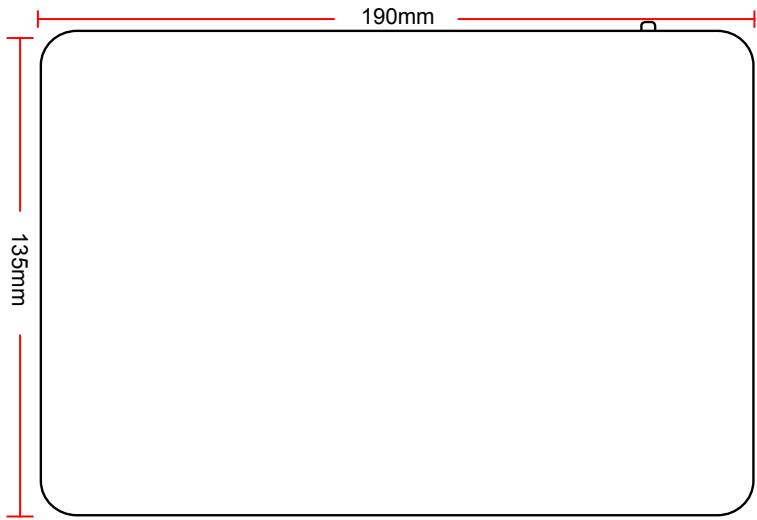
1-1 Top View
1-2 Front Side View

| No. | Name | Description |
| 1 | Headphone Port | Connects to headphones |
| 2 | Microphone In and S/PDIF In Port | Connects to a microphone or playback devices with optical connectors |
| 3 | Multi-Function Card Reader | Support SD/SDHC/MS/MS Pro/MMC memory cards |
| 4 | USB 2.0 Ports | Connect to USB devices |
| 5 | LLS LED(1,2,3,4,5) | Indicates system status |
| 6 | HDD LED | Indicates hard disk status |
| 7 | Suspend Button with Integrated LED Indicator | Allows putting the system in suspend mode |
| 8 | Power Button with Integrated LED Indicator | Turns the power on/off, indicates system status |
1-3 Back Side View
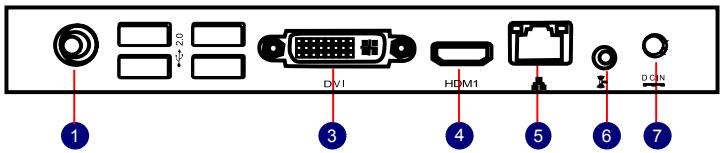
| No. | Name | Description |
| 1 | RF(Radio Frequency) Port | For connecting the antenna |
| 2 | USB 2.0 Ports | Connects to USB devices |
| 3 | Display Output Port (DVI) | Connects to display device |
| 4 | HDMI Port | Connects to HDMI audio and video |
| 5 | Network Port | Standard RJ-45 network port |
| 6 | Line Out and S/PDIF Out Port | Connects to powered analog speakers or recording devices with optical connectors |
| 7 | Power Input Port | Connects to the power adapter |
1-4 Bottom View
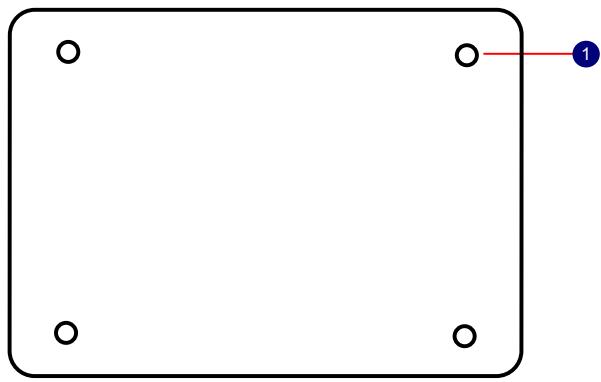
| No. | Name | Description |
| 1 | Sheet Metal | Replace sheet metal with Protective Feet |

There are four magnet feet in the package. Just align them on the bottom of the VOT132. The feet will then protect the VOT132 when it is placed on a desktop.
1-5 LED Indicator Introduction
| Indication | Power_LED | HDD_LED | LLS_LED1 | LLS_LED2 | LLS_LED3 | LLS_LED4 | LLS_LED5 |
| S0(Working Mode) | Green | - | Off | Off | Off | Off | Off |
| S1(Power-Saving Mode) | Green | Off | Off | Off | Off | Off | Off |
| S3(Standby Mode) | Red | Off | Off | Off | Off | Off | Off |
| S4(Hibernation Mode) &S5(System Power Off Mode) | Red | Off | Off | Off | Off | Off | Off |
| CPU Initialization Error | - | - | Blue, Blink | - | - | - | - |
| DRAM Error | - | - | - | Blue, Blink | - | - | - |
| BIOS Boot Block Fail | - | - | - | - | - | Blue, Blink | - |
| BIOS Checksum Error | - | - | - | - | - | - | Blue, Blink |
| CMOS Cleared | Red, Blink | - | - | - | - | - | - |
| HDD R/W Data | - | Red | - | - | - | - | - |

The LLS_LEDs status in this table only show BIOS error message.
Chapter 2 Connecting Peripherals
In this chapter, the placement and the connection of some necessary peripherals will be introduced.
This chapter includes the following information:
Placement of the VOT132
Connections of the VOT132
2-1 Placement of the VOT132 PC Mini
1. On the Desk
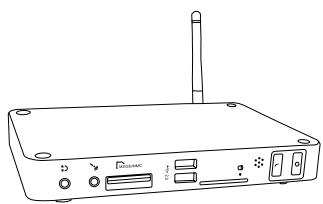
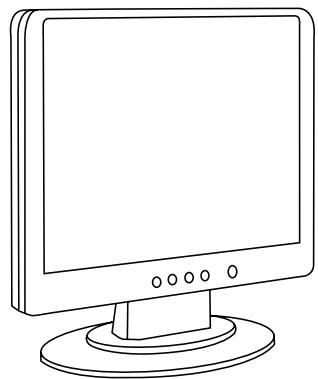
- Seat the unit in the desktop stand as shown to the right.
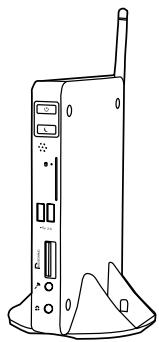
- You can also place the VOT132 directly on the desktop.
2. Mounted to the back of a display.
This is the best space-saving way.
- Use four screws(M4*10, round head) to fasten the VESA mounting bracket to the back of the display.
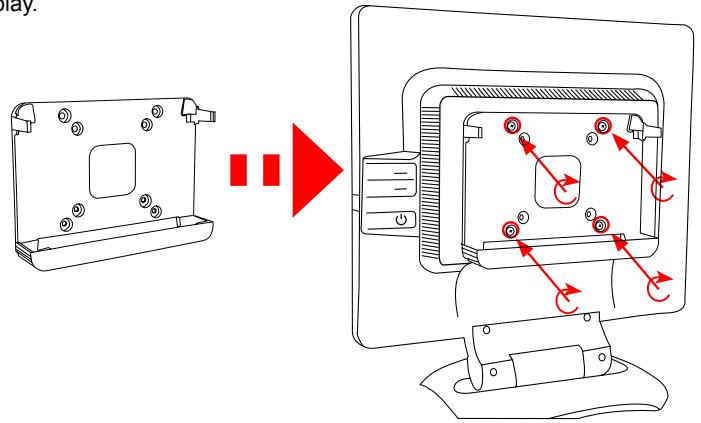

Your display must have a 75mm x 75mm or 100mm x 100mm VESA mounting pattern.
- Fit the VOT132 into the bracket with the power button located at the top for easy access.
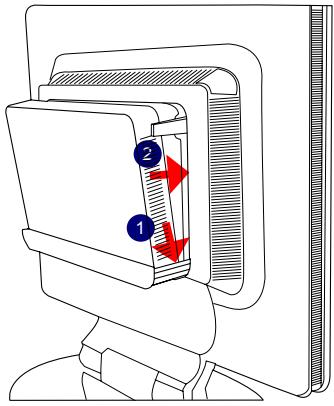
- After that, you can connect the antenna to the PC Mini.
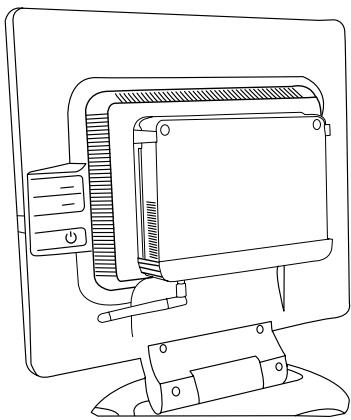

To remove the VOT132 from the mounting bracket you must first remove the antenna.
2-2 Connection of VOT132
1. Connecting the Antenna
Connect the antenna to the RF port of the VOT132. You can then position the antenna and rotate it in different positions.
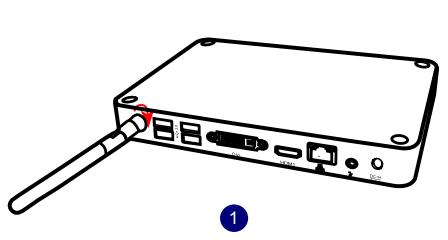
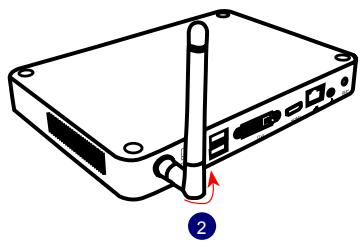
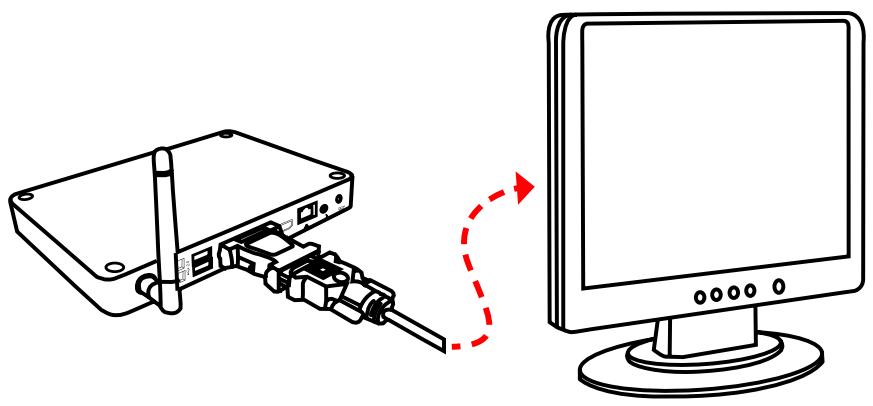
- Connecting the VOT132 to a monitor Connect to the monitor thru the DVI connector.
3. Connecting USB Devices
Connect USB devices using the USB ports on the front or back, for example, mouse and keyboard.
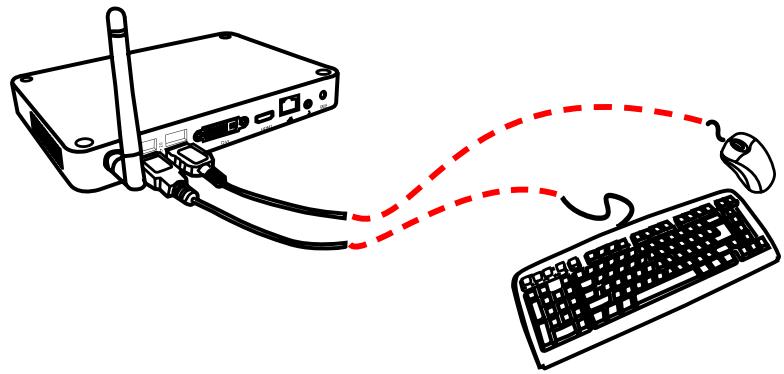
4. Connecting the network cable
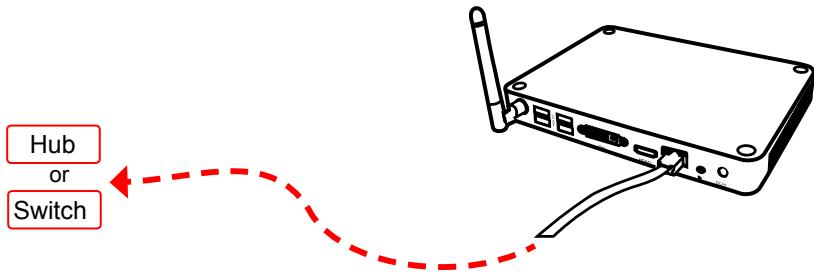
Connect the LAN cable into the RJ-45 port with the other end connected to a hub or switch.
5. Connecting the power cord
Connect the power adapter to the power input port of the VOT132, and push the power button to start it up.
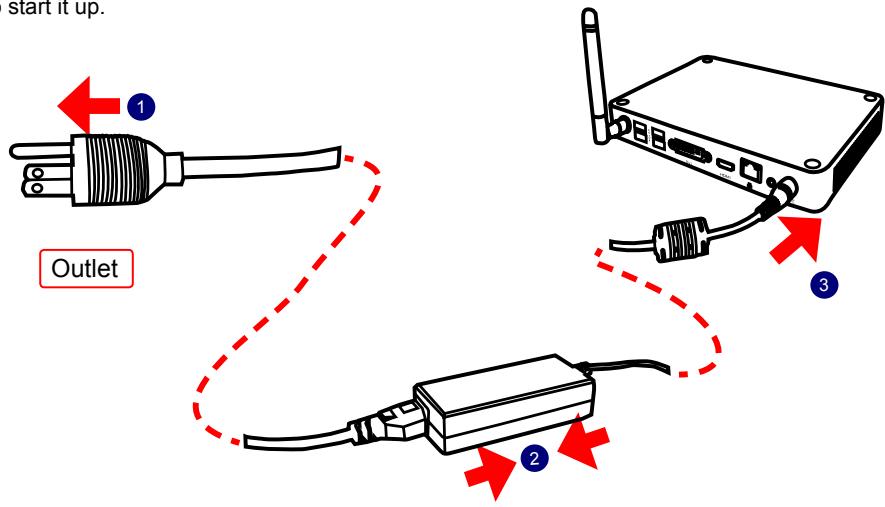

Do not cover the power adapter while in normal use to allow normal heat dissipation.
Chapter 3 BIOS Setup
This chapter provides a description of the BIOS setup utility. The BIOS setup menus and available selections may vary from those of your product. For specific information on the BIOS for your product, please contact ViewSonic®.
The BIOS setup utility provides a built-in Setup program, which allows the user to modify the basic system configuration and hardware parameters. The modified data will be stored in a battery-backed CMOS, so that data will be retained even when the power is turned off. In general, the information saved in the CMOS RAM will not need to be changed unless there is a configuration change in the system, such as a hard drive replacement or when a device is added. It is possible for the CMOS battery to fail, which will cause data loss in the CMOS only. If this happens you will need to reconfigure your BIOS settings.
This chapter includes the following information:
Main Menu
Advanced Menu
■ Chipset Menu
Security Menu
Boot Menu
Exit Menu
Main Menu
The BIOS Setup is accessed by pressing the
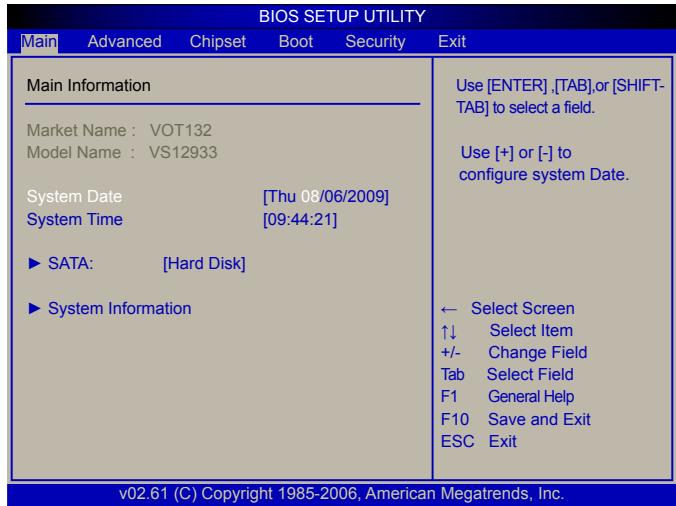
System Date
Day—weekday from Sun. to Sat., this message is automatically displayed by BIOS (Read Only).
Month—month from 1 to 12.
Date—date from 1 to 31.
Year—year, set up by users.
Use [ENTER], [TAB] or [SHIFT-TAB] to select a field. Use [+] or [-] to input the value.
System Time
This item allows you to configure the desired time. Use [ENTER], [TAB] or [SHIFT-TAB] to select a field. Use [+] or [-] to input the value.
The three fields of the setting are : : respectively.
▶ SATA
While entering setup, BIOS auto detects the presence of SATA devices. This displays the status of auto detection of SATA devices. Press [Enter] to see the detailed information of SATA device, such as vendor, size, LBA mode and so on.
System Information
Press [Enter] to go to the submenu. It dispalys the "BIOS Version", "Processor Information" and "System Memory Information". All the information is read only.
Advanced Menu
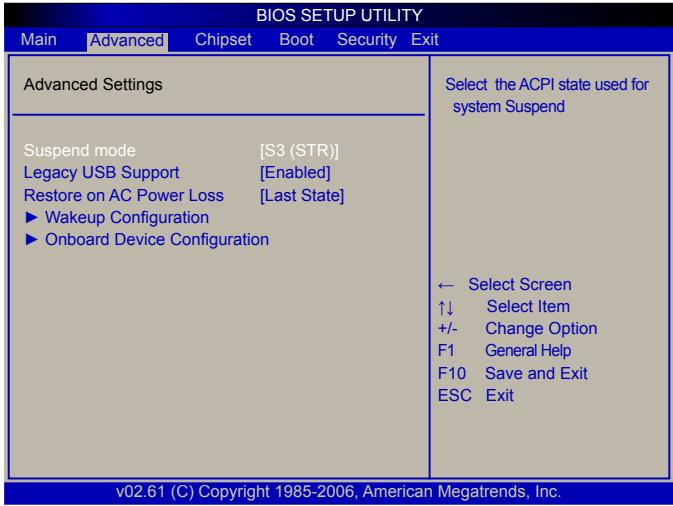
Suspend mode [S3 (STR)]
This item is used to set the energy saving mode of the ACPI function. When you select "S1 (POS)" mode, the power is always on and computer can be resumed at any time. When you select "S3 (STR)" mode, the power will be down after a period of time. The status of the computer before it entering STR will be saved in memory, and the computer can quickly return
to previous state when the STR function wakes.
Legacy USB Support [Enabled]
This item is used to enable or disable the support for legacy USB. If no USB devices are connected, BIOS will automatically select [Disabled].
Restore on AC Power Loss [Last State]
This item is used to set which state the PC will take with when it resumes after an AC power loss.
Wakeup Configuration/Onboard Device Configuration
Press
Wakeup Configuration
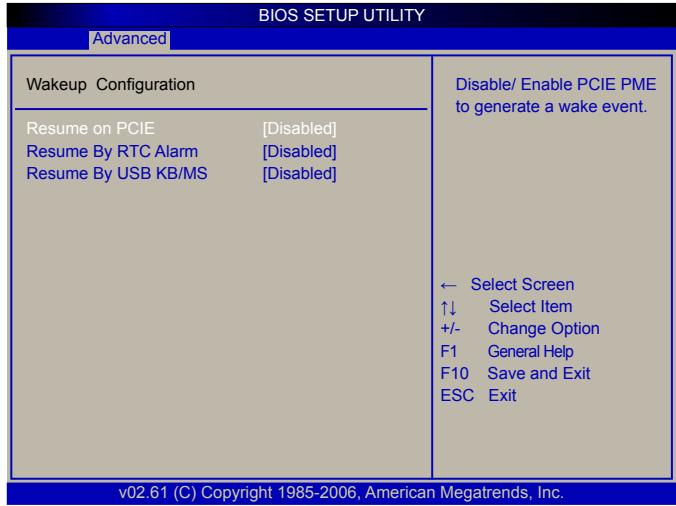
Resume On PCIE [Disabled]
This item is used to enable/disable PCIE PME to generate a wake event.
Resume By RTC Alarm[Disabled]
This item is used to enable/disable RTC Alarm to generate a wake up.RTC is system real time clock.
Resume By USB KB/MS [Disabled]
This item is used to enable/disable the keyboard/mouse to generate a wake up.
Onboard Device Configuration
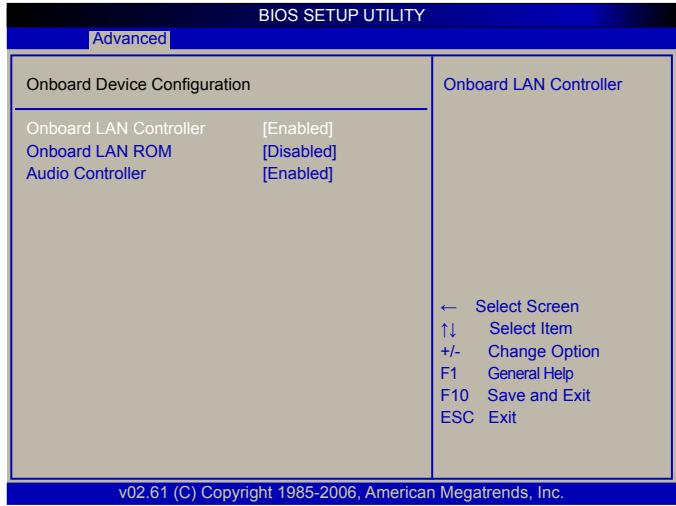
Onboard LAN Controller [Enabled]
This item is used to enable or disable the Onboard LAN Controller.
Onboard LAN ROM [Disabled]
This item is used to enable or disable the Onboard LAN ROM.
▶ Audio Controller [Enabled]
This item is used to enable or disable the Audio Controller.
Chipset Menu
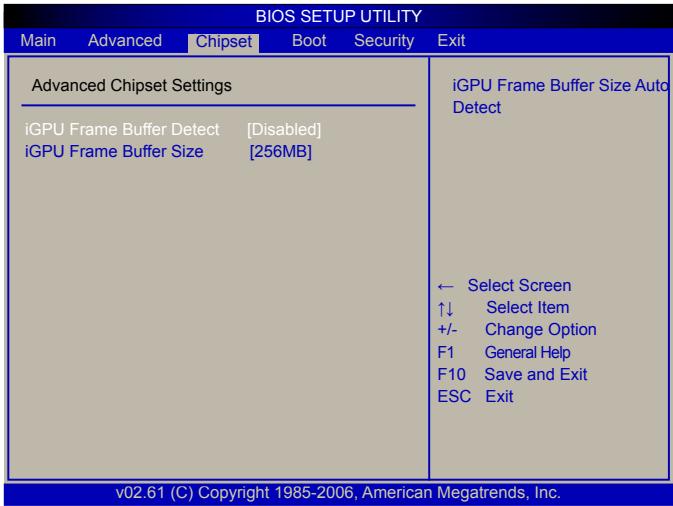
iGPU Frame Buffer Detect [Disabled]
This item is used to enable or disable iGPU Frame Buffer Size auto detcet.
iGPU Frame Buffer Size [256MB]
This item is used to select iGPU Frame Buffer Size.Setting options:32MB,64MB,128MB, 256MB,512MB.
Boot Menu
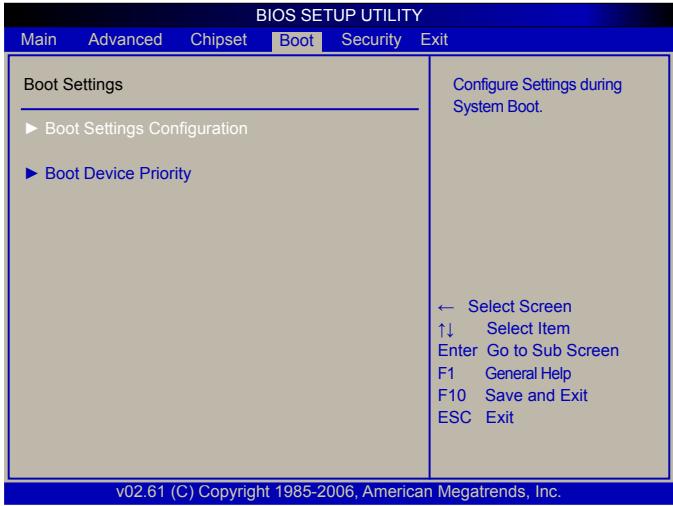
Boot Settings Configuration/Boot Device Priority
Press
Boot Settings Configuration
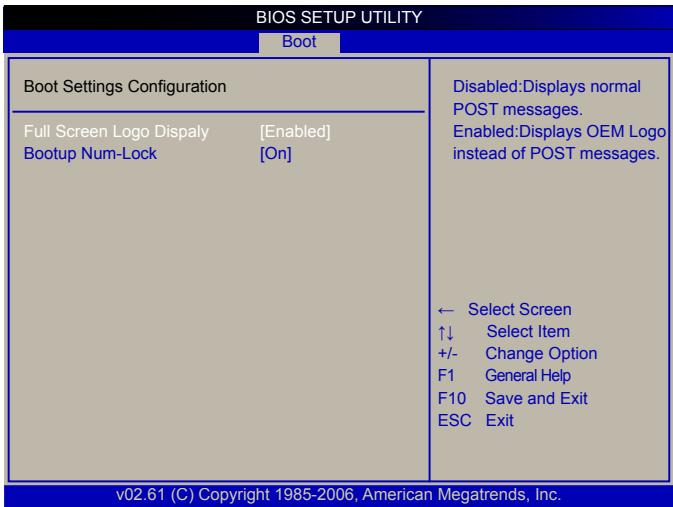
Full Screen Logo Display [Enabled]
This item is used to set whether to display the full screen logo.
Bootup Num-Lock [On]
This item is used to select power-on state for numlock.
Boot Device Priority
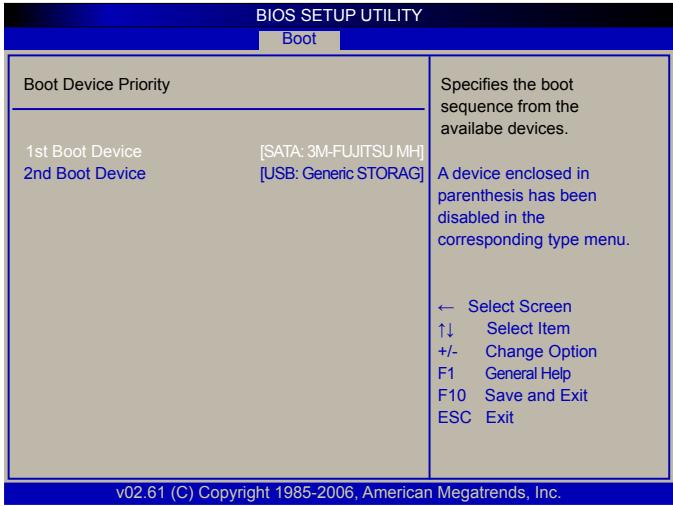
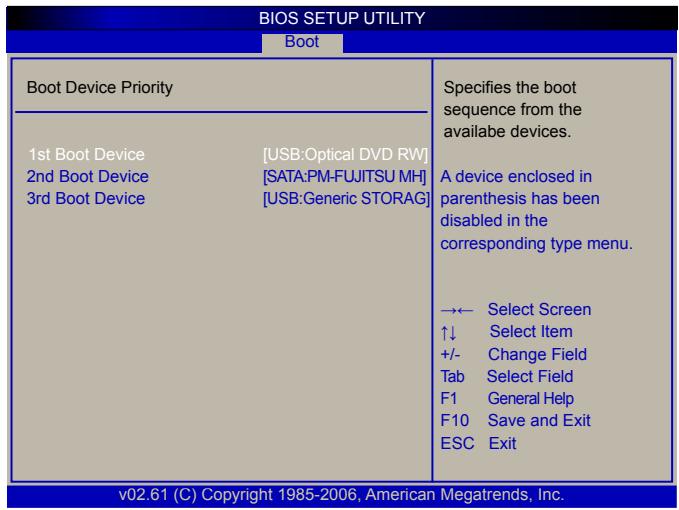
1st Boot Device/2nd Boot Device
These items are used to specify the boot sequence from the available devices.
Security Menu
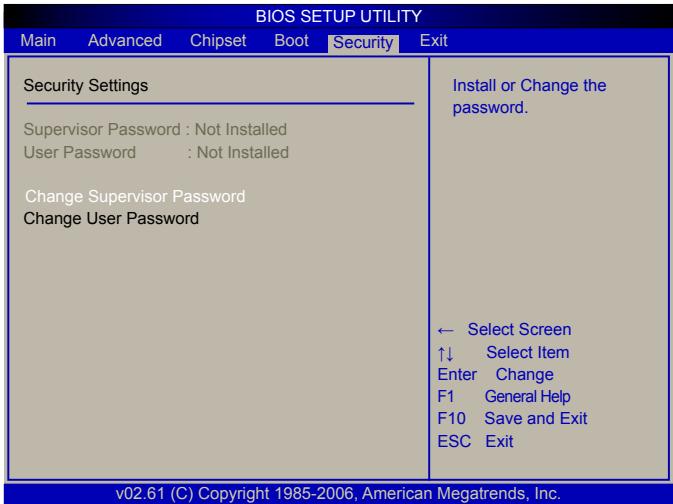
Change Supervisor Password
Select this item to set or change the supervisor password. The Supervisor Password item on top of the screen displays the default Not Installed. After you have set a password, this item displays Installed.
Change User Password
Select this item to set or change the user password. The User Password item on top of the screen displays the default Not Installed. After you have set a password, this item displays Installed.
Exit Menu
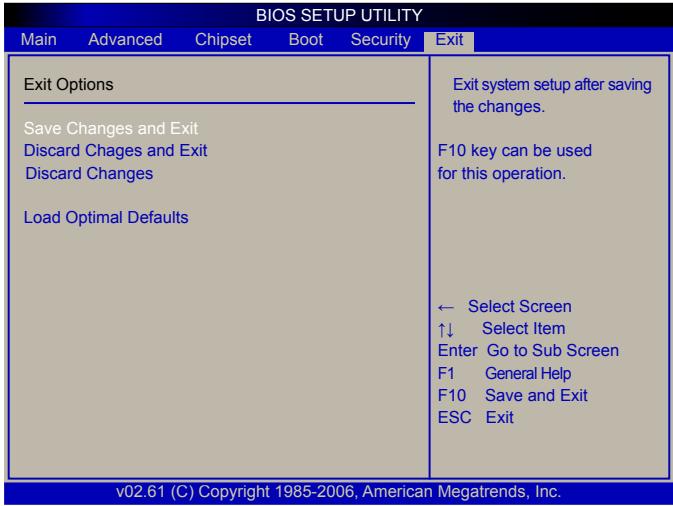
Save Changes and Exit
Exit system setup after saving the changes. Once you are finished making your selections, choose this option from the Exit menu to ensure the values you selected are saved to the CMOS RAM. The CMOS RAM is sustained by an onboard backup battery and stays on even when the PC is turned off. When you select this option, a confirmation window appears. Select [OK] to save changes and exit.
Discard Changes and Exit
Exit system setup without saving any changes. Select this option only if you do not want to save the changes that you made to the Setup program. If you made changes to fields other than system date, system time, and password, the BIOS asks for a confirmation before exiting.
>Discard Changes
Discards changes done so far to any of the setup values. This option allows you to discard the selections you made and restore the previously saved values. After selecting this option, a confirmation appears. Select [Yes] to discard any changes and load the previously saved values.
>Load Optimal Defaults
The default value are the best settings of this motherboard. Always load the default value after updating the BIOS or after clearing the CMOS values. Select this option and press Enter, it will pop out a dialogue box to let you load the defaults. Select
Chapter 4 Installing Windows 7 onto the VOT132
This chapter introduces the Windows 7 installation:
■ Installing Windows 7
- Installing Windows 7 Drivers
Make sure you have these ready:
- VDD100 (optional optical disk drive). You can also use an external USB DVD ROM drive.
- VOT132 driver CD. (In this package)
- Windows 7 Install CD.
Before we continue:
Before starting make sure your VOT132 is powered off
Connect the VDD100 or USB DVD-ROM drive to a USB port and power it on.
3-1 Installing Windows 7
- Push power button to turn on your computer, then press <F2> key to enter BIOS Setup.
- Put the Windows 7 Install CD into the VDD100 or USB DVD-ROM drive.
- Select and go to the "Boot" menu, enter "Boot Device Priority", set the "1st Boot Device" to "USB: Optical DVD RW", press
key to save change and exit BIOS.
-
The computer will reboot, and it will start loading the files for installing the Windows 7 Operating System.
-
After the computer reboots it will start loading the files for installing Windows 7. Click "Next" to continue and click "Install now" button to start the setup.
- When the license terms appear choose accept and click "Next" to continue.
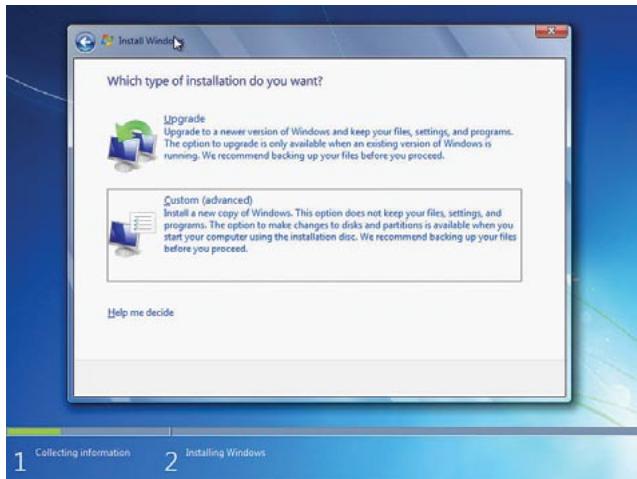
- It will then ask you to select the installation type. Click "Custom (advanced)" to install a new copy of Windows.
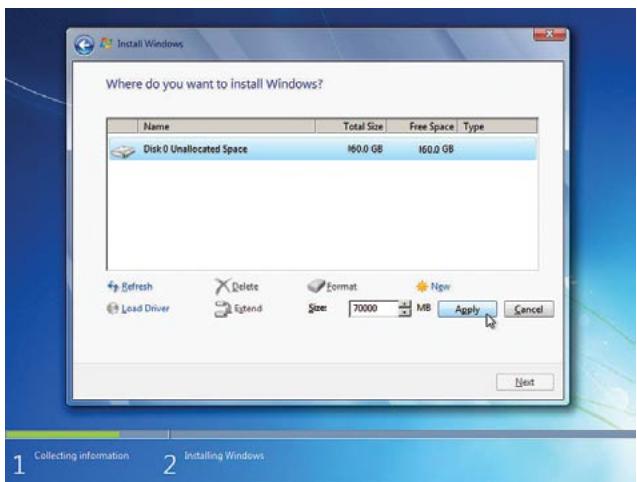
- The setup will the display the hard disk partitions (160GB, in this example) of your system. If there were other systems (such as Linux) installed previously, you need select them and click "Drive options (advanced)" to delete them. When all partitions are clean, setup will display the biggest size of your hard drive.
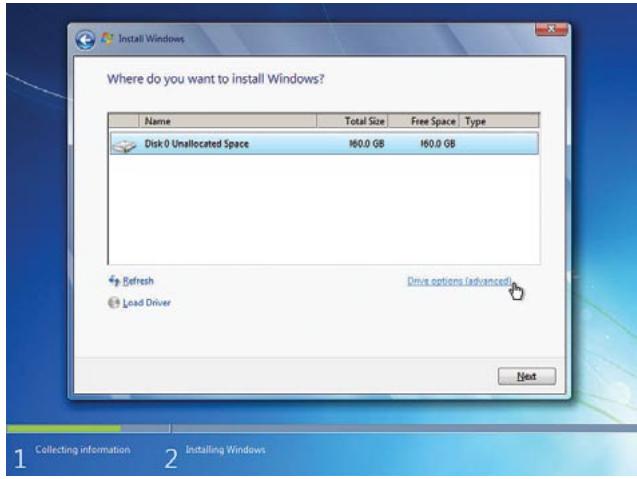
- In the hard disk size screen, you can click the "new" button to create partitions as you need. In this example we are creating a 70GB partition to install Windows. Make your modifications and click "Apply".
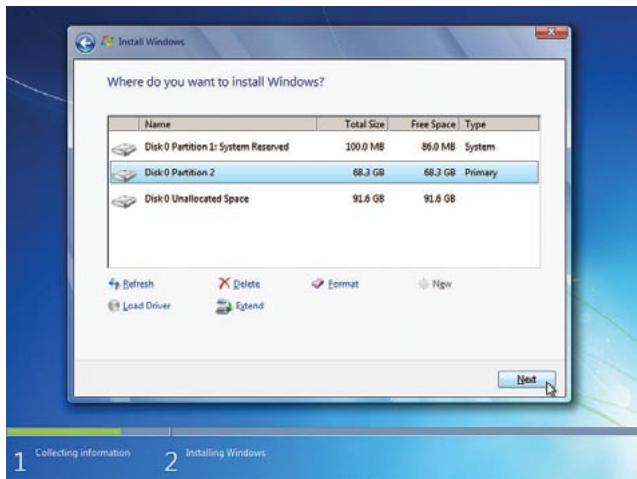
To ensure that all Windows features work correctly, Windows might create additional partitions for system files. So you will see a 100MB partition reserved by system after you create a partition. Select the 70GB partition and click "Next" to continue.
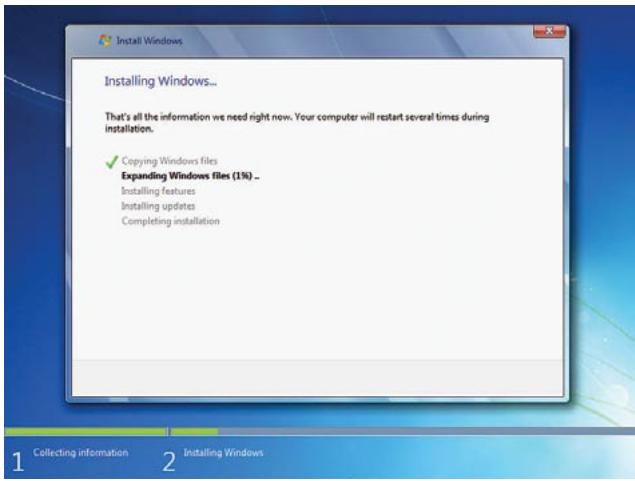
- The setup program will then start to install Windows 7 on your hard disk. During the installation, your computer will restart several times.
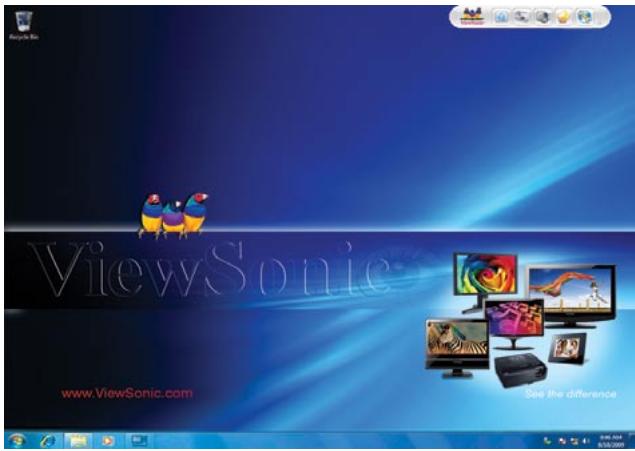
- When the installation is complete, setup will prepare your computer for it's first use. You can then follow the steps to select system settings, create an account, set a password...etc, until the whole process is complete.
3-2 Installing drivers in Windows 7
- When the Windows 7 is completely installed, you have to install the necessary drivers before using the VOT132. Take out the Windows 7 Install CD from the USB DVD-ROM drive, and put the VOT132 driver CD inside.
- Afer a few seconds, the main menu will be displayed on the screen.
- You must click "Intel Chipset Driver" to install it first. After that, you can click "One Click Setup" to install all the other drivers, or you can click on each individual driver to install it manually.
- After all the drivers are installed, you will need to restart the VOT132.
Appendix-Frequently Asked Questions
Q1: Is the HDD designed to be shock proof?
A1: Yes it is.
Q2: Can I add additional RAM?
A2: No you cannot.
Q3: Can the VGA share memory be adjusted in BIOS?
A3: No it cannot.
Q4: How do I change the Boot Device from HDD to another bootable device?
A4: When seeing POST message, press "F9" to enter boot menu then to select the bootable device you plugged in.
Q5: What if I cannot connect to the internet via WLAN?
A5: Connect the antenna and confirm whether the wireless LAN function is enabled or not.
Q6: What if the SD card reader is not working normally?
A6: Confirm the SD Card is in one of the 5 supported formats. (SD/SDHC/MS/MSPro/MMC) Also check that the SD card is inserted with the gold pins down.
Appendix-Trouble Shooting
- System would not power on or power off by pressing power button.
1.1. Check all power connections.
1.2. Make sure the DC plug is inserted correctly. If the power LED does not light you may have a faulty power adapter.
1.3. If the power button does not function you may have a faulty button.
1.4. If you can press the power button in but the it does not light, you may have a faulty power button.
1.5. If the power LED stays lit and the system will not power down after holding the power button in for more than 4 seconds you may have a faulty power button. - No sound from headphones.
2.1. Check the headphone cable connection — Ensure that the headphone cable is securely inserted into the headphone connector.
2.2. Adjust the windows volume control — Click or double-click the volume icon in the lower-right corner of your screen. Ensure that the volume is turned up and that the sound is not muted
Chapter 5 Other Information
Customer Support
For technical support or product service, see the table below or contact your reseller.
NOTE: You will need the product serial number.
| Country/Region | Website | T = Telephone F = FAX | |
| Australia/New Zealand | www.viewsonic.com.au | AUS= 1800 880 818 NZ= 0800 008 822 | service@au.viewsonic.com |
| Canada | www.viewsonic.com | T (Toll-Free)= 1-866-463-4775 T (Toll)= 1-424-233-2533 F= 1-909-468-1202 | service.ca@viewsonic.com |
| Europe | www.viewsoniceurope.com | www.viewsoniceurope.com/uk/Support/Calldesk.htm | |
| Hong Kong | www.hk.viewsonic.com | T= 852 3102 2900 | service@hk.viewsonic.com |
| India | www.in.viewsonic.com | T= 1800 11 9999 | service@in.viewsonic.com |
| Ireland (Eire) | www.viewsoniceurope.com/uk/ | www.viewsoniceurope.com/uk/support/call-desk/ | service_ie@viewsoniceurope.com |
| Korea | www.kr.viewsonic.com | T= 080 333 2131 | service@kr.viewsonic.com |
| Latin America (Angentina) | www.viewsonic.com/la/ | T= 0800 666 0194 | soporte@viewsonic.com |
| Latin America (Chile) | www.viewsonic.com/la/ | T= 800 440 303 | soporte@viewsonic.com |
| Latin America (Columbia) | www.viewsonic.com/la/ | T= 01 800 915 6588 | soporte@viewsonic.com |
| Latin America (Mexico) | www.viewsonic.com/la/ | T= 001 800 514 6518 | soporte@viewsonic.com |
| Renta y Datos, 29 SUR 721, COL. LA PAZ, 72160 PUEBLA, PUE. Tel: 01.222.891.55.77 CON 10 LINEAS Electroser, Av Reforma No. 403Gx39 y 41, 97000 Mérida, Yucatán. Tel: 01.999.925.19.16 Other places please refer to http://www.viewsonic.com/la/soporte/index.htm#Mexico | |||
| Latin America (Peru) | www.viewsonic.com/la/ | T= 0800 53458 | soporte@viewsonic.com |
| Macau | www.hk.viewsonic.com | T= 853 2870 0303 | service@hk.viewsonic.com |
| Middle East | ap.viewsonic.com/me/ | Contact your reseller | service@ap.viewsonic.com |
| Puerto Rico & Virgin Islands | www.viewsonic.com | T= 1-800-688-6688 (English) T= 1-866-379-1304 (Spanish) F= 1-909-468-1202 | service.us@viewsonic.com soporte@viewsonic.com |
| Singapore/Malaysia/Thailand | www.ap.viewsonic.com | T= 65 6461 6044 | service@sg.viewsonic.com |
| South Africa | ap.viewsonic.com/za/ | Contact your reseller | service@ap.viewsonic.com |
| United Kingdom | www.viewsoniceurope.com/uk/ | www.viewsoniceurope.com/uk/support/call-desk/ | service_gb@viewsoniceurope.com |
| United States | www.viewsonic.com | T (Toll-Free)= 1-800-688-6688 T (Toll)= 1-424-233-2530 F= 1-909-468-1202 | service.us@viewsonic.com |
Limited Warranty
VIEWSONIC® PC MINI
What the warranty covers:
ViewSonic warrants its products to be free from defects in material and workmanship during the warranty period. If a product proves to be defective in material or workmanship during the warranty period, ViewSonic will, at its sole option, repair or replace the product with a similar product. Replacement Product or parts may include remanufactured or refurbished parts or components. The replacement unit will be covered by the balance of the time remaining on the customer's original limited warranty. ViewSonic provides no warranty for the third-party software included with the product or installed by the customer.
How long the warranty is effective:
ViewSonic PC Mini products are warranted from the first consumer purchase for parts and labour. User is responsible for the back up of any data before returning the unit for service. ViewSonic is not responsible for any data lost.
Who the warranty protects:
This warranty is valid only for the first consumer purchaser.
What the warranty does not cover:
- Any product on which the serial number has been defaced, modified or removed.
- Damage, deterioration or malfunction resulting from:
a. Accident, misuse, neglect, fire, water, lightning, or other acts of nature, unauthorized product modification, or failure to follow instructions supplied with the product.
b. Any damage of the product due to shipment.
c. Removal or installation of the product.
d. Causes external to the product, such as electrical power fluctuations or failure.
e. Use of supplies or parts not meeting ViewSonic's specifications.
f. Normal wear and tear.
g. Any other cause which does not relate to a product defect.
- Removal, installation, one way transportation, insurance, and set-up service charges.
How to get service:
- For information about receiving service under warranty, contact ViewSonic Customer Support (Please refer to Customer Support page). You will need to provide your product's serial number.
- To obtain warranty service, you will be required to provide (a) the original dated sales slip, (b) your name, (c) your address, (d) a description of the problem, and (e) the serial number of the product.
- Take or ship the product freight prepaid in the original container to an authorized ViewSonic service center or ViewSonic.
- For additional information or the name of the nearest ViewSonic service center, contact ViewSonic.
4.3: ViewSonic PC Mini Warranty
Limitation of implied warranties:
There are no warranties, express or implied, which extend beyond the description contained herein including the implied warranty of merchantability and fitness for a particular purpose.
Exclusion of damages:
ViewSonic's liability is limited to the cost of repair or replacement of the product. ViewSonic shall not be liable for:
- Damage to other property caused by any defects in the product, damages based upon inconvenience, loss of use of the product, loss of time, loss of profits, loss of business opportunity, loss of goodwill, interference with business relationships, or other commercial loss, even if advised of the possibility of such damages.
- Any other damages, whether incidental, consequential or otherwise.
- Any claim against the customer by any other party.
- Repair or attempted repair by anyone not authorized by ViewSonic.
Effect of state law:
This warranty gives you specific legal rights, and you may also have other rights which vary from state to state. Some states do not allow limitations on implied warranties and/or do not allow the exclusion of incidental or consequential damages, so the above limitations and exclusions may not apply to you.
Sales outside the U.S.A. and Canada:
For warranty information and service on ViewSonic products sold outside of the U.S.A. and Canada, contact ViewSonic or your local ViewSonic dealer.
The warranty period for this product in mainland China (Hong Kong, Macao and Taiwan Excluded) is subject to the terms and conditions of the Maintenance Guarantee Card.
For users in Europe and Russia, full details of warranty provided can be found in www. viewsoniceurope.com under Support/Warranty Information.
- For Canada
- CE Conformity for European Countries
- Following information is only for EU-member states:
- FCC Radiation Exposure Statement
- Industry Canada Notice
- R&TTE Compliance Statement C E
- ENERGY STAR® information
- Important Safety Instructions
- Declaration of RoHS Compliance
- Copyright Information
- Product Registration
- Product disposal at end of product life
- Table of Contents
- Chapter 1 Introducing the VOT132
- Chapter 2 Connecting Peripherals
- Chapter 3 BIOS Setup
- Chapter 4 Installing Windows 7 onto the VOT132
- Chapter 5 Other Information
- Introduction
- 1-1 Top View
- 1-2 Front Side View
- 1-3 Back Side View
- 1-4 Bottom View
- 1-5 LED Indicator Introduction
- 2-1 Placement of the VOT132 PC Mini
- On the Desk
- Mounted to the back of a display.
- 2-2 Connection of VOT132
- Connecting the Antenna
- Connecting USB Devices
- Connecting the network cable
- Connecting the power cord
- Main Menu
- System Date
- System Time
- ▶ SATA
- System Information
- Advanced Menu
- Suspend mode [S3 (STR)]
- Legacy USB Support [Enabled]
- Restore on AC Power Loss [Last State]
- Wakeup Configuration/Onboard Device Configuration
- Wakeup Configuration
- Onboard Device Configuration
- Chipset Menu
- Boot Menu
- Boot Settings Configuration
- Boot Device Priority
- 1st Boot Device/2nd Boot Device
- Security Menu
- Change Supervisor Password
- Change User Password
- Exit Menu
- Save Changes and Exit
- Discard Changes and Exit
- >Discard Changes
- >Load Optimal Defaults
- Before we continue:
- 3-1 Installing Windows 7
- 3-2 Installing drivers in Windows 7
- Appendix-Frequently Asked Questions
- Appendix-Trouble Shooting
- Customer Support
- Limited Warranty
- VIEWSONIC® PC MINI
- What the warranty covers:
- How long the warranty is effective:
- Who the warranty protects:
- What the warranty does not cover:
- How to get service:
- Limitation of implied warranties:
- Exclusion of damages:
- Effect of state law:
- Sales outside the U.S.A. and Canada:
Brand : VIEWSONIC
Model : VOT132
Category : All-in-One PC