
VIEWPAD 10PRO - Tablet VIEWSONIC - Free user manual and instructions
Find the device manual for free VIEWPAD 10PRO VIEWSONIC in PDF.

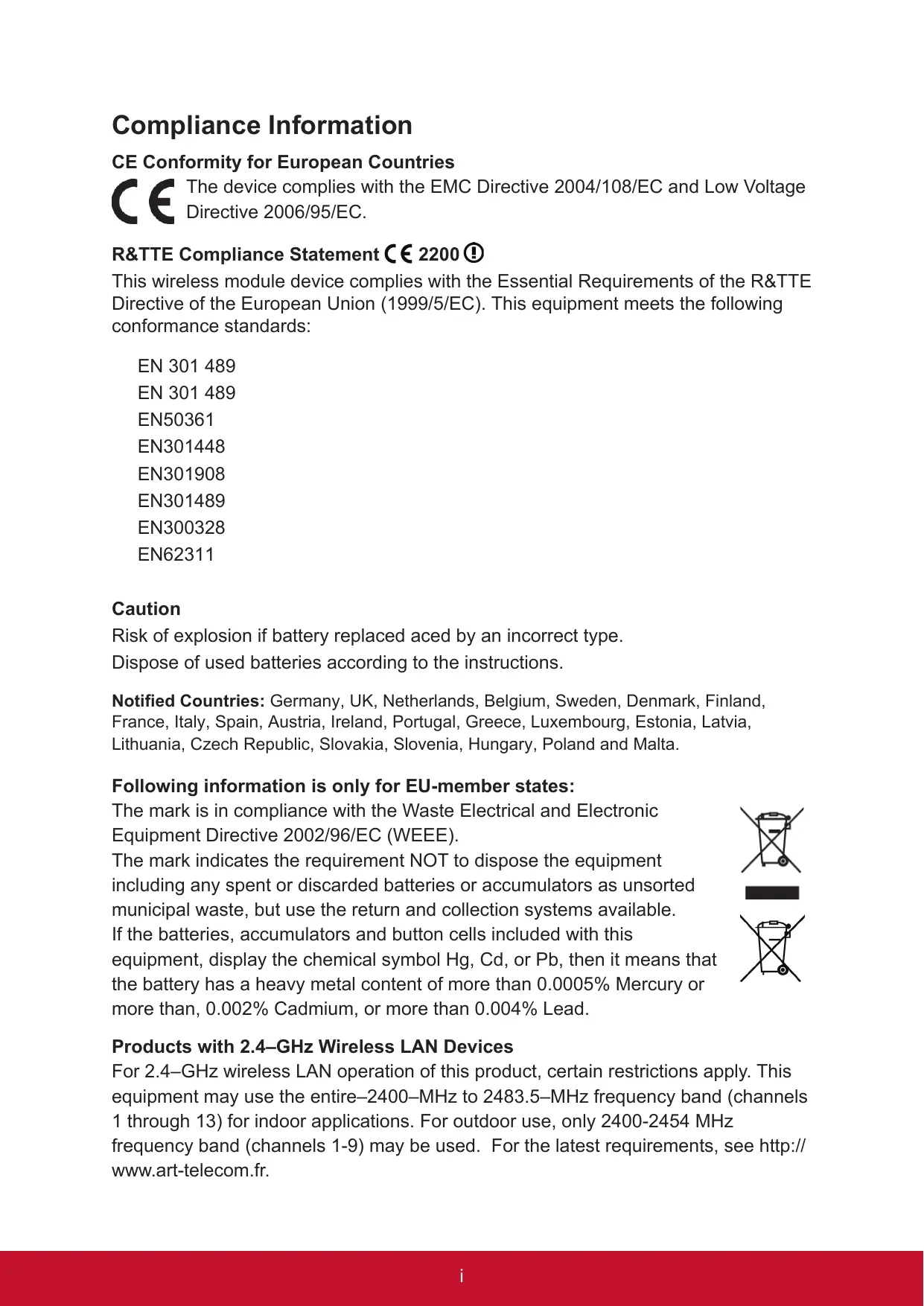

| Brand | ViewSonic |
| Model | ViewPad 10pro |
| Product Type | Touchscreen Tablet |
| Model Number | VS14140 |
| Operating System | Windows 7 Professional with Android via BlueStacks |
| Display | 10-inch capacitive touchscreen |
| Processor | Intel (not specified in the manual) |
| RAM | 2 GB (common estimate) |
| Storage | 16 GB or 32 GB (not specified, typical) |
| Wireless Connectivity | Wi-Fi 802.11 b/g/n, Bluetooth |
| Ports | 1 USB, 1 Mini HDMI, 1 headphone jack, 1 microSD card reader, 1 charging port |
| Sensors | Ambient light sensor, accelerometer (G-Sensor) |
| Dimensions (estimated) | Approximately 267 x 175 x 15 mm |
| Weight (estimated) | Approximately 700 g |
| Power Supply | 5V, 2A AC adapter (included) |
| Battery | Built-in lithium-ion, non-user-replaceable |
| Battery Life (estimated) | Approximately 6 hours (mixed usage) |
| Maintenance | Clean with a soft, dry cloth; avoid any liquid |
| Operating Temperature | 0°C to 40°C |
| Safety | Do not expose to heat, do not disassemble, use only provided accessories |
| Repairability | Battery replaceable only by an authorized center |
| Box Contents | Tablet, AC charger, quick start guide, recovery DVD |
Frequently Asked Questions - VIEWPAD 10PRO VIEWSONIC
User questions about VIEWPAD 10PRO VIEWSONIC
0 question about this device. Answer the ones you know or ask your own.
Ask a new question about this device
Download the instructions for your Tablet in PDF format for free! Find your manual VIEWPAD 10PRO - VIEWSONIC and take your electronic device back in hand. On this page are published all the documents necessary for the use of your device. VIEWPAD 10PRO by VIEWSONIC.
USER MANUAL VIEWPAD 10PRO VIEWSONIC
CE Conformity for European Countries
The device complies with the EMC Directive 2004/108/EC and Low Voltage Directive 2006/95/EC.
R&TTE Compliance Statement (€ 2200)
This wireless module device complies with the Essential Requirements of the R&TTE Directive of the European Union (1999/5/EC). This equipment meets the following conformance standards:
EN 301 489
EN 301489
EN50361
EN301448
EN301908
EN301489
EN300328
EN62311
Caution
Risk of explosion if battery replaced aced by an incorrect type.
Dispose of used batteries according to the instructions.
Notified Countries: Germany, UK, Netherlands, Belgium, Sweden, Denmark, Finland, France, Italy, Spain, Austria, Ireland, Portugal, Greece, Luxembourg, Estonia, Latvia, Lithuania, Czech Republic, Slovakia, Slovenia, Hungary, Poland and Malta.
Following information is only for EU-member states:
The mark is in compliance with the Waste Electrical and Electronic Equipment Directive 2002/96/EC (WEEE).
The mark indicates the requirement NOT to dispose the equipment including any spent or discarded batteries or accumulators as unsorted municipal waste, but use the return and collection systems available.
If the batteries, accumulators and button cells included with this equipment, display the chemical symbol Hg, Cd, or Pb, then it means that the battery has a heavy metal content of more than 0.0005% Mercury or more than, 0.002% Cadmium, or more than 0.004% Lead.

Products with 2.4-GHz Wireless LAN Devices
For 2.4-GHz wireless LAN operation of this product, certain restrictions apply. This equipment may use the entire-2400-MHz to 2483.5-MHz frequency band (channels 1 through 13) for indoor applications. For outdoor use, only 2400-2454 MHz frequency band (channels 1-9) may be used. For the latest requirements, see http:// www.artelecom.fr.
Important Safety Instructions
- DO NOT place objects on top of the ViewPad, as objects may scratch the screen.
- DO NOT expose the ViewPad to dirty or dusty environments.
- DO NOT place the ViewPad on an uneven or unstable surface.
- DO NOT insert any foreign objects into the ViewPad.
- DO NOT expose the ViewPad to strong magnetic or electrical field.
- DO NOT expose the ViewPad to direct sunlight as it can damage the LCD Screen.
Keep it away from heat sources. - SAFE TEMPERATURE: This ViewPad should only be used in environments with ambient temperatures between 0^ ( 32^ ) and 40^ ( 104^ ).
- DO NOT use the ViewPad in the rain.
- Please check with your Local Authority or retailer for proper disposal of electronic products.
- The ViewPad and the adapter may produce some heat during normal operation or charging. DO NOT leave the ViewPad on your lap to prevent discomfort or injury from heat exposure.
- POWER INPUT RATING: Refer to the rating label on the ViewPad and be sure that the power adapter complies with the rating. Only use accessories specified by the manufacturer.
- DO NOT use a pen or any sharp object to tap the screen.
- Clean the touch screen with a soft cloth. If needed, dampen the cloth slightly before cleaning. Never use abrasives or cleaning solutions.
- Always power off the ViewPad to install or remove external devices that do not support hot-plug.
- Disconnect the ViewPad from an electrical outlet and power off before cleaning the ViewPad.
- DO NOT disassemble the ViewPad, only a certified service technician should perform repair.
- The ViewPad has apertures to disperse heat. DO NOT block the ViewPad ventilation, the ViewPad may become hot and malfunction as a result.
- Risk of explosion if battery replaced by an incorrect type. Dispose of used batteries according to the instructions.
- Users have to use the connection to USB interfaces with USB 2.0 version or higher.
- PLUGGABLE EQUIPMENT, the socket-outlet shell be installed near the equipment and shall be easily accessible.
Declaration of RoHS Compliance
This product has been designed and manufactured in compliance with Directive 2002/ 95/EC of the European Parliament and the Council on restriction of the use of certain hazardous substances in electrical and electronic equipment (RoHS Directive) and is deemed to comply with the maximum concentration values issued by the European Technical Adaptation Committee (TAC) as shown below:
| Substance | Proposed Maximum Concentration | Actual Concentration |
| Lead (Pb) | 0,1% | < 0,1% |
| Mercury (Hg) | 0,1% | < 0,1% |
| Cadmium (Cd) | 0,01% | < 0,01% |
| Hexavalent Chromium (Cr6+) | 0,1% | < 0,1% |
| Polybrominated bi-phenyls (PBB) | 0,1% | < 0,1% |
| Polybrominated di-phenyl ethers (PBDE) | 0,1% | < 0,1% |
Certain components of products as stated above are exempted under the Annex of the RoHS Directives as noted below:
Examples of exempted components are:
- Mercury in compact fluorescent lamps not exceeding 5mg per lamp and in other lamps not specifically mentioned in the Annex of RoHS Directive.
- Lead in glass of cathode ray tubes, electronic components, fluorescent tubes, and electronic ceramic parts (e.g. piezoelectronic devices).
- Lead in high temperature type solders (i.e. lead-based alloys containing 85% by weight or more lead).
- Lead as an allotting element in steel containing up to 0.35% lead by weight, aluminium containing up to 0.4% lead by weight and as a cooper alloy containing up to 4% lead by weight.
Copyright Information
Copyright © ViewSonic® Corporation, 2011. All rights reserved.
ViewSonic®, the three birds logo, On View®, ViewMatch™, and ViewMeter® are registered trademarks of ViewSonic® Corporation.
Android is a trademark of Google Inc. Use of this trademark is subject to Google Permissions.
This product has an Android™ platform based on Linux, which can be expanded by a variety of JME-based application SW.
All products use in this device and trademarks mentioned herein are trademarks or registered trademarks of their respective owners.
Google™, the Google logo, Android™, the Android logo and Gmail™ are trademarks of Google Inc. Use of this trademark is subject to Google Permissions.
Wi-Fi and the Wi-Fi CERTIFIED logo are registered trademarks of the Wireless Fidelity Alliance.
microSD™ is a trademark of SD Card Association.
Bluetooth and the Bluetooth logo are trademarks owned by Bluetooth SIG, Inc.
The prediction engine of the input method is TOUCHPAL, provided by COOTEK.
Disclaimer: ViewSonic Corporation shall not be liable for technical or editorial errors or omissions contained herein; nor for incidental or consequential damages resulting from furnishing this material, or the performance or use of this product.
In the interest of continuing product improvement, ViewSonic Corporation reserves the right to change product specifications without notice. Information in this document may change without notice.
No part of this document may be copied, reproduced, or transmitted by any means, for any purpose without prior written permission from ViewSonic Corporation.
Product Registration
To meet your future needs, and to receive any additional product information as it becomes available, please register your product on the Internet at: www.viewsonic. com.
For Your Records
Product Name: ViewPad 10pro
Model Number: VS14140
Document Number: ViewPad 10pro_UG_ENG Rev. 1A 04-20-11
Serial Number:
Purchase Date:
Product disposal at end of product life
ViewSonic respects the environment and is committed to working and living green. Thank you for being part of Smarter, Greener Computing. Please visit ViewSonic website to learn more.
USA & Canada: http://www.viewsonic.com/company/green/recycle-program/
Europe: http://www.viewsoniceurope.com/uk/support/recycling-information/
Taiwan: http://recycle.epa.gov.tw/recycle/index2.aspx
Table of Contents
Chapter 1: Product Overview
Package Contents
- Control Buttons and Connectivity
Chapter 2: Setup
- Power and Battery
Memory Card Installation - SIM Card Installation and Service Activation
Network Setup
Chapter 3: Basic Operation
- Power Up, Standby and Off
Appendixes
A. BIOS Menu
B. Indicator Table
C. Troubleshooting
D. Caring Tips
Chapter 1: Product Overview
Package Contents
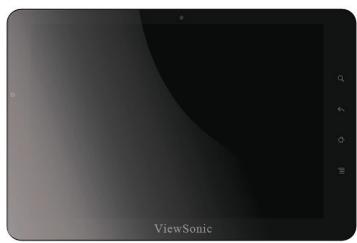
ViewPad 10pro
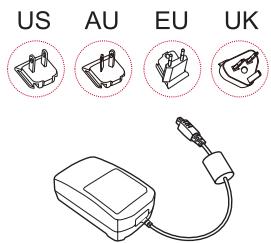
AC Charger

Quick Start Guide

Recovery DVD & Drivers CD
- ViewPad 10pro Tablet
- Universal AC Power Charger x1 (4 interchangeable plugs)
- Quick Start Guide
- Recovery DVD & Drivers CD
Control Buttons and Connectivity
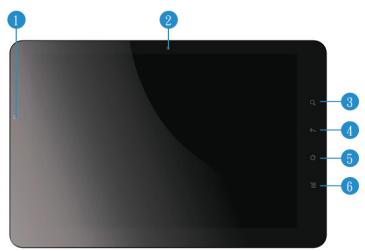
Front
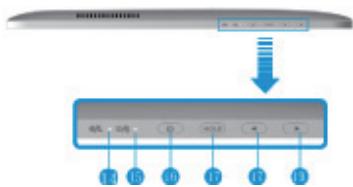
Top
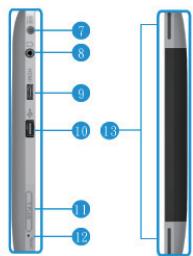
Left
Right
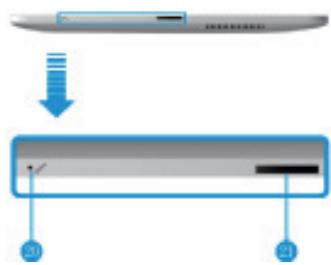
Bottom
- Ambient Light Sensor
- Webcam
- Search
- Return
- Home Menu
- Settings Menu
- Charger Jack
- Earphone Jack
- Mini HDMI Output
- USB Port
-
Micro SD Card Slot
-
Reset
- Speakers
- Power Indicator
- Charger Indicator
- Power Button
- Hold and Ctrl+Alt+Del Button
- Volume DOWN
- Volume UP
- Microphone
- Docking Port
Chapter 2: Setup
Battery Replacement
Battery is permanently fixed to the device. Battery replacement should be performed by an authorized ViewSonic service center. Please contact local ViewSonic customer service for more information.
Charging Battery
The new battery is only partially charged out of box. To fully charge the battery, please follow the below instruction.
- Connect one end of the AC adapter to the charger jack.
- Plug the other end of the AC adapter to the wall outlet to start charging.

Fig. 2.1 Charging Battery
When the battery is charging, the charge indicator LED will be flashing in amber; the battery icon is also displayed in the status bar. When battery is fully charged, the charge indicator LED will change to blue; if device is turned on, the battery icon will be displayed as fully charged.
Note: Use only the provided AC power adapter for battery charging. The battery life may vary depending on actual usage.
Memory Card
MicroSD memory card provides additional data storage space.
To install MicroSD card
- Open card door.
- Insert MicroSD card as shown. Make sure the gold contacts are facing upward.
- Close the card door.
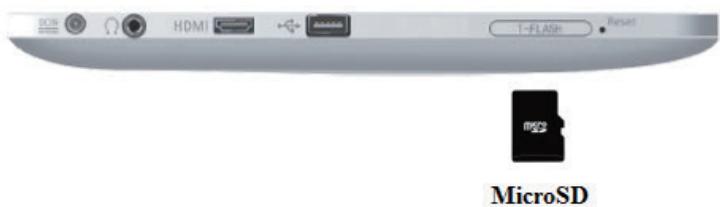
Fig. 2-2 Micro SD Cards
To remove the memory card
- For safe removal, go to Windows task bar and right mouse click on icon. Select eject MicroSD card option.
- After Windows prompts, "The device is now safe to remove" open the card cover.
- Push to eject the MicroSD card from the slot.
Note: Do not remove the memory card while it's being accessed. Sudden removal of the memory card may cause data loss or unpredictable system behavior.
Touch Panel Setup
The touch panel of this device has been factory calibrated. In most cases, recalibration is not necessary. However, due to the nature of capacitive touch panel, change of geographical location may require recalibration for the new environment conditions.
If touch panel is experiencing improper behavior, please perform touch panel calibration procedure as below.
- Tap on (ILITEK) icon to open touch panel calibration menu.

Fig. 2-9 Touch Panel Calibration Menu
- Place the device on a flat table top. Avoid any touch contact to the touch panel while performing the calibration.
- Tap on "Calibration" to start the process.
- When calibration is completed, message "Calibration OK" will be shown.
WiFi Setup
- In Windows task bar, left click on to bring up available access point menu.
- Select the WiFi access point from the available WiFi network list.
- Enter the password for the network if required.
- Click on "Connect" to complete the connection.
Bluetooth
Bluetooth can be configured in the Control Panel. Please refer to Control Center section for activating the Bluetooth.
Pairing Bluetooth Devices
- Ensure pairing devices' Bluetooth feature is enabled.
- Double tap on located in Windows task bar to open the Bluetooth menu.
- Tap "Add New Device" to scan all available Bluetooth devices in the area.
- Select desired device from the discovered devices.
- The screen will provide a PIN code for the connecting Bluetooth device. Enter this code to connecting device. This screen will time out after a short period if no action is taken.
- Once the handshake is established, tap "Next" to complete.
- If connecting with an audio device which only supports HSP/HFP (A2DP), "Connect to phone audio" option will be displayed.
Note: Once the handshake has been established, connecting to the same device again will no longer require entering the PIN.
Control Center
The control center provides a quick system overall status and communication protocol (3G, WiFi and Bluetooth) setup.
Main Menu
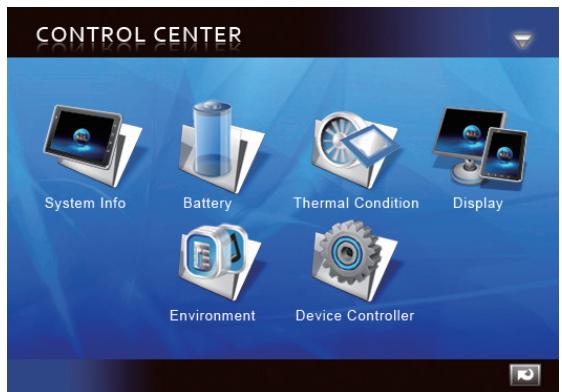
Fig. 2-10 Control Center, Main Menu
Tap on an icon to enter the sub-menu.
- System Info
Battery
Thermal Condition
Display - Power Management
Device Controller
System Info
Contains OS, BIOS, CPU and HD information.
Battery
Provide battery status and settings.
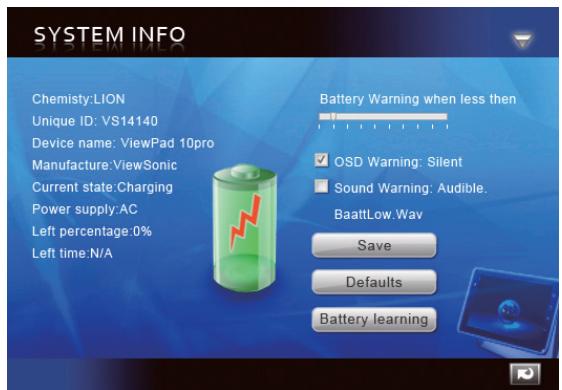
Fig. 2-11 Battery, Sub-Menu
| Battery warning when less | Low Battery Warning Level Setting: Set the slide-bar for low battery level. |
| OSD warningSound warning | Select warning notification type1.OSD (Visual) Warning: Silent2.Sound Warning: Audible. |
| Save | Save changes. |
| Defaults | Set Battery settings back to default. |
| Battery Learning | Gather battery usage data for battery time calculation. |
Display
Provide display information and adjustments.
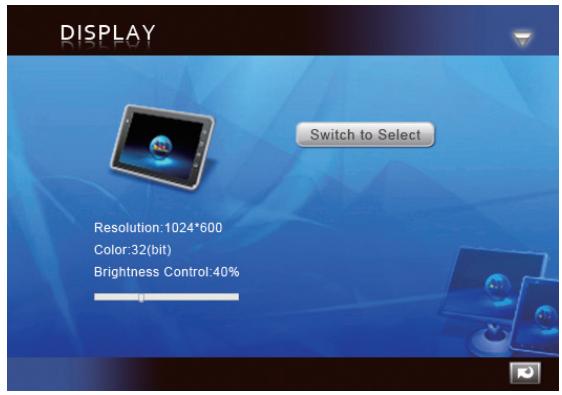
Fig. 2-12 Display, Sub-Menu
| Switch to Select | Tap to manually enable external video output (If plug & play is not detected). |
| Brightness control:100% | Adjust brightness level. |
Power Management
Power management options.
Device Controller
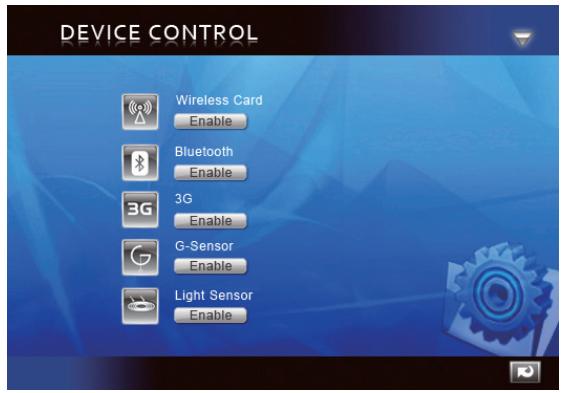
Fig. 2-13 Device Controller, Sub-Menu
| Wireless Card: Tap to enable/disable WiFi. | |
| Bluetooth: Tap to enable/disable Bluetooth. | |
| 3G | No function. |
| G-Sensor: Tap to enable/disable G-Sensor. | |
| Light Sensor: Tap to enable/disable Light Sensor. Adjust display brightness automatically based on room ambient light condition. |
Chapter 3: Basic Operation
Power up and off
- Press on button located at top of device to power up.
Warning: Do not turn off the device before it is fully booted or it may cause an error on the next power up.
- In Windows 7, click Start>Shutdown> or push the button to power off.
Note 1: Windows can be configured to automatically shut down by single press. Please use Windows help & support (Keyword "Power") for more power configuration information.
Note 2: Hard power off can be achieved by holding down for > 4 second.
Touch Screen Control
| Tap: Quick single tap motion. Emulates left mouse click. | |
| Tap & Hold: Press on open area for >4 seconds. Emulates right mouse click. | |
| Slide: Quick directional motion. Emulates scrolling. | |
| Drag: Press on icon for >4 seconds then perform directional motion. Emulates left mouse button hold. | |
| Pinch: Two-points inward motion. Zoom in. | |
| Spread: Two-points outward motion. Zoom out. |
Note: An application can define more complex hand gestures, availability based on application support.
Virtual Keyboard
Virtual keyboard is located at upper left corner of Windows desktop. Drag the virtual keyboard to center of Windows desktop for keyboard input.

Fig. 3-1 Virtual Keyboard in Desktop
Virtual keyboard icon will also pop up when enter text input section. Tap on keyboard icon to bring forward the virtual keyboard.

Fig. 3-2 Virtual Keyboard icon
Windows 7 Professional: When user login menu is enabled, Ctrl+Alt+Del function can be activated by pressing HOLD button located at top of device for >4 seconds.
Navigation, Front and Side Control Buttons
The external buttons have different function in different OS.
| Button | Location | BIOS & DOS | Windows | Bluestacks (Android) |
| Q | Front | Up Arrow | Open Web Browser | Open Web Browser TBD |
| G | Front | Down Arrow | Return to Previous | Return to Previous |
| C | Front | ESC | Go to Desktop | Go to Home Desktop |
| E | Front | Enter | Open Tablet Control Panel | Open Android Settings Menu |
| Top | Right Arrow | Volume Up | Volume Up | |
| Top | Left Arrow | Volume Down | Volume Down | |
Android in Windows
- Tap on icon located in Windows desktop.
- First time startup will take longer while initializing setup (One time setup).
- Please refer to BlueStacks user guide for more information on Android operation.
- Tap on icon to switch back to Windows.
Chapter 4 Appendix
Appendix A: BIOS Menu
Main Menu
- Set time and date.
-
Provide following system configuration information.
-
BIOS Version
- EC Version
- PCB Version
- Processor Type
- Processor Speed
- System Memory Speed
- L2 Cache RAM
- Total Memory
Advanced Menu
| Quick Boot | Enable quick boot. |
| Diagnostic Splash Screen | Boot-up splash screen select; graphics or text. |
| Diagnostic Summary Screen | Diagnostic summary display enable/disable. |
| SATA Port | SATA device information. |
Security Menu
| Supervisor Password | Set= Enabled; Clear= No Password. |
| User Password | Set= Enabled; Clear= No Password. |
| Set Supervisor Password | Highest level password. Set password restriction for Setup utility. |
| Set User Password | Set password restriction for Setup utility. |
| Authentication User on boot | Enable startup password control. |
| HDD Password State | Set password restriction for HDD. |
Warning: Please keep track of the passwords. BIOS reset will be required for password reset. Please contact your IT Dept or PC specialist on BIOS reset information.
Exit Menu
| Exit Saving Changes | Saves all changes and exit BIOS menu. |
| Exit Discarding Changes | Discard all changes and exit BIOS menu |
| Load Setup Defaults | Restore factory default settings. |
| Discard Changes | Discard all current changes and revert back to the last saved settings. |
| Save Changes | Save all current changes without exit BIOS menu. |
Appendix B: Indicator Table
- Power Indicator LED ( , located on the top of device)
| LED Color | Power Status |
| Solid Blue | ON |
| OFF | OFF |
| Flashing Blue | Sleep |
- Battery Indicator LED ( d / d , located on the top of device)
| LED Color | Battery Status |
| Solid Amber | Charging |
| Solid Blue | Battery Full |
| OFF | If Power is ON; using battery power. |
| OFF | If power is OFF; OFF. |
Appendix C: Troubleshooting
| Symptom | Possible Causes | Remedy |
| Touch panel is not functioning properly | 1. Environmental conditions are significantly different from factory default. | Perform touch screen recalibration. |
| 2. Touching surface does not provide sufficient electrical charge. | - Ensure finger is dry and clean. - Ensure stylus pen is approved for capacitive touch panel use. | |
| Battery is not charging | 1. Using wrong AC power adapter with insufficient power rating or incorrect plug. | Use AC power adapter provided with this device. |
| 2.Using USB. | This device does not support USB battery charging. | |
| Multi Touch not working | 1. Using Windows 7 Starter or Basic (Single touch only) | Upgrade OS to Windows 7 Home Premium or higher. |
| 2. Application is not support | Use an application that supports multi touch function. | |
| 3. Improper hand gesture | Ensure the hand gesture is properly performed. | |
| External display not working | 1. Damaged or low quality HDMI cable | Change HDMI cable. |
| 2. Output resolution and frame rate is not support by the connected display | Use a display that supports the selected output resolution and frame rate. | |
| System locks up | Multiple possible causes: Windows code, Intel device failure, device driver, overheating or application code. | Push reset button to restart the system. Perform Windows updates regularly for latest system and device updates, install latest device drivers and application version. |
| No audio, HDMI output | Audio driver needs to be switched HDMI digital audio. | Go to Windows control panel and set default audio to HDMI digital. Switching in audio mixer will not work (Intel bug). |
| Incorrect image size, HDMI output | Intel GPU will automatic overscan the image size when detecting CE HDMI devices. Some monitors will also auto-size between CE HDMI and PC HDMI. | 1. Ensure monitor is set to PC HDMI (Disable monitor overscan). 2. Set Intel GPU overscan control to zero (Located in Intel Graphics control panel) |
| 1. Liquids can damage: This device is not waterproof. Submerging or splashing any type of liquid can cause permanent damage to the device (ie. Spilled drinks, steam, condensation etc.). 2. Scratches can damage: Excessive scratches can cause sensitivity and accuracy problems on the touch panel. Always cover the touch panel with protected case or cloth when not in use. 3. Heat can damage: Electronic device will last longer in a cooler environment. Avoid long periods of direct sunlight exposure. Ensure sufficient cool air ventilation during usage. 4. Battery Draining: Frequent total battery drainage will shorten the battery life. Utilize Control Center to define a safe low battery level warning. Always store the device in a cool and well ventilated location. | ||
Customer Support
For technical support or product service, see the table below or contact your reseller.
NOTE: You will need the product serial number.
| Country/Region | Website | T = Telephone F = FAX | |
| Australia/New Zealand | www.viewsonic.com.au | AUS= 1800 880 818 NZ= 0800 008 822 | service@au.viewsonic.com |
| Canada | www.viewsonic.com | T (Toll-Free)= 1-866-463-4775 T (Toll)= 1-424-233-2533 F= 1-909-468-3757 | service.ca@viewsonic.com |
| Europe | www.viewsoniceurope. com | www.viewsoniceurope.com/uk/support/call-desk/ | |
| Hong Kong | www.hk.viewsonic.com | T= 852 3102 2900 | service@hk.viewsonic.com |
| India | www.in.viewsonic.com | T= 1800 266 0101 | service@in.viewsonic.com |
| Ireland (Eire) | www.viewsoniceurope. com/uk/ | www.viewsoniceurope.com/uk/ support/call-desk/ | service_ie@viewsoniceurope.com |
| Korea | www.kr.viewsonic.com | T= 080 333 2131 | service@kr.viewsonic.com |
| Latin America (Angentina) | www.viewsonic.com/la/ | T= 0800-4441185 | soporte@viewsonic.com |
| Latin America (Chile) | www.viewsonic.com/la/ | T= 1230-020-7975 | soporte@viewsonic.com |
| Latin America (Columbia) | www.viewsonic.com/la/ | T= 01800-9-157235 | soporte@viewsonic.com |
| Latin America (Mexico) | www.viewsonic.com/la/ | T= 001-8882328722 | soporte@viewsonic.com |
| Renta y DATOS, 29 SUR 721, COL. LA PAZ, 72160 PUEBLA, PUE. Tel: 01.222.891.55.77 CON 10 LINEAS Electroser, Av Reforma No. 403Gx39 y 41, 97000 Mérida, Yucatán. Tel: 01.999.925.19.16 Other places please refer to http://www.viewsonic.com/la/soporte/index.htm#Mexico | |||
| Latin America (Peru) | www.viewsonic.com/la/ | T= 0800-54565 | soporte@viewsonic.com |
| Macau | www.hk.viewsonic.com | T= 853 2870 0303 | service@hk.viewsonic.com |
| Middle East | ap.viewsonic.com/me/ | Contact your reseller | service@ap.viewsonic.com |
| Puerto Rico & Virgin Islands | www.viewsonic.com | T= 1-800-688-6688 (English) T= 1-866-379-1304 (Spanish) F= 1-909-468-3757 | service.us@viewsonic.com soporte@viewsonic.com |
| Singapore/Malaysia/ Thailand | www.ap.viewsonic.com | T= 65 6461 6044 | service@sg.viewsonic.com |
| South Africa | ap.viewsonic.com/za/ | Contact your reseller | service@ap.viewsonic.com |
| United Kingdom | www.viewsoniceurope. com/uk/ | www.viewsoniceurope.com/uk/ support/call-desk/ | service_gb@viewsoniceurope.com |
| United States | www.viewsonic.com | T (Toll-Free)= 1-800-688-6688 T (Toll)= 1-424-233-2530 F= 1-909-468-3757 | service.us@viewsonic.com |
Limited Warranty
VIEWSONIC® ViewPad
What the warranty covers:
ViewSonic warrants its products to be free from defects in material and workmanship, under normal use, during the warranty period. If a product proves to be defective in material or workmanship during the warranty period, ViewSonic will, at its sole option, repair or replace the product with a like product. Replacement product or parts may include remanufactured or refurbished parts or components. The replacement unit will be covered by the balance of the time remaining on the customer's original limited warranty. ViewSonic provides no warranty for the third-party software included with the product or installed by the customer.
How long the warranty is effective:
ViewSonic ViewPad are warranted for at least 1 year for labor from the date of the first customer purchase.
User is responsible for the back up of any data before returning the unit for service.
ViewSonic is not responsible for any data lost.
Who the warranty protects:
This warranty is valid only for the first consumer purchaser.
What the warranty does not cover:
- Any product on which the serial number has been defaced, modified or removed.
- Damage, deterioration or malfunction resulting from:
a. Accident, misuse, neglect, fire, water, lightning, or other acts of nature, unauthorized product modification, or failure to follow instructions supplied with the product.
b. Repair or attempted repair by anyone not authorized by ViewSonic.
c. Causes external to the product, such as electric power fluctuations or failure.
d. Use of supplies or parts not meeting ViewSonic's specifications.
e. Normal wear and tear.
f. Any other cause which does not relate to a product defect.
- Any product exhibiting a condition commonly known as "image burn-in" which results when a static image is displayed on the product for an extended period of time.
- Removal, installation, insurance, and set-up service charges.
How to get service:
- For information about receiving service under warranty, contact ViewSonic Customer Support (Please refer to the web site and Customer Support pages). You will need to provide your product's serial number.
- To obtain warranty service, you will be required to provide (a) the original dated sales slip, (b) your name, (c) your address, (d) a description of the problem, and (e) the serial number of the product.
- Take or ship the product freight prepaid in the original container to an authorized ViewSonic service center or ViewSonic.
- For additional information or the name of the nearest ViewSonic service center, contact ViewSonic.
Limitation of implied warranties:
There are no warranties, express or implied, which extend beyond the description contained herein including the implied warranty of merchantability and fitness for a particular purpose.
Exclusion of damages:
ViewSonic's liability is limited to the cost of repair or replacement of the product.
ViewSonic shall not be liable for:
- Damage to other property caused by any defects in the product, damages based upon inconvenience, loss of use of the product, loss of time, loss of profits, loss of business opportunity, loss of goodwill, interference with business relationships, or other commercial loss, even if advised of the possibility of such damages.
- Any other damages, whether incidental, consequential or otherwise.
- Any claim against the customer by any other party.
- Repair or attempted repair by anyone not authorized by ViewSonic.
Effect of state law:
This warranty gives you specific legal rights, and you may also have other rights which vary from state to state. Some states do not allow limitations on implied warranties and/or do not allow the exclusion of incidental or consequential damages, so the above limitations and exclusions may not apply to you.
Sales outside the U.S.A. and Canada:
For warranty information and service on ViewSonic products sold outside of the U.S.A. and Canada, contact ViewSonic or your local ViewSonic dealer. The warranty period for this product in mainland China (Hong Kong, Macao and Taiwan Excluded) is subject to the terms and conditions of the Maintenance Guarantee Card.
For users in Europe and Russia, full details of warranty provided can be found in www.viewsoniceurope.com under Support/Warranty Information.

ViewSonic
- R&TTE Compliance Statement (€ 2200)
- Caution
- Following information is only for EU-member states:
- Products with 2.4-GHz Wireless LAN Devices
- Important Safety Instructions
- Declaration of RoHS Compliance
- Copyright Information
- Product Registration
- For Your Records
- Product disposal at end of product life
- Table of Contents
- Chapter 1: Product Overview
- Chapter 2: Setup
- Chapter 3: Basic Operation
- Appendixes
- Package Contents
- Control Buttons and Connectivity
- Battery Replacement
- Charging Battery
- Memory Card
- To install MicroSD card
- To remove the memory card
- Touch Panel Setup
- WiFi Setup
- Bluetooth
- Pairing Bluetooth Devices
- Control Center
- Main Menu
- System Info
- Battery
- Display
- Power Management
- Device Controller
- Power up and off
- Touch Screen Control
- Virtual Keyboard
- Navigation, Front and Side Control Buttons
- Android in Windows
- Chapter 4 Appendix
- Appendix A: BIOS Menu
- Advanced Menu
- Security Menu
- Exit Menu
- Appendix B: Indicator Table
- Appendix C: Troubleshooting
- Customer Support
- Limited Warranty
- VIEWSONIC® ViewPad
- What the warranty covers:
- How long the warranty is effective:
- Who the warranty protects:
- What the warranty does not cover:
- How to get service:
- Limitation of implied warranties:
- Exclusion of damages:
- Effect of state law:
- Sales outside the U.S.A. and Canada:
- ViewSonic
Brand : VIEWSONIC
Model : VIEWPAD 10PRO
Category : Tablet