
VEB620 - Television VIEWSONIC - Free user manual and instructions
Find the device manual for free VEB620 VIEWSONIC in PDF.


| Product type | LED Television |
| Brand | VIEWSONIC |
| Model | VEB620 |
| Dimensions (without stand) | Approx 137 cm (55" diagonal) |
| Dimensions (with stand) | Approx 123 x 77 x 25 cm (W x H x D) |
| Weight (without stand) | Approx 14 kg |
| Weight (with stand) | Approx 15 kg |
| Power supply | 100-240 V~ 50/60 Hz |
| Power consumption (typical) | 130 W |
| Power consumption (standby) | Less than 0.5 W |
| Resolution | 3840 x 2160 pixels (4K UHD) |
| Refresh rate | 60 Hz |
| Connectivity | HDMI (x3), USB (x2), Ethernet, Wi-Fi, Bluetooth |
| Speakers | 2 x 10 W |
| Operating system | Smart TV (proprietary interface) |
| Key features | Smart TV, 4K HDR, Dolby Audio, built-in Chromecast, parental controls |
| Maintenance and cleaning | Unplug before cleaning; use a soft, dry cloth |
| Safety | Adequate ventilation, do not expose to water, do not open the casing |
| Spare parts and repairability | Repairability index: 6.5/10; available parts (power supply, motherboard) |
| Operating temperature | 0°C to 40°C |
| Operating humidity | 20% to 80% RH (non-condensing) |
Frequently Asked Questions - VEB620 VIEWSONIC
User questions about VEB620 VIEWSONIC
0 question about this device. Answer the ones you know or ask your own.
Ask a new question about this device
Download the instructions for your Television in PDF format for free! Find your manual VEB620 - VIEWSONIC and take your electronic device back in hand. On this page are published all the documents necessary for the use of your device. VEB620 by VIEWSONIC.
USER MANUAL VEB620 VIEWSONIC
Copyright © ViewSonic Corporation, 2010. All rights reserved.
ViewSonic, the three birds logo, OnView, ViewMatch, and ViewMeter are registered trademarks of ViewSonic Corporation.
Disclaimer: ViewSonic Corporation shall not be liable for technical or editorial errors or omissions contained herein; nor for incidental or consequential damages resulting from furnishing this material, or the performance or use of this product.
In the interest of continuing product improvement, ViewSonic Corporation reserves the right to change product specifications without notice. Information in this document may change without notice.
No part of this document may be copied, reproduced, or transmitted by any means, for any purpose without prior written permission from ViewSonic Corporation.
| For Your Records | |
| Product Name: | VEB620 / VEB625 |
| ViewSonic eBook | |
| Model Number: | VS13392 / VS13394 |
| Document Number: | VEB620_VEB625_UG_ENG Rev. 1A 03-18-10 |
| Serial Number: | ___________ |
| Purchase Date: | ___________ |
Product disposal at end of product life
ViewSonic is concerned about the preservation of our environment. Please dispose of this product properly at the end of its useful life. Your local waste disposal company may provide information about proper disposal.
Compliance Information
FCC Statement
This device complies with part 15 of FCC Rules. Operation is subject to the following two conditions: (1) this device may not cause harmful interference, and (2) this device must accept any interference received, including interference that may cause undesired operation.
This equipment has been tested and found to comply with the limits for a Class B digital device, pursuant to part 15 of the FCC Rules. These limits are designed to provide reasonable protection against harmful interference in a residential installation. This equipment generates, uses, and can radiate radio frequency energy, and if not installed and used in accordance with the instructions, may cause harmful interference to radio communications. However, there is no guarantee that interference will not occur in a particular installation. If this equipment does cause harmful interference to radio or television reception, which can be determined by turning the equipment off and on, the user is encouraged to try to correct the interference by one or more of the following measures:
Reorient or relocate the receiving antenna.
- Increase the separation between the equipment and receiver.
- Connect the equipment into an outlet on a circuit different from that to which the receiver is connected.
- Consult the dealer or an experienced radio/TV technician for help.
Warning: You are cautioned that changes or modifications not expressly approved by the party responsible for compliance could void your authority to operate the equipment.
For Canada
CE Conformity for European Countries
The device complies with the EMC Directive 2004/108/EC and Low Voltage Directive 2006/95/EC.
Following information is only for EU-member states:
The mark is in compliance with the Waste Electrical and Electronic Equipment Directive 2002/96/EC (WEEE).
The mark indicates the requirement NOT to dispose the equipment including any spent or discarded batteries or accumulators as unsorted municipal waste, but use the return and collection systems available.
If the batteries, accumulators and button cells included with this equipment, display the chemical symbol Hg , Cd, or Pb, then it means that the battery has a heavy metal content of more than 0.0005% Mercury or more than, 0.002% Cadmium, or more than 0.004% Lead.


Declaration of RoHS Compliance
This product has been designed and manufactured in compliance with Directive 2002/95/EC of the European Parliament and the Council on restriction of the use of certain hazardous substances in electrical and electronic equipment (RoHS Directive) and is deemed to comply with the maximum concentration values issued by the European Technical Adaptation Committee (TAC) as shown below:
| Substance | Proposed Maximum Concentration | Actual Concentration |
| Lead (Pb) | 0.1% | < 0.1% |
| Mercury (Hg) | 0.1% | < 0.1% |
| Cadmium (Cd) | 0.01% | < 0.01% |
| Hexavalent Chromium (Cr6+) | 0.1% | < 0.1% |
| Polybrominated biphenyls (PBB) | 0.1% | < 0.1% |
| Polybrominated diphenyl ethers (PBDE) | 0.1% | < 0.1% |
Certain components of products as stated above are exempted under the Annex of the RoHS Directives as noted below:
Examples of exempted components are:
- Mercury in compact fluorescent lamps not exceeding 5mg per lamp and in other lamps not specifically mentioned in the Annex of RoHS Directive.
- Lead in glass of cathode ray tubes, electronic components, fluorescent tubes, and electronic ceramic parts (e.g. piezoelectronic devices).
- Lead in high temperature type solders (i.e. lead-based alloys containing 85% by weight or more lead).
- Lead as an allotting element in steel containing up to 0.35% lead by weight, aluminium containing up to 0.4% lead by weight and as a cooper alloy containing up to 4% lead by weight.
FCC Radiation Exposure Statement
This equipment should be installed and operated with minimum distance 20cm between the radiator & your body.
FCCID: TX2-RTL8191SU
Industry Canada Notice: This wireless module device complies with Canadian RSS-210. To prevent radio interference to the licensed service, this device is intended to be operated indoors and away from windows to provide maximum shielding. Equipment (or its transmitting antenna) that is installed outdoors is subject to licensing. The installer of this radio equipment must ensure that the antenna is located or pointed such that it does not emit RF field in excess of Health Canada limits for the general population; consult Safety Code 6, obtainable from Health Canada's web site www.hc-sc.gc.ca/rpb.
R&TTE Compliance Statement C E
This wireless module device complies with the Essential Requirements of the R&TTE Directive of the European Union (1999/5/EC). This equipment meets the following conformance standards:
EN300 328 V1.7.1
EN301 489-1 V1.6.1
EN301 489-17 V1.2.1
Table of Contents
Introduction to the eBook Models 5
VEB620 6
VEB625 7
Chapter 1 Getting Started with Your eBook .8
Charging the Device 8
File Transferring 10
Tuning on the Device. 11
Chapter 2 Getting to Know the Device 12
Features and Functions 12
Top View 13
Bottom View 14
Back View 15
Reset 16
Using the Buttons 17
Using the Touch Screen 18
Chapter 3 Getting to Know the Main Features 19
Home Screen. 19
Book Library. 21
Deleting a Book 23
Reading on eBook 24
Using the Options Menu 25
Options Menu 26
Using Go to Page 27
Jumping to a Page 28
Displaying Table of Content 29
Adding Bookmarks 30
Viewing My Bookmarks 31
Using Search 32
Adjusting the Font Size 33
Viewing Bookmarks and Notes 34
Adding Notes 35
36
Playing Music 37
Networking Service 38
WiFi Setting 39
Connect to Available Networks 40
Using a Network Neighbor 41
Setting 42
Firmware Upgrade 43
Safety and Hardware 44
Introduction to the eBook Models
There are three models of the eBook devices that depends on which models you purchased.
The following table shown a summary of each models.
| Model | Description | Touch | Network |
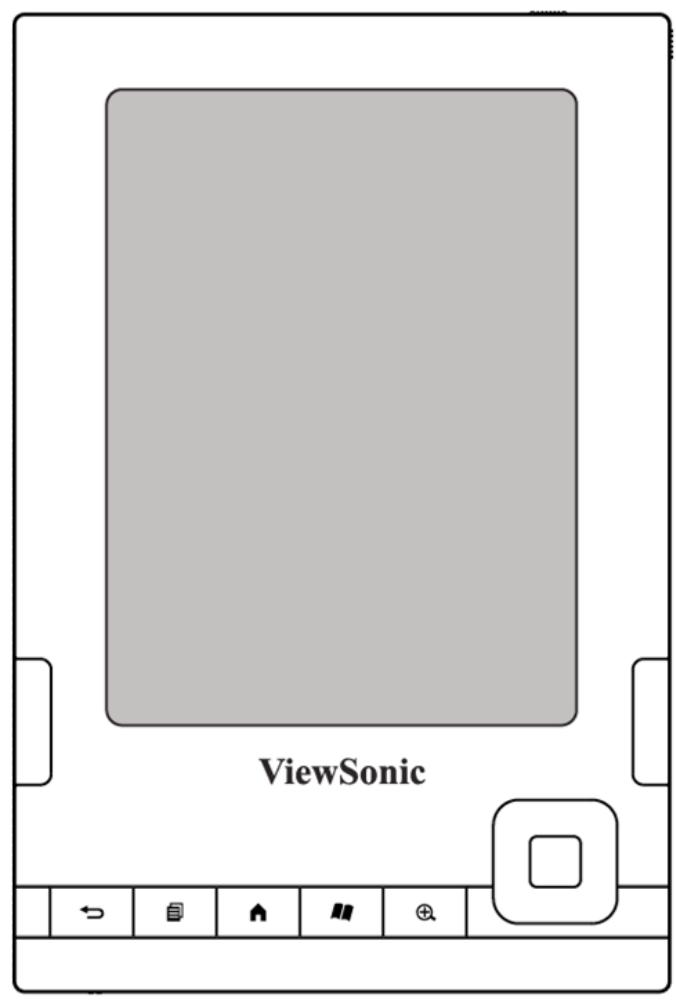
| VEB620 | Generic version None Touch & Network connectivity | - | - |
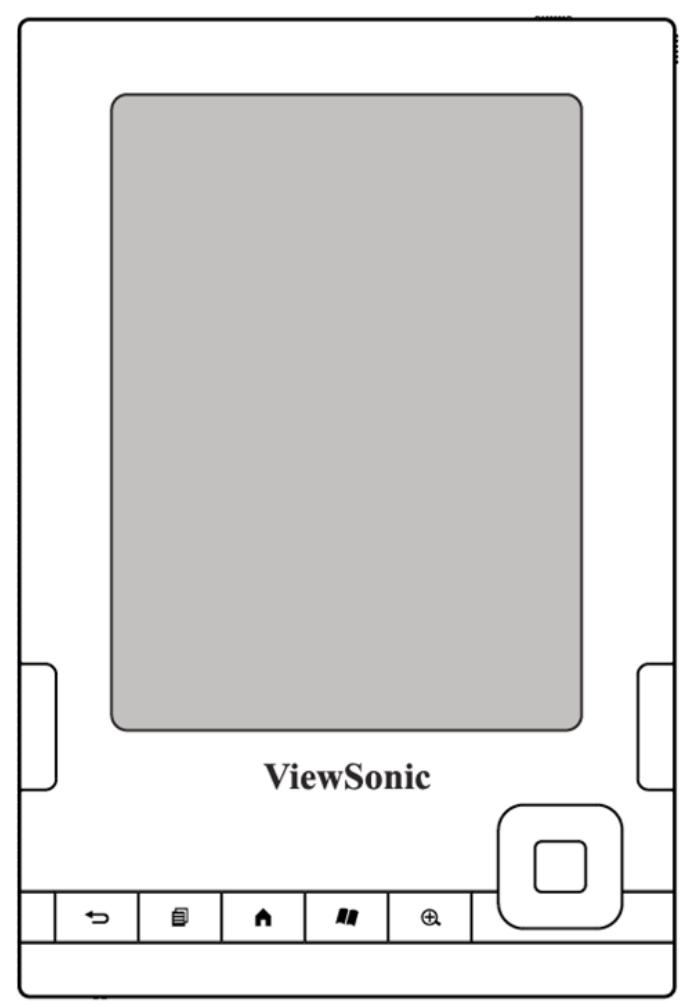
| VEB625 | WiFi / Touch With touch control screen and WiFi connectivity | () |
VEB620
Generic Version
None Touch & Network connectivity



WiFi with Touch Control
With touch control screen and WiFi connectivity


Chapter 1
Getting Started with Your eBook
Charging the Device
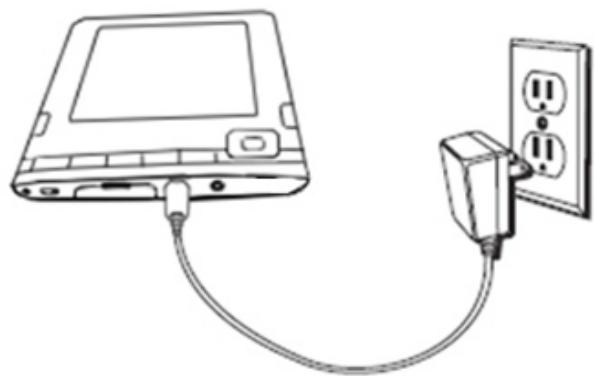
Use the power adapter to fully charge your eBook device while using it for the first time. The battery is built in and cannot be removed.
To charge your eBook device by power adapter:
- Locate the power adapter that came packed with your device.
- Find the USB port on the bottom of your device.
- Plug the power adapter into an electrical outlet, then connect the other end to the adapter port on the top of your device.
- Check to make sure that the charge indicator light has turned on to indicate charging.
Charging the Device (continued)
- Keep your device connected to the power adapter for up to two hours to fully charge the battery for the first time.
- When charging is complete, disconnect the power adapter.
- You can now use your eBook device anywhere.
- If the charge indicator light does not light up, make sure that the power adapter tip is fully inserted. If device still is not charging, try another electrical outlet.
The charging status light will turn red, indicating that the battery is charging. a green light indicates that the battery is fully charged.
File Transferring
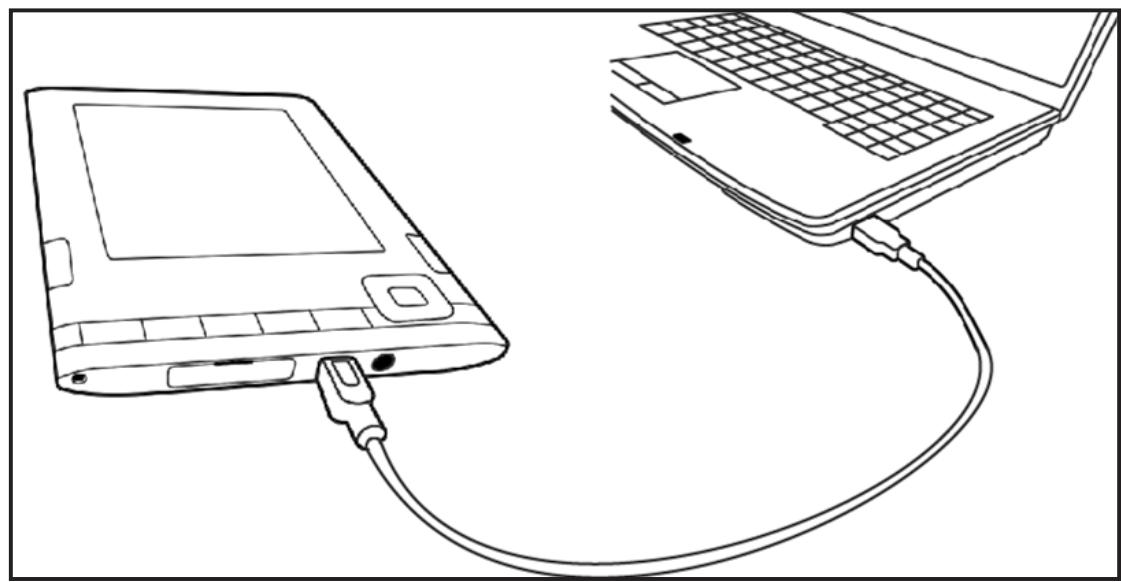
To transfer content between your computer and your device, connect the provided USB cable to the device and to the computer's USB port. If your computer's USB port or powered USB hub provides power, your device will charge over USB.
Tuning on the Device
Slide the Power switch to turn on the device
Slide the switch to turn on the device.
While the device is turned on. Slide the switch to enter sleep mode or slide and hold the switch for 4 sec to turn off the device.
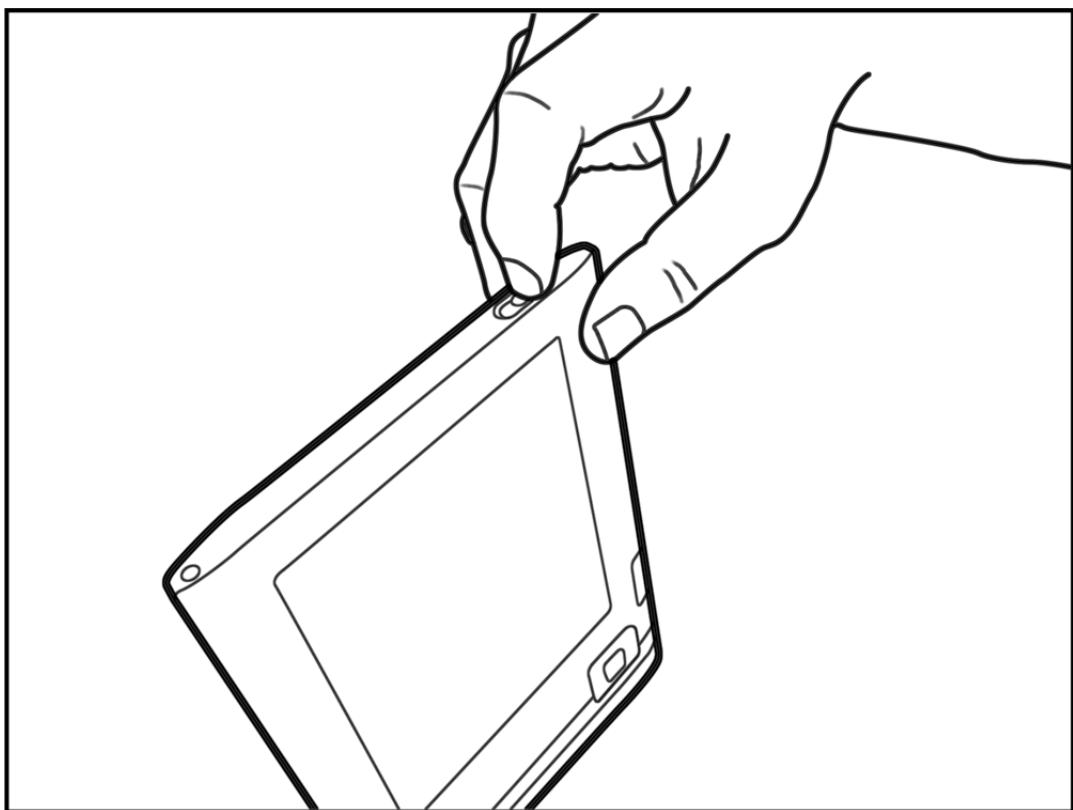
Your eBook will also go to sleep by itself after minutes if you are not using it.
Chapter 2
Getting to Know the Device
Features and Functions
Locating the Controls
You navigate eBook using the 5-way controller; the Home, Menu, Back, and Next / Previous Page buttons; and the touch screen control:
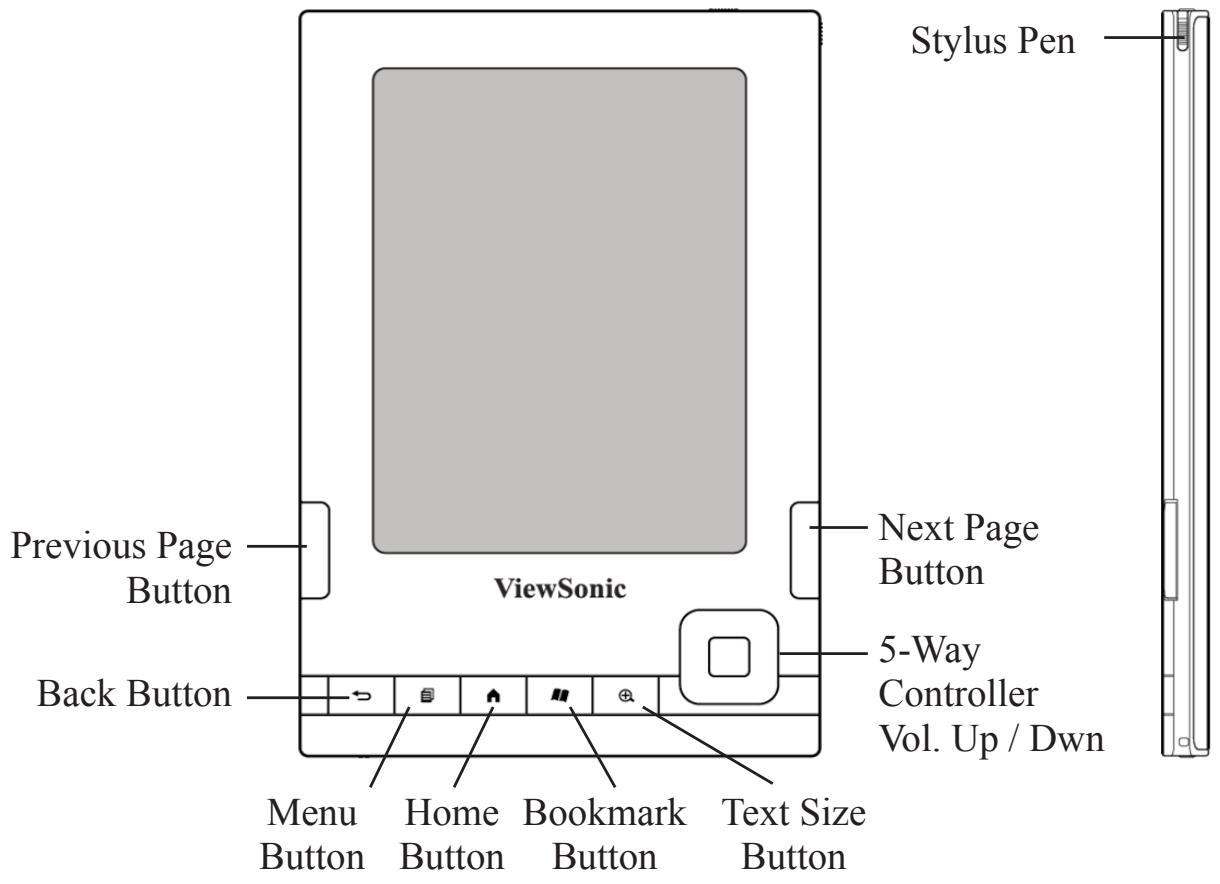
- Stylus Pen only for VEB625 model
- Touch screen only for VEB625 model
Features and Functions (continued)
Top View
The top of your eBook contains the power indicator light and a power Switch Bottom.
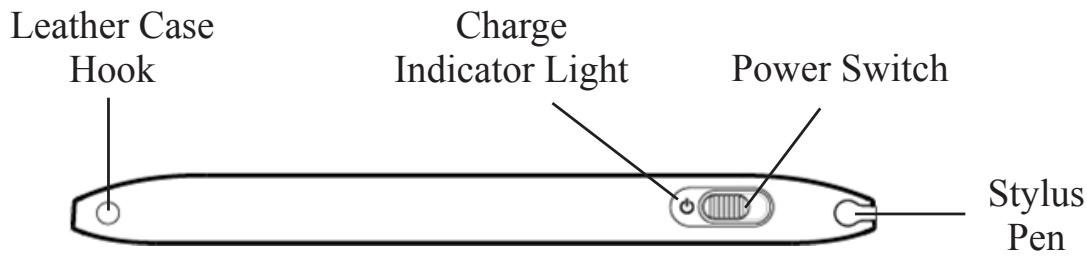
- Stylus Pen only for VEB625 model
Features and Functions (continued)
Bottom View
The ports for SD card is located on the bottom of your eBook device. Open the cover tab and fold it back to use these slots.
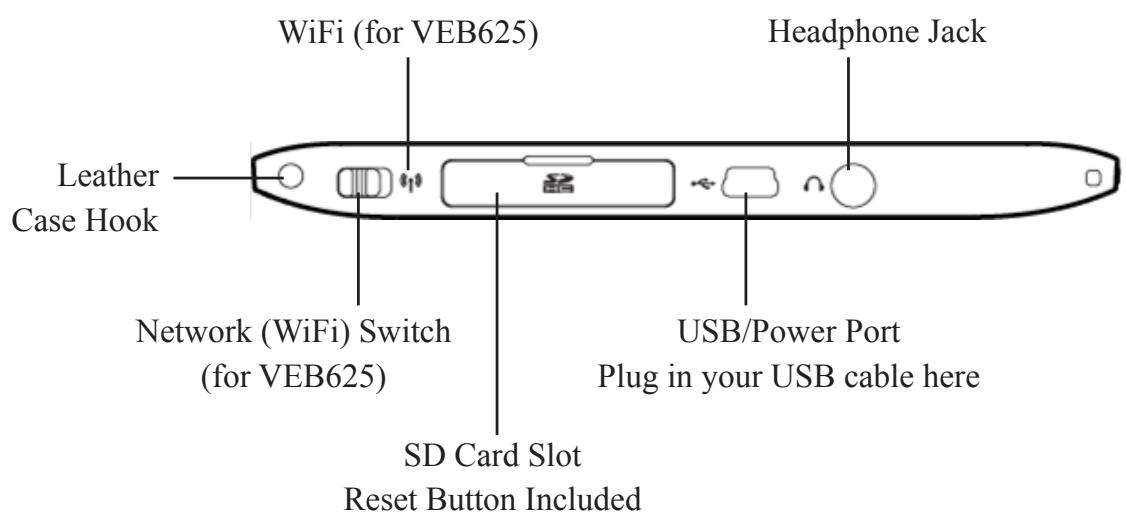
- Network switch (WiFi) only for VEB625 model
Features and Functions (continued)
Back View
The back of your eBook contains speaker for audio content.

Features and Functions (continued)
Reset
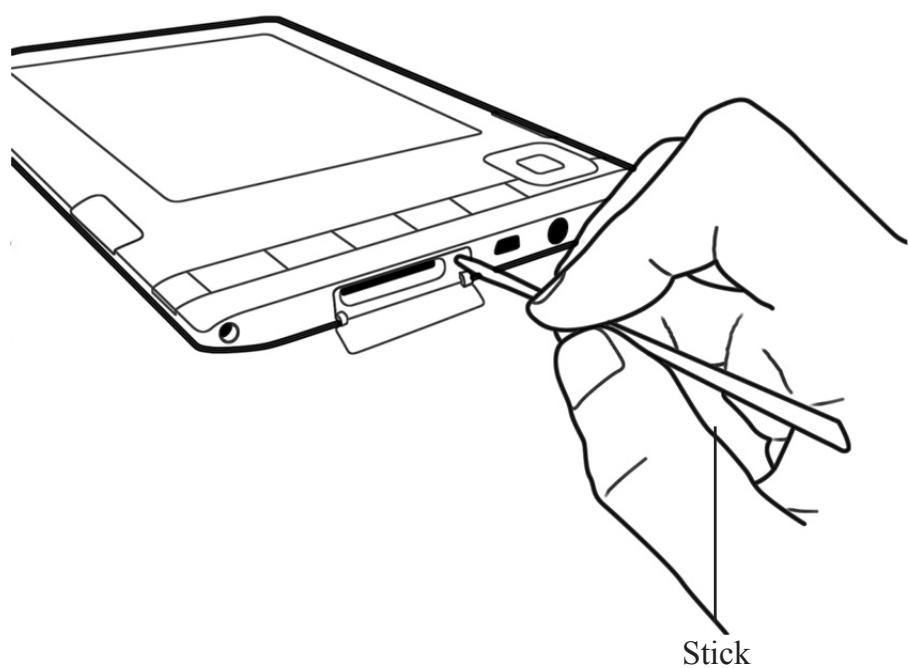
If your eBook does not power on or is unresponsive during use, try resetting the device by disconnecting your eBook from any power source, and then sliding and holding the power switch for 4 seconds before releasing, or reset the system by resetting key.
Using the Buttons
The hardware keys offer basic functions let user easily understand and operate this device.
| Name | Function |
| Power Switch Switch the system on and off | |
| Home Button Return to home screen | |
| Back Button Retraces your steps on the eBook | |
| Page up Button Takes you to the previous page in your reading material. | |
| Page down Button Takes you to the next page in your reading material. | |
| Zoom Button Changes the size of the text while you are reading | |
| Bookmark Button Quickly bookmark | |
| Menu Button Displays application and navigation choices that are related to the screen you are viewing. | |
| 5-way Button Selects an item or action when pressed down. Moves the on-screen highlight or cursor up and down when moved up and down. Moves the on-screen highlight or cursor side-to-side when moved left or right. | |
| Volume Control Move the 5-way controller to controls the headphone or speaker volume for audio books and music. |
Using the Touch Screen
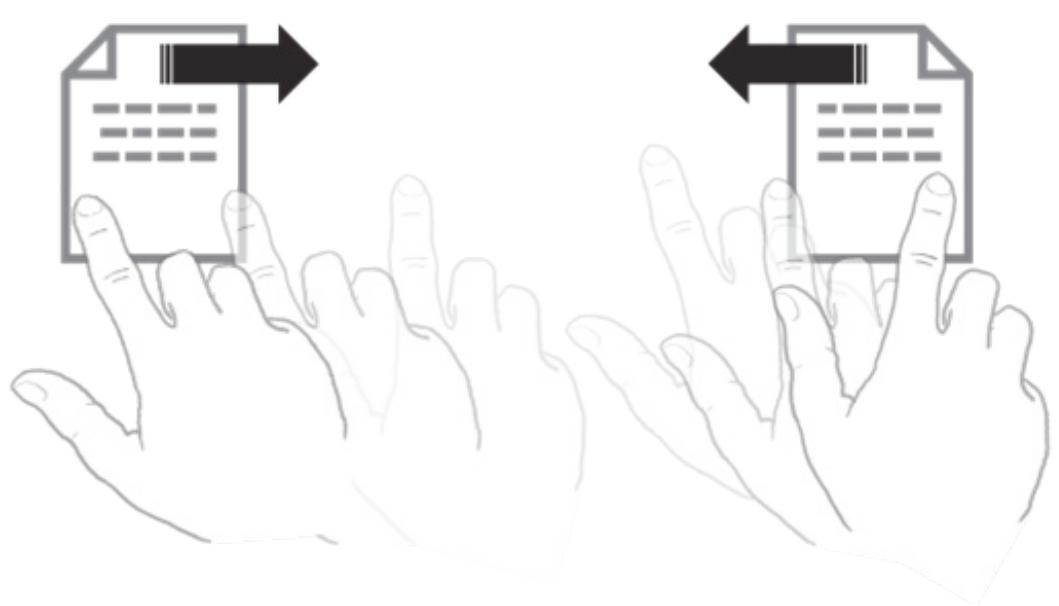
a. To move to the previous page, slide your finger across the screen from left to right
b. To move to the next page, slide your finger across the screen from right to left.

Only for this model
Chapter 3
Getting to Know the Main Features
Home Screen

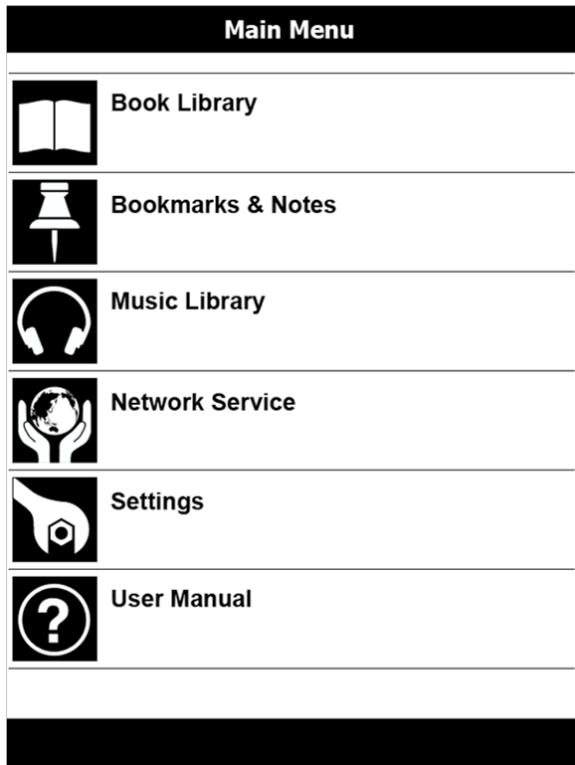
The sample screen below show the Home Screen and the applications. The Home Screen is displayed
with various options in which user can choose the
desired options on Book Library, Bookmarks & Notes, Network Service, Settings and More.
Home Screen (continued)
The following table shown a summary of each features

| ICON | Description |
| Book Library allowed user can open different type of eBook content, including ePub, PDF, RTF and TXT. | |
| Bookmark & Notes User can add bookmarks or create notes on the device, and it allows user to manage and view them in a list of pages. | |
| Music Library allowed user to play audio file stores in the device | |
| Network Service (for VEB625) You can use wireless or 3G function to download content and share data to your friends. | |
| Setting Takes you to the Settings screen. | |
| User Manual On screen user manual |
Book Library

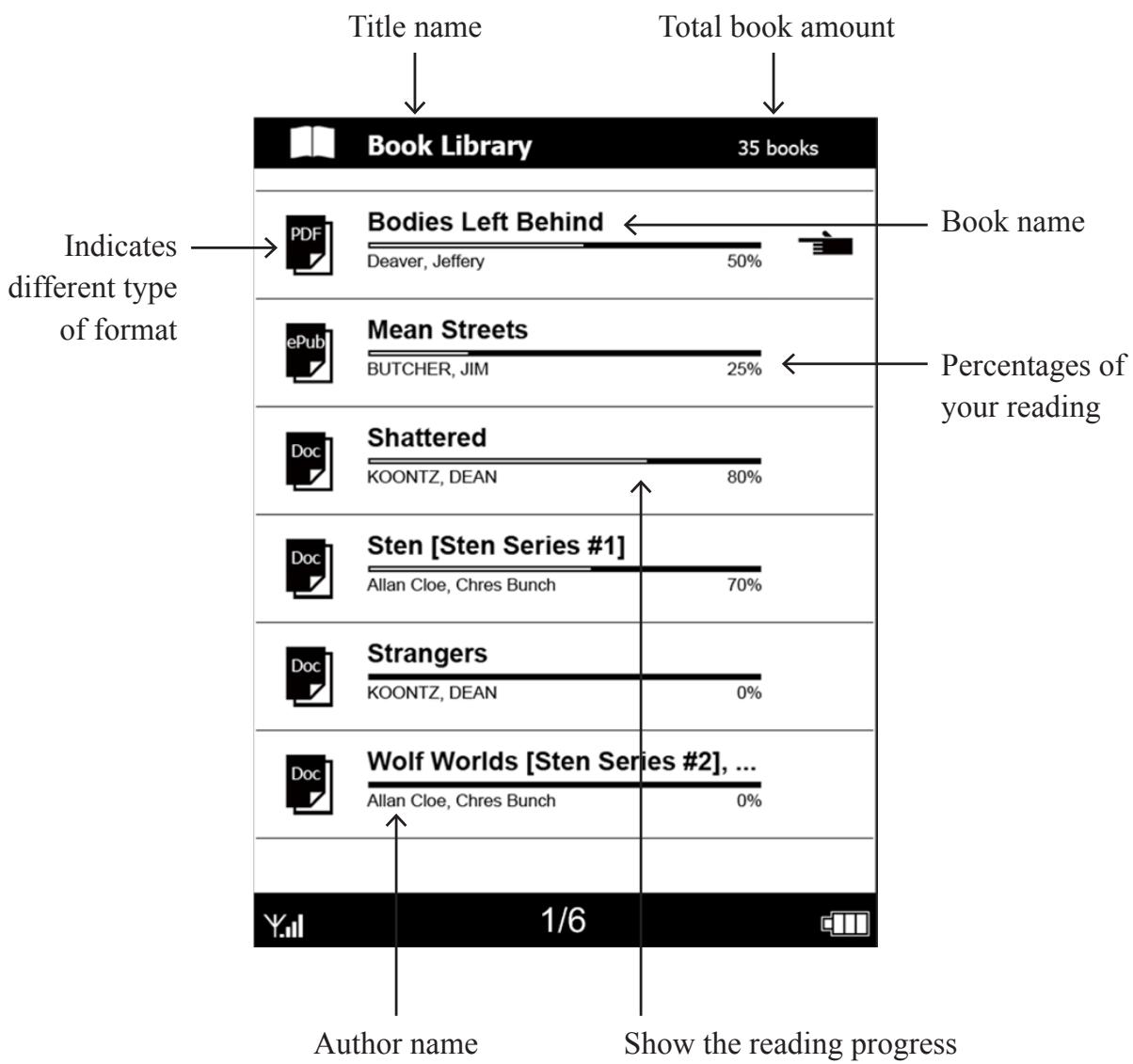
Tap [Book Library] on Home Screen to search and open a book, once you get into the Book Library, you can see your 5 latest reading book on the first page, press Total menu to see all of the others books in the library.
Book Library (continued)
Screen Features

| Title name | The name of your place |
| Title | The name of the book |
| Author or Date | for books, the author of the item is listed. For periodicals and feeds, the date is listed. |
| Sorting indicator | Sorting mode are denoted right here. |
| Selection indicator | Indicates the item you have selected |
| Format Indicator | The label indicates the book format |
| Progress indicator | The length of the bar indicates how far you have read in a particular item. |
| Book Number | Indicates the number of books in this device |
Deleting a Book

Advance Features
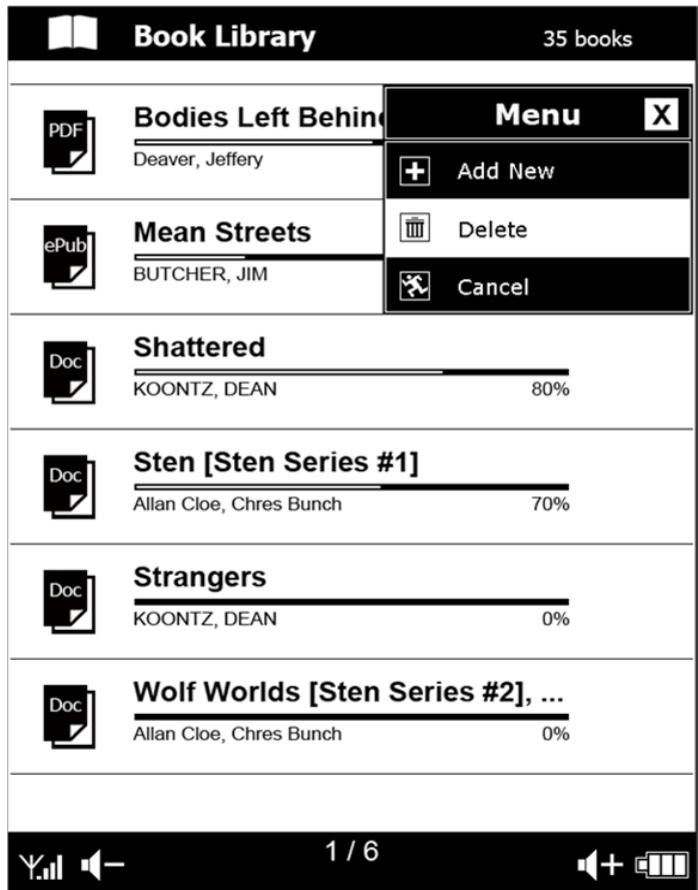
The screen sample below explains the sub-menu
features that you may find on your Book Library that allows you to manage your bookshelf.
You can also do the Tag management by the sub-menu
Reading on eBook

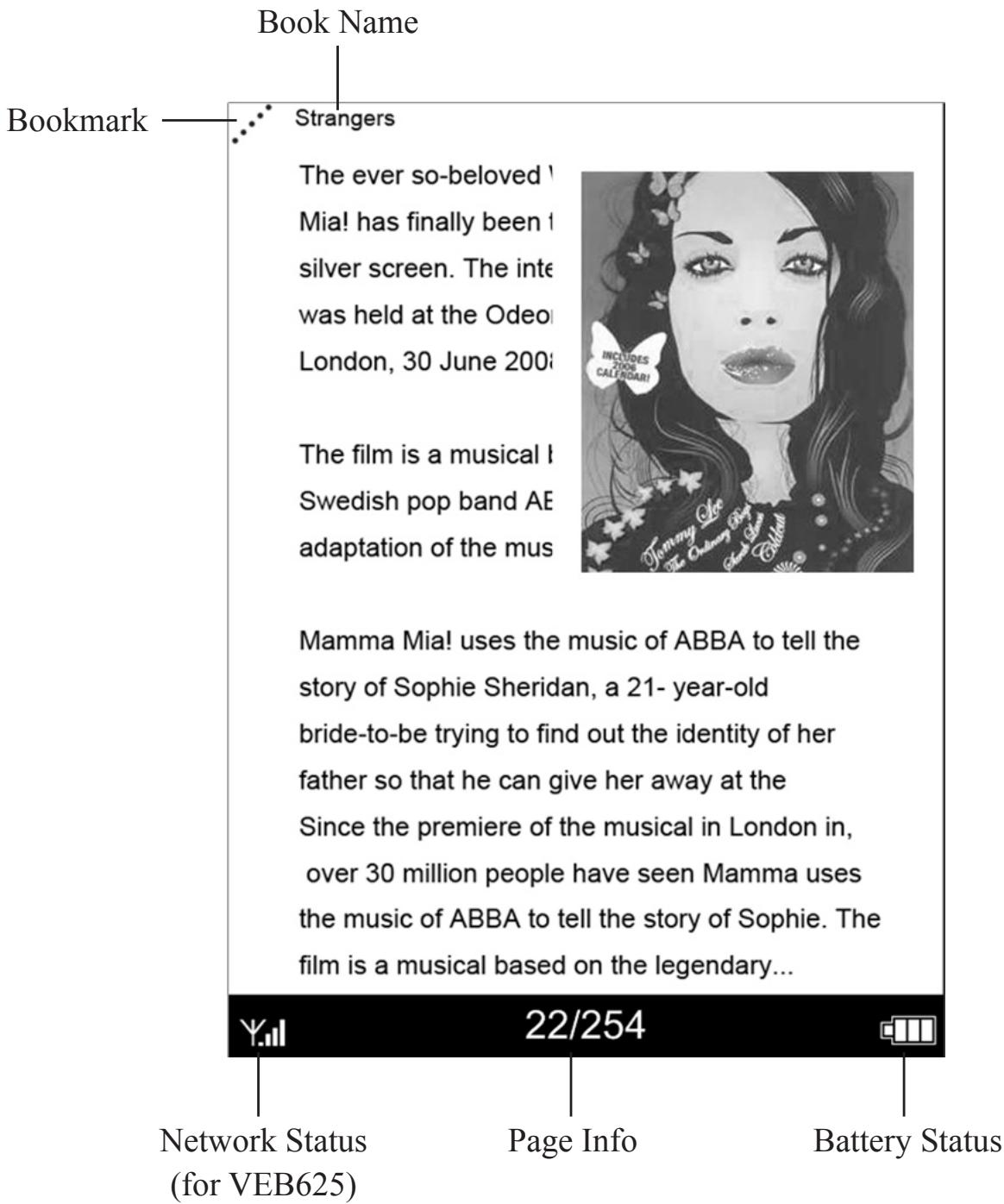
The following are sample screen display under book content.
Using the Options Menu

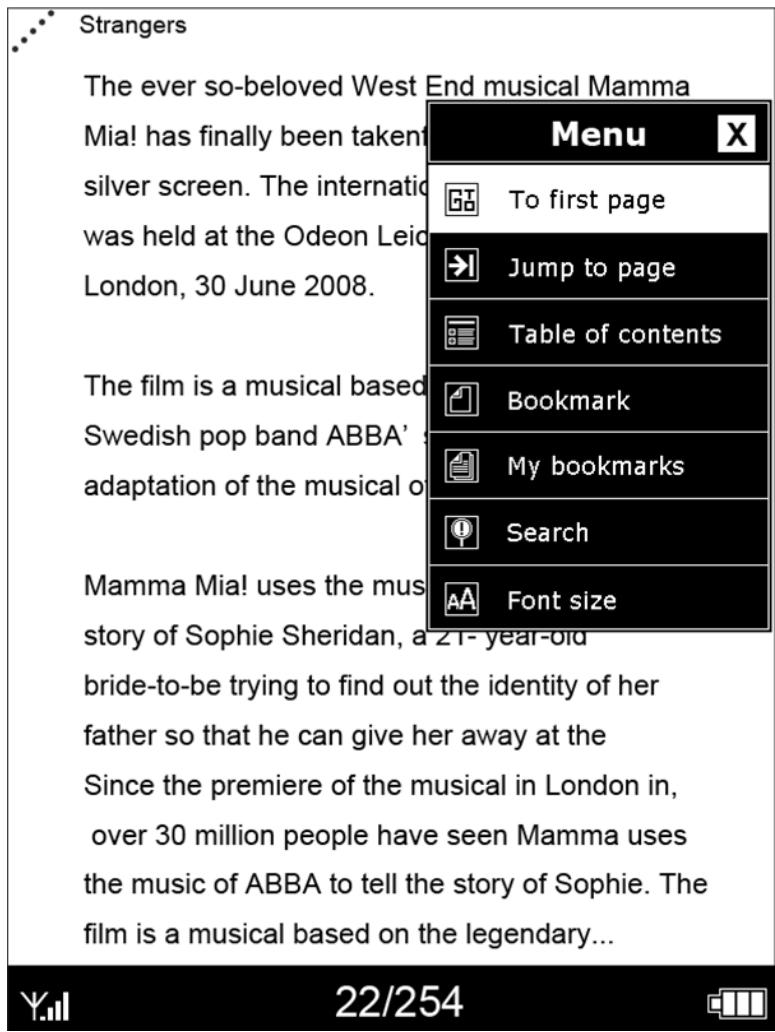
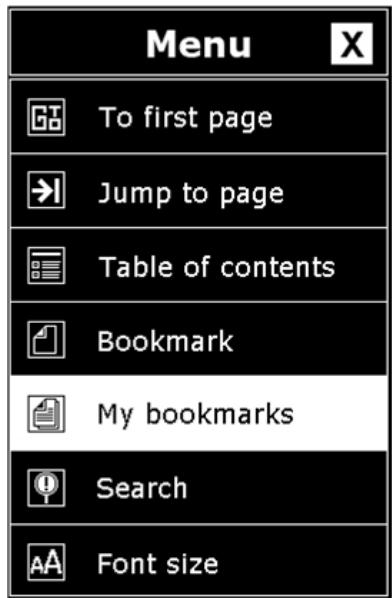
When you read a book, you can press the Menu button to open the Options Menu, it will reveals the extra functions let user to do the further works.
Options Menu

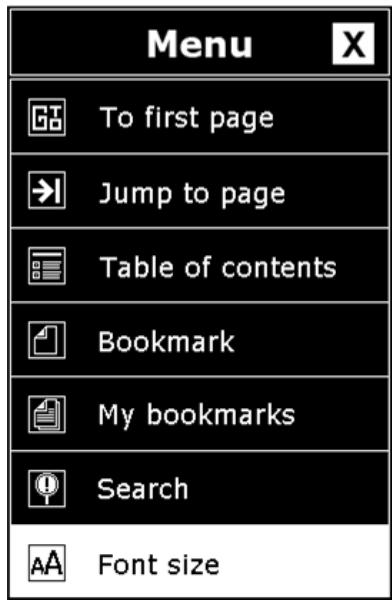
Press to access options for optimizing your reading experience:
| To the first page Go to the first page of current book. | |
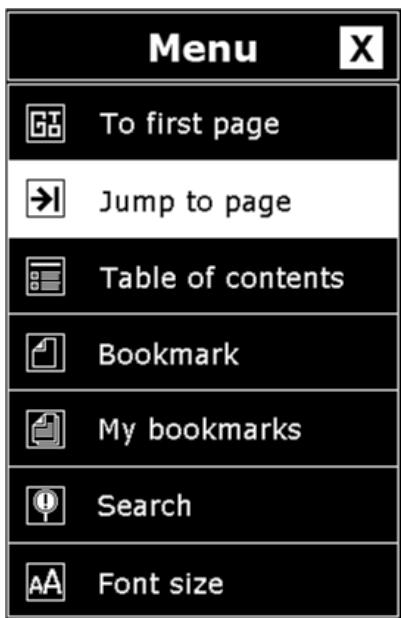
| Jumps to a selected page. Allows jumping to any pages of the current book. | |
| Table of contents Takes you to the Table of Contents for the item you are reading. | |
| Adds a bookmark Bookmark current page | |
| My Bookmarks Shows bookmark for the book. | |
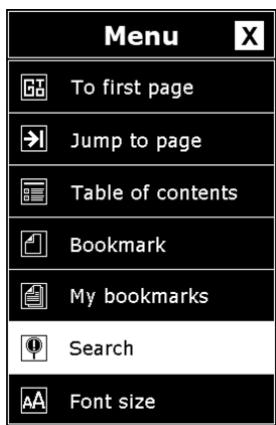
| Search Displays the Search line at the bottom of the screen, searches and lists a key word within the book. | |
| Font Size Change content displayed font size. |
Using Go to Page
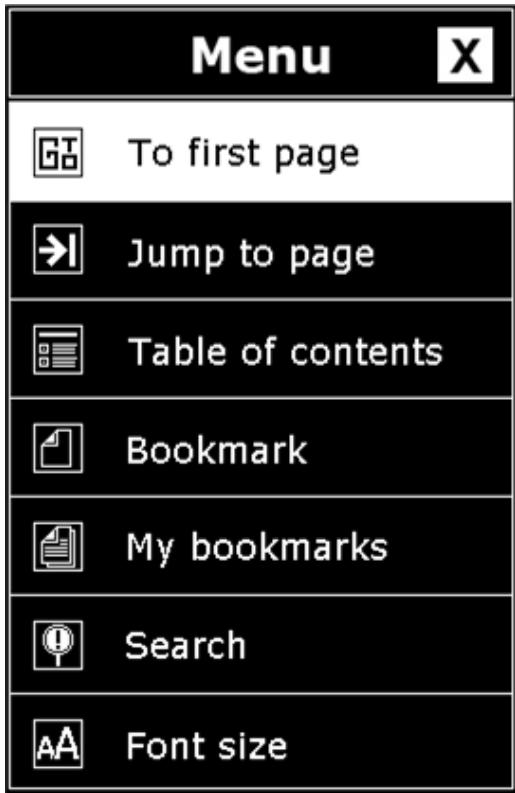
When you read a book, press Options Menu, tap To first page, you will go to the first page in this book.
Jumping to a Page

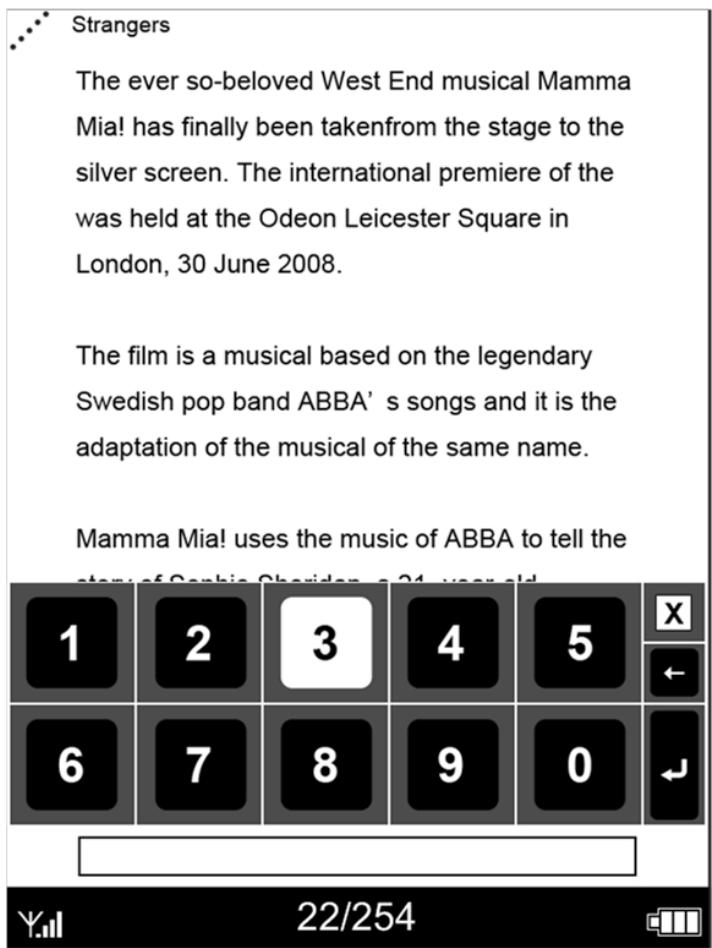
When you choose Jump to page system will popup soft number buttons. that allows you to tape the page number to jump to a specific page you want to read in the book.
Displaying Table of Content

The Table of Contents (TOC) for the eBook device shows you all of the topics covered in this book.
You can get there by selecting “Table of Contents” from the Options Menu when you read a book.
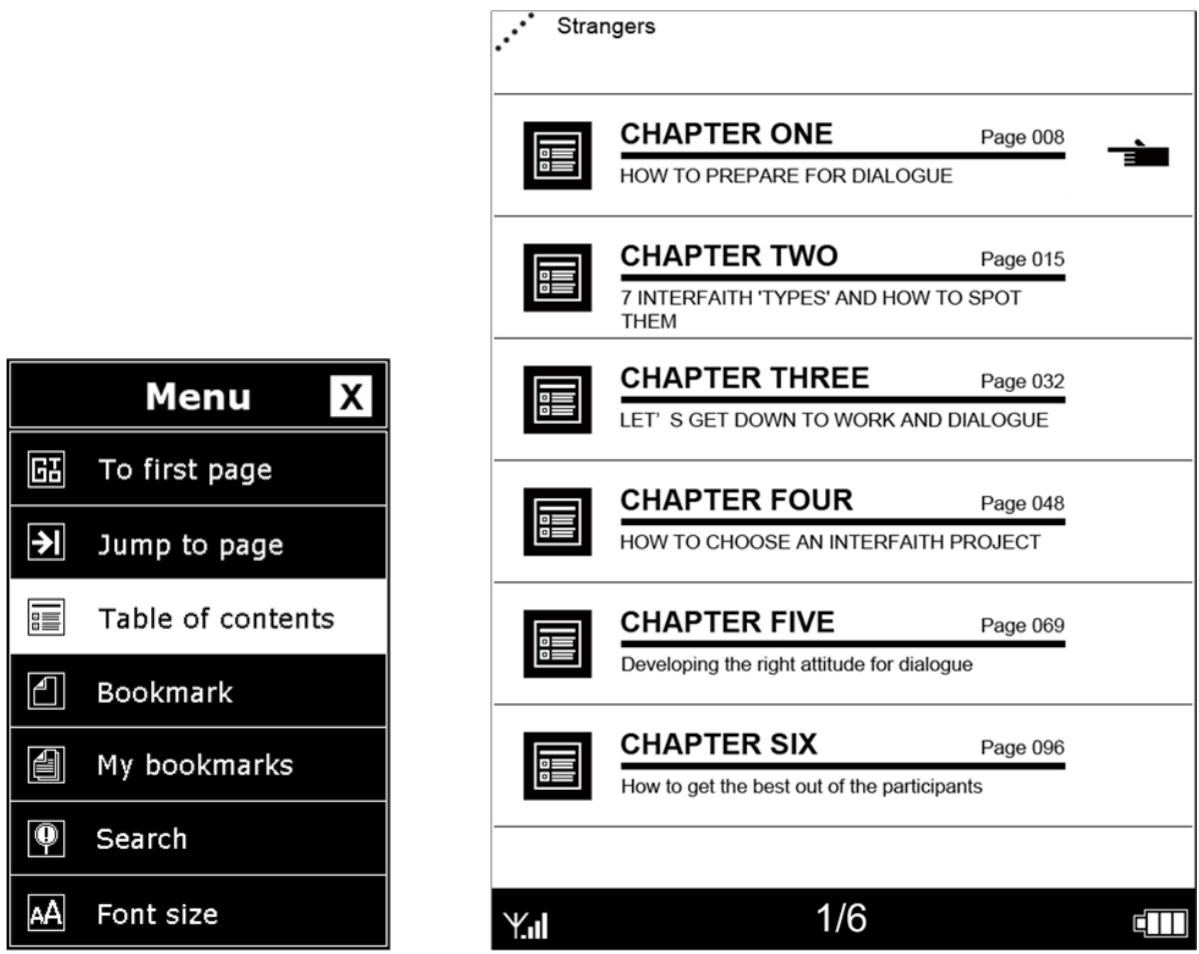
This features is available only when the book contains a TOC created with hyperlinks.
Adding Bookmarks

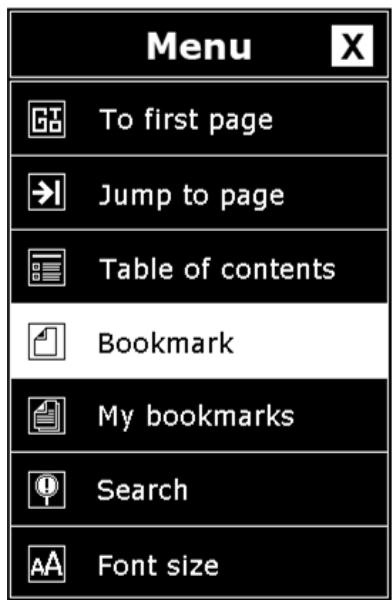
You can add a bookmark on the current page of the book.
The top-left corner of the page will be marked by indicates that it is bookmarked
Press button or by selecting Bookmark in Option menu when you read a book to add a bookmark to the current page. Your bookmarks will be stored in My Bookmarks for further reference.
Bookmark Indicator

- You can add total 8 Bookmarks on a book. The new one will replace old
Viewing My Bookmarks

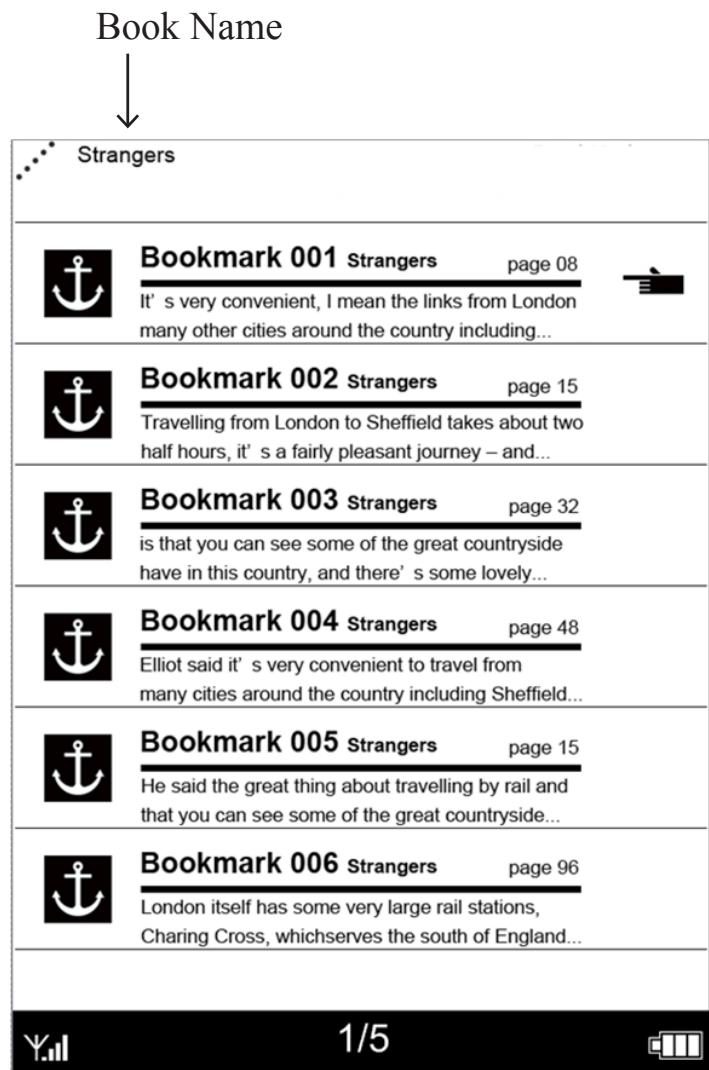
You can look up the bookmarks for the book by selecting My bookmark from the Options Menu. A list of pages with bookmarks will be shown on the screen, tap any bookmarks you want to read to resume the page. You can also deleting bookmarks as example below.
Using Search

To search the book content, you can use Search menu and enter your term to display the search results pages as shown in the example below. You can page through the results just like you would do on book library reading
Step 1
Step 2
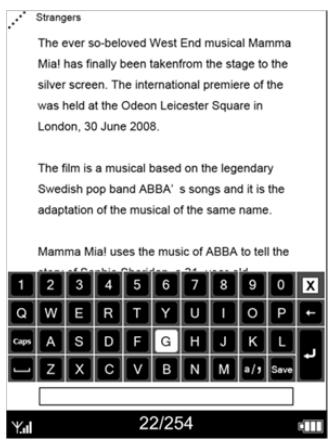
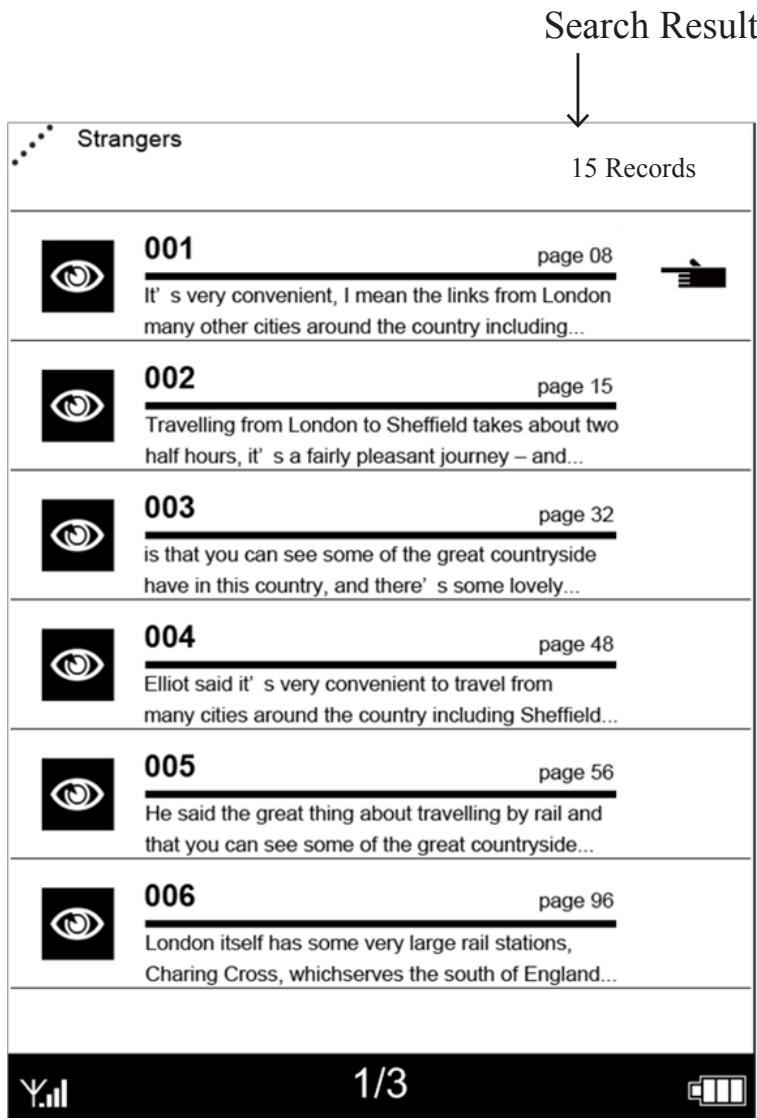
- For English text search only.
Adjusting the Font Size

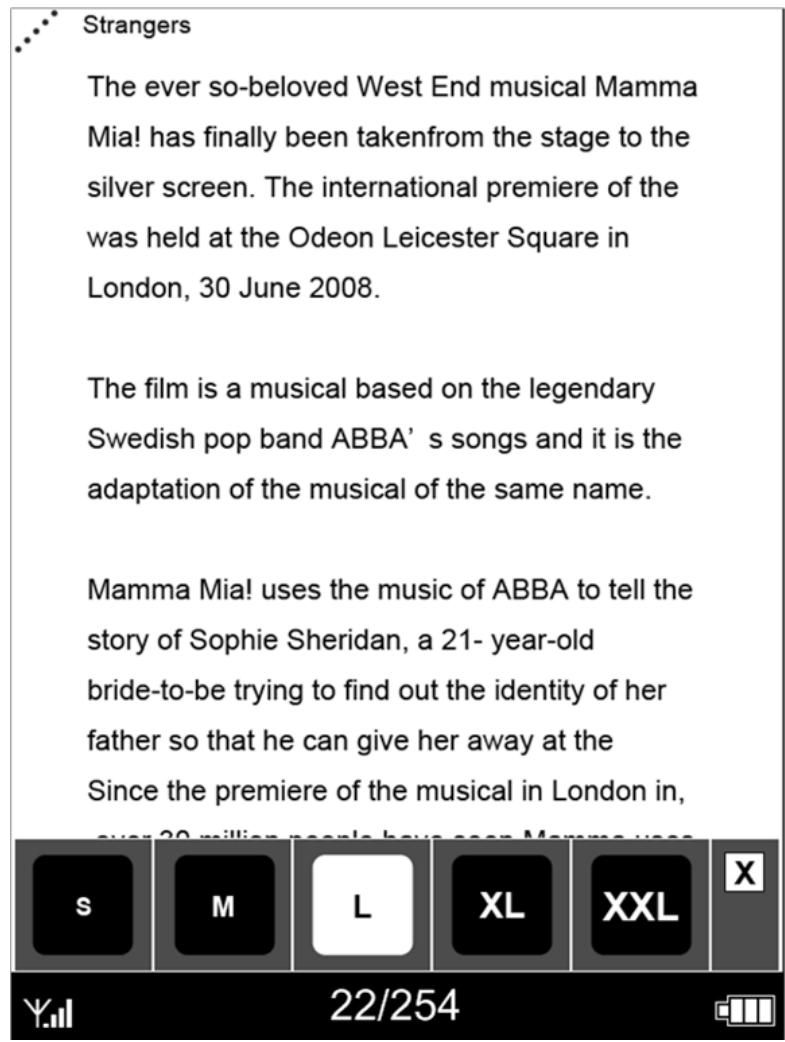
To pick the text size that you want to use while reading. You have a choice of five sizes for reading content on the device. Tap or move 5-way to adjust the display font size.
Step 2
Step 1
Viewing Bookmarks and Notes
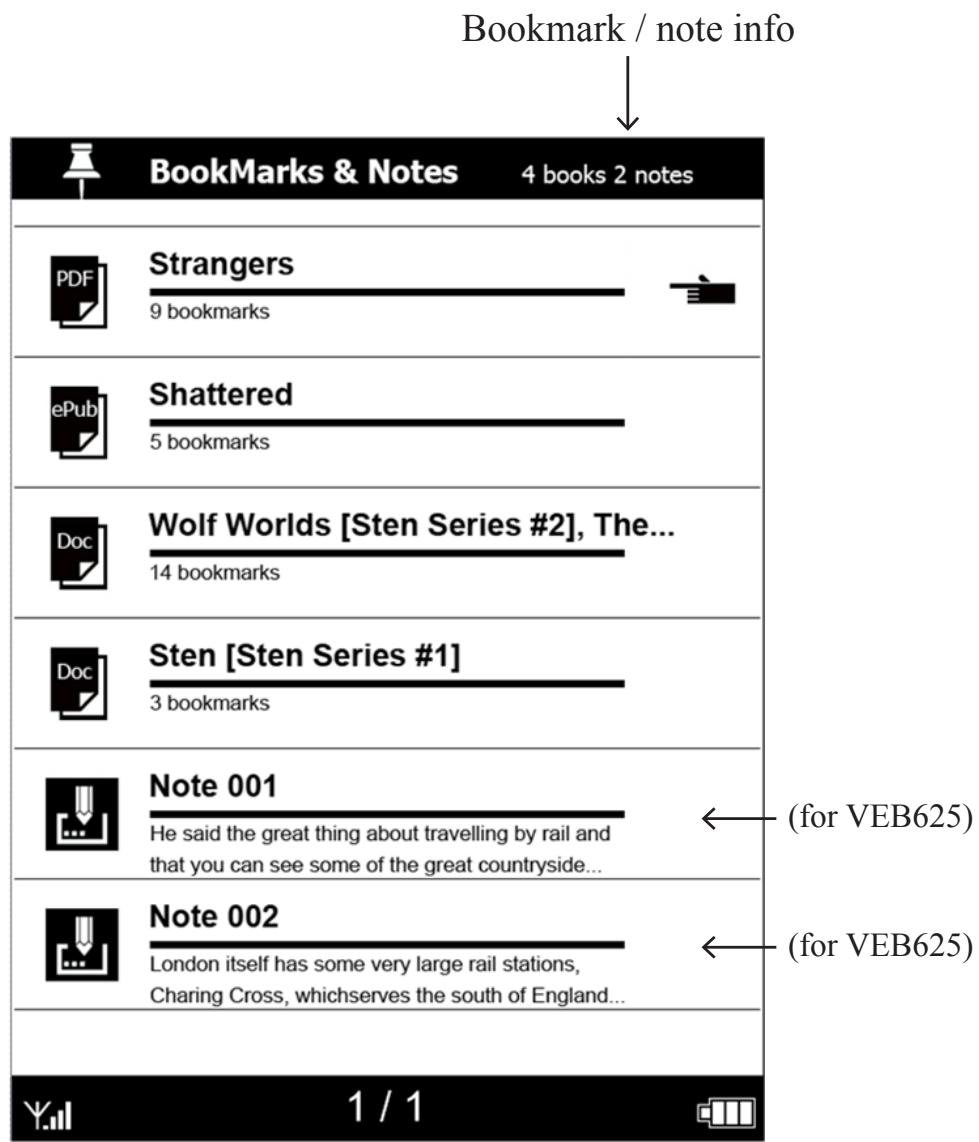
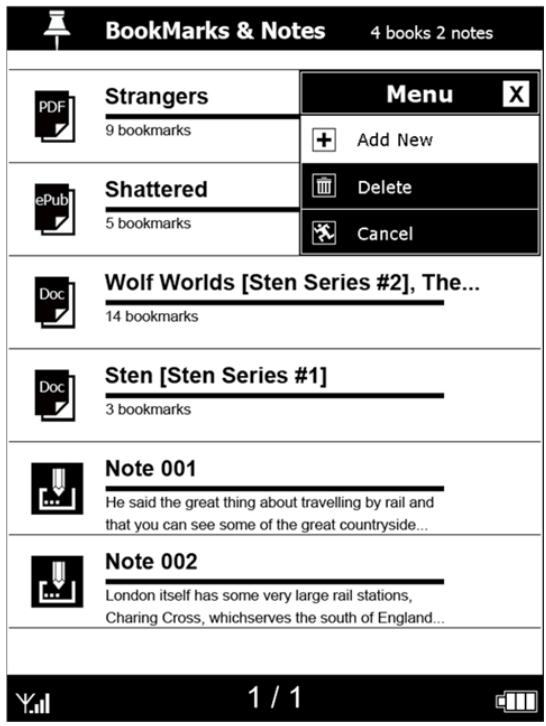
To view all the bookmarks or notes, open Bookmarks and Notes on the Home Screen. All the bookmarks and notes both shown as a list of pages as the following sample screen. Select any listed items for the details pages.
Adding Notes
You can add a note for further reference. Press Menu to display Options menu for the bookmark/note list.
Select [add New] note then enter words by tapping the letter buttons on the soft keyboard. When you are done, tap [Save] button to confirm inputs.
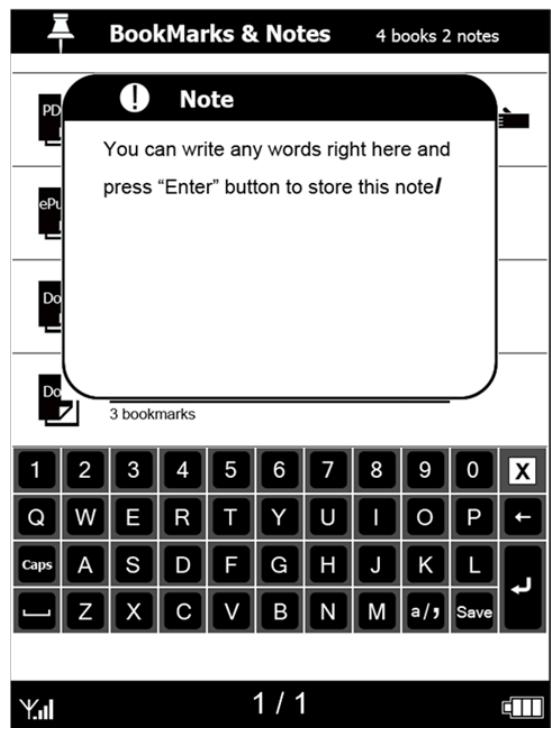
- You can add up to 20 notes under this mode.
Only for this model
Deleting Notes
While in bookmark/notes mode, press Menu to display the Option Menu, select Delete to remove the records from the page.
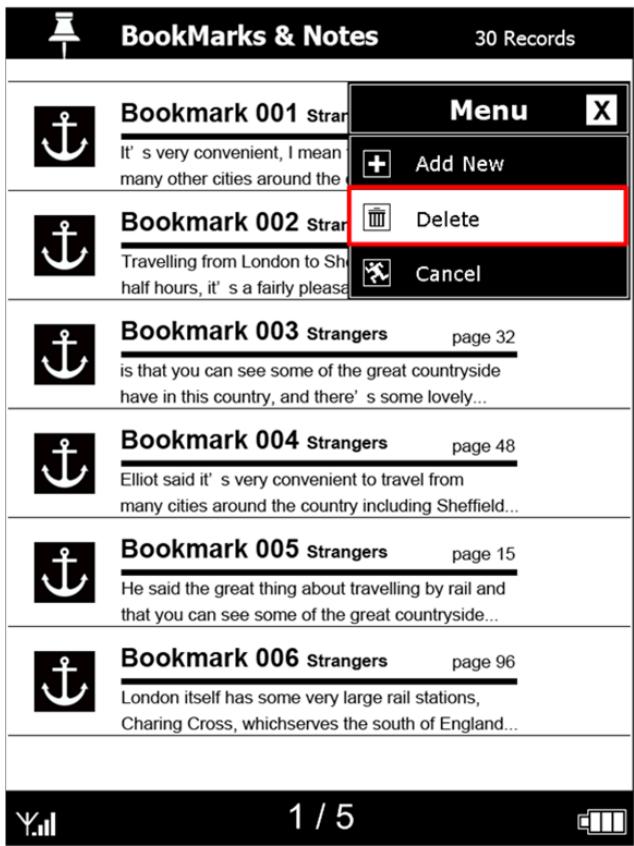
- Bookmarks cannot be deleted.

Only for this model
Playing Music
To enter Music mode, open Music Library on the Home Screen. Use 5 way control to play your music files (MP3).
To browse the audio list by up/down key, Enter for play, Left/Right for volume control.
- To stop playing the file, press Enter again.
During now playing mode, you can still read a book.
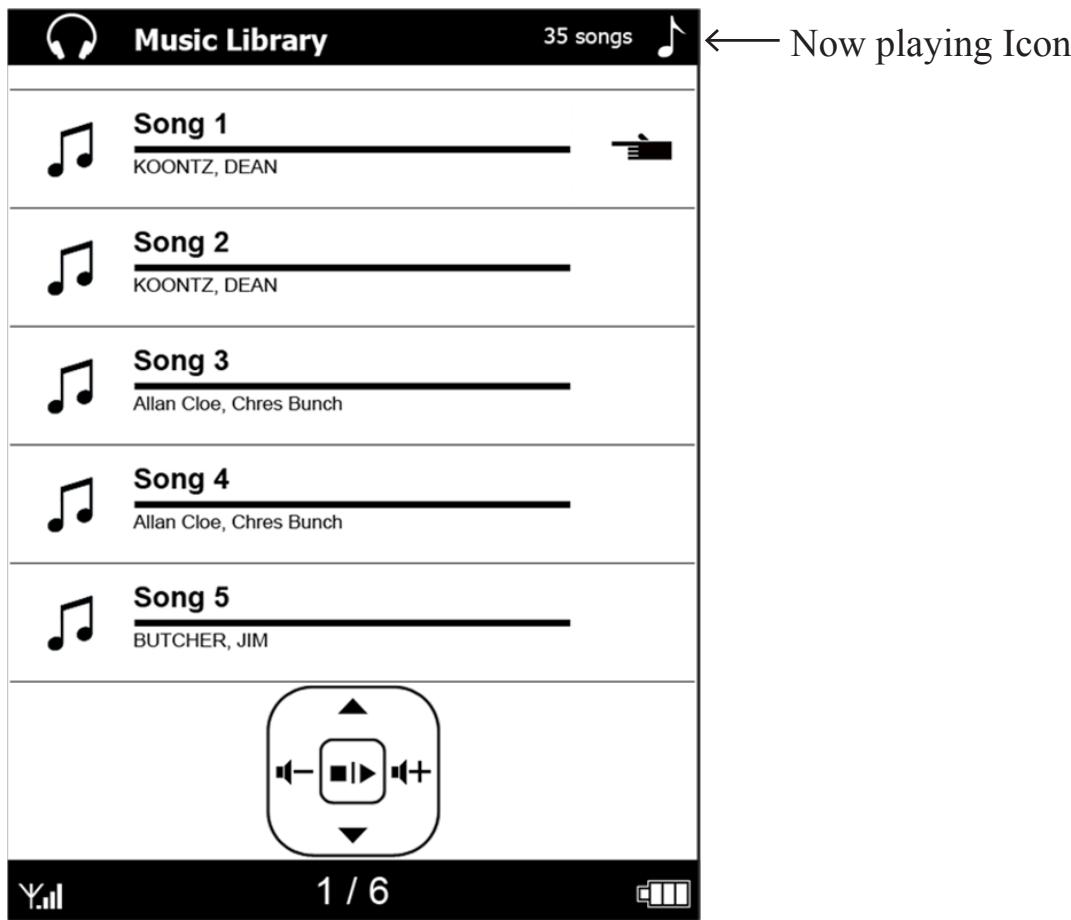
To play music files in the device, you need to upload music to your device.
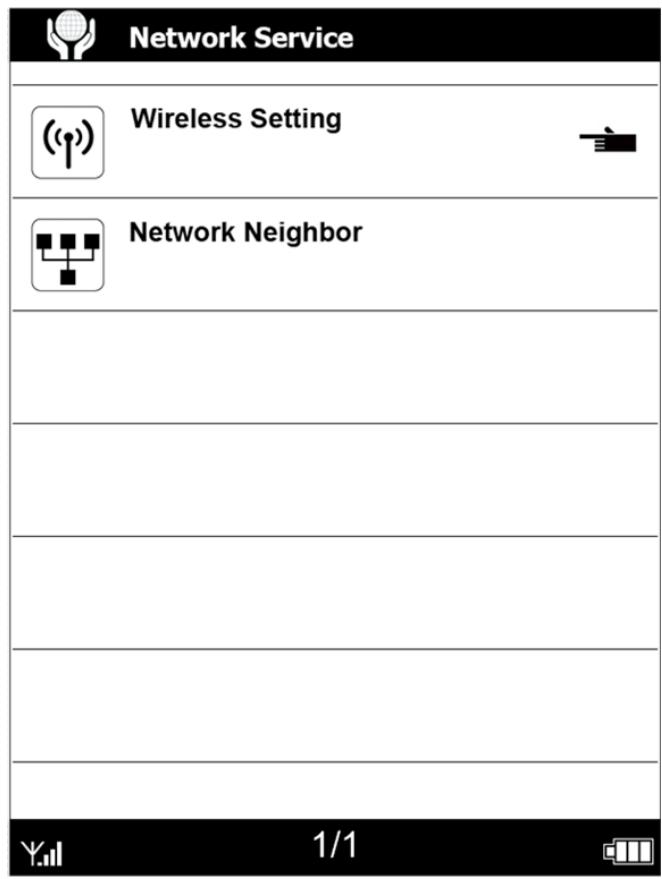
Networking Service
Select Network Service to configure such as network connection/ Network Neighbor from Home Screen.
Network service such as WiFi is subject to the model you purchased.
VEB
625
Only for this model
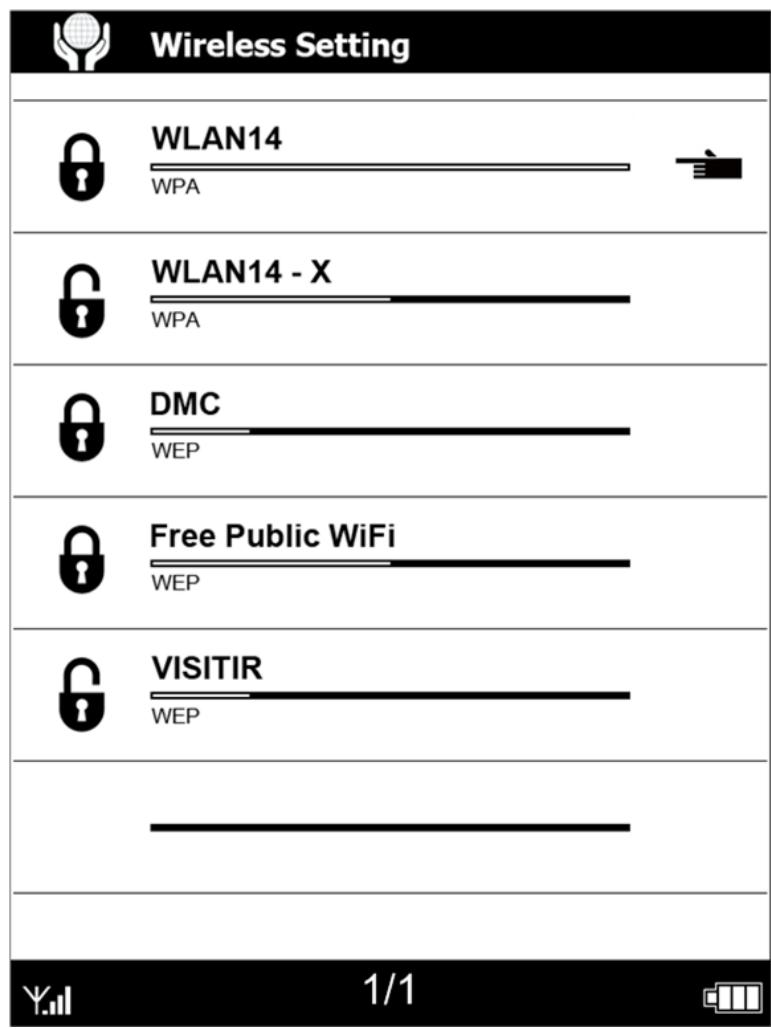
WiFi Setting
To establish an internet connection, you need to configure the network settings.

Switch to turn on/off WiFi. The device will scan for available wireless networks.
The discovered network name (SSID) are shown as a list.

Only for this model
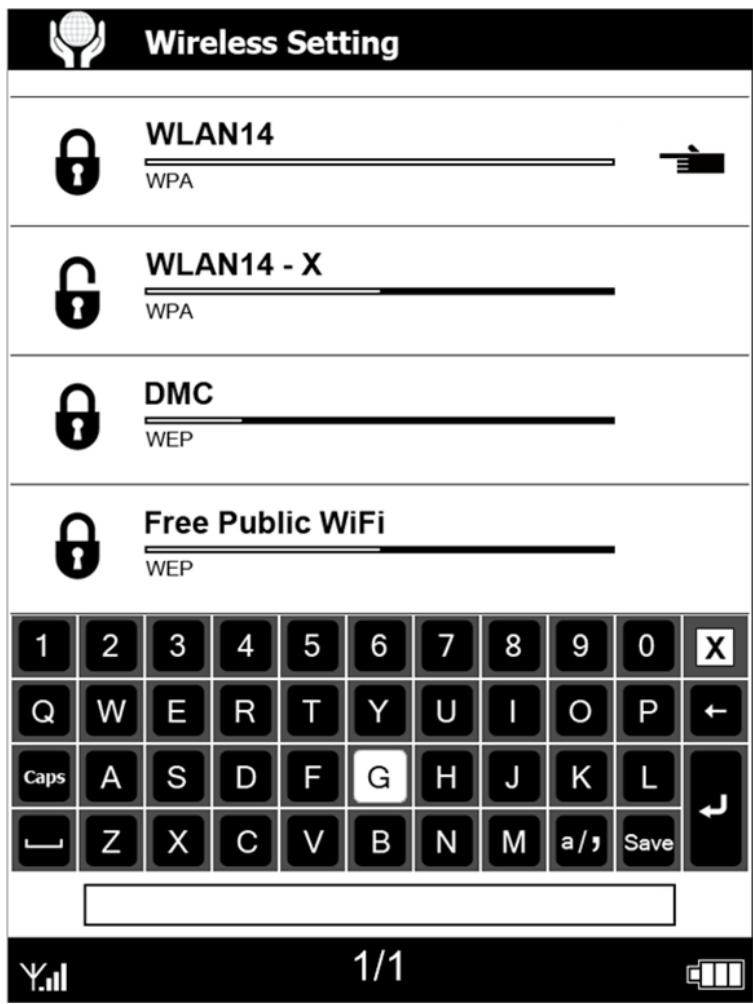
Connect to Available Networks
Select a network name to establish a connection.
If you select a secure network, you will be prompted for the password. Use the soft keyboard to enter the password to establish the connection.

Using a Network Neighbor
Select Network Neighbor to connect to and download shared files on the network.
- Select one of the PC listed on the page to access its sharing folder.
- Enter the USN & password.
- Then you can directly to download the files.
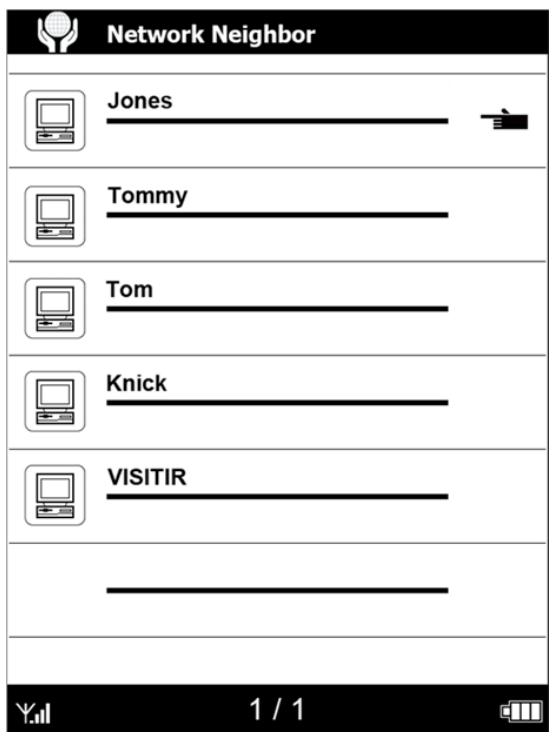
Available PC list

USN & PSW

Only for this model
Setting
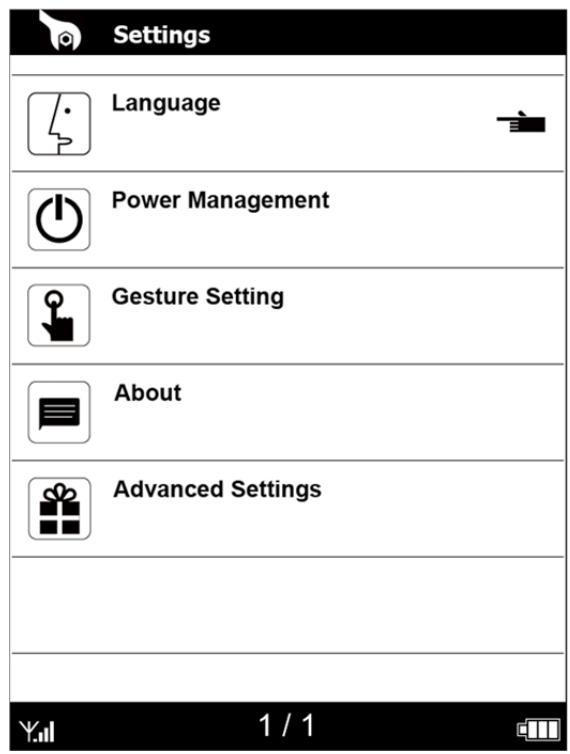
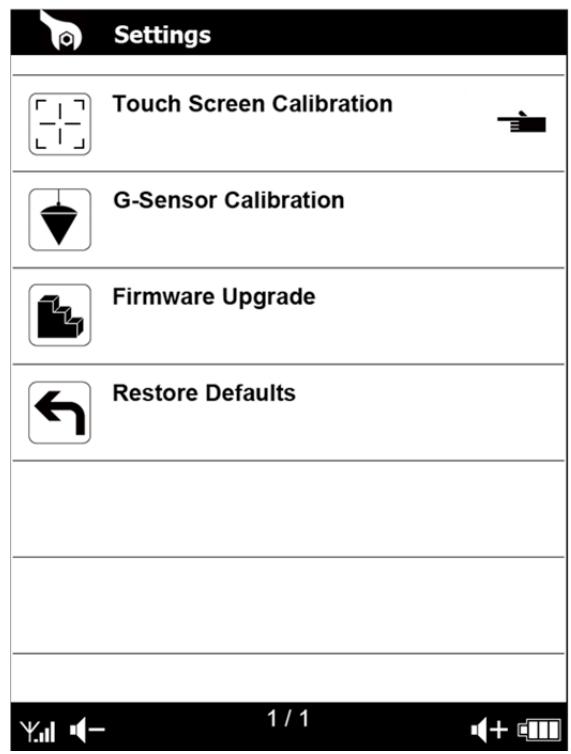
Language, Power Management, Gesture Setting, System Info.(About) and Advanced Setting are categories of Setting. Touch Screen Calibration, G-Sensor Calibration, Firmware Upgrade and Restore Defaults setting are categories in the Advanced settings.
- Select Settings from Home Screen.
- Use 5 way control to navigate and configure the setting items.
- Press Back key to return to the previous window.
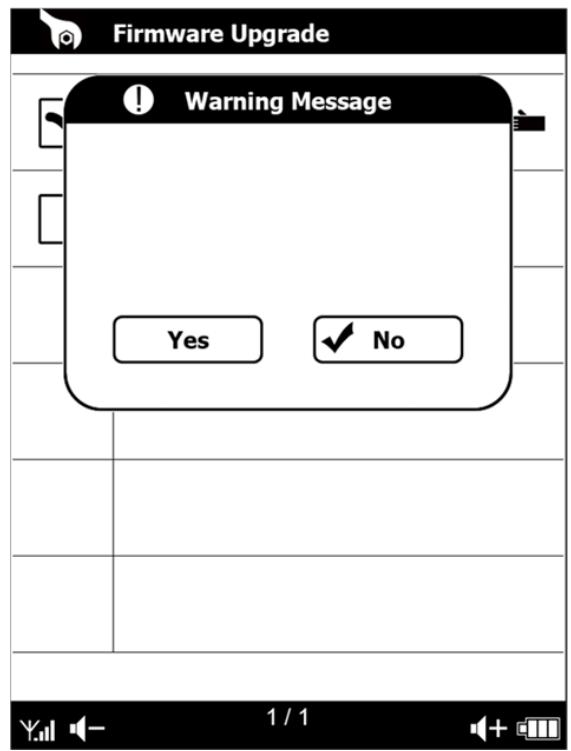
Firmware Upgrade
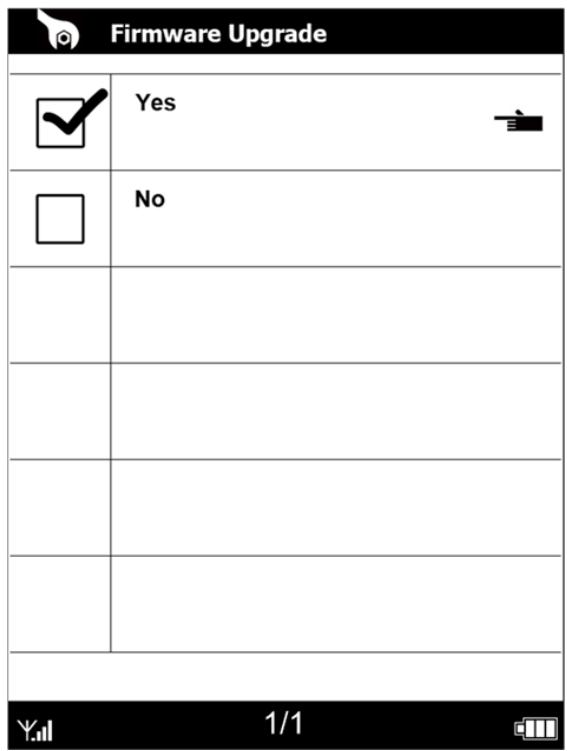
By downloading and installing the system firmware update will upgrade your eBook's firmware and software to the latest version. This will improve your eBook's operational performance, fix software bugs, repair software errors and add more features and more value to your eBook!
please check our online web page (www.viewsonic.com) from time to time for system firmware update:
Safety and Hardware
Important Safety Instructions
When using your VS eBook device, you should always follow basic safety instructions to reduce the risk of fire, electric shock and injury to persons:
- Do not use the eBook device near water; for example: near a bathtub, washbowl, kitchen sink or laundry tub, in a wet basement or near a swimming pool.
- Avoid using the eBook device during an electrical storm. There may be a remote risk of electric shock from lightning.
- Use only the power adapter included with your eBook device. Do not dispose of your eBook device in a fire. The internal rechargeable battery may explode. Check local codes for possible special disposal instructions.
- CAUTION: To reduce the risk of fire, use only the enclosed No. 5W or USB cord.
- CAUTION: Do not remove the cover (or back). There are no user-serviceable parts inside. Refer servicing to qualified service personnel.
- CAUTION: To ensure reliable operation and to prevent overheating, provide adequate ventilation for your eBook device and keep it away from heat sources. Do not locate it near heat registers or other heat-producing equipment. Provide for free air flow around the eBook device and its power supply
Customer Support
For technical support or product service, see the table below or contact your reseller.
Note: You will need the product serial number.
| Country/Region | Web Site | T=TelephoneF=Fax | |
| Australia/New Zealand | www.viewsonic.com.au | AUS=1800 880 818NZ=0800 008 822 | service@au.viewsonic.com |
| Canada | www.viewsonic.com | T (Toll-Free)= 1-866-463-4775T (Toll)= 1-424-233-2533F= 1-909-468-3757 | service.ca@viewsonic.com |
| Europe | www.viewsoniceurope.com | www.viewsoniceurope.com/uk/Support/Calldesk.htm | |
| Hong Kong | www.hk.viewsonic.com | T= 852 3102 2900 | service@hk.viewsonic.com |
| India | www.in.viewsonic.com | T= 1800 11 9999 | service@in.viewsonic.com |
| Ireland (Eire) | www.viewsoniceurope.com/uk/ | www.viewsoniceurope.com/uk/support/call-desk/ | service_je@viewsoniceurope.com |
| Korea | www.kr.viewsonic.com | T= 080 333 2131 | service@kr.viewsonic.com |
| Latin America(Argentina) | www.viewsonic.com/la/ | T= 0800-4441185 | soporte@viewsonic.com |
| Latin America(Chele) | www.viewsonic.com/la/ | T=1230-020-7975 | soporte@viewsonic.com |
| Latin America(Columbia) | www.viewsonic.com/la/ | T= 01800-9-157235 | soporte@viewsonic.com |
| Latin America(Mexico) | www.viewsonic.com/la/ | T= 001-8882328722 | soporte@viewsonic.com |
| Renta y DATOS, 29 SUR 721, COL. LA PAZ, 72160 PUEBLA, PUE. Tel: 01.222.891.55.77 CON 10 LINEASElectroser, Av Reforma No. 403Gx39 y 41, 97000 Merida, Yucatan. Tel: 01.999.925.19.16Other places please refer to http://www.viewsonic.com/la/soporte/index.htm#Mexico | |||
| Latin America(Puè) | www.viewsonic.com/la/ | T= 0800-54565 | soporte@viewsonic.com |
| Macau | www.hk.viewsonic.com | T= 853 2870 0303 | service@hk.viewsonic.com |
| Middle East | ap.viewsonic.com/me/ | Contact your reseller | service@ap.viewsonic.com |
| Puerto Rico & Virgin Islands | www.viewsonic.com | T= 1-800-688-6688 (English)T= 1-866-379-1304 (Spanish)F= 1-909-468-3757 | service.us@viewsonic.comsoporte@viewsonic.com |
| Singapore/Malaysia/Thailand | www.viewsonic.com.sg | T= 65 6461 6044 | service@sg.viewsonic.com |
| South Africa | ap.viewsonic.com/za/ | Contact your reseller | service@ap.viewsonic.com |
| United Kingdom | www.viewsoniceurope.com/uk/ | www.viewsoniceurope.com/uk/support/call-desk/ | service_gb@viewsoniceurope.com |
| United States | www.viewsonic.com | T (Toll-Free)= 1-800-688-6688T (Toll)= 1-424-233-2530F= 1-909-468-3757 | service.us@viewsonic.com |
Limited Warranty
VIEWSONIC eBook
What the warranty covers:
ViewSonic warrants its products to be free from defects in material and workmanship, under normal use, during the warranty period. If a product proves to be defective in material or workmanship during the warranty period, ViewSonic will, at its sole option, repair or replace the product with a like product. Replacement product or parts may include remanufactured or refurbished parts or components.
How long the warranty is effective:
ViewSonic eBook are warranted for 1 year for labor from the date of the first customer purchase.
Who the warranty protects:
This warranty is valid only for the first consumer purchaser.
What the warranty does not cover:
-
Any product on which the serial number has been defaced, modified or removed.
-
Damage, deterioration or malfunction resulting from:
a. Accident, misuse, neglect, fire, water, lightning, or other acts of nature, unauthorized product modification, or failure to follow instructions supplied with the product.
b. Repair or attempted repair by anyone not authorized by ViewSonic.
c. Causes external to the product, such as electric power fluctuations or failure.
d. Use of supplies or parts not meeting ViewSonic's specifications.
e. Normal wear and tear.
f. Any other cause which does not relate to a product defect.
- Any product exhibiting a condition commonly known as "image burn-in" which results when a static image is displayed on the product for an extended period of time.
How to get service:
- For information about receiving service under warranty, contact ViewSonic Customer Support (please refer to Customer Support page). You will need to provide your product's serial number.
- To obtain warranted service, you will be required to provide (a) the original dated sales slip, (b) your name, (c) your address, (d) a description of the problem, and (e) the serial number of the product.
- Take or ship the product freight prepaid in the original container to an authorized ViewSonic service center or ViewSonic.
- For additional information or the name of the nearest ViewSonic service center, contact ViewSonic.
Limitation of implied warranties:
There are no warranties, express or implied, which extend beyond the description contained herein including the implied warranty of merchantability and fitness for a particular purpose.
Exclusion of damages:
ViewSonic's liability is limited to the cost of repair or replacement of the product. ViewSonic shall not be liable for:
- Damage to other property caused by any defects in the product, damages based upon inconvenience, loss of use of the product, loss of time, loss of profits, loss of business opportunity, loss of goodwill, interference with business relationships, or other commercial loss, even if advised of the possibility of such damages.
- Any other damages, whether incidental, consequential or otherwise.
- Any claim against the customer by any other party.
4.3: ViewSonic eBook Warranty
eBook_LW01 Rev. 1A 06-20-08
- Product disposal at end of product life
- Compliance Information
- FCC Statement
- For Canada
- CE Conformity for European Countries
- Following information is only for EU-member states:
- Declaration of RoHS Compliance
- FCC Radiation Exposure Statement
- FCCID: TX2-RTL8191SU
- R&TTE Compliance Statement C E
- Table of Contents
- Introduction to the eBook Models 5
- Chapter 1 Getting Started with Your eBook .8
- Chapter 2 Getting to Know the Device 12
- Chapter 3 Getting to Know the Main Features 19
- Introduction to the eBook Models
- VEB620
- Generic Version
- WiFi with Touch Control
- Chapter 1
- Getting Started with Your eBook
- Charging the Device
- Charging the Device (continued)
- File Transferring
- Tuning on the Device
- Slide the Power switch to turn on the device
- Chapter 2
- Getting to Know the Device
- Features and Functions
- Locating the Controls
- Features and Functions (continued)
- Top View
- Bottom View
- Back View
- Reset
- Using the Buttons
- Using the Touch Screen
- Chapter 3
- Getting to Know the Main Features
- Home Screen
- Home Screen (continued)
- Book Library
- Book Library (continued)
- Screen Features
- Deleting a Book
- Advance Features
- Reading on eBook
- Using the Options Menu
- Options Menu
- Using Go to Page
- Jumping to a Page
- Displaying Table of Content
- Adding Bookmarks
- Bookmark Indicator
- Viewing My Bookmarks
- Using Search
- Step 1
- Step 2
- Adjusting the Font Size
- Viewing Bookmarks and Notes
- Adding Notes
- Deleting Notes
- Playing Music
- Networking Service
- WiFi Setting
- Connect to Available Networks
- Using a Network Neighbor
- Setting
- Firmware Upgrade
- Safety and Hardware
- Important Safety Instructions
- When using your VS eBook device, you should always follow basic safety instructions to reduce the risk of fire, electric shock and injury to persons:
- Customer Support
- Limited Warranty
- VIEWSONIC eBook
- What the warranty covers:
- How long the warranty is effective:
- Who the warranty protects:
- What the warranty does not cover:
- How to get service:
- Limitation of implied warranties:
- Exclusion of damages:
Brand : VIEWSONIC
Model : VEB620
Category : Television