
N4785P - TV VIEWSONIC - Free user manual and instructions
Find the device manual for free N4785P VIEWSONIC in PDF.


| Product Type | LCD TV |
| Brand | VIEWSONIC |
| Model | N4785P |
| Screen Size | 47 inches (119.4 cm) |
| Native Resolution | 1920 x 1080 pixels (Full HD) |
| Dimensions (with stand) | 1137.7 mm x 828.0 mm x 294.6 mm |
| Net Weight | 34.9 kg (76.9 lb) |
| Power Supply | 100-240 VAC, 50/60 Hz |
| Power Consumption (on) | Less than 320 W |
| Power Consumption (standby) | Less than 1 W |
| Built-in Speakers | 2 x 15 W (stereo) with Dolby® Digital |
| Video Inputs | HDMI (3), Component (2), S-Video, Composite (2), VGA |
| Built-in Digital Tuner | ATSC / NTSC / Clear QAM (digital cable) |
| Supported Video Formats | 480i, 480p, 720p, 1080i, 1080p |
| Screen Cleaning | Soft dry cloth; for stubborn stains, slightly damp cloth with mild soapy solution (no ammonia or alcohol) |
| Safety | Do not expose to rain or moisture; use on a stable surface; do not block ventilation openings |
| Repairability / Spare Parts | Contact an authorized ViewSonic service center; the lamp contains mercury, dispose of according to local regulations |
| Warranty | 1 year parts and labor (excluding light source) |
Frequently Asked Questions - N4785P VIEWSONIC
User questions about N4785P VIEWSONIC
0 question about this device. Answer the ones you know or ask your own.
Ask a new question about this device
Download the instructions for your TV in PDF format for free! Find your manual N4785P - VIEWSONIC and take your electronic device back in hand. On this page are published all the documents necessary for the use of your device. N4785P by VIEWSONIC.
USER MANUAL N4785P VIEWSONIC
IMPORTANT: Please read this User Guide to obtain important information on installing and using your product in a safe manner, as well as registering your product for future service. Warranty information contained in this User Guide will describe your limited coverage from ViewSonic Corporation, which is also found on our web site at http://www.viewsonic.com in English, or in specific languages using the Regional selection box in the upper right corner of our website. "Before operating the equipment, read the instructions in this manual carefully."
Dear ViewSonic customer,
Congratulations on your purchase of a ViewSonic TV display. For maximum benefit of your TV, please read these instructions before any operations.
For assistance, please contact ViewSonic service team at http://www.viewsonic.com or call our service team: United States 1-800-688-6688, Canada 1-866-463-4775.
To purchase or inquire about any accessories and installation services for your TV, please visit www.viewsonic.com or call: United States 1-800-688-6688, Canada 1-866-463-4775.
Important! Please save the original box and all packing material for future shipping needs.
We recommend you registering your TV on the internet at: www.viewsonic.com
Product Registration
To meet your future needs, and to receive any additional product information as it becomes available, please register your product on the Internet at: www.viewsonic.com.
For Your Records
Product Name: [ ] N4285p [ ] N4785p
ViewSonic LCD TV
Model Number: [ ] VS11983-2M [ ] VS12070-2M
Document Number: N4285p-2M_N4785p-2M_UG_ENG Rev. 1B 09-12-08
Serial Number:
Purchase Date:
Product disposal at end of product life
ViewSonic is concerned about the preservation of our environment. Please dispose of this product properly at the end of its useful life. Your local waste disposal company may provide information about proper disposal.
The lamp in this product contains mercury. Please dispose of properly in accordance with environmental laws of your location.
Customer Support
For technical support or product service, see the table below or contact your reseller.
Note: You will need the product serial number.
| Country/Region | Web Site | T= Telephone F= Fax | |
| United States | www.viewsonic.com | T (Toll-Free) = 1-800-688-6688 T (Toll) = 1-424-233-2530 F = 1-909-468-1202 | service.us@viewsonic.com |
| Canada | www.viewsonic.com | T (Toll-Free) = 1-866-463-4775 T (Toll) = 1-424-233-2533 F = 1-909-468-1202 | service.ca@viewsonic.com |
| Renta y Datos, 29 SUR 721, COL. LA PAZ, 72160 PUEBLA, PUE. Tel: 01.222.891.55.77 CON 10 LINEAS Electroser, Av Reforma No. 403Gx39 y 41, 97000 Mérida, Yucatán. Tel: 01.999.925.19.16 Other places please refer to http://www.viewsonic.com/la/soporte/index.htm#Mexico | |||
Contact ViewSonic service team at: http://www.ViewSonic.com or call our service team: United States 1-800-688-6688, Canada 1-866-463-4775
4.3: ViewSonic Mexico Limited Warranty
LTV_LW02 Rev. 1A 06-25-07
| Contact Information for Sales & Authorized Service (Centro Autorizzato de Servizio) within Mexico: | |
| Name, address, of manufacturer and importers:México, Av. de la Palma #8 Piso 2 Despacho 203, Corporativo Interpalmas, Col. San Fernando Huixquilucan, Estado de MéxicoTel: (55) 3605-1099http://www.viewsonic.com/la/soporte/index.htm | |
| NUMERO Gratis DE ASISTENCIA TÉCNICA PARA TODO MÉXICO: 001.866.823.2004 | |
| Hermosillo:Distribuciones y Servicios Computaciones SA de CV.Calle Juarez 284 local 2Col. Bugambillas C.P: 83140Tel: 01-66-22-14-9005E-Mail: disc2@hmo.megared.net.mx | Villahermosa:Compumantenimietnos Garantizados, S.A. de C.V.AV. GREGORIO MENDEZ #1504COL, FLORIDA C.P. 86040Tel: 01 (993) 3 52 00 47 / 3522074 / 3 52 20 09E-Mail: compumantenimientos@prodigy.net.mx |
| Puebla, Pue. (Matriz):RENTA Y DATOS, S.A. DE C.V. Domicilio:29 SUR 721 COL. LA PAZ72160 PUEBLA, PUE.Tel: 01(52).222.891.55.77 CON 10 LINEASE-Mail: datos@puebla.megared.net.mx | Veracruz, Ver.:CONEXION Y DESARROLLO, S.A DE C.V. AvAmericas # 419ENTRE PINZON Y ALVARADOFracc. Reforma C.P. 91919Tel: 01-22-91-00-31-67E-Mail: gacosta@qplus.com.mx |
| ChihuahuaSolutaciones Globales en ComputaciónC. Magisterio # 3321 Col. MagisterialChihuahua, Chih.Tel: 4136954E-Mail: Cefeo@soluglobales.com | CuernavacaCompusupport de Cuernavaca SA de CVFrancisco Leyva # 178 Col. Miguel HidalgoC.P. 62040, Cuernavaca MorelosTel: 01 777 3180579 / 01 777 3124014E-Mail: aquevedo@compusupportcva.com |
| Distrito Federal:QPLUS, S.A. de C.V.Av. Coyoacán 931Col. Del Valle 03100, México, D.F.Tel: 01(52)55-50-00-27-35E-Mail: gacosta@qplus.com.mx | Guadalajara, Jal.:SERVICRECE, S.A. de C.V.Av. Niños Héroes # 2281Col. Arcos Sur, Sector Juárez44170, Guadalajara, JaliscoTel: 01(52)33-36-15-15-43E-Mail: mmiranda@servicrece.com |
| Guerrero AcapulcoGS Computación (Grupo Sesicomp)Progreso #6-A, Colo Centro39300 Acapulco, GuerreroTel: 744-48-32627 | Monterrey:Global Product ServicesMar Caribe # 1987, Esquina con Golfo PésicoFracc. Bernardo Reyes, CP 64280Monterrey N.L. MéxicoTel: 8129-5103E-Mail: aydeem@gps1.com.mx |
| MERIDA:ELECTROSERAv Reforma No. 403Gx39 y 41Mérida, Yucatán, México CP97000Tel: (52) 999-925-1916E-Mail: rrrb@sureste.com | Oaxaca, Oax.:CENTRO DE DISTRIBUTION Y SERVICIO, S.A. de C.V.Murguía # 708 P.A., Col. Centro, 68000, OaxacaTel: 01(52)95-15-15-22-22Fax: 01(52)95-15-13-67-00E-Mail: gpotai2001@hotmail.com |
| Tijuana:STDAv Ferrocarril Sonora #3780 L-CCol 20 de NoviembreTijuana, Mexico | FOR USA SUPPORT:ViewSonic Corporation381 Brea Canyon Road, Walnut, CA. 91789 USATel: 800-688-6688 (English); 866-323-8056 (Spanish);Fax: 1-800-685-7276E-Mail: http://www.viewsonic.com |
Contact ViewSonic service team at: http://www.ViewSonic.com or call our service team: United States 1-800-688-6688, Canada 1-866-463-4775
Caution
To find the perfect mount for N4285p/N4785p, please browse www.viewsonic.com or call our service team: United States 1-800-688-6688, Canada 1-866-463-4775.
Contents
Copyright Information. 1
Warning and Notification 2
Important Safety Instructions 3
Compliance Information 8
Declaration of RoHS Compliance 9
Getting Started
List of Features 10
Package Contents 10
Installing the LCD TV 11
Disconnecting the Stand 11
Installing the Stand 11
Mounting ViewSonic LCD TV to the wall 12
Wall Mount Kit Specifications (VESA) 13
Front View of the Product 14
Rear View of the Product 15
Connecting the LCD TV 18
Cable System or VHF/UHF Antenna System 18
Cable System and VHF/UHF Antenna System 18
HD Cable Box/HD Satellite Box 18
Personal Computer 20
Other Equipment 22
Using the TV Features
Remote Control and TV Controls 23
Inserting Remote Control Batteries 23
Remote Control and TV Controls 23
Operation 26
Other Information
Cleaning the LCD TV 39
Troubleshooting 40
Specifications 42
Limited Warranty 43
Mexico Limited Warranty 44
Copyright Information
Copyright © ViewSonic® Corporation, 2008. All rights reserved.
ViewSonic, the three birds logo, OnView, ViewMatch, and ViewMeter are registered trademarks of ViewSonic Corporation.
ENERGY STAR® is a registered trademark of the U.S. Environmental Protection Agency (EPA). As an ENERGY STAR® partner, ViewSonic Corporation has determined that this product meets the ENERGY STAR® guidelines for energy efficiency.
Disclaimer: ViewSonic Corporation shall not be liable for technical or editorial errors or omissions contained herein; nor for incidental or consequential damages resulting from furnishing this material, or the performance or use of this product.
In the interest of continuing product improvement, ViewSonic Corporation reserves the right to change product specifications without notice. Information in this document may change without notice.
No part of this document may be copied, reproduced, or transmitted by any means, for any purpose without prior written permission from ViewSonic Corporation.
WARNING
Do not expose this TV to rain or moisture. It may increase the risk to fire or electronic shock.
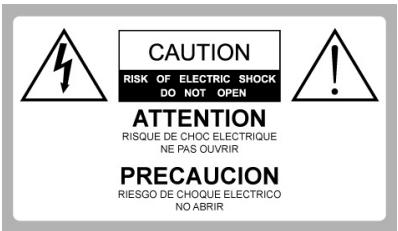

Dangerous Voltage: The lightning flash with arrowhead symbol, within an equilateral triangle, is intended to alert the user to the presence dangerous voltage within the inside of the product that may be sufficient level to constitute a risk of electric shock to persons.

Instruction: The exclamation point within an equilateral triangle is intended to alert the user to the presence of important operating and servicing instructions in the literature accompanying the appliance.
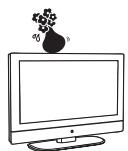
The TV shall not be exposed to dripping or splashing. Do not put objects filled with liquids, such as vases, on the TV.
CAUTION
To prevent electric shock, do not use this polarized AC plug with an extension cord, receptacle or other outlet unless the blades can be fully inserted to prevent blade exposure.
Declaration of Conformity
Trade Name: ViewSonic
Model: N4285p/N4785p
Responsible Party: ViewSonic Corporation
Address: 381 Brea Canyon Road, Walnut, CA. 91789 USA
Telephone Number: 800-688-6688
This device complies with part 15 of the FCC rules. Operation is subject to the following two conditions: 1) This device may not cause harmful interference, and 2) this device must accept any interference received, including interference that may cause undesired operation.
NOTIFICATION
This device has been tested and found to comply with the limits for a Class B digital device, pursuant to Part 15 of the FCC Rules. These limits are designed to provide reasonable protection against harmful interference in a residential installation. This device generates, uses and can radiate radio frequency energy and, if not installed and used in accordance with the instructions, may cause harmful interference to radio communications.
However, there is no guarantee that interference will not occur in a particular installation. If this equipment does cause harmful interference to radio or television reception, which can be determined by turning the equipment off and on, the user is encouraged to try to correct the interference by one or more of the following measures:
Reorient or relocate the receiving antenna.
Increase the separation between the device and receiver.
Connect the device into an outlet on a circuit different from that to which the receiver is connected.
Consult the dealer or an experienced radio/TV technician for help.
Pursuant to FCC regulations, be cautioned that any changes or modifications not expressly approved in this manual could void your authority to operate this equipment.
Safety
Operate the TV only on 120 - 240VAC
Use the AC power cord specified by ViewSonic and suitable for the voltage where you use it.
The plug is designed, for safety purposes, to fit into the wall outlet only one way. If you are unable to insert the plug fully into the outlet, contact your dealer.
If any liquid or solid object should fall inside the cabinet, stop operating, unplug the TV immediately and have it check by qualified service technician.
If you will not be using the TV for a long time, disconnect the power by pulling the plug itself. Do not pull on the cord.
For details concerning safety precautions, refer to "Important Safety instructions" on page 3.
Installation
The TV should be installed near an easily accessible power outlet.
To prevent internal heat buildup, do not block the ventilation openings.
Do not install the TV in a hot or humid place, or in a place subject to excessive dust or mechanical vibration.
Avoid operating the TV at temperatures below 41^ (5^)
When the TV is transported directly form a cold to a warm location, or if the room temperature changes suddenly, the picture may be blurred or show poor color due to moisture condensation. In this case, please wait a few hours before turning on the TV, in order to let the moisture evaporate first.
To ensure best picture quality, do not expose the screen to direct illumination or sunlight. We recommend you use spot lighting directed down from the ceiling or to cover the windows that face the screen with opaque curtains. It is better that TV is installed where the floor and walls are not of a reflective material.
To Customers
To install the specified TV, sufficient expertise is required. Make sure you subcontract the installation to ViewSonic dealer or licensed contractors and pay adequate attention to safety during the installation.
Note
This television includes a QAM demodulator, which should allow you to receive unscrambled digital cable television programming via subscription service to a cable service provider. The type of programming and signal provided by your cable service provider will affect the availability of digital cable television programming in your area.
Trademark Information
Macintosh is a trademark of Apple Inc., registered in the U.S. and other countries.
HDMI, the HDMI logo and High-Definition Multimedia Interface are trademarks or registered trademarks of Dolby Laboratories.
Blu-ray Disc is a trademark.
Adobe is a registered trademark or a trademark of Adobe Systems Incorporated in United States and/or other countries.
Contact ViewSonic service team at: http://www.ViewSonic.com or call our service team: United States 1-800-688-6688, Canada 1-866-463-4775
Important Safety Instructions
1) Read these instructions completely before using the equipment.
2) Keep these instructions in a safe place.
3) Heed all warnings.
4) Follow all instructions.
5) Do not use this apparatus near water.
6) Clean with a soft, dry cloth.
7) Do not block any ventilation openings. Install the equipment in accordance with the manufacturer's instructions.
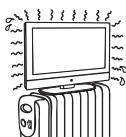
8) Do not install near any heat sources such as radiators, heat registers, stoves, or other devices (including amplifiers) that produce heat.
9) Do not attempt to circumvent the safety provisions of the polarized or grounding-type plug. A polarized plug has two blades with one wider than the other. A grounding type plug has two blades and a third grounding prong. The wide blade and the third prong are provided for your safety. If the provided plug does not fit into your outlet, consult an electrician for replacement of the outlet.
10) Prevent the power cord from being tread upon or pinched, particularly at the plug, convenience receptacles, and the point where they exit from the device. Be sure that the power outlet is located near the equipment so that it is easily accessible.
11) Only use attachments/ accessories specified by the manufacturer.
12) Use only with the cart, stand, tripod, bracket, or table specified by the manufacturer, or sold with the apparatus. When a cart is used, use caution when moving the cart/appa combination to avoid injury from ti

13) Unplug this apparatus when it will be unused for a long period of time.
14) Refer all servicing to qualified service personnel. Servicing is required when the apparatus has been damaged in any way, such as power-supply cord or plug is damaged, liquid has been spilled or objects have fallen into the apparatus, the apparatus has been exposed to rain or moisture, or the unit does not operate normally, or has been dropped.
USE
AC power Cord
Keep the following guidelines to protect the AC power cord from being damaged. If the AV power cord is damaged, it may result in a fire or an electric shock. Stop using it and ask your dealer or ViewSonic service center to exchange it.
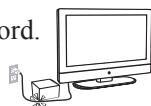
Do not place the TV where the power cord is subject to wear or abuse.
Do not pinch, bend, or twist the cord excessively. The core lines may be bared and cut, causing a short-circuit, and resulting in a fire or an electric shock.
Do not convert or damage the power cord.
Avoid power cord being rolled over or rested upon.
When the power cord plugged in, do not move the TV.
Keep the power cord away from heat sources.
When you disconnect the AC power cord, disconnect it from the wall outlet first.
When disconnecting the power cord, grasp the plug instead of pulling the power cord.
Use only an original ViewSonic AC power cord, not other brands.
Do not use the supplied AC power cord on any other equipment.
Wall outlet
The TV set with a three-wire grounding type AC power cord plug must be connected to an AC power socket outlet with a protective grounding connection.
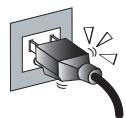
Do not use an unfitting outlet.
Insert the plug fully into the outlet. If it is loose, do not use it. Doing so may cause arcing and result in a fire.
Contact your electrician to change the outlet.

Wiring
For your safety, be sure to unplug the AC power cord when connecting cables.
Take care not to trip on the cables. It may cause damage to the TV set.
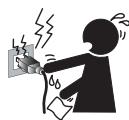
Electric shock
Do not touch the AC power cord or the TV with a wet hand. If you plug/unplug the AC power cord from the TV with a wet hand, it may cause electric shock.
Lightning storms
During a lightning storm, unplug the TV from the wall outlet and disconnect the antenna to prevent damage to the TV.
When not in use
If you will not be using the TV set for long periods of time, the TV set should be disconnected from the AC power outlet to prevent power line surges. The TV set is not disconnected from the AC power source when the TV set is switched off. To disconnect the TV set completely, unplug from the AC power outlet.
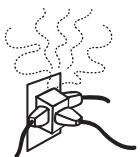
Overloading
This TV set is designed to operate on a 120 - 240 V AC supply only. If there are too many appliances connected to the same AC power outlet, it could result in a fire or an electric shock.
Optional equipment
If optional equipment is to be installed, leave some space between optional equipment and the TV set. Picture distortion and/or noisy sound may occur if the TV set is positioned in close proximity to any equipment emitting electromagnetic radiation.
Small accessories
Keep small accessories in as safe place where children are unable to reach.
ANTENNAS
Outdoor antenna grounding
If an outdoor antenna is installed, follow the precautions below. Do not install the outdoor antenna system in near of overhead power lines or other electric light or power circuits, or where it can come in contact with such power lines or circuits.
WHEN INSTALLING AN OUTDOOR ANTENNA SYSTEM, EXTREME CARE SHOULD BE TAKEN TO KEEP FROM CONTACTING SUCH POWER LINES OR CIRCUITS AS CONTACT WITH THEM IS ALMOST INVARIABLY FATAL.
Be sure the antenna system is grounded so that it can provide some protection against voltage surges and built-up static charges.
Section 810 of the National Electrical Code (NEC) in the U.S.A. and Section 54 of the Canadian Electrical Code in Canada provides information with in regard to proper grounding of the mast and supporting structure, grounding of the lead-in wire to an antenna discharge unit, size of grounding conductors, location of antenna discharge unit, connection to grounding electrodes, and requirements for the grounding electrode.
Antenna grounding according to the National Electrical Code, ANS/NFPA 70
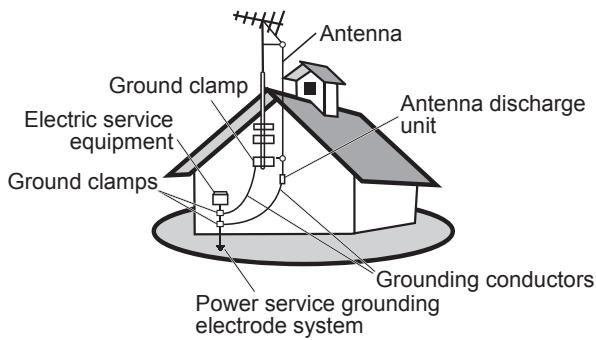
NEC: National Electrical Code
BATTERIES
Do not cast away batteries in a fire.
Do not disassembled, overheat, or short-circuit the batteries.
If battery replaced in the wrong way, it may cause danger of explosion. Replace only with the same or equivalent type.
Dispose used batteries
To preserve our environment, dispose of used batteries according to your local laws or regulations.
CLEANING
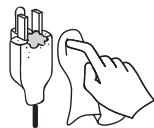
Cleaning the AC power plug
Unplug the AC power plug and clean it regularly. If the plug is covered with dust and gathers moisture, its insulation may deteriorate and result in a fire.
Cleaning the screen surface/ cabinet of the TV set
When cleaning this TV, unplug the AC power cord. If not, it may result in electric shock. Use a dry soft cloth

to clean the cabinet of the TV. To remove dust form the screen, wipe it gently with a soft cloth. Stubborn stains may be removed with a cloth slightly dampened with a solution of mild soap and warm water. Never use strong solvents such as thinner or benzine for cleaning. If using a chemically pretreated cloth, please follow the instruction provided on the package. The ventilation holes can accumulate dust over time. To ensure proper ventilation, we recommend you to remove the dust periodically (once a month) using a vacuum cleaner, while the LCD TV is powered off.
MAGNETIC INFLUENCE
This TV contains a strong magnet in the speaker unit that generates a magnetic field. Keep any items susceptible to magnetic fields away from the speaker.
SOUND
If you hear snapping or popping sound comes from the TV continuously or frequently while the TV is operating, unplug the TV and consult your
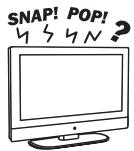
dealer or service technician. It is normal for some TVs to make occasional snapping or popping sounds, particularly when being turned on or off.
CARRYING THE TV
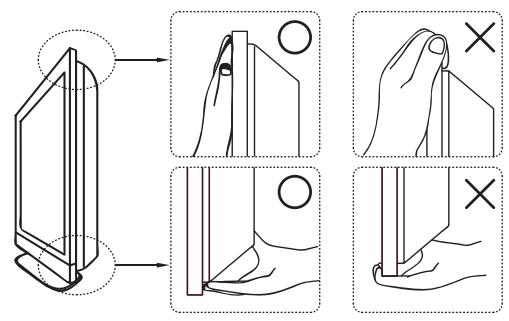
Carry the TV as instructed
To prevent dropping the TV and causing serious injury, you must follow these guidelines:
Disconnect all cables before carrying the TV.
Carrying the large size TV requires at least two or three people.
When you carry the TV, place your hands as illustrated and hold it securely. Do not put stress on the LCD panel and the frame around the screen.
When carrying the TV, do not subject it to shocks, vibration, or excessive force.
When lifting or moving the TV, hold it securely from from the bottom. Place your palm directly under the panel.
VENTILATION
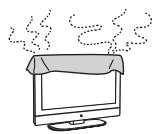
Slots and openings in TV are provided for ventilation. To ensure reliable operation of the TV and to protect it from overheating, be sure these openings are not blocked or covered.
The TV may accumulate dust and get dirty if proper ventilation is not provided. For proper ventilation, follow the following guidelines:
Never install the TV face up, down or sideways.
Never install the TV turned over or upside down.
Never cover the slots and openings with a cloth or other materials.
Never block the slots and openings by placing the TV on a bed, sofa, rug or other similar surface.
Never place the TV in a confined space, such as a bookcase or built-in cabinet, unless proper ventilation is provided.
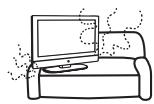
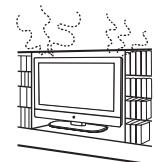
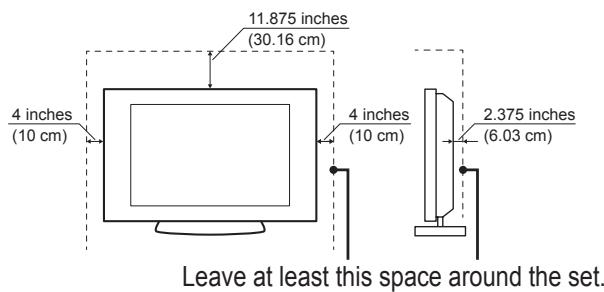
Leave some space around the TV set as shown below. Otherwise, air-circulation may be inadequate and cause overheating, which may cause a fire or damage to the TV set.
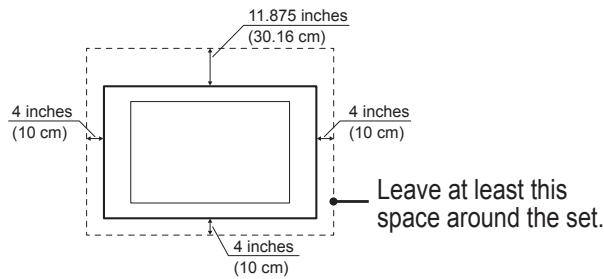
Installed on the wall
Installed with stand
Do not install the TV set as follows:
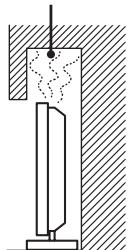
Air circulation is blocked.
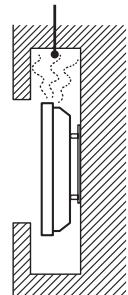
Air circulation is blocked.
Contact ViewSonic service team at: http://www.ViewSonic.com or call our service team: United States 1-800-688-6688, Canada 1-866-463-4775
Objects and ventilation holes
Never push any objects into the slots on the TV cabinet as they may touch dangerous voltage points or short out parts that could result in a fire or an electric shock. Do not place any objects on the TV.
MOISTURE
Moisture and flammable objects
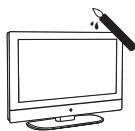
Keep the product away from moisture. Do not expose this appliance to rain or moisture. Do not place objects filled with liquids, such as vases, on the TV.
Do not use power-line operated V sets near water, such as in places like a bathtub, washbowl, kitchen sink, laundry tub, a wet basement, or near a swimming pool, etc. It may cause fire or electric shock.
Do not let this TV get wet. Never spill liquid of any kind on the TV. If water penetrates into the product, unplug the power cord and contact ViewSonic. Donot operate the TV. It may result in electric shock or damage to the TV.
To prevent fire, keep flammable objects or open flame (e.g. candles) away from the TV.
INSTALLATION
To do Wall mount installation, you need a Wall-Mount Bracket. When installing or removing the TV using the Wall-Mount Bracket, be sure to use qualified contractors. If not properly secured during installation or removal from the Wall-Mount Bracket, the TV may fall and cause serious injury.
Optional wall mount
When installing the TV using a Wall-Mount Bracket, make sure you follow the operating instructions supplied with the Wall-Mount Bracket.
Attach the brackets supplied with the Wall-Mount Bracket.
The TV is not designed for hanging from the ceiling. It may fall and cause serious injury.
Placement
The TV should be installed near an easily accessible AC power outlet.
Observe the following to prevent the TV from falling from the stand or wall mount.
Place the TV on a stable, level surface.
Do not hang anything on the TV. Do not allow children to climb on the TV.
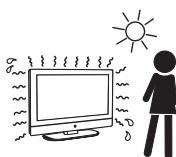
- Do not install the TV in places subject to extreme temperature, such as in direct sunlight, near a radiator, or heating vent. If the TV is exposed to extreme temperature, the TV may overheat and cause deformation of the enclosure or cause malfunction. Do not install the TV in a place exposed to direct air conditioning. If the TV is installed in such a location, moisture may condense inside and may cause a malfunction.
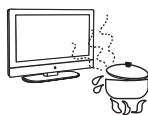
Do not place the TV in hot, oily, humid or excessively dusty places.
Do not install the TV where insects may enter.
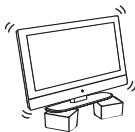
Do not install the TV where it may be exposed to mechanical vibration.
Do not install the TV in a location where it may spear up, such as on or behind a pillar, or where you might bump your head on it. It may cause injury.
Preventing the TV from toppling over
To prevent the TV from toppling over, secure the TV to a wall or stand.
Placement for watching
We suggest you to watch the TV at a distance of 3-7 times that of the screen height, and not in excessive brightness. It is easy to cause eye fatigue if you watch TV for too long or in a dark room. To obtain clear picture, do not expose the screen to direct illumination or sunlight. Use spot lighting directed down from the ceiling if you can.
Use in outdoor
This TV is not designed for outdoors installation. Do not expose the TV to rain, as it may result in a fire or an electric shock. Also, do not expose the TV to direct sunlight, as it may heat up and become damaged.
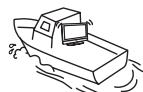
Vehicle, ships and other vessels
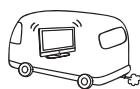
Do not install this TV in a vehicle.
Car accidents may cause the TV to fall down and cause injury.
Do not install this TV in a ship or vessel. If the TV is exposed to seawater, it may cause a fire or damage the TV.
Medical institutions
Do not place this TV in a place where medical equipment is in use.
It may cause the medical equipment to malfunction.
VOLUME ADJUSTMENT
Adjust the volume to avoid disturbing your neighbors. Sound carries easily at night. Therefore, we suggest you close the windows or use headphones.
When using headphones, adjust the volume to appropriate levels, or hearing damage may result.
LCD SCREEN
Although the LCD screen is made with high-precision technology and has effective pixels of 99.99% or more, black dots or bright points or light (red, blue, or green) may appear constantly on the LCD screen. This is a structural property of the LCD panel and is not a malfunction.
The LCD screen is made with high-precision technology. To achieve a high level of performance and picture quality, this TV's backlight setting is set to maximize the brightness of the TV. However, uneven brightness may be observed when the LCD TV is viewed in a dark environment without an input source or a blank screen. This is a normal condition, not a malfunction of the TV. To improve this condition, change the Picture mode, Backlight setting, enable the Light Sensor, or turn on the Power management.
Avoid exposing the LCD screen surface to direct sunlight. It is likely to damage the LCD panel.
Do not push or scratch the LCD screen, or place objects on top of the TV. The image may be uneven or the LCD panel may be damaged.
If the TV is used in a cold place, a smear may occur in the picture or the picture may become dark. This does not indicate a failure. These phenomena improve as the temperature rises.
When still pictures are displayed continuously, ghosting may occur. It should disappear after a short period of time.
The screen and cabinet get warm when the TV is in use. This is a normal condition.
Spraying insect repellent with volatile material on the screen will cause damage.
Do not make prolonged contact with rubber or plastic material.
Broken pieces
Do not throw anything at the TV.
Doing so may break the screen glass and cause serious injury.
If the surface of the TV cracks, unplug the AC power cord before touching the TV. Otherwise electric shock may result.
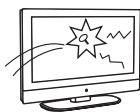
Handling of broken glass and liquid crystal leakage
If the LCD panel gets damaged, crystalline liquid leakage may occur, or scattered broken glass may result. Do not touch broken glass or crystalline liquid which is toxic, with bare hands as cuts, poisoning or skin irritation may occur. Also do not glass fragments or leaked crystalline liquid get into your eyes or mouth. Should either contacted your eyes or mouth, rinse the contacted area thoroughly with water and consult your doctor.
SERVICING
Do not attempt to repair the TV yourself, since opening the cabinet may expose you to dangerous

voltage or other hazards. Ask qualified service personnel to do the servicing for your TV.
Replacement parts
When replacement parts are required, be sure the service technician certifies in writing that he/she has used replacement parts specified by the manufacturer that have the same characteristics as the original parts. Unauthorized substitutions may cause a fire, an electric shock or other hazards.
Safety check
Upon completion of repairs to the TV, ask the service technician to perform routine safety checks (as specified by the manufacturer) to determine that the TV is safe for operating, and to so certify. Ask a qualified service technician to dispose of the TV.
For Customers in the United States
There is mercury in the lamp of this product. Disposal of these materials may be regulated due to environmental considerations. For disposal or recycling information, please contact your local authorities or the Electronic Industries Alliance (http://www.eiae.org).
Compliance Information
FCC Statement
This device complies with part 15 of FCC Rules. Operation is subject to the following two conditions: (1) this device may not cause harmful interference, and (2) this device must accept any interference received, including interference that may cause undesired operation.
This equipment has been tested and found to comply with the limits for a Class B digital device, pursuant to part 15 of the FCC Rules. These limits are designed to provide reasonable protection against harmful interference in a residential installation. This equipment generates, uses, and can radiate radio frequency energy, and if not installed and used in accordance with the instructions, may cause harmful interference to radio communications. However, there is no guarantee that interference will not occur in a particular installation. If this equipment does cause harmful interference to radio or television reception, which can be determined by turning the equipment off and on, the user is encouraged to try to correct the interference by one or more of the following measures:
Reorient or relocate the receiving antenna.
- Increase the separation between the equipment and receiver.
- Connect the equipment into an outlet on a circuit different from that to which the receiver is connected.
- Consult the dealer or an experienced radio/TV technician for help.
Warning: You are cautioned that changes or modifications not expressly approved by the party responsible for compliance could void your authority to operate the equipment.
Following information is only for EU-member states:
The mark shown to the right is in compliance with the Waste Electrical and Electronic Equipment Directive 2002/96/EC (WEEE).
The mark indicates the requirement NOT to dispose the equipment as unsorted municipal waste, but use the return and collection systems according to local law.

ENERGY STAR Information:
- Keeping the TV at its factory default settings that meet ENERGY STAR criteria.
- Enabling certain features and functionality of LCD TV will increase its energy consumption, possibly beyond the limits required for ENERGY STAR qualification.
- This product qualifies for ENERGY STAR in the "home" setting, and this is the setting in which power savings can be achieved.
Declaration of RoHS Compliance
This product has been designed and manufactured in compliance with Directive 2002/95/EC of the European Parliament and the Council on restriction of the use of certain hazardous substances in electrical and electronic equipment (RoHS Directive) and is deemed to comply with the maximum concentration values issued by the European Technical Adaptation Committee (TAC) as shown below:
| Substance | Proposed Maximum Concentration | Actual Concentration |
| Lead (Pb) | 0.1% | < 0.1% |
| Mercury (Hg) | 0.1% | < 0.1% |
| Cadmium (Cd) | 0.01% | < 0.01% |
| Hexavalent Chromium (Cr6+) | 0.1% | < 0.1% |
| Polybrominated biphenyls (PBB) | 0.1% | < 0.1% |
| Polybrominated diphenyl ethers (PBDE) | 0.1% | < 0.1% |
Certain components of products as stated above are exempted under the Annex of the RoHS Directives as noted below:
Examples of exempted components are:
- Mercury in compact fluorescent lamps not exceeding 5mg per lamp and in other lamps not specifically mentioned in the Annex of RoHS Directive.
- Lead in glass of cathode ray tubes, electronic components, fluorescent tubes, and electronic ceramic parts (e.g. piezoelectronic devices).
- Lead in high temperature type solders (i.e. lead-based alloys containing 85% by weight or more lead).
- Lead as an allotting element in steel containing up to 0.35% lead by weight, aluminium containing up to 0.4% lead by weight and as a cooper alloy containing up to 4% lead by weight.
List of Features
- Enjoy HDTV with 1920x1080 native image resolution.
- ClearPicture™ video technology provides vibrant color and exceptional image clarity.
- Built-in digital tuners (HDTV, NTSC and Clear QAM-digital cable).
- Displays multiple TV formats including 480i, 480p, 720p, 1080i and 1080p.
- Multiple video/computer inputs: HDMI (2)-N4285p/(3)-N4785p, component (2), S-video, composite (1)-N4285p/(2)-N4785p, PC.
- N4285p: Powerful 20W (2x10W) speakers with Dolby® Digital sound.
N4785p: Powerful 30W (2x15W) speakers with Dolby® Digital sound.
Package Contents
Please make sure the following items are included with your LCD TV.
If any items are missing, please contact your dealer.
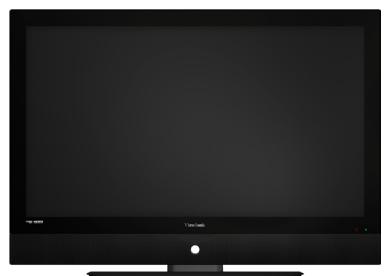
LCD TV

Remote Control with batteries
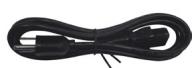
Power Cord
ViewSonic User Guide
ViewSonic Quick Start Guide
Installing the LCD TV
Disconnecting the Stand Base
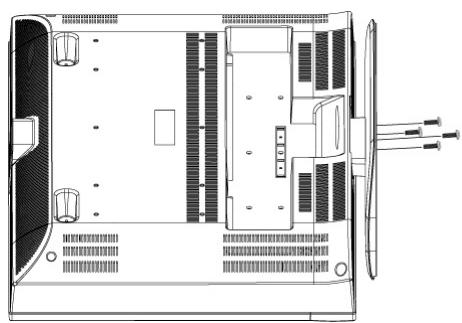
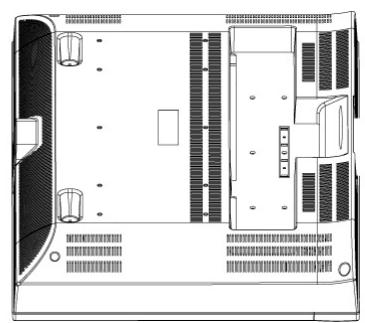
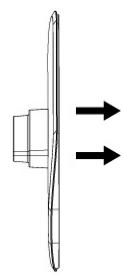
- Place the TV face down on a soft cloth or cushion on a table.
- Remove the 4 screws connecting the stand base to the TV.
- Remove the stand base.
Installing the Stand Base
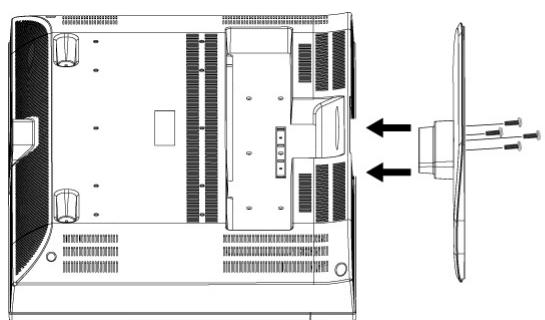
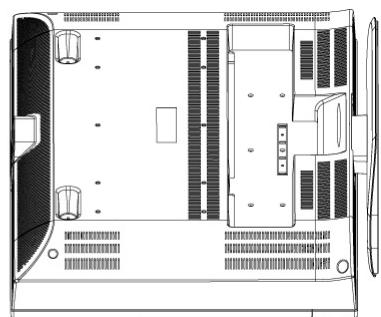
- Place the TV face down on a soft cloth or cushion on a table.
- Connect the stand base to the back of TV with 4 screws.
Mounting ViewSonic LCD TV to the wall
The LCD TV can be used in a free standing position or wall-mounted. Before installing the product to the wall, please consider the following guidelines:
- Read the Important Safety Instructions, at the start of this manual.
- Do not install in a moist or wet environment. This equipment is intended for indoor use.
- Do not install near heat source, or strong magnetic fields.
- Use only ViewSonic approved wall-mounting brackets to support the LCD TV weight.
- Before attaching the wall mount plate to the back cover, ensure the product is working.
- If your LCD TV is already set up for free-standing operation, you need to first remove the stand before mounting the device to the wall.
To attach the wall-mount bracket to LCD TV safely, please use the following guidelines:
- Disconnect the power and any other cables that might hinder moving the LCD TV.
- Set the LCD TV on a table or work surface, placing the screen face down on a towel or woolen blanket to protect the screen surface from damage while installing plate.
- Before installing the LCD TV on the wall, ensure you have recorded the product serial number on page (i) of the User Guide, as you will need the serial number to request service should there be a service need.
- Install the wall mount plate to the LCD TV using screws NO LONGER than 10mm , as longer screws found in universal (non-ViewSonic) wall mount kits may damage the power supply causing the unit to fail. The wall-mount screw type is M6 x L10.
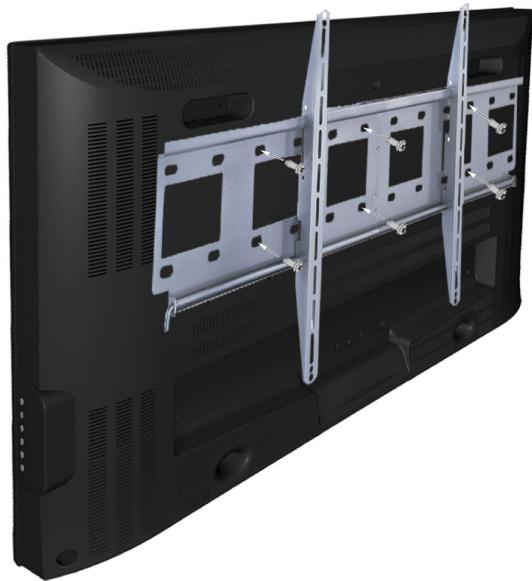
- Mount the wall mount bracket to the wall ensuring use of proper screws to support the installation. Ensure there is at least 3cm of space surrounding any air-vents of your LCD TV to allow adequate cooling during operation.
- Hang the LCD TV wall mount plate to the wall mount bracket, completing installation. Enjoy your ViewSonic LCD TV!
Contact ViewSonic service team at: http://www.ViewSonic.com or call our service team: United States 1-800-688-6688, Canada 1-866-463-4775
Wall Mount Kit Specifications (VESA)
When attaching to other building materials, please contact your nearesr dealer.
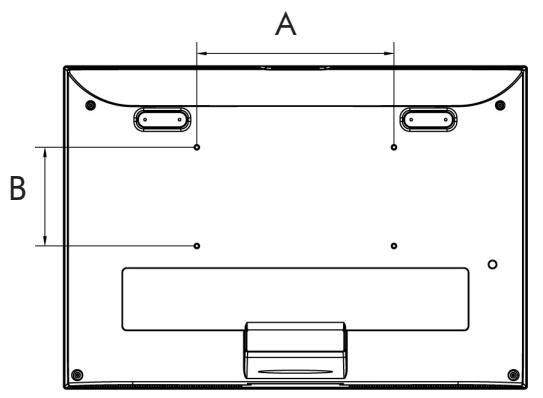
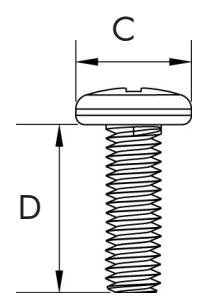
| Product Family | inch | VESA Spec. (A x B) | Standard Screw (C x D) | Quantity |
| LCD TV | 16 | 75 x 75 mm | M4 x L10 | 4 |
| 19 ~ 24 | 100 x 100 mm | M4 x L10 | 4 | |
| 26 ~ 27 | 200 x 100 mm | M4 x L10 | 6 | |
| 32 ~ 37 | 400 x 200 mm | M6 x L10 | 6 | |
| 42 ~ 47 | 600 x 200 mm | M6 x L10 | 10 | |
| 52 | 400 x 200 mm | M6 x L10 | 6 |
- ViewSonic provides the standard dimensions for wall mount kits as shown in the table above.
- When purchasing our wall mount kit, a detailed install manual and all parts necessary for assembly are provided.
- Do not use the screws that longer than the standard dimension, as they may cause damage to the inside of the TV set.

Caution
To find the perfect mount for N4285p/N4785p, please browse www.viewsonic.com or call our service team: United States 1-800-688-6688, Canada 1-866-463-4775.
Front View of the Product
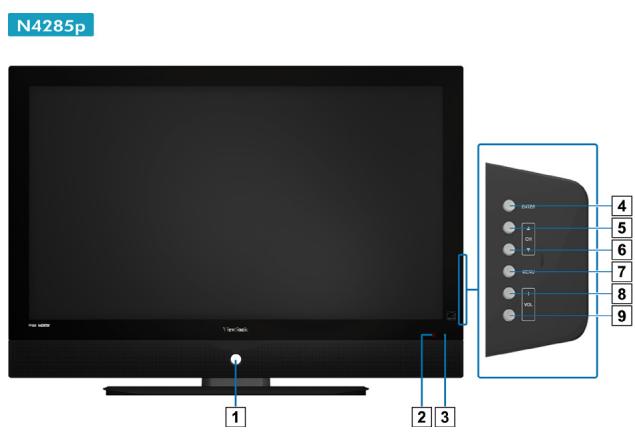
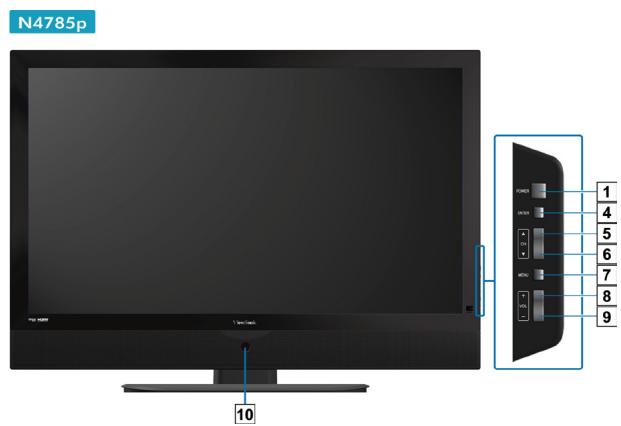
| Item | Description | |
| 1 | Power ON/OFF button | Turn the power on from standby mode or turn the power off to return to the standby mode. |
| 2 | Remote Control Receiver | Receives IR signals from the remote control. |
| 3 | Power LED Indicator | Lights up in blue when the TV is turned on. Lights up in amber when the TV is in standby mode. |
| 4 | ENTER | Display Input source selection menu, enter a menu or enable the function while in OSD menu. |
| 5 | CH Up | Channel up when source is TV, or select a control while in OSD menu. |
| 6 | CH Down | Channel down when source is TV, or select a control while in OSD menu. |
| 7 | MENU | Turn OSD menu ON/OFF. |
| 8 | Volume Up | Increase sound volume or adjust a highlighted control while in OSD menu. |
| 9 | Volume Down | Decrease sound volume or adjust a highlighted control while in OSD menu. |
| 10 | Remote Control Receiver/Power LED Indicator | Receives IR signals from the remote control./Lights up in blue when the TV is turned on. Lights up in amber when the TV is in standby mode. |
Rear and Side View of the Product
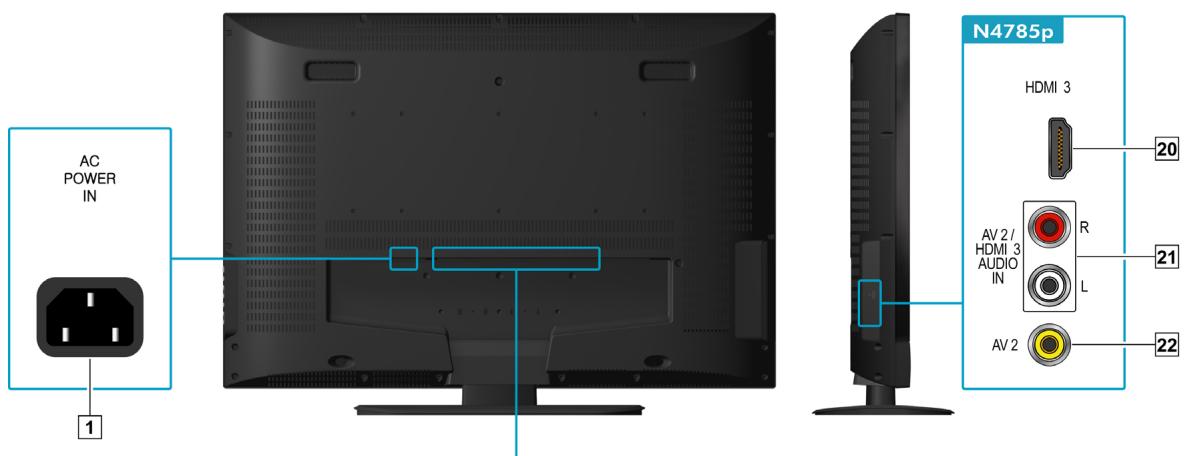
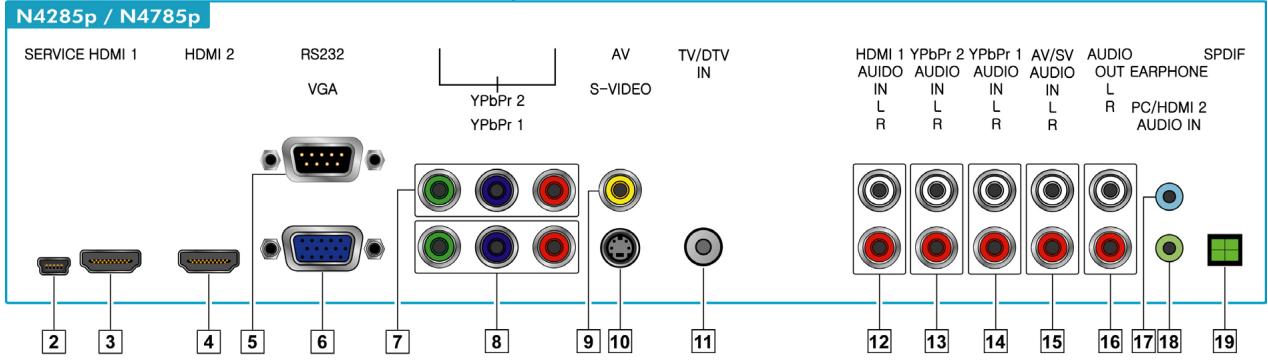
| Item | Description | |
| 1 | Power (AC input) | Plug-in the supplied AC Power cord and connect to the AC input power source. |
| 2 | Service (USB Terminal) | This port is only for firmware upgrade. |
| 3 | HDMI 1 Input Terminal | Connect this port to the HDMI output of A/V device. |
| 4 | HDMI 2 Input Terminal | Connect this port to the HDMI output of A/V device. |
| 5 | RS232 signal input | This port is for the service technician's use. |
| 6 | VGA signal input | Connect a 15-pin D-sub RGB cable to the RGB output of your computer and the other end to the RGB input on the rear of the LCD TV. |
| 7 | YPbPr 2 signal input | Connect this port to the YPbPr output of A/V device. |
| 8 | YPbPr 1 signal input | Connect this port to the YPbPr output of A/V device. |
| 9 | Composite Video input | Connect this jack to the composite video output connectors on your A/V equipment. |
| 10 | S-Video input | Connect the S-Video cable from the compatible device to this connector on the rear panel of the LCD TV. |
| 11 | Air/Cable input jack | Connect the coaxial (RF) connector from Antenna/ Cable/Digital cable. |
Contact ViewSonic service team at: http://www.ViewSonic.com or call our service team: United States 1-800-688-6688, Canada 1-866-463-4775
| Item | Description | |
| 12 | HDMI 1 signal Audio input (left/right) | Connect this port to the RCA audio output connectors of your A/V device. |
| 13 | YPbPr 2 signal Audio input (left/right) | Connect this port to the RCA audio output connectors of your A/V device. |
| 14 | YPbPr 1 signal Audio input (left/right) | Connect this port to the RCA audio output connectors of your A/V device. |
| 15 | AV/ S-Video signal Audio input (left/right) | Connect the audio cable for AV or S-Video to this connector. |
| 16 | Audio output | Connect this port to your A/V device with audio in (RCA) connectors or to audio amplifier. |
| 17 | Headphone Jack | Connect to your headphones. By connecting the headphones, you can listen to the sound from the TV on headphones. *If you connect the headphones, the TV speakers will be muted. |
| 18 | PC/ HDMI 2 Audio input | Connect this port to PC line out jack. |
| 19 | SPDIF Optical output | Connect this port to the SPDIF input of A/V device. Note: There is a Service jack next to the HDMI Input Terminal [3]. It is for service technician's use. |
| 20 | HDMI 3 signal Audio input (left/right) | Connect this port to the RCA audio output connectors of your A/V device. |
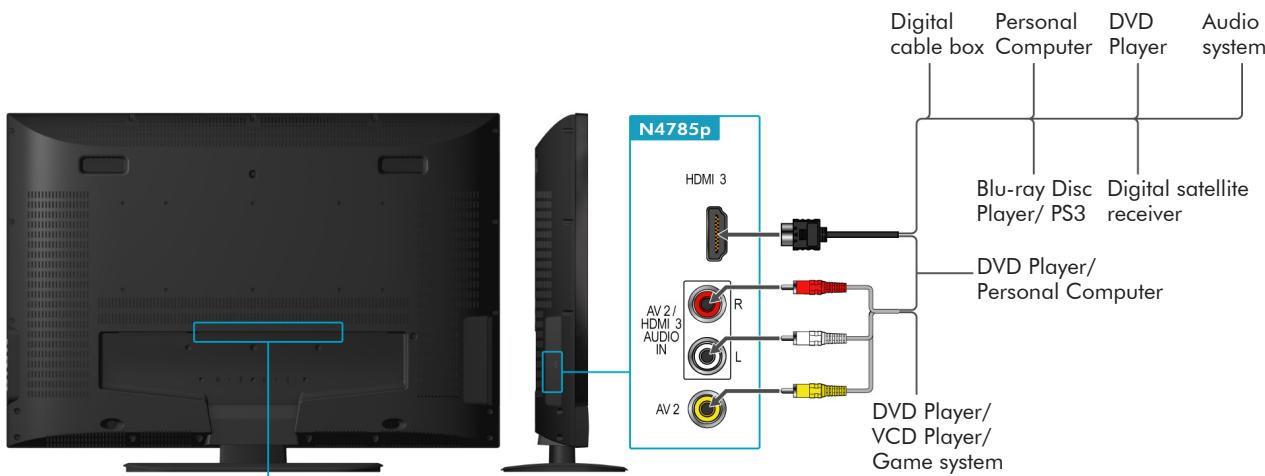
| 21 | AV 2/ HDMI 3 signal Audio input (left/right) | Connect this port to the RCA audio output connectors of your A/V device. |
| 22 | Composite Video input (AV 2) | Connect this jack to the composite video output connectors on your A/V equipment. |
AV connection
Connect the composite video and audio input jacks to the corresponding output jacks of your A/V device.
N4285p ---VIDEO: Composite Video input [9]
--- AUDIO: AV/ S-Video signal Audio input [15]
N4785p ---VIDEO: Composite Video input [9]
--- AUDIO: AV/ S-Video signal Audio input [15]
or
---VIDEO:Composite Video input(AV2)[22]
--- AUDIO: AV 2/ HDMI 3 signal Audio input [21]
S-Video connection
Connect the S-Video and audio input jacks to the corresponding output jacks of your VCR or other video device that has S-Video. S-Video provides better picture quality than composite video connection. If both are connected, S-Video signal has priority.
---VIDEO: S-Video input [10]
--- AUDIO: AV/ S-Video signal Audio input [15]
Component (YPbPr) connection
YPbPr provides better picture quality than the S-Video or the AV connection.
*For YPbPr connection, connect the component video (YPbPr) and audio jacks to the corresponding output jacks of your A/V device.
---VIDEO:YPbPr 1 signal input [8]
--- AUDIO: YPbPr 1 signal Audio input [14]
or
---VIDEO:YPbPr 2 signal input [7]
--- AUDIO: YPbPr 2 signal Audio input [13]
HDMI connection
HDMI (High-Definition Multimedia Interface) is a licensable audio/video connector interface for transmitting uncompressed, encrypted digital streams between this TV and any HDMI-equipped audio/video equipment.
- Be sure to use only an HDMI cable that bears the HDMI logo.
- If the equipment has a DVI jack and not an HDMI jack, connect the DVI jack to the HDMI Input Terminal (with DVI-to-HDMI cable or adapter), and connect the Audio cable to the Audio In jacks.

HDMI cable
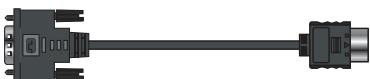
DVI-to-HDMI cable
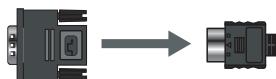
DVI-to-HDMI adapter

Audio cable

Audio cable
- With HDMI cable: HDMI 1 Input Terminal [3] or HDMI 2 Input Terminal [4]
- With HDMI-DVI cable:
---VIDEO:HDMI1InputTerminal[3]
--- AUDIO: HDMI 1 Audio input [12]
or
---VIDEO:HDMI2InputTerminal[4]
--- AUDIO: PC/ HDMI 2 signal Audio input [18]
or
---VIDEO:HDMI3 Input Terminal [20] (only for N4785p)
--- AUDIO: AV 2/ HDMI 3 signal Audio input [21] (only for N4785p)
Computer connection
Connect the VGA cable and Audio cable from the VGA signal input and PC Audio input to the corresponding ports on your A/V device.
---VIDEO: VGA signal input [6]
--- AUDIO: PC/ HDMI 2 Audio input [18]
Contact ViewSonic service team at: http://www.ViewSonic.com or call our service team: United States 1-800-688-6688, Canada 1-866-463-4775
Connecting the LCD TV
Cable System or VHF/UHF Antenna System
Enjoy the high-definition and standard-definition digital programming along with standard-definition analog programming.

- This TV is capable of receiving unscrambled digital programming for both cable and external VHF/UHF antenna.
- We strongly recommend that you connect the antenna/cable input using a 75-ohm coaxial cable (not supplied) to ensure the best picture quality.
Cable or VHF/UHF

Cable System and VHF/UHF Antenna System
Use an optional A-B RF switch (not supplied) to switch between the cable and antenna programming, as shown below.


- Remember to set the Tuner Mode setting in the TV menu to Air or Cable for the type you choose.
HD Cable Box/HD Satellite Box
You can also enjoy high-definition programming by subscribing to a high-definition cable service or a high-definition satellite service. For the optimum picture quality, be sure to connect this device to your TV via the HDMI or component video (with audio) input on the back of your LCD TV.
HDMI Connection
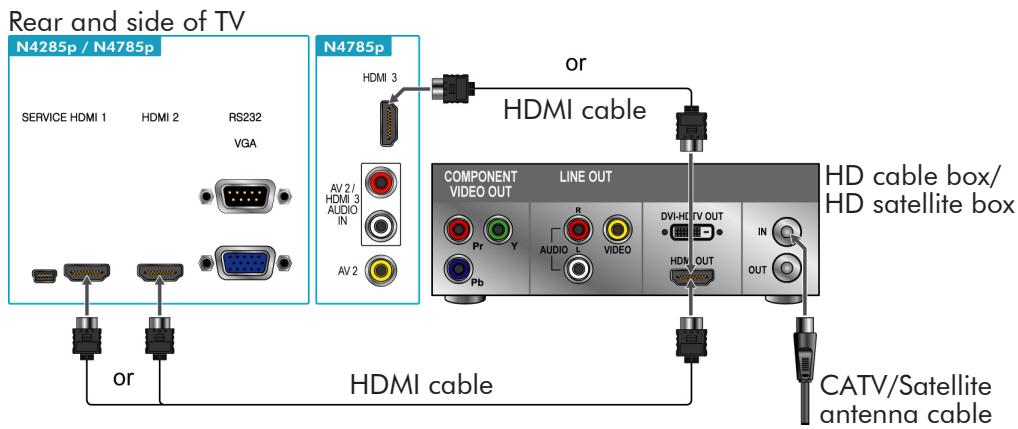
Contact ViewSonic service team at: http://www.ViewSonic.com or call our service team: United States 1-800-688-6688, Canada 1-866-463-4775
DVI Connection
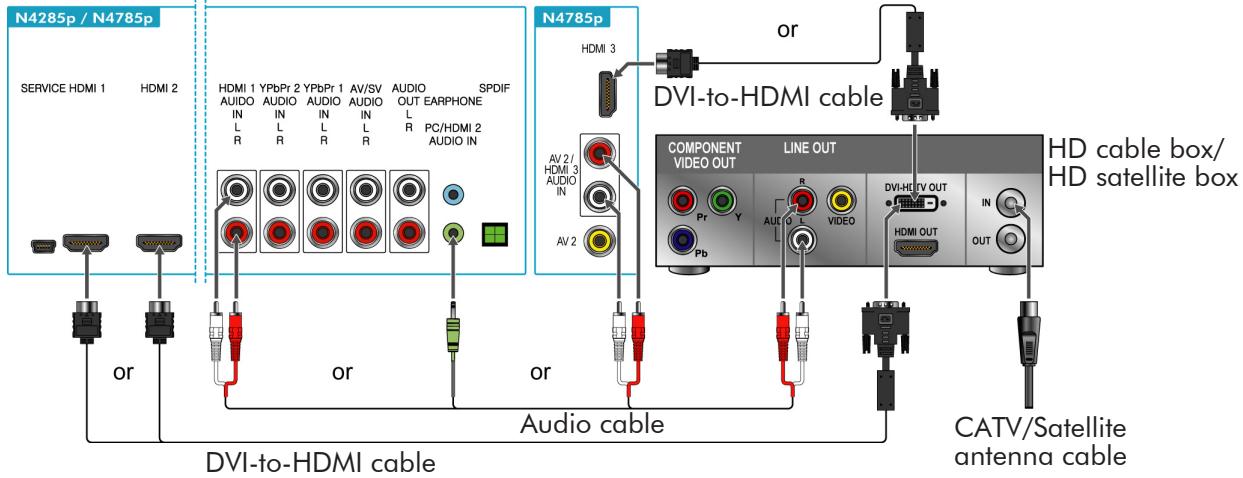
Rear and side of TV

- If the equipment has a DVI jack and not an HDMI jack, connect the DVI jack to the HDMI 1 [3], HDMI 2 [4] or HDMI 3 [20] jack and connect the audio jack to the AUDIO In jacks of HDMI 1 [12], HDMI 2 [18], or HDMI 3 [21]-(only available for N4785p).
YPbPr or Component Connection
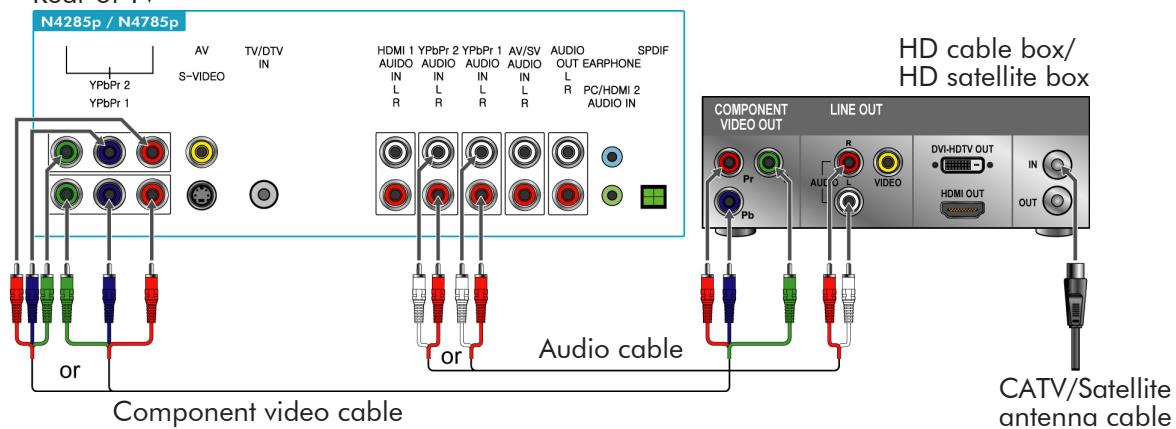
Rear of TV
Personal Computer
Use the LCD TV as the monitor of your computer.
The picture below shows the connection for PC. The LCD TV can also be connected to PC with DVI or HDMI output.
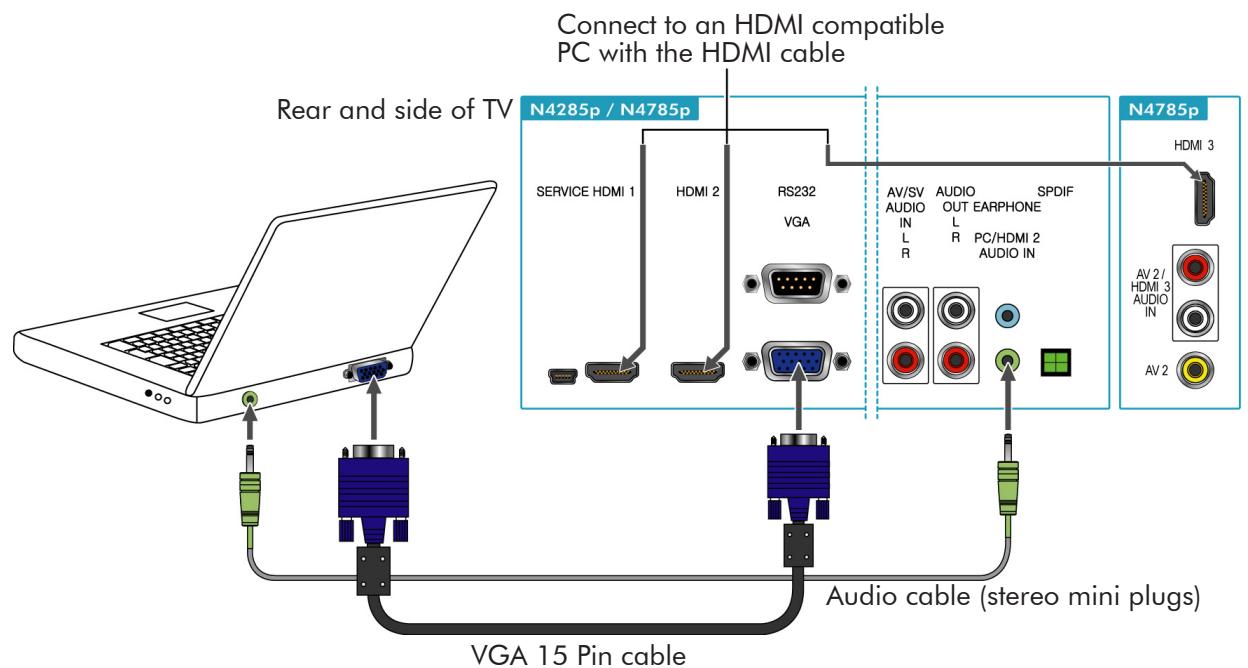
- Connect the PC IN jack to the PC using a 15-pin cable and audio cable.
- If the PC is connected to TV and no signal has been input from PC for more than 5 seconds, the TV will enter standby mode automatically.
PC Timing Reference Chart
| Mode | Aspect Ratio Handling | Compatible Input | |
| Standard | Resolution | FS*Full-Screen | RGB |
| DOS | 720 x 400 @ 70Hz | 1920 x 1080 | Yes |
| VESA | 640 x 480 @ 60Hz | 1920 x 1080 | Yes |
| MAC | 640 x 480 @ 67Hz | 1920 x 1080 | Yes |
| VESA | 640 x 480 @ 72Hz | 1920 x 1080 | Yes |
| VESA | 640 x 480 @ 75Hz | 1920 x 1080 | Yes |
| VESA | 800 x 600 @ 56Hz | 1920 x 1080 | Yes |
| VESA | 800 x 600 @ 60Hz | 1920 x 1080 | Yes |
| VESA | 800 x 600 @ 75Hz | 1920 x 1080 | Yes |
| MAC | 832 x 624 @ 75Hz | 1920 x 1080 | Yes |
| VESA | 1024 x 768 @ 60Hz | 1920 x 1080 | Yes |
| VESA | 1024 x 768 @ 75Hz | 1920 x 1080 | Yes |
| VESA | 1152 x 864 @ 75Hz | 1920 x 1080 | Yes |
| MAC | 1152 x 870 @ 75Hz | 1920 x 1080 | Yes |
| VESA | 1280 x 768 @ 60Hz | 1920 x 1080 | Yes |
| VESA | 1280 x 960 @ 60Hz | 1920 x 1080 | Yes |
| VESA | 1280 x 1024 @ 60Hz | 1920 x 1080 | Yes |
| VESA | 1360 x 768 @ 60Hz | 1920 x 1080 | Yes |
| VESA | 1400 x 1050 @ 60Hz | 1920 x 1080 | Yes |
| VESA | 1440 x 900 @ 60Hz | 1920 x 1080 | Yes |
| VESA | 1680 x 1050 @ 60Hz | 1920 x 1080 | Yes |
| Non-VESA | 1920 x 1080 @ 60Hz | 1920 x 1080 | Yes |

- This TV's PC VGA input does not support interlaced signals.
- For the best picture quality, we recommend that you use the signals (boldfaced) in the above chart with a 60Hz vertical frequency from a personal computer.
Other Equipment

Contact ViewSonic service team at: http://www.ViewSonic.com or call our service team: United States 1-800-688-6688, Canada 1-866-463-4775
Remote Control and TV Controls
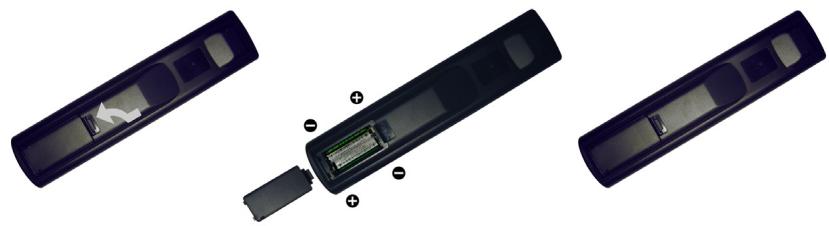
Inserting Remote Control Batteries
- Remove the battery cover by pulling then lifting the knob on the cover.
- Insert the batteries, corresponding to the (+) and (-) markings on the battery compartment.
- Reattach the battery cover.

CAUTION
- Only use the specified AAA batteries.
- Do not mix new and old batteries. This may result in creaking or leakage, which may pose a risk of fire or lead to personal injury.
- Insert batteries according to (+) and (-) markings. Inserting the batteries incorrectly may result in leakage, which may pose a risk of fire or lead to personal injury.
- Dispose of the battery in accordance with local laws and regulations.
- Keep the batteries away from children or pets.
- When the remote control will not to be used for an extended period, remove the batteries.
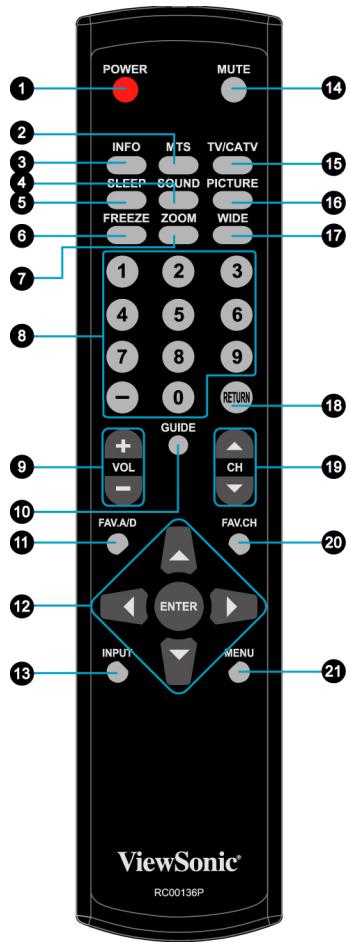
Remote Control and TV Controls
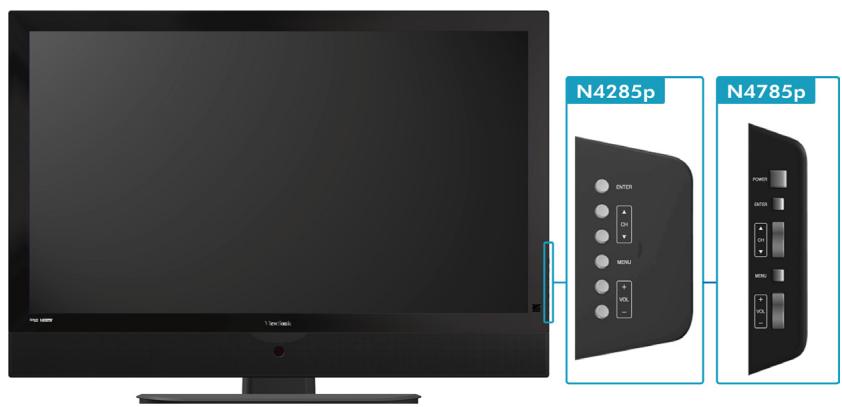
Buttons located at the side of the LCD TV will operate the same as these buttons on the remote control.
| Button | Description | |
| 1 | POWER | Press this button to turn the power on from standby mode. Press it again to return to the standby mode. |
| 2 | MTS | Press this button to choose the available sound output that is preset by TV broadcasting station. (EX: Mono, Stereo, SAP) |
| 3 | INFO | Press this button to display the current state of the LCD TV. |
Contact ViewSonic service team at: http://www.ViewSonic.com or call our service team: United States 1-800-688-6688, Canada 1-866-463-4775
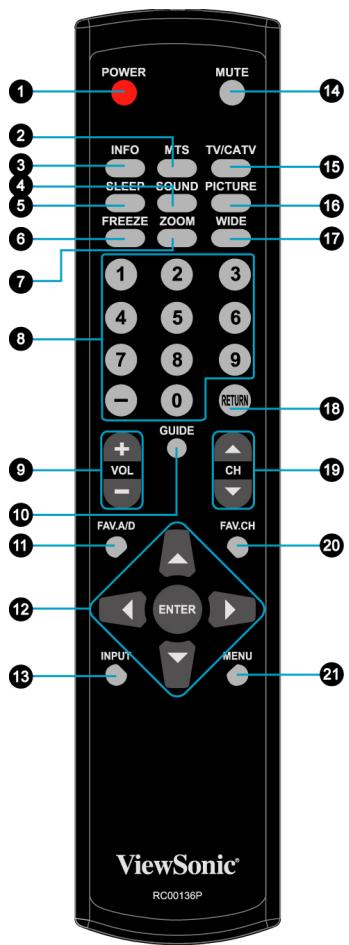
| Button | Description | |
| 4 | SOUND | Press this button to select between the sound modes of Off, Concert, Living Room, Hall, Bathroom, Cave, Arena, Church. |
| 5 | SLEEP | Press repeatedly to set the off timer. The function is used to automatically shut off the LCD TV after a preset period of time passed. There are several times for choice – Off, 15 Minutes, 30 Minutes, 45 Minutes, 60 Minutes, 90 Minutes, 120 Minutes. |
| 6 | FREEZE | Press this button to “Freeze Frame” the current screen when in TV source. (only applicable in TV source) |
| 7 | ZOOM | Press this button repeatedly to select the screen size. You can select from Zoom 1, Zoom 2, Zoom 3. |
| 8 | 0~9, -number buttons | Press 0 ~ 9 and “-” to select a channel. After you input the channel numbers, press ENTER button to direct to the channel immediately, or wait for 3 seconds to change automatically. |
| 9 | -VOL + | Press to adjust the volume. |
| 10 | GUIDE | Press to display the Electronic Program Guide (EPG). It contains the program information for the channel you’re watching. |
| Tuesday, 6-March-2007 20:16:39 PM 20 | 21 | 22 (Program title.) Not Rated (Program details.) | ||
| * The picture here shows an example of the GUIDE screen in a DTV source. | ||
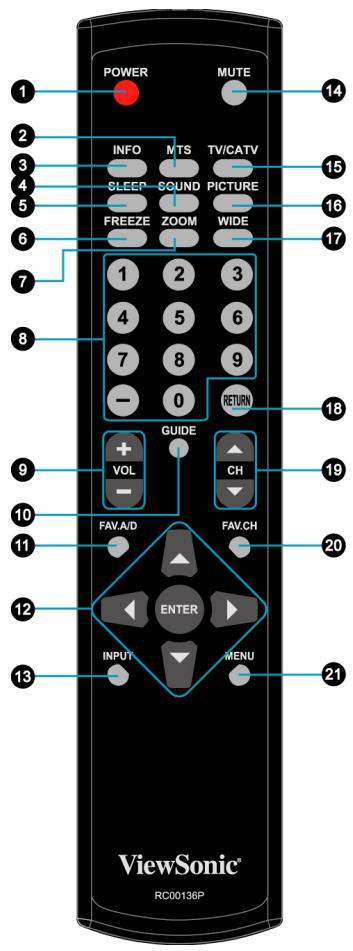
| Button | Description | |
| 11 | FAV.A/D | Press this button to add/erase Favorite channels. (See Favourite Channel Setting section on page 29) |
| 12 | ▲▼▲▼ / ENTER buttons | Press these buttons to navigate the OSD menus. ▲/▼ is for menu and function select, and ▲/▶ is for function adjustment. ENTER: Enter the function setting. |
| 13 | INPUT | Press to display the INPUT source list and select the source with ▲/▼ buttons. To confirm the selection, press ENTER. |
| 14 | MUTE | Press to turn off the sound. To restore the sound, press this button again, or press the VOL+ button. |
| 15 | TV/CATV | Press to switch between TV/CATV, or press to direct to TV source when in any other source. |
| 16 | PICTURE | Press this button to select between the picture modes of User, Cinema, Sport, Vivid, Hi-Bright. |
| 17 | WIDE | Press this button to select image size of screen between Full, Letterbox, Panorama, Zoom, No scale, Normal. |
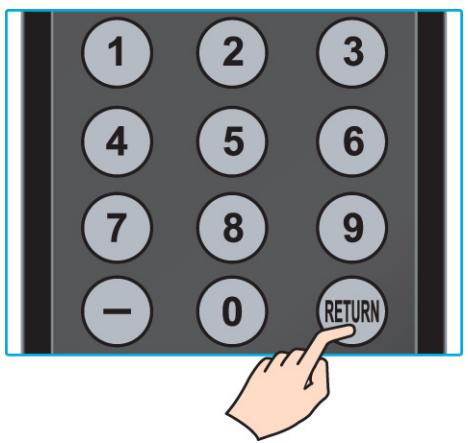
| 18 | RETURN | Press to return to previous channel. |
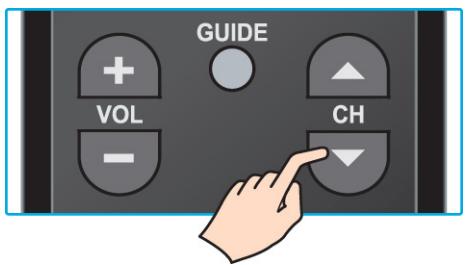
| 19 | ▼CH▲ | Press to change the channels up or down. |
| 20 | FAV.CH | Press this button repeatedly to browse through the favorite channels that have already been stored. *To preset favorite channels, use the FAV.A/D key. |
| 21 | MENU | Press to turn the OSD (On-Screen Display) menu on. When in OSD menu, press to exit or return to the previous page. |
Operation
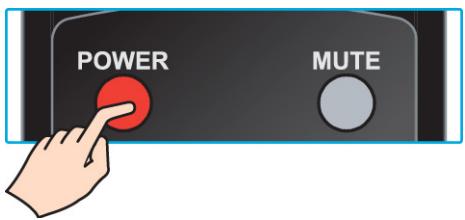
Turning the TV On and Off
Press the POWER button on the remote control.
You can also use the POWER button on the front of the panel.
Initial Setup
When the TV is initially powered on, basic settings proceed automatically and subsequently:
- Press the POWER button on the remote control. The Initial Setup wizard window will be displayed. Press ENTER to start the wizard. (see Figure 1)
- Press or to select your language, then press to continue next step. To return to the previous page, press . (see Figure 2)
- Select your display mode from *Home or Retail, then press▶ to continue.
- For normal home use, we suggest that you select "Home" to achieve energy saving. However, if you prefer better brightness, select "Retail". (see Figure 3)
- Select your tuner mode from Air or Cable, then press to continue. Connect cable and/or antenna, and select Scan or Skip Scan with or , then press to continue. If you select Skip Scan at this step, you can still perform channel scan in Menu. (see Figure 4 and 5)
- The channel scanning now starts. To interrupt scanning, press MENU at any time. (see Figure 6)
- After you complete the Initial Setup, press ENTER to exit the wizard. (see Figure 7)
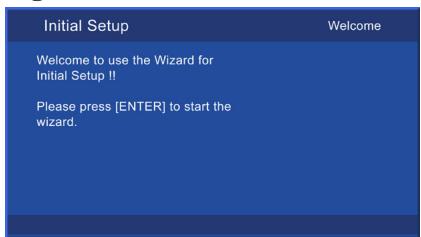
Figure 1
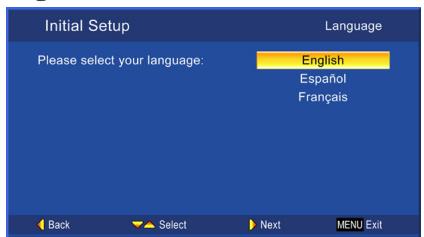
Figure 2
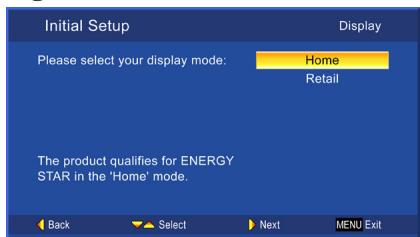
Figure 3
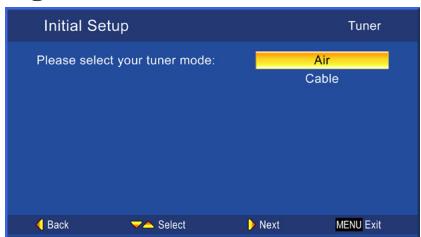
Figure 4
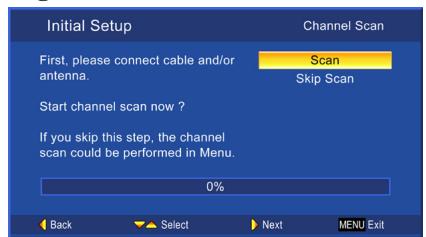
Figure 5
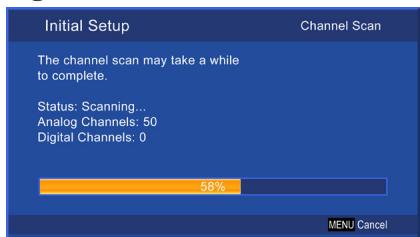
Figure 6
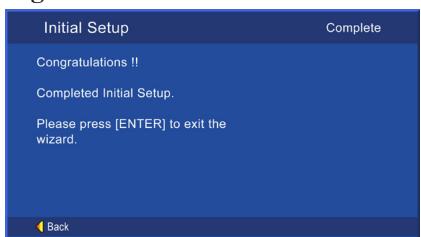
Figure 7
Contact ViewSonic service team at: http://www.ViewSonic.com or call our service team: United States 1-800-688-6688, Canada 1-866-463-4775
Changing Channels
- Using Channel Buttons
Press CH button to change channels, and the TV changes channels in sequence. You will see all channels that have been memorized. Channels erased or not memorized will not be shown.
- Using Number Buttons
(1)ATV
The “-” button has no function in ATV mode. Directly press the number buttons to select channels.
(2) DTV
Use “-” button to select the sub channel in DTV.
Ex: Your desired number is 80-3.
Press 8 press 0 press“-” press3.
Return to the previous channel, press RETURN button.
Adjusting the Volume
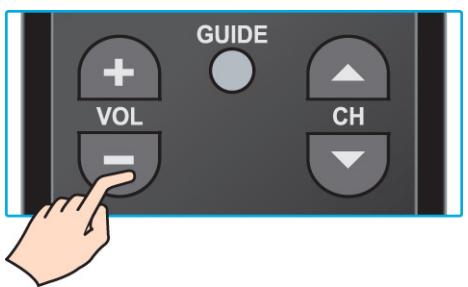
Press - VOL + to adjust volume.
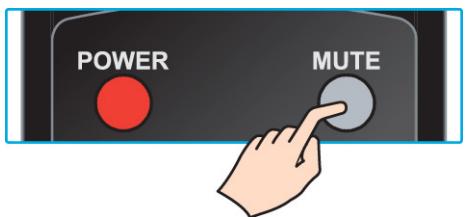
To turn off the volume, press MUTE.
To restore volume, press MUTE again, or press - VOL + directly.
Viewing the Displayed Information
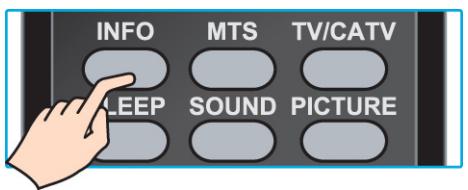
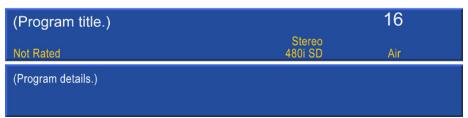
To display the current information of the LCD TV: Press INFO, and the current state will be displayed on the screen. (It shows all or some of the information about Input, Channel, Resolution, Audio Type, etc., depending on what input source it is in)
- The picture here shows an example of the INFO screen in a DTV source.
Storing Channels into Memory
- Press the MENU button to display the OSD main menu.
- Press or to select the "TV" menu.
Press ENTER or to enter the menu.
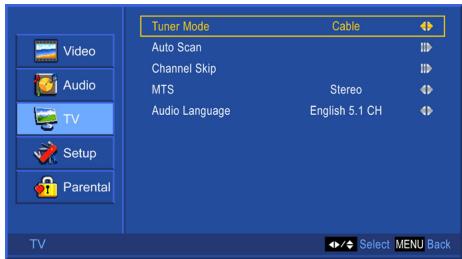
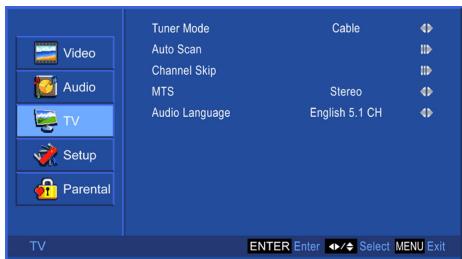
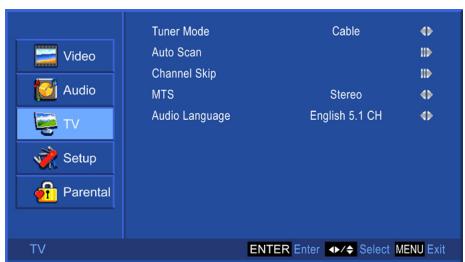
Press or to select "Tuner Mode", and use or to select the antenna connection to "Air" or "Cable".
Air: RF signal programs by "Air".
Cable: RF signal programs by "Cable".
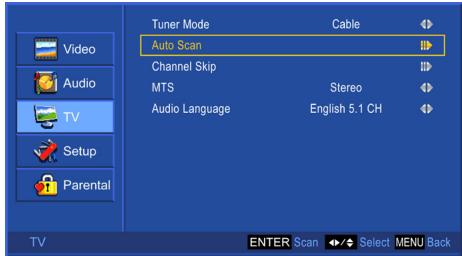
- Press or to select "Auto Scan", then press ENTER
or to perform Auto Scan function.
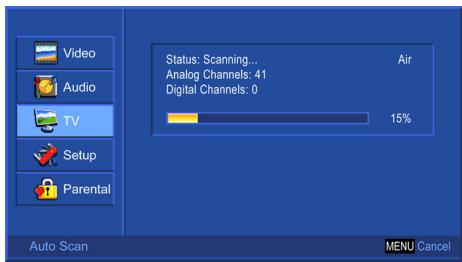
To stop scanning, press MENU at any time.
- The Auto Scan screen will be shown, and after it is
done, the screen will return to the first found channel.
Viewing the Menus
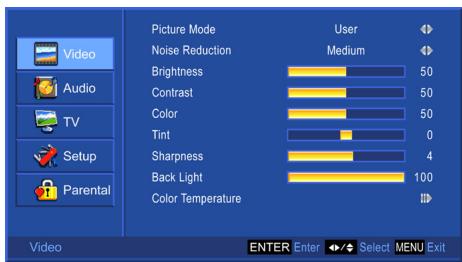
- Press the MENU button to display the OSD main menu. There are five top menus on the screen: Video, Audio, TV, Setup, Parental. When in VGA source, there is no TV menu.
- Press or to select your desired top menu.
- Press ENTER or to enter the menu you select.
- Use to select the control you want to adjust.
- When selecting the control with , press ENTER or to enter next level menu or to enable the function.
- Press or to adjust or select the settings.
- Press MENU to return to the previous page or exit from the OSD menu.
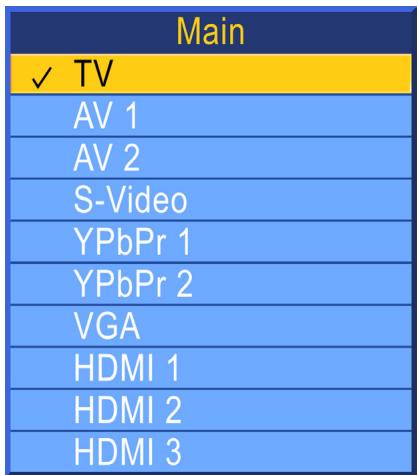
Selecting the Input Source
To select the TV or other external input sources connected to the TV.
- Press the INPUT button on the remote control.
- Press or to select the required input source between TV, AV 1 (or AV - only for N4285p), AV 2, S-Video, YPbPr 1, YPbPr 2, VGA, HDMI 1, HDMI 2, or HDMI 3 (only available for N4785p).
- To confirm the selection, press ENTER.
Contact ViewSonic service team at: http://www.ViewSonic.com or call our service team: United States 1-800-688-6688, Canada 1-866-463-4775
Favorite Channel Setting
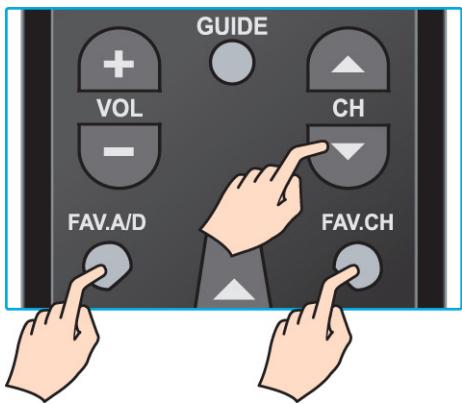
To set your favorite channel into memory:
- Press CH to select the channel you'd like to be your favorite channel, then press FAV.A/D button to add it. You can add up to 7 favourite channels.
-
Press FAV.A/D again on the favourite channel will cancel it.
-
To watch your favourite channels, press FAV.CH button repeatedly.

Adjusting the Settings
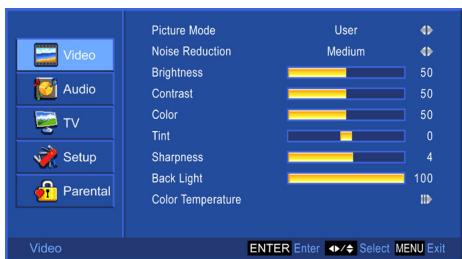
(1)
- Press the MENU button to display the OSD main menu.
- Press or to select your desired top Menu.
- Press ENTER or to enter the menu.
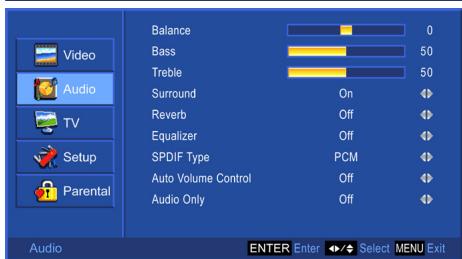
- Press or to select the control of "Brightness", "Contrast", "Color", "Tint", "Sharpness", "Back Light", "Balance", "Bass", "Treble", then press or to adjust the level.
- Press MENU to exit.
(2)
- Press the MENU button to display the OSD main menu.
- Press or to select your desired top Menu.
- Press ENTER or to enter the menu.
- Press or to select the control of "Picture Mode", "Noise Reduction", "Surround", "Reverb", "Equalizer", "SPDIF Type", "Auto Volume Control", "Audio Only", "Tuner Mode", "MTS", "Audio Language", "OSD Language", "Aspect Ratio", "Blue Mute", "DCR", "Display Mode" then press or to select your desired option.
(3)
- Press the MENU button to display the OSD main menu.
- Press or to select your desired top Menu.
- Press ENTER or to enter the menu.
- Press or to select the control with , such as "Color Temperature", "Auto Adjust", "VGA", "Auto Scan", "Channel Skip", "Time Setup", "Close Caption", "Memory Recall", then press ENTER or to perform the function or enter detailed settings.
Contact ViewSonic service team at: http://www.ViewSonic.com or call our service team: United States 1-800-688-6688, Canada 1-866-463-4775
Setting up Time menu
- Press the MENU button to display the OSD main menu.
- Press or to select the "Setup" menu.
- Press ENTER or to enter the menu.
- Press or to select "Time Setup", then press ENTER to enter the setting.
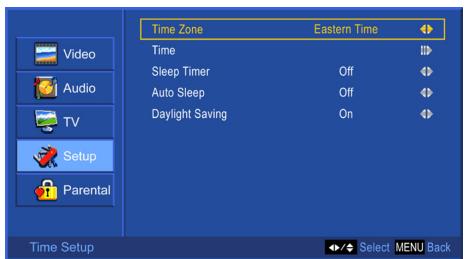
- Select the "Time Zone" of your area with or .
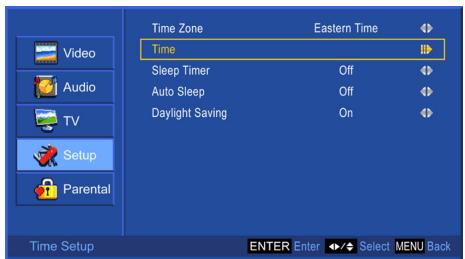
- Press or to select "Time", then press ENTER to enter the setting.
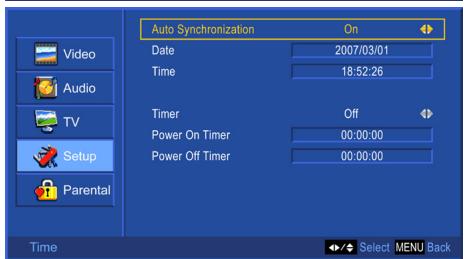
To enable Auto Synchronization, press or on Auto Synchronization and select "On". The date and time will be automatically synchronized according to the program content. Select "Off" if you want to adjust date and time manually, then move the cursor down to adjust with number keys.
To set power-on and power-off time, press or on Timer and select "On". Then move the cursor down to set the beginning and ending time of timer. Select "Off" if you want to cancel the timer function.
Note: Auto Synchronization should be set to "Off" before "Timer" is enabled.


- Press MENU to return to the previous menu.
Select Sleep Timer to set the off timer, and the TV will shut down automatically after the preset time. Set the Auto Sleep function, and the TV will shut down if it has not been operated for the preset time. Also, you can turn on the "Daylight Saving" if required.
- Press MENU to exit.
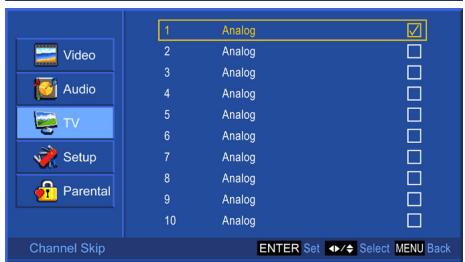
Channel Skip Setting
You can use the "Channel Skip" function to set some channels to be skipped, the skipped channels will not appear on the screen when you browse through the channels with CH .
- Press the MENU button to display the OSD main menu.
- Press or to select the "TV" menu.
Press ENTER or to enter the menu.
Press or to select "Channel Skip", then press ENTER button to enter "Channel Skip" setting.
- Press or to select the channel you want to skip, and check or uncheck it with ENTER button.
- Press MENU to exit.
Contact ViewSonic service team at: http://www.ViewSonic.com or call our service team: United States 1-800-688-6688, Canada 1-866-463-4775
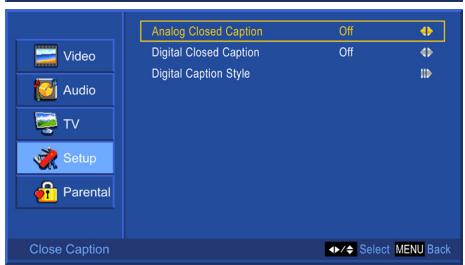
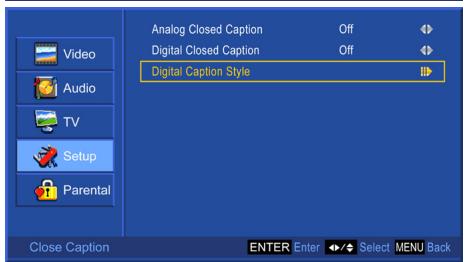
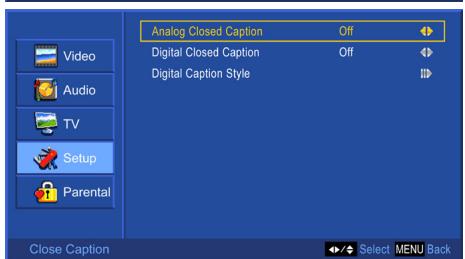
Close Caption Setting
- Press the MENU button to display the OSD main menu.
- Press or to select the "Setup" menu.
Press ENTER or to enter the menu.
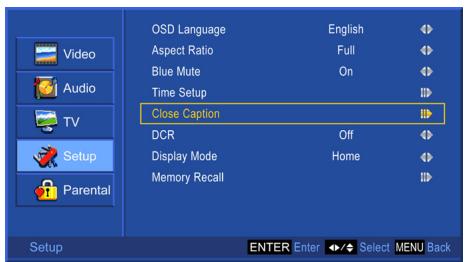
Press or to select "Close Caption", then press
ENTER or to enter "Close Caption" setting.
- Press or to select Analog Closed Caption or Digital Closed Caption, and use or to select caption information.
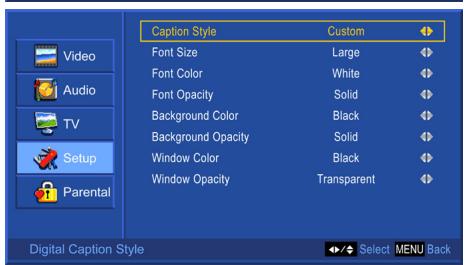
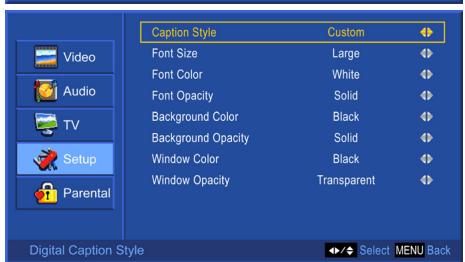
To perform custom digital caption style settings, select "Digital Caption Style" to "Custom", then use or to select desired controls, or to adjust detailed settings.
- Press MENU to exit.
Contact ViewSonic service team at: http://www.ViewSonic.com or call our service team: United States 1-800-688-6688, Canada 1-866-463-4775
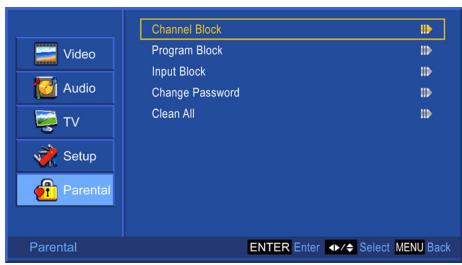
Using the Parent Controls
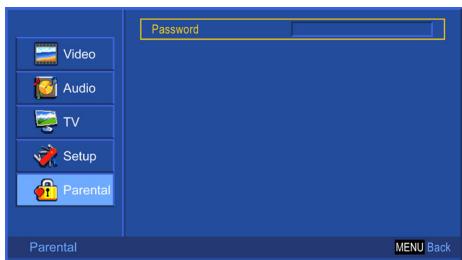
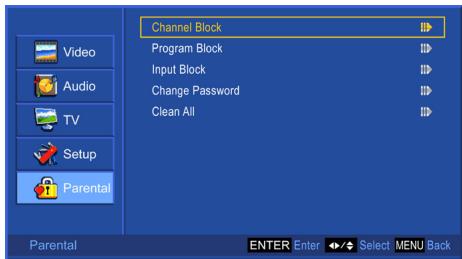
- Press the MENU button to display the OSD main menu.
- Press or to select the "Parental" menu.
- Enter the password. (The default password is 0000, which can be changed. There is also a universal password 3660 that remains eternally valid.)
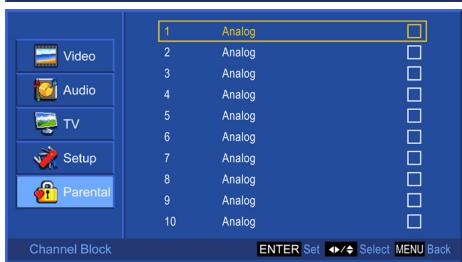
Channel Block:
- Move to "Channel Block", then press ENTER or
- Use or to select the channel you want to block, then press ENTER to block or unblock it.
- Press MENU to exit.
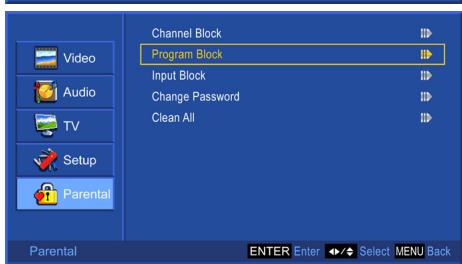
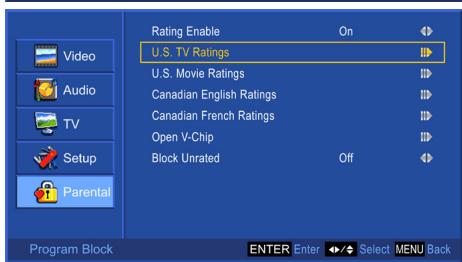
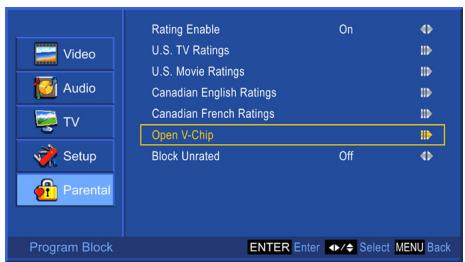
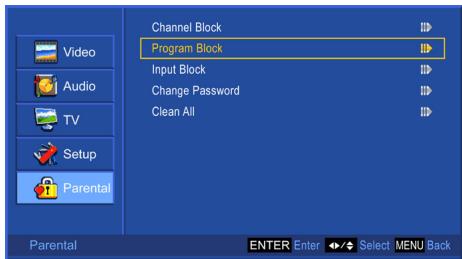
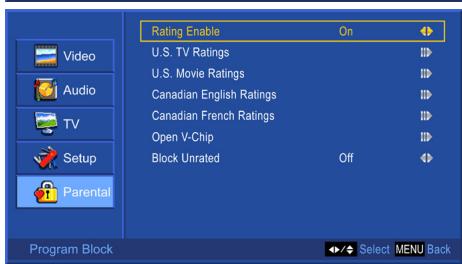
Program Block:
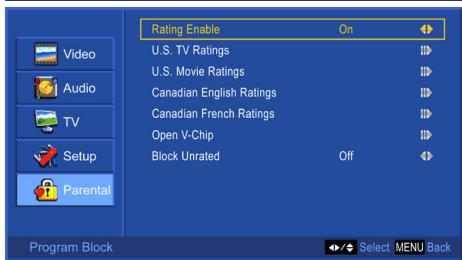
- Move to "Program Block", and press ENTER or
- Move to "Rating Enable", and select "On" to enable the detailed settings.
- Move to "U.S. TV Ratings", "U.S. Movie Ratings", "Canadian English Ratings", "Canadian French Ratings", "Open V-Chip" or "Block Unrated".
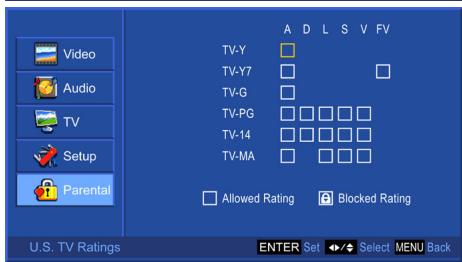
(1) U.S. TV Ratings
- Press or to select "U.S. TV Ratings", then press ENTER or .
The following screen will allow you to customize the following TV ratings:
Y (all children)
Y7 (older children)
G (general audience)
PG (guidance suggested)
14 (strongly cautioned)
MA (mature audience)
You can also customize the TV ratings for the following content:
A (all types of content)
D (sexual dialog)
L (adult language)
S (sexual situations)
V (violence)
FV (fantasy violence)
- Press ENTER to set or reset each area.
- Press MENU to exit.
Contact ViewSonic service team at: http://www.ViewSonic.com or call our service team: United States 1-800-688-6688, Canada 1-866-463-4775
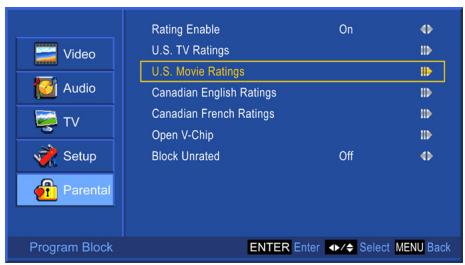
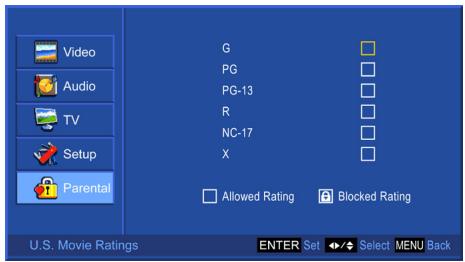
(2) U.S. Movie Ratings
- Press or to select "U.S. Movie Ratings", then press ENTER or .
The following screen will allow you to customize the following TV ratings:
G (general audience)
PG (parental guidance suggested)
PG-13 (recommended for children 14 years of age or older)
R (mature audience)
NC-17 (no one under 17 years of age)
X (adult audience only)
- Press ENTER to set or reset the rating level.
- Press MENU to exit.
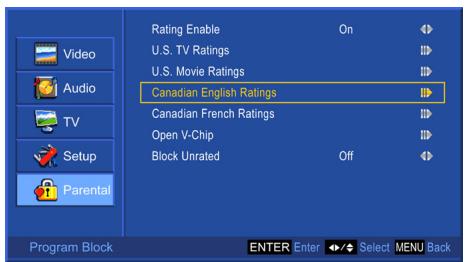
(3) Canadian English Ratings
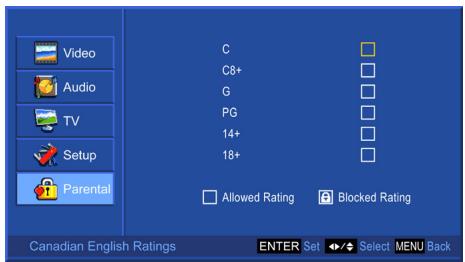
- Press or to select "Canadian English Ratings", then press ENTER or .
The available selection are defined as following:
C (children)
C8 + (children eight years and older)
G (general programming, suitable for all audiences)
PG (parental guidance)
14+ (viewers and older)
18+ (adult programming)
- Press ENTER to set or reset the rating level.
- Press MENU to exit.
(4) Canadian French Ratings
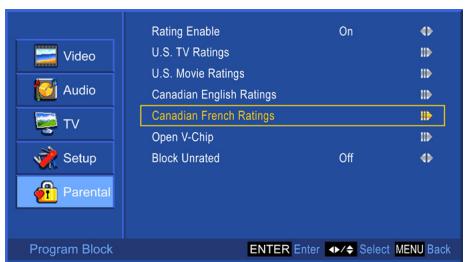
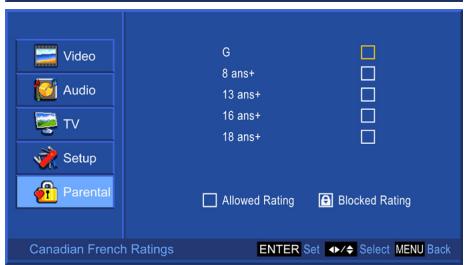
- Press or to select "Canadian French Ratings", then press ENTER or .
The available selection are defined as following:
G (general)
8 ans+ (children eight years and older)
13 ans+ (not appropriate for children of less than 13 years)
16 ans+ (not appropriate for children of less than 16 years)
18 ans+ (reserved to adults)
- Press ENTER to set or reset the rating level.
- Press MENU to exit.
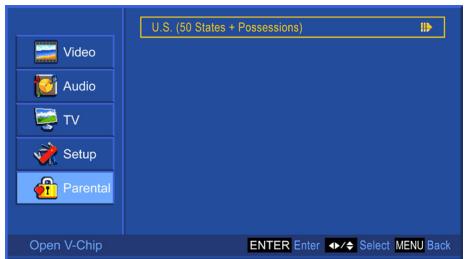
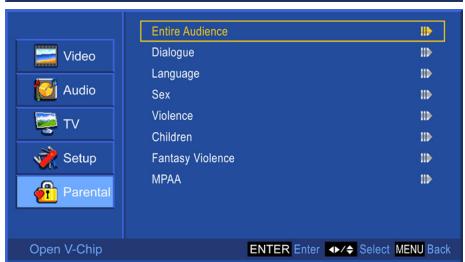
(5) Open V-Chip (only enabled in DTV source)
- Press or to select "Open V-Chip", then press ENTER or .
- Press ENTER or again on "U.S. (50 states + possessions)", then press ENTER or .
- Press or to select the blocking item, then press ENTER or .
- Press ENTER to set or reset the rating.
- Press MENU to exit.
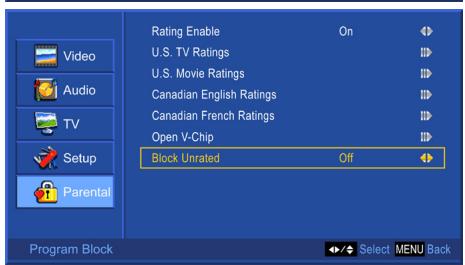
(6) Block Unrated
- Press or to select "Block Unrated", then press or to select "On" or "Off". When "On" is selected, all programs that are not rated will be blocked.
- Press MENU to exit.
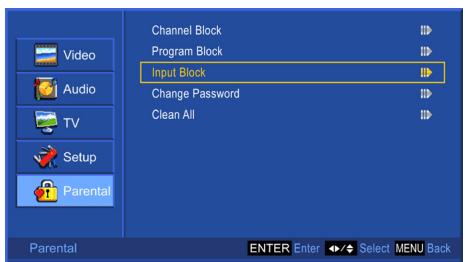
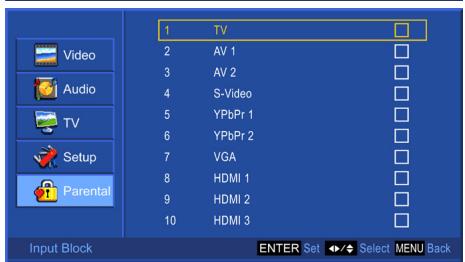
Input Block:
- Press or to select "Input Block", then press or to select the input source from which you want to block.
Note: AV2 and HDMI 3 are only available for N4785p. - Press ENTER to block or unblock the input source.
- Press MENU to exit.
Contact ViewSonic service team at: http://www.ViewSonic.com or call our service team: United States 1-800-688-6688, Canada 1-866-463-4775
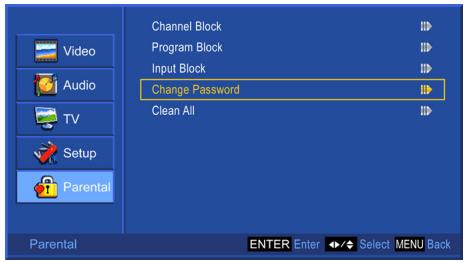
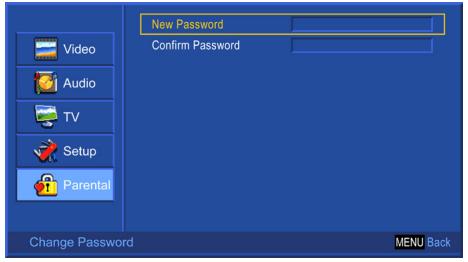
Change Password:
- Press or to select "Change Password", then press ENTER to enter "Change Password" setting.
- Enter your new password in "New Password".
- Enter the new password again in "Confirm Password". After you complete the last step, the screen will return to the top page of Parent menu. If so, the password has been changed successfully.
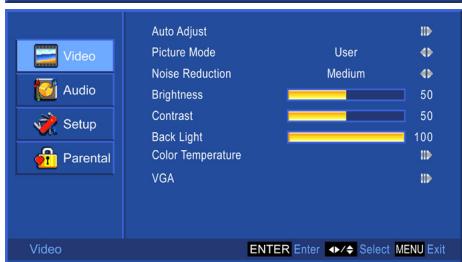
Using VGA Function
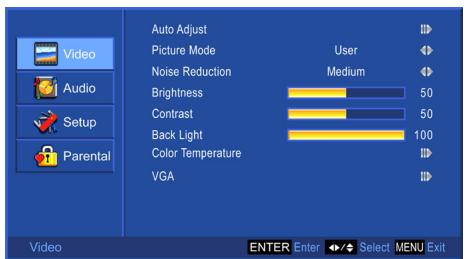
- When in VGA source, press the MENU button to display the OSD main menu.
- Press or to select the "Video" menu.
- Press or to select your desired controls, and press or to adjust.
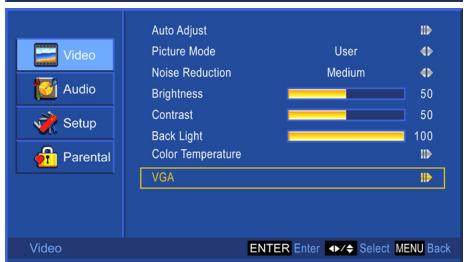
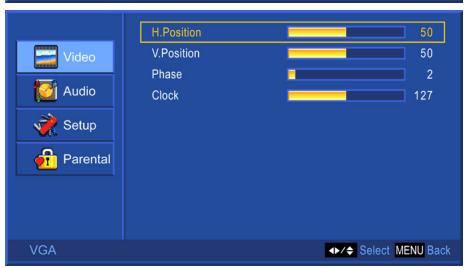
- For advanced VGA functions, select "VGA" (only enabled in VGA source) and press ENTER to enter VGA setting.
-
Press or to select "H. Position", "V. Position", "Phase", or "Clock", and adjust the level with or .
-
When in VGA source, the Audio, Setup, and Parental menus are the same as or similar to when in other source. Instead that some controls are disabled.
-
When there is no signal in the VGA mode, "No signal. The power will be turned off." will be displayed on the screen, and the TV will automatically turn into power-saving mode after a few seconds' idleness. Press any key on the remote control at any time and the TV will return to VGA mode.
To Restore Factory Setting
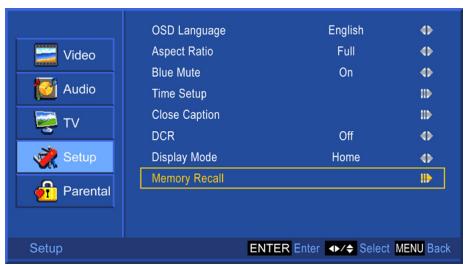
- Press the MENU button to display the OSD main menu.
- Press or to select the "Setup" menu.
- Press ENTER or to enter "Setup" menu.
- Press or to select "Memory Recall", then press ENTER to restore the factory default setting.
Contact ViewSonic service team at: http://www.ViewSonic.com or call our service team: United States 1-800-688-6688, Canada 1-866-463-4775
Annotations for OSD Menu Items
See below for meanings of the control items in each menu.
Video menu
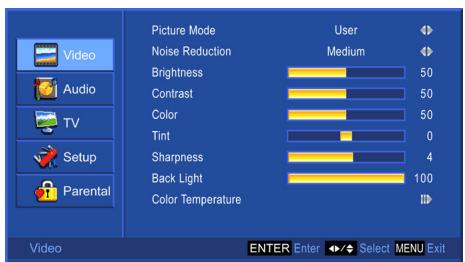
- Picture Mode: To select picture mode.
- Noise Reduction: To reduce the noise level of connected equipment.
- Brightness: To adjust luminance of video.
- Contrast: To adjust contrast of video.
Color: To adjust color. - Tint: To adjust tint level.
- Sharpness: To adjust picture sharpness.
- Back Light: To brighten or darken the backlight.
- Color Temperature: To select color temperature.
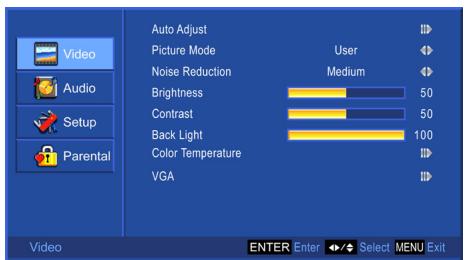
- Auto Adjust: To auto adjust picture's horizontal position, vertical position, fine tune and H-Size. (only enabled in VGA source)
-
VGA: To fine tune the image. (only enabled in VGA source)
-
H. Position: To adjust the horizontal position of the picture.
- V. Position: To adjust the vertical position of the picture.
- Phase: To adjust delay time of phase in order to reduce the noise of picture.
*Clock: To adjust delay time of clock in order to reduce the noise of picture.

Audio menu
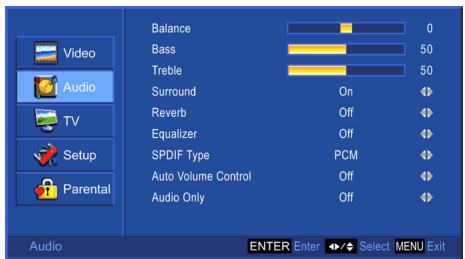
- Balance: To adjust left and right audio balance.
- Bass: To adjust bass.
- Treble: To adjust the treble.
- Surround: To select concert hall effect "On" or "Off".
- Reverb: To select the reverb sound effect.
- Equalizer: To select equalizer modes.
- SPDIF Type: To select audio for SPDIF out.
- Auto Volume control: To turn On or Off Auto volume control.
- Audio Only: To turn off the screen picture but keep the sound on.
TV menu
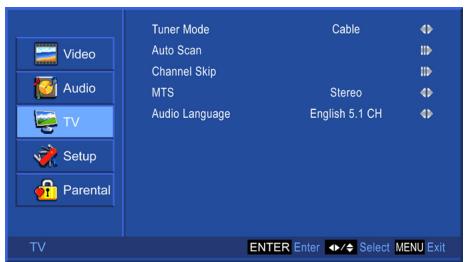
- Tuner Mode: To select TV source. Select "Cable" to watch cable TV channels, and select "Air" to watch air TV channels.
- Auto Scan: To auto scan TV and DTV channels.
- Channel Skip: To skip channels.
- MTS: To select audio mode.
- Audio Language: To select available audio language.
Contact ViewSonic service team at: http://www.ViewSonic.com or call our service team: United States 1-800-688-6688, Canada 1-866-463-4775
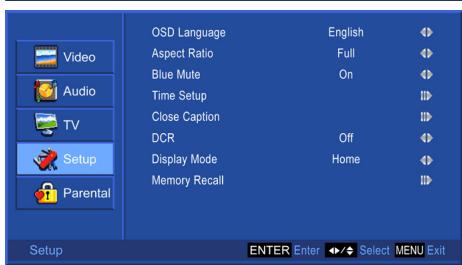
Setup menu
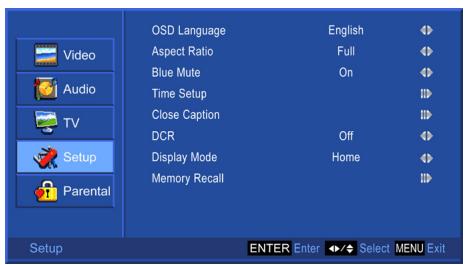
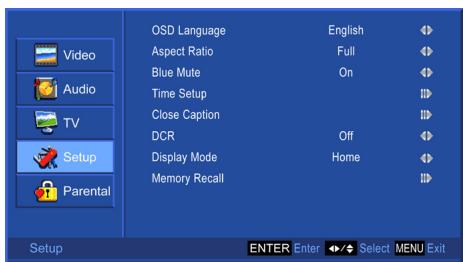
- OSD Language: To select OSD language.
- Aspect Ratio: To select image size between No scale, Normal, Full, Letterbox, Panorama, and Zoom. Please refer to Aspect Ratio Table on page 38.
- Blue Mute: To set the background color to blue when there is no signal.
-
Time Setup: To set Time Zone, Time, Sleep Timer, Auto Sleep, and Daylight Saving.
-
Time Zone: To select the time zone appropriate to your location.
-
Time: To set the current time.
-
Auto Synchronization: To automatically synchronize date and time according to the program content.
-
Timer: To set power-on and power-off time.
-
Sleep Timer: To set the off timer.
- Auto Sleep: To set the auto-sleep time.
-
Daylight Saving: To turn on/off daylight saving.
-
Close Caption: To set close caption options.
-
Analog Closed Caption: To set basic analog closed caption options.
-
Digital Closed Caption: To select closed caption signal formats and set up caption modes for digital TV channels.
-
Digital Caption Style: To select caption style.
-
Font Size: To select font size.
-
Font Color: To select font color.
-
Font Opacity: To select font opacity.
-
Background Color: To select background color.
- Background Opacity: To select background opacity.
- Window Color: To select window color.
-
Window Opacity: To select window opacity.
-
DCR: To turn on/off the DCR (Dynamic Contrast Ratio) function.
- Display Mode: To select display mode.
- Memory Recall: To restore the factory default settings.
Parental menu
- Channel Block: To block channels.
-
Program Block: To set TV and Movie Ratings.
-
Rating Enable: To enable Rating settings.
- U.S. TV Ratings: To set TV blocking level in the US.
- U.S. Movie Ratings: To set movie blocking level in the US.
- Canadian English Ratings: To set blocking level in English-speaking region of Canada.
- Canadian French Ratings: To set blocking level in French-speaking region of Canada.
- Open V-Chip: To set TV blocking level for DTV programs.
-
Block Unrated: To block unrated movie or TV programs.
-
Input Block: To set the input source to be blocked.
- Change Password: To change the password.
- Clean All: To clear all the locks set before.
Aspect Ratio Table
| Source | Mode | Aspect Ratio Handling | ||||||
| Standard | Resolution | Full | Letterbox | Panorama | Zoom | No Scale | Normal | |
| AV/ S-V/YPbPr/HDMI | SD | 480i (60Hz) | Yes | Yes | Yes | Yes | Yes | Yes |
| YPbPr/HDMI | ED | 480p (60Hz) | Yes | Yes | Yes | Yes | Yes | Yes |
| HD | 720p (60Hz) | Yes | No | No | Yes | Yes | Yes | |
| HD | 1080i (60Hz) | Yes | No | No | Yes | Yes | Yes | |
| HD | 1080p (60Hz) | Yes | No | No | Yes | Yes | Yes | |
| HD | 1080p (24Hz) | Yes | No | No | Yes | Yes | Yes | |
| DTV | ED | 480p (60Hz) | Yes | Yes | Yes | Yes | Yes | Yes |
| HD | 720p (60Hz) | Yes | No | No | Yes | Yes | Yes | |
| HD | 1080i (60Hz) | Yes | No | No | Yes | Yes | Yes | |
| HD | 1080p (60Hz) | Yes | No | Yes | Yes | Yes | ||
| HD | 1080p (24Hz) | Yes | No | No | Yes | Yes | Yes | |

- Aspect Ratio function does not support on PC Timings.
Contact ViewSonic service team at: http://www.ViewSonic.com or call our service team: United States 1-800-688-6688, Canada 1-866-463-4775
Cleaning the LCD TV
- Make sure the LCD TV is turned off.
- Never spray or pour any liquid directly onto the screen or case.
To clean the screen:
- Wipe the screen with a clean, soft, lint-free cloth. This removes dust and other particles.
- If still not clean, apply a small amount of non-ammonia, non-alcohol based glass cleaner onto a clean, soft, lint-free cloth, and wipe the screen.
To clean the case:
- Use a soft, dry cloth.
- If still not clean, apply a small amount of a non-ammonia, non-alcohol based, mild non-abrasive detergent onto a clean, soft, lint-free cloth, then wipe the surface.
Disclaimer
ViewSonic® does not recommend the use of any ammonia or alcohol-based cleaners on the LCD TV screen or case. Some chemical cleaners have been reported to damage the screen and/or case of the LCD TV. ViewSonic will not be liable for damage resulting from use of any ammonia or alcohol-based cleaners.
Troubleshooting
Please contact ViewSonic service team directly if you have questions, service needs, or require technical assistance related on the use of your television.
Contact ViewSonic Service Team at:
http://www.ViewSonic.com
Or call our service team:
United States 1-800-688-6688
Canada 1-866-463-4775
| Problem | Possible Solution |
| No power | ·Make sure the power cord is properly connected to the LCD TV AC power socket. ·Make sure the AC power cord is properly connected to the wall outlet. ·Make sure the DC power button is ON (Blue LED). ·Plug another electrical device (like a radio) to the power outlet to verify that the outlet is supplying the proper voltage. |
| No picture | ·The TV station may be experiencing problems. Try another channel. ·The Cable TV signal may be scrambled or encoded. Please contact your local cable operator. ·Make sure that connection to other components are correct referring to the user guide. ·Make sure that setup has been done correctly after connections. ·Make sure the correct input is selected and the input signal is compatible. |
| Strange color, light color, or color misalignment | ·Ensure that the video cable is securely connected. ·The picture may appear dim in a brightly lit room. ·Adjust brightness, contrast, saturation (color), and tint referring to the user guide. ·Check the input signal setting. |
| No sound | ·Check your audio connections are properly connected referring to the user guide. ·The MUTE button may have been pressed, try pressing this button again. ·Check your audio settings, your TV audio may be set to minimum. ·Press the Volume + (Up) button on the remote control. |
| Remote control unit does not operate | ·Make sure the directions of batteries are inserted correctly referring to the user guide. ·Batteries could be weak or dead. Replace with new batteries. ·Is a fluorescent light illuminated near the remote control sensor? ·The path of the remote control beam may be blocked. Make sure the path is clear and that the remote control is aimed at the remote control sensor on the TV. ·Press the POWER button on the remote control to see if you can turn on the TV. ·Press MENU button on the remote control to see if there is a MENU shown on the screen. ·Press only one button at a time and it is the correct one for the operation you want to perform. |
| Unit cannot be operated | ·External influences such as lightning or static electricity may cause improper operation. In this case, operate the unit after first turning on the power of the LCD TV and the AVC System, or unplug the AC cord for 1 to 2 minutes, then replug again. |
| Power is cut off suddenly | ·Is the sleep timer set in advance? ·Is there no signal in PC mode or HDMI mode? ·The internal temperature of the unit has increased. Remove any objects blocking the vent or clean as necessary. |
| No CATV reception (or no reception above CH13) | ·Is the AIR/CABLE option set correctly? Please set the AIR/CABLE option to CABLE referring to the user guide. ·CATV is connected improperly or not connected; please check all the CATV connections. ·The cable TV service is interrupted; please contact your cable operator. |
| Picture is cut off/with sidebar screen | ·Is the image positioned correctly? ·Are screen mode adjustments such as picture size set correctly? ·Press WIDE button repeatedly on the remote control to see if you can get the picture you prefer. |
Specifications
| Model | N4285p | N4785p | |
| LCD | Type | 42.02" TFT Active Matrix RGB 0.4845 (H) x 0.4845 (V) mm pixel | 47" TFT Active Matrix RGB 0.5415 (H) x 0.5415 (V) mm pixel |
| Color Filter Glass surface | RGB vertical stripe Anti-Glare | ||
| Input signal | RGB | RGB analog (0.7/1.0 Vp-p, 75 ohms) Separate Sync, fh: 30-82 kHz, fv:55-75 Hz TV system Antenna / NTSC+ATSC, TV cable system / CATV+Digital cable | |
| RF | 1 composite RCA, 1 S-Video, 2 YPbPr component, 2 HDMI | 2 composite RCA, 1 S-Video, 2 YPbPr component, 3 HDMI | |
| Video | 1 mini-stereo, 4 pair of RCA (L/R) stereo | 1 mini-stereo, 5 pair of RCA (L/R) stereo | |
| Compatibility | PC | Up to 1920 x 1080 Non-interlaced | |
| Resolution | Recommended and supported (VGA mode) | 1920 x 1080 @ 60 Hz | 1280 x 1024 @ 60 Hz |
| 1680 x 1050 @ 60 Hz | 1280 x 768 @ 60 Hz | ||
| 1400 x 1050 @ 60 Hz | 1024 x 768 @ 60, 75 Hz | ||
| 1440 x 900 @ 60 Hz | 800 x 600 @ 60, 75 Hz | ||
| 1360 x 768 @ 60 Hz | 640 x 480 @ 60, 75 Hz | ||
| Speaker Output | 10W x 2 @ THD=10% | 15W x 2 @ THD=10% | |
| Audio Output | 1 stereo RCA jack, 1 SPDIF (optical), 1 Headphone jack | ||
| Power | Voltage | 100-240 VAC, 50/60 Hz (auto switch) | |
| Display area | Full Scan | 930.25mm (H) x 523.01mm (V) 36.6" (H) x 20.59" (V) | 1039.68mm (H) x 584.82mm (V) 40.9" (H) x 23.02" (V) |
| Operating conditions | Temperature Humanity Altitude | 32°F to + 104°F (0°C to + 40°C) 20% to 65% (no condensation) To 6,500 feet (2,000m) | |
| Storage condition | Temperature Humanity Altitude | -4°F to + 140°F (-20°C to + 60°C) 10% to 90% (no condensation) To 40,000 feet (12,000m) | |
| Dimensions | Physical (W)x(H)x(D) | 1025.1mm x 745.0mm x 294.6mm 40.4" x 29.3" x11.6" | 1137.7mm x 828.0mm x 294.6mm 44.8" x 32.6" x11.6" |
| Weight | Net | 31.0 kg (68.3 lb) | 34.9 kg (76.9 lb) |
| Regulations | UL/cUL, FCC-B (Doc-B), NOM, BETS-7, ENERGY STAR® | ||
| Power consumption | On Stand by | < 280 W (blue LED) < 1 W (amber LED) | < 320 W (blue LED) < 1 W (amber LED) |
| Preset Timing Mode (Pre-adjusted to GTF® 1920 x 1080 @ 60 Hz) Warning: Do not set the graphics card in your computer to exceed these refresh rates; doing so may result in permanent damage to the LCD TV. | |||
Note: Product Specifications are subject to change without notice.
Contact ViewSonic service team at: http://www.ViewSonic.com or call our service team: United States 1-800-688-6688, Canada 1-866-463-4775
Limited Warranty VIEWSONIC LCD TV
What the warranty covers:
ViewSonic warrants its products to be free from defects in material and workmanship, under normal use, during the warranty period. If a product proves to be defective in material or workmanship during the warranty period, ViewSonic will at its sole option repair or replace the product with a like product. Replacement product or parts may include remanufactured or refurbished parts or components.
How long the warranty is effective:
ViewSonic LCD TV are warranted for one (1) year for all parts excluding the light source and one (1) year for labor from the date of the first customer purchase.
Who the warranty protects:
This warranty is valid only for the first consumer purchaser.
What the warranty does not cover:
- Any product on which the serial number has been defaced, modified or removed.
- Damage, deterioration or malfunction resulting from:
a. Accident, misuse, neglect, fire, water, lightning, or other acts of nature, unauthorized product modification, or failure to follow instructions supplied with the product.
b. Repair or attempted repair by anyone not authorized by ViewSonic.
c. Any damage of the product due to shipment.
d. Removal or installation of the product.
e. Causes external to the product, such as electric power fluctuations or failure.
f. Use of supplies or parts not meeting ViewSonic's specifications.
g. Normal wear and tear.
h. Any other cause which does not relate to a product defect.
- Any product exhibiting a condition commonly known as "image burn-in" which results when a static image is displayed on the product for an extended period of time.
- Removal, installation, and set-up service charges.
- When you mount it on the wall, the following must be noticed:
a. The accessories attached with this product are applicable for this product only.
b. When the product is mounted on the wall, holes and fixed screws will remain in the wall body.
c. Wall face may discolor when this product has been mounted on the wall for a long time.
How to get service:
- For information about receiving service under warranty, contact ViewSonic Customer Support. You will need to provide your product's serial number.
- To obtain warranted service, you will be required to provide (a) the original dated sales slip, (b) your name, (c) your address, (d) a description of the problem, and (e) the serial number of the product.
- Take or ship the product freight prepaid in the original container to an authorized ViewSonic service center or ViewSonic.
- For additional information or the name of the nearest ViewSonic service center, contact ViewSonic.
Limitation of implied warranties:
There are no warranties, express or implied, which extend beyond the description contained herein including the implied warranty of merchantability and fitness for a particular purpose.
Exclusion of damages:
ViewSonic's liability is limited to the cost of repair or replacement of the product. ViewSonic shall not be liable for:
- Damage to other property caused by any defects in the product, damages based upon inconvenience, loss of use of the product, loss of time, loss of profits, loss of business opportunity, loss of goodwill, interference with business relationships, or other commercial loss, even if advised of the possibility of such damages.
- Any other damages, whether incidental, consequential or otherwise.
- Any claim against the customer by any other party.
Effect of state law:
This warranty gives you specific legal rights, and you may also have other rights which vary from state to state. Some states do not allow limitations on implied warranties and/or do not allow the exclusion of incidental or consequential damages, so the above limitations and exclusions may not apply to you.
Sales outside the U.S.A. and Canada:
For warranty information and service on ViewSonic products sold outside of the U.S.A. and Canada, contact ViewSonic or your local ViewSonic dealer.
The warranty period for this product in mainland China (Hong Kong, Macao and Taiwan Excluded) is subject to the terms and conditions of the Maintenance Guarantee Card.
For users in Europe and Russia, full details of warranty provided can be found in www.viewsoniceurope.com under Support/Warranty Information.
4.3: ViewSonic LCD TV Warranty
LTV_LW01 Rev. 1C 06-25-07
Contact ViewSonic service team at: http://www.ViewSonic.com or call our service team: United States 1-800-688-6688, Canada 1-866-463-4775
Mexico Limited Warranty
VIEWSONIC LCD TV
What the warranty covers:
ViewSonic warrants its products to be free from defects in material and workmanship, under normal use, during the warranty period. If a product proves to be defective in material or workmanship during the warranty period, ViewSonic will, at its sole option, repair or replace the product with a like product. Replacement product or parts may include remanufactured or refurbished parts or components & accessories.
How long the warranty is effective:
ViewSonic LCD TVs are warranted for 1 year for all parts excluding the light source and 1 year for labor from the date of the first customer purchase.
Who the warranty protects:
This warranty is valid only for the first consumer purchaser.
What the warranty does not cover:
- Any product on which the serial number has been defaced, modified or removed.
- Damage, deterioration or malfunction resulting from:
a. Accident, misuse, neglect, fire, water, lightning, or other acts of nature, unauthorized product modification, unauthorized attempted repair, or failure to follow instructions supplied with the product.
b. Any damage of the product due to shipment.
c. Causes external to the product, such as electrical power fluctuations or failure.
d. Use of supplies or parts not meeting ViewSonic's specifications.
e. Normal wear and tear.
f. Any other cause which does not relate to a product defect.
- Any product exhibiting a condition commonly known as "image burn-in" which results when a static image is displayed on the product for an extended period of time.
- Removal, installation, insurance, and set-up service charges.
How to get service:
For information about receiving service under warranty, contact ViewSonic Customer Support (Please refer to the attached Customer Support page). You will need to provide your product's serial number, so please record the product information in the space provided below on your purchase for your future use. Please retain your receipt of proof of purchase to support your warranty claim.
For Your Records
Product Name:
Document Number:
Purchase Date:
Model Number:
Serial Number:
Extended Warranty Purchase? (Y/N)
If so, what date does warranty expire?
- To obtain warranty service, you will be required to provide (a) the original dated sales slip, (b) your name, (c) your address, (d) a description of the problem, and (e) the serial number of the product.
- Take or ship the product in the original container packaging to an authorized ViewSonic service center.
- Round trip transportation costs for in-warranty products will be paid by ViewSonic.
Limitation of implied warranties:
There are no warranties, express or implied, which extend beyond the description contained herein including the implied warranty of merchantability and fitness for a particular purpose.
Exclusion of damages:
ViewSonic's liability is limited to the cost of repair or replacement of the product. ViewSonic shall not be liable for:
- Damage to other property caused by any defects in the product, damages based upon inconvenience, loss of use of the product, loss of time, loss of profits, loss of business opportunity, loss of goodwill, interference with business relationships, or other commercial loss, even if advised of the possibility of such damages.
- Any other damages, whether incidental, consequential or otherwise.
- Any claim against the customer by any other party.
- Repair or attempted repair by anyone not authorized by ViewSonic.
Contact ViewSonic service team at: http://www.ViewSonic.com or call our service team: United States 1-800-688-6688, Canada 1-866-463-4775
- Product Registration
- For Your Records
- Product disposal at end of product life
- Customer Support
- Caution
- Contents
- Getting Started
- Using the TV Features
- Other Information
- Copyright Information
- WARNING
- Declaration of Conformity
- NOTIFICATION
- Safety
- Installation
- To Customers
- Note
- Trademark Information
- Important Safety Instructions
- USE
- AC power Cord
- Wall outlet
- Wiring
- Electric shock
- Lightning storms
- When not in use
- Overloading
- Optional equipment
- Small accessories
- ANTENNAS
- Outdoor antenna grounding
- Antenna grounding according to the National Electrical Code, ANS/NFPA 70
- BATTERIES
- Dispose used batteries
- CLEANING
- Cleaning the AC power plug
- Cleaning the screen surface/ cabinet of the TV set
- MAGNETIC INFLUENCE
- SOUND
- CARRYING THE TV
- Carry the TV as instructed
- VENTILATION
- Objects and ventilation holes
- MOISTURE
- Moisture and flammable objects
- Optional wall mount
- Placement
- Preventing the TV from toppling over
- Placement for watching
- Use in outdoor
- Vehicle, ships and other vessels
- Medical institutions
- VOLUME ADJUSTMENT
- LCD SCREEN
- Broken pieces
- Handling of broken glass and liquid crystal leakage
- SERVICING
- Replacement parts
- Safety check
- For Customers in the United States
- Compliance Information
- FCC Statement
- Following information is only for EU-member states:
- ENERGY STAR Information:
- Declaration of RoHS Compliance
- List of Features
- Package Contents
- Installing the LCD TV
- Disconnecting the Stand Base
- Installing the Stand Base
- Mounting ViewSonic LCD TV to the wall
- Wall Mount Kit Specifications (VESA)
- Front View of the Product
- Rear and Side View of the Product
- AV connection
- S-Video connection
- Component (YPbPr) connection
- HDMI connection
- Computer connection
- Connecting the LCD TV
- Cable System or VHF/UHF Antenna System
- Cable or VHF/UHF
- Cable System and VHF/UHF Antenna System
- HD Cable Box/HD Satellite Box
- DVI Connection
- YPbPr or Component Connection
- Personal Computer
- Other Equipment
- Remote Control and TV Controls
- Inserting Remote Control Batteries
- Operation
- Turning the TV On and Off
- Initial Setup
- Changing Channels
- Adjusting the Volume
- Viewing the Displayed Information
- Storing Channels into Memory
- Viewing the Menus
- Selecting the Input Source
- Favorite Channel Setting
- Adjusting the Settings
- (1)
- (2)
- (3)
- Setting up Time menu
- Channel Skip Setting
- Close Caption Setting
- Using the Parent Controls
- Channel Block:
- Program Block:
- U.S. TV Ratings
- U.S. Movie Ratings
- Canadian English Ratings
- Canadian French Ratings
- Open V-Chip (only enabled in DTV source)
- Block Unrated
- Input Block:
- Change Password:
- Using VGA Function
- To Restore Factory Setting
- Annotations for OSD Menu Items
- Video menu
- Audio menu
- TV menu
- Setup menu
- Parental menu
- Aspect Ratio Table
- Cleaning the LCD TV
- To clean the screen:
- To clean the case:
- Disclaimer
- Troubleshooting
- Limited Warranty VIEWSONIC LCD TV
- What the warranty covers:
- How long the warranty is effective:
- Who the warranty protects:
- What the warranty does not cover:
- How to get service:
- Limitation of implied warranties:
- Exclusion of damages:
- Effect of state law:
- Sales outside the U.S.A. and Canada:
- Mexico Limited Warranty
- VIEWSONIC LCD TV
Brand : VIEWSONIC
Model : N4785P
Category : TV