
N4290P - Television VIEWSONIC - Free user manual and instructions
Find the device manual for free N4290P VIEWSONIC in PDF.


| Product Type | LCD Television |
| Brand | VIEWSONIC |
| Model | N4290P |
| Screen Size | 42 inches (1067 mm) |
| Resolution | 1920 x 1080 pixels (Full HD) |
| Audio Power | 7 W x 2 (stereo speakers) |
| TV System | PAL |
| Sound System | D/K, I, B/G |
| Power Supply | AC 100-240 V, 50/60 Hz |
| Power Consumption (Normal) | 250 W |
| Power Consumption (Standby) | ≤ 3 W |
| Dimensions (with stand) | 1009 x 688 x 262 mm (W x H x D) |
| Wall Mount Standard | 400 x 200 mm (4 screws M6 x 10 mm) |
| Connectors | Antenna (75 ohms), AV1/S-Video1, Component (YPbPr), HDMI x2, VGA (PC), audio output, headphone |
| Main Functions | Built-in PAL tuner, multilingual OSD menu, sleep timer, picture modes (User, Drama, DV, Sport, Movie), parental control |
| Included Accessories | Remote control with batteries, RF cable, power cord, warranty card |
| Maintenance and Cleaning | Wipe the screen with a soft dry cloth. Use a non-ammonia cleaner. Do not spray liquid directly. |
| Safety | Do not expose to rain or moisture. Disconnect during thunderstorms. Wall installation by a professional. |
| Operating Temperature | 0 °C to 35 °C |
Frequently Asked Questions - N4290P VIEWSONIC
User questions about N4290P VIEWSONIC
0 question about this device. Answer the ones you know or ask your own.
Ask a new question about this device
Download the instructions for your Television in PDF format for free! Find your manual N4290P - VIEWSONIC and take your electronic device back in hand. On this page are published all the documents necessary for the use of your device. N4290P by VIEWSONIC.
USER MANUAL N4290P VIEWSONIC
Important Safety Instructions. 1
Copyright Information 2
Product Registration 2
Antenna Installation Instructions 3
Cleaning the LCD TV 4
Getting Started
Package Contents 5
Mounting ViewSonic LCD TV to the wall. 5
Place the TV on a solid surface 6
Install the wall mount plate to the LCD TV. 6
Connecting the power. 6
Turn the TV on & Off. 7
Watching TV. 7
Overview the LCD TV & Connection
The Front of the Screen Introduction 8
Signal Source Interface from Rear View 9
Signal Source Interface from Side View 11
To Use Remote Control. 12
Remote Control Battery Installation. 13
OSD Functions
To Use the OSD Menu 14
To Select Input Source. 14
OSD Menu in AV/TV Mode 14
OSD Menu in PC Mode 20
Other Information
Specifications 24
Troubleshooting 25
Customer Support 27
Declaration of RoHS Compliance. 27
Limited Warranty 28
Important Safety Instructions
-
Read these instructions completely before using the equipment.
-
Keep these instructions in a safe place.
-
Heed all warnings.
-
Follow all instructions.
-
Do not use this equipment near water. Warning: To reduce the risk of fire or electric shock, do not expose this apparatus to rain or moisture.
-
Clean with a soft, dry cloth. If further cleaning is required, see "Cleaning the LCD TV" in this guide for further instructions.
-
Do not block any ventilation openings. Install the equipment in accordance with the manufacturer's instructions.
-
Do not install near any heat sources such as radiators, heat registers, stoves, or other devices (including amplifier) that produce heat.
-
Do not attempt to circumvent the safety provisions of the polarized or grounding-type plug. A polarized plug has two blades with one wider than the other. A grounding type plug has two blades and a third grounding prong. The wide blade and the third prong are provided for your safety. If the plug does not fit into your outlet, consult an electrician for replacement of the outlet.
-
Protect the power cord from being tread upon or pinched, particularly at the plug, and the point where if emerges from the equipment. Be sure that the power outlet is located near the equipment so that it is easily accessible.
-
Only use attachments/accessories specified by the manufacturer.
12.

Use only with a cart, stand, tripod, bracket, or table specified by the manufacturer, or sold with the apparatus. When a cart is used, use caution when moving the cart/apparatus combination to avoid injury from tip-over.
- Unplug this equipment when it will be unused for long periods of time.
- Refer all servicing to qualified service personnel. Service is required when the unit has been damaged in any way, such as: if the power-supply cord or plug is damaged, if liquid is spilled onto or objects fall into the unit, if the unit is exposed to rain or moisture, or if the unit does not operate normally or has been dropped.
- This product is only to perform the useful function of entertainment and visual display tasks are excluded.
- To avoid the risk of electric shock, do not disassemble the equipment. For safety reasons, this equipment can only be disassembled by professionals.
- The equipment shall not be caught in rain, and any object containing liquid such as vase can not be put on it.
- The Category I equipments must be connected with plugs or power with protective earthing.
- If a plug or a coupler is used as the power off device, its ease of operation must be guaranteed.
- If an all-pole switch is used as the power off device, its location on the equipment and its function must be described, and the ease of switch operation must be guaranteed.
- Please plug the TV's power plug into a nearby power outlet that is the most convenient for connection.
- Warning: To reduce the risk of fire or electric shock, do not expose this equipment to rain or moisture.
- For the battery:
① If batteries are needed for the equipment, please ensure the correct polarities of the batteries (+/-) while installing.
② The waste batteries shall be properly disposed of, and never burn it in a fire.
(3) Never expose the batteries (packaged batteries or the batteries installed in the equipment) to excessive heat, for example, the sunlight or fire and the like.
Copyright Information
Copyright © ViewSonic® Corporation, All rights reserved.
ViewSonic, the three birds logo, OnView, ViewMatch, and ViewMeter are registered trademarks of ViewSonic Corporation.
Disclaimer: ViewSonic Corporation shall not be liable for technical or editorial errors or omissions contained herein; nor for incidental or consequential damages resulting from furnishing this material, or the performance or use of this product.
In the interest of continuing product improvement, ViewSonic Corporation reserves the right to change product specifications without notice. Information in this document may change without notice.
No part of this document may be copied, reproduced, or transmitted by any means, for any purpose without prior written permission from ViewSonic Corporation.
Product Registration
To meet your future needs, and to receive any additional product information as it becomes available, please register your product on the Internet at: www.viewsonic.com.
For your Record
Product Name: N3290w/N4290p/N4790p
ViewSonic LCD TV
Model Number: VS12277-1G/VS12278-1G/VS12279-1G
Document Number: N3290w_N4290p_N4790p-1G_UG ENG Rev.1B 07-22-08
Serial Number:
Purchase Date:
Product disposal at end of product life
ViewSonic is concerned about the preservation of our environment. Please dispose of this product properly at the end of its useful life. Your local waste disposal company may provide information about proper disposal.
The lamp in this product contains mercury. Please dispose of properly in accordance with environmental laws of your location.
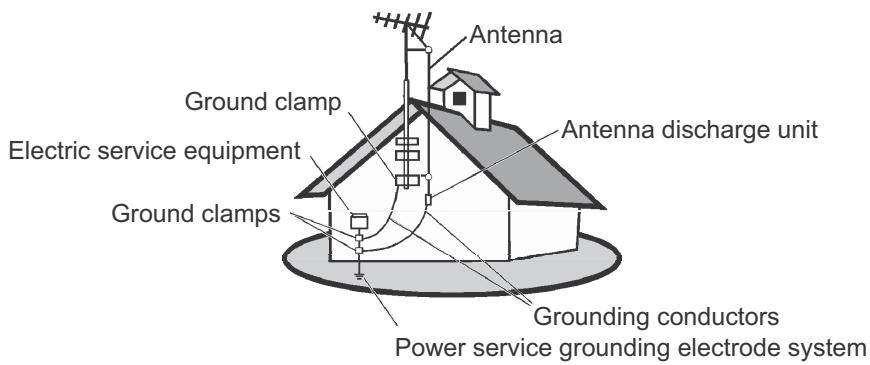
Antenna Installation Instructions
1. Outdoor Antenna Grounding
If an outside antenna or cable system is connected to the product be sure the antenna or cable system is grounded so as to provide some protection against voltage surges and built-up static charges, Article 810 of the National Electrical Code, ANSI/NFPA 70, provides information with regard to proper grounding of the mast and supporting structure, grounding of the lead-in wire to an antenna discharge unit, connection to grounding electrodes, and requirements for the grounding electrode.
2. Lightning
For added protection for this product during a lightning storm, or when it is left unattended and unused for long periods of time, unplug it from the wall outlet and disconnect the antenna or cable system. This will prevent damage to the product due to lightning and power-line surges. Do not disconnect the antenna or the power cord during a heavy storm lighting may strike while you are holding the cable cord, causing serious injury; turn off your LCD TV and wait for the weather to improve.
3. Power Lines
An outside antenna system should not be located in the vicinity of overhead power lines or other electric light or power circuits, or where it can fall into such power lines or circuits. When installing an outside antenna system, extreme care should be taken to keep from touching such power lines or circuits as contact with them might be fatal.
Cleaning the LCD TV
Make sure the LCD TV is turned off.
- Never spray or pour any liquid directly onto the screen or case.
To clean the screen:
- Wipe the screen with a clean, soft, lint-free cloth. This removes dust and other particles.
- If still not clean, apply a small amount of non-ammonia, non-alcohol based glass cleaner onto a clean, soft, lint-free cloth, and wipe the screen.
To clean the case:
- Use a soft, dry cloth.
- If still not clean, apply a small amount of a non-ammonia, non-alcohol based, mild non-abrasive detergent onto a clean, soft, lint-free cloth, then wipe the surface.
Disclaimer
ViewSonic® does not recommend the use of any ammonia or alcohol-based cleaners on the LCD TV screen or case. Some chemical cleaners have been reported to damage the screen and/or case of the LCD TV. ViewSonic will not be liable for damage resulting from use of any ammonia or alcohol-based cleaners.
Getting Started
Congratulations on your purchase of a ViewSonic® LCD TV. Important! Save the original box and all packing material for future shipping needs.
Package Contents
Your LCD TV package includes:
LCD TV
Power Cord
Warranty Card*
Remote Control with batteries
RF Cable
- ViewSonic User Guide
Mounting ViewSonic LCD TV to the wall
The LCD TV can be used in a free standing position or wall-mounted. Before installing the product to the wall, please consider the following guidelines:
- Read the Important Safety Instructions, at the start of this manual.
- Do not install in a moist or wet environment. This equipment is intended for indoor use.
- Do not install near heat source, or strong magnetic fields.
- Use only ViewSonicapproved wall-mounting brackets to support the LCD TV weight.
- Before attaching the wall mount plate to the back cover, ensure the product is working.
- If your LCD TV is already set up for free-standing operation, you need to first remove the stand before mounting the device to the wall.
To attach the wall-mount bracket to LCD TV safely, please use the following guidelines:
- Disconnect the power and any other cables that might hinder moving the LCD TV.
- Set the LCD TV on a table or work surface, placing the screen face down on a towel or woolen blanket to protect the screen surface from damage while installing plate.
-
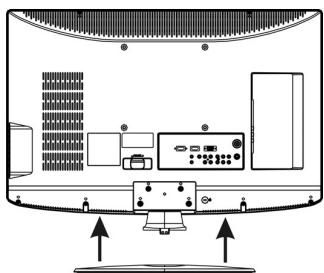
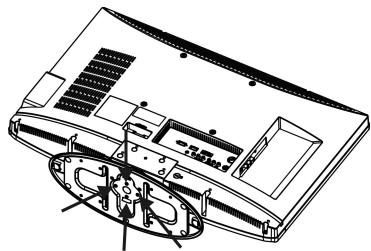
Please refer the following steps to remove the stand.
-
Remove the base. It is attached to the stand with 4 screws.
- Remove the 4 screws holding the stand to the hinge.
- Remove the stand.
Place the TV on a solid surface
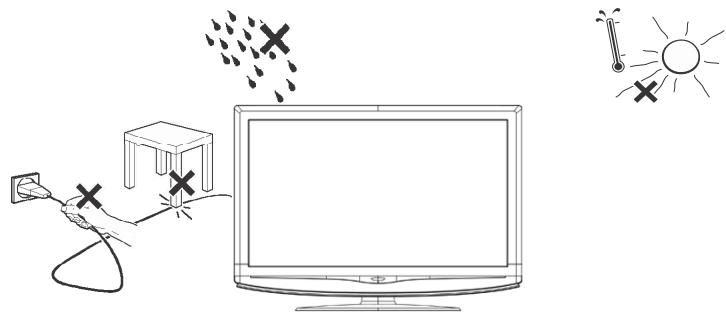
- Ensure that the TV is placed in a position to allow free flow of air. Do not cover the ventilation openings on the back cover.
- Leave at least 15cm around the TV set. Otherwise, air-circulation may be inadequate and cause overheating, which may cause a fire or damage to the TV set.
- Never place the TV set in hot, oily humid or excessively dusty places.
- To prevent any unsafe situations, no naked flame sources, such as lighted candles, should be placed on or in the vicinity.
- Avoid heat, direct sunlight and exposure to rain or water. The equipment shall not be exposed to dripping or splashing.
Install the wall mount plate to the LCD TV
- Please refer page 24 to understand wall mount dimension.
- If the TV set is to be installed on a wall, have the installation carried out by qualified service personnel. Improper installation may render the TV set unsafe..
- Mount the wall mount bracket to the wall ensuring use of proper screws to support the installation. Ensure there is at least 6cm of space surrounding any air-vents of your LCD TV to allow adequate cooling during operation.
- Before mounting your TV on the wall, you need to remove the base and connect all of the input source from the rear I/O.
Connecting the power
- This TV set is designed to operate on a 220-240V AC supply only. Take care not to connect too many appliances to the same mains socket as this could result in fire or electric shock.
- Do not use a poor fitting mains socket. Insert the plug fully into the mains socket. A poor fit may cause arcing and result in a fire. Contact your electrician to have the mains socket changed.
- The TV set is not disconnected from the mains when the TV set is switched off. To disconnect the TV set completely, pull the plug from the mains. However, some TV sets may have features which need the TV set to be left in standby to work correctly. The instructions in this manual will inform you if this applies.
- If you will not be using the TV set for several days, the TV set should be disconnected from the mains for environmental and safety reasons.
Turn the TV on & Off
1. Power On :
Press the power button on the remote control or key to pad to turn it on.
2. Power Off :
Press the power button on the remote control or key to pad to turn it on.
3. LED Indicator
Lights up in blue: the TV is turned on.
Lights up in red : the TV is in standby mode.
Watching TV
- Press the TV button on the remote control or press source button to select TV input.
- Press the MENU button to display the OSD main menu.
- Press or to select the "TV Setting" menu.
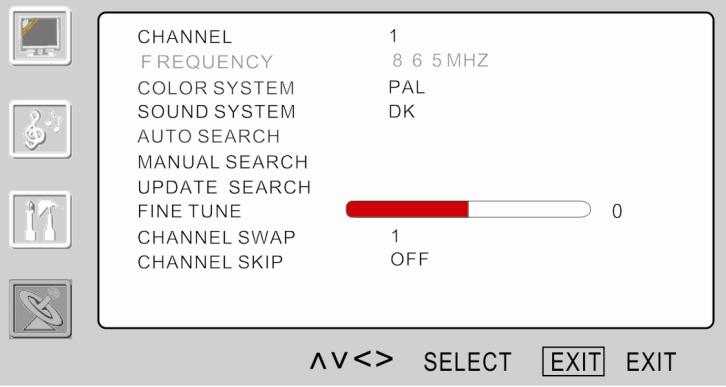
Press or to select "Auto Search, and then press to perform Auto Search function. The Auto Scan screen will be shown, and after it is done, the screen will return to the first found channel.
Press the number buttons or Channel up /down to select a TV Channel.
TV SETTING
Overview the LCD TV & Connection
The Front of the Screen Introduction

| Power(电源): | Turn the power on from standby mode or turn the power off return to the standby mode. |
| Source(信号源): | Press this button to display selected source, press ▲▼button to select input source. |
| Menu(菜单): | Press this button to display or exit the OSD menu. |
| CH▲/▼(频道): | When the OSD menu appears, press these two buttons to select the item you want to execute; when no OSD menu appears, use to change channels in TV mode. |
| Vol+/- (音量): | When the OSD menu appears, press these two buttons to confirm the selected item; when no OSD menu appears, use to adjust the volume. |
Signal Source Interface from Rear View
You can connect numerous items of source equipment to your TV. The figure below shows you how to connect these.
Place the TV on a table with the LCD screen facing down to facilitate easy connection with the external equipment. Please take precautionary measures to avoid damaging the LCD screen.
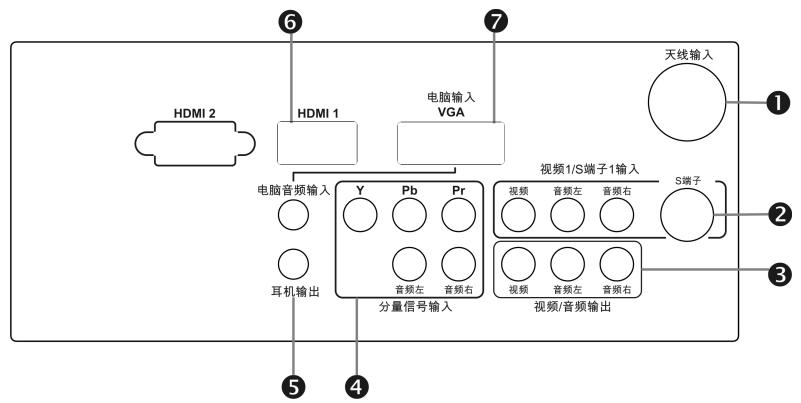
(1)Antenna Input:
Connect the antenna or CATV cable
Note: CATV cable to this 75 coaxial cable input
(2)AV1 & S-Video1 Input:
Connect the Video signal or S-Video cable to DVD player, Laser Disc player, videocassette recorder or camcorder (Note: For S-Video, Audio and AV1 are shared).
Audio Input: Connect the audio signal source (PC, DVD player, Laser Disc player, videocassette recorder or camcorder) to the audio Input ports.
(Note: S-Video & AV1 are shared same audio input).
(3) Video & Audio output:
Video output: Connect the video signal source to other TV video signal Input port
Audio output: Connect the audio signal source to the other TV audio Input ports.
Notes: AV1 & S-Video can accept to do Video & Audio output function.
(4)Component signal Cr (Pr),Cb(Pb),Y Input:
Connect the component signal source of audio and video (DVD player, Laser Disc player, videocassette recorder or camcorder) to the Component Input port.
(5)Ear phone:
User can plug ear phone jack in this connector 。
(6)HDMI 1/2 input :
HDMI: HDMI is the leading new standard for Digital video and audio interconnection. To the HDMI connector you can connect HDMI devices such as a Set Top Box or compatible DVD-R or DVD player with HDMI export, or DVI-equipped devices like a computer. So you can display high-definition pictures on this TV in the digital form.
Notes:
-
Your TV supports HDCP(High-bandwidth Digital Content Protection). This is a system for protecting DVD content outputted via DVI from being copied. It provides a secure digital link between a video source (DVD,PC etc.) and your TV. Content is encrypted at the source device to prevent unauthorized copies from being made.
-
Digital devices from different manufacturers have the possibility of differing output standards which may cause difficulties for the television to properly display.
- In case no signal is detected from your HDMI device, turn off the HDMI device and then on again.
- To get an optimal viewing, it is advised to turn your DVD player to one of the following TV display standards:1280x720p@ 60hz
(7)VGA Signal Input:
Use the VGA signal cable to connect signals from a PC to the TV Input.
Connect the PC audio cable supplied with the TV to the TV's PC Audio Input.
Note: If no signal is present on the VGA screen, the TV will enter into standby mode automatically after 60seconds.
Signal Source Interface from Side View
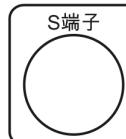
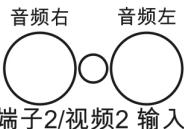
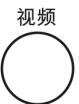
(8) AV1 & S-Video1 Input:
Connect the Video signal or S-Video cable to DVD player, Laser Disc player, videocassette recorder or camcorder (Note: For S-Video, Audio and AV1 are shared).
Audio Input: Connect the audio signal source (PC, DVD player, Laser Disc player, videocassette recorder or camcorder) to the audio Input ports.
(Note: S-Video2 & AV2 are shared same audio input).
Helpful Hints:
S-Video shares audio signal with Video 2.
To Use Remote Control
Sleep/睡眠
With this key you can set a time period after which the TV should switch itself to standby. Press the key repeatedly to select the number of minutes. The counter runs from 15, 30, 45, 60, 90, 120 minutes. (PC mode did not support this function)
TV/电视
To select TV input.
AV/视频
To select AV/S-Video input.
0-9/-100
Select and switch to a channel by using 0-9 buttons..
Display/显示
Pressing once displays a variety of information such as the current channel and the input source.
Mute/静音
Mutes and restores your LCD TV sound.
CH∧VI频道∧V
When in menu mode, use this button to select to the up/down; otherwise, to change TV channels.
Source/信号源
To select input source.
A.V<>
Press these buttons to navigate the OSD menus. < > are for function select, and is for function adjustment.
Enter/确认
Press the button to confirm selection.
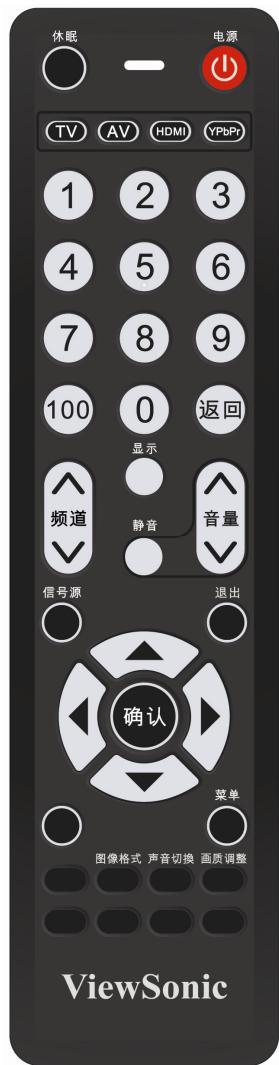
POWER/电源
Press to turn on/off.
HDMI
To select HDMI/ PC input.
YPbPr/色差
To select component input.
Recall/返回
To display the previously TV channel
VOL∧V/音量∧V
Use this button to confirm selection or adjust the desired parameter; otherwise, to increase /decrease the volume
Exit/退出
Exits the OSD menu (on-screen display).
Menu/菜单
Press this key to display OSD menu.
Image format/图像格式
To select picture size. Includes 4 modes: Full, 4:3, 16:9, & 16:9 Subtitle. (The options of aspect ratio may be different according to its input source)
Sound Effect/声音切换
To select Stereo, News, Movie, Music, Surround, Stereo available.
Picture Quality Adjustment/画质调整
To select picture mode.
Included: User, Drama, DV, Sport, Movie.
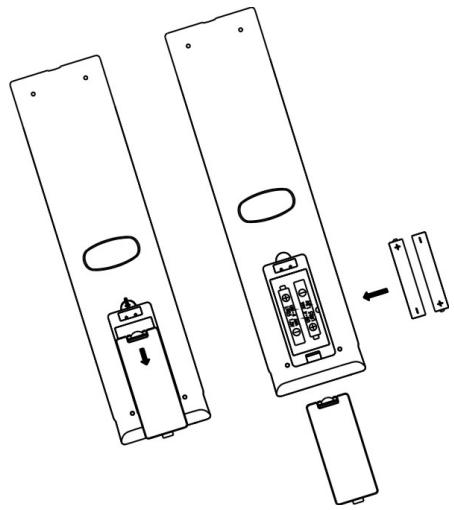
Remote Control Battery Installation
Follow the steps below to insert batteries.
- Open the remote control's rear battery compartment cover.
- Insert two AAA (1.5v) batteries. Ensure that the positive and negative ends match as indicated on the bottom of the battery compartment.
- Replace the battery compartment cover.
CAUTION
- Only use the specified AAA batteries.
- Do not mix new and old batteries. This may result in cracking or leakage, which may pose a risk of fire or lead to personal injury
- Insert batteries according to (+) and (-) markings. Inserting the batteries incorrectly may result in cracking or leakage, which may pose a risk of fire or lead to personal injury.
- Dispose of the battery in accordance with local laws and regulations.
- Keep the battery away from children and pets.
- When the remote control will not to be used for an extended period, remove the batteries.
- If the battery fluid leaks inside the remote control, clean the battery compartment carefully and insert new batteries.
- Improper battery changing may cause explosion.
- Dispose of the used batteries in accordance with the instructions on the battery.
OSD function
To Use the OSD Menu
All the functions for the LCD TV are control either by the remote control or the control button on the front control screen at bottom of right side.
- Press the Menu button to display or exit the OSD main menu.
- Use the Up or Down buttons to select the function to be adjusted. The function where the cursor is located is the selected one.
- Use the Left or Right buttons to enter into the submenu, or to enable or adjust the selected function. The function where the cursor is located is the one that can be adjusted.
- Press the Exit button to exit the OSD menu.
To Select Input Source
In different input source, the functions can be adjusted are different.
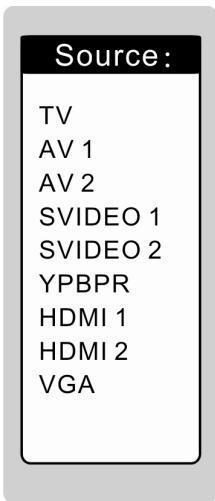
Press Source key to select the input source. It offers the following input source: TV, AV1, AV2, S-Video1, S-Video2, YPBPR, HDMI1, HDMI2 & VGA.
OSD Menu in AV/TV Mode
Press the MENU button on the remote control to display the OSD main menu. It offers the following options: Picture Setting, Sound Setting, Setup Setting & TV Setting.
Refer to the following descriptions for details:
(note: In different input source, the functions which can be adjusted are different.)
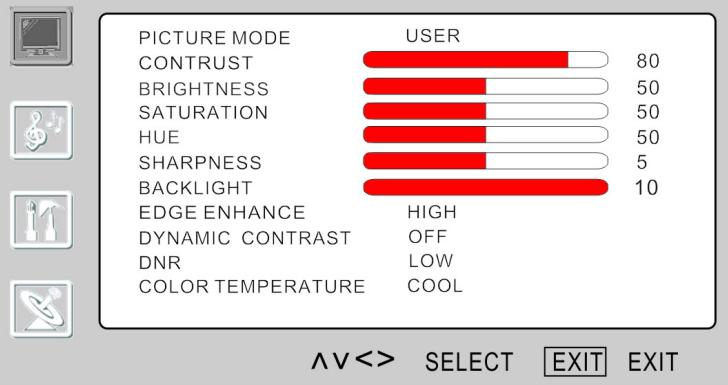
PICTURE SETTING
- Picture Mode: User can select User, Drama, DV, Sport & Movie if selected except User item, Contrast, brightness, Saturation, Sharpness, DNR, Backlight can't adjust.
- Contrast: Adjust black and white level, suitable contrast can make picture more lightly. Adjustment range is from 0 to 100.
- Brightness: Adjust background brightness, user can collocation it with contrast adjustment range is from 0 to 100.
- Saturation: Adjust color saturation, range is from 0 to 100.
- Hue: When the TV uses in the NTSC system, you can adjust to the Hue as you prefer. The adjustment range is from 0 to 100.
- Sharpness: Adjustment picture sharpness, range is from 0 to 10.
- Backlight: The adjustment range of black Level is from 0 to 10.
- Edge Enhance: Enhance the edge particularity of dynamic images. Selection: Off, Low & High.
- Dynamic contrast: Add image contrast automatically. Selection: Off & On.
- DNR: When the signal is poor, you can turn on the noise reduction function. Selection: Off, Low & High.
- Color Temperature: You can select or adjust the color temperature according to your requirements. Selection: Cool Warm & Middle.
Sound Setting
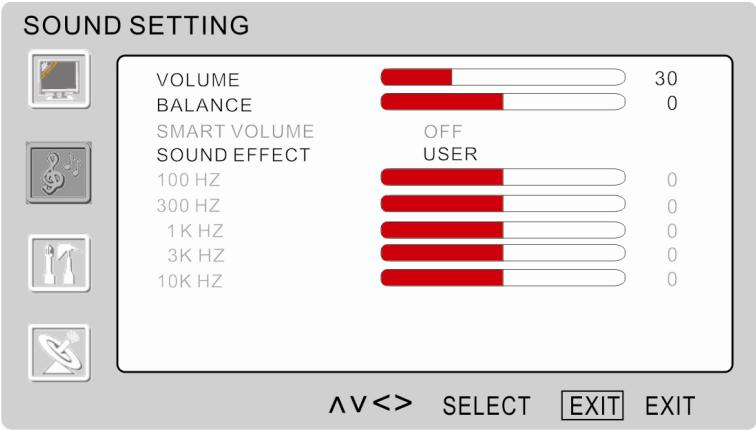
- Volume: The Volume adjustment range is from 0 to 100, You can adjust the Volume of the picture to the level you prefer
- Balance: Adjust the balance between left/right channels as required using the left / right buttons.
- Smart Volume: To select the Automatic Volume Setup.
- Sound Effect: You can choose your preferred sound effect mode. The selection including Off, News, Movie, Music, Surround, Stereo & User.
- 100Hz, 300Hz, 1KHz, 3KHz, 10KHz: When you choose Sound Effect in User mode, you can choose the prefer frequency to increase or decrease.
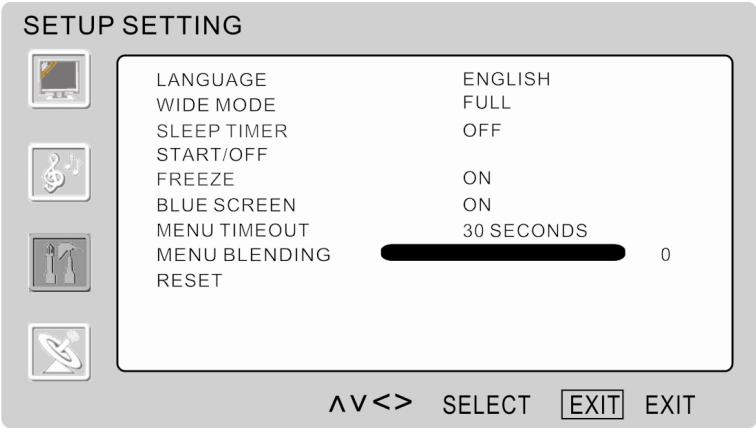
- Language: This indicates the different languages available for the OSD menu, including Chinese, & English. The default is Chinese
- Wide Mode: To select picture size. Includes 4 modes: Full, 4:3, 16:9, & 16:9 Subtitle. (The options of aspect ratio may be different according to its input source)
- Sleep Timer: Use this button to set a time period after which the TV will enter into standby mode. The time period can be 0 > 15 > 30 > 45 > 60 > 90 > 120 minutes.
The timer will begin to count down from the selected number of minutes after the OSD menu disappears.
Note: To check the remaining time, press the SLEEP button. To cancel the sleep timing, press the SLEEP button repeatedly until 0 appears. If you turn off the TV after you set the sleep timing, the setting will be cleared. You will need to set it again.
- Start/Off : To setup turn on and turn off time.
- Freeze: In TV mode, to select channel change pattern is freeze or black screen.
- Blue Screen: When there is no signal input in TV, AV, S-Video and HDTV modes, the screen will become blue. If set to On, the screen will become blue. If set to Off, the screen will display a snowy picture when in TV signal mode and become black in other signal modes. The default is On.
- Menu Timeout: OSD stay timer.
- Menu Blending: Adjust menu transparency within the range from 0 to 6.
- Reset : Used to resume the TV's default settings.
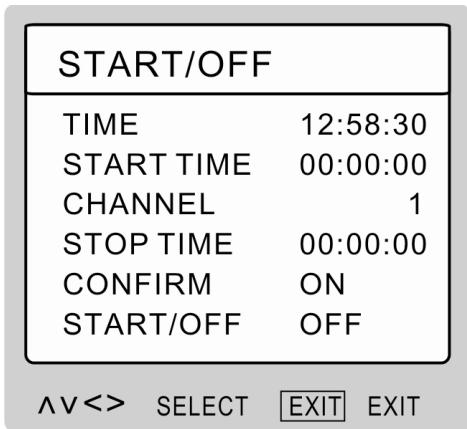
- Time Setup: Sets the current time. Press the "<" or "> " to select adjusting the "Hour", "Minute" and "Second", and then press the " " or " " key to adjust the required time. And press Exit key to leave the menu.
- Power On Time: Sets the time for power on. The operation is the same as the Time Setup.
- Power On Channel: Selects which is the current channel when the TV is powered on. Press the “>” and then press the “ ” or “ ” key to adjust the required channel (1-199), and press Exit key to leave the menu.
- Power Off Time: Sets the time for power off. It is the same as the Time Setup.
- Power Off hints: Prompts instructions on whether to power off when the timed power off time is due. Press the “>” and then press the “ ” or “ ” key to adjust the required “On” or “Off”, and press Exit key to leave the menu.
- Timed Power On/Off: Selects the Timed Power On as On (Everyday), Off (Disable) or Once (execute once). Press the >^ and then press the "∧" or "∨" key to adjust the required "On" or "Off" or "Once", and press Exit key to leave the menu.
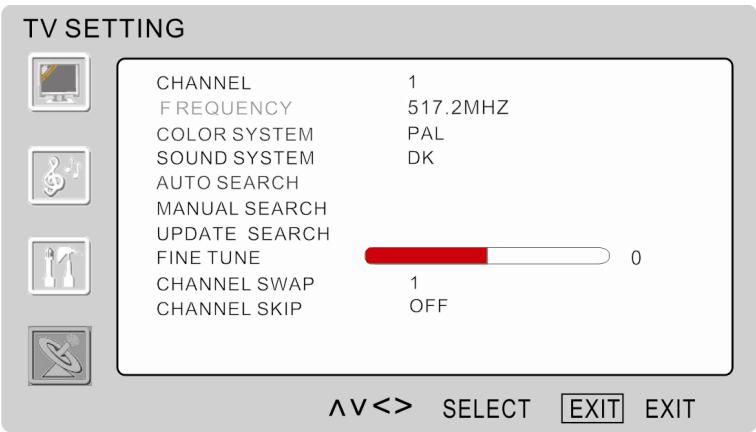
- Channel: To display current channel number.
- Frequency: To display current channel frequency.
- Color System: To select TV broadcast system.
- Sound System: Select the sound system for a TV broadcast system.DK system shall be selected for most areas of Mainland China.
- Auto Search: Used to scan all the TV channels and save to memory. The TV's total number of channels is 199 (1-199). If you use the remote control to select a number out of the range of 1-120, it will automatically skip to the channel number you previously watched.
- Manual Search: Used to scan the TV channels one at a time. When you scan a channel and press MENU, the last channel will be automatically saved.
- Update Search: Fine-tunes the frequency of a channel to obtain better image quality.
- Fine Tune: Fine-tunes the frequency of a channel to obtain better image quality.
- Channel Swap: Swap current channel with others.
- Channel Skip: If set to "On", this channel will be shielded. When you press the Channel Up/Down button, you cannot enter this channel. But when you press the digit buttons, you can enter it. To regain full access this channel, set this item to Off.
OSD Menu in PC Mode
This TV has a DVI-D digital interface (Through HDMI) and VGA analog interface, which can be switched using VGA input.
Press the MENU button to enter into the OSD main menu. Adjustable items include: Picture Setting, Audio Setting, Setup Setting & VGA Setting.
Picture Setting
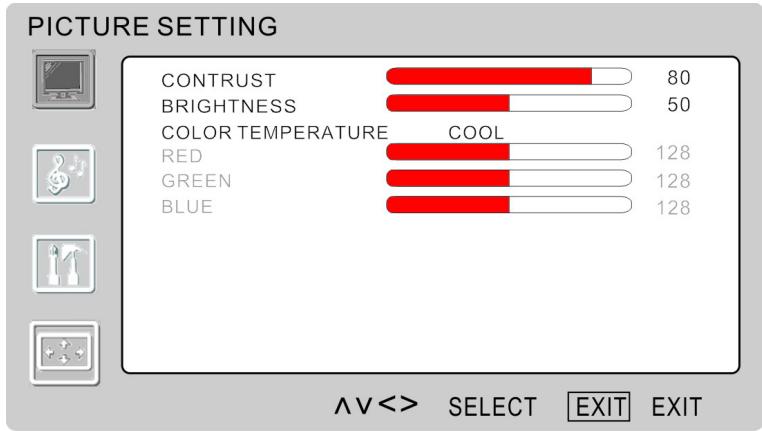
- Contrast: Adjust black and white level, suitable contrast can make picture more lightly. Adjustment range is from 0 to 100.
- Brightness: Adjust background brightness, user can collocation it with contrast adjustment range is from 0 to 100.
- Color Temperature: You can select or adjust the color temperature according to your requirements. Selection: cool, warm & User. When you select in User mode, you can adjust Red, Green & Blue item.
- Self Setup: When the user selects the Color Temperature as Self Setup, the color temperatures for red, green and blue can be adjusted separately.
Sound Setting
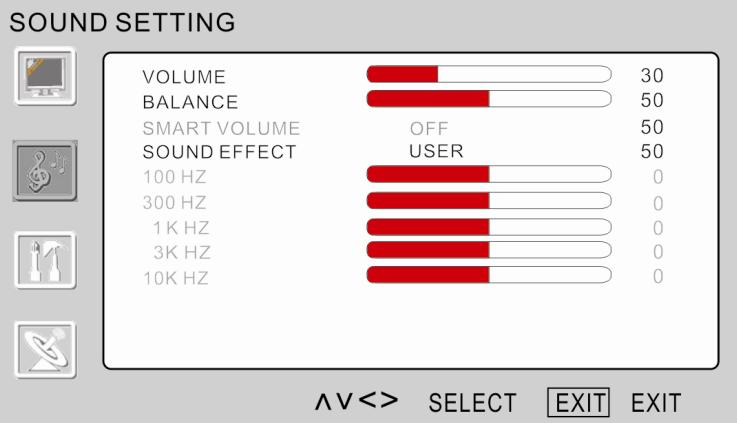
- Volume: The Volume adjustment range is from 0 to 100, You can adjust the Volume of the picture to the level you prefer.
- Balance: Adjust the balance between left/right channels as required using the left / right buttons.
- Smart Volume: To select the Automatic Volume Setup. (VGA Mode did not support this function).
- Sound Effect: You can choose your preferred sound effect mode. The selection including Off, News, Movie, Music, Surround, Stereo & User.
- 100 ~Hz 、 300 ~Hz 、 1 kHz 、 3 kHz 、 10 kHz : When the sound effect is selected as Self Setup, the user may enhance or attenuate the frequency according to he or her preference.
Setup Setting
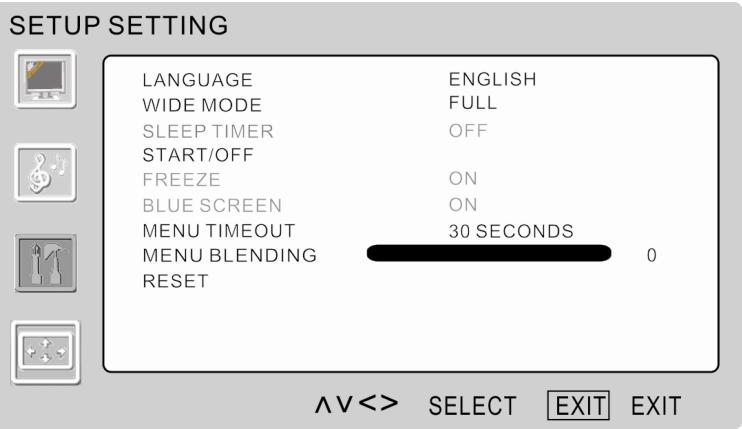
- Language: This indicates the different languages available for the OSD menu, including Chinese, & English. The default is Chinese.
- Wide Mode: To select picture size. Includes 2 modes: Full and 4:3.
- Start/Off : To setup turn on and turn off time.
- Menu Timeout: OSD stay timer.
- Menu Blending: Adjust menu transparency within the range from 0 to 6.
- Reset : Used to resume the TV's default settings.
VGA Setting
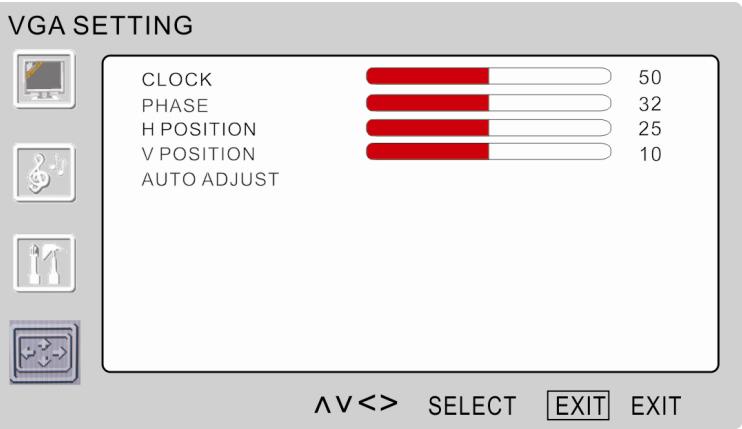
- Clock: To adjust horizontal size.
- Phase: To improve focus clarity and image stability.
- H. Position: Adjust horizontal position on screen.
- V. Position: Adjust vertical position on screen.
- Auto Setting: Auto fine tune to a best status on screen.
Other Information
Product Speciation
| Model | N3290w |
| Screen Size (Diagonal Size) | 31.5", 800mm |
| Resolution | 1366x768 |
| Audio Output | 5Wx2 |
| TV Tuning System | PAL |
| Sound System | D/K, I, B/G |
| Power Voltage | AC100-240V 50/60Hz |
| Power Consumption (Normal operation) | 180W |
| Power Consumption (Standby) | ≤3W |
| Dimensions (W)x(H)x(D) (mm) (with stand) | 783x559x209 |
| Wall Mount Kits | Not Include |
| Wall Mount dimension | 200x200mm M6x10mm, 4 pcs (Screw) |
| Environmental Considerations Operating Temperature Operating Humanity Storage Temperature Storage Humanity | 0°C~35°C (32°F~95°F) 20~80% -10°C~50°C (14°F~122°F) 20~80% |
| Model | N4290p | N4790p |
| Screen Size (Diagonal Size) | 42", 1067mm | 47", 1193mm |
| Resolution | 1920x1080 | |
| Audio Output | 7Wx2 | |
| TV Tuning System | PAL | |
| Sound System | D/K, I, B/G | |
| Power Voltage | AC100-240V 50/60Hz | |
| Power Consumption (Normal operation) | 250W | 300W |
| Power Consumption (Standby) | ≤3W | ≤3W |
| Dimensions (W)x(H)x(D) (mm) (with stand) | 1009x688x262 | 1125x768x314 |
| Wall Mount Kits | Not Include | |
| Wall Mount dimension | 400x200mm M6x10mm, 4pcs(Screw) | (200+200)x200mm M6x10mm, 6pcs(Screw) |
| Environmental Considerations Operating Temperature Operating Humanity Storage Temperature Storage Humanity | 0°C~35°C (32°F~95°F) 20~80% -10°C~50°C (14°F~122°F) 20~80% | |
Troubleshooting
Please make these simple checks before calling service. These tips may save you time and money since charges for receiver installation and adjustments of customer controls are not covered under your warranty.
| Symptoms | Items to Check and Actions to follow |
| "Ghost" or double image | *This may be caused by obstruction to the antenna due to high rise buildings or hills. Using a highly directional antenna may improve the picture. |
| No power | *Make sure turn on AC power switch. *Check that the TV's AC power cord is plugged into the mains socket. *Unplug the TV, wait for 60 seconds. Then re-insert plug into the mains socket and turn on the TV again. |
| No TV picture | *Check antenna connections at the rear of the TV to see if it is properly connected to the TV. *Possible broadcast station trouble. Try another channel. *Adjust the contrast and brightness settings. *Check the Closed Captions control. Some TEXT modes could block the screen. |
| Good picture but no sound | *Increase the VOLUME. *Check that the TV is not muted; press the button on the remote control. |
| Good sound but poor color | *Adjust the contrast, color →(Saturation) and brightness settings. |
| Poor picture | *Sometimes, poor picture quality occurs when having activated an S-VHS camera or camcorder connected and having connected another peripheral at the same time. In this case switch off one of the other peripherals. |
| Snowy picture and noise | *Check the antenna connection and TV signal level. |
| Horizontal dotted line | *This may be caused by electrical interference (e.g. hairdryer, nearby neon lights, etc.) *Turn off or move away the equipment. |
| Television not responding to remote control | *Check whether the batteries are working. Replace if necessary *Clean the remote control sensor lens on the TV. *You can still use the buttons at the front of your TV. *Select the TV mode to be sure your remote control is in the TV mode. |
| Unit cannot be operated | ·External influences such as lightning or static electricity may cause improper operation. In this case, operate the unit after first turning on the power of the LCD TV and the AVC System, or unplug the AC cord for 1 to 2 minutes, then re-plug again. |
| Power is cut off suddenly | ·Is the sleep timer set in advance? ·Is there no signal in PC mode or HDMI mode? ·The internal temperature of the unit has increased. Remove any object blocking the vent or clean as necessary. |
| No CATV reception | ·CATV is connected improperly or not connected; please check all the CATV connections. ·The cable TV service is interrupted; please contact your cable operator. |
| Picture is cut off/with sidebar screen | ·Is the image positioned correctly? ·Are screen mode adjustments such as picture size set correctly? ·Press WIDE button repeatedly on the remote control to see if you can get the picture you prefer. |
Customer Support
For technical support or product service, see the table below or contact your reseller.
Note: You will need the product serial number.
| Country/Region | Web Site | Telephone | |
| China | www.viewsonic.com.cn | 800 820 3870 | service.cn@cn.viewsonic.com |
| Hong Kong | www.hk.viewsonic.com/support/ | 852 3102 2900 | service@hk.viewsonic.com |
Declaration of RoHS Compliance
The toxic and hazardous substances or elements of this product are shown as below:
| Name of Components | Hazardous substances or elements | |||||
| Lead (Pb) | Mercury (Hg) | Cadmium (Cd) | Hexavalent Chromium (Cr6+) | Polybrominated biphenyls (PBB) | Polybrominated diphenyl ethers (PBDE) | |
| Outer Casing | ○ | ○ | ○ | ○ | ○ | ○ |
| Circuit Board* | × | ○ | ○ | ○ | ○ | ○ |
| Power Cord / Adaptor | × | ○ | ○ | ○ | ○ | ○ |
| External Signal Cable | × | ○ | ○ | ○ | ○ | ○ |
| LCD Panel | × | × | × | ○ | ○ | ○ |
| Remote Control (battery included) | ○ | ○ | ○ | ○ | ○ | ○ |
| *: The circuit board components include printed circuit board and other parts, such as resistors, capacitors, IC, and connectors, etc.○: To indicate the amount of toxic and hazardous substance in all homogenous materials of the component does not exceed what indicated in “The Limitation Standard of Toxic and Hazardous Substances in Electronic Information Product”.×: To indicate the amount of toxic and hazardous substance has exceeded what indicated in “The Limitation Standard of Toxic and Hazardous Substances in Electronic Information Product” in at least one of the homogenous materials of the component. However, the component still confirms to the EU RoHS directive (2002/95/EC), and is exempted from it. | ||||||
Limited Warranty
VIEWSONIC LCD TV
What the warranty covers:
ViewSonic warrants its products to be free from defects in material and workmanship, under normal use, during the warranty period. If a product proves to be defective in material or workmanship during the warranty period, ViewSonic will at its sole option repair or replace the product with a like product. Replacement product or parts may include remanufactured or refurbished parts or components.
How long the warranty is effective:
ViewSonic LCD TV are warranted for one (1) year for all parts excluding the light source and one (1) year for labor from the date of the first customer purchase.
Who the warranty protects:
This warranty is valid only for the first consumer purchaser.
What the warranty does not cover:
- Any product on which the serial number has been defaced, modified or removed.
- Damage, deterioration or malfunction resulting from:
a. Accident, misuse, neglect, fire, water, lightning, or other acts of nature, unauthorized product modification, or failure to follow instructions supplied with the product.
b. Repair or attempted repair by anyone not authorized by ViewSonic.
c. Any damage of the product due to shipment.
d. Removal or installation of the product.
e. Causes external to the product, such as electric power fluctuations or failure.
f. Use of supplies or parts not meeting ViewSonic's specifications.
g. Normal wear and tear.
h. Any other cause which does not relate to a product defect.
- Any product exhibiting a condition commonly known as "image burn-in" which results when a static image is displayed on the product for an extended period of time.
- Removal, installation, and set-up service charges.
- When you mount it on the wall, the following must be noticed:
a. The accessories attached with this product are applicable for this product only.
b. When the product is mounted on the wall, holes and fixed screws will remain in the wall body.
c. Wall face may discolor when this product has been mounted on the wall for a long time.
How to get service:
- For information about receiving service under warranty, contact ViewSonic Customer Support. You will need to provide your product's serial number.
- To obtain warranted service, you will be required to provide (a) the original dated sales slip, (b) your name, (c) your address, (d) a description of the problem, and (e) the serial number of the product.
- Take or ship the product freight prepaid in the original container to an authorized ViewSonic service center or ViewSonic.
- For additional information or the name of the nearest ViewSonic service center, contact ViewSonic.
- Implied warranty limitations: In addition to the warranty described here, ViewSonic disclaims any other warranties, express or implied, including the implied warranties of merchantability and fitness for a particular purpose.
Limitation of implied warranties:
There are no warranties, express or implied, which extend beyond the description contained herein including the implied warranty of merchantability and fitness for a particular purpose.
Exclusion of damages:
ViewSonic's liability is limited to the cost of repair or replacement of the product. ViewSonic shall not be liable for:
- Damage to other property caused by any defects in the product, damages based upon inconvenience, loss of use of the product, loss of time, loss of profits, loss of business opportunity, loss of goodwill, interference with business relationships, or other commercial loss, even if advised of the possibility of such damages.
- Any other damages, whether incidental, consequential or otherwise.
- Any claim against the customer by any other party.
Effect of state law:
This warranty gives you specific legal rights, and you may also have other rights which vary from state to state. Some states do not allow limitations on implied warranties and/or do not allow the exclusion of incidental or consequential damages, so the above limitations and exclusions may not apply to you.
Sales outside the U.S.A. and Canada:
For warranty information and service on ViewSonic products sold outside of the U.S.A. and Canada, contact ViewSonic or your local ViewSonic dealer.
The warranty period for this product in mainland China (Hong Kong, Macao and Taiwan Excluded) is subject to the terms and conditions of the Maintenance Guarantee Card.
For users in Europe and Russia, full details of warranty provided can be found in www.viewsoniceurope.com under Support/Warranty Information.
4.3: ViewSonic LCD TV Warranty
LTV LW01 Rev. 1C 06-25-07
- Getting Started
- Overview the LCD TV & Connection
- OSD Functions
- Other Information
- Important Safety Instructions
- Copyright Information
- Product Registration
- For your Record
- Product disposal at end of product life
- Antenna Installation Instructions
- Outdoor Antenna Grounding
- Lightning
- Power Lines
- Cleaning the LCD TV
- To clean the screen:
- To clean the case:
- Disclaimer
- Package Contents
- Mounting ViewSonic LCD TV to the wall
- Place the TV on a solid surface
- Install the wall mount plate to the LCD TV
- Connecting the power
- Turn the TV on & Off
- Power On :
- Power Off :
- LED Indicator
- Watching TV
- The Front of the Screen Introduction
- Signal Source Interface from Rear View
- (1)Antenna Input:
- (2)AV1 & S-Video1 Input:
- Video & Audio output:
- (4)Component signal Cr (Pr),Cb(Pb),Y Input:
- (5)Ear phone:
- (6)HDMI 1/2 input :
- Notes:
- (7)VGA Signal Input:
- Signal Source Interface from Side View
- AV1 & S-Video1 Input:
- To Use Remote Control
- Sleep/睡眠
- TV/电视
- AV/视频
- 0-9/-100
- Display/显示
- Mute/静音
- CH∧VI频道∧V
- Source/信号源
- A.V<>
- Enter/确认
- POWER/电源
- HDMI
- YPbPr/色差
- Recall/返回
- VOL∧V/音量∧V
- Exit/退出
- Menu/菜单
- Image format/图像格式
- Sound Effect/声音切换
- Picture Quality Adjustment/画质调整
- Remote Control Battery Installation
- CAUTION
- OSD function
- To Use the OSD Menu
- To Select Input Source
- OSD Menu in AV/TV Mode
- Sound Setting
- OSD Menu in PC Mode
- Picture Setting
- Setup Setting
- VGA Setting
- Troubleshooting
- Customer Support
- Declaration of RoHS Compliance
- Limited Warranty
- VIEWSONIC LCD TV
- What the warranty covers:
- How long the warranty is effective:
- Who the warranty protects:
- What the warranty does not cover:
- How to get service:
- Limitation of implied warranties:
- Exclusion of damages:
- Effect of state law:
- Sales outside the U.S.A. and Canada:
Brand : VIEWSONIC
Model : N4290P
Category : Television