
DPG807BK - Tablet VIEWSONIC - Free user manual and instructions
Find the device manual for free DPG807BK VIEWSONIC in PDF.


| Product type | Digital photo frame / Digital tablet |
| Brand | VIEWSONIC |
| Model | DPG807BK |
| Screen size | 8 inches (20.3 cm) |
| Display resolution | 800 x 600 pixels (estimated) |
| Screen type | LCD TFT |
| Supported image formats | JPEG, BMP, GIF, PNG |
| Supported video formats | Motion JPEG, AVI (estimated) |
| Supported audio formats | MP3, WMA, WAV (estimated) |
| Internal memory | 512 MB (estimated) |
| External storage support | SD / SDHC / MMC card (up to 32 GB) |
| USB port | Yes, for PC connection and USB drive |
| Built-in speakers | Yes, 2 x 1W (estimated) |
| Special functions | Slideshow, clock, calendar, alarm |
| Remote control | Yes, included |
| Power supply | AC adapter 5V / 2A (estimated) |
| Dimensions (W x H x D) | 21 x 16 x 3 cm (estimated) |
| Weight | 0.4 kg (estimated) |
| Care and cleaning | Clean with a soft, dry cloth. Do not use abrasive products. |
| Safety | Do not expose to moisture or extreme temperatures. Unplug before cleaning. |
| Spare parts and repairability | Optional AC adapter. Repair by a professional recommended. |
Frequently Asked Questions - DPG807BK VIEWSONIC
User questions about DPG807BK VIEWSONIC
0 question about this device. Answer the ones you know or ask your own.
Ask a new question about this device
Download the instructions for your Tablet in PDF format for free! Find your manual DPG807BK - VIEWSONIC and take your electronic device back in hand. On this page are published all the documents necessary for the use of your device. DPG807BK by VIEWSONIC.
USER MANUAL DPG807BK VIEWSONIC
Important Safety Instructions
- Do not use the equipment near water.
- Wipe the machine with a soft and dry cloth.
- Do not block any vent holes. Please install the product in accordance with the manufacturer's instructions.
- Do not use the product on your legs for a long time because it gets hot and you may be burned.
- Please avoid installing the product in a place where the temperature is above 35^ C or lower than -5^ C, or in a place that is moist or wet.
- Protect the power cord plug, outlet, and connections to other equipment from damage by trapping and squeezing.
- Please only use devices and accessories specified by the manufacturer.
- The unit is hot pluggable. However it is recommended that the power be turned off before the memory card is inserted or removed.
- Do not remove the memory card during data access. The data may be lost and the product could be damaged.
- Disconnect the power cord if the product will not be used for an extended period.
- Do not repair, disassemble, or modify the product. Only qualified ViewSonic personnel can check and repair any damage to the machine.
- The unauthorized playing of certain audio or image files may infringe the related copyright laws under certain circumstances.
- When you use the internal speakers, do not adjust the volume to a high level, or the sounds may distort and become unpleasant.
- When you view pictures for an extended period of time your eyes may become strained.
- Do not touch the screen because it is difficult to remove finger marks.
- Avoid exposing the digital photo frame to direct sunlight. Adjust the angle to reduce glare.
- Careful attention should always be paid when moving the digital photo frame.
- Make sure the place where the digital photo frame is placed is clean and dry.
- If there is smoke, a strange smell or an abnormal noise, immediately turn off the digital photo frame and contact your dealer or ViewSonic.
- Do not rub or apply pressure to the LCD panel. This may cause irreparable damage to the screen.
Declaration of RoHS Compliance
This product has been designed and manufactured in compliance with Directive 2002/95/EC of the European Parliament and the Council on restriction of the use of certain hazardous substances in electrical and electronic equipment (RoHS Directive) and is deemed to comply with the maximum concentration values issued by the European Technical Adaptation Committee (TAC) as shown below:
| Substance | Proposed Maximum Concentration | Actual Concentration |
| Lead (Pb) | 0.1% | < 0.1% |
| Mercury (Hg) | 0.1% | < 0.1% |
| Cadmium (Cd) | 0.01% | < 0.01% |
| Hexavalent Chromium ( Cr^6+ ) | 0.1% | < 0.1% |
| Polybrominated biphenyls (PBB) | 0.1% | < 0.1% |
| Polybrominated diphenyl ethers (PBDE) | 0.1% | < 0.1% |
Certain components of products as stated above are exempted under the Annex of the RoHS Directives as noted below:
Examples of exempted components are:
- Mercury in compact fluorescent lamps not exceeding 5 mg per lamp and in other lamps not specifically mentioned in the Annex of RoHS Directive.
- Lead in glass of cathode ray tubes, electronic components, fluorescent tubes, and electronic ceramic parts (e.g. piezoelectronic devices).
- Lead in high temperature type solders (i.e. lead-based alloys containing 85% by weight or more lead).
- Lead as an allotting element in steel containing up to 0.35% lead by weight, aluminium containing up to 0.4% lead by weight and as a cooper alloy containing up to 4% lead by weight.
Copyright Information
Copyright© ViewSonic® Corporation, 2008. All rights reserved.
ViewSonic, the three birds logo, OnView, ViewMatch, and ViewMeter are registered trademarks of ViewSonic Corporation.
Disclaimer: ViewSonic Corporation shall not be liable for technical or editorial errors or omissions contained herein; nor for incidental or consequential damages resulting from furnishing this material, or the performance or use of this product.
In the interest of continuing product improvement, ViewSonic Corporation reserves the right to change product specifications without notice. Information in this document may change without notice.
No part of this document may be copied, reproduced, or transmitted by any means, for any purpose without prior written permission from ViewSonic Corporation.
For Your Records
| Product Name: | DPG807 |
| ViewSonic Digital Photo Frame | |
| Model Number: | VS12289-1W |
| Document Number: | DPG807-1W_UG_ENG Rev. 1A 09-18-08 |
| Serial Number: | |
| Purchase Date: |
Product disposal at end of product life
ViewSonic is concerned about the preservation of our environment. Please dispose of this product properly at the end of its useful life.
Your local waste disposal company may provide information about proper disposal.
The lamp in this product contains mercury. Please dispose of properly in accordance with environmental laws of your location.
TABLE OF CONTENTS
Introduction....1
Important Safety Precautions....2
Features......4
Location of Controls 5
Getting Started....6
Connecting the power cable....6
Inserting memory cards....7
Connecting a USB device 7
Copy files from computer 8
Viewing Photos 9
Main screen....9
Viewing thumbnails 11
Browsing a single picture.... 12
Running a slideshow 12
Using OSD menu 13
Listening to Music....14
Watching Videos.... 15
Managing Files 16
Coping files 17
Deleting files 17
Changing Frame Settings.... 18
Settings menus 18
Setting auto power on/off 20
Setting time 20
Setting alarm clock 21
Displaying Calendar 22
Frequently Asked Questions 23
Specification....25
Introduction
Congratulations on your purchase of this Digital Photo Frame (DPF).
Before operating this unit, please read this manual thoroughly and keep it for future reference.
This manual will help you use many of the exciting features to make your Digital Photo Frame view more enjoyable.
The Digital Photo Frame is compatible with SD, MMC, MS, XD and CF memory card formats, which enables you to view digital photo directly from your camera's memory card.
This manual contains important safety instructions and correct operation information, so please read all the information carefully before you use the unit in order to avoid any unexpected accidents.
We assume no responsibility for the errors or omissions in this manual. We also have no responsibility for damages or loss of data caused by improper operation.
The instruction manual is subject to change for improvement without notice.
Trademarks and trade names used in this instruction manual are owned by their respective companies or organizations.
Important Safety Precautions
Always follow these basic safety precautions when using your Digital Photo Frame. This will reduce the risk of fire, electric shock, product damage and personal injury.
- Warning: To reduce the risk of electric shock, do not remove the cover or back. There are no user-serviceable parts inside. Refer servicing to qualified personnel.
• Warning: To prevent fire or electric shock hazard, do not expose the unit to rain or moisture. - Do not expose the Digital Photo Frame to water (dripping or splashing) and no objects filled with liquids, such as vases, should be placed on the unit.
- Keep the Digital Photo Frame away from direct sunlight and heat source such as radiators or stoves.
- Do not block the ventilation openings. Slots and openings on the unit are provided for ventilation. The openings should never be blocked by placing your Digital Photo Frame on a cushion, sofa or other similar surface
- Do not place the Digital Photo Frame on unstable cart, stand, tripod, bracket or table. The unit may fall, resulting in possible damage or injury.
• Never place heavy or sharp objects on the LCD panel or frame.
• Only use the AC adapter included with Digital Photo Frame. Using any other adapter will void your warranty. - Protect the power cord from being walked on or pinched particularly at plugs, receptacles and the point where the cord attached to the Digital Photo Frame.
• Unplug the power from the outlet when the unit is not in use.
Cleaning
• Before cleaning the product make sure it is turned off.
• Never spray or pour liquid directly onto the screen or plastic casing.
- To clean the LCD screen, wipe the screen with a clean, soft, lint-free cloth. This removes dust and other particles. If it still is not clean, apply a small amount of non-ammonia, non-alcohol based glass cleaner on a clean, soft, lint-free cloth to clean the screen.
- To clean the plastic casing, use a soft, dry cloth. If it still is not clean, apply a small amount of non-ammonia, non-alcohol based, mildly non-abrasive detergent on a clean, soft, lint-free cloth to clean the surface.
• To clean the frame, use a soft, dry cloth.
Disclaimer: Authorized Dealer does not recommend the use of any ammonia or alcohol-based cleaners on the LCD screen or plastic casing. Some chemical cleaners have been reported to damage the screen and/or display case. Authorized Dealer will not be liable for damage resulting from the use of any ammonia or alcohol-based cleaners.
Features
• Seven touch buttons on the front panel of the frame
• Decorative appearance, good quality
• Displays digital pictures (JPEG) without a computer
• Automatic slide show with multiple transition effects and desired interval.
• Instantly plays MP3 music with built-in speakers
• Digital photos slide show with MP3 music on the background
• Supports playback of MPEG-1, MPEG-4 and M-JPEG
• Supports multiple repeat mode of music/video playback
- Calendar display
- Alarm setting
• Support earphone connection
• Compatible with SD/MMC/MS/XD, and CF memory cards
• USB Host for connecting to the USB mass storage
• USB2.0 high speed transmission for connecting to your computer to download the files.
Location of Controls
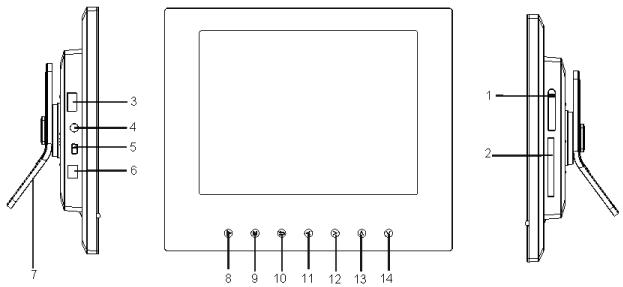
- SD/MMC/MS/XD-card slot
- CF-card slot
- USB HOST for connecting the USB device directly.
- Earphone jack
- USB device port for connecting the computer
- DC 9V 1.5A Port
- Frame base
-
[▶] Touch to start playback or confirm the selection.
-
[M] Touch to return to the main menu. Touch and hold to display the OSD menu while playing photos or movies
- [→] Touch to return to the previous menu.
- [◀] Touch to move the cursor left or rotate the picture; Touch and hold to decrease the volume
- [▶] Touch to move the cursor right or rotate the picture; Touch and hold to increase the volume.
- [▲] Touch to move the cursor up or select the previous picture/music/movie.
- [▼] Touch to move the cursor down or select the next picture/music/movie.
Getting Started
Connecting the power cable
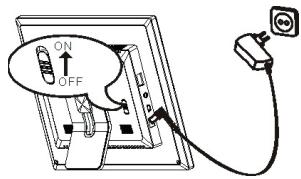
- Fix the Photo Frame stand on the slot at the back of the unit so that it is stands up.
- Use the supplied power adapter to connect the digital photo frame to an electrical outlet.
- Slide the power switch on the back of the photo frame from OFF to ON.
Note:
- To turn off the power of the Digital Photo Frame completely, slide the power switch from ON to OFF.
Inserting memory cards
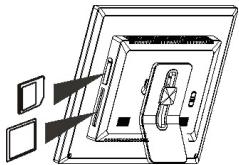
To play the content of a memory card you just have to insert it into the respective card slot on the Digital Photo Frame.
This Digital Photo Frame is compatible with the following memory cards:
• Secure Digital Card (SD)
• Multimedia Card (MMC)
• Memory Stick (MS)
- XD Card
• Compact Flash card (CF)
Insert the SD/MMC/MS/XD card into the 4-in-1 card slot with the metallic contacts facing towards the display.
Insert the CF card into the CF card slot with the pinholes pointing towards the CF card slot opening.
Note:
• Do not force the memory card in the memory slot.
- The 4-in-1 card slot only reads one memory card at a time. Do not insert more than one card into the memory card slot.
• To remove the cards, pull out the card slowly.
Connecting a USB device
You can view the pictures on your USB memory device by inserting it into the USB HOST slot.
natural_image
Diagram of a device with a person inside and multiple windows attached, showing no text or symbols.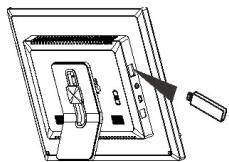
natural_image
Diagram of a device with an open panel and a person inside, showing no text or symbolsCopy files from computer
You can connect the digital photo frame to a computer to copy the files to the built-in memory (depends on the unit you purchase) or the card inserted on the photo frame.
- Connect the mini plug of the USB cable to the mini USB port on digital photo frame, and other end to the computer.
- The computer system detects “New hardware” and starts to install the driver automatically. Wait for the system to finish the installation. When it has finished, several “Removable Disk”, which indicate all drivers of the digital photo frame, will be created in “My computer”. You can identify the drivers in the order: CF, SD/MMC, XD, MS, Nand flash.
- Move the files on your computer to the built-in memory or card inserted on the photo frame in the usual way (drag and drop).
- Follow the Safely Remove Instructions to disconnect the USB cable.
Note:
• Make sure there is no USB mass storage device connected with Digital Photo Frame before connecting to computer.
• You must plug in and turn on the photo frame before connecting to the computer.
- When connecting with a computer, the USB HOST driver is not available.
- Do not disconnect the USB cable or remove the card when coping or transferring the files to the built-in memory or card on the photo frame.
• Make sure your computer is running Windows 2000 or above, e.g. Windows XP or Vista, with USB port supported.
Viewing Photos
Main screen
Once you switch on the digital photo frame, the main screen appears.
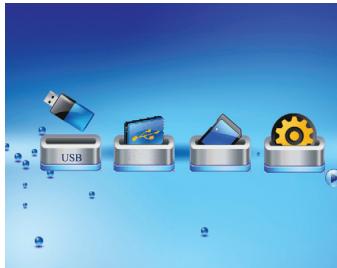
When a memory device is inserted into the Digital Photo Frame, the corresponding icon appears on the main screen. Use the [◀] or [▶] button to select a memory device.
In the main screen, you can select connected source to view pictures, change frame settings, or display the calendar.
- Press the [M] button to access the main screen. All connected source, setup and calendar icons are displayed.
| USB driver | Appears when you inserted a USB flash driver. |
| SD/MMC | Appears when you insert a SD or MMC card. |
| MS | Appears when you insert a MS card. |
| XD | Appears when you insert an XD card. |
| CF | Appears when you insert a CF card. |
| SETUP | To customize the settings of Digital Photo Frame. |
| CALENDAR | To display the Calendar on the screen. |
| NAND | Appears when you purchase a Frame with NAND flash memory. |
natural_image
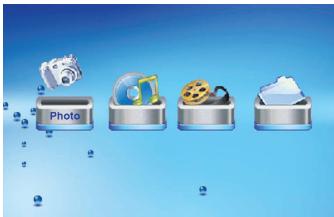
Four metallic USB devices with icons and a gear symbol, set against a blue gradient background (no text or labels)- Press the [◀] or [▶] button to highlight a picture source. To display photo, music, movie or file individually, press the [▶] button.
natural_image
Four metallic icons on a blue gradient background: camera, film reel, photo, and cloud (no text or symbols)Note:
• If no button is touched for 6 seconds in the main screen after inserting a memory source, the slideshow will start automatically.
- If several memory devices connect to the frame simultaneously, the Digital Photo Frame will read the memory source by the priority order: USB, CF, SD/MMC/MS/XD, NAND flash (only for model with internal memory).
- Then main screen can also be accessed by touching [M] in any mode.
Viewing thumbnails
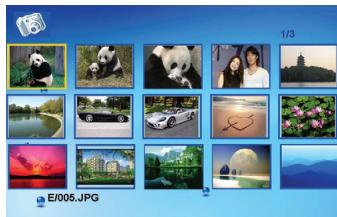
The pictures on the selected memory source can be displayed on the screen as thumbnails. Up to 15 pictures are displayed at a time.
- Select a memory source (e.g. USB, SD/MMC) in the main screen and press the [▶] button. The mode menu appears.
- Press the [◀] or [▶] to select Photo, and press the [▶] button. The pictures are displayed on the screen as thumbnails.
- To navigate through the thumbnails, press the [▲], [▼], [◀] or [▶].
natural_image
Grid of 20 nature and tourism photos including pandas, cars, landscapes, and a park (no text or symbols)Note: You can also press the [→] button from a slideshow or a single view to return to the thumbnails view.
Browsing a single picture
You can select a single picture to display on the screen, without a slideshow.
- Select a picture in the thumbnail view, and press the [▶] button. The selected picture is displayed on the full screen.
• To view the previous or next photo, press the [▲] or [▼] button.
• To rotate a picture, press the [◀] or [▶] button.
- To return to the thumbnail view, press the [→] button.
- To start slide show from the current picture, press the [▶] button.
- When you touch the touchpad while playing photos, there are 2 instruction lines show at the bottom of the screen:
| [◀] or [▶]: ROTATE | [▶]: SLIDESHOW |
| [M]:MENU | Hold [M]: OSD MENU |
Running a slideshow
While browsing a single picture, touch [▶] to start slideshow from the current picture.
• To pause the slideshow and browse a signal picture, touch [▶] again.
• To return to the main screen, touch [M].
• To return to the thumbnail view, touch [→].
Using OSD menu
You also can use the OSD menu to manually view the photos one by one.
- Touch and hold [M] button during viewing the picture or slideshow. The OSD menu appears in the center of the screen and slideshow pauses.


Picture. jpg
- Press the [◀] or [▶] button to navigate between the icons on the OSD menu.
• To start or resume slide show from the current picture, highlight ▶ and press the [▶] button. The ▶ icon is changed to || icon.
• To skip to previous picture, highlight ◀ and press the [▶] button.
• To skip to next picture, highlight ▶ and press the [▶] button.
• To stop or start music playback during slide show, highlight ♪ and press the [▶] button.
• To start slide show with background music from the first picture, highlight ☐ and press the [▶] button.
- To zoom in the picture, highlight and press the [▶] button. When a picture is magnified, press the [▲], [▼], [◀] or [▶] to view the other part of the picture.
Listening to Music
If there are MP3 files on the memory device, you can play them on the Digital Photo Frame.
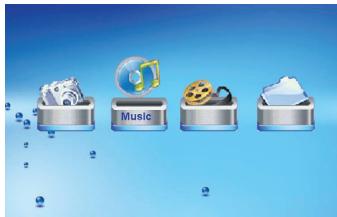
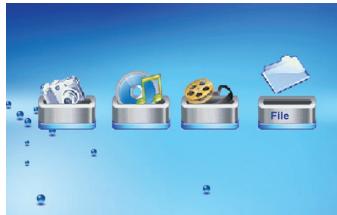
- Select a memory source (e.g. USB, SD/MMC) in the main screen and press the [▶] button. The mode menu appears.
- Press the [◀] or [▶] button to select Music, and press the [▶] button. The music list and playback interface appears.
-
Use the [▲] or [▼] button to select the desired track and press the [▶] button to play.
-
To pause playback, press the [▶] button. To resume playback, press the [▶] button once again.
• To increase or decrease the volume, press the [◀] or [▶] button -
To stop playback, press the [→] button. Press it again to return to the mode menu.
-
When you enter the music list and playback interface, there are 2 instruction lines show at the bottom of the screen:
press [◀] or [▶] to adjust volume press [▲] or [▼] to select previous and next
natural_image
Four metallic icons labeled 'Music' on a blue gradient background, no text or symbols present.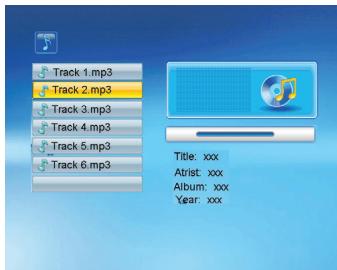
Watching Videos
You can watch the videos on the Digital Photo Frame. It supports the format of MPEG-1, MPEG-4 and M-JPEG used by most digital cameras.
- Select a memory source (e.g. USB, SD/MMC) in the main screen and press the [▶] button. The mode menu appears.
- Press the [◀] or [▶] button to select Movie, and press the [▶] button. The video list with a thumbnail video window appears.
- Press the [▲] or [▼] button to select a video file. The corresponding video starts playback in thumbnail view.
- Press the [▶] button to watch the video in full screen.
• To pause playback, press the [▶] button. To resume playback, press the [▶] button once again.
• To increase or decrease the volume, touch and hold the [◀] or [▶] button.
• To skip to previous or next video, press the [▲] or [▼] button.
• To stop playback and return to the video list menu, press the [→] button.
Managing Files
In the File mode, you can view all playable files and folders on the memory source. You also can copy files from a memory device to another memory device or delete the files.
- Select a memory source (e.g. USB, SD/MMC) in the main screen and press the [▶] button. The mode menu appears.
- Press the [◀] or [▶] button to select File, and press the [▶] button. The file list appears.
- Use the [A] or [V] button to navigate between files and folders.
When a file is highlighted, the detailed information of file is displayed on the right of the screen.
- To open a folder, highlight it and press the [▶] or [▶] button. To return to superior directory, press the [◀] button.
- To play a file, highlight it and press the [▶] button. To return to file list, press the [⇨] button.
natural_image
Four metallic icons in containers: a gear, a musical note, a coin, and a file, arranged horizontally against a blue gradient background (no text or symbols)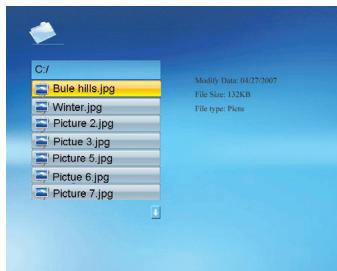
Coping files
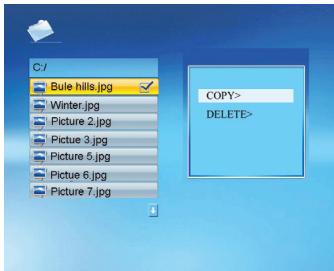
- Highlight a file using the [▲] or [▼] button and press the [▶] button. A check mark ☑ is displayed next to the file. To check more files, repeat above step.
- Touch and hold [M] button. A menu with COPY and DELETE options is displayed on the right screen.
- Use the [▲] or [▼] button to select COPY and press the [▶] button. The other available memory source is displayed.
- Use the [A] or [V] button to select a memory device and press the [▶] button to select the destined directory.
- Press the [▶] button to start coping files.
Deleting files
- Highlight a file using the [▲] or [▼] button and press the [▶] button. A check mark ☑ is displayed next to the file. To check more files, repeat above step.
- Touch and hold [M] button. A menu with COPY and DELETE options is displayed on the right screen.
- Use the [▲] or [▼] button to select DELETE and press the [▶] button.
- Use the [◀] or [▶] button to select “☑” or “☒” to delete the file or exit without deleting.
Changing Frame Settings
The system settings let you customize and configure your Digital Photo Frame.
- Select the SETUP icon in the main screen and press the [▶] button.
The Setup Menu and software version appear on the screen. - To select a setting option, press the [▲] or [▼] button.
- To change the value, press the [◀] or [▶] button and then press the [▶] button to confirm.
- Press the [→] button to exit.
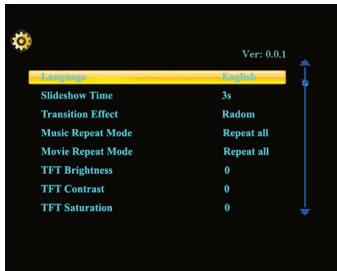
Settings menus
| Setting options | Description |
| Language | Choose the on-screen language. |
| Slideshow Time | Specify how long each picture is displayed in a slide show.The available options include: 1s, 3s, 5s, 10s, 15s, 1 min, 5mins, 15mins, and 1 hour. |
| Transition Effect | Specify the transition effect between pictures in a slide show.The available options include: Random, Fading, Off, Bottom_To_Top, Top_To_Bottom, Left_To_Right, Right_To_Left, Door_Close, Door_Open, Hori_Cross, Verti_Cross. |
| Music Repeat Mode | Choose the file repeat mode for music playback.Repeat one: Play the selected music repeatedly.Repeat all: Play all music files on the selected memory source repeatedly.Repeat off: Play all music files on the selected memory source once. |
| Movie Repeat Mode | Choose the file repeat mode for movie playback.Repeat one: Play the selected movie repeatedly.Repeat all: Play all movie files on the selected memory source repeatedly.Repeat off: Play all movie files on the selected memory source once. |
| TFT Brightness | Adjust the brightness of TFT screen.The available options include: -3, -2, -1, 0, 1, 2, 3. |
| TFT Contrast | Adjust the contrast of TFT screen.The available options include: -3, -2, -1, 0, 1, 2, 3. |
| TFT Saturation | Adjust the saturation of TFT screen.The available options include: -3, -2, -1, 0, 1, 2, 3. |
| Auto Power On | Set the Digital Photo Frame to turn on at the preset time everyday or once. |
| Auto Power Off | Set the Digital Photo Frame to turn off at the preset time everyday or once. |
| Key-light Timeout | Set the key-light off time. The key-light will be off after the set time if no key is touched.The available options include: 5s, 10s, 20s. |
| Time | Set calendar to the current date and time. |
| Alarm | Set the alarm time, ring tone and schedule. |
| Autorun | Set which one to playback automatically after inserting a memory source if no buttons is touched for 6seconds in the main menu.The available options include: Only Photo, Off, Movie, Music, and Music+Photo |
| Default | Reset all settings to the default setting. |
Setting auto power on/off
You can enable the Digital Photo Frame to turn on or off automatically at the specified time.
Note: The current time must be set correctly before setting up this feature.
- Select the SETUP icon in the main screen and press the [▶] button. The Setup Menu appears on the screen.
- Press the [▲] or [▼] button to select AUTO POWER ON or AUTO POWER OFF.
-
Press the [] or [] button to highlight next or previous setting (hour, minutes, schedule). And press the [A] or [ ] button to adjust the time or select the schedule as below.
• Off: Disables the auto power on or off function.
• Everyday: The Digital Photo Frame will turn on or off at the preset time everyday.
• Once: The Digital Photo Frame only turns on or off at the preset time once. -
Press the [▶] button to confirm.
Setting time
You can set the system time to the current date and time so that the Calendar display is correct.
- Select the SETUP icon in the main screen and press the [▶] button. The Setup Menu appears on the screen.
- Press the [▲] or [▼] button to select TIME.
- Press the [◀] or [▶] button to highlight next or previous setting (year, month, day, hour, minutes). And press the [▲] or [▼] button to adjust the time.
- Press the [▶] button to confirm.
Setting alarm clock
The Digital Photo Frame can also work as an alarm.
- Select the SETUP icon in the main screen and press the [▶] button. The Setup Menu appears on the screen.
-
Press the [▲] or [▼] button to select ALARM.
-
Press the [◀] or [▶] button to highlight next or previous setting (hour, minutes, ring tone, schedule). And press the [▲] or [▼] button to adjust the time, select the ring or select the schedule as below.
• Off: Disables the auto power on or off function.
• Everyday: The Digital Photo Frame will turn on or off at the preset time everyday.
• Once: The Digital Photo Frame only turns on or off at the preset time once.
- Press the [▶] button to confirm.
Displaying Calendar
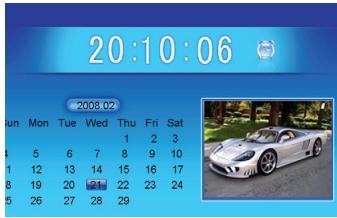
You can switch your Digital Photo Frame to Calendar mode that the current date and time is displayed on the screen with a slide show in thumbnail.
- Select the Calendar icon in the main screen and press the [▶] button.
The Calendar is displayed on the screen and all photos in the all memory source start slide show in thumbnail.
- To exit the Calendar mode, press the [→] button.
Note:
- The Digital Photo Frame will switch to Calendar mode automatically if it is not used for 5 minutes (except for Pause mode).
• The date and time can be adjusted in the SETUP mode.
Frequently Asked Questions
- Why cannot the Digital Photo Frame display some files from my Flash card or USB device?
• Some unpopular memory cards are not compatible with the device. Use a card which matches with the Digital Photo Frame.
- The file formats on your card or USB device might not be supported (only JPEG pictures are accessible). Provide files with the supported JPEG.
- There is a memory card inserted in the Digital Photo Frame, but the device is not able to read the card. What can I do?
• First, make sure that you are using a memory card type that is supported by the Digital Photo Frame.
• Secondly, make sure that the memory card is inserted correct.
- Thirdly, check if the USB device is inserted into the unit. This Digital Photo Frame always reads the files in the USB device if USB device and a card are inserted simultaneously.
• The file formats on your card might not be supported (only JPEG pictures are accessible). Provide files with the supported JPEG.
Note: Some digital cameras save images into non-standard formats. Please refer to the operating manual of your camera for specifics.
- Why do some pictures load faster than others?
• Higher resolution pictures load slower. Use pictures with lower resolution to speed up the loading time.
Note: The Digital Photo Frame supports up to 4000*4000 pixels picture display.
- Why does the screen not show anything?
• The device might not have been turned ON or the adapter is not well connected.
- Can I rotate a picture on the screen?
• YES. Use the [◀] or [▶] button to rotate a picture.
Note: The rotated picture will return to its original orientation after you power off the Digital Photo Frame.
-
Why doesn't my Digital Photo Frame go into Auto-off or Auto-on status after I set it?
-
Make sure you set current time correctly. The Digital Photo Frame will automatically turn on or turn off its display exactly at the Auto-on or Auto-off time. If the time has already passed for the day, it will start entering Auto-on or Auto-off status at the specified time from the next day.
- What is the best picture resolution displayed on the screen?
• The best resolution is 800*600 and the max picture resolution of this Digital Photo Frame is 4000*4000 pixels.
Specification
| Display | Digital TFT LCDPanel size: 8 inchesScreen aspect ratio: 4:3Resolution: 800*600 pixels |
| I/O | Touch buttons, DC in, Stereo speaker |
| Power adaptor | Input: 100~240V AC, 50/60HzOutput: 9V 1.5A DC |
| USB port | USB Host 2.0 & USB device 2.0Supports USB flash media |
| Supported peripheral devices | SDTM (Secure Digital Card), MMCTM (MultiMedia Card), MSTM (Memory Stick), XDTM memory card, CFTM (Compact Flash) |
| Supported photo format | JPEG, Maximum resolution:4000*4000 pixels |
| Supported audio format | MP3: Bit rate 32~320Kbps (CBR, VBR) |
| Supported video format | MPEG-1(MP@ML), MPEG-4(ASP, Xvid Compliant), M-JPEG(up to VGA, 30fps) |
| Operating temperature | 5°C ~ 35°C |
| Dimension | 216*182*28.3 mm |
| Weight | 603.4g |
Customer Support
For technical support or product service, see the table below or contact your reseller.
Note: You will need the product serial number.
| Country/Region | Web Site | Telephone | |
| China | www.viewsonic.com.cn | 800 820 3870 | service.cn@cn.viewsonic.com |
| Hong Kong | www.hk.viewsonic.com/support/ | 852 3102 2900 | service@hk.viewsonic.com |
Limited Warranty
VIEWSONIC ^® Digital Photo Frame
What the warranty covers:
ViewSonic warrants its products to be free from defects in material and workmanship, under normal use, during the warranty period. If a product proves to be defective in material or workmanship during the warranty period, ViewSonic will, at its sole option, repair or replace the product with a like product. Replacement product or parts may include remanufactured or refurbished parts or components.
How long the warranty is effective:
ViewSonic Digital Photo Frame are warranted for 1 year for labor from the date of the first customer purchase.
Who the warranty protects:
This warranty is valid only for the first consumer purchaser.
What the warranty does not cover:
- Any product on which the serial number has been defaced, modified or removed.
- Damage, deterioration or malfunction resulting from:
a. Accident, misuse, neglect, fire, water, lightning, or other acts of nature, unauthorized product modification, or failure to follow instructions supplied with the product.
b. Repair or attempted repair by anyone not authorized by ViewSonic.
c. Causes external to the product, such as electric power fluctuations or failure.
d. Use of supplies or parts not meeting ViewSonic's specifications.
e. Normal wear and tear.
f. Any other cause which does not relate to a product defect.
- Any product exhibiting a condition commonly known as "image burn-in" which results when a static image is displayed on the product for an extended period of time.
How to get service:
- For information about receiving service under warranty, contact ViewSonic Customer Support (please refer to Customer Support page). You will need to provide your product's serial number.
- To obtain warranted service, you will be required to provide (a) the original dated sales slip, (b) your name, (c) your address, (d) a description of the problem, and (e) the serial number of the product.
- Take or ship the product freight prepaid in the original container to an authorized ViewSonic service center or ViewSonic.
- For additional information or the name of the nearest ViewSonic service center, contact ViewSonic.
Limitation of implied warranties:
There are no warranties, express or implied, which extend beyond the description contained herein including the implied warranty of merchantability and fitness for a particular purpose.
Exclusion of damages:
ViewSonic's liability is limited to the cost of repair or replacement of the product. ViewSonic shall not be liable for:
- Damage to other property caused by any defects in the product, damages based upon inconvenience, loss of use of the product, loss of time, loss of profits, loss of business opportunity, loss of goodwill, interference with business relationships, or other commercial loss, even if advised of the possibility of such damages.
- Any other damages, whether incidental, consequential or otherwise.
- Any claim against the customer by any other party.

natural_image
Three identical bird illustrations perched on a branch, no text or symbols presentViewSonic®
- Important Safety Instructions
- Declaration of RoHS Compliance
- Copyright Information
- For Your Records
- Product disposal at end of product life
- TABLE OF CONTENTS
- Introduction
- Important Safety Precautions
- Cleaning
- Features
- Location of Controls
- Getting Started
- Connecting the power cable
- Note:
- Inserting memory cards
- Connecting a USB device
- Copy files from computer
- Viewing Photos
- Main screen
- Viewing thumbnails
- Browsing a single picture
- Running a slideshow
- Using OSD menu
- Listening to Music
- Watching Videos
- Managing Files
- Coping files
- Deleting files
- Changing Frame Settings
- Setting auto power on/off
- Setting time
- Setting alarm clock
- Displaying Calendar
- Frequently Asked Questions
- Specification
- Customer Support
- Limited Warranty
- VIEWSONIC ® Digital Photo Frame
- What the warranty covers:
- How long the warranty is effective:
- Who the warranty protects:
- What the warranty does not cover:
- How to get service:
- Limitation of implied warranties:
- Exclusion of damages:
Brand : VIEWSONIC
Model : DPG807BK
Category : Tablet