
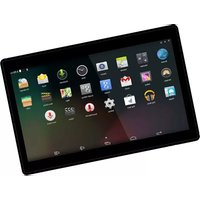
TAQ-90062KBLUE - Tablet DENVER - Free user manual and instructions
Find the device manual for free TAQ-90062KBLUE DENVER in PDF.


Pick your language and provide your email: we'll send you a specifically translated version.
| Product type | Tablet |
| Brand | DENVER |
| Model | TAQ-90062KBLUE |
| Display | 9.6" TFT LCD, 1280 x 800 resolution |
| Processor | Quad-core 1.3 GHz |
| RAM | 2 GB |
| Internal storage | 16 GB, expandable via microSD card up to 128 GB |
| Operating system | Android 10 |
| Connectivity | Wi-Fi 802.11 b/g/n, Bluetooth 4.0 |
| Ports | Micro USB, 3.5 mm headphone jack |
| Cameras | Front 0.3 MP, rear 2 MP |
| Battery | Lithium-ion 4000 mAh |
| Power supply | DC 5V, 2A charger |
| Dimensions | 23.5 x 15.5 x 0.9 cm |
| Weight | 560 g |
| Functionality | Multimedia playback, e-books, web browsing, games |
| Maintenance | Clean with a soft dry cloth; avoid liquids and abrasive cleaners |
| Safety | Do not expose to water, extreme heat, or moisture |
| Spare parts | Battery and accessories available through authorized Denver service centers |
| Repairability | MicroSD card is user-replaceable; other repairs should be done by qualified technicians |
| General information | User manual available for free download in PDF format |
Frequently Asked Questions - TAQ-90062KBLUE DENVER
How do I turn on the tablet?
Press and hold the power button for about 3 seconds until the screen lights up. To turn it off, press and hold the same button and select "Power off".
How do I charge the battery?
Connect the included micro USB cable to the tablet and plug it into a DC 5V/2A charger. The charging indicator will show. A full charge takes approximately 4-5 hours.
How do I connect to a Wi-Fi network?
Go to Settings > Network & Internet > Wi-Fi, toggle it on, select your network, and enter the password if required.
How do I perform a factory reset?
Back up your data first. Then go to Settings > System > Reset > Factory data reset. Confirm to erase all data and restore default settings.
How can I extend battery life?
Lower the screen brightness, turn off Bluetooth and GPS when not in use, close unused apps, and enable battery saver mode in settings.
How do I install apps from the Google Play Store?
Open the Play Store app, sign in with your Google account, search for an app, then tap Install. The app will appear in your app drawer.
How do I connect a Bluetooth device?
Turn on Bluetooth in Settings > Connected devices > Pair new device. Put your device in pairing mode and select it from the list.
How can I increase storage space?
Insert a microSD card into the card slot to expand storage. You can also move photos and videos to the SD card via Settings > Storage.
How do I clean the screen safely?
Use a soft, dry microfiber cloth to gently wipe the screen. Avoid solvents, abrasive cleaners, or spraying liquids directly on the display.
What should I do if the tablet freezes?
Press and hold the power button for 10-15 seconds to force a restart. If the issue persists, charge the device and try a factory reset after backing up.
User questions about TAQ-90062KBLUE DENVER
0 question about this device. Answer the ones you know or ask your own.
Ask a new question about this device
No questions yet. Be the first to ask one.
Download the instructions for your Tablet in PDF format for free! Find your manual TAQ-90062KBLUE - DENVER and take your electronic device back in hand. On this page are published all the documents necessary for the use of your device. TAQ-90062KBLUE by DENVER.
USER MANUAL TAQ-90062KBLUE DENVER


Manual assistant
Powered by Anthropic
Waiting for your message
Product information
Brand : DENVER
Model : TAQ-90062KBLUE
Category : Tablet