TransPort LR54 - Router Digi - Free user manual and instructions
Find the device manual for free TransPort LR54 Digi in PDF.


Pick your language and provide your email: we'll send you a specifically translated version.
| Product Type | Industrial M2M Router |
| Brand | Digi |
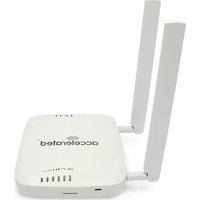
| Model | TransPort LR54 |
| Category | Router |
| Dimensions (H x W x D) | 120 x 210 x 64 mm |
| Weight | 1.25 kg |
| Power Input | 9-36 V DC |
| Power Consumption | 12 W typical |
| Ethernet Ports | 4 x 10/100/1000 Ethernet |
| Wireless Connectivity | Dual-band Wi-Fi 6, LTE/5G |
| SIM Support | Dual SIM with failover |
| GPS | GPS/GLONASS receiver |
| Antenna Connectors | 3 x SMA for cellular, 2 x RP-SMA for Wi-Fi |
| Operating Temperature | -30 °C to 70 °C |
| Storage Temperature | -40 °C to 85 °C |
| Humidity | 5% to 95% non-condensing |
| Enclosure Rating | IP30 |
| Mounting | DIN rail or wall mount |
| Software Features | VPN, Firewall, QoS, Remote management |
| Security Features | WPA3, Advanced encryption |
| LED Indicators | Power, Signal, LAN, WAN |
| Certifications | CE, FCC, IC |
| Warranty | 5 years |
| Included Accessories | Quick Start Guide, mounting bracket |
Frequently Asked Questions - TransPort LR54 Digi
How do I set up the Digi TransPort LR54 for internet access?
Connect the router to a power source, insert activated SIM cards, and use the Digi Remote Manager or web interface to configure the cellular connection. The built-in auto-provisioning simplifies initial setup.
Where are the SIM card slots located on the LR54?
The dual SIM slots are located on the front panel of the router. Remove the protective cover, slide in the SIM cards with the gold contacts facing down, and secure the cover.
How do I configure the Wi-Fi network on the LR54?
Access the web configuration interface at the default IP, navigate to the Wi-Fi settings, and set your SSID and WPA3 encryption to secure the network.
How can I update the firmware of the router?
Download the latest firmware from the Digi support website, then upload it via the Firmware Upgrade section in the admin panel. Ensure the router remains powered during the update.
What is the factory reset procedure for the TransPort LR54?
Press and hold the Reset button for about 10 seconds until the status LEDs blink, which restores default factory settings.
How do I troubleshoot poor cellular signal on my LR54?
Check the cellular signal strength in the status page, reposition the router or use external antennas for better reception. Also verify the antenna connectors are properly tightened.
Can I set up a VPN tunnel on the TransPort LR54?
Yes, the LR54 supports IPsec, OpenVPN, and PPTP tunnels. Configure the VPN settings in the VPN section of the web interface and define the tunnel parameters.
What regular maintenance does the Digi TransPort LR54 require?
Regular maintenance includes firmware updates, checking SIM card contacts and antenna connections, and cleaning the enclosure with a dry cloth to prevent dust buildup.
Which antenna connectors are used on the LR54?
The router features SMA connectors for cellular antennas and RP-SMA for Wi-Fi antennas, allowing use of high-quality external antennas.
Is the Digi TransPort LR54 suitable for harsh industrial environments?
Yes, it is designed with an IP30-rated enclosure, wide temperature range (-30 to 70 °C), and DIN rail mounting options, making it ideal for industrial applications.
User questions about TransPort LR54 Digi
0 question about this device. Answer the ones you know or ask your own.
Ask a new question about this device
No questions yet. Be the first to ask one.
Download the instructions for your Router in PDF format for free! Find your manual TransPort LR54 - Digi and take your electronic device back in hand. On this page are published all the documents necessary for the use of your device. TransPort LR54 by Digi.
USER MANUAL TransPort LR54 Digi



Manual assistant
Powered by Anthropic
Waiting for your message
Product information
Brand : Digi
Model : TransPort LR54
Category : Router