
SS-CDR1 - Audio recorder TASCAM - Free user manual and instructions
Find the device manual for free SS-CDR1 TASCAM in PDF.


| Product Type | CD-R/RW Audio Recorder |
| Brand | TASCAM |
| Model | SS-CDR1 |
| Dimensions (W x H x D) | 482 x 88 x 280 mm |
| Weight | 5.0 kg |
| Power Supply | AC 100 V – 240 V, 50/60 Hz |
| Power Consumption | 20 W |
| Main Functions | CD-R/RW recording and playback, editing functions, analog and digital audio inputs, analog and digital audio outputs |
| Supported Audio Formats | PCM 16/24 bit, 44.1/48 kHz |
| Analog Inputs | 2 x XLR balanced, 2 x RCA unbalanced |
| Analog Outputs | 2 x XLR balanced, 2 x RCA unbalanced |
| Digital Inputs/Outputs | 1 x AES/EBU, 1 x S/PDIF, 1 x coaxial, 1 x optical |
| Connectivity | 1 x USB port (for updates and backup) |
| Display | Backlit LCD screen |
| Maintenance and Cleaning | Clean the exterior with a soft dry cloth. Do not use solvents. |
| Safety | Read the precautions in the manual. Do not expose to humidity or extreme temperatures. |
| Spare Parts and Repairability | Parts available from TASCAM after-sales service. Repairs by a certified technician. |
| General Information | Class A product. May cause radio interference in a domestic environment. |
Frequently Asked Questions - SS-CDR1 TASCAM
User questions about SS-CDR1 TASCAM
0 question about this device. Answer the ones you know or ask your own.
Ask a new question about this device
Download the instructions for your Audio recorder in PDF format for free! Find your manual SS-CDR1 - TASCAM and take your electronic device back in hand. On this page are published all the documents necessary for the use of your device. SS-CDR1 by TASCAM.
USER MANUAL SS-CDR1 TASCAM
TEAC Professional Division
SS-CDR1
Solid State/CD Stereo Audio Recorder
OWNER'S MANUAL


| CAUTION RISK OF ELECTRIC SHOCK DO NOT OPEN | CAUTION: TO REDUCE THE RISK OF ELECTRIC SHOCK, DO NOT REMOVE COVER (OR BACK). NO USER-SERVICEABLE PARTS INSIDE. REFER SERVICING TO QUALIFIED SERVICE PERSONNEL. |
| The lightning flash with arrowhead symbol, within equilateral triangle, is intended to alert the user to the presence of uninsulated “dangerous voltage” within the product’s enclosure that may be of sufficient magnitude to constitute a risk of electric shock to persons. | |
| The exclamation point within an equilateral triangle is intended to alert the user to the presence of important operating and maintenance (servicing) instructions in the literature accompanying the appliance. |
This appliance has a serial number located on the rear panel. Please record the model number and serial number and retain them for your records. Model number
Serial number
WARNING: TO PREVENT FIRE OR SHOCK HAZARD, DO NOT EXPOSE THIS APPLIANCE TO RAIN OR MOISTURE.
For U.S.A.
TO THE USER
This equipment has been tested and found to comply with the limits for a Class A digital device, pursuant to Part 15 of the FCC Rules. These limits are designed to provide reasonable protection against harmful interference when the equipment is operated in a commercial environment. This equipment generates, uses, and can radiate radio frequency energy and, if not installed and used in accordance with the instruction manual, may cause harmful interference to radio communications.
Operation of this equipment in a residential area is likely to cause harmful interference in which case the user will be required to correct the interference at his own expense.
CAUTION
Changes or modifications to this equipment not expressly approved by TEAC CORPORATION for compliance could void the user's authority to operate this equipment.
CE Marking Information
a) Applicable electromagnetic environment: E4
b) Peak inrush current: 17 A
In North America use only on 120V supply.
For the customers in Europe
WARNING
This is a Class A product. In a domestic environment, this product may cause radio interference in which case the user may be required to take adequate measures.
1 Read these instructions.
2 Keep these instructions.
3 Heed all warnings.
4 Follow all instructions.
5 Do not use this apparatus near water.
6 Clean only with dry cloth.
7 Do not block any ventilation openings. Install in accordance with the manufacturer's instructions.
8 Do not install near any heat sources such as radiators, heat registers, stoves, or other apparatus (including amplifiers) that produce heat.
9 Do not defeat the safety purpose of the polarized or grounding-type plug. A polarized plug has two blades with one wider than the other. A grounding type plug has two blades and a third grounding prong. The wide blade or the third prong are provided for your safety. If the provided plug does not fit into your outlet, consult an electrician for replacement of the obsolete outlet.
10 Protect the power cord from being walked on or pinched particularly at plugs, convenience receptacles, and the point where they exit from the apparatus.
11 Only use attachments/accessories specified by the manufacturer.
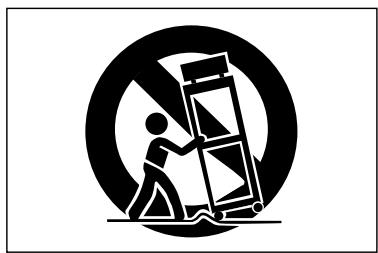
12 Use only with the cart, stand, tripod, bracket, or table specified by the manufacturer, or sold with the apparatus. When a cart is used, use caution when moving the cart/apparatus combination to avoid injury from tip-over.
13 Unplug this apparatus during lightning storms or when unused for long periods of time.
14 Refer all servicing to qualified service personnel. Servicing is required when the apparatus has been damaged in any way, such as power-supply cord or plug is damaged, liquid has been spilled or objects have fallen into the apparatus, the apparatus has been exposed to rain or moisture, does not operate normally, or has been dropped.
- Do not expose this apparatus to drips or splashes.
- Do not place any objects filled with liquids, such as vases, on the apparatus.
- Do not install this apparatus in a confined space such as a book case or similar unit.
- The apparatus should be located close enough to the AC outlet so that you can easily grasp the power cord plug at any time.
- An apparatus with Class I construction shall be connected to an AC outlet with a protective grounding connection.
- Batteries (battery pack or batteries installed) should not be exposed to excessive heat such as sunshine, fire or the like.
- Excessive sound pressure from earphones and headphones can cause hearing loss.
- The apparatus draws nominal non-operating power from the AC outlet with its STANDBY/ON in the Standby position.
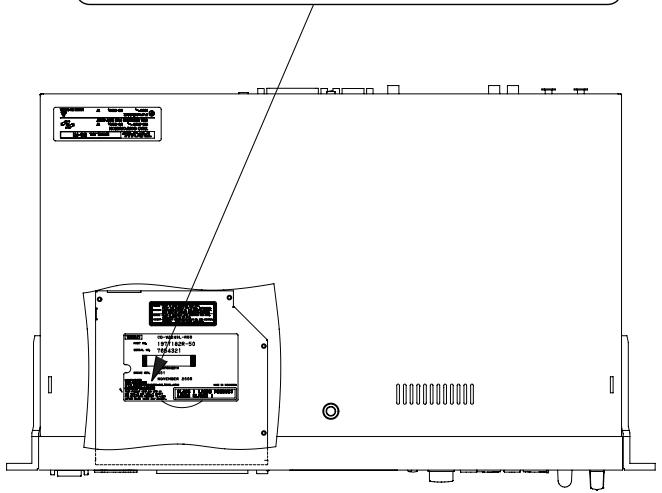
This product has been designed and manufactured according to FDA regulations "title 21, CFR, chapter 1, subchapter J, based on the Radiation Control for Health and Safety Act of 1968", and is classified as a class 1 laser product. There is no hazardous invisible laser radiation during operation because invisible laser radiation emitted inside of this product is completely confined in the protective housings. The label required in this regulation is shown at ①.
CERTIFICATION
COMPLIES WITH 21 CFR 1040.10 AND 1040.11 EXCEPT
FOR DEVIATIONS PURSUANT TO LASER NOTICE
NO.50, DATED JULY 26, 2001
1
For USA
CAUTION
- DO NOT REMOVE THE PROTECTIVE HOUSING USING A SCREWDRIVER.
- USE OF CONTROLS OR ADJUSTMENTS OR PERFORMANCE OF PROCEDURES OTHER THAN THOSE SPECIFIED HEREIN MAY RESULT IN HAZARDOUS RADIATION EXPOSURE.
- IF THIS PRODUCT DEVELOPS TROUBLE, CONTACT YOUR NEAREST QUALIFIED SERVICE PERSONNEL, AND DO NOT USE THE PRODUCT IN ITS DAMAGED STATE.
CLASS 1M INVISIBLE LASER RADIATION WHEN OPEN AND INTERLOCKS DEFEATED. DO NOT VIEW DIRECTLY WITH OPTICAL INSTRUMENTS.
Optical pickup
Type : HOP-6201TC
Manufacturer: Hitachi Media Electronics Co, Ltd.
Laser output : Less than 75 mW on the objective lens (record)
Wavelength : 777 to 787 nm
Rack-mounting the Unit
Use the supplied rack-mounting kit to mount the unit in a standard 19-inch rack, as shown below.
Remove the feet of the unit before mounting.
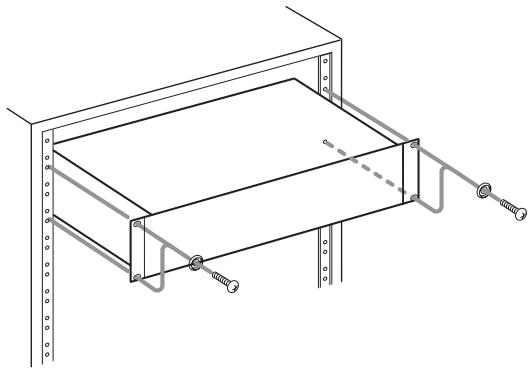
NOTE
- Leave 1U of space above the unit for ventilation.
- Allow at least 10cm (4 in) at the rear of the unit for ventilation.
1 - Introduction 7
Features of the SS-CDR1 7
Supplied accessories 7
Media considerations 7
About CD-R and CD-RW discs. 8
About finalizing 8
Recordable discs 8
Handling of compact discs 8
Never use a stabilizer or printable discs 9
Environmental considerations. 8
Beware of condensation. 9
About this manual. 9
Connections 10
Control connections 10
2 - Controls and connectors 11
Front panel 11
Rear panel 13
Remote control unit (RC-SS1) 13
The home screen 15
Various indicators. 16
3 - Menu screens 17
Menu structure 17
Operations in the menu screens. 18
4 - Preparations 19
Connections 19
Turning the power on 20
Setting the date and time 20
Adjusting the display 21
Adjusting the contrast 21
Adjusting the brightness 21
Inserting a CompactFlash card. 22
About the door lock. 22
Removing the card 22
Inserting a CD 23
Removing a CD 23
Selecting the device 23
5 - Playback 24
Files that can be played 24
Tracks and files 24
Play area. 24
Selecting the type of play area. 24
Selecting the current folder or current playlist...25
Basic playback operations 25
Playback 25
Selecting a track 25
Skipping to the previous or next track. 25
Specifying a track number. 26
Fast-forward/rewind search 26
Time search 26
Time searching from an incomplete entry. 27
Time skip 27
Playback modes 27
Specifying the playback mode 27
Program playback 28
Switching the playback time display mode. 28
Power-on play 29
Repeat playback 29
Conventional repeat playback 29
A-B Repeat playback 29
Pitch Control playback 30
Specifying the Pitch Step 30
Key Control playback 31
Using the remote's dedicated key to turn Key Control on/off 31
Auto Cue function 32
Using the remote's dedicated key to turn Auto Cue on/off 32
Auto Ready function 33
Turning the Auto Ready function on/off from the front panel. 33
Call function 33
Incremental Playback 34
Using the remote's dedicated key 34
Using the menu to make settings. 34
Playing back in monaural 35
ResumePlayback 35
Flash Start function 36
End of disc/track message (EOM) 37
Specifying an EOM tally output trigger 37
Example of actual use 37
6 - Recording 38
Selecting the input source 38
Using the dedicated remote key to select the source 38
Using the menu to select the source 38
Input source indicator 39
Specifying the recording file format 39
Using the sampling rate converter 40
Monitoring the input signal 40
Adjusting the input signal level and balance ....41
Basic recording operation. 41
Finalizing a CD. 43
Finalizing operation 43
Switching the recording time display mode..... 44
Sync recording 44
Making settings. 44
Sync Record operation. 46
Auto Track function 47
Using the menu 47
Using the remote's dedicated key to switch modes. 48
Assigning a new track number manually. 48
Applying the compressor while recording. 48
Specifying the name of the recording file (WAV and MP3 only). 49
7 - Using the folder finder. 50
Overview 50
Opening the folder finder screen 50
Navigating in the folder finder screen. 50
Operations when a folder is highlighted. 50
Operations when a file is highlighted. 51
Operations in the folder menu screen 52
Renaming a folder (CF card only). 52
Deleting a folder (CF card only) 52
Undeleting a deleted folder (UNDO) (CF card only). 53
Making a folder the current folder. 53
Creating a new folder 53
Adding an entire folder to a playlist (CF card only). 54
Undoing a folder menu operation (UNDO)......54
Operations in the file menu screen (CF card only). 54
Editing the file name. 55
Deleting a file 55
Adding files to a playlist. 56
Dividing a file (DIVIDE) 56
Combining files (COMBINE) 57
Undoing a file menu operation (UNDO)............58
Moving or copying a file (CF card only).58
Moving a file within a folder 58
Moving or copying a file between folders 59
8 - Using the CD-DA finder screen (AudioCD only) 60
Opening the CD-DA finder screen 60
Selecting the track to play. 60
Editing CD text 60
9 - Editing a playlist (CF only) .... 62
Overview 62
Opening the playlist finder screen 62
Navigating in the playlist finder screen 62
Operations in the playlist menu screen 63
Adding a file/folder to a playlist. 63
Deleting a file/all files from a playlist 63
Moving a file. 64
10 - Copying files between CD and CF card 65
Copying/converting and copying files from CF card to CD. 65
Creating an audio CD 65
Creating a data CD 67
Copying/converting and copying files from CD to CF card. 68
Converting and copying audio CD tracks. 68
Copying files from a data CD 70
11 - CD-RW management 72
Unfinalizing a CD. 72
Erasing a track 72
Erasing a disc 73
Refreshing a disc (complete erasure) 73
12 - Other settings 74
Restoring the factory settings 74
Formatting a CompactFlash card 74
Viewing information about the media. 75
13 - Operation using a computer keyboard 76
Specifying the keyboard type. 76
Using the keyboard to enter names. 76
List of keyboard operations 77
Keyboard operations 77
14 - Using the RS-232C connector.. 79
15 - Messages 80
16 - Troubleshooting 82
17 - Specifications 83
Dimensional diagram. 84
Thank you for your purchase of the TASCAM SS-CDR1 Solid State Stereo Audio Recorder.
Before connecting and using the unit, please take time to read this manual thoroughly to ensure you understand how to properly set up and connect the SS-CDR1, as well as the operation of its many useful and convenient functions. After you have finished reading this manual, please keep it in a safe place for future reference.
NOTE
This product is designed to help you record and reproduce sound works to which you own the copyright, or where you have obtained permission from the copyright holder or the rightful licensor. Unless you own the
copyright, or have obtained the appropriate permission from the copyright holder or the rightful licensor, your unauthorized recording, reproduction or distribution thereof may result in severe criminal penalties under copyright laws and international copyright treaties. If you are uncertain about your rights, contact your legal advisor. Under no circumstances will TEAC Corporation be responsible for the consequences of any illegal copying performed using the SS-CDR1.
Features of the SS-CDR1
- Two-channel audio recorder using CF cards and CD media.
- Can be mounted in a single rack space.
- Use CF cards to record/play 44.1kHz or 48kHz 16-bit linear PCM audio (WAV format) or MP3 audio. Use CD discs to record/play CD-DA (audio CD) or MP3 audio, or to play WAV audio
- Provides parallel and serial control ports to allow control from outside.
- Flash Start function allows playback to begin instantly.
-
Playback control functionality such as Pitch Control and Key Control.
-
Play lists and folders can be used to freely specify the range of playback.
- Track editing is provided (only for linear PCM audio recorded on a CF card).
- An internal clock is provided for time stamping.
- Balanced and unbalanced analog audio inputs and outputs as well as coaxial digital audio input and output are provided.
- Wired remote control for reliable operation is provided.
- A PS/2 keyboard can be connected to control the unit or to enter text.
Supplied accessories
In addition to this manual, the SS-CDR1 has been packed with the following:
- RC-SS1 remote control unit (with 5m cable)
AC power cable. 1 - A rack-mounting screw kit (screws and washers)............1
SecurityScrew 2
A warranty card. 1
Contact your TASCAM supplier if any of these items are missing.
Media considerations
The capacities and performance of your SS-CDR1 will vary based on the speed and abilities of the Compact Flash (CF) media used. Older and some cheaper Compact Flash (CF) cards use slower memory components and little internal buffering which results in poor recording performance. Newer CF cards, not only perform reading and writing faster, but also come in larger storage size.
NOTE
A card more than 512 MB should be used on the SS-CDR1.
The SS-CDR1 supports only Type I Compact Flash media. Type I cards are typically FLASH-ROM based and provide higher performance and durability than hard disk cards.
A current list of tested CF cards and their capacities is maintained and available for viewing on the TASCAM website at www.tascam.com
CompactFlash cards are precision devices. To prevent damage to the card or the slot, please observe the following cautions.
- Do not leave a CF card in an extremely hot or cold location.
- Do not leave a CF card in an extremely damp location.
- Do not allow a CF card to become wet.
- Do not place any object on top of a CF card, or twist or bend it.
- Do not subject a CF card to strong impact.
About CD-R and CD-RW discs
CD-R discs can be recorded once only. Once they have been used for recording, they cannot be erased or re-recorded. However, if space is available on the disc, additional material can be recorded. The packaging of CD-R discs will include one of the following logos:

Recordable

DIGITAL AUDIO Recordable
By contrast, a CD-RW disc can be used in much the same way as a CD-R disc, but the last track or tracks recorded can be erased before the disc has been "finalized", and the space on the disc can be re-used for other recordings. The packaging of CD-RW discs will include one of the following logos:


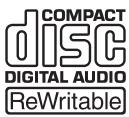
However, you should note that an audio CD created using a CD-RW disc may not play back satisfactorily on every audio CD player. It will, naturally, be playable on the SS-CDR1. This is in no way a limitation of the SS-CDR1 itself, but of the difference between the different types of media and the methods used to read them.
There are precautions that you should take when handling CD-R and CD-RW discs.
- Avoid touching the recording (non-label) side of a disc on which you will be recording. Recording on a disc requires a cleaner surface than playing back, and fingerprints, grease, etc. can cause errors in the recording process.
- CD-R and CD-RW discs are sensitive to the effects of heat and ultraviolet rays. It is important that they are not stored in a location where direct sunlight will fall on them, and which is away from sources of heat such as radiators or heat-generating electrical devices.
- Always store CD-R and CD-RW discs in their cases to avoid dirt and dust accumulating on their surfaces.
- When labeling CD-R and CD-RW discs, always use a soft oil-based felt-tipped pen to write the information. Never use a ball-point or hard-tipped pen, as this may cause damage to the recorded side.
- Always keep the recording sides of the discs away from grime and dust to avoid a reduction in sound quality. To clean a disc, wipe gently with a soft dry cloth from the center towards the outside edge. Do not use thinner, gasoline, benzene or LP cleaning fluid, as these will damage the disc and cause the disc unplayable.
- Do not put labels or protective sheets on the discs and do not use any protective coating spray.
- If you are in any doubt as to the care and handling of a CD-R and CD-RW discs, read the precautions supplied with the disc, or contact the disc manufacturer directly.
About finalizing
Although audio data may be written on a CD-R or CD-RW disc, a standard CD player will not be able to read the data (i.e. play back the audio) until a final *TOC has been written at the start of the disc.
*TOC:Table of contents
Information of recorded data, which contains titles, starting and ending addresses, and etc..
The process of writing this table of contents is known as "finalizing". Once this has been done, no further data can
be written to the disc. See "Finalizing" on page 43 for details. In the case of a CD-RW disc which has been finalized, the whole of the disc may be erased, or the disc may be "refreshed", and the disc re-used.
In addition, a CD-RW disc that has been finalized may be "unfinalized", i.e. only the TOC is removed. This allows further tracks to be recorded to the disc, provided that there is space on the disc.
Recordable discs
In this manual, we use the term "recordable" disc to describe a CD-R or CD-RW disc that has not been finalized, i.e. further recording is possible on the disc.
Handling of compact discs
The SS-CDR1 has been designed for the playback of CD-DA (standard audio) format discs and MP3 files recorded on the discs using the ISO9660 format: In addition to ordinary 5-inch and 3-inch CDs, it can also play properly recorded CD-R and CD-RW discs.
-
Always insert the compact discs into the unit with their label facing upward.
-
To remove a disc from its case, press down on the center of the disc holder, then lift the disc out, holding it carefully by the edges.
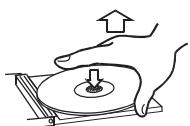
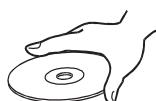
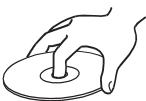
- Avoid getting fingerprints on the signal side (the non-label side). Grime and dust may cause skipping, so keep discs clean and store them in their cases when not being played. To clean the signal side of a disc, wipe gently with a soft dry cloth from the center towards the outside edge.

- Do not use any record spray, anti-static solutions, benzene, paint thinner or other chemical agents to clean CDs as they could damage the delicate playing surface. It may cause CDs to become unplayable.
- Discs should be returned to their cases after use to avoid serious scratches that could cause the laser pickup to "skip."
-
Keep discs away from direct sunlight, and places of high heat and humidity. If left in such places, warping could result.
-
Do not affix any labels or stickers to the label side of the disc. Do not write on the disc with a ballpoint pen.
- Do not insert discs that have adhesive remaining from tape or stickers that have been removed. If they are inserted into the player, they could stick to the internal mechanism, requiring removal by a technician.
- Do not use cracked discs.
- Only use circular compact discs. Avoid using non-circular promotional, etc. discs.

- Music discs with copy control, a copy-protection system, have been released from several record companies in an attempt to protect the copyright. Since some of these discs do not comply with the CD specifications, they may not be playable on the SS-CDR1.
Never use a stabilizer or printable discs
Using commercially available CD stabilizers or printable recordable discs with this player will damage the mechanism and cause it to malfunction.
NOTE
Never use a disc that has had a stabilizer mounted to it. The residual adhesive may cause the disc to stick to the turntable of the SS-CDR1. If it sticks to the turntable, you will need a technician to get it out.
Environmental considerations
The SS-CDR1 may be used in most areas, but to maintain top performance, and prolong operating life, observe the following environmental conditions:
- The nominal temperature should be between 5^ and 35^ (41°F and 95°F).
- Relative humidity should be 30 to 90 percent.
- As the unit may become hot during operation, always leave sufficient space above the unit for ventilation. Do not install this unit in a confined space such as a book-case, and do not put anything on top of the unit.
-
Avoid installing this unit on top of any heat-generating electrical device such as a power amplifier.
-
Make sure that the unit is mounted in a level position for correct operation.
- Do not use any benzene, paint thinner, ethyl alcohol or other chemical agents to clean the unit as it could damage the surface. To clean the unit, wipe gently with a soft dry cloth.
NOTE
The voltage supplied to the unit should match the voltage as printed on the rear panel. If you are in any doubt regarding this matter, consult an electrician.
Beware of condensation
If the unit is moved from a cold to a warm place, or used after a sudden temperature change, there is a danger of condensation; vapor in the air could condense on the internal mechanism, making correct operation impossible.
To prevent this, or if this occurs, let the player sit for one or two hours at the new room temperature before using.
About this manual
In this manual, we use the following conventions:
- The names of keys and controls are given in the following typeface: MENU.
- If a preset indicator in the display (i.e. one which cannot change, but is either on or off) is shown, this is shown as follows: A Track.
- When the alphanumeric portion of the display shows a message (inc. pop-up), selectable value (i.e. values of
DB), or ON/OFF selection (i.e. SRC ON), this is shown in the following typedef: MOU E
- CompactFlash cards are referred to as "CF cards".
- CD-DA format is sometimes referred to as "audio CD" format. An audio disc containing tracks recorded in audio CD format is sometimes referred to as an "audio CD".
- A CD containing MP3 or WAV files is sometimes referred to as a "data CD".
Connections
The following should be noted when you connect the unit to other equipment.
It is possible to connect the unit's DIGITAL COAXIAL IN, and balanced or unbalanced ANALOG INs (L, R) to other equipment at the same time. However, the unit can receive signals from only one input at a time. Currently selected input jack is shown on the display.
Audio signals output from the unit are output from the balanced or unbalanced ANALOG OUT jacks, as well as from the DIGITAL COAXIAL OUT connector simultaneously (but not from the digital output in stop mode).
Control connections
The pinouts of the CONTROL I/O (PARALLEL) terminal on the rear panel (see "Rear panel" on page 13) are:
| Pin | Function | IN/OUT |
| 1 | GND | — |
| 2 | Play/Flash 1 | In |
| 3 | Stop/Flash 2 | In |
| 4 | Record/Flash 3 | In |
| 5 | ▶ (Next)/Flash 4 | In |
| 6 | (Previous)/Flash 5 | In |
| 7 | Flash Load | In |
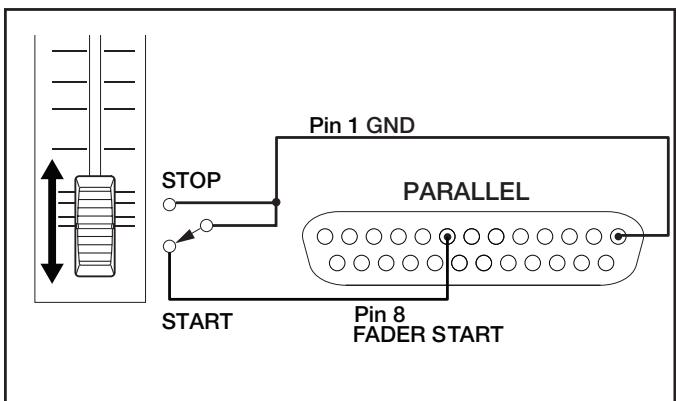
| 8 | Fader Start | In |
| 9 | Flash Tally | Out |
| 10 | Ready Tally | Out |
| 11 | Record Tally | Out |
| 12 | Stop Tally | Out |
| 13 | Play Tally | Out |
| 14 | Remote Select*2 | In |
| 15 | Ready/Flash 6 | In |
| 16 | Call/Flash 7 | In |
| 17 | Auto Cue/Flash 8 | In |
| 18 | Auto Ready/Flash 9 | In |
| 19 | Pitch/Flash 10 | In |
| 20 | Flash Page*3 | In |
| 21 | EOM Tally | Out |
| 22 | CF Tally | Out |
| 23 | — | — |
| 24 | CD Tally | Out |
| 25 | +5V*1 | — |
(operates at 30 ms or longer of ground)
Out: transport status by open drain
Indication signal (maximum voltage 50 V, maximum current 50 mA)
1 Maximum supplied current is 50 mA.
2 Pin 14 (Remote Select)
When this pin is high, the input pins for which the above table lists two commands separated by a “/” (pins 2-6 and 15-19) will perform the first-listed function, and can be used as conventional parallel controllers.
When this pin is low, the above-listed input pins will function as flash start keys.
*3 Pin 20 (Flash Page)
When pin 14 (Remote Select) is low, the assigned tracks will be as follows according to the high/low state of pin 20.
| #14 | #20 | Flash-start status |
| Low | High | 1-10 |
| Low | Low | 11-20 |
Tall signals are open collector, with a maximum current of 50mA . Input signals are active when low (ground) for ≥ 30 ms.
A fader start/stop control should be wired according to the following schematic:
Front panel
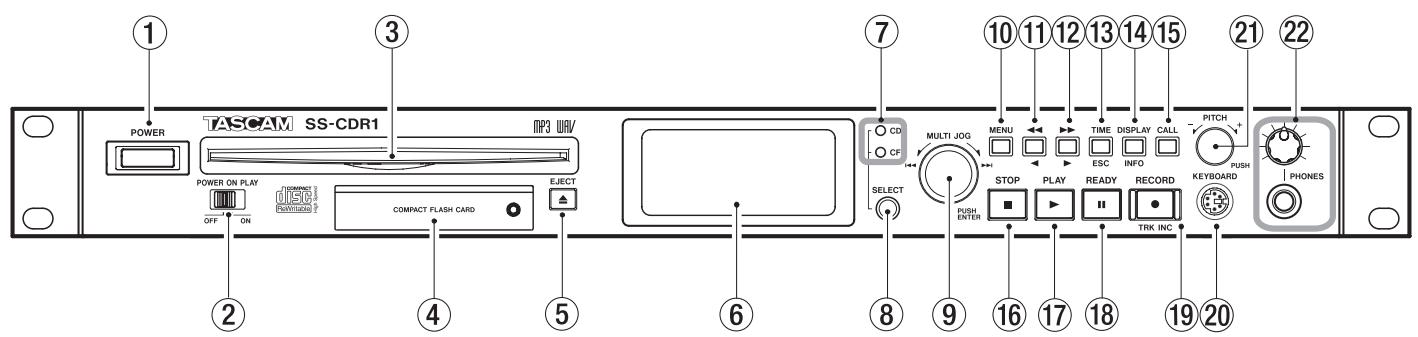
① POWER switch Turns the power on/off.
② POWER ON PLAY switch Turns the Power-on Play function (which causes playback to start when the unit is powered-on) on or off (see “Power-on Play” on page 29).
③ CD slot Insert the CD here (see “Inserting a CD” on page 23).
④ CompactFlash card slot Insert a CompactFlash card here (see “Inserting a CompactFlash card” on page 22).
⑤ EJECT (▲) key Press this key to eject the CD (see "Inserting a CD" on page 23).
⑥ LCD display This shows the home screen, various menu screens, the finder screen, and warning messages.
Device indicators (CD, CF) The indicator of the device (CF or CD) that is selected as the current device will light. The indicator will blink while a device is being selected or while media is being written.
⑧ SELECT key Use this key to select the current device (CF or CD). Select the media that you want to use. The current device indicator (CF or CD indicator) will blink while the device is being selected, and will light steadily after it has been selected.
(9) MULTI JOG dial You can use this dial both by turning it as a wheel and by pressing it as a key.
[Wheel functions]
When the home screen is displayed, use the wheel to select tracks.
When entering a program, use the wheel to select a track to register.
When in menu mode, use the wheel to select a menu item or to select a value.
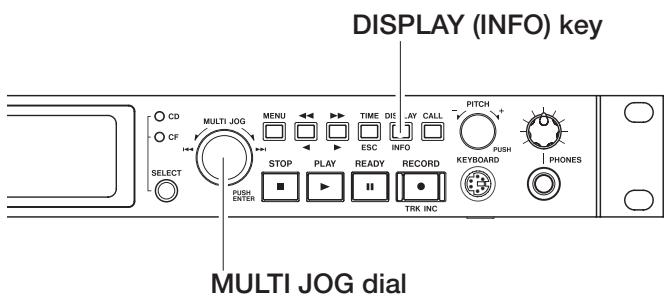
When editing a name, use the wheel to select characters. By holding down the DISPLAY (INFO) key and turning the MULTI JOG dial, you can adjust the display contrast.
[Key functions]
Press to select or enter a setting (ENTER key function). While the finder screen is displayed, hold down this key to move/copy the highlighted file (see "Moving or copying a file (CF card only)" on page 58).
10 MENU key While the home screen is displayed, pressing this key will enter menu mode. The MENU screen will appear.
By holding down this key while stopped or paused, you can access the finder screen for the current device and playback area setting (see "Opening the folder finder screen" on page 50, "Opening the play list finder screen" on page 62, and "Opening the CD-DA finder screen" on page 60).
(1) (▲) key While playing or paused, holding down this key will rewind while outputting audio (Review function).
While playing or paused, momentarily pressing this key will perform the Time Skip function (see "Time skip" on page 27).
In menu mode, this key returns to the previous level. If the play area is FOLDER, you can select the current folder by pressing this key while stopped.
If the play area is PLAYLIST, you can select the current playlist by pressing this key while stopped.
When entering a name, this key moves the cursor toward the beginning.
While editing a name, this key moves the cursor toward the left.
12 (▶) key While playing or paused, holding down this key will fast-forward while outputting audio (Cue function).
While playing or paused, momentarily pressing this key will perform the Time Skip function (see “Time skip” on page 27).
In menu mode, this key proceeds to the next level. If the play area is FOLDER, you can press this key while stopped to select the current folder.
If the play area is PLAYLIST, you can press this key while stopped to select the current playlist.
When editing a name, this key moves the cursor toward the end (see "Editing the file name" on page 55).
⑬ TIME (ESC) key When a menu screen or finder screen is displayed, you can press this key to return to the home screen.
When in the home screen, pressing this key will switch the time display mode of the recorder (see "Switching the playback time display mode" on page 28, "Switching the recording time display mode" on page 44).
When editing a file or folder name, pressing this key
deletes a highlighted character. Also, pressing and holding this key deletes all characters following the highlighted position.
Pressing this key while selecting a device will cancel the operation and return to the home screen.
DISPLAY (INFO) key When in the home screen, pressing this key will cycle the indication in the lower left of the screen between "file name folder/playlist name file information".
When the finder menu is displayed, pressing this key will display property information for the selected folder or track.
When a file or folder name is highlighted, pressing and holding this key scrolls the name on the screen to show the whole name.
When a MP3 file that was not created by this unit is selected, and the file contains title information in a ID3 tag, pressing this key shows the title instead of the file name in the home screen.
When editing a name, this key switches the type of character (uppercase/lowercase).
You can adjust the display contrast by holding down this key and turning the MULTI JOG dial.
⑤ CALL key When you press this key, the SS-CDR1 will search for the call point (the point at which playback was most recently started from the pause condition), and will enter pause mode (see “Call function” on page 33).
When editing a name, this key inserts a space.
When copying or exchange-copying between a CF card and a CD, use this key to select or de-select a file.
STOP key When you press this key while playing back or recording, playback or recording will stop.
Pressing this key while stopped or while selecting a track will cancel the track selection.
Pressing this key while stopped in program mode will clear all programs.
Pressing this key while editing will cancel the editing operation.
⑰ PLAY key While stopped or paused, press this key to start playback.
While in the record-ready condition, press this key to start recording.
The key will light during playback or recording.
18 READY key While stopped or paused, press this key to enter the pause condition.
While recording, press this key to enter record-ready mode.
⑲ RECORD (TRK INC) key While stopped, press this key to enter record-ready mode.
While recording, press this key to increment the track number.
The key will light when in recording mode.
If no media is inserted in the current device, pressing this key will select input monitoring, so that the selected input signal will be output. This key will blink while input monitoring is active.
20 KEYBOARD connector You can connect a PS/2 keyboard here.
Set the UTILITY menu KEYBOARD setting appropriately for the type of keyboard you've connected (see "Specifying the keyboard type" on page 76).
② PITCH knob Turn this knob to adjust the pitch (playback speed). (See “Pitch control playback” on page 30.)
You can press this knob to turn pitch control on/off. By holding down this knob you can access pitch step switch mode.
22 PHONES knob, PHONES jack You can connect stereo headphones to the PHONES jack.
Use the PHONES knob to adjust the headphone volume.
Rear panel
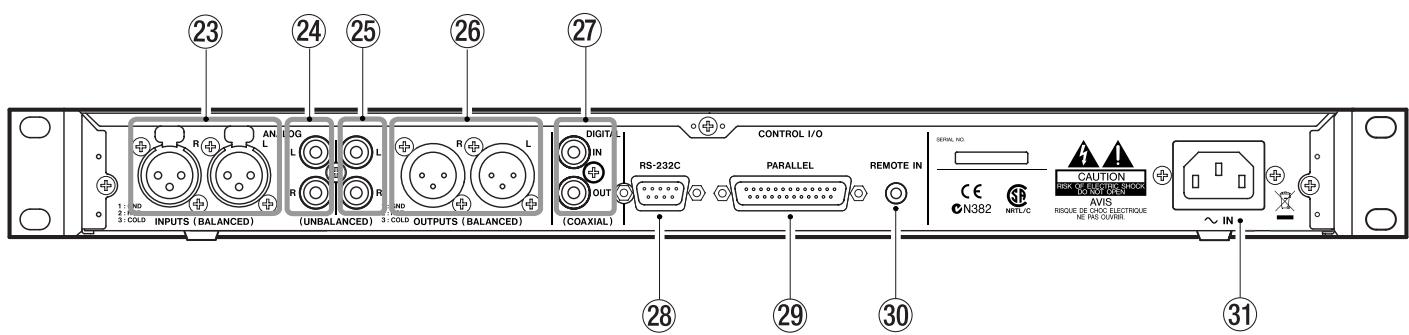
23 ANALOG INPUTS L/R (BALANCED) jacks These are analog input jacks (XLR balanced).
The nominal input level is +4 dBu.
Pin wiring: pin 1 = ground, pin 2 = hot, pin 3 = cold.
24 ANALOG INPUTS L/R (UNBALANCED) jacks These are analog input jacks (RCA pin jacks).
The nominal input level is -10 dBV.
25 ANALOG OUTPUTS L/R (UNBALANCED) jacks
These are analog output jacks (RCA pin jacks).
The nominal output level is -10 dBV.
26 ANALOG OUTPUTS L/R (BALANCED) plugs These are analog output plugs (XLR balanced).
The nominal output level is +4 dBu.
Pin wiring: pin 1 = ground, pin 2 = hot, pin 3 = cold.
② DIGITAL IN/OUT (COAXIAL) jacks These are digital input/output jacks compatible with IEC-60958 (S/PDIF).
28 CONTROL I/O (RS-232C) connector This is a D-sub 9-pin RS-232C connector for control I/O. You can connect it to an external computer or other device (see "Using the RS-232C connector" on page 79).
29 CONTROL I/O (PARALLEL) connector This is a D-sub 25-pin parallel connector for control I/O. You can connect it to an external controller. For the pin wiring, refer to "Control connection" on page 10.
③0 REMOTE IN connector Connect the RC-SS1 dedicated remote here.
③ AC IN connector Connect the included power cable here.
Remote control unit (RC-SS1)
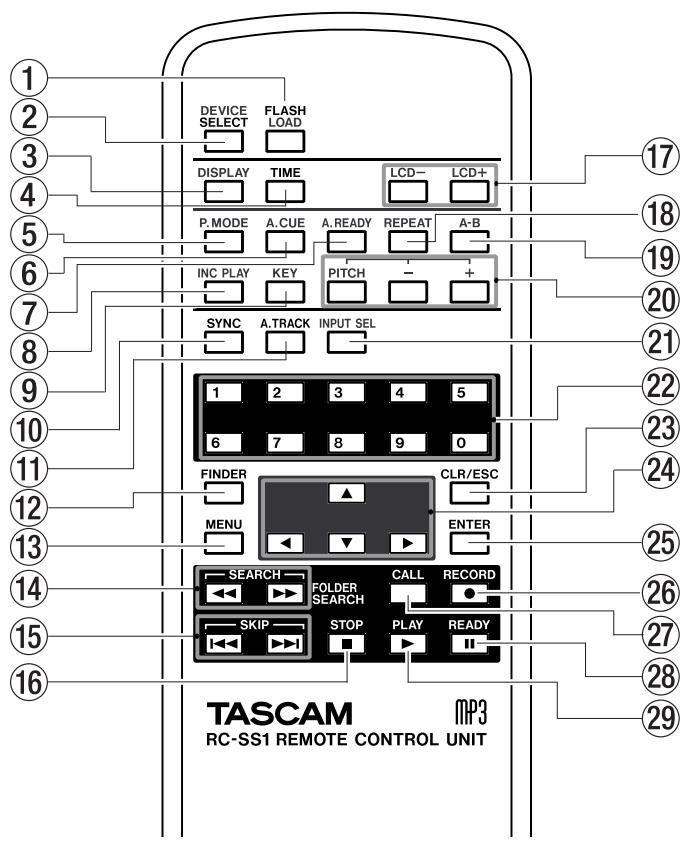
① FLASH LOAD key This loads the registered tracks in preparation for Flash Start. When the tracks have been loaded, the display will indicate FLASH (see “Flash Start function” on page 36).
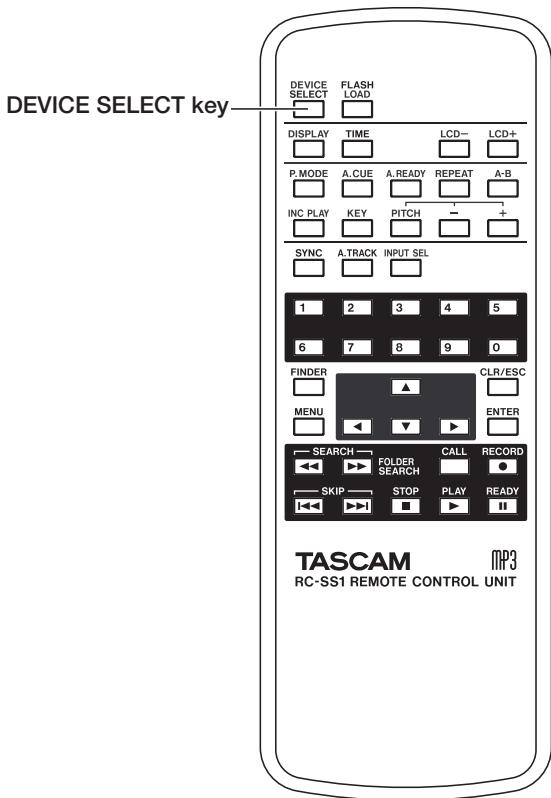
② DEVICE SELECT key This key has the same function as the front panel SELECT key.
③ DISPLAY key This has the same function as the front panel DISPLAY (INFO) key.
④ TIME key If you press this key while in the home screen, the time display mode of the recorder will change (see "Switching the playback time display mode" on page 28, "Switching the recording time display mode" on page 44).
P.MODE key This switches the playback mode between CONTINUE (normal consecutive playback), SINGLE (play one song), PROGRAM (program playback), and RANDOM (random playback) (see “Playback modes” on page 27).
(6) A. CUE key This turns the Auto Cue function on/off (see “Auto Cue function” on page 32).
A. READY key This turns the Auto Ready function on/off (see "Auto Ready function" on page 33).
(8) INC PLAY key This turns the Incremental Play function on/off (see “Incremental Playback” on page 34).
(9) KEY key This turns the Key Control Play function on/off (see “Key Control playback” on page 31).
⑩ SYNC key This turns Sync Recording on/off (see "Sync recording" on page 44).
(11) A. TRACK key This switches the Auto Track mode between OFF, LEVEL, DD, and TIME (see “Auto Track function” on page 47).
FINDER key This key accesses the finder screen for the current device and play area setting (see “Opening the playlist finder screen” on page 62, “Opening the CD-DA finder screen” on page 60).
⑬ MENU key This key has the same function as the front panel MENU key. However, it does not have the function of accessing the finder screen when the key is held down.
⑭ SEARCH (▲, ▲) keys These have the same function as the front panel (▲, ▲) keys. However, they will not operate in menu mode.
⑤ SKIP (↓, >) keys These have the same function as turning the front panel MULTI JOG dial.
16 STOP key This has the same function as the front panel STOP key.
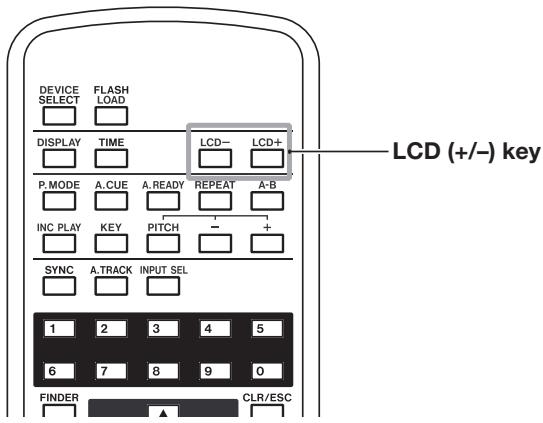
⑰ LCD-, LCD+ keys These adjust the contrast of the LCD display (see “Adjusting the contrast” on page 21).
18 REPEAT key This turns the Repeat Play function on/off (see "Conventional repeat play" on page 29).
19 A-B key Use this key for A-B Repeat playback operations (see “A-B Repeat play” on page 29).
20 PITCH key This has the same function as pressing the front panel PITCH knob (see "Pitch Control play" on page 30).
+ , - keys These have the same function as turning the front panel PITCH knob (see “Pitch Control play” on page 30).
② INPUT SEL key This selects the recording input source. You can choose ANALOG (RCA), ANALOG (XLR), or COAXIAL (see “Selecting the input source” on page 38).
22 Numeric keys (0-9) Use these to select tracks (see "Specifying a track number" on page 26).
23 CLR/ESC key If you press this while entering a track number, the track number entry will return to the initial condition.
If you press this while entering a program or while registering a track number, the track number will be cancelled. Otherwise, the last-registered program will be deleted (see "Program playback" on page 28). By holding down this key while a menu screen or finder screen is displayed, you can return to the home screen.
, , (cursor) keys Use these keys for menu operations. Use the , keys to select items or values vertically. Use the key to return upward through a menu structure, and use the key to proceed into a menu structure.
(25) ENTER key This has the same function as pressing the front panel MULTI JOG dial.
26 RECORD key This has the same function as the front panel RECORD key.
27 CALL key This has the same function as the front panel CALL key (see "Call function" on page 33).
28 READY key This has the same function as the front panel READY key.
29 PLAY key This has the same function as the front panel PLAY key.
The home screen
The basic screen shown in the display is called the "home screen".
If any screen other than the home screen is shown, pressing the TIME (ESC) key (or the remote CLR/ESC key) will take you back to the home screen.
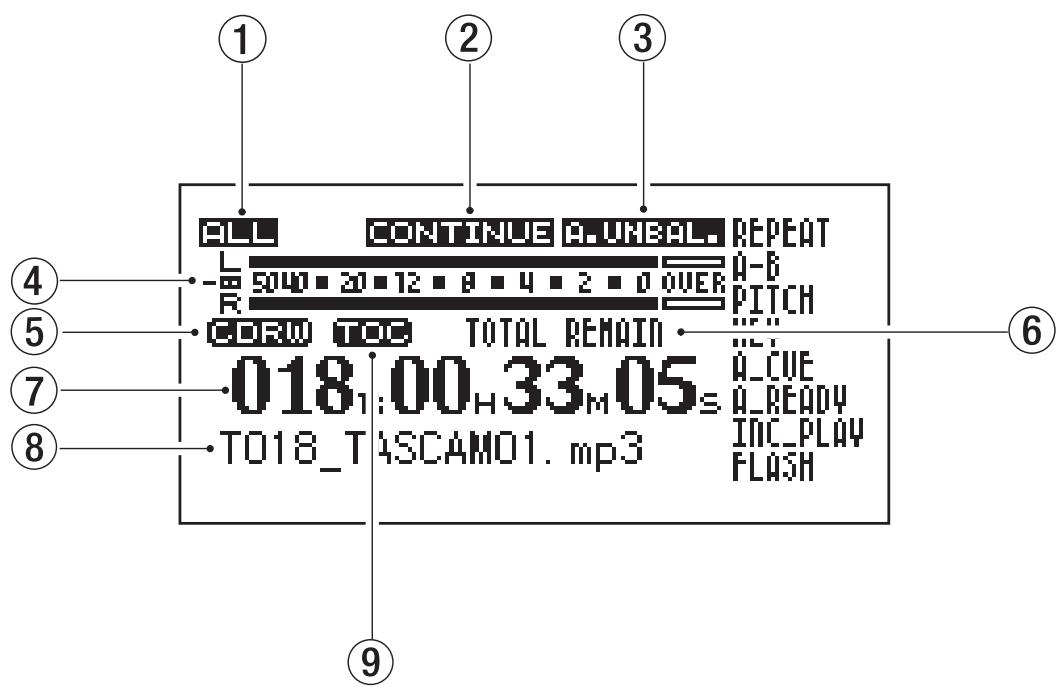
The home screen shows the following information.
① Play area This shows the currently specified play area.
② Playback mode This shows the currently specified playback mode.
③ Input source indicator This shows the currently selected input.
④ Level meter During playback this shows the playback level, and during recording or in record-ready mode it shows the recording level.
⑤ Current device This area indicates the current device (CF or CD). However if the current device is a CD, and a CD-RW or CD-R disc is inserted, this will indicate CDRW or CDR.
⑥ Time display mode indicator This shows the selected time display mode.
Counter This shows the track number and time. The time is shown as the currently selected time mode.
Information This shows information such as the file name.
⑨ TOC The TOC indication will light when you have inserted a finalized CD and the SS-CDR1 has finished reading the TOC data.
Various indicators
The content shown here will depend on whether the unit is in playback/stop, or recording/record-ready modes.
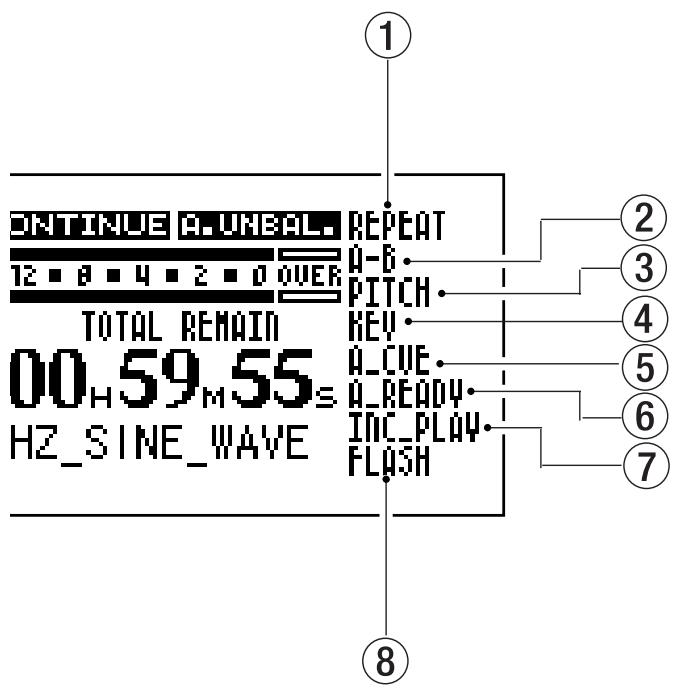
While playing or stopped
① REPEAT
This will be lit in Repeat Mode.
(2) A-B
This will be lit in A-B Repeat mode.
③ PITCH
This will be lit if the Pitch Control function is active.
(4) KEY
This will be lit if the Key Control function is active.
⑤ A_CUE
This will be lit if the Auto Cue function is active.
⑥ A_READY
This will be lit if the Auto Ready function is active.
⑦ INC.Play
This will be lit if the Incremental Play function is active.
⑧ FLASH
This will be lit if Flash Load has been completed.
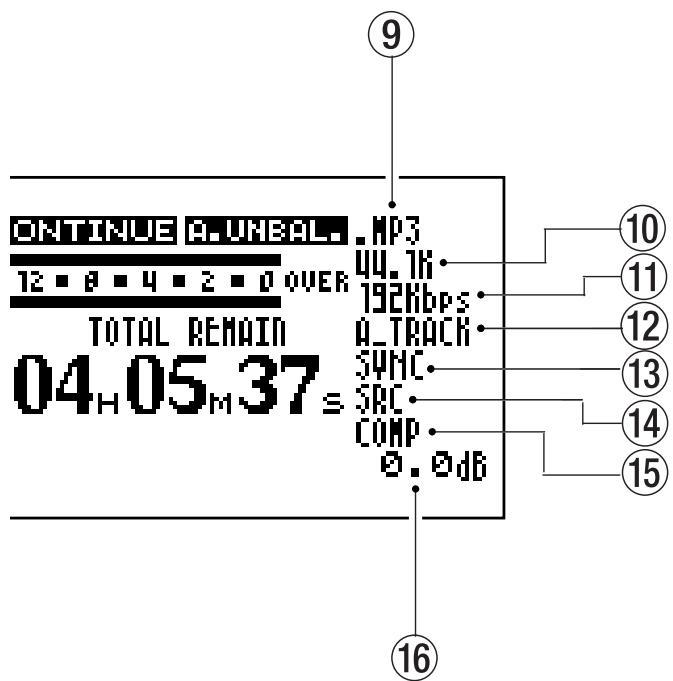
While recording or record-ready
9 FILE
This indicates the recording file format (WAV, MP3, or CD-DA).
10 FS
This indicates the sampling rate of the recording file.
⑪ BIT
This indicates the bit rate of the file being recorded (only for an MP3 file).
12 A Track
This will be lit if the Auto Track function is on.
⑬ SYNC
This will be lit if Sync Recording is on.
14 SRC
This will light if the Sampling Rate Converter function is on.
15 COMP
This will be lit if the compressor is on.
16 VOLUME
This indicates the recording volume.
The SS-CDR1 has a menu system with various settings.
When you press the MENU key, the main menu list screen will appear.
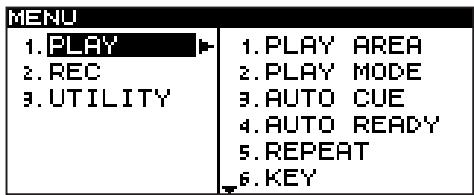
MENU when the CF device is selected.
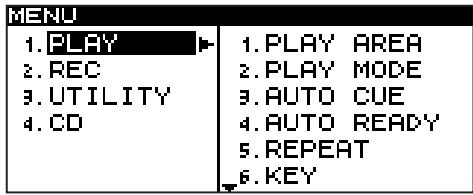
MENU when the CD device is selected.
Menu structure
There are four main menus, as follows.
PLAY menu: Contains playback-related menu items.
REC menu: Contains recording-related menu items.
UTILITY menu: Contains system settings for the SS-CDR1.
CD menu: This menu contains CD-specific operations
The following table summarizes the items in each menu.
| Menu option | Sub-Menu option | Function | Reference page |
| PLAY | PLAY AREA | Play area setting | Page 24 |
| PLAY MODE | Play mode setting | Page 27 | |
| AUTO CUE | Auto Cue on/off and setting | Page 32 | |
| AUTO READY | Auto Ready on/off | Page 33 | |
| REPEAT | Repeat Play on/off | Page 29 | |
| KEY | Key Control on/of and setting | Page 31 | |
| PREFERENCE | Various playback preferences | Page 34 | |
| REC | INPUT SELECT | Input source selection | Page 38 |
| INPUT VOLUME | Input volume setting | Page 41 | |
| REC FORMAT | Recording file format setting | Page 39 | |
| SYNC | Sync Recording setting | Page 44 | |
| AUTO TRACK | Auto Track Increment setting | Page 47 | |
| PREFERENCE | Various recording preferences | Page 40 | |
| UTILI TY | MEMORY FORMAT | Format a CompactFlash card | Page 74 |
| LCD BRIGHTNESS | Display brightness setting | Page 21 | |
| KEYBOARD | PS/2 keyboard type setting | Page 76 | |
| CLOCK ADJUST | Internal clock time setting | Page 20 | |
| RS-232C | RS-232C communication setting | Page 79 | |
| INFORMATION | View the media information | Page 75 | |
| FACTORY PRESET | Restore the factory settings | Page 75 | |
| CD | FINALIZE | Finalize a CD-R/CD-RW | Page 43 |
| ERASE | Erase a CD-RW | Page 72 | |
| BURN TO CD | Write from CF to CD | Page 65 | |
| RIP TO CF | Write from CD to CF | Page 68 |
NOTE
Even if the CD device is selected, you will not be able to select the CD menu if no CD is inserted.
Operations in the menu screens
You can perform operations in the menu screens as follows.
To select an item (vertically in the screen): Turn the MULTI JOG dial of the SS-CDR1. Use the cursor , keys of the remote.
To confirm the highlighted item: Press the MULTI JOG dial of the SS-CDR1. Press the ENTER key of the remote.
To move the cursor left/right: Use the , keys of the SS-CDR1. Use the cursor , keys of the remote.
- To select a sub-screen not currently shown in the screen (an arrow is shown at the right): Press the key of the SS-CDR1. Press the cursor key of the remote.
- To return to the previous menu level: Press the key of the SS-CDR1. Press the cursor key of the remote.
- To return directly to the home screen from menu mode: Press the TIME (ESC) key of the SS-CDR1. Press the CLR/ESC key of the remote.
NOTE
- If there is an item above (or below) the currently displayed list, a or symbol will be shown at the top or bottom of the list.
- As a specific example, we'll explain how to turn the PLAY menu item AUTO CUE "on", and then change the auto cue level.
1 Press the MENU key to access the main menu list screen.
2 Select the desired menu.
From the SS-CDR1:
- Turn the MULTI JOG dial to highlight PLAY, and then press the MULTI JOG dial.
From the remote:
Use the cursor , keys to highlight PLAY, and press the ENTER key.
| 1. PLAY 2. REC 3. UTILITY | 1. PLAY AREA 2. PLAY MODE 3. AUTO CUE 4. AUTO READY 5. REPEAT 6. KEY |
3 Select the AUTO CUE item.
From the SS-CDR1:
- Turn the MULTI JOG dial to highlight AUTO CUE, and then press the MULTI JOG dial (or the key).
From the remote:
Use the cursor , keys to highlight AUTO CUE, and then press the ENTER key (or the cursor key).
| MENUI |
| 1. PLAY AREA ALL |
| 2. PLAY MODE CONTINUE |
| 3. AUTO CUE OFF |
| 4. AUTO READY OFF |
| 5. REPEAT OFF |
| 6. KEY OFF |
4 Turn the AUTO CUE item OH.
From the SS-CDR1:
Turn the MULTI JOG dial to highlight ON.
From the remote:
Use the cursor , keys to highlight OH.
| MENUE | |
| 1. PLAY AREA | ALL |
| 2. PLAY MODE | CONTINUE |
| 3. AUTO CUE | ON |
| 4. AUTO READY | OFF |
| 5. REPEAT | OFF |
| 6. KEY | OFF |
5 Proceed to the AUTO CUE sub-screen.
From the SS-CDR1:
Press the key.
From the remote:
Press the cursor key.
| --AUTO CUE-- | |
| 1. LEVEL | -54. -18 |
6 Set AUTO CUE LEVEL to the desired level.
From the SS-CDR1:
Turn the MULTI JOG dial to select a value.
From the remote:
Use the cursor , keys to select a value.
7 To return to the home screen.
From the SS-CDR1:
Press the TIME (ESC) key.
From the remote:
Press the CLR/ESC key.
Connections
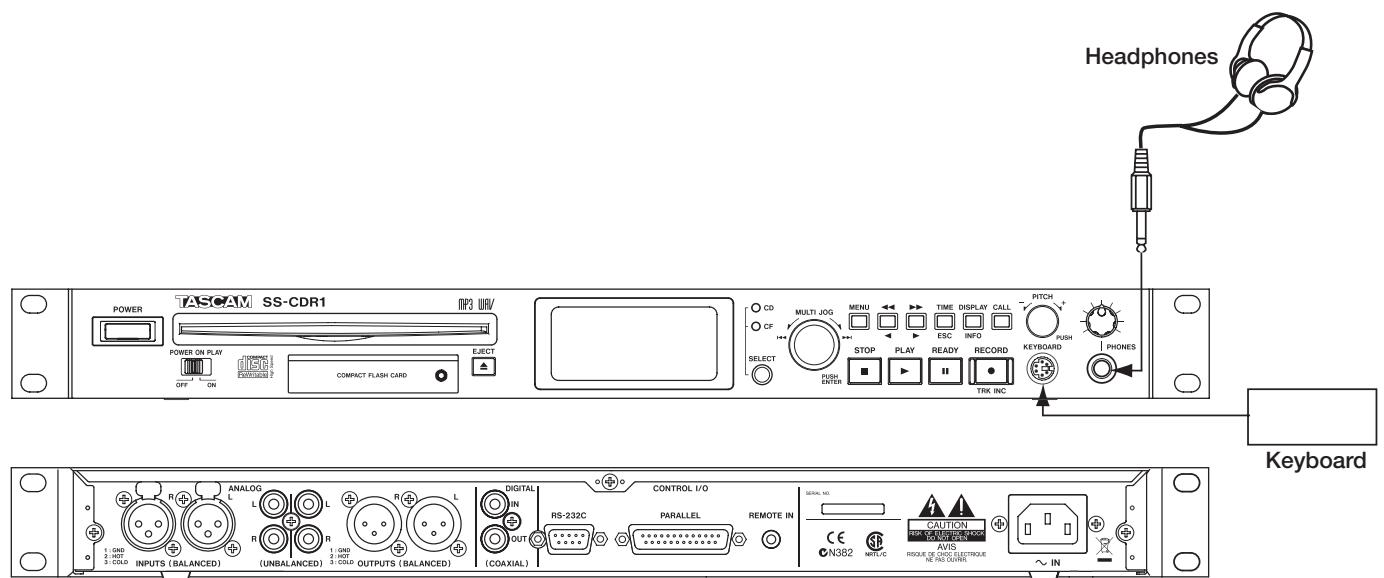
Connecting headphones
Connect your stereo headphones to the PHONES jack. Use the PHONES knob located above the PHONES jack to adjust the volume.
Connecting a PS/2 keyboard
You can use a keyboard to enter file (track) names and folder names, and also use it to control the SS-CDR1 (see "Operation using a computer keyboard" on page 76).
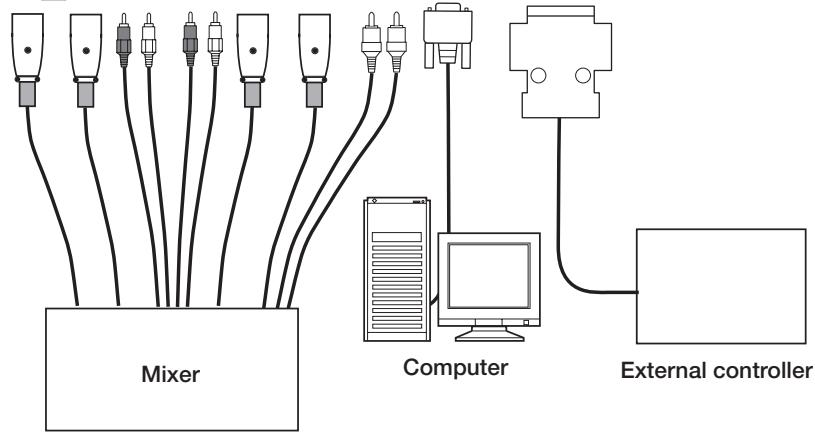
Connecting audio devices (inputs)
Connect an external audio source (e.g., CD player, mixer) to the SS-CDR1's ANALOG INPUTS (BALANCED) jacks, ANALOG INPUTS (UNBALANCED) jacks, or DIGITAL IN jack. To select the input source, use the REC menu item INPUT SELECT. To adjust the input volume, use the REC menu item INPUT VOLUME.
Connecting audio devices (outputs)
Connect an external monitor system or mixer to the SS-CDR1's ANALOG OUTPUTS (BALANCED) plugs, ANALOG OUTPUTS (UNBALANCED) jacks, or DIGITAL OUT jack.
Computer
If you connect the SS-CDR1's RS-232C connector to your computer's RS-232C connector, you'll be able to control the SS-CDR1 from your computer via a serial connection. After making connections, you'll need to make the correct settings on your computer (see "Using the RS-232C connector" on page 79.
Control via a parallel connection
If you want to control the SS-CDR1 via a parallel connection from an external controller, use the PARALLEL connector (25-pin D-sub connector). For details on the pin configuration of the PARALLEL connector, refer to "Control connections" on page 10.
Turning the power on
Press the POWER switch to turn the power on.
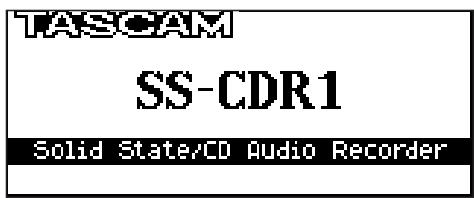
The SS-CDR1 will start up, and the startup screen will appear.
If no media is inserted, the display will indicate NO MEDIA.
If a media is inserted, the display will indicate MEDIA READING, and the media will be read. When reading is completed, the home screen will appear.
To turn the power off:
No special shutdown operation is required. Simply press the POWER switch to turn the power off.
CAUTION
Do not turn off the power while the device indicator (CF or CD) is blinking (i.e., while writing is occurring).
Setting the date and time
Here is how to set the date and time of the internal clock. When you record, the date and time are recorded in the audio file.
1 Press the MENU key to access the menu list screen.
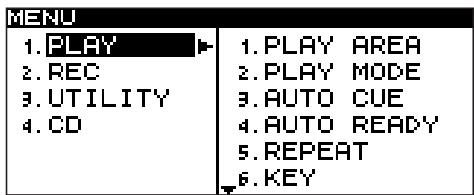
2 Turn the front panel MULTI JOG dial (or use the remote's cursor , keys) to highlight UTILITY, and press the MULTI JOG dial (or the remote's ENTER key).
The UTILITY menu selection screen will appear.
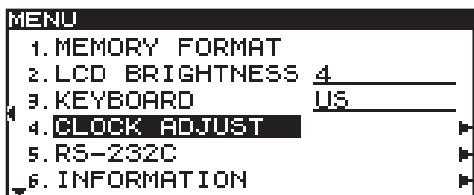
3 Turn the front panel MULTI JOG dial (or use the remote's cursor , keys) to highlight CLOCK ADJUST, and press the front panel key (or the remote's cursor key).
The clock setting screen will appear.
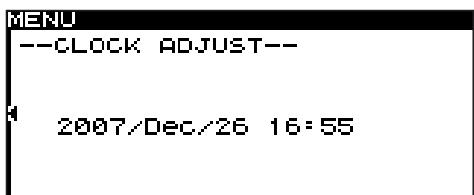
4 Press the front panel MULTI JOG dial (or the remote's ENTER key). 07 will be highlighted.
5 Set the date and time as follows.
- Use the front panel , keys (or the remote's cursor , keys) to move the highlighted area to edit.
- Turn the front panel MULTI JOG dial (or use the remote's cursor , keys) to change the value highlighted.
6 When you have finished making settings, press the front panel MULTI JOG dial (or the remote's ENTER key) to finalize the date and time settings.
Adjusting the display
If necessary, you can adjust the display contrast and brightness.
Adjusting the contrast
While holding down the DISPLAY (INFO) key, turn the MULTI JOG dial (or use the remote's LCD +/- keys) to adjust the contrast of the SS-CDR1's display.
Adjusting the brightness
You can use the UTILITY menu item LCD BRIGHTNESS to adjust the brightness of the backlight.
1 Press the MENU key to access the main menu list.
2 Turn the front panel MULTI JOG dial (or use the remote's cursor , keys) to highlight UTILITY, and press the front panel MULTI JOG dial or key (or the remote's ENTER key or cursor key).
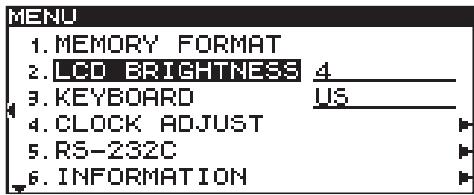
3 Turn the front panel MULTI JOG dial (or use the remote's cursor , keys) to highlight LCD BRIGHTNESS, and press the front panel MULTI JOG dial or key (or the remote's ENTER key or cursor key).
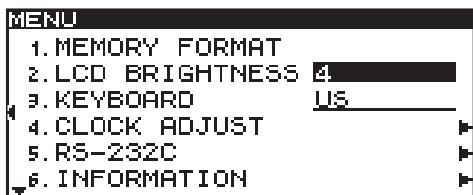
4 Turn the front panel MULTI JOG dial (or use the remote's cursor , keys) to adjust the brightness.
Inserting a CompactFlash card
In order to record or play back on the SS-CDR1, a CompactFlash card must be inserted in the front part. CompactFlash card slot.
TIP
You can insert a card at any time, regardless of whether the power is on or off, and regardless of the current device selection.
1 Open the door of the CompactFlash card slot.
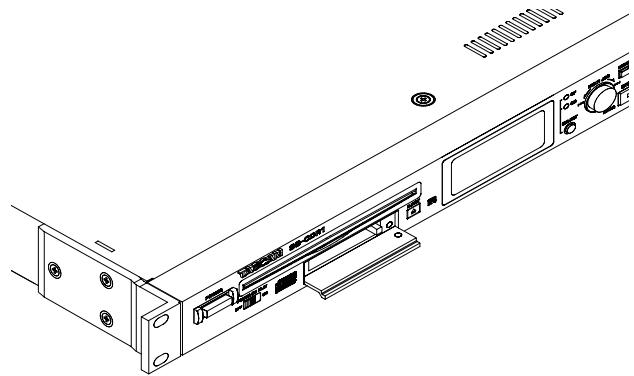
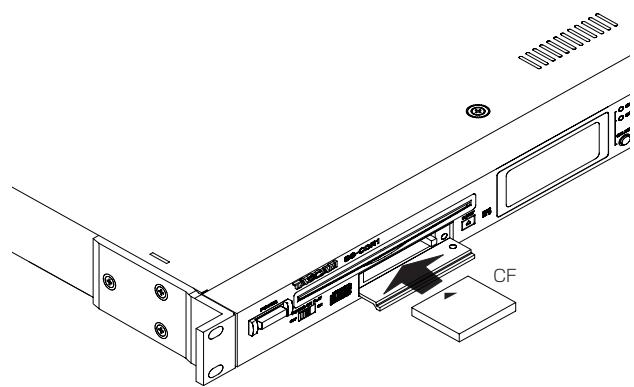
2 Insert a CF card in the correct orientation.
Insert the card with its label facing up and its contacts facing in.
3 Close the door.
NOTE
If the slot door will not close, remove the card, press the square button located at the right of the slot, and then insert the card once again.
If the current device is CF, and the card was inserted while the power was on, the display will indicate MEDIA READING.
If you insert a card while the power is off, and then turn the power on, the startup screen will appear and then the display will indicate MEDIA READING.
About the door lock
You can use the included Security Screw to lock the CompactFlash card slot door.
Use a screwdriver to install or remove the Security Screw.
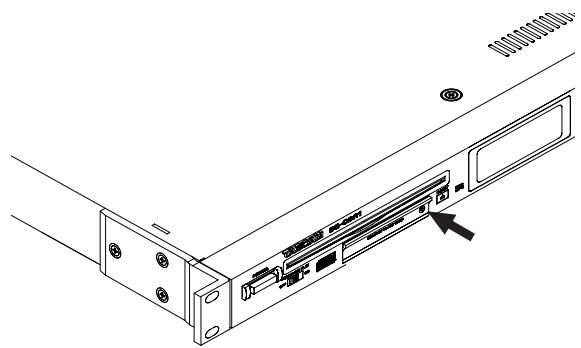
Removing the card
Before you remove the card, turn the power off or stop the SS-CDR1's operation. Never remove the card while recording is in progress (while the CF indicator is blinking).
1 If the door is locked, use a screwdriver to remove the door lock screw.
2 Open the CompactFlash card slot door.
3 Press the square button located at the right of the card slot; the button will protrude.
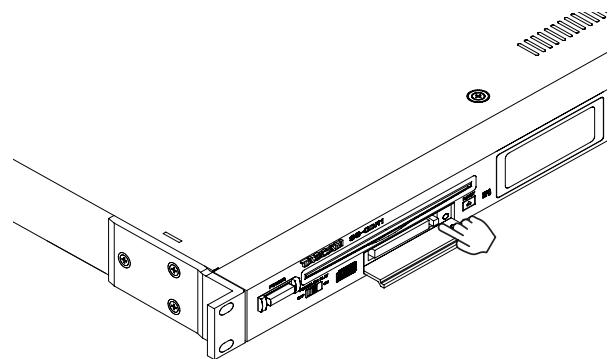
4 Push the protruding square button, and the card will be partially ejected.
5 Grasp the card and pull it out.
Inserting a CD
NOTE
Regardless of the current device, you can insert a CD at any time that the power is on.
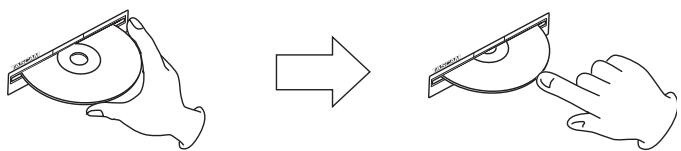
-
As shown in the illustration, hold the disc with its label surface facing upward, and insert it part of the way into the slot.
-
As you continue pushing the disc, it will be automatically pulled inside just before it disappears into the slot.
If the disc does not go in
If the disc gets stuck or is difficult to insert, do not attempt to force it in. Press the EJECT key and remove the disc, and then re-insert it (forcing the disc into the slot may damage the mechanism).
Removing a CD
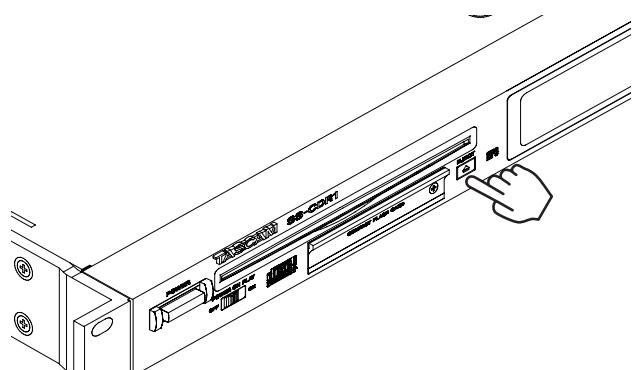
Press the EJECT key.
The disc will be ejected part of the way; use your fingers to pull it out the rest of the way.
Selecting the device
Before you perform operations using the SS-CDR1, you will need to select the device (CD or CF) corresponding to the media (CD or CF card) that you want to use. The selected device is called the "current device."
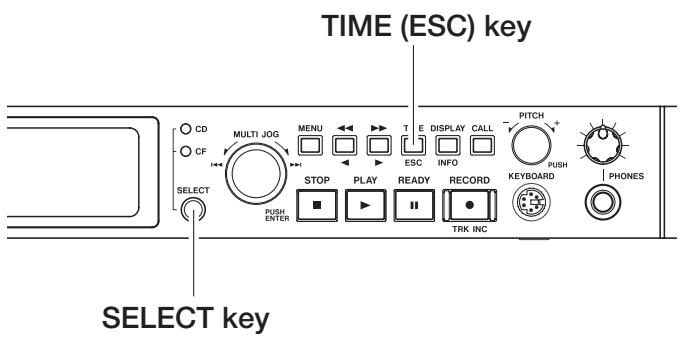
To select a device, press the front panel SELECT key or the remote's DEVICE SELECT key to make the indicator (CF or CD) of the desired device blink, and then press the front panel MULTI JOG dial or the remote's ENTER key to confirm the selection (the device indicator will change from blinking to steadily lit).
To cancel the device select operation, press the front panel TIME (ESC) key (or the remote's CLR / ESC) key).
This chapter explains the functions for playing audio files stored on a CD or CF card.
The following explanation assumes that a CD or CF card containing an audio file is inserted in the SS-CDR1, that
the SS-CDR1 is powered-on, and that the current device (CD or CF) is selected appropriately (see "Selecting the device" on page 23).
Files that can be played
The SS-CDR1 is able to play files in the following formats.
When using a CF card:
WAV format files
Stereo or monaural WAV files in sampling frequencies of 44.1kHz or 48kHz can be played.
- MP3 format files
Stereo or monaural MP3 files in sampling frequencies of 44.1kHz or 48kHz and bit rates of 64 kbps to 320 kbps can be played.
When using a CD:
CD-DA (audio CD) format
Commercial audio CDs and CDs recorded in audio CD format can be played.
WAV format files
Stereo or monaural WAV files in sampling frequencies of 44.1kHz or 48kHz can be played.
- MP3 format files
Stereo or monaural MP3 files in sampling frequencies
of 44.1kHz or 48kHz and bit rates of 64 kbps to 320 kbps can be played.
TIP
As long as they meet the above requirements, the SS-CDR1 can play files that were recorded on another device. For example, you can use your computer or other audio device to write files conforming to the above conditions to a CD or CF card, and then insert this media into the SS-CDR1 and play it. This allows you to work efficiently when preparing playback material for the SS-CDR1.
NOTE
Because of the nature of their format, VBR (Variable Bit Rate) MP3 files do not allow a precise location to be found. Thus, when performing functions that require a point to be specified within the track, such as Time Skip, Call, or the point A setting for A-B Repeat, there may be a slight discrepancy between the point you specified and the point at which playback actually begins.
Tracks and files
Audio data is saved on the media as "audio files." These files are handled by the SS-CDR1 as "tracks."
This means that when explaining recording or playback in this manual, we will refer to audio files as "tracks" (or
Play area
The region of playback tracks that can be selected in the home screen is called the "play area."
For an audio CD, the play area will normally be the entire disc. For a CF card or CD that contains WAV files or MP3 files, you can specify the play area.
"songs" in some cases), and will mainly use the term "files" when explaining media management. Please be aware that these two terms actually refer to the same thing.
If the media contains numerous files, limiting the play area will make it easier for you to select the desired track.
Selecting the type of play area
You can use the menu to specify the desired type of play area (for details on how to perform menu operations, refer to "Operations in the menu screens" on page 18).
1 While stopped, or with no CompactFlash card inserted, press the MENU key to access the main menu list screen.
2 Select the PLAY menu.
3 Select PLAY AREA.
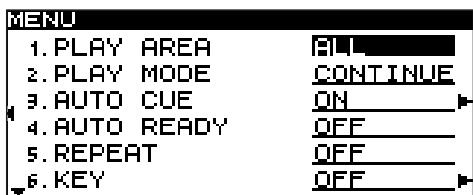
4 Specify the desired type of play area.
When using a CF card, you can choose ALL, FOLDER, or PLAYLIST.
When using a data CD, you can choose ALL or FOLDER.
When using an audio CD, this will always be ALL.
5 When you've made your choice, press the front panel TIME (ESC) key (or the remote's CLR/ESC key) to return to the home screen.
The play area type is shown in the upper left of the home screen.
NOTE
The play area setting is preserved even when the power is turned off.
Selecting the current folder or current playlist
If you've specified that the play area will be a folder or playlist (only when using a CF card), you can select the applicable folder or play list by using the front panel , keys (or the remote's SEARCH , keys) while the home screen is displayed and the recorder is stopped. This folder or playlist will be called the "current folder" or "current playlist".
NOTE
- You can also select the "current folder" or "current playlist" from the folder finder screen or playlist
finder screen (see "Using the folder finder" on page 50, "Editing a playlist (CF only)" on page 62).
- For WAV format or MP3 format audio files, the SS-CDR1 is able to play back a maximum of 999 tracks. If media containing more than 999 tracks is inserted into the SS-CDR1, the 999 tracks selected according to the rules of the SS-CDR1's system will be playable. The remaining tracks cannot be played or edited.
- For audio files in audio CD (CD-DA) format, a maximum of 99 tracks will be playable on the SS-CDR1.
Basic playback operations
This section explains basic operations such as play, pause, and stop.
The following explanation assume that you have completed the necessary connections, that the SS-CDR1 is powered
on, that media containing audio files is specified as the current device, and that the display is showing the home screen.
Playback
Press the PLAY key to begin playback.
NOTE
If the CompactFlash card does not contain any audio files that the SS-CDR1 is able to play, the counter display area (track number and time display) will show all zeros.
To stop playback Press the STOP key
- To pause playback Press the READY key.
In this manual, we'll assume that the play mode is set to CONTINUE (continuous playback mode) unless otherwise specified.
Selecting a track
Here's how to select the track for playback if more than one track exists in the play area. You can select a track either by moving to the previous or next track ("skip"), or by specifying a track number directly.
Skipping to the previous or next track
Turn the front panel MULTI JOG dial (or use the remote's SKIP keys) to skip to the previous or next track.
- If using the MULTI JOG dial, turn it to the right to skip to the next track, or to the left to skip to the previous track.
- If using the SKIP keys, press the key to skip to the next track, or the key to skip to the previous track.
After selecting a track, press PLAY key on the front panel or the remote to begin playing the track.
Alternatively, you can press the READY key of the front panel or the remote to pause at the beginning of the selected track.
Specifying a track number
You can use the remote's numeric keys (0 - 9) to directly specify the number of the track that you want to play.
For audio CD format, the track number will be a maximum of two digits. For WAV format or MP3 format, the track number will be a maximum of three digits.
- Use the remote's numeric keys (0 - 9) to enter the track number. Enter the track number starting with the highest digit.
To specify track 1
Press the 1 key once.
- To specify track 12
Press the 1 key 2 key.
To specify track 103
Press the 1 key 0 key 3 key.
2 Press the PLAY key.
The selected track will begin playing.
Alternatively, you can use this procedure but press the remote's READY key instead of the PLAY key to pause at the beginning of the selected track.
NOTE
- As an alternative to press the PLAY key, you can press the MULTI JOG dial to playback the file selected (or the remote's ENTER key).
- You cannot use the numeric keys to specify the track while in program or random mode.
Fast-forward/rewind search
You can rapidly search forward or backward while listening to the audio of a track.
1 Play or pause the desired track.
2 Hold down the or key.
Fast-forward or rewind search will begin.
3 To stop searching, release the key you were holding.
You will return to the state (either playing or paused) in which you were prior to searching.
Time search
While the unit is stopped, playing, or paused, you can locate to a specified time in the specified track.
NOTE
You cannot use time search when the play mode is program mode or random mode.
- Use the remote's numeric keys (0 - 9) to enter the number as follows.
For WAV or MP3 format:
- Track number: three digits
- Elapsed time from the beginning of the track (XX hours / XX minutes / XX seconds): two digits each
For audio CD format
- Track number: two digits
- Elapsed time from the beginning of the track (XX minutes / XX seconds): two digits each
For example if you want to specify a location that is 1 minute 30 seconds from the beginning of MP3 format track 2, you would press keys in the following order.
$$ 0 \rightarrow 0 \rightarrow 2 \rightarrow 0 \rightarrow 0 \rightarrow 0 \rightarrow 1 \rightarrow 3 \rightarrow 0 $$
When you finish entering the nine digits, the SS-CDR1 will automatically locate to the specified position.
Similarly, if you want to specify a location that is 1 minute 30 seconds from the beginning of audio CD format track 2, you would press keys in the following order.
$$ 0 \rightarrow 2 \rightarrow 0 \rightarrow 1 \rightarrow 3 \rightarrow 0 $$
When you finish entering the six digits, the SS-CDR1 will automatically locate to the specified position.
If the unit is stopped or playing back prior to the locate operation, playback will begin after the locate operation. If the unit is paused prior to the locate operation, it will pause after the locate operation.
NOTE
If you specify a track number that does not exist in the current play area, or a time that does not exist in the track, the operation will be cancelled at that point.
Time searching from an incomplete entry
If you press the remote's ENTER key (or the PLAY or READY key) before you finish entering the last second's place of numeric input, you will locate to the position that was specified at that point.
For example if you are using a CD that contains MP3 format tracks, and you enter “0 → 0 → 2 → 0 → 0 → 1 → 2” and press the ENTER key, you will locate to a position 12 minutes after the beginning of track 2.
After the locate operation, the unit will either play or pause, depending on the status prior to pressing the ENTER key. If you press the PLAY key, playback will begin. If you press the READY key, the recorder will pause.
NOTE
- This method allows you to omit the leading 0 of the last place you enter (track, hour, minute, second), even the leading 00 of the track number. For example if you are using a CD that contains MP3 format tracks, and you want to locate to a position that is two minutes after the beginning of track 2, you would enter "0 → 0 → 2 → 0 → 0 → 2" and press the ENTER key.
- If you enter only the track number and press the ENTER key (or the PLAY key or READY key), the result is the same as "Specifying a track number" on page 26.
Time skip
While playing or paused, you can skip backward or forward in one-minute steps.
1 While playing or paused, press the or keys.
You will locate to a position one minute before or after the current location. Following the locate, the playback or pause condition will continue as it had been prior to the operation.
NOTE
- If you press the key at a point less than one minute after the beginning of the track, you will locate to the beginning of the current track.
- If you press the key at a point less than one second after the beginning of the track, you will
locate to a point one minute before the end of the preceding track. However if the track is the first track in the card or the program, you will pause at the beginning of the current track. (Even when using random play, pressing the key at a point less than one second from the beginning of the track will locate to the beginning of the track).
- If you press the key at a point that is less than one minute from the end of the track, you will locate to the beginning of the next track. However if the track is the last track in the card or the program, you will pause at the end of the current track.
Playback modes
The tracks in the play area can be played using one of the following four types (modes) of playback.
Continuous playback (default setting)
The tracks in the play area will play back in order of their track numbers.
Single playback
Only the currently selected track will play back, and then playback will stop.
Specifying the playback mode
You can easily select the playback mode by using a dedicated key on the remote. To select the playback mode from the SS-CDR1 itself, use menu mode.
Using the dedicated key of the remote
1 If the SS-CDR1 is stopped or if no media is inserted, pressing the remote's P.MODE key will alternate between the play modes. The home
Program playback
The tracks will be played back in the order you programmed (see "Program playback" on page 28).
Random playback
All tracks in the play area will play back in a random order without regard to their track number. When all tracks have been played back, playback will stop.
screen shows the currently selected mode as follows.
| Display | Playback mode |
| CONTINUE | Continuous playback |
| SINGLE | Single playback |
| PROGRAM | Program playback |
| RANDOM | Random playback |
NOTE
In this owner's manual, we will assume that continuous playback is selected as the playback mode unless otherwise specified.
Using the menu
(For details on how to perform menu operations, refer to "Operations in the menu screens" on page 18).
1 While stopped, press the MENU key to enter menu mode.
2 Turn the MULTI JOG dial to highlight the PLAY menu item, and then press the MULTI JOG dial.
3 Select the PLAY MODE item.
4 Turn the MULTI JOG dial to select the desired play mode.
5 Press the TIME (ESC) key to return to the home screen.
NOTE
The play mode you select is remembered even when the power is turned off.
Program playback
Here is how to play back tracks in the order of the program you specify. You can specify a program of up to 99 tracks.
1 While stopped, set the play mode to program play mode (see “Specifying the playback mode” on page 27).
2 Use the remote's numeric keys (0-9) to enter the desired track number for the program, and press the ENTER key to confirm it.
The track will be registered in the program.
NOTE
If you are operating from the SS-CDR1's front panel, turn the front panel MULTI JOG dial to select the track, and then press the MULTI JOG dial.
3 Repeat step 2 to register each of the desired tracks in the program.
The screen will show the program number and the total time.
NOTE
- You can program the same track repeatedly.
-
Pressing the remote's CLR/ESC key will delete the last-programmed track from the program.
-
If you attempt to program the 100th track, an error message of PROGRAM FULL will appear. A maximum of 99 tracks can be programmed.
- For WAV files or MP3 files, the display will indicate --H--M--S if the total time of the programmed tracks exceeds 99 hours 59 minutes 59 seconds. For an audio CD, the display will indicate --M--S if the total time exceeds 99 minutes 59 seconds.
- In the case of a CD that contains WAV files or MP3 files recorded by a device other than the SS-CDR1, the total time will not be displayed. Instead, the time display area will show the --H--M--S indication.
4 Press the PLAY key to begin program playback.
NOTE
- In program play mode, you won't be able to play unless at least one track has been registered in the program.
- If you press the STOP key while stopped, all program data will be cleared.
- The program data will be cleared when you switch the play mode.
- The program data will be cleared when you power-off the SS-CDR1.
Switching the playback time display mode
You can select the way in which the playback time is shown in the home screen.
1 Press the front panel TIME (ESC) key (or the remote's TIME key).
Each time you press this key, you will cycle through four types of time display. The currently selected display mode is shown above the time display area.
No indicator
The elapsed time of the current track is shown.
REMAIN is lit
The remaining time of the current track is shown.
TOTAL is lit
The elapsed time from the beginning of the play area is shown.
TOTAL and REMAIN are lit
The remaining time in the play area is shown.
NOTE
- While stopped, the total playback time of the play area is always shown, regardless of whether TOTAL and REMAIN are lit.
- In the case of a CD containing WAV files or MP3 files that were recorded using a device other than the SS-CDR1 (e.g., a computer), the total time while
stopped and the total elapsed time and total remaining time while playing will not be displayed (only the number of tracks or the track number will be displayed, and the time display area will show - . However, the time will be displayed after all tracks have been played on the SS-CDR1.
- In Program mode, the display area shows the elapsed time and remaining time of the entire program; not of the entire play area.
- The time display mode setting is remembered even when the power is turned off.
- For details on the time display during recording or in the record-ready condition, refer to "Switching the recording time display mode" on page 44
Power-on play
The Power-on Play function starts playback automatically when the SS-CDR1 is powered-on.
If you turn this function on, leave the POWER switch pressed inward, and use a commercially available timer to power-on the SS-CDR1, the media that was specified as the current device when the power was last turned off will play automatically.
1 Connect the SS-CDR1 to a timer so that its power will be supplied from the timer.
2 Make preparations for playback.
Select the desired device, and insert media for the current device. It is not necessary to specify the play area or play mode.
3 Set the front panel POWER ON PLAY switch to the PLAY position.
4 Set your timer to the desired time.
When the specified time arrives, the SS-CDR1 will be powered-on, and playback will begin automatically.
Repeat playback
You can repeatedly play back all tracks in the play area, or repeatedly play back a specified region within a track (A-B Repeat playback).
Conventional repeat playback
If you press the remote's REPEAT key to turn Repeat playback on, all tracks in the play area will play repeatedly (to do this on the SS-CDR1 itself, use menu mode).
NOTE
You can use the PLAY menu item REPEAT to turn on Repeat playback from the SS-CDR1 itself.
REPEAT will light in the display.
In this state, all tracks in the play area can be played back repeatedly.
If you turn on Repeat playback during playback, playback will continue, and when it reaches the end of the play area, it will return to the beginning and continue playing. If you turn on repeat playback while stopped, repeat playback will begin when you press the PLAY key.
A-B Repeat playback
This lets you specify a desired region (A-B) within a track that will be played back repeatedly.
1 While playing or stopped, press the remote's A-B key at the starting point (A) of the region that you want to repeat.
In the home screen, the REPEAT and A- indicators will blink.
To turn off repeat playback, press the remote's REPEAT key once again (or turn the PLAY menu item REPEAT to the OFF setting).
The REPEAT indicator in the display will go dark.
NOTE
- By using repeat playback in conjunction with Single playback, Program playback, or Random playback, you can repeat a single song, repeat a program, or repeat random playback.
- The repeat function on/off setting is remembered even when the power is off.
NOTE
If you press the REPEAT key, the repeat play starting point (A) will be cancelled, and REPEAT and A- will go dark.
2 Once again, press the remote's A-B key at the ending point (B) of the region that you want to
repeat. If you cancel during playback, playback will continue past the point specified as the ending point of A-B repeat playback.
NOTE
- If you press the STOP key to stop playback, the specified region (A-B) will be cleared.
- You can't specify A-B repeat playback across tracks.
In the home screen, A-B will light (in addition to REPEAT).
The region (A-B) has now been specified, and A-B repeat playback will begin.
To turn off A-B Repeat playback:
Press the remote's A-B key or the REPEAT key.
In the home screen, the REPEAT indicator and the A-B indicator will go dark, and A-B repeat playback will be cancelled.
Pitch Control playback
The SS-CDR1 can modify the pitch (the pitch and playback speed) of the playback (Pitch Control playback).
Here is how to use Pitch Control playback.
1 Press the front panel PITCH knob (or the remote's PITCH key) to turn on Pitch Control playback.
When this is on, the PITCH indicator in the display will light in the home screen.
2 Turn the PITCH knob (or use the remote's PITCH +/- keys) to specify the pitch.
While you're making this setting, the display's pitch control value is shown as PITCH LUL XXXX.
You can specify the pitch in a range of -16.0 - + 16.0
To turn off Pitch Control playback:
Press the front panel PITCH knob (or the remote's PITCH key).
The PITCH indicator in the display will go dark, and Pitch Control playback will turn off. Even if Pitch Control playback is off, the pitch you specified in step 2 above is remembered, and will be valid if you turn Pitch Control on once again.
TIP
By using the Key Control function in conjunction with the Pitch Control function, you can change only the speed without affecting the pitch (see "Key Control play" on page 31).
NOTE
When you turn Pitch Control playback on/off during playback, the playback sound may be momentarily interrupted.
Specifying the Pitch Step
You can change the pitch step.
Pitch steps are the amount of pitch change produced by turning the PITCH knob one step or by pressing the remote's PITCH +/- key once.
You must make the Pitch Step setting from the SS-CDR1 itself (this setting cannot be made from the remote).
1 Hold down the front panel PITCH knob.
The pitch step setting screen will appear.
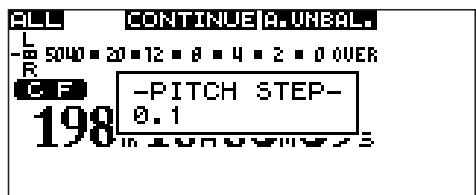
2 While this screen is displayed, you can turn the MULTI JOG dial to specify the pitch step in a range of 0.1% - 1.0% .
3 When you've finished making the setting, press the front panel TIME (ESC) key (or the remote's CLR/ESC key) to return to the home screen.
NOTE
The pitch control setting is remembered even when you turn off the power.
Key Control playback
You can use the Key Control function to change the key (pitch) of playback.
Here is how to use menu mode to turn Key Control on/off and adjust the key level setting (for details on menu operations, refer to "Operations in the menu screen" on page 18).
1 Press the MENU key to access the main menu list screen.
2 Select the PLAY menu.
3 Select the KEY item.
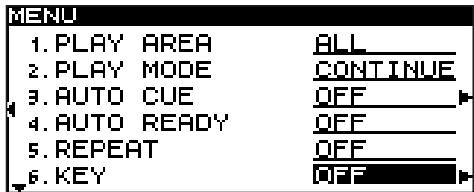
In this state you can turn Key Control on/off.
4 Turn the KEY item ON.
5 Press the front panel key (or the remote's cursor key) to proceed to the level setting screen.
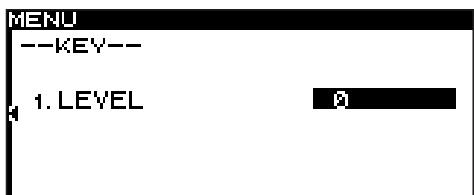
6 Turn the front panel MULTI JOG dial (or use the remote's cursor , keys) to select the desired key level.
You can select the key level from a range of 6 - 1,0 (no pitch change), #1-#6.
7 When you've finished making the setting, press the front panel TIME (ESC) key (or the remote's CLR/ESC key) to return to the home screen. The Key Control function will be on, and the home screen will indicate KEY.
NOTE
- The Key Control setting is remembered even when the power is turned off.
- When using the Key Control function, the playback sound may appear to quaver. This is due to the processing being applied to the playback, and is not a malfunction.
TIP
If you turn on both the Key Control function and the Pitch Control function, the key (pitch) will be specified by the Key Control function and the speed will be determined by the Pitch Control function. (In other words, using Pitch Control to change the speed will not affect the pitch of the sound). Thus, if you set KEY LEVEL to and turn the Key Control function on, you can use Pitch Control to change the playback speed by itself without affecting the pitch.
Using the remote's dedicated key to turn Key Control on/off
You can use the remote's KEY key to turn Key Control on/off.
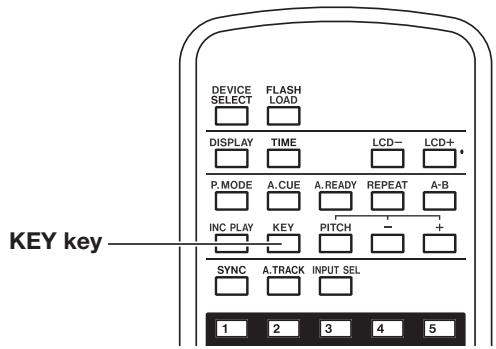
NOTE
You can't adjust the key level from the remote.
Auto Cue function
If the Auto Cue function is on, and you select a track to play and then enter pause mode, any "silent" portion at the beginning of the track will be skipped, and the SS-CDR1 will pause at the location where the actual "signal" of the track begins to rise. This means that sound will be heard immediately when you start playback.
You can specify the threshold level (= auto cue level) used to detect the audio signal when the Auto Cue function is active. In other words, any signal higher than the auto cue level will be treated by the SS-CDR1 as "signal", and any signal lower than this level will be treated as "silence".
The following procedure describes how you can use the menu to turn the Auto Cue function on/off and adjust the Auto Cue Level setting (for details on operations in the menu screen, refer to "Operations in the menu screens" on page 18).
1 Press the MENU key to access the main menu list screen.
2 Select the PLAY menu.
3 Select the AUTO CUE item.
| MENUI | |
| 1. PLAY AREA | ALL |
| 2. PLAY MODE | CONTINUE |
| 3. AUTO CUE | OFF |
| 4. AUTO READY | OFF |
| 5. REPEAT | OFF |
| 6. KEY | OFF |
In this state, you can turn the Auto Cue function on/off.
4 Turn the AUTO CUE item ON.
5 Press the front panel key (or the remote's cursor key).
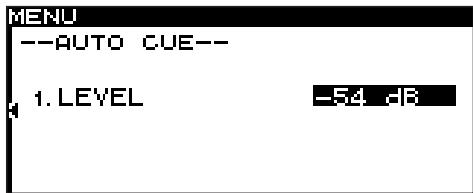
In this screen you can adjust the auto cue level.
6 Turn the front panel MULTI JOG dial (or use the remote's cursor , keys) to select the desired Auto Cue Level.
You can select an auto cue level in the range of -24 dB -72 dB (6 dB steps).
7 When you've finished making the setting, press the front panel TIME (ESC) key (or the remote's CLR/ESC key) to return to the home screen.
If the Auto Cue function is on, A_CUE will be lit in the home screen.
NOTE
The Auto Cue setting is remembered even if the power is off.
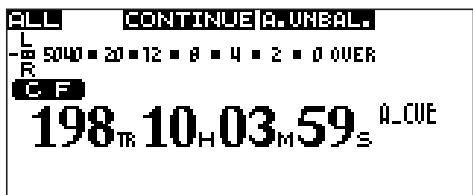
Using the remote's dedicated key to turn Auto Cue on/off
You can turn the Auto Cue function on/off by pressing the remote's A.CUE key.
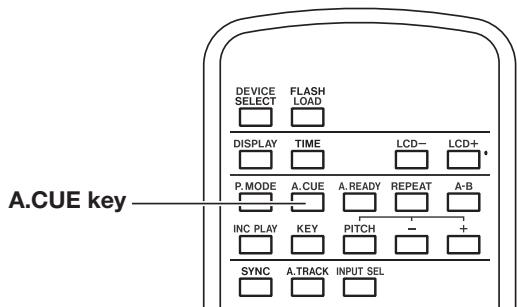
NOTE
You can't adjust the auto cue level from the remote.
Auto Ready function
If the Auto Ready function is on, playback will pause at the beginning of the next track when a track has finished playing.
You can switch the Auto Ready function on/off by pressing the remote's A READY key.
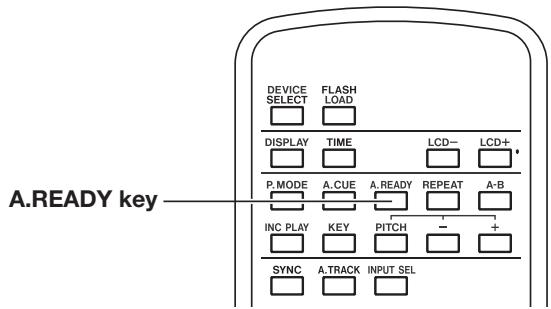
If the Auto Ready function is on, A_READY will be lit in the home screen.
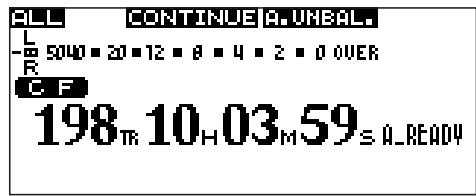
Turning the Auto Ready function on/off from the front panel
You can also turn the Auto Ready function on/off from the front panel via the menu (for details on operations in the menu screen, refer to "Operations in the menu screens" on page 18).
1 Press the MENU key to access the main menu screen.
2 Select the PLAY menu.
3 Select the AUTO READY item.
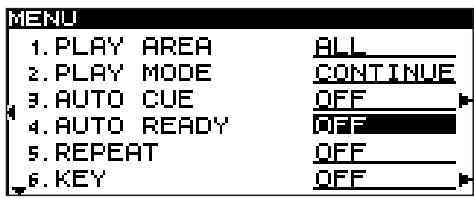
4 Turn the MULTI JOG dial to turn the setting on/off.
5 When you've finished making the setting, press the TIME (ESC) key to return to the home screen.
NOTE
The Auto Ready setting is remembered even if the power is off.
Call function
The Call function returns to the point at which you most recently initiated playback from the pause condition (the "Call point"), and pauses there.
To execute the Call function, press the front panel or remote's CALL key during playback or while stopped.
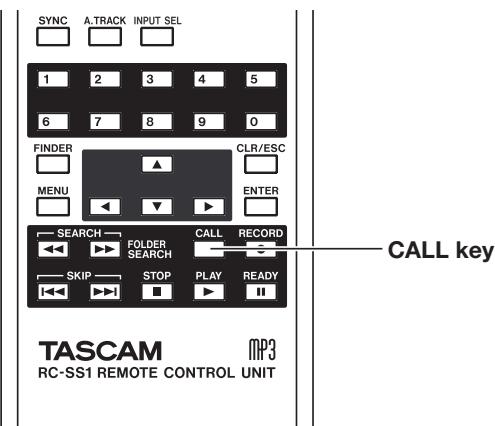
The Call point will be erased when you perform the following operations.
- Turn off the power.
- Remove the media.
- Switch the current device.
- Switch the play mode.
- Switch the play area.
- Modify the contents of the media (by recording, editing, or erasing).
NOTE
- If you press the CALL key when a Call point has not been specified, the display will indicate NoCall-Point.
- You can't use the Call function in program play mode or random play mode.
Incremental Playback
If the Incremental Playback mode is on, pressing the PLAY key during playback will begin playback from the beginning of the next track, and pressing the STOP key while playing will pause at the beginning of the next track.
NOTE
-
When the Incremental Playback mode is on, pressing the PLAY key while paused will begin playback from that point. Pressing the STOP key while paused will cause playback to stop.
-
If you press the PLAY key during the last track is played back, playback will begin from the first track in the play area. Pressing the STOP key will pause at the beginning of the first track in the play area.
Using the remote's dedicated key
You can switch the Incremental Playback mode on/off by pressing the remote's INC PLAY key.
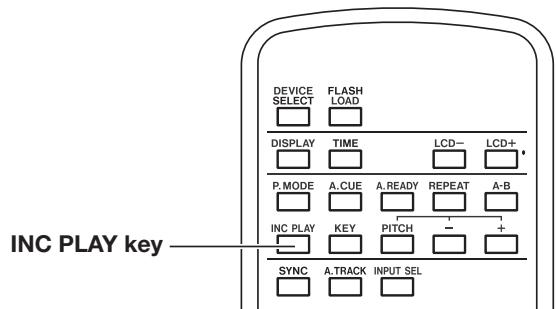
When the Incremental Playback mode is on, INCPlay will light in the home screen.
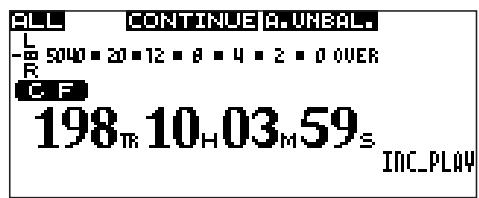
Using the menu to make settings
(For details on menu operations, refer to "Operations in the menu screens" on page 18.)
1 Press the MENU key to access the main menu list screen.
2 Select the PLAY menu.
3 Highlight the PREFERENCE item.
4 Press the front panel key (or the remote's cursor key) to proceed to the PLAY PREFER-ENCE screen.
5 Select INC.PLAY.
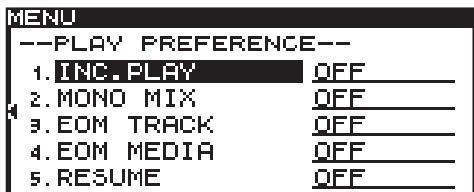
6 Turn the MULTI JOG dial (or use the remote's cursor , keys) to turn the setting ON/OFF.
7 When you've finished making settings, press the front panel TIME (ESC) key (or the remote's CLR/ESC key) to return to the home screen.
NOTE
The Incremental Play setting is remembered even when the power is turned off.
Playing back in monaural
You can play back a stereo audio file in monaural. In this case, the L/R channels of the track will be mixed and output from the L/R output channels.
Use the menu to make this setting (for details on menu operations, refer to "Operations in the menu screens" on page 18).
1 Press the MENU key to access the main menu list screen.
2 Select the PLAY menu.
3 Highlight the PREFERENCE item.
4 Press the front panel key (or the remote's cursor key) to proceed to the PLAY PREFER-ENCE screen.
5 Select MONO MIX.
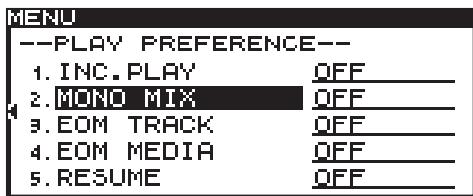
6 Turn the MULTI JOG dial (or use the remote's cursor , keys) to turn the setting ON/OFF.
7 When you've finished making settings, press the front panel TIME (ESC) key (or the remote's CLR/ESC key) to return to the home screen.
NOTE
This setting is remembered even when the power is turned off.
ResumePlayback
If the Resume Playback mode is on, playback will begin from the location at which playback was last stopped (the "resume point").
The Resume point will be erased when you perform the following operations.
- Remove the media.
- Switch the current device
- Switch the play area.
- Switch the play mode.
- Modify the contents of the media (by recording, editing, or erasing).
Use the menu to turn the Resume function on/off (for details on menu operations, refer to "Operations in the menu screens" on page 18).
1 Press the MENU key to access the main menu list screen.
2 Select the PLAY menu.
3 Highlight the PREFERENCE item.
4 Press the front panel key (or the remote's cursor key) to proceed to the PLAY PREFER-ENCE screen.
5 Select RESUME.
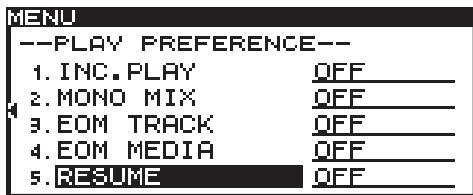
6 Turn the MULTI JOG dial (or use the remote's cursor , keys) to turn the setting ON/OFF.
7 When you've finished making settings, press the front panel TIME (ESC) key (or the remote's CLR/ESC key) to return to the home screen.
NOTE
- This setting is remembered even when the power is turned off.
- If no playable track exists (e.g., if not even one track has been registered in program mode), of cause, the resume point cannot be made. The counter display will state 000tr 00h 00m 00s.
- If the resume point does not exist (i.e., if the time registered as the resume point does not exist), the beginning of the first track in the play area will be the resume point.
Flash Start function
The Flash Start function lets you instantly start playback of a track you've registered.
The beginning of up to twenty tracks can be pre-loaded into memory, so that playback can be triggered instantly from a PS/2 keyboard connected to the front panel, or from an external device connected to the SS-CDR1's parallel connector.
1 Specify the play area (see "Play area" on page 21).
Specify the play area as the play list or folder that contains the tracks you want to flash-start. Make sure that there are no more than twenty tracks.
2 Set the play mode to CONTINUE or PROGRAM (see "Playback Modes" on page 27).
NOTE
You cannot use Flash Load if the play mode is set to RANDOM.
3 While stopped, press the remote's FLASH LOAD key.
The SS-CDR1 will successively read the beginning of each track in the play area.
The tracks will be read in the order of playback. In other words if the play mode is CONTINUE, the tracks will be read consecutively, starting with the first. If the play mode is PROGRAM, the tracks will be read in the order of the program.
While the tracks are being read, the lower right of the home screen will indicate FLASH blinking.
NOTE
- If you press the FLASH LOAD key when the play mode is RANDOM, the display will indicate CAN'T SELECT, and the data will not be loaded.
- If you press the FLASH LOAD key when the play mode is SINGLE, the tracks in the play area will be read successively in the same way as for the CONTINUE setting.
- If twenty-one or more tracks are registered, data for the first twenty tracks from the beginning will be loaded.
When the data has been loaded, the lower right of the home screen will indicate FLASH.
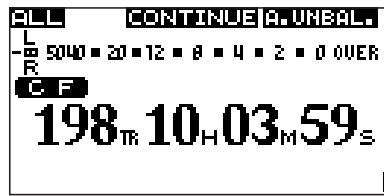
4 When FLASH is lit, you can trigger flash-start playback from a PS/2 keyboard connected to the front panel or from an external device connected to the SS-CDR1's parallel connector.
If you're using a PS/2 keyboard, the CTRL+function keys (F1-F12) will flash-start tracks 1-12 (see "Keyboard operations" on page 61).
If you're using the external parallel connector, you'll be able to flash-start tracks 1-20 (see "Control connections" on page 10).
NOTE
Tracks used with flash start must have the same sampling frequency. If a track with a different sampling frequency is detected while loading the tracks, the display indicates FLASH LOAD, and the unit cancels the track loading (the tracks already loaded are also canceled). The FLASH indicator does not light up.
TIP
When using a CF card, you can efficiently use the flash start setting for the desired track by setting the play area to PLAYLIST and selecting a playlist that contains only the track you want to flash-start as the current playlist (see "Editing a playlist (CF only)" on page 62, "Play area" on page 24).
End of disc/track message (EOM)
If the EOM function is on, an EOM tally signal will be output from the CONTROL I/O (PARALLEL) connector when the time remaining in the track or the play area falls below the specified duration.
Specifying an EOM tally output trigger
Use menu mode to specify the remaining track time or playlist time that will trigger the output of an EOM tally signal (for details on menu operations, refer to "Operations in the menu screens" on page 18).
1 Press the MENU key to access the main menu list screen.
2 Select the PLAY menu.
3 Highlight PREFERENCE.
4 Press the front panel key (or the remote's cursor ) key to proceed to the PLAY PREFER-ENCE screen.
5 Select EOM TRACK if you want to use the track remaining time as the trigger, or EOM MEDIA if you want to use the remaining time in the play area as the trigger.
| MENU | |
| --PLAY PREFERENCE-- | |
| 1. INC. PLAY | OFF |
| 2. MONO MIX | OFF |
| 3. EOM TRACK | OFF |
| 4. EOM MEDIA | OFF |
| 5. RESUME | OFF |
6 Turn the MULTI JOG dial (or use the remote's cursor , keys) to specify the remaining time that will trigger the tally output.
You can choose from the range of OFF or 1-99 (seconds).
7 When you've finished making settings, press the TIME (ESC) key to return to the home screen.
NOTE
This setting is remembered even when the power is off.
Example of actual use
1 To the CONTROL I/O (PARALLEL) connector, connect the device that will receive the EOM tally signal.
2 Power-on the SS-CDR1 and the receiving device.
3 Begin playback on the SS-CDR1.
When the remaining time of the current track or the play area falls below the specified time duration, the EOM indicator in the home screen will blink, and an EOM tally signal will be output from the CONTROL I/O (PARALLEL) connector.
If the remaining time of both the track and the play area have been specified as triggers, an EOM tally signal will be transmitted when either condition is satisfied.
You can use the SS-CDR1 to record an external audio source to a CF card or CD (CD-R / CD-RW) disc in the following formats.
CF card: MP3 or WAV format (Fs = 44.1 kHz or 48 kHz) audio
CD disc: MP3 (Fs = 44.1 kHz or 48 kHz) or audio CD (CD-DA) format audio
The following explanations will assume that you have completed the necessary connections, the SS-CDR1 is powered-on, and recordable media is inserted in the current device.
NOTE
If the current device is CD, an unfinalized CD-R or CD-RW disc must be inserted.
TIP
- You can also copy or convert-copy audio files between a CF card and a CD. For details, refer to "Copying files between CD and CF card" on page 65.
- You cannot record in WAV format onto a CD. However, you can copy WAV files from CF card to CD, or play back WAV files from a data CD (see "Creating a data CD" on page 67).
Selecting the input source
You can select the input source (recording source) from three types of input: analog balanced, analog unbalanced, and digital.
To select an input source you can use the menu or the remote's INPUT SEL key.
NOTE
You cannot change the input source during recording.
Using the dedicated remote key to select the source
Each time you press the INPUT SEL key you will cycle through the three input source.
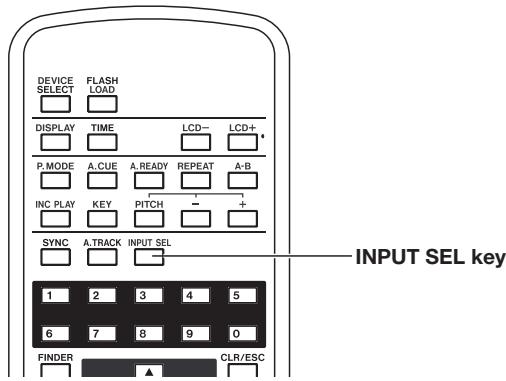
Using the menu to select the source
(For details on menu operations, refer to "Operations in the menu screens" on page 18).
1 Press the MENU key to access the main menu list screen.
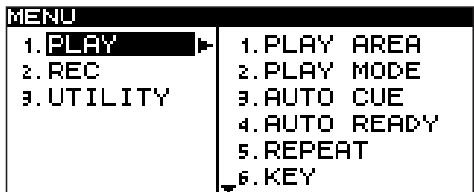
2 Select the REC menu.
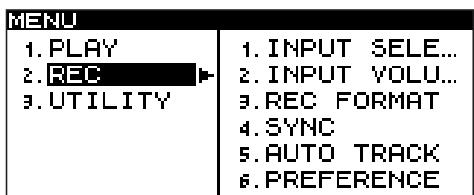
3 Select the INPUT SELECT item.
4 Turn the MULTI JOG dial (or use the remote's cursor , keys) to select one of the following.
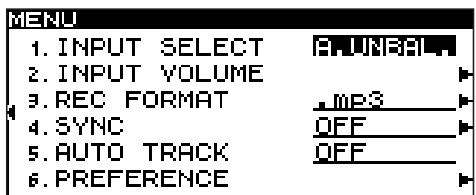
A.UNBAL. (analog unbalanced input), A.BAL. (analog balanced input), D.COMX. (digital input)
5 When you have made your selection, press the front panel TIME (ESC) key (or the remote's CLR/ESC key) to return to the home screen.
NOTE
The input source selection is remembered even when the power is turned off.
Input source indicator
The currently selected input source is shown in the upper right of the home screen.
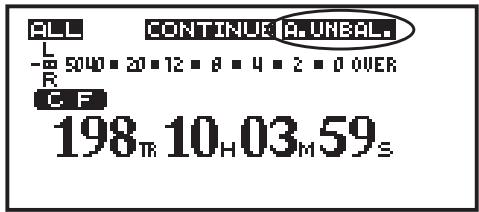
If A.UNBAL. is lit
The input signals from the ANALOG INPUTS
(UNBALANCED) L/R jacks are selected.
If A.BAL. is lit
The input signals from the ANALOG INPUTS
(BALANCED) L/R jacks are selected.
If D.COAX. is lit
The input signal from the DIGITAL IN (COAXIAL) jack is selected.
NOTE
- If the INPUT SELECT item is set to D.COAX., you will not be able to initiate recording from the record-ready state if the input source is in any of the following states.
- When the SS-CDR1 is not digitally locked to the input source (the display will indicate DIN UNLOCK).
- When the input source is not audio (the display will indicate DIN NotAudio).
- When the sampling rate specified by the REC menu item REC FORMAT differs from the input source. (The display will indicate FS UNMATCH).
However if you have enabled the sampling rate converter, recording can take place even if the sampling rate does not match (see "Using the sampling rate converter" on page 40).
Specifying the recording file format
If the current device is CF, you can record in MP3 or WAV format. If the current device is CD, you can record in MP3 or audio CD (CD-DA) format.
MP3 files and WAV files can coexist on a CF card, but MP3 files and audio CD files cannot coexist on an audio CD. This means that the first file to be recorded on a CD will determine the file format (MP3 or audio CD) that can be recorded on that disc.
NOTE
- Although you cannot record WAV files on a CD, you can use the subsequently described function for copying files from CF card to CD to copy the WAV files (see "Copying files between CD and CF card" on page 65).
- Recording of MP3 files to CD is possible only if a blank CD is inserted. If you eject the CD or turn off the power, subsequent additional recording will not be possible (see "Finalizing a CD" on page 43).
The file format setting is made via the menu while stopped or while in the record-ready condition (for details on menu operations, refer to "Operations in the menu screens" on page 18).
1 Press the MENU key to access the main menu list screen.
2 Select the REC menu.
3 Select the REC FORMAT item.
4 Turn the front panel MULTI JOG dial (or use the remote's cursor , keys) to select the recording format.
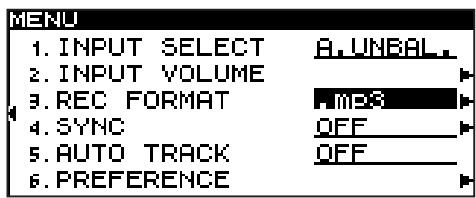
For a CF card:“.mp3” or“.wav”
For a blank CD: .mp3" or "CDDA" (audio CD)
If the current device is CD and "CDDA" is selected as the recording format, the setting screens in steps 5 and 6 will not appear. Proceed to step 7.
In the case of CF, or if“.mp3” is selected for a CD, proceed with the following steps.
5 Press the front panel key (or the remote's cursor key) to proceed to the detailed settings.

6 Make settings for the following items.
STEREO/MONO
Specify whether a stereo file or a monaural file will be recorded.
SAMPLING
Specify whether the sampling rate will be 44.1kHz or 48kHz .
BITRATE (selectable only if "mp3" is selected)
Specify the bit rate. You can choose from 64 kbps, 128 kbps, 192 kbps, 256 kbps, and 320 kbps.
7 When you have finished making settings, press the front panel TIME (ESC) key (or the remote's CLR/ESC key) to return to the home screen.
NOTE
The recording format setting is remembered even when the power is turned off.
Using the sampling rate converter
The SS-CDR1 contains a built-in sampling rate converter, allowing you to record at a sampling rate that is different than the sampling rate of the digital input source.
Use the menu to turn the sampling rate converter (SRC) on/off (for details on menu operations, refer to "Operations in the menu screens" on page 18).
1 Press the MENU key to access the main menu list screen.
2 Select the REC menu.
3 Highlight the PREFERENCE item.
4 Press the front panel key (or the remote's cursor key) to proceed to the REC PREFER-ENCE screen.
5 Select SRC.
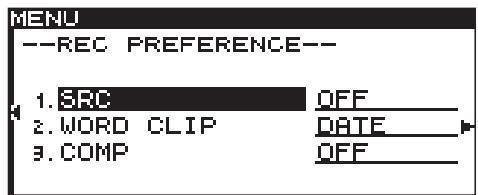
6 Turn the MULTI JOG dial (or use the remote's cursor , keys) to turn the SRC setting ON / OFF.
7 When you have finished making the setting, press the front panel TIME (ESC) key (or the remote's CLR/ESC key) to return to the home screen.
NOTE
- If a digital signal whose sampling rate differs from the sampling rate specified in the REC FORMAT item is being received at the DIGITAL IN jack, and you attempt to record with SRC off, an error message (FS UNMATCH) will appear.
- The sampling rate setting is remembered even when the power is turned off.
Monitoring the input signal
When you press the RECORD key to enter the record-ready condition, the front panel RECORD key and READY key will light, and the input signal will be output from the SS-CDR1's various output jacks (headphone, analog balanced, analog unbalanced, and digital). The meter in the home screen will indicate the input level.
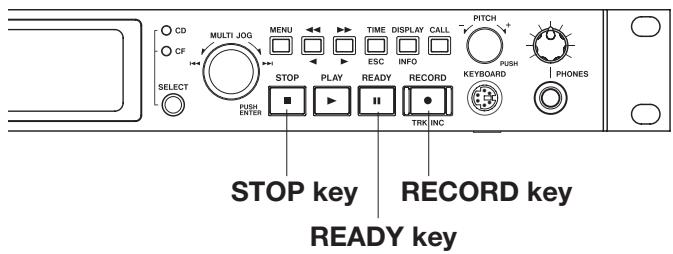
To cancel the record-ready condition, press the STOP key.
TIP
- If you simply want to monitor the input signal without intending to record anything, press the RECORD key without a CompactFlash card inserted. The display will indicate MONITOR, and the RECORD key will blink red.
- To stop monitoring the input signal, press the STOP key.
Adjusting the input signal level and balance
Use the menu to adjust the level and balance of the input signal.
As described above in "Monitoring the input signal", put the SS-CDR1 in a condition where you can monitor the input signal, and then proceed with the following steps (for details on menu operations, refer to "Operations in the menu screens" on page 18).
1 Press the MENU key to access the main menu list screen.
2 Select the REC menu.
3 Highlight the INPUT VOLUME item.
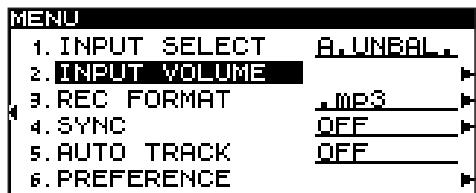
4 Press the front panel key (or the remote's cursor key) to access the INPUT VOLUME SETTING popup window.
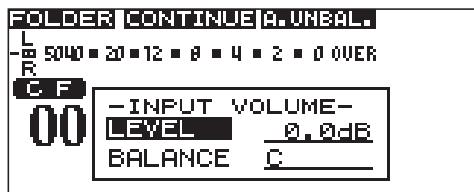
5 Turn the MULTI JOG dial (or use the remote's cursor , keys) to highlight the INPUT
LEVEL item, and then press the front panel key (or the remote's cursor key) to highlight the level value.
6 Turn the MULTI JOG dial (or use the remote's cursor , keys) to adjust the volume.
You can adjust the volume in a range of - to +18 dB.
The upper part of the display shows the level meter of the home screen, allowing you to watch the level while you make adjustments.
Set the level as high as possible without allowing the OVER indicator at the right edge of the meter to light.
NOTE
OVER will light at -0.2 dB or higher.
7 Press the front panel key (or the remote's cursor key) to highlight LEVEL.
8 Turn the MULTI JOG dial (or use the remote's cursor , keys) to highlight BALANCE, and then press the front panel key (or the remote's cursor key) to highlight the balance value.
9 Turn the MULTI JOG dial (or use the remote's cursor , keys) to adjust the balance.
You can adjust this in a range of L50-C (center)-R50.
10 When you have finished making settings, press the front panel TIME (ESC) key (or the remote's CLR/ESC key) to return to the home screen.
Basic recording operation
When you have finished making the above settings (input source selection, recording file format setting, sampling rate converter on/off, input level adjustment), you can begin recording.
To enter the unit in record-ready condition when stopped: Press the RECORD key to enter the record-ready condition (the front panel RECORD key and READY key will light).
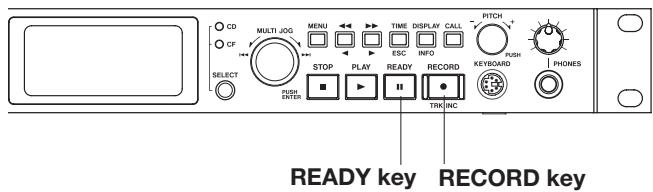
To start recording from the record-ready (pause) condition: Press the PLAY key.
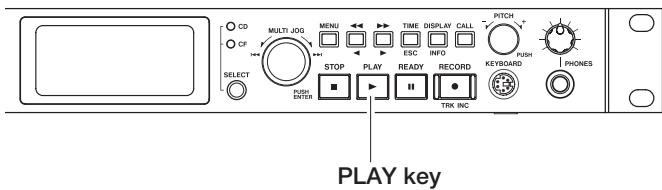
To pause recording: Press the READY key.
To stop recording: Press the STOP key. When you stop recording, the recorded data will be written, and an audio file will be created.
NOTE
The following notes apply when you are recording in WAV or MP3 format.
-
You can use the PREFERENCE menu item WORD CLIP to specify the audio file name that is automatically added to the created file (see "Specifying the name of the recording file (WAV and MP3 only)" on page 49).
-
The maximum size of each track is 2 GB.
- The recorded track will be created in the current folder (see "Selecting the current folder or play list" on page 25).
NOTE
While the recorded content is being stored to the recording media, the display will indicate INFORMATION WRITING. While this message is shown, do not move the SS-CDR1, turn off the power, or remove the media. The content will not be recorded correctly if you do so.
The following tables show the recording times for each recording format and media capacity.
WAVE Stereo (CF card only)
| Media / Capacity | 44.1 kHz | 48 kHz |
| CF card / 512 MB | 48 minutes | 44 minutes |
| CF card / 1 GB | 1 hour 36 minutes | 1 hour 28 minutes |
| CF card / 2 GB | 3 hours 12 minutes | 2 hours 56 minutes |
| CF card / 4 GB | 6 hours 24 minutes | 5 hours 52 minutes |
| CF card / 8 GB | 12 hours 48 minutes | 11 hours 44 minutes |
WAVE Mono (CF card only)
| Media / Capacity | 44.1 kHz | 48 kHz |
| CF card / 512 MB | 1 hour 36 minutes | 1 hour 28 minutes |
| 1 GByte | 3 hours 12 minutes | 2 hours 56 minutes |
| 2 GB | 6 hours 24 minutes | 5 hours 52 minutes |
| 4 GB | 12 hours 48 minutes | 11 hours 44 minutes |
| 8 GB | 25 hours 36 minutes | 23 hours 28 minutes |
MP3 Stereo , 44.1kHz/48kHz
| Media / Capacity | 64 kbps | 128 kbps | 192 kbps | 256 kbps | 320 kbps |
| CF card / 512 MB | 17 hours 40 minutes | 8 hours 50 minutes | 5 hours 50 minutes | 4 hours 25 minutes | 3 hours 30 minutes |
| CF card / 1 GB | 35 hours 20 minutes | 17 hours 40 minutes | 11 hours 40 minutes | 8 hours 50 minutes | 7 hours 00 minutes |
| CF card / 2 GB | 70 hours 40 minutes | 35 hours 20 minutes | 23 hours 20 minutes | 17 hours 40 minutes | 14 hours 00 minutes |
| CF card / 4 GB | 141 hours 20 minutes | 70 hours 40 minutes | 46 hours 40 minutes | 35 hours 20 minutes | 28 hours 00 minutes |
| CF card / 8 GB | 282 hours 40 minutes | 141 hours 20 minutes | 93 hours 20 minutes | 70 hours 40 minutes | 56 hours 00 minutes |
| CD / 650 MB | 23 hours 00 minutes | 11 hours 30 minutes | 7 hours 40 minutes | 5 hours 45 minutes | 4 hours 35 minutes |
| CD / 700 MB | 24 hours 50 minutes | 12 hours 25 minutes | 8 hours 15 minutes | 6 hours 10 minutes | 4 hours 55 minutes |
MP3 Mono , 44.1kHz/48kHz
| Media / Capacity | 64 kbps | 128 kbps | 192 kbps | 256 kbps | 320 kbps |
| CF card / 512 MB | 35 hours 20 minutes | 17 hours 40 minutes | 11 hours 40 minutes | 8 hours 50 minutes | 7 hours 00 minutes |
| CF card / 1 GB | 70 hours 40 minutes | 35 hours 20 minutes | 23 hours 20 minutes | 17 hours 40 minutes | 14 hours 00 minutes |
| CF card / 2 GB | 141 hours 20 minutes | 70 hours 40 minutes | 46 hours 40 minutes | 35 hours 20 minutes | 28 hours 00 minutes |
| CF card / 4 GB | 282 hours 40 minutes | 141 hours 20 minutes | 93 hours 20 minutes | 70 hours 40 minutes | 56 hours 00 minutes |
| CF card / 8 GB | 565 hours 20 minutes | 282 hours 40 minutes | 186 hours 40 minutes | 141 hours 20 minutes | 112 hours 00 minutes |
| CD / 650 MB | 46 hours 00 minutes | 23 hours 50 minutes | 15 hours 20 minutes | 11 hours 30 minutes | 9 hours 10 minutes |
| CD / 700 MB | 49 hours 40 minutes | 24 hours 50 minutes | 16 hours 30 minutes | 16 hours 30 minutes | 9 hours 55 minutes |
Audio CD Stereo, 44.1 kHz, Uncompressed (CD only)
| Media / Capacity | |
| CD / 650 MB | 74 minutes |
| CD / 700 MB | 80 minutes |
NOTE
The listed capacity of media may not be identical to the actual capacity, so the above times are only approximations.
Finalizing a CD
After you have recorded a CD (CD-R or CD-RW disc), you will need to finalize the disc before the disc can be played back by a CD player or CD drive other than the SS-CDR1 itself. The operation on the SS-CDR1 will depend on whether the file format is MP3 or audio CD (CD-DA).
When recording in MP3 format:
The SS-CDR1 will automatically finalize the disc when you eject the CD. This means that once you remove a disc that was recorded in MP3 format, you will not be able to make additional recording on that disc. If you turn off the power without ejecting the CD, the SS-CDR1 will automatically finalize the disc the next time it is powered-on.
NOTE
You can use the menu to finalize the disc without ejecting it (see "Finalizing operation" on page 43).
Finalizing operation
As explained above, in order for a CD recorded by the SS-CDR1 in audio CD format to be playable on another device, that CD must be finalized manually. In the case of a disc recorded in MP3 format, the disc will be finalized automatically when you eject the disc as described earlier. However, it is also possible to finalize the disc manually without ejecting it.
In either case, proceed as follows to finalize the disc (for details on operations in the menu screen, refer to "Operations in the menu screen," on page 18).
- Press the MENU key to access the main menu list screen.
- Highlight the CD menu and press the MULTI JOG dial.
- Highlight the FINALIZE item and press the MULTI JOG dial. A confirmation popup will appear.

When recording in audio CD format:
If you have recorded in audio CD format, the SS-CDR1 will not automatically finalize the disc. You will be able to make additional recordings on that disc (as long as there is free space remaining on the disc) until you finalize the disc using the menu. However, the disc will not be playable on other devices until you finalize it.
For details on how to finalize, refer to the following section.
4. Press the MULTI JOG dial once again.
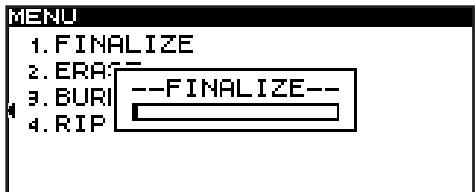
Finalization will begin.
During execution, the screen will indicate FINALIZE and a progress bar will be shown. When finalization is completed, you will return to the CD menu screen.
NOTE
You can unfinish a finalized CD-RW disc. (see "Unfin-ralizing a CD" on page 72).
Switching the recording time display mode
During recording (or in the record-ready condition), you can use the front panel or remote's TIME key to switch the time display mode between the following four types. The selected time display mode will be lit above the time display in the home screen.
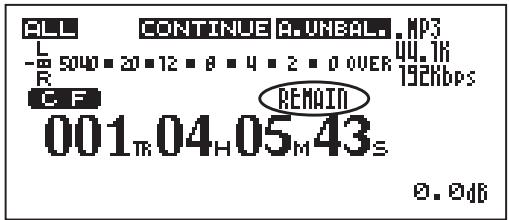
Nothing lit
The recorded time of the current track is shown.
REMAIN is lit
The remaining recordable time of the current track at the current recording format is shown. The remaining time is limited by the free space on the recording media or by the maximum track size (2 GB).
NOTE
In the case of a CD, the media capacity is a maximum of 700 MB, so this will always show the free space on the media.
TOTAL is lit
The total recorded time of the entire recording media is shown.
TOTAL and REMAIN are lit
The remaining recordable time of the entire recording media at the current recording format is shown.
NOTE
- The remaining time will depend on the recording format (the REC menu item REC FORMAT).
- During recording, if the recordable time of the card is shorter than the recordable time for a single track, the time counter shows the same remaining time when only REMAIN is lit or TOTAL and REMAIN are lit.
- The recording time display mode is remembered even when the power is turned off.
- For details on the time display during playback, refer to "Switching the playback time display mode" on page 28.
- The maximum number of recordable tracks is 999 tracks for a CF card (total number of WAV tracks and MP3 tracks). In the case of a CD, a data CD disc containing MP3 or WAV files can have up to 999 tracks, and an audio CD disc can have up to 99 tracks.
Sync recording
If the Sync Record function is on, recording will begin automatically when the input signal exceeds the level you specify (the sync level). After recording has begun, record-
ing will end automatically when the input signal stays below the sync level for a specified length of time (the stop time), and will switch to the record-ready state.
Making settings
Use the menu to turn the Sync Recording function on/off and to make detailed settings. However, you can also use the remote's SYNC key to turn this function on/off (but not make settings).
If the Sync Record function is on, SYNC will light in the home screen.
Using the menu
(For details on menu operations, refer to "Operations in the menu screens" on page 18).
1 Press the MENU key to access the main menu list screen.
2 Select the REC menu.
3 Select the SYNC item.
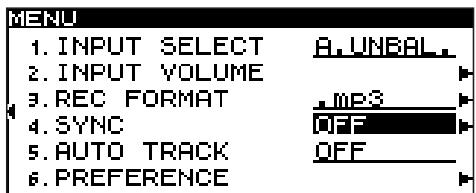
4 Turn the MULTI JOG dial (or use the remote's cursor , keys) to turn the setting on/off.
5 Press the front panel key (or the remote's cursor key) to proceed to the screen for detailed settings.
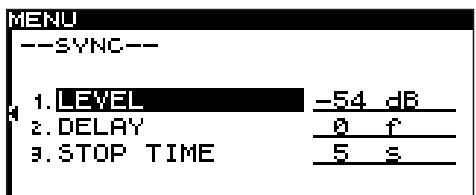
6 Set the following items.
LEVEL
Specify the sync level.
You can set this in a range of -72 dB - -24 dB (6 dB steps). (The default setting is -54 dB).
DELAY
Specify the time (in steps of one frame) from when a signal exceeding the sync level is detected until recording will begin (one frame is 1/75th of a second).
You can set this in a range of -75 frames - + 75 frames (the default setting is 0). If you specify a negative value, the corresponding length of audio prior to triggering will also be captured.
NOTE
When this range is converted to seconds, it is equivalent to -1.00 seconds - +1.00 seconds.
STOP TIME
When the signal has remained below the sync level for the length of time you specify here, recording will stop and the SS-CDR1 will enter record-pause mode.
You can specify this in a range of 5 - 30 seconds (one-second steps) or INF () . (The default setting is 5 seconds. Choose INF if you do not want recording to stop automatically.)
7 When you have finished making settings, press the front panel TIME (ESC) key (or the remote's CLR/ESC key) to return to the home screen.
NOTE
This setting is remembered even when you turn off the power.
Using the remote's dedicated key to turn the function on/off
Each time you press the SYNC key, the Sync Record function will turn on/off.
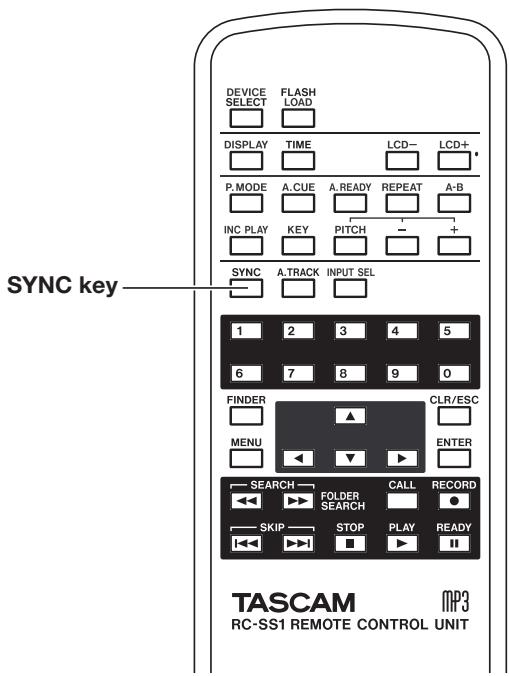
Sync Record operation
When you put the SS-CDR1 in record-ready condition with the Sync Record function on, recording will automatically start or stop according to the level of the input source.
- When a signal higher than the sync level is input, recording will begin automatically.
However, recording will not begin even if input is detected unless there has been at least one second in which the signal was below the sync level after entering the record-ready state.
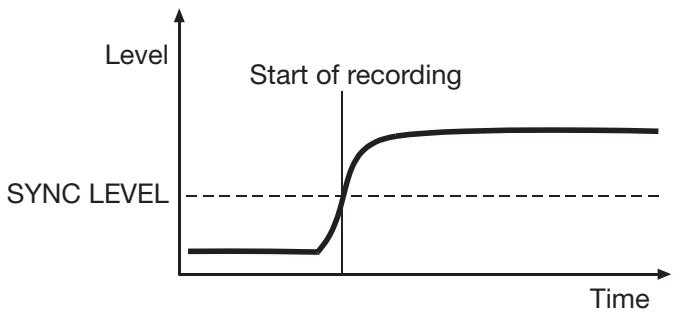
NOTE
The above explanation is for the case when the DELAY setting is "0" (the default setting). By changing the DELAY setting, you can change the "record start" point.
While recording, if the input signal stays below the sync level for the duration specified by STOP TIME (default: 5 seconds), the SS-CDR1 will automatically switch to the record-ready condition.
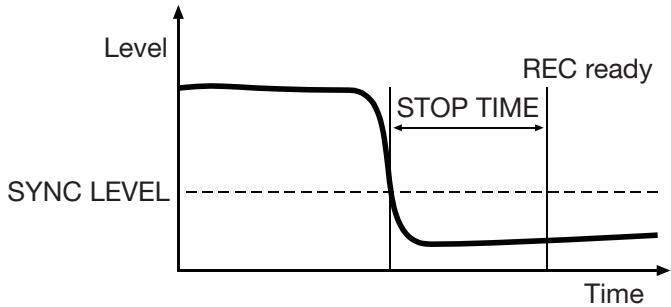
NOTE
If you set the STOP TIME to INF, the record-pause state will not be entered even though the input signal continuously falls below the sync level.
To defeat Sync Record, press the remote's SYNC REC key.
- When the sync level is too high:
If the sync level setting is too high, you may have problems such as failing to capture the beginning of a song that begins with a low volume.
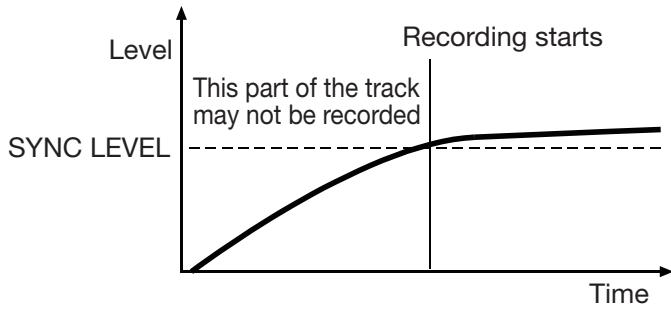
- If the sync level is too low:
Sync recording will not begin if the source you're recording has a high noise level, so that the sync level is exceeded immediately when you enter the record-ready state.
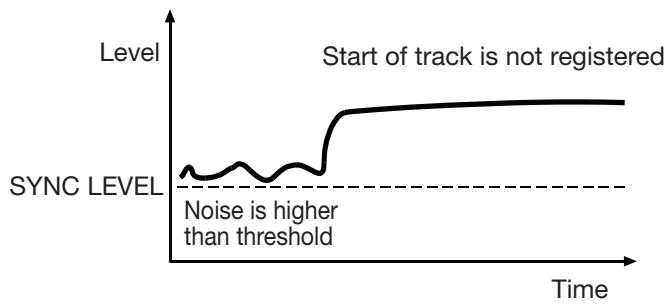
Auto Track function
Auto Track recording is a function that automatically assigns a new track number when the specified condition is satisfied during recording. A new audio file is created each time a new track number is assigned.
You will use the menu to select Auto Track mode and make detailed settings. However, the Auto Track mode setting itself can be made using the A.TRACK key of the remote.
If the Auto Track function is on, ATRACK will light in the home screen.
Auto track settings can be made at any time, and you can change the settings after you start recording.
NOTE
If you have recorded in WAV format on a CF card, you can use editing functions to divide or join tracks after recording (see "Dividing a file (DIVIDE)" on page 56, "Combining files (COMBINE)" on page 57).
Using the menu
(For details on menu operations, refer to "Operations in the menu screens" on page 18).
1 Press the MENU key to access the main menu list screen.
2 Select the REC menu.
3 Select the AUTO TRACK item.
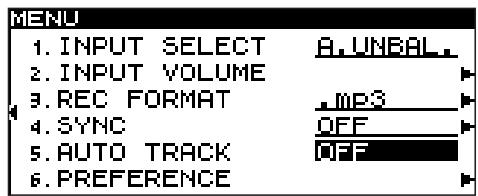
4 Turn the MULTI JOG dial (or use the remote's cursor , keys) to select the Auto Track mode from the following choices.
OFF:
New track numbers will not be assigned automatically.
LEVEL:
A new track number will be assigned when the signal exceeds the auto track level (specified in the screen for detailed settings described below) after having stayed below it for two seconds or longer.
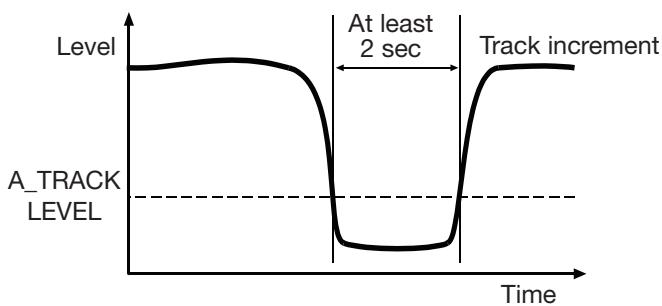
DD:
When recording a digital source (CD, DAT, MD) via the DIGITAL IN jack, a new track number will be assigned when a track division is detected in the source.
However when recording an analog source or a digital source other than those listed above, this will operate as
LEVEL mode, and a new track number will be assigned according to the input level.
TIME:
A new track number will be assigned at a fixed interval of time (specified in the screen for detailed settings described below).
5 If you selected a choice other than OFF, press the front panel key (or the remote's cursor key) to proceed to the screen for detailed settings.
6 Make detailed settings for the function.
- If LEVEL is selected
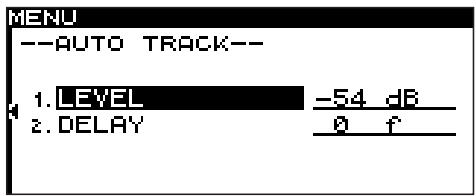
Use the LEVEL item to specify the level at which Auto Track will operate.
You can set this in a range of -72dB - - 24dB (6 dB steps).
(The default setting is -54 dB).
Use the DELAY item to specify the time (in units of one frame) from when a signal exceeding the auto track level is detected until the new track number is assigned (one frame is 1/75th of a second).
You can set this in a range of -75 frame - +75 frame (the default setting is 0). Negative values will cause a portion of the signal prior to the detection point to be captured.
NOTE
If this range is converted into time, the adjustable range is equivalent from -1 second to +1 second.
- If DD is selected
As when LEVEL is selected, use the DELAY item to specify the time from when a signal exceeding the auto track level is detected until the new track number is assigned, in steps of one frame (one frame is 1/75 of a second).
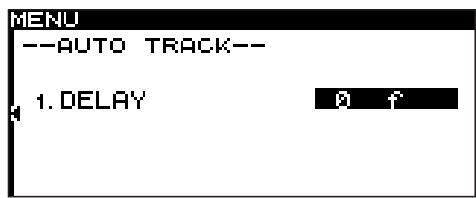
- If TIME is selected
Use the INTERVAL item to specify the time interval at which the track number is assigned, in a range of 1-10 minutes (one-minute steps).
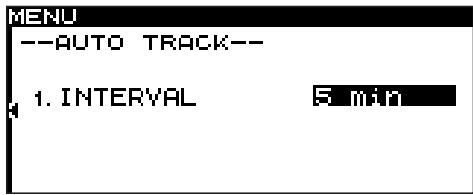
7 When you have finished making settings, press the front panel TIME (ESC) key (or the remote's CLR/ESC key) to return to the home screen.
NOTE
This setting is remembered even when you turn off the power.
Using the remote's dedicated key to switch modes
Each time you press the remote's A.TRACK key, the Auto Track function mode will cycle in the order of OFF LEVEL DD TIME.
Assigning a new track number manually
You can assign a new track number manually by pressing the RECORD key during recording.
However, you cannot create a track that is shorter than four seconds.
NOTE
-
If you have recorded in WAV format on a CF card, you can use editing functions to divide or join tracks after recording (see "Dividing a file (DIVIDE)" on page 56, "Combining files (COMBINE)" on page 57).
-
Depending on the CompactFlash (CF) card used on the unit, when recording MP3 files, incrementing and creating many tracks in a short time period can cause over flow (the unit shows the message OVER FLOW on the screen), and the unit will stop operating. To avoid such unexpected results, leave a sufficient time gap after the previous track before increment the track number.
Applying the compressor while recording
You can apply the SS-CDR1's built-in compressor to the recording source while you record.
A compressor is an effect that holds down peaks in the audio, making the overall level more consistent and more listenable.
You will use the menu to turn the compressor on/off (for details on menu operations, refer to "Operations in the menu screens" on page 18).
1 Press the MENU key to access the main menu list screen.
2 Select the REC menu.
3 Highlight the PREFERENCE item.
4 Press the front panel key (or the remote's cursor key) to proceed to the REC PREFERENCE screen.
5 Select COMP.
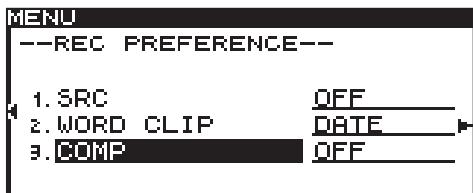
6 Turn the MULTI JOG dial (or use the remote's cursor , keys) to select one of the following as the compressor mode.
OFF: The compressor will not be used when recording.
SOFT: Light compression will be applied. This setting is suitable when recording music.
HARD: Strong compression will be applied. This setting is suitable when the audio source you're recording has a
low volume. Since the recording volume will be boosted, it is also suitable when recording a meeting or conference.
7 When you have finished making settings, press the front panel TIME (ESC) key (or the remote's CLR/ESC key) to return to the home screen.
NOTE
This setting is remembered even when you turn off the power.
Specifying the name of the recording file (WAV and MP3 only)
You can specify the file name that is automatically added when you record in WAV or MP3 format.
You will use the menu to make this setting (for details on menu operations, refer to "Operations in the menu screens" on page 18).
1 Press the MENU key to access the main menu list screen.
2 Select the REC menu.
3 Highlight the PREFERENCE item.
4 Press the front panel key (or the remote's cursor key) to proceed to the REC PREFER-ENCE screen.
5 Select WORD CLIP.
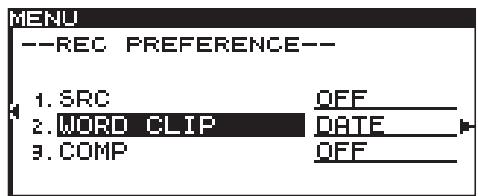
6 Turn the MULTI JOG dial (or use the remote's cursor , keys) to select one of the following choices.
DATE (default setting):
The date and time of the SS-CDR1's clock will be the file name.
USER01-USER03:
The user-specified text string (eight characters) will be the file name.
To edit and store a text string, proceed as follows:
1 With one of the choices USER01-USER03 selected, press the key.
The editing screen will appear.
2 Edit the text string as follows.
To change the editing location (cursor position): Use the front panel , keys (or the remote's cursor , keys).
To change the character at the cursor position: Turn the front panel MULTI JOG dial (or use the remote's cursor , keys).
To delete a character:
Press the front panel TIME (ESC) key (or the remote's CLR/ESC key).
To delete all characters following the cursor position:
Press and hold down the front panel TIME (ESC) key (or the remote's CLR/ESC key).
To switch between uppercase and lowercase:
Press the front panel DISPLAY (INFO) key (or the remote's DISPLAY key).
To insert a space:
Press the CALL key.
To cancel your editing:
Press the STOP key.
3 When you have finished editing, press the MULTI JOG dial.
The edited text string will be finalized, and you will return to the PREFERENCE menu.
Overview
For a CF card or data CD on which WAV/MP3 files are recorded, you can use the folder finder screen to view the tree structure of the folders and files.
From this screen, you can select a folder or file and then enter the folder menu screen or file menu screen.
For a CF card, you can perform various operations from this screen; you can create a folder, rename or delete a folder or file, register a file in a playlist, or edit a file (divide or join). You can also perform operations directly in the folder finder screen to move or copy files between folders.
In the case of an unfinalized data CD in which WAV or MP3 files are recorded, the only operations that can be performed from the folder finder screen are creating a fold-
er and changing the current folder. You cannot perform editing or register a file in a playlist.
In the case of a CD that contains audio CD tracks, there will be no folder finder screen, but there will be a CD-DA finder screen (see "Using the CD-DA finder screen" on page 52).
TIP
If you use a card reader to load files from your computer into a CompactFlash card, you'll be able to use your computer to modify the folder structure, edit the folder name or file name, or delete files or folders. If you perform this type of editing from your computer, please be aware that the playback order of the files on the SS-CDR1 may differ after editing on your computer.
Opening the folder finder screen
The following operations assume that a CF card, a data CD containing WAV/MP3 files, or a blank CD is inserted in the current device.
When the play area ("Play area" on page 24) is ALL or FOLDER, and the SS-CDR1 is stopped, playing, or paused, you can hold down the front panel MENU key (or press the remote's FINDER key) to access the folder finder screen.
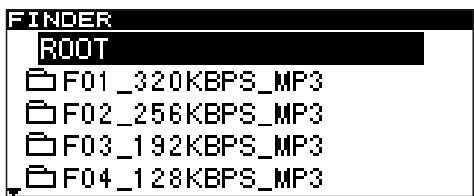
- If the play area is ALL and the SS-CDR1 was stopped, the finder screen for the root folder will appear.
- If the play area is FOLDER and the SS-CDR1 was stopped, the finder screen for the current folder will appear.
- While paused, the finder screen for the folder of the current file (regardless of the play area) will appear. At this time, the current file will be highlighted.
Navigating in the folder finder screen
When the folder finder screen is displayed, you can use the front panel , keys and MULTI JOG dial (or the remote's cursor keys) to select (highlight) the desired folder or file.
Operations when a folder is highlighted and when a file is highlighted are explained below.
Operations when a folder is highlighted
- To see the folder menu for the highlighted folder: Press the MENU key ("Operations in the folder menu screen" on page 52).
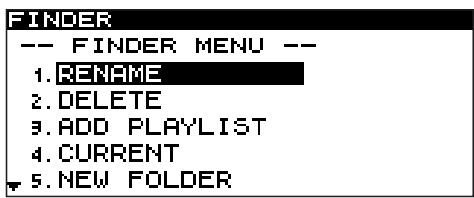
To open a higher-level folder: Press the front panel key (or the remote's cursor key).
- To open the highlighted folder: Press the front panel key (or the remote's cursor key).
- To return to the home screen: Press the front panel TIME (ESC) key (or the remote's CLR/ESC key).
- To start playback from the first file of the highlighted folder:
Press the PLAY key. Playback will start, and you will return to the home screen.
If the play area is FOLDER, the highlighted folder will be the current folder.
- To pause at the first file of the highlighted folder: Press the READY key. The SS-CDR1 will pause, and you will return to the home screen. If the play area is FOLDER, the currently selected folder will be the current folder.
- To view the properties of the currently selected folder: Press the front panel DISPLAY (INFO) key (or the remote's DISPLAY key).
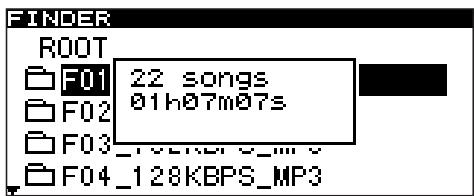
Wen you once again press the front panel DISPLAY (INFO) key (or the remote's DISPLAY key), the property display will disappear, and you will return to the folder finder screen.
Operations when a file is highlighted
- To see the file menu for the highlighted file (CF card only):
Press the MENU key ("Operations in the file menu screen (CF card only)" on page 54).
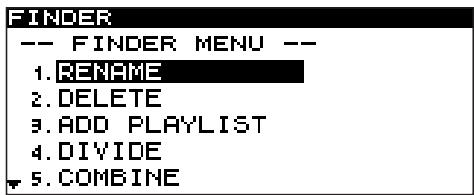
- To open a higher-level folder:
Press the front panel key (or the remote's cursor key).
- To return to the home screen:
Press the front panel TIME (ESC) key (or the remote's CLR/ESC key).
- To start playback from the beginning of the highlighted file:
Press the PLAY key. Playback will start, and you will return to the home screen.
If the play area is FOLDER, the folder that contains the highlighted file will be the current folder.
- To pause at the beginning of the highlighted file:
Press the READY key. The SS-CDR1 will pause, and you will return to the home screen.
If the play area is FOLDER, the folder that contains the highlighted file will be the current folder.
- To view the properties of the highlighted file: Press the front panel DISPLAY (INFO) key (or the remote's DISPLAY key).
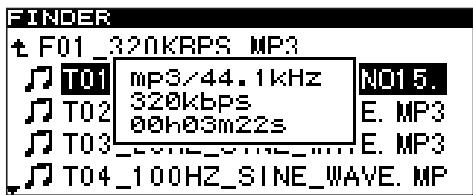
When you once again press the front panel DISPLAY (INFO) key (or the remote's DISPLAY key), the property display will disappear and you will return to the folder finder screen.
- To move the highlighted file (CF card only):
Press and hold the front panel MULTI JOG dial (or the remote's ENTER key) to enter File Move mode. For details, refer to "Moving or copying a file" on page 58.
This operation is possible only when using a CF card.
Operations in the folder menu screen
If the current device is a CF card, you will be able to execute all of the folder menu screen functions. In the case of an unfinalized CD containing WAV/MP3 files, you will be able to execute some of the functions.
The following explanations assume that the folder menu screen for the applicable folder is displayed.
To access the folder menu screen, highlight the desired folder in the folder finder screen, and press the MENU key ("Navigating in the folder finder screen" on page 50).
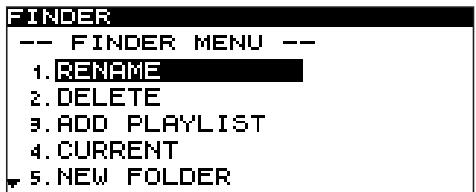
Renaming a folder (CF card only)
The following operation is possible only when using a CF card
1 With the folder menu screen shown, turn the front panel MULTI JOG dial (or use the remote's cursor , keys) to highlight RENAME.
2 Press the front panel MULTI JOG dial (or the remote's ENTER key).
The RENAME screen will appear.
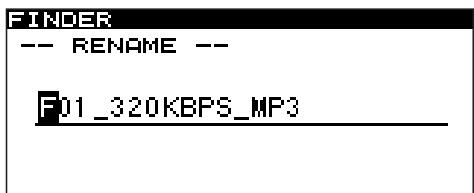
3 Edit the name as follows.
- To move the editing position (cursor position): Use the front panel , keys (or the remote's cursor , ) keys.
- To change the character at the cursor position: Turn the front panel MULTI JOG dial (or use the remote's cursor , keys).
-
To delete a character: Press the front panel TIME (ESC) key (or the remote's CLR/ESC key).
-
To delete all characters following the cursor position: Press and hold the front panel TIME (ESC) key (or the remote's CLR/ESC key).
- To switch the type of character (uppercase/lower-case):
Press the front panel DISPLAY (INFO) key (or the remote's DISPLAY key).
- To insert a space:
Press the CALL key.
- To cancel editing:
Press the STOP key.
4 When you've finished editing, press the front panel MULTI JOG dial (or the remote's ENTER key) to finalize your edits.
The display will return to the folder finder screen.
NOTE
- You cannot edit names that include characters other than alphabetic character, numeral, or symbol characters. (If even one such character is included, the registered name will not be displayed at all.)
- Also, the following symbolic characters cannot be used on the unit: /; : * , ? " < >
Deleting a folder (CF card only)
The following operation is possible only when using a CF card. When you delete a folder, the files in that folder will also be deleted.
1 With the folder menu screen displayed, use the front panel MULTI JOG dial (or the remote's cursor , keys) to highlight DELETE.
2 Press the front panel MULTI JOG dial (or the remote's ENTER key).
A screen will ask you to confirm the deletion.
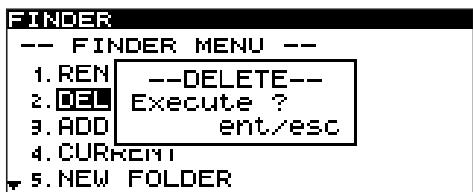
3 Once again press the front panel MULTI JOG dial (or the remote's ENTER key).
The folder will be deleted.
The display will return to the folder finder screen.
If you decide not to delete the folder, press the
TIME (ESC) key (or the remote's CLR/ESC key).
NOTE
Immediately after deleting a folder, you will still be able to undo the deletion ("Undeleting a deleted folder (UNDO)(CD card only)" on page 53).
Undeleting a deleted folder (UNDO) (CF card only)
The following operation is possible only when using a CF card. Immediately after deleting a folder from a CF card, you can undo the operation and recover the folder.
This is possible only if the play mode is set to continuous playback (CONTINUE).
NOTE
When performing the Undo operation, it does not matter which folder is selected in the folder finder screen when you open the folder menu screen.
1 Turn the front panel MULTI JOG dial (or use the remote's cursor , keys) to highlight UNDO.
2 Press the front panel MULTI JOG dial (or the remote's ENTER key.)
A confirmation screen will appear.
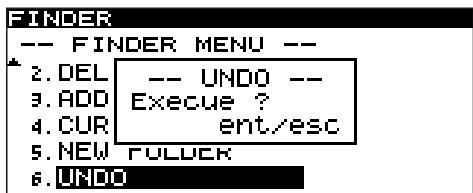
3 Press the front panel MULTI JOG dial (or the remote's ENTER key).
The folder will be recovered, and you will return to the folder finder screen. At this time the recovered folder will be highlighted.
NOTE
- If you decide not to perform this undelete operation (UNDO), press the front panel TIME (ESC) key (or the remote's CLR/ESC key).
- If there is no file deletion operation that can be undone, the display will indicate CAN'T UNDO.
Making a folder the current folder
Here's how to make the folder in which you're working the current folder. This operation is valid for a CF card or for an unfinalized CD that contains WAV/MP3 files.
1 With the folder menu screen displayed, turn the front panel MULTI JOG dial (or use the remote's cursor , keys) to highlight CURRENT.
2 Press the front panel MULTI JOG dial (or the remote's ENTER key.)
The following popup (CHANGE CURRENT FOLDER) will appear.
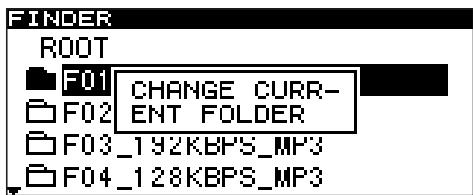
The display will return to the folder finder screen.
NOTE
Audio files created by recording will be created in the current folder. If you create a new folder in which to store recorded files, you can use the above procedure to make that new folder the current folder.
Creating a new folder
Here's how to create a new folder inside the working folder.
This operation is valid for a CF card or for an unfinalized CD that contains WAV/MP3 files
1 With the folder menu displayed, turn the front panel MULTI JOG dial (or use the remote's cursor , keys) to highlight NEW FOLDER.
2 Press the front panel MULTI JOG dial (or the remote's ENTER key.)
3 The RENAME screen will appear. For details on editing a name, refer to "Renaming a folder" on page 52.
4 When you've finished editing the name, press the front panel MULTI JOG dial (or the remote's ENTER key) to finalize the changes.
A pickup FOLDER will appear, and the new folder will be created.
When the folder has been created, the display will return to the folder finder screen.
NOTE
A maximum of 255 folders can be created on a CompactFlash card.
Adding an entire folder to a playlist (CF card only)
This operation allows you to add all files from a folder on the CF card to the desired playlist.
However, files in a sub folder will not be added.
1 With the folder menu screen displayed, turn the front panel MULTI JOG dial (or use the remote's cursor , keys) to highlight ADD PLAYLIST.
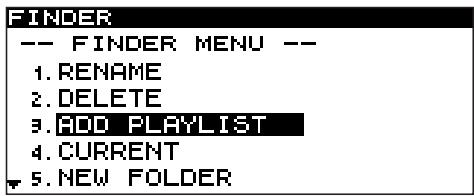
2 Press the front panel MULTI JOG dial (or the remote's ENTER key).
The playlist select screen will appear.
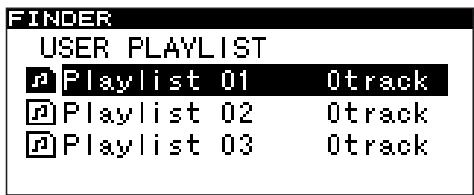
3 Turn the front panel MULTI JOG dial (or use the remote's cursor , keys) to highlight the playlist in which you want to register the files.
4 Press the front panel MULTI JOG dial or key (or the remote's ENTER key or cursor key). The selected playlist will be displayed.
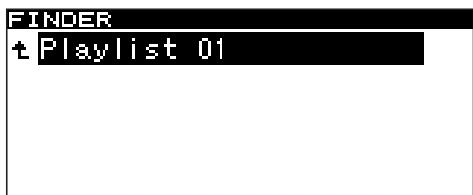
5 Turn the front panel MULTI JOG dial (or use the remote's cursor , keys) to select the position within the playlist at which you want to add the files.
The files will be added following the highlighted file.
6 Press and hold the front panel MULTI JOG dial (or the remote's ENTER key).
The folder will be added to the playlist.
Undoing a folder menu operation (UNDO)
Some of the operations in the folder menu (folder name editing, adding a new folder, deleting a folder) can be undone immediately after they are executed.
This is possible only if the play mode is set to continuous playback (CONTINUE).
NOTE
When executing an Undo, it does not matter which folder in the folder finder screen was selected before opening the folder menu screen.
1 Turn the front panel MULTI JOG dial (or use the remote's cursor , keys) to highlight UNDO.
A confirmation screen will appear.
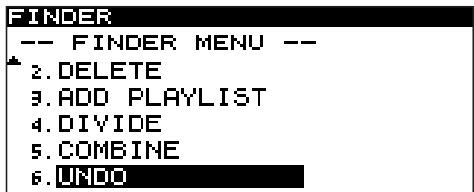
In the example screen shown above, the folder delete operation (DELETE) can be undone.
2 Press the front panel MULTI JOG dial (or the remote's ENTER key).
The Undo operation will be executed, and you will return to the folder finder screen. At this time, the file to which Undo applied will be highlighted.
NOTE
- If you decide to cancel the Undo operation, press the front panel TIME (ESC) key (or the remote's CLR/ESC key).
- If there is no file to which the Undo operation can be applied, the display will indicate CAN'T UNDO.
Operations in the file menu screen (CF card only)
The file editing operations described below can be performed on a CF card. Files on a CD cannot be edited. The following explanations assume that the current device is CF, and that the file menu screen for the applicable file is displayed.
To access the file menu screen, highlight the desired file in the folder finder screen, and press the MENU key ("Navigating in the folder finder screen" on page 50).
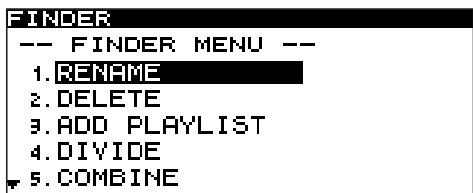
Editing the file name
1 With the file menu screen displayed, turn the front panel MULTI JOG dial (or use the remote's cursor , keys) to highlight RENAME.
2 Press the front panel MULTI JOG dial (or the remote's ENTER key).
The RENAME screen will appear.
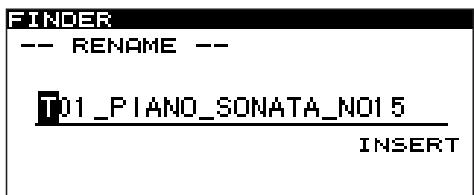
3 Edit the name as follows.
To change the editing location (cursor position): Use the front panel , keys (or the remote's cursor , keys).
To change the character at the cursor position: Turn the front panel MULTI JOG dial (or use the remote's cursor , keys).
To delete a character: Press the front panel TIME (ESC) key (or the remote's CLR/ESC key).
To delete all characters following the cursor position:
Press and hold down the front panel TIME (ESC) key (or the remote's CLR/ESC key).
To switch between uppercase and lowercase: Press the front panel DISPLAY (INFO) key (or the remote's DISPLAY key).
To insert a space: Press the CALL key.
To cancel your editing: Press the STOP key.
4 When you've finished editing, press the front panel MULTI JOG dial (or the remote's ENTER key) to finalize the changes.
The display will return to the folder finder screen. If you decide to cancel your editing, press the TIME (ESC) key (or the remote's CLR/ESC key).
NOTE
- You can also insert the CF card directly into your computer and edit the file names from the computer. However if you edit the file names on your computer, please be aware that the order in which the files will play back on the SS-CDR1 may be changed by this editing.
- You cannot edit names that include characters other than alphabetic character, numeral, or symbol characters. (If even one such character is included, the registered name will not be displayed at all.) Also, the following symbolic characters cannot be used on the unit: \/; : * , ? “ < > |
Deleting a file
You can delete a file from the CF card.
1 With the file menu screen displayed, turn the front panel MULTI JOG dial (or use the remote's CURSOR , keys) to highlight DELETE.
2 Press the front panel MULTI JOG dial (or the remote's ENTER key).
The delete confirmation screen will appear.
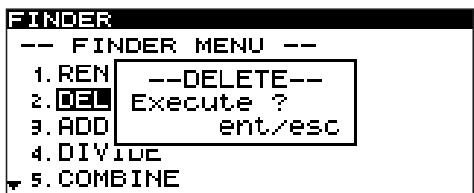
3 Once again, press the front panel MULTI JOG dial (or the remote's ENTER key).
The file will be deleted from the CF card.
The display will return to the folder finder screen. If you decide not to execute the Delete operation, press the TIME (ESC) key (or the remote's CLR/ESC key) at the confirmation screen.
NOTE
Files can be deleted only if the play mode is set to consecutive playback (CONTINUE).
Adding files to a playlist
Here's how to add files to the desired playlist.
1 With the file menu screen displayed, turn the front panel MULTI JOG dial (or use the remote's cursor , keys) to highlight ADD PLAYLIST.
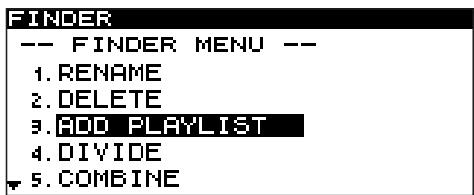
2 Press the front panel MULTI JOG dial (or the remote's ENTER key).
The playlist select screen will appear.
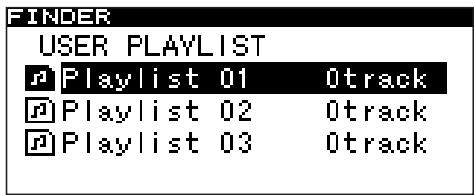
3 Turn the front panel MULTI JOG dial (or use the remote's cursor , keys) to highlight the playlist in which you want to register the file.
4 Press the front panel MULTI JOG dial or key (or the remote's ENTER key or cursor key). The selected playlist will appear.
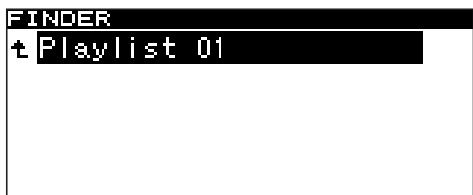
5 Turn the front panel MULTI JOG dial (or use the remote's cursor , keys) to select the position within the playlist at which you want to add the file. The file will be added after the highlighted file.
6 Press and hold the front panel MULTI JOG dial (or the remote's ENTER key).
The file will be added to the playlist.
Dividing a file (DIVIDE)
Here's how to divide a WAV file into two files.
This is possible only if the play mode is set to consecutive playback (CONTINUE).
NOTE
- You can undo the Divide operation after executing it ("Undoing a file menu operation (UNDO)" on page 58).
- You cannot divide an MP3 file.
1 Use the PLAY key, , keys, time search function, and time skip function etc. to locate to the point in the WAV at which you want to divide it, and pause at that point.
Since you can make fine adjustments later, the approximate location is sufficient.
2 Press and hold the front panel MENU key (or the remote's FINDER key) to access the folder finder screen.
The screen will show the folder finder screen for the current file you operated in step 1, and the current file will be highlighted.
3 Press the MENU key to access the file menu screen for the current file.
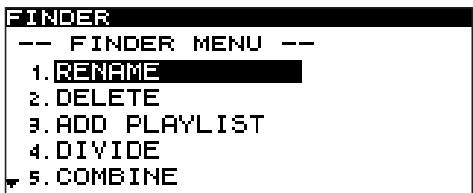
4 Turn the front panel MULTI JOG dial (or use the remote's cursor , keys) to highlight DIVIDE.
5 Press the front panel MULTI JOG dial (or the remote's ENTER key).
The home screen will appear.
The SS-CDR1 will enter Scrub Play mode, and the PLAY key and READY key will blink.
6 Use the Scrub Play function to find the precise point at which you want to divide the file.
Turn the front panel MULTI JOG dial (or use the remote's SKIP keys) to move the point using scrub playback.
7 When you've specified the dividing point, press the front panel MULTI JOG dial (or the remote's ENTER key).
The display will ask EXECUTE?
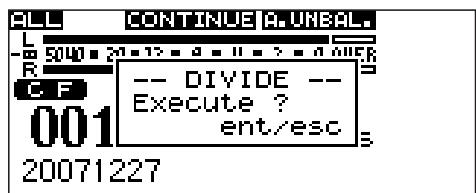
If you want to change the dividing point, press the front panel TIME (ESC) key (or the remote's CLR/ESC key).
You will return to scrub play mode, and can repeat the procedure from step 6.
If you're ready to execute the Divide operation, proceed to step 8.
NOTE
- If the file has been registered in a playlist, the P.LIST ENTRY popup will appear.
- If the file you're editing was registered in a playlist, it will no longer be possible to play that playlist. You will need to re-edit that playlist in the playlist finder.
Combining files (COMBINE)
Here is how to join two WAV files, combining them into a single file.
This is possible only if the play mode is set to consecutive playback (CONTINUE).
NOTE
- You cannot combine MP3 files.
- You cannot combine two WAV files that have different sampling rates or a different number of channels.
- You can undo the Combine operation after executing it ("Undoing a file menu operation (UNDO)" on page 58).
1 Open the file menu screen for one of the files you want to combine.
2 Turn the front panel MULTI JOG dial (or use the remote's cursor , keys) to highlight COMBINE.
3 Press the front panel MULTI JOG dial (or the remote's ENTER key).
The file list will appear.
The file you had selected before opening the file menu will have a check mark.
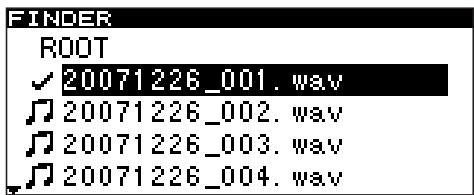
4 Turn the front panel MULTI JOG dial (or use the remote's cursor , keys) to highlight the file that you want to combine with the file that has the check mark.
8 Press the front panel MULTI JOG dial (or the remote's ENTER key).
The Divide operation will be executed, and you will return to the folder finder screen.
5 Press the front panel MULTI JOG dial (or the remote's ENTER key).
The display will ask EXECUTE?, and the four seconds preceding and following the connection point will play repeatedly.
NOTE
- If the file has been registered in a playlist, the P.List ENTRY popup will appear.
- If a file you are editing was registered in a playlist, it will no longer be possible to play that playlist. You'll need to re-edit that playlist in the playlist finder.

6 To execute the Combine operation, press the front panel MULTI JOG dial (or the remote's ENTER key).
The two files will be combined, and you will return to the folder finder screen.
If you decide not to execute the Combine operation, press the front panel TIME (ESC) key (or the remote's CLR/ESC key). You will return to the file list, and can repeat the procedure from step 1.
Undoing a file menu operation (UNDO)
Of the file menu operations, Divide, Combine, and Delete operations can be undone immediately after you have executed the operation.
This is possible only if the play mode is set to continuos playback (CONTINUE).
NOTE
When performing the Undo operation, it does not matter which file is selected in the folder finder screen when you open the file menu screen.
1 Turn the front panel MULTI JOG dial (or use the remote's cursor , keys) to highlight UNDO. A confirmation screen will appear.
2 Press the front panel MULTI JOG dial (or the remote's ENTER key.
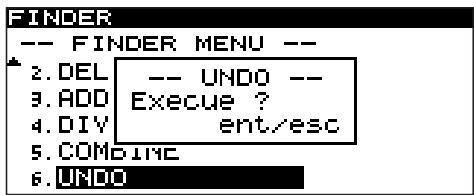
3 Press the front panel MULTI JOG dial (or the remote's ENTER key).
The Undo operation (UNDO) will be executed, and you will return to the folder finder screen. At this time, the folder/file to which the Undo operation applied will be highlighted.
NOTE
- If you decide not to perform the Undo operation (UNDO), press the front panel TIME (ESC) key (or the remote's CLR/ESC key).
- If there is no file operation that can be undone, the display will indicate CAN'T UNDO.
Moving or copying a file (CF card only)
You can move a file on a CF card within a folder, or move or copy it to a different folder. These operations are performed in the folder finder screen. (You do not need to enter the file menu screen.)
The following explanations assume that the folder menu screen for the applicable folder is displayed
Moving a file within a folder
1 In the folder finder screen, use the front panel , keys and MULTI JOG dial (or the remote's cursor keys) to access the finder screen for the folder that contains the file you want to move.
2 Turn the front panel MULTI JOG dial (or use the remote's cursor , keys) to highlight the file that you want to move.
3 Press and hold the front panel MULTI JOG dial (or the remote's ENTER key).
The file to be moved will blink.
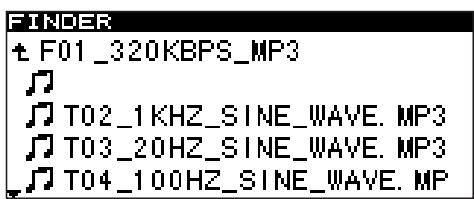
4 Turn the front panel MULTI JOG dial (or use the remote's cursor , keys) to move the file to the desired location.
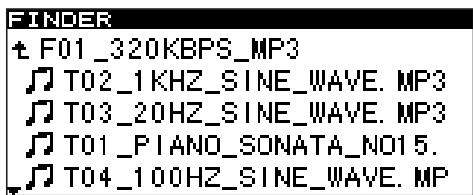
5 Press the front panel MULTI JOG dial (or the remote's ENTER key).
The MOVE popup will appear, and the Move operation will be confirmed.
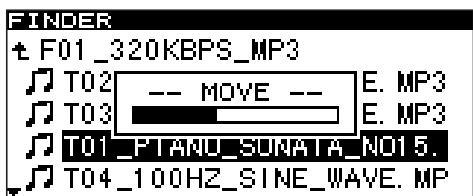
Moving or copying a file between folders
1 In the folder finder screen, use the front panel , keys (or the remote's cursor , keys) to access the finder screen for the folder that contains the file you want to move.
2 Turn the front panel MULTI JOG dial (or use the remote's cursor , keys) to highlight the file that you want to move.
3 Press and hold the front panel MULTI JOG dial (or the remote's ENTER key).
The file to be moved will blink.
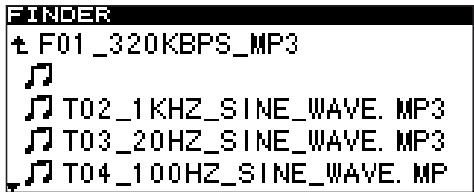
When you move the blinking file to where a folder name is shown, the blinking file name will disappear, and the folder name will be highlighted.
4 Use the front panel MULTI JOG dial and , keys (or the remote's cursor , , , keys) to navigate within the folder finder to open the move-destination folder.
When you move the cursor to where the file name is displayed, the blinking file to be moved will appear.
5 Turn the front panel MULTI JOG dial (or use the remote's cursor , keys) to move the blinking file to the desired location.
Press the MULTI JOG dial (or the remote's ENTER key).
The following popup will appear.
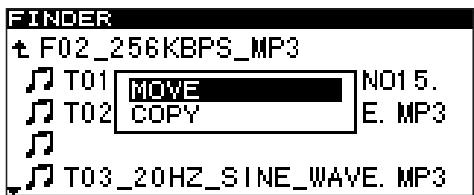
6 Highlight MOVE if you simply want to move the file from its former location, or highlight COPY if you want to copy the file. Then press the front panel MULTI JOG dial (or the remote's ENTER key).
The operation will be executed, and a popup will appear during execution.
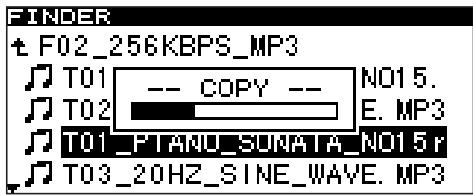
NOTE
If you choose COPY, the original file will remain where it was. If you choose MOVE, the original file will not remain.
In the case of a CD containing audio CD (CD-DA) tracks, there will be a CD-DA finder screen. You can use the CD-DA finder screen to select a track to play. In the case of an unfinalized CD that contains audio CD tracks, you will be able to edit CD text.
The following explanation assumes that an audio CD is inserted and that the CD is selected as the current device.
Opening the CD-DA finder screen
While stopped, paused, or playing, hold down the front panel MENU key (or press the remote's FINDER key) to access the CD-DA finder screen.
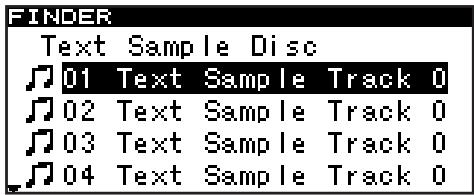
This screen lists the tracks in order of their track number.
If you access this screen while stopped, track 1 will be highlighted. If you access it while paused or playing, the current track will be highlighted.
To exit the CD-DA finder screen and return to the home screen:
Press the front panel TIME (ESC) key (or the remote's CLR/ESC key).
Selecting the track to play
From the CD-DA finder screen, here is how to select the track that you want to play.
- Access the CD-DA finder screen, and highlight the track that you want to play.
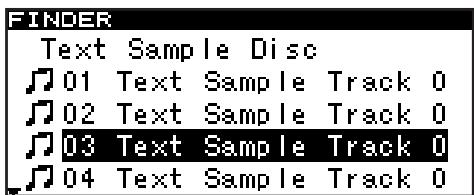
- Press the front panel MULTI JOG dial (or the remote's ENTER key).
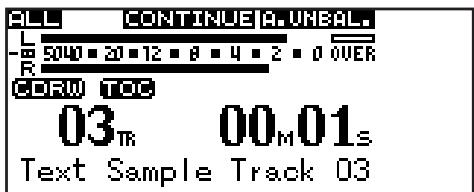
If you perform this action while stopped, the highlighted track will begin playing.
If you perform this action while paused, you will pause at the beginning of the highlighted track.
Editing CD text
If an unfinalized CD containing audio CD tracks is inserted, you can edit CD text as follows.
- Access the CD-DA finder screen, and highlight the desired track.
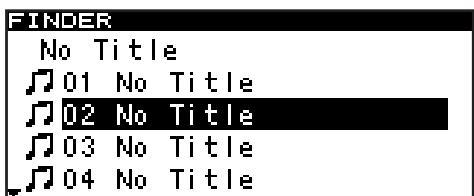
- Press the MENU key.
The CD text edit screen for the highlighted track will appear.
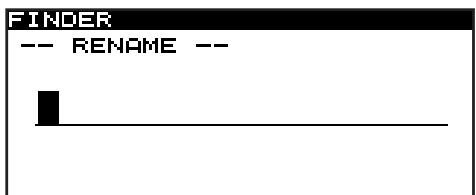
3. Edit the name as follows.
To change the editing location (cursor position):
Use the front panel , keys (or the remote's cursor , keys).
To change the character at the cursor position:
Turn the front panel MULTI JOG dial (or use the remote's cursor , keys).
To delete a character:
Press the front panel TIME (ESC) key (or the remote's CLR/ESC key).
To delete all characters following the cursor position:
Hold down the front panel TIME (ESC) key (or the remote's CLR/ESC key).
To switch between uppercase and lowercase:
Press the front panel DISPLAY/INFO key (or the remote's DISPLAY key).
To insert a space:
Press the CALL key.
To cancel editing:
Press the STOP key.
- When you have finished editing the text, press the front panel MULTI JOG dial (or the remote's ENTER key) to confirm your edits.
The display will return to the CD-DA finder screen.
NOTE
The following symbolic characters cannot be used on the unit: /; : *, ? < >|
Overview
The SS-CDR1's playlist playback functions are available if you are using a CF card. Playlist playback is not possible for a CD.
When you first insert a CompactFlash card into the SS-CDR1, three empty playlists (01-03) will automatically be created on the card. You can register audio files from the card into these playlists, and then select the desired playlist (the current playlist) so that its files will be played when you specify Playlist as the play area.
To perform playlist-related operations, start by opening the " playlist finder screen".
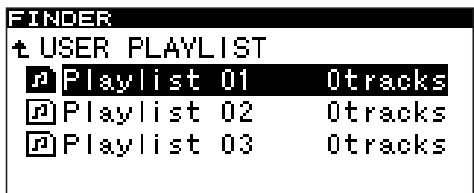
From this screen, proceed to the "plist menu screen" where you can add files to a playlist or delete the entire contents of a playlist.
From the playlist finder screen, you can also proceed to the " playlist screen" (which shows the files in the playlist).
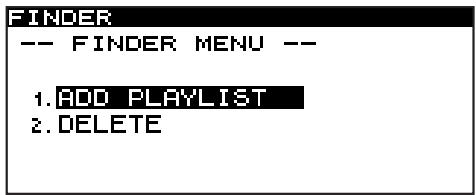
Select a file for operations, and then move to the "gallery menu screen" where you can add a file to the playlist, delete a file from the playlist, or move a file within the playlist.
Opening the playlist finder screen
If the play area ("Play area" on page 24) is PLAYLIST, make sure that the SS-CDR1 is stopped, playing, or paused, and hold down the front panel MENU key (or the remote's FINDER key) to access the playlist finder screen.
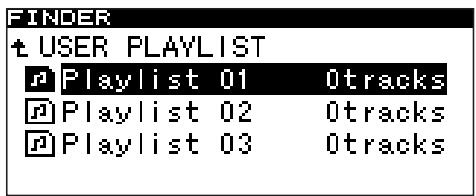
Navigating in the playlist finder screen
The playlist finder screen will show three playlists (PLAYLIST_01-PLAYLIST_03).
The number of files (tracks) registered in each playlist is shown at the right.
With the playlist finder screen displayed, turn the front panel MULTI JOG dial (or use the remote's cursor , keys) to select (highlight) the playlist that you want to operate.
In this state you can perform the following operations:
- To start playback from the beginning of the playlist Press the PLAY key. Playback will begin, and you will return to the home screen.
The playlist you selected will be specified as the current playlist.
- To pause at the beginning of the playlist
Press the READY key. The SS-CDR1 will pause, and return to the home screen.
The playlist you selected will be specified as the current playlist.
- To open the playlist screen
Press the front panel MULTI JOG dial or key (or the remote's ENTER key or cursor key. The display goes as follow.
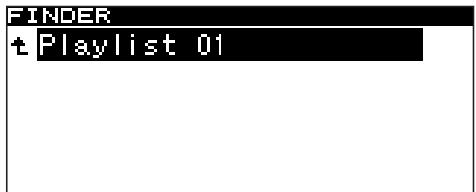
- Opening the playlist menu screen
Press the MENU key.
For details on each item in the playlist menu, refer to "Operations in the playlist menu screen" on page 54.
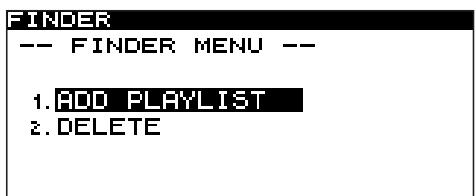
Viewing the properties of a playlist
Press the front panel DISPLAY (INFO) key (or the remote's DISPLAY key).
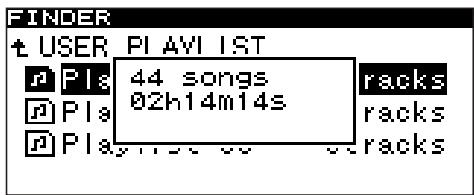
The number of tracks in the playlist and the total playback time will be displayed.
Press the front panel DISPLAY (INFO) key (or the remote's DISPLAY key) once again; the property display will disappear, and you will return to the playlist finder screen.
Operations in the playlist menu screen
In the playlist menu you can delete files from the playlist or add files to the playlist.
The following explanations assume that the display is showing the playlist menu screen for the playlist you're operating.
To access the playlist menu screen, highlight the desired playlist in the playlist finder screen, and press the MENU key ("Navigating in the playlist finder screen" on page 62).
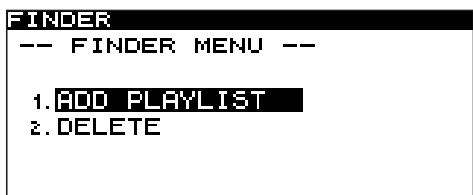
Adding a file/folder to a playlist
Here is how to add a file/folder to the playlist. By adding a folder, you can add all the files of the folder in a single action.
NOTE
Files in subFolders will not be added.
1 Turn the front panel MULTI JOG dial (or use the remote's cursor , keys) to highlight ADD PLAYLIST.
2 Press the front panel MULTI JOG dial (or the remote's ENTER key).
The folder finder screen will appear.
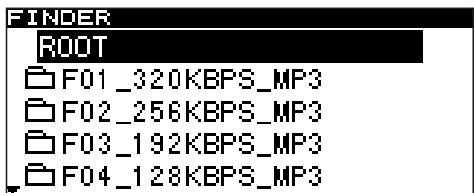
3 Select (highlight) the file or folder that you want to add.
For details on navigation in the folder finder screen, refer to "Navigating in the folder finder screen" on page 50.
4 Press and hold the front panel MULTI JOG dial (or the remote's ENTER key).
The file (or all files in the folder) will be added to the playlist.
NOTE
- A maximum of 99 tracks can be registered in a playlist.
- If you attempt to register more than 99 tracks, an indicator of P.LIST FULL will appear, and the track(s) will not be registered.
- You cannot register the same track more than once in a playlist.
Deleting a file/all files from a playlist
Here is how to delete a file or all files in a playlist (01-03).
This operation does not delete the files in the card.
1 Turn the front panel MULTI JOG dial (or use the remote's cursor , keys) to select a file in a playlist or one of the playlists (deleting all files in the playlist).
2 Press the MENU key to access the playlist menu screen.
3 Turn the front panel MULTI JOG dial (or use the remote's cursor , keys) to highlight DELETE.
4 Press the front panel MULTI JOG dial (or the remote's ENTER key).
A confirmation popup screen will appear.
5 Press the front panel MULTI JOG dial (or the remote's ENTER key).
If you decide not to delete, press the TIME (ESC) key (or the remote's CLR/ESC key).
Moving a file
Here's how to move the position of a file within the playlist.
1 Highlight the file that you want to move.
2 Press and hold the front panel MULTI JOG dial (or the remote's ENTER key).
The playlist screen will appear. In the screen, the file to be moved will be blinking.
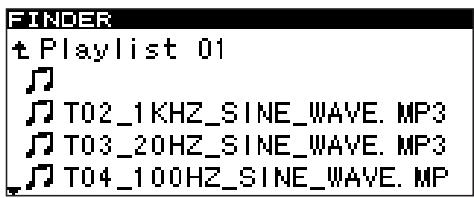
3 Turn the front panel MULTI JOG dial (or use the remote's cursor , keys) to move the file to the desired position in the playlist.
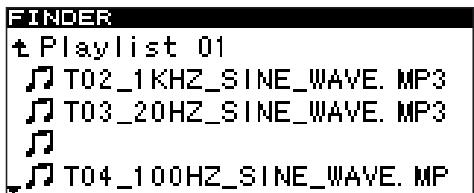
4 Press the front panel MULTI JOG dial (or the remote's ENTER key).
The move will be finalized.
You can copy (or convert and copy) files from a CF card to a CD. Or you can copy (or convert and copy) files from a CD to a CF card. Set the current device to CD since these copies are made using the CD menu. Or, before doing the following procedure, insert an appropriate CD and CF card in the SS-CDR1.
Copying/converting and copying files from CF card to CD
When copying or converting and copying files (MP3 or WAV files) from a CF card to a blank CD (CD-R or CD-RW), you can choose whether to write the file in its current format as a data CD, or as an audio CD in CD-DA format. If you choose audio CD format, the MP3 or WAV files on the CF card whose sampling frequency is 44.1kHz can be converted to audio CD (CD-DA) format and written to a CD. If you are using a CD disc to which tracks have
already been written, but which has not yet been finalized, the disc format (audio CD or data CD) has already been determined, so the copy will occur in that format.
NOTE
The SS-CDR1 cannot record WAV files to a CD, but is able to copy WAV files from a CF card to a CD. The SS-CDR1 can play back the WAV files copied on a CD.
Creating an audio CD
Here is how to convert MP3 or WAV files on a CF card to audio CD (CD-DA) format and write them on a CD.
The following procedure assumes that the CD is selected as the current device and that the CF card which includes the copy-source files and the CD which is the target of the copy are inserted in the SS-CDR1.
- Press the MENU key to access the main menu list screen.
- Highlight the CD menu, and press the front panel MULTI JOG dial (or the remote's ENTER key).
- Highlight the BURN TO CD item, and press the front panel MULTI JOG dial (or the remote's ENTER key).
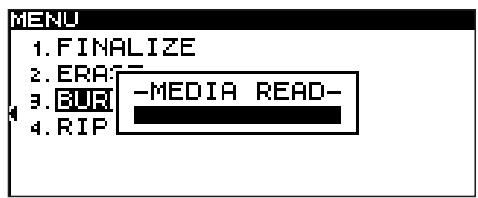
The SS-CDR1 will automatically load the CF card.
While the data is being read, the display will indicate MEDIA READ and a progress bar popup will appear.
NOTE
If a CF card is not inserted, CF READ popup will appear after MEDIA READ indication.
- If a blank CD is inserted in the CD drive, a popup window asking you to select the CD writing format will appear after the CF card has been read. Highlight "CD-DA," and press the front panel MULTI JOG dial (or the remote's ENTER key).
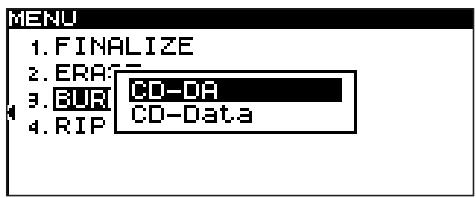
The folder finder screen for the CF card will appear.
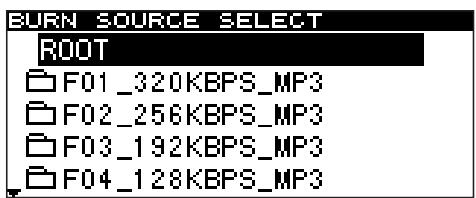
NOTE
If audio CD tracks have already been written to the CD, the above popup window will not appear; CD-DA format will be selected automatically.
5. Select the source that will be recorded to the CD.
As described in "Navigating in the folder finder screen" on page 50, navigate within the finder to select the desired file. You cannot select a folder.
If you want to select more than one file, repeat the steps of highlighting the desired file and pressing the CALL key. The selected files will be given a check mark. You can make multiple selections only for files that are in the same folder.
To de-select a selected file, press the CALL key once again.
NOTE
-
The copy-source files must have a sampling frequency of 44.1kHz . If you attempt to select a file whose sampling frequency is 48kHz , a popup indicating Cannot burn 48kHz files will appear.
-
You can select multiple files only within the same folder, so once you use the CALL key to select the first file, you will no longer be able to move to a different folder.
- A warning message will appear if you attempt to select an already-selected file.
- If you attempt to select a copy-source file which is less than 4 seconds, Cannot burn under 4s will appear.
-
If you are only selecting one file, there is no need to press the CALL key. Simply highlight the desired file and proceed to step 6.
-
When you have selected all of the files to be written to the CD, press and hold down the front panel MULTI JOG dial (or the remote's ENTER key) to confirm your selection.
The CD track list will appear.
| EURN Coda | |
| TRACK LIST | |
| 01 | T01_PIANO_SONATA_NC |
| 02 | T02_1KHZ_SINE_WAVE. |
| 03 | T03_20HZ_SINE_WAVE. |
| 04 | T04_100HZ_SINE_WAVE |
The time that will remain on the CD after the files have been written will be displayed in the upper right of the screen. If the allowable time is exceeded, this will indicate OVER, and you will not be able to write the selected files to the CD. In this case, you'll need to delete some of the selected source files until the OVER indication disappears.
If there are files that have already been written, these files will also be shown in this list.
A tone mark will be applied to a current track.
A tone mark will not be applied to a file to be added.
- If necessary, change the track order or delete any unwanted files.
For details, refer to "Moving files within the track list" or "Deleting a file from the track list" below.
- When you are ready to write the files, press the front panel MULTI JOG dial (or the remote's ENTER key).
A popup will appear.
| EURN CODA | ||
| TRACK LIST | REMAIN 61 min | |
| 01 | ADD TRACK | |
| 02 | BURN EXECUTE | WAVE. |
| 03 | T03_2UH∠_SINE_WAVE. | |
| 04 | T04_100HZ_SINE_WAVE | |
- If you want to add more tracks, choose ADD TRACK and press the front panel MULTI JOG dial (or the
remote's ENTER key). (You will return to step 5.) If you are finished selecting tracks, choose BURN EXECUTE and press the front panel MULTI JOG dial (or the remote's ENTER key).
A confirmation popup will appear.
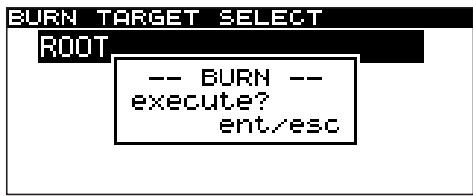
- Once again press the front panel MULTI JOG dial (or the remote's ENTER key).
Writing to CD will begin.
While writing is being performed, the screen will indicate EURN and a progress bar will appear in a popup.
When writing is completed, you will return to the CD menu screen.
Moving files within the track list
While the track list is displayed (step 6 above), you can change the order of tracks as follows.
However, you cannot change the order of tracks that are already recorded.
- Turn the MULTI JOG dial (or use the remote's cursor , keys) to highlight the track whose order you want to change.
- Hold down the front panel MULTI JOG dial (or the remote's ENTER key) to select the track order change mode.
The highlighted track will blink.
- Turn the front panel MULTI JOG dial (or use the remote's cursor , keys) to move the blinking track to the desired location.
- Press the front panel MULTI JOG dial (or the remote's ENTER key).
The move will be executed.
- Repeat steps 1 to 4 as necessary.
Deleting files from the track list
While the track list is displayed (step 6 above), you can delete a file as follows. You cannot delete files that are already recorded.
- Turn the MULTI JOG dial (or use the remote's cursor , keys) to highlight the file that you want to delete.
- Hold down the ESC key. The file will be deleted.
Creating a data CD
This section explains how files (MP3 or WAV files) from a CF card can be written in their current format to create a data CD.
The following procedure assumes that the CD is selected as the current device and that the CF card which includes the copy-source files and the CD which is the target of the copy are inserted in the SS-CDR1.
NOTE
You can copy WAV files on a CF card to a CD but you cannot record WAV files using a CD.
- Press the MENU key to access the main menu list screen.
- Highlight the CD menu, and press the front panel MULTI JOG dial (or the remote's ENTER key).
- Highlight the BURN TO CD item, and press the front panel MULTI JOG dial (or the remote's ENTER key).
The SS-CDR1 will automatically read the CF card.
While the card is being read, the screen will indicate MEDIA READ, and a popup will show a progress bar.
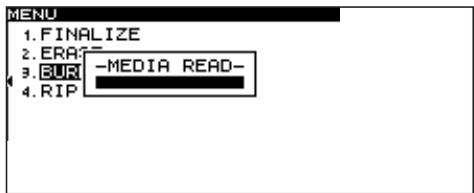
NOTE
If a CF card is not inserted, CF READ popup will appear after MEDIA READ indication.
- If a blank CD is inserted in the CD drive, a popup screen (shown below) asking you to select the CD writing format will appear after the CF card has been read. Highlight CD-Data and press the front panel MULTI JOG dial (or the remote's ENTER key).
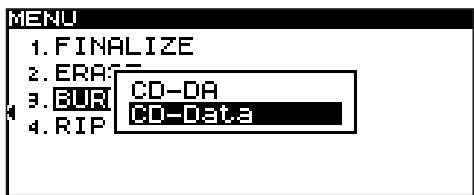
The folder finder screen for the CF card will appear.
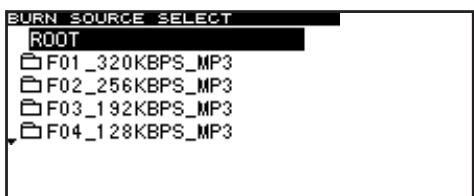
NOTE
If MP3 or WAV files have already been written to the CD, the above popup screen will not appear; the data CD format will be selected automatically.
- Select the source that you want to write to the CD.
As described in "Navigating in the folder finder screen" on page 50, navigate within the finder to select the desired folder or file. If you select a folder, all files in that folder will be the source.
If you want to select multiple folders or files, repeat the steps of highlighting the desired folder or file and pressing the CALL key. A check mark will be added to the selected file or folder. You can make multiple selections only for folders and files that are in the same folder.
To de-select a selected file, press the CALL key once again.
NOTE
- You can select multiple files only within the same folder, so once you use the CALL key to select the first folder or file, you will no longer be able to move to a different folder.
-
If you are only selecting one folder or file, there is no need to press the CALL key. Simply highlight the desired folder or file, and proceed to step 6.
-
When you have selected all of the files to be copied to the CD, hold down the front panel MULTI JOG dial (or the remote's ENTER key) to confirm your selection.
The target select screen will appear.
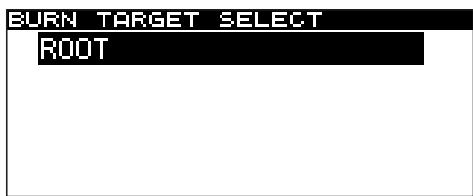
If you selected copy-source files that would exceed the free space on the disc or the allowable number of tracks, you will not be able to proceed to the target selection screen. In this case, delete some of the selected folders or files so that you are no longer exceeding the limit.
NOTE
- If the total size of the copy-source files exceeds the free space on the copy-destination disc, a popup indicating CAPACITY OVER will appear after step 6.
- If copying the copy-source files would exceed the allowable number of tracks on the disc, a popup indicating TRACK OVER will appear after step 6.
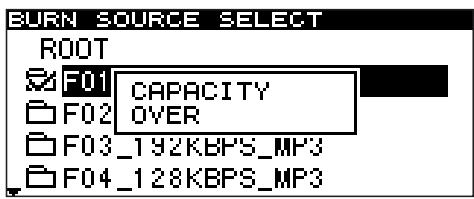
7. Select the copy-destination (target).
If the disc already has a folder structure, navigate through the folders as described in "Navigating in the folder finder screen" on page 50) to select a folder or file.
The folder or files will be copied following the folder or file you select.
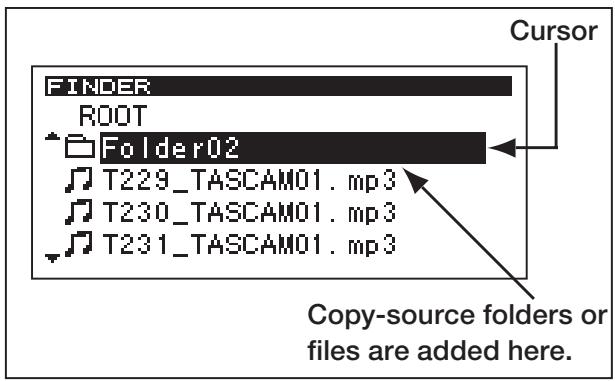
The screen before copying.
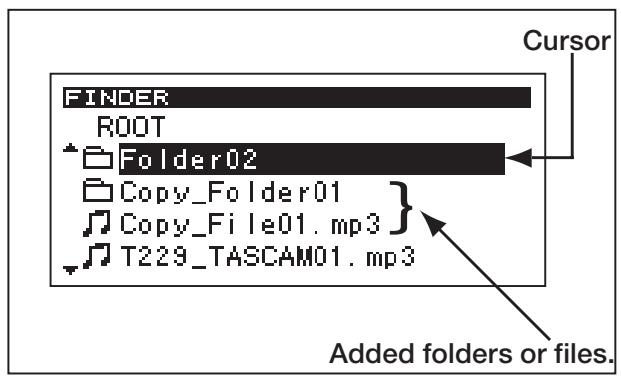
The screen after copying.
- Press the front panel MULTI JOG dial (or the remote's ENTER key) to confirm your selection.
A confirmation screen will appear.
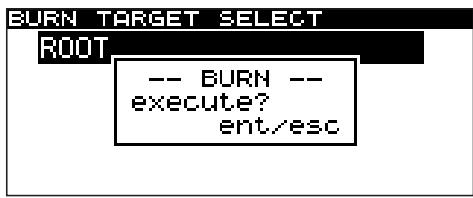
NOTE
If there is a conflict of names, the following popup screen will appear.
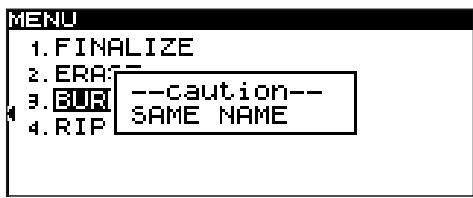
Press the ESC key or STOP key to clear the popup screen and return to the menu screen.
- Once again press the front panel MULTI JOG dial (or the remote's ENTER key).
Writing will begin.
While writing is in progress, the screen will indicate BURN and a progress bar popup will be shown.

When writing is completed, you will return to the CD menu screen.
Copying/converting and copying files from CD to CF card
You can copy/convert and copy files from a CD to a CF card. When copying from an audio CD to the card, each track file will be converted into the format you specify
Converting and copying audio CD tracks
Here is how to convert audio CD (CD-DA) tracks to MP3 or WAV format when copying them to a CF card.
The following procedure assumes that the CD is selected as the current device and that the CF card which includes the copy-source files and the CD which is the target of the copy are inserted in the SS-CDR1.
(MP3 or WAV file). When copying from a CD that contains MP3 or WAV files, the files will be copied in their existing format.
- Press the MENU key to access the main menu list screen.
- Highlight the CD menu, and press the front panel MULTI JOG dial (or the remote's ENTER key).
- Highlight the RIP TO CF item, and press the front panel MULTI JOG dial (or the remote's ENTER key).
The SS-CDR1 will automatically read the CF card.
While the data is being read, the screen will indicate MEDIA READ and a progress bar popup will appear.
When the data has been read, the following screen will appear.
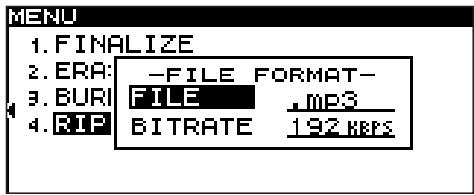
NOTE
If a CF card is not inserted, CF READ popup will appear after MEDIA READ indication.
- Select the format in which you want the files to be written to the CF card.
File type:
Choose "mp3" or "wav"
Bitrate:
Choose 64 kbps, 128 kbps, 192 kbps, 256 kbps, or 320 kbps.
NOTE
The sampling rate is fixed at 44.1kHz for files stored on the CF card.
- When you have finished making settings, hold down the front panel MULTI JOG dial (or the remote's ENTER key).
The source select screen will appear.

- Select the track (source) that you want to copy.
Highlight the source track, and press the CALL key to apply a check mark. Repeat this process to select multiple tracks.
To de-select a selected file, press the CALL key once again.
The upper right of the screen shows the capacity that will remain on the CF card after the data has been written.
When you are selecting the source material, an indication of OVER will appear if the source material you are selecting exceeds the remaining capacity on the CF card or if the number of source tracks exceeds the allowable number of files on the CF card, and you will be unable to proceed to
step 7 below. You will need to de-select one or more of your selections until the OVER indication disappears.
NOTE
If you have selected only a single track, there is no need to press the CALL key. Simply highlight the desired track and then proceed to step 7.
- When you have selected all of the desired tracks, hold down the front panel MULTI JOG dial (or the remote's ENTER key) to confirm your selection.
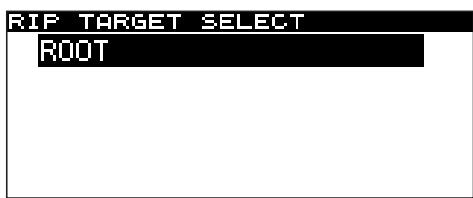
The folder finder screen will appear, allowing you to select the target (writing destination).
- Select the writing destination (target).
As described in "Navigating in the folder finder screen" on page 50, move within the finder to select the desired folder or file.
The folder or files will be written following the folder or file you select.
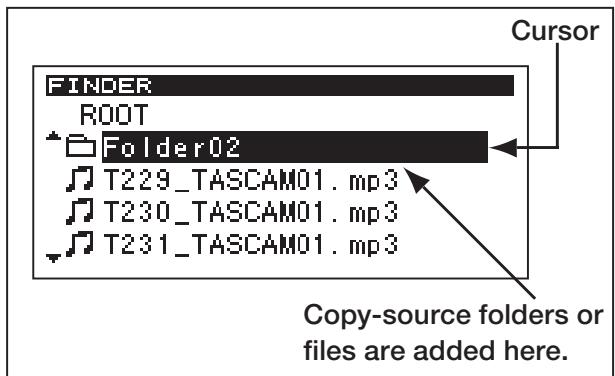
The screen before copying.
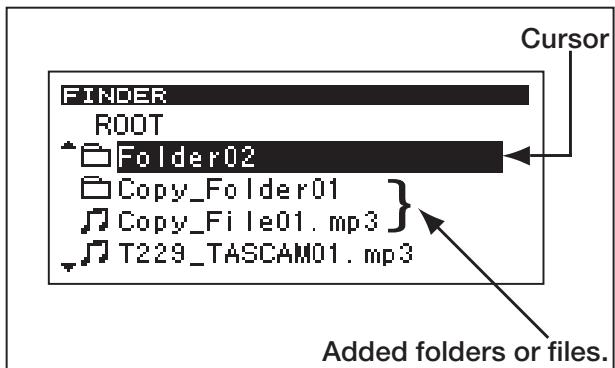
The screen after copying.
-
Press and hold the front panel MULTI JOG dial (or the remote's ENTER key) to confirm the copy-destination.
-
Once again press the front panel MULTI JOG dial (or the remote's ENTER key).
Writing will begin.
While the operation is executing, the screen will indicate RIF and a progress bar popup will appear.
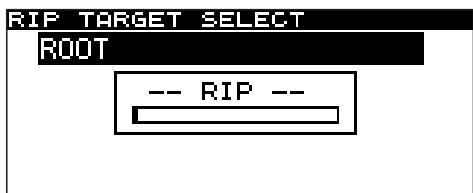
When writing is completed, you will return to the CD menu screen.
Copying files from a data CD
Here is how to copy MP3 or WAV files from a data CD in their existing format to a CF card.
The following procedure assumes that the CD is selected as the current device and that the CF card which includes the copy-source files and the CD which is the target of the copy are inserted in the SS-CDR1.
- Press the MENU key to access the main menu list screen.
- Highlight the CD menu, and press the front panel MULTI JOG dial (or the remote's ENTER key).
- Highlight the RIP TO CF item, and press the front panel MULTI JOG dial (or the remote's ENTER key).
The SS-CDR1 will automatically read the CF card.
While the data is being read, the screen will indicate MEDIA READ and a progress bar popup will appear.
When reading is completed, a CD folder finder screen like the following will appear.
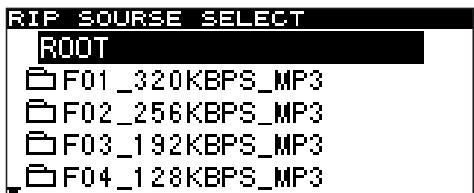
NOTE
If a CF card is not inserted, CF READ popup will appear after MEDIA READ indication.
- Select the file (source file) that you want to copy.
As described in "Navigating in the folder finder" on page 50, move within the finder to select the desired folder or file. If you select a folder, all files in that folder will be the source.
If you want to select more than one folder or file, repeat the step of highlighting the desired folder or file and pressing the CALL key. A check mark will be added to the selected folder or file. You can make multiple selections only for folders or files in a single folder.
To de-select a selected folder or file, press the CALL key once again.
NOTE
- You can select multiple files only within the same folder, so once you use the CALL key to select the first folder or file, you will no longer be able to move to a different folder.
-
If you are only selecting one folder or file, there is no need to press the CALL key. Simply highlight the desired folder or file, and proceed to step 5.
-
When you have selected all of the files to be copied, hold down the front panel MULTI JOG dial (or the remote's ENTER key) to confirm your selection.
When you confirm your selection, the folder finder screen for the CF card will appear. In this screen you can select the writing-destination.
If you have selected copy-source files that would exceed the free space on the CF card or if the number of source tracks exceeds the allowable number of files on the CF card, a popup indicating CAPACITY OVER or TRACK OVER will appear, and you will not be able to finish the source selection.
In this case, press the STOP key to close the popup, decrease the total size or number of the source files, and then once again hold down the front panel MULTI JOG dial (or the remote's ENTER key).
- Select the copy-destination (target).
As described in "Navigating in the folder finder screen" on page 50, navigate within the finder to select the desired folder or file.
The folder or files will be written following the folder or file you select.
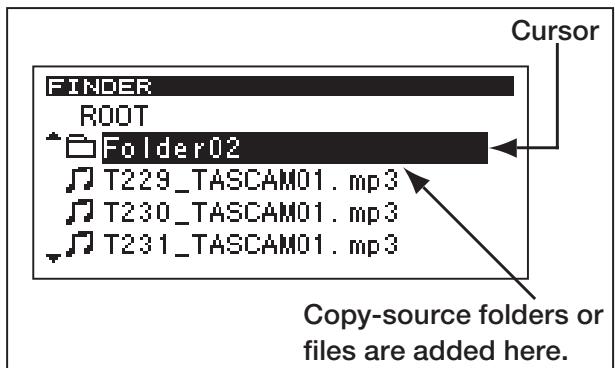
The screen before copying.
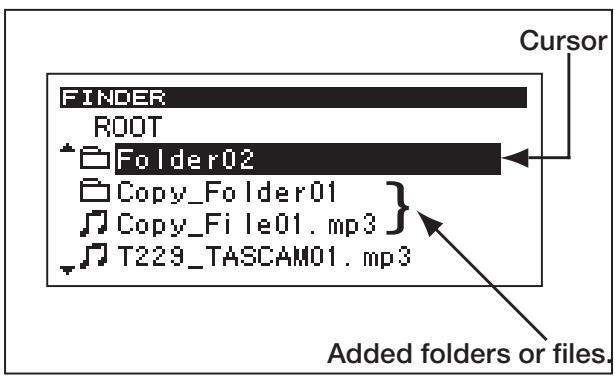
The screen after copying.
- Press and hold the front panel MULTI JOG dial (or the remote's ENTER key) to confirm the copy-destination.
If there is a conflict of names with a file that already exists in the copy-destination, the following popup screen will appear.
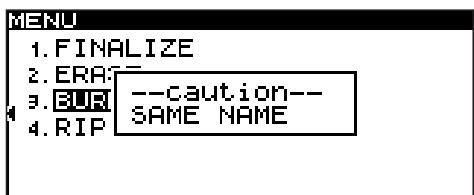
- Once again, press the front panel MULTI JOG dial (or the remote's ENTER key).
Writing will begin.
While the operation is in progress, the screen will indicate "RIP" and a progress bar will be shown.
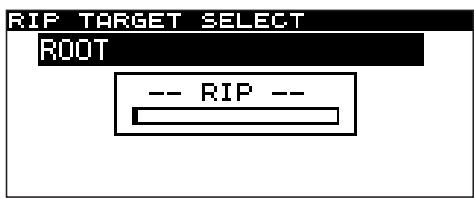
When writing is completed, you will return to the CD menu screen.
You can use the CD MENU to perform various operations on a CD-RW; you can uninitialize the disc, erase tracks, erase the disc, or refresh the disc. This chapter explains these CD-RW management functions.
The following explanation assumes that the CD is selected as the current device and that a CD-RW is inserted.
NOTE
-
In addition to these operations, you can use the CD MENU to finalize a CD, and to copy files between CD and CF card.
-
Finalizing is explained in "Chapter 6. Recording" ("Finalizing a CD" on page 43). For details on copying between a CD and a CF card, refer to "Chapter 10. Copying files between a CD and CF card" on page 65.
Unfinalizing a CD
If an already-finalized CD-RW disc is inserted, you can use the ERASE item to uninitialize the disc.
- Press the MENU key to access the main MENU list screen.
- Highlight the CD MENU, and press the front panel MULTI JOG dial (or the remote's ENTER key).
- Highlight the ERASE item, and press the front panel MULTI JOG dial (or the remote's ENTER key).
A popup window will appear, allowing you to select an item.
- Turn the front panel MULTI JOG dial (or use the remote's cursor , keys) to choose Uninitialize in the popup window, and then press the front panel MULTI JOG dial (or the remote's ENTER key).
The following confirmation popup will appear.
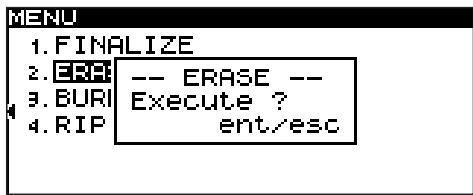
- Once again, press the front panel MULTI JOG dial (or the remote's ENTER key).
Unfinalization will begin.
While this operation is being executed, the display will indicate "UNFINALIZE" and a progress bar will be shown.
When unfinalization is completed, you will return to the CD MENU screen.
Erasing a track
You can erase tracks that have been recorded in audio CD format on a CD-RW. The specified track and all subsequent tracks (until the last track on the disc) will be erased.
- Press the MENU key to access the main MENU list screen.
- Highlight the CD MENU, and press the front panel MULTI JOG dial (or the remote's ENTER key).
- Highlight the ERASE item, and press the front panel MULTI JOG dial (or the remote's ENTER key).
A popup window will appear, allowing you to select an item.
- Turn the front panel MULTI JOG dial (or use the remote's cursor , keys) to select the desired command in the popup window. When it displays the command shown below, press the front panel MULTI JOG dial (or the remote's ENTER key).
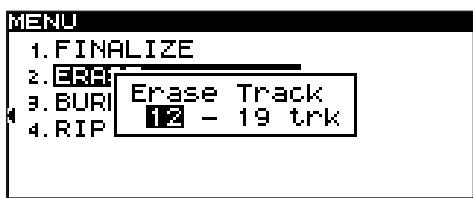
- Turn the front panel MULTI JOG dial (or use the remote's cursor , keys) to select the first of the tracks that will be erased. Track 12 is selected in the screen shot above.
The last track to be deleted (shown as 19 in the screen shot above) is fixed as the last track of the disc, and cannot be changed.
- When you have made your selection, press the front panel MULTI JOG dial (or the remote's ENTER key).
A confirmation screen will appear.
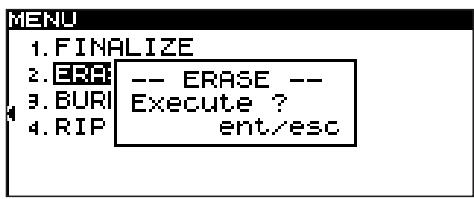
- Once again press the front panel MULTI JOG dial (or the remote's ENTER key).
Track erasure will begin.
While the operation is being executed, the screen will indicate ERASE- and a progress bar will be displayed.
When track erasure is complete, you will return to the CD MENU screen.
NOTE
- When you execute the track erase operation on a disc that has already been finalized, the SS-CDR1 will uninitialize the disc before erasing the specified track(s).
- This operation can be executed only on a disc that was recorded as CD-DA.
Erasing a disc
Here is how to erase an entire CD-RW disc.
- Press the MENU key to access the main MENU list screen.
- Highlight the CD MENU, and press the front panel MULTI JOG dial (or the remote's ENTER key).
- Highlight the ERASE item, and press the front panel MULTI JOG dial (or the remote's ENTER key).
A popup window will appear, allowing you to select an item.
- Turn the front panel MULTI JOG dial (or use the remote's cursor , keys) to make the popup window show Erase Media, and press the front panel MULTI JOG dial (or the remote's ENTER key).
A confirmation screen will appear.
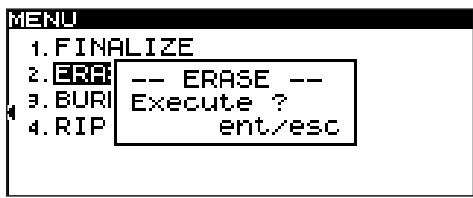
- Once again press the front panel MULTI JOG dial (or the remote's ENTER key).
Disc erasure will begin.
While the operation is being executed, the screen will indicate ERASE and a progress bar will be displayed.
When disc erasure is complete, you will return to the CD MENU screen.
Refreshing a disc (complete erasure)
You can refresh (completely erase) a CD-RW disc.
In some cases, the SS-CDR1 will be unable to recognize a disc for which finalization was forcibly interrupted (such as if a power failure occurred during the operation) or a disc that has been used by a computer. In such cases, refreshing the disc as follows may make it recognizable by the SS-CDR1.
- Press the MENU key to access the main MENU list screen.
- Highlight the CD MENU, and press the front panel MULTI JOG dial (or the remote's ENTER key).
- Highlight the ERASE item, and press the front panel MULTI JOG dial (or the remote's ENTER key).
A popup MENU will appear.
- Highlight the REFRESH item, and press the front panel MULTI JOG dial (or the remote's ENTER key).
A confirmation screen will appear.
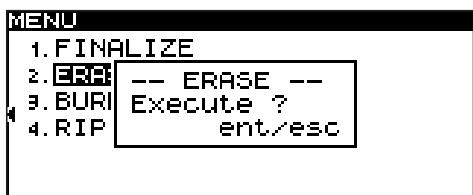
- Once again, press the front panel MULTI JOG dial (or the remote's ENTER key).
The disc refresh operation will begin.
While the operation is being executed, the screen will indicate REFRESH- and a progress bar will be displayed.
When the disc refresh operation has been completed, you will return to the CD MENU screen.
Restoring the factory settings
You can restore the menus and other settings to their factory-set state. You cannot restore these settings if media is inserted in the current device.
Remove the media before you perform the following menu operation. (For details on operations in the menu screen, refer to "Operations in the menu screen" on page 18)
1 Press the MENU key to access the main menu list screen.
2 Select the UTILITY menu.
3 Select the FACTORY PRESET item. A confirmation popup will appear.
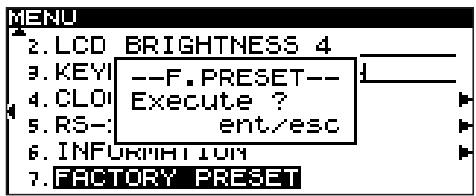
NOTE
If you select the FACTORY PRESET item when a CompactFlash card is inserted, a popup of CAN'T SELECT will appear, and your selection will not be accepted. Remove the card and perform the operation once again.
4 Once again press the front panel MULTI JOG dial (or the remote's ENTER key). The settings will be reset.
5 Press the TIME (ESC) key (or the remote's CLR/ESC key) to return to the home screen.
Formatting a CompactFlash card
If CF is selected as the current device, and playback/ recording is stopped, you can format the entire CF card in FAT format.
Before you use a CF card used by another device with the SS-CDR1, you must format it.
NOTE
When you format a card, all folders and files stored on that card will be deleted.
Perform the following menu operations. (For details on menu operations, refer to "Operations in the menu screens" on page 18.)
1 Press the MENU key to access the main menu list screen.
2 Select the UTILITY menu.
3 Select the MEMORY FORMAT item.
A confirmation popup will appear.
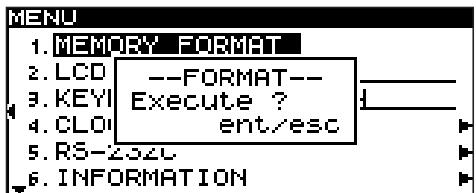
4 Once again press the front panel MULTI JOG dial (or the remote's ENTER key).
The card will be formatted.
During execution, the display will indicate Format.
5 Press the TIME (ESC) key (or the remote's CLR/ESC key) to return to the home screen.
Viewing information about the media
You can view information about the media that is inserted in the current device (CF or CD).
Perform the following menu operations. (For details on menu operations, refer to "Operations in the menu screens" on page 18.)
1 Press the MENU key to access the main menu list screen.
2 Select the UTILITY menu.
3 Select the INFORMATION item.
Media information will be displayed, allowing you to check the overall capacity and the free space.
| MENU | ||
| --INFORMATION-- | ||
| mp3 REC | OK | |
| Capacity | 974 | MB |
| Available | 337 | MB |
| Songs | 198 | |
| Folders | 1 | |
Display when the CF device is selected
| MENU | ||
| --INFORMATION-- | ||
| Drive worked | 0 | h |
| Capacity | 702 | MB |
| Available | 83 | MB |
| Songs | 19 | |
| Folders | 0 | |
Display when the CD device is selected
4 Press the TIME (ESC) key (or the remote's CLR/ESC key) to return to the home screen.
13 - Operation using a computer keyboard
If you connect an IBM PC compatible PS/2 interface keyboard to the SS-CDR1's front panel, you'll be able to use your keyboard to control the SS-CDR1. The keyboard can be used for various types of control, but is particularly convenient when entering names.
Specifying the keyboard type
Select the keyboard type as appropriate for the keyboard you've connected (for details on menu operations, refer to "Operations in the menu screens" on page 18).
1 Press the MENU key to access the main menu list screen.
2 Select the UTILITY menu.
3 Select the KEYBOARD item.
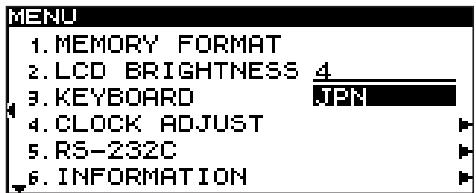
4 According to the keyboard you've connected, choose JPN (Japanese keyboard) or US (English keyboard).
5 Press the TIME (ESC) key (or the remote's CLR/ESC key) to return to the home screen.
Using the keyboard to enter names
You can edit or enter a folder name or track name just as when typing text into a computer.
NOTE
- You cannot edit names that include characters other than alphabetic character, numeral, or symbol characters. (If even one such character is included, the registered name will not be displayed at all.)
- Also, the following symbolic characters cannot be used on the unit: \/; : *, ? " < > |
To access the name editing screen (RENAME screen), move from the folder finder menu to the folder menu or file menu, and then select the RENAME item. Alternatively, move from the playlist finder menu to the playlist menu or the file menu, and select the RENAME item.
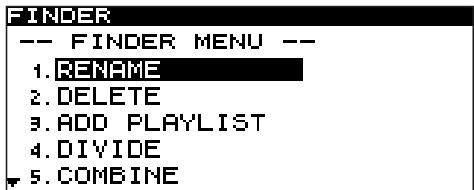
To select the type of character to enter
CAPS key: Selects/de-selects uppercase alphabetical characters.
When de-selected: Lowercase alphabetical characters will be entered.
To enter text
Use the numeric keys and alphabetical keys for direct entry.
To move the cursor
Use the / keys.
To delete a character:
Delete key: deletes the character at the cursor location.
Backspace key: deletes the character preceding the cursor location.
To insert a character:
Press the Insert key at the desired location to switch between overwrite and insert mode.
To edit a character:
Move the cursor and overwrite the character.
List of keyboard operations
You can use the keyboard not only to enter names, but also for other operations such as controlling the transport and editing. The keyboard operations are listed below.
Keyboard operations
F1 key
The same function as turning the front panel MULTI JOG dial toward the left (same as the remote's SKIP key)
F2 key
The same function as turning the front panel MULTI JOG dial toward the right (same as the remote's SKIP key)
F3 key
The same as the remote's KEY key
F4 key
The same as the STOP key
F5 key
The same as the PLAY key
F6 key
The same as the READY key
F7 key
The same as the remote's AUTO CUE key
F8 key
The same as the RECORD key
F9 key
The same as the remote's AUTO READY key
F10 key
The same as the remote's REPEAT key
F11 key
The same as the remote's P.MODE key
F12 key
The same as pressing the front panel PITCH dial (same as the remote's PITCH key)
SHIFT + F1 key
To edit mode DELETE (CF) / ERASE TRK (CD)
SHIFT + F2 key
To ERASE MEDIA (CD)
SHIFT + F3 key
To edit mode FORMAT (CF) / REFRESH (CD)
SHIFT + F4 key
To edit mode MOVE (CF)
SHIFT + F5 key
To edit mode DIVIDE (CF)
SHIFT + F6 key
To edit mode COMBINE (CF)
SHIFT + F7 key
The same as the remote's FINDER key
SHIFT + F8 key
To edit mode RENAME (CF) / CD TEXT (CD)
SHIFT + F9 key
Same as the front panel SELECT KEY or remote DEVICE SELECT key
SHIFT + F10 key
The same as the remote's FLASH LOAD key
SHIFT + F11 key
To UNFINALIZE (CD)
SHIFT + F12 key
To FINALIZE (CD)
CTRL + F1
After FLASH LOAD is completed, flash-start track 1 playback
CTRL + F2
After FLASH LOAD is completed, flash-start track 2 playback
CTRL + F3
After FLASH LOAD is completed, flash-start track 3 playback
CTRL + F4
After FLASH LOAD is completed, flash-start track 4 playback
CTRL + F5
After FLASH LOAD is completed, flash-start track 5 playback
CTRL + F6
After FLASH LOAD is completed, flash-start track 6 playback
CTRL + F7
After FLASH LOAD is completed, flash-start track 7 playback
CTRL+F8
After FLASH LOAD is completed, flash-start track 8 playback
CTRL + F9
After FLASH LOAD is completed, flash-start track 9 playback
(Continue)
13 – Operation using a computer keyboard
CTRL + F10
After FLASH LOAD is completed, flash-start track 10 playback
CTRL + F11
After FLASH LOAD is completed, flash-start track 11 playback
CTRL + F12
After FLASH LOAD is completed, flash-start track 12 playback
CAPS key
Select/de-select uppercase alphabetical characters
Numeric keys
Enter numerals
/ keys
Move the cursor
Delete key
Delete the character at the cursor location
Backspace key
Delete the character preceding the cursor location
Insert key
Inserts a character at the cursor location
ESC key
Cancels editing or title editing, and exits menu mode
Enter key
The same as the ENTER key
NOTE
When using the keyboard for editing, press the desired execution key when the finder screen is displayed.
Example: To execute DELETE
Press SHIFT + F7 (FINDER key) to access the finder screen. Use the cursor keys to highlight the file or folder that you want to delete.
Press SHIFT + F1 key.
The display will ask EXECUTE?, so press the ENTER key.
If you connect the SS-CDR1's CONTROL I/O (RS-232C) connector to the RS-232C connector of your computer, you'll be able to control the SS-CDR1 from your computer.
You'll use the menu to make communication-related settings (for details on menu operations, refer to "Operations in the menu screens" on page 18).
1 Press the MENU key to access the main menu list screen.
2 Select the UTILITY menu.
3 Highlight the RS-232C item, and press the front panel key (or the remote's cursor key).
The RS-232C setting screen will appear.
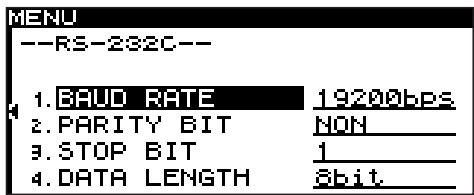
4 Make the appropriate setting for each item.
BAUD RATE
Specify the baud rate (communication speed).
Choose from 4800, 9600, 19200, and 38400 bps (default: 19200).
PARITY BIT
Specify the communication parity bit setting.
Choose from NON, EVEN, and ODD (default: NON).
STOP BIT
Specify the communication stop bit setting.
Choose 1 or 2 (bit) (default: 1).
DATA LENGTH
Choose the communication data length.
Choose 7 or 8 (bit) (default: 8).
5 When you've finished making settings, press the TIME (ESC) key (or the remote's CLR/ESC key) to return to the home screen.
NOTE
- RS-232C settings are saved even when the power is turned off.
- For details on the SS-CDR1's RS-232C command protocol, please contact TEAC Corporation's Tascam customer support.
Errors: Press the STOP key or ESCAPE key to close the popup.
| 1st line | 2nd line | Meaning | |
| 1 | -- error -- | DECODE | Failed to play MP3/WAV file. |
| 2 | -- error -- | REC STAND BY | Failed to prepare to begin recording. |
| 3 | -- error -- | CAPACITY | Recording stopped because of insufficient storage area on the media. |
| 4 | -- error -- | RECORD | Error occurred while recording. |
| 5 | -- error -- | INFO WRITING | An error occurred while writing data. |
| 6 | -- error -- | OVER FLOW | Recording buffer was insufficient while recording an MP3/WAV track. |
| 7 | -- error -- | NotMatchDMA | Cannot record because the media does not meet the system requirements. |
| 8 | -- error -- | FLASH LOAD | Error occurred while loading flash start data. |
| 9 | -- error -- | DIN UNLOCK | Digital input is not locked. |
| 10 | -- error -- | DIN NotAudio | The incoming digital data is not audio. |
| 11 | -- error -- | FS UNMATCH | The digital signal being input differs from the currently selected sampling rate. |
| 12 | -- error -- | EJECT | Failed to eject the CD |
| 13 | -- error -- | MIX DISC | MP3/WAV tracks and audio tracks coexist on the media |
| 14 | -- error -- | CF READ | Burn/Rip cannot be executed because a CF card is not inserted. |
| 15 | -- error -- | TRACK | Playback is not possible because the track written to the CD is in an unplay-able format. |
Cautions: The popup will close automatically (after approximately two seconds)
| 1st line | 2nd line | Meaning | |
| 1 | --caution-- | CAN'T UNDO | Undo is not possible because no undoable edit exists. |
| 2 | --caution-- | MEDIA FULL | Recording cannot be started because there is insufficient space on the media. |
| 3 | --caution-- | TRACK FULL | Recording is not possible because you have reached the maximum number of tracks. |
| 4 | --caution-- | NoCallPoint | A call request was made when no call point existed. |
| 5 | --caution-- | CAN'T REC | Recording is not possible due to system limitations. |
| 6 | --caution-- | WriteProtect | The media is write-protected. |
| 7 | --caution-- | NOT EXECUTE | Failed to execute the editing operation. |
| 8 | --caution-- | CAN'T EDIT | Editing was not possible due to system limitations. |
| 9 | --caution-- | CAN'T SELECT | Selection/execution was not possible due to system limitations. |
| 10 | --caution-- | TRK PROTECT | Editing was not possible because the track was protected. |
| 11 | --caution-- | NAME FULL | The name has reached the maximum number of characters. |
| 12 | --caution-- | PROGRAM FULL | Registration is not possible because you have reached the maximum number of tracks in a program. |
| 13 | --caution-- | PGM EMPTY | Play or pause is not possible because no program has been registered. |
| 14 | --caution-- | NoSearchTime | Search was not possible because the specified search time (search track) does not exist. |
| 15 | --caution-- | UnmatchMedia | Recording is not possible because the media does not meet the system requirements. |
| 16 | --caution-- | Dif Playlist | There is a discrepancy between the specified playlist and the media information. |
| 17 | --caution-- | P.LIST FULL | Registration was not possible because the number of entries in the playlist has exceeded the allowable number. |
| 18 | --caution-- | P.LIST EMPTY | Play or pause is not possible because no playlist has been registered. |
| 19 | --caution-- | P.LIST ENTRY | You attempted to edit a track that is registered in a playlist. |
| 20 | --caution-- | SURE TEXT | CD Text has been registered, but you are attempting to eject the disc without writing the TOC. |
Operation messages: Displays in place of the counter
| 1st line | Meaning | |
| 1 | POWER ON | The system is starting up and initializing. |
| 2 | DEVICE ERROR | The device cannot be detected. Please contact service. |
| 3 | NO MEDIA | Media is not inserted in the current device. |
| 4 | MONITOR | Now monitoring the input. |
| 5 | MEDIA READING | Now reading from media. |
| 6 | MEDIA ERROR | Failed to read media. |
| 7 | UNKNOWN | The CF card is formatted in other than FAT. You must format the CF card in order to use it on the SS-CDR1. |
| 8 | INITIALIZING MEDIA | Creating data in order to use this media with the SS-CDR1. |
| 9 | RECORD STAND BY | Now in record-ready condition. |
| 10 | INFORMATION WRITING | Now writing the recorded data. |
| 11 | FLASH LOADING | Now loading flash-start data. |
| 12 | Fs CHANGING | The system's sampling frequency is being changed because the track's sampling frequency differs from that of the current track. |
Power does not turn on
Make sure that the power plug is firmly inserted.
Media is not detected
- Make sure that the CF card is firmly inserted.
- Make sure that the CD is not scratched or dirty
Can't play back
- In the case of a WAV file, make sure that the file is of a sampling frequency (44.1 kHz or 48 kHz) and bit depth (16-bit) supported by the SS-CDR1. In the case of an MP3 file, make sure that the file is of a bit rate supported by the SS-CDR1.
- Make sure that the CD is not scratched or dirty
No sound
Check the SS-CDR1's connections to your monitor system. Also check the volume of your amp.
Can't record
- Check the connections once again.
- Adjust the recording level.
A setting you changed is not remembered
The SS-CDR1 backs-up the settings when you change them. This backup may fail if you turn off the power at an inappropriate time, so do not turn off the power immediately after changing a setting.
■ Noise is heard
Check whether a connection cable might have a bad connection.
When editing a name, the display indicates Name Full
Due to limitations of the system, the number of characters in a file name and folder name is limited to 255 characters (single-byte). Since the full path within the folder finder is limited to 255 characters, the maximum name length for a file or folder that is inside a sub folder will be reduced by the number of characters used by any folders above it and any separator characters.
| Storage disk | CF card (CompactFlash card)CD-R, CD-R-DA, CD-RW, CD-RW-DA (high speed CD-RW is supported) |
| Recording/playback formats | MP3 (when using CF card or CD):Sampling frequencies: 44.1 kHz, 48 kHzBit depth: 16 bitData rate: 64, 128, 192, 256, 320 kbpsWAV (recording only when using CF card):Sampling frequencies: 44.1 kHz, 48 kHzBit depth: 16 bitCD-DA (when using CD):Sampling frequency: 44.1 kHzBit depth: 16 bit |
| Number of channels | 2 channels (stereo)1 channel (monaural) |
| Analog inputs | Balanced XLR-3-31 equivalentNominal input level: +4 dBuMaximum input level: +20 dBuMinimum input level: -6 dBu or greaterInput impedance: 22 kΩ |
| Unbalanced RCA pin jackNominal input level: -10 dBVMaximum input level: +6 dBVMinimum input level: -20 dBV or greaterInput impedance: 22 kΩ | |
| Analog Outputs | Balanced XLR-3-32 equivalentNominal output level: +4 dBuMaximum output level: +20 dBu (*1)Output impedance: 100Ω |
| Unbalanced RCA pin jackNominal output level: -10 dBVMaximum output level +6 dBVOutput impedance: 200Ω | |
| Phones output | Stereo phone jack (1/4")45 mW + 45 mW or greater (THD+N: 0.1% or less, at 32Ω load) |
| Digital input (COAXIAL) | Connector: RCA pin jack (IEC- 60958-3 Consumer (S/PDIF))Input sampling frequencies supported: 32 kHz – 48 kHzInput impedance: 75Ω (unbalanced)Variable gain amount: -∞ – +10 dBFS |
| Digital output (COAXIAL) | Connector: RCA pin jackSupported signal format: IEC- 60958-3 Consumer (S/PDIF)Output impedance: 75Ω (unbalanced) |
| CONTROL I/O | (RS-232C) connectorCommunication protocol: Complies with RS-232C protocol specification 1.00Connector: D-sub 9-pin connector |
| (PARALLEL) connectorParallel control input/outputConnector: D-sub 25-pin connectorMaximum input voltage: +5.5 VMinimum high level input voltage: +3.75 VMaximum low level input voltage: +1.25 VOutput format: Open drain (maximum voltage 50 V, maximum current 50 mA)Maximum low level output voltage: 0.5 V | |
| REMOTE IN connector | For connecting dedicated RC-SS1 remote controller: Stereo mini jack |
| For connecting a PS/2 keyboard: Mini-DIN connector | |
| Frequency response | 20 Hz – 20 kHz, ±0.5 dB (for recording) |
| Distortion | 0.005% or less (AES-17 20 kHz) (for recording) |
| S/N ratio | 95 dB (AES-17 20 kHz, A-weighted, typical) (for recording) |
| Dynamic range | 95 dB (AES-17 20 kHz, A-weighted, typical) (for recording) |
| Crosstalk between channels | 95 dB |
| Power | U.S.A./Canada 120 VAC, 60Hz U.K./Europe 230 VAC, 50Hz Australia 240 VAC, 50Hz |
| Power consumption | 17 W (U.S.A./Canada) 17 W (U.K./Europe/Australia) |
| Dimensions (w x h x d) | 482.6 x 44.5 x 301 (mm) / 19 x 1.8 x 11.9 (in) |
| Weight | 3.5 kg (7.7 lb) |
- If you would like to change the maximum balanced output level, please contact the service department.
- Specifications and appearance are subject to change without notice for improvement.
- Please be aware that due to improvements in this product, illustrations in this owner's manual may differ from the product in some respects.
- CompactFlash® is a registered trademark of SanDisk Corporation, USA.
- This product contains PrFILE^ 2FAT file system and PrFILE_2 Unicode Interface of eSOL Co., Ltd.
Copyright © 2008 eSOL Co., Ltd.
PrFILE^® is a registered trademark of eSOL Co., Ltd. in Japan.
Dimensional diagram
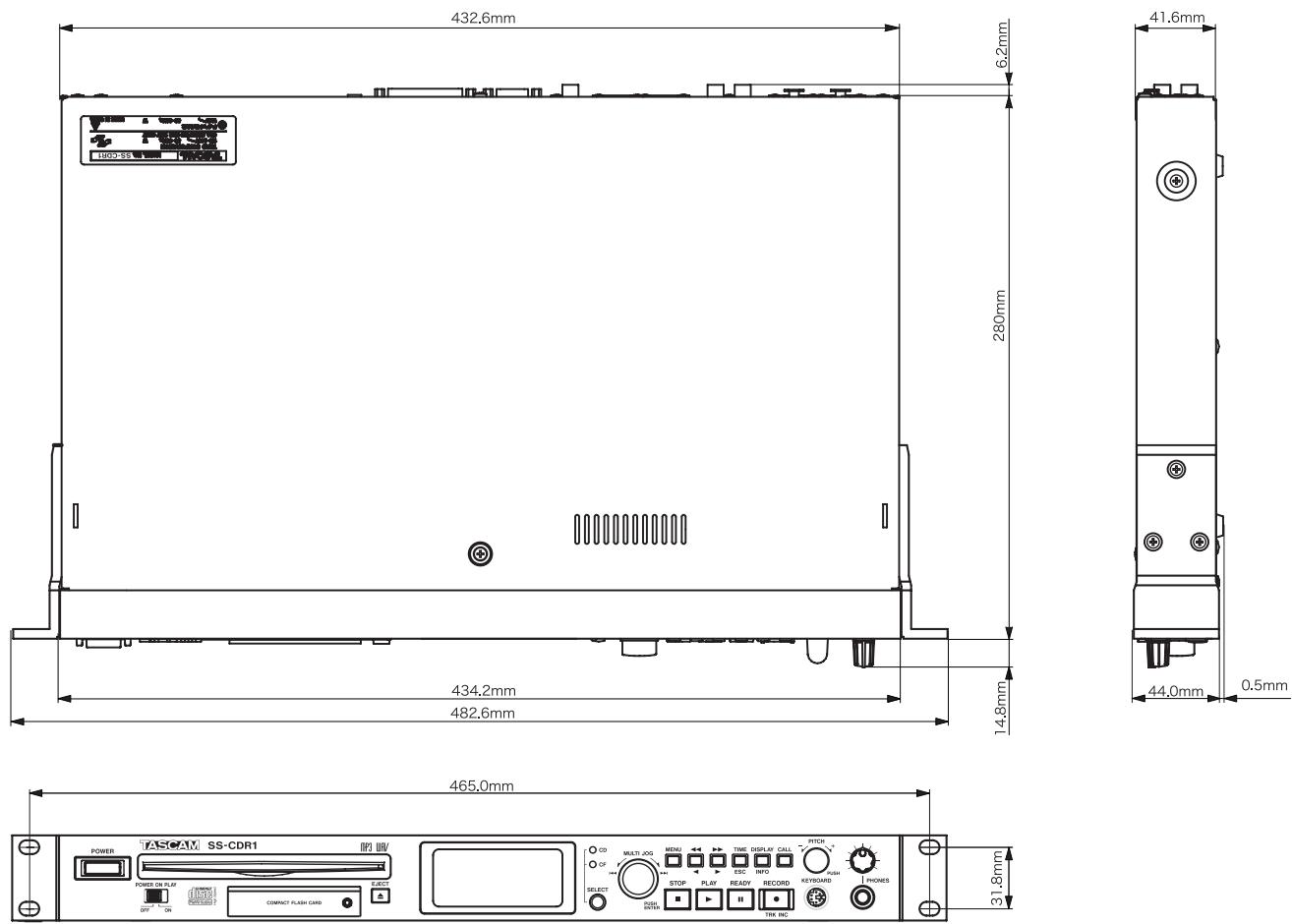
For China
产品有毒有害物质或元素的名称及含量
TEAC Professional Division
SS-CDR1
TEAC CORPORATION
Phone: +81-42-356-9143
1-47 Ochiai, Tama-shi, Tokyo 206-8530, Japan
www.tascam.com
TEAC AMERICA, INC.
Phone: +1-323-726-0303
7733 Telegraph Road, Montebello, California 90640
www.tascam.com
TEAC CANADA LTD.
Phone: +1905-890-8008 Facsimile: +1905-890-9888
5939 Wallace Street, Mississauga, Ontario L4Z 1Z8, Canada
www.tascam.com
TEAC MEXICO, S.A. De C.V
Phone: +52-555-581-5500
Campesinos No. 184, Colonia Granjes Esmeralda, Delegation Iztapalapa CP 09810, Mexico DF
www.tascam.com
TEAC UK LIMITED
Phone: +44-8451-302511
Suites 19 & 20, Building 6, Croxley Green Business Park, Hatters Lane, Watford, Hertfordshire. WD18 8TE, U.K.
TEAC EUROPE GmbH
Phone: +49-611-71580
- TEAC Professional Division
- SS-CDR1
- Solid State/CD Stereo Audio Recorder
- OWNER'S MANUAL
- WARNING: TO PREVENT FIRE OR SHOCK HAZARD, DO NOT EXPOSE THIS APPLIANCE TO RAIN OR MOISTURE.
- For U.S.A.
- TO THE USER
- CAUTION
- For the customers in Europe
- WARNING
- Optical pickup
- Rack-mounting the Unit
- NOTE
- - Introduction 7
- - Controls and connectors 11
- - Menu screens 17
- - Preparations 19
- - Playback 24
- - Recording 38
- - Using the folder finder. 50
- - Using the CD-DA finder screen (AudioCD only) 60
- - Editing a playlist (CF only) .... 62
- - Copying files between CD and CF card 65
- - CD-RW management 72
- - Other settings 74
- - Operation using a computer keyboard 76
- - Using the RS-232C connector.. 79
- - Messages 80
- - Troubleshooting 82
- - Specifications 83
- Features of the SS-CDR1
- Supplied accessories
- Media considerations
- About CD-R and CD-RW discs
- About finalizing
- Recordable discs
- Handling of compact discs
- Never use a stabilizer or printable discs
- Environmental considerations
- Beware of condensation
- About this manual
- Connections
- Control connections
- Front panel
- [Wheel functions]
- [Key functions]
- Rear panel
- Remote control unit (RC-SS1)
- The home screen
- Various indicators
- While playing or stopped
- While recording or record-ready
- Menu structure
- Operations in the menu screens
- Connecting headphones
- Connecting a PS/2 keyboard
- Connecting audio devices (inputs)
- Connecting audio devices (outputs)
- Computer
- Control via a parallel connection
- Turning the power on
- Setting the date and time
- Adjusting the display
- Adjusting the contrast
- Adjusting the brightness
- Inserting a CompactFlash card
- TIP
- About the door lock
- Removing the card
- Inserting a CD
- Removing a CD
- Selecting the device
- Files that can be played
- When using a CF card:
- When using a CD:
- Tracks and files
- Play area
- Selecting the type of play area
- Specify the desired type of play area.
- Selecting the current folder or current playlist
- Basic playback operations
- Playback
- Selecting a track
- Skipping to the previous or next track
- Specifying a track number
- Fast-forward/rewind search
- Time search
- Time searching from an incomplete entry
- Time skip
- While playing or paused, press the or keys.
- Playback modes
- Continuous playback (default setting)
- Single playback
- Specifying the playback mode
- Using the dedicated key of the remote
- Program playback
- Random playback
- Using the menu
- Switching the playback time display mode
- Power-on play
- Repeat playback
- Conventional repeat playback
- A-B Repeat playback
- To turn off A-B Repeat playback:
- Pitch Control playback
- To turn off Pitch Control playback:
- Specifying the Pitch Step
- Key Control playback
- Using the remote's dedicated key to turn Key Control on/off
- Auto Cue function
- Using the remote's dedicated key to turn Auto Cue on/off
- Auto Ready function
- Turning the Auto Ready function on/off from the front panel
- Call function
- Incremental Playback
- Using the remote's dedicated key
- Using the menu to make settings
- Playing back in monaural
- ResumePlayback
- Flash Start function
- End of disc/track message (EOM)
- Specifying an EOM tally output trigger
- Example of actual use
- Selecting the input source
- Using the dedicated remote key to select the source
- Using the menu to select the source
- Input source indicator
- If A.UNBAL. is lit
- If A.BAL. is lit
- If D.COAX. is lit
- Specifying the recording file format
- STEREO/MONO
- SAMPLING
- Using the sampling rate converter
- Monitoring the input signal
- Adjusting the input signal level and balance
- Basic recording operation
- Finalizing a CD
- When recording in MP3 format:
- Finalizing operation
- When recording in audio CD format:
- Press the MULTI JOG dial once again.
- Switching the recording time display mode
- Nothing lit
- REMAIN is lit
- TOTAL is lit
- TOTAL and REMAIN are lit
- Sync recording
- Making settings
- Set the following items.
- LEVEL
- DELAY
- STOP TIME
- Using the remote's dedicated key to turn the function on/off
- Sync Record operation
- - When a signal higher than the sync level is input, recording will begin automatically.
- - When the sync level is too high:
- - If the sync level is too low:
- Auto Track function
- OFF:
- LEVEL:
- DD:
- TIME:
- - If DD is selected
- - If TIME is selected
- Using the remote's dedicated key to switch modes
- Assigning a new track number manually
- Applying the compressor while recording
- Select COMP.
- Specifying the name of the recording file (WAV and MP3 only)
- Overview
- Opening the folder finder screen
- Navigating in the folder finder screen
- Operations when a folder is highlighted
- Operations when a file is highlighted
- Operations in the folder menu screen
- Renaming a folder (CF card only)
- Deleting a folder (CF card only)
- Undeleting a deleted folder (UNDO) (CF card only)
- Making a folder the current folder
- Creating a new folder
- Adding an entire folder to a playlist (CF card only)
- Undoing a folder menu operation (UNDO)
- Operations in the file menu screen (CF card only)
- Editing the file name
- Deleting a file
- Adding files to a playlist
- Dividing a file (DIVIDE)
- Combining files (COMBINE)
- Undoing a file menu operation (UNDO)
- Moving or copying a file (CF card only)
- Moving a file within a folder
- Moving or copying a file between folders
- Opening the CD-DA finder screen
- Selecting the track to play
- Editing CD text
- Edit the name as follows.
- Opening the playlist finder screen
- Navigating in the playlist finder screen
- Operations in the playlist menu screen
- Adding a file/folder to a playlist
- Deleting a file/all files from a playlist
- Moving a file
- Copying/converting and copying files from CF card to CD
- Creating an audio CD
- Select the source that will be recorded to the CD.
- Moving files within the track list
- Deleting files from the track list
- Creating a data CD
- Select the copy-destination (target).
- Copying/converting and copying files from CD to CF card
- Converting and copying audio CD tracks
- Copying files from a data CD
- Unfinalizing a CD
- Erasing a track
- Erasing a disc
- Refreshing a disc (complete erasure)
- Restoring the factory settings
- Formatting a CompactFlash card
- Viewing information about the media
- - Operation using a computer keyboard
- Specifying the keyboard type
- Using the keyboard to enter names
- List of keyboard operations
- Keyboard operations
- F1 key
- F2 key
- F3 key
- F4 key
- F5 key
- F6 key
- F7 key
- F8 key
- F9 key
- F10 key
- F11 key
- F12 key
- SHIFT + F1 key
- SHIFT + F2 key
- SHIFT + F3 key
- SHIFT + F4 key
- SHIFT + F5 key
- SHIFT + F6 key
- SHIFT + F7 key
- SHIFT + F8 key
- SHIFT + F9 key
- SHIFT + F10 key
- SHIFT + F11 key
- SHIFT + F12 key
- CTRL + F1
- CTRL + F2
- CTRL + F3
- CTRL + F4
- CTRL + F5
- CTRL + F6
- CTRL + F7
- CTRL+F8
- CTRL + F9
- – Operation using a computer keyboard
- CTRL + F10
- CTRL + F11
- CTRL + F12
- CAPS key
- Numeric keys
- ← / → keys
- Delete key
- Backspace key
- Insert key
- ESC key
- Enter key
- Make the appropriate setting for each item.
- BAUD RATE
- PARITY BIT
- STOP BIT
- DATA LENGTH
- Power does not turn on
- Media is not detected
- Can't play back
- No sound
- Can't record
- A setting you changed is not remembered
- ■ Noise is heard
- When editing a name, the display indicates Name Full
- Dimensional diagram
- For China
Brand : TASCAM
Model : SS-CDR1
Category : Audio recorder