
MD-CD1 - Media Player TASCAM - Free user manual and instructions
Find the device manual for free MD-CD1 TASCAM in PDF.


| Product Type | MiniDisc and CD combined player/recorder |
| Brand | TASCAM |
| Model | MD-CD1 |
| Dimensions (W x H x D) | 483 x 88 x 300 mm (19" rack, 2U) |
| Weight | 5.0 kg |
| Power | AC 100-240 V, 50/60 Hz, 20 W |
| Supported Disc Formats | Audio CD, CD-R/RW (audio), Standard MiniDisc and MDLP |
| Main Functions | CD and MD playback, MD recording (stereo, MDLP), title editing, programmed playback, repeat, random playback |
| Audio Outputs | Analog RCA (x2), Toslink optical digital, coaxial digital |
| Audio Inputs | Analog RCA (x2), optical digital, coaxial digital |
| Headphone Output | 6.35 mm jack, adjustable volume |
| Display | LCD liquid crystal display with backlight |
| Remote Control | Included RC-30 (infrared) |
| Maintenance and Cleaning | Clean the casing with a soft dry cloth. Use an optical lens cleaner if necessary. Avoid solvents. |
| Safety | Do not expose to moisture or extreme temperatures. Use exclusively the specified voltage. Unplug before cleaning. |
| Spare Parts and Repairability | Parts available through TASCAM after-sales service. Repair by a qualified technician recommended. Laser lifespan: approximately 5000 hours. |
| General Information | Class A device. May cause radio interference in a domestic environment. Suitable for professional studio use. |
Frequently Asked Questions - MD-CD1 TASCAM
User questions about MD-CD1 TASCAM
0 question about this device. Answer the ones you know or ask your own.
Ask a new question about this device
Download the instructions for your Media Player in PDF format for free! Find your manual MD-CD1 - TASCAM and take your electronic device back in hand. On this page are published all the documents necessary for the use of your device. MD-CD1 by TASCAM.
USER MANUAL MD-CD1 TASCAM
TEAC Professional Division
MD-CD1
Minidisc Deck/CD Player


MDLP
D00826820B
OWNER'S MANUAL
For U.S.A
TO THE USER
This equipment has been tested and found to comply with the limits for a Class A digital device, pursuant to Part 15 of the FCC Rules. These limits are designed to provide reasonable protection against harmful interference when the equipment is operated in a commercial environment. This equipment generates, uses, and can radiate radio frequency energy and, if not installed and used in accordance with the instruction manual, may cause harmful interference to radio communications.
Operation of this equipment in a residential area is likely to cause harmful interference in which case the user will be required to correct the interference at his own expense.
CAUTION
Changes or modifications to this equipment not expressly approved by TEAC CORPORATION for compliance could void the user's authority to operate this equipment.
For the consumers in Europe
WARNING
This is a Class A product. In a domestic environment, this product may cause radio interference in which case the user may be required to take adequate measures.
a) Applicable electromagnetic environment: E4
b) Peak inrush current: 4.6 A

CAUTION
RISK OF ELECTRIC SHOCK DO NOT OPEN

CAUTION: TO REDUCE THE RISK OF ELECTRIC SHOCK, DO NOT REMOVE COVER (OR BACK). NO USER-SERVICEABLE PARTS INSIDE. REFER SERVICING TO QUALIFIED SERVICE PERSONNEL.

The lightning flash with arrowhead symbol, within an equilateral triangle, is intended to alert the user to the presence of uninsulated “dangerous voltage” within the product’s enclosure that may be of sufficient magnitude to constitute a risk of electric shock to persons.

The exclamation point within an equilateral triangle is intended to alert the user to the presence of important operating and maintenance (servicing) instructions in the literature accompanying the appliance.
This appliance has a serial number located on the rear panel. Please record the model number and serial number and retain them for your records.
Model number
Serial number
WARNING: TO PREVENT FIRE OR SHOCK HAZARD, DO NOT EXPOSE THIS APPLIANCE TO RAIN OR MOISTURE.
1 Read these instructions.
2 Keep these instructions.
3 Heed all warnings.
4 Follow all instructions.
5 Do not use this apparatus near water.
6 Clean only with dry cloth.
7 Do not block any ventilation openings. Install in accordance with the manufacturer's instructions.
8 Do not install near any heat sources such as radiators, heat registers, stoves, or other apparatus (including amplifiers) that produce heat.
9 Do not defeat the safety purpose of the polarized or grounding-type plug. A polarized plug has two blades with one wider than the other. Grounding type plug has two blades and a third grounding prong. The wide blade or the third prong are provided for your safety. If the provided plug does not fit into your outlet, consult an electrician for replacement of the obsolete outlet.
10 Protect the power cord from being walked on or pinched, particularly at plugs, convenience receptacles, and the point where they exit from the apparatus.
11 Only use attachments/accessories specified by the manufacturer.
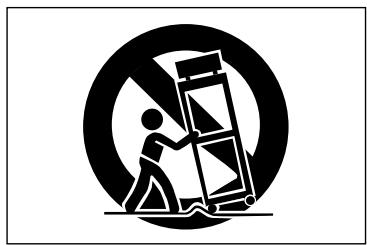
12 Use only with the cart, stand, tripod, bracket, or table specified by the manufacturer or sold with the apparatus. When a cart is used, use caution when moving the cart/apparatus combination to avoid injury from tip-over.
natural_image
Black and white pictogram showing a person using a large tool inside a circle (no text or symbols)13 Unplug this apparatus during lightning storms or when unused for long periods of time.
14 Refer all servicing to qualified service personnel. Servicing is required when the apparatus has been damaged in any way, such as power-supply cord or plug is damaged, liquid has been spilled or objects have fallen into the apparatus, the apparatus has been exposed to rain or moisture, does not operate normally, or has been dropped.
- Do not expose this apparatus to drips or splashes.
- Do not place any objects filled with liquids, such as vases, on the apparatus.
- Do not install this apparatus in a confined space such as a book case or similar unit.
- The apparatus draws nominal non-operating power from the AC outlet with its POWER switch in the off position.
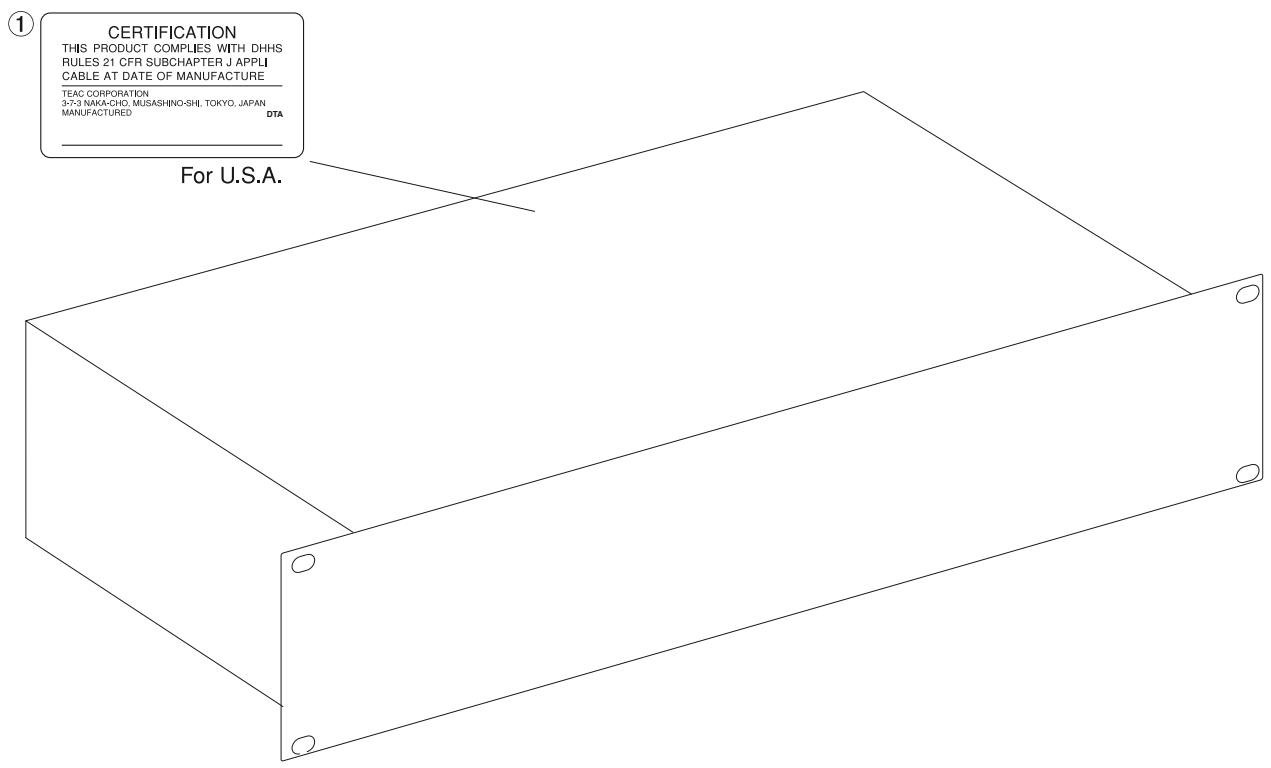
This product has been designed and manufactured according to FDA regulations “title 21, CFR, chapter 1, subchapter J, based on the Radiation Control for Health and Safety Act of 1968”, and is classified as a class 1 laser product. There is no hazardous invisible laser radiation during operation because invisible laser radiation emitted inside of this product is completely confined in the protective housings.
The label required in this regulation is shown in ①.
CAUTION
- DO NOT REMOVE THE PROTECTIVE HOUSING USING A SCREWDRIVER.
- USE OF CONTROLS OR ADJUSTMENTS OR PERFORMANCE OF PROCEDURES OTHER THAN THOSE SPECIFIED HEREIN MAY RESULT IN HAZARDOUS RADIATION EXPOSURE.
- IF THIS PRODUCT DEVELOPS TROUBLE, CONTACT YOUR NEAREST QUALIFIED SERVICE PERSONNEL, AND DO NOT USE THE PRODUCT IN ITS DAMAGED STATE.
MD drive optical pickup:
Type: KMS-260E
Manufacturer: SONY Corporation
Laser output: 4.55 mW
Wavelength: 785+/-20 nm
CD drive optical pickup:
Type: KSS-575B
Manufacturer: SONY Corporation
Laser output: Less Than 0.4 mW on the objective lens
Wavelength: 760-780 nm
Introduction
Supplied accessories 6
Environmental considerations ......6
Rack-mounting the unit ....7
Some notes and precautions ....7
Beware of condensation ....7
Handling of compact discs ....7
Handling of MiniDiscs 8
About the User Table of Contents (U-TOC) ......8
Remote control unit
Some notes and precautions ....9
Batteries 9
Inserting batteries 9
Connections
Audio equipment 10
Connecting analog audio equipment 10
Connecting digital audio equipment 10
Power source 10
Features and their functions
Front panel 11
Shared features 11
CD Operation 12
MD Operation 13
Display 14
Rear Panel 15
Remote Control Unit 16
Shared operation keys ...... 16
CD Operation Section 18
MD Operation Section 18
Display master and remote control master
Selecting the remote control master ....20
Selecting the display master 20
Menu operation
Menu configuration ......21
Operation basics ......23
CD and MD Playback
Discs for playback 24
Playback modes ......24
Basic playback operation ....24
Using headphones 25
Display master and remote master settings 25
Track selection 25
Using the skip function 25
Selecting by track number 25
Search 25
Time Search function ......26
Basic operation 26
Operation variations ......26
Auto cue 26
Auto Ready 27
Repeat playback 27
A to B repeat playback 27
Continuous CD and MD playback .....28
Timer Playback 28
Pitch control 28
Single-track playback 29
Program playback 29
Random playback ....30
Time display switching 30
End of disc/track warning ....31
Playback functions for CD only ....31
Changing the key of playback 31
Fade-in and fade-out ....31
Output volume 32
MP3 file directory playback 32
Directory playback setting 32
MD group playback 33
Group playback setting ....33
Dubbing from CD to MD
Basic dubbing operation 34
Recording mode setting 34
Dubbing speed setting 34
MD recording from an external source
Basic recording 36
Recording cautions 37
Adding track numbers 37
Auto track function 37
Entering a track number manually ....37
Fade-in and fade-out recording 38
"Time Machine" recording 38
Overwrite recording 39
Sync recording 39
Checking remaining MD time 40
MiniDisc editing
Editing operations 41
UNDO an edit operation ....41
Erase track 41
Erase disc 42
Divide tracks 42
Combine tracks 43
Move tracks 43
Creating a group 44
Deleting a group 44
Title input
Disc title input 45
Title input operation ....45
Track title input 46
Group title input 46
Using a computer keyboard
Keyboard type setting 47
Title input by keyboard 47
Other keyboard operations 47
Data settings / service data
Data communication settings 49
Viewing service data 49
System limitations
CD section 50
About finalization 50
About MP3 track data 50
MD section 50
Message display glossary
Operation messages 52
Error Messages 52
Troubleshooting 53
Specifications
MD deck 54
CD deck 54
Rated input/output 54
MD specifications 54
CD specifications 54
Dimensional drawing 55
1 - Introduction
Thank you for your purchase of the TASCAM MD-CD1 MiniDisc Deck and CD Player.
Before connecting and using the unit, please take time to read this manual thoroughly to ensure you understand how to properly set up and connect the
MD-CD1, as well as the operation of its many useful and convenient functions. After you have finished reading this manual, please keep it in a safe place for future reference.
Supplied accessories
In addition to this manual, the MD-CD1 has been packed with the following:
- RC-MC1 remote control unit
- 2 AA batteries
- Power cord
- Rack-mounting kit
- Warranty document
Should any of these items be missing, or if you encounter any damage, please contact your TASCAM supplier.
This unit was packed in its carton with special materials in order to prevent any damage during shipment. Please save the carton and packing materials in the event you need to transport the unit in the future.
Environmental considerations
The MD-CD1 may be used in most places, but to maintain top performance and prolong operating life, do not place it in the following locations.
- On an unsteady surface, or where there is frequent vibration or resonance
- Near a window or where it can be exposed to direct sunlight
- Near heating or air conditioning vents, or in very hot or cold places
- Places with high humidity or poor ventilation
- Next to tuners, televisions or video decks, as this could cause noise or affect video images
Rack-mounting the unit
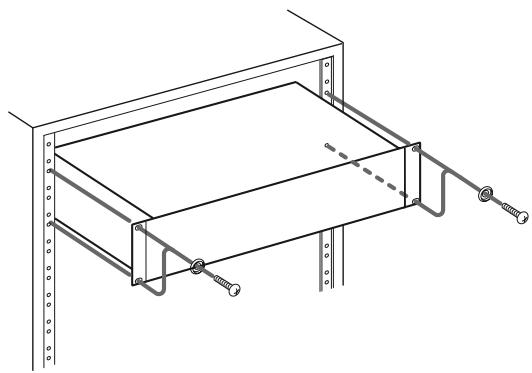
Use the rack-mounting kit to mount the unit in a standard 19-inch equipment rack, as shown below. Remove the feet of the unit before mounting. If you are mounting the unit in a rack, leave 1U of space above it.
See "Environmental considerations" on the previous page.
natural_image
Technical line drawing of a mechanical assembly with mounting brackets and bolts (no text or symbols)Some notes and precautions
Connect the MD-CD1 only to the specified power source. When unplugging the cord, grasp the plug itself.
Clean only with a dry cloth. Do not use benzene, paint thinner or other agents that could damage the surface. Dust or grime on the top cover can be removed with a soft cloth lightly moistened with a diluted mild detergent solution.
Beware of condensation
If the unit is moved from a cold to a warm place, or used after a sudden temperature change, condensation inside the unit may occur, resulting in moisture on the internal mechanism or an inserted disc, thus impairing proper operation. Should this occur, leave
the player turned on for one or two hours so that the condensation can evaporate before you begin operation. Also, please remove all discs from the unit if it will be moved, or not operated for an extended period of time.
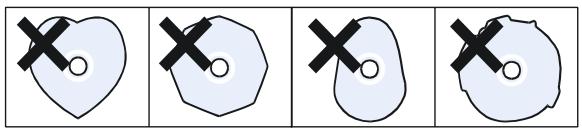
Handling of compact discs
The MD-CD1 has been designed for the playback of CD-DA format discs and MP3 files recorded in ISO9660 format. In addition to ordinary 5-inch and 3-inch CDs, it can also play properly recorded CD-R and CD-RW discs.
When removing a CD from its case, press down on the center of the disc holder to free the CD, then lift the disc out, holding it carefully by the edges.
- Removing a disc
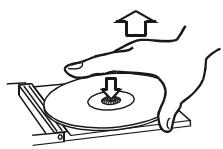
- Hold the CD like this
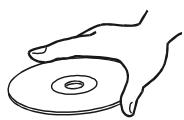
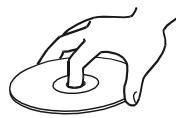
- Avoid getting fingerprints on the signal side (opposite the label side). When cleaning, wipe gently with a soft cloth from the center towards the outside edge. Dust and grime may cause skipping, so keep discs clean and store them in their cases when not being played.
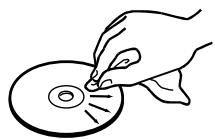
- Do not use any record spray, anti-static solutions, benzene, paint thinner or other chemical agents to clean CDs as they could damage the delicate playing surface.
1 – Introduction—Environmental considerations
- Keep discs away from direct sunlight, and places of high heat and humidity. If left in such places, warping could result.
- Do not affix any labels or stickers to the label side of the disc. Do not write on the disc with a ball-point pen.
- Please do not insert discs that have adhesive remaining from tape or stickers that have been
removed. If they are inserted into the player, they could stick to the internal mechanism, requiring removal by a technician.
Handling of MiniDiscs
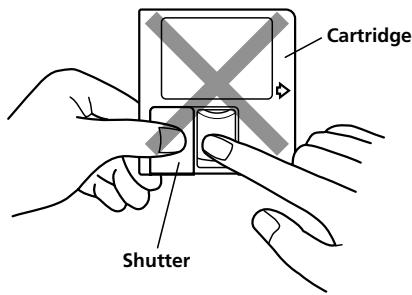
The disc itself is mounted inside a cartridge. Should the cartridge become soiled or warped, playback or recording may not be possible. To ensure proper operation, please observe the following.
• After use, always return the MiniDisc to its case.
- Do not open the shutter or touch the disc inside. If the shutter is forced open, the mechanism could easily break.
- Keep discs out of direct sunlight and places of high heat and humidity.
- Dirt and grime on the cartridge surface should be wiped away with a dry cloth.
- Loose or raised labels may jam the playback mechanism.
- Do not stick labels over one another on the cartridge.
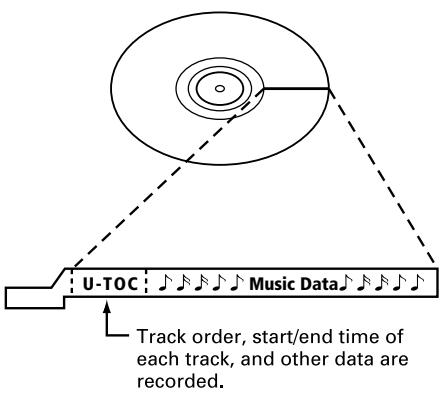
About the User Table of Contents (U-TOC)
The U-TOC on recordable MiniDiscs makes it easy to edit the tracks on the disc. It contains track information (such as titles and starting and ending addresses), and by rewriting this data, the playback order can be freely changed.
Some notes and precautions
- When the remote control will not be used for an extended period of time, please remove the batteries to prevent the possibility of battery acid leakage which could damage the unit. Should leakage occur, remove and discard the batteries, and wipe the battery case thoroughly with a cloth. Avoid getting the battery liquid on the skin. After cleaning, replace with new batteries.
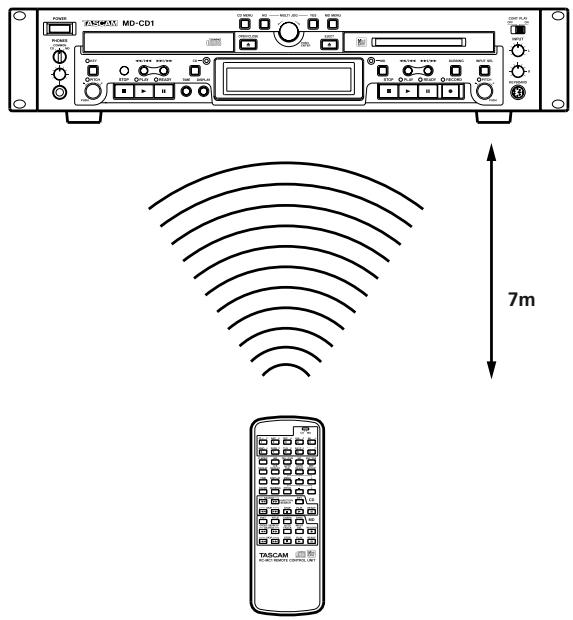
- The remote control functions by using an infrared light signal. When using the unit to control the MD-CD1, other devices that are turned on could be operated by its signal.
- If the range of remote operation becomes smaller, or commands do not always function properly, the batteries have become weak and should be replaced. Always replace both batteries with new batteries of the same type.
- Point the remote control to the remote sensor on the main unit.
Do not obstruct the path between the remote control and the remote sensor.
Batteries
If batteries are used improperly, or if leakage or breakage occurs, the unit will not function. Please observe the cautions indicated on the batteries and their packaging to ensure proper usage.
- Confirm + and – polarity and follow the indications when inserting new batteries into the remote control.
- Do not use old and new batteries together.
- Even if the battery is the same size, the voltage may differ. Do not use batteries of different specifications together.
- Do not attempt to recharge batteries that are non-rechargeable.
- Do not open or disassemble batteries, throw them into a fire or put them in water.
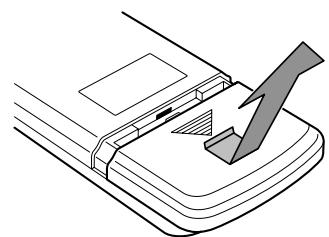
Inserting batteries
- Open the lid.
- Confirm +/- polarity, and insert two AA batteries.
- Close the lid.
natural_image
Diagram of a device with a lightning bolt symbol inserted into a panel (no text or labels)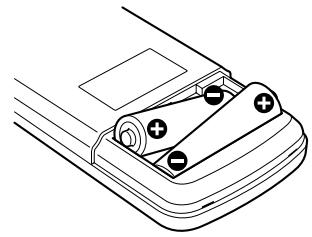
natural_image
Diagram of a car's seatbelt mechanism with battery and switch components (no text or labels)Before connecting the MD-CD1 to other units, please read their operation manuals thoroughly to ensure proper connection. Turn the power on only after all connections have been made.
Audio equipment
Connecting analog audio equipment
Connect analog stereo amplifiers, mixers and recorders to the analog line inputs and outputs. There are input terminals for the MD deck recording source and terminals for both the CD and MD outputs, as well as a COMMON output for the output signals of the CD deck, the MD deck, or both. Selection of either or both deck's output signals can be performed on the SYSTEM sub-menu of the CD menu under the “COMMON?” option.
NOTE
- The optional LA-MC1 Balanced Analog Input/Output Board can be installed to enable the MD-CD1 to be used in a balanced system.
- Connection cables are not supplied with this unit.
- Do not bundle the pin connection cords with the power cord as noise or diminished sound quality could result.
Connecting digital audio equipment
Digital stereo amplifiers, mixers and recorders can be connected through the optical digital input/output terminals.
Power source
This unit has been designed to operate on the specified power voltage only. Do not plug the power cord into outlets of any other voltage.
Front panel
Shared features
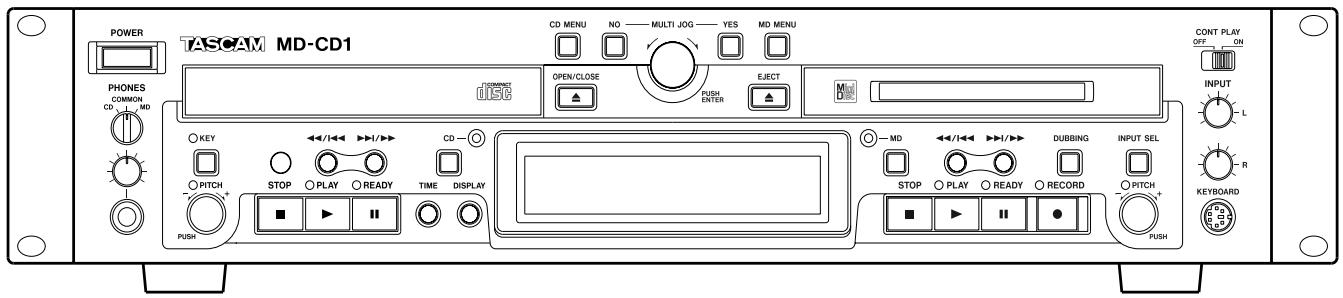
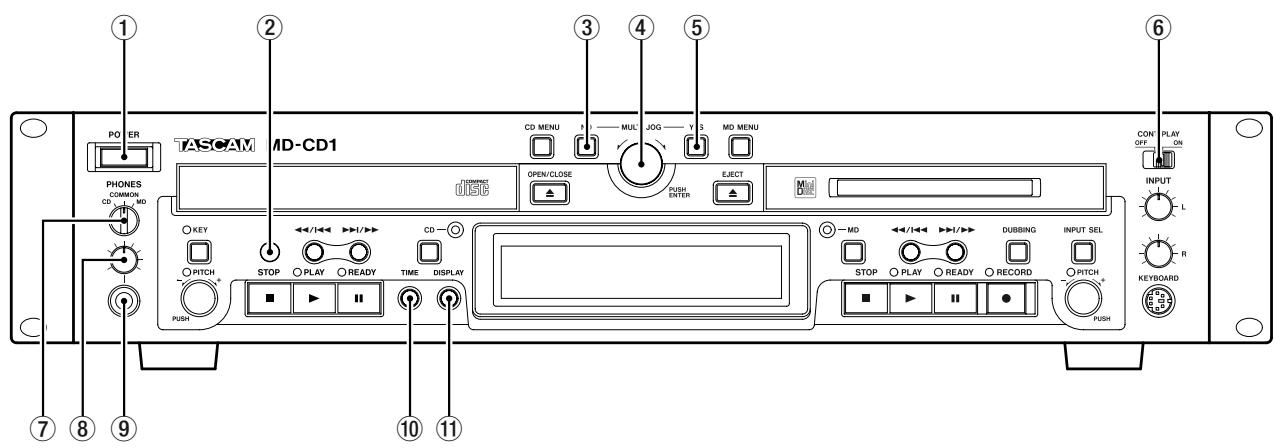
① Power switch
② Remote signal sensor
③ NO key Used to cancel menu operations during menu mode.
During title input mode, it is used to delete character inputs
④ MULTI JOG dial / ENTER key Functions as the MULTI JOG dial when rotated, and as the ENTER key when pushed
MULTI JOG dial functions
Normal mode: selection of MD disc groups (when MD indicator is lit and group mode is ON) or selection of MP3 disc directories (when CD indicator is lit)
Program mode: selection of recorded tracks
Menu mode: selection of menu options and their settings
MD Edit mode: selection of editing points Title input mode: character input selection
ENTER Key functions
Program mode: confirmation of selected tracks
Menu mode: confirmation of menu options and confirmation of settings and editing on the menu (works the same as the YES key)
Title input mode: confirmation of selected characters
⑤ Yes key Menu mode: confirmation of menu options and confirmation of settings and editing on
the menu
Title input mode: inserts characters
⑥ CONT PLAY switch When ON, the CD and MD decks play successively. During playback, the deck automatically becomes the display master.
⑦ PHONES source selection switch
During headphone monitoring, CD, COMMON or MD can be selected as the source. When COMMON is selected, both CD and MD sources can be simultaneously monitored. When both decks output a signal, the monitored source depends on the “COMMON?” option setting on the SYSTEM menu.
⑧ PHONES level control Adjusts the head-phone output level
⑨ PHONES jack This is a standard pin jack for stereo headphone connection. When using headphones with a stereo mini plug, an adaptor is required.
⑩ TIME key Pressing this key changes the time mode on the display. Refer to “Time display switching” on page 30. Even when the power is turned off, the time mode is retained.
⑪ Display key Used to select input character type during Title Input mode. Refer to “Title input” on page 45.
The type of character selected is indicated by the display.
Lower case letters/code: no indication
Capital letters/code: CAPS
Japanese: カタカナ
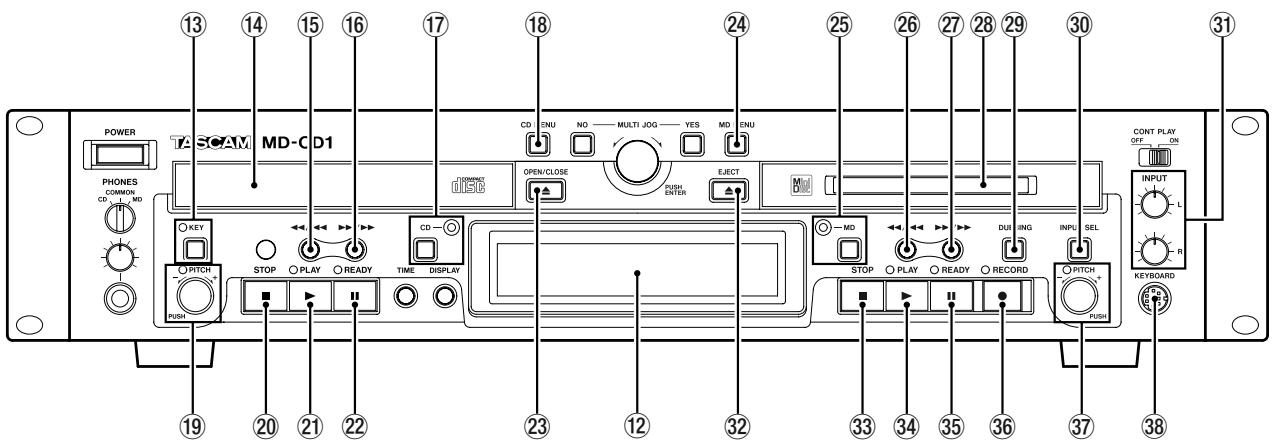
⑫ Display CD and MD data, deck operation mode, menus and other information are shown on the display. For details, refer to “Display” on page 14.
CD Operation
⑬ KEY key / Indicator When this key is pressed, the Indicator light goes on and the Key Change function is turned on, allowing you to change the musical key of Compact Disc playback. Refer to “Changing the key of playback” on page 31. Even when the power is turned off, the key change setting is retained.
⑭ CD Tray Compact Discs are placed here for loading.
⑮ Key In normal mode, this key is used to skip back a track or for review playback (search). When playback is stopped, if this key is pressed once, the previous track is selected; if it is pressed continuously, the tracks are skipped backward at high speed.
During playback, if this key is pressed once, the beginning of the current track is cued, and playback restarts; if it is pressed continuously, review playback (search) is performed.
⑯ ▶▶▶/▶▶ key In normal mode, this key is used to skip forward a track or for cue playback (search). When playback is stopped, if this key is pressed once, the next track is selected; if it is pressed continuously, the tracks are skipped forward at high speed.
During playback, if this key is pressed once, the beginning of the next track is cued, and playback begins; if it is pressed continuously, cue playback (search) is performed.
⑰ CD key / indicator When this key is pressed, the indicator goes on, CD becomes the display master, and CD deck and disc information (such as settings and time) are shown on the display. Even when the power is turned off, the display master setting is retained.
⑱ CD Menu key This turns the CD Menu mode on or off. In CD Menu mode, the CD indicator light flashes, CD menu options are indicated on the display, and settings can be performed.
NOTE
If the CD Menu key is pressed when the display master is MD, the MD indicator stays lit, while the CD indicator flashes.
If the CD Menu key is pressed when the display master is CD (CD indicator ON), the CD indicator will begin flashing.
⑲ PITCH Control / Indicator Push this control to turn the pitch control function on or off. When it is on, the indicator lights up, and pitch can be controlled +/- 16%. Even when the power is turned off, the pitch control ON/OFF setting is retained.
⑳ STOP key During CD playback, press this key to stop playback. When this key is pressed during dubbing operation, both the MD and CD decks stop simultaneously.
② PLAY key Press this key to start CD play-back. When this key is pressed during dubbing standby mode, the CD deck starts playback, the MD deck starts recording, and dubbing begins.
② READY (Ⅱ) key When this key is pressed during playback or while stopped, the CD deck enters standby mode.
②3 OPEN/CLOSE ( △ ) key Press this key to open or close the CD tray.
MD Operation
⑳ MD Menu key This turns the MD Menu mode on or off. In MD Menu mode, the MD indicator flashes, MD Menu options are indicated on the display, and settings can be performed.
NOTE
If the MD Menu key is pressed when the display master is CD, the CD indicator stays lit, while the MD indicator flashes.
If the MD Menu key is pressed when the display master is MD (MD indicator ON), the MD indicator will begin flashing.
⑲ MD key / indicator When this key is pressed, the indicator goes on, MD becomes the display master, and MD deck and disc information (such as settings and time) are shown on the display. Even when the power is turned off, the display master setting is retained.
②6 Key In normal mode, this key is used to skip back a track or for review playback (search). When playback is stopped, if this key is pressed once, the previous track is selected; if it is pressed continuously, the tracks are skipped backward at high speed.
During playback, if this key is pressed once, the beginning of the current track is cued, and playback restarts; if it is pressed continuously, review playback (search) is performed.
During Title Input mode, this key is used to move the cursor to the left.
⑳▶▶▶▶ key In normal mode, this key is used to skip forward a track or for cue playback (search). When playback is stopped, if this key is pressed once, the next track is selected; if it is pressed continuously, the tracks are skipped forward at high speed.
During playback, if this key is pressed once, the beginning of the next track is cued, and playback begins; if it is pressed continuously, cue playback (search) is performed.
During Title Input mode, this key is used to move the cursor to the right.
⑳ MD slot Insert a MiniDisc here for playback or recording. With the label side up, insert in the direction of the arrow.
⑲ DUBBING key This is used when dubbing from CD to MD. For details, see “Dubbing from CD to MD” on page 34.
③0 INPUT SEL key This key is used to select the recording input source for the MD deck. The key switches between ANALOG and DIGITAL. During Dubbing mode, the CD output signal is automatically selected as the source. Even when the power is turned off, the input source selection is retained.
③1 INPUT (L / R) controls These controls are used to adjust the input level when recording analog signals to MD. The left and right channels may be independently controlled.
③2 EJECT ( ▲ ) key Press this to eject the MiniDisc.
③3 STOP (■) key Press this key to stop MD playback or recording.
If this key is pressed during dubbing, the MD deck and the CD player stop simultaneously.
During MD Editing mode, when this key is pressed, the Editing mode is cancelled, and the deck returns to Normal mode.
③4 PLAY (▶) key Press this key to start play-back when the MD deck is in stop or standby mode.
When this key is pressed during dubbing standby mode, the CD deck begins playback and the MD deck begins recording, and dubbing begins.
③5 READY (Ⅱ) key When this key is pressed during MD playback or while stopped, the MD deck enters standby mode.
When this key is pressed during MD recording, the MD deck enters recording standby mode.
③6 RECORD (●) key When this key is pressed and there is no MiniDisc in the mechanism, the input signal can be monitored.
If a recordable MiniDisc is inserted into the mechanism while it is stopped, when this key is pressed, the MD deck enters recording standby mode, and the input signal can be monitored.
When this key is pressed during recording, a track mark is entered at that point and a new track is started.
③7 PITCH control / Indicator Push this control to turn the pitch control function on or off. When it is on, the indicator lights up, and pitch can be controlled +/- 12.5%. During ON mode, signals cannot be output from the digital output terminals [DIGI-
4 – Features and their functions—Display
TAL (OPTICAL) – OUTPUTS – MD terminals]. Even when the power is turned off, the pitch control ON/OFF setting is retained.
③8 KEYBOARD connector An IBM PC-compatible keyboard with PS/2 interface can be con-
nected to this terminal to enable certain operations of the MD-CD1 with the keyboard. Title input operations, in particular, can be performed with greater efficiency.
Display
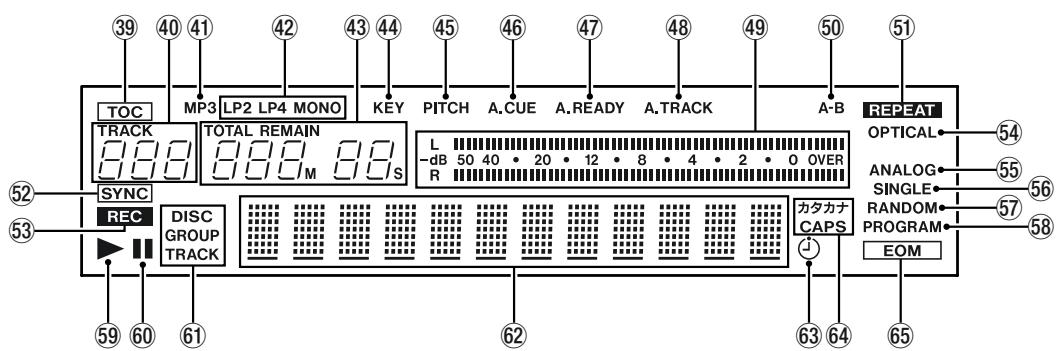
This display shows various types of operation information, including CD and MD disc information, deck operation modes, and menu status. Disc and deck information for either CD and MD are shown by pressing either the CD key or the MD key, and the deck selected becomes the display master. Also, the CD Menu key or the MD Menu key can be pressed to call up the CD Menu or the MD Menu.
⑲ TOC When the most recent TOC (Table of Contents) data has not been recorded, this lights up red. During TOC recording, the indicator flashes.
④ Track number display During playback or selection, the track number is displayed.
④1 MP3 This indicator is lit when and MP3 disc is in the CD deck.
④2 MD recording mode display (LP2, LP4, MONO) This indicates the recording mode of the MiniDisc. If the disc was recorded in Normal mode, it does not light up.
④3 Counter display Depending on the time display mode, TOTAL or REMAIN are lit. Counter display indication is in minutes (three digits) and seconds (two digits).
④4 KEY This lights when the CD deck's Key Change function is on.
④5 PITCH This lights when the display master deck's Pitch Control function is on.
④6 A. CUE This lights when the display master deck's Auto Cue function is on.
④7 A. READY This lights when the display master deck's Auto Ready function is on.
④8 A. TRACK This lights when the display master deck's Auto Track function is on.
④9 Meter This displays the playback level or either the CD or MD deck, as well as the recording level of the MD deck.
⑤0 A-B This lights when the display master deck's A-B Repeat function is on.
⑤1 REPEAT This lights when the display master deck's Repeat function is on.
⑤2 SYNC This lights during SYNC recording mode.
⑤3 REC This lights when the MD deck is recording, or in recording standby mode.
⑤4 OPTICAL This lights when the MD input source is set to digital.
⑤5 ANALOG This lights when the MD input source is set to analog.
56 SINGLE This lights when the display master deck is in single playback mode.
⑤7 RANDOM This lights when the display master deck is in random playback mode.
58 PROGRAM This lights when the display master deck is in program playback mode.
⑤9 ▶ This lights when the display master deck is in playback or playback standby mode. Also, when the Auto Cue function is on, it flashes during Auto Cue point search.
60 This lights when the display master deck is in recording or playback standby mode.
⑥1 DISC, GROUP, TRACK display DISC lights up when the display master deck has a disc loaded and is stopped.
GROUP lights up when the display master is the CD deck and the Directory mode is on, or when the display master is the MD deck and the group mode is on.
TRACK is indicated during playback or playback standby.
⑥2 Character display Disc information, track information, menu, message and operation status are displayed.
63 This lights when the Timer Play function is on.
⑥4 CAPS, カタカナ These light during title input to indicate either CAPS or Japanese character mode. In lower case letter mode, there is no indication.
⑥5 EOM This lights when the remaining track/disc time is less than the EOM set value.
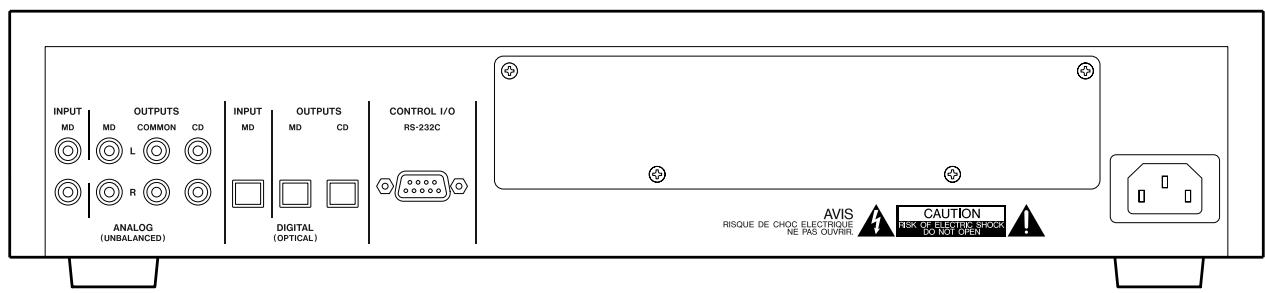
Rear Panel
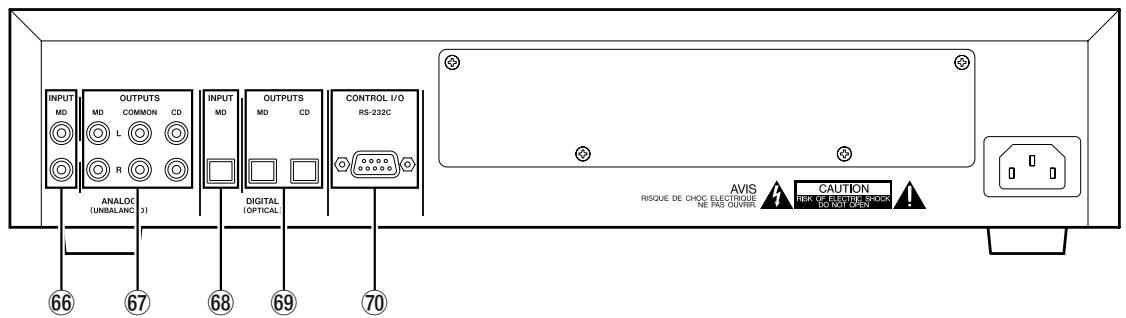
⑥6 ANALOG INPUT MD Terminals The analog line input terminals for the MD deck are for RCA pin jacks. Rated input level is -10 dBV.
⑥7 ANALOG OUTPUTS – CD – COMMON – MD Terminals The analog line output terminals are for RCA pin jacks. Rated output level is -10 dBV.
CD: Outputs the CD deck signal.
COMMON: Outputs CD and MD signals. During playback of both decks, the output signal depends on the “COMMON?” option setting on the SYSTEM menu.
MD: Outputs the MD deck signal. During playback, the playback signal is output; during input monitoring, the source signal is output.
⑥8 DIGITAL (OPTICAL) INPUT Terminal
This is the digital input terminal for the MD deck.
⑥9 DIGITAL (OPTICAL) OUTPUTS – MD – CD Terminals These are the digital output terminals (optical). The playback signals from the MD deck and the CD deck are output through their respective digital output terminals.
⑦0 CONTROL I/O (RS-232C) Connector
RS-232C compatible serial control from an external PC can be performed.
Remote Control Unit
Shared operation keys
MD operation keys / CD operation keys
Shared operation keys
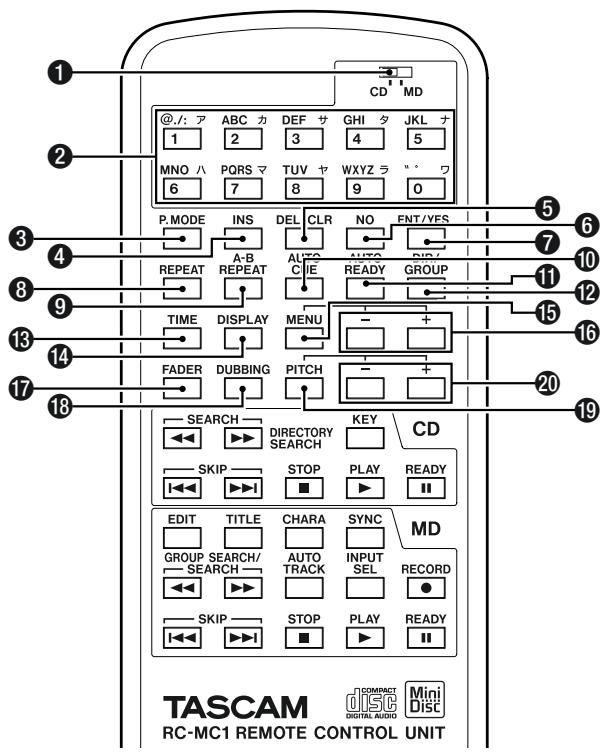
The ① key is used to select CD or MD deck operation, while keys ② and beyond are shared operation keys.
① CD/MD selector Selects the remote control master. Refer to “Display master and remote master settings” on page 25. The following shared operation keys operate the functions of the remote control master deck (CD or MD selectable).
② Number keys (0 – 9) These are used to select track numbers and for time search. During MD Title Input mode, they can be used to input letters, codes, numbers and Japanese characters. Characters that can be input are indicated on the keys.
NOTE
Track number selection and time search can only be performed for the display master deck. These functions cannot be operated for the deck selected as the remote control master.
NOTE
While these keys can also be used for character input during title input operation, in this manual they are referred to as "Number keys."
③ P. MODE key This selects the playback mode. During selection, the playback mode is indicated on the display in the following manner.
Normal playback (in disc order): no indication
Single playback: SINGLE lights up
Program playback: PROGRAM lights up
Random playback: RANDOM lights up
For the modes apart from normal playback, please refer to “Single-track playback” on page 29, “Program playback” on page 29 and “Random playback on page 30.
Even when the power is turned off, the playback mode setting is retained.
4 INS key During MD Title Input mode, this key inserts a space at the cursor position.
⑤ DEL/CLR key During track number input, the track number is cleared when this key is pressed.
During program input, the selected program number track is deleted.
During title input, the character at the cursor position is deleted.
⑥ NO key This operates the same way as the NO key on the unit.
⑦ ENT/YES key This operates the same way as the YES and ENTER keys on the unit.
⑧ REPEAT key This turns the Repeat Mode on and off. When it is on, REPEAT lights up in the display. Refer to “Repeat playback” on page 27. Even when the power is turned off, the Repeat Mode setting is retained.
⑨ A-B REPEAT key This turns the A-B Repeat Mode on and off, and is used to set the section for repeat playback. Refer to “A to B repeat playback” on page 27.
10 AUTO CUE key This turns the Auto Cue Mode on and off. When it is on, A CUE lights up in the display. Refer to “Auto cue” on page 26. Even when the power is turned off, the Auto Cue Mode setting is retained.
11 AUTO READY key This turns the Auto Ready Mode on and off. When it is on, A READY lights up in the display. Refer to “Auto ready (of a specified track)” on page 27. Even when the power is turned off, the Repeat mode setting is retained.
⑫ DIR/GROUP key When this key is pressed during stop, it turns on or off the MP3 disc directory playback mode (when the CD deck is the remote control master) or the MD group playback mode (when the MD deck is the remote control master).
Refer to “MP3 file directory playback” on page 32, and “MD group playback” on page 33.
⑬ TIME key This operates in the same way as the TIME key on the unit.
14 DISPLAY key When pressed during stop mode, the current disc title is displayed.
When pressed during playback or playback standby mode, the current track title is displayed. Also, if the CD/MD Selector is set to the side which is not the current display master, pressing the DISPLAY key will change the current display master setting.
⑮ MENU key This key is used to turn on and off the Menu of the current remote control master deck. It operates in the same way as the CD MENU and MD MENU keys on the unit.
16 MENU +/- key During Menu Mode, this key is used to select menu options and make settings. It operates in the same way as the MULTI JOG dial on the unit.
⑰ FADER key When pressed during CD playback standby, the sound will fade in when playback resumes. When pressed during CD playback, the sound will fade out.
When pressed during MD recording standby, the sound will fade in when recording begins. When pressed during MD recording, the recorded sound will fade out.
18 DUBBING key This operates in the same way as the DUBBING key on the unit. Refer to “Dubbing from CD to MD” on page 34.
19 PITCH key This operates in the same way as pressing the PITCH key/dial on the MD and CD operation sections of the unit, and is used to turn the pitch control on and off. Refer to “Pitch control” on page 28. Even when the power is turned off, the pitch control on/off setting is retained.
20 PITCH +/- key This operates in the same way as when rotating the PITCH key/dial on the MD and CD operation sections of the unit. When pitch control is on, the pitch value can be set. Refer to “Pitch control” on page 28. Even when the power is turned off, the pitch setting is retained.
CD Operation Section
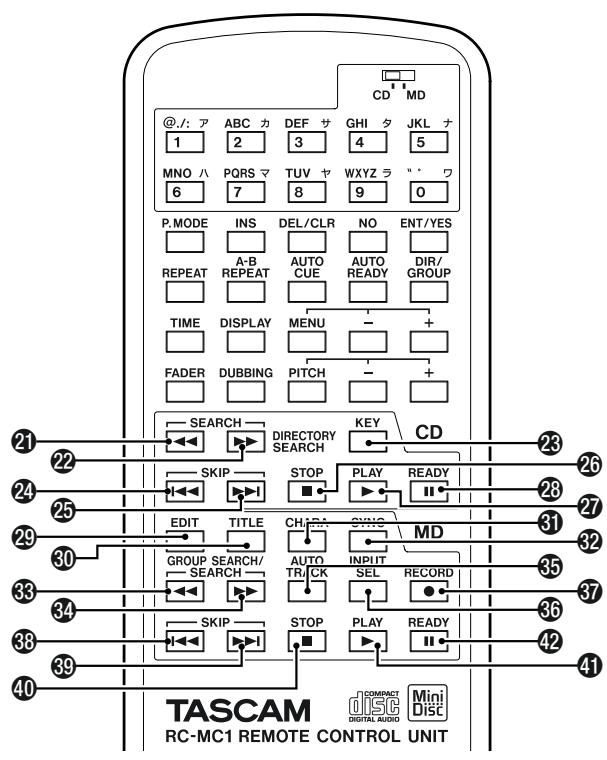
21 ◀◀ key During playback or playback standby, press this key continuously for review playback (search).
When an MP3 disc is in the deck during stop mode, if this key is pressed, the directory can be chosen (backward direction).
②2 ▶▶ key During playback or playback standby, press this key continuously for cue playback (search).
When an MP3 disc is in the deck during stop mode, if this key is pressed, the directory can be chosen (forward direction).
23 KEY key This turns the Key Change function on and off. When it is on, the musical key of CD playback can be changed. Key change settings can be performed from the CD menu. Refer to “Changing the key of playback” on page 31. Even when the power is turned off, the key change settings are retained.
24 |◀◀ key During normal playback, use this key to skip through tracks in the reverse direction for selection, or for review playback (search). During stop mode, press this key to skip through tracks backwards, or press it continuously to skip at high speed. During playback, press this key to skip back to the start of the track in play.
25 ▶▶▶1 key During normal playback, use this key to skip through tracks in the forward direction for selection, or for cue playback (search). During stop mode, press this key to skip through tracks forwards, or press it continuously to skip at high speed. During playback, press this key to skip to the start of the next track.
26 STOP (■) key Operation is the same as with the STOP key on the CD operation section of the unit.
27 PLAY (▶) key Operation is the same as with the PLAY key on the CD operation section of the unit.
28 READY (Ⅱ) key Operation is the same as with the READY key on the CD operation section of the unit.
MD Operation Section
29 EDIT key During normal operation, Menu mode and Title Input mode, press this key to enter MD Edit mode. Refer to “MiniDisc editing” on page 41.
When this key is pressed during MD Edit mode, the unit returns to normal operation mode.
30 TITLE key During normal operation, Menu mode and MD Edit mode, press this key to enter Title Input mode. Refer to “Title input” on page 45.
When this key is pressed during Title Input mode, the unit returns to normal operation mode.
③1 CHARA key During Title Input mode, press this key to switch between types of input characters. Refer to “Title input” on page 45.
The type of character selected is indicated by the display.
Lower case letters/code: no indication
Capital letters/code: CAPS
Japanese: カタカナ
32 SYNC key This key is used to turn SYNC recording on or off. When on, recording is automatically started and stopped depending upon the input signal level. Refer to “Sync recording” on page 39.
When on, the SYNC indicator in the display lights up.
33 ◀◀◀ key During playback or playback standby, press this key continuously for review playback (search).
When Group mode is on during stop mode, if this key is pressed, groups can be chosen (backward direction).
34 ▶▶ key During playback or playback standby, press this key continuously for cue playback (search).
When Group mode is on during stop mode, if this key is pressed, groups can be chosen (forward direction).
35 AUTO TRACK key During MD recording, this is used to set the Auto Track function. D-D, OFF or -**dB can be selected. Refer to “Adding track numbers” on page 37.
Even when the power is turned off, the settings are retained.
36 INPUT SEL key Operation is the same as with the INPUT SELECT key on the unit, and is used to choose the MD input source. This key always functions, regardless of the remote control master setting. Refer to “Input source selection” on page 36.
37 RECORD (●) key Operation is the same as with the RECORD key on the MD operation section of the unit.
38 ◀◀◀ key During normal playback, use this key to skip through tracks in the reverse direction for
selection, or for review playback (search). During stop mode, press this key to skip through tracks backwards, or press it continuously to skip at high speed. During playback, press this key to skip back to the start of the track in play.
During title input mode, press this key to move the cursor in the left direction.
39 ▶▶▶1 key During normal playback, use this key to skip through tracks in the forward direction for selection, or for cue playback (search). During stop mode, press this key to skip through tracks forwards, or press it continuously to skip at high speed. During playback, press this key to skip to the start of the next track.
During title input mode, press this key to move the cursor in the right direction.
40 STOP (■) key Operation is the same as with the STOP key on the MD operation section of the unit.
41 PLAY (▶) key Operation is the same as with the PLAY key on the MD operation section of the unit.
42 READY (Ⅱ) key Operation is the same as with the READY key on the MD operation section of the unit.
5 – Display master and remote control master
The MD-CD1 is equipped with a CD deck and an MD deck. Since the display and remote control keys can be used by either deck, this function determines which deck is represented by their operation. In this manual, the deck represented by the information in the display is referred to as the “display master,” while the deck being operated by the shared keys on the remote control unit is referred to as the “remote control master.”
Selecting the remote control master
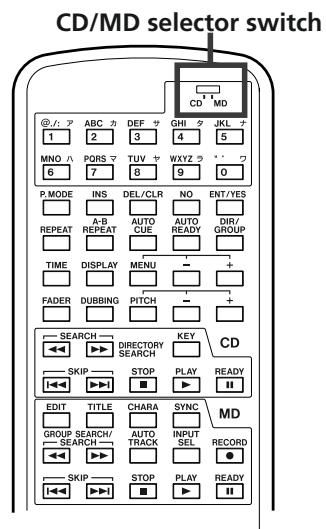
On the upper part of the remote control, there is a CD/MD switch used to select the remote control master. The shared keys on the upper portion of the remote control unit operate for the deck selected as the remote control master.
Selecting the display master
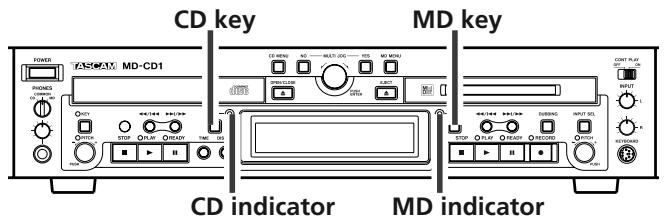
The display master can be selected using the CD or MD keys. The CD or MD indicator lights up to show the selection.
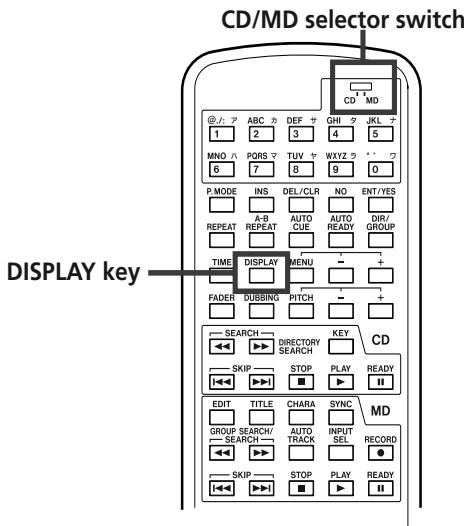
To switch the display master using the remote control, set the CD/MD selector to the desired position, then press the DISPLAY key.
NOTE
When using the shared keys on the remote control unit for operation, if the remote control master deck and the display master deck are not the same, the results of the operation will not be indicated on the display. To confirm operation results, the remote control master deck and the display master deck must be the same.
The various settings and editing operations possible with the MD-CD1 are performed through menu options shown on the display. Among the many menu
setting options, some may be made directly using the keys on the remote control.
Menu configuration
There are menus for both CD and MD operation. Below each menu are sub-menus, and in each sub-
menu there are menu options. The menus are configured as shown below.
| CD Menu | |||
| Menu option | Function | Manual reference | Page |
| CD PLAY sub-menu | Options for CD playback | ||
| PLAY MODE | Playback mode settings | “Playback modes” | 24 |
| REPEAT | Repeat mode settings | “Repeat playback” | 27 |
| A_CUE LEVEL | Auto Cue level setting | “Auto cue” | 26 |
| A_CUE | Auto Cue on/off | “Auto cue” | 26 |
| A_READY | Auto Ready on/off | “Auto ready (of a specified track)” | 27 |
| PITCH STEP | Pitch control variable pitch setting | “Pitch control” | 28 |
| EOM_TRK | Track EOM mode and operation time | “End of disc/track warning” | 31 |
| EOM_DISC | Disc EOM mode and operation time | “End of disc/track warning” | 31 |
| TIMER PLAY | Timer play on/off | “Timer playback” | 28 |
| KEY LEVEL | Key control level setting | “Changing the key of playback” | 31 |
| DIR MODE | MP3 disc directory mode on/off | “MP3 file directory playback” | 32 |
| CD VOL FUNC sub-menu | (CD volume function options) | ||
| PLAY VOLUME | Output level setting | “Output volume” | 32 |
| F_IN TIME | Fade-in operation time setting | “Fade-in and fade-out” | 31 |
| F_OUT TIME | Fade-out operation time setting | “Fade-in and fade-out” | 31 |
| FADE MODE | Setting operation mode after fade-out end | “Fade-in and fade-out” | 31 |
| SERIAL sub-menu | RS-232C data communication options | ||
| BAUD RATE | data transmission speed setting | “Data settings/service data” | 49 |
| LENGTH | data word length setting | “Data settings/service data” | 49 |
| PARITY | data parity bit setting | “Data settings/service data” | 49 |
| STOP BIT | data stop bit setting | “Data settings/service data” | 49 |
| SYSTEM sub-menu | (options for the unit) | ||
| KEYBOARD | setting for keyboard type | “Keyboard type setting” | 47 |
| COMMON | CD/MD priority for COMMON output | “Basic playback operation” | 24 |
| CD P_TIME | Confirming total CD playing time | “Data settings/service data” | 49 |
| MD P_TIME | Confirming total MD playing time | “Data settings/service data” | 49 |
6 – Menu operation—Menu configuration
| MD R_TIME | Confirming total MD recording time | “Data settings/service data” | 49 |
| MD Menu | |||
| Menu option | Function | Manual reference | Page |
| MD PLAY sub-menu | Options for MD playback | ||
| PLAY MODE | Playback mode settings | “Playback modes” | 24 |
| REPEAT | Repeat mode settings | “Repeat playback” | 27 |
| A_CUE LEVEL | Auto Cue level setting | “Auto cue” | 26 |
| A_CUE | Auto Cue on/off | “Auto cue” | 26 |
| A_READY | Auto Ready on/off | “Auto ready (of a specified track)” | 27 |
| PITCH STEP | Pitch control variable pitch setting | “Pitch control” | 28 |
| EOM_TRK | Track EOM mode and operation time | “End of disc/track warning” | 31 |
| EOM_DISC | Disc EOM mode and operation time | “End of disc/track warning” | 31 |
| TIMER PLAY | Timer play on/off | “Timer playback” | 28 |
| GRP MODE | Group mode on/off | “MD group playback” | 33 |
| MD VOL FUNC sub-menu | (MD volume function options) | ||
| REC VOLUME | Input level setting | “Basic recording” | 36 |
| F_IN TIME | Fade-in operation time setting | “Fade-in and fade-out recording” | 38 |
| F_OUT TIME | Fade-out operation time setting | “Fade-in and fade-out recording” | 38 |
| FADE MODE | Setting operation mode after fade-out end | “Fade-in and fade-out recording” | 38 |
| REC sub-menu | (options for MD recording status) | ||
| REC MODE | Recording mode setting | “Basic recording” | 36 |
| REC SPEED | Setting dubbing mode speed | “Basic recording” | 36 |
| SYNC LEVEL | Operation level of Sync recording | “Sync recording” | 39 |
| SYNC | Sync recording mode on/off | “Sync recording” | 39 |
| A_TRK LEVEL | Auto track operation level | “Adding track numbers” | 37 |
| A_TRK | Auto track mode | “Adding track numbers” | 37 |
| TM_REC | “Time Machine” recording time | “Time Machine recording” | 38 |
| EDIT sub-menu | (options for MD editing functions) | ||
| DIVIDE | Dividing tracks | “Divide tracks” | 42 |
| COMBINE | Combining tracks | “Combine tracks” | 43 |
| MOVE | Moving tracks | “Move tracks” | 43 |
| GRP CREATE | Creating groups | “Creating a group” | 44 |
| GRP CANCEL | Eliminating a group | “Deleting a group” | 44 |
| ERASE DISC | Erasing disc content | “Erase disc” | 42 |
| ERASE TRK | Erasing a track | “Erase track” | 41 |
| UNDO | Undoing an editing operation | “MiniDisc editing” | 41 |
| TITLE sub-menu | (options for MD title editing functions) | ||
| TITLE INPUT | Input of track or disc title | “Title input” | 45 |
| TITLE GRP | Input of a group title | “Group title input” | 46 |
Operation basics
1 Select CD Menu or MD Menu
Front panel operation:
Press the CD MENU key or the MD MENU key to call up the desired menu.
Remote control operation:
Press the MENU key and either the CD
Menu or the MD Menu is called up, depending upon the position of the CD/MD selector switch.
The sub-menu screen appears.
CD PLAY?
NOTE
In Menu mode, the CD or MD indicators flash to indicate which menu is called up.
When a menu is chosen for a deck that is not the display master, the display master indicator will remain lit, while the indicator for the menu mode deck will begin flashing. If the menu for the display master deck is selected, its indicator will begin flashing.
2 Select the desired sub-menu
Front panel operation:
Use the MULTI JOG dial to select, then press the ENTER key or the YES key.
Remote control operation:
Use the MENU +/- key to select, then press the ENT/YES key.
The screen for the selected menu option will be displayed.
PLAY MODE?
NOTE
To return to the sub-menu selection screen from a menu option selection screen, press the NO key on either the front panel or the remote control unit.
3 Select the desired menu option.
Front panel operation:
Use the MULTI JOG dial to select, then press the ENTER key.
Remote control operation:
Use the MENU +/- key to select, then press the ENT/YES key.
The setting screen will be displayed.
Mode>Cont.
NOTE
To return to the menu option selection screen, press the NO key on either the front panel or the remote control unit. However, if the NO key is pressed for an EDIT menu option, you will exit the Menu mode.
4 Settings
Front panel operation:
Use the MULTI JOG dial to select, then press the ENTER key.
Remote control operation:
Use the MENU +/- key to select, then press the ENT/YES key.
NOTE
Some menu options exist for confirmation purposes only, and setting cannot be performed.
For MD Editing Menu operation, refer to "MiniDisc editing" on page 41.
For Title Menu operation, refer to "Title input" on page 45.
5 How to exit Menu mode after setting (or confirmation), during menu option display.
Front panel operation:
Press the CD MENU or MD MENU key corresponding to the current Menu mode.
Remote control operation:
Press the MENU key.
The CD or MD indicator will stop flashing.
The MD-CD1 can play both CDs and MDs. Basic playback and the operation of most playback functions are virtually identical for the CD and MD decks. This section will explain the shared playback
functions first, followed by playback functions for CD only, MP3 disc directory playback, and MD group playback.
Discs for playback
The CD and MD decks in the MD-CD1 can play back the types of discs listed below.
CD deck
Ordinary audio CDs available commercially (recorded in CD-DA format)
CD-R and CD-RW discs recorded in CD-DA format, and properly finalized
MP3 files recorded in ISO9660 format on CD-R and CD-RW discs, and properly finalized.
MD deck
Audio MiniDiscs recorded in standard, LP2, LP4 and mono modes.
Playback modes
There are four different playback modes for both the CD deck and the MD deck. The mode selected is indicated on the display.
Normal (continuous) playback mode: no indication lamp
Single playback mode: SINGLE is lit
Program playback mode: PROGRAM red lamp is lit
Random playback mode: RANDOM red lamp is lit
The playback mode can be selected using the P.MODE key on the remote control. Pressing the key changes the playback mode in the following order:
$$ \text { Cont } \rightarrow \text { Single } \rightarrow \text { Program } \rightarrow \text { Random } $$
You can also select the playback mode using the "PLAY MODE?" option in the PLAY sub-menu of the CD and MD menus.
While the mode can be changed from any playback mode, the explanation in this manual will assume the user is starting from the normal Continuous mode.
Basic playback operation
1 Push the POWER switch to turn on the unit. The display will indicate NO DISC.
2 Insert a disc.
CD:
2-1 Press the OPEN/CLOSE key, and the CD tray opens.
2-2 Place the CD in the tray, label side up.
2-3 Press the OPEN/CLOSE key again, and the CD tray closes.
NOTE
For 2-3, instead of the OPEN/CLOSE key, if the PLAY key is pressed, the CD tray will close and playback will begin, and if the READY key is pressed, the CD tray will close and the unit will enter playback standby mode.
After a disc is inserted, the total playing time and number of tracks will be displayed.
MD:
2-1 Insert the MiniDisc into the MD slot, in the direction of the arrow, and with the label side up.
After a disc is inserted, the disc title (if there is one), and the total playing time and number of tracks will be displayed.
3 Press the PLAY key.
The ▶ indication will light up, and play-back begins from track 1. The number of the current track in play is indicated on the display.
To stop playback, press the STOP key.
To pause playback, press the READY key.
The indication will light up, and the unit will enter playback standby mode. To resume playback, press the PLAY key.
7 – CD and MD Playback—Display master and remote master set-
To remove the disc
For a CD, press the OPEN/CLOSE key.
For an MD, press the EJECT key.
To play a desired track
Front panel operation:
press either the ◀◀◀ or ▶▶▶ key to select the desired track.
Remote control operation:
use either the ◀◀◀ or ▶▶▶ keys, or the numeral keys, to select the desired track.
Refer to "Track selection" on page 25.
Using headphones
Plug the headphone cord into the PHONES jack located under the POWER switch. Use the source selector switch to choose the desired source, and adjust the volume with the volume control. If the source selector switch is set to COMMON, both CD and MD sources can be monitored. When both decks output a signal, the monitored source depends on the "COMMON?" option setting on the SYSTEM menu.
WARNING
When using headphones, take care not to turn the volume too high. Listening at high volumes for extended periods of time may result in permanent hearing damage.
Display master and remote master settings
For simple playback operation, the front panel keys or the remote control keys can be used. However, to ensure that the deck and disc information is properly shown on the display, the ‘display master’ setting must be selected for the deck in use. Also, when performing various playback operations by remote control, the ‘remote control master’ setting must be
selected for the deck in use. Refer to “Display master and remote control master” on page 20.
To prevent operation errors, we recommend that the display master and the remote control master be set for the same deck.
Track selection
Using the skip function
Select desired tracks for playback with the skip keys,
◀◀ / ▶▶▶ on the front panel, or ◀◀◀ / ▶▶▶ on the remote control. After selecting the track, press the PLAY key to start playback, or the READY key to cue the track and enter playback standby mode.
To restart playback from the beginning of the track in play, press the ◀◀◀ once. To skip to the previous track, press ◀◀◀ twice.
To skip to the next track, press ▶▶▶ once.
Selecting by track number
Using the number keys on the remote control, the number of the desired track can be entered directly. Even numbers with two or three digits can be entered easily. For example:
Track 9: press '9' and 009 will be displayed.
Track 12: press ‘1’ and ‘2’ and 012 will be displayed.
Track 103: press ‘1’ and ‘0’ and ‘3’ and 103 will be displayed.
After input, press the PLAY key to start playback, or the READY key to cue the track and enter playback standby mode.
Search
During playback or playback standby, this function enables the search of a desired portion within a track for playback.
Front panel operation: press the ◀◀◀ / ▶▶▶ search key continuously
Remote control operation: continuously press the ◀◀ / ▶▶ search key
Be sure to hold the key down; if you quickly release it, the Skip function will operate.
NOTE
The Search function does not operate with MP3 discs.
Time Search function
By specifying time from the start of a certain track, you can start playback from a specified point of a specified track.
Basic operation
1 During stop, play or playback standby modes, use the number keys on the remote control to input the three-digit track number (such as 002 for track 2), then the desired elapsed time ( * min sec) from the start of that track.
Example: To specify 1 min 30 sec from the start of track 2, input “002 001 30”
NOTE
For MP3 discs, time cannot be specified within a track. However, if you input the three-digit track number, playback will begin from the start of that track.
During input, the counter in the display will flash.
Regardless of the time display mode, the time from the start of the specified track is displayed.
When the final digit is entered, the desired position is automatically located. During stop or playback modes, playback will begin from the desired point. During playback standby mode, at the desired point the unit will enter playback standby mode.
NOTE
If a point which does not exist is selected, setting operation will be cancelled.
Operation variations
Even if the final second is not input, playback will begin from the selected point after pressing the PLAY key. Or, if you press the READY key, the unit will enter the playback standby mode at the selected point.
Track search
This is explained in the “Specifying by track number” part of “Track selection” on page 25.
After inputting the three-digit track number, press the PLAY key to begin playback of that track, or the READY key to cue the track and enter playback standby mode.
Specifying to the minute
After inputting the three-digit track number and the number of minutes after the start of the track, press the PLAY key to begin playback of that track, or the READY key to cue the track and enter playback standby mode.
Example: To specify 1 min 00 sec from the start of track 2, input “002 001”
NOTE
Following the above example, if "0021" is input, the same position will be located.
Auto cue
When the auto cue function is turned on, when a track is selected, the point where sound begins (not where the track begins) on that track is located, and the unit enters playback standby mode. Then, when the PLAY key is pressed, playback begins at exactly that point.
Auto cue on/off and the sound start position detection level can be set separately for CD and MD.
NOTE
Auto Cue functions only for MD tracks recorded in the ST mode. For MD tracks recorded in MONO, LP2 or LP4
modes, the Auto Cue function will only cue to the very beginning of the track.
NOTE
During the stop mode, to cue to the start of sound on track one, just press the READY key.
Turning the Auto Cue function on and off
Press the AUTO CUE key on the remote control to turn this function on and off.
You can also use the “A_CUE?” option on the PLAY sub-menu of the MD menu or CD menu to turn the
Auto Cue function on and off for each deck. (Default position: OFF)
When the Auto Cue function is on, A_CUE is lit on the display.
Even when the power is turned off, the Auto Cue setting is maintained.
Setting the sound start position detection level
Use the “A_CUE LEVEL?” option on the PLAY sub-menu of the MD menu or CD menu to set the sound start position detection level. Settings can be made independently for each deck. The level can be set between -72 dB and -30 dB in 6 dB increments.
NOTE
When the Auto Cue point is being searched, the >arrow flashes in the display, and audio output is muted.
Auto Ready
When the Auto Ready function is on, after each track is played, playback standby mode is entered at the start of the next track. Even when the Skip function is used to skip tracks, playback standby mode is entered at the start of the selected track.
NOTE
When the Auto Cue function is also on, playback standby mode is entered at the start of the sound on the selected track, and not the beginning of that track.
Turning the Auto Ready function on and off
Press the AUTO READY key on the remote control to turn the function on and off.
You can also use the “A_READY?” option on the PLAY sub-menu of the MD menu or CD menu to turn the Auto Ready function on and off for each deck. (Default position: OFF)
When the Auto Ready function is on, A. READY is lit on the display.
Even when the power is turned off, the Auto Ready setting is maintained.
Repeat playback
Press the REPEAT key on the remote control to turn on the Repeat mode. In this mode, all the tracks on the disc are played continuously. During playback, if the Repeat mode is turned on, playback continues as before, and when the last track finishes, playback resumes from the first track. If Repeat mode is turned on when the deck is stopped, press the PLAY key to begin operation.
You can also use the “REPEAT?” option in the PLAY sub-menu of the MD and CD menus to turn the Repeat mode on and off for each deck.
Combining the Repeat mode with the Program, Single-track playback and Random playback functions will enable Program Repeat, Single-track Repeat and Random Repeat operations, respectively.
A to B repeat playback
If a specific portion between two points on the disc is specified, that portion can be played back repeatedly.
1 During playback, press the A-B REPEAT key on the remote control at the beginning of the desired portion on the disc.
“A-” flashes on the display.
2 At the end of the desired portion on the disc, press the A-B REPEAT key on the remote control again.
"REPEAT" and "A-B" are lit up on the dis-
play, and the desired A-B section will be played repeatedly.
To cancel A-B Repeat mode and resume normal playback
Press the A-B REPEAT key once more.
In Random and Program modes, A-B Repeat cannot function when the specified A-B section spans more than one track.
When the STOP key is pressed, the specified A-B section is cancelled.
Continuous CD and MD playback
With this function, when one deck finishes, the other deck begins play.
1 Turn on the CONT PLAY switch on the front panel.
2 Play a CD or MD.
When the disc finishes playback, the disc in the other deck begins playing automatically. When that disc finishes, the first disc is played again, and the playback cycle continues.
NOTE
During Continuous Play, the deck currently in playback automatically becomes the display master.
When the Repeat Mode is turned on, Repeat playback is performed instead of continuous playback.
That is, Repeat Mode has priority over the Continuous Play function.
To cancel Continuous Play operation, press the STOP key.
Timer Playback
By using an external timer, you can set the MD-CD1 to play the loaded disc automatically when the unit is turned on by the timer.
1 First, plug the power cord of the MD-CD1 into the power outlet of the timer.
2 Load a CD or an MD into the unit.
3 Use the “TIMER PLAY?” option on the PLAY sub-menu of the MD or CD menu to turn the timer function on for the desired deck.
When Timer Play has been turned on, the timer icon lights up in the display.
4 Set the timer to the desired time. Consult the timer's operation manual for details. At the set time, the power to the MD-CD1 will be turned on, and playback will automatically begin.
NOTE
Only one deck can be selected for timer playback. This deck will become the display master during Timer Play operation.
Pitch control
When playing back an audio CD or MD, the pitch (or speed) of the playback can be varied. Pitch can be varied +/- 12.5% for MD, and +/- 16% for CD.
NOTE
Pitch control does not function for MP3 discs.
Front panel operation
1 During stop, playback or playback standby mode, press the PITCH control for the desired deck to turn the Pitch Control function on.
2 Rotate the pitch control knob to set the pitch.
NOTE
Use the "PITCH STEP?" option in the PLAY sub-menu of the MD and CD menus to adjust the pitch control steps from 0.1% to 1.0% in 0.1% increments. (Default: 0.1%)
Remote control operation
1 During stop, playback or playback standby mode, press the PITCH key to turn the Pitch Control function on.
2 Use the PITCH +/- key to set the pitch. Pitch is adjusted in 0.1% increments.
NOTE
Pitch control only functions during normal playback. During recording, pitch control does not function.
For MD, when the pitch control function is on, there is no digital output of the playback signal. For CD, however, a digital signal is output.
When turning the pitch control on and off during play-back, sound output is cut for a short instant.
Pitch control does not function for MD playback in LP2 mode.
Single-track playback
This function enables playback of just a single track.
During the Stop mode, press the P.MODE key on the remote control, and “SINGLE” lights up in the display.
After the selected track finishes, playback stops.
NOTE
If the Repeat function is also on, the selected track will be played repeatedly.
You can also use the "PLAY MODE?" option in the PLAY sub-menu of the MD and CD menus to set the Single-track playback mode.
Even when the power is turned off, the Single-track playback mode settings are retained.
Program playback
This function enables playback of selected tracks in any desired order. Up to 99 tracks can be selected from a CD, or up to 25 tracks from an MD, for Program playback.
1 During stop mode, press the P.MODE key on the remote control until “PROGRAM” is indicated on the display.
The program number and total program playing time will be shown on the character display.
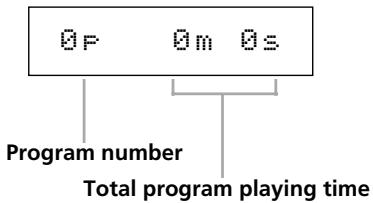
NOTE
You can also use the "PLAY MODE?" option in the PLAY sub-menu of the MD and CD menus to set the Program Playback mode.
2 Use the number keys on the remote control to select each desired track for program play-back, then press the ENT/YES key. The track number will be entered into the program.
NOTE
To set the program by front panel operation, use the MULTI JOG dial to select the track number, then press the ENTER key to add the track to the program.
3 Repeat the above step 2 until the desired program is completed.
As the program is being created, the program number and total program playing time is revised on the display.
To confirm program contents, press the skip keys during playback or playback standby.
NOTE
If the total program playing time exceeds 999 min 59 sec for CD, or 715 min 49 sec for MD, “- - - m - - s” is displayed.
4 When program setting is completed, press the PLAY key to begin playback of the tracks in the programmed order.
NOTE
If the STOP key is pressed without first pressing the PLAY key, all the program data will be erased.
Deleting a programmed track
1 During STOP mode, use the skip key to select the track for deletion. The track number will be shown in the display.
2 Press the DEL/CLR key.
NOTE
Right after STOP, if the DEL/CLR key is pressed, the last track programmed will be deleted.
Adding a track to the program
1 During STOP mode, using the skip keys, skip to the programmed track before the position you wish to add a track. The track number should be shown on the display.
2 Use the number keys to input the track number of the track to be added.
3 Press the ENT/YES key.
NOTE
Right after STOP, if the number of the track to be added is input, and the ENT/YES key is pressed, the track will be added to the end of the program.
To add a track to the program by front panel operation, use the MULTI JOG dial to select the track number, then press the ENTER key.
Program limitations
With an MD, if the Group mode is on, programs that include more than one group cannot be created.
With MP3 discs, if the Directory mode is on, programs that include more than one directory cannot be created.
The same track may be repeated in a program.
When 99 CD tracks CD (or 25 MD tracks) are entered into a program, if you attempt to add a track,
“PGM Full!” will be displayed, and no more tracks can be added.
Saving program data
When program playback has finished, or when the STOP key is pressed, and the deck stops, the program data is retained.
When the power is turned off, the Program playback mode remains on, but the program data is deleted.
When the deck is stopped, pressing the STOP key will delete the program data.
When the deck is stopped, pressing the P.MODE key will cancel the Program mode and delete the program data.
When the PLAY key is pressed but there is no program data, “PGM Empty!” will be displayed, and the deck will not operate.
Random playback
In this mode, the deck will play back all the tracks on the disc in completely random order, regardless of track number.
1 During stop mode, press the P.MODE key on the remote control until “RANDOM” is indicated on the display.
NOTE
You can also use the "PLAY MODE?" option in the PLAY sub-menu of the MD and CD menus to set the Random Playback mode.
2 Press the PLAY key and Random playback will begin.
NOTE
Even when the power is turned off, the deck will remain in RANDOM mode.
Time display switching
During MD or audio CD playback (or playback standby), when the TIME key on either the front panel or the remote control is pressed, the time display will switch through several modes in the following order.
Elapsed track time (no display light indication)
Remaining track time (REMAIN is lit in the display)
Elapsed disc time (TOTAL is lit in the display)
Remaining disc time (TOTAL and REMAIN are lit in the display)
NOTE
During MD playback, the remaining disc time indication, as with CD, shows the playback time remaining until the end of the disc. Please note that this may dif-
fer from the remaining time indicated when recording the MD.
When stopped, the total recording time is shown, regardless of the status of the TOTAL and REMAIN indicators.
When playing an MP3 disc, elapsed track time is always displayed, and the TIME key does not operate.
For details on time display during recording and recording standby on an MD deck, please refer to "Checking remaining MD time" on page 40.
Even when the power is turned off, the time display mode setting is retained.
End of disc/track warning
When nearing the end of a track or disc, a warning indication is shown on the display.
The number of seconds before the track/disc end that the warning is displayed can be set beforehand, so that when playback reaches that point, the “EOM” warning will begin flashing on the display.
To set the warning display time, use the “EOM TRK?” or “EOM DISC” options on the PLAY sub-menu of the MD and CD menus. Each can be set between 1 and 99 seconds in 1-second increments, or the warning display can be turned off.
Playback functions for CD only
The following playback functions are for CD only, and are not available for MD playback.
Changing the key of playback
They key of the music can be changed during CD playback. Please note that this feature does not operate with MP3 discs.
1 Use the “KEY LEVEL?” option on the PLAY sub-menu of the CD menu to change the key. The playback key can be raised or lowered 1/2 octave in half-tone increments. Selection values: 0 (no change), b1 to b6, #1 to #6
2 Press the KEY key on the front panel to turn the Key Change function on.
The “KEY” indication lights up in the display.
NOTE
Each time the KEY key is pressed, the function is switched on or off. When the function is on, instead of an "ON" indication, the key selected (in operation 1. above) is indicated on the display. For example: "Key b2"
In this condition, when a CD is played back, the key of the music is changed while the speed of the music remains the same.
NOTE
Even when the power is turned off, the key change setting is retained.
When the Key Change function is on, even if the Pitch Control function is used to change the playback speed, the key of playback will remain fixed at the preset key. (Even if the key level is 0 (zero), the Key Change function can be turned on.)
Fade-in and fade-out
When this function is on, when CD playback begins the song fades in, and when playback finished the song fades out.
1 To set the fade operation, use the menu options shown below. They can be found under the VOL FUNC sub-menu in the CD menu.
F\_IN TIME
The length of the fade in to the normal level can be set between 1 and 30 seconds in 1-second increments. (Default setting: 3 seconds).
F\_OUT TIME
The length of the fade out into complete silence can be set between 1 and 30 seconds in 1-second increments. (Default setting: 3 seconds).
FADE MODE
The deck can be set to continue playback (“Play”) or enter playback standby mode (“Ready”) after fade-out is completed.
2 In stop mode or playback standby mode, press the FADER key.
Playback begins and the sound fades in. After the preset fade-in time, the sound is at normal level.
3 During playback, press the FADER key when you wish to fade-out the sound.
Fade-out begins, and after the preset fade-out time, there is silence. After it becomes silent, depending upon the Fade mode setting, playback continues or the deck enters playback standby mode.
Output volume
The volume of the CD playback output signal can be adjusted. This adjustment functions for both for analog output (including headphone output) and digital output.
1 Setting is made using the "PLAY VOLUME?" option on the VOL FUNC sub-menu of the CD menu.
The level can be set between -54 dB and +18 dB, or “- - -” (- infinity) can be selected.
NOTE
Since volume adjustment is performed in the digital domain, if the output level is excessive in the plus direction, digital distortion will be generated.
MP3 file directory playback
MP3 files recorded onto a CD are handled the same way as files are handled in an ordinary PC, with some MP3 files held within a directory. In addition, several directories can be combined into one directory. This results in multiple layers of directories and files.
When the Directory mode is on, only those files within a selected directory are available for playback. When the directory mode is off, the directory configuration is ignored, and all MP3 files recorded on the disc are available for playback. Please note that Program playback and Repeat playback only function within directories.
NOTE
Each MP3 file is handled as a track.
Directories which do not contain MP3 files directly under them cannot be selected for playback. For example, in the diagram below, under directory A are directory B and directory C. If there are MP3 files in both directory B and C, directory A cannot be selected for playback, but directory B and C can be selected for playback.
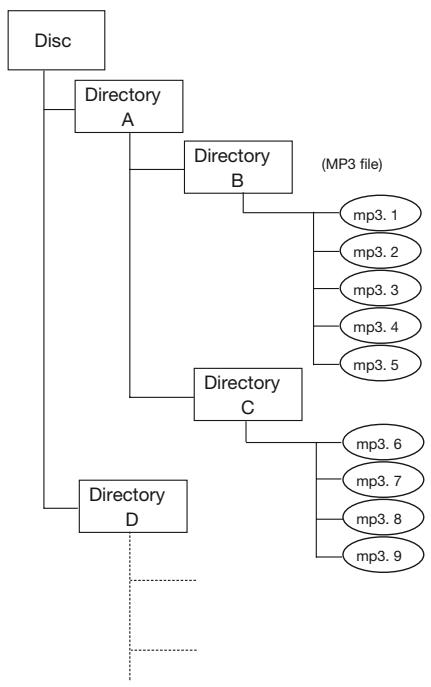
flowchart
graph TD
    A["Disc"] --> B["Directory A"]
    B --> C["Directory B"]
    C --> D["(MP3 file)"]
    C --> E["Directory C"]
    E --> F["Directory D"]
    F --> G["..."]
    style A fill:#f9f,stroke:#333
    style B fill:#ccf,stroke:#333
    style C fill:#cfc,stroke:#333
    style D fill:#fcc,stroke:#333
    style E fill:#cff,stroke:#333
    style F fill:#ffc,stroke:#333
Directory playback setting
1 Set the remote control master to CD, and press the DIR/GROUP key.
“DIR ON” or “DIR OFF” will be shown in the display. When the DIR/GROUP key is pressed, the current setting is changed. For example, if the directory playback mode is off, when the key is pressed, the mode is turned on and “DIR ON” is displayed.
You can also use the “DIR MODE?” option in the VOL FUNC sub-menu of the CD menu to turn this mode on or off.
2 During Stop mode, the CD SEARCH key on the remote control can be used to select a directory.
Press the CD SEARCH key, and the selected directory title will be shown on the display.
MD group playback
The MD-CD1 allows MD tracks to be divided into groups.
When the Group mode is on, only those tracks in the selected group are available for playback. This is like playing a disc which only contains the tracks in a selected group. Accordingly, Program playback and Repeat playback only function within the group.
Group playback setting
1 Set the remote control master to MD, and press the DIR/GROUP key.
“GRP ON” or “GRP OFF” will be shown in the display. When the DIR/GROUP key is pressed, the current setting is changed. For example, if the Group playback mode is off, when the key is pressed, the mode is turned on and “GRP ON” is displayed.
You can also use the “GRP MODE?” option in the VOL FUNC sub-menu of the MD menu to turn this mode on or off.
2 During Stop mode, the MD SEARCH key on the remote control can be used to select a group.
Press the MD SEARCH key, and the number of the selected group will be shown on the display, followed by the group title.
NOTE
When Group mode is on, regardless of the group, tracks which are not in the group cannot be played.
When Group mode is turned on, recording is not possible.
Creating and deleting groups
Using the “EDIT” sub-menu of the MD menu, groups can be created or deleted. Refer to “Creating a group” and “Deleting a group” in the “MiniDisc editing” section starting on page 41.
Titling groups
You can title the groups using the “TITLE” sub-menu of the MD menu. Refer to “Group title input” on page 46.
The MD-CD1 makes it easy to dub from CD to MD. Selected tracks or the entire disc can be dubbed.
Basic dubbing operation
First, load the CD to be used as the dubbing source into the CD deck, then insert a recordable MiniDisc into the MD deck.
To dub the entire CD
While the CD deck is stopped, press the DUBBING key on either the front panel or the remote control.
To dub a selected track on the CD
During playback of the desired track, or when that track is cued and the deck is in playback standby mode, press the DUBBING key on either the front panel or the remote control.
When the track is finished dubbing, both decks will stop.
NOTE
Dubbing is performed in the preset recording mode and recording speed. For details, refer to the following.
Recording mode setting
Using the “REC MODE?” option on the REC submenu of the MD menu, select the recording mode from the following choices.
| ST: | standard stereo recording mode | default, with no display indication |
| MONO | monaural recording mode | “MONO” lights up in the display |
| LP2 | half-speed stereo recording mode | “LP2” lights up in the display |
| LP4 | quarter-speed stereo recording mode | “LP4” lights up in the display |
NOTE
In MONO mode, only the left channel is recorded, and the recording time is twice that in ST mode.
The recording time in LP2 mode is twice that in ST mode.
The recording time in LP4 mode is four times that in ST mode.
The remaining MD recording time indicated depends upon the recording mode setting.
Recordings made in different recording modes can be combined on the same disc.
Since a special data compression technology is used for LP4 mode (quarter-time recording for four times the recording time in stereo), there is the very slight possibility of spikes of noise being generated. If sound quality is an important consideration, we do not recommend the use of the LP4 mode.
Dubbing speed setting
Use the “REC SPEED?” option on the REC sub-menu of the MD menu to select either “NORMAL” or “HIGH” speed dubbing.
NORMAL: dubbing is performed during regular playback
HIGH: dubbing speed depends on the MD recording mode, as indicated below.
| MD recording mode | source disc | dubbing speed |
| Standard mode | audio CD | 4X speed |
8 – Dubbing from CD to MD—Dubbing speed setting
| MONO, LP2 or LP4 mode | audio CD | 2X speed |
| — | MP3 disc | actual speed |
To listen while dubbing, select NORMAL. For faster dubbing, select HIGH.
When Rec Speed is set to NORMAL, MD dubbing is possible even if the Key Change or Pitch Control functions have been used for CD playback.
The MD-CD1 can not only dub from CD to MD, it also allows MD recording from other sound sources.
Basic recording
Set the recording mode and select the input source. While monitoring the input signal, adjust the recording level. After all settings are complete, you are ready to make a recording.
Before following the procedures below, make sure the MD-CD1 power is on, a recordable MiniDisc is in the deck, and the deck is in stop mode.
Recording mode setting
1 Use the “REC MODE?” option on the REC sub-menu of the MD menu to set the recording mode.
For more details, refer to the previous section “Dubbing from CD to MD” on page 34.
Input source selection
2 Use the INPUT SEL key on the front panel or the remote control to select the input source.
Press the key to switch between ANALOG and OPTICAL.
ANALOG
The analog signal from the ANALOG INPUT terminals is the recording source.
OPTICAL
The digital signal from the DIGITAL (OPTICAL) INPUT is the recording source.
Even if the power is turned off, the selected input source is retained.
Input monitoring
3 Press the RECORD key on either the front panel or the remote control.
The MD deck will enter recording standby mode, the READY and RECORD indicators will light up, and “REC” and “||” will light up on the display.
NOTE
The deck cannot enter recording standby mode in the following cases.
The tab on the MD cartridge is set to prevent recording, and "W_Protected" is displayed.
The disc is full, and "Disc Full!" is displayed.
The maximum number of tracks has been recorded, and "Track Full!" is displayed.
When the digital input (OPTICAL) is selected, if there is no proper digital signal input, "D-IN UNLOCK!" will be displayed, and recording cannot be performed.
NOTE
If a partially recorded disc is inserted, the end of the recorded portion will be detected.
The deck will enter recording standby mode, and the MD input signal can be monitored through headphones or a connected audio system.
NOTE
If monitoring through a connected system, connect the MD OUTPUTS terminals to the system. Connection through the COMMON OUTPUTS terminal is also possible, but in this case, the appropriate setting must be made using the "COMMON?" option on the SYSTEM sub-menu of the CD menu. Refer to "Connecting analog audio equipment" on page 10.
For details on headphone monitoring, refer to "Basic playback operation" on page 24.
Even if no MD is inserted in the deck, it is still possible to monitor the input signal by pressing the RECORD key. In this case, "Monitor" will be shown in the display.
To cancel input monitoring, press the STOP key.
Recording level adjustment
Adjust the recording level while monitoring the input and viewing the meters.
4 Use the “REC VOLUME?” option on the VOL FUNC sub-menu of the MD menu to adjust the level.
If ANALOG is selected as the input source, you may also use the front panel INPUT controls (L and R) to set the level independently for each channel.
Recording start
5 In the recording standby mode, press the PLAY key, and recording will start.
To stop recording, press the STOP key.
After pressing the STOP key, “UTOC Writing!” will be shown on the display as the User Table Of Contents is written on the disc.
To pause recording, press the READY key.
9 – MD recording from an external source—Recording cautions
To eject the disc from the deck, press the EJECT key during stop mode.
NOTE
When "UTOC Writing!" is flashing on the display, data on the recorded contents is being written onto the disc.
During this process, if the power cord is unplugged from the power source, or the unit is moved or disturbed, this essential data cannot be correctly recorded on the disc.
Recording cautions
When "W\_Protected!" is displayed
The inserted MD cannot be recorded, or a playback-only MD was inserted.
Close the write protect tab to enable recording.
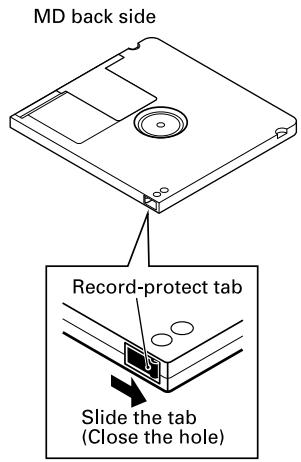
Adding track numbers
Track numbers are necessary for editing and cueing operation. During recording, track numbers are entered automatically, and may also be entered manually either during or after recording.
Auto track function
This function automatically enters track numbers during recording.
Set this function using the AUTO TRACK key on the remote control to select "-**dB", "D-D" or "OFF".
You can also set the auto track function using the "A_TRK?" option in the REC sub-menu of the MD menu.
-\*\*dB
If the signal falls below the Auto Track operation level for more than four seconds, a track number is automatically entered. To set this operation level, use the “A_TRK LEVEL?” option on the REC sub-menu of the MD menu. The level can be set between -30 dB to +72 dB in 6 dB increments.
D-D
When recording from digital sources, track numbers are added in accordance with the source track numbers.
When recording from analog sources, track numbers are added when the input level drops for four seconds or more, in the same way as with the “-**dB” setting above.
NOTE
Even when the power is turned off, the Auto Track and Auto Track Level settings are retained.
Entering a track number manually
During recording: press the RECORD key at the point where you wish to begin a new track.
After recording: track numbers can be entered during editing operation. Refer to “Divide tracks” on page 42.
Fade-in and fade-out recording
At the beginning and end of MD recording, fade-in and fade-out effects can be performed.
Before following the procedure below, make sure that basic recording preparations have been completed, a recordable disc is inserted, and the deck is in stop mode.
1 Set operation using the following menu options on the VOL FUNC sub-menu of the MD menu.
F\_IN TIME
The length of the fade in to the normal level can be set between 1 and 30 seconds in 1-second increments. (Default setting: 3 seconds).
F\_OUT TIME
The length of the fade out into complete silence can be set between 1 and 30 seconds in 1-second increments. (Default setting: 3 seconds).
FADE MODE
The deck can be set to continue recording (“Rec”) or enter recording standby mode (“Ready”) after fade-out is completed.
2 In recording standby mode, press the FADER key.
Recording begins and the sound fades in. After the preset fade-in time, the sound is at normal level.
3 During recording, press the FADER key when you wish to fade-out the sound.
Fade-out begins, and after the preset fade-out time, there is silence. After it becomes silent, depending upon the Fade mode setting, recording continues or the deck enters recording standby mode.
NOTE
Fade-in or fade-out only may be selected.
The "Time Machine" recording function cannot be performed together with fade-in recording. For details, refer to the following section.
"Time Machine" recording
This function makes it possible to start recording up to 6 seconds before the time the recording operation is actually started. It operates by holding the input signal in a buffer memory that can be set to contain up to 6 seconds of data representing a normal stereo input signal.
Before following the procedure below, make sure that basic recording preparations have been completed, a recordable disc is inserted, and the deck is in stop mode.
1 Set the time value for the amount of data to be stored in the buffer using the "TM_REC?" option on the REC sub-menu of the MD menu.
Setting values range from 1 to 6 seconds in 1-second increments, as well as OFF. The default setting is OFF.
OFF: The Time Machine function does not operate.
1 sec to 6 sec settings: The buffer will hold the corresponding seconds of signal.
2 Press the RECORD key to enter recording standby mode.
3 Press the PLAY key to start recording.
The signal will be recorded from the number of seconds set before the PLAY key is pressed.
4 Press the STOP key to stop recording.
NOTE
When performing fade-in recording (explained in a previous section), Time Machine recording is not possible.
Overwrite recording
This function is used to record a new signal over a previously recorded but unwanted portion of the disc.
Before following the procedure below, make sure that basic recording preparations have been completed, a recordable disc is inserted, and the deck is in stop mode.
1 Locate the point at which you wish to begin overwrite recording, press the READY key, and the deck will go into playback standby mode.
To start overwrite recording from the beginning of a certain track, use the SKIP keys or the number keys to select the track, then press the READY key.
To start overwrite recording from the middle of a certain track, use the SKIP keys or the
number keys to select the desired track, then press the PLAY key to begin playback (you can also use the Search function). At the desired point, press the READY key.
2 Press the RECORD key, "Over Write" will be shown on the display, and the deck will enter recording standby mode.
Adjust the recording level if necessary.
3 Press the PLAY key and overwrite recording begins.
NOTE
When "SINGLE," "RANDOM" or "PROGRAM" lights up in the display, overwrite recording cannot be performed. In the case of step 2 above, "Can't Rec" will be displayed.
Sync recording
The Sync recording function automatically begins recording when the signal from external equipment is present in the source input. Plus, if silence in the source signal continues for more than four seconds, the deck is automatically put into the recording standby mode.
Before following the procedure below, make sure that basic recording preparations have been completed, a recordable disc is inserted, and the deck is in stop mode.
1 Press the SYNC key on the remote control to select on or off.
You can also switch the SYNC recording function on or off using the “SYNC?” option on the REC sub-menu of the MD menu.
2 Set the signal detection threshold level using the “SYNC LEVEL?” option on the REC sub-menu of the MD menu. The level can be set from -72 dB to -30 dB in 6 db increments. The default setting is -30 dB.
3 Press the RECORD key to enter recording standby mode.
NOTE
In this status, recording will begin as soon as a source signal is input.
4 Input the source signal.
When a source signal is detected, recording begins automatically.
If the signal is under the threshold level for over four seconds, the deck automatically enters recording standby mode.
NOTE
During SYNC recording standby, recording cannot be started manually by pressing the PLAY key.
5 To manually stop recording, press the STOP key.
NOTE
During SYNC recording, even if the READY key is pressed, the recording standby mode cannot be entered. (The key cannot be used to pause recording.)
The INPUT SEL key does not function during SYNC recording.
After SYNC recording finishes and the deck enters recording standby mode, if the power is turned off the recording data will be deleted. Make sure to press the STOP key so that the U-TOC is written onto the disc before turning the power off.
Checking remaining MD time
During MD recording or recording standby mode, press the TIME key on either the front panel or the remote control, and the elapsed track recorded time and remaining recording time will be shown in succession on the display.
Elapsed track recorded time (no indication light)
Disc remaining time (REMAIN only, or TOTAL and REMAIN will light up)
Even if the power is turned off, the time settings will be retained.
Tracks recorded can be deleted, moved, divided or combined by MiniDisc editing operation.
Editing operations
All MD editing functions are operated from the EDIT sub-menu on the MD menu.
After selecting a menu option on the EDIT sub-menu, subsequent operation will vary. Specific operations for each menu option are explained individually in the following section.
NOTE
Editing functions cannot be performed on discs set to prevent accidental erasure (write protected), and "W_Protected!" will be displayed when accessing the EDIT sub-menu of the MD menu.
Tracks and points for editing
For most editing menu options, if the deck is not in play or in playback standby mode at the track or point to be edited, the option itself cannot be
selected, and “Can’t Edit!” will be displayed. These are options for editing functions to be performed on tracks or points, including DIVIDE, COMBINE and MOVE. The ERASE TRK option is called up before the track has been selected.
Canceling edits
To cancel editing operations up to the point where the setting screen or confirmation screen (“Sure?”) appears, press the NO key, the MD STOP key, or the MD MENU key (MENU key on the remote control).
NOTE
After editing operations have been completed, with the MD still inserted and "TOC" lit up on the display, if the power is turned off, the revised U-TOC will not be written on the disc, and the editing operation will not be retained on the disc.
UNDO an edit operation
It is possible to cancel the most recently performed editing operation.
1 Stop the MD deck.
2 Select the “UNDO?” option from the EDIT sub-menu. Undo> *** is displayed, with *** representing the last performed editing option.
3 Press the ENTER key (or the YES key) on the front panel, or the ENT/YES key on the remote control.
"Sure?" is displayed.
4 Press the ENTER key (or the YES key) on the front panel, or the ENT/YES key on the remote control.
The last editing operation performed will be undone.
Erase track
Unwanted tracks can be erased one at a time
Example: To erase B in track number 2
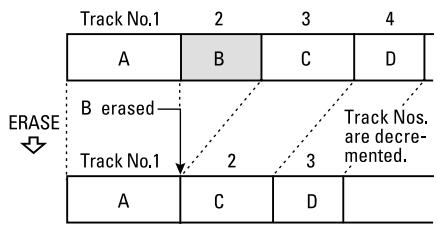
flowchart
graph TD
    A["Track No.1"] -->|B erased| B["Track No.1"]
    B -->|2| C["Track No.1"]
    C -->|3| D["Track No.1"]
    D -->|D| E["Track No.1"]
    style A fill:#ccc,stroke:#333
    style B fill:#ccc,stroke:#333
    style C fill:#ccc,stroke:#333
    style D fill:#ccc,stroke:#333
    style E fill:#ccc,stroke:#333
Selecting a track to be erased by playback
- The deck should be in play or in playback standby on the track to be erased.
2 Select the “ERASE TRK?” option on the EDIT sub-menu of the MD menu.
"Sure?" is displayed.
3 Press the ENTER key (or the YES key) on the front panel, or the ENT/YES key on the remote control.
After the track is erased, "Complete" is shown on the display.
Selecting a track to be erased on the menu
1 In the stop mode, select the “ERASE TRK?” option on the EDIT sub-menu of the MD menu.
“Track>***” will be displayed, with *** representing the last track number.
2 Select the track to be erased using the MULTI JOG dial on the front panel, or the MENU -/+ key on the remote control, and press the ENTER key.
"Sure?" is displayed.
3 Press the ENTER key (or the YES key) on the front panel, or the ENT/YES key on the remote control.
After the track is erased, “Complete” is shown on the display.
NOTE
When a track is erased, the tracks are renumbered from the next track.
Erase disc
All the tracks on the disc can be erased in one operation.
1 Select the “ERASE DISC?” option on the EDIT sub-menu of the MD menu.
"Sure?" is displayed.
2 Press the ENTER key (or the YES key) on the front panel, or the ENT/YES key on the remote control.
After all the tracks on the disc are erased, "Complete" is shown on the display.
Divide tracks
Tracks can be divided into two or more tracks.
Example: To divide C and D contained in track number 3 into two tracks
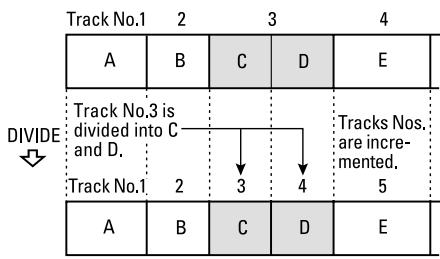
flowchart
graph TD
    A["Track No.1"] --> B["Track No.3 is divided into C and D."]
    B --> C["Track No.1"]
    C --> D["Track No.1"]
    D --> E["Track No.1"]
    E --> F["Track No.1"]

    subgraph DIVIDE
        direction LR
        G1["Track No.3 is divided into C and D."] --> H1["Track No.1"]
        H1 --> I1["Track No.1"]
        I1 --> J1["Track No.1"]
    end

    subgraph Tracks Nos.
        direction LR
        K1["Tracks Nos. are incremented."] --> K2["5"]
    end
1 Select the “DIVIDE?” option on the EDIT sub-menu of the MD menu.
2 Play back the track to be divided, and at the desired divide point, press the ENTER key (or the YES key) on the front panel, or the ENT/YES key on the remote control.
“Point>0” is displayed, and starting at the divide point (specified in the above operation) a few seconds are played back repeatedly to enable confirmation.
NOTE
As an alternate procedure to steps 1 and 2 above, play the track to be divided, and at the desired point, put
the deck into playback standby mode. Then select the "DIVIDE?" option on the EDIT sub-menu of the MD menu, and "Point>0" will be displayed. Starting at the divide point (specified in the above operation) a few seconds are played back repeatedly to enable confirmation.
3 If necessary, use the MULTI JOG dial on the front panel, or the MENU -/+ key on the remote control to adjust the divide point.
4 After the divide point has been set, press the ENTER key (or the YES key) on the front panel, or the ENT/YES key on the remote control.
"Sure?" is displayed.
5 Press the ENTER key (or the YES key) on the front panel, or the ENT/YES key on the remote control.
After the track is divided, “Complete” is shown on the display.
NOTE
If a title has been added to the track, it will be retained only for the first of the new divided track. The second divided track will not have a title.
Combine tracks
Two successive tracks can be combined into one track by deleting the track mark of the second track.
Example: To combine B and C
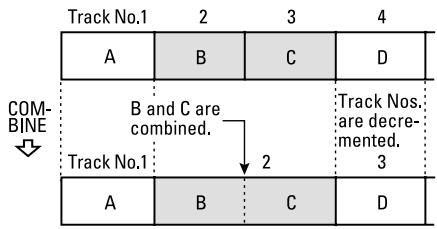
flowchart
graph TD
    A["Track No.1"] --> B["A"]
    B --> C["B"]
    C --> D["C"]
    D --> E["D"]
    E --> F["Track Nos. are decre-mented."]
    F --> G["2"]
    G --> H["Track No.1"]
    H --> I["A"]
    I --> J["B"]
    J --> K["C"]
    K --> L["D"]
    style A fill:#f9f,stroke:#333
    style B fill:#f9f,stroke:#333
    style C fill:#f9f,stroke:#333
    style D fill:#f9f,stroke:#333
    style E fill:#f9f,stroke:#333
    style F fill:#f9f,stroke:#333
    style G fill:#f9f,stroke:#333
    style H fill:#f9f,stroke:#333
    style I fill:#f9f,stroke:#333
    style J fill:#f9f,stroke:#333
    style K fill:#f9f,stroke:#333
    style L fill:#f9f,stroke:#333
NOTE
Successive tracks recorded with different recording modes cannot be combined into a single track.
1 Put the deck in play or in playback standby on the second of the two tracks to be combined.
For example, if tracks 2 and 3 are to be combined, play track 3 or put it in playback standby mode.
2 Select the “COMBINE?” option on the EDIT sub-menu of the MD menu.
“Track OK?” is displayed, and a 3-second segment from the end of the first track and a 3-second segment from the start of the second track are successively played back repeatedly to enable confirmation.
3 Press the ENTER key (or the YES key) on the front panel, or the ENT/YES key on the remote control.
After the tracks are combined, “Complete” is shown on the display.
NOTE
If both tracks have titles, the combined track will take the title of the first of the two tracks.
Move tracks
Tracks can be moved to different positions in the playing order.
Example: To move D from track number 4 to track number 2
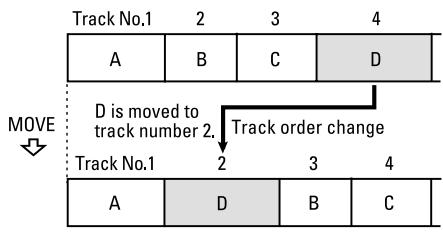
flowchart
graph TD
    A["Track No.1"] --> B["A"]
    B --> C["B"]
    C --> D["C"]
    D --> E["D"]
    E --> F["Track No.1"]
    style A fill:#ccc,stroke:#333
    style B fill:#ccc,stroke:#333
    style C fill:#ccc,stroke:#333
    style D fill:#ccc,stroke:#333
    style E fill:#ccc,stroke:#333
    note right of A: D is moved to track number 2.
    note right of E: Track order change
    note left of A: MOVE
    note right of E: Track order change
1 Put the deck in play or in playback standby on the track to be moved.
NOTE
If the above step is not performed first, and the following operations are performed while the deck is in stop mode, the last track will automatically be selected as the track to be moved.
2 Select the "MOVE?" option on the EDIT sub-menu of the MD menu.
“Move ***>###” is displayed, with *** representing the number of the track to be moved, and ### representing the track number where it will be moved.
3 Use the MULTI JOG dial on the front panel, or the MENU -/+ key on the remote control to select the track number where it will be moved.
4 Press the ENTER key (or the YES key) on the front panel, or the ENT/YES key on the remote control.
"Sure?" is displayed.
5 Press the ENTER key (or the YES key) on the front panel, or the ENT/YES key on the remote control.
After the track is moved, “Complete” is shown on the display.
Creating a group
The MD-CD1 enables tracks to be divided into groups on a single MD disc for playback by group. Refer to “MD group playback” on page 33.
A group is created by specifying track numbers of the “starting” track and the “ending” track.
1 In stop mode, select the “GRP CREATE?” option from the EDIT sub-menu of the MD menu.
“ST Trk>001” is displayed. This shows the starting track selection.
2 Use the MULTI JOG dial to select the starting track.
3 Press the ENTER key (or the YES key) on the front panel, or the ENT/YES key on the remote control.
“ED Trk>***” is displayed. This shows the ending track selection.
4 Use the MULTI JOG dial to select the starting track.
5 Press the ENTER key (or the YES key) on the front panel, or the ENT/YES key on the remote control.
"Sure?" is displayed.
6 Press the ENTER key (or the YES key) on the front panel, or the ENT/YES key on the remote control.
After the specified group is created, “Complete” is shown on the display.
Disc title when creating a group
When creating a group, a disc title containing the group information or the group title is automatically created.
For example, if the original title of the disc is “Favorites” and tracks 1 to 4 are combined into a group titled “Jazz” and tracks 5 to 8 are combined into a group titled “Latin,” the new title of the disc will be:
0; Favorites//1-4; Jazz//5-8; Latin//
If titles are not given to the disc and the groups, the new disc title will be:
0; //1-4; //5-8; //
Deleting a group
Groups can also be deleted.
1 In stop mode, select the “GRP CANCEL?” option from the EDIT sub-menu of the MD menu.
“GRP No> 01” is displayed.
2 Use the MULTI JOG dial to select the number of the group to be deleted.
If all the current groups are to be deleted, select "ALL."
3 Press the ENTER key (or the YES key) on the front panel, or the ENT/YES key on the remote control.
"Sure?" is displayed.
4 Press the ENTER key (or the YES key) on the front panel, or the ENT/YES key on the remote control.
After the specified group is deleted, “Complete” is shown on the display.
Titles can be given to the MD disc, and the tracks and groups on it, using the TITLE sub-menu on the MD menu.
NOTE
Just as with the editing menu, after the title is selected and entered on the disc, and TOC lights up on the display, if the power is turned off, the U-TOC will not be recorded onto the disc, and the titles will not be added.
Disc title input
1 In the stop mode, select the “TITLE INPUT?” option on the TITLE sub-menu on the MD menu.
"Title> Disc" will be displayed.
2 While "Title> Disc" is displayed, press the ENTER key or the ENT/YES key on the remote control.
The current disc title is shown on the character display, title edit mode is entered, and the cursor flashes.
NOTE
If there is no current title, nothing will be shown on the display, and only the cursor will flash.
If a group is set, the default title automatically created by the MD-CD1 will be displayed. Refer to "Creating a group" on page 44.
3 Add a title following the guidelines below, and press the MD MENU key or the MENU key on the remote control to confirm.
NOTE
For discs with groups, set the Group mode to on before inputting a title. If a title is added with the Group mode off, the group settings may become inoperative.
Title input operation
In Title Input mode, the cursor flashes in the character display. Since it is more efficient to use the remote control to input titles, the following explanation will center on its use.
NOTE
It is even more efficient to connect a keyboard for title input. Refer to "Title input by keyboard" on page 47.
Follow the guidelines below to input titles on the screen.
Select the type of character for input
Press the CHAR key on the remote control to select from three different types of characters.
Lower case letters/code: no indication
Capital letters/code: CAPS
Japanese: カタカナ
For front panel operation, use the DISPLAY key.
Input procedure
Use the number keys to input characters at the cursor position.
Press the number keys the necessary number of times to get the desired character to appear on the display.
For front panel operation, use the MULTI JOG dial.
To move the cursor position
Use the skip keys.
However, if a different number key is pushed, the cursor automatically moves to the right.
For front panel operation, use the skip keys.
To delete characters
Set the cursor on the character to be deleted, then press the DEL/CLR key.
For front panel operation, use the NO key.
To insert characters
Move the cursor to the location where you wish to insert a character, and press the INS key.
For front panel operation, use the YES key.
To change a character
Set the cursor on the character to be changed, then input the desired character.
NOTE
As with the Editing menu, after the name is set, if the power is turned off while the MD is still inserted (TOC lights up), the revised U-TOC will not be recorded on the disc, and the title will not be input. The U-TOC is recorded when the disc is ejected.
Track title input
Method 1
With this method, the tracks for title input are selected first.
1 Put the deck in playback or playback standby mode on the track you wish to add a title. During recording, you may also input a title for the current track being recorded.
2 Select the “TITLE INPUT?” option on the TITLE sub-menu of the MD menu, and press the ENTER key on the front panel, or the ENT/YES key on the remote control.
The title of the track in play will be shown on the character display, Title Edit mode is entered, and the cursor flashes.
NOTE
If there is no track title, only the cursor will flash and nothing will be displayed.
3 Following the title input guidelines above, input the title, and press the MD MENU key on the front panel or the MENU key on the remote control to confirm.
Method 2
With this method, the Title Input mode is selected first.
1 During stop mode, select the “TITLE INPUT?” option on the TITLE sub-menu on the MD menu.
"Title> Disc" is displayed.
2 Select the track for title input using the MULTI JOG dial on the front panel, or the MENU -/+ key on the remote control, then press the ENTER key on the front panel or the ENT/YES key on the remote control.
For example, select "Title>003" to choose track 3.
When a selection is made, the current track title is shown on the character display, Title Edit mode is entered, and the cursor flashes.
NOTE
If there is no track title, only the cursor will flash and nothing will be displayed.
3 Following the title input guidelines above, input the title, and press the MD MENU key on the front panel or the MENU key on the remote control to confirm.
Group title input
1 During stop mode, select the “TITLE GRP?” option on the TITLE sub-menu on the MD menu.
“Title Grp> **” is displayed, with ** representing the group number.
2 Press the ENTER key on the front panel or the ENT/YES key on the remote control.
The current group title is shown on the character display, Title Edit mode is entered, and the cursor flashes. The group number flashes on the track number display.
3 Following the guidelines for title input methods above, input the title, and press the MD MENU key on the front panel or the MENU key on the remote control to confirm.
12 – Using a computer keyboard
A computer keyboard can be connected to the IBM PC compatible PS/2 interface on the front panel to
operate certain functions of the MD-CD1. It is particularly efficient for title input.
Keyboard type setting
The MD-CD1 must be set for the type of keyboard being connected.
Select US for an English-language keyboard, or JPN for a Japanese-language keyboard.
1 Set the type using the "KEYBOARD?" option on the SYSTEM sub-menu of the CD menu.
Title input by keyboard
Titles can be input just like typing on a PC.
To enter the Title Edit menu
Press SHIFT + F7 to enter the Group Title Edit Menu.
“Title Grp>##” is shown on the display.
Press SHIFT + F8 to enter the Disc/Track Title Edit Menu.
“Title>##” is shown on the display.
To select the type of characters for input
Press CAPS to select or cancel upper case letters
Press the カタカナ (katakana) key to select or cancel Japanese characters (Japanese-language keyboards only)
If both of the above are cancelled, lower case letters are input
To input characters
Character input is performed directly with the letter and number keys.
To move the cursor
Use the cursor arrow keys and ).
To delete characters
Delete key: deletes the character in the cursor position
Back space key: deletes the character before the cursor position
To insert a character
Use the Insert key.
To change a character
Put the cursor on its position and input the desired character.
Other keyboard operations
The keyboard can be used not only for title input, but also to control the deck transports, perform editing functions and other operations. The list below shows the keys that perform various operations.
| Keyboard key | Operation |
| F1 | MD ◀◀◀ |
| F2 | MD ▶▶▶I |
| F3 | MD key |
| F4 | MD STOP |
| F5 | MD PLAY |
| F6 | MD READY |
| F7 | AUTO CUE for MD |
| F8 | MD RECORD |
| F9 | AUTO READY for MD |
| F10 | REPEAT for MD |
| F11 | PLAY MODE for MD |
| F12 | same as pushing the MD PITCH control |
12 – Using a computer keyboard—Other keyboard operations
| Keyboard key | Operation |
| SHIFT + F1 | MD EDIT “ERASE TRK” |
| SHIFT + F2 | MD EDIT “ERASE DISC” |
| SHIFT + F3 | (inoperative) |
| SHIFT + F4 | MD EDIT “MOVE” |
| SHIFT + F5 | MD EDIT “DIVIDE” |
| SHIFT + F6 | MD EDIT “COMBINE” |
| SHIFT + F7 | TITLE EDIT “TITLE GRP” |
| SHIFT + F8 | TITLE EDIT “TITLE INPUT” |
| SHIFT + F9 | UNDO |
| SHIFT + F10 | MD EDIT GRP CANCEL |
| SHIFT + F11 | MD EDIT GRP CREATE |
| SHIFT + F12 | DUBBING |
| CTRL + F1 | CD ◀◀◀ |
| CTRL + F2 | CD ▶▶▶ |
| CTRL + F3 | CD key |
| CTRL + F4 | CD STOP |
| CTRL + F5 | CD PLAY |
| CTRL + F6 | CD READY |
| CTRL + F7 | AUTO CUE for CD |
| CTRL + F8 | KEY key |
| CTRL + F9 | AUTO READY for CD |
| CTRL + F10 | REPEAT for CD |
| CTRL + F11 | PLAY MODE for CD |
| CTRL + F12 | same as pushing the CD PITCH control |
| CAPS | Select or cancel upper case letters |
| カタカナ | (katakana) to select Japanese characters (Japanese-language keyboards only) |
| ←/→ | to move the cursor |
| Delete | Same as the DEL/CLR key |
| Back space | deletes the character before the cursor |
| Insert | Same as the INS key |
| ESC | Cancel edit or title edit and finish Menu mode |
| Enter | ENTER/YES key |
Data communication settings
By connecting a PC through its RS-232C terminal to the MD-CD1 through its CONTROL I/O (RS-232C) terminal, the two units can be linked for data exchange. Use the following options on the SERIAL sub-menu of the CD menu to perform their respective settings.
BAUD RATE
Sets the communication speed of the keyboard. 4800 / 9600 / 19200 / 38400 bps can be selected. Default: 19,200
LENGTH
Communication word length can be set to either 7 or 8 bits.
Default: 8 bits
PARITY
Communication parity can be set to NON, EVEN or ODD.
Default: NON
STOP BIT
The data stop bit can be set to either 1 or 2.
Default: 1
Viewing service data
You can view service data via the following items in the SYSTEM submenu of the CD menu.
CD P\_TIME
The total CD playback time is shown.
MD P\_TIME
The total MD playback time is shown.
MD R\_TIME
The total MD recording time is shown.
CD section
CD-R/RW discs that have not been finalized cannot be played back. Make sure the disc has been properly finalized before loading into the player.
About finalization
Even if audio data is recorded onto a CD-R/RW disc, if the TOC (table of contents corresponding to the recorded data) is not written on the disc after recording, the disc cannot be played back on conventional CD players. “Finalization” is the process of writing the TOC on the disc.
A number of record companies have released titles on ‘copy control’ CD discs as a means of protecting artist copyrights. Some of these discs do not comply with standard CD format specifications, and may not be able to be played on this unit.
The MD-CD1 can play back MP3 files recorded in formats which conform to ISO9660 level 1, level 2, or Joliet. Discs recorded in multiple sessions may also be played back.
For MP3 CDs to be played by the MD-CD1, the following limitations have been placed on the number of MP3 files and directories.
Maximum number of directories: 255
Maximum number of MP3 files: 999
Maximum title size of MP3 files and directories: 255
MP3 files are played in the following order:
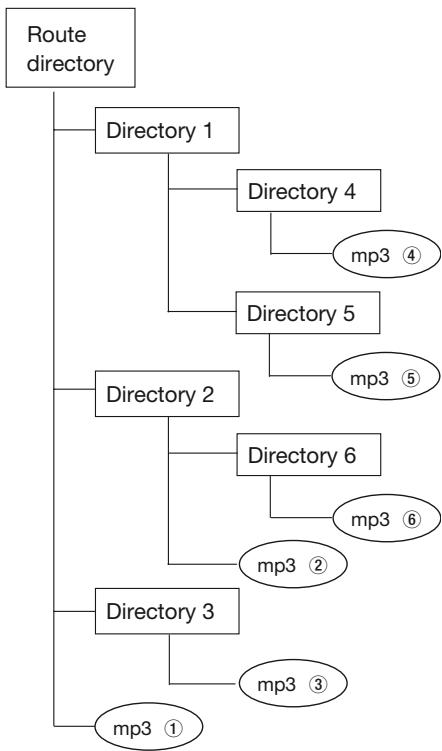
flowchart
graph TD
    A["Route directory"] --> B["Directory 1"]
    A --> C["Directory 2"]
    A --> D["Directory 3"]
    B --> E["Directory 4"]
    B --> F["Directory 5"]
    C --> G["Directory 6"]
    C --> H["Directory 2"]
    D --> I["Directory 3"]
    D --> J["mp3 ①"]
    E --> K["mp3 ④"]
    F --> L["mp3 ⑤"]
    G --> M["mp3 ⑥"]
    H --> N["mp3 ②"]
    I --> O["mp3 ③"]
In this manner, playback is performed from the top level directories.
About MP3 track data
During playback, titles are displayed in the following order of priority:
ID3v2 > ID3v1 > file title
During stop mode, the file title is displayed.
MD section
Even when the maximum recording time is not reached, "Track Full!" is displayed.
Regardless of the time, when the maximum number of tracks has been reached, “Track Full!” is displayed. In the MiniDisc format, the number of tracks is limited to 255. To make an additional recording on discs with 255 tracks, unwanted tracks must be deleted, or tracks must be combined to reduce their number. If this is not possible, the additional recording must be made on a separate disc.
Even if the number of tracks or the recording time has not been exceeded, the "Track Full!" message is displayed.
If a great deal of emphasis data has been present, in order to use the track divisions in the same way,
“Track Full!” is displayed regardless of the time or number of tracks.
Although tracks have been deleted, the remaining time on the MD disc does not increase.
When the remaining time on an MD disc is displayed, sections less than 12 seconds are ignored. So even if short tracks are eliminated, the total time indicated does not increase.
When elapsed recording time and remaining time are added up, it doesn't match the possible recording time of the MD disc.
Normally, the shortest possible recording unit is 1 cluster (about 2 seconds). Even if the recording is less than this, 2 seconds of space is taken up on the disc, so the actual possible recording time may be less than expected. Furthermore, if a scratch occurs on the disc itself, the area where it exists is automatically voided for use, so the recording time possible in that section is subtracted from total recording time.
Tracks cannot be combined.
Tracks created through editing operation may not be able to be combined with other tracks. If the recording mode (ST, MONO, LP2 or LP4) of two tracks differs, they cannot be combined.
If three or more tracks are to be combined, tracks less than a certain length (depending upon recording mode) cannot be used. The approximate minimum times are 9 seconds for ST mode, 17 seconds for MONO and LP2 mode, and 33 seconds for LP4 mode.
When search operation is performed, the sound breaks up.
When searching on tracks created through editing operations, the sound will sometimes break up.
When dubbing from CD to MD, space is created between tracks.
In order to properly record the cueing positions between tracks, space of a certain length is created. If such spaces between tracks are not desired, make the following settings before dubbing.
- Connect the CD digital output to the MD digital input
- Select OPTICAL as the input source
-
In the REC sub-menu of the MD menu:
-
Set the SYNC MODE option to ON
-
Set the A_TRK option to DD
Track numbers are not properly entered.
When recording a CD through a digital connection, short tracks are sometimes created depending upon the recorded content of the CD. Also, when the Auto Track function is used and track numbers are automatically generated, depending upon the program material, the track numbers are not properly assigned.
The "UTOC Reading" indication stays on for a longer time.
When a new recordable MD disc is used, the “UTOC Reading” indication is displayed longer than usual.
For title input, less than 1,700 characters are available.
The title recording area is divided into 7-character units. Even if a title is created with less than 7 characters, that amount of space is still taken up. Therefore, in actual use, you may not be able to input a total of 1,700 characters.
Operation messages
| Message | Details / response |
| Blank Disc | A blank recordable MD disc has been inserted. |
| New Disc! | A new recordable MD disc has been inserted. |
| Complete | Editing operation has been successfully completed. |
| Dubbing Wait | The unit is being readied for dubbing. |
| TOC Reading | The table of contents data is being read. |
| UTOC Writing | The user table of contents data is being written to the disc. |
| Now Editing | Editing operation is being performed. |
| Over Write | Overwrite recording mode is on. |
Error Messages
| Message | Details / response |
| Disc Error! | The disc has malfunctioned. Please replace with a new disc. |
| Disc Full! | No recording time remaining on the disc, so new recording is not possible. |
| D-IN UNLOCK! | The digital input is not connected. Turn on the power of the equipment connected to DIGITAL IN. |
| Not Execute! | Editing cannot be completed due to MD system limitations. |
| Not Audio! | There is no audio signal from DIGITAL IN. |
| No Track! | There are no recorded tracks. |
| PGM Empty! | There is no program |
| PGM Full! | No new programs can be created. |
| W_Protected! | Write-protected MD disc, so recording or editing is not possible. |
| Pre Master! | A playback-only MD disc has been inserted. |
| TOC Error! | TOC data is not correct. |
| Can’t Edit! | Editing cannot be performed due to MD system limitations or editing condition limits. |
| Can’t Rec! | Recording cannot start because the Group mode is on. |
| Can’t Sel! | Menu selection cannot be performed due to selection prohibitions. |
| Can’t Undo! | You can’t undo since no editing has been done. |
| Rec Error! | There was an error during recording. Please re-record. |
| Drive Error! | There is a problem in the drive. |
| Sync Rec ON! | The Sync mode is on, so the recording cannot be started manually. |
| Err Group! | There is a problem in the data of the created group. |
| No Group! | No groups have been created. |
| No DIR! | The directory where the file is has not been registered. |
| Decode Err! | The MP3 file cannot be played back. |
Troubleshooting
There is no power to the unit.
Please check that the power cord is properly plugged in.
"Disc Error!" is displayed.
The disc may be dirty. Please replace the disc.
Playback is not possible.
This may be due to condensation. In this case, remove the disc, turn the power on and wait a few hours, then try again.
No sound is output.
Confirm the connections with the audio system.
Check the volume level, and proper amplifier operation.
Recording isn't possible.
- The MD disc is set to write protect. Slide the tab on the cartridge to the closed position and try again.
- Confirm the connections with the audio system.
- Adjust the recording level.
- The disc may be for playback only. Please replace it with a recordable MD disc.
- Remaining recording time on the MD is insufficient. Please delete unwanted tracks or replace the MD disc.
- Confirm amplifier operation.
Noise or static can be heard.
Please re-position the unit away from strong sources of magnetism such as a television.
The CD-MD1 does not retain settings.
While settings are retained each time they are made, in some cases they will not be retained when the power is turned off too soon. To prevent this from happening, do not turn off the power right after making a setting.
MD deck
| Type | MiniDisc recorder |
| Discs | MiniDisc format |
| Rec modes | Stereo/Mono/LP2/LP4 |
| Recording format | Magnetic field modulation overwrite |
| Recording time | 74 minutes (stereo), 148 minutes (mono), 148 minutes (LP2), 296 minutes (LP4) when using a 74-minute disc |
| Sampling frequency | 44.1 kHz |
| Compression system | ATRAC (Adaptive Transform Acoustic Coding) |
CD deck
| Type | Compact Disc player |
| Discs | CD/CD-R/CD-RW |
| Formats | Audio CD (CD-DA), MP3 |
Rated input/output
| Analog line input (MD input) | |
| Connectors | RCA |
| Input level | -10 dBV |
| Input impedance | 10 k Ω |
| Analog line outputs | |
| Connectors | RCA |
| Output level | -10 dBV |
| Output impedance | 570 Ω |
| Headphones | |
| Connectors | standard stereo jack |
| Max. output level | 20 mW + 20 mW |
| Load impedance | 32 Ω |
| Digital input | TOS (EIAJ RC-5720) |
| Format | IEC60958 Type II (S/PDIF) |
| Digital output | TOS (EIAJ RC-5720) |
| Format | IEC60958 Type II (S/PDIF) |
| Keyboard | Mini DIN 6-pin |
MD specifications
| Frequency response | 20 Hz to 20 kHz +/- 0.5 dB |
| S/N ratio | >98 dB ( playback, A filter), >95 dB (recording, A filter) |
| Dynamic range | >98 dB ( playback, A filter), >95 dB (recording, A filter) |
| Total harmonic distortion | < 0.004% ( playback), < 0.006% (recording) |
| Channel separation | >90 dB ( playback, at 1 kHz), >83 dB (recording, at 1 kHz) |
CD specifications
| Frequency response | 20 Hz to 20 kHz +/- 0.5 dB |
| S/N ratio | >100 dB (A filter) |
| Dynamic range | >100 dB (A filter) |
| Total harmonic distortion | < 0.004% |
| Channel separation | >90 dB (at 1 kHz) |
| Wow and flutter | below measurable limits (less than 0.001%) |
Unit specifications
| Power | USA/Canada 120 VAC, 60 HzU.K./Europe 230 VAC, 50 HzAustralia 240 VAC, 50 Hz |
| Power consumption | 18 W |
| Dimensions | 483 x 94 x 308 mm19 x 3.7 x 12.1 (in) |
| Weight | 5.8 kg (12.8 lbs) |
| Operating temperature range | Operating temperature range: 5 to 40 degrees C (41°F to 104°F) |
| Supplied accessories | remote control unit (1)AA batteries (2)power cord (1)rack-mounting kit (1)owner's manual (1)warranty (1) |
For product improvement, specifications and external appearance are subject to change without notice.
Due to product improvement, the actual unit may appear differently than the illustrations in the operation manual.
Dimensional drawing
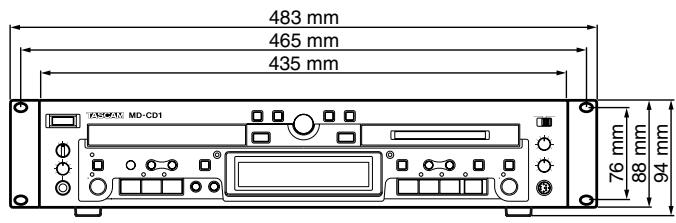
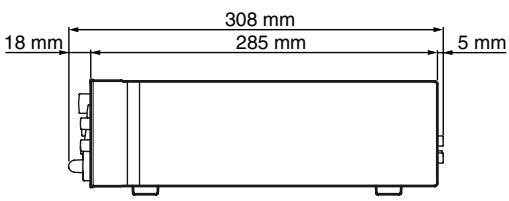
TASCAM
TEAC Professional Division
MD-CD1
TEAC CORPORATION
| Phone: (0422) 52-5082 | 3-7-3, Nakacho, Musashino-shi, Tokyo 180-8550, Japan |
| TEAC AMERICA, INC.Phone: (323) 726-0303 | 7733 Telegraph Road, Montebello, California 90640 |
| TEAC CANADA LTD.Phone: 905-890-8008 Facsimile: 905-890-9888 | 5939 Wallace Street, Mississauga, Ontario L4Z 1Z8, Canada |
| TEAC MEXICO, S.A. De C.VPhone: 5-851-5500 | Campesinos No. 184, Colonia Granjes Esmeralda, Delegaacion Iztapalapa CP 09810, Mexico DF |
| TEAC UK LIMITEDPhone: 01923-819699 | 5 Marlin House, Croxley Business Park, Watford, Hertfordshire. WD1 8TE, U.K. |
| TEAC EUROPE GmbHPhone: 0611-71580 | Bahnstrasse 12, 65205 Wiesbaden-Erbenheim, Germany |
| TEAC FRANCE S. A.Phone: 01.42.37.01.02 | 17 Rue Alexis-de-Tocqueville, CE 005 92182 Antony Cedex, France |
| TEAC AUSTRALIA PTY.,LTD. A.B.N. 80 005 408 462Phone: (03) 9672-2400 Facsimile: (03)9672-2249 | 280 William Street, Port Melbourne, Victoria 3000, Australia |
| TEAC ITALIANA S.p.A.Phone: 02-66010500 | Via C. Cantù 11, 20092 Cinisello Balsamo, Milano, Italy |
- TEAC Professional Division
- MD-CD1
- For U.S.A
- TO THE USER
- CAUTION
- For the consumers in Europe
- WARNING
- MD drive optical pickup:
- CD drive optical pickup:
- Introduction
- Remote control unit
- Connections
- Features and their functions
- Display master and remote control master
- Menu operation
- CD and MD Playback
- Dubbing from CD to MD
- MD recording from an external source
- MiniDisc editing
- Title input
- Using a computer keyboard
- Data settings / service data
- System limitations
- Message display glossary
- Specifications
- - Introduction
- Supplied accessories
- Environmental considerations
- Rack-mounting the unit
- Some notes and precautions
- Beware of condensation
- Handling of compact discs
- – Introduction—Environmental considerations
- Handling of MiniDiscs
- About the User Table of Contents (U-TOC)
- Batteries
- Inserting batteries
- Audio equipment
- Connecting analog audio equipment
- NOTE
- Connecting digital audio equipment
- Power source
- Front panel
- Shared features
- MULTI JOG dial functions
- ENTER Key functions
- CD Operation
- MD Operation
- – Features and their functions—Display
- Display
- Rear Panel
- Shared operation keys
- MD operation keys / CD operation keys
- CD Operation Section
- MD Operation Section
- – Display master and remote control master
- Selecting the remote control master
- Selecting the display master
- Menu configuration
- Operation basics
- Select CD Menu or MD Menu
- Select the desired sub-menu
- Select the desired menu option.
- Settings
- How to exit Menu mode after setting (or confirmation), during menu option display.
- Discs for playback
- CD deck
- MD deck
- Playback modes
- Basic playback operation
- – CD and MD Playback—Display master and remote master set-
- Using headphones
- Display master and remote master settings
- Track selection
- Using the skip function
- Selecting by track number
- Search
- Time Search function
- Basic operation
- Operation variations
- Track search
- Specifying to the minute
- Auto cue
- Turning the Auto Cue function on and off
- Setting the sound start position detection level
- Auto Ready
- Turning the Auto Ready function on and off
- Repeat playback
- A to B repeat playback
- To cancel A-B Repeat mode and resume normal playback
- Continuous CD and MD playback
- Timer Playback
- Pitch control
- Front panel operation
- Remote control operation
- Single-track playback
- Program playback
- Deleting a programmed track
- Adding a track to the program
- Program limitations
- Saving program data
- Random playback
- Time display switching
- End of disc/track warning
- Playback functions for CD only
- Changing the key of playback
- Fade-in and fade-out
- F\_IN TIME
- F\_OUT TIME
- FADE MODE
- Output volume
- MP3 file directory playback
- Directory playback setting
- MD group playback
- Group playback setting
- Creating and deleting groups
- Titling groups
- Basic dubbing operation
- To dub the entire CD
- To dub a selected track on the CD
- Recording mode setting
- Dubbing speed setting
- – Dubbing from CD to MD—Dubbing speed setting
- Basic recording
- Input source selection
- Input monitoring
- Recording level adjustment
- Recording start
- – MD recording from an external source—Recording cautions
- Recording cautions
- When "W\_Protected!" is displayed
- Adding track numbers
- Auto track function
- -\*\*dB
- D-D
- Entering a track number manually
- Fade-in and fade-out recording
- "Time Machine" recording
- Overwrite recording
- Sync recording
- Checking remaining MD time
- Editing operations
- Tracks and points for editing
- Canceling edits
- UNDO an edit operation
- Erase track
- Selecting a track to be erased by playback
- Selecting a track to be erased on the menu
- Erase disc
- Divide tracks
- Combine tracks
- Move tracks
- Creating a group
- Disc title when creating a group
- Deleting a group
- Disc title input
- Title input operation
- Input procedure
- To move the cursor position
- To delete characters
- To insert characters
- To change a character
- Track title input
- Method 1
- Method 2
- Group title input
- – Using a computer keyboard
- Keyboard type setting
- Title input by keyboard
- To enter the Title Edit menu
- To select the type of characters for input
- To input characters
- To move the cursor
- To insert a character
- Other keyboard operations
- – Using a computer keyboard—Other keyboard operations
- Data communication settings
- BAUD RATE
- LENGTH
- PARITY
- STOP BIT
- Viewing service data
- CD P\_TIME
- MD P\_TIME
- MD R\_TIME
- CD section
- About finalization
- About MP3 track data
- MD section
- Even when the maximum recording time is not reached, "Track Full!" is displayed.
- Even if the number of tracks or the recording time has not been exceeded, the "Track Full!" message is displayed.
- Although tracks have been deleted, the remaining time on the MD disc does not increase.
- When elapsed recording time and remaining time are added up, it doesn't match the possible recording time of the MD disc.
- Tracks cannot be combined.
- When search operation is performed, the sound breaks up.
- When dubbing from CD to MD, space is created between tracks.
- Track numbers are not properly entered.
- The "UTOC Reading" indication stays on for a longer time.
- For title input, less than 1,700 characters are available.
- Troubleshooting
- There is no power to the unit.
- "Disc Error!" is displayed.
- Playback is not possible.
- No sound is output.
- Recording isn't possible.
- Noise or static can be heard.
- The CD-MD1 does not retain settings.
- TASCAM
Brand : TASCAM
Model : MD-CD1
Category : Media Player