RC7200SR - Remote control MARANTZ - Free user manual and instructions
Find the device manual for free RC7200SR MARANTZ in PDF.


| Product type | Universal remote |
| Brand | MARANTZ |
| Model | RC7200SR |
| Dimensions (approx.) | 20 x 5 x 2.5 cm |
| Weight (approx.) | 150 g (with batteries) |
| Power | 2 AAA batteries (1.5 V) |
| Main functions | Input control (CD, DVD, TV, etc.), speaker distance adjustment, multiroom mode, DC control output |
| Control zones | Main zone and multiroom |
| Maintenance and cleaning | Wipe with a soft, dry cloth. Do not use abrasive products. |
| Safety | Do not expose to moisture, heat sources, or shocks. Replace batteries respecting polarity. |
| Spare parts and repairability | Standard batteries available commercially. Repair only by an authorized technician. |
| Intended use | Remote control of compatible Marantz audio/video devices |
| Warranty | Manufacturer's warranty according to country of purchase. Keep the proof of purchase. |
| Operating temperature | +5°C to +35°C |
| Operating humidity | 5% to 90% (non-condensing) |
Frequently Asked Questions - RC7200SR MARANTZ
User questions about RC7200SR MARANTZ
0 question about this device. Answer the ones you know or ask your own.
Ask a new question about this device
Download the instructions for your Remote control in PDF format for free! Find your manual RC7200SR - MARANTZ and take your electronic device back in hand. On this page are published all the documents necessary for the use of your device. RC7200SR by MARANTZ.
USER MANUAL RC7200SR MARANTZ
AV Surround Receiver
ENGLISH
WARRANTY
For warranty information, contact your local Marantz distributor. RETAIN YOUR PURCHASE RECEIPT
Your purchase receipt is your permanent record of a valuable purchase. It should be kept in a safe place to be referred to as necessary for insurance purposes or when corresponding with Marantz.
IMPORTANT
When seeking warranty service, it is the responsibility of the consumer to establish proof and date of purchase. Your purchase receipt or invoice is adequate for such proof.
FOR U.K. ONLY
This undertaking is in addition to a consumer's statutory rights and does not affect those rights in any way.
FRANÇAIS
GARANTIE
The SR7200 is in conformity with the EMC directive and low-voltage directive.
C France
To ventilate the unit, do not install the unit in a rack or bookshelf, and note the followings.
- Do not touch the top of the enclosure during operation.
- Do not block the openings in the enclosure during operation.
- Do not insert objects beneath the unit.
- Do not block the ventilation slots at the top of the unit.
Do not place anything about 1 meter above the top panel. - Make a space of about 0.2 meter around the unit.
Français
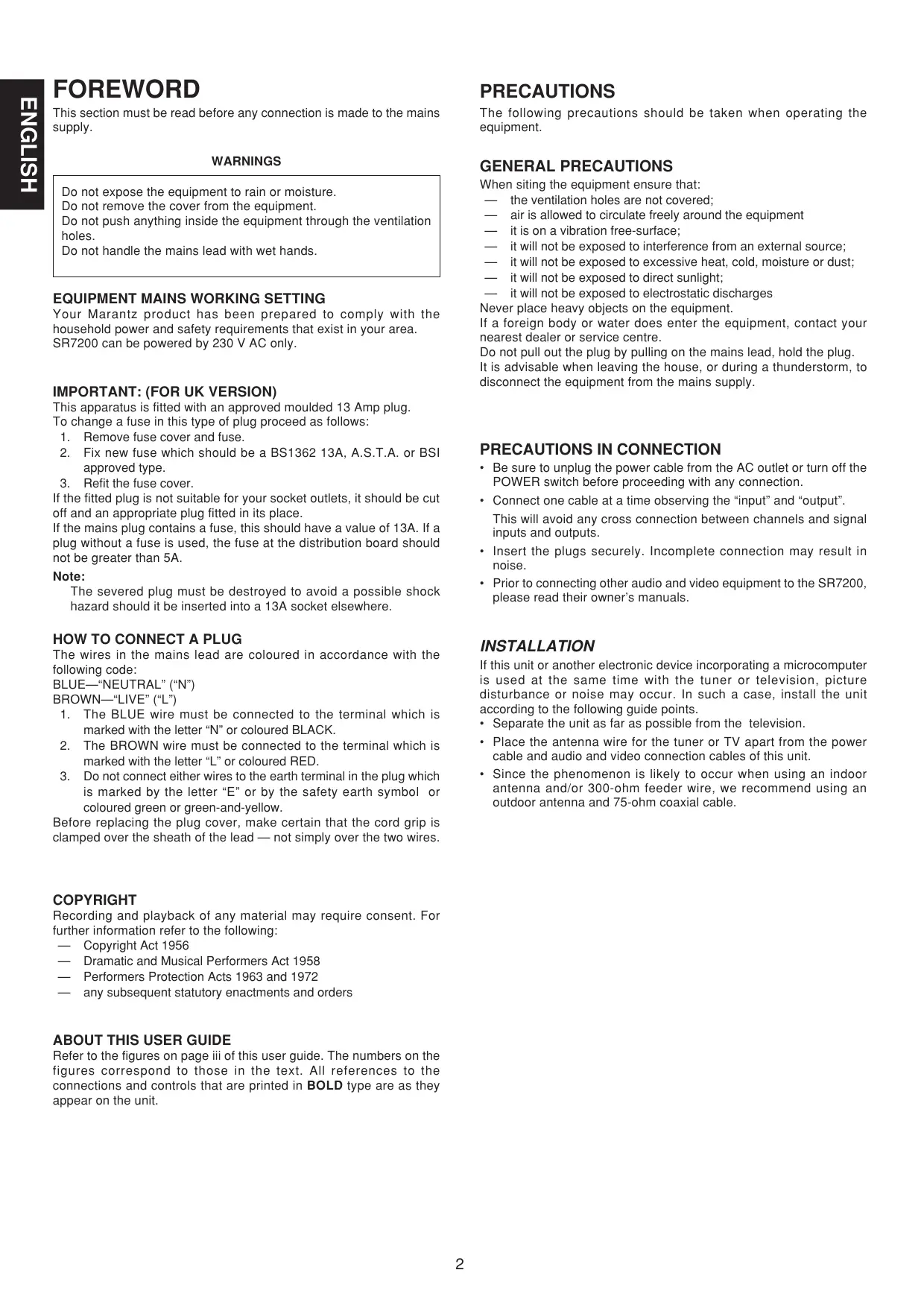
This section must be read before any connection is made to the mains supply.
WARNING
Do not expose the equipment to rain or moisture.
Do not remove the cover from the equipment.
Do not push anything inside the equipment through the ventilation holes.
Do not handle the mains lead with wet hands.
EQUIPMENT MAINS WORKING SETTING
Your Marantz product has been prepared to comply with the household power and safety requirements that exist in your area.
SR7200 can be powered by 230 V AC only.
IMPORTANT: (FOR UK VERSION)
This apparatus is fitted with an approved moulded 13 Amp plug.
To change a fuse in this type of plug proceed as follows:
- Remove fuse cover and fuse.
- Fix new fuse which should be a BS1362 13A, A.S.T.A. or BSI approved type.
- Refit the fuse cover.
If the fitted plug is not suitable for your socket outlets, it should be cut off and an appropriate plug fitted in its place.
If the mains plug contains a fuse, this should have a value of 13A. If a plug without a fuse is used, the fuse at the distribution board should not be greater than 5A.
Note:
The severed plug must be destroyed to avoid a possible shock hazard should it be inserted into a 13A socket elsewhere.
HOW TO CONNECT A PLUG
The wires in the mains lead are coloured in accordance with the following code:
BLUE—“NEUTRAL”(“N”)
BROWN—"LIVE" ("L")
- The BLUE wire must be connected to the terminal which is marked with the letter "N" or coloured BLACK.
- The BROWN wire must be connected to the terminal which is marked with the letter "L" or coloured RED.
- Do not connect either wires to the earth terminal in the plug which is marked by the letter "E" or by the safety earth symbol or coloured green or green-and-yellow.
Before replacing the plug cover, make certain that the cord grip is clamped over the sheath of the lead — not simply over the two wires.
COPYRIGHT
Recording and playback of any material may require consent. For further information refer to the following:
Copyright Act 1956
Dramatic and Musical Performers Act 1958
Performers Protection Acts 1963 and 1972
any subsequent statutory enactments and orders
ABOUT THIS USER GUIDE
Refer to the figures on page iii of this user guide. The numbers on the figures correspond to those in the text. All references to the connections and controls that are printed in BOLD type are as they appear on the unit.
PRECAUTIONS
The following precautions should be taken when operating the equipment.
GENERAL PRECAUTIONS
When siting the equipment ensure that:
the ventilation holes are not covered;
air is allowed to circulate freely around the equipment
it is on a vibration free-surface;
it will not be exposed to interference from an external source;
it will not be exposed to excessive heat, cold, moisture or dust;
it will not be exposed to direct sunlight;
it will not be exposed to electrostatic discharges
Never place heavy objects on the equipment.
If a foreign body or water does enter the equipment, contact your nearest dealer or service centre.
Do not pull out the plug by pulling on the mains lead, hold the plug. It is advisable when leaving the house, or during a thunderstorm, to disconnect the equipment from the mains supply.
PRECAUTIONS IN CONNECTION
- Be sure to unplug the power cable from the AC outlet or turn off the POWER switch before proceeding with any connection.
- Connect one cable at a time observing the "input" and "output". This will avoid any cross connection between channels and signal inputs and outputs.
- Insert the plugs securely. Incomplete connection may result in noise.
- Prior to connecting other audio and video equipment to the SR7200, please read their owner's manuals.
INSTALLATION
If this unit or another electronic device incorporating a microcomputer is used at the same time with the tuner or television, picture disturbance or noise may occur. In such a case, install the unit according to the following guide points.
- Separate the unit as far as possible from the television.
- Place the antenna wire for the tuner or TV apart from the power cable and audio and video connection cables of this unit.
- Since the phenomenon is likely to occur when using an indoor antenna and/or 300-ohm feeder wire, we recommend using an outdoor antenna and 75-ohm coaxial cable.
INTRODUCTION
Thank you for purchasing the Marantz SR7200 DTS/Dolby Digital Surround receiver.
This remarkable component has been engineered to provide you with many years of home theater enjoyment.
Please take a few minutes to read this manual thoroughly before you connect and operate the SR7200.
As there are a number of connection and configurations options, you are encouraged to discuss your own particular home theater setup with your Marantz A/V specialist dealer.
DESCRIPTION

DTS was introduced in 1994 to provide 5.1 channels of discrete digital audio into home theater systems.
DTS brings you premium quality, discrete multi-channel digital sound to both movies and music.
DTS is a multi-channel sound system designed to create full range digital sound reproduction.
The no compromise DTS digital process sets the standard of quality for cinema sound by delivering an exact copy of the studio master recordings to neighborhood and home theaters.
Now, every moviegoer can hear the sound exactly as the moviemaker intended.
DTS can be enjoyed in the home for either movies or music on DVD's, LD's, and CD's.

Dolby Digital lets you enjoy Digital TV, Digital Satellite as well as DVD, LD software in digital surround, which is the next step above Dolby Pro Logic. In Comparison with Dolby Pro Logic, Dolby Digital can provide separate left surround and right surround channels, for more precise localization of sound and a more convincing, realistic ambience.
And, with Dolby Digital all five main channels can be full ranged and a subwoofer can be added to each channel, if desired.
By providing up to 5.1 channels of digital audio independently. Dolby Digital lets you enjoy better sound quality and more powerful presence than conventional Dolby Surround.
Pro Logic II, the next generation in Dolby Surround Pro Logic technology, brings the excitement of surround sound to any existing stereo mix, while making existing Dolby Surround mixes sound more like discrete 5.1-channel surround sound. It works with CDs, VHS tapes and TV shows, and MP3 files and radio broadcasts-converting all of these source to surround sound, without the artifacts by other matrix-decoding technologies.

Circle Surround is backward compatible, such that surround playback is possible from any stereo or passive matrix-encoded material.
Five full-bandwidth, discrete channels of information can be extracted from an enormous library of material not multi-channel encoded. These sources include many of today's DVDs and laser discs, as well as most all video tape, VCD, Compact Disc, radio and television broadcast material.
"Dolby", "Pro Logic", and the double-D symbol are trademarks of Dolby Laboratories.
"DTS", "ES" and "DTS Digital Surround" are trademarks of Digital Theater Systems, Inc.
Circle Surround and the () symbol are trademarks of SRS Labs, Inc.
Circle Surround technology is incorporated under license from SRS Labs, Inc.
FEATURES
- Dolby Digital and DTS surround sound decoding, plus Dolby Pro LogicII decoding, Circle Surround and a variety of additional surround modes.
- 6.1 mode reproduces the original 6.1 channel soundfield by extracting the surround back signal from surround left and surround right channels.
- 192 kHz/ 24 bit decoding for highest possible fidelity and bandwidth, and high-resolution playback of 192 kHz/ 24 bit PCM audio sources.
- 110 watts to each of the six main channels; the power amp section features advanced, premium high-storage power supply capacitors, and fully discrete output stages housed in cast aluminum heat sinks.
- 6.1 channel pre-amp outputs for connection to external components such as a subwoofer and external power amplifiers.
- Seven-channel direct inputs accommodate future surround sound formats or an external digital decoder.
- 5 Digital inputs, for connection to other sources, such as DVD, DSS, CD, CD-R or MD.
2 Digital outputs for connection to CD-R or MD. - High-quality AM (MW/LW) /FM tuner with 30 station presets.
- Source Direct switch bypasses, tone controls and bass management for purest audio quality.
- S-video and composite video switching.
- On-Screen-Display with both Composite and "S" video.
- Front panel A/V inputs, with S-video.
- Easy to use, on-screen menu.
- Multi-room capability offers independent control of a second room audio and video system.
- Supplied with RC7200SR Programmable Learning Remote Control.
- Radio Data System (RDS) provides information on FM broadcasts.
FRONT PANEL FEATURES (SEE PAGE iii.)
① POWER switch and STANDBY indicator
Press the button to turn the power ON, and press again to turn it OFF. If the POWER switch is in the ON position, the power of this unit can be turned ON/OFF by pressing the POWER button on the remote control unit.
When this unit is in the standby mode with the POWER switch set to the ON position, pressing one of the FUNCTION SELECTOR buttons also allows to turn the power on.
The STANDBY indicator lights up when this unit is the standby mode (power OFF) by the remote control unit.
② PHONES jack for stereo headphones
Conventional dynamic headphones can be plugged in here.
Notes:
When using headphones, turn off the speakers system A and B with SPEAKERS buttons. The surround mode is switched automatically to STEREO.
③ SURROUND MODE Selector knob
When this knob is turned, the surround mode is switched in the following sequence.
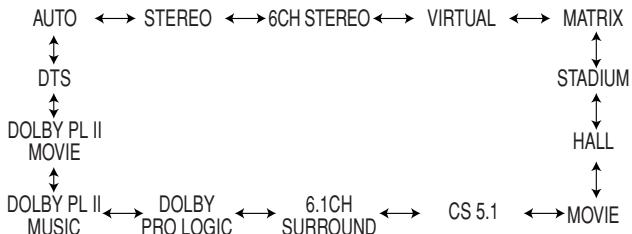
Note:
Not all modes will be present if an analog input is selected.
④ VOLUME control knob
Adjusts the overall sound level. Turning the control clockwise increases the sound level.
⑤ FUNCTION SELECTOR buttons (AUDIO/VIDEO)
These buttons are used to select the sources.
The video function selector, such as TV, DVD, VCR1, DSS/VCR2 and AUX, selects video and audio simultaneously.
Audio function sources such as CD, TAPE, CD-R/MD and TUNER may be selected in conjunction with a Video source.
This feature (Sound Injection) combines a sound from one source with a picture from another.
Choose the video source first, and then choose a different audio source to activate this function.
⑥ 7CH INPUT button
Press this button to select the output of an external multi channel decoder.
⑦ A/D (Analog/Digital) SELECTOR button
This is used to select between the analog and digital inputs.
Note:
This button is not used for an input source that is not connected to a digital input.
S. (Source) DIRECT button
When this button is pressed, the tone control circuit is bypassed as well as Bass Management.
Notes:
The surround mode is automatically switched to AUTO when the source direct function is turned on.
Additionally, Speaker Configurations are fixed automatically as follow.
Front SPKR = Large
Center SPKR = Large
Surround SPKR = Large
Surround Center SPKR = Yes
Subwoofer = Yes
⑨ SLEEP button
Set the sleep timer function with this button.
10 DIMMER button
When this button is pressed once, the display is dimmed.
When this button is pressed twice, the display is turned off and "DISPLAY OFF" indicator lights up.
Press this button again to turn the display ON again.
11 MULTI (Multi Room) button
Press this button to switch the unit to multi room mode. "MULTI ROOM" indicator lights up.
12 MUTE button
Press this button to mute the output to the speakers. Press it again to return to the previous volume level.
13 CLEAR button
Press this button to cancel the station memory setting mode or preset scan tuning.
14 MEMORY button
Press this button to enter the tuner preset memory numbers and station names.
TUNING / PRESET UP and DOWN buttons
During reception of AM (MW/LW) or FM, you can scan the other frequencies or select another preset station pressing these buttons.
16 FREQUENCY / PRESET button
During reception of AM (MW/LW) or FM, you can change the function of the UP/DOWN buttons for scanning frequencies or selecting preset stations by pressing this button.
17 FM MODE button
Press this button to select the auto stereo mode or mono mode when the FM band is selected. The AUTO indicator lights in the auto stereo mode.
18 INFRARED SENSOR window
This window receives infrared signals from the remote control unit.
19 SPEAKERS buttons
Press these buttons to select speakers systems A and/or B.
20 AUX input jacks
These auxiliary video.audio input jacks accept the connection of a camcorder, portable VCR, etc.
REAR PANEL CONNECTIONS (SEE PAGE iii.)
All connections to the rear panel should be made with the entire system powered off.
To avoid errors, it is advisable to connect one cable at a time between the various components.
(1) FM antenna terminal (75 ohms)
Connect an external FM antenna with a coaxial cable, or a cable network FM source.
AM antenna and ground terminals
Connect the supplied AM loop antenna. Use the terminals marked "AM" and "GND".
The supplied AM loop antenna will provide good AM reception in most areas.
Position the loop antenna until you hear the best reception.
(2) PRE OUT jacks
Jacks for Front - L/R, Center, Surround and Surround center.
Use these jacks for connection to an external power amplifier.
(3) SUB WOOFER output jack
Connect to the input jack(s) of the power amplifier for subwoofer channel or powered subwoofer.
(4) DC control output 1 & 2
Connect a device that needs to be triggered by DC under certain conditions (screen, power strip, etc...) Use the system setup menu (3/3) to determine the conditions by which these jacks will be active.
Note:
This output voltage is for (status) control only, It is not sufficient for drive capability.
(5) MULTI OUT jacks (Audio)
Connect to the input jacks of the amplifier used to drive the speakers in another room (Second zone).
(6) Analog audio outputs for audio source equipment
TAPE and CD-R/MD
Connect each output to the audio inputs (REC in) of your recording equipment.
(7) Analog audio inputs
CD, TAPE, and CD-R/MD
Connect the audio outputs of your source components to the input jacks on the receiver.
(8) Video outputs
VCR1, and DSS/VCR2
Connect each output to the video input (REC in) of your video recording equipment.
(9) MULTI OUT jack (Video)
Connect to the input jack of the TV monitor in another room (Second zone).
(10) TV MONI. (VIDEO/S-VIDEO) output jacks
Connect the TV MONI jack to your TV's video input (VIDEO IN) jack. You can connect your video equipment with S-VIDEO jacks if possible, or the composite VIDEO jacks.
You must use the same type of connection from your video player into the receiver, and out of the receiver into your TV.
Both must be composite video or both must be S-Video. You cannot convert a signal from one type to the other.
When you connect to S-video connections, there will be no signal output from the composite video jacks.
(11) COMPONENTVIDEOoutputs
Connect to these outputs to the component video inputs of a video projector or monitor. When a source connected to one of the two component video inputs is selected the signal will be sent to these jacks.
(12) SPEAKER SYSTEMS A terminals
FRONT Left & Right speakers output terminals
Connect to the front left & right speakers.
CENTER speaker output terminals
Connect to the center speaker.
SURROUND Left & Right speakers output terminals
Connect to the surround (rear) left & right speakers.
SURROUND Center speakers output terminals
Connect to the surround center speakers.
(13) SPEAKER SYSTEMS B terminals
FRONT Left & Right speakers output terminals
Connect to the front left & right speakers.
Notes:
When you use the speaker systems A and B simultaneously, the connected speakers which are impedance 12 to 16 ohms must be used.
(14) 7 CH INPUT jacks
Connect to the outputs of an external multichannel decoder.
(15) DIGITAL outputs
Optical and Coaxial
Connect digital input of your digital recording equipment.
(16) DIGITAL inputs
Dig.1,2 (Optical) and Dig. 3, 4, 5 (Coaxial)
Connect each input to the digital output of your source equipment.
Use the system setup menu to assign digital input to appropriate source. (see page. 10)
Note :
The coaxial connections are not for AC-3 RF from the LD player. If you want to decode this type of signal, an external demodulator must be used.
(17) REMOTE CONT. IN/OUT terminals
Connect to a Marantz component equipped with remote control (RC-5) terminals.
(18) MULTI ROOM REMOTE I/O terminals
IN: Connect to multi-room remote control device, available from your Marantz dealer.
OUT: Connect to the Marantz component equipped with remote control (RC-5) terminals in another room (Second zone).
(19) Analog audio outputs for video source equipment
VCR1, and DSS/VCR2
Connect each output to the audio inputs (REC in) of your video recording equipment.
(20) Analog audio inputs for video source equipment
TV, DVD, VCR1, and DSS/VCR2
Connect each input to the audio outputs of your video source equipment.
(21) Video inputs
Ex: TV, DVD, VCR1, and DSS/VCR2
Connect each input to the video outputs of your video source equipment.
(22) S-video inputs
Ex: TV,DVD, VCR1,and DSS/VCR2
Connect each input to the S-video outputs of your video source equipment.
(23) COMPONENTVIDEOinputs
Ex: DVD, and DSS/VCR2
Connect to the Y/Cr/Cb component video outputs of each your video product to these jacks.
(24) AC OUTLET
Connect the power cables of components such as a DVD or CD player to this outlet.
This provides power only when the SR7200 is turned on and is useful for components which you use every time you play your system.
Caution:
In order to avoid potential turn-off thumps, anything plugged in here should be powered up BEFORE the SR7200 is turned on.
(25) Power cable
Connect to AC power outlet.
SR7200 can be powered by 230V AC only.
REMOTE CONTROL BUS CONNECTIONS
This unit is equipped with a remote control function.
By connecting this unit's remote control jacks to a Marantz CD player or tape deck equipped with remote control (RC-5) jacks, it allows system remote control to operate.
Connect REMOTE CONTROL OUT jack of SR7200 to REMOTE CONT. IN of other Marantz equipment, i.e. CD player or tape deck, by using an RCA pin cable.
Note:
If a component equipped with remote control (RC-5) jacks has an INT/EXT switch on the rear panel, set the switch to EXT when using the system control function.
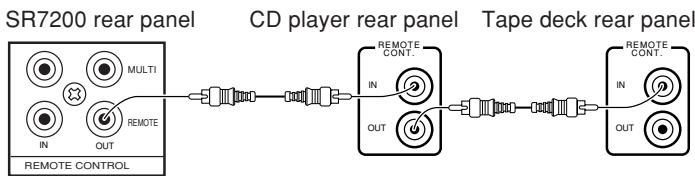
(Connection example)
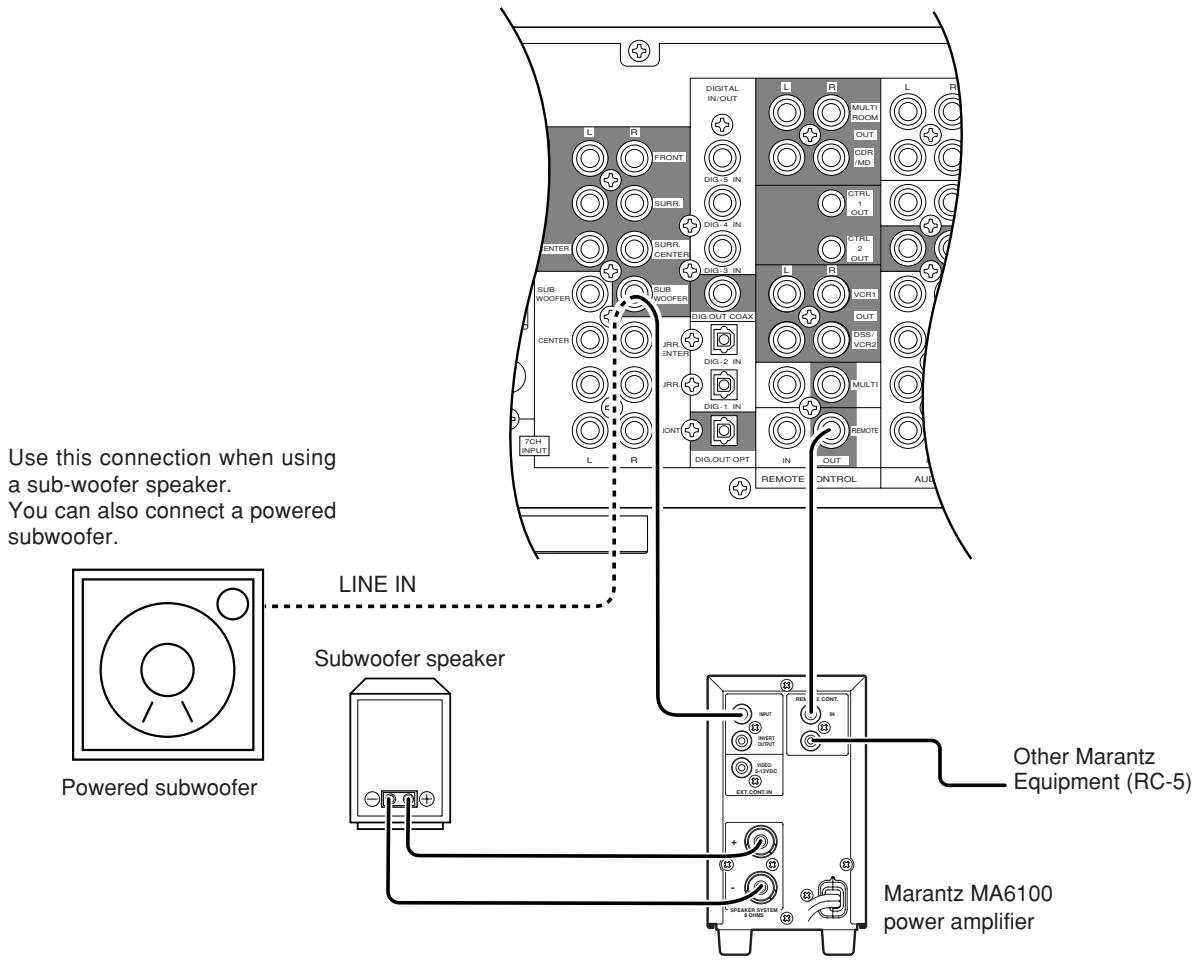
CONNECTION FOR A SUBWOOFER
Controlling the power ON/OFF of a power amplifier connected to the SR7200 through Marantz remote control
- Now the MA6100 can be turned ON / OFF in synchronism with the power ON / OFF of the SR7200.
Notes:
- Be sure to connect the remote control bus before the procedure above.
REMOTE CONTROL UNIT RC7200SR
This chapter describes the functions which need to control the SR7200. See page 18 and following pages to refer other function of the RC7200SR.
3 POWER ON and OFF
These two buttons are use for turning on or off SR7200.
5 LCD
Used to display information about currently selected modes and functions.
6 Jog Dial control
Rotate this dial to select commands displayed on the LCD for each function. (see page 27)
Refer to follow.
| Function | Jog Dial command | Note |
| AMP | 1 A/D | switches analog/digital input |
| 2 ATT | switches attenuator for analog input | |
| 3 NIGHT | selects NIGHT mode for Dolby Digital | |
| 4 MR-ON | turns multi-room mode on | |
| 5 MR-OF | turns multi-room mode off | |
| 6 7-DIR | activates 7-channel input | |
| 7 TRB+ | increases treble | |
| 8 TRB- | decreases treble | |
| 9 BAS+ | increases bass | |
| 0 BAS- | decreases bass | |
| TUNER | 1 FM | FM band |
| 2 AM | AM/MW band | |
| 3 LW | Long Wave band | |
| 4 T-MOD | mono/stereo mode selector | |
| 5 SCAN | programmed preset channel scan | |
| 6 STM | selects station mode | |
| 7 F-DIR | inputs a frequency directly | |
| 8 PTY | selects PTY function | |
| 9 DISP | selects display function | |
| 0 DWR | selects DSR wave range |
The marked “ ” commands are not used for SR7200.
ENT buttons
Press this button to enter the selected command by the Jog Dial.
FUNCTION buttons
Press one of these buttons twice within 2 seconds to select the input function of SR7200.
Press one of these buttons once to change the state of remote commander.
9 VOLUME up / down buttons
These buttons are used to raise and lower the SR7200's volume level.
10 CURSOR buttons
The cursor buttons can be used to navigate within on-screen menus of SR7200.
12 Channel ▲ up / ▼ down buttons
Used to controls the up/down function of tuner, or allows one to cycle through the tuner presets.
13 MUTE button
This button can be used to mute the sound temporarily.
15 CLEAR button
This button is used to cancel certain memory or programming operations.
16 MEMO button
This button is used to enter the tuner preset memory numbers and station names.
17 TEN KEYPAD
They are useful for tuning a pre-set radio station and setting a station name.
The distance between the transmitter of the remote control unit and the IR SENSOR of the SR7200 should be less than about 5 meters. If the transmitter is pointed to a direction other than the IR SENSOR or if there is an obstacle between them, remote control may not be possible.
Remote-controllable range
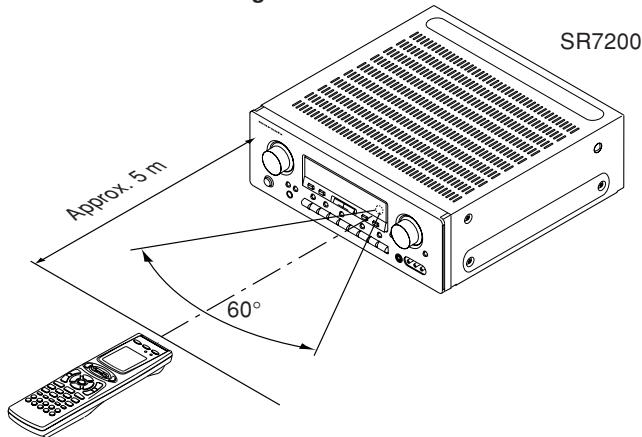
Remote control unit (RC7200SR)
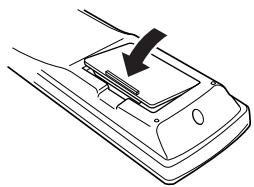
2. Loading batteries
The life of the batteries used with the remote control unit is about 4 months with normal use. Also be sure to replace batteries earlier when you notice that they are getting weak.
(1) Remove the back cover.
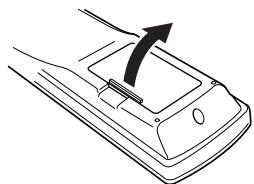
(2) Insert the new batteries (AA type) with correct (+) and (-) polarity.
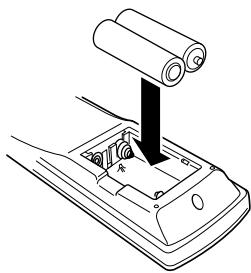
(3) Close until it clicks.
SET-UP
After all components are connected, initial setup must be performed.
The SR7200 incorporates an on-screen menu system, which makes various operations possible by using the cursor (<, >, , ) and OK buttons on the remote controller.
The settings made with these buttons are also shown in the on-screen display.
OSD MAIN MENU
OSD MAIN MENU
SURROUND MODE CHANNEL LEVEL MULTI ROOM SETUP SYSTEM SETUP SPEAKER SETUP
EXIT
SURROUND MODE
SURROUND MODE
SOURCE DIRECT : OFF
SURR-MODE : AUTO
NIGHT MODE : OFF
LFE LEVEL : 00dB
RETURN EXIT
SYSTEM SETUP 1/3
SYSTEMSETUP1/3
7CH-INPUT : OFF TV-AUTO : DISABLE
NEXT SETUP EXIT
SPEAKER SETUP 1/3 SPKR SIZE
SETUP1/3 SPKR SIZE SETUP:UNLOCKED
FRONT-L/R : LARGE
CENTER : SMALL
SURR-L/R : SMALL
SURRCENTER : YES
SUBWOOFER : YES
NEXT SETUP EXIT
Choose a desired item in the contents with or v button, and press the OK button to select.
Display will change to menu for each item.
SYSTEM SETUP
SYSTEM SETUP 1/3
SYSTEMSETUP1/3
7CH-INPUT
TV-AUTO
:OFF
: DISABLE
NEXT SETUP
EXIT
7CH-INPUT: The 7 channel input of the SR7200 can be selected to use a 7channel input. Select 7 channel use by < or > button.
TV AUTO : This product is equipped with a TV-auto ON/ OFF system, which automatically turns on or off the power 1 second to 5 minutes after the TV video input signal has been sent or has been stopped.
Switch the TV AUTO ON/OFF function to enable or disable with < or button.
To use this function, connect the TV video input to TV tuner's video output.
NEXT SETUP/EXIT: If you desire to continue the next setup, press the OK button on NEXT-SETUP, if you desire to exit from OSD menu system, press the OK button on EXIT.
SYSTEM SETUP 2/3 (SELECTING THE DIGITAL INPUT)
SYSTEMSETUP2/3
CD D1G1
CD-R D1G2
DVD DIG3
TV D1G4
DSS DIG5
NEXT SETUP
EXIT
Five digital inputs can be assigned for the desired source.
Use this menu to determine which source is connected to which input.
Example;
When the digital output of a DVD player is connected to Digital 4 (input jack) of the SR7200;
- Move the cursor on the line of the DVD with cursor buttons ^ or v.
- Press the the cursor < or > button until "DIG4" is displayed.
- Press the OK button to chose
- If you desire to continue the next setup, press the OK button on NEXT-SETUP.
If you desire to exit from OSD menu system, press the OK button on EXIT.
Notes:
The TUNER, VCR1, TAPE and AUX are assigned to the analog input, and are prevented from selecting any digital input.
While the DTS-LD or DTS-CD is playing, this setup is not available, this is to avoid noise being generated from the analog input. Stop the LD or CD playback to setup.
The SR7200 does not switch from digital input to analog input or vice versa automatically.
In the event that both digital and analog inputs are connected to SR7200, if you desire to switch to an analog input temporarily, you can switch by pressing the A/D button ⑦.
SYSTEM SETUP 3/3 (DC CONTROL OUTPUT)
DC CONTROL OUTPUT
DC1 OFF
TV DVD VCR1 DSS CD
CD-R TAPE AUX TUNER
DC2 OFF
TV DVD VCR1 DSS CD
CD-R TAPE AUX TUNER
RETURN
EXIT
SR7200 has two DC control jacks, each one is selectable to link with input functions for the main room or multi room.
You can select MAIN ROOM, MULTI ROOM or OFF for DC1 & DC2 independently by < or button.
And then press OK button and move the cursor to select the linked input function you desired by < or > button and press OK button to chose.
Notes:
When the DC CONTROL OUTPUT is selected for the multi room, the multi room must be turned on previously.
SPEAKERS SETUP
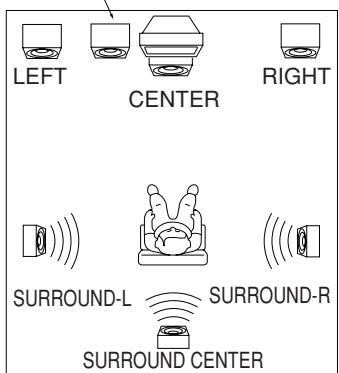
The home theater system you already have installed should function provided that there are left, center and right front speakers, left and right rear/surround speakers and a subwoofer. For best results we recommend that all front speakers be of the same type, with identical or similar driver units. This will deliver smooth pans across the front sound stage as the action moves from side to side.
Your center channel speaker is very important as over 80% of the dialog from a typical motion picture emanates from the center channel. It should possess similar sonic characteristics to the main speakers.
Surround channel speakers need not be identical to the front channel speakers, but they should be of high quality.
The surround center speaker is useful for playback of Dolby Digital Surround EX or DTS-ES. One of the benefits of both Dolby Digital (AC-3) and DTS is that surround channels are discrete full range, while they were frequency limited in earlier "Pro Logic' type systems. Bass effects are an important part of home theater. For optimal enjoyment a subwoofer should be used as it is optimized for low frequency reproduction. If you have full range front speakers, however, they may be used in place of a subwoofer with proper setting of the switches in the menu system.
SUB WOOFER
If possible, mount the surround speakers on the walls to the sides of the viewing area, 2-3 feet above seated viewers, firing straight across at each other.
SPKR SETUP 1/3 (SPKR SIZE)
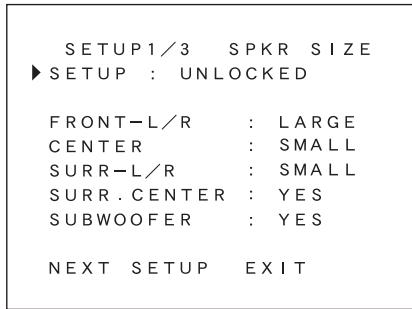
SETUP: Select "LOCKED" with < or > button in order to lock the contents of the SPKR SET UP MENU.
Then, when you want to change the contents of this setup, select "UNLOCKED".
SPKR SIZE
This menu enters the information about which type of speakers will be used for each channel.
In turn, these settings will determine which speakers receive low frequency information.
For the purpose of establishing proper bass reproduction, use the LARGE settings if the speaker being used at any position is a traditional full-range loudspeaker that is capable of reproducing sound below 100Hz and you are not using a subwoofer.
Use the SMALL setting for smaller, frequency-limited speakers that are not able to reproduce sounds below 100Hz and you are using a subwoofer.
Low frequencies will be diverted from the speaker to the subwoofer.
Note that when "small" speakers are used it is advisable to install a separate subwoofer, especially if you wish to appreciate the full impact of a good home theater soundtrack.
If the Surround speakers or Center speaker will not be used, set NONE for each speaker. The NONE setting will send the audio for the channel to other speakers.
FRONT -L/R : Select the type of front speakers with < or > button.
CENTER : Select the type of center speaker with < or > button.
SURR-L/R: Select the type of surround speakers with < or > button.
SURR.CENTER: Select the surround center speaker YES or NO with < or > button.
SUBWOOFER: Select the subwoofer speaker YES or NO with < or > button.
Notes:
The SUBWOOFER cannot be set to NO when the front speakers are set to SMALL.
This speaker size setup is not effective when the SOURCE-DIRECT or 7CH. Input is selected.
SPKR SETUP 2/3 (SPKR DISTANCE)
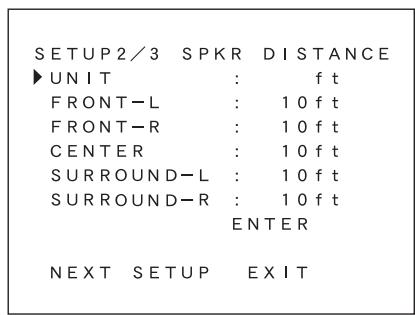
Use this parameter to specify the distance of the speaker's position from the listener.
The delay time is automatically set according to these distances.
UNITS: You can select Meters or Feet.
If you select "ft", the setting parameter will change in 1 foot steps.
If you select "m", it will change in 0.3 meter steps.
Select speaker with or v button, and input each speaker's distance with < or > button.
When the input for each speaker's distance has been finished, move the cursor to ENTER and press the OK button.
Notes:
Placement beyond that distance is beyond the range of the automatic time delay feature.
The delay feature does not function in the SOURCE-DIRECT ,7
CH-Input modes and decoding of 96kHz sources.
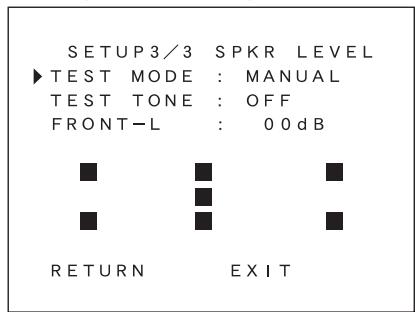
SPKR SETUP 3/3 (SPKR LEVEL)
SPKR LEVEL
TEST MODE: Selects the mode for generating the test tone. If you select AUTO, the test tone will be cycled through in a circular pattern which is Left Center Right Surround Right Surround Center Surround Left Subwoofer Left ... 3 seconds for each channel. If you select MANUAL, press the OK button to select the test tone channels after the "TEST TONE ON".
TEST TONE: Press the < or > button, ON is indicated and the test tone starts from the front L-CH speaker. Press the < or > button again on this item. OFF is indicated and the output of the test tone will stop.
Channel: Adjust the level of test tone for each channel with the < or > buttons of the RC7200SR. The current volume level is shown at the center of the display.
Notes:
Test tone does not generate when the SOURCE DIRECT function is turned on.
SURROUND MODE
SURROUND MODE
SOURCE DIRECT : OFF
SURR-MODE: AUTO
NIGHT MODE OFF
LFE LEVEL 00dB
RETURN
EXIT
SOURCE DIRECT : Switch the source direct ON or OFF with < or > button. This bypasses the surround processing and crossover for the main speakers (front left and right will be full range and the subwoofer will be ON)
Note: Surround mode cannot be changed in Source Direct mode.
SURR-MODE : Select the surround mode with < or > button.
NIGHT MODE : Switch the NIGHT MODE ON or OFF with < or > button.
Selecting the Night Mode ON is effective in Dolby Digital only, and it compresses the dynamic range.
This softens loud passages such as sudden explosions, to help prevent disturbing others late at night.
LFE LEVEL : Select the output level of the LFE signal included in the Dolby Digital signal or the DTS signal.
Select 0dB, -10 dB or OFF with < or > button.
The level is ordinarily set to 0 dB. When use DTS music source, LFE level is set to -10 dB.
Desired channels can be selected by pressing or v button.
Each channel level will be adjusted by pressing < or > button.
Only the usable channels which are determined depending on the
SURROUND mode, and SPEAKER SETTING are displayed.
MULTI ROOM SETUP
MULTI ROOM SETUP
MULTI ROOM OFF
VIDEO : DVD
AUDIO :DVD
VOLUME : VARIABLE
VOLUME LEVEL : -75 dB
---MAIN-ROOM STATUS---
VIDEO:DVD
AUDIO:DVD
RETURN EXIT
MULTI ROOM : To switch on the Multi-room output.
VIDEO: Select the video source of the Multi-room output.
AUDIO: Select the audio source of the Multi-room output.
VOLUME : Select whether the Multi-room output level is variable or fixed.
VOLUME LEVEL : Adjust the Multi-room output level.
MAIN ROOM STATUS : Selected input source in the main room will be displayed.
Notes:
If "VOLUME" is set to "FIXED", the multi-room output level cannot be adjusted.
You cannot transmit a digital signal using the multi-room function. Any source component that is desired to be operated in the second zone needs to have the analog outputs connected to receiver.
BASIC OPERATION
LISTENING TO THE TUNER
MANUAL TUNING
- To select the tuner as the source, press the TUNER button ⑤ on the front panel or press the TUNER button ⑧ on the remote control unit.
- Press the TUNER button ⑤ on the front panel or press the TUNER button ⑧ on the remote control unit to select the desired frequency band if required.
- Press the F/P button 16 on the front panel to display the frequency.
- Press the TUNING/PRESET or button 15 on the front panel or press the , button 10 on the remote control unit.
- If FM is selected, press the MODE button ⑦ on the front panel or select T-MOD by the Jog Dial ⑥ and press the ENT button ⑦ in the TUNER mode on the remote controller.
(FM) MODE BUTTON OPERATION
When "AUTO" indicator is on in the display, FM stations that broadcast in stereo will be received in stereo and the "STEREO" indicator lights. When "AUTO" indicator is off, all the FM stations will be received in mono regardless of whether or not they are broadcasting in stereo.
AUTO TUNING
- Press the F/P button 16 on the front panel to display the frequency.
- Press the TUNING/PRESET or button ⑤ on the front panel for more than 1 second to start the Auto tuning function.
AUTO TUNING (USING THE REMOTE CONTROL UNIT)
Press , v button 10 for more than 1 second to start the Auto tuning function.
PRESET TUNING
With this unit you can preset up to 30 FM/AM (MW/LW) stations in any order. For each station, you can memorize the frequency and reception mode if desired.
1-a. Manual Presetting
- Refer to the "MANUAL TUNING" or "AUTO TUNING" section above to tune in a desired station.
- Press the MEMORY button ⑭. "MEMORY" indicator starts blinking on the display.
While “MEMORY” is still blinking (approx. 5 seconds), select the preset number by pressing the TUNING/PRESET ▲ or▼ button ⑮ then press the MEMORY button ⑭ again.
- When a number has been properly input, "MEMORY" indicator stops blinking and goes out.
The station is now stored in the specified preset memory location.
1-b. Manual Presetting (Using the remote unit)
- Tune in a desired station.
- Press the MEMO button 16.
- Enter the desired preset number with ten keypad 17.
- Then, press MEMO button 16 again to store.
2. Auto Presetting
This function automatically scans the FM and AM (MW/LW) band and enters all stations with sufficient signal strength into the memory.
- Press and hold down the MEMORY button ④ and TUNER button ⑤ simultaneously for 3 seconds or more.
- "MEMORY" will blink on the display.
- Each time the tuner finds a station, the scanning will pause and memory. Auto presetting will starts.
- Operation stops automatically when all 30 preset memory positions are filled or when auto scanning attains the highest end of all bands.
To stop the auto preset function at anytime, press the CLEAR button ⑬.
3. Recalling a Preset Station
- Press the F/P button 16 to change the display to preset.
- Select the desired preset station by pressing TUNING/PRESET or button 15 on the front panel or press CHA or CHV button 12 on the remote.
Note:
To directly access the preset stations using the numeric keypad, select the desired preset station by entering one or two digits using the numeric keypad 17.
To return to the Manual Tuning mode, press the F/P button 16.
4. Preset Scan Tuning (Using the remote control unit)
- Select the SCAN by the Jog Dial 6 and press the ENT button 7 in the TUNER mode on the remote controller. (The preset station with the smallest preset number is recalled first. If no stations have been preset, "NO PRESET" shows in the display and the unit returns to the previous mode.)
- Preset stations are recalled in sequence (CH-1 CH-2, etc.) for 5 seconds each. Preset numbers that do not contain stations are skipped.
- You can fast forward the preset stations by pressing the CHA button continuously.
When the desired preset station is received, cancel the preset scan operation by pressing the CH▼ button or the CLEAR button 15.
5. Clearing Preset Stations
You can remove preset stations from memory using the following procedure.
- Recall the preset number to be cleared with the method described in "Recalling" a preset station.
- Press the CLEAR button ⑬ on the front panel or CLEAR button ⑮ on the remote control unit for 3 seconds or more.
"CLEAR" appears on the display to indicate that the specified preset number has been cleared.
6. Frequency Direct Call
- Select F-DIR by the Jog Dial 6 and press the ENT button 7 in the TUNER mode on the remote controller.
- Display shows "FM----.---MHz" (at FM mode).
- Input your desired frequency with tenkeypad buttons on the remote controller.
Eg) 98.1 MHz
Press 9,8,1 and 0
- Press the ENT button again.
STATION NAME PRESET (on PRESET display mode)
The station name preset function allows the name of each preset channel to be entered using alphanumeric characters. The Station Name button is valid only in the tuner mode. Before station name preset operation, store stations with the preset memory operation.
- Press the MEMORY button ⑭ on the front panel or MEMO button ⑮ on the remote for more than 3 seconds.
- The left most column of the station name indicator flashes, indicating the character entry ready status.
[Operation (Using the SR7200)]
- When you press the TUNING/PRESET or buttons 15 is turned, alphabetic and numeric characters will be displayed in the following order:
$$ \begin{array}{l} \mathbf {A} \rightarrow \mathbf {B} \rightarrow \bar {\mathbf {C}} \dots \mathbf {Z} \rightarrow 1 \rightarrow 2 \rightarrow 3 \dots \dots 0 \rightarrow - \rightarrow + \rightarrow / \rightarrow (\text {B l a n k}) \rightarrow \mathbf {A} \ \mathsf {U P} \rightarrow \ \leftarrow \text {D O W N} \ \end{array} $$
- After selecting the first character to be entered, press the MEMORY button ⑭. The entry in this column is fixed and the next column starts to flash. Fill the next column and press the MEMORY button ⑮ for more than 1 second to confirm the entry.
[Operation (Using the remote unit)]
First, press the TUNER button on the remote control unit.
(This operation is not necessary if the remote control unit has already been operated in the TUNER mode.)
3. Enter the character using the ten keypad 17. For example, to enter "A":
1) Press the "1" button. "A" appears on the display column.
2) Every time the 1 button is pressed, the displayed character changes in the order: A B C 1 A .
Pressing buttons other than the "1" button cause different characters to be displayed in a similar way, so that other alphanumeric characters can be entered. To enter a blank or space, press the "0" button.
- When the desired character is displayed, press the MEMO button 16 to confirm the entry in this column and move to the next column. After having filled all of the 8 columns, press the MEMO button 16, for more than 1 second to confirm the entry.
RDS OPERATION
Now in use in many countries, RDS (Radio Data System) is a description of the station's programming hidden space in the FM signal.
Your new receiver is equipped with RDS to assist in the selection of FM stations using station and network names, rather than broadcast frequencies. Additional RDS functions include the ability to search for programme types.
RADIO TEXT
Some RDS stations broadcast RADIO TEXT, which is additional information on the station and programme being broadcast.
RADIO TEXT information appears as 'running' text in the display. RADIO TEXT is transmitted character-by- character by the radio station. As a result of that it may take some time until the entire text has been completely received.
RDS DISPLAY
When a receiver is tuned to an FM station that is transmitting RDS data, the Front Panel Information Display will automatically show the station name or RDS TEXT in place of the typical display of the station's broadcast frequency.
To change the display, select the DISP by the Jog Dial 6 and press the ENT button 7 in the TUNER MODE on the remote controller.
PS (Program Service Name) RT (RADIO TEXT) Frequency
PROGRAMME TYPE (PTY) DISPLAY
The RDS system categorizes programmes according to their genre into different programme type (PTY) groups. To display the programme type information of the current station, select the PTY by the Jog Dial 6 and press the ENT button 7 in the TUNER MODE on the remote controller.
PTY AUTO SEARCH
Your receiver is equipped to automatically search for stations transmitting any of 29 different programme types. To search for a PTY, follow these procedures:
- Select the PTY button by the Jog Dial 6 and press the ENT button 7 in the TUNER MODE on the remote controller. The current station's PTY will be displayed, or the currently selected PTY group will be displayed in blinking if no station or RDS data is present.
- To change to a new PTY type, press the CHA/▼ button until the desired PTY is shown in the display.
To select a specific PTY type, use the ten key pad 17 on the remote control to select the programme type corresponding to the numbered choices in the table on the following.
- Once the desired PTY group or type has been selected, select the PTY by the Jog Dial [6] while the display blink (approx. 5 seconds). The PTY Auto search will start, and the tuner will pause at each station broadcasting RDS PTY information corresponding to the selected choice.
- To advance to the next RDS station with the desired PTY, selcet the PTY by the Jog Dial 6 again within 5 seconds.
| NUMBER | DISPLAY | PROGRAMME TYPE |
| 1 | POP | Pop Music |
| 2 | ROCK | Rock Music |
| 3 | MOR | M. O. R. Music |
| 4 | LIGHT | Light classical |
| 5 | CLASSIC | Serious classical |
| 6 | NEWS | News |
| 7 | AFFAIR | Current Affairs |
| 8 | INFO | Information |
| 9 | SPORT | Sport |
| 10 | EDUCATE | Education |
| 11 | DRAMA | Drama |
| 12 | CULTURE | Culture |
| 13 | SCIENCE | Science |
| 14 | OTHERS | Varied |
| 15 | OTHER | Other Music |
| 16 | WEATHER | Weather |
| 17 | FINANCE | Finance |
| 18 | CHILDREN | Children's programmes |
| 19 | SOCIAL | Social Affairs |
| 20 | RELIGION | Religion |
| 21 | PHONE IN | Phone In |
| 22 | TRAVEL | Travel |
| 23 | HOBBIES | Hobbies |
| 24 | JAZZ | Jazz Music |
| 25 | COUNTRY | Country Music |
| 26 | NATION | National Music |
| 27 | OLDIES | Oldies Music |
| 28 | FOLK | Folk Music |
| 29 | DOCUMENT | Documentary |
PLAYBACK OPERATION
NORMAL PLAYBACK
- Press the POWER ON button on the remote.
- Press the FUNCTION SELECTOR button ⑤ on the front panel or press the FUNCTION button ⑧ on the remote unit to select an input source.
- Turn the SURROUND MODE SELECTOR knob ③ on the front panel or Surround mode buttons 17 in the AMP MODE on the remote unit to select the desired surround mode.
- Adjust the volume level using the VOLUME knob ④ on the front panel or press the VOL ▲ /▼ button ⑨ on the remote. If necessary, adjust the tone, select the TRB+, TRB- and BAS+, BAS- by the Jog Dial ⑥ and press ENT button ⑦ in the AMP MODE on the remote unit.
Notes:
- In case of remote control operation, press one of the function buttons twice within 2 seconds to select the function.
- Tone control is available for following surround modes. AUTO (except 96 kHz), STEREO, DOLBY PRO LOGIC and DTS.
LISTENING TO A DIFFERENT AUDIO SOURCE WHILE WATCHING A VIDEO SOURCE (Using the remote control unit)
- Select one of the following video sources TV, DVD, VCR1, DSS/VCR2 or AUX.
- Next, select one of the following audio sources FM, AM (MW/LW), CD, TAPE, or CD-R/MD.
OTHER FUNCTIONS
SETTING THE SLEEP TIMER
Set the sleep timer while the power is turned on.
- Turn the power ON and press the SLEEP button ⑨.
- Press the SLEEP button ⑨ the number of times to set the desired sleep time in minutes.
Each press of the SLEEP button (9) or changes the display in the following order:
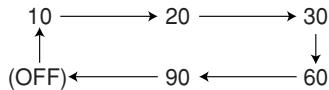
The unit will shut off in the number of minutes indicated.
- While the sleep timer is activated, the remaining time can be displayed for approximately 2 seconds by pressing the SLEEP button ⑨ .
- To cancel the sleep timer, press the SLEEP button ⑨ and then press the CLEAR button ⑬.
TV AUTO ON/OFF FUNCTION
This function allows the component connected to the TV IN jack to control the power (ON/OFF) to the SR7200.
AUTO POWER ON
- Be sure TV auto mode is enable. (Refer page 10 : System Setup 1/3)
- Connect your TV TUNER (etc) to the TV IN terminal.
Be sure to connect the video input.
- Turn OFF the power to the TV TUNER and the SR7200 will be in standby mode.
- Turn ON the TV TUNER and tune in a receivable station.
- When the station is received, the SR7200 turns ON and TV is selected automatically.
AUTO POWER OFF
- In the above situation, turn the TV TUNER OFF or select a channel that does not contain any broadcast.
- The SR7200 switches to STANDBY after approximately 5 minutes.
Note:
AUTO POWER OFF is canceled if the FUNCTION SELECTOR button ⑤ is set to a source other than TV. The function reactivates when TV is selected again.
Caution:
Some TV broadcasts may cause the TV AUTO FUNCTION to be turned enable. To set this function to ENABLE/DISABLE, refer to the SETUP MENU.
MULTI ROOM SELECTOR
The Multi Room Selector is a function which allows you to listen to the same or a different source in a room other than the room in which the SR7200 is located. To use this function, a multi room remote unit and remote control signal receiver available from your Marantz dealer are necessary. The operations possible with the multi room function are explained briefly below. For details, refer to the instruction manual supplied with the multi room remote control unit and receiver.
- Press the MULTI ROOM button ①. The unit enters multi room mode and the display indicates "SEL SOURCE" and flashes the "MULTI ROOM" indicator for approx. 5 seconds. In this time, you can select the input source by pressing the FUNCTION SELECTOR button ⑤.
- Then, the display indicates "M/VOL xx dB". At this time, you can set the volume level of the multi room by turning the volume control knob.
- Then, the display indicates "MULTI PAL". At this time, you can set PAL or NTSC for second zone TV format of OSD. Press OSD button 17 on the remote control unit. "MULTI PAL" or "MULTI NTSC" will be shown on the display of SR7200.
- Then, the display indicates "M/SLEEP OFF" and you can set sleep timer for multi room by pressing by the SLEEP button ⑨.
Note:
If the multi room function is to be set using the remote control unit, select the settings on the MULTI ROOM SETUP screen in the OSD MAIN MENU. (Refer to page 12.)
MULTI ROOM SELECTOR OPERATION (USING THE MULTI ROOM REMOTE CONTROL UNIT)
- If Video output for multi room is connected to the TV in your second zone, the on screen display for this video signal will be shown as follow.
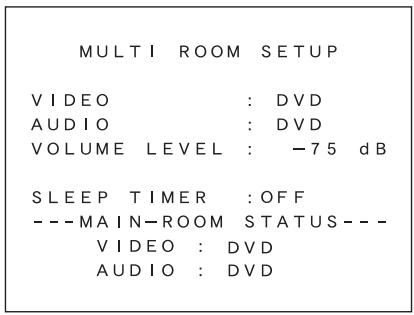
- Press the POWER ON button, or select the desired source on multi room remote control unit from the MULTI ROOM. Any of these operations will put the SR7200 into multi room mode and "MULTI ROOM" indicator will light and OSD system for the TV in the multi room will be shown.
- Press the VOL.up or VOL.DOWN button on the multi room remote control unit to set the desired sound volume.
- In multi room mode, the multi room remote control unit can be used in the multi room to operate the following functions.
You can select a tuner preset channel and tuning up or down, and direct selection. And you can control the CD player, DVD player VCR and tape deck connected to the SR7200.
- Additionally, SLEEP timer function for multi room is available from second zone, by pressing the SLEEP button on the multi room remote control unit.
- The status of the main room setting can be monitored from the second zone with the OSD.
Caution:
If the main room and the secondary room are listening to the tuner, the main room will have priority over controlling that source. For example, you cannot change the frequency or preset of the Tuner from a remote location if the main room is also listening to that source.
The on-screen display, which can be activated by the Main unit or remote, appears on the TV screen to show the current setting status of the SR7200.
Note:
Each video input function is set PAL or NTSC for TV format of OSD.
If this setup does not meet the video input signal, character of OSD can not synchronize.
So You can select these format function by function.
Press OSD button 17 on the remote controller for 3 seconds or more. "PAL" or "NTSC" will be shown on the display of SR7200, press OSD button 17 again to change the TV format.
The indication on FL display will change "PAL" "NTSC" "PAL" .
This setup is memorized with each video input function.
1. GENERAL INFORMATION
When the OSD button 17 is pressed, the current setting are displayed on the TV monitor.
This display disappears automatically in about 5 seconds after the button is pressed.
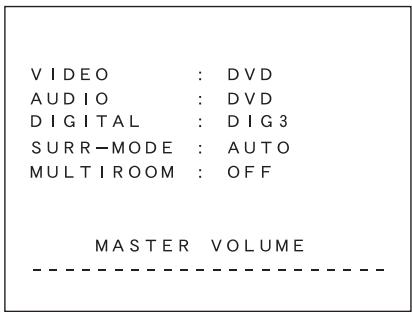
①VIDEO SOURCE:
Displays the current video source being selected with the function selector TV, DVD, VCR1, DSS or AUX.
② AUDIO SOURCE:
Displays the current audio source being selected with the function selector
FM, AM (MW, LW), CD, TAPE, CD-R, TV, DVD, VCR1, DSS or AUX.
③ DIGITAL INPUT:
Displays the digital input that you are using
DIG-1, DIG-2, DIG-3, DIG-4 or DIG-5.
④ SURROUND MODE:
Displays the current surround mode
AUTO, STEREO, 6CH STEREO, VIRTUAL, MATRIX, STADIUM, HALL, MOVIE, CS5.1, 6.1 CH SURR, PLO LOGIC, PLII MUSIC, PLII MOVIE, DTS
⑤ MULTI ROOM
Displays the current status of the Multi Room function, ON or OFF.
⑥ MASTER VOLUME
Displays the current volume level.
The volume level is higher at the right of the display.
Note:
The On-Screen Display signals for the main room can be output from the TV MONI composite video (RCA) output and the TV MONI, S-Video and TV MONI component video output jacks.
With some video equipment or software, the On-Screen Display characters may be distorted due to noise or tracking adjustment error.
2. FUCTION SELECT & SURROUND MODE
When a function selector button or surround mode button is pressed
VIDEO: Displays the current video source. When TV, DSS, DVD, VCR1 or AUX is selected with the function selector, both AUDIO and VIDEO shows the same name.
AUDIO: Displays the current analog audio input source.
DIGITAL: Displays the current digital input source.
SURR-MODE: Displays the current Surround mode as follows;
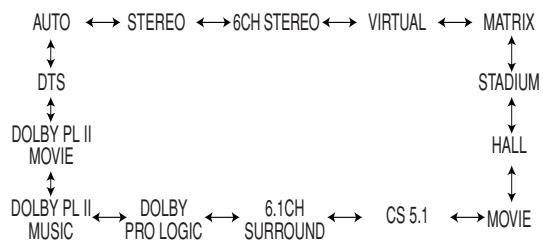
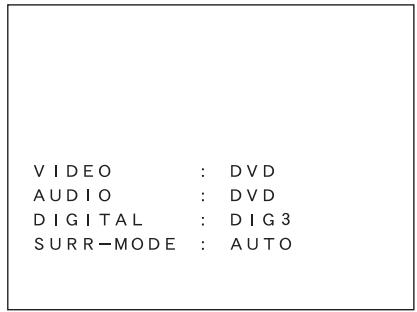
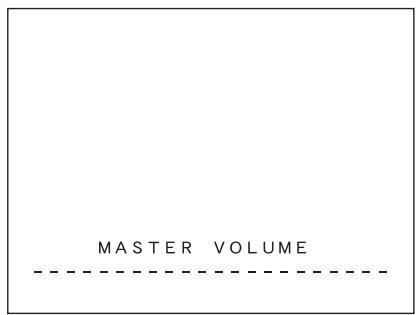
3. MASTER VOLUME CONTROL
Displayed when the MASTER volume is varied or a button of the remote control unit is pressed.
4. MUTE
When the MUTE button ⑫/⑬ is pressed, "MUTE ON" will be shown on screen.
Pressing MUTE button ⑫ / 13 again will show "MUTE OFF" on screen, and return to the previous volume level.
MUTE ON
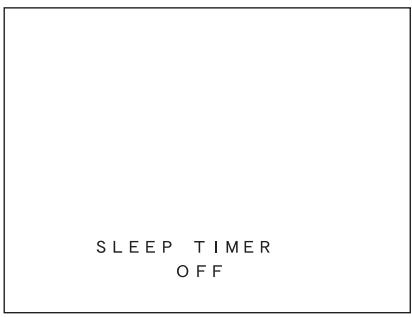
5.SLEEP TIMER
When the SLEEP button ⑨ is pressed, the setting on or off and the remaining time of the sleep timer function are displayed.
You can change the mode between on, off and the amount of time to elapse before the unit will shut itself off by cycling the SLEEP button ⑨.
6. OSD OFF
When OSD button 17 is pressed, OSD system will be bypassed after 3 seconds.
Then there is no indication on the TV display.
Press the OSD button 17 again to activate the OSD.
REMOTE CONTROL UNIT RC7200SR MAIN FEATURES & FUNCTIONS
PROGRAMMABLE LEARNING FUNCTION
Can easily be programmed to learn the codes for almost any other infrared-based remote, allowing the remote control functions for many different components to be consolidated conveniently in a single unit.
- PRESET CODES
Function buttons already contain preset codes (using the RC-5/RC-6 remote control language) for other remote-controllable Marantz audiovisual component.
LUMINOUS BUTTONS
The remote controller uses luminous buttons which store light allowing it to be used even in the darkened.
LARGE, EASY-TO-READ DISPLAY
Large LCD (liquid crystal display) messages and other information at a glance.
JOG DIAL
The function selected by Jog Dial (displayed on the LCD) can be operated directly by the enter button.
- MACRO CAPABILITY
Macro function allows the remote controller to be programmed to execute complex strings of multiple commands using a single keystroke.
- NAME ASSIGNMENT
Allows one to change the (displayed via the LCD) name for a function button.
NAMES OF PARTS & FUNCTIONS
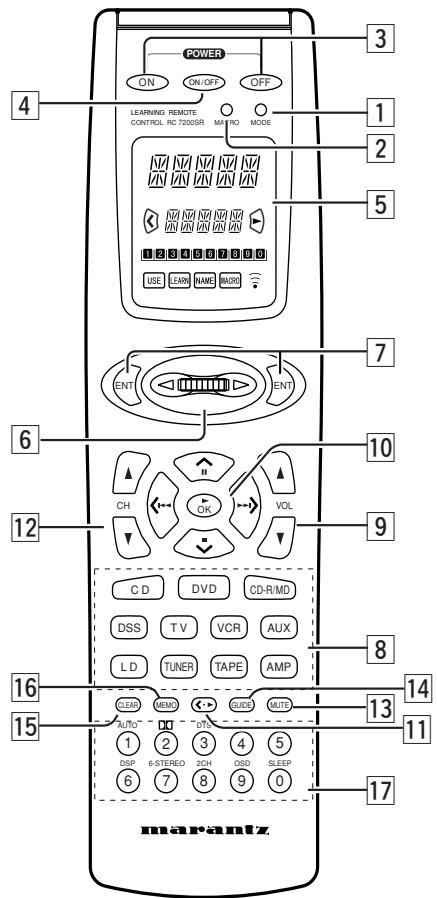
Names of Buttons & Functions
1 MODE button
Used to change the operation mode of the remote controller. Pressing this button cycles the remote controller through USE LEARN NAME USE, with the currently selected mode displayed on the LCD.
2 MACRO button
Used to switch the remote controller in and out of the MACRO mode, which is used to program complex operational sequences (macros), with the currently selected mode displayed on the LCD.
3 Power ON and OFF buttons
Used to turn the main system component (usually a preamplifier or receiver) ON and OFF.
4 Source ON/OFF button
Used to turn specific sources (such as DVD players, etc.) ON and OFF independently from the rest of the system.
5 LCD
Used to display information about currently selected modes and functions.
6 Jog Dial
Used to select the operation content for each source. 10 types of direct operation are possible for each of the 11 functions including DVD, TV, AMP, etc. After selecting the desired function, press either of the ENT button 7 to transmit the signal.
ENT buttons
Used to execute a function selected with the Jog Dial 6.
There are 2 ENT buttons, one on each side, so that the remote controller can be used just as easily with either hand.
The characters on the display can also be programmed.
Function buttons
Used to switch the remote controller to the command sets for specific sources (amplifier, receiver, etc.), thereby allowing a single remote controller to control up to 11 different components. To use these buttons to switch the amplifier's source, press the desired button twice within 2 seconds. The AMP button 8 is used only to switch command set of the remote controller itself and therefore does not transmit any signal. Further, the function buttons may also be programmed to execute macros. (A macro allows a complex string of operations to be performed in series simply by pressing a single button.) One button can be programmed to learn sequences containing up to 10 commands. The following is an example of such a sequence that can be activated automatically using a macro:
Turn the receiver ON Switch the function to DVD Set the Surround Mode to Dolby Digital Switch the TV to video input Set the DVD player to Play.
9 VOLUME up / down buttons
Used to adjust the volume on receivers and other components equipped with volume control.
CURSOR/TRANSPORT CONTROL buttons
Used to operate on-screen and other displays used by receivers and other components, as well as to operate the PLAY, STOP, PAUSE, NEXT, and PREVIOUS functions of each source.
11 <▶ (CURSOR/ TRANSPORT CONTROL switching) button
Used to switch the function of the CURSOR/ TRANSPORT CONTROL buttons 10 between the CURSOR and TRANSPORT CONTROL functions, with the currently selected function displayed on the LCD when the DVD or VCR functions are selected. When functions other than DVD or VCR are selected, the <> button remains inactive.
12 Channel up / down buttons
Used to controls the up/down function of tuner, or allows one to cycle through the tuner presets.
13 MUTE button
Used to temporarily mute the sound for amplifiers, receivers, etc.
14 GUIDE button
Used to call up the on-screen menus used to control DVD players, digital satellite systems (DSS), and other menu-equipped systems.
15 CLEAR button
Used to clear the contents of memory or programmed functions.
16 MEMO button
Used to program your CD player's track memory, or to enter a VCR recording program, and can be used to provide the MEMO function included with other components in your system.
17 Ten-Key pad/Surround Mode buttons
Used to enter numeric digits, useful for finding a specific track on a CD, or to tune a preset radio station, etc. When the function is set to AMP, it is possible to choose Surround Mode, etc.
18 Infrared Transmitter/Receiver Window
Used to transmit remote control signals based on beams of infrared light to system components. To ensure that these signals are properly received, make sure that this window is pointing in the general direction of the infrared receiver on the amplifier or other components. This window should also be pointed toward the source remote controller when using Programmable Learning function.
Note:
- MODE 1, MACRO 2, and <•▶ (CURSOR/TRANSPORT/CTRL switching) 11 cannot be programmed.
LCD (Liquid Crystal Display)
Information about currently selected functions and modes is displayed on the LCD. Pressing any buttons will call up a full display of information on the status of that function or mode. This display will disappear after approximately 1 minute, except for the Function Name indicator ③ , which is always displayed.

@ Function Name indicator
Displays the name of the currently selected function (DVD, TV, etc.) using up to 5 characters.
Command Name indicator
Displays up to 10 types of commands for each function using up to 5 characters.
Command Page indicator
Allows confirmation of current command page. Also, when setting or transmitting macros, displays information such as the number of macro steps and the time intervals between command transmissions.
Transmission indicator
Indicates when the remote controller is transmitting a signal.
USE indicator
For normal operation the USE indicator is displayed.
① LEARN indicator
Indicates when the remote controller is in the LEARN mode.
NAME indicator
Indicates when the remote controller is in the NAME mode and a function name is being changed.
⑥ MACRO indicator
Indicates when the remote controller is in the MACRO mode.
① CURSOR indicator
Indicates when the CURSOR/TRANSPORT CONTROL button is in the cursor mode.
CONTROL indicator
Indicates when the < · > (CURSOR/TRANSPORT CONTROL switching) 11 is in a transport control mode such as PLAY, STOP, etc.
- If the LCD flickers when a button is pressed in order to transmit a command or when in the LEARN mode, the transmission or learning is not possible. In such a case, please replace the batteries.
- This remote controller uses non-volatile memory, so that learned codes and macros will be preserved even if the batteries are removed.
BASIC OPERATION
USE MODE
The remote controller will normally be used in the USE mode. It comes preset with codes commonly used to control 11 types of components manufactured by Marantz and Philips, including DSS, DVD, TV, LD, VCR, AUX, TUNER, CD, TAPE, CD-R/MD, and AMP, as well as many others that utilize the RC-5 remote control language.
- Press once one of the Function buttons to change to another component's commands, such as DVD button.
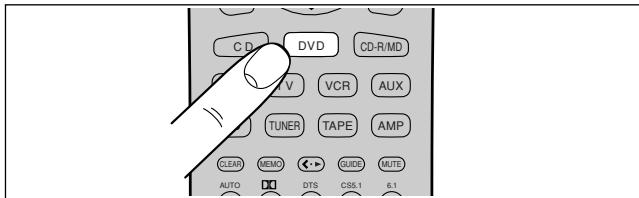
- DVD will be displayed on the LCD and the function codes will be set to operate the DVD player, and if you double clicked the DVD function button, the preamplifier or receiver's input will be changed as well.
- Now you can operate the DVD player. When a button is pressed, the symbol indicates that a remote code is being transmitted. is not displayed if a button for which no code has been set is pressed.
- The Jog Dial 6 is used to select any one of up to 10 direct operations that can be performed for each of the 11 functions (DVD, TV, AMP, etc.). Rotate the Jog Dial 6 to select one of these commands. The number of the current page is indicated by 1 - 0. Page numbers cycle up or down, for example 8 9 0 1 etc. or 8 2 1 0 etc. depending on which way the Jog Dial 6 is rotated.
The last page position for any given command function is retained in the memory even if the remote controller is switched to the command function for another component. (Last Memory)
If it is left for approximately 1 minute without pressing any buttons, all items on the LCD will go off except the function indicator.
Even if the display goes off, the remote controller will hold the page position and other data. The display may be activated again by pressing any button.
LEARN MODE
The remote controller is capable of learning and memorizing the remote control codes used by almost any other remote controller you may already own.
- If no commands have been programmed for a particular function button, the remote controller will transmit whatever codes have been factory preset.
- The following example shows how to program your remote controller and how to use the codes for a DVD player.
-
The remote controller infrared receiver is located at the top of the remote controller.
-
Use a ballpoint pen or other sharp point to press the MODE button 1 until the LEARN indicator is displayed. Each time you press this button, the mode will cycle through LEARN NAME USE. Stop when the LEARN indicator starts to blink.
- Place the DVD's remote controller so that its infrared signal transmitter is facing the infrared signal receiver on the Marantz remote controller at a distance of about 5 centimeters (2 inches).
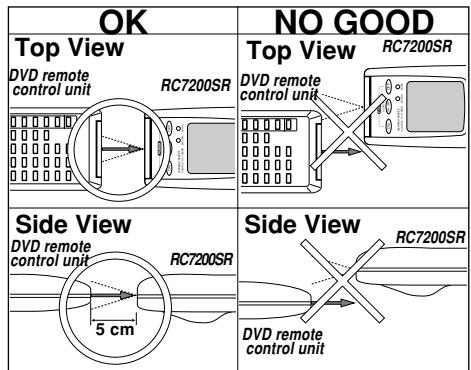
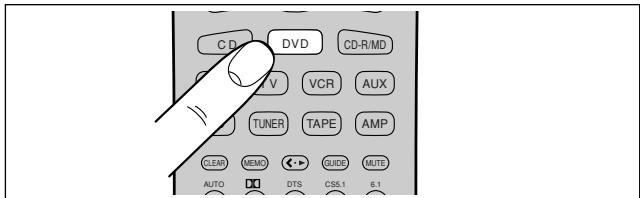
- Press the DVD Function button 8.
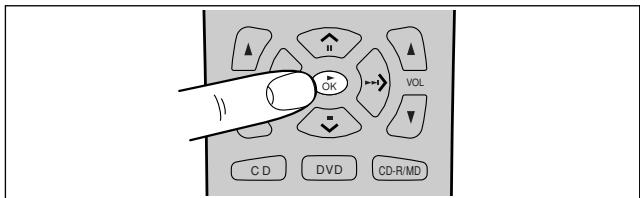
- Press the PLAY button 10 (▶ OK). The LEARN indicator changes from blinking to continuously lit.
- Press and hold the PLAY button on the DVD player's remote controller. The remote controller has finished learning the command when OK appears on the LCD @.
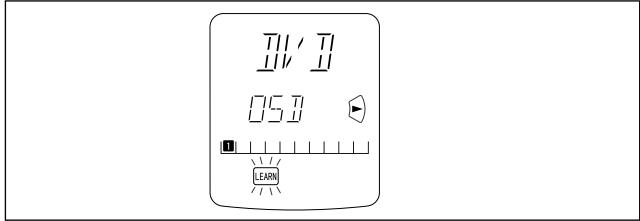
- If AGAIN appears on the LCD, some error has prevented the command from being learned. If this happens, simply repeat the procedure from step 4.
-
In the rare event that NG appears on the LCD, it means that the remote controller you are attempting to learn from uses special signals that cannot be learned by the Marantz remote controller.
-
Follow the same procedure to make the remote controller learn the ten-key 17 operation used by the DVD player's remote controller.
-
Repeat the procedure from step 3 to have the remote controller learn the signal codes for the other components such as TV, VCR, etc.
-
If no buttons are pressed for approximately 1 minute while in the LEARN mode, the remote controller automatically returns to the USE mode.
-
When programming the function buttons, first switch to the desired function, then press the button again.
-
When you have finished programming the remote controller, use a ballpoint pen or other sharp point to once again press the MODE button 1 to return it to the USE mode. The LCD displays the USE indicator, and the newly programmed codes now can be used.
If FULL is displayed on the LCD
If FULL is displayed on the LCD ⑥ when programming in the LEARN mode, it means that the memory has become too full to hold any further codes.
If FULL is displayed no matter how many times you attempt to enter new codes, it means that the remote controller cannot accept any new codes until some of the previously learned codes are deleted to make space in the memory. Select unneeded codes for each of the Jog Dial control 6 and Function buttons 8, which show FULL and delete them from the memory.
Note:
The power ON and OFF buttons 3 can only be programmed to learn one type of code, regardless of the function button that has been selected.
PROGRAMMING THE JOG DIAL
Let's use the example of setting 2 as the TITLE code for the DVD player.
- Use a ballpoint pen or other sharp point to press the MODE button until the LEARN indicator is displayed and starts to blink.
-
Place the DVD player's remote controller so that its infrared transmitter window is facing the infrared signal receiver window on the Marantz remote controller at a distance of about 5 centimeters (2 inches).
-
Press the DVD Function button 8.
-
Rotate the Jog Dial 6 left or right until 2 is displayed, then press the ENT button 7.
-
The LEARN and NAME indicators will both be displayed.
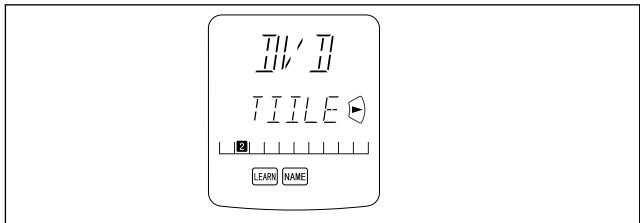
-
Press the TITLE button on the DVD player's remote controller continuously until OK is displayed on the Marantz remote controller's LCD, indicating that the programming has been completed.
-
If AGAIN appears on the LCD, some error has prevented the command from being learned. If this happens, simply repeat the procedure from step 4. When the programming has been completed, the remote controller automatically switches to the NAME mode.
The left hand position on the LCD ⑥ blinks, indicating the character in the name to be rewritten.
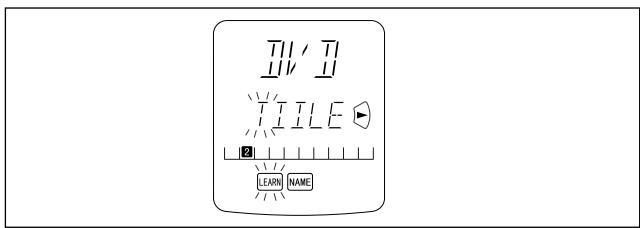
- If you do not wish to rewrite the name, simply press the OK Cursor button [10].
- If you wish to rewrite the name, input the desired characters using the ten-key pad [17]. The part of the display that is being rewritten may be selected using the < and > Cursor buttons [10]. When you are finished rewriting, press the OK Cursor button [10].
To simply erase already existing characters, press the 0 button to replace them with a blank space.
(Refer to next section on rewriting names)
- Use the same procedure to program the codes for other 1-6 with the Jog Dial [6].
- When finished programming the codes for each of the buttons, use a ballpoint pen or other sharp point to press the MODE button 1 to return the remote controller to the USE mode. Once USE is displayed on the LCD, the newly memorized codes are available for use.
REWRITING NAMES
This remote controller allows the names accessible by Jog Dial control 6 to be rewritten with new ones of your choosing.
- Rewriting of names is performed for each individual function.
-
Let's use a DVD player as an example to show how to change the 1's "OSD" to "F-OSD".
-
Use a ballpoint pen or other sharp point to press the MODE button 1 to switch the remote controller to the NAME mode. The NAME indicator blinks.
- Press the DVD Function button 8.
- Use the Jog Dial 6 to select the page for which you wish to enter a new name.
- The character on the left-hand side of the Command Name indicator on LCD ⑥ will flash, indicating that it is the character ready to be rewritten. New characters entered will be written over the top of the current character so that the current character is erased.
Use the < and > Cursor buttons to select the characters to be rewritten.
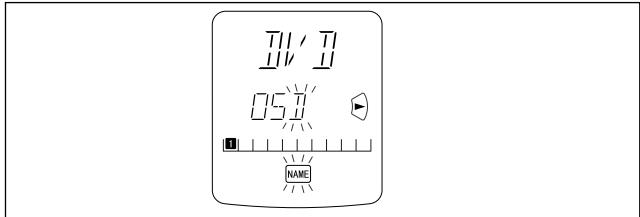
- Use the ten-key pad 17 to select the desired alphanumeric characters.
Pressing the number buttons on the ten-key pad will cycle through the alphanumeric characters as follows:
| Ten keypad | Press, press again, press again, etc. |
| 1 | A → B → C → 1 → A |
| 2 | D → E → F → 2 → D |
| 3 | G → H → I → 3 → G |
| 4 | J → K → L → 4 → J |
| 5 | M → N → O → 5 → M |
| 6 | P → Q → R → 6 → P |
| 7 | S → T → U → 7 → S |
| 8 | V → W → X → 8 → V |
| 9 | Y → Z → / → 9 → Y |
| 0 | SPACE → + → — → , → ’ → 0 → SPACE ( |
- For example, to enter the letter "F", press the 2-key on the ten-key pad 17 3 times in a row to cycle from D to E to F.
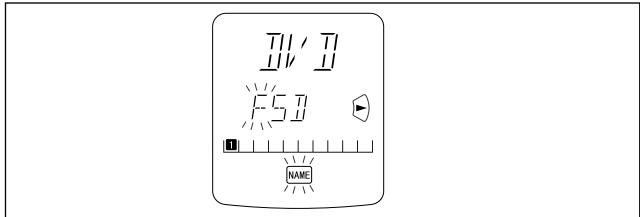
Once the desired character "F" appears, press either of the < and > Cursor buttons 10 and the "F" will be permanently written over the former character. Press the 0-key in order to replace unneeded extra characters with spaces.
- Follow the same procedure to enter “-OSD”. When finished, press the OK Cursor button 10. Pressing OK permanently fixes the newly written characters.
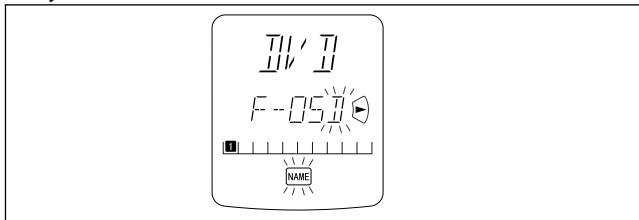
- Up to 5 alphanumeric characters may be entered in the Command Name indicator of the LCD.
-
To rewrite the names of the other items in the Command Name indicator, use the Jog Dial 6 to select the desired command and repeat from step 5.
-
When you are finished rewriting, use a ballpoint pen or other sharp point to press the MODE button 1 to return the remote controller to the USE mode. The USE indicator is displayed on the LCD, and the newly programmed codes now can be used.
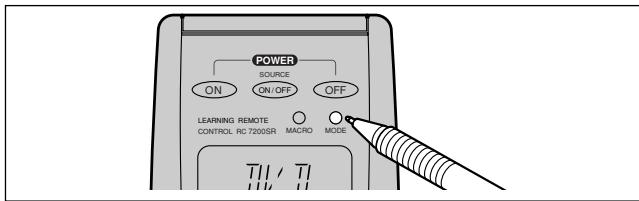
ERASING PROGRAMMED CODES
(Returning to Factory Presets)
Codes that have been programmed into the memory can be erased in 4 ways: by button(s), by function(s), by Jog Dial command, and by erasing all memory contents.
- Use a ballpoint pen or other sharp point to press the MODE button ① to switch the remote controller to the LEARN mode, so that the LEARN indicator is blinking on the LCD.
Note:
Erasing of programmed codes is only possible in the LEARN mode.
2. Erasing by Button(s)
To erase the codes and names programmed for any button, press and hold the CLEAR button [15], then press the button to be erased twice. This will return the button to its factory presets or leave it empty if no factory presets are available.
Jog Dial codes may be erased in the same way, by pressing and holding the CLEAR button 15 while using the Jog Dial 6 to call up the command to be erased, then pressing one of the ENT buttons 7 on either side of the Jog Dial 6 twice. This will return the button to its factory presets or leave it empty if no factory presets are available.
To erase codes programmed for the CLEAR button 15, simply press the CLEAR button 15 continuously for 3 seconds.
As an example, let's clear the PLAY command from the DVD player command set.
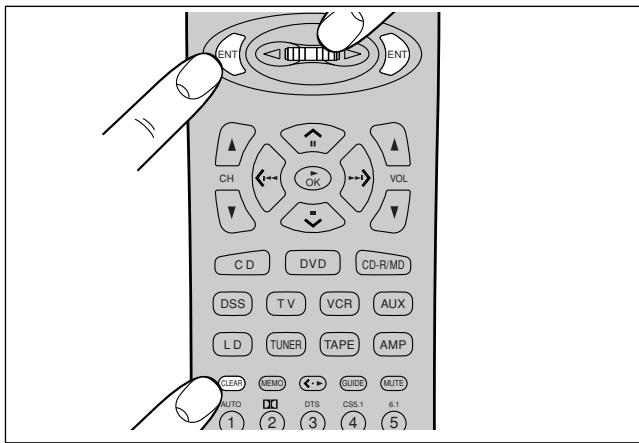
3. Erasing Jog Dial Codes
To clear all codes and names previously set for each of the functions (DVD, TV, etc.).
1) Press the function you want to erase.
2) Hold down the CLEAR button 15 and press both ENT buttons 7 at the same time. LCD 6 will display CLR?.
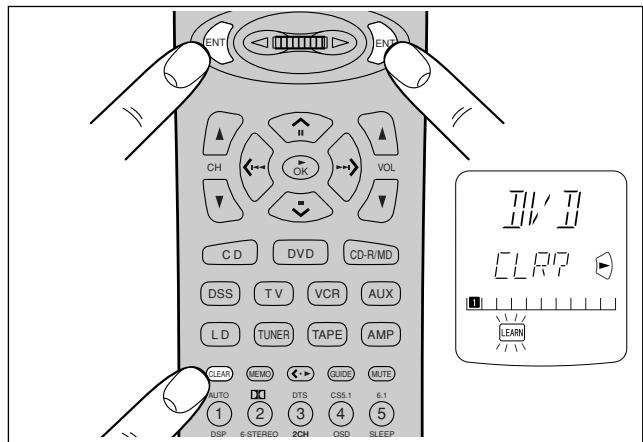
3) If you wish to continue the clearing operation, press the OK Cursor button 10. This will return all 10 commands in the Jog Dial to their factory presets, or leave them empty if no factorypresets are available. Accordingly, the LCD ⑥ will return to the factory preset displays, or will simply be empty.
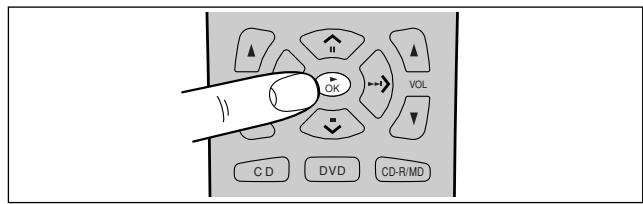
- Use a similar operation to erase the Jog Dial codes for each function.
- To cancel the memory clearing operation, do not press OK Cursor button 10 and simply touch any other button.
4. Erasing Code s by Function
To clear all codes and names previously set for each of the functions (DVD, TV, etc.), press and hold the CLEAR button 15, then press the button for the function to be cleared twice. CLR? will appear on LCD ⑤. If you wish to continue the clearing operation, press the OK Cursor button 10.
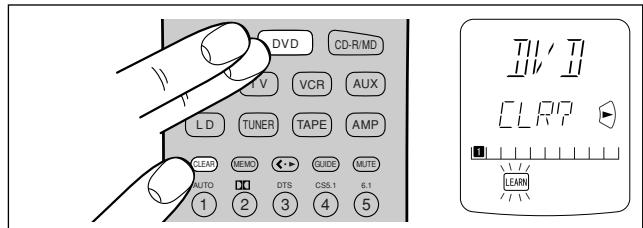
This will return the button to its factory-presents or leave it empty if no factory presets are available. Accordingly, the LCD ⑥ will return to the factory preset displays, or will simply be empty.
- To cancel the memory clearing operation, do not press the OK Cursor button and simply touch any other button.
- The codes for the <·> button 11 cannot be cleared.
5. Erasing All Memory Contents
To clear all the memory contents and reset all codes and names to their factory presets, press and hold the CLEAR button 15, and press both the power ON and OFF buttons 3 simultaneously. ACLR? will appear on LCD @.
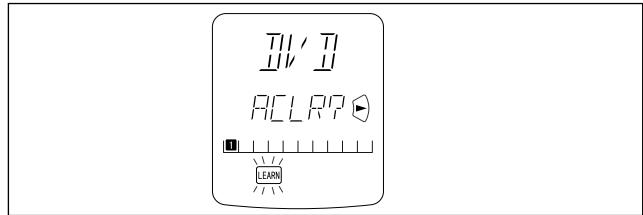
If you wish to continue the clearing operation, press the OK Cursor button 10.
This will return the entire memory to its factory-presents, or leave it empty for items for which no factory presets are available.
Accordingly, the LCD will return to the factory-preset display or will simply be empty.
- To cancel the memory clearing operation, do not press the OK Cursor button and simply touch any other button.
After the OK Cursor button 10 is pressed, clearing the entire memory will take approximately 5 seconds.
PROGRAMMING MACROS
Macros make it possible to use a single function button to perform more complex series of operations that would normally require pressing several buttons. A single button can be programmed to perform up to 10 steps in sequence. A typical example of such a series might be as follows:
- Turn the main amplifier power ON Switch the function to DVD Set the Surround Mode to Pro Logic Switch the TV to video input Set the DVD player to PLAY.
- No signals may be transmitted during macro programming.
- The various steps that make up a macro are set initially to be sent one after another in 1 second intervals, however these intervals may be shortened to as little as 0.5 seconds or lengthened to as much as 5 seconds using the Setup mode.
-
In the macro mode, the number of steps the macro contains is displayed on LCD ©. Macros may be programmed for each of the 11 function buttons, from DVD to AMP.
-
Use a ballpoint pen or other sharp point to press the MACRO button 2 until the MACRO and LEARN indicators are displayed blinking on the LCD.
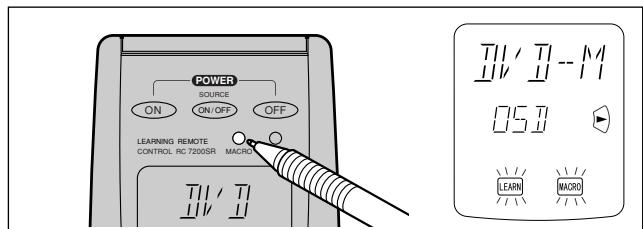
- Press the Function button 8 for which you wish to program a series of operations. In this case, let's use the example of the DVD player.
Press the DVD Function button 8. The LCD @ will display DVD-M.
Characters displayed on LCD @ include the following, depending on the function button for which the macro is being programmed: LD-M, DVD-M, TV-M, DSS-M, VCR-M, AUX-M, TUN-M, CD-M, TP-M, AMP-M, CDR-M (or MD-M for remote controller set for MD).
- If a macro has already been set for the selected function button, the LCD @ will blink. Also, the number of steps in the macro is displayed on LCD ©.
- Press the buttons for the operations you wish to program as a macro in the sequence you want the macro to program them. The name of the button pressed appears on LCD © . The number of steps in the macro is displayed on LCD © and this number increases by 1 with each button pressed.
For example, press DVD, PLAY.
Each function button can be programmed to perform up to 10 steps in sequence.
- If, while programming, no buttons are pressed for approximately 1 minute, the remote controller will automatically return to normal mode, and no macro will be programmed in the memory.
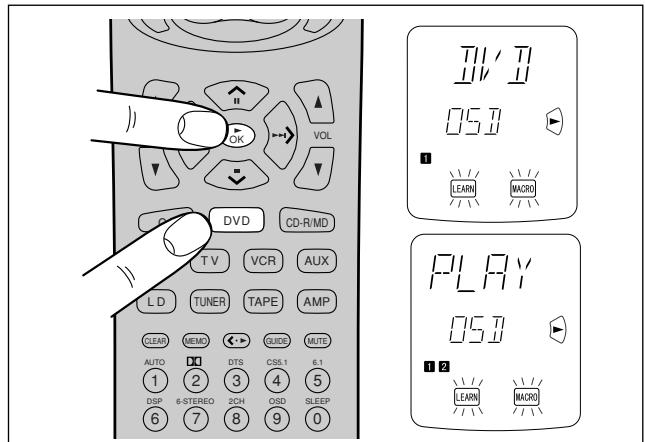
-
When you are finished programming macros, use a ballpoint pen or other sharp point to press the MACRO button 2. LCD @ will display END, and the display will return to normal.
-
Macros cannot be programmed for the MODE 1, MACRO 2, <▶ 11, VOL ▲/▼ 9, MEMO 16 or CLEAR 15 buttons.
In the macro mode it is possible to program the memory to perform macros containing up to 10 steps.
Each of the function operations (11 including CD, CD-R, etc.) can be used in a macro more than once, however for all except AMP, only the first function operation will be transmitted as a signal from the remote controller. Accordingly, within a single macro, it is not possible to switch between multiple function operations. (This is to prevent the switching of the receiver function operation.) Within a macro, the second time a function operation is used, it will only be used on the remote controller itself and no signal will be transmitted to the component.
EDITING MACROS
Macros may be edited using following procedure.
-
Use a ballpoint pen or other sharp point to press the MACRO button ② until the MACRO and LEARN indicators are displayed blinking on the LCD.
-
Press the Function button 8 to be changed. Let's use the example of the DVD player, by pressing the DVD Function button 8.
DVD-M is displayed blinking on LCD ⑧.
- The number of steps in the completed macro is highlighted on LCD ©. In this example there are 3 macro programs in memory.
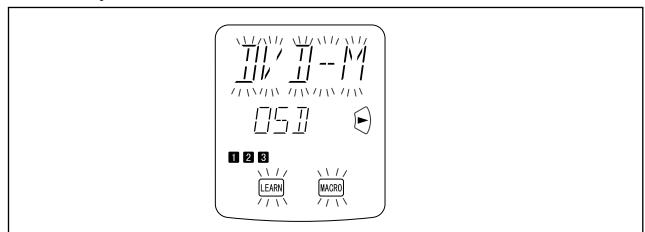
The 1 is highlighted if no macros have been programmed, and the remote controller is ready for macro programming.
- While pressing the VOL button 9, use the ^ and v Cursor buttons to call up the portion of the macro to be changed. Pressing the ^ button advances through the macro steps and pressing the v button regresses through the macro steps.
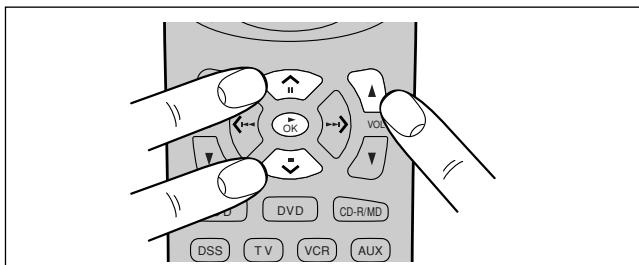
- To rewrite an existing macro step, simply press the button for the new step. The old step will be erased and rewritten with the new step.
- To insert a new step in between existing steps in a macro, after step 3 press the MEMO button [16], then press the button for the new step. The numbers of the other steps will be adjusted accordingly to accommodate the new step. Since only 10 steps may be stored in any macro, the tenth step will be erased if an step is inserted when the total number of steps is already 10.
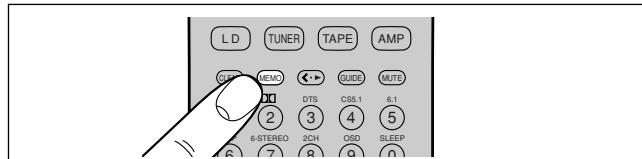
- To erase a step in a macro, after step 3 call up the number of the step to be erased and press the CLEAR button [15].
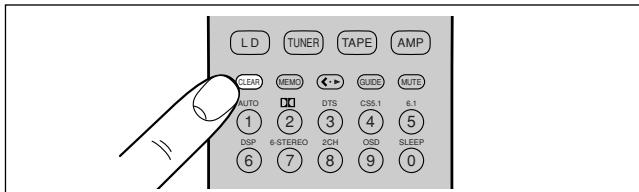
-
If while editing macros no buttons are pressed for approximately 1 minute, the remote controller will automatically return to normal mode, and no macro changes will be programmed in the memory.
-
When you are finished editing macros, use a ballpoint pen or other sharp point to press the MACRO button 2. END will be displayed on LCD 8 and the display will return to normal.
USING MACROS
The following procedure will show how to use the function buttons for which you have programmed macros.
- Press the Function button 8 for the desired macro for 3 seconds. MACRO is displayed on LCD @ for approximately 1 second, after which the number of steps in the macro is displayed on LCD ©.
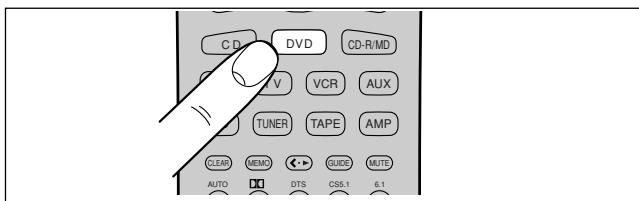
-
The remote controller will do nothing if no macros are programmed. The macro steps are executed in order and the names of their buttons are displayed on the LCD. Also, the step numbers displayed on LCD disappear as each step is executed.
-
After all macro commands have been transmitted, the remote controller returns to normal mode.
- To cancel the transmission of a programmed macro, use the Cursor buttons to press.
EXAMPLES OF MACRO PROGRAMS
Example 1
Change the input source for the amplifier to CD and play the 3rd track on a CD in the CD player.
- Use a ballpoint pen or other sharp point to press the MACRO button 2, then press the CD Function button 8. CD-M is displayed on the LCD.
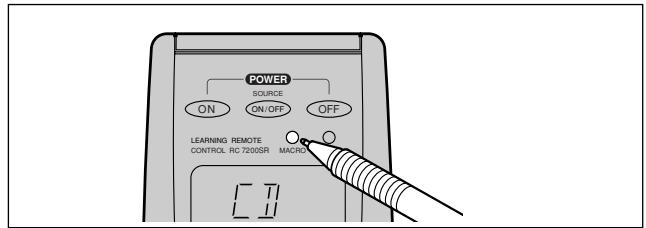
- Press CD 8, 3 17, and 10 buttons.
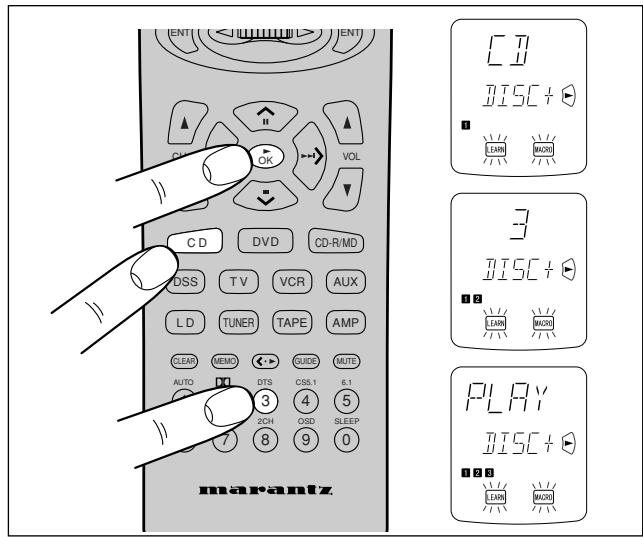
When you are finished programming the macro, use a ballpoint pen or other sharp point to press the MACRO button 2.
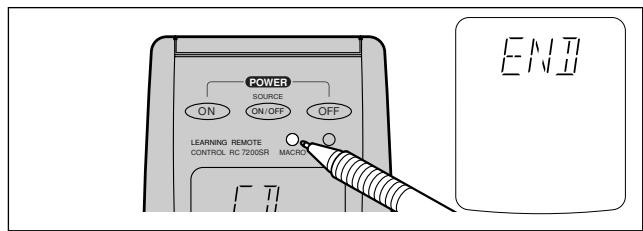
Now, execute the macro you just programmed.
- Press the CD Function button 8 for 3 seconds.
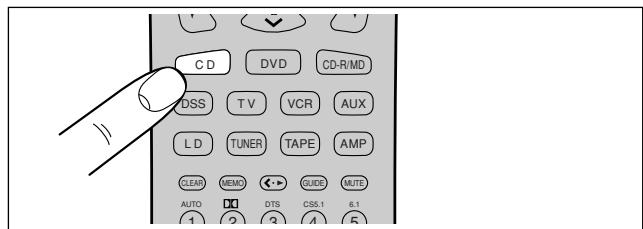
- The macro commands are transmitted to the components in order, and the names of the operations being performed are displayed on the LCD in order.
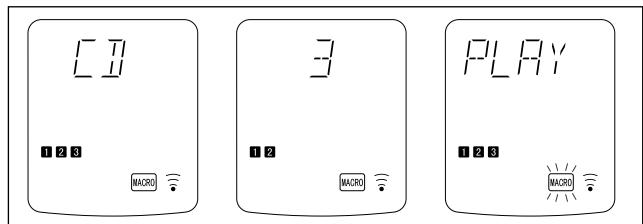
Example 2
Turn the main amplifier ON Change the amplifier's input source to DVD Set the Surround mode to DOLBY Switch the TV to video input Set the DVD player to PLAY
- Use a ballpoint pen or other sharp point to press the MACRO button 2.
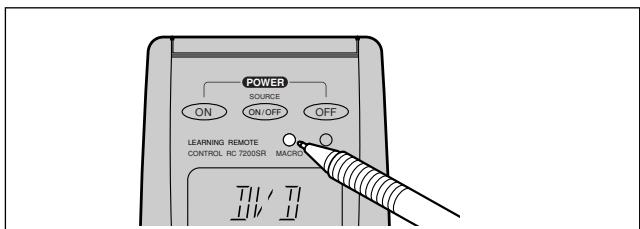
- Press the DVD Function button 8.
- Here the DVD Function button 8 is used as the macro button, but any function button can in fact be used.
- To set the various steps of the macro, press the following buttons in order: POWER ON 3, DVD 8, AMP 8, 2 (DOLBY) 17, TV 8, VIDEO (use Jog Dial 6 to select VIDEO and press ENT button 7), DVD* 8, ▷ 10.
- When you are finished programming the macro, use a ballpoint pen or other sharp point to press the MACRO button 2. The remote controller returns to normal mode.
Now, execute the macro you just programmed.
- Press the DVD Function button 8 for 3 seconds.
The macro commands are transmitted in order, and the names of the operations being performed are displayed on LCD 包 in order.
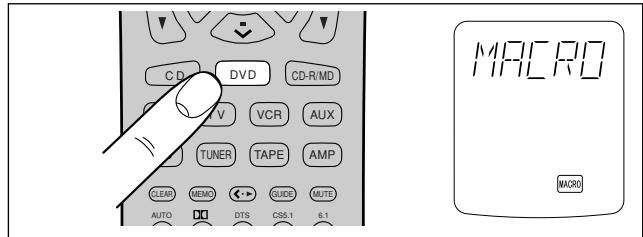
- When executing this macro, function operations AMP^ , TV^ , and DVD^* only switch the command set of the remote controller and no signal is transmitted to the component.
- To cancel the transmission of a programmed macro, use the Cursor buttons to press.
CLEARING MACRO PROGRAMS
The following procedure is used to erase macros you have programmed into the remote controller's memory.
- Press and hold the CLEAR button 15, then the button for the function 8 to be cleared (in this case DVD) for 3 seconds. DVCL? will appear on LCD ⑧. If you wish to continue the clearing operation, press the OK Cursor button 10.
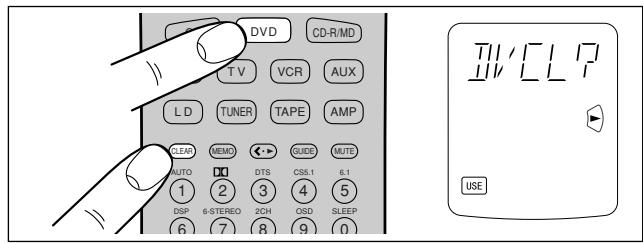
- To cancel the memory clearing operation, do not press OK Cursor button 10 and simply touch any other button.
OTHER FUNCTIONS
LUMINOUS BUTTONS
The buttons on this remote controller are designed to remain luminous in dim lighting conditions. If the buttons are no longer luminous when the remote controller is used in low light, recharge them by placing it near a fluorescent or other light source for a sufficient amount of time. This should return the buttons to their luminous condition.
SETUP
Switch the RC-5 destination or adjust the time interval between transmissions of macro operations as follows:
- While pressing the MEMO button 16, press the OK Cursor button 10. This will switch the remote controller to the Setup mode.
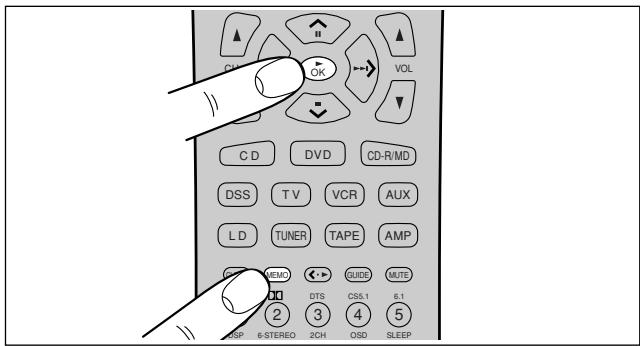
The Setup mode includes the following items, which may be accessed using the ^ and v Cursor buttons [10].
- Switch destination (version) (VER)
- Adjust time interval between transmissions of macro operations (MACRO)
VER: Switches the type of preset codes contained in the remote controller.
LCD 品 displays VER, while LCD 品 displays either USA or REST. USA means that the CD-R/MD Function button 串 is set to CD-R. REST means that the CD-R/MD Function button 串 is set to MD.
Use the < and > Cursor buttons 10 to select the desired version, then press the OK Cursor button 10. This will finish the operation and return the LCD to its original state.
- To cancel the setting, press any button other than the Cursor buttons [10].
To continue the setting, press the v Cursor button 10.
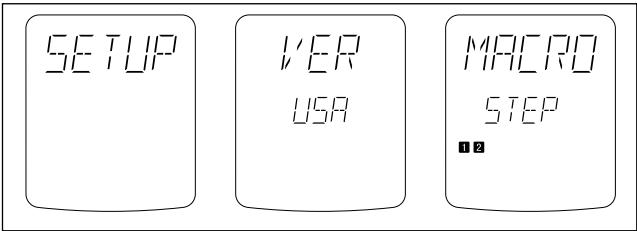
Note:
Codes that have been programmed will not be erased even if the VER setting is changed, however the NAME indicator displays associated with the Jog Dial command will be changed. Also, the Jog Dial commands for CD-R/MD functions that are contained within macros will also change.
MACRO: Adjusts the time interval between transmissions of macro operations
When the v Cursor button 10 is pressed, LCD @ displays MACRO, while LCD 6 displays STEP.
One square (■) in LCD © is equivalent to an interval of 0.5 seconds, allowing intervals of up to 5 seconds to be set. The remote controller is set at the factory with an interval of 1 second, as indicated by (■□□□□□□□□). Adjust the interval between transmission of operation codes using the ^ and v Cursor buttons 10 , then press the OK Cursor button 10 .
- To cancel the setting, press any button other than the Cursor button 10.
To continue the setting, press the v Cursor buttons 10.
BATTERY LIFE
- New batteries will last about 4 months assuming an average of 30 uses per day.
Note:
The batteries shipped with the remote controller are for the purpose of checking function and may not last as long as new batteries.
NUMBER OF LEARNABLE CODES
The remote controller (RC7200SR) uses 128-Kbyte large-capacity non-volatile memory (EEPROM) and is therefore capable of learning a maximum of 330 remote control codes. This applies only to Philips RC-5 remote programming language codes, however, and depending on the type of other codes that are programmed, the remote controller can learn less than 330 codes.
JOG DIAL COMMAND FUNCTIONS LISTING
Each of the 10 Jog Dial commands on the LCD has 5 character labels attached for pre-programmed remote commands. These commands can be used with various Marantz A/V components, or other components using the Philips RC-5 remote control language.
You can easily replace the factory-supplied remote command codes with different codes from other brands of component. Most of the supplied functions apply to a wide variety of components from many companies. The following list shows the remote code assignments for the Jog Dial commands, for each of the 11 Function buttons, as supplied from the factory. You can add or replace Jog Dial commands, including re-naming them if you wish, in order to customize the remote controller for your own particular selection of A/V components.
| Function | Jog Dial command | Note |
| AMP | 1 A/D | switches analog/digital input |
| 2 ATT | switches attenuator for analog input | |
| 3 NIGHT | selects NIGHT mode for Dolby Digital | |
| 4 MR-ON | turns multi-room mode on | |
| 5 MR-OF | turns multi-room mode off | |
| 6 7-DIR | activates 7-channel input | |
| 7 TRB+ | increases treble | |
| 8 TRB- | decreases treble | |
| 9 BAS+ | increases bass | |
| 0 BAS- | decreases bass | |
| TUNER | 1 FM | FM band |
| 2 AM | AM/MW band | |
| 3 LW | Long Wave band | |
| 4 T-MOD | mono/stereo mode selector | |
| 5 SCAN | programmed preset channel scan | |
| 6 STM | selects station mode | |
| 7 F-DIR | inputs a frequency directly | |
| 8 PTY | selects PTY function | |
| 9 DISP | selects display function | |
| 0 DWR | selects DSR wave range | |
| TV | 1 A/CH | alternate channel |
| 2 100S | 100's | |
| 3 VIDEO | selects video | |
| 4 INFO | information | |
| 5 S-PIC | smart picture | |
| 6 S-SND | smart sound | |
| 7 S-CH | smart channel | |
| 8 ADV | advance | |
| 9 OSD | activates on-screen display | |
| 0 MENU | menu | |
| CD | 1 DISC+ | CD changer next disc |
| 2 DISC- | CD changer previous disc | |
| 3 TEXT | activates text function | |
| 4 SHUFL | shuffle play function | |
| 5 REPT | repeat function | |
| 6 TRAY | tray open/close | |
| 7 AMS | automatic music scan | |
| 8 TIME | time display elapsed/remaining/total | |
| 9 FF | fast forward | |
| 0 REW | rewind | |
| ⊗ LD | 1 SID-A | side A |
| 2 SID-B | side B | |
| 3 DISP | display on/off | |
| 4 AMS | automatic music scan | |
| 5 AUDIO | selects audio mode | |
| 6 RPT-A | repeat A start point | |
| 7 RPT-B | repeat B stop point | |
| 8 CP/F | selects chapter or frame | |
| 9 EDIT | activates edit function | |
| 0 D/CX | selects digital audio/analog audio/CX NR | |
| TAPE | 1 TP-A | selects tape deck A |
| 2 TP-B | selects tape deck B | |
| 3 DIR | auto reverse direction | |
| 4 TIME | time display | |
| 5 TRAY | tray open/close | |
| 6 AMS | automatic music scan | |
| 7 REC | record | |
| 8 PAUSE | pause | |
| 9 | ||
| 0 |
| Function | Jog Dial command | Note |
| VCR | 1 REC | record |
| 2 SLCT | selects TV or VCR | |
| 3 2XPLY | twice normal playback speed | |
| 4 SLOW | slower than normal playback speed | |
| 5 STIL | still frame | |
| 6 OTR | one touch recording | |
| 7 AUDIO | audio track selector | |
| 8 SKIP | skip to next program marker | |
| 9 VIS+ | VHS index search next | |
| 0 VIS- | VHS index search previous | |
| DSS/V2 | 1 DISP | brings up on-screen channel marker |
| 2 PREV | goes to previously selected channel | |
| 3 SELECT | selects TV or VCR | |
| 4 AUDIO | audio track selector | |
| 5 FAV | favorite users and channel lists | |
| 6 ALT | alternate audio channel, languages | |
| 7 FTCH | brings up on-screen channel logos | |
| 8ANT | select broadcast or cable antenna | |
| 9 REC | record | |
| 0 OTR | one touch recording | |
| AUX | 1 No | pre code data |
| 2 No | pre code data | |
| 3 No | pre code data | |
| 4 No | pre code data | |
| 5 No | pre code data | |
| 6 No | pre code data | |
| 7 No | pre code data | |
| 8 No | pre code data | |
| 9 No | pre code data | |
| 0 No | pre code data | |
| DVD | 1 OSD | activates on-screen display |
| 2 TITLE | selects title menu | |
| 3 ZOOM | zoom mode on/off | |
| 4 MENU | selects main menu | |
| 5 10+ | digit entry +10 | |
| 6 SETUP | selects setup menu | |
| 7 ANGLE | selects angle | |
| 8 SUB-T | selects subtitle | |
| 9 RESUM | resume function | |
| 0 AUDIO | selects audio |
For USA setups
| Function | Jog Dial command | Note |
| CDR | 1 INPUT | selects input source |
| 2 INCR | increments track number | |
| 3 SYNC | activates SYNCRO. recording | |
| 4 REC | records pause | |
| 5 PROG | activates program mode | |
| 6 TRAY | tray open/close | |
| 7 DISP | display mode | |
| 8 FINAL | finalizes (writes TOC) | |
| 9 BLANK | records blank | |
| 0 REPT | activates repeat mode |
For REST setups
| Function | Jog Dial command | Note |
| MD | 1 REC | records pause |
| 2 REPT | selects repeat mode | |
| 3 RANDM | random play | |
| 4 DISP | selects display mode | |
| 5 EDIT | selects edit mode | |
| 6 EJCT | eject | |
| 7 LP | selects SP/LP mode | |
| 8 DEL | selects delete | |
| 9 ENTER | selects enter | |
| 0 SYNC | SYNCRO. recording |
The marked “ ” commands are not used for SR7200.
SURROUND MODES
The SR7200 incorporates digital signal processors (DSP) which can reproduce various surround effects you experience in concert halls and movie theaters, etc. These Surround Modes, are provided to reproduce a variety of surround sound effects, according to the content of the source to be played.
| Surround mode | FEATURES |
| 1. AUTO | When this mode is selected, the receiver determines whether the digital input signal is Dolby Digital, PCM-audio or DTS.Note:When a Dolby Digital or DTS signal is input, the number of channels for which the corresponding signal is encoded will be played.Inputting a Dolby Digital two channel signal with Dolby surround status automatically subjects that signal to Pro-Logic processing before play.96 kHz source material can be playback in this mode. |
| 2. STEREO | This mode bypasses all surround processing.Stereo program sources the left and right channels play normally when PCM-audio or analog stereo is input.With Dolby Digital and DTS sources, the 5.1 multi-channels are converted to two channel stereo. 96 kHz source material can be playback in stereo mode. |
| 3. DIO | This mode is used with source materials encoded in Dolby Digital and Dolby Surround.Dolby Pro Logic II brings the excitement of surround sound to any stereo mix, while making existing Dolby Surround mixes sound more like discrete 5.1 channels Surround sound.Dolby Pro Logic II has below 3 modes. |
| MOVIE | This mode provides 5.1 channel surround sound from Dolby Surround encoded stereo movie sound tracks. |
| MUSIC | This mode provides 5.1 channel surround sound from conventional stereo sources, analog or digital, such as CD, tape, FM, TV, stereo VCR, etc. |
| PRO LOGIC | This mode emulated original Dolby Pro Logic decoding (3/1 surround) suit for Dolby Surround encoded stereo movie soundtracks.Note:PCM-audio signals can be subjected to Pro Logic processing when the sampling frequency is 32 kHz, 44.1 kHz or 48 kHz.When a signal in another format is input, output will be muted. |
| 4. DTS | This mode is for DTS encoded source materials such as LASER DISC, CD, and DVD.The DTS mode cannot be used when an Analog input has been selected. When the signal in another digital format is input, output will be muted. |
| 5. 6.1CH Surround | This mode reproduces 6.1 channel sound field by extracting the surround center information from surround left and surround right channels.This mode is suited for 6.1 channel encoded material such as Dolby Digital Surround EX and DTS-ES.Note:Dolby Digital 5.1ch and DTS source material can be playback in this mode. |
| 6. MOVIEHALLSTADIUMMATRIX | These modes provide surround effect processing from each input source material.They will produce theater, concert hall and stadium like atmospheres. Select as your taste desires.Note:PCM-audio (32 kHz, 44.1 kHz or 48 kHz) and analog source material can playback in this mode. |
| 7. VIRTUAL | This mode create the virtual surround sound with the front right and left speakers.Note:The 96 kHz sampling frequency and DTS source material mutes output. |
| 8. CS5.1 | This mode is backward compatible, such that surround sound playback is possible from any stereo or passive matrix-encoded material. Five full-bandwidth, discrete channels of information can be extracted from an enormous library of material not encoded in Dolby Digital or DTS.Note:PCM-audio (32 kHz, 44.1 kHz or 48 kHz) and analog source material can play back in this mode. |
| 9. 6CHSTEREO | This mode is used to create a wider, deeper and more natural soundstage from two channel source material.This is done by feeding the left channel signal to both left front and left surround speaker and the right channel signal to both right front and right surround speaker. Additionally, the center channel reproduces a mix of the right and left channel.Note:The 96 kHz sampling frequency mutes output. |
Caution for DTS signal:
This signal can be played when the connected DVD-player, laser-disc player or CD-player is capable of DTS-digital output. For details, refer to the player's operation manual.
Depending on the player used, DTS play may produce noise. If that happens, set the Surround mode to DTS.
Playing a DTS-CD or DTS laser disc causes the player's analog output terminal to output noise. Before playing DTS sources, be sure to connect the player's digital output to the SR7200's digital input. Be careful when connecting the output of these players to analog audio input.
Note that the SR7200 has the following restrictive functions built in to reduce noise emission as much as possible.
If DTS is selected while in the Surround mode, digital input cannot be switched to analog input. When the analog input function has been selected, Surround mode cannot be switched to DTS.
While signals from DTS-laser disc or CD are playing in another Surround mode, you cannot switch to digital input or from digital input to analog input.
Caution for 96kHz PCM-audio signal:
This signal can be played when a DVD-player or DAT-player connected to the SR7200 is capable of 96 kHz PCM output. For details, refer to the player's operation manual.
The signal can be played when STEREO or AUTO has been selected for the Surround mode.
Some DVD formatted discs featured copy protect. When use such disc, 96 kHz PCM signal is not output from the DVD player. For details, refer to the player's operation manual.
The relation between the selected surround mode and the input signal
The surround mode is selected with the surround mode selector knob of the SR7200 or the remote control unit. However, the sound from the speakers depend upon the relationship between the selected surround mode and the input signal. They are as follows;
| Surround Mode | Input Signal | Output | Fluorescent Indicator | |||||||
| L/R | SL/SR | C | SC | SW | Input Indicator | Format Status & Surround Mode | Temporary Display Status | Ch. Status | ||
| Auto | Dolby Digital (5.1ch) | O | O | O | - | O | DIGITAL | DOLBY, DIGITAL, AUTO | >AUTO> | L.C.R.SL,SLR,LFE |
| Dolby Digital (2ch) | O | - | - | - | O | DIGITAL | DOLBY, DIGITAL, AUTO | >AUTO> | L.R | |
| Dolby Digital (2ch:Lt/Rt) | O | O | O | - | O | DIGITAL | DOLBY, DIGITAL, PRO LOGIC, AUTO | >AUTO> | L.R, SC | |
| 96kHz PCM | O | - | - | - | - | DIGITAL | PCM, STEREO, AUTO | >AUTO>96kHz> | L.R | |
| PCM/Audio) | O | - | - | - | O | DIGITAL | PCM, STEREO, AUTO | >AUTO> | L.R | |
| Analog | O | - | - | - | O | ANALOG | STEREO, AUTO | >AUTO> | - | |
| DTS (5.1ch) | O | O | O | - | O | DIGITAL | DTS, AUTO | >AUTO> | L.C.R.SL,SLR,LFE | |
| Stereo | Dolby Digital (5.1ch) | O | - | - | - | O | DIGITAL | DOLBY, DIGITAL, STEREO | >STEREO> | L.C.R.SL,SLR,LFE |
| Dolby Digital (2ch) | O | - | - | - | O | DIGITAL | DOLBY, DIGITAL, STEREO | >STEREO> | L.R | |
| Dolby Digital (2ch:Lt/Rt) | O | - | - | - | O | DIGITAL | DOLBY, DIGITAL, STEREO | >STEREO> | L.R, SC | |
| 96kHz PCM | O | - | - | - | - | DIGITAL | PCM, STEREO | >STEREO>96kHz> | L.R | |
| PCM/Audio) | O | - | - | - | O | DIGITAL | PCM, STEREO | >STEREO> | L.R | |
| Analog | O | - | - | - | O | ANALOG | STEREO | >STEREO> | - | |
| DTS (5.1ch) | O | - | - | - | O | DIGITAL | DTS, STEREO | >STEREO> | L.C.R.SL,SLR,LFE | |
| Movie | Dolby Digital (5.1ch) | O | O | O | - | O | DIGITAL | DOLBY, DIGITAL | >DLBOY D> | L.C.R.SL,SLR,LFE |
| Dolby Digital (2ch) | O | O | O | - | O | DIGITAL | DOLBY, DIGITAL, PRO LOGIC | >PLII MOVIE> | L.R | |
| Dolby Digital (2ch:Lt/Rt) | O | O | O | - | O | DIGITAL | DOLBY, DIGITAL, PRO LOGIC | >PLII MOVIE> | L.R,SC | |
| 96kHz PCM | - | - | - | - | - | DIGITAL | (PCM), DOLBY, PRO LOGIC | >PLII MOVIE>96kHz> | - | |
| PCM/Audio) | O | O | O | - | O | DIGITAL | PCM, DOLBY, PRO LOGIC | >PLII MOVIE> | L.R | |
| Analog | O | O | O | - | O | ANALOG | DOLBY, PRO LOGIC | >PLII MOVIE> | - | |
| DTS (5.1ch) | - | - | - | - | - | DIGITAL | (DTS), DOLBY, PRO LOGIC | >PLII MOVIE> | - | |
| Music | Dolby Digital (5.1ch) | O | O | O | - | O | DIGITAL | DOLBY, DIGITAL | >DLBOY D> | L.C.R.SL,SLR,LFE |
| Dolby Digital (2ch) | O | O | O | - | O | DIGITAL | DOLBY, DIGITAL, PRO LOGIC | >PLII MUSIC> | L.R | |
| Dolby Digital (2ch:Lt/Rt) | O | O | O | - | O | DIGITAL | DOLBY, DIGITAL, PRO LOGIC | >PLII MUSIC> | L.R,SC | |
| 96kHz PCM | - | - | - | - | - | DIGITAL | (PCM), DOLBY, PRO LOGIC | >PLII MUSIC>96kHz> | - | |
| PCM/Audio) | O | O | O | - | O | DIGITAL | PCM, DOLBY, PRO LOGIC | >PLII MUSIC> | L.R | |
| Analog | O | O | O | - | O | ANALOG | DOLBY, PRO LOGIC | >PLII MUSIC> | - | |
| DTS (5.1ch) | - | - | - | - | - | DIGITAL | (DTS), DOLBY, PRO LOGIC | >PLII MUSIC> | - | |
| Pro Logic | Dolby Digital (5.1ch) | O | O | O | - | O | DIGITAL | DOLBY, DIGITAL | >DLBOY D> | L.C.R.SL,SLR,LFE |
| Dolby Digital (2ch) | O | O | O | - | O | DIGITAL | DOLBY, DIGITAL, PRO LOGIC | >PRO LOGIC> | L.R | |
| Dolby Digital (2ch:Lt/Rt) | O | O | O | - | O | DIGITAL | DOLBY, DIGITAL, PRO LOGIC | >PRO LOGIC> | L.R,SC | |
| 96kHz PCM | - | - | - | - | - | DIGITAL | (PCM), DOLBY, PRO LOGIC | >PRO LOGIC>96kHz> | - | |
| PCM/Audio) | O | O | O | - | O | DIGITAL | PCM, DOLBY, PRO LOGIC | >PRO LOGIC> | L.R | |
| Analog | O | O | O | - | O | ANALOG | DOLBY, PRO LOGIC | >PRO LOGIC> | - | |
| DTS (5.1ch) | - | - | - | - | - | DIGITAL | (DTS), DOLBY, PRO LOGIC | >PLII MUSIC> | - | |
| DTS (5.1ch) | - | - | - | - | - | DIGITAL | (DTS), DOLBY, PRO LOGIC | >PLII MUSIC> | - | |
| Dolby Digital (5.1ch) | - | - | - | - | - | DIGITAL | DOLBY, DIGITAL, DTS | >DST> | - | |
| Dolby Digital (2ch) | - | - | - | - | - | DIGITAL | (DOLBY, DIGITAL, DTS) | >DST> | - | |
| Dolby Digital (2ch:Lt/Rt) | - | - | - | - | - | DIGITAL | (DOLBY, DIGITAL, DTS) | >DST> | - | |
| 96kHz PCM | - | - | - | - | - | DIGITAL | (PCM), DTS | >DST>96kHz> | - | |
| PCM/Audio) | - | - | - | - | - | DIGITAL | (PCM), DTS | >DST> | - | |
| Analog | - | - | - | - | - | (ANALOG) | DTS | >DST> | - | |
| DTS (5.1ch) | O | O | O | - | O | DIGITAL | DTS | >DST> | L.C.R.SL,SLR,LFE | |
| 6.1Ch Surround | Dolby Digital (5.1ch) | O | O | O | O | O | DIGITAL | DOLBY, DIGITAL | >6.1 CH SURROUND> | L.C.R.SL,SLR,LFE |
| Dolby Digital (2ch) | - | - | - | - | - | DIGITAL | (DOLBY, DIGITAL) | >6.1 CH SURROUND> | - | |
| Dolby Digital (2ch:Lt/Rt) | - | - | - | - | - | DIGITAL | (DOLBY, DIGITAL) | >6.1 CH SURROUND> | - | |
| 96kHz PCM | - | - | - | - | - | DIGITAL | (PCM) | >6.1 CH SURROUND>96kHz> | - | |
| PCM/Audio) | - | - | - | - | - | DIGITAL | (PCM) | >6.1 CH SURROUND> | - | |
| Analog | - | - | - | - | - | (ANALOG) | >6.1 CH SURROUND> | - | ||
| DTS (5.1ch) | O | O | O | O | O | DIGITAL | DTS | >6.1 CH SURROUND> | L.C.R.SL,SLR,LFE | |
| Movie Hall Stadium Matrix | Dolby Digital (5.1ch) | - | - | - | - | - | DIGITAL | (DOLBY, DIGITAL, DSP SOUND) | >MOVIE/HALL/STADIUM/MATRIX> | - |
| Dolby Digital (2ch) | - | - | - | - | - | DIGITAL | (DOLBY, DIGITAL, DSP SOUND) | >MOVIE/HALL/STADIUM/MATRIX> | - | |
| Dolby Digital (2ch:Lt/Rt) | - | - | - | - | - | DIGITAL | (DOLBY, DIGITAL, DSP SOUND) | >MOVIE/HALL/STADIUM/MATRIX> | - | |
| 96kHz PCM | - | - | - | - | - | DIGITAL | (PCM), DSP SOUND) | >MOVIE/HALL/STADIUM/MATRIX> | - | |
| PCM/Audio) | O | O | O | - | O | DIGITAL | PCM, DSP SOUND) | >MOVIE/HALL/STADIUM/MATRIX> | L.R | |
| Analog | O | O | O | - | O | ANALOG | DSP SOUND | >MOVIE/HALL/STADIUM/MATRIX> | - | |
| DTS (5.1ch) | - | - | - | - | - | DIGITAL | (DTS), DSP SOUND) | >MOVIE/HALL/STADIUM/MATRIX> | - | |
| Virtual | Dolby Digital (5.1ch) | O | - | - | - | - | DIGITAL | DOLBY, DIGITAL, VIRTUAL | >VIRTUAL> | L.C.R.SL,SLR,LFE |
| Dolby Digital (2ch) | O | - | - | - | - | DIGITAL | DOLBY, DIGITAL, PROLOGIC, VIRTUAL | >VVirtual> | L.R | |
| Dolby Digital (2ch:Lt/Rt) | O | - | - | - | - | DIGITAL | DOLBY, DIGITAL, PROLOGIC, VIRTUAL | >VVirtual> | L.R,SC | |
| 96kHz PCM | - | - | - | - | - | DIGITAL | (PCM) | >6.1 CH >96kHz> | - | |
| PCM/Audio) | O | O | O | - | O | DIGITAL | PCM, DOLBY, PROLOGIC, VIRTUAL | >VVirtual> | L.R | |
| Analog | O | O | O | - | O | ANALOG | DOLBY, PROLOGIC, VIRTUAL | >VVirtual> | - | |
| DTS (5.1ch) | - | - | - | - | - | DIGITAL | (DTS), DOLBY, VIRTUAL | >VVirtual> | - | |
| CS5.1 | Dolby Digital (5.1ch) | - | - | - | - | - | DIGITAL | (DOLBY, DIGITAL) | >C5.1> | - |
| Dolby Digital (2ch) | - | - | - | - | - | DIGITAL | (DOLBY, DIGITAL) | >C5.1> | - | |
| Dolby Digital (2ch:Lt/Rt) | - | - | - | - | - | DIGITAL | (DOLBY, DIGITAL) | >C5.1> | - | |
| 96kHz PCM | - | - | - | - | - | DIGITAL | (PCM) | >C5.1>96kHz> | - | |
| PCM/Audio) | O | O | O | - | O | DIGITAL | PCM | >C5.1> | L.R | |
| Analog | O | O | O | - | O | ANALOG | >C5.1> | - | ||
| DTS (5.1ch) | - | - | - | - | - | DIGITAL | (DTS) | >C5.1> | - | |
| 6CH Stereo | Dolby Digital (5.1ch) | O | O | O | - | O | DIGITAL | DOLBY, DIGITAL | >6CH STEREO> | L.C.R.SL,SLR,LFE |
| Dolby Digital (2ch) | O | O | O | O | O | DIGITAL | DOLBY, DIGITAL | >6CH STEREO> | L.R | |
| Dolby Digital (2ch:Lt/Rt) | O | O | O | O | O | DIGITAL | DOLBY, DIGITAL, PROLOGIC, VIRTUAL | >6CH STEREO>96kHz> | L.R,SC | |
| 96kHz PCM | - | - | - | - | - | DIGITAL | (PCM) | >6CH STEREO>96kHz> | - | |
| PCM/Audio) | O | O | O | O | O | DIGITAL | PCM, DSP SOUND) | >6CH STEREO>96kHz> | L.R | |
| Analog | O | O | O | - | O | ANALOG | >6CH STEREO> | - | ||
| DTS (5.1ch) | O | O | O | - | O | DIGITAL | >6CH STEREO> | L.C.R.SL,SLR,LFE | ||
L/R :Front speaker
SL/SR : Surround speaker
C:Center speaker
SC:Surround center speaker
SW: Sub woofer speaker
Note:
- Dolby Digital (2 ch: Lt/Rt): signal with Dolby Surround flag Speakers are full set.
- When DOLBY DIGITAL, DTS, PCM or ANALOG is blinking, the selected surround mode is unavailable for input signal. Select the other appropriate surround mode to playback.
- No sound outputs from the surround speaker, center speaker and subwoofer if the DVD disc has no surround data.
L:Left
R :Right
C :Center
SL : Surround Left
SR : Surround Right
SC : Mono Surrounds
LFE :Low Frequency Effect
The indicator blinks
TROUBLESHOOTING
In case of trouble, check the following before calling for service:
- Are the connections made properly?
- Are you operating the unit properly following user's guide?
- Are the power amplifiers and speaker working properly?
If the unit does not operate properly, check items shown in the following table. If your trouble cannot be recovered with the remedy actions listed in the following table, malfunction of the internal circuitry is suspected; immediately unplug the power cable and contact your dealer, nearest Marantz distributor or the Marantz Service Center in your country.
| SYMPTOM | CAUSE | REMEDY |
| SR7200 cannot be turned up. | The power plug is not connected. | Connect the power plug to the outlet. |
| No sound and picture are output even when power is on. | Mute is on.The input cable is not connected correctly.The master volume control is turned all the way down.The function selector position is wrong. | Cancel mute using the remote control unit.See the connection diagram and connect the cables correctly.Adjust the master volume.Select correct position. |
| Sound and pictures from other than equipment selected with the function selector. | Input cable connected incorrectly. | Connect the cable correctly by referring to the connection diagram. |
| Sound from the wrong channel is output from the speaker. | Speaker cable connected incorrectly. | Connect the cable correctly by referring to the connection diagram. |
| No sound is output from the center speaker. | The center speaker cable connection is incomplete.STEREO has been selected for Surround mode.Center = NONE has been selected in SETUP mode. | Connect the cable correctly.When STEREO is selected for Surround mode, no sound will be output from the center speaker. Set another Surround mode.Make the correct setting. |
| No sound is output from the surround speakers. | The surround speaker cable connection is incomplete.STEREO has been selected for Surround mode.Surround = NONE has been selected in SETUP mode. | Connect the cable correctly.When STEREO has been selected for Surround mode, no sound will be output from the surround speaker. Set another Surround mode.Make the correct setting. |
| No output to Subwoofer Out. | Sub-woofer = NO has been selected in SETUP mode. | Select Sub-woofer = YES. |
| Surround mode cannot be changed. | The headphones are connected to the jack. | Disconnect the headphones. (When headphones are connected, Surround mode will be fixed to STEREO.) |
| Noise is produced during DTS-encoded CD or laser disc play. | Analog has been selected for input. | Be sure to perform digital connection, select digital input, then play. |
| DTS sources cannot be played. | Surround mode is set to DOLBY.The DVD or LD player is not DTS digital out capable. | Select other mode.Use a player which responds to DTS-digital out. |
| Player skips during play of a DTS source and produces noise. | Data error occurred during player skip. | Set Surround mode to DTS. |
| A 96kHz PCM signal cannot be played. | The disc player is not 96kHz PCM digital out capable.Surround mode is set to other than STEREO and AUTO. | Use a player that responds to 96kHz PCM digital out.Set Surround mode to STEREO or AUTO. |
| A normal PCM signal (CD or laser disc) cannot be played. | Surround mode is set to DTS. | Select other mode. |
| A Dolby Digital signal cannot be played. | Surround mode is set to DTS | Select other mode. |
| A specific channel does not produce output. | Nothing recorded on source. | Check the encoded channel on the source side. |
| FM or AM reception fails. | Antenna connection is incomplete. | Correctly connect the indoor FM and AM antennas to FM and AM antenna outlets. |
| Noise is heard during AM reception. | Reception is affected by other electrical fields. | Try changing location where the AM indoor antenna is set up. |
| Noise is heard during FM reception. | The radio waves from the broadcasting station are weak. | Install an FM outdoor antenna. |
| Cannot get programmed station when the PRESET button is pressed. | Preset data has been erased. | Disconnecting power plug for long periods of time will erase preset data. If that happens, input the preset data again. |
| Nothing appears on the remote commander display. | Batteries are consumed. | Replace all the batteries with new ones. |
| Control with the remote control unit fails. | Batteries are consumed...Remote controller's function-key setting is wrong.The distance between this SR7200 and the remote commander is too far.Something is blocking SR7200 and the remote commander. | Replace all the batteries with new ones...Select different position from which equipment will be controlled.Move closer to this SR7200.Remove offending object. |
GENERAL MALFUNCTION
If the equipment malfunctions, this may be because an electrostatic discharge or AC line interference has corrupted the information in the equipment memory circuits. Therefore:
- disconnect the plug from the AC line supply
- after waiting at least three minutes, reconnect the plug to the AC line supply
- re-attempt to operate the equipment
Memory backup
- In case a power outage occurs or the power cord is accidentally unplugged, the SR7200 is equipped with a backup function to prevent memory data such as the preset memory from being erased.
The memory functions are backed up for up to about one week.
NOTE:
First of all keep SR7200 Standby or Powered-on more than 6 hours, to sufficient time for memory back up.
TECHNICAL SPECIFICATIONS
FM TUNER SECTION
Frequency Range 87.5 - 108.0 MHz
Useable Sensitivity . IHF 1.8 uV/16.4 dBf
Signal to Noise Ratio . Mono/Stereo 76/72 dB
Distortion . Mono/Stereo 0.2/0.3 %
Stereo Separation 1 kHz 45 dB
Alternate Channel Selectivity ± 300 kHz 60 dB
Image Rejection 98 MHz 70 dB
Tuner Output Level 1 kHz, ±40 kHz Dev 500 mV
AM TUNER SECTION
Frequency Range . LW: 152 - 282 kHz, MW: 522 - 1611 kHz
Signal to Noise Ratio 50 dB
Usable Sensitivity . Loop 400~ V / m
Distortion 400 Hz, 30 % Mod. 0.5 %
Selectivity ± 18 kHz 60 dB
AUDIO SECTION
Continuous Power Output (8 ohms / 20 Hz - 20 kHz)
Front 110 W
Center 110 W
Surround 110 W
THD Front (20 Hz - 20 kHz) 8 ohms 0.05 %
Input Sensitivity/Impedance
Linear 340 mV/ 47 Kohms
Signal to Noise Ratio
Linear 105 dB
VIDEO
Television Format NTSC/PAL
Input Level/Impedance 1 Vp-p/ 75 ohms
Output Level/Impedance 1 Vp-p/ 75 ohms
Video Frequency Response 5 Hz to 8 MHz (-1 dB)
S/N 60 dB
GENERAL
Power Requirement AC 230 V 50 Hz
Power Consumption (STEREO MODE RATED POWER) 350 W
Dimension (MAX)
Width 440 mm
Height 164 mm
Depth 400 mm
Weight 14.9 Kg
ACCESSIONS
Remote Control Unit RC7200SR 1
AA-size batteries 2
FM Feeder Antenna 1
FM Antenna Converter 1
AM Loop Antenna 1
Registration Card 1
User Guide 1
Specifications subject to change without prior notice.
| COUNTRY | COMPANY | ADDRESS |
| ALGERIE | Azur 2000 | 8, Lotissement Ben Hatadi, Alger, Algeria |
| ARMENIA | NGYIG Ltd. | 47 A/75 St. Lalaiants, 375000 Yerevan, Armenia |
| AUSTRALIA | Jamo Australia Pty. Ltd., | 24 Lionel Road, Mt. Waverley, VIC 3149, Australia |
| AUSTRIA | Huber & Prohaska GmbH | Taborstraße 95 / Ladesestraße 1, Gebäudefangartner, A-1200 Wien, Austria |
| BAHREIN | Ambassador Stores | P.O. Box 237,141, Government Avenue, Manama,Bahrein |
| BANGLASH | Target | 1078, Ramjoy Mohanja Lane Asadgonj, Chittagong 4000, Bangladesh |
| BELGIUM | Van der Heyden Audio N.V. | Brusselbaan 278, 9320 Erembodegem, Belgium |
| BULGARIA | Ariescommerce GmbH | Makedonia Blvd. 16, 1606 Sofia, Bulgaria |
| CANADA | Lenbrook Industries Limited | 633 Granite Court, Pickering, Ontario |
| CHINA | Guang Chang Audio International Co., Ltd. | No.38 Yushan Road, ShiQiao, Pan Yu, Guang Dong, China |
| CYPRUS | Empire Hifi systems Ltd. | P.O. Box 5604, Nicosia, Cyprus |
| CZECH REPUBLIC | Audio International | Sokolska 41, 67902 Rajecko, OKR,Blansko, Czech Republic |
| DENMARK | Audio Nord | Dali Allé 1, 9610 Noerager, Denmark |
| DUBAI | V.V.& SONS | P.O. Box 105, Dubai, U.A.E. |
| EGYPT | Solimco | 9, El Attibaa St. Doki, Cairo, Egypt |
| ESTONIA | HiFi Club Estonia | Ehte 4, 90503 Haapsalu, Estonia |
| F.Y.R.O.M. | T.P. KODI | ul.Cedomir Kantargiev 21a, Skopje, Former Yugoslavian Republic of Macedonija |
| FINLAND | Audio Nord | Uudennaaninkatu 4-6, Helsinki SF-00120, Finland |
| FRANCE | Marantz France | A division of Marantz Europe B.V., P.O. Box 301, 92 156 Suresnes Cedex, France |
| GERMANY | Marantz Deutschland | Hakenbusch 3, 49078 Osnabrück, Germany |
| GREECE | Adamco S.A. | 188, Hippocraticus Street, 11471 Athens, Greece |
| HEADQUARTERS EUROPE: | Marantz Europe B.V. | Building SFF-2, P.O. Box 80002, 5600 JB Eindhoven, The Netherlands |
| HONG KONG | Marantz Asia Ltd. | Unit 1706, Metroplaza II, 223 Hing Fong Road, Kwai Fong, N.T., Kowloon, Hong Kong |
| HUNGARY | Infovox Ltd. | Terez Krt.31, 1067 Budapest, Hungary |
| ICELAND | ID Electronics Ltd. | Armula 38, 108 Reykjavik, Iceland |
| INDIA | NOVA Audio Private | 8,Punam Co-op.Society 29/30 Road#5, Union Park MUMBA 400052, India |
| IRAN | Home Co. | 5th floor no 878 Philips Building Enghelab ave, P.O. 11365/7844 Tehran, Iran |
| IRELAND | Marantz Ireland | Clonskeagh, Dublin 14, Ireland |
| ISRAEL | Elmor Ltd. | 52 Heh Beiyar Street, Kikar Hamedina, Tel Aviv, Israel |
| ITALY | Marantz Italy | Via Casati 23, 20052 Monza (Milano), Italy, Servizio Consumatori 1678-20026,Numero Verde |
| IVORY COAST | Hifiovor | B.P. 2428, Abidjan 01, Ivory Coast |
| JAPAN | Marantz Japan Inc. | 35-1 Sagami Ohno 7-Chome, Sagamihara-shi, Kanagawa 228-8505, Japan |
| KOREA | Mk Enterprises Ltd. | 121-210, 2F Shinhan Bldg., 247-17 Seokyo-dong, Mapo-ku, Seoul, Korea |
| KUWAIT | alAlamiah Electronics Intl. | P.O. Box 8196, Salmiah 22052, Kuwait |
| LATvia | Ace Ltd. | 61, LacPlesa Str., Riga LV 1011, Latvia |
| LEBANON | AZ Electronics S.A., 1, | P.O. Box 11 2833, Beirut, Lebanon |
| LITHUANIA | Accapella Ltd. | Auros, Vartu G/5, Pasazo SKG., 2001 Vilnius, Lithuania |
| MALAYSIA | Wo Kee Hong Electronics Sdn. Bhd. | Suite 8.1, Level 8, Menara Genesis, No. 33, Jalan Sultan Ismail, 50250 Kuala Lumpur, Malaysia |
| MALTA | Doneo Co Ltd. | 78 The Strand, Sliema SLM07, Malta |
| MAURITIUS | SKR Electronics Ltd. | P.O. Box 685, Bell Village, Port Louis, Mauritius |
| MILITARY MARKET EUROPE | PASCO GmbH | PO BOX 1280, Sandhausen 69200, Germany |
| NETHERLANDS | Marantz Domestic Sales | A division of Marantz Europe B.V., Building SFF2, P.O. Box 80002, 5600 JB Eindhoven, The Netherlands |
| NEW ZEALAND | Wildash Audio Systems | 14 Malvern Road, Mt. Albert, Auckland, New Zealand |
| NORWAY | Audio Nord | Sandkerveien 64, Oslo 0483, Norway |
| OMAN | Mustafa & Jawad Trading CO. | P.O. Box 1918, Ruwi, Oman |
| POLAND | Philips Polska Sp. z.o.o. | Al.Jerozolimskie 195b, 02 222 Warszawa, Poland |
| PORTUGAL | Corel2 | Comercio de Electrónica Lda., Av. Luis Bivar, No 85 A, 1050 Lisboa, Portugal |
| PROFESSIONAL EUROPE | Marantz Professional Products | Kingsbridge House, Padbury Oaks, 575-583 Bath Road, Longford, Middlesex UB7 0EH, U.K. |
| PROFESSIONAL U.S.A. | Marantz Professional Products | Distributed by: Superscope Technologies Inc., 1000 Corporate Blvd. Ste.D, Aurora, Illinois |
| QATAR | Almana & Partners W.W.L. | P.O. Box 49, Doha, Qatar |
| REUNION | Vision + | 180 Rue du Marechal Leclerc, 97400 Saint Denis, Île de la Reunion |
| ROMANIA | Nova Music Entertainment | 5, Zagazuli Stud. Bi.G.apt.18, sector 1,Bucharest, Romania |
| RUSSIA | Absolute Audio | 7/2, Montazhnaya Street, 107497 Moscow, Russia |
| SAUDI ARABIA | Adawlia Univ. Electr. ApI | P.O. Box 2154, Alkhobar 31952, Saudi Arabia |
| SINGAPORE | Wo Kee Hong Distribution PTE Ltd. | 130 Joo Seng Road, #03-02 Olivine Building, Singapore 368357 |
| SLOVAKIA | Bis Audio s.r.o. | Nam. SNP 10, 96001 Zvolem, Slovakia |
| SLOVENIA | Bofex | Smartinska 152, HALA V/3, 61000 Ljubljana, Slovenia |
| SOUTH AFRICA | Coherent Imports (PTY) Ltd. | P.O. Box 1614, Alberton, 1450, South Africa |
| SPAIN | Marantz Spain | Martinez Villergas 2, Apartado 2065, Madrid 28027, Spain |
| SRI LANKA | The listening Room | Mezzanine Floor, The Landmark 385, Galle Road, Colombo - 3, Sri Lanka |
| SWEDEN | Audio Nord | Almedalsvagen 4, Gotenberg 402-23, Sweden |
| SWITZERLAND | Sound Company AG | Postfach, 8010 Zürich, Switzerland |
| SYRIA | Hamzeh & Partners | Hafez Ibrahim Str. No 117, Damascus Shalan, Syria |
| TAHITI | Covecolor | Av. Prince Hinoi, Cours de l'union sacré, P.O. Box 2334, Papeete, Tahiti |
| TAIWAN | Pai-Yuing Co. Ltd. | 6th No 148 Sung Kiang Road, Taipei 10429, Taiwan R.O.C. |
| THAILAND | MRZ Standard Co. Ltd. | 746-750 Mahachai Road, Wangburapa, Bangkok 10200, Thailand |
| TUNESIA | Societe EDEVIG | 40, Avenue du Golfe Arabe, El Menzah, 1004, Tunisia |
| TURKEY | Türk Philips Ticaret A.S. | Yukari Dudullu Organize sanayi Bolgesi, 2.Cadde no.28, 81260 Umraniye-Istanbul, Turkey |
| U.K. | Marantz Hifi UK Ltd. | Kingsbridge House, Padbury Oaks, 575-583 Bath Road, Longford, Middlesex UB7 0EH, U.K. |
| U.S.A. | Marantz America Inc. | 1100 Maplewood Drive Itasca, IL 60143, U.S.A. |
| YUGOSLAVIA | ITM Company | Omladinskih Brigada 86, 11070 Belgrade, Yugoslavia |
| EXPORT | Marantz Domestic Sales | A division of Marantz Europe BV,Building SFF2, P.O. Box 80002, 5600 JB Eindhoven, The Netherlands |
www.marantz.com
Manufactured under license from Dolby Laboratories. "Dolby", "Pro Logic", and the double-D symbol are trademarks of Dolby Laboratories.
"DTS", "ES" and "DTS Digital Surround" are trademarks of Digital Theater Systems, Inc.
Circle Surround and the () symbol are trademarks of SRS Labs, Inc.
Circle Surround technology is incorporated under license from SRS Labs, Inc.
- ENGLISH
- WARRANTY
- IMPORTANT
- FOR U.K. ONLY
- FRANÇAIS
- GARANTIE
- WARNING
- EQUIPMENT MAINS WORKING SETTING
- IMPORTANT: (FOR UK VERSION)
- Note:
- HOW TO CONNECT A PLUG
- COPYRIGHT
- ABOUT THIS USER GUIDE
- PRECAUTIONS
- GENERAL PRECAUTIONS
- PRECAUTIONS IN CONNECTION
- INSTALLATION
- INTRODUCTION
- DESCRIPTION
- FEATURES
- FRONT PANEL FEATURES (SEE PAGE iii.)
- ① POWER switch and STANDBY indicator
- ② PHONES jack for stereo headphones
- Notes:
- ③ SURROUND MODE Selector knob
- ④ VOLUME control knob
- ⑤ FUNCTION SELECTOR buttons (AUDIO/VIDEO)
- ⑥ 7CH INPUT button
- ⑦ A/D (Analog/Digital) SELECTOR button
- (Source) DIRECT button
- ⑨ SLEEP button
- DIMMER button
- MULTI (Multi Room) button
- MUTE button
- CLEAR button
- MEMORY button
- TUNING / PRESET UP and DOWN buttons
- FREQUENCY / PRESET button
- FM MODE button
- INFRARED SENSOR window
- SPEAKERS buttons
- AUX input jacks
- REAR PANEL CONNECTIONS (SEE PAGE iii.)
- FM antenna terminal (75 ohms)
- AM antenna and ground terminals
- PRE OUT jacks
- SUB WOOFER output jack
- DC control output 1 & 2
- MULTI OUT jacks (Audio)
- Analog audio outputs for audio source equipment
- TAPE and CD-R/MD
- Analog audio inputs
- CD, TAPE, and CD-R/MD
- Video outputs
- VCR1, and DSS/VCR2
- MULTI OUT jack (Video)
- TV MONI. (VIDEO/S-VIDEO) output jacks
- COMPONENTVIDEOoutputs
- SPEAKER SYSTEMS A terminals
- FRONT Left & Right speakers output terminals
- CENTER speaker output terminals
- SURROUND Left & Right speakers output terminals
- SURROUND Center speakers output terminals
- SPEAKER SYSTEMS B terminals
- 7 CH INPUT jacks
- DIGITAL outputs
- Optical and Coaxial
- DIGITAL inputs
- Dig.1,2 (Optical) and Dig. 3, 4, 5 (Coaxial)
- Note :
- REMOTE CONT. IN/OUT terminals
- MULTI ROOM REMOTE I/O terminals
- Analog audio outputs for video source equipment
- Analog audio inputs for video source equipment
- TV, DVD, VCR1, and DSS/VCR2
- Video inputs
- S-video inputs
- COMPONENTVIDEOinputs
- AC OUTLET
- Power cable
- REMOTE CONTROL BUS CONNECTIONS
- Controlling the power ON/OFF of a power amplifier connected to the SR7200 through Marantz remote control
- REMOTE CONTROL UNIT RC7200SR
- POWER ON and OFF
- LCD
- Jog Dial control
- ENT buttons
- FUNCTION buttons
- VOLUME up / down buttons
- CURSOR buttons
- Channel ▲ up / ▼ down buttons
- MUTE button
- CLEAR button
- MEMO button
- TEN KEYPAD
- Remote-controllable range
- Loading batteries
- Remove the back cover.
- SET-UP
- OSD MAIN MENU
- SURROUND MODE
- SYSTEM SETUP 1/3
- SPEAKER SETUP 1/3 SPKR SIZE
- SYSTEM SETUP
- SYSTEM SETUP 2/3 (SELECTING THE DIGITAL INPUT)
- Example;
- SYSTEM SETUP 3/3 (DC CONTROL OUTPUT)
- SPEAKERS SETUP
- SPKR SIZE
- UNITS: You can select Meters or Feet.
- SPKR LEVEL
- MULTI ROOM SETUP
- BASIC OPERATION
- LISTENING TO THE TUNER
- MANUAL TUNING
- (FM) MODE BUTTON OPERATION
- AUTO TUNING
- AUTO TUNING (USING THE REMOTE CONTROL UNIT)
- PRESET TUNING
- 1-a. Manual Presetting
- 1-b. Manual Presetting (Using the remote unit)
- Auto Presetting
- Recalling a Preset Station
- Preset Scan Tuning (Using the remote control unit)
- Clearing Preset Stations
- Frequency Direct Call
- STATION NAME PRESET (on PRESET display mode)
- [Operation (Using the SR7200)]
- [Operation (Using the remote unit)]
- RDS OPERATION
- RADIO TEXT
- RDS DISPLAY
- PROGRAMME TYPE (PTY) DISPLAY
- PTY AUTO SEARCH
- PLAYBACK OPERATION
- NORMAL PLAYBACK
- LISTENING TO A DIFFERENT AUDIO SOURCE WHILE WATCHING A VIDEO SOURCE (Using the remote control unit)
- OTHER FUNCTIONS
- SETTING THE SLEEP TIMER
- TV AUTO ON/OFF FUNCTION
- AUTO POWER ON
- AUTO POWER OFF
- Caution:
- MULTI ROOM SELECTOR
- MULTI ROOM SELECTOR OPERATION (USING THE MULTI ROOM REMOTE CONTROL UNIT)
- GENERAL INFORMATION
- FUCTION SELECT & SURROUND MODE
- MASTER VOLUME CONTROL
- MUTE
- 5.SLEEP TIMER
- OSD OFF
- REMOTE CONTROL UNIT RC7200SR MAIN FEATURES & FUNCTIONS
- PROGRAMMABLE LEARNING FUNCTION
- - PRESET CODES
- LUMINOUS BUTTONS
- LARGE, EASY-TO-READ DISPLAY
- JOG DIAL
- - MACRO CAPABILITY
- - NAME ASSIGNMENT
- NAMES OF PARTS & FUNCTIONS
- Names of Buttons & Functions
- MODE button
- MACRO button
- Power ON and OFF buttons
- Source ON/OFF button
- Jog Dial
- CURSOR/TRANSPORT CONTROL buttons
- <▶ (CURSOR/ TRANSPORT CONTROL switching) button
- Channel up / down buttons
- GUIDE button
- Ten-Key pad/Surround Mode buttons
- Infrared Transmitter/Receiver Window
- LCD (Liquid Crystal Display)
- @ Function Name indicator
- Command Name indicator
- Command Page indicator
- Transmission indicator
- USE indicator
- ① LEARN indicator
- NAME indicator
- ⑥ MACRO indicator
- ① CURSOR indicator
- CONTROL indicator
- USE MODE
- LEARN MODE
- If FULL is displayed on the LCD
- PROGRAMMING THE JOG DIAL
- REWRITING NAMES
- ERASING PROGRAMMED CODES
- (Returning to Factory Presets)
- Erasing by Button(s)
- Erasing Jog Dial Codes
- Erasing Code s by Function
- Erasing All Memory Contents
- PROGRAMMING MACROS
- EDITING MACROS
- USING MACROS
- EXAMPLES OF MACRO PROGRAMS
- Example 1
- Example 2
- Now, execute the macro you just programmed.
- CLEARING MACRO PROGRAMS
- SETUP
- VER: Switches the type of preset codes contained in the remote controller.
- MACRO: Adjusts the time interval between transmissions of macro operations
- BATTERY LIFE
- NUMBER OF LEARNABLE CODES
- JOG DIAL COMMAND FUNCTIONS LISTING
- SURROUND MODES
- Caution for DTS signal:
- Caution for 96kHz PCM-audio signal:
- The relation between the selected surround mode and the input signal
- TROUBLESHOOTING
- In case of trouble, check the following before calling for service:
- GENERAL MALFUNCTION
- Memory backup
- TECHNICAL SPECIFICATIONS
- FM TUNER SECTION
- AM TUNER SECTION
- AUDIO SECTION
- VIDEO
- GENERAL
- ACCESSIONS
Brand : MARANTZ
Model : RC7200SR
Category : Remote control