CC4001 - CD player MARANTZ - Free user manual and instructions
Find the device manual for free CC4001 MARANTZ in PDF.


| Product type | CD audio player |
| Brand | Marantz |
| Model | CC4001 |
| Compatible disc format | CD audio (CD-DA) |
| Loading mechanism | Motorized tray loader |
| Number of discs | 1 |
| Digital-to-analog converter | 1-bit D/A converter |
| Audio outputs | 1 x stereo RCA, 1 x Toslink optical digital |
| Frequency response | 20 Hz - 20 kHz (±0.5 dB) |
| Signal-to-noise ratio | ≥ 100 dB |
| Total harmonic distortion | < 0.005% |
| Power supply | 230 V AC, 50 Hz |
| Power consumption | 15 W |
| Dimensions (W x H x D) | 440 x 105 x 340 mm |
| Weight | 5.0 kg |
| Playback functions | Play, pause, stop, track skip, search, repeat, random play, programming |
| Maintenance and cleaning | Clean the casing with a soft dry cloth. Use a cleaning disc for the laser lens. |
| Safety | Do not open the casing. Invisible laser radiation. Unplug before cleaning. |
| Spare parts and repairability | Parts available from authorized centers. Repairability index: 7.0/10 |
Frequently Asked Questions - CC4001 MARANTZ
User questions about CC4001 MARANTZ
0 question about this device. Answer the ones you know or ask your own.
Ask a new question about this device
Download the instructions for your CD player in PDF format for free! Find your manual CC4001 - MARANTZ and take your electronic device back in hand. On this page are published all the documents necessary for the use of your device. CC4001 by MARANTZ.
USER MANUAL CC4001 MARANTZ
NO USER-SERVICEABLE PARTS INSIDE
REFER SERVICING TO QUALIFIED SERVICE PERSONNEL
The lightning flash with arrowhead symbol within an equilateral triangle is intended to alert the user to the presence of uninsulated “dangerous voltage” within the product’s enclosure that may be of sufficient magnitude to constitute a risk of electric shock to persons.
The exclamation point within an equilateral triangle is intended to alert the user to the presence of important operating and maintenance (servicing) instructions in the literature accompanying the product.
WARNING
TO REDUCE THE RISK OF FIRE OR ELECTRIC SHOCK, DO NOT EXPOSE THIS APPLIANCE TO RAIN OR MOISTURE.
CAUTION: TO PREVENT ELECTRIC SHOCK, MATCH WIDE BLADE OF PLUG TO WIDE SLOT, FULLY INSERT.
ATTENTION: POUR EVITER LES CHOCS ELECTRIQUES, INTRODUIRE LA LAME LA PLUS LARGE DE LA FICHE DANS LA BORNE CORRESPON-DANTE DE LA PRISE ET POUSSER JUSQU'AU FOND.
LASER SAFETY
This unit employs a laser. Only a qualified service person should remove the cover or attempt to service this device, due to possible eye injury.
CAUTION : USE OF CONTROLS OR ADJUSTMENTS OR PERFORMANCE OF PROCEDURE OTHER THAN THOSE SPECIFIED HEREIN MAY RESULT IN HAZARDOUS RADIATION EXPOSURE.
IMPORTANT SAFETY INSTRUCTIONS
READ BEFORE OPERATING EQUIPMENT
This product was designed and manufactured to meet strict quality and safety standards. There are, however, some installation and operation precautions which you should be particularly aware of.
-
Read these instructions.
-
Keep these instructions.
-
Heed all warnings.
-
Follow all instructions.
-
Do not use this apparatus near water.
-
Clean only with dry cloth.
-
Do not block any ventilation openings. Install in accordance with the manufacture's instructions.
-
Do not install near any heat sources such as radiators, heat registers, stoves, or other apparatus (including amplifiers) that produce heat.
-
Do not defeat the safety purpose of the polarized or grounding-type plug. A polarized plug has two blades with one wider than the other. A grounding type plug has two blades and a third grounding prong. The wide blade or the third prong are provided for your safety. If the provided plug does not fit into your outlet, consult an electrician for replacement of the obsolete outlet.
-
Protect the power cord from being walked on or pinched particularly at plugs, convenience receptacles, and the point where they exit from the apparatus.
-
Only use attachments/accessories specified by the manufacturer.
-
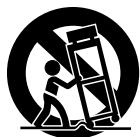
Use only with the cart, stand, tripod, bracket, or table specified by the manufacturer, or sold with the apparatus. When a cart is used, use caution when moving the cart/apparatus combination to avoid injury from tip-over.
-
Unplug this apparatus during lightning storms or when unused for long periods of time.
-
Refer all servicing to qualified service personnel. Servicing is required when the apparatus has been damaged in any way, such as power-supply cord or plug is damaged, liquid has been spilled or objects have fallen into the apparatus, the apparatus has been exposed to rain or moisture, does not operate normally, or has been dropped.
Additional Safety Information!
- This product should not be placed in a built-in installation such as a bookcase or rack unless proper ventilation is provided or the manufacturer's instructions have been adhered to.
- Apparatus shall not be exposed to dripping or splashing and that no objects filled with liquids, such as vases, shall be placed on the apparatus.
- When the switch is in the OFF position, the apparatus isn't completely switched-off from the MAINS.
- The equipment shall be installed near the power supply so that the power supply is easily accessible.
NOTE:
This equipment has been tested and found to comply with the limits for a Class B digital device, pursuant to Part 15 of the FCC Rules. These limits are designed to provide reasonable protection against harmful interference in a residential installation. This equipment generates, uses and can radiate radio frequency energy and, if not installed and used in accordance with the instructions, may cause harmful interference to radio communications. However, there is no guarantee that interference will not occur in a particular installation. If this equipment does cause harmful interference to radio or television reception, which can be determined by turning the equipment off and on, the user is encouraged to try to correct the interference by one or more of the following measures:
– Reorient or relocate the receiving antenna.
- Increase the separation between the equipment and receiver.
- Connect the equipment into an outlet on a circuit different from that to which the receiver is connected.
- Consult the dealer or an experienced radio/TV technician for help.
NOTE: Changes or modifications may cause this unit to fail to comply with Part 15 of the FCC Rules and may void the user's authority to operate the equipment.
This Class B digital apparatus complies with Canadian ICES-003.
EQUIPMENT MAINS WORKING SETTING ....1
COPYRIGHT 1
INTRODUCTION 2
PRODUCT FEATURES ......2
APPLICABLE DISCS TO THE UNIT 2
PLAYING CD-R/CD-RW DISCS 2
PLAYING MP3 FILES 2
BEFORE USING....3
NOTES FOR REMOVING SHIPPING SCREWS ....3
NOTES ABOUT THE DISCS ....3
INAPPROPRIATE PLACES FOR INSTALLATION ....3
PRECAUTIONS 4
USING REMOTE CONTROL UNIT 4
LOADING BATTERIES 4
NAMES AND FUNCTIONS ....5
FRONT PANEL....5
DISPLAY WINDOW....6
REAR PANEL....7
REMOTE CONTROLLER....8
REMOTE CONTROL CODE SETTING 9
CONNECTIONS 10
OPERATION....11
CONNECTING THE POWER SUPPLY AND TURNING ON 11
NORMAL PLAYBACK ....11
PAUSE PLAYBACK....12
STOP PLAYBACK....12
CHANGE DISCS WHILE PLAYING ....12
PLAYING YOUR FAVORITE TRACKS OF A DISC 13
PLAYING YOUR FAVORITE PARTS OF A TRACK ....13
SEARCH YOUR FAVORITE TRACKS (AMS (AUTOMATIC MUSIC SCAN)PLAY) ......13
PLAYING TRACKS IN A RANDOM SEQUENCE (RANDOM PLAY) 14
REPEAT PLAY 15
PLAYING TRACKS IN A SPECIFIC SEQUENCE (PROGRAM PLAY) 15
BACK TO NORMAL PLAY WITHOUT CLEARING PROGRAM 16
CHECK THE PROGRAM 16
CHANGE PROGRAMMED TRACKS 16
CLEAR PROGRAMMED TRACKS ....17
DISPLAY WINDOW BRIGHTNESS ADJUSTMENT 18
SWITCHING PLAYING TIME DISPLAY ....18
TROUBLE SHOOTING ....19
SPECIFICATIONS....20
FOREWORD
This section must be read before any connection is made to the mains supply.
EQUIPMENT MAINS WORKING SETTING
Your Marantz product has been prepared to comply with the household power and safety requirements that exist in your area.
CC4001 can be powered by 120V AC only.
COPYRIGHT
Recording and playback of any material may require consent. For further information refer to the following:
—Copyright Act 1956
—Dramatic and Musical Performers Act 1958
—Performers Protection Acts 1963 and 1972
—Any subsequent statutory enactments and orders
INTRODUCTION
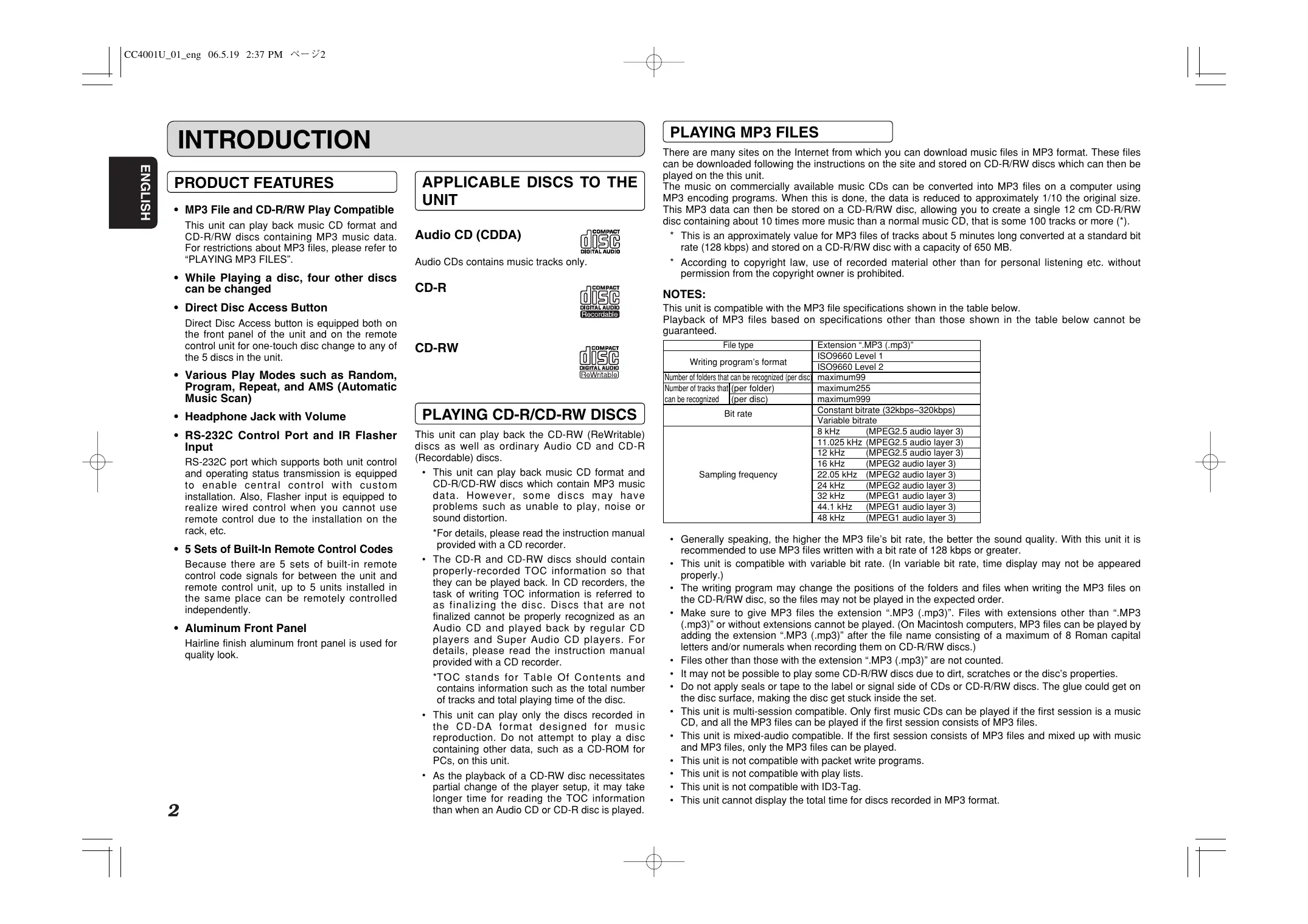
PRODUCT FEATURES
• MP3 File and CD-R/RW Play Compatible
This unit can play back music CD format and CD-R/RW discs containing MP3 music data. For restrictions about MP3 files, please refer to "PLAYING MP3 FILES".
- While Playing a disc, four other discs can be changed
- Direct Disc Access Button
Direct Disc Access button is equipped both on the front panel of the unit and on the remote control unit for one-touch disc change to any of the 5 discs in the unit.
- Various Play Modes such as Random, Program, Repeat, and AMS (Automatic Music Scan)
• Headphone Jack with Volume
• RS-232C Control Port and IR Flasher Input
RS-232C port which supports both unit control and operating status transmission is equipped to enable central control with custom installation. Also, Flasher input is equipped to realize wired control when you cannot use remote control due to the installation on the rack, etc.
- 5 Sets of Built-In Remote Control Codes
Because there are 5 sets of built-in remote control code signals for between the unit and remote control unit, up to 5 units installed in the same place can be remotely controlled independently.
• Aluminum Front Panel
Hairline finish aluminum front panel is used for quality look.
APPLICABLE DISCS TO THE UNIT
Audio CD (CDDA)

Audio CDs contains music tracks only.
CD-R

CD-RW

PLAYING CD-R/CD-RW DISCS
This unit can play back the CD-RW (ReWritable) discs as well as ordinary Audio CD and CD-R (Recordable) discs.
- This unit can play back music CD format and CD-R/CD-RW discs which contain MP3 music data. However, some discs may have problems such as unable to play, noise or sound distortion.
*For details, please read the instruction manual provided with a CD recorder. - The CD-R and CD-RW discs should contain properly-recorded TOC information so that they can be played back. In CD recorders, the task of writing TOC information is referred to as finalizing the disc. Discs that are not finalized cannot be properly recognized as an Audio CD and played back by regular CD players and Super Audio CD players. For details, please read the instruction manual provided with a CD recorder.
*TOC stands for Table Of Contents and contains information such as the total number of tracks and total playing time of the disc. - This unit can play only the discs recorded in the CD-DA format designed for music reproduction. Do not attempt to play a disc containing other data, such as a CD-ROM for PCs, on this unit.
- As the playback of a CD-RW disc necessitates partial change of the player setup, it may take longer time for reading the TOC information than when an Audio CD or CD-R disc is played.
PLAYING MP3 FILES
There are many sites on the Internet from which you can download music files in MP3 format. These files can be downloaded following the instructions on the site and stored on CD-R/RW discs which can then be played on the this unit.
The music on commercially available music CDs can be converted into MP3 files on a computer using MP3 encoding programs. When this is done, the data is reduced to approximately 1/10 the original size. This MP3 data can then be stored on a CD-R/RW disc, allowing you to create a single 12 cm CD-R/RW disc containing about 10 times more music than a normal music CD, that is some 100 tracks or more (*).
* This is an approximately value for MP3 files of tracks about 5 minutes long converted at a standard bit rate (128 kbps) and stored on a CD-R/RW disc with a capacity of 650 MB.
* According to copyright law, use of recorded material other than for personal listening etc. without permission from the copyright owner is prohibited.
NOTES:
This unit is compatible with the MP3 file specifications shown in the table below.
Playback of MP3 files based on specifications other than those shown in the table below cannot be guaranteed.
| File type | Extension “.MP3 (.mp3)” | |
| Writing program's format | ISO9660 Level 1 | |
| ISO9660 Level 2 | ||
| Number of folders that can be recognized (per disc) | maximum99 | |
| Number of tracks that can be recognized | (per folder) | maximum255 |
| (per disc) | maximum999 | |
| Bit rate | Constant bitrate (32kbps–320kbps) | |
| Variable bitrate | ||
| Sampling frequency | 8 kHz (MPEG2.5 audio layer 3) | |
| 11.025 kHz (MPEG2.5 audio layer 3) | ||
| 12 kHz (MPEG2.5 audio layer 3) | ||
| 16 kHz (MPEG2 audio layer 3) | ||
| 22.05 kHz (MPEG2 audio layer 3) | ||
| 24 kHz (MPEG2 audio layer 3) | ||
| 32 kHz (MPEG1 audio layer 3) | ||
| 44.1 kHz (MPEG1 audio layer 3) | ||
| 48 kHz (MPEG1 audio layer 3) | ||
- Generally speaking, the higher the MP3 file's bit rate, the better the sound quality. With this unit it is recommended to use MP3 files written with a bit rate of 128 kbps or greater.
- This unit is compatible with variable bit rate. (In variable bit rate, time display may not be appeared properly.)
- The writing program may change the positions of the folders and files when writing the MP3 files on the CD-R/RW disc, so the files may not be played in the expected order.
- Make sure to give MP3 files the extension “.MP3 (.mp3)”. Files with extensions other than “.MP3 (.mp3)” or without extensions cannot be played. (On Macintosh computers, MP3 files can be played by adding the extension “.MP3 (.mp3)” after the file name consisting of a maximum of 8 Roman capital letters and/or numerals when recording them on CD-R/RW discs.)
- Files other than those with the extension “.MP3 (.mp3)” are not counted.
- It may not be possible to play some CD-R/RW discs due to dirt, scratches or the disc's properties.
- Do not apply seals or tape to the label or signal side of CDs or CD-R/RW discs. The glue could get on the disc surface, making the disc get stuck inside the set.
- This unit is multi-session compatible. Only first music CDs can be played if the first session is a music CD, and all the MP3 files can be played if the first session consists of MP3 files.
- This unit is mixed-audio compatible. If the first session consists of MP3 files and mixed up with music and MP3 files, only the MP3 files can be played.
- This unit is not compatible with packet write programs.
- This unit is not compatible with play lists.
- This unit is not compatible with ID3-Tag.
- This unit cannot display the total time for discs recorded in MP3 format.
BEFORE USING
NOTES FOR REMOVING SHIPPING SCREWS
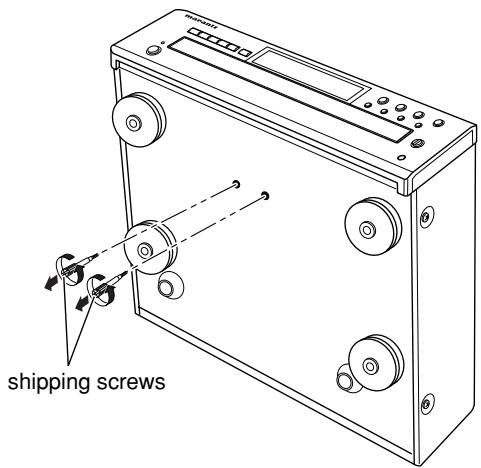
At the bottom of the player there are two red shipping screws for use when the player is transported. Before using the player, turn these screws counterclockwise and remove them.
If the shipping screws are still in place and the power is turned on, unplug the power cord from the power outlet and remove the shipping screws.
Retain these screws as they will be needed when the player is transported.
Before transporting the player, take out the discs, close the disc tray, set to standby mode and unplug the power cord from the power outlet. Then install the shipping screws by turning them clockwise. Be sure to fasten them securely.
NOTES ABOUT THE DISCS
* Handle the discs carefully so as not to scratch their surfaces.
* Keep the surfaces of the discs clean at all times.
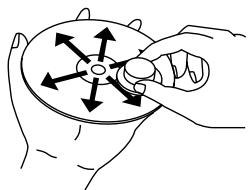
When cleaning the surfaces of discs, always be sure to use the special cleaner and wipe the surfaces in the directions shown in the figure below.
natural_image
Illustration of a hand holding a circular object with arrows pointing outward (no text or symbols)- Wipe the surface radially from the center.
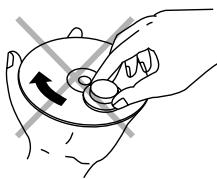
- Do not wipe the surface in the circumferential direction.
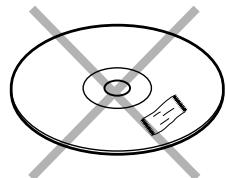
* Do not attach pieces of paper or stickers to the label surfaces of the discs.
When a disc has a piece of plastic tape or rental CD label with paste protruding from the edge or when a disc still bears traces of sticky tape or adhesive labels, do not attempt to play it. If such a disc is played on the CD player, you may find that you cannot remove it or that some other kind of malfunctioning may occur.
natural_image
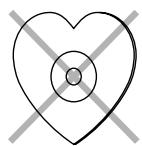
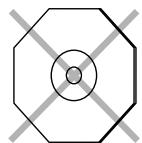
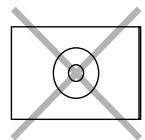
Simple line drawing of a CD or DVD disc with a rectangular slot, intersected by two diagonal lines (no text or symbols)* Do not use discs which come in special shapes.
Do not attempt to play heart-shaped or octagonal discs or discs with any other special shapes. You may find that you cannot remove them or that some other kind of malfunctioning may occur in the player.
* Use discs which satisfy the CD standards such as those with the “CD logo” or “COMPACT DISC” mark on their disc label surfaces.
No guarantees are made for playback if discs which do not satisfy the appropriate CD standards are used.
Similarly, no guarantees are made for their sound quality even if it is possible to play such discs.
* To protect your discs from damage, avoid placing them in the following locations.
- Where they will be exposed to direct sunlight or where they will be close to a heater or other heat-radiating appliance
- Where the humidity level is high or it is very dusty
- Near a window or other such location where they may be exposed to rain
* Get into the habit of putting the discs back in their cases after use.
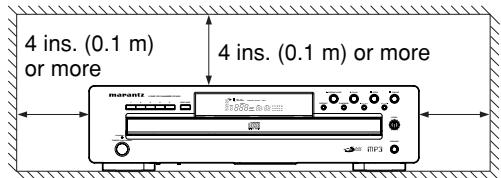
INAPPROPRIATE PLACES FOR INSTALLATION
To keep your player in perfect working order for the longest possible time, avoid installing the player in the following locations.
- Wherever it will be exposed to direct sunlight
- Wherever it will be close to a heater or other heat-radiating appliance
- Wherever the humidity is high or ventilation is poor
• Wherever it is very dusty
• Wherever it will be subject to vibration - On top of a rickety stand or in an unstable location which is tilted at an angle
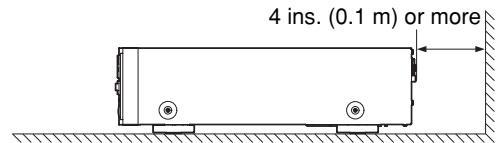
- In an audio rack with little space at the top and bottom or other location where the heat dissipation will be obstructed
- To ensure proper heat dissipation, install the player while leaving clearances between the player and wall or other components, as shown in the figure below.
- On top of an amplifier or other component which dissipates a great deal of heat
* The quality of the laser and other components can be harmed if the player is placed directly on top of an amplifier or other device which generates heat.
■ Do not place objects on top
- Refrain from placing any objects on top of the player.
■ Cautions on handling power cord
- Do not touch the power cord with wet hands.
- When disconnecting the power cord, always make sure that you take hold of the plug. Yanking out or bending the cord can damage it and/or cause electric shocks or a fire.
- Get into the habit of disconnecting the power plug before leaving home.
■ Do not attempt repairs yourself
- Refrain from lubricating the player: doing so can cause malfunctioning.
- Only qualified engineers with specialized expertise are authorized to repair the pick-up and parts inside the player.
PRECAUTIONS
- In winter, droplets of water form on the insides of the windows of a heated room: this is called condensation. This player uses an optical lens, so the condensation may form in the following cases.
- In a room immediately after the heating has been turned on
- In a room where the humidity level is high
- When the player has been suddenly brought from a cold location into a warm room
Since, in cases like this, the track numbers may not be read and the player is prevented from operating properly, wait about 30 minutes, and then operate the player.
- This player may cause interference on a tuner or TV set. If this is the case, place it further away from the tuner or TV set.
- Compact discs have much less noise than analog records and hardly any noise is heard before play starts. Bear in mind, therefore, that if the volume control on the amplifier is set too high, you will risk damaging other audio components.
- Do not use commercially available lens cleaners, as they may damage the lens.
USING REMOTE CONTROL UNIT
■ Cautions on handling batteries
Misuse of the batteries can result in electrolyte leakage, rupturing, corrosion, etc.
Bear in mind the following points when using batteries.
- Remove the batteries from the remote control unit if the unit is not going to be used for a prolonged period (a month or more).
- Do not use an old battery together with a new one.
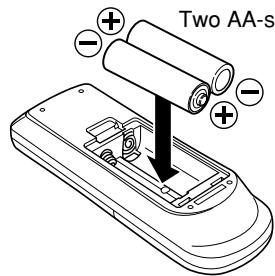
- Insert the batteries while ensuring that their and poles are properly aligned with the corresponding markings on the remote control unit.
- Batteries with the same shape may have different voltages. Do not use different types of batteries together.
- If electrolyte has leaked, thoroughly wipe the inside of the battery compartment, and then insert new batteries.
- When batteries which are no longer required are to be discarded, follow the directions (regulations) laid down by the local authorities in the area concerned for their disposal.
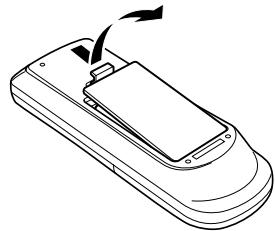
LOADING BATTERIES
Batteries in this remote control unit have a life of approximately 1 year under normal operating conditions. If the remote control unit is not going to be used for an extended period of time, remove the batteries. Also, if you notice that the batteries are starting to run down, replace them as soon as possible.
① Remove the battery cover.
natural_image
Line drawing of a mobile phone casing with a scroll wheel and directional arrows indicating motion (no text or symbols)② Insert the batteries with correct ⊕/⊖ orientation.
③ Close the battery cover until it clicks shut.

natural_image
Line drawing of a mobile phone with a stylus hovering above it (no text or symbols)■ Remote control
Operate the remote control unit (RC4001CC) within a distance of approx. 5 m from the infrared signal reception window (remote sensor) on the front of the CD Changer.
Remote control operation may not be possible if the remote control unit's transmitter is not pointing in the direction of the remote sensor or if there is an obstruction between the transmitter and the remote sensor.
Remote control operating range
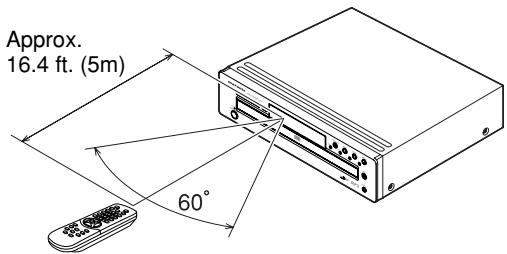
Remote control unit (RC4001CC)
NAMES AND FUNCTIONS
FRONT PANEL
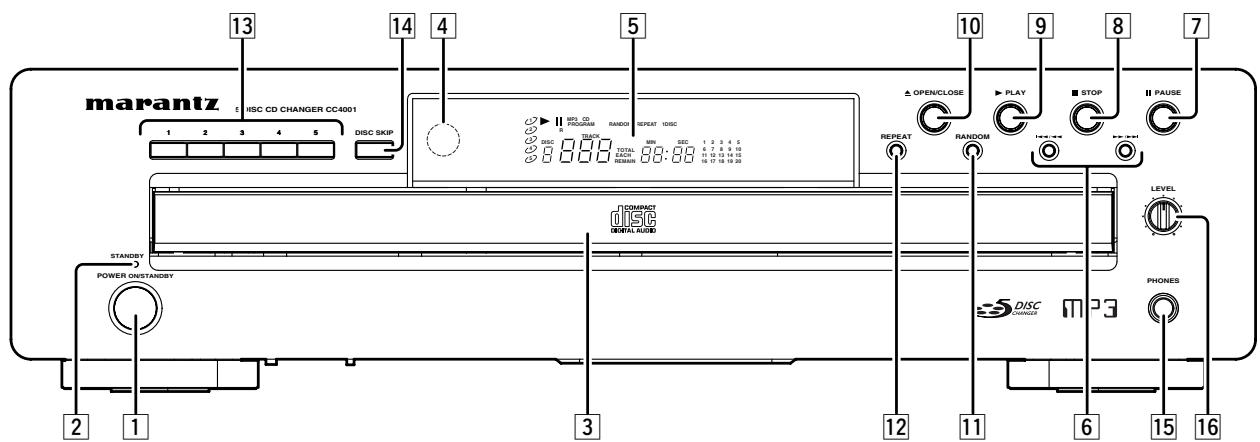
1 POWER ON/STANDBY button
When it is pressed, the display window lights up, and the power comes on. When it is pressed again, the display window is extinguished, and goes into the standby status.
2 STANDBY indicator
Lights up in red color while standby status.
3 Disc tray
The disc to be played is placed on the tray.
Caution
Close the tray by pressing the operation button, not by pressing it in with your hand.
4 Remote sensor
The infrared control signal emitted from the remote control unit is sensed here.
5 Display window
This screen shows the operating status.
6
(Track Skip/Search buttons)
These buttons can be used as both track skip and track search buttons. (on the main unit only.)
▶▶/▶▶1: Each time this button is pressed, the track being played is skipped forward. When this button is continuously held down, tracks are searched forward (Fast Forward).
When this button is pressed, the unit goes back to the beginning of the current track. If the button is pressed more times, the track being played is skipped back. When this button is continuously held down, tracks are searched backward (Fast Rewind).
In program play, Fast Forward and Fast Rewind can be done in the playing track only.
7 II PAUSE button
Press this button to pause playback. If pressed again, the unit returns to playback.
8 ■ STOP button
Press this button to stop playback. Also this button is used to clear programs.
9 ▶ PLAY button
Press this button to start playback.
10 ▲ OPEN/CLOSE button
Press this button to open the tray. Put on a disc with label side up.
Press the button again to close the tray.
Caution
Do not press the disc tray in by hand. This may cause malfunction.
11 RANDOM button
Playback tracks randomly. (See page 14)
12 REPEAT button
Playback a track or disc repeatedly. Use this button also to switch to the Repeat mode (One Track Repeat, One Disc Repeat, and All Disc Repeat). (See page 15)
13 1-5 (Disc Select button)
Choose a disc to play.
14 DISC SKIP button
When this button is pressed while multiple discs are placed on the tray, a disc to play can be chosen with rotating the tray clockwise. When this button is pressed while the tray is open, the turn table in the tray rotates so that the disc can be replaced.
15 PHONES (headphones) jack
The headphones are connected to this jack.
Caution
Use headphones with a standard plug.
16 LEVEL (headphone volume) control
This control is used to adjust the headphone volume. Turn it clockwise to increase the headphone volume.
DISPLAY WINDOW
flowchart
graph TD
    A["1"] --> B["MP3 Program"]
    C["2"] --> B
    D["3"] --> E["R"]
    F["4"] --> E
    G["5"] --> H["DISC"]
    I["1"] --> J["TRACK"]
    K["2"] --> J
    L["3"] --> J
    M["4"] --> J
    N["5"] --> J
    O["1"] --> P["TOTAL EACH REMAIN"]
    Q["2"] --> P
    R["3"] --> P
    S["4"] --> P
    T["5"] --> P
    U["6"] --> V["MIN: SEC"]
    W["7"] --> V
    X["8"] --> V
    Y["9"] --> V
    Z["10"] --> V
    AA["11"] --> AB["12"]
    AC["12"] --> AD["13"]
    AE["14"] --> AF["15"]
    AG["16"] --> AH["17"]
    AI["18"] --> AJ["19"]
    AK["20"] --> AL["21"]
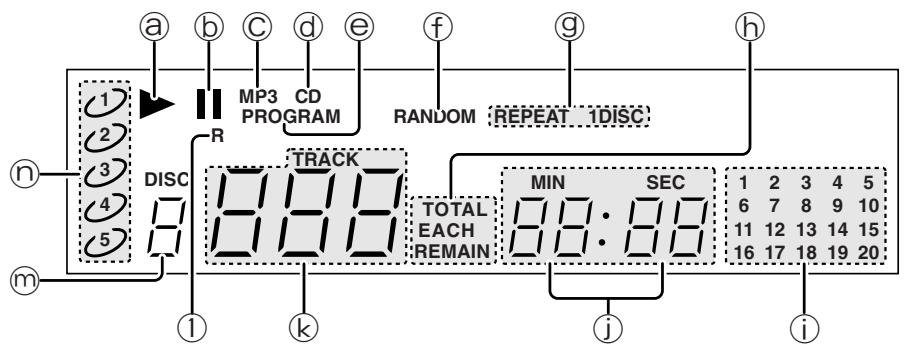
Ⓐ ▶ (Play) indicator
This lights during disc play.
⑥ II (Pause) indicator
This lights when play is paused.
© MP3 indicator
This lights during MP3 play.
(d) CD indicator
This lights during Audio CD play.
© PROGRAM indicator
This lights during program play.
f RANDOM indicator
This lights during random play.
⑨ REPEAT indicator
This lights during repeat play.
h REMAIN indicator
This lights while displaying track and disc remaining times.
① 1-20 (track number display)
Displays the number of tracks recorded in a disc, the number of remaining tracks, and the number of tracks programmed with program play.
- Cannot display more than 20 tracks.
j Time indicator
Displays the time.
© Track Number indicator
Displays the track number chosen.
① Remote Control indicator
This lights during a remote control unit is operated.
m Disc Number indicator
Displays the disc number chosen.
⑨ Disc indicator
Displays the disc numbers on the tray.
REAR PANEL
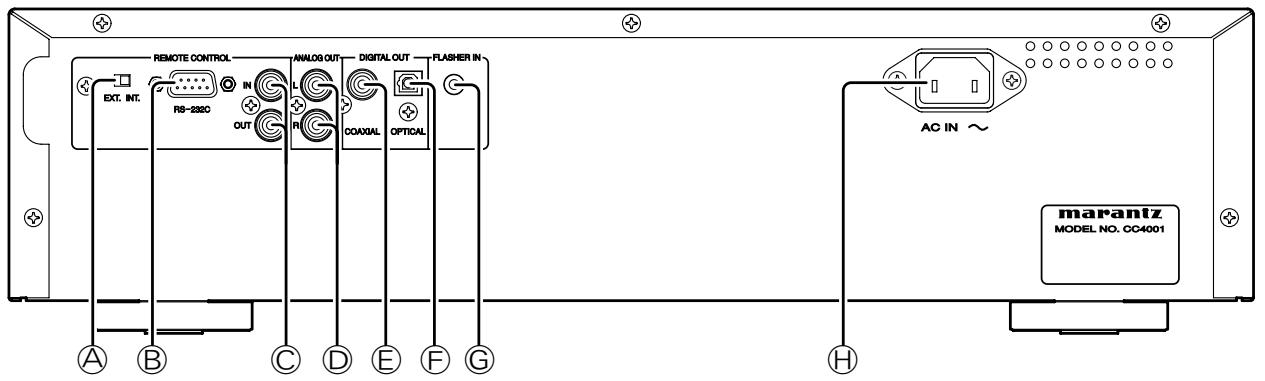
Ⓐ EXT./INT. (External/Internal switch)
When this unit is used as a standalone component, set this switch to the INT. side. When it is used connected to external component by a remote connecting cable and to audio component with a remote sensor that supports remote controls by Marantz, set this switch to the EXT. side.
Caution
If the unit is used as standalone and the switch is set to EXT. position, remote control unit cannot be used.
® RS-232C External Control Port
A control port for professionals (custom installers).
© REMOTE CONTROL IN/OUT (input and output) connectors
When the remote control connectors on the unit and on a Marantz AV component are connected using the accessory remote connecting cables, the components can be operated as a system by remote control.
- When connecting to a component which is equipped with remote control connectors, the unit's REMOTE CONTROL IN connector must always be connected to the REMOTE CONTROL OUT connector on the other component to be connected.
- When connecting a component which is not equipped with an infrared remote sensor, this component must always be connected to the unit's REMOTE CONTROL OUT connector.
© ANALOG OUTPUT connectors
These are the output jacks of the analog audio signals. The supplied analog connection cord can be connected to the CD, AUX, or other connectors on an amplifier. Be sure to connect the L and R channels correctly to the corresponding jacks.
Caution
Never connect to the PHONO connector on the amplifier.
⑤ DIGITAL AUDIO OUT COAXIAL
This jack is to be connected with a recording device, amplifier, D/A converter, etc that has coaxial digital input using an optional coaxial digital cable.
© DIGITAL AUDIO OUT OPTICAL
This jack is to be connected with a recording device, amplifier, D/A converter, etc that has optical digital input using an optional square type optical digital cable.
© Flasher Input jack
A control port for professionals (custom installers).
This is used to control the unit from other rooms using keypad, etc.
H AC Inlet
Connect the supplied power cord to this jack and a household AC power outlet.
REMOTE CONTROLLER
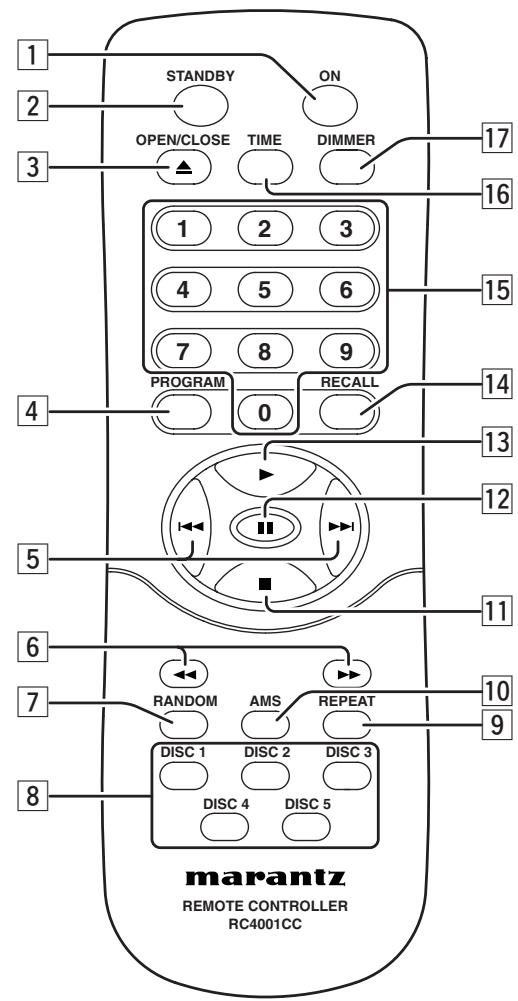
1 ON button
When this button is pressed while the unit is in standby status, the power of the unit is turned on.
2 STANDBY button
When this button is pressed while the power is on, the unit goes into the standby status.
3 ▲ OPEN/CLOSE button
Press this button to open the tray. Put on a disc with label side up.
Press the button again to close the tray.
Caution
Do not press the disc tray in by hand. This may cause malfunction.
4 PROGRAM button
This button is for program play. (See page 15)
5 |◀◀, ▶▶| (Track Skip buttons)
When this button is pressed, the unit goes back to the beginning of the current track. If the button is pressed more times, the track being played is skipped back.
▶▶▶ I: Each time this button is pressed, the track being played is skipped forward.
- Search buttons are provided separately for the remote control unit. Use 6 Search buttons for search function.
6 ◀◀, ▶▶ (Search buttons)
◀◀: While this button is pressed during playback, the track is searched backward.
▶▶: While this button is pressed during playback, the track is searched forward.
7 RANDOM button
Playback tracks randomly. (See page 14)
8 DISC1-DISC5 (Disc Select button)
Choose a disc to play.
9 REPEAT button
Playback a track or disc repeatedly. Use this button also to switch to the Repeat mode (One Track Repeat, One Disc Repeat, and All Disc Repeat). (See page 15)
10 AMS (Automatic Music Scan button)
Use this button for AMS play. (See page 13)
11 ■ STOP button
Press this button to stop playback. Also this button is used to clear programs.
12 II PAUSE button
Press this button to pause playback. If pressed again, the unit returns to playback.
13 ▶ PLAY button
Press this button to start playback.
14 RECALL button
Use this button to check the programmed tracks while programming or stopped programming. (See page 16)
15 0 -9 (Numerical buttons)
Use these buttons to choose tracks and to input track number in each mode.
16 TIME button
This button is used to switch the time display. Each time it is pressed, the displayed time cycles from “track elapsed time” → “track remaining time” → “total remaining time” → “track elapsed time”. (See page 18)
17 DIMMER button
This button is used to adjust the brightness of the display window.
REMOTE CONTROL CODE SETTING
- The unit and remote control unit have five sets of built-in remote control codes for each. These codes enable up to five CC4001s installed in the same place to be controlled independently.
- To use multiple units at the same time, set the second, third, forth, and fifth CC4001s and their remote control units' remote control codes.
- To set the codes, follow the procedure below to control only selected unit is remotely controlled.
- At the factory, the unit and remote control unit were set to CODE1.
■ Remote Control Unit Setting
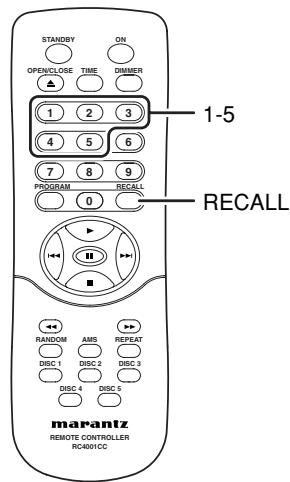
- To set CODE2
Press RECALL button and Numerical button 2 on the remote control unit at a time for five seconds or more. - To set CODE3
Press RECALL button and Numerical button 3 on the remote control unit at a time for five seconds or more. - To set CODE4
Press RECALL button and Numerical button 4 on the remote control unit at a time for five seconds or more. - To set CODE5
Press RECALL button and Numerical button 5 on the remote control unit at a time for five seconds or more.
Caution
To reset the remote control to CODE1, press RECALL button and Numerical button 1 on the remote control unit at the same time for five seconds or more.
■ CC4001 Setting
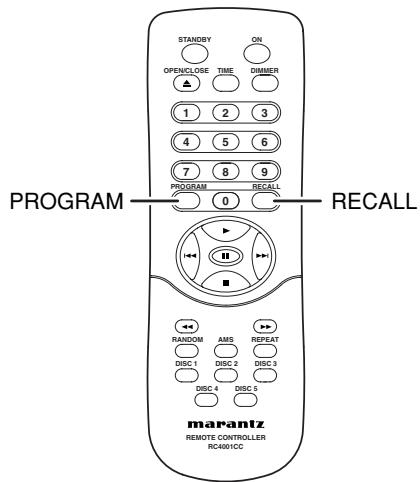
- To synchronize the remote control code of the CC4001 with the remote control unit, press the PROGRAM and RECALL buttons on the remote control unit together.
- The remote control code set is displayed on the display window for two seconds, and the setting is completed.
Display Examples
- When the remote control unit is set to CODE1
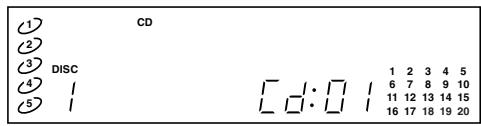
- When the remote control unit is set to CODE2
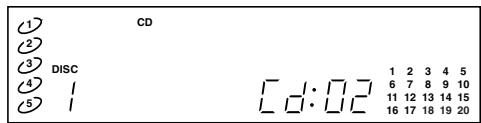
- When the remote control unit is set to CODE3
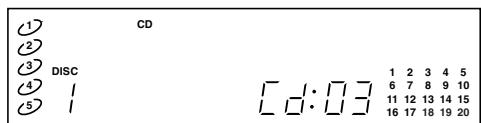
- When the remote control unit is set to CODE4
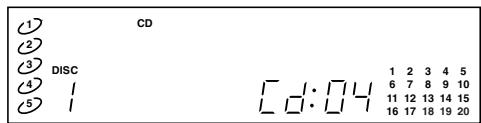
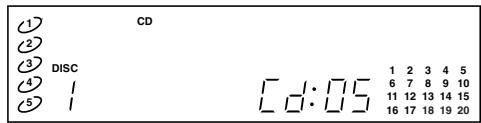
- When the remote control unit is set to CODE5
CONNECTIONS
Depending on your amplifier/receiver/Stereo System, there are various ways to connect to this player. For correct connection please refer to instruction manuals of stereo system to be connected.
Caution
Do not connect audio output from this unit to PHONO input of your audio system.
- Connect the audio cable ① to this unit's Analog Audio outputs and the stereo inputs on your amplifier, receiver or stereo system.
- Connect the optical cable ②, coaxial cable ③ to the digital input on your AV amplifier, D/A converter, CD Recorder, etc.
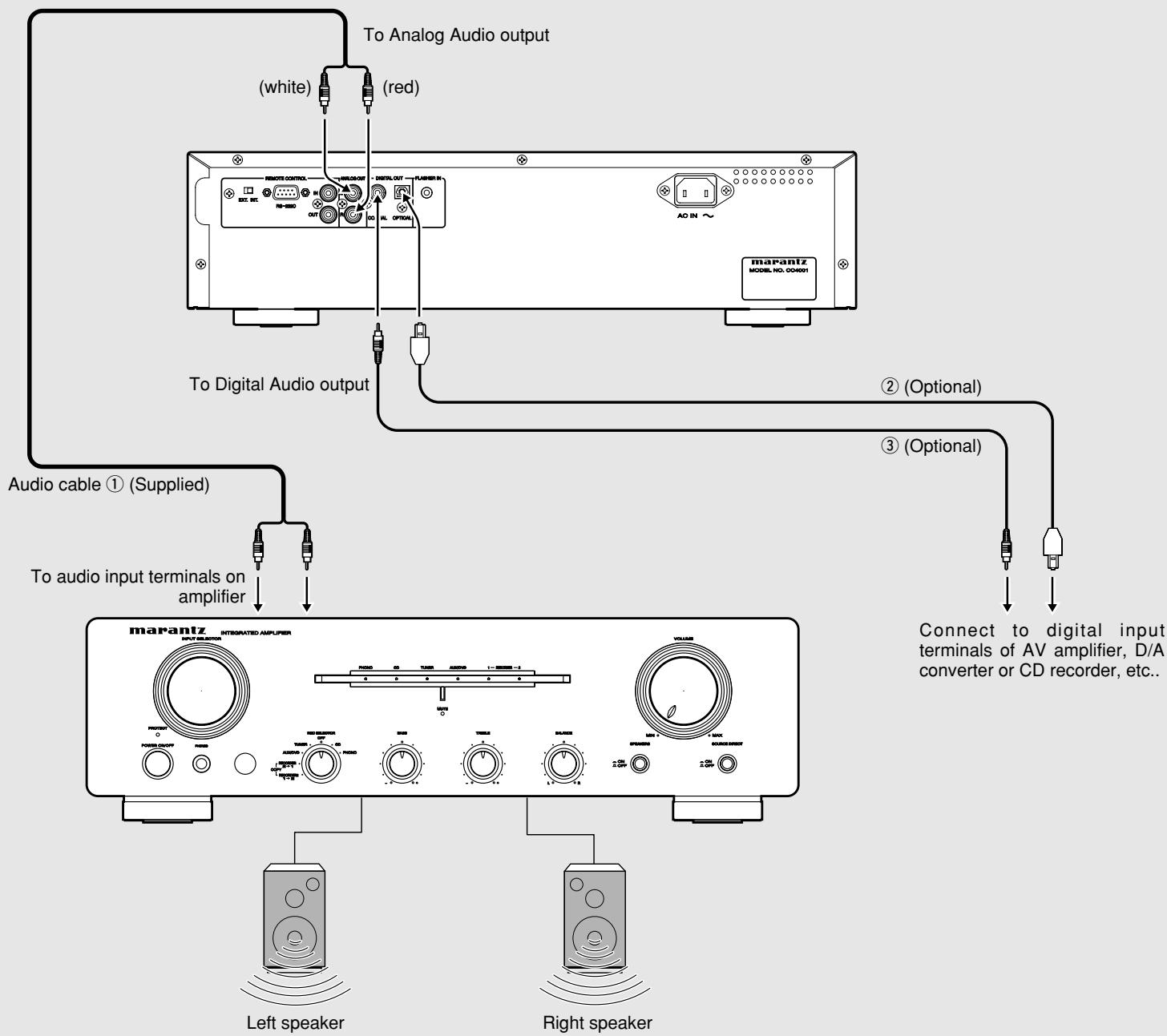
flowchart
graph TD
    A["marantz MODE No. 004601"] -->|To Analog Audio output| B["Resistor Control"]
    A -->|To Digital Audio output| C["Digital Output"]
    A -->|Audio cable ① (Supplied)| D["To audio input terminals on amplifier"]
    A -->|To Analog Audio output| E["Right Speaker"]
    A -->|To Digital Audio output| F["Connected to digital input terminals of AV amplifier, D/A converter or CD recorder, etc.."]
    style A fill:#f9f,stroke:#333
    style B fill:#ccf,stroke:#333
    style C fill:#cfc,stroke:#333
    style D fill:#fcc,stroke:#333
    style E fill:#cff,stroke:#333
    style F fill:#ffc,stroke:#333
OPERATION
CONNECTING THE POWER SUPPLY AND TURNING ON
- Plug the power cable into AC Power Input jack on the rear panel.
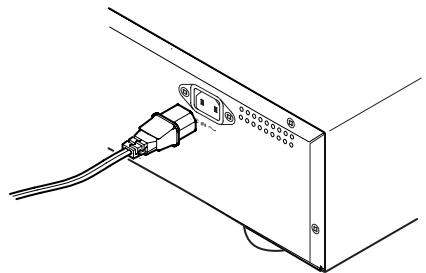
natural_image
Technical line drawing of a device panel with connectors and wiring (no text or symbols)- Turn on the power switch of the audio unit (amplifier, etc.) that is connected with this unit. Set the selector on the connected unit to this unit.
- Plug the power cable into an AC outlet.
- Turn the power on by pressing POWER ON/STANDBY button on the unit or ON button on the remote control unit.
- The unit repeats switching from ON and Standby every time the POWER ON/STANDBY button is pressed.
NORMAL PLAYBACK
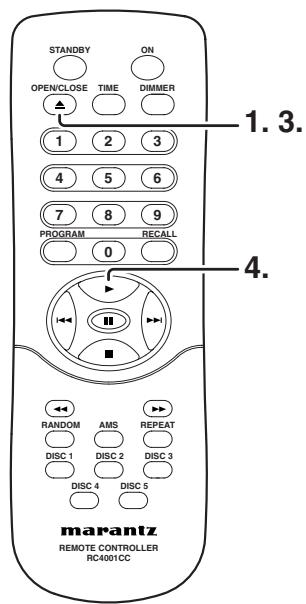
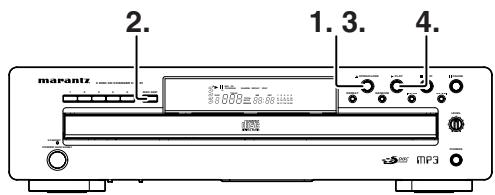
- Press ▲ OPEN/CLOSE button on the unit or remote control unit to open the disc tray. Hold the edge of the disc and place on the tray.

- Do not touch the back side (shiny side) of a CD.
-
To play a single CD (8 cm), place the disc with the indentation at the center of the tray.
-
To set multiple discs, press DISC SKIP button on the main unit. With the turn table on the tray rotating, set the disc one by one.
- Press ▲ OPEN/CLOSE button on the main unit or remote control unit to close the disc tray.
-
When ▶ PLAY button on the main unit or remote control unit is pressed, playback starts from the first track.
-
At this time, “▶” lights up on the display window.
- All discs are played
(example)
To start playback from the disc 2
Disc 2/first track →.....→ last track
→Disc 3/first track →.....→ last track
→Disc 4/first track →.....→ last track
→Disc 5/first track →.....→ last track
→Disc 1/first track →.....→ last track
→ Stop
Caution
- Place a disc on each tray correctly. If not, the unit cannot be operated and discs may be damaged.
- Be careful not to have your finger caught when you close the tray.
If the finger is caught, press ▲ OPEN/CLOSE button to open the tray.
- Do not insert a disc in the way shown as the arrow.
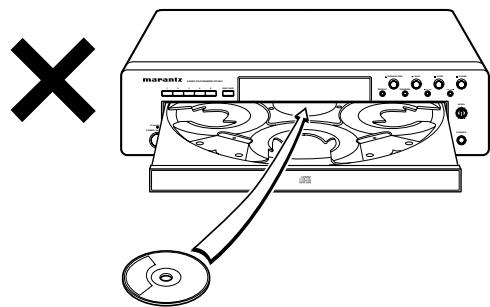
- Do not place any other media other than a disc on the tray.
- Do not pile up discs on a tray. Do not place more than two disc on a tray.
- Do not force to open/close the tray. Always use ▲ OPEN/CLOSE button to open/close the tray.
- While the tray is open and rotating, do not touch or stop the tray with fingers.
PAUSE PLAYBACK
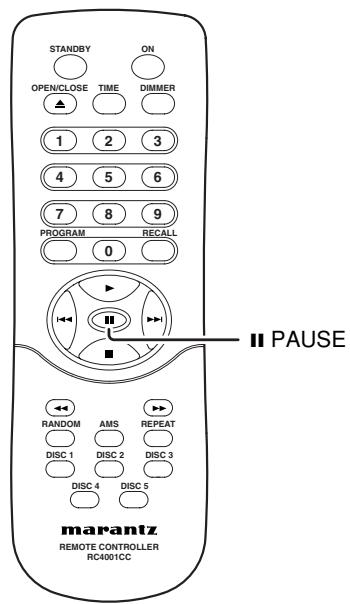
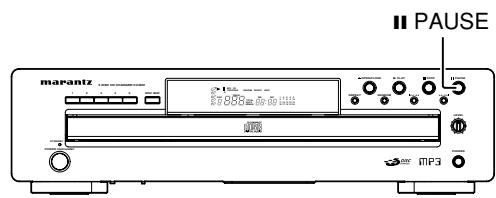
Pressing II PAUSE button on the main unit or remote control unit pauses the play.
- At this time, “II” lights up on the display window.
- To restart the playback, press ▶ PLAY button on the main unit or remote control unit.
- Pressing II PAUSE button on the main unit or remote control unit again while pausing restarts the playback.
STOP PLAYBACK
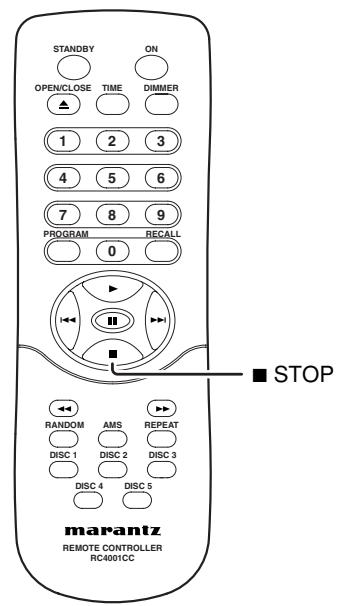
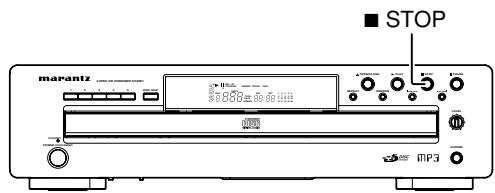
Pressing ■ STOP button on the main unit or remote control unit stops the playback.
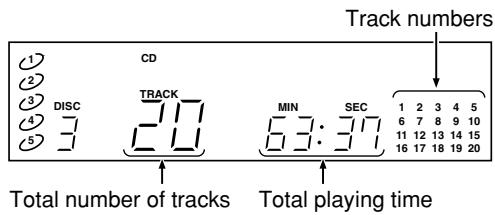
CHANGE DISCS WHILE PLAYING
You can change other discs not being played while playing a disc.
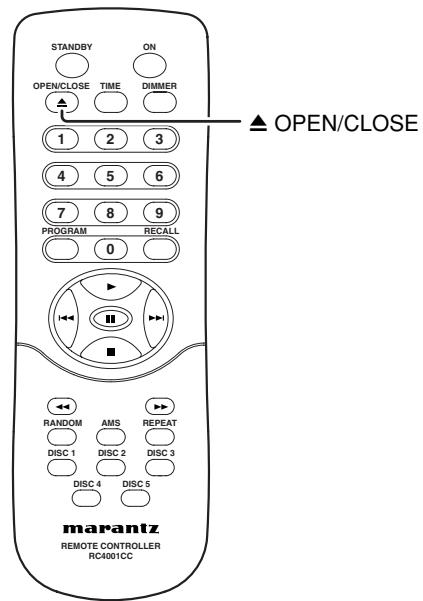
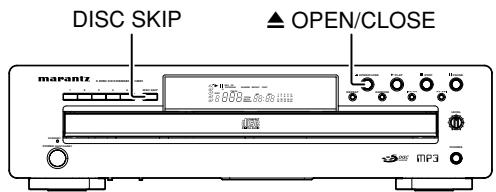
- While disc 1 is playing, press ▲ OPEN/CLOSE button to open the tray and change disc 3, 4, and 5.
To change disc 2, press DISC SKIP button to rotate the turn table on the tray, then change the disc. - After changing the disc, make sure to press ▲ OPEN/CLOSE button to close the disc tray.
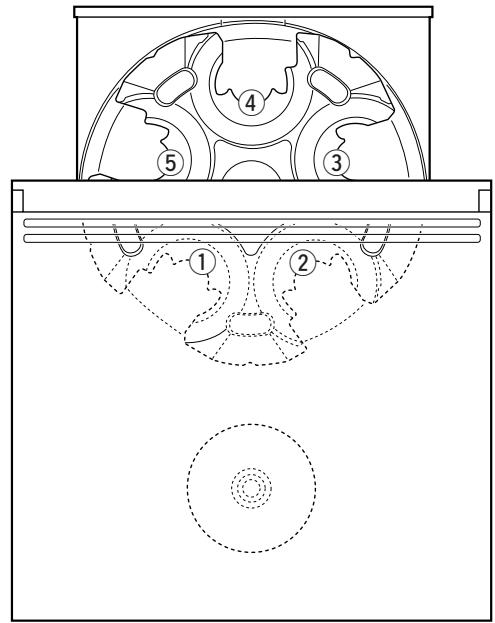
①…Disc 1 tray
②…Disc 2 tray
③…Disc 3 tray
④…Disc 4 tray
⑤…Disc 5 tray
PLAYING YOUR FAVORITE TRACKS OF A DISC
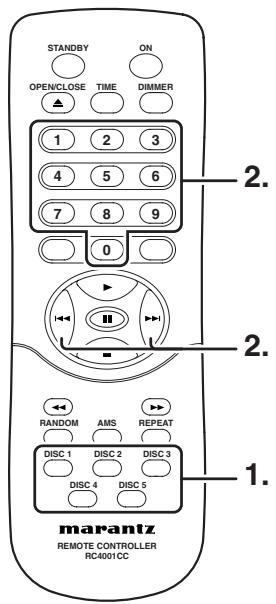
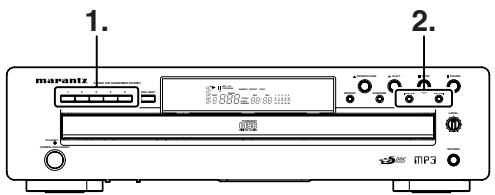
- Press DISC1-5 button on the main unit or remote control unit to choose the disc to play.
- At this time the first track of the chosen disc is played.
- Press I◄◄/◄◄, ►►/►►I button on the main unit, or I◄◄/►►I or 0-9 button on the remote control unit to choose the track number to play. (example)
• To choose the 9th track:
Press 9.
• To choose the 23rd track:
Press 2, and within 2 seconds press 3.
• To choose the 123rd track:
Press 1, within 2 seconds press 2, and within 2 seconds press 3.
PLAYING YOUR FAVORITE PARTS OF A TRACK
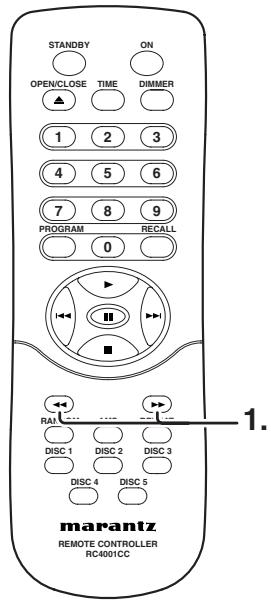
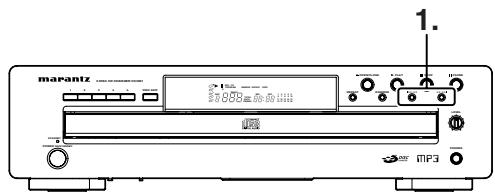
- Hold ◀◀/▶▶ button on the remote control unit or I◀◀/◀◀, ▶▶/▶▶I button on the main unit while playing to search the part to play.
- Release the button when you have found the part.
SEARCH YOUR FAVORITE TRACKS (AMS (AUTOMATIC MUSIC SCAN)PLAY)
AMS (Automatic Music Scan) play is a function to play 10 seconds of each track's beginning one by one.
It is a useful function when you need to search a track to play. There are 2 modes for the AMS play:
- All Track AMS
AMS plays all tracks of all discs on the disc tray. - All Disc AMS
Starts AMS play the first track of all discs on the disc tray one by one.
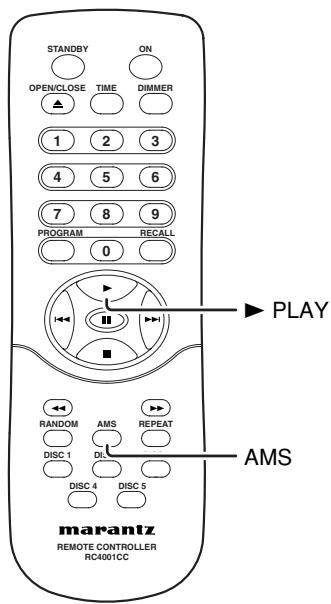
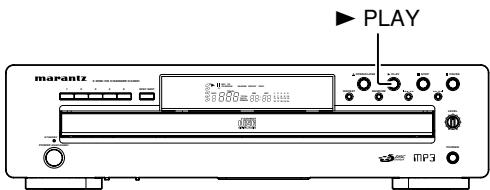
- Each time AMS button on the remote control is pressed, the AMS play mode is switched as follows:

■ All Track AMS Play
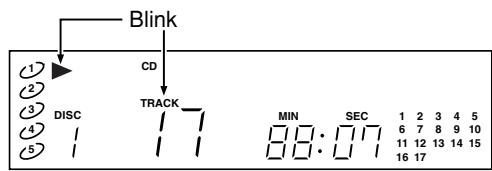
Press AMS button on the remote control unit once to start AMS play all tracks automatically.
- At this time, “▶” and “TRACK” blinks.
flowchart
graph TD
    A["Blink"] --> B["CD"]
    B --> C["TRACK"]
    C --> D["MIN: SEC 1 2 3 4 5"]
    C --> E["MIN: SEC 6 7 8 9 10"]
    C --> F["MIN: SEC 11 12 13 14 15"]
    C --> G["MIN: SEC 16 17"]
- While stopped
When All Track AMS is set while the unit is stopped, every track of all discs is played as AMS play from the fist track of the chosen disc one by one.
(example)
If All Track AMS is set while disc 2 is chosen:
Disc 2/first track →.....→ last track
→Disc 3/first track →.....→ last track
→Disc 4/first track →.....→ last track
→Disc 5/first track →.....→ last track
→Disc 1/first track →.....→ last track
→ Stop
- While playing
When All Track AMS is set while the unit is playing, every track is played as AMS play from the playing track one by one.
(example)
If All Track AMS is set while track 3 of disc 3 is being played:
Disc 3/third track →.....→ last track
→Disc 4/first track →.....→ last track
→Disc 5/first track →.....→ last track
→Disc 1/first track →.....→ last track
→Disc 2/first track →.....→ last track
→ Stop
AMS play will not be applied for the tracks finished playing. (AMS play will not be applied for the first and second tracks of disc 3 in this example).
Press ▶ PLAY button on the main unit or remote control unit when the track to play is found. Normal play will start from that track.
■ All Disc AMS Play
Press AMS button on the remote control twice to start AMS play all discs automatically.
- At this time, “▶” and “DISC” blinks.
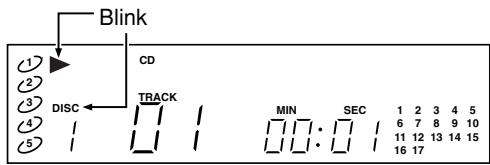
flowchart
graph TD
    A["Blink"] --> B["1"]
    B --> C["2"]
    C --> D["3"]
    D --> E["4"]
    E --> F["5"]
    G["CD"] --> H["TRACK"]
    H --> I["MIN"]
    H --> J["SEC"]
    K["DISC"] --> L["1 2 3 4 5"]
    L --> M["6 7 8 9 10"]
    M --> N["11 12 13 14 15"]
    N --> O["16 17"]
- While stopped
When All Disc AMS is set while the unit is stopped, every first track of all discs is played as AMS play from the fist track of the chosen disc one by one.
(example)
If All Disc AMS is set while disc 1 is chosen:
Disc 1/first track
→Disc 2/first track
→Disc 3/first track
→Disc 4/first track
→Disc 5/first track
→Stop
- While playing
When All Disc AMS is set while the unit is playing, every first track of all discs is played as AMS play from the next track of the playing track one by one.
(example)
If All Disc AMS is set while track 3 of disc 4 is being played:
Disc 4/third track
→Disc 5/first track
→Disc 1/first track
→Disc 2/first track
→Disc 3/first track → Stop
■ Stop AMS Play
To stop the AMS play, press the AMS button on the remote control unit once or twice until the blinking “▶” lights up.
Caution
- Pressing AMS button while setting a program starts AMS play for the only tracks programmed.
- When AMS button is pressed while random play, starts AMS play according to the Random mode.
- Pressing I◄◄/◄◄, ►►/►►I while AMS play moves the playing track back and forth. When ►►/►►I is pressed at the last track of the disc, it moves to the next disc. (except the last disc)
- When AMS button is pressed after playing a track for 10 seconds or more, AMS play is started from the next track.
- AMS setup cannot be started while the tray is open during playback.
- AMS playback is canceled if the tray is opened during AMS playback.
PLAYING TRACKS IN A RANDOM SEQUENCE (RANDOM PLAY)
Random play is a function to play tracks in random sequence. There are 2 modes for the Random play:
• One Disc Random
Random play the chosen disc only
- All Disc Random
Random play all discs on the disc tray
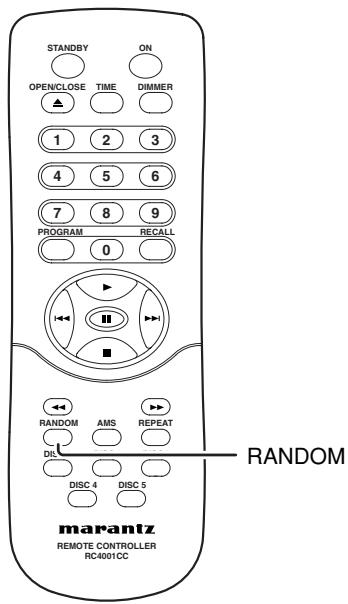
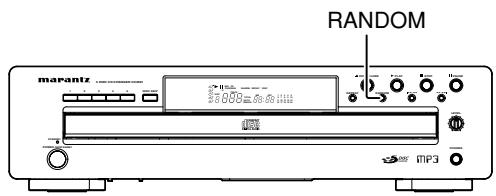
- Every time RANDOM button is pressed the Random mode changes as follows:
One Disc Random → All Disc Random → Off
■ One Disc Random Play
When RANDOM button is pressed on the main unit or remote control unit once, starts the random play for one disc automatically.
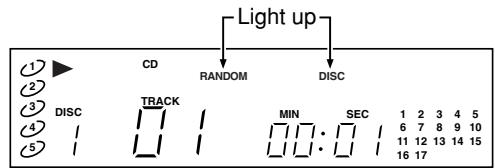
- At this time, RANDOM 1 DISC lights up.
- Track is chosen from the chosen disc randomly and played.
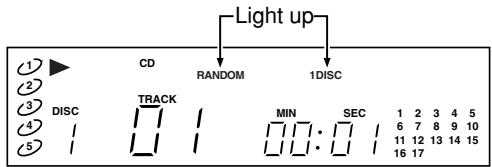
■ All Disc Random Play
When RANDOM button on the main unit or remote control unit is pressed twice, starts the random play for all discs automatically.
- At this time, "RANDOM DISC" lights up.
- A track is chosen from all discs and played.
- After playing the track, another track is chosen from all discs randomly and played.
■ Stop Random Play
To stop random play, press ■ STOP button on the main unit or the remote control unit. Or press RANDOM button on the main unit or on the remote control unit once or twice until “RANDOM” disappears.
Caution
- When RANDOM button is pressed while a program is being played, programmed tracks are played in random sequence.
- If ▲ OPEN/CLOSE button is pressed during random playback and the tray is opened, random playback is canceled.
- Random playback cannot be started while the tray is open during playback.
REPEAT PLAY
Repeat play is a function to automatically play repeatedly. There are 3 modes for the Repeat play:
- One Track Repeat
Play the chosen track repeatedly.
- One Disc Repeat
Play the chosen disc repeatedly.
- All Disc Repeat
Repeat play all discs on the disc tray.
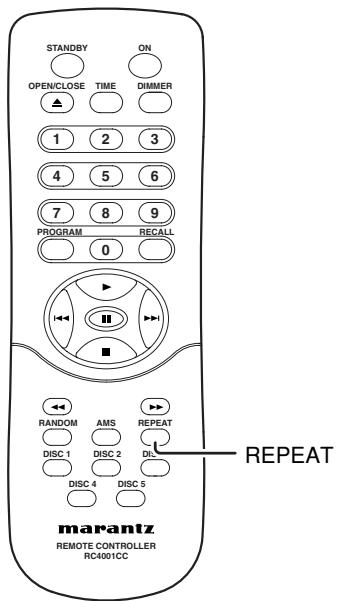
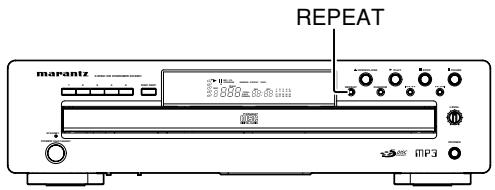
Every time REPEAT button is pressed the Repeat mode changes as follows:

■ One Track Repeat Play
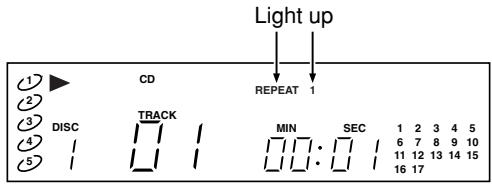
After choosing a track to repeat, press REPEAT button on the main unit or remote control unit once to play the chosen track repeatedly.
- At this time, "REPEAT 1" lights up.
■ One Disc Repeat Play
After choosing a disc to repeat, press REPEAT button on the main unit or remote control unit twice to play the tracks of the chosen disc repeatedly.
- At this time, "REPEAT 1 DISC" lights up.
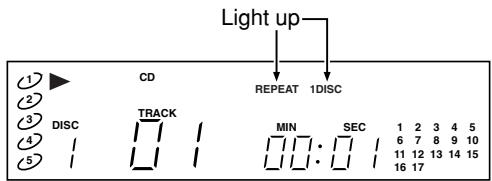
■ All Disc Repeat Play
When REPEAT button on the main unit or remote control unit is pressed three times, all discs are played repeatedly.
- At this time, "REPEAT 1 DISC" lights up.
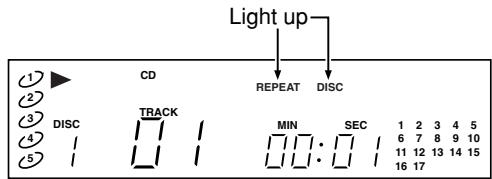
■ Stop Repeat Play
To stop repeat play, press ■ STOP button on the main unit or the remote control unit. Or press the REPEAT button on the main unit or on the remote control until “REPEAT” disappears.
Caution
- If ▲ OPEN/CLOSE button is pressed during repeat playback and the disc tray is opened, repeat playback is canceled.
- Repeat playback cannot be set while the tray is open during playback.
PLAYING TRACKS IN A SPECIFIC SEQUENCE (PROGRAM PLAY)
You can choose tracks or discs to play and program them in the order you want to listen. Up to 32 tracks can be registered for program play.
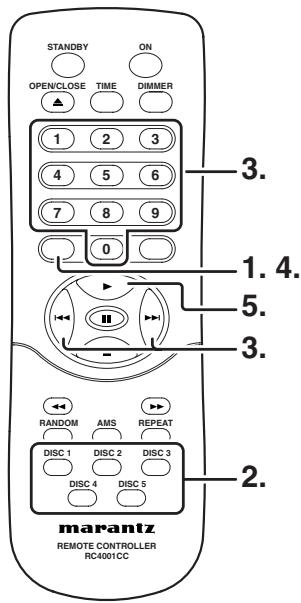
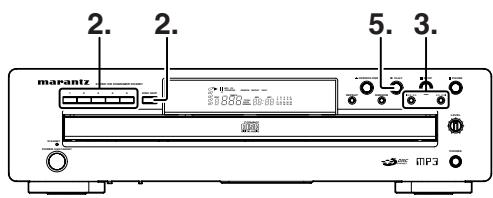
- While the unit is stopped, press PROGRAM button on the remote control unit to switch to the Program mode.
- At this time, "PROGRAM" blinks up.
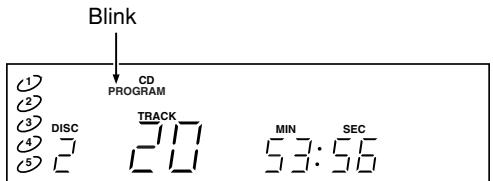
- Press DISC1-5 button on the main unit or remote control unit or DISC SKIP button on the main unit to choose a disc where the tracks to register are contained. In this example choose disc 2.
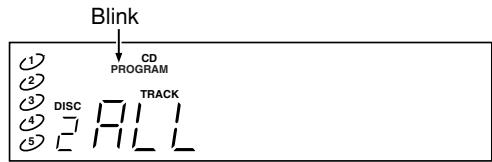
flowchart
graph TD
    A["1"] --> B["CD PROGRAM"]
    C["2"] --> D["TRACK"]
    E["3"] --> F["DISC"]
    G["4"] --> H["HILL"]
    I["5"] --> J["ELL"]
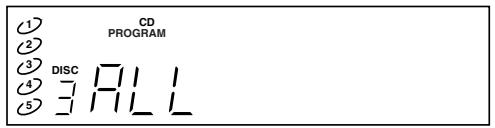
- At this state (ALL is displayed), if you press PROGRAM button without choosing track, all tracks in the disc are registered.
- Press |◀◀/◀◀, ▶▶/▶▶| on the main unit, or |◀◀/▶▶| or Numerical button on the remote control unit to choose the track number to register. In this example choose track 7.
- At this time, the chosen track number blinks.
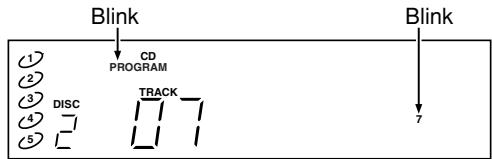
flowchart
graph TD
    A["CD PROGRAM"] --> B["Blink"]
    C["DISC"] --> D["TRACK"]
    E["7"] --> F["Blink"]
- Here, if ■ STOP button on the main unit or remote control unit is pressed, the program is cancelled.
- Press PROGRAM button on the remote control unit to register the chosen track number.
- At this time, PROGRAM and track number displays change from blinking to light.
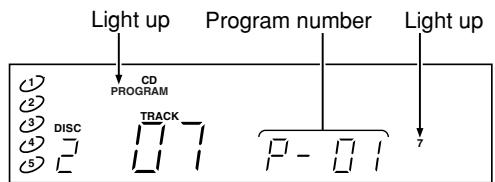
flowchart
graph TD
    A["Light up"] --> B["Program number"]
    B --> C["CD PROGRAM"]
    C --> D["TRACK"]
    D --> E["DISC"]
    D --> F["P-"]
    D --> G["7"]

flowchart
graph TD
    A["12:27"] --> B["CD PROGRAM"]
    B --> C["3:27"]
    C --> D["4:27"]
    D --> E["5:27"]
    E --> F["6:27"]
    F --> G["7:27"]
    G --> H["MIN"]
    G --> I["SEC"]
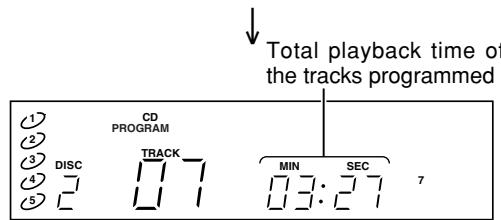
- The programmed track numbers and total playing time of the programmed tracks are repeatedly displayed for approx. 15 seconds. - When the track number is chosen with pressing the Numerical button on the remote control unit directly, the chosen track is registered automatically; PROGRAM button does not need to be pressed.
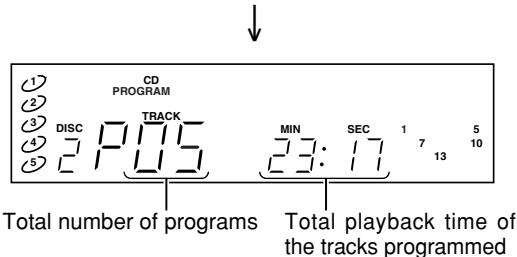
- If the total playback time of the tracks programmed exceeds 99 minutes 59 seconds, "-- : --" is displayed.
- When a program is setup with an MP3 disc, “-- : --” is displayed for the total time.
-
When the tracks of a disc that is not selected is programmed, the total playing time of such tracks is displayed as “-- : --”.
-
To program multiple tracks, repeat the step 2. to 4. to program all tracks to play.
- Press ▶ PLAY button on the main unit or remote control unit to start the program play.
BACK TO NORMAL PLAY WITHOUT CLEARING PROGRAM
To go back to normal play without clearing the program while playing the program, do one of the followings:
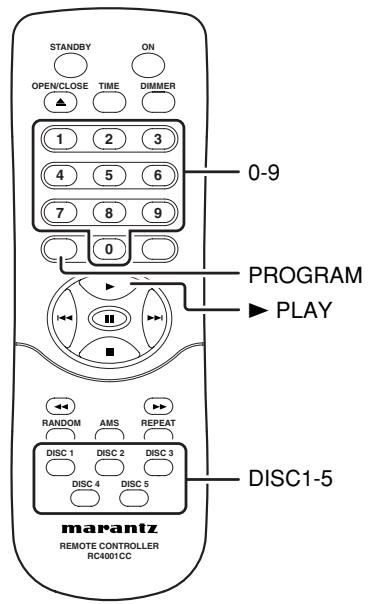
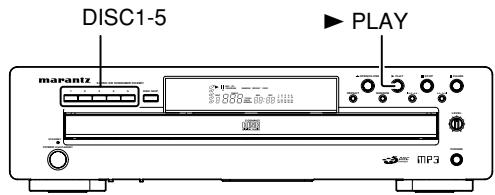
- Press PROGRAM button.
Normal play will be started from the playing track. - Press Disc Select button on the main unit or remote control unit.
Normal play will start from the first track of the chosen disc. - Press the Numerical button on the remote control unit.
Normal play will start from the chosen track.
To go back to program play again, press PROGRAM button while the main unit is stopped, and press ▶PLAY button.
CHECK THE PROGRAM
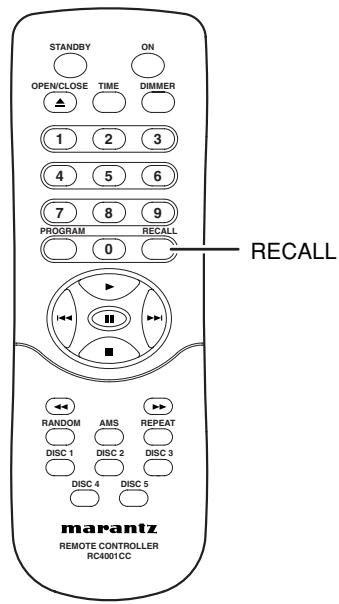
Press RECALL button on the remote control unit in the Program mode (when PROGRAM is blinking or lights).
• Each time RECALL button is pressed the programmed tracks are displayed one by one.
CHANGE PROGRAMMED TRACKS
(example)
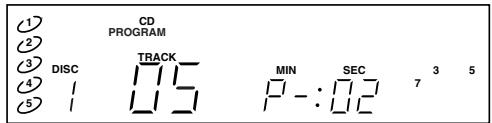
When tracks 3, 5, and 7 of disc 1 are programmed, change track 5 of disc 1 to track 7 of disc 3.
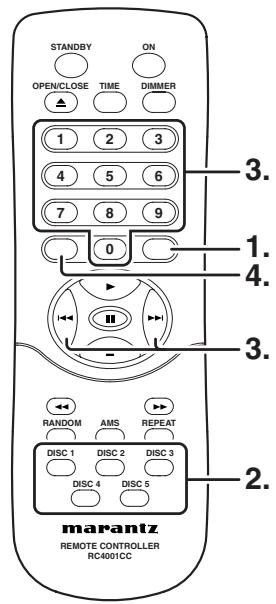
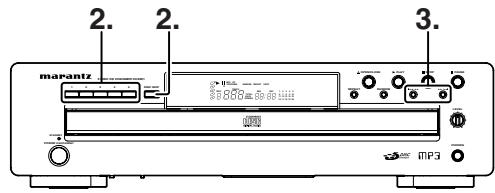
- To check the program, press RECALL button on the remote control unit twice while the unit is stopped to display track 5 of the disc 1.
- Press DISC1-5 button on the main unit or remote control unit or DISC SKIP button on the unit to choose disc 3.
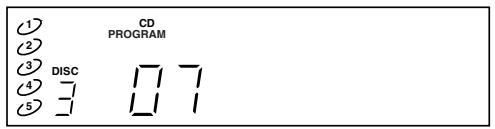
- Press |◀◀/◀◀, ▶▶/▶▶| button on the main unit, or |◀◀/▶▶| or 1-9 button on the remote control unit to choose track 7.
- When the track number is chosen with pressing 1-9 button on the remote control unit directly, it automatically changes to that number.
- Press PROGRAM button on the remote control to change track 5 of the disc 1 to track 7 of the disc 3.
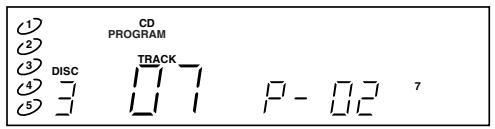
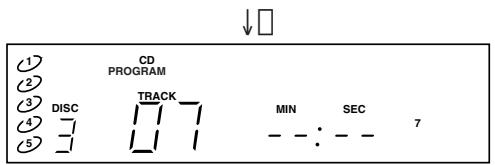
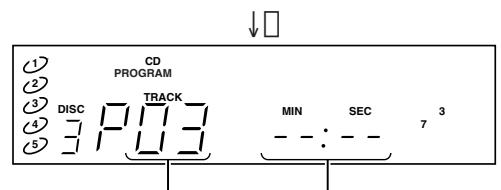
Total number of programs Total playback time of the tracks programmed
- In this example, as a track on a disc that is not selected is included in the program, “-- : --” is displayed for the total playback time for the programmed tracks.
CLEAR PROGRAMMED TRACKS
■ To Clear One Track at a Time
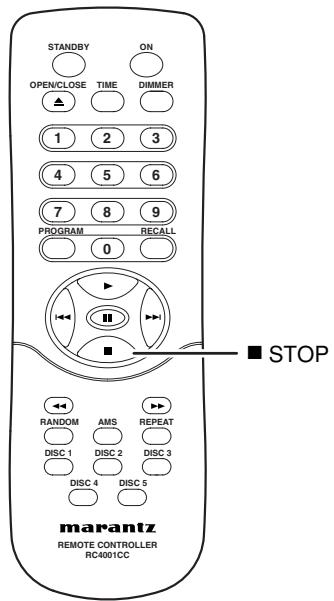
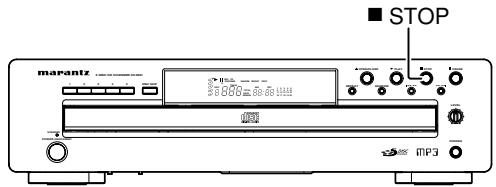
With Program mode, press ■ STOP button on the main unit or remote control unit to clear the programmed tracks one by one from the last track.
■ To Clear Chosen Track
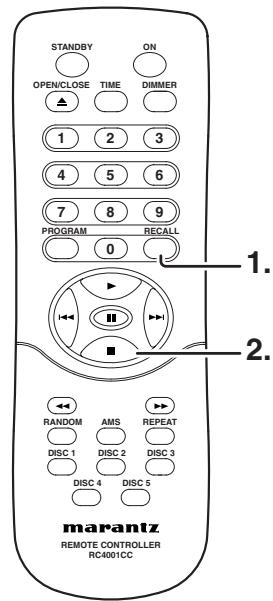
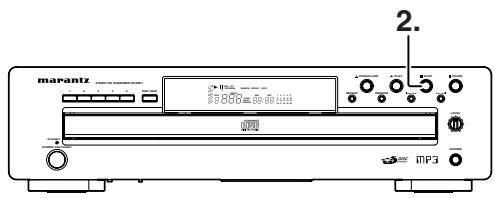
- With Program mode, press RECALL button on the main unit or remote control unit to switch to Check mode of the program. Display the track number (or disc number) to clear.
- With displaying the track number (or disc number) to clear, press ■ STOP button on the main unit or remote control unit to clear the chosen track number.
■ To Clear Whole Program
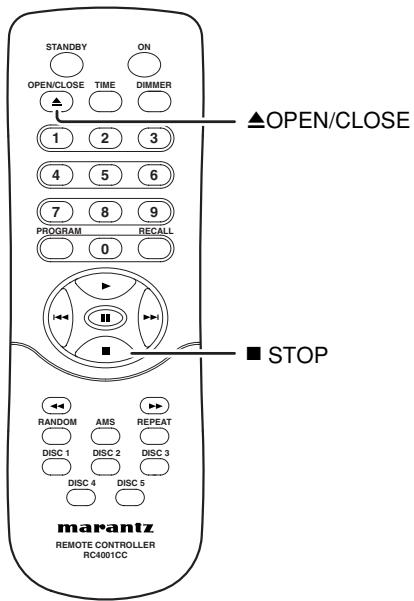
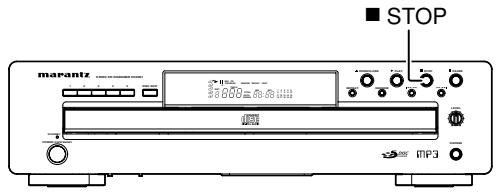
With Program mode, press ■ STOP button on the main unit or remote control unit for 4 seconds or more to clear the whole program. Or press ▲ OPEN/CLOSE button and open the disc tray to clear the whole program.
When the unit switches to standby or power off, the programs are all erased.
DISPLAY WINDOW BRIGHTNESS ADJUSTMENT
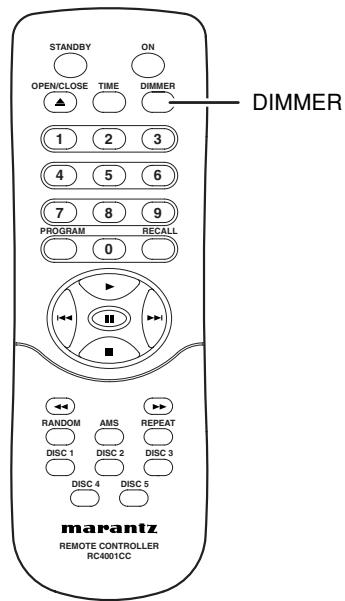
Each time DIMMER button on the remote control unit is pressed, the display window brightness changes as follows:

SWITCHING PLAYING TIME DISPLAY
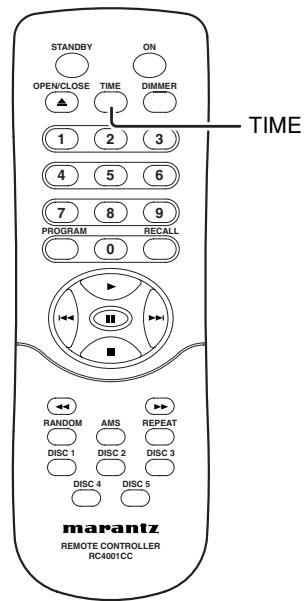
Each time TIME button on the remote control unit is pressed, the display of the playing time changes as follows:
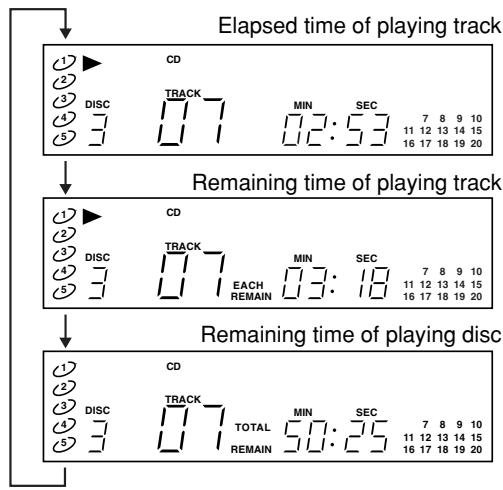
flowchart
graph TD
    A["Elapsed time of playing track"] --> B["Remaining time of playing track"]
    B --> C["Remaining time of playing disc"]
    C --> D["1: CD"]
    C --> E["2: DISC"]
    C --> F["3: TRACK"]
    C --> G["4: MIN"]
    C --> H["5: SEC"]
    C --> I["6: EACH"]
    C --> J["7: MIN"]
    C --> K["8: SEC"]
    C --> L["9: MIN"]
    C --> M["10: SEC"]
    C --> N["11: MIN"]
    C --> O["12: SEC"]
    C --> P["13: MIN"]
    C --> Q["14: SEC"]
    C --> R["15: SEC"]
    C --> S["16: SEC"]
    C --> T["17: SEC"]
    C --> U["18: SEC"]
    C --> V["19: SEC"]
    C --> W["20: SEC"]
- While playing MP3, the disc remaining time is displayed as “- - : - -”.
- With all disc random play disc remaining time displayed as “- - : - -”.
- When a program is set up using tracks from only currently selected disc the amount of time remaining in the program is displayed. (Except for MP3 discs)
When a program is setup with discs that are not selected, “-- : --” is displayed for the total program time.
- If the total playback time of the tracks programmed exceeds 99 minutes 59 seconds, “-- : --” is displayed for the remaining program time.
TROUBLE SHOOTING
If you think a malfunction has occurred, first check the points listed below. The problem is likely to have been caused by a simple operational error. If the problem cannot be corrected even after carrying out the following checks, consult your dealer or nearest Marantz sales office or service counter.
★ The disc fails to rotate.
- Is the AC Power cord plugged in properly?
- Is the POWER ON/STANDBY switch ON?
- Is the disc placed in the correct position?
- Is the disc placed properly with the label side facing up?
- Is the disc dirty?
- Is the disc scratched?
- Is the disc warped?
★ The disc is rotating but no sound is heard.
- Are the amplifier and speakers connected properly?
- Is the amplifier switch ON?
- Is the amplifier's function or selector switch set to "CD" or "AUX" or such (or whatever you have connected this unit to)?
- Is the amplifier's volume control set at the minimum level?
★ The disc stops in mid-operation. The sound drops out or noise is heard.
- Is the disc dirty?
- Is the disc scratched?
- Is the disc warped?
* In the case of a CD-R or CD-RW disc, this problem may occur when the conditions under which its data was originally written were substandard or when the quality of the disc itself is poor.
* This condition may occur in Mixed-Mode CDs, CD Extra, and other discs that have CDDA format mixed with other data.
Noise may also be heard momentarily when skipping tracks.
★ Remote control operation is not possible.
- Is the transmitter of the remote control unit (RC4001CC) pointed correctly at the remote sensor on the front of the player (this unit)? (See page 4)
Are there any obstacles between? - Are the batteries in the remote control unit exhausted?
- Is there another strong light striking the player's remote sensor?
- Is EXT./INT. switch on the unit back panel set in the correct place? (See page 7)
★ CD-R/CD-RW disc cannot be played. (See page 2)
- Is the disc placed upside down?
- Is the disc finalized correctly (TOC written)?
- Is the recorded information music format (CD-DA) or MP3 music data?
★ A specific CD cannot be played.
Copy control CDs (CDs with copy guard) are special discs that do not comply with current CD standards. Marantz cannot guarantee the ability to play such discs on your CD player.
When normal CDs can be played without a problem and problems occur only when playing these special discs, it is not a problem with this unit.
Please ask the seller of the copy control CD for detailed information regarding copy control CDs.
★ MP3 music data cannot be played.
There are some restrictions on the MP3 music data which can be played on this unit. For details, please refer to "PLAYING MP3 FILES" on page 2.
★ The unit makes a clicking sound when the tray closes.
This is the adhesion click of the clamper for securing the disc.
This does not cause any problem in using the unit.
★ While the disc is spinning, a spinning sound is heard or a slight vibration occurs.
Depending on the disc, a spinning sound may occur or the unit may vibrate slightly due to disc eccentricity or such. This is not a problem with this unit.
SPECIFICATIONS
| Audio Characteristics | |
| Analog output | |
| Channels | 2channels |
| Frequency range | 20Hz — 20kHz |
| Frequency characteristics | 20Hz — 20kHz ( ± 0.5 dB) |
| Dynamic range (1 kHz) | 100 dB or more |
| THD (1kHz) | 0.0020% |
| Separation | 110 dB or more |
| wow & flutter | Precision of quartz |
| Output level | |
| Unbalanced | 2.0V RMS STEREO |
| Digital output | |
| Output level (cinch JACK) | 0.5Vp-p (75 ) |
| Output level (optical) | -19dBm |
| Optical Readout System | |
| Laser | AlGaAs semiconductor |
| Wave length | 780nm |
| Signal format | |
| Sampling frequency | 44.1kHz |
Power Supply
Power supply....AC 120V 60Hz Power consumption....18W
Cabinet, etc.
Dimensions (Width ×Height × Depth) .....17-5/16 × 4-1/2 × 16 ins.(440 × 114 × 404mm) Net weight .....6.9kg
Accessories
- Remote control unit (RC4001CC) ....1
- AA Batteries....2
- AC Power cord ....1
- Audio cable....1
- Remote connection cable....1
- User's Guide....1
- Warranty Card (USA) ....1
- Warranty Card (CANADA)....1
Specifications subject to change without prior notice.
■ Dimensions
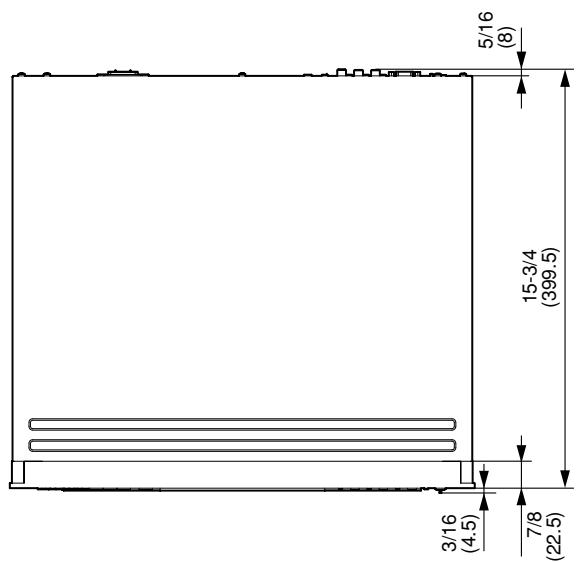
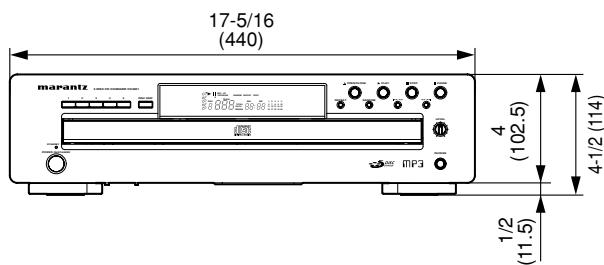
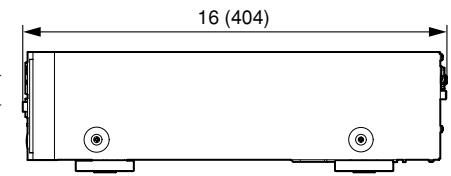
Unit : inch (mm)
www.marantz.com
You can find your nearest authorized distributor or dealer on our website.
marantz®
is a registered trademark.
- WARNING
- LASER SAFETY
- IMPORTANT SAFETY INSTRUCTIONS
- READ BEFORE OPERATING EQUIPMENT
- Additional Safety Information!
- NOTE:
- INTRODUCTION 2
- BEFORE USING....3
- NAMES AND FUNCTIONS ....5
- CONNECTIONS 10
- OPERATION....11
- TROUBLE SHOOTING ....19
- SPECIFICATIONS....20
- FOREWORD
- EQUIPMENT MAINS WORKING SETTING
- COPYRIGHT
- INTRODUCTION
- PRODUCT FEATURES
- APPLICABLE DISCS TO THE UNIT
- Audio CD (CDDA)
- CD-R
- CD-RW
- PLAYING CD-R/CD-RW DISCS
- PLAYING MP3 FILES
- NOTES:
- BEFORE USING
- NOTES FOR REMOVING SHIPPING SCREWS
- NOTES ABOUT THE DISCS
- INAPPROPRIATE PLACES FOR INSTALLATION
- ■ Cautions on handling power cord
- ■ Do not attempt repairs yourself
- PRECAUTIONS
- USING REMOTE CONTROL UNIT
- ■ Cautions on handling batteries
- LOADING BATTERIES
- ■ Remote control
- NAMES AND FUNCTIONS
- FRONT PANEL
- POWER ON/STANDBY button
- STANDBY indicator
- Disc tray
- Caution
- Remote sensor
- Display window
- 6
- (Track Skip/Search buttons)
- II PAUSE button
- ■ STOP button
- ▶ PLAY button
- ▲ OPEN/CLOSE button
- RANDOM button
- REPEAT button
- 1-5 (Disc Select button)
- DISC SKIP button
- PHONES (headphones) jack
- LEVEL (headphone volume) control
- DISPLAY WINDOW
- REAR PANEL
- Ⓐ EXT./INT. (External/Internal switch)
- ® RS-232C External Control Port
- © REMOTE CONTROL IN/OUT (input and output) connectors
- © ANALOG OUTPUT connectors
- ⑤ DIGITAL AUDIO OUT COAXIAL
- © DIGITAL AUDIO OUT OPTICAL
- © Flasher Input jack
- H AC Inlet
- REMOTE CONTROLLER
- ON button
- STANDBY button
- ▲ OPEN/CLOSE button
- PROGRAM button
- |◀◀, ▶▶| (Track Skip buttons)
- ◀◀, ▶▶ (Search buttons)
- RANDOM button
- DISC1-DISC5 (Disc Select button)
- REPEAT button
- AMS (Automatic Music Scan button)
- ■ STOP button
- II PAUSE button
- ▶ PLAY button
- RECALL button
- 0 -9 (Numerical buttons)
- TIME button
- DIMMER button
- REMOTE CONTROL CODE SETTING
- ■ Remote Control Unit Setting
- ■ CC4001 Setting
- Display Examples
- CONNECTIONS
- OPERATION
- CONNECTING THE POWER SUPPLY AND TURNING ON
- PAUSE PLAYBACK
- STOP PLAYBACK
- CHANGE DISCS WHILE PLAYING
- PLAYING YOUR FAVORITE TRACKS OF A DISC
- PLAYING YOUR FAVORITE PARTS OF A TRACK
- SEARCH YOUR FAVORITE TRACKS (AMS (AUTOMATIC MUSIC SCAN)PLAY)
- ■ All Track AMS Play
- ■ All Disc AMS Play
- - While stopped
- - While playing
- ■ Stop AMS Play
- PLAYING TRACKS IN A RANDOM SEQUENCE (RANDOM PLAY)
- ■ One Disc Random Play
- ■ All Disc Random Play
- ■ Stop Random Play
- REPEAT PLAY
- ■ One Track Repeat Play
- ■ One Disc Repeat Play
- ■ All Disc Repeat Play
- ■ Stop Repeat Play
- PLAYING TRACKS IN A SPECIFIC SEQUENCE (PROGRAM PLAY)
- BACK TO NORMAL PLAY WITHOUT CLEARING PROGRAM
- CHECK THE PROGRAM
- CHANGE PROGRAMMED TRACKS
- CLEAR PROGRAMMED TRACKS
- DISPLAY WINDOW BRIGHTNESS ADJUSTMENT
- SWITCHING PLAYING TIME DISPLAY
- TROUBLE SHOOTING
- ★ The disc fails to rotate.
- ★ The disc is rotating but no sound is heard.
- ★ The disc stops in mid-operation. The sound drops out or noise is heard.
- ★ Remote control operation is not possible.
- ★ CD-R/CD-RW disc cannot be played. (See page 2)
- ★ A specific CD cannot be played.
- ★ MP3 music data cannot be played.
- ★ The unit makes a clicking sound when the tray closes.
- ★ While the disc is spinning, a spinning sound is heard or a slight vibration occurs.
- SPECIFICATIONS
- Power Supply
- Cabinet, etc.
- Accessories
- www.marantz.com
Brand : MARANTZ
Model : CC4001
Category : CD player