
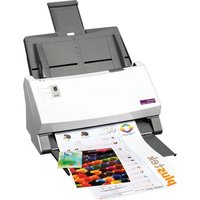
SecureScan X-Cube 1000 - Scanner PLUSTEK - Free user manual and instructions
Find the device manual for free SecureScan X-Cube 1000 PLUSTEK in PDF.


Pick your language and provide your email: we'll send you a specifically translated version.
| Product Type | Document scanner |
| Brand | PLUSTEK |
| Model | SecureScan X-Cube 1000 |
| Scan Type | Flatbed with automatic document feeder (ADF) |
| Optical Resolution | 1200 x 1200 dpi |
| Color Depth | 48-bit internal / 24-bit output |
| Scan Speed | Up to 10 ppm in monochrome / 5 ppm in color |
| Document Feeder Capacity | 20 sheets (75 g/m²) |
| Maximum Scan Size | A4 / Legal (215.9 x 355.6 mm) |
| Interface | USB 2.0 High-Speed |
| Supported Operating Systems | Windows 7, 8, 10; macOS 10.12 and later |
| Power Source | AC adapter (12V DC, 2A) included |
| Power Consumption | 15 W (operating), 5 W (standby) |
| Dimensions (W x D x H) | 290 mm x 120 mm x 80 mm |
| Weight | 1.4 kg |
| Cable Length | USB cable: 1.5 m; power cord: 1.8 m |
| Package Contents | Scanner, USB cable, AC adapter, software CD, quick start guide |
| Main Functions | Scan to PDF, JPG, OCR, email; ID card and passport scanning |
| Cleaning & Maintenance | Wipe glass and ADF rollers with a soft, dry cloth; do not use liquids |
| Safety Precautions | Do not immerse in water; unplug during cleaning; avoid direct sunlight |
| Spare Parts & Repairability | No user-serviceable parts; contact authorized service center for repairs |
| Warranty | 1 year limited hardware warranty |
Frequently Asked Questions - SecureScan X-Cube 1000 PLUSTEK
How do I set up my PLUSTEK SecureScan X-Cube 1000 scanner?
To set up your scanner, start by removing all packing materials. Connect the scanner to your computer using the USB cable, then plug in the AC adapter. Install the drivers from the included software CD or download the latest drivers from the Plustek website. Follow the on-screen instructions, and your scanner will be ready for use.
How do I scan a document to PDF?
Use the bundled Plustek ScanManager software. Select 'Scan to PDF' from the function menu, choose your desired resolution and color mode, then click Scan. You can also scan directly from compatible applications using the Twain driver.
What should I do if the scanner is not detected by my computer?
Check that the USB cable is securely connected to both the scanner and the computer. Try a different USB port. Ensure the power adapter is plugged in and the scanner is powered on. Reinstall the driver or restart your computer. If the issue persists, test on another computer to isolate the problem.
How do I clean the scanner glass?
Turn off the scanner and unplug it. Use a soft, lint-free cloth slightly dampened with water or a gentle glass cleaner. Wipe the glass and the ADF rollers gently. Do not use abrasive materials or spray directly onto the glass. Allow the scanner to dry completely before use.
Can I use the SecureScan X-Cube 1000 with macOS?
Yes, the scanner supports macOS 10.12 or later. Install the macOS driver from the included CD or download it from the Plustek website. Most functions, including scan to PDF and OCR, are available in the Plustek software for Mac.
How do I troubleshoot paper jams in the automatic document feeder (ADF)?
First, gently pull out any stuck paper. If you cannot reach it, open the ADF cover (as shown in the manual) and remove the paper carefully. Check for torn pieces and clear them. Ensure the paper stack is not over the maximum capacity and that the paper guides are snug against the edges.
What is the maximum scan resolution?
The optical resolution is 1200 x 1200 dpi. You can also use interpolated resolutions up to 19200 dpi for finer detail. For most documents, 300 dpi is sufficient, while 600 dpi gives better quality for photos and small text.
How do I scan an ID card securely with this model?
Place the ID card on the flatbed glass, aligned in the corner guide. Use the ID Card mode in the ScanManager software to automatically capture both sides in one pass if you have the duplex ADF model. For extra security, enable the SecureScan feature that encrypts the scanned data before saving.
Is this scanner portable?
The SecureScan X-Cube 1000 is a compact desktop scanner weighing just 1.4 kg. It has a small footprint, so it can be easily moved between workstations, but it does require a USB connection and power adapter, so it is not fully battery-operable for travel.
What software is included with the scanner?
The scanner comes with Plustek ScanManager (for scanning and OCR), Plustek DI Express (for document management), and a Twain driver for third-party apps. These tools let you scan to PDF, JPG, TIFF, and perform OCR in many languages.
User questions about SecureScan X-Cube 1000 PLUSTEK
0 question about this device. Answer the ones you know or ask your own.
Ask a new question about this device
No questions yet. Be the first to ask one.
Download the instructions for your Scanner in PDF format for free! Find your manual SecureScan X-Cube 1000 - PLUSTEK and take your electronic device back in hand. On this page are published all the documents necessary for the use of your device. SecureScan X-Cube 1000 by PLUSTEK.
USER MANUAL SecureScan X-Cube 1000 PLUSTEK


Manual assistant
Powered by Anthropic
Waiting for your message
Product information
Brand : PLUSTEK
Model : SecureScan X-Cube 1000
Category : Scanner