
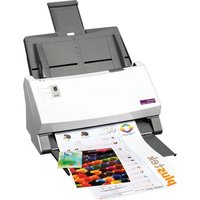
BookReader V100 - Scanner PLUSTEK - Free user manual and instructions
Find the device manual for free BookReader V100 PLUSTEK in PDF.


| Product Type | Book Scanner |
| Brand | Plustek |
| Model | BookReader V100 |
| Sensor Type | CMOS |
| Maximum Scan Size | A3 (297 x 420 mm) |
| Maximum Optical Resolution | 300 dpi |
| Scan Speed | Less than 2 seconds per page |
| Light Source | LED |
| Interface | USB 2.0 |
| Operating Systems Supported | Windows XP/Vista/7/8/10 |
| Dimensions (W x D x H) | 460 x 350 x 400 mm |
| Weight | 5.5 kg |
| Power Supply | DC 12V, 2A adapter |
| Power Consumption | 20W (max) |
| Main Functions | Non-contact book scanning, auto page detection, image correction |
| Included Software | Plustek BookReader software with OCR and image enhancement |
| Cradle Design | 120-degree angled cradle for bound documents |
| Safety Features | LED light source with no UV or IR radiation |
| Maintenance | Clean the cradle and glass with a soft dry cloth |
| Spare Parts and Reparability | Optional foot pedal and cradle pads available |
| Warranty | One year limited warranty |
Frequently Asked Questions - BookReader V100 PLUSTEK
User questions about BookReader V100 PLUSTEK
0 question about this device. Answer the ones you know or ask your own.
Ask a new question about this device
Download the instructions for your Scanner in PDF format for free! Find your manual BookReader V100 - PLUSTEK and take your electronic device back in hand. On this page are published all the documents necessary for the use of your device. BookReader V100 by PLUSTEK.
USER MANUAL BookReader V100 PLUSTEK
Plustek BookReader V100
Quick Guide
Trademarks
© 2007 Plustek Inc. All rights are reserved. No portion of this document may be reproduced without permission. All trademarks and brand names mentioned in this publication are property of their respective owners.
Liability
While all efforts have been made to ensure the accuracy of all contents in this manual, we assume no liability for errors, omissions or statements of any kind in this manual, whether such errors are omissions or statements resulting from negligence, accidents, or any other cause. The contents of this manual are subject to change without notice.
Copyright
The scanning of certain documents, for example checks, bank notes, I.D. cards, government bonds, or public documents, may be prohibited by law and/or subject to criminal prosecution. We recommend you to be responsible and respectful of copyright laws when you are scanning books, magazines, journals and other materials.
Environmental Information
This product is designed and produced to achieve sustainable environmental improvement. We strive to produce products in compliance with global environmental standards. Please consult your local authorities for proper disposal. The product packaging is recyclable.
Screen Examples in This Manual
The screen shots in this guide were made with Windows XP. If you are using Windows 2000, your screen will look somewhat different but the functions are the same.
What is in the Package Box?
- BookReader.
- USB cable.
- Power Adapter.
-
Quick Guide.
-
CD Box: one application CD-ROM and one audio user CD-ROM.

Before connecting the BookReader to your computer, please make sure to unlock your BookReader first.
How to unlock your BookReader?
Simply pull back the lock head on the bottom of the BookReader, and make sure to always place the BookReader on a firm and flat surface.

How to connecting the BookReader to your computer?
-
Plug the power adapter into the BookReader's power receptor.
-
Plug the other end of the power adapter into a standard AC power outlet.
-
Plug the square end of the included USB cable into the USB port at the rear of the BookReader.
-
Plug the rectangular end of the USB cable to an available USB port on the back of your computer.
-
If you plan to connect your BookReader to a USB hub, make sure that the hub is connected to the USB port in your computer. Next, connect the BookReader to the USB hub.

How to install Plustek BookReader software?
-
Switch the BookReader power on.
-
Insert the BookReader CD ROM into your CD ROM drive.
-
The CD ROM will then install itself automatically.
-
When the installation has been completed it will deliver the following audio message "the installation has completed, the system will restart".
-
It will then restart your computer and the installation will be completed.

Plustek BookReader Button Instructions
Plustek BookReader has three Braille buttons on it, and each of the buttons has been designed for a different purpose.
Braille a button: is designed to scan documents into text format, it shows text only on the screen. The scanned documents can be saved in TXT file. This button is suitable for scanning single page documents or letters.
Braille b button: is designed to scan documents into a PDF image file, and the scanned result on the screen shows the image and text all together. The scanned documents can only be saved in PDF file format. This button's scan result will display the original format of the scanned page.
Braille c button: is designed to scan documents into PDF format. The screen only shows the PDF text on the screen. This button is suitable for scanning multiple page projects.
The rest of the buttons on the panel are for future function purposes and currently have no functionality.

How to use Plustek BookReader?
-
Open the BookReader's lid and place a book on the scanning glass with the top of the page facing towards the BookReaders button panel.
-
Then gently close the lid.
-
Press a button for the function you want on the BookReader; it will start to scan the page. As it scans it will then read out the text.
-
Please do not press the button again while the current page is being scanned.

Hot Keys for Plustek BookReader
F1 for Play, Pause and Resume function.
F2 for Zoom Text function.
F3 for Zoom Out function.
F4 for Zoom Original function.
F5 for Zoom In function.
F6 for changing background and characters color.
F7 for switching background and characters color.
F8 for Magnify function.
F9 for Slower reading speed function.
F10 for Faster reading speed function.
F11 for Smaller font function.
F12 for Larger font function.
Ctrl key and left arrow for Backward function.
Ctrl key and right arrow for Forward function.
Ctrl key and up arrow for Volume Up function.
Ctrl key and down arrow for Volume Down function.
Esc key for Restart reading the whole page.
Ctrl key and 1 for Repeat Word.
Ctrl key and 2 for Repeat Sentence.
Ctrl key and 3 for Repeat Page.
Ctrl key and 4 for Repeat File.
To use the tool bar, please follow the instructions below: (Microsoft Office System standard operation)
Alt key and F to open the File menu.
Alt key and E to open the Edit menu.
Alt key and S to open the Speech menu.
Alt key and T to open the Format menu.
Alt key and V to open the View menu.
Alt key and W to open the Window menu.
Alt key and H to open the Help menu.
Important Note
- The Plustek BookReader has an “auto bookmark function”. When you open an old file, it will start to read from the paragraph where you stopped reading last time.
- Make sure your screen reader has been turned off before you use the Plustek BookReader
- Before using the Plustek BookReader, please allow the tab under the Book Reader to move freely; simply pull the lock head back into its unlocked position.
- Please always make sure that BookReader is placed on a firm and smooth surface whenever it is in use.
- Please remember to not press the button while a page is currently being scanned.
- For updates on the BookReader software, simply click on the HELP icon and follow the instructions to download the latest software for Plustek BookReader. It is necessary to have an Internet connection active for you to download the software.
- In order for the Magnifier function to work properly under Windows Vista, users need to follow the below instructions:
Right click the mouse on the screen and choose "personalize."
Choose "Window Color and Appearance."
Choose classic appearance properties for more color options
Choose "Windows Vista Basic."
Then apply the setting.
Online Registration
Plustek suggests you register your information directly on our website.
We will then be able to keep you updated with the BookReaders latest software. We also want to share with you the latest news in our developments of the product.
Please visit Plustek BookReader web site at: www.mybookreader.com

- PLUSTEK BOOKREADER V
- QUICK GUIDE
- TRADEMARKS
- LIABILITY
- COPYRIGHT
- ENVIRONMENTAL INFORMATION
- SCREEN EXAMPLES IN THIS MANUAL
- WHAT IS IN THE PACKAGE BOX
- HOW TO CONNECTING THE BOOKREADER TO YOUR COMPUTER
- HOW TO INSTALL PLUSTEK BOOKREADER SOFTWARE
- PLUSTEK BOOKREADER BUTTON INSTRUCTIONS
- HOW TO USE PLUSTEK BOOKREADER
- HOT KEYS FOR PLUSTEK BOOKREADER
- IMPORTANT NOTE
- ONLINE REGISTRATION
Brand : PLUSTEK
Model : BookReader V100
Category : Scanner