
Vaio VGC-JS320J - Desktop computer SONY - Free user manual and instructions
Find the device manual for free Vaio VGC-JS320J SONY in PDF.


Pick your language and provide your email: we'll send you a specifically translated version.
| Product Type | All-in-One Desktop Computer |
| Brand | Sony |
| Model | VAIO VGC-JS320J |
| Display Size | 20 inches widescreen |
| Processor | Intel Core 2 Duo |
| Memory | 4 GB DDR2 SDRAM |
| Storage | 500 GB SATA Hard Disk Drive |
| Optical Drive | DVD SuperMulti Drive |
| Operating System | Windows 7 Home Premium |
| Connectivity | Wi-Fi 802.11 b/g/n, Bluetooth, Gigabit Ethernet |
| Ports | USB 2.0, HDMI, VGA, headphone and microphone jacks |
| Dimensions (W x H x D) | Approx. 500 x 400 x 200 mm |
| Weight | Approx. 8 kg |
| Power Supply | 19.5 V DC, 90 W AC adapter |
| Main Functions | Media playback, internet browsing, office applications |
| Cleaning and Maintenance | Wipe with a soft dry cloth; keep ventilation slots clear |
| Safety | Connect to grounded outlet; unplug before cleaning |
| Repairability | Accessible RAM and hard drive; spare parts available online |
Frequently Asked Questions - Vaio VGC-JS320J SONY
How do I connect the VAIO VGC-JS320J to a wireless network?
Open the VAIO Smart Network utility or the Windows Wi-Fi settings, select your network, and enter the password.
Can I upgrade the memory on this desktop computer?
Yes, the VGC-JS320J supports up to 4 GB of DDR2 SODIMM memory. Access the compartment on the bottom panel.
How do I restore the system to factory settings?
Restart the computer and press F10 during boot to launch the VAIO Recovery Center, then follow the on-screen instructions.
What is the best way to clean the touch screen?
Use a microfiber cloth slightly dampened with water. Avoid ammonia-based cleaners and never spray liquid directly on the screen.
Can I replace the hard drive myself?
Yes, the unit uses a standard 2.5-inch SATA drive. Remove the back cover to access the drive bay.
Why is my external monitor not being detected?
Press Fn + F7 to cycle through display output modes. Make sure the monitor is connected to the HDMI or VGA port.
How can I test the hardware for problems?
Use VAIO Care to run diagnostic tests on the CPU, memory, hard drive, and other components.
Does this model support Bluetooth?
Yes, it has built-in Bluetooth 2.1 + EDR wireless technology for connecting mice, keyboards, and headsets.
How do I update the drivers on my VAIO?
Run VAIO Update to download the latest drivers and software, or visit the official Sony support website.
What should I do if the computer is running slowly?
Free up disk space with Disk Cleanup, uninstall unused programs, and check the system for malware using Windows Defender.
User questions about Vaio VGC-JS320J SONY
0 question about this device. Answer the ones you know or ask your own.
Ask a new question about this device
No questions yet. Be the first to ask one.
Download the instructions for your Desktop computer in PDF format for free! Find your manual Vaio VGC-JS320J - SONY and take your electronic device back in hand. On this page are published all the documents necessary for the use of your device. Vaio VGC-JS320J by SONY.
USER MANUAL Vaio VGC-JS320J SONY
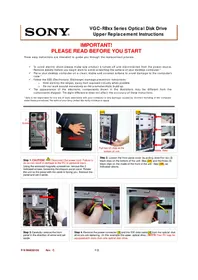
Manual assistant
Powered by Anthropic
Waiting for your message
Product information
Brand : SONY
Model : Vaio VGC-JS320J
Category : Desktop computer