
LH840-M22 - Television FUNAI - Free user manual and instructions
Find the device manual for free LH840-M22 FUNAI in PDF.
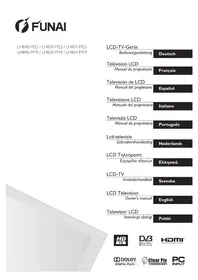


Pick your language and provide your email: we'll send you a specifically translated version.
| Product Type | LED Television |
| Screen Size | 32 inches |
| Display Resolution | Full HD (1920 x 1080) |
| Refresh Rate | 60 Hz |
| Aspect Ratio | 16:9 |
| Built-in Tuner | DVB-T2 / DVB-C |
| HDMI Ports | 2 x HDMI 1.4 |
| USB Ports | 1 x USB 2.0 |
| Composite AV Input | 1 (via 3.5mm adapter) |
| Headphone Output | 1 x 3.5mm jack |
| Power Supply | 100-240V AC, 50/60Hz |
| Power Consumption (typical) | 45W |
| Standby Power Consumption | <0.5W |
| Energy Efficiency Class | A+ |
| Dimensions (W x H x D) without Stand | 732 x 436 x 76 mm |
| Dimensions (W x H x D) with Stand | 732 x 475 x 180 mm |
| Weight without Stand | 5.2 kg |
| Weight with Stand | 5.5 kg |
| VESA Wall Mount Pattern | 200 x 200 mm |
| Audio Output Power | 2 x 8W |
| Supported Media Files | MPEG, AVI, MKV, JPEG, MP3 (via USB) |
| Remote Control | Included (batteries not included) |
| Cleaning and Maintenance | Use a soft, dry cloth; avoid chemical cleaners |
| Safety Warnings | Ensure proper ventilation; do not block ventilation holes |
| Repairability | Spare parts and service available from authorized FUNAI service centers |
Frequently Asked Questions - LH840-M22 FUNAI
How do I connect my FUNAI LH840-M22 TV to an external antenna?
Connect the coaxial cable from your antenna to the RF IN port on the back of the TV. Then go to Channel Setup or Auto Tuning in the menu to scan for available channels.
Can I play media files from a USB drive?
Yes, insert a USB drive into the USB port and press Media on the remote. The TV supports AVI, MKV, MPEG, JPEG, and MP3 formats.
How do I mount the TV on a wall?
The TV is compatible with a VESA 200 x 200 wall mount. Use appropriate screws and follow the instructions in the wall mount kit. Ensure the wall can support the TV's weight.
What should I do if there is no picture but sound is present?
Check if the input source is correctly selected. Press Source on the remote and cycle through HDMI1, HDMI2, AV, and TV modes. If the problem persists, perform a factory reset.
How do I reset the TV to factory settings?
Press Menu, go to Setup, select Factory Reset or System Recovery, and enter the PIN (default 0000) to confirm. This restores default picture and channel settings.
How can I improve the picture quality?
Press Picture on the remote to access presets like Dynamic, Standard, and Cinema. Adjust brightness, contrast, and sharpness manually for optimal viewing.
Is the FUNAI LH840-M22 energy efficient?
Yes, the TV is rated A+ on the European energy efficiency scale. Typical power consumption is 45W, with a standby consumption of less than 0.5W.
Can I connect headphones for private listening?
Plug headphones into the 3.5mm headphone jack on the side of the TV. The internal speakers will be muted automatically when headphones are connected.
How do I clean the TV screen safely?
Turn off the TV and wait for it to cool. Use a soft, dry microfibre cloth to gently wipe the screen. Do not use solvents or abrasive cleaners.
What should I do if the remote control stops working?
First, replace the AAA batteries in the remote. Check if the IR sensor on the TV is unobstructed. If it still fails, use the joystick control on the TV as a temporary alternative.
User questions about LH840-M22 FUNAI
0 question about this device. Answer the ones you know or ask your own.
Ask a new question about this device
No questions yet. Be the first to ask one.
Download the instructions for your Television in PDF format for free! Find your manual LH840-M22 - FUNAI and take your electronic device back in hand. On this page are published all the documents necessary for the use of your device. LH840-M22 by FUNAI.
USER MANUAL LH840-M22 FUNAI

Manual assistant
Powered by Anthropic
Waiting for your message
Product information
Brand : FUNAI
Model : LH840-M22
Category : Television