
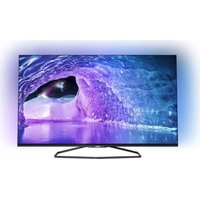
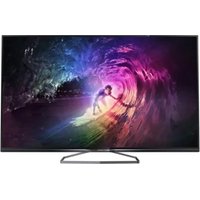
47PFS7509 - Television PHILIPS - Free user manual and instructions
Find the device manual for free 47PFS7509 PHILIPS in PDF.


Pick your language and provide your email: we'll send you a specifically translated version.
| Product type | Television |
| Brand | Philips |
| Model | 47PFS7509 |
| Screen size | 47 inches (118 cm) |
| Display resolution | 1920 x 1080 pixels (Full HD) |
| Display technology | LED (Direct-lit) |
| Aspect ratio | 16:9 |
| Refresh rate | 100 Hz PMR |
| Smart TV | Yes, with Smart TV platform and apps |
| Tuner | DVB-T/T2, DVB-C, DVB-S/S2 |
| Connectivity | 3x HDMI, 2x USB, Ethernet LAN, Wi-Fi, Digital Audio Out, CI+ slot |
| Sound output | 2 x 8 W, Dolby Digital enhancement |
| Power supply | 220-240 V, 50/60 Hz |
| Power consumption (typical) | 65 W |
| Standby power consumption | < 0.3 W |
| Dimensions (without stand) | 1053 x 624 x 48 mm |
| Dimensions (with stand) | 1053 x 681 x 237 mm |
| Weight (without stand) | 12.2 kg |
| Weight (with stand) | 13.8 kg |
| Care and cleaning | Clean the screen with a soft dry cloth; avoid direct sunlight and moisture |
| Safety features | Automatic shutdown, child lock, VESA wall-mount support |
| Spare parts and repairability | Remote control and stand available as accessories; professional repair service recommended |
Frequently Asked Questions - 47PFS7509 PHILIPS
How to connect the TV to Wi-Fi?
Go to Home > Settings > Wireless and Networks, then select your Wi-Fi network and enter the password. The TV supports 802.11 b/g/n.
How to update the TV firmware?
Connect the TV to the internet, then go to Settings > System > System Update and select Check for updates. Alternatively, download the update file from the Philips website and install via USB.
How to reset the TV to factory settings?
Press Home, go to Settings > System > Factory Reset and confirm. This will erase all personal settings and return the TV to its original state.
How to connect external devices via HDMI?
Plug the device into an available HDMI port on the TV, then select the corresponding HDMI source using the Source button on the remote. Ensure the device is powered on.
How to use the Smart TV apps?
Press the Smart TV button on the remote to open the home portal. Browse and select apps like Netflix, YouTube, or others. You may need to sign in with your account.
How to adjust the picture settings for the best quality?
Go to Home > Settings > Picture. Choose a preset mode like Personal and adjust brightness, contrast, colour, and sharpness. For cinema, use Movie mode.
How to improve the sound quality?
Use the Sound menu to select a preset equalizer. For dialogue enhancement, enable Clear Sound. You can also connect an audio system via HDMI ARC or optical out.
How to fix "No signal" on HDMI input?
Check that the external device is switched on and properly connected. Press Source and verify the correct HDMI port is selected. Try another HDMI cable or port.
How to clean the TV screen safely?
Power off the TV, then wipe the screen gently with a soft dry cloth. Do not use any chemicals, water, or abrasive materials.
How to wall-mount the TV?
This TV supports VESA 200 x 200 mm mounts. Use a certified wall bracket, screw into the reinforced holes, and follow the bracket instructions. Ensure the wall can support the TV's weight.
User questions about 47PFS7509 PHILIPS
0 question about this device. Answer the ones you know or ask your own.
Ask a new question about this device
No questions yet. Be the first to ask one.
Download the instructions for your Television in PDF format for free! Find your manual 47PFS7509 - PHILIPS and take your electronic device back in hand. On this page are published all the documents necessary for the use of your device. 47PFS7509 by PHILIPS.
USER MANUAL 47PFS7509 PHILIPS

Manual assistant
Powered by Anthropic
Waiting for your message
Product information
Brand : PHILIPS
Model : 47PFS7509
Category : Television