
C711WT - Thermal Transfer Printer OKI - Free user manual and instructions
Find the device manual for free C711WT OKI in PDF.


| Product Type | Thermal Transfer Printer |
| Brand | OKI |
| Model | C711WT |
| Network Interface | 100BASE-TX / 10BASE-T, RJ-45 connector |
| Supported Network Protocols | TCP/IP (IPv4, IPv6), IPX/SPX (NetWare), NetBEUI, EtherTalk, Bonjour, SLP, DNS, DHCP, BOOTP, FTP, TELNET, HTTP, IPP, SNMP, SMTP, POP3, SSL/TLS, IPSec, IEEE 802.1x |
| Configuration Utilities | Quick Setup, AdminManager, Web browser, Telnet, SNMP, PrintSuperVision |
| Compatible Operating Systems | Windows (2000, XP, Vista 32/64, 7, Server 2003/2008), Mac OS X (10.3.9 and later) |
| Main Functions | Network printing, browser configuration, email notification (SMTP/POP3), queue management, LPR/FTP printing, SSL/TLS support for encryption |
| Frame Types | IEEE 802.2, IEEE 802.3, Ethernet-II, SNAP |
| Security Management | IEEE 802.1x authentication (EAP-TLS, PEAP), IP filtering, administrator password, self-signed or CA-signed SSL/TLS certificates |
| Printing Protocol | LPR, FTP, IPP, RAW (Port 9100), NetBEUI, NetWare (RPRINTER/PSERVER) |
| Detection and Diagnostics | Self-diagnostic, network configuration page, print test, PING, network link LED |
| Maintenance and Cleaning | Refer to the user guide for maintenance and cleaning procedures of the printer. The network guide does not detail these operations. |
| Spare Parts and Repairability | Contact OKI technical support or visit www.okiprintingsolutions.com for spare parts and repair information. |
Frequently Asked Questions - C711WT OKI
User questions about C711WT OKI
0 question about this device. Answer the ones you know or ask your own.
Ask a new question about this device
Download the instructions for your Thermal Transfer Printer in PDF format for free! Find your manual C711WT - OKI and take your electronic device back in hand. On this page are published all the documents necessary for the use of your device. C711WT by OKI.
USER MANUAL C711WT OKI
Every effort has been made to ensure that the information in this document is complete, accurate, and up-to-date. The manufacturer assumes no responsibility for the results of errors beyond its control. The manufacturer also cannot guarantee that changes in software and equipment made by other manufacturers and referred to in this guide will not affect the applicability of the information in it. Mention of software products manufactured by other companies does not necessarily constitute endorsement by the manufacturer.
While all reasonable efforts have been made to make this document as accurate and helpful as possible, we make no warranty of any kind, expressed or implied, as to the accuracy or completeness of the information contained herein.
The most up-to-date drivers and manuals are available from:
http://www.okiprintingsolutions.com
45360402EE Rev1; Copyright © 2012 Oki Europe Ltd. All rights reserved.
OKI is a registered trademark of Oki Electric Industry Co., Ltd.
Oki Printing Solutions is a registered trademark of Oki Data Corporation.
Microsoft, MS-DOS and Windows are registered trademarks of Microsoft Corporation.
Apple, Macintosh, Mac and Mac OS are registered trademarks of Apple Inc.
Other product names and brand names are registered trademarks or trademarks of their proprietors.
CONTENTS
Preface 2
Contents 3
Notes,cautions and warnings. 5
Network configuration 6
Introduction 6
Specification 7
Configuration settings 7
Configuration utilities. 8
Using Quick Setup. 8
UsingAdminManager 9
Installation 9
Interface 11
Device setup. 12
IP address setup 24
Option menu. 25
Help menu 25
Using a web browser 26
Microsoft internet explorer 26
Default user name and password 26
Adjusting printer settings 26
Using TELNET 27
Example TELNET configuration 27
Using SNMP 29
Management utility - PrintSuperVision 29
Printing utility - Oki LPR 29
System requirements. 29
Installing the Oki LPR utility 30
Uninstallation 30
Printing from windows 31
Overview 31
Installing a network printer 31
Using the Oki Driver Installer 31
Using the Add Printer Wizard 32
Network printer IP address configuration 33
NetBEUI protocol. 34
Network printer settings. 34
Windows XP 35
Windows Vista/Windows 7 35
Printer driver configuration 35
Mac OS X 36
Overview 36
Setting up a network printer. 36
Printer setup utility 36
Installing the printer setup utility 36
The printer setup utility interface 37
Menu options 38
Connecting to your printer 43
Lion (10.7), Snow Leopard (10.6) and Leopard (10.5). 43
Tiger (10.4) 44
Panther (10.3) 45
IP connection 46
Configuring printer hardware options. 47
Printing the configuration page 47
Troubleshooting 48
TCP/IP .48
Computer cannot find the network interface card 48
Cannot print with lpr and ftp. 48
Incorrect user name on the banner page 48
NetBEUI 49
The network interface card is not identified 49
Error writing to Prn1 49
Web browser 50
Microsoft internet explorer 50
Mozillafirefox 50
Oki contact details. 51
NOTE
A note provides additional information to supplement the main text.
CAUTION!
A caution provides additional information which, if ignored, may result in equipment malfunction or damage.
WARNING!
A warning provides additional information which, if ignored, may result in a risk of personal injury.
Your machine incorporates a fast 100BASE-TX/10BASE-T network interface. This guide explains the functionality of the built in network interface. Access for interconnection is provided via an interface panel at the rear of the machine.
This network interface supports IEEE802.2, IEEE802.3, Ethernet-II and SNAP, and can detect those frame types automatically.
Also, the interface supports major protocols such as TCP/IP, IPX/SPX (NetWare) and NetBEUI.
This guide details the network interface specification and several software utilities.
You should set the emulation in the printer menu settings to Auto or PS before printing the configuration map.
NOTE
Not all utilities, features or protocols are supported by every operating system. Please check with your support website for latest information.
SPECIFICATION
| Frame Types | IEEE 802.2 IEEE 802.3 Ethernet-II, SNAP, AUTO |
| Network Interface | 100BASE-TX 10BASE-T |
| Network Protocols | TCP/IP V4, V6 IEEE 802.1x Network layer: ARP, IP, ICMP Session layer: TCP, UDP Application layer:LPR, FTP, TELNET, HTTP, IPP, BOOTP, DHCP, SNMP, DNS, SMTP, POP3, SLP, Bonjour IPX/SPX (NetWare) Remote printer mode (up to eight file servers and 32 queues) Print server mode over IPX/SPX (up to eight print servers) Encrypted password supported in print server mode EtherTalk NetBEUI NetBIOS, WINS SSL/TLS IPSec |
| Functions | Self-diagnostic test printing Banner supported Monitoring and configuration by Web browser Printer status notification by E-Mail |
CONFIGURATION SETTINGS
With the machine power switched on, print out the configuration map:
- Press the Enter button.
- Press the Menu down button then the Enter button to select the Print Information menu.
- Select Configuration with the Enter button.
- Press the Enter button once more to execute the Configuration menu.
- When the Configuration map is printed, press On Line to exit the menu system. On the first page of the Network Information that is printed out, under the heading "General Information" the MAC Address is given. For example:
MAC ADDRESS 01234584E3F1
The Ethernet address is therefore: 01:23:45:84:E3:F1
CONFIGURATION UTILITIES
You can configure the network interface (NIC) by using one of the following methods:
| UTILITY | FEATURES | SYSTEM REQUIREMENTS |
| Quick Setup | Configure the NIC easily and simply without installing any software packages into your system. You can set the following:Enable/disable TCP/IP, NetWare, EtherTalk, NetBEUI protocols.Set IP address, Subnet Mask and Gateway for TCP/IP manually or by using DHCP.Set NetWare Mode and create Queue/Print Server/Printer objects.Zone name and Port name for EtherTalk. | Windows:Windows 2000Windows XP Home/ProfessionalWindows XP Professional x64 EditionWindows Server 2003Windows Server 2003 x64 EditionWindows Server 2008Windows Server 2008 x64 EditionWindows Vista 32-bitWindows Vista 64-bit(TCP/IP protocol or IPX/SPX protocol should be installed)Mac:Mac OS X 10.3.9 or greater |
| Admin Manager | Configure the NIC in detail. | |
| Web Browser | Configure the NIC and printer by using a Web browser such as Microsoft Internet Explorer or Mozilla Firefox. | Microsoft Internet Explorer or similar.Operating system that supports Web browser. |
| Telnet | Configure the NIC using TELNET. | Third-party vendor developed TELNET client package. |
| SNMP | The machine and network card can be controlled using third-party vendor developed SNMP application. | Third-party vendor developed SNMP application. |
USING QUICK SETUP
Quick Setup utility allows you to configure the network interface easily and simply without installing any software packages.
You can configure the following:
Enable/disable TCP/IP, NetWare, EtherTalk, NetBEUI protocols.
Set IP address, Subnet Mask and Gateway for TCP/IP manually or by using DHCP.
Set NetWare mode and create Queue/Print Server/Printer objects.
Zone name and Port name for EtherTalk.
Configuration requires a PC with a supported Windows operating system (see above), running TCP/IP or IPX/SPX (NetWare).
This utility can only be used on a PC that can be connected to the network with TCP/IP or IPX/SPX.
This utility must be used on a PC that is located on the same segment as the printer.
- Insert the CD-ROM into the CD-ROM drive. The Setup Utility starts automatically. If it does not start, double-click \setup.exe (in the root directory) on the CD-ROM.
- Select the appropriate language.
- Accept the Software License Agreement if you have not previously accepted it.
-
Navigate to and select Network Software.
-
Select Install Network Card Setup Utility link.
- Select your language.
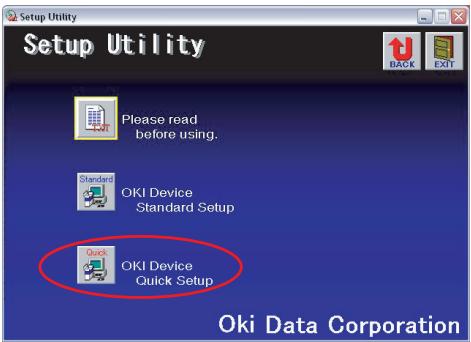
- Select Oki Device Quick Setup and follow the on-screen instructions.
- When the settings are correct, click Execute. The new settings are transmitted to the network card but it still operates with pre-transmission settings.
- Click Finish to validate the new settings.
- Switch the printer off for 15 seconds and on again.
USING ADMINMANAGER
NOTE
Not all utilities, features or protocols are supported by every operating system. Please check with your support website for latest information.
AdminManager is a powerful Microsoft Windows-based utility to configure all network interface functions easily and intuitively via a graphical user interface.
Configuration requires a PC with a supported Windows operating system (see page 8), running TCP/IP or IPX/SPX (NetWare).
This utility can only be used on a PC that can be connected to the network with TCP/IP or IPX/SPX and must be used on a PC that is located on the same segment as the printer.
INSTALLATION
- Insert the CD-ROM into the CD-ROM drive. The Setup Utility starts automatically. If it does not start, double-click \setup.exe (in the root directory) on the CD-ROM.
- Select the appropriate language.
- Navigate to and select Network Software.
- Select Install Network Card Setup Utility link.
- Select your language.
6. Select Oki Device Standard Setup.
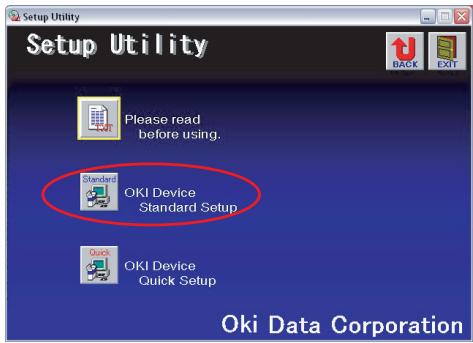
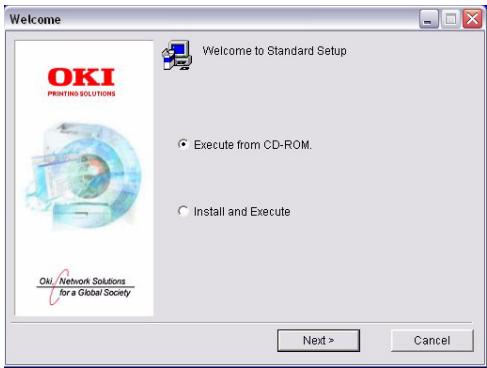
- If you want to install AdminManager on to your local drive, select Install and Execute. Otherwise, select Execute from CD-ROM. Follow the on-screen instructions.
- To run AdminManager, check Yes for Do you wish to execute AdminManager? and click Finish. Otherwise check No and click Finish.
INTERFACE
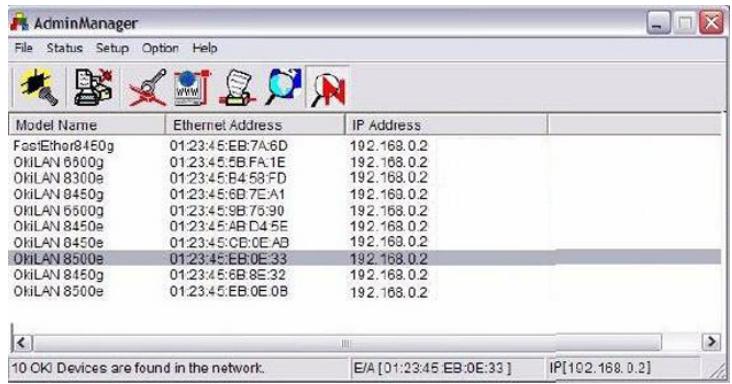
Select Start > Programs> Oki Setup Utility > Admin Manager.
| MENU | ITEM | FUNCTION |
| File | Search | Search printers in your network and list all printers. |
| Status | System Status | Displays current NIC configuration. Configuration data can be saved as log file. |
| 11:28:00 ONLAN 6300e CPU Firmware Version : D1.01 PU Firmware Version : 00.00.55 Network Firmware Version : 04.50 Worst Remote Version : V44.01 TCP/IP Status IP Version : IPv4 IP Address : 169.254.74.240(AUTO) Submit Mask : 255.255.00 Default Gateway : 0.0.0.0 DNS Server(Pri) : 0.0.0.0 DNS Server(Sec) : 0.0.0.0 Dynamic DNS : Disable Host Name : C5900-547515 Domain Name : DNS Registration Status: WINS Server(Pri) : 0.0.0.0 WINS Server(Sec) : 0.0.0.0 Scope ID : | ||
| List of Configuration Items | Displays current NIC configuration. Configuration data can be saved as log file. | |
| General admin Password : ****[TCP/IP] Use TCP/IP Protocol: ENABLE Use DHCP/BOOTP: ENABLE Use IPv: IPv4 IP Address : 169.254.74.240 Submit Mask : 255.255.00 Default Gateway : 0.0.0.0 •DNS Server Setup* Primary Server : 0.0.0.0 Secondary Server : 0.0.0.0 Use DNS: DISABLE Domain name •WINS Server Setup* Primary Server : 0.0.0.0 Secondary Server : 0.0.0.0 Scope ID •Auto Discovery Setup* Use Networking Dnft: Enable E | ||
| Save Exit | ||
| Setup | Oki Device Setup | Configure the network interface (NIC). |
| Setup by HTTP | Launch the default browser in your environment to access the selected printer's web page. | |
| Setup by TELNET | Launch TELNET application in your environment to access the selected printer's TELNET port. | |
| Create NetWare Queue | Create a NetWare queue. Note: Only visible when using Netware. | |
| Delete NetWare Object | Delete NetWare object. Note: Only visible when using Netware. | |
| Reset | Reset the selected network interface card. | |
| Test Print | Print self-diagnostic test pages. | |
| IP Address Setup | Set static IP address of network interface card manually. |
NOTE
Not all utilities, features or protocols are supported by every product. Please check with your support website for latest information.
Device Setup allows you to configure the network interface. Type the admin password (default value is aaaaaa) to configure. Remember that the password is case sensitive. Device Setup contains details for the following tabs:
General
TCP/IP
NetWare
EtherTalk
NetBEUI/NetBIOS
SNMP
E-Mail(Send)
E-Mail(Receive)
SNTP
Maintenance
SSL/TLS
IEEE 802.1x
The following section explains each tab's functionality.
General Tab
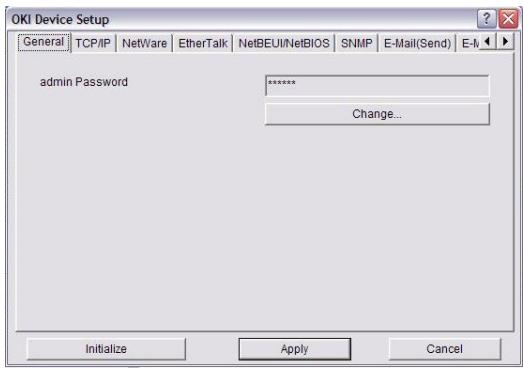
This allows you to set or change the root password used for Admin Manager, TELNET and FTP.
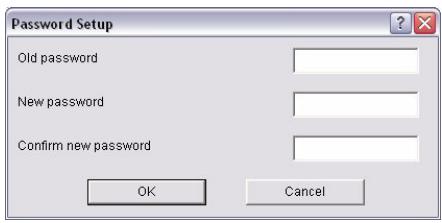
| ITEM | EXPLANATION |
| Change root password | You can set/change the root password for AdminManager, TELNET and FTP. |
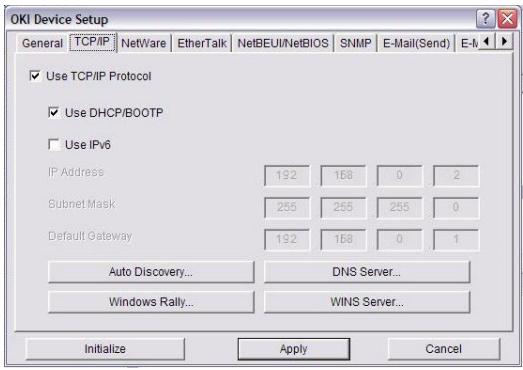
This allows you to configure TCP/IP related items.
| ITEM | EXPLANATION | |
| Use TCP/IP Protocol | Set TCP/IP protocol as enabled/disabled. | |
| Use DHCP/BOOTP | Check this item if IP address, subnet mask, default gateway and IP addresses for DNS primary server and secondary servers are retrieved from the DHCP or BOOTP server. Otherwise, leave unchecked. | |
| Use IPv6 | Enables IPv6. | |
| IP Address | Set the IP address of the selected network interface card. | |
| Subnet Mask | Set the subnet mask of the selected network interface card. | |
| Default Gateway | Set the default gateway of the selected network interface card. | |
| Auto Discovery | Configure items related to Network PnP Use to select Network PnP and Bonjour, and to set device name. | |
| DNS Server... | Set IP addresses for DNS primary and secondary servers. | DNS Server Setup Primary Server 192 168 0 11 Secondary Server 0 0 0 0 Use DDNS Domain name Final met OK Cancel |
| Windows Rally... | Use WSD Print Use LLLD check to enable/disable. | Windows Rally Setup Use WSD Print Use LLLD OK Cancel |
| WINS Server... | Set IP addresses for WINS primary and secondary servers and to enter scope ID. | Primary Server 0 0 0 0 Secondary Server 0 0 0 0 Scope ID OK Cancel |
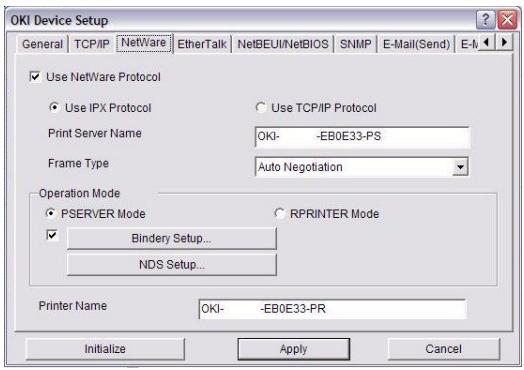
This is where you can configure NetWare related items.
| ITEM | EXPLANATION | |
| Use NetWare Protocol | Set NetWare protocol as enabled/disabled. | |
| Use IPX Protocol / Use TCP/IP Protocol | Set protocol to use. | |
| Print Server Name | Set Print Server name. | |
| Frame Type | Set primary NetWare frame type. | |
| Operation Mode | Set NetWare mode. | |
| Check box beside Bindery Setup | Check if you want to use the Bindery mode and Bindery Setup button becomes available. If it is unchecked, the button is greyed out. | |
| Bindery Setup | Configure items related to Bindery mode. In this dialogue box, the following items can be configured: | |
| Password | Set password for Print Server. | |
| Job Polling Time | Set print job polling interval in seconds. | |
| NDS Setup | Set NDS tree and context where Print Server was created. | |
| RPRINTER Setup | Available if you select RPRINTER mode in Operation Mode. | OKI Device Setup General TCP/IP NetWare EthernetTalk NetBEUI SNMP E-Mail(Send) E-Mail |
| Use NetWare Protocol Use IPX Protocol Print Server Name OKxxxx-CB0E4A-PS Frame Type Auto Negotiation | ||
| Operation Mode P SERVER Mode R PRINTER Mode R PRINTER Setup | ||
| Printer Name Okxxxx-CB0E4A-PR | ||
| Initiality Apply Cancel | ||
| By selecting the RPRINTER button, this is displayed: Here you can specify print servers to which the printer can be connected. | Detail for RPRINTER Print server to be connected 1 5 2 6 3 7 4 8 Time Out 10 (sec) OK Cancel | |
| Time Out | Set duration from the last data's arrival to freeing of the port in seconds. | |
| Printer Name | Set the NetWare printer object name. | |
EtherTalk Tab
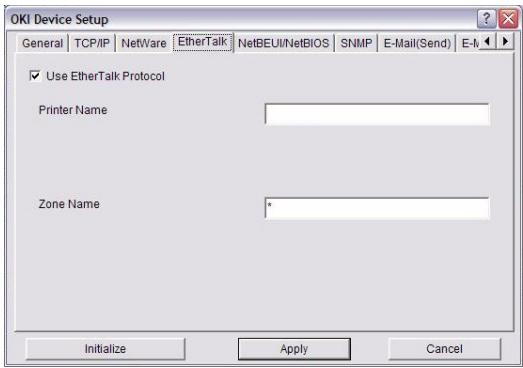
This allows you to configure EtherTalk related items.
| ITEM | EXPLANATION |
| Use EtherTalk Protocol | Set EtherTalk protocol to enabled/disabled. |
| Printer Name | Set EtherTalk Printer object name. |
| Zone Name | Set the zone name to which the printer belongs. |
NetBEUI/NetBIOS Tab
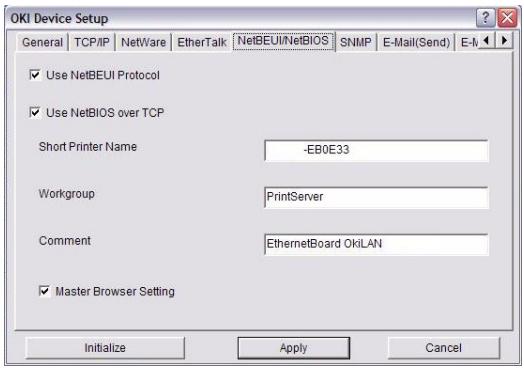
This allows you to configure NetBEUI/NetBIOS related items.
| ITEM | EXPLANATION |
| Use NetBEUI Protocol | Set NetBEUI protocol to enabled/disabled. |
| Use NetBIOS over TCP | Set NetBIOS over TCP to enabled/disabled. |
| Short Printer Name | Set a name for the printer. |
| Workgroup | Set a work group name to which the printer belongs. |
| Comment | Set the comments for the printer (optional). |
SNMP Tab

This allows you to configure SNMP related items.
| ITEM | EXPLANATION | |
| Use SNMP Service | ENABLE or DISABLE the SNMP protocol. | |
| SNMPV1+V3 | Select from the drop-down box which (or both) of these to use. | |
| SNMPV1 Settings | SNMP Read & Write Community. | Enables these passwords to be changed. |
| SNMPV3 Settings | Enables Authorisation and Privacy (Encryption) setup to be done. | |
| SysContact | Set SysContact (printer manager) name. | |
| SysName | Set SysName (printer model name). | |
| SysLocation | Set SysLocation (the location where the printer is installed). | |
| Printer Trap Setup... | By selecting the button, the following dialogue box is displayed:In the dialogue box, the following items can be configured: | |
| Printer Trap Community Name | This community name is assigned to outgoing printer status traps such as off-line, paper out, etc. | |
| TCP#1-5 | Set the IP addresses to which a Trap packet will be sent. You can set up to five IP addresses, with the following details:Printer RebootReceive IllegalOnlineOfflinePaper OutPaper JamCover OpenPrinter Error | |
| IPX | Set node address and network address to which a Trap packet will be sent.In the dialogue box, the following items can be configured:OnlineOfflinePaper OutPaper JamCover OpenPrinter Error | |
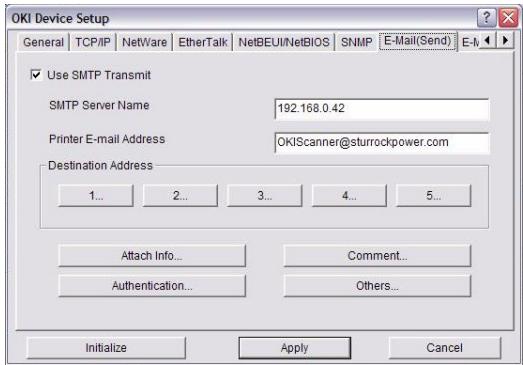
| ITEM | EXPLANATION | |
| Use SMTP Transmit | Check to enable SMTP. | |
| SMTP Server Name | Enter name of the SMTP server. | |
| Printer E-Mail Address | Enter the printers e-mail address. | |
| Destination Address 1 - 5 | Set the following parameters: | |
| Destination Address | Set E-Mail address to which email should be sent. | |
| Notify Mode | Select PERIOD or EVENT. | |
| When PERIOD is selected: | ||
| Check time | Used to set the interval at which the selected events are checked. An e-mail will be sent at the specified interval for each event selected. | |
| Period mode | Set ENABLE (ON)/DISABLE (OFF) for the events listed. | |
| When EVENT is selected: | ||
| Event Mode | Select: ENABLE (ON), DISABLE (OFF) or IMMEDIATE (NOWAIT) for the listed events. If ENABLE (ON) is selected, the check interval can be set (in hours and intervals of 15 mins). | |
| Attach Info... | Select whichever information is to be included in the e-mail. | |
| Comment... | Set up to four lines of text to be included with the e-mail as comments. | |
| Authentication... | Used to set the following security information: | |
| SMTP Authentication Method | Check to Enable SMTP authentication. | |
| User ID | Set the User ID for Authentication. | |
| User Password | Set the User Password for Authentication. | |
| Others... | Set the following: | |
| SMTP Port Number | Set the SMTP port number (default is 25). | |
| Reply to address | Set the E-mail address used for the [Reply to] field in the mail header. | |
E-mail (Receive) Tab
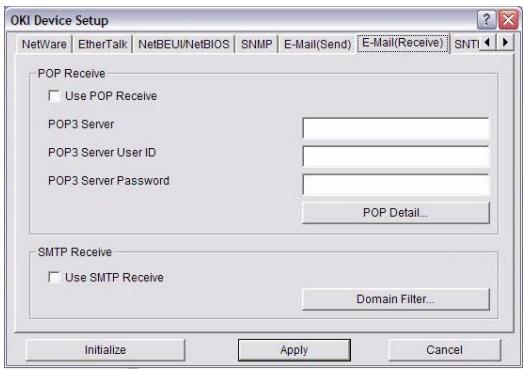
| ITEM | COMMENTS | |
| Use POP Receive | Enable/disable receiving E-Mail via POP3. | |
| POP3 Server | Set the IP address or host name of the POP3 server. | |
| POP3 ServerUserID | Set User ID for POP3 server. | |
| POP3 Server Password | Set a password for the POP3 server. | |
| POP Detail... | Set the following: | |
| Use APOP | Select if you want to use APOP. | |
| POP3 Port Number | Set the port number for APOP (default is 110). | |
| Mail Polling Time | Set interval to retrieve E-Mail(s) from the POP3 server. Selectable values, OFF, 1min, 5min (default), 10min, 30 min, 60 min. | |
| Use SMTP Receive | Enable/disable SMTP receive. | |
| Domain Filter... | Set the following: | |
| Use Domain Filter | Enable/disable domain filtering. | |
| Filter Policy | Select ACCEPT (the default) or DENY. | |
| Domain Filter | Define up to five domain filters. | |
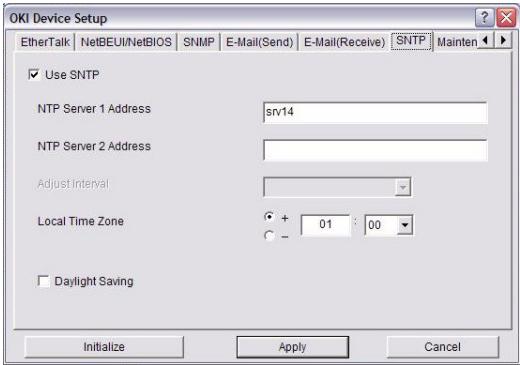
In this Tab, you can configure SNTP related items.
| ITEM | COMMENTS |
| Use SNMP | Enable/disable SNMP (Simple Network Time Protocol). |
| NTP Server 1 Address | Set the IP address or host name for NTP Server 1. |
| NTP Server 2 Address | Set the IP address or host name for NTP Server 2. |
| Adjust Interval | Set the interval for sending time update requests to the server. Select 1 hour (the default), 12 hours or 24 hours. |
| Local Time Zone | Set the local time zone from -12:00 to +13:00. Minute interval is selectable from 00 (the default), 15, 30 or 45. |
| Daylight Saving | When this is selected, one hour is added to the local time. |
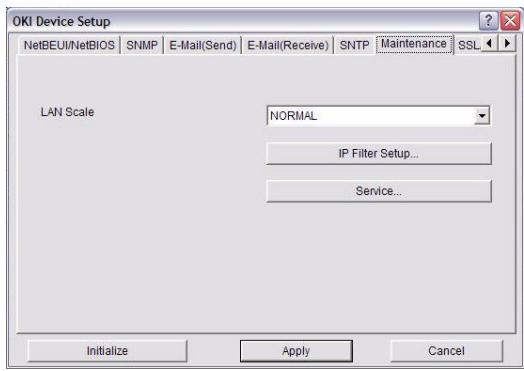
| ITEM | COMMENTS | |
| LAN Scale | Select NORMAL (the default) or SMALL. Note: For small scale networks (with no routing), choose the SMALL setting. For more complex networks choose NORMAL. | |
| IP Filter Setup... | The following items can be configured: | |
| Use IP FILTER | Enable/disable IP Filtering. Default is disabled. | |
| Admin IP Address | Set the administrator IP address. | |
| IP Address Range | Set up to 10 IP Filter address ranges: IP Filter Range 1 through IP Filter Range 10. | |
| Printing | Enable/disable printing of the specified IP address range. Default is disabled. | |
| Configuration | Enable/disable changing IP address ranges. Default is disabled. | |
| Service... | The following features can be selected by clicking their check box. Use TCP/IP Protocol Use NetBEUI Protocol Use NetBIOS over TCP Use NetWare Protocol Use EtherTalk Protocol Use FTP Service Use Telnet Service Use Web Service Use IPP Service Use SNMP Service Use SMTP Transmit Use POP3 Protocol Use SNMP Use encrypted communication for configuration data | |
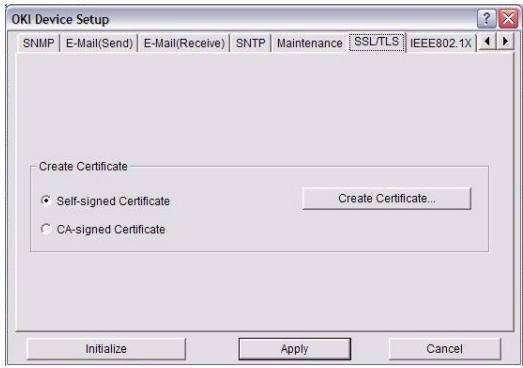
| ITEM | COMMENTS | |
| Encryption Strength | Set the strength of encryption: Strong = highest security, slowest speed Standard = medium security, medium speed Weak = least security, fastest speed | |
| Self-signed Certificate | For IPP encryption within an organisation's internal network (intranet). | |
| Create Certificate... | When Self-signed Certificate is selected, the following items are configured: | |
| Common Name | The printer's IP Address appears here. | |
| Organisation | Enter the name of your organization. | |
| Organisation Unit | Optional. Allows you to enter a subdivision or department name. | |
| Locality | Enter the name of the city where the organization is located. | |
| State/Province | Enter the state or province where the organisation is located. | |
| Country/Region | Enter the country or region where the organisation is located. | |
| Key Exchange Method | Select RSA (the default) or Diffie-Hellman(DSS). | |
| Key size | Select 512, 1024 (the default), or 2048 bits. | |
| Term of Validity | Enter a starting and ending date (month/date/year) for which the certificate is valid. | |
| CA-signed Certificate... | Used for web encryption to provide security when printing over the internet. Requires an outside certification service which must be purchased separately. | |
| Create Certificate... | When CA-signed Certificate is selected, the following items are configured: | |
| Common Name | The printer's IP Address appears here. | |
| Organisation | Enter the name of your organisation. | |
| Organisation Unit | Optional. Allows you to enter a subdivision or department name. | |
| Locality | Enter the name of the city where the organization is located. | |
| State/Province | Enter the state or province where the organisation is located. | |
| Country/Region | Enter the country or region where the organisation is located. | |
| Key Exchange Method | Select RSA (the default) or Diffie-Hellman(DSS). | |
| Key size | Select 1024 (the default) or 2048 bits. | |
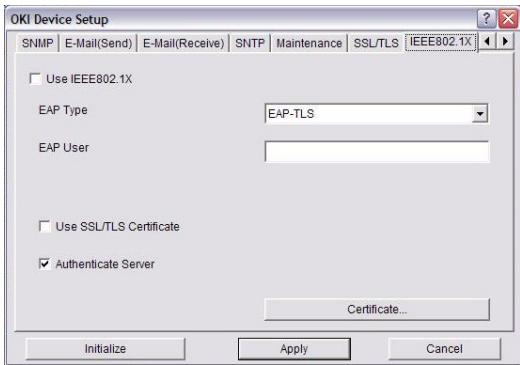
| ITEM | COMMENTS | |
| Use IEEE802.1X | Enable/disable. | |
| EAP Type | The following Extensible Authentication Protocols can be configured: | |
| EAP-TLS | Selects Extensible Authentication Protocol - TLS. | |
| PEAP | Selects Protected Extensible Authentication Protocol. | |
| EAP User | Enter EAP User name. | |
| Use SSL/TLS Certificate | Enable SSL/TLS certification. | |
| Authentication server | Enable Server Authentication. | |
| Certificate | Client certificate | File: (User can specify). Password: (User can specify). Options to Import, Delete, View. |
| CA certificate | File: (User can specify). Password: (User can specify). Options to Import, Delete, View. | |
IP ADDRESS SETUP
If you only use TCP/IP and the printer has not yet been configured, occasionally it may not be displayed on AdminManager. You can configure the IP address of the printer by this function.
- Select IP Address Setup from the Setup menu.
- Set Ethernet Address and IP Address then select OK.
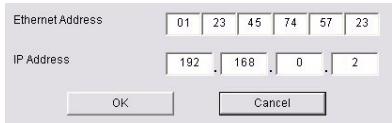
The Ethernet Address (MAC address) is displayed on the configuration map, refer to "Configuration settings" on page 7.
OPTION MENU
In the Option menu, the following item can be selected:
| ITEM | EXPLANATION |
| Use TCP/IP Protocol | If this item is selected, AdminManager uses TCP/IP protocol to search/configure network interface cards. |
| Use IPX/SPX Protocol | If this item is selected, AdminManager uses IPX/SPX protocol to search/configure network interface cards. |
| Environment Setup | TCP/IP Tab Set broadcast addresses that are used to search printers using the TCP/IP protocol. If Use TCP/IP protocol is unchecked, the search will not be carried out using TCP/IP. |
| NetWare Tab Set network addresses that are used to search printers via NetWare protocol. If there any many NetWare file servers on your network, specify the network address to which the network card belongs. If Use NetWare protocol is unchecked, the search will not be carried out using NetWare, but if Auto Search is selected, AdminManager will search all networks that AdminManager can detect. | |
| SNMP Tab Obtain the printer name via SNMP - Select. Enter Community name. Add and Delete. | |
| TimeOut Tab Search Every: Set response waiting time from a network card in seconds. Time Out: Set time out between AdminManager and the network interface card in seconds. Retry: Set how many times the retry will be carried out between AdminManager and the network interface card. |
HELP MENU
In the Help menu, About is available as well as revision information for AdminManager.
USING A WEB BROWSER
If the printer is connected to the network using TCP/IP, its settings and the printer menu settings can be configured using a Web browser. Refer to the relevant manuals for details of how to launch and use the browser.
MICROSOFT INTERNET EXPLORER
- Select Internet Options in the Tools menu.
- Click on the General tab and click Settings in Temporary Internet files.
- Select Every visit to the page in Check for newer versions of stored pages.
DEFAULT USER NAME AND PASSWORD
To apply configuration changes using a Web browser, you will be prompted for a username and password. The username is admin and the default password is aaaaaa.
The admin password can be changed to allow you to configure the printer by using a Web browser/TELNET/AdminManager. To change the password, select Password Configuration in the Maintenance tab and follow the on-screen instructions.
ADJUSTING PRINTER SETTINGS
The network addresses used in this manual are shown as examples only. Network addresses used in your installation must be generated from your own network.
- Configure the IP Address, Subnet Mask and Gateway for the network card. Launch the Web browser, enter the IP Address of the network interface card in Address (Location/Position) and press the Enter key.
- Select a tab and items to be changed in the left frame. You need to log in as admin to be able to configure all items. Non-admin users cannot configure all items.
CAUTION!
Please ensure a valid IP address for your network environment is used. Use of an incorrect IP address can cause serious problems on your network.
EXAMPLE TELNET CONFIGURATION
TELNET requires the print server to have a valid IP address configured. If the NIC already has an IP address configured, skip steps 1 to 3 below.
NOTE
The method of configuring commands may differ between workstations. Refer to the workstation's manual.
- Use the PING command to confirm the connection with the network card.
Example
For IP address 172.168.20.127:
ping 172.168.20.127
If there is no reply, there is a problem with the configuration of the IP address (the IP address has been already set manually or by the DHCP/RARP server), or with the network. Reset the network interface card settings to the default and try to set a temporary IP address. If you still have the problem after resetting the network interface card, consult the network manager.
- Login to the network card using TELNET.
Example
For IP address 172.168.20.127
telnet 172.168.20.127
You should see a sequence similar to the following example:
Trying 172.168.20.127
Connected to 172.168.20.127
Escape character is ^ ]^
EthernetBoard 8450e TELNET server (Ver 01.01).
login:admin
`admin' user needs password to login.
password:
User 'admin' logged in.
No.MENU (level.1)
1:Status / Information
2:Device Config
3:Network Config
4:Security Config
5:Maintenance
99:Exit setup
Please select (1-99)?
- Enter the number of the item to be changed.
The details window for that item displays.
- When the configuration is complete, select Exit Setup to save your change. To exit without saving your modification, select Quit.
- Turn the machine off and on again.
NOTE
The network card continues to use pre-transmission settings until the machine is turned off and back on again.
USING SNMP
NOTE
Not all utilities, features or protocols are supported by every product. Please check with your support website for latest information.
The machine and network card can be managed via a standard SNMP management station. The network card supports SNMPv1, MIB-II, Oki Data Private MIB and SNMP V3. In order for the machine to be managed correctly from an SNMP management station, the Oki Data Private MIB needs to be added to that management station. Please refer to the SNMP manager documentation for information on how to do this.
NOTE
The Oki Data Private MIB file can be found in the \Misc\ASN folder on the CD-ROM or support website. Please refer to theREADME file for further information.
The printer's trap address can be set in five places using TCP/IP and in one place with IPX. Printer trap settings can be made with TELNET and a Web browser.
MANAGEMENT UTILITY - PRINTSUPERVISION
NOTE
Not all utilities, features or protocols are supported by every product. Please check with your support website for latest information.
PrintSuperVision is a Windows server application designed for managing and monitoring printing devices connected to a network. The core application is server-based and is accessible from any browser enabled device connected to the network.
For full details of how to install and use PrintSuperVision, please refer to the PrintSuperVision Configuration Guide which is available on the support website.
PRINTING UTILITY - OKI LPR
NOTE
Not all utilities, features or protocols are supported by every product. Please check with your support website for latest information.
The Oki LPR Utility is a utility that allows printing data to printers connected to the network via TCP/IP.
The utility is for those Oki printers which support TCP/IP and redirects printing data to the Ipr port of the specified IP address.
It is an alternative method of connecting printers instead of using the Microsoft TCP/IP port.
SYSTEM REQUIREMENTS
Operating Systems with TCP/IP support and Oki printers that support TCP/IP.
NOTE
Some Operating Systems require administrator privileges in order to make changes.
- Set up the printer driver by designating the output destination to Local Printer (LPT1:). For information on setting up your printer driver, see the Printing Guide.
- Insert the CD-ROM into the CD-ROM drive. The Setup Utility starts automatically. If it does not start, double-click setup.exe on the CD-ROM.
- Select Network Software.
- Select Install LPR.
- Follow the on-screen instructions.
- Click Next when the Welcome screen is displayed.
- Verify Destination Folder and Spool Folder and click Next.
- Check Register in Startup if you want automatic startup as Windows boots up. Check Launch as minimized if you want to startup in the Icon state and click Next.
- Verify the program folder name and click Next. The installation starts.
- When the installation ends, the Setup complete screen is displayed. Check Yes, I want to launch Oki LPR Utility now and click Finish. Check Yes, I want to view the ReadMe File if you want to read Readme. The OkiLPR utility will start.
- You may be asked whether it is OK to change write permissions for the spool directory. Click Yes to allow the utility to be correctly installed.
- Select Add Printer on the Remote Print menu.
- Click Discover... to search for the IP address of a suitable printer on your network.
- Highlight the printer you will use and click OK.
- If your printer is not discovered, click Cancel and you can type the IP address directly at IP Address:
- Enter an IP address at IP Address and click OK. A printer is added to the main window.
Refer to the On-line Help for information on how to use the utility.
UNINSTALLATION
- Stop the OkiLPR Utility.
- Select Start > Programs> Okidata> OkiLPR Utility > Uninstall OkiLPR Utility. You may find this under Start > All Programs.
- Click Yes when the Confirm File Deletion dialogue is displayed. Deletion of the OkiLPR utility starts.
- When the deletion has finished, the Uninstall Complete screen is displayed. Click OK. If a file that has been added after installation exists in the folder to install the OkiLPR utility or the folder to spool, you cannot delete the folder. Delete any unwanted files before running Uninstall OkiLPR Utility.
PRINTING FROM WINDOWS
OVERVIEW
This chapter provides guidelines on how to print over the network from various Microsoft Windows platforms. There are numerous ways of printing from Windows and the exact setup will vary depending upon your environment. There are also numerous versions of Windows, which can be configured as either a client, server or both.
Although there are many variants of Windows, the principles of network printing are the same. Microsoft provides on-line help with all of their operating systems and this is a good reference point for the exact details of each configuration option within Windows.
NOTE
Not all utilities, features or protocols are supported by every operating system. Please check with your support website for latest information.
INSTALLING A NETWORK PRINTER
There are two ways to set up a Network Printer:
Install automatically, using the Oki Driver Installer
Install it yourself using the Add Printer Wizard
The Oki Driver Installer program searches for compatible printers on the Network, then installs and configures the printer drivers with the correct port settings automatically.
Using the Oki Driver Installer program, you can install to the following connected printer types:
- Locally connected printers
USB port
Parallel port (if available)
- Networked printers
Directly connected (peer-to-peer) printers via TCP/IP
The Microsoft standard TCP/IP is installed and configured to use Port 9100 with the printer's IP address.
Printers not directly connected, but shared via a PC (Client Server)
Why use the Oki Driver Installer?
Automatically discovers printers on the Network (TCP/IP)
Installs driver and correctly assigns the appropriate port and IP address
Allows easy configuration and sharing of the printer with other Network users
Automatically configures the printer driver with the appropriate hardware device options such as, additional paper trays, etc. (via the Oki Network Extension software)
USING THE ADD PRINTER WIZARD
Method summary:
The following table shows the different ways to connect to the printer (port types).
| WINDOWS 2000 | WINDOWS XP | WINDOWS VISTA | WINDOWS 7 | |
| Windows standard TCP/IP | YES | YES | YES | YES |
| Oki LPR | YES | YES | YES | YES |
| IPP | YES | YES | YES | YES |
| NetBEUI | YES | YES | NO | NO |
About the different methods
Windows standard TCP/IP port
The standard TCP/IP port simplifies connecting to remote printers using the TCP/IP protocol. A computer that acts as a print server must run the TCP/IP protocol in order to print.
Can be configured to use either LPR or RAW (e.g. Port9100).
OkiLPR
Used to connect your printer over TCP/IP using an LPR port.
OkiLPR also includes useful tools enabling you to download PS and PRN files directly to your printer and automatically redirect jobs to other printers on the network.
IPP
The IPP (Internet Printing Protocol) defines a standard protocol for printing as well as managing print jobs, media, resolution, etc.
NetBEUI
NetBEUI (NetBios Extended User Interface) is a protocol that was designed for use in small workgroups or LANs. Within Windows NetBEUI is used for file and printer sharing between computers. It provides a simple method of printing, but it does have limitations, and is not as robust as TCP/IP or IPX. Typically it is employed in small business or home networks.
NETWORK PRINTER IP ADDRESS CONFIGURATION
Use the Standard Set-up Utility to configure the IP Address, Subnet Mask and Gateway.
NOTE
It will not be necessary for printers connected to a network using DCHP to use this setup method.
Some steps may not display depending on the network protocols installed.
- Connect the machine to the network and turn on.
- Insert the CD-ROM into the CD-ROM drive. The Setup Utility starts automatically. If it does not start, double-click \setup.exe (in the root directory) on the CD-ROM.
- Select the appropriate language.
- Navigate to and select Network Software.
- Select the Install Network Card Setup Utility link.
- Select your language.
- Select Oki Device Quick Setup and follow the on-screen instructions.
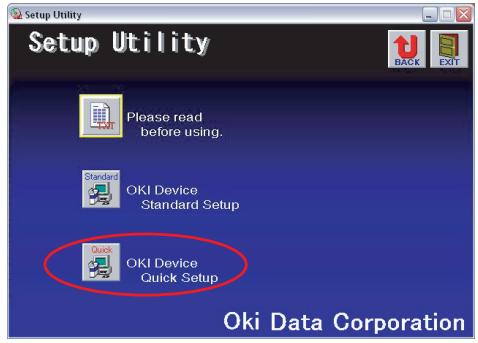
- Select the appropriate network card, using the Ethernet address to identify it, and click Next.
The Ethernet Address (MAC address) is displayed on the configuration map, refer to "Configuration settings" on page 7.
Using TCP/IP protocol
When using lpr in UNIX and other TCP/IP environments, please select Yes. To use in a TCP/IP environment, an IP address should be assigned to the Ethernet card.
If Yes has been selected and TCP/IP is the only working protocol and the IP address has not already been assigned, you can either obtain an IP address automatically or assign an IP address.
When Obtain an IP address automatically is selected, the device IP address will be automatically assigned by the DHCP server. In an environment without a DHCP server, please assign the IP address manually.
If you are manually assigning an IP address, you need to enter:
An IP address
Subnet mask
Gateway address
9. Click Next.
Using Bonjour protocol
Bonjour is the preferred protocol for printing data from the Macintosh environment.
Using NetBEUI protocol
Using NetBEUI makes it easy to manage your Oki product and print within the network environment of Windows.
- When the settings are correct, click Execute. The new settings are transmitted to the network card but it still operates with pre-transmission settings.
- Click Finish to validate the new settings.
- Switch the printer off for 15 seconds and on again.
Now that both Windows and the printer have been configured to use TCP/IP, the next step is to configure Windows to print to the network printer.
NETBEUI PROTOCOL
NETWORK PRINTER SETTINGS
There are two configurable items under NetBEUI within the printer. These can be configured using the standard set-up utility described in "Device setup" on page 12.
| COMPUTER NAME | NAME ASSIGNED TO THE PRINTER |
| Workgroup | PrintServera |
| Comment | User definable description |
a. Although the workgroup name can be changed, it is recommended that it remains as PrintServer.
Although there are some differences in configuration options between the various Windows platforms, the procedure for printing using NetBEUI is the same.
Please ensure the NetBEUI protocol has been installed in Windows. This can be confirmed by checking the network settings. If NetBEUI has not been installed please refer to the section below.
The relevant Windows installation CD-ROM may be required and you should follow the on-screen dialogue box prompts.
WINDOWS XP
Although you can install the NetBEUI protocol into Windows XP, it may not be supported. You should be able to use NetBEUI on LAN connections although you will not be able to use this on a Remote Access Service Connections.
- In the Start menu, select Settings > Control Panel.
- Double-click on Network Connections.
- Right-click the adapter you wish to add NetBEUI to and then click Properties.
- On the General tab, select Install.
- Select Protocol and then Add.
- Select Have Disk and insert your Windows XP CD-ROM, open the Valueadd\msft\net\netbeui folder, select the Netnbf.inf file and then click Open.
Now the printer has been configured and NetBEUI has been installed, you can configure Windows to print over the network.
WINDOWS VISTA/WINDOWS 7
NetBEUI is not supported by Windows Vista/Windows 7.
In the following example, the printer has been configured as follows:
Computer Name: OL07DB85
Workgroup: PrintServer
Comment: Ethernet Board 8450e
- Set up the printer driver as the default local printer.
- In the Start menu, select Settings > Printers.
- Select the relevant printer driver, then Properties.
- Click on the Details tab in the printer driver.
- Select Add Port.
- Select Network and click Browse.
- Double-click Entire Network, PrintServer and OL07DB85.
- Select Prn1 and click OK.
- Check that Network is selected and click OK.
- Select Apply and OK to close Properties.
Printing can be carried out using your application software.
The Master Browser function manages machine information from the same Workgroup, and replies to summary requests from other workgroups.
The Master Browser function operates only if the Workgroup name is PrintServer.
The Master Browser function can only manage this network card. If the PrintServer name is put into another Workgroup, the network card will not be able to find it on the network.
A maximum of eight Networks can be managed by the Master Browser function.
Printing cannot be carried out and an error message appears when jobs from other users (including other protocols) are being printed.
MAC OS X
OVERVIEW
This section of the guide is for administrators and it should be read in conjunction with the relevant Mac OS X manual. Please ensure your Mac has the latest OS X updates installed.
To get the best results from your printer, install the Postscript Printer Description (PPD) file supplied with your printer and use this to customise the Apple PostScript driver that is built in to the OS X. Features provided by the PPD file include:
Supported paper types
Paper trays
Printer resolution
Printer color matching
NOTE
The PPD file must be installed using the Oki Driver Installer to ensure that all essential files are copied.
SETTING UP A NETWORK PRINTER
- If the printer does not already have an IP address, use the Printer Setup Utility to assign an IP address. See "The printer setup utility interface" on page 37.
To do this, you will need to know the printer's MAC address. This can be found on the print server's network summary printout. See "Configuration settings" on page 7. - Install the printer driver software. This copies the printer driver files to the correct location on your Mac OS X system.
- Make a connection to the printer by USB, TCP/IP, Rendezvous or AppleTalk. See "Connecting to your printer" on page 43.
- If required, enable hardware device options such as additional paper trays. See "Configuring printer hardware options" on page 47.
PRINTER SETUP UTILITY
The Printer Setup Utility is a powerful MacOS-based utility for configuring all print server functions using a graphical user interface.
INSTALLING THE PRINTER SETUP UTILITY
- Insert the CD into the CD-ROM drive.
- Open the Printer Setup Utility folder and double-click Installer.
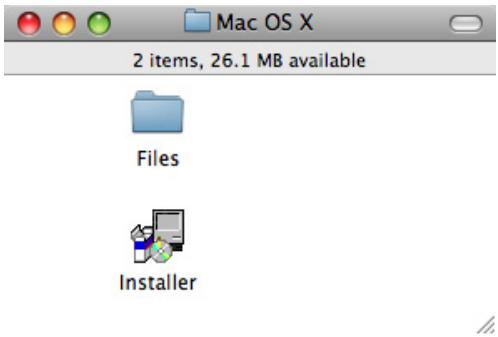
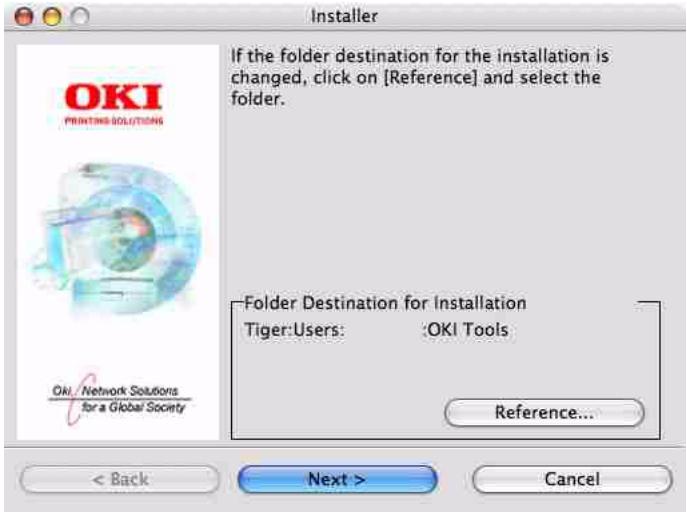
- Select the destination directory, then click Next.
- Ensure the Yes option is selected to activate the utility, then click Finish.
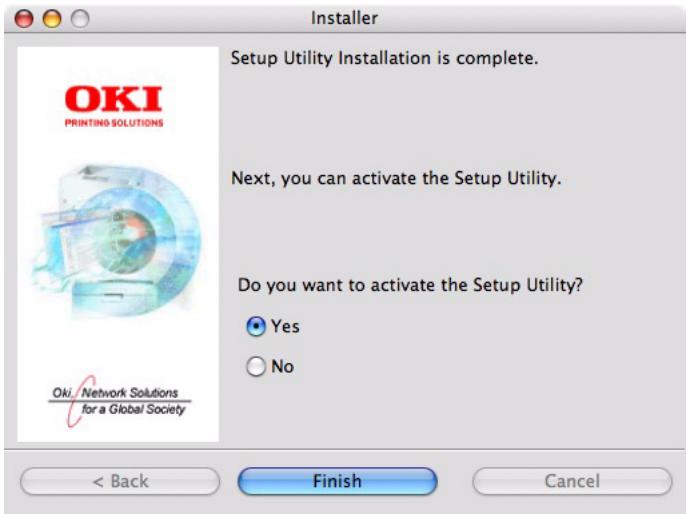
THE PRINTER SETUP UTILITY INTERFACE
The Printer Setup Utility auto-discovers Oki compatible network cards.
- Select the correct printer NIC to configure and choose Setup menu > Oki Device Setup.
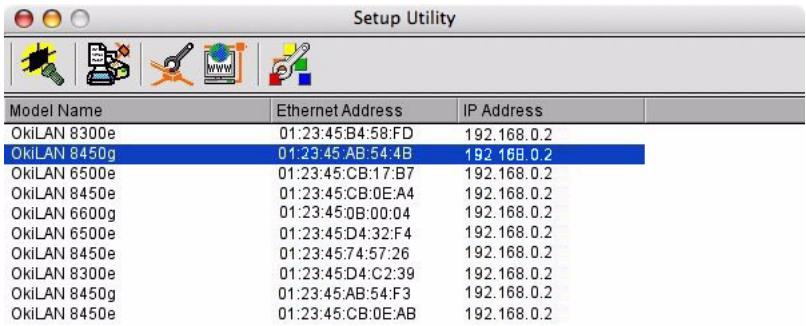
10 Oki Devices are found in the network.
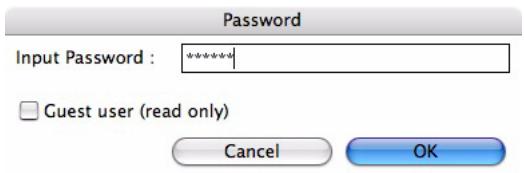
- At the prompt, enter the Admin password.
NOTE
The default admin password is aaaaa.
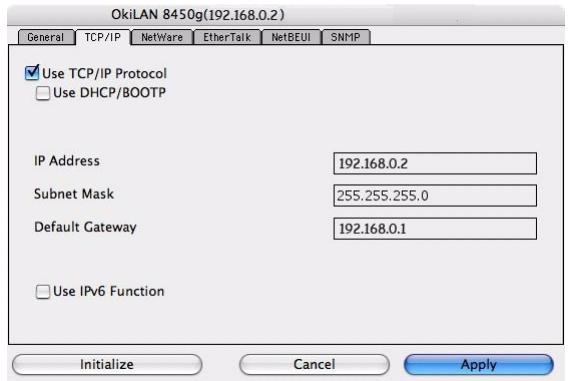
- Select the TCP/IP tab and assign your machine's IP address.
- Click Apply.
MENU OPTIONS
Discover Printers
Locates and lists all printers in your network which have an Oki compatible network card installed.
System status
Displays the network card summary details.
Oki device setup
Use this to configure the network card settings (requires Admin password).
General Tab
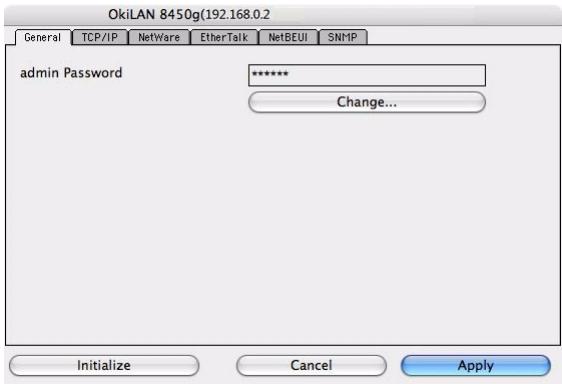
The General tab allows you to change the admin password.
- Click Change.
- Enter the current value, then enter the new value and re-enter it under Confirm....
NOTE
The default admin password is aaaaa.
- Click OK.
- Click Apply.
TCP/IP Tab
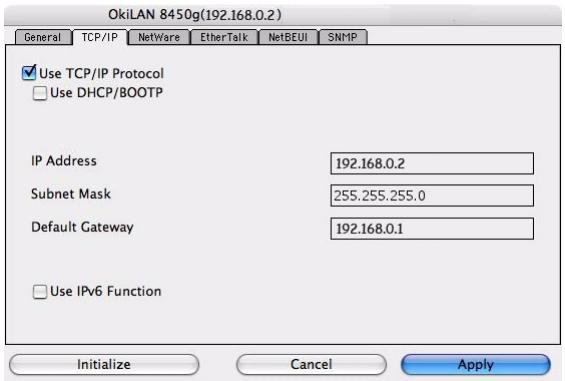
| ITEM | COMMENTS |
| Use TCP/IP Protocol | Enable/disable TCP/IP protocol. |
| Use DHCP/BOOTP | Click to select this item if the IP address, subnet mask, default gateway and IP addresses for DNS primary server and secondary servers are retrieved from the DHCP or BOOTP server. |
| IP Address | Set the IP address of the selected network interface card. |
| Subnet Mask | Set the subnet mask of the selected network interface card. |
| Default Gateway | Set the default gateway of the selected network interface card. |
| Use IPv6 Function | Use to enable/disable IPv6. |
Netware Tab
| ITEM | COMMENTS | |
| Use NetWare Protocol | Enable/disable NetWare protocol. | |
| Print Server Name | Set a Print Server name. | |
| Frame Type | Set the primary NetWare frame type. | |
| Operation Mode | Select the NetWare mode: PSERVER Mode (the default) RPRINTER Mode | |
| Bindery Setup | Configure Bindery mode items, including: | |
| File Server to be connected. | Specify up to 8 file servers to connect. | |
| Password. | Set a password for the Print Server. | |
| Job Polling Time | Set the print job polling interval in seconds. | |
| NDS Setup | Set the NDS Tree and Context where the Print Server was created. | |
| Printer Name | Set the NetWare printer object name. | |
EtherTalk Tab
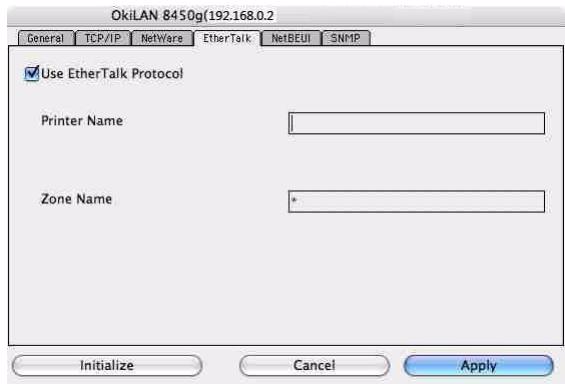
| ITEM | COMMENTS |
| Use EtherTalk Protocol | Enable/disable EtherTalk protocol. |
| Printer Name | Set the EtherTalk Printer object name. |
| Zone Name | Set the name of the zone to which the print server belongs. |
NetBEUI Tab
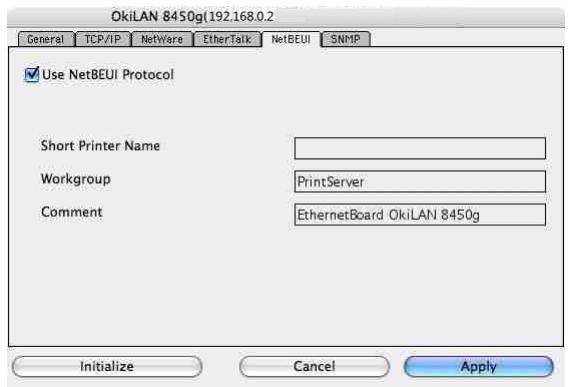
| ITEM | COMMENTS |
| Use NetBEUI Protocol | Enable/disable NetBEUI protocol. |
| Short Printer Name | Set a name for the print server. |
| Workgroup | Set a name for the work group to which the print server belongs. |
| Comment | Set the comments for the print server. |
SNMP Tab
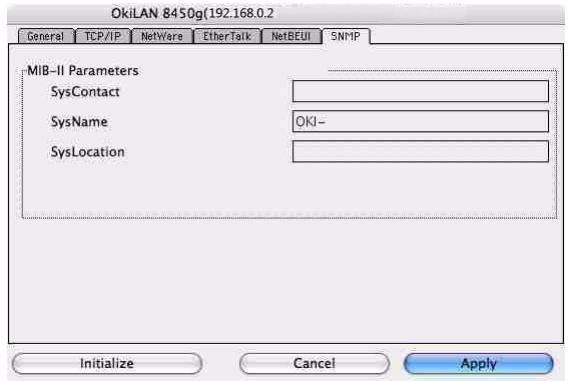
| ITEM | COMMENTS |
| SysContact | Set the printer manager name. |
| SysName | Set the printer model name. |
| SysLocation | Set the location where the printer is installed. |
Configuration via HTTP
Displays the printer web page.
Environment setup
Use this to configure the utility preferences for broadcast addresses for TCP/IP protocol and Time Out.
TCP/IP Tab
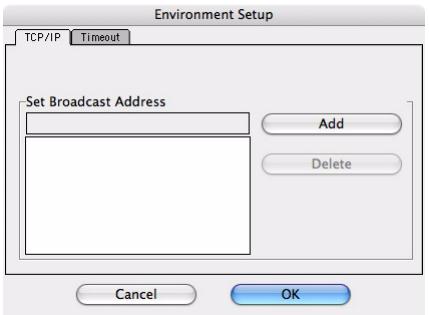
| ITEM | COMMENTS |
| Set Broadcast Address | Set broadcast addresses that are used to search Oki network interface cards using the TCP/IP protocol. |
| Add | Click Add to add the address to the list in the box. |
| Delete | Select an address in the box, then click Delete to remove it. |
Timeout Tab
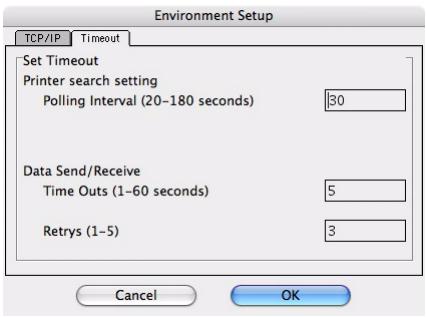
| ITEM | COMMENTS |
| Set Timeout: Printer Search | Search Every (20-180sec) Set the response waiting time from the network card in seconds. Default is 30 seconds. |
| Set Timeout: Data Send/ Receive | Time Outs (1-60sec) Set time out between AdminManager and the network interface card in seconds. Default is 5 seconds. Retry (1-5) Sets how many times AdminManager will retry to transmit/receive data to/from the network interface card. Default is 3 retries. |
CONNECTING TO YOUR PRINTER
If you have not already done so, run the Oki software installer before following the steps below.
LION (10.7), SNOW LEOPARD (10.6) AND LEOPARD (10.5)
USB
- Choose Apple Menu > System Preferences > Print & Fax (for Mac OS X 10.7: Print & Scan).
- If the printer is already in the list of printers, click " - " to remove it.
NOTE
This is necessary as Leopard may not be using the correct printer driver files.
- Click "+" to add a new printer.
- Ensure the Default tab is selected and select your printer from the list.
Your printer is displayed as type USB in the list of available printers.
Ensure that the Print Using: selection matches your printer. If Generic PostScript Printer is displayed, select a driver that matches.
- Click Add.
- Click Configure... and ensure the hardware options displayed match your printer.
NOTE
Hardware options are not configured automatically.
The printer is added to the list of printers.
- Restart your computer.
Bonjour
- Choose Apple Menu > System Preferences > Print & Fax (for Mac OS X 10.7: Print & Scan).
- Click "+"
- Select your printer model from the Default Browser.
- Click Add....
- Depending on the connection type, you may be prompted to configure any additional printer hardware options. If your printer has options such as second tray, switch on the relevant options.
AppleTalk (Leopard only)
NOTE
AppleTalk is not supported in Snow Leopard.
- Choose Apple Menu > System Preferences > Print & Fax.
- Click "+"
- Select your printer model from the Default Browser.
-
Click Add....
-
Depending on the connection type, you may be prompted to configure any additional printer hardware options. If your printer has options such as second tray, switch on the relevant options.
TCP/IP Connection
- Choose Apple Menu > System Preferences > Print & Fax (for Mac OS X 10.7: Print & Scan).
- Click "+"
- Click the IP Printer button.
- From the Protocol menu, choose Line Printer Daemon - LPD.
- Enter the printer's IP address in Address.
To find the printer's IP address, you can print a configuration page from the printer's operator panel. Refer to "Configuration settings" on page 7.
- Check the correct PPD file for your printer is selected in the Print Using menu.
- Click Add.
- You will be prompted to configure any additional printer hardware options. If your printer has options such as second tray, switch on the relevant options.
TIGER (10.4)
Bonjour, AppleTalk or USB
- Launch Printer Setup Utility
This is located in the Applications > Utilities folder.
- Click Add....
- Select your printer model from the Default Browser.
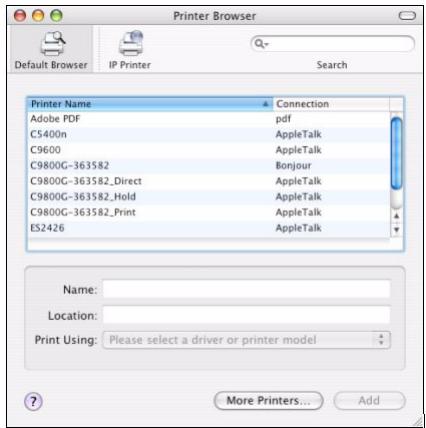
- Click Add.
- Depending on the connection type, you may be prompted to configure any additional printer hardware options. If your printer has options such as second tray, switch on the relevant options.
- Quit Printer Setup Utility.
TCP/IP Connection
- Launch Printer Setup Utility
This is located in the Applications > Utilities folder.
- Click Add....
- Click the IP Printer button.
- From the Protocol menu, choose Line Printer Daemon - LPD.
- Enter the printer's IP address in Address.
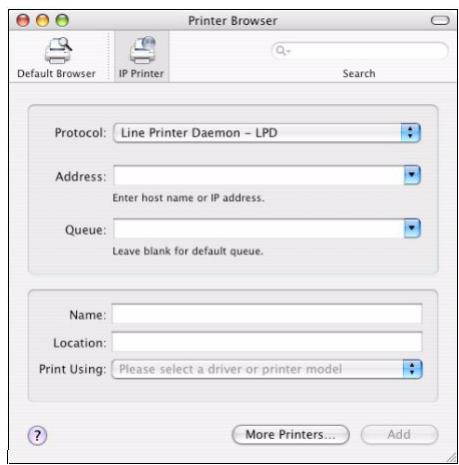
To find the printer's IP address, you can print a configuration page from the printer's operator panel. Refer to "Configuration settings" on page 7.
- Check the correct PPD file for your printer is selected in the Print Using menu.
- Click Add....
- You will be prompted to configure any additional printer hardware options. If your printer has options such as second tray, switch on the relevant options.
- Click Continue.
- Quit Printer Setup Utility.
PANTHER (10.3)
Rendezvous
NOTE
If your printer is already listed, your Mac may already have discovered the printer before you installed the Oki software. In this case, the printer may be using the incorrect PPD file or may not have the correct hardware options configured. You should delete the printer, quit Printer Setup Utility, and relaunch the utility before continuing.
If you have not already done so, run the Oki software installer before following the steps below.
- Start the Printer Setup Utility.
This is located in the Applications > Utilities folder. - Click Add....
- From the pop-up menu, choose Rendezvous.
- Select the printer you wish to connect to.
- Click Add.
- Click the Printer Setup Utility menu, and choose Quit Printer Setup Utility.
After adding the printer, you should configure printer hardware options. Refer to "Configuring printer hardware options" on page 47.
IP CONNECTION
If you have not already done so, run the Oki software installer before following the steps below.
- Start the Printer Setup Utility.
This is located in the Applications > Utilities folder.
NOTE
If your printer is already listed, your Mac may already have discovered the printer before you installed the Oki software. In this case, the printer may be using the incorrect PPD file or may not have the correct hardware options configured. You should delete the printer, quit Printer Setup Utility, and relaunch the utility before continuing.
- Click Add....
- Click the pop-up menu and choose IP Printing.
- Click the Printer Type menu and choose LPD/LPR.
- Enter the printer's IP address.
To find the printer's IP address, you can print a configuration page from the printer's operator panel. Refer to the User's Guide for details.
The Configuration pages are printed. The printer's IP address is shown under the Network section on the first sheet.
- Enter the queue name. If you do not know the queue name, leave it as Use Default Queue on Server.
- Click the pop-up menu and choose your printer model.
- Click Add.
- Click the Printer Setup Utility menu, and choose Quit Printer Setup Utility.
After adding the printer, you should configure printer hardware options. Refer to "Configuring printer hardware options" on page 47.
AppleTalk connection
If you have not already done so, run the Oki software installer before following the steps below.
- Start the Printer Setup Utility.
This is located in the Applications > Utilities folder. - Click Add....
- From the pop-up menu, choose AppleTalk.
- Select the printer you wish to connect to.
- Click Add.
- Click the Printer Setup Utility menu, and choose Quit Printer Setup Utility.
USB connection
If you have not already done so, run the Oki software installer before following the steps below.
- Start the Printer Setup Utility.
This is located in the Applications > Utilities folder.
NOTE
If your printer is already listed, your Mac may already have discovered the printer before you installed the Oki software. In this case, the printer may be using the incorrect PPD file or may not have the correct hardware options configured. You should delete the printer, quit Printer Setup Utility, and relaunch the utility before continuing.
- Click Add Printer....
- From the pop-up menu, choose USB.
- Choose a printer to connect to.
- Click Add.
- Click the Printer Setup Utility menu, and choose Quit Printer Setup Utility.
CONFIGURING PRINTER HARDWARE OPTIONS
NOTE
Applies to IP and Rendezvous network connections only.
If you have added additional hardware, for example additional paper trays, to your printer these must be enabled in the printer driver.
- Start the Printer Setup Utility.
This is located in the Applications > Utilities folder. - Ensure that your printer model is selected.
- Click the Printers menu, and choose Show Info.
- From the popup menu, select Installable Options.
- Select any options appropriate to your hardware, and click Apply Changes.
PRINTING THE CONFIGURATION PAGE
The printer's configuration page reports information that is required for Mac OS X configuration. Refer to "Configuration settings" on page 7 for details on how to print a configuration page.
The first six characters of the Ethernet address are the same for all network cards. The last six characters of the Ethernet address are unique to each card.
NOTE
Not all utilities are supported by every operating system. Please check with your support website for latest information.
TROUBLESHOOTING
The network addresses used in this manual are shown for example only. Network addresses used in your installation must be generated from your own network.
TCP/IP
COMPUTER CANNOT FIND THE NETWORK INTERFACE CARD
Turn the printer off for 15 seconds and then on again.
Confirm the network interface is enabled on the printer.
Check there is a response to the PING command.
Check that the network cable is correctly connected and that the green LED close to the printer's network interface is lit. If not, change the cable and try again.
Run the self-diagnostic test.
Check the IP Address, Subnet Mask and Gateway are correct.
Check that the TCP/IP protocol is set to Enable.
Reset the network interface card to factory default settings.
If DHCP, BOOTP and RARP are not used, ensure they have been set to Disable.
CANNOT PRINT WITH LPR AND FTP
Turn the printer off for 15 seconds and then on again.
Check there is a response to the ping command.
Check the network cable is correctly connected.
Change the cable and try again.
Check the host name and IP address are configured in the workstation.
Check the printer port name is configured in the workstation.
There are three port names: lp , euc and sjis . Use lp by default as euc and sjis are specific to PostScript printers.
INCORRECT USER NAME ON THE BANNER PAGE
If printing with lpr, the user name printed is unknown and the filename printed is the Spool file name.
If printing with FTP, the user name printed is the user name entered during FTP login and the file name printed is the transmitted file name. If the print directory name is indicated in the put command, the file name is not printed. The printer name printed is the logical directory name.
NETBEUI
THE NETWORK INTERFACE CARD IS NOT IDENTIFIED
Turn the printer off for 15 seconds and then on again.
Check the network cable is correctly connected.
Change the cable and try again.
Check Microsoft Network Client and NetBEUI have been added to the network section of the Windows Control Panel.
Check the NetBEUI protocol is set to Enable.
Check the factory setting of the workgroup name is PrintServer and the computer name is ML+ the last six characters of the MAC address.
Check the computer name of the NIC is different from the computer name on the network.
ERROR WRITING TO PRN1
Check the printer is online.
If there is an error message indicating the paper has run out, add more paper and cancel the error.
Check whether another user is printing. Print after the other user has finished.
WEB BROWSER
To prevent your web browser caching the printer web pages, carry out the following steps as appropriate for your web browser.
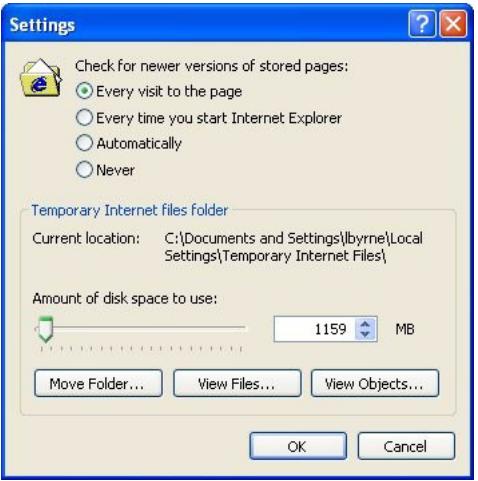
MICROSOFT INTERNET EXPLORER
- Select Tools > Internet Options.
- Select the General tab and, in Temporary Internet files, click Settings.
- Under Check for newer versions of stored pages, select Every visit to the page.
- Click OK.
MOZILLA FIREFOX
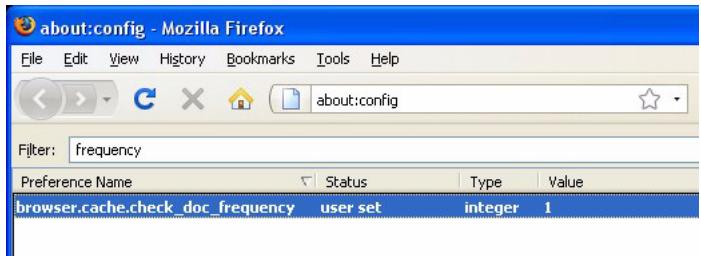
- In the Firefox address bar, type about:config.
- In the Filter field, type frequency.
- Double click on the entry browser.cache.check_doc_frequency.
- Change the Value to 1.
0: Check once per browser session
1: Check every time I view the page
2: Never check (always use cached page)
3 (default): Check when the page is out of date (automatically determined)
- Click OK.
OKI CONTACT DETAILS
OKI Data Americas, Inc.
2000 Bishops Gate Blvd.
4140B Sladeview Crescent
Unit 7 & 8
Mississauga, Ontario
Canada L5L 6A1
Phone: 1-905-608-5000
Fax: 1-905-608-5040
OKI DATA DE MEXICO, S.A. DE C.V.
Mariano Escobedo # 748, Piso 8
Col. Nueva Anzures
C.P. 11590, Mexico, D.F.
Tel: 52-555-263-8780
Fax: 52-555-250-3501
OKI Data do Brasil, LTDA.
Av.Alfredo Egidio de Souza Aranha,100
4o andar - Bloco C
Chacara Santo Antonio
Sao Paulo - SP
Cep: 04726-170
- http://www.okiprintingsolutions.com
- CONTENTS
- CAUTION!
- WARNING!
- SPECIFICATION
- CONFIGURATION SETTINGS
- CONFIGURATION UTILITIES
- USING QUICK SETUP
- USING ADMINMANAGER
- INSTALLATION
- Select Oki Device Standard Setup.
- INTERFACE
- General Tab
- EtherTalk Tab
- NetBEUI/NetBIOS Tab
- SNMP Tab
- E-mail (Receive) Tab
- IP ADDRESS SETUP
- OPTION MENU
- HELP MENU
- USING A WEB BROWSER
- MICROSOFT INTERNET EXPLORER
- DEFAULT USER NAME AND PASSWORD
- ADJUSTING PRINTER SETTINGS
- EXAMPLE TELNET CONFIGURATION
- Example
- USING SNMP
- MANAGEMENT UTILITY - PRINTSUPERVISION
- PRINTING UTILITY - OKI LPR
- SYSTEM REQUIREMENTS
- UNINSTALLATION
- PRINTING FROM WINDOWS
- OVERVIEW
- INSTALLING A NETWORK PRINTER
- Why use the Oki Driver Installer?
- USING THE ADD PRINTER WIZARD
- Method summary:
- About the different methods
- Windows standard TCP/IP port
- OkiLPR
- IPP
- NetBEUI
- NETWORK PRINTER IP ADDRESS CONFIGURATION
- Using TCP/IP protocol
- Click Next.
- Using Bonjour protocol
- Using NetBEUI protocol
- NETBEUI PROTOCOL
- NETWORK PRINTER SETTINGS
- WINDOWS XP
- WINDOWS VISTA/WINDOWS 7
- MAC OS X
- SETTING UP A NETWORK PRINTER
- PRINTER SETUP UTILITY
- INSTALLING THE PRINTER SETUP UTILITY
- THE PRINTER SETUP UTILITY INTERFACE
- MENU OPTIONS
- Discover Printers
- System status
- Oki device setup
- TCP/IP Tab
- Netware Tab
- NetBEUI Tab
- Configuration via HTTP
- Environment setup
- Timeout Tab
- CONNECTING TO YOUR PRINTER
- LION (10.7), SNOW LEOPARD (10.6) AND LEOPARD (10.5)
- USB
- Bonjour
- AppleTalk (Leopard only)
- TCP/IP Connection
- TIGER (10.4)
- Bonjour, AppleTalk or USB
- PANTHER (10.3)
- Rendezvous
- IP CONNECTION
- NOTE
- AppleTalk connection
- USB connection
- CONFIGURING PRINTER HARDWARE OPTIONS
- PRINTING THE CONFIGURATION PAGE
- TROUBLESHOOTING
- TCP/IP
- COMPUTER CANNOT FIND THE NETWORK INTERFACE CARD
- CANNOT PRINT WITH LPR AND FTP
- INCORRECT USER NAME ON THE BANNER PAGE
- THE NETWORK INTERFACE CARD IS NOT IDENTIFIED
- ERROR WRITING TO PRN1
- WEB BROWSER
- MOZILLA FIREFOX
- OKI CONTACT DETAILS
Brand : OKI
Model : C711WT
Category : Thermal Transfer Printer