
RT-BE9700 - Router ASUS - Free user manual and instructions
Find the device manual for free RT-BE9700 ASUS in PDF.
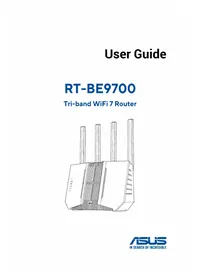


| Product Type | Wireless Router |
| Brand | ASUS |
| Model | RT-BE9700 |
| Wireless Standard | Wi-Fi 7 (IEEE 802.11be) |
| Frequency Bands | Tri-band (2.4GHz, 5GHz, 6GHz) |
| Maximum Data Rate | Up to 9700 Mbps |
| Antennas | 8 x External Antennas |
| Ports | 1x 10G WAN, 1x 10G LAN, 4x Gigabit LAN, 1x USB 3.0 |
| Processor | Quad-core CPU 2.0 GHz |
| Memory | 512 MB RAM, 256 MB Flash |
| Power Supply | AC 100-240V, DC 19V 2.37A |
| Dimensions | 240 x 240 x 60 mm |
| Weight | 650 g |
| Security | WPA3, WPA2, WPA, Firewall, AiProtection |
| Parental Controls | Yes, with time scheduling and content blocking |
| Guest Network | Up to 3 guest networks |
| VPN Support | Yes, VPN client and server |
| Management | Web GUI and ASUS Router mobile app |
| Installation Help | Quick setup guide, RJ-45 cable included |
| Operating Temperature | 0-40°C |
Frequently Asked Questions - RT-BE9700 ASUS
User questions about RT-BE9700 ASUS
0 question about this device. Answer the ones you know or ask your own.
Ask a new question about this device
Download the instructions for your Router in PDF format for free! Find your manual RT-BE9700 - ASUS and take your electronic device back in hand. On this page are published all the documents necessary for the use of your device. RT-BE9700 by ASUS.
USER MANUAL RT-BE9700 ASUS
E27519
First Edition
November 2025
Copyright © 2025 ASUSTeK Computer Inc. All Rights Reserved.
No part of this manual, including the products and software described in it, may be reproduced, transmitted, transcribed, stored in a retrieval system, or translated into any language in any form or by any means, except documentation kept by the purchaser for backup purposes, without the express written permission of ASUSTeK Computer Inc. ("ASUS").
Product warranty or service will not be extended if: (1) the product is repaired, modified or altered, unless such repair, modification or alteration is authorized in writing by ASUS; or (2) the serial number of the product is defaced or missing.
ASUS provides this manual “as is” without warranty of any kind, either express or implied, including but not limited to the implied warranties or conditions of merchantability or fitness for a particular purpose. In no event shall ASUS, its directors, officers, employees or agents be liable for any indirect, special, incidental, or consequential damages (including damages for loss of profits, loss of business, loss of use or data, interruption of business and the like), even if ASUS has been advised of the possibility of such damages arising from any defect or error in this manual or product.
Specifications and information contained in this manual are furnished for informational use only, and are subject to change at any time without notice, and should not be construed as a commitment by ASUS. ASUS assumes no responsibility or liability for any errors or inaccuracies that may appear in this manual, including the products and software described in it.
Products and corporate names appearing in this manual may or may not be registered trademarks or copyrights of their respective companies, and are used only for identification or explanation and to the owners' benefit, without intent to infringe.
ACCESSIBILITY STATEMENT
ASUS is committed to making our documentation accessible, in accordance with Directive (EU) 2019/882 of the European Parliament and of the Council. This document is designed to meet requirements for WCAG 2.1 (level AA)/EN 301 549 and be accessible to screen readers such as NVDA Screen Reader or Microsoft Narrator.
For more product information, please refer to the product webpage:
https://qr.asus.com/networking/rt-be9700

Service and Support
Visit our multi-language website at https://www.asus.com/support.

Table of contents
1 Getting to know your wireless router
1.1 Welcome!......6
1.2 Package contents......6
1.3 Your wireless router....7
1.4 Positioning your wireless router....10
1.5 Setup Requirements....11
2 Getting started
2.1 Router Setup.... 12
FAQ (Frequently Asked Questions)....12
A. Wired connection....13
B. Wireless connection....14
2.2 Quick Internet Setup (QIS) with Auto-detection .....16
FAQ (Frequently Asked Questions)....16
2.3 Connecting to your wireless network....19
3 Tutorial
AiMesh....20
AiMesh Professional 20
DDNS 21
Firewall / Filter 21
Firmware upgrade/reset/restore 21
Guest network....21
IPv6 22
LAN 22
LED 22
Network tool....23
Operation mode....23
Parental Controls 23
QoS / Adaptive QoS....23
Security 24
Setup / Login 24
Smart Home master....24
Troubleshooting of Internet and Wi-Fi 25
VPN 25
VPN Client / VPN Fusion....25
VPN - Instant Guard 26
VPN Professional 26
VPN server 26
VPN setup on Windows / MacOS / iOS / Android......27
WAN / Dual WAN 27
Wi-Fi....28
Wi-Fi Professional....28
Appendices
Safety Notices....29
WEEE Notice....31
1 Getting to know your wireless router
1.1 Welcome!
Thank you for purchasing an ASUS RT-BE9700 Wireless Router!
The strikingly designed black chassis with gaming-inspired red accents, RT-BE9700 features 2.4GHz, 5GHz and 6GHz triple bands for an unmatched concurrent wireless HD streaming; SMB server, UPnP AV server, and FTP server for 24/7 file sharing; a capability to handle 300,000 sessions; and the ASUS Green Network Technology, which provides up to 70% power-saving solution.
1.2 Package contents
• RT-BE9700 Wireless Router
• Network cable (RJ-45)
- Power adapter
- Quick Start Guide
- Warranty card
NOTES:
- If any of the items are damaged or missing, contact ASUS for technical inquiries and support. Refer to Service and Support in this user manual.
- Keep the original packaging material in case you would need future warranty services such as repair or replacement.
1.3 Your wireless router

1. Power LED
Off: No power
On: Device is ready
Flashing slow: Rescue mode
2. 2.4GHz LED
Off: No 2.4GHz signal.
On: Wireless system is ready.
Flashing: Transmitting or receiving data via wireless connection.
3. 5GHz LED
Off: No 5GHz signal.
On: Wireless system is ready.
Flashing: Transmitting or receiving data via wireless connection.
4. 6GHz LED
Off: No 6GHz signal.
On: Wireless system is ready.
Flashing: Transmitting or receiving data via wireless connection.
5. WAN (Internet) LED
Red: No IP or no physical connection.
On: Has physical connection to a wide area network (WAN).
6. LAN LED
Off: No power or no physical connection.
On: Has physical connection to a local area network (LAN).
NOTE: You can check the router's working status in the router app.
7. WPS button
This button launches the WPS Wizard.
8. Power (DCIN) port
Insert the bundled AC adapter into this port and connect your router to a power source.
9. Power switch
Press this switch to power on or off the system.
10. Reset button
This button resets or restores the system to its factory default settings.
11. 10G WAN/LAN1 (Internet) port
Connect a network cable into this port to establish 10G WAN/LAN1 (Internet) connection. The port is identified by a tactile dot.
12. 2.5G WAN/LAN1 port
Connect a network cable into this port to establish 2.5G WAN/LAN1 connection.
13. 2.5G LAN 2 \~ 4 ports
Connect network cables into these ports to establish 2.5G LAN connection.
14. USB 3.2 Gen 1 port
Insert a USB 3.2 Gen 1 device such as a USB hard disk or a USB flash drive into this port.
Insert your iPad's USB cable into this port to charge your iPad.
NOTES:
- Use only the adapter that came with your package. Using other adapters may damage the device.
- Specifications:
DC Power adapter (DC Output): +12V with 3A current
Operating Temperature: 0 to 40 °C
Storage Temperature: 0 to 70 °C
Operating Humidity: 50 to 90%
Storage Humidity: 20 to 90%
1.4 Positioning your wireless router
For optimal wireless transmission between the wireless router and connected wireless devices, ensure that you:
- Place the wireless router in a centralized area for a maximum wireless coverage for the network devices.
- Keep the wireless router away from metal obstructions and away from direct sunlight.
- Keep the wireless router away from 802.11g or 20MHz only Wi-Fi devices, 2.4GHz computer peripherals, Bluetooth devices, cordless phones, transformers, heavy-duty motors, fluorescent lights, microwave ovens, refrigerators, and other industrial equipment to prevent signal interference or loss.
- Always update to the latest firmware. Visit the ASUS website at https://www.asus.com to get the latest firmware updates.
- Orient the antennas as shown in the drawing below.

1.5 Setup Requirements
To set up your wireless network, you need a computer that meets the following system requirements:
- Ethernet RJ-45 (LAN) port (10Base-T/100Base-TX/1000BaseTX)
- IEEE 802.11a/b/g/n/ac/ax/be wireless capability
- An installed TCP/IP service
- Web browser such as Internet Explorer, Firefox, Safari, or Google Chrome
NOTES:
- If your computer does not have built-in wireless capabilities, you may install an IEEE 802.11a/b/g/n/ac/ax/be WLAN adapter to your computer to connect to the network.
- With its tri-band technology, your wireless router supports 2.4GHz, 5GHz and 6GHz wireless signals simultaneously. This allows you to do Internet-related activities such as Internet surfing or reading/writing e-mail messages using the 2.4GHz band while simultaneously streaming high-definition audio/video files such as movies or music using the 5GHz band.
- Some IEEE 802.11n devices that you want to connect to your network may or may not support 5GHz band. Refer to the device's manual for specifications.
- The Ethernet RJ-45 cables that will be used to connect the network devices should not exceed 100 meters.
IMPORTANT!
- Some wireless adapters might have connectivity issues to 802.11ax/be WiFi APs.
- If you're experiencing such issue, please ensure you update the driver to the latest version. Check your manufacturer's official support site where software drivers, updates, and other related information can be obtained.
Realtek: https://www.realtek.com
Mediatek: https://www.mediatek.com
Intel: https://www.intel.com/
2 Getting started
2.1 Router Setup
IMPORTANT!
- Use a wired connection when setting up your wireless router to avoid possible setup problems.
- Before setting up your ASUS wireless router, do the following:
- If you are replacing an existing router, disconnect it from your network.
- Disconnect the cables/wires from your existing modem setup. If your modem has a backup battery, remove it as well.
- Reboot your cable modem and computer (recommended).

WARNING!
- The power supply cord(s) must be plugged into socket-outlet(s) that is /are provided with a suitable earth ground. Connect the equipment only to a nearby socket outlet that is easily accessible.
- If the Adapter is broken, Do NOT try to fix it by yourself. Contact a qualified service technician or your retailer.
- Do NOT use damaged power cords, accessories, or other peripherals.
- Do NOT mount this equipment higher than 2 meters.
- Use this product in environments with ambient temperatures between 0°C (32°F) and 40°C (104°F).
FAQ (Frequently Asked Questions)
- Setting up via ASUS Router app
- Setting up via Web GUI (ASUSWRT)
- Setting up via QIS (Quick Internet Setup)
A. Wired connection
NOTE: You can use either a straight-through cable or a crossover cable for wired connection.
To set up your wireless router via wired connection:
- Plug your router into a power outlet and power it on. Connect the network cable from your computer to a LAN port on your router.
![graph TD A["RT-BE9700"] -->|LAN| B["Laptop"] A -->|LAN| C["Modem"] A -->|Power| D["Wall Power Outlet"] A -->|WAN| E["Switch"] A -->|b| F["Switch"] A -->|c| G["Switch"] A -->|d| H["Switch"] A --> I["Switch"] style A fill:#f9f,stroke:#333 style B fill:#ccf,stroke:#333 style C fill:#ccf,stroke:#333 sty…](/content/2026/08/1631792/images/1d3d071ad944179db58830c67530a6f19e7853fde044c564a74feae8d3597dd2.jpg)
-
The Web GUI launches automatically when you open a web browser. If it does not auto-launch, enter http://www.asusrouter.com.
-
Set up a password for your router to prevent unauthorized access.
B. Wireless connection
To set up your wireless router via wireless connection:
- Plug your router into a power outlet and power it on.
![graph TD A["RT-BE9700"] -->|Wireless Signal| B["Modem"] B -->|WAN| C["Wall Power Outlet"] B -->|WAN| D["Laptop"] B -->|WAN| E["Smart phone"] B -->|WAN| F["Tablet"] style A fill:#f9f,stroke:#333 style B fill:#ccf,stroke:#333 style C fill:#fff,stroke:#333 style D fill:#fff,stroke:#333 style E fill:#ff…](/content/2026/08/1631792/images/c1b56fa41db386fa4eb78d94067f5d0fae1d7f5f32dc806a4e7ce822f03b7fbd.jpg)
- [via web browser] Connect to the network name (SSID) shown on the product label on the bottom side of the router. For better network security, change to a unique SSID and assign a password.
Wi-Fi Name (SSID): ASUS_XX
* XX refers to the last two digits of 2.4GHz MAC address. You can find it on the label on the bottom side of your router.
or
[via app] On your iOS or Android mobile device, tap Settings > Wi-Fi, connect to the default network SSID shown on the product label on the bottom side of the router. Or scan the code (within a tactile rectangle) on the product label to connect the default network SSID.

-
Once connected, the Web GUI launches automatically when you open a web browser. If it does not auto-launch, enter http://www.asusrouter.com.
-
Set up a password for your router to prevent unauthorized access.
NOTES:
- For details on connecting to a wireless network, refer to the WLAN adapter's user manual.
- Your password must be at least 10 characters long, including at least one letter, one number, and one special character. It shall not contain consecutive identical characters (e.g., 'aa' is not allowed) and be different from your username.
- If you're in a region where http://www.asusrouter.com redirects, use https://www.asusrouter.com to access the GUI and log in.
- HTTPS provides a more secure web access protocol. For secure access, we recommend using HTTPS to access your ASUS router's configuration page. Download and install the certificate in the Trusted Root Certification Authorities store.
2.2 Quick Internet Setup (QIS) with Auto-detection
FAQ (Frequently Asked Questions)
- Setting up via ASUS Router app
- Setting up via Web GUI (ASUSWRT)
- Setting up via QIS (Quick Internet Setup)
The Quick Internet Setup (QIS) function guides you in quickly setting up your Internet connection.
NOTE: When setting the Internet connection for the first time, press the Reset button on your wireless router to reset it to its factory default settings.
To use QIS with auto-detection:
- Launch a web browser. You will be redirected to the ASUS Setup Wizard (Quick Internet Setup). If not, key in http://www.asusrouter.com manually.

- The wireless router automatically detects if your ISP connection type is Dynamic IP, PPPoE, PPTP and L2TP. Key in the necessary information for your ISP connection type.
IMPORTANT! Obtain the necessary information from your ISP about the Internet connection type.
NOTES:
- The auto-detection of your ISP connection type takes place when you configure the wireless router for the first time or when your wireless router is reset to its default settings.
- If QIS failed to detect your Internet connection type, click Manual Setting and manually configure your connection settings.

- Assign the wireless network name (SSID) and security key for your 2.4GHz, 5GHz and 6GHz wireless connection. Click Apply when done.

- On the Login Information Setup page, change the router's login password to prevent unauthorized access to your wireless router.

NOTE: The wireless router's login username and password is different from the 2.4GHz/5GHz/6GHz network name (SSID) and security key. The wireless router's login username and password allows you to log into your wireless router's Web GUI to configure your wireless router's settings. The 2.4GHz/5GHz/6GHz network name (SSID) and security key allows Wi-Fi devices to log in and connect to your 2.4GHz/5GHz/6GHz network.
2.3 Connecting to your wireless network
After setting up your wireless router via QIS, you can connect your computer or other smart devices to your wireless network.
To connect to your network:
- On your computer, click the network icon in the notification area to display the available wireless networks.
- Select the wireless network that you want to connect to, then click Connect.
- You may need to key in the network security key for a secured wireless network, then click OK.
- Wait while your computer establishes connection to the wireless network successfully. The connection status is displayed and the network icon displays the connected status.
NOTES:
- Refer to the next chapters for more details on configuring your wireless network's settings.
- Refer to your device's user manual for more details on connecting it to your wireless network.
- The system log and app alerts both record the following events:
Login activities to the management interface
Changes to wireless network settings
Changes to MAC filter settings
Changes to system log settings
Enabling/disabling of remote management
3 Tutorial
AiMesh
What is ASUS AiMesh?
How to set up AiMesh system via Web GUI?
Which router models support AiMesh?
AiMesh 2.0 Web GUI - Introduction
How to improve the signal quality between your AiMesh router and AiMesh node?
Wired connection between AiMesh routers (Ethernet backhaul).
Why doesn't AiMesh automatically switch to Ethernet backhaul mode?
What is Roaming Block List? How does it work?
How to upgrade the firmware of my AiMesh node?
AiMesh Professional
Does AiMesh support Wi-Fi roaming and band steering?
Does the AiMesh router support Access Point mode?
How to set up two ASUS routers as AiMesh in Access Point (AP) mode?
Can I add my home router to the AiMesh system?
Will AiProtection and Adaptive QoS work with AiMesh?
Can I set up an AiMesh system with an ASUS router and another brand of router(s)?
What is whole-home mesh Wi-Fi?
How to set up a reliable mesh Wi-Fi system in a 780 m 2 (approx. 8396 ft2) ballroom?
DDNS
DDNS introduction and setup
How to check if your ASUS router supports the DDNS feature?
How do I remove the registered DDNS name from my previous ASUS router?
How to transfer ASUS DDNS to a new device?
How can I use the DDNS feature under a private WAN IP?
Firewall / Filter
How to configure the Firewall's general settings?
How to set up URL Filter?
How to set up Network Services Filter?
How to set up Keyword Filter in ASUS router?
Firmware upgrade/reset/restore
ASUS router's Hard Factory Reset
How to use Rescue Mode (Firmware Restoration)?
How to upgrade the firmware of my ASUS router to the latest version (Web GUI)?
Firmware upgrade failed.
How to upload the configuration files of my ASUS router?
How to save System Log in my ASUS router?
Why can't I sometimes download or update the operating system on my iPhone or Mac?
Guest network
How to set up a Guest Network?
How to set up Guest Network features and sync to AiMesh node(s)?
How to view the information of devices connected to the ASUS router?
IPv6
How to set up IPv6 on your ASUS router?
How do I set up IPv6 - FLET'S IPv6 service?
How to set up an IPv6 firewall?
The DDNS service and the VPN function of ASUS wireless router do not support IPv6.
LAN
How to set up IPTV on ASUS router?
How to configure your router to use Pi-Hole?
How to set up Switch Control on an ASUS router?
Is it possible to use the router exclusively for an intranet without WAN connection?
How to find the number of manually assigned IPs in the DHCP server?
How to set up LAN IP?
How to set up static routes?
How to set up a DHCP server?
How to set up Wake on LAN (WOL)?
How to configure Radius settings?
LED
My ASUS router's WAN LED light is abnormal.
My ASUS router's Wi-Fi LED light is not ON.
My ASUS router's Power LED is flashing.
Network tool
Introduction of Web History
Introduction of Traffic Monitor
How to set up Netstat?
How to set up Network Analysis?
Operation mode
How many AiMesh nodes are suggested in an AiMesh system?
How to set up repeater mode?
How to set up media bridge mode?
Parental Controls
How to set up Parental Controls via WebGUI?
How to set up Family (Parental Controls) via ASUS Router app?
How to set up One-Tap Safe Browsing (Parental Controls) via ASUS Router app?
How to set up AdGuard DNS with an ASUS router?
QoS / Adaptive QoS
Introduction of QoS
How to set up QoS - Traditional type?
How to set up Adaptive QoS - Bandwidth Limiter?
How do I know if my ASUS wireless router supports Adaptive QoS?
How to set up QoS - Adaptive type?
Bandwidth Monitor introduction and setup
Will AiProtection and Adaptive QoS work with AiMesh?
Security
Triple-Level Protection for Comprehensive Network Security
How to make my router more secure?
Ways to achieve network security
How to set network protection (AiProtection)?
How does AiProtection protect my home network?
Does AiProtection and adaptive QoS work with AiMesh?
Setup / Login
Easy QR code scan setup (ASUS RT series router)
Why am I unable to access my ASUS router's settings page?
How to access my ASUS router's Web GUI setting page via HTTPS?
What is CAPTCHA? How is it implemented?
I cannot log into the Web GUI of ASUS router with my username and password.
How do I access the setup page of my ASUS router via Web GUI?
Smart Home master
How to set up a Kid's Network?
How to set up an IoT Network?
How to set up a VPN Network?
Troubleshooting of Internet and Wi-Fi
How to fix the "Your connection is not private" problem while opening the ASUS router's Web GUI?
Failed Internet access through router
Why does the internet status show as connected while there is no internet before setting up the ASUS router?
The computer cannot access to Internet via wireless connection to the router.
How to check the wired connection speed and network cable specifications for my ASUS wireless router?
Unable to use smartphone to share Internet through ASUS router.
How to improve IoT device compatibility with ASUS WiFi 6 (802.11 ax) router?
How to fix a laptop's wireless card driver that can't find the router's wireless SSID (for 802.11ax routers)?
My ASUS router disconnects at 0:00 every night.
VPN
Unlock the power of VPN with ASUS router: Secure, Private, and Seamless Connectivity
VPN Client / VPN Fusion
Why must you try Multiple VPN connection (VPN Fusion / VPN Client) - Later than 388.xxx?
How to set up Surfshark in VPN Fusion (VPN Client)?
How to get a Surfshark private key?
How to set up NordVPN in VPN Fusion?
How to set up Cyberghost in VPN Fusion?
How to set up WireGuard® VPN Client in VPN Fusion?
How to set up an OpenVPN Client in VPN Fusion?
How to set up a PPTP VPN client in VPN Fusion?
How to set up site to site VPN with WireGuard®?
What is Multiple VPN Connection (VPN Fusion / VPN Client)?
How to configure multiple VPN connections on ASUS router (VPN Fusion / VPN Client)?
How to set up VPN Client in ASUS router (Web GUI)?
VPN - Instant Guard
What do I need in order to use Instant Guard?
Which ASUS routers support Instant Guard?
How to set up Instant Guard VPN?
How to keep your Instant Guard VPN always connected?
How to share secure connection to friends or family via Instant Guard app?
How to set up Instant Guard with port forwarding under private WAN IP?
VPN Professional
How to set up a DNS server on a VPN server in the router?
How to set up a VPN server with port forwarding?
How to make VPN and DMZ work together?
Does ASUS wireless router's DDNS service and VPN function support IPv6?
VPN server
How to set up WireGuard® server?
How to set up a VPN server on ASUS router - IPSec VPN?
How to set up a VPN server on ASUS router - OpenVPN?
How to set up a VPN server on ASUS router - PPTP?
VPN setup on Windows / MacOS / iOS / Android
How to set up On-demand WireGuard® VPN on a mobile device?
How to connect to an OpenVPN server with my device (For Windows)?
How to connect to an OpenVPN server with my device (For Android)?
How to connect to an OpenVPN server with my device (For iPhone)?
How to connect to an OpenVPN server with my device (For Mac)?
How to set up IPsec VPN connection in Windows 10? (Firmware support is available for 3.0.0.4.386_4xxxx)?
IPSec VPN set up on Android
IPSec VPN set up on iOS
IPSec VPN set up on Mac
WAN / Dual WAN
Plug, Share & Surf: Turn your ASUS router into a 4G/5G hotspot instantly (4G / 5G Auto Mobile Tethering)
Dual WAN introduction and setup
How to check if your ASUS router supports the Dual WAN feature?
How to manually assign a WAN DNS server to an ASUS router?
How to configure Auto Network Detection while enabling Dual WAN?
WAN IP Lease time
What is the continuous mode of DHCP? When should I use it?
Does ASUS router support RTSP?
What is multi-service WAN and how to use it?
How to find a best DNS server?
Wi-Fi
What can I do if I forgot my ASUS router's WiFi password?
What's the difference between 2.4GHz and 5GHz?
How to disable my ASUS router's WiFi signal?
WiFi connection often disconnects.
How to configure Smart Connect in ASUS Router?
How to forget WiFi connection password on Windows/MacOS/Android/iOS?
How to enable Roaming Assistant?
How to change my ASUS router's WiFi password?
Wi-Fi Professional
How to configure the Wireless - Professional settings?
What is MU-MIMO?
What is DFS (Dynamic Frequency Selection) and how does it work on ASUS router?
How to set up WPS connection?
Why does the WPS connection fail when using WPA3-Personal?
How to set up AP Isolated feature?
Appendices
Safety Notices
When using this product, always follow the fundamental safety precautions, including, but not limited to the following:

WARNING!
- The power supply cord(s) must be plugged into socket-outlet(s) that is /are provided with a suitable earth ground. Connect the equipment only to a nearby socket outlet that is easily accessible.
- If the Adapter is broken, Do NOT try to fix it by yourself. Contact a qualified service technician or your retailer.
- Do NOT use damaged power cords, accessories, or other peripherals.
- Do NOT mount this equipment higher than 2 meters.
- Use this product in environments with ambient temperatures between 0 °C (32°F) and 40°C (104°F).
- Read the operational guidelines and the temperature range provided before using the product.
- Pay particular attention to the personal safety when using this device in airports, hospitals, gas stations and professional garages.
• Medical device interference: Maintain a minimum distance of at least 15 cm (6 inches) between implanted medical devices and ASUS products to reduce the risk of interference. - Kindly use ASUS products in good reception conditions to minimize the radiation's level.
- Keep the device away from pregnant women and the lower abdomen of the teenager.
- Do NOT use this product if visible defects can be observed or it has been wet or damaged or modified. Seek servicing for assistance.

WARNING!
- Do NOT place on uneven or unstable work surfaces.
- Do NOT place or drop objects on the top of the product. Avoid exposing the product to mechanical shock such as crushing, bending, puncturing or shredding.
- Do NOT disassemble, open, microwave, incinerate, paint, or shove any foreign objects into this product.
- Refer to the rating label on the bottom of your product and ensure your power adapter complies with this rating.
- Keep the product away from fire and heat sources.
- Do NOT expose to or use near liquids, rain, or moisture. Do NOT use the product during electrical storms.
- Connect the PoE output circuits of this product exclusively to PoE networks, without routing to external facilities.
- To prevent electrical shock hazard, disconnect the power cable from the electrical outlet before relocating the system.
- Only use accessories that have been approved by the device manufacturer to work with this model. The use of other types of accessories may invalidate the warranty or violate local regulations and laws, and may pose safety risks. Contact your local retailer for the availability of authorized accessories.
- Use of this product in a way not recommended in the provided instructions may result in a risk of fire or personal injury.
• The product is for indoor use only.
WEEE Notice

The Waste Electrical and Electronic Equipment (WEEE) Directive (Directive 2012/19/EU) is a European Union law that aims to reduce the environmental impact of electrical and electronic equipment. It mandates producers to take responsibility for the end-of-life management of their products, promoting collection, treatment, and recycling to minimize waste and encourage resource recovery.
Do not throw your Electronic and electrical equipment in municipal waste.
The symbol of the crossed-out wheeled bin on the product or packaging indicates that this product (including any batteries it contains), must not be disposed of with your household waste.
To prevent potential harm to the environment and human health, a collection framework should be used to return, recycle, and recover waste electrical and electronic equipment (WEEE), and this product has been designed to enable the reuse of parts and facilitate the recycling of certain materials.
Improper disposal may involve risks due to the presence of hazardous substances within electrical and electronic equipment, such as lead and BFR and other harmful components.
Check your local recycling services for electronic products (https://esg.asus.com/en/circular-economy/resource-regeneration/global-take-back-service).
- COPYRIGHT © 2025 ASUSTEK COMPUTER INC. ALL RIGHTS RESERVED
- ACCESSIBILITY STATEMENT
- SERVICE AND SUPPORT
- TABLE OF CONTENTS
- GETTING TO KNOW YOUR WIRELESS ROUTER
- GETTING STARTED
- TUTORIAL
- APPENDICES
- WELCOME
- PACKAGE CONTENTS
- NOTES
- YOUR WIRELESS ROUTER
- POWER LED
- GHZ LED
- WAN (INTERNET) LED
- LAN LED
- WPS BUTTON
- POWER (DCIN) PORT
- POWER SWITCH
- RESET BUTTON
- G WAN/LAN1 (INTERNET) PORT
- G WAN/LAN1 PORT
- G LAN 2 \~ 4 PORTS
- USB 3.2 GEN 1 PORT
- POSITIONING YOUR WIRELESS ROUTER
- SETUP REQUIREMENTS
- IMPORTANT
- ROUTER SETUP
- WARNING
- FAQ (FREQUENTLY ASKED QUESTIONS)
- WIRED CONNECTION
- TO SET UP YOUR WIRELESS ROUTER VIA WIRED CONNECTION
- WIRELESS CONNECTION
- TO SET UP YOUR WIRELESS ROUTER VIA WIRELESS CONNECTION
- QUICK INTERNET SETUP (QIS) WITH AUTO-DETECTION
- TO USE QIS WITH AUTO-DETECTION
- CONNECTING TO YOUR WIRELESS NETWORK
- TO CONNECT TO YOUR NETWORK
- AIMESH
- AIMESH PROFESSIONAL
- DDNS
- FIREWALL / FILTER
- FIRMWARE UPGRADE/RESET/RESTORE
- GUEST NETWORK
- IPV
- LAN
- LED
- NETWORK TOOL
- OPERATION MODE
- PARENTAL CONTROLS
- QOS / ADAPTIVE QOS
- SECURITY
- SETUP / LOGIN
- SMART HOME MASTER
- TROUBLESHOOTING OF INTERNET AND WI-FI
- VPN
- VPN CLIENT / VPN FUSION
- VPN - INSTANT GUARD
- VPN PROFESSIONAL
- VPN SERVER
- VPN SETUP ON WINDOWS / MACOS / IOS / ANDROID
- WAN / DUAL WAN
- WI-FI
- WI-FI PROFESSIONAL
- SAFETY NOTICES
- WEEE NOTICE
Brand : ASUS
Model : RT-BE9700
Category : Router