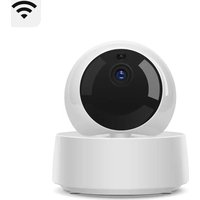
Cam Slim Gen2 - Surveillance Camera Sonoff - Free user manual and instructions
Find the device manual for free Cam Slim Gen2 Sonoff in PDF.


Pick your language and provide your email: we'll send you a specifically translated version.
| Product Type | Surveillance Camera |
| Brand | Sonoff |
| Model | Cam Slim Gen2 |
| Category | Home Security Camera |
| Design | Compact, slim wall-mountable body |
| Image Resolution | Full HD 1080p (1920 × 1080) |
| Lens | Wide-angle lens with approx. 130° field of view |
| Night Vision | Infrared (IR) LEDs with up to 10 m range |
| Connectivity | Wi-Fi IEEE 802.11 b/g/n (2.4 GHz) |
| Power Supply | 5V/1A via Micro USB port (adapter included) |
| Local Storage | MicroSD card slot, supports up to 128 GB (card not included) |
| Cloud Storage | Compatible with eWeLink cloud subscription (optional) |
| Audio | Built-in microphone and speaker for two-way talk |
| Motion Detection | Yes, with push notifications via eWeLink app |
| App Control | eWeLink app for iOS and Android |
| Smart Home Integration | Works with Amazon Alexa and Google Assistant |
| Operating Temperature | -10 °C to 50 °C |
| Mounting | Included mounting kit for wall or ceiling installation |
| Weight | Approx. 90 g (net body) |
| Dimensions (L × W × H) | Approx. 60 × 60 × 30 mm |
| Maintenance | Clean the lens and housing with a soft, dry cloth |
| Security | Supports WPA/WPA2 encryption; keep firmware up to date |
| Repairability | No user-serviceable parts; contact Sonoff support for repairs |
Frequently Asked Questions - Cam Slim Gen2 Sonoff
How do I reset the Sonoff Cam Slim Gen2?
To reset the camera, press and hold the reset button located near the USB port for about 5 seconds until you hear a sound or the LED blinks. The device will restart and return to factory settings. You will need to set it up again via the eWeLink app.
How do I connect the camera to Wi-Fi?
Download the eWeLink app on your smartphone. Turn on the camera, then press the reset button until the LED blinks rapidly. In the app, choose 'Add Device', select your camera model, and follow the instructions to enter your Wi-Fi credentials. Make sure the Wi-Fi operates at 2.4 GHz.
Does the camera support local storage?
Yes, the Cam Slim Gen2 has a MicroSD card slot that accepts cards up to 128 GB. Insert a card before or after setup, and enable local recording in the eWeLink app. The card is sold separately.
Can I view the camera remotely?
Absolutely. Once the camera is connected to your home Wi-Fi and added to the eWeLink app, you can access live video from anywhere through the internet using your smartphone or tablet. The app provides HD live streaming and playback.
How does night vision work?
The camera is equipped with infrared LEDs that automatically activate in low-light conditions. The built-in IR filter switches to night mode, allowing clear black-and-white video up to 10 meters in total darkness.
Is the camera weatherproof?
The Cam Slim Gen2 is designed for indoor use. It does not feature an official IP rating, so avoid exposing it to rain or moisture. For outdoor use, consider placing it under an overhang or in a protective enclosure.
How do I set up motion detection alerts?
Open the eWeLink app, go to the camera's settings, and select Motion Detection. You can adjust the sensitivity and define detection zones. Alerts are sent as push notifications to your smartphone when movement is detected.
Can I share access with family members?
Yes. In the eWeLink app, locate your camera, tap the 'Share' option, and enter the email or account name of the person you want to share with. They will receive an invitation to view the camera feed on their own device.
What should I do if the camera fails to connect?
First, ensure the camera is powered on and your router broadcasts on 2.4 GHz. Check that the LED is blinking slowly during pairing. If not, do a factory reset. Move the camera closer to the router, and temporarily disable the mobile data on your phone. If problems persist, contact Sonoff support.
How do I mount the camera securely?
Use the included mounting bracket and screws. Mark the drill holes on the wall or ceiling, drill pilot holes, and fix the bracket with the supplied anchors. Slide the camera onto the bracket until it clicks. Adjust the angle by tilting the camera head.
User questions about Cam Slim Gen2 Sonoff
0 question about this device. Answer the ones you know or ask your own.
Ask a new question about this device
No questions yet. Be the first to ask one.
Download the instructions for your Surveillance Camera in PDF format for free! Find your manual Cam Slim Gen2 - Sonoff and take your electronic device back in hand. On this page are published all the documents necessary for the use of your device. Cam Slim Gen2 by Sonoff.
USER MANUAL Cam Slim Gen2 Sonoff


Manual assistant
Powered by Anthropic
Waiting for your message
Product information
Brand : Sonoff
Model : Cam Slim Gen2
Category : Surveillance Camera