
Series 3 Pro 322pe - Monitor HP - Free user manual and instructions
Find the device manual for free Series 3 Pro 322pe HP in PDF.


Pick your language and provide your email: we'll send you a specifically translated version.
| Product Type | Monitor |
| Brand | HP |
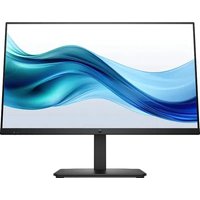
| Model | Series 3 Pro 322pe |
| Screen Size | 31.5 inches |
| Panel Type | IPS |
| Native Resolution | 2560 x 1440 (QHD) |
| Aspect Ratio | 16:9 |
| Refresh Rate | 75 Hz |
| Response Time | 5 ms (GTG) |
| Brightness | 350 nits (typical) |
| Contrast Ratio | 1000:1 |
| Viewing Angle | 178° horizontal / 178° vertical |
| Connectivity | 1x DisplayPort 1.4, 1x HDMI 2.0, 1x USB-C (with DisplayPort Alt Mode, Power Delivery up to 90W), 3x USB 3.2 Type-A |
| Adjustability | Height, tilt, swivel, and pivot |
| VESA Mounting | 100 x 100 mm |
| Power Consumption | 35 W (typical), 0.5 W standby |
| Stand | Included |
| Dimensions (with stand) | 713 x 561 x 228 mm |
| Weight (with stand) | 8.6 kg |
| Safety Features | Kensington lock slot, anti-glare screen |
| Maintenance | Wipe with soft dry cloth; do not use harsh chemicals |
| Energy Efficiency | Energy Star® certified |
| Repairability | Accessible parts; HP support for service and spare parts |
Frequently Asked Questions - Series 3 Pro 322pe HP
How do I set up the HP Series 3 Pro 322pe monitor?
To set up your monitor, place it on a stable surface, connect the power adapter and the desired video cable (HDMI, DisplayPort, or USB-C) to your computer. Then press the power button on the monitor. The stand is pre-attached, but you can adjust height, tilt, and swivel after assembly. For detailed steps, refer to the quick setup poster or the manual's installation section.
How do I connect my laptop to the monitor using USB-C?
Use a USB-C cable that supports DisplayPort Alt Mode. Connect one end to your laptop's USB-C port and the other to the monitor's USB-C port. The connection will transmit video signals and, if enabled, provide power delivery (up to 90W) to charge your laptop. You may also need to select the correct input source via the OSD menu.
What do the on-screen display (OSD) controls do?
The OSD menu lets you adjust settings such as brightness, contrast, input selection, color temperature, and picture modes. Use the function buttons on the bottom bezel to navigate and make changes. Press the menu button to open, and the arrows to move through options. For a full list, see the manual's OSD operation section.
How do I adjust the stand height and tilt?
The stand offers height adjustment, tilt, swivel, and pivot. Hold the monitor firmly and apply gentle pressure to adjust. For height, lift the monitor to the desired level; for tilt, move the top edge forward or backward. Swivel rotates the screen horizontally, and pivot turns it into portrait mode.
Why is there no image on the screen?
First, verify the monitor is powered on and the power cable is securely connected. Check that the video cable is connected to both the monitor and the computer, and that the correct input source is selected via the OSD. If using a docking station or USB-C, ensure it supports video output. Also, test with another cable or port to rule out hardware issues.
How do I clean the monitor safely?
Turn off the monitor and unplug it. Use a soft, dry microfiber cloth to gently wipe the screen and frame. For stubborn smudges, slightly dampen the cloth with distilled water (or a mild screen cleaner) and wipe again. Never spray liquids directly on the screen, and avoid harsh chemicals or abrasive materials that can damage the anti-glare coating.
Does the monitor have built-in speakers?
The HP Series 3 Pro 322pe does not include built-in speakers. To play audio, connect external speakers or headphones to your computer's audio output, or use the audio-out port on some devices. If your signal source is HDMI or DisplayPort, the audio may be embedded; you can route it to external speakers via your system's sound settings.
Can I mount this monitor on a VESA arm?
Yes, the monitor has a VESA mounting pattern of 100 x 100 mm. To mount, remove the stand by pressing the release button or unscrewing the base, then attach a compatible VESA bracket with screws of appropriate length. Be sure not to overtighten. Follow the mounting instructions provided with your VESA arm or bracket.
What are the power saving features?
The monitor supports Energy Star® power management. It automatically switches to sleep mode after a period of inactivity, reducing power consumption to 0.5 W in standby. To adjust the sleep timer, go to the OSD menu under Power or Energy Saver. Additionally, using the Auto-Sleep feature can help save energy when not in use.
How can I get support or service for this monitor?
Visit the HP Support website (support.hp.com) to download drivers, manuals, and warranty information. You can also contact HP customer service via phone or chat for troubleshooting. If your monitor requires repair or replacement, check the warranty status and locate an authorized service center. The model number is on the label on the back of the product.
User questions about Series 3 Pro 322pe HP
0 question about this device. Answer the ones you know or ask your own.
Ask a new question about this device
No questions yet. Be the first to ask one.
Download the instructions for your Monitor in PDF format for free! Find your manual Series 3 Pro 322pe - HP and take your electronic device back in hand. On this page are published all the documents necessary for the use of your device. Series 3 Pro 322pe by HP.
USER MANUAL Series 3 Pro 322pe HP


Manual assistant
Powered by Anthropic
Waiting for your message
Product information
Brand : HP
Model : Series 3 Pro 322pe
Category : Monitor