GreenDrive - External hard drive Fantom Drives - Free user manual and instructions
Find the device manual for free GreenDrive Fantom Drives in PDF.


Pick your language and provide your email: we'll send you a specifically translated version.
| Product Type | External Hard Drive |
| Brand | Fantom Drives |
| Model | GreenDrive |
| Interface | USB 3.0 (backward compatible with USB 2.0) |
| Storage Capacity | Up to 4TB (model-dependent) |
| RPM Speed | 5400 RPM |
| Cache Size | 8 MB |
| Dimensions | 160 x 115 x 35 mm (approx.) |
| Weight | 800 g (approx.) |
| Power Supply | AC 100-240V, 50/60Hz (AC adapter included) |
| Power Consumption | 5W typical, 0.5W sleep mode |
| LED Indicator | Power and activity status |
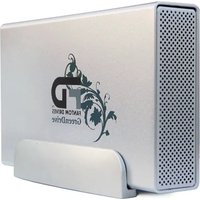
| Enclosure Material | Aluminum heatsink body |
| Cooling | Fanless, silent operation |
| Plug and Play | No driver installation required |
| Compatibility | Windows, macOS, Linux |
| Data Transfer Speed | Up to 5 Gbps |
| Power Saving | Auto sleep mode for energy efficiency |
| Maintenance | Clean with a soft, dry cloth |
| Safety Warning | Keep away from liquids and extreme heat |
| Spare Parts | Replacement AC adapter and USB cable available |
| Repairability | No user-serviceable components; contact certified support |
| Warranty | 1-year limited warranty |
Frequently Asked Questions - GreenDrive Fantom Drives
How do I connect the GreenDrive to my computer?
Connect the included USB cable to the drive and to your computer. For USB 3.0 ports, use the blue connector for maximum speed. The drive will be automatically detected.
Can I use the GreenDrive with both Windows and Mac?
Yes, the GreenDrive is pre-formatted in exFAT for out-of-the-box compatibility with both Windows and macOS. For Linux, you may need to reformat the drive.
How do I eject the GreenDrive safely?
Windows: click the Safely Remove Hardware icon and choose "Eject". Mac: drag the drive icon to the Trash. Always wait for the LED to indicate idle before unplugging.
What should I do if the GreenDrive is not recognized?
Check the USB cable and port. Ensure the drive is powered on (LED lit). Try another port or computer. If still not detected, open Disk Management (Windows) or Disk Utility (Mac) to see if the volume needs a drive letter or mount point.
Does the GreenDrive require external power?
Yes, the GreenDrive uses an AC adapter included. Plug it into the drive and a wall outlet. The drive spins up only when powered and connected.
Can I upgrade the internal hard drive?
The warranty is void if the enclosure is opened. This model is not designed for user upgrades. Replace the entire unit or contact a certified technician.
How do I clean the GreenDrive?
Use a soft, dry cloth to wipe the exterior. Do not use water, solvents, or abrasive cleaners. Ensure the drive is unplugged before cleaning.
What is the warranty period?
The Fantom Drives GreenDrive comes with a 1-year limited warranty against defects. Check your localized terms or contact customer support for details.
How do I format the GreenDrive?
The drive is pre-formatted, but you can reformat it using Disk Utility on Mac or Disk Management on Windows. Choose NTFS for Windows-only, HFS+ for Mac-only, or exFAT for cross-platform use.
Is the GreenDrive compatible with USB 2.0?
Yes, the drive is backward compatible with USB 2.0 ports, but data transfer speed will be limited to USB 2.0 speeds (480 Mbps). For best performance, use a USB 3.0 port or higher.
User questions about GreenDrive Fantom Drives
0 question about this device. Answer the ones you know or ask your own.
Ask a new question about this device
No questions yet. Be the first to ask one.
Download the instructions for your External hard drive in PDF format for free! Find your manual GreenDrive - Fantom Drives and take your electronic device back in hand. On this page are published all the documents necessary for the use of your device. GreenDrive by Fantom Drives.
USER MANUAL GreenDrive Fantom Drives


Manual assistant
Powered by Anthropic
Waiting for your message
Product information
Brand : Fantom Drives
Model : GreenDrive
Category : External hard drive