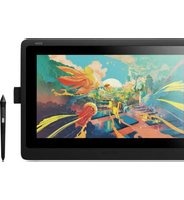
Cintiq 15X - Graphic tablet WACOM - Free user manual and instructions
Find the device manual for free Cintiq 15X WACOM in PDF.


Pick your language and provide your email: we'll send you a specifically translated version.
| Product Type | Graphic display tablet |
| Brand | Wacom |
| Model | Cintiq 15X |
| Display Size | 15.4 inches |
| Screen Resolution | 1280 x 800 pixels |
| Active Area | 13.3 x 8.3 inches (338 x 211 mm) |
| Pen Technology | Wacom penabled, battery-free stylus |
| Pressure Sensitivity | 1024 levels |
| ExpressKeys | 4 customizable keys |
| Connectivity | USB 2.0, DVI, VGA |
| Dimensions | 476 x 352 x 31 mm |
| Weight | 5.6 kg |
| Power Supply | AC adapter (100-240 V) |
| Power Consumption | Approximately 35 W |
| Compatibility | Windows and macOS |
| Main Functions | Digital drawing, photo editing, illustration, 3D modeling, annotation and creative design |
| Cleaning and Maintenance | Wipe screen with a soft, dry microfiber cloth. For stubborn marks, use a small amount of screen-safe cleaner applied to the cloth first. |
| Safety Precautions | Use only the supplied AC adapter. Do not expose to water or extreme heat. Avoid disassembling the device. Keep away from direct sunlight. |
| Spare Parts and Repairability | Replacement pen nibs, cables and stands available. Repairs must be carried out by an authorised Wacom service centre. |
| Included Accessories | Pen, pen stand, spare nibs, AC adapter, USB cable, DVI cable, installation CD and user manual |
Frequently Asked Questions - Cintiq 15X WACOM
How do I connect the Cintiq 15X to my computer?
First, connect the power adapter and plug it into a wall outlet. Then connect the DVI or VGA cable from your computer to the display. Finally, plug the USB cable into your computer to activate the pen. Install the latest Wacom driver for full functionality.
Does the Cintiq 15X require a power adapter?
Yes, the Cintiq 15X requires its AC adapter to power the display and pen. The adapter supplies power to the LCD backlight and the internal electronics. Always use the adapter provided by Wacom.
Can I use the Cintiq 15X as a second monitor?
Absolutely. The Cintiq 15X works as a standard monitor as well as a pen display. You can extend your desktop across both screens. The active area corresponds to the full screen, so the pen works directly on the display.
How do I calibrate the pen on my Cintiq 15X?
Open the Wacom Tablet Properties software. Select the 'Calibrate' option in the pen settings. Follow the on-screen instructions to tap the on-screen targets. This ensures the cursor aligns with the pen tip on the display.
Why is the pen not working on my Cintiq 15X?
Check that the USB cable is properly connected and the driver is installed. Restart your computer and try again. Also inspect the pen nib for damage. If the issue persists, reinstall the Wacom driver.
How do I replace the pen nib?
Use the nib removal ring located in the pen stand. Gently pull the old nib out of the pen tip. Push the new nib into the pen until it clicks. Be careful not to force it, as the nib can break.
Is the Cintiq 15X compatible with macOS?
Yes, the Cintiq 15X supports macOS as long as you install the appropriate Wacom driver. Check Wacom's website for the latest driver that matches your macOS version. It is also compatible with Windows.
What is the active area of the Cintiq 15X?
The active area measures 13.3 x 8.3 inches (338 x 211 mm). This is the drawing surface that responds to the pen. The displayed image matches the active area for one-to-one input.
How do I clean the screen without damaging it?
Use a soft dry microfiber cloth to gently wipe the screen. If needed, dampen the cloth with a little water or a screen-safe cleaning solution, then wipe. Never spray liquid directly on the display, and avoid abrasive materials.
Can I repair the tablet myself?
The Cintiq 15X contains sensitive electronic components. Repairs such as replacing the panel or internal boards should only be done by an authorised Wacom service centre. However, you can replace the pen nib and rechargeable battery if applicable yourself, following the manual.
User questions about Cintiq 15X WACOM
0 question about this device. Answer the ones you know or ask your own.
Ask a new question about this device
No questions yet. Be the first to ask one.
Download the instructions for your Graphic tablet in PDF format for free! Find your manual Cintiq 15X - WACOM and take your electronic device back in hand. On this page are published all the documents necessary for the use of your device. Cintiq 15X by WACOM.
USER MANUAL Cintiq 15X WACOM


Manual assistant
Powered by Anthropic
Waiting for your message
Product information
Brand : WACOM
Model : Cintiq 15X
Category : Graphic tablet