
AIBO ERS-7M2 - Robot SONY - Free user manual and instructions
Find the device manual for free AIBO ERS-7M2 SONY in PDF.


| Product Type | Entertainment Robot |
| Brand | Sony |
| Model | AIBO ERS-7M2 |
| Category | Robotic Pet |
| Dimensions (W x H x L) | 180 mm x 270 mm x 320 mm |
| Weight | Approximately 1.6 kg |
| Power Supply | Rechargeable lithium-ion battery |
| Battery Life | Up to 1.5 hours of activity |
| Charging Time | Approximately 2 to 3 hours |
| Camera | Built-in CMOS camera for visual recognition |
| Microphone | Built-in microphone for voice recognition |
| Sensors | Acceleration sensor, infrared distance sensor, touch sensors, joint rotation sensors |
| Articulation | 18 joints enabling walking, head movements, and expressive poses |
| Recognition Features | Face recognition, shape and color detection, voice command recognition |
| Emotional Expression | LED eyes and body posture convey emotional states |
| Connectivity | Wireless LAN (IEEE 802.11b) and Memory Stick slot |
| Operating Software | AIBO MIND with OPEN-R architecture |
| Programming Support | Allows user programming through official AIBO environment |
| Cleaning and Maintenance | Wipe exterior with a soft, dry cloth; gently clean camera lens and sensors |
| Safety Precautions | Use designated battery and charger; keep away from water; avoid harsh impacts |
Frequently Asked Questions - AIBO ERS-7M2 SONY
User questions about AIBO ERS-7M2 SONY
0 question about this device. Answer the ones you know or ask your own.
Ask a new question about this device
Download the instructions for your Robot in PDF format for free! Find your manual AIBO ERS-7M2 - SONY and take your electronic device back in hand. On this page are published all the documents necessary for the use of your device. AIBO ERS-7M2 by SONY.
USER MANUAL AIBO ERS-7M2 SONY


ERS-7M2
for AIBO MIND 2
User's Guide (AIBO Entertainment Player)
When printing this document to legal size paper, place a check mark beside the "Auto-rotate and center pages" option of the Print dialog box. This prints the document on the center of the page.

Table of contents
Getting Started
What is AIBO Entertainment Player? 6
Playing with Navigator 6
Using the camera 6
Using the Player 7
Start your day with the Scheduler 7
Display explanation 8
The AIBO® Entertainment Robot operation modes ... 10
Checking system requirements 11
Preparation steps 12
Installing the software 13
Uninstalling AIBO Entertainment Player ..... 14
Starting and ending AIBO Entertainment Player ..... 15
First-time startup 15
Second and subsequent startups 18
Closing down AIBO Entertainment Player .... 18
Using Navigator
Basic Navigator operation 20
Controlling the AIBO® Entertainment Robot ..... 22
Moving the AIBO robot 22
Playing with the AIBOne toy and the pink ball . 24
Playing with various motion patterns ..... 25
Using the chat function 26
Switching the sound 27
Seeing the AIBO® Entertainment Robot's current status in 3D 28
Changing the 3D display angle 28
Using the Camera
Basic camera operation 30
Taking a picture 31
Shooting a movie 32
Interval recording 33
Viewing the album 34
Viewing pictures 34
Viewing movies 35
Using the Player
Basic Player operation 37
Listening to music with the AIBO® Entertainment
Robot 38
Selecting music from a media list 38
Listening to music by giving the AIBO®
Entertainment Robot a voice command ..... 40
Touching the AIBO robot to listen to music .... 40
Listening to music files via drag & drop ..... 41
Registering music files 41
Listening to music by showing the ATBO® Entertainment
Robot a registered image (VPR function) ..... 43
Registering an image (VPR) 43
Listening to music by showing the AIBO robot a registered image 45
Listening to Internet radio 46
Registering an Internet radio station ..... 46
Listening to Internet radio 48
Using a voice command to listen to
Internet radio 48
Enjoying motion patterns 49
Playing back a motion pattern 49
Getting the AIBO robot to dance (AutoMotion) 49
Having the AIBO ® Entertainment robot read words and
phrases to you 51
Registering words or phrases 51
Having the AIBO robot read to you ..... 52
Playing a recorded sound through the AIBO®
Entertainment Robot 53
Recording 53
Playing the recorded sound via the AIBO ®
Entertainment Robot 54
Creating a playlist 55
Creating a playlist 55
Playback with a playlist 56
Saving playlist data 56
Using the Scheduler
Basic Scheduler operation 58
Creating a schedule 59
Registering a scheduled event 59
Importing schedule data from Microsoft ®
Outlook ® 61
Editing and deleting scheduled events ..... 61
Having the AIBO ® Entertainment Robot tell you your
schedule 63
Having the AIBO robot announce your schedule 63
Using a voice command to have the AIBO robot tell
you your schedule 63
Touching the AIBO robot to have it tell you your
schedule 63
Setting your Preferences
To change settings 65
Network Settings 66
AIBO 67
Voice Synthesis 68
Keyword 69
3D 70
Movie 71
Troubleshooting
Troubleshooting 73
Other Information
Words understood by the AIBO® Entertainment
Robot 79
The AIBO robot touch sensor operation ..... 79
Controlling the AIBO® Entertainment Robot's actions with the keyboard 80
- S o n ® Corporation does not accept any liability whatsoever for any problems arising between the user and third parties with regard to pictures and movies taken with the AIBO ® Entertainment Robot.
Do not use the AIBO robot to store pictures or movies that can be damaging or offensive to others. - At many live events and shows also for entertainment purposes the taking of pictures and movies is restricted.
-
Any pictures or movies taken with the AIBO robot are only for private use by the individual customer. Do not use the AIBO robot in breach of copyright or of any rights of third parties. Unless express permission is granted by law, the transfer and forwarding of copyrighted pictures and movies is not allowed.
-
This software or document is protected by copyright, and distributed under licenses restricting its use, copying, and distribution. No part of this software or document may be reproduced in any form by any means and rental of this software may not be allowed without prior authorization of Sony Corporation.
- Sony Corporation assumes no responsibility for any inconvenience caused by misuse or any use not stated in this document.
- The supplied software cannot be used with any device other than those devices specified herein.
- Some mobile communication devices may not work with the AIBO EYES feature due to unique configurations. Sony Corporation assumes no responsibility, in the case that the AIBO EYES feature does not work with such mobile communication devices.
- The specifications of the supplied software are subject to change without notice.
Before using this software, please read the accompanying End-User License Agreement which governs use of this software.

OPEN-R
“OPEN-R” is the standard interface for the AIBO Entertainment Robot system that Sony is actively promoting. This interface expands the capability of the entertainment robot through a flexible combination of hardware and interchangeable software to suit various applications.
The AIBO robot ERS-7 conforms to OPEN-R version 1.1.5.
"AIBO", the AIBO logo "OPEN-R" and the OPEN-R logo "Memory Stick", and are MEMORY STICK trademarks or registered trademarks of Sony Corporation.
Microsoft and Windows are registered trademarks of Microsoft Corporation in the United States and/or other countries.
Intel and Pentium are registered trademark or trademark of Intel Corporation.
Adobe and Adobe Reader are registered trademarks of Adobe Systems, Inc.
This software contains sound software components licensed from ARTTeknika, Inc.
All other names of systems, products and services are trademarks of their respective owners.
The TM and ® marks are not shown in this document.
Other information about the AIBO robot is available on the Internet at the following site: http://www.aibo.com
Reproduction in whole or in part without written permission is prohibited. All rights reserved.
Getting Started
Welcome to the wonderful world of AIBO Entertainment Player!
This software package utilizes the wireless LAN capability of your AIBO® Entertainment Robot ERS-7 to bring you a wide variety of entertaining functions that operate in conjunction with your PC.
The following pages will demonstrate basic operation steps to familiarize you with what the software can do.

What is AIBO Entertainment Player?
AIBO Entertainment Player makes it possible to freely control your AIBO® Entertainment Robot from your PC. Responding to your commands, the AIBO robot can perform a variety of actions. You can take a picture or shoot a movie using the AIBO robot's built-in camera. You can have the AIBO robot play your favorite music and dance to it. You can even get the AIBO robot to remind you of upcoming events in your schedule. The possibilities are endless.
Playing with Navigator (page 19)
Normally, your AIBO robot will move about and function on its own, but with this software, you can remotely control it to do your bidding. You might operate the AIBO robot to play a game with friends. Dad in his study might want to use the AIBO robot to check on what's happening in the children's room or to talk to the kids. The AIBO robot now has a thousand new uses.
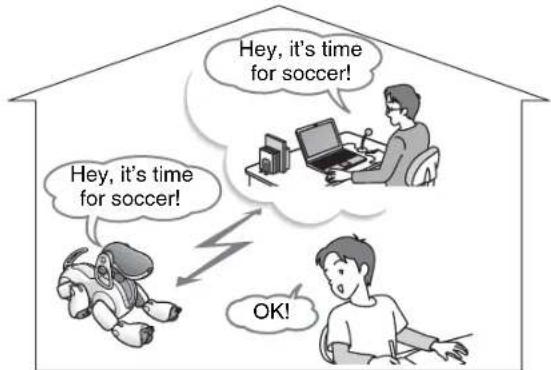
- Moving the AIBO robot.... page 22
- Playing with the AIBOne toy and the pink ball . . . . page 24
- Playing with various motion patterns.... page 25
• Using the chat function ..... page 26 - Checking on the AIBO robot with the 3D display . . page 28
Using the camera (page 29)
Take a still picture or a movie of what's in the AIBO robot's field of vision. You can get a feel for the AIBO robot's "point of view". When you go out, you can have the AIBO robot keep watch. By combining the house sitting function and movie function, you can have the AIBO robot start recording when it detects motion or sound.

• Taking a picture .... page 31
- Shooting a movie ...... page 32
• Viewing pictures and movies taken by the AIBO robot .. page 34
Using the Player (page 36)
Relax in your easy chair, while the AIBO® Entertainment Robot plays your favorite tunes. Enjoy music from your PC in a whole new way, and have the AIBO robot dance to it. What shall it be today?

- Listening to music CDs and music files .... page 39
- Listening to music by showing a registered image to the AIBO robot .... page 45
- Listening to Internet radio ...... page 48
- Enjoying motion patterns (gestures). . . . . . . . . . page 49
• Having the AIBO robot read words or phrases to you. . . . . . . . . . . . . . . . . . . . . . . . . . . . . . . . . . . . . . . . . . . . . . . . . . . . . . . . . . . . . page 51 - Listening to recorded sound ...... page 53
- Creating a playlist.... page 55
Start your day with the Scheduler (page 57)
Have the AIBO robot wake you with your favorite music in the morning. While having breakfast, check your schedule for today and the next day, and have the AIBO robot inform you of upcoming appointments. The AIBO robot lets you start your day with a smile on your face.

- Creating a schedule ...... page 59
- Importing a schedule from Microsoft Outlook .... page 61
• Having the AIBO robot tell you your schedule . . . . page 63
Hints
- The various functions of AIBO Entertainment Player work only when the AIBO robot and the PC are linked via a wireless LAN. Before using this software, please check the wireless LAN connection status.
- AIBO Entertainment Player is software for AIBO MIND 2 software.
Display explanation
The software has a different display for each function, namely the Navigator screen, Player screen, and Scheduler screen. Normally, you will use your PC's mouse to operate the software, but keyboard shortcuts are also available (page 80). In this section, some common display elements and functions are explained, using the Navigator screen as an example.

* While the AIBO robot is on the Energy Station, the number of functions that can be used is limited.
Connect button/Mode selector buttons
These buttons let you turn the AIBO ® Entertainment Robot connection on and off and select the operation mode for the AIBO robot.

Minimize button
An icon appears in the Windows ® system tray.

Windows system tray
(at bottom right of Desktop)


Whenever AIBO Entertainment Player is running, the icon for VAIBO Server (a program to transmit communications to the AIBO robot) also appears in the Windows task tray. There is no need for you to operate this icon.
Battery indicator/Go to Station button
Lets you check the battery status and initiate charging.




Clicking this button causes the AIBO robot to move to the Energy Station and charge itself.
This button is shown while the AIBO robot is charging. Clicking the button will cause the charging process to stop.
This button is shown while the AIBO robot is on the Energy Station. Clicking the button causes the AIBO robot to dismount from its Energy Station.
The AIBO® Entertainment Robot operation modes
You can connect to the AIBO robot while it is in Autonomous mode or in Station mode. While the AIBO robot is connected to AIBO Entertainment Player, the following modes are available.
* For details on Autonomous mode or Station mode, see the "User's Guide (Basic)" for the AIBO robot ERS-7.
![graph LR A["Autonomous mode"] -->|Start up AIBO Entertainment Player *1 Click (Connect) button| B["AIBO Entertainment Player"] A -->|Close AIBO Entertainment Player Click (Disconnect) button| B A -->|Connect automatically *2 Close AIBO Entertainment Player Click (Disconnect) button| B C["Station mod…](/content/2026/08/1612574/images/c1b5002927ac32a8ec2e34dd52075d4b7718a7bda0e7575c0a9c963a3132f3f2.jpg)
1 If AIBO Entertainment Player is set up to connect automatically at startup (page 66)
2 If AIBO Entertainment Player is set up to connect periodically (page 66)
*3 The time interval before returning to Autonomous Monitor mode can be set (page 67)

Mode indicator
Lit in blue: Autonomous Monitor mode
Flashing in blue: Remote Control mode
Checking system requirements
To use AIBO Entertainment Player, the following system requirements must be met.
![graph TD A["Internet radio station"] --> B["Modem"] B --> C["Wireless LAN access point"] C --> D["PC"] D --> E["AIBO Mind 2 "Memory Stick™" media"] E --> F["The modem or access point must have router capability."] B -.-> G["FTTH/ADSL/CATV connection"] G --> H["To Internet"]](/content/2026/08/1612574/images/bc676e2aa2140c73b0ef13190345066927a5a4329b8846b5ccadc1402ad84d06.jpg)
*1 In this manual, "Windows" is used to refer to Windows XP and Windows 2000.
*2 This environment is recommended when using the video recording function. If your system does not meet these requirements, it may cause problems such as recorded sounds and voices frequently cutting out and video being slow to refresh.
*3 If your computer connects to an access point via wireless LAN, it must have a wireless LAN function that conforms to the IEEE802.11b standard.
*4 Only Sony ® brand products are guaranteed to operate correctly.
*5 To listen to Internet radio, an "always-on" connection to the Internet is recommended.
PC environment requirements
- Operating system: Microsoft Windows XP (SP1, SP2), 1 Microsoft Windows 2000 (SP 4) 1
- CPU/Memory/HDD
Minimum requirements:
CPU: Intel® Pentium® III processor, 800 MHz or higher Memory: 256 MB or higher
HDD: 120 MB or higher of available capacity
Recommended environment 2 :
CPU: Intel Pentium 4 processor, 2 GHz or higher Memory: 512 MB or higher
HDD: 1 GB or higher of available capacity
- Graphics card: Microsoft® DirectX compatible graphics card
- Microsoft Direct Sound compatible sound card
- Wireless LAN function conforming to IEEE802.11b 3
- "Memory Stick™" media reader/writer *4
- Internet Connection 5
Notes
- If a firewall is active on the PC, controlling the AIBO® Entertainment Robot and viewing images from the AIBO robot's camera may not be possible, even if the connection is established. To use AIBO Entertainment Player, you should disable the firewall. If the Windows firewall function of Windows XP SP2 (Service Pack 2) is enabled, the connection to AIBO Entertainment Player must be authorized the first time the software is started (page 17).
- Depending on CPU performance and the wireless LAN environment, music, recorded video and sound may cut out during playback.
Preparation steps
To prepare your PC to run AIBO Entertainment Player, please proceed as follows.
Install software
• AIBO WLAN Manager 2
• AIBO Entertainment Player
• Additional package for AIBO Entertainment Player (Windows 2000 users only)
- Microsoft DirectX 9
Install Microsoft ® Windows Media ® Player 9 (If not already installed on the PC)
For details, see "Installing the software" on page 13.
Microsoft ® Internet Explorer 6 (Windows 2000 users only)

Change network settings using AIBO WLAN Manager 2 *

Start AIBO Entertainment Player and connect to the AIBO® Entertainment Robot
For details, see "User's Guide (PC·Network)" for the AIBO robot ERS-7.
For details, see "First-time startup" on page 15.
*1 AIBO WLAN Manager 2 is software that easily helps setup wireless LAN communication settings for the AIBO robot. This is required in order to use AIBO Entertainment Player. For details on AIBO WLAN Manager 2, see "User's Guide (PC-Network)" for the AIBO robot ERS-7 (PDF).
*2 Adobe ® Reader is required to view the "User's Guide (PC-Network)" for the AIBO robot ERS-7 and this document. If the Adobe Reader is not installed, you can download it from the web site of Adobe Systems (http://www.adobe.com/).
Installing the software
This section explains how to install AIBO Entertainment Player and its related software.
Notes
- AIBO Entertainment Player runs only on Windows XP and Windows 2000. Other operating system versions are not supported.
- Before starting the installation, log on as Administrator or as a member of the Administrator group.
1 Insert the supplied CD-ROM into the CD-ROM drive.
The Installer starts automatically, and the "ERS-7 Software Installation Menu" screen appears.
2Click the button corresponding to the software that you would like to install.
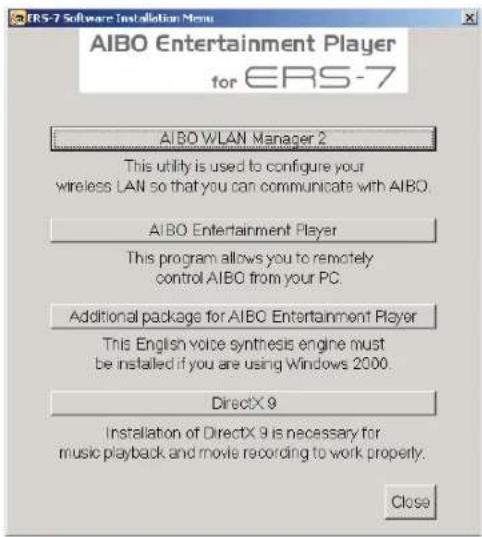
For subsequent steps, follow the on-screen instructions.

When using Windows 2000, the "Additional package for AIBO Entertainment Player (Windows 2000 users only)" must be installed.
3 Install Microsoft ® Windows Media ® Player 9
If required, download this software from the Microsoft web site (http://www.microsoft.com) and install it according to the instructions on the site. If the software is already installed, this step is not necessary.
When using Microsoft Windows 2000, proceed to step 4.
When using Microsoft Windows XP, the software installation process is now complete.
4 Install Microsoft ® Internet Explorer 6.
If required, download this software from the Microsoft web site (http://www.microsoft.com) and install it according to the instructions on the site. If the software is already installed, this step is not necessary.
The software installation process is now complete.
Uninstalling AIBO Entertainment Player
As an example, this section explains the uninstall procedure under Windows XP.
Notes
- Before starting the uninstallation process, log on as Administrator or as a member of the Administrator group.
- When you uninstall the software, any images saved in the album on your PC will also be deleted.
1 Select "Start" - "Control Panel". Double-click "Add or Remove Programs".
2Click "AIBO Entertainment Player" and click "Remove".
Follow the instructions that appear on the screen to uninstall the software.
3 When the “Confirm Uninstall” screen appears, click “OK”.
Follow the instructions that appear on the screen.
4 When the "Uninstall Complete" screen appears, click "Finished".
The uninstallation process is now complete.
Starting and ending AIBO Entertainment Player
When you have installed AIBO Entertainment Player on your PC and the AIBO® Entertainment Robot is ready to communicate via wireless LAN, you can start AIBO Entertainment Player.

For details on connecting the AIBO robot to a wireless LAN, see "User's Guide (PC-Network)" for the AIBO robot ERS-7 (PDF).
First-time startup
When you start AIBO Entertainment Player for the first time, a screen appears to select the AIBO robot to control.
1 Double-click the icon on the Desktop.
Alternatively, select “Start” → “All Programs” (“Programs” when using Windows 2000) → “AIBO Entertainment Player” → “AIBO Entertainment Player”. When the program starts for the first time, the “Network” screen appears.
2Select the AIBO ® Entertainment Robot to control.
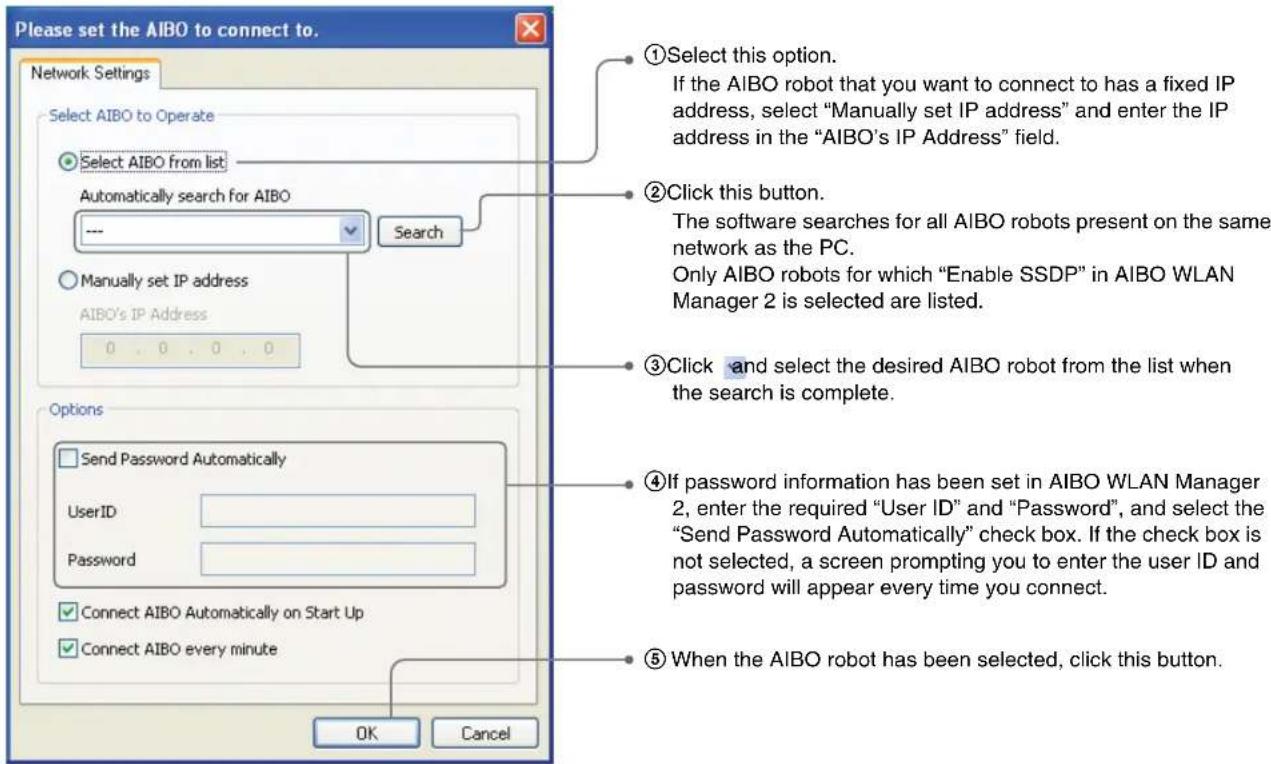

Hints
- If the desired AIBO robot is not shown in the list, or if it is not found when using "Find" in Windows XP, check whether Universal Plug & Play is installed, and if the setting to block UPnP framework is enabled in the Windows Firewall. For details on correct settings for communicating with the AIBO robot via a wireless LAN, see the "User's Guide (PC-Network)" for the AIBO robot ERS-7 (PDF).
- For details on setting items, see the section "Network Settings" (page 66).
AIBO Entertainment Player starts and the Navigator screen appears.
When you connect to the AIBO® Entertainment Robot, its mode indicator flashes blue, showing you that the AIBO robot is connecting to your PC.
The AIBO robot's current posture and the image captured by the AIBO robot's camera are shown on the screen.
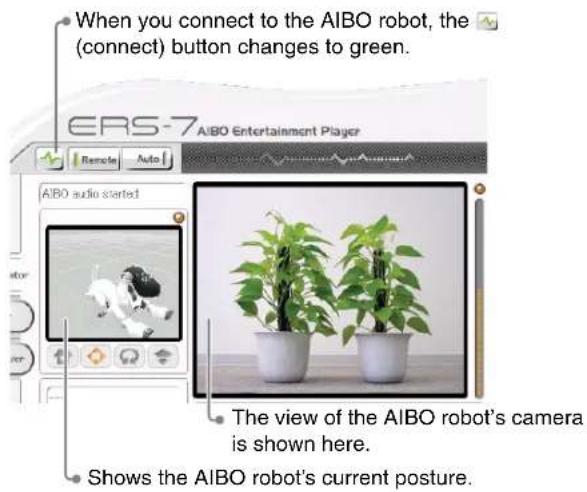
After connecting in Remote Control mode, the AIBO robot waits for you to initiate an action.
For users of Windows XP SP2 (Service Pack 2)
When the Windows firewall function of Windows XP SP2
(Service Pack 2) is enabled, the firewall will cause the
"Windows Security Alert" screen to appear when AIBO
Entertainment Player is started.
While the firewall function is enabled, viewing images from the AIBO robot's camera or controlling the AIBO robot may not be possible.
Register AIBO Entertainment Player as described below, to enable a proper connection.
1 At the "Windows Security Alert" screen, click "Unblock".
The “Windows Security Alert” screen closes, and the indication “Connecting to AIBO” is shown on the AIBO Entertainment Player screen.
2Click "Exit".

AIBO Entertainment Player is shut down.
The registration is now complete.
Start AIBO Entertainment Player again.

Hint
If you have inadvertently clicked "Keep Blocking" on the "Windows Security Alert" screen, cancel the blocked status as follows.
①Click "Start" - "Control Panel".
②Double-click "Windows Firewall".
③On the "Windows Firewall" screen, click the "Exception" tab.
④Select the "VALBOserver" check box and click "OK".
Second and subsequent startups
Double-click the icon on the Desktop.
When you start AIBO Entertainment Player again, it will automatically connect to the selected AIBO® Entertainment Robot.

Hint
You can also change the settings so that AIBO Entertainment Player will not connect automatically at startup. To do this, see the instructions on page 66.
Closing down AIBO Entertainment Player
Click the (close) button.

When the connection to the AIBO robot is terminated, the AIBO robot emits a confirmation sound, and the mode indicator goes out.

Using Navigator
Navigator allows you to freely control the AIBO® Entertainment Robot ERS-7. Once you have mastered the technique, you can make your AIBO robot do a number of fun things.

Basic Navigator operation
The Navigator screen is comprised of various controls to operate your AIBO® Entertainment Robot, and you can also use it to view on your PC what your AIBO robot is “seeing”.
A general introduction to the controls and screen sections is given below.
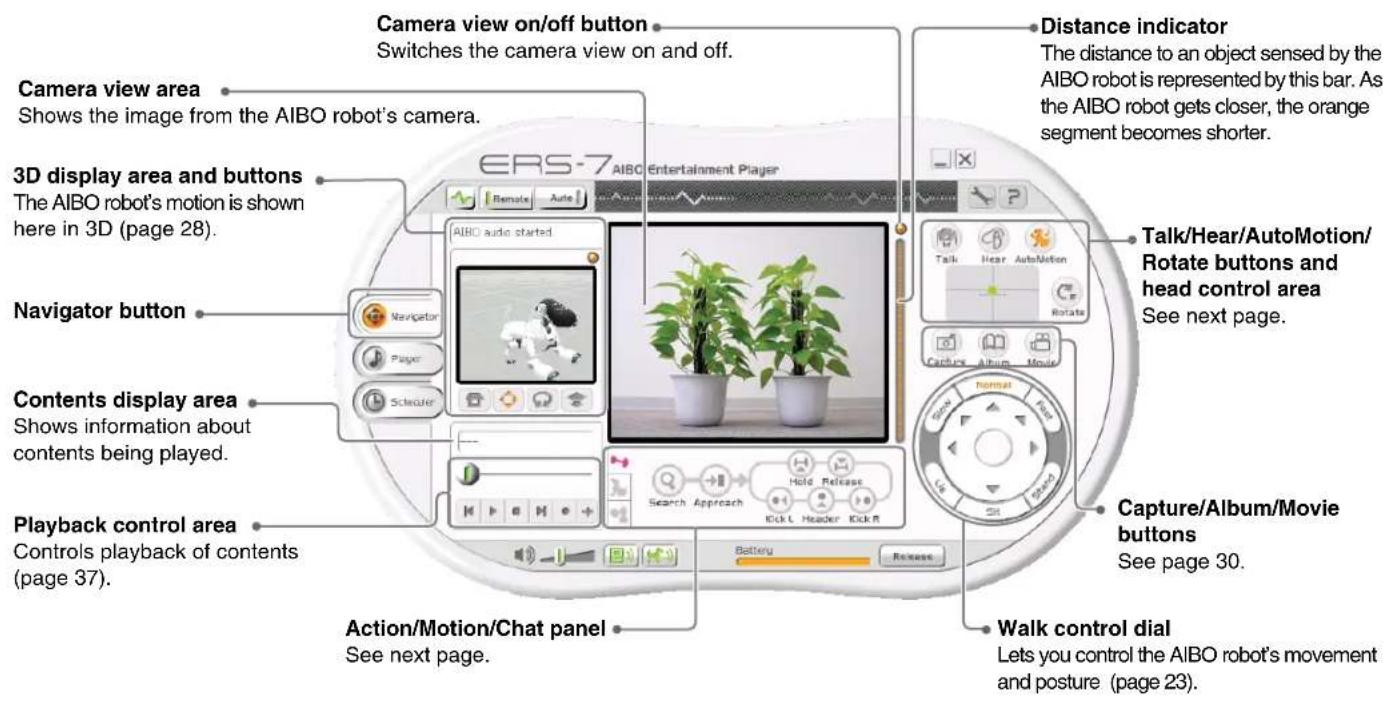
Hint
The various Navigator controls can only be used while the AIBO robot is in Remote Control mode. While the AIBO robot is in Autonomous Monitor mode, the AIBO robot operation buttons and areas are not active.
Talk/Hear/AutoMotion/Rotate buttons and head control area
The function of these buttons and area is as follows.

Action/Motion/Chat panel
Clicking these buttons displays the following panels.
Action panel
Lets you make the AIBO robot play with the AIBOne toy and the pink ball (page 24).
![graph LR A["Search"] --> B["Approach"] B --> C["Hold"] C --> D["Release"] D --> E["Kick L"] D --> F["Header"] D --> G["Kick R"] H["Action button"] --> A](/content/2026/08/1612574/images/70cb77333318d3cac2e681ddc02e94344c41ca22bd5b70f68177db06c511839d.jpg)
Motion panel
Lets you control various motion patterns of the AIBO robot (page 25).

Chat panel
Text that you enter here will be spoken by the AIBO robot (page 26).

Controlling the AIBO® Entertainment Robot
This section describes how you can use the various buttons and controls to move the AIBO robot.
At first, you should try this out while watching the PC screen and the AIBO robot at the same time. When you get the hang of it, you will then be able to have the AIBO robot move out of sight and play entertaining games with family and friends.

To use this function, the AIBO robot must be in Remote Control mode.
Moving the AIBO robot
First, you should master the basics, such as moving the AIBO robot's head, having the AIBO robot walk and turn, and changing its posture.
A game idea!
After practicing the AIBO robot's movements for a while, why not play a slalom racing game?
![graph TD A["Target: Animal-like figure"] --> B["Group of people"] B --> C["Group of people"] C --> D["Group of people"] D --> E["Group of people"] E --> F["Group of people"] F --> G["Group of people"] G --> H["Group of people"] H --> I["Group of people"] I --> J["Group of people"] J --> K["Group of…](/content/2026/08/1612574/images/29fa4e2d785a19d9e6baea85ee631b390052e2cd1f0141c02c6407a461385ca4.jpg)
Moving the head
The head control area lets you move the AIBO robot's head freely. The current position is indicated by the green dot. By clicking somewhere in the head control area or by dragging the dot with the mouse, you can move the head in this direction. When you right-click in the area, the AIBO robot faces straight ahead.


Walking, turning, changing posture
With the walk control dial, you can make the AIBO ®
Entertainment Robot walk exactly as you want. The dial lets you set the direction and speed of the AIBO robot's movement. You can also make the AIBO robot turn and change posture.
Clicking the buttons on the dial has the following effect.


Hints
- When you click ▲ once, the AIBO robot will continue to advance until you click Stop.
- If no other action is carried out for a while after clicking ○ Stop, the AIBO robot will resume the standing position.
- If you let the AIBO robot walk continuously, the indication "The AIBO robot has been overloaded" may appear and the AIBO robot may stop. In this case, wait at least 20 or 30 seconds before making the AIBO robot start walking again.
Having the AIBO robot turn its body in the direction it is looking
When you click the (Rotate) button, the AIBO robot will turn its body in the direction it is currently looking.

Playing with the AIBOne toy and the pink ball
You can have the AIBO® Entertainment Robot perform kicks and headers with the pink ball, and have it pick up or drop the AIBOne toy. Your skill in operating the controls will turn the AIBO robot into an expert player in no time.
The Action panel is used for these functions.
1 Click the (Action) button.
![graph TD A["Search"] --> B["Approach"] B --> C["Hold"] C --> D["Release"] D --> E["Kick L"] D --> F["Header"] D --> G["Kick R"] H["Battery"] --> I["Re"] J["Click this button."] --> K["User Interface"]](/content/2026/08/1612574/images/64fbe51bded7a73fc4071021a32701d6524c965dab398a05812cdfc1a8c44c95.jpg)
The Action panel appears.
2Click the desired button.
The AIBO robot moves as follows.
Repeatedly click the (Search) and (Approach) buttons until the AIBO robot is close to the desired object, and then click the other buttons to play.
![graph TD A["Search button"] --> B["Search for the AIBOne toy or the pink ball."] C["Approach button"] --> D["Approach the AIBOne toy or the pink ball."] E["Hold button"] --> F["Pick up the AIBOne toy."] G["Release button"] --> H["Drop the AIBOne toy."] I["Right leg kick button"] --> J["Kick the pink…](/content/2026/08/1612574/images/28a2c1dc91d5ea186628ee025f81371279030223609a398a803de9a302ac2476.jpg)

Hints
- Depending on the AIBO robot's current action, different buttons will be available.
The symbol for the (Approach) button changes according to whether the AIBO robot has found the pink ball or the AIBOne toy. - If the AIBO robot cannot find the pink ball or the AIBOne toy, clicking the (Hold) button will cause the AIBO robot's mouth to open and close.
Playing with various motion patterns
You can have the AIBO ® Entertainment Robot perform various motion patterns by using the Motion panel.
1 Click the (Motion) button.

The Motion panel appears.
2Select the desired motion pattern and click the (Motion playback) button.

The AIBO robot performs the selected motion pattern.

Hints
- The motion patterns listed below the heading "Station motion" in the listing can also be performed while the AIBO robot is on the Energy Station.
- If the (AIBO audio) button is set to ON, the AIBO robot will perform the motion pattern without sound.
The motion sound is not produced by AIBO Entertainment Player but by the AIBO robot itself.
To produce the motion sound, set the (AIBO audio) button to OFF.
Using the chat function
You can chat with family members or friends via the AIBO® Entertainment Robot. This is done by having the AIBO robot speak any text you input at the PC. Sometimes, things might be easier to say when not face-to-face. In such a case, let the AIBO robot be your messenger! The Chat panel is used for this function.
Hint
You can also use the AIBO robot's microphones to pick up sound and reproduce it via the speakers of the PC. This lets you have a conversation with family members or friends via the AIBO robot at a distance. (page 27)
1 Click the (Chat) button.

The Chat panel appears.
2 Enter the text, and click the (Chat playback) button.
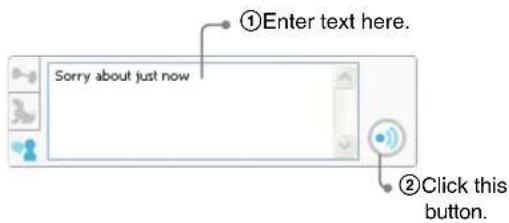
The text you typed in will be spoken by the AIBO robot.

Hints
• After entering text, you can also have the AIBO robot speak it by pressing the Enter key on the keyboard.
- The AIBO robot's voice is determined by the settings made under the "Voice Synthesis" tab in the "Settings" screen. You can change these settings as desired (page 68).
- Sound reproduced by the AIBO robot itself may be picked up and interpreted as a voice command. To prevent this, you should avoid speaking words that are listed in "Words understood by the AIBO® Entertainment Robot" (page 79).
Switching the sound
You can talk into your PC's microphone and have the sound reproduced by the speaker built into the AIBO® Entertainment Robot. Conversely, you can reproduce the sound picked up by the AIBO robot's microphones via the speakers of your PC.
To switch between these two functions, click the (Talk) or (Hear) button.
When you turn these functions ON, the color of the respective button changes to yellow: (Talk), (Hear)


The (Talk) button can only be used when the AIBO robot is in Remote Control mode.
Seeing the AIBO® Entertainment Robot's current status in 3D
The 3D display area shows the AIBO robot's current posture. This is convenient for controlling the AIBO robot when it is currently out of view. The 3D display area operates as follows.

Changing the 3D display angle
Click the (Rotate) or (Move) button and drag the mouse in the 3D display area to move the 3D display in the desired direction. When this function is selected, the button color changes to yellow: (Rotate), (Move)
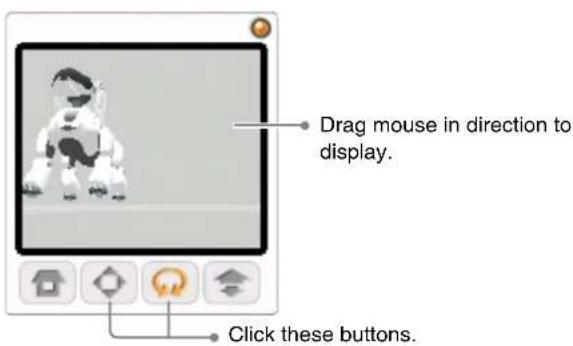
Note
The 3D display and the AIBO robot's actual movements may not be exactly synchronized.
Using the Camera
The camera built into the AIBO® Entertainment Robot can take still pictures or movies (video), which is another fun thing to do with your AIBO robot.

Basic camera operation
The Navigator screen also lets you control the camera functions to take pictures and movies. Click the Navigator button to bring up the Navigator screen. The controls and areas for camera operation are described below.


Hints
• Pictures and movies taken with AIBO Entertainment Player are stored on the hard disk of the PC (page 34).
- Pictures and movies stored in AIBO Entertainment Player album cannot be viewed using the AIBO Photo Album function (which employs the web browser for viewing pictures taken by the AIBO robot). For details on the AIBO Photo Album function, see the "User's Guide (PC-Network)" for the AIBO robot ERS-7 (PDF).
- Depending on its operation condition, the AIBO robot may not be able to show a camera image in the image area. In this case, a message is displayed instead.
Taking a picture
You can capture the image from the AIBO® Entertainment Robot's camera as a still picture. The picture is stored as a BMP file in the album.

Hint
Up to 300 pictures can be stored in the album. When attempting to exceed this number, an error message will appear. Please erase some unneeded pictures first.
Click the (Capture) button to take a picture. You can use the camera view area to find the best angle for your picture.


Hint
There may be a slight time lag between clicking the (Capture) button and the moment when the actual picture is taken.
Image quality
- Depending on the lighting, some flicker artifacts may appear in the picture or the color spectrum may be slightly shifted towards red or blue.
- When taking a picture of a fast moving object, the result may be blurred.

Hint
Pictures and movies taken with AIBO Entertainment Player are stored on the hard disk of the PC. (page 34)
Shooting a movie
You can capture the image from the AIBO® Entertainment Robot's camera as a movie (video). The movie is stored as a Windows Media Video (WMV) file or Motion JPEG (AVI) file in the album.
When the AIBO robot is in House Sitting mode, you can also automatically record video at preset intervals.
Note
If the remaining space on the hard disk of the PC is low, recording will stop. In this case, you can not restart the recording.

Hints
- Up to 400 video files can be stored in the album.
- You must first specify the location where the recorded movies are to be stored (page 71).
- If the CPU performance of the PC is insufficient, there may be interruptions in the movie sound when recording a movie while playing music with AIBO Entertainment Player.
• The size of the captured images is as follows.
Hi Res.: 412 × 320 pixels for WMV
412 × 318 pixels for AVI
Standard Res.: 204 × 160 pixels for WMV
204 × 159 pixels for AVI
Low Res.: 104 × 80 pixels for WMV
102 × 79 pixels for AVI
Configure resolution settings in the "AIBO" tab under "Settings".
The image quality setting can be changed under the "AIBO" tab in the "Settings" screen (page 71).
Click the (Movie) button to start video recording with the AIBO robot.
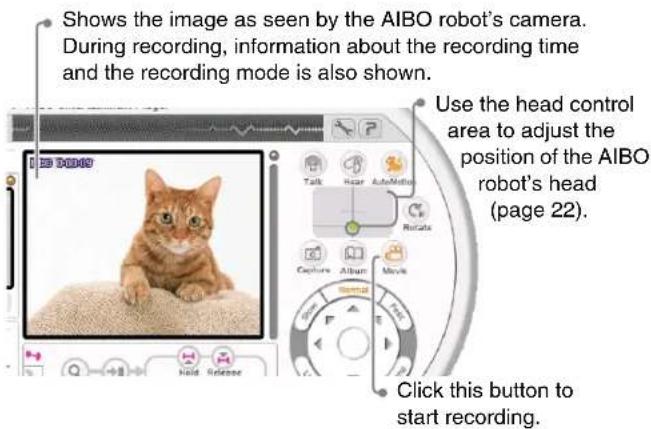
To stop recording, click the (Movie) button once more.
Interval recording
By selecting "Interval" as the recording method, you can automatically record visual information at preset intervals.
Also, when interval recording is selected, the AIBO ®
Entertainment Robot can be set up to automatically perform continuous recording when it detects motion or sound.
For example, if you have set interval recording to 10 seconds, the AIBO robot will normally record a frame (image) every 10 seconds, but if it detects motion or sound, it will record continuously while the motion or sound continues. The interval recording setting can be selected under the “Movie” tab in the “Settings” screen (page 71).
About House Sitting mode and interval recording
You can set up the AIBO robot so that interval recording will be automatically enabled when the AIBO robot is in House Sitting mode (page 71).
When the AIBO robot detects movement or sound, continuous recording is enabled at that point. For details on House Sitting mode, see the “User’s Guide (Basic)” for the AIBO robot ERS-7 (PDF).

Hints
- When the AIBO robot is set to House Sitting mode, recording with AIBO Entertainment Player is given priority, and recording continues.
- If the AIBO robot is in House Sitting mode and interval recording has automatically started, the sensitivity for detecting motion and sound will be as set in the House Sitting mode. (This includes the detection sensitivity being set to "off".)
- If video recording was carried out in House Sitting mode, the AIBO robot will automatically restart once per day, just before its wake-up time. After restarting, the recorded video files will be split and displayed in the album. During the several minutes that are required for the restarting process, no video recording occurs.

Recording pictures and movies
- Sony Corporation does not accept any liability whatsoever for any problems arising between the user and third parties with regard to pictures and movies taken with the AIBO robot.
Do not use the AIBO robot to store pictures or movies that can be damaging or offensive to others.
- At many live events and shows also for entertainment purposes the taking of pictures and movies is restricted.
- Any pictures or movies taken with the AIBO robot are only for private use by the individual customer. Do not use the AIBO robot in breach of copyright or of any rights of third parties. Unless express permission is granted by law, the transfer and forwarding of copyrighted pictures and movies is not allowed.
Viewing the album
Now, let's watch some pictures and movies taken by the AIBO® Entertainment Robot. Since these are stored in the album, you need to click the (Album) button to access the data.


Hints
Pictures and movies in the album are stored in the following locations on the hard disk of the PC.
• Pictures: Drive C: → "Program Files" → "Sony" → "AIBO Entertainment Player" → "Album"
- Movies: Folder selected under "Movie" in the "Settings" screen
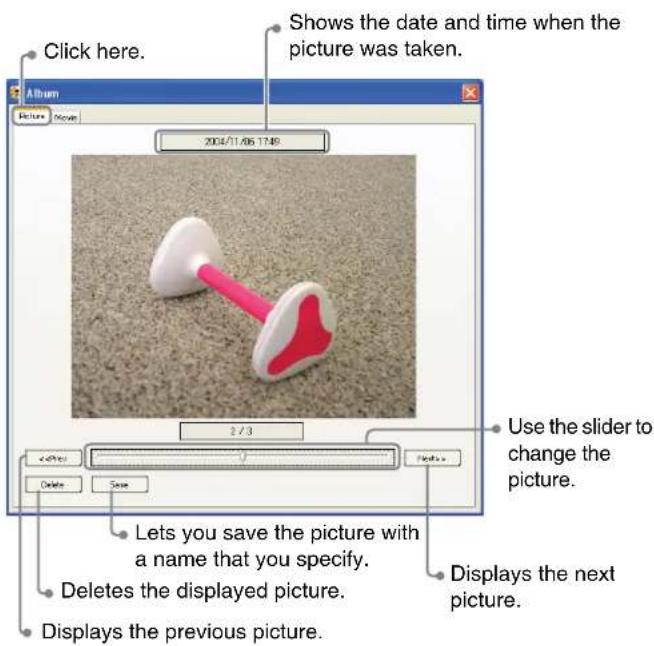
Viewing pictures
Click the "Picture" tab. You can view stored pictures one by one.
Viewing movies
Click the "Movie" tab. A list of stored movies appears. To play a movie, double-click on it or select it and click "Play". The movie will be played with a suitable software on the PC.


Clicking on the "Date list" or "Information list" title field sorts the movies in ascending or descending order of recording date.
Using the Player
The Player function lets you enjoy music or Internet radio via your the AIBO® Entertainment Robot ERS-7. While you listen to your favorite songs, the AIBO robot can show some cool dance moves in tune with the music.

Basic Player operation
Clicking the Player button displays the Player screen. From this screen, you can play music via the AIBO® Entertainment Robot, and select and listen to Internet radio stations.
The controls and areas for the Player function are described below.


Hints
- Music can be played through the AIBO robot's speaker only if the AIBO robot is in Remote Control mode and the (AIBO audio) button has been set to ON. While the AIBO robot is in Autonomous Monitor mode, sound will be heard from the PC speakers but not from the AIBO robot's speaker.
- The “Artist” and “Album” folders in the playlist show information for music files registered with “Microsoft Windows Media Player”. These are music files in a format that can be played by Microsoft Windows Media Player (WMA, WAV, MP3). Songs that are protected in Microsoft Windows Media Player and songs that were downloaded to the PC with digital rights management features cannot be played.
Listening to music with the AIBO® Entertainment Robot
The AIBO robot can play your favorite music. There are several ways that this function can be activated:
- Select from a media list
- Give the AIBO robot a voice command
- Touch the AIBO robot
• Drag & drop music files
• Show the AIBO robot a registered image (page 43)


Hints
- Music can be played through the AIBO robot's speaker only if the AIBO robot is in Remote Control mode. While the AIBO robot is in Autonomous Monitor mode, sound will be heard from the PC speakers only.
- When the (AutoMotion) button is ON, the AIBO robot will move in various ways along with the music.
Selecting music from a media list
A music CD inserted in the CD-ROM drive of the PC or music files registered with AIBO Entertainment Player can be played.
The following buttons in the playback control area are used.

(Previous song): Play the previous song.
(Play): Start playback.
(Stop): Stop playback.
(M) (Next song): Play the next song.
(Loop playback off) / (Loop playback on):
Perform loop (repeating) playback within the contents list.
Listening to a music CD
Note
AIBO Entertainment Player can only play music CDs in the CD-DA format. Copy-controlled CDs, CD Extra, and multi-session CDs cannot be played.
1 Insert the music CD in the CD-ROM drive of the PC.
2Select "CD Drive" from the media list and click the (Play) button.

The music is played and can be heard from the AIBO robot's speaker.

You can also play a song by double-clicking its entry in the contents list.
Listening to music files
To listen to music files registered with AIBO Entertainment Player, select the folder from the media list and click the (Play) button.


If the 📄 (AutoMotion) button is on and you perform an action from the Navigator screen while listening to music, AutoMotion will automatically be turned OFF.
Listening to music by giving the AIBO® Entertainment Robot a voice command
Listening to a music CD
When you say "Play CD" to the AIBO robot, a music CD inserted in the CD-ROM drive of the PC will start playing from the first track.
Listening to music files
When you say "Play music" to the AIBO robot, a song from "Album", "My Library", or "Playlist" will be selected at random for playback.


Hints
- When you say one of the above commands to the AIBO robot while
it is in Autonomous mode, it will switch to Remote Control mode and play music. - While the AIBO robot is playing music, it is not possible to select another song by voice command.
- If there is no music CD or music file, or if a problem occurred, the AIBO robot will not play music even if it has correctly identified the voice command.
- If the check boxes "Play Contents by Voice Recognition" and "Remote control AIBO via Voice/VPR Recognition" under the "AIBO" tab in the "Settings" screen are not selected, the AIBO robot will not play music even if it has correctly identified the voice command (page 67).
Touching the AIBO robot to listen to music
You can activate music playback by touching the AIBO robot.

Hint
This function is available only when the AIBO robot is in remote control mode.
To listen to music
Touch the head sensor and middle back sensor simultaneously. You should first select the song you want to hear from the media list.

To stop the music
Touch the head sensor and middle back sensor simultaneously once more.
To go to the previous song
Touch the head sensor and front back sensor simultaneously.
To go to the next song
Touch the head sensor and rear back sensor simultaneously.
Listening to music files via drag & drop
You can directly drag & drop a music file to the playback control area to play them through the AIBO® Entertainment Robot.

Drag & drop
Registering music files
Songs downloaded via the Internet and songs saved from a music CD onto the PC can be recorded in "My Library" of AIBO Entertainment Player. You can specify folders containing music files, or you can directly drag & drop folders. As an example, the following description explains how to register sample data supplied with AIBO Entertainment Player.
Registering music files

Hints
- The maximum number of folders that can be registered is 500. Each folder can have up to 300 content items.
- AIBO Entertainment Player can play WMA, WAV, and MP3 format music files.
1 From the media list, select "Music" and "My Library", and click the (New contents) button.

The "Create a new Music Folder" screen appears.

Click


The "Browse for Folder" screen appears.

Select the folder containing the sample data (C:\Program Files\Sony\AIBO Entertainment Player\Sample Music), and click "OK".
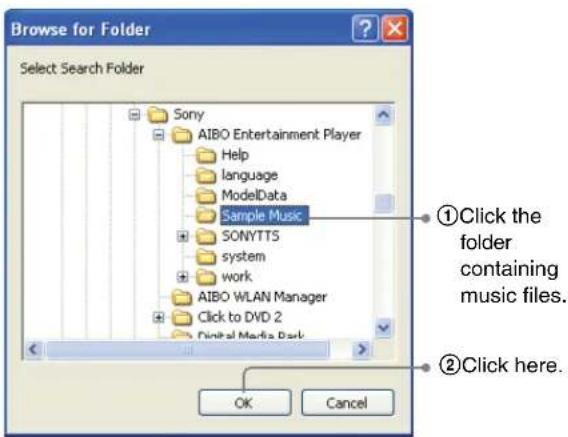
The "Create a new Music Folder" screen appears again.
4Click "OK".

The music files in the specified folder are registered in "My Library".
Directly registering a folder
You can also register the music files in "My Library" by directly dragging and dropping a folder containing music files to the media list.
1 Drag & drop the folder containing music files to the media list.

The "Create a new Music Folder" screen appears.
2Click "OK".

The music files are added to "My Library".
Listening to music by showing the AIBO® Entertainment Robot a registered image (VPR function)
By registering an image such as a CD jacket, postcard, photo, or similar image in AIBO Entertainment Player, you can have the AIBO robot play the associated music simply by showing it the image.
Registering an image (VPR)
Here's how you can register an image with AIBO Entertainment Player by showing it to the AIBO robot.

Hints
- Up to 20 images can be registered.
- You should choose an image with distinct features and fairly complex content. A simple image that resembles others may not be identified correctly by the AIBO robot.
1 Click the (VPR) button.

The "VPR Registration" screen appears.
2Select the location in the "List of Registered Images" where the image should be stored.
Click on the location so that a red frame is shown.

3While watching the AIBO ® Entertainment Robot camera view as shown on the “VPR Registration” screen, show the image to the AIBO robot as illustrated below.

* Take care that the AIBO robot is not facing a light source when showing it the image.

Observe the following points.
- Do not hold the image too close to the AIBO robot. The AIBO robot must be able to see the entire image. The proper distance is about 3 to 4 in. (8 to 10 cm).
- Hold the image at a right angle to the AIBO robot's head, so that the AIBO robot can see the entire image.
• Take care not to obscure parts of the image with your hand or pieces of clothing. - The location should not be too dark, and the AIBO robot should not be facing a light source. Also avoid light reflections that could make an object hard to identify (for example, a CD jacket).
- When registering an image, the background will also be scanned as part of the pattern. You should hold the image so that there is no background, or use a plain-colored wall or a similar background.
4 When the entire image is shown in the camera view, click "Capture" and then click "Register".
Before clicking “Capture”, adjust the position of the image and the angle of the AIBO robot’s head as necessary, so that the entire image is shown. When an image has been registered, it is shown in the “List of Registered Images”.
①Ensure that the entire image is shown.
When a registered image is identified, a ! mark appears.
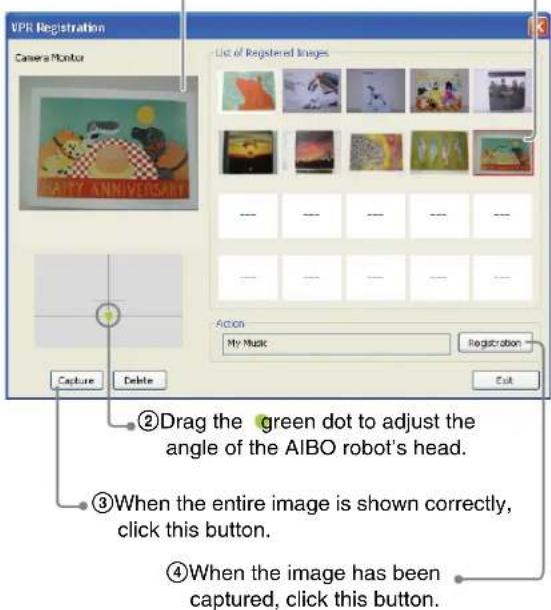
The "Select Action" screen appears.
5Select the song that the AIBO ® Entertainment Robot should play when the registered image is identified, and click “OK”.

Hint
Besides playing music, you can also register motion patterns or text to be read.
To register more images, repeat steps 2 - 5.
6 When the registration process is finished, click "Close".
Listening to music by showing the AIBO robot a registered image
Now you can show a registered image to the AIBO robot and have it play the music you selected. When the AIBO robot identifies the image, it carries out the registered action.
Hints
- Hold the image up and adjust its position and angle so that the AIBO robot can see it fully.
- If the check boxes "Play Contents by Voice Recognition" and "Remote control AIBO via Voice/VPR Recognition" under the "AIBO" tab in the "Settings" screen are not selected, the AIBO robot will not play music even if it has correctly identified the image (page 67).

Listening to Internet radio
You can listen to Internet radio stations through the AIBO® Entertainment Robot. If the (AutoMotion) button is ON, the AIBO robot will move in various ways along with the sound.
Note
To be able to listen to Internet radio, the PC must be connected to the Internet. For best results, an "always-on" connection (FTTH/ADSL/CATV) is recommended.
Hint
With AIBO Entertainment Player, you can listen only to Internet radio stations that are compatible with Microsoft® Windows Media® Player.
Registering an Internet radio station

You can register up to 100 radio stations.
1
From the media list, select "Radio", and click the (New contents) button.

The "Create New Radio List" screen appears.
2 Enter the URL or the file name (ending in .asx) for the Internet radio station, and click "Search".
Enter the URL of an HTML page that contains a link to the Internet radio station, or enter the file name (ending in .asx) for the Internet radio station. When a URL is entered, a list of radio stations included in that HTML page is shown.

A list of programs is retrieved from the Internet.
3Click "OK".

The Internet radio station is registered with AIBO Entertainment Player.
Hint
Sometimes the URL (with HTML) or .asx file information for a radio station may change, and a connection may no longer be possible. In this case, edit the information for the registered radio station. To change the name or .asx file information etc., select "Radio" from the media list, and click the (Edit contents) button.
Listening to Internet radio
Select an Internet radio station from the media list and click
the (Play) button. The program currently being broadcast will be heard.
You can also select the program directly from the contents list.


Hints
- If the selected radio station provides information via a web server, the web browser will open automatically.
- If the 🎨 (AutoMotion) button is on and you perform an action from the Navigator screen while listening to Internet radio, AutoMotion will automatically be turned OFF.
Using a voice command to listen to Internet radio
You can also start to listen to Internet radio by saying "Play the radio" to the AIBO robot.
Hint
If the check boxes "Play Contents by Voice Recognition" and "Remote control AIBO via Voice/VPR Recognition" under the "AIBO" tab in the "Settings" screen are not selected, the AIBO robot will not play Internet radio even if it has correctly identified the voice command (page 67).
Enjoying motion patterns
AIBO Entertainment Player comes with various built-in AIBO® Entertainment Robot motion patterns (gestures).

Hint
You cannot program new motion patterns.
Playing back a motion pattern
Select the motion pattern genre from the media list, select the motion pattern from the contents list, and click the (Play) button to have the AIBO robot perform the motion pattern.


Hints
- The motion patterns listed in the "Station motion" category can also be used while the AIBO robot is on the Energy Station.
- When the (AIBO audio) button is ON, the AIBO robot will perform the motion pattern without sound. The motion sound is not produced by AIBO Entertainment Player but by the AIBO robot itself. To produce the motion sound, set the (AIBO audio) button to OFF.
- If you have the AIBO robot perform a motion pattern by touching one of its sensors, the motion sound will not be produced even if you set the (AIBO audio) button to OFF.
• Some motion patterns are not associated with a sound.
Getting the AIBO robot to dance (AutoMotion)
When you set the (AutoMotion) button to ON, the AIBO robot will perform various dance moves along with the music or Internet radio sound.


Hints
- If music is played for more than 30 minutes continuously with AutoMotion on, AutoMotion will turn itself OFF automatically.
- During AutoMotion, the AIBO ® Entertainment Robot will automatically assume a different posture at certain intervals.
- If AutoMotion is on and you perform an action from the Navigator screen, AutoMotion will turn itself off automatically.
Having the AIBO® Entertainment robot read words and phrases to you
By registering words or phrases as text in AIBO Entertainment Player, you can have the AIBO robot read them to you. If the text contains certain keywords that have been specially registered, the AIBO robot will perform motion patterns that have been assigned to the keywords, while reading the text.
Registering words or phrases
Hint
You cannot input any more characters once you have input the maximum number allowed.
1 From the media list, select "Voice Synthesis", and click the (New contents) button.

The “Edit Voice Synthesis” screen appears.
2 Enter the word or phrase that you want the AIBO robot to read as text, select the voice synthesis (text-to-speech) engine, and click "OK".
By clicking "Play", you can check how the text will be read.

Hints
- You can change the voice synthesis settings (page 68). This will change how the AIBO robot reads the text.
- Words that are not registered in the voice synthesis (text-to-speech) engine cannot be read.
- Sound reproduced by the AIBO ® Entertainment Robot robot itself may be picked up and interpreted as a voice command. To prevent this, you should avoid speaking words that are listed in “Words understood by the AIBO ® Entertainment Robot” (page 79).
The entered text is registered under "Voice Synthesis".

What is a voice synthesis (text-to-speech) engine?
- A voice synthesis engine (also called text-to-speech engine) is a special piece of software that transforms text data into audible speech.
- Microsoft ® Sam is an English-language text-to-speech engine that comes standard with Windows XP.
Having the AIBO robot read to you

From the media list, select "Voice Synthesis", and click the (Play) button.

The AIBO robot reads the text.

Playing a recorded sound through the AIBO® Entertainment Robot
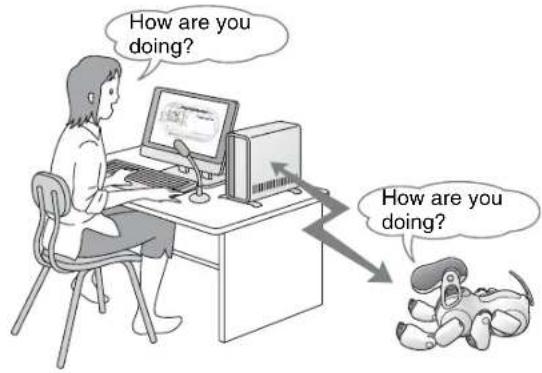
AIBO Entertainment Player can be used to play your voice or other recorded sounds back via the AIBO robot.
Recording
Note
To use this function, a microphone must be connected to the PC (or the PC must have a built-in microphone).
1 Click the (Record) button.

The "Save as" screen appears.
2Enter a name for the file, and click "Save".

Speak into the PC's microphone.
3 Click the (Record) button once more to stop recording.

The recorded content is saved as a file with the specified name in "My Voice".
Playing the recorded sound via the AIBO® Entertainment Robot
From the media list, select "My Voice", select the desired file from the contents list, and click the (Play) button. The recorded sound will then be played back through the AIBO robot's speaker.

Creating a playlist
You can freely combine music files, motion patterns, and voice synthesis actions, to create your original AIBO® Entertainment Robot playlist.
Creating a playlist
1 Select "Playlist" and click the New (New contents) button.

The "Edit Play List" screen appears.
2Select the song to add and click "Add". Enter a name for the playlist and click "OK".


You can also click in the media library and select a motion pattern or voice synthesis from the list, to add it to the playlist in the same way as a song.
The playlist is created.
Playback with a playlist
From the media list, select the playlist and click the (Play) button. The AIBO® Entertainment Robot will play the songs and perform motion patterns and other registered actions in the playlist.

Saving playlist data
A playlist created with AIBO Entertainment Player can be exported to the PC.
1 From the media list, select the playlist and right-click on it. Then select "Export" from the menu that appears.

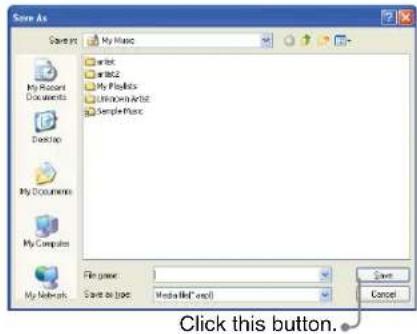
The "Save as" screen appears.
2Enter the file name and click "Save".
The playlist is saved on the PC.
Using the Scheduler
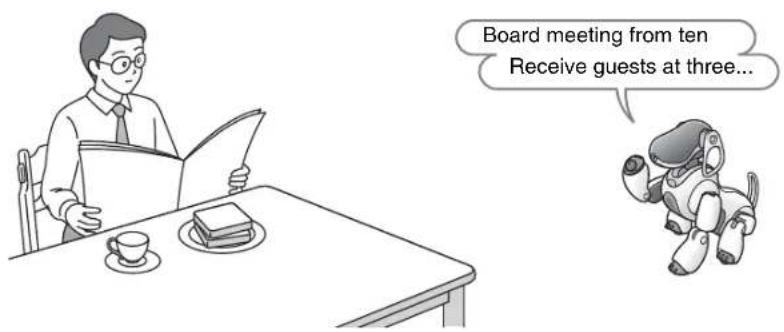
If you register schedule data in AIBO Entertainment Player, the AIBO® Entertainment Robot ERS-7 can remind you of upcoming events in your schedule.
Basic Scheduler operation
Clicking the Scheduler button displays the Scheduler screen. From this screen, you can make schedule entries. Later, the AIBO® Entertainment Robot will playfully remind you of your entries with motion patterns and/or music.
The controls and areas for the Scheduler function are described below.


Hints
- The AIBO robot will only inform you of scheduled events if the AIBO robot, the PC (connected by wireless LAN), and AIBO Entertainment Player is running.
- Set the (AIBO audio) button in AIBO Entertainment Player to ON, and raise the volume setting at the AIBO robot itself.

(Edit schedule): Edit a scheduled event.

(Delete schedule): Delete a scheduled event.
Creating a schedule
Let's create a schedule in AIBO Entertainment Player. A scheduled event can be linked to the AIBO® Entertainment Robot motion pattern and activity. For example, you could have the AIBO robot wake you with your favorite music every morning.
It is also possible to import schedule data from Microsoft ® Outlook ® .

Hints
- The maximum number of schedule entries that can be registered is 10000.
- You can import schedule data from Microsoft Outlook into AIBO Entertainment Player (page 61), but it is not possible to export schedule data from AIBO Entertainment Player into Microsoft Outlook.
Registering a scheduled event
Here's how you can register a scheduled event in AIBO Entertainment Player.

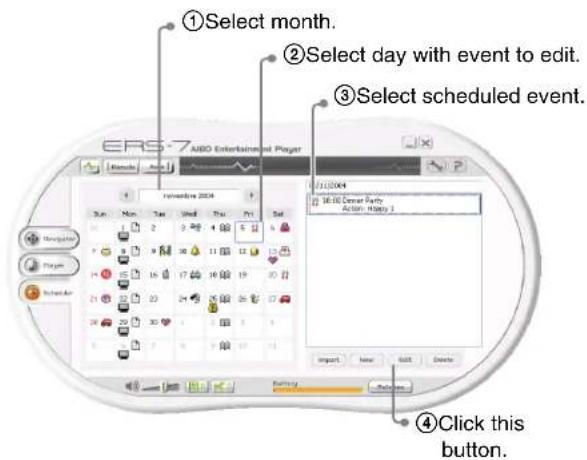
Select the month and day, and click the (New schedule) button.


Hint
Click the (Previous) button to go to the previous month. Click the (Next) button to go to the next month.
The "Scheduler Properties" screen appears.
2Make settings for the various items and click "OK".

The scheduled event is registered.

Importing schedule data from Microsoft® Outlook®
By clicking the (Import) button, you can use schedule data from Microsoft Outlook in the AIBO Entertainment Player scheduler.

Note
• Data can be imported only from Microsoft Outlook 2000 and Microsoft Outlook 2003.
- In the following cases, the settings will have to be modified or repeated. For details, see the following section “Editing a scheduled event”.
- If no start time has been set for an event in Microsoft Outlook, the event start time will be set to 8:00 in the AIBO Entertainment Player scheduler. Edit this to the correct time, as required.
- If a recurring event has been set in Microsoft Outlook, only the first occurrence will be imported into the AIBO Entertainment Player scheduler. Edit the recurring setting, as required.
- Events for which the alarm has been activated in Microsoft Outlook will automatically be set to "AIBO announcement" in the AIBO Entertainment Player scheduler.
Editing and deleting scheduled events
You can edit the contents of registered events or delete events as required.
Editing a scheduled event
1 Select the month and day and select the scheduled event. Then click the (Edit schedule) button.
Hint
You can also select a scheduled event for editing by double-clicking its entry.
The "Scheduler Properties" screen appears.
2Change the settings as required, and click "OK".

The scheduled event is changed.
Deleting a scheduled event
1 Select the month and day and select the scheduled event. Then click the (Delete schedule) button.
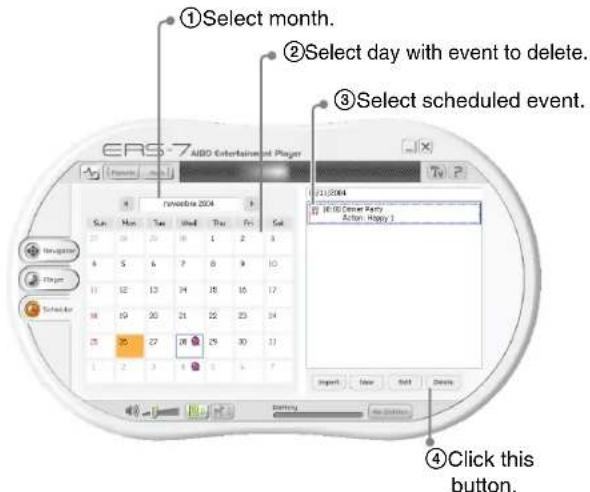
A confirmation message is shown.
2Click "OK".
The scheduled event is deleted.
Having the AIBO® Entertainment Robot tell you your schedule

Hints
- The AIBO robot can only perform this function if the AIBO robot and the PC are currently connected via wireless LAN, and if AIBO Entertainment Player is running on the PC.
- Set the (AIBO audio) button in AIBO Entertainment Player to ON, and raise the volume setting at the AIBO robot itself.
- You can change the voice synthesis settings which determine how the AIBO robot's voice sounds (page 68).
Having the AIBO robot announce your schedule
The AIBO robot can remind you of scheduled events at the respective date and time. The AIBO robot first reads the event name using a synthesized voice, and then performs music playback or a preselected motion pattern.

Hints
- The AIBO robot uses the internal clock setting of the PC for announcing scheduled events.
- If the AIBO robot is in Rest mode at the time of a scheduled event, it will not announce the event. The event will be announced and playback will be performed at the PC only.
Using a voice command to have the AIBO robot tell you your schedule
When you say "My schedule" to the AIBO robot, it will read all scheduled events from the current time until and including the next day.


Hint
If the check boxes "Play Contents by Voice Recognition" and "Remote control AIBO via Voice/VPR Recognition" under the "AIBO" tab in the "Settings" screen are not selected, the AIBO robot will not announce the event even if it has correctly identified the voice command (page 67).
Touching the AIBO robot to have it tell you your schedule
When you touch the head sensor and chin sensor, the AIBO robot will read all scheduled events from the current time until and including the next day.


Hint
This function is available only when the AIBO robot is in Remote Control mode.
Setting your Preferences
This section explains how to set various options for AIBO Entertainment Player.

To change settings
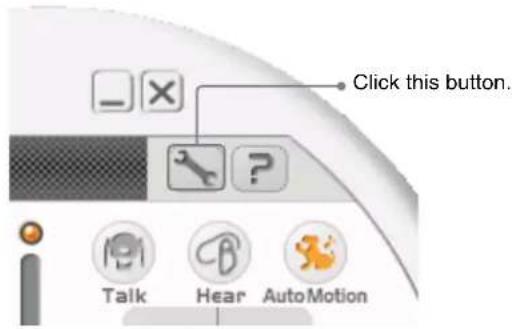
Click the (settings) button to display the "Settings" screen.
The various tabs give access to the following settings.
- Network Settings Lets you change settings for the connection to the AIBO® Entertainment Robot.
- AIBO
Lets you change settings for the operation of the AIBO robot.
• Voice Synthesis Lets you change text-to-speech settings for chat and reading of text and schedule entries. - Keyword Lets you register keywords and link them to motion patterns that the AIBO robot will perform during chat and reading of text and schedule entries.
- 3D Lets you customize the three-dimensional display.
- Movie Lets you change settings for recording movies.
Network Settings
You can change various settings for the connection to the AIBO® Entertainment Robot.

AIBO
You can change various settings for the AIBO® Entertainment Robot functions such as the camera picture and sound quality.
When this is selected, the AIBO robot moves its mouth according to the music.
Sets the time delay before the AIBO robot automatically returns to Autonomous Monitor mode when no action is taken.
Enables the AIBO robot to respond to voice commands by playing music, performing motion patterns, or reading schedule entries.
Enables the AIBO robot to respond to being shown registered images by playing music or reading text.
Enables the AIBO robot to automatically switch to Remote Control mode when being talked to or being shown registered images, or when music or motion patterns are played. 3
Causes the AIBO robot to find the Energy Station and start charging (self-charge function).

*1 During movie recording, the "Picture Quality" and "Sound Quality" settings cannot be changed.
2 If the wireless LAN slows down or occasionally cuts out when the "3D View Quality" or "Sound Quality" is set to "High" or "High Quality", try using the "Low" and "Standard Quality" settings.
-3 If the AIBO robot is in Rest mode, it will not go into Remote Control mode.
Voice Synthesis
You can change various settings for reading of chat messages, text, and schedule entries.
The voice synthesis engine selection for the chat panel setting in the Navigator screen and the Player screen are set to the default.

Keyword
You can change settings for keywords that will prompt certain motion patterns of the AIBO® Entertainment Robot when reading chat messages, text, or schedule entries.

3D
You can customize the 3D display.

Movie
You can change various settings for movie recording.
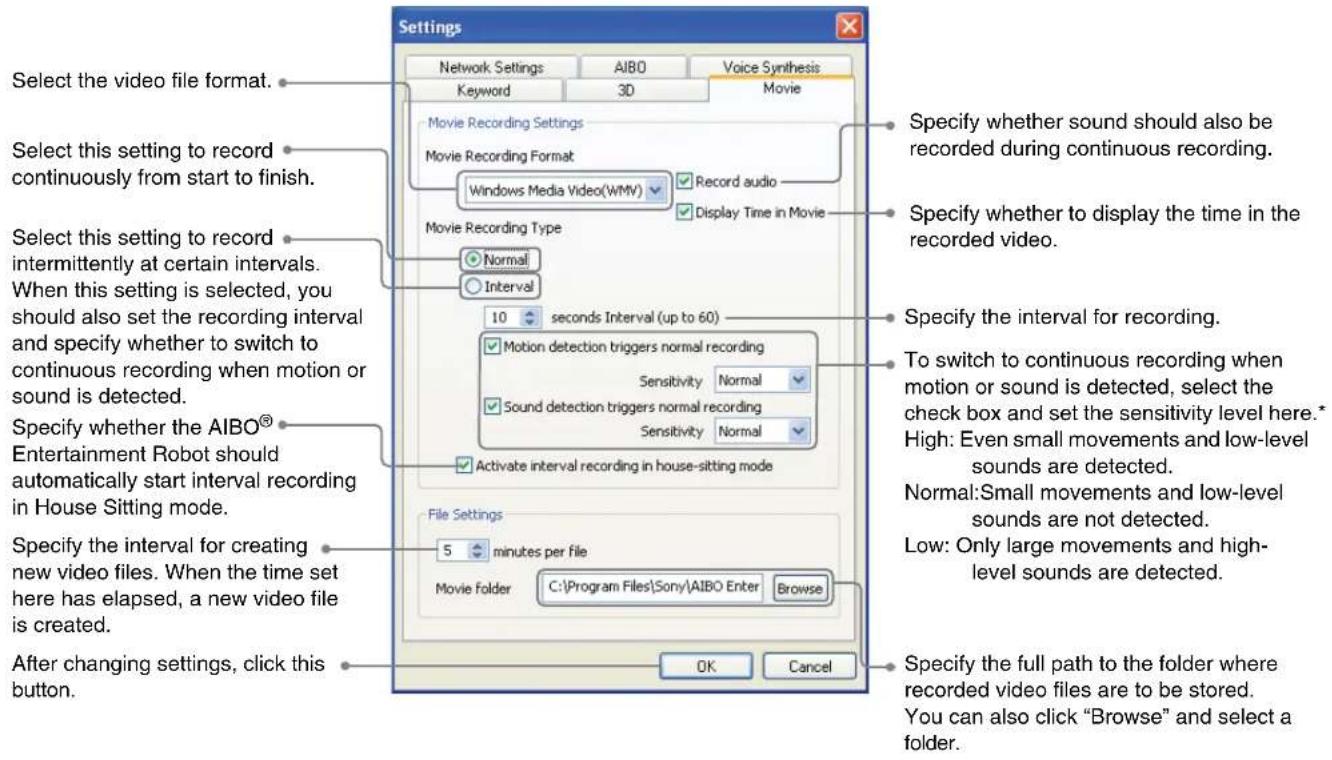

The "Movie" settings cannot be changed while a recording is in progress.
* This sensitivity setting will not become active until the AIBO robot goes into House Sitting mode. If the AIBO robot is in House Sitting mode and interval recording has automatically started, the sensitivity for detecting motion and sound will be as set in the House Sitting mode. (This includes the detection sensitivity being set to "off".)
Troubleshooting
Check these points if there seems to be a problem.

Troubleshooting
If you experience any difficulties, use this guide to check for possible causes before contacting AIBO Customer Link (for customer support). Also refer to the troubleshooting sections in the “User’s Guide (Basic)” for the AIBO robot ERS-7 and the “User’s Guide (PC-Network)” for the AIBO robot ERS-7. Should the problem persist, contact AIBO Customer Link (for customer support). (See the last page for details on AIBO Customer Link (for customer support).)
| Symptom | • Cause → Remedy |
| Cannot connect to the AIBO®Entertainment Robot from the PC. | • Network settings are incorrect.→ Check the network settings: see “User’s Guide (PC·Network)” for the AIBO robot ERS-7.→ Click “Search” under the “Network Settings” tab on the “Settings” screen. Check whether the AIBO robot appears on the list (page 66). |
| AIBO Entertainment Player does not start. | • Installed files are damaged.→ Uninstall AIBO Entertainment Player and then reinstall the program from the CD-ROM. |
| The AIBO robot is not displayed on the list under the “Network Settings” tab on the “Settings” screen. | • Universal Plug & Play is not installed in Windows XP.→ Install Universal Plug & Play: see “User’s Guide (PC·Network)” for the AIBO robot ERS-7. |
| The connection between the PC and the AIBO® Entertainment Robot is interrupted, or data transfer speed drops. | • There is interference with another access point or wireless LAN.→ Try changing the wireless LAN channel used by the access point: see “User’s Guide (PC·Network)” for the AIBO robot ERS-7.• Several devices are simultaneously trying to use the access point.→ Wait a while and try again.• The AIBO robot or the wireless LAN capable PC is too far away from the access point.→ The range of a wireless LAN will differ depending on the installation environment. Move the AIBO robot and the wireless LAN compatible PC closer to the access point.→ This may happen if a microwave oven or similar device is being operated in the vicinity. |
| The video image from the camera stops. | • See “The connection between PC and the AIBO® Entertainment Robot is interrupted, or data transfer speed drops.”. |
| The AIBO robot’s movements are slow when controlled with Navigator. | • See “The connection between PC and the AIBO® Entertainment Robot is interrupted, or data transfer speed drops.”. |
| Music playback or reading of text by the AIBO robot is occasionally interrupted. | • This may happen when the network is heavily used, or when the PC is performing a processing-intensive task. |
| The AIBO robot’s current posture and/or the image from the AIBO robot’s camera are not displayed. | • The firewall function of the PC is enabled.→ When the firewall function of the PC is enabled, the AIBO robot’s current posture or the image from the AIBO robot’s camera may not be displayed, or control of the AIBO robot may not work. Disable the firewall while using AIBO Entertainment Player. |
| The AIBO® Entertainment Robot is not correctly rendered on the 3D display. | • The installed graphics card driver is not the latest version.→ The 3D display of the AIBO robot is implemented using Microsoft® DirectX. Depending on the graphics card, DirectX depends on the driver or the hardware for image processing. For details, contact the manufacturer of the PC or the graphics card.When switching users in Windows XP, the 3D display may be lost, depending on the graphics card.→ Restart AIBO Entertainment Player. |
| The outline of still images or movies has a blue tinge. | • This is due to a design specification of the AIBO robot's camera. It is not a defect. |
| When playing a recorded movie, the sound is choppy or plays as if in fast-forward. | • The PC may not have enough processing power.→ Do not use other resource-intensive software on the PC at the same time that you are running AIBO Entertainment Player.→ Do not play music in AIBO Entertainment Player when recording a movie.→ Under the “AIBO” tab in the “Settings” screen, set “Picture Quality” to “Low”, and set “Sound Quality” to “Low (MONO 8 kHz 8 bit)” (page 67).→ In some cases, selecting “MotionJPEG (AVI)” as the “Movie Recording Format” in the “Movie” tab under the “Settings” screen may help (page 71).• Data transfer speed is low.→ See the section “The connection between PC and the the AIBO® Entertainment Robot is interrupted, or data transfer speed drops”. |
| Symptom | Cause → Remedy |
| The AIBO® Entertainment Robot does not perform an action at the time of a scheduled event. | The AIBO robot and the PC are not linked via wireless LAN.→ Check the network settings: see “User’s Guide (PC·Network)” for the AIBO robot ERS-7.The AIBO robot or PC is not turned ON at the time of the scheduled event, or AIBO Entertainment Player is not running.→ If the AIBO robot or the PC is not turned ON at the time of the scheduled event, or if AIBO Entertainment Player is not running, the AIBO robot will not be able to perform an action for a scheduled event. Make sure that all devices are turned ON and that AIBO Entertainment Player is running.Volume setting at the AIBO robot is set to low or no sound.→ Raise the volume setting at the AIBO robot.The (AIBO audio) button is turned OFF.→ Set the (AIBO Audio) button to ON (page 8).Volume is set to minimum.→ Raise the source volume setting (page 8).The PC’s clock is not set to the correct time.→ AIBO Entertainment Player uses the internal clock of the PC for time management. Check whether the clock setting is correct. |
| The AIBO robot does not read text entered in the chat panel.The AIBO robot does not read scheduled events also after giving the voice command “My schedule”. | The volume setting at the AIBO robot is set to low or no sound.→ Raise the volume setting at the AIBO robot.The (AIBO audio) button is set to OFF.→ Set the (AIBO audio) button to ON (page 8). |
| Symptom | • Cause → Remedy |
| While the AIBO® Entertainment Robot robot is playing music, it switches to Autonomous Monitor mode and music playback stops. | • When the time set in “_minutes until returning to Autonomous Mode” has elapsed, the AIBO robot will switch to Autonomous Monitor mode, even if music is currently playing.→ Change the time setting to return to Autonomous Monitor mode (max. 120 minutes) (page 67). |
| Music or radio sounds are suddenly heard from the AIBO robot. | • The AIBO robot has identified a sound as a voice command, such as “Play music” or “Play the radio”, or it has identified an image as a pattern registered for the VPR function.→ Deselect the check boxes “Play Contents by Voice Recognition” and “Remote control AIBO via Voice/VPR Recognition” under the “AIBO” tab in the “Settings” screen. The AIBO robot then will not start music or radio playback even when it identifies a voice command or an image registered for the VPR function (page 67). |
Other Information

Words understood by the AIBO® Entertainment Robot
This section lists words (voice commands) that the AIBO robot can understand when using AIBO Entertainment Player. For information on words the AIBO robot can understand at other times, see the “User’s Guide (Basic)” for the AIBO robot ERS-7 and “User’s Guide (PC-Network)” for the AIBO robot ERS-7.
Hint
- While music or Internet radio is being played through the AIBO robot, voice commands will not be understood.
- If the check boxes “Play Contents by Voice Recognition” and “Remote control AIBO via Voice/VPR Recognition” under the “AIBO” tab in the “Settings” screen are not selected, the AIBO robot will not perform a motion pattern even when it identifies a voice command (page 67).
Music playback
Play music
Plays music (page 40).
Music CD playback
Play CD
Plays a music CD from the first track (page 40).
- Internet radio playback
Play the radio
Plays a randomly selected Internet radio station (page 48).
- Contents playback
Play contents
Plays the contents previously selected at the PC (page 40).
Schedule playback
My schedule
Causes the AIBO robot to read your schedule from the current time until and including the next day (page 63).
The AIBO robot touch sensor operation
In Remote Control mode
| Touch sensor operation pattern | Action |
| Touch head sensor for 3 seconds Switch to Autonomous mode. | |
| Touch head sensor and front back sensor | Play previous contents. |
| Touch head sensor and middle back sensor | Start/stop contents playback. |
| Touch head sensor and rear back sensor | Play next contents. |
| Touch head sensor and chin sensor | Read schedule. |
In Autonomous Monitor mode
| Touch sensor operation pattern | Action |
| Touch head sensor and middle back sensor for 3 seconds | Switch to Remote Control mode. |
Controlling the AIBO® Entertainment Robot's actions with the keyboard
| Shortcut key | Action |
| Ctrl + D | Switch wireless LAN connection between the AIBO robot and PC on and off. |
| Ctrl + R Switch to Remote Control mode. | |
| Ctrl + A Switch to Autonomous Monitor mode. | |
| Ctrl + G Start charging/stop charging/leave Energy Station. | |
| Ctrl + O Display “Settings” screen. | |
| Ctrl + H | Display this document (User’s Guide (AIBO Entertainment Player)). |
| Ctrl + B Play previous contents. | |
| Ctrl + F Play next contents. | |
| Ctrl + M Turn AutoMotion ON/OFF | |
| Ctrl + P Play contents. | |
| Ctrl + S Stop contents playback. | |
| Ctrl + ↑ | Change head direction/angle while key is being held. |
| Ctrl + ↓ | |
| Ctrl + ← | |
| Ctrl + → | |
| Shortcut key | Action |
| F1 Reduce walking speed. | |
| F2 Set walking speed to normal. | |
| F3 Increase walking speed. | |
| F4 Lie down. | |
| F5 Sit. | |
| F6 Stand up. | |
| F7 Turns ON/OFF the sound output from the PC speakers. | |
| F8 | Turns ON/OFF the sound output from the AIBO robot's speakers. Available only in Remote Control mode. |
| F9 Take a picture. | |
| F11 Decreases the volume. | |
| F12 Increases the volume. | |
| Alt+F4 Close | AIBO Entertainment Player. |
| ↑ Fast. Walk while key is held. Stop when key is released. | |
| ↓ | Reverse. Walk while key is held. Stop when key is released. |
| ← | Turn left. Walk while key is held. Stop when key is released. |
| → | Turn right. Walk while key is held. Stop when key is released. |
| ↑ + ← | Advance in left forward direction. Walk while key is held. Stop when key is released. |
| ↑ + → | Advance in right forward direction. Walk while key is held. Stop when key is released. |
Customer Support
How can you contact the AIBO Customer Link (for customer service)?
In the U.S.A.:
Call 1-800-427-2988
E-mail address: aibosupport@info.sel.sony.com
In Europe:
English line: +44(0)-20-7365-2937
German line: +49(0)-69-9508-6309
French line: +33(0)-1-5569-5117


- ERS-7M
- USER'S GUIDE (AIBO ENTERTAINMENT PLAYER)
- TABLE OF CONTENTS
- GETTING STARTED
- USING NAVIGATOR
- USING THE CAMERA
- USING THE PLAYER
- USING THE SCHEDULER
- SETTING YOUR PREFERENCES
- TROUBLESHOOTING
- OTHER INFORMATION
- WHAT IS AIBO ENTERTAINMENT PLAYER
- PLAYING WITH NAVIGATOR (PAGE 19)
- USING THE CAMERA (PAGE 29)
- USING THE PLAYER (PAGE 36)
- START YOUR DAY WITH THE SCHEDULER (PAGE 57)
- HINTS
- DISPLAY EXPLANATION
- CONNECT BUTTON/MODE SELECTOR BUTTONS
- MINIMIZE BUTTON
- WINDOWS SYSTEM TRAY
- BATTERY INDICATOR/GO TO STATION BUTTON
- THE AIBO® ENTERTAINMENT ROBOT OPERATION MODES
- CHECKING SYSTEM REQUIREMENTS
- NOTES
- PREPARATION STEPS
- INSTALL SOFTWARE
- INSTALLING THE SOFTWARE
- INSERT THE SUPPLIED CD-ROM INTO THE CD-ROM DRIVE
- CLICK THE BUTTON CORRESPONDING TO THE SOFTWARE THAT YOU WOULD LIKE TO INSTALL
- INSTALL MICROSOFT ® WINDOWS MEDIA ® PLAYER
- INSTALL MICROSOFT ® INTERNET EXPLORER
- UNINSTALLING AIBO ENTERTAINMENT PLAYER
- SELECT "START" - "CONTROL PANEL". DOUBLE-CLICK "ADD OR REMOVE PROGRAMS
- CLICK "AIBO ENTERTAINMENT PLAYER" AND CLICK "REMOVE
- WHEN THE “CONFIRM UNINSTALL” SCREEN APPEARS, CLICK “OK
- WHEN THE "UNINSTALL COMPLETE" SCREEN APPEARS, CLICK "FINISHED
- STARTING AND ENDING AIBO ENTERTAINMENT PLAYER
- FIRST-TIME STARTUP
- DOUBLE-CLICK THE ICON ON THE DESKTOP
- SELECT THE AIBO ® ENTERTAINMENT ROBOT TO CONTROL
- FOR USERS OF WINDOWS XP SP2 (SERVICE PACK 2)
- AT THE "WINDOWS SECURITY ALERT" SCREEN, CLICK "UNBLOCK
- CLICK "EXIT
- HINT
- SECOND AND SUBSEQUENT STARTUPS
- CLOSING DOWN AIBO ENTERTAINMENT PLAYER
- BASIC NAVIGATOR OPERATION
- TALK/HEAR/AUTOMOTION/ROTATE BUTTONS AND HEAD CONTROL AREA
- ACTION/MOTION/CHAT PANEL
- ACTION PANEL
- MOTION PANEL
- CHAT PANEL
- CONTROLLING THE AIBO® ENTERTAINMENT ROBOT
- MOVING THE AIBO ROBOT
- A GAME IDEA
- MOVING THE HEAD
- WALKING, TURNING, CHANGING POSTURE
- HAVING THE AIBO ROBOT TURN ITS BODY IN THE DIRECTION IT IS LOOKING
- PLAYING WITH THE AIBONE TOY AND THE PINK BALL
- CLICK THE (ACTION) BUTTON
- CLICK THE DESIRED BUTTON
- PLAYING WITH VARIOUS MOTION PATTERNS
- CLICK THE (MOTION) BUTTON
- SELECT THE DESIRED MOTION PATTERN AND CLICK THE (MOTION PLAYBACK) BUTTON
- USING THE CHAT FUNCTION
- CLICK THE (CHAT) BUTTON
- ENTER THE TEXT, AND CLICK THE (CHAT PLAYBACK) BUTTON
- SWITCHING THE SOUND
- SEEING THE AIBO® ENTERTAINMENT ROBOT'S CURRENT STATUS IN 3D
- CHANGING THE 3D DISPLAY ANGLE
- NOTE
- BASIC CAMERA OPERATION
- TAKING A PICTURE
- IMAGE QUALITY
- SHOOTING A MOVIE
- INTERVAL RECORDING
- ABOUT HOUSE SITTING MODE AND INTERVAL RECORDING
- RECORDING PICTURES AND MOVIES
- VIEWING THE ALBUM
- VIEWING PICTURES
- VIEWING MOVIES
- BASIC PLAYER OPERATION
- LISTENING TO MUSIC WITH THE AIBO® ENTERTAINMENT ROBOT
- SELECTING MUSIC FROM A MEDIA LIST
- LISTENING TO A MUSIC CD
- INSERT THE MUSIC CD IN THE CD-ROM DRIVE OF THE PC
- SELECT "CD DRIVE" FROM THE MEDIA LIST AND CLICK THE (PLAY) BUTTON
- LISTENING TO MUSIC FILES
- NORE
- LISTENING TO MUSIC BY GIVING THE AIBO® ENTERTAINMENT ROBOT A VOICE COMMAND
- TOUCHING THE AIBO ROBOT TO LISTEN TO MUSIC
- TO LISTEN TO MUSIC
- TO STOP THE MUSIC
- TO GO TO THE PREVIOUS SONG
- TO GO TO THE NEXT SONG
- LISTENING TO MUSIC FILES VIA DRAG & DROP
- REGISTERING MUSIC FILES
- CLICK
- CLICK "OK
- DIRECTLY REGISTERING A FOLDER
- DRAG & DROP THE FOLDER CONTAINING MUSIC FILES TO THE MEDIA LIST
- LISTENING TO MUSIC BY SHOWING THE AIBO® ENTERTAINMENT ROBOT A REGISTERED IMAGE (VPR FUNCTION)
- REGISTERING AN IMAGE (VPR)
- CLICK THE (VPR) BUTTON
- SELECT THE LOCATION IN THE "LIST OF REGISTERED IMAGES" WHERE THE IMAGE SHOULD BE STORED
- WHILE WATCHING THE AIBO ® ENTERTAINMENT ROBOT CAMERA VIEW AS SHOWN ON THE “VPR REGISTRATION” SCREEN, SHOW THE IMAGE TO THE AIBO ROBOT AS ILLUSTRATED BELOW
- WHEN THE ENTIRE IMAGE IS SHOWN IN THE CAMERA VIEW, CLICK "CAPTURE" AND THEN CLICK "REGISTER
- LISTENING TO MUSIC BY SHOWING THE AIBO ROBOT A REGISTERED IMAGE
- LISTENING TO INTERNET RADIO
- REGISTERING AN INTERNET RADIO STATION
- ENTER THE URL OR THE FILE NAME (ENDING IN .ASX) FOR THE INTERNET RADIO STATION, AND CLICK "SEARCH
- USING A VOICE COMMAND TO LISTEN TO INTERNET RADIO
- ENJOYING MOTION PATTERNS
- PLAYING BACK A MOTION PATTERN
- GETTING THE AIBO ROBOT TO DANCE (AUTOMOTION)
- HAVING THE AIBO® ENTERTAINMENT ROBOT READ WORDS AND PHRASES TO YOU
- REGISTERING WORDS OR PHRASES
- FROM THE MEDIA LIST, SELECT "VOICE SYNTHESIS", AND CLICK THE (NEW CONTENTS) BUTTON
- ENTER THE WORD OR PHRASE THAT YOU WANT THE AIBO ROBOT TO READ AS TEXT, SELECT THE VOICE SYNTHESIS (TEXT-TO-SPEECH) ENGINE, AND CLICK "OK
- WHAT IS A VOICE SYNTHESIS (TEXT-TO-SPEECH) ENGINE
- HAVING THE AIBO ROBOT READ TO YOU
- FROM THE MEDIA LIST, SELECT "VOICE SYNTHESIS", AND CLICK THE (PLAY) BUTTON
- PLAYING A RECORDED SOUND THROUGH THE AIBO® ENTERTAINMENT ROBOT
- RECORDING
- PLAYING THE RECORDED SOUND VIA THE AIBO® ENTERTAINMENT ROBOT
- CREATING A PLAYLIST
- PLAYBACK WITH A PLAYLIST
- SAVING PLAYLIST DATA
- BASIC SCHEDULER OPERATION
- CREATING A SCHEDULE
- REGISTERING A SCHEDULED EVENT
- MAKE SETTINGS FOR THE VARIOUS ITEMS AND CLICK "OK
- IMPORTING SCHEDULE DATA FROM MICROSOFT® OUTLOOK®
- EDITING AND DELETING SCHEDULED EVENTS
- EDITING A SCHEDULED EVENT
- CHANGE THE SETTINGS AS REQUIRED, AND CLICK "OK
- DELETING A SCHEDULED EVENT
- SELECT THE MONTH AND DAY AND SELECT THE SCHEDULED EVENT. THEN CLICK THE (DELETE SCHEDULE) BUTTON
- HAVING THE AIBO® ENTERTAINMENT ROBOT TELL YOU YOUR SCHEDULE
- HAVING THE AIBO ROBOT ANNOUNCE YOUR SCHEDULE
- USING A VOICE COMMAND TO HAVE THE AIBO ROBOT TELL YOU YOUR SCHEDULE
- TOUCHING THE AIBO ROBOT TO HAVE IT TELL YOU YOUR SCHEDULE
- TO CHANGE SETTINGS
- NETWORK SETTINGS
- AIBO
- VOICE SYNTHESIS
- KEYWORD
- D
- MOVIE
- WORDS UNDERSTOOD BY THE AIBO® ENTERTAINMENT ROBOT
- MUSIC PLAYBACK
- MUSIC CD PLAYBACK
- INTERNET RADIO PLAYBACK
- CONTENTS PLAYBACK
- SCHEDULE PLAYBACK
- THE AIBO ROBOT TOUCH SENSOR OPERATION
- CONTROLLING THE AIBO® ENTERTAINMENT ROBOT'S ACTIONS WITH THE KEYBOARD
- CUSTOMER SUPPORT
Brand : SONY
Model : AIBO ERS-7M2
Category : Robot