
O'CAR - Car stereo OXYGEN - Free user manual and instructions
Find the device manual for free O'CAR OXYGEN in PDF.


| Product Type | 1DIN Car Radio with iPhone cradle |
| Dimensions (W × H × D) | 187 × 58.5 × 160 mm |
| Weight | 1.100 kg |
| Power supply | 12 V DC (11 to 14.5 V), negative ground |
| Maximum current consumption | 15 A (protection fuse) |
| Output power | 4 × 22 W RMS / 4 × 55 W MAX |
| Signal-to-noise ratio (iPhone mode) | > 95 dB (20 Hz - 20 kHz) |
| Stereo separation | > 40 dB (amp), > 25 dB (tuner) |
| RCA outputs | 4 V (preamp), 1 V (video, 75 Ω) |
| Radio tuner | FM (RDS) and AM, with 6 selectable regions |
| Bluetooth | Bluetooth mono 1.2, hands-free with external microphone |
| Required apps | "Oxygen Audio Car Sound 1" and "Oxygen Audio Car Radio 1" (iOS) |
| Connections | ISO connector, speaker outputs (front/rear), subwoofer output, video output, antenna, 3.5 mm microphone input |
| Detachable faceplate | Yes, with volume/mute knob and release button |
| iPhone cradle | Removable, rotatable (360°), tiltable (15°), can be used horizontally or vertically |
| Display colors | 6 themes: blue, gray, green, orange, red, yellow |
| Audio functions | Bass, mid, treble, subwoofer, fader, balance (adjustable via app) |
| General information | 1DIN installation, depth 160 mm; for 12 V vehicle; do not use on 24 V truck or 6 V moped |
| Maintenance and cleaning | Disconnect before cleaning; use a soft, dry cloth; avoid moisture and extreme heat |
Frequently Asked Questions - O'CAR OXYGEN
User questions about O'CAR OXYGEN
0 question about this device. Answer the ones you know or ask your own.
Ask a new question about this device
Download the instructions for your Car stereo in PDF format for free! Find your manual O'CAR - OXYGEN and take your electronic device back in hand. On this page are published all the documents necessary for the use of your device. O'CAR by OXYGEN.
USER MANUAL O'CAR OXYGEN
Please download the Apps with the name of "Oxygen Audio Car Sound 1" and "Oxygen Audio Car Radio 1" from iTunes Store.
We are thanking of you to download the Apps which provided by Oxygen Audio.
For more details about Oxygen Audio, please browse the website www.oxygenaudio.com
After the downloading of Apps, enjoy what Oxygen Audio brings you!
Congratulations on your purchase, and thank you for your choosing the O Car. Your new product is quality, high technology equipment.
With O Car, you can enjoy a wide range of music, whether it is stored on your iPhone or received through either the included RDS tuner (supported by the "Radio" application) or an Internet radio feed. You are guaranteed outstanding sound, with its top-of-the-line amplifier and the "Sound" application for audio controls.
O Car lets you search for and save radio stations. You also have access to all of the other applications on your iPhone. O Car charges your smartphone and can be used as a hands-free kit for safe calling. Its Bluetooth module includes an external microphone for uncompromising communication quality.
The removable dock can hold your iPhone horizontally or vertically or even tilt it toward the user's field of vision. The O Car also coordinates with your car's interior design, with six color themes available by pressing the "display color" key.
To get the most from your device, learn what it can do, and prevent possible risks, we recommend reading this manual very carefully before use.
P.01 Before Using This Product
P.01 List of Equipment Provided
P.02 Installation Precautions
P.02 Electrical Precautions
P.03 Wiring Diagram
P.03 ISO Connector
P.04 Description of Inputs and Outputs
P.04 Installing the Microphone
P.05 Installing the Head Unit
P.06 Installing the Detachable Faceplate
P.07 Identifying the Parts of the Faceplate
P.08 Inserting an iPhone
P.08 Handling the Cradle
P.09 Using the Swivel
P.09 Uninstalling the Head Unit
P.10 "Sound" Application
P.13 "Radio" Application
P.16 Bluetooth Pairing
P.16 Using Other Applications
P.16 Recommendations for Use
P.17 Specifications
P.18 Troubleshooting
P.19 Warranty Policy
O Car requires two applications to be downloaded in order to operate.
The "Radio" application is used for controlling the tuner. It can be downloaded from the iTunes store using the keywords "Oxygen Radio" and then syncsed to your iPhone through iTunes.
The "Sound" application is used for controlling the amplifier. It can be downloaded from the iTunes store using the keywords "Oxygen Sound" and then synced to your iPhone through iTunes.
O Car cannot work with your iPhone without these downloaded applications.
List of Equipment Provided
Your package contains the following equipment:
A multilingual owner's manual
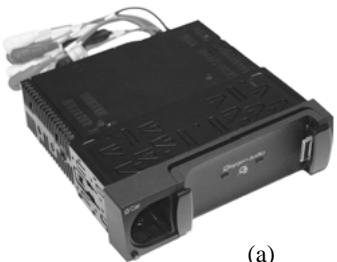
- (a) O Car in its mounting bracket (a)
- (b) A cloth carrying case containing the O Car's detachable faceplate
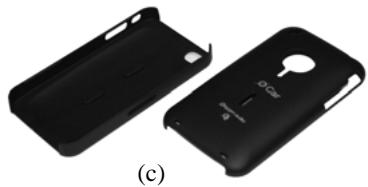
- (c) Two protective covers, one for the iPhone 3G/3GS and the other for the iPhone 4
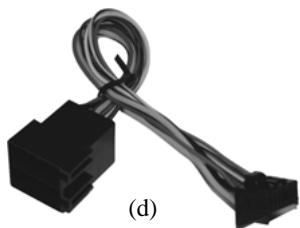
- (d) An ISO connection
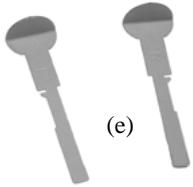
- (e) A set of two keys for removing the O Car
- (f) A large-diameter key for adjusting the swivel
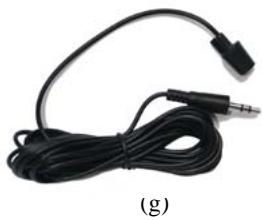
- (g) A wired microphone with a 3.5mm jack.

(b)

(f)
Installation Precautions
Installing the O Car in your vehicle requires a good understanding of your car's electrical system. If you are not comfortable installing it yourself, we strongly recommend contacting an approved professional to install the O Car in your vehicle.
O Car is designed for 1DIN (182 x 53mm) installations, with a custom depth to support its frame (about 185mm).
The electronic part of O Car was designed to operate with a continuous voltage of 12V. However, it supports operating voltages ranging from 11V to 14.5V. No matter what, your device cannot work with electrical systems whose voltage is above or below this range.
The O Car cannot be installed on vehicles with a different operating voltage (24-volt trucks, 6-volt mopeds, etc.).
O Car is designed only for installation in covered vehicles, protecting it from moisture, extreme heat, and direct exposure to the sun, all of which can damage it.
Electrical Precautions
O Car comes with a 15-amp protective fuse. It is therefore recommended that you check whether your vehicle is equipped to draw such a current. If it cannot, you must first create the ability for your vehicle to draw a 15-amp current before continuing.
If the fuse blows, it must be replaced with an equivalent fuse. Replacing the fuse with a higher voltage can not only destroy your device, but also seriously impact your vehicle's entire electrical system.
A blown fuse rarely happens on its own. It is therefore strongly recommended that you check your entire system before replacing it.
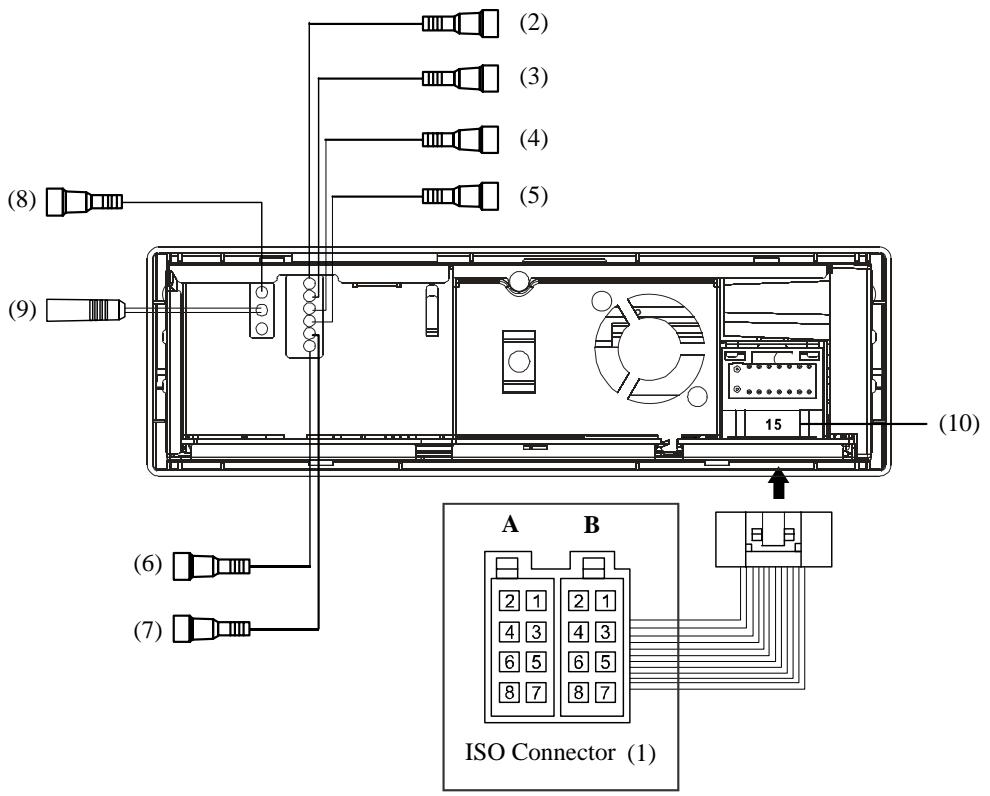
ISO Connector (1)
A1. Not connected
A2. Not connected
A3. Not connected
A4. + permanent (yellow)
A5. Power antenna control (blue)
A6. Not connected
A7. + Switched (red)
A8. Ground (black)
B1. Right rear speaker + (purple)
B2. Right rear speaker - (purple/black)
B3. Right front speaker + (gray)
B4. Right front speaker - (gray/black)
B5. Left front speaker + (white)
B6. Left front speaker - (white/black)
B7. Left rear speaker + (green)
B8. Left rear speaker - (green/black)
Depending on your vehicle's ISO mounting, you may have to reverse the position A4 (yellow) and A7 (red) wires using "rapid" connectors so as not to lose the memory on your device.
Despite the consistency of ISO connectors, there are variations in the system whereby some connector positions are used for functions other than those initially assigned by the ISO standard. Also, it is recommended to pay attention to the use of the wire in position A5.
Although it was originally used for powering a power antenna or an amplifier, it is sometimes also used for other functions specific to the original car radio. In this case, we recommend looking for another ground or electrical current on the car portion of the ISO connector in this position and checking that it really corresponds to a power antenna control.
To avoid damaging your device, if you are uncertain about anything, we recommend disconnecting the wire using the current connector and insulating both sides using insulating tape.
Description of Inputs and Outputs
(2) Gray wire to yellow connector: RCA video output for connecting up to two additional screens whose input impedance modulus should not be less than 75 ohms.
(3) Gray wire to green connector: RCA subwoofer output for the use of a specific amplifier for the base channel.
(4) Gray wire to red connector: "Right front" RCA output for connecting to an optional amplifier's dedicated channel.
(5) Gray wire to white connector: "Left front" RCA output for connecting to an optional amplifier's dedicated channel.
(6) Brown wire to white connector: "Left rear" RCA output for connecting to an optional amplifier's dedicated channel.
(7) Brown wire to red connector: "Right rear" RCA output for connecting to an optional amplifier's dedicated channel.
(8) 3.5mm jack connector: Microphone input. For connecting the supplied microphone.
(9) Antenna connector: For connecting to the vehicle's antenna.
(10) 15-amp fuse
Installing the Microphone (required for hands-free functionality)
For better communication quality, we recommend positioning your microphone at the top corner of your windshield on the driver's side (toward the driver).
During telephone communications, we recommend closing the windows of your vehicle to prevent the movement of the air from disturbing the microphone.
Obviously, we recommend using caution during telephone calls and keeping your eyes on the road.
Installing the Head Unit
Using small metal inserts on each side of the bracket, remove the O Car from its housing. Next, insert the mounting bracket into the slot on your dashboard, as described below.
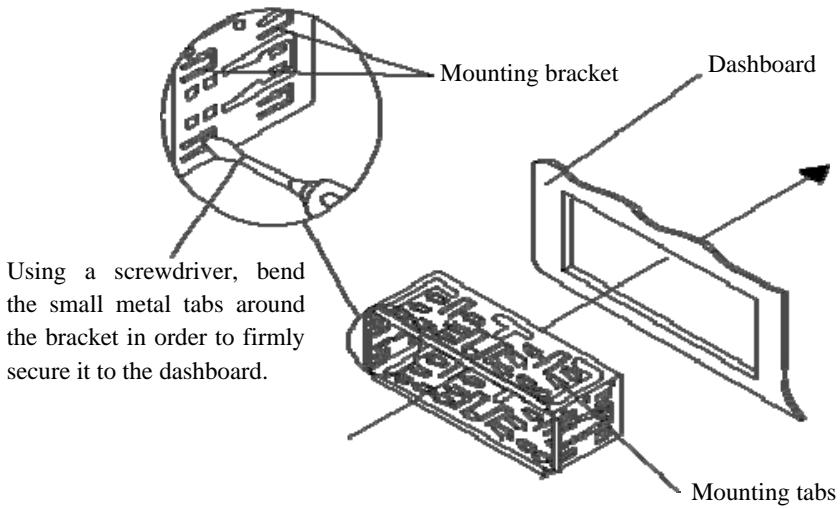
Make the necessary electrical connections (see pages 3 & 4), and then insert your device into its mounting bracket until the metal inserts go back to their original positions on the body of the car radio. You will hear a click on each side when you car radio is properly in place.
Installing the Detachable Faceplate
The detachable portion is located on the left side of the device's faceplate, as described below.
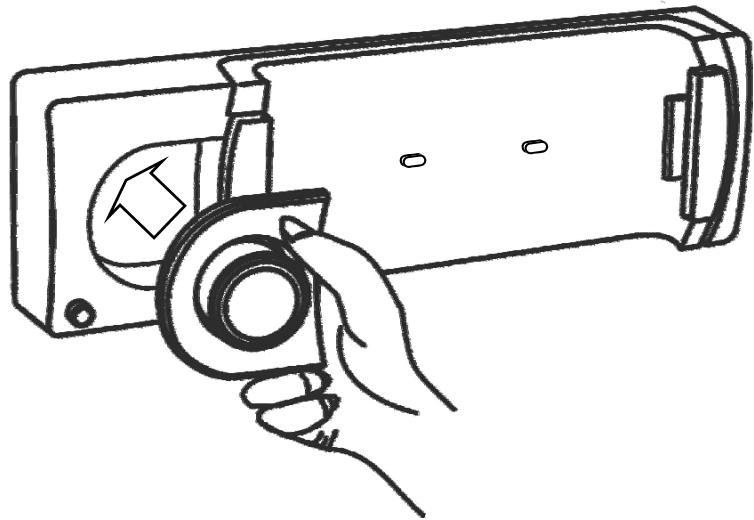
Insert it into position, and then push it slightly until you hear a click. Your device is now fully installed.
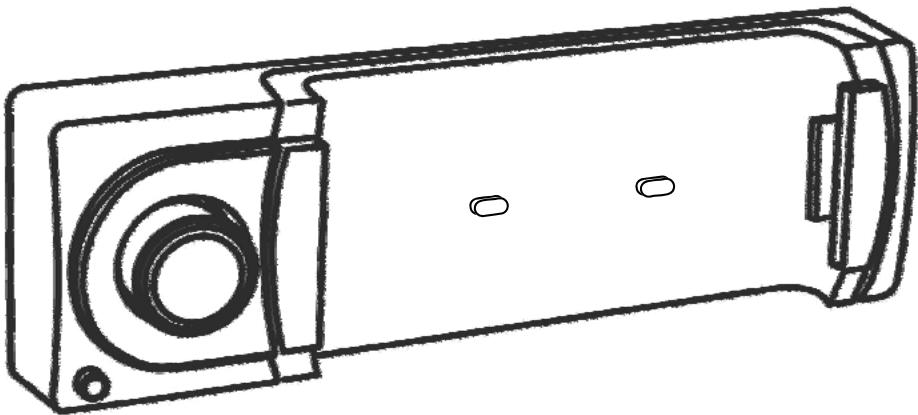
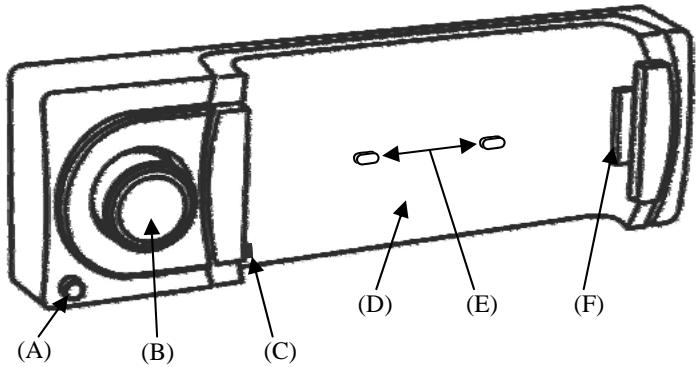
(A) Release button for the detachable faceplate. Pressing this button releases the detachable faceplate, including the volume button (B), allowing it to be removed.
(B) On/off button, mute, and volume control.
- When the device is off, press this button to turn it on.
- When the device is on, hold down this button (at least 3 seconds) to turn it off.
- When the device is on, pressing this button normally will mute or un-mute your car radio.
- Turn this button clockwise to increase the sound volume.
- Turn this button counterclockwise to decrease the sound volume.
(C) Mounting tab to be inserted into your iPhone's jack input (headphones).
(D) Cradle for holding your iPhone. This part, along with all of its components, can be removed, tilted, and adjusted (see pages 8 & 9 for more information).
(E) Dorsal mounting tabs to be inserted into the two oval openings on the back of the iPhone's protective shell. They help to secure your iPhone in place.
(F) Dedicated connector, to be inserted into the iPhone's connector.
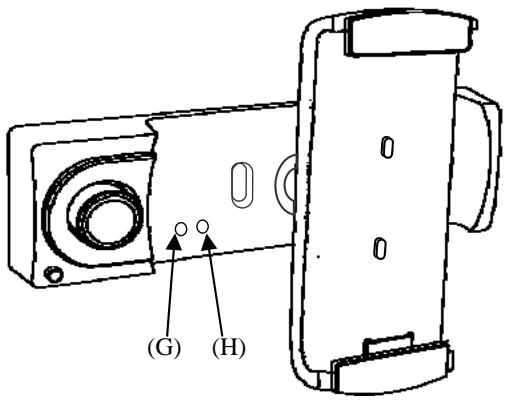
The following are only available out of the cradle. Please refer to the explanations on page 8 for more information.
(G) Reset button for your unit (RESET). Use the reset button before the first use and if your device no longer seems to respond correctly.
(H) Security indicator: This indicator will blink if the iPhone is not properly positioned on the cradle.
Inserting an iPhone
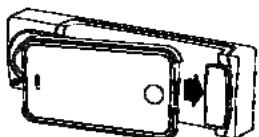
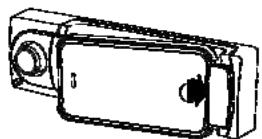
Place your iPhone in the protective shell it came with (see page 1), and then refer to the diagram below for more information.
(1)
(2)
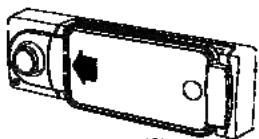
(3)
(1) Connect the iPhone's main connector to connector (F).
(2) Slide your iPhone toward the right of the head unit. Connector (F) will retract and tilt. Next, press down on your iPhone until the tabs (E) are inserted into the holes on the back of the protective shell.
(3) Once the iPhone, with its protective shell, is pressed into the cradle (D), slide it to the left of the head unit in order to insert the tab (C) into the jack input (headphone connector) on your iPhone.
Performing this procedure in the opposite direction removes the iPhone from the cradle.
We recommend always using the protective shell that comes with your iPhone when using the O Car. Using it without its protective shell can damage your iPhone and make it harder for the O Car to hold.
Handling the Cradle
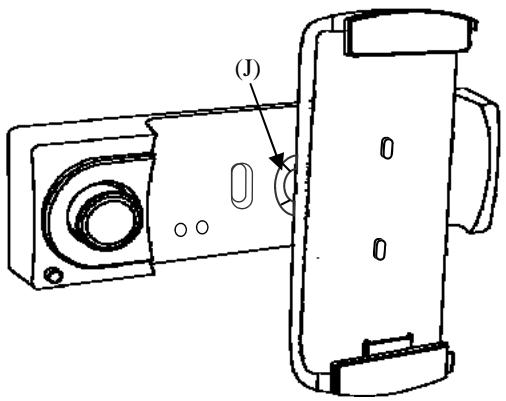
The O Car's iPhone cradle has a system that allows it to be removed by moving it 40mm . Out of the cradle, it can be used vertically or horizontally at a 90^ angle.
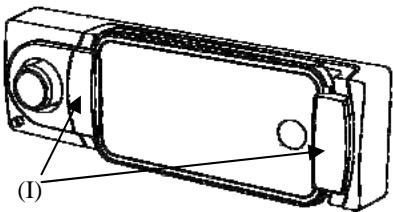
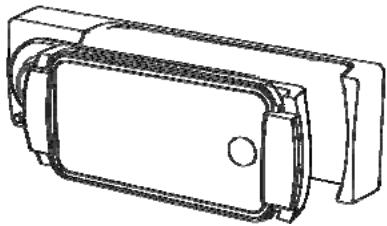
Press the cradle toward the body of the head unit by pressing its sides (I). The station will move and softly release it (with a click). It can then move 40mm . You can turn it clockwise (90^) for use in a vertical position.
Return the cradle to a horizontal position before positioning it for removal. The cradle can be inserted into the car radio's body only in horizontal position.
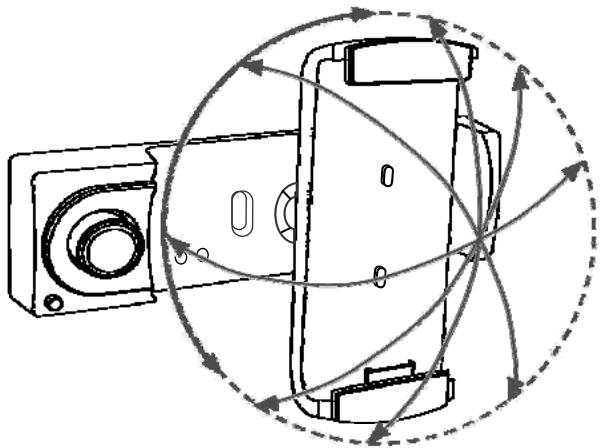
The O Car has a swivel that allows a 360^ pivot and 15^ tilt out of the cradle.
The locking bolt (J) allows the swivel to be set using the tool (f) on page 1, making it easier or harder to position.
With the device facing you, rotate the bolt counterclockwise to tighten it. Turn it clockwise to loosen it.
Adjust the swivel's flexibility so that it is usable and so that the iPhone is properly supported for the type of road being travelled.
Uninstalling the Head Unit
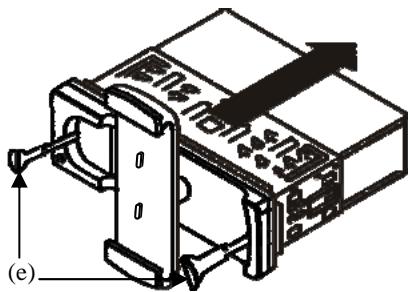
Before uninstalling your head unit, you must:
- Remove your iPhone from the cradle.
- Remove the cradle from its housing and position it vertically.
- Remove the detachable faceplate.
Locate the disassembly keys (e) provided, and insert them into the disassembly removal holes. Once they are in place, pull the device toward you (by pulling on the disassembly keys) until the mounting bracket is removed. Finally, disconnect the wiring.
"Sound" Application
Once you have downloaded and installed the "Sound" and "Radio" applications on your iPhone, place it on the cradle, turn on O Car (as explained on page 10), and start the "Sound" application.
The "Sound" application is used for controlling the amplifier. It is intuitive to use with the iPhone's touchscreen interface.
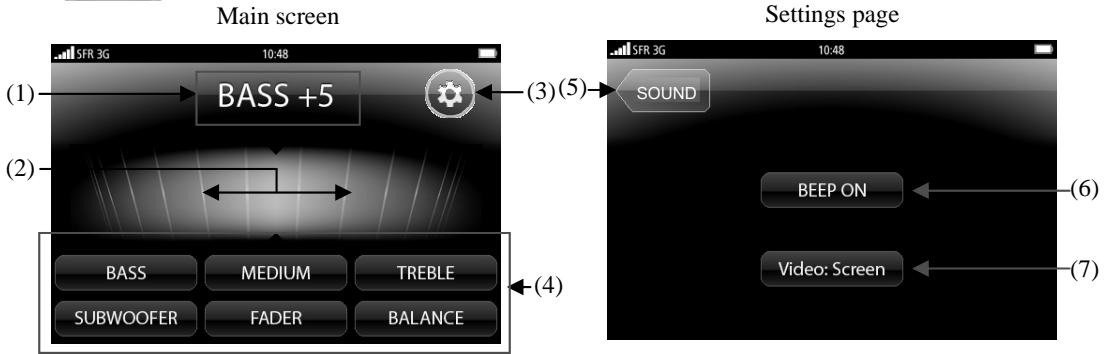
(1) Function status display. This always shows the settings for each of the box functions (4).
(2) Adjustment area. This field is for adjusting the values of the box functions (4). Slide your finger from right to left to increase the values of each preselected function and from left to right to decrease their values. You also can tap your finger on the left or right side of the field to decrease or increase their values. The setting speed will depend on how quickly your finger moves over the iPhone's screen.
(3) Access to the "Sound" application's settings page
(4) This function group is used for selecting what to adjust using the control field (2):
- BASS: Adjusts the bass frequencies within a range of -14 to +14.
- MEDIUM: Adjusts the midrange frequencies within a range of -14 to +14.
- TREBLE: Adjusts the treble frequencies within a range of -14 to +14.
- SUBWOOFER: Adjusts the level of the subwoofer output (see page 3) within a range of -14 to +14.
- FADER: Adjusts whether the sounds comes out of the front or rear speakers within a range from 14F (front) to 14R (rear).
- BALANCE: Adjusts whether the sounds comes out of the left or right speakers within a range from 14L (left) to 14R (right).
(5) Returns to the main page of the "SOUND" application.
(6) Enables or disables the "BEEP" signal to confirm use.
(7) This function displays video signals on your iPhone or on an additional screen connected to your device's video output (see page 3 and 4). The iPhone will have to be removed from the cradle and then returned to it in order for changes to take effect.
For security purposes, we recommend not displaying video signals on your iPhone while driving your vehicle.
Press the "Home" button on your iPhone to exit the "Sound" application.
Summary
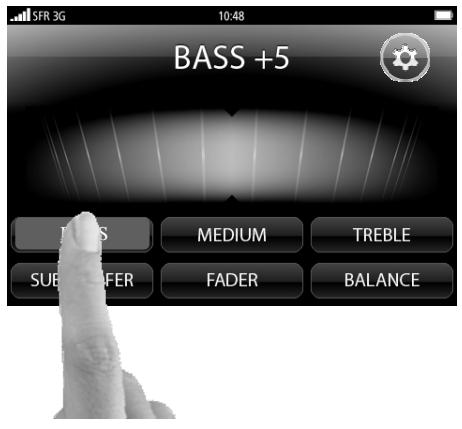
Select the function group (4) you wish to modify.
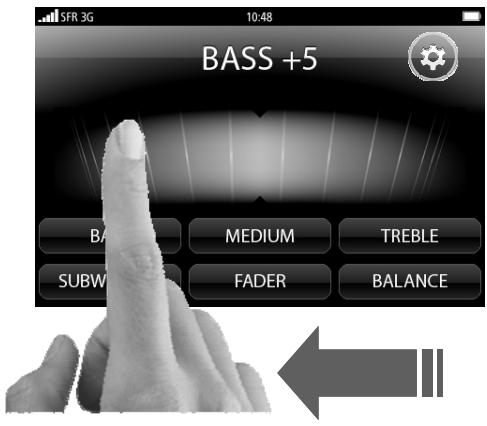
Slide your finger in the control field (2) to change the value of the chosen function.
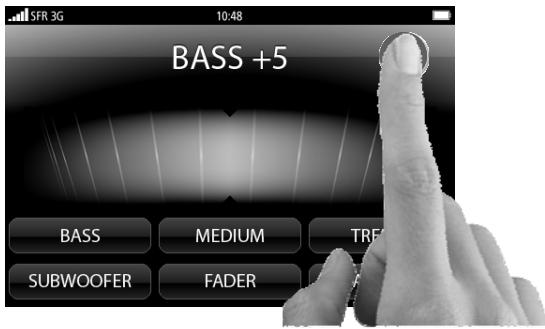
Press the key (3) to go to the "Sound" application settings page.
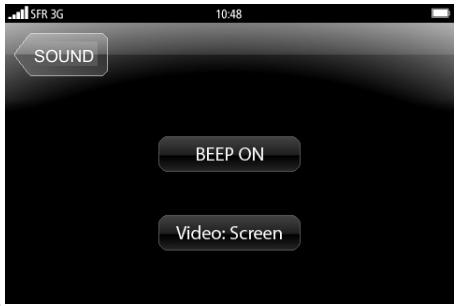
"Sound" application settings page.
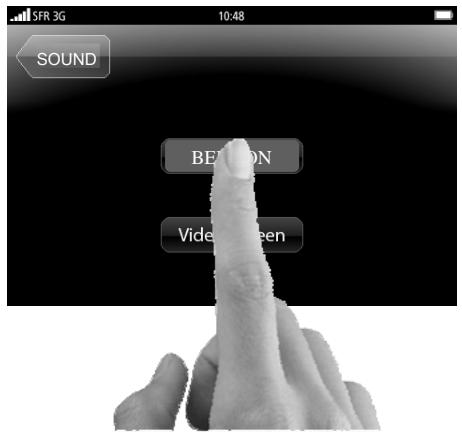
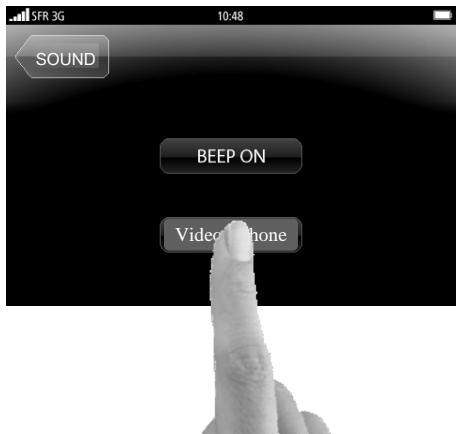
Enable or disable the confirmation beep by pressing the "BEEP" button (6).
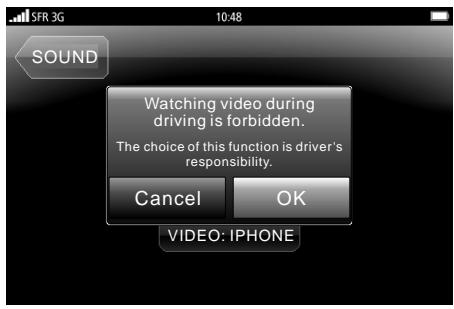
Using the "VIDEO" button (7), select whether you want video signals from your iPhone to display or whether you want to send them to an external monitor.
When you select "video screen" or "video iPhone", popup a prompt dialog window. You can choose to continue or give up.
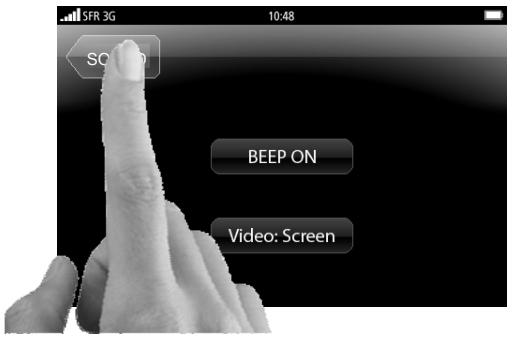
Press the "SOUND" key to return to the "Sound" application's main page.
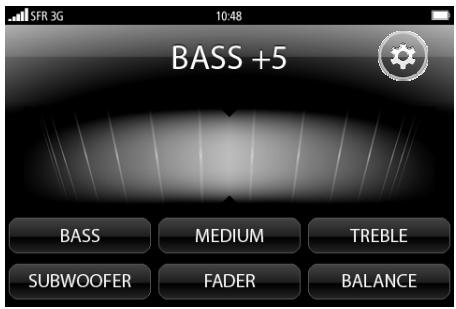
"Sound" application main page.
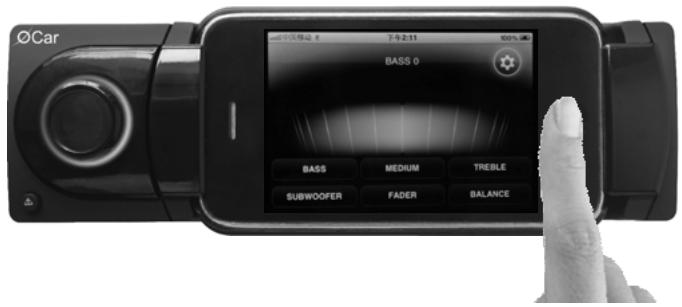
Press the "HOME" button on your iPhone to exit the application.
"Radio" Application
The "Radio" application is used for controlling the tuner. It is intuitive to use with the iPhone's touchscreen interface.
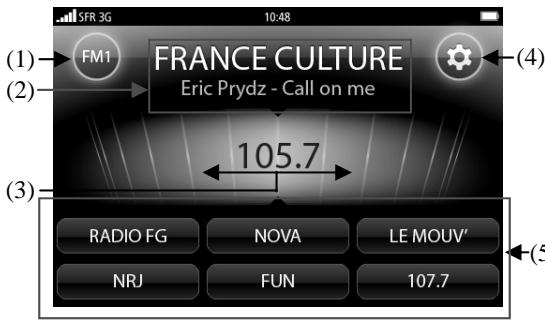
Main screen
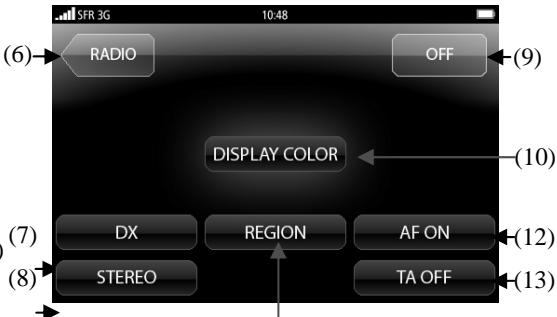
Settings page
(11)
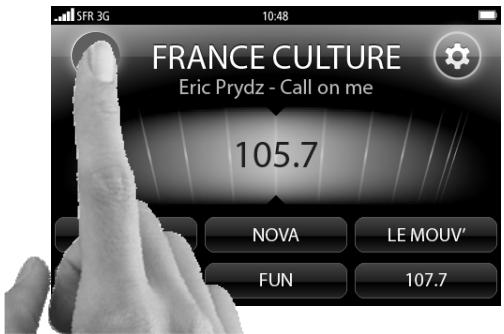
(1) Radio band selector. You can choose between FM1, FM2, and FM3 for FM and MW1 for AM. Each band allows you to store six presets (see item (5)).
(2) RDS information display, such as the current radio station and RADIO-TEXT information.
(3) Adjustment area. This field lets you search for radio frequencies (which are also listed here). Slide your finger from right to left to search increasing frequencies and from left to right for decreasing frequencies. A slow movement searching by 0.05MHz increments in FM mode (9KHz in AM mode). A quick movement launches an automatic search that will stop when the next radio station is found.
You also can tap your finger on the left or right side of the fields to decrease or increase frequencies. By sticking your finger you will launch an automatic search.
(4) Access to the "Radio" application's settings page
(5) This field shows the storage of presets you can save for each band. On each of these keys, you can store the frequency you want. If it has a name, the name will appear on the key. If it does not have a name, the corresponding frequency will then appear. To store a station on one of the keys, press and hold the desired key for more than three seconds. Your station will then be stored, and its name (or frequency) will appear on the key. Quickly pressing any of the keys will bring up the stored station.
(6) Returns to the main page of the "Radio" application.
(7) Enables (ON) or disables (OFF) the local broadcast mode (LOCAL).
(8) Each time this key is pressed, it switches between MONO and STEREO reception mode for radio frequencies.
(9) Enables (ON) or disables (OFF) the radio mode.
(10) With the "COLOR" function (display color), you can select from among six display colors. Available colors are
- blue, gray, green, orange, red, and yellow.
(11) With the "REGION" function (frequency region), you can select from among six frequency regions. Available regions are
- Global, Europe, Eastern Europe, Japan, North America and South America.
(12) Enables (ON) or disables (OFF) the alternative frequency search mode (AF). This function is used for maintaining a program being listened to during a trip if its frequency changes. With the AF function in ON mode, the tuner will launch an automatic search among the other broadcast frequencies for the RDS name for the station you were listening to, stopping on another frequency if it finds its RDS name. If no other frequency is found broadcasting the same RDS name, the tuner will periodically scan the former frequency.
(13) Enables or disables the TA function (traffic information). When this function is enabled, the tuner will periodically scan received frequencies and play any traffic information message that may be broadcast.
Summary
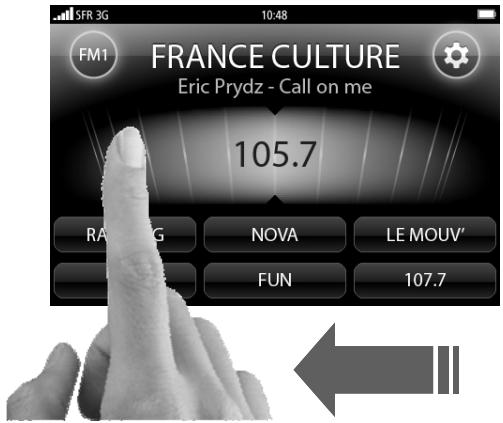
Slide your finger in the control field (3) to launch a search of radio frequencies (quickly for an automatic search and slowly for a manual search).
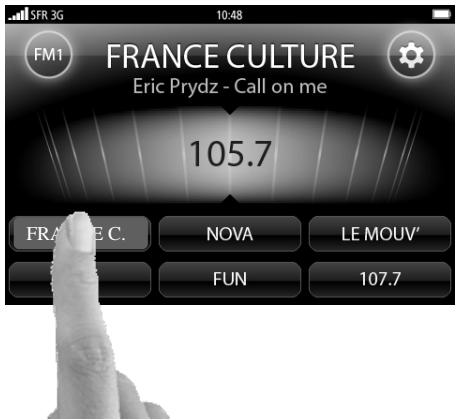
Press and hold (more than 3 seconds) one of the storage boxes in the field (5) to save the station you are listening to. Pressing it quickly switches to the previously stored station.
Using the band selection key (1), choose from among the station storage bands FM1, FM2, FM3, and MW.
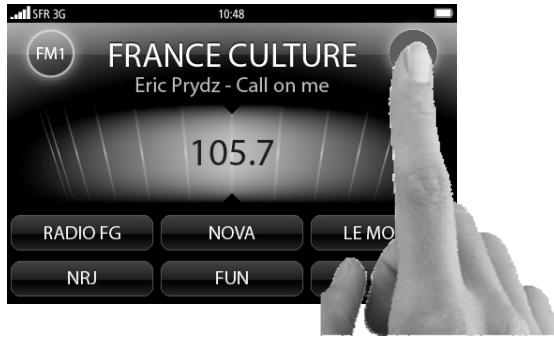
Press the key (4) to go to the "Radio" application settings page.
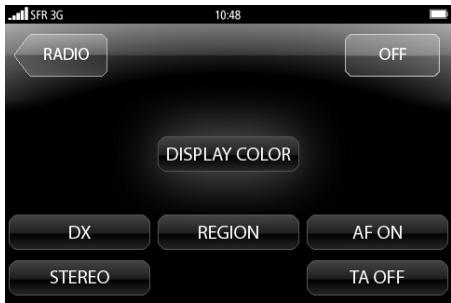
"Radio" application settings page.

Each time the "Color" key (10) is pressed, it changes the radio application display color between blue, gray, green, orange, red, and yellow.
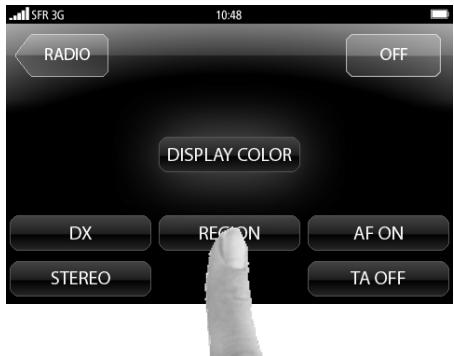
Each time the keys (7), (8), (9), (11), (12) and (13) are pressed, it changes the value of the key, as explained on pages 13 and 14.
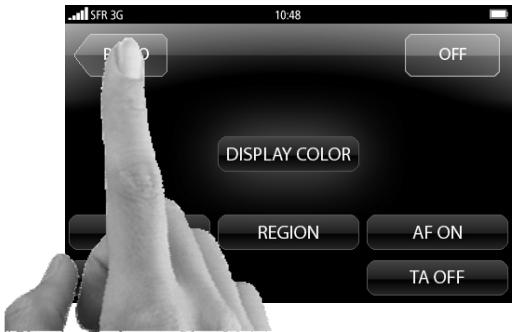
Press the "RADIO" (6) key to return to the "RADIO" application's main page.
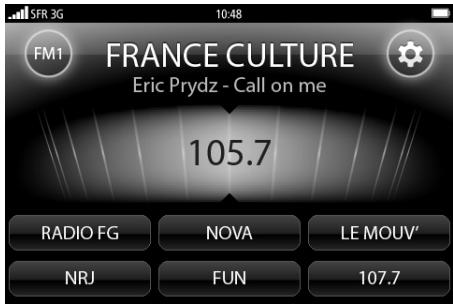
Main page of the "RADIO" application. Press the "Home" button on your iPhone to leave the application.
Bluetooth Pairing
To use the hands-free key for your car radio, you must pair the integrated Bluetooth system with the one on your iPhone.
To do this, run a search on your iPhone for a Bluetooth device until it detects a device called "OCar BT". Select it, enter the code "0000", and press OK. O Car confirms the pairing of the two devices with a long beep, followed by three short beeps. Three consecutive beeps confirm that the two devices are no longer connected.
When devices are connected, the Bluetooth module will cut the program sound when sending or receiving a telephone call, and it will restore the program at the end of the call.
Using Other Applications
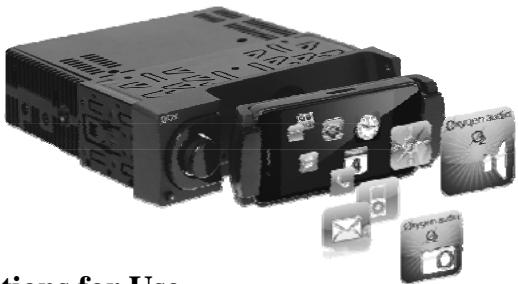
O Car amplifies sound in any application.
Whether you want to play a game, use the Internet telephone, listen to music stored in the iPod application, or simply use the Internet, O Car will become your car's multimedia interface.
Recommendations for Use
Please use common sense while driving.
Safety must always take priority over enjoyment, especially when driving. We recommend using visual applications (such as Internet, video games, movies, etc.) only when you are stopped and the engine is off.
Additional safety is built into our "SOUND" application (see (7) on page 10) when playing a video file from O Car. Unless you are safely parked, we recommend directing video signals from your iPhone to the dedicated video output. This way, no video broadcast can disturb your field of view while driving.
Do not exert significant pressure on the cradle's arm or the cradle itself, which can cause it to break.
Specifications
General
Power source:
- 12 volts DC, negative grounding
- Current range from 11 to 14.5 volts
Maximum current consumption
- 15 amperes
Tone controls:
-Bass: + / - 10 dB @ 900Hz
- Midrange: +/- 10 dB @ 1 KHz
- Treble: +/- 10 dB @ 10 KHz
Signal-to-noise ratio (iPhone mode)
$$ - > 9 5 \mathrm {d B} (\mathrm {A} 2 0 \mathrm {H z} - 2 0 \mathrm {K H z}) $$
Power output:
- 4 x 22 watts RMS
- 4 x 55 watts MAX
Stereo separation: >40 dB
RCA output current: 4 volts
Device dimensions: 187 × 58.5 × 160 ~mm
Device weight: 1.100kg
AM/FM Radio Tuner
AM frequency range:
- 531 to 1602KHz/9KHz (Global)
- 522 to 1620KHz / 9KHz (Europe)
- 522 to 1620KHz / 9KHz (Eastern Europe)
- 522 to 1629KHz / 9KHz (Japan)
- 530 to 1710KHz / 10KHz (North America)
- 520 to 1620KHz / 10KHz (South America)
- IF 450 KHz
FM frequency range:
- 87.5 to 108.0MHz / 100kHz (Global)
- 87.5 to 108.0MHz / 50kHz (Europe)
- 87.5 to 108.0MHz / 50kHz (Eastern Europe)
- 65.0 to 74.0MHz / 10kHz (Eastern Europe)
-
76.0 to 90.0MHz / 100kHz (Japan)
-
87.5 to 107.9MHz / 200kHz (North America)
- 87.5 to 108.0MHz / 100kHz (South America)
Selectivity (signal/noise = 30 dB): -4 V
Stereo separation: >25dB
Video output:
Output type: RCA analog
Output impedance: 75 ohms
Current output: 1 volt
Bluetooth module:
Module type: Bluetooth mono 1.2
Main connection: iPhone
Transmission type: Telecommunication
- "Made for iPhone" mean that an electronic accessory has been designed to connect specifically to iPhone, and has been certified by the developer to meet Apple performance standards. Apple is not responsible for the operation of this device or its compliance with safety and regulatory standards. Please note that the use of this accessory with iPhone may affect wireless performance.
- iPhone is trademarks of Apple Inc., registered in the U.S. and other countries
All of this information is provided for informational purposes only. It can be revised at any time, without prior notice and without changes to how the device is used.
Troubleshooting
A tiny detail may cause a problem in how your unit is working. Before sending the device to our technical department for repair, we recommend first troubleshooting it using the table below.
| Symptoms | Possible Causes | Solution |
| The device does not turn on. | 1. The O Car fuse has blown. 2. The vehicle's fuse has blown. 3. The detachable faceplate is not in position. | 1 & 2. Replace the fuse with an equivalent fuse and check your installation before continuing. 3. Position the detachable faceplate properly. |
| No sound is coming out of the speakers. | 1. The speakers are not properly connected. 2. The amplifier to which the speakers are connected currently has a problem. 3. The sound is muted. 4. No application has been launched. 5. The volume is minimized. | 1. Check that the speakers are connected. 2. Check the amplifier's power and connections. 3. Un-mute by pressing O Car's round button. 4. Launch an application, such as iPod or the “Radio” application. 5. Turn up the volume by turning O Car's round button clockwise. |
| Functions are not responding correctly. | 1. O Car's microprocessor is having problems. 2. The iPhone's processing is having problems or its memory is full. 3. iPhone is poorly housed on the O Car cradle. 4. The “Sound” and “Radio” applications are not installed on the iPhone. | 1. Do a RESET using the (G) key on page 7. 2. Restart the iPhone. 3. Remove the iPhone from the cradle and then put it back correctly. 4. Download and install the “Sound” and “Radio” applications from iTunes. |
| The microphone isn’t working. | 1. There is no Bluetooth pairing between O Car and the iPhone. 2. The microphone is not properly connected. | Set up the pairing between the two devices (see page 16). Disconnect and then reconnect the microphone properly. |
If your problem is still occurring after this troubleshooting, please refer to page 19 for the warranty clause.
Terms of Warranty
This high-quality product is guaranteed against defects in its components for a period of one year from the original owner's date of purchase.
This warranty is defined within the following limits:
The warranty is valid only in the country where the product was sold and only for the device's original owner.
The device may be disassembled, modified, or repaired only by someone expressly authorized by the distributor.
This warranty does not apply in cases of misuse, inappropriate use, or use contrary to the instructions provided by the distributor.
In addition, the distributor denies any liability with regard to accidental, special, or indirect damage resulting from the use or unavailability of the item.
If service is necessary, please inform your dealer and come to an agreement on the terms of repair. If necessary, allow the dealer to ship your device to the distributor. If the device must be returned, package the unit properly.
If possible, use the original packaging. The distributor must be notified in advance. We recommend insuring the device during shipping, because shipments are made at the sender's risk. The distributor is responsible for repackaging, insuring, and shipping the device back.
This warranty is in addition to your statutory rights as a consumer and does not limit them in any way.
Use the two boxes below to indicate your serial number (appearing on the back of your car radio) and purchase date.
Purchase Date:
Serial Number:


Notes

Car
- Congratulations on your purchase, and thank you for your choosing the O Car. Your new product is quality, high technology equipment.
- List of Equipment Provided
- Installation Precautions
- Electrical Precautions
- ISO Connector (1)
- Description of Inputs and Outputs
- Installing the Microphone (required for hands-free functionality)
- Installing the Head Unit
- Installing the Detachable Faceplate
- Inserting an iPhone
- Handling the Cradle
- Uninstalling the Head Unit
- "Sound" Application
- Summary
- "Radio" Application
- Bluetooth Pairing
- Using Other Applications
- Recommendations for Use
- Specifications
- General
- AM/FM Radio Tuner
- Video output:
- Bluetooth module:
- Troubleshooting
- Terms of Warranty
- Car
Brand : OXYGEN
Model : O'CAR
Category : Car stereo